
F7D4101CQ - Network card / adapter BELKIN - Free user manual and instructions
Find the device manual for free F7D4101CQ BELKIN in PDF.


| Product Type | Wireless N USB Adapter |
| Model Number | F7D4101CQ |
| Brand | Belkin |
| Interface | USB 2.0 |
| Wireless Standards | IEEE 802.11b/g/n |
| Frequency Band | 2.4 GHz |
| Maximum Data Rate | Up to 300 Mbps |
| Security Features | WEP, WPA, WPA2 |
| Dimensions (L x W x H) | 2.8 x 0.8 x 0.4 inches (71 x 20 x 10 mm) |
| Weight | 0.3 oz (8.5 g) |
| Power Source | USB bus-powered |
| Operating Systems Supported | Windows XP/Vista/7, Mac OS X 10.4+ |
| Led Indicators | Link/Activity |
| Antenna Type | Internal |
| Compliance | FCC, CE |
| Operating Temperature | 32°F to 104°F (0°C to 40°C) |
| Storage Temperature | -4°F to 158°F (-20°C to 70°C) |
| Humidity | 10% to 90% non-condensing |
| Package Contents | USB Adapter, Quick Start Guide, CD with drivers |
| Maintenance & Cleaning | Disconnect USB before cleaning; use a dry cloth. |
| Safety | Do not expose to liquids or extreme temperatures. |
| Repairability | No user-serviceable parts; replacement unit recommended. |
Frequently Asked Questions - F7D4101CQ BELKIN
User questions about F7D4101CQ BELKIN
0 question about this device. Answer the ones you know or ask your own.
Ask a new question about this device
Download the instructions for your Network card / adapter in PDF format for free! Find your manual F7D4101CQ - BELKIN and take your electronic device back in hand. On this page are published all the documents necessary for the use of your device. F7D4101CQ by BELKIN.
USER MANUAL F7D4101CQ BELKIN
Benefits of a Home Network.... 1
Advantages of a Wireless Network 2
Placement of your Wireless Networking Hardware for Optimal
Performance.... 3
Overview....7
Product Features 7
Applications and Advantages 8
Product Specifications 9
System Requirements.... 11
Package Contents 11
Installing and Setting up the Adapter....12
A. Installation Process for Windows Vista and 7....12
B. Installation Process for Windows XP 20
Connecting to a Secure Wi-Fi ^ Network 27
Troubleshooting 28
Technical Support 34
Information.... 35
FCC Statement....35
Belkin International, Inc., Limited 2-Year Product Warranty.... 37
INTRODUCTION
Thank you for purchasing the Belkin Play Wireless USB Adapter. Now you can take advantage of this great new technology and gain the freedom to network your home and office computers wirelessly. This Adapter allows you to connect a notebook or desktop computer to your network. Please be sure to read through this User Manual completely, and pay special attention to the section titled, "Placement of your Wireless Networking Hardware for Optimal Performance."
Benefits of a Home Network
Your Belkin Home Network will allow you to:
- Share one high-speed Internet connection with all the computers in your home
- Share resources, such as files, and hard drives among all the connected computers in your home
- Share a single printer with the entire family
- Share documents, music, video, and digital pictures
- Store, retrieve, and copy files from one computer to another
- Simultaneously play games online, check Internet email, and chat
Advantages of a Wireless Network
- Mobility – you'll no longer need a dedicated "computer room"—now you can work on a networked laptop or desktop computer anywhere within your wireless range
- Easy installation – Belkin Easy Installation Wizards make setup simple
-
Flexibility – set up and access printers, computers, and other networking devices from anywhere in your home
-
Easy expansion – the wide range of Belkin networking products let you expand your network to include devices such as printers and gaming consoles
- No cabling required – you can spare the expense and hassle of retrofitting Ethernet cabling throughout the home or office
- Widespread industry acceptance – choose from a wide range of interoperable networking products
Placement of your Wireless Networking Hardware for Optimal Performance
Your wireless connection will be stronger the closer your computer is to your wireless router (or access point). Typical indoor operating range for your wireless devices is between 100 and 200 feet. In the same way, your wireless connection and performance will degrade somewhat as the distance between your wireless router (or access point) and connected devices increases. This may or may not be noticeable to you. As you move farther from your wireless router (or access point), connection speed may decrease. Factors that can weaken signals simply by getting in the way of your network's radio waves are metal appliances or obstructions, and walls.
If you have concerns about your network's performance that might be related to range or obstruction factors, try moving the computer to a position between five and 10 feet from the wireless router (or access point) in order to see if distance is the problem. If difficulties persist even at close range, please contact Belkin Technical Support.
Note: While some of the items listed below can affect network performance, they will not prohibit your wireless network from functioning; if you are concerned that your network is not operating at its maximum effectiveness, this checklist may help.
1. Placement of your Wireless Router (or Access Point)
Place your wireless router (or access point), the central connection point of your network, as close as possible to the center of your wireless network devices.
To achieve the best wireless network coverage for your "wireless clients," (i.e., computers enabled by Belkin Adapters or Cards):
- Ensure that your wireless router's (or access point's) antennas are parallel to each other, and are positioned vertically (toward the ceiling). If your wireless router (or access point) itself is positioned vertically, point the antennas as much as possible in an upward direction.
- In multistory homes, place the wireless router (or access point) on a floor that is as close to the center of the home as possible. This may mean placing the wireless router (or access point) on an upper floor.
- Try not to place the wireless router (or access point) near a cordless 2.4GHz phone.
2. Avoid Obstacles and Interference
Avoid placing your wireless router (or access point) near devices that may emit radio "noise", such as microwave ovens. Other objects that can inhibit wireless communication can include:
- Refrigerators
- Washers and/or dryers
- Metal cabinets
- Large aquariums
• Metallic-based, UV-tinted windows - Microwaves
If your wireless signal seems weak in some spots, make sure that objects such as these are not blocking the signal's path between your computers and wireless router (or access point).
3. Cordless Phone Placement
If the performance of your wireless network is impaired after attending to the above issues, and you have a cordless phone:
- Try moving cordless phones away from the wireless router (or access point) and your wireless-enabled computers.
- Unplug and remove the battery from any cordless phone that operates on the 2.4GHz band (check manufacturer's information). If this fixes the problem, your phone may be interfering.
- If your phone supports channel selection, change the channel on the phone to the farthest channel from your wireless network as possible. For example, change the phone to channel 1 and move your wireless router (or access point) to channel 11. (Your channel selection will vary depending on your region.) See your phone's user manual for detailed instructions.
- If necessary, consider switching to a 900MHz or 5GHz cordless phone.
4. Choose the "Quietest" Channel for your Wireless Network
In locations where homes or offices are close together, such as apartment buildings or office complexes, there may be wireless networks nearby that can conflict with yours. Use the Site Survey capabilities of your Belkin Wireless Networking Utility to locate any other wireless networks, and move your wireless router (or access point) and computers to a channel as far away from other networks as possible.
Experiment with more than one of the available channels in order to find the clearest connection and avoid interference from neighboring cordless phones or other wireless devices.
For more Belkin wireless networking products, use the detailed Site Survey and wireless channel information included in your User Manual.
5. Secure Connections, VPNs, and AOL
Secure connections typically require a user name and password, and are used where security is important. Secure connections include:
• Virtual Private Network (VPN) connections, often used to connect remotely to an office network
- The "Bring Your Own Access" program from America Online (AOL), which lets you use AOL through broadband provided by another cable or DSL service
• Most online banking websites
- Many commercial websites that require a user name and password to access your account
Secure connections can be interrupted by a computer's power management setting, which causes it to "go to sleep." The simplest solution to avoid this is to simply reconnect by re-running the VPN or AOL software, or by re-logging into the secure website.
A second alternative is to change your computer's power management settings so it does not go to sleep; however, this may not be appropriate for portable computers. To change your power management setting in Windows, see the "Power Options" item in the Control Panel.
If you continue to have difficulty with Secure Connections, VPNs, and AOL, please review steps 1–4 in the previous pages to be sure you have addressed these issues.
These guidelines should allow you to cover the maximum possible area with your wireless router. Should you need to cover an even wider area, we suggest the Belkin Wireless Range Extender/Access Point.
For more information regarding our networking products, visit our website at www.belkin.com/networking or call Belkin Technical Support.
OVERVIEW
Product Features
The Adapter complies with the IEEE 802.11n specification to communicate with other 802.11n-compliant wireless devices at up to 300Mbps*.
The Adapter is also compatible with 802.11a/g devices at 54Mbps as well as 802.11b products at 11Mbps.
The Adapter can operate on the same 2.4GHz frequency band as 802.11b/g Wi-Fi products or 5GHz frequency band as 802.11a Wi-Fi products.
• 2.4GHz or 5GHz band operation
- USB 2.0 interface, for operation in virtually any computer with a USB 2.0 bus-power port
- WPA, WPA2, 64-bit WEP (Wired Equivalent Privacy), or 128-bit WEP encryption
- Wireless access to networked resources
- Data rate of up to 300Mbps* (802.11n), 54Mbps (802.11a/g), or 11Mbps (802.11b)
- Easy installation and use
• LED power and network link/activity indicator
Applications and Advantages
- Wireless roaming with a laptop around the home or office – Offers the freedom of networking without cables
- Connection rates of up to 300Mbps* – Provides immediate high-speed wireless connectivity at home, work, and hotspot locations without compromising the use of existing 802.11b/g products
-
Compatibility with 802.11b/g products – The Adapter is backward-compatible with existing Wi-Fi (IEEE 802.11b/g) products
-
Difficult-to-wire environments – Enables networking in buildings with solid or finished walls, or open areas where wiring is difficult to install
- Frequently changing environments – Adapts easily in offices or environments that frequently rearrange or change locations
- SOHO (Small Office/Home Office) networking needs – Provides the easy and quick, small network installation SOHO users need
Product Specifications
Host Interface: USB 2.0
Operating Temperature: 32–131 degrees F (0–55 degrees C)
Storage Temperature: -4–149 degrees F (-20–65 degrees C)
Humidity: Max. 90% (non-condensing)
Maximum Operating Range: Up to 1,200 ft.**
*NOTE: The standard transmission rate—300Mbps—is the physical data rate. Actual data throughput will be lower.
**Wireless performance may vary depending on the networking environment.
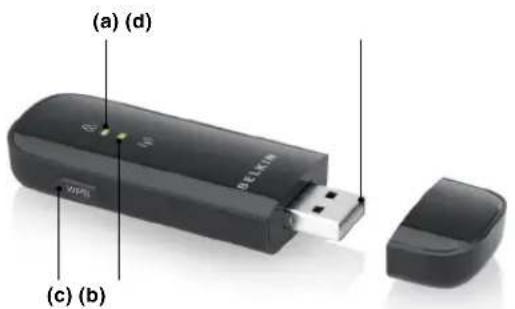
(a) Power/Activity LED
Lights when the Adapter is powered on and flashes when it is active.
(b) WPS/Security LED
Indicates security status and provides feedback during Wi-Fi Protected Setup handshaking.
(c) WPS Push Button
Used for Wi-Fi Protected Setup handshaking with routers. This button is functional only when the software application is installed.
(d) USB Connector
Part of the Adapter that fits into your computer's USB port.
System Requirements
- PC-compatible laptop with one available USB 2.0 bus-power port
- Windows ^ XP with SP2 or later, Windows Vista ^ , or Windows 7
Package Contents
- Play Wireless USB Adapter
- Quick Installation Guide
• CD with Installation Software and User Manual
A. Installation Process for Windows Vista and 7
NOTE: For information on updated drivers, please visit the Belkin website at www.belkin.com/support.
IMPORTANT: INSTALL THE SOFTWARE BEFORE INSERTING THE ADAPTER.
A.1 Insert the Installation Software CD into your CD-ROM drive.
A.2 Click "Next" to begin the installation process.
Note: If the Belkin Wireless Card Installer screen does not appear within 20 seconds, access your CD-ROM by double-clicking on the "My Computer" icon; then double-click on the CD-ROM drive into which the installation CD has been placed. If the Installer does not start automatically, double-click on the icon named "Installer.exe".

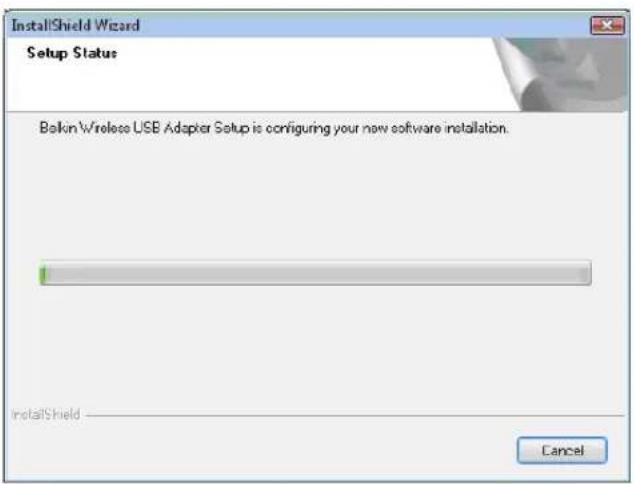
A.3 The InstallShield Wizard will start the installation process.

A.4 A window may appear showing the message, "Windows can't verify the publisher of this driver software". This DOES NOT indicate a problem. Our software has been fully tested and is compatible with this operating system. Click on "Install this driver software anyway" to continue.
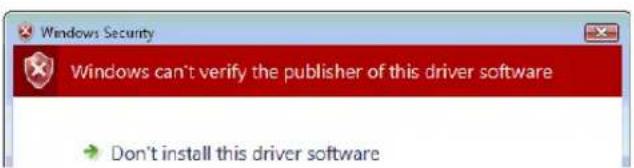
A.5 When prompted, plug in your Adapter.

A.6 When the installation completes, you will see the following pop-up message on your Windows taskbar.

A.7 Click "Finish" to restart your computer.

A.8 To connect to the Internet, open the Network and Sharing Center by first opening the Control Panel from the "Start" menu.

A.9 In the Control Panel, click on "View network status and tasks".

A.10 In the Network and Sharing Center, click on "Connect to a network".
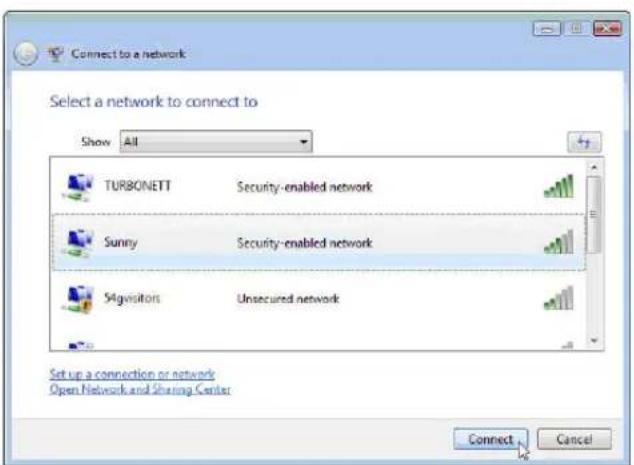
A.11 In the next screen, select an available wireless network and click "Connect".
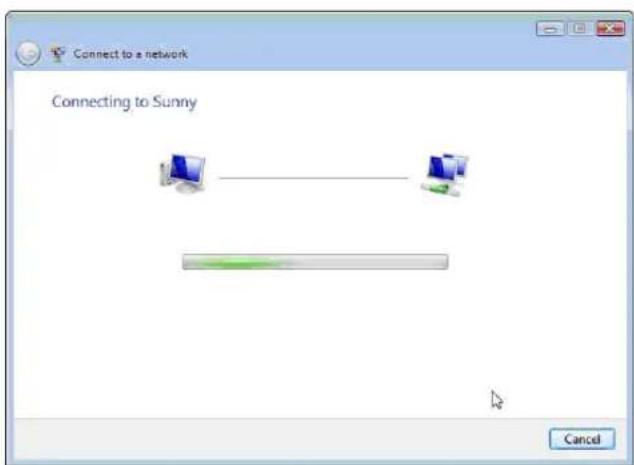
A.12 Your Adapter will attempt to connect to the selected network.
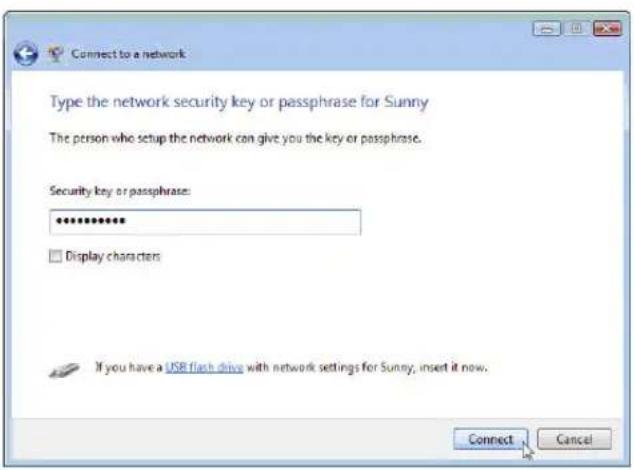
A.13 Depending on the security settings of your wireless network, you may be prompted to enter a network security key or a passphrase. Click "Connect" after you have done so.

A.14 After connecting to the network, you can choose to save this network and connect automatically when your Adapter is in range.

A.15 The Network and Sharing Center now indicates the network connection that you have just made. The links on the left of the window allow you to configure your network connections.
B. Installation Process for Windows XP
IMPORTANT: INSTALL THE SOFTWARE BEFORE INSERTING THE ADAPTER.
B.1 Insert the Installation Software CD into your CD-ROM drive.
B.2 The Belkin Wireless Adapter Installer screen will automatically appear within up to 20 seconds. Click "Install Software" or "Next" to start the installation.
Note: If the Belkin Wireless Adapter Installer screen does not appear within 20 seconds, access your CD-ROM by double-clicking on the "My Computer" icon; then double-click on the CD-ROM drive into which the installation CD has been placed. Then, double-click on the icon named "Installer.exe".

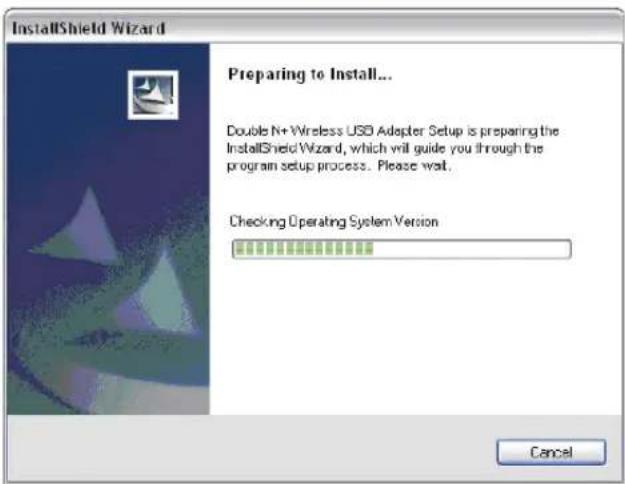
B.3 The InstallShield Wizard starts the installation process.
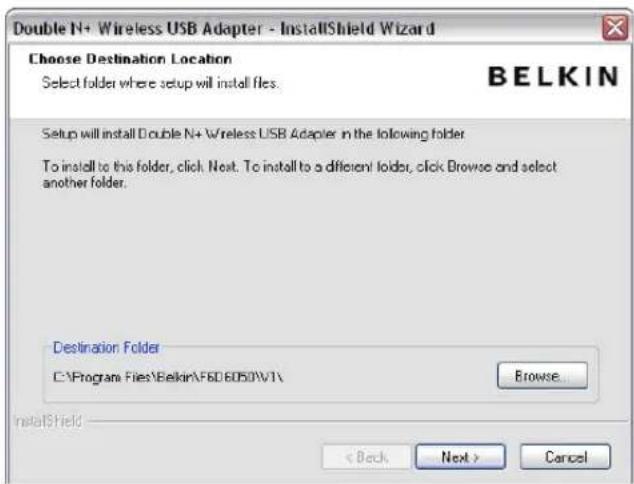
B.4 Select a destination folder for the software installation by clicking "Browse"; or, simply click "Next" to select a default location.

B.5 A Setup Status screen lets you know where you are in the setup process.

Please plug in your wireless card now.
B.6 After the software installation is finished, the following message will appear. Connect the Adapter to your computer.
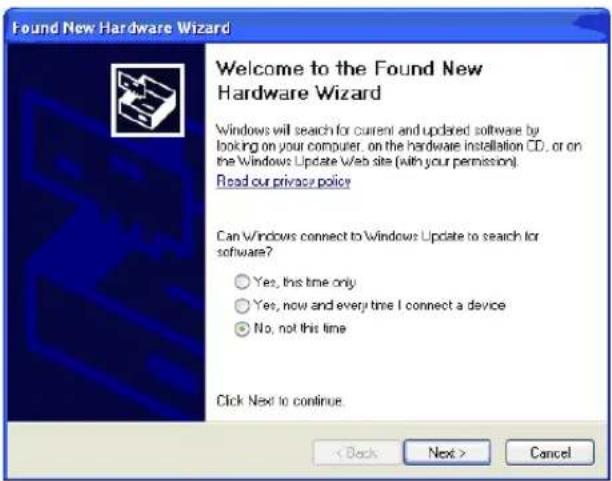
B.7 The Found New Hardware Wizard might appear in 3–15 seconds. If it does, select "Yes, this time only" and click "Next" to install the hardware.

B.8 Select "Install the software automatically (Recommended)" and click "Next" to continue.
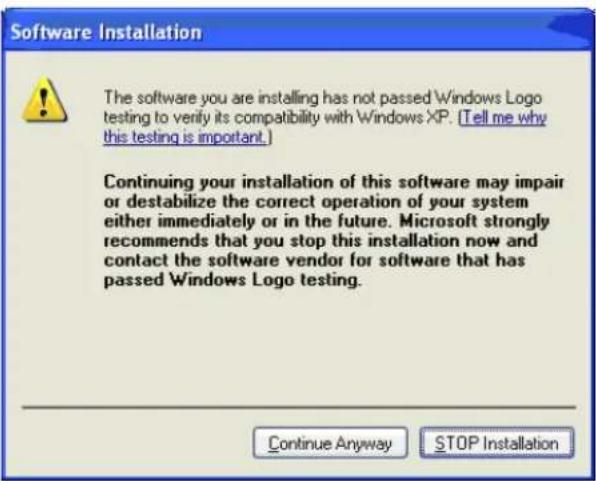
B.9 You might see a screen similar to this one. This DOES NOT mean there is a problem. Our software has been fully tested and is compatible with this operating system. Select "Continue Anyway" and follow the on-screen instructions.

B.10 The Wizard will now install your software.

B.11 The installation is now complete. Click "Finish" to close the "Found New Hardware Wizard".
B.12 Click "Finish" again to exit the InstallShield Wizard.

B.13 Depending on which operating system you are using, you might be required to reboot your computer for the changes to take effect. Save your data and close all other applications. Then, click on "Finish" to reboot your computer.
Connecting to a Secure Wi-Fi ^® Network
If you choose to connect to a secure network, determine the type of security (WPA/WPA2 or WEP) and use the appropriate field in the dialog box.
Wireless Equivalent Privacy (WEP) is a less secure, but more widely adopted wireless security protocol. Depending on the security level (64- or 128-bit), the user will be asked to input a 10- or 26-character hex key. A hex key is a combination of letters, a-f, and numbers, 0–9.
Wi-Fi Protected Access ^® (WPA ^® /WPA2 ^® ) is the new standard in wireless security. Instead of a hex key, WPA/WPA2 uses only passphrases, which are much easier to remember. The passphrase is 8–63 characters and can consist of alphabet letters and numbers.
TROUBLESHOOTING
I can't connect to the Internet wirelessly.
If you are unable to connect to the Internet from a wireless computer, please check the following items: Look at the lights on your wireless router. If you're using a Belkin Wireless Router, the lights should be as follows:
- The "Power" light should be on and not blinking.
If this is NOT the case, make sure:
- The router's power cord is plugged in.
- All cables are connected between the router and the modem.
- All the modem's LEDs are functioning correctly. If not, see your modem's user manual.
- Reboot the router.
- Reboot the modem.
If you continue to have issues, please contact Belkin Technical Support.
If you are not using a Belkin Wireless Router, consult that router manufacturer's user guide.
Power LED does not come ON; Adapter is not working.
If the LED indicators are not ON, the problem may be that the Adapter is not connected or installed properly. Verify that the Adapter is plugged firmly into the USB port of your computer. Check to see that the drivers for the Adapter have been installed. Right-click on the "My Computer" icon on your desktop. Choose "Properties" and navigate to the "Device Manager" and see if your USB Adapter is listed without any errors. If an error is indicated, contact Belkin Technical Support.
Link LED is blinking slowly; I cannot connect to a wireless network or the Internet.
If your Adapter appears to be functioning properly, but you cannot connect to a network or you have a red wireless icon at the bottom of your screen, the problem may be that there is a mismatch between the network name (SSID) settings in your wireless network properties.
Check the SSID settings to see if they match. The SSID is case-sensitive and the spelling on each computer must be exactly the same in order for the Adapter to connect to the wireless router (or access point).
Note: To check the SSID settings or look for an available network, double-click the Signal Indicator icon to bring up the "Wireless Networks" screen. Click "Add" if you do not see the network you are trying to connect to and type in the SSID.
For more information about setting up an SSID, please reference your router manufacturer's user manual. If issues persist even at close range, please contact Belkin Technical Support.
Link LED is solid but I cannot connect to the Internet.
If you have a signal but can't get online or obtain an IP address, the problem may be that there is a mismatch between the encryption key settings in your computer and wireless router (or access point). Check the WEP, WPA, or WPA2 key settings to see if they match. The key is case-sensitive and the spelling on each computer and wireless router (or access point) must be exactly the same in order for the Adapter to connect to the router. For more information about encryption, please see the "Securing your Wi-Fi Network" section.
If issues persist even at close range, please contact Belkin Technical Support.
Data transfer is sometimes slow.
Wireless technology is radio-based, which means connectivity and the throughput performance between devices decreases when the distance between devices increases. Other factors that will cause signal degradation (metal is generally the worst culprit) are obstructions such as walls and metal appliances. As a result, the typical indoor range of your wireless devices will be between 100 to 200 feet. Note also that connection speed may decrease as you move farther from the wireless router (or access point).
In order to determine if wireless issues are related to range, we suggest temporarily moving the computer, if possible, to five to 10 feet away from the wireless router (or access point). Please see the section titled, "Placement of your Wireless Networking Hardware for Optimal Performance." If issues persist even at close range, please contact Belkin Technical Support.
Signal strength is poor.
Wireless technology is radio-based, which means connectivity and the throughput performance between devices decreases when the distance between devices increases. Other factors that will cause signal degradation (metal is generally the worst culprit) are obstructions such as walls and metal appliances. As a result, the typical indoor range of your wireless devices will be between 100 to 200 feet. Note also that connection speed may decrease as you move farther from the wireless router (or access point). In order to determine if wireless issues are related to range, we suggest temporarily moving the computer, if possible, to five to 10 feet away from wireless router (or access point).
Changing the wireless channel – Depending on local wireless traffic and interference, switching the wireless channel of your network can improve performance and reliability. The default channel the router is shipped with its channel 6. You may choose from several other channels depending on your region; see your router's (or access point's) user manual for instructions on how to choose other channels.
Limiting the wireless transmit rate – Limiting the wireless transmit rate can help improve the maximum wireless range, and connection stability. Most wireless cards have the ability to limit the transmission rate. To change this property, go to the Windows Control Panel, open "Network Connections" and double-click on your Adapter's connection. In the "Properties" dialog, select the "Configure" button on the "General" tab (Windows 98 users will have to select the USB Network Adapter in the list box and then click "Properties"), then choose the "Advanced" tab and select the rate property. Wireless client cards are usually set to automatically adjust the wireless transmit rate for you, but doing so can cause periodic disconnects when the wireless signal is too weak; as a rule, slower transmission rates are more stable. Experiment with different connection rates until you find the best one for your environment; note that all available transmission rates should be acceptable for browsing the Internet. For more assistance, see your wireless card's literature. If issues persist even at close range, please contact Belkin Technical Support.
The Adapter does not perform or connection is unstable when computer has a second built-in wireless network card (such as a mini PCI or Intel ^ Centrino ^TM ).
This condition occurs if your computer has a built-in wireless card while your Belkin Play Wireless USB Adapter is also active. This happens because Windows must now handle two active wireless connections.
You must disable the built-in wireless card from your computer under "Network Adapters" in the Device Manager.
The Adapter does not perform or connection is slow when computer has a built-in wired Ethernet card.
This condition occurs if your computer has an active Ethernet card while your Adapter is also active. This happens because Windows must now handle two active network connections. You must disable the Ethernet card from your computer under "Network Adapters" in the Device Manager.
What's the difference between 802.11g and 802.11n?
Currently there are three commonly used wireless networking standards, which transmit data at very different maximum speeds. Each is based on the designation for certifying network standards. The most common wireless networking standard, 802.11g, can transmit information up to 54Mbps; 802.11a also supports up to 54Mbps, but in the 5GHz frequency; and 802.11n specification can connect at up to 300Mbps. See the following chart for more detailed information.
Belkin Wireless Comparison Chart
| Wireless Technology | G(802.11g) | Basic(1x1 802.11n) | Surf/Share N MIMO802.11n | Play Dual-Band MIMO802.11n |
| Speed/Data Rate* | Up to 54Mbps* Up to 150Mbps* | Up to 300Mbps* Up to 300Mbps* | ||
| Frequency | Common household devices such as cordless phones and microwave ovens may interfere with the unlicensed band 2.4GHz | Common household devices such as cordless phones and microwave ovens may interfere with the unlicensed band 2.4GHz | Common household devices such as cordless phones and microwave ovens may interfere with the unlicensed band 2.4GHz | Uses both 2.4GHz and 5GHz bands for less interference and better throughput |
| Compatibility | Compatible with 802.11b/g | Compatible with 802.11b/g | Compatible with 802.11n and 802.11b/g | Compatible with 802.11n and 802.11a/b/g |
| Coverage* | Up to 400 ft.* Up to 1,000 ft.* Up to 1,200 ft.* Up to 1,400 ft.* | |||
| Advantage | Common—widespread use for Internet sharing | Better coverage and consistent speed and range | Good speed and coverage Leading edge—best coverage and throughput | |
*Distance and connection speeds will vary depending on your networking environment.
TROUBLESHOOTING
Technical Support
US
http://www.belkin.com/support
UK
http://www.belkin.com/uk/support
Australia
http://www.belkin.com/au/support
New Zealand
http://www.belkin.com/au/support
Singapore
1800 622 1130
Europe
http://www.belkin.com/uk/support
FCC Statement
DECLARATION OF CONFORMITY WITH FCC RULES FOR ELECTROMAGNETIC COMPATIBILITY
We, Belkin International, Inc., of 12045 Waterfront Drive, Los Angeles, CA 90094, declare under our sole responsibility that the product, F7D4101, to which this declaration relates, complies with Part 15 of the FCC Rules. Operation is subject to the following two conditions: (1) this device may not cause harmful interference, and (2) this device must accept any interference received, including interference that may cause undesired operation.
Caution: Exposure to Radio Frequency Radiation. The radiated output power of this device is far below the FCC radio frequency exposure limits. Nevertheless, the device shall be used in such a manner that the potential for human contact during normal operation is minimized. When connecting an external antenna to the device, the antenna shall be placed in such a manner to minimize the potential for human contact during normal operation. In order to avoid the possibility of exceeding the FCC radio frequency exposure limits, human proximity to the antenna shall not be less than 20cm (8 inches) during normal operation.
Federal Communications Commission Notice
This equipment has been tested and found to comply with the limits for a Class B digital device, pursuant to Part 15 of the FCC Rules. These limits are designed to provide reasonable protection against harmful interference in a residential installation.
This equipment generates, uses, and can radiate radio frequency energy and, if not installed and used in accordance with the instructions, may cause harmful interference to radio communications. However, there is no guarantee that interference will not occur in a particular installation. If this equipment does cause harmful interference to radio or television reception, which can be determined by turning the equipment off and on, the user is encouraged to try to correct the interference by one of the following measures:
- Reorient or relocate the receiving antenna.
- Increase the distance between the equipment and the receiver.
- Connect the equipment to an outlet on a circuit different from that to which the receiver is connected.
- Consult the dealer or an experienced radio/TV technician for help.
FCC Caution: Any changes or modifications not expressly approved by the party responsible for compliance could void the user's authority to operate this equipment.
IMPORTANT NOTE:
Radiation Exposure Statement
This equipment complies with FCC radiation exposure limits set forth for an uncontrolled environment. End users must follow the specific operating instructions for satisfying RF exposure compliance. To maintain compliance with FCC RF exposure compliance requirements, please follow operation instructions as documented in this manual.
This transmitter must not be co-located or operating in conjunction with any other antenna or transmitter.
SAR compliance has been established in typical laptop computer(s) with USB slots, and this product could be used in typical laptop computers with USB slots. Other applications, such as handheld PCs or similar devices, have not been verified and may not comply with related RF exposure rules and such use shall be prohibited.
The availability of some specific channels and/or operational frequency bands is country-dependent and firmware is programmed at the factory to match the intended destination. The firmware setting is not accessible by the end user.
Modifications
The FCC requires the user to be notified that any changes or modifications to this device that are not expressly approved by Belkin International, Inc., may void the user's authority to operate the equipment.
Industry Canada Statement
This device complies with RSS-210 of the Industry Canada Rules. Operation is subject to the following two conditions:
1) This device may not cause interference, and
2) This device must accept any interference, including interference that may cause undesired operation of the device.
IMPORTANT NOTE:
IC Radiation Exposure Statement
This equipment complies with IC radiation exposure limits set forth for an uncontrolled environment. End users must follow the specific operating instructions for satisfying RF exposure compliance. To maintain compliance with IC RF exposure compliance requirements, please follow operation instructions as documented in this manual.

Belkin International, Inc., Limited 2-Year Product Warranty
What this warranty covers.
Belkin International, Inc. ("Belkin") warrants to the original purchaser of this Belkin product that the product shall be free of defects in design, assembly, material, or workmanship.
What the period of coverage is.
Belkin warrants the Belkin product for two years.
What will we do to correct problems?
Product Warranty.
Belkin will repair or replace, at its option, any defective product free of charge (except for shipping charges for the product). Belkin reserves the right to discontinue any of its products without notice, and disclaims any limited warranty to repair or replace any such discontinued products. In the event that Belkin is unable to repair or replace the product (for example, because it has been discontinued), Belkin will offer either a refund or a credit toward the purchase of another product from Belkin.com in an amount equal to the purchase price of the product as evidenced on the original purchase receipt as discounted by its natural use.
What is not covered by this warranty?
All above warranties are null and void if the Belkin product is not provided to Belkin for inspection upon Belkin's request at the sole expense of the purchaser, or if Belkin determines that the Belkin product has been improperly installed, altered in any way, or tampered with. The Belkin Product Warranty does not protect against acts of God such as flood, earthquake, lightning, war, vandalism, theft, normal-use wear and tear, erosion, depletion, obsolescence, abuse, damage due to low voltage disturbances (i.e. brownouts or sags), non-authorized program, or system equipment modification or alteration.
How to get service.
To get service for your Belkin product you must take the following steps:
- Contact Belkin International, Inc., at 12045 Waterfront Drive, Los Angeles, CA 90094, Attn: Customer Service, or call (800)-223-5546, within 15 days of the Occurrence. Be prepared to provide the following information:
a. The part number of the Belkin product.
b. Where you purchased the product.
c. When you purchased the product.
d. Copy of original receipt. - Your Belkin Customer Service Representative will then instruct you on how to forward your receipt and Belkin product and how to proceed with your claim.
Belkin reserves the right to review the damaged Belkin product. All costs of shipping the Belkin product to Belkin for inspection shall be borne solely by the purchaser. If Belkin determines, in its sole discretion, that it is impractical to ship the damaged equipment to Belkin, Belkin may designate, in its sole discretion, an equipment repair facility to inspect and estimate the cost to repair such equipment. The cost, if any, of shipping the equipment to and from such repair facility and of such estimate shall be borne solely by the purchaser. Damaged equipment must remain available for inspection until the claim is finalized. Whenever claims are settled, Belkin reserves the right to be subrogated under any existing insurance policies the purchaser may have.
How state law relates to the warranty.
THIS WARRANTY CONTAINS THE SOLE WARRANTY OF BELKIN. THERE ARE NO OTHER WARRANTIES, EXPRESSED OR, EXCEPT AS REQUIRED BY LAW, IMPLIED, INCLUDING THE IMPLIED WARRANTY OR CONDITION OF QUALITY, MERCHANTABILITY OR FITNESS FOR A PARTICULAR PURPOSE, AND SUCH IMPLIED WARRANTIES, IF ANY, ARE LIMITED IN DURATION TO THE TERM OF THIS WARRANTY.
Some states do not allow limitations on how long an implied warranty lasts, so the above limitations may not apply to you.
IN NO EVENT SHALL BELKIN BE LIABLE FOR INCIDENTAL, SPECIAL, DIRECT, INDIRECT, CONSEQUENTIAL OR MULTIPLE DAMAGES SUCH AS, BUT NOT LIMITED TO, LOST BUSINESS OR PROFITS ARISING OUT OF THE SALE OR USE OF ANY BELKIN PRODUCT, EVEN IF ADVISED OF THE POSSIBILITY OF SUCH DAMAGES.
This warranty gives you specific legal rights, and you may also have other rights, which may vary from state to state. Some states do not allow the exclusion or limitation of incidental, consequential, or other damages, so the above limitations may not apply to you.
belkin.com
© 2010 Belkin International, Inc. All rights reserved. All trade names are registered trademarks of respective manufacturers listed. Windows and Windows Vista are either registered trademarks or trademarks of Microsoft Corporation in the United States and/or other countries.

- INTRODUCTION
- Benefits of a Home Network
- Advantages of a Wireless Network
- Placement of your Wireless Networking Hardware for Optimal Performance
- Placement of your Wireless Router (or Access Point)
- Avoid Obstacles and Interference
- Cordless Phone Placement
- Choose the "Quietest" Channel for your Wireless Network
- Secure Connections, VPNs, and AOL
- OVERVIEW
- Product Features
- Applications and Advantages
- Product Specifications
- Power/Activity LED
- WPS/Security LED
- WPS Push Button
- USB Connector
- System Requirements
- Package Contents
- Installation Process for Windows Vista and 7
- Installation Process for Windows XP
- Connecting to a Secure Wi-Fi ® Network
- TROUBLESHOOTING
- I can't connect to the Internet wirelessly.
- Power LED does not come ON; Adapter is not working.
- Link LED is blinking slowly; I cannot connect to a wireless network or the Internet.
- Link LED is solid but I cannot connect to the Internet.
- Data transfer is sometimes slow.
- Signal strength is poor.
- Technical Support
- US
- UK
- Australia
- New Zealand
- Singapore
- Europe
- FCC Statement
- DECLARATION OF CONFORMITY WITH FCC RULES FOR ELECTROMAGNETIC COMPATIBILITY
- Federal Communications Commission Notice
- IMPORTANT NOTE:
- Radiation Exposure Statement
- Modifications
- Industry Canada Statement
- IC Radiation Exposure Statement
- Belkin International, Inc., Limited 2-Year Product Warranty
- What this warranty covers.
- What the period of coverage is.
- What will we do to correct problems?
- What is not covered by this warranty?
- How to get service.
- How state law relates to the warranty.
- belkin.com
Brand : BELKIN
Model : F7D4101CQ
Category : Network card / adapter