
F7D4501au - Network card / adapter BELKIN - Free user manual and instructions
Find the device manual for free F7D4501au BELKIN in PDF.


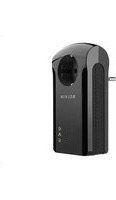
| Product Type | ScreenCast TV Adapter for Intel Wireless Display |
| Brand | Belkin |
| Model | F7D4501au |
| Connectivity | HDMI (cable included), RCA composite (cables sold separately) |
| Wireless Technology | Intel Wireless Display (WiDi) |
| Wireless Range | Up to 30 feet (9 meters) |
| Power Supply | AC/DC power adapter (attached) |
| Video Output | HDMI (up to 1080p), RCA composite (up to 480p) |
| Audio Output | HDMI: PCM stereo or 5.1 surround; RCA: stereo analog |
| HDCP Support | Yes (HDCP 2.0+) |
| Security | 4-digit PIN pairing |
| Compatible Laptops | Laptops with 2nd generation Intel Core processor and Intel Wireless Display |
| TV Compatibility | TV with HDMI or RCA input |
| Operating System | Windows 7 (multiple monitor modes) |
| Setup | First-time setup via Intel Wireless Display software |
| Language Support | Multiple languages (selectable via reset button) |
| Reset Function | Short press: change language; long press (>5s): reset security profile |
| Regulatory Approvals | FCC Part 15 Class B, CE |
| Warranty | Limited 1-year warranty |
| Package Contents | ScreenCast TV Adapter, Power Supply, HDMI Cable, Quick Install Guide, User Manual on CD |
Frequently Asked Questions - F7D4501au BELKIN
User questions about F7D4501au BELKIN
0 question about this device. Answer the ones you know or ask your own.
Ask a new question about this device
Download the instructions for your Network card / adapter in PDF format for free! Find your manual F7D4501au - BELKIN and take your electronic device back in hand. On this page are published all the documents necessary for the use of your device. F7D4501au by BELKIN.
USER MANUAL F7D4501au BELKIN
What's in the Box? 2
What's not in the Box? 2
What Else Should I Know? 3
Adapter Setup 4
Where to Place Your ScreenCast TV Adapter .... 4
Plugging Everything Together 4
Software—First-Time Setup 5
Using Your ScreenCast 10
How to Use It 10
Playing Content on Your TV 10
Options for Using the TV Screen 11
What Else Do I Need to Know? 12
Using the Reset Button 13
Information.... 14
FCC Statement....14
Belkin International, Inc., Limited 1-Year Product Warranty ..... 15
Technical Support 17
GETTING STARTED
Introduction
Thank you for purchasing the ScreenCast TV Adapter for Intel Wireless Display. We created this product to help you wirelessly transmit your favorite content from your laptop to the best screen in your house—your living-room TV.
Before the ScreenCast TV Adapter, you may have needed a long cable or simply crowded around your laptop screen to share movies, pictures, and surf the Web.
Now you can take content from any WiDi laptop with a second-generation Intel® Core™ processor and easily display it on your TV with the ScreenCast TV Adapter.
From the latest Blu-ray Disc™ movies to your favorite Netflix® and YouTube® videos, to just showing off pictures of your recent family vacation, exactly what you see on your laptop can now be displayed on your TV from as far as 30 feet away.
What's in the Box?
• ScreenCast TV Adapter for Intel Wireless Display
• Power Supply (attached to ScreenCast TV Adapter)
- Quick Install Guide
- User Manual on CD
• One HDMI Cable
What's not in the Box?
• An Intel Wireless Display (WiDi) laptop
- You need a WiDi laptop to use the ScreenCast TV Adapter. The latest generation WiDi laptops support streaming of DVD and Blu-ray™ content to your TV in 1080p quality. Check with your PC vendor on which generation of WiDi your PC supports.
• A TV with an available HDMI or RCA input port
- Belkin recommends a 1080p-capable TV and HDMI for the best picture and sound possible. If you use the ScreenCast TV Adapter with an older model TV that only has RCA (component) inputs, you will only be able to view standard-definition (480p) content.
What Else Should I Know?
- Intel Wireless Display is a technology that enables a second display for Intel Wireless Display-ready (WiDi) computers. A simple way of thinking about it is as a replacement for a cable to a secondary monitor.
- Once connected, your laptop operates in all the standard Windows ^® 7 multiple monitor modes: duplicate (mirror) images, extended (a second screen for more desktop space), or projector (laptop screen off and duplicate screen on).
- Intel WiFi hardware and Intel My WiFi Technology (Intel MWT) software allows both an easy connection to the ScreenCast TV Adapter and a standard connection to a wireless access point for Internet connectivity.
- With Intel Wireless Display, you can watch videos on your HDTV while surfing the Web on your laptop.
Where to Place Your ScreenCast TV Adapter
- Your ScreenCast TV Adapter and TV need to be close enough together to allow you to connect them with an RCA or HDMI cable (provided). The ScreenCast TV Adapter also needs to have an available power outlet within range.
- For best results, keep your ScreenCast TV Adapter within line-of-sight of wherever you plan to use your WiDi laptop (sold separately)—this will help ensure that your TV receives the best possible signal and you get the most out of your ScreenCast TV Adapter.
- The ScreenCast TV Adapter will be most effective within 30 feet of your laptop, but range will depend on many factors including other sources of interference and the building materials used in your home.
Plugging Everything Together
- Connect your ScreenCast TV Adapter to your TV with the HDMI cable (included in the box) or RCA cables (sold separately), and connect the power supply to the ScreenCast TV Adapter and a nearby outlet.

Software—First-Time Setup
- Turn on your TV and switch it to the A/V input where your ScreenCast TV Adapter is connected. Then push the power button on the back of the Adapter. You should then see a screen that looks like this:

ADAPTER SETUP
- On your WiDi laptop, launch the Intel Wireless Display software. On some laptop PCs, this may be a switch at the top of the keyboard. Other PCs may require you to start a program from a shortcut on the desktop or in the system tray. Refer to your PC manufacturer's documentation for specific details on your model.

- When you click to connect to the ScreenCast TV Adapter, a screen will appear on your TV with a 4-digit security code. A similar screen appears on your PC requesting that code. Enter the 4-digit code into the appropriate box on your laptop screen.

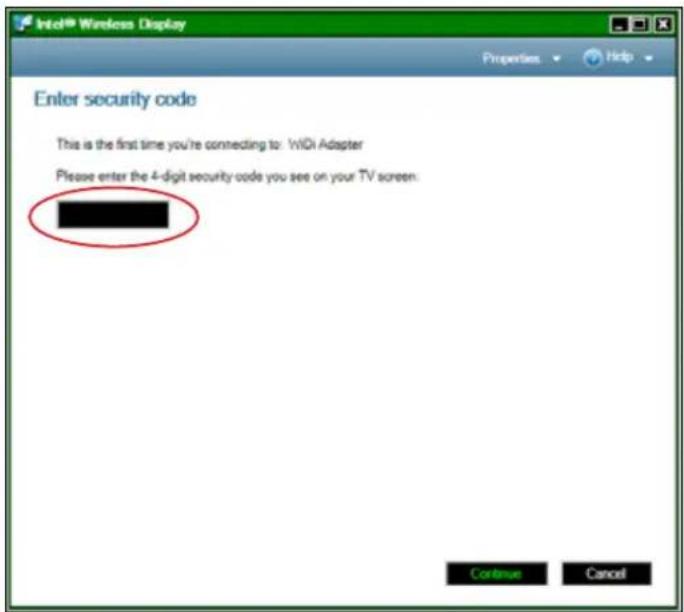
ADAPTER SETUP
- Name the ScreenCast TV Adapter. Naming it will allow you to easily find it in a list of available adapters should you have more than one within range. Use a name that is easy to remember like "Living Room WiDi". If you choose not to name it, the device will be set to a factory-default name.
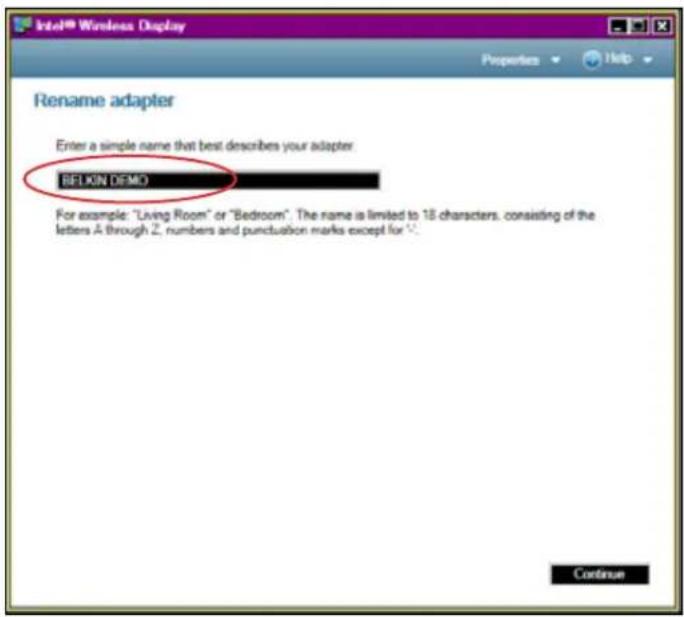
ADAPTER SETUP
- Next, the software will prompt you to easily configure your display so that it completely fits on the TV screen. (The initial setup uses a mirror approach so that you can see the same screen on both devices—you can change this later.) You can also register your ScreenCast TV Adapter with Belkin to receive updates and support.
- Once you have the display configured the way you want and you've registered your product, click "Complete." You can now use your TV as a second monitor.
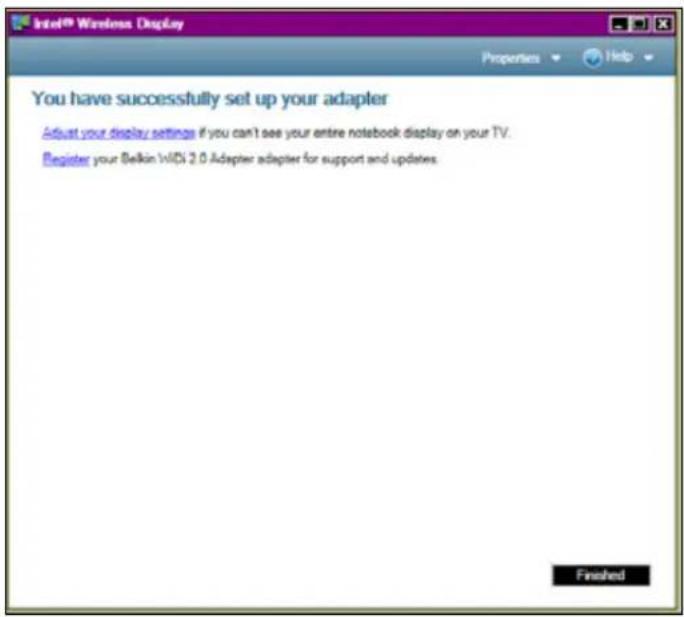
How to Use It
-
Simply press the Intel Wireless Display button on your WiDi laptop or click on the desktop WiDi icon, and the rest is automatically handled by your PC.
-
When you start WiDi on your laptop, a screen appears that allows you to select from available adapters. The ScreenCast TV Adapter should appear on this list.
- If you don't see the ScreenCast TV Adapter on the list, you may need to move your laptop closer to the ScreenCast TV Adapter for a better signal. You should also confirm that the ScreenCast TV Adapter is connected to power and the power is turned on.
Playing Content on Your TV
- This is the easy part. Once you are connected, you can use your TV as though it is a second screen for your laptop PC. Any content that you can watch on your laptop, including DVDs or Blu-ray Disc, can now be viewed on your TV. Whatever you can watch on your laptop's screen, you can now watch on your TV.
Options for Using the TV Screen
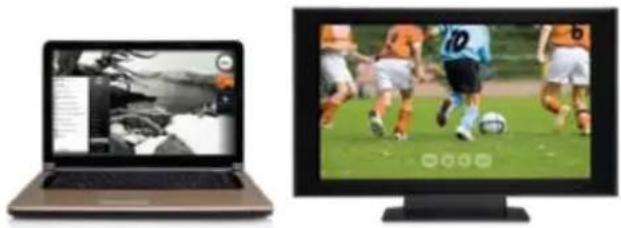
You have three basic options for how to use your TV and laptop screens.
- Mirroring or "cloning" (displaying the same content on both screens)—useful for when you want to use your laptop's keyboard or mouse while showing content to other people.

natural_image
Two laptops displaying a soccer game with players in action, shown from different angles (no text or symbols visible)- Extended monitor—this allows you to keep using your laptop screen while sending content over to your TV for a larger group to see.
natural_image
Two laptops displaying a soccer game: one with a video player interface, the other with a soccer match in progress (no visible text or symbols on screens)• Using just the TV as a monitor—great for movies or other content that you want to enjoy on one large screen.

natural_image
Two laptops side by side: one black-and-white, one video on a grass field with soccer players in action (no visible text or symbols)What Else Do I Need to Know?
Protected Content Output (HDCP)
- Version 2.0+ of Intel Wireless Display supports High-Bandwidth Digital Copyright Protection (HDCP). This support happens between the PC and the ScreenCast TV Adapter and between the ScreenCast TV Adapter and the TV. If any part of this chain is broken, the content may not play on the TV screen. Protected content playback is enforced by the software media player running on the PC.
Audio Output
- The ScreenCast TV Adapter outputs the audio simultaneously to two audio options as follows:
- HDMI: PCM - stereo or surround (5.1 channel sound)
- RCA L&R jacks: analog - stereo or L&R only from surround
Using the Reset Button
Changing the language
- To change the language, you can use a paper clip to push the reset button shown in the diagram. A short press of this button (less than one second) will allow you to cycle between different language options for the ScreenCast TV Adapter.
Hard reset of security profile
- If you press the reset button for more than 5 seconds you will reset the security profile. This will require that you complete the setup process a second time and re-pair your laptop and ScreenCast TV Adapter.

FCC Statement
DECLARATION OF CONFORMITY WITH FCC RULES FOR ELECTROMAGNETIC COMPATIBILITY
We, Belkin International, Inc., of 12045 E. Waterfront Drive, Playa Vista, CA 90094, declare under our sole responsibility that the product, F7D4501, to which this declaration relates, complies with Part 15 of the FCC Rules. Operation is subject to the following two conditions: (1) this device may not cause harmful interference, and (2) this device must accept any interference received, including interference that may cause undesired operation.
Caution: Exposure to Radio Frequency Radiation.
The radiated output power of this device is far below the FCC radio frequency exposure limits. Nevertheless, the device shall be used in such a manner that the potential for human contact during normal operation is minimized. When connecting an external antenna to the device, the antenna shall be placed in such a manner to minimize the potential for human contact during normal operation. In order to avoid the possibility of exceeding the FCC radio frequency exposure limits, human proximity to the antenna shall not be less than 20cm (8 inches) during normal operation.
Federal Communications Commission Notice
This equipment has been tested and found to comply with the limits for a Class B digital device, pursuant to Part 15 of the FCC Rules. These limits are designed to provide reasonable protection against harmful interference in a residential installation.
This equipment generates, uses, and can radiate radio frequency energy. If this equipment does cause harmful interference to radio or television reception, which can be determined by turning the
equipment off and on, the user is encouraged to try and correct the interference by one or more of the following measures:
- Reorient or relocate the receiving antenna.
- Increase the distance between the equipment and the receiver.
- Connect the equipment to an outlet on a circuit different from that to which the receiver is connected.
- Consult the dealer or an experienced radio/TV technician for help.
FCC Caution: Any changes or modifications not expressly approved by the party responsible for compliance could void the user's authority to operate this equipment.
Modifications
The FCC requires the user to be notified that any changes or modifications to this device that are not expressly approved by Belkin International, Inc., may void the user's authority to operate the equipment.
Europe – EU Declaration of Conformity
This device complies with the essential requirements of the EMC Directive 2004/108/EC. A copy of the European Union CE marking “Declaration of Conformity” may be obtained at the website: www.belkin.com/doc.

Belkin International, Inc., Limited 1-Year Product Warranty
What this warranty covers.
Belkin International, Inc. ("Belkin") warrants to the original purchaser of this Belkin product that the product shall be free of defects in design, assembly, material, or workmanship.
What the period of coverage is.
Belkin warrants the Belkin product for one year.
What will we do to correct problems?
Product Warranty.
Belkin will repair or replace, at its option, any defective product free of charge (except for shipping charges for the product). Belkin reserves the right to discontinue any of its products without notice, and disclaims any limited warranty to repair or replace any such discontinued products. In the event that Belkin is unable to repair or replace the product (for example, because it has been discontinued), Belkin will offer either a refund or a credit toward the purchase of another product from Belkin.com in an amount equal to the purchase price of the product as evidenced on the original purchase receipt as discounted by its natural use.
What is not covered by this warranty?
All above warranties are null and void if the Belkin product is not provided to Belkin for inspection upon Belkin's request at the sole expense of the purchaser, or if Belkin determines that the Belkin product has been improperly installed, altered in any way, or tampered with. The Belkin Product Warranty does not protect against acts of God such as flood, earthquake, lightning, war, vandalism, theft, normal-use wear and tear, erosion, depletion, obsolescence, abuse, damage due to low voltage disturbances (i.e. brownouts or sags), non-authorized program, or system equipment modification or alteration.
How to get service.
To get service for your Belkin product you must take the following steps:
- Contact Belkin International, Inc., at 12045 E. Waterfront Drive, Playa Vista, CA 90094, Attn: Customer Service, or call 800-223-5546, within 15 days of the Occurrence. Be prepared to provide the following information:
a. The part number of the Belkin product.
b. Where you purchased the product.
c. When you purchased the product.
d. Copy of original receipt.
- Your Belkin Customer Service Representative will then instruct you on how to forward your receipt and Belkin product and how to proceed with your claim.
Belkin reserves the right to review the damaged Belkin product. All costs of shipping the Belkin product to Belkin for inspection shall be borne solely by the purchaser. If Belkin determines, in its sole discretion, that it is impractical to ship the damaged equipment to Belkin, Belkin may designate, in its sole discretion, an equipment repair facility to inspect and estimate the cost to repair such equipment. The cost, if any, of shipping the equipment to and from such repair facility and of such estimate shall be borne solely by the purchaser. Damaged equipment must remain available for inspection until the claim is finalized. Whenever claims are settled, Belkin reserves the right to be subrogated under any existing insurance policies the purchaser may have.
How state law relates to the warranty.
THIS WARRANTY CONTAINS THE SOLE WARRANTY OF BELKIN. THERE ARE NO OTHER WARRANTIES, EXPRESSED OR, EXCEPT AS REQUIRED BY LAW, IMPLIED, INCLUDING THE IMPLIED WARRANTY OR CONDITION OF QUALITY, MERCHANTABILITY OR FITNESS FOR A PARTICULAR PURPOSE, AND SUCH IMPLIED WARRANTIES, IF ANY, ARE LIMITED IN DURATION TO THE TERM OF THIS WARRANTY.
Some states do not allow limitations on how long an implied warranty lasts, so the above limitations may not apply to you.
IN NO EVENT SHALL BELKIN BE LIABLE FOR INCIDENTAL, SPECIAL, DIRECT, INDIRECT, CONSEQUENTIAL OR MULTIPLE DAMAGES SUCH AS, BUT NOT LIMITED TO, LOST BUSINESS OR PROFITS ARISING OUT OF THE SALE OR USE OF ANY BELKIN PRODUCT, EVEN IF ADVISED OF THE POSSIBILITY OF SUCH DAMAGES.
This warranty gives you specific legal rights, and you may also have other rights, which may vary from state to state. Some states do not allow the exclusion or limitation of incidental, consequential, or other damages, so the above limitations may not apply to you.
Technical Support
US
http://www.belkin.com/support
UK
http://www.belkin.com/uk/support
Australia
http://www.belkin.com/au/support
New Zealand
http://www.belkin.com/au/support
Singapore
1800 622 1130
Europe
http://www.belkin.com/uk/support
belkin.com
© 2011 Belkin International, Inc. All rights reserved. All trade names are registered trademarks of respective manufacturers listed, Windows is either a registered trademark or trademark of Microsoft Corporation in the United States and/or other countries. HDMI is a trademark or registered trademark of HDMI Licensing LLC in the United States and other countries. Intel Wireless Display requires a compatible laptop PC, a TV adapter featuring Intel Wireless Display, and a TV with an available HDMI or Composite AV input. Compatible laptop PCs require a select Intel Core processor family CPU. For a complete list of requirements, visit www.intel.com/go/wirelessdisplay. Check with your PC manufacturer for specific details. Other names and brands may be claimed as the property of others.
© 2011 Intel Corporation. All rights reserved. Intel, the Intel logo, and Intel Core are trademarks of Intel Corporation in the U.S. and other countries.

- GETTING STARTED
- Introduction
- What's in the Box?
- What's not in the Box?
- What Else Should I Know?
- Where to Place Your ScreenCast TV Adapter
- Plugging Everything Together
- Software—First-Time Setup
- ADAPTER SETUP
- How to Use It
- Playing Content on Your TV
- Options for Using the TV Screen
- What Else Do I Need to Know?
- Protected Content Output (HDCP)
- Audio Output
- Using the Reset Button
- Changing the language
- Hard reset of security profile
- FCC Statement
- DECLARATION OF CONFORMITY WITH FCC RULES FOR ELECTROMAGNETIC COMPATIBILITY
- Caution: Exposure to Radio Frequency Radiation.
- Federal Communications Commission Notice
- Modifications
- Europe – EU Declaration of Conformity
- Belkin International, Inc., Limited 1-Year Product Warranty
- What this warranty covers.
- What the period of coverage is.
- What will we do to correct problems?
- What is not covered by this warranty?
- How to get service.
- How state law relates to the warranty.
- Technical Support
- US
- UK
- Australia
- New Zealand
- Singapore
- Europe
- belkin.com
Brand : BELKIN
Model : F7D4501au
Category : Network card / adapter