QC50 - Smartphone STOREX - Free user manual and instructions
Find the device manual for free QC50 STOREX in PDF.


User questions about QC50 STOREX
0 question about this device. Answer the ones you know or ask your own.
Ask a new question about this device
Download the instructions for your Smartphone in PDF format for free! Find your manual QC50 - STOREX and take your electronic device back in hand. On this page are published all the documents necessary for the use of your device. QC50 by STOREX.
USER MANUAL QC50 STOREX
natural_image
A man and a young boy smiling while looking at a window, with no visible text or symbols.CONTENT
SECURITY INFORMATION....3
GENERALI TIES....3
SECURITY....3
POWER SUPPLY 3
PRODUCT LOCATION 3
CLEANING 4
TROUBLESHOOTING....4
IMPORTANT HINT....4
SECURITY – ENVIRONMENT......4
MAIN FEATURES....6
PREPARING YOUR SMARTPHONE....7
SMARTPHONE PRESENTATION 9
SIM CARD MANAGEMENT 10
APN CONFIGURATION (ACCESS POINT NAME) 11
3G CONNECTION 12
ROAMING 12
ADD A CONTACT 13
ADD AN E-MAIL ACCOUNT 14
CALLING 15
WRITE A SMS/ MMS....16
NOTIFICATIONS....17
CONNECT YOUR SMARTPHONE TO THE PC....18
VISUALIZE A VIDEO 19
LISTEN TO MUSIC....20
TAKE A PICTURE 21
SUR ON I NTERNET....22
INSTALL AN APPLICATION....23
SETTINGS 24
GUARANTEE CONDITIONS 25
STOREX WEBSITE 26
GUARANTEE REGISTRATION....26
SECURITY INFORMATION
This appliance was designed and manufactured to ensure your safety. The security mechanisms incorporated in the product will protect you if you observe the following procedures for installation, use and troubleshooting: read carefully the following instructions and observe them before handling and installing your hardware. Save these instructions so that you can refer to later.
Some people are susceptible to seizures or have loss of consciousness at the sight of certain kinds of flashing lights or frequent elements in our environment. Those people are exposed to attacks when they watch certain images or playing certain video games.
These phenomena may occur even though the subject has no established medical history or has never been confronted with an epileptic seizure. If you have already submitted symptoms related to epilepsy (seizures or loss of consciousness) in the presence of light stimulations, consult your doctor.
GENERALITIES
Do not shake the product under penalty of damaging it.
Use only parts and accessories (power supply...) specified by the manufacturer.
The illustrations of the product may vary from the actual product.
SECURITY
To avoid fire or electric shock, do not place the appliance near objects filled with liquid. If a heavy object or liquid should fall on the device, have it checked by qualified personnel before using it again.
In operation, the surface of the housing gives off heat; therefore, do not cover it or put an object on it.
POWER SUPPLY
The supplied power adapter is specific to the product. The use of a different adapter may damage the product or cause accidents.
PRODUCT LOCATION
Install the unit away from any equipment to strong attraction such as microwave, large speakers...
CLEANING
Never open the product to clean otherwise will void the warranty.
Unplug the product from the wall outlet before cleaning the product.
Clean the outside of the product with a soft, dry cloth. Never use abrasive cloth, scouring powder or solvent such as alcohol or gasoline.
TROUBLESHOOTING
Refer all servicing to qualified personnel. Troubleshooting is necessary if the appliance has been damaged in any way: plug or power cord damaged, liquid spilled on the product, introduction of small objects in the product, exposure to rain or moisture, malfunctions, dropping the product...
IMPORTANT HINT
At full volume, listening to the player for an extended period of time can damage your hearing.
It is illegal to download music from Internet without buying the rights to do so. STOREX is not responsible for the use of illegally downloaded music.
SECURITY – ENVIRONMENT
Your STOREX product has been tested in the laboratory; It is complies with the European directives for CE marking in force at the time of its marketing.
Traceability of the components of your STOREX product has carried out; she showed us the conformity of the product with environmental directive (ROHS) in force at the time of its marketing.
At the end of life, do not dispose in the garbage but bring to your site who will move the product in a chain of electrical, electromechanical and electronic waste (WEEE) recycling.
Children: Be very careful with the children.
A mobile phone contains many spare parts, therefore to be very alert when a child is in contact with a cell phone. The product contains small parts that can be ingested or cause choking if swallowed. Your device is equipped with a camera or a lighting device, do not use it too close to the eyes of children or animals.
Audition: At full power, listening to extended periods through headphones or earphones can damage your hearing. Be sure to reduce the volume to the minimum necessary when you listen to music or a conversation. Avoid high sound volumes for long periods.
Driving: Caution when driving. Driving requires extreme and regular attention to minimize the risk of accidents. Using a mobile phone can distract the user and lead to an accident. It comes to scrupulously respect the legislation and local regulations in force relating to the restrictions on use of cordless driving. It is therefore forbidden to phone while driving and the use of a hands-free kit cannot be considered a solution.
Plane: Turn off your phone in the airplane. Remember to turn off your phone when you are in an airplane (GSM + Bluetooth). This can cause interference.
• Operative System: Android 4.2™
- Connectivity :
- Wi-Fi 802.11 b/g/n
- Micro-USB
- Bluetooth 2.1
- 3G
- A-GPS
- EPO (Extended Prediction Orbit)
- Connectors :
- Double slot for SIM card
- Jack 3,5 mm
- Micro-SD up to 32 Gb
• Supported Bands :
- GSM : GSM 850, EGSM 900, DCS 1800, PCS 1900
- UMTS : 900 & 2100
- Functions :
- Frontal camera (5 megapixels)
- Rear camera (13 megapixels)
- Proximity sensor
- Others system functions :
- Accelerometer
- Calculator
- Agenda
- Internal clock & alarms
- Audio & video player
- Gallery
- File explorer
- Microphone
- Speakers
- Hardware :
- Screen : QHD IPS 540x960
- Processor : Dual Core 1.2Ghz (MT6572M)
- Internal memory (ROM) : 4Gb
- Memory (RAM) : 1Gb
- Size : 146 x 70 x 7.68 mm
PREPARING YOUR SMARTPHONE
INSERTING THE SIM CARD
The back cover of the phone is set with clips, please loosen using the notch in the hull and following the contour of the phone. Insert the SIM card(s) according to the diagrams below.
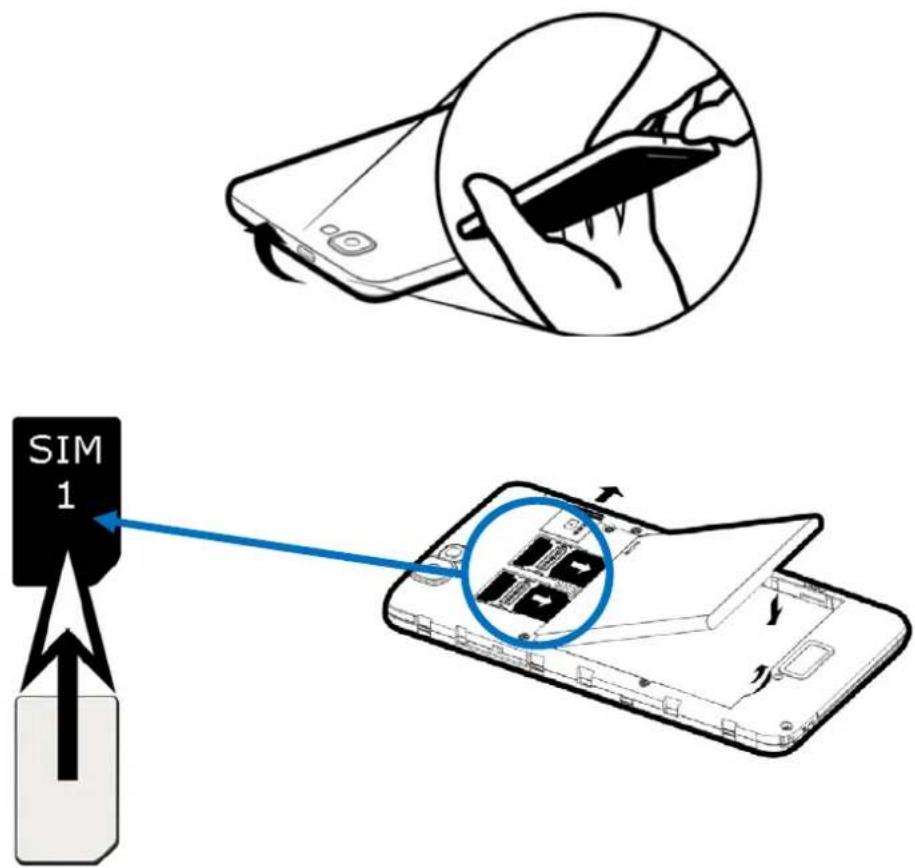
text_image
SIM 1INSERTING THE SD CARD
Insert the micro SD card to the location indicated by the symbol 📋. Careful to respect the direction of insertion of the micro SD card. Golden paws should be turned down.
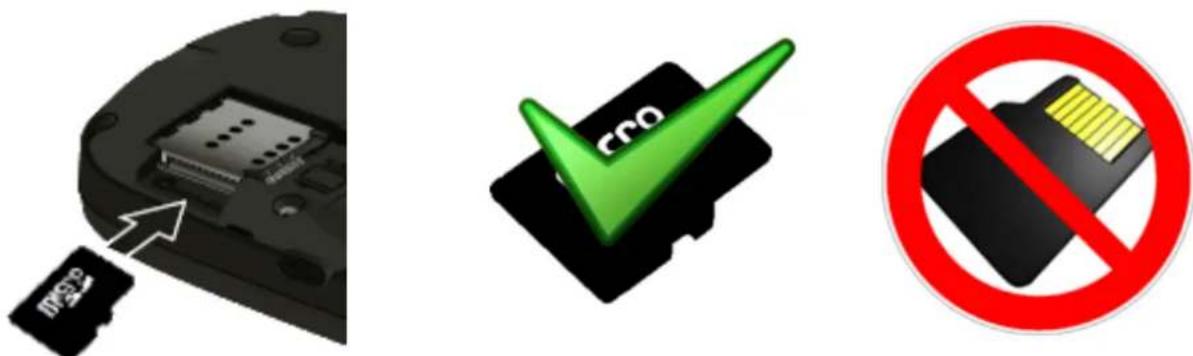
text_image
Diagram showing a device with an attached card and a green checkmark, alongside a red prohibition symbol.INSERTING THE BATTERY
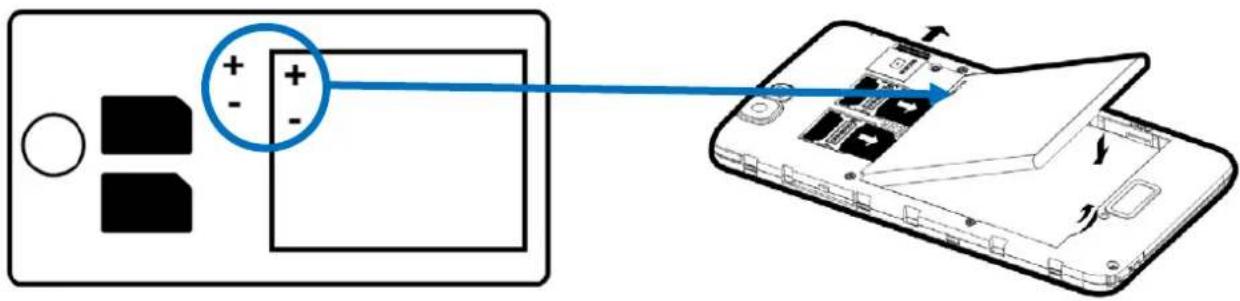
Insert the battery according to the diagram below. Careful to observe the direction of battery polarization (+ and -) compared to what is indicated on your smartphone.
text_image
Diagram showing a device with battery and display panel connected to an open rear panel, highlighting polarity indicators.CHARGING THE BATTERY
Your phone is powered by a rechargeable battery.
When the LED is flashing red, this indicates that the battery charge is very low, please charge the battery, a low charge level may reduce the life expectancy of your phone. Plug the charger that comes with the phone to a power outlet and the micro USB tip to the USB port on the phone.
The phone status light changes to red, indicating that he is in charge.
Once charging is completed, the status led turns green. You can disconnect the phone from the charger.
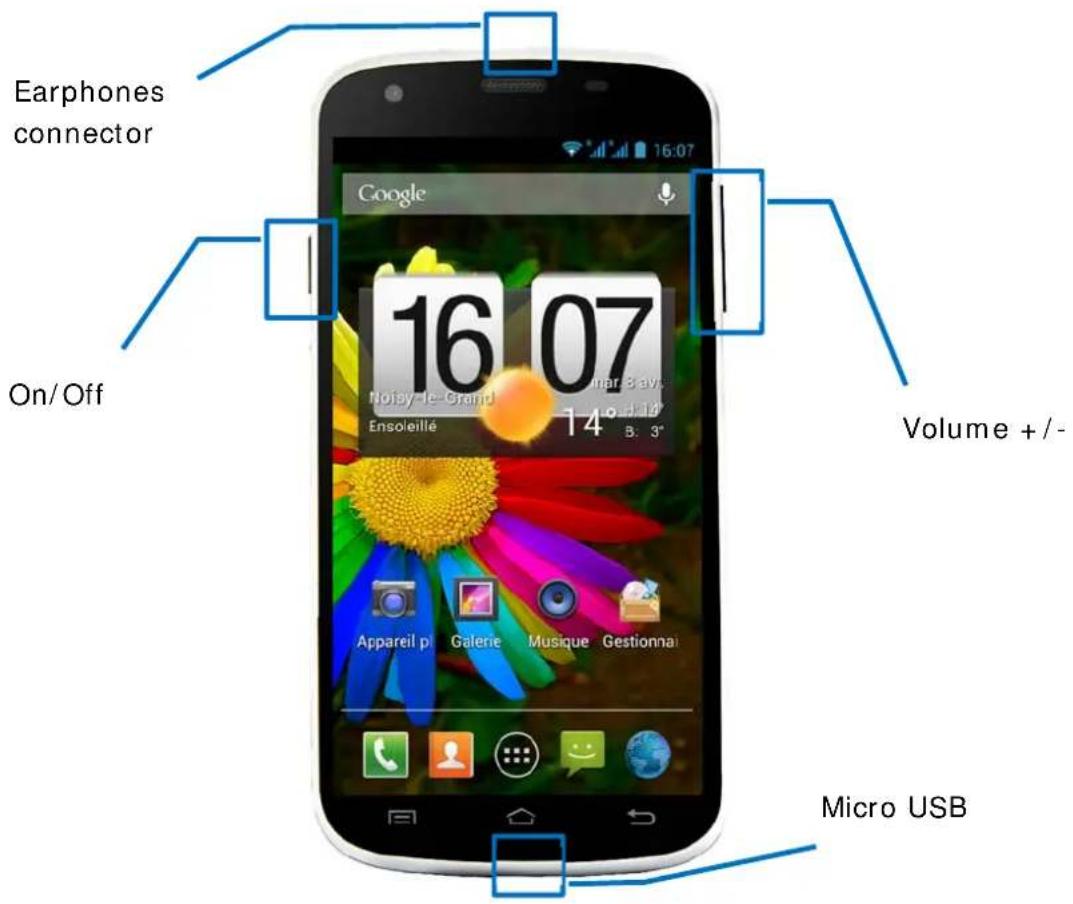
To turn on the phone, press the button On/ Off for a long time until the phone turns on.
If your SIM card is locked, you will need to enter the correct PIN code to unlock the SIM card when the phone is powered.
After three bad seizures of the PIN code, the smartphone locks automatically. You need to unlock it using your PUK code (supplied with the SIM card, if this is not the case, contact your operator).
To switch the phone off, press hold the On/Off button until the menu opens, press the option "Power off". Then press OK to confirm.
The smartphone vibrate a bit when it's completely turned off.
text_image
Earphones connector On/Off 16 07 Volume + /- Ensoleillé 14° B: 3° Appareil pi Galerie Musique Gestionnal Micro USB| Buttons | Functions |
| On/Off | Long press: Turn On/Off the smartphone.Short press: lock the screen. |
| Home | Back to the home screen, open the list of recent applications (holding the button). |
| Menu | Display menus of options available on the active application. |
| Retour | Return to the previous screen. Close the keyboard on the screen. |
| VOLUME + / - | Return to the previous screen. Increase or decrease the volume of the call, ringtone, music, games and other audio functions. |
SIM CARD MANAGEMENT
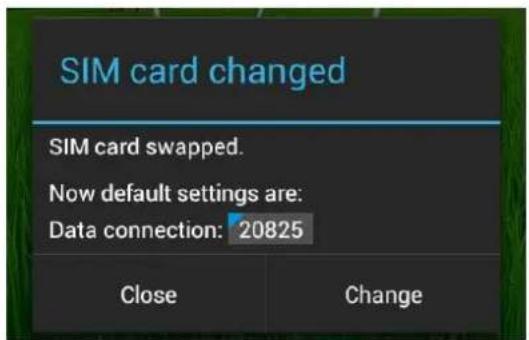
When you turn on your phone for the first time, information about the SIM card(s) are displayed, you are prompted to change the parameters to the call, message and internet connection. The SIM1 card is configured as default SIM for the connection of the data.
If you are satisfied with the default settings, press "Close". Otherwise, press "Change", on the management SIM menu, you can:
- Customize SIM card information "SIM management". The background colour is used to differentiate the two SIM cards.
- Set the default SIM card * for voice call, video call, SMS/MMS and data connection for internet.
text_image
SIM card changed SIM card swapped. Now default settings are: Data connection: 20825 Close Change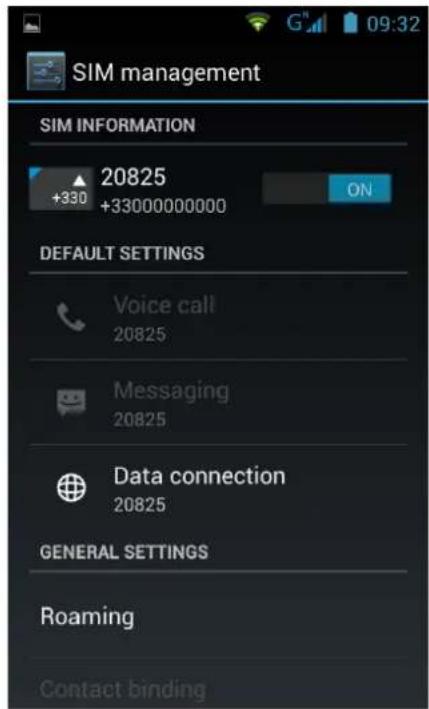
text_image
SIM management SIM INFORMATION 20825 +330 +33000000000 ON DEFAULT SETTINGS Voice call 20825 Messaging 20825 Data connection 20825 GENERAL SETTINGS Roaming Contact binding* You can choose the SIM card for an action, for example, before you make a call or send an SMS/MMS.
APN CONFIGURATION (ACCESS POINT NAME)
If your operator is not on the list, or the list is empty, check with your operator to manually configure the APN.
To do so, press "Home 🔍" button, then "Menu —" button. Select "System settings" option.
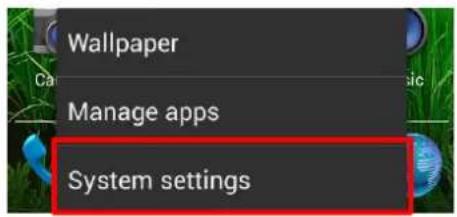
text_image
Wallpaper Manage apps System settingsSelect "More...", "Mobile networks" then "Access Point Names".
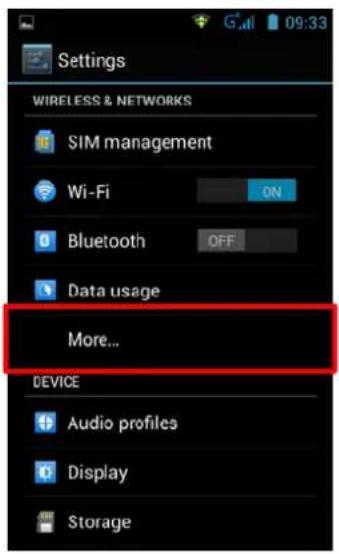
text_image
Settings WIRELESS & NETWORKS SIM management Wi-Fi ON Bluetooth OFF Data usage More... DEVICE Audio profiles Display Storage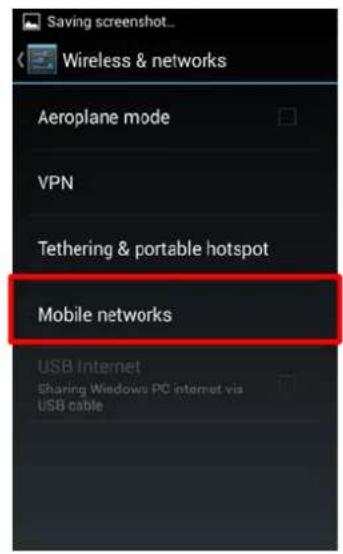
text_image
Saving screenshot... Wireless & networks Aeroplane mode VPN Tethering & portable hotspot Mobile networks USB Internet Sharing Windows PC internet via USB cable
text_image
Saving screenshot... Mobile network settings Data connection 20825 Network Mode Preferences Access Point Names Network operators Choose a network operatorPress "Menu —" button then "New APN". Input all information about the access point name delivered by your operator. Press again the "MENU" button and select "Save". Come back to previous menu and select the inputted access point name (APN).
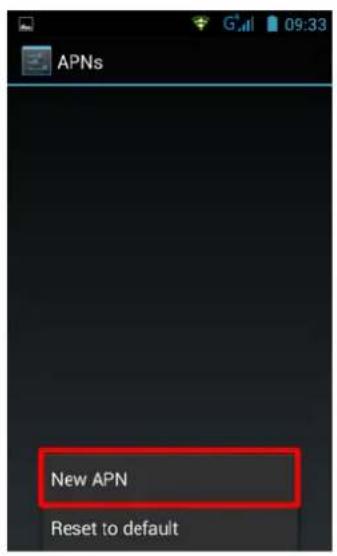
text_image
APNs New APN Reset to default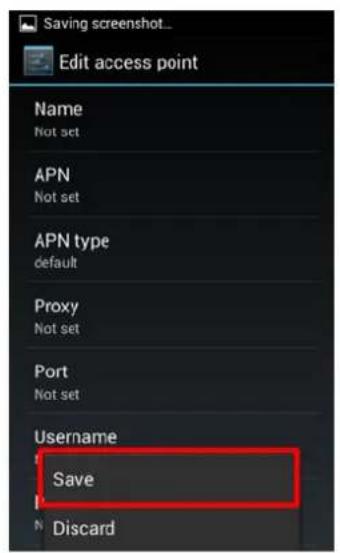
text_image
Saving screenshot... Edit access point Name Not set APN Not set APN type default Proxy Not set Port Not set Username Save Discard3G CONNECTION
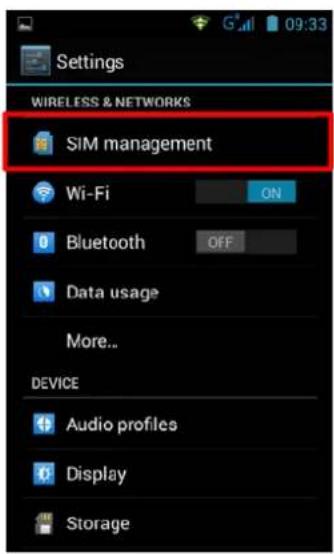
If you have two SIM cards inserted, only a SIM1 card can be activated for 3G service, it is advisable to activate the SIM1 for optimal performance. If you want to change the SIM, go to Settings > SIM management > data connection and select the number corresponding to your SIM1 card.
text_image
Settings WIRELESS & NETWORKS SiM management Wi-Fi ON Bluetooth OFF Data usage More... DEVICE Audio profiles Display Storage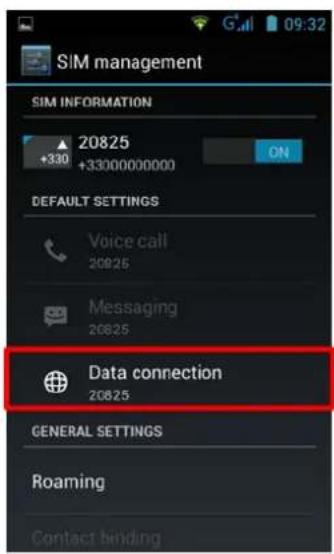
text_image
SIM management SIM INFORMATION 20825 +330 +3300000000 ON DEFAULT SETTINGS Voice call 20825 Messaging 20825 Data connection 20825 GENERAL SETTINGS Roaming Contact binding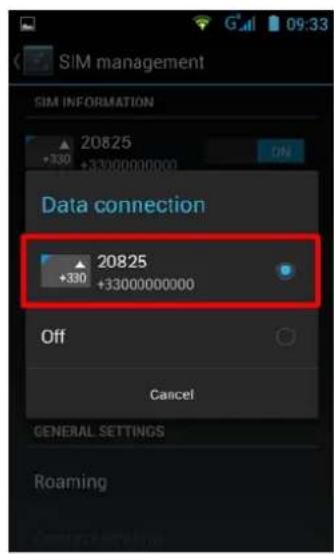
text_image
SIM management SIM INFORMATION 20825 +330 +3300000000 ON Data connection 20825 +330 +3300000000 Off Cancel GENERAL SETTINGS RoamingROAMING
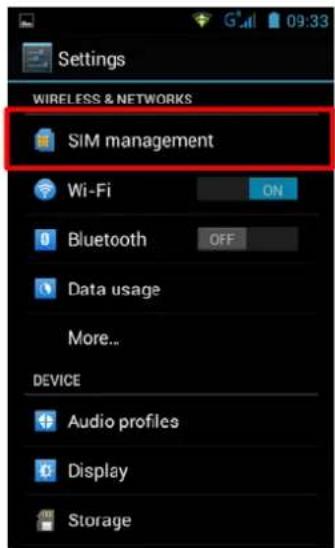
Note that for the SIM cards while roaming, you must enable its “data roaming” in the Settings > SIM management > Roaming then select the number corresponding to your SIM1 card. Otherwise the internet connection will be disabled by default.
text_image
Settings WIRELESS & NETWORKS SIM management Wi-Fi ON Bluetooth OFF Data usage More... DEVICE Audio profiles Display Storage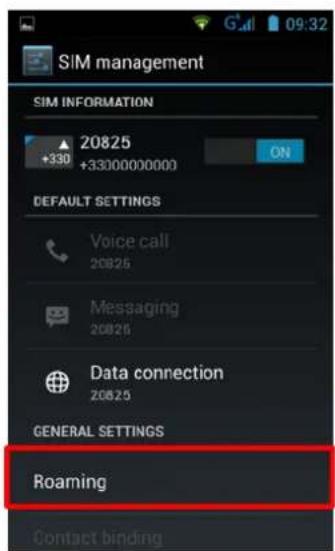
text_image
SIM management SIM INFORMATION 20825 +330 +3300000000 DEFAULT SETTINGS Voice call 20825 Messaging 20825 Data connection 20825 GENERAL SETTINGS Roaming Contact bindingADD A CONTACT
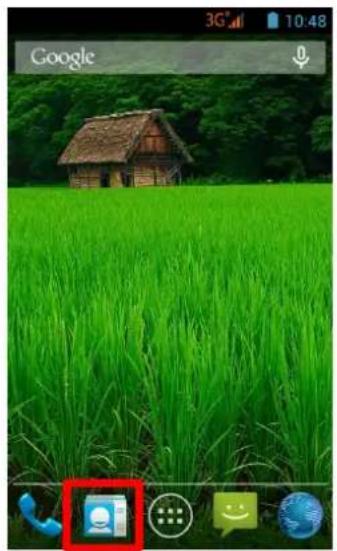
To add a contact, select icon on the main page.
Once on the contacts screen, tap the icon to add a contact.
natural_image
Green rice field with a wooden house and a call interface overlay (no readable text or symbols on the main scene)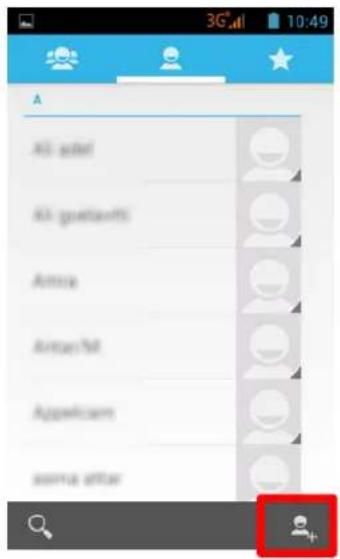
text_image
A All addt All goetants Anna Array M Applicants ssrna after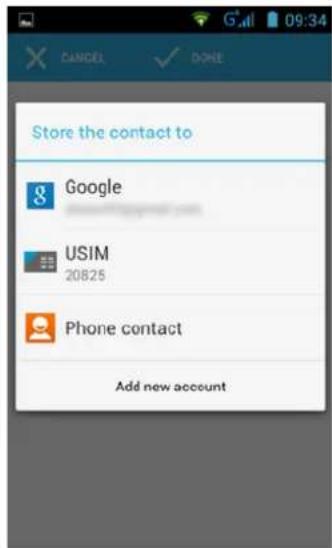
text_image
Store the contact to Google USIM 20825 Phone contact Add new accountThis windows should appear with different options:
g Google
: Allows to save contact to your Google account.
USIM 20825
Allows to save contact in your SIM card.
Téléphone
: Allows to save contact in your smartphone.
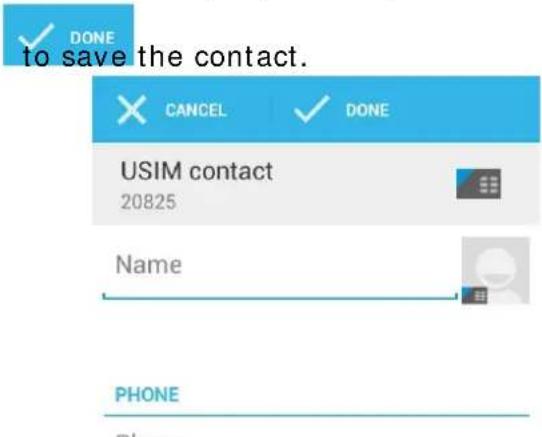
Select one of those options above. Input, at least, the fields indicate below (Name &
Phone n°) then press to save the contact.
text_image
DONE to save the contact. CANCEL DONE USIM contact 20825 Name PHONEADD AN E-MAIL ACCOUNT
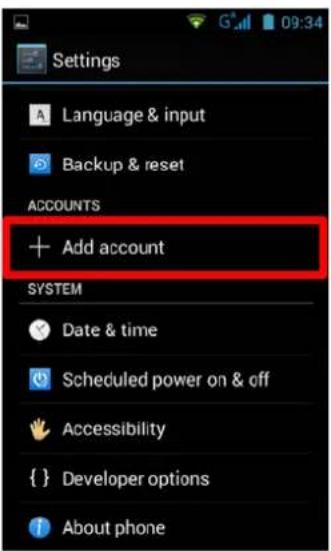
On the main page, tap on ⏻ icon then select ⚙️ to access Settings.
Select "add account" option, then select "Google". If you already have a Google account, tap "Existing" and fill in the requested fields.
If you want to create a new account, press "New".
text_image
Settings Language & input Backup & reset ACCOUNTS + Add account SYSTEM Date & time Scheduled power on & off Accessibility {} Developer options About phone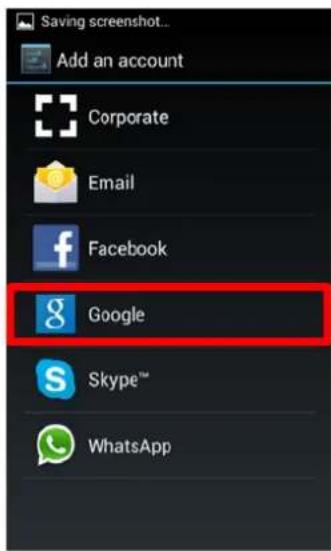
text_image
Saving screenshot... Add an account Corporate Email Facebook Google Skype™ WhatsApp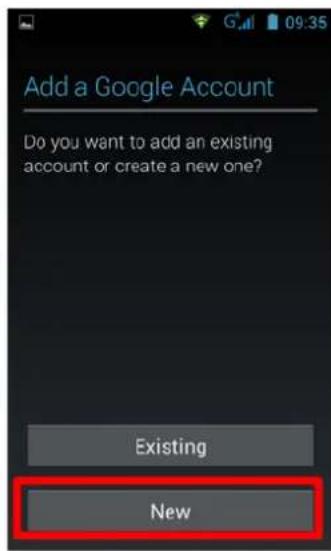
text_image
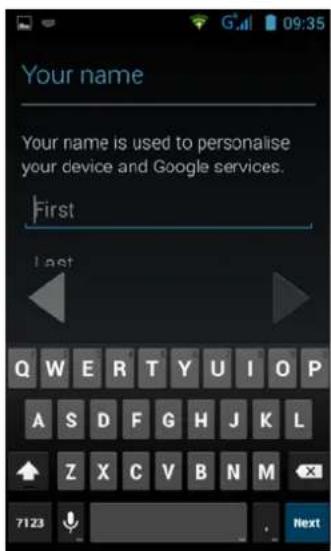
Add a Google Account Do you want to add an existing account or create a new one? Existing NewEnter your first and last name, and then press to move to the next step. Enter your new email and password, and then select an item in the list, for a possible recovery of password if it is lost.
text_image
Your name Your name is used to personalise your device and Google services. First Last Q W E R T Y U I O P A S D F G H J K L Z X C V B N M 7123 Next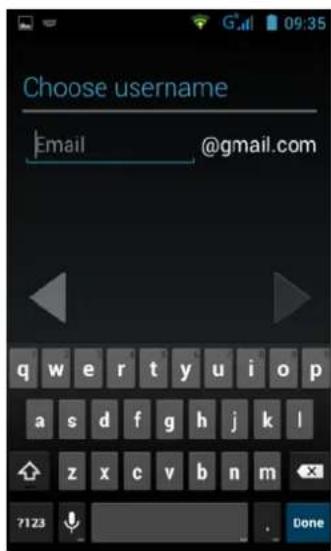
text_image
Choose username Email @gmail.com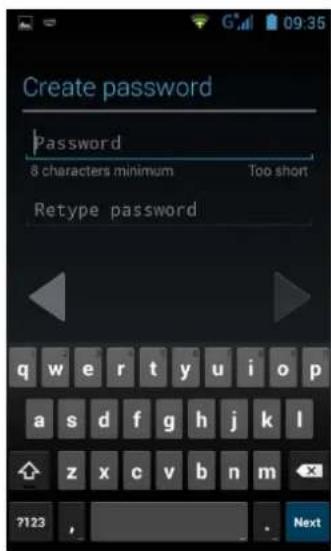
text_image
Create password Password 8 characters minimum Too short Retype passwordHint: Tap ▶ to move to next step, once you filled all fields.
CALLING
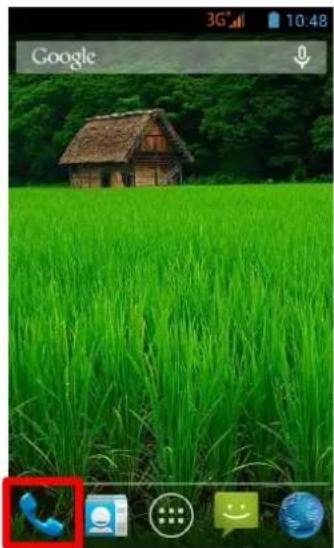
Once your SIM card inserted and set, you can make voice calls from your phone.
- On main page, tap on the icon. Fill the phone number with virtual keyboard then
press to call.
- Press to end call.
natural_image
Green rice field with a thatched-roof house in the background, no visible text or symbols on the main image area.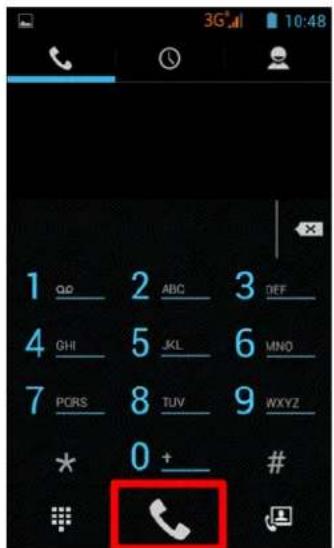
text_image
1 QD 2 ABC 3 DEF 4 GHI 5 JKL 6 MNO 7 PORS 8 TUV 9 WXYZ 0 + # #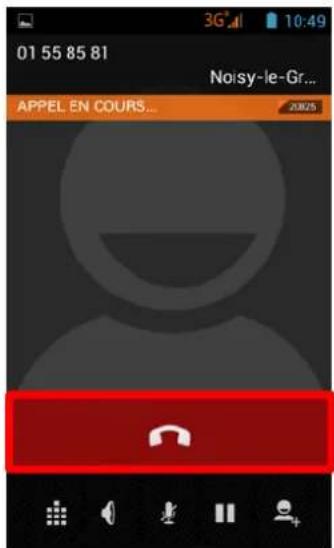
text_image
01 55 85 81 Noisy-le-Gr... APPEL EN COURS... 20025You can make voice calls directly from the contact list.
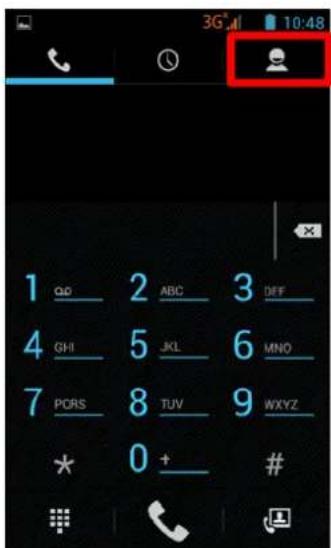
- On the main page, tap on the icon, then tap on to access the contacts list.
- Select the contact, then tap on the number to do a voice call.
- Press to end call.
text_image
3G 10:48 1 QD 2 ABC 3 DEF 4 GHI 5 JKL 6 MNO 7 PORS 8 TUV 9 WXYZ * 0 + # #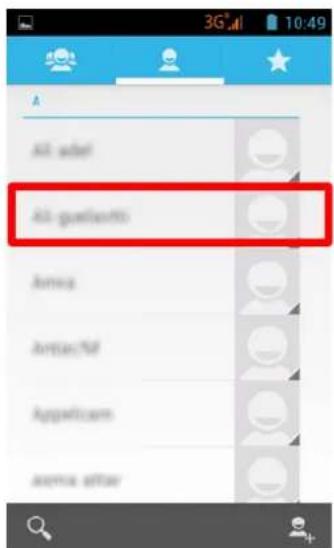
text_image
All adel All guelermo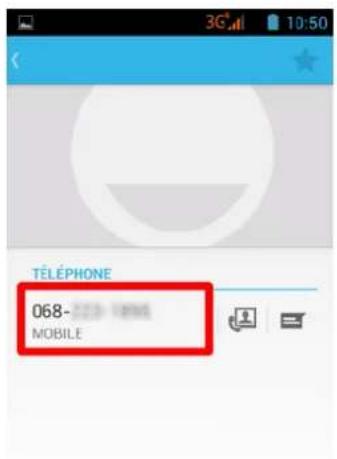
text_image
3G 10:50 TÉLÉPHONE 068- 223-1898 MOBILEWRITE A SMS/ MMS
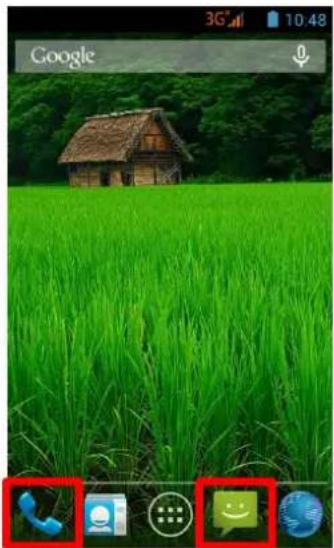
To write a SMS/ MMS, please select 🤘 icon on the main page.
On SMS/ MMS screen, select + icon to start to write your SMS/ MMS.
natural_image
Green rice field with a thatched house in the background, displayed on a smartphone screen (no readable text or symbols)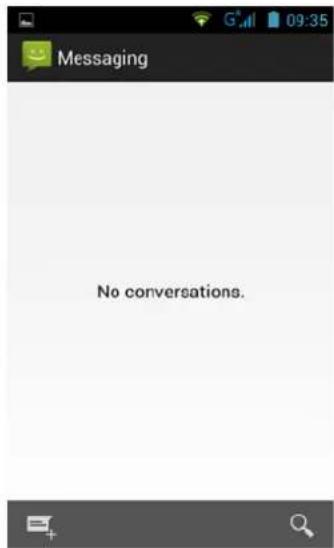
text_image
Messaging No conversations.-
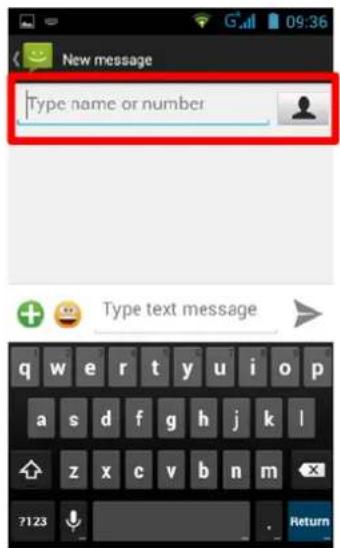
Enter the number of your contact, either by directly typing its number or by selecting it in the list of your previously saved contacts. To do this, select the icon shown in the picture below.
-
Tap on "Type text message" to write the SMS/ MMS with the virtual keyboard, then press to send the message.
text_image
New message Type name or number Type text message

Type text message

Hint: The limit of characters for an SMS is approximately 160 letters. If this limit, the SMS will automatically switch to the mode MMS. The sending or receiving of messages outside the area covered by your operator may result in additional charges, depending on the offer to which you have subscribed. To learn more please contact with your operator.
NOTIFICATIONS
For a list of all your notifications, drag your finger up and down on the position of the home screen. Information regarding the arrival of new messages, upcoming calendar of events, the status of downloads... will then be displayed.
Tap on icon to clear all notifications.
The following notifications should appear on the notification bar:

Signal strength

GPRS network connected

EDGE network connected

3G network connected

HSPA (3G+) network connected

HSPA+ (3G++) network connected

No signal

Roaming

WiFi network available

Connected to PC

Battery level

New SMS/MMS

text_image
Vertical sequence of icons representing communication and data transfer functions such as Wi-Fi, phone, and email.WiFi connected
Bluetooth activated
GPS activated
Voice call
Voice call standby
Missed call
Synchronization
New e-mail
Alarm activated
Mute activated
New vocal message
Airplane mode activated
Downloads
CONNECT YOUR SMARTPHONE TO THE PC
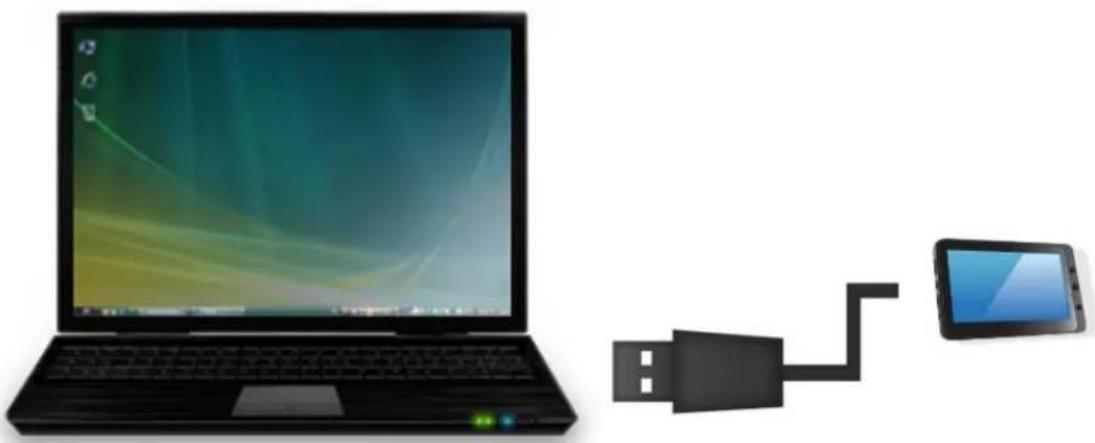
- As a first step, check that the cable is connected in the right direction compared to the USB port of the smartphone.
natural_image
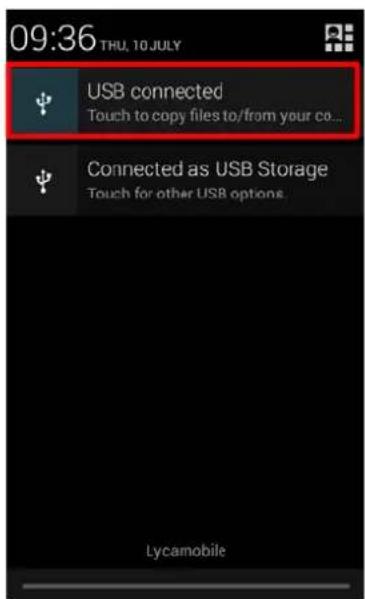
Illustration of a laptop connected to a USB cable and a tablet device (no text or symbols present)- Once the cable correctly connected, scroll the notifications bar down and then select "USB connected".
- On the windows that will appear, tap on "Turn on USB storage". The device should appear as a USB disk on your PC.
text_image
09:36 THU, 10 JULY USB connected Touch to copy files to/from your co... Connected as USB Storage Touch for other USB options. Lycamobile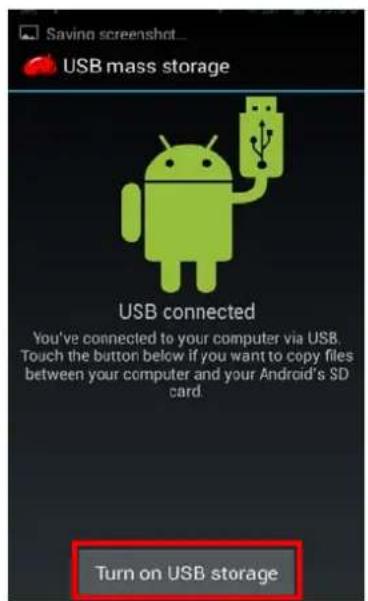
text_image
Saving screenshot... USB mass storage USB connected You've connected to your computer via USB. Touch the button below if you want to copy files between your computer and your Android's SD card. Turn on USB storageVISUALIZE A VIDEO
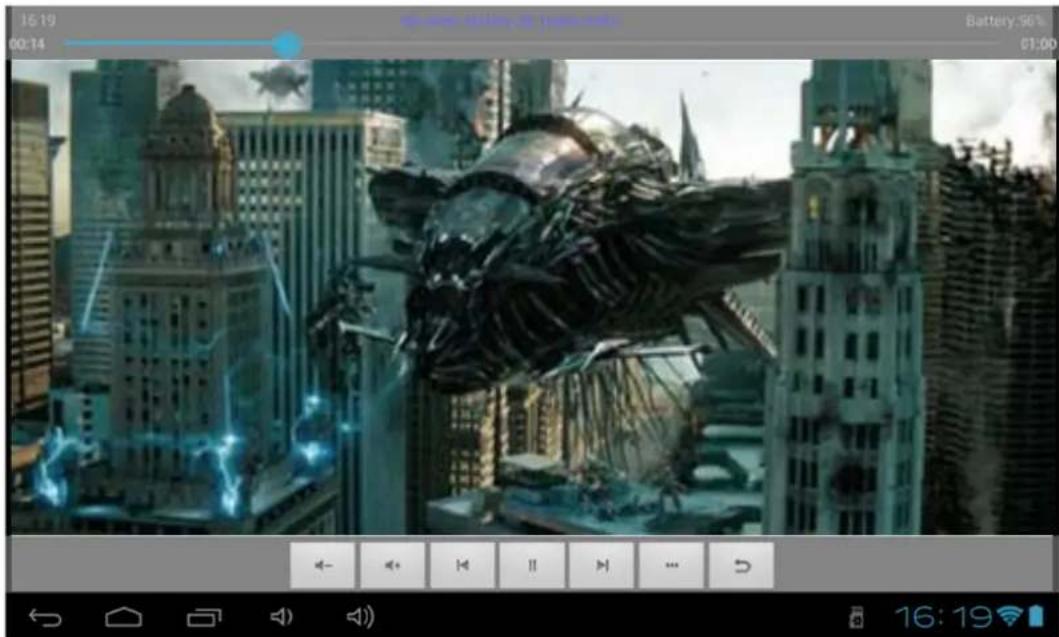
On the applications page, press the icon Slide your finger across the screen from one of the desired files to start playing.

to access the interface of the video player. down to up, to scroll the list of files and press
text_image
16:19 00:14 Batterly: 96% 01:00 ← ← → ← II → ← U 16:19The icons in the toolbar above are the functions of the video playback:

: Press to increase or decrease the volume.

: To visualize the playback time or to move to a specific point of

: Press to play the previous / next video.

: Press to pause / resume playback.

: Press to display the submenu that includes the following options:
- Display mode (normal, full screen, 4:3 and 16:9).
- Resume Play mode (on, off).
- Play mode (repeat all, repeat one).
- Brightness (1, 2, 3, 4).

: Press to display the list of the files.
LISTEN TO MUSIC
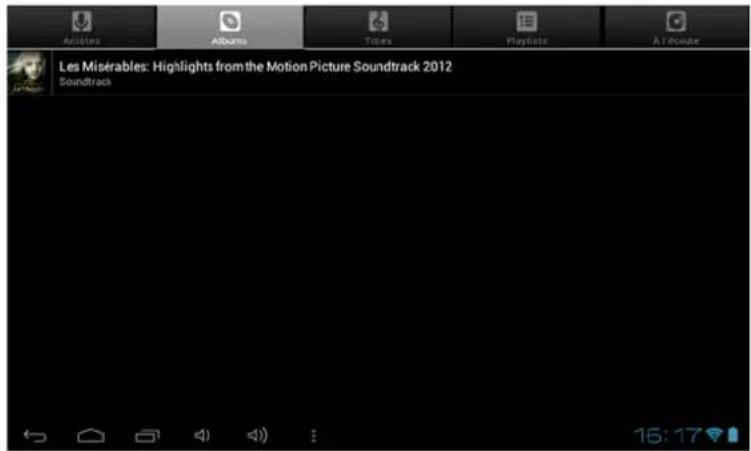
On the applications page, press icon to access the music player interface. Slide your finger across the screen from up to down to scroll the list of files and press one of the files to start playing.
text_image
Les Misérables: Highlights from the Motion Picture Soundtrack 2012 Soundtrack
: Press to sort the songs by singer.

: Press to display all the audio files on the screen.

: Press to sort the songs by album.

: Press to see the recently added titles.

: Press to return to the previous screen.
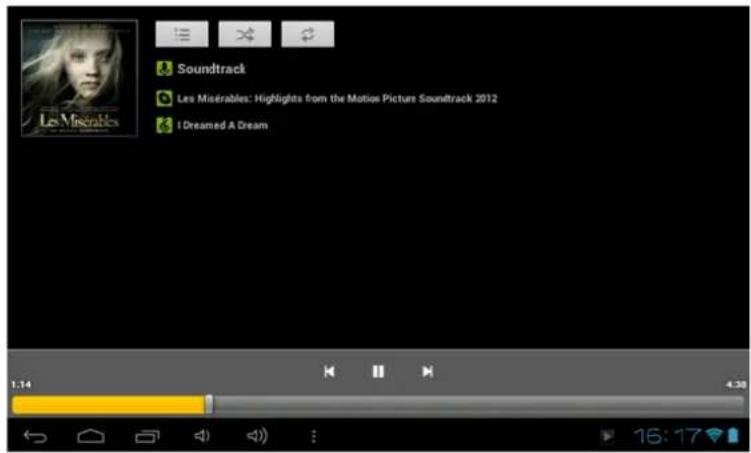
Slide your finger across the screen from top to bottom to display the list and press any to access the audio interface to as follows:
text_image
Soundtrack Les Misérables: Highlights from the Motion Picture Soundtrack 2012 I Dreamed A DreamThe icons in the toolbar above are functions of the audio playback:

: To visualize the playback time or to move to a specific point of the
audio file.


ess to play the previous or next music.

Press to pause or resume playback.

Press to display the list of audio files.

Press to enable / disable the shuffle.

Press to set the repeat mode, repeat all, repeat one or deactivate.
TAKE A PICTURE
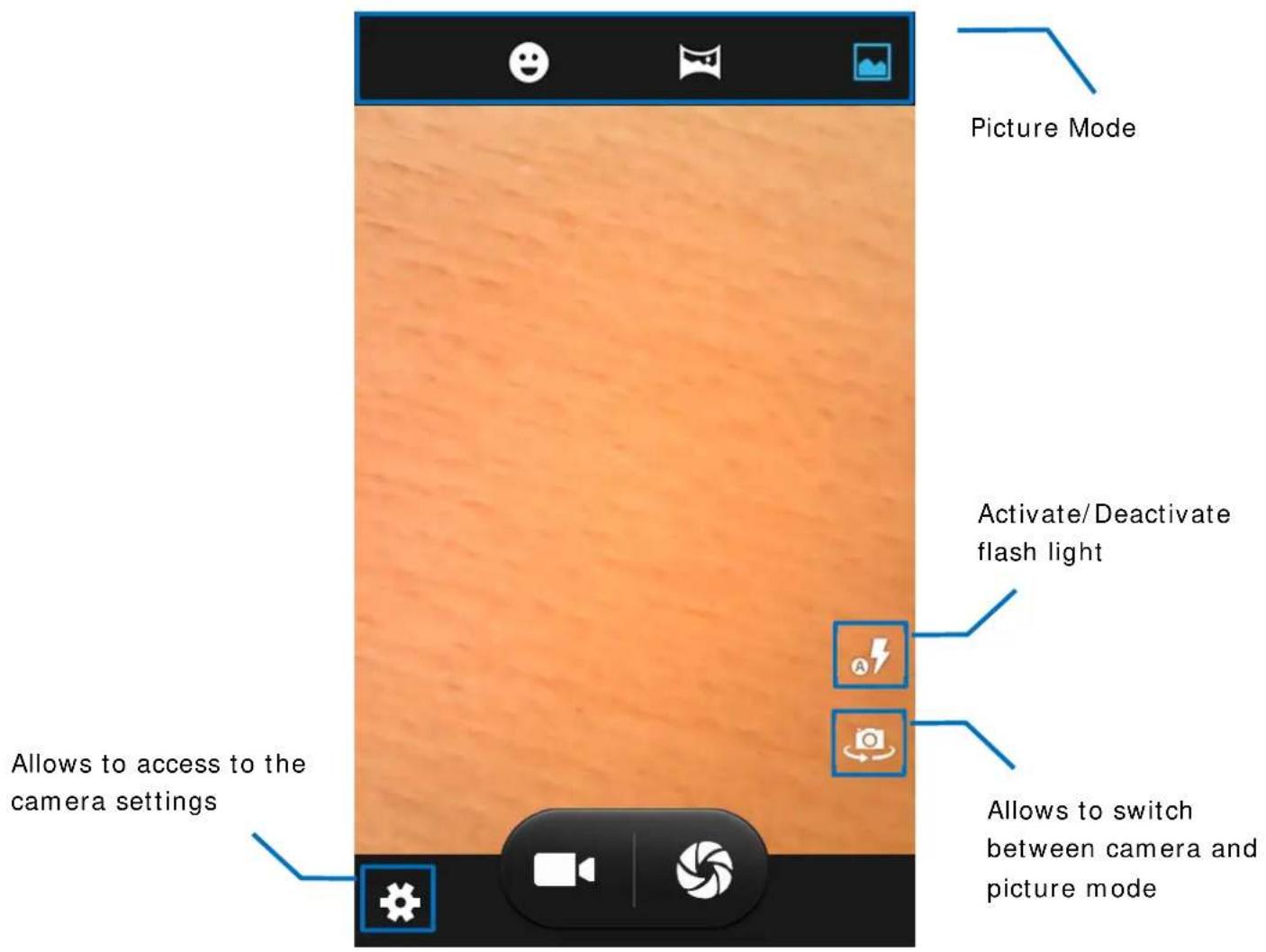
On the main page, tap on icon to launch camera application.
text_image
Picture Mode Activate/Deactivate flash light Allows to access to the camera settings Allows to switch between camera and picture mode
: Tap to record a video.

: Tap to take a picture.
Hint: records and photos are stored on the internal memory of the phone.
SUR ON INTERNET
On the home page, press icon to open the internet browser.
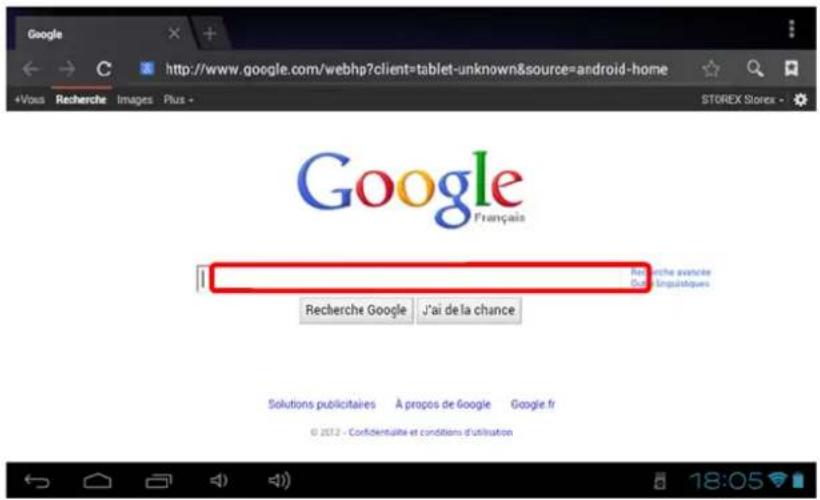
Press the above part to reveal the virtual keyboard. Once the text has been entered, press OK to start the research.
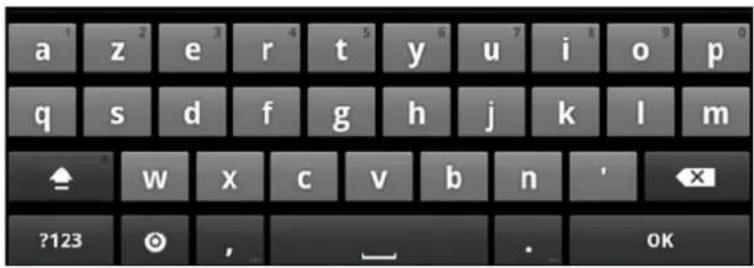
text_image
a 1 z 2 e 3 r 4 t 5 y 6 u 7 i o p q s d f g h j k l m ♠ w x c v b n ' X ?123 ⓞ , OKPress □ display the menu below.
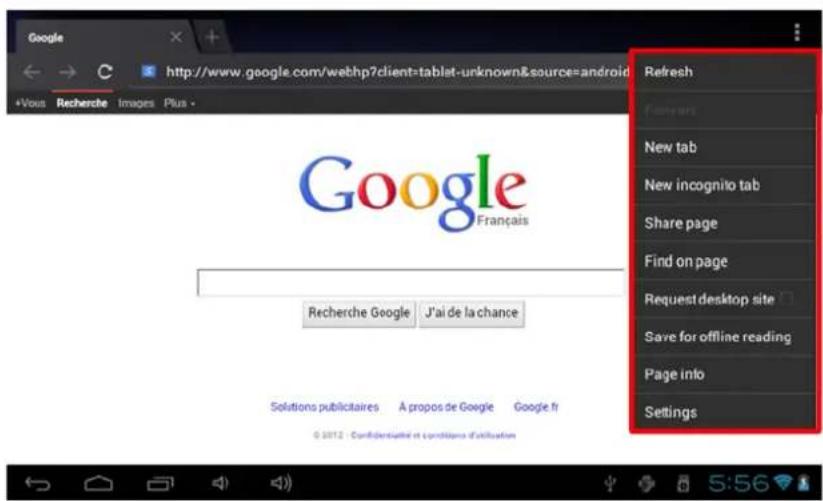
text_image
Google http://www.google.com/webhp?client=tablet-unknown&source=android +Vous Recherche Images Plus - Google Français Recherche Google J'ai de la chance Solutions publicitaires A propos de Google Google fi Refresh New tab New incognito tab Share page Find on page Request desktop site Save for offline reading Page info SettingsINSTALL AN APPLICATION
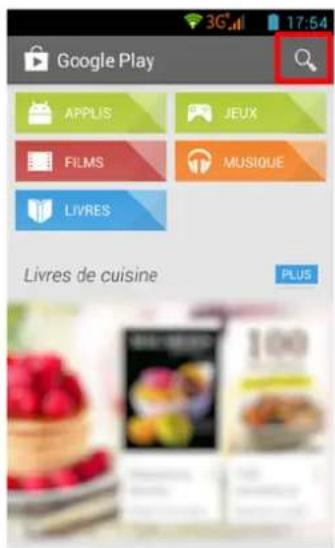
On the main page, tap on 🎯 icon then select ▶ to access Google Play™. The interface below should appear:
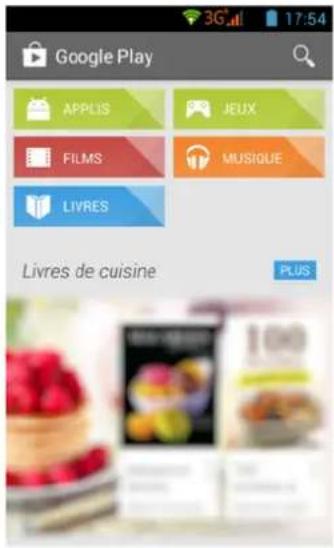
text_image
Google Play APPLIS JEUX FILMS MUSIQUE LIVRES Livres de cuisine PLUSFill the name of the application you want to install than press to research your application.
Tap « Install » in order to install the application on your S'Phone. Tap « OK » to finalize the installation or tap « Open » if you want to launch the application.
text_image
Google Play APPLIS JEUX FILMS MUSIQUE LIVRES Livres de cuisine PLUS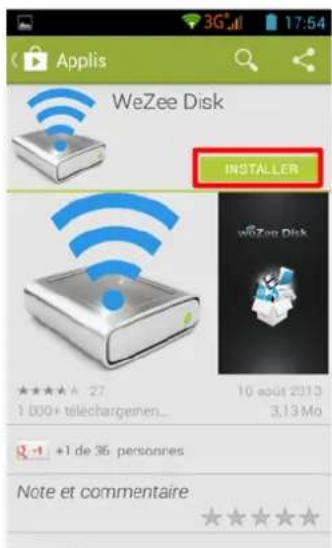
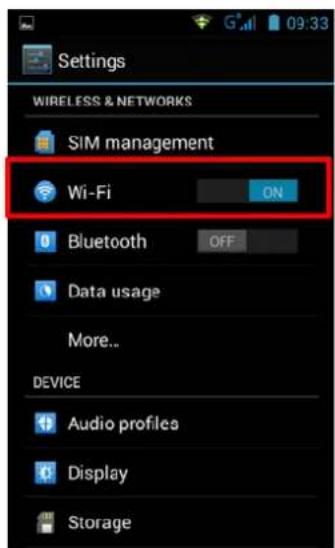
To set the wireless connection (Wi-Fi) tap on « Wi-Fi » option to activate it. Select your wireless network by tapping on his name (SSI D).
text_image
Settings WIRELESS & NETWORKS SIM management Wi-Fi ON Bluetooth OFF Data usage More... DEVICE Audio profiles Display Storage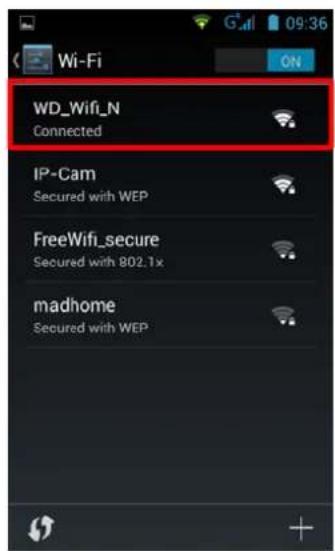
text_image
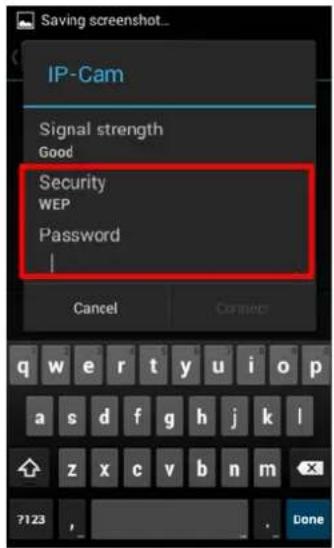
Wi-Fi 09:36 ON WD_Wifi_N Connected IP-Cam Secured with WEP FreeWifi_secure Secured with 802.1x madhome Secured with WEPSelect the security mode of your wireless network then fill security code. Once you filled the code press "Connect".
text_image
Saving screenshot... IP-Cam Signal strength Good Security WEP Password Cancel Connect q w e r t y u i o p a s d f g h j k l z x c v b n m 7123 DoneOther options are available in the settings page:
- Bluetooth: Allows to set Bluetooth connection.
- Sound: To set the volume of notifications and applications.
- Display: Allows you to adjust the brightness of the screen and the rotation of it.
- Storage: To check the status of the internal memory storage, USB or SD card.
- Applications: To manage your applications (uninstall, move, or delete data).
- ...
GUARANTEE CONDITIONS
STOREX's available guarantee is valid for 1 year for your product and 3 months for its accessories (power supply, USB cables...).
STOREX guarantees your products against any manufacturing or assembling faults. This guarantee only applies to the first purchase of your product by the end user and is not transferable if the device is resold. This warranty does not cover any incompatibilities found by end user apart from recommendations specified on the packaging, or any other incompatibility generated by other hardware or software on the computer that is connected to the your product.
Proof of purchase must be presented to our services to apply STOREX guarantee.
The guarantee doesn't cover failures or defects induced by non-compliance to this manual's instructions, neglect, alteration, improper installation or maintenance, reparation or alteration not authorized by STOREX, improper tests, accident or external factor such as (not exhaustive) excessive heat or dampness, power failures or bad installation / uninstalling of your product.
The only contractual obligation endorsed by STOREX pertains to the reparation or replacement of a defective product. In no case, STOREX cannot be held responsible for any loss of data, or its consequences induced by operational fault or a product failure. In any case, STOREX won't be bound to any financial responsibility for any amount exceeding the value of the product purchased by the end user.
This guarantee is well defined and cannot be modified, decreased or increased without written consent from STOREX. In addition, STOREX cannot be held responsible for any technical advice or service provided in relation to your product.
For any request not covered by this guarantee, please contact STOREX support or log on to www.e-storex.com to order accessories.
You are not the grantee of this current warranty. This warranty covers only your product and is governed by French law.
Note:
STOREX ^™ reserves the right to modify the user manual without prior notice according to the product's evolutions. You can find the latest version of the manual on our website: http://www.storex.eu
STOREX WEBSITE
Please visit our website: http://www.storex.fr.
Select "Smartphone" category. You can download the latest full version of the manual as well as software updates.
GUARANTEE REGISTRATION
To facilitate your support during any call with our support team, we invite you to register the warranty of your product on our Web site at the address:
http://garantie.storex.eu
In case of failure, please contact STOREX support to repair your product under warranty, or please send your request by e-mail to the address:
support@storex.eu
or by phone at
France: 01 55 85 82 00 (support.fr@storex.eu)
Portugal: 308 800 836 (apoio.pt@storex.eu)
Spain: 902 110 572 (soporte.es@storex.eu)
England: (support.uk@storex.eu)
From Monday to Thursday - 09h30 at 19h30.
Friday - 9h30 at 18h30.
STOREX
33 rue du ballon
93160 Noisy le grand