
BL-PA300A - Network Card/Adapter PANASONIC - Free user manual and instructions
Find the device manual for free BL-PA300A PANASONIC in PDF.


| Product Type | Network Card / Adapter |
| Brand | Panasonic |
| Model | BL-PA300A |
| Interface | Ethernet RJ-45 |
| Data Transfer Rate | 10/100/1000 Mbps |
| Dimensions (W x H x D) | 2.5 x 1.5 x 0.5 inches |
| Weight | 50 g |
| Power Supply | USB bus-powered (5V, 500mA) |
| Supported Protocols | IEEE 802.3, IEEE 802.3u, IEEE 802.3ab |
| LED Indicators | Link/Activity, Speed |
| Operating Temperature | 0°C to 40°C |
| Operating Humidity | 20% to 80% non-condensing |
| Mounting | Desktop or wall-mountable |
| Main Functions | Connects device to wired network; supports auto MDI/MDIX; compatible with all major OS |
| Maintenance & Cleaning | Wipe with a dry, soft cloth; avoid liquids and abrasive cleaners |
| Safety Precautions | Do not expose to moisture, extreme temperatures, or direct sunlight; unplug during storms |
| Spare Parts & Repairability | No user-serviceable parts; contact Panasonic support for repairs |
| Compliance | FCC, CE, RoHS |
| Warranty | 1 year limited warranty |
Frequently Asked Questions - BL-PA300A PANASONIC
User questions about BL-PA300A PANASONIC
0 question about this device. Answer the ones you know or ask your own.
Ask a new question about this device
Download the instructions for your Network Card/Adapter in PDF format for free! Find your manual BL-PA300A - PANASONIC and take your electronic device back in hand. On this page are published all the documents necessary for the use of your device. BL-PA300A by PANASONIC.
USER MANUAL BL-PA300A PANASONIC
natural_image
Illustration of a portable electronic device with ports and buttons (no text or symbols visible)Operating Instructions
PLC Adaptor Add-on Unit
Power Line Communication
Model No. BL-PA300A
Operating Instructions 2
Customer services 54
Table of Contents
Introduction
IMPORTANT SAFETY INSTRUCTIONS....4
Electrical environment information ....5
Security information....7
Security notices for when sending an adaptor for service...... 8
Main unit....9
Installation
Registration 11
Placing the adaptors....13
Power Save Mode....13
Connecting adaptors to network devices....14
Useful Information
Testing a terminal's network speed....15
Understanding the indicators....17
Resetting an adaptor....18
Troubleshooting....19
Specifications 22
Adaptor Maintenance Screen....24
FCC and other information 25
IMPORTANT NOTES:
For best results, connect this product directly to a wall outlet.
This product may not function normally in certain electrical environments.
See page 5 for more information.
Please read this document before use and save this document for future reference.
Thank you for purchasing a Panasonic HD-PLC product.
Included items
Confirm that the following items are included with this product.
Additional items can be ordered by calling 1-800-332-5368.
PLC Adaptor Add-on Unit...... 1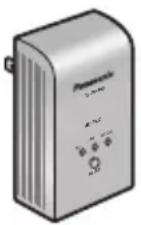 | LAN Cable...... 1Order No.: PQJA10138Z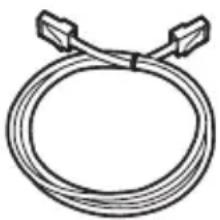 |
| Getting Started...... 1 | Operating Instructions(this document)...... 1 |
Abbreviations
- This product is referred to as “the adaptor” in this document.
Trademarks
- L i ^® is the registered trademark of Linus Torvalds in the U.S. and other countries.
- HD-PLC or HD-PLC mark is a registered trademark or trademark of Panasonic Corporation in Japan and in other countries.
- All other trademarks identified herein are the property of their respective owners.
IMPORTANT SAFETY INSTRUCTIONS
When using this product, basic safety precautions should always be followed to reduce the risk of fire, electric shock, or personal injury.
- Read and understand all instructions. Keep this document for future reference.
- Follow all instructions in this document and heed all warnings.
- Do not install this product near any heat sources such as radiators, heat registers, stoves, or other devices (including amplifiers) that produce heat.
- This product is used as the main disconnect device. Ensure that the AC outlet is installed near this product and is easily accessible.
- The adaptor must remain connected at all times.
- To prevent the risk of fire or electrical shock, do not expose this product to rain or any type of moisture, and do not plug it in upside-down (i.e., with the LAN jack pointing up).
- Do not touch the product during lightning storms.
- Unplug this product when unused for a long period of time.
- Refer all servicing to qualified service personnel. Servicing is required when the unit does not operate normally, has been damaged in any way, or after the unit has been dropped.
- Do not use this product outdoors.
- Unplug this unit from power outlets if it emits smoke, an abnormal smell or makes unusual noise. These conditions can cause fire or electric shock. Confirm that smoke has stopped and contact an authorized service center.
SAVE THESE INSTRUCTIONS
Electrical environment information
HD-PLC adaptors communicate with each other using the existing electrical wiring in your home, and may be affected by electrical noise or the length of your home's wiring. Keep the following in mind when placing each adaptor.
AC outlets
For best results, we recommend connecting the adaptors directly to a wall outlet. Avoid connecting high power-consuming appliances to the same wall outlet. Additionally, connecting an adaptor to a uninterruptable power supply (UPS) or backup power supply device is not recommended.
While connecting the adaptors to a wall outlet is recommended, keep the following in mind if you must connect an adaptor to a power strip:
- Make sure the power strip does not have a noise filter or a surge protector, as these features may interfere with the performance of your adaptors.
- Do not connect the adaptor to a power strip that receives power from another power strip.
- Use a power strip with an AC cord that is as short as possible.
Electrical interference
Certain electrical devices emit electrical noise. If this noise is passed on to the electrical wiring in your home, it may interfere with the performance, speed, and reliability of your adaptors. For best results, we recommend connecting an electrical noise filter to noise emitting appliances.
The following appliances are more likely to produce noise:
- Battery chargers (including cell phone chargers)
- AC adaptors (including AC adaptors for modems, routers, notebook computers, etc.)
- Hair dryers
- Vacuum cleaners
- Lights or lamps which have a dimmer switch or a touch-sensitive on/off feature
- Power drills
Additionally, this product may interfere with the following appliances:
- Short wave radios
- Lights or lamps which have a touch-sensitive on/off feature
- Wireless devices (including wireless mice, etc.)
Introduction
Electrical wiring
HD-PLC adaptors communicate with each other using the existing electrical wiring in your home. If 2 wall outlets are separated by a great length of electrical wiring, the adaptors connected to those outlets may not be able to communicate with each other.
For more information, refer to the troubleshooting section (see page 19) or access the Panasonic PLC Support Site at:
http://panasonic.co.jp/pcc/products/en/plc/
After you have placed the adaptors where you plan to use them and plugged them into the wall outlets, test the terminal's network speed (see page 15).
Security information
-
With any network connection, security is a concern. The BL-PA300A provides security to prevent unauthorized access to your network.
-
Only terminals that are registered to the master adaptor can communicate with the network.
-
A terminal may be registered to the master only if the SETUP buttons on the master and terminal are pressed within 3 seconds of each other.
-
Data sent and received over the HD-PLC network employs AES 128-bit encryption, however we cannot guarantee that data will not be intercepted by a third party.
- For security, reset your adaptors (see page 18) in the following situations.
- If you are concerned that another adaptor may have been accidentally registered to your master (for example, the adaptor of someone who lives in the same apartment building as you), reset each of your adaptors and register them again.
- If you discard an adaptor, give an adaptor to someone else to use, or send an adaptor for servicing, reset the adaptor first.
- If you lose an adaptor, reset your remaining adaptors and register them again.
-
The adaptor does not have a firewall feature. To prevent unauthorized external access to the network, we recommend performing the following steps.
-
Setup security measures for the router and computers accessing the network.
- Change the default password on the Adaptor Maintenance Screen.
Refer to the Panasonic PLC Support Site
(http://panasonic.co.jp/pcc/products/en/plc/) for information about changing the default password.
Security notices for when sending an adaptor for service
Please note the following when sending an adaptor for servicing.
- Reset the adaptor before sending it for servicing.
• After your master adaptor is serviced, you must register all your terminals to the master again.
• After a terminal adaptor is serviced, you must register the terminal to the master again.
Main unit


(1) PLC Indicator
Lights to indicate that the adaptor is connected to the HD-PLC network. For more information, see page 17.
(2) LAN Indicator
Lights when a LAN cable is connected to the adaptor, and flashes when data is being sent or received. For more information, see page 17.
(3) MASTER Indicator
Lights when the adaptor is configured as the master. For more information, see page 17.
(4) SETUP Button
Used to register the adaptor (see page 11) or test the terminal's network speed (see page 15).
(5) Mode Selector
The position of this selector during registration (see page 11) determines whether the adaptor is configured as the master or as a terminal.
(6) LAN Jack
Connects the adaptor to a network device, such as a broadband router, hub, computer, etc. (see page 14).
(7) FACTORY DEFAULT RESET Button
Used to reset the adaptor and erase its registration (see page 18).
Registration
Follow the procedure below when you want to:
- Add an additional terminal to your HD-PLC network.
-
Re-register the master and terminal after resetting the master.
-
Confirm that the mode selector of the master adaptor is set to MASTER and the MASTER indicator is lit green.
- Confirm that the mode selector of the terminal adaptor that you want to register is set to TERMINAL.
-
Plug the power strip into the same wall outlet that the master adaptor is plugged into.
-
Registration may not be successful if the master and power strip are connected to different wall outlets during registration.
-
Make sure the power strip is turned on. Do not use a power strip with a noise filter or surge protector feature.
-
Plug the terminal adaptor into the power strip.

- Reset the terminal by pressing the FACTORY DEFAULT RESET button on the terminal for about 3 seconds (see page 18).
- Check the position of the adaptor's mode selector (see page 9) and make sure that you reset the terminal adaptor (not the master).
- Press the SETUP button on both adaptors for about 1 second. The order in which they are pressed does not matter.
• The PLC indicator of each adaptor will begin to flash in green.
• Make sure you press the SETUP button on each adaptor within 3 seconds of each other.
Installation
- When the PLC indicator of each adaptor lights in green, registration was successful.
• If the PLC indicators do not light in green, see page 19.
- Wait about 30 seconds, then unplug the adaptors and place them where you plan to use them (see page 13).
Note
- While registering an additional terminal, communication between all other adaptors may be disrupted for about 10 seconds.
Placing the adaptors
Refer to the information on page 5 when selecting a location to place your adaptors.
Note
- If you have purchased additional adaptors, make sure you have registered them to the master (see page 11) before placing them where you plan to use them.
- Connect the adaptor to a wall outlet in the room where you plan to use it.
- Confirm that the PLC indicator of each adaptor lights in green when you plug the adaptors into the wall outlets.
• If the PLC indicators do not light in green, see page 19.
After you have plugged the adaptors into the wall outlets in the rooms where you plan to use them, test the terminal's network speed (see page 15).
Power Save Mode
If a terminal's LAN port is inactive for more than 20 minutes (i.e., if its LAN indicator is orange for more than 20 minutes), the terminal automatically enters Power Save mode, and its power consumption is reduced. While in Power Save mode, the adaptor's LAN indicator is turned off.
Power Save mode is only activated for terminal adaptors that are linked to the HD-PLC network.

flowchart
graph LR
    A["Panasonic PC"] --> B["PLC"]
    B --> C["LAN"]
    C --> D["MASTER"]
    D --> E["Panasonic Device"]
    E --> F["PLC"]
    F --> G["LAN"]
    G --> H["MASTER"]
    H --> I["(green)(green) (orange)"]
    style A fill:#f9f,stroke:#333
    style E fill:#f9f,stroke:#333
    note right of A about 20 minutes later
Terminal Adaptor Power Save Mode
Power Save is deactivated when:
- An active network device is connected to the terminal.
- A network device connected to the terminal is turned on.
- The adaptor's SETUP button is pressed.
Connecting adaptors to network devices
Once you have placed the adaptors where you plan to use them and are satisfied with the network speed test results for your terminals (see page 15), follow the procedure below to connect your adaptors to your network devices (broadband router, hub, computer, network printer, network camera, etc.). This will integrate your HD-PLC network with your home network.
- Confirm that each adaptor is plugged in correctly to the wall outlet.
- Do not plug adaptors in upside-down (i.e., with the LAN jack facing up).
- Connect a LAN cable to each adaptor's LAN jack.
• T h e LAN indicator of each adaptor turns green.
- If an adaptor's LAN indicator does not turn green, see page 19.
-
Connect the other end of each LAN cable to a network device.
-
Up to 16 adaptors can be connected to the same network. If a hub is used, up to 8 devices can be connected to each adaptor.
- Avoid connecting more than one adaptor to the same hub or router.
You are now ready to use your computers, network printers, network cameras, etc.
Testing a terminal's network speed
Once you have connected the adaptors where you plan to use them, follow the procedure below to test the speed of each terminal's network connection to the master. Make sure that the terminal has already been registered to a master (see page 11).
- Press and hold the terminal's SETUP button for about 1 second.
• The indicators light one at a time.
PLC LAN MASTER

flowchart
graph TD
    A[" "] --> B[" "]
    B --> C[" "]
    C --> D[" "]
    D --> E[" "]
    style A fill:#fff,stroke:#000
    style B fill:#fff,stroke:#000
    style C fill:#fff,stroke:#000
    style D fill:#fff,stroke:#000
    style E fill:#fff,stroke:#000
- After a few seconds, the network speed test result is displayed.
- Refer to the chart below to determine the network speed.
PLC LAN MASTER Result Speed

other
| Rating | Value | | :--- | :--- | | No link | — | | Good | Less than 10 Mbps*1 | | Better | 10 Mbps to 30 Mbps*1 | | Best | More than 30 Mbps*1 |*1 Approximate data transmission speed when transmitting data using the UDP protocol.
4. If you are not satisfied with the speed test result, connect the terminal to a different wall outlet and repeat the test.
Note
- The fastest and slowest speeds are displayed by the indicators alternatively for about 6 seconds. If there is little difference between the fastest and slowest speeds, they will be displayed as the same speed.
- At least one indicator ("Good" network speed) must be lit in order to use the terminal.
- If you are not satisfied with the speed test result and have tried connecting the terminal to different wall outlets, refer to the troubleshooting section (see page 19).
- If the electrical conditions in your home change, network speed may also change.
Once you are satisfied with the terminal's speed test result, you are ready to connect each adaptor to a network device (broadband router, hub, computer, network printer, network camera, etc.; see page 14).
Understanding the indicators
| PLC | Green, lit | The adaptor is successfully connected to the HD-PLC network. |
| Green, flashing | The terminal is being registered to the master. | |
| Green, flashes once every 5 seconds | The adaptor is registered to the master, but it is not connected to the HD-PLC network. | |
| Red, lit for 5 seconds | There was an error during registration. Try again. | |
| Red, lit The adaptor | is not functioning properly and cannot communicate over the HD-PLC network. Contact an authorized Panasonic service center. | |
| Off The adaptor | is not plugged in.The adaptor is not connected to the HD-PLC network (no other adaptors found, not configured, etc.). | |
| LAN Green | lit A LAN cable | is connected to the adaptor. |
| Green, flashing | Data is being sent/received. | |
| Orange, lit There | is no network device connected to the adaptor via the LAN cable, or the network device is not turned on. | |
| Off The adaptor | is not plugged in.Power Save is active. (See page 13) | |
| MASTER | Green, lit | The adaptor is configured as the master. |
| Green, flashes for 10 seconds | A terminal has been successfully registered to the master. | |
| Off The adaptor | is not configured as the master. |
Resetting an adaptor
Normally an adaptor does not need to be reset, however, you may need to reset an adaptor if:
- You are concerned that another adaptor may have been accidentally registered to your master. (For example, the adaptor of someone who lives in the same apartment building as you.)
- An error occurs while registering a terminal to the master.
- You are registering an adaptor.
Note
- Resetting a terminal erases its registration to the master. It must be registered to the master again in order to be used.
- If the master is reset, all terminals must be registered to the master again in order to be used.
Follow the procedure below to reset an adaptor.
- With a pointed object press the FACTORY DEFAULT RESET button on the adaptor for about 3 seconds.
- All the adaptor's indicators will begin flashing.
- Once all the adaptor's indicators stop flashing, the adaptor has been reset.
- Do not unplug the adaptor for about 30 seconds.
Troubleshooting
Performance issues
The troubleshooting notes in this section are provided to resolve the following types of performance issues.
- Inability to transmit data over the HD-PLC network
- Slow data transmission speeds (interrupted video or audio, slow download speeds, etc.)
- Intermittent or varied performance (faster at certain times, slower at others)
• Interference caused by an adaptor - The PLC indicator is not lit in green even though you have registered the adaptor.
Troubleshooting notes
In most cases, performance issues such as those listed above can be resolved by performing the steps in the following troubleshooting notes. Each note contains several steps. After you perform each step, test the terminal's network speed (see page 15) to see if the issue has been resolved. For more information, access the Panasonic PLC Support Site at: http://panasonic.co.jp/pcc/products/en/plc/
Troubleshooting note #1:
Adaptor issues
Perform each step until the performance issue is solved.
- Unplug the master and terminal adaptors, then plug them into the wall outlets again. The indicators on the adaptors will light if the adaptors are receiving power. If a wall outlet has a power switch, make sure it is turned on.
- Confirm that all LAN cables are securely connected to each adaptor. Use high-quality LAN cables. Also confirm that other network devices (routers, hubs, etc.) are turned on as well as properly connected and configured.
-
Try connecting the master and/or terminal adaptor to a different wall outlet.
-
If you are not able to plug an adaptor directly into a wall outlet and must use a power strip, make sure the power strip is plugged directly into a wall outlet and not to another power strip.
- Make sure the power strip does not have a noise filter or a surge protector, as these features may interfere with the performance of your adaptors.
- Use a power strip with an AC cord that is as short as possible.
- Re-register the terminal following the procedure on page 11.
If the performance issue is not solved, continue to the next troubleshooting note.
Troubleshooting note #2:
Eliminating interference caused by other appliances
Perform each step until the performance issue is solved.
-
Identify potential electrical noise emitting appliances, and unplug them (if possible) briefly while you test the adaptor's network speed. The following appliances are more likely to produce noise:
-
Battery chargers (including cell phone chargers)
- AC adaptors (including AC adaptors for modems, routers, notebook computers, etc.)
- Hair dryers
- Vacuum cleaners
- Lights or lamps which have a dimmer switch or a touch-sensitive on/off feature
-
Power drills
-
If unplugging a device seems to resolve the adaptor's performance issue, connect the device to a different wall outlet.
-
If connecting the device to a different wall outlet does not resolve the performance issue, connect the device to a noise filtering power strip with an AC cord that is as short as possible.
Troubleshooting note #3:
Eliminating interference caused by an adaptor
This product may interfere with the following appliances:
- Short wave radios
- Lights or lamps which have a touch-sensitive on/off feature
- Other PLC adaptors which do not use the HD-PLC standard
- Wireless devices (including wireless mice, etc.)
Perform each step until the performance issue is solved. If the following steps do not resolve the issue, refer to the Panasonic PLC Support Site at: http://panasonic.co.jp/pcc/products/en/plc/ or call our customer call center at 1-800-272-7033.
- Make sure that the appliance is not plugged into the same wall outlet as an adaptor.
- Move the appliance away from any nearby adaptors.
- Connect the appliance to a power strip.
- For short wave radios, place the radio near a window.
Specifications
All specifications are subject to change without notice.
Power Line Communication interface
| Standard HD-PLC | |
| Actual transmission speed*1 | UDP: Max. 90 MbpsTCP*2: Max. 65 Mbps |
| Maximum recommended no.of adaptors per network*3 | 16 (including the master) |
| Maximum recommended no.of devices connected to each adaptor*4 | 8 (when using a hub*5) |
*1 Speed between BL-PA300A adaptors. Results may vary depending on electrical conditions, network environment, and other factors. For information on how transmission speed is measured, access the Panasonic PLC Support Site at: http://panasonic.co.jp/pcc/products/en/plc/
*2 Using Linux FTP.
*3 Performance may be affected as more adaptors are added to the network.
*4 Connecting more network devices to an adaptor may increase network traffic and affect performance.
*5 Only use switching hubs.
LAN interface
| Standard IEEE 802.3/IEEE 80 | 2.3u |
| Interface 10 Base-T | 100 Base-TXAuto MDI/MDI-X |
| Protocol IPv4, IPv6, TCP, UDP | |
| Access method CSMA/CD |
User interface
| Indicators PLC (green, red) | LAN (green, orange)MASTER (green) |
| Other | Mode Selector (MASTER or TERMINAL switch)SETUP buttonFACTORY DEFAULT RESET button |
General
| Operational environment 0–40 | °C (32–104 °F)20%–85% humidity (without condensation) |
| Dimensions (W x D x H) Approx | x. 55 mm x 33 mm x 90 mm(2 3/16 in. x 1 5/16 in. x 3 9/16 in.) |
| Weight 150 g (0.33 lb) | |
| Power supply Input 120 V AC | 60 Hz |
| Power consumption In normal | mode: 3 WIn Power Save mode: less than 1 W |
HD-PLC interface
| Frequency band 2–28 MHz | |
| Modulation Wavelet OFDM (16 PAM–2 PAM) | |
| Transmission PHY rate | Max. 210 Mbps*1 |
| Access method CSMA/CA | |
| Error correction | Reed-Solomon encoder/decoderConvolutional encoder/Viterbi decoder |
| Encryption | AES 128-bit encryption |
| Communication distance | Approx. 200 m (650 ft.)*2 |
*1 This is the theoretical maximum data transmission speed of the HD-PLC standard.
*2 Varies depending on the electrical environment. For more information, see page 5.
Adaptor Maintenance Screen
You can access an adaptor's maintenance screen using your computer's web browser to perform the following tasks:
- Update adaptor firmware
- Remove terminal adaptor registration
- Confirm adaptor status and network information
- Change adaptor IP addresses
- Change adaptor access passwords
Refer to the Panasonic PLC Support Site
(http://panasonic.co.jp/pcc/products/en/plc/) for information about accessing and operating the adaptor maintenance screen.
FCC and other information
This equipment has been tested and found to comply with the limit for a Class B digital device, pursuant to Part 15 of the FCC rules. These limits are designed to provide reasonable protection against harmful interference in a residential installation. This equipment generates, uses, and can radiate radio frequency energy and, if not installed and used in accordance with the instructions, may cause harmful interference to radio communications.
However, there is no guarantee that interference will not occur in a particular installation. If this equipment does cause harmful interference to radio or television, reception, which can be determined by tuning the equipment off and on, the user is encouraged to try to correct the interference by one or more the following measures:
- Reorient or relocate the receiving antenna.
– Increase the separation between the equipment and receiver. - Connect the equipment into an outlet on a circuit different from that to which the receiver is connected.
- Consult the dealer or an experienced radio/TV technician for help.
CAUTION
Any changes or modifications not expressly approved by the party responsible for compliance could void the user's authority to operate this device.
NOTICE
This device complies with Part 15 of the FCC Rules. Operation is subject to the following two conditions:
- This device may not cause harmful interference.
- This device must accept any interference received, including interference that may cause undesired operation.
Responsible Party
Panasonic Corporation of North America
One Panasonic Way, Secaucus, New Jersey 07094
Phone number: 1-800-211-PANA (7262)
Environment
Do not place the unit in a room where the temperature is less than 0 °C ( 32 °F ) or greater than 40 °C ( 104 °F ). Allow 10 cm (4 in.) clearance around the unit for proper ventilation. Avoid excessive smoke, dust, mechanical vibration, shock, or direct sunlight.
Routine Care
Wipe the unit with a soft cloth. Do not use benzine, thinner, or any abrasive powder. When you leave the unit unused for a long period of time, unplug the adaptor from the outlet.
In the Event of Trouble
Consult an authorized Panasonic Factory Service Center.
Panasonic®

natural_image
Illustration of a Panasonic electronic device with ports and indicator lights (no text or symbols on the device itself)Modelo No. BL-PA300A
Tabla de contenido
Introducción
flowchart
graph TD
    A[" "] --> B[" "]
    B --> C[" "]
    C --> D[" "]
    D --> E[" "]
    style A fill:#fff,stroke:#000
    style B fill:#fff,stroke:#000
    style C fill:#fff,stroke:#000
    style D fill:#fff,stroke:#000
    style E fill:#fff,stroke:#000
San Gabriel Industrial Park,
Panasonic PLC Adaptor Limited Warranty
Limited Warranty Coverage
If your product does not work properly because of a defect in materials or workmanship, Panasonic Consumer Electronics Company or Panasonic Puerto Rico, Inc. (collectively referred to as "the warrantor") will, for the length of the period indicated on the chart below, which starts with the date of original purchase ("warranty period"), at its option either (a) repair your product with new or refurbished parts, or (b) replace it with a new or a refurbished product. The decision to repair or replace will be made by the warrantor.
Parts
Labor
One (1) year One (1) year
During the "Labor" limited warranty period there will be no charge for labor. During the "Parts" limited warranty period, there will be no charge for parts. You must carry-in or mail-in your product pre-paid during the limited warranty period. This limited warranty excludes both parts and labor for batteries, antennas and cosmetic parts (cabinet). This limited warranty only applies to products purchased and serviced in the United States or Puerto Rico. This limited warranty is extended only to the original purchaser and only applies to products purchased as new. A purchase receipt or other proof of the original purchase date is required for limited warranty service.
Carry-In or Mail-In Service
For Carry-In or Mail-In Service in the United States, call 1-800-272-7033
or visit the Panasonic web site: http://www.panasonic.com
For assistance in Puerto Rico, call Panasonic Puerto Rico, Inc.
(787)-750-4300 or fax (787)-768-2910.
The warrantor or authorized service is not responsible for the removal or re-installation of this product.
Limited Warranty Limits And Exclusions
This limited warranty ONLY COVERS failures due to defects in materials or workmanship, and DOES NOT COVER normal wear and tear or cosmetic damage. The limited warranty ALSO DOES NOT COVER damages which occurred in shipment, or failures which are caused by products not supplied by the warrantor, or failures which result from accidents, misuse, abuse, neglect, bug infestation, mishandling, misapplication, alteration, faulty installation, set-up adjustments, misadjustment of consumer controls, improper maintenance, power line surge, lightning damage, modification, rental use of the product, or service by anyone other than a Factory Service Center or other Authorized Servicer, or damage that is attributable to acts of God.
THERE ARE NO EXPRESS WARRANTIES EXCEPT AS LISTED UNDER "LIMITED WARRANTY COVERAGE". THE WARRANTOR IS NOT LIABLE FOR INCIDENTAL OR CONSEQUENTIAL DAMAGES RESULTING FROM THE USE OF THIS PRODUCT, OR ARISING OUT OF ANY BREACH OF THIS WARRANTY. (As examples, this excludes damages for lost time, cost of removal or re-installation of this product, travel to and from the servicer, or loss of images, data or other memory content. The items listed are not exclusive, but are for illustration only.) ALL EXPRESS AND IMPLIED WARRANTIES, INCLUDING THE WARRANTY OF MERCHANTABILITY, ARE LIMITED TO THE PERIOD OF THE LIMITED WARRANTY.
Some states do not allow the exclusion or limitation of incidental or consequential damages, or limitations on how long an implied warranty lasts, so the exclusions may not apply to you. This limited warranty gives you specific legal rights and you may also have others rights which vary from state to state. If a problem with this product develops during or after the warranty period, you may contact your dealer or Service Center. If the problem is not handled to your satisfaction, then write to the warrantor's Consumer Affairs Department at the addresses listed for the warrantor.
PARTS AND SERVICE WHICH ARE NOT COVERED BY THIS LIMITED WARRANTY ARE YOUR RESPONSIBILITY.
To obtain service or technical assistance within the USA:
DIAL TOLL FREE: 1-800-272-7033
Customer services
Obtain Product Information and Operating Assistance; locate your nearest Dealer or Service Center; purchase Parts and Accessories; or make Customer Service and Literature requests by visiting our Web Site at:
http://www.panasonic.com/consumersupport
or, contact us via the web at:
http://www.panasonic.com/contactinfo
You may also contact us directly at: 1-800-272-7033,
Monday-Friday 9 am-9 pm; Saturday-Sunday 10 am-7 pm, EST.
TTY users (hearing or speech impaired users) can call 1-877-833-8855.
Accessory purchases
Purchase Parts, Accessories and Instruction Books online for all Panasonic Products by visiting our Web Site at:
http://www.pasc.panasonic.com
or, send your request by E-mail to:
npcparts@us.panasonic.com
You may also contact us directly at:
1-800-332-5368 (Phone) 1-800-237-9080 (Fax Only)
(Monday - Friday 9 am to 9 pm, EST.)
Panasonic Services Company
20421 84th Avenue South, Kent, WA 98032
(We Accept Visa, MasterCard, Discover Card, American Express, and Personal Checks)
TTY users (hearing or speech impaired users) can call 1-866-605-1277.
Service in Puerto Rico
Panasonic Puerto Rico, Inc.
- Panasonic Service Centers are listed in the service center directory.
- Call 1-800-272-7033 for the location of an authorized service center.
- This product is designed for use in the United States of America.
Sale or use of this product in other countries/areas may violate local laws.
When you ship the product
- Carefully pack your unit, preferably in the original carton.
- Attach a letter, detailing the symptom, to the outside of the carton.
Symptom
- Send the unit to an authorized service center, prepaid and adequately insured.
- Do not send your unit to the Panasonic Consumer Electronics Company listed below or to executive or regional sales offices. These locations do not repair consumer products.
The information in this document is subject to change without notice.
Panasonic Consumer Electronics Company, Division of Panasonic Corporation of North America
One Panasonic Way, Secaucus, New Jersey 07094
Panasonic Puerto Rico, Inc.
San Gabriel Industrial Park, Ave. 65 de Infantería, Km. 9.5, Carolina, Puerto Rico 00985
Copyright:
This material is copyrighted by Panasonic Communications Co., Ltd., and may be reproduced for internal use only. All other reproduction, in whole or in part, is prohibited without the written consent of Panasonic Communications Co., Ltd.
Panasonic Communications Co., Ltd. 2008
- Operating Instructions
- PLC Adaptor Add-on Unit
- Power Line Communication
- Model No. BL-PA300A
- Table of Contents
- Introduction
- Installation
- Useful Information
- IMPORTANT NOTES:
- Included items
- Abbreviations
- Trademarks
- IMPORTANT SAFETY INSTRUCTIONS
- SAVE THESE INSTRUCTIONS
- Electrical environment information
- AC outlets
- Electrical interference
- Electrical wiring
- Security information
- Security notices for when sending an adaptor for service
- Main unit
- PLC Indicator
- LAN Indicator
- MASTER Indicator
- SETUP Button
- Mode Selector
- LAN Jack
- FACTORY DEFAULT RESET Button
- Registration
- Note
- Placing the adaptors
- Power Save Mode
- Connecting adaptors to network devices
- Testing a terminal's network speed
- Resetting an adaptor
- Troubleshooting
- Performance issues
- Troubleshooting notes
- Troubleshooting note #1:
- Adaptor issues
- Troubleshooting note #2:
- Eliminating interference caused by other appliances
- Troubleshooting note #3:
- Eliminating interference caused by an adaptor
- Specifications
- Power Line Communication interface
- LAN interface
- Adaptor Maintenance Screen
- FCC and other information
- CAUTION
- NOTICE
- Responsible Party
- Environment
- Routine Care
- In the Event of Trouble
- Panasonic®
- Modelo No. BL-PA300A
- Tabla de contenido
- Introducción
- Panasonic PLC Adaptor Limited Warranty
- Limited Warranty Coverage
- Parts
- Labor
- One (1) year One (1) year
- Carry-In or Mail-In Service
- Limited Warranty Limits And Exclusions
- Customer services
- Accessory purchases
- Service in Puerto Rico
- When you ship the product
- Panasonic Consumer Electronics Company, Division of Panasonic Corporation of North America
- Panasonic Puerto Rico, Inc.
- Copyright:
Brand : PANASONIC
Model : BL-PA300A
Category : Network Card/Adapter