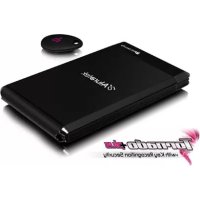
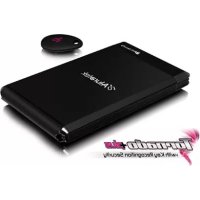
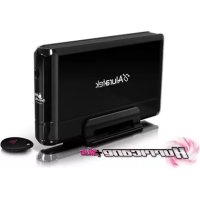
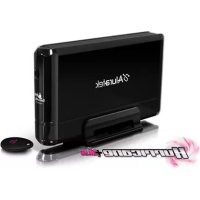
ACDUES350F2TB - External hard drive Aluratek - Free user manual and instructions
Find the device manual for free ACDUES350F2TB Aluratek in PDF.


Pick your language and provide your email: we'll send you a specifically translated version.
| Product Type | External Hard Drive |
| Brand | Aluratek |
| Model | ACDUES350F2TB |
| Storage Capacity | 2 TB |
| Interface | USB 3.0 (compatible with USB 2.0) |
| Form Factor | 2.5-inch Portable |
| Dimensions (W x D x H) | 4.5 x 3.1 x 0.5 inches |
| Weight | 5.6 oz (160 g) |
| Power Supply | Bus-powered via USB |
| Data Transfer Rate | Up to 5 Gbps (USB 3.0) |
| Compatible Operating Systems | Windows, macOS, Linux |
| Main Functions | Backup, file storage, data transfer, plug-and-play |
| LED Indicator | Yes, shows power/activity |
| Material | Plastic casing |
| Maintenance & Cleaning | Wipe with dry cloth; avoid liquids |
| Safety Precautions | Do not drop, avoid magnetic fields, disconnect properly |
| Spare Parts & Repairability | Not user-serviceable; contact support |
| What's in the Box | Hard drive, USB cable, quick start guide |
| Warranty | 1 year limited |
Frequently Asked Questions - ACDUES350F2TB Aluratek
How do I set up my Aluratek ACDUES350F2TB external hard drive?
Simply connect the drive to your computer using the included USB cable. The drive is plug-and-play and should be recognized automatically. On Windows, you may need to initialize it via Disk Management if it's new.
Is the drive compatible with Mac?
Yes, the drive works with macOS. However, it is pre-formatted in NTFS, which is read-only on Mac. To write, you can reformat to exFAT or use a third-party NTFS driver.
What is the maximum data transfer speed?
With USB 3.0, the drive supports speeds up to 5 Gbps. Actual speed depends on the host device and file type.
Can I use this drive with a gaming console?
Yes, it can be used with PlayStation, Xbox, and other consoles that support external storage. Format the drive to exFAT for maximum compatibility.
Does the drive need an external power adapter?
No, the drive is bus-powered via the USB cable. It draws power from your computer, so no separate outlet is needed.
How do I safely eject the drive?
Always use the 'Safely Remove Hardware' option on Windows or 'Eject' on macOS to prevent data corruption. Wait for the LED to turn off before disconnecting.
What do I do if my computer doesn't recognize the drive?
Try a different USB port or cable. Check Disk Management (Windows) or Disk Utility (Mac) to see if the drive appears. You may need to assign a drive letter or reformat.
Is the drive shockproof?
The drive is not built to be shockproof. Handle with care to avoid drops or impacts that could damage the internal hard disk.
Can I partition the drive?
Yes, you can partition it using your operating system's disk management tools. This is useful for organizing data or dual-booting.
How do I contact Aluratek support?
Visit the Aluratek website at www.aluratek.com and navigate to the support section. You can also call or email customer service for warranty and repair inquiries.
User questions about ACDUES350F2TB Aluratek
0 question about this device. Answer the ones you know or ask your own.
Ask a new question about this device
No questions yet. Be the first to ask one.
Download the instructions for your External hard drive in PDF format for free! Find your manual ACDUES350F2TB - Aluratek and take your electronic device back in hand. On this page are published all the documents necessary for the use of your device. ACDUES350F2TB by Aluratek.