
MediaPad 7 Vogue - Tablet HUAWEI - Free user manual and instructions
Find the device manual for free MediaPad 7 Vogue HUAWEI in PDF.


| Product Type | Tablet |
| Brand | Huawei |
| Model | MediaPad 7 Vogue |
| Display Size | 7 inches |
| Display Resolution | 1024 x 600 pixels |
| Processor | 1.2 GHz dual-core |
| RAM | 1 GB |
| Storage | 8 GB internal, expandable via microSD |
| Camera (Rear) | 3 MP |
| Camera (Front) | 0.3 MP VGA |
| Battery Capacity | 4100 mAh |
| Operating System | Android 4.1 Jelly Bean |
| Connectivity | Wi-Fi 802.11 b/g/n, Bluetooth 3.0 |
| Ports | Micro-USB 2.0, 3.5 mm headphone jack |
| Dimensions | 193.5 x 121.3 x 9.5 mm |
| Weight | 350 g |
| Power Supply | 5V/2A charger via micro-USB |
| Main Functions | Web browsing, multimedia, gaming, reading, apps |
| Care and Cleaning | Wipe with a soft, dry cloth; avoid liquids |
| Safety | Do not expose to extreme temperatures or moisture |
| Spare Parts and Repairability | Battery and screen replaceable by authorized service |
Frequently Asked Questions - MediaPad 7 Vogue HUAWEI
User questions about MediaPad 7 Vogue HUAWEI
0 question about this device. Answer the ones you know or ask your own.
Ask a new question about this device
Download the instructions for your Tablet in PDF format for free! Find your manual MediaPad 7 Vogue - HUAWEI and take your electronic device back in hand. On this page are published all the documents necessary for the use of your device. MediaPad 7 Vogue by HUAWEI.
USER MANUAL MediaPad 7 Vogue HUAWEI
natural_image
Exterior view of a Huawei smartphone with a back panel showing its screen and cover (no text or symbols on the device itself)Introduction - - - - - - - - - - - - - - - - - - - - - - - - - - - - - - - - - - - - - - 1
Getting Started 2
HUAWEI MediaPad at a Glance 2
Installing the SIM and microSD Cards ....3
Charging the Battery 4
Battery Usage Precautions ....4
Powering On or Off ....5
Gestures 5
Unlocking the Screen 7
Home Screen 8
Notification and Status Icons 8
Notification Panel 10
Operations on the Home Screen 11
Text Input 13
Bringing Up and Hiding the Onscreen Keyboard ....13
Selecting an Input Method 13
Editing Text 14
Android Input Method 15
Huawei Input Method 16
Customizing HUAWEI MediaPad 17
Moving a Home Screen Item 17
Adding Widgets to the Home Screen 18
Removing a Home Screen Item 19
Adding a Home Screen 19
Deleting a Home Screen 20
Customizing the Wallpaper 21
Adjusting the Volume 22
Setting the Ringtone 22
Adjusting the Screen Brightness ....23
Setting the Screen Timeout Period ....23
Screen Lock 24
Internet Connection 25
Wi-Fi Network 25
Connecting to a Wi-Fi Network 25
Turning On Data Services 26
Turning Off Data Services 26
Portable Wi-Fi Hotspot 27
Sharing Data Using Wi-Fi Hotspot 27
USB Tethering 28
Sharing HUAWEI MediaPad's Data Connection .....29
Browser 30
Browsing Web Pages 30
Downloading a File ....31
Managing Bookmarks ....31
Setting Your Home Page 32
Clearing the Browsing History ....32
Sharing Data 33
Setting Up a Wi-Fi Direct Connection ....33
Sharing Files Using Wi-Fi Direct 33
Sharing Files Using Bluetooth 34
Receiving Files Using Bluetooth ....34
Connecting to a Computer 35
Copying Files from a Computer ....35
Call 37
Making a Call Using the Dialer 37
Making a Call from People ....37
Making a Call from the Call Log ....37
Answering or Rejecting a Call ....37
Adding an Unknown Number to People ....38
Clearing the Call Log ....39
Turning On Call Waiting 39
Answering a Third-Party Call ....39
Contacts 40
Creating a Contact 40
Synchronizing Contacts ....40
Editing a Contact 41
Joining Contacts 41
Searching For a Contact 42
Deleting a Contact 42
Creating a Contact Group 42
Backing Up Contacts to a microSD Card ....43
Importing Contacts from a microSD Card ....43
Importing Contacts from a SIM Card ....44
Messaging 46
Sending a Text Message 46
Sending a Multimedia Message 46
Reading a Message 47
Searching For a Message 47
Deleting a Message 47
Email 49
Setting Up an Email Account 49
Sending an Email 49
Checking Email 50
Deleting an Email 50
Configuring an Email Account ....51
Deleting an Email Account 51
Camera 52
Taking Photos 52
Taking a Panoramic Photo 54
Multimedia 55
Viewing Photos and Videos ....55
Sharing Photos and Videos ....56
Editing a Photo 56
Playing Music 57
Playing Videos ....58
Alarms 59
Adding an Alarm 59
Deleting an Alarm 59
Turning an Alarm On and Off 59
Editing an Alarm 59
Calendar 60
Viewing the Calendar 60
Agenda 61
Managing Applications 62
Downloading an Application 62
Installing an Application 62
Viewing Applications 63
Uninstalling an Application 63
File Manager 64
Creating a Folder 64
Searching For a File 64
Copying or Moving a File 65
Deleting a Folder 65
Renaming a Folder 65
Settings 67
Adding an Account 67
Removing an Account 67
Synchronizing an Account with Its Server ....68
Power Saving Tips 68
Setting the Date and Time ....68
Clearing the Application Cache 69
Checking the Memory Status 69
Formatting a microSD Card ....70
Updating HUAWEI MediaPad ....70
FAQs 71
How can I save battery power? 71
How do I save my data usage? 71
I cannot add more icons to the Home screen. Why?
What can I do? 72
How do I format the internal memory? .....72
What can I do if I forget the screen unlock pattern or password? 72
What can I do if I forget my SIM card PIN? ......73
My HUAWEI MediaPad runs very slow. What can I do? 73
How do I share a slideshow with my friends? .....73
How long is HUAWEI MediaPad's battery life when it is playing video? 74
Can HUAWEI MediaPad play video in RMVB format? 74
I cannot set the date and time on HUAWEI MediaPad. Why? 74
Will my alarms still go off when HUAWEI MediaPad is powered off? 75
Can I change the save path for recordings? .....75
My HUAWEI MediaPad cannot receive GPS signals.
Why? What can I do? 75
The displayed position of HUAWEI MediaPad is incorrect. Why? What can I do? ....75
What is the difference between the screen unlock PIN and password? 76
For More Help 77
Personal Information and Data Security - - - - 78
Legal Notice 80
1 Introduction
Welcome to the bright new world of HUAWEI MediaPad 7 Vogue (HUAWEI MediaPad for short).
With HUAWEI MediaPad, you can:
Surf the Internet at lightening-fast speeds.
Take photos and record videos anytime anywhere.
Enjoy the latest and hottest movies.
Immerse yourself in an extraordinary audio experience.
Lots more
HUAWEI MediaPad lets your imagination and creativity run free. Start using it now to discover all the pleasant surprises that await you.

All pictures and illustrations in this document are for your reference only. The actual product may vary.
2 Getting Started
HUAWEI MediaPad at a Glance

| 1 Light sensor 2 Earpiece | |
| 3 Front camera 4 | Flash |
| 5 Rear camera 6 Speaker | |
| 7 Power key 8 Volume key | |
| 9 Card slot 10 | Composite headphone/ audio-input jack |
| 11 Microphone 12 | Micro-USB Port (with the charging function) |
Installing the SIM and microSD Cards

-
Open the SIM and microSD card slot cover.
-
Insert the SIM card with its gold contacts facing up, as indicated in the preceding figure. Push the card inward until it clicks into place.

HUAWEI MediaPad is only compatible with standard SIM cards, whose dimensions are 0.76 mm x 15 mm x 25 mm. Inserting a SIM card with other dimensions will damage your HUAWEI MediaPad.
-
Insert the microSD card with its gold contacts facing up, as indicated in the preceding figure. Push the card inward until it clicks into place.
-
Replace the card slot cover.

Do not remove the card slot cover from the tablet.
To remove the microSD card when HUAWEI MediaPad is
powered on, access the Home screen, and touch

Storage > Unmount SD card. Then open the microSD card slot cover and gently push the microSD card. The microSD card then pops out.
Charging the Battery
- Connect your charger to the provided USB cable.
- Connect the charger to a power outlet.
- Connect your HUAWEI MediaPad to the USB cable to start charging the battery.
With HUAWEI MediaPad powered on, the battery icon in the status bar turns when the battery is fully charged.
Battery Usage Precautions
If HUAWEI MediaPad has not been used for a long time or the battery power is extremely low, you may not be able to power it on immediately after you begin charging the battery. This is normal. Allow the battery to charge for a few minutes before attempting to power your HUAWEI MediaPad on.
The battery is rechargeable. Rechargeable batteries have a limited number of charge cycles. When your HUAWEI MediaPad is used for a long time, its standby time will decrease. To maximize its lifespan, do not charge the battery too frequently.
The time required to fully charge the battery depends on the ambient temperature and the age of the battery.
Powering On or Off
Powering On
Press and hold the power key until HUAWEI MediaPad vibrates.

natural_image
Illustration of a tablet displaying fresh strawberries with green leaves, accompanied by a red thumbs-down icon (no text or symbols on the device itself)
If HUAWEI MediaPad has not been used for a long time or the battery level is low, you may not be able to power it on immediately after you start charging the battery. Allow the battery to charge for a few minutes before attempting to use it.
Powering Off
Press and hold the power key until a dialog box is displayed. Then follow the onscreen instructions to power off HUAWEI MediaPad.
Gestures
The following simple finger gestures make it easy to use your HUAWEI MediaPad.

Touch: Touch an item to select or open it.

Double-click: Touch the screen twice consecutively to zoom in.

Touch and hold: Touch and hold the screen to display an options menu.

Flick: Flick up or down to scroll up or down. Flick left or right to switch between screens.

Drag: Touch and hold an item to drag it to another position.

natural_image
Two hand diagrams showing a curved object with a curved arrow, no text or symbols presentPinch: Pinch two fingers together or apart to zoom in or out. You can use this gesture when browsing photos and web pages.
Unlocking the Screen
HUAWEI MediaPad supports multiple screen unlock methods. The default unlock method is used here as an example to illustrate how to unlock the screen.
- Press the Power key to wake up the screen.
- Drag to the right until it reaches .


You can drag to the shortcut icons on the top, left, or right to quickly access the corresponding applications.
Home Screen
HUAWEI MediaPad has an easy-to-use screen layout. This section describes the screen elements and basic operations.

1 View recent and running applications.
2 Return to the Home screen.
3 Return to the previous screen.
Display the time, Wi-Fi connection status, signal strength, battery level, and more. Touch the clock to open the notification panel.
5 Display widgets and applications.
Notification and Status Icons
The notification bar displays notifications and icons to inform you of HUAWEI MediaPad's status.
 | Airplane mode Bluetooth on | |
 | GPS in use Charging | |
 | Battery full Battery low | |
 | New emails | Preparing the microSD card |
 | Upcoming event Alarms enabled | |
 | Uploading Downloading ↓ | |
 | Memory full | Sign-in or synchronization problem |
 | Synchronizing data | Synchronization failed |
 | Connected to a computer | USB tethering on |
 | Wi-Fi networks available | Connected to a Wi-Fi network |
 | Connected to the Internet | — — |

When is displayed, charge your HUAWEI MediaPad as soon as possible; otherwise it will automatically power off soon.
When your storage space is full, is displayed. Delete some files or applications; otherwise you will not be able to install or run applications on HUAWEI MediaPad.
Notification Panel
HUAWEI MediaPad can execute multiple tasks simultaneously. For example, you can browse the Internet while downloading applications. You can check the task progress or results using the notification panel.
Touch the status bar in the lower right corner of the screen to open the notification bar. You can then check task progress and new notifications.
You can also perform the following operations:
Touch or other icons to enable or disable the corresponding functions, such as Wi-Fi and Bluetooth.
Touch 📷 display the settings screen.
Slide your finger left or right across a notification to delete it.
Touch ▶ clear the notification panel.
To close the notification panel, touch the Home screen.
Operations on the Home Screen
To open an application, from the Home screen, touch the application icon.
To switch between screens, from the Home screen, flick left or right.

To customize the Home screen, touch and hold a blank area on the Home screen to display an options menu, from which you can choose to customize the wallpaper, widgets, and more.

Bringing Up and Hiding the Onscreen Keyboard
HUAWEI MediaPadis pre-installed with multiple text input methods. You can conveniently enter text using the onscreen keyboard.
To bring up the onscreen keyboard, touch a text input field.
To hide the onscreen keyboard, touch ▼

If the onscreen keyboard blocks some of the operation buttons, hide the onscreen keyboard to facilitate your operations.
Selecting an Input Method
To switch between input methods:
- Touch a text field to bring up the onscreen keyboard.
- Touch in the notification bar.

- From the displayed options menu, select the desired input method.

From the Home screen, touch >Language & input to set the default input method.
Editing Text
You can copy, cut, and paste text using the onscreen keyboard.
- Touch a text field to display beside the cursor.
- Drag to move the cursor.
- Touch and hold the text until and are displayed.
- Drag and to select more or less text.
- Touch Select all, Copy, or Cut. You can also touch the delete button to delete the selected text.
- Touch where you want to insert the text, and touch Paste to paste the last text you copied or cut.
Android Input Method

The following figure is for your reference only. The actual keys may look slightly different.

| 1 | >When you type in lower case, touch to capitalize the next letter to be entered.>When you type in lower case, touch and hold or double-tap to turn on caps lock. |
| 2 Enter numbers and symbols. | |
| 3 | >Enter a space.>Touch and hold to choose another input method. |
| 4 Switch to the next text input field. | |
| 5 | >Touch to delete the character to the left of the cursor.>Touch and hold to delete all the characters to the left of the cursor. |
Huawei Input Method

| 1 | Switch between the QWERTY and 9-key keyboards. |
| 2 | Select an input language. |
| 3 | Switch between upper and lower cases. |
| 4 | Enter numbers and symbols. |
| 5 | Enter a space. |
| 6 | Enter emoticons. |
| 7 | > Touch to delete the character to the left of the cursor.> Touch and hold to delete all the characters to the left of the cursor. |
4 Customizing HUAWEI MediaPad
Want to set your own photo as the wallpaper? Want to move your music player to the Home screen so it is easier to find? Want to use the latest hit as your ringtone? Well then go ahead!
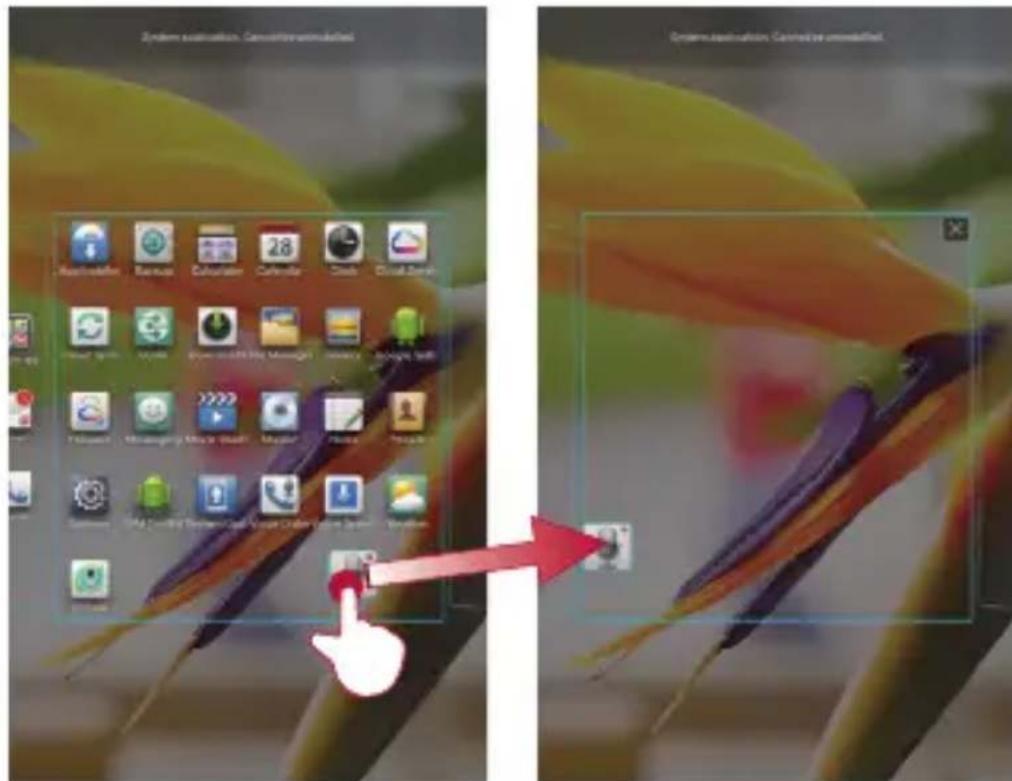
Moving a Home Screen Item
You can organize Home screen items as you see fit.
- Touch and hold the item you want to move until HUAWEI MediaPad vibrates.
- Drag the item to a desired position, and then release it.

To move an item to another Home screen, drag the item to the left or right edge of the screen and hold. The previous or next Home screen is then displayed.
Adding Widgets to the Home Screen
You can add widgets, such as the calendar, music player, and weather clock to the Home screen.
-
Touch and hold a blank area on the Home screen.
-
From the displayed options menu, choose Widgets.
-
Touch and hold a widget and drag it to the desired position, and then release it.

Removing a Home Screen Item
You can remove Home screen items you no longer want.

Removing an application icon uninstalls the corresponding application.
-
Touch and hold the item you want to delete until HUAWEI MediaPad vibrates.
-
Drag the item to the trash icon, and then release it.
Adding a Home Screen
Adding Home screens enables you to put more applications and widgets on the Home screen, helping you better organize your applications.
-
Touch and hold a blank area on the Home screen.
-
From the displayed options menu, choose Thumbnails.
3. Touch + .

natural_image
Close-up of a hand holding a smartphone with icons and a finger pointing at it (no readable text or symbols)You can have up to six Home screens.
Deleting a Home Screen
You can delete a Home screen you no longer want.
Note that only blank Home screens can be deleted.
- Touch and hold a blank area on the blank Home screen.
- From the displayed options menu, choose Thumbnails.
- Touch in the upper left corner.

natural_image
Screenshot of a mobile app interface with home screen, tablet, and hand cursor (no readable text or symbols)Customizing the Wallpaper
You can set any desired photo as the wallpaper.
-
Touch and hold a blank area on the Home screen.
-
From the displayed options menu, choose Wallpaper.
-
Follow the onscreen instructions to choose a wallpaper.

Adjusting the Volume
You can set the volume of the tones, multimedia, alarms, and notifications.
- From the Home screen, touch 📄 > Sound > Volume.
- Drag the sliders to adjust the volumes.
You can also use the volume keys to adjust the volume of running applications.
Setting the Ringtone
You can set any audio file, such as a song or recording, as the ringtone.
-
From the Home screen, touch 📄 > Sound > Tablet ringtone.
-
From the displayed options menu, choose Local music.
- Touch the audio file you want, then OK.
Adjusting the Screen Brightness
HUAWEI MediaPad incorporates a light sensor that can automatically adjust the screen brightness based on the ambient light. You can also manually adjust the screen brightness.

Decreasing the screen brightness reduces HUAWEI MediaPad's power consumption.
- From the Home screen, touch 📄 > Display > Brightness.
- Select how you want to adjust the screen brightness.
Automatic: select the Automatic brightness check box.
Manual: clear the Automatic brightness check box and drag the slider.
Setting the Screen Timeout Period
To reduce power consumption, HUAWEI MediaPad automatically locks its screen if it is idle for a specified period. You can set the timeout period as you wish.
- From the Home screen, touch 📷 > Display > Sleep.
- Choose a timeout period.
Screen Lock
Locking the screen prevents your device from carrying out undesirable operations when you are not using it. HUAWEI MediaPad lets you lock the screen in a number of ways.
- From the Home screen, touch Screen lock.
Security >
- Select a locking method and follow the onscreen instructions.

With a screen lock set, if HUAWEI MediaPad is idle for a specified period of time, it automatically locks its screen. You can also press the Power key to lock the screen.
5 Internet Connection
HUAWEI MediaPad brings you into a new age of wireless Internet surfing. Let's take a look at how this works.
Wi-Fi Network
A Wi-Fi network is a wireless local area network. Wi-Fi devices can maintain a high-speed connection to the Wi-Fi network even when they are moving. Wi-Fi networks are widely applied in homes and public places, such as hotels and libraries.
Connecting to a Wi-Fi Network
You can connect HUAWEI MediaPad to a Wi-Fi network and access the Internet through the Wi-Fi network.
To do so, ensure that a wireless network is available. When you use HUAWEI MediaPad at your home, turn on the wireless router to set up a Wi-Fi hotspot. When you use HUAWEI MediaPad in a public place, such as a library or a shopping mall, there may be open Wi-Fi networks.
HUAWEI MediaPad's power consumption increases after you turn on the Wi-Fi function. To save battery, disable the Wi-Fi function when you do not need to use it.
- From the Home screen, touch > Wi-Fi.
- Turn on Wi-Fi. Your device then scans for available Wi-Fi networks in range.
- Select the desired Wi-Fi network.
You can connect to open Wi-Fi networks directly.
For an encrypted Wi-Fi network, enter the password when prompted.
When HUAWEI MediaPad is connected to a Wi-Fi network, you can touch its name to view connection details, such as the network speed, encryption mode, and IP address.
With Wi-Fi turned on, after HUAWEI MediaPad returns to the coverage of a previously connected Wi-Fi network, it automatically reconnects to the Wi-Fi network.
Turning On Data Services
You can turn on HUAWEI MediaPad's data services to access the Internet using your service provider's network.
Using data services may incur charges. For details, contact your service provider.

- From the Home screen, touch
- Under WIRELESS & NETWORKS, touch More... > Mobile networks.
- Select the Data enabled check box.
Turning Off Data Services
To save your data usage, turn off HUAWEI MediaPad's data services when Wi-Fi networks are available.

- From the Home screen, touch
- Under WIRELESS & NETWORKS, touch More... > Mobile networks.
- Clear the Data enabled check box.
Portable Wi-Fi Hotspot
If HUAWEI MediaPad has Internet access, it can work as a Wi-Fi hotspot, converting mobile signals into Wi-Fi signals and allowing Wi-Fi devices to access the Internet.
If you have subscribed to a service plan with unlimited or abundant data traffic, you can share your HUAWEI MediaPad's data usage with other devices.

natural_image
Front view of a gray tablet device with no visible text or symbols on its cover
Wi-Fi

Wi-Fi

natural_image
Simple line drawing of a laptop computer with blank screen (no text or symbols)

natural_image
Simple line drawing of a desktop computer with monitor and tower (no text or symbols)Sharing Data Using Wi-Fi Hotspot
- From the Home screen, touch

-
Under WIRELESS & NETWORKS, touch More... > Tethering & portable hotspot.
-
Select the Portable Wi-Fi hotspot check box.
-
Touch Portable Wi-Fi hotspot settings > Configure Wi-Fi hotspot. Then follow the onscreen instructions to configure the SSID, password, and other settings.
You can then search for HUAWEI MediaPad's SSID from Wi-Fi enabled devices to access the Wi-Fi network set up by HUAWEI MediaPad.
USB Tethering
You can share HUAWEI MediaPad's network connection using USB tethering.
This function enables devices to share a network connection through a USB connection.

natural_image
Illustration of a laptop connected to a tablet via cable (no text or symbols)To use USB tethering, ensure that HUAWEI MediaPad has Internet access.
Using USB tethering may incur data traffic charges, depending on which version of HUAWEI MediaPad you purchased. For details about traffic fees, contact your service provider.
Sharing HUAWEI MediaPad's Data Connection
Connect HUAWEI MediaPad to a computer using a USB cable. You can then access the Internet from the computer using HUAWEI MediaPad's data connection.

To use USB tethering, ensure that your HUAWEI MediaPad has Internet access.
-
Connect HUAWEI MediaPad's multifunctional port to the computer's USB port using the provided USB cable.
-
From the Home screen, touch

-
Under WIRELESS & NETWORKS, touch More... > Tethering & portable hotspot.
-
Select the USB tethering check box. After a USB tethering connection is set up, you can access the Internet using the computer.

You cannot use your HUAWEI MediaPad's USB tethering function and access its microSD card as a mass storage device at the same time.
6 Browser
The browser lets you surf the web and browse web pages. Stay on the ball with real-time news and information using your browser. Staying connected and browsing the Internet has never been easier.
Browsing Web Pages
From the Home screen, touch to launch the browser.

1 Open a new tab.
2 Close the current tab.
3 Refresh the current page.
4 Enter a web address.
5 Add the current page to bookmarks.
6 Open the search box.
7 View the bookmarks.
8 Display more options.
Downloading a File
You can download files, images, and even applications from web pages. The downloaded files will be saved in your HUAWEI MediaPad's internal memory or the microSD card.
For example, to download an image from a web page, touch and hold the image, and choose Save image from the displayed options menu. To download a file from a web page, touch and hold the link to the file, and choose Save link from the displayed options menu.

To protect HUAWEI MediaPad and your personal data, download from trusted sources only. To do so, touch > Security, and clear the Unknown sources check box.
Managing Bookmarks
You can set websites as bookmarks to access them quickly.
-
From the Home screen, touch to launch the browser.
-
Touch to display the bookmark management screen.
-
Touch and hold a bookmark to share, open, or delete it.
Setting Your Home Page
You can set any web page as the home page.
- From the Home screen, touch to launch the browser.
- Select : > Settings > General.
- Touch Set homepage and follow the onscreen instructions.
Clearing the Browsing History
To better protect your privacy, it is recommended that you clear the browsing history from time to time.
- From the Home screen, touch to launch the browser.
- Touch : > Settings > Privacy & security.
- Scroll down and touch Clear history.
7 Sharing Data
HUAWEI MediaPad allows you to share files in a number of ways. Sharing data anytime anywhere means family and friends can share your experiences and are always by your side.
Setting Up a Wi-Fi Direct Connection
To share files with a device using Wi-Fi Direct, set up a Wi-Fi Direct connection between HUAWEI MediaPad and the device.
- From the HUAWEI MediaPad's Home screen, touch

Wi-Fi.
- Touch > Wi-Fi direct to display the Wi-Fi direct screen.
- From the WI-FI DIRECT DEVICES list, touch the desired device to connect to it.
To rename your HUAWEI MediaPad, from the Wi-Fi connection screen, touch RENAME.
Sharing Files Using Wi-Fi Direct
You can share photos, videos, songs, and other files with your friends using Wi-Fi Direct.
- From the Home screen, touch

- Touch and hold the file you want to share.
-
From the displayed options menu, touch Share > Wi-Fi.
-
Choose the device with which you want to share the file.
If the desired device is not displayed, touch Other devices to enter the Wi-Fi Direct settings screen. Touch the desired device to connect to it.
If no Wi-Fi Direct connection has been set up, HUAWEI MediaPad displays the Wi-Fi Direct settings screen. Touch the desired device to connect to it.
Sharing Files Using Bluetooth
Bluetooth enables you to conveniently send and receive photos, videos, and other files to your families and friends. You can share files with Bluetooth-enabled devices directly without an Internet connection.

- From the Home screen, touch
- Touch and hold the desired file.
- From the displayed options menu, touch Share > Bluetooth, and follow the onscreen instructions.
Receiving Files Using Bluetooth
- From the Home screen, touch 📋 > Bluetooth, and turn on Bluetooth.
-
After the connected Bluetooth device sends a file, a message is displayed on HUAWEI MediaPad's notification bar.
-
Open the notification, and touch Accept from the displayed dialog box to receive the file.

Respond to Bluetooth pairing or data transmission requests promptly to avoid connection failure.
Connecting to a Computer
You can connect HUAWEI MediaPad to a computer to exchange data.
- Connect HUAWEI MediaPad's Micro-USB port to the computer's USB port using the provided USB cable.
- From the displayed options menu on the computer, select the desired connection method to connect to HUAWEI MediaPad. You can then view files or exchange data.

When you connect to the computer for the first time, a driver installation wizard will be displayed on the computer. Follow the wizard to install the driver. If no wizard is displayed, double-click the icon corresponding to HUAWEI MediaPad in My Computer to start the installation.
Copying Files from a Computer
Ensure that your HUAWEI MediaPad is connected to a computer and the driver program has been installed.
-
From the displayed options menu, touch Media device (MTP) on HUAWEI MediaPad.
-
On the computer, open the USB flash drive corresponding to HUAWEI MediaPad from My Computer.
- Select desired files from the computer, and copy them to the desired folder on HUAWEI MediaPad.

The preceding descriptions apply to computers running Windows operating systems only. Operations in other operating systems may vary.
Making a Call Using the Dialer
- From the Home screen, touch

-
Enter a phone number.
-
Touch

During a call, touch to display the dialer.
Making a Call from People
- From the Home screen, touch to display the contact list.

-
Touch a contact to display the contact details.
-
Touch the contact's phone number to make a call.
Making a Call from the Call Log
- From the Home screen, touch

- From the call log, touch a number to call it.
Answering or Rejecting a Call
Answering a Call
To answer an incoming call, drag to .


Ending a Call
To end a call, touch

Rejecting a Call
To reject an incoming call, drag to .


You can also drag to reject the call and send a message to the caller.
Adding an Unknown Number to People
- From the Home screen, touch

-
From the call log, touch next to the unknown number.
-
Touch Add to contacts.
- Touch Create a new contact or an existing contact to save the number.
Clearing the Call Log
To delete an entry from the call log, touch and hold the entry on the Phone screen, and choose Remove from call log from the displayed options menu.
To delete all entries, go to the Phone screen, and choose
Clear call log > OK.
Turning On Call Waiting

- From the Home screen, touch
- In the Apps area, touch Call.
- From the displayed options menu, choose Additional settings.
- Select the Call waiting check box.
Answering a Third-Party Call

Before you answer a third-party call, make sure you have subscribed to this service and turned on call waiting. For details, contact your service provider.
If a call comes in when you are already in another call, drag to to answer the new call and place the first call on hold.

To switch between the two calls, touch


9 Contacts
Forget about lugging around business card holders. With HUAWEI MediaPad, you can store your family and friends' contact details easily. In addition, its improved import and export functions let you conveniently recover contacts on different devices.
Creating a Contact
-
From the Home screen, touch to display the contact list.
-
Touch
-
Enter the contact information, such as the name, phone number, and email address.

You can touch Add another field to enter more information about the contact, for example, Notes, Nickname, and Website.
- Touch to save the contact.
Synchronizing Contacts
You can synchronize contacts between your HUAWEI MediaPad and Microsoft Exchange or Google accounts.
- From the Home screen, touch
- Under ACCOUNTS, select an account type.
- Touch the account you want to synchronize with.
- Select the Sync contacts check box.

If you have not set up the account you want to synchronize with on HUAWEI MediaPad, touch Add account from the
Accounts & sync screen, and follow the onscreen instructions to set up the account. After the account is set up, HUAWEI MediaPad automatically synchronizes with it.
Editing a Contact
-
From the Home screen, touch to display the contact list.
-
Touch the contact you want to edit.
-
Touch to edit the contact.

Touch to delete unwanted entries.
Touch Add another field to add contact information.
- Touch to save the changes.
Joining Contacts
To avoid duplicate contacts, join two or more contacts together to form a single contact.
You can join contacts stored in the internal memory only, and not those stored in the SIM card.
-
From the Home screen, touch to display the contact list.
-
Select the contact you want to merge.
-
From the contact details, touch Manage joined contacts.
-
Touch Add contact, and select the contact you want to merge with the first contact.
You can touch next to a joint contact to delete it.
Searching For a Contact
HUAWEI MediaPad enables you to find a contact by entering any contact information, such as the phone number or name.
- From the Home screen, touch to display the contact list.
- Enter any contact information in the displayed search box.
- From the search results, find the contact you want.
Deleting a Contact
- From the Home screen, touch to display the contact list.
- Select the contact you want to delete.
- Touch : > Delete > OK.
To delete multiple contacts at a time, from the contact list, touch : > Delete contacts, and select the contacts you want to delete.
Creating a Contact Group
You can assign contacts to a contact group, and send messages and emails to them. For example, you can save your frequent contacts to a group.
-
From the Home screen, touch to display the contact list.
-
Touch
-
Touch in the upper right corner of the screen.
-
Enter a group name.
-
Touch Add members.
-
Select contacts you want to add to the group, and touch Add members.
-
When you are done, touch to save the group.
Backing Up Contacts to a microSD Card
You can back up your contacts to a microSD card in case your contacts are accidentally deleted or lost because of system upgrade.
Before you back up your contacts to a microSD card, touch

Storage > Default storage location > SD card to make sure that HUAWEI MediaPad's default storage location is microSD card.
-
From the Home screen, touch to display the contact list.
-
Touch : > Manage contacts.
-
From the displayed options menu, choose Export to storage > OK.
Importing Contacts from a microSD Card
Your HUAWEI MediaPad supports contact files in .vcf format only. This is a standard format for files storing contacts.
Contact names, addresses, phone numbers, and other information can be saved in .vcf files.
- Save the contacts you want to import as a .vcf file and save the file to a microSD card.
- Insert the microSD card into HUAWEI MediaPad.
From the Home screen, touch contacts.

Manage
- From the displayed options menu, choose Import from storage. Then follow the onscreen instructions to select the .vcf file you want to import, and touch OK.

The .vcf file you import may not be compatible with your HUAWEI MediaPad. In this case, some contacts may be lost after you import the files.
Importing Contacts from a SIM Card
You can insert a SIM card into your HUAWEI MediaPadand then import contacts from the SIM card.
- From the Home screen, touch to display the contact list.
- Touch : > Manage contacts > Copy from SIM card.
- Touch one contact to import that contact individually or Select all to import all contacts to your phone.
- Touch Copy > Tablet.

You can also import contacts to an account.
Different devices display characters in different ways. After you import contacts from a SIM card, some contact information may be garbled or only partially displayed.
Sending a Text Message
As you enter a phone number or contact name, HUAWEI MediaPad displays matching contacts in a list. You can choose the desired contact from the list or continue typing.

- From the Home screen, touch
- Touch New message.
- Enter the recipients, compose a message, and touch to send the message.
Sending a Multimedia Message
HUAWEI MediaPad lets you send multimedia messages containing images, videos, slideshows, and more. You can record a video, sing a song, or make a slideshow out of multiple photos, and send them to your friends.

- From the Home screen, touch
- Touch New message.
- Enter the recipients.
- Touch to attach a photo, video, slideshow, or other files.

Touch : > Add subject to enter a message subject.
- Touch to send the message.

To send a multimedia file, such as an audio clip, image, or video, as an attachment, open Gallery, select the file you want to send, and touch ✉ Message.
Reading a Message
- From the Home screen, touch

- Touch the message you want to read.
While reading a message, you can enter your reply in the text field below that message.
To forward or delete a message, touch and hold it. From the displayed options menu, choose Forward or Delete.
Searching For a Message
If you are having trouble finding the desired message from a pile of messages, this function can come to your rescue.
-
From the message list, touch 🔒
-
Enter the keywords in the search box.
-
From the search results, touch the desired message to read it.
Deleting a Message
-
From the message list, find the thread or message you want to delete.
-
Touch and hold the thread or message. From the displayed options menu, choose Delete.

To delete all messages, from the message list, touch : > Delete all threads.
11 Email
Communication is crucial, which is why HUAWEI MediaPad makes staying in touch with family and friends as simple as possible.
Setting Up an Email Account
HUAWEI MediaPad provides email functions. You can add email accounts to HUAWEI MediaPad and conveniently send and receive emails.
You must set the required parameters correctly when adding an email account. For details, contact your email service provider.
- From the Home screen, touch
- From the Add account screen, select the desired account type.
- From the Account settings screen, enter your email address and password, and touch Next.
- Follow the onscreen instructions to configure the other settings.

After you add an email account, you can touch Settings > Add account to add more accounts.
Sending an Email
-
From the Home screen, touch to open your mailbox. If you have added multiple email accounts, select the desired one.
-
Touch the upper right corner of the screen. Then follow the onscreen instructions to enter the recipient, subject, and email content.
-
When the email is ready to be sent, touch
Checking Email
If a new email arrives, a notification icon will be displayed in the notification bar.
- From the Home screen, touch to open your mailbox. If you have added multiple email accounts, select the desired one.
- From the email list, select the email you want to read.
Touch to reply to the sender.
Touch to reply to all.
Touch to forward the email.

Mail retrieval may be slightly delayed, depending on the network condition. Touch in the upper right corner to refresh the email list.
Deleting an Email
- From the Home screen, touch to open your mailbox. If you have added multiple email accounts, select the desired one.
-
From the email list, select the email you want to delete.
-
Touch to delete it.

To delete multiple emails together, select the emails you want to delete, and touch 📁
Configuring an Email Account
After you add an email account, you can change its settings.
- From the Home screen, touch

-
Touch : > Settings.
-
From the email account list, select the account you want to edit.
-
Follow the onscreen instructions to configure the general and notification settings.

Do not change Server settings; otherwise you may not be able to send or receive emails.
Deleting an Email Account
After you delete an email account, emails stored on the server are not deleted, but HUAWEI MediaPad will stop sending and receiving emails with the account.
- From the Home screen, touch

-
Touch : > Settings.
-
From the email account list, select the account you want to delete.
-
Touch Remove account to delete it.
12 Camera
As time flies by, there must be some memories you want to keep forever. Camera is a great tool for this.
Taking Photos
Camera lets you capture and preserve every precious moment.
From the Home screen, touch to open the camera.


1 Switch between camera and video capture modes.
2 Touch to take a photo or start recording.
3 Thumbnail of the previous shot. Touch to view the photos or videos you took.
4 Drag the slider left/right to set zoom.
5
Touch to display the options menu as follows:
Select a picture mode.
Select a filtering mode.
Select a white balance.
more settings.
Set the video quality.
6 Switch between the rear and front cameras.
7
Touch to switch flash mode.
Taking a Panoramic Photo
You can take several photos and stitch them into a single photo.
- From the camera screen, open the settings menu.
- Touch □ > Panorama to enter panoramic shooting mode.
- Touch to start shooting. Move HUAWEI MediaPad slowly to capture the view.

When the viewfinder screen turns red, the view is not captured. This may happen because you move HUAWEI MediaPad too fast, or the viewfinder scope exceeds the limit of the panoramic view.
- Touch to stop shooting. HUAWEI MediaPad then automatically generates a panoramic photo.
13 Multimedia
HUAWEI MediaPad enables you to listen to music, view photos, and watch videos on an HD display. You can also catch up on the most popular videos, listen to the latest hits, and experience HUAWEI MediaPad's stunning top quality audio.
Viewing Photos and Videos
Gallery enables you to conveniently view photos and videos. It automatically searches for and organizes photos and videos stored in HUAWEI MediaPad's internal memory and the microSD card for your easy reference.
- From the Home screen, touch to open the gallery.
- Touch a photo or video to view it in full-screen mode. Flick left or right to view the previous or next file.

Pinch two fingers together or apart to zoom in or out. When the auto-rotate function is enabled, the screen orientation automatically changes if you rotate HUAWEI MediaPad.
While viewing a photo or playing a video, you can:
| ▼ | Filter fragmented images. |
| Play photos in the folder as a slideshow. | |
| Open the camera. | |
| < | Share photos or videos. |
| : | Display more options. |
Sharing Photos and Videos
You can share photos and videos via Bluetooth, email, and more.
- From the Home screen, touch to open the gallery.
- Touch and hold the photo, video, or folder until is displayed at the top of the screen.
- Touch, and choose how you want to share the selected file or folder, for example, using Bluetooth or DLNA. Then follow the onscreen instructions to complete your operation.
Editing a Photo
HUAWEI MediaPad provides powerful photo editing functions. You can remove red-eye, and rotate or crop a photo.
-
Open, then the desired photo.
-
Touch : > Edit. You can then:
Touch to adjust the brightness.
Touch Fx cross-process or posterize the photo, and more.
Touch to tint the photo, make it negative, and more.
Touch rotate or crop the photo, and more.
- Touch save. The edited photo is then saved to the same folder as the original photo.
Playing Music
Are you in the mood for music? HUAWEI MediaPad makes listening to music a walk in the park.
From the Home screen, touch to open the music player.
Songs are categorized by album, artist, folder, and playlist, which enables you to find the desired song conveniently.

1 Switch play mode.
2 Add the song to favorites.
3
Show current playback position. Drag left and right to change playback position.
4 Play or pause.
5 Drag the sliders to adjust the volumes.
6 Open the now playing list.
7 Display more options.
Playing Videos
HUAWEI MediaPad can work as a portable video player so that you can watch downloaded or streaming videos wherever you want.
-
From the Home screen, touch to open the gallery.
-
Touch the video you want to watch, and touch to play it.

When the video is playing, you can flick up or down to adjust the volume or screen brightness.
To avoid accidentally touching the screen, touch to lock the screen.
To control playback, touch 🔒 unlock the screen. The playback controller is then displayed. Drag the slider to control the playback.
When playing a video, you can touch in the upper right corner of the screen to display more options, such as setting the video screen size and control gestures, and subtitle preferences.
Adding an Alarm
Clock is a great assistant that helps you keep track of time and reminds you of important events.
- From the Home screen, touch
- Touch to display the Alarm screen..
- Select an alarm to enable it.
- Touch Done.

Touch an alarm to set it. To add more alarms, touch Add alarm.
Deleting an Alarm
- From the alarm list, touch and hold the alarm you want to delete.
- Touch Delete alarm > OK.
Turning an Alarm On and Off
From the alarm list, select an alarm to enable it, or clear the check box to disable it.
Editing an Alarm
- From the alarm list, touch the alarm you want to edit.
- Configure the settings.
- Touch OK to save the alarm.
15 Calendar
Always forgetting birthdays and other important events? Problem solved! Calendar on HUAWEI MediaPad is a personal assistant that helps you keep things in track. You will never miss another anniversary, meeting, or appointment.
Viewing the Calendar
With the calendar, you can create and manage your events, such as meetings and appointments.
From the Home screen, touch


1
Touch to switch Day/Week/Month/Agenda list view.
| 2 | Calendar.> In Day/Week view mode, days which passed current date are shown on gray background.> In Month view mode, present month is shown on gray background and current day is shown on white background. |
| 3 Saved events appears. | |
| 4 | For events registered in a given account or item, you can switch between displaying them on the calendar or hiding them. |
| 5 | Set a date you want to display on a calendar and move to it. |
| 6 Create an event. | |
| 7 | Touch to switch to the schedule list including the current day. |
| 8 | Touch to enter a keyword and search registered events. |
Agenda
Agenda automatically searches for your calendar events and lets you know your daily schedule at a glance. You can also set alarms for important events.
To view your agenda, touch Agenda from the calendar screen.
16 Managing Applications
Your HUAWEI MediaPad provides a rich collection of applications designed to make your life easier and more enjoyable. This chapter describes the basic operations you will need to know in order to manage your applications.
Downloading an Application
You can install applications on HUAWEI MediaPad to expand its functionality and enrich your life.
To obtain applications, you can:
Download applications from online application stores, such as Google Play Store.
Connect HUAWEI MediaPad to a computer and copy downloaded applications from the computer.
Installing an Application
After you download an application, install it as follows:

Some third-party applications may not be compatible with your HUAWEI MediaPad. They may not run properly and the system may break down. It is recommended that you download applications from trusted sources only.

- From the Home screen, touch
- Select the application you want to install.
- Touch : > Install.
4. Touch Done.

During the installation, an Install blocked message may be displayed. Read the message carefully. If you want to continue with the installation, follow the onscreen instructions to proceed.
Viewing Applications
- From the Home screen, touch > Manage apps.
- Flick left or right to All to view all applications installed on your device.
- Touch the application that you want to view details about.
Uninstalling an Application
You can uninstall applications to free up the internal memory or the microSD card memory.
- From the Home screen, touch > Manage apps.
- Flick left or right to All to view all applications installed on your device.
- Touch the application you want to uninstall.
- Touch Uninstall > OK to start uninstalling the application.
17 File Manager
File Manager enables you to conveniently manage files and applications stored in HUAWEI MediaPad's internal memory and the microSD card. You can perform basic operations, such as creating, viewing, editing, moving, deleting, archiving, compressing, and extracting files.
Creating a Folder
You can create folders to manage files stored in HUAWEI MediaPad's internal memory and the microSD card.
- From the Home screen, touch

-
Touch Internal or SD card.
-
Touch : then New folder.
-
Name the folder. The folder name cannot be the same as that of existing folders in the same directory.
-
Touch Save.
Searching For a File
HUAWEI MediaPad enables you to quickly find a file in the internal memory or microSD card.
- From the Home screen, touch

-
Select the search location, Internal or SD card.
-
Touch in the upper right corner of the screen.
-
Enter part or all of the file name.
-
Touch Go or the enter button to start searching.
Search results are then displayed in a list, and the number of found items is also displayed in the notification bar.
Copying or Moving a File

- From the Home screen, touch
- Touch and hold the file you want to copy or cut, and choose Copy or Cut from the displayed options menu.
- Open the target folder, and touch Paste.
Deleting a Folder
After you delete a folder, all contents in the folder are deleted. Check whether there are important files in a folder before you delete it.

- From the Home screen, touch
- Touch and hold the folder you want to delete, and choose Delete from the displayed options menu.
- In the displayed dialog box, select OK.
Renaming a Folder
To rename a folder, first close the folder and all files and applications in it.
The new name of the folder cannot be the same as that of existing folders in the same directory.
Do not rename system folders or applications' installation folders; otherwise the system or application may not run properly.
- From the Home screen, touch

- Touch and hold the folder you want to rename, and choose Rename from the displayed options menu.
- Enter the new name in the displayed field, and touch OK to save the changes.
Adding an Account
HUAWEI MediaPad enables to you add multiple accounts, such as email accounts. After adding an account, you can synchronize data between the account and the server.
- From the Home screen, touch > Add account.
- Select an account type, enter your email address and password, and touch Next.
- Follow the onscreen instructions to configure the account. It is recommended that you keep the default settings.
After an account is set up, it appears in the account management list.
You can set the account name, email signature, and mailbox refresh frequency, and synchronize your calendar and contacts on HUAWEI MediaPad with the account server.
Removing an Account
You can remove accounts you no longer need.
This will not affect any data stored on the server.
- From the Home screen, touch
- Under Accounts, select an account type.
- Select the account you want to delete.
- Touch : > Remove account > Remove account.

Synchronizing an Account with Its Server
You can synchronize data between accounts and their servers.
The data you can synchronize varies with the account service provider. Generally speaking, you can synchronize emails, contacts, and events.
- From the Home screen, touch
- Under Accounts, select an account type.
- Select the account you want to synchronize.
- Touch Sync now in the upper right corner of the screen.

Power Saving Tips
HUAWEI MediaPad enables you to reduce power consumption with simple settings.
-
From the Home screen, touch 📷 > Power saving.
-
Touch Battery saver or Balanced to make HUAWEI MediaPad enter power-saving mode.
Setting the Date and Time

If HUAWEI MediaPad is set to automatically update its date and time, it obtains the date and time information from the network and updates them according to your time zone. In this case, you cannot set the date and time.
-
From the Home screen, touch 📋 > Date & time.
-
Clear the Automatic date & time check box.
-
Follow the onscreen instructions to manually set the date and time.
Clearing the Application Cache
The system may inform you of insufficient internal memory when you are installing an application or running a large application. Clear the application cache to free up some internal memory.
HUAWEI MediaPad has a limited internal memory. You can install applications to the microSD card, but certain applications must be installed to HUAWEI MediaPad's internal memory to function correctly. To clear the application cache:
-
From the Home screen, touch 📋 > Manage apps.
-
Flick left or right to All to view the application list.
-
Touch Clear cache.
Checking the Memory Status
Before moving a large file to HUAWEI MediaPad's internal memory or the microSD card, check how much space is available.
To check the total and remaining memory of HUAWEI MediaPad's internal memory and the microSD card:
-
From the Home screen, touch to enter the settings screen.
-
Touch Storage to check HUAWEI MediaPad's memory status.
Formatting a microSD Card
Formatting a microSD card erases all data on the card.

Back up important data before you format a microSD card.
- From the Home screen, touch

- Touch Storage > Erase SD card.
Updating HUAWEI MediaPad
You can update HUAWEI MediaPad conveniently.
It is recommended that you only use updates officially released by Huawei to update your system, in case the update fails and HUAWEI MediaPad cannot power on.
- From the Home screen, touch view system information.

About tablet to
- Touch System updates, or System updates (SD card).

To download and install updates from a Huawei server, touch System updates.
To install updates saved in the microSD card, touch System updates (SD card).
How can I save battery power?
When your HUAWEI MediaPad is not in use, press the Power button to turn off the screen.
Set the screen timeout period to a small value.
Set the screen brightness to a small value.
Use a headset when you are listening to music or watching videos.
Turn off Bluetooth when it is not in use.
Turn off Wi-Fi when it is not in use.
Turn off GPS when it is not in use.
How do I save my data usage?
To save data usage, you can:
Disable the synchronization function on HUAWEI MediaPad.
From the Home screen, touch sync, and touch the OFF button

accounts &
To enable synchronization, touch the ON button.
Set your browser not to automatically load images on web pages.
Launch the browser, touch Settings > Bandwidth management, and clear the Load images check box.
Disable HUAWEI MediaPad's data connection when you do not need it.
When you are using HUAWEI MediaPad's data connection, do not play online videos, listen to online music, or download ebooks or other files that require real-time data transmission.
Disable the roaming function. If you need to use data services while roaming, contact your service provider to choose a suitable service plan.
I cannot add more icons to the Home screen. Why? What can I do?
Delete some Home screen icons and widgets.
Widgets take up a large proportion of the Home screen. Some widgets look small but actually take up almost the whole Home screen.
How do I format the internal memory?
- From the Home screen, touch

- Touch Storage > Erase internal storage.

All data saved in your internal memory will be deleted. Some applications may experience problems, which will be solved after you restart HUAWEI MediaPad.
What can I do if I forget the screen unlock pattern or password?
You can try the following methods:
After you enter incorrect unlock patterns several times, Forgot pattern? is displayed in the lower right corner of the
screen. Touch it and enter your Google account as prompted. You will not be able to unlock the screen if you do not have a Google account or have not added it to your HUAWEI MediaPad.
Your HUAWEI MediaPad may not support unlock using a Google account, depending on which version you have purchased. If your HUAWEI MediaPad does not support the preceding method, you can restore the tablet to its factory settings. For details, contact your vendor.

Restoring HUAWEI MediaPad to its factory settings erases all user data and settings. Back up important data before the restoration.
What can I do if I forget my SIM card PIN?
Contact your service provider.
My HUAWEI MediaPad runs very slow. What can I do?
You can try the following:
Close any applications you are not using.
Uninstall any applications you no longer use.
If the problem persists, restart HUAWEI MediaPad.
How do I share a slideshow with my friends?
You can send a slideshow using a multimedia message.
- From a message editing screen, touch Slideshow.

-
Touch Add slide to add slides. Touch a slide to edit it.
-
You can then perform the following operations:
Touch Add picture to select desired photos.
Touch ≈ Add music to set the background music.
Touch ⚡ Layout (bottom) to set where the text is displayed.
Enter text in the text box.
-
Touch to proceed with the next slide.
-
Touch Done to return to the message editing screen, and touch it to send the message.
How long is HUAWEI MediaPad's battery life when it is playing video?
Up to six hours.
Can HUAWEI MediaPad play video in RMVB format?
Yes.
I cannot set the date and time on HUAWEI MediaPad. Why?
It may because you chose to use the network date and time.
To set the date and time, touch 📄 > Date & time, and clear Automatic date & time.
Will my alarms still go off when HUAWEI MediaPad is powered off?
No.
Can I change the save path for recordings?
No, but you can copy or cut the recordings to another location.
My HUAWEI MediaPad cannot receive GPS signals. Why? What can I do?
Factors that affect the GPS functions include:
Sunspots.
Electromagnetic interference.
Obstacles that signals cannot pass through, such as buildings or tunnels.
To solve this problem, adjust the HUAWEI MediaPad's position, for example:
If you use HUAWEI MediaPad inside, take it to an open area.
If you use HUAWEI MediaPad in a car, keep it away from the windshield.
The displayed position of HUAWEI MediaPad is incorrect. Why? What can I do?
The possible causes and solutions are as follows:
The satellites HUAWEI MediaPad searched are insufficient. To locate itself, HUAWEI MediaPad must receive signals from at least four satellites. To solve this problem, adjust HUAWEI MediaPad's position.
The positioning application is not correctly configured. To solve this problem, see the application's related guide.
The positioning application is not correctly installed or is damaged. To solve this problem, re-download, re-install, or replace the application.
What is the difference between the screen unlock PIN and password?
PIN: 4–16 digits.
Password: 4–16 numbers, letters, and symbols.
Please visit
www.huaweidevice.com/worldwide/support/hotline for recently updated hotline and email address in your country or region.
21 Personal Information and Data Security
The use of some functions or third-party applications on your device could result in your personal information and data being lost or becoming accessible to others. Several measures are recommended to help you protect personal and confidential information.
Place your device in a safe area to prevent it from unauthorized use.
Set your device screen to lock and create a password or unlock pattern to open it.
Periodically back up personal information kept on your memory card, or stored in your device memory. If you change to a different device, be sure to move or delete any personal information on your old device.
If you are worried about viruses when you receive messages or emails from a stranger, you can delete them without opening them.
If you use your device to browse the Internet, avoid websites that might pose a security risk to avoid theft of your personal information.
If you use services such as Wi-Fi or Bluetooth, set passwords for these services to prevent unauthorized access. When these services are not in use, turn them off.
Install or upgrade device security software and regularly scan for viruses.
Be sure to obtain third-party applications from a legitimate source. Downloaded third-party applications should be scanned for viruses.
Install security software or patches released by Huawei or third-party application providers.Some applications require and transmit location information. As a result, a third-party may be able to share your location information.
Your device may provide detection and diagnostic information to third-party application providers. Third party vendors use this information to improve their products and services.
If you have concerns about the security of your personal information and data, please contact mobile@huawei.com.
Copyright © Huawei Technologies Co., Ltd. 2013. All rights reserved.
No part of this manual may be reproduced or transmitted in any form or by any means without prior written consent of Huawei Technologies Co., Ltd. and its affiliates ("Huawei").
The product described in this manual may include copyrighted software of Huawei and possible licensors. Customers shall not in any manner reproduce, distribute, modify, decompile, disassemble, decrypt, extract, reverse engineer, lease, assign, or sublicense the said software, unless such restrictions are prohibited by applicable laws or such actions are approved by respective copyright holders.
Trademarks and Permissions

HUAWEI, and are trademarks or registered trademarks of Huawei Technologies Co., Ltd.
Android TM is a trademark of Google Inc.
The Bluetooth ® word mark and logos are registered trademarks owned by Bluetooth SIG, Inc. and any use of such marks by Huawei Technologies Co., Ltd. is under license.
Other trademarks, product, service and company names mentioned may be the property of their respective owners.
Notice
Some features of the product and its accessories described herein rely on the software installed, capacities and settings of local network, and therefore may not be activated or may be limited by local network operators or network service providers.
Thus, the descriptions herein may not exactly match the product or its accessories which you purchase.
Huawei reserves the right to change or modify any information or specifications contained in this manual without prior notice and without any liability.
Third-Party Software Statement
Huawei does not own the intellectual property of the third-party software and applications that are delivered with this product. Therefore, Huawei will not provide any warranty of any kind for third party software and applications. Neither will Huawei provide support to customers who use third-party software and applications, nor be responsible or liable for the functions or performance of third-party software and applications.
Third-party software and applications services may be interrupted or terminated at any time, and Huawei does not guarantee the availability of any content or service. Third-party service providers provide content and services through network or transmission tools outside of the control of Huawei. To the greatest extent permitted by applicable law, it is explicitly stated that Huawei shall not compensate or be liable for services provided by third-party service providers, or the interruption or termination of third-party contents or services.
Huawei shall not be responsible for the legality, quality, or any other aspects of any software installed on this product, or for any uploaded or downloaded third-party works in any form, including but not limited to texts, images, videos, or software etc. Customers shall bear the risk for any and all effects, including incompatibility between the software and this product, which result from installing software or uploading or downloading the third-party works.
This product is based on the open-source Android ™ platform. Huawei has made necessary changes to the platform. Therefore, this product may not support all the functions that are supported by the standard Android platform or may be incompatible with third-party software. Huawei does not provide any warranty or representation in connect with any such compatibility and expressly excludes all liability in connection with such matters.
DISCLAIMER
ALL CONTENTS OF THIS MANUAL ARE PROVIDED "AS IS". EXCEPT AS REQUIRED BY APPLICABLE LAWS, NO WARRANTIES OF ANY KIND, EITHER EXPRESS OR IMPLIED, INCLUDING BUT NOT LIMITED TO, THE IMPLIED WARRANTIES OF MERCHANTABILITY AND FITNESS FOR A PARTICULAR PURPOSE, ARE MADE IN RELATION TO THE ACCURACY, RELIABILITY OR CONTENTS OF THIS MANUAL.
TO THE MAXIMUM EXTENT PERMITTED BY APPLICABLE LAW, IN NO EVENT SHALL HUAWEI BE LIABLE FOR ANY SPECIAL, INCIDENTAL, INDIRECT, OR CONSEQUENTIAL DAMAGES, OR LOSS OF PROFITS, BUSINESS, REVENUE, DATA, GOODWILL SAVINGS OR
ANTICIPATED SAVINGS REGARDLESS OF WHETHER SUCH LOSSES ARE FORSEEABLE OR NOT.
THE MAXIMUM LIABILITY (THIS LIMITATION SHALL NOT APPLY TO LIABILITY FOR PERSONAL INJURY TO THE EXTENT APPLICABLE LAW PROHIBITS SUCH A LIMITATION) OF HUAWEI ARISING FROM THE USE OF THE PRODUCT DESCRIBED IN THIS MANUAL SHALL BE LIMITED TO THE AMOUNT PAID BY CUSTOMERS FOR THE PURCHASE OF THIS PRODUCT.
Import and Export Regulations
Customers shall comply with all applicable export or import laws and regulations and be responsible to obtain all necessary governmental permits and licenses in order to export, re-export or import the product mentioned in this manual including the software and technical data therein.
Privacy Policy
To better understand how we protect your personal information, please see the privacy policy at http://consumer.huawei.com/en/privacy-policy/index.htm.
903288_01


- Introduction - - - - - - - - - - - - - - - - - - - - - - - - - - - - - - - - - - - - - - 1
- Getting Started 2
- Text Input 13
- Customizing HUAWEI MediaPad 17
- Internet Connection 25
- Browser 30
- Sharing Data 33
- Call 37
- Contacts 40
- Messaging 46
- Email 49
- Camera 52
- Multimedia 55
- Alarms 59
- Calendar 60
- Managing Applications 62
- File Manager 64
- Settings 67
- FAQs 71
- For More Help 77
- Personal Information and Data Security - - - - 78
- Legal Notice 80
- Introduction
- Getting Started
- Installing the SIM and microSD Cards
- Charging the Battery
- Battery Usage Precautions
- Powering On or Off
- Powering On
- Powering Off
- Gestures
- Unlocking the Screen
- Home Screen
- Notification and Status Icons
- Notification Panel
- Operations on the Home Screen
- Bringing Up and Hiding the Onscreen Keyboard
- Selecting an Input Method
- Editing Text
- Android Input Method
- Huawei Input Method
- Customizing HUAWEI MediaPad
- Moving a Home Screen Item
- Adding Widgets to the Home Screen
- Removing a Home Screen Item
- Adding a Home Screen
- Touch + .
- Deleting a Home Screen
- Customizing the Wallpaper
- Adjusting the Volume
- Setting the Ringtone
- Adjusting the Screen Brightness
- Setting the Screen Timeout Period
- Screen Lock
- Internet Connection
- Wi-Fi Network
- Connecting to a Wi-Fi Network
- Turning On Data Services
- Turning Off Data Services
- Portable Wi-Fi Hotspot
- Sharing Data Using Wi-Fi Hotspot
- USB Tethering
- Sharing HUAWEI MediaPad's Data Connection
- Browser
- Browsing Web Pages
- Downloading a File
- Managing Bookmarks
- Setting Your Home Page
- Clearing the Browsing History
- Sharing Data
- Setting Up a Wi-Fi Direct Connection
- Sharing Files Using Wi-Fi Direct
- Sharing Files Using Bluetooth
- Receiving Files Using Bluetooth
- Connecting to a Computer
- Copying Files from a Computer
- Making a Call Using the Dialer
- Making a Call from People
- Making a Call from the Call Log
- Answering or Rejecting a Call
- Answering a Call
- Ending a Call
- Rejecting a Call
- Adding an Unknown Number to People
- Clearing the Call Log
- Turning On Call Waiting
- Answering a Third-Party Call
- Contacts
- Creating a Contact
- Synchronizing Contacts
- Editing a Contact
- Joining Contacts
- Searching For a Contact
- Deleting a Contact
- Creating a Contact Group
- Backing Up Contacts to a microSD Card
- Importing Contacts from a microSD Card
- Importing Contacts from a SIM Card
- Sending a Text Message
- Sending a Multimedia Message
- Reading a Message
- Searching For a Message
- Deleting a Message
- Setting Up an Email Account
- Sending an Email
- Checking Email
- Deleting an Email
- Configuring an Email Account
- Deleting an Email Account
- Camera
- Taking Photos
- Taking a Panoramic Photo
- Multimedia
- Viewing Photos and Videos
- Sharing Photos and Videos
- Editing a Photo
- Playing Music
- Playing Videos
- Adding an Alarm
- Deleting an Alarm
- Turning an Alarm On and Off
- Editing an Alarm
- Calendar
- Viewing the Calendar
- Agenda
- Managing Applications
- Downloading an Application
- Installing an Application
- Touch Done.
- Viewing Applications
- Uninstalling an Application
- File Manager
- Creating a Folder
- Searching For a File
- Copying or Moving a File
- Deleting a Folder
- Renaming a Folder
- Adding an Account
- Removing an Account
- Synchronizing an Account with Its Server
- Power Saving Tips
- Setting the Date and Time
- Clearing the Application Cache
- Checking the Memory Status
- Formatting a microSD Card
- Updating HUAWEI MediaPad
- How can I save battery power?
- How do I save my data usage?
- What is the difference between the screen unlock PIN and password?
- Personal Information and Data Security
- Trademarks and Permissions
- Notice
- Third-Party Software Statement
- DISCLAIMER
- Import and Export Regulations
- Privacy Policy
Brand : HUAWEI
Model : MediaPad 7 Vogue
Category : Tablet