
ZIN 5 15.6 - Laptop TechBite - Free user manual and instructions
Find the device manual for free ZIN 5 15.6 TechBite in PDF.


| Product Type | Laptop |
| Brand | TechBite |
| Model | ZIN 5 15.6 |
| Display Size | 15.6 inches (diagonal) |
| Display Resolution | 1920 x 1080 pixels (Full HD) |
| Processor | Intel Core i5 (11th generation) |
| RAM | 8 GB DDR4 |
| Storage | 256 GB SSD |
| Operating System | Windows 10 Home |
| Dimensions (W x D x H) | 360 x 250 x 20 mm |
| Weight | 2.2 kg |
| Battery | 3-cell, 45 Wh lithium-ion |
| Power Supply | AC adapter 65 W, input 100-240V |
| Ports | 2 x USB 3.0, 1 x USB-C, 1 x HDMI, 1 x headphone/mic combo |
| Wireless Connectivity | Wi-Fi 5 (802.11ac), Bluetooth 5.0 |
| Main Functions | Web browsing, office applications, multimedia playback, light gaming |
| Cleaning and Maintenance | Wipe with a dry soft cloth; avoid liquids; clean vents regularly |
| Safety Precautions | Do not block vents; avoid extreme temperatures; use only supplied charger |
| Spare Parts and Repairability | Battery and SSD user-replaceable; RAM soldered; contact support for other parts |
| General Information | Includes power adapter and user manual; warranty 1 year |
Frequently Asked Questions - ZIN 5 15.6 TechBite
User questions about ZIN 5 15.6 TechBite
0 question about this device. Answer the ones you know or ask your own.
Ask a new question about this device
Download the instructions for your Laptop in PDF format for free! Find your manual ZIN 5 15.6 - TechBite and take your electronic device back in hand. On this page are published all the documents necessary for the use of your device. ZIN 5 15.6 by TechBite.
USER MANUAL ZIN 5 15.6 TechBite
techbite ZIN 5 15.6 128GB FHD
(laptop)

Nr partii: 202307
https://techbite.eu/qr/zin-5-15-6-fhd-128gb
1. Spis treści
natural_image
Line drawing of a device component with a red arrow and circled number 13 (no text or symbols on the object itself)https://techbite.eu/qr/zin-5-15-6-fhd-128gb
USER MANUAL
techbite ZIN 5 15.6 128GB FHD
(laptop)

Lot number: 202307
We create for you.
Thank you for choosing techBite device. This product has been designed especially for you. We are doing everything to make its use pleasurable and comfortable.
We made sure that elegance, functionality and convenience of use were combined with an affordable price.
For your own safety, please read this manual carefully.
Manufacturer
mPTech Ltd.
Equipment delivery location:
mPTech Ltd.
Krakowska street 119
50-428 Wrocław Poland
Website: techBite.eu Manufactured in China
User manual
The actual product, accompanying accessories and some of its features may differ from the presented in this manual images and descriptions.
The newest version of the manual is available on the website:
https://techbite.eu/qr/zin-5-15-6-fhd-128gb
To open this page simply scan this QR Code.

1. Table of contents
- Table of contents....21
- Safety 22
- The use of the manual 23
- Important information....23
- Technical Specification....24
5.1 Technical data 24
5.2 Package content 24
- Appearance of laptop 25
6.1 Screen and desktop....25
6.2 Left side 26
6.3 Right side....26
6.4 Bottom....26
- Before the first start .....26
- Keyboard 27
- Basic support for Windows 11....27
9.1 Turning on the device....27
9.2 Start screen - desktop 28
9.3 Menu startowe....28
9.4 Taskbar 29
9.5 Turning the device off....29
9.7 Turning off „S mode” 30
- Safety remarks ...... 32
10.1 Troubleshooting.... 32
10.2 Support for portable memory and memory cards 32
10.3 Protection of personal data and important information...... 32
10.4 Remarks on correct battery use 33
11. Maintenance of the device....33
12. Surroundings security....34
13. The use of the manual....34
13.1 Consents 34
13.2 Appearance 34
13.3 Trademarks.... 34
14. Correct disposal of used equipment 35
15. Correct disposal of used battery....35
16. Declaration of conformity with European Union Directives.....35
2. Safety
Read these guidelines carefully. Not following them may be dangerous or illegal.
—DO NOT RISK—
All wireless devices may cause interferences, which could affect the performance of other devices. Do not switch on the device when the use of mobile phones is prohibited or if it might cause interference or danger.
—PETROL STATIONS—
Always turn off the device while refuelling your car on petrol station. Do not use your device close to chemicals.
—RESTRICTED AREAS—
Switch OFF the device in an airplane since it may disturb the operation of other equipment located therein. The device may interfere with operation of the medical equipment in hospitals and health protection entities. Abide by any kinds of prohibitions, regulations and warnings conveyed by the medical staff.
-QUALIFIED SERVICE-
Only qualified personnel or an authorized service center may install or repair this product. Repairing the device by an unqualified or unauthorized service technician may result in damage to the device and void the warranty.
-WI-FI (WLAN)-
In the European Union Member States, a WLAN network may be used indoors without any restrictions.
— PHYSICALLY OR MENTALLY DISABLED PEOPLE—
This device should not be operated by people (including children) with limited physical or mental abilities, as well as by people with no earlier experience in operation of electronic equipment. They may use the device only under supervision of people responsible for their safety. This device is not a toy. Cables and plastic parts of packaging may wrap around a child's neck and cause strangulation or other health problems. Keep the device and its accessories out of reach of children.
-ROAD SAFETY-
Do not use this device while driving any kind of vehicle.
—BATTERY AND ACCESSORIES—
Avoid exposing the battery to very high/low temperatures (below 0^ C/ 32^ F and over 40^ C/ 104^ F). Extreme temperatures may influence capacity and battery life. Avoid contact with liquids and metal objects as it may cause partial or complete battery damage. The battery should be used according to its purpose. Do not destroy, impair or throw the battery into flames - it might be dangerous and may cause fire. Worn-out or impaired battery should be placed in a dedicated container. A single battery charge should not last longer than 1 day. Installing an incorrect battery type can cause an explosion. Never open the battery. Please dispose of battery according to the instructions. Disconnect an unused charger from power grid. Disconnect an unused charger from power grid. In case of the charger wire damage, it should not be repaired but replaced with a new one. Use the original manufacturer's accessories only.

-HEARING-
To avoid hearing damage, do not use the device at high volume levels for a long period of time, do not put operating device directly to an ear.
3. The use of the manual
The device and screen shots contained in this user manual may differ from the actual product. Accessories attached to the Laptop may differ from the illustrations included in manual.
Options described in the manual are found in Microsoft Windows 11 system. Those descriptions may differ, depending on the version of the operating system and applications installed on the device.
You can find a comprehensive manual of Microsoft Windows 11 manuals and components at the address below:
https://support.microsoft.com/pl-pl/products/windows?os=windows-11

It can be reached by scanning the QR code presented above.
4. Important information
The majority of applications which can be installed on the device are Microsoft Store applications. Apps installed on the device may vary depending on country, region, and hardware specifications. The manufacturer is not liable for problems caused by third party software. The manufacturer is not responsible for anomalies that may occur when editing the registry settings and modifying the
operating system software. Attempts to modify the operating system can cause malfunctions and problems with applications. It may cause a loss of warranty.
5. Technical Specification
15.6" screen and 1920x1080 px resolution
The modern display provides deep colors and a wide viewing angle, allowing you to appreciate movies, photos and games in incredible, real and juicy colors.
Wi-Fi
Laptop ZIN 5 is equipped with Wi-Fi r, providing data transmission at speeds compatible with 802.11a/b/g/n/ac, so you can wirelessly connect to the the omnipresent hot spots and home network. Receive and send data, programs, and files to the network and other devices without restrictions.
5.1 Technical data
| Display | 15.6" IPS 1920x1080 FHD |
| Processor | Gemini Lake, Celeron N4020, Dual Core, 1.1~2.8GHz |
| Graphics | Intel® UHD Graphics 600 |
| RAM memory | 4GB DDR4 |
| Data carrier capacity | eMMC 128GB + additional 2.5" SSD connector |
| Operating system | Windows 11 Home (S-mode) |
| Video Camera | 1.0 Mpix with a microphone |
| Connectivity | wifi 802.11a/b/g/n/ac (2.4/5.0GHz), Bluetooth 5.0 |
| Audio | Built-in stereo speakersMinijack port 3.5 mm |
| Video output | HDMI |
| Connectors | 2xUSB 3.0, HDMI, power supply |
| Battery | Li-ion,7.4V 5000mAh (built in) |
| Power supply input parameters | 100-240V~ 0.7A 50-60Hz |
| Power supply output parameters | 12V |
| Dimensions | 360.31 x 250.11 x 19.5mm |
| Net weight | 1.675 kg |
5.2 Package content
• Laptop ZIN 5 15.6 128GB FHD
- AC Power Supply
- User manual
- Warranty card

If any of the above items is missing or damaged, please contact your dealer.

We advise to keep the container in case of any complaints. Keep the container out of reach of children.
6. Appearance of laptop
6.1 Screen and desktop

-
Display
-
Camera
-
Operating status LED
-
Power button
-
Keyboard
-
Touchpad
6.2 Left side
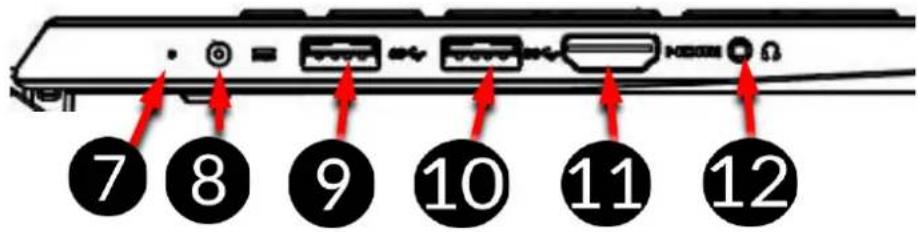
-
Charge indicator
-
USB 3.0 port
-
DC Jack
-
HDMI socket
-
USB 3.0 port
-
Jack 3,5mm
6.3 Right side

- Kensington lock
6.4 Bottom

- Rubber feet
7. Before the first start
Before turning the device on for the first time, charge the battery using the supplied power supply unit. Use only power supply recommended by the manufacturer. Using incompatible power supply can cause explosion of the battery or damage to your device. If in doubt contact the seller or manufacturer service.
When the battery is near a complete discharge, the notification is displayed on a low battery charge. To continue use of the device charge the battery. If the battery is completely discharged the device can not be switched on even when the loading process is ongoing. If so, the battery has to be charged for at least a few minutes.
To charge the battery, connect the plug on the power supply cable to the unit's power outlet (8).
Do not use excessive force for it can cause damage to the AC adapter or the device. The damages resulting from improper handling are not covered by the warranty.
Plug the power supply into the wall socket.
The device can heat up during charging. It is a regular occurrence and should not affect the stability or performance of the device.
If the device does not charge properly or there are other problems with the battery, it should be delivered with the power supply to the manufacturer's service center.
8. Keyboard
The laptop keyboard has a standard QWERTY layout. In addition, there are directional buttons in the lower right corner. Text is entered using the keyboard.
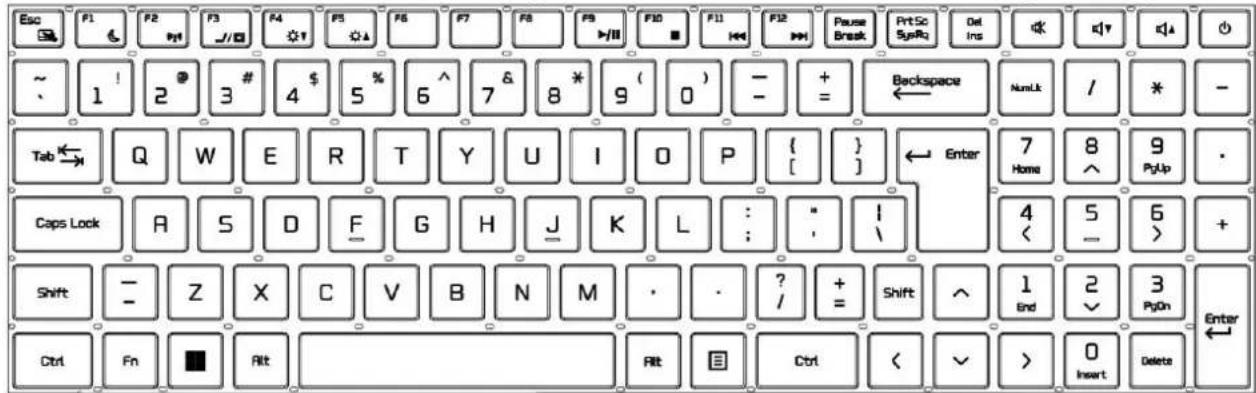
With some key combinations with the Fn key it is possible to use the functions assigned to F1-F12 keys and deactivate/activate the touch panel.
The keyboard language versions for local markets may differ.
9. Basic support for Windows 11
Your device has Microsoft Windows 11 installed.
To work with Microsoft Windows 11, you must have or create a Microsoft account and log-in when you first boot up your operating system.
9.1 Turning on the device
To turn on the device, shortly press the switch/key located in the upper right corner of the keyboard -
9.2 Start screen - desktop
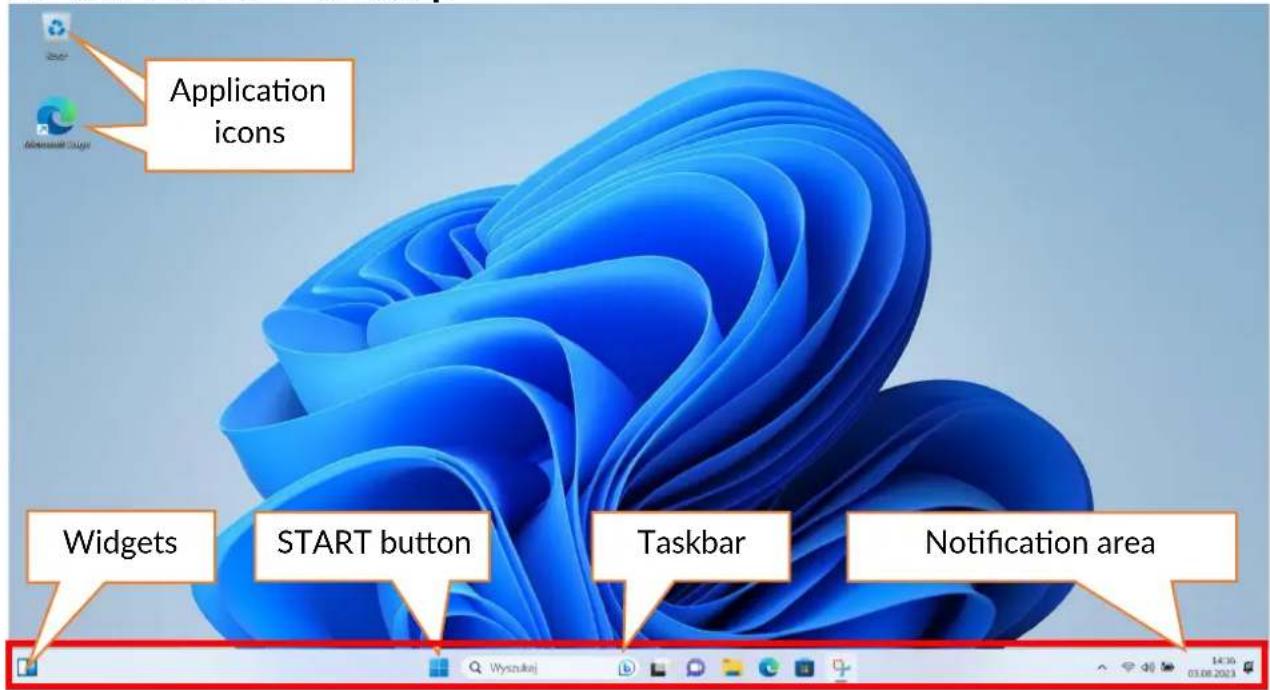
The start screen contains the application icons, the START button (center screen) and the taskbar (the bottom right of the screen, next to START button). You can place application icons, shortcuts to applications or documents, links to websites, widgets, etc. on your screen.
You can also place shortcuts to applications and web pages in the taskbar, but also icons that symbolize open and active applications.
START button activates the start menu.
9.3 Menu startowe

The start menu allows you to run the applications (programs) installed on your computer). In the center there are buttons that transfer you to the menu managing user accounts, documents, images, system settings and power (here you can switch your computer into standby, turn it off or restart it). Above is a list of programs installed on the computer. It can be scrolled up and down, giving you access to your applications. Below this field are the most recently installed and frequently used programs. There are also applications for installation suggested by the Microsoft Store.
9.4 Taskbar
The taskbar is located at the bottom of the start screen - desktop. There is a START button in the center. Another icon is a magnifying glass, which allows you to quickly find applications installed on your system - if you know he name of the application. The next icon opens a chronological view of your computer activities. Then there are the application icons, which you can insert and delete yourself. They allow you to launch applications quickly. Here, too, the icons for running programs appear temporarily and disappear when you close them. This makes it easier to find out which programs are active. There is a notification area on the right side of the taskbar.
9.5 Turning the device off
To turn your laptop into the sleep mode, turn it off or restart, select the start menu and then select the power icon. A menu will appear to select one of the desired actions.
If you select Sleep mode, the drive will stop operating and the device screen will fade, saving power without turning off the computer. It is faster to return from sleep mode than to switch on the laptop again.
Selecting the Switch off option will turn off your laptop completely.
Selecting Restart will switch the laptop off and on again automatically.

The notification center allows you to view the messages that the system sends out in relation to the system's activities and presents descriptions of problems that occur. Below you will find tiles that allow you to quickly run some of the functions of your computer or to access useful menus.
S Mode only allows you to install applications from the Microsoft Store. If you want to install third-party applications as the default installer, disable S Mode with the following instructions.
- In the search bar type "S mode" and press the Enter key.

- From the list select "Disable S mode".

- In the new window expand the "S mode" bar.

© 2023 techBite. All rights reserved.
- Select "Open Store".
Open Store
- In the window that appears, press the button "Download".

- Log into your Microsoft account or select an account from the list.

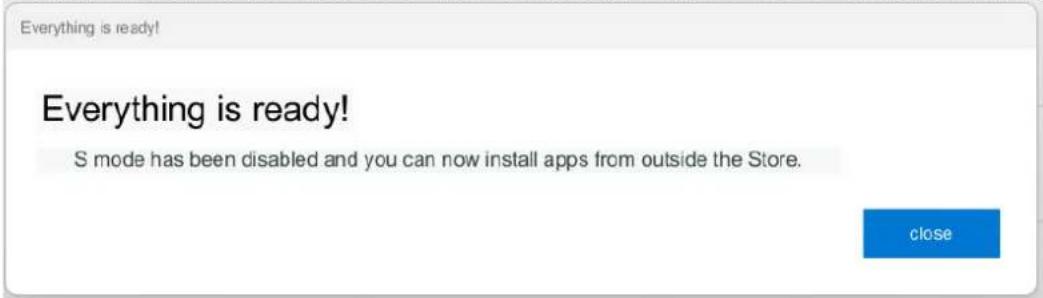
- You will be informed about the disabling of „S Mode" with a dialog box.
10. Safety remarks
10.1 Troubleshooting
If you have any problems with the device, please read the following advice and follow the instructions below.
- USB socket - Check the cable by connecting another device. If it doesn't help, use another cable.
- Wi-Fi – Check if the aeroplane mode is not on because it disables using any wireless network functions. Check network range. Check if the function is activated in the device and the parameters set correctly. Check the login password to the Wi-Fi network.
- Bluetooth - check whether the connection is active and Bluetooth visibility options are enabled. Make sure that both devices are in Bluetooth connection range and there are no obstacles between them (interesting fact - some LCDs absorb magnetic waves). Make sure that the devices have a sufficient amount of memory to exchange files. Check if both devices work in aeroplane mode (Aeroplane mode blocks Bluetooth).
- Sounds – make sure that the sound in the laptop is not muted. Check other laptop sound settings. Make sure that the headset, speaker, or microphone cable plug is not plugged into the 3.5 mm mini-jack socket. Some minijack tips are different from others, and this may also cause a sound problem - try a different cable or use an adapter.
- Although the battery is being charged, its level of charge is constantly dropping – turn off all options such as Wi-Fi, Bluetooth, Location, and then reduce the brightness of the screen, then turn on the aircraft mode in the device and stop working intensively or limit it for the duration of charging. Those easy steps will accelerate the charging process. It is recommended to charge the device with the charger supplied by the manufacturer.
If the problem persists, contact your dealer.
10.2 Support for portable memory and memory cards
- Do not remove portable memories or memory cards when the information is being transferred to or used by the device. This may cause data loss or damage to the portable memory and/or the device.
- Do not touch the pins with your fingers or metal objects. In case of any dirt, wipe the portable memory with a soft dry cloth.
10.3 Protection of personal data and important information
- We recommend regular backups of important data. The manufacturer is not liable for any loss of information.
-
Before selling or donating the device, delete all data and restore the laptop to its factory settings. This way you can protect yourself from accessing your personal information by unauthorized people.
-
Downloading applications, refer to the on-screen information. Particular caution should be exercised in the case of applications that have access to many functions or to a significant amount of personal information.
- Regularly check your account in terms of unauthorized or suspicious use. If traces of misuse of personal information are discovered, contact your service provider to delete or change your account information.
- In the case of loss or theft of the device immediately change the passwords for the accounts (system, email, social networking, etc.).
- Try not to use applications coming from unknown sources. Lock the device using the password, fingerprint or PIN code.
- Do not distribute copyright-protected material.
- Do not distribute copyrighted content without permission of the copyright holder. Failure to do so may result in copyright infringement. The manufacturer is not liable for any legal consequences of illegal use by the user of copyrighted material.
- Use anti-virus software, which regularly update the virus signature database.
10.4 Remarks on correct battery use
- If the battery level is low, recharge it to continue the use of the phone. If you wish to prolong the battery lifespan, discharge the battery beneath 10% of the battery capacity and charge it back to 100%.
- The temperature of the battery has an impact on its charging cycle. Prior to the charging process, cool the battery and the device or raise its temperature so that it is similar to the room temperature. If the battery temperature exceeds 40^ C the battery must not be charged!
- Do not use a damaged battery!
- The battery life span can be shortened, if it has been exposed to very low or very high temperatures - this causes interference to the device, even when the battery has been properly charged.
11. Maintenance of the device
To prolong the lifespan of the device act according to these instructions.
- Keep the device and its accessories out of reach of children.
- Avoid contact with liquids; it can cause damage to electronic components of the device.
- Avoid very high temperatures for it can shorten the life of device electronic components, melt the plastic parts and destroy the battery.
- Do not try to disassemble the device. Tampering with the device in an unprofessional manner may cause serious damage to the phone or destroy it completely.
• To clean the device use only a dry, soft cloth. - Use the original accessories only. Violation of this rule may result in an
invalidation of the warranty.

The packaging of the device can be recycled in accordance with local regulations.

Symbol for cardboard.
12. Surroundings security
Turn off the device in areas where its use is forbidden or when it may cause interference or danger. The use of any devices that radio waves causes interference with medical devices (i.e. cardiac pacemaker), if they are not properly secured (if in doubt, consult your doctor or medical device manufacturer). Please observe the national and local regulations at the place of use.
| Attention | Statement |
| The manufacturer is not responsible for any consequences caused by improper usage of the device and not obeying the above instructions. | The software version can be upgraded without earlier notice. |
| Frequency range | Wi-Fi 2412-2472 MHz | Bluetooth 2402-2480 MHz |
| Transmit Power | 17.32 dBm EIRP | 6.2 dBm EIRP |
13. The use of the manual
13.1 Consents
Without prior written consent of the manufacturer, no part of this manual may be photocopied, reproduced, translated or transmitted in any form or by any means, electronic or mechanical, including photocopying, recording or storing in any systems of storing and sharing information.
13.2 Appearance
The device and screen shots contained in this user manual may differ from the actual product.
13.3 Trademarks
- Windows 11 i Windows HELLO are registered trademarks of Microsoft Corp.
- Intel® and Intel® Celeron® are registered trademarks of Intel Corporation.
- Wi-Fi® Wi-Fi logo are a registered trademarks Wi-Fi Alliance association.
- All other trademarks and copyrights belong to their respective owners.
14. Correct disposal of used equipment
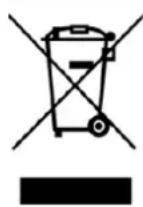
The device is marked with a crossed-out garbage bin, in accordance with the European Directive 2012/19/EU on used electrical and electronic Equipment (Waste Electrical and Electronic equipment - WEEE). Products marked with this symbol should not be disposed of or dumped with other household waste after a period of use. The user is obliged to dispose of waste electrical and electronic equipment by delivering it to a designated recycling facility. Collecting this type of waste in designated locations, and the actual process of their recovery contribute to the protection of natural resources. Proper disposal of used electrical and electronic equipment is beneficial to human health and environment. Information on where and how to dispose of waste electrical and electronic equipment in an environmentally sound manner shall be provided by the relevant local authorities, collection or sales points where the equipment was purchased.
15. Correct disposal of used battery
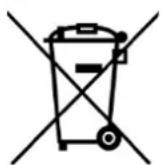
According to the EU directive 2006/66/EC with changes contained in EU directive 2013/56/UE on the disposal of batteries, this product is marked with crossed-out garbage bin symbol. The symbol indicates that the batteries used in this product should not be disposed with regular household waste, but treated according to the legal directives and local regulations.
It is not allowed to dispose of accumulators with unsorted municipal waste. Users of batteries and accumulators must use the available collection points of these items, which allows them to return, recycle and disposal. Within the EU, the collection and recycling of batteries and accumulators is a subject to separate procedures. To learn more about existing procedures of recycling of batteries and accumulators please contact your local office or an institution for waste disposal or landfill.
16. Declaration of conformity with European Union Directives

mPTech Ltd. hereby declares that laptop ZIN 5 is compliant with Directive 2014/53/EU. The full text of the EU Declaration of Conformity is available at the following Internet address:
https://techbite.eu/qr/zin-5-15-6-fhd-128gb


- Spis treści
- USER MANUAL
- We create for you.
- Table of contents
- Safety
- —DO NOT RISK—
- —PETROL STATIONS—
- —RESTRICTED AREAS—
- -QUALIFIED SERVICE-
- -WI-FI (WLAN)-
- — PHYSICALLY OR MENTALLY DISABLED PEOPLE—
- -ROAD SAFETY-
- —BATTERY AND ACCESSORIES—
- -HEARING-
- The use of the manual
- Important information
- Technical Specification
- 15.6" screen and 1920x1080 px resolution
- Wi-Fi
- Package content
- Appearance of laptop
- Screen and desktop
- Left side
- Right side
- Bottom
- Before the first start
- Keyboard
- Basic support for Windows 11
- Turning on the device
- Start screen - desktop
- Menu startowe
- Taskbar
- Turning the device off
- Open Store
- Safety remarks
- Troubleshooting
- Support for portable memory and memory cards
- Protection of personal data and important information
- Remarks on correct battery use
- Maintenance of the device
- Surroundings security
- The use of the manual
- Consents
- Appearance
- Trademarks
- Correct disposal of used equipment
- Correct disposal of used battery
- Declaration of conformity with European Union Directives
Brand : TechBite
Model : ZIN 5 15.6
Category : Laptop