AT-LinkCastAV - Uncategorized Atlona - Free user manual and instructions
Find the device manual for free AT-LinkCastAV Atlona in PDF.


| Product Type | Wireless Presentation System |
| Brand | Atlona |
| Model | AT-LinkCastAV |
| Dimensions (W x D x H) | 120 x 80 x 25 mm |
| Weight | 200 g |
| Power Supply | 5V/2A via USB-C |
| Video Input | HDMI (up to 4K@30Hz) |
| Video Output | Wireless to receiver |
| Wireless Connectivity | Dual-band Wi-Fi 5 (2.4/5 GHz) |
| Screen Mirroring | AirPlay, Miracast, Chromecast |
| Maximum Range | 30 m line-of-sight |
| Supported Devices | Laptops, smartphones, tablets |
| Operating Temperature | 0°C to 40°C |
| Storage Temperature | -20°C to 60°C |
| Humidity | 10% to 90% non-condensing |
| Maintenance | Clean with a soft, dry cloth |
| Safety | Do not expose to water or extreme heat |
| Spare Parts / Repairability | No user-serviceable parts; contact support |
| General Information | Wireless AV presentation system for classrooms and meeting rooms |
Frequently Asked Questions - AT-LinkCastAV Atlona
User questions about AT-LinkCastAV Atlona
0 question about this device. Answer the ones you know or ask your own.
Ask a new question about this device
Download the instructions for your Uncategorized in PDF format for free! Find your manual AT-LinkCastAV - Atlona and take your electronic device back in hand. On this page are published all the documents necessary for the use of your device. AT-LinkCastAV by Atlona.
USER MANUAL AT-LinkCastAV Atlona
Atlona LinkCast Wireless HD Audio/Video System
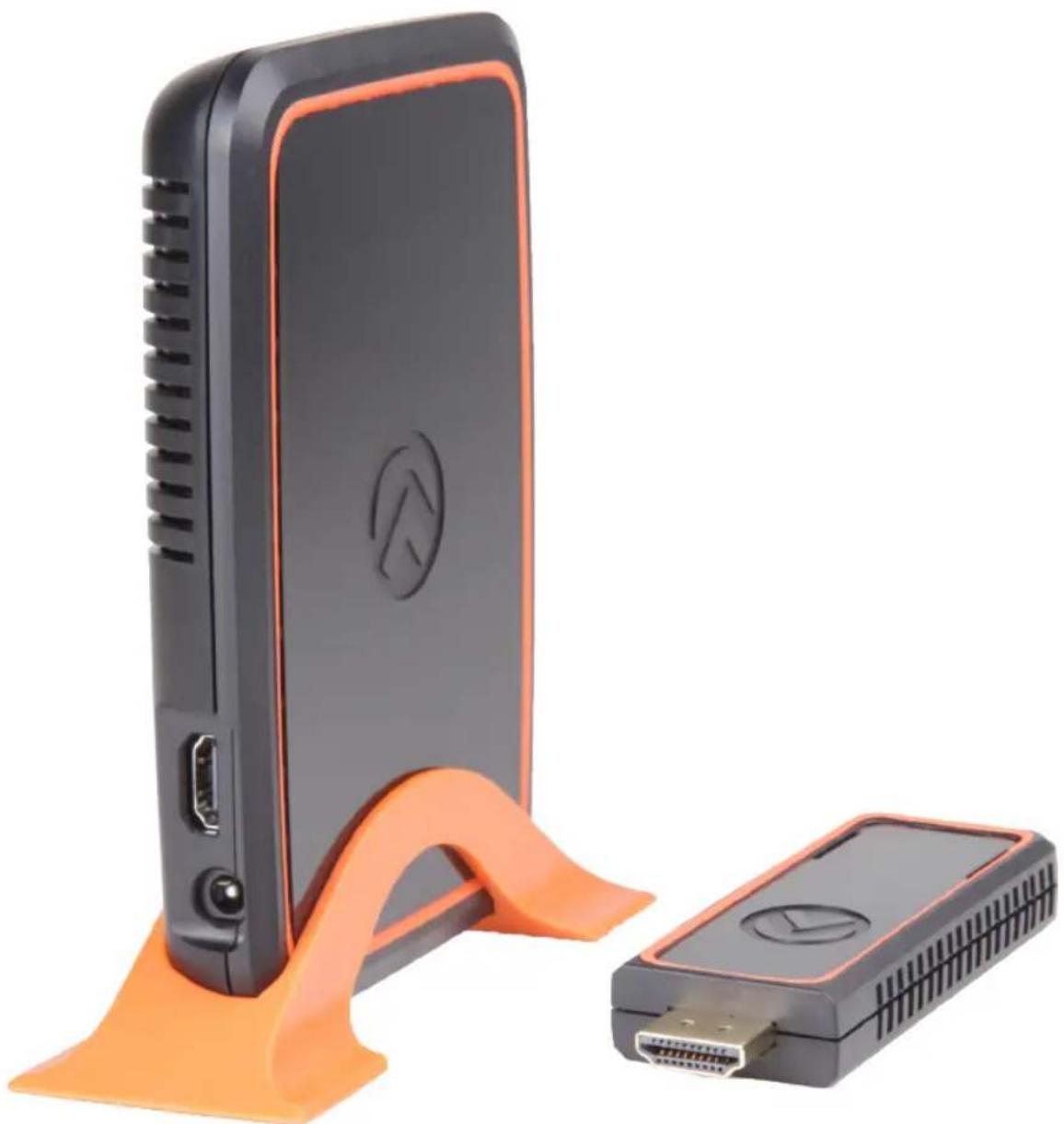
AT-LinkCastAV & AT-LinkCast-HTX
natural_image
Exterior view of a black and orange wireless device with an orange stand (no text or symbols visible)Atlona Product Registration
Thank you for purchasing this Atlona product. - We hope you enjoy it and will take an extra few moments to register your new purchase.
Registration creates an ownership record if your product is lost or stolen and helps ensure you'll receive notification of performance issues and firmware updates.
At Atlona, we respect and protect your privacy, assuring you that your registration information is completely secure. Atlona product registration is completely voluntary and failure to register will not diminish your limited warranty rights.
To register go to: http://www.atlona.com/registration

To reduce the risk of electric shock, do not expose this product to rain or moisture

If the wall plug does not fit into your local power socket, hire an electrician to replace your obsolete socket.
Do not modify the wall plug. Doing so will void the warranty and safety features.

This equipment should be installed near the socket outlet and the device should be easily accessible in the case it requires disconnection.
FCC regulations state that any unauthorized changes or modifications to this equipment, not expressly approved by the manufacturer, could void the user's authority to operate this equipment. AT-LINKCASTAV FCC 121217R-ITUSP02V02 AT-LINKCAST-HTX FCC 121213R-ITUSP02V02
Operate this product using only the included external power supply. Use of other power supplies could impair performance, damage the product, or cause fires.
In the event of an electrostatic discharge this device may automatically turn off. If this occurs, unplug the device and plug it back in.
Protect and route power cords so they will not be stepped on or pinched by anything placed on or against them. Be especially careful of plug-ins or cord exit points from this product.
Avoid excessive humidity, sudden temperature changes or temperature extremes.
Keep this product away from wet locations such as bathtubs, sinks, laundries, wet basements, fish tanks, and swimming pools.
Use only accessories recommended by Atlona to avoid fire, shock, or other hazards.
Unplug the product before cleaning. Use a damp cloth for cleaning and not cleaning fluid or aerosols. Such products could enter the unit and cause damage, fire, or electric shock. Some substances may also mar the finish of the product.
Never open, remove unit panels, or make any adjustments not described in this manual.
Attempting to do so could expose you to dangerous electrical shock or other hazards. It may also cause damage to your AT-LinkCastAV and AT-LinkCast-HTX. Opening the product will void the warranty.
Do not attempt to service the unit. Disconnect the product and contact your authorized Atlona reseller or contact Atlona directly.
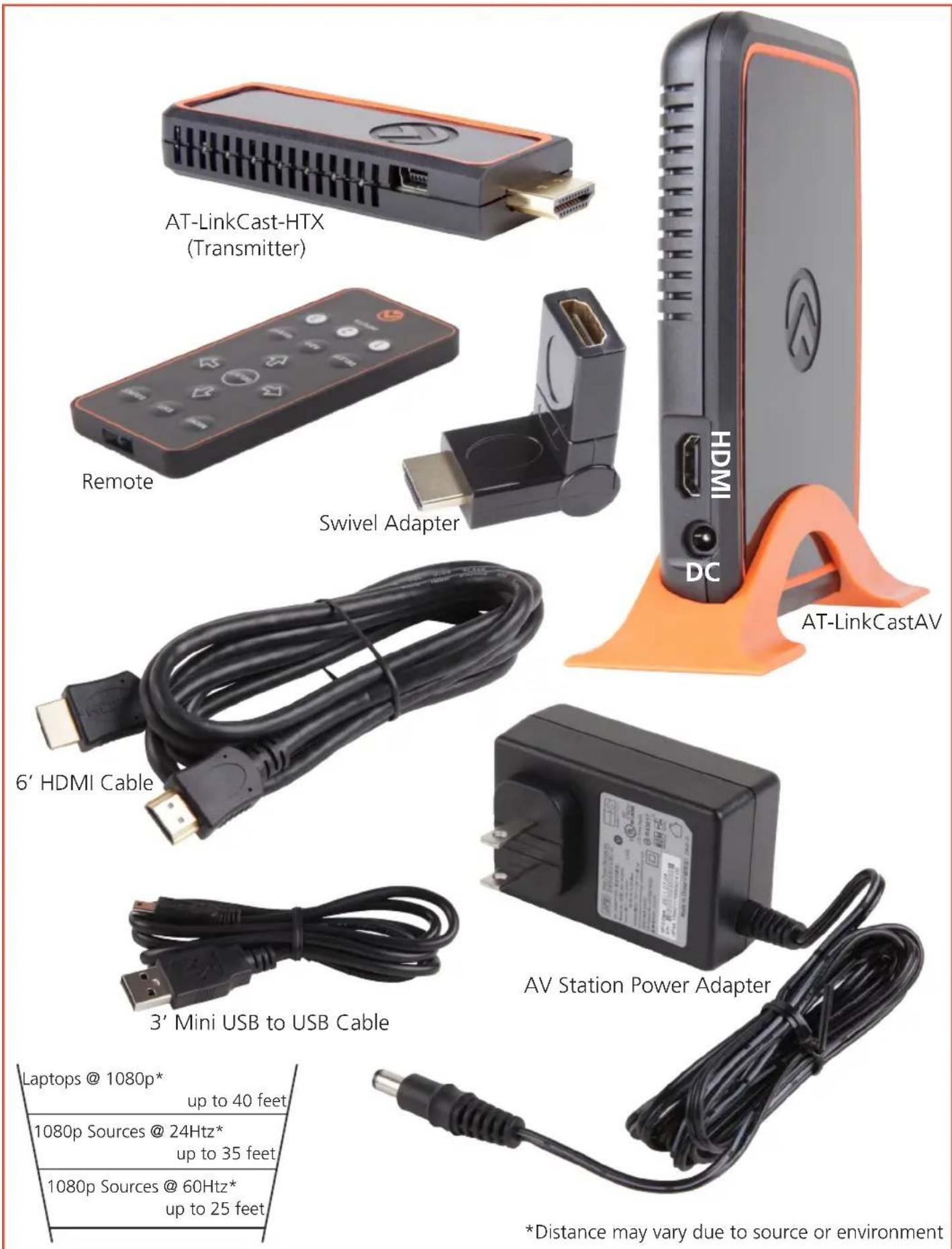
Package Contents
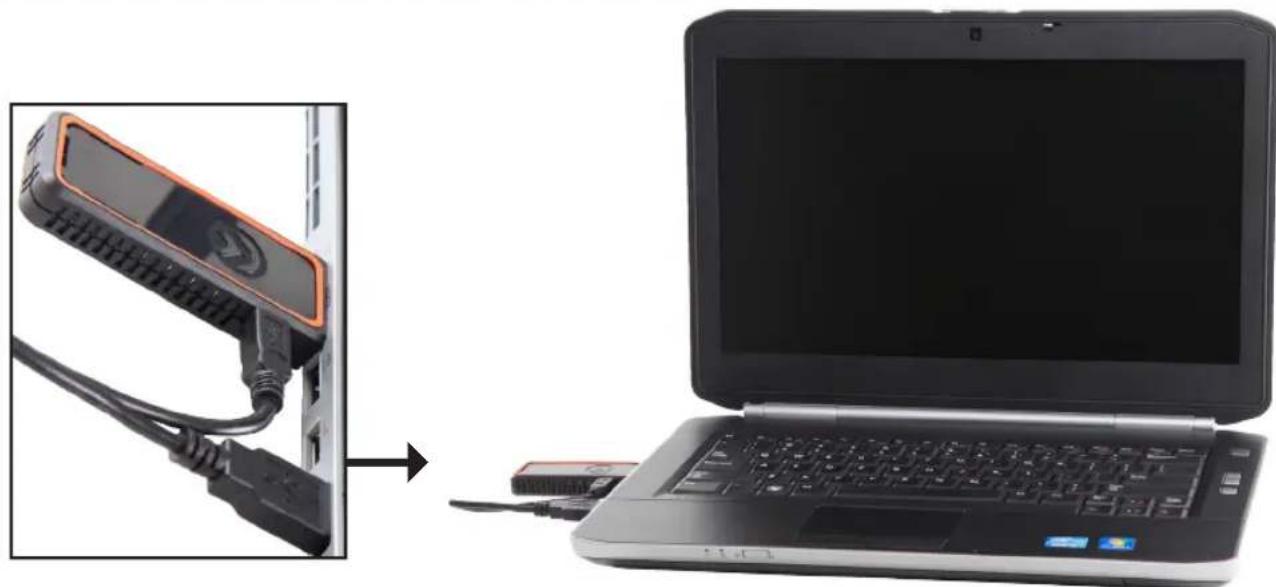
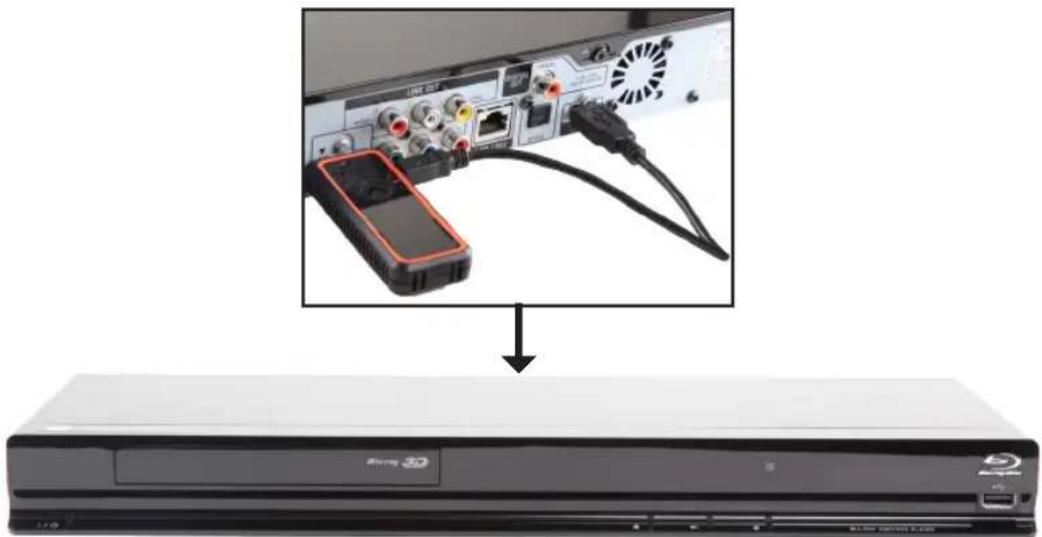
Transmitter Connection Laptop & Blu-ray Player
natural_image
Laptop connected to a device via cable, showing external cable being inserted (no text or symbols visible)*Further Laptop set up instructions later in set up guide.
natural_image
Exterior view of a Sony TV cable interface showing internal components and cable routing (no text or symbols visible)- Be sure to connect the transmitter first
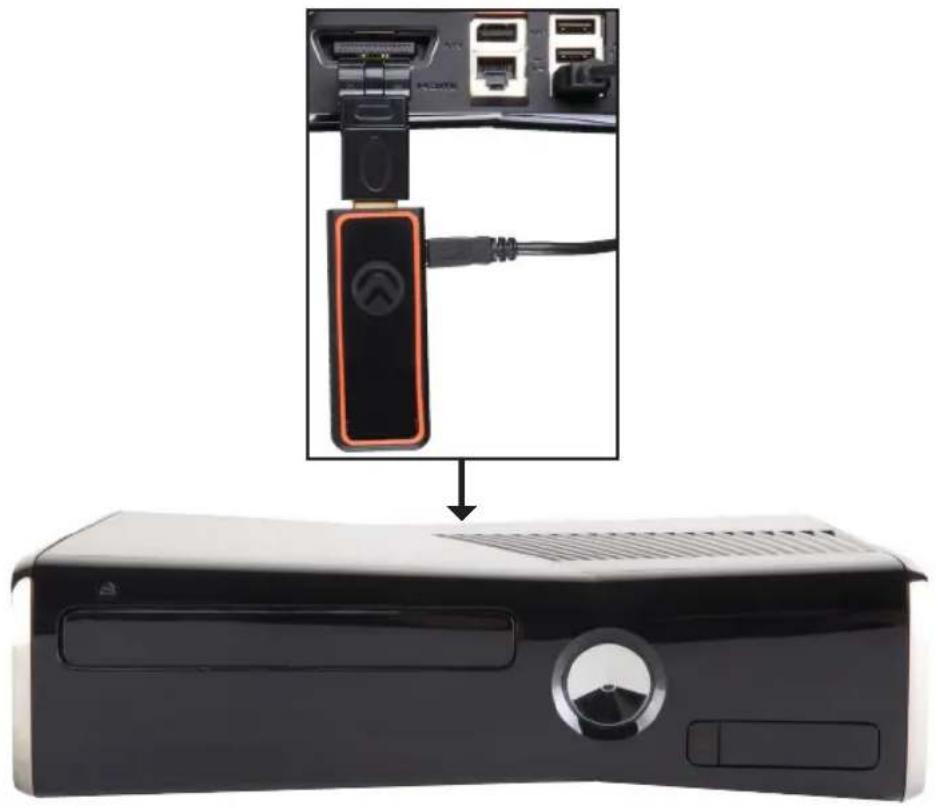
- Extra transmitters are available to purchase through Atlona.com The LinkCastAV is able to connect to up to 5 transmitters
- The 360° Swivel Adapter is available in case any ports are blocked or the transmitter is unable to be plugged in.
- The source needs to be at least 2 feet away from any wireless routers
- Transmitter may get hot in use, this is normal. Do not touch HDMI connector during or after use.
- Do not cover transmitter with hands when in use or possible signal loss may occur.
- The transmitter and AV Station come pre synced. If for some reason the transmitter is unsynced or if you purchase additional transmitters please see page on REMOTE ON SCREEN MENU for syncing instructions.
Transmitter Connection
Game Consoles
natural_image
Black Sony internal hard drive connected via cable to a desktop computer case (no text or symbols visible)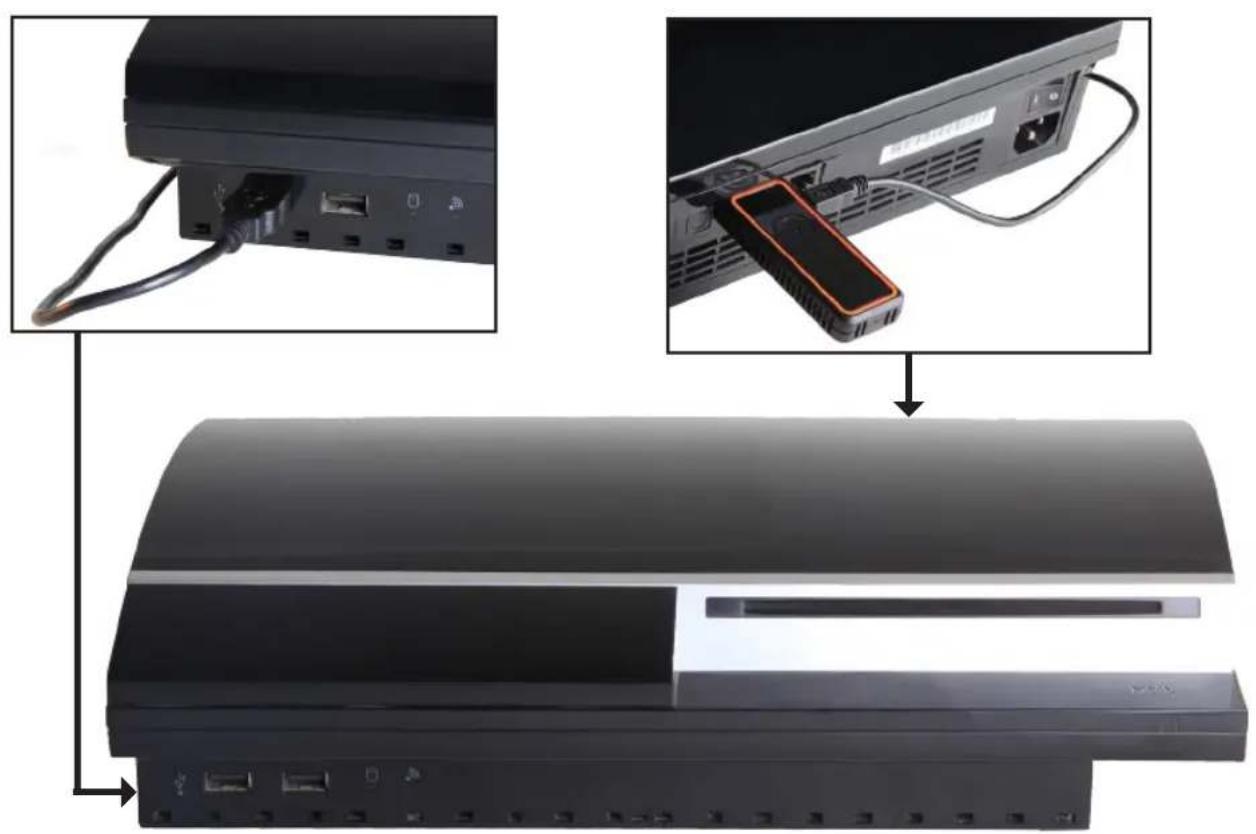
natural_image
Diagram showing cable installation and internal components of a device, with no visible text or symbols.A/V Station Connection HDTV & Projector to AVR
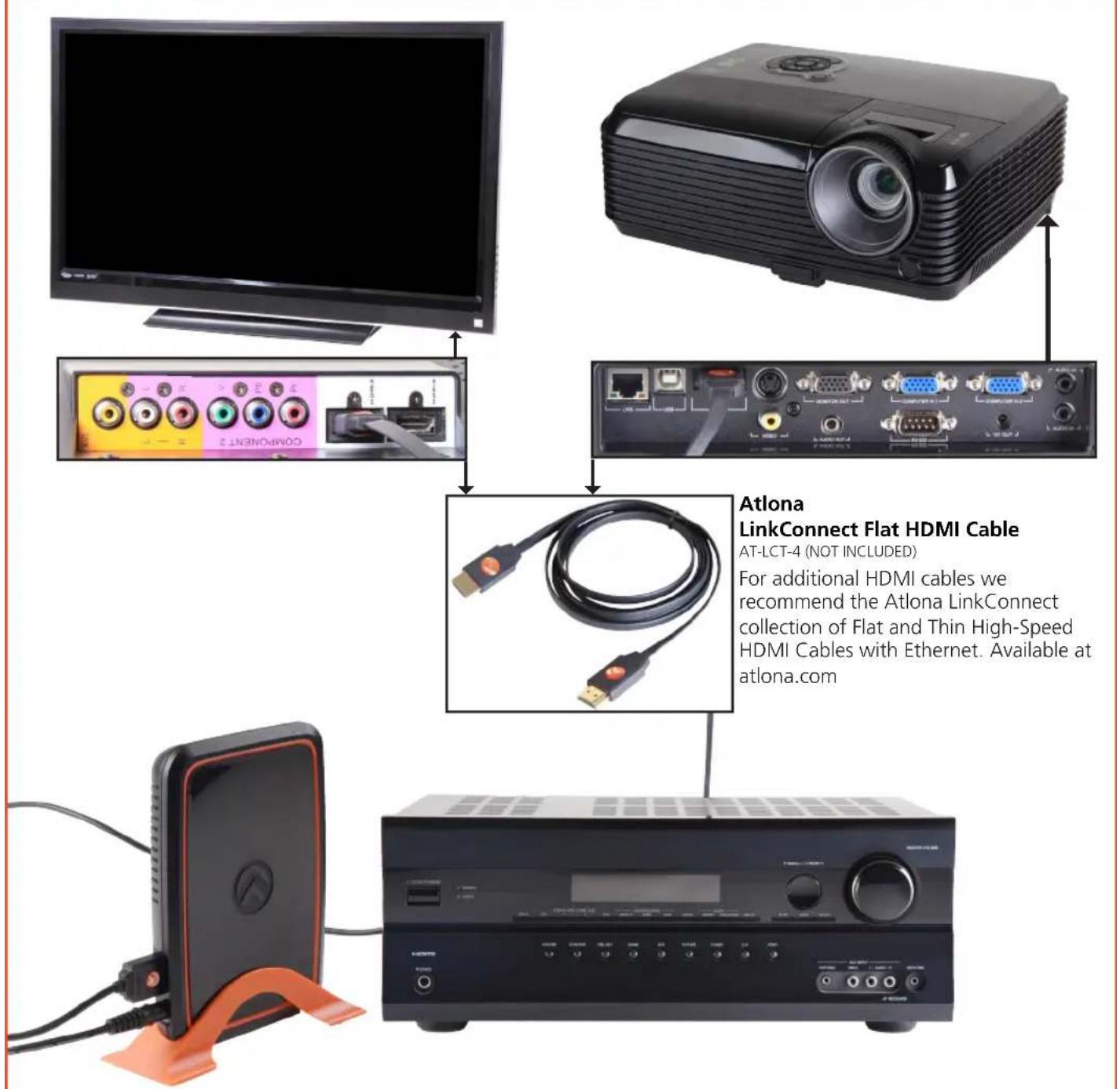
- An additional (not included) HDMI cable is needed when connecting to an AVR. Connect the LinkCastAV into the AVR then the AVR into an HDTV, Monitor, or Projector.
- If an AVR is not being used, connect the LinkCastAV directly into the HDMI port of the HDTV, Monitor, or Projector.
- At this time, the 1st transmitter and LinkCastAV should be synced and ready to use. If not, please see Remote instructions further in the manual.
Laptop Set Up
Mirroring, Extending, & Main Display
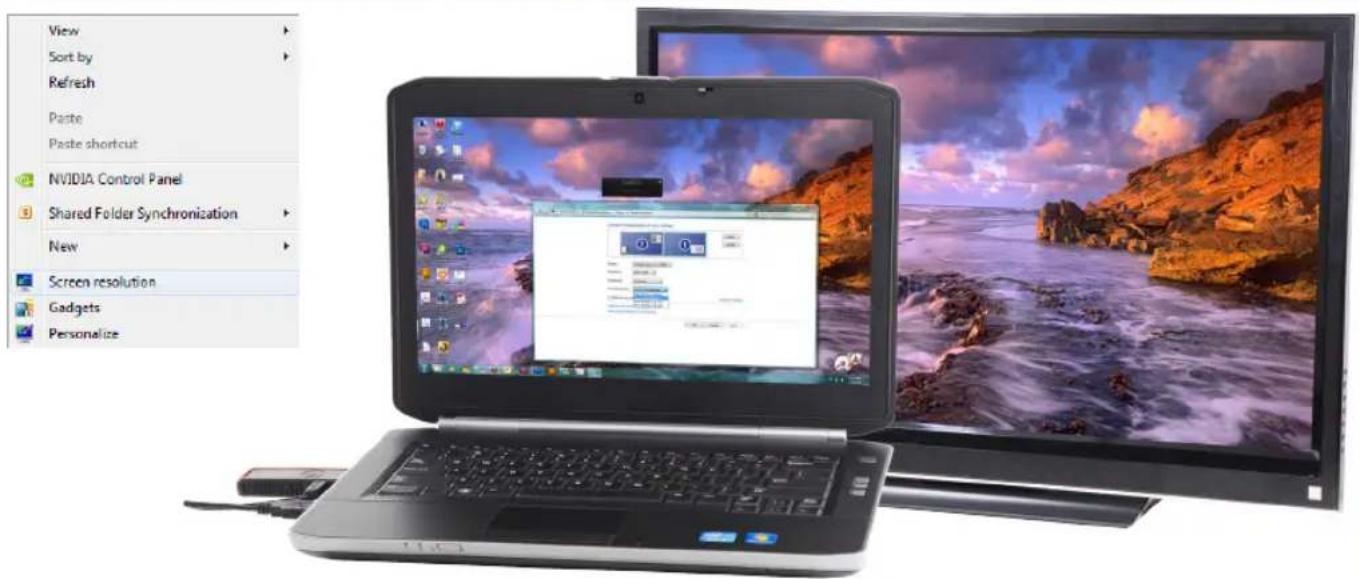
- Right click the desktop and select "Screen Resolution"
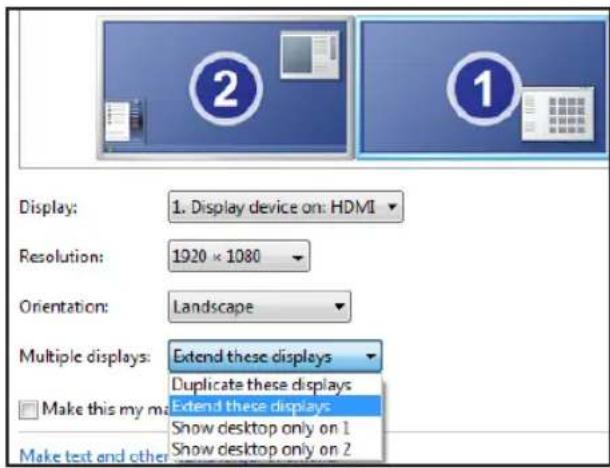
- Once the menu comes up there are three display options.
(if you are unsure which screen is your current screen press the identify button to the right of the numbered screens)
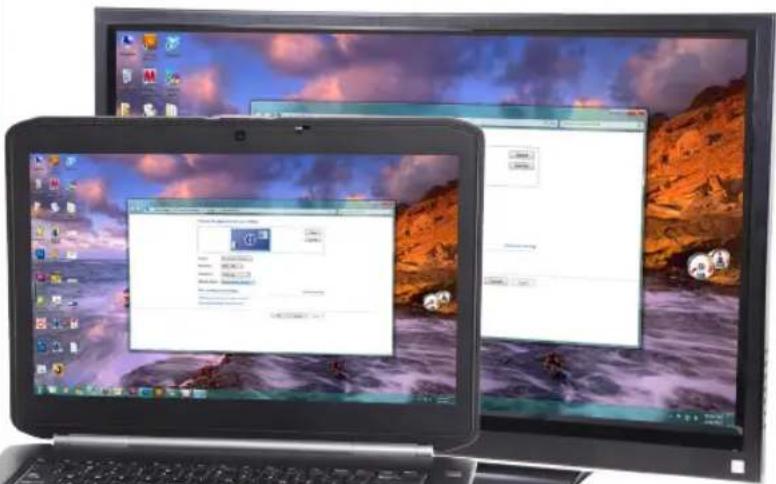
- Duplicating the displays. As pictured below, if the option of "Duplicate these displays" is selected the same screen will display on the laptop and the HDTV, Monitor, or Projector.
- Extending the displays. As pictured above, if the option of "Extend these displays" is selected then the desktop background will display on the HDTV, Monitor, or Projector. This allows content to be split between two displays, such as a word document on one screen and a movie on the other.
- Setting the display. Select "Show desktop only on #" to make the content show on only one display.
natural_image
Close-up of a laptop keyboard and external hardware (no visible text or symbols)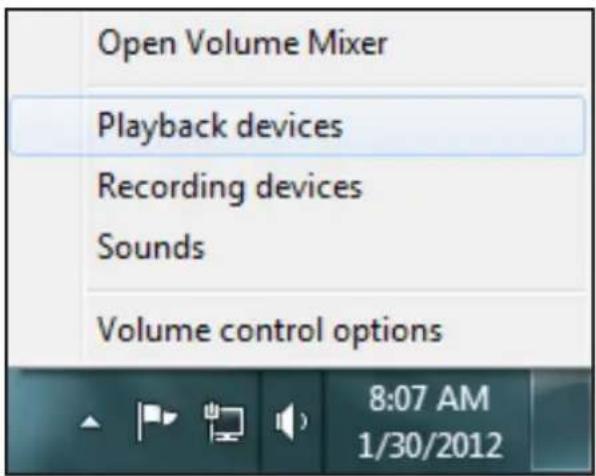
natural_image
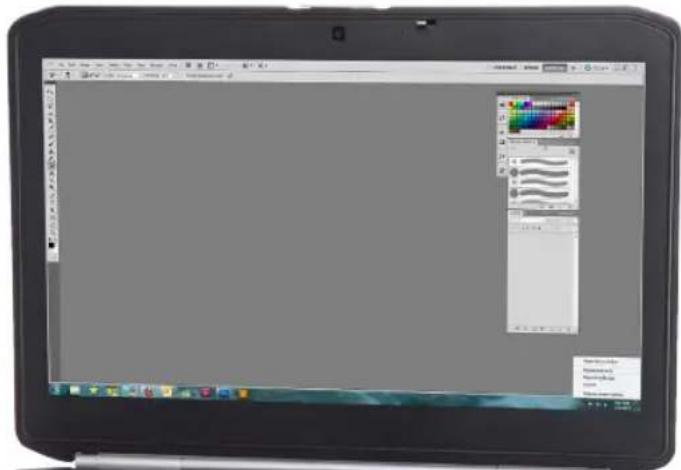
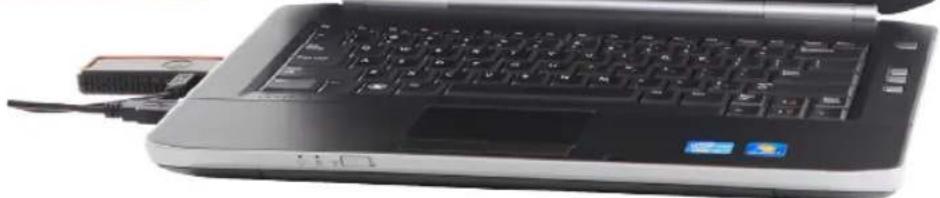
Laptop keyboard with visible keys and a small USB cable attached (no text or symbols)- Locate the Volume Control icon on the windows bar and right click it.
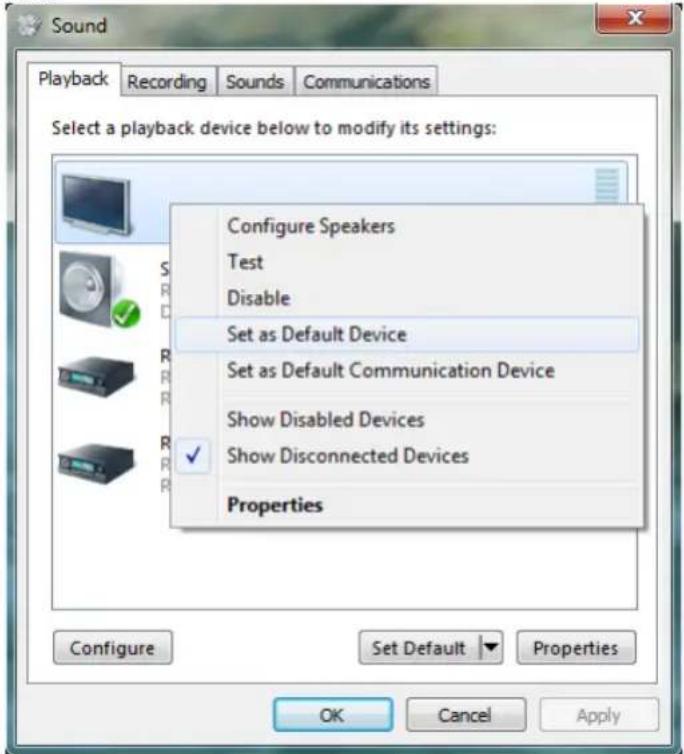
- Select the option of "Playback devices". A menu with several pictures of audio devices should display (as seen below).
- Right click the audio device for the display the audio will be playing on and select "Set as Default Device".
- Once the correct device is chosen, audio will come from the new speakers. Note: When only wanting to hear audio from the display or AVR disable the laptop speakers.
natural_image
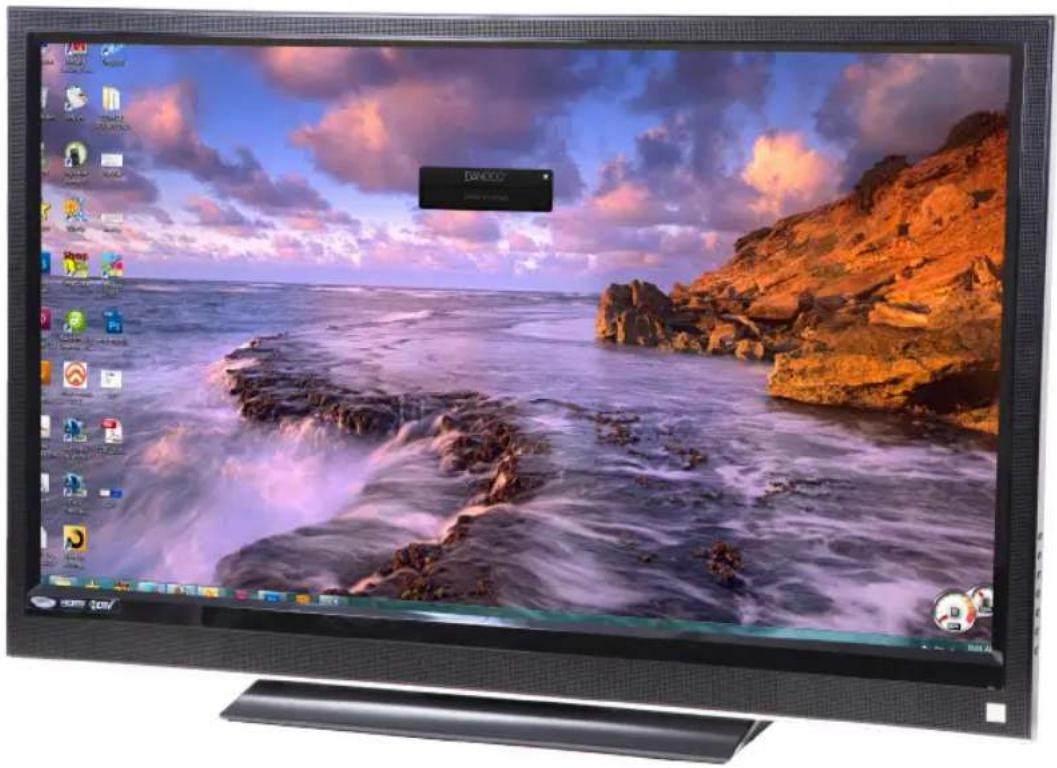
Computer monitor displaying a coastal wallpaper with waves crashing against rocky cliffs, no visible text or symbols on the screen.When connecting a laptop/computer to an HDTV there is sometimes missing picture or cutoff. To fix this is different for each display.
Toggling on or off the auto adjust or energy saving modes can usually fix these problems. See tables below for examples of different names for the auto adjust option. (The auto adjust function changes name between Brand and Model.)
| Screen | |
| Setting Memory Current Input | |
| Wide Mode Wide Zoom | |
| Auto Wide On | |
| 4:3 Default Off | |
| Auto Display Area On |
| Picture | |
| Aspect Ratio 16:9 | |
| Picture Wizard Off | |
| Energy Saving | Auto |
| Picture Mode - | |
| Picture | Color | |
| Tint (G/R) | ||
| Eco Solution | ||
| Auto Adjust | ||
| Screen | ||
| Advanced Settings | ||
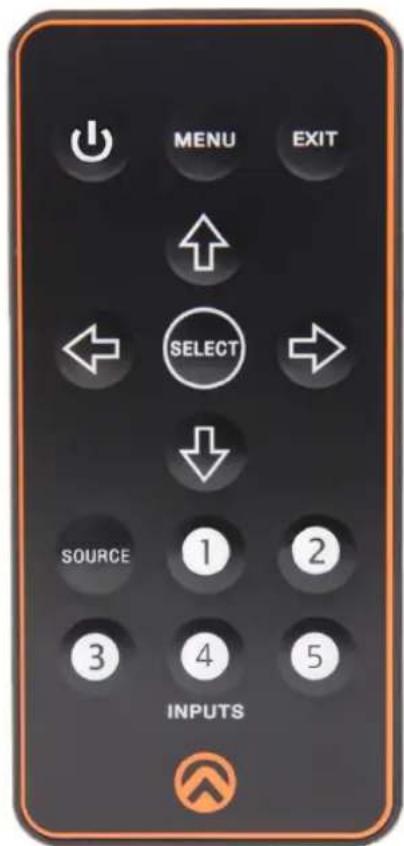
Power: Turns the LinkCastAV on and off
Menu: Pulls up the on screen Set Up menu
Exit: Turns off on screen menu
Selection Buttons: Use to go through the on screen menu options
Source: Pulls up quick selection menu for inputs
Input Buttons: Quick selection buttons for already synced HDMI transmitters
Remote
On Screen Menu
natural_image
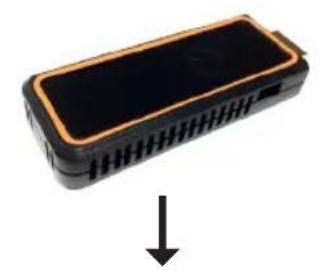
Black rectangular electronic device with orange outline and downward arrow indicating compression or disassembly (no text or symbols)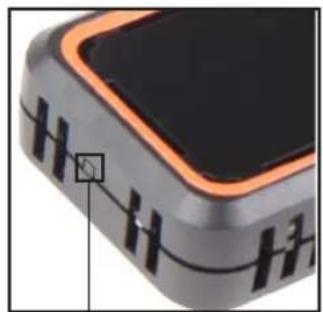
natural_image
Close-up of a black square electronic device with orange outline and black connectors (no visible text or symbols)Button
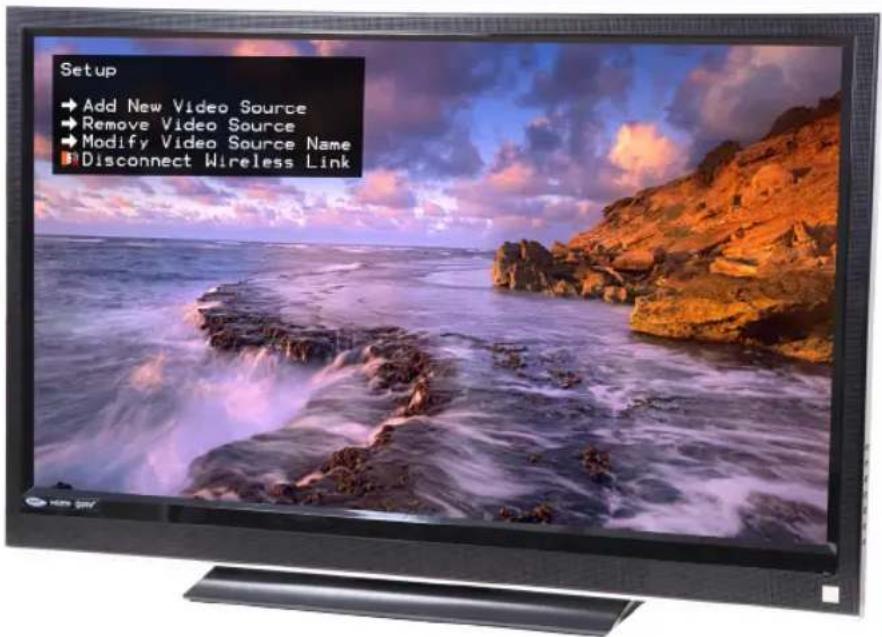
Setup: Menu button pulls up the setup menu.
See table below to see each option and its on screen display.
Choices will highlight in orange.
Selection: Add New Video Source
Please Activate Registration on Transmitter Unit
Note: Press the button at the bottom of the transmitter at this time.
Selection: → Remove Video Source
Choose Source to Remove
→ Atlona
→ Game
Selection: → Modify Video Source Name
Choose Source to Rename
→ Atlona
→ WHDI 95
Rename Video Sources Name
WHDI 95
Selection: Disconnect Wireless Link ---> Disconnects LinkCastAV
Limited Warranty
Atlona Technologies warrants that (a) its products (the AT-LinkCastAV and AT-LinkCast-HTX) will perform substantially in accordance with the accompanying written materials for a period of 3 years from the date of receipt and (b) that the product will be free from defects in materials and workmanship under normal use and service for a period of 3 years. In the event applicable law imposes any implied warranties, the implied warranty period is limited to 3 years from the date of receipt. Some jurisdictions do not allow such limitations on duration of an implied warranty, so the above limitation may not apply to customers that fall within those areas.
Customer Remedies
Atlona Technologies' and its suppliers' entire liability and Customer's exclusive remedy shall be, at Atlona Technologies' decision, either return of the price paid for the product, repair, or replacement of the product that does not meet this Limited Warranty and which is returned to Atlona Technologies with a copy of the Customer's receipt. This Limited Warranty is void if failure of the product has resulted from accident, abuse, misapplication, or natural occurrence. In example but not limited to: power surges (electrical storms, local power outage), dropping the product (or items on the product), contact with fluids, and physical misconduct (i.e. kicking or punching). Any replacement product will be warranted for the remainder of the original warranty period.
No other warranties
To the maximum extent permitted by applicable law, Atlona Technologies and its suppliers disclaim all other warranties, either expressed or implied, including, but not limited to, implied warranties of merchantability and fitness for a particular purpose, with regard to the product and any related written materials. This Limited Warranty gives customer specific legal rights. Customers may have other rights depending on the jurisdiction.
No liability for damages
To the maximum extent permitted by applicable law, in no event shall Atlona Technologies or its suppliers be liable for any damages arising out of the use of or inability to use this product, even if Atlona Technologies has been advised of the possibility of such damages. Such damages include but are not limited to: special, incidental, consequential, or indirect damages for personal injury, loss of business profits, business interruption, loss of business information, or any other pecuniary loss. Atlona Technologies' and its suppliers' entire liability under any provision of this agreement shall be limited to the amount actually paid by you for the product. Some Jurisdictions do not allow the exclusion or limitation of liability for consequential or incidental damage. The above limitations may not apply to you in such jurisdictional cases.
- Atlona LinkCast Wireless HD Audio/Video System
- Atlona Product Registration
- Package Contents
- Transmitter Connection Laptop & Blu-ray Player
- Transmitter Connection
- Game Consoles
- A/V Station Connection HDTV & Projector to AVR
- Laptop Set Up
- Mirroring, Extending, & Main Display
- Remote
- On Screen Menu
- Limited Warranty
- Customer Remedies
- No other warranties
- No liability for damages
Brand : Atlona
Model : AT-LinkCastAV
Category : Uncategorized