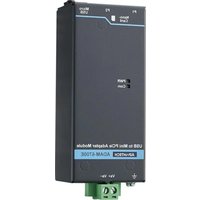
ADAM-6700E-A - Network module Advantech - Free user manual and instructions
Find the device manual for free ADAM-6700E-A Advantech in PDF.


| Product Type | Ethernet Remote I/O Module |
| Model | ADAM-6700E-A |
| Brand | Advantech |
| Dimensions (W x H x D) | 100 x 100 x 30 mm |
| Weight | 200 g |
| Power Supply Voltage | 10 to 30 VDC |
| Power Consumption | 2.5 W maximum |
| Analog Input Channels | 8 differential or 16 single-ended |
| Analog Input Resolution | 16-bit |
| Input Range | ±10 V, ±5 V, ±1 V, ±100 mV, or 0-20 mA |
| Communication Interface | Ethernet 10/100 Base-T, Modbus TCP |
| Protocol Support | Modbus TCP, HTTP, SNMP |
| Isolation | 3000 VDC isolation between input and network |
| Operating Temperature | -10 to 70 °C |
| Storage Temperature | -20 to 85 °C |
| Humidity | 10 to 90% RH non-condensing |
| Enclosure Rating | IP20 |
| Mounting | DIN rail |
| Warranty | 2 years |
| Spare Parts Availability | Not available separately; replace unit |
| Reparability | Not repairable by user; contact Advantech support |
| Maintenance | Clean with dry cloth; no liquids |
| Safety | Overvoltage and reverse polarity protection |
| Indicators | Power, Link/Activity, Status LEDs |
Frequently Asked Questions - ADAM-6700E-A Advantech
User questions about ADAM-6700E-A Advantech
0 question about this device. Answer the ones you know or ask your own.
Ask a new question about this device
Download the instructions for your Network module in PDF format for free! Find your manual ADAM-6700E-A - Advantech and take your electronic device back in hand. On this page are published all the documents necessary for the use of your device. ADAM-6700E-A by Advantech.
USER MANUAL ADAM-6700E-A Advantech
Quick Start Guide for ADAM-6700 Series and ADAM-6700E.
This Quick Start Guide demonstrates how to use ADAM-6700E, USB to MiniPCIe Adaptor Module, to extend wireless communication for ADAM-6700 series.
ADAM-6700 Web Utility Configuration
To obtain the gateway IP address, connect the LAN port of the ADAM-6700 device to your computer. Then use the ADAM/Apax.NET Utility, version 2.05.11 B19 or later, to obtain the IP address (static or DHCP mode). Please refer below steps
- Enter the ADAM/Apax.NET Utility. Right-click the Ethernet icon and click Search Device.
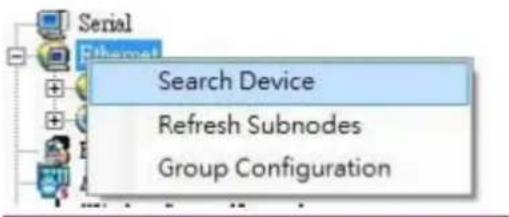
Figure 1. 1 Web Utility Searching Devices
- The ADAM/Apax.NET Utility will list the connected ADAM-6700 gateways and their IP address.
![Advantech Adam/Apax .NET Utility (Win32) Version 2.05.11 File Tools Setup Help Serial COM1 Ethernet 172.16.12.120 172.16.12.124-[WISE-2834-test] 172.16.12.149-[ADAM-6051] 172.16.12.159-[WISE-4210-AP] 172.16.12.231-[ADAM-6717] Setting Network setti MAC address](/content/2026/05/1064633/images/62ae7c4b93409f82b10df1f767f9a20311e2ef1ff7e692bc60de01975cb576d5.jpg)
Figure 1.2 Web Utility Obtaining the Gateway IP Address
Note: Advantech has developed a web portal for configuring the ADAM-6700 series gateways. To access the web portal, users must obtain the IP address of the assigned LAN port. Then open a browser and type the IP address of the LAN port. The default IP setup mode is "DHCP".
- If the IP mode is set as "DHCP" and the gateway is connected to the DHCP server, type the IP address of the assigned LAN port.
- If the IP mode is set as "DHCP", but the gateway is not connected to the DHCP server, the LAN port will be automatically set to (Eth0)10.0.0.1 and (Eth1) 11.0.0.1
- If the IP mode is set as "static IP", input the assigned static IP address.
3. Open the web utility
Input the LAN Port IP Address in browser.

Figure 1.3 Input the LAN Port IP Address
After inputting the LAN port IP address, the web portal interface should be displayed. Click "Link" to navigate to the web utility configuration page.

Figure 1.4 Web Portal
- On the Configuration page of the web utility, click "Link". In the popup window displayed, enter the username and password and click "Sign In".
Default username: root
Default password: 00000000

Figure 1.5 Web Utility Login Window

Figure 1.6 Web Utility Configuration Page
Wi-Fi Network Setting
Users need to click Enable WLAN and set the SSID name and security of the WLAN to join the network. There are 3 optional security modes for the network:
- Open : LAN is open. Users can enter the LAN without a password.
- WEP: A type of authentication that encrypts the LAN and requires a password.
- WPA/WPA2 PSK : A type of authentication that encrypts the LAN advanced and requires a password.

Configuration

Figure 2.1 Wi-Fi configuration page
You can see the Wireless Status in Information tab.

Figure 2.2 Wi-Fi status is connected
| Interface | wlan0 | ||
| Mac | D4:CA:6E:90:D0:C1 | ||
| IP | 172.20.10.4 | Subnet | 255.255.255.240 |
| Gateway | 172.20.10.1 | IP Mode | Static DHCP |
Figure 2.3 Wi-Fi connection information
Cellular Network Setting
User need to click Enable Cellular, and set the parameters as below.

Configuration
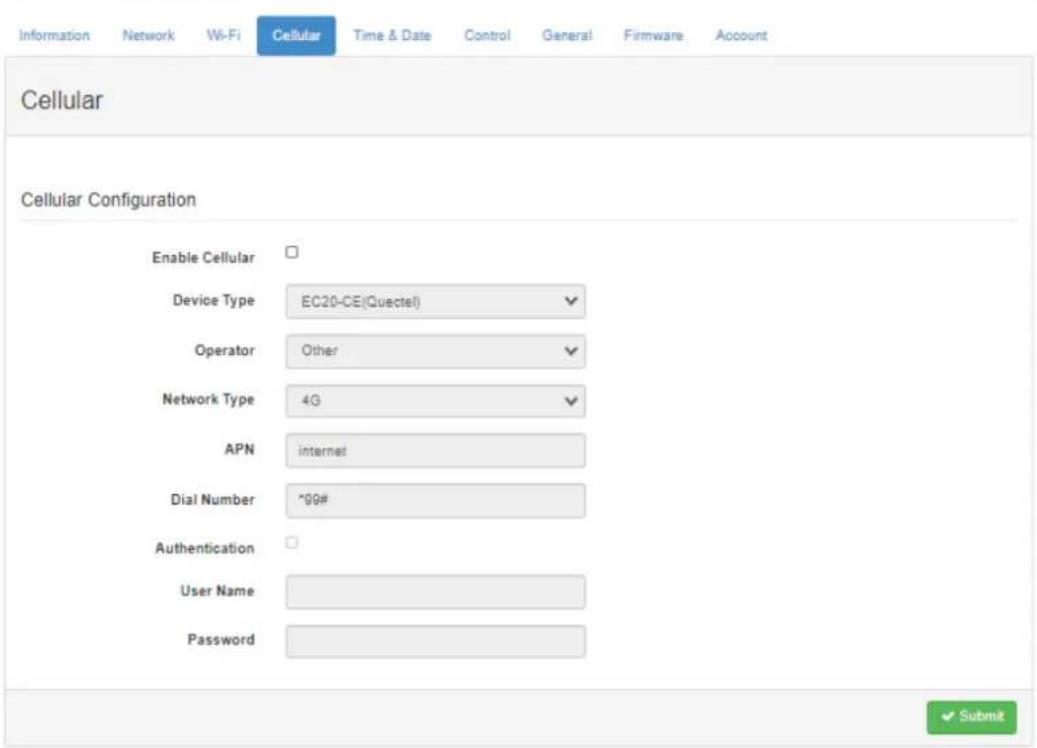
Figure 2.4 Cellular configuration page
- Click the Enable Cellular, and select to set Cellular network information.
- Select the Device Type of wireless data terminal used, that is, the module name.

- Select Operator
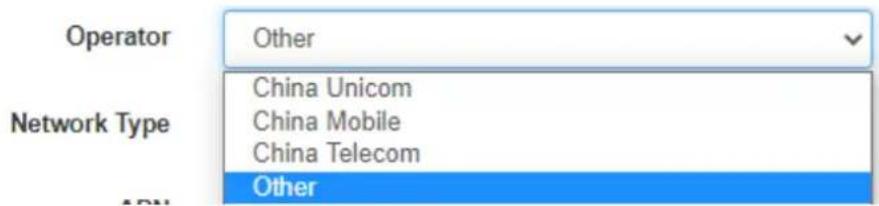
- Select Network type

- Enter APN and Dial Number
- Enable/Disable Authentication, and enter User Name and Password
Cellular Network Information
- Dashboard
| Interface | ppp0 | ||
| IP | 10.98.1.36 | Subnet | 255.255.255.255 |
| Gateway | 10.64.64.64 | IP Mode | Static DHCP |
| Go to Configuration |
Figure 2.5 Cellular connection dashboard

Figure 2.6 Network Configuration for Cellular connection
Brand : Advantech
Model : ADAM-6700E-A
Category : Network module