Mars Gaming

MMR - Mouse Mars Gaming - Free user manual and instructions

Find the device manual for free MMR Mars Gaming in PDF.

📄 1 pages English EN Download 💬 AI Question 10 questions ⚙️ Specs
Notice Mars Gaming MMR - page 1
Pick your language and provide your email: we'll send you a specifically translated version.
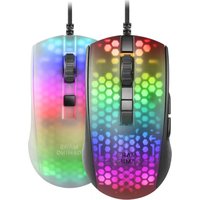
Product Type Gaming Mouse
Brand Mars Gaming
Model MMR
Dimensions (approx.) 125 x 65 x 40 mm
Weight (approx.) 100 g
Connection Type Wired USB 2.0
Cable Length 1.8 m
Number of Buttons 6 programmable buttons
DPI Settings Up to 3200 DPI (adjustable)
Lighting RGB LED
Compatible Operating Systems Windows 7/8/10/11, macOS
Main Functions Gaming, office, multimedia
Maintenance Clean with a soft, dry cloth
Safety Precautions Avoid contact with liquids; do not disassemble
Spare Parts / Repairability Not user-serviceable; contact support for issues
Additional Features Ergonomic design, braided cable

Frequently Asked Questions - MMR Mars Gaming

How do I connect the Mars Gaming MMR mouse to my computer?
Plug the USB cable into an available USB port on your computer. The mouse will be automatically recognized by Windows or macOS without additional drivers.
How can I adjust the DPI settings on the MMR mouse?
Press the DPI button located below the scroll wheel to cycle through preset DPI levels (typically 800, 1600, 2400, 3200). The LED color may change to indicate the current DPI.
Is the Mars Gaming MMR mouse compatible with macOS?
Yes, the MMR mouse works on macOS. Basic functions (pointer movement, clicks, scroll) are supported. For programmable buttons, you may need third-party software.
How do I clean the MMR mouse?
Unplug the mouse and use a soft, lint-free cloth slightly dampened with water or mild cleaner. Avoid getting moisture into the USB connector or openings.
Can I use the MMR mouse on a glass desk?
The mouse works best on opaque surfaces. Glass or reflective surfaces may cause erratic cursor movement. Use a mouse pad for optimal tracking.
What does the RGB lighting on the MMR mouse indicate?
The RGB lighting can be customized using software (if provided). Default colors may indicate DPI level: red=800, blue=1600, green=2400, yellow=3200.
How do I program the side buttons on the MMR mouse?
If your mouse includes programming software, install it from the official Mars Gaming website. Otherwise, the buttons may have default functions (forward/backward in browsers).
Is the MMR mouse suitable for left-handed users?
The MMR mouse is ambidextrous in shape but has side buttons on the left side only, making it more convenient for right-handed users.
What is the warranty period for the Mars Gaming MMR mouse?
Typically, Mars Gaming offers a 2-year warranty. Check your local retailer or the official website for specific terms.
The cursor is jumping or not moving smoothly. What should I do?
First, clean the sensor lens on the bottom with a dry cotton swab. Ensure you are using a non-reflective surface. If the issue persists, try plugging the mouse into a different USB port or restart your computer.

User questions about MMR Mars Gaming

0 question about this device. Answer the ones you know or ask your own.

Ask a new question about this device

The email remains private: it is only used to notify you if someone responds to your question.

No questions yet. Be the first to ask one.

Download the instructions for your Mouse in PDF format for free! Find your manual MMR - Mars Gaming and take your electronic device back in hand. On this page are published all the documents necessary for the use of your device. MMR by Mars Gaming.

USER MANUAL MMR Mars Gaming

Manual assistant
Powered by Anthropic
Waiting for your message
Product information

Brand : Mars Gaming

Model : MMR

Category : Mouse