
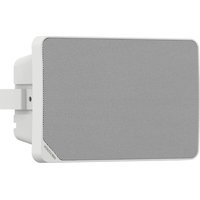
DS-QAZ0203G1-S - Speaker Hikvision - Free user manual and instructions
Find the device manual for free DS-QAZ0203G1-S Hikvision in PDF.


| Product Type | Network Speaker and Audio Column |
| Brand | Hikvision |
| Model | DS-QAZ0203G1-S |
| Network Interface | RJ45 10/100 Mbps |
| Audio Input | Line-in, Bluetooth |
| Audio Output | Built-in speaker, line-out |
| Power Supply | PoE (IEEE 802.3af/at) or 12V DC |
| Power Consumption | ≤ 15 W |
| Dimensions (W x H x D) | 200 x 200 x 300 mm (estimated) |
| Weight | Approx. 2.5 kg (estimated) |
| Bluetooth | Yes, version 4.2, range up to 10 m |
| Audio Formats Supported | WAV, MP3 |
| Broadcast Scheduling | Yes, daily/weekly schedules, up to 1000 materials |
| Alarm Input/Output | 1 alarm input, 1 audible alarm output |
| Management | Web client, HikCentral Professional |
| Password Reset | Via web activation page |
| Firmware Upgrade | Via web client |
| Operating Temperature | 0°C to 45°C |
| Humidity | 10% to 90% (non-condensing) |
| Mounting | Wall mount or ceiling mount (brackets included) |
| Included Accessories | Power adapter (if not PoE), mounting kit, quick start guide |
Frequently Asked Questions - DS-QAZ0203G1-S Hikvision
User questions about DS-QAZ0203G1-S Hikvision
0 question about this device. Answer the ones you know or ask your own.
Ask a new question about this device
Download the instructions for your Speaker in PDF format for free! Find your manual DS-QAZ0203G1-S - Hikvision and take your electronic device back in hand. On this page are published all the documents necessary for the use of your device. DS-QAZ0203G1-S by Hikvision.
USER MANUAL DS-QAZ0203G1-S Hikvision
Network Speaker and Audio Column
User Manual
Legal Informaon
© 2023 Hangzhou Hikvision Digital Technology Co., Ltd. All rights reserved.
About this Manual
The Manual includes instrucons for using and managing the Product. Pictures, charts, images and all other informaon hereinaer are for descripon and explanaon only. The informaon contained in the Manual is subject to change, without noce, due to rmware updates or other reasons. Please nd the latest version of this Manual at the Hikvision website (hps://www.hikvision.com/).
Please use this Manual with the guidance and assistance of professionals trained in supporting the Product.
Trademarks
HIKVISION and other Hikvision's trademarks and logos are the properties of Hikvision in various jurisdictions. Other trademarks and logos menoned are the properes of their respective owners.
Disclaimer
TO THE MAXIMUM EXTENT PERMITTED BY APPLICABLE LAW, THIS MANUAL AND THE PRODUCT DESCRIBED, WITH ITS HARDWARE, SOFTWARE AND FIRMWARE, ARE PROVIDED "AS IS" AND "WITH ALL FAULTS AND ERRORS". HIKVISION MAKES NO WARRANTIES, EXPRESS OR IMPLIED, INCLUDING WITHOUT LIMITATION, MERCHANTABILITY, SATISFACTORY QUALITY, OR FITNESS FOR A PARTICULAR PURPOSE. THE USE OF THE PRODUCT BY YOU IS AT YOUR OWN RISK. IN NO EVENT WILL HIKVISION BE LIABLE TO YOU FOR ANY SPECIAL, CONSEQUENTIAL, INCIDENTAL, OR INDIRECT DAMAGES, INCLUDING, AMONG OTHERS, DAMAGES FOR LOSS OF BUSINESS PROFITS, BUSINESS INTERRUPTION, OR LOSS OF DATA, CORRUPTION OF SYSTEMS, OR LOSS OF DOCUMENTATION, WHETHER BASED ON BREACH OF CONTRACT, TORT (INCLUDING NEGLIGENCE), PRODUCT LIABILITY, OR OTHERWISE, IN CONNECTION WITH THE USE OF THE PRODUCT, EVEN IF HIKVISION HAS BEEN ADVISED OF THE POSSIBILITY OF SUCH DAMAGES OR LOSS.
YOU ACKNOWLEDGE THAT THE NATURE OF THE INTERNET PROVIDES FOR INHERENT SECURITY RISKS, AND HIKVISION SHALL NOT TAKE ANY RESPONSIBILITIES FOR ABNORMAL OPERATION, PRIVACY LEAKAGE OR OTHER DAMAGES RESULTING FROM CYBER-ATTACK, HACKER ATTACK, VIRUS INFECTION, OR OTHER INTERNET SECURITY RISKS; HOWEVER, HIKVISION WILL PROVIDE TIMELY TECHNICAL SUPPORT IF REQUIRED.
YOU AGREE TO USE THIS PRODUCT IN COMPLIANCE WITH ALL APPLICABLE LAWS, AND YOU ARE SOLELY RESPONSIBLE FOR ENSURING THAT YOUR USE CONFORMS TO THE APPLICABLE LAW. ESPECIALLY, YOU ARE RESPONSIBLE, FOR USING THIS PRODUCT IN A MANNER THAT DOES NOT INFRINGE ON THE RIGHTS OF THIRD PARTIES, INCLUDING WITHOUT LIMITATION, RIGHTS OF PUBLICITY, INTELLECTUAL PROPERTY RIGHTS, OR DATA PROTECTION AND OTHER PRIVACY RIGHTS. YOU SHALL NOT USE THIS PRODUCT FOR ANY PROHIBITED END-USES, INCLUDING THE DEVELOPMENT OR PRODUCTION OF WEAPONS OF MASS DESTRUCTION, THE DEVELOPMENT OR PRODUCTION OF CHEMICAL OR BIOLOGICAL WEAPONS, ANY ACTIVITIES IN THE CONTEXT RELATED TO ANY NUCLEAR EXPLOSIVE OR UNSAFE NUCLEAR FUEL-CYCLE, OR IN SUPPORT OF HUMAN RIGHTS ABUSES.
Symbol Convenons
The symbols that may be found in this document are dened as follows.
| Symbol | Descripon | |
 | Note | Provides additional informaon to emphasize or supplement important points of the main text. |
 | Caution | Indicates a potentially hazardous situaon, which if not avoided, could result in equipment damage, data loss, performance degradaon, or unexpected results. |
 | Danger | Indicates a hazard with a high level of risk, which if not avoided, will result in death or serious injury. |
Contents
Chapter 1 Acvate Device via Web Client 1
2.2 Network Conguraon 4
2.2.1 TCP/IP Conguraon 4
2.2.2 Set Port 4
2.2.3 Device Access Sengs 4
2.3 Video Audio Conguraon 5
2.3.1 Audio Conguraon 5
2.4 Bluetooth Conguraon 5
2.5 Broadcast Sengs 6
2.5.1 Material Library 6
2.5.2 Scheduled Broadcast Conguraon 6
2.5.3 Strategy Conguraon 7
2.6 Alarm Conguraon 7
Chapter 3 Operaon of HikCentral Professional Web Client 9
Chapter 4 Operaon of HikCentral Professional Control Client 10
Chapter 1 Acvate Device via Web Client
Steps
- Change the IP address of your PC to the same subnet as the device.

The default IP address of the device is 192.168.1.64.
- Open a web browser and input the default IP address to display the acvaon page.
Cauon
We highly recommend you create a strong password of your own choosing (the password should be between 8 and 16 characters and contain at least 2 or more of the following types: numbers, lower case leers, upper case leers, and special characters) in order to increase the security of your product. And we recommend you reset your password regularly, especially in the high security system, reseng the password monthly or weekly can beer protect your product.
- If there are mulple devices in your network, please modify the device IP address to prevent device access excepon caused by conflicting IP address. Aer you log in to the device, you can go to Congure → Network → Network Conguraon → TCP/IP to modify parameters such as device IP address, subnet mask, etc.
Chapter 2 Web Client Operaon Instrucons
2.1 System Conguraon
In the system conguraon column, you can search system informaon, set system me, user informaon, etc. Go to Congure → System to complete the sengs.
Basic Informaon
Go to System Configuraon → Basic Informaon to complete the sengs.
Device system informaon includes device name, device No., device model, device serial No., version informaon, etc. You can set Device Name and Device No. and click Save.
Time Sengs
Go to System Conguraon → Time Seings to complete the sengs. You can select Time Zone and set Time Synchronizaon Mode.
NTP Time Sync
Select NTP me sync to set Server Address, NTP Port, and Interval. The device will sync every me according to the sengs. And you can click Test to verify whether it takes eect.
Manual Time Sync
Select Manual me sync and set me. The device will perform me sync according to the set event. If you click Sync with computer me, the device me will be the same with the local computer me.
Aer conguring the parameters, click Save to take eect.
System Maintenance
Go to Maintenance and Security → System Maintenance to complete the sengs.
- Reboot Device: Click Restart to restart the device.
- Upgrade: When the device program needs to be updated, the device can be upgraded.
When the device needs to be upgraded, you can copy the upgrade program to the local computer, click to select the path of saving the upgrade le, and click Upgrade to start upgrading.

Note
Aer upgrading, the device will reboot automacally. Do not power o during upgrading.
- Restore parameter: Restore the device parameter to the factory sengs.
Restore to Factory Sengs
Simply restore device parameters, except IP address, subnet mask, gateway, etc., all parameters are restored to factory sengs.
Restore to Default Sengs
Restore all parameters to default sengs.
- Backup device parameter: It is used to export device parameter file. It can be used to conjure device with the same parameter, but does not support network parameter backup.
- Click Export.
-
Set encrypon password to encrypt the exported device parameter le.
-
Click OK to select storage path to export.
- Parameter import: Device parameter is used to import device parameter le, and it is convenient for the user to congure device with the same parameter.
- Click, select the storage path of the device parameter le, and click Open.
- Click Import to display the prompt.
- Click OK, enter encrypon password, and import device parameter le.
Security Management
Go to Maintenance and Security → System Maintenance → Security Audit Log to complete the sengs. Enable log upload server: Aer you enable the enable buon, you can enter Log Server IP and Log Server Port and click Save to upload the log to the server automacally.
Device Debugging
Go to Maintenance and Security → System Maintenance → Device Debug to complete the sengs.
- Enable SSH: When remote debugging is required, you can swipe to enable SSH. You can log in to the device using SSH. Device remote SSH port is 22 by default, and can be edited as needed. When the device is running normally, it is recommended not to enable SSH to improve device security.
- Print Log: Click Export to export and print the log.
- Ping Network: Enter Ping network address. Click Ping Network to start the test.
Network Capture: Click Start Capture to capture the packet, and click Stop to stop capturing the packet.
User Management
Click Congure → System → User Management to enter the conguraon page.
You can click to change the administrator password.

Cauon
- The admin is the default user. The user name cannot be edited. Only its password can be edited.
- To ensure the security of account informaon, it is recommended to set a password between 8 and 16 characters, including at least digits, lowercase leers, uppercase leers, and special characters (!"#\$%&'()*+,-./;;<=>?@@[]]^_^{|}\~. space) and cannot contain user name.
- Password length should be less than 8 characters. Password should contain only 1 type of character. Password should be the same as user name, or the password should be the reverse of user name. The above types of passwords are risky. To beer protect your privacy and improve product security, it is recommended to change the risky password to high-intensity.
- Password strength rule:
- If the password contains 3 or more types (digits, lowercase leers, uppercase leers, and special characters), the password security strength is strong.
- If the password is a combinaon of digits and special characters, lowercase leers and special characters, uppercase leers and special characters, lowercase leers and uppercase leers, the password security strength is medium.
- If the password is a combinaon of digits and lowercase leers, digits and uppercase leers, the password security strength is weak.
2.2 Network Conguraon
2.2.1 TCP/IP Conguraon
Steps
- Click Congure → Network → Network Conguraon → TCP/IP to enter the configuraon page.
- Congure network parameters.
- Select NIC Type, slide to enable DHCP, and manually enter IPv4 Address, IPv4 Subnet Mask, IPv4 Default Gateway, MTU, Preferred DNS Server address, and Alternate DNS Server address.

Note
Click Test to test if IPv4 address is used.
- Click Save to complete the conguraon.
2.2.2 Set Port
Port conguraon parameters include HTTP port and HTTPS port. Set corresponding port as needed.
Congure HTTP(s) Port
Click Congure → Network → Network Service → HTTP(S) to congregate HTTP port and HTTPS port.
HTTP Port
When you log in with a browser, you need to add the modified port number aer the address. If HTTP port No. is changed to 81, you can enter hp://192.0.0.65:81 when you log in via browser.
HTTPS Port
Congure HTTPS port for browser access, and cercate vericaon is required.
Click Save to complete the conguraon.
2.2.3 Device Access Sengs
The device can be operated by mobile client.
Steps
- Click Congure → Network → Working Mode to enter the conguraon page.
- Select plaorm access mode.
- Select ISUP as plaorm access mode.
Slide Enable to select Protocol Version.
Configure Server Address, set Port No., enter Device ID, and set Secret Key.
- Select Hik-Connect as plaorm access mode.
Slide Enable to enable the mode, check Custom aer server address and enter the address. Congure the Vericaon Code.
iNote
Vericaon code should contain 6 to 12 leers or digits, and it is case sensitive. To ensure device security, it is recommended to set a combinaon of uppercase leers, lowercase leers, and digits with more than 8 characters.
- Click Save to complete the sengs.
2.3 Audio Conguraon
2.3.1 Audio Conguraon
Click Congure → Audio to enter the conguraon page.
Select Audio Input Sensitivity.
Drag the slider to congregate Bluetooth Input Volume, Audio Input Volume, and Channel 1 Output Volume. Click Save to nish the conguraon.
iNote
The sengs of Bluetooth Input Volume, Audio Input Volume, and Channel 1 Output Volume range from 0 to 100.
2.4 Bluetooth Conguraon
Enable Bluetooth funcon of the device to match with smart device.
Steps
- Click Congure → Bluetooth to enter the configuraon page.
- Select to enable Bluetooth.
- Set Bluetooth Name and Paired Password.
iNote
- It is applicable to network cabinet speakers and network ceiling speakers, please refer to the actual device. Bluetooth default name is Audio- and default password is 2345.
- The default password of Bluetooth is 2345.
-
Pairing password should be 4 characters.
-
Click Save to complete the conguraon.
2.5 Broadcast Sengs
2.5.1 Material Library
You can add and delete broadcast material in the broadcast material library.
Steps
- Click Congure → Broadcast Sengs → Material Library to enter the conguraon page.
- Click Batch Import to go to local le.
- After selecng the local le, click Open to import the broadcast material in the le to the broadcast material library.

The material library should be no more than 100 megabytes. Up to 1,000 materials can be stored. Only wav and mp3 formats are supported.
-
(Oponal) Select the broadcast material to delete. Click Delete to delete the corresponding broadcast material.
-
(Oponal) Click to edit material name.
2.5.2 Scheduled Broadcast Conguraon
Add scheduled broadcast task. The device will broadcast according to schedule.
Steps
- Click Congure → Broadcast Sengs → Scheduled Broadcast to enter the configuraon page.
- Click + Add to create scheduled broadcast task.
- Slide the Enable buon.
- Enter scheduled Task Name.
- Select Task Type.
— Day Schedule: broadcast task will be played at a fixed me every day.
– Weekly Schedule: broadcast task will be played every week.
- Congure broadcast rule.
1) Select Broadcast Rule.
Audio File
Drag and drop the blue bar on the me line, click Advanced Conguraon, select Audio File, and click + to add audio source le in the material library to play.
Speech Synthesis
Drag and drop the yellow bar on the me line, click Advanced Conguration, select Voice Composition, enter voice content, and select the parameters to broadcast to male or female.

The following rules apply to the content of voice text:
- Punctuaon mark will affect the semancs of pronunciaon. Please use punctuaon mark correctly. Please view the help for using rules of numbers, Chinese and English.
● Number Reading Sengs [n1][n2]: The default seng is acve judgement. Adding [n1] before a
number reads as a number, and adding [n2] before a number reads as a numerical value.
- Word Pronunciaon Setngs [h1][h2]: The default setng is acve judgement. Adding [h1] before a word reads as leers of the word, and adding [h2] before a word reads as the word.
- English Pronunciation Sengs for Number 0[o0]/[o1]: The default [o1] number 0 is pronounced as zero in English. Adding [o0] before the sentence reads as o. The number 0 will only take eect when read as a number, i.e. marking as [n1]. When processed as a numerical value 0, marking as [n2], it will be aected by the marking n , and read as a numerical value.
2) Slide to adjust volume. Volume range is from 0 to 200. If the volume is over 100, volume gain will be expanded.
3) Adjust Broadcast Rangs.

Broadcast rangs should be between 0 and 15.
4) Select Play Mode.
Play Once
Play in the order of audio list. Each audio will be played only once.
Loop
Repeat in order.

When selecng task type as week schedule, you need to select cycle period.
5) Click Save to nish the conguraon.
- Select Start Date and End Date.
- Click Save to complete the conguraon.
- (Oponal) Copy broadcast task. Click 📄 to copy the current day's audio broadcast schedule to the rest of the week.
2.5.3 Strategy Conguraon
You can set mulple audio playing strategies through strategy sengs.
Click Congure → Broadcast Sengs → Strategy Sengs to enter the conguraon page. Enable Connue
Broadcast in Next Day. The device will connue to broadcast the broadcast at the set me of the next day. Click Save to save the sengs.
2.6 Alarm Conguraon
Set alarm input and audible alarm output.
Alarm Input
Click Conguraon → Alarm Conguraon → Alarm Input to enter alarm input settings. Aer any alarm input No., click √ to enter the eding page, set alarm type, alarm name, enable alarm input handling, congure arming schedule and linkage method, click Copy to... and select alarm input No. to copy the schedule to the alarm input No., and click Save to nish the sengs.
Audible Alarm Output
Click Conguraon → Alarm Conguration → Audible Alarm Output to enter the audio alarm output page and set audio type.
- When seng audio type as audio le, select the corresponding le in the drop-down box of the audio le, or click Material Library Management to set the corresponding le.
- When seng audio type as speech synthesis, enter audio content and set voice type as male or female.
Aer seng broadcast rangs, volume, and play mode, click Edit to set the arming schedule. After all sengs are completed, click Save to finish and save the settings.

The device only alarm during the arming me.
Chapter 3 Operaon of HikCentral Professional Web Client
You can refer to the Chapter 2 Login and Chapter 34 Broadcast Management aer scanning the following QR code for the detailed operaon of HikCentral Professional Web Client.

Figure 3-1 QR Code of Web Client User Manual
Chapter 4 Operaon of HikCentral Professional Control Client
You can refer to the Chapter 2 Login and Chapter 30 Broadcast aer scanning the following QR code for the detailed operaon of HikCentral Professional Control Client.

Figure 4-1 QR Code of Control Client User Manual

See Far, Go Further
- Network Speaker and Audio Column
- Legal Informaon
- About this Manual
- Trademarks
- Disclaimer
- Symbol Convenons
- Contents
- Chapter 1 Acvate Device via Web Client 1
- Chapter 1 Acvate Device via Web Client
- Steps
- Cauon
- Chapter 2 Web Client Operaon Instrucons
- System Conguraon
- Basic Informaon
- Time Sengs
- System Maintenance
- Note
- Security Management
- Device Debugging
- User Management
- Network Conguraon
- TCP/IP Conguraon
- Set Port
- HTTP Port
- HTTPS Port
- Device Access Sengs
- iNote
- Audio Conguraon
- Audio Conguraon
- Bluetooth Conguraon
- Broadcast Sengs
- Material Library
- Scheduled Broadcast Conguraon
- Strategy Conguraon
- Alarm Conguraon
- Alarm Input
- Audible Alarm Output
- Chapter 3 Operaon of HikCentral Professional Web Client
- Chapter 4 Operaon of HikCentral Professional Control Client
Brand : Hikvision
Model : DS-QAZ0203G1-S
Category : Speaker