KAPCARSTE7A - Kit voiture Kogan - Free user manual and instructions
Find the device manual for free KAPCARSTE7A Kogan in PDF.


| Product Type | Touchscreen Car Display with Apple CarPlay and Android Auto |
| Model | KAPCARSTE7A |
| Brand | Kogan |
| Display Type | Touchscreen |
| Dimensions (approx.) | 7 inch diagonal (typical) |
| Weight (approx.) | 500 g |
| Power Supply | 12V DC (cigarette lighter socket) |
| Power Cable Features | Includes 2 USB ports for charging devices |
| Audio Output Methods | Built-in speaker, FM transmitter, AUX cable |
| Bluetooth Version | 5.0 (receiving only) |
| Supported Phone Connectivity | Wired and wireless CarPlay, Android Auto, Apple Air Play, Mirror Link |
| Media Playback | USB/SD card (max 128GB); supports various video and audio formats |
| Video Formats | 3GP, ASF, AVI, DivX, MKV, MOV, MP4, MPG, TS, VOB, WEBM, M4V, FLV |
| Audio Formats | MP3, MP2, WAV, AAC, AMR, M4A, OGG, APE, FLAC |
| Reverse Camera Support | Up to 720P AHD (optional, installation recommended by licenced auto electrician) |
| Languages Supported | English, Chinese, Japanese, French, Italian, Korean, Portuguese, Russian, Spanish, Thai, German, Hebrew, Indonesian, Turkish, Arabic, Polish, Czech |
| Care and Cleaning | Wipe with a soft, dry cloth. Avoid liquids and abrasives. |
| Safety Warnings | Do not play videos while driving. Ensure display does not obstruct driver's view. |
| Spare Parts / Accessories | Reverse camera and video harness (sold separately), power cable, AUX cable, mounting kit |
| Repairability | Press reset button on back to restore factory settings. For persistent issues, contact help.kogan.com. |
| General Information | Installation should not obstruct vision. Use only included or compatible parts. |
Frequently Asked Questions - KAPCARSTE7A Kogan
User questions about KAPCARSTE7A Kogan
0 question about this device. Answer the ones you know or ask your own.
Ask a new question about this device
Download the instructions for your Kit voiture in PDF format for free! Find your manual KAPCARSTE7A - Kogan and take your electronic device back in hand. On this page are published all the documents necessary for the use of your device. KAPCARSTE7A by Kogan.
USER MANUAL KAPCARSTE7A Kogan
KOGAN TOUCHSCREEN CAR DISPLAY
WITH APPLE CARPLAY AND ANDROID AUTO
KAPCARSTE7A
COMPONENTS
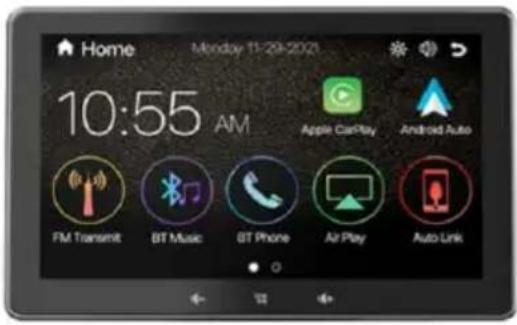
Display
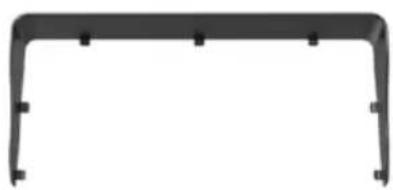
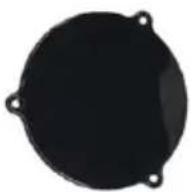
natural_image
Pure black rectangular frame with rounded corners and corner holes, no text or symbols visibleShroud
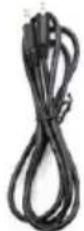
AUX Cable
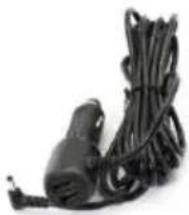
natural_image
Black cable with a small plug attached, isolated on white background (no text or symbols)Power Cable
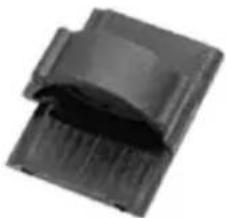
natural_image
Close-up of a black plastic clip or clip with textured surface (no visible text or symbols)Cable Mount
Adhesive Pad
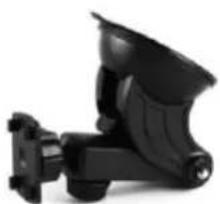
natural_image
Black handheld device with a curved top and mechanical base (no visible text or symbols)Display Mount
User Guide
OVERVIEW
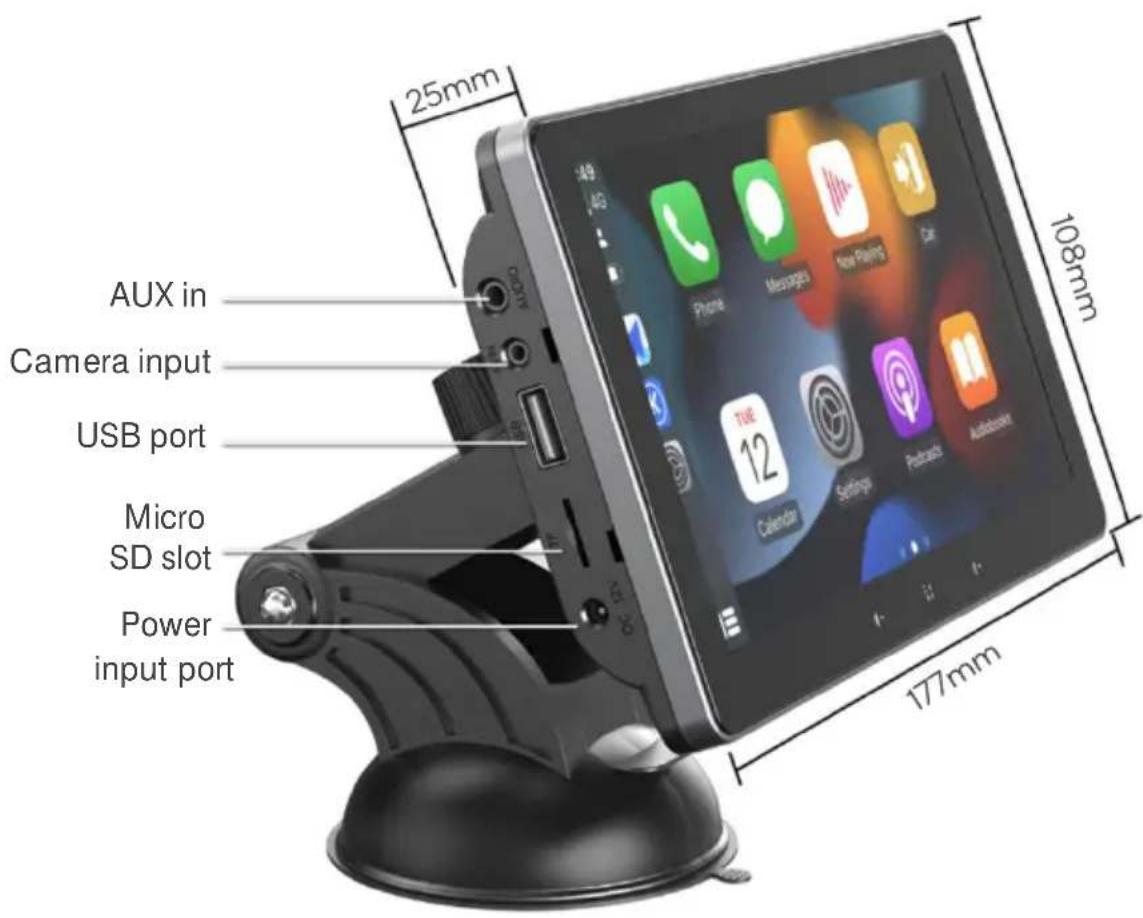
Mounting the Display
- Select a clean, smooth location for the adhesive mount. Attach the display mount to the vehicle ensuring that the display will not obstruct your vision.
- Attach the display to the display mount.
- Attach the shroud to the display.
Power Supply
- Connect the supplied power cable to the power input port on the display. Connect the other end of the power cable to the vehicle's 12V socket (cigarette lighter).
- The power cable features 2 USB ports on the 12V connector. These ports can be used to power a mobile phone and other devices.
- During operation, the indicator will turn red. If the indicator on the 12V connector is not on after plugging in the very connecting socket to another 12V socket on the car or check if the cigarette lighter fuse has blown.
Bluetooth
Click the Bluetooth button to display the name of the device and then search for the device using your phone to complete the Bluetooth pairing.
Note:
During using CarPlay and Android Auto, the Bluetooth phonebook and Bluetooth music playback functions are disabled
Language
Select your desired language (English, Chinese, Japanese, French, Italian, Korean, Portuguese, Russian, Spanish, Thai, German, Hebrew, Indonesian, Turkish, Arabic, Polish & Czech).

FM transmitter
- Tune the radio on the car to an empty frequency, then click on "FM Transmit" on the display to tune the car play device to the same frequency.
- At this time, the sound on the car play device can be transmitted to the car's speakers through your radio.
Note: The device will stop outputting audio through the built-in speakers.
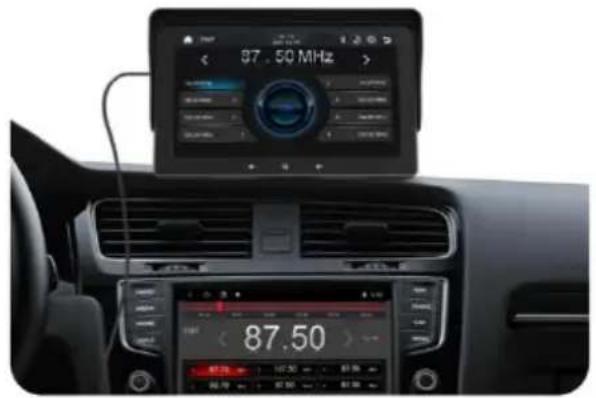
Note:
If you select an existing radio FM channel, it may cause audio transmission issues. Ensure that the channel used on the car radio is not in use
AUX Cable
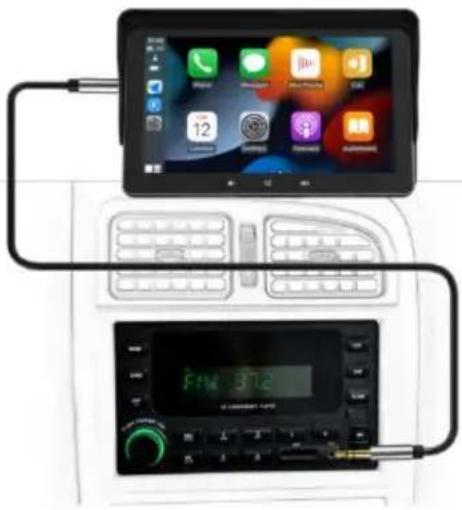
- The car play device comes with an AUX cable included. Connect the right angled end of the AUX cable to the AUX in port on the display.
- Connect the other end of the AUX cable to the AUX port on your vehicle's audio unit.
natural_image
Two connected devices showing a tablet and a digital audio workstation with home controls (no readable text or symbols)Note:
If the vehicle AbXinput port, AUX Cable will not work and you will need to connect via Bluetooth or FM transmitter.
Reverse Camera (optional)
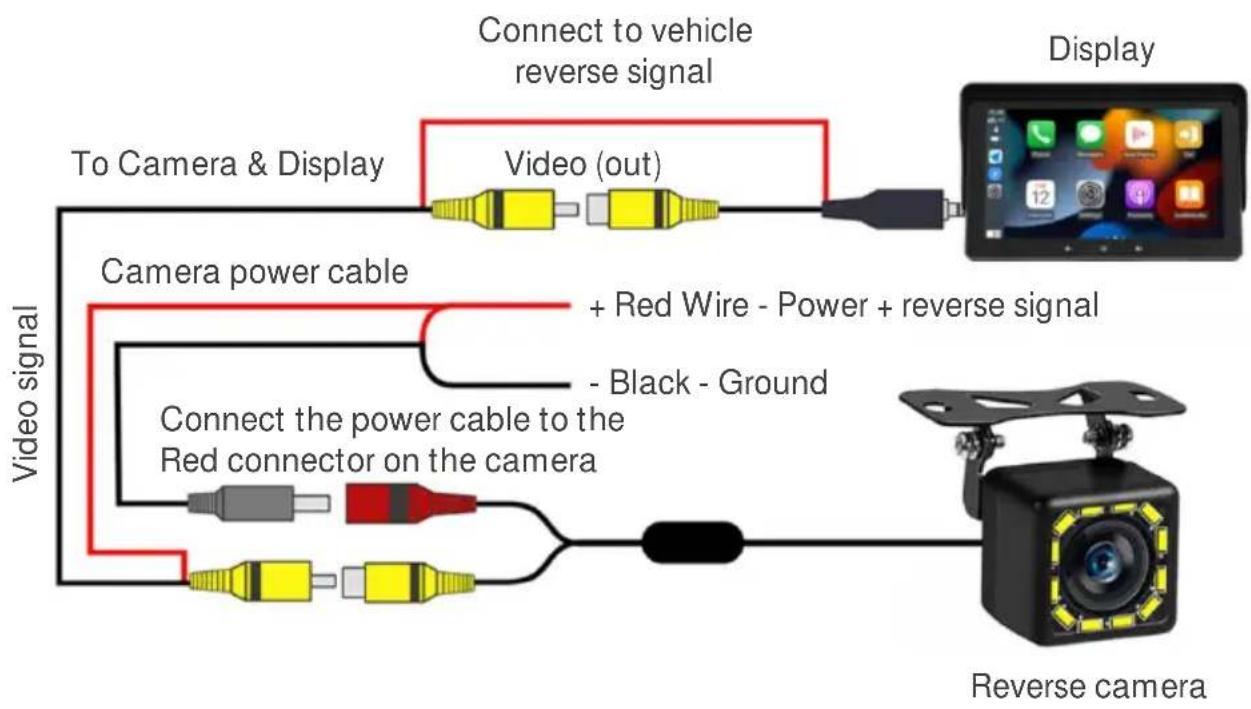
This display can support reverse cameras up to 720P AHD. It is highly recommended to have the camera installed by a licenced auto electrician.
Note:
The reversing camera and video harness optional products and not required for normal operation.
flowchart
graph TD
    A["Video signal"] --> B["To Camera & Display"]
    B --> C["Video (out)"]
    C --> D["Connect to vehicle reverse signal"]
    D --> E["Display"]
    F["Video signal"] --> G["Camera power cable"]
    G --> H["+ Red Wire - Power + reverse signal"]
    G --> I["- Black - Ground"]
    F --> J["Connect the power cable to the Red connector on the camera"]
    J --> K["Reverse camera"]
CONNECTIVITY
Connecting to CarPlay
Wired connection:
- Go to Setup → Phone link Setting → Smart Phone → iPhone Devices → Select CarPlay.
- Connect your phone to the USB port on the display using a charging cable (not supplied).
Wireless connection:
- Go to Setup → Phone link Setting → Smart Phone → Wireless Devices → Select CarPlay+ Android Auto+ Air Play
- On your phone, search and connect to the Bluetooth device named "Bt 0207fa". After connecting, the phone will prompt you to confirm whether your wish to use CarPlay.
- After approximately 5-10 seconds the display will connect to your phone.
Note:
To switch wireless CarPlay after connecting to Android Auto/Mirror link, turn off the Bluetooth and Wi-Fi on the Android phone first. If the first CarPlay connection fails, restart the device and connect again.
Connecting to Android Auto
Download the Android Auto App from the Google Play store
Wired connection:
- Go to Setup → Phone link Setting → Smart Phone → Android Devices → Select Android Auto
- Connect your phone to the USB port on the display using a charging cable (not supplied).
Wireless connection:
- Click Setup → Phone link Setting → Smart Phone → Wireless Devices → Select CarPlay + Android Auto+ Air Play
- On your phone, search and connect to the Bluetooth device named "Bt 0207fa". After connecting, the phone will prompt you to confirm whether your wish to use CarPlay.
- After approximately 5-10 seconds the display will enter Android Auto.
Note:
Wireless Android Auto only supports Android phones with 5.0Ghz Wi-Fi. If you cannot enter Android Auto during the first connection, disconnect the power supply and try again. To switch to Android Auto after connecting CarPlay, turn off Bluetooth and Wi-Fi on the iPhone.
Apple Air Play
- Go to Setup → Phone link Setting → Smart Phone → Wireless Devices → Select Air Play
- Use phone to search for the Wi-Fi signal named "xxxx" and connect to the Wi-Fi using the password "88888888"
- Open command centre on your iPhone by swiping down from the top right corner, select Screen Mirroring in iPhone → Click Air Play
Note:
This connection requires the iPhone to connect to the device Wi-Fi instead of Bluetooth. If the connection is unsuccessful, power off and reconnect after completing the settings.
Mirror Link
Wired connection:
- Select Setup → Phone link Setting → Smart Phone → Android Devices → Select Mirror Link
- Connect your phone to the USB port on the display using a charging cable (not supplied).
Wireless connection:
- Select Setup → Phone link Setting → Smart Phone → Wireless Devices → Select Mirror Link
- Download the "Auto Link pro" app by scanning the QR code below or searching the Google Play store.
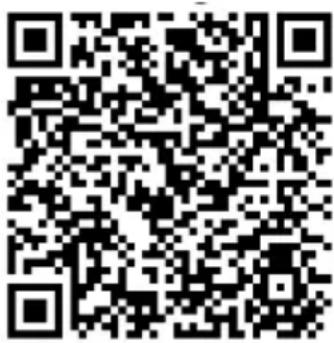
- Select the Wi-Fi network with the Wi-Fi name is "xxxxx", click to link and confirm the authorisation.
USB/ SD card
You can play media directly from a USB drive or an SD card. The device supports the following formats:
- Video formats:
3GP/ASF/AVI/DivX/MKV/MOV/MP4/MPG/TS/VOB/WEBM/M4V/FLV
• Audio formats: MP3/MP2/WAV/AAC/AMR/M4A/OGG/APE/FLAC
Note:
The maximum memory supported by this device is 128GB.
FAQ
Q1. How many audio output methods does this product support?
A1. Built-in speaker, FM transmitter and AUX.
Q2. Does the display support video playback?
A2. The display does supports video playback; however it is incredibly dangerous and often illegal to play video whilst driving. DO NOT play videos while driving.
Q3. How do you fix the display when it freezes?
A3. Press the reset button on the back of the display and restore the factory settings. If it still won't work after it has been reset 2 or 3 times, contact help.Kogan.com for support.
Q4. Why is there a sound delay when the phone plays a video?
A4. The connection between the mobile phone and the device uses Bluetooth 5.0 chip for audio transmission. This method of Bluetooth transmission has the potential for audio and video to be out of synchronisation.
Q5. Does this device support dual Bluetooth function?
A5. This device has a Bluetooth receiving function, you can make phone calls through Bluetooth and can also connect CarPlay and Android Auto through Bluetooth. However it does not have Bluetooth transmission function and cannot connect to the car radio via Bluetooth.
Q6. Why is there an electrical sound when using the FM transmitter?
A6. This is normal when using FM to transmit audio. Adjust the volume on the device to the maximum and turn down the sound on the car radio, the current sound should be significantly improved.
Need more information?
We hope that this user guide has given you the assistance needed for a simple set-up.
For the most up-to-date guide for your product, as well as any additional assistance you may require, head online to help.kogan.com
kogan.com
- KOGAN TOUCHSCREEN CAR DISPLAY
- COMPONENTS
- OVERVIEW
- Mounting the Display
- Power Supply
- Bluetooth
- Note:
- Language
- FM transmitter
- AUX Cable
- Reverse Camera (optional)
- CONNECTIVITY
- Connecting to CarPlay
- Wired connection:
- Wireless connection:
- Connecting to Android Auto
- Apple Air Play
- Mirror Link
- USB/ SD card
- FAQ
- Need more information?
Brand : Kogan
Model : KAPCARSTE7A
Category : Kit voiture