H40HR - Voice recorder Speco Technologies - Free user manual and instructions
Find the device manual for free H40HR Speco Technologies in PDF.


User questions about H40HR Speco Technologies
0 question about this device. Answer the ones you know or ask your own.
Ask a new question about this device
Download the instructions for your Voice recorder in PDF format for free! Find your manual H40HR - Speco Technologies and take your electronic device back in hand. On this page are published all the documents necessary for the use of your device. H40HR by Speco Technologies.
USER MANUAL H40HR Speco Technologies
H40HR (40 Channel) User Manual
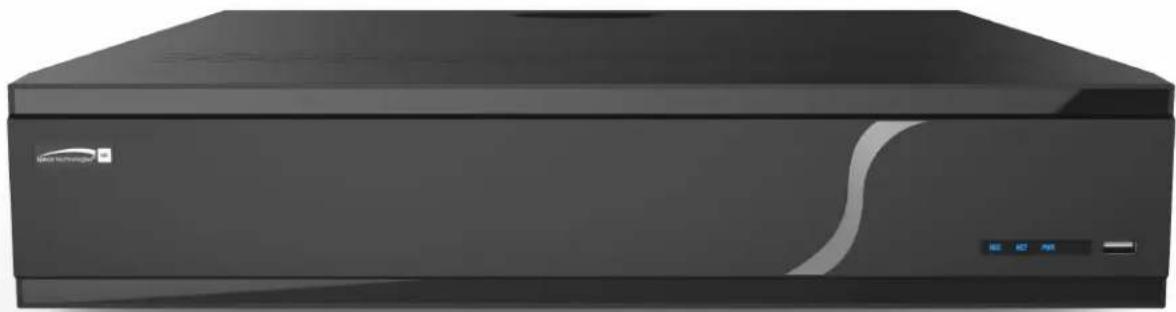
natural_image
Exterior view of a black industrial air conditioner unit (no visible text or symbols)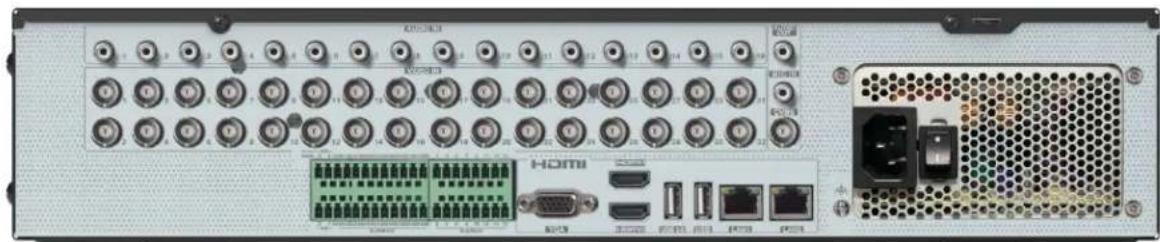
natural_image
Front view of a network equipment rack with ports, connectors, and a power outlet (no visible text or symbols)Notes
- Please read this user manual carefully to ensure that you can use the device correctly and safely.
● There may be several technical or printing errors in this manual. The contents of this manual are subject to change without notice. - This device should be operated only from the type of power source indicated on the marking label. The voltage of the power must be verified before using the same. Kindly remove the cables from the power source if the device is not to be used for a long period of time.
- Do not install this device near any heat sources such as radiators, heat registers, stoves or other devices that produce heat.
- Do not install this device near water. Clean only with a dry cloth.
- Do not block any ventilation openings and ensure proper ventilation around the machine.
- Do not power off the device at normal recording condition.
- This machine is for indoor use only. Do not expose the machine to rain or moist environment. In case any solid or liquid gets inside the machine's case, please turn off the device immediately and get it checked by a qualified technician.
- Do not try to repair the device by yourself without technical aid or approval.
Contents
1 Introduction....1
1.1 Welcome .... 1
1.2 Features.... 1
1.3 Front Panel Descriptions .... 3
1.4 Rear Panel Descriptions.... 3
1.5 Connections.... 3
2 Basic Operation Guide ....4
2.1 Startup & Shutdown......4
2.1.1 Startup....4
2.1.2 Shutdown 4
2.2 Remote Control 4
2.3 Mouse Control....5
2.4 Text-input Instruction 5
2.5 Common Button Operation 6
3 EZ Setup & Main Interface 7
3.1 EZ Setup....7
3.2 Main Interface....10
3.2.1 Main Interface Introduction ...... 10
3.2.2 Setup Panel....11
3.2.3 Main Functions....12
4 Camera Management ....14
4.1 Camera Signal 14
4.2 Add/Edit Camera 14
4.2.1 Add Camera 14
4.2.2 Edit Camera 15
5 Live View Introduction....17
5.1 Live View Interface Introduction ...... 17
5.2 View Mode 18
5.2.1 Display Mode.... 18
5.2.2 Quick Sequence View 19
5.2.3 Scheme View In Sequence....19
5.2.4 Spot View 19
5.3 Image Configuration 20
5.3.1 OSD Settings 20
5.3.2 Image Settings 20
5.3.3 Mask Settings 20
5.3.4 Water Mark Settings....21
5.3.5 Image Adjustment 21
6 PTZ 24
6.1 PTZ Control Interface Introduction....24
6.2 Preset Setting 26
6.3 Cruise Setting 27
6.4 PTZ Protocol Settings.... 28
7 Record & Disk Management....29
7.1 Record Configuration.... 29
7.1.1 Mode Configuration 29
7.1.2 Schedule Settings 30
7.1.3 Advanced Configuration 32
7.2 Encode Parameters Setting 32
7.3 Record Mode 33
7.3.1 Manual Recording 33
7.3.2 Timing Recording.... 33
7.3.3 Motion Based Recording 33
7.3.4 Sensor Based Recording 33
7.3.5 Event Recording.... 33
7.4 Disk....33
7.4.1 Disk Management 33
7.4.2 Storage Mode Configuration 35
7.4.3 View Disk and S.M.A.R.T. Information 36
8 Playback & Backup....37
8.1 Instant Playback 37
8.2 Playback Interface Introduction ...... 37
8.3 Smart Playback 39
8.4 Record Search, Playback & Export......40
8.4.1 EZ Search 41
8.4.2 Museum Search.... 42
8.4.3 Time Search 42
8.4.4 Event Search 43
8.4.5 Bookmark Search.... 43
8.4.6 Snapshots 44
8.4.7 View Export Status 44
9 Alarm Management....44
9.1 Sensor Alarm 44
9.2 Motion Alarm 45
9.2.1 Motion Configuration 46
9.2.2 Motion Alarm Handling Configuration 46
9.3 Smart Event 46
9.3.1 Abandoned/Missing Object Detection 46
9.3.2 Tampering....47
9.3.3 Tripwire....48
9.3.4 Intrusion Detection 49
9.4 Exception Alarm 50
9.4.1 IPC Offline Settings 50
9.4.2 Video Loss Settings 50
9.4.3 Warning Handling Settings 51
9.5 Alarm Event Notification 51
9.5.1 Alarm-out 51
9.5.2 E-mail.... 51
9.5.3 Display 51
9.5.4 Buzzer 52
9.5.5 Push Message.... 52
9.5.6 Alarm Server 52
9.6 Manual Alarm....52
9.7 View Alarm Status 53
10 Account & Permission Management....55
10.1 Account Management....55
10.1.1 Add User 55
10.1.2 Edit User 56
10.2 User Login & Logout....57
10.3 Permission Management....57
10.3.1 Add Permission Group 57
10.3.2 Edit Permission Group 58
10.4 Block and Allow List....58
10.5 Preview On Logout 58
10.6 Password Security 59
10.7 View Online User 59
11 Device Management....60
11.1 Network Configuration 60
11.1.1 TCP/IP Configuration 60
11.1.2 Port Configuration 60
11.1.3 PPPoE Configuration....62
11.1.4 DDNS Configuration....62
11.1.5 E-mail Configuration....62
11.1.6 UPnP Configuration 63
11.1.7 802.1X 64
11.1.8 NAT Configuration 64
11.1.9 View Network Status 64
11.2 Basic Configuration....64
11.2.1 General Configuration 64
11.2.2 Date and Time Configuration....65
11.2.3 Recorder OSD Settings....65
11.3 Factory Default 65
11.4 Device Software Upgrade 65
11.5 Backup and Restore....66
11.6 Restart Automatically 66
11.7 View Log....66
11.8 View System Information 67
12 Remote Surveillance ....68
12.1 Mobile Client Surveillance 68
12.2 Web LAN Access 68
12.3 Web WAN Access 68
12.4 Web Remote Control....69
12.4.1 Remote Preview 69
12.4.2 Remote Playback 73
12.4.3 Remote Export....74
12.4.4 Remote Configuration 74
Appendix A FAQ....75
Appendix B Calculate Recording Capacity....78
1 Introduction
1.1 Welcome
Thank you for purchasing this DVR.
If technical assistance is needed, please contact Speco Technologies Technical Support.
Phone: 1-800-645-5516 option 3
Email: techsupport@specotech.com
1.2 Features
Basic Functions
● Supports network device access including IP camera/dome and the third-party IP cameras
● The DVR supports the latest H.265 video coding stream and a mixture input of H.265 and H.264 IP cameras
● Supports standard ONVIF protocol
● Supports dual stream recording of each camera
● Supports IP cameras to be added quickly or manually
● Supports collective or individual configuration of the cameras' OSD, video parameters, mask, motion and so on
● Supports multiple user permission groups including Administrator, Advanced and Common which are the default permission groups of the system
- Supports multiple users to be created, multiple web client's login by using one username at the same time and the user's permission control to be enabled or disabled
- Supports multiple web client's login at the same time
Live View
● Supports 4K×2K/1920×1080/1280×1024 HDMI and 1920×1080/1280×1024 VGA high definition synchronous display
● Supports multi-screen modes such as 1/4/6/8/16
- Supports auto adjustment of the camera's image display proportion
● Supports audio monitoring of the camera to be enabled or disabled
● Supports manual snapshot of the camera
● Supports the sequence of the cameras to be adjusted
● Supports display mode to be added and saved and the saved modes can be called directly
● Supports quick tool bar operation of the preview window
● Supports camera group view and scheme view in sequence, quick sequence view and dwell time setting
● Supports motion detection and video mask
● Supports multiple popular P.T.Z. control protocol and setup of the preset and cruise
● Supports direct mouse control of the IP dome including rotating, zoom, focusing and so on
● Supports single camera image to be zoomed by sliding the scroll wheel of the mouse
● Supports any area of the image to be zoomed in to a maximum of 16 times of the current size
● Supports image and lens adjustment (only available for some cameras)
● Supports quick camera adding in the camera window of the live view interface
- The live camera sequence of the web client will keep consistent with that of the DVR after adjusting the live camera sequence of the DVR, but the live camera sequence of the DVR will not be changed if that of the web client is changed
Disk Management
● Supports 8 SATA HDDs
● Each SATA interface of the DVR supports the HDDs with max 14TB storage capacity
● Supports RAID 0, 1,5, 6, 10
● Supports disk group configuration and management and each camera can be added into different disk groups with different storage capacity
● Supports disk information and disk working status viewing
Record Configuration
● Supports main stream and sub stream recording at the same time and collective or individual configuration of the record stream
● Supports manual and auto record modes
● Supports schedule recording, sensor alarm recording and motion detection recording, etc
● Supports schedule recording and event recording setting with different record streams
● Supports record schedule setting and recycle recording
● Supports pre-recording and delay recording configuration of the event recording
Record Playback
● Supports time scale operation in quick playback and the playback date and time can be set randomly by scrolling the mouse; the time interval of the time scale can be zoomed
● Supports record searching by time slice/time/event/tag
● Supports time view and camera view in searching by EZ mode
● Supports EZ search by month, by day, by hour and by minute and time slice to be displayed with camera thumbnail
● Supports a maximum of 4/8/16 cameras to be searched by time
● Supports event search by manual/motion/sensor/intelligent events
● Supports bookmark search by the manual added bookmarks
● Supports instant playback of the selected camera in the live view interface
● Supports a maximum of 16 synchronous playback cameras
- Supports acceleration (maximum 32 times of the normal speed), deceleration (minimum 1/32 times of the normal speed) and 30s' addition or reduction to current playing time
Record Export
● Supports record to be exported through USB (U disk, mobile HDD).
● Supports record to be exported by time/event/image search
● Supports record cutting for exporting when playing back
● Supports a maximum of 10 export tasks in background and export status viewing
Alarm Management
● Support alarm schedule setting
● Support enabling or disabling of the motion detection, external sensor alarm input, intelligence alarm and exception alarms including IP address conflict alarm, disk IO error alarm, disk full alarm, no disk alarm, illegal access alarm, network disconnection alarm, IPC offline alarm and so on, alarm trigger configuration supportable
● Support IPC offline alarm trigger configuration of PTZ, snap, pop-up video, etc.
● Support event notification modes of alarm-out, pop-up video, pop-up message box, buzzer, e-mail and so on
● The snapped images can be attached into the e-mail when alarm linkage is triggered
● Support alarm status view of alarm-in, alarm-out, motion detection and exception alarm
● Support alarm to be triggered and cleared manually
● Support system auto reboot when exception happens
Network Functions
● Supports TCP/IP and PPPoE, DHCP, DNS, DDNS, UPnP, NTP, SMTP protocol and so on
● Supports allow and block list function and the allow and block IP address/IP segment address can be set
● Supports multiple browsers including IE8/9/10/11, Firefox, Opera, Chrome and Safari in MAC system
● Supports remote achievement, configuration, import and export of the DVR parameters and other system maintenance operations including remote upgrading and system restart
● Supports remote camera configuration of the DVR including video parameters, image quality and so on
● Supports remote search, playback and export of the DVR
● Supports manual alarm to be triggered and cleared remotely
● The motorized zoom camera can be adjusted through web client (Supports zoom in/out, but one key focus is not currently supported)
● Supports NVMS or other platform management software to access the DVR and manage it
● Supports NAT function and QRCode scanning by mobile phone and PAD
● Supports mobile surveillance by phones or PADs with iOS or Android OS
● Supports DVR to be accessed remotely through telnet and the telnet function can be enabled or disabled
- If one camera recording is enabled or disabled manually through web client, it will be simultaneously enabled or disabled in the DVR
Other Functions
● The DVR can be controlled and operated by the buttons on the front panel, the remote controller and the mouse
- Setting interfaces can be switched to one another conveniently by clicking the main menus on the top of the setting interfaces
● Supports DVR information viewing including basic, camera status, alarm status, record status, network status, disk and export status
● Supports factory restoring, import and export of the system configuration, log view and export and local upgrading by USB mobile device
● Supports auto recognition of the displayer's resolution
● You can click the right mouse button at any interface to go back to the upper interface
- You can click the mouse wheel at any interface to go to the live view interface
- The display language and video format of the DVR will not be changed and the system logs will be reserved if you reset the DVR to factory default
- Press and hold the right mouse button for 5 seconds in any interface to switch the output cyclically.
1.3 Front Panel Descriptions
The following descriptions are for reference only.
| Name | Descriptions |
| REC | When recording, the light is blue |
| Net | When access to network, the light is blue |
| Power | Power indicator, when connected, the light is blue |
1.4 Rear Panel Descriptions
To quickly get started, connect the following to your recorder in the following order, please refer to Figure 1-2 (H40HR shown for reference).
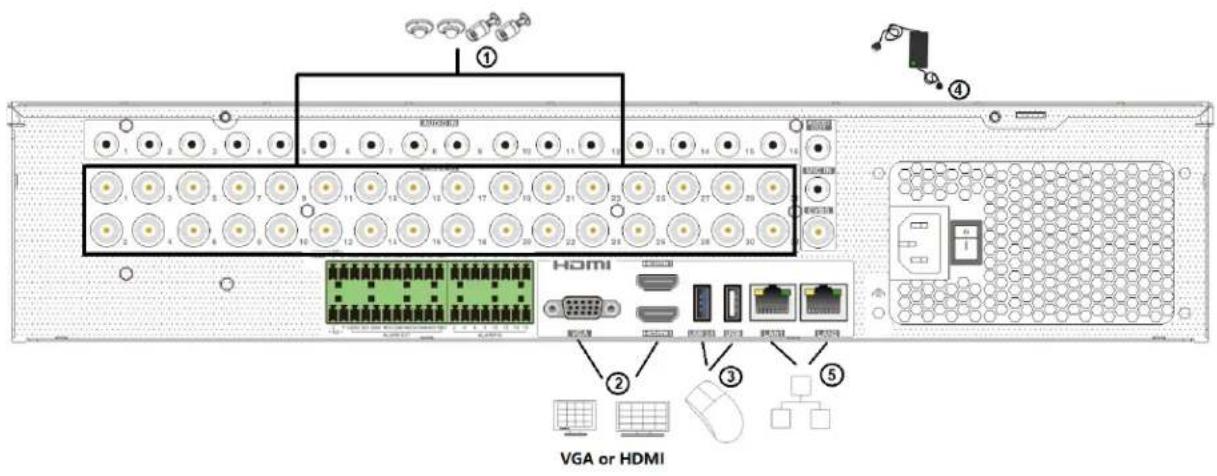
- Connect analog cameras to the video input ports (BNC) of the recorder.
- Connect a monitor to the recorder via VGA or HDMI cable (not included).
- Connect the included optical mouse into any USB port of the recorder.
- Connect the power adapter to the recorder and plug the power cord into a 120VAC 50/60Hz outlet.
- Connect recorder to network (optional)
1.5 Connections
- Video Connections
Video Output: Supports VGA/HDMI video output. You can connect to monitor through these video output interfaces simultaneously or independently.
● Audio Connections
Audio Input: Connect to microphone, pickup, etc.
Audio Output: Connect to headphones, sound box or other audio output devices.
2 Basic Operation Guide
2.1 Startup & Shutdown
Please make sure all the connections are done properly before you power on the unit. Proper startup and shutdown are crucial to extend the life of your device.
2.1.1 Startup
① Connect the output display device to the VGA/HDMI interface of the DVR.
② Connect the mouse and power. The device will boot, and the power LED will turn blue.
③ EZ setup window will appear (you should select the display language the first time you use the DVR). Refer to 3.1 EZ Setup for details.
2.1.2 Shutdown
You can power off the device by using remote control or mouse.
By remote control:
① Press the Power button. This will take you to a shutdown window. The unit will power off after a while by clicking "OK" button.
② Disconnect the power.
By mouse:
① Click Start→Shutdown to pop up the Shutdown window. Select "Shutdown" in the window. The unit will power off after a while by clicking "OK" button.
② Disconnect the power.
2.2 Remote Control
① It uses two AAA size batteries.
② Open the battery cover of the remote control.
③ Place batteries. Please be aware of the polarity (+ and -).
④ Replace the battery cover.
Key points to check in case the remote doesn't work.
- Check batteries' polarity.
- Check the remaining charge in the batteries.
- Check IR controller sensor for any masking.
If it still doesn't work, please contact your distributor. You can just turn the IR sensor of the remote control towards the IR receiver of the DVR to control it when you are controlling multiple devices by remote control.
The interface of remote controller is shown below.
There are two kinds of remote control. The interface of remote controller is shown below.
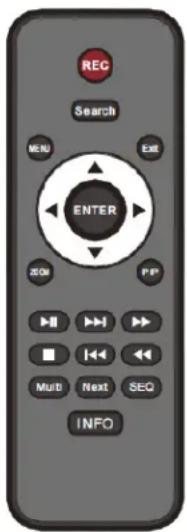
| Button Function | |
| REC Record manually | |
| Search To enter search mode | |
| MENU To enter menu | |
| Exit | To exit the current interface |
| ENTER | To confirm the choice or setup |
| Direction button To move cursor in setup | |
| ZOOM To zoom in | |
| PIP | No function temporarily |
| To control playback. Play (Pause)/Next Frame/Speed Up/Stop/Previous Frame/Speed Down | |
| Multi | To choose multi-screen display mode |
| Next | To switch the live image |
| SEQ | To go to sequence view mode |
| INFO | Get information about the device |
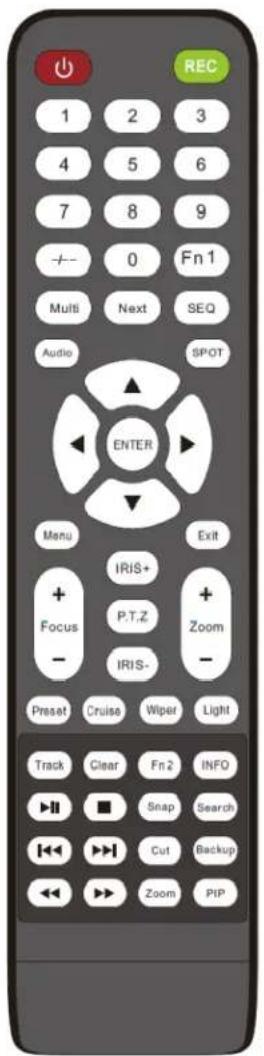
| Button Function | |
| Power Button | Switch off—to stop the device |
| Record Button | To start recording |
| -/-- /0-9 | Input number or choose camera |
| Fn1 Button Unavailable temporarily | |
| Multi Button | To choose multi-screen display mode |
| Next Button | To switch the live image |
| SEQ | To go to sequence view mode |
| Audio | To enable audio output in live mode |
| Switch | No function temporarily |
| Direction button | To move cursor in setup or pan/title PTZ |
| Enter Button | To confirm the choice or setup |
| Menu Button | To go to menu |
| Exit Button | To exit the current interface |
| Focus/IRIS/Zoom/PTZ | To control PTZ camera |
| Preset Button | To enter preset setting in PTZ mode |
| Cruise Button | To go to cruise setting in PTZ mode |
| Track Button | No track function temporarily |
| Wiper Button | No function temporarily |
| Light Button | No function temporarily |
| Clear Button | No function temporarily |
| Fn2 Button | No function temporarily |
| Info Button | Get information about the device |
| To control playback. Play (Pause)/Stop/Previous Frame/Next Frame/Speed Down/Speed Up | |
| Snap Button | To take snapshots manually |
| Search Button | To go to search mode |
| Cut Button | No function temporarily |
| Backup Button | To go to backup mode |
| Zoom Button | To zoom in the images |
| PIP Button | Not active |
2.3 Mouse Control
Mouse control in Live Display & Playback interface
In the live display & playback interface, double click on any camera window to show the window in single screen mode; double click the window again to restore it to the previous size.
In the live display & playback interface, if the interfaces display in full screen, move the mouse to the bottom of the interface to display a tool bar. The tool bar will disappear automatically after you move the mouse away from it for some time; move the mouse to the right side of the interface to pop up a panel and the panel will disappear automatically after you move the mouse away from it.
Mouse control in text-input
Move the mouse to the text-input box and then click the box. The input keyboard will pop up automatically.
Note: Mouse is the default tool for all operations unless an exception as indicated.
2.4 Text-input Instruction
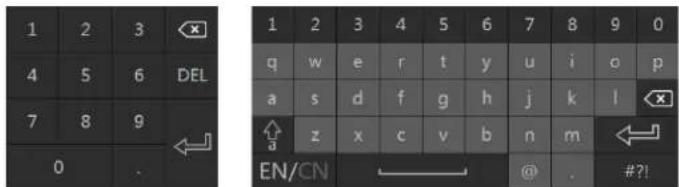
The system includes two input boxes. Refer to the above pictures. The left box is the number input box, and the right box is the input box which provides inputs of numbers, letters, and punctuation characters. The introductions of keys on the input boxes are shown below.
| Button | Meaning | Button | Meaning |
| Backspace key | Switch key of punctuation character | ||
| Delete Key | Enter key | ||
| Switch key between upper and lower letter | Space key | ||
| Switch key of language | |||
2.5 Common Button Operation
| Button Meaning | |
| Click to show the menu list. | |
| Click to change the sequence of the list. | |
| Click to change the camera displaying mode. | |
| Click to close the current interface. | |
| Click to go to the earliest date of camera recording. | |
| Click to go to the latest date of camera recording. |
3 EZ Setup & Main Interface
3.1 EZ Setup
The disk icons will be shown on the top of the startup interface. You can view the number and status of each disk quickly and conveniently through these icons (☐: no disk; ☐: unavailable disk; ☐: RW available disk).
You can quickly configure the DVR by clicking "OK" to make the DVR work normally. You must configure the wizard if you start the DVR for the first time (or click "Skip" to cancel the EZ Setup next time).
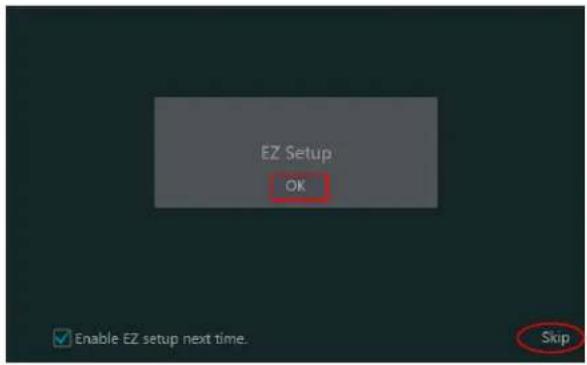
Click "OK" to start wizard. The setting steps are as follows.
① System Login. Set your own password when you use the wizard for the first time (the default username of the system is admin); select the login username and enter the password you set by yourself.
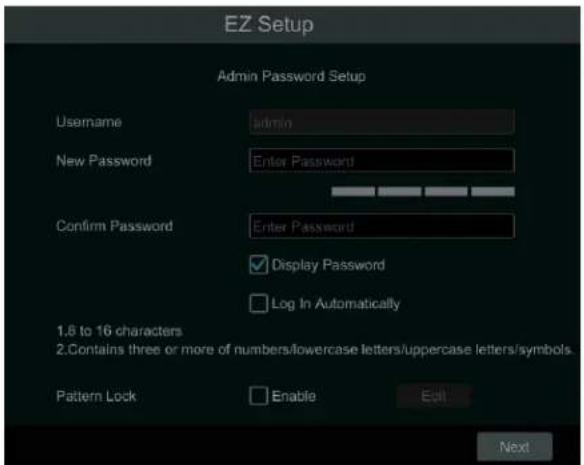
Enable pattern lock and click "Edit" to set the pattern lock.
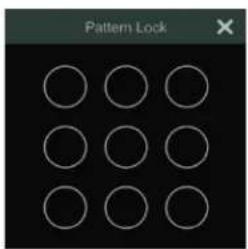
Click "Next" to set questions and answers for password security of admin. If you forget the password, please refer to Q4 in Appendix A FAQ for details.
Click "Next" to continue.
② Disk Settings. You can view the disk number, disk capacity of the DVR and serial number, R&W status of the disk. Click "Format" to format the disk. Click "Next" to continue. Then click "EZ Setup".
③ Network Settings. Check "Obtain an IP address automatically" and "Obtain DNS automatically" to get the IP address and DNS automatically (the DHCP function of the router in the same LAN should also be enabled), or manually enter them. Enter the HTTP port, RTSP port and Server port (please see Port Configuration for details). Click "Next" to continue.
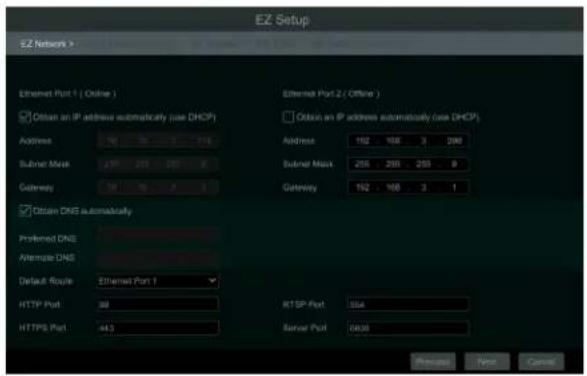
④ Other Network Settings.
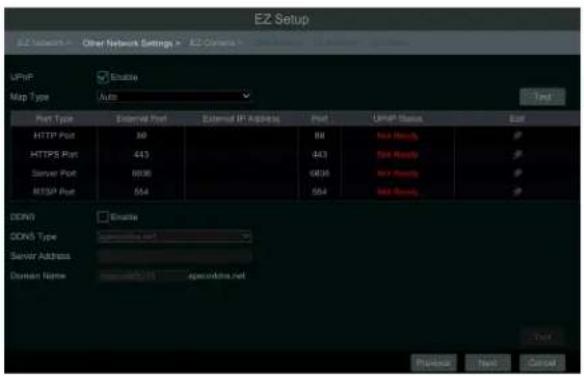
UPnP settings: Check "Enable" in the interface and enter the port of external and then click "Test" to test the effectiveness of the input information. If the UPnP status were "Invalid UPnP", the port number may be wrong. Click 📋 to modify the port until the UPnP status turns to "Valid UPnP". Refer to the following picture. You can view the external IP address of the DVR. Enter the external IP address plus port in the address bar of your browser to access the DVR. (Please see UPnP Configuration for details).
DDNS Settings: Check "Enable" and then select the DDNS type. Enter the server address, domain name, username, and password according to the selected DDNS type. And then click "Register" or "Test" to test the effectiveness of the domain name. If it is effective, you can enter the domain name in the address bar of your browser to access the DVR. (Please see DDNS Configuration for details).
Note: Make sure the router supports UPnP function and the UPnP is enabled in the router. Set the DVR's IP address, subnet mask and gateway and so on corresponding to the router.
⑤ Add Camera. To add cameras from the LAN, make sure all cameras are set to DHCP. Click "Refresh" to refresh the list of online IP cameras which are in the same local network with DVR and then click + to add the searched camera. Click "Add All" to add all the cameras in the list. Click 📋 to delete the added camera. Click "Delete All" to delete all the added cameras.
![EZ Setup EZ Camera - Other Network Navigation - EZ Camera - No. T Address Edit Port Monarch Model Version Add 1 18.15.1.17 00:00 AP Camera OCEM 5.1.1.8 + Remail Bandwidth: 40 / 40 Mb Refine Add All Cancel All No AP Camera Name Address Protocol Status Edit Outcome 1 [AIF]Camera1 2 [AIF]Camera2 3 [AIF]Camera3 4 [AIF]Camera4 5 [AIF]Camera5 6 [AIF]Camera6 Previous Blue Cancel](/content/2026/05/1063695/images/3b011bcd4cda6229435d7b0a79b73c30937f992789d543d5857cf3e615b039a0.jpg)
Click to edit the searched IP camera as shown on the below left. Enter the new IP address, subnet mask, gateway, username, and the password of the camera. You can check "Sync to IPC" to modify the IP address of the IPC via different network segments for being in the same network segment with the DVR. Click "OK" to save the settings.
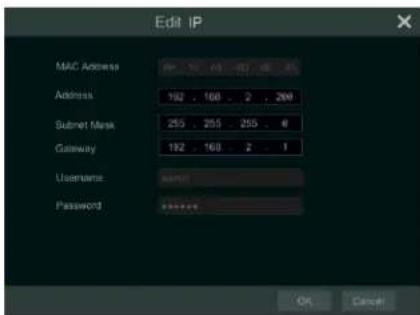
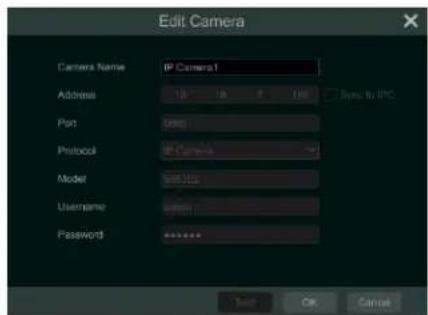
Click to edit the added camera as shown on the above right. Enter the new camera name, IP address, port, username, and the password of the camera. You can click "Test" to test the effectiveness of the input information. Click "OK" to save the settings. You can change the camera name only if it's an analog camera or the added IPC is online. Click "Next" to continue.
⑥ Disk Mode. Click "Enable RAID" to enable the RAID function. Click "Next" to continue.
⑦ Create an array. Set the array name and select array type which includes RAID0, RAID1, RAID5, RAID6 and RAID10. The global hot spares and array capacity can also be viewed here. See Disk for details. Click "Next" to continue.
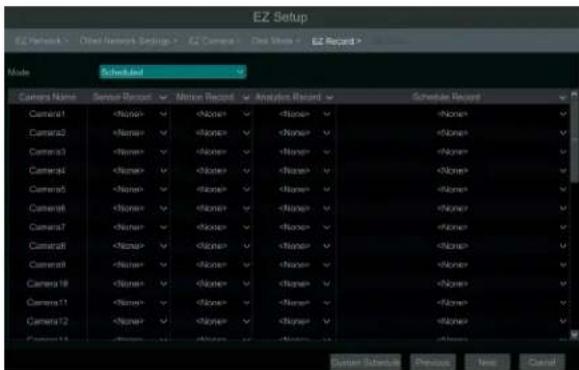
⑧ Record Settings. Two record modes are available: auto and scheduled.
Auto: Select one auto mode in the interface as shown below and then click "Next" button to save the settings. Click "Advanced" to self-define record mode. See Mode Configuration for details.
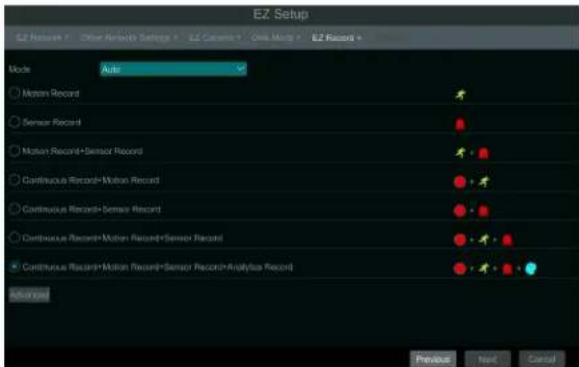
Scheduled: Set the "Sensor Record", "Motion Record", "Analytics Record" and "Schedule Record" of each camera. Click "OK" to save. See Mode Configuration for details.
⑨ QRCode. Enable the NAT function in the interface or set it in the network configuration after exiting the wizard (please refer to NAT Configuration for details). You can scan the QRCode through the Speco Blue App available for iOS and Android to view your cameras easily and securely. Please refer to Mobile Client Surveillance for details. Click "OK" to save the settings.
3.2 Main Interface
3.2.1 Main Interface Introduction
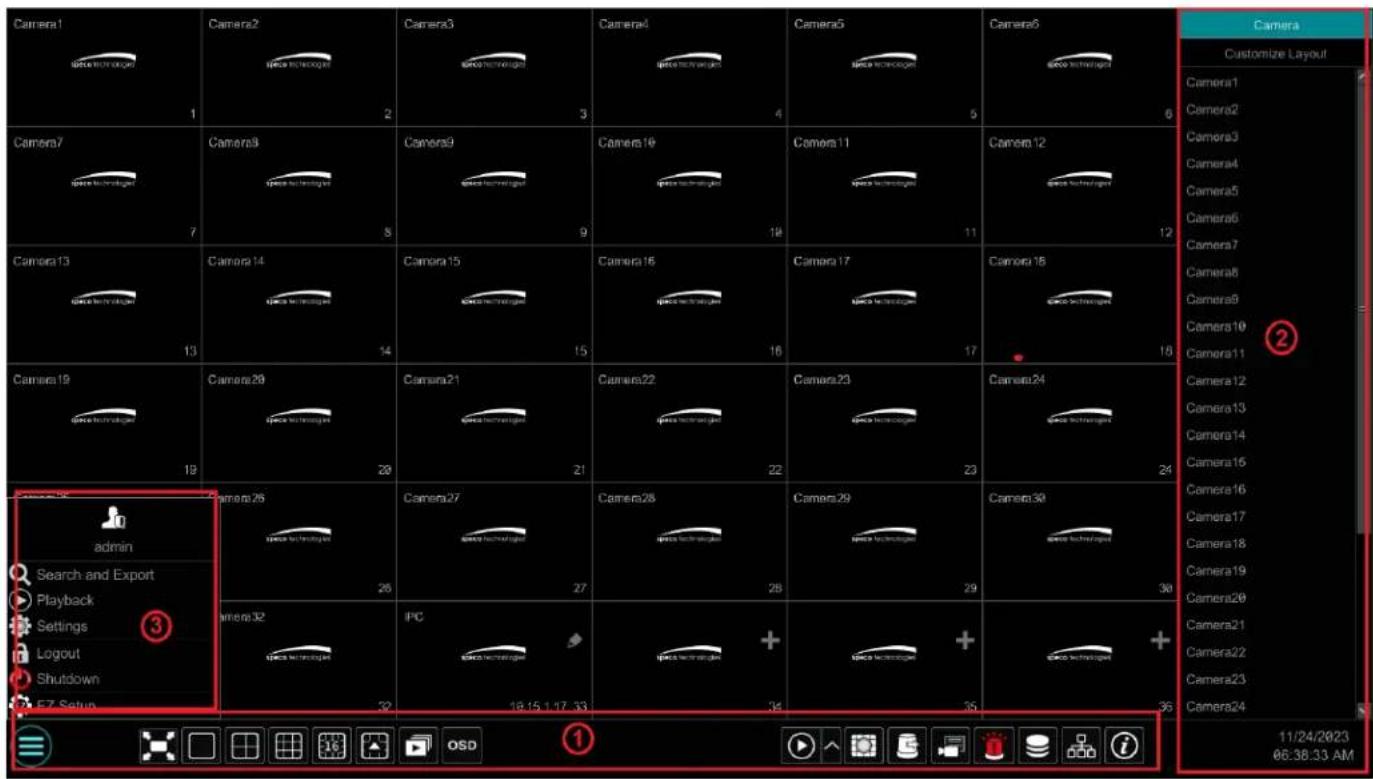
The buttons in area ① are introduced in the table below.
| Button Meaning | |
| Start button. Click to pop up area 3. | |
| Full screen button. Click to show full screen; click it again to exit the full screen. | |
| Screen mode button. | |
| Dwell button (see Quick Sequence View and Scheme View in Sequence for details). | |
| Click to enable OSD; click again to disable OSD. | |
 | Click to set the default playback time before starting instant playback (Instant Playback) or going to the playback interface for playback operations (Playback Interface Introduction); click to go to the playback interface. For instance, if you choose "5 minutes ago" as the default playback time, you can playback the record from the past five minutes. |
| [3067] | Manual record button. Click to enable/disable record. |
| [3M2W] | Manual alarm button. Click to trigger or clear the alarm-out manually in the popup window. |
| [AXTB] | Record status button. Click to view the record status. |
| [KAT1] | Alarm status button. Click to view the alarm status. |
 | Disk status button. Click to view the disk status and RAID status. |
| [8SW6] | Network status button. Click to view the network status. |
 | Information button. Click to view system information. |
Introduction of area ②:
Click "Camera" to view all the added cameras in the camera list. Select one camera window on the left side of the interface and then double click one camera in the list to preview the camera image in the selected window.
Click "Customize Layout" to view all the display modes in the display mode list (refer to Display Mode for detail configuration of the display mode). Double click one display mode in the list to switch to the display mode for previewing.
Introduction of area ③:
| Icon / Button Meaning | ||
 | ||
| Search and Export | Click to go to record search and export interface, seeRecord Search,Playback & Exportfor details. | |
| Playback | Click to go to playback interface (click on the tool bar at the bottom of the live view interface to set the default playback time), see _Playback Interface Introduction for details. | |
| Settings | Click to display the setup panel, see Setup Panel for details. | |
| Logout | Click to log out the system. | |
| Shutdown | Click it and then select “Logout”, “Reboot” or “Shutdown” in the popup window. | |
| EZ Setup | Click to go to the EZ setup. | |
3.2.2 Setup Panel
Click Start→Settings to display the setup panel as shown below.
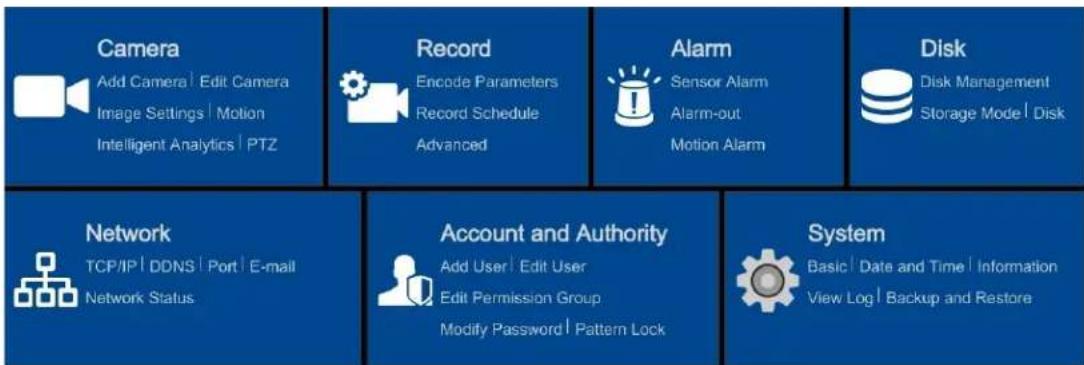
flowchart
graph LR
    A["Camera"] --> B["Add Camera | Edit Camera"]
    A --> C["Image Settings | Motion Intelligent Analytics | PTZ"]
    D["Record"] --> E["Encode Parameters"]
    D --> F["Record Schedule Advanced"]
    G["Alarm"] --> H["Sensor Alarm"]
    G --> I["Alarm-out Motion Alarm"]
    J["Disk"] --> K["Disk Management Storage Mode | Disk"]
    L["Network"] --> M["TCP/IP | DDNS | Port | E-mail Network Status"]
    N["Account and Authority"] --> O["Add User | Edit User"]
    N --> P["Edit Permission Group"]
    N --> Q["Modify Password | Pattern Lock"]
    R["System"] --> S["Basic | Date and Time | Information View Log | Backup and Restore"]
The setup panel includes seven modules. Each module provides some function entries with links for convenient operation.
Here we take Camera module as an example. The Camera module provides convenient links such as "Add Camera", "Edit Camera", "Image Settings", "Motion", "Intelligent Analytics" and "PTZ". Click Camera to go to the camera management interface as shown below.
![Manage Camera Add Camera Camera Signal Edit Camera Search Camera Add Camera No. Camera Name Address Port Status Protocol Model Preview Edit Upgrade Version 1 [A61]Camera1 2 [A62]Camera2 3 [A63]Camera3 4 [A64]Camera4](/content/2026/05/1063695/images/7df0dfecb41bddcd46c8db24e4cc378ab91820e2b6d2c66a42107fdfc633174d.jpg)
There are some function items on the left side of the camera management interface. Click each item to go to corresponding interface or window. For instance, click "Add Camera" to display the following window.
![Add Camera Clickly Add Add Manually No Address Port Edit Subnet Mask Protocol Model Selected: 0 / 0 Refresh Add Delete All No. IP Camera Name Address Protocol Status Edit Delete 1 [A81]Camera1 ✓ 2 [A82]Camera2 ✓ 3 [A83]Camera3 ✓ 4 [A84]Camera4 ✓ 5 [A85]Camera5 ✓ 6 [A86]Camera6 ✓ 7 [A87]Camera7 ✓ Remain Bandwidth: 42 / 48 Mb Advanced Cancel](/content/2026/05/1063695/images/7ffed382f02bbac7fe9cb99af2b7aae48891cf8f6508b1b20cc5216aedc70b0d.jpg)
Click the main menus at the top of the camera management interface to go to corresponding interfaces. Refer to the picture below. For instance, you can go to the system setup interface by clicking "System" tag.

3.2.3 Main Functions
Camera
The module covers the functions such as Camera Management (see Camera Management for details), Image Settings (see Image Configuration for details), Motion (see Motion Configuration for details), and PTZ (see PTZ for details) and so on.
Record
The module covers functions such as Encode Parameters and Record Schedule and so on. Please see Record & Disk Management for details.
> Alarm
The module covers the functions such as Sensor and Motion Alarm Handling and Alarm Out Settings. Please see Alarm Management and Chapter 11 General Event Management for details.
Disk
The module covers functions such as Disk Management, Storage Mode and Disk Information and so on. Please see Record & Disk Management for details.
Network
The module covers the functions such as TCP/IP, DDNS, Port, E-mail, and Network Status and so on. Please see Network Configuration for details.
Account and Authority
The module covers the functions such as Account Management (see Account Management for details) and Permission Management (see Permission Management for details) and so on.
System
The module covers the functions such as Basic Configuration (see Basic Configuration for details), Device Information (see View System Information for details), Log Information (see View Log for details) and Configuration File Import & Export (see Backup and Restore for details) and so on.
4 Camera Management
4.1 Camera Signal
Click Start→Settings→Camera→Manage Camera→Camera Signal to go to the interface as shown below.
This product supports analog signal switching to IP signal, which means decreasing (or increasing) the number of analog channels, accordingly increasing (or decreasing) the number of IP channels with the total channels unchanged.
The DVR device supports hybrid access of TVI, AHD, CVI and CVBS high-definition cameras. If the TVI high-definition camera is accessed to the DVR, you should select TVI in the following interface to show the camera image normally; if you select AHD, then there will be no image, or the image has no color. The default selection of the camera signal is Auto. If you select Auto, the image of the camera will be shown normally regardless of the camera type.
Audio over Coax: if your analog camera supports coaxial audio transmission, you can select "ON".
![Control Panel - LSR Camera Control AnalogP Signal Use Audio Dial/Case [AM] Analog Auto(TVIAHDCVBS) OFF OFF [AB] Analog Auto(TVIAHDCVBS) OFF OFF [AR] Analog Auto(TVIAHDCVBS) OFF OFF [AR] Analog Auto(TVIAHDCVBS) OFF OFF [AR] Analog Auto(TVIAHDCVBS) OFF OFF [AR] Analog Auto(TVIAHDCVBS) OFF OFF [AR] Analog Auto(TVIAHDCVBS) Off OFF [AR] Analog Auto(TVIAHDCVBS) OFF OFF [AR] Analog Auto(TVIAHDCVBS) OFF OFF](/content/2026/05/1063695/images/90fb4fa899458fd36cf1174e3054c02a3776ba55627c6898b4d9b83df0785c12.jpg)
Note: You can enable "Lite" in the interface if the DVR supports "Lite" recording. It will lower the recording resolution and increase the recording frame rate. Please enable or disable the Lite as needed.
4.2 Add/Edit Camera
4.2.1 Add Camera
The network of the DVR should be set before adding IP camera (see TCP/IP Configuration for details).
Refer to the pictures below. Click Add Camera in the setup panel or + in the top right corner of the preview window to pop up the "Add Camera" window as shown below. You can quickly add or add the IP camera manually.
![Camera Add Camera Edit Camera Image Settings Motion Intelligent Analytics PTZ speco technologies 35 Add Camera Quickly Add Add Manually No. ↑ Address ✓ Port Edit Subnet Mask Protocol Model Selected: 0 / 0 Refresh Add Delete All No IP Camera Name ↓ Address Protocol Status Edit Delete 1 [A81]Camera1 2 [A82]Camera2 3 [A83]Camera3 4 [A84]Camera4 5 [A85]Camera5 6 [A86]Camera6 7 [A87]Camera7 Remain Bandwidth: 42 / 48 Mb Advanced Cancel](/content/2026/05/1063695/images/1a1ce41bee6470f20d8538a660aa11dfdb46aa836c683a19ab02fd383919ac28.jpg)
> Quickly Add
Check the cameras and then click "Add" to add cameras. Click 📋 to edit the camera's IP address, username, and password and so on. Click "Default Password" to set the default username and password of each camera.
> Add Manually
Enter the IP address or domain name (click in the IP address column to pop up the domain name input window, enter the domain name of the IPC in the window and then click "OK" button), port, username and password of the camera and then select the protocol. Click "Test" to test the effectiveness of the input information and then click "Add" button (you can input one camera's information or above such as IP address, username, and password before clicking "Add" button). Click to delete the camera. Click "Default Password" to set the default username and password of each camera.
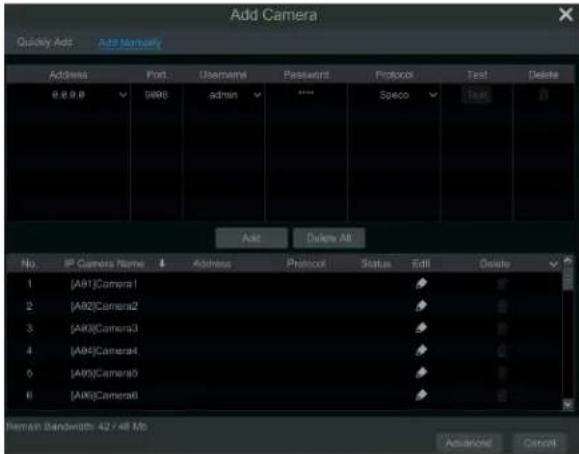
4.2.2 Edit Camera
Click "Edit Camera" in the setup panel to go to the interface as shown below. Click ▶ to view the live image of the camera in the popup window. Click 🔑 to edit the camera (see Add camera in EZ Setup for details). Click 🔑 to delete the camera. Click √ in the "Operation" header line and then click "Modify IPC Password" to pop up a window (check the IPCs in the window, set the new password and then click "OK" button; only the online IPCs' passwords can be modified, and a batch of IPCs' passwords can be modified at the same time). Click ↑ to upgrade an online IPC (or click √ in the "Upgrade" header line and then click "IPC Batch Upgrade" to upgrade a batch of IPCs), select the device which stores the upgrade file in the "Device Name" item of the popup window and the upgrade file in the list(you should select the upgrade IPC model in the window if a batch of IPCs' passwords need to be modified) and then click "Upgrade" button to start upgrading(the IPC will restart automatically after the upgrade is completed successfully).
![C:\Current\Digital\Lab\Index Search Controls Add Camera No Camera Name Address Port Status Proposed Make Preview Edit Upgrade Version 1 [A9]Camera1 2 [A8]Camera2 3 [A9]Camera3 4 [A9]Camera4 5 [A8]Camera5 6 [A8]Camera6 7 [A9]Camera7 8 [A8]Camera8 9 [A8]Camera9 10 [A10]Camera10 11 [A11]Camera11 12 [A12]Camera12 13 [A13]Camera13 14 [A14]Camera14 15 [A15]Camera15 16 [A16]Camera16 17 IF CAMERA 18:28:18.7 SABB Online IP Camera TD-942263 IP Camera Max Number: 8 Rencer Backwind: 29 / 32 Mb](/content/2026/05/1063695/images/35edee63761a4b32daf0a4c17b27e56097be6cafd55383223e5ef7d84eced25c.jpg)
Click ▶ to view the live image of the camera in the popup window. Click ▶ to edit the camera (see Add camera in Startup Wizard for details). Click ▶ to delete the IP camera. Click ▼ in the "Operation" header line and then click "Modify IPC Password" to pop up a window (check the IPCs in the window, set the new password and then click "OK" button; only the online IPCs' passwords can be modified, and a batch of IPCs'
passwords can be modified at the same time). Click ↑ to upgrade an online IPC (or click √ in the "Upgrade" header line and then click "IPC Batch Upgrade" to upgrade a batch of IPCs), select the device which stores the upgrade file in the "Device Name" item of the popup window and the upgrade file in the list(you should select the upgrade IPC model in the window if a batch of IPCs' passwords need to be modified) and then click "Upgrade" button to start upgrading(the IPC will restart automatically after the upgrade is completed successfully).
5 Live View Introduction
5.1 Live View Interface Introduction
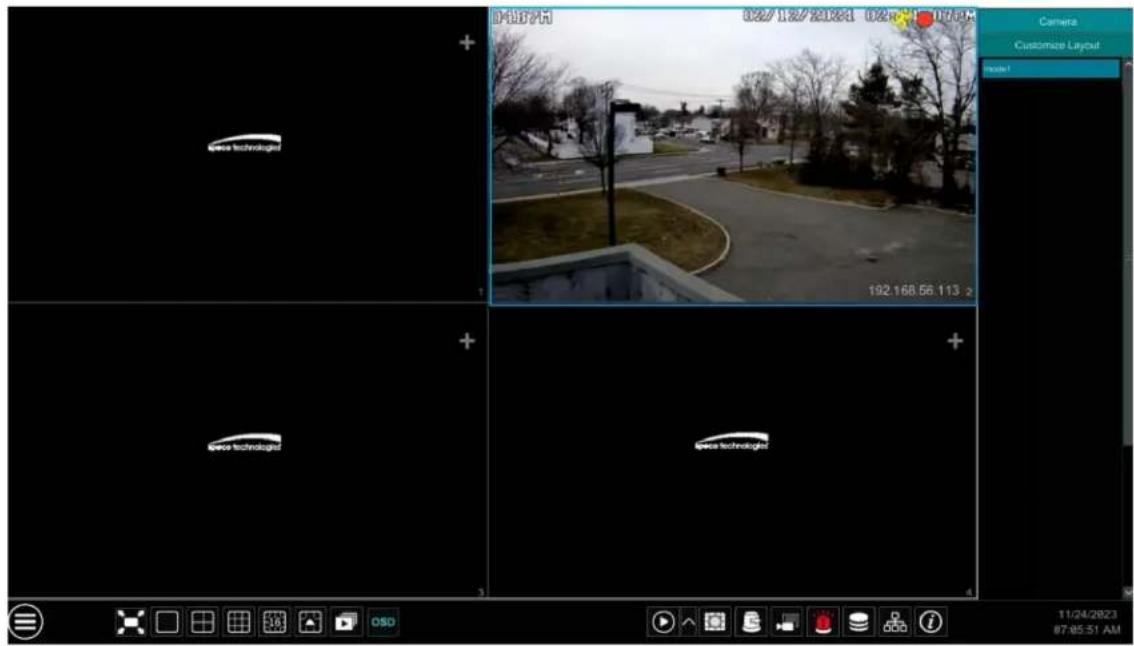
The connected analog camera will be added automatically in the live view interface for previewing. You should add camera first after logging on to the system (see Add Camera for details). Refer to the interface as shown below, drag one camera in the preview window to another window for camera window exchanging.
The record symbols with different colors in the live view window refer to different record types when recording: green stands for manual record, red stands for sensor based record, yellow stands for motion based record, blue stands for schedule record and cyan stands for intelligence record.
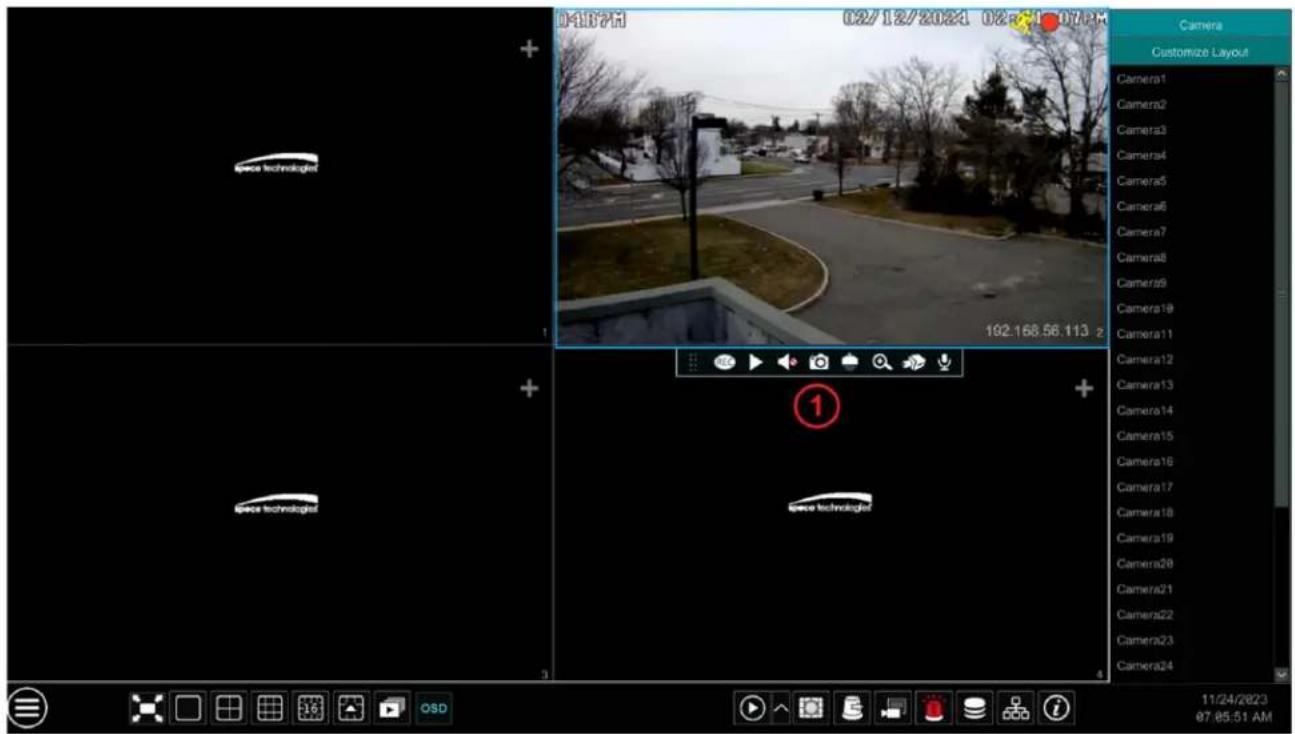
Click the preview window to show the tool bar as shown in area ①; right click the preview window to show the menu list. The tool bar and menu list are introduced in the table below.
| Button | Menu List | Meaning |
| -- | Move tool. Click to move the tool bar anywhere. | |
| Manually Record On | Click to start recording. | |
| Instant Playback | Click ▶ to playback the record; click “Instant Playback” to select or self-define the instant playback time. See Instant Playback for details. | |
| Enable Audio | Click to enable audio. You can listen to the camera audio by enabling audio. | |
| Snap | Click to pop up the snap window. Click “Save” in the window to save the image. Click “Export” to export the image. | |
| PTZ Control | Click to go to PTZ control interface. See PTZ for details. | |
| Zoom In | Click to go to single channel amplification interface. | |
| -- | Click to go to image adjustment interface. Refer to Image Adjustment for details. | |
| Start talk | ||
| -- | Camera Info | Click to view the IP camera information. |
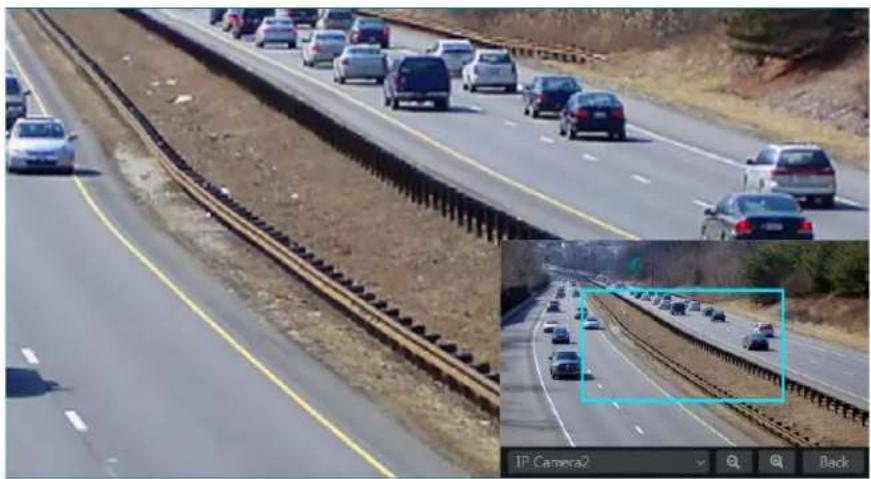
The single channel amplification interface is as shown below. Press and drag the blue box to select the zoom in area. Click / to zoom the image. Click the camera selection box to select other cameras for amplification. Click "Back" to return to the live view interface.
natural_image
Highway traffic scene with multiple cars on elevated tracks and a close-up inset showing a tunnel entrance (no visible text or symbols)5.2 View Mode
5.2.1 Display Mode
Set different screen modes and cameras' display sequences as needed and then save the display modes classified by surveillance areas, priorities and so on. Refer to the picture below. Double click one display mode in the display mode list to view the live images in this mode.
Add Display Mode
Method One:
① Click "Customize Display Modes" in the above interface
② Click ☑ to add a display mode name and then set the screen mode.
③ Add the cameras and adjust the cameras' display sequence as required.
④ Click under the display mode list.
Method Two:
① Click Start→Settings→System→Basic→Output Settings to go to the interface and then set the screen mode.
② Double click the camera or camera group in the list to add them to the selected window.
③ Click ★ to save the current display mode (refer to Scheme View in Sequence for detail configurations). The display mode will be saved and displayed in the display mode list in the live preview interface.
Edit Display Mode
Click "Customize Display Modes" tab in the live preview interface and then select one display mode in the list. Click ☐ to edit the display mode name; click 📋 to delete the display mode.
5.2.2 Quick Sequence View
You can start quick sequence view if the scheme has not been created. If the scheme has been created, please refer to Scheme View in Sequence for details.
Go to the live view interface and then click 📋 to pop up a little window. Set the dwell time in the window and then click 📋 to view the live group by group according to the camera number of the current screen mode. Double click the sequence view interface to pause the view; double click again to restore the view. Click 📋 to stop the view.
5.2.3 Scheme View In Sequence
Click Start→Settings→System→Basic→Output Settings to go to the interface as shown below.
Area ① displays all the dwell schemes; area ② shows the detailed information of the scheme; area ③ displays all the cameras and groups; area ④ is the tool bar (☐: clear button; ★: favorite button, Click to pop up a window, enter the display mode name in the window and then click "OK" to save the current display mode; other buttons are screen mode buttons).
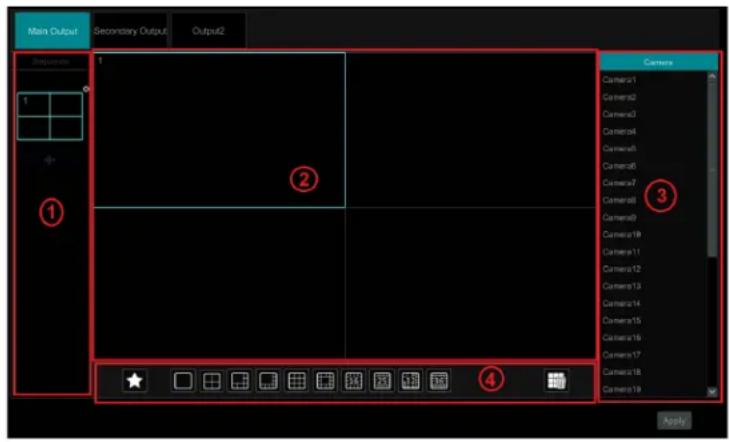
Add Scheme
Click + in area ① to create a new scheme. Click ✗ on the top right corner of the scheme to delete it.
Configure Scheme
a) Select a scheme in area ① and then click the screen mode button on the tool bar to set the screen mode of the scheme.
b) Select a camera window in area ② and then double click the camera or group in area ③. The camera or group will be added into the selected window. One camera in the same scheme cannot repeat. You can click the right-click menu "Clear" in area ② to remove a single camera or click to remove all the cameras.
c) Click "Apply" to save the settings.
Start Sequence View
Go to the live view interface and then click 📋 to open a window. Set the dwell time in the window and then click 📋 to start scheme view in sequence. Double click the sequence view interface to pause the view; double click again to restore the view. Click 📋 to stop the view.
The setting steps of secondary output are the same as the main output settings.
5.2.4 Spot View
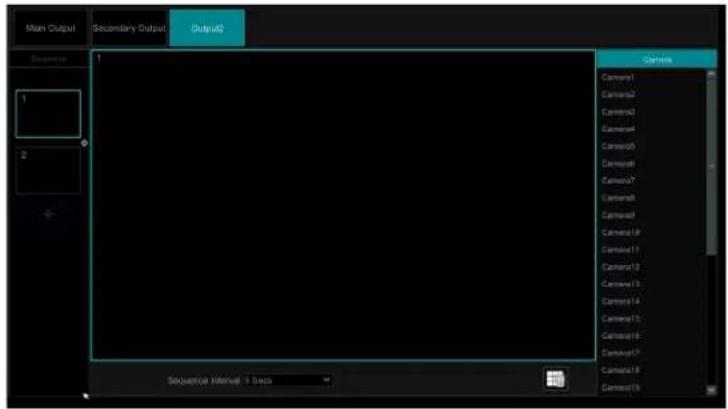
Click Start→Settings→System→Basic→Output Settings→Output 2 to go to the interface as shown below.
Click 🧑 on the left to create a new scheme. Each scheme can only add one analog or IP camera. Select a scheme on the left and then double click or drag a camera on the right to the scheme window in the middle of the interface. After finishing the settings of all the schemes, select the
dwell time and click "Apply" to start playing the schemes in sequence in output 2.
5.3 Image Configuration
5.3.1 OSD Settings
Click Start→Settings→Camera→Image→OSD Settings to go to the interface as shown below. Select the camera, enter the camera name (or double click the camera name in the camera list to change the camera name), enable or disable the name and time OSDs (if enabled, drag the red name and time OSDs directly in the image view area to change the OSDs' display position) and select the date and time formats. Click "Apply" to save the settings.
5.3.2 Image Settings
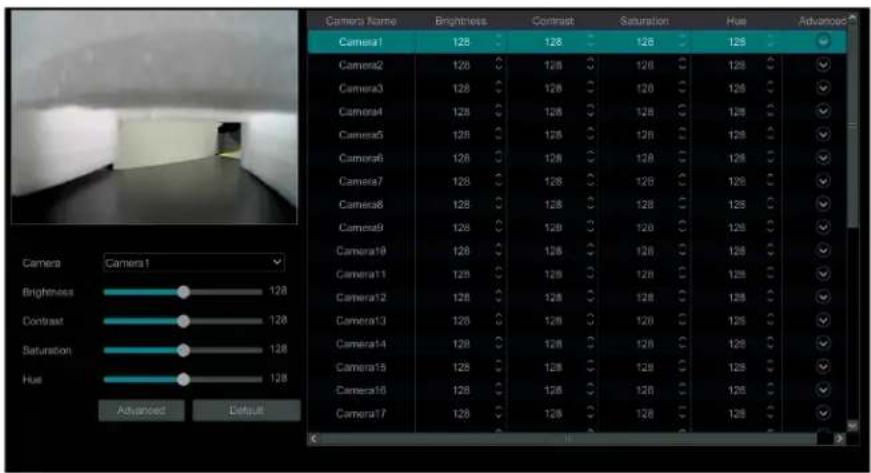
Click Start→Settings→Camera→Image→Image Settings to go to the following interface. Select the camera and then set the brightness, contrast, saturation, and hue of the camera. Click "Advanced" button or in the camera list on the right side of the interface to pop up "Image Adjust" interface and then set the relevant setting items. Please refer to Image Adjustment for detailed introductions of these items.
You can click "Default" to restore the image settings to the default factory settings.
5.3.3 Mask Settings
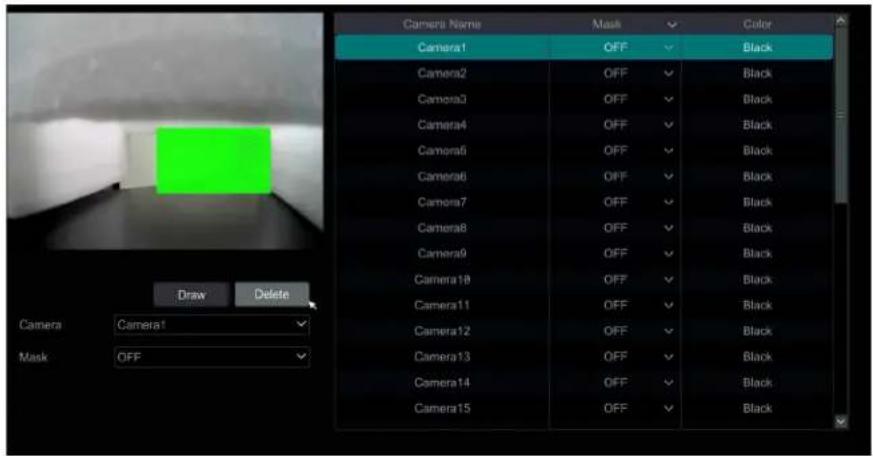
Some areas of the image can be masked for privacy. Up to four mask areas can be set for each camera. Click Start→Settings→Camera→Image→Mask Settings to go to the interface as shown below. Select the camera and enable the mask. Click "Draw" button and then drag the mouse on the image area to set the mask area; click "Delete" button to delete the mask areas; click "Apply" to save the settings.
5.3.4 Water Mark Settings
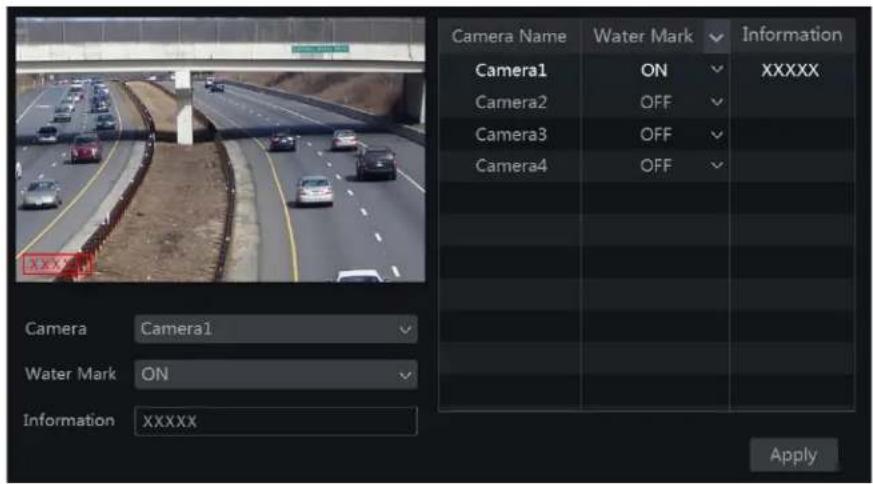
Click Start→Settings→Camera→Image→Water Mark Settings to go to the interface as shown below. Select the camera and enable water mark and then enter the water mark information. Click "Apply" to save the settings.
5.3.5 Image Adjustment
Go to the live view interface and then click button on the tool bar under the camera window to go to the image adjustment interface.
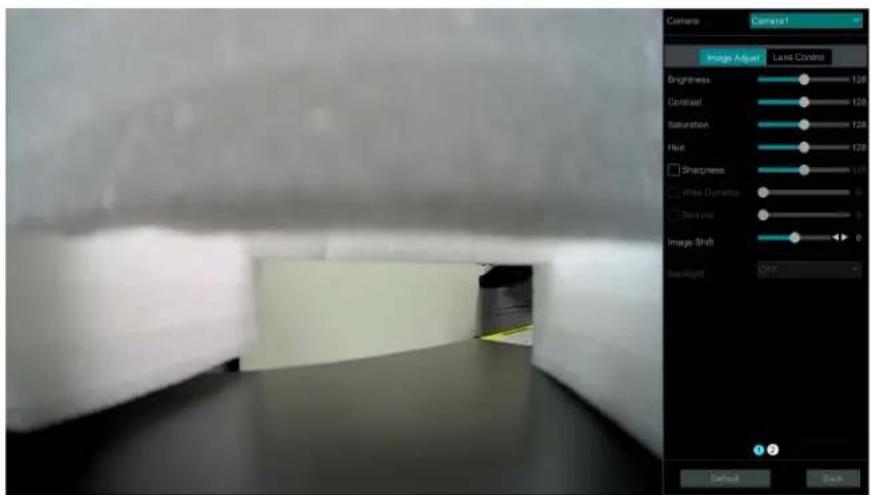
Image Adjustment
Select the camera and then click "Image Adjustment" to go to the image adjustment tab. Refer to the above picture. Drag the slider to set the camera's brightness, contrast, saturation, and hue value. Check sharpens, wide dynamic and denoise and then drag the slider to set the value. Click "Default" button to set these parameters to default values.
The introductions of these parameters are as follows:
| Parameter | Meaning |
| Brightness | It is the brightness level of the camera's image. |
| Contrast | It is the color difference between the brightest and darkest parts. |
| Saturation | It is the degree of color purity. The color is purer, the image is brighter. |
| Hue | It relates to the total color degree of the image. |
| Sharpen | It relates to the resolution level of the image plane and the sharpness level of the image edge. |
| Wide Dynamic | The wide dynamic range (WDR) function helps the camera provide clear images even under backlight circumstances. When there are both very bright and very dark areas simultaneously in the field of view, WDR balances the brightness level of the whole image and provide clear images with details. |
| Denoise | Decrease the noise and make the image more thorough. Increasing the value will make the noise reduction effect better but it will reduce the image resolution. |
| White Balance | Adjust the color temperature according to the environment automatically. |
| BLC | HLC: lowers the brightness of the entire image by suppressing the brightness of the image's bright area and reducing the size of the halo area.BLC: If enabled, the auto exposure will activate according to the scene so that the object of the image in the darkest area will be seen clearly. |
| Corridor Pattern | 0^ , 90^ , 180^ or 270^ can be selected. (Only some cameras support this pattern) |
| Image Mirror | Turn the current video image horizontally. |
| Image Flip | Turn the current video image vertically. |
Note: The above-mentioned descriptions of the image parameters are for reference only. The cameras made by different manufacturers may have different parameter settings.
Lens Control
Select the camera and then click "Lens Control" to go to lens control tab. Click - or to adjust the zoom and focus parameters of the camera's lens. Click "Save" to save the settings.
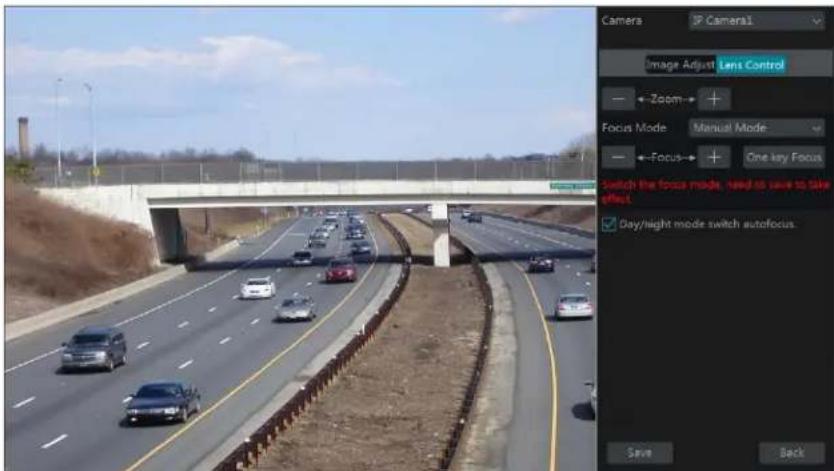
The introductions of these parameters and buttons are as follows.
| Button/Parameter Meaning | |
| Click / to zoom in/out the image. | |
| Focus Mode | If manual mode is selected, focus button & “One Key Focus” & “Day/night mode switch autofocus” will be available; if auto mode is selected, the time interval setup will be available. |
| Click / to increase/decrease the focal length. | |
| One key Focus | Click to focus instantly. |
| Day/night mode switch autofocus | If checked, the lens will focus automatically when the camera is switching day/night mode. |
| Time Interval | It is the time interval when camera lens is auto-focusing. The interval can be set in the drop-down list. |
Note: This function is only available for motorized zoom camera, or the settings here are ineffective.
6 PTZ
6.1 PTZ Control Interface Introduction
You can control the IP dome or PTZ which connects to the IP camera for PTZ control.
Click on the tool bar at the bottom of the live preview window to go to the PTZ control interface as shown below.
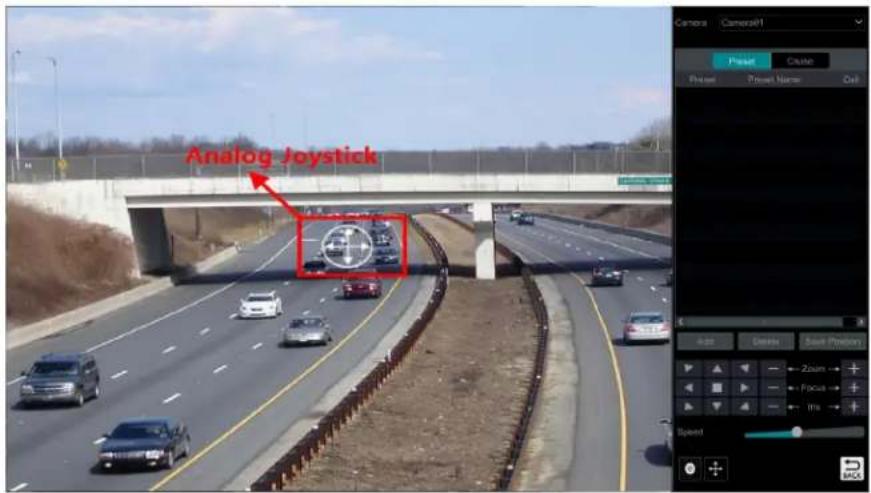
Introductions of the buttons on the bottom right of the interface:
| Button Meaning | |
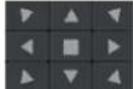 | Click ▲ / ▼ / ▼ / ▼ / ▼ / ▼ / ▼ / ▼ to rotate the dome. Click □ to stop rotating the dome. |
 | Click + / - to zoom in / out the camera image. |
 | Click + / - to increase / decrease the focal length. |
 | Click + / to increase / decrease the iris of the dome. |
 | Drag the slider to adjust the rotating speed of the dome. |
 | Click ○ / ● to start / stop recording. |
 | Click + / + to hide / show the analog joystick. |
| ### | Click to return to the live view interface. |
▶ Analog Joystick Control
The analog joystick on the left side of the interface provides quick PTZ control. The dome or PTZ will rotate when you drag the analog joystick. The farther you drag the analog joystick from the middle of the image, the faster the dome or PTZ rotates. The dome or PTZ will stop rotating when you stop dragging the analog joystick.
3D Control
Click the camera image on any area and then the image will be centered on the clicked point.
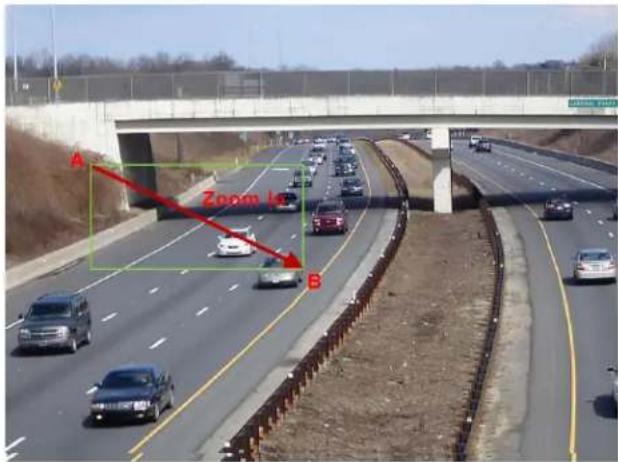
Refer to the picture as shown below. Drag the mouse from A to B to get a green rectangle and the rectangle area will be zoomed in.
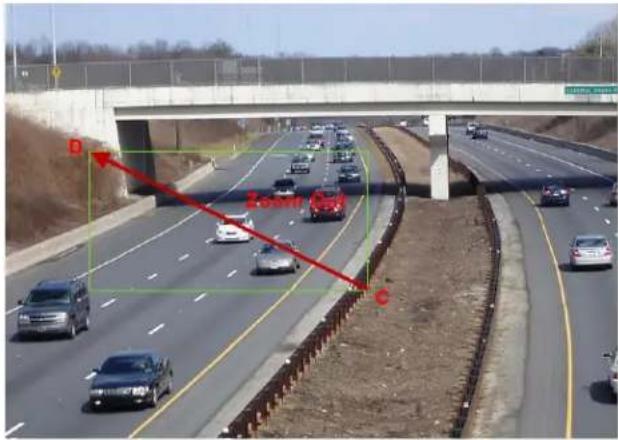
Refer to the picture as shown below. Drag the mouse from C to D to get a green rectangle and the rectangle area will be zoomed out.
Advanced 3D Control
Double click the left button of the mouse on any area of the camera image and then the image size will be doubled and centered on the clicked point.
Press and hold the left button of the mouse on any area of the camera image to zoom in the image; press and hold the right button to zoom out the image.
Move the cursor of the mouse to the camera image and then slide the scroll wheel of the mouse forward to zoom in the image, slide the scroll wheel of the mouse backward to zoom out the image.
OSD Setting
For the connected analog cameras, you can go to PTZ protocol setting interface and then set the protocol to COC before you call the OSD. Click "OSD Menu" to go to camera OSD setting interface. Click → to start OSD setting. The meanings of the buttons are shown in the table below.
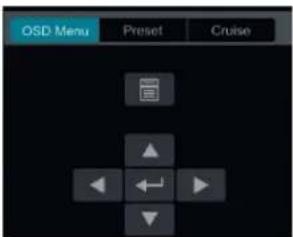
| Button Meaning | |
| Click to call main menu or enter the sub menu or confirm the settings. | |
| Click to call main menu or enter the sub menu or confirm the settings. | |
| Click to change the menu mode or decrease the menu value. | |
| Click to change the menu mode or increase the menu value. | |
| Click to go to the previous menu. | |
| Click to go to the next menu. | |
Preset Setting
Click "Preset" to go to preset operation tab and then click "Add" button to display a window as shown below. Select the preset and then enter the preset name in the window; finally click "OK" button to save the settings. You can add 255 presets for each dome at most.
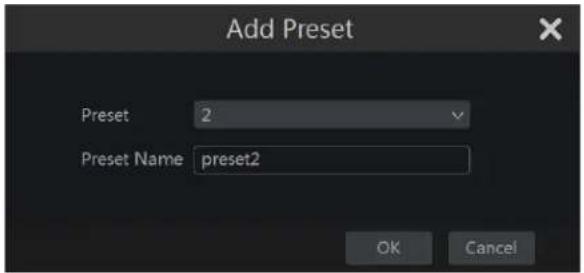
Adjust the dome's direction and then click "Save Position" to save the current preset position (you can also click another preset in the preset list and then save the preset position after adjusting the dome's direction); click ↗. in the preset list to call the preset; click "Delete" button to delete the selected preset.
You can also go to preset setting interface for preset setting, see Preset Setting for details.
Cruise Setting
Click "Cruise" to go to cruise operation tab and then click "Add" button to display a window as shown below left. You can add 8 cruises for each dome at most.
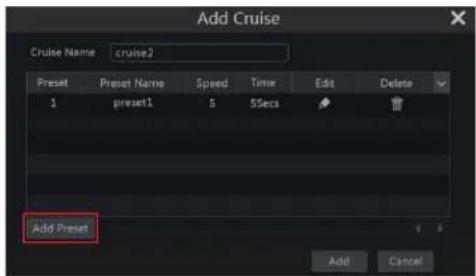
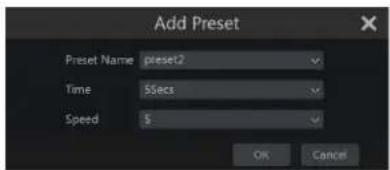
① Enter the cruise name in the "Add Cruise" window and then click "Add preset" to display the "Add Preset" window (Before adding preset to the cruise, please add preset of the dome first).
② In the "Add Preset" window, select the preset name, preset time and preset speed and then click "OK" button.
③ In the "Add Cruise" window, you can click to reselect the preset, then change the preset time and speed. Click to delete the preset. Click "Add" button to save the cruise.
Click ▶ to start the cruise and click □ to stop the cruise in the cruise list of the cruise operation tab; click "Delete" button to delete the selected cruise.
You can also go to cruise setting interface for cruise setting, see Cruise Setting for details.
6.2 Preset Setting
Click Start→Settings→Camera→PTZ→Preset to go to the interface as shown below.
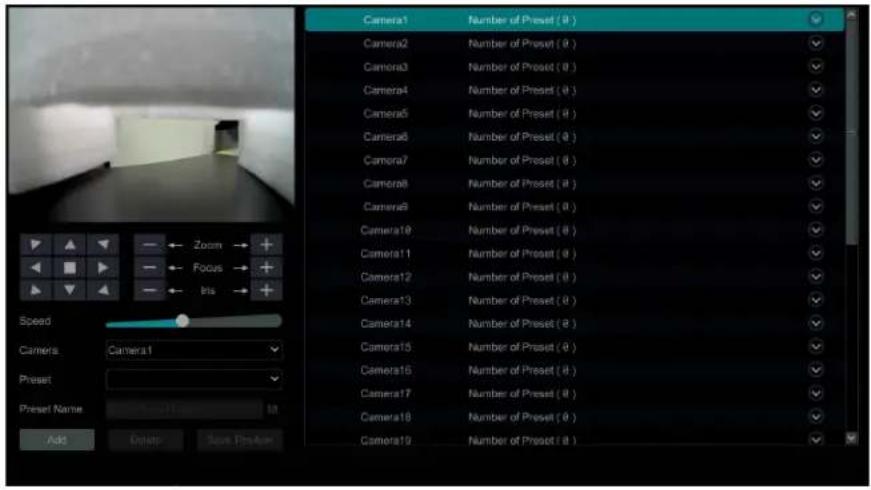
Add preset
Select camera and then click "Add" button to add preset; or click in the camera list on the right side of the interface to display the preset information of the dome and then click + to add preset. The operations of the "Add Preset" window are like that of the PTZ control interface; please see PTZ Control Interface Introduction for details.
Edit preset
Select camera and preset. You can enter the new name of the preset and then click to save the new preset name. Adjust the rotating speed, position, zoom, focus and iris of the preset and then click "Save Position" to save the preset.
Delete Preset
Select camera and preset and then click "Delete" to delete the preset.
6.3 Cruise Setting
Click Start→Settings→Camera→PTZ→Cruise to go to the interface as shown below.
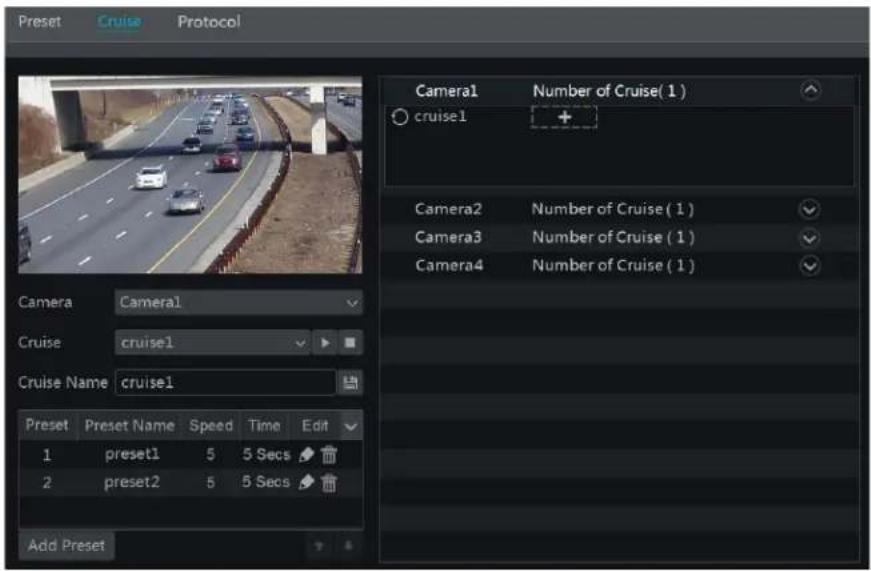
> Add Cruise
Click √ in the camera list on the right side of the interface to display the cruise information of the dome and then click + to add cruise. The operations of the "Add Cruise" window are like that of the PTZ control interface; please see PTZ Control Interface Introduction for details.
Edit Cruise
Select the camera and cruise in the "Cruise" interface. Enter the new cruise name and then click to save the cruise name. Click "Add Preset"
to add preset to the cruise. Click 🔔 to edit the preset. Click 🔔 to delete the preset from the cruise. Click one preset in the preset list and then click 🔕 to move down the preset and click 🔖 to move up the preset. Click 🔖 to start the cruise and click 🔛 to stop it.
Delete Cruise
Click in the camera list on the right side of the interface to display the cruise information of the dome and then click ✗ on the top right corner of the cruise to delete the cruise.
6.4 PTZ Protocol Settings
Click Start→Settings→Camera→PTZ→Protocol to go to the interface as shown below. You can enable or disable the PTZ and set the protocol, baud rate and address of the analog dome in the interface. Please make sure the analog speed dome camera is well connected to the DVR before you control it.
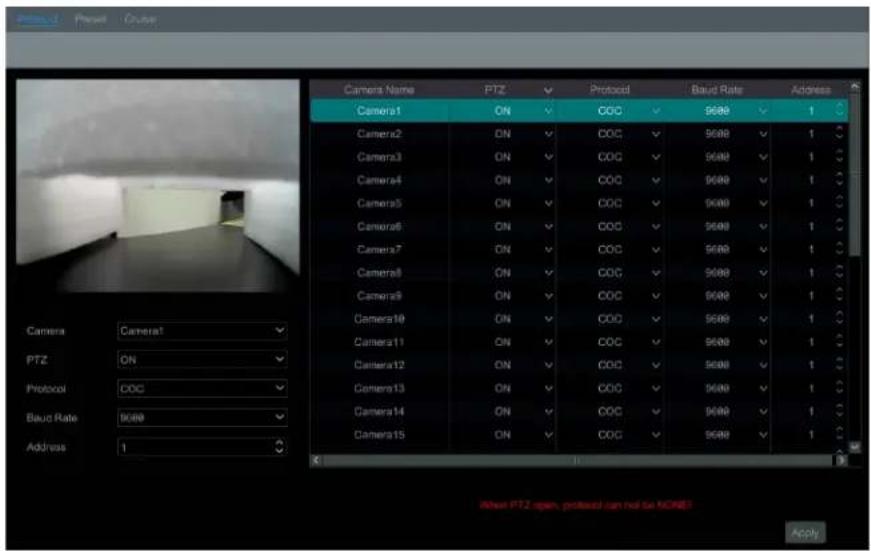
Select the camera and enable PTZ and then set the protocol, baud rate and address of the dome according to the settings of the dome.
Protocol: The default communication protocol of the DVR is COC. Range from: PELCOP, PELCOD, LILIN, MINKING, NEON, STAR, VIDO, DSCP, VISCA, COC, etc.
Address: The address of the PTZ device.
Baud Rate: Baud rate of the PTZ device. Range from: 110, 300, 600, 1200, 2400, 4800, 9600, 19200, 34800, 57600, 115200, 230400, 460800, 921600.
7 Record & Disk Management
7.1 Record Configuration
7.1.1 Mode Configuration
Please format the HDDs before recording (refer to Disk Management for details). Click Start→Settings→Record→Mode Settings to go to the mode settings interface. You can set the record time under the "Manual Record Settings" and then click "Apply" to save the settings. There are two record modes: auto mode and scheduled mode.
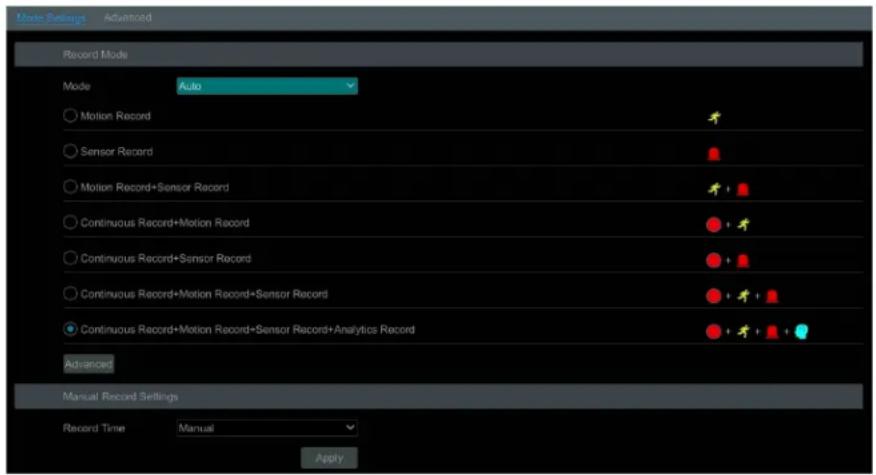
Auto Mode
Motion Record: Motion alarm record will be enabled when motion alarm happens.
Sensor Record: Sensor alarm record will be enabled when sensor alarm happens.
Motion Record+Sensor Record: Motion/sensor alarm record will be enabled when motion/sensor alarm happens.
Continuous Record+Motion Record: Normal record is enabled all the time; motion alarm record will be started when motion alarm happens.
Continuous Record+Sensor Record: Normal record is enabled all the time; sensor alarm record will be started when sensor alarm happens.
Continuous Record+Motion Record+Sensor Record: Normal record is enabled all the time; motion/sensor alarm record will be enabled when motion/sensor alarm happens.
Continuous Record+Motion Record+Sensor Record+ Analytics Record: Normal record is enabled all the time; motion/sensor/analytics alarm record will be enabled when motion/sensor/intelligent analytics alarm happens.
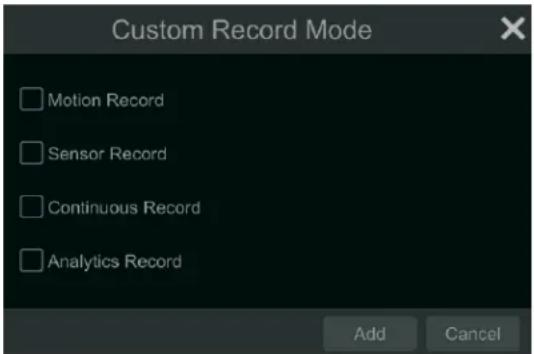
You can add more auto modes to intelligence record. Click "Advanced" button and then a window appears as shown below. Check the modes in the window and then click "Add" button to show the modes in the record mode list (in the window, the checked modes can be showed in the record mode list while the unchecked modes cannot).
Select one auto mode to display the corresponding window. Set the encode, GOP, resolution, FPS, bitrate type, quality, max bitrate, and audio of each camera and then click "OK" to save the settings. Please adjust the parameters according to the actual condition.
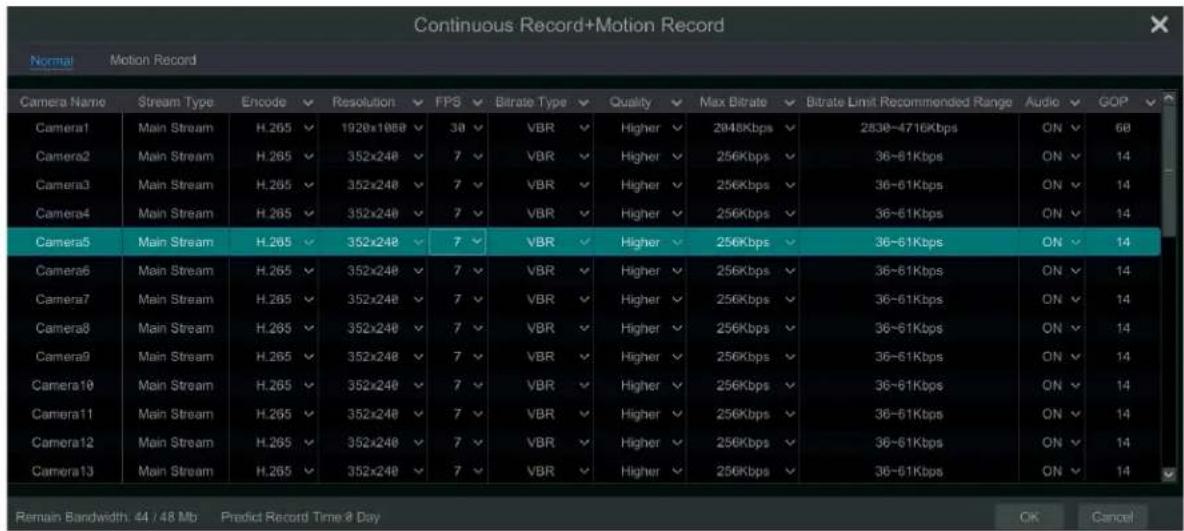
Video Encode: the available options will be H.265 and H.264 if the connected IP camera supports H.265, or the option will be H.264 only. Resolution: the higher the resolution is, the clearer the image is.
FPS: the higher the frame rate is, the more fluent the video is. However, more storage room will be taken up.
Bitrate Type: CBR and VBR are optional. CBR means that no matter how much change is seen in the video scene, the compression bitrate will be kept constant. VBR means that the compression bitrate will be adjusted according to scene changes. For example, for scenes that do not have much movement, the bitrate will be kept at a lower value. This will help to optimize the network bandwidth.
Quality: When VBR is selected, you need to choose image quality. The higher the image quality you choose, the more bitrate will be required.
Max Bitrate: 32Kbps \~10240Kbps are optional.
GOP: group of pictures.
Scheduled Mode
If the scheduled mode is selected, you need to set the record schedules of each camera. See Schedule Settings for details.
7.1.2 Schedule Settings
Add Schedule
Click Start→Settings→Record→Mode Setting to go to the mode setting interface. Then select "Customization" mode and click "Schedule Management" to set the schedule as shown below. "24 x 7", "24 x 5" and "24 x 2" are the default schedules; you cannot edit or delete "24 x 7" while "24 x 5" and "24 x 2" can be edited and deleted. Click the schedule name to display the detailed schedule information on the left side of the interface. The seven rows stand for seven days in a week and each row stands for 24 hours in a day. Blue stands for the selected time and gray stands for unselected time.
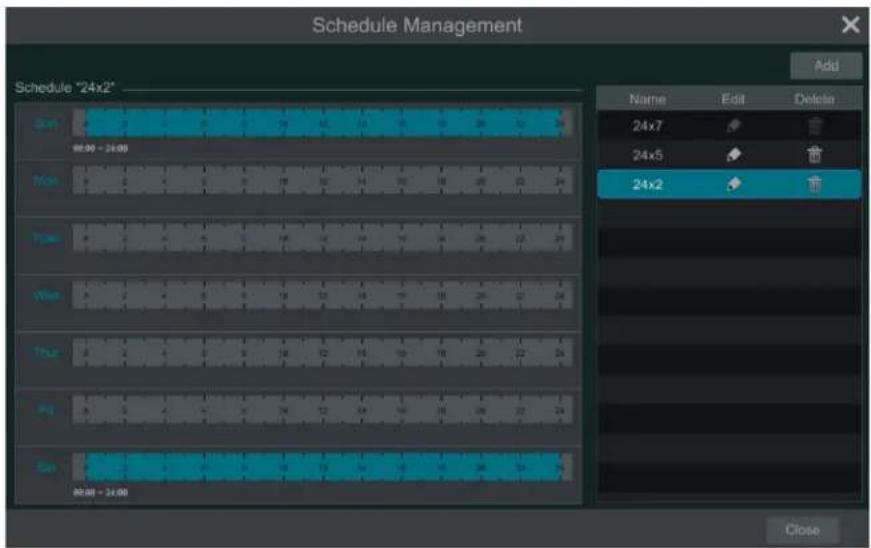
Click "Add" to add a new schedule. Refer to the picture below.
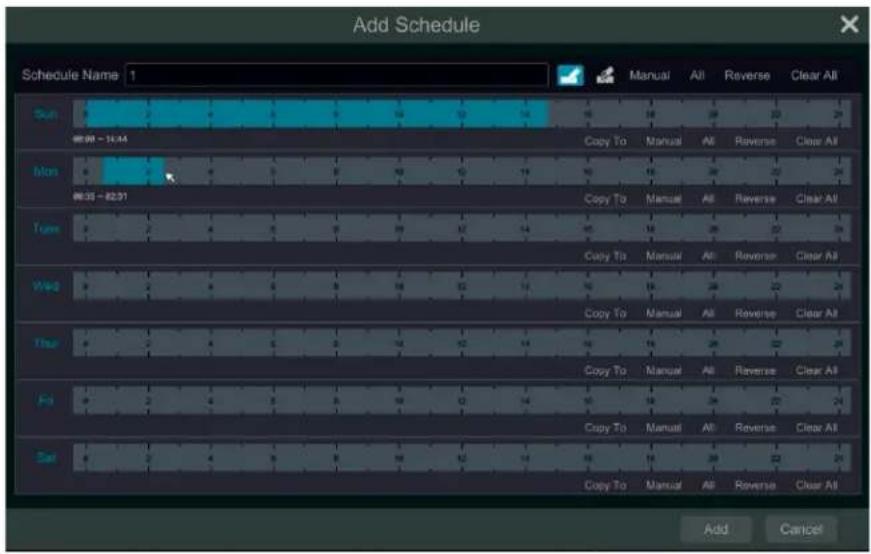
Set the schedule name and schedule time and then click "Add" to save the schedule. You can set a day schedule or week schedule. 📄: add button; 📋: delete button.
Set Day Schedule
Click 📄 and then drag the cursor on the time scale to set record time; click 📄 and then drag the cursor on the time scale to delete the selected area.
You can manually set the record start time and end time. Click 📄 or 📋 and then click "Manual" on each day to pop up a window as shown below. Set the start and end time in the window and then click "OK" to save the settings.
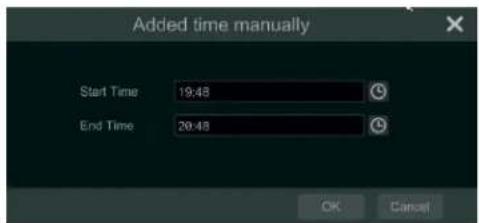
Click "All" to set all day recording; click "Reverse" to swap the selected and unselected time in a day; click "Clear All" to clear all the selected area in a day.
Click "Copy To" to copy the schedule of the day to other days. Refer to the picture below. Check the days in the window and then click "OK" to save the settings.
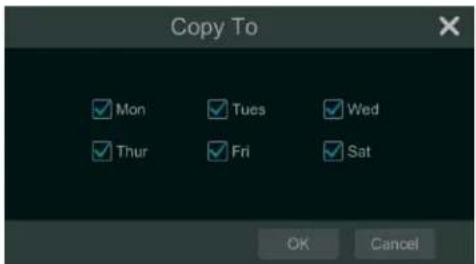
Set Week Schedule
Click 📄 or 📋 and then click "Manual" beside 📋 to set the week schedule. Refer to the picture below. Set the start and end time, check the days in the window and then click "OK" to save the settings.
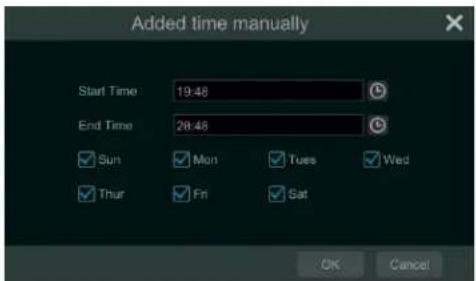
Click "All" to set all week recording; click "Reverse" to swap the selected and unselected time in a week; click "Clear All" to clear all the selected area in a week.
7.1.3 Advanced Configuration
Click Start→Settings→Record→Advanced to go to the following interface. Enable or disable cycle record (cycle record: the earliest record data will be replaced by the latest when the disks are full). Choose the record stream. Set the pre-alarm record time, post-alarm record time and expiration time of each camera and then click "Apply" to save the settings.
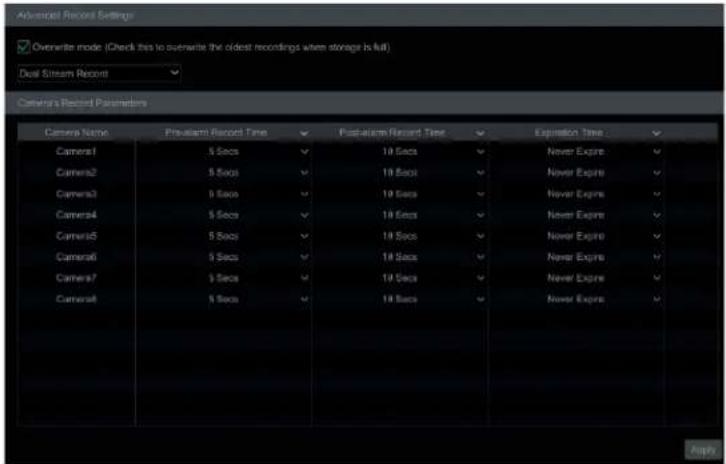
Pre-alarm Record Time: set the time to record before the actual recording begins.
Post-alarm Record Time: set the time to record after the actual recording is finished.
Expiration Time: set the expiration time for recorded video. If the set date is overdue, the recorded data will be deleted automatically.
7.2 Encode Parameters Setting
Click Start→Settings→Record→Encode Parameters to go to the interface as shown below. Set the encode, resolution, FPS, GOP, bitrate type, quality, max bitrate, and audio of mainstream for each camera in "Event Recording Settings" and "Schedule Recording Settings" interfaces. Click "Apply" to save the settings. You can set the record stream of each camera one by one, or batch set them for all cameras.
| Camera Name | Stream Type | Enode | Production | FPS | Strain Type | Quality | Map Style | Strike Level Recommended Range | Audio |
| Camera1 | Main Stream | H.265 | 19/26/1998 | 28 | VBR | Higher | 284Kbps | 3145-857Kbps | ON |
| Camera2 | Main Stream | H.265 | 704x89 | 7 | VBR | Higher | 512Kbps | 266-444Kbps | ON |
| Camera3 | Main Stream | H.265 | 704x89 | 7 | VBR | Higher | 512Kbps | 266-444Kbps | ON |
| Camera4 | Main Stream | H.265 | 704x89 | 7 | VBR | Higher | 512Kbps | 266-444Kbps | ON |
| Camera5 | Main Stream | H.265 | 704x89 | 7 | VBR | Higher | 512Kbps | 266-444Kbps | ON |
| Camera6 | Main Stream | H.265 | 704x89 | 7 | VBR | Higher | 512Kbps | 266-444Kbps | ON |
| Camera7 | Main Stream | H.265 | 704x89 | 7 | VBR | Higher | 512Kbps | 266-444Kbps | ON |
| Camera8 | Main Stream | H.265 | 704x89 | 7 | VBR | Higher | 512Kbps | 266-444Kbps | ON |
| Camera9 | Main Stream | H.265 | 704x89 | 7 | VBR | Higher | 512Kbps | 266-444Kbps | ON |
| Camera10 | Main Stream | H.265 | 704x89 | 7 | VBR | Higher | 512Kbps | 266-444Kbps | ON |
| Camera11 | Main Stream | H.265 | 704x89 | 7 | VBR | Higher | 512Kbps | 266-444Kbps | ON |
| Camera12 | Main Stream | H.265 | 704x89 | 7 | VBR | Higher | 512Kbps | 266-444Kbps | ON |
| Camera13 | Main Stream | H.265 | 704x89 | 7 | VBR | Higher | 512Kbps | 266-444Kbps | ON |
| Camera14 | Main Stream | H.265 | 704x89 | 7 | VBR | Higher | 512Kbps | 266-444Kbps | ON |
| Camera15 | Main Stream | H.265 | 19/26/1998 | 30 | VBR | Higher | 284Kbps | 3145-857Kbps | ON |
| Camera16 | Main Stream | H.265 | 704x89 |
7.3 Record Mode
7.3.1 Manual Recording
Method One: Click 📋 on the tool bar at the bottom of the live view interface to enable recording of the camera.
Method Two: Go to the live view interface and then click the right-click menu "Manually Record On" in the camera window or click on the tool bar under the camera window to start recording.
Note: Click Start→Settings→Record→Mode Settings and then set the manual record time in the Interface. Click "Apply" to save the settings.
7.3.2 Timing Recording
Timing Recording: the system will record automatically according to the schedule.
Set the timing record schedule of each camera. See Schedule Settings for details.
7.3.3 Motion Based Recording
Motion Based Recording: the system will start motion based recording when the motion object appears in the setup schedule. The setup steps are as follows:
① Set the motion based recording schedule of each camera. See Schedule Settings for details.
② Enable the motion and set the motion area of each camera. See Motion Alarm for details.
The camera will start motion based recording once you finish the above settings.
7.3.4 Sensor Based Recording
① Set the sensor based recording schedule of each camera. See Schedule Settings for details.
② Set the NO/NC type of the sensor, enable the sensor alarm and then check and configure the "Record". See Sensor Alarm for details.
7.3.5 Event Recording
① Set the analytics recording schedule of each IP camera. See Schedule Settings for details.
② Enable the intelligence alarm detection (abandoned/missing detection, tampering, tripwire or intrusion) and draw alert surface or warning area of each IP camera. See Alarm Management for details.
The camera will start analytics recording once you finish the above settings. This function is only available for some IPCs.
7.4 Disk
7.4.1 Disk Management
Disk Management
Click Start→Settings→Disk→Disk Management to go to disk management interface. You can view the DVR's disk number and disk status and so on in the interface. Click "Format" button to format the HDD.
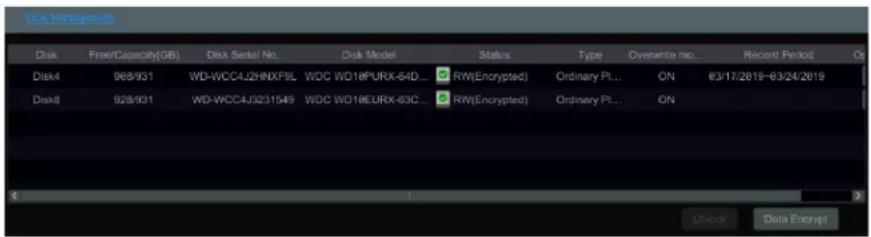
Data Encryption:
① Click "Data Encrypt".
② Enter the username and password used to log in the DVR. This username and password shall have the permission of disk management.
③ Check the disk you want to encrypt and then enter the password.
After you encrypt the data of a disk, this disk cannot be read by other DVRs unless it is unlocked.
Data Decryption:
① Click "Change Encrypt".
② Enter the username and password used to log in the DVR. This user shall have permission to access disk management.
③ Check the disk you want to decrypt and then empty the password.
④ Click "Close Encrypt".
Unlock the disk: when one encrypted disk is transferred from another DVR to this DVR, it will be in locked status. Then you can select this locked disk and click "Unlock". After you enter the password of its data encryption, its status will be "Read Only". Now you can read the data of this disk, but it cannot be written anything.
RAID
① Enable RAID
(Go to Start→Settings→Disk→Disk Mode)
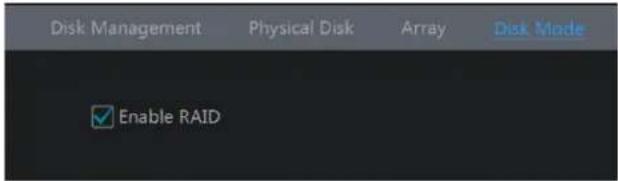
② Create an array. (Go to Start→Settings→Disk→Physical Disk)
a. Click "Physical Disk" tab and then click "Create an array".
b. Enter the user name and password which has the authority of Disk Management. If you don't have one, you can use the username and password that you login system (the default username: admin).
c. Enter array name and select array type (like RAID5).
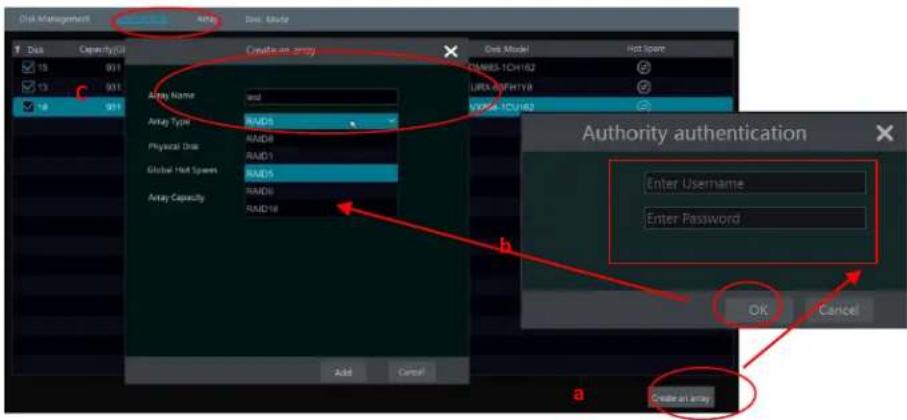
d. Select physical disk.
If you have 16 disks, please check 15 disks. The remaining one should be set to a hot spare.
If higher data security is needed, you can decrease physical disks and increase hot spare disks. Please set them as needed.
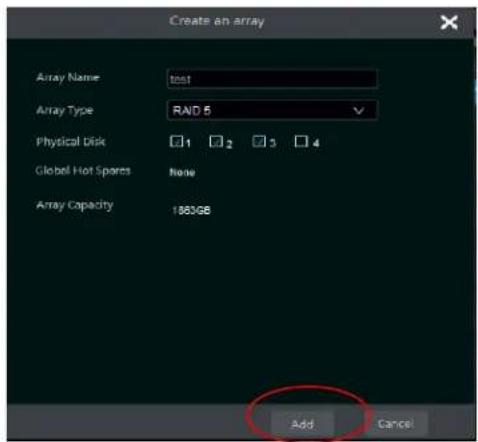
e. Select a hot spare. In the physical disk interface, select the disk that is not in the array and click

as shown in the following pictures.
| Disk | Capacity[GB] | Array | Type | Status | Disk Model | Hot Spare |
| 1 | 931 | test | Array disk | Normal | xxxxx | |
| 2 | 931 | test | Array disk | Normal | xxxxx | |
| 3 | 931 | test | Array disk | Normal | xxxxx | |
| 4 | 931 | Ordinary plate | Normal | xxxxx |
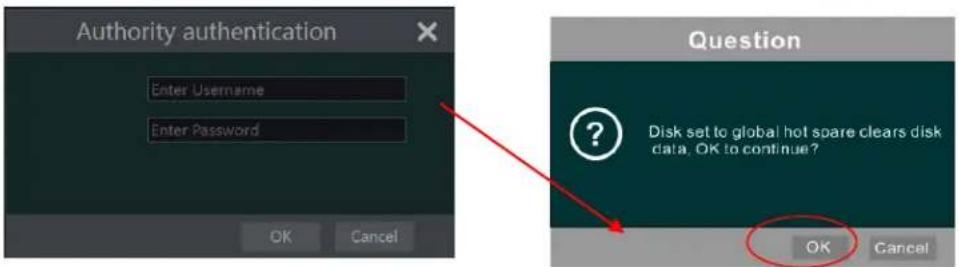
- RAID Rebuilding
If one of your disks is broken, the disk indicator on the front panel will turn red. Of course, a warning tip will pop up if the relevant HDD exception alarm is set. You need to rebuild the RAID after you replace the broken disk with a new one.
![Disk Management Physical Disk Array Disk Mode No. Name Capacity[GB] Physical Disk Hot Spare Position Status Type Rebuild 1 test 1862 23 4 Downgrade RAIDS](/content/2026/05/1063695/images/3106f0bd423fe108c33848412cb2a6f65d69d86c8efe85760cfe3dee993700d1.jpg)
Click the above circled icon and then select the physical disk to rebuild.
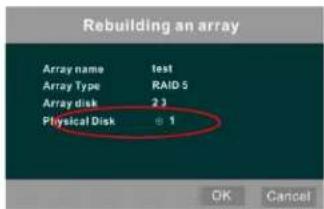
7.4.2 Storage Mode Configuration
Click Start→Settings→Disk→Storage Mode to go to the interface as shown below.
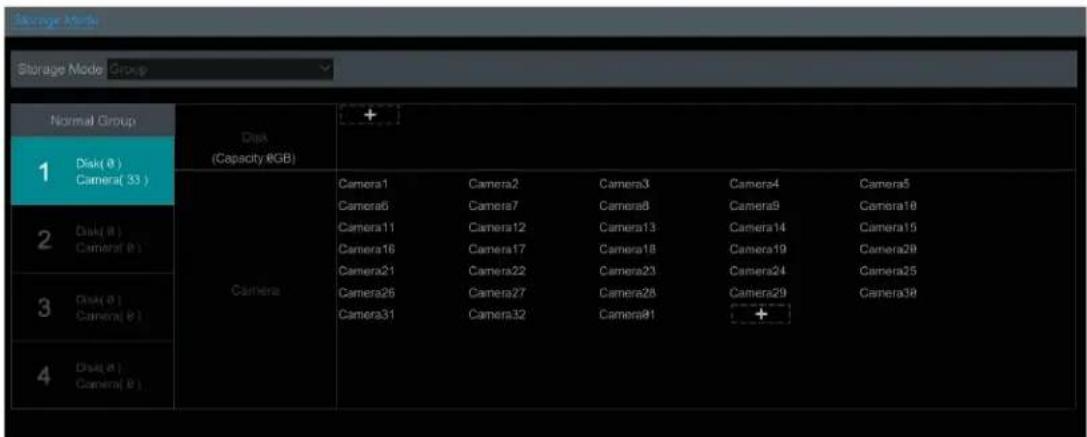
By using disk group, you can correspond the camera to disk (the record data of the camera in the group will be stored into the disks in the same group). The DVR with e-SATA interface supports e-SATA recording.
The added disks and cameras will be added into group one automatically. The disks and cameras in the groups can be deleted except group one (select a disk group and then click ✗ on the top right corner of the added disk or camera to delete it from the group). The deleted disks and cameras will be moved into group one automatically.
Each group can add disks and cameras from other groups. Each disk and camera can only be added into one group. Select a disk group and then click + in the disk or camera row to pop up a window. Check the disks or cameras in the window and then click "Add".
Note: Each HDD can only exist in one group.
7.4.3 View Disk and S.M.A.R.T. Information
Click Start→Settings→Disk→View Disk Information to view the HDD information; click "S.M.A.R.T. Information" to view the working status of the HDD. Refer to the picture below.
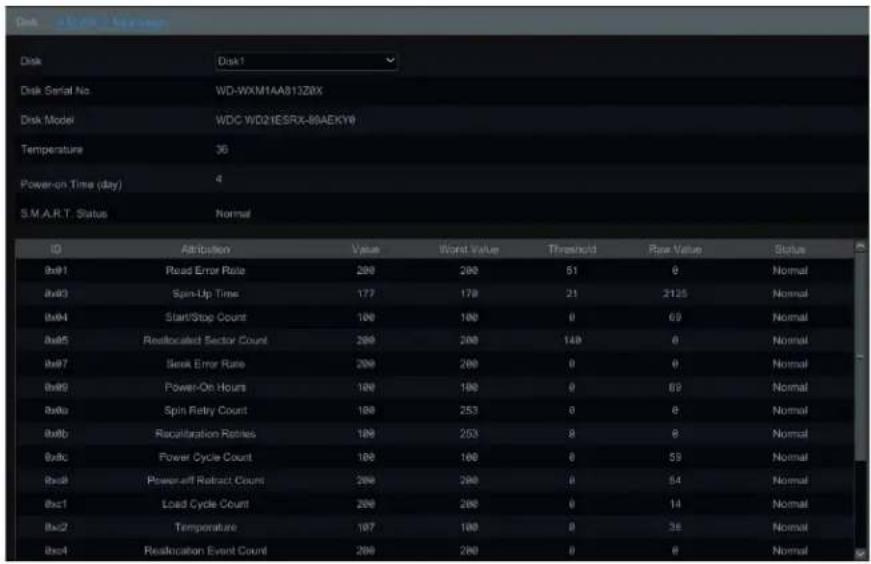
8 Playback & Backup
8.1 Instant Playback
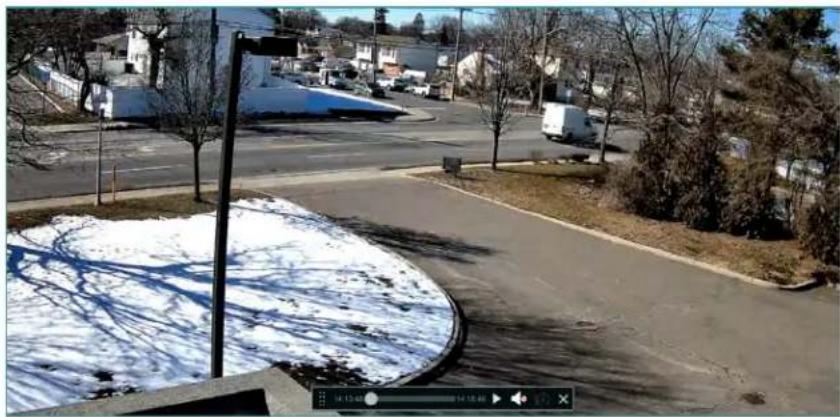
Click ▶ on the tool bar at the bottom of the preview camera window to play back the record (click ↑ on the tool bar at the bottom of the live view interface to set the default playback time). Refer to the picture below. Drag the playback progress bar to change the playback time. You can also click the right-click menu "Instant Playback" in the camera window and then set the instant playback time to play back the record.
natural_image
Street scene with snow-covered ground, parked houses, and bare trees (no visible text or symbols)8.2 Playback Interface Introduction
Click 📷 on the tool bar at the bottom of the live view interface or click Start→Playback to go to the playback interface as shown below (click 🔊 on the tool bar at the bottom of the live view interface to set the default playback time).
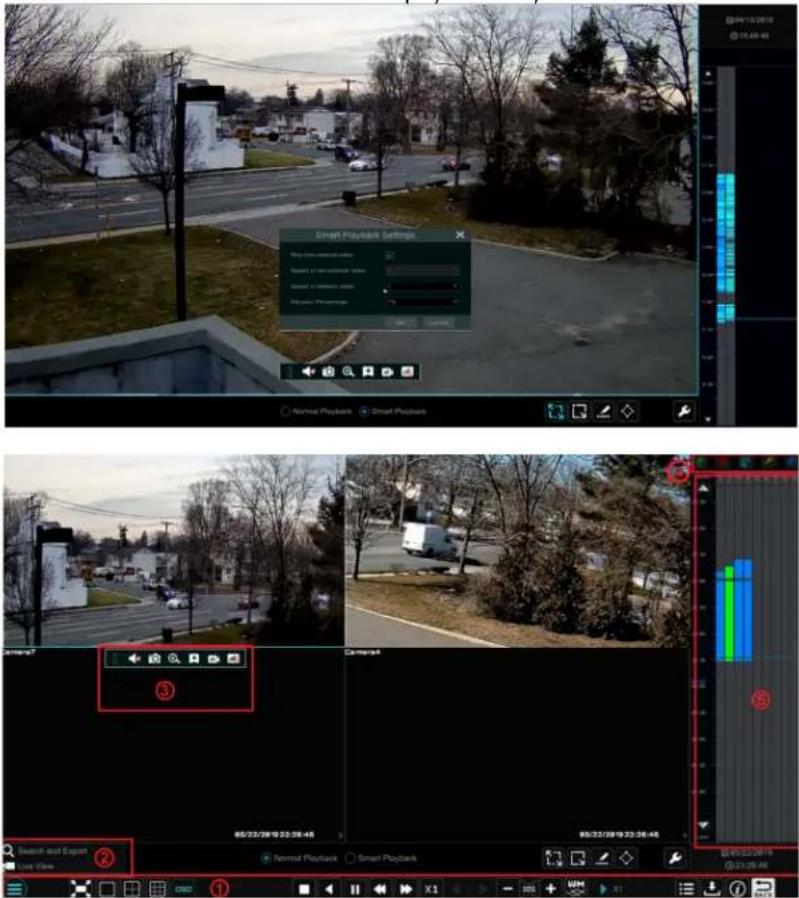
The panel on the right will show you the channel number and their recorded data coded by color. The bar that runs across them represents the playback time being viewed. You can move this bar around. To export, highlight a section of the desired recording, click export and follow the prompts. You can export single or multiple channels at the same time.
The added cameras will playback their records in the playback interface automatically. You can also add the playback camera manually. Click in the playback window to pop up the "Add Camera" window. Check the cameras in the window and then click "Add" to add playback camera. The system supports a maximum of 16 synchronous playback cameras.
The buttons on the tool bar (area ①) at the bottom of the playback interface are introduced in the table below.
| Button Meaning | |
| Start button. Click to pop up area 2. | |
| Full screen button. Click to show full screen; click it again to exit the full screen. | |
| Screen mode button. | |
| OSD ON button. Click to enable OSD; click it again to disable OSD. | |
| Stop button. | |
| Rewind button. Click to play video backward. | |
| Play button. Click to play video forward. | |
| Pause button. | |
| Deceleration button. Click to decrease the playing speed. | |
| Acceleration button. Click to increase the playing speed. | |
| Previous frame button. It works only when the forward playing is paused in single screen mode. | |
| Next frame button. It works only when the forward playing is paused in single screen mode. | |
| Clickto step backward 30s and clickto step forward 30s. | |
| Click to show the water mark on the image; clickto hide the water mark. | |
| Event list/tag button. Click to view the event record of manual/schedule/sensor/ motion and the tag information. | |
| Backup button. Drag the mouse on the time scale to select the time periods and cameras, and then click the button to back up the record. | |
| Backup status button. Click to view the backup status. | |
| Back button. Click to return. | |
| Full screen motion button. | |
| Motion button. | |
| Draw line button. You can search the record of crossing the line after drawing the line. | |
| Draw quadrilateral. You can search the record in this quadrilateral after drawing it. | |
| Smart playback settings. Click to set smart playback. | |
Introduction of area ②:
| Button Meaning | |
| Click to go to record search and export interface; see Record Search, Playback & Backup for details. | |
| Click to Go to the live view interface; see Live View Introduction for details. |
Click on the playback window to show the tool bar as shown in area ③; right click on the window to show the menu list. The tool bar and menu list are introduced in the table below.
| Button | Menu List-- | MeaningMove tool. Click to move the tool bar anywhere. |
 | Enable Audio | Click to enable audio. You can listen to the camera audio by enabling audio. |
 | Snapshot Click to snap. | |
 | Zoom In | Click to go to the zoom in interface. The zoom in interface is like that of the camera window in the live view interface. Clickto pause the record playing; click ▶ to play the record. Whenthe record is paused in forward playing mode, you can click◀to view the previous frame and click ▶ to view the next frame. |
 | Add Tag | Click to add tag. You can play back the record by searching the added tag. Click it and then enter the tag name in the popup window. Click “Add” to add tag. |
 | Switch Camera | Click to switch the playback camera. Click it and then check the camera in the popup window. Click “OK” to change the camera. |
 | Close Camera | Click to close the playback camera. |
Introduction of area ④:
You can check the record type as required for record playback; first you should click ☐ on the tool bar at the bottom of the interface to clear all the playback camera, then check the record type (☐: manual record; ☐: sensor based record; ☐: motion based record; ☐: schedule record; ☐: analytics record; and finally click + in the playback window to add camera for playback (the record time scale will show the record data of the checked record type only after the above operations).
Introduction of the record time scale (area ⑤):
Click 📋 to set the date; click 🔒 to set the time and then the playback camera will play the record from the time you set.
A tool bar will appear after moving the mouse to the record time scale. Click / to zoom the timeline; click to recover the timeline to 24 hours' ratio. Drag the timeline or slide the scroll wheel of the mouse on the time scale to show the hidden time on the top or bottom of the timeline. You can also click to show the hidden time on the top of the timeline or click to show the hidden time on the bottom of the timeline. Drag the slider at the bottom of the time scale to show the hidden playback cameras.
The record time scale shows different record types with different colors. The green block stands for manual record, red block stands for sensor based record, yellow block stands for motion based record, blue block stands for schedule record and cyan block stands for intelligence record. Click the record block to set the time and then the playback camera will play the record from the time you set.
Drag the color block on the time scale to select the backup area and then right click the area or click ⓘ to pop up an export information window. Click ↓ button in the window to pop up the export window. Select the device, export path and format and then click "Export" button to start the backup.
8.3 Smart Playback
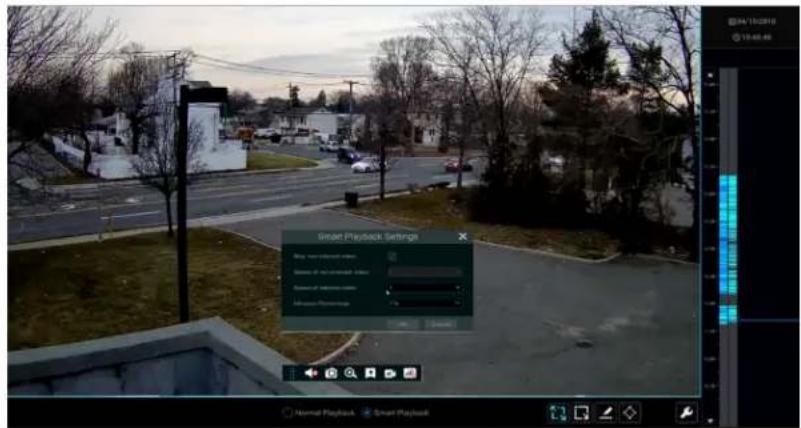
Smart Playback Settings
Click to go to the following interface. Set the value of "Speed of non-interest video" (Please skip this one if you click "Skip non-interest video"), "Speed of interest video" and "Intrusion percentage".
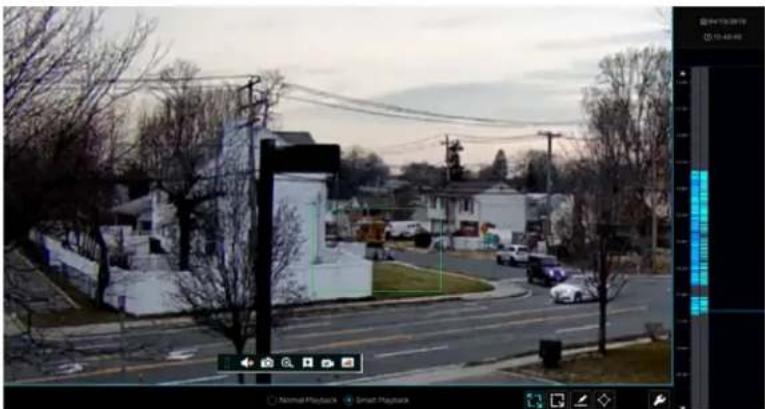
● Smart Playback by Drawing Rectangle
natural_image
Street scene with parked cars and bare trees, no visible text or symbolsClick 📄 and draw a rectangle in the desired area. Then the system will automatically search the record files of this area. The cyan blocks indicate that there are intelligent recording files. Move the cursor to such block and click to play the record.
● Smart Playback by Drawing Line
Click and draw a line in the desired area. Then the system will automatically search the record files about crossing this line. The cyan blocks indicate that there are intelligent recording files. Move the cursor to such block and click to play the record.
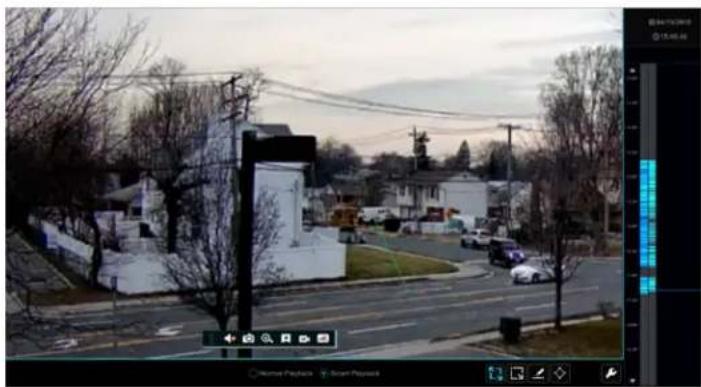
natural_image
Street scene at dusk with houses, trees, and a central monument (no visible text or symbols)● Smart Playback by Drawing Quadrilateral
Click and draw a quadrangle in the desired area. Then the system will automatically search the record files of this area. The cyan blocks indicate that there are intelligent recording files. Move the cursor to such block and click to play the record.
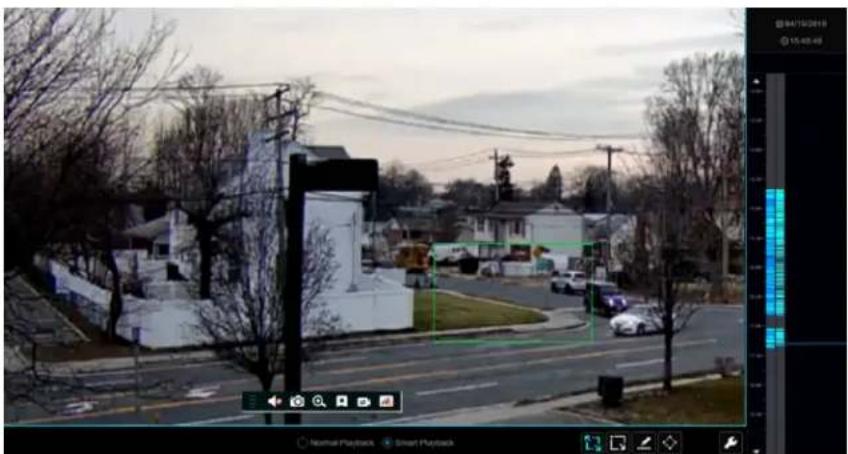
natural_image
Street scene with houses, trees, and utility poles under a cloudy sky (no visible text or symbols)8.4 Record Search, Playback & Export
The record data and the captured pictures can be exported through network, USB (U disk or USB mobile HDD). The file system of the export
devices should be FAT32 format.
8.4.1 EZ Search
① Click Start→Search and Export→EZ Search to go to the "EZ Search" tab. There are two view modes: by time and by camera. In the time view mode, a maximum of 64 camera thumbnails can be shown. If the camera thumbnail number is more than 64, the cameras will be listed directly by their camera name, not the thumbnail. A maximum of 196 camera names can be listed. If the camera name number is more than 196, the time view mode will be disabled and the camera view mode will be available only.
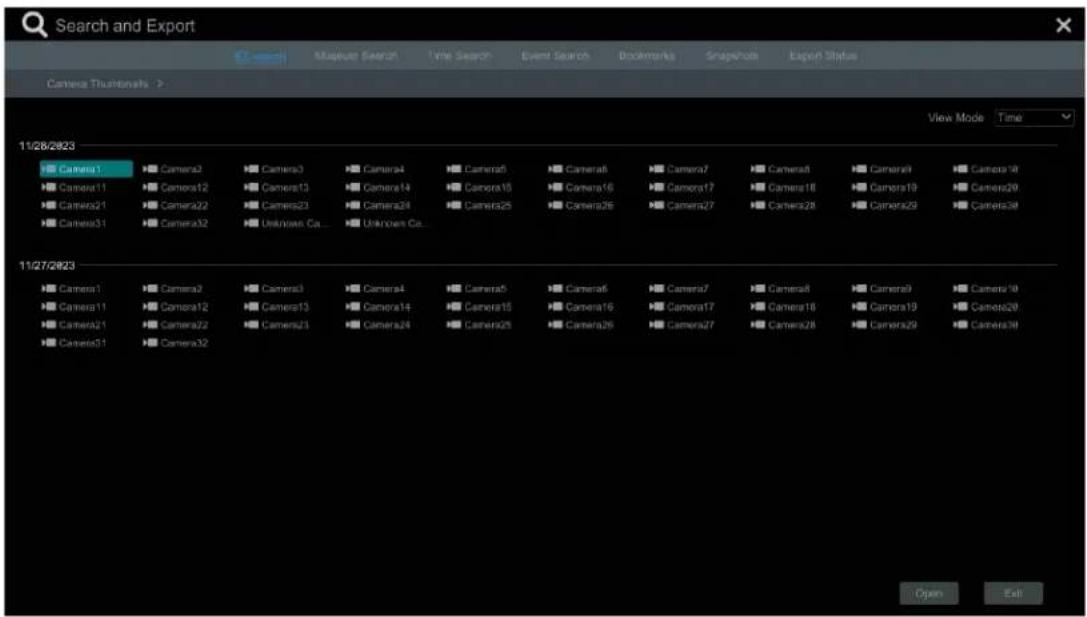
② Select one camera in the interface and then click "Open" button.
③ Click the image box to play the record in the small playback box on the left side of the interface (the box which has image inside indicates that the record data exists).
④ Refer to the picture below. Drag the color blocks on the time scale to select the record data and then click "Export" button to pop up the "Record Backup" window as shown below. Select the device name, backup format and path and then click "Export" button to start the backup.
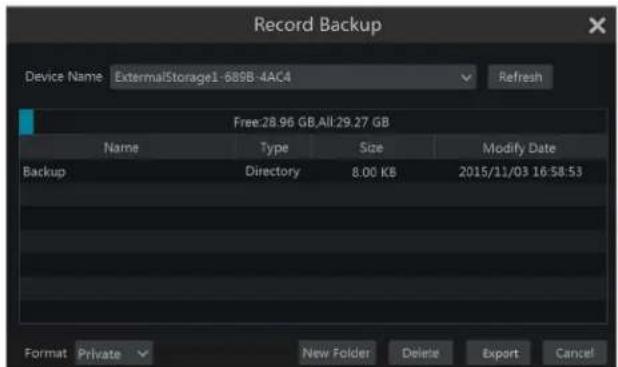
Note: If you back up the record in private format, the system will back up a Speco Blue Player to USB device automatically. The private format record can be played by Speco Blue Player only.
⑤ Click "Playback" button to play the record in the playback interface (refer to Playback Interface Introduction for details). Click "Exit" to exit the interface.
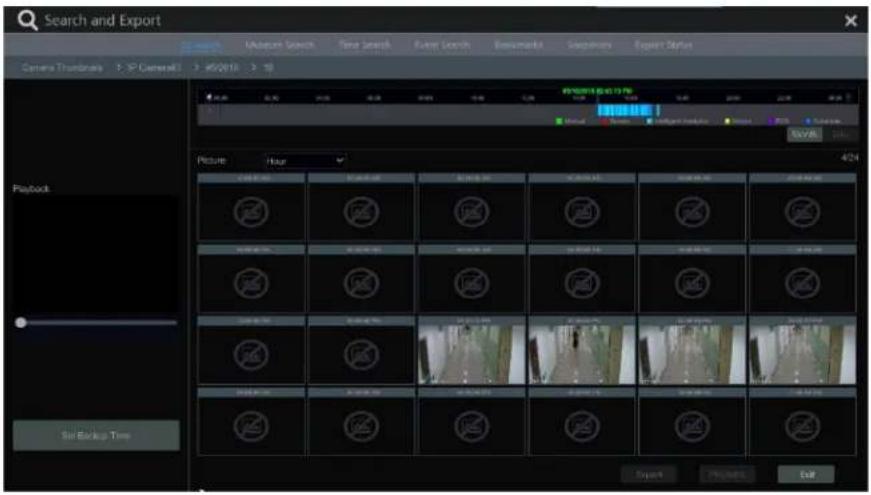
Time Slice Search:
Method One: Click "Year", "Month" or "Day" button under the record time scale to select the time slice mode. In "Day" mode, click / on the left/right side of the time scale to view the record of the last/next day; click "Minute" in the "Picture" option under the time scale to select "Minute" mode (in "Minute" mode, click the time scale to change the time of the 60 display windows) and click "Hour" to select "Hour" mode.
Method Two: Click > beside "Camera Thumbnail" on the left top corner of the interface to select the time slice mode.
Method Three: Right-click the mouse on any area of the time-sliced interface to go back to the upper interface.
8.4.2 Museum Search
① Click Start→Search and Export→Museum Search to go to the following tab as shown below.
Behavior Detection: when you select the smart playback mode, the system will analyze the video containing the abandoned/missing object detection, tampering, tripwire and intrusion detection.
② Click "Behavior". Set the searching time period and you will search the channel which has the intelligence detection record.
③ Check the channel and select the intelligent playback.
④ Set the backup time and select the channel to backup.
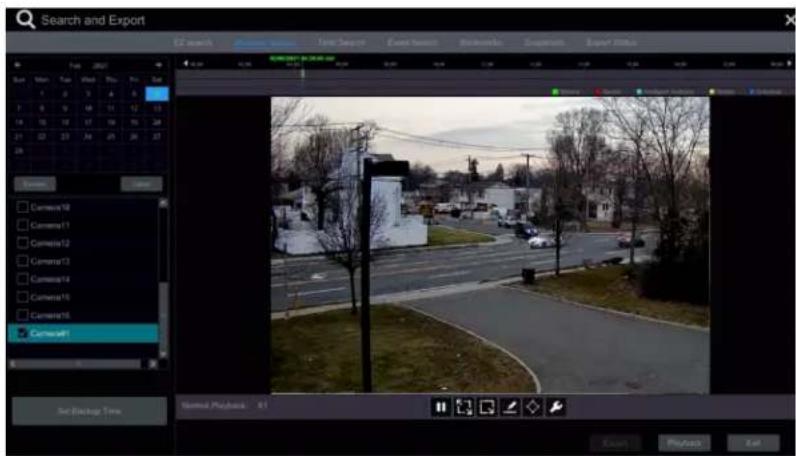
8.4.3 Time Search
① Click Start→Search and Export→Time Search to go to the "Time Search" tab as shown below.
② Click + on the bottom of the interface to add playback camera. A maximum of 16 cameras can be added for playback. Click "Modify" on the top right corner of the camera window to change the camera and click "Clear" to remove the camera.
③ Click the camera window to play the record in the small playback box on the left side of the interface. You can set the date on the top left of the interface, check the event type as required and click the time scale or click under the time scale to set the time. The camera window will play the record according to the time and event type you set.
④ Drag the color blocks on the time scale to select the record data (or click "Set Backup Time" button on the bottom left corner of the interface to set the backup start time and end time) and then click "Export" button for record backup. Click "Playback" button to play the record in the playback interface.
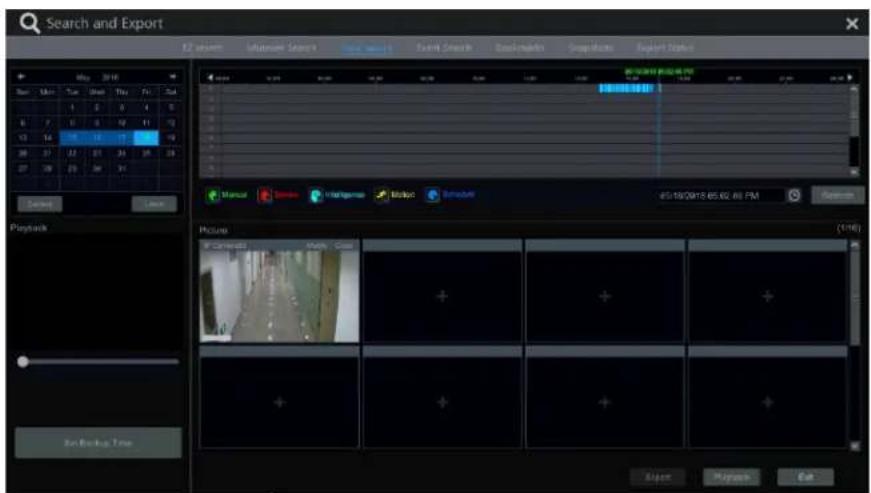
8.4.4 Event Search
① Click Start→Search and Export→Event Search to go to "Event Search" tab as shown below.
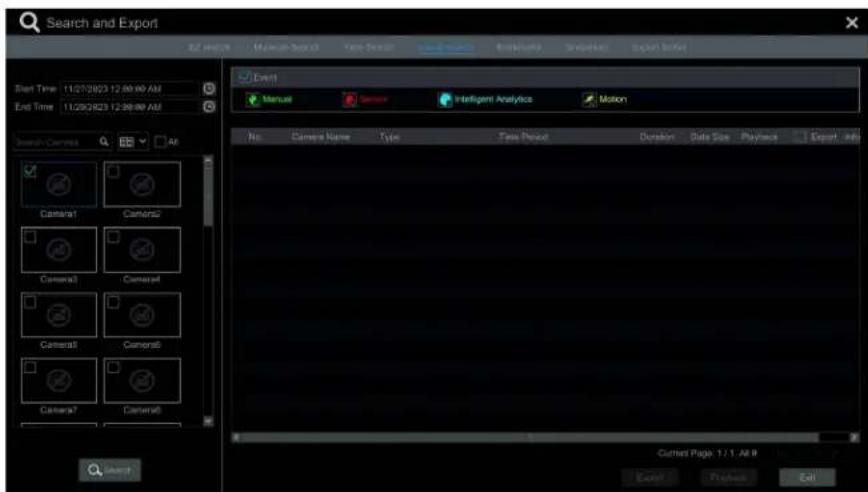
② Check the event type in the interface as required.
③ Click to set the start time and end time on the top left of the interface.
④ Check cameras on the left side of the interface or check "All" to select all the cameras and then click Q search to search the record. The searched record will be displayed in the list.
⑤ Click in the list to play back the record in the popup window. Click to back up one record data or check multiple record data in the list and then click "Backup" button for record batch backup.
⑥ Select one record data in the list and then click "Playback" button to play the record in the playback interface.
8.4.5 Bookmark Search
Only if you add the tags can you play the record by tag search. Click Start→Playback to go to the playback interface and then click 📂 on the bottom of the camera window to add bookmarks when you want to mark the playback time point of the selected camera.
Click Start→Search and Export→Bookmarks to go to "Bookmarks" tab.
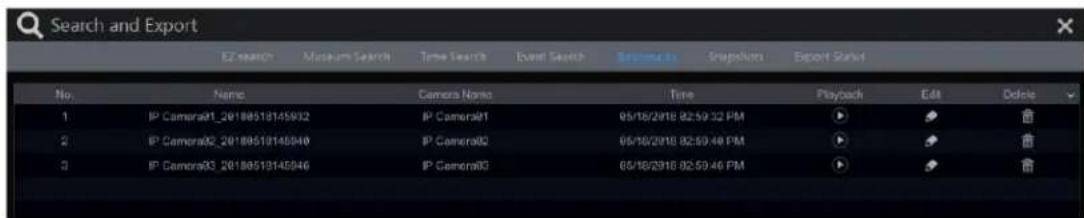
Click 🖼 in the interface to play the record. Click 🔺 to edit the tag name. Click 🔿 to delete the tag.
8.4.6 Snapshots
Click Start→Search and Export→Snapshots to go to "Snapshots" tab. The system will display all the captured images automatically in the list.

Click 📄 to delete the image. Click 🔒 to pop up the "Export" window. Select the device name and save path in the window and then click "Save" button.
Click to pop up the "View Image" window. Click to export the image. Click to view the previous image; click to view the next image; click to delete the image; click to play all the images.
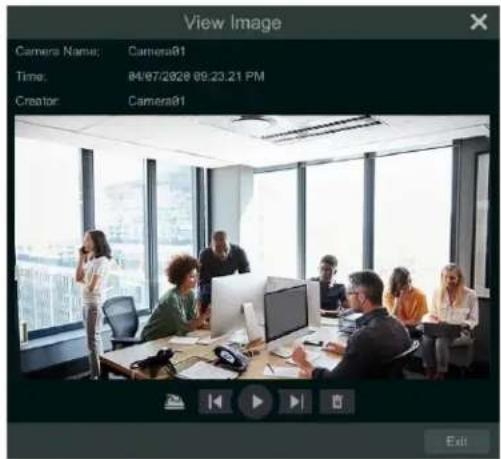
8.4.7 View Export Status
Click Start→Search and Export→Export Status or click 📄 on the tool bar at the bottom of the playback interface to view the export status.
9 Alarm Management
9.1 Sensor Alarm
To complete the entire sensor alarm settings, you should enable the sensor alarm of each camera and then set up the alarm handling of each camera.
① Click Start→Settings→Alarm→Sensor Alarm to go to the following interface.
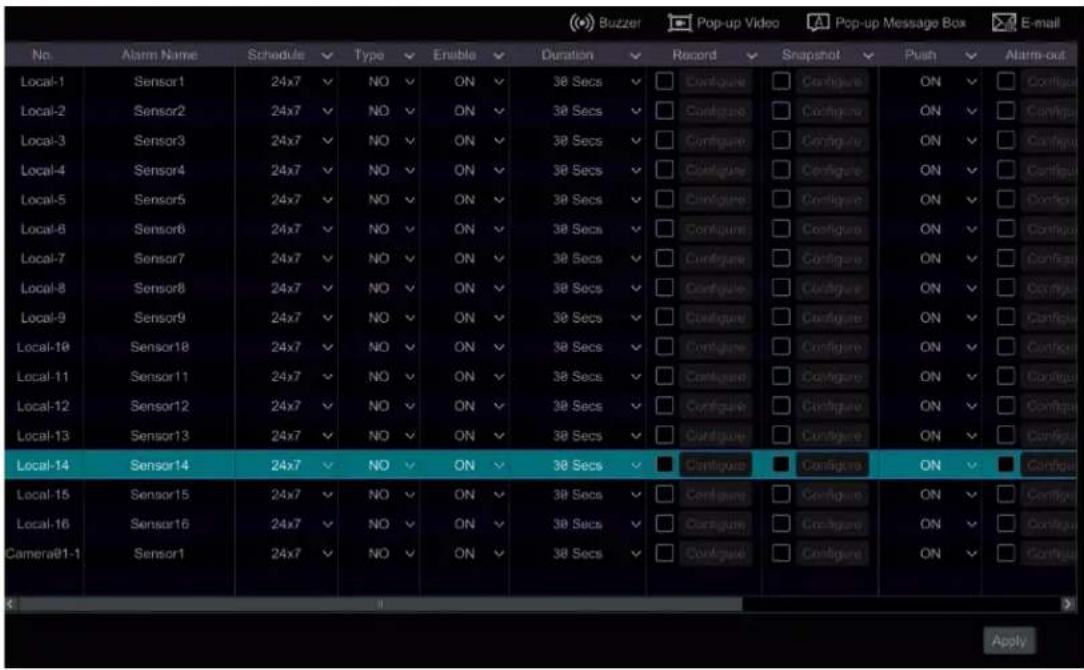
② Select schedule and the alarm type (NO or NC) according to trigger type of the sensor.
③ Enable the sensor alarm of each camera.
④ Check the "Duration", "Record", "Snapshot", "Push", "Alarm-out" and "Preset" and enable or disable the "Buzzer", "Pop-up Video", "Pop-up Message Box" and "E-mail" as required.
⑤ Click "Apply" to save the settings.
The configuration steps of the above mentioned alarm linkages are as follows.
Duration: it refers to the interval time between the adjacent motion detections. For instance, if the duration time is set to 10 seconds, once the system detects a motion, it will go to alarm and would not detect any other motion (specific to camera) in 10 seconds. If there is another motion detected during this period, it will be considered as continuous movement; otherwise, it will be considered as a single motion.
Record: check it and then the "Trigger Record" window will pop up automatically (you can also click "Configure" button to pop up the window).
Select camera on the left side and then click to set the camera as the trigger camera. Select trigger camera on the right side and then click to cancel the trigger camera. Click "OK" button to save the settings. The trigger cameras will record automatically when the sensor alarm is triggered.
Snapshot: check it and then the "Trigger Snapshot" window will pop up automatically. Configure the trigger camera in the window. The trigger cameras will snap automatically when the sensor alarm is triggered.
Push: check it and choose ON or OFF. If it is ON, the system will send messages when the sensor alarm is triggered.
Alarm-out: check it and then the "Trigger Alarm-out" window will pop up automatically. Configure the trigger alarm-out in the window. The system will trigger the alarm-out automatically when the sensor alarm is triggered. You need to set the delay time and the schedule of the alarm outputs. See Alarm-out for details.
Preset: check it and then the "Trigger Preset" window will pop up automatically. Configure the trigger preset of each camera. To add presets, please see Preset Setting for details.
Buzzer: if enabled, the system will begin to buzz when the sensor alarm is triggered. To set the delay time of the buzzer, please see Buzzer for details.
Pop-up Video: After camera setting, the system will pop up the corresponding video automatically when the sensor alarm is triggered. To set the duration time of the video, please see Display for details.
Pop-up Message Box: if enabled, the system will pop up the corresponding alarm message box automatically when the sensor alarm is triggered. To set the duration time of the message box, please see Display for details.
E-mail: if enabled, the system will send an e-mail when the sensor alarm is triggered. Before you enable the email, please configure the recipient's e-mail address first (see E-mail Configuration for details).
9.2 Motion Alarm
Motion Alarm: When the motion object appears in the specified area, it will trigger the alarm. You should enable the motion of each camera first and then set the alarm handling of the camera to complete the whole configuration of the motion alarm.
9.2.1 Motion Configuration
① Click Start→Settings→Camera→Motion to go to the following interface.
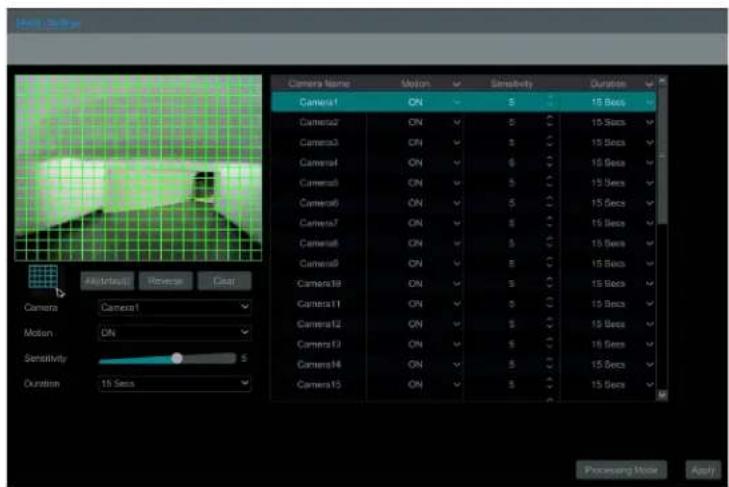
② Select the camera, enable the motion, and set the sensitivity and duration of the camera.
Sensitivity: the higher the value is, the more sensitive it is to motion. You should adjust the value according to the practical conditions since the sensitivity is influenced by color and time (day or night).
Duration: it refers to the interval time between the adjacent motion detections. For instance, if the duration time is set to 10 seconds, once the system detects a motion, it will go to alarm and would not detect any other motion (specific to camera) in 10 seconds. If there is another motion detected during this period, it will be considered as continuous movement; otherwise, it will be considered as a single motion.
③ Drag the camera image to set the motion area. Click "All" to set the whole camera image as the motion area. Click "Reverse" to swap the motion area and the non-motion area. Click "Clear" to clear all the motion areas.
④ Click "Apply" to save the settings. Click "Processing Mode" to go to the alarm handling configuration interface of the motion alarm.
9.2.2 Motion Alarm Handling Configuration
① Click Start→Settings→Alarm→Motion Alarm to go to the following interface.
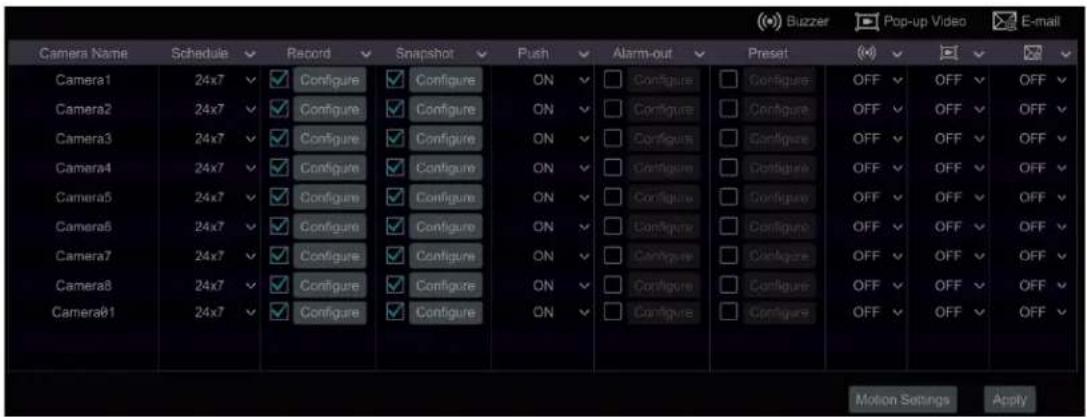
② Enable or disable "Record", "Snapshot", "Push", "Alarm-out", "Preset", "Buzzer", "Pop-up Video" and "E-mail". The alarm handling settings of motion alarm the same as the sensor alarm (see Sensor Alarm for details).
③ Click "Apply" to save the settings. You can click "Motion Settings" to go to the motion configuration interface.
9.3 Smart Event
9.3.1 Abandoned/Missing Object Detection
Abandoned/Missing Object Detection Configuration:
① Click Start→Settings→Camera→Intelligent Analytics→Object Abandoned/Missing to go to the following interface.
② Select the camera, enable object detection, and set the detect type. There are two detection types: Abandoned object and missing object.
Abandoned object: Alarms will be triggered if there are articles left in the pre-defined detection area.
Missing object: Alarms will be triggered if there are articles missing in the detection area drawn by the users.
③ Select the alarm area. A maximum of 4 alarm areas can be set.
④ Draw the alarm area of the object detection. Refer to the interface as shown above. Check "Draw Area" and then click around the area where you want to set as the alarm area in the image (the alarm area should be a closed area). Uncheck the "Draw Area" if you finish the drawing. Click the "Clear" to delete the alarm area.
⑤ Click "Apply" to save the settings.
⑥ Click "Processing Mode" to go to the alarm handling configuration interface of object detection.
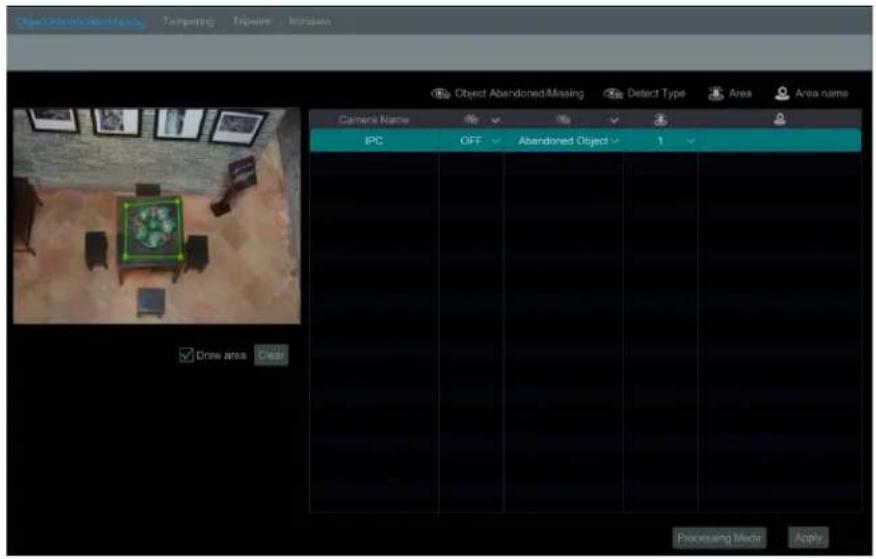
Abandoned/Missing Object Detection Alarm Handling Configuration:
① Click Start→Settings→Alarm→Intelligence Alarm→Object Abandoned/Missing to go to the following interface.
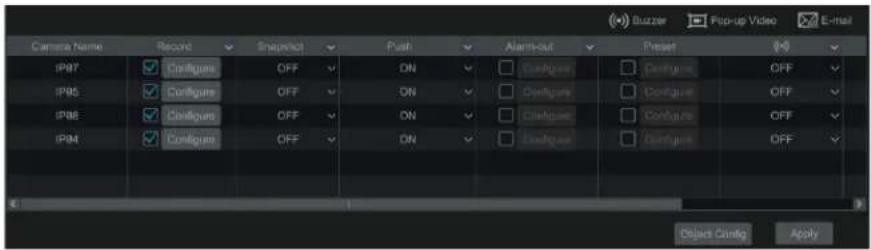
② Enable or disable "Snapshot", "Push", "Alarm-out", "Preset", "Buzzer", "Pop-up Video" and "E-mail". The alarm handling setting of abandoned/missing object detection alarm is like that of the sensor alarm (see Sensor Alarm for details).
③ Click "Apply" to save the settings. You can click "Object Config" to go to the object detection configuration interface.
9.3.2 Tampering
Tampering Configuration:
① Click Start→Settings→Camera→Intelligent Analytics→Tampering to go to the following interface.
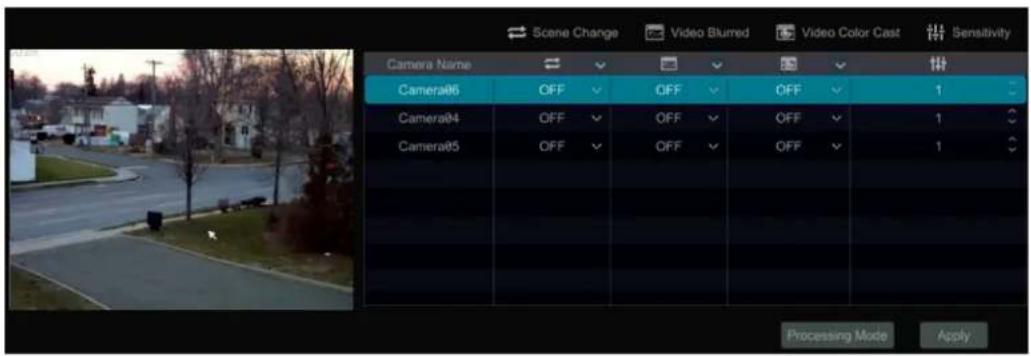
② Select the camera and enable the relevant detection as needed.
Scene Change: Alarms will be triggered if the scene of the monitor video has changed.
Video Blurred: Alarms will be triggered if the video becomes blurry.
Video Color Cast: Alarms will be triggered if the video becomes obscured.
③ Set the sensitivity of the exception detection.
④ Click "Apply" to save the settings.
⑤ Click "Processing Mode" to go to the alarm handling configuration interface of exception detection.
Exception Alarm Handling Configuration:
① Click Start→Settings→Alarm→Intelligence Alarm→Exception to go to the interface.
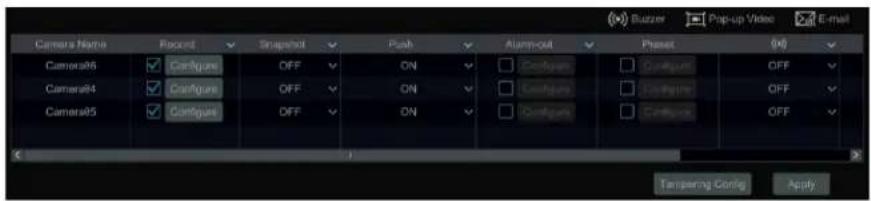
② Enable or disable "Snapshot", "Push", "Alarm-out", "Preset", "Buzzer", "Pop-up Video" and "E-mail". The alarm handling setting of exception detection alarm is like that of the sensor alarm (see Sensor Alarm for details).
③ Click "Apply" to save the settings. You can click "Exception Config" to go to the exception detection configuration interface.
9.3.3 Tripwire
Line Crossing Configuration:
Alarms will be triggered if someone or something crosses the pre-defined alarm line.
① Click Start→Settings→Camera→Intelligent Analytics→Tripwire to go to the following interface.
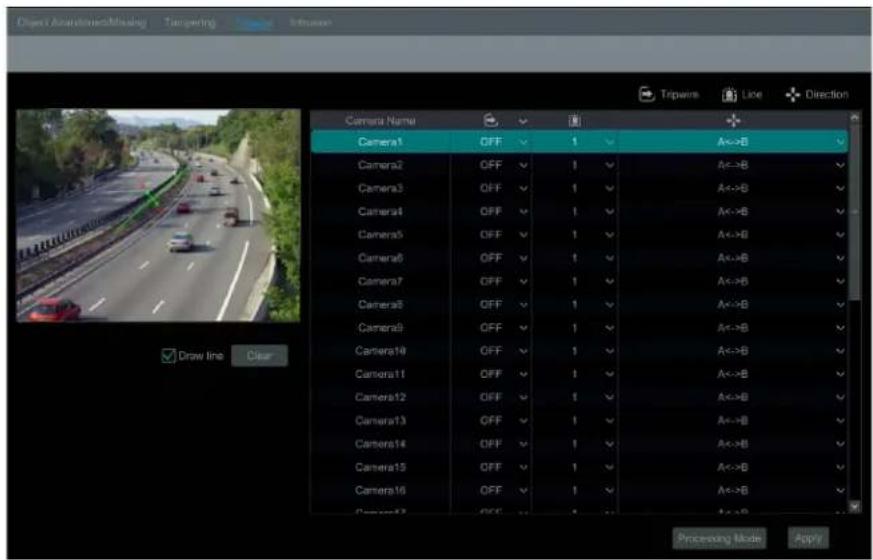
② Select the camera, enable the line crossing detection.
③ Select the direction.
Direction: A<->B, A->B and A<-B optional. It is the crossing direction of the intruder who crosses over the alert line.
A<->B: the alarm triggers when the intruder crosses over the alert line from B to A or from A to B.
A->B: the alarm triggers when the intruder crosses over the alert line from A to B.
A<-B: the alarm triggers when the intruder crosses over the alert line from B to A.
Note: For the analog camera, only A<->B can be set.
④ Draw line. Refer to the interface as shown above. Check "Draw line" and then drag the mouse in the image to draw an alert line. Uncheck the "Draw line" if you finish the drawing. Click the "Clear" to delete the alert line.
⑤ Click "Apply" to save the settings.
⑥ Click "Processing Mode" to go to the alarm handling configuration interface of line crossing detection.
Tripwire Alarm Handling Configuration:
① Click Start→Settings→Alarm→Intelligence Alarm→Tripwire to go to the following interface.
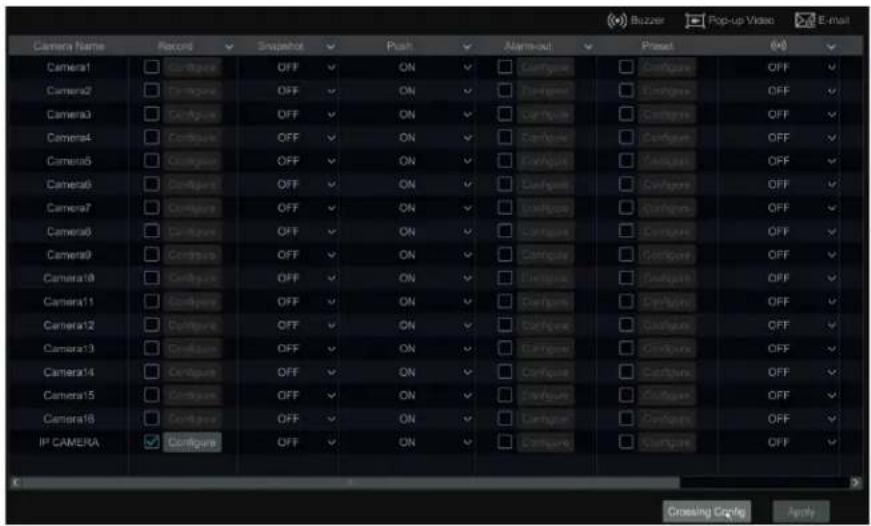
② Enable or disable "Snapshot", "Push", "Alarm-out", "Preset", "Buzzer", "Pop-up Video" and "E-mail". The alarm handling setting of line crossing alarm is like that of the sensor alarm (see Sensor Alarm for details).
③ Click "Apply" to save the settings. You can click "Crossing Config" to go to the line crossing configuration interface.
9.3.4 Intrusion Detection
Intrusion Configuration:
Alarms will be triggered if someone or something intrudes into the pre-defined area.
① Click Start→Settings→Camera→Intelligent Analytics→Intrusion Detection to go to the following interface.
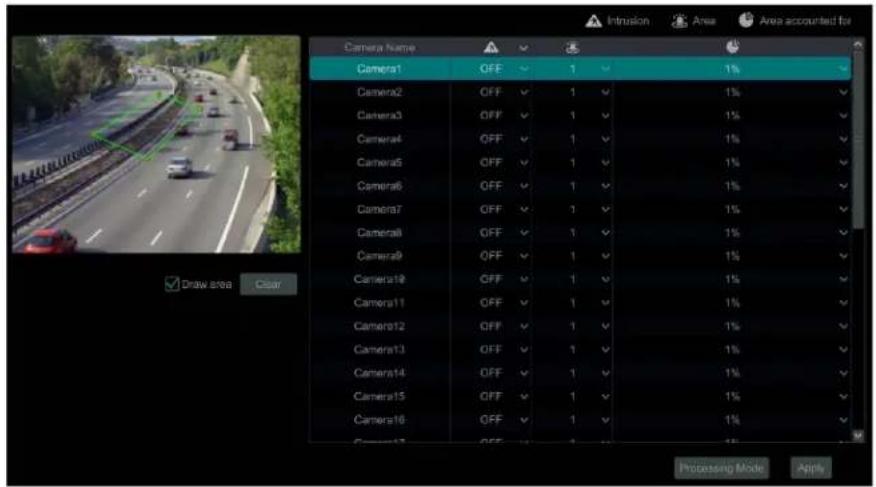
② Select the camera, enable the intrusion detection.
③ Select the alarm area. Up to 4 alarm areas can be set up.
④ Draw the alarm area for the intrusion detection. Refer to the interface as shown below. Check "Draw Area" and then click around the area where you want to set as the alarm area in the image (the alarm area should be a closed area). Uncheck the "Draw Area" if you finish the drawing. Click the "Clear" to delete the alarm area.
⑤ Click "Apply" to save the settings.
⑥ Click "Processing Mode" to go to the alarm handling configuration interface of intrusion detection.
Intrusion Detection Alarm Handling Configuration:
① Click Start→Settings→Alarm→Intelligence Alarm→Intrusion to go to the following interface.
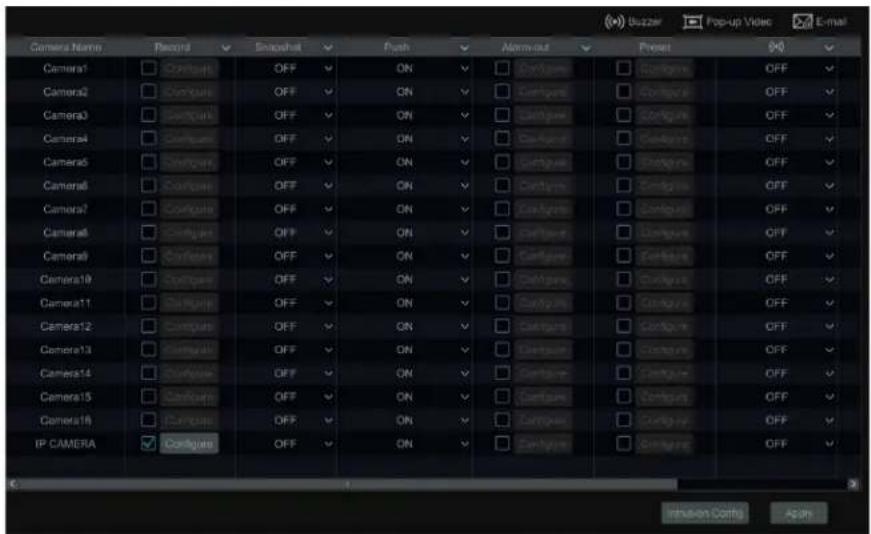
② Enable or disable "Snapshot", "Push", "Alarm-out", "Preset", "Buzzer", "Pop-up Video" and "E-mail". The alarm handling setting of intrusion detection alarm is like that of the sensor alarm (see Sensor Alarm for details).
③ Click "Apply" to save the settings. You can click "Intrusion Config" to go to the intrusion detection configuration interface.
9.4 Exception Alarm
9.4.1 IPC Offline Settings
① Click Start→Settings→Alarm→Exception→IPC Offline Settings to go to the interface as shown below.
② Enable or disable "Snapshot", "Push", "Alarm-out", "Preset", "Buzzer", "Pop-up Video", "Pop-up Message Box" and "E-mail". The IPC Offline Settings are like that of the sensor alarm (see Sensor Alarm for details).
③ Click "Apply" to save the settings.
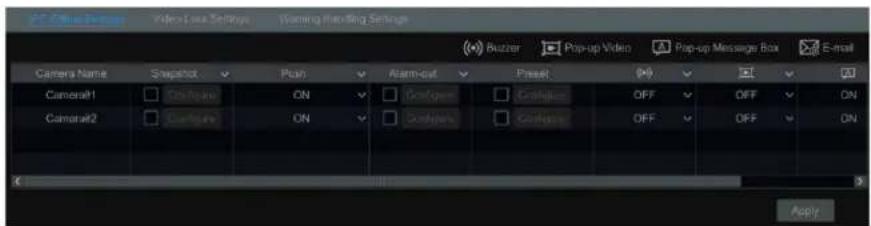
9.4.2 Video Loss Settings
① Click Start→Settings→Alarm→Exception→Video Loss Settings to go to the interface as shown below.
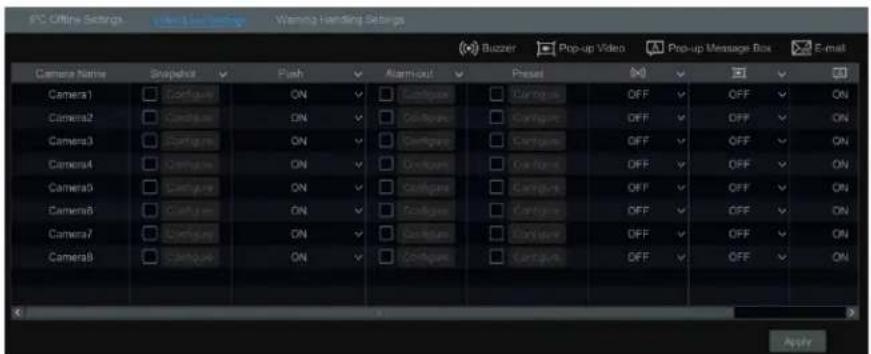
② Enable or disable "Record", "Snapshot", "Push", "Alarm-out", "Preset", "Buzzer", "Pop-up Video", "Pop-up Message Box" and "E-mail". The Video Loss Settings are like that of the sensor alarm (see Sensor Alarm for details).
③ Click "Apply" to save the settings.
9.4.3 Warning Handling Settings
① Click Start→Settings→Alarm→Exception→Warning Handling Settings to go to the interface as shown below.
② Enable or disable "Push", "Alarm-out", "Buzzer", "Pop-up Message Box" and "E-mail". The exception handling settings are like that of the sensor alarm (see Sensor Alarm for details).
③ Click "Apply" to save the settings.
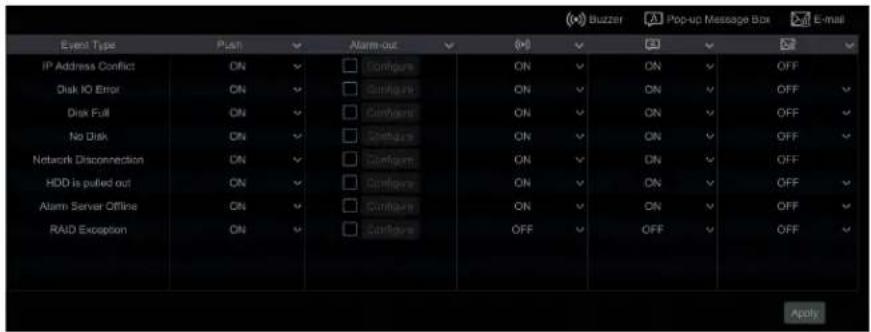
9.5 Alarm Event Notification
9.5.1 Alarm-out
① Click Start→Settings→Alarm→Event Notification to go to the following interface.
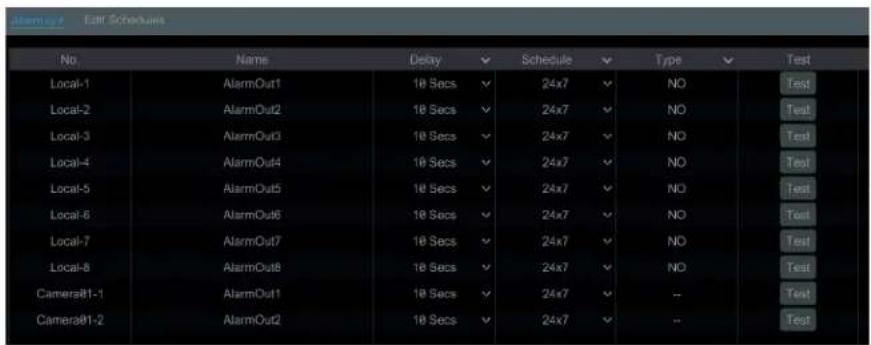
② Set the delay time and the schedule of each alarm-out. You can click "Edit Schedules" to edit the schedules (see Schedule Settings for details).
③ Click "Apply" to save the settings. You can click "Test" to test the alarm output.
9.5.2 E-mail
Click Start→Settings→Alarm→Event Notification→E-mail to go to the e-mail configuration interface. Set the e-mail address of the recipients. See E-mail Configuration for details.
9.5.3 Display
Click Start→Settings→Alarm→Event Notification→Display to go to the display configuration interface. Set the duration time of the pop-up video and the pop-up message box. If your device supports two outputs, please set the output of the pop-up video as needed. After that, click "Apply" to save the settings.
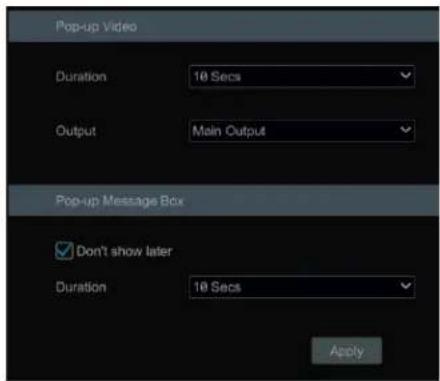
9.5.4 Buzzer
Click Start→Settings→Alarm→Event Notification→Buzzer to go to the buzzer configuration interface. Set the delay time of the buzzer and then click "Apply" to save the setting. You can click "Test" to test the buzzer.
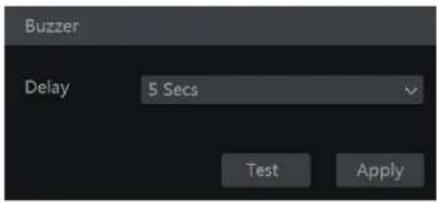
9.5.5 Push Message
Click Start→Settings→Alarm→Event Notification→Push Message to go to the interface as shown below. Check "Enable" and then click "Apply" to save the settings. If Push Server is online, it will push messages to the mobile clients.
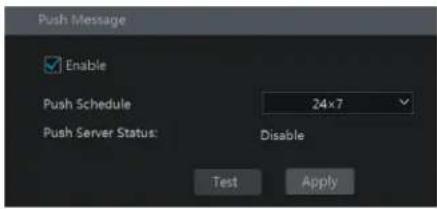
9.5.6 Alarm Server
Go to Alarm→Alarm Server interface as shown below.
Enable the alarm server and enter server address and port of the alarm server. Then select protocol. If "Send Heartbeat" is enabled, set the interval times. After that, test the effectiveness of the alarm server. Having tested successfully, please click "Apply". When an alarm occurs, the device will transfer the alarm event to the alarm server. If an alarm server is not needed, there is no need to configure this section.
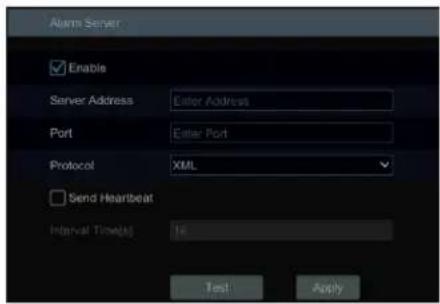
9.6 Manual Alarm
Click 📄 on the tool bar at the bottom of the live preview interface to pop up a window. Click "Trigger" to start alarm. Click "Clear" to stop the alarm.
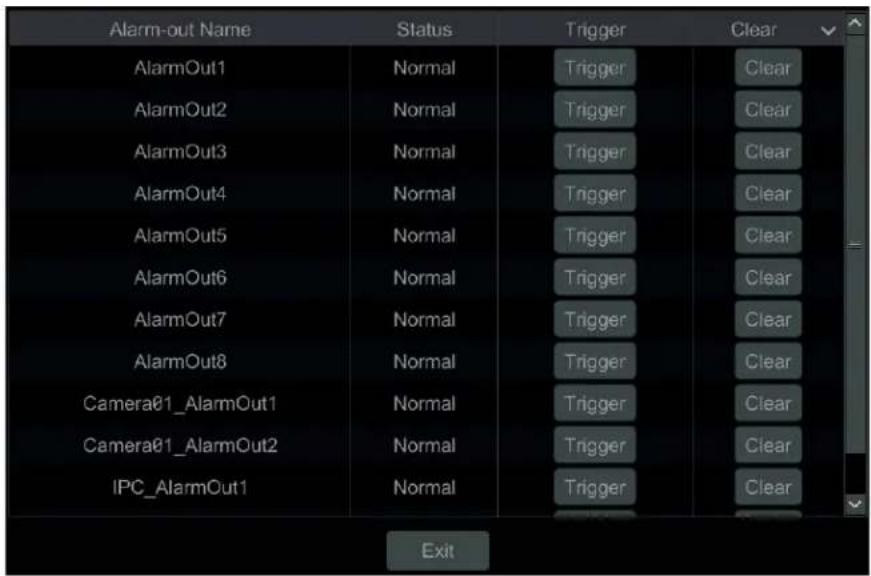
9.7 View Alarm Status
Click Start→Settings→Alarm→Alarm Status or click on the tool bar at the bottom of the live preview interface to view the alarm status.
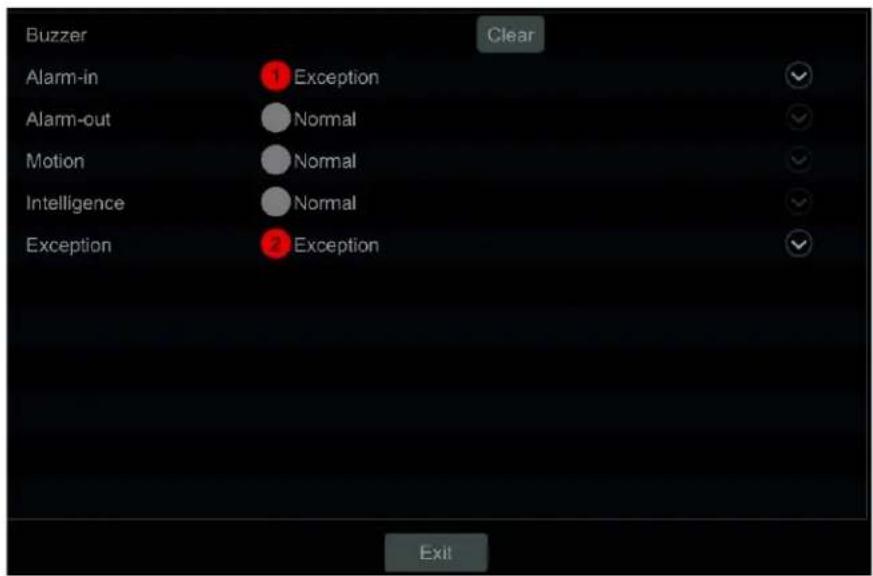
Click "Clear" to stop the buzzer when the buzzer alarm happens. Click 🤨 to view the detail information as shown below.
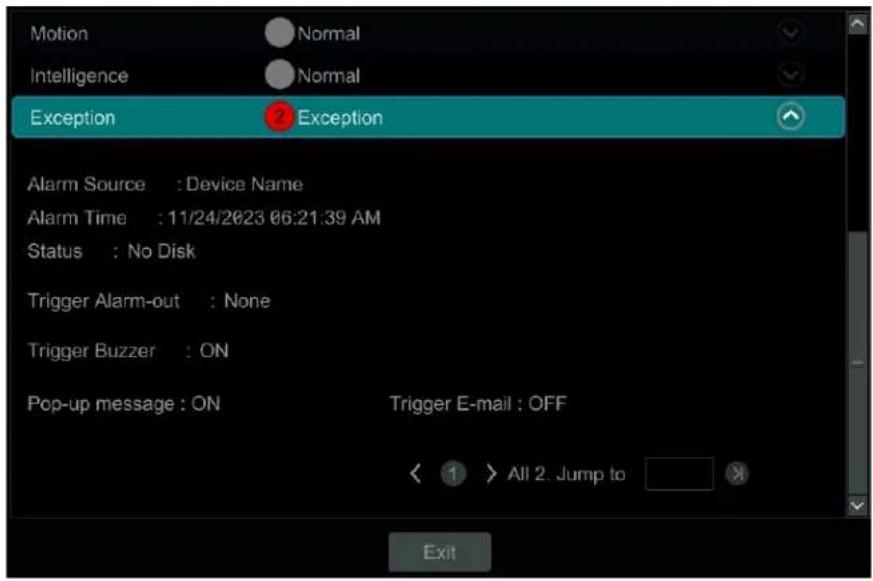
If the exception information is more than one page, you can enter the number in the box and then click to jump to the specified page. Click / > to view the exception alarm information in the previous/next page.
10 Account & Permission Management
10.1 Account Management
Click Start→Settings→Account and Authority→Account→Edit User to go to the interface as shown below.
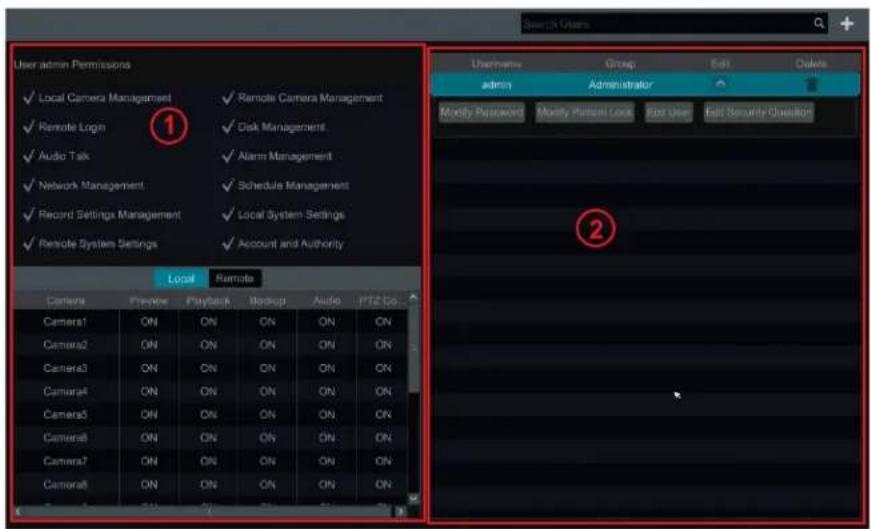
Area ① displays the user permissions. Area ② displays the user list. Click the user in the list to display its user permissions in area ①. There are three default permission groups ("Administrator", "Advanced" and "Common") available when adding accounts. You can manually add new permission group (see Add Permission Group for details). Only admin and the users that have the "Account and Authority" permission can manage the system's accounts. Group "Administrator" owns all the permissions displayed in area ① except "Account and Authority" and its permissions cannot be changed while the permissions of "Advanced" and "Common" can be changed.
10.1.1 Add User
① Click Start→Settings→Account and Authority→Account→Add User or click + beside the search box to pop up the window as shown below.
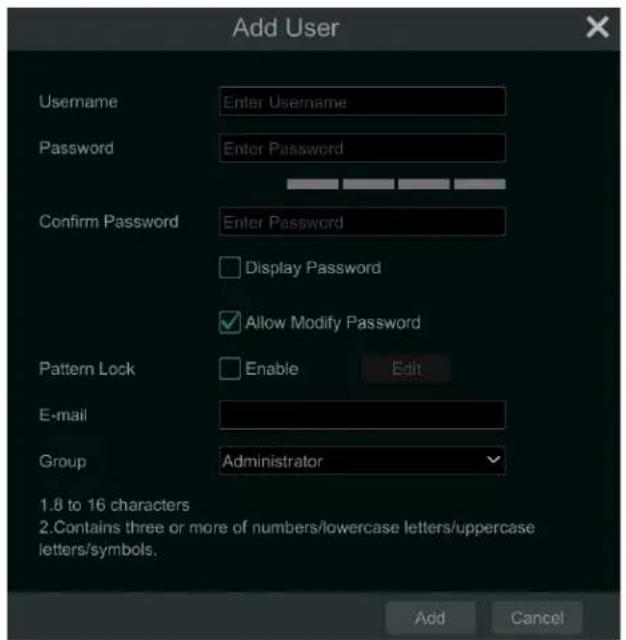
② Set the username, password, and group. Users can also set the pattern lock here. The e-mail address is optional. Click "Add" to add the user.
10.1.2 Edit User
Click Start→Settings→Account and Authority→Account→Edit User and then click in the user list or double click the user to edit the user information. Click to delete the user (the user admin cannot be deleted).
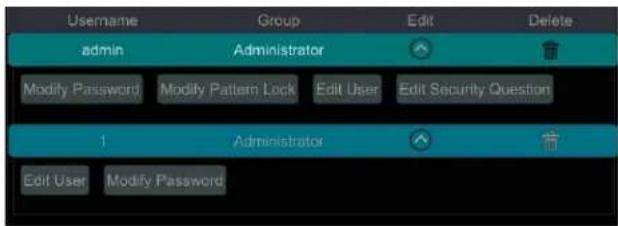
Edit Security Question
You can set password security only for admin. Click "Edit Security Question" and then set questions and answers in the popup window. If you forget the password for admin, please refer to Q4 in Appendix A FAQ for details. The passwords of other users can be recovered by admin or the users that have the "Account and Authority" permission.
Modify Password
Only the password of admin can be modified. Click "Modify Password" to pop up a window. Enter the current password and then set a new password. Click "OK" to save the settings.
Modify Pattern Lock
Some models may not support this function.
Click "Modify Pattern Lock" to pop up a window.
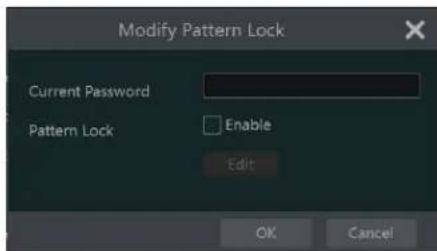
Enter current password and then check "Enable" to input pattern lock.
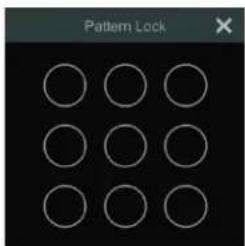
Modify Password
Click "Modify Password" to modify the password as needed.
Edit User
Click "Edit User" to pop up the window as shown below. The admin is enabled, its permission control is closed, and permission group cannot be changed by default. You can enable or disable other users (if disabled, the user will be invalid), open or close their permission control (if closed, the user will get all the permissions which admin has) and set their permission groups. Click "OK" to save the settings.
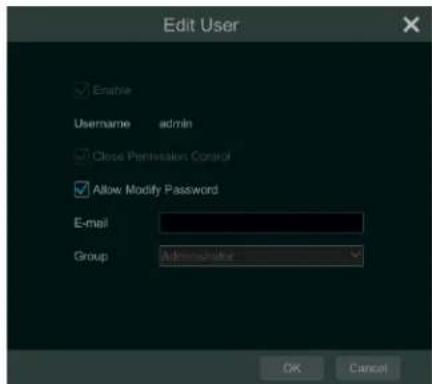
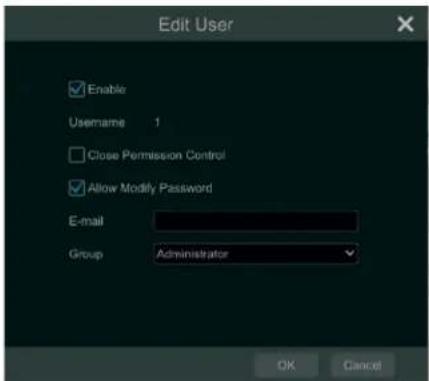
10.2 User Login & Logout
Login: Click Start→Login or directly click the preview interface and then select username and enter the password in the popup window. Click "Login" button to log in the system.
Logout: Click Start→Logout or click Start→Shutdown to pop up the "Shutdown" window. Select "Logout" in the window and then click "OK" button to log out the system.
10.3 Permission Management
10.3.1 Add Permission Group
Click Start→Settings→Account and Authority→Account→Edit Permission Group to go to the interface as shown below.
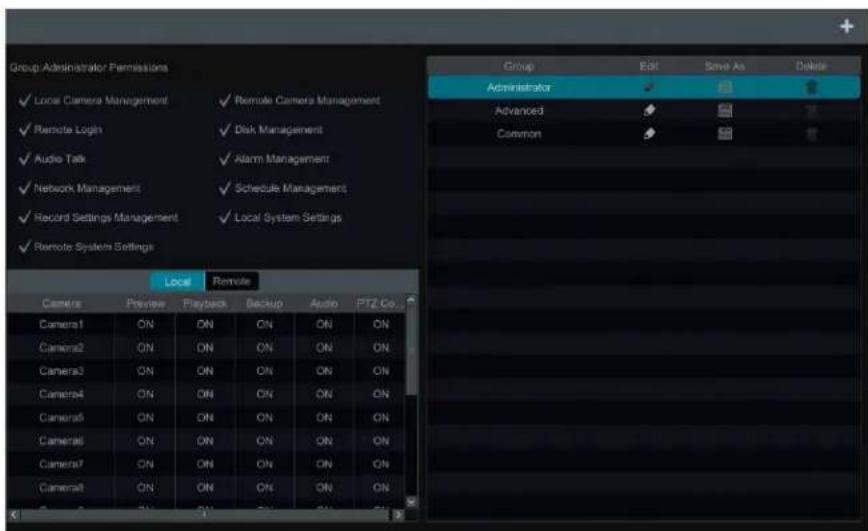
Click + to add permission group. Set the group name, check the permissions as needed and then set the "Local" and "Remote" permissions. Click "Add" to save the settings.
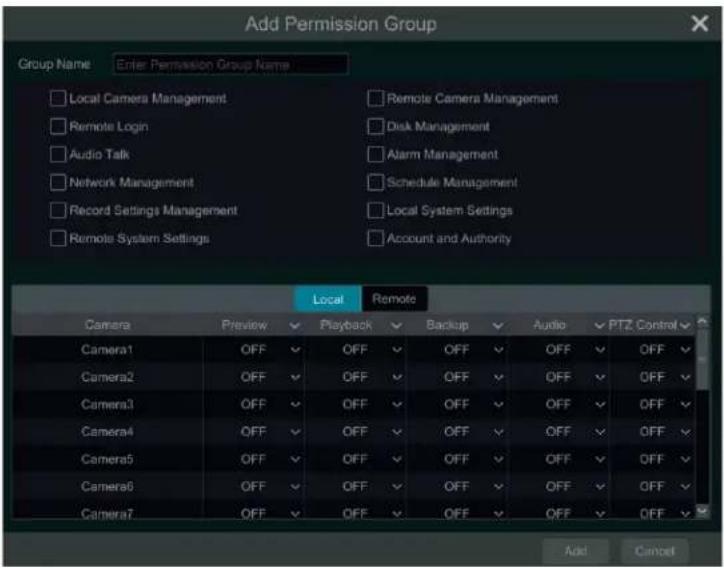
10.3.2 Edit Permission Group
Go to "Edit Permission Group" interface and then click in the group list to edit the permission group (the operations of the "Edit Permission Group" are like that of the "Add Permission Group", please see Add Permission Group for details). Click to save the group as another group. Click to delete the permission group. The three default permission groups ("Administrator", "Advanced" and "Common") cannot be deleted.
10.4 Block and Allow List
① Click Start→Settings→Account and Authority→Security to go to the following interface.
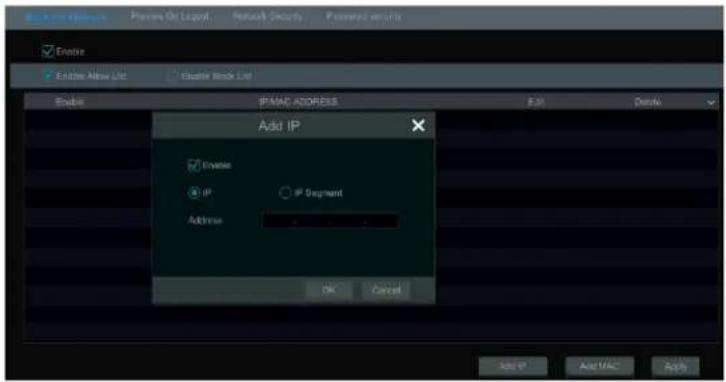
② Check "Enable" and then choose "Enable Allow List" or "Enable Block List" (the PC client of which the IP address is in the allow list can access DVR remotely while the PC client in the block list cannot).
③ Add IP/IP segment/MAC. Click "Add IP" or "Add MAC" button and then check "Enable" in the popup window (only if you check it can the IP/IP segment/MAC you add be effective). Enter the IP/IP segment/MAC and then click "OK" button. In the above interface, click to edit IP/IP segment/MAC, click to delete it. Click "Apply" to save the settings.
10.5 Preview On Logout
Click Start→Settings→Account and Authority→Security→Preview On Logout to go to the following interface.
Set a camera and then enable or disable the preview permission on logout as required. If a camera's preview permission on logout is "ON", you can view the live image of the camera when the system is logged out, or the live image of the camera cannot be seen when logged out.
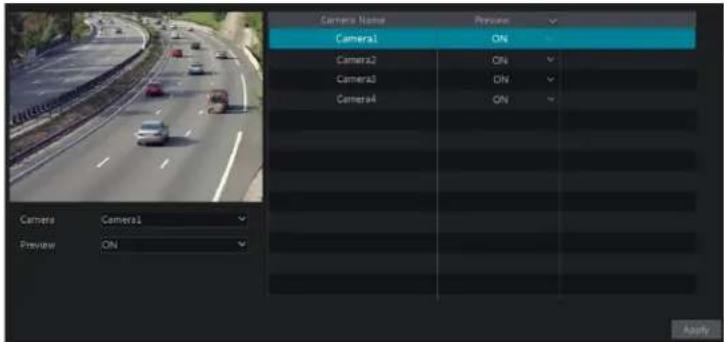
10.6 Password Security
Click Start→Settings→Account and Authority→Security→Password Security to go to the following interface.
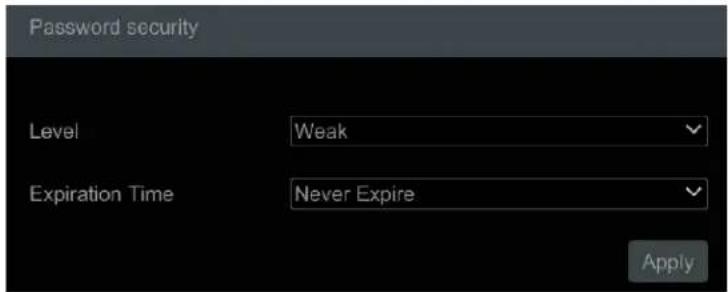
In this interface, you can set the level and expiration time of the password.
10.7 View Online User
Click Start→Settings→Account and Authority→User Status to view the online user information (you can view the online username, login type, IP address and login time; click 📋 to pop up a window showing the preview occupied channel number and playback occupied channel number).
11 Device Management
11.1 Network Configuration
11.1.1 TCP/IP Configuration
Click Start→Settings→Network→TCP/IP to go to the following interface. Check "Obtain an IPv4 address automatically", "Obtain an IPv6 address automatically" and "Obtain DNS automatically" to get the network addresses automatically, or manually enter the network addresses. You can modify the MTU value according to the network condition (MTU, Maximum Transmission Unit, can be modified according to network condition for higher network transmission efficiency). Click "Apply" to save the settings.
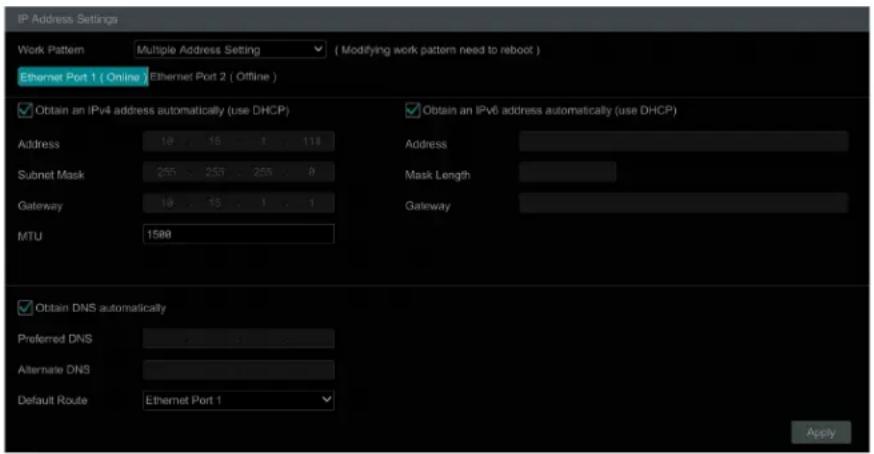
● Multiple Ethernet Ports Setting
If the DVR has two network ports or above, you can select the network work pattern as required.
Multiple Address Setting:
If "Multiple Address Setting" is selected, the IP addresses of the two Ethernet ports should be set respectively. Check "Obtain an IP address automatically" and "Obtain DNS automatically" to get the network addresses automatically, or manually enter IPv4/IPv6(if IPv6 is enabled) address; select one Ethernet port as the default route and then click "Apply" to save the settings.
Network Fault Tolerance:
The two network ports will be bound to one IP address if you select the "Network Fault Tolerance" pattern. There are many advantages of this work pattern: 1. increase the bandwidth; 2. form a network redundant array to share the load. When a failure happens to one network port, the other port will take over the entire load immediately. The takeover process is seamless, and the network service will not be broken off.
Refer to the figure as shown below. If "Network Fault Tolerance" is selected, check "Obtain an IPv4 address automatically", and "Obtain DNS automatically" to get the network addresses automatically, or manually enter IPv4/IPv6(if IPv6 is enabled) address select one Ethernet port as the primary card and then click "Apply" to save the settings.
11.1.2 Port Configuration
Click Start→Settings→Network→Port to go to the interface as shown below. Enter the HTTP port, HTTPS port, server port and RTSP port of the DVR, enable "Anonymous" as needed and then click "Apply" button to save the settings.
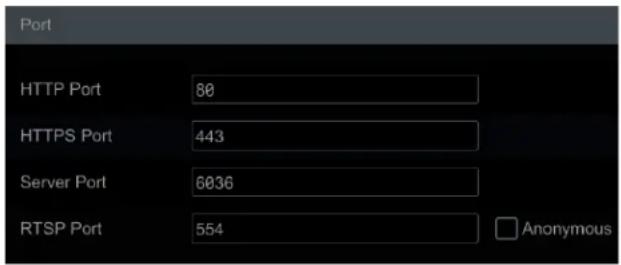
HTTP Port: the default HTTP port of the DVR is 80. The port number can be changed to others like 81. The port is mainly used for web client access.
If you want to access the DVR through a web browser, you should enter IP address plus HTTP port in the address bar of the web browser like http://192.168.11.61:81.
HTTPS Port: the default HTTPS port of the DVR is 443.
HTTPS provides authentication of the web site and protects user privacy. How to use it?
① Enter IP address plus HTTP port in the address bar of the web browser. Then enter username and password to log in. Click Functional Panel→Network→HTTPS to go to the following interface.
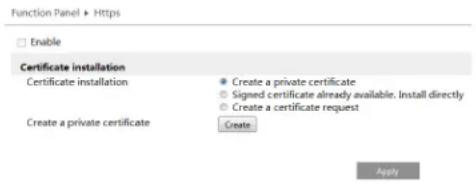
② Install a certificate.
* You can create a private certificate here. Click the "Create" button to create a private certificate. Enter the country (only two letters available), domain (DVR's IP address/domain), validity date, password, province/state, region and so on. Then click "OK" to save the settings.
* If there is a signed certificate, click "Browse" to select it and then click "Install" to install it.
* Click "Create a certificate request" to enter the following interface.
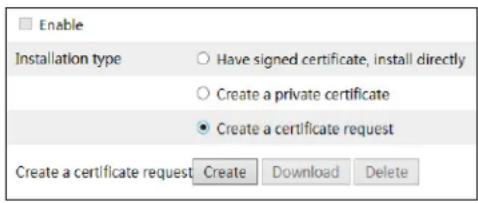
Click "Create" to create the certificate request. Then download the certificate request and submit it to the trusted certificate authority for signature. After receiving the signed certificate, import the certificate to the device.
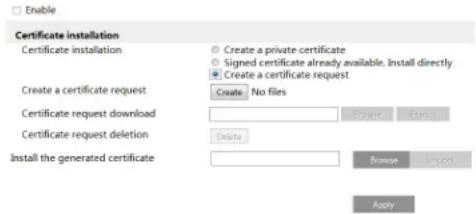
③ After the certificate has been installed, enable this function, and apply it. Then the camera can be accessed by entering https://IP: https port via the web browser (eg. https://192.168.1.201:443).
Server Port: the default server port of the DVR is 6036. The server port number can be changed as required. The port is mainly used in network video management system.
Note: The HTTP port and server port of the DVR should be mapped to the router before you access the DVR via WAN.
RTSP Port: RTSP real-time stream protocol can be used to control the sending of real-time data. With a media player (like VLC player) which supports the RTSP real-time stream protocol, you can view the live images synchronously. The default RTSP port is 554 and it can be changed as needed. (The address format: rtsp://IP address:554/chID=1&streamType=main or rtsp://IP address:554/chID=1&streamType=sub; main indicators main stream; sub indicators sub stream; chID indicators channel ID).
Examples: ① Enable RTSP and "Anonymous". Then open the VLC player and enter the address (for example:
rtsp://192.168.1.88:554/chID=1&streamType=main) in the network address bar of the VLC player. Then you can view the video on channel 1.
② Enable RTSP and open the VLC player. After that enter the address (for example: rtsp://192.168.1.88:554/chID=1&streamType=sub) in the network address bar of the VLC player. Then a login box will pop up. Enter the username and password which shall be the same as the username and password of API server. Then you can view the video on channel 1.
11.1.3 PPPoE Configuration
Click Start→Settings→Network→PPPoE to go to the interface as shown below. Check "Enable" in "PPPoE Settings" and then enter the username and password obtained from the dealer. Click "Apply" to save the settings.
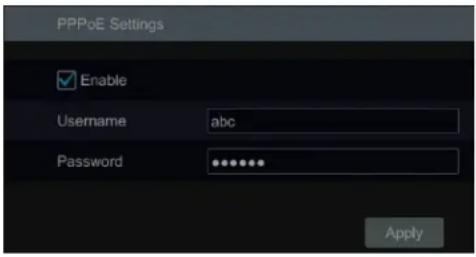
11.1.4 DDNS Configuration
The DDNS is used to control the dynamic IP address through domain name. Speco Technologies provides free DDNS service with US-based servers. You can access the DVR easily if the DDNS is enabled and configured. Click Start→Settings→Network→DDNS to go to the interface as shown below. The default DDNS type will be "specoddns.net". The default domain name will be shown, you can use this for your domain name or enter your own. If invalid or taken, please select another domain name. Click on test to check if ok. If so, you may now go to [your domain name].specoddns.net with Internet Explorer and access your recorder remotely.
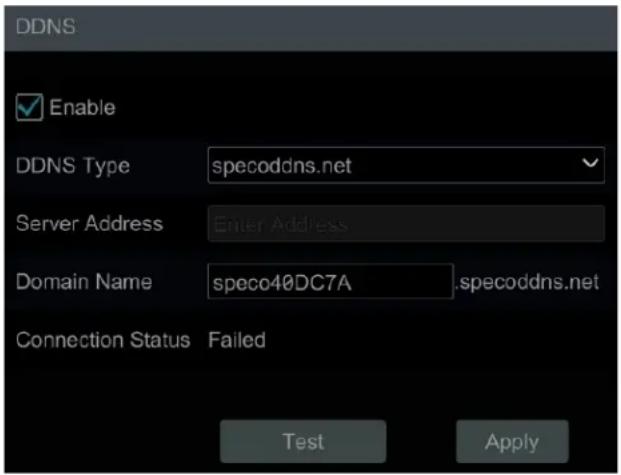
11.1.5 E-mail Configuration
Click Start→Settings→Network→E-mail to go to the following interface. Enter the sender's name, e-mail address, SMTP server and SMTP port (you can click "Default" to reset the SMTP port to the default value) and then enable or disable the SSL and attach image. Select the username (the username list will be updated automatically according to the email address you input) and enter the password of the sender and then click "Apply" to save the settings (you don't have to enter the username and password if "Anonymous Login" is enabled). Click "Test" to pop up a window. Enter the e-mail address of the recipient in the window and then click "OK" button. The e-mail address of the sender will send an e-mail to the recipient. If the e-mail is sent successfully, it indicates that the e-mail address of the sender is configured correctly.
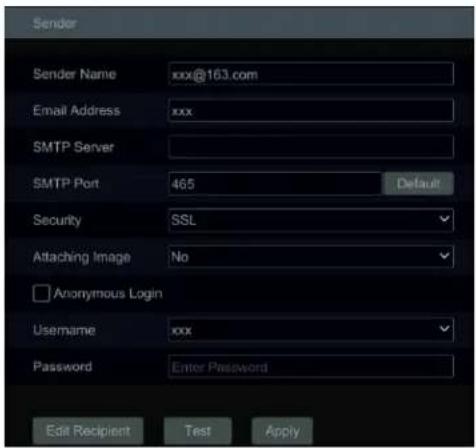
Click "Edit Recipient" to go to the following interface.
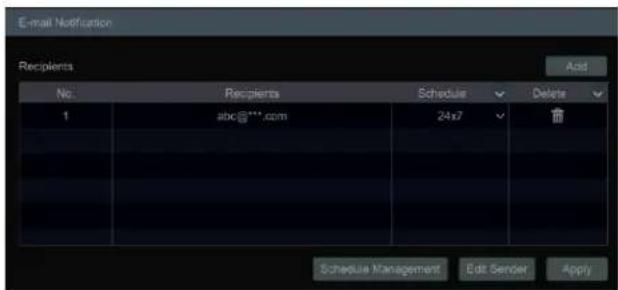
Click "Add" and then enter the recipient's e-mail address and select the schedule (if a schedule is selected, the system will send the alarm email and the recipient will receive it only in the selected schedule time) in the popup window. Click "Add" in the window to add the recipient. You can also change the recipient's receiving schedule by clicking √ in the "Schedule" column. Click 🔒 to delete the recipient in the list. Click "Apply" to save the settings. Click "Edit Sender" to go to the e-mail configuration interface of the sender.
11.1.6 UPnP Configuration
By UPnP you can access the DVR through the web client which is in WAN via router without port mapping.
① Click Start→Settings→Network→UPnP to go to the following interface.
② Make sure the router supports UPnP function and the UPnP is enabled in the router.
③ Set the DVR's IP address, subnet mask and gateway and so on corresponding to the router.
④ Check "Enable" in the interface as shown below and then click "Apply" button.
Click "Refresh" button to refresh the UPnP status. If the UPnP status were still "Invalid UPnP" after refreshing it many times, the port number would be wrong. Please change the mapping type to "Manual" and then click 📋 to modify the port until the UPnP status turns to "Valid UPnP". Refer to the following picture. You can view the external IP address of the DVR. Enter the external IP address plus port in the address bar of your browser to access the DVR such as http://183.17.254.19:81.
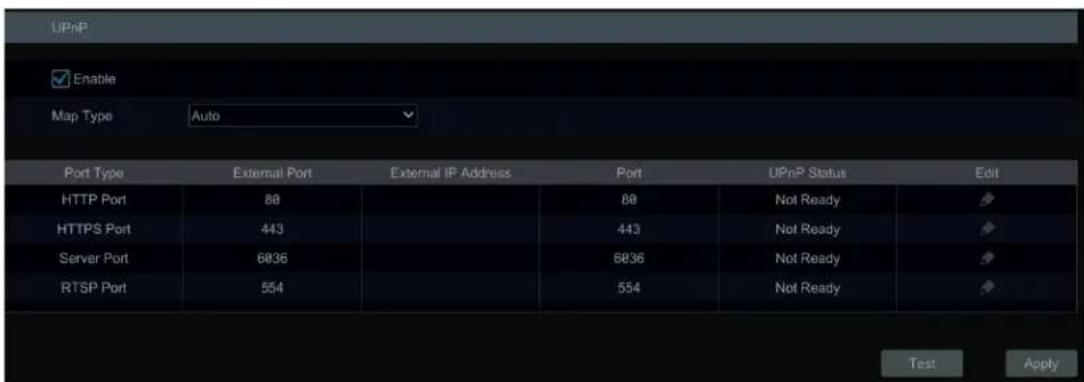
11.1.7 802.1X
If it is enabled, the DVR data can be protected. When the DVR is connected to the network protected by the IEEE 802.1X, user authentication is needed.
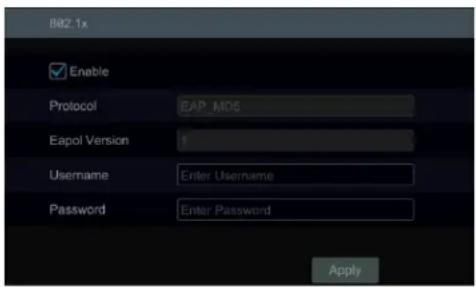
To use this function, the DVR shall be connected to a switch supporting 802.1x protocol. The switch can be considered as an authentication system to identify the device in a local network. If the DVR connected to the network interface of the switch has passed the authentication of the switch, it can be accessed via the local network.
Protocol type and EAPOL version: Please use the default settings.
Username and password: The username and password must be the same as the username and password applied for and registered in the authentication server.
11.1.8 NAT Configuration
Click Start→Settings→Network→NAT to go to the interface for NAT configuration and check "Enable". Click "Apply" to save the settings and make note of the QR code number under the QR code. Via Internet Explorer, go to connect.specotech.cloud, input the QR code number, your username and password to login.
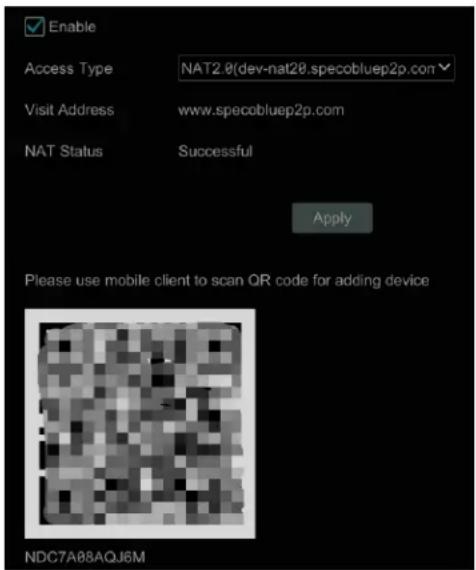
You can also scan the QRcode through Speco Blue App which is installed on a mobile phone or tablet to log in to the mobile client instantly.
11.1.9 View Network Status
Click Start→Settings→Network→ Status to view the network status or click 📄 on the tool bar at the bottom of the live view interface to view network status conveniently.
11.2 Basic Configuration
11.2.1 General Configuration
Click Start→Settings→System→Basic→General Settings to go to the following interface. Set the device name, device No., language, video format and main output. Enable or disable wizard, "Log In Automatically", "Log Out Automatically" (if checked, you can set the wait time), "App Live Self-Adaption" and "Sequence Automatically" (if checked, you can set the wait time). Click "Apply" to save the settings.
Device Name: The name of the device. It may display on the client end or CMS that help user to recognize the device remotely.
Video Format: Two modes: PAL and NTSC. Select the video format according to the camera.
Sequence Automatically: Check it and set "wait time". The system will sequence automatically if it is not operated during the time you set.
11.2.2 Date and Time Configuration
Click Start→Settings→System→Basic→Date and Time to go to the interface as shown below.
Set the system time, date format, time format and time zone of the DVR. The default time zone is GMT+08 Beijing, Hong Kong, Shanghai, Taipei. If the selected time zone includes DST, the DST of the time zone will be checked by default. Click "Apply" to save the settings.
You can manually set the system time or synchronize system time with network through NTP.
Manual: select "Manual" in the "Synchronous" option and then click after the "System Time" option to set the system time.
NTP: select "NTP" in the "Synchronous" option and then enter the NTP server.
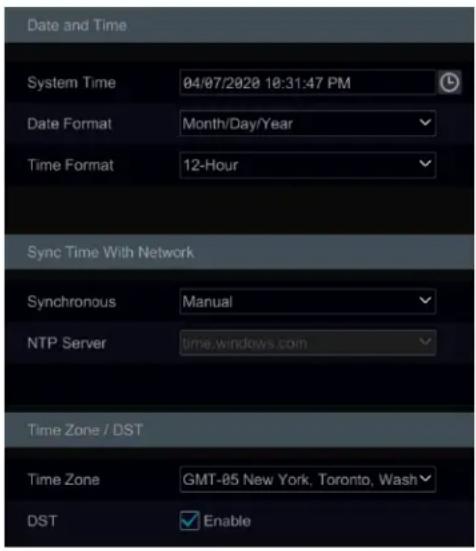
11.2.3 Recorder OSD Settings
Click Start→Settings→System→Basic→Recorder OSD settings to go to the following interface. OSD name, icon and address can be enabled here.
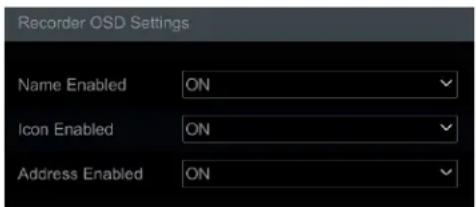
11.3 Factory Default
Click Start→Settings→System→Maintenance→Factory Default and then click "Reset to factory default" button in the interface to reset to the factory default settings (check "All except network to keep the network settings").
Note: Resetting to the factory default settings will not change time zone.
11.4 Device Software Upgrade
- Upgrade
You can click Start→Settings→System→Information→Basic to view MCU, kernel version and firmware version and so on. Once you have the latest firmware file. Follow the steps below.
The upgrade steps are as follows:
① Copy the upgrade software into the USB storage device.
② Insert the USB storage device into the USB interface of the DVR.
③ Click Start→Settings→System→Maintenance→Upgrade to go to "Upgrade" interface. Select the USB device in "Device Name" option and go to the path where the upgrade software exists. Select the upgrade software and then click "Upgrade". The system may automatically restart during upgrading. Please wait for a while and do not power off the DVR during upgrading.
Note: The file system of the USB mobile device which is used for upgrading, backing up and restoring should be FAT32 format.
- Flash Upgrade
The upgrade steps are as follows:
① Copy the flash upgrade files into the USB storage device.
② Insert the USB storage device into the USB interface of the DVR.
③ Restart the DVR. Then the system will automatically upgrade.
11.5 Backup and Restore
You can back up the configuration file of the DVR by exporting the file to other storage devices; you can recover the configuration to other DVRs which are of the same model DVR by importing the configuration file to other DVRs for time saving.
Insert the USB storage device into the USB interface of the DVR and then click Start→Settings→System→Maintenance→Backup and Restore to go to the interface.
- Backup
Select the USB device in "Device Name" option; go to the path where you want to store the configuration backup file and then click "Backup" button; finally click "OK" button in the popup window.
- Recover
Select the USB device in "Device Name" option; find the configuration backup file and then click "Recover" button; finally click "OK" button in the popup window.
11.6 Restart Automatically
You can set the automatic restart time for the DVR to maintain it regularly. Click Start→Settings→System→Maintenance→Auto Maintenance to go to the interface as shown below. Enable auto maintenance, set the interval days, and point of time and then click "Apply" to save the settings. The DVR will restart automatically at the pointed time every interval of days.
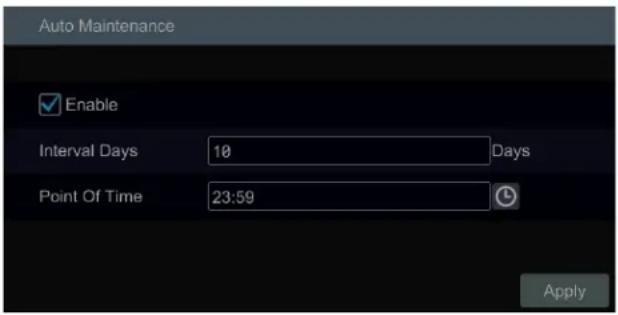
11.7 View Log
Click Start→Settings→System→Maintenance→View Log to go to the log view interface. Select the log main type, click 📋 to set start time and end time and then click "Search" button. The searched log files will be displayed in the list.
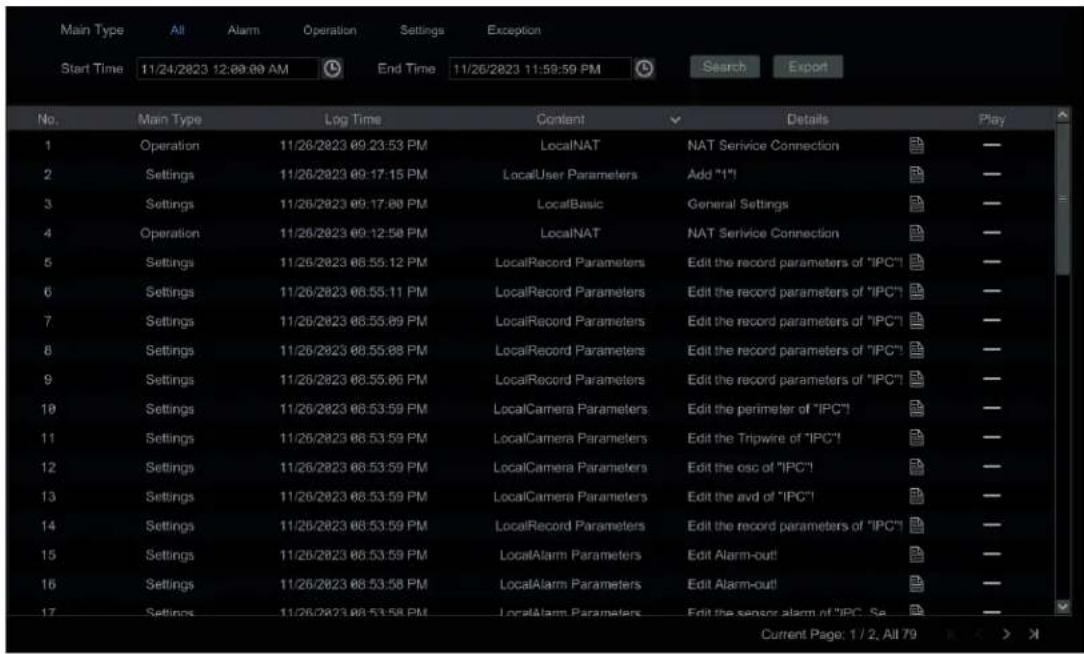
Choose the log file in the list and then click "Export" button to export the log file. Click on the "Content" title bar to pop up a menu list. Check contents in the menu list and then the log list will show the checked log contents only. Click to play the video log.
11.8 View System Information
Click Start→Settings→System→Information and then click the corresponding menu to view the "Basic", "Camera Status", "Alarm Status" and "Record Status" information of the system.
12 Remote Surveillance
12.1 Mobile Client Surveillance
① Enable NAT in the DVR. Refer to NAT Configuration for details.
② Scan the QRCode through the Speco Blue App available for iOS and Android to view your cameras easily and securely.
③ Run the Speco Blue App, go to the "Add Device" interface and then click to scan the QRCode of the DVR (Go to Start→Settings→System→Information→Basic to view the QRCode of the DVR).
④ After scanning the QRCode successfully, enter the login password to the DVR.
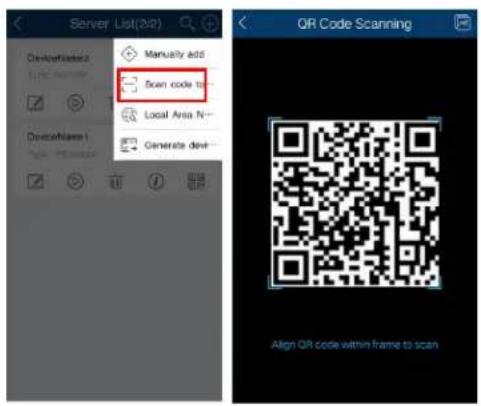
12.2 Web LAN Access
① Click Start→Settings→Network→TCP/IP to go to the "TCP/IP" interface. Set the IP address, subnet mask, gateway, preferred DNS, and alternate DNS of the DVR.
② Open the web browser on your computer, enter the IP address of the DVR in the address bar and then press enter to go to the login interface as shown below. You can change the display language on the top right corner of the login interface. Enter the username and password of the DVR in the interface and then click "Login" to go to the live view interface.
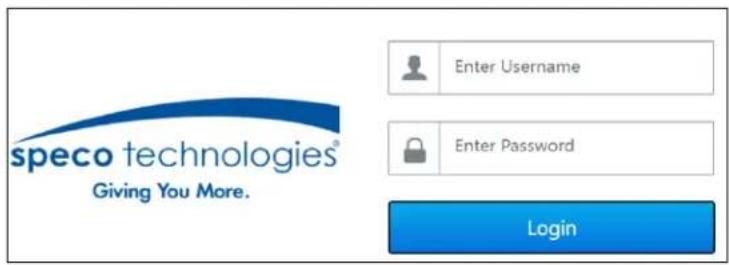
Notes: 1. Please make sure that the IP address of the DVR and the computer are both in the same local network segment. For example, supposing that the IP address of the computer is 192.168.1.41, the IP address of the DVR shall be set to 192.168.1.XXX. 2. If the HTTP port of the DVR is not 80, but other number instead, you need to input the IP address plus port number in the IE address bar when accessing the DVR over network. For example, the HTTP port is 81. You should enter http://192.168.1.42:81 in the IE address bar.
12.3 Web WAN Access
① Set the network of the DVR. Please refer to TCP/IP Configuration for details.
② Click Start→Settings→Network→NAT to go to the interface for NAT configuration and check "Enable". Click "Apply" to save the settings and make note of the QR code number under the QR code. Via Internet Explorer, go to connect.specotech.cloud, input the QR code number, your username and password to login.
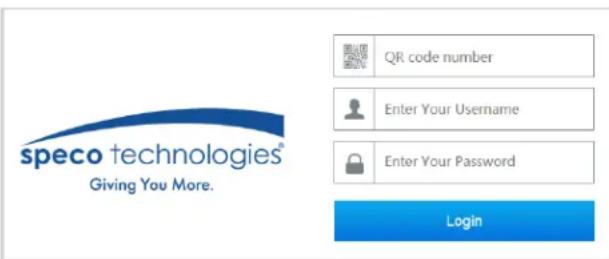
PPPoE Access
① Click Start→Settings→Network→PPPoE to go to the "PPPoE" interface. Check "Enable" in the "PPPoE settings" and then enter the username and password you get from your ISP. Click "Apply" to save the settings.
② Click Start→Settings→Network→Network Status to view the IP address of the DVR.
③ Open the web browser on your computer, enter the IP address of the DVR like http://210.21.229.138 in the address bar and then press enter to go to the login interface. Enter the username and password of the DVR in the interface and then click "Login" to go to the live view interface.
Router Access
① Click Start→Settings→Network→TCP/IP to go to the "TCP/IP" interface. Set the IP address, subnet mask, gateway, preferred DNS, and alternate DNS of the DVR.
② Set the HTTP port (it is suggested to modify the HTTP port because the default HTTP port 80 might be taken up) and enable UPnP function in both the DVR and the router. If the UPnP function is not available in the router, you need to forward the LAN IP address, HTTP port and server port of the DVR to the router. Port mapping settings may be different in different routers, so please refer to the user manual of the router for details.
③ Get the WAN IP address of the DVR from the router. Open the web browser on your computer, enter the WAN IP address plus HTTP port like http://116.30.18.215:100 in the address bar and then press enter to go to the login interface. Enter the username and password of the DVR in the interface and then click "Login" to go to the live view interface.
Note: If the WAN IP address is a dynamic IP address, it is necessary for you to use the domain name to access the DVR. Click Start →Settings →Network →DDNS to set DDNS (see DDNS Configuration for details). By using DDNS function you can use the domain name plus HTTP port like http://sunshine.dvrdydns.com:100 to access the DVR via internet.
12.4 Web Remote Control
The supported browsers of the remote surveillance are IE8/9/10/11, Firefox, Opera and Chrome in Windows system and Safari in MAC system. Here we take IE browser for example. When you access the DVR through IE for the first time, you need to download and install the relative components for normal preview and playback. Please refer to the tips in the remote interfaces for details. The buttons and icons on the top right corner of the remote interface are introduced as follows.
admin: the current login username.
Logout: Click to log out and return to the login interface.
Modify Password: Click to change the password of the current login user. Enter the current password and then set a new password in the popup window. Click "OK" button to save the new password.
Local Settings: Click to change the local settings. Set the snapshot number and click "Browse" to set the snapshot path and record path as shown below. Click "Apply" button to save the settings.
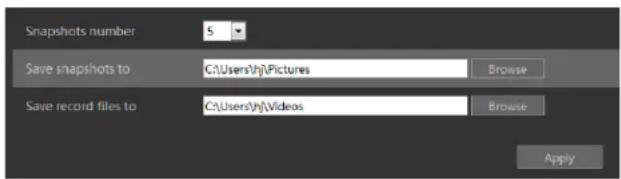
12.4.1 Remote Preview
The DVR supports web client access with plug-in or without plug-in.
Plug-in Required Live View
Click "Live View" in the remote interface to go to the live view interface. The live view interface consists of the four areas marked in the following picture.
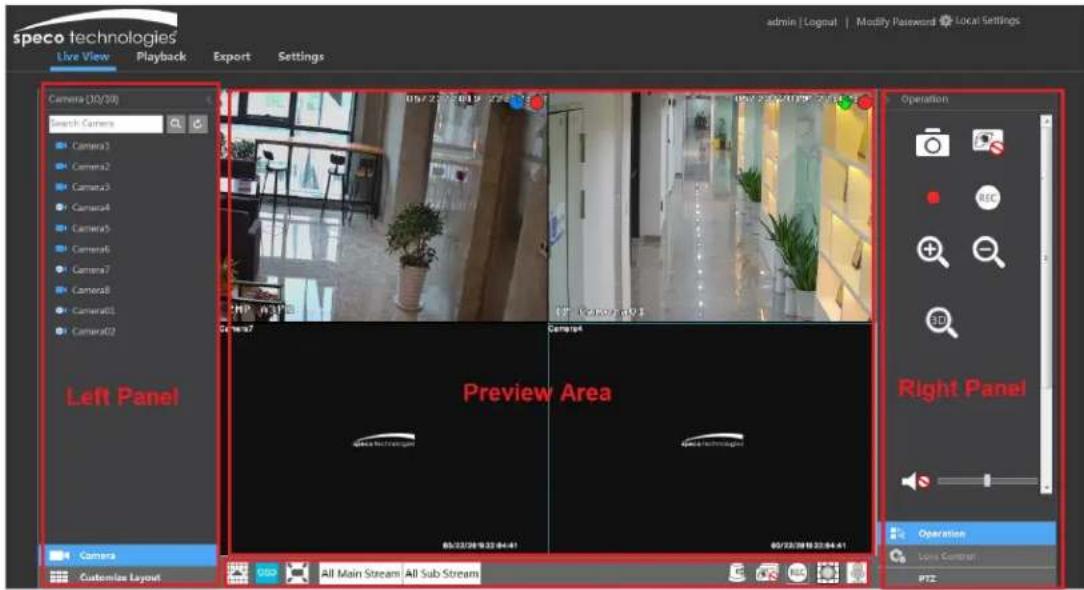
- Start Preview
Select a window in the preview area and then click one online camera on the left panel to preview the camera in the window. You can click in the tool bar to view all the cameras.
• Left Panel Introduction
Click < on the left panel to hide the panel and click > to show the panel. You can view all the added cameras and groups on the left panel.
• View Camera
Click Camera to view the cameras. You can view the number of all the added cameras and the online cameras. For instance, the left number 3 in Camera (3/4) on the left panel stands for the number of online cameras; the right number 4 stands for the number of all the added cameras. Enter the camera name in the search box and then click to search the camera. Click to refresh the camera list.
• View Scheme
Click Customize Layout to view the scheme (or layout). All schemes can be shown in the left panel. Double click the scheme name to invoke it quickly.
- Tool Bar Introduction
| Button Meaning | ||
| [0COD] | Screen mode button. | |
 | Click to disable OSD. Click it again to enable OSD. | |
 | Click to show full screen. Right click on the full screen to exit full screen. | |
 | Click “All Main Stream” or “All Sub Stream” to set the stream of all the cameras. | |
| [WD60] | Manual alarm button. Click to pop up a window and then trigger and clear the alarm-out in the window manually. | |
 | Click to preview all cameras. | |
 | Click to close all the preview cameras. | |
| [X037] | Click to start recording for all cameras to computer. Click to stop recording. | |
 | Click to start manual record for all cameras to the DVR. Click to stop manual record for all cameras. | |
 | Click to enable talk with the DVR. | |
● Right Panel Introduction
Click < on the right panel to show the panel and click > to hide the panel. Click PTZ at the bottom of the panel to go to "PTZ" panel. Click Lens Control to go to "Lens Control". Click Operation to go to "Operation" panel.
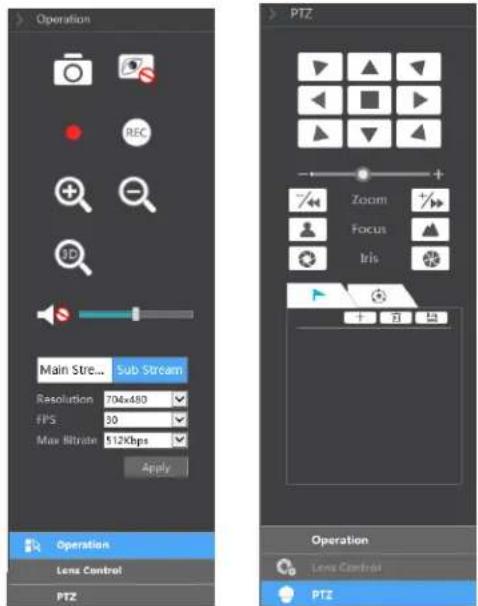
Click one camera window in the preview area and then click Main Stream to set the camera's live view stream and record stream to main stream in manual record mode; click Sub-stream to set the camera's live view stream and record stream to sub stream. In sub stream tab, set the resolution, FPS and bitrate and then click "Apply" to save the settings.
Operation panel introduction:
| Button Meaning | |
| Click to take snapshots. | |
| Click to close the preview camera. | |
| Click to start recording to computer; click it again to stop recording. | |
| Click to start record to the DVR | |
| Click to zoom in the image of the camera and then drag the mouse on the camera image to view the hidden area. | |
| Click to zoom out the image of the camera. | |
| The 3D zoom in function is designed for P.T.Z. Click the button and then drag the image to zoom in or zoom out the image; click the image on different areas to view the image of the dome omni-directionally. | |
| Click to enable audio and then drag the slider bar to adjust the volume. You can listen to the camera audio by enabling audio. | |
PTZ panel introduction:
| Button Meaning | ||
 | Click ▲ / ▼ / ▼ / ▼ / ▲ / ▲ / ▲ / ▲ to rotate the dome; click ■ to stop rotating the dome. | |
 | Drag the slider to adjust the rotating speed of dome. | |
 | Click 7/→ / 7/← to zoom in/out camera image. | |
 | Click ▲ / ↓ to increase/decrease the focal length. | |
 | Click ○ / ○ to increase/decrease the iris of the dome. | |
| Click to view the preset list and then click the button in the list to call the preset. Click + to add a preset; click 🔊 to save the preset setting; click 🔑 to delete the selected preset | ||
| Click to view the cruise list and then click the corresponding buttons in the list to start or stop the cruise. Click ➤ to play the cruise; click ➤ to stop cruise. | ||
Plug-in Free Live View
Only 4-screen display can be supported for the plug-in free live view.
Click "Live View" in the remote interface to go to the live view interface. The live view interface consists of the four areas marked in the following picture.
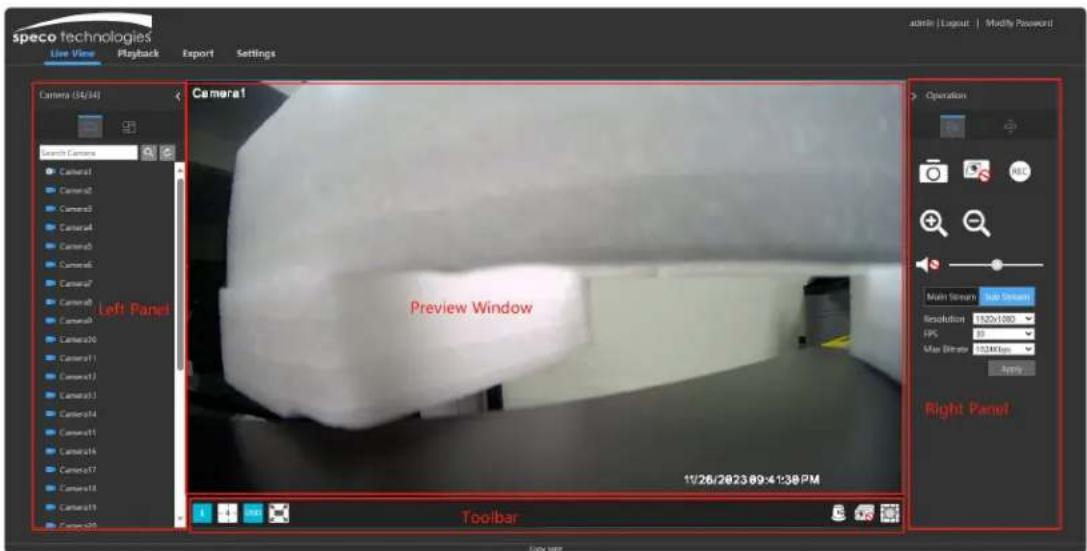
- Start Preview
Select a window in the preview window and then click one online camera on the left panel to preview the camera in the window. You can click in the tool bar to view all the cameras.
• Left Panel Introduction
Click < on the left panel to hide the panel and click > to show the panel. You can view all the added cameras and groups on the left panel.
• View Camera
Click to view the camera list. You can view the number of all the added cameras and the online cameras. For instance, the left number 3 in Camera (3/4) on the left panel stands for the number of online cameras; the right number 4 stands for the number of all the added cameras. Enter the camera name in the search box and then click to search the camera. Click to refresh the camera list.
• View Scheme
Click to view the scheme (or layout). All schemes can be shown on the left panel. Double click the scheme name to invoke it quickly.
Right Panel Introduction
Click < on the right panel to show the panel and click > to hide the panel. Click 🙏 on the right panel to go to "PTZ" panel. Click 📋 to go to "Lens Control". Click 🚗 to go to "Operation" panel.
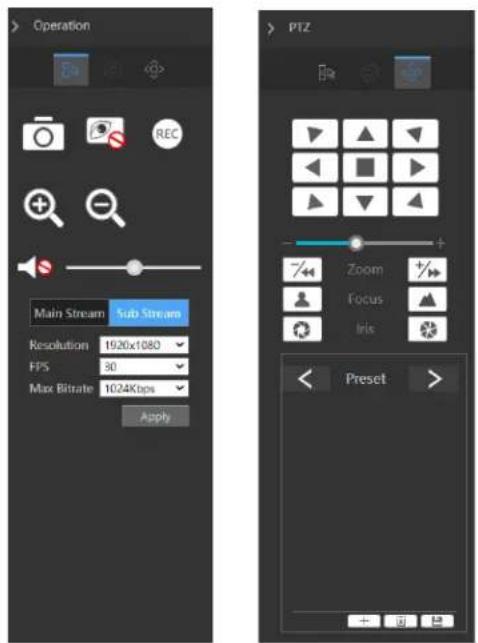
Click one camera window in the preview area and then click Main Stream to set the camera's live view stream and record stream to main stream in manual record mode; click Sub-stream to set the camera's live view stream and record stream to sub stream. In the sub stream tab, set the resolution, FPS and bitrate and then click "Apply" to save the settings.
Operation panel introduction:
| Button Meaning | |
| Click to take snapshots. | |
| Click to close the preview camera. | |
| Click to start recording to computer; click it again to stop recording. | |
| Click to start record to the DVR | |
| Click to zoom in the image of the camera and then drag the mouse on the camera image to view the hidden area. | |
| Click to zoom out the image of the camera. | |
| Click to enable audio and then drag the slider bar to adjust the volume. You can listen to the camera audio by enabling audio. | |
| Button Meaning | |
| Click ▲ / ▼ / ▼ / ▼ / ▲ / ▲ / ▲ / ▲ to rotate the dome; click ▲ to stop rotating the dome. | |
| Drag the slider to adjust the rotating speed of dome. | |
| Click ▲/ ▼ to zoom in/out camera image. | |
| Click ▲/ ▼ to increase/ decrease the focal length. | |
| Click ▲/ ▼ to increase/decrease the iris of the dome. | |
| Preset | Click to view the preset list and then click the button in the list to call the preset. Click + to add a preset; click ▲ to save the preset setting; click □ to delete the selected preset |
| Cruise | Click to view the cruise list. Click + to add a cruise; click ▲ to play the cruise; click □ to stop cruise. |
PTZ panel introduction:
12.4.2 Remote Playback
Click "Playback" in the remote interface to go to the playback interface.
① Check the record event types and cameras on the left panel. Set the record date on the calendar beside the time scale.
② Click 🔍 to search the record data and then click 🔍 or directly click the time scale to play the record.
The operation of the playback time scale is like that of the time scale in the main program of the DVR. Please refer to Playback Interface Introduction for details.
Introduction of playback control buttons:
| Button Meaning | |
| Stop button. | |
| Rewind button. Click to play video backward. | |
| Play button. Click to play video forward. | |
| Pause button. | |
| Deceleration button. Click to decrease the playing speed. | |
| Acceleration button. Click to increase the playing speed. | |
| Previous frame button. It works only when the forward playing is paused in single screen mode. | |
| Next frame button. It works only when the forward playing is paused in single screen mode. | |
| Click to step backward 30s and click to step forward 30s. | |
| Click to show the water mark on the image; click it again to hide the water mark | |
| Backup start time button. Click the time scale and then Click to set the backup start time. | |
| Backup end time button. Click the time scale and then Click to set the backup end time. | |
| Export button. | |
| Backup tasks button. Click to view the backup status. | |
| Event list button. Click to view the event record of manual/schedule/sensor/motion. | |
12.4.3 Remote Export
Click "Export" in the remote interface to go to the export interface. You can export the record by event search or by time search.
Event Search
Check the record type on the left side of the interface and then click to set the start time and end time; check the cameras and then click on the right side to search the record (the searched record data will be displayed in the list); check the record data in the list and then click "Export" button to export the record.
Time Search
Click to set the start time and end time on the left side of the interface; check the cameras and then click on the right side to backup the record.
Snapshots
The system will display all the captured images automatically in the list. Click 📄 to delete the image. Click 📄 to pop up the "Export" window. Click 🔒 to pop up the "View Image" window. Click 🔒 to export the image.
View Export Status
Click "Export Status" to view the export status. Click "Pause" to stop the export; click "Resume" to continue the export; click "Delete" to delete the task.
12.4.4 Remote Configuration
Click "Settings" in the remote interface and then configure the camera, record, alarm, disk, network, account and authority and system of the DVR remotely. All these settings are like the settings of the DVR. See the configurations of the DVR for details.
Appendix A FAQ
Q1. Why can't I find the HDD?
a. Please check the power and SATA data cables of the HDD to make sure they are well connected.
b. For some DVRs with the 1U or small 1U case, the power of the adapter may be not enough for operating them. Please use the power adaptor supplied along with the DVR.
c. Please make sure the HDDs are compatible with the DVR. See Appendix C Compatible Device List for details.
d. The HDD could have gone bad. Change to a new one.
Q2. Why are there no images output in some or all the camera windows?
a. Please make sure the resolutions of the cameras are supported by the DVR.
b. Please make sure the network cables of the IP camera and DVR are both connected properly, and the network parameters are set correctly.
c. Please make sure the network and the switch both work normally.
Q3. The screen has no output after booting the DVR normally.
a. Please make sure the screen, HDMI or VGA cables are good and well connected.
b. Please make sure the screen supports the resolution of 1280*1024, 1920*1080 or 3840*2160 (4K*2K). The DVR cannot self-adapt to the screen of which the resolution is lower than 1280*1024, and then the screen will remind you that the screen resolution is not supported by the DVR or just has no display. Please change the screen to 1280*1024, 1920*1080 or 3840*2160 resolution before booting the DVR.
Q4. Forget the passwords?
a. The password for admin can be reset through "Edit Security Question" function.
Click "Edit Security Question" button in the login window and then enter the corresponding answer to the selected question in the popup window, the password for admin will be reset. If you forget the answer to the question, this way will be invalid, please contact your dealer for help.
b. The passwords of other users can be reset by admin, please refer to Edit User for details.
Q5. The DVR cannot add up to the maximum number of IP cameras?
Take the 16 CH DVR as an example. Some 16 CH DVR support a maximum of 120Mbps bandwidth input (please take the real device for standard). Refer to the picture below. The remaining bandwidth should be larger than the bandwidth of the IP camera you want to add, or you would fail to add the IP camera. You should lower the added cameras' bitrate to release the bandwidth. It is recommended to add cameras by "Quickly Add" for batch adding.
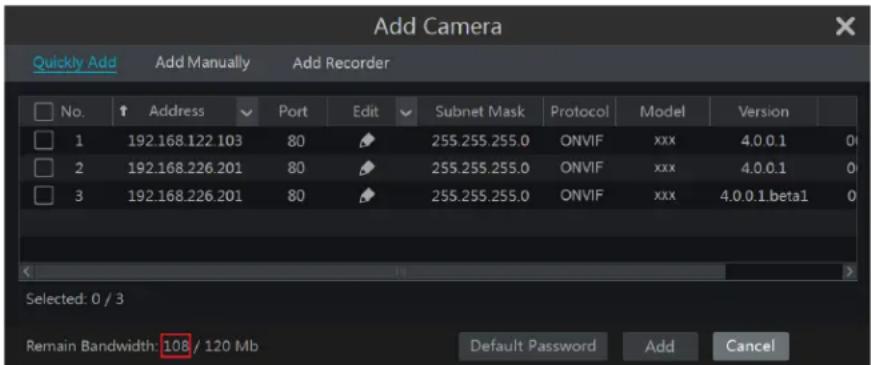
Q6. The system cannot record, why?
a. Make sure the HDD was formatted prior to use.
b. The record schedule has not been set in manual record mode. Please refer to Schedule Settings for details.
c. Maybe the HDD is full and thus the DVR is not able to record. Check HDD information from Disk Management and if required, please enable the recycle function (please see Advanced Configuration for details).
d. There is no disk but cameras in the disk group, so please add at least one disk to the group. Refer to Storage Mode Configuration for details.
e. The HDD could have gone bad. Please change another one.
Q7. Fail to access the DVR remotely through IE.
a. Please make sure the IE version is IE8 or above.
b. Please check whether the PC has enabled the firewall or installed the antivirus software. Please try to access the DVR again after you disable the firewall and stop the antivirus software.
c. Allow & block list may have been set in Account and Authority setting. The PC of which the IP address is in the block list or out of the allow list cannot access the DVR remotely.
Q8. ActiveX control cannot be downloaded. How can I do?
a. IE browser blocks ActiveX control. Please set up as per the steps mentioned below.
① Open IE browser. Click → Internet Options.
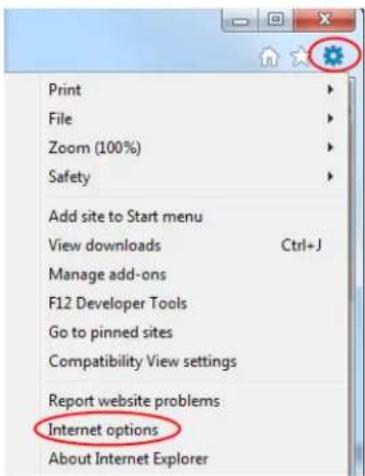
② Select Security→Custom Level. Refer to Fig 8-1.
③ Enable all the sub options under "ActiveX controls and plug-ins". Refer to Fig 8-2.
④ Then click "OK" to finish setup.
b. Other plug-ins or anti-virus may block ActiveX. Please disable or do the required settings.
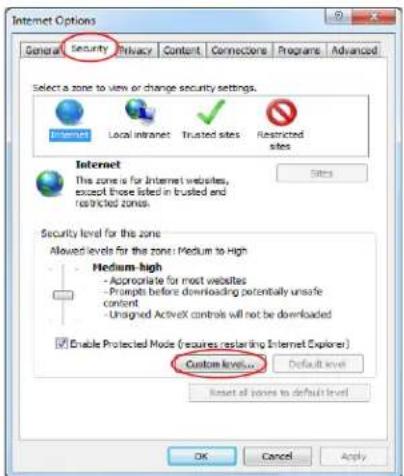
Fig 8-1
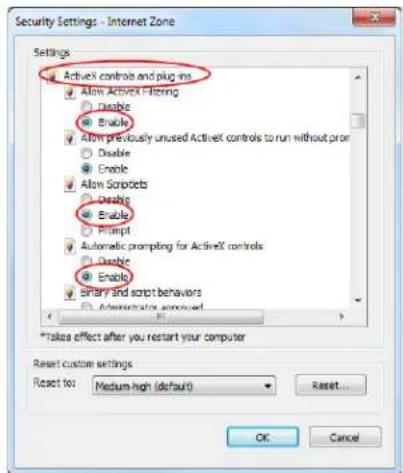
Fig 8-2
Q9. How to play the backup file?
a. Record backed up by DVR: insert the USB device in which the record backup files are saved to the USB interface of the PC and then open the USB device path. The record can be backed up in the private format and AVI format by DVR.
- If you select the private format when backing up a record by DVR, Speco Blue Player will be backed up to the USB device automatically along with the record data. Uncompress the "Speco Blue Player zip" and then click "Speco Blue Player .exe" to set up Speco Blue Player. After the setup is completed, open Speco Blue player and then click "Open Folder" button in the middle of the interface to select the record data. Refer to Fig 9-1.
Select camera in the resource tree on the left side of the interface to play the camera record. Click 📂 on the tool bar under the camera image to enable audio. Refer to Fig 9-2.
- If you select the AVI format when backing up a record by DVR, the record backup data can be played by the video player which supports this format.
b. Record backed up through web. The record can only be backed up with AVI format through the web. The record can be backed up to PC and played by the video player which supports this format.
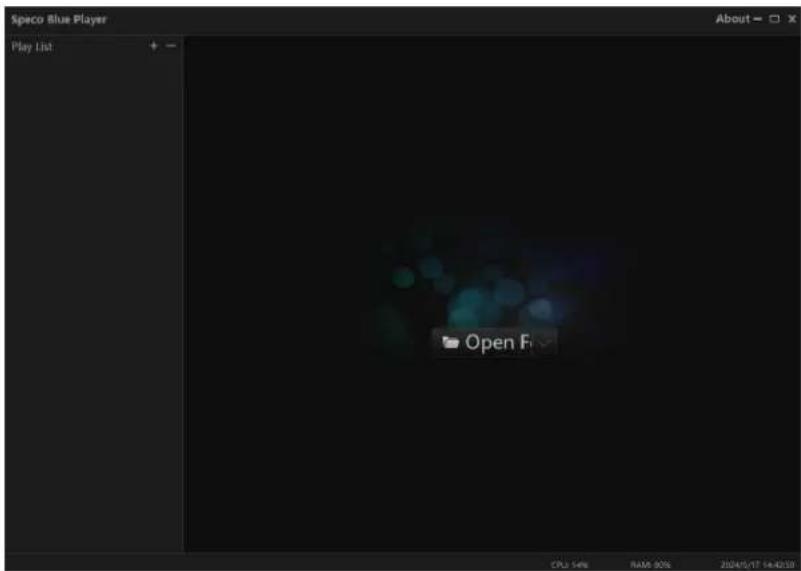
Fig 9-1
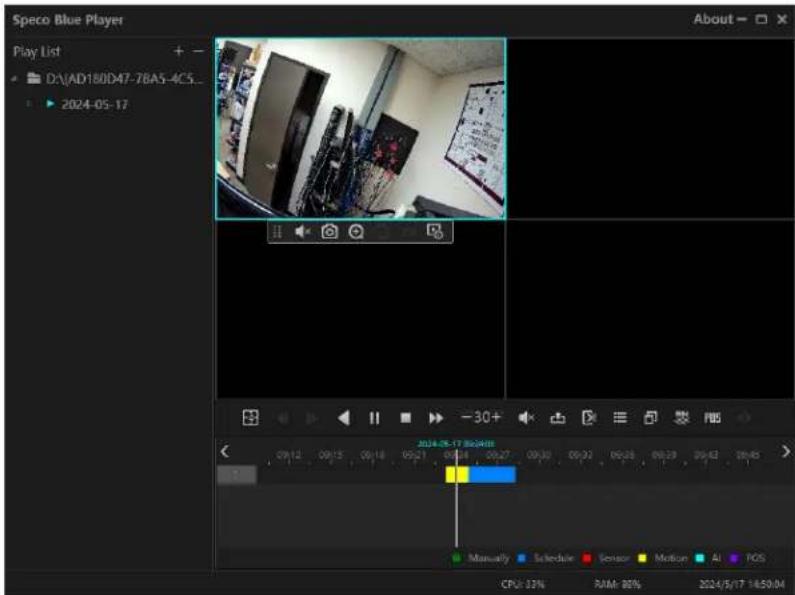
Fig 9-2
Appendix B Calculate Recording Capacity
The recording capacity is mainly up to the record resolution, record stream and bitrate. Different image quality parameters decide different disk capacity occupation in equal times. The bigger the record resolution, record stream and record bitrate is, the more disk capacity is taken up in equal times. The calculation format of recording capacity is shown below.
Recording Capacity (MB) = Bitrate (Kbps) ÷ 1024 ÷ 8 × 3600 × Recording hours per day × Record Storage Days × channel numbers 3600 means record for an hour(1TB=1024GB, 1GB=1024MB, 1MB=1024KB, 1Byte=8bit).
| Record Bitrate (Kbps) | Used Space (MB/H) | Used Space (MB/D) |
| 10240 | 4500 | 108000 |
| 8192 | 3600 | 86400 |
| 6144 | 2700 | 64800 |
| 4096 | 1800 | 43200 |
| 3072 | 1350 | 32400 |
| 2048 | 900 | 21600 |
| 1024 | 450 | 10800 |
| 768 | 337.5 | 8100 |
| 512 | 225 | 5400 |
| 384 | 168.75 | 4050 |
| 256 | 112.5 | 2700 |
The table below shows the recording capacity requirements for record storage in 30 days.
| Record Bitrate (Kbps) | Recording Capacity (TB) | |||||
| 1CH | 4CH | 8CH | 16CH | 32CH | 64CH | |
| 10240 | 3.09 | 12.36 | 24.72 | 49.44 | 98.88 | 197.76 |
| 8192 | 2.48 | 9.89 | 19.78 | 39.56 | 79.11 | 158.21 |
| 6144 | 1.86 | 7.42 | 14.84 | 29.67 | 59.33 | 118.66 |
| 4096 | 1.24 | 4.95 | 9.89 | 19.78 | 39.56 | 79.11 |
| 3072 | 0.93 | 3.71 | 7.42 | 14.84 | 29.67 | 59.33 |
| 2048 | 0.62 | 2.48 | 4.95 | 9.89 | 19.78 | 39.56 |
| 1024 | 0.31 | 1.24 | 2.48 | 4.95 | 9.89 | 19.78 |
| 768 | 0.24 | 0.93 | 1.86 | 3.71 | 7.42 | 14.84 |
| 512 | 0.16 | 0.62 | 1.24 | 2.48 | 4.95 | 9.89 |
| 384 | 0.12 | 0.47 | 0.93 | 1.86 | 3.71 | 7.42 |
| 256 | 0.08 | 0.31 | 0.62 | 1.24 | 2.48 | 4.95 |
For instance, there is a 32CH DVR recording 24 hours per day and the record stores for 30 days. The DVR adopts dual stream recording. The main stream is 4096Kbps and the sub stream is 1024Kbps, then the total recording capacity is 49.45TB (39.56TB + 9.89TB). Considering the format loss of the disk is about 10% , the required disk capacity will be 55TB (49.45TB ÷ (1-10%)).
Model: H40HR
Federal Communications Commission (FCC) Statements
This device complies with Part 15 of the FCC Rules. Operation is subject to the following two conditions: (1) This device may not cause harmful interference, and (2) This device must accept any interference received, including interference that may cause undesired operation.
FCC Responsible Party:
Speco Technologies
200 New Highway
Amityville, NY 11701
www.specotech.com