AW-A11 - Uncategorized Nearity - Free user manual and instructions
Find the device manual for free AW-A11 Nearity in PDF.


User questions about AW-A11 Nearity
0 question about this device. Answer the ones you know or ask your own.
Ask a new question about this device
Download the instructions for your Uncategorized in PDF format for free! Find your manual AW-A11 - Nearity and take your electronic device back in hand. On this page are published all the documents necessary for the use of your device. AW-A11 by Nearity.
USER MANUAL AW-A11 Nearity
CONFERENCE SPEAKERMIC
User Manual

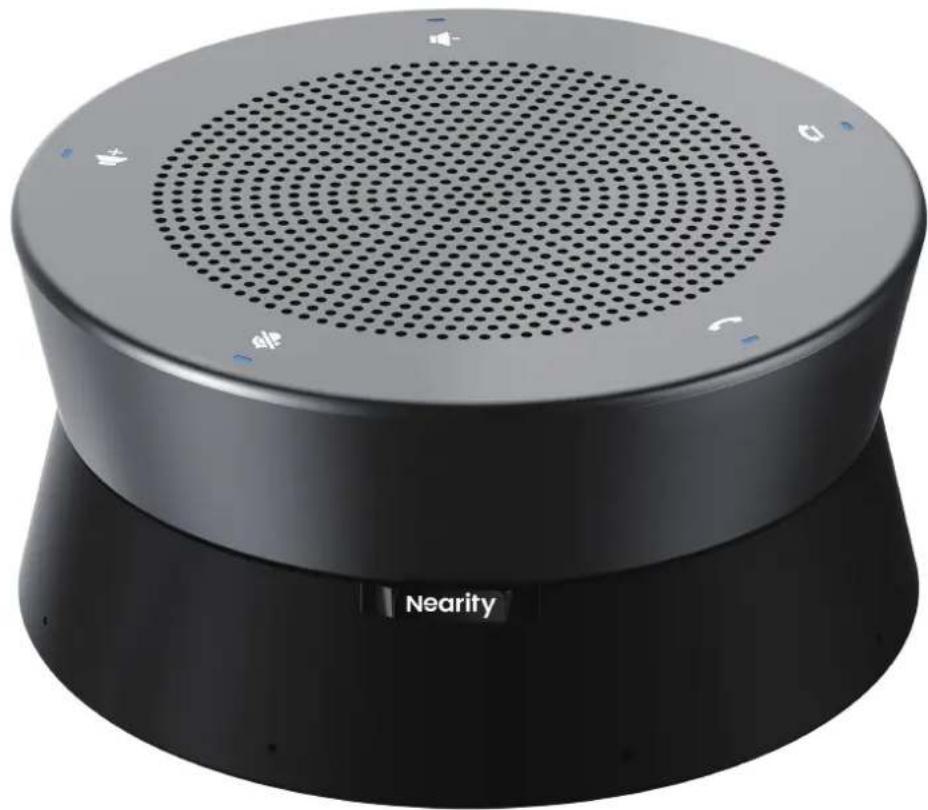
natural_image
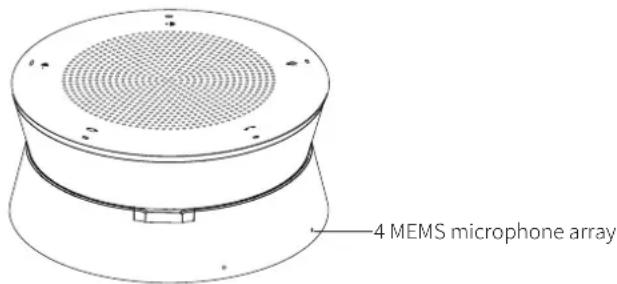
Black and white photo of a modern Nearity sound mixer with circular grille and speaker grille (no text or symbols on device body)Model: AW-A11
V1.0
Content
1. Product Overview 01
1.1 Product Introduction----01
1.2 Features 01
1.3 Packing List 01
1.4 Basic Information----02
2. Deployment 05
2.1 Connection 05
2.2 Installation Instructions - - - - - - - - - - - - - - - - - - - - - - 05
3. Operation Guide 06
3.1 Indicators 06
3.2 Nearsync Tool 07
4. Specification 09
5. FAQ 10
6. Caution 11
1. Product Overview
• 1.1 Product Introduction
Portable Professional Sound
With a 4 element 360° microphone array, NEARITY A11 SpeakerMic brings noise suppression, echo and reverb cancellation to a compact, plug-and-play package. 4 meters(13ft) pickup range and advanced beamforming make A11 the wise choice for personal offices, small conference rooms, and on-the-go collaboration.
• 1.2 Features
- 360 degree sound
4-element omnidirectional microphone array with an effective pickup range of 4 meters(13ft).
- Intelligent Noise Suppression
Intelligent algorithms automatically identify and suppress various sorts of office background noises, such as noises from outdoor rain and air-conditioner.
- Full-duplex communication
Allows for simultaneous speakers at both ends to be heard without missing a word.

- Touchable Feature Keys
Touch sensitive feature keys support mute, volume control, and other frequently used functions.

-Buried wire free drive design, convenient meeting
All cable interfaces are hidden in the bottom of the device, the meeting room is more concise; USB plug and play, 5 seconds easy to start cloud conference.
• 1.3 Packing List
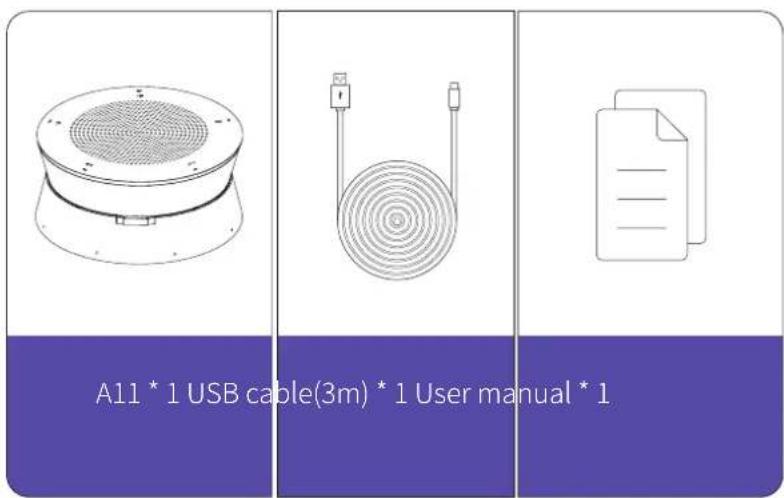
• 1.4 Basic Information
1.4.1 Physical Structure
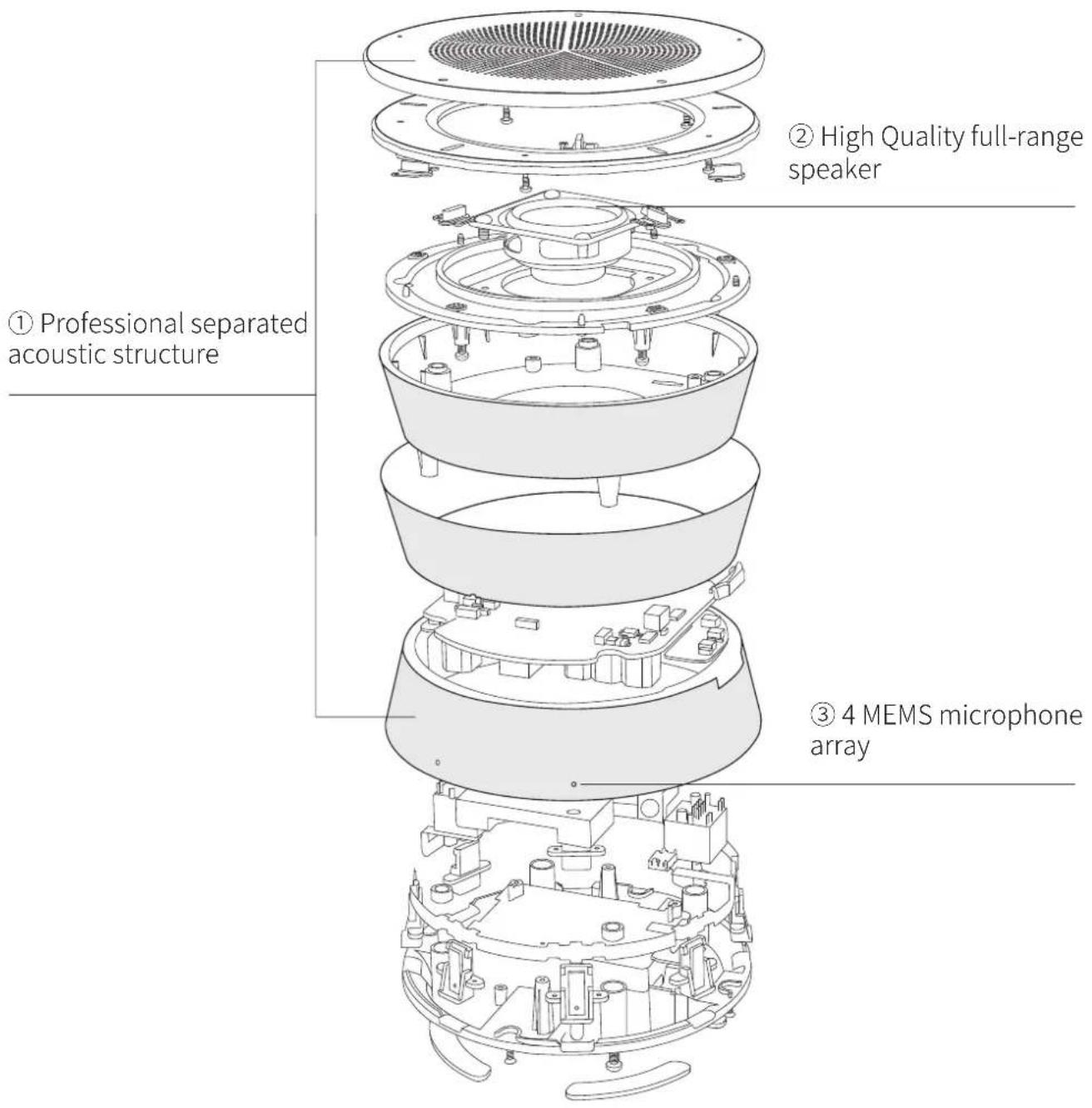
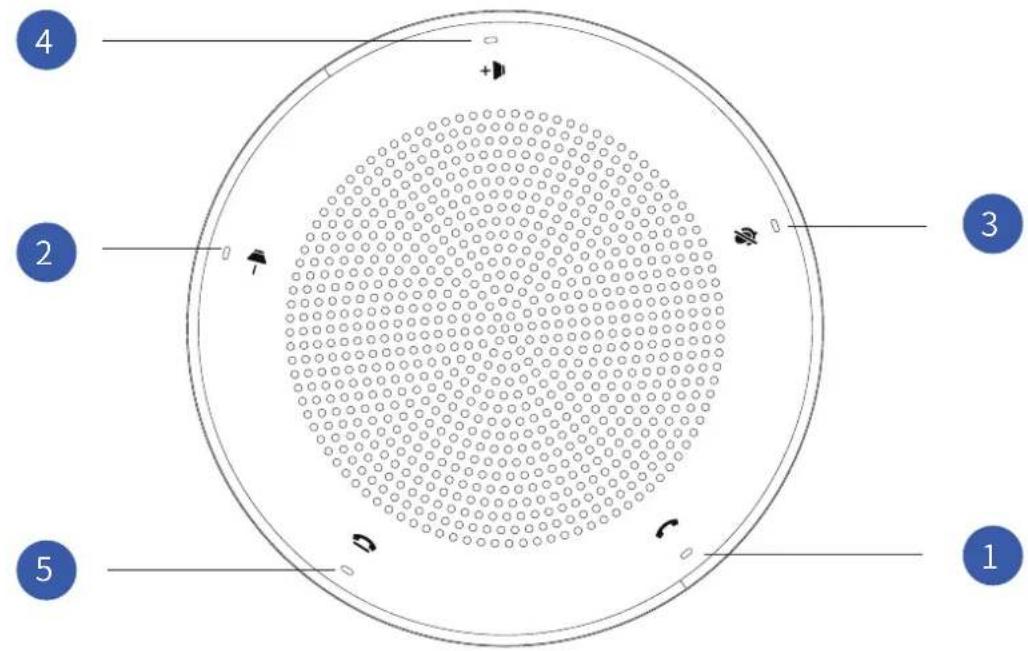
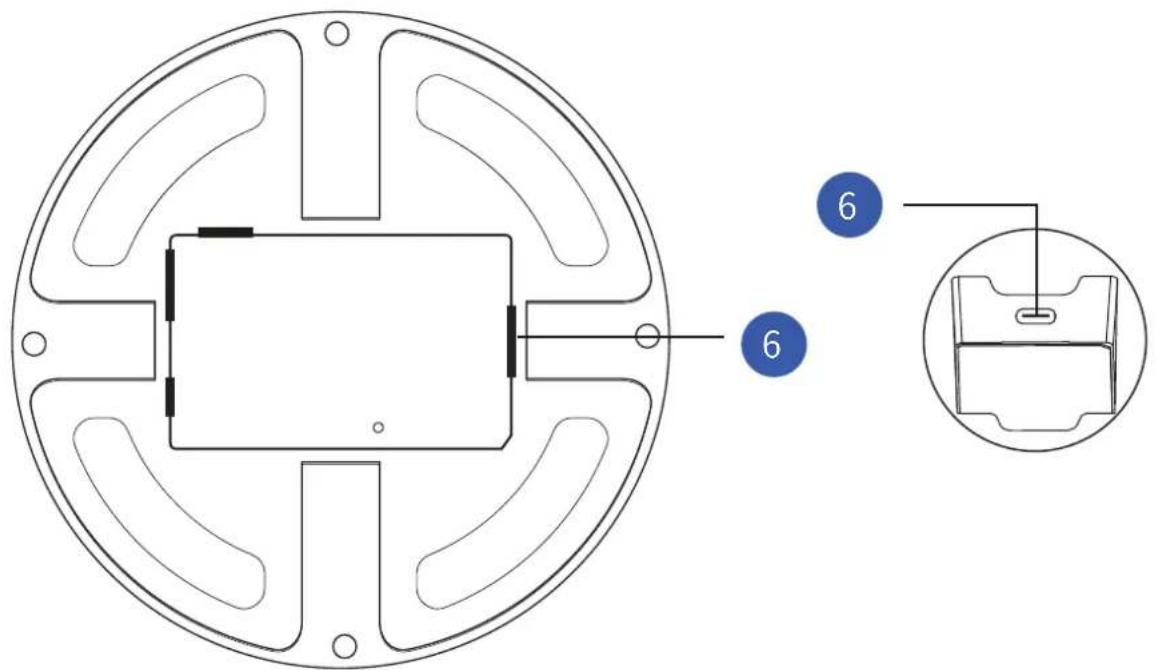
① Volume+
② Volume—
③ Anwser call*
④ End call*
⑤ Mute
(*Answer call and End call button should match with the specific VC software)
⑥ USB type-C
1.4.2 Dimension
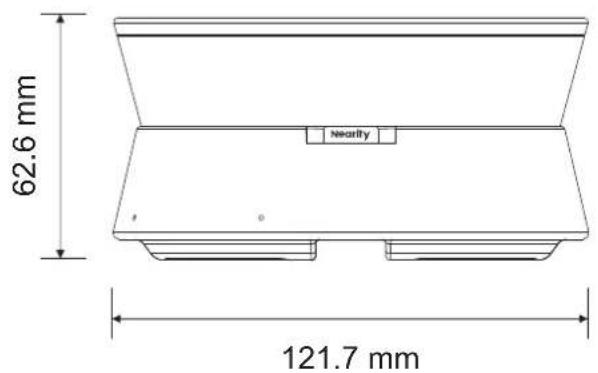
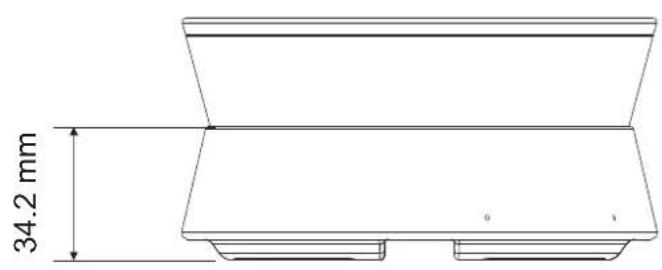
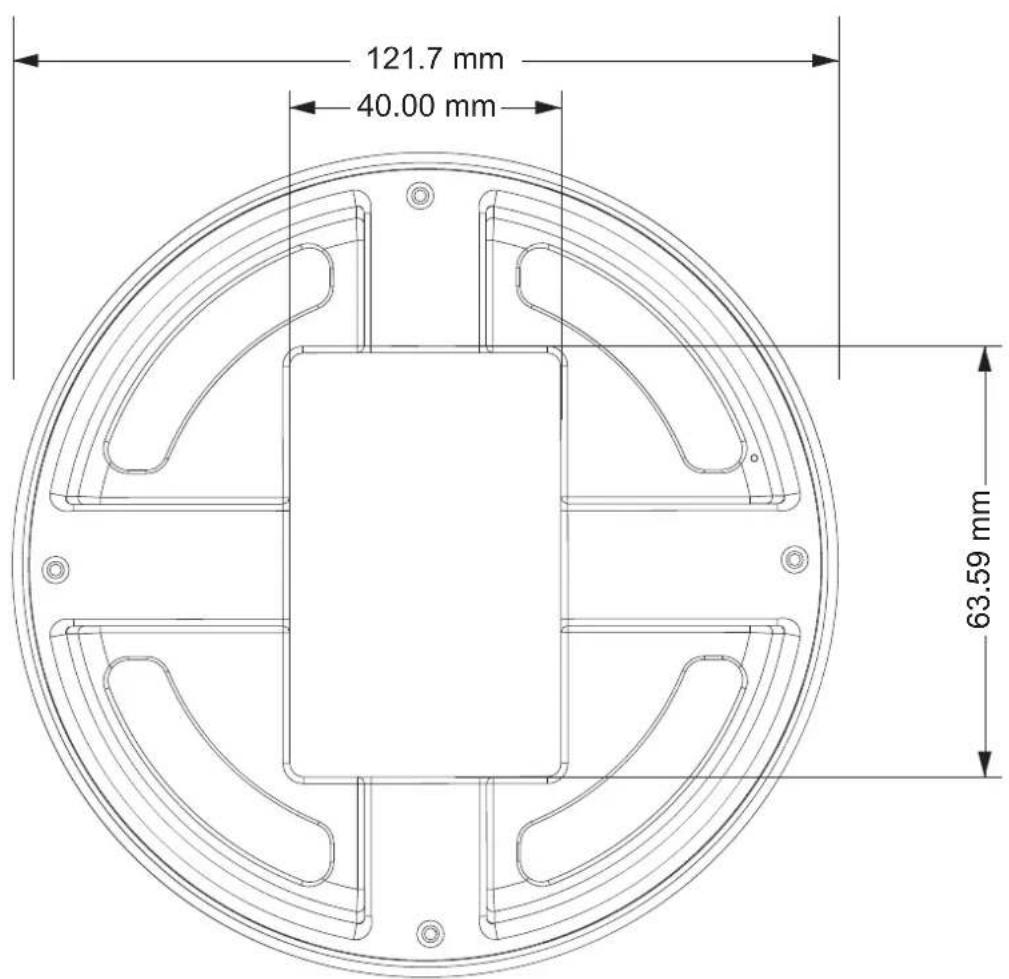
2. Deployment
• 2.1 Connection
2.1.1 A11 connects with Laptop/PC
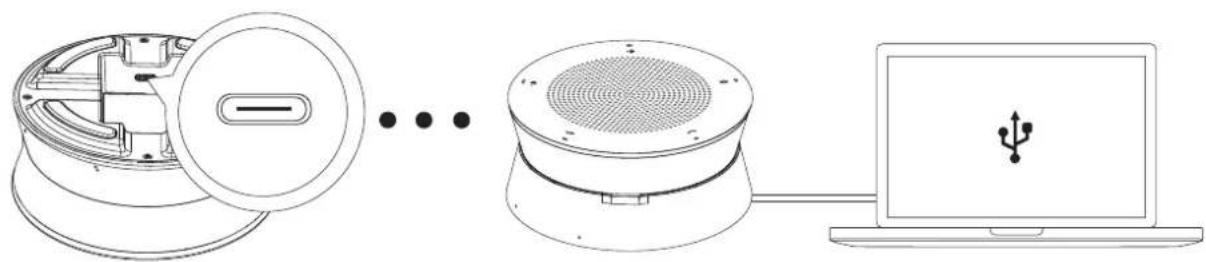
natural_image
Diagram showing three connected devices: a circular device with internal components, a speaker tower, and a laptop with a USB symbol (no text or labels present)When using A11, no additional power is required. A single USB port can provide both power and data transfer.
• 2.2 Installation Instructions
2.2.1 Desktop Installation
Place the A11 device on the top of your desk, in the middle between each speaker or in the middle of the desk.
2.2.2 Bracket Installation
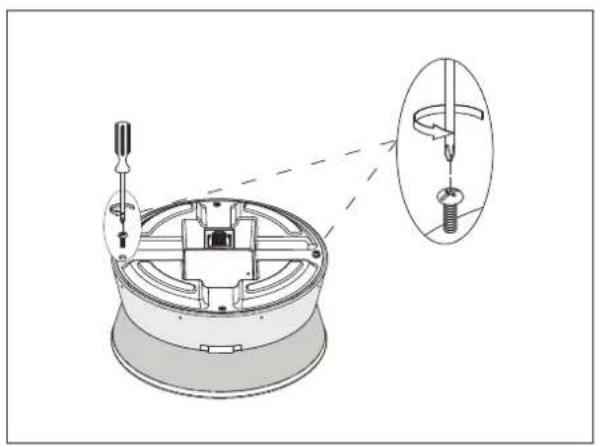
The A11 can be secured to a tabletop using a fixed bracket for stability in use.
natural_image
Technical diagram of a mechanical assembly with a magnified inset showing internal components (no text or labels)① Take out the two screws that were already in the bottom of the A11. Line up the holes at each end of the long metal plate. Put the flat-headed long screws through the holes to attach the metal plate to the bottom of the A11. Finally, use the bracket to attach the A11 to the table.
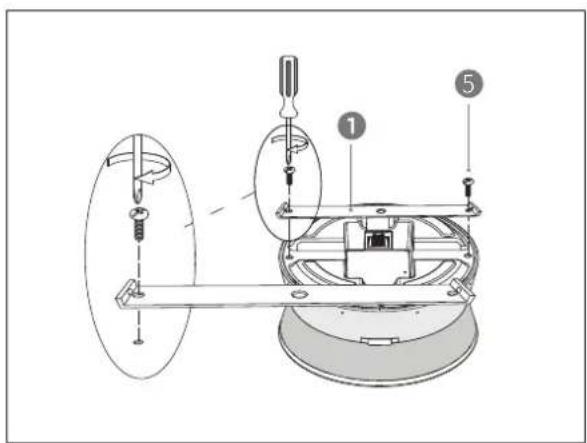
② Line up the holes on the small metal plate with the U-shaped groove on the larger metal plate. Then, use small screws with flat heads to keep them in place.
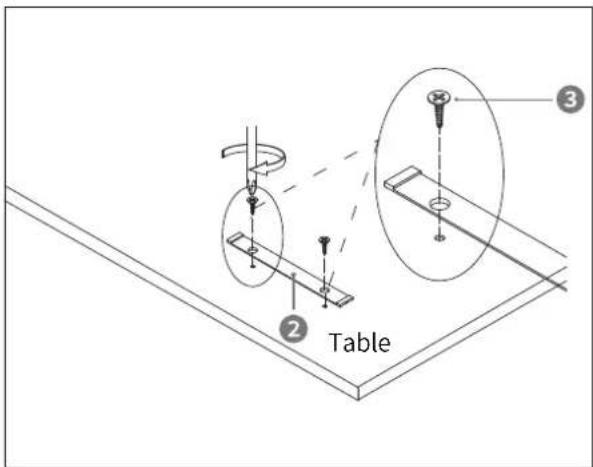
③ Use pointed self-tapping screws to secure the short iron plate to the table-top. Once the screws are in place, the installation is finished.
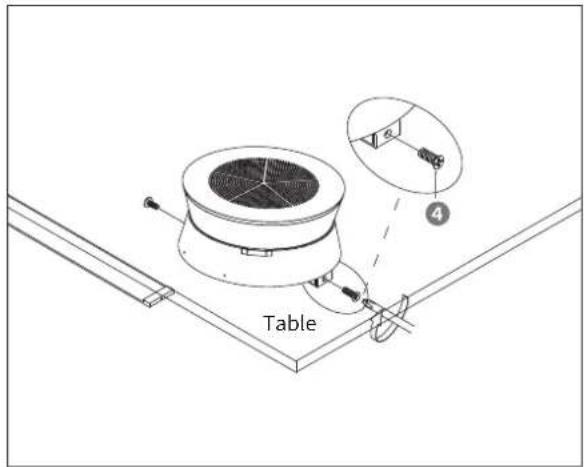
④ The diagram shows that the fixed installation is now finished.
3. Operation Guide
• 3.1 Indicators
| Solid Blue-white: Connected and in use. | |
| Solid Green: | Connected and being called by authenticated (HID interoperability) software. |
| Solid Red: | Muted. |
| Flash Blue-white: Firmware Upgrading. | |
| Mute light enhancement display status: | 1. The mute key is blue-white, and other keys are red, indicating that the device is in mute state;2. The mute key is red and other keys are blue-white, indicating that the device is in unmute state. |
• 3.2 Nearsync Tool
3.2.1 Downloading link
Download the Nearsync on the official website.https://nearity.co/resources/dfu
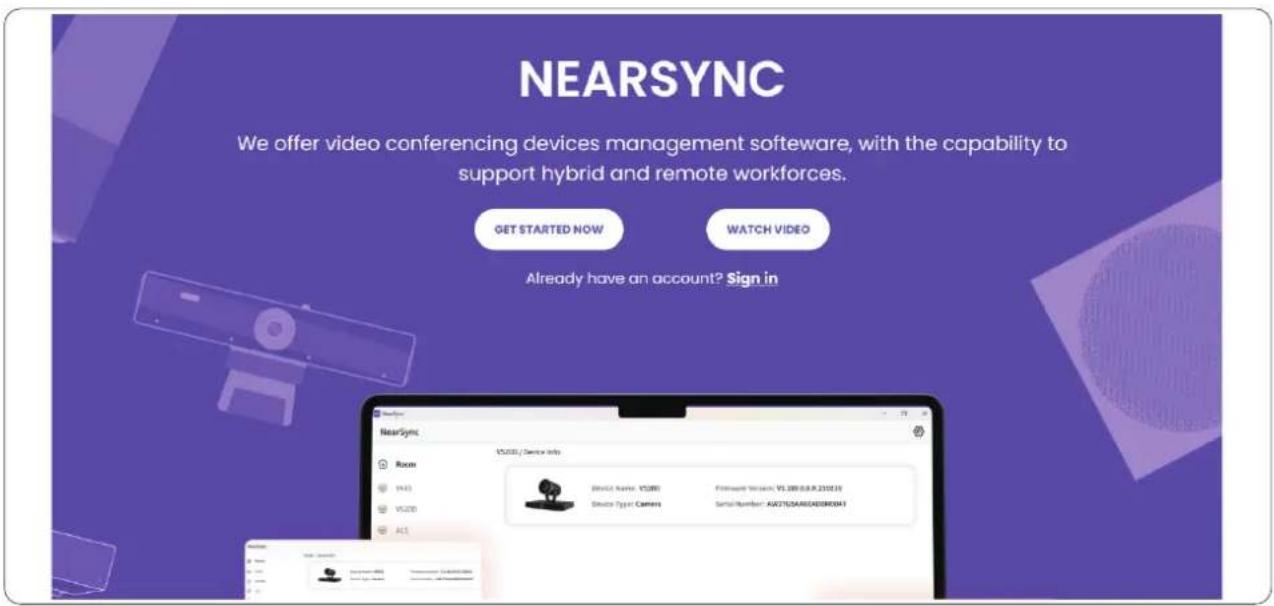
3.2.2 Nearsync Operation
3.2.2.1 Product information
After the A11 is connected to the computer via USB, nearsync automatically recognizes the device information.
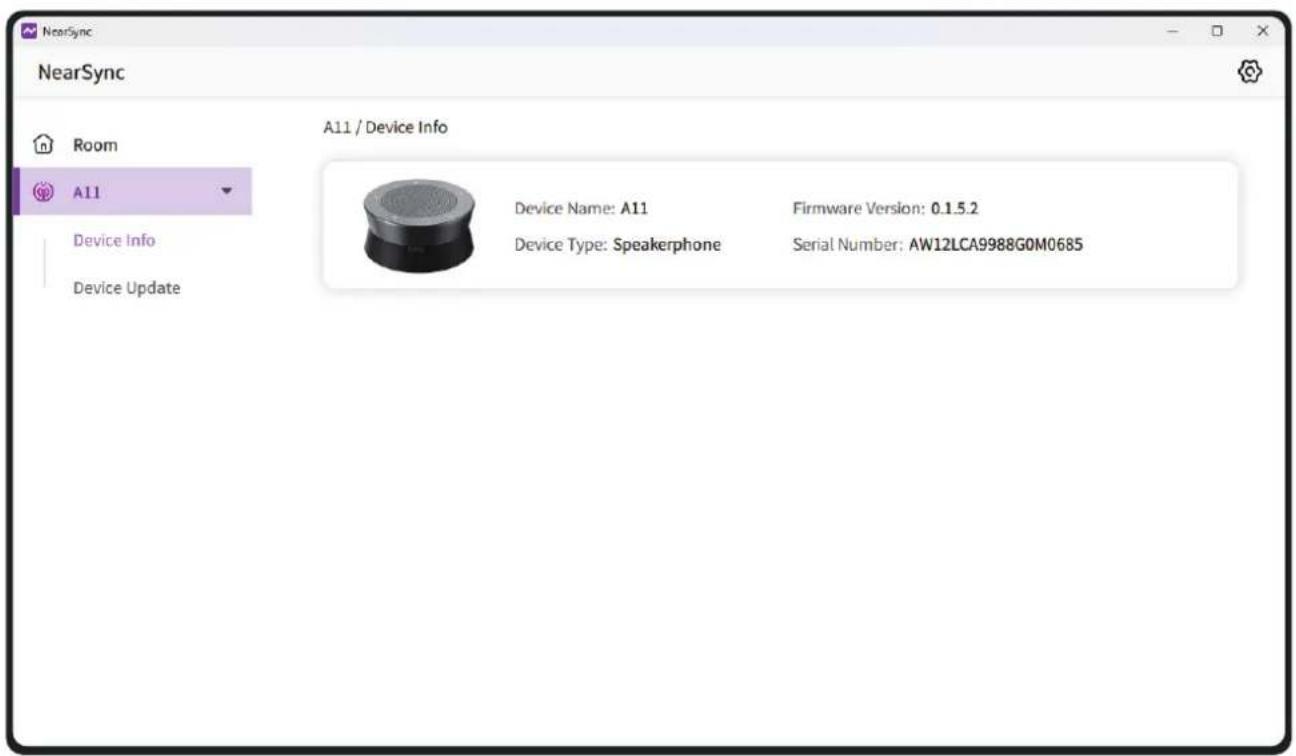
- Device picture
- Device information
3.2.2.2 Upgrade Firmware
3.2.2.2.1 Upgrade online
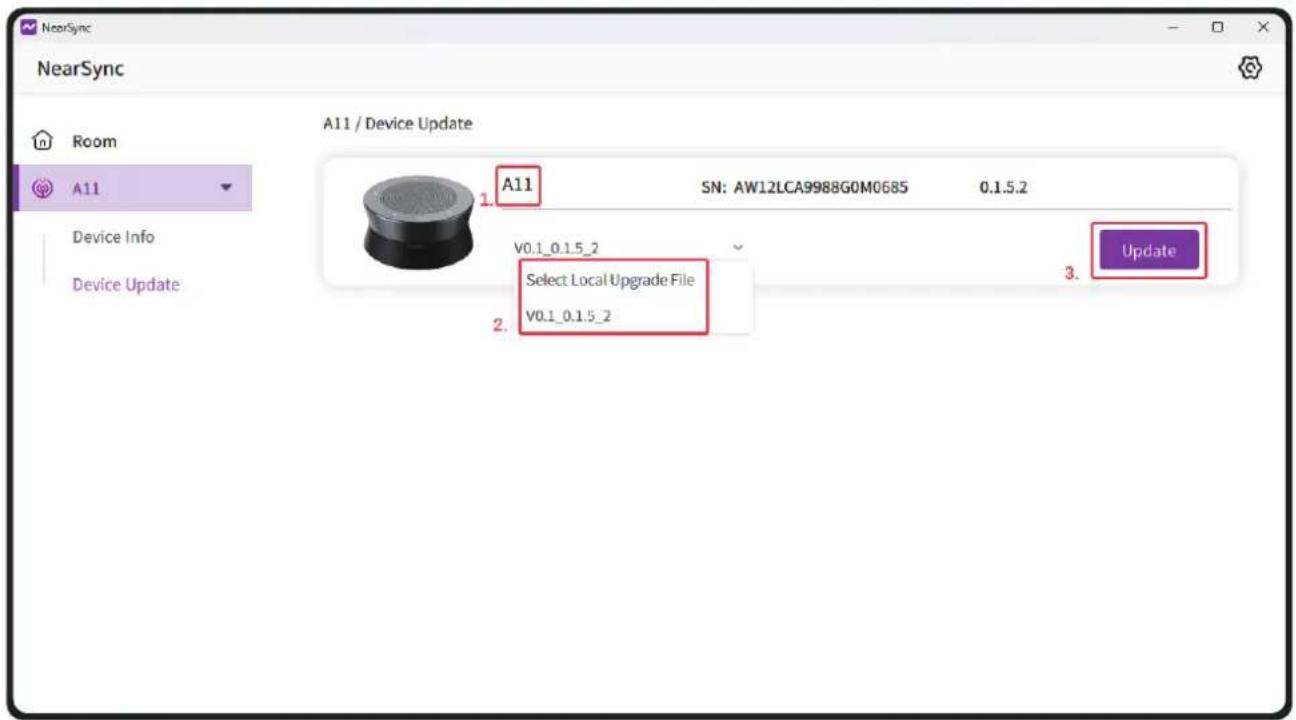
- Choose the unit you want to update.
- Select the firmware version you want to update. The latest versions will be displayed under the menu.
- Click Update to start. And it will show the update process as follows:
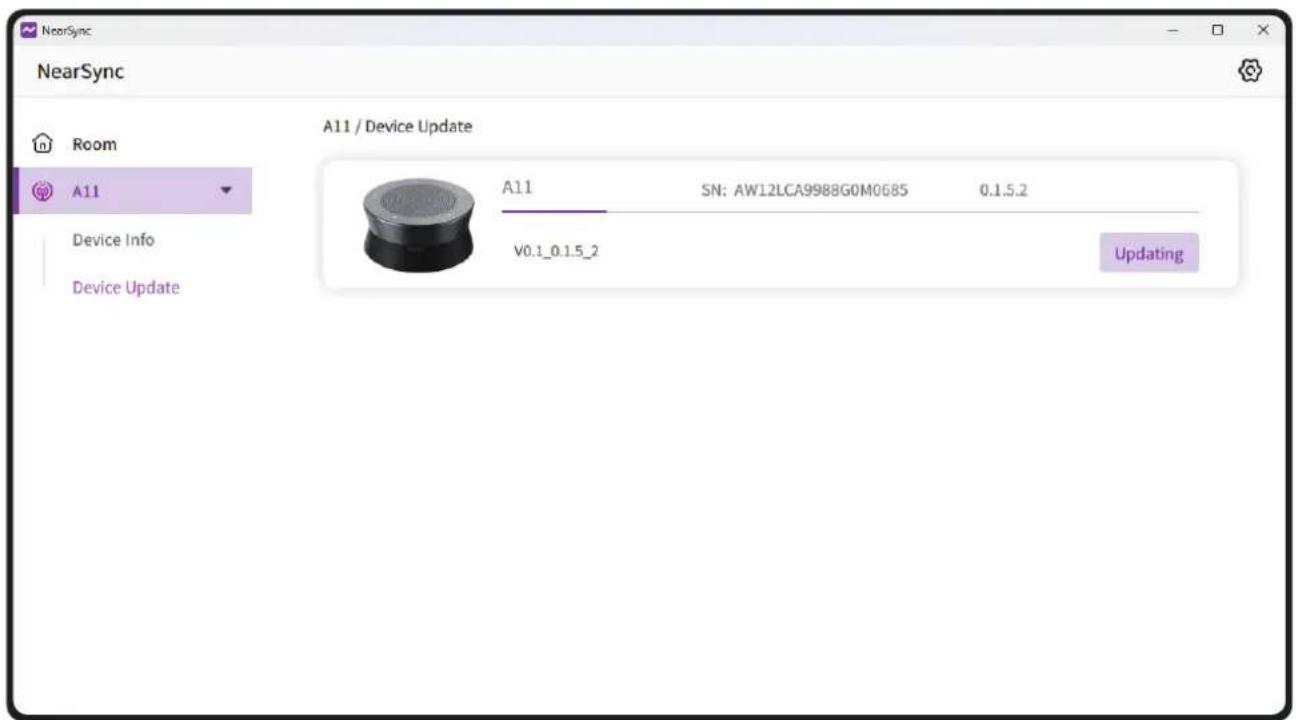
- .When updating finishes, the device will restart automatically.
4. Specification
| Technical Specifications | |
| Microphone Features | 4 MEMS microphone array |
| Effective pickup distance: 4m(13ft) | |
| Sensitivity: -38dBV/Pa 94dB SPL@1kHz | |
| SNR: 63dBV/Pa 94dB SPL@1kHz,A-weighted | |
| Speaker Characteristics | Rated output power: 4Ω/1W |
| Speaker frequency response: 145Hz~10kHz | |
| Speaker volume: 80±3dB @1m | |
| THD<3% | |
| Audio Characteristics | Beamforming |
| Noise suppression | |
| Full-duplex | |
| Echo cancellation | |
| Automatic Gain Control(AGC) | |
| Reverberation suppression | |
| Physical Characteristics | Height: 64mm(2.5 inches) |
| Width: 120mm(4.7 inches) | |
| Depth: 120mm(4.7 inches) | |
| Net weight: 359g(12.66 oz) | |
| Color: Galaxy Gray | |
| Power and Connectivity | EUSB port: USB 2.0 Type-C |
| Compatible operating systems: Windows/Mac/Linux | |
| External power supply: USB 5V/0.5A | |
| Packing List | 1x A11 |
| 1x USB cable(3 meters) | |
| 1x User manual | |
5. FAQ
Q: How to confirm the device can work nomally?
A: According to the connection method above, after connecting the USB to the computer, you can use the following steps to check:
• Light: The device indicator is blue-white
- Playback: The PC selects A11 as the speaker device, and plays the audio source. Make sure there is no noise, lag and other phenomena
- Recording: Open Audicity or other recording software to see if the waveform changes evenly, play the recording file and confirm whether the sound quality is normal
Q: What video conference software is Nearity devices compatible with?
A: No restrictions. Nearity devices employ the international standard USB connection method, making them compatible with most major video conferencing software, such as Zoom, Teams, Google Meet, Tencent Meeting, and Webex.
Q: How many people can A11 cover as recommendation?
A: According to best practice design, it is recommended that one A11 microphone cover a radius of 2-3 meters, or 1\~6 people.
Q: Why do online participants hear their echo in the meeting?
A: Check if the conference software uses A11 for both the microphone and speaker at the same time.
Q: Why do remote participants hear continuous distractions during meetings?
A: Check if the conference room has any ultrasonic, infrared, or other sensors. If so, turn them off and try again.

CAUTION
- Please keep the device horizontally;
- Connect the device using the provided cable. The standard USB cable length is 3m, but you can purchase a longer one if needed (we recommend UGREEN brand). The maximum recommended length for a USB cable is 5m. If you need a longer cable, buy an extension cable with a signal amplifier; otherwise, it may cause signal instability, resulting in equipment not being recognized, noise, and other issues;
- Ensure that the USB connection is stable. Avoid frequently plugging and unplugging, as well as applying external force, as this may damage the USB interface or cable;
- Ensure that nothing is blocking the device on the table;
- When cleaning the table, make sure not to wipe the device;
- The equipment should be kept away from high temperature environment, heat source, strong magnetic field, strong electric field;
- Consistent exposure to loud noises can cause hearing loss;