
INTV-A40G24 - Television Infiniton - Free user manual and instructions
Find the device manual for free INTV-A40G24 Infiniton in PDF.


| Brand | Infiniton |
| Model | INTV-A40G24 |
| Product Type | LED Television |
| Screen Size | 40 inches |
| Resolution | 1920 x 1080 (Full HD) |
| Refresh Rate | 60 Hz |
| Supported TV Systems | PAL, SECAM, NTSC |
| Digital TV | DVB-T/T2, DVB-C, DVB-S/S2 |
| HDMI Ports | 2 x HDMI |
| USB Ports | 1 x USB 2.0 |
| Composite Input | 1 x AV (RCA) |
| VGA Input | 1 x PC Input |
| Audio Output | 1 x 3.5mm Headphone Jack, 1 x Digital Audio Out (Coaxial) |
| Speaker Power | 2 x 8W |
| Dimensions (with stand) | 902 x 555 x 200 mm |
| Weight (with stand) | 8.5 kg |
| VESA Mount | 200 x 200 mm |
| Power Supply | AC 100-240V, 50/60Hz |
| Power Consumption (max) | 75 W |
| Standby Power | < 0.5 W |
| Remote Control | Yes, included |
| User Manual | Available online at notice-facile.com |
Frequently Asked Questions - INTV-A40G24 Infiniton
User questions about INTV-A40G24 Infiniton
0 question about this device. Answer the ones you know or ask your own.
Ask a new question about this device
Download the instructions for your Television in PDF format for free! Find your manual INTV-A40G24 - Infiniton and take your electronic device back in hand. On this page are published all the documents necessary for the use of your device. INTV-A40G24 by Infiniton.
USER MANUAL INTV-A40G24 Infiniton
natural_image
Symbol of a trash bin crossed with a diagonal line and a horizontal bar below (no text or labels)natural_image
Technical line drawing of a device chassis with internal components and mounting brackets (no text or symbols)natural_image
Line drawing of a rectangular electronic device with ports and connectors (no text or symbols)
VESA: 200x200

Botones del TV
natural_image
Simple line drawing of a blank screen with a horizontal bar and arrow at the bottom (no text or symbols)natural_image
Technical line drawing of a mechanical assembly with no visible text or symbolsNota:
Antena exterior (no suministrada)
Note: Picture for reference purposes only.
Formatos multimedia
| [0604] | JPEG, PNG, BMP, |
 | AVI, MKV, MP4, MPEG, MJPEG, FLV, MPG, WMV, |
 | MP3, AVI, ASF, MKV, 3GPP, MPEG |
Nota:
1.3 Selección de TV
1.3.1 Configurar Google TV
1.3.2 Configurar TV básica
1.9 Chromecast™ integrado
2. INICIO
Canal y entradas
Sistema

TELEVISION
INTV-40GS790
ean: 8445639004258
Before using your new Infiniton product, please read this user manual carefully to learn how to safely and efficiently use the features offered by this device.
Índice
Español
Safety warnings 3
Installation 5
Introduction 7
How to use 10
Troubleshooting 17
- Read these instructions.
- Keep these instructions.
• Heed all warnings.
• Follow all instructions.
• Do not use this product near water.
• Clean only with a dry, non-abrasive cloth.
• Do not block ventilation openings.
• Install in accordance with the manufacturer's instructions. - Do not install near any heat sources such as radiators, heat registers, cookers, or other apparatus (including amplifiers) that produce heat.
- Do not defeat the safety purpose of the polarized plug. If the provided plug does not fit into your outlet, consult an electrician for replacement of the obsolete outlet.
- Protect the power cord from being walked on or pinched particularly at plugs, convenience receptacles, and the point where they exit from the apparatus.
• Only use attachments/accessories specified by the manufacturer.
• Unplug this apparatus during lightning storms or when unused for long periods of time. - Refer all servicing to qualified service personnel. Servicing is required when the apparatus has been damaged in any way, such as power-supply cord or plug is damaged, liquid has been spilled or objects have fallen into the apparatus, the apparatus has been exposed to rain or moisture, does not operate normally, or has been dropped.
• The mains plug is used as the disconnect device and should be easily accessible. - Do not cover the ventilation openings with items such as newspapers, table-cloths, curtains, etc.
• No naked flame sources, such as lighted candles, should be placed on the apparatus.
• Attention should be paid to the environmental factors of battery treatment.
• Use the product in moderate climatic conditions. - The apparatus shall not be exposed to dripping or splashing and no objects filled with liquids, such as vases, shall be placed on the apparatus.
Warning:
To reduce the risk of fire or electric shock, do not expose this product to rain or moisture.
Warning:
Avoid exposing accumulators to excessive heat (sunlight, fire, etc.).

This symbol indicates that this product has double insulation between the potentially hazardous electrical voltage and the user accessible component. For repairs, only the same spare parts may be used.
CAUTION
RISK OF ELECTRIC SHOCK. DO NOT OPEN THE APPLIANCE.

THE LIGHTNING FLASH WITH ARROWHEAD SYMBOL WITHIN AN EQUILATERAL TRIANGLE IS INTENDED TO ALERT THE USER TO THE PRESENCE OF UNINSULATED "DANGEROUS VOLTAGE" WITHIN THE PRODUCT'S ENCLOSURE THAT MAY BE OF SUFFICIENT MAGNITUDE TO CONSTITUTE A RISK OF ELECTRIC SHOCK TO PERSONS.

THE EXCLAMATION POINT WITHIN AN EQUILATERAL TRIANGLE IS INTENDED TO ALERT THE USER TO THE PRESENCE OF IMPORTANT OPERATING AND MAINTENANCE (SERVICING) INSTRUCTIONS IN THE LITERATURE ACCOMPANYING THE PRODUCT.
WARNING: TO REDUCE THE RISK OF FIRE OR ELECTRIC SHOCK, DO NOT EXPOSE THIS APPLIANCE TO RAIN OR MOISTURE.
- Do not modify any part of the interior of the TV or adjustment controls not mentioned in this manual. All LED TV sets are high voltage appliances. When cleaning dust or water droplets from LED PANELS or furniture, unplug the power cord from the power outlet and wipe the TV with a soft, dry cloth. Please unplug the power cord and antenna cable to prevent damage to the TV in the event of a storm or fire.
• All repairs to the TV should only be carried out by qualified TV service personnel.

Caution: Use of headphones at high volume levels for prolonged periods of time may result in permanent hearing loss. For France, the products have been tested to ensure that they meet the sound pressure level requirement set out in the relevant NF EN 50332 L.5232-1.
Note: To avoid possible hearing damage, do not listen at high volumes for long periods of time.
Environmental protection
This appliance does not contain gases that could damage the ozone layer, neither in its refrigerant circuit nor in the insulation materials. The appliance must not be disposed of with municipal waste and rubbish. The insulation foam contains flammable gases. The appliance must be disposed of in accordance with the regulations of the appliance to be obtained from the local authorities. Avoid damaging the cooling unit, especially the heat exchanger. The materials used in this appliance marked with the symbol are recyclable.
natural_image
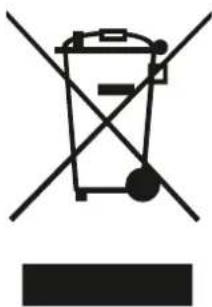
Symbol of a trash bin crossed with a diagonal line and a horizontal bar below (no text or labels)This symbol on the product or on its packaging indicates that this product must not be treated as household waste. Instead, it must be taken to the appropriate collection point for the recycling of electrical and electronic equipment.
By ensuring this product is disposed of correctly, you will help prevent potential negative consequences for the environment and human health, which could otherwise be caused by inappropriate waste handling of this product.
For more detailed information about recycling of this product, please contact your local authorities, your household waste disposal service or the shop where you purchased the product.
Packaging materials
Materials with the symbol 📁 are recyclable. Please dispose of the packaging in a suitable collection container for recycling.
Disposal of the appliance
Disconnect the mains plug from the mains socket.
Cut off the power cord and dispose of it.
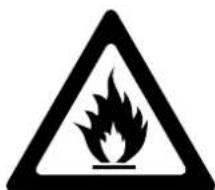
Warning! During use, service and disposal of the appliance, pay attention to this symbol, which is located on the back of the appliance (rear panel or compressor). This symbol will be yellow or orange in colour. It is a fire hazard warning sign. There are flammable materials in the refrigerant and compressor piping. Keep away from the source of fire during use, service and disposal.
Place the TV in a room where light does not fall directly on the screen.
Total darkness or reflections on the screen may cause eye fatigue. Soft indirect lighting is recommended for comfortable viewing.
Allow enough space between the TV and the wall for ventilation.
Avoid locations with high temperatures to prevent possible damage to the cabinet or premature damage to parts.
Do not cover the ventilation when using the TV.
Base Stand Mounting Instructions
Be sure to place the TV with the screen facing down on a flat surface. The use of 2 people to move it is recommended due to the size and weight of this TV.
Make sure that the table or desk you use has a completely clean, flat surface and use a soft cloth between the TV face and the table to protect the TV screen.

natural_image
Technical line drawing of a device interior with internal components and a separate panel (no text or symbols)This image is for reference only. The actual product prevails over this image.
Suggestion:
For a more comfortable installation of the base and to avoid any risk of scratches and damage, we advise you to use PH2 type of screwdriver.
PH 1PH00 PH 0 PH 2

Wall bracket mounting instructions
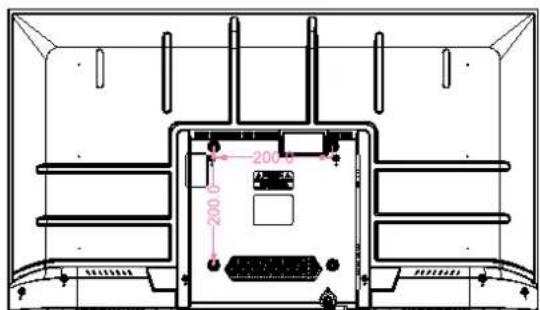
The specified screw length is only a recommendation. The actual length required may vary depending on the type of wall bracket used.
The TV does not come with a wall mount; it must be purchased separately. Use only VESA compatible wall mounts in accordance with the recommended specifications for this model. Use of other wall mounts or improper installation may result in personal injury or damage to the TV.
Follow all instructions in the instruction manual for your chosen wall mount.
| VESA Measures Screw size for connecting the TV to the wall bracket. | |
| 200x200 | Bolt head M6x8mm |
natural_image
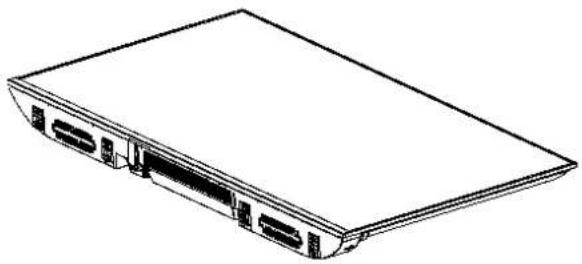
Line drawing of a rectangular electronic device with ports and connectors (no text or symbols)

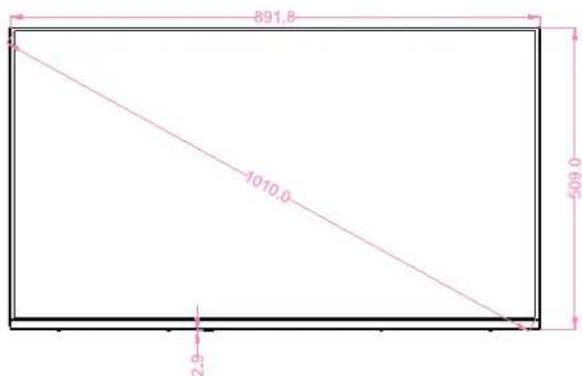

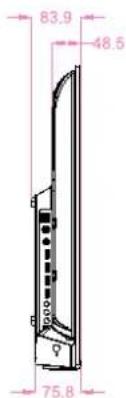
VESA: 200x200

TV Buttons
Note: The following is only functional schematic, And the actual position and arrangement of different models may be different.
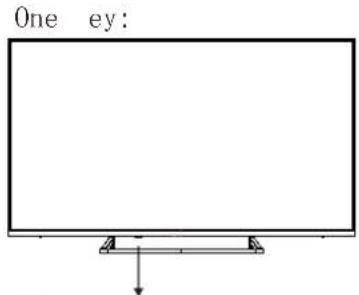
Press this button in standby mode to turn on / off the TV.
Terminal Interface
Note: The following are the various terminal interface, the actual position and arrangement, the number of different models may be different.
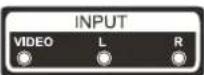 | AV inputExternal AV Signal Input |  | USB inputConnect a USB device here to play its media files or to recordprograms via the PVR function. |
 | CISLOTThe card reader input CI(common interface) this requires CAM (conditional access module) used for pay TV. |  | OPTICAL outputConnect the SPDIF receiver. |
 | HDMI inputDigital signal input from HDMI video connector. |  | RJ45Connect the Internet. |
 | ANT 75Connect the antennal/cadle tv input (75/VHF/UHF) |  | EARPHONE outputWhen earphones are plugged in, speakers are disabled |
Antena
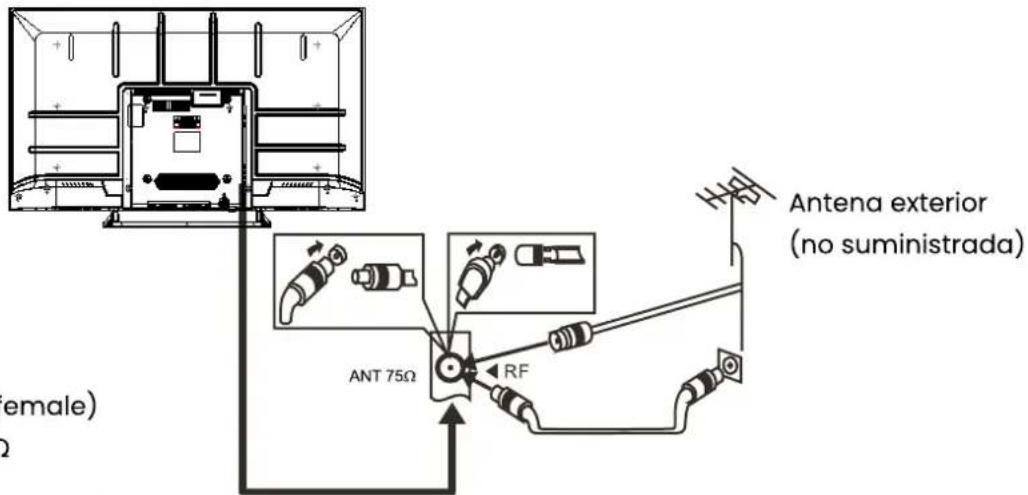
Note:
Air connections: IEC (female)
Input impedance: 75Ω
Default mode (HDMI)
| RESOLUTION | V.Freq.(Hz) |
| 640*480 | 50/60 |
| 1280*720 | 50/60 |
| 1920*1080 | 50/60 |
Connection of audiovisual equipment
It can be connected to the following devices: VCR, media player, DVD, camcorder, game console or stereo system, etc...
This TV offers two AV groups for connections to VCR, DVD or other video equipment.
Please refer to the user manual for the equipment.
You can use the input terminals on the rear of the TV.

Note: Picture for reference purposes only.
Multimedia formats
| JPEG, PNG, BMP, | |
| AVI, MKV, MP4, MPEG, MJPEG, FLV, MPG, WMV, | |
| MP3, AVI, ASF, MKV, 3GPP, MPEG |
Note:
For multimedia playback, the format must be FAT32.
Remote control

① Switches the TV between on and standby mode.
② Indicator light.
③ Mute or restore your TV sound.
④ INFO: Displays the present channel information such as the current time and channel name.
⑤ Apps: Open the Apps page.
⑥ Inputs: Display/Select signal source options.
⑦ Google Assistant: Talk to Google to control your TV using your voice.
⑧ Kids: Switch to Kids mode.
⑨ Setting: In the HOME page, this button is "Dashboard" function. On the Live TV, this button is "Menu" function.
⑩ Navigation buttons: Cursor UP/LEFT/RIGHT/DOWN.
⑪ Back: Press to move back through menus.
⑫ Live Guide: Open the Live TV EPG.
⑬ HOME: Displays the home screen.
⑭ YouTube: Connects to YouTube (internet connection required).
⑮ NETFLIX: Connects to NETFLIX for viewing online TV shows and films (internet connection required).
⑯ Prime video: Connects to Prime video (internet connection required).
⑰ USB: Press to enter Multimedia Player.
⑱ Exit: Exit the O S D menu. PVR: Record Live TV programme. Play the last/next program Play/Pause/Stop program
⑲ TXT: Press to enter Teletext when play the program.
⑳ Audio: Displays the Audio Language list and select an audio language or audio format if available (only applicable when the TV programme has this feature).
②1 SUBT: SUBT.
*Google Assistant is not available in certain languages and countries. Availability of services varies by country and language
For the first initial setup, the on-screen setup wizard will guide you through the configuration of your TV. Follow the guide to set up your TV correctly.
1.1 Language selection
Use the UP/DOWN buttons to select the system languages, then press (OK) to confirm.

1.2 Region or country selection
Use the UP/DOWN buttons to select your region or country, then press (OK) to confirm.

1.3 TV selection
Use the UP/DOWN buttons to select your TV setting and press (OK) to confirm.

1.3.1 Set up Google TV
-
Use your Android™ smartphone to download and open the Google Home app on your phone.
-
Use Google Home to view the QR code on the TV device.
-
Follow the instructions in the Google Home app.
Note: Press "BACK" to cancel.
If you just want to use your TV normally, select "Basic TV Setup".
NOTE: This interface is provided by Google service depending on the region. Some regions may not have this interface. The actual push by Google Service prevails.

1.3.2 Basic TV Setup
Press the "OK" button to access the next page to select your wifi network.
1.3.2.1 Set up the wifi network
Press UP/DOWN buttons to select the wifi network you want to connect to, enter the password and confirm to connect. If you select "Skip", this can be done on the home page or in the configuration menu.

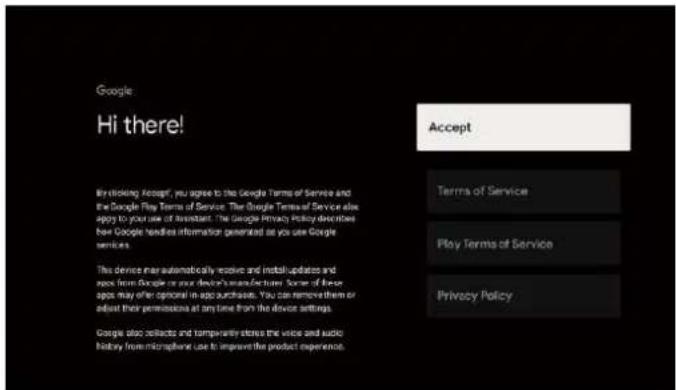
1.4 Terms of Service
By agreeing to Google's terms of service to improve the product experience, select "Agree" to continue with this condition.
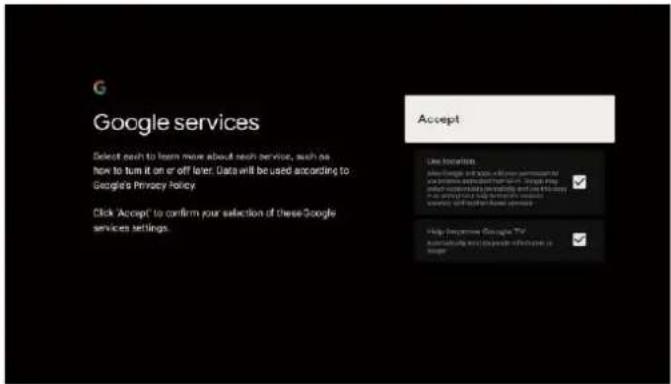
1.5 Google Services
Select "Accept" to confirm if you want your location to be identified on Google TVTM and agree to automatically send diagnostic information to Google to help improve your experience with Google.
1.6 Pairing Bluetooth Remote Controller
- Press 'BACK' and 'Home' simultaneously on the remote control to enter the Bluetooth pairing mode.
The indicator light on the remote control will flash when the pairing mode is initiated.
- Select the "Skip" icon to skip the pairing mode.

1.7 Setting the password
Press the "OK" button to set the password.

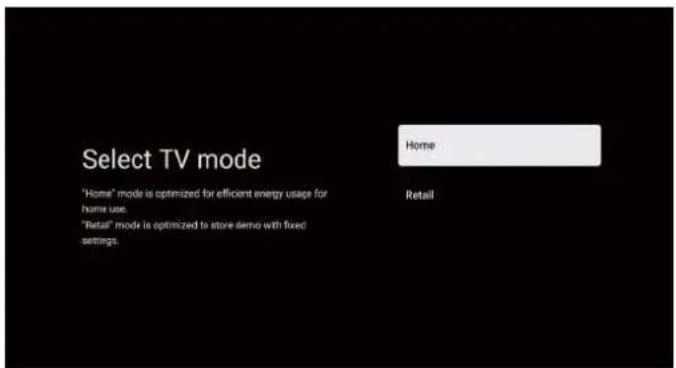
1.8 Select TV mode (Home/Retail)
In this step, be sure to select "Home" if you are going to use this TV at home. Be sure to confirm once you have selected "Home".
1.9 ChromecastTM built-in
Select On/Off to make Chromecast built-in always available.

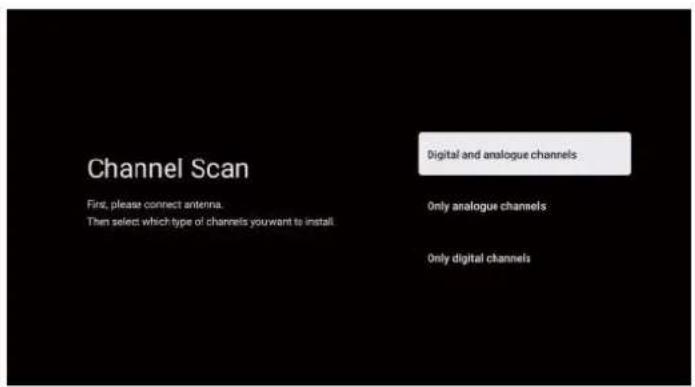
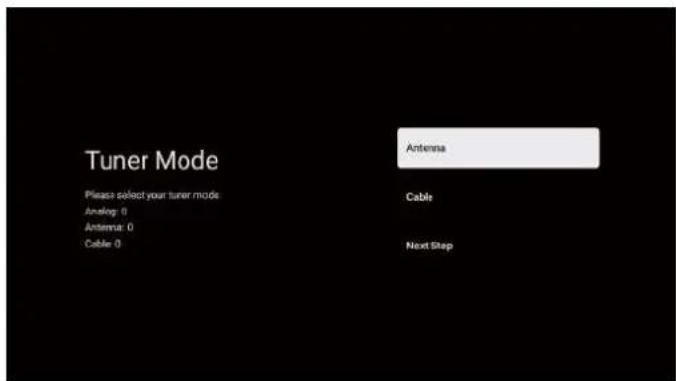
1.10 Setting the tuner mode
Select Antenna/Cable/Satellite to select the TV channel.
If you select Skip, the channel search will be performed in the menu.
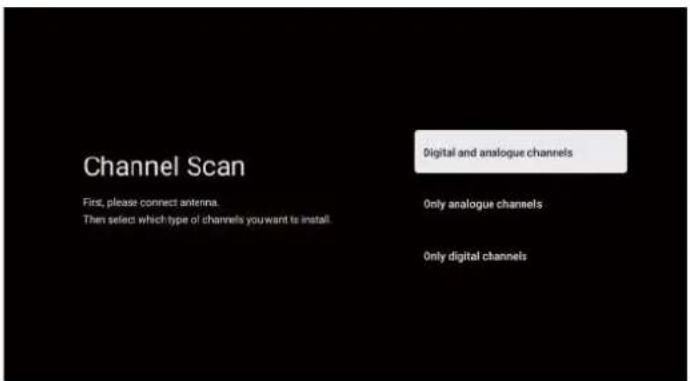
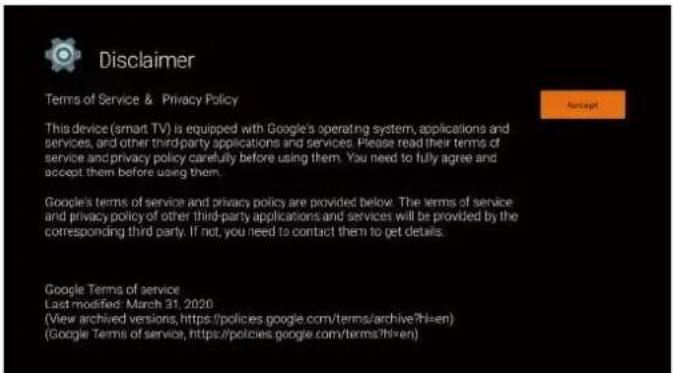
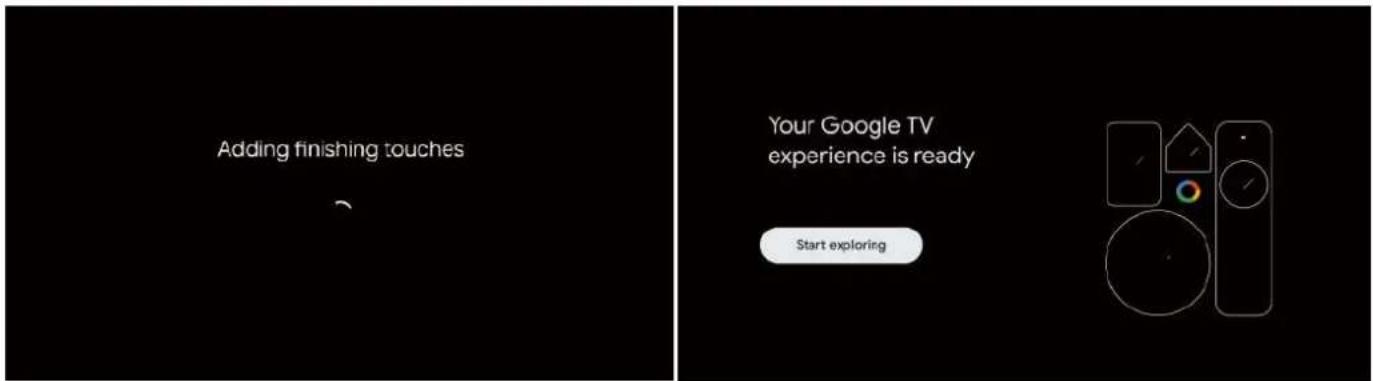
1.11 Completed Setup and Terms of Disclaimer
1.12 Play Auto Install
Select to install or uninstall recommended apps and Google apps through this process. Select "Start Scanning" on the next page.
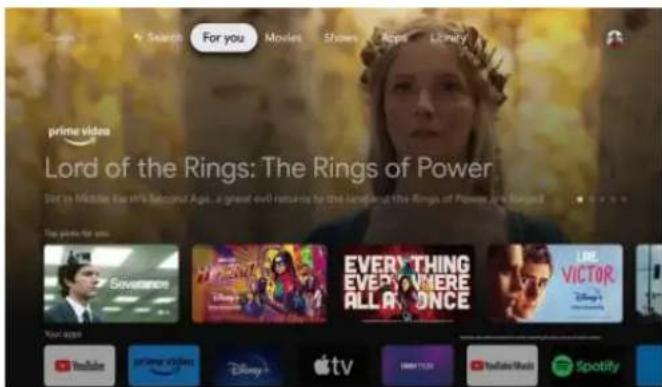
2. HOME
Once you have completed the initial setup, you will enter the home screen by pressing the HOME button to display the home page.

*The user interface of the home screen in some countries may be different from the above image.
- Search
Use your voice to jump to programs, control devices and more, just ask Google.
- For you
Select the "For you" to browse the content of all your apps, intelligently organized just for you.
- Movies and 4. Shows
Discover new movies and series from all your subscriptions. Suggestions based on what you've seen and what you're interested in help you find your next favorite.
- Apps
Select "Apps" to access all your applications. Pre-installed apps are available away from you in this row.
- Library
A list of all your discoveries. When you see an interesting program or movie, add it to your Favorites List to keep track of your new discoveries.
3. Settings
Allows you to adjust various features of your TV.
Press the LEFT/RIGHT button to select "Settings", which is located at the top right corner of the screen. 2.
- Press the UP/DOWN button to select the item you want to adjust in the Settings menu.
- Press (OK) to enter.

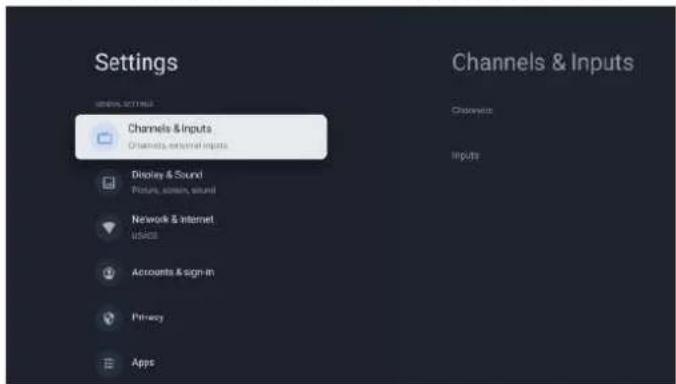
Channel & Inputs
Displays the submenu according to the different installation modes of the channel.
Press UP/DOWN button to select "Channel Source" & Inputs". 2.
- Press (OK) to enter "Channels", then pressA/V to select Analog, Antenna, Cable, etc. to select the channels.
- Press UP/DOWN button to select "Inputs", press (OK) to enter "Inputs", then press UP/DOWN button to select HDMI1,HDMI2,HDM3,HDMI4,Composite etc.
Network and Internet
Adjust all network settings and check the connection if you have connection problems.
Press UP/DOWN button to select "Network & Internet" in the setup menu. 2.
- Press UP/DOWN button to select: Wi-Fi/Add new network/Always available scanning/Proxy settings/LP settings.

System
- Press UP/DOWN button to select About, Date & Time, Timer, Language, Inputs, Picture, Sound, Google Assistant, Reset and other options.
- Press (OK) to jump to the corresponding sub-option.
About
- Press the UP/DOWN button to check additional information such as System Update, Device Name, Re-boot, Status, etc.
- Press the BACK button to return to the previous menu.
Press the BACK button to exit the menu.

* The above pictures are for reference only, please refer to the product for details.
Factory Reset
If Factory Reset is selected, all data on the device's internal storage will be erased, including: your Google account, system and application data and settings, and downloaded applications.

- Setting the TV source
To enter the TV source on the home page:
- Press the SOURCE button to select the input source.
- Press the SETTINGS button, then select "Channels" and select "New Available Channels" to enter.

5. Accounts and registration
To access and download applications, you must sign in with a Google account.

Once you open Google Play, you will be prompted to sign in or create a new account.

Once you are logged in, you will be taken to the page below, scroll through the list of apps available for download or go to the search button, and search by entering text or asking Google in your voice prompt.
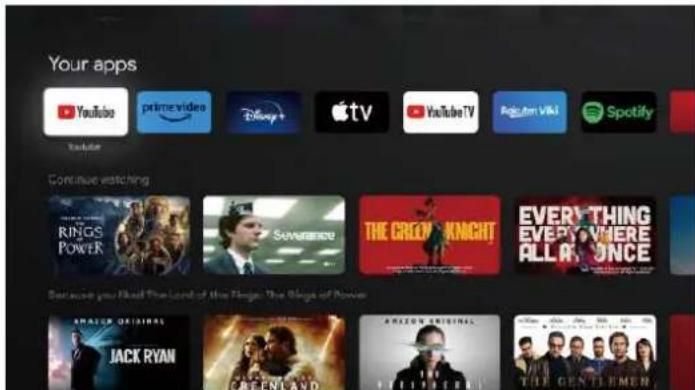
* The images above are for reference only, please refer to the product for more details.
| IMAGE PROBLEM SOUND PROBLEM | CHECK | |
| Snow | Noise | Antrenna position, direction or connection |
| Ghost image | Normal audio | Position, direction or connection of the an-trenna |
| Interference | Noise | Electronic equipment, car/motorcycle light, fluorescent light |
| Normal image | Mute | Volume (check if mute is on or if audio sys-tem connections are not correct) |
| No image | Mute | Power cord is not plugged in, switch is not turned on, OR the brightness and contrast and volume knobs are not on, press the standby key on the remote control to check the device. |
| No colour | Normal audio | Colour control |
| Broken image | Normal or weak audio | Retune the channel |
| No colour | Noise | TV System |
| Black barrier at the bottom and top of the image | Normal audio | change the aspect ratio to zoom |
File not played from USB device:
- Check that the file is in a compatible format.
Problem with Internet access:
- Check if the network cable / wifi is connected correctly.

Manufactured under license from Dolby Laboratories. Dolby, Dolby Audio, and the double-D symbol are trademarks of Dolby Laboratories Licensing Corporation.

The terms HDMI and HDMI High-Definition Multimedia Interface, and the HDMI logo are trademarks or registered trademarks of HDMI Licensing LLC in the United States and other countries.
WARNING
Never place a television set in an unstable location. A television set may fall, causing serious personal injury or death.
Many injuries, particularly to children, can be avoided by taking simple precautions such as:
- Using cabinets or stands recommended by the manufacturer of the television set.
- Only using furniture that can safely support the television set.
- Ensuring the television set is not overhanging the edge of the supporting furniture.
- Not placing the television set on tall furniture (for example, cupboards or bookcases). without anchoring both the furniture and the television set to a suitable support.
- Not placing the television set on cloth or other materials that may be located between the television set and supporting furniture,
- Educating children about the dangers of climbing on furniture to reach the television set or its controls.
If your existing television set is being retained and relocated, the same considerations as above should be applied.
Wall-mounted screw:22-24inch M4, 28-70inch M6, 75inch M8
Note: don't hang at an angle to avoid the risk of falling off.
Google TV is the name of this device's software experience and a trademark of Google LLC. Google, YouTube, Chromecast built-in, Google Home, and other marks are trademarks of Google LLC.
Google Assistant is not available in certain languages and countries. Availability of services varies by country and language.
INFINITON

Google TV

TELEVISOR
INTV-40GS790
ean: 8445639004258
natural_image
Symbol of a trash bin crossed with a diagonal line and a horizontal bar below (no text or labels)natural_image
Technical line drawing of a device interior with internal components and red dashed lines indicating assembly or alignment (no text or symbols)natural_image
Four black tool tips with selection handles, no visible text or symbols on the tips themselvesnatural_image
Line drawing of a rectangular electronic device with ports and connectors (no text or symbols)


VESA: 200x200
Botões de TV
natural_image
Simple line drawing of a blank monitor with a downward arrow at the base (no text or symbols)natural_image
Technical line drawing of a mechanical assembly with no visible text or symbolsNota:
Antena exterior (no suministrada)
Note: Picture for reference purposes only.
Formatos multimedia
| JPEG, PNG, BMP, | |
| AVI, MKV, MP4, MPEG, MJPEG, FLV, MPG, WMV, | |
| MP3, AVI, ASF, MKV, 3GPP, MPEG |
Nota:
1.3 Seleção de TV
1.3.1 Configurar o Google TV
1.5 Serviços Google
1.6 Emparelhar o controlo remoto Bluetooth
1.9 ChromecastTM incorporado

2. ECRÃ INICIAL
Canal e entradas
Rede e Internet
5. Contas e registo
¿Necesitas ayuda?
natural_image
Silhouette of a person wearing a headset with a wrench icon (no text or symbols)
INFINITON
TÉRMINOS Y REGISTRO DE GARANTÍA
- Botones del TV
- Nota:
- Selección de TV
- Configurar Google TV
- Configurar TV básica
- Chromecast™ integrado
- INICIO
- Canal y entradas
- Sistema
- TELEVISION
- Índice
- Warning:
- CAUTION
- RISK OF ELECTRIC SHOCK. DO NOT OPEN THE APPLIANCE.
- Environmental protection
- Base Stand Mounting Instructions
- Wall bracket mounting instructions
- TV Buttons
- Terminal Interface
- Antena
- Note:
- Connection of audiovisual equipment
- Multimedia formats
- Remote control
- Language selection
- Region or country selection
- TV selection
- Set up Google TV
- Basic TV Setup
- Set up the wifi network
- Terms of Service
- Google Services
- Pairing Bluetooth Remote Controller
- Setting the password
- Select TV mode (Home/Retail)
- ChromecastTM built-in
- Setting the tuner mode
- Completed Setup and Terms of Disclaimer
- Play Auto Install
- HOME
- Settings
- System
- About
- Factory Reset
- Accounts and registration
- WARNING
- INFINITON
- Google TV
- TELEVISOR
- Botões de TV
- Formatos multimedia
- Seleção de TV
- Configurar o Google TV
- Serviços Google
- ChromecastTM incorporado
- ECRÃ INICIAL
- Contas e registo
- ¿Necesitas ayuda?
- TÉRMINOS Y REGISTRO DE GARANTÍA
Brand : Infiniton
Model : INTV-A40G24
Category : Television