FW10 - Dash cam Thinkware - Free user manual and instructions
Find the device manual for free FW10 Thinkware in PDF.


| Product Type | Dash cam (car camera) |
| Brand | Thinkware |
| Model | FW10 |
| Dimensions | Approx. 110 x 60 x 40 mm |
| Weight | Approx. 100 g |
| Power Supply | 12V/24V car cigarette lighter adapter; 5V USB via included cable |
| Main Functions | Full HD recording, G-sensor, parking mode, loop recording, night vision |
| Recording Resolution | 1920x1080p at 30fps |
| Viewing Angle | 140 degrees |
| Storage | microSD card up to 128GB (Class 10 recommended) |
| GPS | Built-in GPS for speed and location logging |
| Maintenance & Cleaning | Clean lens with soft dry cloth; avoid liquid cleaners; format microSD card monthly |
| Safety | Overheat protection; impact detection; voltage cutoff for parking mode |
| Spare Parts & Repairability | Replacement mounts, cables, and suction cups available; battery replacement by service center |
| General Information | Designed for front windshield mounting; works in temperatures from -10°C to 60°C |
Frequently Asked Questions - FW10 Thinkware
User questions about FW10 Thinkware
0 question about this device. Answer the ones you know or ask your own.
Ask a new question about this device
Download the instructions for your Dash cam in PDF format for free! Find your manual FW10 - Thinkware and take your electronic device back in hand. On this page are published all the documents necessary for the use of your device. FW10 by Thinkware.
USER MANUAL FW10 Thinkware
2-1. Turning the Device Power On/Off 10
2-2. Recorded Files 11
2-3. Recording Videos While Driving 12
2-4. Recording Videos While Parked (Optional Accessory) 13
2-5. Manual Recording 14
2-6. Formatting MicroSD Card 15
2-7. Upgrading Firmware 15
2-8. Initializing Wi-Fi Settings 15
03 LCD Screen
3-1.Main Menu 16
3-2. Live View 17
3-3. File List 18
3-4. Memory Card Settings 20
3-5. Settings > Record settings 21
3-6. Settings > System Settings 22
3-7. About Device 23
04 Mobile Viewer Application
4-1. Thinkware Dash Cam Mobile Viewer 24
4-2. Thinkware Dash Cam Mobile Viewer Main Menu 26
05 PC Viewer Software
5-1. Thinkware Dash Cam PC Viewer 29
06 Device Information
6-1. Specifications 33
Before Using THINKWARE DASH CAM™ XW10
▶ Under the copyright laws, this manual may not be copied, in whole or in part, without the written consent of THINKWARE.
▶ Every effort has been made to ensure this Guide's accuracy. However, we cannot guarantee the accuracy of the contents in this document as there may be technical errors, omissions, and/or future changes.
THINKWARE reserves the right to change or modify the product and the content of this manual at any time without prior notice for product improvements.
Images contained in this user guide are illustrations for instructional purposes only and may differ from the actual product.
▶ Users do not reserve the right to use the product for purposes other than as specified in this user guide. According to the Personal Information Protection Act and other related regulations, the user/owner may be held liable if the video and/or conversation recorded by the device are distributed without their consent. Thus, special attention should be paid in using this product.
- The MicroSD memory card should be tested for errors on a regular basis and as the memory card is a consumable item, it will need to be replaced periodically.
● THINKWARE shall NOT be responsible for any problems and/or damages that may occur from the use of disingenuous, modified, or unauthorized parts and accessories.
● The device and the recorded videos are intended for personal use and the recorded videos should be used for reference only.
● The device does NOT guarantee video recording of all accidents as built-in impact sensor may not be activated due to combination of user settings and the level of impact during the collision.
FCC Statement
This device complies with Part 15 of the FCC Rules. Operation is subject to the following two conditions: (1) this device may not cause harmful interference, and (2) this device must accept any interference received, including interference that may cause undesired operation.
This equipment has been tested and found to comply with the limits for a Class B digital device, pursuant to Part 15 of the FCC Rules. These limits are designed to provide reasonable protection against harmful interference in a residential installation. This equipment generates, uses and can radiate radio frequency energy and, if not installed and used in accordance with the instructions, may cause harmful interference to radio communications. However, there is no guarantee that interference will not occur in a particular installation. If this equipment does cause harmful interference to radio or television reception, which can be determined by turning the equipment off and on, the user is encouraged to try to correct the interference by one or more of the following measures:
▶ Reorient or relocate the receiving antenna.
▶ Increase the separation between the equipment and receiver.
▶ Connect the equipment into an outlet on a circuit different from that to which the receiver is connected.
▶ Consult the dealer or an experienced radio/TV technician for help.
This appliance and its antenna must not be co-located or operation in conjunction with any other antenna or transmitter.
▶ A minimum separation distance of 20cm must be maintained between the antenna and the person for this appliance to satisfy the RF exposure requirements.
FCC CAUTION: Any changes or modifications to the equipment not expressly approved by the party responsible for compliance could void your authority to operate the equipment.
FCC ID: 2ADTG-XW10
Information to user : RSS-247
This device complies with Industry Canada's licence-exempt RSSs.
Please be cautioned the changes or modifications not expressly approved by the party responsible for compliance could void the user's authority to operate the equipment.
Notice: Operation is subject to the following two conditions: (1) this device may not cause interference, and (2) this device must accept any interference, including interference that may cause undesired operation of the device.
This Class B digital apparatus complies with Canadian ICES-003.
IC: 12594A-XW10
Caution
Depending on the make and model of your car, the power may be constantly supplied to the dash cam even with the ignition turned off. Installation of the device to a continuously powered 12V outlet could result in vehicle battery drainage.
This device is designed to record video while the vehicle is in operation. The quality of the video might be affected by weather conditions and the road environment such as day or night, presence of street lighting, entering/exiting tunnels, and the surrounding temperature.
- THINKWARE is NOT responsible for the loss of any recorded video during operation.
Although designed to withstand high impact of car collision, THINKWARE does NOT guarantee recording of accidents where the impact may cause the device to be damaged.
Keep the windshield and camera lens clean for optimal video quality. Particles and substances on the camera lens or windshield may reduce the quality of the recorded videos.
The specified operating temperature of this product is 14°F to 140°F (-10°C to 60°C) and storage temperature is -4°F to 158°F (-20°C to 70°C). Ensure that the device is kept within these temperature ranges; otherwise, the device may not function as designed and at extreme temperatures, permanent physical damage can result which is not covered by warranty.
◆ Avoid placing the device under direct sunlight.
Avoid using the device in extreme conditions where the Product is exposed to high temperature and/or humidity.
Only use genuine accessories and peripherals from THINKWARE or authorized THINKWARE dealer. THINKWARE does not warrant the safety and compatibility from use of peripherals from other manufacturers. Use genuine parts supplied by THINKWARE.
Do not apply excessive force when pushing the buttons on the device.
Do not clean the Product using chemical cleaner or solvents as it may damage plastic components. Use soft, clean, dry fabric to gently wipe the Product.
Do not place or store the device where it can be accessible by children and pets.
Do not disassemble the Product as it will void product warranty and may also damage the product.
◆ Handle with care. Drop, shock, and mishandling the Product may result in malfunction and/or damage to the device.
Do not operate this device while driving.
Install this device in a location where it has unobstructed view of the road but does not interfere with the driver's view. Check with your State and Municipal laws before mounting to the windshield.
The device and/or installation items have moving parts and may shift in extreme road conditions such as unpaved road. Check frequently to ensure the device is positioned as instructed in this guide.
Do not operate or handle power cable with wet hands.
Do not use a damaged power cable.
- Keep the power cable away from heaters or other hot objects.
Check that power cable with correct connector is used and the connections are secure and firmly in place.
Do not pull, insert, or bend the power cable using excessive force.
Do not place heavy objects on the device and the power cable.
Do not modify or cut the power cable.
THINKWARE does not guarantee that devices or peripherals not authorized by THINKWARE will be compatible with its Product.
Do not attempt to insert foreign objects into the device or power cable.
Do not spill or spray liquid into the device as it may cause malfunction, fire, or electric shock.
This device is intended to be used inside the vehicle only.
RISK OF EXPLOSION IF BATTERY IS REPLACED BY AN INCORRECT TYPE. DISPOSE OF USED BATTERIES ACCORDING TO THE INSTRUCTIONS.
1. Getting Started
This unit was tested with shielded cables on the peripheral devices. Shielded cables must be used with the unit to ensure compliance.
1-1. In the Package
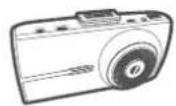

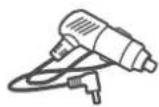

Main Dash Cam Unit Mount with 3M tape Car Charger Adhesive Cable Holder

MicroSD memory card

Quick Start Guide & Warranty / CS information / User Manual (stored in the MicroSD card)
※ The memory cards are installed in the product at the factory.
1-2. Optional Accessories
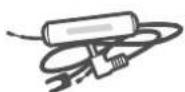

Hardwiring Cable External GPS Antenna
1-3. Product Overview
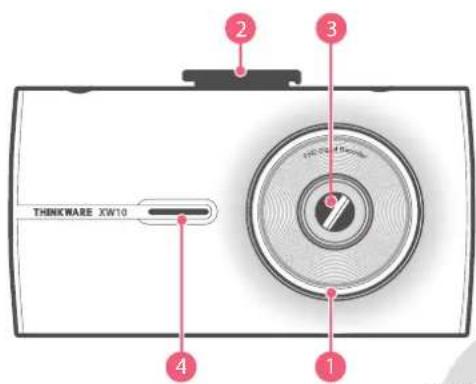
text_image
THINKWARE XW10 1 2 3 4 1Front view
text_image
HRS-DAUTAL RECORDER ear view 5 6 7 8Right view
Top view
text_image
Before 12 PWR 9 10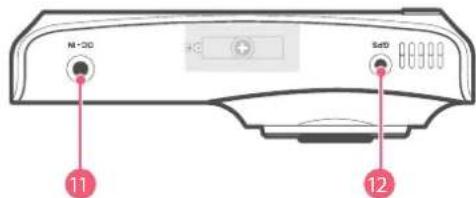
text_image
M-30 Sat0 11 12| No. | Name Description | |
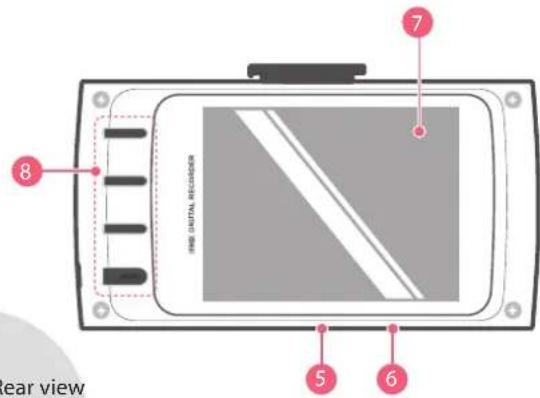
| 1 | Security LED | Operation indicator lights that are used to visually indicate that the vehicle is equipped with a dash cam |
| 2 | Mount Connector Connects to the windshield mount | |
| 3 | Camera Lens Front facing camera for video recording | |
| 4 | Speaker Outputs voice guidance and alert/notification sounds | |
| 5 | Reset Press to force the device to restart | |
| 6 | Microphone Records audio along with video | |
| 7 | LCD Screen | Provides Live View, video playback, and access to dash cam configuration |
| 8 | Control Buttons | Control Buttons to navigate through user menu on the screen- Wi-Fi ( ⓤ ) Connection ButtonPress briefly : Connecting with Wi-Fi passwordPress and Hold (5 seconds or longer) :Connecting with WPS (Wi-Fi Protected Setup) |
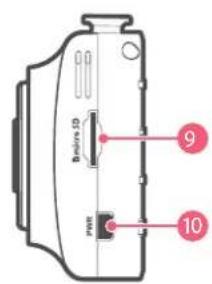
| 9 | Memory Card Slot | Location for the memory card |
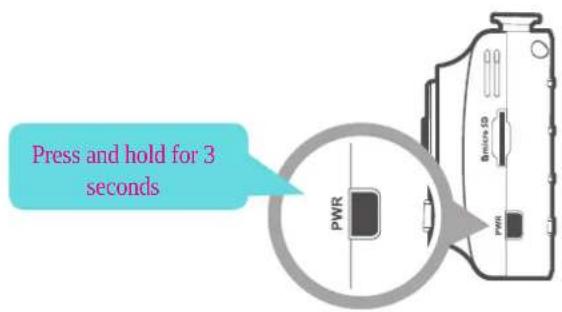
| 10 | Power ⏻ Button | Press and hold for 3 seconds to turn the device on/off |
| 11 | DC-IN Connects to power cable | |
| 12 | External GPS Antenna | Connect the external GPS antenna (Optional Accessory Required) |
1-4. Inserting a Memory Card
1-4-1. About Memory Cards
▶ MicroSD card must be used with a storage capacity of 8GB Class 10 or higher. UHS MicroSD card must be used with a storage capacity of 16GB, 32GB, or 64GB.
▶ Device only supports MicroSD card with capacity of 8GB Class 10 or higher.
The MicroSD card should be formatted every 2 weeks to maximize the lifetime of the memory card.
1-4-2. Installing a MicroSD Card
text_image
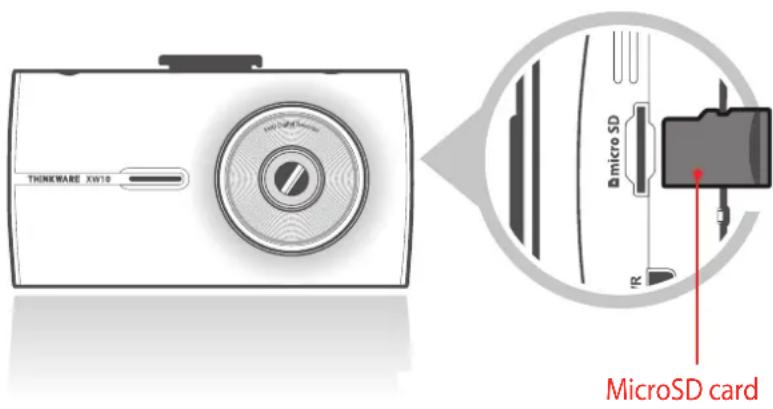
THINKWARE XW10 MicroSD card MicroSD SDInsert the MicroSD card into the slot with the metal contacts facing the back of the device, and push it until locks into the place.

flowchart
graph TD
    A["Inserting the memory card"] --> B["Removing the memory card"]
Gently apply force on the MicroSD card until it is ejected from the slot.
Do not apply excessive force on the MicroSD card or attempt to insert it in the wrong direction as it may cause damage to the MicroSD card and the card slot.
Cautions
The MicroSD card should be tested for errors on a regular basis and as the memory card is a consumable item, it should be replaced periodically.
- THINKWARE shall NOT be responsible for any problems and/or damages that may occur from not using genuine or authorized parts and accessories. It is strongly recommended that THINKWARE memory cards are used to minimize memory card error.
- Ensure that the device is completely off before removing the MicroSD card to avoid damages to the memory card.
To prevent loss of important data, frequently copy recorded videos from MicroSD card to another storage device such as personal computer for back up.
1-5. Vehicle Installation
1-5-1. Connecting the Device and the Mount
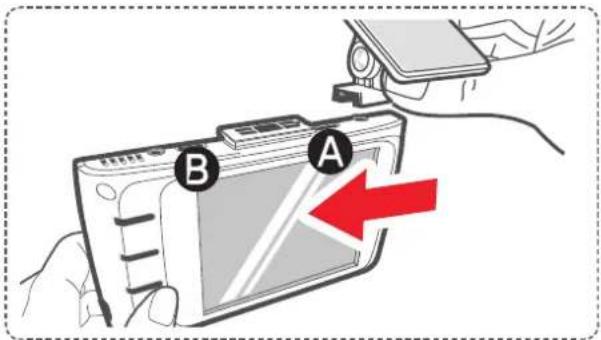
① Align the mount with the connector (A), and slide it towards (B) until it clicks into place.
② Remove the protective film from the camera lens.
text_image
A B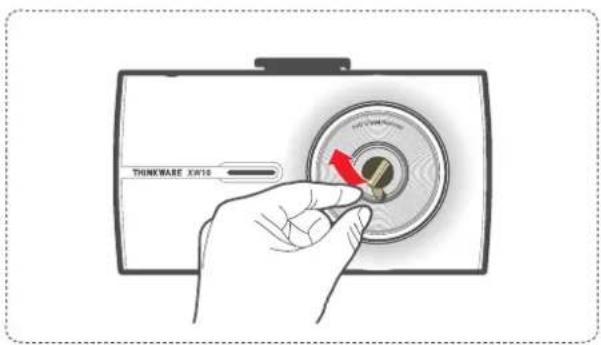
text_image
THINKWARE X9181-5-2. Installing the Device
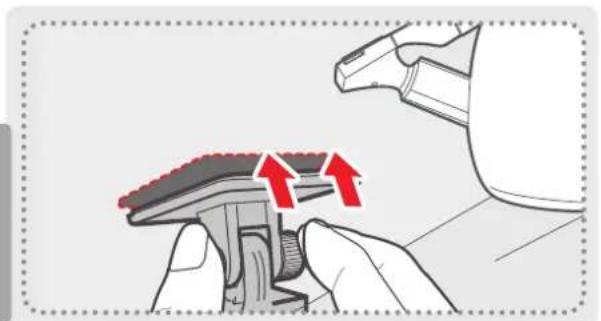
① Clean the area on the windshield where the dash cam will be installed.
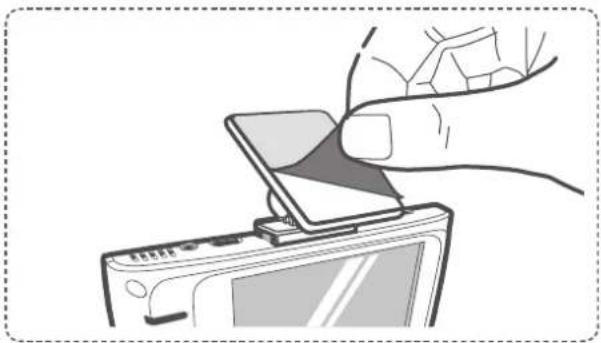
② With dash cam main unit still attached to the mount, remove the protective tape from the back of the mount.
③ Attach the adhesive side of the mount on the windshield where it has an unobstructed view of the road but does not interfere with the driver's view.
natural_image
Illustration of a hand inserting a card into a smartphone (no text or symbols visible)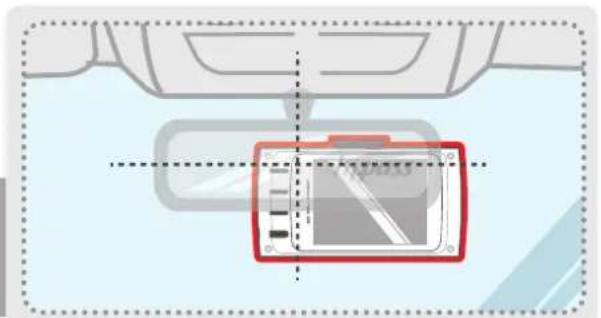
natural_image
Diagram showing a vehicle interior with a red rectangular object inside, no text or symbols presentTIP
The camera is located on the left side of the main unit so install the dash cam on the right of center behind the rearview mirror.
TIP
To ensure that the mount is safely secured, it is recommended that you separate the device from the mount after installation and press the mount towards windshield for 5 minutes to maintain pressure. Allow 24 hours until the adhesive on the mount has set before connecting the dash cam.
natural_image
Illustration of a hand using a tool to adjust a mechanical component, with red arrows indicating motion (no text or symbols present)1-5-3. Connecting to power
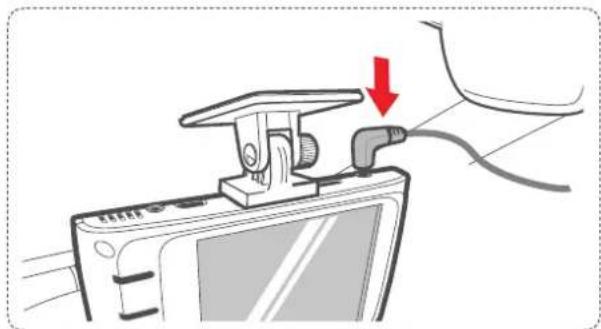
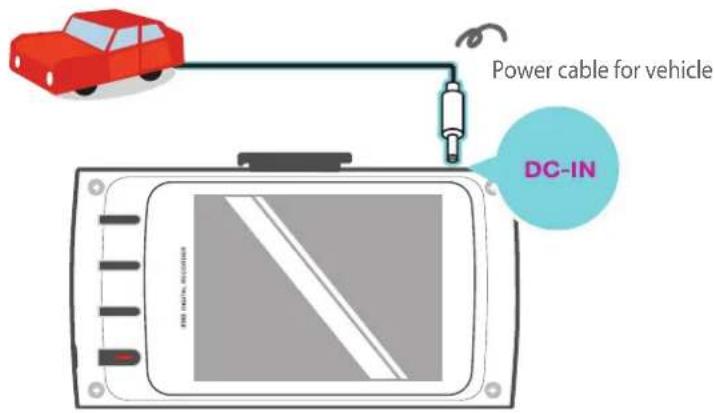
① Connect the power cable to DC-IN socket of the device.
② Plug the car charger adapter end of the power cable into a 12V DC vehicle power socket.
③ Arrange the wire by using the adhesive cable holders as shown below.
④ Adjust the camera so that the dash cam is facing forward and is level with the road.
TIP
Before applying the mount, turn on the dash cam and use the live view on the LCD Screen to adjust the camera angle.
natural_image
Diagram of a device with a switch and cable, showing a red arrow pointing to a component (no text or symbols present)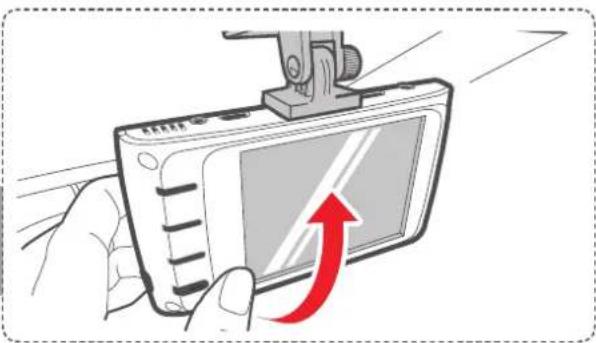
natural_image
Illustration of a hand holding a smartphone with a red upward arrow indicating motion (no text or symbols)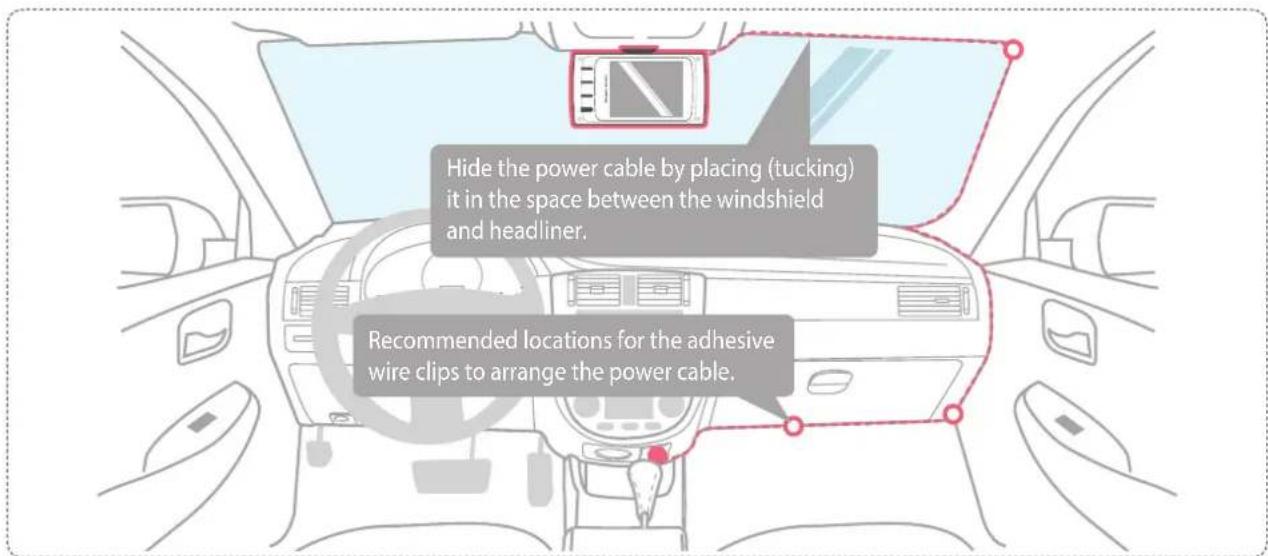
text_image
Hide the power cable by placing (tucking) it in the space between the windshield and headliner. Recommended locations for the adhesive wire clips to arrange the power cable.For more information on the power cable routing instruction, please visit Thinkware homepage. (www.thinkware.com)
Preventing Vehicle Battery Discharge
■ Depending on the make and model of your car, the power may be supplied to the dash cam even with the ignition turned off. This may result in vehicle battery discharge.
Some vehicles with multiple power sockets might be equipped with at least 1 outlet that does not shut off the power with the ignition. Test each power outlet to ensure you connect to an outlet that shuts off with vehicle ignition.
2. Basic Operations
2-1. Turning the Device Power On/Off
▶ Once connected to the vehicle, the device will automatically turn on and off with vehicle ignition.
text_image
Power cable for vehicle DC-IN▶ To manually turn the device on/off, press and hold the Power button for 3 seconds.
text_image
Press and hold for 3 seconds PWR Direction: 5Ω PWR2-2. Recorded Files
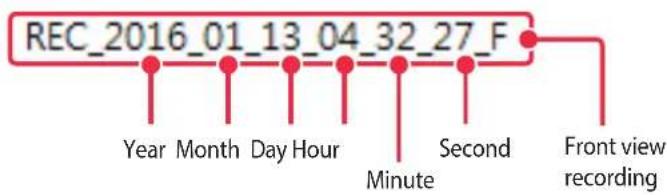
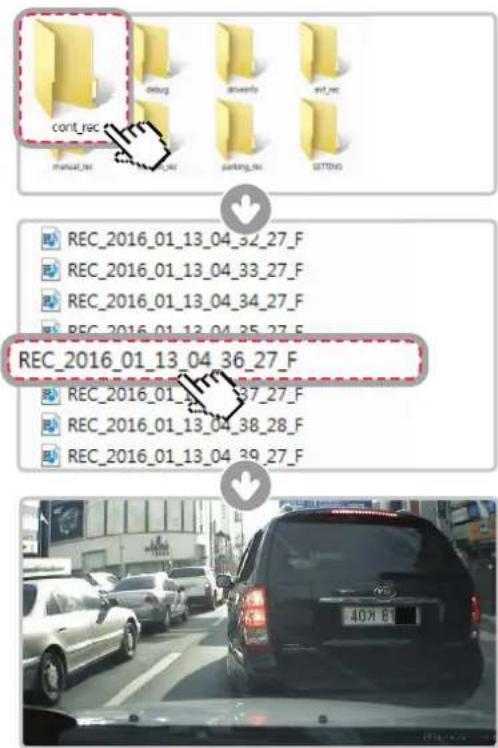
▶ Recorded video files are saved in the folder by date and hour in the MicroSD card.
L Files are created based on the time when the videos are recorded.
text_image
REC_2016_01_13_04_32_27_F Year Month Day Hour Minute Second Front view recordingAs a loop-recording surveillance product, the dash cam will automatically overwrite oldest file in the memory card once the memory is full. However, event recording and manual recording videos are stored in separate locations and will be protected from file overwriting.
text_image
cont_rec manual_nc debug diverse ext_rec parking_nc SETTING REC_2016_01_13_04_32_27_F REC_2016_01_13_04_33_27_F REC_2016_01_13_04_34_27_F REC_2016_01_13_04_35_27_F REC_2016_01_13_04_36_27_F REC_2016_01_13_04_37_27_F REC_2016_01_13_04_38_28_F REC_2016_01_13_04_39_27_FCautions
- Do not use the MicroSD card as an external storage device.
Do not tamper with the system files within the in the MicroSD card.
This may result in unexpected behavior during operation.
2-3. Recording Videos While Driving
2-3-1. Continuous Recording Mode
Videos are recorded in 1 minute segments and saved as files in the MicroSD card under the folder named "cont_rec".

natural_image
Illustration of a red car driving on a curved road with green grass background (no text or symbols)2-3-2. Incident Recording During Continuous Recording Mode
▶ When the dash cam detects impact, it will immediately store the 10 seconds prior and 10 seconds after impact.
The 20-second impact recording is saved on the MicroSDcard under the "evt_rec" folder.
Please note that the dash cam will only detect impact as an incident if the level of impact is greater than the sensitivity
level of the G-Sensor. You can change these levels in the user configuration.

natural_image
Illustration of a car collision with a red car and a yellow explosion (no text or symbols)Cautions
- Driving over speed bumps, manholes, or uneven roads at high speeds can also be detected as an impact and may trigger incident recording.
The device can record up to 1 minute of incident recordings in the case of continuous impacts or multiple accidents.
The duration of incident footage recorded may vary according to the device settings.
2-4. Recording Videos While Parked (Optional Accessory)
This feature is available only when the dash cam has been hardwired directly to the vehicle battery. Separate purchase for the hardwiring cable accessory and professional installation is required.
2-4-1. Motion Detection Recording
The dash cam is equipped with motion detector which is used to detect motion that initiates video recording while the vehicle is parked.
When the dash cam detects motion while parked, it will immediately store the previous 10 seconds prior to the activation of motion detection start recording video for the next 10 seconds.
- The 20-second motion detection recording is then saved on the MicroSD card under the folder named "motion_rec".
Cautions
The device can record up to 1 minute for continuous impacts in the case of multiple collisions.
2-4-2. Parking Incident Recording
▶ When the dash cam detects impact while parked, it will immediately store the 10 seconds prior and after the impact.
- The 20-second impact recording is saved on the MicroSD card under the "parking_rec" folder.

natural_image
Illustration of a red car parked on a paved lot surrounded by green trees and a building (no text or symbols)2-5. Manual Recording
In addition to recording accidents, the dash cam allows the user to initiate manual recording mode to capture scenery and/or places while driving. This feature can also be used to save video as witness where the installed vehicle is not directly involved in an accident. Video files saved during manual recording mode are stored in a separate location on the memory card and will be protected from video overwriting in continuous recording mode.
▶ Briefly press the REC button to start recording. The device will record video for 1 minute (10 seconds before and 50 seconds after) as of the time when the button is pressed. The recorded video will be saved under the "manual_rec" folder.
Note that when manual recording is initiated, the previous 10 seconds prior to pressing the button will be saved so even if you just missed a scene, you can still capture and safely store the video by initiating manual record within 10 seconds of the event.
natural_image
Winding asphalt road surrounded by tall green trees and grassy fields under a clear sky (no text or symbols visible)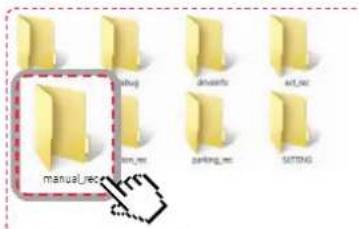
text_image
manual_rec bug drivefu act_rec arm,nn serving,nn SETTING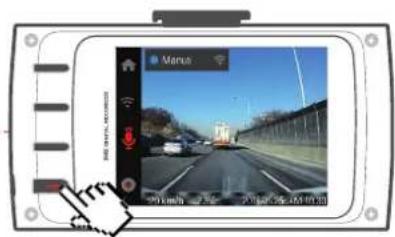
text_image
Merus 200km/h 1.00km/1.00km/1.00km/1.00km/1.00km/1.00km/1.00km/1.00km/1.00km/1.00km/1.00km/1.00km/1.00km/1.00km/1.00km/1.00km/1.00km/1.0Cautions
When the allocated storage for manual recording videos is full, oldest video file will be replaced by the new recorded video.
2-6. Formatting MicroSD Card
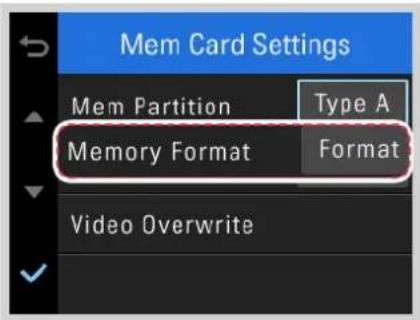
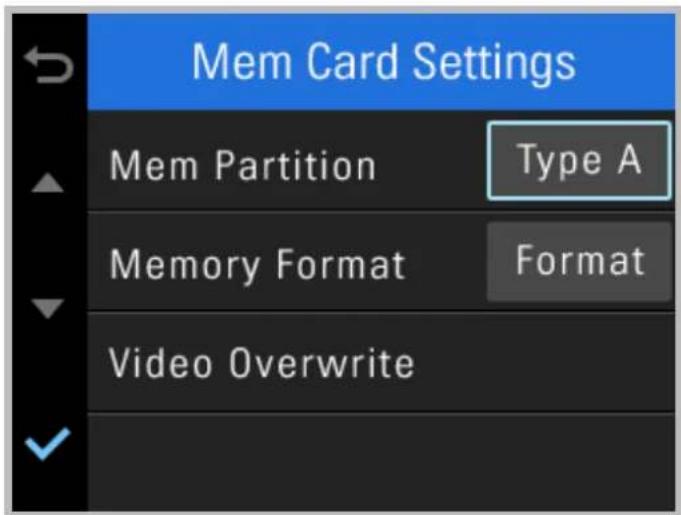
▶ Select "Memory Card Format" menu located at "Mem Card Settings > Memory Format".
text_image
Mem Card Settings Mem Partition Type A Memory Format Format Video OverwriteCautions
The MicroSD card should be formatted every 2 weeks to maximize the lifetime of the memory card.
2-7. Upgrading Firmware
The system will automatically be updated if the MicroSD card contains the firmware upgrade file.
The device restarts automatically after the upgrade has been completed.
▶ Make sure your device is always up to date with latest firmware. Please check back frequently at THINK-WARE website (www.thinkware.com) for the latest firmware updates.
▶ Do NOT disconnect your device from power while it is being updated. This will result in damage to the dash cam.
2-8. Initializing Wi-Fi Settings
▶ Press and hold Wi-Fi and REC buttons simultaneously to reset Wi-Fi settings to default factory settings.
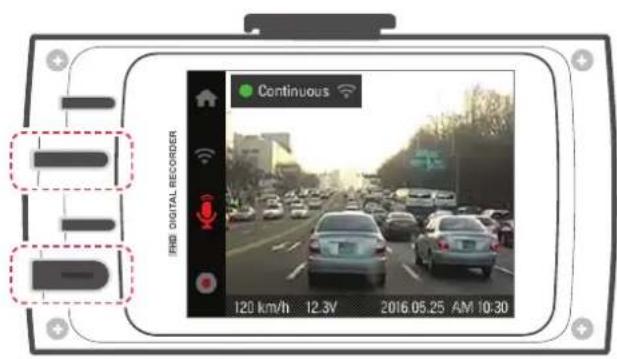
text_image
Continuous 120 km/h 12.3V 2016.05.25 4AM 10:303. LCD Screen
3-1. Main Menu
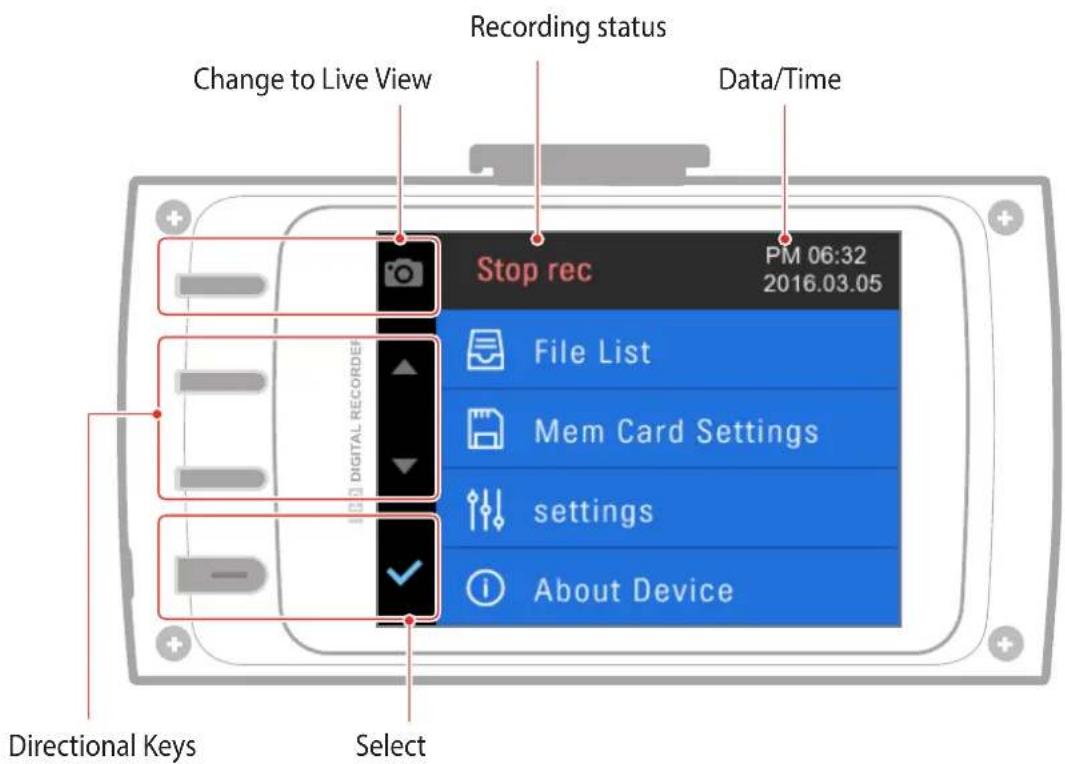
text_image
Change to Live View Recording status Data/Time Stop rec PM 06:32 2016.03.05 File List Mem Card Settings settings About Device Directional Keys Select3- 2. Live View
LCD screen can be used to verify current recording view.
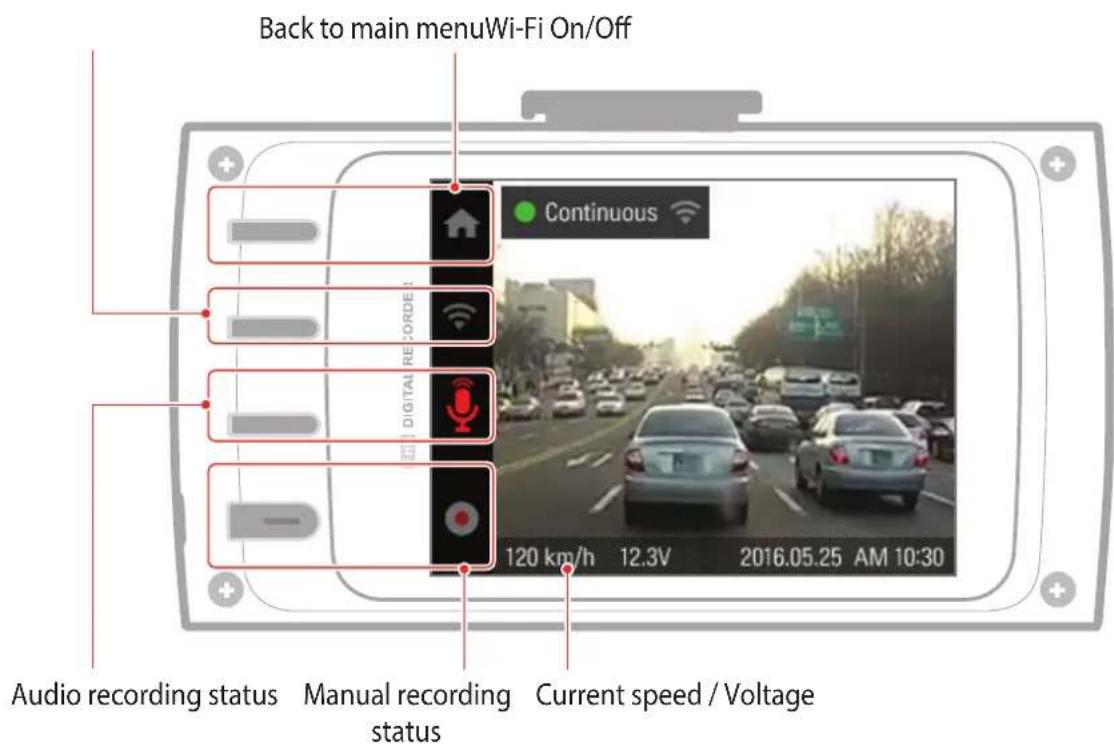
text_image
Back to main menuWi-Fi On/Off Continuous 120 km/h 12.3V 2016.05.25 AM 10:30 Audio recording status Manual recording status Current speed / Voltage3-3. File List
Recording will suspend when browsing through video list and settings menu. Visual notification will appear on the screen to confirm the suspension of recording prior to entering the menu.
3-3-1. File List - 1
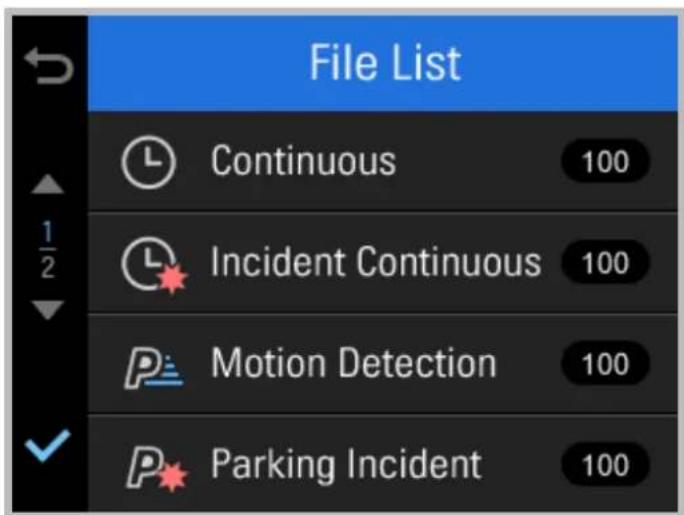
text_image
File List Continuous 100 Incident Continuous 100 Motion Detection 100 Parking Incident 100▶ Continuous : Lists loop recording videos during continuous mode (in 1 minute segments)
▶ Incident Continuous : Lists incident recording videos during continuous mode
▶ Motion Detection : Lists motion detection recording videos during parking surveillance mode
Parking Incident: Lists incident recording videos during parking surveillance mode
▶ Manual Recording : Lists manual recording videos initiated by selecting button
Cautions
The configured storage capacity may be different from the actual capacity by approximately 30 to 40MB.
3-3-2. File List - 2
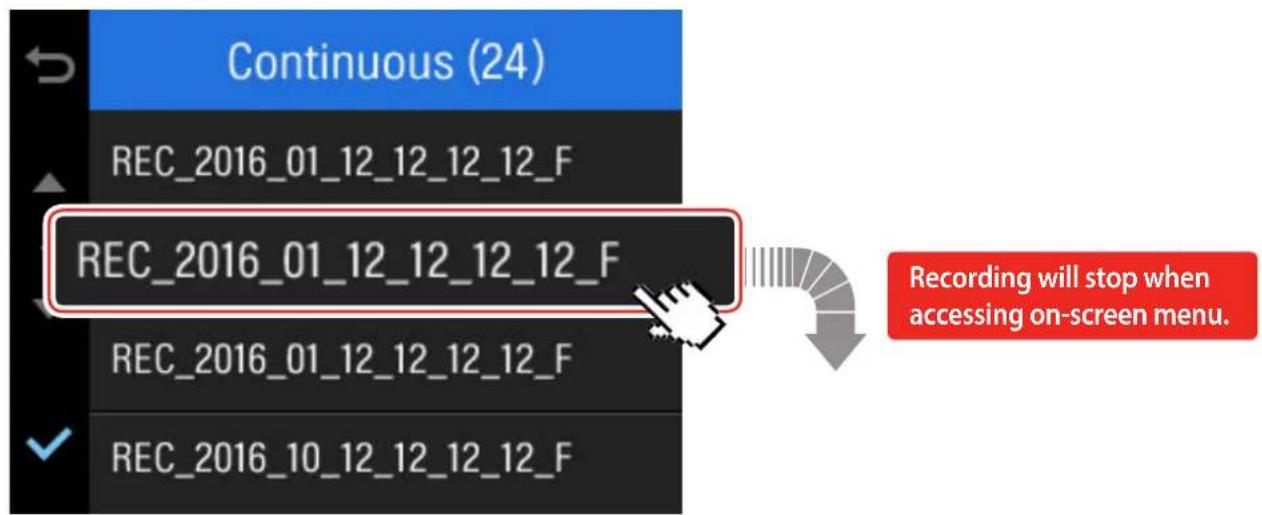
text_image
Continuous (24) REC_2016_01_12_12_12_12_F REC_2016_01_12_12_12_12_F REC_2016_01_12_12_12_12_F REC_2016_01_12_12_12_12_F REC_2016_10_12_12_12_12_F Recording will stop when accessing on-screen menu.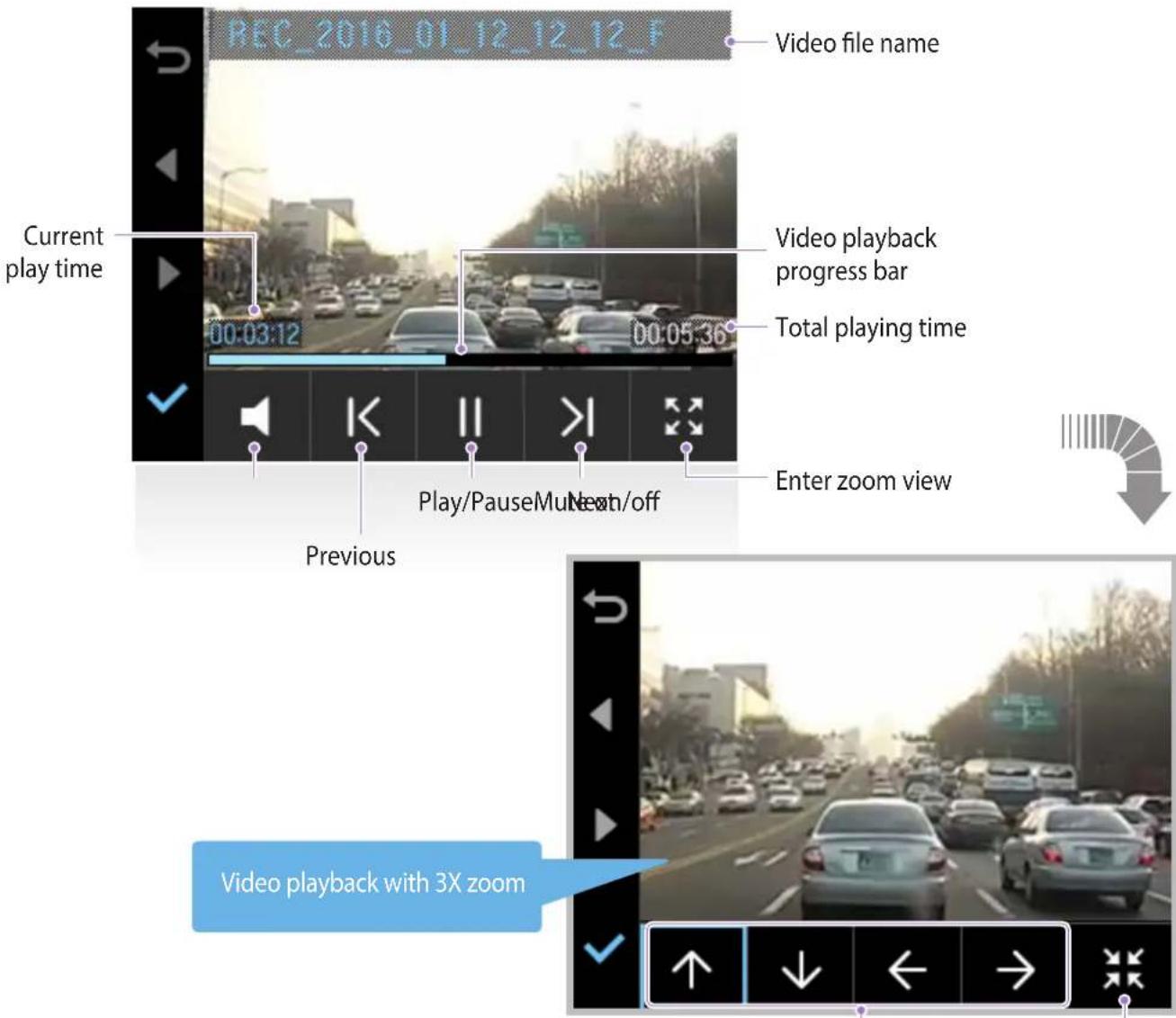
text_image
REC_2016_01_12_12_12 Current play time 00:03:12 Video file name Video playback progress bar Total playing time Enter zoom view Play/Pause/Mute/Off Previous Video playback with 3X zoomExit zoom viewDirectional button
3-4. Memory Card Settings
text_image
Mem Card Settings Mem Partition Type A Memory Format Format Video Overwrite▶ Memory Partition : Sets how storage space on the memory card will be allotted for each recording mode
L Type A (recommended) : Optimized for continuous recording
L Type B: Optimized for incident and motion detection during parking surveillance
L-Type C: Optimized for continuous and incident recording
▶ Memory Format : Formats the MicroSD card
L Formatting will completely erase all video files stored in the memory card
▶ Video Overwrite : Sets the overwriting option which will allow new video files to overwrite oldest video in storage reserved for each mode
Cautions
It is recommended that you back up data before formatting the memory card.
Once you format the memory card, all data will be deleted and cannot be restored.
The method for formatting a MicroSD card might vary depending on the computer operating system.
3-5. Settings > Record settings
text_image
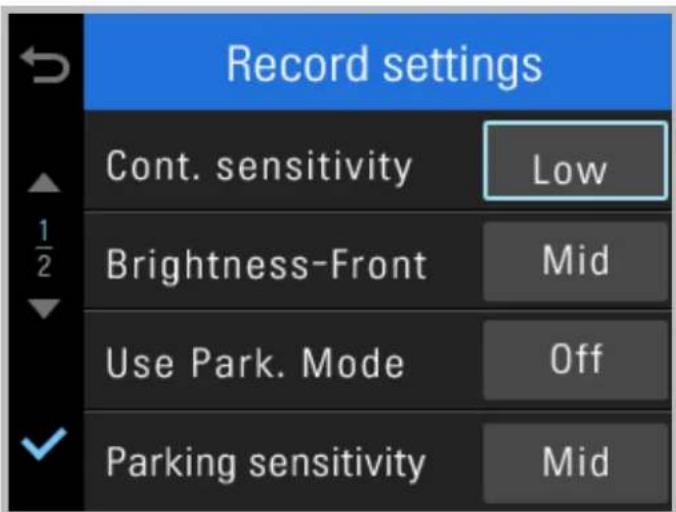
Record settings Cont. sensitivity Low Brightness-Front Mid Use Park. Mode Off Parking sensitivity Mid▶ Continuous Sensitivity : Sets the impact sensitivity level
▶ Brightness-Front : Sets the video recording brightness for front camera
▶ Use Parking Mode : Monitors vehicle ignition status to automatically convert to parking mode when the vehicle engine is turned off
▶ Parking Sensitivity : Sets the impact sensitivity during parking recording mode
▶ Motion Detection Sensitivity : Sets the motion detection sensitivity during parking recording mode
▶ Off Timer : Sets the timer for the dash cam to automatically shut down in parking mode to prevent from draining the vehicle battery
▶ Off Voltage : Sets the voltage level for the dash cam to automatically shut down in order to prevent from draining the vehicle battery
Cautions
- Tips on sensitivity
It is recommended that you set the sensitivity according to vehicle type. High sensitivity setting is recommended for cars with softer ride such as luxury sedans; while low sensitivity setting is recommended for cars such as performance cars, trucks, or SUVs which tends to have stiffer suspension settings.
- It is recommended to format the memory card when settings have been changed.
- Backup important video files before formatting the memory card.
3-6. Settings > System Settings
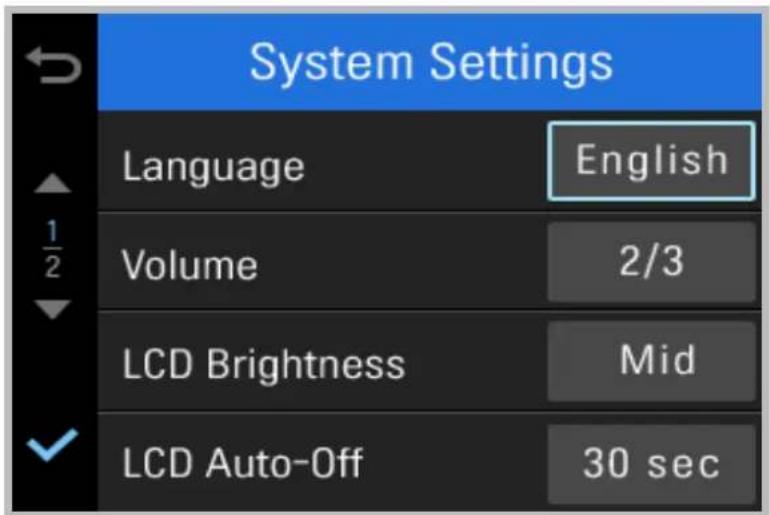
text_image
System Settings Language English ½ Volume 2/3 LCD Brightness Mid LCD Auto-Off 30 sec▶ Language : Sets dash cam system language
▶ Voice Volume : Sets the volume level
▶ LCD Brightness : Sets the brightness of the LCD screen
▶ LCD Auto-Off : Sets the time for LCD auto shut off
L When LCD is off, pressing any button will turn the LCD screen back on
▶ Security LED : Sets the pattern for security LED
▶ Date setting : Sets the year/month/data
▶ Time setting : Sets the time
▶ Time Zone : Sets the time zone
▶ Daylight Saving Time (DST) : Sets the daylight saving time
▶ Speed Unit : Sets the unit for the vehicle speed
▶ Speed Stamp : Sets vehicle speed information (tracked by GPS) to be shown or hidden directly on video
3-7. About Device
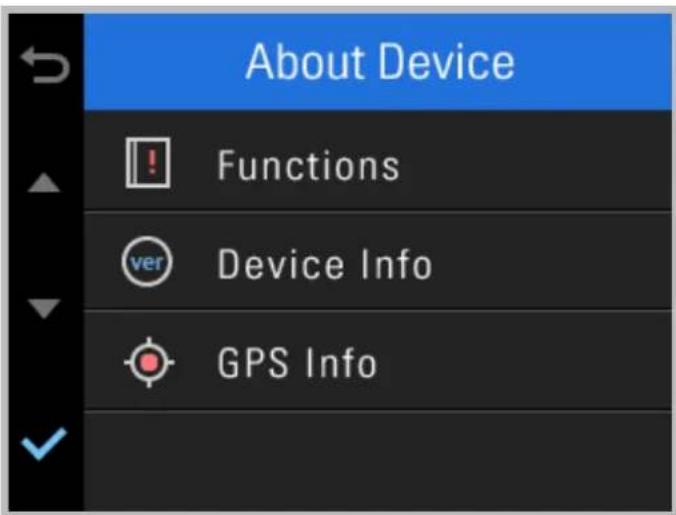
text_image
About Device Functions Device Info GPS Info▶ Functions : Help for device features
▶ Device Info : Information on device and firmware
L Factory Reset : Restores to factory setting
▶ GPS Info : View GPS information
L GPS Initialization : Reset GPS
4. Mobile Viewer Application
4-1. Thinkware Dash Cam Mobile Viewer
Thinkware Dash Cam Mobile Viewer App is available through Google Play and the App Store from iTunes.
■ Mobile App device OS version requirements: Android 4.0 (Ice Cream Sandwich) or higher, iOS 7.0 or higher.
■ You may disable Cellular data (Data networks) for using apps in some of devices operating Lollipop.
■ For iOS devices, Wi-Fi settings can only be accessed using the smartphone or tablet settings.
4-1-1. Connect Wi-Fi with Password
① Download and install Thinkware Dash Cam Mobile Viewer application
② Press briefly the Wi-Fi button on the dash cam to enter Wi-Fi connection mode
③ (Make sure to turn on the Wi-Fi in the device setting for iOS devices) In the Thinkware Dash Cam Mobile Viewer application, turn on the Wi-Fi option, select "thinkware" from SSID list, and enter password as "123456789"
- Password is only required during first time you try to connect. The device will auto-connect in subsequent connections.
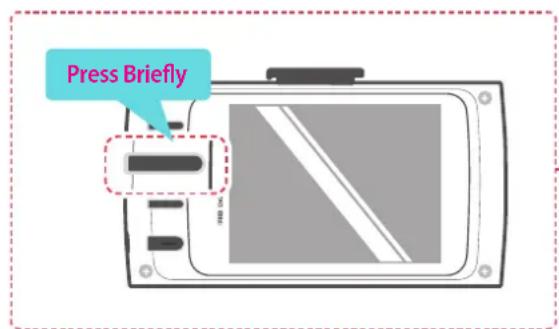
text_image
Press Briefly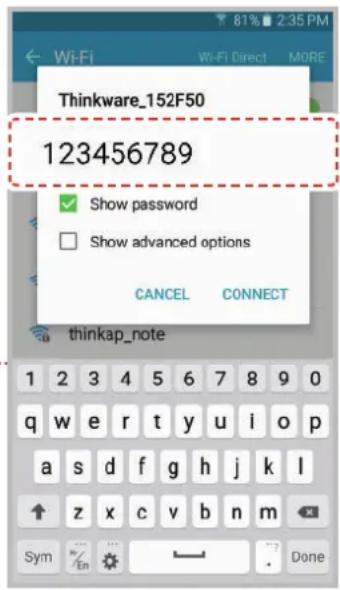
text_image
Thinkware_152F50 123456789 Show password Show advanced options CANCEL CONNECT thinkap_note※ Dash cam will automatically turn off the Wi-Fi connection mode if not connected within 2 minute.
Cautions
The distance range between the dash cam and connecting smart device is approximately 10 meters (33ft) in an open field environment.
- When device and mobile phone are connected over Wi-Fi, all control buttons of device will not be working, except power button.
- After device and mobile phone are disconnected, all control buttons of device will not be working for a few seconds.
▶ Connecting with WPS ( Only Android OS)
① Download and install Thinkware Dash Cam Mobile Viewer application.
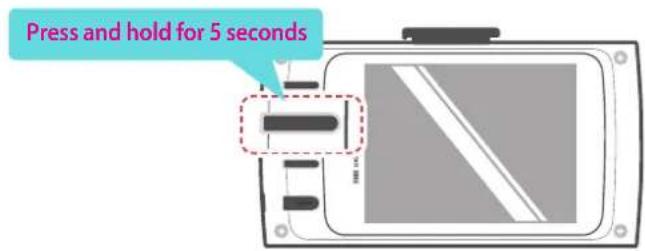
② Press and hold Wi-Fibutton for more than 5 seconds on the dash cam to enter WPS connection mode.
③ Select "WPS" button on the Thinkware Dash Cam Mobile Viewer application to automatically connect to the Thinkware dash cam using Wi-Fi. (takes approximately 20\~30 seconds)
← ⬇ : Retry Wi-Fi search.
text_image
Press and hold for 5 seconds4-2. Thinkware Dash Cam Mobile Viewer Main Menu
Following section describing the Thinkware Dash Cam Mobile Viewer menu is based on Android devices. Layouts and screen captures might be slightly different for iOS devices.
4-2-1. Live View
▶ Live View : When using Live View, the continuous recording will be disabled.
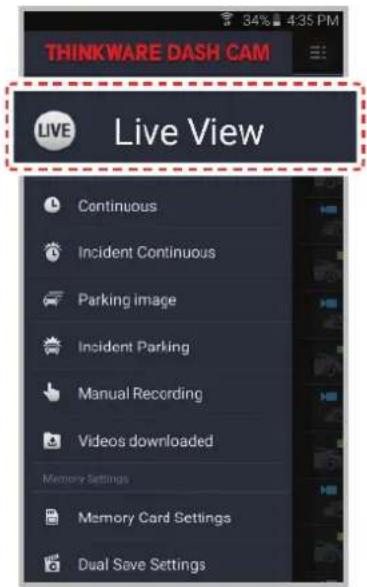
text_image
THINKWARE DASH CAM LIVE Live View Continuous Incident Continuous Parking image Incident Parking Manual Recording Videos downloaded Memory Settings Memory Card Settings Dual Save Settings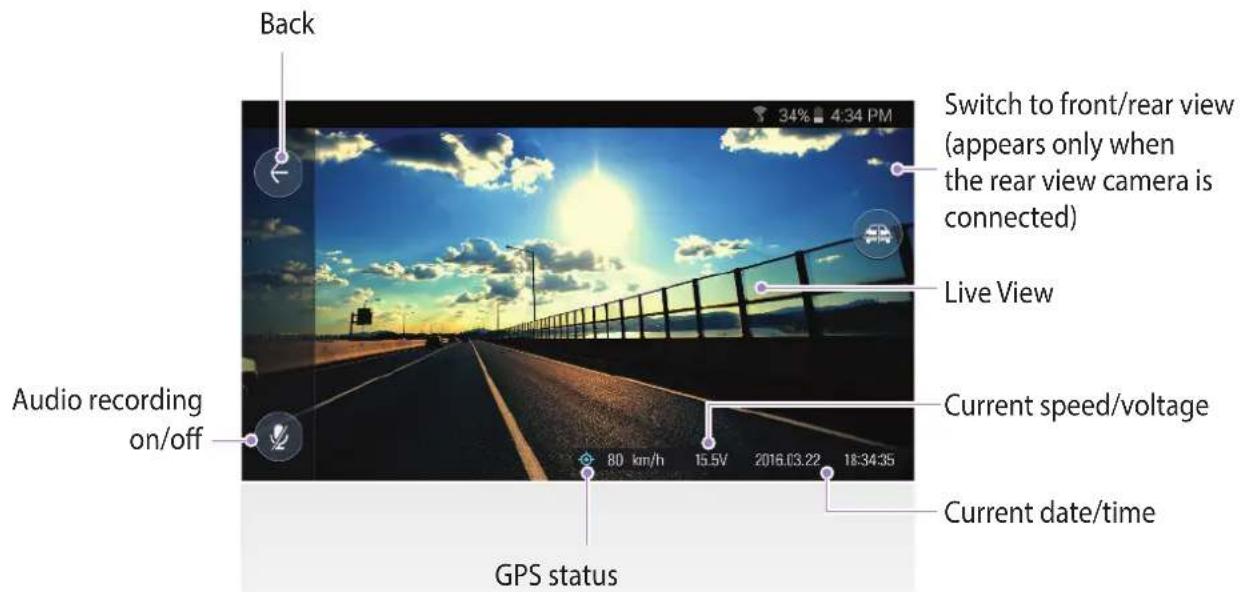
text_image
Back Switch to front/rear view (appears only when the rear view camera is connected) Live View Audio recording on/off Current speed/voltage Current date/time GPS status4-2-2. Video List
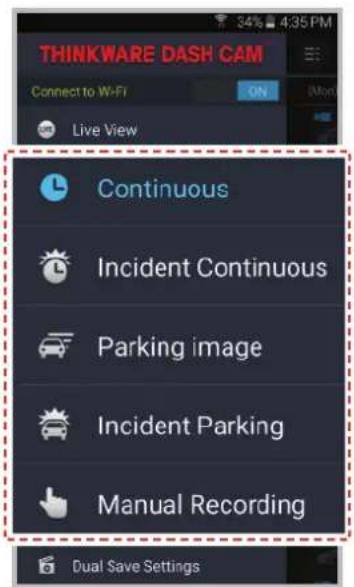
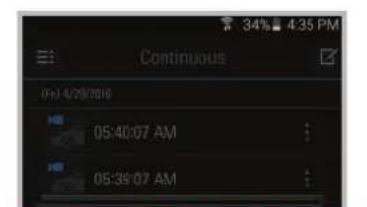
▶ Continuous Recording : Lists loop recording videos during continuous mode (in 1 minute segments)
▶ Incident in Continuous Mode : Lists incident recording videos during continuous mode
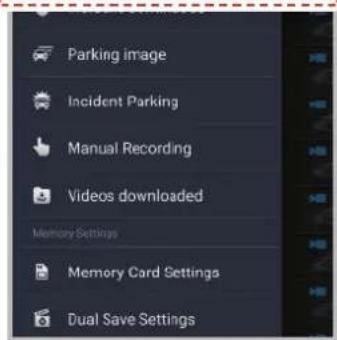
▶ Parking image : Lists motion detection recording videos during parking surveillance mode
▶ Incident in Parking Mode : Lists incident recording videos during parking surveillance mode
▶ Manual Recording : Lists manual recording videos initiated by selecting manual recording button
text_image
THINKWARE DASH CAM Connect to Wi-Fi ON Live View Continuous Incident Continuous Parking image Incident Parking Manual Recording Dual Save Settings▶ Recording List Menu
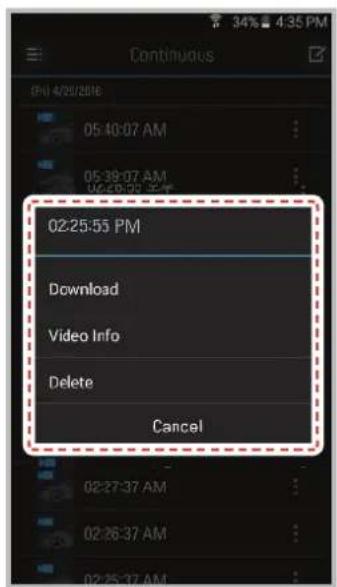
- Download: Copies selected video file to the device from the dash cam MicroSD card (Wi-Fi must be connected)
Video Info : Displays date/time, file name, recording type, size, duration, video quality for the selected video file
L Delete : Removes the selected video file
text_image
Continuous 02:25:55 PM Download Video Info Delete Cancel▶ Video download
text_image
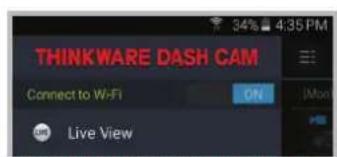
THINKWARE DASH CAM Connect to Wi-Fi ON Live View
text_image
Parking image Incident Parking Manual Recording Videos downloaded Memory Settings Memory Card Settings Dual Save Settings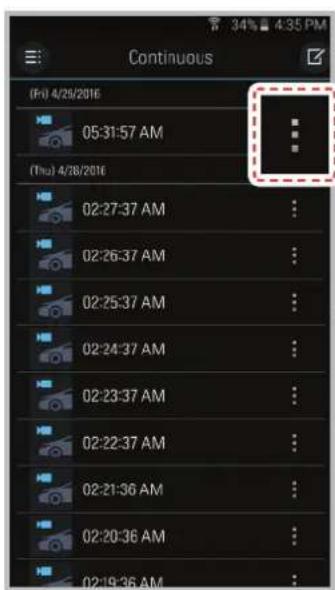
text_image
Continuous (F:0) 4/28/2016 05:31:57 AM (Thu) 4/28/2016 02:27:37 AM 02:26:37 AM 02:25:37 AM 02:24:37 AM 02:23:37 AM 02:22:37 AM 02:21:36 AM 02:20:36 AM 02:19:36 AM
text_image
Continuous 05:14:29:00:00 05:40:07 AM 05:38:07 AM

text_image
Video Info Delete Cancel 02:27:37 AM 02:26:37 AM 02:25:37 AM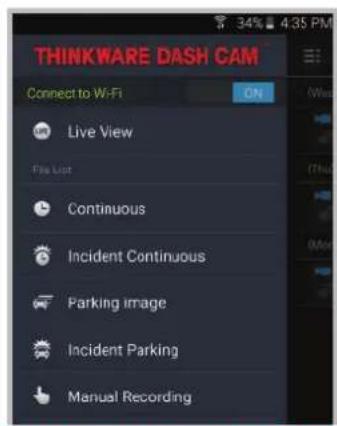
text_image
THINKWARE DASH CAM Connect to Wi-Fi ON Live View File List Continuous Incident Continuous Parking Image Incident Parking Manual Recording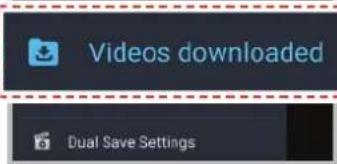
text_image
Videos downloaded Dual Save Settings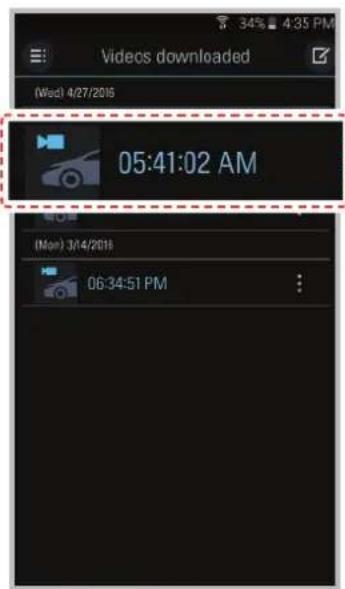
text_image
Videos downloaded (Wed) 4/27/2016 05:41:02 AM (Mon) 3/14/2019 06:34:51 PMCautions
- For Android OS devices, it may take a while until downloaded videos are displayed in the list.
5. PC Viewer Software
5-1. Thinkware Dash Cam PC Viewer
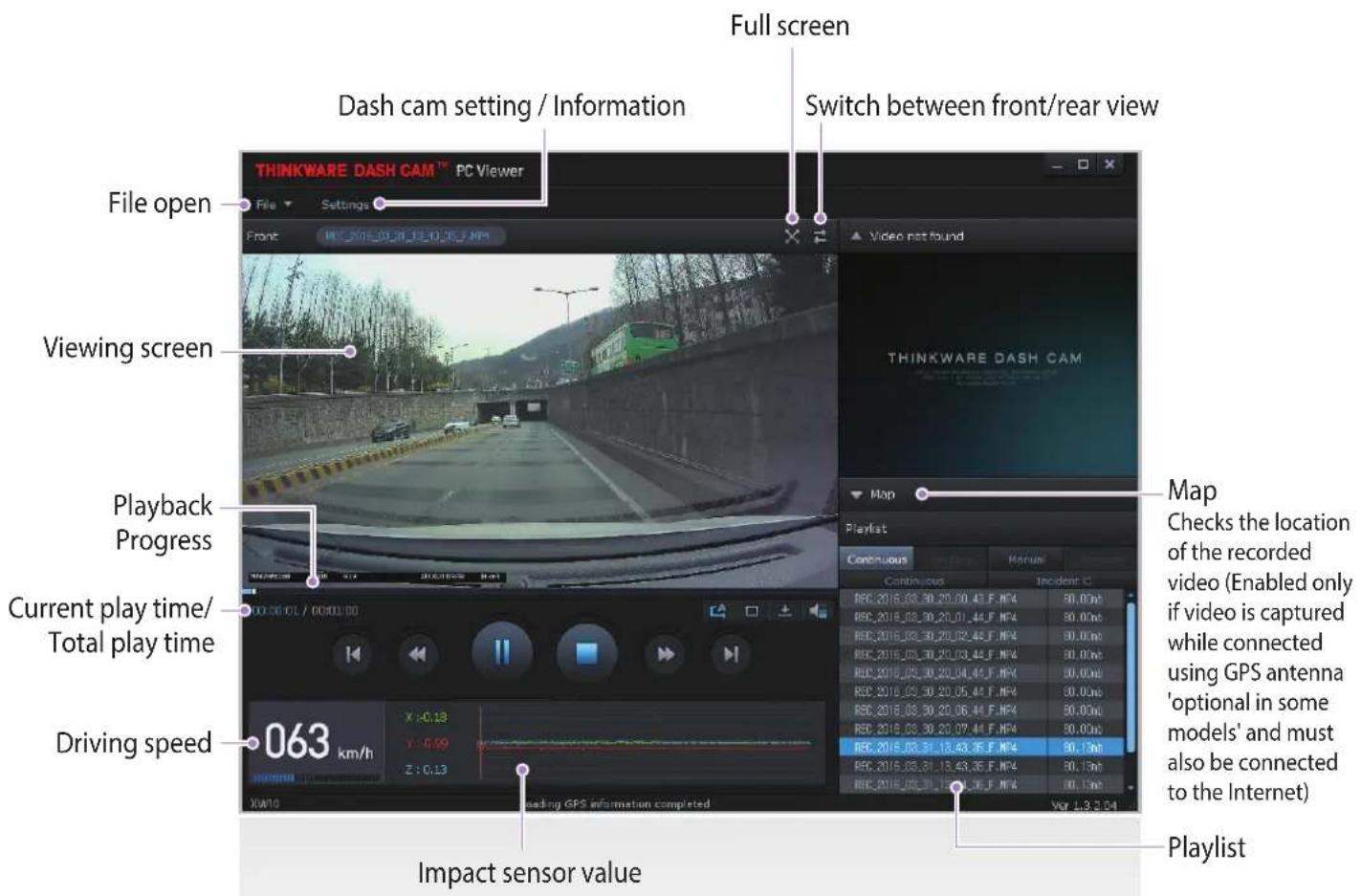
Thinkware Dash Cam Viewer for Windows/MacOS is provided which can be used to watch videos recorded with the dash cam. The video files recorded by the dash cam are in one minute segments and the PC viewer allows the user to watch these segments as a single continuous video.
The setup file for the Thinkware Dash Cam PC Viewer is included in the MicroSD card within the package. Please check THINKWARE homepage(www.thinkware.com) for the latest Dash Cam PC Viewer application.
Insert the MicroSD card into the PC.
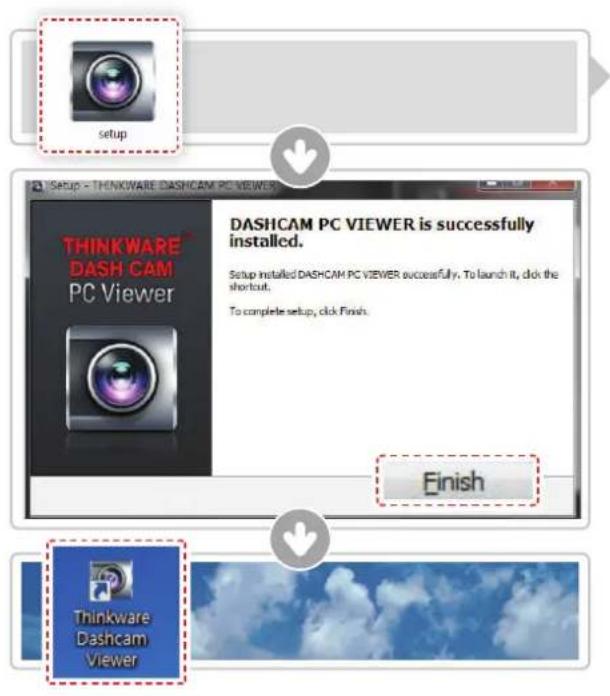
5-1-1. Installing Thinkware Dash Cam Viewer
Windows
text_image
setup DASHCAM PC VIEWER is successfully installed. Setup installed DASHCAM PC VIEWER successfully. To launch it, click the shortcut. To complete setup, click Finish. Finish Thinkware Dashcam Viewer① Double-click the Thinkware Dash Cam Viewer setup file saved in the MicroSD card to initiate program installation.
② Double-click the application icon once PC Viewer installation completes and the application main screen will then appear.
Cautions
System requirements: Windows XP SP3 (32 bit), Windows 7 (32 /64 bit), Windows 8.x (32/64 bit)
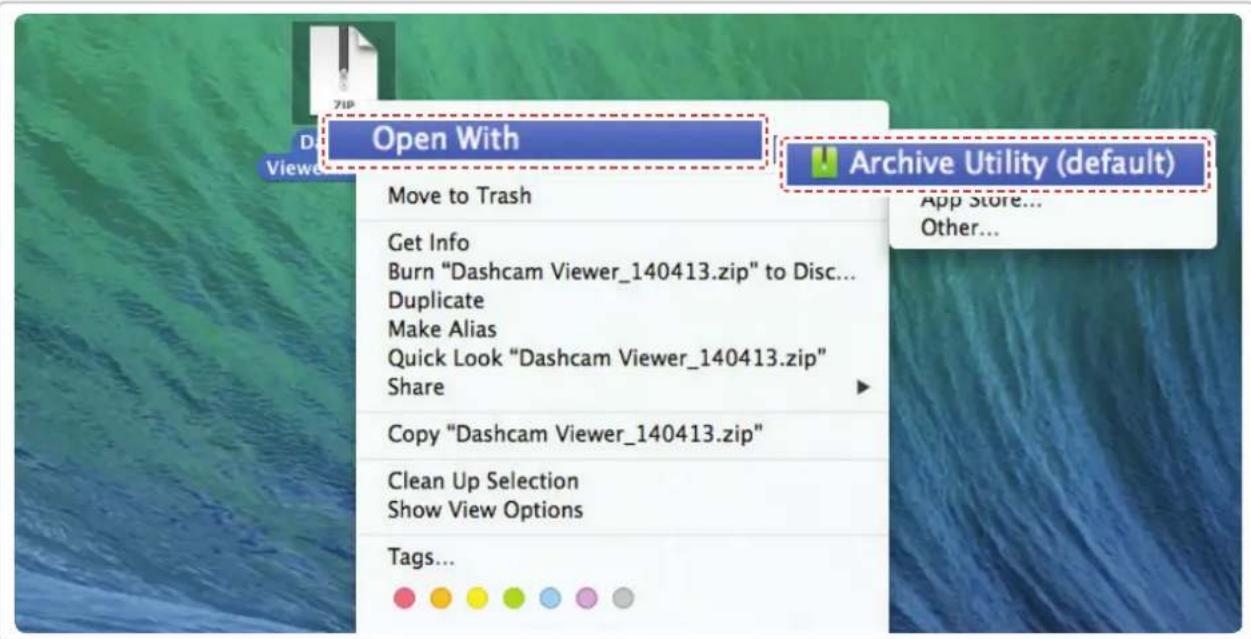
MAC
① Move the file named "Dashcam Viewer.zip" stored in the MicroSD card to the desktop.
② Right click on the mouse and select "Open With" > "Archive Utility" to launch the Thinkware Dash Cam viewer application.
text_image
Open With Move to Trash Get Info Burn "Dashcam Viewer_140413.zip" to Disc... Duplicate Make Alias Quick Look "Dashcam Viewer_140413.zip" Share Copy "Dashcam Viewer_140413.zip" Clean Up Selection Show View Options Tags... Archive Utility (default) App Store... Other...Cautions
System requirements : MAC OS X 10.8 Mountain Lion or later (OS X 10.9 Mavericks, OS X 10.10 Yosemite)
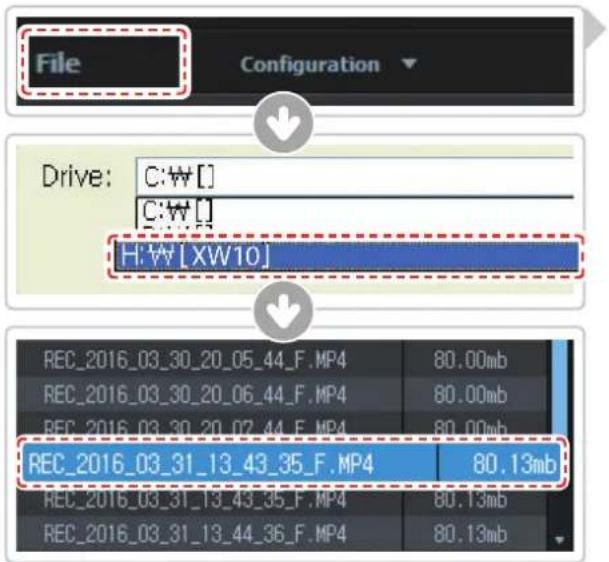
5-1-2. Select the Device Drive for XW10
text_image
File Configuration Drive: C:\W[ ] C:\W[ ] H:\W[XW10] REC_2016_03_30_20_05_44_F.MP4 80.00mb REC_2016_03_30_20_06_44_F.MP4 80.00mb REC_2016_03_30_20_02_44_F.MP4 80.00mb REC_2016_03_31_13_43_35_F.MP4 80.13mb REC_2016_03_31_13_43_35_F.MP4 80.13mb REC_2016_03_31_13_44_36_F.MP4 80.13mb① Click File ▼ from menu and select the drive for the portable storage drive for the connected MicroSD card.
② Select any file from the list to load entire video playlist in the memory card.
Cautions
- The MicroSD card will not be recognized by the PC Viewer until it has been used in the dash cam.
It is recommended that the user record at least one video clip on the MicroSD card with the dash cam unit before accessing the Thinkware Dash Cam PC Viewer.
5-1-3. Thinkware Dash Cam Viewer Overview
text_image
Full screen Dash cam setting / Information Switch between front/rear view File open Viewing screen Playback Progress Current play time/ Total play time Driving speed 063 km/h Impact sensor value Playlist THINKWARE DASH CAM™ PC Viewer THINKWARE DASH CAM Map Checks the location of the recorded video (Enabled only if video is captured while connected using GPS antenna 'optional in some models' and must also be connected to the Internet) Vol 1.3.2.04 Impact sensor value| No. Name Description | ||
| Play Previous Plays the previous file before the current file | ||
| Rewind by 10 Sec | Rewinds the current file being played by 10 seconds(If selected, it continues to rewind by 10 seconds) | |
| ▶/II | Play/Pause Plays the recorded file / temporarily pauses playback | |
| Stop | Stops the file being played. The playback status resets to the starting point of the video. | |
| Fast-forward by 10 Sec | Fast-forwards the current file being played by 10 seconds(If selected, it continues to fast-forward by 10 seconds) | |
| Play Next Plays the next file after the current file | ||
| Auto Play Automatically loops the video back to beginning once the end has reached | ||
| Zoom Sets the video expansion ratio (0.5x / 1.0x / 1.5x / 2.0x) | ||
| Screen Setting Sets brightness/speed of the video | ||
| Save Saves the video in play | ||
| Volume Sets the volume of the playback | ||
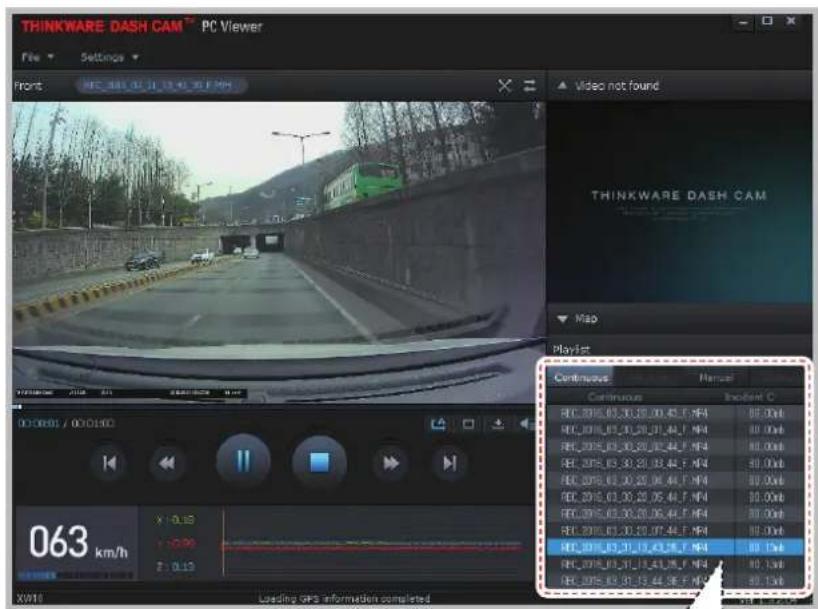
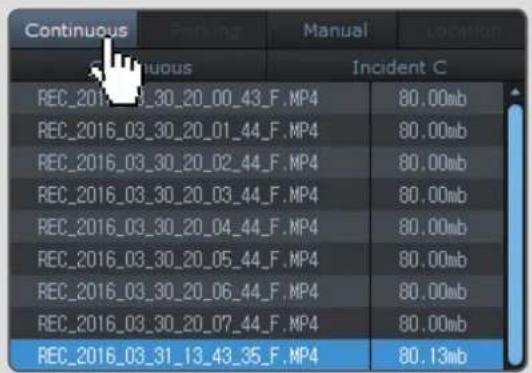
5-1-4. View Video Playlist
▶ Select appropriate folder (Continuous Recording, Incident Recording, Manual Recording, Parking Motion, Parking Incident) to see the playlist for each recording mode.
text_image
THINKWARE DASH CAM™ PC Viewer File Settings Front ME_341.0.11.14.26.F/MN Video not found THINKWARE DASH CAM Map PlayList Continuous Manual Continuous Incident C REC:2016.03.20.20.00.45.F.MR 89.00kb REC:2016.03.20.20.01.44.F.MR 89.00kb REC:2016.03.20.20.02.44.F.MR 89.00kb REC:2016.03.20.20.03.44.F.MR 89.00kb REC:2016.03.20.20.04.44.F.MR 89.00kb REC:2016.03.20.20.05.44.F.MR 89.00kb REC:2016.03.20.20.06.44.F.MR 89.00kb REC:2016.03.20.20.07.44.F.MR 89.00kb REC:2016.03.21.13.43.56.F.MR 89.13kb REC:2016.03.21.14.41.26.F.MR 89.13kb DEC:2016.03.21.15.44.56.F.MR 89.13kb X/WM Leading GPS information completed
text_image
Continuous Parking Manual Location Incident C REC_2016_03_30_20_00_43_F.MP4 80.00mb REC_2016_03_30_20_01_44_F.MP4 80.00mb REC_2016_03_30_20_02_44_F.MP4 80.00mb REC_2016_03_30_20_03_44_F.MP4 80.00mb REC_2016_03_30_20_04_44_F.MP4 80.00mb REC_2016_03_30_20_05_44_F.MP4 80.00mb REC_2016_03_30_20_06_44_F.MP4 80.00mb REC_2016_03_30_20_07_44_F.MP4 80.00mb REC_2016_03_31_13_43_35_F.MP4 80.13mb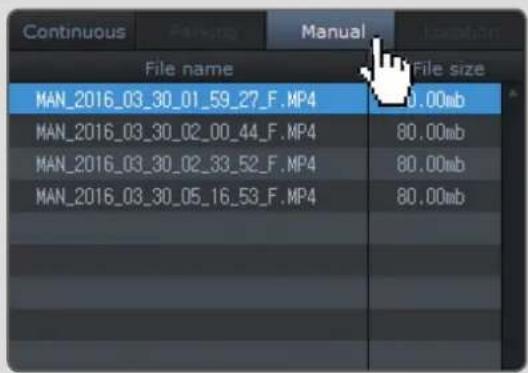
text_image
Continuous Faring Manual File name File size MAN_2016_03_30_01_59_27_F.MP4 0.00mb MAN_2016_03_30_02_00_44_F.MP4 80.00mb MAN_2016_03_30_02_33_52_F.MP4 80.00mb MAN_2016_03_30_05_16_53_F.MP4 80.00mbContinuous Recording Playlist Manual Recording Playlist
6. Specifications
6-1. Specifications
The specifications of this product may change without prior notice for product improvements.
| Item Standard Note | ||
| Model XW10 | ||
| Size/weight | 97 x 51.8 x 26.5 mm / 76g3.81 x 2.02 x 1.04 inches / 0.16lbs | |
| Display Panel 2.7"LCD (320 x 240) | ||
| Capacity | MicroSD card 8GB Class 10 | UHS-I 16GB/32GB/64G |
| Recording mode | Continuous Recording Mode Records in 1 minute segments | |
| Incident Recording Mode | ||
| Manual Recording Mode | ||
| Parking Surveillance Mode | Optional hardwiring cable and installation are required for continuous supply of power when vehicle ignition is off. | |
| Audio Recording | ||
| Camera 2.19 Megapixel, 1 / 2.9" CMOS | ||
| Viewing angle Approximately 140° (diagonally) | ||
| Video | Full HD(1920 x 1080 / H.264 / extension MP4) | |
| Frame rate 1 channel: up to 30 fps | ||
| Audio PCM (Pulse code modulation) | ||
| Accelerometer 3-axis Accelerometer (3D, ±3G) Ad justable impact sensitivity (5 levels) | ||
| GPS External GPS Antenna | Optional Accessories | |
| Input power source | DC 12 / 24V | |
| Current consumption | 2.5W (mean) | Based on fully charged super capacitor / LCD off |
| Auxiliary power unit | Super Capacitor | |
| Warning sound | Embedded speaker | Voice (buzzer sound) guidance |
| Operation/Storage Temperature | -10°C to 60°C / -20°C to 70°C14°F to 140°F / -4°F to 158°F | |