AVSP-DVI1X2 - Separator Black Box - Free user manual and instructions
Find the device manual for free AVSP-DVI1X2 Black Box in PDF.


| Product Type | DVI Splitter |
| Model | AVSP-DVI1X2 |
| Brand | Black Box |
| Number of Inputs | 1 |
| Number of Outputs | 2 |
| Video Interface | DVI-D (Digital) |
| Maximum Resolution | 1920 x 1200 |
| Input Connector | DVI-I (29-pin) |
| Output Connector | 2 x DVI-I (29-pin) |
| Power Supply | External AC adapter (5V DC, 2A) |
| Power Consumption | 2.5W (max) |
| Dimensions (W x D x H) | 4.2 x 2.6 x 1.0 in (10.7 x 6.6 x 2.5 cm) |
| Weight | 0.35 lb (0.16 kg) |
| Operating Temperature | 32°F to 122°F (0°C to 50°C) |
| Storage Temperature | -4°F to 158°F (-20°C to 70°C) |
| Humidity | 10% to 90% (non-condensing) |
| Compliance | FCC, CE, RoHS |
| LED Indicators | Power (green), Signal (blue) |
| Housing Material | Metal |
| Installation | Plug and play, no software needed |
| Cleaning | Wipe with dry cloth; do not use liquids |
| Safety | Use only provided power adapter; keep away from water |
| Spare Parts | Power adapter available separately |
| Repairability | No user-serviceable parts; contact support |
Frequently Asked Questions - AVSP-DVI1X2 Black Box
User questions about AVSP-DVI1X2 Black Box
0 question about this device. Answer the ones you know or ask your own.
Ask a new question about this device
Download the instructions for your Separator in PDF format for free! Find your manual AVSP-DVI1X2 - Black Box and take your electronic device back in hand. On this page are published all the documents necessary for the use of your device. AVSP-DVI1X2 by Black Box.
USER MANUAL AVSP-DVI1X2 Black Box
1 x 2, 1 x 4, and 1 x 8 DVI Splitters
Broadcast the same video plus audio signal source to two, four, or eight DVI compatible outputs.
Support DVI display resolutions of up to Full HD (1920 x 1080), WUXGA (1920 x 1200), and UXGA (1600 x 1200).
Splitters are Blu-ray ready.
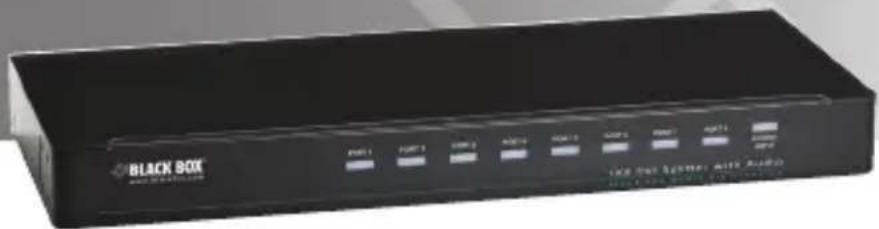
natural_image
Black BOX electronic device with multiple ports and indicator lights (no visible text or symbols on body)Customer Support Information
Order toll-free in the U.S.: Call 877-877-BBOX (outside U.S. call 724-746-5500) • FREE technical support 24 hours a day, 7 days a
week: Call 724-746-5500 or fax 724-746-0746 • Mailing address: Black Box Corporation, 1000 Park Drive, Lawrence, PA 15055-1018
Web site: www.blackbox.com • E-mail: info@blackbox.com
Trademarks Used in this Manual
Black Box and the Double Diamond logo are registered trademarks of BB Technologies, Inc.
Any other trademarks mentioned in this manual are acknowledged to be the property of the trademark owners.
FEDERAL COMMUNICATIONS COMMISSION AND INDUSTRY CANADA RADIO FREQUENCY INTERFERENCE STATEMENTS
This equipment generates, uses, and can radiate radio-frequency energy, and if not installed and used properly, that is, in strict accordance with the manufacturer's instructions, may cause interference to radio communication. It has been tested and found to comply with the limits for a Class A computing device in accordance with the specifications in Subpart B of Part 15 of FCC rules, which are designed to provide reasonable protection against such interference when the equipment is operated in a commercial environment. Operation of this equipment in a residential area is likely to cause interference, in which case the user at his own expense will be required to take whatever measures may be necessary to correct the interference.
Changes or modifications not expressly approved by the party responsible for compliance could void the user's authority to operate the equipment.
This digital apparatus does not exceed the Class A limits for radio noise emission from digital apparatus set out in the Radio Interference Regulation of Industry Canada.
2.1 Introduction....8
2.2 Features 8
2.3 What's Included 9
2.4 Optional Items You Might Need 9
2.5 Hardware Requirements....9
2.6 Hardware Description.... 10
2.6.1 AVSP-DVI1X2 10
2.6.2 AVSP-DVI1X4 11
2.6.3 AVSP-DVI1X8 13
- Installation 15
- Operation 19
Appendix. Troubleshooting....21
A.1 Symptoms, Possible Causes, and Solutions....21
A.2 Contacting Black Box 22
A.3 Shipping and Packaging 22
1. Specifications
Cable Length (Max.) — 32.8 ft. (10 m)
Enclosure — Metal
Max. Video Resolution/Signal Type — Full HD 1080p (1920 x 1080)/VGA
(640 x 480)/SXGA (1280 x 1024)/UXGA (1600 x 1200)/WUXGA (1920 x 1200)
Number of Video Outputs — AVSP-DVI1X2: 2;
AVSP-DVI1X4: 4;
AVSP-DVI1X8: 8
Rackmountable (optional) — AVSP-DVI1X2: N/A;
AVSP-DVI1X4: Yes;
AVSP-DVI1X8: Yes
Connectors — AVSP-DVI1X2: Input: (1) DVI female, (1) set of audio jacks,
Output: (2) DVI female, (2) 3.5-mm audio output;
AVSP-DVI1X4: Input: (1) DVI female, (1) set of audio jacks,
Output: (4) DVI female, (4) 3.5-mm audio output;
AVSP-DVI1X8: Input: (1) DVI female, (1) set of audio jacks,
Output: (8) DVI female, (8) 3.5-mm audio output
Indicators — AVSP-DVI1X2: (3) LEDs: (1) dual-color LED: Power active, Video OK,
(2) Video output LEDs;
AVSP-DVI1X4: (5) LEDs: (1) dual-color LED: Power active, Video OK,
(4) Video output LEDs;
AVSP-DVI1X8: (9) LEDs: (1) dual-color LED: Power active, Video OK,
(8) Video output LEDs
Power — Operating Voltage: 9 VAC (accepts 9–12 VDC);
Consumption (Max.) — AVSP-DVI1X2: 2.8 W;
AVSP-DVI1X4: 4.1 W;
AVSP-DVI1X8: 10.2 W
Size — AVSP-DVI1X2: 0.8"H X 7.1"W x 3.4"D (2 x 18 x 8.5 cm);
AVSP-DVI1X4: 1.7"H x 8.7"W x 5.3"D (4.4 x 22 x 13.5 cm);
AVSP-DVI1X8: 1.7"H x 17.2"W x 7.1"D (4.4 x 43.8 x 18 cm)
2. Overview
2.1 Introduction
The DVI Splitters broadcast the same video with audio signals from one video (and audio) signal source to two, four, or eight DVI compatible ports. To expand the broadcast significantly, you can cascade several splitters together.
Depending on the length and cable quality, this fully HDCP-compliant splitter supports DVI display resolutions of up to Full HD (1920 x 1080)/WUXGA (1920 x 1200)/UXGA (1600 x 1200), and is also Blu-ray ready. You don't need to install software or interface cards. Just connect the cables, power up the system and it will duplicate video images for multiple monitors with excellent clarity. The 4- and 8-port splitters can also be rackmounted.
Use the spitters for presentations, exhibits, demonstrations, trade shows, monitor testing and burn-in, business meetings, news, stock tickers, airline/train/bus schedules, and retail stores.
2.2 Features
- Duplicates one video input to multiple DVI outputs.
- Saves power when signal input is lost.
- You can cascade operation for increased signal outputs.
- Provides crisp, clear, video images.
- Supports EDID, HDCP, and is Blu-ray ready for high definition display.
- Supports DVI display resolutions of up to UXGA (1600 x 1200), WUXGA (1920 x 1200), and Full HD 1080p (1920 x 1080).
- Rackmountable (AVSP-DVI1X4 and AVSP-DVI1X8 models only).
• LED indicators for signal activity monitoring - Accurately and reliably reproduces digital video signals without attenuation and distortion.
- Installs in seconds.
2.3 What's Included
Your package should include the following items. If anything is missing or damaged, contact Black Box Technical Support at 724-746-5500 or info@blackbox.com.
• (1) 2-, 4-, or 8-Port Video + Audio Splitter
• (1) power adapter with AC cord or (1) plug-in power adapter
• (1) user's manual
• (1) set of foot pads
• (1) set of rackmount brackets (AVSP-DVI1X8 only)
2.4 Optional Items You Might Need
• (1) set of rackmount brackets (for AVSP-DVI1X4)
• (1) 6-ft. (1.8-m) male to male HDMI to DVI cable
• (1) 6-ft. (1.8-m) male to male DVI Cable for DVI source connection
- Audio Cables
• DVI-to-HDMI Adapter
- HDMI-to-DVI Adapter
2.5 Hardware Requirements
• Video sources (ex. PS3, Blu-ray, DVD players, etc.), with DVI-D, and audio output
- DVI cables
- HDCP-complaint display devices (ex. TVs, monitors, projectors, etc.) for the HDCP video source (optional)
- Speakers for audio
2.6 Hardware Description
2.6.1 AVSP-DVI1X2
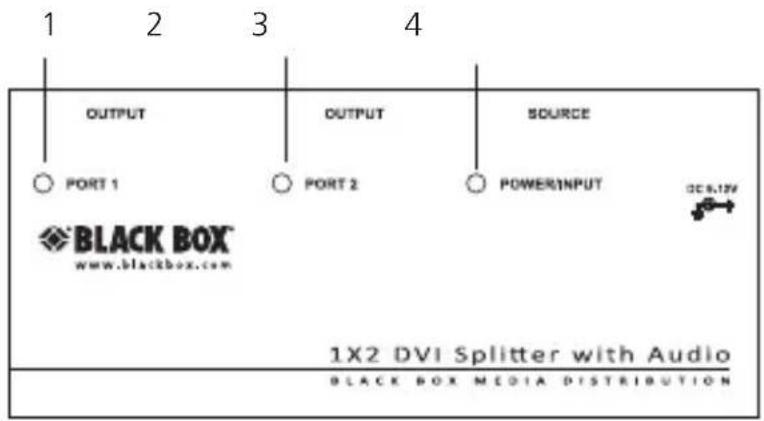
Figure 2-1. AVSP-DVI1X2 top panel.
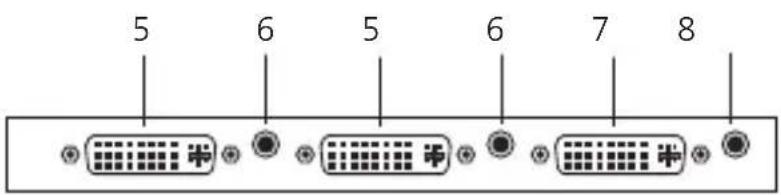
Figure 2-2. AVSP-DVI1X2 back panel.
Table 2-1. AVSP-DVI1X2 components.
| Number Component Description |
| 1 Port 1 LED Lights when there is activity on Port 1. |
| 2 Port 2 LED Lights when there is activity on Port 2. |
| 3 Power input LED Lights when power is connected. |
| 4 Power connector Connects to AC power source. |
| 5 (2) DVI connectors Link to output monitors.. |
| 6 (2) audio connectors Connect to audio output. |
| 7 DVI connector Connects to input source. |
| 8 (1) audio connector Connects to audio input. |
2.6.2 AVSP-DVI1X4
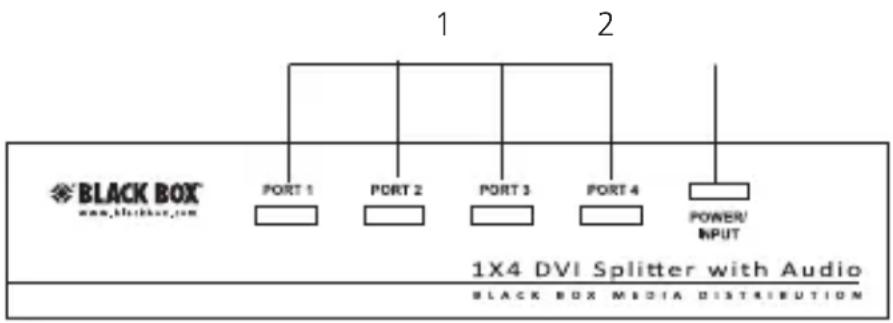
Figure 2-3. AVSP-DVI1X4 front panel.
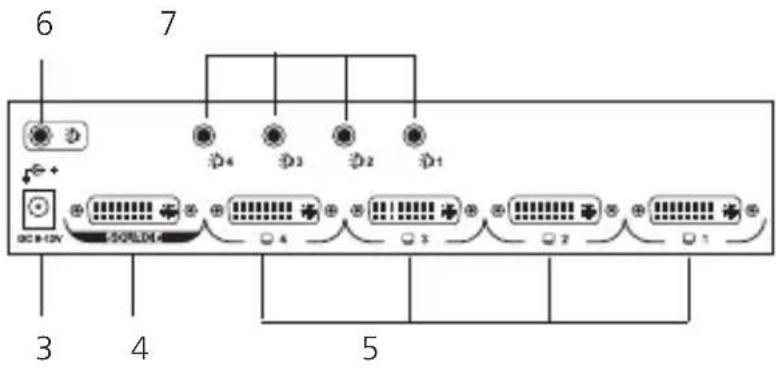
Figure 2-4. AVSP-DVI1X4 back panel.
Table 2-2. AVSP-DVI1X4 components.
| Number | Component Description |
| 1 | Ports 1–4 LEDs Light when there is activity on Ports 1–4. |
| 2 | Power input LED Lights when power is connected. |
| 3 | Power connector Connects to AC power source. |
| 4 | DVI connector Connects to input source. |
| 5 | (4) DVI connectors Link to output monitors. |
| 6 | Audio connector Connects to audio input. |
| 7 | (4) audio connectors Connect to audio outputs. |
2.6.3 AVSP-DVI1X8
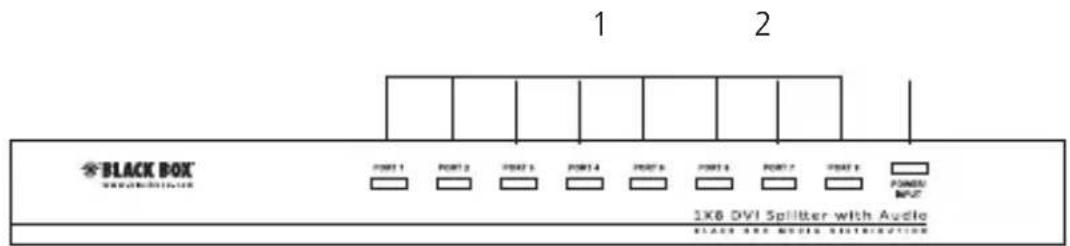
Figure 2-5. AVSP-DVI1X8 front panel.
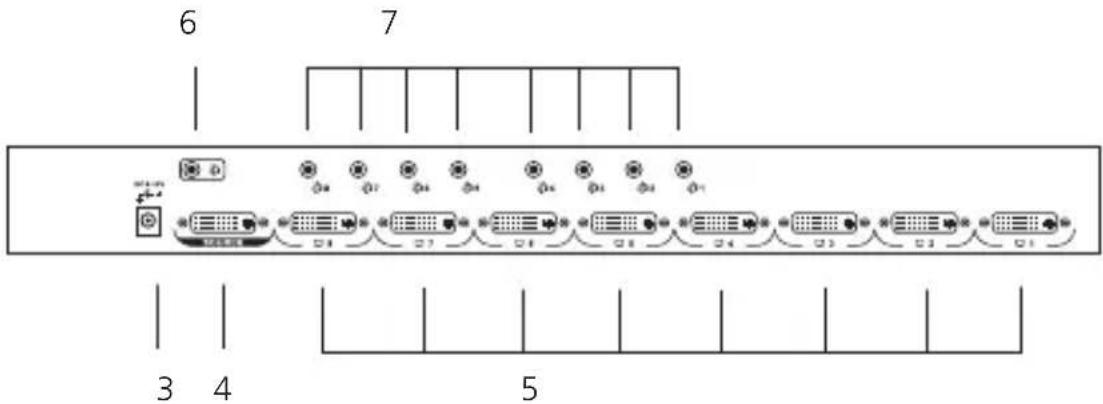
Figure 2-6. AVSP-DVI1X8 back panel.
Table 2-3. AVSP-DVI1X8 components.
| Number | Component Description |
| 1 | Ports 1–8 LEDs Light when there is activity on Ports 1–8. |
| 2 | Power input LED Lights when power is connected. |
| 3 | Power connector Connects to AC power source. |
| 4 | DVI connector Connects to input source. |
| 5 | (8) DVI connectors Link to output monitors. |
| 6 | Audio connector Connects to audio input. |
| 7 | (8) audio connectors Connect to audio outputs. |
3. Installation
WARNING: Before installation, power off all devices that will be connected to this system.
- Make sure that all devices you will connect are properly grounded.
- Place cables away from fluorescent lights, air conditioners, and machines that are likely to generate electrical noise.
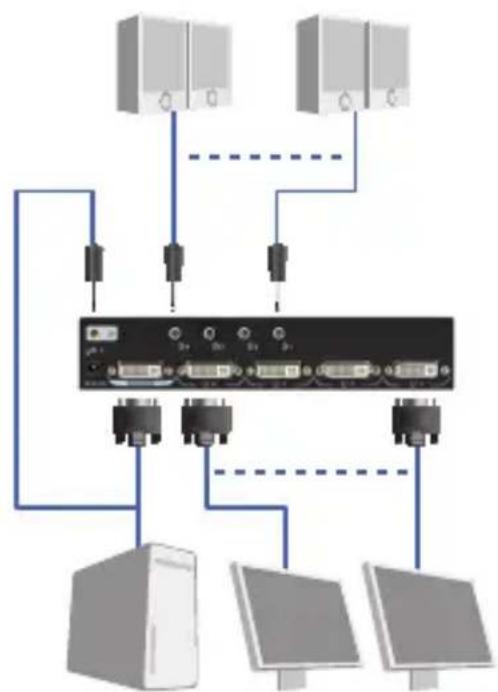
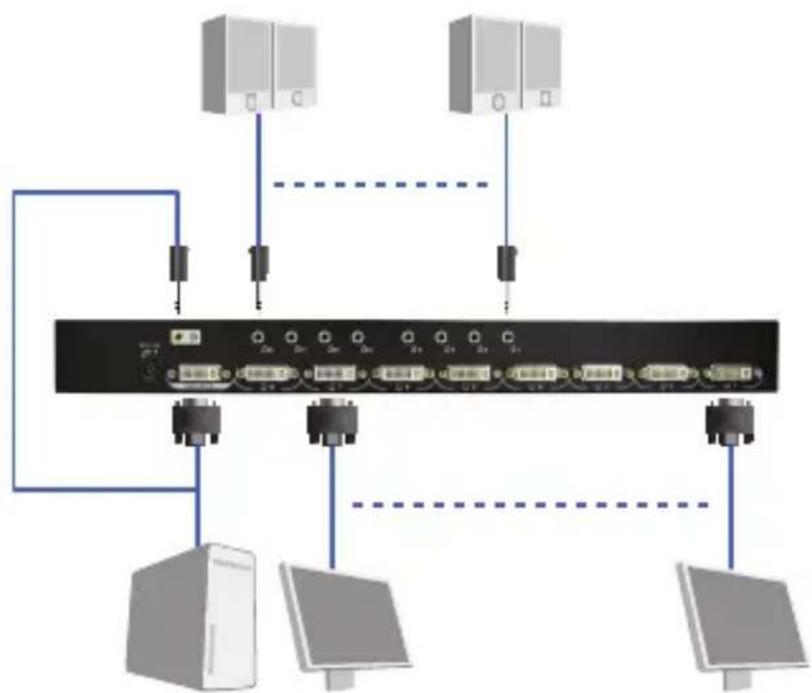
Use one DVI male-to-male cable to connect a video source to the video splitter Input (SOURCE). Connect multiple monitors or TVs to the video splitter's output ports.
Plug a set of audio jacks from the speaker to the splitter's audio port.
Use a DVI-to-HDMI adapter that combines digital video (DVI) and digital audio into HDMI to seamlessly integrate into your computer systems or modern home theater. Simply connect the optional DVI-to-HDMI adapter(s) to the output side of the splitter, and then connect the HDMI display or projector to the HDMI output of the DVI-to-HDMI adapter.
The adapter will convert the digital audio onto the digital video signal to generate the HDMI signal.
Turn on your video source only after you've made all the connections.
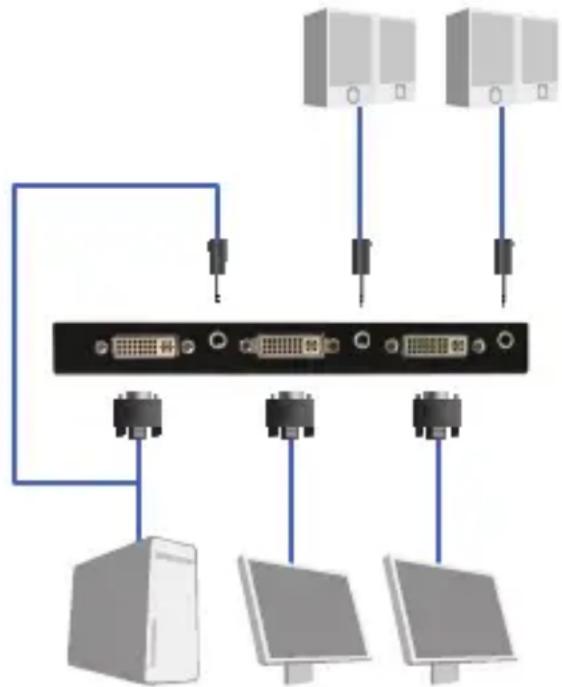
Figure 3-1. AVSP-DVI1X2 connection.
flowchart
graph TD
    A["Server"] --> B["Central Device"]
    C["Client"] --> B
    D["Server"] --> B
    E["Client"] --> B
    B --> F["Port 1"]
    B --> G["Port 2"]
    B --> H["Port 3"]
    B --> I["Port 4"]
    B --> J["Port 5"]
    style A fill:#f9f,stroke:#333
    style C fill:#f9f,stroke:#333
    style D fill:#f9f,stroke:#333
    style E fill:#f9f,stroke:#333
    style F fill:#ccf,stroke:#333
    style G fill:#ccf,stroke:#333
    style H fill:#ccf,stroke:#333
    style I fill:#ccf,stroke:#333
    style J fill:#ccf,stroke:#333
Figure 3-2. AVSP-DVI1X4 connection.
flowchart
graph TD
    A["Server Port 1"] --> B["Client Port 1"]
    C["Server Port 2"] --> D["Client Port 2"]
    E["Server Port 3"] --> F["Client Port 3"]
    G["Server Port 4"] --> H["Client Port 4"]
    I["Server Port 5"] --> J["Client Port 5"]
    K["Server Port 6"] --> L["Client Port 6"]
    M["Server Port 7"] --> N["Client Port 7"]
    O["Server Port 8"] --> P["Client Port 8"]
    Q["Server Port 9"] --> R["Client Port 9"]
    S["Server Port 10"] --> T["Client Port 10"]
Figure 3-3. AVSP-DVI1X8 connection.
NOTE: Connect at least one monitor to the splitter before powering on the source device.
NOTE: Connect the splitter to the computer before powering on the computer.
NOTE: Use an HDCP-compliant display to connect the splitter to the HDCP video source.
NOTE: Each output port on the unit is required to apply the same connection pattern whenever a DVI-to-HDMI (or HDMI-to-DVI) adapter is used for HDMI (or DVI) signal conversion between the unit and the HDMI (or DVI) display. Mixed (HDMI and DVI) output connections may cause signal degradation. Signal degradation, harmful interference, or equipment malfunction are less likely to occur if absolute connection consistency is used.
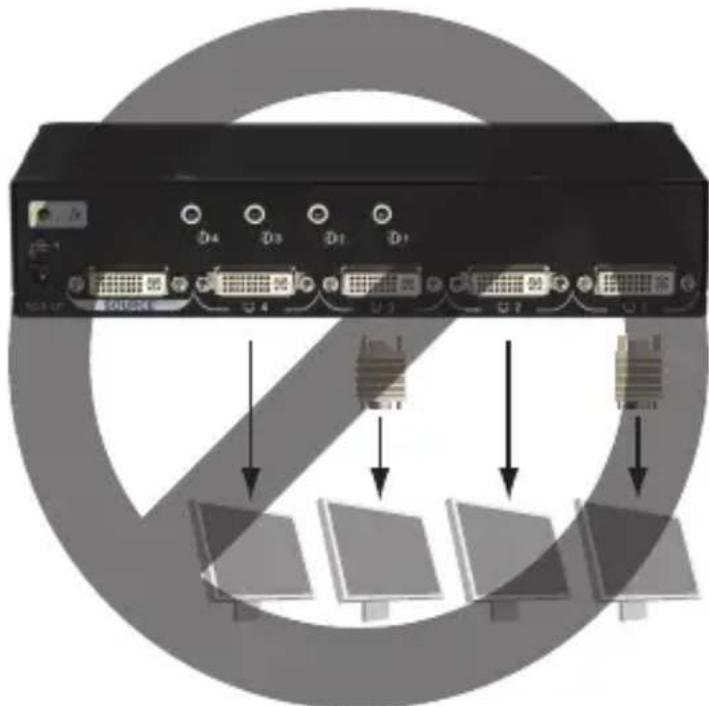
Figure 3-4. Do NOT use the mixed connection pattern shown in this diagram.
Blu-ray Ready
The splitter supports high-definition video such as DVD or Blu-ray and multichannel audio, and carries the best signal from the source to displays; the high bandwidth enables transmission of large amounts of information at a very high rate of speed.
Blu-ray uses a blue-violet laser to read and write data, while current optical disc technologies such as DVD, DVD±R, DVD±RW, and DVDRAM rely on a red laser to read and write data. Blu-ray uses a blue-violet laser (405 nm) that it has a shorter wavelength than a red laser (650 nm), which makes it possible to focus the laser spot with even greater precision. This enables data to be packed more tightly and stored in less space, so it's possible to fit more data on the disc even though it's the same size as a CD/DVD.
4. Operation
The quality of the output signal depends largely upon the quality of the video source, cable, and display device used. Low-quality cables degrade the output signal causing elevated noise levels. Use the proper cable and make sure the display device is capable of handling the resolution and refresh rate selected. Interference from nearby electrical devices can adversely affect signal quality.
Table 4-1. LED display.
| Number | Color Description |
| 1 | Green Power on LED |
| Blue Video signal OK LED | |
| 2 Yellow Video output signal LEDs | |
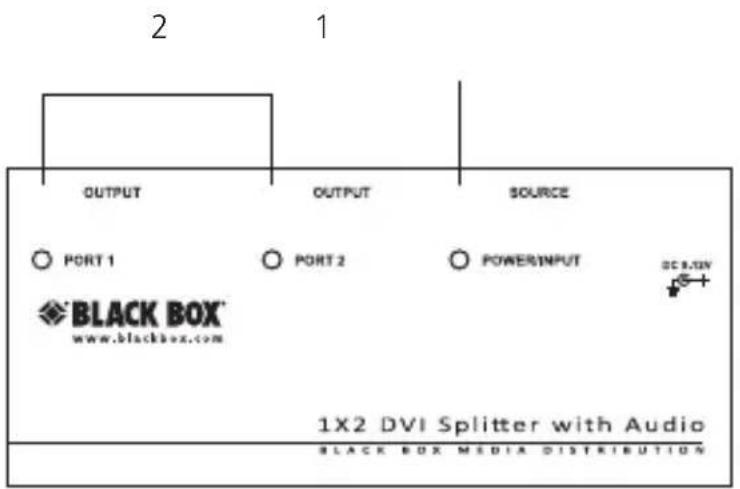
Figure 4-1. AVSP-DVI1X2.
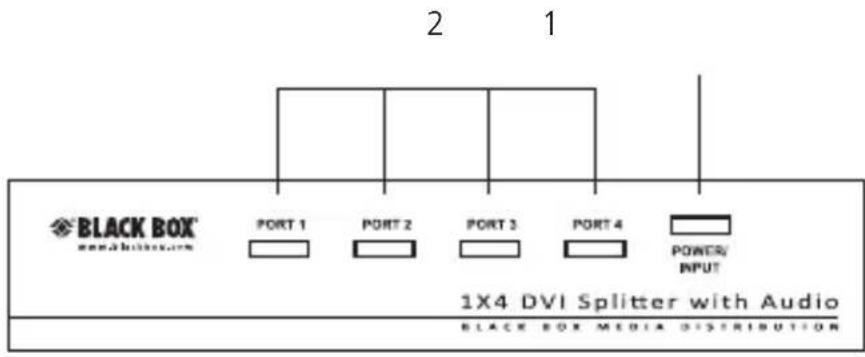
Figure 4-2. AVSP-DVI1X4.
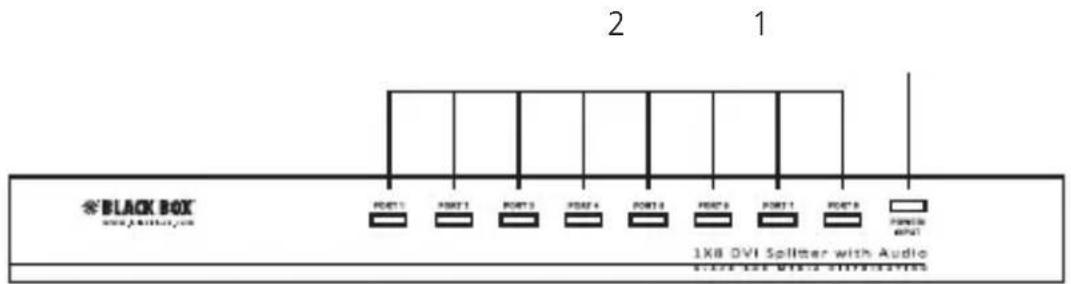
Figure 4-3. AVSP-DVI1X8.
NOTE: Connect at least one display device to the splitter before you power on the source unit.
Appendix. Troubleshooting
A.1 Symptoms, Possible Causes, and Solutions
Symptom: Video does not display on some ports.
Possible Cause: DVI specification of the source devices doesn't match the DVI specification of DVI cable and/or the DVI display device.
Solution #1: There are three DVI standards: DVI-I, DVI-D, and DVI-A. Make sure that DVI specifications of the source devices, cables, and monitors all match.
NOTE: Some monitors can support multiple DVI signals.
Solution #2: Make sure the splitter was connected to the source computer before powering on the computer.
Symptom: Erratic behavior
Possible Cause: The splitter might not receive enough power.
Possible Solution: Make sure the power adapter attached to the splitter matches the system specifications, and that it is functioning properly.
Symptom: Not receiving picture or sound.
Possible Cause #1: Wrong installation process.
Solution #1: The video splitter requires at least one monitor connection before powering on the source device.
Possible Cause #2: The signal source may require a display device that is HDCP compliant.
Solution #2: Check if the display monitor is HDCP compliant. HDCP prevents the transfer of digital content to unauthorized HDMI devices.
Possible Cause #3: The display monitor is added to the unit by hot-plug, but the video source may not support hot-plug.
Solution #3: Check if the video source supports hot-plug. If it doesn't, shut down the source device and reboot it again.
Possible Cause #4: The attached devices are not well connected.
Solution #4: Make sure you connected your components correctly.
A.2 Contacting Black Box
If you determine that your splitter is malfunctioning, do not attempt to alter or repair the unit. It contains no user-serviceable parts. Contact Black Box Technical Support at 724-746-5500 or info@blackbox.com.
Before you do, make a record of the history of the problem. We will be able to provide more efficient and accurate assistance if you have a complete description, including:
- the nature and duration of the problem.
- when the problem occurs.
- the components involved in the problem.
- any particular application that, when used, appears to create the problem or make it worse.
A.3 Shipping and Packaging
If you need to transport or ship your splitter:
- Package it carefully. We recommend that you use the original container.
- If you are returning the unit, make sure you include everything you received with it. Before you ship for return or repair, contact Black Box to get a Return Authorization (RA) number.
Black Box Tech Support: FREE! Live. 24/7.
Tech support the way it should be.

natural_image
Black-and-white portrait of a smiling woman wearing a headset (no visible text or symbols)Great tech support is just 30 seconds away at 724-746-5500 or blackbox.com.

BLACK BOX®
NETWORK SERVICES
About Black Box
Black Box Network Services is your source for an extensive range of networking and infrastructure products. You'll find everything from cabinets and racks and power and surge protection products to media converters and Ethernet switches all supported by free, live 24/7 Tech support available in 30 seconds or less.
© Copyright 2012. All rights reserved.
AVSP-DVI1X2, rev. 1

- Trademarks Used in this Manual
- FEDERAL COMMUNICATIONS COMMISSION AND INDUSTRY CANADA RADIO FREQUENCY INTERFERENCE STATEMENTS
- Specifications
- Overview
- Introduction
- Features
- What's Included
- Optional Items You Might Need
- Hardware Requirements
- Hardware Description
- AVSP-DVI1X2
- AVSP-DVI1X4
- Installation
- Blu-ray Ready
- Operation
- Appendix. Troubleshooting
- A.1 Symptoms, Possible Causes, and Solutions
- A.2 Contacting Black Box
- A.3 Shipping and Packaging
- BLACK BOX®
- NETWORK SERVICES
- About Black Box
Brand : Black Box
Model : AVSP-DVI1X2
Category : Separator