IPC-R2ix - Desktop computer Cybernet - Free user manual and instructions
Find the device manual for free IPC-R2ix Cybernet in PDF.


| Product Type | Desktop Computer |
| Brand | Cybernet |
| Model | IPC-R2ix |
| Processor | Intel Core i7-4650U / i5-4300U, up to 3.3 GHz |
| Memory | 1x SO-DIMM, DDR3L 1333/1600 MHz, max 8 GB |
| Storage | 2x 2.5" SATA III with key locks (front accessible), 1x mSATA SATA III |
| Graphics | Intel HD Graphics 5000, DirectX 11, 2x HDMI 1.4a (up to 4096x2304), LVDS |
| Networking | Dual Gigabit LAN (Intel I218LM + Realtek RTL8111G), Wake-on-LAN, PXE |
| USB Ports | 4x USB 3.0, 2x USB 2.0 |
| Serial Ports | 4x COM (COM1/2 RS-232/422/485, COM3/4 RS-232) with 5V/12V output selection |
| Expansion | 1x full-size mini-PCIe, 1x half-size mini-PCIe, 2x internal USB 2.0 headers, GPIO |
| Power Input | DC 9-36V via terminal block or DC jack (5.5mm x 2.5mm) |
| Power Adapter | 65W, AC 100-240V, DC output 19V 3.42A |
| Dimensions | 273 x 109 x 55 mm (10.7 x 4.3 x 2.17 in) without mounting ear |
| Weight | 2.8 kg (6 lb) |
| Operating Temperature | -20°C to 70°C |
| Storage Temperature | -40°C to 85°C |
| Humidity | 10% to 95% non-condensing |
| Certifications | FCC Class A, CE, RoHS, EN5015 |
| Mounting | Wall-mount ear bracket included |
| Security | Key-locked HDD bays, optional TPM module |
| Cooling | Fanless, rugged design |
| Maintenance | Clean with dry cloth; avoid liquids. Keep away from humidity. |
| Serviceability | Internal upgrades (RAM, storage) user-accessible; other repairs by authorized service only. |
Frequently Asked Questions - IPC-R2ix Cybernet
User questions about IPC-R2ix Cybernet
0 question about this device. Answer the ones you know or ask your own.
Ask a new question about this device
Download the instructions for your Desktop computer in PDF format for free! Find your manual IPC-R2ix - Cybernet and take your electronic device back in hand. On this page are published all the documents necessary for the use of your device. IPC-R2ix by Cybernet.
USER MANUAL IPC-R2ix Cybernet
IPC-R2ix
User Manual
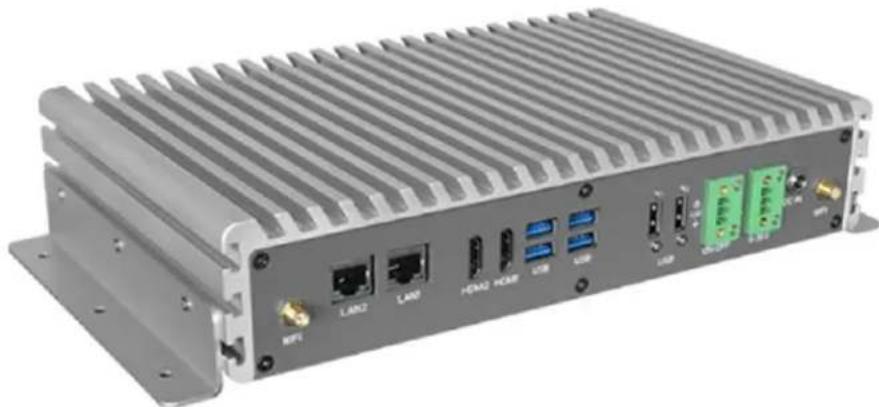
natural_image
Exterior view of a gray industrial electronic device with ports and connectors (no visible text or symbols)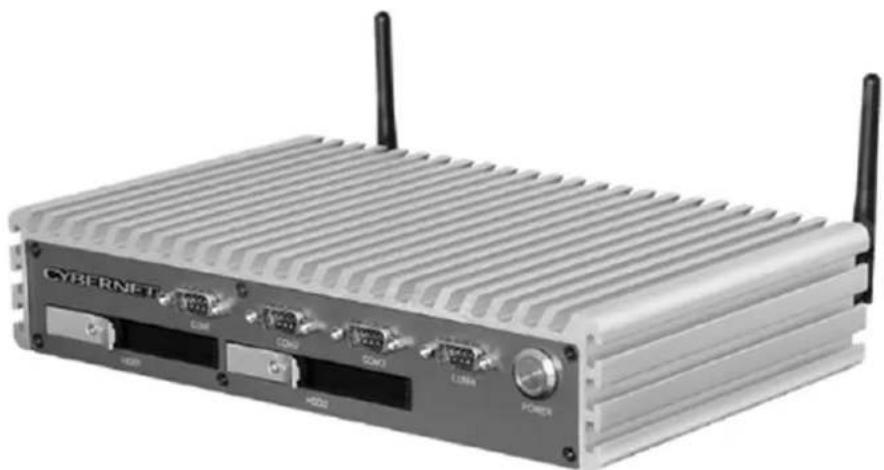
natural_image
Exterior view of a gray wireless router with ventilation slots and ports (no visible text or symbols)Declaration of Conformity
FCC This equipment has been tested and found to comply with the limits for a Class A digital device, pursuant to part 15 of the FCC Rules. These limits are designed to provide reasonable protection against harmful interference when the equipment is operated in a commercial environment. This equipment generates, uses and can radiate radio frequency energy and, if not installed and used in accordance with the instruction manual, may cause harmful interference to radio communications. Operation of this equipment in a residential area is likely to cause harmful interference in which case the user will be required to correct the interference at his own expense.
Notice 1 The changes or modifications not expressly approved by the party responsible for compliance could void the user's authority to operate the equipment.
Notice 2 Shielded interface cables and/or A.C. power cord, if any, must be used in order to comply with the emission limits.
CE The product(s) described in this manual complies with all applicable European Union (CE) directives if it has a CE marking. For computer systems to remain CE compliant, only CE-compliant parts may be used. Maintaining CE compliance also requires proper cable and cabling techniques.
Trademarks
All trademarks are the properties of their respective owners.
Intel® is a registered trademarks of Intel Corporation.
PS/2 and OS®/2 are registered trademarks of International Business Machines Corporation.
Windows® 7/Vista/XP/NT/2000/98/95 are registered trademarks of Microsoft Corporation.
Netware® is a registered trademark of Novell, Inc.
Award® is a registered trademark of Phoenix Technologies Ltd.
AMI® is a registered trademark of American Megatrends Inc
Safety Instructions

-
Always read the safety instructions carefully.
-
Keep this equipment away from humidity.
-
Lay this equipment on a reliable flat surface before setting it up.
-
Confirm the voltage of the power source and adjust accordingly to 110/220V before connecting the equipment to the power inlet.
-
Place the power cord in such a way that it cannot be stepped on. Do not place anything over the power cord.
-
Always unplug the Power Cord before inserting any add-on card or module.
-
All cautions and warnings on the equipment should be noted.
-
Never pour any liquid into the opening. This will cause damage and/or electrical shock.
-
Do not disable the protective grounding pin from the plug. The equipment must be connected to a grounded main socket/outlet.
-
When installing the coaxial cable to the TV Tuner, it is necessary to ensure that the metal shield is reliably connected to a protective earthing system of the building. Cable distribution systems should be grounded (earthed) in accordance with ANSI/NF PA 70, the National Electrical Code (NEC), in particular, Section 820.93, Grounding of Outer Conductive Shield of a Coaxial Cable.
-
If any of the following situations arise, have the equipment checked by authorized service personnel:
• The power cord or plug is damaged.
• Liquid has penetrated into the equipment.
• The equipment has been exposed to moisture.
- The equipment has not worked well or you cannot get it working according to the User's Guide.
• The equipment has been dropped and damaged.
• The equipment has obvious signs of breakage.
- Do not attempt to remove or upgrade any components by yourself, any installation or modification should be conducted by service personnel.
DO NOT LEAVE THIS EQUIPMENT IN AN UNCONDITIONED ENVIRONMENT WITH A STORAGE TEMPERATURE ABOVE 85°C (185°F). IT MAY DAMAGE THE EQUIPMENT.
CAUTION: Danger of explosion if battery is incorrectly replaced. Replace only with the same or equivalent type recommended by the manufacturer.
WEEE Statement
(Waste Electrical and Electronic Equipment)
The WEEE directive places an obligation on EU-based manufacturers, distributors, retailers and importers to take-back electronics products at the end of their useful life. A sister Directive, ROHS (Restriction of Hazardous Substances) compliments the WEEE Directive by banning the presence of specific hazardous substances in the products at the design phase. The WEEE Directive covers products imported into the EU as of August 13, 2005. EU-based manufacturers, distributors, retailers and importers are obliged to finance the costs of recovery from municipal collection points, reuse, and recycling of specified percentages per the WEEE requirements.
Instructions for disposal of WEEE by Users in the European Union
The symbol shown below is on the product or on its packaging, which indicates that this product must not be disposed of with other waste. Instead, it is the user's responsibility to dispose of their waste equipment by handing it over to a designated collection point for the recycling of waste electrical and electronic equipment. The separate collection and recycling of your waste equipment at the time of disposal will help to conserve natural resources and ensure that it is recycled in a manner that protects human health and the environment. For more information about where you can drop off your waste equipment for recycling, please contact your local city office, your household waste disposal service or where you purchased the product.

natural_image
Symbol of a trash bin crossed with two diagonal lines, representing no waste or discharge (no text or labels)
Cybernet's Recycling Program
Helping Save our Environment
Send us your old Computer and if it has monetary value we'll
apply that toward a purchase of a new computer
If your computer doesn't have monetary value, we'll recycle it responsibly
Step 1: log-on to www.cybernet.us
Step 2: submit a request for an RMA number
Step 3: we will schedule a pre-paid FedEx
pick-up at no cost to you

Please call 888-834-4577 for more details

S Holland, Building 201, Irvine, CA 92618
Introduction
Congratulations for purchasing the IPC-R2ix. The IPC-R Series is your best Slim Rugged PC choice. With the fantastic appearance and small form factor, it can easily be set anywhere. The feature packed platform powered by cutting-edge 4^rd Gen Intel® Quad-Core™ i7 Processor (4M cache, up to 3.3GHz) not only increasing power efficiency as much as 25% also integrates Intel ® HD 5000 graphics and extremely low thermal design power at 15W providing as enhanced reliability, safety and shock resistance for fan-less operation required environments.
IPC-R2ix Series Specifications
Processor Support
BGA type for Intel® CoreTM i7-4650/i5-4300U, Haswell ULT Quad/Dual core MCP processor
Memory Support
DDR3L 1333/1600 MHz, Max 8GB. 1x 204-pin SO-DIMM Sockets
BIOS
AMI Flash BIOS supports booting from HDD, PXE, LAN and USB device.
Video & Graphics
Intel GMA HD/Intel Clear Video HD Technology
Built-in support for 1080p HD video playback, HDMI 1.4a & Blu-ray 3D support
Supports Microsoft® DirectX 11, Shader Model 5.0 and OpenGL 3.0.
DVMT allocated as needed from 128MB to 1.70GB
2x HDMI Supports HDMI 1.4a, supported with Level Shift, resolution up to 4096x2304 (1 x HDMI)
LVDS Dual Channel 24-bit 1920 x 1200 Max.
Networking
LAN1 Realtek RTL8111G Gigabit LAN, Wake on LAN, PXE Support
LAN2 Intel®I218LM (4300U SKU) Gigabit LAN, Wake on LAN, PXE Support
Storage
2 Front Panel Accessible 2.5" HDD SATAIII 6 Gbps with Key Locks
1 mSATA SATAIII 6Gbps (the use of mSATA will eliminate the use of mPCIe slot).
Wall Mount
Support Wall-mount by Ear Mounting Bracket.
Expansion Slots
1 x mini-PCIe (Full size): PCIe+USB and shared with mSATA
1 x mini-PCIe (Haif size): PCIe+USB
2 x internal 10-pin (internal USB 2.0) Connector
Internal Port
1 Internal USB 2.0 (Internal USB Dual Port)
1 GPIO
I/O Panel
1 x DC/IN port support 9\~36V input
2 x 3-pin Terminal Block for DC-IN: V+, V-, Frame Ground, Power switch
4 x COM, COM1/COM2 supports RS-232/485/422, All COM support 5V/12V output selection by jumper setting.
4 x USB 3.0
2 x USB 2.0
2 x RJ-45 GIGA LAN
1 Power button with LED
Optional
1 x Trusted Platform Module (TPM) Infineon SLB9635, LPC interface (factory option).
Watchdog Timer: Reset 1 to 255 sec/min Per Step
HW Monitor: Temperature/Voltages Auto Throttling Control when CPU Overheats
Power Input Voltage
DC-IN 9\~36V
Power Input
1 mini DIN, One 4-pin Terminal Block for DC-IN: V+, V-, Frame Ground
Power Supply
65 Watt Power Adapter, AC Input: 100\~240V AC, 1.5A, 50-60Hz.
DC Output: 19V, 3.42A
Dimensions
273mm (L) x 109mm (W) x 55mm (H) (10.7" x 4.3" x 2.17") without mounting ear.
Weight
2.8 kg (6 lb)
Operating Environment
-20°C to 70°C (-13°F to 157°F)
Storage Temperature
-40° to 85°C (-40°F to 185°F)
Humidity
10% to 95% Non-condensing
Relative Humidity
95% at 70°C
Vibration
Rational: 5Grms @5\~500 Hz according to IEC68-2-64
Shock
Operating, 50 Grms, Half-sine 11 ms Duration (w / SSD, According to IEC60068-2-27)
Certification
FCC, CE, RoHS, EN5015
Power Management
Power management of IPC-R2ix has the potential to save significant amounts of electricity as well as deliver environment benefits.
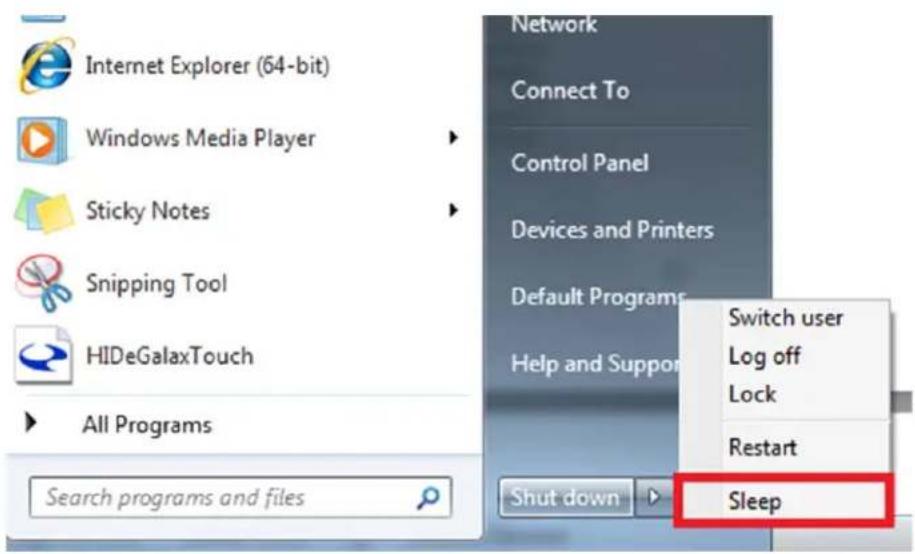
To be energy efficient, turn off your display or set your IPC-R2ix to sleep mode after a period of user inactivity.
Power Management in Windows OS
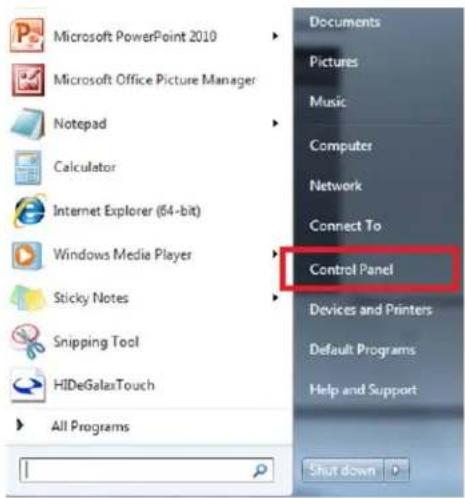
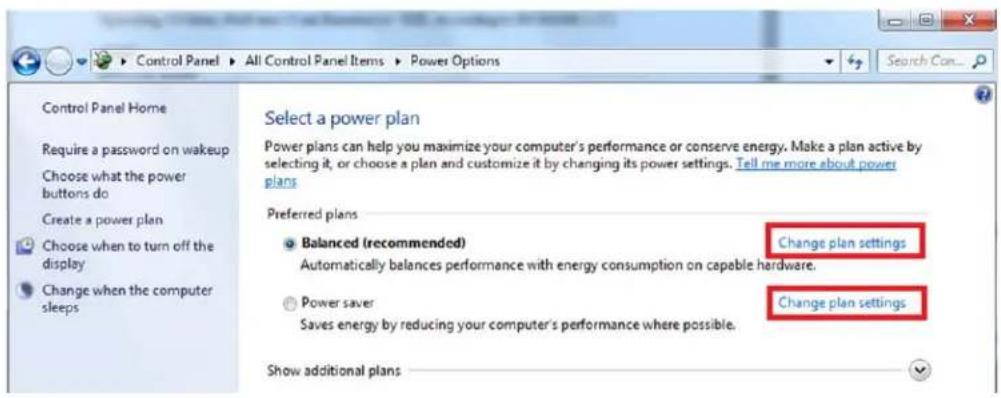
[Power Options] in Windows OS allow you to control the power management features of your display and hard drive. Go to [Start] > [Control Panel].
Then click on the [Power Options] link.
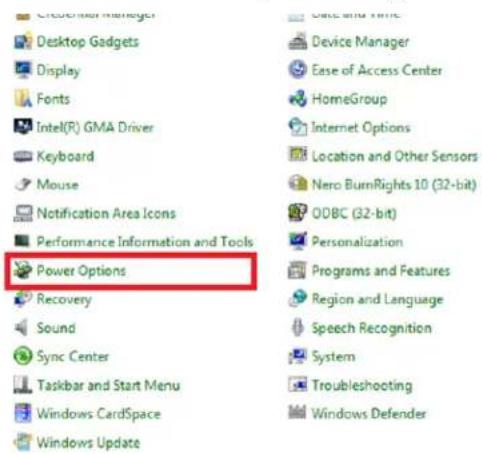
Select a power plan that suits your personal needs. You may also fine-tune the settings by clicking [Change plan settings].
The Shut Down IPC-R2ix Menu presents the options of Sleep (S3) & Shut Down (S5) for rapid and easy management of your system power.
Power Management through ENERGY STAR qualified Monitors (Optional)
The power management feature allows the IPC-R2ix to initiate a low-power or “Sleep” mode after a period of user inactivity. When used with an external ENERGY STAR qualified Monitor, this feature also supports similar power management features of the monitor. To take advantage of these potential energy saving, the power management feature can be set to behave in the following ways when the system is operating on AC power:
- Turn off the display after 15 minutes.
- Initiate Sleep after 30 minutes.
Waking the System Up
The IPC-R2ix shall be able to wake up from power saving mode in response to a command from any of the following:
- the power button,
• the network (Wake on LAN), - the mouse
- the keyboard
Energy Saving Tips:
- Tune the settings in Power Options under Windows OS to optimize your IPC-R2ix's power management.
- Install power saving software to manage your PC's energy consumption.
- Always disconnect the AC power cord or switch the wall socket off if your IPC-R2ix would be left unused for a certain time to achieve zero energy consumption.
IPC-R2ix Mechanical Dimension
Figure 1: Overview
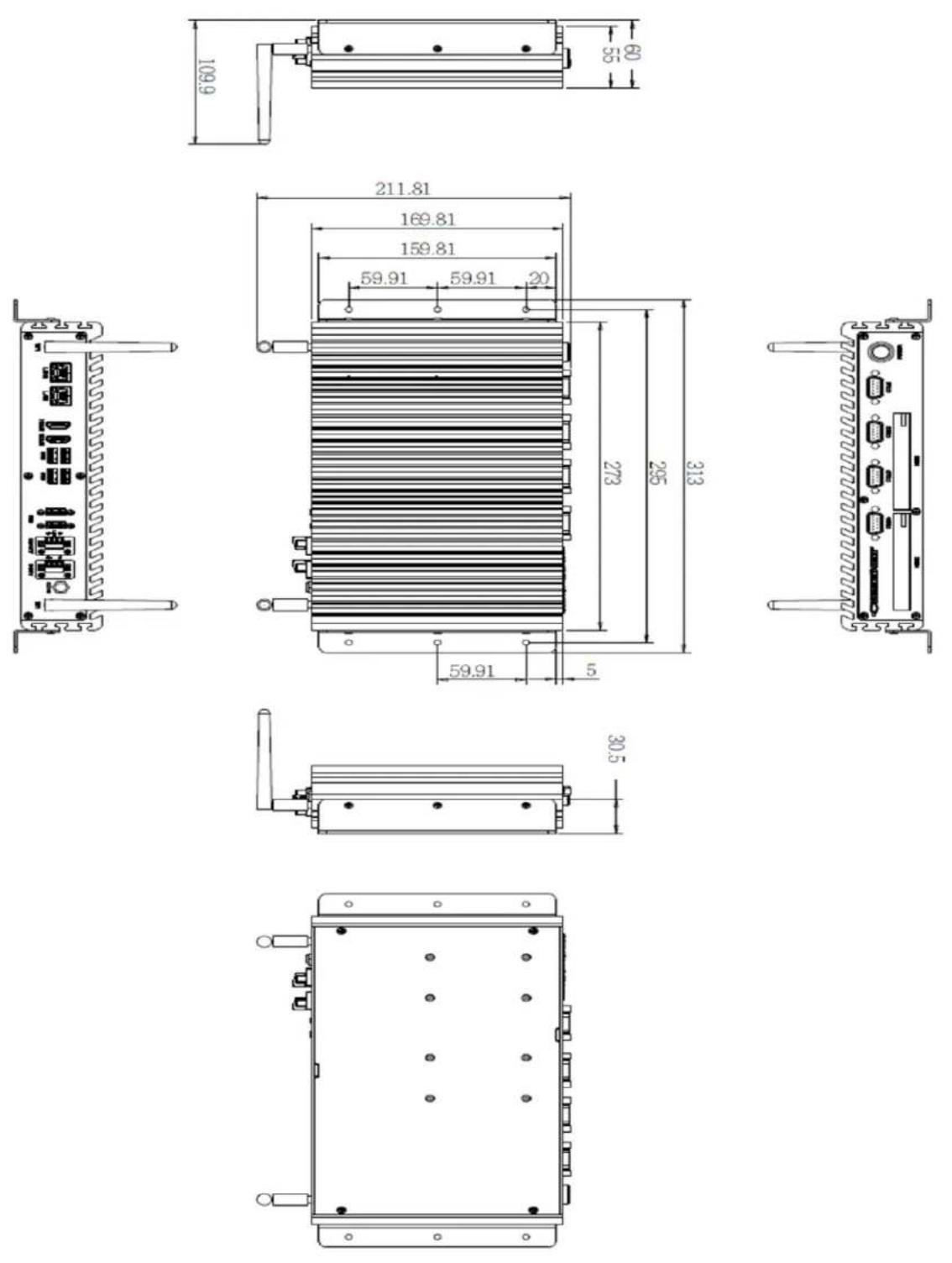
Figure 2: Front Panel I/O view (Power button)
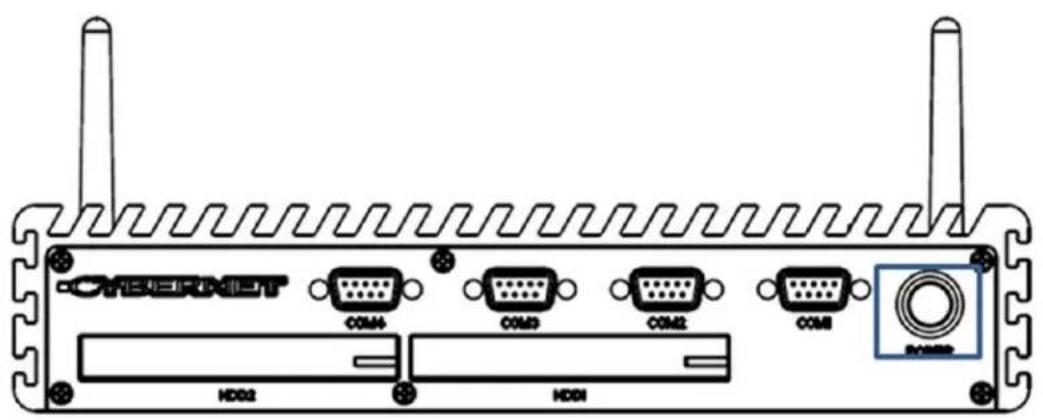
There is a power button to switch on the System. The same button also switches off the System when pressed for more than 4 seconds. There is a power LED around this power button to light up a solid blue when the System is running. This LED will blink when in Sleep mode.
Figure 3: Front Panel I/O view (HDD)
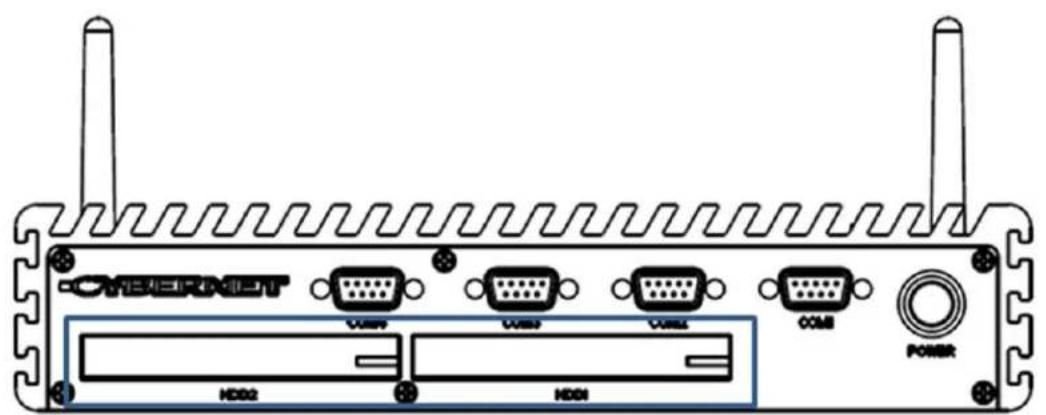
The IPC-R2ix is designed with easy access 2.5 inch SATAII HDD bays, which can be locked. The picture on the left indicates the HDD1 bay. The HDD2 bay, with operating system support, allows for hot swapping the hard drive, as long as data is not being written to or read from the drive.
Figure 4: Front Panel I/O view (HDD)
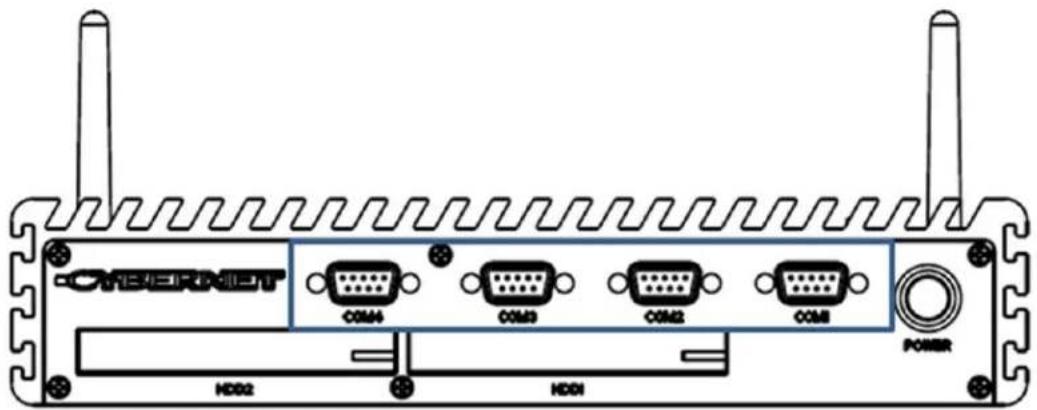
COM1/2 support RS-232/422/485, COM3, COM4 support RS-232 only.
This motherboard supports RS232/422/485 on COM1/COM2 port. Please refer to below table for the pin definition. In addition, COM1/COM2 port (RS232/422/485) can be adjusted in BIOS setup utility > Advanced Screen > Super IO Configuration. You may refer to page 31 for details.
COM1/COM2 Port Pin Definition
| PIN | RS232 | RS422 | RS485 |
| 1 | DCD | TX- | RTX- |
| 2 | RXD | RX+ | N/A |
| 3 | TXD | TX+ | RTX+ |
| 4 | DTR | RX- | N/A |
| 5 | GND | GND | GND |
| 6 | DSR | N/A | N/A |
| 7 | RTS | N/A | N/A |
| 8 | CTS | N/A | N/A |
| 9 | NA/+5V/+12V | N/A | N/A |
Figure 5: Back Panel I/O view (DC-IN)
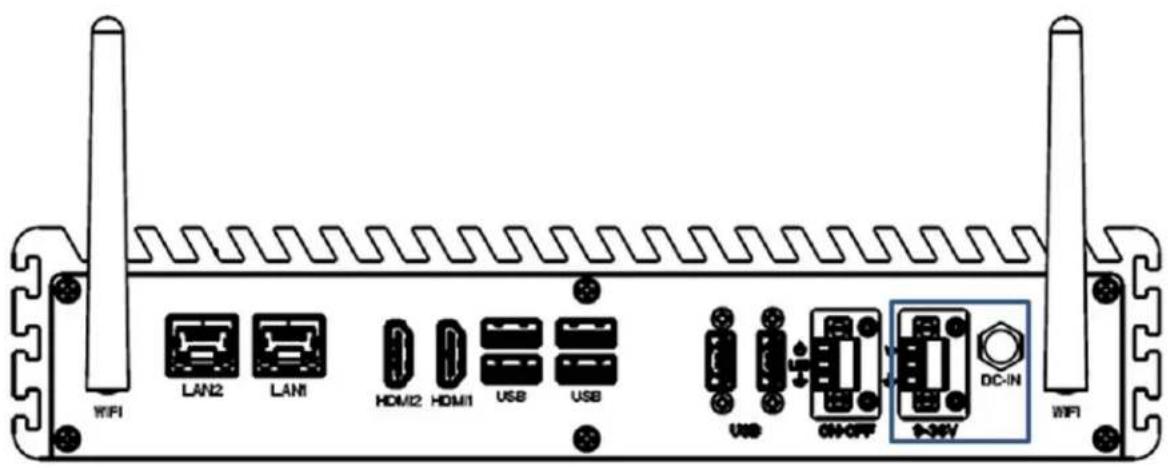
The IPC-R2ix series offers 9 to 36 VDC power input using standard notebook DC Jack ∅ 5.5mm x 2.5mm and 3 PIN Pitch =3.81mm terminal block connector from the external PSU.
Figure 6: Back Panel I/O view (Power-Switch)
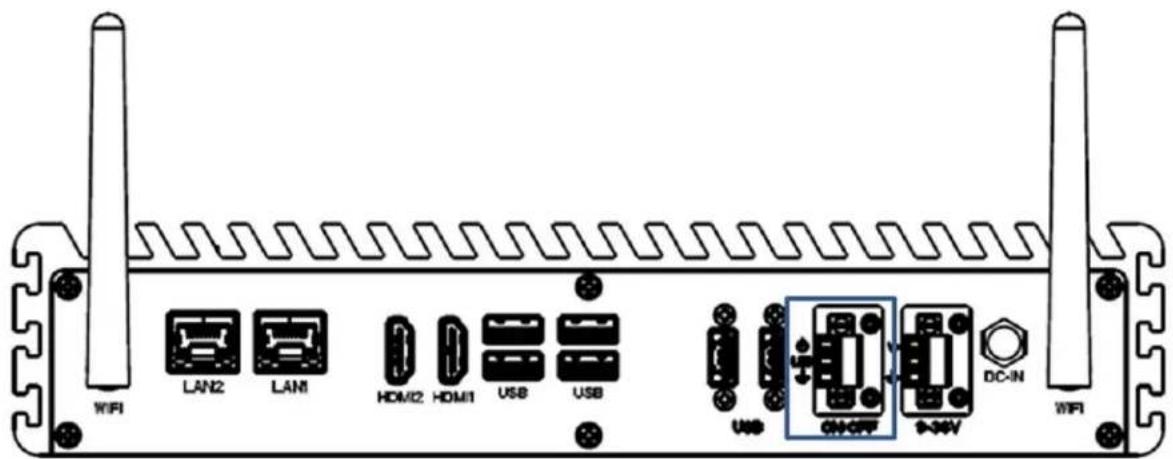
The IPC-R2ix series offers terminal block to control power on-off with LED function.
Figure 7: Back Panel I/O view (USB2.0)
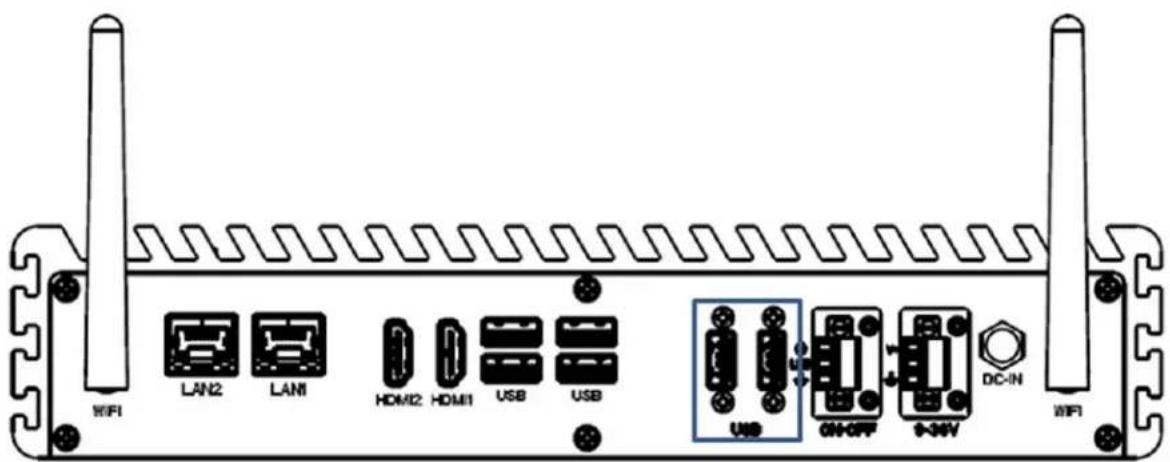
The IPC-R2ix series comes with two USB 2.0 hosts on the back panel. The USB interface supports Plug and Play, which enables the user to connect or disconnect a device whenever the user want, without turning off the system. The hosts can be used for an external flash disk or hard drive for storing large amounts of data. The user can also use these USB hosts to connect to a keyboard or a mouse.
Figure 8: Back Panel I/O view (USB3.0)
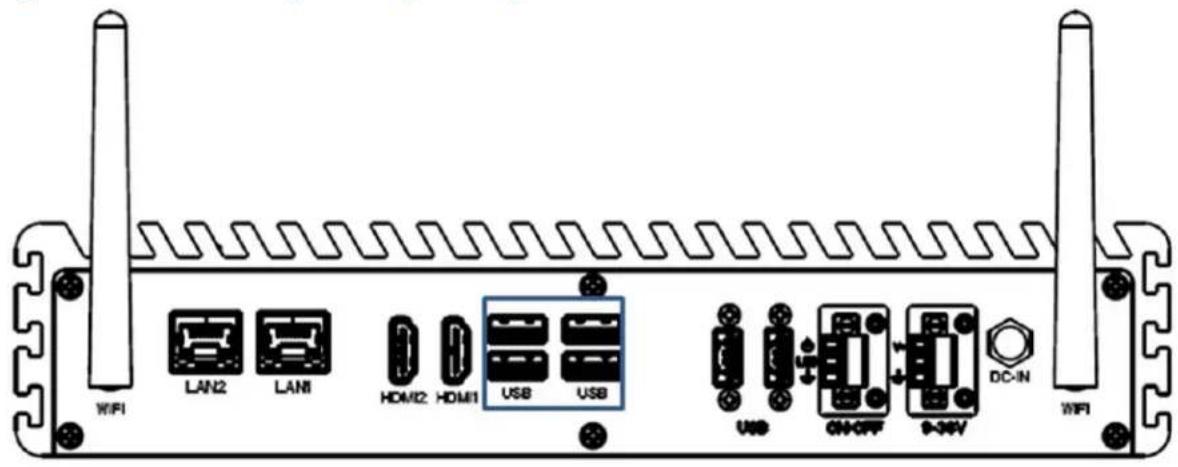
The IPC-R2ix series comes with four USB 3.0 hosts on the back panel. The USB interface supports Plug and Play, which enables the user to connect or disconnect a device whenever the user want, without turning off the system. The hosts can be used for an external flash disk or hard drive for storing large amounts of data. The user can also use these USB hosts to connect to a keyboard or a mouse.
Figure 9: Back Panel I/O view (HDMI)
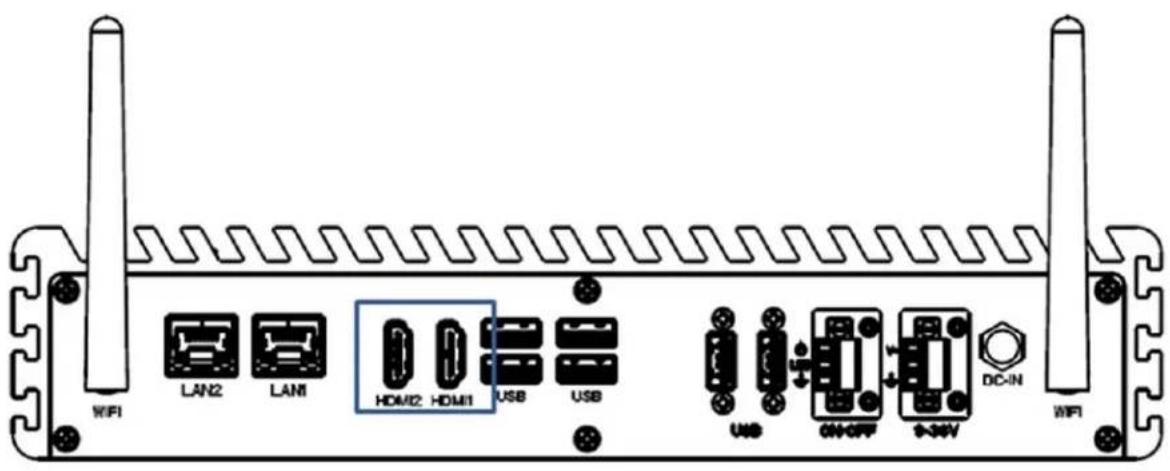
The IPC-R2ix series comes with two HDMI1.4a, resolution up to 4096x2304
Figure 10: Back Panel I/O view (LAN)
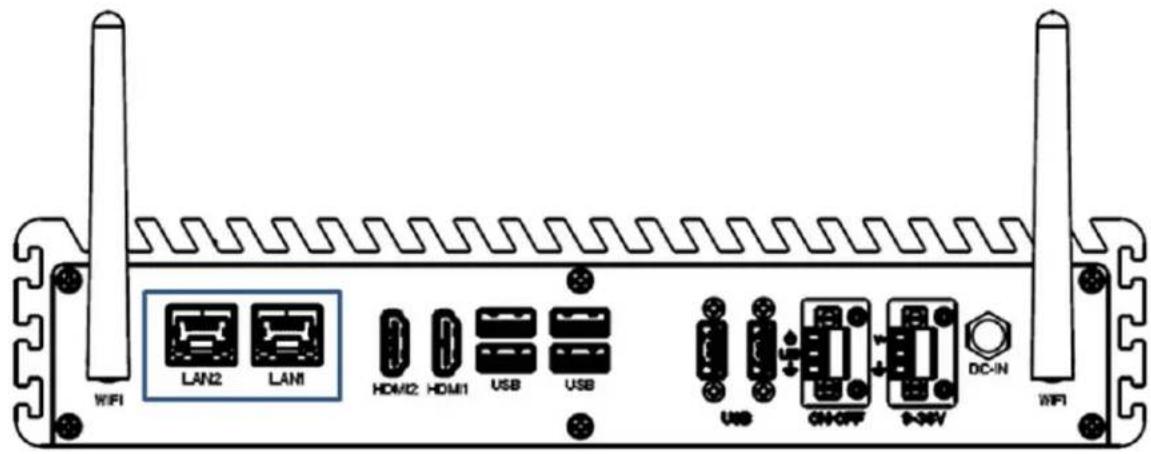
LAN2: Realtek RTL8111G GIGA LAN support PXE, Wake on LAN.
LAN1: Intel®I218LM GIGA LAN support PXE, Wake on LAN, AMT
* There are two LED next to the LAN port. Please refer to the table below for the LAN port LED indications.
LAN Port LED Indications
| Activity/Link LED | SPEED LED | ||
| Status | Description | Status | Description |
| Off | No Link | Off | 10Mbps connection |
| Blinking | Data Activity | Off | 100Mbps connection |
| On | Link | Green | 1Gbps connection |
IPC-R2ix BIOS introduction
This section explains how to use the UEFI SETUP UTILITY to configure your system. The UEFI chip on the motherboard stores the UEFI SETUP UTILITY. You may run the UEFI SETUP UTILITY when you start up the computer. Please press during the Power-On-Self-Test (POST) to enter the UEFI SETUP UTILITY, otherwise, POST will continue with its test routines.
If you wish to enter the UEFI SETUP UTILITY after POST, restart the system by pressing
Main Screen
When you enter the UEFI SETUP UTILITY, the Main screen will appear and display the system overview.
![Aptio Setup Utility - Copyright (C) 2012 American Negatrends, Inc. Main Advanced HW Monitor Boot Security Exit UEFI Version : SBC-310 10.10 Processor Type : Intel(R) Core(TM) 15-4300U CFU # 1.90GHz Processor Speed : 1900MHz Microcode Update : 40651/10 Cache Size : 307KB Total Memory : 4096MB with 256MB Shared Memory and 2MB GTT memory Single-Channel Memory Node DDR3_A1 : 4096MB(DDR3-1600) LVDS Non Version : Default System Date [Fri 02/06/2015] System Time [18:10:09] Set the Data. Use Tab to switch between Date elements. +:-: Select Screen TI: Select Item Enter: Select +/-: Change Option F1: General Help F7: Discard Changes F9: Load UEFI Defaults F10: Save and Exit ESC: Exit Version 2.15.1234. Copyright 1Q 2012 American Negatrends, Inc.](/content/2026/05/1062597/images/c1ac23da59f1fc66bb2f5db6ee920b774c157445ecb6b8532ddc78b4c3bc5c56.jpg)
Advanced Screen
In this section, you may set the configurations for the following items: CPU Configuration, Chipset Configuration, Storage Configuration, Intel(R) Rapid Start Technology, AMT Configuration, Super IO Configuration, ACPI Configuration, USB Configuration and Voltage Configuration.
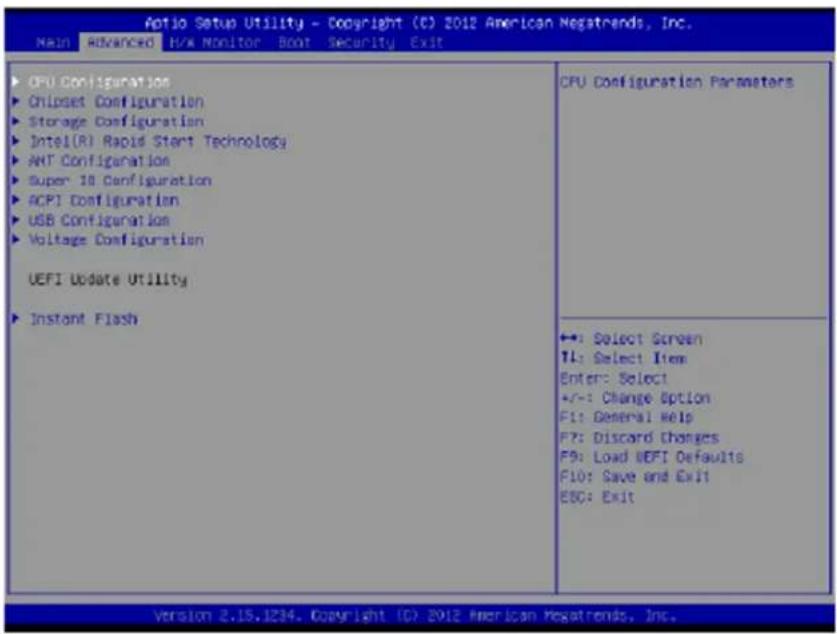
Instant Flash
Instant Flash is a UEFI lash utility embedded in Flash ROM. This convenient UEFI update tool allows you to update system UEFI without entering operating systems first like MS-DOS or Windows®. Just launch this tool and save the new UEFI file to your USB lash drive, floppy disk or hard drive, then you can update your UEFI only in a few clicks without preparing an additional floppy diskette or other complicated lash utility. Please be noted that the USB lash drive or hard drive must use FAT32/16/12 file system. If you execute Instant Flash utility, the utility will show the UEFI files and their respective information. Select the proper UEFI file to update your UEFI, and reboot your system after UEFI update process completes.
CPU Configuration
Intel Hyper Threading Technology
To enable this feature, a computer system with an Intel processor that supports Hyper-Threading technology and an operating system that includes optimization for this technology, such as Microsoft® Windows® 7 / 8 is required. Set to [Enabled] if using Microsoft® Windows® 7, 8, or Linux kernel version 2.4.18 or higher. This option will be hidden if the
installed CPU does not support Hyper-Threading technology.
Active Processor Cores
Select the number of cores to enable in each processor package.
CPU C States Support
Enable CPU C States Support for power saving. It is recommended to keep C3, C6 and C7 all enabled for better power saving.
Enhanced Halt State (C1E)
Enable Enhanced Halt State (C1E) for lower power consumption.
CPU C3 State Support
Enable C3 sleep state for lower power consumption.
CPU C6 State Support
Enable C6 deep sleep state for lower power consumption.
CPU C7 State Support
Enable C7 deep sleep state for lower power consumption.
Package C State Support
Enable CPU, PCIe, Memory, Graphics C State Support for power saving.
Intel SpeedStep Technology
Intel SpeedStep technology is Intel's new power saving technology. Processors can switch between multiple frequencies and voltage points to enable power saving. The default value is [Enabled]. Configuration options:
[Enabled] and [Disabled]. If you install Windows® 7 / 8 and want to enable this function, please set this item to [Enabled]. This item will be hidden if the current CPU does not support Intel SpeedStep technology.
Intel Turbo Boost Technology
Use this item to enable or disable Intel Turbo Boost Mode Technology. Turbo Boost Mode allows processor cores to run faster than marked frequency in specific conditions. The default value is [Enabled].
CPU Thermal Throttling
You may select [Enabled] to enable CPU internal thermal control mechanism to keep the CPU from overheating.
No-Execute Memory Protection
No-Execution (NX) Memory Protection Technology is an enhancement to the IA-32 Intel Architecture. An IA-32 processor with “No Execute (NX) Memory Protection” can prevent data pages from being used by malicious software to execute codes. This option will be hidden if the current CPU does not support No-Excute Memory Protection.
Intel Virtualization Technology
When this option is set to [Enabled], a VMM (Virtual Machine Architecture) can utilize the additional hardware capabilities provided by Vanderpool Technology. This option will be hidden if the installed CPU does not support Intel Virtualization Technology.
Hardware Prefetcher
Use this item to turn on/off the MLC streamer prefetcher.
Adjacent Cache Line Prefetch
Use this item to turn on/off prefetching of adjacent cache lines.
Chipset configuration
![Action Setup Utility - Copyright (C) 2012 American Negatrends, Inc. Advanced VT-d Capability Supported Dlsmr Frequency [Auto] VT-d [Disabled] Share Memory [Auto] Render Standby [Enabled] Onboard HD Audio [Enabled] Front Panel [Auto] Onboard HDMI HD Audio [Enabled] Onboard LAN 1(Intell) [Enabled] Onboard LAN 2(Haitek) [Enabled] Deep Sleep [Disabled] Restore on HC/Power Loss [Power Off] Active LVOS [Disabled] Primary IGFK Boot Display [MSOS Default] If (Auto) is selected, the motherboard will detect the memory module(s) Inserted and assign the appropriate frequency automatically. ←: Select Screen T4: Select Item Enter: Select +/-: Change Option F1: General Help F7: Discord Changes F9: Load UFI Defaults F10: Save and Exit ESO: Exit Version 2.15.1234. Copyright (C) 2012 American Negatrends, Inc.](/content/2026/05/1062597/images/6eaa67599920a50f2b53233f9f9b1d4bfc6a837a34be45b0ff62045edd78f900.jpg)
DRAM Frequency
If [Auto] is selected, the motherboard will detect the memory module(s) inserted and assign the appropriate frequency automatically.
VT-d
Intel® Virtualization Technology for Directed I/O helps your virtual machine monitor better utilize hardware by improving application compatibility and reliability, and providing additional levels of manageability, security, isolation, and I/O performance.
Share Memory
Configure the size of memory that is allocated to the integrated graphics processor when the system boots up.
Render Standby
Use this to enable or disable Render Standby by Internal Graphics Device. The default value is [Enabled].
Onboard HD Audio
Select [Auto], [Enabled] or [Disabled] for the onboard HD Audio feature. If you select [Auto]
Front Panel
Select [Auto] or [Disabled] for the onboard HD Audio Front Panel.
Onboard HDMI HD Audio
This allows you to enable or disable the Onboard HDMI HD Audio feature.
Onboard LAN 1 (Intel)
This allows you to enable or disable the Onboard LAN 1 feature.
Onboard LAN 2 (Realtek)
This allows you to enable or disable the Onboard LAN 2 feature.
Deep Sleep
Mobile platforms support Deep S4/S5 in DC only and desktop platforms support Deep S4/S5 in AC only. The default value is [Disabled].
Restore on AC/Power Loss
This allows you to set the power state after an unexpected AC/power loss. If [Power Off] is selected, the AC/power remains off when the power recovers. If [Power On] is selected, the AC/power resumes and the system starts to boot up when the power recovers. If [LAST STATE] is
selected, the AC/power restores to the last power state when the power recovers.
Active LVDS
Use this to enable or disable the LVDS. The default value is [Enabled].
Primary IGFX Boot Display
Use this to select primary internal graphics boot display. The default value is [VBIOS Default].
Super IO configuration
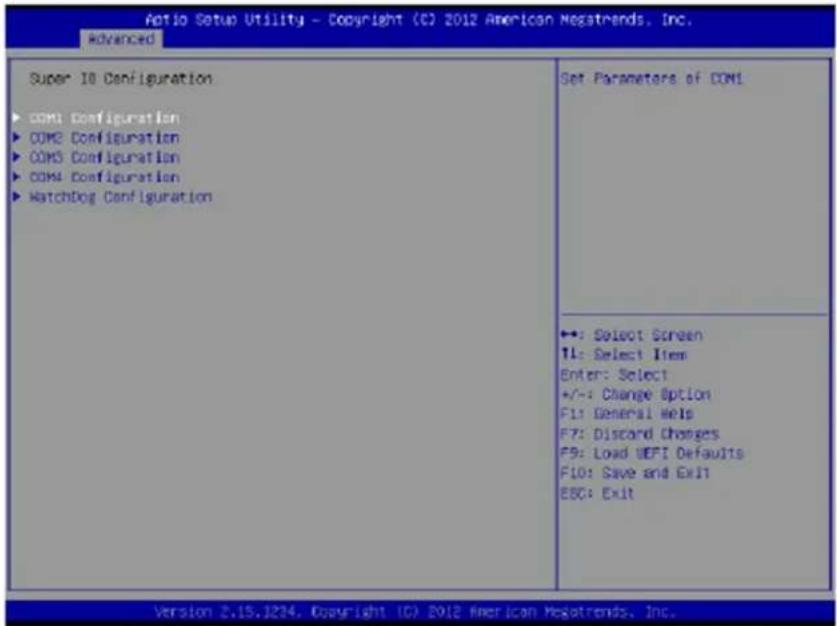
COM1 configuration
Use this to set parameters of COM1. Select COM1 port type: [RS232], [RS422] or [RS485].
COM2 configuration
Use this to set parameters of COM2. Select COM2 port type: [RS232], [RS422] or [RS485].
COM3 configuration
Use this to set parameters of COM3.
COM4 configuration
Use this to set parameters of COM4.
WDT Timeout Reset
This allows users to enable/disable the Watch Dog Timer timeout to reset system. The default value is [Disabled].
Cybernet e-recycling SOP

Cybernet has an e-recycling program that is very easy to use. Just follow the steps explained below or go to our website at www.cybernet.us
- Request an RMA via phone, email or support request.
- We will arrange a call tag to have the product picked up. Just have it packed and ready to ship.
We do the rest!


- IPC-R2ix
- User Manual
- Declaration of Conformity
- Trademarks
- Safety Instructions
- WEEE Statement
- Cybernet's Recycling Program
- Introduction
- IPC-R2ix Series Specifications
- Processor Support
- Memory Support
- BIOS
- Video & Graphics
- Networking
- Storage
- Wall Mount
- Expansion Slots
- Internal Port
- I/O Panel
- Optional
- Power Input Voltage
- Power Input
- Power Supply
- Dimensions
- Weight
- Operating Environment
- Storage Temperature
- Humidity
- Relative Humidity
- Vibration
- Shock
- Certification
- Power Management
- Power Management in Windows OS
- Then click on the [Power Options] link.
- Power Management through ENERGY STAR qualified Monitors (Optional)
- Waking the System Up
- Energy Saving Tips:
- IPC-R2ix Mechanical Dimension
- IPC-R2ix BIOS introduction
- Main Screen
- Advanced Screen
- Instant Flash
- CPU Configuration
- Intel Hyper Threading Technology
- Active Processor Cores
- CPU C States Support
- Enhanced Halt State (C1E)
- CPU C3 State Support
- CPU C6 State Support
- CPU C7 State Support
- Package C State Support
- Intel SpeedStep Technology
- Intel Turbo Boost Technology
- CPU Thermal Throttling
- No-Execute Memory Protection
- Intel Virtualization Technology
- Hardware Prefetcher
- Adjacent Cache Line Prefetch
- DRAM Frequency
- VT-d
- Share Memory
- Render Standby
- Onboard HD Audio
- Front Panel
- Onboard HDMI HD Audio
- Onboard LAN 1 (Intel)
- Onboard LAN 2 (Realtek)
- Deep Sleep
- Restore on AC/Power Loss
- Active LVDS
- Primary IGFX Boot Display
- Super IO configuration
- COM1 configuration
- COM2 configuration
- COM3 configuration
- COM4 configuration
- WDT Timeout Reset
- Cybernet e-recycling SOP
Brand : Cybernet
Model : IPC-R2ix
Category : Desktop computer