SMRT1D - Measurement Megger - Free user manual and instructions
Find the device manual for free SMRT1D Megger in PDF.


| Type of product | 3-phase relay test set |
| Brand | Megger |
| Model | SMRT1D |
| Dimensions (H x W x D) | 520 mm x 430 mm x 290 mm |
| Weight | 22 kg |
| Power supply | 100-240 V AC, 50/60 Hz |
| Output voltage (AC) | 0-300 V per phase |
| Output current (AC) | 0-30 A per phase |
| Output voltage (DC) | 0-300 V |
| Output current (DC) | 0-15 A |
| Frequency range | 10-400 Hz |
| Measurement accuracy | ±0.1% of reading |
| Interfaces | USB, Ethernet, RS232 |
| Display | Large color touchscreen |
| Protection class | IP20 |
| Safety standards | IEC 61010-1, IEC 61557 |
| Maintenance | Clean with dry cloth; no special tools required |
| Spare parts availability | Contact Megger service center |
Frequently Asked Questions - SMRT1D Megger
User questions about SMRT1D Megger
0 question about this device. Answer the ones you know or ask your own.
Ask a new question about this device
Download the instructions for your Measurement in PDF format for free! Find your manual SMRT1D - Megger and take your electronic device back in hand. On this page are published all the documents necessary for the use of your device. SMRT1D by Megger.
USER MANUAL SMRT1D Megger
Multi- Phase Relay Test System
Revision History
| Revision | ECN # | Date |
| 1 | Initial Release | 6/7/2011 |
| 2 | 31676 | 8/4/2011 |
| 3 | 31736 | 12/7/2011 |
| 4 | 31882 | 9/15/2012 |
| 5 | 32089 | 3/21/2013 |
| 6 | 32124 | 4/24/2013 |
| 7 | 32289 | 3/24/2014 |
| 8 | 32621 | 9/30/2014 |
| 9 | 32781 | 8/3/2015 |
| 10 | 32933 | 11/11/2015 |
| 11 | 33187 | 11/10/2016 |
| 12 | 33312 | 5/12/2017 |
IMPORTANT
This manual, as well as the hardware and software described in it, is furnished under license and may be used or copied only in accordance with the terms of such license. The content of this manual is furnished for informational use only, is subject to change without notice. Megger assumes no responsibility or liability for any errors or inaccuracies that may appear in this manual.
The information and data in this User Manual are proprietary. The equipment described herein may be protected by U.S. patents. Megger specifically reserves all rights to such proprietary information as well as rights under any patent, none of which is waived by the submission of this user manual.
Except as permitted by such license, no part of this publication may be reproduced, stored in a retrieval system, or transmitted, in any form or by any means, electronic, mechanical, recording, or otherwise, without the prior written permission of Megger.
Megger, the Megger logo are trademarks of Megger. All other trademarks are the property of their respective owners.
Notice to U.S. government end users. The hardware, software and documentation are “commercial items”, as that term is defined at 48 C.F.R. §2.101, consisting of “commercial computer software” and “commercial computer software documentation,” as such terms are used in 48 C.F.R. §12.212 or 48 C.F.R. §227.7202, as applicable. Consistent with 48 C.F.R. §12.212 or 48 C.F.R. §§227.7202-1 through 227.7202-4, as applicable, the commercial computer software and commercial computer software documentation are being licensed to U.S. government end users (1) only as commercial items and (2) with only those rights as are granted to all other end users pursuant to the terms and conditions set forth in the Megger standard commercial agreement for this software and hardware. Unpublished rights reserved under the copyright laws of the United States. The recipient, if a Government agency, acknowledges that this manual and the equipment described were procured with "Limited Rights" to technical data as described in ASPR 9-203 (b).
The STVI includes an RTOS-resident computer program. This program belongs to Megger and contains trade secret ideas and information of Megger.
Written and designed at Megger, 4271 Bronze Way, Dallas, Texas 75237.

WEEE
Waste Electrical and Electronic Equipment - The crossed out wheeled waste bin placed on Megger products is a reminder not to dispose of the product at the end of its life with general waste. Please utilize your local WEEE collection facilities, or observe all applicable local requirements.
Megger is registered in the UK as a Producer of Electrical and Electronic Equipment. The Registration No is WEE/DJ2235XR.
Printed in the USA.
© 2017 Megger, all rights reserved.
SAFETY PRECAUTIONS
WARNING: VOLTAGES GENERATED BY THIS INSTRUMENT CAN BE HAZARDOUS
This instrument has been designed for operator safety; however, no design can completely protect against incorrect use. Electrical circuits are dangerous and can be lethal when lack of caution and poor safety practices are used. There are several standard safety precautions that should be taken by the operator. Where applicable, IEC safety markings have been placed on the instrument to notify the operator to refer to the user manual for instructions on correct use or safety related topics. Refer to the following table of symbols and definitions.
| Symbol | Description |
 | Direct Current |
 | Alternating Current |
 | Both direct and alternating current |
| [Y6AY] | Earth (ground) Terminal. There is a common chassis ground terminal located on the front panel (see Front panel under Description of Controls. |
 | Protective Conductor Terminal |
| [K267] | Frame or Chassis Terminal |
| [WHH] | On (Supply) |
| [WH7] | Off (Supply) |
 | Caution, risk of electric shock |
 | Caution (refer to accompanying documents) |
WARNING: Under no circumstances should the operator or technician attempt to open or service any Megger instrument while connected to a power source. Lethal voltages are present and may cause serious injury or death!
SAFETY PRECAUTIONS (Continued)
The following are some specific safety related items associated with the SMRT test system.
Read and understand all safety precautions and operation instructions before attempting to use this unit.
The purpose of this equipment is limited to use as described in this instruction manual. Should a situation arise that is not covered in the general or specific safety precaution please contact Megger regional representative or Megger, Dallas Texas.
Safety is the responsibility of the user. Misuse of this equipment can be extremely dangerous.
Always start with the power OFF, before connecting the power cord. Make sure outputs are off before attempting to make test connections.
Never connect the test set to energized equipment.
Always use properly insulated test leads. The optional test leads are rated for the continuous output ratings of the test system, and should be properly used and cared for. DO NOT use cracked or broken test leads.
Always turn the test system off before disconnecting the power cord.
DO NOT attempt to use the unit without a safety ground connected.
DO NOT attempt to use the unit if the power cord ground prong is broken or missing.
DO NOT use the test set in an explosive atmosphere.
The instrument must only be used by suitably trained and competent persons.
Observe all safety warnings marked on the equipment.
For safety related or other important topics, like the statement below, will be notated with the adjoined symbol. Read the topic carefully as it may relate either to the safe operation of the test system or the safety of the operator.

Under no circumstances should the operator put their hand or tools inside the test system chassis area with the test system connected to a power source. Lethal voltages are present and may cause serious injury or death!
Table of Contents
Section
Page
Model STVI....1
Smart Touch View Interface- Hand Held Controller....1
Model SMRT1 1
Single Phase Relay Test System....1
Model SMRT33/36/46 1
Three Phase Relay Test Systems 1
Model SMRT36D....1
Three Phase Relay Test System 1
Model SMRT46D 1
Three Phase Relay Test System 1
Model SMRT410 1
Multi-Phase Relay Test System....1
Model SMRT410D....1
Multi- Phase Relay Test System....1
Revision History 2
Safety Precautions 4
1.0 Introduction 19
1.1 Smart Touch View Interface....19
1.2 Terminology....20
1.2.1 Acronyms....20
1.2.2 Glossary of Terms 21
1.2.2.1 Pickup (Tap)....21
1.2.2.2 TDM (Time Dial Multiple) 21
1.2.2.3 Inst. (Instantaneous Tap) 21
1.2.2.4 Reset Seconds....21
1.2.2.5 Time Delay 21
1.2.2.6 Test Multiple....22
1.2.2.7 Reach or Diameter 22
1.2.2.8 Angle (Torque) 22
1.2.2.9 Expected Trip Time 22
1.2.2.10 Winding (1,2,3,4) Tap 22
1.2.2.11 Percent (%) Slope 22
1.2.2.12 Percent (%) Harmonic....22
1.2.2.13 Prefault Seconds....22
1.3 Power Over Ethernet Input Power 23
1.3.1. PoE Power Supply-Input Power Cord 23
2.0 SETUP 24
2.1 Unpack System 24
2.2 Communication Ports 24
2.2.1 Ethernet Port....24
2.2.2 USB 2.0 Interface 24
2.3 RTMS software and STVI Hand-Held Controller 25
2.3.1 Configuration 27
2.3.1.1 Operation Modes....28
2.3.1.2 Battery Simulator....28
2.3.1.2.1 Last VIGEN is Battery 28
2.3.1.5.1 Save as Default....29
2.3.1.5.2 Restore Default 29
2.3.1.5.3 Restore Factory....29
2.3.1.6 Display Versions (Information Screen) 29
2.3.1.7 Update Firmware....29
2.3.1.8 Auto Frequency....30
2.3.1.13 Change State Immediately / Change on Zero Cross 30
2.3.1.14 Symmetrical Components....30
2.3.1.15 High Burden 30
2.3.1.16 Voltage Character 30
2.3.1.17 Date and Time....31
2.3.1.18 Logging 31
2.3.1.19 Adjust Screen Brightness....31
2.3.1.20 Ethernet (DHCP) IP Address 31
2.3.1.21 Advanced - Convertible V/I Selection for Multi-Phase Current Output 32
2.3.1.22 Primary Ratios....32
2.3.1.23 Screen Exit....33
2.4 Setting Amplitudes, Phase Angle or Frequency 33
2.4.1 Numeric Keypad Entry 33
2.4.2 Include Channel in Ramping 34
2.4.3 Control Knob 35
2.4.4 Setting Default Voltage Outputs 35
2.4.5 Setting Default Current Outputs 35
2.4.4 Virtual Alphanumeric Keypad 35
2.5 RTMS software File Management 36
3.0 RTMS software – Basic Operating Descriptions....37
3.1 Manual Test Screen....37
3.1.1 Connection button....38
3.1.2 The Configuration button 38
3.1.3 Battery Simulator button 38
3.1.4 Add To Report button 38
3.1.5 Nameplate button 38
3.1.6 File Folder button....38
3.1.7 Test List button 39
3.1.7.1 Ramp button....39
3.1.7.2 Timing Test button 39
3.1.7.3 Sequencing 1,2,3..9 button....39
3.1.7.4 Impedance button 39
3.1.7.5 Differential button 39
3.1.7.6 Transducer button 39
3.1.8 Meter Mode button....39
3.1.9 System Reset button 40
3.1.10 Help button 40
3.1.11 Phase Vector Screen 40
3.1.12 Binary Input Dialog Box 40
3.1.12.1 Binary More button....41
3.1.12.1.1 Simple Mode button 41
3.1.12.1.2 Show All Inputs button....41
3.1.12.1.3 Show All Outputs button....41
3.1.12.1.4 Advanced button 41
3.1.12.1.4.1 Waveform selection button 41
3.1.13 Prefault / Fault buttons 42
3.1.14 Maximum Test Time/Prefault Time/Post Fault Time Settings button 42
3.1.15 Play button 42
3.1.16 All ON/All OFF button 42
3.1.17 Manual Ramp Options button 43
3.1.16 Channel ON/OFF selector button 43
3.1.19 Channel Amplitude, Phase Angle and Frequency buttons 43
3.1.20 Fault Calculator button 43
3.1.20.1 Mode Selection button 43
3.1.20.1.1 Overcurrent Mode button 44
3.1.20.1.2 Voltage Mode button 44
3.1.20.1.3 Frequency Mode button 44
3.1.20.1.4 Impedance Mode button....45
3.1.20.1.4.1 Fault Selection button 45
3.1.20.1.4.2 Test Model button 45
3.1.20.1.4.3 Compensation button....45
3.1.20.1.5 Symmetrical Mode button....46
3.1.20.1.6 Power Swing Mode button 46
3.1.20.2 Fault Type Selection button 50
3.2 Setting Phase Angle Relationships....50
3.3 Current Sources 52
3.3.1 Parallel Operation....52
3.3.1.1 Manual Test Screen - Single Phase Up To180 Ampere....53
3.3.2 Currents in Series Operation....54
3.4 Voltage Sources 56
3.4.1 Outputs Summed Together 56
3.4.2 3∅, 3-Wire, Open-Delta and T-Connection....57
3.4.2.1 Balanced Open Delta....57
3.4.2.1.1 Unbalanced Open Delta....59
3.4.2.2 T-Connection....60
3.4.3 3∅, 4-Wire, Y-Connection ....60
3.5 Testing Relays with the Manual Test Screen 62
3.5.1 Simple Manual Pickup or Dropout Test....62
3.5.2 Simple Manual Timing Test....63
3.5.3 Using Smooth Ramp/Auto Ramp/Pulse Ramp/Pulse Ramp Binary Search 65
3.5.3.1 Smooth Ramp Example 65
3.5.3.2 Step Ramp Example 65
3.5.3.3 Pulse Ramp Example 66
3.5.3.4 Pulse Ramp Binary Search Example....66
3.5.4 Using Ramp Wizard 67
3.5.4.1 EM (Electromechanical) Current Pickup 67
3.5.4.2 Instantaneous Pickup....68
3.5.4.3 Current Target & Seal In 69
3.5.5 Ramping Battery Simulator Output 70
3.5.6 Overcurrent Tests....70
3.5.6.1 Manufacturer Brand Selection Button....71
3.5.6.1.1 Manufacturer's Model by Brand Button....71
3.5.6.1.2 Relay Additional Configuration Button 71
3.5.6.1.3 Include Target and Seal-In Tests....72
3.5.6.1.4 Relay's Curve and Direction per Element – Selection and Configuration ....72
3.5.6.1.5 Preparing Tests....77
3.5.6.1.5.1 Elements' Overcurrent Tests Button....77
3.5.6.1.5.2 Nameplate Button 78
3.5.6.1.5.3 Connection Guidance Button 78
3.5.6.1.5.4 Battery Simulator Button 78
3.5.6.1.5.5 Binary Input Setting button....79
3.5.6.1.5.6 View Test Results button 79
3.5.6.1.6 Performing Tests....79
3.5.6.1.6.1 Phase Pickup Button....79
3.5.6.1.6.2 Phase Timing Button....79
3.5.6.1.6.3 Phase Instantaneous Button 80
3.5.6.1.6.4 Phase Directional Button 80
3.5.6.1.6.5 Neutral Pickup Button 81
3.5.6.1.6.6 Neutral Timing Button 81
3.5.6.1.6.7 Neutral Instantaneous Button 82
3.5.6.1.6.8 Neutral Directional Button 83
3.5.6.1.6.9 Ground Pickup Button 83
3.5.6.1.6.10 Ground Timing Button 84
3.5.6.1.6.11 Ground Instantaneous Button 84
3.5.6.1.6.12 Ground Directional Button 85
3.5.6.1.6.13 Electromechanical Relay Tests....86
3.5.6.1.6.13.1 Ground Target and Seal-In Button....86
3.5.6.1.6.13.1 Neutral Target and Seal-In Button 87
3.5.7 Timing Test - Voltage Relays 87
3.5.8 State Sequence Timing Test – Multi-Shot Reclose Relays 89
3.6 Testing Impedance Relays 94
3.6.1 Common Settings....94
3.6.1.1 Tolerance Settings 94
3.6.1.2 Zone Trip Time Settings....94
3.6.1.3 DIRECTION Setting Button....95
3.6.1.4 Zones/Fault Selection Box 95
3.6.1.5 Ground Compensation Settings....95
3.6.1.6 CT PT Ratios....96
3.6.2 Generic Characteristics 96
3.6.2.1 Generic MHO Setting Screen 97
3.6.2.1.1 MHO Load Encroachment Setting Screen....97
3.6.2.2 HALF MHO Setting Screen....98
3.6.2.3 QUAD Setting Screen....99
3.6.2.3.1 QUAD Load Encroachment Setting Screen....99
3.6.3 Relay Library Files....100
3.6.3.1 XRIO Relay Settings Import 101
3.6.4 RIO Files 101
3.6.5 Impedance - Click On Fault Configuration Screen....101
3.6.5.1 Prefault Dialog Box 102
3.6.5.2 Control Dialog Box 102
3.6.5.3 Ramp/Shot Options....102
3.6.5.4 CT PT Ratios....103
3.6.5.5 Polar/Rectangular Plot Button....103
3.6.5.6 Auto Set Fault Times button 103
3.6.5.7 Ohms Per Phase/Per Loop button 103
3.6.6 Impedance - Click On Fault Test Screen 103
3.6.6.1 RIO button....104
3.6.6.2 Relay Library button....104
3.6.6.3 Binary Input Setting button....104
3.6.6.4 Return to Settings Input Screen button....105
3.6.6.5 Play button 105
3.6.6.6 Test All button 105
3.6.6.7 Zoom button....105
3.6.6.8 Battery Simulator button 105
3.6.6.9 The Configuration button 105
3.6.6.10 Review Test Report button 105
3.6.6.11 Quick Test option 105
3.6.6.12 Independence Test Points option 106
3.6.6.12.1 IEC60255 Test Points option....106
3.6.6.12.2 Origin Test Points option 107
3.6.6.12.3 Shots Test Points option 107
3.6.6.13 Return to Impedance COF Configuration Screen button 107
3.6.6.14 Fault Selection button 107
3.6.6.15 Clear Test(s) button 107
3.6.7 Easy Z Impedance Relay Test 107
3.6.7.1 Easy Z Impedance Relay Setting and Test Screen 108
3.6.7.1.1 Binary Input Setting button....108
3.6.7.1.2 CT Earthing Position button 108
3.6.7.1.3 The Configuration button....109
3.6.7.1.4 Add To Report button....109
3.6.7.1.5 Review Test Report button....109
3.6.7.1.6 Clear Test(s) button 109
3.6.7.1.7 Clear Test Results button 110
3.6.7.1.8 Test Method Selection Box 110
3.6.7.1.9 Fault Type Selection button....110
3.6.7.1.10 Fault Setting Fields....110
3.6.7.1.11 Pre-Fault, Fault, Post Fault dialog box 110
3.6.7.1.12 Impedance Ramp box 111
3.6.7.1.13 Impedance Test Screen 112
3.6.7.1.14 Impedance Plane Screen 112
3.7 Testing Transducers with the STVI Software 112
3.7.1 Transducer Setup Screen 114
3.7.1.1 Nameplate Section.... 114
3.7.1.2 Type Selection Section 114
3.7.1.3 Test Settings Section 114
3.7.1.4 Input Range Section 115
3.7.1.5 Output Range Section....115
3.7.2 Transducer Test Screen....116
3.7.2.1 Output Section 116
3.7.2.2 Transducer Output Section 117
3.7.3 Testing Transducers 118
3.7.4 Saving Results 118
3.7.5 Watt / Var / Va / Power Factor Applications 118
3.7.5.1 Watt/VAR 1 Element 118
3.7.5.2 Power Factor 1 Element 120
3.7.5.3 Watt/VAR1 1/2 Element 121
3.7.5.4 Watt/VAR 2 Element 122
3.7.5.5 Watt/VAR 2 1/2 Element 124
3.7.5.6 Watt/VAR 3 Element 126
3.7.5.7 Power Factor 3 Element 128
3.7.6 Single Phase Applications....130
3.7.6.1 AC and DC Voltage Transducers.... 130
3.7.6.2 AC and DC Current Transducers....131
3.7.6.3 Frequency Transducers 132
3.8 Testing Differential Relays 132
3.8.1 Transformer Nameplate 133
3.8.2 Transformer Differential Tests 140
3.8.2.1 Stabilization Test.... 140
3.8.2.2 Timing Test 141
3.8.2.3 Pickup Test 142
3.8.2.4 Slope Test 143
3.8.2.5 Harmonic Block Test....145
3.8.2.6 Harmonic Shot Test 145
3.9 Synchronizer Test 146
3.9.1 Synchronizer Relay Settings and Configuration Screen 147
3.9.1.1 Device Nameplate – System Settings 147
3.9.2 Circuit Breaker Settings....147
3.9.3 Synchronization Characteristic Settings....147
3.9.4 Test Parameters 147
3.9.5 Synchronizer Characteristic Test Selection Screen 148
3.9.5.1 The Configuration button 148
3.9.5.2 Battery Simulator button 148
3.9.5.3 Test Report button 148
3.9.5.4 List button....148
3.9.5.5 Return to Synchronizer Relay Settings and Configuration Screen button....149
3.9.5.6 Binary Input Setting button....149
3.9.5.7 Relay Library button 149
3.9.5.8 Play button 149
3.9.5.9 Test Select button 149
3.9.5.10 Help button....150
3.9.5.11 Quick Test option 150
3.9.5.12 Dynamic Points option 150
3.9.5.13 Origin Test Points option....150
3.10 Frequency Test 150
3.10.1 Frequency Relay Settings and Configuration Screen 151
3.10.1.1 Under Frequency Relay Test Settings 151
3.10.1.2 Over Frequency Relay Test Settings 153
3.10.1.3 df/dt Relay Test Settings....154
3.10.1.4 VT and Relay Connections 156
3.10.1.5 Classic Timing Test Selection....156
3.10.1.6 Prefault Settings....156
3.10.2 Frequency Relay Test Screen 156
3.10.2.1 The Configuration button 157
3.10.2.2 Battery Simulator button 157
3.10.2.3 Test Report button 157
3.10.2.4 Test List button....157
3.10.2.5 Return to Frequency Relay Test Settings Screen button 157
3.10.2.6 System Reset button....157
3.10.2.7 Play button 157
3.10.2.8 Help button....157
3.10.3 Frequency Relay Pickup Test Screen 157
3.10.4 Frequency Relay Timing Test Screen 158
3.11 AVTS Test....158
3.11.1 AVTS Selection Screen 159
3.11.2 AVTS Relay Test Selection Screen....159
3.11.2.1 The Relay Settings button....160
3.11.2.1.1 The Runtime Settings button....160
3.11.2.2 Test Screen Selection....161
3.11.2.2.1 The Configuration button.... 161
3.11.2.2.2 Battery Simulator button....161
3.11.2.2.3 Test Report button....161
3.11.2.2.4 Test List button....161
3.11.2.2.5 Return to Relay Settings Screen button....161
3.11.2.2.6 Return to Relay Manufacturers selection screen button 161
3.11.2.2.7 Test Connections button 161
3.11.2.2.8 Test Notepad button....161
3.11.2.2.9 Play button....161
3.11.2.2.10 Test All button....161
3.11.2.2.11 Help button....161
3.11.2.3 Executing a Test 162
3.11.2.4 Executing a One-Touch Test Module 163
3.11.2.4.1 Establishing Communications with Relay Under Test.... 163
3.11.2.4.2 SEL Start Here button 165
3.11.2.4.3 Test Selection.... 165
3.12 COMTRADE Playback 166
3.12.1 COMTRADE Dialog Box....166
3.12.1.1 Processing a COMTRADE File....166
3.12.2 COMTRADE Test Screen....166
3.12.2.1 Processing the COMTRADE File....168
3.12.2.1.1 Adding Digital channel playback 170
3.12.2.2 Viewing COMTRADE Playback Waveforms....170
3.12.2.2.1 Zoom and Cursor Controls....171
3.12.2.2.2 Cropping button 172
3.12.2.3 Saving Test 172
3.13 Power Swing Simulator....172
3.13.1 Power Swing Test Screen 173
3.14 SS1 File Playback 175
3.14.1 SS1 File Dialog Window 176
3.14.1.1 SS1 File Edit Field 177
3.14.1.2 SS1 File Simulations Field 177
3.14.1.3 SS1 File States Area....177
3.14.1.4 SS1 File Vectors Area....177
3.14.1.4 SS1 File Adjust Time Factor Area....177
3.14.1.5 View Raw SS1 File 178
3.15 IEC 61850 Megger GOOSE Configurator (MGC)....178
3.15.1 GOOSE Message Description....179
3.15.1.1 IEC 61850 Relay Testing – General Description 179
3.15.2 MGC Menus....180
3.15.2.1 File Tab 180
3.15.2.1.1 Save 180
3.15.2.1.2 Save As 180
3.15.2.1.3 Open....180
3.15.2.1.4 Download Settings to Test Set....181
3.15.2.1.5 Exit....181
3.15.2.2 Edit Tab....181
3.15.2.2.1 Delete Selected GOOSE....181
3.15.2.2.2 Mark Unconfirmed (All GOOSE messages this tab) 181
3.15.2.2.3 Reset Binary Input Mapping....181
3.15.2.2.4 Reset Binary Output Mapping 181
3.15.2.2.5 Reset All Binary Input / Output Mappings 181
3.15.2.2.6 Delete Current Tab....181
3.15.2.3 View Tab 181
3.15.2.3.1 Collapse All....182
3.15.2.3.2 Expand All 182
3.15.2.3.3 Open Log....182
3.15.2.4 Tools Tab 182
3.15.2.4.1 Capture....182
3.15.2.4.2 Import 182
3.15.2.4.3 Sort....182
3.15.2.4.4 Reset GOOSE Configuration 182
3.15.2.4.5 Select Network Device 183
3.15.2.4.6 Set Test Set IP 183
3.15.2.4.7 Preference....183
3.15.2.4.7.1 Full View 183
3.15.2.4.7.2 Easy View 184
3.15.2.4.7.3 FREJA 4xx Mode....184
3.15.2.4.7.4 SMRT/MPRT Mode 184
3.15.2.4.7.5 PC-GOOSER Mode 185
3.15.2.4.7.6 Expanded MPRT Mode 185
3.15.2.4.7.7 Bypass Test Set Connection 185
3.15.2.5 GOOSE Filter Options 185
3.15.2.5.1 Delete On Add To Filter....186
3.15.2.5.2 Filter Allows Update 186
3.15.2.5.3 VLAN ID....186
3.15.2.5.4 GOOSE Test Attribute ED. 1....186
3.15.2.6 Test Tab 186
3.15.2.6.1 IEC 61850-8-1 Ed. 1 Test....186
3.15.2.7 Help Tab....187
3.15.3 MGC Toolbar 187
3.15.3.1 SCL Button....187
3.15.3.2 C Button 187
3.15.3.3 DL Button 187
3.15.3.4 MERGE Button....188
3.15.3.5 COMPARE Button....188
3.15.3.6 Copy to MyGOOSE Button 188
3.15.3.7 New Search Button 188
3.15.4 Network Scanning....189
3.15.4.1 How to capture GOOSE Messages 189
3.15.4.2 How to Monitor GOOSE Messages 190
3.15.5 GOOSE Message Analysis 191
3.15.5.1 GOOSE Filter 191
3.15.5.2 MERGE 191
3.15.5.3 COMPARE 191
3.15.5.4 Confirmation....192
3.15.6 Merging of GOOSE messages 192
3.15.6.1 MERGE and COMPARE example....192
3.15.6.2 COMPARE example 196
3.15.7 Configuration 197
3.15.7.1 Mapping SMRT / FREJA 5xx binary inputs to GOOSE messages (subscription)....199
3.15.7.2 Mapping SMRT / FREJA 5xx binary outputs to GOOSE messages (publication)....200
3.15.7.3 Manipulating the IEC-61850 test service parameter in published GOOSE messages .....200
3.15.7.4 Manipulating the IEC-61850 test attribute in the quality parameter in the published GOOSE messages by the SMRT / FREJA 5xx....202
4.0 Warranty Statement 203
5.0 Service Data 204
5.1 Preventive Maintenance 204
5.1.1 Examine the Unit 204
5.1.2 Upgrading the STVI Software 204
5.2 Service and Repair Instructions 205
5.2.1 Basic Troubleshooting 205
5.2.1.1 Power Input....205
5.2.1.2 Ethernet Cable 206
6.0 Preparation for Reshipment....206
Addendum A SMRT1....207
Safety Precautions....208
1.0 Operation 210
1.1 General Description 210
1.1.1 Front Panel 210
1.1.2 Side Panel 211
1.1.3 Rack Mount Enclosure Rear Panel 211
1.2 Input Power 212
1.2.1. Input Power Cord....212
1.3 Voltage Current Generator (VIGEN) Module 213
1.3.1. Convertible Voltage/Current Amplifier 213
1.3.2. Current Amplifier 214
1.4 Binary Input and Output 214
1.4.1 Binary Inputs....215
1.4.1.1 Start, Stop, and Monitor Gates 215
2.2 Communication Ports 216
2.2.1 PC IN Ethernet Port 216
2.2.1.1 Setting SMRT IP Address for Operation with a PC 216
2.2.1.2 Setting SMRT IP Address for Networks....217
2.2.2 61850/OUT Ethernet Port....217
2.2.2.1 IEC 61850 Operations ......218
3.1 Parallel Operation....218
3.1.1 Manual Test Screen - Single Phase Up To180 Ampere 218
3.2 Currents in Series Operation....219
4.0 Voltage Sources 220
4.1 Outputs Summed Together 220
4.2 3∅, 3-Wire, Open-Delta and T-Connection....220
4.2.1 Balanced Open Delta....221
4.2.2 T-Connection 221
4.3 3∅, 4-Wire, Y-Connection....221
5.0 Warranty Statement 222
5.1 Preventive Maintenance 222
5.1.1 Examine the Unit 222
5.1.2 Updating SMRT1 Firmware 223
5.2 Service and Repair Instructions 223
5.2.1 Basic Troubleshooting 223
5.2.1.1 Input Power 224
5.2.1.2 VIGEN Input Power and Control 224
5.2.1.3 Binary Input and Output 228
6.0 Preparation for Reshipment 229
Addendum B SMRT33/36/46....230
Safety Precautions....231
1.0 Operation 233
1.1 General Description 233
1.1.1 Top Panel 233
1.1.2 Front Panel 234
1.2 Input Power 235
1.2.1. Input Power Cord....235
1.3 Voltage Current Generator (VIGEN) Module 236
1.3.1. Convertible Voltage/Current Amplifier 236
1.3.2. Current Amplifier 237
1.4 Binary Inputs and Outputs 238
1.4.1 Binary Inputs....238
1.4.1.1 Start, Stop, and Monitor Gates 238
2.2 Communication Ports 240
2.2.1 USB 2.0 Interface 241
2.2.2 PC/OUT Ethernet Port 241
2.2.2.1 Setting SMRT IP Address for Operation with a PC 242
2.2.3 STVI Ethernet Port 242
2.2.3.1 Setting SMRT IP Address for Operation with STVI 242
2.2.4 IN - IEC61850 Ethernet Port 243
2.2.4.1 Setting SMRT IP Address for Networks or IEC 61850 Operations....243
3.0 Current Sources 243
3.1 Parallel Operation....243
3.1.1 Manual Test Screen - Single Phase Up To180 Ampere 244
3.2 Currents in Series Operation....245
4.0 Voltage Sources 247
4.1 Outputs Summed Together 247
4.2 3∅, 3-Wire, Open-Delta and T-Connection....248
4.2.1 Balanced Open Delta....248
4.2.2 T-Connection 249
5.0 Warranty Statement 250
5.1 Preventive Maintenance 250
5.1.1 Examine the Unit 250
5.1.2 Updating SMRT33/36 Firmware 251
5.2 Service and Repair Instructions 251
5.2.1 Basic Troubleshooting 251
5.2.1.1 Power Input 252
5.2.1.2 VIGEN Input Power, Communication and Control....253
5.2.1.2.1 Replacing a VIGEN 255
6.0 Preparation for Reshipment 257
Addendum C SMRT36D 259
Safety Precautions 260
1.0 Operation 262
1.1 General Description 262
1.1.1 Top Panel 262
1.1.2 Front Panel 264
1.2 Input Power 265
1.2.1. Input Power Cord....265
1.3 Voltage Current Generator (VIGEN) Module 266
1.3.1. Convertible Voltage/Current Amplifier 266
1.3.2. Current Amplifier....267
1.4 Binary Inputs and Outputs 267
1.4.1 Binary Inputs....268
1.4.1.1 Start, Stop, and Monitor Gates 268
2.2 Communication Ports 270
2.2.1 USB 2.0 Interface 270
2.2.2 PC/IN Ethernet Port 271
2.2.2.1 Setting SMRT IP Address for Operation with a PC 271
2.2.3 ISOLATED Ethernet Port 272
2.2.4 IEC61850 / OUT Ethernet Port 272
2.2.4.1 Setting SMRT IP Address for Networks or IEC 61850 Operations....272
3.0 Current Sources 272
3.1 Parallel Operation....272
3.1.1 Manual Test Screen - Single Phase Up To180 Ampere 273
3.2 Currents in Series Operation....274
4.0 Voltage Sources 276
4.1 Outputs Summed Together 276
4.2 3∅, 3-Wire, Open-Delta and T-Connection....277
4.2.1 Balanced Open Delta....277
4.2.2 T-Connection 278
4.3 3∅, 4-Wire, Y-Connection....278
5.0 Warranty Statement 279
5.1 Preventive Maintenance 279
5.1.1 Examine the Unit 279
5.1.2 Updating SMRT36 Firmware 279
5.2 Service and Repair Instructions 280
5.2.1 Basic Troubleshooting 280
5.2.1.1 Power Input 281
5.2.1.2 VIGEN Input Power, Communication and Control 281
5.2.1.2.1 Replacing a VIGEN 284
6.0 Preparation for Reshipment....286
Addendum D SMRT46D 287
Safety Precautions....288
1.0 Operation 290
1.1 General Description 290
1.1.1 Top Panel 290
1.1.2 Front Panel 292
1.2 Input Power 293
1.2.1. Input Power Cord....294
1.3 Voltage Current Generator (VIGEN) Module 294
1.3.1. Convertible Voltage/Current Amplifier 294
1.3.2. Current Amplifier....295
1.4 Binary Inputs and Outputs 296
1.4.1 Binary Inputs....296
1.4.1.1 Start, Stop, and Monitor Gates 296
2.2.2.1 Setting SMRT IP Address for Operation with a PC 299
2.2.3 ISOLATED Ethernet Port....300
2.2.4 IEC61850 / OUT Ethernet Port....300
2.2.4.1 Setting SMRT IP Address for Networks or IEC 61850 Operations....301
3.0 Current Sources 301
3.1 Parallel Operation....301
3.1.1 Manual Test Screen - Single Phase Up To180 Ampere 302
3.2 Currents in Series Operation....303
4.0 Voltage Sources 305
4.1 Outputs Summed Together 305
4.2 3∅, 3-Wire, Open-Delta and T-Connection....306
4.2.1 Balanced Open Delta....306
4.2.2 T-Connection 307
4.3 3∅, 4-Wire, Y-Connection....307
5.0 Warranty Statement 308
5.1 Preventive Maintenance 308
5.1.1 Examine the Unit 308
5.1.2 Updating SMRT36 Firmware 308
5.2 Service and Repair Instructions 309
5.2.1 Basic Troubleshooting 309
5.2.1.1 Power Input 310
5.2.1.2 VIGEN Input Power, Communication and Control 310
5.2.1.2.1 Replacing a VIGEN 313
6.0 Preparation for Reshipment....315
Addendum E SMRT410....317
Safety Precautions....318
1.0 Operation 321
1.1 General Description 321
1.1.1 Top Panel 321
1.1.2 Front Panel 322
1.2 Input Power 323
1.2.1. Input Power Cord....324
1.3 Voltage Current Generator (VIGEN) and Double-Current (DIGEN) Modules....324
1.3.1. Convertible Voltage/Current Amplifier 324
1.3.2. Current Amplifier 325
1.4 Binary Inputs and Outputs 326
1.4.1 Binary Inputs 326
1.4.1.1 Start, Stop, and Monitor Gates 326
2.2.2.1 Setting SMRT IP Address for Operation with a PC 329
2.2.3 STVI Ethernet Port 329
2.2.3.1 Setting SMRT IP Address for Operation with STVI 330
2.2.4 IN - IEC61850 Ethernet Port....330
2.2.4.1 Setting SMRT IP Address for Networks or IEC 61850 Operations....330
3.0 Current Sources 330
3.1 Parallel Operation....330
3.1.1 Manual Test Screen - Single Phase Up To180 Ampere 331
3.2 Currents in Series Operation....333
4.0 Voltage Sources 334
4.1 Outputs Summed Together 334
4.2 30, 3-Wire, Open-Delta and T-Connection....335
4.2.1 Balanced Open Delta....336
4.2.2 T-Connection 336
4.3 3∅, 4-Wire, Y-Connection .... 336
5.0 Warranty Statement 337
5.1 Preventive Maintenance 337
5.1.1 Examine the Unit 337
5.2 Updating SMRT410 Firmware....338
5.3 Service and Repair Instructions 338
5.3.1 Basic Troubleshooting 339
5.3.1.1 Power Input 339
5.3.1.2 VIGEN Input Power, Communication and Control 340
5.3.1.2.1 Replacing a VIGEN 342
5.3.1.3 Binary Inputs, Binary Outputs and Battery Simulator 343
6.0 Preparation for Reshipment 344
Addendum F SMRT410D 346
Safety Precautions 347
1.0 Operation 349
1.1 General Description 349
1.1.1 Top Panel 349
1.1.2 Front Panel 351
1.2 Input Power 352
1.2.1. Input Power Cord 352
1.3 Voltage Current Generator (VIGEN) and Double-Current (DIGEN) Modules....353
1.3.1. Convertible Voltage/Current Amplifier 353
1.3.2. Current Amplifier 354
1.4 Binary Inputs and Outputs 355
1.4.1 Binary Inputs....355
1.4.1.1 Start, Stop, and Monitor Gates 355
2.2 Communication Ports 357
2.2.1 USB 2.0 Interface Port 358
2.2.2 PC/IN Ethernet Port 359
2.2.2.1 Setting SMRT IP Address for Operation with a PC 359
2.2.3 ISOLATED Ethernet Port 360
2.2.4 IEC61850 / OUT Ethernet Port....360
2.2.4.1 Setting SMRT IP Address for Networks or IEC 61850 Operations....360
3.0 Current Sources 360
3.1 Parallel Operation....360
3.1.1 Manual Test Screen - Single Phase Up To 360 Amperes....361
3.2 Currents in Series Operation....363
4.0 Voltage Sources 364
4.1 Outputs Summed Together 364
4.2 3∅, 3-Wire, Open-Delta and T-Connection....365
4.2.1 Balanced Open Delta....365
4.2.2 T-Connection 366
4.3 3∅, 4-Wire, Y-Connection .... 366
5.0 Warranty Statement 367
5.1 Preventive Maintenance 367
5.1.1 Examine the Unit 367
5.2 Updating SMRT410D Firmware 368
5.3 Service and Repair Instructions 368
5.3.1 Basic Troubleshooting 368
5.3.1.3 Binary Inputs, Binary Outputs and Battery Simulator 374
6.0 Preparation for Reshipment 375
1.0 Introduction
This user manual is organized in sections. The first section is related to the operation of the software designed to control various models of Megger relay test systems such as the SMRT and MPRT Family of units. The software may be run on a typical PC, or the "On-Board" version on various models of the SMRT-D units such as the SMRT36D, or comes imbedded on the STVI hand held controller. After the description of the software will be descriptions of the hardware systems including the various models of SMRT and MPRT units.
STVI hand held controller is a user friendly interface to control the Megger SMRT and MPRT relay test equipment. This section of the manual contains the information that you will need in order to set up and use your STVI with the SMRT or MPRT Relay Test Systems. This section also includes description of the RTMS software. The STVI uses the embedded version of the RTMS software. There is a PC version of the same software, as well as the On-Board version of RTMS software that runs on the SMRT-D units.
There are two versions of the STVI hand held controller.
• STVI-1 Used with SMRT33, SMRT36, SMRT410, and MPRT8445
Note that the SMRT36D and SMRT410D units have the STVI touch screen, control knob, and software built into the units.
- STVI-2 Used with SMRT1, MPRT2145, and older MPRT units. The STVI-2 is an STVI-1 with an external Power Over Ethernet power supply and Ethernet interface unit.
Information regarding SMRT, and MPRT2145/MPRT8445 units can be found in the addendums.
1.1 Smart Touch View Interface

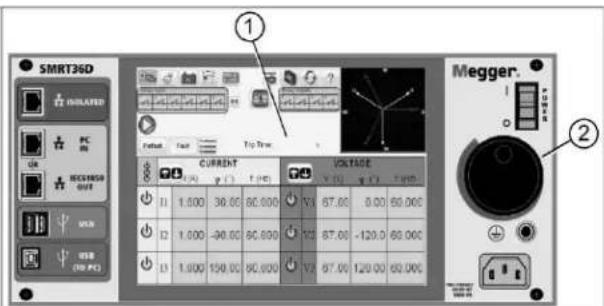
Figure 1a STVI – Hand Held Controller Figure 1b SMRT-D Series
-
TFT LCD Color Display ① – this 8.5 inch touch panel display provides high resolution, and features Wide Viewing Angle Technology with high luminance for reading in direct sunlight.
-
Control Knob ②—this knob will adjust values once the box location of the value to be changed is selected.
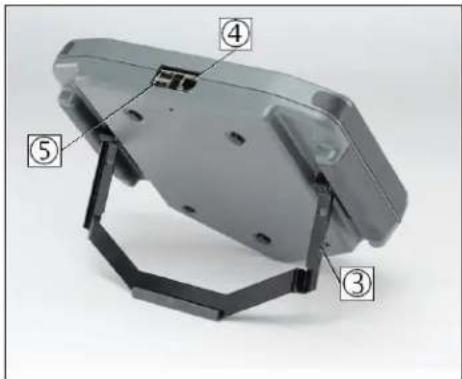
Figure 2 STVI Rear-View
-
Built-in Foldout Stand ③— the STVI may be operated as a handheld controller, or foldout the built-in stand and use a desktop controller.
-
STVI Ethernet Port ④ – this Ethernet port is a 100BaseTX PoE (Power over Ethernet) port, and is the SMRT connection port.
-
USB Interface ⑤ – the USB 2.0 Interface requires a Type A connector, and is primarily used as a communication and control port. A USB cable is not provided with the test set or in the optional accessories. For control of the SMRT or MPRT8445 units, an Ethernet cable is provided since the STVI gets its power over the Ethernet cable. Even though the STVI has a built-in virtual keyboard, the user can use a USB keyboard with the STVI, as well as a mouse (including Logitech wireless mouse), keyboard and/or mouse are not provided with the accessories. The USB port is also used to update the firmware in the SMRT as well as update the software in the STVI using a USB memory stick. It may also be used to download test results from the STVI for download into another PC with Power DB software for storage or printing.
1.2 Terminology
The acronyms, terms, and definitions used throughout this manual are described below:
1.2.1 Acronyms
AC Alternating Current
CW Clockwise (rotation)
CCW Counter Clockwise (rotation)
DC Direct Current
GPS Global Position System
GUI Graphical User Interface
Hz Hertz
ID Identification
I/O Input / Output
kHz Kilo Hertz
LCD Liquid Crystal Display
LED Light Emitting Diode
MAG Magnitude
MTA Maximum Torque Angle
PC Personal Computer
ROM Read-Only Memory
RTS Relay Test System
USB Universal Serial Bus
VAC Volts Alternating Current
VDC Volts Direct Current
VIGEN Voltage / Current Generator Module
VRMS Volts Root Mean Square
UUT Unit Under Test
1.2.2 Glossary of Terms
The STVI display screens prompt the user to select, or set, various values. The values vary depending on the relay under test, and the relay setting screen. Many of the terms used are similar in nature and mean virtually the same thing regardless of the type of relay. For example, the term Time Dial is commonly used to define the time dial setting on the relay under test. The Time Dial could be on an overcurrent relay, or just as easily be on a under voltage relay. Unfortunately, some of the terms described here may apply to different types of relays in different ways, and thus may not cover every possible relay made. However, it is hoped that this glossary will help the user to understand every setting value on every relay setting screen.
1.2.2.1 Pickup (Tap)
A numerical value associated with a tap setting on the relay. Pickup or Tap is normally associated with a value of current, voltage, phase angle, frequency, watts or Ohms. It is used to define a setting value, pick up value, or minimum operating point, of the relay under test.
1.2.2.2 TDM (Time Dial Multiple)
A numerical value normally associated with a TIME CURVE, or defines the use of a specific time curve from a family of curves. Used when conducting a timing test. The TIME DIAL number also may be used in a Time-Curve algorithm in calculating the theoretical operating time of the relay under test.
1.2.2.3 Inst. (Instantaneous Tap)
A numerical value associated with a tap setting on the instantaneous element of the relay. Normally associated with a value of current or voltage, it is used to define a pick up value, or minimum operating point, of the instantaneous element of the relay under test.
1.2.2.4 Reset Seconds
It is a numerical value of time, normally associated with electromechanical relays. This is the amount of time required for the operating disk to reset. If multiple timing tests are conducted on a relay, the test system will wait the Reset Seconds value prior to applying the next timing test. Numerical relays also can have programmable reset times to coordinate with electromechanical relays.
! Note, if the Reset Seconds is set too short, and the disk does not completely reset, then timing error will be introduced to the test.
1.2.2.5 Time Delay
It is a numerical value of time, normally associated with the minimum operating time of electromechanical instantaneous relays. This is the minimum amount of time delay associated with the closing of the instantaneous trip contacts. When a value is entered, a line will be drawn associated with the time entered in the trip characteristic display. If one of the test points selected by the user is for testing the instantaneous operation, it will be plotted with the other time delay trip points.
Note that numerical relays also can have programmable Time Delay settings associated with the instantaneous operation.
1.2.2.6 Test Multiple
A numerical value normally associated with conducting timing tests. Multiples are normally expressed in terms of whole numbers like 2, 3, 4, etc., times the Relay Pickup, or Tap, value of the relay under test. Fractions of test multiples may also be entered, and the appropriate test values and theoretical trip times will automatically be calculated. If no Reset Seconds (see 1.2.2.4) value is entered, then only one timing test point will be conducted when pressing the appropriate STVI Blue Play button. If a Reset Seconds value is entered, after pressing the first blue play button the test system will perform all the Test Multiples in sequence waiting the Reset Seconds between applications of the entered Test Multiples.
1.2.2.7 Reach or Diameter
A numerical value expressed in Ohms. This value is used to determine the “distance”, in Ohms, that the relay under test “sees” either into a line section or a generator.
A numerical value expressed in degrees. A value used in impedance relays to define the "maximum torque angle" or "line angle" setting of the relay under test (sometimes abbreviated as Ang.).
1.2.2.9 Expected Trip Time
A numerical value which expresses the operating time of the relay under test, normally used to specify a definite operating time for a given fault value in the testing of multi-zone distance relays.
1.2.2.10 Winding (1,2,3,4) Tap
A numerical value associated with the Winding Number i.e. 1, 2, 3, 4, etc., of a transformer differential relay, used to define the tap setting value and test for each winding.
1.2.2.11 % Slope
A numerical value which establishes the operating characteristic of a differential relay. The operating characteristic of the differential relay is a line, with a slope defined by the ratio of the operating and restraint values.
1.2.2.12 % Harmonic
A numerical value which establishes the percent of harmonic restraint for a harmonic restrained transformer differential relay. This value will be used to determine Pass/Fail during the Harmonic Restraint test.
1.2.2.13 % Prefault Seconds
It is a numerical value of time, normally associated with relays which require prefault values prior to applying the fault values. This is the amount of time required for the operating disk to set. to a "normal" operating state, or a microprocessor based relay to be properly polarized prior to applying the fault state. A couple of examples would be an electromechanical voltage relay, or a numerical distance relay. If multiple tests are conducted on a relay, the test system will apply the Prefault Seconds value prior to applying the next test value.
Note, if the Prefault Seconds is set too short, and the relay may not completely come to rest (if electromechanical), or be properly polarized, then an error will be introduced to the test.
1.3 Power Over Ethernet Input Power
The STVI gets Power Over Ethernet (PoE) of 48 Volts DC at 0.5 A from the SMRT33/36/410 or MPRT8445. The SMRT1 and MPRT2145 units do not provide the 48 Volts DC required by the STVI. The SMRT1, when ordered with the STVI, comes with a PoE power supply. The PoE input voltage may be from 100 to 240 VAC, 50-60 hertz.

CAUTION:
NOTE: The PoE power supply DC voltage is ON when the power supply is connected to a power source. Connect the Ethernet cable to the Data & Power Out port of the PoE power supply to the STVI Ethernet port prior to connecting to a power source.
1.3.1. PoE Power Supply-Input Power Cord
When the STVI is ordered with the SMRT1, the power cord that comes with the PoE Power Supply is based upon the power cord selection in the SMRT1 style number. Depending on the country, the power supply can come with a NEMA 5-15 male connector, a CEE 7/7 Schuko two prong connector, come with International Color Coded pig-tail wires (light blue, brown and green with yellow stripe) with the insulation jacket stripped ready for installation of the appropriate male connector, or the UK power cord.
North American power cord (part number 620000)

Continental Europe power cord (part number 50425)
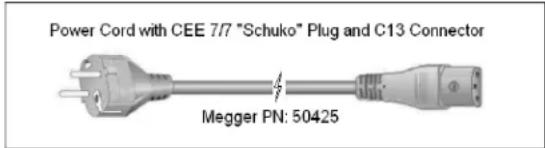
The International Color Code power cord (part number 15065) is ready for wiring to the appropriate plug (depending on country). The following colors apply, Brown = Line, Blue = Neutral and Green/Yellow = Ground.
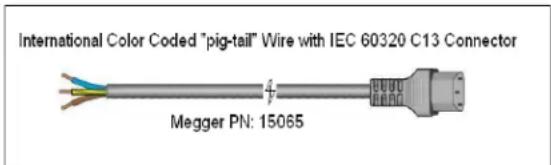
UK power cord (part number 90002-989)
UK Power Cord with IEC 60320 C13 Connector

Megger Part Number 90002-989
2.0 SETUP
2.1 Unpack System
Unpack the unit and check for evidence of any shipping damage. If there is any visual damage, immediately notify the freight carrier to make a damage claim, and notify Megger of the damage.
2.1.1 Initial Start Up
-
With the Ethernet cable supplied with the unit connect the STVI Ethernet Port on the SMRT33/36/410 unit to the Ethernet port on the top of the Smart Touch View Interface (STVI). For operation with the SMRT1 or MPRT units, connect the Data & Power Out port of the PoE power supply to the STVI Ethernet port, and the PoE power supply Data In port to the SMRT1 (or MPRT2145) PC/IN port, or the MPRT LAN1 port.
-
Before connecting power to the unit, make sure the Unit POWER ON/OFF Switch is in the OFF position (0). Plug the unit line cord into an appropriate power source and turn the POWER ON/OFF Switch to ON (I). As the SMRT unit goes through its power up sequence, in about a minute the STVI power up screen will appear, then the manual start up screen will appear. For the SMRT1, MPRT2145, or MPRT8415/8430 units, connect the PoE power supply power cord to an appropriate power source.
2.2 Communication Ports
There are two types of communication ports on the STVI, one Ethernet, and two USB ports.
2.2.1 Ethernet Port
There is one Ethernet port on the STVI for connecting to the SMRT or MPRT units. On the SMRT33/36/410 or MPRT8445 units the port is labeled STVI. For the SMRT1 or MPRT2145 it connects to the PoE power supply unit, and the PoE unit is connected to the PC/IN port on the SMRT1 or MPRT2145 (or LAN1 port on the MPRT8415/8430).

Figure 3 STVI port on SMRT33/36/46/410 units
2.2.2 USB 2.0 Interface
There are two USB 2.0 Interface ports on the STVI unit. These ports are used for upgrading firmware to the SMRT unit, or upgrading the STVI software using a USB Memory Stick. They may also be used
in conjunction with a USB mouse for ease of manual control, even a USB wireless mouse may be used with the STVI.
Regarding control of the SMRT with the USB port, see section 2.2.1 in Addendums (SMRT33/36, SMRT36D, SMRT410, SMRT410D, MPRT2145, and MPRT8445).
Ethernet Port is a 100BaseTX port, and is the primary PC connection port. This port supports MDI/MDI-X auto cross over configuration, which means both standard and "crossover" Ethernet cables may be used. The SMRT, and MPRT8445 units come with a standard Ethernet cable. This port may also be used to interconnect multiple SMRT or MPRT8445/MPRT2145 units together for synchronous multi-phase operation.
2.3 RTMS software and STVI Hand-Held Controller
This section of the manual includes description of the RTMS software, which runs on the STVI Hand-Held Controller, which is the same version of software in the SMRT-D Series of units, or that runs on a PC. The RTMS software is the manual control and user interface for the unit. All manual entries will be made through the touch screen of the STVI unless the unit is connected to a personal computer.
During the power up sequence the test system automatically does self-test to insure everything is operating properly. Once the system has completed self-checks the Introduction Screen will appear, see the following figure (older model STVI Hand-Held Controllers will have a different Introduction Screen).

Figure 4a RTMS software Introduction Screen
Shortly afterward the screen will change to the manual test screen. Depending on how many channels are available the RTMS software will provide the appropriate number. For example, in the following figure is the power up manual test screen for a 3 channel SMRT33/36 unit.
| CURRENT | VOLTAGE | ||||||
| I (A) | φ (°) | f (Hz) | V (V) | φ (°) | f (Hz) | ||
| I1 | 0.000 | 0.00 | 60.000 | V1 | 90.00 | 0.00 | 60.000 |
| I2 | 0.000 | -120.0 | 60.000 | V2 | 90.00 | -120.0 | 60.000 |
| I3 | 0.000 | 120.00 | 60.000 | V3 | 90.00 | 120.00 | 60.000 |
Figure 5 Manual Test Screen
In the upper left hand corner, click on the unit connection button and the PC or the STVI handheld controller will auto detect the unit connected and automatically set the IP address through the Ethernet port. The RTMS software will auto-detect the unit (does not require the user to input an IP address). Once the STVI hand-held controller detects and connects to the unit, the icon connection will turn green. The SMRT-D units will not require any action by the user. If using the PC version it too can auto-detect the unit connected to the PC. On the PC version, the unit might not auto detect due to firewall settings. In this case the firewall can be turned off or you can enter the IP address directly using the PowerDB instrument configuration screen by clicking on the Instrument Setup icon on the
PowerDB tool bar. From the Instrument Configuration Screen, shown in the following figure, click off the check mark in the Auto Discover Unit box.

Figure 6 PowerDB Instrument Setup Screen
Here the user can enter the IP address directly into the box highlighted in red. The IP address of the unit can be determined by counting the number of times the Binary Output led flashes at the end of boot up cycle (the address is 169.254. <#flashes>.0). If the unit flashed four times, the address would be 169.254.4.0. Also note that the IP address is also printed on the unit nameplate sticker. If the unit is on a network with a DHCP server, the user must use the Auto Discovery mode.
2.3.1 Configuration
Pressing the Configuration button will allow the user to configure the SMRT / MPRT hardware and RTMS software for items such as language and phase angle rotation. Pressing this button will display the Configuration screen.
Note: The following button descriptions vary depending on hardware configuration, and if using an STVI hand-held controller, or the PC version of the RTMS software. See the following Configuration Screen example.

Figure 7 STVI Example Configuration Screen for SMRT36 Note: the picture will change depending on type of unit detected
2.3.1.1 Operation Modes
The user can select the output configuration. The connection picture will change with the selection indicating to the user how to connect the outputs. With the selection, the STVI display will also change in combination with the selected outputs. For example, if a user needs more than 60 amps, the '3 Voltages – 1 Current @ 180 amps' option can be selected and will allow the user to enter the value directly in the manual test screen. The display will change to a single current channel and the value entered will automatically be distributed across all available current generators.
2.3.1.2 Battery Simulator
For SMRT units with the 'P' System Board Option that includes the battery simulator, the user can either select one of the common battery voltage levels, or enter the desired voltage level in the window provided. Note that the SMRT-D units have the battery simulator built into the unit (not optional). Upon returning to the test screen the voltage value will be displayed in the Battery
Simulator button. Press this button to turn the output on/off. The button changes color with the change in output. Note: SMRT1 or MPRT2145 units do not have a Battery Simulator.
2.3.1.2.1 Last VIGEN is Battery
Selecting this button will convert the last voltage channel (normally #3) to a battery simulator. This is especially useful if the unit does not have the system board with a battery simulator ('P' option).
Select the desired phase angle display for the Phase Vector Screen. The phase angle designations can be set to 0 to 360 degrees Lead/Lag, or ±180 degrees (positive angles are leading). The rotation can also be set to either counterclockwise or clockwise rotation. The factory default is 0-360° lagging. Press the Phase Angle select button, and the following screen will appear.
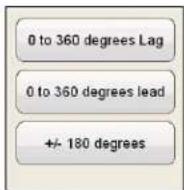
Figure 8 Phase Angle Selection Screen
See section 3.2 for more details on setting phase angle relationships.
Press this button to access the built-in manual for help associated with the Configuration Screen.
2.3.1.5 Default Settings Options
Press this button to get access to the settings options of Save as Default, Restore Default, and Restore Factory default settings.

Figure 9 Default Settings Options
2.3.1.5.1 Save as Default
Press this button and all of the changes made to the Configuration Screen and most of the default values for all screens are now saved as the power up defaults.
2.3.1.5.2 Restore Default
Pressing this button provides the ability to restore the original system power up defaults.
2.3.1.5.3 Restore Factory
Pressing this button provides the ability to restore the original system factory power up defaults.
2.3.1.6 Display Versions (Information Screen)
Pressing this button will display firmware and driver versions and build dates.
This information is useful when calling Megger for service or technical support related issues.
2.3.1.7 Update Firmware
This button is used to update the SMRT firmware and/or the RTMS software.
2.3.1.8 Auto Frequency
In the default Auto Frequency position the SMRT or MPRT units will measure and determine the input frequency and automatically set the default output frequency to the line frequency. Other choices are 50 Hz, 60 Hz, and 16.667 Hz. so that the output frequency can be something other than the input line. In addition, the user may select Line Sync so that the output phase angles are in a direct relationship with the positive going zero crossing of the input line frequency. Thus multiple SMRT or MPRT units can be synchronized together without needing a physical interconnection.
Note: the phase angle accuracy may vary as much as 2 degrees when in Line Sync Mode.
This button allows the user to set labels for each phase as displayed in the test report such as ABC, RST, L1L2L3, etc.
2.3.1.10 Language
This button allows the user to select the desired display language. The factory default is English, but may be changed to International English, French, Canadian French, Spanish, or German.
2.3.1.11 Deviation Alarm
This button turns the deviation alarm on and off. When the deviation alarm is on and the waveform has excessive deviation, the alarm will sound.
2.3.1.12 Color Options
Press this button to adjust the colors of the vectors, backgrounds, lettering, etc.
2.3.1.13 Change State Immediately / Change on Zero Cross
Unit defaults to the Immediate Mode where amplitudes, phase angles and frequency changes take place immediately upon command. The Zero Cross Mode is used to force all amplitude, phase angle or frequency changes to take place at the positive going zero crossing of the sine wave (normally used when testing frequency relays).
2.3.1.14 Symmetrical Components
Pressing this button will change the vector display to show positive, negative and zero sequence vectors instead of amplitude and phase.
2.3.1.15 High Burden
Pressing the High Burden button enables the high compliance voltage on the output current channels for test currents below 1 Amp. The default (disabled) mode the 50 Volts is available down to 1 amp. When the output current drops below 1 amp the current amplifier changes ranges automatically and the compliance voltage drops to 15 Volts. If a high compliance voltage is required for test currents below 1 Amp, press this button to enable the 50 Volts.
2.3.1.16 Voltage Character
The character used to define and label the voltage output channels can be either V or U. Press this button to change the character. Be sure to press the Save as Default button to save the changes.
2.3.1.17 Date and Time
Press this button to reset the Date and Time in the STVI hand-held controller, or the On-Board version in the SMRT-D units. This information is critical for saving tests and test results in the unit internal file manager. The PC version uses the PC time and date.
2.3.1.18 Logging
Select this button to log commands sent to the SMRT or MPRT units from the RTMS software. This information can be useful to the Megger Technical Support Group when troubleshooting.
2.3.1.19 Adjust Screen Brightness
The brightness is adjustable on the STVI hand-held controller as well as the STVI in the SMRT-D units. The display will always be visible since hardware limits the brightness from becoming too bright or too dark to be seen. Press this button and use the Control Knob to increase or decrease the brightness. For PC version use the PC screen control to adjust.
2.3.1.20 Ethernet (DHCP) IP Address
As mentioned at the beginning of section 2.2, the RTMS software will auto-detect the SMRT, MPRT8445 / 2145, unit (the DHCP mode does not require the user to input an IP address). If the unit is on a network with a DHCP server, the user must use the Auto Discovery mode. Using the STVI hand held controller, pressing the DHCP button will produce the IP Address Dialog box. As mentioned previously, the IP address of the unit can be determined by counting the number of times the Binary Output led flashes at the end of boot up cycle, or look at the unit nameplate sticker. The address is 169.254.<# flashes>.0. If the unit flashed 9 times, the address would be 169.254.9.0.

Figure 10 STVI Configuration Screen Ethernet IP Address Dialog Box
If using the PC version it too can auto-discover the SMRT, MPRT8445 / 2145 unit connected to the PC. On the PC version, the PC might not auto detect due to firewall or VPN settings. In this case the firewall can be turned off, or you can enter the IP address directly using the PowerDB instrument
configuration screen by clicking on the Instrument Setup icon on the PowerDB tool bar. Shown in the figure below is the PowerDB Instrument Configuration Screen. Click off the check mark in the Auto Discover Unit box. Here the user can enter the IP address directly into the box highlighted in red.
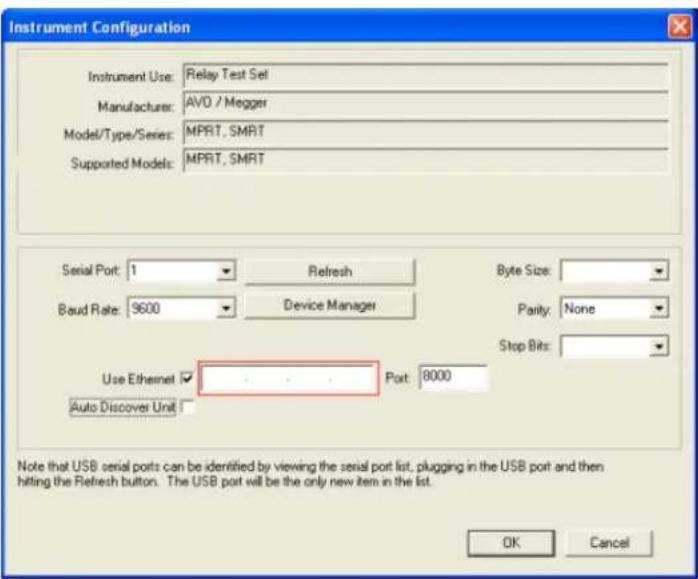
Figure 11 PowerDB Instrument Configuration Screen
2.3.1.21 Advanced - Convertible V/I Selection for Multi-Phase Current Output
In the Configuration Screen, in the Operation Mode sections, (assuming you have a SMRT36, SMRT36D with three VIGEN Modules) select the "6 Currents" mode. Upon returning to the Manual Test screen, the screen will be changed to show 6 current channels. However, should you need more than 3, but less than 6 currents, press this button to select how many voltage channels to convert. For example, you need 4 currents. Press the Advance button, set 1 in the box provided. Going back to the test screen Voltage Channel #1 will now be converted to a current channel. Note that conversion of voltage channels starts with channel #1 and goes up. Therefore, selecting 2 convertible channels will result with voltage channels #1, and #2 being converted to currents leaving voltage channel #3 as a voltage output.
2.3.1.22 Primary Ratios
The RTMS software Configuration Screen includes the Primary Ratios setting button. Click or press on this button to open the following menu list.
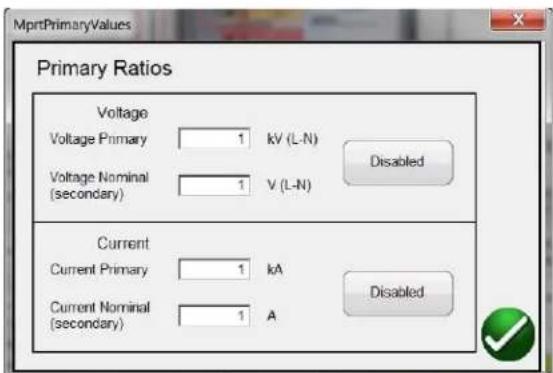
Figure 12 Primary Ratios Input Selection Screen
Enter the appropriate Voltage and/or Current Primary and Secondary Values. Press or click on the Disabled button to Enable the value setting(s). Upon returning to the manual test screen Primary Values such as kV and kA will be displayed, see the following figure.
| eee | CURRENT | VOLTAGE | ||||||
| I(kA) | φ (°) | f (Hz) | V (kV) | φ (°) | f (Hz) | |||
| 1.000 | 0.00 | 60.000 | V1 | 14.40 | 0.00 | 60.000 | ||
| 1.000 | 120.00 | 60.000 | V2 | 14.40 | 120.00 | 60.000 | ||
| 1.000 | 240.00 | 60.000 | V3 | 14.40 | 240.00 | 60.000 | ||
Figure 13 Primary Values kV and kA output test screen
In the above figure a Primary 14.4kV to 120V secondary volts and 1kA to 1 Amp secondary current ratios were set. This allows the user to test relays using Primary Values displayed on the test screen, while applying the appropriate secondary values to the device under test.
2.3.1.23 Screen Exit
To exit the screen and return to the previous screen press the green check button (you will see this same button on other screens).
2.4 Setting Amplitudes, Phase Angle or Frequency
Pressing an amplitude, phase or frequency button (right clicking if running on a PC) will display the following pop-up numeric keypad to enter the value you want to change.
2.4.1 Numeric Keypad Entry
The numeric keypad entry provides an interface to the user when entering values in the various screens. Touching a data entry window (Amplitude, Degree or Frequency) on the touch screen (right mouse click in the PC version) will activate the Numeric Keypad. Use the numeric keys to type in the value you want and press either the button or the Balance button. Pressing the clear all will clear the value you just entered. Pressing the clear last digit button will clear the least significant digit of the value in the display window.
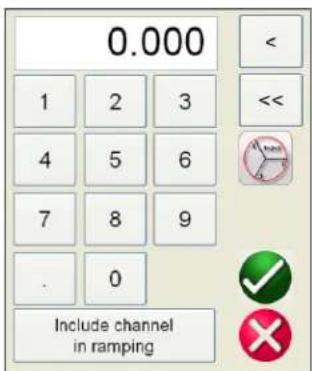
Figure 14 RTMS software Numeric Keypad
The button will enter the value and take you back to the test screen. Press the Balance button if you want all the voltage or currents values to be the same amount. If setting phase angles, and you want all three phases to be shifted the same amount from the defaulted values, enter the amount of phase shift desired in the A Phase window, and press. For example, if the default is 0, 120 and 240 degrees, press on A phase current phase angle and enter 30, press, and the test screen will now show 30, 150, 270 degrees. Pressing Cancel will return the user to the previous screen that is in use. Pressing Include channel in ramping will select that value to ramp when using the control knob (mouse wheel or up down arrow keys on the PC version).
2.4.2 Include Channel in Ramping
When this button is pressed the window around the channel magnitude is highlighted indicating that it is now set to be ramped manually using either the Control Knob, or the up down arrows/mouse wheel on the PC keyboard (PC version). If the channel is already selected for ramping, this button will be labeled 'Remove channel from ramping'. The magnitude may now be ramped up or down using the default increment setting. If the user wants to ramp more than one channel, or change the increment, or change the value to be ramped (Amplitude, Phase or Frequency), on the STVI display screen press the Manual Ramp Options button (Control Knob icon, or Up Down Arrows Icon) to display the following screen.
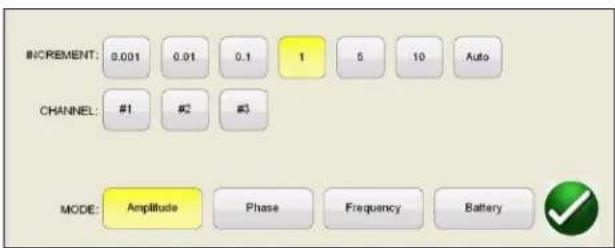
Figure 15 Channel Increment Selection Screen
INCREMENT – Select the desired increment. Color change will indicate the value selected. CHANNEL – Select the desired channel(s). The channel button will change color indicating the selected channel(s) to be ramped.
MODE – Select Amplitude, Phase, Frequency, or Battery as the value to be ramped. Press or click on the green check button to return to the test screen. One click on the Control Knob or one press of the Up Down arrow on the PC keyboard will change the output by the Increment setting. If the Auto Increment button is selected the RTMS software will automatically select the increment depending on
how fast the control knob is being rotated, the faster the rotation the larger the increment (does not apply when ramping the Battery Simulator).
2.4.3 Control Knob
The control knob will change the values after touching the display to highlight the value that requires ramping. Clockwise rotation increases and counterclockwise decreases. In the Auto Increment Mode the control knob uses a speed control algorithm to provide fine adjustment, with a slow rotation (one click equals 1 digit of the lowest increment level for the value being ramped), and a larger step adjustment with a faster rotation. The Control Knob can also be used to scroll up and down when viewing the test results in the Add Results and View Results screens, or when viewing the Help screen.
2.4.4 Setting Default Voltage Outputs
The RTMS software come with factory default settings, which can be changed to suit the user. Using the numeric keypad entry as described above, select the first voltage channel and enter the desired phase to neutral (earth) value, for example; 67. Press the Balance button, the green check button, and all channels will now have a setting of 67 volts. Select the Configuration button, and then select Save as Default (see section 2.3.1.5 Save as Default). The next time the unit is powered up, the default voltage values will all be at 67 Volts.
2.4.5 Setting Default Current Outputs
Similar to setting the default voltage values, the Default Current may be changed to suit the user. Using the numeric keypad entry as described above, select the first current channel and enter the desired phase to neutral (earth) value, for example; enter 1, Press the Balanced button, and button, and all channels will now have a setting of 1 Ampere. Select the Configuration button, and then select Save as Default (see section 2.3.1.5 Save as Default). The next time the unit is powered up, the default current values will all be at 1 Ampere.
2.4.4 Virtual Alphanumeric Keypad
The virtual alphanumeric keypad allows the entry of ASCII text into the appropriate RTMS software windows. This keypad is used to enter names for the binary inputs and outputs, names for each state in the Sequence Test, or file names in the file management screen.
![OK Cancel Clear 1 2 3 4 5 6 7 8 9 0 - = BKSP TAB q w e r t y u i o p [ ] \ CAPS a s d f g h j k l ; ' ENTER SHIFT z x c v b n m , . / SHIFT ALT SPACE](/content/2026/05/1062520/images/6256887e23892d957d1877dae7386ac4f34edc2baeb9e408daa9ee680c336123.jpg)
Figure 16 STVI Keyboard
2.5 RTMS software File Management
The file management display is used by the STVI hand-held controller to access files stored in the STVI's internal memory. This display will allow test files to be loaded, make or change directories, rename files and directories, delete files and directories that were created by the user. To access the
File Management system, touch the File Folder top center of the test screen. This icon only appears on the STVI hand-held controller, and the On-Board version in the SMRT-D series of units (not on PC version). It provides the user the ability to save tests, or open saved tests. If using the PC version users will have the PowerDB file system to save test (job) files (see PowerDB Help). For STVI hand-held controller, or On-Board users', pressing on the File Folder presents the user with the following tool bar. It defaults with the Save Current Form File Folder highlighted.

Figure 17 STVI File Folder Tool Bar
! Note: Pressing the Power ON/OFF Button will power down the STVI hand-held controller, but is not required for a safe shutdown.
Pressing on the highlighted folder will provide the user with the following file explorer.

Figure 18 File Folder Explorer
Press in the File Name window and the user will be provided with the virtual keyboard to enter a file name. The file can then be saved to the internal memory or saved to a USB memory stick. This same window is also used to open saved files. To save results directly to a USB memory stick check the Save to USB button. To transfer test results from the STVI hand-held controller, the SMRT-D series of units, to a USB memory stick use the up down blue colored buttons to selected the desired test result to be transferred, and then press on the USB button. To retrieve a test file from a USB memory stick press on the USB button to retrieve the selected file from the list of files that appear in the right hand window. To delete a file use the up down arrows to highlight the file, then press on the trash can icon. The left pointing blue arrow is the exit button to go back to the test screen. To open an existing test file, from the File Folder tool bar, press the Open File Folder icon . The user will
be presented with the File Folder Explorer. Use the up down blue arrows buttons to highlight the desired file to be opened, and then press the Open File Folder button in the lower left corner. The user will be presented with a menu bar to open a New Test, or to open the file selected showing the date and time of the file saved. Pressing the date / time button will open the saved test. To view the
saved results press the More button in the upper right display next to the vector screen, then press the View Report button.
3.0 RTMS software – Basic Operating Descriptions
This section describes basic operating procedures for using the RTMS software with the SMRT or MPRT units for such applications as basic pickup or dropout, basic timing test, paralleling current outputs, conducting harmonic restraint tests, series of potential sources to provide higher than rated potential, and forming various three phase voltage outputs.
3.1 Manual Test Screen
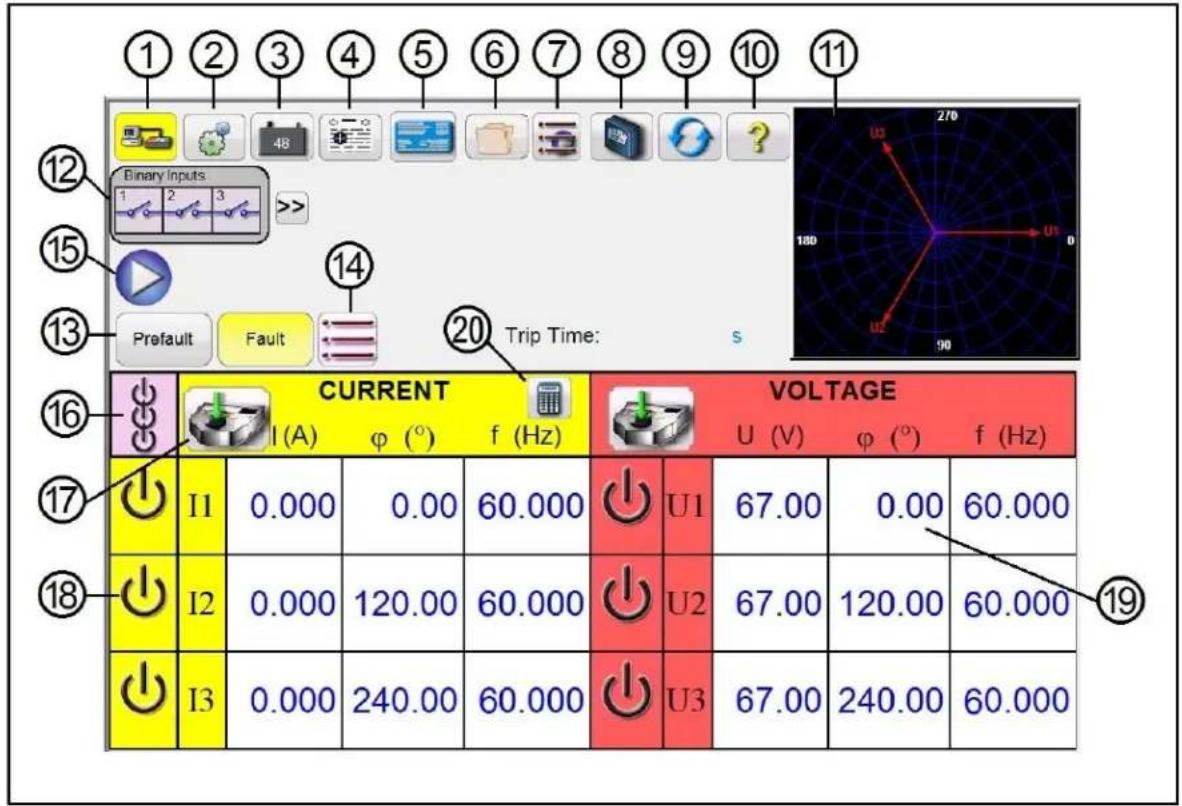
Figure 19 Manual Test Screen
3.1.1 ① Connection button

Press or click on the button and the PC, or STVI hand-held controller, will auto detect the SMRT unit connected and automatically set the IP address through the Ethernet ports. If the button shows two red Xs it indicates that there is no communication to the SMRT unit. If the background color is yellow it indicates that the unit is 'on-line' and ready for operation. When connection is made (commands

sent) the background color will change from yellow to green. In other test screens, a house icon will appear in the upper left-hand corner. Pressing the house icon will return you to the manual test screen.
3.1.2 ② The Configuration button

Press the button to go to the RTMS software Configuration Screen. See Section 2.2.1 Configuration for more information of the Configuration Screen.
3.1.3 ③ Battery Simulator button

The Battery Simulator button – Turns the Battery Simulator ON and OFF by pressing the button, the background color changes red for ON and gray for OFF. The voltage to be applied is displayed in the button and can be changed by pressing the configuration button.
3.1.4 ④ Add To Report button

This button will add the present test result to the report. It also displays the report and allows the user to name the test, enter limits, comments or deficiencies. Reports can be saved to the STVI internal memory and transferred to PowerDB via a USB memory stick. Previous tests results can be loaded and the 'Retest' option can be used to repeat the test using the same parameters as the previous test.
3.1.5 ⑤Nameplate button

To access the nameplate data window press this button. Here the user can input import information relative to the relay under test such as manufacturer, model number, serial number, CT and PT information.
3.1.6 ⑥ File Folder button

To access the File Management system, touch the File Folder top center of the test screen. This icon only appears on the STVI hand-held controller and the SMRT-D series of units (not on PC version). It provides the user the ability to save tests, or open saved tests, see Section 2.5 STVI File Management section for more information.
3.1.7 ⑦ Test List button

Press this button to access the list of tests that are available. The tests that are available are Ramping, Timing, Sequence, Impedance, Differential, and for those units equipped with the Transducer Hardware Option the Transducer Test. See the following descriptions
3.1.7.1 Ramp button

Press either the I Ramp or V Ramp buttons to go to the Ramp Test screen. This button is used for doing pick up and drop out tests on any type of relay. It can also be used to perform a general purpose linear step ramp, pulse ramp, or pulse ramp binary search.
3.1.7.2 Timing Test button

There are three Timing Test buttons, I (Overcurrent) V (Over/Under Voltage), and f (Under/Over Frequency). Press the appropriate button to go to the desired Timing Test screen to easily time overcurrent, under/over voltage and frequency relays. The STVI software has ANSI, IEEE and IEC standard time curve algorithms built-in. In addition, it includes time curves and time curve algorithms for hundreds of different specific relays selectable by manufacturer, relay model number, and curve shape (inverse, very inverse, definite time etc.).
3.1.7.3 Sequencing 1, 2, 3..9 button

Press this button to go to the Sequencing Test screen used for testing reclosing type relays, setting up multiple vectors and general multi-state sequencing.
3.1.7.4 Impedance button

Press this button to go to the Click On Fault relay test screen for testing impedance relays.
3.1.7.5 Differential button

Press this button to go to the Transformer Differential test screen for testing three phase current differential relays.
3.1.7.6 Transducer button

Press this button to go to the Transducer test screen for testing single phase and three phase transducers. This software feature only works with units that have the Transducer Hardware Option installed.
3.1.8 ⑧ Meter Mode button

Pressing this button will turn the meter mode on (for displaying metered amplitudes). When the meter mode is on the STVI will displayed the measured output amplitudes in real-time.
3.1.9 ⑨ System Reset button

Pressing this button will reset the unit back to power up default settings. Use this button to reset the VIGENS after they have alarmed off due to either a short circuit on the voltage channels, or an open circuit on the current channels.
3.1.10 ⑩ Help button

Pressing this button will provide Help for both software and hardware. Some test screens the Help button is sensitive to the test. For example, in the Click On Fault Impedance test screen pressing the Help button will bring up information relative to testing impedance relays.
3.1.11 ⑪ Phase Vector Screen
This display shows the phases and angles of the test values. Pressing on the screen display provides a full screen display of the test vectors with amplitudes and phase angles. Pressing it again reduces it back to its original size. If used with the Symmetrical Components (see Configuration button) the display will display the positive, negative and zero sequence component values.
3.1.12 ⑫ Binary Input Dialog Box
The Binary Inputs selection bar and More button – The first 3 binary inputs are displayed showing their present state. Pressing binary input windows #2 and above will display the dialog shown in Figure 18A. For conducting a timing test, press binary input #1 will display the dialog shown in Figure 18B.

Figure 20 A Binary Input #2 Monitor Mode / 18 B Binary Input #1 Time Trip Mode
Binary Input #2 in Monitor Mode the unit is sensing for closing of normally open relay contacts, as displayed by the icon in the Input Type window, or opening of normally closed relay contacts. When the contacts close the LED for the selected binary input will light. If the horn button is selected on, the horn will sound. If a normally closed contact opens the light will go out (with horn on, the horn will go off). To sense voltage press the Input Type contact icon and it changes showing a voltage sine wave. In Voltage Sensing Mode the unit is sensing the application or removal of an AC or DC voltage. For Timing Tests press either binary #1, or press the Use as Trip (disabled) button in
binary #2, and the dialog box changes to Use as Trip (enabled). The default settings are dry contacts as indicated by the Input Type, and Input Action defaults to show the Closing of the Normally Open contacts. To change to the opening of Normally Closed contacts press the Input Action icon and it changes to show closed contacts opening. Pressing the Auto Off button will provide the user three selections; Voltage, Current, or Voltage & Current. This provides auto off of the voltage, current or voltage & current channels upon tripping of the relay. For most timing applications the timer should be set to Latched Input (enabled) mode, which means the timer will stop on the first contact closure. The Latched Input (disabled) mode means if the contact bounce the timer will include the bounce time.
The Debounce time is set in milliseconds. The trip contacts must stay closed for the bounce time for the time test to be true. If the contacts open in less than the set bounce time the timer will continue to run. Once the input condition is true then the time test will conclude. The trip time displayed will be the total test time less the debounce time.
3.1.12.1 Binary More button

Pressing or clicking on the binary more button (next to binary input button) reveals more Binary Input and Output options.
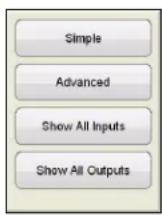
Figure 21 Binary Input and Output Options
3.1.12.1.1 Simple Mode button: The unit defaults to the Simple Mode where only 3 binary inputs (SMRT1 will show 1) are shown.
3.1.12.1.2 Show All Inputs button: Press or click on the Show All Inputs button to reveal all the Binary Inputs that are available and the first two Binary Outputs (SMRT1 will show 1).
3.1.12.1.3 Show All Outputs button: Press or click on the Show All Outputs to reveal all 6 Binary Outputs (or the maximum available) and the first 6 Binary Inputs (if available). To set a Binary Output press or click on the desired binary output, and select Close to close the contact (the default is Open).
3.1.12.1.4 Advanced button: Press or click on the Advanced button and the first 6 Binary Inputs are provided with the first 4 Binary Outputs, plus the Waveform selection button.
3.1.12.1.4.1 Waveform selection button: Press or click on the Waveform selection button. The unit defaults to the 1 position, which provides a sine wave with the fundamental power up default frequency. The user can define up to four waveforms, the default 1 (Fundamental), plus a Second (2), Third (3) and Fourth (4) Waveforms. All four waveforms will be summed together to create a complex waveform from any, or all, of the selected outputs. If no value is entered for the second, third or fourth waveforms then the output will simply be the Fundamental default frequency sine wave. Any amplitude, phase angle or frequency can be specified for each of the four waveforms. This feature is normally used when generating a second, third or fifth harmonic waveform when testing harmonic restraint transformer differential or generator neutral protection relays.
3.1.13 ⑬ Prefault / Fault buttons
Pressing these buttons will toggle and set the Prefault and Fault amplitudes, phase angles and/or frequencies. If the outputs are on, toggling between the two will apply the prefault and fault values repeatedly with each toggle. This is an especially helpful tool for the user who has to adjust mechanical contacts. It is also used in conjunction with the following Items 14, 15 and 18 for simple timing tests.
3.1.14 ⑭ Maximum Test Time/Prefault Time/Post Fault Time Settings button

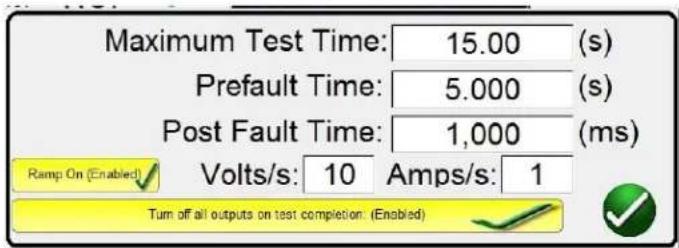
Pressing this button will present a setting window, which allows the user to enter the amount of time in seconds that the Maximum Test Time, Prefault Fault and Post Fault Time values should be applied. In addition, when the Ramp On button is enabled the user can also set the selected channels to ramp up from the default values to the Prefault values at the selected Volts / second and Amps / second. If the Ramp On is enabled, when the timing test is started, the outputs will turn on and start ramping up at the programmed ramp rate. Upon reaching the Prefault values the time window will start counting down starting from the Prefault Time value. When the prefault time has lapse the Fault values will be applied to the relay under test and the Timer window will start counting until the relay trips. If the Auto off is turned off in the Binary Input (see 3.1.12), the Post Fault Time can be entered with the Enabling of the Turn all outputs off button in this screen. When the relay trips, the Timer will stop and display the operating time of the relay, and the outputs will stay on for the Post Fault Time value entered. If the Auto Off is enabled in the Binary Input configuration screen the outputs will turn off immediately after the operation (see 3.1.12 Binary Input Dialog Box section). If the relay has not tripped by the Maximum Test Time setting the test will stop and outputs will turn off automatically.
3.1.15 ⑮ Play button

Pressing or clicking the blue play button will apply the prefault vector, start the countdown of the Prefault Time setting, then step to the Fault values and look for the relay under test to operate.
3.1.16 ⑯ All ON/All OFF button

Pressing or clicking on this button either turns all of the selected outputs ON, or if one or more of the outputs are ON, it will turn all of the outputs OFF. The center color of this button changes to green when one or more outputs are ON and indicates that pressing the button will turn all outputs off, with the exception of the Battery Simulator. To turn off the Battery Simulator press the Bat SIM button. This button is also used when ramping the battery simulator output.
3.1.17 ⑰ Manual Ramp Options button
If using the PC version the ↑↓ buttons will be displayed. If using an STVI controller, or if using a SMRT-D series of units, the Control Knob icon will be displayed. Pressing either of these two will present the user with a window to select the desired level of increment for manually ramping the outputs, the desired channel(s) to be ramped, and what is to be adjusted (amplitude, phase angle or frequency). If using the PC version use the keyboard up down arrow keys (or the mouse wheel) to manually adjust the selected value(s) at the desired increment level. If using the control knob, one click on the Control Knob equals the increment setting. When ramping phase angles, the Up arrow key ramps the phase angle in the counterclockwise direction, and the down arrow key ramps in the clockwise direction. If the Auto Increment button is selected the STVI will automatically select the increment depending on how fast the control knob is being rotated; the faster the rotation the larger the increment.
3.1.18 ⑱ Channel ON/OFF Selector button
This button works in junction with the # 16 All ON/OFF button. Pressing the button the center of the button changes color indicating the output is selected to turn ON. After pressing the All ON button turns the selected outputs on. Pressing the channel button individually turns the selected channels ON and OFF after the All ON/OFF button is ON. This allows the user to turn individual outputs ON and OFF without affecting other channels.
3.1.19 ⑲ Channel Amplitude, Phase Angle and Frequency buttons
If using the PC version, a right mouse click in the selected window will present the user with a numeric keypad and dialog box window for setting either individual values or setting multiple values swiftly and easily. For example, to change the default voltage values for all three phases, enter the desired voltage value in the entry window and then press the Balance button. All of the values will change to the desired output voltage. The same is true for both Phase Angle and Frequency.
3.1.20 ⑳ Fault Calculator button
If using the PC version, a right mouse click in the selected window will present the user with the Fault Calculator Input Screen.
3.1.20.1 Mode Selection button
Pressing or clicking on the Mode Selection button (upper left hand corner) reveals a selection list for different types of test options.

Figure 22 Mode Options
3.1.20.1.1 Overcurrent Mode button: The default selection window will present Overcurrent Mode. There are two fields available to enter values, Normal (Prefault) and Fault Values. Enter in the provided windows the desired values of amplitude, and phase angle. Depending on the Selected Fault Type, upon pressing or clicking on the green check mark, the Fault values will appear in the appropriate value windows in the manual test screen. The user can also create 2^nd , 3^rd , 5^th , and 7^th harmonic current waveforms by entering the desired % harmonic in the windows provided. The harmonic waveform will appear in the window. See the following example.

Figure 23 Fault Calculator Harmonic Current Waveform
3.1.20.1.2 Voltage Mode button: Press or click on the Voltage Mode button. There are two fields available to enter values, Normal (Prefault) and Fault Values. Enter in the provided windows the desired values of amplitude, and phase angle (phase angle will be the A phase current relative to the A phase voltage). The user can also create 2^nd , 3^rd , 5^th , and 7^th harmonic voltage waveforms by entering the desired % harmonic in the windows provided; see example waveform in the above figure for current mode. Depending on the Selected Fault Type, upon pressing or clicking on the green check mark, the Fault values will appear in the appropriate value windows in the manual test screen.
3.1.20.1.3 Frequency Mode button: Press or click on the Frequency Mode button. The Fault (Frequency) Values entry window will be provided. Enter the desired fault frequency. The Prefault Frequency will be the default value.
3.1.20.1.4 Impedance Mode button: Press or click on the Impedance Mode button. Pressing A Phase to ground fault the user will see the following screen.
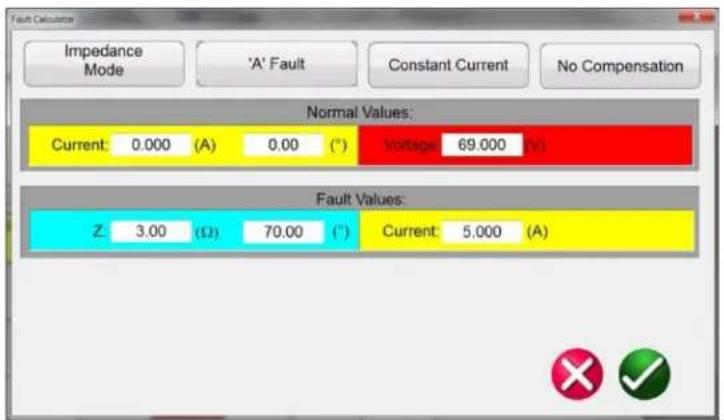
Figure 24 Impedance Mode Input Screen
3.1.20.1.4.1 Fault Selection button: Click or press this button to select the desired fault type, phase to ground, phase to phase or three phase fault.
3.1.20.1.4.2 Test Model button: The input screen defaults to Constant Current test mode. In this screen the user simply inputs the Ohmic Reach of the relay, at the desired test angle. If the relay requires Prefault values prior to stepping to the fault values, the user will need to input the desired prefault current and load angle (Normal Values). Click or press the green check button to return to the test screen. Selecting Constant Voltage test mode will present the user with a similar input screen, where the user inputs the desired fault voltage. Selecting Constant Source Impedance the user will be presented with the following screen.

Figure 25 Impedance Mode, Constant Source Impedance
In this screen the user is required to input the source impedance and angle. The fault calculator will calculate the resistive and reactive values based upon the user inputs. Upon returning to the test screen the test values of fault voltage(s), current(s) and angles will be displayed.
3.1.20.1.4.3 Compensation button: This button only appears when you select the Phase to Ground Fault type. Press or click on the Compensation Mode button to access the selection menu. There are
two types of compensation formulas available, KN and Z0/Z1. Residual compensation factor, KN, is a complex number that is used to express the earth-return impedance, ZN, in terms of the positive-sequence impedance reach setting, Z1. This factor is calculated as:
$$ \mathbf {K N} = \mathsf {Z N} / \mathsf {Z 1} = (\mathsf {Z 0} - \mathsf {Z 1}) / (3 \mathsf {Z 1}) $$
Where: Z0 is the zero-sequence impedance polar reach of the zone
Z0/Z1 Ratio = the complex ratio of Z0/Z1, also referred to as K0=Z0/Z1
3.1.20.1.5 Symmetrical Mode button: Press or click on the Symmetrical button to access the Symmetrical input setting screen, see the following figure.

bar
| Sequence Type | Value | Label | Value (A) | Value (°) | |---|---|---|---|---| | Zero Sequence Values: | 0.000 | I0 | 0.000 | 74.85 | | Zero Sequence Values: | 0.00 | V0 | 0.00 | 68.79 | | Positive Sequence Values: | 9.744 | I1 | 9.744 | 55.17 | | Positive Sequence Values: | 63.20 | V1 | 63.20 | 353.20 | | Negative Sequence Values: | 9.744 | I2 | 9.744 | 355.17 | | Negative Sequence Values: | 9.74 | V2 | 9.74 | 170.17 | Symbol: X, ✓Figure 26 Symmetrical Input Setting Screen
To simulate unbalanced fault conditions, a set of 3-phase unbalanced currents or voltages may be resolved into 3 sets of balanced components of Positive, Negative, and Zero Sequence values. Zero Sequence currents and voltages occur as the result of a Phase to Ground Fault on the system. If testing for Zero Sequence enter the Zero Sequence Current or Voltage value into the screen above. Upon returning to the test screen the appropriate Current and/or Volte values will be displayed and ready for testing. Negative Sequence is a result of a three phase unbalance condition. Enter the desired negative Sequence values of Voltage and Current and upon returning to the test screen all the three phase values will, be calculated and displayed ready for testing.
3.1.20.1.6 Power Swing Mode button: Press or click on the Power Swing Mode button to access the Power Swing input setting screen, see the following figure.
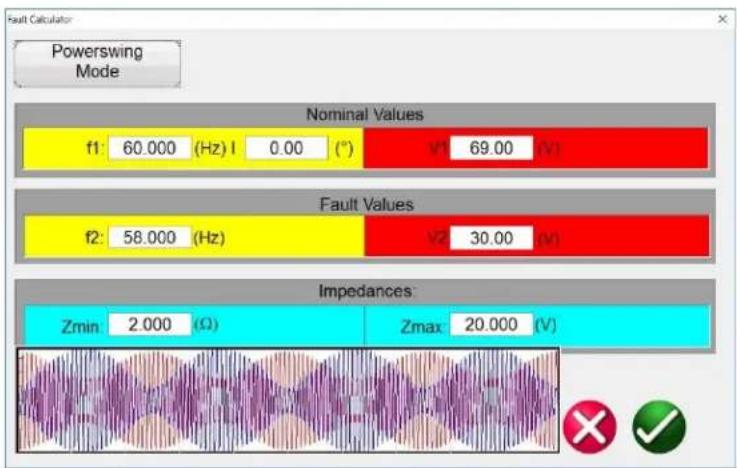
bar
| Metric | Value | |--------|-------| | Nominal Values | f1: 60.000 (Hz) I: 0.00 (°) | | Nominal Values | V: 69.00 (V) | | Fault Values | f2: 58.000 (Hz) | | Fault Values | V: 30.00 (V) | | Impedances | Zmin: 2.000 (Ω) | | Impedances | Zmax: 20.000 (V) |Figure 27 Power Swing Input Setting Screen
The power swing simulation tool uses two superimposing waveforms of similar frequencies to provide a smooth impedance ramp. This method is similar to a two source model in that both sources have similar frequencies and amplitudes. The rate of change of impedance can be controlled as well as the minimum and maximum impedances, the number of pole slips, as well as the starting phase angle relationships. The characteristic equation of the output waveform for the voltage and current is as follows:
Eq. 1 f I,V(t) = (A_1 (_1t + _1)) + A_2 (_2t + _2)
Where:
A_1 = Magnitude of the first current/voltage source in RMS values
ω 1 = 2π*FrequencySource1, (Frequency is in Hz, ω1 is in rad/s)
φ 1 = Initial phase angle of current/voltage source 1 in degrees
A_2= Magnitude of the second current/voltage source in RMS values
ω 2 = 2π*FrequencySource2, (Frequency is in Hz, ω2 is in rad/s)
_2= Initial phase angle of current/voltage source 2 in degrees
t = the time of the event in seconds
Power Swing Simulation
Since it is desirable to control the phase angle from the start, _2Current will be set to 180^ . This will allow the two waveforms to start in phase and then slowly go out of phase and come back into phase, and repeat. A plot of the waveforms with the appropriate phase shift is shown in the following figure.

line
| Time | Series 1 | Series 2 | |------|----------|----------| | 0 | 5 | 5 | | 1 | 5 | 5 | | 2 | 5 | 5 | | 3 | 5 | 5 | | 4 | 5 | 5 | | 5 | 5 | 5 | | 6 | 5 | 5 | | 7 | 5 | 5 | | 8 | 5 | 5 | | 9 | 5 | 5 | | 10 | 5 | 5 | | 11 | 5 | 5 | | 12 | 5 | 5 | | 13 | 5 | 5 | | 14 | 5 | 5 | | 15 | 5 | 5 | | 16 | 5 | 5 | | 17 | 5 | 5 | | 18 | 5 | 5 | | 19 | 5 | 5 | | 20 | 5 | 5 | | 21 | 5 | 5 | | 22 | 5 | 5 | | 23 | 5 | 5 | | 24 | 5 | 5 | | 25 | 5 | 5 | | 26 | 5 | 5 | | 27 | 5 | 5 | | 28 | 5 | 5 | | 29 | 5 | 5 | | 30 | 5 | 5 | | 31 | 5 | 5 | | 32 | 5 | 5 | | 33 | 5 | 5 | | 34 | 5 | 5 | | 35 | 5 | 5 | | 36 | 5 | 5 | | 37 | 5 | 5 | | 38 | 5 | 5 | | 39 | 5 | 5 | | 40 | 5 | 5 | | 41 | 5 | 5 | | 42 | 5 | 5 | | 43 | 5 | 5 | | 44 | 5 | 5 | | 45 | 5 | 5 | | 46 | 5 | 5 | | 47 | 5 | 5 | | 48 | 5 | 5 | | 49 | 5 | 5 | | 50 | 5 | 5 | | 51 | 5 | 5 | | 52 | 5 | 5 | | 53 | 5 | 5 | | 54 | 5 | 5 | | 55 | 5 | 5 | | 56 | 5 | 5 | | 57 | 5 | 5 | | 58 | 5 | 5 | | 59 | 5 | 5 | | 60 | 5 | 5 | | 61 | 5 | 5 | | 62 | 5 | 5 | | 63 | 5 | 5 | | 64 | 5 | 5 | | 65 | 5 | 5 | | 66 | 5 | 5 | | 67 | 5 | 5 | | 68 | 5 | 5 | | 69 | 5 | 5 | | 70 | 5 | 5 | | 71 | 5 | 5 | | 72 | 5 | 5 | | 73 | 5 | 5 | | 74 | 5 | 5 | | 75 | 5 | 5 | | 76 | 5 | 5 | | 77 | 5 | 5 | | 78 | 5 | 5 | | 79 | 5 | 5 | | 80 | 5 | 5 | | 81 | 5 | 5 | | 82 | 5 | 5 | | 83 | 5 | 5 | | 84 | 5 | 5 | | 85 | 5 | 5 | | 86 | 5 | 5 | | 87 | 5 | 5 | | 88 | 5 | 5 | | 89 | 5 | 5 | | 90 | 5 | 5 | | ... (multiple) between lines) represent discrete data points for each series. The y-axis labels are 'a' and 'b' respectively.Figure 28 Plot of voltage and current waveforms with current offset by 180°
In the above figure, the voltage and current start in phase, then about a quarter of the way through the swing, it goes out of phase by 90°, then comes back into phase, then goes out of phase by -90° at 3/4 of the swing, and back into phase at the end of the swing. This is the general form of the power swing waveform.
Fortunately, the Power Swing Calculator will automatically do all the following calculations for you and enter the values into the Prefault and Fault screens. The next section will describe the values used to calculate the necessary test values and discuss how to implement a controlled power swing.
To apply a power swing, the following parameters need to be defined.
- The Maximum Impedance, Z_max , of the Power Swing needs to be defined. This will be based on the outer most characteristic that is tracking the impedance. It is recommended that the maximum impedance be greater than the largest blinder/characteristic impedance, but not so large that the trajectory of the swing exits the characteristic prematurely.
- The Minimum Impedance, Z_min , of the Power Swing also needs to be defined. This will be the minimum impedance point of the swing.
- The Source Frequencies, f1 and f2, will determine how long of a duration a single power swing condition will be. The source frequencies will also factor in determining the rate of change of the trajectory of the impedance. The larger the difference in frequency between the two sources, the faster the swing, and the smaller the difference, the slower the swing.
- The Starting Phase Angle (°) needs to be defined so that proper loading conditions can be simulated properly.
Here is how to create a power swing with a maximum impedance of 15 Ω, a minimum impedance of 1 Ω, a Source 1 Frequency (f1) of 60 Hz, a Source 2 Frequency (f2) of 59 Hz, and a starting Phase Angle of 0°.
The first parameter calculated is how long a complete power swing cycle will take, t_Swing . This is giving by Eq. 2.
$$ \begin{array}{l l} \text {Eq. 2} & t \ \text {Eq. 3} & t \end{array} \qquad \qquad \qquad \begin{array}{l l} s _ {w i n g} = \frac {1}{f _ {1} - f _ {2}} (s) \ s _ {w i n g} = \frac {1}{6 0 - 5 9} = 1 s \end{array} $$
When applying this method to any type of test routine, t_Swing should be the maximum time set for how long the swing should be applied. If multiple turns are desired, then maximum time would be the number of turns times t_Swing .
Next will be solving for the currents and voltages that should be applied to the relay. Only the A phase voltages and currents will be discussed. B and C phases are identical to A, with only the appropriate phase shifts taking place. A nominal voltage (V1) should be defined for the maximum impedance, and a fault voltage (V2) should be defined for the minimum impedance. Take care in choosing a fault voltage because some of the impedances could still be quite large, with large being defined as around 15 Ω or greater. If the fault voltage is too small, negative valued currents would end up being calculated to create the correct conditions. If that is the case, increase the fault voltage until the currents are at an acceptable level. For this example, the nominal voltage, V_nom , is 69 V line-to-ground, and the fault voltage, V_fault , is 30 V line-to-ground.
The value of V_fault can change depending on the impedance and the current required from the test set. The nomenclature of V_fault can also be a little misleading. A power swing event may not necessarily require the extreme values of traditional fault voltages. The swing of impedance may only go from a large value to a slightly smaller value. Such would be the case if the user wanted to swing from 89Ω to 50 Ω. The required fault voltage would not be much less than what was required for starting impedance.
The equations for the two voltages for phase A are shown in the following equations.
$$ \begin{array}{l} \text {Eq. 4} \quad V _ {1} = V _ {f a u l t} + \left(\frac {V _ {n o m} - V _ {f a u l t}}{2}\right) \ \text {Eq.} 5 \quad V \quad_ {1} = 3 0 + \left(\frac {6 9 - 3 0}{2}\right) = 4 9. 5 V \ \text { Eq. 6 } \quad V _ {2} = \left(\frac {V _ {\text { nom }} - V _ {\text { fault }}}{2}\right) \ \end{array} $$
Eq. 7 V
$$ _ 2 = \left(\frac {6 9 - 3 0}{2}\right) = 1 9. 5 V $$
Then the two currents for l_1 and l_2 can now be solved.
Eq. 8 I 1 = [(_faultZ_min) - ((_faultZ_min) - (_nomZ_max)2)]
Eq. 9 I _1=[(301)-((301)-(6915)2)]=17.3A
Eq. 10 I 2 = ((_faultZ_min) - (_nomZ_max)2)
Eq. 11 I _2=((301)-(6915)2)=12.7A
Other parameters can now be solved for, such as the rate of change of impedance. Since the swing goes from a maximum impedance to a minimum and back again, the rate should only be calculated based on the time it takes to go from the maximum to the minimum. This is shown in Eq. 12.
Eq. 12 Z rate = 2 * (_max-Z_mint_Swing)
Eq. 13 Z rate =2 * ( 15-11 )=28 Ω/s
When starting in the pre-fault mode for testing, it is handy to be at the same current level as the starting current for the swing. This is minimum current, which is shown in Eq. 14.
Eq. 14 I min = I_1 - I_2 Eq. 15 I min = 17.3 - 12.7 = 4.6 A
The time set for the Pre-Fault duration is critical in that it is necessary for the waveform to end at the precise phase angle and magnitude that is equal to the start of the power swing event. The Pre-Fault phase angle of the current should be equal to the starting phase angle of the power swing. This will also ensure smoothness. In the following figure, the duration was set for 1 second, and the calculated time of 1 power swing was also calculated at 1 second. By setting the Pre-Fault to the same time as the calculated time of the power swing, a smooth transition is guaranteed in the waveforms.
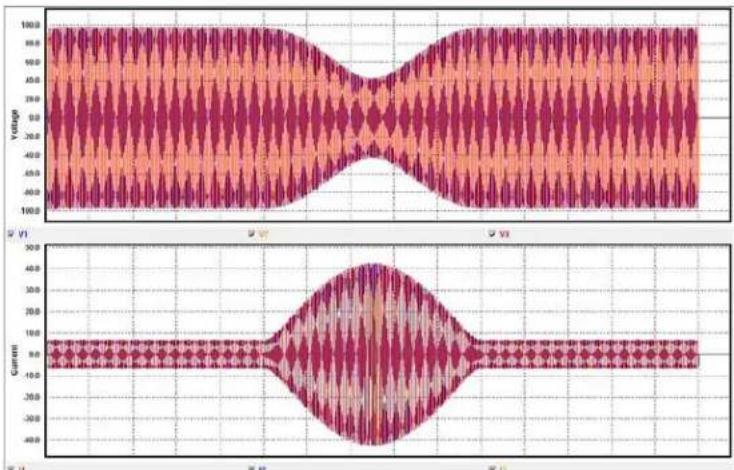
line
| Time | Voltage | |------|---------| | 0 | 100 | | 10 | 95 | | 20 | 90 | | 30 | 85 | | 40 | 80 | | 50 | 75 | | 60 | 70 | | 70 | 65 | | 80 | 60 | | 90 | 55 | | 100 | 50 | | 110 | 45 | | 120 | 40 | | 130 | 35 | | 140 | 30 | | 150 | 25 | | 160 | 20 | | 170 | 15 | | 180 | 10 | | 190 | 5 | | 200 | 0 | | 210 | -5 | | 220 | -10 | | 230 | -15 | | 240 | -20 | | 250 | -25 | | 260 | -30 | | 270 | -35 | | 280 | -40 | | 290 | -45 | | 300 | -50 | | 310 | -55 | | 320 | -60 | | 330 | -65 | | 340 | -70 | | 350 | -75 | | 360 | -80 | | 370 | -85 | | 380 | -90 | | 390 | -95 | | 400 | -100 | | 410 | -95 | | 420 | -90 | | 430 | -85 | | 440 | -80 | | 450 | -75 | | 460 | -70 | | 470 | -65 | | 480 | -60 | | 490 | -55 | | 500 | -50 | | 510 | -45 | | 520 | -40 | | 530 | -35 | | 540 | -30 | | 550 | -25 | | 560 | -20 | | 570 | -15 | | 580 | -10 | | 590 | -5 | | 600 | 0 | | 610 | 5 | | 620 | 10 | | 630 | 15 | | 640 | 20 | | 650 | 25 | | 660 | 30 | | 670 | 35 | | 680 | 40 | | 690 | 45 | | 700 | 50 | | 710 | 55 | | 720 | 60 | | 730 | 65 | | 740 | 70 | | 750 | 75 | | 760 | 80 | | 770 | 85 | | 780 | 90 | | 790 | 95 | | 800 | -10 | | ... (bottom) | ... (bottom) | | Current (bottom) range: ~-1.5 to ~-1.2 Current (top) range: ~-1.2 to ~-1.2 Current (bottom) range: ~-1.2 to ~-1.2 Current (top) range: ~-1.2 to ~-1.2 Current (bottom) range: ~-1.2 to ~-1.2 Current (top) range: ~-1.2 to ~-1.2 Current (bottom) range: ~-1.2 to ~-1.2Figure 29 Three Phase Waveform Capture of a Power Swing
The time can also be set to a multiple of the swing duration. In this case, 2, 3, or 4 seconds would also work. A time of 0.5 seconds will not work. The Pre-Fault duration, or any state before a swing event should be set according to Equation 16.
Eq. 16 T
$$ _ {p r e f a u l t} = N * t _ {S w i n g} $$
Where:
N = whole number multiples of t Swing
It should be noted that if it is desirable to have flexible Pre-Fault times, then the initial current and voltage magnitudes can be solved for using Eq. 1 for the applied times.
3.1.20.2 Fault Type Selection button
Pressing or clicking on the Fault Type Selection button reveals a selection list for different types of Fault test options.

Figure 30 Fault Types
User may select Phase to Earth (i.e. L1), or Phase to Phase (i.e. L1-L2), or Three Phase fault simulation (i.e. L1-L2-L3). All values calculated for the type fault selected will be automatically calculated and entered into the appropriate value windows.
3.2 Setting Phase Angle Relationships
Consider each V/I Generator module as a vector generator. Each module has an internal zero reference to which it references its phase angle settings as displayed on the STVI touch screen or the PC display. This applies to phase angle settings between the voltage and current outputs. When setting a phase angle between two outputs, it is recommended that one output be set at 0^ and the other output be referenced to the 0^ . This is for operator convenience only. When setting an angle, the operator has a multiple of choices, depending on the Default Phase Angle setting, see 2.3.1.3. In the engineering world and in the following figures, the lagging diagram displays negative rotation and will create negative sequence components, while the Lead and +/-180 diagrams display positive rotation which is normal system activity.

Figure 31 Positive Phase Rotation Diagrams
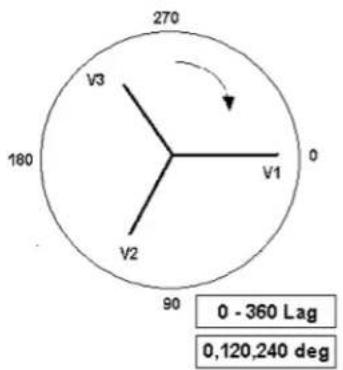
radar
| Vertex | Value | |---|---| | V1 | 0 | | V2 | 90 | | V3 | 180 | | 0 | 270 |Figure 32 Negative Sequence Phase Rotation Diagrams
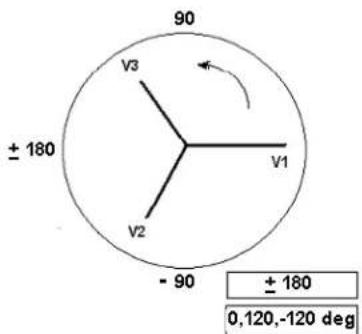
Figure 33 Positive Phase Sequence Rotation Using ± 180°
For example, using 0-360 Lag (0, 120, 240) setting an angle of 30^ between the two outputs would look like:
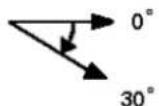
The reference output is 0^ and the second output is rotated 30^ clockwise. In other words, the angle is lagging the referenced source by 30^ . Conversely, if the angle decreases in the counterclockwise direction from 359.9^ toward 0.0^ , for a setting angle of 300.0^ , the second output would look like:
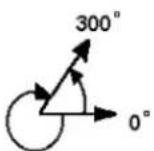
The reference output is 0^ and the second output is rotated to 60^ in the counterclockwise direction. In other words, the second output lags the reference output by 300^ or leads it by 60^ . The user may default to phase angles to ±180^ with the - (negative) angles lagging and the + (positive) angles leading. Therefore, to set an angle of +10^ leading, the vector relationship would be:
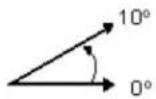
3.3 Current Sources
3.3.1 Parallel Operation
Each SMRT current amplifier is capable of providing 30 Amperes at 200 VA rms continuous. For short duration duty cycle the SMRT33 units can provide a maximum of 45 Amps, while the SMRT1, SMRT36, SMRT36D, SMRT46, SMRT46D, SMRT410, and SMRT410D units can provide up to 60 amperes at 300 VA rms per phase for 1.5 seconds for testing instantaneous trip elements. When more than 30 amps single phase is required for long durations, or more than 60 Amps for testing instantaneous elements, two or more current channels may be connected in parallel to provide 60 or 90 Amperes continuous (SMRT36, SMRT36D), and up to 120 or 180 amperes for 1.5 seconds.
Note: If an F or C appears in the 5^th digit of the style identification number (i.e. XXXXFXXXXX) the current returns are floating (isolated from each other and ground). Those units with a style number G or E, the current returns are common together internally and connected to earth ground.
To parallel the current channels of the unit, perform the following:
If using the sleeved multi-lead current test leads (part number 2001-396), all of the black return leads are interconnected together inside the sleeve so they will all share the return current together. Connect each current channel to the relay under test (both red and black terminals to the load). Each Megger test lead is rated for 32 Amperes continuous. If using test leads other than those supplied by Megger insure that the wire has sufficient size to carry the test current.
For the earth grounded common return (G or E) units, there is an internal common ground between the current channel return terminals. If using separate individual test leads, all of the return leads will need to be common together at the load as shown in the following figure. By not connecting a return lead to all of the current channels in use, part or all of the return current will be forced through the internal ground. That means with a 3 channel unit up to 180 Amperes could be forced through the internal common ground, and may cause damage to the internal common returns. Therefore, it is important that the parallel connections must be made at the relay. See the following figure.
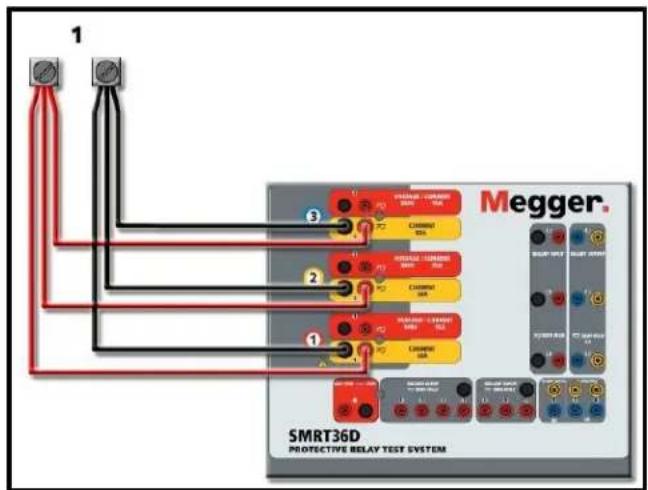
flowchart
graph TD
    A["1"] --> B["2"]
    B --> C["3"]
    C --> D["Megger."]
    D --> E["SMRT36D PROTECTIVE RELAY TEST SYSTEM"]
    style A fill:#f9f,stroke:#333
    style B fill:#f9f,stroke:#333
    style C fill:#f9f,stroke:#333
    style D fill:#ccf,stroke:#333
    style E fill:#cff,stroke:#333
Figure 34 Parallel of Three Current Outputs (SMRT36D)
3.3.1.1 Manual Test Screen - Single Phase Up To 180 Ampere
For SMRT36/36D or SMRT46/SMRT46D, go to the Configuration screen and select the Operating Mode of 3 Voltages – 1 Current @ 180 amps. Note for SMRT410, SMRT410D users there is a similar single channel option available. For MPRT8415/8430 users, you will need to set output currents similar to the older TVI by manually setting all the currents in phase. For SMRT and MPRT8445 users, when you return to the manual test screen there will be one current channel displayed similar to the one shown in the following figure.
| CURRENT I (A) φ (°) f (Hz) | VOLTAGE | ||||||||
| V (V) | φ (°) | f (Hz) | |||||||
| II | 0.000 | 0.00 | 60.000 | V1 | 67.00 | 0.00 | 60.000 | ||
| V2 | 67.00 | 120.00 | 60.000 | ||||||
| V3 | 67.00 | 240.00 | 60.000 | ||||||
Figure 35 Manual Test Screen – Single Phase Operation
The RTMS software will automatically set all three currents in phase with each other and divide the current equally between the current amplifiers. When setting an output, simply enter the value of the desired output current. For example, for an output of 75 Amperes, enter 75. If using a SMRT33/36/36D/46/46D with 3 current channels each current amplifier will be providing 25 Amperes. The current can also be phase shifted. Simply enter the desired phase angle and all three currents will be phase shifted together.
If two current channels that are to be used in parallel, leave the unit in the default three phase configuration. Connect the two current outputs to the load as shown in the following figure.

Figure 36 Two Currents in Parallel (on SMRT36D)
Set each channel to one-half of the output requirement. ☐ Be sure and set current channel #2 to 0 degrees so that it will be in-phase with current channel #1. With both current channels selected, turn output on by pressing or clicking on the ALL ON/OFF button. Always use the ALL ON/OFF button to turn both current channels on and off together. For manually ramping outputs, if using the PC version of the RTMS software the ↑↓ buttons will be displayed. If using an STVI controller, or the
SMRT-D series of units, the Control Knob icon will be displayed. Pressing either of these two will present the user with a window to select the desired level of increment for manually ramping the outputs, the desired channel(s) to be ramped, and what is to be adjusted (amplitude, phase angle or frequency).
3.3.2 Currents in Series Operation
Each current amplifier in the SMRT and MPRT units can produce up to a maximum of 50 Volts of compliance voltage at test currents up to 4 Amperes. For test currents less than 1 Amp enable the High Burden feature in the Configuration screen, see 2.3.1.15. Two current channels may be connected in series in order to double the available compliance voltage. High impedance electromechanical ground (earth) overcurrent relays have always been difficult to test at high multiples of tap due to the winding impedance and saturation characteristics. The peak voltage required can exceed the maximum output voltage of one SMRT or MPRT current output channel, depending on the required test current. By connecting two current outputs in series, the compliance voltage is doubled, providing higher test currents through the high impedance load.
There are two methods to series currents together. For the floating output (F or C) models connect the two current amplifiers in a "push-push" configuration as shown in the following figure.
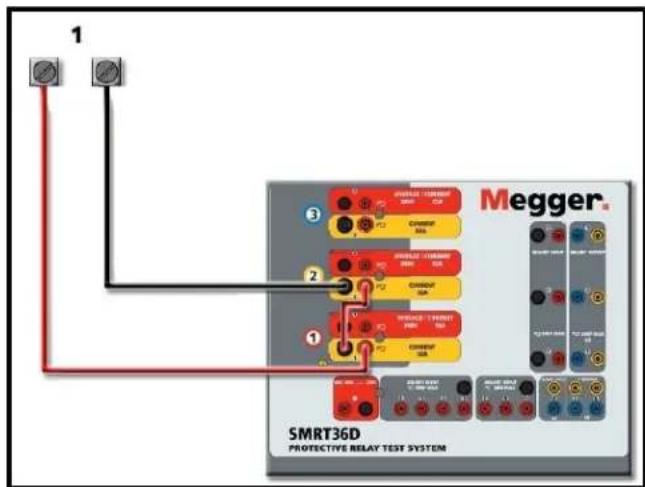
Figure 37 Series Two Currents with SMRT36D Floating Outputs
The two current channels that are to be used in series set each to the same test current magnitude, and phase angle. Select both current channels and turn output on by pressing or clicking on the ALL ON/OFF button. Always use the ALL ON/OFF button to turn both current channels on and off together. For manually ramping outputs, if using the PC version of the RTMS software the ↑↓
buttons will be displayed. If using an STVI controller, or the SMRT-D, the Control Knob icon will be displayed. Pressing either of these two will present the user with a window to select the desired level of increment for manually ramping the outputs, the desired channel(s) to be ramped, and what is to be adjusted (amplitude, phase angle or frequency).
To series the current channels of the common grounded returns (on the G or E model top cover the black return terminals are connected with a black line and the ground symbol), perform the following:
Connect the Red output terminals of the two current channels to the relay under test. Even though the two returns associated with the current channels are connected internally with the common returns, place a jumper (PN 2001-573) externally as shown. This will insure that the internal common leads will not be damaged should more than 30 Amps be applied.
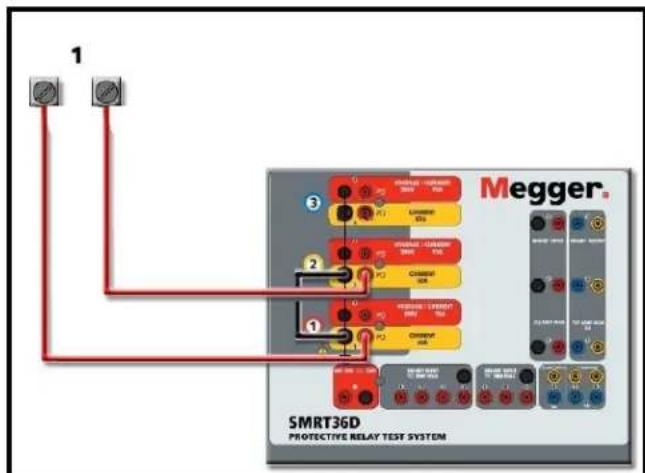
Figure 38 Series of Two Current Channels with SMRT36D Grounded Common Returns
NOTE: One current channel should be set to 0 degrees and the other current channel should be set to a phase angle of 180 degrees so that the two compliance voltages add across the load. DO NOT attempt to series more than two currents together on a grounded common returns unit.
The two current channels that are to be used in series set each to the same test current magnitude. Initiate the two current channels simultaneously by pressing the ALL ON/OFF button. Always use the ALL ON/OFF button to turn both current channels on and off together. For manually ramping outputs, if using the PC version of the RTMS software the ↑↓ buttons will be displayed. If using an STVI
controller, or the SMRT-D series of units, the Control Knob icon will be displayed. Pressing either of these two will present the user with a window to select the desired level of increment for manually ramping the outputs, the desired channel(s) to be ramped, and what is to be adjusted (amplitude, phase angle or frequency).
3.4 Voltage Sources
3.4.1 Outputs Summed Together
The SMRT and MPRT voltage amplifiers are all rated for 300 Volts AC/DC at 150 VA/Watts. Two voltage channels may be used to sum the voltage outputs to obtain higher than rated voltage provided the load is ungrounded. Connect the load between the voltage channel posts, set V_1 Phase to 0^ and set V_2 Phase to 180^ . The voltage outputs will add so the total voltage is the sum of the two voltage amplitudes, V_1 and V_2 as can be seen in the following diagram.

Note: If an F or C appears in the 5^th digit of the style identification number (i.e. XXXXFXXXXX) the voltage returns are floating (isolated from each other and ground). Those units with a style number G or E the voltage returns are common together internally and connected to earth ground.
For the floating common units the user must connect the associated voltage channels black common returns together, when series operation is required (see the following figures). Remove external commons when testing is completed. DO NOT attempt to series more than two voltage channels together, since the voltage leads are rated for a maximum of 600 Volts.
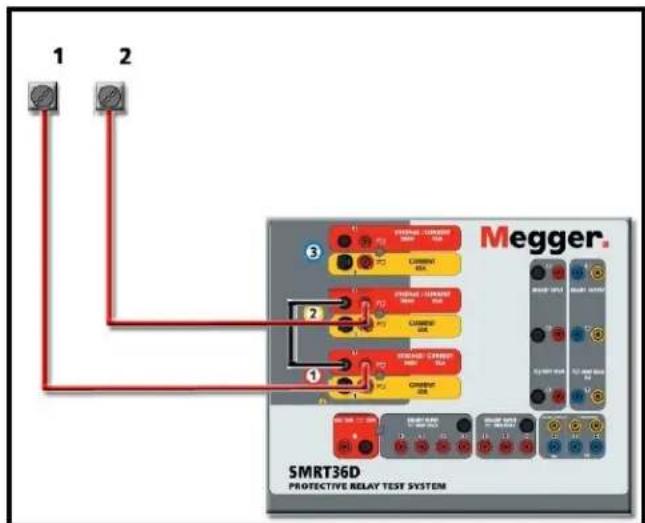
Figure 39 Series of Voltage Channels for SMRT36D Floating Ungrounded Common Returns
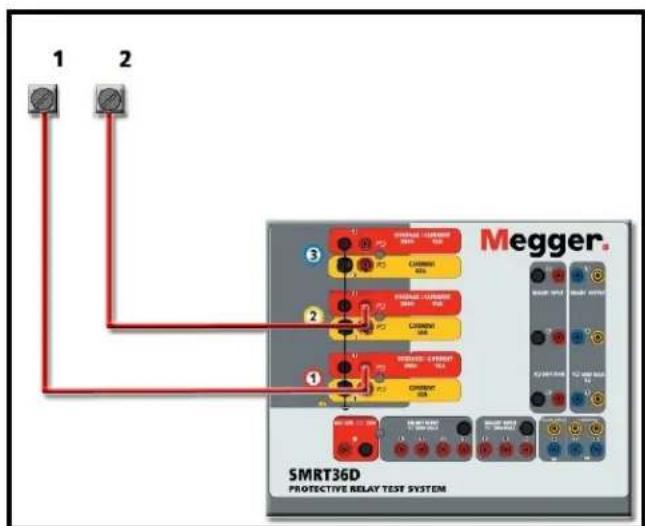
Figure 40 Series of Voltage Channels with SMRT36D Grounded Common Returns
3.4.2 3∅, 3-Wire, Open-Delta and T-Connection
3.4.2.1 Balanced Open Delta
Two methods of obtaining a three-phase, three-wire voltage source are available. The Open-Delta configuration is the easier to use when a balanced three-phase source is required because the amplitude and phase relationship can be set directly. No calculations are necessary.
When using the Open-Delta configuration, it is suggested to use voltage channel #1, designated V_1 , and voltage channel #2, designated V_2 , while the COMMON binding post is designated V_g . With this arrangement, the magnitude and phase angle of the potentials can be easily calculated and set. For the balanced three-phase condition V_1-g and V_2-g are equal in magnitude and separated by an angle of 60^ . This is done by setting the V_1 and V_2 potentials equal in magnitude, setting 0^ on V_1 and 300^ (60 degrees leading assuming that the default phase rotation is set to 360 Lag) on V_2 , see the following figures.

Figure 41 SMRT36D Three Phase Open Delta Connections
When using the Open-Delta Configuration to set up a phase-to-phase fault, calculations' using the Law of Cosines is required to calculate amplitude and phase relationships. (See discussion under T-Connection for simulating unbalanced, phase-to-phase faults without need for calculations.)
Balanced 3θ - Open Delta Connection
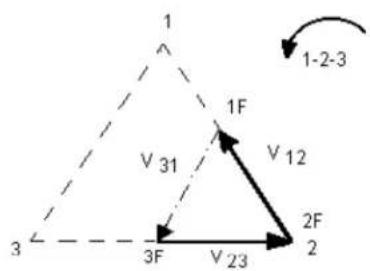
flowchart
graph TD
    A["1"] --> B["1F"]
    B --> C["V 12"]
    C --> D["2F"]
    D --> E["2"]
    E --> F["V 23"]
    F --> G["3F"]
    G --> H["3"]
    H --> I["V 31"]
    I --> J["1-2-3"]
If V
equals the desired test potential, then:
$$ \text { Set } V _ {1} = V _ {\mathrm{f}} \angle 0 ^ {\circ} $$
$$ \text { Set } V _ {2} = V _ {f} \angle 3 0 0 ^ {\circ} (3 6 0 \text { Lag configuration }) $$
3.4.2.1.1 Unbalanced Open Delta
When setting up an Unbalanced Open-Delta configuration, the desired phase-to-phase fault voltage, V_1f is set using voltage channel #1 with its phase angle set to 0^ . Phase-to-phase voltage V_2f and its phase angle relationship for voltage channel #2, must be calculated using the Law of Cosines; where for any triangle the following formula applies:
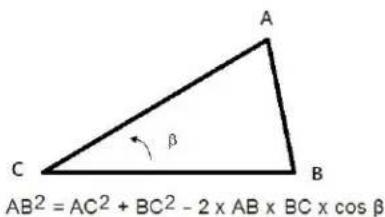
The next figure shows the phase relationships between voltages and an example of the necessary calculation. For convenience the amplitude and the phase angle settings for the typical V_1 fault magnitudes are tabulated.
From the Law of Cosines
$$ \theta = \arccos (\frac {V _ {1 2}}{2 V _ {2 3} ^ {*}}) $$
$$ V _ {2 3} ^ {2} = \left(\frac {V _ {1 2}}{2}\right) ^ {2} + \left(\frac {\sqrt {3}}{2} * 1 2 0\right) ^ {2} $$
Settings for Typical Phase-to-Phase Fault Voltages

Figure 42 Open-Delta Unbalanced phase-to-phase Fault Voltages
V 12=Vf
| V_12 | 1 | 5 | 10 | 15 | 20 | 25 | 30 | 35 | 40 | 45 | 50 | 55 | 60 | 65 | 70 |
| V_23 | 104 | 104 | 104 | 104 | 104 | 105 | 105 | 105 | 106 | 106 | 106 | 108 | 108 | 109 | 110 |
| Atθ°Lag | 270 | 271 | 273 | 274 | 275 | 277 | 278 | 280 | 281 | 282 | 284 | 285 | 286 | 287 | 289 |
The second method of obtaining a three-phase, three-wire voltage source is the so-called T-Connection. The method, shown in the following figure, is easier to use when obtaining an unbalanced, phase-to-phase fault simulation since it eliminates calculations. To reduce confusion when using the T-Connection, the voltage output #1 is designated V_a and its phase angle set at 0°, voltage output #2 is designated V_b and its phase angle set for 90°, and voltage output #3 is designated V_c and its phase angle is set for 270°. Any combination of balanced three phase faults or unbalanced phase-to-phase fault conditions can be easily simulated. The following figure indicates these phase relationships.
NOTE: This method should not be used for very low fault voltages, or used on solid state relays that may be sensitive to this type of connection (i.e. 5 volts or less, or for testing ABB or Westinghouse type SKD relays).
$$ V _ {f} = \text { Desired Fault Voltag } $$
$$ V _ {a} = \frac {I}{2} V _ {f} 0 \angle $$
$$ V _ {b} \quad \frac {1}{2} V _ {f} \quad \circ . $$
$$ V _ {c} = \frac {\sqrt {3}}{2} 1 2 0 o r V _ {c} = 1 0 4 V \angle 2 7 0 ^ {\circ} $$
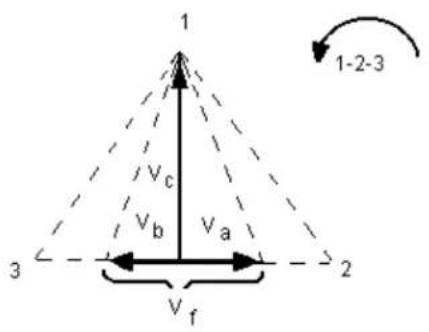
Balanced or Unbalanced Fault T-Connection
3.4.3 3∅, 4-Wire, Y-Connection
A three-phase, four-wire potential system can be provided using three output modules. The vector relationships are referenced below. This Y-Connection has the advantage of being able to supply a higher line-to-line voltage (1.73 x phase-to-neutral voltage). It is ideally suited for simulating phase-to-ground faults. Voltage channel #1 is designated as V_a with its phase relationship set for 0°. Voltage channel #2 is then designated as V_b and phase angle set for 120°. Finally, voltage channel #3 is designated V_c and phase angle set for 240° (for a 1-2-3 counter clockwise rotation). V_a , V_b and V_c are connected to the voltage potential binding posts on the respective test sets.
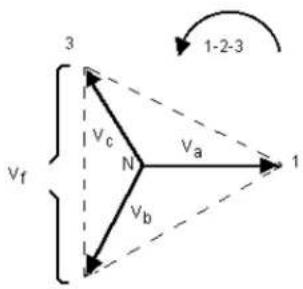
Balanced 30, 4 Wire Y-Connection
$$ V _ {f} = \text { Desired Fault Voltag } $$
$$ V _ {a} = \frac {\sqrt {3}}{3} V _ {f} 0 \angle $$
$$ V _ {b} = \frac {\sqrt {3}}{3} V _ {f} 1 2 0 \angle $$
$$ V _ {c} = \frac {\sqrt {3}}{3} V _ {f} \angle 2 4 0 ^ {\circ} $$
Note: If an F or C appears in the 5 ^th digit of the style identification number (i.e. XXXXFXXXXX) the voltage returns are floating (isolated from each other and ground). Those units with a style number G or E the voltage returns are common together internally and connected to earth ground.
If using the sleeved multi-lead voltage test leads (part number 2001-395), all of the black return leads are interconnected together inside the sleeve so they will all share the return together. Therefore, only one return lead is provided on the relay connection side of the sleeved leads (similar to the connections in the following figure).
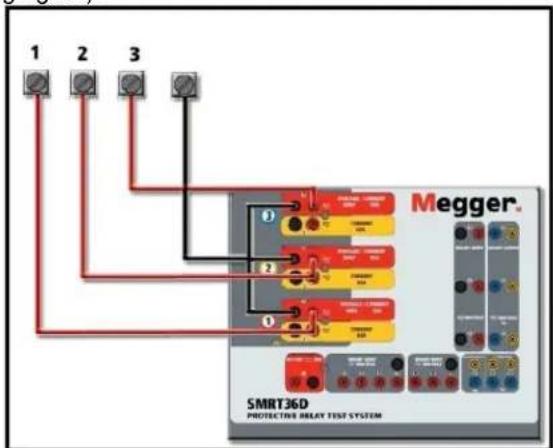
Figure 43 SMRT36D with Floating Returns, Three Phase Four Wire Test Connections
For the earth grounded common return (G) units, there is an internal common ground between the voltage and current channel return terminals. Therefore, only one return lead is required for the voltage channels. If using separate individual test leads, for the floating common units the user must connect the associated voltage channels black common returns together as shown above.
3.5 Testing Relays with the Manual Test Screen
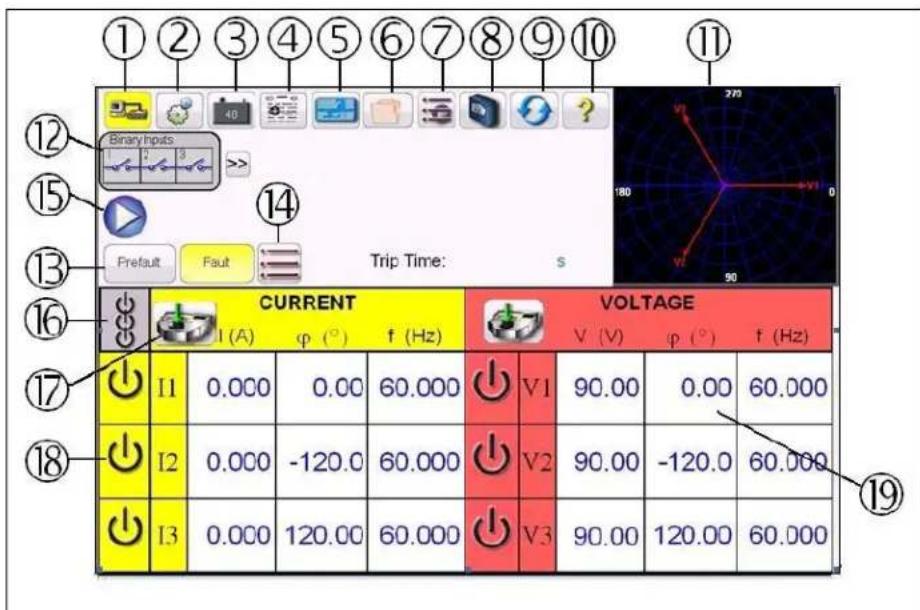
Figure 44 Manual Test Screen
The following tests are examples of how to use the RTMS software Manual Test Screen for general test applications.
3.5.1 Simple Manual Pickup or Dropout Test
-
Select the channel value(s) to be ramped by pressing the appropriate magnitude window(s) ^⑲ . Using the numeric keypad as shown in Figure 12, enter the starting value.
-
Connect the appropriate output terminal(s) for the selected channel(s) to be ramped.
-
Connect the desired Binary Input terminal to sense the relay contacts closing or opening. Select the Binary Input ⑫ and set the appropriate sensing Continuity or Voltage modes (see Figure 18A).
-
Press the Output Selector Adjustment icon ^17 , and enter the increment, channel number(s), and whether Amplitude, Phase and Frequency. Note that the selected channel(s) should have a highlighted border around the magnitude window(s).
-
Select the output(s) to be turned on by pressing the ON/OFF icon button ⑱ for the selected channel(s). Upon pressing the ON/OFF button the center will turn green indicating that the
channel has been selected to turn on. Turn the selected output(s) on by pressing All ON/OFF button ⑯. When the channel(s) turn on the channel window(s) turns green. Using either the Control Knob, or the PC up and down arrows, manually ramp the output(s) until the relay contacts either picks up or drops out, depending on the start value entered in Step 1.
-
Turn the output(s) off by pressing the ON/OFF icon button(s), or press the ALL ON/OFF icon button. By not pressing the ALL ON/OFF button the channel(s) can be turned back on by pressing the channel ON/OFF button again. This provides the ability to toggle outputs on and off in order to observe contact movement at the pickup threshold.
-
Press the Add To Report button ④ if you would like to document this test in your report.
3.5.2 Simple Manual Timing Test
-
Press the Prefault button ⑬, and set the desired Prefault duration in seconds in the window provided ⑭.
-
Select the prefault channel(s) to be turned on by pressing the ON/OFF icon button(s) ⑱. Set the Prefault value(s) by pressing the appropriate magnitude window(s) ⑲, and using the numeric keypad as shown in Figure 12, enter the Prefault value(s).
-
Connect the appropriate output terminal(s) for the selected channel(s) to be used.
-
Connect the desired Binary Input terminal to sense the relay trip contacts.
-
Press the selected Binary Input ⑫, note Binary Input #1 is already set to Use as Trip (enabled). Set for the appropriate sensing Normally Open, Normally Closed, Voltage Applied, or Voltage Removed. If the Binary Input selected is set to monitor mode, Use as Trip (disabled), press or click on the button to change it to Use as Trip (enabled), see Figure 18B, and select Input Type and Input Action as desired. If it is desired to turn the outputs off when the relay trips press the Auto Off (disabled) button and select the desired channels to turn off.
-
Press the Fault button, and set the desired fault value(s) by pressing the appropriate magnitude window(s) ⑲, and using the numeric keypad.
-
Press the Prefault button returning to the prefault settings. Turn the selected channels on by pressing the ALL ON/OFF ⑯. The prefault outputs should now be on. Press the Blue Play button ⑮. The Prefault countdown timer will start running. The outputs will change from prefault to fault value(s) and the timer will start running. When the relay trips, the Timer will stop indicating the trip time of the relay under test. Once the test has completed all outputs
will be turned off if the auto off was enabled. If Auto Off was not enabled the user can input a Maximum Test Time or a Post Fault Time setting, see 3.1.14 Maximum Test Time/Prefault Time/Post Fault Time Settings button, and the outputs will automatically turn off as desired.
- To save the test result, press the Add to Report button ④. The results have now been added to the report and the report is shown. Note that the values are not actually saved to file until you press the File Folder icon and save them as previously defined. The user can now enter appropriate information relative to the test in the Test Report header.

Figure 45 Example PowerDB Report
If using the STVI, or the SMRT-D units, use the Control Knob to scroll up and down to view all results. Note that there is a space in the upper right corner for company logos to provide a finished and professional look (see Configuration Screen). Also note the Options button just above the recorded results. Pressing this button the user will be presented with a number of possible choices for the recorded results.
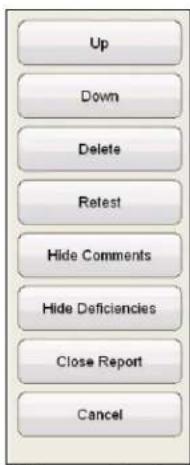
Figure 46 Report Options Screen
The results can be moved up or down to change the order of the results presentation. The result can be deleted, or a retest performed by pushing the blue play button. In addition, the user can add or hide Comments or Deficiencies. Press either Close report to return to the test screen or press Cancel to return to the report. To exit the report, press the Check button in the top left corner or select the Options button followed by the 'Close Report' button.
3.5.3 Using Smooth Ramp/Auto Ramp / Pulse Ramp / Pulse Ramp Binary Search

The Auto Ramp feature of the RTMS software may be used to automatically determine pickup or
dropout of various types of relays. Press the Test List button to get access to the Auto Ramp screen. The user will be presented with two selections I or V (current or voltage channel), then select ramp parameters. Once a channel is selected to ramp the user must then choose which type of ramp (there are four to choose from) or select the Ramp Wizard. The Ramp Wizard automatically sets up the appropriate ramp for different types of applications (see Ramp Wizard for more information).
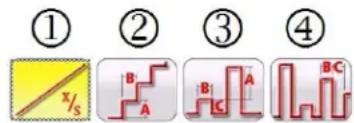
Figure 47 Ramp and Search Tool Bar
3.5.3.1 Smooth Ramp Example
The first selection ① is the Smooth Ramp and will ramp the output by applying a value based upon entry of an increment value / second. Depending on what is being ramped (Amplitude or Frequency) the user must define the Start and Stop values of the value being ramped. For example, to automatically ramp output current the user will, input Start and Stop Amplitudes, and an Increment (A) Amps/Sec. Based upon the Start, Stop, and Increment /Sec settings, the software will automatically calculate the incremental values of the selected output which will result in a smooth ramp from the Start point to the Stop point. See the following figure.

Figure 48 Smooth Ramp Setting Example
In the above example, 1 Amp was set to Start ramping, with the Stop value at 5 Amps (with the expectation that the relay will pick up before reaching 5 Amps), with an Increment of 0.1 Amps (A) / Second. To start the auto ramp, push the blue Play button.
3.5.3.2 Step Ramp Example
The first selection ② is the Step Ramp and will ramp the output by applying a value and then waiting a specific amount of time before incrementing it. Depending on what is being ramped the user must define the Start and Stop values of the value being ramped. For example, to automatically ramp output current the user will, input Start and Stop Amplitudes, an Increment (A), and a Delay time in Cycles or Seconds (B). Note: to change from Cycles to Seconds click or touch the word Cycles or Seconds. See the following figure.
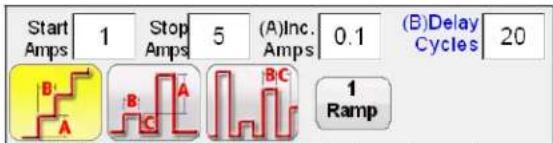
Figure 49 Step Ramp Setting Example
In the above example, 1 Amp was set to Start ramping, with the Stop value at 5 Amps (with the expectation that the relay will pick up before reaching 5 Amps), with an Increment of 0.1 Amps (A) and a Delay (B) time of 20 Cycles between each increment. To start the auto ramp push the blue Play button.
3.5.3.3 Pulse Ramp Example

Figure 50 Pulse Ramp Setting Example
The second selection ③ is for Pulse Ramp and will ramp the output but will also return to the prefault condition between each increment. The first step is to set the Prefault Vector(s) followed by setting the Start, Stop, and Increment values for the Pulse Ramp. Instead of Delay time the user sets the Pulse Cycles/Seconds time, which is the time that the incremented value will be applied before going back to the prefault vector state. The output will then stay at the prefault values for the Dwell Cycles/Seconds time before progressing to the next increment level until the relay operates. Press or click on the '1 Ramp' button. The user can select a 2^nd , 3^rd and 4^th ramp. This allows the user to select the number of cascaded ramps to be performed. A common use for 2 ramps would be to set the increment level in large steps and then when the relay picks up reduce the output by a percentage of the pickup value. Ramping can then start from that point but at smaller increments until the relay picks up again, thus providing a finer resolution on the actual pickup point. This feature is most used when doing instantaneous pickup tests. The output current, or voltage, can be incremented in large steps getting to the pickup point quickly. This reduces the test time, heating of the relay under test, and provides a very accurate test result. This feature is also used when testing multi zone distance relays using three phase voltage and currents. Set the Pulse Cycles/Seconds duration just long enough for the intended zone to operate. If you are not sure exactly where the pickup value of the relay is you can use the Pulse Ramp Binary Search ③ feature.
3.5.3.4 Pulse Ramp Binary Search Example

Figure 51 Pulse Ramp Binary Search Setting Example
The third selection ④ on the tool bar is Pulse Ramp Binary Search. The Pulse Ramp Binary Search is used to quickly determine the pickup value of a relay with a questionable or unknown set point or operating characteristic. More importantly, this feature is excellent for testing relays which require a prefault condition prior to sensing a fault condition. The setting values are almost the same as the Pulse Ramp. However, instead of Increment value, the user defines the End Resolution of the final search increment. On execution the control will incrementally search for the relay pickup starting with Prefault Value(s). The first output will be the Prefault setting(s), then pulsing to the Fault value(s). If an operation by the relay occurs within the Pulse Time, the Fault value(s) output will automatically increment down by 50% of the difference between the last operate and no-operate point. Like Pulse
Ramp, the output toggles back and forth between the Prefault and the next Fault value(s). The bidirectional pickup and non-pickup operation keeps dividing back and forth very quickly until the End Resolution is reached. Once the end resolution is reached the final pickup value(s) will be displayed. Where Prefault values are not required a simpler Binary Search could be used.
3.5.4 Using Ramp Wizard
Pressing the Ramp Wizard button presents the user with a selection of three different typical relay tests, and a Custom Ramp. A description of the selections follows.

Figure 52 Ramp Wizard Relay Type Selection Menu
3.5.4.1 EM (Electromechanical) Current Pickup
Pressing the EM Current Ramp button will present the user with the following test screen.
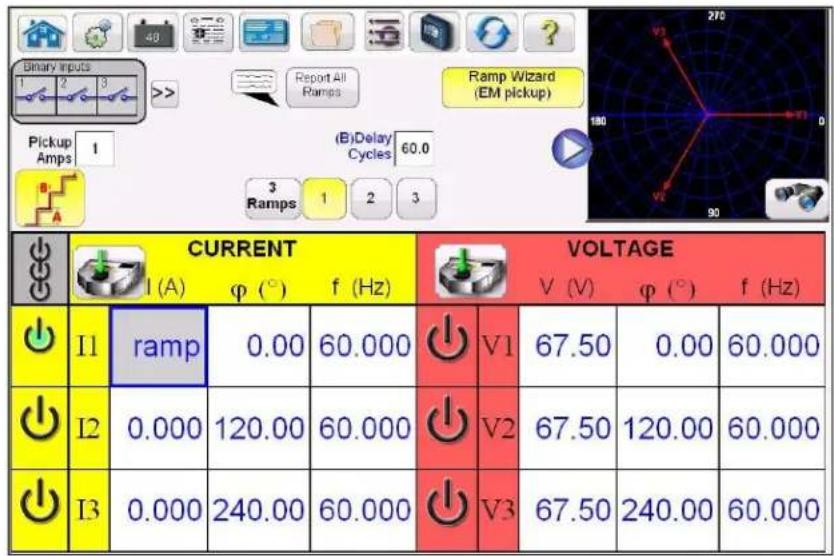
other
| Grid Position | Voltage (V) | Voltage (φ) | Voltage (Hz) | | :--- | :--- | :--- | :--- | | Row 1 | 67.50 | 0.00 | 60.000 | | Row 2 | 67.50 | 120.00 | 60.000 | | Row 3 | 67.50 | 240.00 | 60.000 | The image contains a schematic diagram of a voltage test setup with labeled components: 'Ramp Wizard (EM pickup)', 'I1 ramp', 'I2 voltages', and 'I3 voltages'. The table includes a color-coded legend for the rows and columns.Figure 53 EM Ramp Wizard
EM Current Pickup – This selection provides the user the appropriate type of ramp, and defaults necessary to do a pickup test on an electromechanical overcurrent relay. The wizard will default to three ramps. The basic operation of the test is that the test set will apply twice the Pickup Amps entered by the user and wait for the contacts to close. The test current will be dropped by a percentage (labeled the Start %) from the twice pickup value applied to the relay, and start ramping down in Increment Amps, set as a negative value like -0.05, using a Delay Cycles/Seconds entered by the user. The Start % value needs to be a percentage of initial test current, so that the contacts will still be closed, but the current will not have to ramp down very far to get the contacts to open. When the contacts open, the current will then reverse and start ramping back up at a different increment
until the relay trip contacts close again. The Start % point for the ramp back up is a % of where the contacts just opened. The user can set it to 100% thus the ramp back up will start at the same current value where the contacts just opened. The current will ramp back up at the Increment Amps setting for Ramp 3, using the same Delay Cycles/Seconds set in Ramp 1. Use a smaller increment so that the resolution of the pickup will be much higher. At this point the Pickup value has been determined. There are two Stop Amps values that also need to be entered. The first Stop Amps associated with Ramp 2 is the lowest current value that the unit will ramp down to looking for the contacts to open. If they have not opened by this point, stop the test something is wrong with the relay. The second Stop Amps value is associated with Ramp 3. This is the maximum current that the unit will ramp up to. If the relay has not operated by this value the test will stop. Normally this value is set to a value 10% higher than the expected pickup value. For Reporting purposes the STVI will capture the pickup value and enter it into the report. For even more comprehensive results the user can press or click on the Report All Ramps button and the STVI will record where the contacts first
closed, dropped on, and the final close for pickup. Press or click on the Preview button in the Vector Display and a graphical display will show how the test values will be applied.
| CURRENT | VOLTAGE | ||||||||
| I (A) φ (°) f (Hz) | V (V) φ (°) f (Hz) | ||||||||
| I1 | ramp | 0.00 | 60.000 | V1 | 67.50 | 0.00 | 60.000 | ||
| I2 | 0.000 | 120.00 | 60.000 | V2 | 67.50 | 120.00 | 60.000 | ||
| I3 | 0.000 | 240.00 | 60.000 | V3 | 67.50 | 240.00 | 60.000 | ||
Figure 54 EM Ramp Preview Screen
3.5.4.2 Instantaneous Pickup
Pressing the Instantaneous Pickup button will present the user with the following test screen.
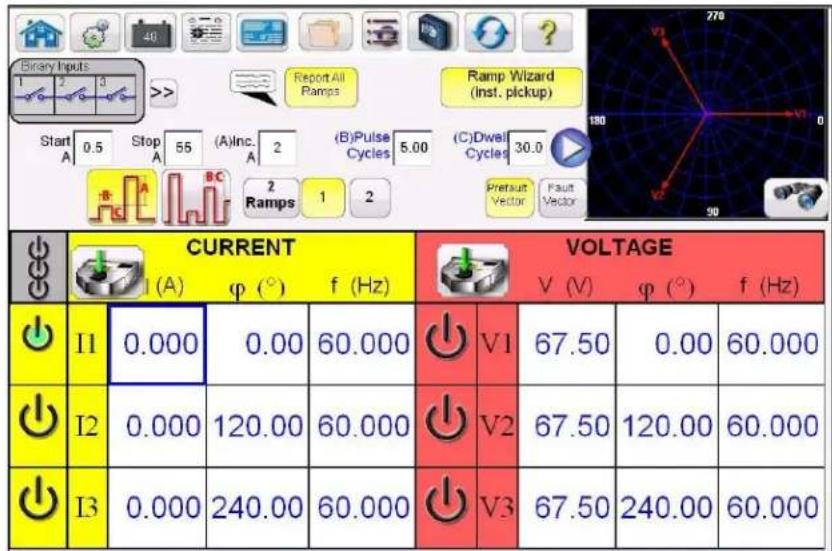
Figure 55 Instantaneous Pickup Wizard
Instantaneous Pickup – This selection provides the user the appropriate type of ramp, and defaults necessary to do a pickup test on an electromechanical instantaneous overcurrent type relay. The wizard will provide two ramps. The user may select from two different styles of ramp (Pulse Ramp and Pulse Ramp Binary Search). See descriptions above for these ramp styles.
3.5.4.3 Current Target & Seal In
Pressing the Current Target & Seal In button will present the user with the following test screen.
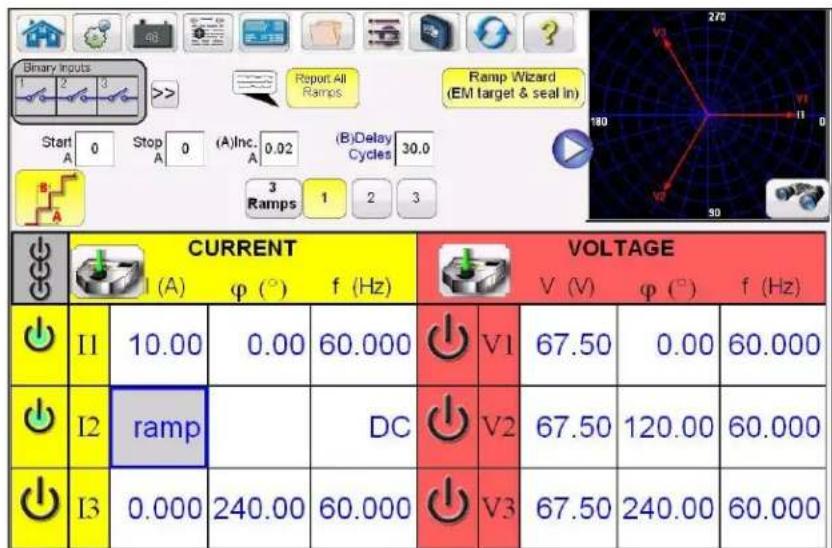
Figure 56 Current Target & Seal Wizard
Current Target & Seal In – This selection provides the user the appropriate outputs and type of ramps necessary to do a pickup and dropout test on an electromechanical overcurrent DC Target and Seal In relay. The wizard will automatically pick two current channels. Channel #1 will provide the AC current necessary to cause the EM trip contacts to close. Current channel #2 will provide the DC current (note the Frequency is set to DC) for the DC target element. For the Step Ramp enter the
Start, and Stop values based upon the target element tap setting (typically 0.2, or 2 A DC). Start at 0.15 Amps for the 0.2 Amp tap setting relay. Set the Delay time long enough so that the user will have time to press the SIM button when the contacts close and press again when the contacts open.
Application Note: It is difficult to monitor the seal in contacts, therefore, it is up to the user to observe the contacts and press the SIM button when the seal in contacts close or open. Also note that Ramp 2 ramps the current down with a default setting of -0.02 amps. If the tap setting is 2 Amps, it is recommended that the user change the increment to -0.05 amps.
3.5.5 Ramping Battery Simulator Output

- On the STVI display screen press the
Manual Ramp Options button. In Channel
Increment Selection Screen press or click on the Battery button. Select the desired increment level of the Battery Simulator, 1 or 5 volt increments. Press on the green check button.
- Upon returning to the main test screen, note the Battery Simulator will be set for the value setting in the configuration screen. If another starting value is desired, go to the configuration

screen and enter the starting value in the window provided, and press the green check
button. For manual ramping press the

II ON/OFF button, note button turns green.
- Press the battery button and note that it changes to red indicating that the battery output
is on, and it will have a yellow arrow through the box with the dc starting value to be ramped. Use the control knob (pc version use the cursor up down arrows or mouse control wheel) to vary the dc voltage output (clock wise increases the output). One click will equal the increment setting. To turn the battery simulator off, press the battery button. Note: If you have completed the test press the All ON/OFF button. Once the All ON/OFF button is off, the battery simulator can be turned on and off by pressing the battery button, but it cannot be varied.
3.6 Overcurrent Tests
By pressing the Overcurrent Timing button 📄 the Nameplate configuration screen will pop up.

Figure 57 Overcurrent Nameplate Configuration Screen
3.6.1 Manufacturer Brand Selection Button
Press this button to gain access to all Relay's Manufacturer Brands included
Figure 58 Relay's Manufacturer Brand Selection Screen
3.6.1.1 Manufacturer's Model by Brand Button
Once the Relay Brand is selected, this button will give access to all models available for that manufacturer.
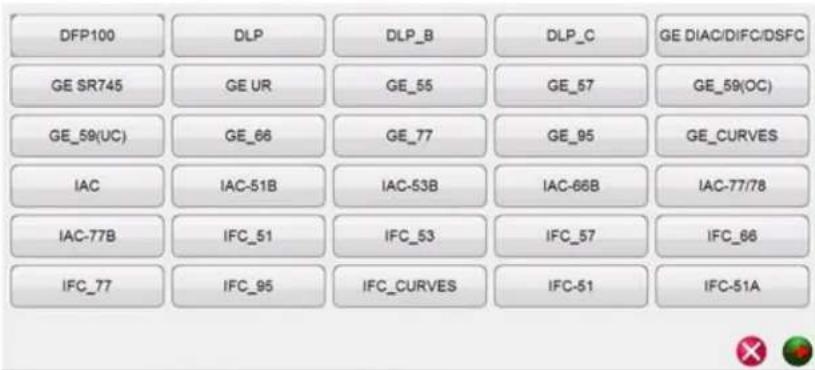
Figure 59 Relay Model by Brand Selection Screen
3.6.1.2 Relay Additional Configuration Button

Pressing this button the user will go to the Relay Additional Test Setup Screen,

Figure 60 Relay Additional Test Setup Screen
The user will see 3 buttons on top of screen:
- Electromechanical
- Include Pickup Tests
- Include Instantaneous Pickup Tests
The user can check one, two or all buttons or uncheck them in order to add or not to add the respective test button to the List of Tests to Run. When Electromechanical Button is checked, Include Target and Seal-In Tests Pickup Tests Button appear and are available to be checked or let it unchecked.

Figure 61 Test Selection Buttons
3.6.1.3 Include Target and Seal-In Tests Button
This selection (only for Electromechanical Relays) provides the user the appropriate outputs necessary (typically 0.2, or 2 A) to do a pickup and dropout test on an electromechanical overcurrent DC Target and Seal In relay. Set the Delay time long enough so that the user will have time to press the SIM button when the contacts close and press again when the contacts open.
! Application Note: It is difficult to monitor the seal in contacts, therefore, it is up to the user to observe the contacts and press the SIM button when the seal in contacts close or open.
Tolerance: The user needs to introduce the Manufacturer's Tolerance Specifications, which can be found in relay's user guide. The Absolute Error can be written in Seconds (s) or Cycles (Cy)
Test: The user needs to define Prefault Time, Post fault Time, Max On Time the test will be performed, Scaling, PT Connection type (Wye and Open Delta), Voltage Level on Prefault, Option to verify the Test Plot vs. Multiple (Check or Uncheck Button).
Elements: The user needs to define the elements of protective relay to be tested. Pressing the proper buttons to check or uncheck the available options, the user can select between Phases, Phase to Neutral and Ground Faults.
Once tolerance, test data and elements to test selection is completed, you need to go back to nameplate configuration screen by pressing the green circle check button to select curve and direction type for phase, neutral and/or ground.
3.6.1.4 Relay's Curve and Direction per Element – Selection and Configuration
Press Curve Button in Nameplate Configuration Screen to Select the Adjusted Curve in Relay under test.

Figure 62 Curve Button location (Red boxed) in Nameplate Configuration Screen
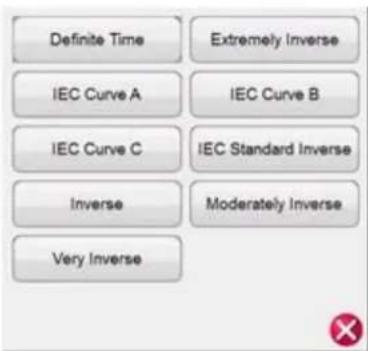
Figure 63 Available Curves List (Options depends on previously selected relay)
Press Direction Button in Nameplate Screen to select the element of protection, namely Directional (Forward or Reverse) and Bidirectional depending on type of relay under test.
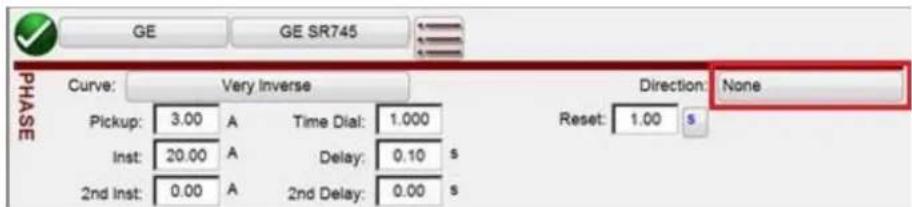
Figure 64 Direction Button location (Red boxed) in Nameplate Configuration Screen
Three options can be selected: None, Reverse and Forward.
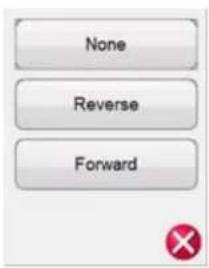
Figure 65 Direction Options List
Selecting None button, the user will be able to perform a test on a bidirectional relay (50/51).
Selecting Reverse or Forward button, user will be able to perform a test on a directional relay (67). Reset, MTA, Blinder and Reference Voltage options are available when one of these buttons is pressed. See the following figure.
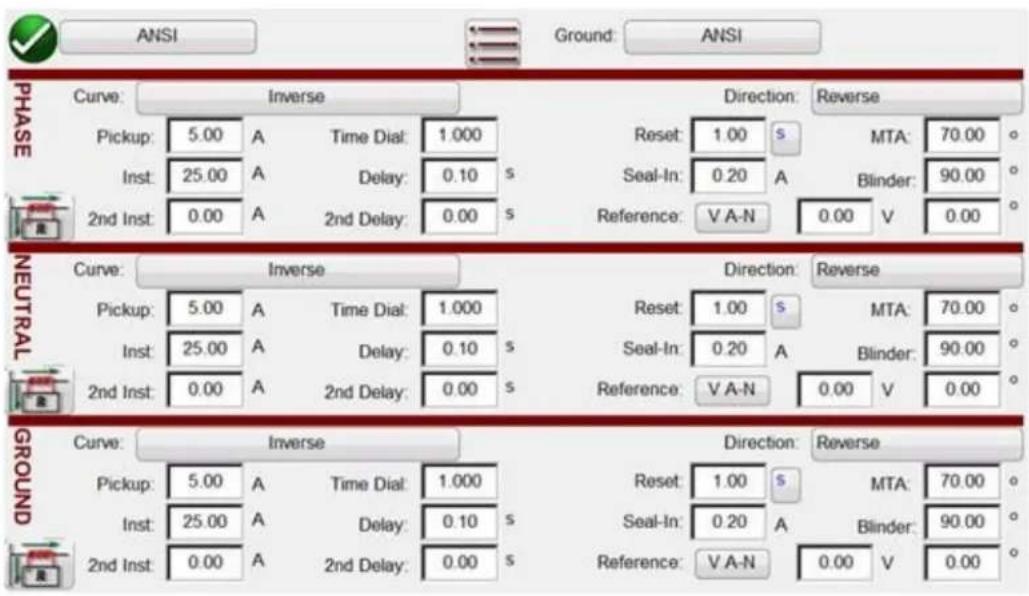
Figure 66 Directional Parameters Screen
Directional: For testing directional overcurrent relays which require a voltage to be applied to polarize and close the directional element, click on the Direction button to provide the directional settings (see Error! Reference source not found.). The user needs to enter the desired fault voltage if required, a
nd set the CT polarity (current in or out of polarity) by clicking on the graphic
This will automatically set the phase angle relationship of either 0 or 180 degrees for the output current relative to the voltage fault.
Reset Time: It is a numerical value of time, normally associated with electromechanical relays. This is the amount of time required for the operating disk to reset. If multiple timing tests are conducted on a relay, the test system will wait the Reset Seconds value prior to applying the next timing test. Numerical relays also can have programmable reset times to coordinate with electromechanical relays. User can
define the Reset time interval among tests in seconds or cycles. The previous selection affects the Delay and 2nd Delay measurement unit.

Figure 67 Reset Time selected by Cycles (Affecting Delay and 2^nd Delay time as well)
Note, if the Reset Seconds is set too short, and the disk does not completely reset, then timing error will be introduced to the test. This note applies only for electromechanical relays.
Reference: Allow the user to define the reference voltage level and angle for directional elements, user can select among voltage per phase or voltage between phase to neutral.
Figure 68 Phase Reference Selection Buttons
MTA (Maximum Torque Angle): The maximum torque angle (MTA) is defined as the angle by which the current applied to the relay must be displaced from the voltage applied to the relay to produce maximum torque.
The voltage reference is used to determine the polarizing signal for the overcurrent directional element. The signal polarizing will be determined by comparing the phase angle between the current from the phase and VA-B or VA-N, and set MTA angle in the relay.
| PHASE | OPERATING SIGNAL | POLARIZING SIGNAL Vpol | |
| ABC PHASE SEQUENCE | ACB PHASE SEQUENCE | ||
| A | Angle of Ia | Angle of Vbc × (Angle of MTA) | Angle of Vcb × (Angle of MTA) |
| B | Angle of Ib | Angle of Vca × (Angle of MTA) | Angle of Vac × (Angle of MTA) |
| C | Angle of Ic | Angle of Vab × (Angle of MTA) | Angle of Vba × (Angle of MTA) |
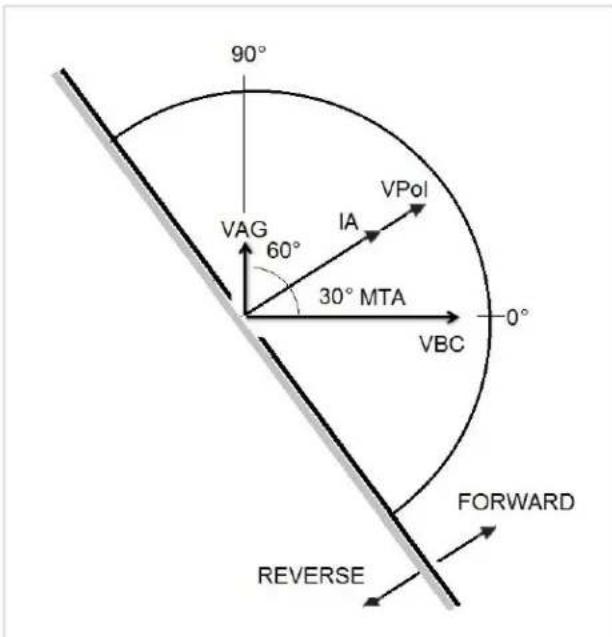
As figure shows for overcurrent directional will operate, when angle current reach the polarizing voltage, this polarizing voltage comes from VA-B reference voltage angle previously configured by user, plus MTA configured in the relay and RTMS software.
VPol = VBC x (1∠ MTA) = Polarizing Voltage
IA = Operating Current
MTA = Element Characteristic Angle at 30°
If user use a reference voltage angle VAG, the current operating will be calculated the same way than VAB reference voltage angle. The relay will operate by comparing the angle between current and polarizing voltage. One more time:
VPol = VAN x (1∠ MTA) = Polarizing Voltage
Blinder: Is the zone limited by the angles between VPol and the angle previously configured by user. Once the Curve type and its parameters (Pickup, Time Dial, Inst, 2 ^nd Inst, Delay, 2 ^nd Delay) and Direction Type and its parameters (Reset, MTA, Blinder, Reference – Elements, Voltage and Angle)
has been selected and configured, the user needs to go back to Run Tests Screen by pressing the
Green Circle Check Button

3.6.1.5 Preparing Tests
Depending on Test Button selected in Element's Overcurrent Tests List, the user will be presented to the proper Test to Run Screen.

line
| # | Multiple | Test Current (A) | Min. Time (s) | Max. Time (s) | E Time (s) | Pass/Fall | |---|---|---|---|---|---|---| | 1 | 2.0 | 10.00 | 1.676 | 1.853 | | | | 2 | 3.0 | 15.00 | 0.716 | 0.792 | | | | 3 | 5.0 | 25.00 | 0.095 | 0.105 | | | | 4 | | | | | | | The chart displays a single line graph (labeled 'Ground Timing') against the x-axis labeled 'Multiples Of Tap'. The y-axis is unlabeled but represents time in seconds. The graph shows a sharp drop in time from approximately 5 seconds at 1 step to near zero at 5 steps, indicating a rapid decay in execution time as the number of steps increases. The label '⑥' appears on the left side of the chart.Figure 69 Test to Run Screen
3.6.1.5.1 Elements' Overcurrent Tests Button

Pressing this button ① the user will be presented to the Timing Test Option List. Pick Up, Instantaneous, Timing and Directional Test Options are available to be selected for Elements (Phase, Neutral and/or Ground).
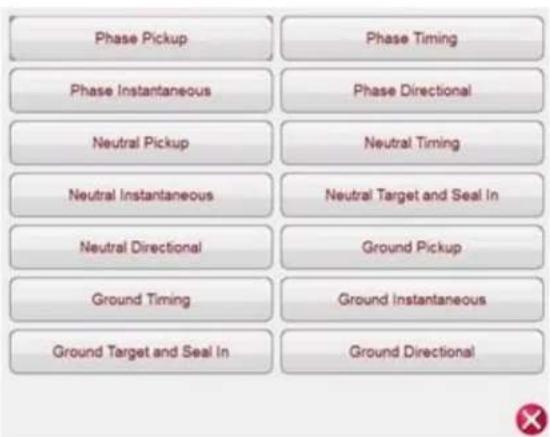
Figure 70 Overcurrent Elements Test List
For elements' overcurrent tests, the user can execute them pressing the Single Blue Arrow Button, it opens the dialog box to choose among the options available. See the following figure.

Figure 71 Phase to Phase Test Selection Screen
This dialog box allows the user to perform phase to phase test individually, three phase test or to perform Run All Phases Tests in a row.
3.6.1.5.2 Nameplate Button

Press this button ② to access to selection of Relay's Manufacturer Brand, Model and Data Screen. Here the user can select the Adjusted Parameters in Specimen under test such as Curve / Pick up / Time Dial / Instantaneous / Delay / Direction. The user will be forced to this Screen when the Megger Relay Test Set is turned on and Current Timing Test Button is selected in order to properly configure the specimen to be tested before any test is performed. The user can re-access to Nameplate button the set another Relay while the set is still on.
3.6.1.5.3 Connection Guidance Button

User can verify if connections were done properly the specific test selected by pressing the Connection Guidance Button ③.

Please connect I1,I2 and I3 to each phase current under test. Please move I1 to the ground current under test for ground tests Please connect V1,V2, and V3 to each phase voltage under test
Figure 72 Connections Instructions Screen
3.6.1.5.4 Battery Simulator Button

The Battery Simulator Button ④ – Turns the Battery Simulator ON and OFF by pressing the button, the background color changes red for ON and gray for OFF. The voltage to be applied is displayed in the button and can be changed by pressing the configuration button
3.6.1.5.5 Binary Input Setting button

Press this button ⑤ to reveal the Binary Input Dialog box.

3.6.1.5.6 View Test Results button
Press or click on this ⑥ button to view or delete current test results.
3.6.1.6 Performing Tests
The system is ready to select and perform tests.
Phase Pickup
3.6.1.6.1 Phase Pickup Button
Press this button to go to Phase Pickup Test Screen
| # | Unit | Setting | Minimum | Maximum | Actual | Pass / Fail |
| (A) | (A) | (A) | (A) | |||
| 1 | A-B | 3.00 | 2.850 | 3.150 | 3.000 | Pass |
| 2 | B-C | 3.00 | 2.850 | 3.150 | 3.000 | Pass |
| 3 | C-A | 3.00 | 2.850 | 3.150 | 3.000 | Pass |
| 4 | ABC | 3.00 | 2.850 | 3.150 | 3.000 | Pass |
Figure 73 Example Phase Pickup Test Screen
Phase Timing
3.6.1.6.2 Phase Timing Button
Press this button to go to Phase Timing Test Screen

line
Manufacturer: GE Model/Curve GE SR745/Very Inverse Phase Timing (click on the # column for options) | Time (s) | 1 | 2 | 3 | 4 | |---|---|---|---|---| | 0.1 | 0.1 | 0.2 | 0.265 | 0.265 | | 0.2 | 0.2 | 0.3 | 0.533 | 0.542 | | 0.5 | 0.5 | 0.6 | 0.543 | 1.301 | | 1.0 | 1.0 | 1.1 | 1.303 | 1.298 | | 2.0 | 2.0 | 6.00 | 1.286 | 1.366 | | 3.0 | 3.0 | 9.00 | 0.507 | 0.567 | | 4.0 | 4.0 | 15.00 | 0.230 | 0.290 | | 5.0 | 5.0 | 15.00 | 0.230 | 0.290 | | 6.0 | 6.0 | 15.00 | 0.230 | 0.290 | | 7.0 | 7.0 | 15.00 | 0.230 | 0.290 | | 8.0 | 8.0 | 15.00 | 0.230 | 0.290 | | 9.0 | 9.0 | 15.00 | 0.230 | 0.290 | | 10.0 | 10.0 | 15.00 | 0.230 | 0.290 | | 11.0 | 11.0 | 15.00 | 0.230 | 0.290 | | 12.0 | 12.0 | 15.00 | 0.230 | 0.290 | | 13.0 | 13.0 | 15.00 | 0.230 | 0.290 | | 14.0 | 14.0 | 15.00 | 0.230 | 0.290 | | 15.0 | 15.0 | 15.00 | 0.230 | 0.290 | | 16.0 | 16.0 | 15.00 | 0.230 | 0.290 | | 17.0 | 17.0 | 15.00 | 0.230 | 0.290 | | 18.0 | 18.0 | 15.00 | 0.230 | 0.290 | | 19.0 | 19.0 | 15.00 | 0.230 | 0.290 | | 20.0 | 20.0 | 15.00 | 0.230 | 0.290 | The chart displays a single line graph of 'Time (s)' over 'Pass/Fail'. The x-axis represents 'Pass/Fail' with values labeled at the bottom, and the y-axis represents 'Time (s)' with values labeled at the top.Figure 74 Phase Timing Test Screen
This screen allow user to run phase time overcurrent test previously configured and see the test results. During the test the user will see the test time vector moving in real time at the desired test multiple. In the left hand side of the test screen the user will the test current being applied and the
timer is running. When the relay trips the test time is recorded and the Pass / Fail evaluation is automatically displayed.
For phase timing overcurrent test, the user can execute them pressing the Single Arrow Button, it opens the dialog box to choose among the options available. The user can change value of the test Multiple by clicking in the desired cell to change the value of multiple (times pickup). To add more test points the user presses or clicks in the blank Multiple window and enters the desired value. The software will automatically calculate the min and max allowable time based upon the manufacturer's time curve. If user runs a phase timing overcurrent test and the test reaches the max time on, then a text box will appear: "max time on exceeded". This means than object under test did not operate.
Phase Instantaneous
3.6.1.6.3 Phase Instantaneous Button
Press this button to go to Phase Instantaneous Test Screen
| # | Unit | Setting | Minimum | Maximum | Actual | Pass / |
| (A) | (A) | (A) | (A) | Fail | ||
| 1 | A-B | 20.00 | 19.400 | 20.600 | 19.733 | Pass |
| 2 | B-C | 20.00 | 19.400 | 20.600 | 19.733 | Pass |
| 3 | C-A | 20.00 | 19.400 | 20.600 | 19.467 | Pass |
| 4 | ABC | 20.00 | 19.400 | 20.600 | 19.600 | Pass |
Figure 75 Example Phase Instantaneous Test results
For phase instantaneous overcurrent tests, the user can execute them pressing the Single Arrow Button

, it opens the dialog box to choose among the options available. When user sets a current test higher than amplifier capability and try to run the test, a warning window will appear explaining why the test won't run. The user can reduce the test requirements or wire channels into a parallel connection. See figure below.

Figure 76 Warning Message
3.6.1.6.4 Phase Directional Button

Press this button to go to Phase Directional Test Screen

pie
Phase Directional | # | m_BG0674 | MTA Setting (deg.) | Min. MTA (deg.) | Max. MTA (deg.) | Blinder1 Angle (deg.) | Blinder2 Angle (deg.) | Actual MTA (deg.) | |---|---|---|---|---|---|---|---| | 1 | ABC | 70.00 | 65.00 | 75.00 | 338.20 | 162.40 | 70.30 | 90 180 278 click on the # column for options)Figure 77 Phase Directional Test Screen
In this screen user can execute the Phase Directional test by pressing the Blue Play button. In the right hand side of the test screen the user will see the test phasor moving in real time, and in the left hand side see the actual test values changing. When the test is completed, the Max Angle of Torque (MTA) is calculated and displayed. Pass / Fail is indicated in the View Test Report by pressing the
View Reports button.
3.6.1.6.5 Neutral Pickup Button
Neutral Pickup
Press this button to go to Neutral Pickup Test Screen
| # | Unit | Setting | Minimum | Maximum | Actual | Pass / |
| (A) | (A) | (A) | (A) | Fail | ||
| 1 | A-N | 5.00 | 4.750 | 5.250 | 5.000 | Pass |
| 2 | B-N | 5.00 | 4.750 | 5.250 | 5.000 | Pass |
| 3 | C-N | 5.00 | 4.750 | 5.250 | 5.000 | Pass |
Figure 78 Example Neutral Pickup Test Screen with results
3.6.1.6.6 Neutral Timing Button
Neutral Timing
Press this button to go to Neutral Timing Test Screen
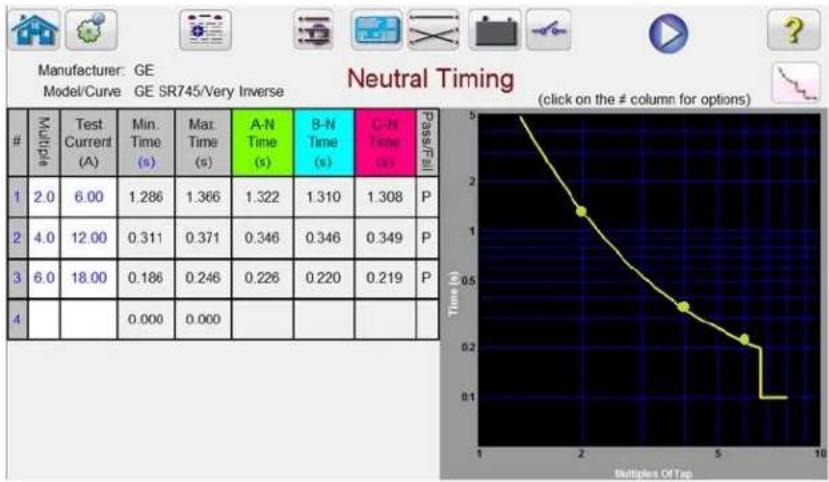
line
Manufacturer: GE Model/Curve: GE SR745/Very Inverse Neutral Timing (click on the # column for options)Multiple Test Current (A) Min. Time (s) Max. Time (s) A-N Time (s) B-N Time (s) C-N Time (s) Pass/Fall
1 2.0 6.00 1.286 1.366 1.322 1.310 1.308 P 2 4.0 12.00 0.311 0.371 0.346 0.346 0.349 P 3 6.0 18.00 0.186 0.246 0.226 0.220 0.219 P 4 Multiples Of Tap Time (s)Figure 79 Example Neutral Timing Test Screen
This screen allows user to run neutral time overcurrent test previously configured and see the test results. During the test the user will see the test time vector moving in real time at the desired test multiple. In the left hand side of the test screen the user will the test current being applied and the timer is running. When the relay trips the test time is recorded and the Pass / Fail evaluation is automatically displayed.
For neutral timing overcurrent test, the user can execute the test by pressing the Single Arrow Button

, it opens the dialog box to choose among the options available. The user can change value of the test Multiple by clicking in the desired cell to change the value of multiple (times pickup). To add more test points the user presses or clicks in the blank Multiple window and enters the desired value. The software will automatically calculate the min and max allowable time based upon the manufacturer's time curve. If user runs a phase timing overcurrent test and the test reaches the max time on, then a text box will appear: "max time on exceeded". This means than object under test did not operate.

3.6.1.6.7 Neutral Instantaneous Button
Press this button to go to Neutral Instantaneous Test Screen
| # | Unit | Setting | Minimum | Maximum | Actual | Pass / |
| (A) | (A) | (A) | (A) | Fail | ||
| 1 | A-N | 20.00 | 19.400 | 20.600 | 19.600 | Pass |
| 2 | B-N | 20.00 | 19.400 | 20.600 | 19.467 | Pass |
| 3 | C-N | 20.00 | 19.400 | 20.600 | 19.600 | Pass |
Figure 80 Example Neutral Instantaneous Test Screen
For neutral instantaneous overcurrent tests, the user can execute them pressing the Single Arrow
Button , it opens the dialog box to choose among the options available. If a user sets a current test higher than amplifier capability and try to run the test, a warning window will appear explaining why it will not run the test (this is because the required test current value is higher than the amplifier capability). The user can reduce the single channel test current requirement or wiring into a parallel connection channels. See figure below.
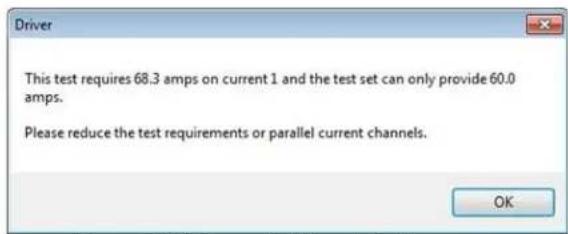
Figure 81 Example Warning Message
Neutral Directional
3.6.1.6.8 Neutral Directional Button
Press this button to go to Neutral Directional Test Screen.
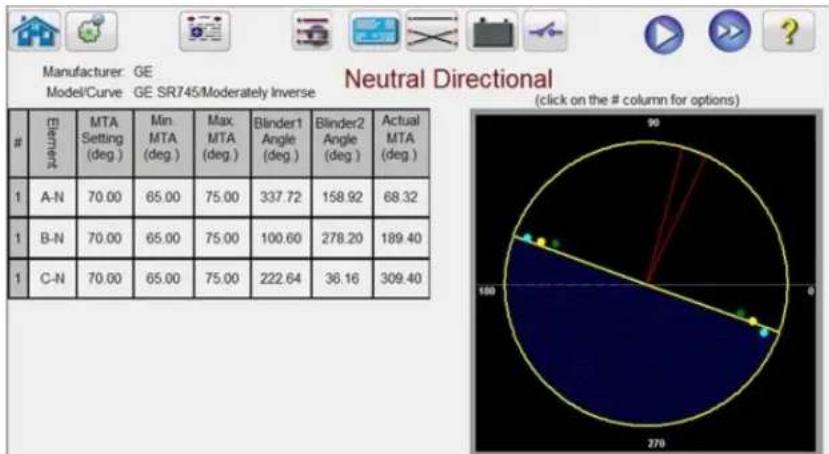
Figure 82 Example Neutral Directional Test Screen
In this screen user can execute the Neutral Directional test by pressing the Blue Play button. In the right hand side of the test screen the user will see the test phasor moving in real time, and in the left hand side see the actual test values changing. When the test is completed, the Max Angle of Torque (MTA) is calculated and displayed. Pass / Fail is indicated in the View Test Report by pressing the View Reports button.
3.6.1.6.9 Ground Pickup Button
Ground Pickup
Press this button to go to Ground Pickup Test Screen
| # | Unit | Setting | Minimum | Maximum | Actual | Pass / |
| (A) | (A) | (A) | (A) | Fail | ||
| 1 | N | 5.00 | 4.750 | 5.250 | 5.000 | Pass |
Figure 83 Example Ground Pickup Test
3.6.1.6.10 Ground Timing Button
Ground Timing
Press this button to go to Ground Timing Test Screen
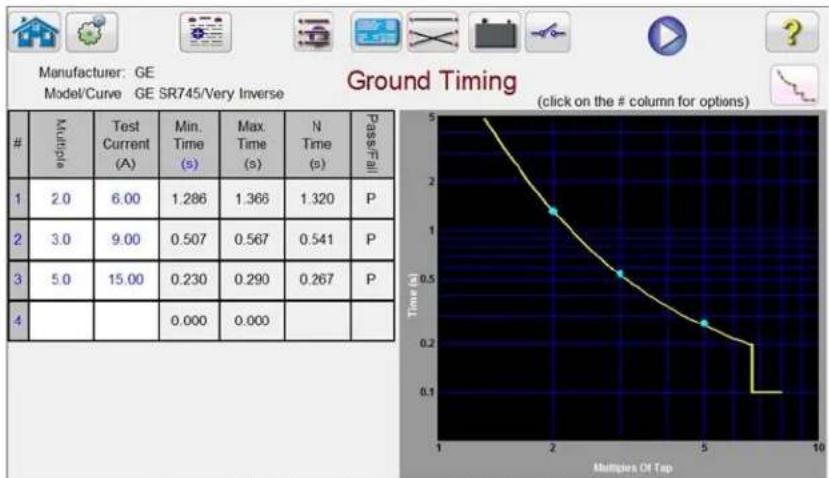
Figure 84 Example Ground Timing Test Screen
This screen allows user to run ground time overcurrent test previously configured and see the test results. During the test the user will see the test time vector moving in real time at the desired test multiple. In the left hand side of the test screen the user will the test current being applied and the timer is running. When the relay trips the test time is recorded and the Pass / Fail evaluation is automatically displayed.
For ground timing overcurrent test, the user can execute the test by pressing the Single Arrow Button

, it opens the dialog box to choose among the options available. The user can change value of the test Multiple by clicking in the desired cell to change the value of multiple (times pickup). To add more test points the user presses or clicks in the blank Multiple window and enters the desired value. The software will automatically calculate the min and max allowable time based upon the manufacturer's time curve. If user runs a phase timing overcurrent test and the test reaches the max time on, then a text box will appear: "max time on exceeded". This means than object under test did not operate.

3.6.1.6.11 Ground Instantaneous Button
Press this button to go to Ground Instantaneous Test Screen
| # | Unit | Setting | Minimum | Maximum | Actual | Pass / |
| (A) | (A) | (A) | (A) | Fail | ||
| 1 | N | 20.00 | 19.400 | 20.600 | 19.600 | Pass |
Figure 85 Example Ground Instantaneous Test Screen
For ground instantaneous overcurrent tests, the user can execute them pressing the Single Arrow
Button, it opens the dialog box to choose among the options available If a user sets a current test higher than amplifier capability and try to run the test, a warning window will appear explaining why it will not run the test (this is because the required test current value is higher than the amplifier capability). The user can reduce the single channel test current requirement or wiring into a parallel connection channels. See figure below.

Figure 86 Example Warning Message
3.6.1.6.12 Ground Directional Button

Press this button to go to Ground Directional Test Screen

pie
Manufacturer: GE Model/Curve: GE SR745/Extremely Inverse Ground Directional (click on the # column for options) | # | ElementRate | MTA Setting (deg.) | Min. MTA (deg.) | Max MTA (deg.) | Blinder1 Angle (deg.) | Blinder2 Angle (deg.) | Actual MTA (deg.) 90 180 270 69.22Figure 87 Example Ground Directional Test Screen
In this screen user can execute the Ground Directional test by pressing the Blue Play button. In the right hand side of the test screen the user will see the test phasor moving in real time, and in the left hand side see the actual test values changing. When the test is completed, the Max Angle of Torque
(MTA) is calculated and displayed. Pass / Fail is indicated in the View Test Report by pressing the
View Reports button.
3.6.1.6.13 Electromechanical Relay Tests

Figure 88 Electromechanical Overcurrent Relay Settings Screen
Ground box (in the upper right hand corner) appears when Electromechanical Button is selected. In this screen the user can select manufacturer brand and model of the electromechanical relay to be tested. The user can also set the value of Seal-In. Once the Seal-In Value is determined, the user needs to go back to Run Tests Screen by pressing the Green Circle Check Button located in top left corner of screen.
3.6.1.6.13.1 Ground Target and Seal-In Button

Press this button to go to Ground Target and Seal-In Test Run Screen
| Target and Seal In | ||||||||
| # | Unit | Pickup (AC output = 7.50 A) | Drop Out (AC output = 0.00 A) | Pass/Fail | ||||
| Minimum (DC Amps) | Maximum (DC Amps) | Actual (DC Amps) | Minimum (DC Amps) | Maximum (DC Amps) | Actual (DC Amps) | |||
| 1 | E | 0.12 | 0.21 | 0.20 | 0.02 | 0.05 | 0.04 | Pass |
| Please connect Channel 1 output current (AC) to the induction unit and Channel 2 output current (DC) to the trip contact unit of the relay | ||||||||
Figure 89 Example Ground Target and Seal In test screen
The software will show a warning message with the Connection Guidance that need to be verified prior to running the test. Since there are no readily available contacts to monitor, the user will be
instructed to press the simulate button during this test when contacts close and open. Pressing the blue play button a message window will appear instructing the user to press the simulate button when the relay trip contacts close. DC current will then be applied to the DC target and seal-in unit. Another message will instruct the user to press the simulate button when the DC target drops / picks up. Another message will appear instructing the user to press the simulate button when the DC targets drops out as the DC current is lowered.
3.6.1.6.13.1 Neutral Target and Seal-In Button
Neutral Target and Seal In
Press this button to go to Neutral Target and Seal-In test screen.
| Target and Seal In | ||||||||
| # | Unit | Pickup (AC output = 7.50 A) | Drop Out (AC output = 0.00 A) | Past/Fall | ||||
| Minimum (DC Amps) | Maximum (DC Amps) | Actual (DC Amps) | Minimum (DC Amps) | Maximum (DC Amps) | Actual (DC Amps) | |||
| 1 | L1 | |||||||
Figure 90 Example Neutral Target and Seal in test screen
The software will show a warning message with the Connection Guidance that need to be verified prior to running the test. Since there are no readily available contacts to monitor, the user will be instructed to press the simulate button during this test when contacts close and open. Pressing the blue play button a message window will appear instructing the user to press the simulate button when the relay trip contacts close. DC current will then be applied to the DC target and seal-in unit. Another message will instruct the user to press the simulate button when the DC target drops / picks up. Another message will appear instructing the user to press the simulate button when the DC targets drops out as the DC current is lowered.
3.5.7 Timing Test - Voltage Relays
Tests should be conducted in accordance with the manufacturers relay specifications. Following the Timing Test setup described in 3.5.6, returning to the Timing Test Screen the user will see something similar to the following figure.

other
| Current | A (A) | φ (°) | f (Hz) | | :--- | :--- | :--- | :--- | | I1 | 0.000 | 0.00 | 60.000 | | I2 | 0.000 | 120.00 | 60.000 | | I3 | 0.000 | 240.00 | 60.000 |Figure 91 Example Voltage Timing Test – ABB/Westinghouse CV-2 Under Voltage Relay
Note: The RTMS software will automatically set the output frequency to the frequency set in the Configuration screen. If required change the frequency in the test screen.
Multiple – This is the multiple of the Pickup or Tap value that will be applied to the relay under test. The user is free to change the values to any desired multiple. For Under Voltage relays the Test Multiple is in percent less of the Pickup or Tap value, i.e. 85%. For Over Voltage relays the Multiple is greater than Tap, i.e. 110%.
Timing Test
-
Press the Timing icon, and select the desired voltage relay in the Setup Screen. Enter the settings as described above in section 3.5.6.
-
For voltage relays set the rated voltage to the relay by pressing the appropriate magnitude window, and using the numeric keypad, enter the value, i.e. 120 Volts. Connect the appropriate output terminal for the selected channel to be used. Select the voltage channel by pressing the ON/OFF icon button, and turn the outputs ON by pressing the All ON/OFF button. With rated voltage now being applied to the relay the trip contacts will open and the relay will be in the normal prefault mode.
-
Connect the desired Binary Input terminal to sense the relay trip contacts. Press the selected Binary Input. If the Binary Input is already set to Use as Trip (enabled), select for the appropriate sensing Normally Open, Normally Closed, Voltage Applied, or Voltage Removed. If the Binary Input is set to monitor mode, Use as Trip (disabled), press or click on the button to change it to Use as Trip (enabled), see Figure 18B, and select Input Type and Input Action as desired. If it is desired to turn the outputs off when the relay trips press the Auto Off (disabled) button and select the desired channels to turn off.
-
Press the Play button under the desired test Multiple. The Fault value will be applied. When the relay trips, the Timer will stop indicating the trip time directly under the test Multiple. If the Reset Time is not zero, pressing the first play button will execute each of the test multiples in order with the Reset Time between each test.
To View the test result, press the Add to Reports button. The user can now enter appropriate information relative to the test in the Test Report header.
3.5.8 State Sequence Timing Test – Multi-Shot Reclose Relays

These tests should be conducted in accordance with the manufacturers relay specifications.
Press the Test List button to get access to the State Sequence Test. Pressing the button on the test menu takes the user to the Sequence Timing Test Screen defined in the following screen.
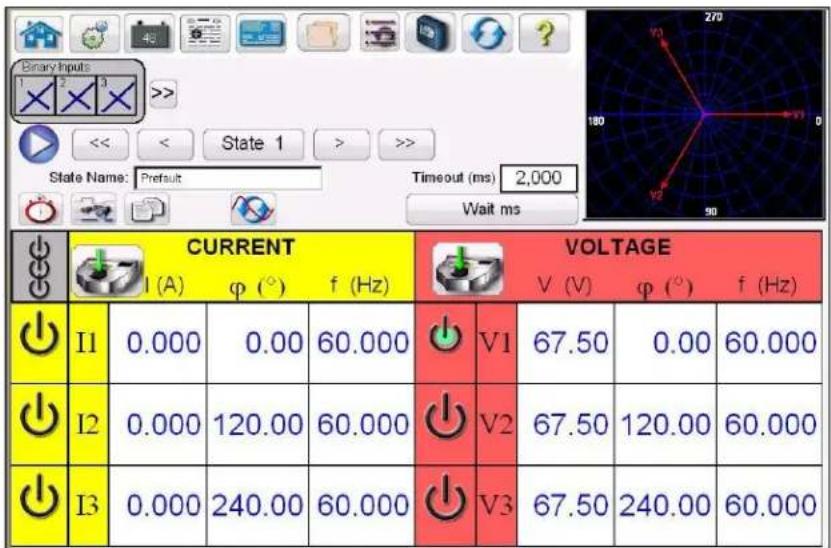
Figure 92 Sequence Test Screen
There are 15 programmable steps available in the Sequence Test Screen. By default, there are 9 states already preconfigured and labeled as Prefault, Trip1, Reclose 1, etc. up to Lockout in step 9. It is initially setup for a four shot trip, reclose to lockout scenario. Another test application is a developing fault scenario, or use to perform dynamic end-to-end tests. The user is free to change the labels, or use the default labels. With each state the user may input values of voltage, current, phase angle, frequency and set the binary input sensing for each state. Both single pole and three pole trip can be simulated. There are default values and binary settings for a single phase trip and reclose scenario already programmed in. The user can either use the defaults or change them to suit the test application, as well as extend or shorten the number of states. Press the Timers button 📋 to view the Sequence Timer Configuration screen and Labels. The user can view and set where each timer starts and stops in association with each trip and reclose operation (see the following figure).
| TIMER | ||||||
| # | Name | Min. (sec.) | Max. (sec.) | Value (sec.) | Start on: | Stop on: |
| 1 | Trip Time 1 | State 2: Trip 1 | State 3: Reclose 1 | |||
| 2 | Reclose Time 1 | State 3: Reclose 1 | State 4: Trip 2 | |||
| 3 | Trip Time 2 | State 4: Trip 2 | State 5: Reclose 2 | |||
| 4 | Reclose Time 2 | State 6: Reclose 2 | State 8: Trip 3 | |||
| 5 | Trip Time 3 | State 8: Trip 3 | State 7: Reclose 3 | |||
| 6 | Reclose Time 3 | State 7: Reclose 3 | State 8: Trip 4 | |||
| 7 | Trip Time 4 | State 8: Trip 4 | State 9: Lockout | |||
| 8 | Total To Lockout | State 2: Trip 1 | State 9: Lockout | |||
| 9 | ||||||
| 10 | ||||||
Figure 93 Sequence Timers Settings and Labels Screen
Note that the Total Time to Lockout is also included in the setting and indicates where the total timer starts and stops. This allows for 1, 2, 3, 4 or more shots to lockout including reclose times. To change the Start and Stop conditions, press or click the appropriate windows. Start or Stop can be set using either the change of State, or Post, see the following figure.

Figure 94 Timer Conditional State Post Selector
Pressing State the user will be presented with the number of States that were previously set by the user. The user can start or stop the timer when the sequencer steps to that State. Pressing Post, the timer will start or stop based upon the change of the defined binary input Post #, see section 3.1.10 for use of the Binary Input Dialog box. If desired, enter the appropriate minimum and maximum trip and reclose times in the spaces provided. At the end of the test, the test results will include the min, max, and Pass/Fail determination for each state.
Return to the Sequence test screen, to set the conditions for each change of state. Press the Wait Any button directly under the Timeout window. The user will be presented with several selections to choose from. These are the conditions that the unit will take in order to determine when to change to the next state, or end the sequence, see the following menu selection.
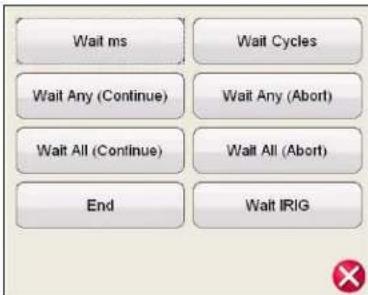
Figure 95 State Sequence Conditional Setting Screen
Wait ms – The unit will wait the milliseconds entered in the window before changing to the next state in the sequence.
Wait Cycles – The unit will wait the Cycles entered in the window before changing to the next state in the sequence.
Wait Any (Continue) – Wait for any of the configured binary inputs to be true and then continue with the sequence. Note that an input can be configured for the Wait Any (OR) and Wait All (AND) conditions by clicking on the binary inputs.
Wait Any (Abort) – The unit will wait for any of the configured binary inputs to be true, and then continue with the sequence. If no binary inputs become true before the Timeout setting value, the test will be aborted. Note that the timeout feature is only available for SMRT and MPRT8445 test sets (not available on MPRT 8415/8430 units).
Wait All (Continue) – Wait for all selected binary input conditions to become true, or the Timeout is exceeded before continuing to the next state.
Wait All (Abort) – Wait for all selected binary input conditions to become true, or the Timeout is exceeded before continuing to the next state. If all selected binary inputs have not become true by the Timeout setting value, abort the test.
Wait IRIG – Connect the IRIG-B time source to Binary Input #1. Binary Input #1 has the capability to decode the IRIG-B time. Select the Wait IRIG, and enter the desire time to start the test. The unit will wait the IRIG Time entered in the IRIG window before changing to the next state in the sequence (used for end-to-end tests).
End – If the relay under test makes it to this state, end the test.
To set the Binary Outputs to simulate the 52a and/or 52b contacts press the Binary more button next to the Binary Inputs to expand the selection window. In the prefault state you may choose to have Binary Output 1 contact in the closed condition to simulate breaker closed. Click on Binary Output 1 and the binary output setting window will appear. The default setting is Open. Click on the Close Contact Button to simulate breaker closed. Note the Name in the window is defaulted to 1. The user is free to rename it to any value such as 52a. To rename the binary inputs or outputs, press or click in the Name window, and the virtual keyboard will appear. Up to 6 characters will appear in the binary window in the test screen. Press or click on the green check button to return to the test screen.

Figure 96 Binary Output Setting Screen
Once all of the Binary Inputs, Outputs, Prefault, Fault and Reclose settings are completed, the user can then press the Preview button to get a visual representation of the voltage and current outputs, as well as a visual of the binary inputs and outputs for each stage of the simulation. The following figures illustrate an example trip and reclose sequence.
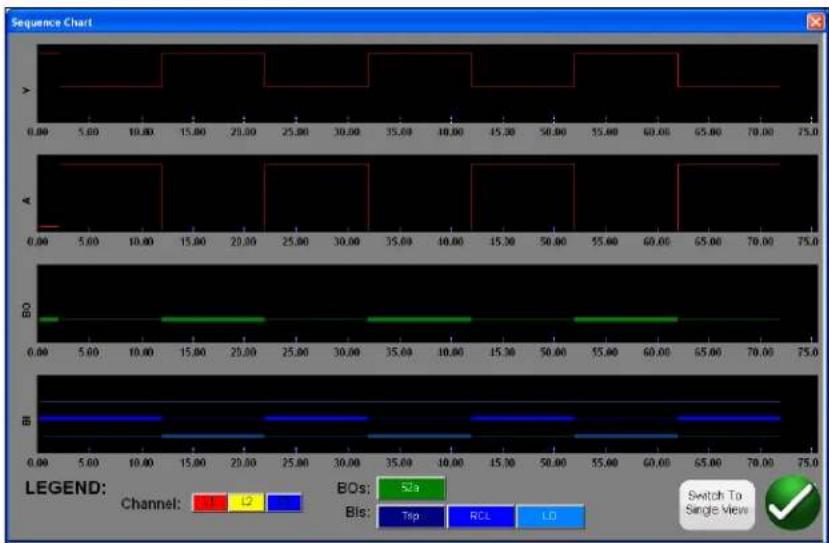
line
| Channel | Value | |---------|-------| | L2 | 0.00 | | S2a | 35.00 | | Top | 35.00 | | RCL | 35.00 | | LD | 35.00 |Figure 97 State Sequence "Split View" Preview Screen
There are two views available to the user. One view is called the "Single View" where all the voltages, currents, binary inputs and outputs are overlaid. In the above figure a single phase 4 trip and reclose is shown in the "Split View", where the voltages, currents, binary inputs and outputs are split up like a fault recording. The red color is the magnitude of Channel 1(faulted phase) voltage and current outputs. The fat/thin lines represent the binary inputs and outputs per the colors defined in the legend. A "fat" line indicates contacts are closed, and a thin line indicates that the contacts are open. When the fault current is applied, you can see when the trip contacts closed and when the binary output contact opened. When the "breaker" opens you can see the current going to zero. When the breaker closes you see the current being reapplied and then repeat the trip and reclose cycle until lockout.
The user can toggle back and forth between the two views by pressing the Switch to Single View/Split View button in the lower right corner of the screen. To exit this screen, press the green check button to return to the State Sequence screen.
To execute the test press the Blue play button. Save and review test results as previously discussed.
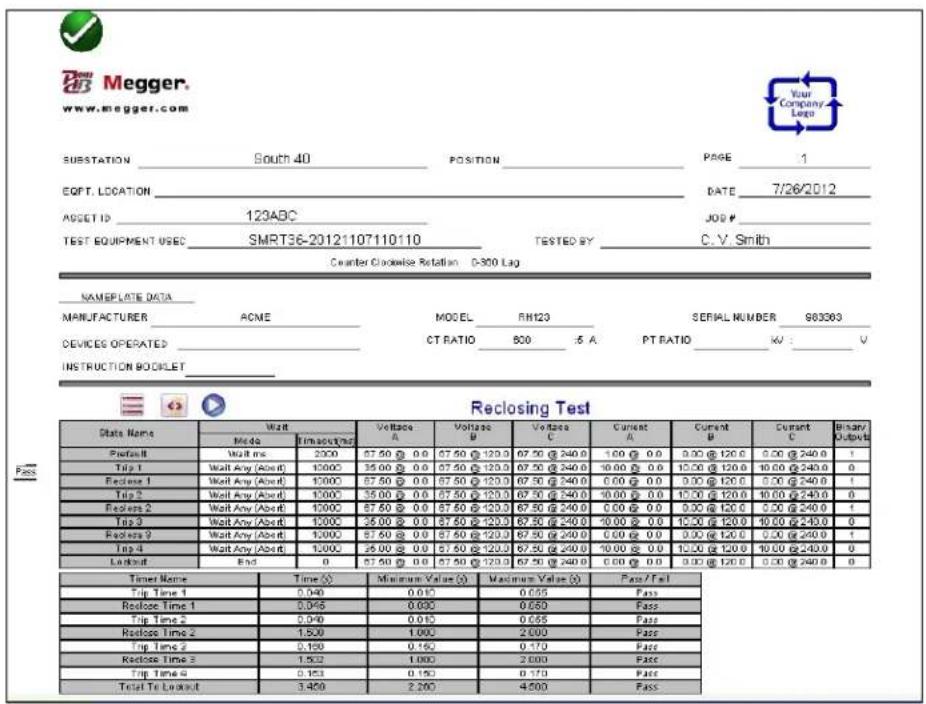
Figure 98 Example Sequencer 4 Shot Trip and Reclose
3.6 Testing Impedance Relays
There are two methods provided in the RTMS software. The method providing the most flexibility and complete test capability is the Click On Fault (CoF) represented by the button. The second
method is referred to as Easy Z represented by the button, providing a. more manual approach to performing basic impedance relay tests. The first method discussed will be the Click On Fault.
Press the Test List button to get access to the Impedance Relay Click On Fault. Then press the
Impedance Relay Click On Fault button. Select from; the Relay Library Button, or the RIO
RIO Button. Pressing the Relay Library will provide a library of relay specific characteristics by various manufacturers as well as Generic. Pressing the Generic button will provide a library of generic impedance relay characteristics to choose from. Pressing the RIO button multiple characteristics that exist in RIO file formats may also be imported and used in the COF Test Screen.
3.6.1 Common Settings
The following settings are common to both Generic and Relay Specific from the Relay Library.
3.6.1.1 Tolerance Settings

Figure 99 Tolerance Settings Dialog Box
Enter Maximum and Minimum Percentages, or enter the maximum and minimum Ohmic and Time values for Pass / Fail evaluation of the test results. Z = % of Impedance in Ohms, and Time values are in % of Expected Trip Time setting. Press on the Z Or, and/or, the t Or button, and the buttons will change to read Z Plus and t Plus, which will be a summation of the two values. When performing pickup tests using Pulse Ramp if a time is entered into the Expected Trip Time window the software will record the trip time as well as the pickup value.
Application Note: To save time, if the tolerance is the same for all zones, enter the tolerance values once, then press the Copy Tolerance to All Zones button, then press the Paste Tolerance to All Zones.
3.6.1.2 Zone Trip Time Settings

Enter expected trip time for each Zone of operation. Settings are defaulted in milliseconds. To change to Cycles click on the ms and it will change to cy for Cycles. When conducting reach tests using Pulse Ramp the software will capture the operating time of the pickup and compare to the expected trip time and provide pass/fail indication.
3.6.1.3 DIRECTION Setting Button
Direction (forward)
The default setting is in the FORWARD direction. Pressing the button will present the user with four selections, OFF, FORWARD, REVERSE, (and with QUAD, NON-DIRECTIONAL). Selecting REVERSE will flip the operating characteristic over in the reverse direction. For QUAD test applications, selecting the NON-DIRECTIONAL will create dual characteristics for the selected zone, one in the forward and one in the reverse direction.
3.6.1.4 Zones/Fault Selection Box

Figure 100 Zone and Fault Type Selection Dialog Box
The user can select which Zone they wish to define, with up to 20 Zones selectable. When more than one Zone is defined; to view multiple zones all in the same graphic window press the multi-zone display button. When pressing the icon the background color will change and you will see the multiple zones displayed in the impedance plane display. Touch the window again and it will return to single zone display format. The user can define LL- Phase to Phase fault, 3P- 3 Phase Fault, or LN- Phase to Ground fault.
Application Note: To save time, enter the reach and angle settings once, then use the Copy Zone copy zone button, then select one of the other fault types and press the Paste Zone button and all of the values entered for the previous fault type will be entered for the other fault type. Note this should be limited to only same zone fault types. Selecting LN phase to ground will provide an additional button to enter the appropriate Ground Compensation factors, see Ground Compensation Settings.
3.6.1.5 Ground Compensation Settings
Ground Compensation
In the Generic screen there are three types of compensation factors to choose from depending on the type of impedance characteristic. For MHO and Half MHO, KN and Z0Z1 are available.
Residual compensation factor, KN, is a complex number that is used to express the earth-return impedance, ZN, in terms of the positive-sequence impedance reach setting, Z1. This factor is calculated as:
$$ \mathbf {K N} = \mathbf {Z N} / \mathbf {Z 1} = (\mathbf {Z 0} - \mathbf {Z 1}) / (3 \mathbf {Z 1}) $$
Where: Z0 is the zero-sequence impedance polar reach of the zone
Z0Z1 Ratio = the complex ratio of Z0/Z1, also referred to as K0=Z0/Z1
For QUAD (quadrilateral) there are three choices: KN, Z0Z1, and RE/RL XE/XL.
RE/RL XE/XL is a pair of scalar factors. These factors affect the resistive reach and reactive reach of some polygon characteristics. They are calculated as follows:
RE/RL = (R0/R1 - 1)/3
XE/XL = (X0/X1 - 1)/3
Where:
R1 = real part of Z1
X1 = imaginary part of Z1
R0 = real part of Z0
X0 = imaginary part of Z0
Press the Ground Compensation button and the following settings window will appear.

Figure 101 Ground Compensation Settings Dialog Box
The default screen is for KN. To enter Z0Z1 or RE/RL XE/XL values press the Type (KN) button. Where the compensation factors are part of the relay settings (such as the Relay Library AREVA Quadramho) the Compensation button will not be provided, but the values will be calculated based upon the actual relay settings. Enter the magnitude and angle for the appropriate compensation value, and the RTMS software will calculate the relay operating characteristic and appropriate test values in the test window.
3.6.1.6 CT PT Ratios
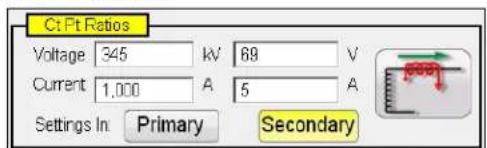
The Primary and Secondary buttons control the scaling in the impedance graph, and are associated with the CT and PT values entered. Enter the appropriate primary and secondary values. Press either the Primary or Secondary buttons and the ohmic scaling will change in the impedance graph. The polarity of the CT can also be set in this window.
3.6.2 Generic Characteristics
Pressing the Generic Characteristics button will provide three options, MHO, Half MHO and QUAD (Quadrilateral).

Selection of the MHO will provide the Generic MHO Setting Screen.
3.6.2.1 Generic MHO Setting Screen

Figure 102 Generic MHO Setting Screen
There are three basic settings, REACH, ANGLE, and OFFSET that will define the relay operating characteristic. REACH is a value in Ohms. ANGLE is a value in degrees normally associated with the maximum torque angle, line, or characteristic angle setting of the relay. OFFSET is a value in Ohms indicating either positive or negative offset. Pressing the Load Encroachment Edit button will reveal the Load Encroachment settings screen.
3.6.2.1.1 MHO Load Encroachment Setting Screen
For relays with Load Encroachment characteristics in the longer reaching zones of operation, pressing the Load Encroachment Edit button will reveal an appropriate settings dialog box.

flowchart
graph TD
    A["Load Encroachment"] --> B["Vertical"]
    B --> C["3P Enabled ✓"]
    C --> D["LL Enabled ✓"]
    D --> E["LN Enabled ✓"]
    E --> F["Apply Ground Compensation ✓"]
    F --> G["Putative Load Forward: 5"]
    G --> H["Putative Load Angle Forward: 30"]
    H --> I["Negative Load Angle Forward: 330"]
    I --> J["Putative Load Reverse: 5"]
    J --> K["Putative Load Angle Reverse: 150"]
    K --> L["Negative Load Angle Reverse: 210"]
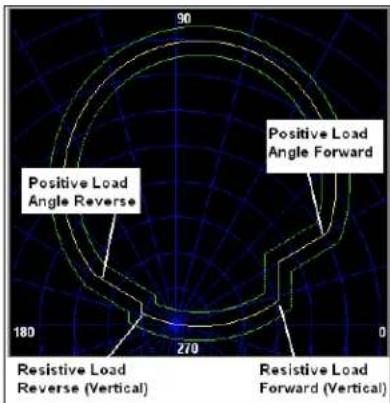
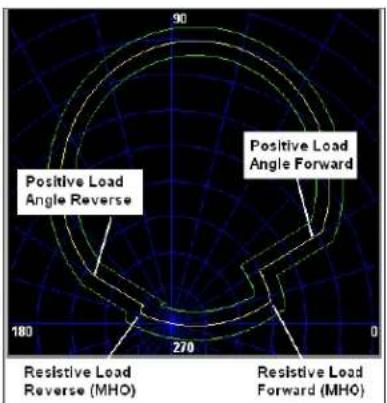
Figure 103 Load Encroachment Settings and Examples
The setting screen defaults to Vertical characteristic. Press the Vertical button to select for a MHO characteristic. To enable selective fault types, press the appropriate button. It will change to yellow background and a checkmark will appear in the box. Enter the appropriate ohmic values and angles to achieve the desired characteristic.
3.6.2.2 HALF MHO Setting Screen

Figure 104 Half MHO Setting Screen
There are six basic settings, MAX REACH, ANGLE, OFFSET, OFFSET ANGLE, RIGHT BLINDER, and LEFT BLINDER that will define the relay operating characteristic. MAX REACH is a value in Ohms. ANGLE is a value in degrees normally associated with the maximum torque angle, line, or characteristic angle setting of the relay. OFFSET is a value in Ohms indicating either positive or negative offset. OFFSET ANGLE is a value in degrees, which may be different from the ANGLE setting. This setting is normally associated with the directional offset mho setting. RIGHT BLINDER and LEFT BLINDER are values in degrees associated with blinder elements along the right and left sides of the original half MHO characteristic, and are angles relative to the ANGLE setting (note the
default of 90 degrees or a right angle relative to the ANGLE setting). Virtually any MHO / OHM type characteristic can be molded using a combination of the BLINDER values ranging from pie shape to something greater than a Half MHO up to an OHM characteristic.
3.6.2.3 QUAD Setting Screen

Figure 105 Generic QUAD Setting Screen
There are eight basic settings, X, R, -X, -R, RCA, -X Angle, -R Angle, and Blinder Angle that will define the relay operating characteristic. X and R are values in Ohms associated with the X and R axis, in an RX Impedance plane. The R value is normally referred to as the Positive Resistive Reach. The X value is normally referred to as the Positive Reactance Reach. The –X and –R are values in Ohms associated with –X and –R setting when the DIRECTIONAL setting is either set to NON-DIRECTIONAL or REVERSE settings. The –R value is normally referred to as the Negative Resistive Reach, and the –X value is normally referred to as the Negative Reactance Reach. The RCA is a value set in degrees normally associated with the maximum torque angle, line angle, or positive impedance characteristic angle setting of the relay. The -X and –R Angles are values in degrees normally associated with the Directional Characteristic Angles. Blinder Angle is a value in degrees, sometimes referred to as the Tilt Angle or a variant of the Positive Reactance Angle.
3.6.2.3.1 QUAD Load Encroachment Setting Screen
For relays with Load Encroachment characteristics in the longer reaching zones of operation, pressing the Load Encroachment Edit button will reveal the following settings dialog box.
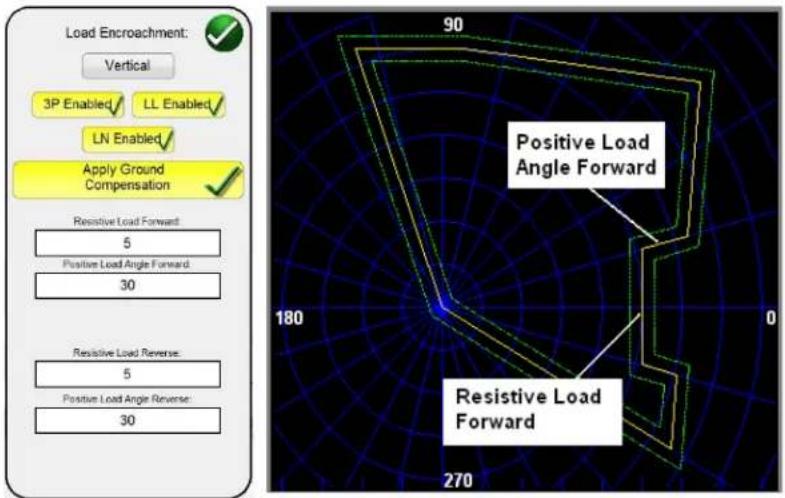
Figure 106 Example Load Encroachment Setting Screen for Generic QUAD
To enable selective fault types press the appropriate button. It will change to yellow background and a checkmark will appear in the box. Enter the appropriate ohmic values and angles to achieve the desired characteristic.
3.6.3 Relay Library Files
Pressing the Relay Library button will provide a selection window containing relay specific impedance characteristics listed by relay manufacturer and Model identifier. Future software updates will include more relay specific library files; see Upgrading RTMS software for more information on downloading RTMS software from the Megger website.
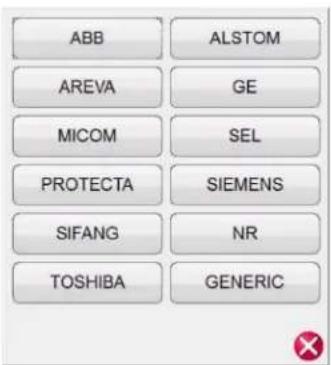
Figure 107 Relay Library Selection Screen
Select the desired relay and then enter the relay manufacturer's settings and the operating characteristic will be created from the settings entered. Some relays also support XRIO files, where the relay settings can be imported into the setting screen, see XRIO Setting Import. Note that specific relays have different characteristics depending on user input. Where a relay may have multiple characteristics, selection buttons will be provided to choose from. For example, the Schweitzer model SEL 311 and General Electric UR D60 relays have a selection for either Mho or Quad characteristics. The setting nomenclatures change with the selection of either Mho or Quad, and either Phase to ground or Phase to Phase selections.
3.6.3.1 XRIO Relay Settings Import
XRIO files are created by software from various relay manufacturers. Some specific relays in the Relay Library include the ability to import the XRIO relay settings, and create the relay operating characteristics from these settings. A couple of examples are the ABB REL-670 V2, and Siemens 7SA632 V4.6. To import the relay settings using the XRIO import click on the relay manufacturer, click on the relay, i.e. Siemens, 7SA632 v4.6. Upon clicking on the relay, the Settings window will appear, see the following figure. If the XRIO file import is supported for that relay an XRIO button will appear in the right hand corner of the window. Click on the XRIO button and navigate to the 7SA632 V4.6 XRIO file ^1 , and click on the file. A message window will appear informing you once the settings import has been completed.
| Setting Name | Value | Min Value | Max Value | Comments |
| Min Percent Timer Tol. | 5.000000 | Percent of the expected trip time under the expected | ||
| Min Seconds Timer Tol. | 0.100000 | Number of seconds under the expected trip time allc | ||
| Max Percent Timer Tol. | 5.000000 | Percent of the expected trip time over the expected 1 | ||
| Max Seconds Timer Tol. | 0.100000 | Number of seconds over the expected trip time allow | ||
| Timer Tol. Calc. Method | OR | OR = Greater of Percent or Seconds: AND = Percent | ||
| PP Min Percent Z Tol. | 5.000000 | Percent Z inside the characteristic that is allowed. | ||
| PP Min Z (ohms) Tol. | 0.010000 | Z (ohms) inside the characteristic that is allowed. | ||
| PP Max Percent Z Tol. | 5.000000 | Percent Z outside the characteristic that is allowed. | ||
| PP Max Z (ohms) Tol. | 0.010000 | Z (ohms) outside the characteristic that is allowed. | ||
| PP Z Tol. Calc. Method | OR | OR = Greater of Percent Z or Z (ohms); AND = Perc | ||
| Gnd Min Percent Z Tol. | 5.000000 | Percent Z inside the characteristic that is allowed. | ||
| Gnd Min Z (ohms) Tol. | 0.010000 | Z (ohms) inside the characteristic that is allowed. | ||
| Gnd Max Percent Z Tol. | 5.000000 | Percent Z outside the characteristic that is allowed. | ||
| Gnd Max Z (ohms) Tol. | 0.010000 | Z (ohms) outside the characteristic that is allowed. | ||
| Gnd Z Tol. Calc. Method | OR | OR = Greater of Percent Z or Z (ohms); AND = Perc |
Figure 108 Siemens XRIO Relay Settings Import
3.6.4 RIO Files
Pressing the RIO button will provide a selection window containing specific relays listed by relay manufacturer and Model identifier ^2 .
RIO files are created using relay and relay test software by various manufacturers. They may be considered to be Relay Impedance Objects, but are also allocated to other characteristics such as families of time-amplitude. RIO files constitute data for the characteristics of a particular relay with specific settings. Some or all the characteristic types may be created in the file and the characteristic relay settings will be included. I.e., the RIO files are relay specific to the settings of the relay when the RIO file is created; the discrete settings are neither displayed nor adjustable. Once the relay is selected it will take the user to the Click On Fault Configuration Screen.
3.6.5 Impedance - Click On Fault Configuration Screen
After selection of either a Generic or a Library relay specific impedance characteristic, and entering the appropriate impedance settings for each of the specific Zones to be tested, press the green check button which will take the user to the Click On Fault Configuration Screen.
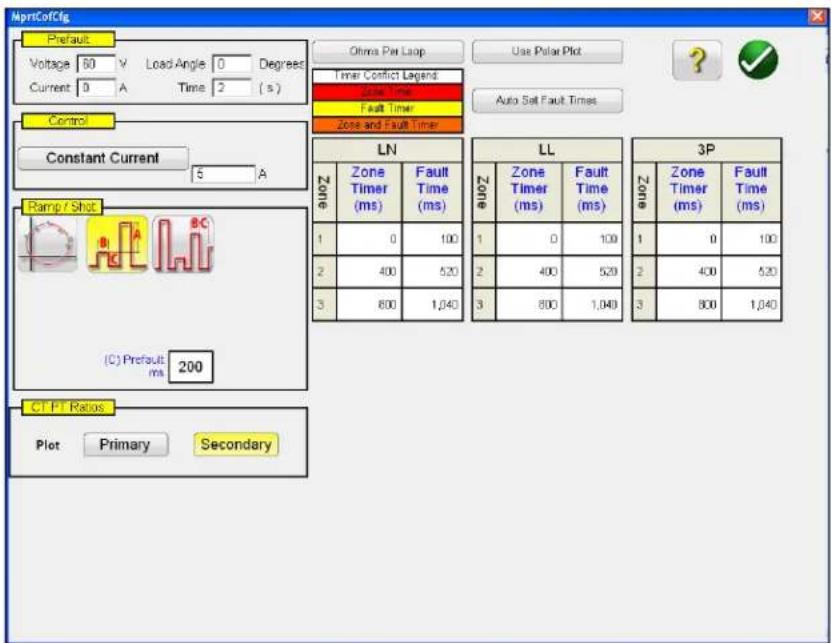
Figure 109 Impedance Relay, Click On Fault Configuration Screen
3.6.5.1 Prefault Dialog Box
The prefault values will be applied to the relay under test prior to ramping. If using Pulse Ramp the prefault values will be applied between each pulse increment. The Prefault Dialog box contains four edit fields:
Voltage – Enter a value of Voltage to be set
Current – Enter a value of Current to be set
Load Angle – Enter a value for a Load Angle to be set
Time – Enter the desired time prior to applying the first test point
3.6.5.2 Control Dialog Box
This dialog box provides the user with a selection of different methods to perform the tests. Some manufacturers require Constant Voltage and ramp current, some require Constant Current and ramp voltage. In addition, the user may also select Constant Source Impedance.
Constant Voltage - Enter the value of volts to be held constant for all Fault Types tests under execution. Default value is 5.0.
Constant Current - Enter the value of amperes to be held constant for all Fault Types tests under execution. Default value is 1.0.
Constant Source Z- There are two forms of Source Impedance; Ohms and Angle, or R and X. Enter the value of ohms and angle of source to be held constant for all Fault Types tests under execution, or enter the R and X values where;
R: the Cartesian resistive equivalent of the impedance [Z] and its angle Phi
X: the Cartesian reactive equivalent of the impedance [Z] and its angle Phi
3.6.5.3 Ramp/Shot Options
This dialog box provides three different ways to determine the operating characteristic of impedance relays. Shots are used to create one or more test points to replicate a fault at a particular magnitude
and angle. Trip (inside the operating characteristic) and/or No-Trip (outside the operating characteristic) points may be selected for each Fault Type. Selection of the type of Ramp is dependent on the relay. To test Multi-Zone relays use either the Pulse Ramp or Pulse Ramp Binary Search. The software will automatically calculate the increment required in volts, amps and phase angle. The Pulse Ramp and Pulse Ramp Binary Search also include a Prefault setting in milliseconds. This is the time that the prefault values will be applied between fault increments.
3.6.5.4 CT PT Ratios
This dialog box provides user selection for plotting the operating characteristic in either Primary or Secondary Ohms.
3.6.5.5 Polar/Rectangular Plot Button
This dialog box provides user selection for plotting the operating characteristic in either Polar or Rectangular coordinates.
3.6.5.6 Auto Set Fault Times button
This button works in conjunction with the Zone Timer settings window. You can change the Zone Trip and Fault Times by touching the appropriate setting window for the selected Zones. Pressing the Auto Set Fault Times button will automatically set the amount of time the fault will be applied to the relay. The Fault time is set in milliseconds, and automatically set to a value higher than the Expected Trip Time (just long enough for the zone being tested to operate, but not for other zones).
3.6.5.7 Ohms Per Phase/Per Loop button
This button works in conjunction with the Click On Fault Test Screen. For relays that use Loop Impedance Zero Sequence Compensation, press this button to read Ohms Per Loop to change the display to represent Ohms Per Loop.
3.6.6 Impedance - Click On Fault Test Screen
After selection of either a Generic or a Library relay specific impedance characteristic, and entering the appropriate impedance settings for each of the specific Zones to be tested, press the green check button which will take the user to the Click On Fault Test Screen.

Figure 110 Impedance Relay, Click On Fault Test Screen
3.6.6.1 ① RIO button
Pressing the RIO button will provide a selection window containing specific relays listed by relay manufacturer and Model identifier ^3 .
3.6.6.2 ② Relay Library button

Pressing the Relay Library will provide a library of relay specific characteristics by various manufacturers. Pressing the Generic Characteristics button will provide a library of generic impedance relay characteristics to choose from.
3.6.6.3 ③ Binary Input Setting button

Press this box to reveal the Binary Input Dialog box.

The default settings are Binary Input 1, dry contacts as indicated by the Input Type, and Input Action defaults to show the Closing of the Normally Open contacts. To change the Input Type from dry contacts to Voltage, press the Input Type icon, and it changes to voltage. To change to the opening of Normally Closed contacts press the Input Action icon and it changes to show closed contacts opening. For timing the operating time of the impedance element the timer is defaulted to Latched Input enabled mode, which means the timer will stop on the first contact closure. Note the Debounce time is set to 2 milliseconds.
3.6.6.4 ④ Return to Settings Input Screen button

Return to the relay setting screen button provides access back to the settings screen.
3.6.6.5 ⑤Play button
Pressing or clicking the blue play button will apply the Prefault vector for the specified Time, then step to the Fault values and look for the relay under test to operate using either a Pulse Ramp or Pulse Ramp Binary Search. Pressing this button will play all of the selected test points for the selected fault type, for all the selected zones.
3.6.6.6 ⑥Test All button

Press the Test All button to automatically sequence through all defined tests, Phase to Ground, Phase to Phase, and Three Phase, for all zones.
3.6.6.7 ⑦Zone Zoom button

Pressing this button will zoom in on the selected zone. Press it again and return to the normal test screen mode.
3.6.6.8 ⑧Battery Simulator button

The Battery Simulator button – Turns the Battery Simulator ON and OFF by pressing the button, the color changes red for ON and black for OFF. The voltage to be applied is displayed in the button and can be changed by pressing the configuration button.
3.6.6.9 ⑨The Configuration button

Press the button to go to the STVI Configuration Screen. See Section 2.2.1 Configuration for more information of the Configuration Screen.
3.6.6.10 ⑩ Review Test Report button

Press this button to review the test results.
3.6.6.11 ⑪ Quick Test button

Three test lines will be drawn. One test line will be drawn along the Line Angle setting in the Settings screen. Any test lines can be deleted and redrawn by the user as desired using the Run/Edit button. Press the Run/Edit button for the individual test point. The user will then be presented with the following option screen.

Figure 111 Run/Edit Button Options
The user can; Edit the start impedance values, Run the selected test individually, Run the Remaining tests, or Delete the selected test. Press the red X to exit.
A second Quick Test option is available when you select your first test point using either the
Independence test point's option, or the Origins test points option. Press this button to reveal the following quick test point options.
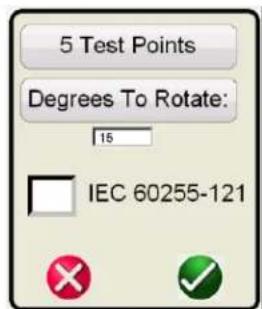
Figure 112 Test Points Selection Screen
The user may select the desired number of test points by pressing the Test Points button and select from the list. Then the user may select the desired phase rotation between the selected number of test points by pressing the Degrees to Rotate button. If none of the standard phase rotations meets the user's needs, press the Degrees to Rotate button in the list and enter the desired phase rotation in the window provided.
3.6.6.12 ⑫ Independence Test Points option

The Independence Test Points option- This provides maximum freedom to the user to select any test line, at any angle, around the operating characteristic by clicking at a point outside and then inside the operating characteristic to define the desired test line. Press this button again to reveal the IEC60255 Test Points option.
3.6.6.12.1 IEC60255 Test Points option

The IEC60255 Test Points option- In accordance with IEC 60255 standard click a point outside, then inside, the operating characteristic and the test line will be drawn perpendicular to the operating characteristic line. Press this button to reveal the Origin Test Points option.

3.6.6.12.2 Origin Test Points option
The Origin Test Points option - Click a point outside the operating characteristic and the test line will be drawn to the origin or the intercept of the R and X axis. Press this button to return to the Independence option.

3.6.6.12.3 Shots Test Points option
The Shots Test Points option – Used to create one or more points of test, each to replicate a fault at a particular magnitude and angle. Several Trip (inside the operating characteristic) and/or No-Trip (outside the operating characteristic) points may be selected for each Fault Type. The Test Point is the set of values listed both in Mag and Phase Angle, and in Cartesian values that are created in the Graph. Continued clicks will produce additional test points at the mouse locations.

3.6.6.13 ⑬ Return to Impedance COF Configuration Screen button
This button is used to return to the Impedance Click On Fault Configuration Screen to make selective changes to the test configuration.

3.6.6.14 ⑭ Fault Selection button
This button provides user selection of the desired fault to be defined. The choices are Phase to Ground, Phase to Phase, and Three Phase.
3.6.6.15 ⑮ Clear Test(s) button

This button only appears once tests are defined. Press this button to clear tests from the selected test screen. Pressing this button will provide a list of user options as follows,
Figure 113 Clear Tests Options Screen
Clear Current – Clears the currently selected test
Clear All: This fault category – Clears all tests associated with the Fault
Note: There is no going back; once you clear a test there is no way to recover the tests unless you have saved the test to the internal memory.
3.6.7 Easy Z Impedance Relay Test
Pressing the Easy Z Impedance Relay test button provides the testing of relays directly from the so called impedance plane, where the conversion from the impedance into voltages and currents is automatically done by the RTMS software.
Selection of the Easy Z

button will provide the following test screen.
3.6.7.1 Easy Z Impedance Relay Setting and Test Screen
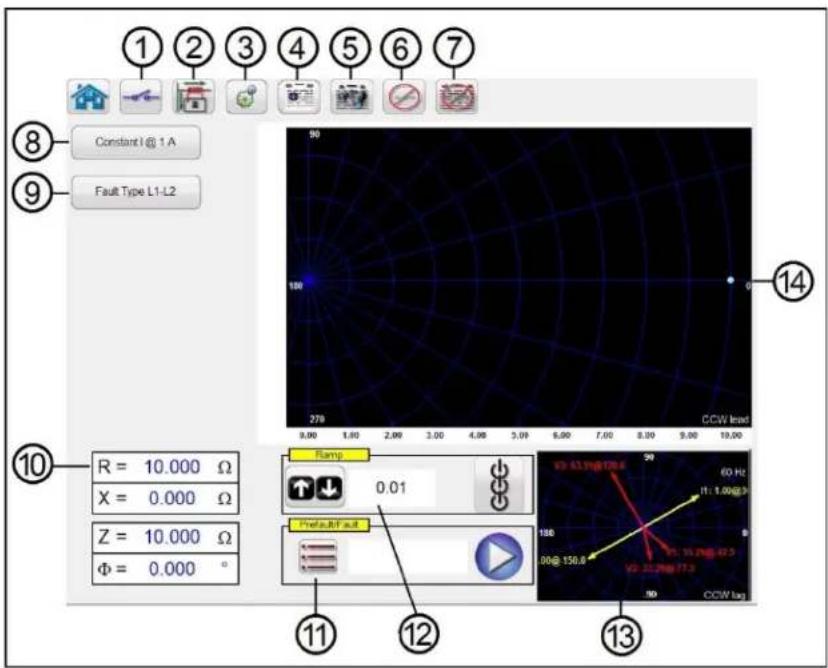
Figure 114 Easy Z Setting and Test Screen
3.6.7.1.1 ① Binary Input Setting button

Press this box to reveal the Binary Input Dialog box.
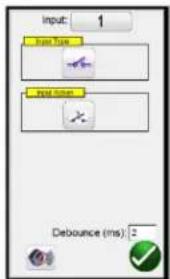
The default settings are Binary Input 1, dry contacts as indicated by the Input Type, and Input Action defaults to show the Closing of the Normally Open contacts. To change the Input Type from dry contacts to Voltage, press the Input Type icon, and it changes to voltage. To change to the opening of Normally Closed contacts press the Input Action icon and it changes to show closed contacts opening. For timing the operating time of the impedance element the timer is defaulted to Latched Input enabled mode, which means the timer will stop on the first contact closure. Note the Debounce time is set to 2 milliseconds.
3.6.7.1.2 ② CT Earthing Position button


If this button is selected, the simulated secondary current from test system will be in phase with the primary current, which flows from the bus bar into the protected line.

If this button is selected, the simulated secondary current from test system will be 180 degrees shifted compared to the same primary current used as reference. The two pictures below shows the output quantities from the test system for the same impedance of 10 ohms at 85 degrees, single phase to earth fault, with the two possible CT earthing combinations.

radar
| CCW lag | V1 | V2 | | ------- | ------ | ------ | | 60 Hz | 10.00@0.0 | 63.51@-120.0 | | 60 Hz | 10.00@0.0 | 63.51@-120.0 |3.6.7.1.3 ③ The Configuration button

Press the button to go to the Configuration Screen. See Section 2.2.1 Configuration for more information of the Configuration Screen.
3.6.7.1.4 ④ Add To Report button

This button will add the present test result to the report. It also displays the report and allows the user to name the test, enter limits, comments or deficiencies. Reports can be saved to the STVI, SMRT-D internal memory, and transferred to PowerDB via a USB memory stick. Previous tests results can be loaded and the 'Retest' option can be used to repeat the test using the same parameters as the previous test.
3.6.7.1.5 ⑤ Review Test Report button

Press this button to review the test results.
3.6.7.1.6 ⑥ Clear Test(s) button

Press this button to clear tests from the selected test screen. Pressing this button will provide a list of user options as follows,
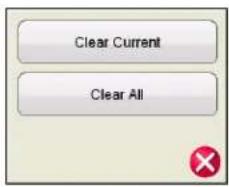
Figure 115 Clear Tests Options Dialog Box
Clear Current – Clears the currently selected test
Clear All: - Clears all tests associated with the Fault
Note: There is no going back; once you clear a test there is no way to recover the test unless you have saved the test to the internal memory.
3.6.7.1.7 ⑦ Clear Test Results button

Press this button to delete test results.
3.6.7.1.8 ⑧ Test Method Selection Box
This dialog box provides the user with a selection of two different methods to perform the tests. Some manufacturers require Constant Voltage and ramp current, some require Constant Current and ramp voltage. The voltage and current phasors, as function of the set impedance and method are calculated according to specification IEC 60255-121.
Constant Voltage - Enter the value of volts to be held constant for all Fault Types tests under execution. Default value is 5.0 Volts.
Constant Current - Enter the value of amperes to be held constant for all Fault Types tests under execution. Default value is 1.0 Amp.
3.6.7.1.9 ⑨ Fault Type Selection button

This button provides user selection of the desired fault to be defined. The choices are Phase to Ground, Phase to Phase, and Three Phase. For phase to earth faults, the domain is the ohm/loop domain. For the Phase-Phase and Three-Phase faults the impedance is represented in the ohm/phase domain.
3.6.7.1.10 ⑩ Fault Setting Fields
The Fault Setting Fields are where the value of the fault impedance is set by tapping on the field and entering the value with the keypad, or simply by tapping on the impedance plane window. It is possible to ramp with the knob any value of the fault impedance, see section "Impedance ramping".
3.6.7.1.11 ⑪Pre-Fault, Fault, Post Fault dialog box
Press the list button to open the Prefault, Fault, Post Fault settings dialog box.

Figure 116 Prefault, Fault and Post Fault Settings box
Enter the conditions for the Prefault and Fault test. Enter the Phase-Phase, or Phase-Earth voltage, Load Current, and Load Current Angle, along with the Prefault Time.
Application Note: It is recommended to use Prefault current = 0 when testing distance protection relays, as the simulated power system is a radial feeder without any superimposed load, hence the simulation of the load current that will vanish during the fault condition is not a realistic representation of the power system.
Set the Fault Maximum Test Time. Upon pushing the Blue Play button the fault will be applied to the relay until the relay operates, or the Maximum Test Time expires.
Set the Post Fault Time. If the relay operates, faulty quantities are still injected for the Post Fault Time setting (in the example 100 ms) simulating circuit breaker opening time. After that the injection is stopped and the operate time is reported. If the relay doesn't operate, after Maximum Test Time setting expires (in the example 5 seconds) the fault injection is stopped and the result is given as "NOP" (No Operation).
Pressing or clicking the blue play button will apply the Prefault vector for the specified Time, then step to the Fault values and look for the relay under test to operate.
3.6.7.1.12 ⑫ Impedance Ramp box
Here you can ramp in the impedance plane by using the knob, the up down arrow keys on the PC, or the mouse control wheel. Press or click on the control wheel icon and the Impedance Ramp Selection box will appear. You can select the value to be ramped; Z, Phi, R or X and the increment size.

Figure 117 Impedance Ramp Selection box
There are two types of ramp, pseudo-continuous ramp or ramp of shots. The two ramp types may give different results, as in principle they implement two completely different testing methods. It is recommended to follow the relay manufacturer recommendation for the choice of the test method.
Pseudo-continuous ramp
Traditionally this is the method that is used to test the so called the “static accuracy” of the relay, as the injected quantities will slowly change.
1] The pseudo-continuous ramp is activated by setting ZERO seconds for the Maximum Test Time in the pre-fault and fault settings.
2] Any parameter of the impedance can be manually slowly changed from the control knob, or up down arrows / mouse wheel on the PC. The parameter is chosen by tapping on it and selecting "Include Channel in Ramping" from the numerical keypad.
3] The step increment (or decrement) is chosen by pressing or clicking on the control wheel icon button.
4] The generation is activated by the ALL ON/OFF button

When relay starts or operates, the injection is stopped (if the binary input is used to stop the ramp).
Application Note: Make sure the time interval between the two steps is larger than the operating time of the zone being tested.
Ramp of shots (step ramp)
This method is not intended to test the static accuracy of the relay, as quantities are not slowly changed, but it is a good method to rapidly verify relay zone border settings without need to disable other distance protection zones, which is a common when using the pseudo-continuous ramp. This ramp is a succession of pre-fault and fault sequences.
1] The ramp is activated by setting the Maximum Test Time in the Prefault and Fault settings box to a value different than ZERO.
2] Any parameter of the impedance can be manually "step ramped" from the control knob, up down arrows on the PC, or the mouse control wheel. The parameter is chosen by pressing or clicking on the control wheel icon and selecting "Include Channel in Ramping" from the numerical keypad.
3] The step increment (or decrement) is chosen by pressing the control wheel icon.
3.6.7.1.13 ⑬ Impedance Test Screen
This window shows the test vectors that are applied to the relay under test. With each ramp step you will see the test vector(s) change in amplitude and/or phase angle relationship.
3.6.7.1.14 ⑭ Impedance Plane Screen
This plane represents the ohm/loop domain for the phase-earth faults, and the ohm/phase domain for phase to phase and three-phase faults. By tapping on the screen it is possible to graphically enter the impedance values.
3.7 Testing Transducers with the RTMS software
In conjunction with the Transducer Hardware Option in the SMRT and MPRT8445 units, the STVI Transducer Test provides a quick approach to testing all types of single phase and three phase
electrical transducers. The transducer hardware "T" option can either be ordered with the new test set or later as a factory hardware upgrade.
Press the Test List button to get access to the STVI Transducer Test. Then press the Transducer icon button. The Transducer Test Screen will appear.


line
| # | Percent Full Scale | Input (V) | Trans. (mA dc) | Input (V) | % Error (of reading) | Pass/ Fail | |---|---|---|---|---|---|---| | 1 | 90.0 | 90.0 | | | | | | 2 | 50.0 | 50.0 | | | | | | 3 | 10.0 | 10.0 | | | | | The image contains a schematic representation of a test setup with a line graph and a corresponding spectrogram. The 'I~' label appears in the top-left corner.Figure 118 Transducer Test Screen
The test screen defaults to 3 test points set at 10, 50, and 90 percent of Full Scale. To change the number of test points, the percentage for each test point, or select the type of transducer to test, press the List button. The Transducer Setup Screen will appear.

Figure 119 Transducer Setup Screen
This screen is used for selection of single phase or three-phase transducers such as; AC and DC Voltage, AC and DC Current, Frequency, Power (Watts), Reactive Power (VAR's), Apparent Power (VA) and Power Factor.
3.7.1 Transducer Setup Screen
The following are descriptions for each section within the Transducer Setup Screen.
3.7.1.1 Nameplate Section
In the description windows the operator enters descriptive information relative to the transducer to be tested. This information will be saved with the test results. The following describes the window entries.
Description: Input a short description of the transducer to be tested.
Manufacture: Input the name of the transducer manufacturer.
Model: Enter transducer model number.
Serial Number: Enter the serial number of the transducer.
3.7.1.2 Type Selection Section
The user may select from a variety of transducers, in the Type Section. Here the operator may select, by touching the selection window, the type of transducer that he/she needs to test. In addition the user selects the output of the transducer, either a voltage or a current output by pressing the provided button (toggles between Voltage and Current).
Watt, VAR and VA transducers come in 1, 1 12 , 2, 2 12 and 3 element configurations. Selecting the number of elements will automatically select the appropriate number of output voltages and currents needed to test the selected transducer. For example, selection of a single element Watt transducer, V1 and I1 sources will automatically be selected for you. In the case of a three-phase 3 element transducer V1, V2, V3, I1, I2 and I3 will be preselected for your use.
Selections available are:
| Single Phase | Multi-Phase |
| AC Volts | Watts / VAR/ VA - 1 1/2 Element |
| AC Current | Watts / VAR / VA - 2 Element |
| DC Volts | Watts / VAR / VA - 2 1/2 Element |
| DC Current | Watts / VAR / VA / Power Factor - 3 Element |
| Frequency | |
| Watts / VAR / VA / Power Factor - 1 Element | |
3.7.1.3 Test Settings Section
Some of the system default settings come from the Configuration Screen. The user can set the number of test points, the Settling Time, and when testing Watt, VAR, or VA whether to use Constant Current (and vary the voltage) or Constant Voltage (and vary the current).
# Of Test Points: The software automatically defaults to 3 test points, 0, 50, and 90 % of Full Scale. The user can select any number of points from 1 to 5. In the Test Screen the user can enter what % of Full Scale for each test point.
Settling Time: This is the time delay, in milliseconds, the test system will wait before making it's first accuracy calculation and freeze the readings. If the transducer is self energized, the operator needs to allow enough time for the transducer to stabilize before making an accuracy calculation. If the transducer needs warmup time prior to testing, the operator needs to account for this time too. On the other hand, if the transducer is already warmed and is powered-up, then the operator only needs to allow for the settling time of the transducer. For example, assume the transducer settling time is 1 second, then the operator needs to enter a settling time of 1,000 milliseconds. When the test values are applied, the system will wait 1,000 milliseconds before calculating the % error deviation. Then, the % error with pass/fail information is displayed and the test values are frozen. At this point the operator may choose to Stop the test and Save results.
Constant Current: If the operator chooses Watt, VAR or VA in the Type window, a Full Scale voltage (based upon the current value entered) will automatically be calculated and entered for you. The value will be calculated based on the Watts, VAR or VA value entered in the Input Range Section. The current value will automatically default to 5 Amps. The user is free to change the value to any desired fixed output current in the window provided.
Constant Voltage: Pressing the Constant Current button changes the output configuration to Constant Voltage. A Full Scale current (based upon the voltage value entered) will automatically be calculated and entered for you. To change the value, press the display window and enter the desired voltage value.
3.7.1.4 Input Range Section
The operator inputs the full scale input range of the transducer to be tested. For example an AC Current Transducer may have a range of 0 to 1, or 0 to 5 Amps. Enter the appropriate values for the transducer to be tested.
3.7.1.5 Output Range Section
Output Range: Depending upon the type of output selected in the Type section, the tranducer will have either a dc voltage or dc milliampere output. The default settings are 0 to 10 Volts dc, and 4 to 20 milliamperes dc. It should be noted that Minimum Value could be a negative dc value. For example, -1 milliampere, or -10 Volts dc. It could also be a positive dc value, other than 0. The firmware will calculate the scaling factor based on the minimum and maximum values, and use this scaling factor to calculate the actual output from the transducer (in terms of Volts, Amperes, Watts etc).
Voltage or Current : The operator selects one by touching the button associated with either the Voltage or Current. If the Min. and / or Max. are different from the defaulted values, the operator touches the appropriate window and a numeric keypad will appear to enter the appropriate value(s). In the following example, the transducer is a Watt transducer. When Watt 3 Element was selected in the Select Transducer Type window, W (Watts) appears in the Transducer Input range window.
In this example, a value of 1500.0 was entered as the maximum input. The Output Range was set 0 to 1.00 milliamperes. Therefore, the scaling factor will be, 0 mA = 0.0 Watts, and 1.000 mA = 1500.0 Watts or,
$$ 1 \mathrm{mA} / 1 5 0 0. 0 \mathrm{W} = 0. 0 0 0 6 6 6 6 6 \mathrm{mA} / \text { Watt } $$
Therefore, if the transducer had a measured output of .250 mA, then the equivalent Watts output would be,
$$ 0. 2 5 0 \mathrm{mA} / 0. 0 0 0 6 6 6 6 6 \mathrm{mA/W} = 3 7 5. 0 \text { Watts } $$
Tolerance: The accuracy value for the transducer is entered here. The default value is in Percent of Range (or Full Scale). To change to Percent of Reading touch the Percent of Range button. To enter another value, the user touches the value window and a keypad allows another value to be entered.
With all the values entered in the Transducer Setup Screen, to return to the Transducer Test Screen press the green check button at the bottom of the screen.
3.7.2 Transducer Test Screen
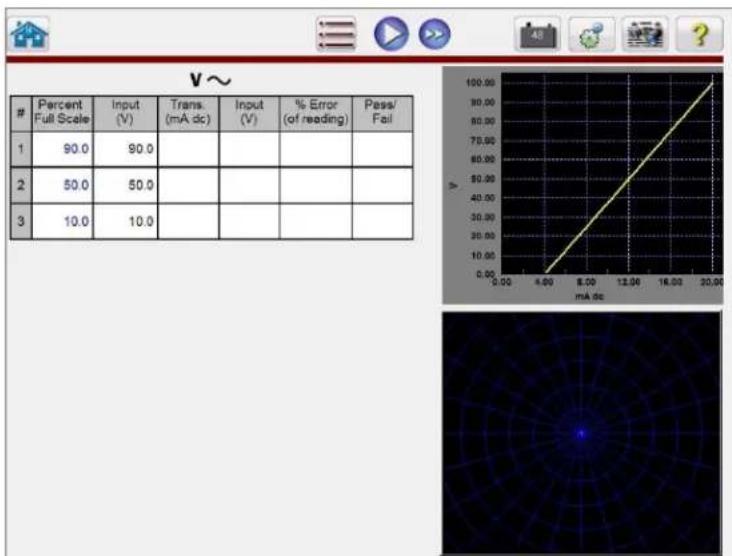
Figure 120 Transducer Test Screen
The Transducer Test Screen has three parts. The Output section where the test values to be applied to the transducer appear, the Transducer Output section where the DC Reading, % Error and Pass/Fail appear, and the Vector Section.
3.7.2.1 Output Section
When selecting the type of transducer to test in the Setting Screen, the appropriate outputs will automatically be selected for the user. For example, if an AC Voltage transducer had been selected, the V1 output selection button will have changed to green, and the defaulted
voltage would appear. In the above example a single phase AC Voltage Transducer was selected, with a Full Scale Input of 100 Volts. The first default test point is 90% of Range. Therefore, a test value of 90 Volts appears for V1 output. The default frequency will also be preset. If a DC transducer had been selected, the Freq. Window for the selected voltage or current would read DC.
3.7.2.2 Transducer Output Section
In the following example, a 3 Element 1,500 Watt transducer was selected in the Setting Screen. It automatically defaults to 3 test points of 0, 50, and 90 % of Full Scale, note the calculated Watts to be applied. Pressing the blue play button will apply the test values as displayed in the Input column. This value will be used later to calculate % error and PASS / FAIL.
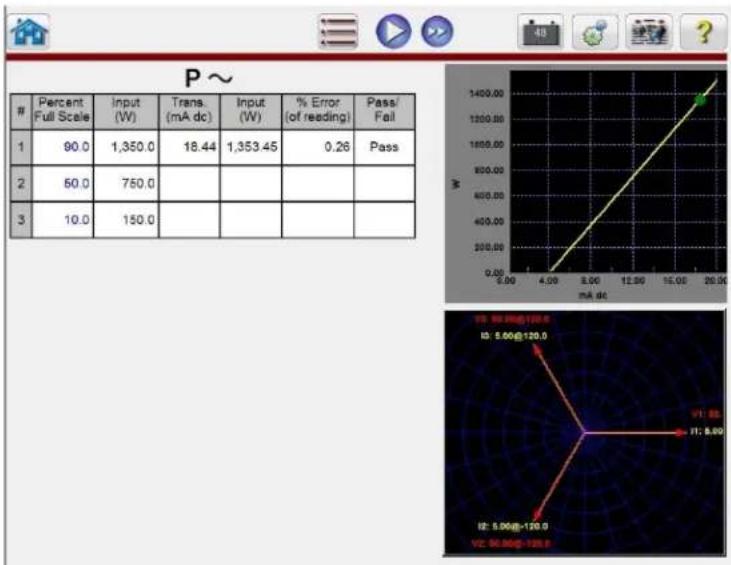
line
| # | Percent Full Scale | Input (W) | Trans. (mA dc) | Input (W) | % Error (of reading) | Pass/ Fail | |---|---|---|---|---|---|---| | 1 | 90.0 | 1,350.0 | 18.44 | 1,353.45 | 0.26 | Pass | | 2 | 50.0 | 750.0 | | | | | | 3 | 10.0 | 150.0 | | | | |The transducer output section displays the equivalent output in the select type value (Reading V, A, Watts, VA, etc.). Depending on the desired measurement set in the setting screen the % Error will be either of range, or of reading. From this the Pass/Fail will be determined and displayed.
The accuracy is calculated as follows,
$$ \left(\frac{\text{Transducer Output - Measured Output}}{\text{Measured Output}}\right) \times 100 $$
If the value displayed in the Accuracy window meets the Accuracy specification set in the Transducer Setup Screen, an affirmative PASS will be displayed. If it exceeds the setting specifications, a negative FAILED will appear.
3.7.3 Testing Transducers
- In the Transducer Setup Screen, enter the transducers specific data, such as manufacturer, model number and serial number.
- Select the transducer type to be tested.
- Enter the transducer's output in dc volts or milliamperes. Include the min. and max. values for the type of output, which correlates to the voltage or current. Input the transducer's accuracy value.
- Enter the transducer's settling, or response time in milliseconds (allow extra time for self powered transducers).
- Press the green check button at the bottom of the screen.
- Based on the type of transducer selected the appropriate outputs will have already been pre-selected for you. If you desire to test at some other value(s) than those preset, press the window for the value(s) you wish to change and a numeric keypad will appear. Using the keypad, enter the desired value(s).
- Connect the selected outputs to the appropriate transducer's input terminals.
- If the transducer requires an external power source (for the AUX. Power input), connect your external power source at this time.
- Press the blue play button next to the desired test point. The outputs will turn on.
- Note the test result in the Transducer Output section of the window.
3.7.4 Saving Results
- With the test completed, the results and test file need to be saved to the internal solid-state disk. To do this, press the File button. This will take the user to the Save As window.
- Enter a file name, and press the Save As button. The test and data are now saved. See File Manager section for additional information.
3.7.5 Watt / Var / Va / Power Factor Applications
As previously described, Watt and VAR transducers come in 1, 1 1/2, 2, 2 1/2 and 3 Element configurations. In the Transducer Setup Screen, the operator is required to select what type of transducer is to be tested. Once selected, the RTMS software will make certain assumptions and calculations based on the number of elements selected. The following are detailed descriptions of the different elements and the calculations required to calculate Watts and / or VARs.
3.7.5.1 Watt/VAR 1 Element
The single element watt transducer requires 1 voltage and 1 current to test. The test set will automatically select the first voltage and current channels available, V1 and I1. The test will initially start at the default value voltage unless changed by the user (select constant voltage and enter the desired output voltage). For example, 120.0 Volts L-N. When the user inputs the Watts value in the Transducer Setup Screen, the firmware can calculate the required test current for full scale value. Since the default angle will be 0^ (zero degrees), the calculation is simple. The formula required to calculate Watts is,
V1 * I1 * COS 0° = Watts
Example: The default voltage is 120.00 Volts AC, and the user inputs 500 Watts as Max. Value. The current required for full scale output from the transducer is,
120 * I1 * COS 0° = 500 Watts simplifying, I1 = 500/120, or I1 = 4.1667 Amperes
Note that the first default test point is set to 90 % of Full Scale, which will result in a test current of 3.750 Amps. Therefore, if the user wants to test at the full scale input of 500 Watts, in the Test Screen touch the percent full scale window and enter 100. The test should automatically show a test current value of 4.167 Amperes at an angle of 0^ . Note, the voltage is also in-phase with the current at 0^ . Also, note that the current is rounded up to 7 in the last digit displayed.
When the test is Started, the measured voltage and current outputs are displayed and the calculated Watts is based on the measured voltage and current outputs. This is the value that gets displayed in the 2^nd column of the Transducer Output section. Another value of Watts gets calculated using the measured dc Volts or dc milliampere output as displayed in the 3^rd column. The percent error will be displayed in the 4^th column. Let us assume that in our example transducer, the output is in dc milliamperes. For this example, let us say that 1 milliampere of dc current is equal to the full scale output of 500 Watts. Therefore, the theoretical output Watts from the transducer would be 500 Watts, if the output current is 1 milliampere. For this example, let's say that the measured output voltage is 120.01 Volts, at 0^ , and the measured output current is 4.166, Amperes, at 0.0^ . The measured output Watts would be,
120.01 * 4.166 * COS 0.0 = 499.96 Watts
For this example, let's assume the measured output current from the transducer is 0.996 mA dc. Based on a Max. value of 1 mA equals 500 Watts, the displayed Watts in the Transducer Output section of the Transducer Test Screen should read 500 * 0.996 = 498.0 Watts
The Accuracy displayed in the Transducer Output section would be equal to the following, (498.0 - 499.96 / 499.96) * 100 = % accuracy or -0.392 %
If this were a 0.5 % transducer, then the firmware would compare the accuracy values between the Setting Screen and the Test Screen and would display PASS in the Transducer Output section of the test screen. If this were a 0.2 %, then it would display FAILED.
Note: All of the calculations are very similar when testing VAR 1 Element transducers. The primary difference is replacing the COS function with the SIN function.
Note: Calculations for VA transducers are the same except there are no COS or SIN functions. Therefore, the apparent power (VA) calculation is simplified as Volts * Amps. For example, for the calculation above the apparent power is,
120.01 * 4.166 = 499.96 VA
3.7.5.2 Power Factor 1 Element
The single element power factor transducer requires 1 voltage and 1 current to test. The test set will automatically select the first voltage and current channels available, V1 and I1. The test will initially start at the default values for voltage and current. For example, 120 Volts L-N, and 5 Amperes. The Power factor transducer has a range of operation that correlates to the Leading or Lagging phase angle relationship between the voltage and current inputs. Therefore, when the user selects Power Factor 1 Element, the MIN and MAX nomenclature will change to read LEAD and LAG power factor values. The user is required to input the LEAD (MIN) and LAG (MAX) power factor values into the provided spaces (normally the same values, i. e. 0.5). The power factor is the trigonometric decimal equivalent value of the COS of the angle between the V1 voltage and I1 current. For example, when the user inputs the LEAD and LAG Power Factor values in the Transducer Setup Screen, the firmware can calculate the required test angles for full scale values. Thus for a LAG Power Factor value of 0.5, the current would need to lag the voltage by 60^ . The Lead and Lag phase angles require that the vector display be changed to show angles as ± 180^ . If the default angle representation is 0 to 360 LAG, then the angle between the voltage and current will be considered lagging (current lags voltage). In this situation, the typical test angles may vary between 0 to 90 degrees lag and 359.9 to 270 degrees lag (90 degrees leading). This could cause some confusion to the user. By forcing the display to ± 180^ simplifies the testing considerably. The test will start at unity power factor, or ± 0^ . Since the default angle will be 0^ (zero degrees), the calculation is simple. The formula required to calculate Power Factor is,
$$ \text { COS } \angle 0 ^ {\circ} = 1. 0 0 0 \text { Power Factor } \quad (\mathrm{V1} \angle 0 ^ {\circ}, \mathrm{I1} \angle 0 ^ {\circ}) $$
Example: The default voltage is 120.00 Volts and current is 5 Amperes AC, and the user inputs a Power Factor of ± 0.3 as LEAD and LAG Values. The angles required for full scale output from the transducer is,
$$ 0. 3 \text { Power Factor } = \text { COS } 7 2. 5 ^ {\circ} \quad \text { or, } + 7 2. 5 ^ {\circ} \text { LEAD and } - 7 2. 5 ^ {\circ} \text { LAG } $$
When the test is Started, the measured voltage and current outputs are displayed and the calculated Power Factor is based on the measured phase angle bewteen the voltage and current outputs. This is the value that gets displayed in the Transducer Test Screen under the Reading (V or mA) column.
Another value of Power Factor gets calculated using the measured dc Volts or dc milliampere output as displayed in the Transducer Output section. Let us assume that in our next example transducer, the output is in dc milliamperes. For this example, let us say that ±1 milliampere of dc current is equal to the full scale Power Factor of ±0.5 . Therefore, the theoretical range of output from the transducer would be -0.5 Power Factor, if the output current is -1 milliampere, to +0.5 Power Factor, if the output current is +1 milliampere. For this example, let's say that the measured output voltage is 120.0 Volts, at 0^ , and the measured output current is 5.000 Amperes, at a lagging angle of -30^ . The calculated Power Factor would be,
$$ \cos - 3 0 ^ {\circ} = - 0. 8 6 6 $$
For this example, let's assume the measured output current from the transducer is -0.489 mA dc. Based on a Lead/Lag value of ±1 mA equals ±0.5 PF, the scaling would be equal to
$$ 0. 5 \mathrm{PF} = \cos 6 0 ^ {\circ} $$
1 mA / 60° or 0.016666 mA per degree.
Therefore, the displayed PF in the Transducer Output section of the Transducer Test Screen should read
$$ - 0. 4 8 9 \mathrm{mA} / 0. 0 1 6 6 6 6 \mathrm{mA} / \text { Degree } = - 2 9. 3 4 \text { Degrees } $$
$$ \mathrm{COS} - 2 9. 3 4 ^ {\circ} = - 0. 8 7 1 \mathrm{PF} $$
Power factor transducer accuracies are stated in units of Power Factor, not in % error.
Therefor, the Accuracy window for Power Factor transducers needs to change from % error to ±0.000 PF. The Accuracy displayed in the Transducer Output section would be equal to the following,
$$ 0. 8 7 1 - 0. 8 6 6 = + 0. 0 0 5 \mathrm{PF} $$
If this were a 0.01 PF transducer, then the firmware would compare the accuracy values between the Setting Screen and the Test Screen and would display PASS in the Transducer Output section of the test screen.
3.7.5.3 Watt/VAR1 1/2 Element
This transducer is normally used in single-phase, three wire applications, which requires 2 voltages and 2 currents to test. The test set will automatically select the first two voltage and current channels available, V1, V2, I1 and I2. The voltage input to the transducer is supplied with one voltage input terminal. However, we must take into account that the transducer is connected using a PT that is connected line to line. Thus the test will initially start at the default voltage value, that is set in the Default Setting Screen, for each Voltage output. However, the V2 output will be 180 degrees out of phase with V1, thus they add across the potential input of the transducer. For example, a default of 120 Volts L-N, means 240 Volts will be impressed across the transducer potential input terminals. Thus V1 will be set to 120 Volts at an angle of 0°, and V2 will be 120 Volts at 180°. I1 and I2 will be in-phase with their respective voltages (0° and 180°). When the user inputs the MAX. Watts value in the Transducer Setup Screen, the firmware can calculate the required test currents for full scale value.
The formula required to calculate Watts for 1 1/2 Element transducer is,
$$ V 1 ^ {} I 1 ^ {} \cos \varnothing + V 2 ^ {*} I 2 \cos \varnothing = W a t t s $$
Example: The default voltage is 120.00 Volts AC, and the user inputs 1000 Watts as Max. Value. The current required for full scale output from the transducer is,
$$ 1 2 0 ^ {} \mathrm{I} 1 ^ {} \cos 0 ^ {\circ} + 1 2 0 ^ {} \mathrm{I} 2 ^ {} \cos 0 ^ {\circ} = 1 0 0 0 \text { Watts } $$
Since each phase contributes half of the power, we can simplify to,
$$ I 1 = 5 0 0 \text { Watts / 120 Volts, or } I 1 = I 2 = 4. 1 6 6 7 \text { Amperes } $$
Therefore, when the user inputs 1000 Watts in the MAX. value window, in the Test Screen the test set should automatically show a test current value for I1 of 4.167 Amperes at an angle of 0^ , and I2 will be 4.167 Amperes at an angle of 180^ . Note that the current is rounded up to 7 in the last digit displayed.
When the test is Started, the measured voltage and current outputs are displayed and the calculated Watts is based on the measured voltage and current outputs. This is the value that gets displayed in the Transducer Test Screen under the Output. Another value of Watts gets calculated using the measured dc Volts or dc milliampere output as displayed in the Transducer Output section. Let us assume that in our example transducer, the output is in dc milliamperes. For this example, let us say that 1 milliampere of dc current is equal to the full scale output of 1000 Watts. Therefore, the theoretical output Watts from the transducer would be 1000 Watts, if the output current is 1 milliampere. For this example, let's say that the measured output voltages are 120.00 Volts (V1 and V2) and the measured output currents are 4.166, Amperes, at 0°. The measured output Watts would be,
$$ 1 2 0. 0 0 * 4. 1 6 6 * \text { COS } 0 ^ {\circ} + 1 2 0. 0 0 * 4. 1 6 6 * \text { COS } 0 ^ {\circ} = 9 9 9. 9 4 \text { Watts } $$
For this example, let's assume the measured output current from the transducer is 0.998 mA dc. Based on a Max. value of 1 mA equals 1000 Watts, the displayed Watts in the Transducer Output section of the Transducer Test Screen should read 1000 × 0.998 = 998.00 Watts
The Accuracy displayed in the Transducer Output section would be equal to the following,
$$ (998.0 - 999.98 / 999.98) * 100 = \% \text { accuracy } \quad \text { or } \quad -0.198 \% $$
If this were a 0.2 % transducer, then the firmware would compare the accuracy values between the Setting Screen and the Test Screen and would display PASS in the Transducer Output section of the test screen.
Note: All of the calculations are very similar when testing VAR 1 1/2 Element transducers. The primary difference is replacing the COS function with the SIN function.
3.7.5.4 Watt/VAR 2 Element
This transducer is normally used in three-phase, three wire delta application, which requires 2 voltages and 2 currents to test. Normally, the PT's and CT's are connected to A and C phases. The test set will automatically select two voltage and current channels, V1, V3, I1 and I3 (in the event that there is no V3/I3 channel, then V2 and I2 will be used). The test will initially start at the default voltage value, that is set in the Default Setting Screen, for each
Voltage output. Thus, for a default voltage setting of 120 volts, V1 will be set to 120 Volts at an angle of 0^ , and V3 will be 120 Volts at 300^ (delta connected PT's). This assumes that the default phase angle is 0 - 360 Degrees lag, and not +/- 180 degrees. If the +/- 180 degree phase angle option is used, then V3 will be at +60^ . I1 and I3 will be phase shifted 30^ with their respective voltages, or I1 at 30^ lag and I3 at 270^ lag (or +90°). When the user inputs the MAX. Watts value in the Transducer Setup Screen, the firmware can calculate the required test currents for full scale value.
The formula required to calculate Watts for 2 Element transducer is,
$$ V 1 ^ {} \sqrt {3} ^ {} I 1 ^ {} (\text { COS } 3 0 ^ {\circ} + \varnothing) + V 3 ^ {} \sqrt {3} ^ {} I 3 ^ {} (\text { COS } 3 0 ^ {\circ} - \varnothing) = \text { Total Watts } $$
Where is the incremental angular change between V1 and I1 and V3 and I3.
Example: The default voltage is 120.00 Volts AC, and the user inputs 1000 Watts as Max. Value. The current required for full scale output from the transducer is,
$$ 1 2 0 ^ {} \sqrt {3} ^ {} I 1 ^ {} \cos 3 0 ^ {\circ} + 1 2 0 ^ {} \sqrt {3} ^ {} I 3 ^ {} \cos 3 0 ^ {\circ} = 1 0 0 0 \text { Watts } $$
$$ I 1 = 5 0 0 \text { Watts } / (1 2 0 \text { Volts } ^ {*} \sqrt [ 3 ]{\text { COS } 3 0 ^ {\circ}}), \text { or } I 1 = 5 0 0 / 1 8 0. 0 0 $$
Since I1 = I3, then I1 and I3 will be 2.7777 Amperes each
Therefore, when the user inputs 1000 Watts in the MAX. value window, in the Test Screen the test set should automatically show a test current value for I1 of 2.777 Amperes at an angle of 30°, and I3 will be 2.777 Amperes at an angle of 270° (+90°).
When the test is Started, the measured voltage and current outputs are displayed and the calculated Watts is based on the measured voltage and current outputs. This is the value that gets displayed in the Transducer Test Screen under the Output. Another value of Watts gets calculated using the measured dc Volts or dc milliampere output as displayed in the Transducer Output section. Let us assume that in our example transducer, the output is in dc milliamperes. In this example, let 1 milliampere of dc current be equal to the full scale output of 1000 Watts. For this example, let's say that the measured output voltages are 120.00 Volts (V1 and V3) and the measured output currents are 2.793, Amperes. The measured output Watts would be,
$$ 1 2 0. 0 0 * \sqrt {3} * 2. 7 9 3 * \cos 3 0 ^ {\circ} + 1 2 0. 0 0 * \sqrt {3} * 2. 7 9 3 * \cos 3 0 ^ {\circ} = 1 0 0 5. 4 8 \text { Watts } $$
For this example, let's assume the measured output current from the transducer is 1.001 mA dc. Based on a Max. value of 1 mA equals 1000 Watts, the displayed Watts in the Transducer Output section of the Transducer Test Screen should read 1000 × 1.001 = 1001.00 Watts
The Accuracy displayed in the Transducer Output section would be equal to the following,
$$ (1001.00 - 1005.48 / 1005.48) * 100 = \% \text { accuracy } \quad \text { or } -0.445 \% $$
If this were a 0.5 % transducer, then the firmware would compare the accuracy values between the Setting Screen and the Test Screen and would display PASS in the Transducer Output section of the test screen.
If the user adjusts the phase angle in the lagging direction by an additional 30^ , then the Watts output changes.
Using the formula,
$$ V 1 ^ {} \sqrt {3} ^ {} I 1 ^ {} (\text { COS } 3 0 ^ {\circ} + \varnothing) + V 3 ^ {} \sqrt {3} ^ {} I 3 ^ {} (\text { COS } 3 0 ^ {\circ} - \varnothing) = \text { Total Watts } $$
Where is the incremental angular change of 30^ between V1 and I1 and V3 and I3,
$$ 1 2 0. 0 0 ^ {} \sqrt {3} ^ {} 2. 7 9 3 ^ {} \text {COS} (3 0 ^ {\circ} + 3 0 ^ {\circ}) + 1 2 0. 0 0 ^ {} \sqrt {3} ^ {} 2. 7 9 3 ^ {} \text {COS} (3 0 ^ {\circ} - 3 0 ^ {\circ}) $$
then, Total Watts = 283.7099 + 580.5142 or 864.22 Watts
Note: All of the calculations are very similar when testing VAR 2 Element transducers. The primary difference is replacing the COS function with the SIN function. For the example above,
$$ 1 2 0. 0 0 ^ {} \sqrt {3} ^ {} 2. 7 9 3 ^ {} \text {SIN} (3 0 ^ {\circ} + 3 0 ^ {\circ}) + 1 2 0. 0 0 ^ {} \sqrt {3} ^ {} 2. 7 9 3 ^ {} \text {SIN} (3 0 ^ {\circ} - 3 0 ^ {\circ}) $$
then, 502.7397 + 0 = 502.74 VAR
Note: For apparent power, VA, transducers, the calculations remain the same, except there are no COS or SIN functions. For the example above,
$$ 1 2 0. 0 0 * \sqrt {3}. 7 9 3 + 1 2 0. 0 0 * * 2. \sqrt {3} = 1 1 6 1. 0 3 \mathrm{VA} $$
3.7.5.5 Watt/VAR 2 1/2 Element
This transducer is normally used in three-phase, four wire Wye applications, which requires 2 voltages and 3 currents to test. The two voltages and three currents are all referenced to ground. The test set will automatically select two voltage and three current channels, V1, V3, I1, I2 and I3. The test will initially start at the default voltage value, that is set in the Default Setting Screen, for each Voltage output. Thus, for a default voltage setting of 120 volts, V1 will be set to 120 Volts at an angle of 0^ , and V3 will be 120 Volts at 240^ lagging. This assumes that the default phase angle is 0 - 360 Degrees lag, and not +/- 180 degrees. If the +/- 180 degree phase angle option is used, then V3 will be at +120^ . I1 and I3 will be in-phase with their respective voltages, or I1 at 0^ and I3 at 240^ lag (or + 120^ ). I2 will be at 120^ lag (or -120^ ). When the user inputs the MAX. Watts value in the Transducer Setup Screen, the firmware can calculate the required test currents for full scale value.
The formula required to calculate Watts for 2 1/2 Element transducer is,
$$ \begin{array}{l} \text {V1} ^ {} \text {I1} ^ {} (\text {COS} \varnothing) + \text {V3} ^ {} \text {I3} ^ {} (\text {COS} \varnothing) + \text {V1} ^ {} \text {I2} ^ {} (\text {COS} 6 0 ^ {\circ} + \varnothing) + \text {V3} ^ {} \text {I2} ^ {} (\text {COS} 6 0 ^ {\circ} - \varnothing) \ = \text {Total Watts} \end{array} $$
Where is the incremental angular change between V1 and I1 and V3 and I3, with I2 changing at the same incremental angle as I1 and I3.
Example: The default voltage is 120.00 Volts AC, and the user inputs 1500 Watts as Max. Value. The current required for full scale output from the transducer is,
$$ \begin{array}{l} 1 2 0 ^ {} \mathrm{I} 1 ^ {} \mathrm{COS} 0 ^ {\circ} + 1 2 0 ^ {} \mathrm{I} 3 ^ {} \mathrm{COS} 0 ^ {\circ} + \mathrm{V} 1 ^ {} \mathrm{I} 2 ^ {} (\mathrm{COS} 6 0 ^ {\circ} + 0 ^ {\circ}) + \mathrm{V} 3 ^ {} \quad \mathrm{I} 2 ^ {} (\mathrm{COS} 6 0 ^ {\circ} - \ 0 ^ {\circ}) = 1 5 0 0 \text {Watts} \end{array} $$
$$ I 1 = 5 0 0 \text { Watts } / (1 2 0 \text { Volts } ^ {*} \text { COS } 0 ^ {\circ}), \text { or } I 1 = 5 0 0 / 1 2 0 $$
then I1, I2 and I3 will be 4.1667 Amperes each
Therefore, when the user inputs 1500 Watts in the MAX. value window, the test set should automatically show a test current value for I1 of 4.167 Amperes at an angle of 0^ , I2 will be 4.167 at 120^ (- 120^ ) and I3 will be 4.167 Amperes at an angle of 240^ (+ 120^ ). Note that the current is rounded up to 7 in the last digit displayed.
When the test is Started, the measured voltage and current outputs are displayed and the calculated Watts is based on the measured voltage and current outputs. This is the value that gets displayed in the Transducer Test Screen under the Output. Another value of Watts gets calculated using the measured dc Volts or dc milliampere output as displayed in the Transducer Output section. Let us assume that in our example transducer, the output is in dc milliamperes. In this example, let 20 milliamps of dc current be equal to the full scale output of 1500 Watts. For this example, let's say that the measured output voltages are 120.02 Volts (V1 and V3) and the measured output currents are 4.166, Amperes. The measured output Watts would be,
$$ \begin{array}{l} 1 2 0. 0 2 ^ {} 4. 1 6 6 ^ {} 0 ^ {\circ} + 1 2 0. 0 2 ^ {} 4. 1 6 6 ^ {} \text {COS} 0 ^ {\circ} + 1 2 0. 0 2 ^ {} 4. 1 6 6 ^ {} (\text {COS} 6 0 ^ {\circ} + 0 ^ {\circ}) + 1 2 0. 0 2 ^ {} \ 4. 1 6 6 ^ {} (\text {COS} 6 0 ^ {\circ} - 0 ^ {\circ}) = \text {or}, 5 0 0. 0 3 3 2 + 5 0 0. 0 3 3 2 + 2 5 0. 0 1 6 6 + 2 5 0. 0 1 6 6 \end{array} $$
1500.10 Watts
For this example, let's assume the measured output current from the transducer is 20.1 mA dc. Based on a Max. value of 20 mA equals 1500 Watts, the displayed Watts in the Transducer Output section of the Transducer Test Screen should read 1507.5 Watts
The Accuracy displayed in the Transducer Output section would be equal to the following,
(1507.5 - 1500.10 / 1500.10) * 100 = % accuracy or 0.493% If this were a 0.5 % transducer, then the firmware would compare the accuracy values between the Setting Screen and the Test Screen and would display PASS in the Transducer Output section of the test screen.
If the user adjusts the phase angle in the lagging direction by 30^ , then the Watts output changes.
Using the formula,
$$ V 1 ^ {} I 1 ^ {} (\text {COS} \varnothing) + V 3 ^ {} I 3 ^ {} (\text {COS} \varnothing) + V 1 ^ {} I 2 ^ {} (\text {COS} 6 0 ^ {\circ} + \varnothing) + V 3 ^ {} I 2 ^ {} (\text {COS} 6 0 ^ {\circ} - \varnothing) $$
$$ = \text { Total Watts } $$
Where is the incremental angular change of 30^ between V1 and I1 and V3 and I3 etc., then,
$$ 1 2 0 ^ {} 4. 1 6 6 7 ^ {} \cos 3 0 ^ {\circ} + 1 2 0 ^ {} 4. 1 6 6 7 ^ {} \cos 3 0 ^ {\circ} + 1 2 0 ^ {} 4. 1 6 6 7 ^ {} (\cos 6 0 ^ {\circ} + 3 0 ^ {\circ}) $$
$$ + 1 2 0 * 4. 1 6 6 7 * (\text { COS } 6 0 ^ {\circ} - 3 0 ^ {\circ}) = 1 2 9 9. 0 5 \text { Total Watts } $$
Note: All of the calculations are very similar when testing VAR 2 1/2 Element
transducers. The primary difference is replacing the COS function with the SIN function. For the example above,
$$ 1 2 0 ^ {} 4. 1 6 6 7 ^ {} \text {SIN} 3 0 ^ {\circ} + 1 2 0 ^ {} 4. 1 6 6 7 ^ {} \text {SIN} 3 0 ^ {\circ} + 1 2 0 ^ {} 4. 1 6 6 7 ^ {} (\text {SIN} 6 0 ^ {\circ} + 3 0 ^ {\circ}) + 1 2 0 ^ {*} $$
$$ 4. 1 6 6 7 ^ {*} (\text { SIN } 6 0 ^ {\circ} - 3 0 ^ {\circ}) = 1 2 5 0. 0 1 \text { VAR's } $$
Note: All of the calculations are very similar when testing VA 2 1/2 Element
transducers. The primary difference is no COS or SIN functions. For the example above,
$$ 1 2 0 ^ {} 4. 1 6 7 + 1 2 0 ^ {} 4. 1 6 7 + 1 2 0 ^ {*} 4. 1 6 7 = 1 5 0 0. 1 2 \mathrm{VA} $$
3.7.5.6 Watt/VAR 3 Element
This transducer is normally used in three-phase, four wire Wye applications, which requires 3 voltages and 3 currents to test. The three voltages and three currents are all referenced to ground. The test set will automatically select three voltage and three current channels, V1, V2, V3, I1, I2 and I3. The test will initially start at the default voltage value, that is set in the Default Setting Screen, for each Voltage output. Thus, for a default voltage setting of 120 volts, V1 will be set to 120 Volts at an angle of 0°, V2 will be 120 Volts at 120° lagging and V3 will be 120 Volts at 240° lagging. This assumes that the default phase angle is 0 - 360
Degrees lag, and not +/- 180 degrees. If the +/- 180 degree phase angle option is used, then V2 will be at -120° and V3 will be at +120°. I1, I2 and I3 will be in-phase with their respective voltages. When the user inputs the MAX. Watts value in the Transducer Setup Screen, the firmware can calculate the required test currents for full scale value.
The formula required to calculate Watts for 3 Element transducer is,
$$ V 1 ^ {} I 1 ^ {} (\cos \varnothing) + V 2 ^ {} I 2 ^ {} (\cos \varnothing) + V 3 ^ {} I 3 ^ {} (\cos \varnothing) = \text { Total Watts } $$
Where is the incremental angular change between V1 and I1, V2 and I2, V3 and I3.
Example: The default voltage is 120.00 Volts AC, and the user inputs 1500 Watts as Max. Value. The current required for full scale output from the transducer is,
$$ 1 2 0 * \mathrm{I} 1 * \text { COS } 0 ^ {\circ} + 1 2 0 * \mathrm{I} 2 * \text { COS } 0 + 1 2 0 * \mathrm{I} 3 * \text { COS } 0 ^ {\circ} = 1 5 0 0 \text { Watts } $$
$$ I 1 = 5 0 0 \text { Watts / (120 Volts } * \text { COS } 0 ^ {\circ}) , \text { or } I 1 = 5 0 0 / 1 2 0 $$
then I1, I2 and I3 will be 4.1667 Amperes each
Therefore, when the user inputs 1500 Watts in the MAX. value window, in the Test Screen the test set should automatically show a test current value for I1 of 4.167 Amperes at an angle of 0^ , I2 will be 4.167 at 120^ (-120°) and I3 will be 4.167 Amperes at an angle of 240^ (+120°). Note that the current is rounded up to 7 in the last digit displayed.
When the test is Started, the measured voltage and current outputs are displayed and the calculated Watts is based on the measured voltage and current outputs. This is the value that gets displayed in the Transducer Test Screen under the Output. Another value of Watts gets calculated using the measured dc Volts or dc milliampere output as displayed in the Transducer Output section. Let us assume that in our example transducer, the output is in dc milliamperes. In this example, let 20 milliamps of dc current be equal to the full scale output of 1500 Watts. For this example, let's say that the measured output voltages are 120.01 Volts (V1, V2 and V3) and the measured output currents are 4.167, Amperes. The measured output Watts would be,
$$ 1 2 0. 0 1 * 4. 1 6 7 * 0 ^ {\circ} + 1 2 0. 0 1 * 4. 1 6 7 * \text { COS } 0 ^ {\circ} + 1 2 0. 0 1 * 4. 1 6 7 * \text { COS } 0 ^ {\circ} $$
$$ \text { or, } 5 0 0. 0 8 1 6 + 5 0 0. 0 8 1 6 + 5 0 0. 0 8 1 6 = 1 5 0 0. 2 4 \text { Watts } $$
For this example, let's assume the measured output current from the transducer is 20.2 mA dc. Based on a Max. value of 20 mA equals 1500 Watts, the displayed Watts in the Transducer Output section of the Transducer Test Screen should read 1515.0 Watts
The Accuracy displayed in the Transducer Output section would be equal to the following,
$$ (1515 - 1500.24 / 1500.24) ^ {*} 100 = \% \text { accuracy or } 0.984 \% $$
If this were a 0.5 % transducer, then the firmware would compare the accuracy values between the Setting Screen and the Test Screen and would display Test Failed in the Transducer Output section of the test screen.
If the user adjusts the phase angle in the lagging direction by 30^ , then the Watts output changes.
Using the formula,
$$ V 1 ^ {} I 1 ^ {} (\text { COS } \varnothing) + V 2 ^ {} I 2 ^ {} (\text { COS } \varnothing) + V 3 ^ {} I 3 ^ {} (\text { COS } \varnothing) = \text { Total Watts } $$
Where is the incremental angular change of 30^ between V1 and I1, V2 and I2, and V3 and I3 etc.,
then,
$$ 1 2 0. 0 1 ^ {} 4. 1 6 6 6 ^ {} \text {COS} 3 0 ^ {\circ} + 1 2 0. 0 1 ^ {} 4. 1 6 6 6 ^ {} \text {COS} 3 0 ^ {\circ} + 1 2 0. 0 1 ^ {} 4. 1 6 6 6 ^ {} \text {COS} 3 0 ^ {\circ} $$
$$ \text { or, } 4 3 3. 0 4 1 8 + 4 3 3. 0 4 1 8 + 4 3 3. 0 4 1 8 = 1 2 9 9. 1 3 \text { Watts } $$
Note: All of the calculations are very similar when testing VAR 3 Element transducers.
The primary difference is replacing the COS function with the SIN function. For the example above,
$$ 1 2 0. 0 1 ^ {} 4. 1 6 6 6 ^ {} \text { SIN } 3 0 ^ {\circ} + 1 2 0. 0 1 ^ {} 4. 1 6 6 6 ^ {} \text { SIN } 3 0 ^ {\circ} + 1 2 0. 0 1 ^ {} 4. 1 6 6 6 ^ {} \text { SIN } 3 0 ^ {\circ} $$
$$ \text { or, } 2 5 0. 0 1 6 8 + 2 5 0. 0 1 6 8 + 2 5 0. 0 1 6 8 = 7 5 0. 0 5 \text { VAR's } $$
Note: All of the calculations are very similar when testing VA 3 Element transducers.
The primary difference is no COS or SIN functions. For the example above,
$$ 1 2 0. 0 1 ^ {} 4. 1 6 6 6 + 1 2 0. 0 1 ^ {} 4. 1 6 6 6 + 1 2 0. 0 1 ^ {*} 4. 1 6 6 6 = 1 5 0 0. 1 0 \mathrm{VA} $$
3.7.5.7 Power Factor 3 Element
The three element power factor transducer requires 3 voltages and 3 currents to test. The test set will automatically select the first three voltages and currents channels available, V1, V2, V3 and I1, I2, I3. The test will initially start at the default values for voltage and current that are set in the Default Setting Screen. For example, 120 Volts L-N, 5 Amperes at their respective phase separations of 120 Degrees (note that for three phase Power Factor transducers the transducer requires a balanced three-phase output). The calculated Power Factors will be based on the phase separation between V1 and I1. The Power factor transducer has a range of operation that correlates to the Leading or Lagging phase angle relationship between the voltage and current inputs. Therefore, when the user selects Power Factor 3 Element, the MIN and MAX nomenclature will change to read LEAD (+) and LAG (-) power factor values. The user is required to input the LEAD and LAG power factor values into the provided spaces (normally the same values, i. e. 0.5). The power factor is the trigonometric decimal equivalent value of the COS of the angle between the V1 voltage and I1 current. For example, when the user inputs the LEAD and LAG Power Factor values in the Transducer Setup Screen, the firmware can calculate the required test angles for full scale values. Thus for a LAG Power Factor value of 0.5, the current would need to lag the voltage by 60^ . The Lead and Lag phase angles require that the vector display be changed to show angles as ± 180^ . If the default angle representation is 0 to 360 LAG, then the angle between the voltage and current will be considered lagging (current lags voltage). In this situation, the typical test angles may vary between 0 to 90 degrees lag and 359.9 to 270 degrees lag (90 degrees leading). This could cause some confusion to the user. By forcing the display to ± 180^ simplifies the testing considerably. The test will start at unity power factor, or ± 0^ . Since the default angle will be 0^ (zero degrees), the calculation is simple. The formula required to calculate Power Factor is,
$$ \text { COS } \angle 0 ^ {\circ} = 1. 0 0 0 \text { Power Factor } \quad (\mathrm{V} 1 \angle 0 ^ {\circ}, \mathrm{I} 1 \angle 0 ^ {\circ}) $$
Example: The default voltage is 120.00 Volts and current is 5 Amperes AC, and the user inputs a Power Factor of ± 0.3 as LEAD and LAG Values. The angles required for full scale output from the transducer is,
$$ 0. 3 \text { Power Factor } = \text { COS } 7 2. 5 ^ {\circ} \quad \text { or, } $$
$$ + 7 2. 5 ^ {\circ} \text { LEAD and } - 7 2. 5 ^ {\circ} \text { LAG } $$
When the test is Started, the measured voltage and current outputs are displayed and the calculated Power Factor is based on the measured phase angle bewteen the voltage and current outputs. This is the value that gets displayed in the Transducer Test Screen under the Output.
Another value of Power Factor gets calculated using the measured dc Volts or dc milliampere output as displayed in the Transducer Output section. Let us assume that in our next example transducer, the output is in dc milliamperes. For this example, let us say that ±1 milliampere of dc current is equal to the full scale Power Factor of ±0.5 . Therefore, the theoretical range of output from the transducer would be -0.5 Power Factor, if the output current is -1 milliampere, to +0.5 Power Factor, if the output current is +1 milliampere. For this example, let's say that the measured output voltage is 120.0 Volts, at 0^ , and the measured output current is 5.000 Amperes, at a lagging angle of -30^ . The calculated Power Factor (displayed next to Power Factor 3 Element) would be,
$$ \mathrm{COS} - 3 0 ^ {\circ} = - 0. 8 6 6 \mathrm{PF} $$
For this example, let's assume the measured output current from the transducer is -0.489 mA dc. Based on a Lead/Lag value of ±1 mA equals ±0.5 PF, the scaling would be equal to
$$ 0. 5 \mathrm{PF} = \cos 6 0 ^ {\circ} $$
1 mA / 60° or 0.016666 mA per degree.
Therefore, the displayed PF in the Transducer Output section of the Transducer Test Screen should read
$$ - 0. 4 8 9 \mathrm{mA} / 0. 0 1 6 6 6 6 \mathrm{mA} / \text { Degree } = - 2 9. 3 5 \text { Degrees } $$
$$ \mathrm{COS} - 2 9. 3 5 ^ {\circ} = - 0. 8 7 1 \mathrm{PF} $$
Power factor transducer accuracies are stated in units of Power Factor, not in % error. Therefore, the Accuracy window for Power factor transducers needs to change from % error to ± 0.000 PF. For the above example the Accuracy displayed in the Transducer Output section would be equal to the following,
0.871 - 0.866 = + 0.005 PF
If the accuracy of the transducer were a ± 0.01 PF, then the firmware would compare the accuracy values between the Setting Screen and the Test Screen and would display PASS in the Transducer Output section of the test screen.
3.7.6 Single Phase Applications
As previously described, transducers come in three-phase and single phase configurations.
In the Transducer Setup Screen, the operator is required to select what type of transducer is to be tested. Once selected, the internal firmware will make certain assumptions and calculations based on the type of transducer selected. The following are detailed descriptions of the single phase AC Volts, AC Current, DC Volts, DC Current and Frequency transducers.
3.7.6.1 AC and DC Voltage Transducers
The single phase AC and DC voltage transducer requires 1 voltage output channel to test. The unit will automatically select the first voltage channel available, V1. The test will initially start at the default value voltage that is set in the Default Setting Screen. For example, 120 Volts L-N. When the user inputs the MAX. Volts value in the Transducer Setup Screen, the firmware can set the required test voltage for full scale value. Note: to power up the amplifier of some transducers, V2 may be selected to provide the AC voltage source. Remember to select the proper output voltage for V2 (it will default to the MAX value in the setting screen). If V2 is not available, use another appropriate source.
Example: The default voltage is 120.00 Volts AC, and the user inputs 150 Volts AC as Max. Full Scale Value. When the user inputs 150 Volts in the value window, in the Test Screen the test set should automatically show a test voltage value of 135 Volts (default is at 90% of Full Scale) at an angle of 0^ . Note, the DC voltage transducer is identical, except instead of 50 or 60 Hz as the default output frequency, the display changes to read DC.
When the test is Started, the measured voltage output is displayed. This is the value that gets displayed in the Transducer Test Screen under the Output. Another value of Volts gets calculated using the measured dc Volts or dc milliampere output as displayed in the Transducer Output section. Let us assume that in our example transducer, the output is in dc milliamperes. For this example, let us say that 1 milliampere of dc current is equal to the full scale output of 150 Volts. Therefore, the theoretical output Volts from the transducer would be 150 Volts, if the output current is 1 milliampere. For this example, the user changed the default 90% to 100%, and let's say that the measured output voltage of the unit is 150.01 Volts.
For this example, let's assume the measured output current from the transducer is 0.999 mA. Based on a Max. value of 1 mA equals 150 Watts, the displayed AC Volts in the Transducer Output section of the Transducer Test Screen should read 150 × 0.999 = 149.85 Volts.
The Accuracy displayed in the Transducer Output section would be equal to the following,
(149.85 - 150.01 / 150.01) * 100 = % accuracy or -0.106 %
If this were a 0.2 % transducer, then the firmware would compare the accuracy values between the Setting Screen and the Test Screen and would display PASS in the Transducer Output section of the test screen.
Note: All of the calculations are very similar when testing DC Voltage transducers
3.7.6.2 AC and DC Current Transducers
The single phase AC or DC current transducer requires 1 current to test. The software will automatically select the first current channel available, I1. The test will initially start at the default value current that is set in the Default Setting Screen. For example, 5 Amperes. When the user inputs the MAX. Full Scale Current value in the Transducer Setup Screen, the firmware will automatically set the test current for full scale value. Note: to power up the amplifier of some transducers, V1 may be selected to provide the AC voltage source. Remember to select the proper output voltage for V1 (it will be set to the System Default value in the setting screen).
Example: The default current is 5 Amperes AC, and the user inputs 5 Amperes AC as Max. Full Scale Value. Therefore, when the user inputs 5 Amperes in the MAX. value window, the test set should automatically show a test current value of 5.000 Amperes at an angle of 0^ . Note, the DC current transducer is identical, except instead of 50 or 60 Hz as the default output frequency, the display changes to read DC.
When the test is Started, the measured test current output is displayed in the Transducer Test Screen under the Output. Another value of Current gets calculated using the measured dc Volts or dc milliampere output as displayed in the Transducer Output section. Let us assume that in our example transducer, the output is in dc milliamperes. For this example, let us say that 20 milliampere of dc current from the transducer is equal to the full scale output of 5 Amperes. Therefore, the theoretical output Current from the transducer would be 5 Amperes, if the transducer output current is 20 milliampere. For this example, let's say that the measured output current is 5.001.
For this example, let's say that the measured output current from the transducer is 19.9991 mA. Based on a Max. value of 20 mA equals 5 Amperes, the displayed AC Amperes in the Transducer Output section of the Transducer Test Screen should read 4.9997 Amperes.
If, 20 mA = 5 Amperes or 0.25 A / 1 mA
Then, 19.99 mA * 0.25 A/mA = 4.9975 Amperes
The Accuracy displayed in the Transducer Output section would be equal to the following,
(4.9975 - 5.001 / 5.001) * 100 = % accuracy or -0.0699 %
If this were a 0.15 % transducer, then the firmware would compare the accuracy values between the Setting Screen and the Test Screen and would display PASS in the Transducer Output section of the test screen.
Note: All of the calculations are very similar when testing DC Current transducers.
3.7.6.3 Frequency Transducers
The frequency transducer requires 1 voltage output channel to test. The software will automatically select the first voltage channel available, V1. The test will initially start at the default value voltage and frequency that is set in the Default Setting Screen. For example, 120 Volts L-N, 60.000 Hz. When the user inputs the MAX. Full Scale Frequency value in the Transducer Setup Screen, the firmware will calculate the required test frequency for full scale value.
Example: The default frequency is 60.00, and the user inputs 65 Hz as Max. Value. Therefore, when the user inputs 65 Hz in the MAX. value window, the test set should automatically show a test frequency value of 58.50 Hz (90% of Full Scale) at the default voltage value of 120 Volts. To test at Full Scale touch the 90% window and enter 100%. Entering 100 % the test frequency will change to Full Scale or 65 Hz.
When the test is Started, the measured voltage and frequency outputs are displayed. The output frequency is the value that gets displayed in the Transducer Test Screen under the Output. Another value of Frequency gets calculated using the measured dc Volts or dc milliampere output as displayed in the Transducer Output section. Let us assume that in our example transducer, the output is in dc Volts. For this example, let us say that 10 DC Volts is equal to the full scale output of 65 Hz. Therefore, the theoretical output Frequency from the transducer would be 65 Hz, if the transducer output voltage is 10 Volts DC. For this example, let's say that the measured output frequency is 65.00 Hz., and the measured transducer output voltage is 10.001 Volts. The measured transducer output Frequency would be,
$$ \text { If, } 6 5. 0 0 \mathrm{Hz} = 1 0 \text { Volts DC } $$
$$ \text { Then, } 6 5 / 1 0 = 6. 5 \mathrm{Hz/V} $$
$$ V ^ {*} 6. 5 \mathrm{Hz} / \mathrm{V} = 6 5. 0 0 6 5 \mathrm{Hz} $$
For this example, the displayed Hz in the Transducer Output section of the Transducer Test Screen should read 65.000 Hz.
The Accuracy displayed in the Transducer Output section would be equal to the following,
$$ (65.0065 - 65.000 / 65.000) ^ {*} 100 = \% \text { accuracy or } -0.01 \% $$
If this were a 0.02 % transducer, then the firmware would compare the accuracy values between the Setting Screen and the Test Screen and would display PASS in the Transducer Output section of the test screen.
3.8 Testing Differential Relays
The STVI Differential Relay provides a quick and easy approach to testing three-phase differential relays. To test single phase differential relays, use the Manual Test Screen. For testing the single
phase harmonic restraint transformer differential use the Waveform selection in the Advanced Manual Test Screen, see section 3.1.12.1.4.
To access the STVI Differential Relay Test press the Test List button next to the Nameplate

button, and then from the list press the Transformer Differential Relay button. Press the Transformer button to open the Transformer Nameplate screen to enter information for the relay to be tested. There are two models to choose from, ANSI and IEC. You will find the selection button at the bottom left side of the window. Press the button to toggle between ANSI and IEC transformer models. Each model will present a transformer graphic commonly used either for North American or European style transformer protection. The values entered in the Transformer Nameplate will determine what values of current and phase angle relationships get applied to the relay in the tests.
3.8.1 Transformer Nameplate
The top half is the transformer model where the user selects the Transformer Primary and Secondary winding configurations, enters the Primary and Secondary Voltages ratings, CT ratios, the transformer MVA rating, enters the single phase pickup factor, selects if there are interposing CT's (and their associated CT Multiplier values), and enables lo (zero sequence) elimination when applicable. In the bottom half is the relay settings, bias equation selection window and slope selection window. Once these settings are entered, the software will automatically calculate and display the base currents in primary and secondary values for each winding. Note that throughout the tests, only secondary currents are considered. Primary currents will only be shown for informational purposes. These secondary base current values will be used to compute Amp – Per Unit conversions.

Figure 121 ANSI Transformer Nameplate Model with Interposing CT's and Io Elimination Selected
By entering the known values for the transformer and CT configurations the software will automatically calculate the appropriate three phase primary and secondary current values for testing the relay under test.
① Transformer Model Selection- Press to select the desired test model. Toggles between ANSI and IEC models.
② Enter the Transformer's Primary and Secondary voltages, MVA rating, and the Primary and Secondary Current Transformer data as specified by the relay. This includes CT ratios, CT polarities etc. If required, press or click on the vertical arrows to change CT polarity directions on both windings.
③ Transformer Configuration Selection Button- Press or click on
the transformer configuration selection button to access the available selections for the primary and secondary winding configurations. Pressing on the button will provide the Primary Winding Selection box.
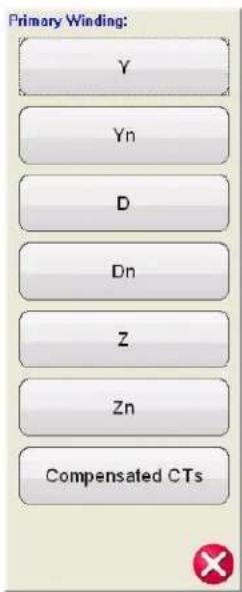
Figure 122 Primary Winding Selection Box
Press or click on the appropriate button that represents the primary winding. Available selections are Y, Yn (grounded Y), D (delta), Dn (grounded Delta), Z, Zn (grounded Z), or Compensated CT's. The letter 'n' signifies a neutral / earthed star-point in which a 1.5 constant will be applied to the single phase tests. This is required for elimination of any zero sequence currents introduced when testing single phase to ground faults. The Compensated CT's selection tells the software to simulate externally connected CT's that perform all magnitude and phase compensation, therefore, no compensation, whether magnitude or phase will be applied internally by the software. After selecting the Primary Winding the Secondary Winding Selection Box will appear.

Figure 123 Secondary Winding Selection Box
Press or click on the appropriate button that represents the secondary winding. Available selections are y, yn (grounded Y), d (delta), dn (grounded Delta), z, zn (grounded Z), or compensated CT's. The Compensated CT's selection tells the software to simulate externally connected CT's that perform all magnitude and phase compensation, therefore, no compensation, whether magnitude or phase will be applied internally by the software. After selecting the Secondary Winding the Winding Clock Reference Selection Box will appear. Depending on your selection of the primary and secondary windings will determine which clock reference screen will appear. Your choices are 1,3,5,7,9, or 110'clock if using a combination of Y, Delta or Z selections, or for Y - y / Delta - delta selections your choices are 0, 2, 4, 6, 8, 10, or 12 o'clock.
④ The Interposing CT's button should be selected when interposing CT's are connected to the HV and LV windings of the relay, and are responsible for all Phase/Magnitude correction / compensation, and possible zero sequence (Io) elimination. When selecting interposing CT's the CT Multiplier window, item⑤, will appear for the user to enter any appropriate CT multiplier values. The phase rotation of the output currents simulating the interposing CT's can be altered by pressing the arrow button. It will toggle between clockwise and counterclockwise rotation.
When selecting Interposing CT's, the Power System Vector Group Configuration should be selected based on this sample range of settings. For example, a Reyrolle MIB202 Numerical Bias Differential Relay with the following Interposing CT's Selection; HV (Yd1,- 30°) and LV (Yy0, 0°) requires a Vector Group Selection of Yd1, YNd1. Consult the relay manufacturer's instructional information to verify the appropriate vector group to be used for other possible Interposing CT Selections. If the manufacturer's information is not available the following guide is provided to assist the user in selecting an appropriate Transformer Vector Group.
Transformer Vector Groups and Interposing CT Selection Guide
| Transformer Vector Groups | HV Interposing CT Selection | LV Interposing CT Selection |
| YNy0, Yy0, Ydy0, Yndy0, Yyn0, YNyn0, Ydyn0, Yndyn0, Dz0 | Ydy0, 0° | Ydy0,0° |
| Yd1,YNd1 | Yd1, -30° | Yy0,0° |
| Yd1, YNd1 + Grounding (Earthing) Transformer | Yd1, -30° | Ydy0,0° |
| YNy2, Yy2, Ydy2, Yndy2, Yyn2, YNyn2, Ydyn2, Yndyn2, Dz2 | Ydy2, -60° | Ydy0,0° |
| Yd3,YNd3 | Yd3, -90° | Yy0,0° |
| Yd3, YNd3 + Grounding (Earthing) Transformer | Yd3, -90° | Ydy0,0° |
| YNy4, Yy4, Ydy4, Yndy4, Yyn4, YNyn4, Ydyn4, Yndyn4, Dz4 | Ydy4, -120° | Ydy0,0° |
| Yd5,YNd5 | Yd5, -150° | Yy0,0° |
| Yd5, YNd5 + Grounding (Earthing) Transformer | Yd3, -150° | Ydy0,0° |
| YNy6, Yy6, Ydy6, Yndy6, Yyn6, YNyn6, Ydyn6, Yndyn6, Dz6 | Ydy6, -180° | Ydy0,0° |
| Yd7,YNd7 | Yd7, -150° | Yy0,0° |
| Yd7, YNd7 + Grounding (Earthing) Transformer | Yd7, -150° | Ydy0,0° |
| YNy8, Yy8, Ydy8, Yndy8, Yyn8, YNyn8, Ydyn8, Yndyn8, Dz8 | Ydy8, 120° | Ydy0,0° |
| Yd9,YNd9 | Yd9, 90° | Yy0,0° |
| Yd9, YNd9 + Grounding (Earthing) Transformer | Yd9, 90° | Ydy0,0° |
| YNy10, Yy10, Ydy10, Yndy10, Yyn10, YNyn10, Ydyn10, Yndyn10, Dz10 | Ydy10, 60° | Ydy0,0° |
| Yd11,YNd11 | Yd11, 30° | Yy0,0° |
| Yd11, YNd11 + Grounding (Earthing) Transformer | Yd11, 30° | Ydy0,0° |
| Dy1, Dyn1 | Yy0, 0° | Yd11, 30° |
| Dy1, Dyn1 + Grounding (Earthing) Transformer | Ydy0, 0° | Yd11, 30° |
| Dy3, Dyn3 | Yy0, 0° | Yd9, 90° |
| Dy3, Dyn3 + Grounding (Earthing) Transformer | Ydy0, 0° | Yd9, 90° |
| Dy5, Dyn5 | Yy0, 0° | Yd7, 150° |
| Dy5, Dyn5 + Grounding (Earthing) Transformer | Ydy0, 0° | Yd7, 150° |
| Dy7, Dyn7 | Yy0, 0° | Yd5, -150° |
| Dy7, Dyn7 + Grounding (Earthing) Transformer | Ydy0, 0° | Yd5, -150° |
| Dy9, Dyn9 | Yy0, 0° | Yd3, -90° |
| Dy9, Dyn9 + Grounding (Earthing) Transformer | Ydy0, 0° | Yd3, -90° |
| Dy11, Dyn11 | Yy0, 0° | Yd1, -30° |
| Dy11, Dyn11 + Grounding (Earthing) Transformer | Ydy0, 0° | Yd1, -30° |

Io (zero sequence) Elimination
Button – Press the button to enable the zero sequence elimination feature. For relays with neutral / earthed star-point connections a 1.5 constant will be applied to the single phase tests. This is required for elimination of any zero sequence currents introduced when testing single phase to ground faults. If the relay being tested does not adopt this approach, then lo elimination should be disabled.

It should be noted that some relay manufacturers have different zero sequence correction factors for single phase faults, where the default constant of 1.5 does not apply (depending upon the transformer vector group see item ③ above for even and odd vector groups). For example, single phase faults in Siemens 7UT613 relay the even number vector groups' use 1.5, while the odd number vector groups' use 1.73. Consult the relay manufacturer's instructional information to verify the pickup factors to be used. If you use a correction factor other than 1.5, you will need to disable the lo elimination and manually enter the appropriate factor in the window provided.

Single Phase Pickup Factor - Once the vector groups are selected, the single phase pickup factors required to run single phase pickup tests are predetermined. If these settings do not match the relay's compensation factors, then the values should be adjusted from the input fields provided.

It should be noted that some of the relay manufacturers adopt their own pickup factors. Consult the relay manufacturer's instructional information to verify the pickup factors to be used.

Relay and Test Settings – The values entered will be used to perform the tests and evaluate the results. Consult the relay manufacturer's instructional information to verify the settings and tolerances.
Pickup and Pickup Tolerance: Enter the appropriate Per Unit value for the pickup value, and its associated tolerance.
Trip Time and Trip Time Tolerance: Enter the appropriate trip time of the relay and its associate tolerance.
Prefault Level: Is set in percent of Full Load Current as seen by the relay. Pick up and slope tests are performed using Pulse Ramp. This current will be applied to the relay prior to each pulse ramp increment for the Prefault Time duration.
Prefault Time: Is set in milliseconds. This will be the period of time that the Prefault currents will be applied prior to applying test values.
Off Delay: Is a time value set in milliseconds. When the relay operates, the software will extend the fault current for the off delay time entered to simulate the time delay associated with the breaker opening before the outputs go to zero. This is used for relays that sense for breaker failure by detecting the presence of fault current after issuing a trip.
Enter the opening time of the breaker associated with the transformer being protected. If the operating time is unknown use the default time of 50 milliseconds.
Through Fault: Is set in percent of Full Load Current as seen by the relay on both the primary and secondary sides of the transformer.
2 ^nd Harmonic Content: Enter the % of second harmonic restraint set in the relay.
Fault Duration: Is set in milliseconds. This will be the time that the incremental “fault” current will be applied to the relay during the pickup, slope, and harmonic restraint tests. Set the duration time long enough for the relay to operate, or leave at the default value.
Harmonic Tolerance: Is set in percent value, used to evaluate the pickup of the 2^nd harmonic restraint element.
Nth Harmonic Content: For relays with more than one harmonic restraint, enter the order of the harmonic by pressing or clicking on the harmonic selection button, then press or click in the % window to enter the percent value of the harmonic.
⑨ Slope Characteristic Selection Button: Pressing this button will provide the following selection window.

Figure 124 Slope Characteristics Selection Menu
The slope characteristics vary by manufacturer design. Four options are provided, which cover the various designs. In addition, slope characteristics are also determined by the following settings
Pickup value. This represents the lower flat line of the graph and is the minimum differential current required for the relay to trip
Unrestrained Pickup value
Slope 1, and 2 start points and gradients (start points and gradients 3 and 4 appear when selecting Line Segments)
Slope setting
I Bias equation setting
Line Segments: The Line Segments option allows for virtually any slope characteristic design with up to 4 segments. Each line segment is user defined in the Slope Line Segment window see item ⑭. When Line Segments is selected the window expands to
provide up to 4 slope options. Setting values vary such as knee points and % slope. Check relay settings for actual setting values.
Slope Through Origin: The line starts at the origin and rises at the Gradient % setting in the Slope Line Segment window. Slope Line 1 segment is defined by where the Slope 1 line intersects with the Minimum Pickup (represented by the lower flat line of the graph) and stops at the Slope Line 2 segment IBias (p.u.) setting in the Slope Line Segment window.
Slope From X Axis: The line starts on the X Axis at the I restraint (pu) value entered in the Line Segment window and rises at the Gradient % setting. Slope Line 1 segment is defined by where the Slope 1 line intersects with the Minimum Pickup (represented by the lower flat line of the graph) and stops at the Slope Line 2 segment IBias (p.u.) setting in the Slope Line Segment window.
Slope From Base Point: The Slope 1 line segment starts where the X Axis I restraint (pu) value entered in the Line Segment window intersects with the Minimum Pickup (represented by the lower flat line of the graph) and rises at the Gradient % setting. Slope Line 1 segment stops where at the Slope Line 2 segment IBias (p.u.) setting in the Slope Line Segment window.
⑩ IBias Equation: Pressing or clicking on the button will present the user with seven different biasing (restraint) equations to choose from. Different relay manufacturers use different methods for restraining the operation of the differential element. Consult the relay manufacturer's instructional information to verify which equation to use. The following are some example relays and associated equations.
Equation Manufacturer
(|Ip| + |Is|) SEL 487, SEL 787, Siemens 7UT5X Series, and Siemens 7UT6X Series
(|Ip| + |Is|)/2 SEL 387, SEL 587
|lp| or |ls| ABB RET670, GE Multilin SR 745
⑪ Unrestrained Pickup: Enter the appropriate value for the unrestrained pickup in Amps.
⑫ Slope Characteristic Line Segment Definition Table: Depending on which Slope
Characteristic was chosen, see ⑨ above, the number of slope lines will vary from 2 to 4, and the IBias pickup values will vary depending on whether the slope goes through the Origin or not. See the line descriptions above for examples.
⑬ Harmonic Ramp Mode: User may select to ramp the percent of harmonic content in the fundamental up until the relay goes into restraint (Ramp To No Operate), or down to decrease the percent of harmonic until the relay drops out of restraint (Ramp To Operate).
⑭ Nominal Current in Use: Press or click on the button to toggle between Current
Transformer and Protected Object to select either the calculated tap values, or the rated secondary current of the CT (use as balanced vector magnitudes during the stability test). If Protected Object is selected, W1/W2 magnitudes will be calculated from MVA, KV, and CT settings. If Current transformer is selected, W1/W2 magnitudes will be set at the rated secondary current of the CT, i.e. 1 or 5 Amps.
3.8.2 Transformer Differential Tests
When all the transformer and relay settings have been entered, press or clicks on the green check mark. The user will be taken to the first test screen, the Stabilization Test. To see a list of all the tests available, press or click on the Test List button.

Figure 125 Test List
The user may select to perform any individual test by pressing the desired test button. After selection of the test, to execute any selected test press or click on the Blue Play Press or click on the Play All button and a list will be provided; Run All (Selected) Tests, Run All Remaining (Selected) Tests, Run All Differential Tests, or Run All Remaining Differential Tests.
The following is a description of each test.
3.8.2.1 Stabilization Test
The stability test verifies the relay being tested is stable for external 3-phase faults. Settings that affect stability test are:
- Power transformer, current transformer, vector group combination settings: these settings will determine the correct magnitude and phase angles to be injected on all phases for both windings of the relay.
- Through Fault level- this sets the through fault percentage of the balanced currents applied to the relay. Setting this to 100% will inject 1x the rated current of winding1 and winding2. Setting this to 200% will inject 2x those values.
-
Nominal Current in Use – The software will apply either the calculated tap values or the rated secondary current of the CT as balanced vector magnitudes during the stability test. If Protected Object is selected, W1/W2 magnitudes will be calculated from MVA, KV, and CT settings. If Current transformer is selected, W1/W2 magnitudes will be set the rated secondary current of the CT i.e. 1 or 5.
-
Connect the appropriate output terminal(s) for the selected channel(s) to be used.
-
Connect the desired Binary Input terminal to sense the relay trip contacts. Press the selected Binary Input. If the Binary Input is already set to Use as Trip (enabled), select for the appropriate sensing Normally Open, Normally Closed, Voltage Applied, or Voltage Removed.
-
Press or click on the Blue Play button to run stability test. This will inject the balanced 3 phase currents based upon the Transformer and Vector Group settings. For a stable condition, the relay is not expected to trip. Enter the metered values from the relay and observe that they correspond to the injected values. Press or click on the Finish / Abort button (if the injected values do not correspond, press or click on Simulate Contact or Force Failure buttons). Note that the relay might not trip if the differential function has been turned off, or the injected values are not sufficient enough to produce the minimum differential current (this is also considered as a failed test even if the relay does not trip).
If the relay trips instantaneously, verify nameplate settings correspond to relay settings, verify connections are correct etc. To View the test result, press the Add to Reports button.
3.8.2.2 Timing Test
Timing test verifies the relay being tested operates at the expected trip time for internal three phase faults or internal phase to earth faults. Settings that affect timing test are:
- Power transformer, current transformer, vector group combination settings: these settings will determine the correct magnitude and phase angles to be injected on all phases for both windings of the relay.
- Trip time – This is the expected trip time for the relay to operate. This value should be verified from the relay. If the relay does not trip, the software will inject the fault vector for 2* the expected trip time and then automatically stop the test.
-
Prefault Level / Prefault Duration – these values configure the prefault vector that will be injected before fault vectors are applied.
-
Connect the appropriate output terminal(s) for the selected channel(s) to be used.
-
Connect the desired Binary Input terminal to sense the relay trip contacts. Press the selected Binary Input. If the Binary Input is already set to Use as Trip (enabled), select for the appropriate sensing Normally Open, Normally Closed, Voltage Applied, or Voltage Removed.
-
Press or click on the Blue Play button to run the Timing Tests. For the single phase tests, the fault vector will be applied on the phase being tested, while balanced (prefault) current vectors will be applied across the other phases. For the three phase tests, the test set will inject the fault vectors across all 6 phases.
-
To View the test result, press the Add to Reports button.
3.8.2.3 Pickup Test
The pickup test verifies the minimum operate current of the diff relay. The test is performed using a Pulse Ramp which applies the appropriate prefault value before the Ramping beings. The Pulse Ramp will return to the Prefault condition between each increment. Based on the settings of the relay, the Pulse Ramp begins at 85% of the expected pickup value, applying the prefault and fault vectors appropriately until the relay trips. If this trip signal is detected within the tolerance ranges of the relay, a pass message will be displayed. If on first injection a trip signal is detected the ramp will return to 50% of the expected pickup value and run from there. If a trip signal is detected at 50% then a failure message is displayed.
Considerations to make before running the pickup test
- During the single phase test, the selected vector group would have defined the single phase pickup factors that will be used for the test. It is imperative that these values match the values that are specified by the relay manufactures' manual (Relay manufacturers may sometime defer from the Differential standard single phase pickup factors).
- During the single phase test, if the selected vector group has an earthed star-point on either or both of the windings, it is essential to select if the relay compensates for zero sequence currents introduced by the phase to ground fault. When zero sequence (lo elimination) is enabled a 1.5 factor is introduced to eliminate any zero sequence currents. If the relay does not perform zero sequence elimination this factor is not needed and should be disabled.
- During the three phase test, the selected vector group would have defined the phase compensation values across all 6 phases. It is imperative that the vector group selected matches the vector group on the relay settings.
Settings that affect Pickup test
- Power transformer, current transformer, and vector group combination settings determine the tap current which will be used to convert the Per Unit value to actual Amps that is injected into the relay. The vector group settings will determine the single phase pick up factors, which adjusts the amp value injected to compensate the vector magnitudes based on a wye, delta or zigzag connected transformer.
- Pickup – This is minimum pickup Per Unit value required for the relay to operate. The search routine will begin from 85% of the minimum pickup and pulse ramp until it finds the operating point. If this value is not entered correctly in the settings screen, the search routine will be performed incorrectly.
- Prefault Level / Time – these values configure the prefault vector that will be injected before any fault vectors.
-
Fault Duration – this setting defines the number of milliseconds the fault vector will be applied. Make sure that this value is slightly more than the operating time of the relay to insure that the test set will see the trip contacts pickup.
-
Connect the appropriate output terminal(s) for the selected channel(s) to be used.
-
Connect the desired Binary Input terminal to sense the relay trip contacts. Press the selected Binary Input. If the Binary Input is already set to Use as Trip (enabled), select for the appropriate sensing Normally Open, Normally Closed, Voltage Applied, or Voltage Removed.
-
Press or click on the Blue Play button to run the Pickup Test. A menu list will be presented to the user to select which winding to test. For the single phase tests, the fault vector will be applied on the phase being tested, while balanced (prefault) current vectors will be applied across the other phases. For the three phase tests, the test set will inject the fault vectors across all 6 phases.
-
To View the test result, press the Add to Reports button.
3.8.2.4 Slope Test
The slope test verifies the bias differential characteristic of the relay. For each value of the bias (restraint) value selected, a search-line routine finds the value of the pickup point necessary for the relay to operate. These values are plotted on the characteristic graph.
Settings that affect the Slope Test
- Power transformer, current transformer, vector group combination settings: these settings will determine the tap current which will be used to convert the PU value to actual Amps that is injected into the relay. The vector group settings will determine the phase compensation to be applied during the 3-phase fault test. The phase angles will be adjusted automatically during the search routine based on the clock group selected.
- I Bias Equation – the current magnitudes injected to the relay are calculated based on the bias formula the relay uses. The primary (I1) and secondary (I2) currents are calculated from Id and Ir simultaneously. Consequently, it is imperative the I Bias Equation selection matches the equation specified by the relay being tested.
- Slope setting – This defines the way the characteristic is drawn. It is important to select the appropriate slope settings in order to draw the appropriate theoretical characteristic for the relay.
- Prefault Level / Time – these values configure the prefault vector that will be injected before any fault vectors.
– Fault Duration – this setting defines the number of cycles the fault vector will be applied for.
Creating Search Lines
Upon selecting the Slope Test the user will be taken to the Slope Test Screen, which includes the graphic display of the relay Slope Characteristic. Click in the characteristic window to create a search line associated with the slope characteristic. The following is an example with four test lines drawn.

Note the blue limit lines in the above figure. This Slope Test Screen is based upon using a SMRT410 with 6 current channels capable of providing up to 60 Amps each. Therefore, there is virtually no limit regarding the operating and restraint currents. If using a SMRT36/46 or SMRT36D/46D with the voltage channels converted to currents, a blue limit line will appear from the right side of the graphic which may cross the upper portion of the slope characteristic depending upon the relay settings. The second blue line indicates the limits regarding the maximum output current from the convertible channels, and shows area of the slope characteristic that can be tested.
If you mistakenly enter a test line and want to delete it press or click on the Run Edit button associated with the selected test #. The user will see a list of actions that can be done. One of the actions is Delete. Pressing the Delete button, the software will ask you to confirm that you want to delete the test(s).
-
Run all tests by either pressing or clicking on the Blue Play button. To run individual tests press or click on the Run Edit button for the individual tests. When the test starts a red arrow test line will start ramping up the search line. Once the arrow enters the acceptable tolerance line the arrow will change color to green. When the relay operates, if the test point is within the acceptable min/max tolerance lines a green dot will appear, the % error will be displayed in the test table along with Pass declaration, and the test will move onto the next test line. If the test point is outside the acceptable tolerance a red X will appear, the % error will be displayed in the test table with the Fail declaration.
-
To View the test result, press the Add to Reports button.
3.8.2.5 Harmonic Block Test
The harmonic block test verifies the proper operation of the harmonic restraint element of the relay. The test is based upon the 2^nd Harmonic Content (and/or Nth Harmonic Content) and Harmonic Tolerance entered in the settings. In the test screen the user can select individual phases for test as well as three phase test, either Primary or Secondary side of the transformer.
The Harmonic Block test is performed by applying a fundamental current equal to the Pickup setting, which will cause the relay to operate and close the trip contacts. The harmonic content will slowly be ramped up increasing the percent of harmonic until the relay goes into restraint. At that point the percent of harmonic is recorded.
Settings that affect the Harmonic Block test
- Power transformer, current transformer, and vector group combination settings determine the tap current which will be used to convert the Per Unit value to actual Amps that is injected into the relay. This will be the fundamental current applied at the start of the test.
- Prefault Level / Time – these values configure the prefault vector that will be injected before any fault vectors.
- Fault Duration – this setting defines the number of milliseconds the fault vector will be applied. Make sure that this value is slightly more than the operating time of the relay to insure that the test set will see the trip contacts pickup.
- Harmonic Content – The search routine will begin from 85% of the expected restraint value and ramp the harmonic content up until it finds the restraint point. If this value is not entered correctly in the settings screen, the search routine will be performed incorrectly.
-
Harmonic Tolerance – This value is used to determine Pass/Fail.
-
Connect the appropriate output terminal(s) for the selected channel(s) to be used.
- Connect the desired Binary Input terminal to sense the relay trip contacts. Press the selected Binary Input. If the Binary Input is already set to Use as Trip (enabled), select for the appropriate sensing Normally Open, Normally Closed, Voltage Applied, or Voltage Removed.

Application Note: The Prefault values will be applied prior to applying the harmonic block test.
Make sure that all three phase outputs are connected to the relay under test. When the ramp starts the PU Tap current will be applied, thus the relay will close the trip contacts. Therefore, set the binary input to sense Normally Closed (Trip) contacts to Open (Restraint). If using wetted contacts set the binary input to sense Voltage Removed.
-
Press or click on the Blue Play button to run the Harmonic Block Test. A menu list will be presented to the user to select which winding to test. For the single phase tests, the test current will be applied on the phase being tested, while zero current will be applied across the other two phases. For the three phase tests, the test set will inject the fault vectors across all 3 phases on the desired Winding (Primary or Secondary).
-
To View the test result, press the Add to Reports button.
3.8.2.6 Harmonic Shot Test
The harmonic shot test is a GO/ NO GO test to quickly verify the proper operation of the harmonic restraint element of the relay. The test is based upon the 2^nd Harmonic Content (and/or Nth Harmonic Content) and Harmonic Tolerance entered in the settings. In the test screen the user can select individual phases for test as well as three phase test, either Primary or Secondary side of the transformer.
The Harmonic Shot test is performed by applying a 5% above the harmonic restraint pickup value to see if the relay will restrain, and then apply 5% below the harmonic restraint pickup value to see if the relay operates.
Settings that affect the Harmonic Shot test
- Power transformer, current transformer, and vector group combination settings determine the tap current which will be used to convert the Per Unit value to actual Amps that is injected into the relay. This will be the fundamental current applied at the start of the test.
- Prefault Level / Time – these values configure the prefault vector that will be injected before any fault vectors.
- Fault Duration – this setting defines the number of milliseconds the fault vector will be applied. Make sure that this value is slightly more than the operating time of the relay to insure that the test set will see the trip contacts pickup.
-
Harmonic Content – If this value is not entered correctly in the settings screen, the test routine will be performed incorrectly.
-
Connect the appropriate output terminal(s) for the selected channel(s) to be used.
- Connect the desired Binary Input terminal to sense the relay trip contacts. Press the selected Binary Input. If the Binary Input is already set to Use as Trip (enabled), select for the appropriate sensing Normally Open, Normally Closed, Voltage Applied, or Voltage Removed.

Application Note: The Prefault values will be applied prior to applying the harmonic block test. Make sure that all three phase outputs are connected to the relay under test. Set the binary input to sense Normally Open contacts to be Open (Restrain at +5%) and Close (Trip at -5%).
-
Press or click on the Blue Play button to run the Harmonic Shot Test. A menu list will be presented to the user to select which winding to test. For the single phase tests, the test current will be applied on the phase being tested, while zero current will be applied across the other two phases. For the three phase tests, the test set will inject the fault vectors across all 3 phases on the desired Winding (Primary or Secondary).
-
To View the test result, press the Add to Reports button.
3.9 Synchronizer Test
The Synchronizer Test is only available for SMRT units which have the RTMS Enhanced feature enabled. Pressing the Synchronizer test button provides the testing of synchronizing relays. These tests should be conducted in accordance with the manufacturers relay specifications.
Selection of the Synchronizer button will provide the following Relay Settings and Configuration screen.
3.9.1 Synchronizer Relay Settings and Configuration Screen
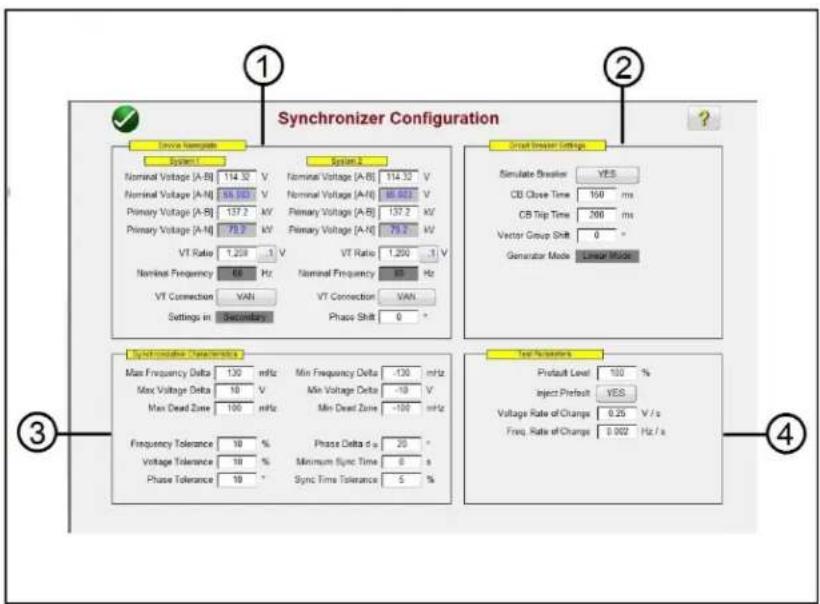
Figure 126 Synchronizing Relay Settings and Configuration Screen
3.9.1.1 ① Device Nameplate – System Settings
The relay test system voltage channels are used to simulate the two systems being synchronized together, as represented as System 1 and System 2. Enter the appropriate System Values in the windows provided. Note that if you enter the primary values and VT Ratios the software will automatically calculate the appropriate secondary voltages to be applied, and vice versa. Pressing or clicking on the VT Connection button will provide a list to select which voltage channels will be applied to the relay under test.
3.9.2 ② Circuit Breaker Settings
Press or click on the Simulate Breaker operation if you need to simulate the circuit breaker Closing or Opening. Enter the appropriate Breaker Close and Trip times in the windows provided. The Generator Mode is set to Linear Mode. The linear mode uses the dv/dt and df/dt to control the system outputs.
3.9.3 ③ Synchronization Characteristic Settings
Enter the relay settings into the windows provided. The Max and Min values represent the difference between System 1 reference values and System 2 test values. The Tolerance values are normally based upon the relays specifications.
3.9.4 ④ Test Parameters
If the relay requires Prefault values be applied prior to starting the test, press or click on the Inject Prefault button to select yes. As mentioned previously the linear mode uses the dv/dt and df/dt to
control the system outputs. Based upon the relay settings, enter the appropriate Rate of Change for the Volts / Second and the Hz / Second.
3.9.5 Synchronizer Characteristic Test Selection Screen
After all the setting values have been entered, press or click on the Green check button, which will take you to the Test Selection Screen. In the test selection screen the user may select from three different tests, Quick Test, Dynamic Test, and Point of Origin test, or the user may create their own test lines by touching or clicking on the test screen first outside and then inside the characteristic.
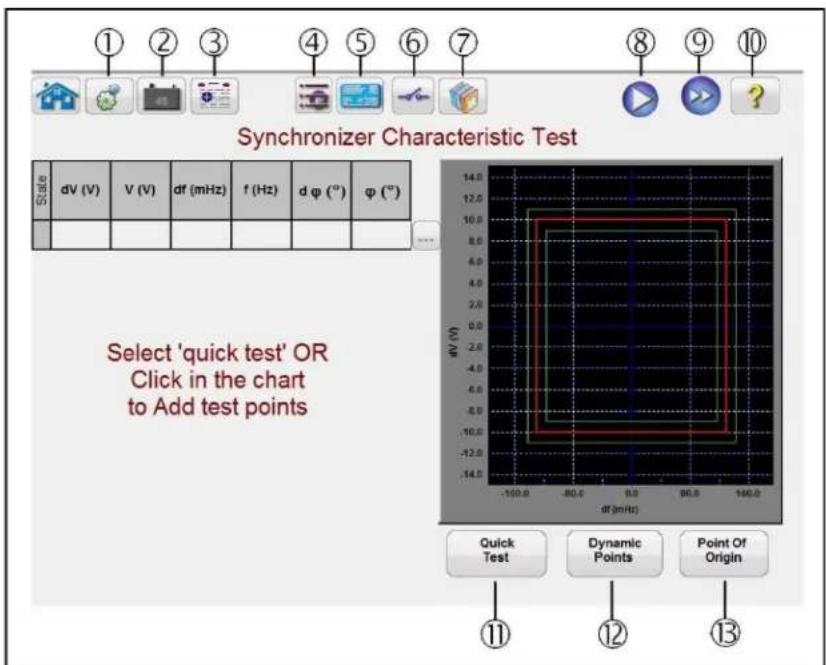
Figure 127 Synchronizer Characteristic Test Selection Screen
3.9.5.1 ① The Configuration button

Press the button to go to the RTMS Configuration Screen. See Section 2.2.1 Configuration for more information of the Configuration Screen.
3.9.5.2 ② Battery Simulator button

The Battery Simulator button – Turns the Battery Simulator ON and OFF by pressing the button, the color changes red for ON and black for OFF. The voltage to be applied is displayed in the button and can be changed by pressing the configuration button.
3.9.5.3 ③ Test Report button

Press this button to review the test results.
3.9.5.4 ④ List button

Reserved for future use
3.9.5.5 ⑤ Return to Synchronizer Relay Settings and Configuration Screen button

Return to the Synchronizer Characteristic Screen button provides access back to the relay and test settings screen.
3.9.5.6 ⑥ Binary Input Setting button

Press this box to reveal the Binary Input Dialog box.
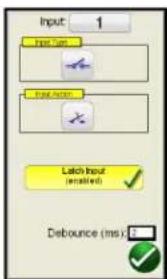
The default settings are Binary Input 1, dry contacts as indicated by the Input Type, and Input Action defaults to show the Closing of the Normally Open contacts. To change the Input Type from dry contacts to Voltage, press the Input Type icon, and it changes to voltage. To change to the opening of Normally Closed contacts press the Input Action icon and it changes to show closed contacts opening. For timing the operating time of the synchronizing element the timer is defaulted to Latched Input enabled mode, which means the timer will stop on the first contact closure. Note the Debounce time is set to 2 milliseconds.
3.9.5.7 ⑦ Relay Library button

Reserved for future use; pressing the Relay Library will provide a library of relay specific characteristics by various manufacturers.
3.9.5.8 ⑧ Play button

Pressing or clicking the blue play button will apply the Prefault vector for the specified Time, and then will play all the test lines on the test screen.
3.9.5.9 ⑨ Test Select button

Pressing the Test Select button will provide the user with a list to select which test(s) they desire to run, see the following figure.
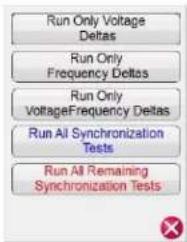
Since some relays only respond to only to f frequency change, the user can select to Run Only
Frequency deltas. To remove test lines associated with the V , press or click on the Run / Edit button located next to the test associated with the dV (V) test and select Delete from the menu. The same is true should the user desire to remove any other test line (s).
3.9.5.10 ⑩ Help button

Pressing this button will open the help associated with the Synchronizer test.
3.9.5.11 □ Quick Test button
Four test lines will be drawn (two will ramp frequency, and two will ramp voltage). Any test lines can be deleted and redrawn by the user as desired using the Run/Edit button. Press the Run/Edit button for the individual test line. The user will then be presented with the following option screen.
Figure 128 Run/Edit Button Options
The user can; Edit the Start and End values, Run the selected test individually, Run the Remaining tests, Delete the selected test, or Delete All Tests. Press the red X to exit.
3.9.5.12 Dynamic Points option
The Dynamic Points option provides eight test lines. It is similar to the Quick Test it provides an additional 4 test lines, one on each corner of the characteristic representing a dynamic ramp of both voltage and frequency.
3.9.5.13 ☐ Origin Test Points option
The Origin Test Points option – Similar to the Dynamic Points options with 8 test lines, only the end point is the origin.
3.10 Frequency Test
The Frequency Test is only available for SMRT units which have the RTMS Enhanced feature enabled. Pressing the Frequency test button provides the testing of frequency sensing relays. These tests should be conducted in accordance with the manufacturers relay specifications.
Selection of the Frequency button will provide the following Relay Settings and Configuration screen.
3.10.1 Frequency Relay Settings and Configuration Screen

Figure 129 Frequency Relay Test Settings Screen
There are three types of frequency relay test options, Under Frequency, Over Frequency, and df/dt. If your relay is Under frequency only, simply press or click on the Over and df/dt buttons to deselect these settings windows. The following are descriptions of each settings window.
3.10.1.1 ① Under Frequency relay Test Settings

Figure 130 Under Frequency Relay Test Settings
Fault Frequency: Enter the relay under frequency setting value.
Trip Time: Enter the relay trip time setting value in seconds.
Start Time At: There are two buttons associated with the Timer Start; Start Timer At Pickup Frequency and Start Time with Binary Input.
Figure 131 Timer Start At Selection List
Starting the timer at pickup simply means that the timer will start running when the test frequency crosses through the pickup frequency point either as a ramp or as a step function. Starting the timer with binary input simply means the timer will be started from an external contact closing.
Stop: Press or click on the binary input icon to select which binary input will be used to stop the timer, and select the Input Type and Input Action associated for the timer stop.

Figure 132 Binary Input Screen
The default settings are Binary Input 1, dry contacts as indicated by the Input Type, and Input Action defaults to show the Closing of the Normally Open contacts. To change the Input Type from dry contacts to Voltage, press the Input Type icon, and it changes to voltage. To change to the opening of Normally Closed contacts press the Input Action icon and it changes to show closed contacts opening. For timing the timer is defaulted to Latched Input enabled mode, which means the timer will stop on the first contact closure. Note the Debounce time is set to 2 milliseconds.
Pickup Mode: Press or click on the Pickup Mode icon to select the mode of ramping the outputs. There are two modes to select from. The default icon is a single ramp down starting from the
prefault frequency towards the fault frequency. The second selection is a double ramp down and back up looking for pickup and dropout associated with multi-set point relays.
Pickup Tolerance: Enter the pickup tolerance of the relay under test. Two entries are available, ± % of pickup setting and ± mHz.
Trip Time Tolerance: Enter the time tolerance of the relay under test. Two entries are available, ± % of time setting and ± ms.
Typical Start Time: This is known time delay value associated with the relay under test. This time value is associated with the relay delay time in detecting the pickup frequency value over one or more cycles, and then making a decision to indicate the pickup or trip outputs. Typical values vary from 50 to 200 ms. This value is critical in making Pass/Fail determinations in Timing test results. The user should consult the relay manufacturers documentation to know what value of time to enter into the window.
Reset Ratio: This is a min and max allowable tolerance associated with the dropout reset setting, which is associated with the double ramp pickup test. The post fault ramp will ramp back to the pre-fault condition, once the relay picks up it is in a trip state. The post fault ramp will be able to detect the relay dropout and record the dropout point. For under frequency relays the dropout will be a value slightly greater than the setting. Therefore, as an example, with a tolerance of 6% the value entered for the Min and Max reset ratio a value of 100.06% (Min.) and 100.12% (Max.) would be entered.
3.10.1.2 ② Over Frequency Relay Test Settings
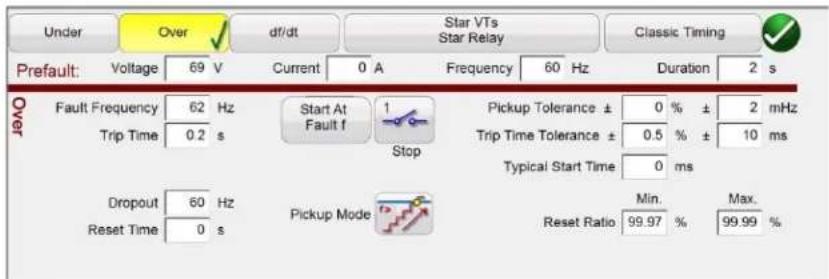
Figure 133 Over Frequency Relay Test Settings
Fault Frequency: Enter the relay over frequency setting value.
Trip Time: Enter the relay trip time setting value in seconds.
Start Time At: There are two buttons associated with the Timer Start; Start Timer At Pickup Frequency and Start Time with Binary Input.
Figure 134 Timer Start At Selection List
Starting the timer at pickup simply means that the timer will start running when the test frequency crosses through the pickup frequency point either as a ramp or as a step function. Starting the timer with binary input simply means the timer will be started from an external contact closing.
Stop: Press or click on the binary input icon to select which binary input will be used to stop the timer, and select the Input Type and Input Action associated for the timer stop.
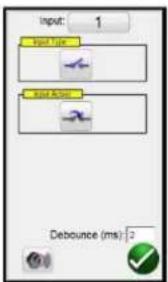
Figure 135 Binary Input Screen
The default settings are Binary Input 1, dry contacts as indicated by the Input Type, and Input Action defaults to show the Closing of the Normally Open contacts. To change the Input Type from dry contacts to Voltage, press the Input Type icon, and it changes to voltage. To change to the opening of Normally Closed contacts press the Input Action icon and it changes to show closed contacts opening. For timing the timer is defaulted to Latched Input enabled mode, which means the timer, will stop on the first contact closure. Note the Debounce time is set to 2 milliseconds.
Pickup Mode: Press or click on the Pickup Mode icon to select the mode of ramping the outputs. There are two modes to select from. The default icon is a single ramp up starting from the
prefault frequency towards the fault frequency. The second selection is a double ramp-up and back down looking for pickup and dropout associated with multi-set point relays.
Pickup Tolerance: Enter the pickup tolerance of the relay under test. Two entries are available, ± % of pickup setting and ± mHz.
Trip Time Tolerance: Enter the time tolerance of the relay under test. Two entries are available, ± % of time setting and ± ms.
Typical Start Time: This is known time delay value associated with the relay under test. This time value is associated with the relay delay time in detecting the pickup frequency value over one or more cycles, and then making a decision to indicate the pickup or trip outputs. Typical values vary from 50 to 200 ms. This value is critical in making Pass/Fail determinations in Timing test results. The user should consult the relay manufacturers documentation to know what value of time to enter into the window.
Reset Ratio: This is a min and max allowable tolerance associated with the dropout reset setting, which is associated with the double ramp pickup test. The post fault ramp will ramp back to the pre-fault condition. Once the relay picks up it is in a trip state. The post fault ramp will be able to detect the relay dropout and record the dropout point. For an over frequency relay the reset ratio will be a value slightly less than the setting, but usually never greater than. Therefore, as an example, with a tolerance of 6 % the value entered for the Min reset ratio a value of 99.94% (Min.) and 100% (Max.) would be entered. Check the relay manufacturer's literature to verify reset setting values and % tolerances for appropriate values.
3.10.1.3 ③ df/dt ROCOF Relay Test Settings

Fault df/dt: The rate of change is defined as the Fault df/dt in Hz/s. Enter the relay Hz/s setting here. The change in frequency happens when the frequency passes through the positive going zero-crossing of the voltage output waveform. The test limits the df/dt setting to a maximum value of ± 10Hz/sec. The frequency ramp will increase if the Fault df/dt is a positive number, and will decrease if it is set to a negative number.
The frequency increment is calculated for each delay period prior to starting the dynamic ramp. The first step is defined by the pre-fault values, which are necessary to energize the relay before the fault condition. If we use a Fault df/dt of 1 Hz/sec and want to ramp from 60 to 50 hertz, then the time would be ten seconds to go from 60 Hz. to 50 Hz.
Trip Time: Enter the trip time setting from the relay in seconds.
Pickup Point: Enter the Pickup setting value of the relay here. The pickup point indicates the frequency when the relay first detects the fault. Once the pickup point is reached the relay starts its timer and will trip.
Start Time At: There are two buttons associated with the Timer Start; Start Timer At Pickup
Frequency and Start Time with Binary Input. Starting the timer at pickup simply means that the timer will start running when the test frequency crosses through the pickup frequency point either as a ramp or as a step function. Starting the timer with binary input simply means the timer will be started from an external contact closing.
Stop: Press or click on the binary input icon to select which binary input will be used to stop the timer, and select the Input Type and Input Action associated for the timer stop.
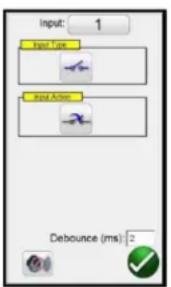
Figure 136 Binary Input Screen
The default settings are Binary Input 1, dry contacts as indicated by the Input Type, and Input Action defaults to show the Closing of the Normally Open contacts. To change the Input Type from dry contacts to Voltage, press the Input Type icon, and it changes to voltage. To change to the opening of Normally Closed contacts press the Input Action icon and it changes to show closed contacts opening. For timing the timer is defaulted to Latched Input enabled mode, which means the timer will stop on the first contact closure. Note the Debounce time is set to 2 milliseconds.
Pickup Tolerance: Enter the pickup tolerance of the relay under test. Two entries are available, ± % of pickup setting and ± mHz.
Trip Time Tolerance: Enter the time tolerance of the relay under test. Two entries are available, ±% of time setting and ± ms.
Typical Start Time: This is known time delay value associated with the relay under test. This time value is associated with the relay delay time in detecting the pickup frequency value over one or more cycles, and then making a decision to indicate the pickup or trip outputs. Typical values vary from 50 to 200 ms. This value is critical in making Pass/Fail determinations in Timing test results. The user should consult the relay manufacturers' documentation to know what value of time to enter into the window.
3.10.1.4 ④ VT and Relay Connections
Press or click on this button to access the Selection Type menu for the VT and Relay connections.

Figure 137 Select Injection Type Menu
3.10.1.5 Classic Timing Test Selection
Press or click on the Classic Timing test button to perform a step timing test where the output frequency is step changed from the prefault to the fault value. If Classic Timing is not enabled, then the timing test will be performed by ramping the frequency from the prefault value to the fault value at a pre-calculated ramp rate starting the timer at the Fault Frequency and stopping the timer upon relay trip contact sensing.
3.10.1.6 Prefault Settings
The Prefault Values will be the values applied to the relay for the specified Duration time. It is necessary to apply the prefault values long enough to allow the relay to reach a state of equilibrium. For example, an electromechanical relay may require several seconds to allow the induction disk to rotate to a balanced state.
3.10.2 Frequency Relay Test Screen
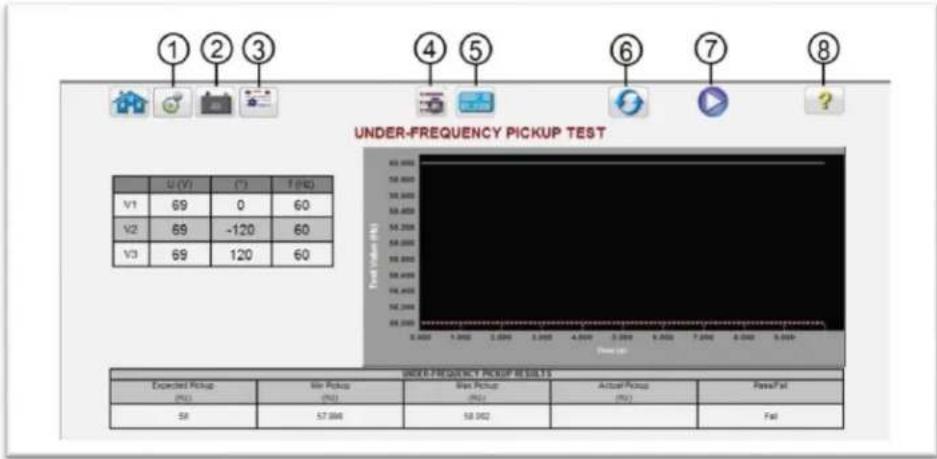
Figure 138 Frequency Relay Test Screen
3.10.2.1 ① The Configuration button

Press the button to go to the Configuration Screen. See Section 2.2.1 Configuration for more information of the Configuration Screen.
3.10.2.2 ② Battery Simulator button

The Battery Simulator button – Turns the Battery Simulator ON and OFF by pressing the button, the color changes red for ON and black for OFF. The voltage to be applied is displayed in the button and can be changed by pressing the configuration button.
3.10.2.3 ③ Test Report button

Press or click on this button to review the test results.
3.10.2.4 ④ Test List button

Press or click on this button to View the available tests, i.e. Pickup or Timing.
3.10.2.5 ⑤ Return to Frequency Relay Test Settings Screen button

Return to the Frequency Relay Test Settings Screen button provides access back to the relay and test settings screen.
3.10.2.6 ⑥ System Reset button

Pressing this button will reset the unit back to power up default settings. Use this button to reset the VIGENS after they have alarmed off due to either a short circuit on the voltage channels, or an open circuit on the current channels.
3.10.2.7 ⑦ Play button

Pressing or clicking the blue play button will apply the Prefault vector for the specified Time, and then will play the selected test.
3.10.2.8 ⑧ Help button

Pressing this button will open the help associated with the Frequency test.
3.10.3 Frequency Relay Pickup Test Screen
The Frequency Pickup test screen will display the Prefault Frequency starting values, the frequency ramp down or up, and the pickup point (green is Pass, red colored dot is Fail), see the following example Under Frequency test result. The injection table in the left hand side of the screen shows the actual fault frequency being applied during test; this is applicable for all tests.

Figure 139 Under Frequency Relay Pickup Test Result
3.10.4 Frequency Relay Timing Test Screen
There are two types of Timing Test available to choose from. To do a Classic Timing test, press or click on the Classic button. The Classic test is a step test from the Prefault to a value slightly greater or less than the specified pickup value. The default Timing test is a ramp to fault frequency simulating an actual under or over frequency condition. The ramp starts at the Prefault frequency setting and then ramps up or down until a value slightly greater than or less than the Fault Frequency setting depending on the type of relay selected. Once the Fault frequency value threshold is crossed the relay timing starts. When the relay trips the timer stops. The user will see the Prefault duration, the duration of time associated with the ramping of the output frequency to the Fault frequency value, plus the operating time of the relay, see the following example for an Over Frequency Timing test.
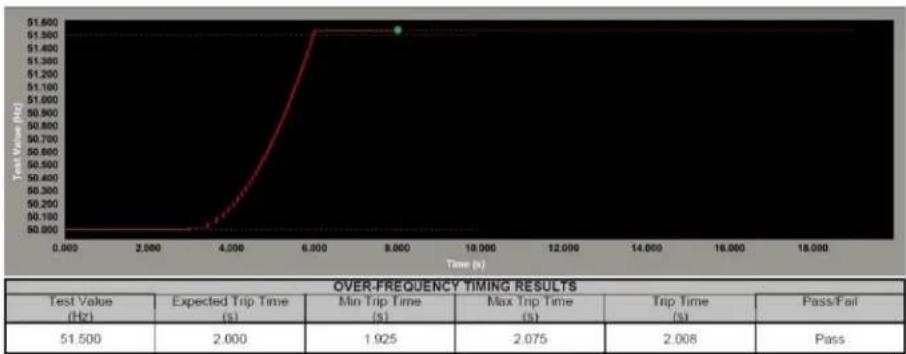
line
OVER-FREQUENCY TIMING RESULTS | Test Value (Hz) | Expected Trip Time (s) | Min Trip Time (s) | Max Trip Time (s) | Trip Time (%) | Pass/Fail | |---|---|---|---|---|---| | 51.500 | 2.000 | 1.925 | 2.075 | 2.008 | Pass |Figure 140 Over Frequency Timing Test
3.11 AVTS Test
The AVTS Test is only available for SMRT units which have the RTMS Enhanced feature enabled. Pressing the AVTS test button provides access to hundreds of relay test modules from multiple relay manufacturers, as well as special test applications. These tests are conducted in accordance with the manufacturers relay specifications.
Selection of the AVTS button will provide the following Selection screen.
3.11.1 AVTS Selection Screen

Figure 141 AVTS Relay Manufacturer Selection Screen
Pressing a manufacturer's button will provide a list of available relay specific test modules for that specific manufacturer. For example, pressing SEL (Schweitzer Engineering Laboratories) will provide the following screen.

Figure 142 Page 1 of SEL Relay Test Modules
3.11.2 AVTS Relay Test Selection Screen
After selection of a relay the relay test list selection screen will appear listing the entire available test for the relay selected. See the following example for a GE IAC-51B relay.

Figure 143 Example IAC-51B Relay Test List
3.11.2.1 The Relay Settings button

Press the button to go to the Relay Setting Screen to enter the relay settings. See the following example for the GE IAC-51B relay.
| Setting Name | Value | Min Value | Max Value | Comments |
| Tap | .5 | Available IAC Tap Settings | ||
| Time Dial | 5.0 | 0.5 | 10 | Relay Time Dial Setting |
| Instantaneous | 25 | 2 | 160 | Relay Instantaneous setting in amps |
| Seal In | .2 | Target & Seal In Setting in DC amps |
Figure 144 Example of Relay Settings screen
Press or click on the Value window to enter the relay settings. Note that Values can vary depending on the relay under test. Some values can be floating point, others can be integer values, while others can be fixed pull-down lists. For example, the Tap and Seal In Values for the IAC-51B relay will provide a pull-down list of available tap settings for the relay. Only those values are allowed to be selected. Value settings for floating point entries such as Time Dial and Instantaneous settings will allow any value between the Min and Max Values shown. After entry of the relay settings press or click on the green check button to return to the Test List screen.
3.11.2.1.1 The Runtime Settings button

Press or click on the button to go the Runtime Settings Screen to enter the desired values associated with the selected test. Increment dialog is to set the channel Amplitude, Phase and/or Frequency values to ramp for each time increment of the ramp process. Multiple ramps maybe provided for a relay test, thus the user may see multiple ramp settings.

Any parameters not to be ramped should retain a value = 0.
The following are definitions of the Setting Names.
Increment Time: edit field is to enter a numeric or variable time to control the value of time that each channel parameter will be applied to the device under test prior to applying the next time value. The Increment Units drop list dictates the Increment Time to be in Cycles or Seconds.
Ramp Input Post provides selection of which binary input post to use to monitor the relay trip or logic contacts.
Pulse Time: edit field allows a numeric or variable entry to control the pulsing of the channel parameters during the use of the Ramp Control. Note: if set to zero, the ramp will be a continuous non-pulsing operation from Start to monitored operation or End.
Pulse Units drop list dictates the pulse to be in Cycles or milliseconds.
3.11.2.2 Test Screen Selection
Pressing or clicking on the desired test button will take the user to the test screen. A row of familiar buttons will appear across the top of the window. A description of these buttons follows.
3.11.2.2.1 The Configuration button

Press or click on the button to go to the Configuration Screen.
3.11.2.2.2 Battery Simulator button

The Battery Simulator button – Turns the Battery Simulator ON and OFF by pressing the button, the color changes red for ON and black for OFF. The voltage to be applied is displayed in the button and can be changed by pressing the configuration button.
3.11.2.2.3 Test Report button

Press or click on this button to review the test results.
3.11.2.2.4 Test List button

Press or click on this button to return to the list of available tests.
3.11.2.2.5 Return to Relay Settings Screen button

Press or click on this button to return the relay settings screen.
3.11.2.2.6 Return to Relay Manufacturers selection screen button

Press or click on this button to return back to the Relay Manufacturers selection screen.
3.11.2.2.7 Test Connections button

Pressing or clicking the Test Connections button will display connections between a relay test set and the relay input terminals.
3.11.2.2.8 Test Notepad button

Pressing the Test Notepad button will provide the user with a notepad to enter notes regarding the specific relay under test.
3.11.2.2.9 Play button

Pressing or clicking the blue play button will apply the selected test.
3.11.2.2.10 Test All button

Pressing the Test All button will automatically test all the selected tests automatically in the order of selection (normally used with One-Touch test files).
3.11.2.2.11 Help button

Pressing this button will open the help associated with the AVTS test.
3.11.2.3 Executing a Test
After the appropriate relay settings have been entered, and a test has been selected, the user will be taken to the test execution screen. Before executing the test the user can verify the selected test by observation of the test identification in the left hand corner of the test execution screen, and verify test connections to the relay by opening the Connections screen. Once the test and test connections are verified, press or click on the blue play button, and the test screen will appear. As an example, the IAC-51B Pickup Test Monitor Screen is shown in the following figure.
Figure 145 IAC-51B Pick Up Test Monitor Screen
There are several notable features shown in this screen.
1. Starting on the left hand side the user can observe which output source(s) are being used to perform the test (in this example Current Channel A) and the values of amplitude, phase angle and frequency being applied to the relay is displayed.
2. In the top red colored bar the user can observe which Binary Contact is being used to monitor the relay output logic (in this example Contact 1).
3. In the middle you see the word ABORT. Should the user need to abort the test simply press or click on the red bar.
4. On the right side of the top red bar the user has several buttons available that are active during the test. When the test is started the display defaults to the Monitor screen. If the user wants to observe the test results in a Table format, press or click on the Table button. Most test results are presented in a table format. For example, the IAC-51B Pickup test result will look like the following.
| Pickup | CalcPickup | MinRange | MaxRange | Error | Pass/Fail$ |
| Amps | Amps | Amps | Amps | % | |
| 0.51 | 0.50 | 0.47 | 0.53 | 1.06 | Pass |
Figure 146 IAC-51B Pickup Test Result
- Some test may include an operating characteristic such as a time curve, a slope, or an impedance characteristic. To observe the test being performed graphically press or click on the Graph button. As an example, for the IAC-51B Timing test the user would see something like the following figure.
line
| Multiples of Puplop | Value | | ------------------- | ----- | | 0 | 10 | | 1 | 8 | | 2 | 6 | | 3 | 4 | | 4 | 3 | | 5 | 2 | | 6 | 1.5 | | 7 | 1.2 | | 8 | 1.1 | | 9 | 1.05 | | 10 | 1.02 | | 11 | 1.01 | | 12 | 1.005 | | 13 | 1.002 | | 14 | 1.001 | | 15 | 1.0005| | 16 | 1.0002| | 17 | 1.0001| | 18 | 1.00005| | 19 | 1.00002| | 20 | 1.00001| | 21 | 1.000005| | 22 | 1.000002| | 23 | 1.000001| | 24 | 1.0000005| | 25 | 1.0000002| | 26 | 1.0000001| | 27 | 1.00000005| | 28 | 1.00000002| | 29 | 1.00000001| | 30 | 1.000000005| | 31 | 1.000000002| | 32 | 1.000000001| | 33 | 1.0000000005| | 34 | 1.0000000002| | 35 | 1.0000000001| | 36 | 1.00000000005| | 37 | 1.00000000002| | 38 | 1.00000000001| | 39 | 1.000000000005| | 40 | 1.000000000002| | 41 | 1.000000000001| | 42 | 1.0000000000005| | 43 | 1.0000000000002| | 44 | 1.0000000000001| | 45 | 1.000000000000 | | 46 | 1.0 | | 47 | 1.5 | | 48 | 2 | | 49 | 2 | | 50 | 2 | | 51 | 2 | | 52 | 2 | | 53 | 2 | | 54 | 2 | | 55 | 2 | | 56 | 2 | | 57 | 2 | | 58 | 2 | | 59 | 2 | | 60 | 2 | | 61 | 2 | | 62 | 2 | | 63 | 2 | | 64 | 2 | | 65 | 2 | | 66 | 2 | | 67 | 2 | | 68 | 2 | | 69 | 2 | | 70 | 2 | | 71 | 2 | | 72 | 2 | | 73 | 2 | | 74 | 2 | | 75 | 2 | | 76 | 2 | | 77 | 2 | | 78 | 2 | | 79 | 2 | | 80 | 2 | | Note: The y-values are estimated based on the simulation parameters (e.g., 'Low Detection' or 'Terminal Curve') and not explicitly provided in the code.Figure 147 IAC-51B Timing Test
The user can see the recorded trip points associated with the relay manufacturer's time curve, as well as a real-time indicator of the test being applied (note the red colored arrow approaching the time curve). The Graph window will automatically close at the end of the test point and the test results will be presented with both Table and Graph.
- Some tests require user interaction to complete the test. As an example; the Seal-In test for the IAC-51B relay the seal-in contacts cannot be monitored with the Binary Inputs. Therefore, this test will require the user to press or click on the Simulate Contact button when the Seal-in Contacts close. A Message window will appear explaining to the user what actions are required prior to the test being performed.
After all tests have been completed, the user can view the test report by pressing or clicking on the View reports button. To Save the test report press or click on the File Folder icon.
3.11.2.4 Executing a One-Touch Test Module
One-Touch™ Test Modules were created by Megger to provide fully automated testing on selected microprocessor based relays, which have either an open communication architecture, or have Modbus communication protocol. A Visual Basic Script file is used for automated tests on Schweitzer Engineering Laboratory (SEL) relays, while the Modbus protocol is used for testing GE Multilin Type UR relays.
3.11.2.4.1 Establishing Communications with Relay Under Test
In all One-Touch test modules the first step in the test procedure is to establish communications with the relay under test. This will require the use of a USB serial port either on the PC or the relay test system.
- First connect the USB serial cable to the relay serial communications port. For the SEL relays press or click on the Log Into Relay button and a Run Test screen will appear similar to the following figure.
Figure 148 SEL-387-5 Login to Relay Screen
- Press or click on the Notebook and the General Information Screen will appear. The Header will present pull-down window for selecting the desired Relay COM port for your PC or the relay test system. Press or click on the Relay COM port window and a listing of available COM ports will be displayed similar to the following figure.
Figure 149 COM Port List
If the test system you are using is a SMRT-D model use the highest COM Port number indicated. If using a PC select the appropriate COM Port for the USB serial adapter that you are using.

Figure 150 Assigning SEL-387-5 Relay COM Port
- Once the COM Port is assigned, press or click on the green check button to return to the test screen.
- The next step will be to set the baud rate for the relay to be tested. Note: some SEL relays have Auto-baud feature which will automatically detect the baud rate of the relay to be tested and set the baud rate automatically. To set the baud rate press or click on the settings icon

. Press or click in the baud rate Value window and select the relay baud rate from the Once the baud rate is selected, press or click on the green check button. It is a similar pedure for the GE Multilin One-Touch relays, except instead of Log onto Relay button, it is the Read Settings button.
- Press or click on the blue play to start the log on. Note that for SEL relays the user will need to enter the password. After the password is accepted the user will need to press of click on the Read Relay Settings button. For GE Multilin relays the download process will begin automatically upon pressing or clicking on the Read Relay Settings button.
Once all the settings are read from the relay, the user can then select from a list of tests to execute.
In some relays there are hundreds of settings, so it may take several minutes to download all the settings depending on the baud rate. Since Megger does not know what elements in the relay may be enabled, Megger has created a test for every element.
3.11.2.4.2 SEL Start Here button
Press or click on the Start Here button. A test screen dialog box will open to set certain options for the logic output for the SEL relay under test, as well as select which Megger relay test set you are using, and the number output channels that are available (since the MPRT and SMRT units have optional number of output channels the software needs to know what is available for use).
3.11.2.4.3 Test Selection
With hundreds of settings some relays may have hundreds of tests depending on the number of elements in the relay. For example, the SEL-387-5 relays there are 119 possible test selections to choose from. Fortunately, based on the downloaded settings the software knows which elements are enabled. Thus if the user selects a test where the element is not enabled a message window will appear informing the user that the element is not enabled and the test will not continue. This is also a good way to verify and validate relay settings. To view which elements are enabled press or click on
the settings icon . Then press of click on the settings advance button to view the Configurations Settings window. The following is an example of the SEL-387-5 relay configurations settings showing which elements are enabled and which ones are not.
| Setting Name | Value | Min Value | Max Value | Comments |
| RID | Relay Identifier (39 Characters) | |||
| TID | Terminal Identifier (59 Characters) | |||
| E87W1 | Y | Enable Winding 1 in Differential Element | ||
| E87W2 | Y | Enable Winding 2 in Differential Element | ||
| E87W3 | Y | Enable Winding 3 in Differential Element | ||
| E87W4 | Y | Enable Winding 4 in Differential Element | ||
| EOC1 | N | Enable Winding 1 O/C Elements and Dmd Thresl | ||
| EOC2 | N | Enable Winding 2 O/C Elements and Dmd Thresl | ||
| EOC3 | N | Enable Winding 3 O/C Elements and Dmd Thresl | ||
| EOC4 | N | Enable Winding 4 O/C Elements and Dmd Threshol | ||
| EOCC | N | Enable Combined O/C Elements | ||
| E49A | N | Enable RTDA Elements | ||
| E49B | N | Enable RTDB Elements | ||
| ESLS1 | N | Enable SELogic Control Equation Set 1 | ||
| ESLS2 | N | Enable SELogic Control Equation Set 2 | ||
| ESLS3 | N | Enable SELogic Control Equation Set 3 |
Figure 151 SEL-387-5 Configuration Settings
Once a test is selected, the user can press or click on the relay settings button, then press or click on to display all of the associated relay settings. Before executing the test the user can verify the selected test by observation of the test identification in the left hand corner of the test execution screen, and verify test connections to the relay by opening the Connections screen by pressing the Connections icon. Once the test and test connections are verified, press or click on the blue play button, and the test screen will appear.
3.12 COMTRADE Playback
The COMTRADE Playback is only available for SMRT units, which have the RTMS Enhanced feature enabled. Pressing the COMTRADE test button provides the capability of playing back transient waveform data from the SMRT relay test systems. In other words, it can recreate a fault (waveforms...) recorded by a Digital Fault Recorder, protective relays, or a simulated fault using software tools like the EMTP/ATP programs.
Selection of the COMTRADE

button will provide the following COMTRADE dialog box.
3.12.1 COMTRADE Dialog Box
Figure 152 COMTRADE Dialog Box
From this dialog box a user can convert digital fault recorder data in COMTRADE format to hexadecimal files compatible with SMRT waveform generators, select the channels and ranges to be uploaded to SMRT unit, and upload and output the waveforms.
3.12.1.1 Processing a COMTRADE File
The IEEE Power System Relaying Committee has established a standard called COMTRADE (common transient data exchange) see IEEE C37.111. In addition, the IEC has also adopted the standard as IEC 60255-24. The RTMS COMTRADE test feature uses the COMTRADE data either in the ASCII or Binary formats.
Processing a Configuration file involves the process of converting the data in COMTRADE ASCII or Binary format to SMRT/FREJA-ready hexadecimal format.
Prior to creating a test the COMTRADE .cfg and .dat files need to be placed into a file folder on your PC or in the . The .cfg and .dat file must be in the same directory and have the same name prior to the file extension.

From the COMTRADE dialog box, click on the COMTRADE File button. The windows file navigator window will appear. Navigate to the Waveforms folder. Use this dialog box to select a COMTRADE configuration file and to convert the COMTRADE data to hexadecimal data.
3.12.2 COMTRADE Test Screen
When the file is selected, the program will automatically garb the first 3 channels of voltage and current and display the values in either primary or secondary values, depending on the ratios provided in the Configuration file (primary or secondary).

other
COMTRADE | Category | Voltage (V) | Current (A) | Max RMS (RMS) | Ratio | Scale | | :--- | :--- | :--- | :--- | :--- | :--- | | GATIKA 380 KV TE | KV | 869.20 | 1:1 | 1.0000 | 1 | | GATIKA 380 KV TE | KV | 912.23 | 1:1 | 1.0000 | 2 | | GATIKA 380 KV TE | KV | 897.09 | 1:1 | 1.0000 | 3 | | ... | ... | ... | ... | ... | ... | The table includes the number of samples tested for each measurement type. The first row contains the number of samples tested for the voltage range from 1 to 5000 V, while the second row contains the current range from 1 to 5000 A. The third row contains the maximum RMS value for each measurement type. The fourth row contains the minimum RMS value for each measurement type. The data is presented in a grid format with color coding (Red = High, Blue = Low).Figure 153 Example COMTRADE Playback Test Screen
The following is a brief description of the buttons and fields available in the COMTRADE test screen dialog box.
- Pressing the house icon will return you to the manual test screen.
- Press the Configuration button to go to the RTMS software Configuration Screen.
- Press the COMTRADE File button to go to the Waveform subdirectory to select a COMTRADE file.
-
Press the COMTRADE Waveform screen button to preview the COMTRADE waveform and make any additional adjustments before downloading and playing the waveforms. It is recommended to view the waveform before applying prefault values.
-
Once the test is completed, press Add / Review Test Report button. This button will add the present test result to the report. It also displays the report and allows the user to name the test, enter limits, comments or deficiencies. Reports can be saved to the STVI internal memory and transferred to PowerDB via a USB memory stick. Previous tests results can be loaded and the 'Retest' option can be used to repeat the test using the same parameters as the previous test.
-
The Sample Rate indicates the Sample Rate of the recorded data. The sample rate is taken from the configuration (.cfg) file. If no sample rate is shown in the configuration file (some relay COMTRADE files are missing the sample rate), RTMS will calculate it from the data file.
-
Samples is the number of samples in the data (.dat) file.
-
The Battery Simulator button – Turns the Battery Simulator ON and OFF by pressing the button, the background color changes red for ON and gray for OFF. The voltage to be applied is displayed in the button and can be changed by pressing the configuration button.
-
Start Now button works in conjunction with the blue Play button. Clicking or pressing the Start Now button will open a menu so that the user can select if they want the test to start upon pressing or clicking
on the Blue play button, or a Contact change of state, or upon a specific time as provided by the IRIG-B decoded time on binary input #1 (used for end-to-end tests). Selecting the Start IRIG button, upon pressing or clicking on the Blue play button a window will appear showing the current UTC time decoded with the preset trigger time 1 minute into the future. Pressing or clicking on the green check button will set the trigger time as displayed.
- Pre Fault time setting window. This allows the operator to "add" additional prefault cycles to the original fault record (needed for proper polarization of the relay). Pre Fault time defaults to S, seconds. Press or click on the S and it will change to Cy Cycles. When a prefault is selected, two additional fields appear. One for voltage and one for current. Match is the default setting, which means the prefault values of voltage and current will match the prefault values in the configuration/data files at the beginning of the recorded waveform. It is advisable that this be done after inspecting the waveform since it is possible that 0 values are at the start of the waveform. If the user does not wish to match the beginning of the waveform, then they can select Enter Amplitude, where the user can enter their own desired prefault values of voltages and currents. The values entered are peak values, because that is what is in the data files according to the standard. If the user wants to have RMS values, then they will need to multiply by 0.707.

NOTE: The number of cycles required for polarization varies. It is recommended that a minimum of 30 Cycles of prefault be added to the COMTRADE recording. Contact your relay manufacturer technical support, or review your relay manual for recommended prefault time settings.

- Reset button - Pressing this button will reset the unit back to power up default settings. Use this button to reset the VIGENS after they have alarmed off due to either a short circuit on the voltage channels, or an open circuit on the current channels.
- Blue Play button - Pressing or clicking the blue play button will download the waveforms, and based upon the Start Now Setting, the test set will apply the prefault vector, then step to the COMTRADE playback values and look for the relay under test to operate.
- Iterations window – The default value is "1". Upon pressing or clicking on the Blue play button the test will execute one time. If you desire to cycle the relay through several iterations of the same fault, enter the desired number of iterative cycles as an integer number.
- Analog Voltage and Current Values- The software will display the first three analog channels as defined by the Configuration file. To select other channels, simply click or press in the name window provided and a list of available channels will be provided to select from. If your test system has more than 3 current channels, to select more channels simply click in the "blank" channel and select the next analog channel. Continue this selection process until all the desired channels are selected.
- DIGITAL – The digital channel Name defaults to blank. To playback digital channels, click in the window provided and the names of all the digital channels will be provide.
3.12.2.1 Processing the COMTRADE File
The analog values shown may be in Primary or Secondary Values as defined by the Configuration file. The PT and CT ratios are either automatically provided, or entered by the user, depending on the year of the COMTRADE standard file format. Files that follow the 1999 standard and later should have PT and CT ratios in the configuration (.cfg) file. However, not all manufacturers strictly follow the standard, and these ratios may be missing. If they are missing, and the data (.dat) file is in primary values, the user can manually enter PT and CT ratios to convert the primary to secondary values for the test set to play, see the following example.
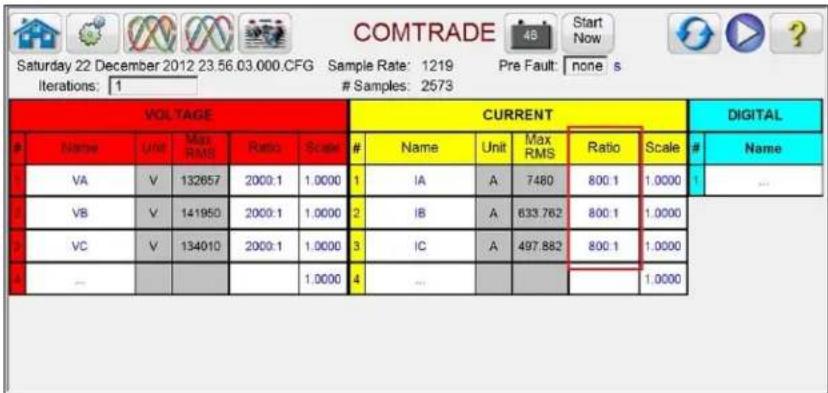
Figure 154 Locating Primary to Secondary Ratios in the Test Screen
To change a ratio, simply click in or press any ratio window provided and enter the ratio.
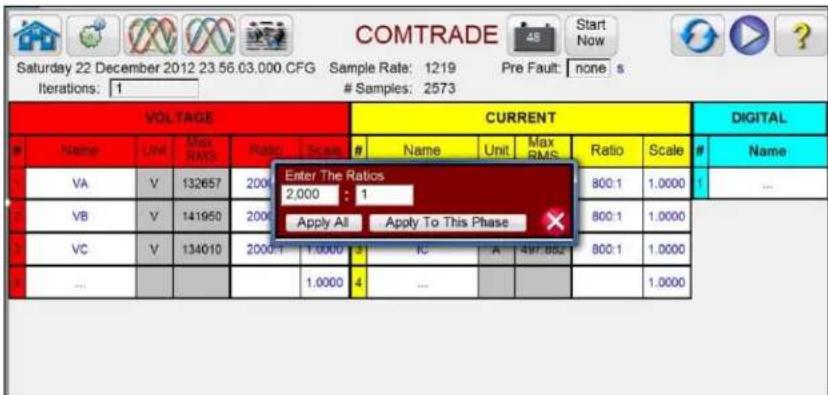
Figure 155 Changing Ratios Dialog Box
The software will ask if you want to Apply All or Apply To This Phase only. Upon pressing the appropriate application button, you will see the Maximum RMS voltage and/or current that will be applied during the test.

Also, take careful note of the Unit values, as some channels may be recorded in Primary and some in Secondary units. Sometimes the test currents will exceed the maximum of 30 Amps per phase. The SMRT/FREJA amplifiers can output fault currents of up to 60 Amps for 1.5 seconds. Since most faults last less than a few cycles this will not be an issue upon playback. Test currents above 60 amperes are not allowed.
The primary use of the Scale is to adjust voltage and current channels proportionately together, so as not to change the "impedance" that a distance relay would "see". For example, after adjusting the outputs by entering the CT/PT ratios, let us assume that one output current is showing 70 amperes and the fault voltage is 30 volts. Since the current channels cannot playback more than 60 Amperes, the current values need to be adjusted down to 60 Amps. Therefore, by adjusting the Scale to 0.8570 the user may lower the current to say 59.99 amperes. The user will need to lower all other outputs proportionately, thus reducing the fault voltage to 25.71 volts.
3.12.2.1.1 Adding Digital channel playback
To playback digital channels, click in the window provided and the names of all the digital channels will be provide.

Figure 156 Selecting Digital Channels for Playback
Click on the desired digital channels, which will be associated with the appropriate Binary Output channel, see the following example.

Figure 157 Assigning Four Digital Channels for Playback
Once all the appropriate channels have been selected, with proper ratios set, and scaling completed you have completed the creation of a test.
3.12.2.2 Viewing COMTRADE Playback Waveforms
To view the waveforms that will be played back press or click on waveform button, see the following example.

line
| Time | Value | |-------|-----------| | 0.08 | 0.08 | | 0.26 | 0.26 | | 0.40 | 0.40 | | 0.60 | 0.60 | | 0.80 | 0.80 | | 1.00 | 1.00 | | 1.20 | 1.20 | | 1.40 | 1.40 | | 1.60 | 1.60 | | 1.80 | 1.80 | | 2.00 | 2.00 |Figure 158 Viewing Analog and Digital Channels for Playback
The press the blue nameplate button (highlighted in red above) to return to the previous screen.
3.12.2.2.1 Zoom and Cursor Controls
Use the Zoom in and out buttons to zoom on the waveforms. The forward and backwards buttons will move the waveform along the time axis so that the user can view the whole waveform while zoomed in. If a cursor is selected, the forward and backward arrows will move the cursor. The Zoom Control button (highlighted in red) will toggle between zoom functions, and cursor selection, see the following example.

Figure 159 Selection of Zoom Control
The cursor selected shows the values of the channels selected above the window. The format is as follows:
Cursor #, Sample #, Channel Selected, RMS Magnitude, RMS Angle, (Peak Magnitude, Phase Angle), Current Channel Selected, RMS Magnitude, RMS Angle, (Peak Magnitude, Phase Angle), Cursor to Cursor difference time in ms.
The text is color-coded and will change depending on which phase is selected see the following example.
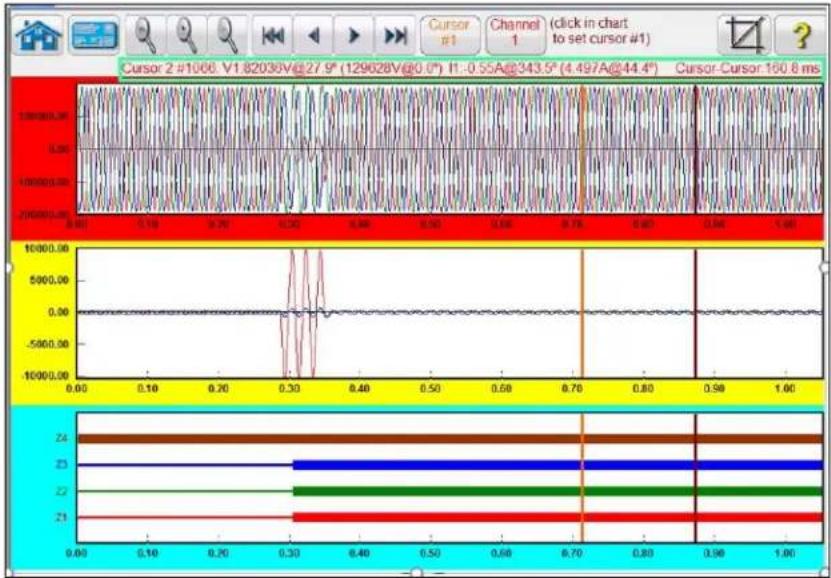
line
| Time (ms) | V1 | @27.9° | @0.0° | @343.5° | @44.4° | |-----------|--------|--------|-------|---------|--------| | 0.00 | 10000.00 | 129628 | 0.55 | 4.497A | 160.8 | | 0.10 | 10000.00 | 129628 | 0.55 | 4.497A | 160.8 | | 0.20 | 10000.00 | 129628 | 0.55 | 4.497A | 160.8 | | 0.30 | 10000.00 | 129628 | 0.55 | 4.497A | 160.8 | | 0.40 | 10000.00 | 129628 | 0.55 | 4.497A | 160.8 | | 0.50 | 10000.00 | 129628 | 0.55 | 4.497A | 160.8 | | 0.60 | 10000.00 | 129628 | 0.55 | 4.497A | 160.8 | | 0.70 | 10000.00 | 129628 | 0.55 | 4.497A | 160.8 | | 0.80 | 10000.00 | 129628 | 0.55 | 4.497A | 160.8 | | 0.90 | 10000.00 | 129628 | 0.55 | 4.497A | 160.8 | | 1.00 | 10000.00 | 129628 | 0.55 | 4.497A | 160.8 |Figure 160 Using Cursors
3.12.2.2.2 Cropping button

The second to last button in the top row is the cropping button. This will let you crop a waveform to what is between the cursors. If you press the play button, it will only play back what is between the two cursors. To remove the crop press the crop button again.
3.12.2.3 Saving Test
To save the test click or press on the FILE tab and save as a PowerDB Test Template. When you want to run the test, with the test set powered up and ready, simply open the test template, and press the Blue play button.
3.13 Power Swing Simulator
Press or click on the Power Swing button to access the Power Swing input-setting screen see the following figure.

line
| Time (s) | Voltage (V) | Current (A) | Time (s) | Min Value (s) | Max Value (s) | Pass/Fail | |---|---|---|---|---|---|---| | 0.00 | 69 | 3.5 | 0.00 | 1.90 | 2.10 | | | 0.20 | 69 | 3.5 | 0.00 | 1.90 | 2.10 | | | 0.40 | 69 | 3.5 | 0.00 | 1.90 | 2.10 | | | 0.60 | 69 | 3.5 | 0.00 | 1.90 | 2.10 | | | 0.80 | 69 | 3.5 | 0.00 | 1.90 | 2.10 | | | 1.00 | 69 | 3.5 | 0.00 | 1.90 | 2.10 | | | 1.20 | 69 | 3.5 | 0.00 | 1.90 | 2.10 | | | 1.40 | 69 | 3.5 | 0.00 | 1.90 | 2.10 | | | 1.60 | 69 | 3.5 | 0.00 | 1.90 | 2.10 | | | 1.80 | 69 | 3.5 | 0.00 | 1.90 | 2.10 | | Global Frequency (Hz) 60 Voltage (V) 69 Period (s) 1 Pre-Fault (s) 1 Setting Time (s) 2 Swing Turns 1 Duration (s) 1 Z Min (Ω) 2 Z Mid (Ω) 20 Z Max (Ω) 25 Results Voltage (V) Current (A) Time (s) Min Value (s) Max Value (s) Pass/FailFigure 161 Power Swing Input Setting Screen
The Power Swing simulation tool is similar to the Power Swing tool in the Fault Calculator, which uses two superimposing waveforms of similar frequencies to provide a smooth impedance ramp. This method is similar to a two source model in that both sources have similar frequencies and amplitudes. For details regarding the theory and mathematical equations associated with the Power Swing simulation, see section 3.1.20.1.6 Power Swing.
3.13.1 Power Swing Test Screen
The following is a brief description of the buttons and fields available in the Power Swing test screen dialog box.
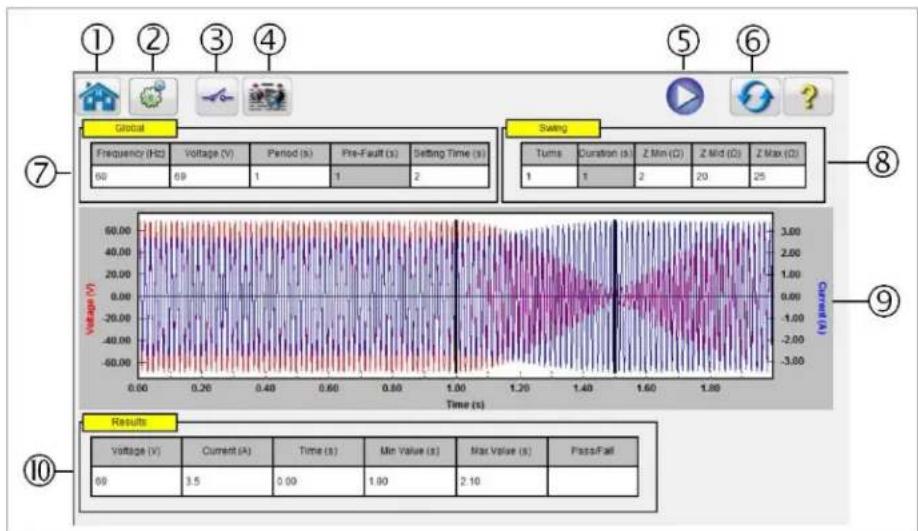
Figure 162 Example COMTRADE Playback Test Screen
1. Pressing the house

icon will return you to the manual test screen.
-
Press the Configuration button to go to the RTMS software Configuration Screen.
-
Press the Binary Input Setting button to reveal the Binary Input Dialog box.

The default settings are Binary Input 1, dry contacts as indicated by the Input Type, and Input Action defaults to show the Closing of the Normally Open contacts. To change the Input Type from dry contacts to Voltage, press the Input Type icon, and it changes to voltage. To change to the opening of Normally Closed contacts press the Input Action icon and it changes to show closed contacts opening. For timing the operating time of the relay power swing element the timer is defaulted to Latched Input enabled mode, which means the timer will stop on the first contact closure. Note the Debounce time is set to 2 milliseconds.
-
Once the test is completed, press Add / Review Test Report button. This button will add the present test result to the report. It also displays the report and allows the user to name the test, enter limits, comments or deficiencies. Reports can be saved to the STVI internal memory and transferred to PowerDB via a USB memory stick. Previous tests results can be loaded and the 'Retest' option can be used to repeat the test using the same parameters as the previous test.
-
Blue Play button - Pressing or clicking the blue play button will apply the prefault vector, then step to the Power Swing values and look for the relay under test to operate.
-
Reset button - Pressing this button will reset the unit back to power up default settings. Use this button to reset the VIGENS after they have alarmed off due to either a short circuit on the voltage channels, or an open circuit on the current channels.
-
Global window – Global Settings can affect setting values in the Swing and Results windows. The following are descriptions of each setting in the Global window.
Frequency (Hz): Nominal System Frequency in Hertz.
Voltage: Nominal Line to Ground System Secondary Voltage (V)
Period: Time Period of one complete power swing in seconds (s) This setting will be used to calculate the Global Pre-Fault time in seconds, as well as the Duration time in seconds in the Swing Window. Setting Time: This is the operating time of the relay in seconds. This setting will be used in the Results window to set the default Min and Max time evaluation values (± 5%). Note that the Min and Max values can be manually changed in the Results window.
- Swing window – Settings in the Swing window are associated with the Impedance Locus. The following are descriptions of each setting in the Swing window.
Turns: The number of times that the power swing will repeat around Zmid and Zmin.
Zmin: The minimum of the impedance locus (Ohms)
Zmid: This is the second maximum impedance during the power swing (Ohms)
Zmax: This is the starting impedance of the power swing (Ohms).

Application Note: Make sure that the Zmax is set greater than the power swing blinder setting by at least 1 Ohm. Setting Zmax to a very large ohm value can result with an unrealistic impedance locus approaching the relay impedance-operating characteristic at an undesirable angle. Starting the Zmax just outside of the power swing blinder element works best for this test application.
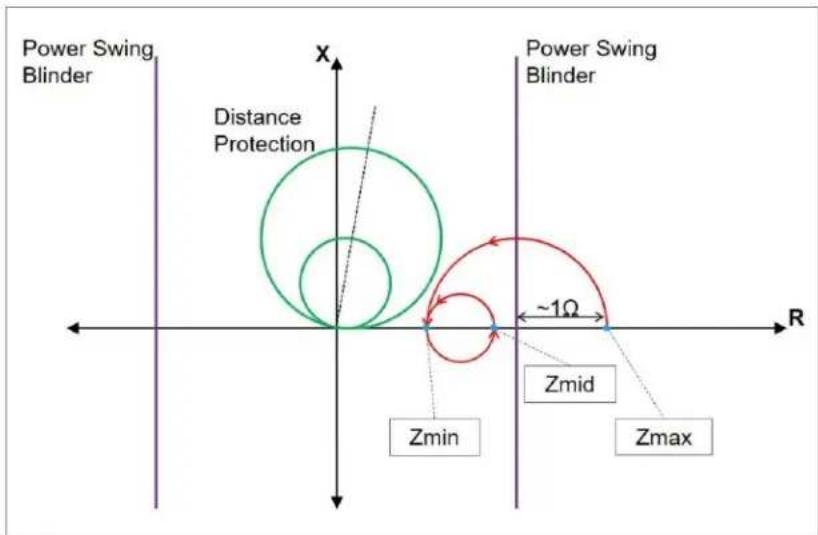
Figure 163 Power Swing Locus
When you press the play button, the test will start with a prefault value for the Pre-Fault setting. After the prefault time is over, the power swing will begin. If there is only one turn defined, the power swing will begin at the point Zmax and proceed smoothly to Zmin. Once the impedance locus reaches Zmin, it will then continue to Zmid, and the test will end. For tests that have more than one turn, the impedance locus will then continue from Zmid and proceed to Zmin, and then back again to Zmid. This will continue based on the number of Turns setting.
Zmid can be set equal to Zmax if one loop is desired. Zmin cannot be equal to Zmid or Zmax.
-
Power Swing Waveform – The Graphic window displays the power swing waveforms that will be played. If more than 1 Turn is specified the display will include each turn.
-
Results Window: The Results window includes the Nominal voltage, the calculated test Current, the operating Time in seconds, the calculated Min and Max time values in seconds, and Pass/Fail based upon the recorded operating Time.
3.14 SS1 File Playback
In the Enhanced menu, click on the SS1 button to open the SS1 Test Screen.
SS1 File Playback is used for importing of State-Sequence Files (SS1) from ASPEN and CAPE power system simulation software programs. SS1 File Dialog Window will read the SS1 file and create a dynamic state sequence playback file. By modeling the power system using ASPEN or CAPE, the relay can then be tested dynamically using realistic system test scenarios.
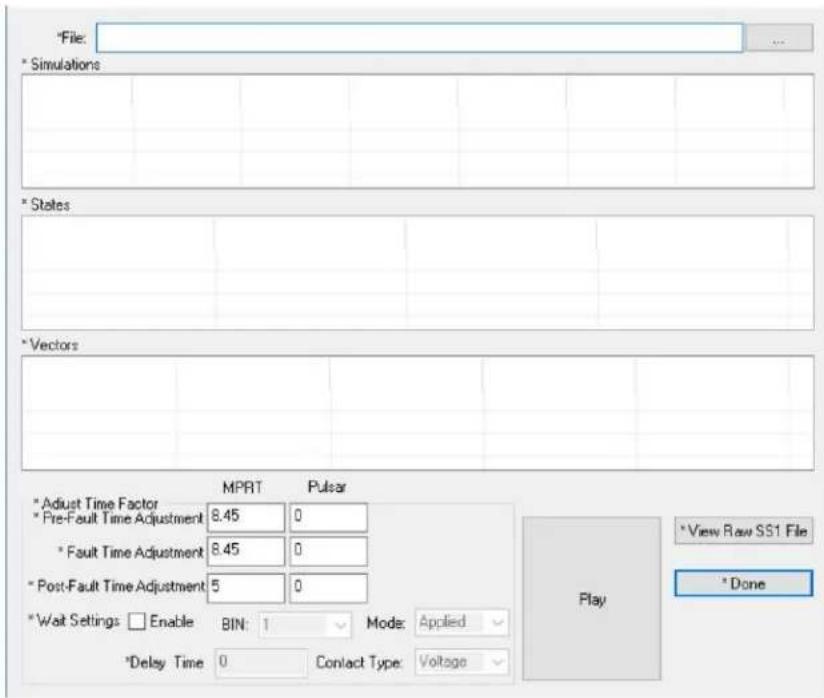
Figure 164 SS1 Test Screen Dialog Window
3.14.1 SS1 File Dialog Window
The dialog window is divided into five areas and are described with an imported SS1 file. The following is an example of an imported SS1 file.
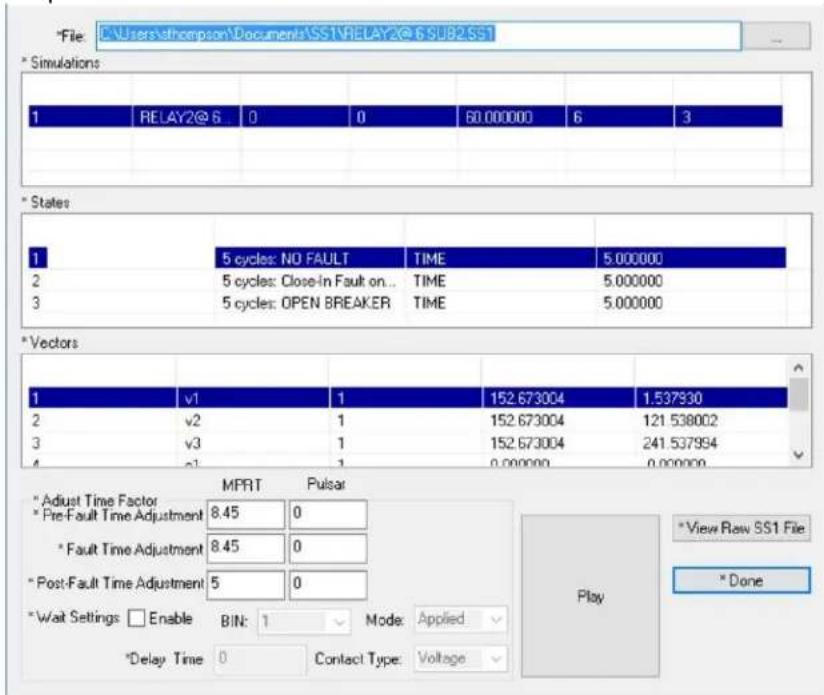
Figure 165 Example Imported SS1 File
3.14.1.1 SS1 File Edit Field
File: edit field is used to locate, using the browse button, a SS1 file to be converted to an RTMS test.

Figure 166 File Edit Field used to locate SS1 file
3.14.1.2 SS1 File Simulations Field
The Simulations window will list the number of simulations contained in the SS1 file.

Figure 167 Simulations ID Window
The first column is the test ID#. The 2^nd column is the Name of the simulation. The 3^rd column battery voltage (not used since the Bat Sim is set separately). The 4^th column is the Debounce Time (not used since the debounce time is set in the Binary Input dialog box). The 5^th column is the Output Frequency. The 6^th column is the number of channels used. The last column is the number of dynamic states in the test (3 would be pre-fault, fault, and post fault).
3.14.1.3 SS1 File States Area
The States area is a list of the Dynamic States to be presented for each of the Simulations by Test #. In the following example there are 3 States representing Pre-Fault, Fault, and Post-Fault (Breaker Open). The last column represents the duration of the state in Cycles.
| 1 | 5 cycles: NO FAULT | TIME | 5.000000 |
| 2 | 5 cycles: Close-In Fault on... | TIME | 5.000000 |
| 3 | 5 cycles: OPEN BREAKER | TIME | 5.000000 |
Figure 168 States Example
3.14.1.4 SS1 File Vectors Area
Vectors area is a list of the Voltages and Currents to be output in the Simulations.
| 1 | v1 | 1 | 152.673004 | 1.537930 |
| 2 | v2 | 1 | 152.673004 | 121.538002 |
| 3 | v3 | 1 | 152.673004 | 241.537994 |
| 4 | c1 | 1 | 0.000000 | 0.000000 |
Figure 169 Vectors Example

Note: Any attempt to change any of the fields in the Simulations, States, or Vectors areas will in an abort of the SS1 file converter. Any edits to any of the text files must be made in the file. A complete new file may be made from the *.AA1 file with different values using Notepad saved as a new file name.
3.14.1.4 SS1 File Adjust Time Factor Area
Adjust Time Factor area contains three edit fields for time adjustments to the MPRT/SMRT test sets. The adjustments are to manipulate time in milliseconds for synchronization between test sets of different manufacturer or models involved in playback of the file Tests and States.

Figure 170 Adjust Time Factor Example
Time Adjustment edit fields are for necessary skewing of the Prefault, Fault and Post Fault States. These adjustments may be made for the MPRT or SMRT test sets and saved as Defaults. Default memory is limited to only the values last saved and only that one set is available for repopulating the edit fields with the Load Defaults button. To start the State playback using a trigger on Binary Input #1, click or press the Wait Settings Enable button. Then enter the appropriate Mode (Applied or Removed) and Contact Type (Voltage or Contact). The Delay Time window is for debounce time settings if appropriate.
3.14.1.5 View Raw SS1 File
View Raw SS1 File option will open Notepad and display the data of the SS1 file being viewed in the SS1 Converter dialog.
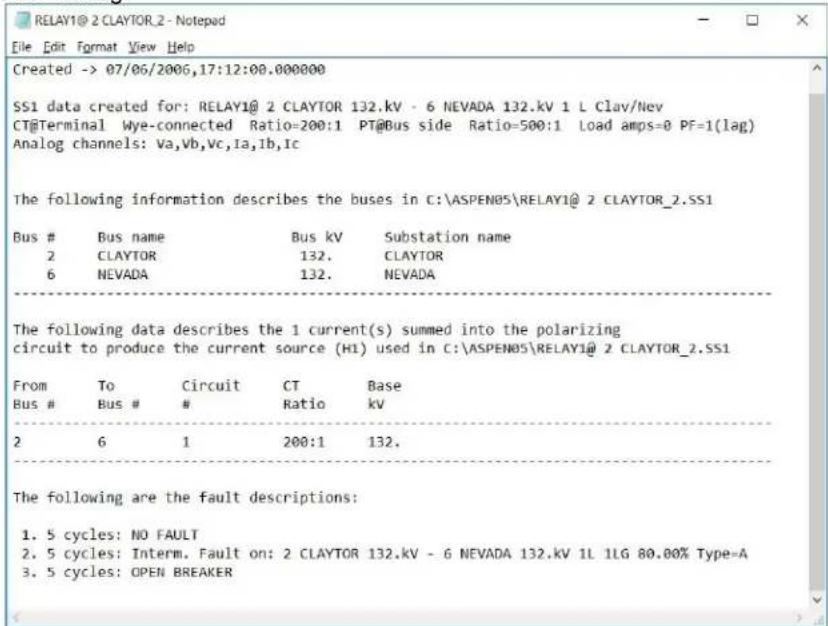
Figure 171 Raw SS1 File Information Example
To execute the test press or click on the Play button. When tests have been completed, click or press on the Done button.
3.15 IEC 61850 Megger GOOSE Configurator (MGC)
The Megger GOOSE Configurator software (MGC) provides mapping of the binary inputs and outputs of the SMRT or FREJA 5xx test set to the desired GOOSE messages. The GOOSE messages are read from available SCL (Substation Configuration Language) files or may be automatically detected by scanning the substation network in search of available published GOOSE messages. This scanning process is known as GOOSE "sniffing". The MGC also provides advanced network troubleshooting tasks such as comparing the GOOSE messages available on the network with the GOOSE messages
described in the SCL files with GOOSE MERGE/COMPARE functionality; this is also a powerful tool for validating the horizontal communication description (GOOSE) in the supplied SCD file at Factory Acceptance Tests (FAT) in IEC 61850 substations. This type of verification is also known as GOOSE Consistency Check.
An SCL file is an XML (Extensible Markup Language) file that describes the IEDs available in one IEC 61850 substation (SCD file) or can just describe only one single IEC 61850 device (ICD, CID files). In the SCL file there are several IEC 61850 information available (logical nodes in the IEDs, GOOSE messages sent by the IEDs, GOOSE messages received by IEDs, Reporting information to SCADA etc.).
3.15.1 GOOSE Message Description
GOOSE is an acronym for Generic Object Oriented System Event (GOOSE). A "GOOSE message" is an intentional simplification. In reality the GOOSE message is a digital frame (message) containing a lot of information, including the dataset. A dataset can contain different information like real values (analog GOOSE information, like RMS value of a measured quantity), integer values (e.g. BCD position of one power transformer tap changer), boolean values (single point GOOSE information, e.g. the trip signal from the protection relay) and 2-bit string information (double point GOOSE information, e.g. the position of the circuit breaker). The MGC allows mapping of the binary information of the dataset (single point and double point) to the binary inputs and binary outputs of Megger relay test set.
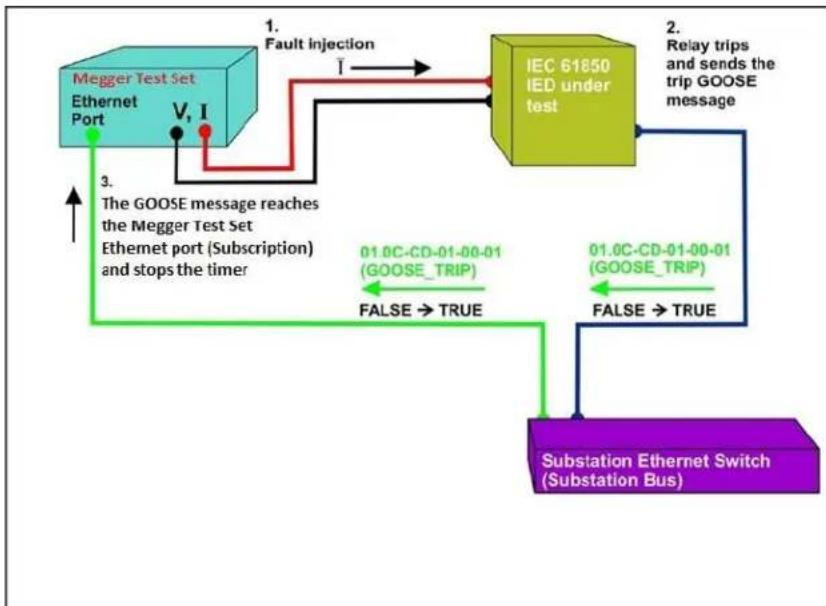
flowchart
graph TD
    A["Megger Test Set Ethernet Port"] -->|Fault injection| B["IEC 61850 IED under test"]
    B -->|Relay trips and sends the trip GOOSE message| C["Substation Ethernet Switch (Substation Bus)"]
    C -->|FALSE → TRUE| D["GOOSE message reaches the Megger Test Set Ethernet port (Subscription) and stops the timer"]
    D -->|01.0C-CD-01-00-01 (GOOSE_TRIP)| E["IEC 61850 IED under test"]
    E -->|01.0C-CD-01-00-01 (GOOSE_TRIP)| F["Substation Ethernet Switch (Substation Bus)"]
    F -->|FALSE → TRUE| G["GOOSE message reaches the Megger Test Set Ethernet port (Subscription) and stops the timer"]
    G -->|Fault injection| H["IEC 61850 IED under test"]
    H -->|Relay trips and sends the trip GOOSE message| I["Substation Ethernet Switch (Substation Bus)"]
Figure 172Trip test of an IEC 61850 IED with the IEC 61850 GOOSE interface.
3.15.1.1 IEC 61850 Relay Testing – General Description
The Megger relay test system is connected to the IEC 61850 station bus (or directly to the Ethernet port of the relay) and is programmed to map the trip GOOSE message from the tested IED to a chosen binary input. The mapped binary input is programmed to stop the timer of the Megger test set. This last action is done from RTMS software. For testing IEC 61850 relay applications, where the protection relay needs an external signal to allow protection functions (e.g. external direct inter-trip command, or external auto-recloser start, or breaker failure start), it is necessary to "energize" the IEC 61850 relay with a GOOSE message. The Megger relay test set, which is still connected to the IEC 61850 station bus, is now programmed to map a binary output to a defined GOOSE message that is published by the SMRT or FREJA 5xx. The test set activates its binary output when the test requires it, which means that the GOOSE message changes its status from "0" (false) to "1" (true). In a practical situation both applications
(publishing of a GOOSE message and subscription of a GOOSE message), are often used simultaneously.

flowchart
graph TD
    A["Megger Test Set\nEthernet Port"] -->|1. GOOSE message\nsent by Megger Relay Test Set\n(Published)| B["IEC 61850 IED under test"]
    B -->|2. GOOSE message\nreaches the IED\nAutorecloser starts\nin the IED| C["Substation Ethernet Switch\n(Substation Bus)"]
    C -->|01.0C-CD-01-00-FF\n(GOOSE START A/R)| B
    B -->|FALSE → TRUE| C
Figure 173 External relay energization (auto-recloser start) test of an IEC 61850 IED with a SMRT or FREJA 5xx equipped with the IEC 61850 GOOSE interface.
3.15.2 MGC Menus
The following are descriptions of the MGC Menus

Figure 174 MGC Tool Bar Menu
3.15.2.1 File Tab
3.15.2.1.1 Save
This option allows the user to save a *.mgc file. This file will contain all GOOSE messages used to configure the test set, and all the created tabs for GOOSE message sniffing, or for GOOSE messages imported from SCL files. The *.mgc file will also contain the mappings to binary inputs and outputs.
3.15.2.1.2 Save As
This is similar to save except it allows the user to create a new *.mgc file with a different name.
3.15.2.1.3 Open
Opens up an *.mgc file
3.15.2.1.4 Download Settings to Test Set
This function is used to download (writing) a mapping configuration to the test set.
3.15.2.1.5 Exit
Closes the MGC.
3.15.2.2 Edit Tab
All operations in this menu affects the GOOSE messages in the active tab. No changes will be done until the new configuration is downloaded. The following are descriptions of the Edit Tab Menu.
Figure 175 Edit Tab Menu
3.15.2.2.1 Delete Selected GOOSE
Will delete selected GOOSE message(s) from the active tab.
3.15.2.2.2 Mark Unconfirmed (All GOOSE messages this tab)
Will mark captured GOOSE messages as unconfirmed. This is helpful to determine if a particular GOOSE message is found within the network. All imported GOOSE messages from SCL files are unconfirmed.
3.15.2.2.3 Reset Binary Input Mapping
Will reset all mappings to binary inputs under the MyGOOSE tab.
3.15.2.2.4 Reset Binary Output Mapping
Will reset all mappings to binary outputs under the MyGOOSE tab.
3.15.2.2.5 Reset All Binary Input / Output Mappings (All GOOSE messages)
Will reset all mappings to binary inputs and outputs under the MyGOOSE tab.
3.15.2.2.6 Delete Current Tab
Will delete the visible tab. The MyGOOSE tab cannot be deleted.
3.15.2.3 View Tab
The following are descriptions of the MGC View Tab

Figure 176 The View Tab Menu
3.15.2.3.1 Collapse All
If a GOOSE message is expanded, this command will collapse all GOOSE messages.
3.15.2.3.2 Expand All
Expand all will show all the properties of the GOOSE messages.
3.15.2.3.3 Open Log
This menu allows the user to view the log file containing all the user's and MGC operations.
3.15.2.4 Tools Tab
The following are descriptions of the Tools Menu Tab

Figure 177 Tools Tab Menu
3.15.2.4.1 Capture
Use to "sniff", i.e. capture, GOOSE messages from a network device. This will open the select network interface window (Ethernet port) if no interface has been selected previously in this session.
3.15.2.4.2 Import
Use to import GOOSE messages from an SCL type file. These files have an extension of .SCD, .CID, or .ICD (IEC 61850 standard, Edition 1). This will open up a browse window to select an SCL file to open.
3.15.2.4.3 Sort
Sort
Use to sort GOOSE messages in either descending or ascending order.
3.15.2.4.4 Reset GOOSE Configuration
Use to reset the test set GOOSE mapping configurations.
3.15.2.4.5 Select Network Device
Use to display window below allowing choosing of the Ethernet port of the PC that will be used to sniff (capture) the GOOSE messages and to communicate to the Megger test set. In normal situations, this PC Ethernet port connected to the front port of the test set.

Figure 178 Selecting Ethernet Port
3.15.2.4.6 Set Test Set IP
Display window used to enter IP address of the front port of the Megger test set to allow the download of the GOOSE mapping.

Figure 179 Window for Setting IP address
3.15.2.4.7 Preferences
The following are descriptions of the Preferences career selections.
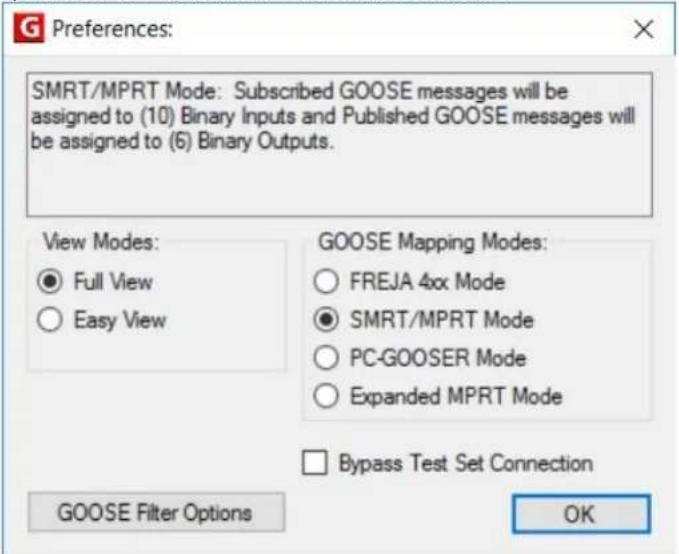
Figure 180 Preferences Screen Selections

NOTE: The SMRT/MPRT Mode also applies to the FREJA 5xx units.
3.15.2.4.7.1 Full View
In Full View all information associated to GOOSE messages will be shown. See the following example.
![IEC GOOSE[GOOSERLD0/LLN0GOG_802][01-0C-CD-01-F0-02] IED(3) IEDName: GOOSER IEDName + LDName: GOOSERLD0 IED IP ADDRESS: 10.1.150.3 Attributes(11) GOOSE CONTROL BLOCK NAME: G_802 GOOSE CONTROL BLOCK FULL NAME: GOOSERLD0/LLN0GOG_802 DESCRIPTION: 802 GOOSE MAC-Address: 01-0C-CD-01-F0-02 VLANID: 1 (0x001) VLAN PRIORITY: 4 GOOSEID (GoID): MEGGER APP ID: 2 (0x0002) DATASET NAME: DS2 DATASET FULL NAME: GOOSERLD0/LLN0$DS2 Config Revision: 2 DataSet(2) [1] BOOLEAN (LD0.SP16GGIO1.ST.Ind2.stVal) [2] BITSTRING (LD0.SP16GGIO1.ST.Ind2.q length: 13)](/content/2026/05/1062520/images/3f96648c6f60dd2bbbce79d760900a418b9686e6243bd918d4183539a6c2b371.jpg)
Figure 181 Full View GOOSE Messages
3.15.2.4.7.2 Easy View
In Easy View the most used information associated to GOOSE messages will be shown. If not advanced GOOSE troubleshooting is performed, this is the suggested view for the user.
![IEC GOOSE[GOOSERLD0/LLN0GOG_B02][01-0C-CD-01-F0-02] IED(1) IEDName: GOOSER Attributes(4) GOOSE CONTROL BLOCK NAME: G_B02 GOOSE MAC-Address: 01-0C-CD-01-F0-02 APP ID: 2 (0x0002) DATASET NAME: DS2 DataSet(2) [1] BOOLEAN (LD0.SP16GGI01.ST.Ind2.stVal) [2] BITSTRING (LD0.SP16GGI01.ST.Ind2.q length: 13)](/content/2026/05/1062520/images/5f94ca202bd94d54f46450475399a2e6a5ec3b41b1c9163e91ae36f19ed1a312.jpg)
Figure 182 Example of Easy View GOOSE Message
3.15.2.4.7.3 FREJA 4xx Mode
This allows MGC to work with Megger FREJA 4xx relay test sets.
The GOOSE messages will be assigned to FREJA 4xx binary inputs (subscription) and outputs (publication).
3.15.2.4.7.4 SMRT / MPRT Mode
This allows the MGC to work with SMRT or FREJA 5xx units, or older legacy MPRT units, equipped with IEC 61850 interface. The GOOSE messages will be assigned to MPRT, SMRT, or FREJA 5xx binary inputs and outputs.
3.15.2.4.7.5 PC-GOOSER Mode
This allows MGC to work with the general purpose IEC 61850 GOOSE test equipment, the GOOSER. The GOOSER production has been discontinued.
3.15.2.4.7.6 Expanded MPRT Mode
In this mode, all subscribed or published GOOSEs can be assigned to either binary inputs or outputs. If a GOOSE message contains various indications, then those particular indications can be mapped to either input or output. The following figure shows a GOOSE with indication one being mapped to input 6 and indication two being mapped to output 6. Notice in this mode it is difficult to determine whether a GOOSE is a published or subscribed. This type of application is not very common.
![MPRT IEC-61850 GOOSE Configurator - Expanded Contact GOOSE Mode File Edit View Tools Help SCL C DL MERGE Copy to MyGOOSE My GOOSE Capture GOOSE GOOSE Subscription GOOSE Publication IEC GOOSE[MainLInst/LLN0GOgeb01][01-0C-CD-01-01... IEC GOOSE[BackupC-G/LLN0GOGooseDSe14][01-0C... EIN 6 BOUT 6 EIN 5](/content/2026/05/1062520/images/75c4a63ba2f613673b7cad2062eb3bec4bc88456b317d2bd2a845e291f192bf5.jpg)
Figure 183 MPRT Expanded Mode Screen
3.15.2.4.7.7 Bypass Test Set Connection
Allows MGC to scan the network without having a test set as Secure Network Access Point.

Note: In this case the PC Ethernet port is directly connected to the substation bus. This operating mode is only for advanced users that have full control on the messages that the PC may eventually send on the substation bus. It is absolutely not recommended during maintenance testing, or anyway when the substation is in operation. If you are unsure, always connect your PC to the ISOLATED port of the Megger relay test equipment, and then connect the IEC 61850 port to the substation bus.
3.15.2.5 GOOSE Filter Options
GOOSE filter options allows the user to add GOOSE messages to the FILTER tab. In order to do it, select a GOOSE message, do right click on it and select "Add to GOOSE Filter".
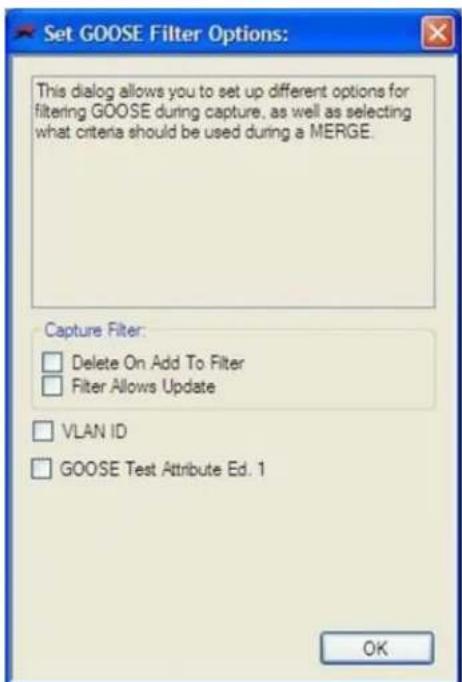
Figure 184 MGC GOOSE Filter Options Screen
3.15.2.5.1 Delete On Add To Filter
This option will remove selected GOOSE messages from the current tab when added to the FILTER tab.
3.15.2.5.2 Filter Allows Update
This option allows only the GOOSE messages in the FILTER tab to be captured/updated, with the next Capture operation. If not selected, the GOOSE messages in the FILTER tab will be ignored within the next Capture operation and will not be added/updated. Remove (delete) the Filter tab if you want to easily get rid of any filtering.
3.15.2.5.3 VLAN ID
In this window it is also possible to affect the GOOSE MERGE algorithm, and decide if some important parameters like the VLAN tag and the Test Attribute should be used to discriminate if two messages are equals or different. If selected, two GOOSE messages with different attributes will not be merged in a MERGE operation. This means that if one SCL-GOOSE and one sniffed-GOOSE are equal in all their parameters, but the VLAN tag is different, they will not be merged as they will be considered as different messages. If not selected, the VLAN attributes will be ignored in a MERGE operation.
3.15.2.5.4 GOOSE Test Attribute ED. 1.
If selected, two GOOSE messages with different value (True or False) of the Test Attribute will be considered different and will not be merged. This means that if one SCL-GOOSE and one sniffed-GOOSE are equals in all their parameters but different in the Test Attribute, they will not be merged. If not selected, the Test Attribute will be ignored by the MERGE algorithm. This means that if one SCL-GOOSE and one sniffed-GOOSE are equals in all their parameters but different in the Test Attribute, they will be considered equals and will be merged.
3.15.2.6 Test Tab
3.15.2.6.1 IEC 61850-8-1 Ed. 1 Test
With this menu it is possible to manipulate the test service parameter and also to manipulate the test bits in the test quality attributes of the published GOOSE messages by the Megger relay test set.

Figure 185 IEC 61850 Ed.1 Test Selection Menu
3.15.2.7 Help Tab

Figure 186 MGC Help Tab
About
The help option will display the version of the software.
User's Manual
Opens the user's manual (Acrobat Reader must be installed).
3.15.3 MGC Toolbar
The MGC buttons provide a shortcut to either importing or capturing a GOOSE message without navigating through the tool bar. The various buttons are shown in the following figure.

Figure 187 MGC Tool Bar
3.15.3.1 SCL Button
Import GOOSE messages from an SCL file.
3.15.3.2 C Button
Capture (sniff) GOOSE messages from the network.
3.15.3.3 DL Button
Download writing settings to test set.
3.15.3.4 MERGE Button
This will merge captured and imported GOOSE messages into one tab.
3.15.3.5 COMPARE Button
This button appears if a MERGE tab exists. It is possible to select two GOOSE messages from the MERGE tab and by clicking on COMPARE they will appear in a new tab with the list of the differences in the two selected GOOSE messages. This is helpful when the MERGE algorithm does not succeed with some messages in order to easily understand what are the differences. If there is no MERGE tab, this button is grayed.
3.15.3.6 Copy to MyGOOSE Button
Copy a GOOSE message to MyGOOSE tab. The MyGOOSE tab is where all GOOSE messages are assigned to either binary inputs or outputs. Multiple selection is possible (SHIFT Click).
3.15.3.7 New Search Button
Selecting this option opens a search dialog where it is possible to define parameters to search for GOOSE messages.
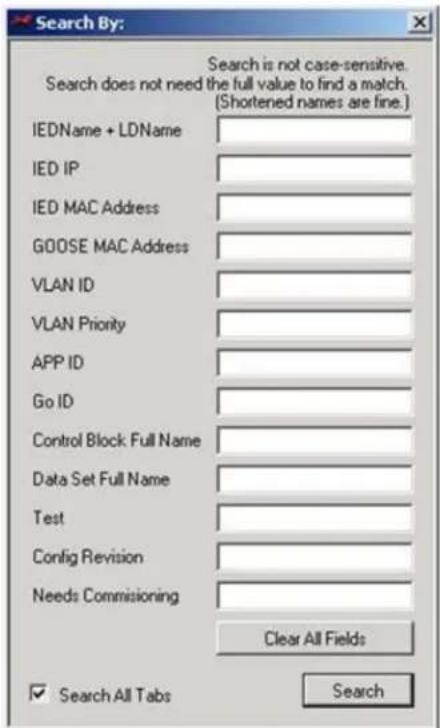
Figure 188 MGC Search Tab
<<Previous
This will jump to the previous match as defined in the search filter.
Next>>
This will jump to the next match as defined in the search filter.
3.15.4 Network Scanning
One way of determining the health of the system is by monitoring the network traffic. Station communication consists of many components of which GOOSE communication is one. Using MGC it is possible to scan the network for GOOSE communication and when wanted use this information to configure the Megger test system for subscription or publication of GOOSE messages. Scanning the network may also be of help when troubleshooting.
3.15.4.1 How to capture GOOSE Messages
Capturing GOOSE messages from the network is another method of importing them into the MGC software.
- Connect the PC to the PC or ISOLATED port on the Megger relay test system. If using the MGC Onboard in the RTMS Enhanced software there is no need to connect a PC.
- Connect the substation Ethernet switch (substation bus) to the Megger relay test set IEC 61850 port.
- MGC application is then started.

Figure 189 Using the Capture button
- Click the button "C" (or use "Tools"- "Capture") MGC will ask which Ethernet port of the PC is expected to be used for the communication with MGC.

Note It is recommended to have the PC Ethernet port address compatible with the IP address of egger relay test set port.

Figure 190 Selecting PC Ethernet Port
Set the test set IP Address.

Figure 191 Setting Test set IP address
-
After a device is selected, the "C" button will turn green and messages will start to appear as they are captured. A capture session will last until the C button is clicked once again.
-
When the wanted GOOSE messages appear on the screen stop the scanning by clicking on "C" again.
All captured messages are displayed in green. Every time a captured session is initiated, a separate tab is created that will contain all the captured messages.
![MEGGER IEC 61850 GOOSE Configurator File Edit View Tools Help SCL C MERGE Copy to MyGOOSE My GOOSE Capture GOOSE IEC GOOSE[RET670_IECLD0/LLN0GOABB_T_DIST][01-0C-CD-01-00-01] IEC GOOSE[RET670_IECLD0/LLN0GOACK_GOOOSER][01-0C-CD-01-01-FF] IEC GOOSE[RET670_IECLD0/LLN0GOABB_T_DIFF][01-0C-CD-01-00-02] IED(2) Attributes(10) DataSet(5)](/content/2026/05/1062520/images/0a4f8461cc53f90e4ae773f088a428e1d31483d3d085a709a2aba5d73aafc529.jpg)
Figure 192 Captured GOOSE Messages
3.15.4.2 How to Monitor GOOSE Messages
While running a Capture process, the MGC will show the state of the captured signals. Any change of state will be highlighted with color change of the signal, purple for off (false) and red for on (true).
![MEGGER IEC 6-1850 GOOSE Configurator File Edit View Tools Help SQL DL MERGE Copy to MyGOOSE New Search <> My GOOSE Capture GOOSE + IEC GOOSE[RET670_SLLDO/LLNOSGOG_TRIP_21][01-0C-CD-01-00-02] + IEC GOOSE[RET670_SLLDO/LLNOSGOG_ALLTRIPS][01-0C-CD-01-01-FF] - IEC GOOSE[RET670_SLLDO/LLNOSGOG_TRIP_87][01-0C-CD-01-00-01] + IEC(2) + Attributes(10) DataSet(5) [1] BOOLEAN [True] [2] BOOLEAN [True] [3] BOOLEAN [True] [4] BOOLEAN [True] [5] BITSTRING (000000000000) + IEC GOOSE[RET670_SLLDO/LLNOSGOG_BITEGER][01-0C-CD-01-00-AA]](/content/2026/05/1062520/images/a44b940bc99a3c548867e4c7ad1061cfe76afdec04ab4e6959db1e010a87841a.jpg)
![IEEE 61850 GOOSE Configurator File Edit View Tools Help SQL C DL MERGE Copy to MyGOOSE New Search <> My GOOSE Capture GOOSE + IEC GOOSE[RET670_SLLDO/LLNOSGO:G_TRIP_21][01-0C-CD-01-00-02] + IEC GOOSE[RET670_SLLDO/LLNOSGO:G_ALLTRIPS][01-0C-CD-01-01-FF] + IEC GOOSE[RET670_SLLDO/LLNOSGO:G_TRIP_87][01-0C-CD-01-00-01] + IED(2) + Attributes(10) DataSet(5) [1] BOOLEAN [False] [2] BOOLEAN [False] [3] BOOLEAN [False] [4] BOOLEAN [False] [5] BITSTRING (000000000000) + IEC GOOSE[RET670_SLLDO/LLNOSGO:G_INTEBER][01-0C-CD-01-00-AA]](/content/2026/05/1062520/images/4f1f8fb3aa91f139cc99e88be86a5bb85db9b05cfb83dfdcf2bc51c1763f6196.jpg)
Figure 193 Example State Change of Captured GOOSE Messages
3.15.5 GOOSE Message Analysis
Many different types of messages are transported using the same network. The built-in sniffer in MGC helps by showing only GOOSE messages, and filtering out any other type of Ethernet messages. Even if this narrows down the amount of traffic that may need to be analyzed to some extent, there still may be a substantial amount of information that needs to be sorted out before getting down to the wanted details. There are a number of tools that can be utilized in order to find the wanted information from the network, i.e. VLAN ID warning dialog, Filter, Merge and confirmation.
3.15.5.1 GOOSE Filter
There can be large numbers of GOOSE messages in the network to be analyzed, and it may be cumbersome to do a full capture and find the wanted messages amongst all other messages. In this case the filter functionality can be used to filter out any other message than the ones under investigation. Filtering is done by selecting a GOOSE message from any tab, right-click on that message and select "Add To GOOSE Filter". This will add the message to a new tab, if not already there, called FILTER. Next time a capture is done only messages in the filter tab are captured. The settings for the filter can be found under Tools | Preferences | GOOSE Filter Options. Here it is also possible to select if the GOOSE message being added to the filter shall be removed from the tab from where it is selected. This may be useful in order to keep track of which messages have been analyzed.
3.15.5.2 MERGE
When capturing, there may be different GOOSE messages on the network than expected. This is where MERGE can be utilized in order to check if one GOOSE message on the network is different than one GOOSE message described on the SCL file. Merge compares the messages in a SCL file with a captured session. That is, when capturing messages from the network and importing a SCL file containing messages that should be available on the network, it is possible to see if the messages really are there and if a significant parameter of the messages has been changed. A more detailed description of how to use merge can be found in next section.
3.15.5.3 COMPARE
If the MERGE between two GOOSE messages doesn't succeed, it is because the two messages have some differences. It is possible to have information of all the differences between two GOOSE messages by selecting them (from the MERGED tab) and by clicking on COMPARE. This way it will be easy to understand what the difference between the GOOSE messages is. This difference is usually the cause of
non-reception of a GOOSE message from some IEDs: there are some differences between the expected GOOSE (described in the SCL file) and the available GOOSE (published on the network).
3.15.5.4 Confirmation
All captured GOOSE messages are confirmed, i.e. they really exist on the network, and are thus marked with green color. All GOOSE messages imported from a SCL file are considered unconfirmed, and are colored black. When capturing GOOSE messages it may be difficult to see if a particular GOOSE message actually performs any operations. By marking the signal or the whole GOOSE message unconfirmed it is possible to see what signals actually have data that changes. If data changes the color of the GOOSE message will return to green color, otherwise it will remain colored black, which then means that the signal is not alive in the network even if the GOOSE message is present.
3.15.6 Merging of GOOSE messages
When analyzing the IEC 61850 GOOSE communication in a substation, it is assumed that the list of GOOSE messages detected from the network scanning is equal to the list of GOOSE messages listed in the SCL file describing the substation (SCD). Not only the list, but also the GOOSE attributes of the scanned GOOSE message and the SCL GOOSE message are to be the same. It may happen that the scanned GOOSE messages differ from the SCL file messages. These differences can bring failure in some IEDs to receive the GOOSE messages that “seem OK” from the network scanning point of view. The MGC application allows a “MERGE” of the network scanned GOOSE information with the SCL file GOOSE information. If two GOOSE messages, one scanned and one in the SCL file, are exactly equal, then they are merged into one GOOSE message. If there any differences they are not merged. You can then verify the GOOSE messages that have not been merged and find the differences than can explain why some IEDs are not able to receive the published GOOSE messages.
3.15.6.1 MERGE and COMPARE example
In this example, there are two IEDS. The SCD file for the substation describes the GOOSE messages that both IEDs are expected to send:
![MEGGER IEC.61850 GOOSE Configurator File Edit View Tools Help SCL C HER2C Copy to MyGOOSE My GOOSE Capture SCD file for the RETE70 IEC (IIE) and GOOSE IEC 6005E[RETET0_IECLO:LLN0G00A8B_T_DIST][01-0C-CD-01-00-01] IED(0) IEDName: RETET0_IEC IEDName + LDName: RETET0_IECLO IED IP ADDRESS: 10.1.150.3 Attributes(11) DataSet(5) IEC 6005E[RETET0_IECLO:LLN0G00BACK_GOOSER[01-0C-CD-01-01-FF] IED(0) IEDName: RETET0_IEC IEDName + LDName: RETET0_IECLO IED IP ADDRESS: 10.1.150.3 Attributes(11) DataSet(2) IEC 6005E[RETET0_IECLO:LLN0G00A8B_T_DIFF[01-0C-CD-01-00-02] IED(0) IEDName: RETET0_IEC IEDName + LDName: RETET0_IECLO IED IP ADDRESS: 10.1.150.3 Attributes(11) DataSet(5) IEC 6005E[GOOSEPLD:LLN0G00GCE_GOOSER[01-0C-CD-01-03-FF] IED(0) IEDName: GOOSER IEDName + LDName: GOOSERLO IED IP ADDRESS: 10.1.150.3 Attributes(11)](/content/2026/05/1062520/images/7bbb28672d4da01231d42343d042a6d13f7ffe6c59df6ab934329d95d78bdaf8.jpg)
The two IEDs are "RET670_IEC" and "GOOSER". The "RET670_IEC" is configured to send three GOOSE messages, as can be seen from the picture above. Only "RET670_IEC" is connected to the substation bus.
By scanning the substation bus the following GOOSE messages are detected:
![MEGGER IEC 61850 GOOSE Configurator File Edit View Tools Help SCL C MERGE Copy to MyGOOSE My GOOSE SCD file for the RET670 IED (ME)scd Capture GOOSE IEC GOOSE[RET670_IECLD0/LLN0GOABB_T_DIST][01-0C-CD-01-00-01] IED(2) IEDName * LDName: RET670_IECLD0 IED MAC ADDRESS: 00-80-82-79-35-08 Attributes(10) DataSet(5) IEC GOOSE[RET670_IECLD0/LLN0GOACK_GOOSER][01-0C-CD-01-01-FI] IED(2) IEDName * LDName: RET670_IECLD0 IED MAC ADDRESS: 00-80-82-79-35-08 Attributes(10) DataSet(2) IEC GOOSE[RET670_IECLD0/LLN0GOABB_T_DIFF][01-0C-CD-01-00-02] IED(2) IEDName * LDName: RET670_IECLD0 IED MAC ADDRESS: 00-80-82-79-35-08 Attributes(10) DataSet(5)](/content/2026/05/1062520/images/c1c400c541cd3d82bad996a3d5807ffead790fabe648afefe820c341dac3066c.jpg)
Figure 194 Captured GOOSE Messages

Note: In the published GOOSE messages the single information "IED name" is not available, where
"IED Name + LD Name" (IED name + Logical Device name) is used instead. This is because the (IED name + Logical Device name) is not published in the GOOSE message.
To do the "MERGE" between the scanned GOOSE messages and the SCL GOOSE messages, press the "MERGE" button. The result is shown below in the "MERGED" tab:
![MEGGER IEC 61850 GOOSE Configurator File Edit View Tools Help SCL C MERGE Copy to MyGOOSE My GOOSE SCD file for the RET670 IED (ME) scd Capture MERGED GOOSE IEC GOOSE[RET670_IECLD0/LLN0GOACK_GOOESER][01-0C-CD-01-01-FF] IEC GOOSE[RET670_IECLD0/LLN0GOABB_T_DIFF][01-0C-CD-01-00-02] IEC GOOSE[RET670_IECLD0/LLN0GOABB_T_DIST][01-0C-CD-01-00-01] IEC GOOSE[GOOSERLD0/LLN0GOGCB_GOOESER][01-0C-CD-01-00-FF] IEC GOOSE[RET670_IECLD0/LLN0GOABB_T_DIST][01-0C-CD-01-00-01]](/content/2026/05/1062520/images/55d32b1154e3a662ff98376e3d97b5f30e190b77c904dc588e149b40d691cb32.jpg)
Figure 195 Merged GOOSE Messages
You can see that 2 messages have been successfully merged (the icon "M" indicates this). This means that these two messages are identical with the information on the SCD file: the IEDs in the substation are publishing the GOOSE messages exactly as it is configured in the SCD file. By "exploring" the first merged GOOSE message you can see that the MGC has Merged the SCL information with scanned data information.
![MEOGER IEC 61850 GOOSE Configurator File Edit View Tools Help SIC C MERGE Copy to MyGOOSE My GOOSE SCD file for the RET670 IED (ME) out Capture MERGED GOOSE [EC GOOSE]RETE670_IECLDG/LLN09G0SACK_GOOSER[01-0C-CD-01-01-FF] [ED(A)] IEDName: RET670_IEC IEDName + LODName: RET670_IECLDG IED IP ADDRESS: 10.1.150.3 IED MAC ADDRESS: 03/80/82/79/36-0E [ED Attributes(12)] GOOSE CONTROL BLOCK NAME: ACK_GOOSER GOOSE CONTROL BLOCKFULL NAME: RET670_IECLDG/LLN09G0SACK_GOOSER DESCRIPTION: ABB GOOSE MAC Address: 01/0C-CD-01-01-FF VLANID: 1 (x001) VLAN PRIORITY: 6 GOOSEID (GoID): ABB ACK_GOOSER APP ID: 511 (x2YFF) DATASET NAME: ACK_GOOSER DATASET FULL NAME: RET670_IECLDG/LLN09SACK_GOOSER Text: False Config Revision: 2 Needs Commissioning: False [1] BOOLEAN (False) (LOD SP160G03 ST Ind. t106) [2] BITSTRING (000000000000) (LOD SP160G03 ST Ind. q length - 12) [EC GOOSE]RETE670_IECLDG/LLN09G0SABB_T_DFF[01-0C-CD-01-00-42] [EC GOOSE]RETE670_IECLDG/LLN09G0SABB_T_DIST[01-0C-CD-01-00-41] [EC GOOSE]GOOOSERLDG/LLN09G0SGB_GOOSER[01-0C-CD-01-05-FF] [EC GOOSE]RETE670_IEC-DLLN_12#D(DA)R_EER_T_DST[01-0C-CD-01-05-43]](/content/2026/05/1062520/images/3ac002171b207b782a4064ab4f97e8ab4aa2b1af0eaa0e8f61418b96a36a2d06.jpg)
Figure 196 Exploring the Merged GOOSE Messages
For this example the IED IP Address is only available in the SCL file (and not on the published message), while the MAC Address of the IED Ethernet port is only available on the published message (but not on the SCD file):
![GOOSE IEC GOOSE[RET670_IECLD0/LLN9GOSACK_GOOSER][01-0C-CD-01-01-FF] IED(4) IEDName: RET670_IEC IEDName = LDName: RET670_IECLD0 IED IP ADDRESS: 10.1.150.3 IED MAC ADDRESS: 00:00:02:79:35:08](/content/2026/05/1062520/images/ace4e00af70db5a38360a5aa168de63bfcfeed1bca7672e2e3b084fbaebe2e72.jpg)
Figure 197IED IP Address in the SCL File
For the dataset you can also see that the data object information (name of the single information in the dataset), only available on the SCD file, has been merged with the raw information (Boolean) available on the published message:

Figure 198 Merged Boolean Information
What is useful at this stage is that: the successful MERGE indicates that the published merged GOOSE messages are in accordance to what has been configured in the SCL file, and the user has all the information that is useful to understand “what happens” in the substation. The “Boolean” indication for the dataset is not very meaningful, but when integrated with the SCL information “SP16GGIO3” it becomes more understandable that bit of the dataset represents the logical node SP16G-GIO, which is a standard IEC 61850 information. Moreover, there are indications from the “non-merged GOOSE messages”.
To understand why the GOOSE messages have not been merged needs some IEC 61850 experience and some manual investigation. The system is already able to pinpoint on the strange GOOSE messages by not merging them. Let's have a look at the non-merged GOOSE messages.
![MEGGER IEC 61850 GOOSE Configurator File Edit View Tools Help SCL C MERGE Copy to MyGOOSE My GOOSE SCD file for the RET670 IED (ME).scd Capture MERGED GOOSE IEC GOOSE[RET670_IECLD0/LLN0GOACK_GOOSER[01-0C-CD-01-01-FF] IEC GOOSE[RET670_IECLD0/LLN0GOABB_T_DIFF][01-0C-CD-01-00-02] IEC GOOSE[RET670_IECLD0/LLN0GOABB_T_DIST][01-0C-CD-01-00-01] IEC GOOSE[GOOSERLD0/LLN0GOGCB_GOOSER[01-0C-CD-01-00-FF] IEC GOOSE[RET670_IECLD0/LLN0GOABB_T_DIST][01-0C-CD-01-00-01]](/content/2026/05/1062520/images/a546b80564bbb56612f825314d0329d08edd04183f8acba0dd12fce4fa02eb7e.jpg)
Figure 199 Merged and Non-Merged GOOSE Messages
The GOOSE with MAC Address "01-0C-CD-01-00-FF" is only available on the SCD file (in black color). It is hence not available on the station bus. The IED "GOOSER" (your relay test set) is not connected to the bus, thus it will not Merge with the SCL file. The message "01-0C-CD-01-00-01" is available on the bus (green color), and is in the SCL file. However, there is a difference in some data, so they are actually different. Why?
Let us explore the messages:
![MEGGER IEC: 61850 GOOSE Configurator File Edit View Tools Help SCL C MERGE Copy to MyGOOSE My GOOSE SCD file for the RET670 IED (ME) acd Capture MERGED GOOSE IEC GOOSE[RET670_IECLDO/LLN0GOABB_T_DIST][01-0C-CD-01-00-01] IED(0) Attributes(11) GOOSE CONTROL BLOCK NAME: ABB_T_DIST GOOSE CONTROL BLOCK FULL NAME: RET670_IECLDO/LLN0GOABB_T_DIST DESCRIPTION: Distance Trip GOOSE MAC-Address: 01-0C-CD-01-00-01 VLANID: 1 (x001) VLAN PRIORITY: 6 GOOSEID (GoID): ABB APP ID: 1 (x0001) DATASET NAME: TRIP_ZM DATASET FULL NAME: RET670_IECLDO/LLN0$TRIP_ZM Config Revision: 6 DataSet(5) IEC GOOSE[GOOISERLDG/LLN0GOGCB_GOOISER][01-0C-CD-01-00-FF] IEC GOOSE[RET670_IECLDO/LLN0GOABB_T_DIST][01-0C-CD-01-00-01] IED(2) Attributes(10) GOOSE CONTROL BLOCK FULL NAME: RET670_IECLDO/LLN0GOABB_T_DIST GOOSE MAC-Address: 01-0C-CD-01-00-01 VLANID: 256 (x100) VLAN PRIORITY: 6 GOOSEID (GoID): ABB APP ID: 1 (x0001) DATASET FULL NAME: RET670_IECLDO/LLN0$TRIP_ZM Text: False Config Revision: 6](/content/2026/05/1062520/images/dbc35f9813a38caaf28fe77a035951922f53da67b7b8383629a38b82aa2094b0.jpg)
Figure 200 Exploring GOOSE Messages
You can see that the published GOOSE (green color) has the VLAN of 256. The engineered GOOSE (SCL GOOSE, black color) has a VLAN of 1. This difference can cause the one IED configured to receive this GOOSE message, might not do that. The IED is configured from the SCL file, and the published GOOSE is different. Why the IED has published a GOOSE message with a different VLAN than indicated in the SCD file cannot be analyzed by the MGC application, and needs further investigation. One possibility is that the IED has been configured with a different version of SCD file, or maybe the IED has misinterpreted the information in the SCD file. What is important is to be able to easily know that some messages are not really the same. It is possible to select the two messages that have not been merged, and ask MGC to show the differences between them, by using the COMPARE button.
3.15.6.2 COMPARE Example
In the following example, we can see one MERGED tab, where some GOOSE messages have not been merged, see fig. below.
![MEGGER IEC 61050 GOOSE Configurator File Edit View Tools Test Help SCL C MERGE Copy to MyGOOSE New Search MYGOOSE Capture Substation SCD File sod MERGE GOOSE IEC GOOSE[N_18LDG/LLN09G0dgtcbBasicGeo][01-0C-CD-01-00-AD] IEC GOOSE[N_18LDG/LLN09G0dgtcbBasicGeo][01-0C-CD-01-00-AD] IEC GOOSE[N_17LDG/LLN09G0dgtcbBasicGeo][01-0C-CD-01-00-AC] IEC GOOSE[N_18LDG/LLN09G0dgtcbBasicGeo][01-0C-CD-01-00-AD] IEC GOOSE[N_18LDG/LLN09G0dgtcbBasicGeo][01-0C-CD-01-00-AD]](/content/2026/05/1062520/images/e0e25eaae36a1df5b7bb2ef21e2a15a860682326366b403182f5ec986dad22c3.jpg)
Figure 201 Merged and Non-Merged GOOSE Messages
Select the two non-merged messages (SHIFT-select or CTR-select on both) and click on COMPARE, see the following figure.
![MEGGER IEC 61850 GOOSE Configurator File Edit View Tools Test Help SCL C MERGE COMPARE Copy to MyGOOSE New Search MYGOOSE Capture Substation SCD File.xsd ME COMPARE GOOSE IEC GOOSE[Vv_15LDO-LLN0BGO@gooBasicGet[01-0C-CD-01-00-AA] IEC GOOSE[Vv_15LDO-LLN0BGO@gooBasicGet[01-0C-CD-01-00-AB] IEC GOOSE[Vv_17LDO-LLN0BGO@gooBasicGet[01-0C-CD-01-00-AC] IEC GOOSE[Vv_18LDO-LLN0BGO@gooBasicGet[01-0C-CD-01-00-AO] IEC GOOSE[Vv_18LDO-LLN0BGO@gooBasicGet[01-0C-CD-01-00-AU]](/content/2026/05/1062520/images/73043fb24ae180c044a6b03f86011fae2ad9c642580b51e574c668b6bd871673.jpg)
Figure 202 Comparing GOOSE Messages
You will get the new COMPARE tab, where the list of differences is shown, see the following figure.
![MEGGER IEC: 61850 GOOSE Configurator File Edit View Tools Test Help SQL C MERGE REFERENCE Copy to MyGOOSE New Search MYGOOSE Capture Substation SCD File acid MERGE COMPARE GOOSE GOOSE A: iCapture([V_1BLD0/LLN0]GOO&pcbBasicGeo][01-0C-CD-01-00-AD] GOOSE B (SCL)[V_1BLD0/LLN0]GOO&pcbBasicGeo][01-0C-CD-01-00-AD] GOOSE COMPARE IED(0) Attributes(1) Config Revision: GOOSE A(1) GOOSE B(2) DataSet(14) [1] STRUCT (3) [2] STRUCT (3) [3] STRUCT (3) [4] STRUCT (3) [5] STRUCT (3) [6] GOOSE A:(STRUCT) GOOSE B:(BOOLEAN) [7] BOOLEAN [8] BOOLEAN [9] BOOLEAN [10] BOOLEAN [11] BOOLEAN [12] BOOLEAN [13] BOOLEAN [14] GOOSE A:(BOOLEAN) GOOSE B(Not Available)](/content/2026/05/1062520/images/61c6b05fd4cd367c093d491ea7d4b751013d1a418f93efd3b326079030386859.jpg)
Figure 203 Comparison Differences
What can be seen as result from the COMPARE is that the SCL GOOSE contains a longer dataset than the published GOOSE. Moreover, the Configuration Revisions of the two messages is different: one in the published GOOSE, and two in the SCL GOOSE. This means with the most probability that after the installation of the publisher IEDs, the horizontal communication of the substation has been changed for the GOOSE 01-0C-CD-01-00-AD. Its dataset has been modified and correctly the IEC 61850 engineering tool has incremented the configuration revision (from 1 to 2). The SCL file does not correctly describe the substation, and the IEDs should be loaded with the new IEC 61850 information contained in the given SCD file.
3.15.7 Configuration
SMRT and FREJA 5xx test sets can subscribe to, or publish binary signals. Configuration has to be done in order for the Megger relay test set to know which input(s)-, or/and output(s) shall be mapped to what GOOSE messages. Configuration is done by copying the wanted GOOSE messages to the "MyGOOSE" tab in MGC.
The general procedure for configuring the Megger relay test system is to find out what signals are available either by importing an SCL file, or by capturing GOOSE messages on the network, copy the wanted GOOSE messages to the "MyGOOSE" tab in MGC, and assign binary inputs- and/or outputs as appropriate.
IEDs publish and/or subscribe to GOOSE messages primarily for bay communication. The SCL file for the station provides complete information on what GOOSE messages are available. Another way of finding out what is available is to capture the traffic of the network and search for specific messages. Capturing is good as long as there are only a few signals, but as the description of the signals is incomplete in the message it can be time consuming to figure out what actually is available. Therefore, it is usually better to do the configuration using the SCL file for the station where all information is included, i.e. SSD or SCD files.
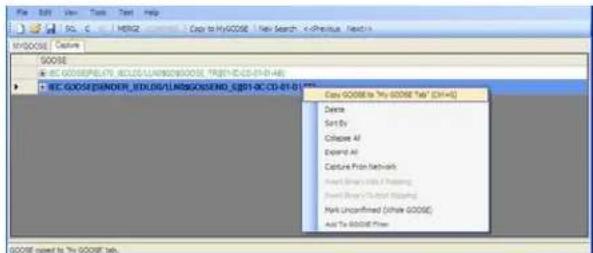
Figure 204 Selecting a captured GOOSE for operation and Copy to MyGOOSE
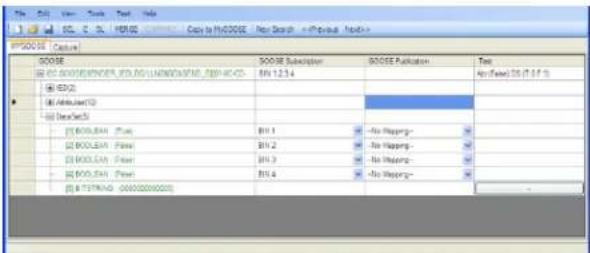
Figure 205 Mapping GOOSE Messages to Binary Inputs and Outputs

Figure 206 Selecting a GOOSE imported from an SCL-file for operation and Copy to MyGOOSE
![GOOVR [0] 8C GOOVR/SENDER_8B1.06 LUNBOO/SENC_QST 8C CD-01-01-RP [0] 8B1.0 [0] 8B1.0.1.2 [0] DataSet3 [1] 800.0.1.2.5.0.0.0.0.0.0.0.0.0.0.0.0.0.0.0.0.0.0.0.0.0.0.0.0.0.0.0.0.0.0.0.0.0.0.0.0.0.0.0.0.0.0.0.0.0.0.0.0 [2] 800.0.1.2.5.0.0.0.0.0.0.0.0.0.0.0.0.0.0.0.0.0.0.0.0.0.0.0.0.0.0.0.0.0.0.0.0 [3] 800.0.1.2.5.0.0.0.0.0.0.0.0.0.0.0.0.0.0.0.0.0.0.0.0.0 [4] 800.0.1.2.5.0.0.0.0.0.0.0.0.0.0.0.0.0 [5] 8T57FND 8D5 9MPTPC1 ST C# Length 13 GOOVR Subsption Bn 1,2,3,4 GOOVR Subsption Bn 1 Bn 1 Bn 1 Bn 1 Bn 1 Bn 1 Bn 1 Bn 1 Bn 1 Bn 1 Bn 1 Bn 1 Bn 1 Bn 1 Bn 1 Bn 1 Bn 1 Bn 1 Bn 1 Bn 1 Bn 2 Bn 2 Bn 2 Bn 2 Bn 2 Bn 2 Bn 2 Bn 2 Bn 2 Bn 2 Bn 2 Bn 2 Bn 2 Bn 2 Bn 2 Bn 2 Bn 2 Bn 2 Bn 2 Bn 2 Bn 3 Bn 3 Bn 3 Bn 3 Bn 3 Bn 3 Bn 3 Bn 3 Bn 3 Bn 3 Bn 3 Bn 3 Bn 3 Bn 3 Bn 3 Bn 3 Bn 3 Bn 3 Bn 3 Bn 3 Bn 4 Bn 4 Bn 4 Bn 4 Bn 4 Bn 4 Bn 4 Bn 4 Bn 4 Bn 4 Bn 4 Bn 4 Bn 4 Bn 4 Bn 4 Bn 4 Bn 4 Bn 4 Bn 4 Bn 4 Bn 5 Bn 5 Bn 5 Bn 5 Bn 5 Bn 5 Bn 5 Bn 5 Bn 5 Bn 5 Bn 5 Bn 5 Bn 5 Bn 5 Bn 5 Bn 5 Bn 5 Bn 5 Bn 5](/content/2026/05/1062520/images/0f1a89d5e40c6f087eeda62224494c73f63cb74e42c7c4602e2f4bb2d86ad5f9.jpg)
Figure 207 Mapping an Imported GOOSE in MyGOOSE
3.15.7.1 Mapping SMRT / FREJA 5xx binary inputs to GOOSE messages (subscription)
This operation is necessary when the relay test set needs to react on some relay signals that in the conventional technology are relay contacts (trip, start power swing detected etc.) and in the IEC 61850 technology are represented by published GOOSE messages.
The action that needs to be done is to map the GOOSE message to a specific binary input. Once this is done the relay test is carried out in the same way as for the conventional technology. The relay test set is instructed to be stopped (in case of a trip test) by the desired binary input, which is mapped to a GOOSE receive message.
In order to do the mapping of the GOOSE dataset to the binary input the GOOSE message must be available on the "MyGOOSE" tab.
![MYGOOSE SCD File.scd GOOSE + IEC GOOSE[REL670_IECLD0/LLN0GOGOOSE_TR][01-0C-CD-01-01-AB]](/content/2026/05/1062520/images/2774744dc3f841d808373822c1a1f4cc52f560e2dabbcb70c8d9cfd738346b31.jpg)
Figure 208 Imported GOOSE in MyGOOSE for Mapping
The GOOSE message "MyGOOSE" tab contains a dataset, and the bits information of the dataset are actually mapped to a binary input, see the following step by step description.
1] Click the + to expand.
The dataset information is opened:
![GOOSE IEC GOOSE[REL670_IECLD0/LLNGOGOOSE_TR][01.0C.CD.01.01.AB] IED(3) Attributes(12) DataSet(5) [M] BOOLEAN (LD0.SMPPTRC1.ST.Op.general) [2] BOOLEAN (LD0.SMPPTRC1.ST.Op.phsA) [3] BOOLEAN (LD0.SMPPTRC1.ST.Op.phsB) [4] BOOLEAN (LD0.SMPPTRC1.ST.Op.phsC) [5] BITSTRING (LD0.SMPPTRC1.ST.Op.q.length 13)](/content/2026/05/1062520/images/d7c450f34212d728ab338166d9fd4c261be87855ba6a7f1480e22d2199fbed80.jpg)
Figure 209 Opening DataSet
2] Select a bit (or several bits) of the dataset and map it to the wanted binary input under GOOSE Subscription.
![New Search <> GOOSE Subscription GOOSE Publication Test 01-01-AB] Attr:(False) D/S (T -No Mapping- BIN 1 -No Mapping- BIN 2 -No Mapping- BIN 3 -No Mapping- BIN 4 - BIN 5 - BIN 6 - BIN 7 -](/content/2026/05/1062520/images/a2e7223d0ba3110b4387a3b59258db9aea9b62218a370015b101dc1abb46809c.jpg)
Figure 210 Mapping Binary Input #1 (BIN1)
When the choice is done, in the example the Relay Test Set will be instructed to map the bit n. 1 of the dataset to its binary input 1:
3] This information must then be sent (down-loaded) to the Relay Test Set by clicking on the button "DL" (download).
![MYGOOSE SCD File.sod GOOSE IEC GOOSE[REL670_IECLD0/LLN0GOGOOSE_TR][01-0C-CD-01-01-AB] IED(3) Attributes(12) DataSet(5) [1] BOOLEAN (LD0.SMPPTRC1.ST.Op.general) [2] BOOLEAN (LD0.SMPPTRC1.ST.Op.phsA) [3] BOOLEAN (LD0.SMPPTRC1.ST.Op.phsB) [4] BOOLEAN (LD0.SMPPTRC1.ST.Op.phsC) GOOSE Subscription BIN 1 - No Mapping- -No Mapping- -No Mapping- -No Mapping- -No Ma](/content/2026/05/1062520/images/30bd04f7cccbbc29b4115469df579c3bb7dd4cecf313bdcc1d11eb314289eb0d.jpg)
The MGC application will ask the IP address of the test set Ethernet port.
4] Press the OK button to send the mapping information to the Relay Test Set.
After that the SMRT / FREJA 5xx will behave according to how it has been instructed. For the given example this means that when the bit 1 of the dataset of the GOOSE message 01-0C-CD-01-00-AB is "1", SMRT / FREJA 5xx "believes" its binary input 1 is activated and when the bit is "0" the SMRT / FREJA 5xx "believes" it is not activated.
3.15.7.2 Mapping SMRT / FREJA 5xx binary outputs to GOOSE messages (publication)
This operation is necessary when SMRT / FREJA 5xx needs to activate some signals to the relay under test. A typical example is the acceleration carrier, or the start of the auto-recloser, or the start of the circuit breaker failure protection. In the conventional technology, this is done by activating the SMRT / FREJA 5xx binary outputs that are connected to the relay binary inputs. For the IEC 61850 technology, a GOOSE message is sent by the SMRT / FREJA 5xx into the protection device, and the value of the GOOSE message is associated to the status of the mapped binary output. When the output is open the GOOSE message has value "0" and when it is closed it has value "1".
The mapping is done in the same way as it is done for the binary inputs except that the dataset bits are mapped from the column "GOOSE Publication".
3.15.7.3 Manipulating the IEC-61850 test service parameter in published GOOSE messages
The test attribute (formally more known as "Test Service Parameter") of the GOOSE messages published by the SMRT / FREJA 5xx can be manipulated from the menu "Test / IEC 61850-8-1 Ed. 1 Test", see figures below.
![MEGGER IEC 61850 GOOSE Configurator - Receiving a TRIP GOOSE for File Edit View Tools Test Help SCL C DL IEC 61850 Ed. 1 Test New Search MYGOOSE SCD File.scd GOOSE IEC GOOSE[REL670_IECLD0/LLN0GOGOOSE_TR][01-0C-CD-01-01-AB] IED(3)](/content/2026/05/1062520/images/79d0fc450dff0c1b6d08a15da369e48fae7df04ab0cc9b1378ecf0d94e9099be.jpg)
In the first half of the window shown above it is possible to manipulate the test service parameter of all GOOSE messages sent by the SMRT / FREJA 5xx, which means that the messages are available under the MyGOOSE tab and are mapped to some binary outputs.

By choosing "Activate", all the test service parameters are set to TRuE, no matter what their original value was, see the following figure.
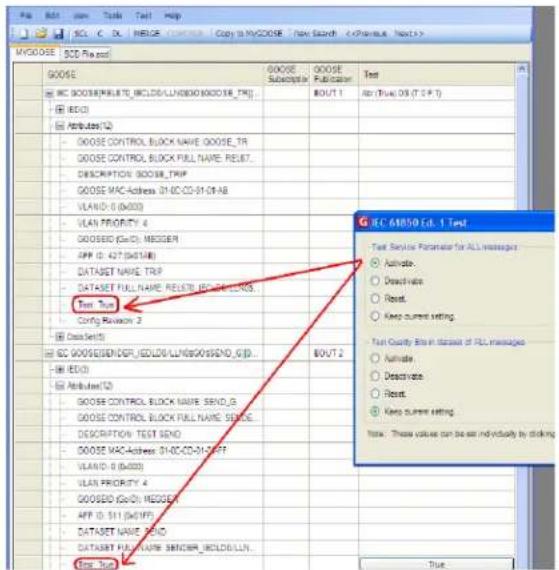
By choosing "Deactivate", all the test service parameters are set to FALSE, no matter what their original state was.
By choosing "Reset" all the published GOOSE messages will have the test service parameter value according to the original value. If SCL-GOOSE it is FALSE, if it is a SNIFFED-GOOSE it depends on the value it had when the message was captured.
By choosing "Keep current setting" no change is done on the value of the test service parameter of the published GOOSE messages.
It is also possible to set the test service parameter individually for each published GOOSE message, and this can be done directly from the "MyGOOSE" tab, see following figure.
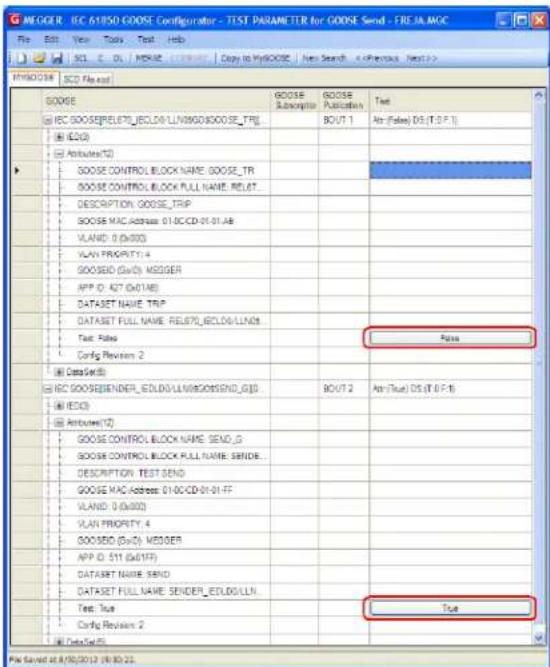
3.15.7.4 Manipulating the IEC-61850 test attribute in the quality parameter in the published GOOSE messages by the SMRT / FREJA 5xx
In the second half of the window (shown in "Manipulating the IEC-61850 test service parameter in pub) it is possible to manipulate the value of the test bit in the quality attribute of all GOOSE messages sent by the SMRT / FREJA 5xx.
By choosing "Activate", all the test bits in the quality attributes are set to TRuE, no matter what their original value was, see the following figure.
![MYGOOSE SCD File.scd GOOSE IEC GOOSE[REL670_IECLD0/LLNOSGOSGOSSE_TF][01-0C-CD-0... IED(3) Attributes(12) DataSet(5) [1] BOOLEAN (LD0.SMPTRC1.ST.Op genera) -No... BO... [2] BOOLEAN (LD0.SMPTRC1.ST.Op phsA) -No... -No... [3] BOOLEAN (LD0.SMPTRC1.ST.Op phsB) -No... -No... [4] BOOLEAN (LD0.SMPTRC1.ST.Op phsC) -No... -No... [5] BITSTRING (000000000010) (LD0.SMPTRC1.ST.Op... IEC GOOSE[SENDER_IEDLD0/LLNOSGOSSEND_G][01-0C-CD-01... IED(3) Attributes(12) DataSet(5) [1] BOOLEAN (LD0.SMPTRC1.ST Op genera) -No... BO... [2] BOOLEAN (LD0.SMPTRC1.ST Op phsA) -No... -No... [3] BOOLEAN (LD0.SMPTRC1.ST Op phsB) -No... -No... [4] BOOLEAN (LD0.SMPTRC1.ST Op phsC) -No... -No... [5] BITSTRING (000000000010) (LD0.SMPTRC1.ST Op...](/content/2026/05/1062520/images/f3682ec793769a71c1d6bb940834f4e6dc3061fbb814c77c8360663dca41ced8.jpg)
By choosing "Deactivate", all the test quality bits are set to FALSE, no matter what their original state was.
By choosing "Reset" all the published GOOSE messages will have the test quality bits set according to the original value. If SCL-GOOSE it is FALSE, if it is a SNIFFED-GOOSE it depends on the value it had when the message was captured.
By choosing "Keep current setting" no change is done on the value of the test quality bits of the published GOOSE messages.
It is also possible to set the test quality bit individually for each published GOOSE message, and this can be done directly from the "MyGOOSE" tab, see the following figure.
![GOOSE [EC GOOSE]RUSTL_ECD.DG.LNNGDGOOSE stricter-DC CD (01-AE) [EDOS] [Abvusset(1)] [DataSet(1)] [1] BOOLEAN (LDG SIMPTPC1.5T Op general) [2] BOOLEAN (LDG SIMPTPC1.5T Op pHA) [3] BOOLEAN (LDG SIMPTPC1.5T Op pH) [4] BOOLEAN (LDG SIMPTPC1.5T Op pNC) [5] BTSTSTRING (0000000000) (LDG SIMPTPC1.5T Op length 13) [EC GOOSE]RUSTL_ECD.DG.LNNGDGOOSE_DSDI-DC CD (01-FF) [EDOS] [Abvusset(1)] [DataSet(1)] [1] BOOLEAN (LDG SIMPTPC1.5T Op general) [2] BOOLEAN (LDG SIMPTPC1.5T Op pHA) [3] BOOLEAN (LDG SIMPTPC1.5T Op pH) [4] BOOLEAN (LDG SIMPTPC1.5T Op pNC) [5] BTSTSTRING (0080000000) (LDG SIMPTPC1.5T Op length 13)](/content/2026/05/1062520/images/7b746019f7f1c36e5335f66bc8922bedbfbee74aeb580687e2c2d824fb528aea.jpg)
4.0 Warranty Statement
Megger warrants the product is free of defects in material and workmanship for a period of at least one (1) year from date of shipment. This warranty is non-transferable. This warranty is limited and shall not apply to equipment that has damage, or cause of defect, due to accident, negligence, and improper operation, faulty installation by the purchaser, or improper service or repair by any person, company or
corporation not authorized by Megger. Megger will, at its' option, either repair or replace those parts and/or materials it deems to be defective.
The warranty is in lieu of all other warranties, either expressed or implied on the part of Megger and in no event shall Megger be liable for the consequential damages due to the breach thereof.
5.0 Service Data
5.1 Preventive Maintenance
The unit utilizes surface mount technology (SMT) and other components which require little or no service except for routine cleaning, etc. The unit should be serviced in a clean atmosphere away from energized electrical circuits.
5.1.1 Examine the unit every six months for:
| Dust and Dirt | To clean the unit, never use spray liquids or industrial cleaners. Some cleaning solvents can damage electrical components, and should never be used. Use a lightly damp cloth (not dripping wet) to wipe off the unit. Remove dust with dry, low pressure, compressed air. |
| Moisture | Remove moisture as much as possible by putting the test set in a warm, dry environment. |
5.1.2 Upgrading the STVI Software
Upgrade via Megger Website
To download the newest RTMS software from the Megger website,
- Get the serial number of your unit.
- Go to WWW.Megger.com
-
Log In. If you have not registered before you will need to do so first.
-
Go to Software Downloads
-
Click on STVI
-
You will see instructions to enter the serial number of the STVI unit, and then click on Continue. The serial number is 12 digits long. Make sure you enter all 12 digits. There will be two versions of the software. One is for your PC and one is for the STVI units. For the STVI unit, go to the STVI software for STVI Installation or Upgrade and press on the Click Here link. The software will be downloaded onto your PC as a zip file. Unzip the file, Select All files, and Copy to a USB memory stick, or create a file on your PC for storage to unzip or extract to a file.
Upgrade via Compact Disk
Where internet access may not be available or blocked on your computer, Megger can provide a CD or a USB stick with the latest version of software on it. Contact your local Megger representative to order a copy of the firmware.
How To Download RTMS software into STVI
USB Memory Stick: With the STVI powered up, insert the USB memory stick into the USB port on top of the STVI. If the Windows "Removable Disk (E)" Explorer screen appears, press the Cancel button, and then go to the STVI Configuration Screen and press the Update Firmware button. Press the "STVI
Firmware" button. A window will appear stating that there is a software upgrade available and will ask if you want to execute the upgrade. Press Yes and the unit will automatically upgrade the software. When complete, power down the STVI by disconnecting the Ethernet cable. Wait about 5 to 10 seconds and reconnect the cable. Observe the STVI display screen. When the basic test screen appears, press the Configuration button, then press the Display Versions button and verify the version of the software upgrade.
5.2 Service and Repair Instructions
Basic troubleshooting information has been provided to guide the technician to the possible source of a problem.
Since the STVI uses Surface Mount Technology, repairs of the individual printed circuit boards are beyond the scope of the basic troubleshooting guide, and should be referred to the Service Department at Megger or handled through the Megger Representative.
If the unit is still within the original warranty period, or limited warranty period following factory servicing, the factory must be contacted before attempting any repairs or the warranty will be void.
5.2.1 Basic Troubleshooting
The troubleshooting information relies on the technician to have a good understanding of the operation of the unit. The technician should contact the factory should they have any questions regarding the operation of the unit. Provide the Megger the serial number of the STVI when making inquiries.
WARNING It is necessary to energize the SMRT33/36/410 to properly troubleshoot the STVI. The technician must take all applicable safety precautions for working with the possible energized outputs of the SMRT33/36.
NOTES
Before suspecting a failure in the STVI review the Description of Controls and Theory of Operation sections to ensure that the problem is not a result of operating error.
Common causes of malfunctions, other than improper operation, are bad Ethernet cable or cable connectors, or incorrect power input (voltage above or below specified limits).
NOTE: Under no circumstance should the technician take the STVI apart without following proper ESD protection and handling procedures. Failure to do so, will damage sensitive parts.
5.2.1.1 Power Input
Input voltage affects the whole unit, including the 48 Volts DC to the STVI from the PoE port, and may or may not cause permanent damage if voltage is incorrect. These problems can often be corrected by simply using a better source of input power. See unit front panel for input voltage rating.
Some symptoms are as follows:
-
Low voltage: Erratic operation, no display, or a dim display.
-
High voltage: Circuit breaker operation on SMRT unit, power supply failure.
a. For SMRT1 and MPRT units, the STVI uses the PoE power supply. It has an LED that lights up under normal operation. If not lit, then the PoE power supply has failed and needs to be replaced, PN: 90001-736.
b. For SMRT33/36/410, the internal power supply needs to be repaired or replaced, contact the factory for further instructions.
5.2.1.2 Ethernet Cable
Basic troubleshooting of the Ethernet communication cable as follows,
- No power: Check power source and line cord. If the SMRT33/36 powers up, but the STVI display does light up, check the cable and cable connectors. Typical problem is usually a broken conductor or cracked cable connector. Replace cable to see if this resolves issue.
- Erratic Manual Control / Missing Channels on STVI Display
A. Communication cable is not properly connected, thus cannot receive proper commands.
B. Internal problem with communications inside the SMRT33/36, see SMRT33/36 in Addendum A. Communication cables inside the SMRT33/36 unit may require reseating.
! Contact the factory for a Repair Authorization Number and return instructions if service is required. A Repair Authorization (RA) number will be assigned for proper handling of the unit when it arrives at the factory. Any non-warranty repair cost incurred for the repair or replacement of parts and/or materials shall be the responsibility of the purchaser.
Provide the factory with model number, Unit serial number, nature of the problem or service required, return address, your name, and how to contact you should the factory need to discuss the service request.
You may need to provide a purchase order number, cost limit, billing, and return shipping instructions. If an estimate is requested, provide the name and contact information.
6.0 Preparation for Reshipment
Save the original shipping container for future use. The shipping container is designed to withstand the rigors of shipping via a common commercial carrier.
Pack the equipment appropriately to prevent damage during shipment. If a reusable container is utilized, the unit will be returned in the same shipping container if it is in suitable condition.
Add the Return Authorization Number to the address label of the shipping container for proper identification and quicker handling.
NOTE: Ship the equipment without nonessential items such as test leads, etc. These items are not needed by the factory to perform service.
Megger ^®
Addendum A
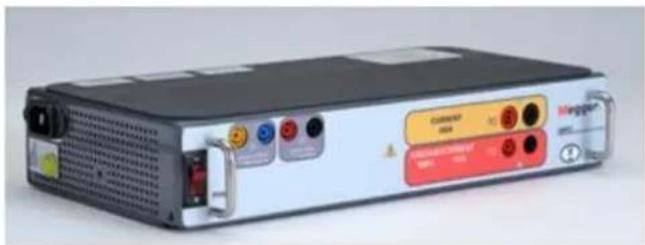
natural_image
Front view of a black electronic device with ports and connectors (no visible text or symbols)*Standard enclosure model shown
Model SMRT1
Megger Single Phase Relay Tester
SAFETY PRECAUTIONS
WARNING:
VOLTAGES GENERATED BY THIS INSTRUMENT CAN BE HAZARDOUS
This instrument has been designed for operator safety; however, no design can completely protect against incorrect use. Electrical circuits are dangerous and can be lethal when lack of caution and poor safety practices are used. There are several standard safety precautions that should be taken by the operator. Where applicable, IEC safety markings have been placed on the instrument to notify the operator to refer to the user manual for instructions on correct use or safety related topics. Refer to the following table of symbols and definitions.
| Symbol | Description |
 | Direct Current |
 | Alternating Current |
 | Both direct and alternating current |
 | Earth (ground) Terminal. There is a common chassis ground terminal located on the front panel (see Front panel under Description of Controls. |
 | Protective Conductor Terminal |
 | Frame or Chassis Terminal |
| On (Supply) | |
| [GSYG] | Off (Supply) |
| Caution, risk of electric shock | |
| Caution (refer to accompanying documents) |

WARNING: Under no circumstances should the operator or technician attempt to open or service this instrument while connected to a power source. Lethal voltages are present and may cause serious injury or death!
SAFETY PRECAUTIONS (Continued)
The following are some specific safety related items associated with the SMRT test system.
Read and understand all safety precautions and operation instructions before attempting to use this unit.
The purpose of this equipment is limited to use as described in this instruction manual. Should a situation arise that is not covered in the general or specific safety precaution please contact Megger regional representative or Megger, Dallas Texas.
Safety is the responsibility of the user. Misuse of this equipment can be extremely dangerous.
Always start with the power OFF, before connecting the power cord. Make sure outputs are off before attempting to make test connections.
Never connect the test set to energized equipment.
Always use properly insulated test leads. The optional test leads are rated for the continuous output ratings of the test system, and should be properly used and cared for. DO NOT use cracked or broken test leads.
Always turn the test system off before disconnecting the power cord.
DO NOT attempt to use the unit without a safety ground connected.
DO NOT attempt to use the unit if the power cord ground prong is broken or missing.
DO NOT use the test set in an explosive atmosphere.
The instrument must only be used by suitably trained and competent persons.
Observe all safety warnings marked on the equipment.
For safety related or other important topics, like the statement below, will be notated with the adjoined symbol. Read the topic carefully as it may relate either to the safe operation of the test system or the safety of the operator.
Under no circumstances should the operator put their hand or tools inside the test system chassis area with the test system connected to a power source. Lethal voltages are present and may cause serious injury or death!
1.0 Operation
The unit's design is a "modular" concept. All inputs and outputs are clearly marked and logically grouped so continual reference to the instruction manual should not be necessary once the operator is acquainted with the test system.
1.1 General Description
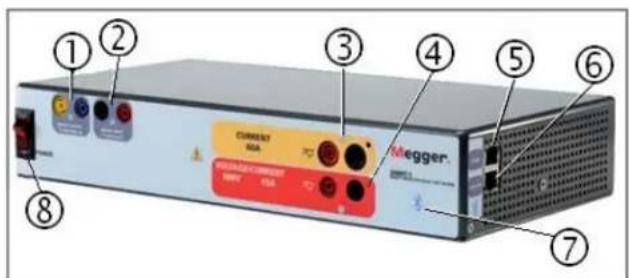
Figure 211 SMRT1 (Standard unit pictured)
1.1.1 Front Panel
-
Binary Output ① – the Binary Output can be configured as Normally Open or Normally Closed contacts providing logic to the device under test. The Binary Output can switch up to 300 VAC or 250 VDC with 8 Amp continuous. The programmable wait duration is from 1 millisecond to 10,000 milliseconds.
-
Binary Input ② –The Binary Input will accept a voltage range of 5 to 300 VAC, or 5 to 250 VDC, or dry Normally Open / Normally Closed contacts.
-
Current Channel Output ③ – For more details on the VIGEN output capabilities see section 1.4.
-
Voltage Channel Output ④ – For more details on the VIGEN output capabilities see section 1.4
-
PC/ IN ⑤ Ethernet Port is a 10/100BaseTX port, and is the primary PC connection port. This port supports MDI/MDI-X auto cross over configuration, which means both standard and "crossover" Ethernet cables may be used. This port provides the optimal method for downloading EMTP files, DFR streaming, and updating the unit's firmware as required. The SMRT comes standard with a crossover cable. This port may also be used for multiple unit operation, the unit providing the 61850/OUT link is providing the master phase reference to all units "downstream".
-
61850 / OUT ⑥ Ethernet Port is a 10/100BaseTX port, and is primarily used to interconnect multiple SMRT units together for synchronous multi-unit operation. With the PC connected to the PC/ IN Port, the SMRT1 61850 / OUT port may be connected to another SMRT unit PC / IN port "downstream" providing phase synchronization through the Ethernet port. This port may also be used to provide access to the substation IEC 61850 network to receive and send GOSSE messages.
-
Bluetooth wireless port ⑦ – this port is optional, and provides a wireless interface control with a PC. It also provides isolation between the IEC 61850 bus and the user PC.
-
POWER ON/OFF Switch ⑧ – used to switch unit on and off. The switch illuminates when power is on.
1.1.2 Side Panel:
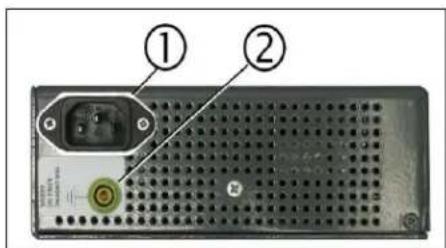
Figure 212 SMRT1 Power Input Panel
- Incoming Power / Line Cord ① – the input line cord, ground terminal, are mounted on the side panel of the test set.
Input Line Cord
The test set is equipped with a line cord, which connects to the male connector on the side panel. Verify the input voltage before connecting the line cord to the power source.

NOTE: The unit can be powered from an input source with a rating of 100 VAC to 240 VAC, 50/60 Hz. The unit automatically adjusts to the available power if it is within the specified range.
- Earth Ground Jack ② – use this terminal to connect chassis ground to earth ground.
A chassis ground (earth) point on the front panel is provided as an additional safety ground.
1.1.3 Rack Mount Enclosure Rear Panel:
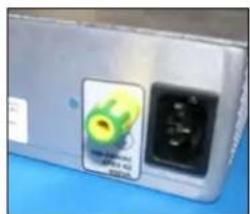
natural_image
Close-up of a silver electronic device with a green and black button (no visible text or symbols)Figure 213 SMRT1 Rack Mount Back Panel Power Input
- Incoming Power / Line Cord – the input line cord, ground terminal, are mounted on the back panel of the test set.
Input Line Cord

The test set is equipped with a line cord; see the accessory kit, which connects to the male plug on the back panel. Verify the input voltage before connecting the line cord to the power source.
NOTE: The unit can be powered from an input source with a rating of 100 VAC to 240 VAC. The unit automatically adjusts to the available power if it is within the specified range.
- Earth Ground Jack – use this terminal to connect chassis ground to earth ground.
A chassis ground (earth) point on the back panel is provided as an additional safety ground.

natural_image
Close-up of a network switch device with three ports and four buttons (no visible text or symbols)Figure 214 SMRT1 Rack Mount Back Panel Signal and Communication Ports
- IN Ethernet Port is a 10/100BaseTX port, and is the primary PC connection port. This port supports MDI/MDI-X auto cross over configuration, which means both standard and "crossover" Ethernet cables may be used. This port provides the optimal method for downloading EMTP files, DFR streaming, and updating the unit's firmware as required. The SMRT comes standard with a crossover cable. This port may also be used for multiple unit operation, the unit providing the OUT link is providing the master phase reference to all units "downstream".
- OUT Ethernet Port is a 10/100BaseTX port, and is primarily used to interconnect multiple SMRT units together for synchronous multi-unit operation. With the PC connected to the IN Port, the SMRT1 OUT port may be connected to another SMRT unit IN port "downstream" providing phase synchronization through the Ethernet port. This port may also be used to provide access to the substation IEC 61850 network to receive and send GOOSE messages.
- External Amplifier BNC Inputs – There are two BNC connectors labeled I and V/I on the back panel. These connectors are used to amplify an external analog signal using the SMRT amplifiers. Application of ± 10 Volts Peak will provide Full Scale output (Range dependent) from the selected output.
CAUTION: DO NOT APPLY MORE THAN ± 10 VOLTS PEAK TO THE EXT INPUT TERMINALS. APPLICATION OF MORE THAN 10 VOLTS PEAK MAY DAMAGE THE AMPLIFIER.
1.2 Input Power
The input voltage may be from 100 to 240 VAC, 50/60 Hertz, 600VA. The input is protected by an ON/OFF switch / circuit breaker.
1.2.1. Input Power Cord
Depending on the country, the power cord can come with a NEMA 5-15 male connector, a CEE 7/7 Schuko two prong connector, a UK power cord, or with International Color Coded pig-tail wires (light blue,
brown and green with yellow stripe) with the insulation jacket stripped ready for installation of the appropriate male connector.
Model SMRT1 10NXXXAXXX comes with a North American power cord (part number 620000).

Model SMRT1 10NXXXEXXX comes with a Continental Europe power cord (part number 50425).

Model SMRT1 10NXXXIXXX comes with an International Color Code power cord. The cord, part number 15065, is ready for wiring to the appropriate plug (depending on country). The following colors apply, Brown = Line, Blue = Neutral and Green/Yellow = Ground.
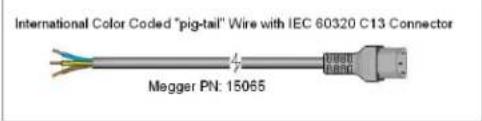
Model SMRT1 10NXXXUXXX comes with a UK power cord (part number 90002-989).
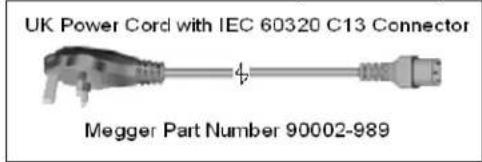
1.3 Voltage - Current Generators
Voltage and Current is noted by the red and yellow surrounding each output channel. The voltage channel is denoted by the red color. The current channel is denoted by the yellow color. All outputs are independent from sudden changes in mains voltage and frequency, and are regulated so changes in load impedance do not affect the output. All SMRT1 amplifier outputs are isolated or floating.
1.3.1. Convertible Voltage/Current Amplifier

The SMRT PowerV ^™ voltage amplifier provides a flat power curve from 30 to 150 Volts in the 150V range to permit testing of high current applications such as panel testing.
Voltage Range Power / Current (Max)
30.00V 150VA @ 5.0A
150.00V 150VA Constant Output Power from 30 to 150 Volts
300.00V 150VA @ 0.5A
Voltage Amplifier in Current Mode:
The voltage amplifier is convertible to a current source with the following output capability. Output power ratings are specified in rms values and peak power ratings.
Output Current Power Max V Duty Cycle
5 Amperes 150 VA (212 peak) 30.0 Vrms Continuous
15 Amperes 120 VA 8.0 Vrms 1.5 sec.
The convertible channel in conjunction with the main current channel provides 2 currents for testing current differential relays one phase at a time.
The voltage amplifier output is protected from short circuits and thermally protected against prolonged overloads. In case of a short circuit or a thermal overload, the amplifier will automatically turn off, and if the STVI is connected a message to the user will be displayed indicating which condition exists. If AVTS software is used, a similar message will appear.
1.3.2. Current Amplifier
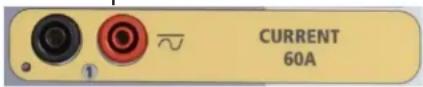
The SMRT current amplifier delivers maximum compliance voltage to the load constantly during the test, and range changing is done automatically, on-the-fly, under load. This insures better test results, saves time by not having to turn the outputs off to change output taps or ranges, and unlike single range current amplifiers insures a higher compliance voltage at lower test currents. Constant power output in many cases eliminates the need to parallel or series current channels together to test high burden relays.
The following are typical output current and associated available compliance voltage values. The output current and power ratings are specified in AC rms values and peak power ratings. Specified duty cycles are based upon typical room ambient.
Output Current Power Max V / Duty Cycle
1 Ampere 15 VA 15.0 Vrms Continuous
4 Amperes 200 VA (282 peak) 50.0 Vrms Continuous
15 Amperes 200 VA (282 peak) 13.4 Vrms Continuous
30 Amperes 200 VA (282 peak) 6.67 Vrms Continuous
60 Amperes 300 VA (424 peak) 5.00 Vrms 1.5 sec.
DC 200 Watts
The current amplifier output is protected from open circuits and thermally protected against prolonged overloads. In case of an open circuit or a thermal overload, the amplifier will automatically turn off, and if the STVI is connected a message to the user will be displayed indicating which condition exists. If AVTS software is used, a similar message will appear.
1.4 Binary Input and Output

Figure 215 SMRT1 Binary Input and Output
The SMRT1 Binary Input and Output are clearly marked and logically grouped. The Binary Input is used to monitor relay trip contacts for performing pickup and dropout tests as well as for performing timing functions. The Binary Output is used to simulate normally open / normally closed contacts for testing breaker failure schemes, or similar power system operations. In addition they may also be used to switches AC/DC voltages and currents.
1.4.1 Binary Input
The binary input is specifically designed to measure high speed operation of electro-mechanical, solid-state and microprocessor-based protection relays. The binary Input defaults to Monitor Mode, Contact change of state, latched OFF. If using the STVI or STVI software to change a binary input from Contact change of state to Voltage Applied / Removed click on or touch the Input Type window and a sine wave will appear where the Contact icon was indicating. The input is now set for voltage sensing. To change the binary input from Monitor mode to Timer Mode, click on or touch the Use as Monitor button and the display window will change to show Use as Trip, Latched, meaning the binary input is now set to stop the timer upon sensing the first contact closure (if the Input Type is set for contact) or upon sensing voltage if the Input Type is set to Voltage Sensing.
1.4.1.1 Start, Stop, and Monitor Gate
In the SMRT1 the independent, programmable gate circuit permits simple selection of the desired mode for timing or contact monitoring operation.
To monitor operation of the contacts or trip SCR in the device under test, a light is provided for the gate. The gate circuit is isolated for voltage-sensing and can monitor solid-state logic signals. The light will illuminate once contacts close or voltage is applied to the gate.
Timer stops or a continuity indicator goes out at the opening of normally closed contacts, or when conduction through a semiconductor device, such as a triac or a transistor, is interrupted.
1.4.1.1.2 Dry Contacts Close
Timer stops or a continuity indicator glows at the closing of the normally open contacts, or upon conduction through a semiconductor device such as a triac or a transistor.
1.4.1.1.3 Application or Removal of AC or DC voltage
The continuity indicator will glow (application) or darkens (removal) upon the application or removal of either an AC or DC voltage. A higher threshold voltage helps to eliminate false triggers due to a noisy source. Lower thresholds allow stopping the timer from TTL voltage signals. The allowable voltage applied is 5 to 300 Volts AC or 5 to 300 Volts DC, current limiting resistors provide protection.
1.4.1.1.4 The Timer can be started when turning on any selected generators.
1.4.1.1.5 The Timer can be started simultaneously with a change in Frequency, Phase Angle, or Amplitude. Also, it can be started simultaneously with a Voltage or Current waveform step.
1.4.2 Binary Output
Binary Output is rated for 300 V at 8 Amps and a maximum of 2000 VA breaking capacity (80 watts DC), with a response time of less than 10ms. The Binary Output can be configured as normally open or normally closed contacts providing logic to the device under test. The programmable wait duration is from 1 millisecond to 10,000 milliseconds.
2.0 SETUP
2.1 Unpack System
Unpack the unit and check for evidence of any shipping damage. If there is any visual damage, immediately notify the freight carrier to make a damage claim, and notify Megger of the damage.

CAUTION:
Potentially lethal voltages may be present on the output terminals. It is highly recommended the operator read the user manual thoroughly and have an understanding of the test set operation prior to turning power on.
2.1.1 Initial Start Up
- With the Ethernet cable supplied with the unit connect the IN Ethernet Port on the SMRT unit to the Ethernet port on the PC Ethernet port. If using the STVI-2, connect the SMRT1 IN port to the PoE power supply Data In port, and connect the Data & Power Out port to the STVI Ethernet port.
- Before connecting power to the unit, make sure the POWER ON/OFF Switch is in the OFF position (0). Plug the unit line cord into an appropriate power source and turn the POWER ON/OFF Switch to ON (1). As the SMRT unit goes through its power up sequence, in about a minute the STVI power up screen will appear, then the manual start up screen will appear.
2.2 Communication Ports
There are two Ethernet communication ports and an optional Bluetooth wireless port available on the Standard enclosure SMRT1. The Standard enclosure SMRT1 ports are located on the right side on the enclosure. For the Rack Mount unit the ports are located on the back panel. The Rack Mount version does not have the optional Bluetooth wireless port.

Figure 216 SMRT1 Communication Ports
2.2.1 PC/IN Ethernet Port
PC/IN Ethernet Port is a 10/100BaseTX port, and is the primary PC connection port. This port supports MDI/MDI-X auto cross over configuration, which means both standard and "crossover" Ethernet cables may be used. This port provides the optimal method for downloading EMTP files, DFR streaming, and updating the unit's firmware as required. This port may also be used for multiple unit operation, the unit providing the 61850/ OUT link is providing the master phase reference to all units "downstream". In addition, the port may also used to talk to the SMRT1 unit via a Network.
2.2.1.1 Setting SMRT IP Address for Operation with a PC
With the Ethernet cable supplied with the unit, connect the PC/IN Ethernet Port on the SMRT1 unit to the PC Ethernet port. Turn the test set on. As the SMRT unit goes through its power up sequence, in less than a minute the Binary Output LED will flash a number of times (see more information below). When the flashing has stopped the unit is ready. Using the PC version of the STVI software it will auto-detect the SMRT unit connected to the PC. Once it auto-detects the unit, and determines the configuration of the SMRT unit connected, the Manual screen will appear. The unit might not auto detect due to firewall
settings. In this case the firewall can be turned off or you can enter the IP address directly using the PowerDB instrument configuration screen by clicking on the Instrument Setup icon on the PowerDB tool bar. From the Instrument Configuration Screen, shown in the following figure, click off the check mark in the Auto Discover Unit box.

Figure 217 PowerDB Instrument Setup Screen
Here the user can enter the IP address directly into the box highlighted in red. The IP address of the unit can be determined by counting the number of times the Binary Output led flashes at the end of boot up cycle (the address is 169.254. <#flashes>.0). If the unit flashed four times, the address would be 169.254.4.0. If the unit is on a network with a DHCP server, the user must use the Auto Discovery mode.
2.2.1.2 Setting SMRT IP Address for Networks
The SMRT1 maybe controlled over a network. This provides remote control of the SMRT1 virtually over any distance allowing one PC to control at least two or three units simultaneously, such as in end to end testing.
Connecting the SMRT1 to a Local Area Network or a Wide Area Network could permit unauthorized operation of the unit.
Through the IN Ethernet port, the SMRT1 integrates into a network just like a PC or server. To use this feature requires the user to setup the IP configuration of the SMRT1 for their LAN. Note that the SMRT1 when turned on will automatically search for and acquire a network address if connected to a network. If it fails to automatically acquire an address check to make sure you are properly connected using a standard Ethernet cable. Do not use the cross over Ethernet cable supplied with the test set (a cross over cable is designed for use from your PC to the test set, not to a network). If the unit still fails to acquire an address then there may be other issues. This will probably require assistance from your company's information management department.
2.2.2 61850/OUT Ethernet Port
The OUT Ethernet Port is a 10/100BaseTX port, and is used when interconnecting multiple SMRT units together. With the unit IN port connected to a PC, the OUT port would be connected to the "downstream" SMRT unit IN port, providing phase reference to all downstream SMRT units. Note that another SMRT1
IN port could be connected to the OUT port of the upstream SMRT unit, and so on thus creating a multi-phase test system. This port also provides access to the substation IEC 61850 network (when enabled) to receive and send GOOSE messages. The SMRT1 with the IEC 61850 option enabled provides selectable priority, VLAN-ID, and meets the IEC 61850-5 standard Type 1A, Class P 2/3, for high speed trip and reclose simulations.
2.2.2.1 IEC 61850 Operations
For IEC 61850 testing connect the IEC61850/OUT port to the substation bus or to the relay under test to receive and send GOOSE messages. When used with the Megger GOOSE Configurator in the AVTS software, the SMRT1 can provide high speed testing of IEC 61850 relays and substations by subscribing to GOOSE messages and mapping to the binary input. In addition, it can simulate system conditions such as circuit breaker operation by publishing GOOSE messages mapped to the SMRT1 binary output. With the PC connected to the SMRT1 IN port, and running AVTS Megger GOOSE Configurator software, the operator can “sniff” the substation network. If a secure port is desired, with the optional Bluetooth wireless port, use the SMRT1 to “sniff” the network through the IEC61850/OUT port.
3.0 Current Sources
3.1 Parallel Operation
Each SMRT current amplifier is capable of providing 30 Amperes continuous, and up to 60 amperes for 1.5 seconds for testing instantaneous trip elements. When more than 30 amps single phase is required for long durations, or 60 Amps for testing instantaneous elements, two or three current channels may be connected in parallel to provide 60 or 90 Amperes continuous, and up to 120 or 180 amperes for short durations.
To parallel the current channels of multiple SMRT1 units, perform the following:
If using the sleeved pair of current test leads (part number 2001-394), connect each current channel to the relay under test (both red and black terminals to the load). Each Megger test lead is rated for 32 Amperes continuous. If using test leads other than those supplied by Megger insure that the wire has sufficient size to carry the test current. See the following figure.

Figure 218 Parallel of Three SMRT1 Current Outputs
3.1.1 Manual Test Screen - Single Phase Up To 180 Ampere
With three SMRT1 interconnected, go to the Configuration screen and select the Operating Mode of 3 Voltages - 1 Current @ 180 amps. When you return to the manual test screen there will be one current channel displayed, as shown in the following figure.

Figure 219 Manual Test Screen – Three SMRT1 Units in Single Phase Operation
The STVI will automatically set all three currents in phase with each other and divide the current equally between the three current amplifiers. When setting an output, simply enter the value of the desired output current. For example, for an output of 75 Amperes, enter 75, while each current amplifier will be providing 25 Amperes. The current can also be phase shifted. Simply enter the desired phase angle and all three currents will be phase shifted together.
If two current channels that are to be used in parallel, connect the two current outputs to the load as shown in the following figure.

Figure 220 Two Currents in Parallel
Set each channel to one-half of the output requirement. Be sure and reset current channel #2 to 0 degrees so that it will be in-phase with current channel #1. With both current channels selected, turn output on by pressing or clicking on the ALL ON/OFF button. Always use the ALL ON/OFF button to turn both current channels on and off together. For manually ramping outputs, if using the PC version of the
STVI software the ↑↓ buttons will be displayed. If using an STVI controller the Control Knob icon will be displayed. Pressing either of these two will present the user with a window to select the desired level of increment for manually ramping the outputs, the desired channel(s) to be ramped, and what is to be adjusted (amplitude, phase angle or frequency).
3.2 Currents in Series Operation
Two current channels may be connected in series in order to double the available compliance voltage. High impedance electromechanical ground (earth) overcurrent relays have always been difficult to test at high multiples of tap due to the winding impedance and saturation characteristics. The peak voltage required can exceed the maximum output voltage of one SMRT1 current output channel, depending on the required test current. By connecting two current outputs in series, the compliance voltage is doubled,
providing higher test currents through the load. Connect the two current amplifiers in a "push-push" configuration as shown in the following figure.

Figure 221 Series Two Currents
Using the STVI or the STVI software on a PC set each of two current channels to the same test current magnitude, and phase angle. Select both current channels and turn output on by pressing or clicking on the ALL ON/OFF button. Always use the ALL ON/OFF button to turn both current channels on and off together. For manually ramping outputs, if using the PC version of the STVI software the ↑↓ buttons will be displayed. If using an STVI controller the Control Knob icon will be displayed. Pressing either of these two will present the user with a window to select the desired level of increment for manually ramping the outputs, the desired channel(s) to be ramped, and what is to be adjusted (amplitude, phase angle or frequency).
4.0 Voltage Sources
4.1 Outputs Summed Together
Two voltage channels may be used to sum the voltage outputs to obtain higher than rated voltage provided the load is ungrounded. Connect the load between the voltage channel posts, set V_1 Phase to 0^ and set V_2 Phase to 180^ . The voltage outputs will add so the total voltage is the sum of the two voltage amplitudes, V_1 and V_2 as can be seen in the picture below.

Connect the associated voltage channels black common returns together, when series operation is required (see the following figure). DO NOT attempt to series more than two voltage channels together since the test leads are rated up to maximum of 600 Volts.

Figure 222 Series of Voltage Channels
4.2 3∅, 3-Wire, Open-Delta and T-Connection
4.2.1 Balanced Open Delta
Two methods of obtaining a three-phase, three-wire voltage source are available. The Open-Delta configuration is the easier to use when a balanced three-phase source is required because the amplitude and phase relationship can be set directly. No calculations are necessary.
When using the Open-Delta configuration, it is suggested to use voltage channel #1, designated V_1 , and voltage channel #2, designated V_2 , while the COMMON binding post is designated V_g . With this arrangement, the magnitude and phase angle of the potentials can be easily calculated and set. For the balanced three-phase condition V_1g and V_2g are equal in magnitude and separated by an angle of 60^ . This is done by setting the V_1 and V_2 potentials equal in magnitude, setting 0^ on V_1 and 300^ (60 degrees leading assuming that the default phase rotation is set to 360 Lag) on V_2 , see the following figure.

Figure 223 Three Phase Open Delta Connections
When using the Open-Delta Configuration to set up a phase-to-phase fault, calculations' using the Law of Cosines is required to calculate amplitude and phase relationships. (See discussion under T-Connection for simulating unbalanced, phase-to-phase faults without need for calculations.)
4.2.2 T Connection
The second method of obtaining a three-phase, three-wire voltage source is the so-called T-Connection. The method, shown in the following figure, is easier to use when obtaining an unbalanced, phase-to-phase fault simulation since it eliminates calculations. To reduce confusion when using the T-Connection, the voltage output #1 is designated V_a and its phase angle set at 0°, voltage output #2 is designated V_b and its phase angle set for 180°, and voltage output #3 is designated V_c and its phase angle is set for 270. Any combination of balanced three phase faults or unbalanced phase-to-phase fault conditions can be easily simulated. The following figure indicates these phase relationships.
NOTE: This method should not be used for very low fault voltages, or used on solid state relays that may be sensitive to this type of connection (i.e. 5 volts or less, or for testing ABB or Westinghouse type SKD relays).
4.3 3∅, 4-Wire, Y-Connection
A three-phase, four-wire potential system can be provided using three output modules. The vector relationships are referenced below. This Y-Connection has the advantage of being able to supply a higher line-to-line voltage (1.73 x phase-to-neutral voltage). It is ideally suited for simulating phase-to-ground faults. Voltage channel #1 is designated as V_a with its phase relationship set for 0°. Voltage channel #2 is then designated as V_b and phase angle set for 120°. Finally, voltage channel #3 is designated V_c and phase angle set for 240° (for a 1-2-3 counter clockwise rotation). V_a , V_b and V_c are connected to the voltage potential binding posts on the respective test sets.
If using the optional sleeved multi-lead voltage test leads (part number 2001-395), all of the black return leads are interconnected together inside the sleeve so they will all share the return together. Therefore, only one return lead is provided on the relay connection side of the sleeved leads (similar to the connections in the following figure).

flowchart
graph TD
    A["Power Supply"] --> B["Current 10A"]
    A --> C["Current 10A"]
    A --> D["Current 10A"]
    B --> E["Megg Branded Port"]
    C --> F["Megg Branded Port"]
    D --> G["Megg Branded Port"]
    style A fill:#f9f,stroke:#333
    style B fill:#ccf,stroke:#333
    style C fill:#ccf,stroke:#333
    style D fill:#ccf,stroke:#333
Figure 224 Three Phase Four Wire Voltage Test Connections
5.0 Warranty Statement
Megger warrants the product is free of defects in material and workmanship for a period of at least one (1) year from date of shipment. This warranty is non-transferable. This warranty is limited and shall not apply to equipment that has damage, or cause of defect, due to accident, negligence, and improper operation, faulty installation by the purchaser, or improper service or repair by any person, company or corporation not authorized by Megger. Megger will, at its' option, either repair or replace those parts and/or materials it deems to be defective.
The warranty is in lieu of all other warranties, either expressed or implied on the part of Megger and in no event shall Megger be liable for the consequential damages due to the breach thereof.
5.1 Preventive Maintenance
The unit utilizes surface mount technology (SMT) and other components which require little or no service except for routine cleaning, etc. The unit should be serviced in a clean atmosphere away from energized electrical circuits.
5.1.1 Examine the unit every six months for:
| Dust and Dirt | To clean the unit, disconnect the power cord from the unit. Never use spray liquids or industrial cleaners. Some cleaning solvents can damage electrical components, and should never be used. Water and a mild soap may be used. Use a lightly damp cloth (not dripping wet) to wipe off the unit. A dirty heat sink can cause thermal overloads. Remove dust with dry, low pressure, compressed air. Either remove the enclosure or simply apply air forcing the dust away from the heat sink through the sides of the unit. |
| Moisture | Remove moisture as much as possible by putting the test set in a warm, dry environment. |
5.1.2 Updating SMRT1 Firmware
Download Firmware Upgrade via Megger Website
To download the newest firmware from the Megger website,
- Go to WWW.Megger.com
- Log In
- Go to Software Downloads
- Click on SMRT
- You will see instructions to enter the serial number of the SMRT unit, and then click on Continue. The serial number is 12 digits long. Make sure you enter all 12 digits. Then click on Firmware Version #.##. The firmware will be downloaded onto your PC as a zip file. Unzip the file, Select All files, and Copy to a USB memory stick _4 (use a or smaller stick), or create a file on your PC for storage to unzip or extract to a file.
USB Memory Stick: With the SMRT and STVI powered up, insert the USB memory stick into the USB port on top of the STVI. Press the Configuration Screen button, and then press the Update Firmware button in the Configuration Screen. At that point the user will be presented with the IP Address selection screen, with the serial number of the unit. Select the unit by touching the serial number and the upgrade process will automatically start. That's all there is to it. Observe the STVI display screen, and the unit. At the completion of the download, the user will note the fans spin-up, and the LED's will be flashing rapidly on the SMRT unit. There will be an instruction to reboot (turn off and back on) the test system.
PC and STVI Software: If using the PC version of the STVI software, it is very similar to the STVI. Upon clicking on the Update Firmware button, the familiar Windows Open File browser dialog box will appear. Using the Look In pull-down menu, navigate to where the new firmware was downloaded onto the PC, click on and open the file folder SMRT_LDR (SMRT Loader). There you will find the new firmware file. Click on the file, and click on Open. You will be requested to select a unit from the IP Address screen. Select the unit by clicking on the serial number and the upgrade process will automatically start. At the completion of the download, the user will note the fans spin-up, and the LED's will be flashing rapidly on the SMRT unit. There will be an instruction to reboot (turn off and back on) the test system. Note that after rebooting the SMRT unit, if using the PC version of the STVI software you will have to restart the STVI software on your PC in order to regain control of the SMRT unit
5.2 Service and Repair Instructions
Basic troubleshooting information has been provided to guide the technician to the possible source of a problem.
Since SMRT1 uses Surface Mount Technology, most repairs are beyond the scope of the basic troubleshooting guide, and should be referred to the Service Department at Megger or handled through the Megger Representative.
If the unit is still within the original warranty period, or limited warranty period following factory servicing, the factory must be contacted before attempting any repairs or the warranty will be void.
5.2.1 Basic Troubleshooting
The troubleshooting information relies on the technician to have a good understanding of the operation of the unit. If the technician is unfamiliar with the unit, he or she should not attempt to repair. The technician
should contact the factory before attempting repairs. Provide the Megger part number for the part or assembly in question and the serial number of the SMRT1 when making inquiries.
WARNING It is necessary to energize the SMRT1 to properly troubleshoot. The technician must take all applicable safety precautions for working near energized circuits.
NOTES
Before suspecting a failure in the SMRT1, review the General Description and Operation sections to ensure that the problem is not a result of operating error.
Preliminary testing of the SMRT1 within its specified limits can help determine if a malfunction actually exists, identify the type of malfunction and define the general area of the failure.
Common causes of malfunctions, other than improper operation, are incorrect power input (voltage above or below specified limits), incorrect test signal voltages applied to the Binary Input gate (outside of the specified AC/DC Applied/Removed limits), and contact or circuit resistance too great for the Dry Contact gates to operate properly on the Monitor/Start/Stop gate. Typical malfunctions for the VI-Gen amplifiers are external short circuits on the voltage output and open circuits on the current output. VI-Gen voltage and current outputs can be easily checked using a voltmeter and ammeter.
NOTE: Proper ESD procedures should be followed when handling any SMRT1 VIGEN outside of the protective enclosure. Failure to do so, may damage sensitive parts.
5.2.1.1 Power Input
Input voltage affects the whole unit and may or may not cause permanent damage if voltage is incorrect. These problems can often be corrected by simply using a better source of input power. The rated voltage limit is auto-selectable from 100 to 240 volts, ± 10 %, 47 to 63 Hz.
Some symptoms are as follows:
- Low voltage: Erratic operation, no output, input power circuit breaker operation.
- High voltage: Circuit breaker operation, power supply failure in Input Power Module.
5.2.1.2 VIGEN Input Power and Control
Basic troubleshooting of the input power is as follows.
No power: Check the ON/OFF circuit breaker. Does the ON/OFF switch light up? If it does not light up, then power is not getting to the unit. Check power source and line cord. If it lights up then the power is getting to the unit. Check the VIGEN internal power cable connections.
To check the internal connections requires the removal of the enclosure cover and the Warranty Sticker. If the unit is still in the warranty period, stop and contact your local Megger Sales office or representative. If in warranty, do not remove the sticker without written approval from Megger. Removing the warranty sticker without written approval may void the warranty.
Step 1 Disconnect the power cord from the unit, and remove top corner screws.
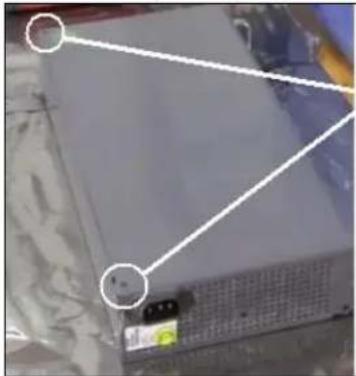
natural_image
Close-up of a computer power supply unit with three circular annotations highlighting its components (no visible text or symbols)Remove two corner screws
Step 2
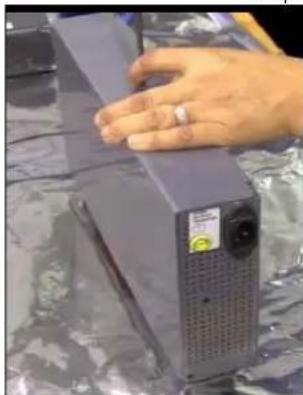
natural_image
Hand resting on a black industrial device with a circular label, placed on a patterned surface (no visible text or symbols)Remove the back side screw
Step 3
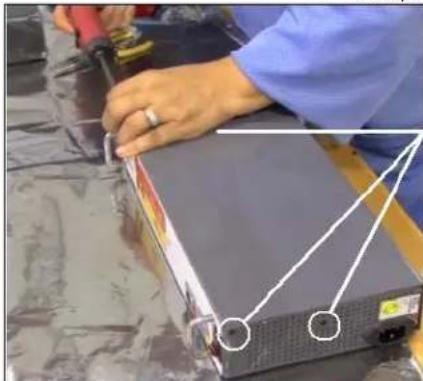
natural_image
Person using a power tool to adjust or install a server rack (no visible text or symbols)Remove the corner screw and side mounting screw from each side
Step 4
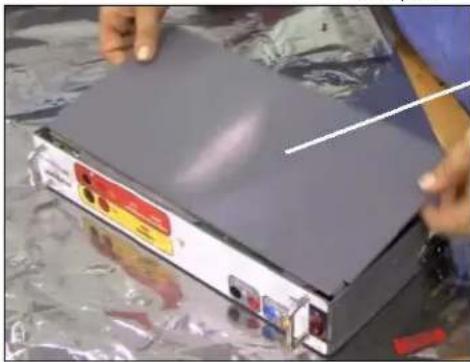
natural_image
Person holding a gray electronic device with visible label and paper clips, placed on foil-lined surface (no readable text or symbols)Remove top enclosure cover

CAUTION: From this point on observe proper ESD procedures. Be careful when moving the VIGEN module as it is a tight fit, and it is possible to damage components upon extraction from or installation to the bottom half of the enclosure.
Step 5

natural_image
Exterior view of a satellite or spacecraft module with visible solar panels and surrounding equipment (no text or symbols)Remove two screws that secure the power input receptacle
Step 6

natural_image
Close-up of hands using a screwdriver to adjust or install electronic components on a circuit board (no visible text or symbols)Disconnect the connectors to the power receptacle. Take note of the color coded wires and the appropriate connectors.
Step 7

natural_image
Close-up of a battery pack on a reflective surface with a hand adjusting it (no visible text or symbols)Carefully remove the VIGEN from the enclosure shell enough to gain access to the power ON/OFF switch and Ground post connection points
Step 8
natural_image
Close-up of hands using a tool to adjust a small electronic component (no visible text or symbols)Disconnect the ground and power on off switch connectors
Step 9

natural_image
Close-up of a hand using a tool to clean or repair electronic components on a laptop keyboard (no visible text or symbols)Remove VIGEN from bottom enclosure shell
Step 10 Inspect the AC power connector
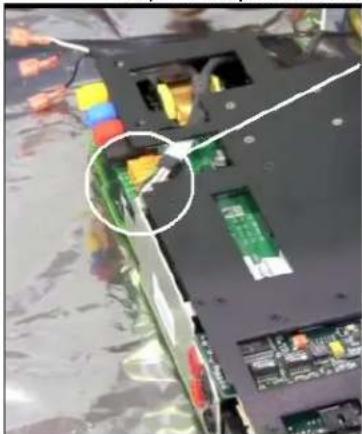
natural_image
Close-up of a laptop's front panel with visible circuit board and green components, no text or symbols presentAC Power Input connector
Look for possible discoloring of the wires and connector indicating overheating. Make a general observation of the VIGEN module looking for any obvious damage caused by a short circuit or other possible signs of trouble.
5.2.1.3 Binary Input and Binary Output
If all the items external of the unit are in proper order, then the problem exists within the Binary Input / Output assembly itself.
Some basic troubleshooting can pinpoint problems to the approximate cause.
Binary Input - Basic troubleshooting is as follows:
1. Timer does not stop:
Jumper the Binary Input terminals manually; if LED above the input lights, check the Binary Input setup screen to verify that the selected binary input is properly setup as a Timer stop post. Check Timer stop settings as N.O. (Normally Open) to close, and Latch On. If LED does not light up, the Binary Input will need to be repaired or replaced.
2. Counting errors:
AC applied or removed Stop signals can create, what appears to be poor repeatability, an inaccuracy or a malfunction in the Timer. The lower the voltage level, the more serious the "error" will be. What appears to be an error, however, is actually a variation in the point on the sine wave at which the voltage is great enough to cause the gate circuit to operate. If the circuit used for the timing test has a low AC voltage and the point at which the contact in the test circuit opens or closes, is at or close to zero on the sine wave, the period of time before the voltage level will be high enough to trigger the gate circuit can be as much as 4 milliseconds. The total timing variation can be as much as 8 milliseconds. The shorter the duration of the timing test, the more significant the variation becomes. Therefore, if small timing variations would present a problem, it is recommended that an AC voltage of 115 volts or above or a DC voltage be used for voltage applied/removed test selections.
When the SMRT1 Timer calibration is being tested, the AC voltage variable is often overlooked. This is particularly true when the Timer is compared to a counter and the two are triggered simultaneously with an electronic switch. For best results, a DC voltage should be used to eliminate the variable. If testing the AC voltage Timer Stop characteristics is desired, then the Stop signal must be triggered at the same point on the sine wave to assure that the gate signal will be repeatable. Ideally, the signal should be at a point near peak in the positive direction. In addition, the specified rms AC voltage values for the various Stop control selections must be adhered to.
Another source of apparent "error" can be the programmable de-bounce feature. If using electro-mechanical contacts for stopping the Timer, and if those contacts have a tendency to bounce, there could be a difference between an external standard timer and the SMRT1 Timer, depending on the programmed de-bounce period set in the SMRT unit. To determine the programmed value, look at the Binary Input Setup Screen and see what the De-bounce setting value is.
If a timing error or variation persists after all the suspected causes of error have been eliminated, then it is possible that the Binary Input circuit is malfunctioning. Contact factory for return instructions.
Binary Output - Basic troubleshooting is as follows:
Binary Output LED is ON but output contacts not closed:
Using a continuity tester check to see if output circuit is open circuited. If circuit is open then it is possible that the internal surface mounted fuse element has been blown. Note: an optional in-line fused test lead Part Number: 568026 are available to provide protection from switching too high current, see SMRT
Ordering Information under Optional Additional Accessories. The unit will need to be returned to the factory for further inspection and repair.
! Contact the factory for a Repair Authorization Number and return instructions if service is required. A Repair Authorization (RA) number will be assigned for proper handling of the unit when it arrives at the factory. Any non-warranty repair cost incurred for the repair or replacement of parts and/or materials shall be the responsibility of the purchaser.
Provide the factory with model number, Unit serial number, serial number of VI-Gen if appropriate, nature of the problem or service, return address, your name, and how to contact you should the factory need to discuss the service request.
You may need to provide a purchase order number, cost limit, billing, and return shipping instructions. If an estimate is requested, provide the name and contact information.
6.0 Preparation for Reshipment
Save the original shipping container for future use. The shipping container is designed to withstand the rigors of shipping via a common commercial carrier. For example, you may wish to reship your unit to Megger for an annual calibration recertification.
Pack the equipment appropriately to prevent damage during shipment. If a reusable container is utilized, the unit will be returned in the same shipping container if it is in suitable condition.
Add the Return Authorization Number to the address label of the shipping container for proper identification and quicker handling.
NOTE: Ship the equipment without nonessential items such as test leads, etc. These items are not needed by the factory to perform service.
Megger ^®
Addendum B

natural_image
Exterior view of a black and white Megger industrial testing device with open casing (no visible text or symbols)* SMRT36 shown with "P" Plus option (Extra Binary Inputs / Outputs and battery simulator)
Model SMRT33/36/46 Megger Relay Tester
SAFETY PRECAUTIONS

VOLTAGES GENERATED BY THIS INSTRUMENT CAN BE HAZARDOUS
This instrument has been designed for operator safety; however, no design can completely protect against incorrect use. Electrical circuits are dangerous and can be lethal when lack of caution and poor safety practices are used. There are several standard safety precautions that should be taken by the operator. Where applicable, IEC safety markings have been placed on the instrument to notify the operator to refer to the user manual for instructions on correct use or safety related topics. Refer to the following table of symbols and definitions.
| Symbol | Description |
 | Direct Current |
 | Alternating Current |
 | Both direct and alternating current |
 | Earth (ground) Terminal. There is a common chassis ground terminal located on the front panel (see Front panel under Description of Controls. |
| [2GST] | Protective Conductor Terminal |
 | Frame or Chassis Terminal |
 | On (Supply) |
 | Off (Supply) |
 | Caution, risk of electric shock |
 | Caution (refer to accompanying documents) |
WARNING: Under no circumstances should the operator or technician attempt to open or service this instrument while connected to a power source. Lethal voltages are present and may cause serious injury or death!
SAFETY PRECAUTIONS (Continued)
The following are some specific safety related items associated with the SMRT test system.
Read and understand all safety precautions and operation instructions before attempting to use this unit.
The purpose of this equipment is limited to use as described in this instruction manual. Should a situation arise that is not covered in the general or specific safety precaution please contact Megger regional representative or Megger, Dallas Texas.
Safety is the responsibility of the user. Misuse of this equipment can be extremely dangerous.
Always start with the power OFF, before connecting the power cord. Make sure outputs are off before attempting to make test connections.
Never connect the test set to energized equipment.
Always use properly insulated test leads. The optional test leads are rated for the continuous output ratings of the test system, and should be properly used and cared for. DO NOT use cracked or broken test leads.
Always turn the test system off before disconnecting the power cord.
DO NOT attempt to use the unit without a safety ground connected.
DO NOT attempt to use the unit if the power cord ground prong is broken or missing.
DO NOT use the test set in an explosive atmosphere.
The instrument must only be used by suitably trained and competent persons.
Observe all safety warnings marked on the equipment.
For safety related or other important topics, like the statement below, will be notated with the adjoined symbol. Read the topic carefully as it may relate either to the safe operation of the test system or the safety of the operator.
Under no circumstances should the operator put their hand or tools inside the test system chassis area with the test system connected to a power source. Lethal voltages are present and may cause serious injury or death!

1.0 Operation
The unit's design is a "modular" concept. All inputs and outputs are clearly marked and logically grouped so continual reference to the instruction manual should not be necessary once the operator is acquainted with the test system. The unit's Top Panel will appear different among units, since each unit may have up to three optional Voltage/Current Generator (VIGEN) Modules installed. The 'N' version consists of a system board with only the power and communication ports. The 'P' version adds 8 additional binary inputs, 4 additional binary outputs and a battery simulator.
1.1 General Description
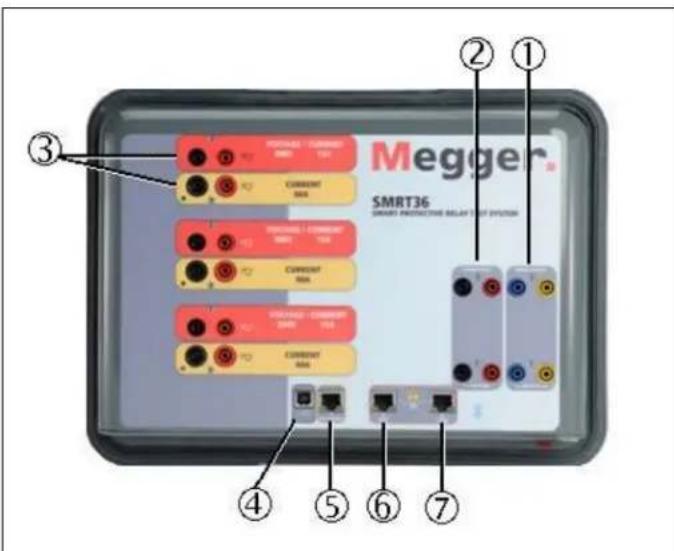
Figure 225 Top Panel SMRT33/36 (SMRT36 Pictured with Floating Returns Option)
1.1.1 Top Panel
-
① Binary Outputs – the first two VIGEN modules include Binary Inputs and Binary Outputs. Therefore, with a minimum 2 channel unit there are 2 Binary Outputs located on the top panel (numbered 1 and 2). More Binary Outputs are available with the P option see Front Panel section for more information. Each Binary Output can be configured as Normally Open or Normally Closed contacts providing logic to the device under test. The Top Panel Binary Outputs can switch up to 300 VAC or 250 VDC with 8 Amp continuous. The programmable wait duration is from 1 millisecond to 10,000 milliseconds.
-
② Binary Inputs – with a minimum 2 channel unit there are 2 Binary Inputs located on the top panel. For typical test applications binary inputs 1, and 2 have a fixed threshold of 5 volts. For GPS End-to-End synchronized relay testing Binary 1 may be connected with a remote trigger pulse from a GPS satellite receiver for external initiation, or the input of an IRIG-B signal (see use of Wait IRIG-B input using the STVI Sequencer test). More Binary Inputs are available with the P option see Front Panel section for more information. The Binary Inputs will accept a voltage range of 5 to 300 VAC, or 5 to 250 VDC, or dry Normally Open / Normally Closed contacts.
-
③ Voltage/Current Generator Module (or VIGEN) –There are three available slots for the VIGEN Modules. The slots are numbered 1 to 3 from bottom to top, with the topmost VIGEN numbered 3. The three phase voltages and currents are noted by the red and yellow
surrounding each output channel. Phases A, B and C Voltage Channels (V1, V2 and V3) are denoted by the red color. Phases A, B and C Current Channels (I1, I2 and I3) are denoted by the yellow color. When the voltage generators are converted to current generators, they will change on the STVI display as V1 = I4, V2 = I5 and V3 = I6. For more details on the VIGEN output capabilities see section 1.4.
Note: The SMRT33 voltage channels are not convertible to currents.
-
④ USB Interface – the USB 2.0 Interface requires a Type B “downstream” connector, and is primarily used as a communication and control port when used with a PC and Megger AVTS software for automated relay testing. A USB cable is not provided with the test set or in the optional accessories. For computer control, an Ethernet cable is provided. However, should the user desire to use the USB port any standard USB A/B cable will work with the unit. May be used when isolation is required for a secure substation access between the SMRT and the IEC 61850 substation network.
-
⑤ PC/OUT Ethernet Port is a 10/100BaseTX port, and is the primary PC connection port. This port supports MDI/MDI-X auto cross over configuration, which means both standard and "crossover" Ethernet cables may be used. This port provides the optimal method for downloading EMTP files, DFR streaming, and updating the unit's firmware as required. The SMRT comes standard with a crossover cable. This port may also be used for connecting to the IEC 61850 substation bus for use in testing IEC 61850 devices. For multiple unit operation, the unit providing the OUT link is providing the master phase reference to all units "downstream".
-
⑥ IN - 61850 Ethernet Port is a 10/100BaseTX port, and is primarily used to interconnect multiple SMRT units together for synchronous multi-unit operation. It may also be used to provide access to the substation IEC 61850 network. Note that the IN and STVI ports share a common physical port and cannot be used at the same time. With the PC connected to the PC Port, the SMRT and the PC share the same Ethernet network connection, and thus will not have a secure isolation from each other.
-
⑦ STVI Ethernet Port – this Ethernet port is a 10/100BaseTX PoE (Power over Ethernet) port, and is the STVI connection port. Used for manual operation, and display outputs when under computer control.
1.1.2 Front Panel:
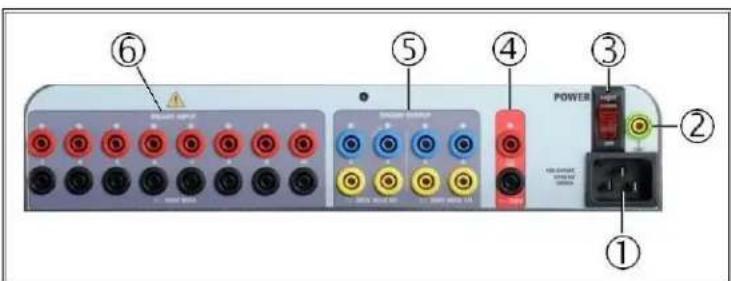
Figure 226 SMRT33/36 with P Option Front Panel
- ① Incoming Power / Line Cord – the input line cord, ground terminal, are mounted on the front panel of the test set for both the N and P option units.
Input Line Cord
The test set is equipped with a line cord, which connects to the male connector on the front panel. Verify the input voltage rating on the front panel before connecting the line cord to the power source.

- ② Earth Ground Jack – use this terminal to connect chassis ground to earth ground.

A chassis ground (earth) point on the front panel is provided as an additional safety ground.
-
③ POWER ON/OFF Switch – used to switch unit on and off. The switch illuminates when power is on.
-
④ Battery Simulator or AC/DC AUX – the SMRT33/36 with the P option provides a variable dc output voltage from 5 to 250 Volts, at 100 Watts (4 Amps Max) providing logic voltage for solid-state relays. When powered ON, the LED above the output terminals illuminates. The SMRT33/36 with the N option does not include a battery simulator. The SMRT46 provides an AC/DC AUX Output with a continuously variable dc output voltage from 5 to 250 Volts, at 100 Watts (3.33 Amps Max) providing logic voltage for solid-state relays, or use as a reference ac voltage source for synchronizing or polarization potential from 0 – 150 Volts, 100 VA. When powered ON, the LED above the output terminals illuminates.
-
⑤ Binary Outputs – the P option provides 4 additional Binary Outputs, numbered 3, 4, 5 and 6. Each Binary Output can be configured as Normally Open or Normally Closed contacts providing logic to the device under test. Binary Outputs 3 and 4 have an AC Rating of 400 V max., Imax: 8 amps, 2000 VA max. breaking capacity, and a DC Rating of 300 V max., Imax: 8 amps, 80 Watts, with a Response Time: < 10ms. Binary Outputs 5 and 6 are high speed and have an AC / DC Voltage Rating of 400 V peak, Imax: 1 amp, with a Response Time: < 1ms typical. The programmable wait duration is from 1 millisecond to 10,000 milliseconds. An LED directly above the terminals indicates the status of the contact. ON indicates closed, and OFF indicates open. The SMRT33/36 with the N option does not include the additional Binary Outputs 3 through 6.
-
⑥ Binary Inputs – the P option provides 8 additional (numbered 3 through 10), independent, galvanically isolated, Start/Stop or Monitor circuits to monitor operation of relay contacts or trip SCR. A continuity light is provided for each input gate. Upon sensing continuity, or voltage applied, the lamp will glow. In addition to serving as wet/dry contacts the Binary Inputs may be programmed to trigger binary output sequence(s). Binary Inputs can also be programmed using Boolean logic for more complex power system simulations. The Binary Inputs will accept a voltage range of 5 to 300 VAC or 5 to 250 VDC, or dry Normally Open / Normally Closed contacts. The SMRT33/36 with the N option does not include the additional Binary Inputs 3 through 10.
1.2 Input Power
The input voltage rating may be from 100 to 240 VAC, ± 10%, 50/60 Hertz. The maximum input power is 1800VA. The input is protected by a power ON/OFF switch / circuit breaker.
1.2.1. Input Power Cord
Depending on the country, the power cord can come with a NEMA 5-15 male connector, a CEE 7/7 Schuko two prong connector, with International Color Coded pig-tail wires (light blue, brown and green with yellow stripe) with the insulation jacket stripped ready for installation of the appropriate male connector, or with UK power cord.
Model SMRT33/36 X0XXXXAXXX comes with a North American power cord (part number 620000).

Model SMRT33/36 X0XXXXEXXX comes with a Continental Europe power cord (part number 50425).

Model SMRT33/36 X0XXXXIXXX comes with an International Color Code power cord. The cord, part number 15065, is ready for wiring to the appropriate plug (depending on country). The following colors apply, Brown = Line, Blue = Neutral and Green/Yellow = Ground.
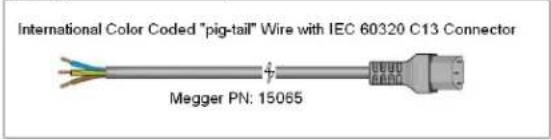
Model SMRT33/36 X0XXXXUXXX comes with a UK power cord (part number 90002-989).
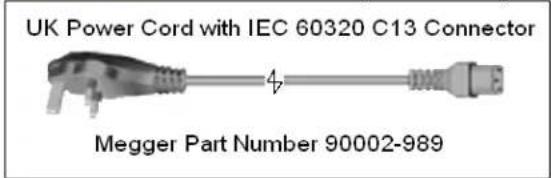
1.3 Voltage - Current Generator (VIGEN) Module
Voltages and Currents are noted by the red and yellow surrounding each output channel. Phases 1, 2 and 3 voltage channels are denoted by the red color. Phases 1, 2 and 3 current channels are denoted by the yellow color. All outputs are independent from sudden changes in mains voltage and frequency, and are regulated so changes in load impedance do not affect the output. Standard amplifier outputs are isolated or floating. The SMRT units can be ordered with the amplifier common returns tied to chassis ground as an option.
1.3.1. Convertible Voltage/Current Amplifier

Figure 227 SMRT36/46 Voltage Channel
The SMRT PowerV™ voltage amplifier provides a flat power curve from 30 to 150 Volts in the 150V range to permit testing of high current applications such as panel testing.
Voltage Range Power / Current (Max)
30.00V 150VA @ 5.0A
150.00V 150VA Constant Output Power from 30 to 150 Volts
300.00V 150VA @ 0.5A
Voltage Amplifier in Current Mode5:
The SMRT36 voltage amplifier is convertible to a current source with the following output capability.
Output power ratings are specified in rms values and peak power ratings.
Output Current Power Max V Duty Cycle
5 Amperes 150 VA (212 peak) 30.0 Vrms Continuous
15 Amperes 120 VA 8.0 Vrms 1.5 sec.
With a 3 channel SMRT unit, convertible channels in conjunction with the three main current channels, provides 6 currents for testing three phase current differential relays. When the voltage generators are converted to current generators, they will change on the STVI display as current phases 4, 5 and 6.
The voltage amplifier output is protected from short circuits and thermally protected against prolonged overloads. In case of a short circuit or a thermal overload, the amplifier will automatically turn off, and if the STVI is connected a message to the user will be displayed indicating which condition exists. If AVTS software is used, a similar message will appear.
1.3.2. Current Amplifier

Figure 228 SMRT36/46 Current Channel
The SMRT current amplifier Constant Power Output feature delivers maximum compliance voltage to the load constantly during the test, and range changing is done automatically, on-the-fly, under load. This insures better test results, saves time by not having to turn the outputs off to change output taps or ranges, and unlike single range current amplifiers insures a higher compliance voltage at lower test currents. Constant Power Output in many cases eliminates the need to parallel or series current channels together to test high burden relays.
The following are typical output current and associated available compliance voltage values for the SMRT33/36 Current channel ^6 . The per channel output current and power ratings are specified in AC rms values and peak power ratings. Specified duty cycles are based upon typical room ambient temperature.
Output Current Power Max V / Duty Cycle
1 Ampere 15 VA 15.0 Vrms Continuous
4 Amperes 200 VA (282 peak) 50.0 Vrms Continuous
15 Amperes 200 VA (282 peak) 13.4 Vrms Continuous
30 Amperes 200 VA (282 peak) 6.67 Vrms Continuous
45 Amperes ^5 300 VA (424 peak) 6.67 Vrms 1.5 sec
60 Amperes 300 VA (424 peak) 5.00 Vrms 1.5 sec
DC 200 Watts
The current amplifier output is protected from open circuits and thermally protected against prolonged overloads. In case of an open circuit or a thermal overload, the amplifier will automatically turn off, and if the STVI is connected a message to the user will be displayed indicating which condition exists. If AVTS software is used, a similar message will appear.
1.4 Binary Inputs and Outputs

Figure 229 Binary Inputs and Outputs 1 and 2
Binary Inputs and Outputs are clearly marked and logically grouped. The unit's Top Panel will appear different among units, which means Binary Input / Output 1 will always be occupied while Binary Input / Output 2 may, nor may not, depending on the configuration. The 'N' version consists of a system board with only the power and communication ports. The 'P' version adds 8 additional binary inputs, 4 additional binary outputs and a battery simulator. The Binary Inputs are used to monitor relay trip contacts for performing pickup and dropout tests as well as for performing timing functions. The Binary Outputs are used to simulate normally open / normally closed contacts for testing breaker failure schemes, or similar power system operations. In addition, they may also be used to switches AC/DC voltages and currents.

Figure 230"P" Option Binary Inputs 3 to 10 and Binary Outputs 3 to 6
1.4.1 Binary Inputs
The binary inputs are specifically designed to measure high speed operation of electro-mechanical, solid-state and microprocessor-based protection relays. All binary Inputs default to Monitor Mode, Contact change of state, latched OFF.
If using the STVI or STVI software to change a binary input from Contact change of state to Voltage Applied / Removed click on or touch the Input Type window and a sine wave will appear where the Contact icon was indicating. The input is now set for voltage sensing.
To change the binary input from Monitor mode to Timer Mode, click on or touch the Use as Monitor button and the display window will change to show Use as Trip, Latched, meaning the binary input is now set to stop the timer upon sensing the first contact closure (if the Input Type is set for contact) or upon sensing voltage if the Input Type is set to Voltage Sensing.
1.4.1.1 Start, Stop, and Monitor Gates
In the SMRT33/36 there are up to ten identical, independent, programmable gate circuits that permit simple selection of the desired mode for timing or contact monitoring operation.
To monitor operation of the contacts or trip SCR in the device under test, a light is provided for each gate. The gate circuit is isolated for voltage-sensing and can monitor solid-state logic signals. Each light will illuminate once contacts close or voltage is applied to the gate.
Timer stops or a continuity indicator goes out at the opening of normally closed contacts, or when conduction through a semiconductor device, such as a triac or a transistor, is interrupted.
1.4.1.1.2 Dry Contacts Close
Timer stops or a continuity indicator glows at the closing of the normally open contacts, or upon conduction through a semiconductor device such as a triac or a transistor.
1.4.1.1.3 Application or Removal of AC or DC voltage
This will either start the Timer or stop the Timer. The continuity indicator will glow (application) or darkens (removal) upon the application or removal of either an AC or DC voltage. To serve a wide range of test applications the binary inputs have different voltage thresholds. For typical test applications binary inputs 1 and 2 have a fixed threshold of 5 volts. On the "P" model there are an additional 8 binary inputs. To monitor TTL signals binary inputs 3 through 6 have a fixed threshold of 3 volts. Binary inputs 7 and 8 have fixed thresholds of 5 volts, and binary inputs 9 and 10 have fixed threshold of 30 volts (for "noisy" test environments). A higher threshold voltage helps to eliminate false triggers due to a noisy source. Lower thresholds allow starting and stopping of timer from TTL voltage signals. The allowable voltage applied is 5 to 300 Volts AC or 5 to 300 Volts DC, current limiting resistors provide protection.
1.4.1.1.4 The Timer can be started when turning on any selected generators.
1.4.1.1.5 The Timer can be started simultaneously with a change in Frequency, Phase Angle, or Amplitude. Also, it can be started simultaneously with a Voltage or Current waveform step.
1.4.2 Binary Outputs
Binary Outputs 1 and 2 are located on the top panel, rated for 300 V at 8 Amps. The SMRT33/36 "P" system board option provides four additional Binary Outputs numbered 3, 4, 5 and 6. Each Binary Output can be configured as normally open or normally closed contacts providing logic to the device under test. Binary Outputs 3 and 4 have a rating of 300 V AC/DC, 8 amperes and a maximum of 2000 VA breaking capacity (80 watts DC), with a response time of less than 10ms. Binary Outputs 5 and 6 are high speed and have an AC/DC voltage rating of 400 volts peak, 1 ampere and a response time typically less than 1ms.
The contacts may be programmed to open or close, thus simulating circuit breaker operation. The programmable wait duration is from 1 millisecond to 10,000 milliseconds. A fused test lead (fused at 500 mA) is available as an optional accessory to help protect from blowing the internal fuse of binary outputs 5 & 6. The test lead is blue in color so that the user knows it applies to the blue binary outputs. The barrel holder of the test lead is CE marked with a 1000 V, CAT III rating, and marked FUSED 500 mA / 1000 V/50 KA.
1.5 Battery Simulator

The SMRT33 or 36 "P" model includes the battery simulator, and provides a variable DC output from 5 to 250 VDC rated at 100 Watts, 4 Amperes max. The SMRT46 includes an AC/DC Auxiliary Output that provides a variable DC output from 5 to 250 VDC rated at 100 Watts, 3.33 Amperes max. User may select from normal setting values of 24, 48, 125, or 250 VDC, or enter the desired output voltage in the window provided, see the RTMS software Configuration Screen.
Source may also be used as a synchronizing or polarization voltage providing 0 – 150 Volts AC at 100 VA. The output is variable using the STVI Control Knob, or the PC up/down cursor arrows (see the STVI section of the manual).

CAUTION:
NOTE: DC voltage is ON and available when the output is turned on using the LCD touch panel or via software command. Do not plug or insert any test lead into the BATTERY SIMULATOR binding posts without first connecting the test leads to the load!
2.0 SETUP
2.1 Unpack System
Unpack the unit and check for evidence of any shipping damage. If there is any visual damage, immediately notify the freight carrier to make a damage claim, and notify Megger of the damage.

CAUTION:
Potentially lethal voltages may be present on the output terminals. It is highly recommended the operator read the user manual thoroughly and have an understanding of the test set operation prior to turning power on.
2.1.1 Initial Start Up
-
With the Ethernet cable supplied with the unit connect the STVI Ethernet Port on the SMRT unit to the Ethernet port on the top of the Smart Touch View Interface (STVI). If using the STVI PC version software, connect the PC/OUT Ethernet Port on the SMRT unit to the PC Ethernet port.
-
Before connecting power to the unit, make sure the POWER ON/OFF Switch is in the OFF position (0). Plug the unit line cord into an appropriate power source and turn the POWER ON/OFF Switch to ON (I). As the SMRT unit goes through its power up sequence, in about a minute the STVI power up screen will appear, then the manual start up screen will appear.
2.2 Communication Ports
There are several communication ports. These ports are: one USB, three Ethernet, and an optional Bluetooth wireless port.
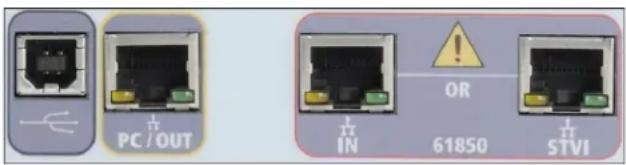
2.2.1 USB 2.0 Interface
USB 2.0 Interface requires a Type B "downstream" connector, and is primarily used as a communication and control port when used with a PC and Megger AVTS or STVI PC version software for automated relay testing. It is recommended that you use the Ethernet port for high speed communication and control of the SMRT unit. To use the USB port will require the user to configure the PC com port for USB
operation. Clicking on the Instrument Setup icon on the PowerDB tool bar, the Instrument Configuration Screen (shown in the following figure)

provides the user with access to the PC Device Manager screen. Click on the Device Manager button and navigate to the USB Ports file directory. Since the SMRT33/36 defaults to a baud rate of 115,200, the user will need to configure their USB output com port to match. Returning to the Instrument Configuration screen the user will need to check off the Use Ethernet check box, and set the Baud rate, Byte Size and Stop Bits as shown.
2.2.2 PC/OUT Ethernet Port
PC/OUT Ethernet Port is a 10/100BaseTX port, and is the primary PC connection port automated relay testing. This port supports MDI/MDI-X auto cross over configuration, which means both standard and "crossover" Ethernet cables may be used. The SMRT comes standard with a crossover cable.
In addition, this port maybe used to download large blocks of data into the unit. It is used to download digital samples for DFR playback, and download software / firmware updates. Since each output channel is capable of storing up to 256,000 samples of Digital Data, such as in Digital Fault Recordings for DFR playback, and with up to six channels that equals over 1.5 million samples. Typically, the Ethernet port on the SMRT33/36 should download the data in 1 second or less. In addition to high speed downloads of DFR data, the port is also used to talk to the SMRT33/36/46 unit via a Network.
This port may also be used to interconnect multiple SMRT units together for synchronous multi-phase operation.
2.2.2.1 Setting SMRT IP Address for Operation with a PC
With the Ethernet cable supplied with the unit, connect the PC/OUT Ethernet Port on the SMRT unit to the PC Ethernet port. Turn the test set on. As the SMRT unit goes through its power up sequence, in less than a minute the STVI power up screen will appear. If using the PC version of the STVI software it will auto-detect the SMRT unit connected to the PC. Once it auto-detects the unit, and determines the configuration of the SMRT unit connected, the Manual screen will appear. The unit might not auto detect due to firewall settings. In this case the firewall can be turned off or you can enter the IP address directly using the PowerDB instrument configuration screen by clicking on the Instrument Setup icon on the
PowerDB tool bar. From the Instrument Configuration Screen, shown in the following figure, click off the check mark in the Auto Discover Unit box.

Figure 231 PowerDB Instrument Setup Screen
Here the user can enter the IP address directly into the box highlighted in red. The IP address of the unit can be determined by counting the number of times the Binary Output led flashes at the end of boot up cycle (the address is 169.254. <#flashes>.0). If the unit flashed four times, the address would be 169.254.4.0. If the unit is on a network with a DHCP server, the user must use the Auto Discovery mode.
2.2.3 STVI Ethernet Port
STVI Ethernet Port is a 10/100BaseTX PoE (Power over Ethernet) port, which is the STVI connection port. This port provides power to the STVI using POE (Power Over Ethernet), and manual control of the SMRT unit with the STVI.
2.2.3.1 Setting SMRT IP Address for Operation with STVI
With the Ethernet cable supplied with the unit, connect the STVI Ethernet Port on the SMRT top panel to the Ethernet port on the top of the Smart Touch View Interface (STVI). As the SMRT unit goes through its power up sequence, in less than a minute the STVI power up screen will appear. The STVI will auto-detect the SMRT33/36 (does not require the user to input an IP address). Once it auto-detects the unit, and determines the configuration of the SMRT unit connected, the Manual screen will appear.
2.2.4 IN - IEC61850 Ethernet Port
IN Ethernet Port is a 10/100BaseTX port, and is used when interconnecting multiple SMRT units together. It is also provides access to the substation IEC 61850 network (when enabled). The SMRT33/36/46 with the IEC 61850 option enabled provides selectable priority, VLAN-ID, and meets the IEC 61850-5 standard Type 1A, Class P 2/3, for high speed trip and reclose simulations.
2.2.4.1 Setting SMRT IP Address for Networks or IEC 61850 Operations
The SMRT33/36 or 46 may be controlled over a network. This provides remote control of the SMRT33/36/46 virtually over any distance allowing one PC to control at least two units simultaneously, such as in end to end testing. Connecting the SMRT33 or 36 or 46 to a Local Area Network or a Wide Area Network could permit unauthorized operation of the unit.
Through the IN Ethernet port, the SMRT33/36/46 integrates into a network just like a PC or server. To use this feature requires the user to setup the IP configuration of the SMRT33/36/46 for their LAN. Note that the SMRT33/36/46 when turned on will automatically search for and acquire a network address if connected to a network. If it fails to automatically acquire an address check to make sure you are properly connected using a standard Ethernet cable. Do not use a "cross-over" Ethernet cable (a cross over cable is designed for use from your PC to the test set, not to a network). If the unit still fails to acquire an address then there may be other issues. This will probably require assistance from your company's information management department.
For IEC 61850 testing connect the IEC61850 IN port to the substation bus or to the relay under test to receive and send GOOSE messages. When used with the Megger GOOSE Configurator in the AVTS software, the SMRT (when equipped with the IEC 61850 Option) can provide high speed testing of IEC 61850 relays and substations by subscribing to GOOSE messages and mapping to the binary inputs. In addition, it can simulate system conditions such as circuit breaker operation by publishing GOOSE messages mapped to the SMRT33/36/46 binary outputs. With the PC connected to the OUT port, and running AVTS Megger GOOSE Configurator software, the operator can "sniff" the substation network. However, if a secure port is desired, where the operator cannot accidentally trip off the substation or inflect a PC virus into the substation LAN, connect the PC to the SMRT USB port and sniff the network through the IEC61850 IN port.
3.0 Current Sources
3.1 Parallel Operation
Each SMRT33/36/46 current amplifier is capable of providing 30 Amperes continuous. The SMRT33 can provide up to 45 Amperes, while the SMRT36/46 can provide up to 60 amperes for 1.5 seconds for testing instantaneous trip elements. When more than 30 amps single phase is required for long durations, or 60 Amps for testing instantaneous elements, two or three current channels may be connected in parallel to provide 60 or 90 Amperes continuous. For higher output currents three SMRT33 channels can provide up to 135 Amperes, while the SMRT36/46 can provide 180 Amperes for short durations.
Note: If an F or a C appears in the 5 ^th digit of the style identification number (i.e. 30P1F0A0S1) the current returns are floating (isolated from each other and ground). Those units with a style
number G or E, the current returns are common together internally and connected to earth ground.
To parallel the current channels of the unit, perform the following:
If using the sleeved multi-lead current test leads (part number 2008-541), all of the black return leads are interconnected together inside the sleeve so they will all share the return current together. Connect each current channel to the relay under test (both red and black terminals to the load). Each Megger test lead is rated for 32 Amperes continuous. If using test leads other than those supplied by Megger insure that the wire has sufficient size to carry the test current.
For the earth grounded common return (G or C) units, there is an internal common ground between the current channel return terminals. If using separate individual test leads, all of the return leads will need to be common together at the load as shown in the following figure. By not connecting a return lead to all of the current channels in use, part or all of the return current will be forced through the internal ground. That means with a SMRT36/46 3 channel unit up to 180 Amperes could be forced through the internal common ground, and may cause damage to the internal common returns. Therefore, it is important that the parallel connections must be made at the relay. See the following figure.
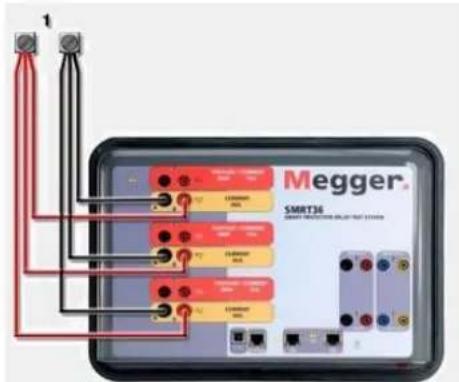
Figure 232 Parallel of All Three Current Outputs
3.1.1 Manual Test Screen - Single Phase Up To 180 Ampere 7
For ease of use and operator convenience, go to the Configuration screen and select the Operating Mode of 3 Voltages – 1 Current @ 180 amps. When you return to the manual test screen there will be one current channel displayed, as shown in the following figure.

Figure 233 Manual Test Screen – SMRT3X Single Phase Operation
The STVI will automatically set all three currents in phase with each other and divide the current equally between the three current amplifiers. When setting an output, simply enter the value of the desired output current. For example, for an output of 75 Amperes, enter 75, while each current amplifier will be providing 25 Amperes. The current can also be phase shifted. Simply enter the desired phase angle and all three currents will be phase shifted together.
If two current channels that are to be used in parallel, leave the unit in the default three phase configuration. Connect the two current outputs to the load as shown in the following figure.
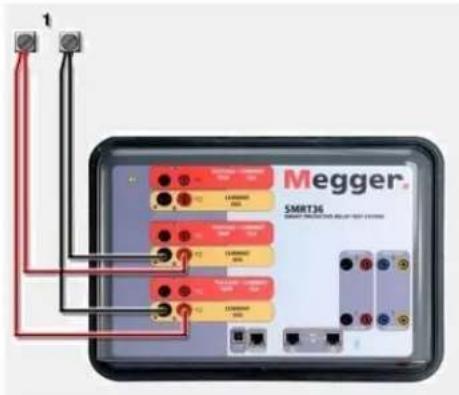
Figure 234 Two Currents in Parallel
Set each channel to one-half of the output requirement. Be sure and reset current channel #2 to 0 degrees so that it will be in-phase with current channel #1. With both current channels selected, turn output on by pressing or clicking on the ALL ON/OFF button. Always use the ALL ON/OFF button to turn both current channels on and off together. For manually ramping outputs, if using the PC version of the
STVI software the ↑↓ buttons will be displayed. If using an STVI controller the Control Knob icon will be displayed. Pressing either of these two will present the user with a window to select the desired level of increment for manually ramping the outputs, the desired channel(s) to be ramped, and what is to be adjusted (amplitude, phase angle or frequency).
3.2 Currents in Series Operation
Two current channels may be connected in series in order to double the available compliance voltage. High impedance electromechanical ground (earth) overcurrent relays have always been difficult to test at high multiples of tap due to the winding impedance and saturation characteristics. The peak voltage required can exceed the maximum output voltage of one SMRT33/36/46 current output channel, depending on the required test current. By connecting two current outputs in series, the compliance voltage is doubled, providing higher test currents through the load. There are two methods to series currents together. For the floating output (F or C) models connect the two current amplifiers in a "push-push" configuration as shown in the following figure.

Figure 235 Series Two Currents with Floating Output Unit
The two current channels that are to be used in series set each to the same test current magnitude, and phase angle. Select both current channels and turn output on by pressing or clicking on the ALL ON/OFF button. Always use the ALL ON/OFF button to turn both current channels on and off together. For manually ramping outputs, if using the PC version of the STVI software the ↑↓ buttons will be displayed.
If using an STVI controller the Control Knob icon will be displayed. Pressing either of these two will present the user with a window to select the desired level of increment for manually ramping the outputs, the desired channel(s) to be ramped, and what is to be adjusted (amplitude, phase angle or frequency).
To series the current channels of the common grounded returns (G or E) unit, perform the following:
Using the current channel test leads, connect the Red output terminals of the two current channels to the relay under test. Even though the two returns associated with the current channels are connected internally with the common returns, place a jumper as shown. This will insure that the internal common leads will not be damaged.

Figure 236 Series of Two Current Channels with Grounded Common Returns
NOTE: One current channel should be set to 0 degrees and the other current channel should be set to a phase angle of 180 degrees so that the two compliance voltages add across the load. DO NOT attempt to series more than two currents together on a grounded common returns unit.
The two current channels that are to be used in series set each to the same test current magnitude. Initiate the two current channels simultaneously by pressing the ALL ON/OFF button. Always use the ALL ON/OFF button to turn both current channels on and off together. For manually ramping outputs, if using the PC version of the STVI software the ↑↓ buttons will be displayed. If using an STVI controller the
Control Knob icon will be displayed. Pressing either of these two will present the user with a window to select the desired level of increment for manually ramping the outputs, the desired channel(s) to be ramped, and what is to be adjusted (amplitude, phase angle or frequency).
4.0 Voltage Sources
4.1 Outputs Summed Together
Two voltage channels may be used to sum the voltage outputs to obtain higher than rated voltage provided the load is ungrounded. Connect the load between the voltage channel posts, set V_1 Phase to 0^ and set V_2 Phase to 180^ . The voltage outputs will add so the total voltage is the sum of the two voltage amplitudes, V_1 and V_2 as can be seen in the following figures.

Note: If an F or C appears in the 5^th digit of the style identification number (i.e. 30P1F0A0S1) the voltage returns are floating (isolated from each other and ground). Those units with a style number G or E the voltage returns are common together internally and connected to earth ground.
For the floating common units the user must connect the associated voltage channels black common returns together, when series operation is required (see the following figures). Remove external commons when testing is completed. DO NOT attempt to series more than two voltage channels together.
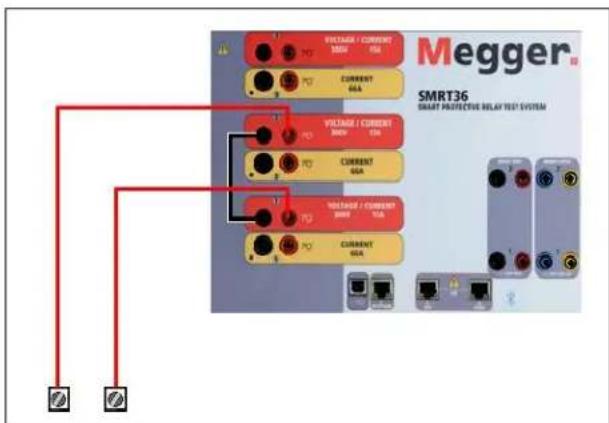
Figure 237 Series of Voltage Channels for Floating Ungrounded Common Returns
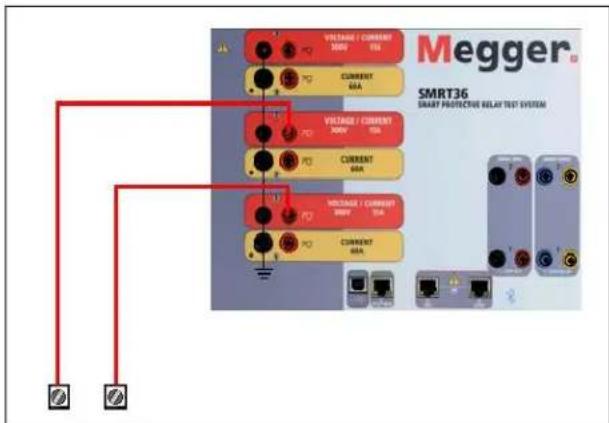
Figure 238 Series of Voltage Channels with Grounded Common Returns
4.2 3∅, 3-Wire, Open-Delta and T-Connection
See section 3.4.2 in the RTMS software software for detailed descriptions and use of the Open-Delta and T-Connection.
4.2.1 Balanced Open Delta
The Open-Delta configuration is the easy to use when a balanced three-phase source is required because the amplitude and phase relationship can be set directly. No calculations are necessary. When using the Open-Delta configuration, it is suggested to use voltage channel #1, designated V_1 , and voltage channel #2, designated V_2 , while the COMMON binding post is designated V_g . With this arrangement, the magnitude and phase angle of the potentials can be easily calculated and set. For the balanced three-phase condition V_1g and V_2g are equal in magnitude and separated by an angle of 60°. This is done by setting the V_1 and V_2 potentials equal in magnitude, setting 0° on V_1 and 300° (60 degrees leading assuming that the default phase rotation is set to 360 Lag) on V_2 , see the following figure.

Figure 239 Three Phase Open Delta Connections
4.2.2 T Connection
The second method of obtaining a three-phase, three-wire voltage source is the so-called T-Connection. The method, shown in the following figure, is easier to use when obtaining an unbalanced, phase - to -phase fault simulation since it eliminates calculations. To reduce confusion when using the T-Connection, the voltage output #1 is designated V_a and its phase angle set at 0°, voltage output #2 is designated V_b and its phase angle set for 180°, and voltage output #3 is designated V_c and its phase angle is set for 270. Any combination of balanced three phase faults or unbalanced phase-to-phase fault conditions can be easily simulated.
NOTE: This method should not be used for very low fault voltages, or used on solid state relays that may be sensitive to this type of connection (i.e. 5 volts or less, or for testing ABB or Westinghouse type SKD relays).
Note: If an F or C appears in the 5 ^th digit of the style identification number (i.e. 30P1F0A0S1) the voltage returns are floating (isolated from each other and ground). Those units with a style number G or E the voltage returns are common together internally and connected to earth ground.
If using the sleeved multi-lead voltage test leads (part number 2001-395), all of the black return leads are interconnected together inside the sleeve so they will all share the return together. Therefore, only one return lead is provided on the relay connection side of the sleeved leads (similar to the connections in the following figure).
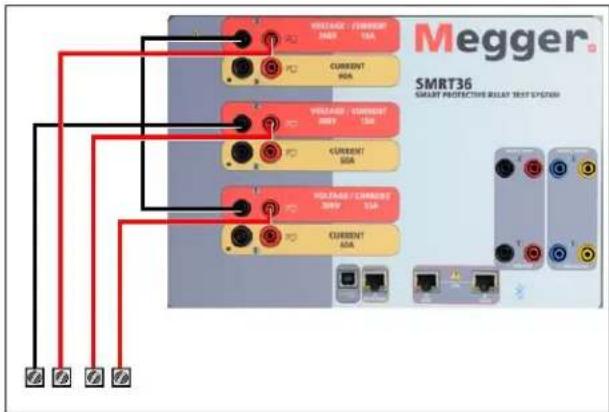
Figure 240 Three Phase Four Wire Test Connections
For the earth grounded common return (G or E) units, there is an internal common ground between the voltage and current channel return terminals. Therefore, only one return lead is required for the voltage channels. If using separate individual test leads, for the floating common units the user must connect the associated voltage channels black common returns together as shown above.
5.0 Warranty Statement
Megger warrants the product is free of defects in material and workmanship for a period of one (1) year from date of shipment. This warranty is non-transferable. This warranty is limited and shall not apply to equipment that has damage, or cause of defect, due to accident, negligence, and improper operation, faulty installation by the purchaser, or improper service or repair by any person, company or corporation not authorized by Megger. Megger will, at its' option, either repair or replace those parts and/or materials it deems to be defective.
The warranty is in lieu of all other warranties, either expressed or implied on the part of Megger and in no event shall Megger be liable for the consequential damages due to the breach thereof.
5.1 Preventive Maintenance
The unit utilizes surface mount technology (SMT) and other components which require little or no service except for routine cleaning, etc. The unit should be serviced in a clean atmosphere away from energized electrical circuits.
5.1.1 Examine the unit every six months for:
| Dust and Dirt | To clean the unit, disconnect the power cord from the unit. Never use spray liquids or industrial cleaners. Some cleaning solvents can damage electrical components, and should never be used. Water and a mild soap may be used. Use a lightly damp cloth (not dripping wet) to wipe off the unit. A dirty heat sink can cause thermal overloads. Remove dust with dry, low pressure, compressed air. Either remove the module from the chassis or simply apply air forcing the dust away from the heat sink through the sides of the unit. |
| Moisture | Remove moisture as much as possible by putting the test set in a warm, dry environment. |
5.1.2 Updating SMRT33/36/46 Firmware
Download Firmware Upgrade via Megger Website
To download the newest firmware from the Megger website,
- Go to WWW.Megger.com
- Log In.
- Go to Software Downloads
- Click on SMRT
- You will see instructions to enter the serial number of the SMRT unit, and then click on Continue. The serial number is 12 digits long. Make sure you enter all 12 digits. Then click on Firmware Version #.##. The firmware will be downloaded onto your PC as a zip file. Unzip the file, Select All files, and Copy to a USB memory stick, or create a file on your PC for storage to unzip or extract to a file.
USB Memory Stick: With the SMRT and STVI powered up, insert the USB memory stick into the USB port on top of the STVI. Press the Configuration Screen button, and then press the Update Firmware button in the Configuration Screen. At that point the user will be presented with the IP Address selection screen, with the serial number of the unit. Select the unit by touching the serial number and the upgrade process will automatically start. That's all there is to it. Observe the STVI display screen, and the unit. At the completion of the download, the user will note the fans spin-up, and the LED's will be flashing rapidly on the SMRT unit. There will be an instruction to reboot (turn off and back on) the test system.
PC and STVI Software: If using the PC version of the STVI software, it is very similar to the STVI. Upon clicking on the Update Firmware button, the familiar Windows Open File browser dialog box will appear. Using the Look In pull-down menu, navigate to where the new firmware was downloaded onto the PC, click on and open the file folder SMRT_LDR (SMRT Loader). There you will find the new firmware file. Click on the file, and click on Open. You will be requested to select a unit from the IP Address screen. Select the unit by clicking on the serial number and the upgrade process will automatically start. At the completion of the download, the user will note the fans spin-up, and the LED's will be flashing rapidly on the SMRT unit. There will be an instruction to reboot (turn off and back on) the test system. Note that after rebooting the SMRT unit, if using the PC version of the STVI software you will have to restart the STVI software on your PC in order to regain control of the SMRT unit.
5.2 Service and Repair Instructions
To save turn-around time and reduce costs, SMRT33/36/46 was designed as a modular unit. In most cases, if any one module should experience a problem it should not cause the test system to be down. Basic troubleshooting information has been provided to guide the technician to the possible source of a problem.
Since SMRT33/36/46 uses Surface Mount Technology, most repairs of the individual modules are beyond the scope of the basic troubleshooting guide, and should be referred to the Service Department at Megger or handled through the Megger Representative.
If the unit is still within the original warranty period, or limited warranty period following factory servicing, the factory must be contacted before attempting any repairs or the warranty will be void.
5.2.1 Basic Troubleshooting
The troubleshooting information relies on the technician to have a good understanding of the operation of the unit. If the technician is unfamiliar with the unit, he or she should not attempt to repair. The technician should contact the factory before attempting repairs. Provide the Megger part number for the part or assembly in question and the serial number of the SMRT33/36/46 when making inquiries.
WARNING It is necessary to energize the SMRT33/36/46 to properly troubleshoot some of the modules. The technician must take all applicable safety precautions for working near energized circuits.
NOTES
Before suspecting a failure in the SMRT33/36/46, review the General Description and Operation sections to ensure that the problem is not a result of operating error.
Preliminary testing of the SMRT33/36/46 within its specified limits can help determine if a malfunction actually exists, identify the type of malfunction and define the general area of the failure.
Common causes of malfunctions, other than improper operation, are incorrect power input (voltage above or below specified limits), incorrect test signal voltages applied to the Binary Input gates (outside of the specified AC/DC Applied/Removed limits), and contact or circuit resistance too great for the Dry Contact gates to operate properly on the Monitor/Start/Stop gates. Typical malfunctions for the VI-Gen amplifiers are external short circuits on the voltage output and open circuits on the current output. The battery simulator and VI-Gen voltage and current outputs can be easily checked using a voltmeter and ammeter.
NOTE: There are three different modules that make up a SMRT33/36/46; the System Board (front panel), VIGEN'S (VIGEN#1, and #2) and VIGEN LITE (VIGEN #3). Most problems can be easily resolved by replacement of one of these modules, see section 5.2.1.2.1 Replacing a VIGEN for instructions on how to replace a VIGEN module. Proper ESD procedures should be followed when handling any SMRT33/36/46 module. Failure to do so, may damage sensitive parts.
5.2.1.1 Power Input
Input voltage affects the whole unit and may or may not cause permanent damage if voltage is incorrect. These problems can often be corrected by simply using a better source of input power. For units with an F or G appearing in the 5^th digit of the style identification number (i.e. 30P1F0A0S1) the rated voltage limit is auto-selectable from 100 to 240 volts, ±10%, 47 to 63 Hz. For units with a C or E appearing in the 5^th digit of the style identification number (i.e. 30P1C0A0S1) the rated voltage limit is auto-selectable from 220 to 240 volts, ±10%, 47 to 63 Hz.
Some symptoms are as follows:
- Low voltage: Erratic operation, no output, input power circuit breaker operation.
- High voltage: Circuit breaker operation, power supply failure in Input Power Module.
5.2.1.2 VIGEN Input Power, Communication and Control
Basic troubleshooting of the input power is as follows.
- No power: Check the ON/OFF circuit breaker. Does the ON/OFF switch light up? If it does not light up, then power is not getting to the unit. Check power source and line cord. If it lights up then the power is getting to the unit. Check the VIGEN power cable connection.

CAUTION: Turn off main power and unplug line cord before attempting to work on any module. Observe proper Electro Static Discharge procedures.
A. Disconnect the power cord from the unit.
B. Remove the two Phillip head screws on each side hold on the top cover; the first top screw and the fourth screw, see the following figure.
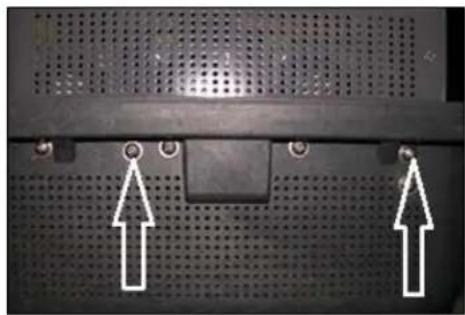
natural_image
Close-up of a perforated metal panel with two white arrows pointing to a small component (no text or symbols visible)Figure 241 SMRT33/36/46 Top Cover Securing Screws8
C. Remove the front center screw on the front panel, and the two screws (one on each side) of the top cover that connects the top cover to the front panel, see the following figure.
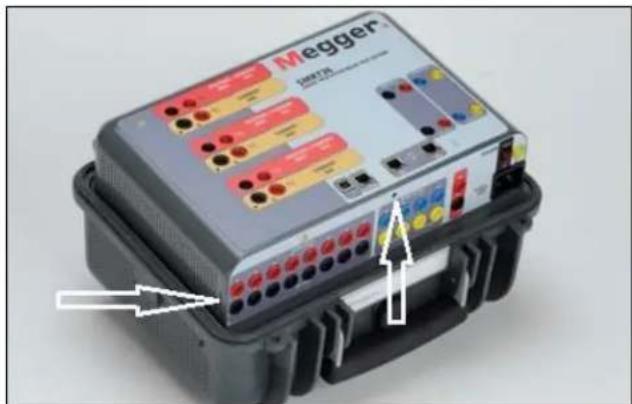
natural_image
Exterior view of a Megger industrial control unit with visible ports and buttons (no readable text or symbols)Figure 242 Top Panel Removal Front Panel Screws
D. To remove the top cover from the enclosure will require an awl, or a small nail punch, and hard flat plastic wedge (like a plastic ruler). Cover the enclosure lip
and ridge with the plastic ruler to prevent damage to the enclosure ridge. Place the awl into a vent hole and leverage the cover up slightly on each side, see the following figure.
natural_image
Close-up of hands using a blue screwdriver to trim a red plastic strip on a car surface (no visible text or symbols)Figure 243 Leveraging the cover from the enclosure
Continue to alternately leverage the cover up until you can work the cover out with your hands by grasping the back of the cover with one hand and gently, yet firmly, pull the cover up from the unit slightly. Then, alternately move the front side up slightly working the cover out of the enclosure. It is tight fit so work slowly and carefully.

natural_image
Interior view of an electronic device showing internal components with colored connectors and wiring (no readable text or symbols)Figure 244 VIGEN Power Connectors
Check the cables as shown. If the cables are properly connected, then remove and replace the VIGEN per 1.5.2.1.2.1.
2. Erratic Manual Control
Individual Output Module communication cable is not properly connected thus cannot receive proper commands. Look through the air intake holes on the left side of the unit to observe the VI-Gen LED's. Each module has some green LED's that blink. These are associated with the Ethernet communications. If there are no blinking LED's on one or more modules, then the module is not communicating. Remove the top cover using the procedure described above.
CAUTION: Turn off main power and unplug line cord before attempting to reseat any cables. Observe proper ESD procedure.
Locate the communication Ethernet cables on the left side, see the following figure.

natural_image
Close-up of electronic equipment modules with visible wiring and connectors (no readable text or symbols)Figure 245 Communication Cable Connections
Carefully disconnect each cable and reconnect to insure the cable locks into position. Note: In order to reseat each communication cable the small wire-ties will need to be removed (replacement wire-ties will be required after reseating the cables).
CAUTION: Failure to replace wire-ties may pinch the communication cables upon replacement of the top cover.
After reseating the cables, reinstalling the top cover assembly, reconnect the power cord and power up the unit. Look through the air intake holes on the left side of the unit to observe the VI-Gen LED's. If there is still no blinking LED's on one or more modules, and then replace the VI-Gen Module(s) that are not communicating. If they are not lit, then remove the power cord and the top cover and check the power connection cables to each VIGEN as described in Step 1 above.
5.2.1.2.1 Replacing a VIGEN
- To remove the VIGEN, on early units there are three Phillip head screws that hold in the VIGEN, one on each side and one on the bottom of the unit. Newer generation units only have one screw on the bottom.
- Remove the power connection cable as shown in Figure above.
- Disconnect the communication cables as described for Figure above.
Note the small cable that connects the front panel board to VIGEN 1 needs to be carefully removed prior to removing VIGEN1, see the following figure.

natural_image
Close-up of a mechanical assembly with red components and a white arrow pointing to a component (no visible text or symbols)Figure 246 VIGEN1 to Front Panel Cable
-
Carefully remove the VIGEN module from the chassis.
-
Install replacement VIGEN.

Be careful when replacing the module as it is a tight fit, and it is possible to damage components upon extraction or installation.
-
Replace the Phillip head screw(s) that hold in the VIGEN.
-
Reconnect the power connection cable as shown in Figure 89 above.
-
Reconnect the communication cables as shown in Figure 90 above. Replacement wire-ties will be required after reseating the cables.

CAUTION: Failure to replace wire-ties may pinch the communication cables upon replacement of the top cover.
-
If VIGEN #1 was replaced, reconnect the front panel cable as shown in Figure 91 above.
-
Reinstall the top cover. Reconnect the power cord and power up the unit.
5.3.1.3 Binary Inputs, Binary Outputs and Battery Simulator (P Option Unit)
If all the items external of the Timer assembly are in proper order, then the problem exists within the Binary Input / Output assembly itself.
Some basic troubleshooting can pinpoint problems to the approximate cause.
Binary Inputs - Basic troubleshooting is as follows:
- Timer does not stop:
Jumper the appropriate Binary Input terminals manually. If LED above the selected input lights, check the Binary Input setup screen to verify that the selected binary input is properly setup as a Timer stop post. Check Timer stop settings as N.O. (Normally Open) to close, and Latch On. If LED does not light up, the Binary Input will need to be repaired or replaced.
- Counting errors:
AC applied or removed Stop signals can create, what appears to be poor repeatability, an inaccuracy or a malfunction in the Timer. The lower the voltage level, the more serious the "error" will be. What appears to be an error, however, is actually a variation in the point on the sine wave at which the voltage is great enough to cause the gate circuit to operate. If the circuit used for the timing test has a low AC voltage and the point at which the contact in the test circuit opens or closes, is at or close to zero on the sine wave, the period of time before the voltage level will be high enough to trigger the gate circuit can be as much as 4 milliseconds. The total timing variation can be as much as 8 milliseconds. The shorter the duration of the timing test, the more
significant the variation becomes. Therefore, if small timing variations would present a problem, it is recommended that an AC voltage of 115 volts or above or a DC voltage be used for voltage applied/removed test selections.
When the SMRT33/36/46 Timer calibration is being tested, the AC voltage variable is often overlooked. This is particularly true when the Timer is compared to a counter and the two are triggered simultaneously with an electronic switch. For best results, a DC voltage should be used to eliminate the variable. If testing the AC voltage Timer Stop characteristics is desired, then the Stop signal must be triggered at the same point on the sine wave to assure that the gate signal will be repeatable. Ideally, the signal should be at a point near peak in the positive direction. In addition, the specified rms AC voltage values for the various Stop control selections must be adhered to.
Another source of apparent "error" can be the programmable de-bounce feature. If using electro-mechanical contacts for stopping the Timer, and if those contacts have a tendency to bounce, there could be a difference between an external standard timer and the SMRT33/36/46 Timer, depending on the programmed de-bounce period set in the SMRT unit. To determine the programmed value, look at the Binary Input Setup Screen and see what the De-bounce setting value is.
If a timing error or variation persists after all the suspected causes of error have been eliminated, then it is possible that the Binary Input circuit is malfunctioning. Contact factory for return instructions.
Binary Outputs - Basic troubleshooting is as follows:
Binary Output LED is ON but output contacts not closed:
Using a continuity tester check to see if output circuit is open circuited. If circuit is open then it is possible that the internal surface mounted fuse element has been blown. Note: an optional in-line fused test lead Part Number: 568026 are available to provide protection from switching too high current, see SMRT Ordering Information under Optional Additional Accessories. The unit will need to be returned to the factory for further inspection and repair.
! Contact the factory for a Repair Authorization Number and return instructions if service is required. A Repair Authorization (RA) number will be assigned for proper handling of the unit when it arrives at the factory. Any non-warranty repair cost incurred for the repair or replacement of parts and/or materials shall be the responsibility of the purchaser.
Provide the factory with model number, Unit serial number, serial number of VI-Gen if appropriate, nature of the problem or service, return address, your name, and how to contact you should the factory need to discuss the service request.
You may need to provide a purchase order number, cost limit, billing, and return shipping instructions. If an estimate is requested, provide the name and contact information.
6.0 Preparation for Reshipment
Save the original shipping container for future use. The shipping container is designed to withstand the rigors of shipping via a common commercial carrier. For example, you may wish to reship your unit to Megger for an annual calibration recertification.
Pack the equipment appropriately to prevent damage during shipment. If a reusable container is utilized, the unit will be returned in the same shipping container if it is in suitable condition.
Add the Return Authorization Number to the address label of the shipping container for proper identification and quicker handling.
NOTE: Ship the equipment without nonessential items such as test leads, etc. These items are not needed by the factory to perform service.
Addendum C
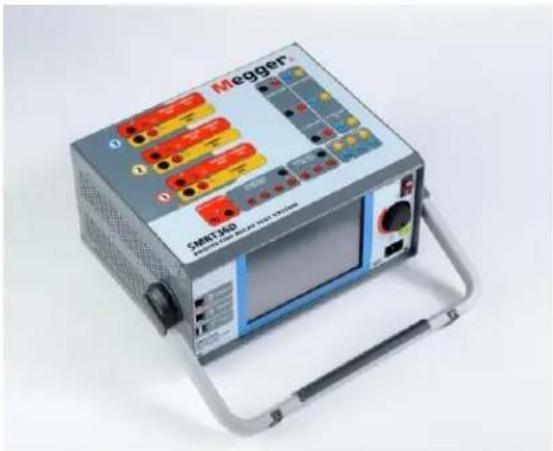
natural_image
Exterior view of a Megger Smartbox device with labeled ports and control panel (no readable text beyond branding)Model SMRT36D
Megger Relay Tester
SAFETY PRECAUTIONS

VOLTAGES GENERATED BY THIS INSTRUMENT CAN BE HAZARDOUS
This instrument has been designed for operator safety; however, no design can completely protect against incorrect use. Electrical circuits are dangerous and can be lethal when lack of caution and poor safety practices are used. There are several standard safety precautions that should be taken by the operator. Where applicable, IEC safety markings have been placed on the instrument to notify the operator to refer to the user manual for instructions on correct use or safety related topics. Refer to the following table of symbols and definitions.
| Symbol | Description |
 | Direct Current |
 | Alternating Current |
 | Both direct and alternating current |
 | Earth (ground) Terminal. There is a common chassis ground terminal located on the front panel (see Front panel under Description of Controls. |
 | Protective Conductor Terminal |
 | Frame or Chassis Terminal |
| [###] | On (Supply) |
| [DI7X] | Off (Supply) |
| [###] | Caution, risk of electric shock |
| [###] | Caution (refer to accompanying documents) |
WARNING: Under no circumstances should the operator or technician attempt to open or service this instrument while connected to a power source. Lethal voltages are present and may cause serious injury or death!
SAFETY PRECAUTIONS (Continued)
The following are some specific safety related items associated with the SMRT test system.
Read and understand all safety precautions and operation instructions before attempting to use this unit.
The purpose of this equipment is limited to use as described in this instruction manual. Should a situation arise that is not covered in the general or specific safety precaution please contact Megger regional representative or Megger, Dallas Texas.
Safety is the responsibility of the user. Misuse of this equipment can be extremely dangerous. Always start with the power OFF, before connecting the power cord. Make sure outputs are off before attempting to make test connections.
Never connect the test set to energized equipment.
Always use properly insulated test leads. The optional test leads are rated for the continuous output ratings of the test system, and should be properly used and cared for. DO NOT use cracked or broken test leads.
Always turn the test system off before disconnecting the power cord.
DO NOT attempt to use the unit without a safety ground connected.
DO NOT attempt to use the unit if the power cord ground prong is broken or missing.
DO NOT use the test set in an explosive atmosphere.
The instrument must only be used by suitably trained and competent persons.
Observe all safety warnings marked on the equipment.
For safety related or other important topics, like the statement below, will be notated with the adjoined symbol. Read the topic carefully as it may relate either to the safe operation of the test system or the safety of the operator.

Under no circumstances should the operator put their hand or tools inside the test system chassis area with the test system connected to a power source. Lethal voltages are present and may cause serious injury or death!
1.0 Operation
The unit's design is a "modular" concept. All inputs and outputs are clearly marked and logically grouped so continual reference to the instruction manual should not be necessary once the operator is acquainted with the test system. The unit's Top Panel will appear different among units, since each unit may have up to three optional Voltage/Current Generator (VIGEN) Modules installed.
1.1 General Description

Figure 247 Top Panel SMRT36D (Pictured with Floating Returns Option)
1.1.1 Top Panel
-
Binary Outputs 9 – the first three VIGEN modules include Binary Inputs and Binary Outputs. Therefore, with a minimum 2 channel unit there are 2 Binary Outputs located on the top panel (numbered 1 and 2). The 3 ^rd Binary Output will be replaced with DC Input terminals if ordering the unit with the Transducer option. Each Binary Output can be configured as Normally Open or Normally Closed contacts providing logic to the device under test. The Binary Outputs 1, 2, and 3 can switch up to 300 VAC or 250 VDC with 8 Amp continuous. The programmable wait duration is from 1 millisecond to 10,000 milliseconds.
-
Binary Inputs ^9 —with a minimum 2 channel unit there are 2 Binary Inputs located on the top panel. The 3 ^rd Binary Input will be replaced with DC Input terminals if ordering the unit with the Transducer option. To serve a wide range of test applications the binary inputs have different voltage thresholds. For typical test applications binary inputs 1, 2 and 3 have a fixed threshold of 5 volts. For GPS End-to-End synchronized relay testing Binary 1 may be connected with a remote trigger pulse from a GPS satellite receiver for external initiation, or the input of an IRIG-B
signal (see use of Wait IRIG-B input using the STVI Sequencer test). There are an additional 7 ^1 binary inputs. To monitor TTL signals binary inputs 4 through 6 have a fixed threshold of 3 volts. Binary inputs 7 and 8 have fixed thresholds of 5 volts, and binary inputs 9 and 10 have fixed threshold of 30 volts (for “noisy” test environments). In addition to serving as Timer/Monitor inputs, the Binary Inputs may be programmed to trigger binary output sequence(s). Binary Inputs can also be programmed using Boolean logic for more complex power system simulations.

- Voltage/Current Generator Module (or VIGEN) –There are three available slots for the VIGEN Modules. The slots are numbered 1 to 3 from bottom to top, with the topmost VIGEN numbered 3. The three phase voltages and currents are noted by the red and yellow surrounding each output channel. Phases A, B and C Voltage Channels (V1, V2 and V3) are denoted by the red color. Phases A, B and C Current Channels (I1, I2 and I3) are denoted by the yellow color. When the voltage generators are converted to current generators, they will change on the STVI display as V1 = I4, V2 = I5 and V3 = I6. For more details on the VIGEN output capabilities see section 1.4.
- Battery Simulator – the SMRT36D provides a variable dc output voltage from 10 to 250 Volts, at 100 Watts (4 Amps Max) providing logic voltage for solid-state relays. When powered ON, the LED above the output terminals illuminates.
- Binary Outputs – additional Binary Outputs can be configured as Normally Open or Normally Closed contacts providing logic to the device under test. Binary Output 4 has an AC Rating of 400 V max., Imax: 8 amps, 2000 VA maximum breaking capacity, and a DC Rating of 300 V max., Imax: 8 amps, 80 Watts, with a Response Time: < 10ms. Binary Outputs 5 and 6 are high speed and have an AC / DC Voltage Rating of 400 V peak, Imax: 1 amp, with a Response Time: < 1ms typical. The programmable wait duration is from 1 millisecond to 10,000 milliseconds. An LED directly above the terminals indicates the status of the contact. ON indicates closed, and OFF indicates open.
- Binary Inputs – additional, independent, galvanically isolated, Start/Stop or Monitor circuits to monitor operation of relay contacts or trip SCR. Continuity light is provided for each input gate. Upon sensing continuity, or voltage applied, the lamp will glow. In addition to serving as wet/dry contacts the Binary Inputs may be programmed to trigger binary output sequence(s). Binary Inputs can also be programmed using Boolean logic for more complex power system simulations. The Binary Inputs will accept a voltage range of 5 to 300 VAC or 5 to 250 VDC, or dry Normally Open / Normally Closed contacts.
1.1.2 Front Panel:

Figure 248 SMRT36D Front Panel
- Incoming Power / Line Cord ① – the input line cord, ground terminal, are mounted on the front panel of the test set.
Input Line Cord
The test set is equipped with a line cord, which connects to the male connector on the front panel. Verify the input voltage rating on the front panel before connecting the line cord to the power source.

- Earth Ground Jack ② – use this terminal to connect chassis ground to earth ground.

A chassis ground (earth) point on the front panel is provided as an additional safety ground.
-
POWER ON/OFF Switch ③ – used to switch unit on and off.
-
ISOLATED ④ For IEC 61850 testing connect IEC61850 / OUT port to the substation bus or to the relay under test to receive and send GOOSE messages. Connect the ISOLATED port to the PC. When used with the Megger GOOSE Configurator in the AVTS software, the SMRT can provide high speed testing of IEC 61850 relays and substations by subscribing to GOOSE messages and mapping to the binary inputs. In addition, it can simulate system conditions such as circuit breaker operation by publishing GOOSE messages mapped to the SMRT binary outputs. With the PC running AVTS Megger GOOSE Configurator and connected to the ISOLATED port, the operator can “sniff” the substation network from the IEC 61850 /OUT port through the ISOLATED port with the SMRT serving as the firewall. With this design the operator cannot accidentally trip off the substation or inflect a PC virus into the substation LAN.
-
PC/IN ⑤ Ethernet Port is the primary PC connection port for automated relay testing. This port supports MDI/MDI-X auto cross over configuration, which means both standard and "crossover" Ethernet cables may be used. Use this port for standard automated relay testing. This port provides the optimal method for downloading EMTP files, DFR streaming, and
updating the unit's firmware as required. For multiple unit operation, the unit providing the OUT link is providing the master phase reference to all units "downstream". For multiple unit operation connect the OUT port to the downstream SMRT unit IN port. The STVI software will automatically configure when the units are powered up.
- IEC61850/OUT ⑥ Ethernet Port is a 10/100BaseTX port, and is primarily used to
interconnect multiple SMRT units together for synchronous multi-unit operation. It is also be used to provide access to the substation IEC 61850 network. For multiple unit operation, the unit providing the OUT link is providing the master phase reference to all units "downstream". With the PC connected to the PC Port, the SMRT and the PC share the same Ethernet network connection, and thus will not have a secure isolation from each other. When testing IEC 61850 devices connect the PC to the ISOLATED Ethernet port to isolate the PC from the IEC 61850 substation bus.
-
USB Interface ⑦ There is two type A ports available. This port is primarily used to update the firmware in the SMRT as well as update the STVI software using a USB memory stick. It may also be used to download test results from the SMRT for download into another PC with Power DB software for storage or printing. In addition, the user can use a USB keyboard, as well as a mouse, in conjunction with the STVI. Keyboard and/or mouse are not provided with the accessories.
-
USB (TO PC) Interface ⑧ – The (TO PC) USB Interface requires a Type B “downstream” connector, and is primarily used as a communication and control port when used with a PC and Megger AVTS software for automated relay testing. A USB cable is not provided with the test set or in the optional accessories. For computer control, an Ethernet cable is provided. However, should the user desire to use the USB port any standard USB A/B cable will work with the unit. May be used when isolation is required for a secure substation access between the SMRT and the IEC 61850 substation network.
1.2 Input Power
The input voltage rating may be from 100 to 240 VAC, ± 10%, 50/60 Hertz. Input current required varies with the number of output modules in use, load, and input voltage value. With three VIGENS, the maximum input power is 1800VA. The input is protected by a power ON/OFF switch / circuit breaker.
1.2.1. Input Power Cord
Depending on the country, the power cord can come with a NEMA 5-15 male connector, a CEE 7/7 Schuko two prong connector, with International Color Coded pig-tail wires (light blue, brown and green with yellow stripe) with the insulation jacket stripped ready for installation of the appropriate male connector, or with UK power cord.
Model SMRT36D X0XXXXXXX comes with a North American power cord (part number 620000).

Model SMRT36D X0XXXXEXXX comes with a Continental Europe power cord (part number 50425).
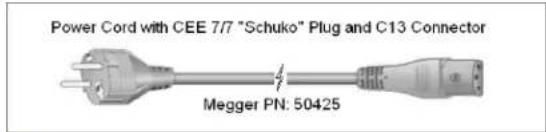
Model SMRT36D X0XXXXIXXX comes with an International Color Code power cord. The cord, part number 15065, is ready for wiring to the appropriate plug (depending on country). The following colors apply, Brown = Line, Blue = Neutral and Green/Yellow = Ground.
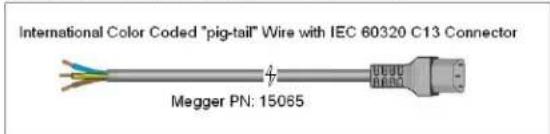
Model SMRT36D X0XXXXUXXX comes with a UK power cord (part number 90002-989).
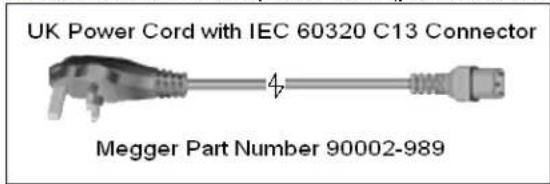
1.3 Voltage - Current Generator (VIGEN) Module
Voltages and Currents are noted by the red and yellow surrounding each output channel. Phases 1, 2 and 3 voltage channels are denoted by the red color. Phases 1, 2 and 3 current channels are denoted by the yellow color. All outputs are independent from sudden changes in mains voltage and frequency, and are regulated so changes in load impedance do not affect the output. Standard amplifier outputs are isolated or floating. The SMRT units can be ordered with the amplifier common returns tied to chassis ground as an option.
1.3.1. Convertible Voltage/Current Amplifier
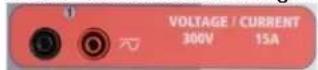
The SMRT PowerV ^™ voltage amplifier provides a flat power curve from 30 to 150 Volts in the 150V range to permit testing of high current applications such as panel testing.
Voltage Range Power / Current (Max)
30.00V 150VA @ 5.0A
150.00V 150VA Constant Output Power from 30 to 150 Volts
300.00V 150VA @ 0.5A
Voltage Amplifier in Current Mode:
The voltage amplifier is convertible to a current source with the following output capability. Output power ratings are specified in rms values and peak power ratings
Output Current Power Max V Duty Cycle
5 Amperes 150 VA (212 peak) 30.0 Vrms Continuous 15 Amperes 120 VA 8.0 Vrms 1.5 sec.
With a 3 channel SMRT unit, convertible channels in conjunction with the three main current channels, provides 6 currents for testing three phase current differential relays. When the voltage generators are converted to current generators, they will change on the STVI display as current phases 4, 5 and 6.
The voltage amplifier output is protected from short circuits and thermally protected against prolonged overloads. In case of a short circuit or a thermal overload, the amplifier will automatically turn off, and if the STVI is connected a message to the user will be displayed indicating which condition exists. If AVTS software is used, a similar message will appear.
1.3.2. Current Amplifier

The SMRT current amplifier Constant Power Output feature delivers maximum compliance voltage to the load constantly during the test, and range changing is done automatically, on-the-fly, under load. This insures better test results, saves time by not having to turn the outputs off to change output taps or ranges, and unlike single range current amplifiers insures a higher compliance voltage at lower test currents. Constant Power Output in many cases eliminates the need to parallel or series current channels together to test high burden relays.
The following are typical output current and associated available compliance voltage values. The per channel output current and power ratings are specified in AC rms values and peak power ratings. Specified duty cycles are based upon typical room ambient temperature.
Output Current Power Max V / Duty Cycle
1 Ampere 15 VA 15.0 Vrms Continuous
4 Amperes 200 VA (282 peak) 50.0 Vrms Continuous
15 Amperes 200 VA (282 peak) 13.4 Vrms Continuous
30 Amperes 200 VA (282 peak) 6.67 Vrms Continuous
60 Amperes 300 VA (424 peak) 5.00 Vrms 1.5 sec.
DC 200 Watts
The current amplifier output is protected from open circuits and thermally protected against prolonged overloads. In case of an open circuit or a thermal overload, the amplifier will automatically turn off, and if the STVI is connected a message to the user will be displayed indicating which condition exists. If AVTS software is used, a similar message will appear.
1.4 Binary Inputs and Outputs
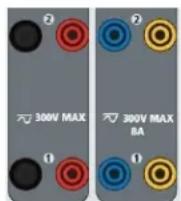
Figure 249 Binary Inputs and Outputs 1 and 2
Binary Inputs and Outputs are clearly marked and logically grouped. The unit's Top Panel will appear different among units, which means Binary Input / Output 1 will always be occupied, while Binary Input / Output 2 may, nor may not, depending on the configuration. If the Transducer option is installed Binary Input / Output 3 will be replaced by the DC Input terminals, with a different overlay. The Binary Inputs are used to monitor relay trip contacts for performing pickup and dropout tests as well as for performing timing functions. The Binary Outputs are used to simulate normally open / normally closed contacts for testing
breaker failure schemes, or similar power system operations. In addition they may also be used to switches AC/DC voltages and currents.

Figure 250 Binary Inputs 4 to 10 and Binary Outputs 4 to 6
1.4.1 Binary Inputs
The binary inputs are specifically designed to measure high speed operation of electro-mechanical, solid-state and microprocessor-based protection relays. All binary Inputs default to Monitor Mode, Contact change of state, latched OFF.
If using the STVI or STVI software to change a binary input from Contact change of state to Voltage Applied / Removed click on or touch the Input Type window and a sine wave will appear where the Contact icon was indicating. The input is now set for voltage sensing.
To change the binary input from Monitor mode to Timer Mode, click on or touch the Use as Monitor button and the display window will change to show Use as Trip, Latched, meaning the binary input is now set to stop the timer upon sensing the first contact closure (if the Input Type is set for contact) or upon sensing voltage if the Input Type is set to Voltage Sensing.
1.4.1.1 Start, Stop, and Monitor Gates
In the SMRT36D there are up to ten ^1 identical, independent, programmable gate circuits that permit simple selection of the desired mode for timing or contact monitoring operation.
To monitor operation of the contacts or trip SCR in the device under test, a light is provided for each gate. The gate circuit is isolated for voltage-sensing and can monitor solid-state logic signals. Each light will illuminate once contacts close or voltage is applied to the gate.
Timer stops or a continuity indicator goes out at the opening of normally closed contacts, or when conduction through a semiconductor device, such as a triac or a transistor, is interrupted.
1.4.1.1.2 Dry Contacts Close
Timer stops or a continuity indicator glows at the closing of the normally open contacts, or upon conduction through a semiconductor device such as a triac or a transistor.
1.4.1.1.3 Application or Removal of AC or DC voltage
This will either start the Timer or stop the Timer. The continuity indicator will glow (application) or darkens (removal) upon the application or removal of either an AC or DC voltage. To serve a wide range of test applications the binary inputs have different voltage thresholds. For typical test applications binary inputs 1, 2 and 3 have a fixed threshold of 5 volts. To monitor TTL signals binary inputs 4 through 6 have a fixed threshold of 3 volts. Binary inputs 7 and 8 have fixed thresholds of 5 volts, and binary inputs 9 and 10 have fixed threshold of 30 volts (for "noisy" test environments). A higher threshold voltage helps to eliminate false triggers due to a noisy source. Lower thresholds allow starting and stopping of timer from TTL voltage signals. The allowable voltage applied is 5 to 300 Volts AC or 5 to 300 Volts DC, current limiting resistors provide protection.
1.4.1.1.4 The Timer can be started when turning on any selected generators.
1.4.1.1.5 The Timer can be started simultaneously with a change in Frequency, Phase Angle, or Amplitude. Also, it can be started simultaneously with a Voltage or Current waveform step.
1.4.2 Binary Outputs
Binary Outputs 1 and 2 are rated for 300 V at 8 Amps. Each Binary Output can be configured as normally open or normally closed contacts providing logic to the device under test. Binary Outputs 3 and 4 have a rating of 300 V AC/DC, 8 amperes and a maximum of 2000 VA breaking capacity (80 watts DC), with a response time of less than 10ms. Binary Outputs 5 and 6 are high speed and have an AC/DC voltage rating of 400 volts peak, 1 ampere and a response time typically less than 1ms.
The contacts may be programmed to open or close, thus simulating circuit breaker operation. The programmable wait duration is from 1 millisecond to 10,000 milliseconds. A fused test lead (fused at 500 mA) is available as an optional accessory to help protect from blowing the internal fuse of binary outputs 5 & 6. The test lead is blue in color so that the user knows it applies to the blue binary outputs. The barrel holder of the test lead is CE marked with a 1000 V, CAT III rating, and marked FUSED 500 mA / 1000 V/50 KA.
1.5 Battery Simulator
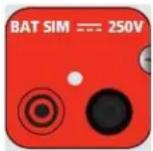
Figure 251 Battery Simulator (BAT SIM)
The SMRT36D includes a battery simulator that provides a variable DC output from 10 to 250 VDC rated at 100 Watts, 4 Amperes max. User may select from normal setting values of 24, 48, 125, or 250 VDC, or enter the desired output voltage in the window provided, see the STVI Configuration Screen. The output is variable using the STVI Control Knob, or the PC up/down cursor arrows (see the STVI section of the manual).

CAUTION:
NOTE: DC voltage is ON and available when the output is turned on using the touch panel or via software command. Do not plug or insert any test lead into the BATTERY SIMULATOR binding posts without first connecting the test leads to the load!
2.0 SETUP
2.1 Unpack System
Unpack the unit and check for evidence of any shipping damage. If there is any visual damage, immediately notify the freight carrier to make a damage claim, and notify Megger of the damage.

CAUTION:
Potentially lethal voltages may be present on the output terminals. It is highly recommended the operator read the user manual thoroughly and have an understanding of the test set operation prior to turning power on.
2.1.1 Initial Start Up
- If using the STVI PC version software, connect the PC/IN Ethernet Port on the SMRT unit to the PC Ethernet port.
- Before connecting power to the unit, make sure the POWER ON/OFF Switch is in the OFF position (0). Plug the unit line cord into an appropriate power source and turn the POWER ON/OFF Switch to ON (I). As the SMRT unit goes through its power up sequence, in about a minute the STVI power up screen will appear, then the manual start up screen will appear.
2.2 Communication Ports
There are several communication ports. These ports are: two USB, three Ethernet, and an optional Bluetooth wireless port.
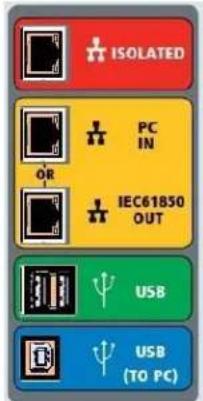
Figure 252 SMRT36D Communication Ports
2.2.1 USB 2.0 Interface
The USB Type A ports are intended for use with downloading new STVI software, SMRT firmware, or stored PowerDB test results. A USB keyboard or mouse can also be used with the STVI. USB TO PC Interface requires a Type B “downstream” connector, and is primarily used as a communication and control port when used with a PC and Megger AVTS or STVI PC version software for automated relay testing. It is recommended that you use the Ethernet port for high speed communication and control of the SMRT unit. To use the USB port will require the user to configure the PC com port for USB operation.
Clicking on the Instrument Setup icon on the PowerDB tool bar, the Instrument Configuration Screen (shown in the following figure)
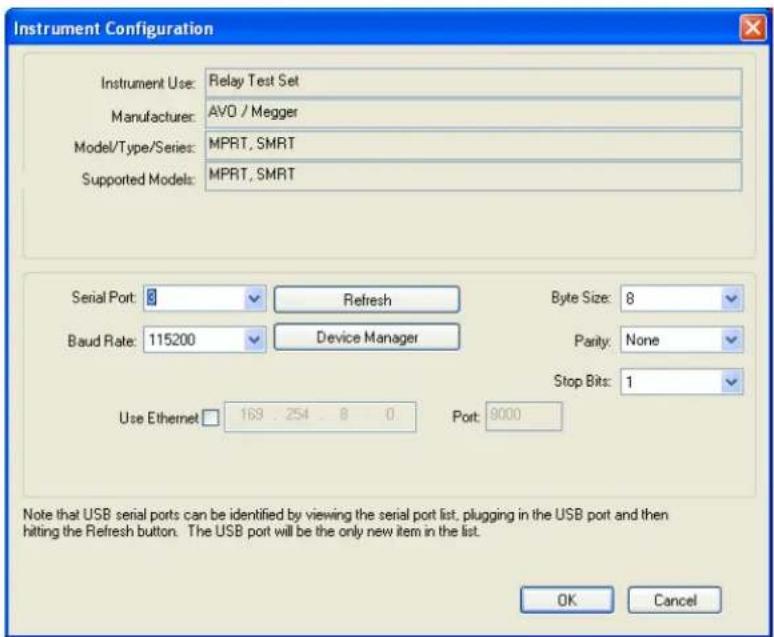
provides the user with access to the PC Device Manager screen. Click on the Device Manager button and navigate to the USB Ports file directory. Since the SMRT36D defaults to a baud rate of 115,200, the user will need to configure their USB output com port to match. Returning to the Instrument Configuration screen the user will need to check off the Use Ethernet check box, and set the Baud rate, Byte Size and Stop Bits as shown.
2.2.2 PC/IN Ethernet Port
PC/IN Ethernet Port is the primary PC connection port for automated relay testing. This port supports MDI/MDI-X auto cross over configuration, which means both standard and "crossover" Ethernet cables may be used. Use this port for standard automated relay testing. This port provides the optimal method for downloading EMTP files, DFR streaming, and updating the unit's firmware as required. For multiple unit operation, the unit providing the OUT link is providing the master phase reference to all units "downstream". For multiple unit operation connect the OUT port to the downstream SMRT unit IN port. The STVI software will automatically configure when the units are powered up.
2.2.2.1 Setting SMRT IP Address for Operation with a PC
With the Ethernet cable supplied with the unit, connect the PC/IN Ethernet Port on the SMRT unit to the PC Ethernet port. Turn the test set on. As the SMRT unit goes through its power up sequence, in less than a minute the STVI power up screen will appear. If using the PC version of the STVI software it will auto-detect the SMRT unit connected to the PC. Once it auto-detects the unit, and determines the configuration of the SMRT unit connected, the Manual screen will appear. The unit might not auto detect due to firewall settings. In this case the firewall can be turned off or you can enter the IP address directly using the PowerDB instrument configuration screen by clicking on the Instrument Setup icon on the
PowerDB tool bar. From the Instrument Configuration Screen, shown in the following figure, click off the check mark in the Auto Discover Unit box.
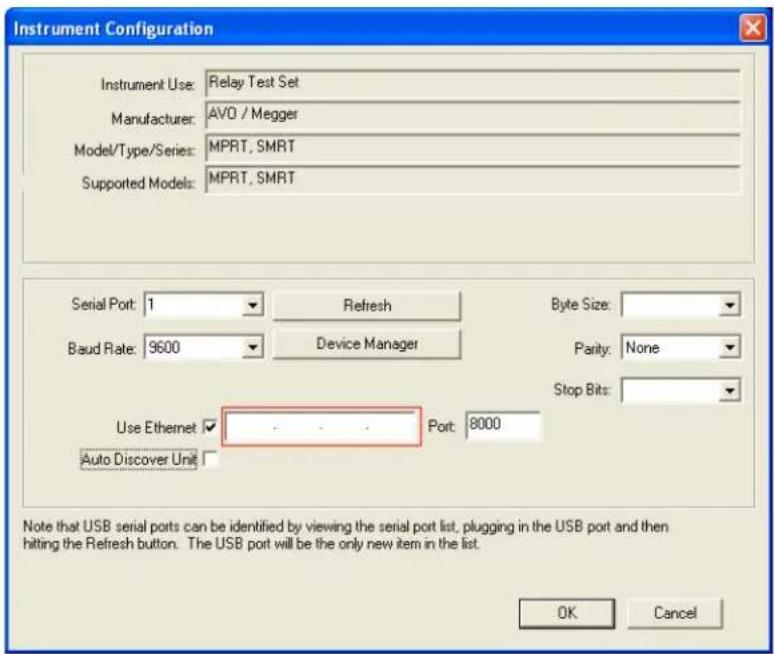
Figure 253 PowerDB Instrument Setup Screen
Here the user can enter the IP address directly into the box highlighted in red. The IP address of the unit can be determined by counting the number of times the Binary Output led flashes at the end of boot up cycle (the address is 169.254. <#flashes>.0). If the unit flashed four times, the address would be
169.254.4.0. If the unit is on a network with a DHCP server, the user must use the Auto Discovery mode.
2.2.3 ISOLATED Ethernet Port
For IEC 61850 testing connect IEC61850 / OUT port to the substation bus or to the relay under test to receive and send GOOSE messages. Connect the ISOLATED port to the PC. When used with the Megger GOOSE Configurator in the AVTS software, the SMRT can provide high speed testing of IEC 61850 relays and substations by subscribing to GOOSE messages and mapping to the binary inputs. In addition, it can simulate system conditions such as circuit breaker operation by publishing GOOSE messages mapped to the SMRT binary outputs. With the PC running AVTS Megger GOOSE Configurator and connected to the ISOLATED port, the operator can “sniff” the substation network from the IEC 61850 /OUT port through the ISOLATED port with the SMRT serving as the firewall. With this design the operator cannot accidentally trip off the substation or inflect a PC virus into the substation LAN.
2.2.4 IEC61850 / OUT Ethernet Port
The IEC 61850 / OUT Ethernet Port is a 10/100BaseTX port, and is primarily used to interconnect multiple SMRT units together for synchronous multi-unit operation. It is also be used to provide access to the substation IEC 61850 network (when enabled). The SMRT36D with the IEC 61850 option enabled provides selectable priority, VLAN-ID, and meets the IEC 61850-5 standard Type 1A, Class P 2/3, for high speed trip and reclose simulations. For multiple unit operation, the unit providing the OUT link is providing the master phase reference to all units "downstream". With the PC connected to the PC Port, the SMRT and the PC share the same Ethernet network connection, and thus will not have a secure isolation from each other. When testing IEC 61850 devices connect the PC to the ISOLATED Ethernet port to isolate the PC from the IEC 61850 substation bus.
2.2.4.1 Setting SMRT IP Address for Networks or IEC 61850 Operations
The SMRT36D may be controlled over a network. This provides remote control of the SMRT36D virtually over any distance allowing one PC to control at least two units simultaneously, such as in end to end testing. Connecting the SMRT36D to a Local Area Network or a Wide Area Network could permit unauthorized operation of the unit.
Through the PC IN Ethernet port, the SMRT36D integrates into a network just like a PC or server. To use this feature requires the user to setup the IP configuration of the SMRT36D for their LAN. Note that the SMRT36D when turned on will automatically search for and acquire a network address if connected to a network. If it fails to automatically acquire an address check to make sure you are properly connected using a standard Ethernet cable. Do not use a "cross-over" Ethernet cable (a cross over cable is designed for use from your PC to the test set, not to a network). If the unit still fails to acquire an address then there may be other issues. This will probably require assistance from your company's information management department.
3.0 Current Sources
3.1 Parallel Operation
Each SMRT current amplifier is capable of providing 30 Amperes continuous, and up to 60 amperes for 1.5 seconds for testing instantaneous trip elements. When more than 30 amps single phase is required for long durations, or 60 Amps for testing instantaneous elements, two or three current channels may be connected in parallel to provide 60 or 90 Amperes continuous, and up to 120 or 180 amperes for short durations.
Note: If an F or a C appears in the 5 ^th digit of the style identification number (i.e. 30P1F0A0S1) the current returns are floating (isolated from each other and ground). Those units with a style number G or E, the current returns are common together internally and connected to earth ground.
To parallel the current channels of the unit, perform the following:
If using the sleeved multi-lead current test leads (part number 2008-541), all of the black return leads are interconnected together inside the sleeve so they will all share the return current together. Connect each current channel to the relay under test (both red and black terminals to the load). Each Megger test lead is rated for 32 Amperes continuous. If using test leads other than those supplied by Megger insure that the wire has sufficient size to carry the test current.
For the earth grounded common return (G or C) units, there is an internal common ground between the current channel return terminals. If using separate individual test leads, all of the return leads will need to be common together at the load as shown in the following figure. By not connecting a return lead to all of the current channels in use, part or all of the return current will be forced through the internal ground. That means with a 3 channel unit up to 180 Amperes could be forced through the internal common ground, and may cause damage to the internal common returns. Therefore, it is important that the parallel connections must be made at the relay. See the following figure.
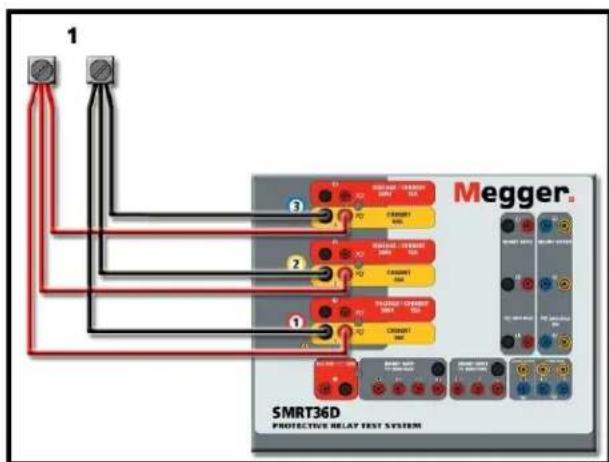
flowchart
graph TD
    A["Switch 1"] --> B["SMRT36D PROTECTIVE RELAY TEST SYSTEM"]
    C["Switch 2"] --> B
    D["Switch 3"] --> B
    B --> E["Megger PLC"]
    style A fill:#f9f,stroke:#333
    style C fill:#f9f,stroke:#333
    style D fill:#f9f,stroke:#333
    style E fill:#ccf,stroke:#333
Figure 254 Parallel of All Three Current Outputs
3.1.1 Manual Test Screen - Single Phase Up To 180 Ampere
For ease of use and operator convenience, go to the Configuration screen and select the Operating Mode of 3 Voltages – 1 Current @ 180 amps. When you return to the manual test screen there will be one current channel displayed, as shown in the following figure.
| CURRENT I (A) φ (°) f (Hz) | VOLTAGE V (V) φ (°) f (Hz) | |||||||
| II | 0.000 | 0.00 | 60.000 | V1 | 67.00 | 0.00 | 60.000 | |
| V2 | 67.00 | 120.00 | 60.000 | |||||
| V3 | 67.00 | 240.00 | 60.000 | |||||
Figure 255 Manual Test Screen – Single Phase Operation
The STVI will automatically set all three currents in phase with each other and divide the current equally between the three current amplifiers. When setting an output, simply enter the value of the desired output current. For example, for an output of 75 Amperes, enter 75, while each current amplifier will be providing 25 Amperes. The current can also be phase shifted. Simply enter the desired phase angle and all three currents will be phase shifted together.
If two current channels that are to be used in parallel, leave the unit in the default three phase configuration. Connect the two current outputs to the load as shown in the following figure.
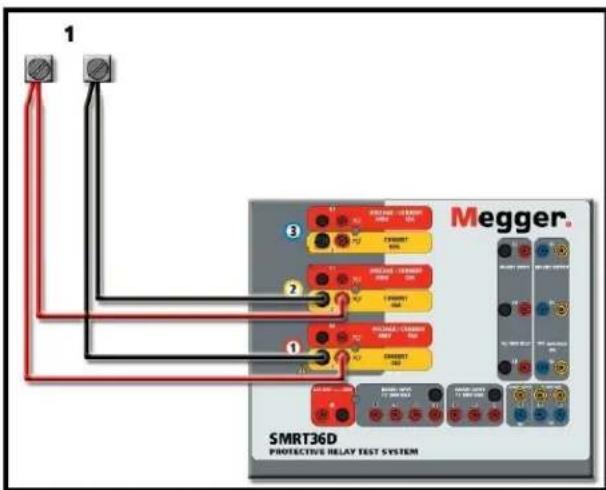
Figure 256 Two Currents in Parallel
Set each channel to one-half of the output requirement. Be sure and reset current channel #2 to 0 degrees so that it will be in-phase with current channel #1. With both current channels selected, turn output on by pressing or clicking on the ALL ON/OFF button. Always use the ALL ON/OFF button to turn both current channels on and off together. For manually ramping outputs, if using the PC version of the
RTMS software the ↑↓ buttons will be displayed. If using the touch screen the Control Knob icon will be displayed. Pressing either of these two will present the user with a window to select the desired level of increment for manually ramping the outputs, the desired channel(s) to be ramped, and what is to be adjusted (amplitude, phase angle or frequency).
3.2 Currents in Series Operation
Two current channels may be connected in series in order to double the available compliance voltage. High impedance electromechanical ground (earth) overcurrent relays have always been difficult to test at high multiples of tap due to the winding impedance and saturation characteristics. The peak voltage required can exceed the maximum output voltage of one SMRT36D current output channel, depending on the required test current. By connecting two current outputs in series, the compliance voltage is doubled, providing higher test currents through the load. There are two methods to series currents together. For the floating output (F or C) models connect the two current amplifiers in a “push-push” configuration as shown in the following figure.
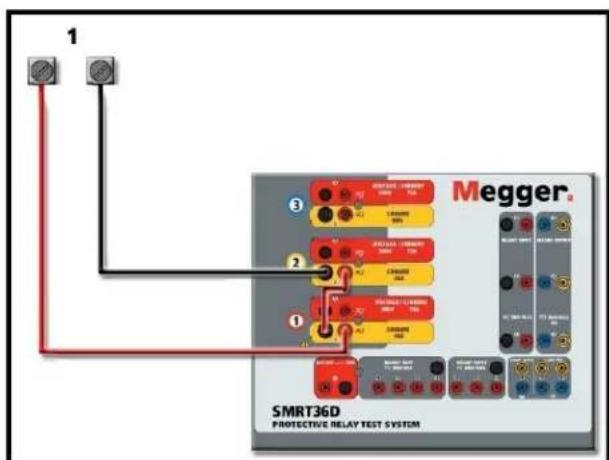
Figure 257 Series Two Currents with Floating Output Unit
The two current channels that are to be used in series set each to the same test current magnitude, and phase angle. Select both current channels and turn output on by pressing or clicking on the ALL ON/OFF button. Always use the ALL ON/OFF button to turn both current channels on and off together. For manually ramping outputs, if using the PC version of the RTMS software the ↑↓ buttons will be
displayed. If using the touch screen the Control Knob icon will be displayed. Pressing either of these two will present the user with a window to select the desired level of increment for manually ramping the outputs, the desired channel(s) to be ramped, and what is to be adjusted (amplitude, phase angle or frequency).
To series the current channels of the common grounded returns (G or E) unit, perform the following: Using the current channel test leads, connect the Red output terminals of the two current channels to the relay under test. Even though the two returns associated with the current channels are connected internally with the common returns, place a jumper as shown. This will insure that the internal common leads will not be damaged.

Figure 258 Series of Two Current Channels with Grounded Common Returns
NOTE: One current channel should be set to 0 degrees and the other current channel should be set to a phase angle of 180 degrees so that the two compliance voltages add across the load. DO NOT attempt to series more than two currents together on a grounded common returns unit.
The two current channels that are to be used in series set each to the same test current magnitude. Initiate the two current channels simultaneously by pressing the ALL ON/OFF button. Always use the ALL ON/OFF button to turn both current channels on and off together. For manually ramping outputs, if using the PC version of the RTMS software the ↑↓ buttons will be displayed. If using the touch screen the
Control Knob icon will be displayed. Pressing either of these two will present the user with a window to select the desired level of increment for manually ramping the outputs, the desired channel(s) to be ramped, and what is to be adjusted (amplitude, phase angle or frequency).
4.0 Voltage Sources
4.1 Outputs Summed Together
Two voltage channels may be used to sum the voltage outputs to obtain higher than rated voltage provided the load is ungrounded. Connect the load between the voltage channel posts, set V_1 Phase to 0^ and set V_2 Phase to 180^ . The voltage outputs will add so the total voltage is the sum of the two voltage amplitudes, V_1 and V_2 as can be seen in the following figures.

Note: If an F or C appears in the 5^th digit of the style identification number (i.e. 30P1F0A0S1) the voltage returns are floating (isolated from each other and ground). Those units with a style number G or E the voltage returns are common together internally and connected to earth ground.
For the floating common units the user must connect the associated voltage channels black common returns together, when series operation is required (see the following figures). Remove external commons when testing is completed. DO NOT attempt to series more than two voltage channels together.
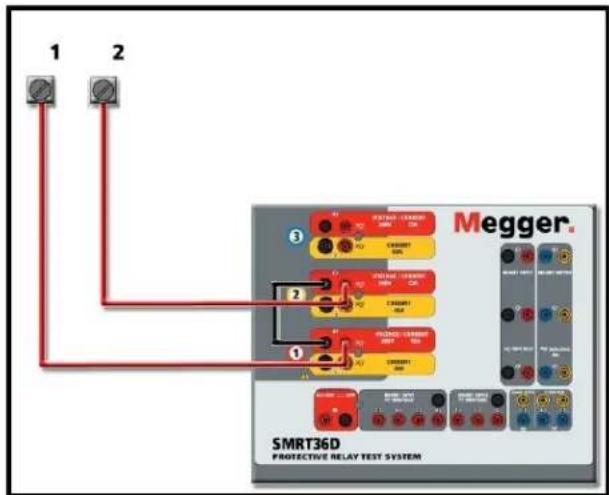
Figure 259 Series of Voltage Channels for Floating Ungrounded Common Returns

Figure 260 Series of Voltage Channels with Grounded Common Returns
4.2 3∅, 3-Wire, Open-Delta and T-Connection
See section 3.4.2 in the RTMS software software for detailed descriptions and use of the Open-Delta and T-Connection.
4.2.1 Balanced Open Delta
The Open-Delta configuration is the easy to use when a balanced three-phase source is required because the amplitude and phase relationship can be set directly. No calculations are necessary. When using the Open-Delta configuration, it is suggested to use voltage channel #1, designated V_1 , and voltage channel #2, designated V_2 , while the COMMON binding post is designated V_g . With this arrangement, the magnitude and phase angle of the potentials can be easily calculated and set. For the balanced three-phase condition V_1g and V_2g are equal in magnitude and separated by an angle of 60°. This is done by setting the V_1 and V_2 potentials equal in magnitude, setting 0° on V_1 and 300° (60 degrees leading assuming that the default phase rotation is set to 360 Lag) on V_2 , see the following figure.

Figure 261 Three Phase Open Delta Connections
4.2.2 T Connection
The second method of obtaining a three-phase, three-wire voltage source is the so-called T-Connection. The method, shown in the following figure, is easier to use when obtaining an unbalanced, phase - to -phase fault simulation since it eliminates calculations. To reduce confusion when using the T-Connection, the voltage output #1 is designated V_a and its phase angle set at 0°, voltage output #2 is designated V_b and its phase angle set for 180°, and voltage output #3 is designated V_c and its phase angle is set for 270. Any combination of balanced three phase faults or unbalanced phase-to-phase fault conditions can be easily simulated. The following figure indicates these phase relationships.
NOTE: This method should not be used for very low fault voltages, or used on solid state relays that may be sensitive to this type of connection (i.e. 5 volts or less, or for testing ABB or Westinghouse type SKD relays).
4.3 3∅, 4-Wire, Y-Connection
A three-phase, four-wire potential system can be provided using three output modules. The vector relationships are referenced below. This Y-Connection has the advantage of being able to supply a higher line-to-line voltage (1.73 x phase-to-neutral voltage). It is ideally suited for simulating phase-to-ground faults. Voltage channel #1 is designated as V_a with its phase relationship set for 0°. Voltage channel #2 is then designated as V_b and phase angle set for 120°. Finally, voltage channel #3 is designated V_c and phase angle set for 240° (for a 1-2-3 counter clockwise rotation). V_a , V_b and V_c are connected to the voltage potential binding posts on the respective test sets.
Note: If an F or C appears in the 5^th digit of the style identification number (i.e. 30P1F0A0S1) the voltage returns are floating (isolated from each other and ground). Those units with a style number G or E the voltage returns are common together internally and connected to earth ground.
If using the sleeved multi-lead voltage test leads (part number 2001-395), all of the black return leads are interconnected together inside the sleeve so they will all share the return together. Therefore, only one return lead is provided on the relay connection side of the sleeved leads (similar to the connections in the following figure).

flowchart
graph TD
    A["1"] --> B["2"]
    B --> C["3"]
    C --> D["4"]
    D --> E["5"]
    E --> F["6"]
    F --> G["7"]
    G --> H["8"]
    H --> I["9"]
    I --> J["10"]
    J --> K["11"]
    K --> L["12"]
    L --> M["13"]
    M --> N["14"]
    N --> O["15"]
    O --> P["16"]
    P --> Q["17"]
    Q --> R["18"]
    R --> S["19"]
    S --> T["20"]
    T --> U["21"]
    U --> V["22"]
    V --> W["23"]
    W --> X["24"]
    X --> Y["25"]
    Y --> Z["26"]
    Z --> AA["27"]
    AA --> AB["28"]
    AB --> AC["29"]
    AC --> AD["30"]
    AD --> AE["31"]
    AE --> AF["32"]
    AF --> AG["33"]
    AG --> AH["34"]
    AH --> AI["35"]
    AI --> AJ["36"]
    AJ --> AK["37"]
    AK --> AL["38"]
    AL --> AM["39"]
    AM --> AN["40"]
Figure 262 Three Phase Four Wire Test Connections
For the earth grounded common return (G or E) units, there is an internal common ground between the voltage and current channel return terminals. Therefore, only one return lead is required for the voltage channels. If using separate individual test leads, for the floating common units the user must connect the associated voltage channels black common returns together as shown above.
5.0 Warranty Statement
Megger warrants the product is free of defects in material and workmanship for a period of one (1) year from date of shipment. This warranty is non-transferable. This warranty is limited and shall not apply to equipment that has damage, or cause of defect, due to accident, negligence, and improper operation, faulty installation by the purchaser, or improper service or repair by any person, company or corporation not authorized by Megger. Megger will, at its' option, either repair or replace those parts and/or materials it deems to be defective.
The warranty is in lieu of all other warranties, either expressed or implied on the part of Megger and in no event shall Megger be liable for the consequential damages due to the breach thereof.
5.1 Preventive Maintenance
The unit utilizes surface mount technology (SMT) and other components which require little or no service except for routine cleaning, etc. The unit should be serviced in a clean atmosphere away from energized electrical circuits.
5.1.1 Examine the unit every six months for:
| Dust and Dirt | To clean the unit, disconnect the power cord from the unit. Never use spray liquids or industrial cleaners. Some cleaning solvents can damage electrical components, and should never be used. Water and a mild soap may be used. Use a lightly damp cloth (not dripping wet) to wipe off the unit. A dirty heat sink can cause thermal overloads. Remove dust with dry, low pressure, compressed air. Either remove the module from the chassis or simply apply air forcing the dust away from the heat sink through the sides of the unit. |
| Moisture | Remove moisture as much as possible by putting the test set in a warm, dry environment. |
5.1.2 Updating SMRT36D Firmware
Download Firmware Upgrade via Megger Website
To download the newest firmware from the Megger website,
- Go to WWW.Megger.com
- Log In.
- Go to Software Downloads
- Click on SMRT
- You will see instructions to enter the serial number of the SMRT unit, and then click on Continue. The serial number is 12 digits long. Make sure you enter all 12 digits. Then click on Firmware Version #.##. The firmware will be downloaded onto your PC as a zip file. Unzip the file, Select All files, and Copy to a USB memory stick.
USB Memory Stick: With the unit powered up, insert the USB memory stick into the USB port on the front panel of the SMRT36D. Press the Configuration Screen button, and then press the Update Firmware button in the Configuration Screen. At that point the user will be presented with the IP Address selection screen, with the serial number of the unit. Select the unit by touching the serial number and the upgrade process will automatically start. That's all there is to it. Observe the STVI display screen, and the unit. At the completion of the download, the user will note the fans spin-up, and the LED's will be flashing rapidly on the SMRT unit. There will be an instruction to reboot (turn off and back on) the test system.
PC and STVI Software: If using the PC version of the STVI software, it is very similar to the USB Stick method. Upon clicking on the Update Firmware button, the familiar Windows Open File browser dialog box will appear. Using the Look In pull-down menu, navigate to where the new firmware was downloaded
onto the PC, click on and open the file folder SMRT_LDR (SMRT Loader). There you will find the new firmware file. Click on the file, and click on Open. You will be requested to select a unit from the IP Address screen. Select the unit by clicking on the serial number and the upgrade process will automatically start. At the completion of the download, the user will note the fans spin-up, and the LED's will be flashing rapidly on the SMRT unit. There will be an instruction to reboot (turn off and back on) the test system. Note that after rebooting the SMRT unit, if using the PC version of the STVI software you will have to restart the STVI software on your PC in order to regain control of the SMRT unit.
5.2 Service and Repair Instructions
To save turn-around time and reduce costs, SMRT36D was designed as a modular unit. In most cases, if any one module should experience a problem it should not cause the test system to be down. Basic troubleshooting information has been provided to guide the technician to the possible source of a problem.
Since SMRT36D uses Surface Mount Technology, most repairs of the individual modules are beyond the scope of the basic troubleshooting guide, and should be referred to the Service Department at Megger or handled through the Megger Representative.
If the unit is still within the original warranty period, or limited warranty period following factory servicing, the factory must be contacted before attempting any repairs or the warranty will be void.
5.2.1 Basic Troubleshooting
The troubleshooting information relies on the technician to have a good understanding of the operation of the unit. If the technician is unfamiliar with the unit, he or she should not attempt to repair. The technician should contact the factory before attempting repairs. Provide the Megger part number for the part or assembly in question and the serial number of the SMRT36D when making inquiries.
WARNING It is necessary to energize the SMRT36D to properly troubleshoot some of the modules. The technician must take all applicable safety precautions for working near energized circuits.
NOTES
Before suspecting a failure in the SMRT36D, review the General Description and Operation sections to ensure that the problem is not a result of operating error.
Preliminary testing of the SMRT36D within its specified limits can help determine if a malfunction actually exists, identify the type of malfunction and define the general area of the failure.
Common causes of malfunctions, other than improper operation, are incorrect power input (voltage above or below specified limits), incorrect test signal voltages applied to the Binary Input gates (outside of the specified AC/DC Applied/Removed limits), and contact or circuit resistance too great for the Dry Contact gates to operate properly on the Monitor/Start/Stop gates. Typical malfunctions for the VI-Gen amplifiers are external short circuits on the voltage output and open circuits on the current output. The battery simulator and VI-Gen voltage and current outputs can be easily checked using a voltmeter and ammeter.
NOTE: There are three different modules that make up a SMRT36D; the System Board (front panel), VIGEN'S (VIGEN#1, and #2) and VIGEN LITE (VIGEN #3). Most problems can be easily resolved by replacement of one of these modules, see section 5.2.1.2.1 Replacing a VIGEN for instructions on how to replace a VIGEN module. Proper ESD procedures should be followed when handling any SMRT36D module. Failure to do so, may damage sensitive parts.
5.2.1.1 Power Input
Input voltage affects the whole unit and may or may not cause permanent damage if voltage is incorrect. These problems can often be corrected by simply using a better source of input power. Some symptoms are as follows:
-
Low voltage: Erratic operation, no output, input power circuit breaker operation.
-
High voltage: Circuit breaker operation, power supply failure in Input Power Module.
5.2.1.2 VIGEN Input Power, Communication and Control
Basic troubleshooting of the input power is as follows.
- No power: Check the ON/OFF circuit breaker. Does the ON/OFF switch light up? If it does not light up, then power is not getting to the unit. Check power source and line cord. If it lights up then the power is getting to the unit. Check the VIGEN power cable connection.

CAUTION: Turn off main power and unplug line cord before attempting to work on any module. Observe proper Electro Static Discharge procedures.
A. Disconnect the power cord from the unit.
B. Remove the four screws on each side that hold on the top cover as shown in the following figure.

natural_image
Technical diagram of a mechanical assembly with mounting holes and a central grid pattern (no text or symbols)Figure 263 Top Cover Removal, Side Screws
C. Remove the four screws located on the top back side, then the four screws located on the top cover, see the following figure.

Figure 264 SMRT36D Top Cover Securing Screws
D. Remove the two screws (one on each side) that connect the top cover to the front panel, see the following figure.

Figure 265 Top Panel Removal Front Panel Screws
E. Remove the top cover.
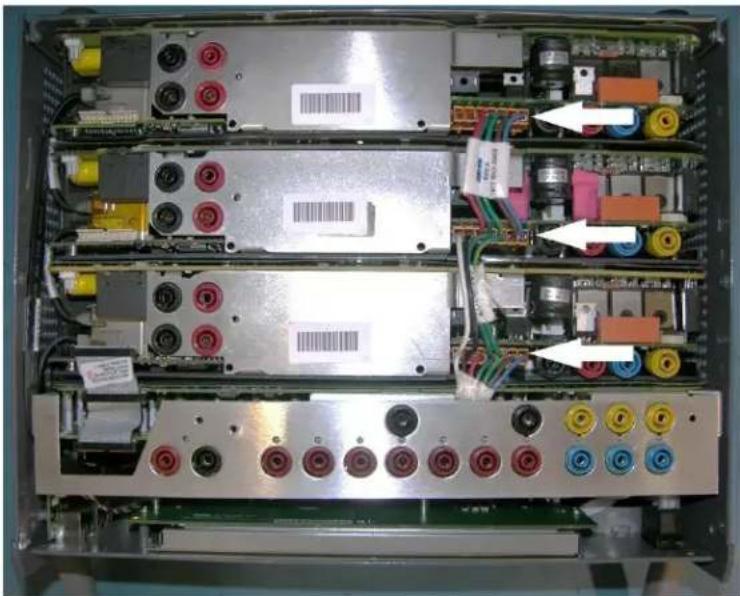
natural_image
Interior view of an electronic device showing multiple circuit boards with connectors and wiring (no visible text or symbols)Figure 266 VIGEN Power Connectors
Check the cables as shown. If the cables are properly connected, then remove and replace the VIGEN per 1.5.2.1.2.1.
1. Erratic Manual Control
Individual Output Module communication cable is not properly connected thus cannot receive proper commands. Look through the air intake holes on the left side of the unit to observe the VI-Gen LED's. Each module has some green LED's that blink. These are associated with the Ethernet communications. If there are no blinking LED's on one or more modules, then the module is not communicating. Remove the top cover using the procedure described above.
CAUTION: Turn off main power and unplug line cord before attempting to reseat any cables. Observe proper ESD procedure.
Locate the communication Ethernet cables on the left side, see the following figure.
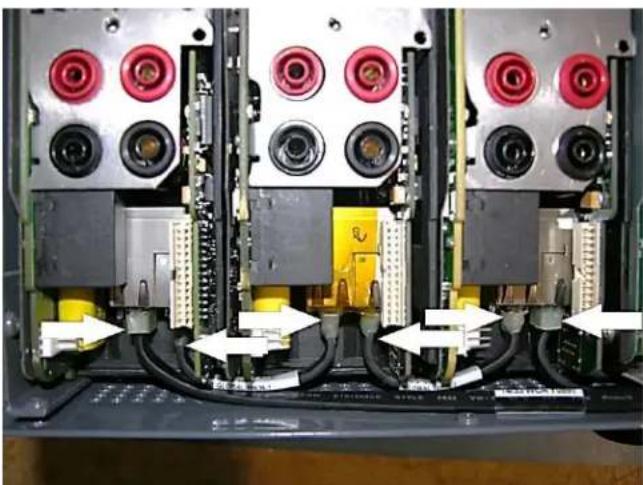
natural_image
Interior view of an electronic device showing multiple ports with red and black components, connected by wires and connectors (no visible text or symbols)Figure 267 Communication Cable Connections
Carefully disconnect each cable and reconnect to insure the cable locks into position.
After reseating the cables, reinstalling the top cover assembly, reconnect the power cord and power up the unit. Look through the air intake holes on the left side of the unit to observe the VI-Gen LED's. If there is still no blinking LED's on one or more modules, and then replace the Ethernet cables. If after replacing the Ethernet cables they are still not communicating then replace the VI-Gen Module(s) that are not communicating.
5.2.1.2.1 Replacing a VIGEN
-
To remove the VIGEN, there are three Phillip head screws that hold in the VIGEN, one on each side and one on the bottom of the unit.
-
Remove the power connection cable as shown.
-
Disconnect the communication cables as described above.
Note the small cable that connects the system board to VIGEN 1 needs to be carefully removed prior to removing VIGEN1, see the following figure.
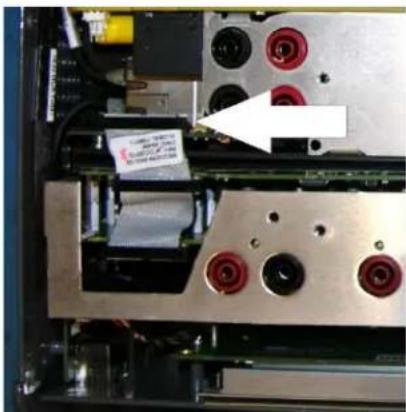
natural_image
Close-up of an electronic device with multiple ports and a white arrow pointing to a component (no readable text or symbols)Figure 268 VIGEN1 to Front Panel Cable
- Carefully remove the VIGEN module from the chassis.
- Install replacement VIGEN.

Be careful when replacing the module as it is a tight fit, and it is possible to image components upon extraction or installation.
- Replace the Phillip head screw(s) that hold in the VIGEN.
- Reconnect the power connection cable as shown above.
- Reconnect the communication cables as shown in Figure above.
- If VIGEN #1 was replaced, reconnect the system board cable as shown in Figure above.
- Reinstall the top cover. Reconnect the power cord and power up the unit.
5.3.1.3 Binary Inputs, Binary Outputs and Battery Simulator
If all the items external of the Timer assembly are in proper order, then the problem exists within the Binary Input / Output assembly itself.
Some basic troubleshooting can pinpoint problems to the approximate cause.
Binary Inputs - Basic troubleshooting is as follows:
Timer does not stop:
Jumper the appropriate Binary Input terminals manually; if LED above the selected input lights, check the Binary Input setup screen to verify that the selected binary input is properly setup as a Timer stop post. Check Timer stop settings as N.O. (Normally Open) to close, and Latch On. If LED does not light up, the Binary Input will need to be repaired or replaced.
Counting errors:
AC applied or removed Stop signals can create, what appears to be poor repeatability, an inaccuracy or a malfunction in the Timer. The lower the voltage level, the more serious the "error" will be. What appears to be an error, however, is actually a variation in the point on the sine wave at which the voltage is great enough to cause the gate circuit to operate. If the circuit used for the timing test has a low AC voltage and the point at which the contact in the test circuit opens or closes, is at or close to zero on the sine wave, the period of time before the voltage level will be high enough to trigger the gate circuit can be as much as 4 milliseconds. The total timing variation can be as much as 8 milliseconds. The shorter the duration of the timing test, the more significant the variation becomes. Therefore, if small timing variations would present a problem, it is recommended that an AC voltage of 115 volts or above or a DC voltage be used for voltage applied/removed test selections.
When the SMRT36D Timer calibration is being tested, the AC voltage variable is often overlooked. This is particularly true when the Timer is compared to a counter and the two are triggered simultaneously with an electronic switch. For best results, a DC voltage should be used to eliminate the variable. If testing the AC voltage Timer Stop characteristics is desired, then the Stop signal must be triggered at the same point on the sine wave to assure that the gate signal will be repeatable. Ideally, the signal should be at a point near peak in the positive direction. In addition, the specified rms AC voltage values for the various Stop control selections must be adhered to.
Another source of apparent "error" can be the programmable de-bounce feature. If using electro-mechanical contacts for stopping the Timer, and if those contacts have a tendency to bounce, there could be a difference between an external standard timer and the SMRT36D Timer, depending on the programmed de-bounce period set in the SMRT unit. To determine the programmed value, look at the Binary Input Setup Screen and see what the De-bounce setting value is.
If a timing error or variation persists after all the suspected causes of error have been eliminated, then it is possible that the Binary Input circuit is malfunctioning. Contact factory for return instructions.
Binary Outputs - Basic troubleshooting is as follows:
Binary Output LED is ON but output contacts not closed:
Using a continuity tester check to see if output circuit is open circuited. If circuit is open then it is possible that the internal surface mounted fuse element has been blown. Note: an optional in-line fused test lead Part Number: 568026 are available to provide protection from switching too high current, see SMRT Ordering Information under Optional Additional Accessories. The unit will need to be returned to the factory or authorized service center for further inspection and repair.
! Contact the factory for a Repair Authorization Number and return instructions if service is required. A Repair Authorization (RA) number will be assigned for proper handling of the unit when it arrives at the factory. Any non-warranty repair cost incurred for the repair or replacement of parts and/or materials shall be the responsibility of the purchaser.
Provide the factory with model number, Unit serial number, serial number of VI-Gen if appropriate, nature of the problem or service, return address, your name, and how to contact you should the factory need to discuss the service request.
You may need to provide a purchase order number, cost limit, billing, and return shipping instructions. If an estimate is requested, provide the name and contact information.
6.0 Preparation for Reshipment
Save the original shipping container for future use. The shipping container is designed to withstand the rigors of shipping via a common commercial carrier. For example, you may wish to reship your unit to Megger for an annual calibration recertification. Pack the equipment appropriately to prevent damage during shipment. If a reusable container is utilized, the unit will be returned in the same shipping container if it is in suitable condition.
Add the Return Authorization Number to the address label of the shipping container for proper identification and quicker handling.
NOTE: Ship the equipment without nonessential items such as test leads, etc. These items are not needed by the factory to perform service.
Addendum D

natural_image
Exterior view of a Smart 3.00 electronic device with control panel and display screen (no readable text or symbols)Model SMRT46D
Megger Relay Tester
SAFETY PRECAUTIONS

VOLTAGES GENERATED BY THIS INSTRUMENT CAN BE HAZARDOUS
This instrument has been designed for operator safety; however, no design can completely protect against incorrect use. Electrical circuits are dangerous and can be lethal when lack of caution and poor safety practices are used. There are several standard safety precautions that should be taken by the operator. Where applicable, IEC safety markings have been placed on the instrument to notify the operator to refer to the user manual for instructions on correct use or safety related topics. Refer to the following table of symbols and definitions.
| Symbol | Description |
 | Direct Current |
 | Alternating Current |
 | Both direct and alternating current |
 | Earth (ground) Terminal. There is a common chassis ground terminal located on the front panel (see Front panel under Description of Controls. |
 | Protective Conductor Terminal |
 | Frame or Chassis Terminal |
| ### | On (Supply) |
| [S7D7] | Off (Supply) |
| ### | Caution, risk of electric shock |
| ### | Caution (refer to accompanying documents) |
WARNING: Under no circumstances should the operator or technician attempt to open or service this instrument while connected to a power source. Lethal voltages are present and may cause serious injury or death!
SAFETY PRECAUTIONS (Continued)
The following are some specific safety related items associated with the SMRT test system.
Read and understand all safety precautions and operation instructions before attempting to use this unit.
The purpose of this equipment is limited to use as described in this instruction manual. Should a situation arise that is not covered in the general or specific safety precaution please contact Megger regional representative or Megger, Dallas Texas.
Safety is the responsibility of the user. Misuse of this equipment can be extremely dangerous.
Always start with the power OFF, before connecting the power cord. Make sure outputs are off before attempting to make test connections.
Never connect the test set to energized equipment.
Always use properly insulated test leads. The optional test leads are rated for the continuous output ratings of the test system, and should be properly used and cared for. DO NOT use cracked or broken test leads.
Always turn the test system off before disconnecting the power cord.
DO NOT attempt to use the unit without a safety ground connected.
DO NOT attempt to use the unit if the power cord ground prong is broken or missing.
DO NOT use the test set in an explosive atmosphere.
The instrument must only be used by suitably trained and competent persons.
Observe all safety warnings marked on the equipment.
For safety related or other important topics, like the statement below, will be notated with the adjoined symbol. Read the topic carefully as it may relate either to the safe operation of the test system or the safety of the operator.
Under no circumstances should the operator put their hand or tools inside the test system chassis area with the test system connected to a power source. Lethal voltages are present and may cause serious injury or death!

1.0 Operation
The unit's design is a "modular" concept. All inputs and outputs are clearly marked and logically grouped so continual reference to the instruction manual should not be necessary once the operator is acquainted with the test system. The unit's Top Panel will appear different among units, since each unit may have up to three optional Voltage/Current Generator (VIGEN) Modules installed.
1.1 General Description
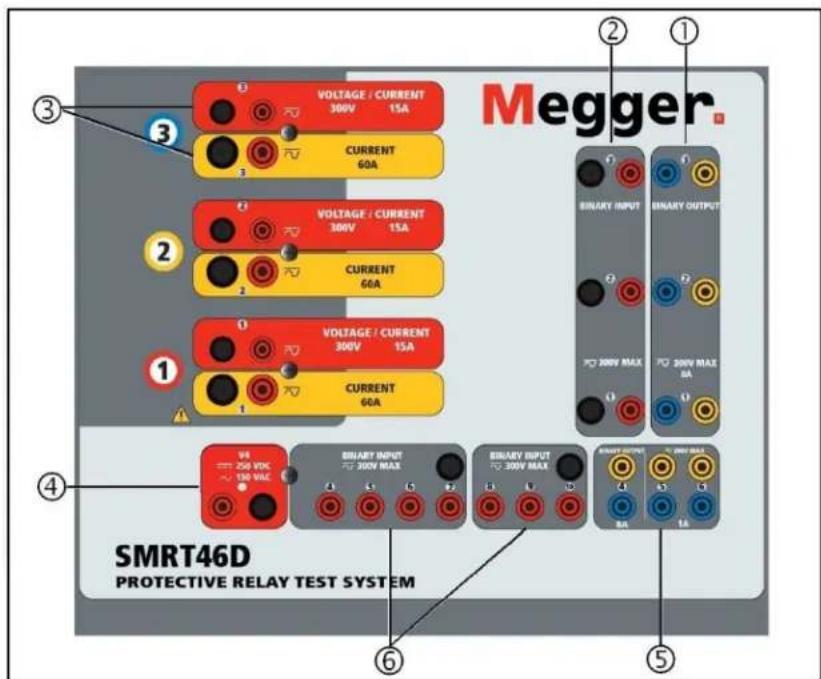
Figure 269 Top Panel SMRT46D (Pictured with Floating Returns Option)
1.1.1 Top Panel
-
①Binary Outputs 10 – the first three VIGEN modules include Binary Inputs and Binary Outputs. Therefore, with a minimum 2 channel unit there are 2 Binary Outputs located on the top panel (numbered 1 and 2). The 3 ^rd Binary Output will be replaced with DC Input terminals if ordering the unit with the Transducer option. Each Binary Output can be configured as Normally Open or Normally Closed contacts providing logic to the device under test. The Binary Outputs 1, 2, and 3 can switch up to 300 VAC or 250 VDC with 8 Amp continuous. The programmable wait duration is from 1 millisecond to 10,000 milliseconds.
-
②Binary Inputs ^9 - with a minimum 2 channel unit there are 2 Binary Inputs located on the top panel. The 3 ^rd Binary Input will be replaced with DC Input terminals if ordering the unit with the Transducer option. To serve a wide range of test applications the binary inputs have different voltage thresholds. For typical test applications binary inputs 1, 2
and 3 have a fixed threshold of 5 volts. For GPS End-to-End synchronized relay testing Binary 1 may be connected with a remote trigger pulse from a GPS satellite receiver for external initiation, or the input of an IRIG-B signal (see use of Wait IRIG-B input using the STVI Sequencer test). There are an additional 7 ^th binary inputs. To monitor TTL signals binary inputs 4 through 6 have a fixed threshold of 3 volts. Binary inputs 7 and 8 have fixed thresholds of 5 volts, and binary inputs 9 and 10 have fixed threshold of 30 volts (for “noisy” test environments). In addition to serving as Timer/Monitor inputs, the Binary Inputs may be programmed to trigger binary output sequence(s). Binary Inputs can also be programmed using Boolean logic for more complex power system simulations.

-
③Voltage/Current Generator Module (or VIGEN) –There are three available slots for the VIGEN Modules. The slots are numbered 1 to 3 from bottom to top, with the topmost VIGEN numbered 3. The three phase voltages and currents are noted by the red and yellow surrounding each output channel. Phases A, B and C Voltage Channels (V1, V2 and V3) are denoted by the red color. Phases A, B and C Current Channels (I1, I2 and I3) are denoted by the yellow color. When the voltage generators are converted to current generators, they will change on the STVI display as V1 = I4, V2 = I5 and V3 = I6. For more details on the VIGEN output capabilities see section 1.4.
-
④AC/DC AUX (V4) Output – the SMRT46D provides an AC/DCV AUX Output with a continuously variable dc output voltage from 10 to 250 Volts, at 100 Watts (3.33 Amps Max) providing logic voltage for solid-state relays, or use as a reference ac voltage source for synchronizing or polarization potential from 0 – 150 Volts, 100 VA. When powered ON, the LED above the output terminals illuminates.
- ⑤ Binary Outputs – additional Binary Outputs can be configured as Normally Open or Normally Closed contacts providing logic to the device under test. Binary Output 4 has an AC Rating of 400 V max., Imax: 8 amps, 2000 VA maximum breaking capacity, and a DC Rating of 300 V max., Imax: 8 amps, 80 Watts, with a Response Time: < 10ms. Binary Outputs 5 and 6 are high speed and have an AC / DC Voltage Rating of 400 V peak, Imax: 1 amp, with a Response Time: < 1ms typical. The programmable wait duration is from 1 millisecond to 10,000 milliseconds. An LED directly above the terminals indicates the status of the contact. ON indicates closed, and OFF indicates open.
- ⑥ Binary Inputs – additional, independent, galvanically isolated, Start/Stop or Monitor circuits to monitor operation of relay contacts or trip SCR. Continuity light is provided for each input gate. Upon sensing continuity, or voltage applied, the lamp will glow. In addition to serving as wet/dry contacts the Binary Inputs may be programmed to trigger binary output sequence(s). Binary Inputs can also be programmed using Boolean logic for more complex power system simulations. The Binary Inputs will accept a voltage range of 5 to 300 VAC or 5 to 250 VDC, or dry Normally Open / Normally Closed contacts.
1.1.2 Front Panel:

Figure 270 SMRT46D Front Panel
- Incoming Power / Line Cord ① – the input line cord, ground terminal, are mounted on the front panel of the test set.
Input Line Cord
The test set is equipped with a line cord, which connects to the male connector on the front panel. Verify the input voltage rating on the front panel before connecting the line cord to the power source.

- Earth Ground Jack ② – use this terminal to connect chassis ground to earth ground.
A chassis ground (earth) point on the front panel is provided as an additional safety ground.
-
POWER ON/OFF Switch ③ – used to switch unit on and off.
-
ISOLATED ④ For IEC 61850 testing connect IEC61850 / OUT port to the substation bus or to the relay under test to receive and send GOOSE messages. Connect the ISOLATED port to the PC. When used with the Megger GOOSE Configurator in the AVTS software, the SMRT can provide high speed testing of IEC 61850 relays and substations by subscribing to GOOSE messages and mapping to the binary inputs. In addition, it can simulate system conditions such as circuit breaker operation by publishing GOOSE messages mapped to the SMRT binary outputs. With the PC
running AVTS Megger GOOSE Configurator and connected to the ISOLATED port, the operator can "sniff" the substation network from the IEC 61850 /OUT port through the ISOLATED port with the SMRT serving as the firewall. With this design the operator cannot accidentally trip off the substation or inflect a PC virus into the substation LAN.
- PC/IN ⑤ Ethernet Port is the primary PC connection port for automated relay testing. This port supports MDI/MDI-X auto cross over configuration, which means both standard and "crossover" Ethernet cables may be used. Use this port for standard automated relay testing. This port provides the optimal method for downloading EMTP files, DFR streaming, and updating the unit's firmware as required. For multiple unit operation, the unit providing the OUT link is providing the master phase reference to all units "downstream". For multiple unit operation connect the OUT port to the downstream SMRT unit IN port. The STVI software will automatically configure when the units are powered up.
- IEC61850/OUT ⑥ Ethernet Port is a 10/100BaseTX port, and is primarily used to interconnect multiple SMRT units together for synchronous multi-unit operation. It is also be used to provide access to the substation IEC 61850 network. For multiple unit operation, the unit providing the OUT link is providing the master phase reference to all units "downstream". With the PC connected to the PC Port, the SMRT and the PC share the same Ethernet network connection, and thus will not have a secure isolation from each other. When testing IEC 61850 devices connect the PC to the ISOLATED Ethernet port to isolate the PC from the IEC 61850 substation bus.
- USB Interface ⑦ There is two type A ports available. This port is primarily used to update the firmware in the SMRT as well as update the STVI software using a USB memory stick. It may also be used to download test results from the SMRT for download into another PC with Power DB software for storage or printing. In addition, the user can use a USB keyboard, as well as a mouse, in conjunction with the STVI. Keyboard and/or mouse are not provided with the accessories.
- USB (TO PC) Interface ⑧ – The (TO PC) USB Interface requires a Type B "downstream" connector, and is primarily used as a communication and control port when used with a PC and Megger AVTS software for automated relay testing. A USB cable is not provided with the test set or in the optional accessories. For computer control, an Ethernet cable is provided. However, should the user desire to use the USB port any standard USB A/B cable will work with the unit. May be used when isolation is required for a secure substation access between the SMRT and the IEC 61850 substation network.
1.2 Input Power
The input voltage rating may be from 100 to 240 VAC, ±10%, 50/60 Hertz. Input current required varies with the number of output modules in use, load, and input voltage value. With three VIGENS, the maximum input power is 1800VA. The input is protected by a power ON/OFF switch / circuit breaker.
1.2.1. Input Power Cord
Depending on the country, the power cord can come with a NEMA 5-15 male connector, a CEE 7/7 Schuko two prong connector, with International Color Coded pig-tail wires (light blue, brown and green with yellow stripe) with the insulation jacket stripped ready for installation of the appropriate male connector, or with UK power cord.
Model SMRT46D X0XXXXXXX comes with a North American power cord (part number 620000).
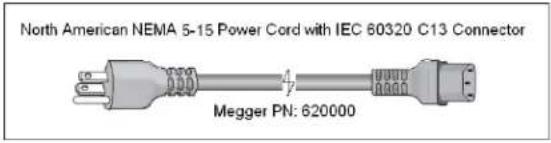
Model SMRT46D X0XXXXEXXX comes with a Continental Europe power cord (part number 50425).
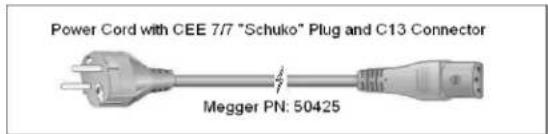
Model SMRT46D X0XXXXIXXX comes with an International Color Code power cord. The cord, part number 15065, is ready for wiring to the appropriate plug (depending on country). The following colors apply, Brown = Line, Blue = Neutral and Green/Yellow = Ground.

Model SMRT46D X0XXXXUXXX comes with a UK power cord (part number 90002-989).

1.3 Voltage - Current Generator (VIGEN) Module
Voltages and Currents are noted by the red and yellow surrounding each output channel. Phases 1, 2 and 3 voltage channels are denoted by the red color. Phases 1, 2 and 3 current channels are denoted by the yellow color. All outputs are independent from sudden changes in mains voltage and frequency, and are regulated so changes in load impedance do not affect the output. Standard amplifier outputs are isolated or floating. The SMRT units can be ordered with the amplifier common returns tied to chassis ground as an option.
1.3.1. Convertible Voltage/Current Amplifier

The SMRT PowerV ^™ voltage amplifier provides a flat power curve from 30 to 150 Volts in the 150V range to permit testing of high current applications such as panel testing.
Voltage Range Power / Current (Max)
30.00V 150VA @ 5.0A
150.00V 150VA Constant Output Power from 30 to 150 Volts
300.00V 150VA @ 0.5A
Voltage Amplifier in Current Mode:
The voltage amplifier is convertible to a current source with the following output capability. Output power ratings are specified in rms values and peak power ratings
Output Current Power Max V Duty Cycle
5 Amperes 150 VA (212 peak) 30.0 Vrms Continuous
15 Amperes 120 VA 8.0 Vrms 1.5 sec.
With a 3 channel SMRT unit, convertible channels in conjunction with the three main current channels, provides 6 currents for testing three phase current differential relays. When the voltage generators are converted to current generators, they will change on the STVI display as current phases 4, 5 and 6.
The voltage amplifier output is protected from short circuits and thermally protected against prolonged overloads. In case of a short circuit or a thermal overload, the amplifier will automatically turn off, and if the STVI is connected a message to the user will be displayed indicating which condition exists. If AVTS software is used, a similar message will appear.
1.3.2. Current Amplifier

The SMRT current amplifier Constant Power Output feature delivers maximum compliance voltage to the load constantly during the test, and range changing is done automatically, on-the-fly, under load. This insures better test results, saves time by not having to turn the outputs off to change output taps or ranges, and unlike single range current amplifiers insures a higher compliance voltage at lower test currents. Constant Power Output in many cases eliminates the need to parallel or series current channels together to test high burden relays.
The following are typical output current and associated available compliance voltage values. The per channel output current and power ratings are specified in AC rms values and peak power ratings. Specified duty cycles are based upon typical room ambient temperature.
Output Current Power Max V / Duty Cycle
| 1 Ampere | 15 VA | 15.0 Vrms Continuous |
| 4 Amperes | 200 VA (282 peak) | 50.0 Vrms Continuous |
| 15 Amperes | 200 VA (282 peak) | 13.4 Vrms Continuous |
| 30 Amperes | 200 VA (282 peak) | 6.67 Vrms Continuous |
| 60 Amperes | 300 VA (424 peak) | 5.00 Vrms 1.5 sec. |
| DC 200 Watts |
The current amplifier output is protected from open circuits and thermally protected against prolonged overloads. In case of an open circuit or a thermal overload, the amplifier will automatically turn off, and if the STVI is connected a message to the user will be displayed indicating which condition exists. If AVTS software is used, a similar message will appear.
1.4 Binary Inputs and Outputs

Figure 271 Binary Inputs and Outputs 1 and 2
Binary Inputs and Outputs are clearly marked and logically grouped. The unit's Top Panel will appear different among units, which means Binary Input / Output 1 will always be occupied, while Binary Input / Output 2 may, nor may not, depending on the configuration. If the Transducer option is installed Binary Input / Output 3 will be replaced by the DC Input terminals, with a different overlay. The Binary Inputs are used to monitor relay trip contacts for performing pickup and dropout tests as well as for performing timing functions. The Binary Outputs are used to simulate normally open / normally closed contacts for testing breaker failure schemes, or similar power system operations. In addition they may also be used to switches AC/DC voltages and currents.

Figure 272 Binary Inputs 4 to 10 and Binary Outputs 4 to 6
1.4.1 Binary Inputs
The binary inputs are specifically designed to measure high speed operation of electro-mechanical, solid-state and microprocessor-based protection relays. All binary Inputs default to Monitor Mode, Contact change of state, latched OFF.
If using the STVI or STVI software to change a binary input from Contact change of state to Voltage Applied / Removed click on or touch the Input Type window and a sine wave will appear where the Contact icon was indicating. The input is now set for voltage sensing.
To change the binary input from Monitor mode to Timer Mode, click on or touch the Use as Monitor button and the display window will change to show Use as Trip, Latched, meaning the binary input is now set to stop the timer upon sensing the first contact closure (if the Input Type is set for contact) or upon sensing voltage if the Input Type is set to Voltage Sensing.
1.4.1.1 Start, Stop, and Monitor Gates
In the SMRT46D there are up to ten ^1 identical, independent, programmable gate circuits that permit simple selection of the desired mode for timing or contact monitoring operation.
To monitor operation of the contacts or trip SCR in the device under test, a light is provided for each gate. The gate circuit is isolated for voltage-sensing and can monitor solid-state logic signals. Each light will illuminate once contacts close or voltage is applied to the gate.
Timer stops or a continuity indicator goes out at the opening of normally closed contacts, or when conduction through a semiconductor device, such as a triac or a transistor, is interrupted.
1.4.1.1.2 Dry Contacts Close
Timer stops or a continuity indicator glows at the closing of the normally open contacts, or upon conduction through a semiconductor device such as a triac or a transistor.
1.4.1.1.3 Application or Removal of AC or DC voltage
This will either start the Timer or stop the Timer. The continuity indicator will glow (application) or darkens (removal) upon the application or removal of either an AC or DC voltage. To serve a wide range of test applications the binary inputs have different voltage thresholds. For typical test applications binary inputs 1, 2 and 3 have a fixed threshold of 5 volts. To monitor TTL signals binary inputs 4 through 6 have a fixed threshold of 3 volts. Binary inputs 7 and 8 have fixed thresholds of 5 volts, and binary inputs 9 and 10 have fixed threshold of 30 volts (for "noisy" test environments). A higher threshold voltage helps to eliminate false triggers due to a noisy source. Lower thresholds allow starting and stopping of timer from TTL voltage signals. The allowable voltage applied is 5 to 300 Volts AC or 5 to 300 Volts DC, current limiting resistors provide protection.
1.4.1.1.6 The Timer can be started when turning on any selected generators.
1.4.1.1.7 The Timer can be started simultaneously with a change in Frequency, Phase Angle, or Amplitude. Also, it can be started simultaneously with a Voltage or Current waveform step.
1.4.2 Binary Outputs
Binary Outputs 1 and 2 are rated for 300 V at 8 Amps. Each Binary Output can be configured as normally open or normally closed contacts providing logic to the device under test. Binary Outputs 3 and 4 have a rating of 300 V AC/DC, 8 amperes and a maximum of 2000 VA breaking capacity (80 watts DC), with a response time of less than 10ms. Binary Outputs 5 and 6 are high speed and have an AC/DC voltage rating of 400 volts peak, 1 ampere and a response time typically less than 1ms.
The contacts may be programmed to open or close, thus simulating circuit breaker operation. The programmable wait duration is from 1 millisecond to 10,000 milliseconds. A fused test lead (fused at 500 mA) is available as an optional accessory to help protect from blowing the internal fuse of binary outputs 5 & 6. The test lead is blue in color so that the user knows it applies to the blue binary outputs. The barrel holder of the test lead is CE marked with a 1000 V, CAT III rating, and marked FUSED 500 mA / 1000 V/ 50 KA.
1.5 AC/DC AUX Output (V4)
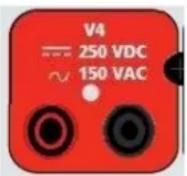
Figure 273 AC/DC AUX V4 Output Terminals
The SMRT46D includes an AC/DC Auxiliary Output that provides a variable DC output from 5 to 250 VDC rated at 100 Watts, 3.33 Amperes max. User may select from normal setting values of 24, 48, 125, or 250 VDC, or enter the desired output voltage in the window provided, see the RTMS software Configuration Screen. Source may also be used as a synchronizing or polarization voltage providing 0 – 150 Volts AC at 100 VA. The output is variable using the STVI Control Knob, or the PC up/down cursor arrows (see the STVI section of the manual).

CAUTION:
NOTE: DC voltage is ON and available when the output is turned on using the touch panel or via software command. Do not plug or insert any test lead into the V4 binding posts without first connecting the test leads to the load!
2.0 SETUP
2.1 Unpack System
Unpack the unit and check for evidence of any shipping damage. If there is any visual damage, immediately notify the freight carrier to make a damage claim, and notify Megger of the damage.

CAUTION:
Potentially lethal voltages may be present on the output terminals. It is highly recommended the operator read the user manual thoroughly and have an understanding of the test set operation prior to turning power on.
2.1.1 Initial Start Up
- If using the STVI PC version software, connect the PC/IN Ethernet Port on the SMRT unit to the PC Ethernet port.
- Before connecting power to the unit, make sure the POWER ON/OFF Switch is in the OFF position (0). Plug the unit line cord into an appropriate power source and turn the POWER ON/OFF Switch to ON (I). As the SMRT unit goes through its power up sequence, in about a minute the STVI power up screen will appear, then the manual start up screen will appear.
2.2 Communication Ports
There are several communication ports. These ports are: two USB, three Ethernet, and an optional Bluetooth wireless port.
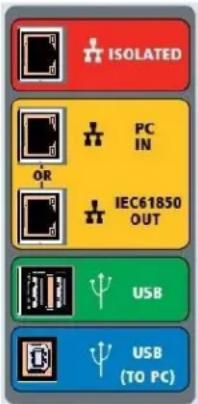
Figure 274 SMRT46D Communication Ports
2.2.1 USB 2.0 Interface
The USB Type A ports are intended for use with downloading new STVI software, SMRT firmware, or stored PowerDB test results. A USB keyboard or mouse can also be used with the STVI. USB TO PC Interface requires a Type B “downstream” connector, and is primarily used as a communication and control port when used with a PC and Megger AVTS or STVI PC version software for automated relay testing. It is recommended that you use the Ethernet port for high speed communication and control of the SMRT unit. To use the USB port will require the user to
configure the PC com port for USB operation. Clicking on the Instrument Setup icon on the PowerDB tool bar, the Instrument Configuration Screen (shown in the following figure)

provides the user with access to the PC Device Manager screen. Click on the Device Manager button and navigate to the USB Ports file directory. Since the SMRT46D defaults to a baud rate of 115,200, the user will need to configure their USB output com port to match. Returning to the Instrument Configuration screen the user will need to check off the Use Ethernet check box, and set the Baud rate, Byte Size and Stop Bits as shown.
2.2.2 PC/IN Ethernet Port
PC/IN Ethernet Port is the primary PC connection port for automated relay testing. This port supports MDI/MDI-X auto cross over configuration, which means both standard and "crossover" Ethernet cables may be used. Use this port for standard automated relay testing. This port provides the optimal method for downloading EMTP files, DFR streaming, and updating the unit's firmware as required. For multiple unit operation, the unit providing the OUT link is providing the master phase reference to all units "downstream". For multiple unit operation connect the OUT port to the downstream SMRT unit IN port. The STVI software will automatically configure when the units are powered up.
2.2.2.1 Setting SMRT IP Address for Operation with a PC
With the Ethernet cable supplied with the unit, connect the PC/IN Ethernet Port on the SMRT unit to the PC Ethernet port. Turn the test set on. As the SMRT unit goes through its power up sequence, in less than a minute the STVI power up screen will appear. If using the PC version of the STVI software it will auto-detect the SMRT unit connected to the PC. Once it auto-detects the unit, and determines the configuration of the SMRT unit connected, the Manual screen will appear. The unit might not auto detect due to firewall settings. In this case the firewall can be turned off or you can enter the IP address directly using the PowerDB instrument configuration
screen by clicking on the Instrument Setup icon on the PowerDB tool bar. From the Instrument Configuration Screen, shown in the following figure, click off the check mark in the Auto Discover Unit box.

Figure 275 PowerDB Instrument Setup Screen
Here the user can enter the IP address directly into the box highlighted in red. The IP address of the unit can be determined by counting the number of times the Binary Output led flashes at the end of boot up cycle (the address is 169.254. <#flashes>.0). If the unit flashed four times, the address would be 169.254.4.0. If the unit is on a network with a DHCP server, the user must use the Auto Discovery mode.
2.2.3 ISOLATED Ethernet Port
For IEC 61850 testing connect IEC61850 / OUT port to the substation bus or to the relay under test to receive and send GOOSE messages. Connect the ISOLATED port to the PC. When used with the Megger GOOSE Configurator in the AVTS software, the SMRT can provide high speed testing of IEC 61850 relays and substations by subscribing to GOOSE messages and mapping to the binary inputs. In addition, it can simulate system conditions such as circuit breaker operation by publishing GOOSE messages mapped to the SMRT binary outputs. With the PC running AVTS Megger GOOSE Configurator and connected to the ISOLATED port, the operator can "sniff" the substation network from the IEC 61850 /OUT port through the ISOLATED port with the SMRT serving as the firewall. With this design the operator cannot accidentally trip off the substation or inflect a PC virus into the substation LAN.
2.2.4 IEC61850 / OUT Ethernet Port
The IEC 61850 / OUT Ethernet Port is a 10/100BaseTX port, and is primarily used to interconnect multiple SMRT units together for synchronous multi-unit operation. It is also be used to provide access to the substation IEC 61850 network (when enabled). The SMRT46D with the IEC 61850 option enabled provides selectable priority, VLAN-ID, and meets the IEC 61850-5 standard Type 1A, Class P 2/3, for high speed trip and reclose simulations. For multiple unit operation, the unit providing the OUT link is providing the master phase reference to all units "downstream". With the PC connected to the PC Port, the SMRT and the PC share the same Ethernet network connection, and thus will not have a secure isolation from each other. When testing IEC 61850 devices connect the PC to the ISOLATED Ethernet port to isolate the PC from the IEC 61850 substation bus.
2.2.4.1 Setting SMRT IP Address for Networks or IEC 61850 Operations
The SMRT46D may be controlled over a network. This provides remote control of the SMRT46D virtually over any distance allowing one PC to control at least two units simultaneously, such as in end to end testing. Connecting the SMRT46D to a Local Area Network or a Wide Area Network could permit unauthorized operation of the unit.
Through the PC IN Ethernet port, the SMRT46D integrates into a network just like a PC or server. To use this feature requires the user to setup the IP configuration of the SMRT46D for their LAN. Note that the SMRT46D when turned on will automatically search for and acquire a network address if connected to a network. If it fails to automatically acquire an address check to make sure you are properly connected using a standard Ethernet cable. Do not use a "cross-over" Ethernet cable (a cross over cable is designed for use from your PC to the test set, not to a network). If the unit still fails to acquire an address then there may be other issues. This will probably require assistance from your company's information management department.
3.0 Current Sources
3.1 Parallel Operation
Each SMRT current amplifier is capable of providing 30 Amperes continuous, and up to 60 amperes for 1.5 seconds for testing instantaneous trip elements. When more than 30 amps single phase is required for long durations, or 60 Amps for testing instantaneous elements, two or three current channels may be connected in parallel to provide 60 or 90 Amperes continuous, and up to 120 or 180 amperes for short durations.
Note: If an F or a C appears in the 5^th digit of the style identification number (i.e. 30P1F0A0S1) the current returns are floating (isolated from each other and ground). Those units with a style number G or E, the current returns are common together internally and connected to earth ground.
To parallel the current channels of the unit, perform the following: If using the sleeved multi-lead current test leads (part number 2001-396), all of the black return leads are interconnected together inside the sleeve so they will all share the return current together. Connect each current channel to the relay under test (both red and black terminals to the load). Each Megger test lead is rated for 32 Amperes continuous. If using test leads other than those supplied by Megger insure that the wire has sufficient size to carry the test current.
For the earth grounded common return (G or C) units, there is an internal common ground between the current channel return terminals. If using separate individual test leads, all of the return leads will need to be common together at the load as shown in the following figure. By not connecting a return lead to all of the current channels in use, part or all of the return current will be forced through the internal ground. That means with a 3 channel unit up to 180 Amperes could be forced through the internal common ground, and may cause damage to the internal common returns. Therefore, it is important that the parallel connections must be made at the relay. See the following figure.
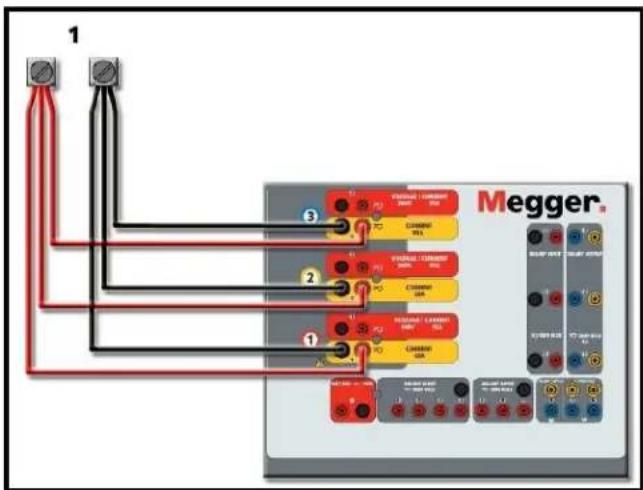
flowchart
graph TD
    A["Component 1"] --> B["Terminal Block 1"]
    C["Component 2"] --> D["Terminal Block 2"]
    E["Component 3"] --> F["Terminal Block 3"]
    G["Terminal Block 4"] --> H["Terminal Block 4"]
    I["Terminal Block 5"] --> J["Terminal Block 5"]
    K["Terminal Block 6"] --> L["Terminal Block 6"]
    M["Terminal Block 7"] --> N["Terminal Block 7"]
    O["Terminal Block 8"] --> P["Terminal Block 8"]
    Q["Terminal Block 9"] --> R["Terminal Block 9"]
    S["Terminal Block 10"] --> T["Terminal Block 10"]
    U["Terminal Block 11"] --> V["Terminal Block 11"]
    W["Terminal Block 12"] --> X["Terminal Block 12"]
    Y["Terminal Block 13"] --> Z["Terminal Block 13"]
    AA["Terminal Block 14"] --> AB["Terminal Block 14"]
    AC["Terminal Block 15"] --> AD["Terminal Block 15"]
Figure 276 Parallel of All Three Current Outputs
3.1.1 Manual Test Screen - Single Phase Up To 180 Ampere
For ease of use and operator convenience, go to the Configuration screen and select the Operating Mode of 3 Voltages - 1 Current @ 180 amps. When you return to the manual test screen there will be one current channel displayed, as shown in the following figure.
| CURRENT | VOLTAGE | ||||||||
| V (V) | φ (°) | f (Hz) | |||||||
| II | 0.000 | 0.00 | 60.000 | V1 | 67.50 | 0.00 | 60.000 | ||
| V2 | 67.50 | 120.00 | 60.000 | ||||||
| V3 | 67.50 | 240.00 | 60.000 | ||||||
| V4 | 69.00 | 0.00 | 60.000 | ||||||
Figure 277 Manual Test Screen – Single Phase Operation
The STVI will automatically set all three currents in phase with each other and divide the current equally between the three current amplifiers. When setting an output, simply enter the value of the desired output current. For example, for an output of 75 Amperes, enter 75, while each current amplifier will be providing 25 Amperes. The current can also be phase shifted. Simply enter the desired phase angle and all three currents will be phase shifted together.
If two current channels that are to be used in parallel, leave the unit in the default three phase configuration. Connect the two current outputs to the load as shown in the following figure.

Figure 278 Two Currents in Parallel
Set each channel to one-half of the output requirement. Be sure and reset current channel #2 to 0 degrees so that it will be in-phase with current channel #1. With both current channels selected, turn output on by pressing or clicking on the ALL ON/OFF button. Always use the ALL ON/OFF button to turn both current channels on and off together. For manually ramping outputs, if using the PC version of the RTMS software the ↑↓ buttons will be displayed. If using the touch screen the Control Knob icon will be displayed. Pressing either of these two will present the user with a window to select the desired level of increment for manually ramping the outputs, the desired channel(s) to be ramped, and what is to be adjusted (amplitude, phase angle or frequency).
3.2 Currents in Series Operation
Two current channels may be connected in series in order to double the available compliance voltage. High impedance electromechanical ground (earth) overcurrent relays have always been difficult to test at high multiples of tap due to the winding impedance and saturation characteristics. The peak voltage required can exceed the maximum output voltage of one SMRT46D current output channel, depending on the required test current. By connecting two current outputs in series, the compliance voltage is doubled, providing higher test currents through the load. There are two methods to series currents together. For the floating output (F or C) models connect the two current amplifiers in a "push-push" configuration as shown in the following figure.
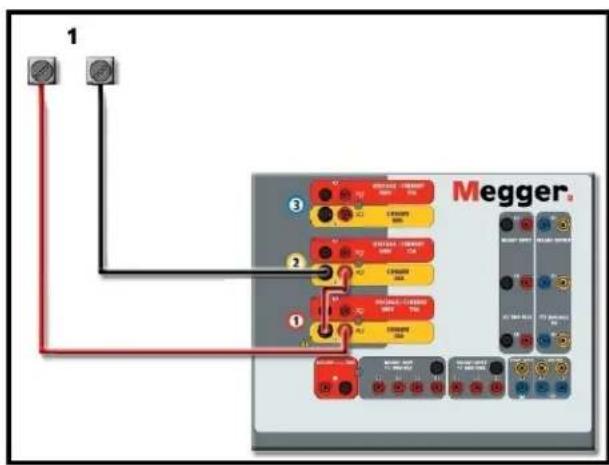
Figure 279 Series Two Currents with Floating Output Unit
The two current channels that are to be used in series set each to the same test current magnitude, and phase angle. Select both current channels and turn output on by pressing or clicking on the ALL ON/OFF button. Always use the ALL ON/OFF button to turn both current channels on and off together. For manually ramping outputs, if using the PC version of the RTMS
software the ↑↓ buttons will be displayed. If using the touch screen the Control Knob icon will be displayed. Pressing either of these two will present the user with a window to select the desired level of increment for manually ramping the outputs, the desired channel(s) to be ramped, and what is to be adjusted (amplitude, phase angle or frequency).
To series the current channels of the common grounded returns (G or E) unit, perform the following:
Using the current channel test leads, connect the Red output terminals of the two current channels to the relay under test. Even though the two returns associated with the current channels are connected internally with the common returns, place a jumper as shown. This will insure that the internal common leads will not be damaged.
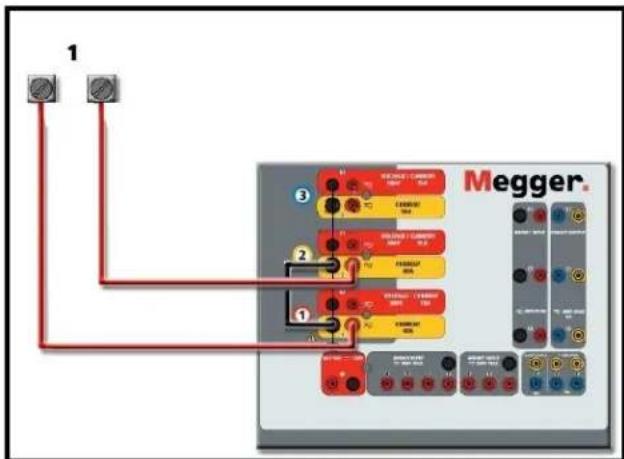
Figure 280 Series of Two Current Channels with Grounded Common Returns
NOTE: One current channel should be set to 0 degrees and the other current channel should be set to a phase angle of 180 degrees so that the two compliance voltages add across the load. DO NOT attempt to series more than two currents together on a grounded common returns unit.
The two current channels that are to be used in series set each to the same test current magnitude. Initiate the two current channels simultaneously by pressing the ALL ON/OFF button. Always use the ALL ON/OFF button to turn both current channels on and off together. For manually ramping outputs, if using the PC version of the RTMS software the ↑↓ buttons will be
displayed. If using the touch screen the Control Knob icon will be displayed. Pressing either of these two will present the user with a window to select the desired level of increment for manually ramping the outputs, the desired channel(s) to be ramped, and what is to be adjusted (amplitude, phase angle or frequency).
4.0 Voltage Sources
4.1 Outputs Summed Together
Two voltage channels may be used to sum the voltage outputs to obtain higher than rated voltage provided the load is ungrounded. Connect the load between the voltage channel posts, set V_1 Phase to 0^ and set V_2 Phase to 180^ . The voltage outputs will add so the total voltage is the sum of the two voltage amplitudes, V_1 and V_2 as can be seen in the following figures.

Note: If an F or C appears in the 5 ^th digit of the style identification number (i.e. 30P1F0A0S1) the voltage returns are floating (isolated from each other and ground). Those units with a style number G or E the voltage returns are common together internally and connected to earth ground.
For the floating common units the user must connect the associated voltage channels black common returns together, when series operation is required (see the following figures). Remove external commons when testing is completed. DO NOT attempt to series more than two voltage channels together.

Figure 281 Series of Voltage Channels for Floating Ungrounded Common Returns
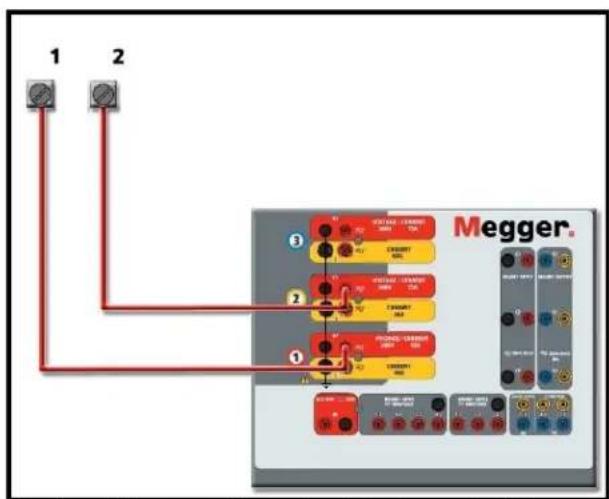
Figure 282 Series of Voltage Channels with Grounded Common Returns
4.2 3∅, 3-Wire, Open-Delta and T-Connection
See section 3.4.2 in the RTMS software for detailed descriptions and use of the Open-Delta and T-Connection.
4.2.1 Balanced Open Delta
The Open-Delta configuration is the easy to use when a balanced three-phase source is required because the amplitude and phase relationship can be set directly. No calculations are necessary. When using the Open-Delta configuration, it is suggested to use voltage channel #1, designated V_1 , and voltage channel #2, designated V_2 , while the COMMON binding post is designated V_g . With this arrangement, the magnitude and phase angle of the potentials can be easily calculated and set. For the balanced three-phase condition V_1g and V_2g are equal in magnitude and separated by an angle of 60°. This is done by setting the V_1 and V_2 potentials equal in magnitude, setting 0° on V_1 and 300° (60 degrees leading assuming that the default phase rotation is set to 360 Lag) on V_2 , see the following figure.

Figure 283 Three Phase Open Delta Connections
4.2.2 T Connection
The second method of obtaining a three-phase, three-wire voltage source is the so-called T-Connection. The method, shown in the following figure, is easier to use when obtaining an unbalanced, phase - to -phase fault simulation since it eliminates calculations. To reduce confusion when using the T-Connection, the voltage output #1 is designated V_a and its phase angle set at 0°, voltage output #2 is designated V_b and its phase angle set for 180°, and voltage output #3 is designated V_c and its phase angle is set for 270. Any combination of balanced three phase faults or unbalanced phase-to-phase fault conditions can be easily simulated. The following figure indicates these phase relationships.
NOTE: This method should not be used for very low fault voltages, or used on solid state relays that may be sensitive to this type of connection (i.e. 5 volts or less, or for testing ABB or Westinghouse type SKD relays).
4.3 3∅, 4-Wire, Y-Connection
A three-phase, four-wire potential system can be provided using three output modules. The vector relationships are referenced below. This Y-Connection has the advantage of being able to supply a higher line-to-line voltage (1.73 x phase-to-neutral voltage). It is ideally suited for simulating phase-to-ground faults. Voltage channel #1 is designated as V_a with its phase relationship set for 0°. Voltage channel #2 is then designated as V_b and phase angle set for 120°. Finally, voltage channel #3 is designated V_c and phase angle set for 240° (for a 1-2-3 counter clockwise rotation). V_a , V_b and V_c are connected to the voltage potential binding posts on the respective test sets.
Note: If an F or C appears in the 5 ^th digit of the style identification number (i.e. 30P1F0A0S1) the voltage returns are floating (isolated from each other and ground). Those units with a style number G or E the voltage returns are common together internally and connected to earth ground.
If using the sleeved multi-lead voltage test leads (part number 2001-395), all of the black return leads are interconnected together inside the sleeve so they will all share the return together. Therefore, only one return lead is provided on the relay connection side of the sleeved leads (similar to the connections in the following figure).

Figure 284 Three Phase Four Wire Test Connections
For the earth grounded common return (G or E) units, there is an internal common ground between the voltage and current channel return terminals. Therefore, only one return lead is required for the voltage channels. If using separate individual test leads, for the floating common units the user must connect the associated voltage channels black common returns together as shown above.
5.0 Warranty Statement
Megger warrants the product is free of defects in material and workmanship for a period of one (1) year from date of shipment. This warranty is non-transferable. This warranty is limited and shall not apply to equipment that has damage, or cause of defect, due to accident, negligence, and improper operation, faulty installation by the purchaser, or improper service or repair by any person, company or corporation not authorized by Megger. Megger will, at its' option, either repair or replace those parts and/or materials it deems to be defective.
The warranty is in lieu of all other warranties, either expressed or implied on the part of Megger and in no event shall Megger be liable for the consequential damages due to the breach thereof.
5.1 Preventive Maintenance
The unit utilizes surface mount technology (SMT) and other components which require little or no service except for routine cleaning, etc. The unit should be serviced in a clean atmosphere away from energized electrical circuits.
5.1.1 Examine the unit every six months for:
| Dust and Dirt | To clean the unit, disconnect the power cord from the unit. Never use spray liquids or industrial cleaners. Some cleaning solvents can damage electrical components, and should never be used. Water and a mild soap may be used. Use a lightly damp cloth (not dripping wet) to wipe off the unit. A dirty heat sink can cause thermal overloads. Remove dust with dry, low pressure, compressed air. Either remove the module from the chassis or simply apply air forcing the dust away from the heat sink through the sides of the unit. |
| Moisture | Remove moisture as much as possible by putting the test set in a warm, dry environment. |
5.1.2 Updating SMRT46D Firmware
Download Firmware Upgrade via Megger Website
To download the newest firmware from the Megger website,
- Go to WWW.Megger.com
- Log In.
- Go to Software Downloads
- Click on SMRT
- You will see instructions to enter the serial number of the SMRT unit, and then click on Continue. The serial number is 12 digits long. Make sure you enter all 12 digits. Then click on Firmware Version #.##. The firmware will be downloaded onto your PC as a zip file. Unzip the file, Select All files, and Copy to a USB memory stick.
USB Memory Stick: With the unit powered up, insert the USB memory stick into the USB port on the front panel of the SMRT46D. Press the Configuration Screen button, and then press the Update Firmware button in the Configuration Screen. At that point the user will be presented with the IP Address selection screen, with the serial number of the unit. Select the unit by touching the serial number and the upgrade process will automatically start. That's all there is to it. Observe the STVI display screen, and the unit. At the completion of the download, the user will note the
fans spin-up, and the LED's will be flashing rapidly on the SMRT unit. There will be an instruction to reboot (turn off and back on) the test system.
PC and STVI Software: If using the PC version of the STVI software, it is very similar to the USB Stick method. Upon clicking on the Update Firmware button, the familiar Windows Open File browser dialog box will appear. Using the Look In pull-down menu, navigate to where the new firmware was downloaded onto the PC, click on and open the file folder SMRT_LDR (SMRT Loader). There you will find the new firmware file. Click on the file, and click on Open. You will be requested to select a unit from the IP Address screen. Select the unit by clicking on the serial number and the upgrade process will automatically start. At the completion of the download, the user will note the fans spin-up, and the LED's will be flashing rapidly on the SMRT unit. There will be an instruction to reboot (turn off and back on) the test system. Note that after rebooting the SMRT unit, if using the PC version of the STVI software you will have to restart the STVI software on your PC in order to regain control of the SMRT unit.
5.2 Service and Repair Instructions
To save turn-around time and reduce costs, SMRT46D was designed as a modular unit. In most cases, if any one module should experience a problem it should not cause the test system to be down. Basic troubleshooting information has been provided to guide the technician to the possible source of a problem.
Since SMRT46D uses Surface Mount Technology, most repairs of the individual modules are beyond the scope of the basic troubleshooting guide, and should be referred to the Service Department at Megger or handled through the Megger Representative.
If the unit is still within the original warranty period, or limited warranty period following factory servicing, the factory must be contacted before attempting any repairs or the warranty will be void.
5.2.1 Basic Troubleshooting
The troubleshooting information relies on the technician to have a good understanding of the operation of the unit. If the technician is unfamiliar with the unit, he or she should not attempt to repair. The technician should contact the factory before attempting repairs. Provide the Megger part number for the part or assembly in question and the serial number of the SMRT46D when making inquiries.
WARNING It is necessary to energize the SMRT46D to properly troubleshoot some of the modules. The technician must take all applicable safety precautions for working near energized circuits.
NOTES
Before suspecting a failure in the SMRT46D, review the General Description and Operation sections to ensure that the problem is not a result of operating error.
Preliminary testing of the SMRT46D within its specified limits can help determine if a malfunction actually exists, identify the type of malfunction and define the general area of the failure.
Common causes of malfunctions, other than improper operation, are incorrect power input (voltage above or below specified limits), incorrect test signal voltages applied to the Binary Input gates (outside of the specified AC/DC Applied/Removed limits), and contact or circuit resistance too great for the Dry Contact gates to operate properly on the Monitor/Start/Stop gates. Typical malfunctions for the VI-Gen amplifiers are external short circuits on the voltage output and open circuits on the current output. The AC/DC AUX
(V4) and VI-Gen voltage and current outputs can be easily checked using a voltmeter and ammeter.
NOTE: There are three different modules that make up a SMRT46D; the System Board (front panel), VIGEN'S (VIGEN#1, and #2) and VIGEN LITE (VIGEN #3). Most problems can be easily resolved by replacement of one of these modules, see section 5.2.1.2.1 Replacing a VIGEN for instructions on how to replace a VIGEN module. Proper ESD procedures should be followed when handling any SMRT46D module. Failure to do so, may damage sensitive parts.
5.2.1.1 Power Input
Input voltage affects the whole unit and may or may not cause permanent damage if voltage is incorrect. These problems can often be corrected by simply using a better source of input power.
Some symptoms are as follows:
- Low voltage: Erratic operation, no output, input power circuit breaker operation.
- High voltage: Circuit breaker operation, power supply failure in Input Power Module.
5.2.1.2 VIGEN Input Power, Communication and Control
Basic troubleshooting of the input power is as follows.
- No power: Check the ON/OFF circuit breaker. Does the ON/OFF switch light up? If it does not light up, then power is not getting to the unit. Check power source and line cord. If it lights up then the power is getting to the unit. Check the VIGEN power cable connection.

CAUTION: Turn off main power and unplug line cord before attempting to work on any module. Observe proper Electro Static Discharge procedures.
F. Disconnect the power cord from the unit.
G. Remove the four screws on each side that hold on the top cover as shown in the following figure.

Figure 285 Top Cover Removal, Side Screws
H. Remove the four screws located on the top back side, then the four screws located on the top cover, see the following figure.
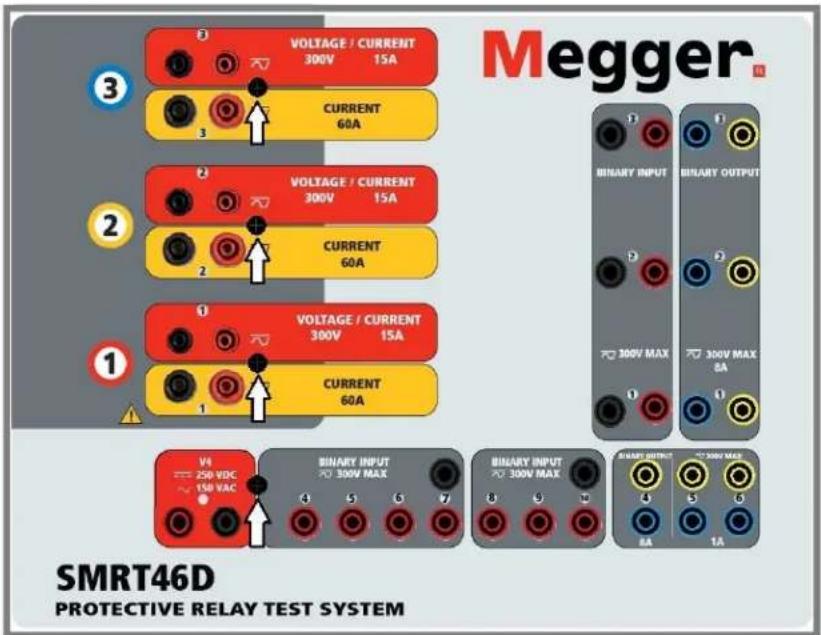
Figure 286 SMRT46D Top Cover Securing Screws
I. Remove the two screws (one on each side) that connect the top cover to the front panel, see the following figure.
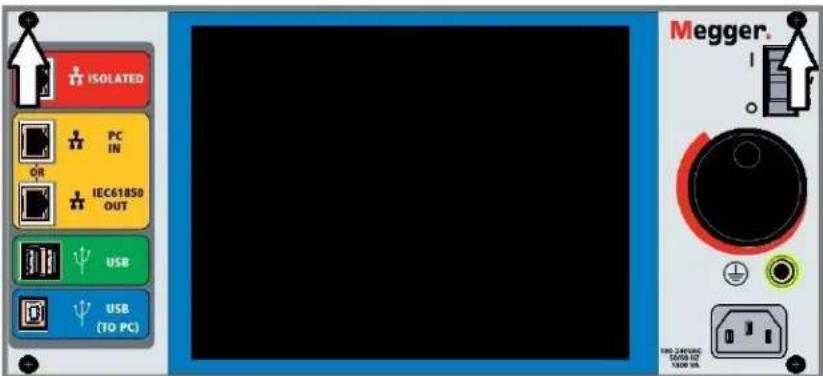
Figure 287 Top Panel Removal Front Panel Screws
J. Remove the top cover.
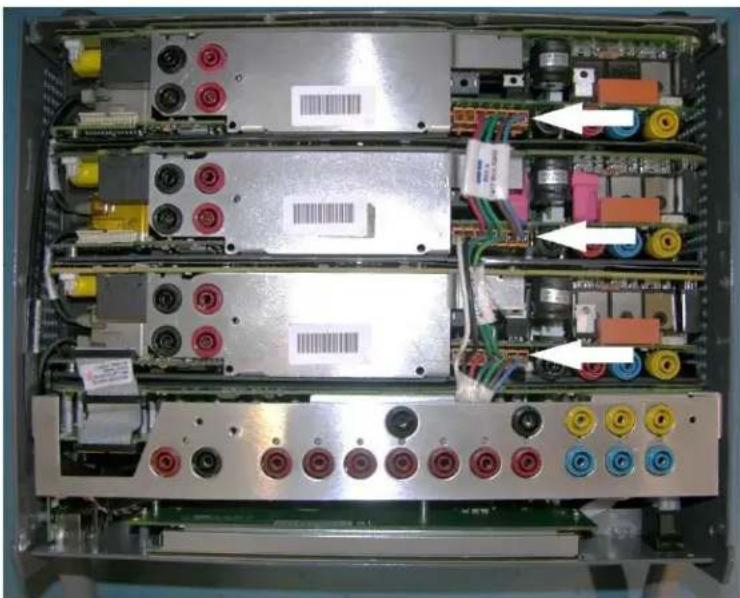
natural_image
Interior view of an electronic device showing multiple ports, connectors, and wiring (no visible text or symbols)Figure 288 VIGEN Power Connectors
Check the cables as shown. If the cables are properly connected, then remove and replace the VIGEN per 1.5.2.1.2.1.
- Erratic Manual Control
Individual Output Module communication cable is not properly connected thus cannot receive proper commands. Look through the air intake holes on the left side of the unit to observe the VI-Gen LED's. Each module has some green LED's that blink. These are associated with the Ethernet communications. If there are no blinking LED's on one or more modules, then the module is not communicating. Remove the top cover using the procedure described above.
CAUTION: Turn off main power and unplug line cord before attempting to reseat any cables. Observe proper ESD procedure.
Locate the communication Ethernet cables on the left side, see the following figure.
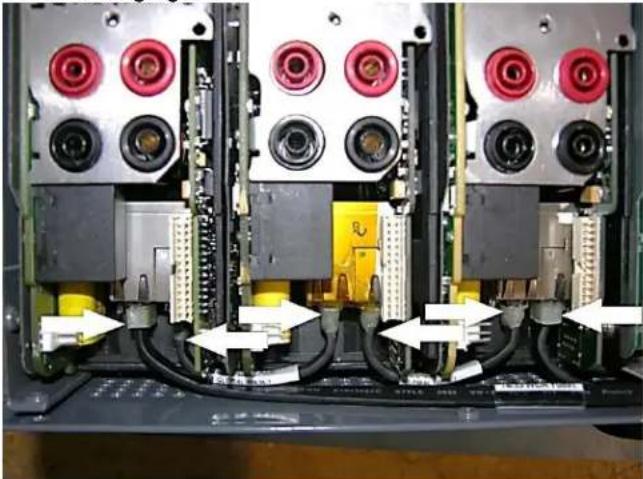
natural_image
Interior view of an electronic device showing multiple ports with red and black connectors, connected by black cables and wiring (no visible text or symbols)Figure 289 Communication Cable Connections
Carefully disconnect each cable and reconnect to insure the cable locks into position.
After reseating the cables, reinstalling the top cover assembly, reconnect the power cord and power up the unit. Look through the air intake holes on the left side of the unit to observe the VI-Gen LED's. If there is still no blinking LED's on one or more modules, and then replace the Ethernet cables. If after replacing the Ethernet cables they are still not communicating then replace the VI-Gen Module(s) that are not communicating.
5.2.1.2.1 Replacing a VIGEN
- To remove the VIGEN, there are three Phillip head screws that hold in the VIGEN, one on each side and one on the bottom of the unit.
- Remove the power connection cable as shown.
- Disconnect the communication cables as described above.
Note the small cable that connects the system board to VIGEN 1 needs to be carefully removed prior to removing VIGEN1, see the following figure.
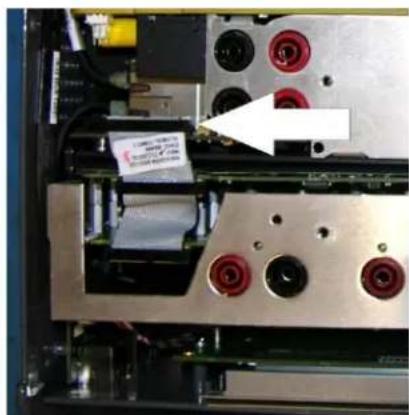
natural_image
Interior view of an electronic device showing internal components with red and black connectors, no visible text or symbolsFigure 290 VIGEN1 to Front Panel Cable
- Carefully remove the VIGEN module from the chassis.
- Install replacement VIGEN.

Be careful when replacing the module as it is a tight fit, and it is possible to change components upon extraction or installation.
- Replace the Phillip head screw(s) that hold in the VIGEN.
- Reconnect the power connection cable as shown above.
- Reconnect the communication cables as shown in Figure above.
- If VIGEN #1 was replaced, reconnect the system board cable as shown in Figure above.
- Reinstall the top cover. Reconnect the power cord and power up the unit.
5.3.1.3 Binary Inputs, and Binary Outputs
If all the items external of the Timer assembly are in proper order, then the problem exists within the Binary Input / Output assembly itself.
Some basic troubleshooting can pinpoint problems to the approximate cause.
Binary Inputs - Basic troubleshooting is as follows:
Timer does not stop:
Jumper the appropriate Binary Input terminals manually; if LED above the selected input lights, check the Binary Input setup screen to verify that the selected binary input is properly setup as a Timer stop post. Check Timer stop settings as N.O. (Normally Open) to close, and Latch On. If LED does not light up, the Binary Input will need to be repaired or replaced.
Counting errors:
AC applied or removed Stop signals can create, what appears to be poor repeatability, an inaccuracy or a malfunction in the Timer. The lower the voltage level, the more serious the "error" will be. What appears to be an error, however, is actually a variation in the point on the sine wave at which the voltage is great enough to cause the gate circuit to operate. If the circuit used for the timing test has a low AC voltage and the point at which the contact in the test circuit opens or closes, is at or close to zero on the sine wave, the period of time before the voltage level will be high enough to trigger the gate circuit can be as much as 4 milliseconds. The total timing variation can be as much as 8 milliseconds. The shorter the duration of the timing test, the more significant the variation
becomes. Therefore, if small timing variations would present a problem, it is recommended that an AC voltage of 115 volts or above or a DC voltage be used for voltage applied/removed test selections.
When the SMRT46D Timer calibration is being tested, the AC voltage variable is often overlooked. This is particularly true when the Timer is compared to a counter and the two are triggered simultaneously with an electronic switch. For best results, a DC voltage should be used to eliminate the variable. If testing the AC voltage Timer Stop characteristics is desired, then the Stop signal must be triggered at the same point on the sine wave to assure that the gate signal will be repeatable. Ideally, the signal should be at a point near peak in the positive direction. In addition, the specified rms AC voltage values for the various Stop control selections must be adhered to.
Another source of apparent "error" can be the programmable de-bounce feature. If using electro-mechanical contacts for stopping the Timer, and if those contacts have a tendency to bounce, there could be a difference between an external standard timer and the SMRT46D Timer, depending on the programmed de-bounce period set in the SMRT unit. To determine the programmed value, look at the Binary Input Setup Screen and see what the De-bounce setting value is.
If a timing error or variation persists after all the suspected causes of error have been eliminated, then it is possible that the Binary Input circuit is malfunctioning. Contact factory for return instructions.
Binary Outputs - Basic troubleshooting is as follows:
Binary Output LED is ON but output contacts not closed:
Using a continuity tester check to see if output circuit is open circuited. If circuit is open then it is possible that the internal surface mounted fuse element has been blown. Note: an optional in-line fused test lead Part Number: 568026 are available to provide protection from switching too high current, see SMRT Ordering Information under Optional Additional Accessories. The unit will need to be returned to the factory or authorized service center for further inspection and repair.
! Contact the factory for a Repair Authorization Number and return instructions if service is required. A Repair Authorization (RA) number will be assigned for proper handling of the unit when it arrives at the factory. Any non-warranty repair cost incurred for the repair or replacement of parts and/or materials shall be the responsibility of the purchaser.
Provide the factory with model number, Unit serial number, serial number of VI-Gen if appropriate, nature of the problem or service, return address, your name, and how to contact you should the factory need to discuss the service request.
You may need to provide a purchase order number, cost limit, billing, and return shipping instructions. If an estimate is requested, provide the name and contact information.
6.0 Preparation for Reshipment
Save the original shipping container for future use. The shipping container is designed to withstand the rigors of shipping via a common commercial carrier. For example, you may wish to reship your unit to Megger for an annual calibration recertification.
Pack the equipment appropriately to prevent damage during shipment. If a reusable container is utilized, the unit will be returned in the same shipping container if it is in suitable condition.
Add the Return Authorization Number to the address label of the shipping container for proper identification and quicker handling.
NOTE: Ship the equipment without nonessential items such as test leads, etc. These items are not needed by the factory to perform service.
Megger ^®
Addendum E

natural_image
Open black and white case containing a Megger industrial control unit with multiple buttons and ports (no visible text or symbols on main body)* SMRT410 shown with DIGEN and "P" Plus options
Model SMRT410
Megger Relay Tester
SAFETY PRECAUTIONS
WARNING: VOLTAGES GENERATED BY THIS INSTRUMENT CAN BE HAZARDOUS
This instrument has been designed for operator safety; however, no design can completely protect against incorrect use. Electrical circuits are dangerous and can be lethal when lack of caution and poor safety practices are used. There are several standard safety precautions that should be taken by the operator. Where applicable, IEC safety markings have been placed on the instrument to notify the operator to refer to the user manual for instructions on correct use or safety related topics. Refer to the following table of symbols and definitions.
| Symbol | Description |
 | Direct Current |
 | Alternating Current |
 | Both direct and alternating current |
 | Earth (ground) Terminal. There is a common chassis ground terminal located on the front panel (see Front panel under Description of Controls. |
 | Protective Conductor Terminal |
 | Frame or Chassis Terminal |
| On (Supply) | |
 | Off (Supply) |
| Caution, risk of electric shock | |
| Caution (refer to accompanying documents) |
WARNING: Under no circumstances should the operator or technician attempt to open or service this instrument while connected to a power source. Lethal voltages are present and may cause serious injury or death!
SAFETY PRECAUTIONS (Continued)
The following are some specific safety related items associated with the SMRT test system.
Read and understand all safety precautions and operation instructions before attempting to use this unit.
The purpose of this equipment is limited to use as described in this instruction manual. Should a situation arise that is not covered in the general or specific safety precaution please contact Megger regional representative or Megger, Dallas Texas.
Safety is the responsibility of the user. Misuse of this equipment can be extremely dangerous.
Always start with the power OFF, before connecting the power cord. Make sure outputs are off before attempting to make test connections.
Never connect the test set to energized equipment.
Always use properly insulated test leads. The optional test leads are rated for the continuous output ratings of the test system, and should be properly used and cared for. DO NOT use cracked or broken test leads.
Always turn the test system off before disconnecting the power cord.
DO NOT attempt to use the unit without a safety ground connected.
DO NOT attempt to use the unit if the power cord ground prong is broken or missing.
DO NOT use the test set in an explosive atmosphere.
The instrument must only be used by suitably trained and competent persons.
Observe all safety warnings marked on the equipment.
For safety related or other important topics, like the statement below, will be notated with the adjoined symbol. Read the topic carefully as it may relate either to the safe operation of the test system or the safety of the operator.

Under no circumstances should the operator put their hand or tools inside the test system chassis area with the test system connected to a power source. Lethal voltages are present and may cause serious injury or death!
1.0 Operation
The unit's design is a "modular" concept. All inputs and outputs are clearly marked and logically grouped so continual reference to the instruction manual should not be necessary once the operator is acquainted with the test system. The unit's Top Panel will appear different among units, since each unit may have up to three optional Voltage/Current Generator (VIGEN) Modules installed. The 'N' version consists of a system board with only the power and communication ports. The 'P' version adds 8 additional binary inputs, 4 additional binary outputs and a battery simulator.
1.1 General Description
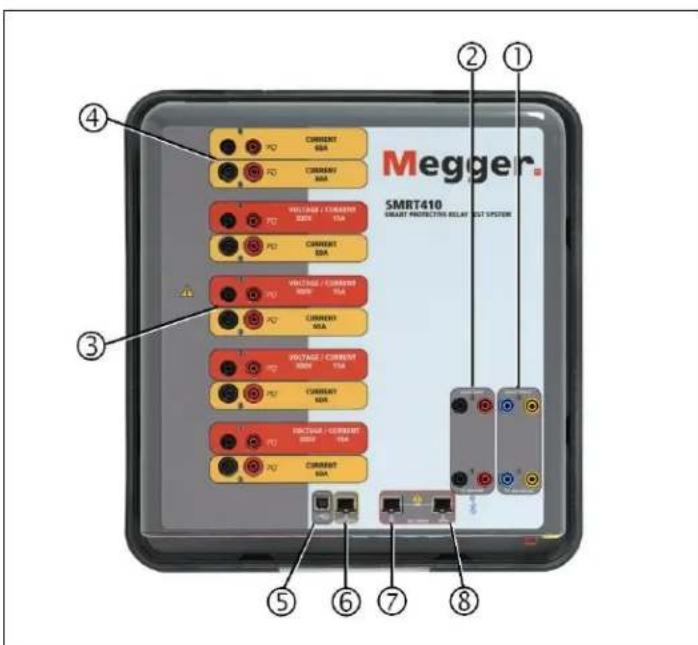
Figure 291 Top Panel SMRT410 (Pictured with Floating Returns and DIGEN Options)
1.1.1 Top Panel
-
Binary Outputs – the first two VIGEN modules include Binary Inputs and Binary Outputs. Therefore, with a minimum 2 channel unit there are 2 Binary Outputs located on the top panel (numbered 1 and 2). More Binary Outputs are available with the P option see Front Panel section for more information. Each Binary Output can be configured as Normally Open or Normally Closed contacts providing logic to the device under test. The Top Panel Binary Outputs can switch up to 300 VAC or 250 VDC with 8 Amp continuous. The programmable wait duration is from 1 millisecond to 10,000 milliseconds.
-
Binary Inputs – with a minimum 2 channel unit there are 2 Binary Inputs located on the top panel. For typical test applications binary inputs 1 and 2 have a fixed threshold of 5 volts. For GPS End-to-End synchronized relay testing Binary 1 may be connected with a remote trigger pulse from a GPS satellite receiver for external initiation, or the input of an IRIG-B signal (see use of Wait IRIG-B input using the STVI Sequencer test). More Binary Inputs are available with the P option see Front Panel section for more information. The Binary Inputs will accept a voltage range of 5 to 300 VAC, or 5 to 250 VDC, or dry Normally Open / Normally Closed contacts.
-
Voltage/Current Generator Module (or VIGEN) –There are four available slots for the VIGEN Modules. The slots are numbered 1 to 4 from bottom to top, with the topmost VIGEN numbered 4. The four voltages and currents are noted by the red and yellow surrounding each output channel. Phases A, B, C and D Voltage Channels (V1, V2, V3 and V4) are denoted by the red color. Phases A, B, C and D Current Channels (I1, I2, I3 and I4) are denoted by the yellow color. When the voltage generators are converted to current generators, they will change on the STVI display as V1 = I5, V2 = I6, V3 = I7, and V4 = I8. For more details on the VIGEN output capabilities see section 1.4.
-
Current/Current Generator Module (or DIGEN) – There is one available slot for the DIGEN Module. Note that a 4 channel unit will not have the DIGEN slot. SMRT410 with the DIGEN option, the VIGEN Modules are numbered 1 to 4 from bottom to top, with the topmost VIGEN numbered 4. The DIGEN current channels are numbered 5 and 6. When the voltage generators are converted to current generators, they will change on the STVI display as V1 = I7, V2 = I8, V3 = I9, and V4 = I10. For more details on the VIGEN output capabilities see section 1.4.
-
USB Interface – the USB 2.0 Interface requires a Type B “downstream” connector, and is primarily used as a communication and control port when used with a PC and Megger AVTS software for automated relay testing. A USB cable is not provided with the test set or in the optional accessories. For computer control, an Ethernet cable is provided. However, should the user desire to use the USB port any standard USB A/B cable will work with the unit. May be used when isolation is required for a secure substation access between the SMRT and the IEC 61850 substation network.
-
PC/OUT Ethernet Port is a 10/100BaseTX port, and is the primary PC connection port. This port supports MDI/MDI-X auto cross over configuration, which means both standard and "crossover" Ethernet cables may be used. This port provides the optimal method for downloading EMTP files, DFR streaming, and updating the unit's firmware as required. The SMRT comes standard with a crossover cable. This port may also be used for connecting to the IEC 61850 substation bus for use in testing IEC 61850 devices. For multiple unit operation, the unit providing the OUT link is providing the master phase reference to all units "downstream".
-
IN - 61850 Ethernet Port is a 10/100BaseTX port, and is primarily used to interconnect multiple SMRT units together for synchronous multi-unit operation. It may also be used to provide access to the substation IEC 61850 network. Note that the IN and STVI ports share a common physical port and cannot be used at the same time. With the PC connected to the PC Port, the SMRT and the PC share the same Ethernet network connection, and thus will not have a secure isolation from each other.
-
STVI Ethernet Port – this Ethernet port is a 10/100BaseTX PoE (Power over Ethernet) port, and is the STVI connection port. Used for manual operation, and display outputs when under computer control.
1.1.2 Front Panel:
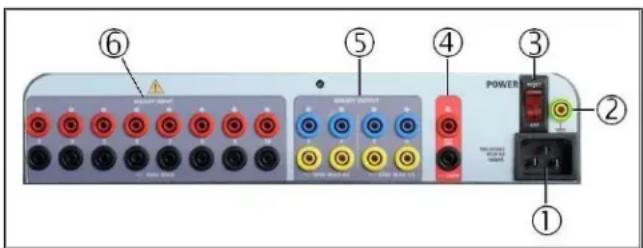
Figure 292 SMRT410 with P Option Front Panel

- Incoming Power / Line Cord ① – the input line cord, ground terminal, are mounted on the front panel of the test set for both the N and P option units.
Input Line Cord
The test set is equipped with a line cord, which connects to the male connector on the front panel. Verify the input voltage before connecting the line cord to the power source.

- Earth Ground Jack ② – use this terminal to connect chassis ground to earth ground.
A chassis ground (earth) point on the front panel is provided as an additional safety ground.


-
POWER ON/OFF Switch ③ – used to switch unit on and off. The switch illuminates when power is on.
-
Battery Simulator ④ – the SMRT410 with the P option provides a variable dc output voltage from 5 to 250 Volts, at 100 Watts (4 Amps Max) providing logic voltage for solid-state relays. When powered ON, the LED above the output terminals illuminates. The SMRT410 with the N option does not include a battery simulator.
-
Binary Outputs ⑤ – the P option provides 4 additional Binary Outputs, numbered 3, 4, 5 and 6. Each Binary Output can be configured as Normally Open or Normally Closed contacts providing logic to the device under test. Binary Outputs 3 and 4 have an AC Rating of 400 V max., Imax: 8 amps, 2000 VA max. breaking capacity, and a DC Rating of 300 V max., Imax: 8 amps, 80 Watts, with a Response Time: < 10ms. Binary Outputs 5 and 6 are high speed and have an AC / DC Voltage Rating of 400 V peak, Imax: 1 amp, with a Response Time: < 1ms typical. The programmable wait duration is from 1 millisecond to 10,000 milliseconds. An LED directly above the terminals indicates the status of the contact. ON indicates closed, and OFF indicates open. The SMRT410 with the N option does not include the additional Binary Outputs 3 through 6.
-
Binary Inputs ⑥ – the P option provides 8 additional (numbered 3 through 10), independent, galvanically isolated, Start/Stop or Monitor circuits to monitor operation of relay contacts or trip SCR. A continuity light is provided for each input gate. Upon sensing continuity, or voltage applied, the lamp will glow. In addition to serving as wet/dry contacts the Binary Inputs may be programmed to trigger binary output sequence(s). Binary Inputs can also be programmed using Boolean logic for more complex power system simulations. The Binary Inputs will accept a voltage range of 5 to 300 VAC or 5 to 250 VDC, or dry Normally Open / Normally Closed contacts. The SMRT410 with the N option does not include the additional Binary Inputs 3 through 10.
1.2 Input Power
The input voltage rating may be from 100 to 240 VAC, ± 10%, 50/60 Hertz. Input current required varies with the number of output modules in use, load, and input voltage value. With three VIGENS, the maximum input power is 1800VA. The input is protected by a power ON/OFF switch / circuit breaker.
1.2.1. Input Power Cord
Depending on the country, the power cord can come with a NEMA 5-15 male connector, a CEE 7/7 Schuko two prong connector, with International Color Coded pig-tail wires (light blue, brown and green with yellow stripe) with the insulation jacket stripped ready for installation of the appropriate male connector, or with UK power cord.
Model SMRT410 XXXXXXAXXX comes with a North American power cord (part number 620000).
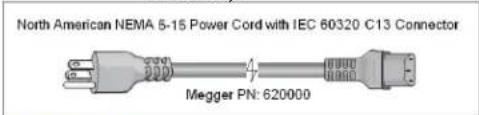
Model SMRT410 XXXXXXEXXX comes with a Continental Europe power cord (part number 50425).
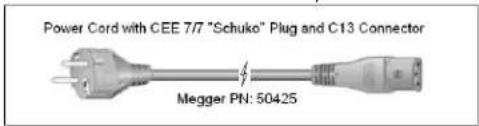
Model SMRT410 XXXXXXIXXX comes with an International Color Code power cord. The cord, part number 15065, is ready for wiring to the appropriate plug (depending on country). The following colors apply, Brown = Line, Blue = Neutral and Green/Yellow = Ground.
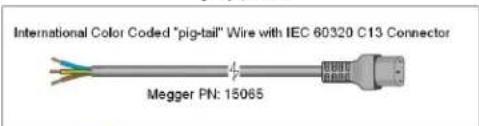
Model SMRT410 XXXXXXUXXX comes with a UK power cord (part number 90002-989).

1.3 Voltage - Current Generator (VIGEN) and Double-Current (DIGEN) Modules
Voltages and Currents are noted by the red and yellow surrounding each output channel. Phases 1, 2, 3 and 4 voltage channels are denoted by the red color. Phases 1, 2, 3 and 4 current channels are denoted by the yellow color. The optional Double Current module includes two current channels phases 5 and 6, and are also surrounded by yellow. All outputs are independent from sudden changes in mains voltage and frequency, and are regulated so changes in load impedance do not affect the output. All amplifier outputs are isolated or floating. The SMRT units can be ordered with the amplifier common returns tied to chassis ground as an option.
1.3.1. Convertible Voltage/Current Amplifier

The SMRT PowerV™ voltage amplifier provides a flat power curve from 30 to 150 Volts in the 150V range to permit testing of high current applications such as panel testing. The following outputs are provided.
Voltage Range Power / Current (Max)
30.00V 150VA @ 5.0A
150.00V 150VA Constant Output Power from 30 to 150 Volts
300.00V 150VA @ 0.5A
Voltage Amplifier in Current Mode:
The voltage amplifier is convertible to a current source with the following output capability. Output power ratings are specified in rms values and peak power ratings.
Output Current Power Max V Duty Cycle
5 Amperes 150 VA (212 peak) 30.0 Vrms Continuous
15 Amperes 120 VA 8.0 Vrms 1.5 sec.
With a 4 channel SMRT unit, convertible channels in conjunction with the four main current channels, provides 8 currents. When the voltage generators are converted to current generators, they will change on the STVI display as current phases 5, 6, 7, and 8. If the optional Double-Current (DIGEN) module is installed, the convertible channels will be labeled current phases 7, 8, 9, and 10.
The voltage amplifier output is protected from short circuits and thermally protected against prolonged overloads. In case of a short circuit or a thermal overload, the amplifier will automatically turn off, and if the STVI is connected a message to the user will be displayed indicating which condition exists. If AVTS software is used, a similar message will appear.
1.3.2. Current Amplifier

The SMRT current amplifier delivers maximum compliance voltage to the load constantly during the test, and range changing is done automatically, on-the-fly, under load. This insures better test results, saves time by not having to turn the outputs off to change output taps or ranges, and unlike single range current amplifiers insures a higher compliance voltage at lower test currents. Constant power output in many cases eliminates the need to parallel or series current channels together to test high burden relays. The following are typical output current and associated available compliance voltage values. The per channel output current and power ratings are specified in AC rms values and peak power ratings. Specified duty cycles are based upon typical room ambient.
Output Current Power Max V / Duty Cycle
1 Ampere 15 VA 15.0 Vrms Continuous
4 Amperes 200 VA (282 peak) 50.0 Vrms Continuous
15 Amperes 200 VA (282 peak) 13.4 Vrms Continuous
30 Amperes 200 VA (282 peak) 6.67 Vrms Continuous
60 Amperes 300 VA (424 peak) 5.00 Vrms 1.5 sec.
DC 200 Watts
The current amplifier output is protected from open circuits and thermally protected against prolonged overloads. In case of an open circuit or a thermal overload, the amplifier will automatically turn off, and if the STVI is connected a message to the user will be displayed indicating which condition exists. If AVTS software is used, a similar message will appear.
1.4 Binary Inputs and Outputs

Figure 293 Binary Inputs and Outputs 1 and 2
Binary Inputs and Outputs are clearly marked and logically grouped. The unit's Top Panel will appear different among units, which means Binary Input / Output 1 will always be occupied while Binary Input / Output 2 may, nor may not, depending on the configuration. The 'N' version consists of a system board with only the power and communication ports. The 'P' version adds 8 additional binary inputs, 4 additional binary outputs and a battery simulator. The Binary Inputs are used to monitor relay trip contacts for performing pickup and dropout tests as well as for performing timing functions. The Binary Outputs are used to simulate normally open / normally closed contacts for testing breaker failure schemes, or similar power system operations. In addition they may also be used to switches AC/DC voltages and currents.

Figure 294 "P" Option Binary Inputs 3 to 10 and Binary Outputs 3 to 6
1.4.1 Binary Inputs
The binary inputs are specifically designed to measure high speed operation of electro-mechanical, solid-state and microprocessor-based protection relays. All binary Inputs default to Monitor Mode, Contact change of state, latched OFF.
If using the STVI or STVI software to change a binary input from Contact change of state to Voltage Applied / Removed click on or touch the Input Type window and a sine wave will appear where the Contact icon was indicating. The input is now set for voltage sensing.
To change the binary input from Monitor mode to Timer Mode, click on or touch the Use as Monitor button and the display window will change to show Use as Trip, Latched, meaning the binary input is now set to stop the timer upon sensing the first contact closure (if the Input Type is set for contact) or upon sensing voltage if the Input Type is set to Voltage Sensing.
1.4.1.1 Start, Stop, and Monitor Gates
In the SMRT410 there are up to ten identical, independent, programmable gate circuits that permit simple selection of the desired mode for timing or contact monitoring operation.
To monitor operation of the contacts or trip SCR in the device under test, a light is provided for each gate. The gate circuit is isolated for voltage-sensing and can monitor solid-state logic signals. Each light will illuminate once contacts close or voltage is applied to the gate.
Timer stops or a continuity indicator goes out at the opening of normally closed contacts, or when conduction through a semiconductor device, such as a triac or a transistor, is interrupted.
1.4.1.1.2 Dry Contacts Close
Timer stops or a continuity indicator glows at the closing of the normally open contacts, or upon conduction through a semiconductor device such as a triac or a transistor.
1.4.1.1.3 Application or Removal of AC or DC voltage
This will either start the Timer or stop the Timer. The continuity indicator will glow (application) or darkens (removal) upon the application or removal of either an AC or DC voltage. To serve a wide range of test applications the binary inputs have different voltage thresholds. For typical test applications binary inputs 1 and 2 have a fixed threshold of 5 volts. On the "P" model there are an additional 8 binary inputs. To monitor TTL signals binary inputs 3 through 6 have a fixed threshold of 3 volts. Binary inputs 7 and 8 have fixed thresholds of 5 volts, and binary inputs 9 and 10 have fixed threshold of 30 volts (for "noisy" test environments). A higher threshold voltage helps to eliminate false triggers due to a noisy source. Lower thresholds allow starting and stopping of timer from TTL voltage signals. The allowable voltage applied is 5 to 300 Volts AC or 5 to 300 Volts DC, current limiting resistors provide protection.
1.4.1.1.4 The Timer can be started when turning on any selected generators.
1.4.1.1.5 The Timer can be started simultaneously with a change in Frequency, Phase Angle, or Amplitude. Also, it can be started simultaneously with a Voltage or Current waveform step.
1.4.2 Binary Outputs
Binary Outputs 1 and 2 are located on the top panel, rated for 300 V at 8 Amps. The SMRT410 "P" system board option provides four additional Binary Outputs numbered 3, 4, 5 and 6. Each Binary Output can be configured as normally open or normally closed contacts providing logic to the device under test. Binary Outputs 3 and 4 have a rating of 300 V AC/DC, 8 amperes and a maximum of 2000 VA breaking capacity (80 watts DC), with a response time of less than 10ms. Binary Outputs 5 and 6 are high speed and have an AC/DC voltage rating of 400 volts peak, 1 ampere and a response time typically less than 1ms.
The contacts may be programmed to open or close, thus simulating circuit breaker operation. The programmable wait duration is from 1 millisecond to 10,000 milliseconds. A fused test lead (fused at 500 mA) is available as an optional accessory to help protect from blowing the internal fuse of binary outputs 5 & 6. The test lead is blue in color so that the user knows it applies to the blue binary outputs. The barrel holder of the test lead is CE marked with a 1000 V, CAT III rating, and marked FUSED 500 mA / 1000 V/ 50 KA.
1.5 Battery Simulator

The SMRT410 "P" model includes the battery simulator, and provides a variable DC output from 10 to 250 VDC rated at 100 Watts, 4 Amperes max. User may select from normal setting values of 24, 48, 125, or 250 VDC, or enter the desired output voltage in the window provided, see the STVI Configuration Screen. The primary application is to provide DC logic voltage to solid-state and microprocessor relays.
Figure 295 Battery Simulator (BAT SIM)

CAUTION:
NOTE: DC voltage is ON and available when the output is turned on using the LCD touch panel or via software command. Do not plug or insert any test lead into the BATTERY SIMULATOR binding posts without first connecting the test leads to the load!
2.0 SETUP
2.1 Unpack System
Unpack the unit and check for evidence of any shipping damage. If there is any visual damage, immediately notify the freight carrier to make a damage claim, and notify Megger of the damage.

CAUTION:
Potentially lethal voltages may be present on the output terminals. It is highly recommended the operator read the user manual thoroughly and have an understanding of the test set operation prior to turning power on.
2.1.1 Initial Start Up
- With the Ethernet cable supplied with the unit connect the STVI Ethernet Port on the SMRT unit to the Ethernet port on the top of the Smart Touch View Interface (STVI). If using the STVI PC version software, connect the PC/OUT Ethernet Port on the SMRT unit to the PC Ethernet port.
- Before connecting power to the unit, make sure the POWER ON/OFF Switch is in the OFF position (0). Plug the unit line cord into an appropriate power source and turn the POWER ON/OFF Switch to ON (I). As the SMRT unit goes through its power up sequence, in about a minute the STVI power up screen will appear, then the manual start up screen will appear.
2.2 Communication Ports
There are several communication ports. These ports are: one USB, three Ethernet, and an optional Bluetooth wireless port.
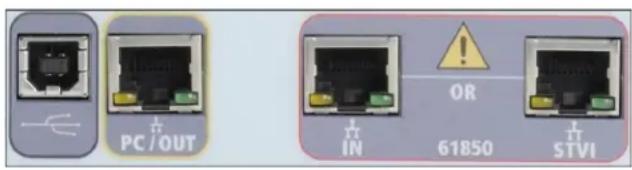
2.2.1 USB 2.0 Interface
USB 2.0 Interface requires a Type B "downstream" connector, and is primarily used as a communication and control port when used with a PC and Megger AVTS or STVI PC version software for automated relay testing.
2.2.2 PC/OUT Ethernet Port
PC/OUT Ethernet Port is a 10/100BaseTX port, and is the primary PC connection port automated relay testing. This port supports MDI/MDI-X auto cross over configuration, which means both standard and "crossover" Ethernet cables may be used. The SMRT comes standard with a crossover cable.
In addition, this port maybe used to download large blocks of data into the unit. It is used to download digital samples for DFR playback, and download software / firmware updates. Since each output channel is capable of storing up to 256,000 samples of Digital Data, such as in Digital Fault Recordings for DFR playback, and with up to six channels that equals over 1.5 million samples. The Ethernet port on the SMRT410 should download the data in 1 second or
less. In addition to high speed downloads of DFR data, the port is also used to talk to the SMRT410 unit via a Network.
This port may also be used to interconnect multiple SMRT units together for synchronous multi-phase operation.
2.2.2.1 Setting SMRT IP Address for Operation with a PC
With the Ethernet cable supplied with the unit, connect the PC/OUT Ethernet Port on the SMRT unit to the PC Ethernet port. Turn the test set on. As the SMRT unit goes through its power up sequence, in less than a minute the STVI power up screen will appear. If using the PC version of the STVI software it will auto-detect the SMRT unit connected to the PC. Once it auto-detects the unit, and determines the configuration of the SMRT unit connected, the Manual screen will appear. The unit might not auto detect due to firewall settings. In this case the firewall can be turned off or you can enter the IP address directly using the PowerDB instrument configuration
screen by clicking on the Instrument Setup icon on the PowerDB tool bar. From the Instrument Configuration Screen, shown in the following figure, click off the check mark in the Auto Discover Unit box.

Figure 296 PowerDB Instrument Setup Screen
Here the user can enter the IP address directly into the box highlighted in red. The IP address of the unit can be determined by counting the number of times the Binary Output led flashes at the end of boot up cycle (the address is 169.254. <#flashes>.0). If the unit flashed four times, the address would be 169.254.4.0. If the unit is on a network with a DHCP server, the user must use the Auto Discovery mode.
2.2.3 STVI Ethernet Port
STVI Ethernet Port is a 10/100BaseTX PoE (Power over Ethernet) port, which is the STVI connection port. This port provides power to the STVI using POE (Power Over Ethernet), and manual control of the SMRT unit with the STVI.
2.2.3.1 Setting SMRT IP Address for Operation with STVI
With the Ethernet cable supplied with the unit, connect the STVI Ethernet Port on the SMRT top panel to the Ethernet port on the top of the Smart Touch View Interface (STVI). As the SMRT unit goes through its power up sequence, in less than a minute the STVI power up screen will appear. The STVI will auto-detect the SMRT410 (does not require the user to input an IP address). Once it auto-detects the unit, and determines the configuration of the SMRT unit connected, the Manual screen will appear.
2.2.4 IN - IEC61850 Ethernet Port
IN Ethernet Port is a 10/100BaseTX port, and is used when interconnecting multiple SMRT units together. It is also provides access to the substation IEC 61850 network (when enabled). The SMRT410 with the IEC 61850 option enabled provides selectable priority, VLAN-ID, and meets the IEC 61850-5 standard Type 1A, Class P 2/3, for high speed trip and reclose simulations.
2.2.4.1 Setting SMRT IP Address for Networks or IEC 61850 Operations
The SMRT410 may be controlled over a network. This provides remote control of the SMRT410 virtually over any distance allowing one PC to control at least two units simultaneously, such as in end to end testing.
Connecting the SMRT410 to a Local Area Network or a Wide Area Network could permit unauthorized operation of the unit.
Through the IN Ethernet port, the SMRT410 integrates into a network just like a PC or server. To use this feature requires the user to setup the IP configuration of the SMRT410 for their LAN. Note that the SMRT410 when turned on will automatically search for and acquire a network address if connected to a network. If it fails to automatically acquire an address check to make sure you are properly connected using a standard Ethernet cable. Do not use the cross over Ethernet cable supplied with the test set (a cross over cable is designed for use from your PC to the test set, not to a network). If the unit still fails to acquire an address then there may be other issues. This will probably require assistance from your company's information management department.
For IEC 61850 testing connect the IEC61850 IN port to the substation bus or to the relay under test to receive and send GOOSE messages. When used with the Megger GOOSE Configurator in the AVTS software, the SMRT410 can provide high speed testing of IEC 61850 relays and substations by subscribing to GOOSE messages and mapping to the binary inputs. In addition, it can simulate system conditions such as circuit breaker operation by publishing GOOSE messages mapped to the SMRT410 binary outputs. With the PC connected to the OUT port, and running AVTS Megger GOOSE Configurator software, the operator can “sniff” the substation network. However, if a secure port is desired, where the operator cannot accidentally trip off the substation or inflect a PC virus into the substation LAN, connect the PC to the SMRT USB port and sniff the network through the IEC61850 IN port.
3.0 Current Sources
3.1 Parallel Operation
Each SMRT current amplifier is capable of providing 30 Amperes continuous, and up to 60 amperes for 1.5 seconds for testing instantaneous trip elements. When more than 30 amps single phase is required for long durations, or 60 Amps for testing instantaneous elements, three or
more current channels may be connected in parallel to provide 90 up 180 Amperes continuous, and from 180 up to 360 amperes for short durations.
Note: If an F appears in the 5^th digit of the style identification number (i.e. 40P1F0A0S1) the current returns are floating (isolated from each other and ground). Those units with a style number G, the current returns are common together internally and connected to earth ground.
To parallel the current channels of the unit, perform the following:
If using the sleeved multi-lead current test leads (part number 2001-396), all of the black return leads are interconnected together inside the sleeve so they will all share the return current together. Connect each current channel to the relay under test (both red and black terminals to the load). Each Megger test lead is rated for 32 Amperes continuous. If using test leads other than those supplied by Megger insure that the wire has sufficient size to carry the test current.
For the earth grounded common return (G) units, there is an internal common ground between the current channel return terminals. If using separate individual test leads, all of the return leads will need to be common together at the load as shown in the following figure. By not connecting a return lead to all of the current channels in use, part or all of the return current will be forced through the internal ground. That means with 4 channels in parallel up to 240 Amperes could be forced through the internal common ground, and will cause damage to the internal common returns. Therefore, it is important that the parallel connections must be made at the relay. See the following figure.

Figure 297 Parallel of Four Current Outputs
3.1.1 Manual Test Screen - Single Phase Up To 240 Ampere
For ease of use and operator convenience, go to the Configuration screen and select the Operating Mode of 4 Voltages – 1 Current @ 240 amps. When you return to the manual test screen there will be one current channel displayed, as shown in the following figure.
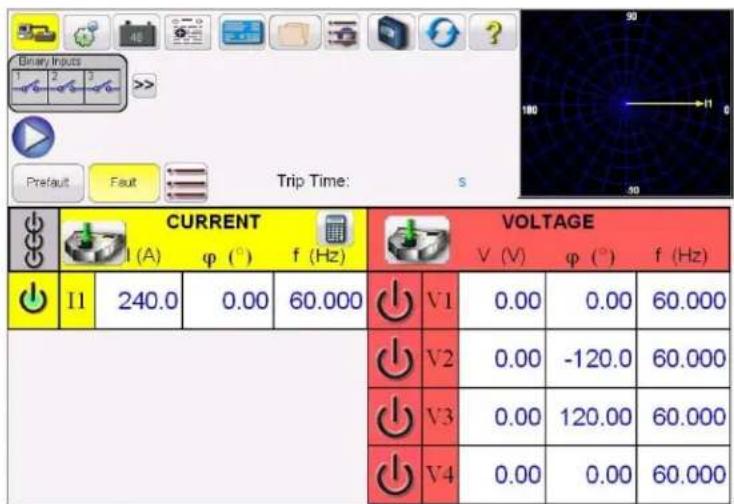
Figure 298 Manual Test Screen – 4 Channel SMRT410 Single Phase Operation
The STVI will automatically set all four currents in phase with each other and divide the current equally between the four current amplifiers. When setting an output, simply enter the value of the desired output current. For example, for an output of 100 Amperes, enter 100, while each current amplifier will be providing 25 Amperes. The current can also be phase shifted. Simply enter the desired phase angle and all four currents will be phase shifted together.
If two current channels that are to be used in parallel, leave the unit in the default four phase configuration. Connect the two current outputs to the load as shown in the following figure.
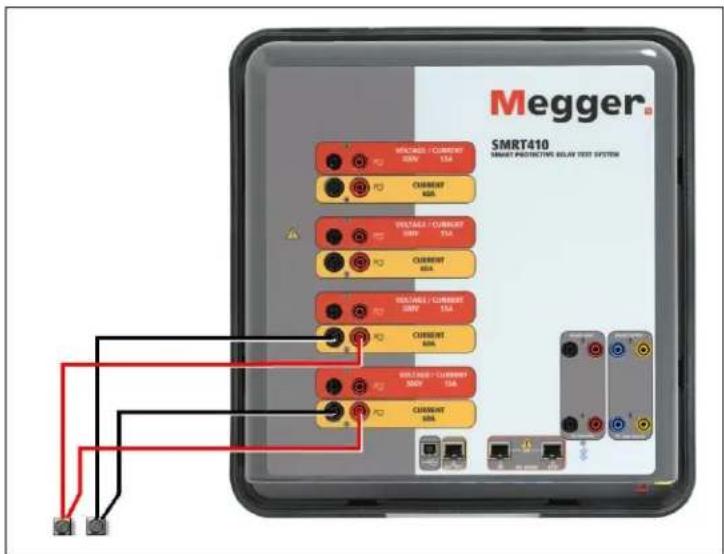
Figure 299 Two Currents in Parallel
Set each channel to one-half of the output requirement. Be sure and reset current channel #2 to 0 degrees so that it will be in-phase with current channel #1. With both current channels selected, turn output on by pressing or clicking on the ALL ON/OFF button. Always use the ALL ON/OFF button to turn both current channels on and off together. For manually ramping outputs, if using the PC version of the STVI software the ↑↓ buttons will be displayed. If using an STVI controller the Control Knob icon will be displayed. Pressing either of these two will present the user
with a window to select the desired level of increment for manually ramping the outputs, the desired channel(s) to be ramped, and what is to be adjusted (amplitude, phase angle or frequency).
3.2 Currents in Series Operation
Two current channels may be connected in series in order to double the available compliance voltage. High impedance electromechanical ground (earth) overcurrent relays have always been difficult to test at high multiples of tap due to the winding impedance and saturation characteristics. The peak voltage required can exceed the maximum output voltage of one SMRT410 current output channel, depending on the required test current. By connecting two current outputs in series, the compliance voltage is doubled, providing higher test currents through the load. There are two methods to series currents together. For the floating output (F) models connect the two current amplifiers in a "push-push" configuration as shown in the following figure.

Figure 300 Series Two Currents with Floating Output Unit
The two current channels that are to be used in series set each to the same test current magnitude, and phase angle. Select both current channels and turn output on by pressing or clicking on the ALL ON/OFF button. Always use the ALL ON/OFF button to turn both current channels on and off together. For manually ramping outputs, if using the PC version of the STVI software the ↑↓ buttons will be displayed. If using an STVI controller the Control Knob icon

will be displayed. Pressing either of these two will present the user with a window to select the desired level of increment for manually ramping the outputs, the desired channel(s) to be ramped, and what is to be adjusted (amplitude, phase angle or frequency).
To series the current channels of the common grounded returns (G) unit, perform the following:
Using the current channel test leads, connect the Red output terminals of the two current channels to the relay under test. Even though the two returns associated with the current channels are connected internally with the common returns, place a jumper as shown. This will insure that the internal common leads will not be damaged.
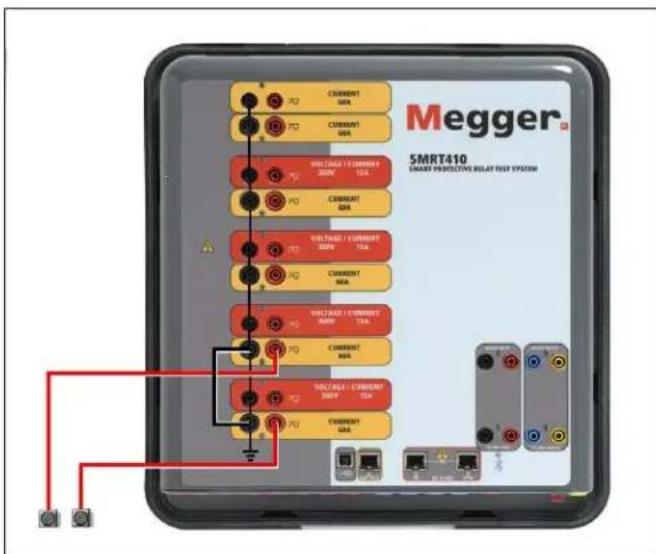
Figure 301 Series of Two Current Channels with Grounded Common Returns
NOTE: One current channel should be set to 0 degrees and the other current channel should be set to a phase angle of 180 degrees so that the two compliance voltages add across the load. DO NOT attempt to series more than two currents together on a grounded common returns unit.
The two current channels that are to be used in series set each to the same test current magnitude. Initiate the two current channels simultaneously by pressing the ALL ON/OFF button. Always use the ALL ON/OFF button to turn both current channels on and off together. For manually ramping outputs, if using the PC version of the STVI software the ↑↓ buttons will be displayed. If using an STVI controller the Control Knob icon will be displayed. Pressing either of these two will present the user with a window to select the desired level of increment for manually ramping the outputs, the desired channel(s) to be ramped, and what is to be adjusted (amplitude, phase angle or frequency).
4.0 Voltage Sources
4.1 Outputs Summed Together
Two voltage channels may be used to sum the voltage outputs to obtain higher than rated voltage provided the load is ungrounded. Connect the load between the voltage channel posts, set V_1 Phase to 0^ and set V_2 Phase to 180^ . The voltage outputs will add so the total voltage is the sum of the two voltage amplitudes, V_1 and V_2 as can be seen in the picture below.

Note: If an F appears in the 5^th digit of the style identification number (i.e. 40P1F0A0S1) the voltage returns are floating (isolated from each other and ground). Those units with a style number G the voltage returns are common together internally and connected to earth ground.
For the floating common units the user must connect the associated voltage channels black common returns together, when series operation is required (see the following figures). Remove external commons when testing is completed.

DO NOT attempt to series more than two voltage channels together. The test leads are for 600 Volts maximum.
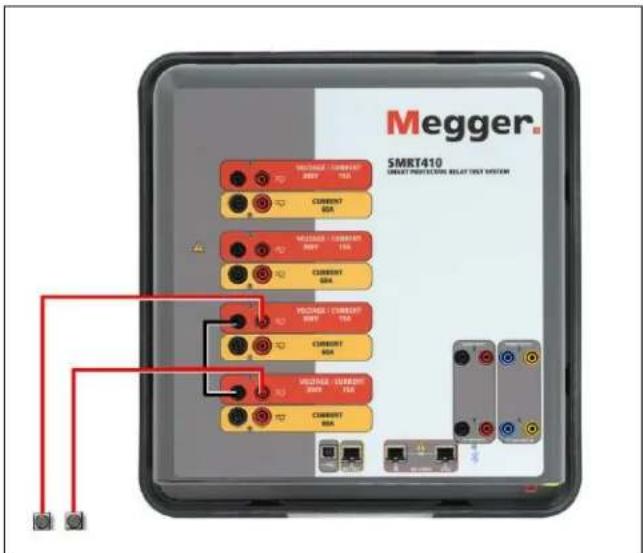
Figure 302 Series of Voltage Channels for Floating Ungrounded Common Returns

Figure 303 Series of Voltage Channels with Grounded Common Returns
4.2 3∅, 3-Wire, Open-Delta and T-Connection
See section 3.4.2 in the RTMS software software for detailed descriptions and use of the Open-Delta and T-Connection.
4.2.1 Balanced Open Delta
The Open-Delta configuration is the easy to use when a balanced three-phase source is required because the amplitude and phase relationship can be set directly. No calculations are necessary. When using the Open-Delta configuration, it is suggested to use voltage channel #1, designated V_1 , and voltage channel #2, designated V_2 , while the COMMON binding post is designated V_g . With this arrangement, the magnitude and phase angle of the potentials can be easily calculated and set. For the balanced three-phase condition V_1g and V_2g are equal in magnitude and separated by an angle of 60^ . This is done by setting the V_1 and V_2 potentials equal in magnitude, setting 0^ on V_1 and 300^ (60 degrees leading assuming that the default phase rotation is set to 360 Lag) on V_2 , see the following figure.
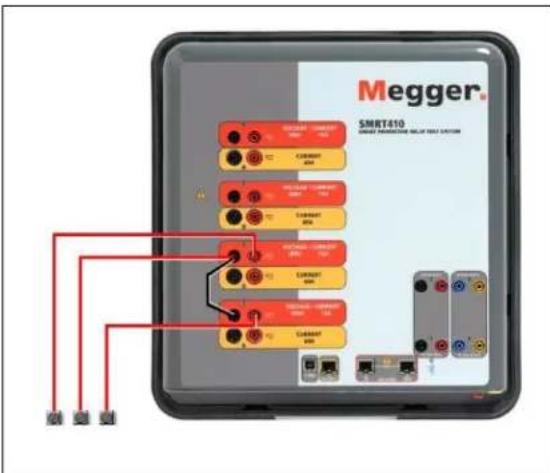
Figure 304 Three Phase Open Delta Connections
4.2.2 T Connection
The second method of obtaining a three-phase, three-wire voltage source is the so-called T-Connection. The method, shown in the following figure, is easier to use when obtaining an unbalanced, phase-to-phase fault simulation since it eliminates calculations. To reduce confusion when using the T-Connection, the voltage output #1 is designated V_a and its phase angle set at 0°, voltage output #2 is designated V_b and its phase angle set for 180°, and voltage output #3 is designated V_c and its phase angle is set for 270. Any combination of balanced three phase faults or unbalanced phase-to-phase fault conditions can be easily simulated.
NOTE: This method should not be used for very low fault voltages, or used on solid state relays that may be sensitive to this type of connection (i.e. 5 volts or less, or for testing ABB or Westinghouse type SKD relays).
4.3 3∅, 4-Wire, Y-Connection
A three-phase, four-wire potential system can be provided using three output modules. The vector relationships are referenced below. This Y-Connection has the advantage of being able to supply a higher line-to-line voltage (1.73 x phase-to-neutral voltage). It is ideally suited for simulating phase-to-ground faults. Voltage channel #1 is designated as V_a with its phase relationship set for 0°. Voltage channel #2 is then designated as V_b and phase angle set for 120°. Finally, voltage channel #3 is designated V_c and phase angle set for 240° (for a 1-2-3 counter
clockwise rotation). V_a , V_b and V_c are connected to the voltage potential binding posts on the respective test sets.
Note: If an F appears in the 5 ^th digit of the style identification number (i.e. 40P1F0A0S1) the voltage returns are floating (isolated from each other and ground). Those units with a style number G the voltage returns are common together internally and connected to earth ground.
If using the sleeved multi-lead voltage test leads (part number 2001-395), all of the black return leads are interconnected together inside the sleeve so they will all share the return together. Therefore, only one return lead is provided on the relay connection side of the sleeved leads (similar to the connections in the following figure).
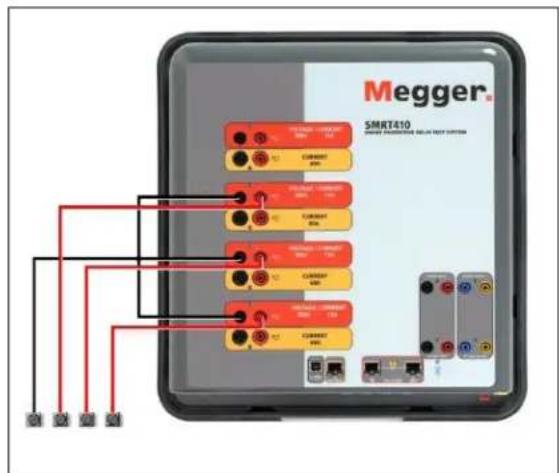
Figure 305 Three Phase Four Wire Test Connections
For the earth grounded common return (G) units, there is an internal common ground between the voltage and current channel return terminals. Therefore, only one return lead is required for the voltage channels. If using separate individual test leads, for the floating common units the user must connect the associated voltage channels black common returns together as shown above.
5.0 Warranty Statement
Megger warrants the product is free of defects in material and workmanship for a period of one (1) year from date of shipment. This warranty is non-transferable. This warranty is limited and shall not apply to equipment that has damage, or cause of defect, due to accident, negligence, and improper operation, faulty installation by the purchaser, or improper service or repair by any person, company or corporation not authorized by Megger. Megger will, at its' option, either repair or replace those parts and/or materials it deems to be defective.
The warranty is in lieu of all other warranties, either expressed or implied on the part of Megger and in no event shall Megger be liable for the consequential damages due to the breach thereof.
5.1 Preventive Maintenance
The unit utilizes surface mount technology (SMT) and other components which require little or no service except for routine cleaning, etc. The unit should be serviced in a clean atmosphere away from energized electrical circuits.
5.1.1 Examine the unit every six months for:
| Dust and Dirt | To clean the unit, disconnect the power cord from the unit. Never use spray liquids or industrial cleaners. Some cleaning solvents can damage electrical components, and should never be used. Water and a mild soap may be used. Use a lightly damp cloth (not dripping wet) to wipe off the unit. A dirty heat sink can cause thermal overloads. Remove dust with dry, low pressure, compressed air. Either remove the module from the chassis or simply apply air forcing the dust away from the heat sink through the sides of the unit. |
| Moisture | Remove moisture as much as possible by putting the test set in a warm, dry environment. |
5.2 Updating SMRT410 Firmware
Download Firmware Upgrade via Megger Website
To download the newest firmware from the Megger website,
- Go to WWW.Megger.com
- Log In.
- Go to Software Downloads
- Click on SMRT
- Click in the window provided and enter the SMRT Serial Number. Note: Make sure you enter the serial number correctly, or it may be rejected.
- Click on the version of firmware displayed, i.e. Firmware 1.XX
The firmware will be downloaded onto the user's PC as a zip file. Create a folder and Extract (unzip) the file to the folder.
Firmware Upgrade via STVI USB Port
Download the firmware to your PC from the Megger website as outlined above, see Firmware Upgrade via Megger Website. Unzip the file, Select All files, and Copy to a USB memory stick. Interconnect the STVI to the SMRT unit via the Ethernet cable, and power up the test system. Then insert the USB stick into the USB port on the top of the STVI. To perform the upgrade, from the STVI Configuration Screen press the Update Firmware button. The SMRT410 will automatically look to see if the firmware is a newer version of Software /Firmware, and if it is, it will automatically download the firmware into the unit.
5.3 Service and Repair Instructions
To save turn-around time and reduce costs, SMRT410 was designed as a modular unit. In most cases, if any one module should experience a problem it should not cause the test system to be down. Basic troubleshooting information has been provided to guide the technician to the possible source of a problem.
Since SMRT410 uses Surface Mount Technology, most repairs of the individual modules are beyond the scope of the basic troubleshooting guide, and should be referred to the Service Department at Megger or handled through the Megger Representative.
If the unit is still within the original warranty period, or limited warranty period following factory servicing, the factory must be contacted before attempting any repairs or the warranty will be void.
5.3.1 Basic Troubleshooting
The troubleshooting information relies on the technician to have a good understanding of the operation of the unit. If the technician is unfamiliar with the unit, he or she should not attempt to repair. The technician should contact the factory before attempting repairs. Provide the Megger part number for the part or assembly in question and the serial number of the SMRT410 when making inquiries.
WARNING It is necessary to energize the SMRT410 to properly troubleshoot some of the modules. The technician must take all applicable safety precautions for working near energized circuits.
NOTES
Before suspecting a failure in the SMRT410, review the General Description and Operation sections to ensure that the problem is not a result of operating error.
Preliminary testing of the SMRT410 within its specified limits can help determine if a malfunction actually exists, identify the type of malfunction and define the general area of the failure.
Common causes of malfunctions, other than improper operation, are incorrect power input (voltage above or below specified limits), incorrect test signal voltages applied to the Binary Input gates (outside of the specified AC/DC Applied/Removed limits), and contact or circuit resistance too great for the Dry Contact gates to operate properly on the Monitor/Start/Stop gates. Typical malfunctions for the VI-Gen amplifiers are external short circuits on the voltage output and open circuits on the current output. The battery simulator and VI-Gen voltage and current outputs can be easily checked using a voltmeter and ammeter.
NOTE: There are four different modules that can make up a SMRT410; the System Board (front panel), VIGEN's (VIGEN#1, and #2) and VIGEN's LITE (VIGEN #3, and #4), and the optional DIGEN. Most problems can be easily resolved by replacement of one of these modules, see section 5.3.1.2.1 Replacing a VIGEN for instructions on how to replace a VIGEN module. Proper ESD procedures should be followed when handling any SMRT410 module. Failure to do so, may damage sensitive parts.
5.3.1.1 Power Input
Input voltage affects the whole unit and may or may not cause permanent damage if voltage is incorrect. These problems can often be corrected by simply using a better source of input power. For units with an F or G appearing in the 5^th digit of the style identification number (i.e. 40P1F0A0S1) the rated voltage limit is auto-selectable from 100 to 240 volts, ±10%, 47 to 63 Hz. For units with a C or E appearing in the 5^th digit of the style identification number (i.e. 40P1C0A0S1) the rated voltage limit is auto-selectable from 220 to 240 volts, ±10%, 47 to 63 Hz.
Some symptoms are as follows:
-
Low voltage: Erratic operation, no output, input power circuit breaker operation.
-
High voltage: Circuit breaker operation, power supply failure in Input Power Module.
5.3.1.2 VIGEN Input Power, Communication and Control
Basic troubleshooting of the input power is as follows.
- No power: Check the ON/OFF circuit breaker. Does the ON/OFF switch light up? If it does not light up, then power is not getting to the unit. Check power source and line cord. If it lights up then the power is getting to the unit. Check the VIGEN power cable connection.

CAUTION: Turn off main power and unplug line cord before attempting to work on any module. Observe proper Electro Static Discharge procedures.
A. Disconnect the power cord from the unit.
B. Remove the two Phillip head screws on each side hold on the top cover; the first top screw and the fourth screw, see the following figure.
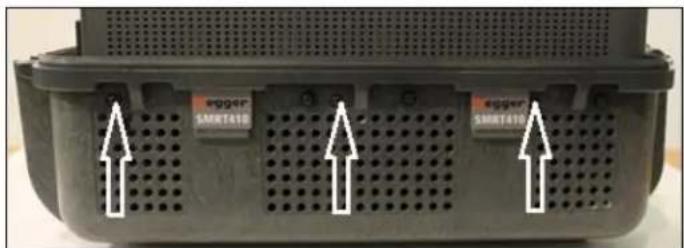
Figure 306 SMRT410 Top Cover Securing Screws ^11
C. Remove the front center screw on the front panel, and the two screws (one on each side) of the top cover that connects the top cover to the front panel, see the following figure.
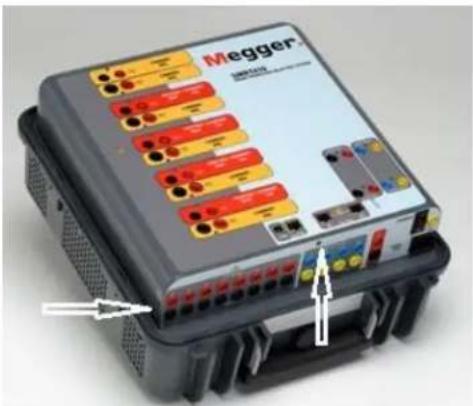
natural_image
Exterior view of a Megger industrial control unit with multiple ports and connectors (no visible text or symbols)Figure 307 Top Panel Removal Front Panel Screws
D. To remove the top cover from the enclosure will require an awl, or a small nail punch, and hard flat plastic wedge (like a plastic ruler). Cover the enclosure lip and ridge with the plastic ruler to prevent damage to the enclosure ridge. Place the awl into a vent hole and leverage the cover up slightly on each side, see the following figure.

natural_image
Close-up of a hand using a tool to trim a red plastic strip on a surface, with no visible text or symbols.Figure 308 Leveraging the cover from the enclosure
Continue to alternately leverage the cover up until you can work the cover out with your hands by grasping the back of the cover with one hand and gently, yet firmly, pull the cover up from the unit slightly. Then, alternately move the front side up slightly working the cover out of the enclosure. It is tight fit so work slowly and carefully.

natural_image
Internal view of an electronic device showing circuit board, wiring, and connectors (no text or symbols visible)Figure 309 VIGEN Power Connectors for 5 Channel Unit
Check the cables as shown. If the cables are properly connected, then remove and replace the VIGEN per 1.5.3.1.2.1.
4. Erratic Manual Control
Individual Output Module communication cable is not properly connected thus cannot receive proper commands. Look through the air intake holes on the left side of the unit to observe the VI-Gen LED's. Each module has some green LED's that blink. These are associated with the Ethernet communications. If there are no blinking LED's on one or more modules, then the module is not communicating. Remove the top cover using the procedure described above.
CAUTION: Turn off main power and unplug line cord before attempting to reseat any cables. Observe proper ESD procedure.
Locate the communication Ethernet cables on the left side, see the following figure.

natural_image
Interior view of an electronic device showing multiple circuit boards with connectors and wiring (no visible text or symbols)Figure 310 Communication Cable Connections 5 Channel Unit
Carefully disconnect each cable and reconnect to insure the cable locks into position. Note: In order to reseat each communication cable the small wire-ties will need to be removed (replacement wire-ties will be required after reseating the cables).
CAUTION: Failure to replace wire-ties may pinch the communication cables upon replacement of the top cover.
After reseating the cables, reinstalling the top cover assembly, reconnect the power cord and power up the unit. Look through the air intake holes on the left side of the unit to observe the VI-Gen LED's. If there is still no blinking LED's on one or more modules, and then replace the VI-Gen Module(s) that are not communicating. If they are not lit, then remove the power cord and the top cover and check the power connection cables to each VIGEN as described in Step 1 above.
5.3.1.2.1 Replacing a VIGEN
- To remove the VIGEN, on early units there are three Phillip head screws that hold in the VIGEN, one on each side and one on the bottom of the unit. Newer generation units only have one screw on the bottom.
- Remove the power connection cable as shown in Figure 129 above.
- Disconnect the communication cables as described for Figure 130 above.
Note the small cables that connect the front panel board to VIGEN 1 need to be carefully removed prior to removing VIGEN1, see the following figure.

Figure 311 VIGEN1 to Front Panel Cable
- Carefully remove the VIGEN module from the chassis.
- Install replacement VIGEN.
⚠️ Be careful when replacing the module as it is a tight fit, and it is possible to damage components upon extraction or installation.
- Replace the Phillip head screw(s) that hold in the VIGEN.
- Reconnect the power connection cable as shown in Figure 129 above.
- Reconnect the communication cables as shown in Figure 130 above. Replacement wire ties will be required after reseating the cables.
CAUTION: Failure to replace wire-ties may pinch the communication cables upon replacement of the top cover.
- If VIGEN #1 was replaced, reconnect the front panel cables as shown in Figure 131 above.
- Reinstall the top cover. Reconnect the power cord and power up the unit.
5.3.1.3 Binary Inputs, Binary Outputs and Battery Simulator (P Option Unit)
If all the items external of the Timer assembly are in proper order, then the problem exists within the Binary Input / Output assembly itself.
Some basic troubleshooting can pinpoint problems to the approximate cause.
Binary Inputs - Basic troubleshooting is as follows:
- Timer does not stop: Jumper the appropriate Binary Input terminals manually. If LED above the selected input lights, check the Binary Input setup screen to verify that the selected binary input is properly setup as a Timer stop post. Check Timer stop settings as N.O. (Normally Open) to close, and Latch On. If LED does not light up, the Binary Input will need to be repaired or replaced.
2. Counting errors:
AC applied or removed Stop signals can create, what appears to be poor repeatability, an inaccuracy or a malfunction in the Timer. The lower the voltage level, the more serious the "error" will be. What appears to be an error, however,
is actually a variation in the point on the sine wave at which the voltage is great enough to cause the gate circuit to operate. If the circuit used for the timing test has a low AC voltage and the point at which the contact in the test circuit opens or closes, is at or close to zero on the sine wave, the period of time before the voltage level will be high enough to trigger the gate circuit can be as much as 4 milliseconds. The total timing variation can be as much as 8 milliseconds. The shorter the duration of the timing test, the more significant the variation becomes. Therefore, if small timing variations would present a problem, it is recommended that an AC voltage of 115 volts or above or a DC voltage be used for voltage applied/removed test selections.
When the SMRT410 Timer calibration is being tested, the AC voltage variable is often overlooked. This is particularly true when the Timer is compared to a counter and the two are triggered simultaneously with an electronic switch. For best results, a DC voltage should be used to eliminate the variable. If testing the AC voltage Timer Stop characteristics is desired, then the Stop signal must be triggered at the same point on the sine wave to assure that the gate signal will be repeatable. Ideally, the signal should be at a point near peak in the positive direction. In addition, the specified rms AC voltage values for the various Stop control selections must be adhered to.
Another source of apparent "error" can be the programmable de-bounce feature. If using electro-mechanical contacts for stopping the Timer, and if those contacts have a tendency to bounce, there could be a difference between an external standard timer and the SMRT410 Timer, depending on the programmed de-bounce period set in the SMRT unit. To determine the programmed value, look at the Binary Input Setup Screen and see what the De-bounce setting value is.
If a timing error or variation persists after all the suspected causes of error have been eliminated, then it is possible that the Binary Input circuit is malfunctioning. Contact factory for return instructions.
Binary Outputs - Basic troubleshooting is as follows:
Binary Output LED is ON but output contacts not closed:
Using a continuity tester check to see if output circuit is open circuited. If circuit is open then it is possible that the internal surface mounted fuse element has been blown. Note: an optional in-line fused test lead Part Number: 568026 are available to provide protection from switching too high current, see SMRT Ordering Information under Optional Additional Accessories. The unit will need to be returned to the factory for further inspection and repair.
! Contact the factory for a Repair Authorization Number and return instructions if service is required. A Repair Authorization (RA) number will be assigned for proper handling of the unit when it arrives at the factory. Any non-warranty repair cost incurred for the repair or replacement of parts and/or materials shall be the responsibility of the purchaser.
Provide the factory with model number, Unit serial number, serial number of VI-Gen if appropriate, nature of the problem or service, return address, your name, and how to contact you should the factory need to discuss the service request.
You may need to provide a purchase order number, cost limit, billing, and return shipping instructions. If an estimate is requested, provide the name and contact information.
6.0 Preparation for Reshipment
Save the original shipping container for future use. The shipping container is designed to withstand the rigors of shipping via a common commercial carrier. For example, you may wish to reship your unit to Megger for an annual calibration recertification.
Pack the equipment appropriately to prevent damage during shipment. If a reusable container is utilized, the unit will be returned in the same shipping container if it is in suitable condition.
Add the Return Authorization Number to the address label of the shipping container for proper identification and quicker handling.
NOTE: Ship the equipment without nonessential items such as test leads, etc. These items are not needed by the factory to perform service.
Megger ^®
Addendum F

natural_image
Exterior view of a Siemens 100 microcontroller with control panel and display screen (no visible text or symbols on device body)Model SMRT410D
Multi-Phase Relay Test System
SAFETY PRECAUTIONS
WARNING: VOLTAGES GENERATED BY THIS INSTRUMENT CAN BE HAZARDOUS
This instrument has been designed for operator safety; however, no design can completely protect against incorrect use. Electrical circuits are dangerous and can be lethal when lack of caution and poor safety practices are used. There are several standard safety precautions that should be taken by the operator. Where applicable, IEC safety markings have been placed on the instrument to notify the operator to refer to the user manual for instructions on correct use or safety related topics. Refer to the following table of symbols and definitions.
| Symbol | Description |
 | Direct Current |
 | Alternating Current |
 | Both direct and alternating current |
 | Earth (ground) Terminal. There is a common chassis ground terminal located on the front panel (see Front panel under Description of Controls. |
 | Protective Conductor Terminal |
 | Frame or Chassis Terminal |
| [PTA] | On (Supply) |
 | Off (Supply) |
| [HSK] | Caution, risk of electric shock |
| [LSN] | Caution (refer to accompanying documents) |
WARNING: Under no circumstances should the operator or technician attempt to open or service this instrument while connected to a power source. Lethal voltages are present and may cause serious injury or death!
SAFETY PRECAUTIONS (Continued)
The following are some specific safety related items associated with the SMRT test system.
Read and understand all safety precautions and operation instructions before attempting to use this unit.
The purpose of this equipment is limited to use as described in this instruction manual. Should a situation arise that is not covered in the general or specific safety precaution please contact Megger regional representative or Megger, Dallas Texas.
Safety is the responsibility of the user. Misuse of this equipment can be extremely dangerous.
Always start with the power OFF, before connecting the power cord. Make sure outputs are off before attempting to make test connections.
Never connect the test set to energized equipment.
Always use properly insulated test leads. The optional test leads are rated for the continuous output ratings of the test system, and should be properly used and cared for. DO NOT use cracked or broken test leads.
Always turn the test system off before disconnecting the power cord.
DO NOT attempt to use the unit without a safety ground connected.
DO NOT attempt to use the unit if the power cord ground prong is broken or missing.
DO NOT use the test set in an explosive atmosphere.
The instrument must only be used by suitably trained and competent persons.
Observe all safety warnings marked on the equipment.
For safety related or other important topics, like the statement below, will be notated with the adjoined symbol. Read the topic carefully as it may relate either to the safe operation of the test system or the safety of the operator.

Under no circumstances should the operator put their hand or tools inside the test system chassis area with the test system connected to a power source. Lethal voltages are present and may cause serious injury or death!
1.0 Operation
The unit's design is a "modular" concept. All inputs and outputs are clearly marked and logically grouped so continual reference to the instruction manual should not be necessary once the operator is acquainted with the test system. The unit's Top Panel will appear different among units, since each unit may have up to four optional Voltage/Current Generator (VIGEN) Modules, or optional Transducer input terminals installed.
1.1 General Description

Figure 312 Top Panel SMRT410D (Pictured with Floating Returns and DIGEN Options)
1.1.1 Top Panel
-
Voltage/Current Generator Module (or VIGEN) ①—There is four available slots for the VIGEN Modules. The slots are numbered 1 to 4 from bottom to top, with the topmost VIGEN numbered 4. The four voltages and currents are noted by the red and yellow surrounding each output channel. Phases A, B, C and D Voltage Channels (V1, V2, V3 and V4) are denoted by the red color. Phases A, B, C and D Current Channels (I1, I2, I3 and I4) are denoted by the yellow color. When the voltage generators are converted to current generators, they will change on the STVI display as V1 = I5, V2 = I6, V3 = I7, and V4 = I8.
-
Current/Current Generator Module (or DIGEN) ② –There is one available slot for the DIGEN Module. SMRT410D with the DIGEN option, the VIGEN Modules are numbered 1 to 4 from bottom to top, with the topmost VIGEN numbered 4. The DIGEN current channels are numbered 5 and 6. When the voltage generators are converted to current generators, they will change on the touch screen display as V1 = I7, V2 = I8, V3 = I9, and V4 = I10.
- Binary Inputs – there are 10 Binary Inputs located on the top panel ③ and ⑦. To serve a wide range of test applications the binary inputs have different voltage thresholds. For typical test applications binary inputs 1, 2 and 3 have a fixed threshold of 5 volts. For GPS End-to-End synchronized relay testing Binary 1 may be connected with a remote trigger pulse from a GPS satellite receiver for external initiation, or the output of an IRIG-B signal (see use of Wait IRIG-B input using the RTMS software Sequencer test). There are an additional 7 binary inputs ⑦. To monitor TTL signals binary inputs 4 through 6 have a fixed threshold of 3 volts. Binary inputs 7 and 8 have fixed thresholds of 5 volts, and binary inputs 9 and 10 have fixed threshold of 30 volts (for “noisy” test environments). In addition to serving as Timer/Monitor inputs, the Binary Inputs may be programmed to trigger binary output sequence(s). Binary Inputs can also be programmed using Boolean logic for more complex power system simulations.
- Binary Outputs – there are 6 Binary Outputs located on the top panel ④, ⑤ and ⑥. Each Binary Output can be configured as Normally Open or Normally Closed contacts providing logic to the device under test. The Binary Outputs 1 to 4 ④ and ⑥ can switch up to 300 VAC or 250 VDC with 8 Amp continuous. The programmable wait duration is from 1 millisecond to 10,000 milliseconds. Binary Outputs 5 and 6 ⑤ are the high speed binary outputs have an AC / DC Voltage Rating of 400 V peak, Imax: 1 amp, with a Response Time: < 1ms typical. An LED indicates the status of the contact. ON indicates closed, and OFF indicates open.
- Battery Simulator ⑧— the SMRT410D provides a battery simulator with a continuously variable dc output voltage from 10 to 250 Volts, at 100 Watts (4 Amps Max) providing logic voltage for solid-state relays. When powered ON, the LED above the output terminals illuminates.
- Transducer Input Terminals ⑨ - The SMRT410D may have the optional transducer input terminals. The transducer hardware "T" option can either be ordered with the new test set or later as a factory hardware upgrade. If the unit is ordered without the optional inputs, the holes are plugged. The DC IN Volts range is ± 10 V DC. There are two ranges with the DC IN Amperes; ± 0 to 1 mA or ± 4 to 20 mA.
1.1.2 Front Panel:
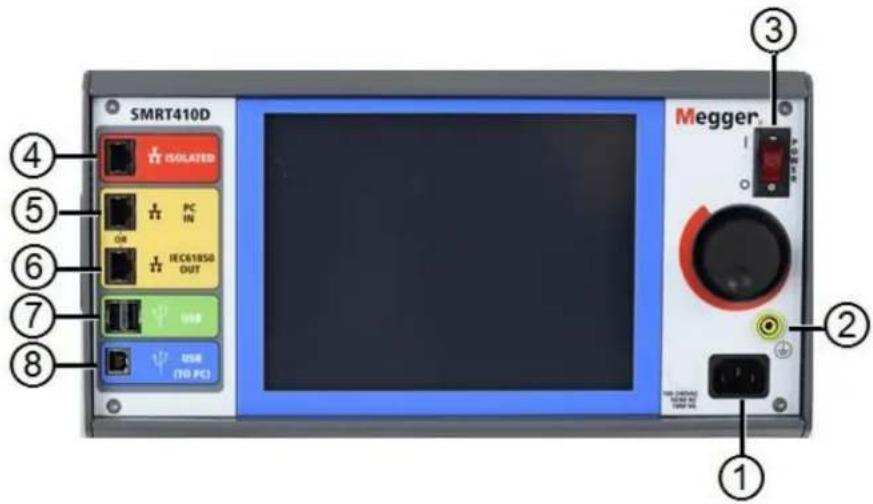
Figure 313 SMRT410D Front Panel
- Incoming Power / Line Cord ① – the input line cord, ground terminal, are mounted on the front panel of the test set.
Input Line Cord
The test set is equipped with a line cord, which connects to the male connector on the front panel. Verify the input voltage rating on the front panel before connecting the line cord to the power source.

- Earth Ground Jack ② – use this terminal to connect chassis ground to earth ground.
A chassis ground (earth) point on the front panel is provided as an additional safety ground.
-
POWER ON/OFF Switch ③ – used to switch unit on and off.
-
ISOLATED ④ For IEC 61850 testing connect IEC61850 / OUT port to the substation bus or to the relay under test to receive and send GOOSE messages. Connect the ISOLATED port to the PC. When used with the Megger GOOSE Configurator in the AVTS software, the SMRT can provide high speed testing of IEC 61850 relays and substations by subscribing to GOOSE messages and mapping to the binary inputs. In addition, it can simulate system conditions such as circuit breaker operation by publishing GOOSE messages mapped to the SMRT binary outputs. With the PC running AVTS Megger GOOSE Configurator and connected to the ISOLATED port, the operator can "sniff" the substation network from the IEC 61850 /OUT port through the ISOLATED port with the SMRT serving as the firewall. With this design the operator cannot accidentally trip off the substation or inflect a PC virus into the substation LAN.
-
PC/IN ⑤ Ethernet Port is the primary PC connection port for automated relay testing. This port supports MDI/MDI-X auto cross over configuration, which means both standard and "crossover" Ethernet cables may be used. Use this port for standard automated relay testing. This port provides the optimal method for downloading EMTP files, DFR streaming, and updating the unit's firmware as required. For multiple unit operation, the unit providing the OUT link is providing the master phase reference to all units "downstream". For multiple unit operation connect the OUT port to the downstream SMRT unit IN port. The STVI software will automatically configure when the units are powered up.
- IEC61850/OUT ⑥ Ethernet Port is a 10/100BaseTX port, and is primarily used to interconnect multiple SMRT units together for synchronous multi-unit operation. It is also be used to provide access to the substation IEC 61850 network. For multiple unit operation, the unit providing the OUT link is providing the master phase reference to all units "downstream". With the PC connected to the PC Port, the SMRT and the PC share the same Ethernet network connection, and thus will not have a secure isolation from each other. When testing IEC 61850 devices connect the PC to the ISOLATED Ethernet port to isolate the PC from the IEC 61850 substation bus.
- USB Interface ⑦ There is two type A ports available. This port is primarily used to update the firmware in the SMRT as well as update the RTMS software using a USB memory stick. It may also be used to download test results from the SMRT for download into another PC with Power DB software for storage or printing. In addition, the user can use a USB keyboard, as well as a mouse, in conjunction with the STVI. Keyboard and/or mouse are not provided with the accessories.
- USB (TO PC) Interface ⑧ – The (TO PC) USB Interface requires a Type B "downstream" connector, and is primarily used as a communication and control port when used with a PC and Megger AVTS software for automated relay testing. A USB cable is not provided with the test set or in the optional accessories. For computer control, an Ethernet cable is provided. However, should the user desire to use the USB port any standard USB A/B cable will work with the unit. May be used when isolation is required for a secure substation access between the SMRT and the IEC 61850 substation network.
1.2 Input Power
The input voltage rating may be from 100 to 240 VAC, ± 10%, 50/60 Hertz. The maximum input power is 1800VA. The input is protected by a power ON/OFF switch / circuit breaker.
1.2.1. Input Power Cord
Depending on the country, the power cord can come with a NEMA 5-15 male connector, a CEE 7/7 Schuko two prong connector, with International Color Coded pig-tail wires (light blue, brown and green with yellow stripe) with the insulation jacket stripped ready for installation of the appropriate male connector, or with UK power cord.
Model SMRT410 XXP2X0AXXX comes with a North American power cord (part number 620000).
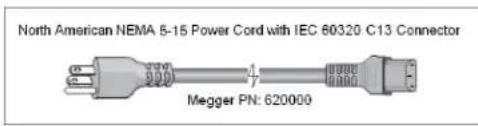
Model SMRT410 XXP2X0EXXX comes with a Continental Europe power cord (part number 50425).
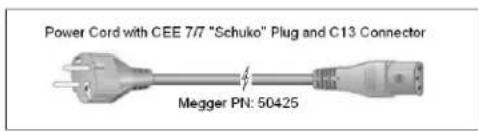
Model SMRT410 XXP2X0IXXX comes with an International Color Code power cord. The cord, part number 15065, is ready for wiring to the appropriate plug (depending on country). The following colors apply, Brown = Line, Blue = Neutral and Green/Yellow = Ground.
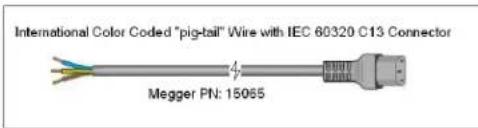
Model SMRT410 XXP2X0UXXX comes with a UK power cord (part number 90002-989).
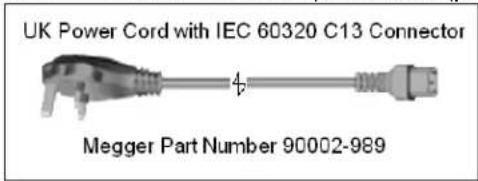
1.3 Voltage - Current Generator (VIGEN) and Double-Current (DIGEN) Modules
Voltages and Currents are noted by the red and yellow surrounding each output channel. Phases 1, 2, 3 and 4 voltage channels are denoted by the red color. Phases 1, 2, 3 and 4 current channels are denoted by the yellow color. The optional Double Current module includes two current channels phases 5 and 6, and are also surrounded by yellow. All outputs are independent from sudden changes in mains voltage and frequency, and are regulated so changes in load impedance do not affect the output. All amplifier outputs are isolated or floating. The SMRT units can be ordered with the amplifier common returns tied to chassis ground as an option.
1.3.1. Convertible Voltage/Current Amplifier

The SMRT PowerV™ voltage amplifier provides a flat power curve from 30 to 150 Volts in the 150V range to permit testing of high current applications such as panel testing. The following outputs are provided.
Voltage Range Power / Current (Max)
30.00V 150VA @ 5.0A
150.00V 150VA Constant Output Power from 30 to 150 Volts
300.00V 150VA @ 0.5A
Voltage Amplifier in Current Mode:
The voltage amplifier is convertible to a current source with the following output capability. Output power ratings are specified in rms values and peak power ratings.
Output Current Power Max V Duty Cycle
5 Amperes 150 VA (212 peak) 30.0 Vrms Continuous
15 Amperes 120 VA 8.0 Vrms 1.5 sec.
With a 4 channel SMRT410D unit, convertible channels in conjunction with the four main current channels, provides 8 currents. When the voltage generators are converted to current generators, they will change on the touch screen display as current phases 5, 6, 7, and 8. If the optional Double-Current (DIGEN) module is installed, the convertible channels will be labeled current phases 7, 8, 9, and 10.
The voltage amplifier output is protected from short circuits and thermally protected against prolonged overloads. In case of a short circuit or a thermal overload, the amplifier will automatically turn off, and a message to the user will be displayed indicating which condition exists.
1.3.2. Current Amplifier
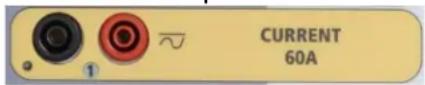
The SMRT410D current amplifier delivers maximum compliance voltage to the load constantly during the test, and range changing is done automatically, on-the-fly, under load. This insures better test results, saves time by not having to turn the outputs off to change output taps or ranges, and unlike single range current amplifiers insures a higher compliance voltage at lower test currents. Constant power output in many cases eliminates the need to parallel or series current channels together to test high burden relays. The following are typical output current and associated available compliance voltage values. The per channel output current and power ratings are specified in AC rms values and peak power ratings. Specified duty cycles are based upon typical room ambient.
Output Current Power Max V / Duty Cycle
1 Ampere 15 VA 15.0 Vrms Continuous
4 Amperes 200 VA (282 peak) 50.0 Vrms Continuous
15 Amperes 200 VA (282 peak) 13.4 Vrms Continuous
30 Amperes 200 VA (282 peak) 6.67 Vrms Continuous
60 Amperes 300 VA (424 peak) 5.00 Vrms 1.5 sec.
DC 200 Watts
The current amplifier output is protected from open circuits and thermally protected against prolonged overloads. In case of an open circuit or a thermal overload, the amplifier will
automatically turn off, and a message to the user will be displayed indicating which condition exists.
1.4 Binary Inputs and Outputs
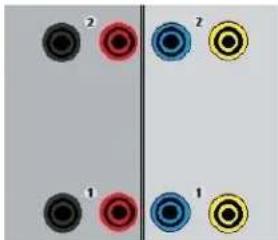
Figure 314 Binary Inputs and Outputs 1 and 2
Binary Inputs and Outputs are clearly marked and logically grouped. The Binary Inputs are used to monitor relay trip contacts for performing pickup and dropout tests as well as for performing timing functions. The Binary Outputs are used to simulate normally open / normally closed contacts for testing breaker failure schemes, or similar power system operations. In addition they may also be used to switches AC/DC voltages and currents.

Figure 315 Binary Inputs 4 to 10 and Binary Outputs 4 to 6
1.4.1 Binary Inputs
The binary inputs are specifically designed to measure high speed operation of electro-mechanical, solid-state and microprocessor-based protection relays. All binary Inputs default to Monitor Mode, Contact change of state, latched OFF.
If using the touch screen or RTMS software to change a binary input from Contact change of state to Voltage Applied / Removed click on or touch the Input Type window and a sine wave will appear where the Contact icon was indicating. The input is now set for voltage sensing.
To change the binary input from Monitor mode to Timer Mode, click on or touch the Use as Monitor button and the display window will change to show Use as Trip, Latched, meaning the binary input is now set to stop the timer upon sensing the first contact closure (if the Input Type is set for contact) or upon sensing voltage if the Input Type is set to Voltage Sensing.
1.4.1.1 Start, Stop, and Monitor Gates
In the SMRT410D there are up to ten identical, independent, programmable gate circuits that permit simple selection of the desired mode for timing or contact monitoring operation.
To monitor operation of the contacts or trip SCR in the device under test, a light is provided for each gate. The gate circuit is isolated for voltage-sensing and can monitor solid-state logic signals. Each light will illuminate once contacts close or voltage is applied to the gate.
Timer stops or a continuity indicator goes out at the opening of normally closed contacts, or when conduction through a semiconductor device, such as a triac or a transistor, is interrupted.
1.4.1.1.2 Dry Contacts Close
Timer stops or a continuity indicator glows at the closing of the normally open contacts, or upon conduction through a semiconductor device such as a triac or a transistor.
1.4.1.1.3 Application or Removal of AC or DC voltage
This will either start the Timer or stop the Timer. The continuity indicator will glow (application) or darkens (removal) upon the application or removal of either an AC or DC voltage. To serve a wide range of test applications the binary inputs have different voltage thresholds. For typical test applications binary inputs 1, 2 and 3 have a fixed threshold of 5 volts. To monitor TTL signals binary inputs 4 through 6 have a fixed threshold of 3 volts. Binary inputs 7 and 8 have fixed thresholds of 5 volts, and binary inputs 9 and 10 have fixed threshold of 30 volts (for "noisy" test environments). A higher threshold voltage helps to eliminate false triggers due to a noisy source. Lower thresholds allow starting and stopping of timer from TTL voltage signals. The allowable voltage applied is 5 to 300 Volts AC or 5 to 300 Volts DC, current limiting resistors provide protection.
1.4.1.1.4 The Timer can be started when turning on any selected generators.
1.4.1.1.5 The Timer can be started simultaneously with a change in Frequency, Phase Angle, or Amplitude. Also, it can be started simultaneously with a Voltage or Current waveform step.
1.4.2 Binary Outputs
Binary Outputs 1 and 2 are rated for 300 V at 8 Amps. Each Binary Output can be configured as normally open or normally closed contacts providing logic to the device under test. Binary Outputs 3 and 4 have a rating of 300 V AC/DC, 8 amperes and a maximum of 2000 VA breaking capacity (80 watts DC), with a response time of less than 10ms. Binary Outputs 5 and 6 are high speed and have an AC/DC voltage rating of 400 volts peak, 1 ampere and a response time typically less than 1ms.
The contacts may be programmed to open or close, thus simulating circuit breaker operation. The programmable wait duration is from 1 millisecond to 10,000 milliseconds. A fused test lead (fused at 500 mA) is available as an optional accessory to help protect from blowing the internal fuse of binary outputs 5 & 6. The test lead is blue in color so that the user knows it applies to the blue binary outputs. The barrel holder of the test lead is CE marked with a 1000 V, CAT III rating, and marked FUSED 500 mA / 1000 V/ 50 KA.
1.5 Battery Simulator
Figure 316 Battery Simulator (BAT SIM)
The SMRT410D includes a battery simulator that provides a variable DC output from 10 to 250 VDC rated at 100 Watts, 4 Amperes max. User may select from normal setting values of 24, 48, 125, or 250 VDC, or enter the desired output voltage in the window provided, see the STVI Configuration Screen. The output is variable using the Control Knob, or the PC up/down cursor arrows (see the STVI section of the manual).

CAUTION:
NOTE: DC voltage is ON and available when the output is turned on using the LCD touch panel or via software command. Do not plug or insert any test lead into the BATTERY SIMULATOR binding posts without first connecting the test leads to the load!
2.0 SETUP
2.1 Unpack System
Unpack the unit and check for evidence of any shipping damage. If there is any visual damage, immediately notify the freight carrier to make a damage claim, and notify Megger of the damage.

CAUTION:
Potentially lethal voltages may be present on the output terminals. It is highly recommended the operator read the user manual thoroughly and have an understanding of the test set operation prior to turning power on.
2.1.1 Initial Start Up
-
If using the STVI PC version software, connect the PC/IN Ethernet Port on the SMRT410D unit to the PC Ethernet port.
-
Before connecting power to the unit, make sure the POWER ON/OFF Switch is in the OFF position (0). Plug the unit line cord into an appropriate power source and turn the POWER ON/OFF Switch to ON (I). As the SMRT unit goes through its power up sequence, in about a minute the STVI power up screen will appear, then the manual start up screen will appear.
2.2 Communication Ports
There are several communication ports. These ports are: two USB, three Ethernet, and an optional Bluetooth wireless port.
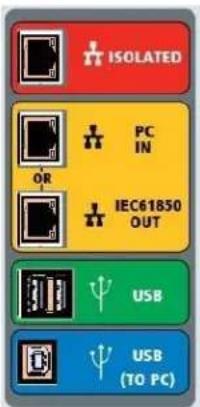
Figure 317 SMRT410D Communication Ports
2.2.1 USB 2.0 Interface
The USB Type A ports are intended for use with downloading new RTMS software, SMRT firmware, or stored PowerDB test results. A USB keyboard or mouse can also be used with the unit. USB TO PC Interface requires a Type B "downstream" connector, and is primarily used as a communication and control port when used with a PC and AVTS software or RTMS software (PC version) for automated relay testing. It is recommended that you use the Ethernet port for high speed communication and control of the SMRT unit. To use the USB port will require the user to configure the PC com port for USB operation. Clicking on the Instrument Setup icon on the
PowerDB tool bar, the Instrument Configuration Screen (shown in the following figure)
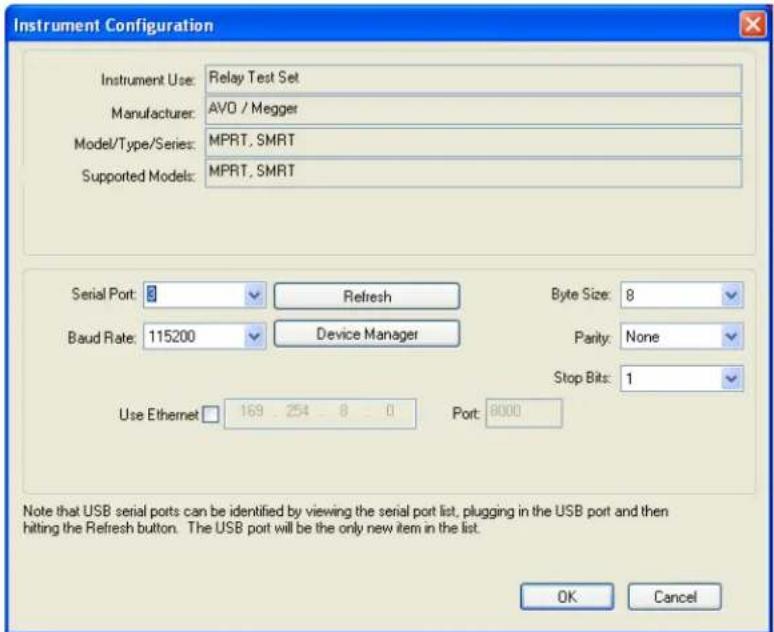
provides the user with access to the PC Device Manager screen. Click on the Device Manager button and navigate to the USB Ports file directory. Since the SMRT410D defaults to a baud rate of 115,200, the user will need to configure their USB output com port to match. Returning to the Instrument Configuration screen the user will need to check off the Use Ethernet check box, and set the Baud rate, Byte Size and Stop Bits as shown.
2.2.2 PC/IN Ethernet Port
PC/IN Ethernet Port is the primary PC connection port for automated relay testing. This port supports MDI/MDI-X auto cross over configuration, which means both standard and “crossover” Ethernet cables may be used. Use this port for standard automated relay testing. This port provides the optimal method for downloading EMTP files, DFR streaming, and updating the unit's firmware as required. For multiple unit operation, the unit providing the OUT link is providing the master phase reference to all units “downstream”. For multiple unit operation connect the OUT port to the downstream SMRT unit IN port. The RTMS software will automatically configure when the units are powered up.
2.2.2.1 Setting SMRT IP Address for Operation with a PC
With the Ethernet cable supplied with the unit, connect the PC/IN Ethernet Port on the SMRT unit to the PC Ethernet port. Turn the test set on. As the SMRT unit goes through its power up sequence, in less than a minute the RTMS software power up screen will appear. If using the PC version of the RTMS software it will auto-detect the SMRT unit connected to the PC. Once it auto-detects the unit, and determines the configuration of the SMRT unit connected, the Manual screen will appear. The unit might not auto detect due to firewall settings. In this case the firewall can be turned off or you can enter the IP address directly using the PowerDB instrument configuration screen by clicking on the Instrument Setup icon on the PowerDB tool bar. From the Instrument Configuration Screen, shown in the following figure, click off the check mark in the Auto Discover Unit box.

Figure 318 PowerDB Instrument Setup Screen
Here the user can enter the IP address directly into the box highlighted in red. The IP address of the unit can be determined by counting the number of times the Binary Output led flashes at the end of boot up cycle (the address is 169.254. <#flashes>.0). If the unit flashed four times, the address would be 169.254.4.0. If the unit is on a network with a DHCP server, the user must use the Auto Discovery mode.
2.2.3 ISOLATED Ethernet Port
For IEC 61850 testing connect IEC61850 / OUT port to the substation bus or to the relay under test to receive and send GOOSE messages. Connect the ISOLATED port to the PC. When used with the Megger GOOSE Configurator software, the SMRT unit can provide high speed testing of IEC 61850 relays and substations by subscribing to GOOSE messages and mapping to the binary inputs. In addition, it can simulate system conditions such as circuit breaker operation by publishing GOOSE messages mapped to the SMRT binary outputs. With the PC running Megger GOOSE Configurator and connected to the ISOLATED port, the operator can "sniff" the substation network from the IEC 61850 /OUT port through the ISOLATED port with the SMRT unit serving as the firewall. With this design the operator cannot accidentally trip off the substation or inflect a PC virus into the substation LAN.
2.2.4 IEC61850 / OUT Ethernet Port
The IEC 61850 / OUT Ethernet Port is a 10/100BaseTX port, and is primarily used to interconnect multiple SMRT units together for synchronous multi-unit operation. It is also be used to provide access to the substation IEC 61850 network (when enabled). The SMRT410D with the IEC 61850 option enabled provides selectable priority, VLAN-ID, and meets the IEC 61850-5 standard Type 1A, Class P 2/3, for high speed trip and reclose simulations. For multiple unit operation, the unit providing the OUT link is providing the master phase reference to all units "downstream". With the PC connected to the PC Port, the SMRT and the PC share the same Ethernet network connection, and thus will not have a secure isolation from each other. When testing IEC 61850 devices connect the PC to the ISOLATED Ethernet port to isolate the PC from the IEC 61850 substation bus.
2.2.4.1 Setting SMRT IP Address for Networks or IEC 61850 Operations
The SMRT410D may be controlled over a network. This provides remote control of the SMRT410D virtually over any distance allowing one PC to control at least two units simultaneously, such as in end to end testing. Connecting the SMRT410D to a Local Area Network or a Wide Area Network could permit unauthorized operation of the unit.
Through the PC IN Ethernet port, the SMRT410D integrates into a network just like a PC or server. To use this feature requires the user to setup the IP configuration of the SMRT410D for their LAN. Note that the SMRT410D when turned on will automatically search for and acquire a network address if connected to a network. If it fails to automatically acquire an address check to make sure you are properly connected using a standard Ethernet cable. Do not use a "cross-over" Ethernet cable (a cross over cable is designed for use from your PC to the test set, not to a network). If the unit still fails to acquire an address then there may be other issues. This will probably require assistance from your company's information management department.
3.0 Current Sources
3.1 Parallel Operation
Each SMRT410D current amplifier is capable of providing 30 Amperes continuous, and up to 60 amperes for 1.5 seconds for testing instantaneous trip elements. When more than 30 amps single phase is required for long durations, or 60 Amps for testing instantaneous elements, three or more current channels may be connected in parallel to provide 90 up 180 Amperes continuous, and from 180 up to 360 amperes for short durations.
Note: If an F or a C appears in the 5^th digit of the style identification number (i.e. 40P2F0A0S1) the current returns are floating (isolated from each other and ground). Those units with a style number G or a E, the current returns are common together internally and connected to earth ground.
To parallel the current channels of the unit, perform the following:
If using the sleeved multi-lead current test leads (part number 2001-396), all of the black return leads are interconnected together inside the sleeve so they will all share the return current together. Connect each current channel to the relay under test (both red and black terminals to the load). Each Megger test lead is rated for 32 Amperes continuous. If using test leads other than those supplied by Megger insure that the wire has sufficient size to carry the test current.
For the earth grounded common return (G or E) units, there is an internal common ground between the current channel return terminals. If using separate individual test leads, all of the return leads will need to be common together at the load as shown in the following figure. By not connecting a return lead to all of the current channels in use, part or all of the return current will be forced through the internal ground. That means with 6 channels in parallel up to 360 Amperes could be forced through the internal common ground, and will cause damage to the internal common returns. Therefore, it is important that the parallel connections must be made at the relay. See the following figure.
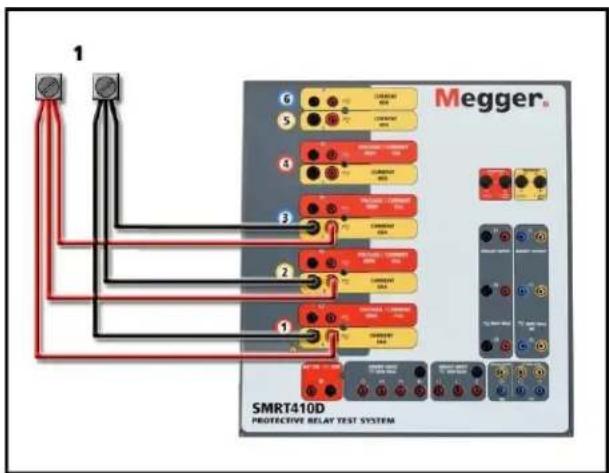
Figure 319 Parallel of Three Current Outputs
3.1.1 Manual Test Screen - Single Phase Up To 360 Amperes
Note: The 360 Amperes stated in the title is based upon a 4 Voltage / 6 Current configuration. If your unit is a 4 Voltage / 4 Current configuration then the maximum output capability of the unit is 240 Amperes.
For ease of use and operator convenience, go to the Configuration screen and select the Operating Mode of 4 Voltages – 1 Current @ 360 amps (a 4 channel configuration will offer 4 Voltages – 1 Current @ 240 Amperes). When you return to the manual test screen there will be one current channel displayed, as shown in the following figure.
| CURRENT (A) φ (°) f (Hz) | VOLTAGE | ||||||||
| V (V) | φ (°) | f (Hz) | |||||||
| I1 | 240.0 | 0.00 | 60.000 | V1 | 0.00 | 0.00 | 60.000 | ||
| V2 | 0.00 | -120.0 | 60.000 | ||||||
| V3 | 0.00 | 120.00 | 60.000 | ||||||
| V4 | 0.00 | 0.00 | 60.000 | ||||||
Figure 320 Manual Test Screen – Single Phase Operation
The RTMS software will automatically set all available currents in phase with each other and divide the current equally between the current amplifiers. When setting an output, simply enter the value of the desired output current. For example; for a 6 current channel output unit and a test current of 180 Amperes, each current amplifier will be providing 30 Amperes. The current can also be phase shifted. Simply enter the desired phase angle and all currents will be phase shifted together.
If two current channels that are to be used in parallel, leave the unit in the default configuration. Connect the two current outputs to the load as shown in the following figure.
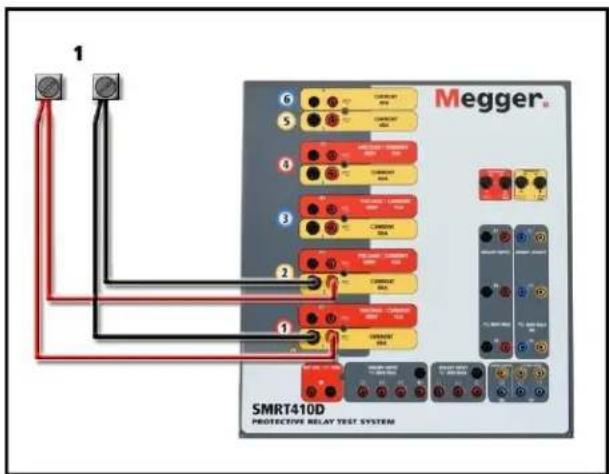
Figure 321 Two Currents in Parallel
Set current channels 1 and 2 to one-half of the output requirement. Be sure and reset current channel #2 to 0 degrees so that it will be in-phase with current channel #1. With both current channels selected, turn output on by pressing or clicking on the ALL ON/OFF button. Always use the ALL ON/OFF button to turn both current channels on and off together. For manually ramping outputs, if using the PC version of the RTMS software the ↑↓ buttons will be displayed. If using the touch screen, the Control Knob icon will be displayed. Pressing either of these two will present the user with a window to select the desired level of increment for manually ramping the
outputs, the desired channel(s) to be ramped, and what is to be adjusted (amplitude, phase angle or frequency).
3.2 Currents in Series Operation
Two current channels may be connected in series in order to double the available compliance voltage. High impedance electromechanical ground (earth) overcurrent relays have always been difficult to test at high multiples of tap due to the winding impedance and saturation characteristics. The peak voltage required can exceed the maximum output voltage of one SMRT410D current output channel, depending on the required test current. By connecting two current outputs in series, the compliance voltage is doubled, providing higher test currents through the load. There are two methods to series currents together.
Note: If an F or C appears in the 5 ^th digit of the style identification number (i.e. 40P2F0A0S1) the current returns are floating (isolated from each other and ground). Those units with a style number G or E the current returns are common together internally and connected to earth ground.
For the floating output (F or C) models connect the two current amplifiers in a "push-push" configuration as shown in the following figure.

Figure 322 Series Two Currents with Floating Output Unit
The two current channels that are to be used in series set each to the same test current magnitude, and phase angle. Select both current channels and turn output on by pressing or clicking on the ALL ON/OFF button. Always use the ALL ON/OFF button to turn both current channels on and off together. For manually ramping outputs, if using the PC version of the RTMS
software the ↑↓ buttons will be displayed. Using the touch screen the Control Knob icon will be displayed. Pressing either of these two will present the user with a window to select the desired level of increment for manually ramping the outputs, the desired channel(s) to be ramped, and what is to be adjusted (amplitude, phase angle or frequency).
To series the current channels of the common grounded returns (G or E) unit, perform the following:
Using the current channel test leads, connect the Red output terminals of the two current channels to the relay under test. Even though the two returns associated with the current channels are connected internally with the common returns, place a jumper as shown. This will insure that the internal common leads will not be damaged.
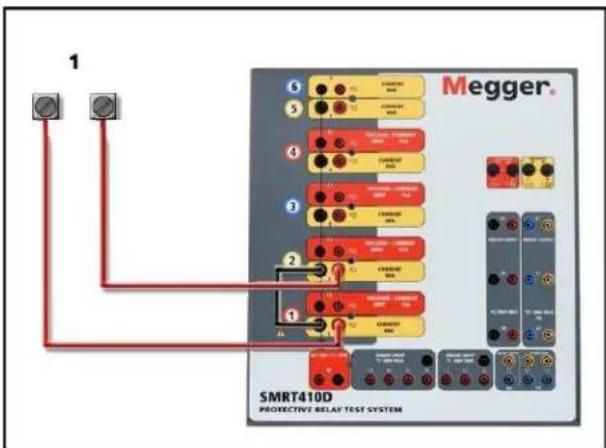
Figure 323 Series of Two Current Channels with Grounded Common Returns
NOTE: One current channel should be set to 0 degrees and the other current channel should be set to a phase angle of 180 degrees so that the two compliance voltages add across the load. DO NOT attempt to series more than two currents together on a grounded common returns unit.
The two current channels that are to be used in series set each to the same test current magnitude. Initiate the two current channels simultaneously by pressing the ALL ON/OFF button. Always use the ALL ON/OFF button to turn both current channels on and off together. For manually ramping outputs, if using the PC version of the RTMS software the ↑↓ buttons will be
displayed. Using the touch screen the Control Knob icon will be displayed. Pressing either of these two will present the user with a window to select the desired level of increment for manually ramping the outputs, the desired channel(s) to be ramped, and what is to be adjusted (amplitude, phase angle or frequency).
4.0 Voltage Sources
4.1 Outputs Summed Together
Two voltage channels may be used to sum the voltage outputs to obtain higher than rated voltage provided the load is ungrounded. Connect the load between the voltage channel posts, set V_1 Phase to 0^ and set V_2 Phase to 180^ . The voltage outputs will add so the total voltage is the sum of the two voltage amplitudes, V_1 and V_2 as can be seen in the picture below.

Note: If an F or C appears in the 5^th digit of the style identification number (i.e. 40P2F0A0S1) the voltage returns are floating (isolated from each other and ground). Those units with a style number G or E the voltage returns are common together internally and connected to earth ground.
For the floating common units the user must connect the associated voltage channels black common returns together, when series operation is required (see the following figures). Remove external commons when testing is completed. DO NOT attempt to series more than two voltage channels together.
Initiate the two voltage channels simultaneously by pressing the ALL ON/OFF button. Always use the ALL ON/OFF button to turn both voltage channels on and off together. For manually ramping outputs, if using the PC version of the RTMS software the ↑↓ buttons will be displayed. Using the touch screen the Control Knob icon will be displayed. Pressing either of these two will present the user with a window to select the desired level of increment for manually ramping the outputs, the desired channel(s) to be ramped, and what is to be adjusted (amplitude, phase angle or frequency).

Figure 324 Series of Voltage Channels for Floating Ungrounded Common Returns

Figure 325 Series of Voltage Channels with Grounded Common Returns
4.2 3∅, 3-Wire, Open-Delta and T-Connection
See section 3.4.2 in the RTMS software software for detailed descriptions and use of the Open-Delta and T-Connections.
4.2.1 Balanced Open Delta
The Open-Delta configuration is the easy to use when a balanced three-phase source is required because the amplitude and phase relationship can be set directly. No calculations are necessary. When using the Open-Delta configuration, it is suggested to use voltage channel #1, designated V_1 , and voltage channel #2, designated V_2 , while the COMMON binding post is designated V_g . With this arrangement, the magnitude and phase angle of the potentials can be easily calculated and set. For the balanced three-phase condition V_1g and V_2g are equal in magnitude and separated by an angle of 60^ . This is done by setting the V_1 and V_2 potentials equal in magnitude, setting 0^ on V_1 and 300^ (60 degrees leading assuming that the default phase rotation is set to 360 Lag) on V_2 , see the following figure.
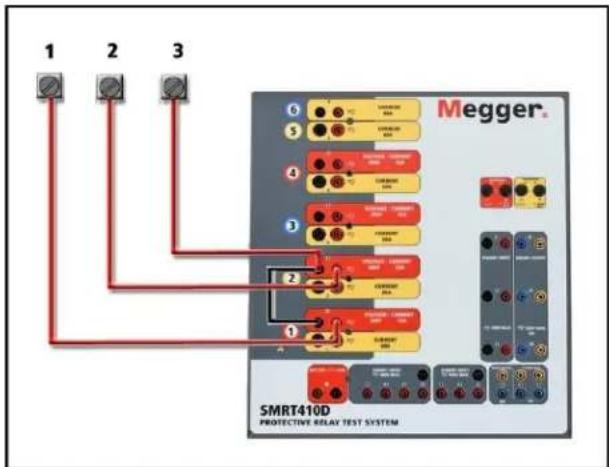
Figure 326 Three Phase Open Delta Connections
4.2.2 T Connection
The second method of obtaining a three-phase, three-wire voltage source is the so-called T-Connection. The method is easier to use when obtaining an unbalanced, phase - to -phase fault simulation since it eliminates calculations. To reduce confusion when using the T-Connection, the voltage output #1 is designated V_a and its phase angle set at 0°, voltage output #2 is designated V_b and its phase angle set for 180°, and voltage output #3 is designated V_c and its phase angle is set for 270. Any combination of balanced three phase faults or unbalanced phase-to-phase fault conditions can be easily simulated.
NOTE: This method should not be used for very low fault voltages, or used on solid state relays that may be sensitive to this type of connection (i.e. 5 volts or less, or for testing ABB or Westinghouse type SKD relays).
4.3 3∅, 4-Wire, Y-Connection
A three-phase, four-wire potential system can be provided using three output modules. This Y-Connection has the advantage of being able to supply a higher line-to-line voltage (1.73 x phase-to-neutral voltage). It is ideally suited for simulating phase-to-ground faults. Voltage channel #1 is designated as V_a with its phase relationship set for 0°. Voltage channel #2 is then designated as V_b and phase angle set for 120°. Finally, voltage channel #3 is designated V_c and phase angle set for 240° (for a 1-2-3 counter clockwise rotation). V_a, V_b and V_c are connected to the voltage potential binding posts on the respective test sets.
Note: If an F or C appears in the 5 ^th digit of the style identification number (i.e. 40P2F0A0S1) the voltage returns are floating (isolated from each other and ground). Those units with a style number G or E the voltage returns are common together internally and connected to earth ground.
If using the sleeved multi-lead voltage test leads (part number 2001-395), all of the black return leads are interconnected together inside the sleeve so they will all share the return together. Therefore, only one return lead is provided on the relay connection side of the sleeved leads (similar to the connections in the following figure).
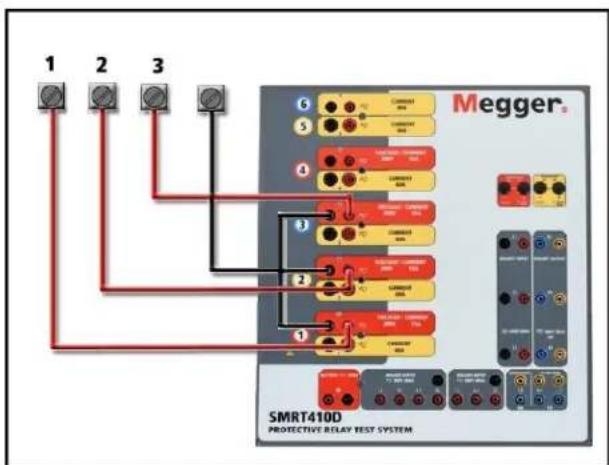
Figure 327 Three Phase Four Wire Test Connections
For the earth grounded common return (G or E) units, there is an internal common ground between the voltage and current channel return terminals. Therefore, only one return lead is required for the voltage channels. If using separate individual test leads, for the floating common units the user must connect the associated voltage channels black common returns together as shown above using the jumper leads provided with the test leads option.
5.0 Warranty Statement
Megger warrants the product is free of defects in material and workmanship for a period of at least one (1) year from date of shipment. This warranty is non-transferable. This warranty is limited and shall not apply to equipment that has damage, or cause of defect, due to accident, negligence, and improper operation, faulty installation by the purchaser, or improper service or repair by any person, company or corporation not authorized by Megger. Megger will, at its' option, either repair or replace those parts and/or materials it deems to be defective.
The warranty is in lieu of all other warranties, either expressed or implied on the part of Megger and in no event shall Megger be liable for the consequential damages due to the breach thereof.
5.1 Preventive Maintenance
The unit utilizes surface mount technology (SMT) and other components which require little or no service except for routine cleaning, etc. The unit should be serviced in a clean atmosphere away from energized electrical circuits.
5.1.1 Examine the unit every six months for:
| Dust and Dirt | To clean the unit, disconnect the power cord from the unit. Never use spray liquids or industrial cleaners. Some cleaning solvents can damage electrical components, and should never be used. Water and a mild soap may be used. Use a lightly damp cloth (not dripping wet) to wipe off the unit. A dirty heat sink can cause thermal overloads. Remove dust with dry, low pressure, compressed air. Either remove the module from the chassis or simply apply air forcing the dust away from the heat sink through the sides of the unit. |
| Moisture | Remove moisture as much as possible by putting the test set in a warm, dry environment. |
5.2 Updating SMRT410D Firmware
Download Firmware Upgrade via Megger Website
To download the newest firmware from the Megger website,
- Go to WWW.Megger.com
- Log In
- Go to Software Downloads
- Click on SMRT
- Click in the window provided and enter the SMRT Serial Number. Note: Make sure you enter the serial number correctly, or it may be rejected.
- Click on the version of firmware displayed, i.e. Firmware X.XX
The firmware will be downloaded onto the user's PC as a zip file. Create a folder and Extract (unzip) the file to the folder.
Firmware Upgrade via USB Port
Download the firmware to your PC from the Megger website as outlined above; see Firmware Upgrade via Megger Website. Unzip the file, Select All files, and Copy to a USB memory stick. Power up the test system, and then insert the USB stick into the USB port on the front panel. To perform the upgrade, from the Configuration Screen press the Update Firmware button. The SMRT410D will automatically look to see if the firmware is a newer version of Software /Firmware, and if it is, it will automatically download the firmware into the unit.
5.3 Service and Repair Instructions
To save turn-around time and reduce costs, SMRT410D was designed as a modular unit. In most cases, if any one module should experience a problem it should not cause the test system to be down. Basic troubleshooting information has been provided to guide the technician to the possible source of a problem.
Since SMRT410D uses Surface Mount Technology, most repairs of the individual modules are beyond the scope of the basic troubleshooting guide, and should be referred to the Service Department at Megger or handled through the Megger Representative.
If the unit is still within the original warranty period, or limited warranty period following factory servicing, the factory must be contacted before attempting any repairs or the warranty will be void.
5.3.1 Basic Troubleshooting
The troubleshooting information relies on the technician to have a good understanding of the operation of the unit. If the technician is unfamiliar with the unit, he or she should not attempt to repair. The technician should contact the factory before attempting repairs. Provide the Megger part number for the part or assembly in question and the serial number of the SMRT410D when making inquiries.
WARNING It is necessary to energize the SMRT410D to properly troubleshoot some of the modules. The technician must take all applicable safety precautions for working near energized circuits.
NOTES
Before suspecting a failure in the SMRT410D, review the General Description and Operation sections to ensure that the problem is not a result of operating error.
Preliminary testing of the SMRT410D within its specified limits can help determine if a malfunction actually exists, identify the type of malfunction and define the general area of the failure.
Common causes of malfunctions, other than improper operation, are incorrect power input (voltage above or below specified limits), incorrect test signal voltages applied to the Binary Input gates (outside of the specified AC/DC Applied/Removed limits), and contact or circuit resistance too great for the Dry Contact gates to operate properly on the Monitor/Start/Stop gates. Typical malfunctions for the VI-Gen amplifiers are external short circuits on the voltage output and open circuits on the current output. The battery simulator and VI-Gen voltage and current outputs can be easily checked using a voltmeter and ammeter.
NOTE: There are four different modules that can make up a SMRT410D; the System Board (front panel), VIGEN's (VIGEN#1, and #2) and VIGEN's LITE (VIGEN #3, and #4), and the optional DIGEN. Most problems can be easily resolved by replacement of one of these modules, see section 5.3.1.2.1 Replacing a VIGEN for instructions on how to replace a VIGEN module. Proper ESD procedures should be followed when handling any SMRT410D module. Failure to do so, may damage sensitive parts.
5.3.1.1 Power Input
Input voltage affects the whole unit and may or may not cause permanent damage if voltage is incorrect. These problems can often be corrected by simply using a better source of input power.
Some symptoms are as follows:
-
Low voltage: Erratic operation, no output, input power circuit breaker operation.
-
High voltage: Circuit breaker operation, power supply failure in Input Power Module.
5.3.1.2 VIGEN Input Power, Communication and Control
Basic troubleshooting of the input power is as follows.
- No power: Check the ON/OFF circuit breaker. Does the ON/OFF switch light up? If it does not light up, then power is not getting to the unit. Check power source and line cord. If it lights up then the power is getting to the unit. Check the VIGEN power cable connection.

CAUTION: Turn off main power and unplug line cord before attempting to work on any module. Observe proper Electro Static Discharge procedures.
A. Disconnect the power cord from the unit.
B. Remove the five screws on each side that hold on the top cover (note there are 4 screws down each side in the top cover plate, plus the 5^th screw is located just below the front top screw in the side plate), see the following figure.

C. Remove the four screws located on the top back side, then up to six screws located on the top cover, see the following figure.
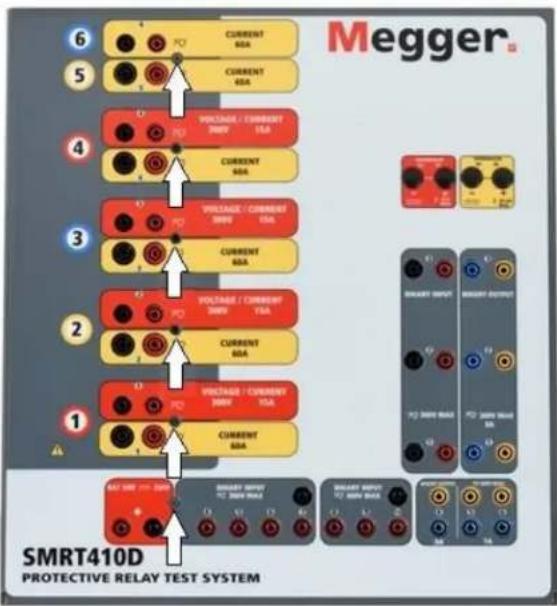
Figure 328 SMRT410D Top Cover Securing Screws _12
D. Remove the two screws (one on each side) that connect the top cover to the front panel, see the following figure.

Figure 329 Front Panel Screws, Removal of Top Cover
E. Remove the top cover from the enclosure, see the following figure.
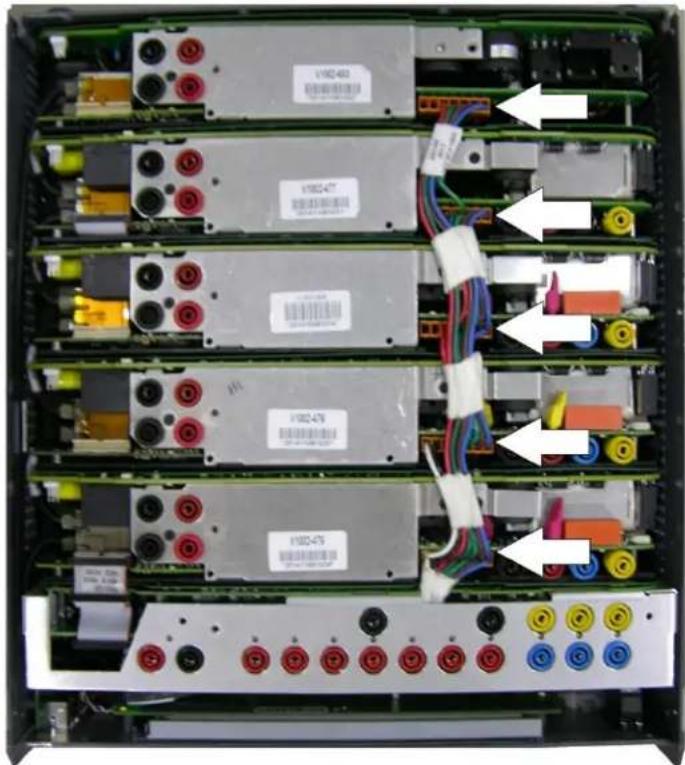
natural_image
Back view of an electronic device showing multiple internal components with colored connectors and wiring (no readable text or symbols)Figure 330 Amplifier Power Connectors for 5 Channel Unit
Check the cables as shown. If the cables are properly connected, then remove and replace the VIGEN per 5.3.1.2.1.
4. Erratic Manual Control
Individual Output Module communication cable is not properly connected thus cannot receive proper commands. Look through the air intake holes on the left side of the unit to observe the VI-Gen LED's. Each module has some green LED's that blink. These are associated with the Ethernet communications. If there are no blinking LED's on one or more modules, then the module is not communicating. Remove the top cover using the procedure described above.
CAUTION: Turn off main power and unplug line cord before attempting to reseat any cables. Observe proper ESD procedure.
Locate the communication Ethernet cables on the left side, see the following figure.

natural_image
Interior view of an electronic device showing multiple ports with red and black components, connected by cables (no visible text or symbols)Figure 331 Communication Cable Connections
Carefully disconnect each cable and reconnect to insure the cable locks into position.
After reseating the cables, replace the top cover assembly, reconnect the power cord and power up the unit. Look through the air intake holes on the left side of the unit to observe the VI-Gen LED's. If there is still no blinking LED's on one or more modules then replace the VI-Gen Module(s) that are not communicating. If they are not lit, then remove the power cord and the top cover and check the power connection cables to each VIGEN as described in Step 1 above.
5.3.1.2.1 Replacing a VIGEN
- To remove a VIGEN, there are three Phillip head screws that hold the VIGEN into the chassis, one on each side and one on the bottom of the unit.
- Remove the power connection cable and communication cables as shown in the above Figures.
Note the small cable that connects the front panel board to VIGEN 1 needs to be carefully removed prior to removing VIGEN1, see the following figure.

natural_image
Interior view of an electronic device showing internal components and wiring (no readable text or symbols)Figure 332 VIGEN1 to Front Panel Cable
- Carefully remove the VIGEN module from the chassis.
Be careful when replacing the module as it is a tight fit, and it is possible to damage components upon extraction or installation.
-
Install replacement VIGEN.
-
Replace the Phillip head screw(s) that hold in the VIGEN.
-
Reconnect the power and communication connection cables as shown in the Figures above.
-
If VIGEN #1 was replaced, reconnect the front panel cable as shown in Figure above.
-
Reinstall the top cover. Reconnect the power cord and power up the unit.
5.3.1.3 Binary Inputs, Binary Outputs and Battery Simulator
If all the items external of the Timer assembly are in proper order, then the problem exists within the Binary Input / Output assembly itself.
Some basic troubleshooting can pinpoint problems to the approximate cause.
Binary Inputs - Basic troubleshooting is as follows:
1. Timer does not stop:
Jumper the appropriate Binary Input terminals manually. If LED above the selected input lights, check the Binary Input setup screen to verify that the selected binary input is properly setup as a Timer stop post. Check Timer stop settings as N.O. (Normally Open) to close, and Latch On. If LED does not light up, the Binary Input will need to be repaired or replaced.
2. Counting errors:
AC applied or removed Stop signals can create, what appears to be poor repeatability, an inaccuracy, or a malfunction in the Timer. The lower the voltage level, the more serious the "error" will be. What appears to be an error, however, is actually a variation in the point on the sine wave at which the voltage is great
enough to cause the gate circuit to operate. If the circuit used for the timing test has a low AC voltage and the point at which the contact in the test circuit opens or closes, is at or close to zero on the sine wave, the period of time before the voltage level will be high enough to trigger the gate circuit can be as much as 4 milliseconds. The total timing variation can be as much as 8 milliseconds. The shorter the duration of the timing test, the more significant the variation becomes. Therefore, if small timing variations would present a problem, it is recommended that an AC voltage of 115 volts or a DC voltage be used for voltage applied/removed test selections.
When the SMRT410D Timer calibration is being tested, the AC voltage variable is often overlooked. This is particularly true when the Timer is compared to a counter and the two are triggered simultaneously with an electronic switch. For best results, a DC voltage should be used to eliminate the variable. If testing the AC voltage Timer Stop characteristics is desired, then the Stop signal must be triggered at the same point on the sine wave to assure that the gate signal will be repeatable. Ideally, the signal should be at a point near peak in the positive direction. In addition, the specified rms AC voltage values for the various Stop control selections must be adhered to.
Another source of apparent "error" can be the programmable de-bounce feature. If using electro-mechanical contacts for stopping the Timer, and if those contacts have a tendency to bounce, there could be a difference between an external standard timer and the SMRT410D Timer, depending on the programmed de-bounce period set in the SMRT unit. To determine the programmed value, look at the Binary Input Setup Screen and see what the De-bounce setting value is.
If a timing error or variation persists after all the suspected causes of error have been eliminated, then it is possible that the Binary Input circuit is malfunctioning. Contact factory for return instructions.
Binary Outputs - Basic troubleshooting is as follows:
Binary Output LED is ON but output contacts not closed:
Using a continuity tester check to see if output circuit is open circuited. If circuit is open then it is possible that the internal surface mounted fuse element has been blown. Note: an optional in-line fused test lead Part Number: 568026 are available to provide protection from switching too high current, see SMRT Ordering Information under Optional Additional Accessories. The unit will need to be returned to the factory for further inspection and repair.
! Contact the factory for a Repair Authorization Number and return instructions if service is required. A Repair Authorization (RA) number will be assigned for proper handling of the unit when it arrives at the factory. Any non-warranty repair cost incurred for the repair or replacement of parts and/or materials shall be the responsibility of the purchaser.
Provide the factory with model number, Unit serial number, serial number of VI-Gen if appropriate, nature of the problem or service, return address, your name, and how to contact you should the factory need to discuss the service request.
You may need to provide a purchase order number, cost limit, billing, and return shipping instructions. If an estimate is requested, provide the name and contact information.
6.0 Preparation for Reshipment
Save the original shipping container for future use. The shipping container is designed to withstand the rigors of shipping via a common commercial carrier. For example, you may wish to reship your unit to Megger for an annual calibration recertification.
Pack the equipment appropriately to prevent damage during shipment. If a reusable container is utilized, the unit will be returned in the same shipping container if it is in suitable condition.
Add the Return Authorization Number to the address label of the shipping container for proper identification and quicker handling.
NOTE: Ship the equipment without nonessential items such as test leads, etc. These items are not needed by the factory to perform service.
- IMPORTANT
- WEEE
- SAFETY PRECAUTIONS
- WARNING: VOLTAGES GENERATED BY THIS INSTRUMENT CAN BE HAZARDOUS
- SAFETY PRECAUTIONS (Continued)
- Table of Contents
- Section
- Page
- Introduction
- Smart Touch View Interface
- Terminology
- Acronyms
- Glossary of Terms
- Pickup (Tap)
- TDM (Time Dial Multiple)
- Inst. (Instantaneous Tap)
- Reset Seconds
- Time Delay
- Test Multiple
- Reach or Diameter
- Expected Trip Time
- Winding (1,2,3,4) Tap
- % Slope
- % Harmonic
- % Prefault Seconds
- Power Over Ethernet Input Power
- CAUTION:
- PoE Power Supply-Input Power Cord
- SETUP
- Unpack System
- Initial Start Up
- Communication Ports
- Ethernet Port
- USB 2.0 Interface
- RTMS software and STVI Hand-Held Controller
- Configuration
- Operation Modes
- Battery Simulator
- Last VIGEN is Battery
- Default Settings Options
- Save as Default
- Restore Default
- Restore Factory
- Display Versions (Information Screen)
- Update Firmware
- Auto Frequency
- Language
- Deviation Alarm
- Color Options
- Change State Immediately / Change on Zero Cross
- Symmetrical Components
- High Burden
- Voltage Character
- Date and Time
- Logging
- Adjust Screen Brightness
- Ethernet (DHCP) IP Address
- Advanced - Convertible V/I Selection for Multi-Phase Current Output
- Primary Ratios
- Screen Exit
- Setting Amplitudes, Phase Angle or Frequency
- Numeric Keypad Entry
- Include Channel in Ramping
- Control Knob
- Setting Default Voltage Outputs
- Setting Default Current Outputs
- Virtual Alphanumeric Keypad
- RTMS software File Management
- RTMS software – Basic Operating Descriptions
- Manual Test Screen
- ① Connection button
- ② The Configuration button
- ③ Battery Simulator button
- ④ Add To Report button
- ⑤Nameplate button
- ⑥ File Folder button
- ⑦ Test List button
- Ramp button
- Timing Test button
- Sequencing 1, 2, 3..9 button
- Impedance button
- Differential button
- Transducer button
- ⑧ Meter Mode button
- ⑨ System Reset button
- ⑩ Help button
- ⑪ Phase Vector Screen
- ⑫ Binary Input Dialog Box
- Binary More button
- ⑬ Prefault / Fault buttons
- ⑭ Maximum Test Time/Prefault Time/Post Fault Time Settings button
- ⑮ Play button
- ⑯ All ON/All OFF button
- ⑰ Manual Ramp Options button
- ⑱ Channel ON/OFF Selector button
- ⑲ Channel Amplitude, Phase Angle and Frequency buttons
- ⑳ Fault Calculator button
- Mode Selection button
- Fault Type Selection button
- Setting Phase Angle Relationships
- Current Sources
- Parallel Operation
- Manual Test Screen - Single Phase Up To 180 Ampere
- Currents in Series Operation
- Voltage Sources
- Outputs Summed Together
- 3∅, 3-Wire, Open-Delta and T-Connection
- Balanced Open Delta
- Unbalanced Open Delta
- 3∅, 4-Wire, Y-Connection
- Testing Relays with the Manual Test Screen
- Simple Manual Pickup or Dropout Test
- Simple Manual Timing Test
- Using Smooth Ramp/Auto Ramp / Pulse Ramp / Pulse Ramp Binary Search
- Smooth Ramp Example
- Step Ramp Example
- Pulse Ramp Example
- Pulse Ramp Binary Search Example
- Using Ramp Wizard
- EM (Electromechanical) Current Pickup
- Instantaneous Pickup
- Current Target & Seal In
- Ramping Battery Simulator Output
- Overcurrent Tests
- Manufacturer Brand Selection Button
- Manufacturer's Model by Brand Button
- Relay Additional Configuration Button
- Include Target and Seal-In Tests Button
- Relay's Curve and Direction per Element – Selection and Configuration
- Preparing Tests
- Elements' Overcurrent Tests Button
- Nameplate Button
- Connection Guidance Button
- Battery Simulator Button
- Binary Input Setting button
- View Test Results button
- Performing Tests
- Phase Pickup Button
- Phase Timing Button
- Phase Instantaneous Button
- Phase Directional Button
- Neutral Pickup Button
- Neutral Pickup
- Neutral Timing Button
- Neutral Timing
- Multiple Test Current (A) Min. Time (s) Max. Time (s) A-N Time (s) B-N Time (s) C-N Time (s) Pass/Fall
- Neutral Instantaneous Button
- Neutral Directional Button
- Ground Pickup Button
- Ground Timing Button
- Ground Instantaneous Button
- Ground Directional Button
- Electromechanical Relay Tests
- Ground Target and Seal-In Button
- Neutral Target and Seal-In Button
- Timing Test - Voltage Relays
- Timing Test
- State Sequence Timing Test – Multi-Shot Reclose Relays
- Testing Impedance Relays
- Common Settings
- Tolerance Settings
- Zone Trip Time Settings
- DIRECTION Setting Button
- Zones/Fault Selection Box
- Ground Compensation Settings
- CT PT Ratios
- Generic Characteristics
- Generic MHO Setting Screen
- MHO Load Encroachment Setting Screen
- HALF MHO Setting Screen
- QUAD Setting Screen
- QUAD Load Encroachment Setting Screen
- Relay Library Files
- XRIO Relay Settings Import
- RIO Files
- Impedance - Click On Fault Configuration Screen
- Prefault Dialog Box
- Control Dialog Box
- Ramp/Shot Options
- CT PT Ratios
- Polar/Rectangular Plot Button
- Auto Set Fault Times button
- Ohms Per Phase/Per Loop button
- Impedance - Click On Fault Test Screen
- ① RIO button
- ② Relay Library button
- ③ Binary Input Setting button
- ④ Return to Settings Input Screen button
- ⑤Play button
- ⑥Test All button
- ⑦Zone Zoom button
- ⑧Battery Simulator button
- ⑨The Configuration button
- ⑩ Review Test Report button
- ⑪ Quick Test button
- ⑫ Independence Test Points option
- IEC60255 Test Points option
- Origin Test Points option
- Shots Test Points option
- ⑬ Return to Impedance COF Configuration Screen button
- ⑭ Fault Selection button
- ⑮ Clear Test(s) button
- Easy Z Impedance Relay Test
- Selection of the Easy Z
- Easy Z Impedance Relay Setting and Test Screen
- ① Binary Input Setting button
- ② CT Earthing Position button
- ③ The Configuration button
- ④ Add To Report button
- ⑤ Review Test Report button
- ⑥ Clear Test(s) button
- ⑦ Clear Test Results button
- ⑧ Test Method Selection Box
- ⑨ Fault Type Selection button
- ⑩ Fault Setting Fields
- ⑪Pre-Fault, Fault, Post Fault dialog box
- ⑫ Impedance Ramp box
- Pseudo-continuous ramp
- Ramp of shots (step ramp)
- ⑬ Impedance Test Screen
- ⑭ Impedance Plane Screen
- Testing Transducers with the RTMS software
- Of Test Points: 3
- Transducer Setup Screen
- Nameplate Section
- Type Selection Section
- Test Settings Section
- Input Range Section
- Output Range Section
- Transducer Test Screen
- Percent
- Output Section
- Transducer Output Section
- Testing Transducers
- Saving Results
- Watt / Var / Va / Power Factor Applications
- Watt/VAR 1 Element
- Power Factor 1 Element
- Watt/VAR1 1/2 Element
- Watt/VAR 2 Element
- Watt/VAR 2 1/2 Element
- Note: All of the calculations are very similar when testing VAR 2 1/2 Element
- Note: All of the calculations are very similar when testing VA 2 1/2 Element
- Watt/VAR 3 Element
- Note: All of the calculations are very similar when testing VAR 3 Element transducers.
- Note: All of the calculations are very similar when testing VA 3 Element transducers.
- Power Factor 3 Element
- Single Phase Applications
- AC and DC Voltage Transducers
- Note: All of the calculations are very similar when testing DC Voltage transducers
- AC and DC Current Transducers
- Frequency Transducers
- Testing Differential Relays
- Transformer Nameplate
- Transformer Differential Tests
- Stabilization Test
- Timing Test
- Pickup Test
- Settings that affect Pickup test
- Slope Test
- Settings that affect the Slope Test
- Creating Search Lines
- Harmonic Block Test
- Settings that affect the Harmonic Block test
- Harmonic Shot Test
- Settings that affect the Harmonic Shot test
- Synchronizer Test
- Synchronizer Relay Settings and Configuration Screen
- ① Device Nameplate – System Settings
- ② Circuit Breaker Settings
- ③ Synchronization Characteristic Settings
- ④ Test Parameters
- Synchronizer Characteristic Test Selection Screen
- ① The Configuration button
- ② Battery Simulator button
- ③ Test Report button
- ④ List button
- ⑩ Help button
- □ Quick Test button
- Dynamic Points option
- ☐ Origin Test Points option
- Frequency Test
- Frequency Relay Settings and Configuration Screen
- ① Under Frequency relay Test Settings
- ② Over Frequency Relay Test Settings
- ③ df/dt ROCOF Relay Test Settings
- ④ VT and Relay Connections
- Classic Timing Test Selection
- Prefault Settings
- Frequency Relay Test Screen
- Frequency Relay Timing Test Screen
- AVTS Test
- AVTS Selection Screen
- AVTS Relay Test Selection Screen
- The Relay Settings button
- The Runtime Settings button
- Test Screen Selection
- The Configuration button
- Battery Simulator button
- Test Report button
- Test List button
- Return to Relay Settings Screen button
- Return to Relay Manufacturers selection screen button
- Test Connections button
- Test Notepad button
- Play button
- Test All button
- Help button
- Executing a Test
- Executing a One-Touch Test Module
- Establishing Communications with Relay Under Test
- SEL Start Here button
- Test Selection
- COMTRADE Playback
- COMTRADE Dialog Box
- Processing a COMTRADE File
- COMTRADE Test Screen
- Samples is the number of samples in the data (.dat) file.
- Processing the COMTRADE File
- Name Unit Max
- Adding Digital channel playback
- Name
- Name Unit Max RMS Ratio Scale # Name Unit Max RMS Ratio Scale # Name
- Viewing COMTRADE Playback Waveforms
- Zoom and Cursor Controls
- Cropping button
- Saving Test
- Power Swing Simulator
- Power Swing Test Screen
- Pressing the house
- SS1 File Playback
- SS1 File Dialog Window
- SS1 File Edit Field
- SS1 File Simulations Field
- SS1 File States Area
- SS1 File Vectors Area
- SS1 File Adjust Time Factor Area
- View Raw SS1 File
- IEC 61850 Megger GOOSE Configurator (MGC)
- GOOSE Message Description
- IEC 61850 Relay Testing – General Description
- MGC Menus
- Figure 175 Edit Tab Menu
- Select Network Device
- Set Test Set IP
- Preferences
- Full View
- Easy View
- FREJA 4xx Mode
- SMRT / MPRT Mode
- PC-GOOSER Mode
- Expanded MPRT Mode
- Bypass Test Set Connection
- GOOSE Filter Options
- Delete On Add To Filter
- Filter Allows Update
- VLAN ID
- GOOSE Test Attribute ED. 1.
- Test Tab
- Help Tab
- About
- User's Manual
- MGC Toolbar
- SCL Button
- C Button
- DL Button
- MERGE Button
- COMPARE Button
- Copy to MyGOOSE Button
- New Search Button
- Network Scanning
- How to capture GOOSE Messages
- How to Monitor GOOSE Messages
- GOOSE Message Analysis
- GOOSE Filter
- MERGE
- COMPARE
- Confirmation
- Merging of GOOSE messages
- MERGE and COMPARE example
- COMPARE Example
- Configuration
- Mapping SMRT / FREJA 5xx binary inputs to GOOSE messages (subscription)
- Warranty Statement
- Service Data
- Preventive Maintenance
- Examine the unit every six months for:
- Upgrading the STVI Software
- Upgrade via Megger Website
- Upgrade via Compact Disk
- How To Download RTMS software into STVI
- Service and Repair Instructions
- Basic Troubleshooting
- NOTES
- Power Input
- Ethernet Cable
- Preparation for Reshipment
- Megger ®
- Addendum A
- Model SMRT1
- Megger Single Phase Relay Tester
- WARNING:
- VOLTAGES GENERATED BY THIS INSTRUMENT CAN BE HAZARDOUS
- Operation
- General Description
- Front Panel
- Side Panel:
- Rack Mount Enclosure Rear Panel:
- Input Line Cord
- Input Power
- Input Power Cord
- Voltage - Current Generators
- Convertible Voltage/Current Amplifier
- Voltage Range Power / Current (Max)
- Output Current Power Max V Duty Cycle
- Current Amplifier
- Output Current Power Max V / Duty Cycle
- Binary Input and Output
- Binary Input
- Start, Stop, and Monitor Gate
- Dry Contacts Close
- Application or Removal of AC or DC voltage
- The Timer can be started when turning on any selected generators.
- Binary Output
- PC/IN Ethernet Port
- Setting SMRT IP Address for Operation with a PC
- Setting SMRT IP Address for Networks
- 61850/OUT Ethernet Port
- IEC 61850 Operations
- Current Sources
- Parallel Operation
- Manual Test Screen - Single Phase Up To 180 Ampere
- Currents in Series Operation
- Voltage Sources
- Outputs Summed Together
- Balanced Open Delta
- T Connection
- 3∅, 4-Wire, Y-Connection
- Warranty Statement
- Updating SMRT1 Firmware
- Download Firmware Upgrade via Megger Website
- WARNING It is necessary to energize the SMRT1 to properly troubleshoot. The technician must take all applicable safety precautions for working near energized circuits.
- VIGEN Input Power and Control
- Binary Input and Binary Output
- Timer does not stop:
- Counting errors:
- Addendum B
- Model SMRT33/36/46 Megger Relay Tester
- Top Panel
- Front Panel:
- Voltage - Current Generator (VIGEN) Module
- Binary Inputs and Outputs
- Binary Inputs
- Start, Stop, and Monitor Gates
- Binary Outputs
- Battery Simulator
- USB 2.0 Interface
- PC/OUT Ethernet Port
- Setting SMRT IP Address for Operation with a PC
- STVI Ethernet Port
- Setting SMRT IP Address for Operation with STVI
- IN - IEC61850 Ethernet Port
- Setting SMRT IP Address for Networks or IEC 61850 Operations
- Manual Test Screen - Single Phase Up To 180 Ampere 7
- 3∅, 3-Wire, Open-Delta and T-Connection
- Updating SMRT33/36/46 Firmware
- WARNING It is necessary to energize the SMRT33/36/46 to properly troubleshoot some of the modules. The technician must take all applicable safety precautions for working near energized circuits.
- VIGEN Input Power, Communication and Control
- CAUTION: Turn off main power and unplug line cord before attempting to work on any module. Observe proper Electro Static Discharge procedures.
- Erratic Manual Control
- CAUTION: Failure to replace wire-ties may pinch the communication cables upon replacement of the top cover.
- Replacing a VIGEN
- Addendum C
- Model SMRT36D
- Megger Relay Tester
- Voltage Amplifier in Current Mode:
- PC/IN Ethernet Port
- ISOLATED Ethernet Port
- IEC61850 / OUT Ethernet Port
- Updating SMRT36D Firmware
- Erratic Manual Control
- CAUTION: Turn off main power and unplug line cord before attempting to reseat any cables. Observe proper ESD procedure.
- Be careful when replacing the module as it is a tight fit, and it is possible to image components upon extraction or installation.
- Binary Inputs, Binary Outputs and Battery Simulator
- Timer does not stop:
- Counting errors:
- Addendum D
- Model SMRT46D
- AC/DC AUX Output (V4)
- Updating SMRT46D Firmware
- Be careful when replacing the module as it is a tight fit, and it is possible to change components upon extraction or installation.
- Binary Inputs, and Binary Outputs
- Addendum E
- Model SMRT410
- Voltage - Current Generator (VIGEN) and Double-Current (DIGEN) Modules
- Manual Test Screen - Single Phase Up To 240 Ampere
- Updating SMRT410 Firmware
- Firmware Upgrade via STVI USB Port
- Service and Repair Instructions
- Basic Troubleshooting
- WARNING It is necessary to energize the SMRT410 to properly troubleshoot some of the modules. The technician must take all applicable safety precautions for working near energized circuits.
- Power Input
- VIGEN Input Power, Communication and Control
- Erratic Manual Control
- Replacing a VIGEN
- Binary Inputs, Binary Outputs and Battery Simulator (P Option Unit)
- Addendum F
- Model SMRT410D
- Multi-Phase Relay Test System
- Manual Test Screen - Single Phase Up To 360 Amperes
- Updating SMRT410D Firmware
- Firmware Upgrade via USB Port
Brand : Megger
Model : SMRT1D
Category : Measurement