MiVue 338 - Dash cam NAVMAN - Free user manual and instructions
Find the device manual for free MiVue 338 NAVMAN in PDF.


| Product Type | Dash Cam |
| Brand | Navman |
| Model | MiVue 338 |
| Dimensions (W x H x D) | Approx. 4.5 x 2.5 x 1.5 inches |
| Weight | Approx. 120 g |
| Power Source | 12-24V DC vehicle cigarette lighter adapter |
| Battery | Built-in rechargeable lithium battery |
| Display | 2.0 inch LCD screen |
| Video Resolution | Full HD 1080p (1920 x 1080) |
| Field of View | 130° wide angle lens |
| Memory Card | MicroSD card (Class 10, up to 64GB) |
| Recording Modes | Loop recording, incident detection (G-sensor), manual recording |
| GPS | Built-in GPS receiver for speed and location data |
| Main Functions | Continuous recording, impact detection, parking mode (with hardwire kit), time and date stamp |
| Maintenance & Cleaning | Clean lens with soft microfiber cloth; avoid solvents; format memory card monthly |
| Safety | Not a safety device; use as intended. Do not obstruct driver's view. |
| Spare Parts & Repairability | User-replaceable memory card; other parts not serviceable by user |
| General Information | Designed for vehicles; records video evidence; includes mount and charger |
Frequently Asked Questions - MiVue 338 NAVMAN
User questions about MiVue 338 NAVMAN
0 question about this device. Answer the ones you know or ask your own.
Ask a new question about this device
Download the instructions for your Dash cam in PDF format for free! Find your manual MiVue 338 - NAVMAN and take your electronic device back in hand. On this page are published all the documents necessary for the use of your device. MiVue 338 by NAVMAN.
USER MANUAL MiVue 338 NAVMAN
Precautions and notices....3
Getting to know the recorder....4
Front and rear components....4
Side components....6
Inserting a memory card....7
Using your recorder in a vehicle 8
Connecting to an external device....9
Operating basics 10
Recording mode 10
Continuous recording....10
G-sensor event recording....11
Manual event recording....11
Recording settings....11
Camera mode 12
Camera settings....12
Playback mode....12
Turning off the recorder....12
System SETUP 13
Caring for your device....13
Regulatory information.... 15
Safety precautions 15
About charging....15
About the charger 15
About the battery....16
Precautions and notices
■ For your own safety, do not operate the controls of the product while driving.
■ Other wireless devices in the vehicle might interfere with the reception of satellite signals and cause the reception to be unstable.
A window mount is needed when using the recorder in a car. Make sure that you place the recorder in an appropriate place, so as not to obstruct the driver's view or deployment of airbags.
■ Make sure that no object is blocking the camera lens and no reflective material appears near the lens. Please keep the lens clean.
If the car's windscreen is tinted with a coating, it may impact the recording quality.
Getting to know the recorder
Front and rear components
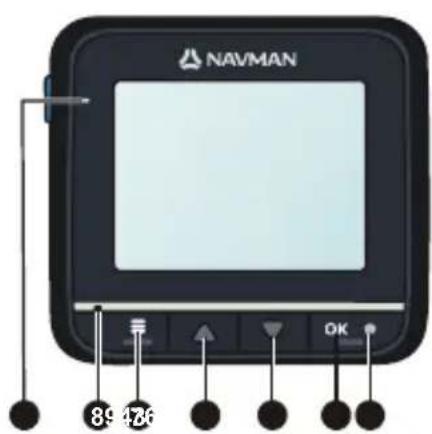
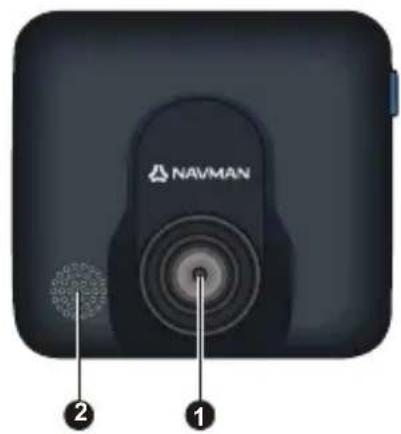
| Name Description | ||
| 1 | Camera lens | Make sure that no object is blocking the camera lens and no reflective material appears near the lens. |
| 2 | Speaker | Provides sound alerts. |
| 3 | OK/Record key | Stops the current recording. |
| Acts as the shutter to takes photos. | ||
| Confirms a menu selection. | ||
| Saves the changes you make in settings. | ||
| 4 | Record indicator | Glows in red when recording is in progress. |
| 5 | Down key | Zooms out of an image. |
| Turns OFF the screen during recording. | ||
| Moves to the next item in a list. | ||
| Adjusts the value of a setting option. | ||
| 6 | Up key | Zooms in to an image. |
| Turns ON the screen during recording. | ||
| Moves to the previous item in a list. | ||
| Adjusts the value of a setting option. | ||
| 7 | Menu key | Locks to save the current recording. |
| When recording is not in progress, press twice to enter System SETUP. | ||
| Enters the change mode for a setting option. | ||
| 8 | Microphone | Records sound. |
| 9 | Charge indicator | Indicates the level of battery charge:Green - battery full or recorder is turned ONAmber - battery charging |
Side components
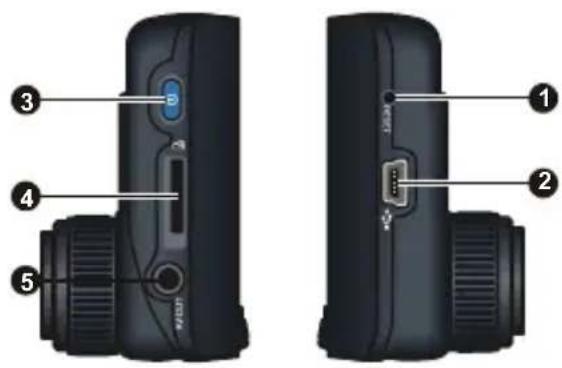
| Name Description | ||
| 1 | Reset switch | Restarts the recorder. |
| 2 | Mini-USB connector | Connects to the charger. |
| 3 | Power key | When using battery power, press and hold this key to turn ON and OFF the recorder. |
| Toggles through Recording, Camera and Playback mode. | ||
| 4 | Memory card slot | Data is recorded to a MicroSD card.Note: You are advised to use a Class 6 memory card with at least 4GB capacity. |
| 5 | AV OUT connector | Connects to an external device.Note: This connector (3.5 mm) supports the PAL and NTSC (interlace) formats. |
Inserting a memory card
CAUTION: Do not apply pressure to the centre of the memory card.
Note: You are recommended to use Class 6 MicroSD cards.
You have to insert a memory card before you can start recording.
The recorder supports MicroSD cards with up to 32GB capacity. You are advised to use a memory card with at least 4GB capacity.
Hold the card (MicroSD) at the edges and gently insert it into the slot with the label facing the front of your Navman.
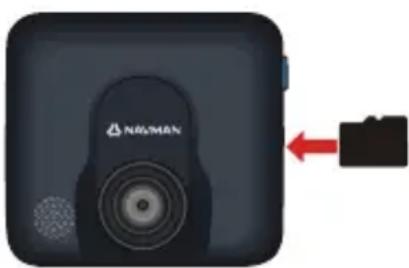
natural_image
Close-up of a black NEWMAN camera with a red arrow pointing to a folder icon (no text or symbols on the device itself)To remove card, gently push the top edge of the card inwards to release it, and pull it out of the slot.
Note: Navman Technology does not guarantee the product's compatibilities with MicroSD cards from all manufacturers.
Note: Before you start recording, please format the MicroSD card to avoid malfunction caused by files not created by MiVue 338. You can format the card on your computer or on MiVue 338 (pressing the Menu key twice to enter System SETUP when recording is not in progress and then select the format feature).
Using your recorder in a vehicle
CAUTION:
- Select an appropriate location for mounting the device in a vehicle. Never place the device where the driver's field of vision is blocked.
- DO NOT insert or remove the memory card when operating the recorder.
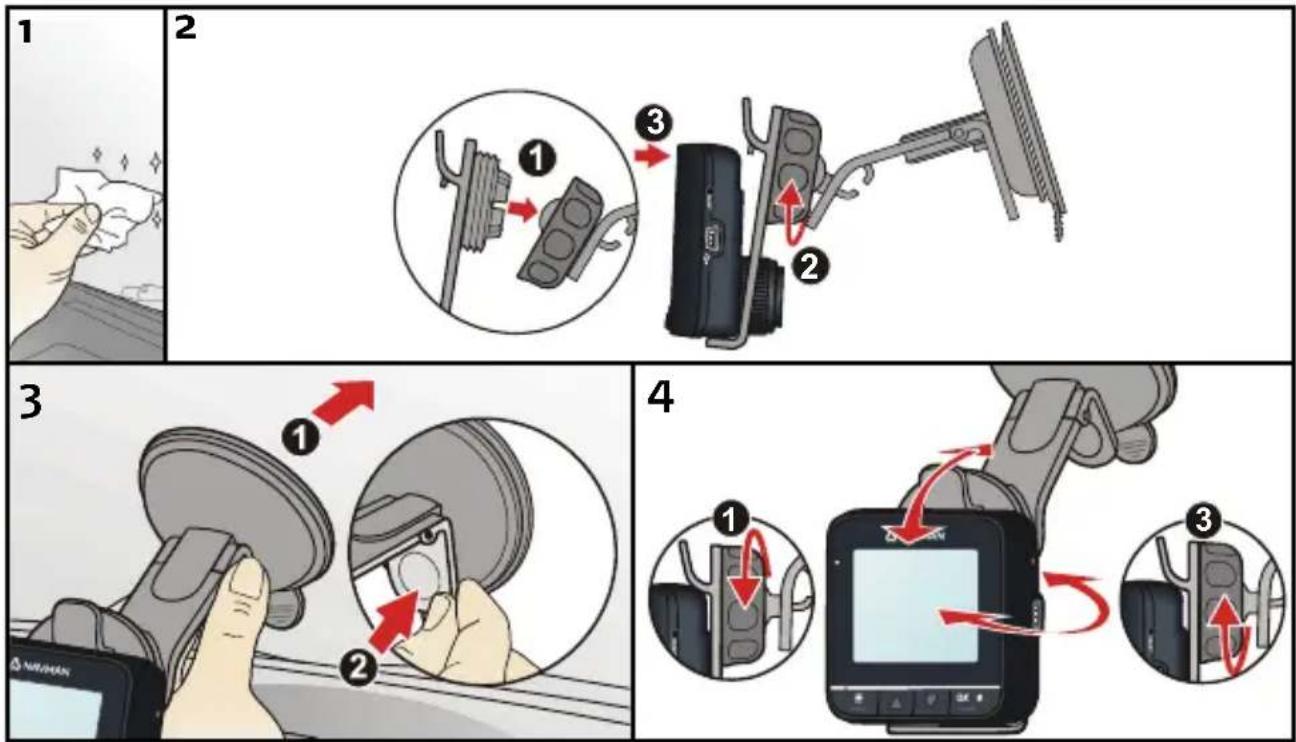
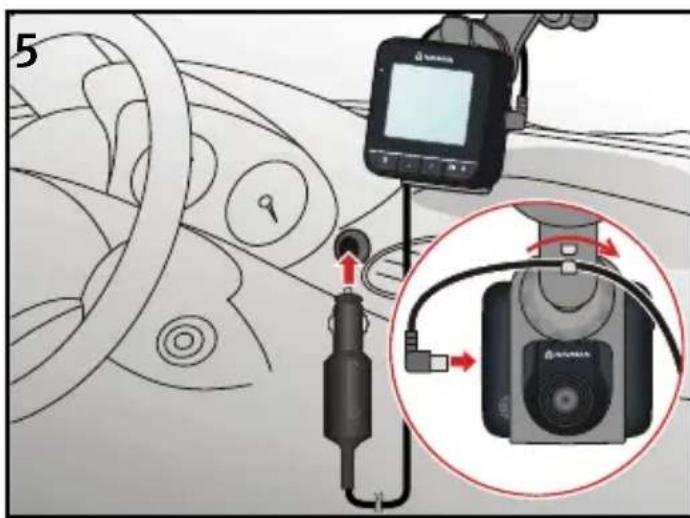
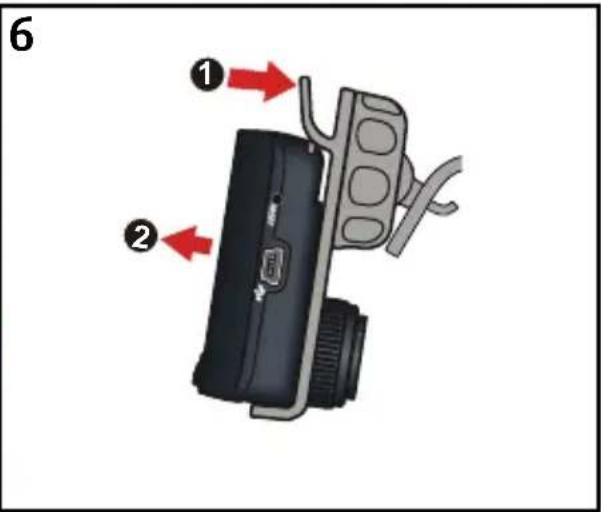
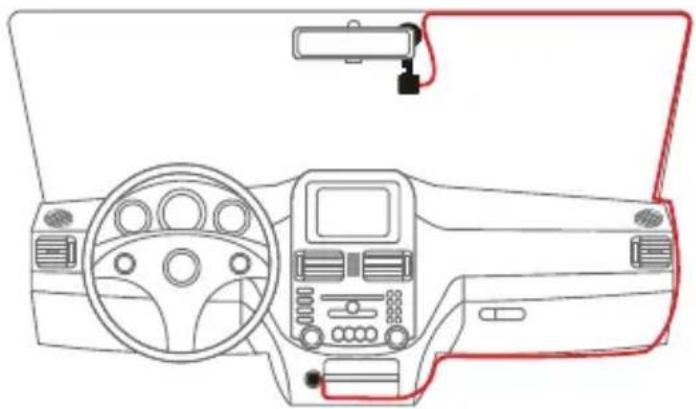
Use cable clips to secure the power cord so that it does not interfere while driving. To ensure the highest quality recordings, you are advised to place the recorder near the rear view mirror.
natural_image
Line drawing of a car dashboard and steering wheel (no text or symbols)Connecting to an external device
For a better viewing experience, you can connect the recorder to an external viewing device that supports the AV IN feature via an AV cable (not supplied).
Operating basics
Before you begin recording, please take note of the following:
■ DO NOT remove or insert the memory card while recording.
■ When the record indicator indicates a red light when recording is in progress, the MicroSD card may be full or damaged. Please check the MicroSD card.
Recording mode
Continuous recording
Connect the recorder to the car charger according to the installation instructions in the previous "Using your recorder in a vehicle" section.
When you connect the car charger to the cigarette lighter in the car and then start the car's engine, the recorder will start continuous recording automatically.
For continuous recording, the recording will be divided into several temporary video clips; recording will not stop between video clips. Each video clip is 70MB in size and may be about 1\~2 minutes long. These video clips are temporary recording files until they are locked/saved by pressing the Menu key.
If continuous recording is ongoing and when the card has run out of memory, new temporary video clips will replace the old ones.
To stop recording, press the OK/Record key OK
G-sensor event recording
If an event happens, such as sudden impact, high-speed driving, an overturn or an accidental crash, the G sensor will prompt the recorder to lock and save the recording.
The locked/saved recordings will not be replaced by temporary video clips.
Manual event recording
In addition to automatic event recording prompted by the G sensor, you can also start and save the recording manually.
Simply tap lightly on the recorder. The G sensor will prompt the recorder to lock and save the recording.
The locked/saved recordings will not be replaced by temporary video clips.
Recording settings
To change Camera settings, press the Menu key 📄. You can:
■ Change the video resolution to 720P (high quality) or VGA (low quality).
■ Disable/enable date and time stamp on video recording.
■ Disable/enable sound recording.
- Set the sensitivity level for the G sensor to be prompted automatically. You can also disable the G sensor's auto save function.
Camera mode
Use the Power key 📋 to toggle to the Camera mode.
When ready, press the the OK/Record key OK to take the photo.
Camera settings
To change Camera settings, press the Menu key 📄. You can:
■ Change the photo resolution to 1.3M (high quality) or VGA (low quality).
■ Disable/enable date and time stamp on photo taking.
Playback mode
Use the Power key 📋 to toggle to the Playback mode.
You can do the following in Playback mode:
■ Play the videos or photos on the MicroSD card.
■ Select and delete files to free up more space for recording.
■ Adjust the volume during playback.
Turning off the recorder
To turn off the recorder, disconnect the car charger from the cigarette lighter.
The recorder will turn off automatically in 10 seconds after the car's engine is turned off.
System SETUP
To enter System SETUP, press the Menu key twice (when recording is not in progress). You can:
■ Format your MicroSD card.
■ Set the language of the recorder.
■ Restore the system settings to factory defaults.
- Set the frequency to match the flicker frequency of the local power supply when recording.
■ Set the video output system to NTSC or PAL.
■ Set system date and time, and the time format.
Caring for your device
Taking good care of your device will ensure trouble-free operation and reduce the risk of damage.
- Keep your device away from excessive moisture and extreme temperatures.
-
Avoid exposing your device to direct sunlight or strong ultraviolet light for extended periods of time.
■ Do not place anything on top of your device or drop objects on your device.
■ Do not drop your device or subject it to severe shock. -
Do not subject your device to sudden and severe temperature changes. This could cause moisture condensation inside the unit, which could damage your device. In the event of moisture condensation, allow the device to dry out completely before use.
- The screen surface can easily be scratched. Avoid touching it with sharp objects. Non-adhesive generic screen protectors designed specifically for use on portable devices with LCD panels may be used to help protect the screen from minor scratches.
■ Never clean your device with it powered on. Use a soft, lint-free cloth to wipe the screen and the exterior of your device.
■ Do not use paper towels to clean the screen. - Never attempt to disassemble, repair or make any modifications to your device. Disassembly, modification or any attempt at repair could cause damage to your device and even bodily injury or property damage and will void any warranty.
- Do not store or carry flammable liquids, gases or explosive materials in the same compartment as your device, its parts or accessories.
■ To discourage theft, do not leave the device and accessories in plain view in an unattended vehicle.
■ Overheating may damage the device.
Regulatory information
Safety precautions
About charging
■ Use only the charger supplied with your device. Use of another type of charger will result in malfunction and/or danger.
This product is intended to be supplied by a LISTED Power Unit marked with "LPS", "Limited Power Source" and output rated +5 V dc / 1.2 A".
■ Use a specified battery in the equipment.
About the charger
- Do not use the charger in a high moisture environment. Never touch the charger when your hands or feet are wet.
- Allow adequate ventilation around the charger when using it to operate the device or charge the battery. Do not cover the charger with paper or other objects that will reduce cooling. Do not use the charger while it is inside a carrying case.
■ Connect the charger to a proper power source. The voltage requirements are found on the product case and/or packaging. - Do not use the charger if the cord becomes damaged.
- Do not attempt to service the unit. There are no serviceable parts inside. Replace the unit if it is damaged or exposed to excess moisture.
About the battery
■ Use a specified battery in the equipment.
■ CAUTION: This unit contains a non-replaceable internal Lithium Ion battery. The battery can burst or explode, releasing hazardous chemicals. To reduce the risk of fire or burns, do not disassemble, crush, puncture, or dispose of in fire or water.
■ Important instructions (for service personnel only)
■ Caution: Risk of explosion if battery is replaced by an incorrect type. Dispose of used batteries according to the instructions.
■ Replace only with the same or equivalent type recommended by the manufacturer.
■ The battery must be recycled or disposed of properly.
■ Use the battery only in the specified equipment.
Revision: R00
(9/2012)
Trademarks
All brand and product names are trademarks or registered trademarks of their respective companies.
Disclaimer
Specifications and documents are subject to change without notice. Navman Technology does not warrant this document is error-free. Navman Technology assumes no liability for damage incurred directly or indirectly from errors, omissions, or discrepancies between the device and the documents.
Notes
Not all models are available in all regions.
Depending upon the specific model purchased, the color and look of your device and accessories may not exactly match the graphics shown in this document.