SURFboard SBR-AC1750 - Router Arris - Free user manual and instructions
Find the device manual for free SURFboard SBR-AC1750 Arris in PDF.


| Product Type | Wireless Router |
| Brand | Arris |
| Model | SURFboard SBR-AC1750 |
| Wi-Fi Standards | IEEE 802.11a/b/g/n/ac |
| Frequency Bands | Dual-band (2.4 GHz & 5 GHz) |
| Maximum Speed | Up to 1750 Mbps (450 Mbps on 2.4 GHz + 1300 Mbps on 5 GHz) |
| Ethernet Ports | 4 x Gigabit LAN, 1 x Gigabit WAN |
| USB Ports | 1 x USB 2.0 |
| Antennas | 3 external detachable antennas |
| Processor | Qualcomm QCA9558 (or similar) |
| Memory | 128 MB NAND Flash, 256 MB DDR3 RAM |
| Power Supply | 12V DC, 2.5A |
| Dimensions | 7.5 x 7.5 x 2.0 inches (190 x 190 x 51 mm) |
| Weight | 1.5 lbs (680 g) |
| Security | WPA/WPA2, SPI firewall, VPN passthrough |
| Setup Method | Web interface or mobile app (Arris SURFboard Manager) |
| Operating Temperature | 0°C to 40°C (32°F to 104°F) |
| Compliance | FCC, CE, RoHS |
| Cleaning Instructions | Unplug device; clean with soft dry cloth. Do not use liquids or solvents. |
| Safety Precautions | Keep device ventilated; avoid water exposure; do not cover vents. |
| Spare Parts Availability | Contact Arris support or authorized resellers for replacement antennas and power adapters. |
Frequently Asked Questions - SURFboard SBR-AC1750 Arris
User questions about SURFboard SBR-AC1750 Arris
0 question about this device. Answer the ones you know or ask your own.
Ask a new question about this device
Download the instructions for your Router in PDF format for free! Find your manual SURFboard SBR-AC1750 - Arris and take your electronic device back in hand. On this page are published all the documents necessary for the use of your device. SURFboard SBR-AC1750 by Arris.
USER MANUAL SURFboard SBR-AC1750 Arris
natural_image
Illustration of a residential neighborhood with houses, green hills, and utility poles under a blue sky (no text or symbols)SURFboard® SBR-AC1750
Wireless Router
User Guide
© 2015 ARRIS Enterprises, Inc. All rights reserved.
No part of this publication may be reproduced or transmitted in any form or by any means or used to make any derivative work (such as translation, transformation, or adaptation) without written permission from ARRIS Enterprises, Inc. ("ARRIS"). ARRIS reserves the right to revise this publication and to make changes in content from time to time without obligation on the part of ARRIS to provide notification of such revision or change.
ARRIS, SURFboard, and the ARRIS logo are all trademarks or registered trademarks of ARRIS Enterprises, Inc. Other trademarks and trade names may be used in this document to refer to either the entities claiming the marks and the names of their products. ARRIS disclaims proprietary interest in the marks and names of others.
Wi-Fi Alliance ^® , Wi-Fi ^® , the Wi-Fi logo, the Wi-Fi CERTIFIED logo, Wi-Fi Protected Access ^® (WPA), the Wi-Fi Protected Setup logo, and WMM ^® are registered trademarks of Wi-Fi Alliance. Wi-Fi Protected Setup ^™ , Wi-Fi Multimedia ^™ , and WPA2 ^™ are trademarks of Wi-Fi Alliance.
ARRIS provides this guide without warranty of any kind, implied or expressed, including, but not limited to, the implied warranties of merchantability and fitness for a particular purpose. ARRIS may make improvements or changes in the product(s) described in this manual at any time.
The capabilities, system requirements and/or compatibility with third-party products described herein are subject to change without notice.
Contents
Safety and Regulatory Information ...... v
Getting Started....1
In The Box....1
Additional Items Needed (Not Included)....2
System Requirements....2
Recommended Hardware 2
Recommended Software....2
What About Security? 3
Ethernet or Wireless? 4
Contact Information....4
Product Overview....5
Front Panel 5
Wi-Fi Protected Setup (WPS)....6
Rear Panel....7
Router Label 8
Installing the Wireless Router....9
Pre-Installation Considerations....9
Connect the SBR-AC1750 to Your Computer....9
Verify Network Connectivity ....11
Setting Up a Wireless Network Connection....12
Launch the SBR-AC1750 Quick Start Wizard....12
Set Up a Wireless Network Using Your Computer....17
Quick Connect Using the Windows Taskbar 17
Connect Using the Windows Control Panel....20
Use the SBR-AC1750 WPS Pairing Button 22
Test Your Wireless Network Connection....23
Using the Router Web Manager 24
Start the Router Web Manager ....24
Router Web Manager Menu Options 25
Get Help....27
Overview Help....27
Help Links....28
Field Level Help....29
Exit the SBR-AC1750 Web Manager....29
Configuring Your Wireless Network 30
Set Up Your Primary Wireless Network....30
Set Up WPS on Your Wireless Network....31
Customize Your Primary Wireless Network....32
Change Your Wireless Network Name (SSID)....35
Set Up Your Wireless Guest Network....37
Protecting & Monitoring Your Wireless Network....39
Prevent Unauthorized Access....39
Change the Default Password ....39
Set Up Firewall Protection 41
Set Up Port Forwarding....41
Set Up the DMZ Host....43
Managing Your Wireless Router and Connected Networks....45
View the Router Product Information....45
View the Router Network Settings....46
View the Router System Logs....47
Update the Firmware on Your Router 48
Restart Your Router....49
Reset Your Router Settings....50
Reset Router Using the Reset Button....50
Reset Router Using the SBR-AC1750 Web Manager ....50
Set Up Your USB Storage Device 51
Connect to the USB Drive....53
Troubleshooting Tips....54
Solutions 54
Front Panel LED Icons and Error Conditions....55
Warranty Information 56
Tables
Table 1: SBR-AC1750 Front Panel LED Icons....5
Table 2: SBR-AC1750 Rear Panel Ports & Connectors....7
Table 3: SBR-AC1750 Web Manager Main Menu Options....26
Table 4: Troubleshooting Solutions....54
Table 5: SBR-AC1750 Front Panel LED Icons and Error Conditions....55
Figures
Figure 1 – SBR-AC1750 Package Contents ....1
Figure 2 - SBR-AC1750 Front View....5
Figure 3 - SBR-AC1750 Rear View....7
Figure 4 - SBR-AC1750 Label....8
Figure 5 - SBR-AC1750 Connection Diagram....10
Figure 6 - SBR-AC1750 Quick Start Wizard Opening Screen ....13
Figure 7 - SBR-AC1750 Quick Start Wizard Welcome Screen....13
Figure 8 – SBR-AC1750 Quick Start Wizard-Step 2 of 6 Screen....14
Figure 9 - SBR-AC1750 Quick Start Wizard-Step 3 of 6 Screen....15
Figure 10 - SBR-AC1750 Quick Start Wizard-Step 4 of 6 Screen ....15
Figure 11 - SBR-AC1750 Quick Start Wizard-Step 5 of 6 Screen ....16
Figure 12 - SBR-AC1750 Quick Start Wizard-Step 6 of 6 Screen ....16
Figure 13 – Windows Taskbar Icons ....17
Figure 14 – Sample Available Wireless Networks Window....17
Figure 15 – Sample Available Wireless Networks Window....18
Figure 16 – Network Connection Window ....19
Figure 17 – Network Connection-Create Network Password Window....19
Figure 18 – Control Panel-Network and Sharing Center Window....20
Figure 19 – Manually Connect to a Wireless Network Window ....21
Figure 20 - Manually Connect to a Wireless Network Window ....21
Figure 21 - SBR-AC1750 WPS Pairing Button ....23
Figure 22 - Router Login Screen....24
Figure 23 - SBR-AC1750 Main Screen ....25
Figure 24 - SBR-AC1750 Web Manager Main Menu Buttons ....25
Figure 25 - SBR-AC1750 Web Manager Main Menu Links....26
Figure 26 – Help Overview Screen....27
Figure 27 - Help Links Screen....28
Figure 28 – Field Level Help Screen....29
Figure 29 - SBR-AC1750 Web Manager Logout Button....29
Figure 30 - Basic Wireless Settings Screen ....30
Figure 31 - Basic WPS Settings Screen....31
Figure 32 - 2.4 GHz & 5 GHz Wireless Primary Network Screens ....33
Figure 33 – Change Your Network Name (SSID) and Password Screens....36
Figure 34 - 2.4 GHz & 5 GHz Wireless Guest Network Screens....38
Figure 35 - Change User Password Screen....40
Figure 36 – Firewall Enable/Disable Screen....41
Figure 37 – Create Forwarded Ports Screen....42
Figure 38 – Commonly Used Forwarded Ports List....42
Figure 39 – Forwarded Ports Screen....43
Figure 40 - Firewall DMZ Settings Screen....44
Figure 41 - SBR-AC1750 Utilities - System Information Screen....45
Figure 42 - SBR-AC1750 LAN - LAN Settings Screen....46
Figure 43 - SBR-AC1750 Utilities - System Log Screen....47
Figure 44 – SBR-AC1750 Utilities – Firmware Upgrade Screen....48
Figure 45 – SBR-AC1750 Utilities – Restart Router Screen ....49
Figure 46 - SBR-AC1750 Utilities - Restart Router Dialog Box ....49
Figure 47 - SBR-AC1750 Set Factory Default Screen....50
Figure 48 – SBR-AC1750 Utilities – Restore Factory Defaults Dialog Box....51
Figure 49 - SBR-AC1750 USB Server Setup Dialog Box....52
Figure 50 – SBR-AC1750 USB Server Setup Dialog Box....53
Figure 51 - SBR-AC1750 USB Storage Status Screen ....53

Safety and Regulatory Information
Important Safety Instructions
Read This Before You Begin — When using your equipment, basic safety precautions should always be followed to reduce the risk of fire, electric shock, and injury to persons, including the following:
- Read all of the instructions listed here and/or in the user manual before you operate this device. Give particular attention to all safety precautions. Retain the instructions for future reference.
- This device must be installed and used in strict accordance with manufacturer's instructions, as described in the user documentation that is included with the device.
- Comply with all warning and caution statements in the instructions. Observe all warning and caution symbols that are affixed to this device.
- To prevent fire or shock hazard, do not expose this device to rain or moisture. The device must not be exposed to dripping or splashing. Do not place objects filled with liquids, such as vases, on the device.
- This device was qualified under test conditions that included the use of the supplied cables between system components. To ensure regulatory and safety compliance, use only the provided power and interface cables and install them properly.
- Different types of cord sets may be used for connections to the main POWER supply circuit. Use only a main line cord that complies with all applicable device safety requirements of the country of use.
• Installation of this device must be in accordance with national wiring codes and conform to local regulations.
- Operate this device only from the type of power source indicated on the device's marking label. If you are not sure of the type of power supplied to your home, consult your dealer or local power company.
- Do not overload outlets or extension cords, as this can result in a risk of fire or electric shock. Overloaded AC outlets, extension cords, frayed power cords, damaged or cracked wire insulation, and broken plugs are dangerous. They may result in a shock or fire hazard.
- Route power supply cords so that they are not likely to be walked on or pinched by items placed upon or against them. Pay particular attention to cords where they are attached to plugs and convenience receptacles, and examine the point where they exit from the device.
- Place this device in a location that is close enough to an electrical outlet to accommodate the length of the power cord.
- Place the device to allow for easy access when disconnecting the power cord of the device from the AC wall outlet.
- Do not connect the plug into an extension cord, receptacle, or other outlet unless the plug can be fully inserted with no part of the blades exposed.
- Place this device on a stable surface.
- It is recommended that the customer install an AC surge protector in the AC outlet to which this device is connected. This is to avoid damaging the device by local lightning strikes and other electrical surges.
- Postpone installation until there is no risk of thunderstorm or lightning activity in the area.
- Do not use this product near water: for example, near a bathtub, washbowl, kitchen sink or laundry tub, in a wet basement, or near a swimming pool.
- Do not cover the device or block the airflow to the device with any other objects. Keep the device away from excessive heat and humidity and keep the device free from vibration and dust.
- Wipe the device with a clean, dry cloth. Never use cleaning fluid or similar chemicals. Do not spray cleaners directly on the device or use forced air to remove dust.
- For added protection, unplug the device from the wall outlet and disconnect the cables to avoid damage to this device due to lightning and power surges.
- Upon completion of any service or repairs to this device, ask the service technician to perform safety checks to determine that the device is in safe operating condition.
- Do not open the device. Do not perform any servicing other than that contained in the installation and troubleshooting instructions. Refer all servicing to qualified service personnel.
- This device should not be used in an environment that exceeds 104^ F(40^ C) .
SAVE THE ABOVE INSTRUCTIONS
FCC STATEMENTS
FCC Interference Statement
This equipment has been tested and found to comply with the limits for a Class B digital device, pursuant to part 15 of the FCC Rules. These limits are designed to provide reasonable protection against harmful interference in a residential environment. This equipment generates, uses, and can radiate radio frequency energy and, if not installed and used in accordance with the instructions, may cause harmful interference to radio communications. However, there is no guarantee that interference will not occur in a particular installation. If this equipment does cause harmful interference to radio or television reception, which can be determined by turning the device off and on, the user is encouraged to try to correct the interference by one or more of the following measures:
• Reorient or relocate the receiving antenna.
- Increase the separation between the device and receiver.
- Connect the equipment into an outlet on a circuit different from that to which the receiver is connected.
- Consult the dealer or an experienced radio/TV technician for help.
This device complies with Part 15 of the FCC Rules. Operation is subject to the following two conditions: (1) This device may not cause harmful interference, and (2) This device must accept any interference received, including interference that may cause undesired operation.
FCC Caution: Any changes or modifications not expressly approved by ARRIS for compliance could void the user's authority to operate the equipment.
FCC Radiation Exposure Statement
This equipment complies with FCC radiation exposure limits set forth for an uncontrolled environment. To comply with the FCC RF exposure compliance requirements, the separation distance between the antenna and any person's body (including hands, wrists, feet and ankles) must be at least 20 cm (8 inches).
This transmitter must not be co-located or operating in conjunction with any other antenna or transmitter except those already approved in this filing. This equipment should be installed and operated with a minimum distance of 20 centimeters between the radiator and your body.
Industry Canada (IC) Statement
This device complies with Industry Canada's license-exempt RSS's. Operation is subject to the following two conditions:
• This device may not cause interference, and
- This device must accept any interference, including interference that may cause undesired operation of the device.
CAN ICES-3 (B)/NMB-3 (B)
In Canada, RLAN devices are restricted from using the 5600-5650 MHz frequency band.
Caution: To reduce the potential for harmful interference to co-channel mobile satellite systems, use of the 5150-5250 MHz frequency band is restricted to indoor use only.
High power radars are allocated as primary users (meaning they have priority) of 5250-5350 MHz and 5650-5850 MHz frequency bands. These radars could cause interference and/or damage to License Exempt–Local Area Network (LE-LAN) devices.
IC Radiation Exposure Statement
Important Note: This equipment complies with IC radiation exposure limits set forth for an uncontrolled environment. This equipment should be installed and operated with a minimum distance of 20 cm between the radiator and your body.
Avis D'Industrie Canada (IC)
This device is a wireless network product that uses Direct Sequence Spread Spectrum (DSSS) and Orthogonal Frequency-Division Multiple Access (OFDMA) radio technologies. The device is designed to be interoperable with any other wireless DSSS and OFDMA products that comply with:
- The IEEE 802.11 Standard on Wireless LANs (Revision B, Revision G, and Revision N), as defined and approved by the Institute of Electrical Electronics Engineers
- The Wireless Fidelity (Wi-Fi) certification as defined by the Wireless Ethernet Compatibility Alliance (WECA).

Restrictions on the Use of Wireless Devices
In some situations or environments, the use of wireless devices may be restricted by the proprietor of the building or responsible representatives of the organization. For example, using wireless equipment in any environment where the risk of interference to other devices or services is perceived or identified as harmful.
If you are uncertain of the applicable policy for the use of wireless equipment in a specific organization or environment, you are encouraged to ask for authorization to use the device prior to turning on the equipment.
The manufacturer is not responsible for any radio or television interference caused by unauthorized modification of the devices included with this product, or the substitution or attachment of connecting cables and equipment other than specified by the manufacturer. Correction of the interference caused by such unauthorized modification, substitution, or attachment is the responsibility of the user.
The manufacturer and its authorized resellers or distributors are not liable for any damage or violation of government regulations that may arise from failing to comply with these guidelines.
Note: The use of the 5150-5250 MHz frequency band is restricted to Indoor Use Only.
Security Warning: This device allows you to create a wireless network. Wireless network connections may be accessible by unauthorized users. For more information on how to protect your network, visit the ARRIS Support website,
www.arris.com/consumer.
CARING FOR THE ENVIRONMENT BY RECYCLING
When you see this symbol on an ARRIS product, do not dispose of the product with residential or commercial waste.
Recycling your ARRIS Equipment
Please do not dispose of this product with your residential or commercial waste. Some countries or regions, such as the European Union, have set up systems to collect and recycle electrical and electronic waste items. Contact your local authorities for information about practices established for your region.
1
Getting Started
The ARRIS SURFboard® SBR-AC1750 Wireless Router is a 3x3 dual-band 802.11ac wireless router. It provides Internet access through a separate DOCSIS-compliant cable modem connection for your computer and other wired or wireless network devices on your home or small business network (LAN). The SBR-AC1750 Wireless Router has the following features:
- Remote management capability: allows you to make changes to your Wireless Router's configuration from anywhere on the Internet.
- Convenience: supports Ethernet and 802.11a/b/g/n/ac wireless connections; both can be used simultaneously
This guide provides a product overview and instructions for installing and configuring the SBR-AC1750. It also includes procedures for setting up secure wireless network connections and managing your SBR-AC1750 and network configurations.
In The Box
Before installing the SBR-AC1750, check that the following items are included in the box. If any items are missing, please call ARRIS Technical Support for assistance: 1-877-466-8646.
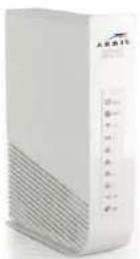
SBR-AC1750
Wireless
Router
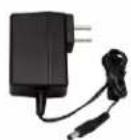
Power Supply
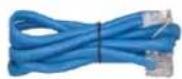
Ethernet Cable
Software
License &
Regulatory
Card
SBR-AC1750
Quick Start
Guide
Figure 1 - SBR-AC1750 Package Contents
Additional Items Needed (Not Included)
The following items are not included in the product box and must be purchased separately. If you are installing the SBR-AC1750 yourself, make sure you have the following items on hand before starting the installation:
- Internet Service: Broadband cable access through a modem or other broadband connection device is required to connect to the Internet. Follow the installation instructions included with your device to set it up on your home network (see Connect the SBR-AC1750 to Your Computer for more information).
- Ethernet Cable: In addition to the Ethernet cable provided with your SBR-AC1750, you will need an additional Ethernet cable for your network devices. This is a standard Ethernet cable with RJ-45 type connectors on both ends. Ethernet cables are available for purchase from any electronics retailer or discount store.
System Requirements
The SBR-AC1750 Wireless Router operates with most computers. The following describes requirements for each operating system; see the documentation for your cable system for details on enabling and configuring networking.
To use the SBR-AC1750, you will need DOCSIS high-speed Internet service from your cable provider.
Recommended Hardware
The following hardware configuration is recommended. Computers not meeting this configuration can still work with the SBR-AC1750, but may not be able to make maximum use of SBR-AC1750 throughput.
• CPU: P4, 3GHz or faster
• RAM: 1GB or greater
• Hard drive: 7200 RPM or faster
- Ethernet: Gig-E (1000BaseT)
Recommended Software
- Web browser access – Internet Explorer, Google Chrome, Firefox, or Safari
- Compatible operating systems:
- Windows ^ 10
- Windows 8
• Windows 7, Service Pack 1 (SP1)
- Windows Vista™ SP2 or later
- Windows XP, SP3
Note Microsoft no longer supports Windows XP. However, the SBR-AC1750 should still function without any problems.
- Mac®: System 7.5 to Mac OS 9.2 (Open Transport recommended), Mac OS X
- UNIX®
- Linux®
What About Security?
Having a high-speed, always-on connection to the Internet requires a certain amount of responsibility to other Internet users—including the need to maintain a reasonably secure system. While no system is 100% secure, you can use the following tips to enhance your system's security:
- Keep the operating system of your computer updated with the latest security patches. Run the system update utility at least weekly.
- Keep your email program updated with the latest security patches. In addition, avoid opening email containing attachments, or opening files sent through chat rooms, whenever possible.
• Install a virus checker and keep it updated. - Avoid providing web or file-sharing services over your Wireless Router. Besides certain vulnerability problems, most cable companies prohibit running servers on consumer-level accounts and may suspend your account for violating your terms of service.
- Avoid using proxy software unless you are certain that it is not open for abuse by other Internet users (some are shipped open by default). Criminals can take advantage of open proxies to hide their identity when breaking into other computers or sending spam. If you have an open proxy, your cable company may suspend your account to protect the rest of the network.
- Use the Internet Service Provider's mail servers for sending email.
- The SBR-AC1750 uses the default WPA2-PSK security type, by default. See SBR-AC1750 Router Label for the default factory security settings. If you have to modify the default wireless security settings, see Configure Your Wireless Primary Network
Ethernet or Wireless?
There are two ways to connect your computer (or other devices) to the SBR-AC1750. The following will help you decide which is best for you:
- Ethernet
- This is a standard method for connecting two or more computers to your Local Area Network (LAN). You can use the Ethernet connection if your computer has built-in Ethernet hardware.
- One 4-foot (1.2m) Ethernet cable is included in the SBR-AC1750 package; the connectors resemble wider telephone connectors. You can purchase more cables, if necessary, from a computer retailer. If you are connecting the SBR-AC1750 directly to a computer or an Ethernet hub with a cross-over switch, ask for a Category 5e (CAT5e) straight-through cable. A CAT5e cable is required for gigabit Ethernet (Gig-E), not a regular CAT5 cable.

Note To connect more than four computers to the SBR-AC1750 through the Ethernet ports, you need an Ethernet hub (available at computer retailers).
- Wireless
- The SBR-AC1750 is dual-concurrent which enables you to connect multiple wireless devices on your home network. It includes the 2.4 GHz and 5 GHz wireless radios which are compatible with the following wireless technologies:
• 802.11a
• 802.11b
• 802.11g
• 802.11n
• 802.11ac
- The SBR-AC1750 also allows you to set up multiple access points on your wireless home network for creating wireless primary and guest networks.
Contact Information
For technical support and additional ARRIS product information:
- Visit the ARRIS Support website: www.arris.com/consumer
• Call ARRIS Technical Support: 1-877-466-8646
2
Product Overview
Front Panel
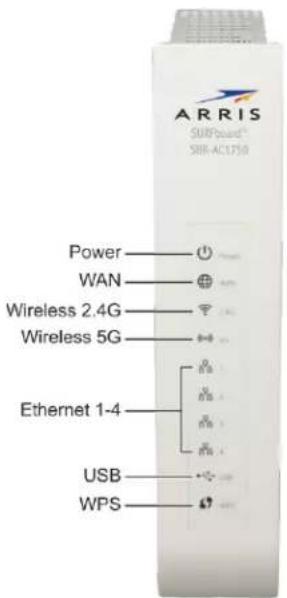
Figure 2 – SBR-AC1750 Front View
Table 1: SBR-AC1750 Front Panel LED Icons
| LED Icon | LED Status | Description |
 POWER POWER | Solid green | Power is connected on the SBR-AC1750. |
| [K5CB] WAN | Solid green | An IP address has been received and is ready to transmit data, or Bridge mode is active. |
| Flashing green | Ethernet cable connection is detected. | |
| Off | Ethernet cable is not connected to the SBR-AC1750. | |
 | Solid green | 2.4 GHz wireless is enabled. |
| WIRELESS | Off | Wireless is disabled. |
 | Solid green | 5 GHz wireless is enabled. |
| WIRELESS | Off | Wireless is disabled. |
 | Solid green | 10/100/1000 Mbps link is detected. |
| 1 2 3 4 ETHERNET | Flashing green | Receiving/transmitting data at 10/100/1000 Mbps. |
| Off | No Ethernet connection. | |
 | Solid green | USB device is connected and active. |
| USB | Flashing green | Read/write activity is detected on the USB device. |
| Off | USB device is not connected or the attached USB device can be disconnected. | |
 | Solid green | WPS pairing process is in progress. |
| WPS | Flashing green | WPS has been started, and Wireless Router is ready to accept a client connection. |
| Flashing green | WPS error. |
Wi-Fi Protected Setup (WPS)
Wi-Fi Protected Setup (WPS) is a wireless network setup option that provides a quick solution for setting up a secure wireless network connection for any WPS-enabled wireless device, such as a computer, tablet, gaming device, or network printer. WPS automatically configures your wireless network connections and sets up wireless security. See Use the SBR-AC1750 WPS Pairing Button for more information.
Rear Panel
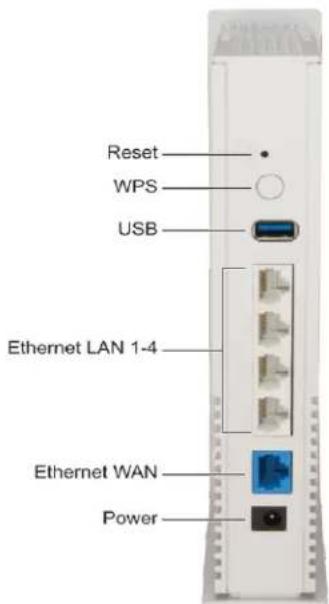
Figure 3 - SBR-AC1750 Rear View
Table 2: SBR-AC1750 Rear Panel Ports & Connectors
| Port Name | Description |
| Reset Button | Reboots the wireless router or resets the router settings.To reboot (or restart) the router, press the indented Reset button using the end of a paper clip or other small object with a narrow tip, and then release.To reset the router configuration back to the factory default settings, press and hold the indented Reset button for 15 seconds using the end of a paper clip or other small object with a narrow tip, and then release. See Reset Your Router Settings for more information on an alternative method to reset the router settings using the SBR-AC1750 Web Manager. |
| WARNING! Resetting the SBR-AC1750 to factory defaults will also delete any custom router configurations, including your user passwords and other security settings. | |
| WPS Button | Used to connect your WPS-enabled wireless devices to your wireless router.Note:Your computer hardware must support WPS and also have WPA security compatibility. |
| USB Port | USB 2.0 port connection to your USB device |
| LAN Ethernet Ports 1 to 4 | Four one-gigabit Ethernet ports for RJ-45 cable connections to the network devices on your home network (LAN) |
| WAN Ethernet Port | One-gigabit Ethernet port for RJ-45 cable connection to your cable modem |
| Power | 100 - 240VAC Power connector for the power cordWARNING!To avoid any damage to your SBR-AC1750, only use the power adapter and cord provided in the box. |
Router Label
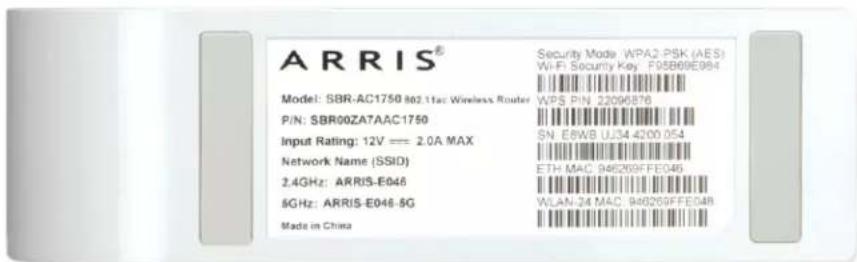
Figure 4 - SBR-AC1750 Label
The router label is located on the bottom of the SBR-AC1750. It contains specific router ID information that may be needed when contacting ARRIS Technical Support.
3
Installing the Wireless Router

This product is for indoor use only. Do not route the Ethernet cable(s) outside of the building. Exposure of the cables to lightning could create a safety hazard and damage the product.
Pre-Installation Considerations
You should consider the following factors when choosing a location to install your SBR-AC1750:
- For the best Wi-Fi coverage, a central location in your home or building is recommended.
- Check that there is an available AC outlet available nearby. For best results, the outlet should not be connected to a wall switch and it should be close enough to the SBR-AC1750 to avoid using extension cords.
- Make sure your Internet Service Provider (ISP) cable, DSL, or satellite modem device is nearby so that you can easily run cables between the modem and SBR-AC1750.
- If you are connecting devices to the Ethernet ports, make sure you can easily run cables between the SBR-AC1750 and those devices.
- If you want to install the SBR-AC1750 on a desktop, make sure there is enough space on both sides of the device to keep the vents clear. Blocking the vents may cause overheating.
- Consider the amount of space between your wireless devices. The wireless connection range for the SBR-AC1750 is typically 100–200 feet (30m–65m). The distance may vary depending on impacting factors such as the number of walls, metal objects, etc.
Connect the SBR-AC1750 to Your Computer
Before installing your SBR-AC1750:
- To access the Internet, you will need a broadband Internet connection from an Internet Service Provider.
- Choose a location in your home where your modem is preferably near existing cable and electrical wall outlets.
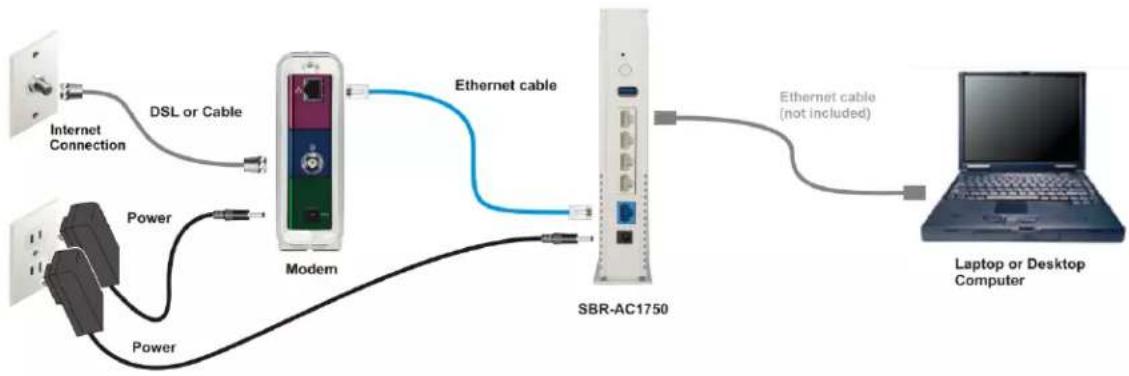
flowchart
graph LR
    A["Internet Connection"] -->|DSL or Cable| B["Modem"]
    C["Power"] -->|Power| B
    B -->|Ethernet cable| D["SBR-AC1750"]
    D -->|Ethernet cable (not included)| E["Laptop or Desktop Computer"]
Figure 5 – SBR-AC1750 Connection Diagram
- Check that a coaxial cable is already connected to a cable wall outlet or RF splitter (optional) and your modem.
- Disconnect the power cord from your modem to turn it off. Note If your modem has a battery, remove the battery to confirm that the power is disconnected.
- Disconnect the Ethernet cable connection from your modem.
- Connect that Ethernet cable to one of the four white Ethernet ports on the rear of your SBR-AC1750.
- Connect the blue Ethernet cable (included) to the Ethernet port on the rear of your modem.
- Connect the other end of the blue Ethernet cable to the blue WAN port on the rear of your SBR-AC1750.
- Reconnect the power cord to the Power port on your modem to turn it back on. -or- Reinsert the battery in your modem to turn it back on.
- Wait approximately two minutes to allow your modem to fully power up.
- Connect the power cord (included) to the Power port on your SBR-AC1750.
- Plug the other end of the power cord into an electrical wall outlet.
Note This automatically powers ON your SBR-AC1750. - Check that the Power, WAN, Wireless, and connected Ethernet LEDs on the SBR-AC1750 front panel light up solid green.
If the WAN LED did not light up solid, check the Ethernet cable connection to make sure it is properly connected.
Verify Network Connectivity
Although your computer may already be configured to automatically access the Internet, you should still perform the following connectivity test to check that your modem, router, and computer were properly connected:
- Power ON the computer connected to the SBR-AC1750 and log in.
- Open a web browser (such as Internet Explorer, Google Chrome, Firefox, or Safari) on the computer connected to the SBR-AC1750.
- Type the default LAN IP address, http://192.168.0.1, in the Address bar and then press Enter. The SBR-AC1750 Login screen should display.
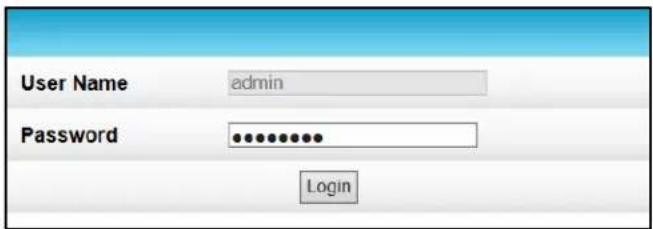
Note: If the login screen did not display, see Cannot_Access_Internet for more information.
- Type a valid URL ( www.surfboard.com) in the address bar and then press Enter.
The ARRIS SURFboard website should open. If it did not open, do the following:
a. Disconnect the Ethernet cable connection between your ISP device (cable, DSL, or satellite modem) and SBR-AC1750.
b. Connect the Ethernet cable to your ISP device (cable, DSL, or satellite modem) and computer (or other client device).
c. Type a valid URL in the address bar and press Enter to check that you can connect to the Internet.
-
Check that the Power and WAN front panel LEDs on the SBR-AC1750 light up. See Front Panel for additional LED status information.
-
If the Power LED did not light up, check the power cord connection to the electrical wall outlet.
- If the WAN LED did not light up, check the cable connections to your modem or Internet Service Provider (ISP) device.
- If the Power and WAN LEDs did not light up, check the front panel LED status indicators on your modem or ISP device for Internet connectivity status.
- If you still cannot connect to the Internet, please call ARRIS Technical Support for assistance.
4
Setting Up a Wireless Network Connection
ARRIS recommends that you confirm that your computer can connect to the Internet using an Ethernet connection before configuring your wireless network.
You must already have Internet access in your home before setting up a wireless network connection. Also, make sure your computer and the SBR-AC1750 are connected through an Ethernet connection.
Choose one of the following options to set up your wireless network connection:
- Launch the SBR-AC1750 Quick Start Wizard
- Set Up a Wireless Network Using Your Computer
• Use the SBR-AC1750 WPS Pairing Button
After setting up your wireless network connection, check that your wireless network connection was set up properly. See Test Your Wireless Network Connection for more information.
Launch the SBR-AC1750 Quick Start Wizard
The SBR-AC1750 Quick Start Wizard is a six-step application to help you quickly configure the default wireless network settings on your SBR-AC1750. It configures your wireless network name (SSID), Wi-Fi Security key (network password), and Wi-Fi Security code.
IMPORTANT NOTE: The quick start wizard uses the default settings already configured for your SBR-AC1750 to help you quickly set up your wireless home network. However, the wizard will only let you change the wireless network name (SSID) and Wi-Fi Security key (network password). After completing the wizard and getting your SBR-AC1750 connected to the Internet, you will be able to make additional network configuration changes to further customize your wireless home network settings and connect your wireless devices. See Creating a Wireless Network for more information.
- Open a web browser (such as Internet Explorer, Google Chrome, Firefox, or Safari) on the computer connected to the SBR-AC1750.
- Type the default LAN IP address, http://192.168.0.1, in the Address bar and then press Enter. The router Login screen displays.
- Type the default user password (password) in the Password field. The password is case-sensitive.
Note The username, admin, is the default user name. It cannot be changed.
- Click Login to open the SBR-AC1750 Web Manager. The Launch Quick Start Wizard screen displays.
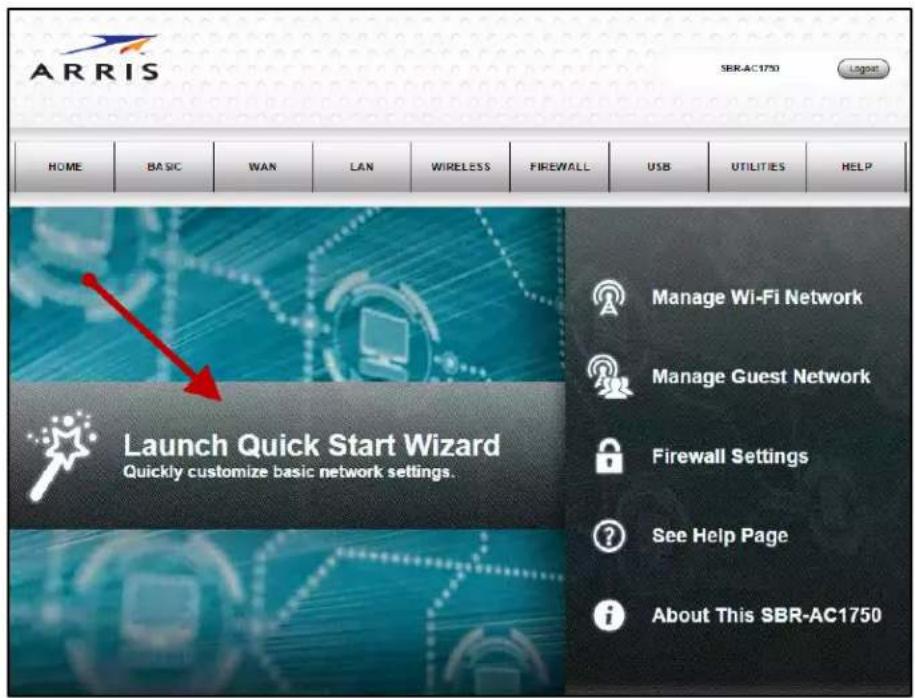
Figure 6 – SBR-AC1750 Quick Start Wizard Opening Screen
- Click Launch Quick Start Wizard to start the wizard. The Welcome screen displays.
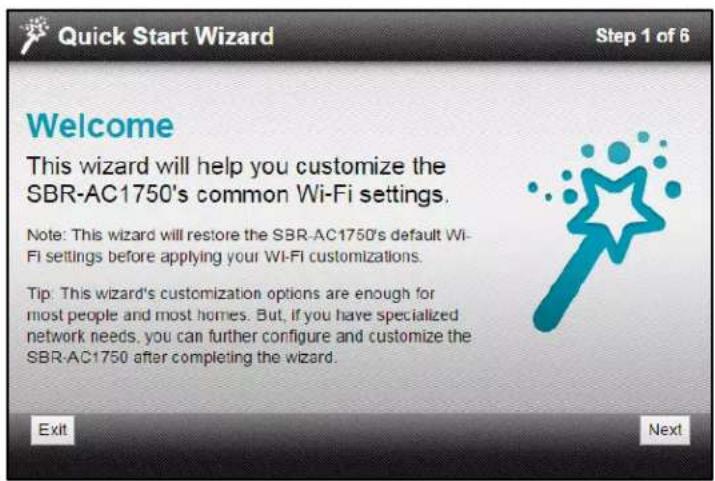
Figure 7 - SBR-AC1750 Quick Start Wizard Welcome Screen
- Click Next to open the Wi-Fi Network Name & Passphrase screen.
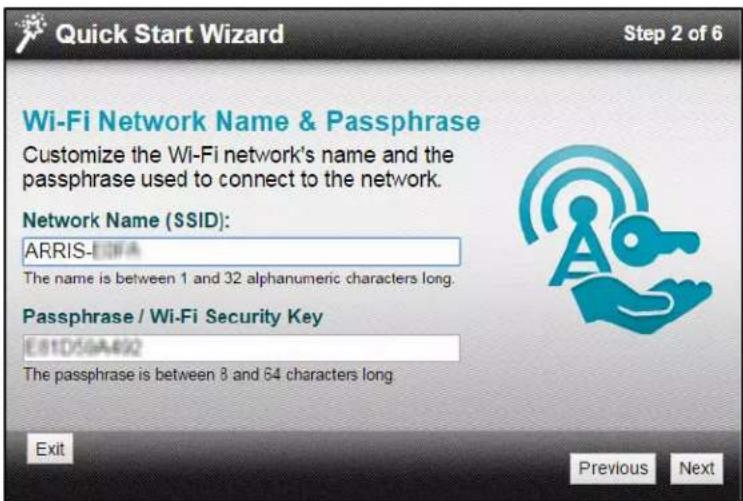
Figure 8 - SBR-AC1750 Quick Start Wizard-Step 2 of 6 Screen
-
Do one of the following to set up your wireless network name in the Network Name (SSID) field:
-
Keep the default network name or SSID (listed on the SBR-AC1750 router label).
- Enter a name of your choice for your wireless network. Your new network name must contain from one to 32 alphanumeric characters.
- Note You have the option to customize your wireless network name (SSID) after completing the initial wireless network connection. However, you must use the default SSID listed on the router label when installing the router for the first time. See Change Your Wireless Network Name (SSID) for more information.
-
Do one of the following to set up your wireless network password in the Passphrase / Wi-Fi Security Key field:
-
Keep the default passphrase or Wi-Fi Security key (listed on the SBR-AC1750 Router label).
- Enter a password of your choice for your wireless network password.
The passphrase or Wi-Fi Security key is the sign-on access code for your wireless network. The access code must contain from eight to 64 characters consisting of any combination of letters, numbers, and symbols. It should be as unique as possible to protect your wireless network and deter hackers or unauthorized access to your wireless network.
Note ARRIS recommends that you change the default Wi-Fi Security Key to a more secure wireless password to protect your wireless network from unauthorized access. See Prevent Una authorized Access for more information.
- Click Next to open the 2.4GHz & 5GHz Networks screen (see Figure 9).
This screen displays the two Wi-Fi frequency bands on the SBR-AC1750 for your wireless home network.
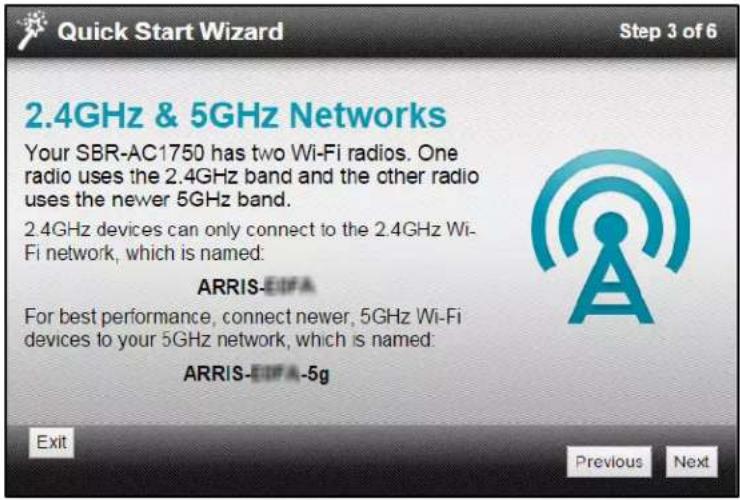
Figure 9 - SBR-AC1750 Quick Start Wizard-Step 3 of 6 Screen
- Click Next to open the Security Configuration screen.
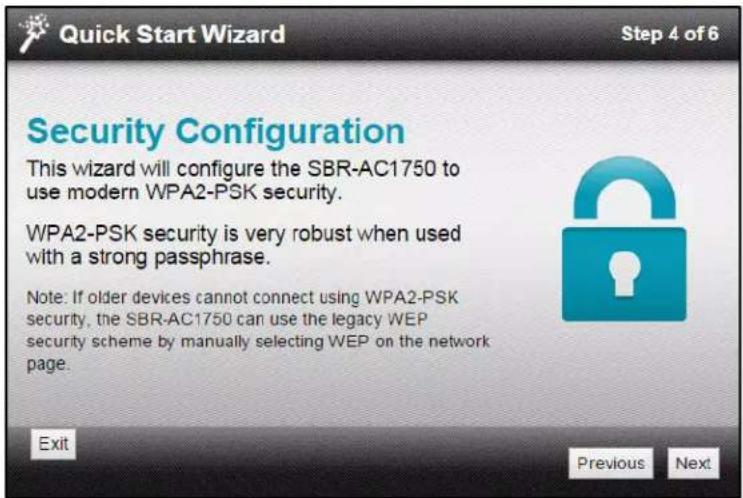
Figure 10 - SBR-AC1750 Quick Start Wizard-Step 4 of 6 Screen
- Click Next to open the Review Settings screen and confirm your wireless network settings.
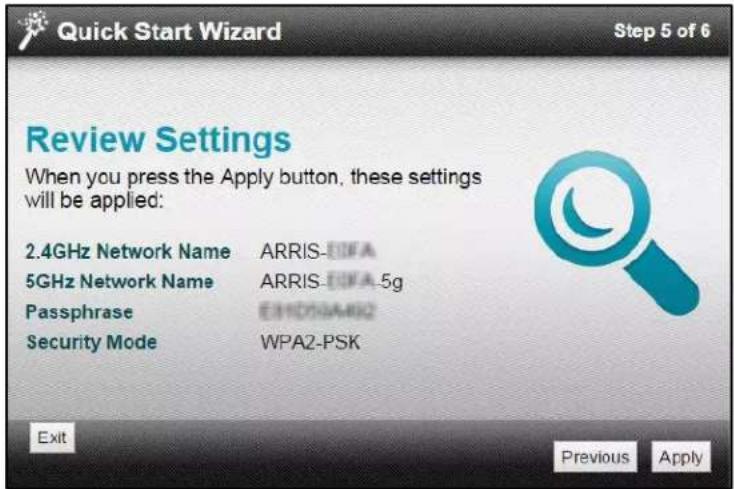
Figure 11 - SBR-AC1750 Quick Start Wizard-Step 5 of 6 Screen
- Click Apply to accept the wireless network settings and open the Settings Applied screen.
- or -
Click Previous to go back and change your wireless network name (Network Name (SSID) and/or wireless network password (Passphrase / Wi-Fi Security Key).
Wait for your wireless network settings to be saved. When it is complete, the Settings Applied screen will open.
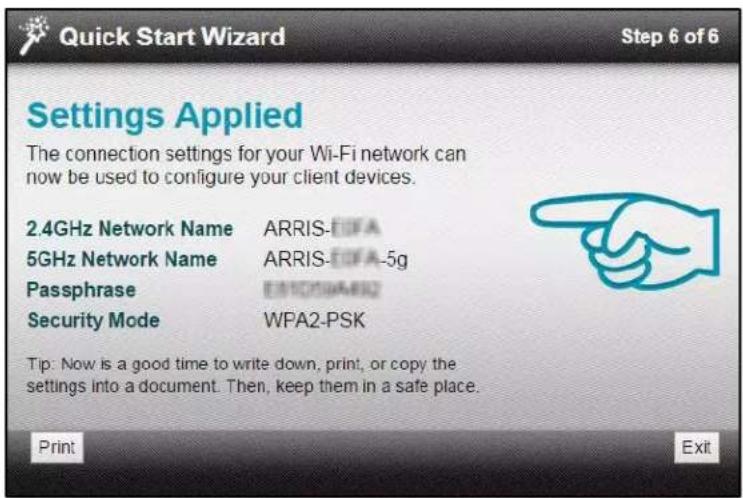
Figure 12 - SBR-AC1750 Quick Start Wizard-Step 6 of 6 Screen
- Click Exit to close the Quick Start Wizard.
Note: You can either click Print if you want a printout of your wireless network settings or write down your wireless network name and password. This can be helpful for later use for logging onto your wireless network or changing your wireless network settings.
Set Up a Wireless Network Using Your Computer
Use one of the following options to create your wireless network:
- Quick Connect Using the Windows Taskbar
- Connect Using the Windows Control Panel
Note: The steps for setting up a wireless network may differ slightly depending on the Windows operating system running on your computer. The steps used here apply to Windows 7.
Quick Connect Using the Windows Taskbar
- From the Windows taskbar, click the Wireless Link icon to open the list of available wireless networks. Note: If the icon is not visible, click the Show hidden icons button shown below.

Figure 13 – Windows Taskbar Icons
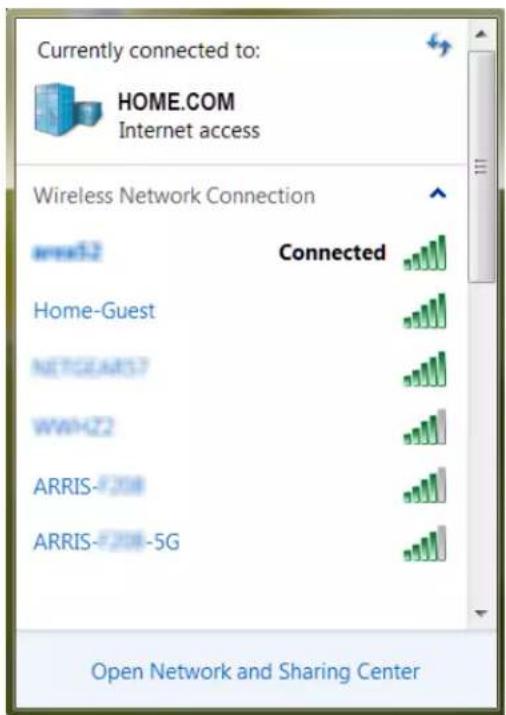
Figure 14 – Sample Available Wireless Networks Window
- Locate and then left-click on the default SBR-AC1750 wireless network name or SSID (for example, ARRIS-xxxx) for your SBR-AC1750 from the Wireless Networks list. Note xxxx represents the unique SSID for your SBR-AC1750.
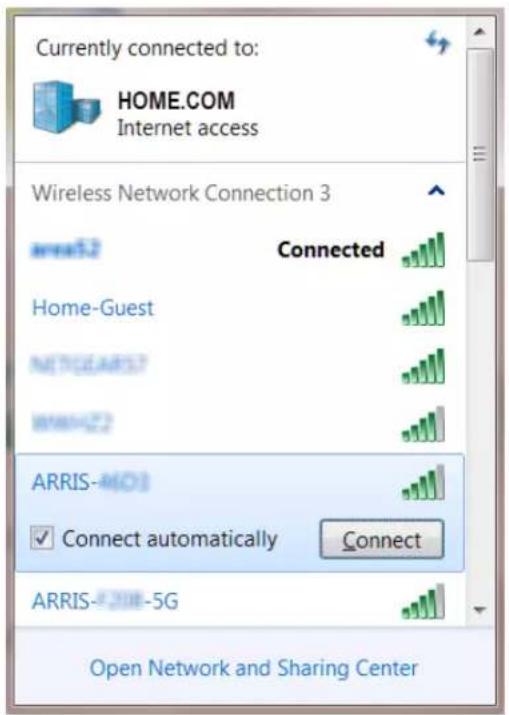
Figure 15 – Sample Available Wireless Networks Window
The default SSID is located on the router label on the bottom of your SBR-AC1750.
Note You have the option to customize your wireless network name or SSID after completing your initial wireless network connection. However, you must use the default SSID listed on the router label for the initial router installation. See Change Your Wireless Network Name (SSID) for more information.
-
Select Connect automatically to set up your wireless devices for automatic connections to your home network upon log on.
-
Click Connect to open the Connect to a Network window.
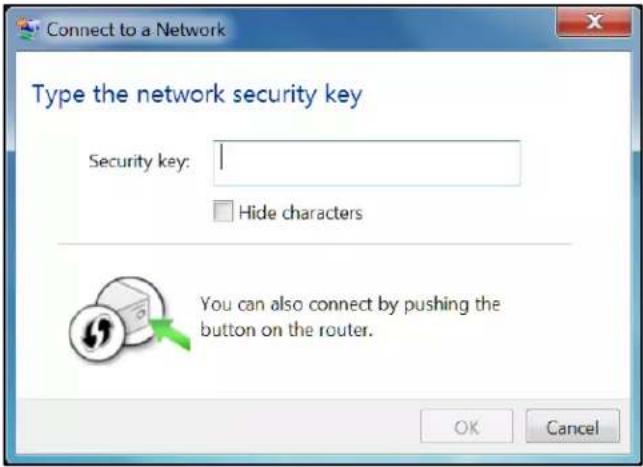
Figure 16 - Network Connection Window
- Enter the default Wi-Fi Security Key code (listed on the SBR-AC1750 router label) in the Security key field.
Note If you have already changed your wireless network password using the SBR-AC1750 Web Manager, enter that password here.
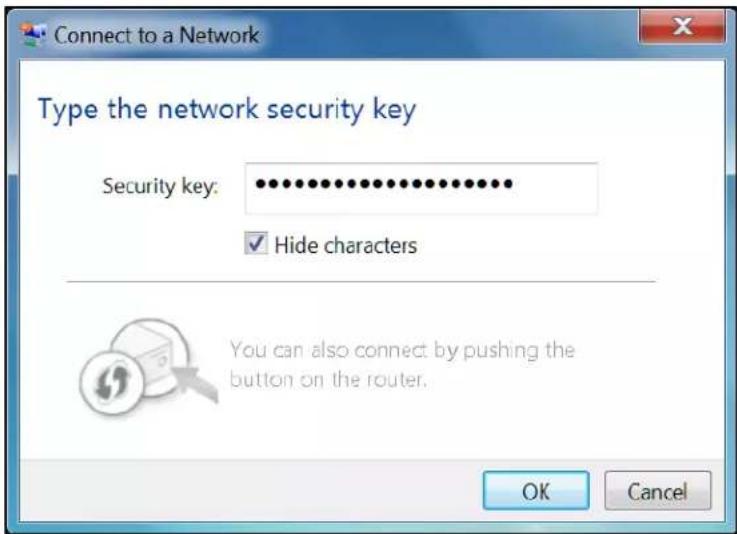
Figure 17 – Network Connection-Create Network Password Window
- Select Hide characters and then click OK to encrypt (or hide) your network Security key (or network password).
Connect Using the Windows Control Panel
- From the Windows taskbar, click Start button and then click Control Panel.
- Click Network and Sharing Center to open the Network and Sharing Center window.
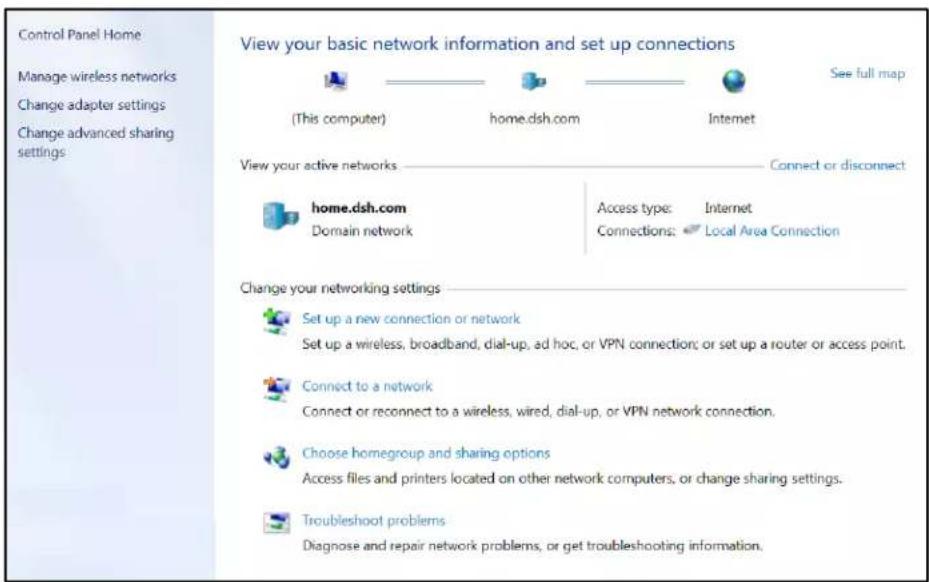
Figure 18 – Control Panel-Network and Sharing Center Window
- Click Manage wireless networks under Control Panel Home to open the Manage Wireless Networks window.
- Click Add to open the Manually Connect to a Wireless Network window.
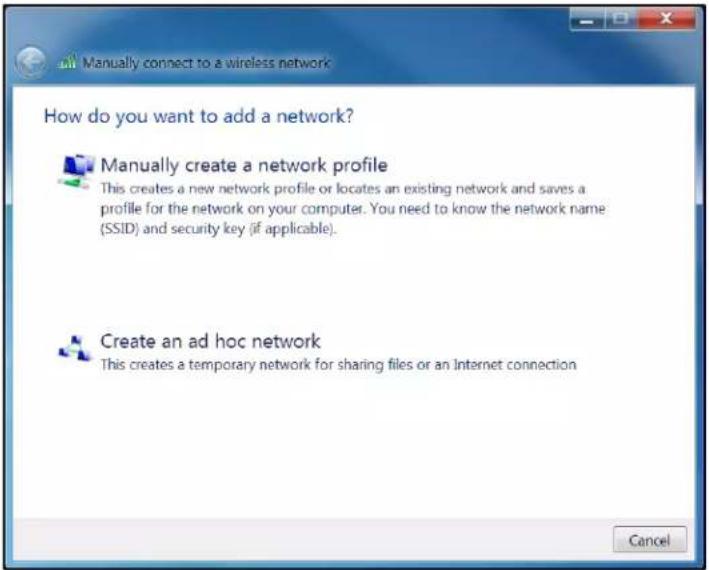
Figure 19 – Manually Connect to a Wireless Network Window
- Click Manually create a network profile to open another Manually Connect to a Wireless Network window.
![Manually connect to a wireless network Enter information for the wireless network you want to add Network name: Security type: [Choose an option] Encryption type: Security Key: Hide characters Start this connection automatically Connect even if the network is not broadcasting Warning: If you select this option, your computer's privacy might be at risk.](/content/2026/05/1061946/images/07346241c9af6cdbf94cdaccebb15e955e07f64bd5a45f2fc13d8903f0dd5bf5.jpg)
Figure 20 – Manually Connect to a Wireless Network Window
- Enter the ARRIS wireless network name or SSID (ARRIS-xxxx) for your SBR-AC1750 in the Network name field.
The SSID name is located on the router label on the bottom of your SBR-AC1750.
Note You have the option to change your wireless network name (or SSID) after completing your initial wireless network connection. See Change Your Wireless Network Name (SSID) for more information.
- Select the wireless Security level for your wireless network from the Security type drop-down list.
Note ARRIS recommends the WPA2-Personal wireless security level. It is the highest security level available and also the default security level for the SBR-AC1750.
- Select the password encryption type from the Encryption type drop-down list. This is used for securing your wireless network.
• TKIP – Temporal Key Integrity Protocol
- AES – Advanced Encryption Standard (recommended). AES is the default encryption type for the SBR-AC1750.
- Enter a Security code or passphrase for your wireless network password in the Security Key field.
You can use the WI-FI Security Key listed on the SBR-AC1750 router label or create your own personal password.
Note Remember to use a unique combination of letters, numbers, and characters to create a more secure password. See Prevent Una authorized Access for more information.
-
Select Hide characters to prevent your Security Key or password from displaying in the field.
-
Select Start this connection automatically so that your wireless devices will automatically connect to your wireless network upon login.
-
Click Next to complete the wireless network setup.
The Successfully added
- Click Close to exit.
Use the SBR-AC1750 WPS Pairing Button
The WPS Pairing button automatically connects your WPS-enabled wireless devices to your wireless home network using the default SBR-AC1750 SSID (network name) and Wi-Fi Security Key (network password) listed on the router label. See Set Up WPS on Your Wireless Network for more information.
Note: To use the WPS Pairing button option, your computer hardware must support WPS and also have WPA security compatibility.
-
Power ON your router and other WPS-enabled wireless devices that you want to connect to your wireless network.
-
Press and hold the WPS button located on the SBR-AC1750 rear panel for five to 10 seconds and then release (see Rear Panel for the SBR-AC1750 rear view).
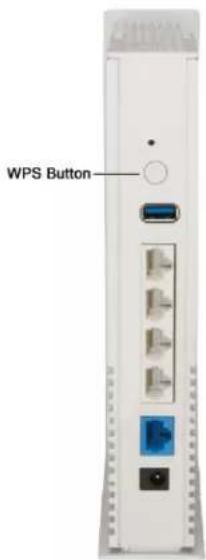
Figure 21 - SBR-AC1750 WPS Pairing Button
-
If applicable, press the WPS button on your WPS-enabled computer or other WPS device.
-
Repeat step 3 for each additional WPS-enabled wireless device that you want to connect to your wireless network.
Test Your Wireless Network Connection
Perform the following connectivity test to check that your SBR-AC1750 and other wireless devices are connected to your wireless home network:
-
If the wireless devices successfully connected to the wireless network, disconnect the Ethernet cable from your computer and SBR-AC1750.
-
Open a web browser on your computer.
-
Type the default wireless router URL, http://192.168.0.1, in the address bar and then press Enter.
If the website did not open, please call ARRIS Technical Support for assistance.
5
Using the Router Web Manager
Use the SBR-AC1750 Web Manager to view and monitor the configuration settings and operational status of your SBR-AC1750. You can also configure your network connections and wireless security settings. See Protecting & Monitoring Your Wireless Network for more information.
Start the Router Web Manager
- Open any web browser on the computer connected to the SBR-AC1750.
-
In the Address bar, type 192.168.0.1 for the Router Web Manager IP address, and then press Enter. The router Login screen displays (see below).
Note: You must enter the default user password (listed below) when logging on to the SBR-AC1750 Web Manager for the first time. -
Type the default user password (password) in the Password field. The password is case-sensitive.
Note: The user name, admin, is the default user name. It cannot be changed.
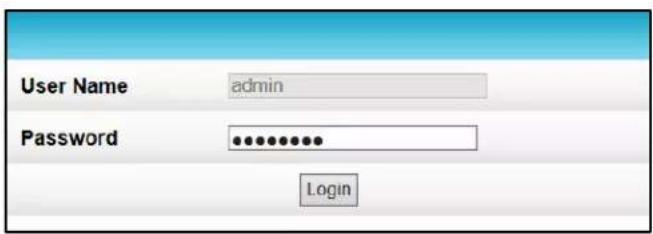
Figure 22 - Router Login Screen
- Click Login to open the SBR-AC1750 Web Manager. The SBR-AC1750 Main Screen displays (see Figure 23).
Note If the default user password is not working, please call ARRIS Technical Support for assistance.
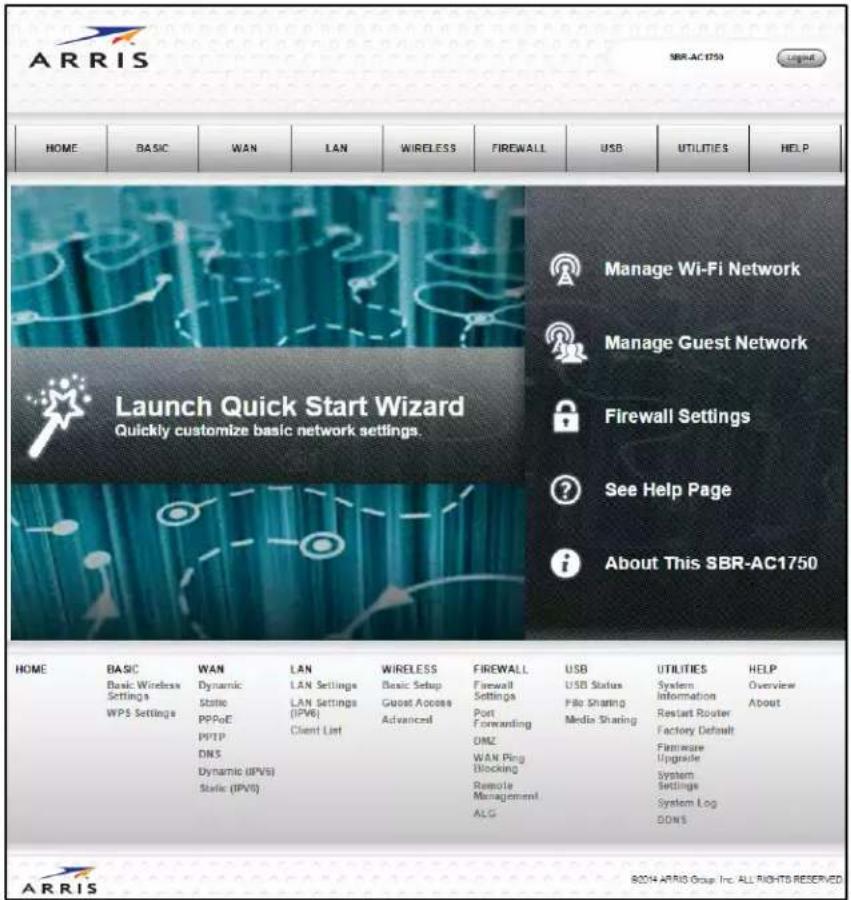
Figure 23 - SBR-AC1750 Main Screen
Router Web Manager Menu Options
Main Menu Buttons
The SBR-AC1750 main menu buttons are displayed along the top of the SBR-AC1750 Web Manager screen. To display the drop-down submenu options, click the menu button.
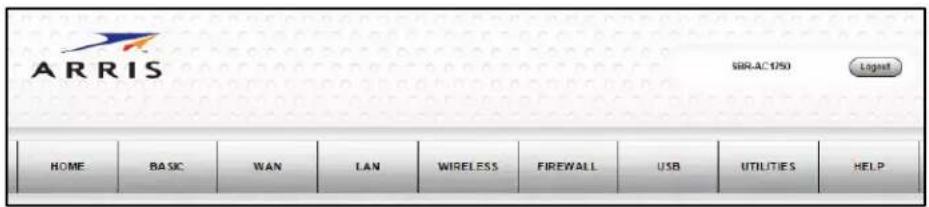
Figure 24 - SBR-AC1750 Web Manager Main Menu Buttons
Main Menu Links
The SBR-AC1750 main menu and related submenu option links are also displayed along the bottom of the SBR-AC1750 Web Manager screen. To open a submenu option, click on the link.
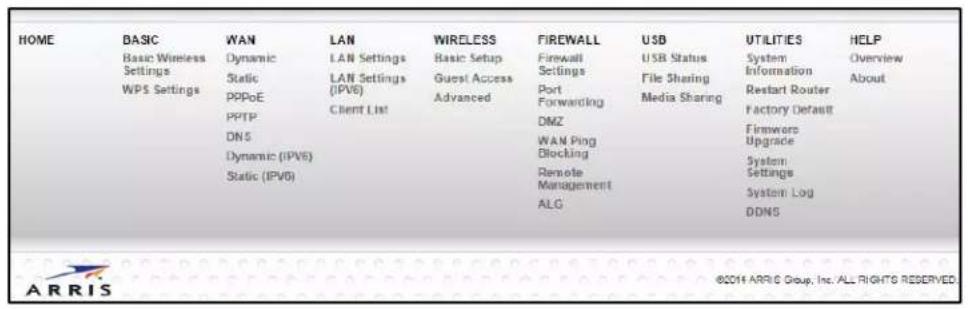
Figure 25 – SBR-AC1750 Web Manager Main Menu Links
Table 3: SBR-AC1750 Web Manager Main Menu Options
| Menu Option | Function |
| Home | Displays the Quick Start Wizard main screen. |
| Basic | Configures the basic wireless and WPS settings on the SBR-AC1750. |
| WAN | Configures the network connections for connecting to the Internet. |
| LAN | Configures the network connections for connecting to your home network. |
| Wireless | Configures and monitors the router's wireless networking features. |
| Firewall | Configures and monitors the router firewall. |
| USB | Configures your connected USB devices. |
| Utilities | Provides general product and system status information, wireless settings. |
| Help | Provides general information to help you configure your home network. |
| Logout | Closes the SBR-AC1750 Web Manager. |
Get Help
You can choose any of the following three options to obtain help information for any SBR-AC1750 Web Manager function. General help information is available for any SBR-AC1750 menu option when you click the Help button on that page.
- Overview Help
- Help Links
- Field Level Help
Overview Help
General help information is available to help you decide between wired and wireless connections for the devices on your home network.
- Click Help, Overview on the SBR-AC1750 Main Menu.
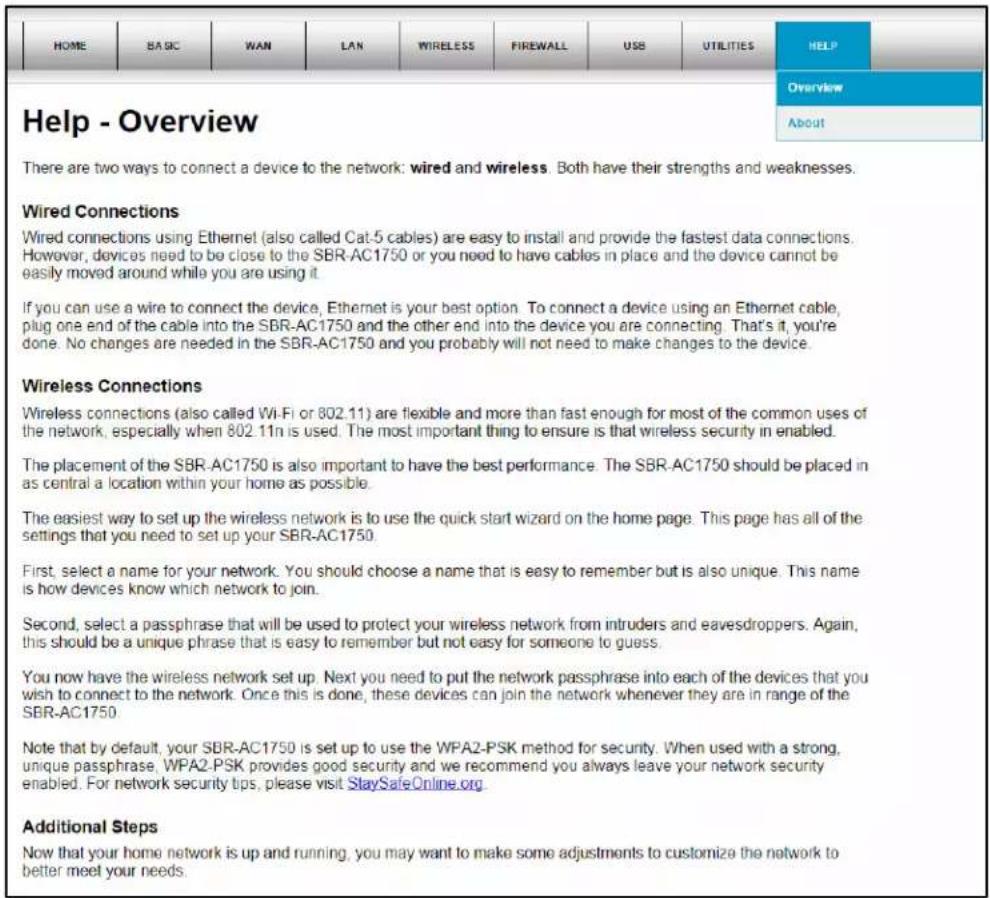
Figure 26 – Help Overview Screen
Help Links
The online help links provide a concise list of your router configuration settings with applicable links for easy access.
- Click Help, About on the SBR-AC1750 Main Menu. The link opens the related configuration screen.
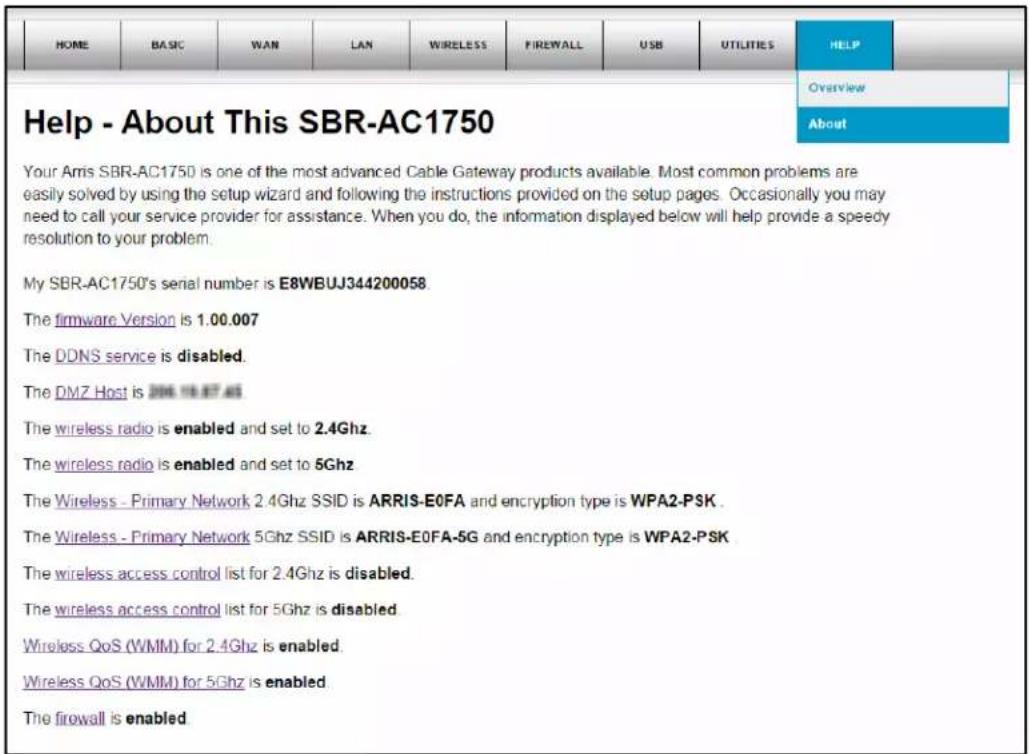
Figure 27 – Help Links Screen
Field Level Help
More specific help information is available throughout the SBR-AC1750 Web Manager for field level help.
- Click the Help link located to the right of the applicable field.
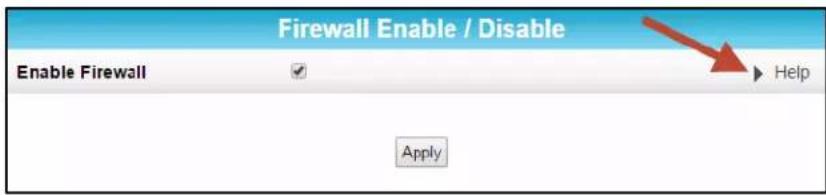
Figure 28 – Field Level Help Screen
Exit the SBR-AC1750 Web Manager
To log out and close the SBR-AC1750 Web Manager:
- Clickogout located in the upper right corner of the screen above the SBR-AC1750 Main Menu buttons.
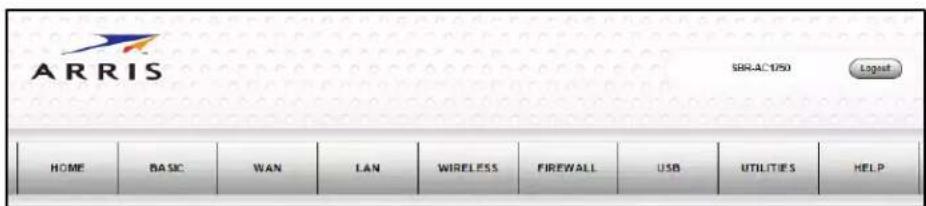
Figure 29 - SBR-AC1750 Web Manager Logout Button
6
Configuring Your Wireless Network
The SBR-AC1750 supports a secure method for setting up multiple wireless access points on your home network. You can also designate a separate network as a guest network for visitors, friends, or other family members without giving them access to your files or other devices on your wireless home network.
Set Up Your Primary Wireless Network
- Open a web browser and log onto the SBR-AC1750 to open the SBR-AC1750 Web Manager. See Start the Router Web Manager for more information.
- Click Basic on the SBR-AC1750 Main Menu bar.
- Click Basic Wireless Settings from the Basic submenu options.
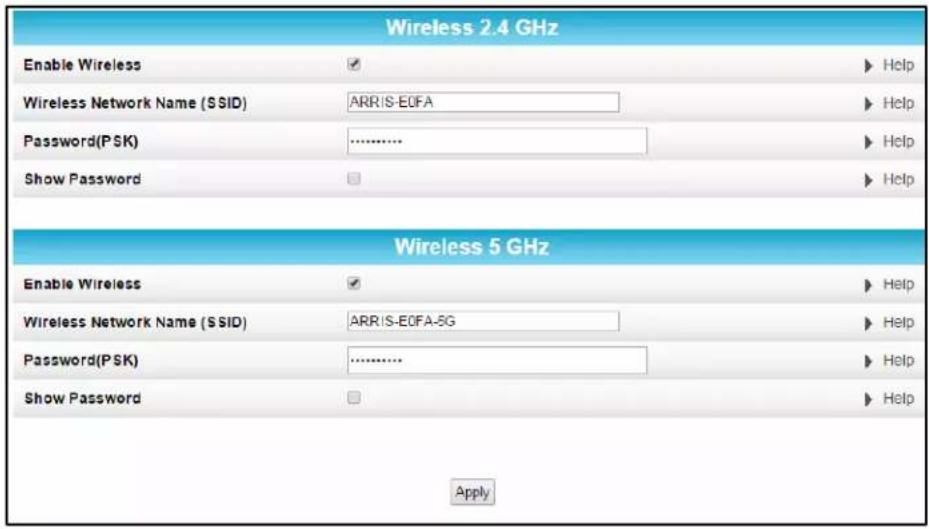
Figure 30 - Basic Wireless Settings Screen
- Decide if you want to set up Wireless 2.4 GHz or Wireless 5 GHz for the wireless frequency range of your wireless network to complete your wireless network connection.
-
Checkmark Enable Wireless to turn ON wireless networking on your home network. Note Uncheck Enable Wireless to turn OFF wireless networking.
-
Enter a custom name for your wireless network in the Wireless Network Name (SSID) field or keep the default network name currently displayed in the SSID (Service Set Identifier) field which is also listed on your router label.
The wireless network name must be different from any other network name on your home network. You can use any combination of letters (lowercase and uppercase), numbers, and/or special characters (symbols); 32 characters maximum. - Enter any combination of letters, numbers, and/or special characters for your network password in the Password (PSK) field.
- Checkmark Show Password if you want to make your password visible.
- When done, click Apply.
Set Up WPS on Your Wireless Network
Wi-Fi Protected Setup (WPS) is the standard network security method to easily add WPS-enabled wireless devices to your wireless home network. You can use either the Personal Information Number (PIN) or Pushbutton Configuration (PBC) method to easily set up and connect your WPS-enabled wireless devices.
- Log in to the SBR-AC1750 Web Manager and then click Basic on the SBR-AC1750 Main Menu bar.
- Click WPS Settings from the Basic submenu options.
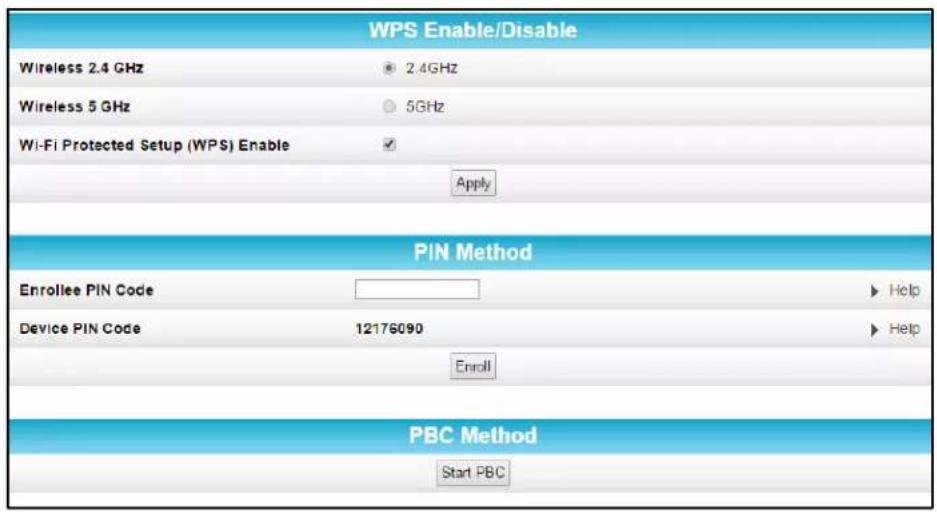
Figure 31 – Basic WPS Settings Screen
- Select 2.4 GHz or 5 GHz for the wireless frequency range of your wireless network.
- Select the Wi-Fi Protected Setup (WPS) Enable checkbox to turn ON WPS on your home network.
Note: Uncheck Wi-Fi Protected Setup (WPS) Enable to turn OFF WPS.
- Click Apply.
-
Select one of the following WPS pairing methods to pair your WPS-enabled wireless device(s).
-
PIN Method
- If your WPS device has a WPS PIN number, enter the PIN number in the Enrollee PIN Code field and click the Enroll button.
- If your WPS device does not have a WPS PIN number, enter the number listed in the Device PIN Code field, if you are prompted during the WPS pairing process.
- PBC Method (Pushbutton Configuration)
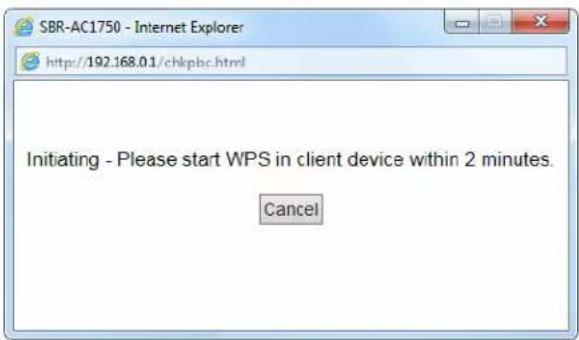
- Click the Start PBC button, the following message will display.
o Press the WPS button on your WPS device to connect it to your wireless network.
Customize Your Primary Wireless Network
- Open a web browser and log onto the SBR-AC1750 to open the SBR-AC1750 Web Manager. See Start the Router Web Manager for more information.
- Click Wireless on the SBR-AC1750 Main Menu bar.
- Click Basic Setup from the Wireless submenu options.
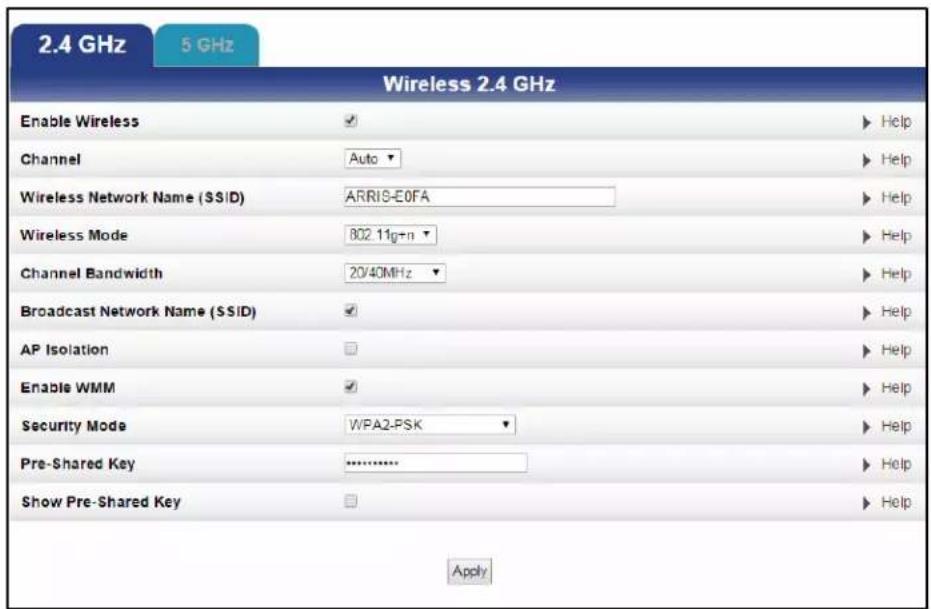
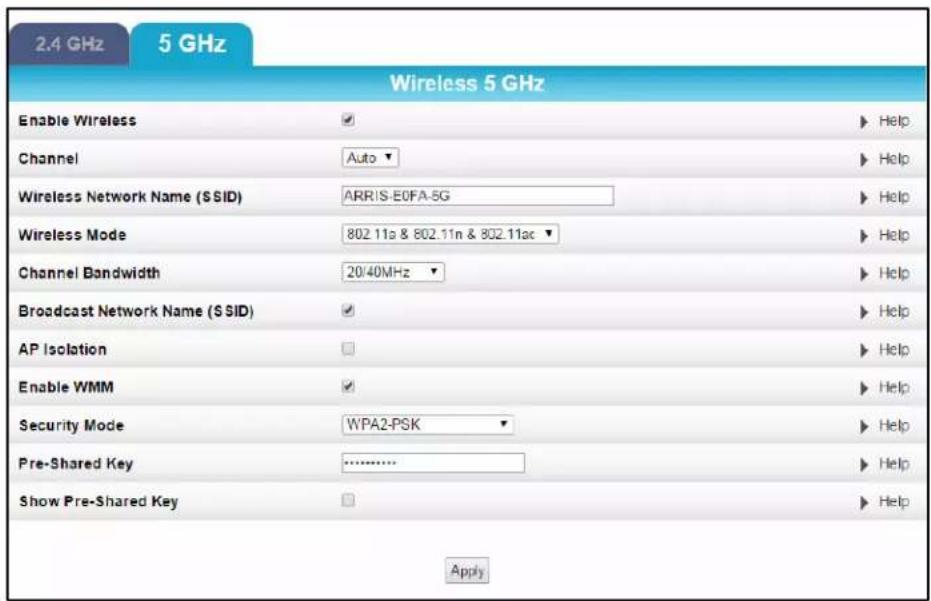
Figure 32 - 2.4 GHz & 5 GHz Wireless Primary Network Screens
- Click the 2.4 GHz or 5 GHz tab to select the frequency range for your wireless network.
-
Do one of the following to turn ON or OFF wireless networking on your home network:
-
Select Enable Wireless in the Enable Wireless field to turn ON wireless networking.
-
Deselect Enable Wireless in the Enable Wireless field to turn OFF wireless networking.
-
Select a communications channel number for your SBR-AC1750 from the Channel drop-down list.
The channel number should be different from the channel number listed as the Current Channel.
• 2.4 GHz
o Auto (SBR-AC1750 selects the channel it will use)
o 1 thru 11
Note ARRIS recommends using Channel 1, 6, or 11 for best performance.
- 5 GHz
o Auto (SBR-AC1750 selects the channel it will use)
o 36,44,149,or 157
- Enter a name of your choice for your wireless network or keep the listed default network name (also listed on the router label) in the Wireless Network Name (SSID) field.
The network name must consist of any combination of 32 characters maximum. It cannot match any other SSID on your SBR-AC1750.
- Select one of the following Wireless mode options for your wireless network in the Wireless Mode field.
The selected mode should support all of your wireless devices that you intend to connect to your SBR-AC1750:
• 2.4 GHz
- 802.11b: supports bandwidths up to 11 Mbps
- 802.11g: supports bandwidth up to 54 Mbps
- 802.11b+g: supports bandwidth up to 54 Mbps
o 802.11g+n: supports bandwidth up to 300 Mbps
- 5 GHz
o 802.11a supports bandwidth up to 54 Mbps
- 802.11a & 802.11n: supports bandwidth up to 300 Mbps
o 802.11a & 802.11n & 802.11ac: supports bandwidth up to 1300 Mbps
- Select the 802.11n Channel bandwidth from the Channel Bandwidth drop-down list:
• 2.4 GHz
- 20 MHz
- 40 MHz
- 20/40 MHz (default)
- 80 MHz
- 5 GHz
- 20 MHz
- 40 MHz
- 20/40 MHz (default)
- SelectBroadcast Network Name (SSID) to allow outside access to your wireless network and also allow the router to broadcast to your SSID.
Note ARRIS recommends that you disable (unchecked) this option after completing the router setup. Your SSID is visible which could enable unauthorized access to your home network.
-
SelectAP Isolation to enable your wireless devices to operate in their own virtual network and not communicate with the other wireless devices on your wireless network.
-
SelectEnable WMM to turn ON Wi-Fi Multimedia (WMM) functionality.
When enabled, WMM helps control latency and jitter when transmitting multimedia content over a wireless connection.
-
Select one of the following wireless network Security Modes for your wireless router from the Security Mode drop-down list:
-
Open
• WPA2-PSK: Wi-Fi Protected Access version 2 with Pre-Shared Key (recommended) - WPA/WPA2-PSK: combination Wi-Fi Protected Access version 2 with Pre-Shared Key and Wi-Fi Protected Access with Pre-Shared Key
- WPA2 (Enterprise): Wi-Fi Protected Access version 2 provides additional network security and requires a user name and password for network logon
-
WPA/WPA2 (Enterprise): combination Wi-Fi Protected Access version 2 and Wi-Fi Protected Access provides additional network security and requires a user name and password for network logon
-
Enter your wireless network password in the Pre-Shared Key field.
Use any combination of letters and numbers (from 8 to 63 characters) for your wireless network password or keep the default WPA Pre-Shared Key listed (not recommended).
Note For security purposes, ARRIS recommends that you create a different Pre-Shared Key for your Guest Network.
- Click Apply when done.
Change Your Wireless Network Name (SSID)
The SSID (Service Set Identification) is the wireless network name assigned to your SBR-AC1750 wireless primary and guest networks. The default SSID which is listed on the router label is automatically populated in the network configuration screens. A list of SSIDs of available wireless networks in close proximity of your home (for example, neighbors or local businesses) will display when you or someone else in your home attempt to establish a wireless network connection. For security purposes and quick recognition of your wireless network, ARRIS recommends that you change the default SSID. You should also consider changing the default wireless network password (see Prevent Unauthorized Access for more information).
Note When you change the SSID, any wireless devices that are already connected to your wireless network will be disconnected from the network. The wireless devices will have to be reconnected to the wireless network using the new SSID.
Do the following to change your wireless network name or SSID:
- Open a web browser and log onto the SBR-AC1750 to open the SBR-AC1750 Web Manager. See Start the Router Web Manager for more information.
- Click Wireless on the SBR-AC1750 Main Menu bar.
- Click Basic Setup from the Wireless submenu options to open the Wireless Basic Setup screen.
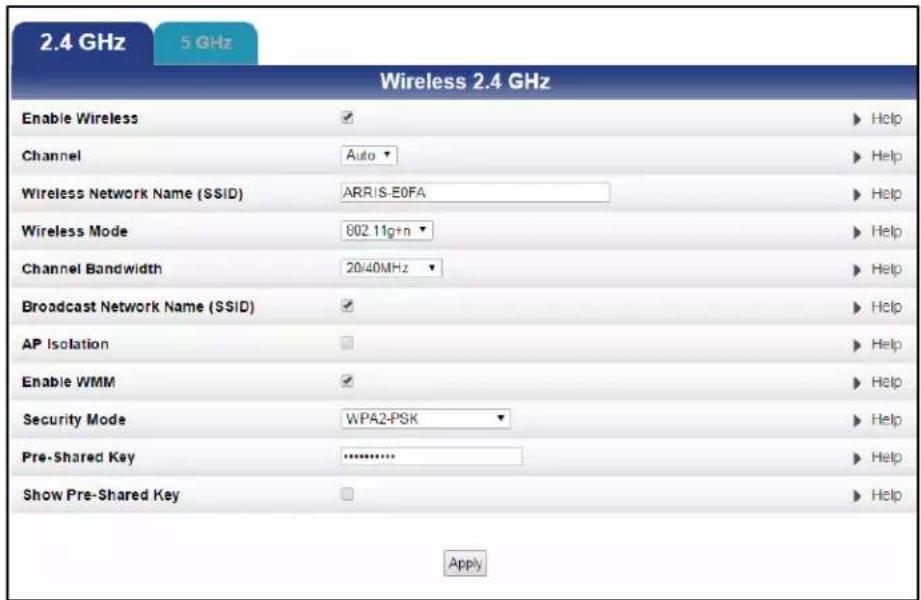
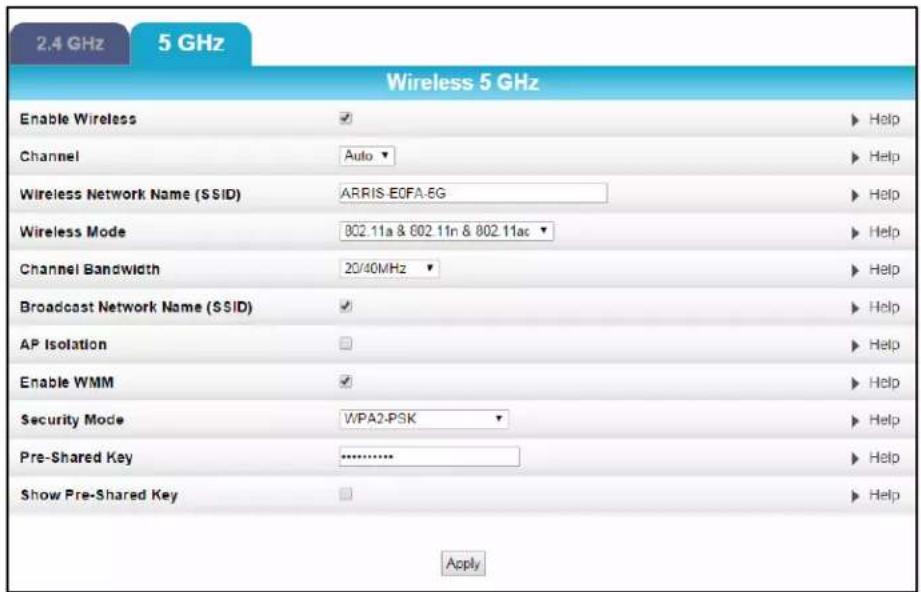
Figure 33 - Change Your Network Name (SSID) and Password Screens
- Make sure the Enable Wireless checkbox is selected to turn ON wireless networking on your home network.
- Delete the default or current network name in the Wireless Network Name (SSID) field and then enter a new name of your choice for your wireless network.
The network name can contain any combination of up to 32 alphanumeric characters. - Make sure the Broadcast Network Name (SSID) checkbox is selected.
- Delete the current wireless password in the Pre-Shared Key field and enter a new network password for your wireless network. See Prevent Unauthorized Access for more information.
Note: You can select Show Pre-Shared Key to make your password visible while typing. Remember to deselect when done. - Click Apply at the bottom of the screen.
Set Up Your Wireless Guest Network
-
Open a web browser and log onto the SBR-AC1750 to open the SBR-AC1750 Web Manager. See Start the Router Web Manager for more information.
-
Click Wireless on the SBR-AC1750 Main Menu bar.
-
Click Guest Access on the Wireless submenu options.
-
Open a web browser and log onto the SBR-AC1750 to open the SBR-AC1750 Web Manager. See Start the Router Web Manager for more information.
- Click Wireless on the SBR-AC1750 Main Menu bar.
- Click Guest Access on the Wireless submenu options.
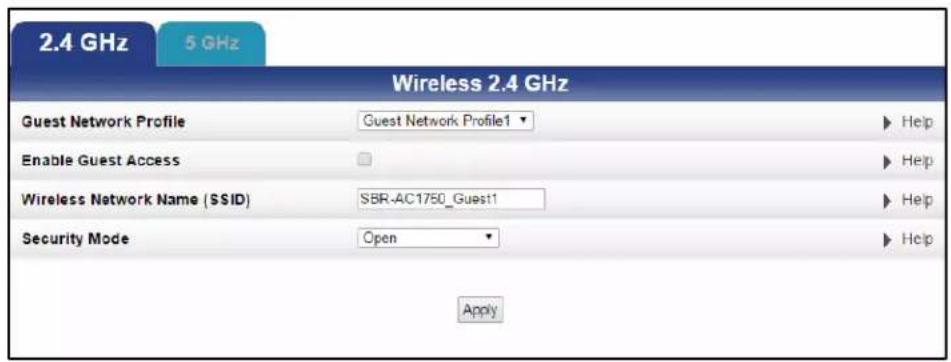
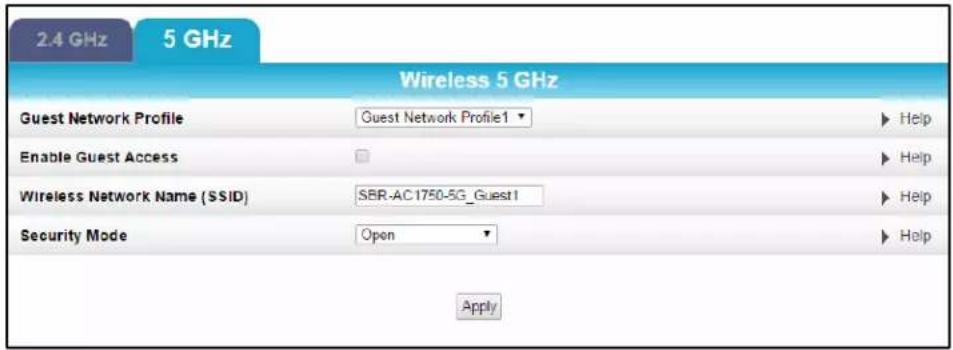
Figure 34 - 2.4 GHz & 5 GHz Wireless Guest Network Screens
- Select one of the guest network names from the Guest Network Profile drop-down list for your guest network.
- Check Enable Guest Access checkbox to turn ON the wireless guest network.
-
Do one of the following to name your wireless guest network in the Wireless Network Name (SSID) field:
-
Keep the default guest network name; for example, SBR-AC1750_Guest#.
-
Enter a new name of your choice.
-
Select one of the following wireless security modes for your wireless guest network in the Security Mode field:
-
Open
-
WPA/WPA2-PSK: combination Wi-Fi Protected Access and Wi-Fi Protected Access version 2 with Pre-Shared Key
-
Click Apply, when done.
7
Protecting & Monitoring Your Wireless Network
After you have successfully connected the SBR-AC1750 and your wireless devices, you should configure the router to protect your wireless network from unwanted and unauthorized access by any wireless devices within range of your wireless network. Although security for the SBR-AC1750 is already configured, you can use the SBR-AC1750 Configuration Manager to tailor the level of security and access that you want to allow on your network.
Prevent Unauthorized Access

To prevent unauthorized access and configuration to your wireless network, ARRIS recommends that you immediately change the default user name and password after connecting to the Internet and logging on to the SBR-AC1750 for the first time.
One of the most important recommendations for securing your wireless home network is to change the default administrator password on your SBR-AC1750 and other wireless devices as well. Default passwords are commonly used and shared on the Internet.
To ensure that your wireless home network is secure, you should follow these best practices for creating user passwords:
- Always create a secure password or pass phrase that is not easily guessed.
- Use phrases instead of names so that it may be easier for you to remember.
- Use a combination of upper and lowercase letters, numbers, and symbols.
- Continue to change your administrator password on a regular basis.
Change the Default Password
To change the default user password:
- Log in to the SBR-AC1750 from any web browser on the computer connected to the SBR-AC1750.
-
Type the Router Web Manager IP address, http://192.168.0.1, in the Address bar and then press Enter. The SBR-AC1750 Login screen displays.
-
Type the default user password in the Password field as it appears below: Password: password
- Click Login to open the SBR-AC1750 Web Manager. The SBR-AC1750 Status Connection screen displays.
- Click Utilities on the SBR-AC1750 Main Menu.
- Click System Settings from the Utilities submenu options to display the System Settings screen.
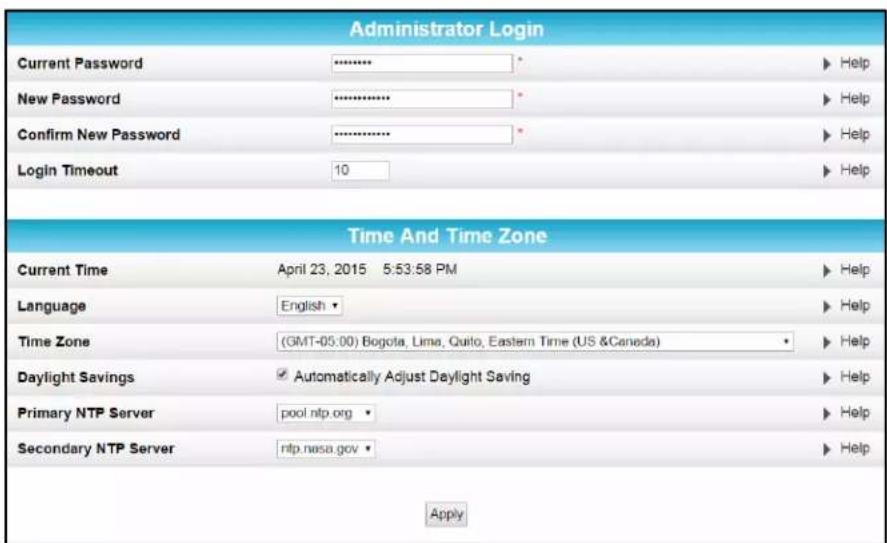
Figure 35 – Change User Password Screen
-
Complete all three password field entries, but note the following suggestions for your new password:
-
Refer to the best practices for creating a user password outlined on the previous page, see Prevent Unauthorized Access.
-
All three Password fields are case-sensitive.
• Note: For first time logons, the Current Password is the default password (password).
• Find a secure place to write down and keep your new user name and password. -
Click Apply to update your user password.
Set Up Firewall Protection
You can set up firewall filters and firewall alert notifications on your wireless home network.
To set the firewall protection level:
-
Do one of the following to open the Firewall Enable/Disable screen:
-
Log in to the SBR-AC1750 Web Manager and then click the Firewall menu button on the SBR-AC1750 Main Menu and then select Firewall Settings.
- Log in to the SBR-AC1750 Web Manager and then click the Firewall Settings menu link at the bottom of the screen.
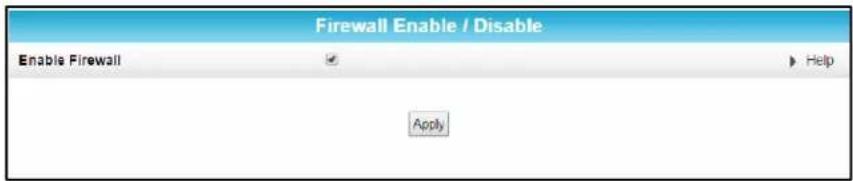
Figure 36 – Firewall Enable/Disable Screen
- Click Enable Firewall to turn on firewall protection on your home network.
- Click Apply.
Note If Enable Firewall is not checked, firewall protection is disabled on your home network. Your computer(s) and other Ethernet-enabled devices on your home network will be at risk for possible attacks from viruses and hackers.
Set Up Port Forwarding
You can use Port Forwarding to set up a computer or other network device on your home network (LAN) to be accessible to computers or other remote network devices on the Internet. This feature allows inbound traffic from the Internet to specific ports behind the firewall on your LAN. You set up dedicated connections between your computer and other remote computers for online gaming or other online services. Some allowable services are predefined under the Commonly Forwarded Ports (see Figure 38).
To set up Port Forwarding:
- Log in to the SBR-AC1750 Web Manager and then click Firewall on the SBR-AC1750 Main Menu bar.
- Click Port Forwarding from the Firewall submenu options.
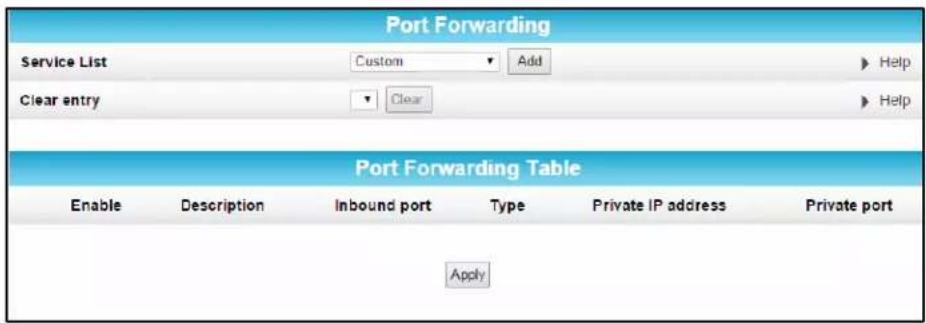
Figure 37 – Create Forwarded Ports Screen
- Click the Service List drop-down button and then select a service or application from the Service list.
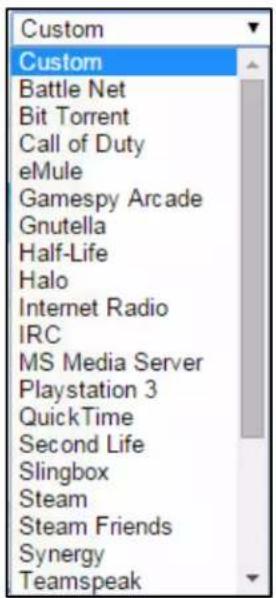
Figure 38 – Commonly Used Forwarded Ports List
- Click Add to insert the service in the Port Forwarding table.
Note To map a port, you would enter the range of port numbers that you want forwarded locally and the IP address for sending traffic to those ports. If you only want a single port specification, enter the same port number in the start and end locations for that IP address.
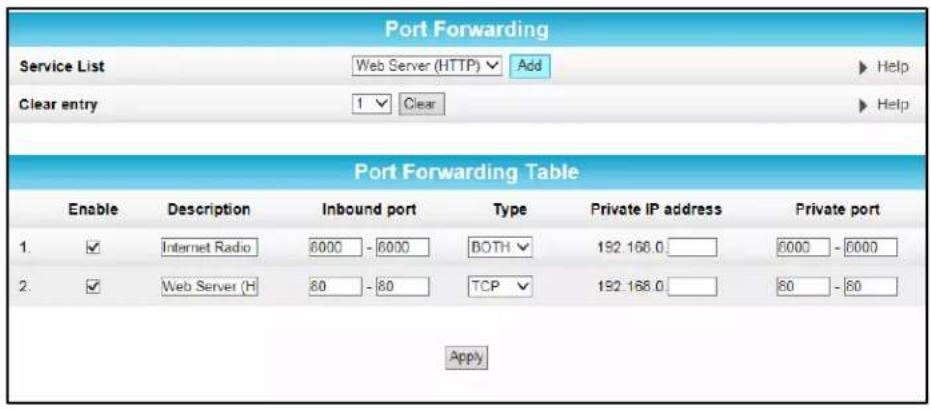
Figure 39 – Forwarded Ports Screen
- Select or deselect the Enable checkbox to turn on or off port forwarding for the selected service on that port.
- Optional step: Enter a new name in the Description field to change the name for the server you are creating.
- Select BOTH, UDP, or TCP from the Internet protocol Type drop-down list.
-
Do either of the following to set up the Private IP address:
-
Enter a specific remote IP address of your choice in the Private IP address field.
- Enter the specific port numbers in the Private port field.
- This allows incoming data traffic on the specified ports from only one remote IP address.
-
Note: To forward a range of ports, enter the first and last numbers of the port range in the Private port field.
-
Repeat steps 3 through 8 for each additional port.
-
ClickApply when done.
Set Up the DMZ Host
WARNING! The gaming DMZ host is not protected by the SBR-AC1750 router firewall. It is exposed to the Internet and thus vulnerable to attacks or hacking from any computer on the Internet. Consider carefully before configuring a device to be in the DMZ.
You can configure one computer on your home network to be the DMZ. That computer will operate outside of the SBR-AC1750 firewall and allow remote access from the Internet to your computer, gaming device, or other IP-enabled device. The DMZ feature will only allow outside users to have direct access to the designated DMZ device and not your home network.
To create the DMZ Host:
- Log in to the SBR-AC1750 Web Manager and then click Firewall on the SBR-AC1750 Main Menu bar.
- Click DMZ from the Firewall submenu options.
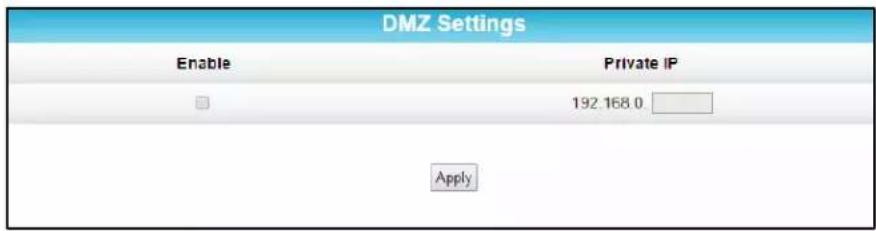
Figure 40 - Firewall DMZ Settings Screen
- Select Enable to turn on the DMZ.
- Enter the last one to three digits (from 2 to 254) of the IP address of the computer or gaming device that you are setting up as the DMZ host.
- Click Apply.
Note Remember to uncheck (deselect) the Enable checkbox to close all the ports when you are finished with the needed application. This will disable the DMZ and prevent your connected computer or gaming device from being exposed to the public Internet.

Managing Your Wireless Router and Connected Networks
View the Router Product Information
The Utilities System Information screen provides product and network status information, including the serial number, firmware version, and the current network connection status of the SBR-AC1750.
To open the Utilities System Information screen:
- Log in to the SBR-AC1750 Web Manager and then click Utilities on the SBR-AC1750 Main Menu.
- Click System Information from the Utilities submenu options to view the router status.
- Click the Refresh button (F5) in your web browser to reload the information on the screen.
| Hardware Software Version | ||
| Serial Number | EBWBUJ344200056 | ▶ Help |
| Bootcode Version | 3.00.0 | ▶ Help |
| Hardware Version | SBR-AC1750 | ▶ Help |
| Firmware Version | 1.00 008 | ▶ Help |
| WAN Status Summary | ||
| WAN MAC Address | 94.62.69.97.07.FB | ▶ Help |
| Connection Setup | Dynamic | ▶ Help |
| IP Address | ### ## ## ## | ▶ Help |
| Subnet Mask | 255.255.255.224 | ▶ Help |
| Primary DNS | ### ## ## ## ## | ▶ Help |
| Secondary DNS | 0.0 0.0 | ▶ Help |
| Gateway | ### ## ## ## ## | ▶ Help |
| LAN Status Summary | ||
| LAN MAC Address | 94.62.69.97.07.FA | ▶ Help |
| IP Address | 192.168 0.1 | ▶ Help |
| Subnet Mask | 255.255.255.0 | ▶ Help |
| DHCP Server | Enabled | ▶ Help |
| Wireless 2.4GHz Status Summary | ||
| SSID | SURFBoard-D8F7 | ▶ Help |
| Security | WPA2-P3K | ▶ Help |
| Channel | 11 | ▶ Help |
| WPS | Enabled | ▶ Help |
Figure 41 – SBR-AC1750 Utilities – System Information Screen
View the Router Network Settings
You can use the LAN Settings screen to view and change the IP and DHCP server settings on your home network.
To open the LAN Settings screen:
- Log in to the SBR-AC1750 Web Manager and then click LAN on the SBR-AC1750 Main Menu.
- Click LAN Settings from the LAN submenu options.
- Click the Refresh button (F5) in your web browser to update your home network settings on the screen.
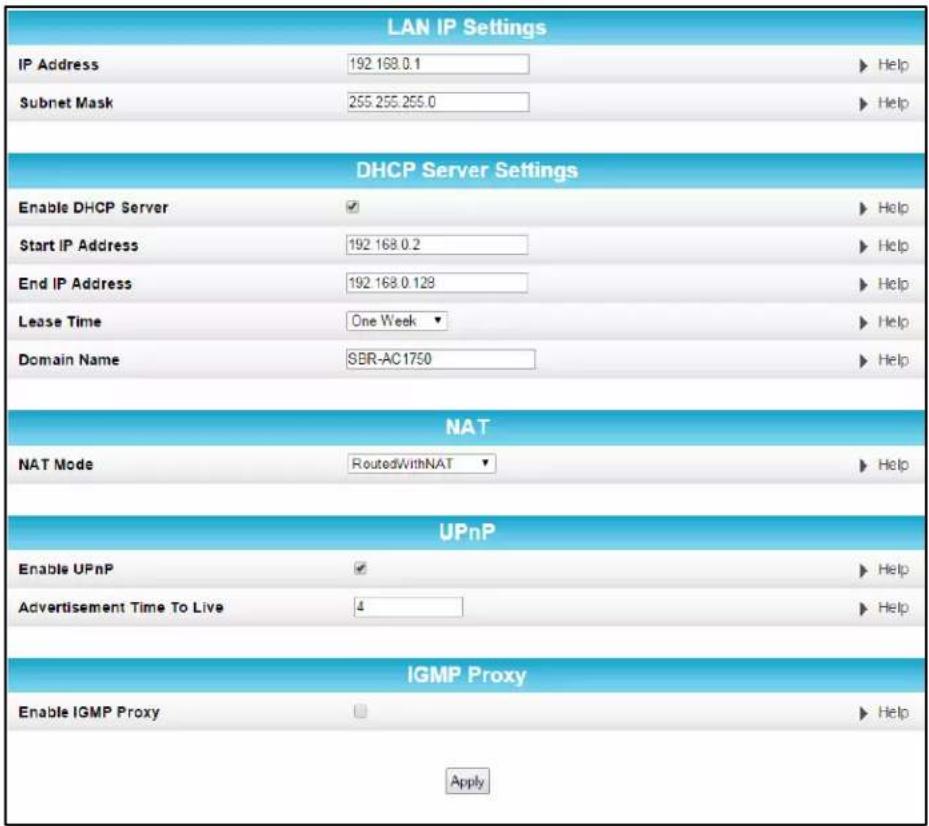
Figure 42 - SBR-AC1750 LAN - LAN Settings Screen
View the Router System Logs
You can use the System Log screen to view the list of activity, events, and alerts recorded on your SBR-AC1750.
To open the System Log screen:
- Log in to the SBR-AC1750 Web Manager and then click Utilities on the SBR-AC1750 Main Menu.
- Click System Log from the Utilities submenu options.
![[ Mar. 27,2015 14:06:44 ] Time synchronized with 'pool.org' [ Mar. 27,2015 06:37:23 ] DHCP IP 192.168.0.3 is assigned to client 'PTANG-01' [ Mar. 27,2015 06:35:58 ] DHCP IP 192.168.0.3 is assigned to client 'PTANG-01' [ Mar. 26,2015 14:06:41 ] Time synchronized with 'pool.org' [ Mar. 26,2015 14:05:48 ] Delay 50 seconds before time synchronizing [ Mar. 26,2015 14:05:45 ] WAN connected(IP: 192.168.07.48) [ Mar. 26,2015 14:05:39 ] WAN disconnected [ Mar. 26,2015 14:05:23 ] Delay 112 seconds before time synchronizing [ Mar. 26,2015 14:05:20 ] WAN connected(IP: 192.168.100.49) [ Mar. 26,2015 14:05:14 ] WAN link up [ Mar. 26,2015 14:05:11 ] WAN link down [ Mar. 26,2015 14:05:05 ] WAN link up [ Mar. 26,2015 13:52:54 ] WAN link down [ Mar. 26,2015 13:52:20 ] WAN link up [ Mar. 26,2015 13:52:17 ] WAN link down [ Mar. 26,2015 13:52:14 ] WAN link up [ Mar. 26,2015 13:51:59 ] WAN link down [ Mar. 26,2015 13:51:19 ] WAN link up [ Mar. 26,2015 13:51:07 ] WAN disconnected [ Mar. 26,2015 13:51:07 ] WAN link down](/content/2026/05/1061946/images/4c0d52eb27f2de406771f3603f7831569d0d0bc42453b458d2ef77ed448976f1.jpg)
Figure 43 – SBR-AC1750 Utilities – System Log Screen
- Click the Refresh button on the Log screen or the Refresh button (F5) on your computer to update and view the latest system log information.
Note To print the system log on your connected (wired or wireless) printer, click Ctrl P and follow the steps you normally use for printing.
Update the Firmware on Your Router
ARRIS may periodically release firmware updates for the SBR-AC1750. These new firmware releases may contain updates for operation improvements and problem resolutions. You can upload the firmware on your SBR-AC1750 when ARRIS releases new firmware versions. The new firmware releases are available at www.arris.com/consumer. The new firmware updates will not delete or overwrite your custom user settings (for example, user name or password).
WARNING! Only install the firmware version that applies to your specific model number, otherwise irreversible damage may occur. ARRIS is not responsible for any damages or loss to the device that may be associated with the downloading and installation of incorrect firmware versions. Please contact ARRIS Technical Support for assistance.
To load a new firmware release for your SBR-AC1750:
- Go to www.arris.com/consumer and click the Get Support link.
- Click SURFboard Cable Modems and Gateways/Go to Models.
- Click SBR-AC1750/Details.
- Click Drivers & Firmware.
The new SBR-AC1750 firmware release will be listed here, if available.
- If a new firmware release is available, click on it to upload it to your Downloads folder on your computer.
- Login to the SBR-AC1750 Web Manager (see Start the Router Web Manager).
- Click Utilities on the SBR-AC1750 Main Menu.
- Click Firmware Upgrade from the Utilities submenu options.
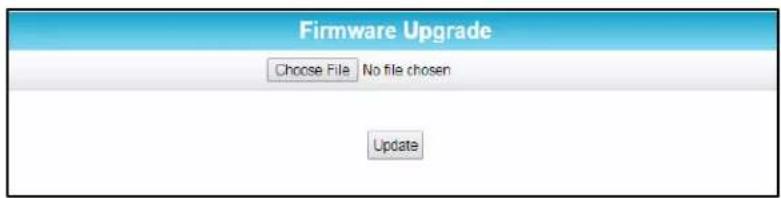
Figure 44 – SBR-AC1750 Utilities – Firmware Upgrade Screen
- Click Choose File to locate the new firmware file in the Downloads folder on your computer.

Before proceeding with the firmware upgrade, make sure to select the specific firmware file (router model and firmware version number) for your SBR-AC1750.
- Click on the new firmware file and clickOpen.
- Click Update to download the new firmware onto your SBR-AC1750.
WARNING!
• DO NOT interrupt or stop the firmware download while it is still in progress.
- DO NOT disconnect the power or reset the SBR-AC1750 while the firmware upgrade is still running.
- Allow the firmware upgrade process to complete before using your router again.
Restart Your Router
At some point during operation for whatever reason, you may have to restart or reboot your SBR-AC1750. This will not affect your router configuration settings.
To restart your SBR-AC1750:
- Log in to the SBR-AC1750 Web Manager and then click Utilities on the SBR-AC1750 Main Menu.
- Click Restart Router from the Utilities submenu options.
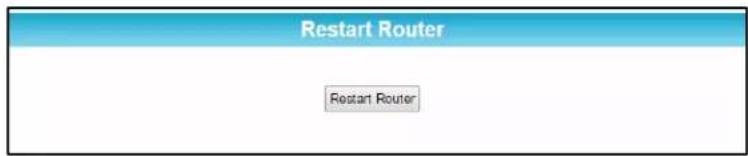
Figure 45 – SBR-AC1750 Utilities – Restart Router Screen
- Click the Restart Router button. The following warning message will display:
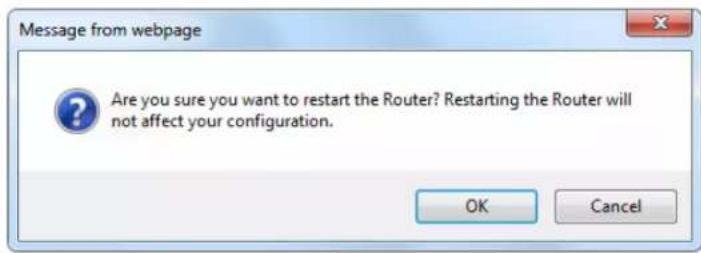
Figure 46 - SBR-AC1750 Utilities - Restart Router Dialog Box
- Click OK to restart your SBR-AC1750 and then log back in.
Reset Your Router Settings
At any time, you can reset or restore the SBR-AC1750 router configuration settings, including your user name and password, back to the default factory settings. There are two methods available for resetting the router configuration on the SBR-AC1750:
- Reset Router Using the Reset Button
- Reset Router Using the SBR-AC1750 Web Manager
•
WARNING! Resetting the SBR-AC1750 will delete your current router configuration settings (including any custom user names and/or passwords) and restore the router configuration back to the factory defaults.
Note After the configuration settings are restored, the router will reboot and you will have to log on using the default username (admin) and password (password).
Reset Router Using the Reset Button
To reset the router configuration back to the factory default settings:
- Insert the end of a paper clip (or other small object with a narrow tip) into the indented Reset button on the rear of the SBR-AC1750 (see Rear Panel).
- Press and hold for 15 seconds and then release.
Reset Router Using the SBR-AC1750 Web Manager
- Log in to the SBR-AC1750 Web Manager and then click Utilities on the SBR-AC1750 Main Menu.
- Click Factory Default from the Utilities submenu options.

Figure 47 - SBR-AC1750 Set Factory Default Screen
- Click Restore Defaults. The following warning message will display:
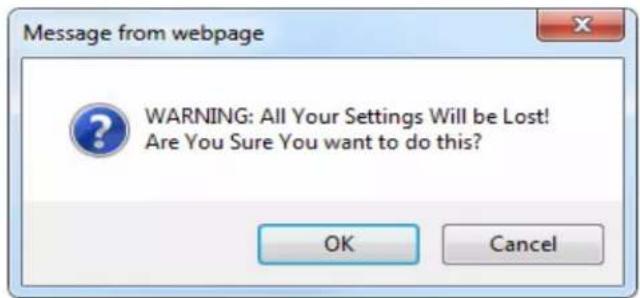
Figure 48 – SBR-AC1750 Utilities – Restore Factory Defaults Dialog Box
- Click OK to proceed. The following message will display.
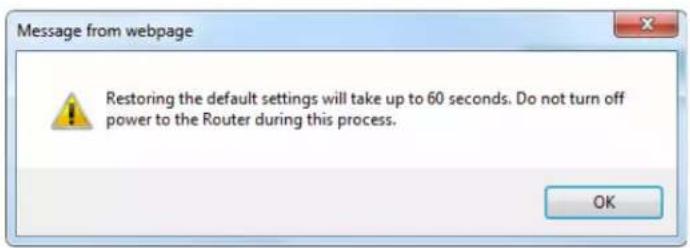
- Click OK to reboot the SBR-AC1750. DO NOT power OFF the router while it is resetting. The router will automatically reboot when the router reset is complete and the SBR-AC1750 Login screen displays.
- Type the default user password (password) in the Password field. The password is case sensitive.
Note: For network security purposes, ARRIS recommends that you change the router default password. See Change the Default Password for more information.
Set Up Your USB Storage Device
The SBR-AC1750 has one USB 2.0 port that can only be used to connect a USB hard drive or flash drive. The USB storage device will be available to all the computers or other network devices connected to your home network. This allows you to share various types of text and graphic files, as well as multimedia content (videos, music, photos) with family, friends, and other users (local or remote) on your home network. To get started, you must first create a user account to set up access to the connected USB device.
- Check that your USB device is connected to the rear of the SBR-AC1750 and the USB LED on the front panel is lit solid green..
- Log in to the SBR-AC1750 Web Manager and then click USB on the SBR-AC1750 Main Menu.
- Click Media Sharing from the USB submenu options.
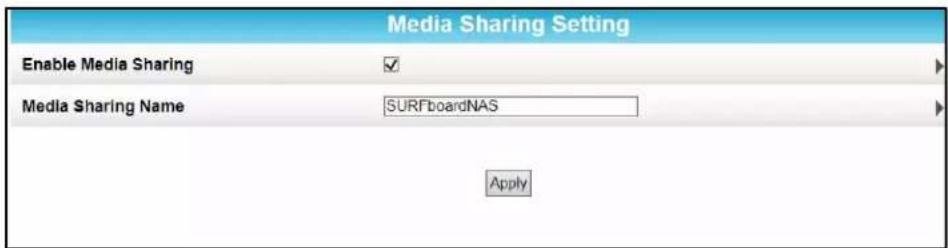
Figure 49 - SBR-AC1750 USB Server Setup Dialog Box
- Click Enable Media Sharing checkbox to set the USB device as a ReadyDLNA media server to playback videos, movies, and pictures on a DLNA/UPnP AV-compliant media player.
- Enter a name of your choice for the USB media server in the Media Sharing Name field or keep the default name, SURFboardNAS.
- Click Apply.
- Click USB on the SBR-AC1750 Main Menu and then click.
- Click File Sharing from the USB submenu options. A list of the available Share folders will display in the Available Share Folders list (see Figure 50).
- Select the Enable FTP Server checkbox to allow access to the USB drive through the IP address from the FTP client listed in the FTP Server Access field.
- Select the Enable Share Folders checkbox to allow access to the Share folders through the IP address listed in the Share Folders Access field.
- Click Apply. A list of the available share folders will display.
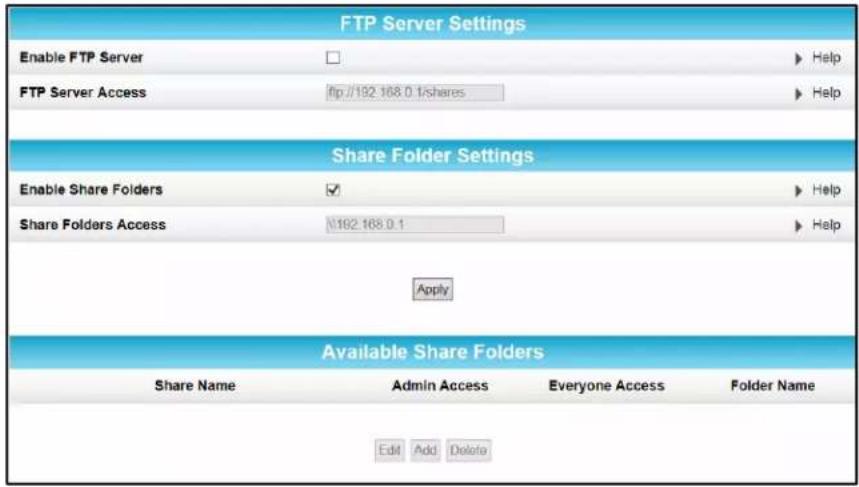
Figure 50 - SBR-AC1750 USB Server Setup Dialog Box
Connect to the USB Drive
You can access the SBR-AC1750 USB drive by using either the network share folders on your computer or a remote FTP IP address listed in the SBR-AC1750 Web Manager.
- Check that your USB device is connected to the rear of the SBR-AC1750 and the USB LED on the front panel is lit solid green.
- Log in to the SBR-AC1750 Web Manager and then click USB on the SBR-AC1750 Main Menu.
- Click File Sharing from the USB submenu options.
- Click on the Share Name under the list of Available Share Folders that you want to open.
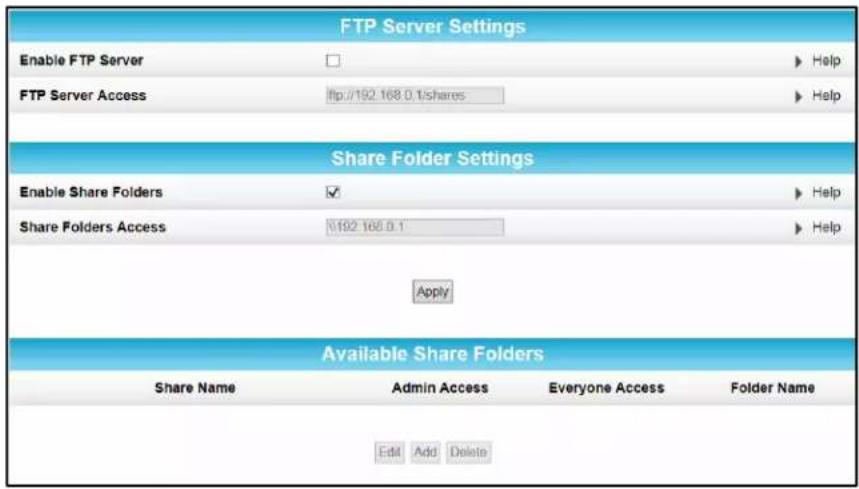
Figure 51 - SBR-AC1750 USB Storage Status Screen

Troubleshooting Tips
You may have to reset the SBR-AC1750 router configuration to its original factory settings if the router is not functioning properly.
Solutions
Table 4: Troubleshooting Solutions
| Router Problem | Possible Solution |
| POWER LED Icon is OFF | Check the power connection between the router and electrical wall outlet.If the router is plugged into a power strip, check the strip to make sure it is switched ON.Check that the electrical wall outlet is working. Is the outlet controlled by a light switch?If so, disconnect the router power cord and connect it to another electrical outlet that is not controlled by a light switch. |
| Cannot Access the Internet | Check the status of your ISP device (cable, DSL, or Satellite modem) to make sure the Internet service is working.Check the Ethernet cable to make sure it is properly connected to your ISP device and wireless router. Check the WAN LED on the SBR-AC1750 front panel to confirm an Internet connection.On the SBR-AC1750 front panel, check the status of the LEDs and refer to Front Panel LED Icons and Error Conditions to identify the problem.Check that all cable and power connections on your router and computer are properly connected.Check that thePower, WAN, and Wireless LEDs on the front panel are lit up solid.If you are using a hub, check to make sure it is turned ON.If none of the above solutions resolves the problem, call ARRIS Technical Support at 1-877-466-8646 for assistance. |
| Wireless devices cannot send or receive data | Check to confirm that the Wireless LED is lit.If the problem still persists after checking your IP address, check the Wireless Security Mode setting on the Wireless Basic Setup screen.If you enabled WPA and configured a passphrase on the router, be sure each affected wireless client has the identical passphrase. If this does not solve the problem, check if the wireless client supports WPA. |
Front Panel LED Icons and Error Conditions
The SBR-AC1750 front panel LED icons provide status information for the following error conditions:
Table 5: SBR-AC1750 Front Panel LED Icons and Error Conditions
| LED Icon | Status | If, During Startup: | If, During Normal Operation |
 POWER POWER | Off | Router is not properly plugged into the electrical outlet | Router is unplugged |
 WAN WAN | Flashing | IP registration failed | IP registration is lost |
 WIRELESS WIRELESS | Off | Wireless is disabled or wireless device is not detected. | Wireless is disabled or wireless device is disconnected. |
 WIRELESS WIRELESS | Off | Wireless is disabled or wireless device is not detected | Wireless is disabled or wireless device is disconnected. |
 ——1 ——1  ETHERNET ETHERNET | Off | Ethernet cable is not connected to the router | Ethernet cable is not connected to the router |
| [ASGY]USB- | Off | USB device is not detected USB device is not connected | |
 WPS WPS | Flashing | WPS error. WPS-enabled wireless device is not connected | |

Warranty Information
SURFboard SBR-AC1750 Wireless Router ARRIS Enterprises, Inc. ("ARRIS")
Retail Purchasers (SURFboard): If you purchased this Product directly from ARRIS or from an authorized ARRIS retail reseller, ARRIS warrants to you, the original end user customer, that (A) the Product, excluding Software, will be free from defects in materials and workmanship under normal use, and (B) with respect to Software, (i) the media on which the Software is provided will be free from defects in material and workmanship under normal use, and (ii) the Software will perform substantially as described in its documentation. This Limited Warranty to you, the original end user customer, continues (A) for Software and the media upon which it is provided, for a period of ninety (90) days from the date of purchase from ARRIS or an authorized ARRIS reseller, and (B) for the Product (excluding Software), for a period of two (2) years from the date of purchase from ARRIS or from an authorized ARRIS reseller. To take advantage of this Limited Warranty or to obtain technical support, you must call the ARRIS toll-free telephone number, 1-877-466-8646. Technical support charges may apply. ARRIS' sole and exclusive obligation under this Limited Warranty for retail sales shall be to repair or replace any Product or Software that does not meet this Limited Warranty. All warranty claims must be made within the applicable Warranty Period.
General Information. The warranties described in this Section shall not apply: (i) to any Product subjected to accident, misuse, neglect, alteration, Acts of God, improper handling, improper transport, improper storage, improper use or application, improper installation, improper testing or unauthorized repair; or (ii) to cosmetic problems or defects which result from normal wear and tear under ordinary use, and do not affect the performance or use of the Product. ARRIS' warranties apply only to a Product that is manufactured by ARRIS and identified by ARRIS owned trademark, trade name or product identification logos affixed to the Product. ARRIS does not warrant to you, the end user, or to anyone else that the Software will perform error free or without bugs.
ARRIS IS NOT RESPONSIBLE FOR, AND PROVIDES "AS IS" ANY SOFTWARE SUPPLIED BY 3RD PARTIES. EXCEPT AS EXPRESSLY STATED IN THIS SECTION ("WARRANTY INFORMATION"), THERE ARE NO WARRANTIES OF ANY KIND RELATING TO THE PRODUCT, EXPRESS, IMPLIED OR STATUTORY, INCLUDING BUT NOT LIMITED TO IMPLIED WARRANTIES OF MERCHANTABILITY, FITNESS FOR A PARTICULAR PURPOSE, OR THE WARRANTY AGAINST INFRINGEMENT PROVIDED IN THE UNIFORM COMMERCIAL CODE. Some states do not allow for the exclusion of implied warranties, so the above exclusion may not apply to you.
What additional provisions should I be aware of? Because it is impossible for ARRIS to know the purposes for which you acquired this Product or the uses to which you will put this Product, you assume full responsibility for the selection of the Product for its installation and use. While every reasonable effort has been made to insure that you will receive a Product that you can use and enjoy, ARRIS does not warrant that the functions of the Product will meet your requirements or that the operation of the Product will be uninterrupted or error-free.
ARRIS IS NOT RESPONSIBLE FOR PROBLEMS OR DAMAGE CAUSED BY THE INTERACTION OF THE PRODUCT WITH ANY OTHER SOFTWARE OR HARDWARE. ALL WARRANTIES ARE VOID IF THE PRODUCT IS OPENED, ALTERED, AND/OR DAMAGED.
THESE ARE YOUR SOLE AND EXCLUSIVE REMEDIES for any and all claims that you may have arising out of or in connection with this Product, whether made or suffered by you or another person and whether based in contract or tort.
IN NO EVENT SHALL ARRIS BE LIABLE TO YOU OR ANY OTHER PARTY FOR ANY DIRECT, INDIRECT, GENERAL, SPECIAL, INCIDENTAL, CONSEQUENTIAL, EXEMPLARY OR OTHER DAMAGES ARISING OUT OF THE USE OR INABILITY TO USE THE PRODUCT (INCLUDING, WITHOUT LIMITATION, DAMAGES FOR LOSS OF BUSINESS PROFITS, BUSINESS INTERRUPTION, LOSS OF INFORMATION OR ANY OTHER PECUNIARY LOSS), OR FROM ANY BREACH OF WARRANTY, EVEN IF ARRIS HAS BEEN ADVISED OF THE POSSIBILITY OF SUCH DAMAGES. IN NO CASE SHALL ARRIS' LIABILITY EXCEED THE AMOUNT YOU PAID FOR THE PRODUCT.
These matters are governed by the laws of the Commonwealth of Pennsylvania, without regard to conflict of laws principles and excluding the provisions of the United Nations Convention on Contracts for the International Sale of Goods.
Retail Purchasers Only. If you purchased this Product directly from ARRIS or from an ARRIS authorized retail reseller, please call the ARRIS toll-free telephone number, 1-877-466-8646 for warranty service or technical support. Technical support charges may apply. For online technical support, please visit www.arris.com/consumer.

ARRIS Enterprises, Inc.
3871 Lakefield Drive
Suwanee, GA 30024
www.arris.com
365-095-27433 x.1 06/15
