53012LFL - Laptop HUAWEI - Free user manual and instructions
Find the device manual for free 53012LFL HUAWEI in PDF.


| Product Type | Laptop |
| Brand | Huawei |
| Model | 53012LFL |
| Screen Size | 13.3 inches |
| Resolution | 1920 x 1080 pixels (Full HD) |
| Processor | Intel Core i5-1135G7 |
| RAM | 8 GB LPDDR4x |
| Storage | 256 GB PCIe NVMe SSD |
| Operating System | Windows 10 Home |
| Battery Life | Up to 10 hours (typical usage) |
| Weight | 1.3 kg |
| Dimensions (W x D x H) | 30.4 x 20.0 x 1.5 cm |
| Power Supply | 65W USB-C Power Adapter |
| Connectivity | Wi-Fi 6 (802.11ax), Bluetooth 5.0, 1x USB-C, 1x USB-A 3.2, 1x HDMI 1.4, 3.5mm audio jack |
| Camera | 720p HD front-facing camera |
| Audio | Stereo speakers, dual microphone array |
| Keyboard | Backlit chiclet keyboard |
| Material | Aluminum alloy chassis |
| Certifications | Energy Star, RoHS, TÜV Rheinland (low blue light) |
Frequently Asked Questions - 53012LFL HUAWEI
User questions about 53012LFL HUAWEI
0 question about this device. Answer the ones you know or ask your own.
Ask a new question about this device
Download the instructions for your Laptop in PDF format for free! Find your manual 53012LFL - HUAWEI and take your electronic device back in hand. On this page are published all the documents necessary for the use of your device. 53012LFL by HUAWEI.
USER MANUAL 53012LFL HUAWEI
Get to know your computer
Appearance 1
Powering on and off 3
Keyboard 3
Touchpad 4
Charging the computer 6
Getting started
Step 1: Connecting to a network 8
Step 2: Activating Windows 8
Step 3: Enrolling a fingerprint 8
Step 4: Updating the drivers 9
Highlighted features
Huawei Share 10
Eye Comfort mode 10
F10 factory reset (not available in some regions) 11
Learn about Windows 10
Using the Start menu 12
Action center 12
Accessories and extensions
HUAWEI Mini RJ45 to RJ45 Adapter (comes with some
models)
Bluetooth mouse (optional) 14
FAQs
About this user guide
Safety information
Personal Information and Data Security
Legal Notice
Get to know your computer
Appearance
i Keyboard layout varies by country or region. Actual product may differ.
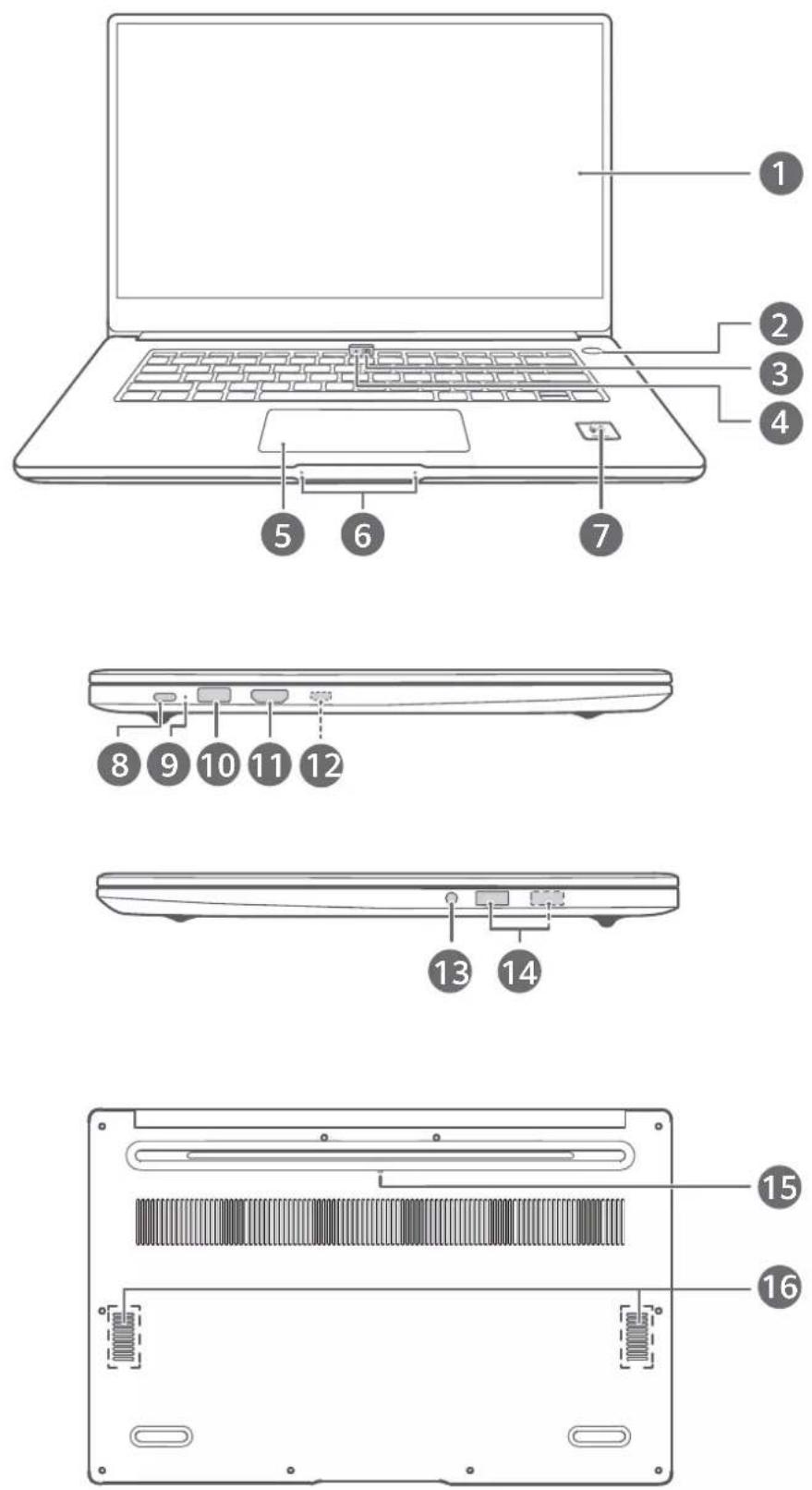
| 1 DisplayDisplays the computer desktop. | |
| 2 Fingerprint power buttonAfter enrolling a fingerprint, simply press the power button with the enrolled finger to power on and unlock the computer without having to enter a password. | |
| 3 Recessed cameraPress the button to reveal the camera. You can then use it in Camera or other apps to take photos or make video chats. Press the button again to hide the camera. | |
| 4 Camera indicatorIndicates the camera's status. Lights up steady white when the camera is active. | |
| 5 TouchpadProvides similar functionality to a mouse. A convenient way to control the computer. | |
| 6 MicrophoneUse the microphone to conduct video meetings, voice calls, or make audio recordings. | |
| 7 Huawei Share iconTap the NFC detection area on some Huawei/Honor phones against the Huawei Share icon on the computer to use the Huawei Share feature.·Do not tear off or damage Huawei Share icon as it may cause Huawei Share to stop working properly.·To learn more, visit our official website:https://consumer.huawei.com/en/support/huaweisharewelcome/ | |
| 8 USB-C port·Connects the power adapter to charge the computer.·Connects to mobile phones, USB drives, and other external devices to transfer files. | |
| 9 Charging indicatorIndicates the battery's charge status when charging:·Blinks white when charging.·Steady white when the computer is fully charged and stops charging. | |
| 10 USB 3.0 portConnects to mobile phones, USB drives, and other external devices to transfer data. | |
| 11 HDMI portA high-definition multimedia port. Connects to external displays. | |
| 12 Mini RJ45 portConnects to HUAWEI Mini RJ45 to RJ45 AdapterNot all models are equipped with this port. | |
| 13 Headset jackConnects to a headset. | |
| 14 USB 2.0 portConnects to mobile phones, USB drives, and other external devices to transfer data.Some models are only equipped with one USB 2.0 port. | |
| 15 Camera drainage holeThe camera is connected to a water drainage hole below the computer. If you accidentally spill a small amount of liquid on the camera, it will drain out from the drainage hole. Note that spilling liquid on the keyboard may damage the computer. | |
| 16 SpeakerThe speakers output sound. |
Powering on and off
When powering on the computer for the first time, connect the power adapter, and the computer will power on automatically. The computer will enter the startup screen shortly after the screen lights up.
When the computer is powered off, press the Power button until the screen or keyboard lights up to power on or wake the computer.
When using the computer, click 📁 > to sleep, shut down, or restart the computer.
Press and hold the power button for approximately 10 seconds to force shutdown the computer. Force shutdowns may cause unsaved data to be lost. Use with caution.
Keyboard
i Keyboard keys may vary depending on your device model.
Shortcut keys
The F keys, such as F1 and F2, are used as shortcut keys (hotkeys) by default to allow you to easily perform common actions.
 | Enable, disable, or adjust the brightness of the keyboard backlight. i If there is no icon on the key, the keyboard does not have a backlight. |
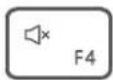 | Mute or unmute. |
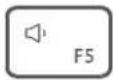 | Decrease the volume. |
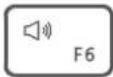 | Increase the volume. |
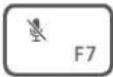 | Enable or disable the microphone. |
 | Switch projection mode. |
 | Enable or disable Wi-Fi. |
 | Open PC Manager. |
Switching between shortcut and function key modes
In function key mode, the F keys have different functions depending on the software that is running.
To use the F keys as function keys, you can:
- Press the Fn key and the indicator will light up. The F keys will then work as function keys. To return to shortcut key (hotkey) mode, press the Fn key then the indicator will turn off.
- To make the F keys work as function keys by default, open PC Manager and go to Settings > System Settings to enable Function key priority. To switch back to hotkey mode, enable Hotkey priority.
Touchpad
The touchpad provides similar functionality to a mouse and is a convenient way to control the computer.
i Not all gestures are available in all apps.
Common touchpad gestures
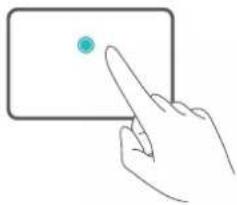 | Tap with one finger: Left-click. |
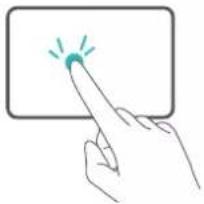 | Tap twice with one finger: Double-click. |
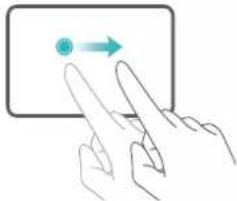 | Slide with one finger: Move the cursor. |
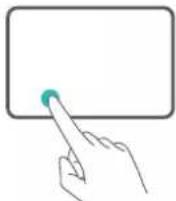 | Press the left touchpad button: Left-click. |
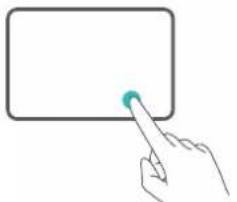 | Press the right touchpad button: Right-click. |
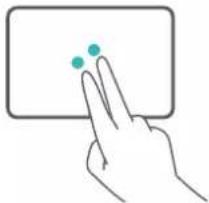 | Tap with two fingers: Right-click. |
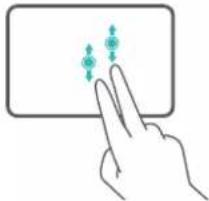 | Slide up or down with two fingers: Scroll up or down. |
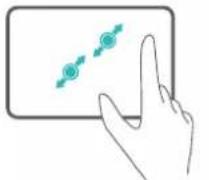 | Pinch in or stretch out with two fingers: Zoom in or out. |
 | Tap with three fingers: Open search. |
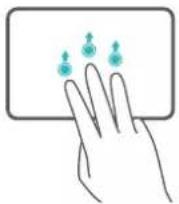 | Slide up with three fingers: See all open windows. |
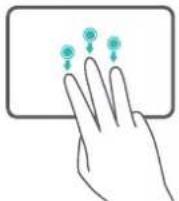 | Slide down with three fingers: Show the desktop. |
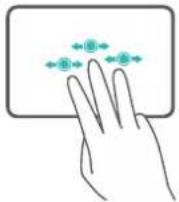 | Slide left or right with three fingers: Switch between open windows. |
 | Tap with four fingers: Open action center. |
Modify touchpad settings
You can modify touchpad settings to suit your own preferences.
1 Click > to open Settings.
2 On the Settings screen, click , then click to:
- Enable or disable the touchpad.
•Automatically enable or disable the touchpad when a mouse is connected.
- Change the touchpad scroll direction.
- Configure touchpad gestures.
Charging the computer
The computer will display a prompt when the battery is running low. If you see this prompt, charge your computer as soon as possible or it will affect your normal use.
Charging the computer with a power adapter
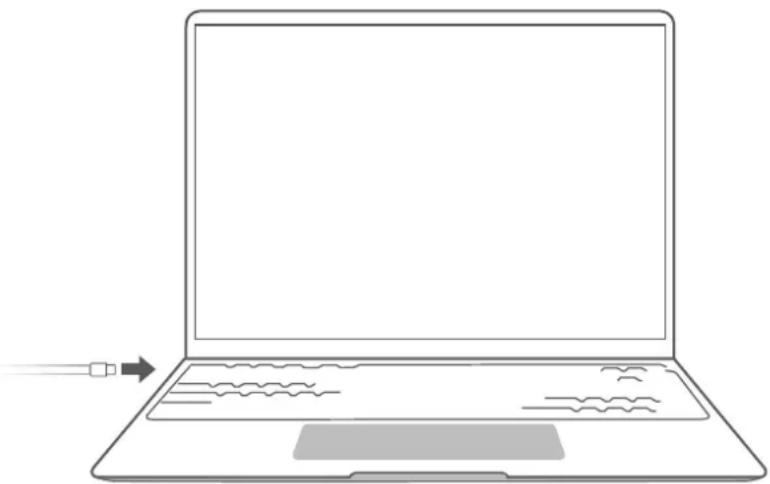
The computer features a non-removable rechargeable battery. Connect the power adapter and charging cable to charge the computer. The battery charges more quickly when the computer is powered off or in Sleep mode.
natural_image
Line drawing of a laptop with a hand pointing to the screen, showing no text or symbols on the screen or keyboard.Safety information
- Charge the computer at room temperature in a well-ventilated, shaded area. Charging the computer in hot environments may damage the internal components.
- Charging duration may vary based on the ambient temperature and battery use.
- It is normal for the computer to become warm after prolonged use or charging. If it becomes hot to the touch, disable non-essential features and disconnect the charger.
- The battery is subject to wear over time. If the computer's standby time appears to have fallen, do not attempt to replace the battery by yourself. Instead, take the computer and proof of purchase to an authorized Huawei Customer Service Center for assistance.
Battery status
The battery status is indicated by the battery icon in the taskbar.
: Indicates that the charger is connected. Click to view the estimated charging time.
: Indicates that the charger is not connected. Click to view the battery percentage and battery time.
i The charging time and remaining battery life displayed are estimated by the operating system. The actual time may vary.
Getting started
Step 1: Connecting to a network
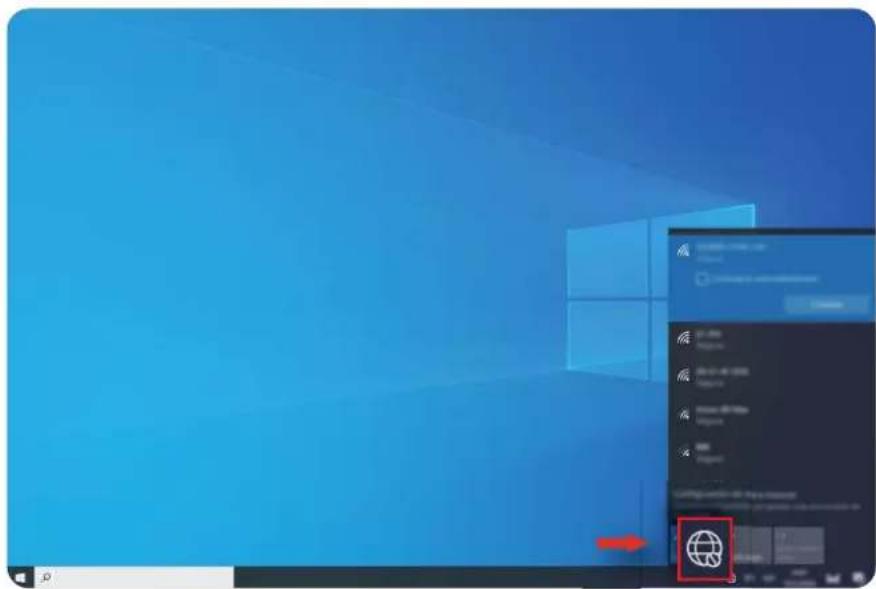
Click in the lower right corner of the desktop. Select a Wi-Fi network and follow the instructions to establish a connection.
Step 2: Activating Windows
Windows will activate automatically when you connect to the Internet for the first time. Click
🔍 > to check if Windows has been activated.
If Windows cannot be activated, restart the computer, connect to the network, and try again. If the issue persists, connect to a different network or wait a while before trying again.
i If Windows is not activated, some features on your computer may be restricted.
Step 3: Enrolling a fingerprint
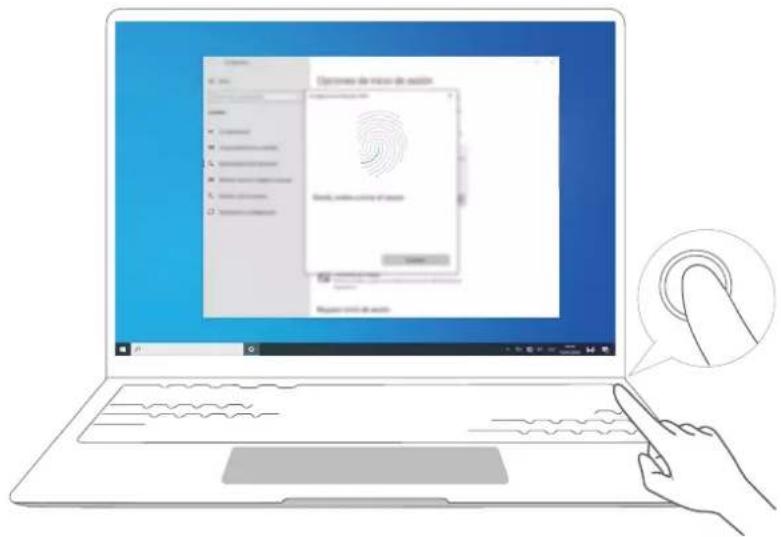
If you skipped the fingerprint enrollment process during the initial setup, click ▶ > ⚙️
.Select Windows Hello Fingerprint, then follow the instructions to enroll your fingerprint.
- Ensure that your fingertips are clean and dry, or your fingerprint may not be enrolled correctly.
•Each user can enroll up to 10 fingerprints.
Step 4: Updating the drivers
You can manage drivers in PC Manager. If driver updates are available, follow the instructions to complete the updates.
Check and update your drivers regularly to improve the stability and performance of the computer.
Highlighted features
Huawei Share
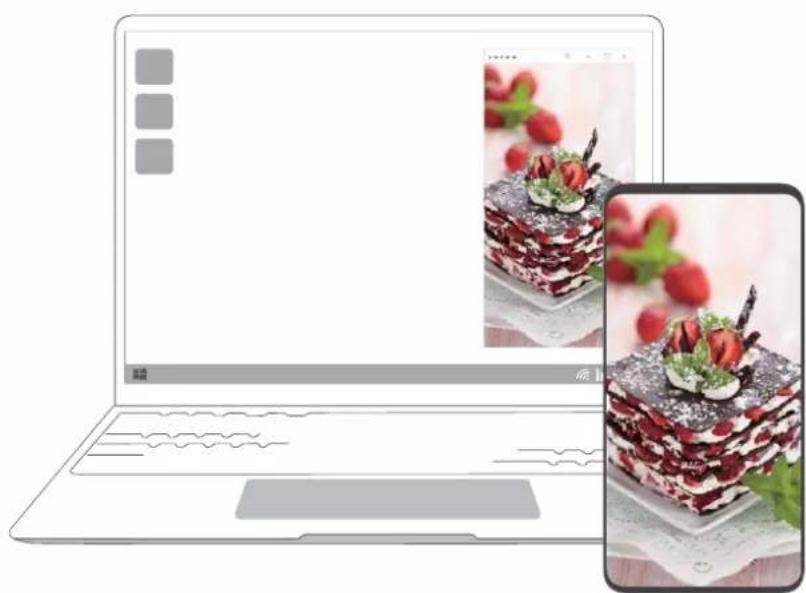
More than just a tap: Project a virtual version of your phone on the laptop. Control apps and files on your phone easily using your laptop. Drag to transfer files instantly between the two and share clipboards.
- Multi-Screen Collaboration: Easily access phone apps and files on the computer, as well as answer voice and video calls to your phone. Drag and drop to transfer files between your phone and computer.
- Sharing files: Tap your phone on the computer to share files. Shake your phone to record the computer screen.
- Sync data: Copy content from your phone to the computer and vice versa with a shared clipboard. Updated files on your phone can also be automatically synced to the computer.
i For detailed instructions, visit our official website:
https://consumer.huawei.com/en/support/huaweisharewelcome/
natural_image
Illustration of a laptop displaying layered dessert cakes with strawberries and mint leaves, alongside a smartphone showing the same cake (no text or symbols visible)Eye Comfort mode
Enable Eye Comfort mode when using the computer for prolonged periods to prevent eye strain and fatigue.
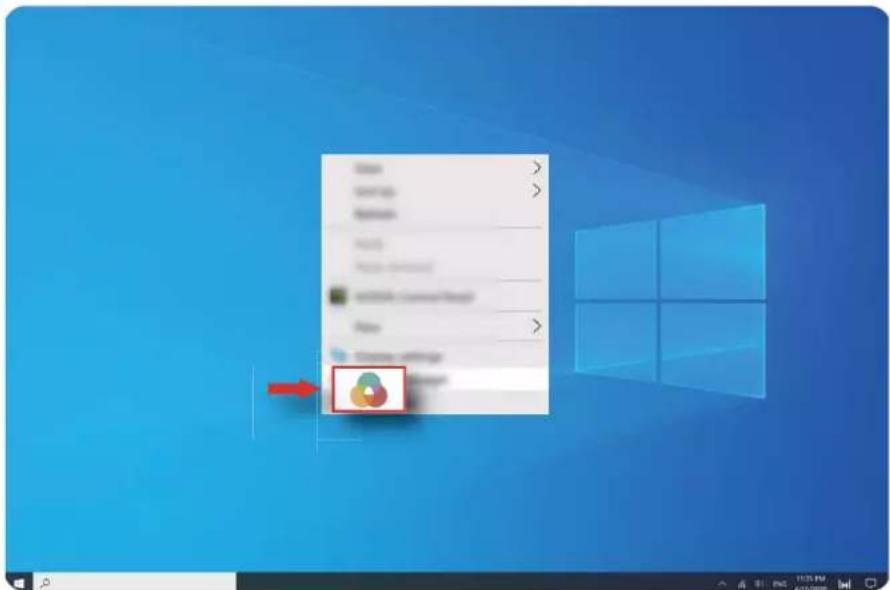
Right-click any empty space on the desktop, click , and enable Eye Comfort.
i The screen will have a slightly yellow hue when Eye Comfort mode is enabled.
F10 factory reset (not available in some regions)
The computer's built-in F10 factory reset feature can quickly restore your computer to its initial or factory state.
All data on the C drive will be deleted during a factory reset. Make sure to back up your data before proceeding.
•This feature is not available in some countries and regions.
1 Connect the computer to the power adapter. Then, press the Power button, and press F10 for multiple times constantly or hold F10 to access the restore screen.
2 Follow the instructions to perform a factory reset.
Learn about Windows 10
Using the Start menu
Use the Start menu to access apps, settings, and files on your computer.
Click to open the Start menu.
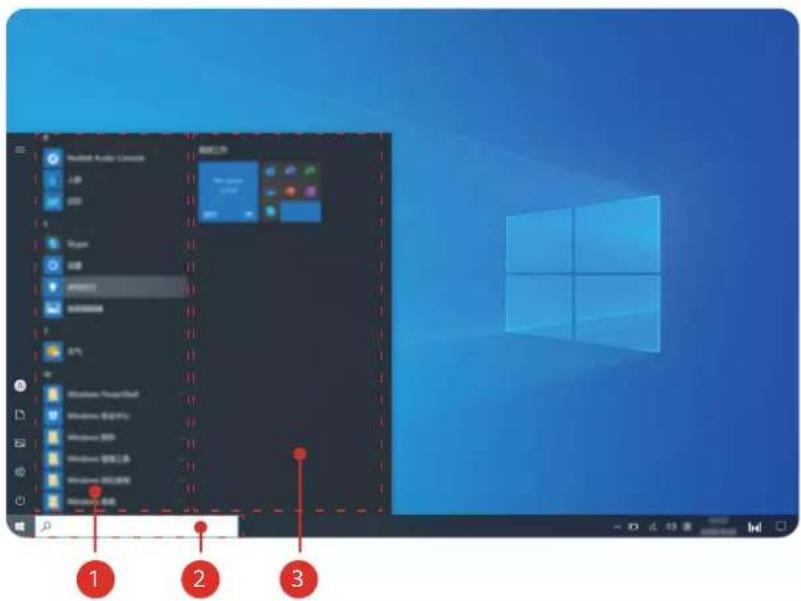
-Click to change, lock, or sign out of the current user account.
-Click to access the Documents folder.
-Click to access the Pictures folder.
-Click to open Settings.
- Click ⏻ to sleep, shut down, or restart the computer.
- App list: scroll up and down to view all apps and programs.
- Search box: Enter a term to search for files or apps.
• 3 Pinned tiles: Pin your favorite apps or websites here, and organize them into groups.
Action center
The action center displays notifications for updates, incoming emails, and more. It also provides quick actions that allow you to quickly enable or disable features or configure relevant settings.
Click in the lower right corner of the desktop to open action center. You can then:
- Quickly open Settings, projection options, and more.
- Quickly access frequently used settings (such as Battery saver, Flight mode, screen brightness, and more).
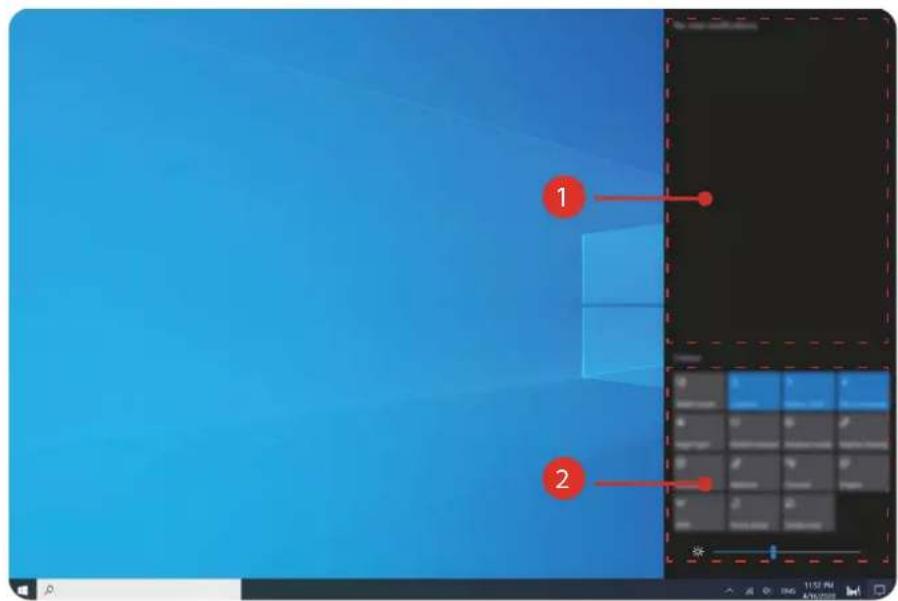
- Notifications area.
: Quick actions area.
Accessories and extensions
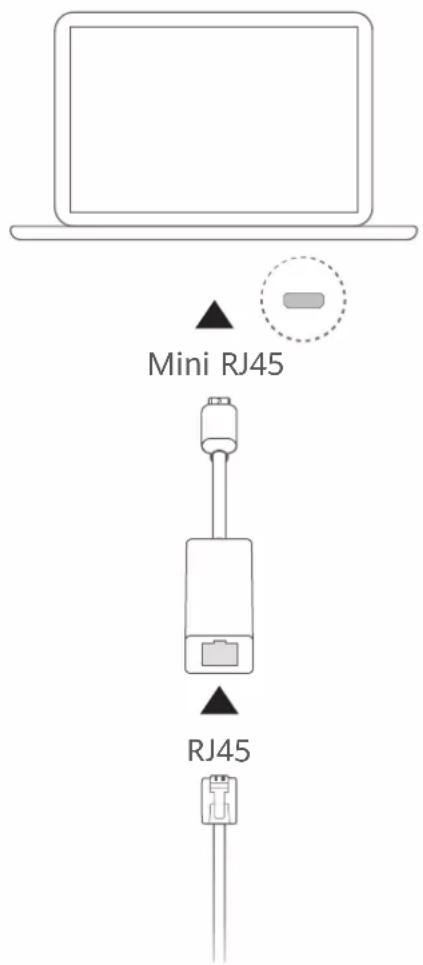
HUAWEI Mini RJ45 to RJ45 Adapter (comes with some models)
i Only some models in some countries and regions come with a HUAWEI Mini RJ45 to RJ45 Adapter.
Use the HUAWEI Mini RJ45 to RJ45 Adapter to connect the computer to a wired network. The RJ45 port connects to an Ethernet cable. The mini RJ45 port connects to the computer.
Bluetooth mouse (optional)
The Huawei/Honor Bluetooth mouse connects to the computer wirelessly via Bluetooth. To start using the Bluetooth mouse, you must first pair it with the computer.
Getting to know the Bluetooth mouse
i The Bluetooth mouse is an optional accessory and is sold separately.
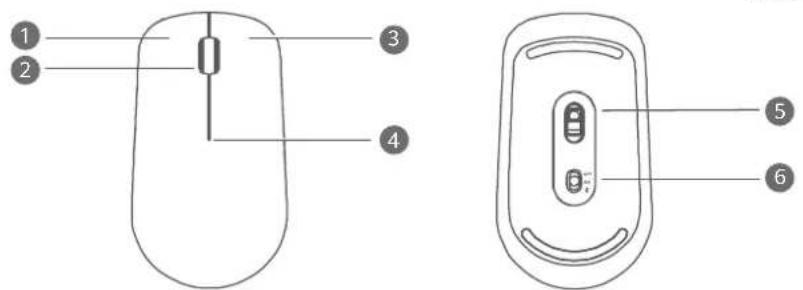
| 1 Left | button 2 Scroll wheel + | Middle button | |
| 3 Right | button 4 | LED indicatori If the indicator blinks red, the battery is low on power and should be replaced. | |
| 5 Sensor | 6 Power/Bluetooth | p | airing switch |
Install the battery
As illustrated below, remove the battery cover from the mark located at the bottom end of the mouse. Insert one AA battery, making sure to match the + and - signs in the battery compartment. Close the cover.

natural_image
Line drawings of three different toilet compartments with a central vent and scroll arrow indicating rotation (no text or symbols)Pairing the Bluetooth mouse with the computer
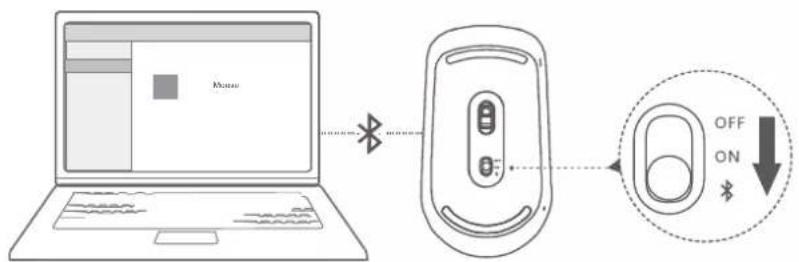
1 Toggle the Bluetooth pairing switch at the bottom of the mouse to for approximately 3 seconds. Once the indicator starts blinking, the Bluetooth mouse is ready to pair.
2 On the computer, click 📋 > 🌿 > 📋 to enter the Bluetooth & other devices settings. Click to add a Bluetooth device, then click the Huawei/Honor mouse in the list of discovered devices to pair.
Power button does not work
Problem: The computer does not power on when pressing the power button quickly. It only powers on if the power button is held for some time.
Cause: The power button has an integrated fingerprint sensor. The button must be held for sufficient time for the fingerprint to be read before it can be powered on and unlocked.
Solution: Press the power button until the screen or keyboard indicator lights up to power on the computer.
? Blue screen, blank screen, or flashing screen after updating Windows
Problem: A blue screen, blank screen, or flashing screen occurs after updating Windows.
Cause: This could be due to the updated version of Windows being incompatible with some computer drivers or installed third-party software.
Solution:
1 Open PC Manager and install available driver updates.
2 If you have installed apps from non-official sources, install them from an official channel instead, or replace them with other apps.
3 If the issue persists, connect the computer to the power adapter. Then, press the Power button, and press F10 for multiple times constantly or hold F10 to access the restore screen. Follow the instructions to perform a factory reset.
All data on the C drive will be deleted during a factory reset. Make sure to back up your data before proceeding.
- This feature is not available in some countries and regions.
4 If the issue persists after a factory reset, back up all data on the computer, then take the computer and proof of purchase to a Huawei Customer Service Center for a checkup. If you have just purchased the computer, you can contact the dealer or seller for assistance.
? Computer is hot and fan is loud
i Some computers have a fanless design.
Problem 1: When connecting to the Internet for the first time, the computer fan spins loudly, and the computer starts to heat up.
Cause: This is caused by Windows updating the system in the background, and does not indicate a problem with the computer.
Solution: Once the update is complete, the fan speed and computer temperature will return to normal.
Problem 2: When charging the computer, the computer fan spins loudly, and the computer starts to heat up.
Cause: The CPU, charging module, and other parts consume more power while charging, causing the computer to heat up and become more noisy.
Solution:
Close all open apps, then open PC Manager to check the CPU's power consumption. If it is higher than 3 W, try the following methods:
1 Use the default Balanced power mode: Go to ▶ > ⚙, change the plan in other settings, then follow the onscreen instructions to change the settings for when to turn off the display and when to put the computer to sleep.
2 End processes with high CPU usage: Right-click the taskbar and open Task Manager. On the Processes tab, click CPU to sort processes based on CPU usage. Right-click non-system processes with high CPU usage that you are not currently using, and select End task.
3 Open PC Manager and install available driver updates.
Problem 3: The computer fan spins loudly, and the computer starts to heat up even when not many apps are open.
Cause: Some third-party apps are configured to run when you log in. These apps connect to the Internet and run in the background, causing the computer to heat up and the fan to spin loudly.
Solution: Right-click the taskbar and open Task Manager. On the Processes tab, click CPU to sort processes based on CPU usage. Right-click non-system processes with high CPU usage that you are not currently using, and select End task.
? Unable to connect to Wi-Fi
Problem: When trying to connect to a Wi-Fi network, the icon is missing in the lower right corner of the desktop.
Cause: A Windows update or third-party app may have installed an incompatible Wi-Fi driver or caused the Wi-Fi driver to be lost.
Solution: Go to C:\Windows\OriginalDriver\WifiDriver and double-click the installer to reinstall the Wi-Fi driver.
? Unable to connect to Bluetooth device
Problem: Bluetooth device does not show up in the list of discovered devices.
Cause: There may be too many Bluetooth devices nearby causing interference. This may also occur when the Bluetooth device is already connected to another device.
Solution:
1 Make sure that the Bluetooth device is turned on and discoverable. The method for entering discoverable mode varies between different Bluetooth devices. Refer to the manufacturer's instructions for the correct method.
- Most Bluetooth devices enter discoverable mode after being turned on if they are being used for the first time. Discoverable mode may need to be manually enabled on other Bluetooth devices.
- If the Bluetooth device is already connected to another device, discoverable mode must be manually enabled.
2 To add a Bluetooth device: Click > >, and select Bluetooth & other devices. Click, then follow the instructions to connect to the Bluetooth device.
About this user guide
This user guide is only for use with associated computers that run the Windows 10 operating system. In this guide, you will learn about the basic features of your computer. For more
information about Windows 10 features, visit https://www.microsoft.com, or click on your desktop.


The optional accessories and software described in this guide may not be available or up-to-date. The system environment described in this guide may vary from your actual system environment. Images in this manual may differ from the actual product. All illustrations are for reference only. Actual product may differ.
Indicators
| i | Highlights important information and tips, and provides additional information. |
| ! | Indicates potential issues that may lead to damage, data loss, and other unexpected problems if left unattended. |
| ∅ | Warns of potential hazards that can result in serious personal injury if not circumvented. |
Safety information
This section contains important information about the operation of your device. It also contains information about how to use the device safely. Read this information carefully before using your device.
Electronic device
Do not use your device if using the device is prohibited. Do not use the device if doing so causes danger or interference with other electronic devices.
Interference with medical equipment
- Follow rules and regulations set forth by hospitals and health care facilities. Do not use your device where prohibited.
- Some wireless devices may affect the performance of hearing aids or pacemakers. Consult your service provider for more information.
- Pacemaker manufacturers recommend that a minimum distance of 15 cm be maintained between a device and a pacemaker to prevent potential interference with the pacemaker. If using a pacemaker, hold the device on the side opposite the pacemaker and do not carry the device in your front pocket.
Protecting your hearing when using a headset
- To prevent possible hearing damage, do not listen at high volume levels for long periods.
- Using a headset at high volumes may damage your hearing. To reduce this risk, lower the headset volume to a safe and comfortable level.
- Exposure to high volumes while driving may cause distraction and increase your risk of an accident.
Areas with flammables and explosives
- Do not use the device where flammables or explosives are stored (in a gas station, oil depot, or chemical plant, for example). Using your device in these environments increases the risk of explosion or fire. In addition, follow the instructions indicated in text or symbols.
- Do not store or transport the device in containers with flammable liquids, gases, or explosives.
Traffic security
- Observe local laws and regulations while using the device. To reduce the risk of accidents, do not use your wireless device while driving.
- Concentrate on driving. Your first responsibility is to drive safely.
-
RF signals may affect the electronic systems of motor vehicles. For more information, consult the vehicle manufacturer.
-
Do not place the device over the air bag or in the air bag deployment area in a motor vehicle. Doing so may hurt you because of the strong force when the air bag inflates.
- Wireless devices may interfere with the airplane's flight system. Do not use your device where wireless devices are not allowed according to the airplane company's regulations.
Operating environment
- Avoid dusty, damp, or dirty environments. Avoid magnetic fields. Using the device in these environments may result in circuit malfunctions.
- Do not use your device during thunderstorms to protect your device against any danger caused by lightning.
- Ideal operating temperatures are 0 °C to 35 °C. Ideal storage temperatures are -10 °C to +45 °C. Extreme heat or cold may damage your device or accessories.
- Do not expose your device to direct sunlight (such as on a car dashboard) for prolonged periods.
- To protect your device or accessories from fire or electrical shock hazards, avoid rain and moisture.
- Keep the device away from sources of heat and fire, such as a heater, microwave oven, stove, water heater, radiator, or candle.
- Stop using your device or applications for a while if the device is overheated. If skin is exposed to an overheated device for an extended period, low temperature burn symptoms, such as red spots and darker pigmentation, may occur.
- Do not allow children or pets to bite or suck the device or accessories. Doing so may result in damage or explosion.
- Observe local laws and regulations, and respect the privacy and legal rights of others.
Child's safety
- Comply with all precautions with regard to child's safety. Letting children play with the device or its accessories may be dangerous. The device includes detachable parts that may present a choking hazard. Keep away from children.
- The device and its accessories are not intended for use by children. Children should only use the device with adult supervision.
Accessories
- Using an unapproved or incompatible power adapter, charger or battery may cause fire, explosion or other hazards.
- Choose only accessories approved for use with this model by the device manufacturer. The use of any other types of accessories may void the warranty, may violate local regulations and laws, and may be dangerous. Please contact your retailer for information about the availability of approved accessories in your area.
Charger safety
- For pluggable devices, the socket-outlet shall be installed near the devices and shall be easily accessible.
- Unplug the charger from electrical outlets and the device when not in use.
- Do not drop or cause an impact to the charger.
- If the power cable is damaged (for example, the cord is exposed or broken), or the plug loosens, stop using it at once. Continued use may lead to electric shocks, short circuits, or fire.
- Do not touch the power cord with wet hands or pull the power cord to disconnect the charger.
- Do not touch the device or the charger with wet hands. Doing so may lead to short circuits, malfunctions, or electric shocks.
- Ensure that the charger meets the requirements of Clause 2.5 in IEC60950-1/EN60950-1/UL60950-1 and has been tested and approved according to national or local standards.
- Connect the device only to products with the USB-IF logo or with USB-IF compliance program completion.
Battery safety
- Do not connect battery poles with conductors, such as keys, jewelry, or other metal materials. Doing so may short-circuit the battery and cause injuries or burns.
- Keep the battery away from excessive heat and direct sunlight. Do not place it on or in heating devices, such as microwave ovens, stoves, or radiators. Batteries may explode if overheated.
- Do not attempt to modify or remanufacture the battery, insert foreign objects into it, or immerse or expose it to water or other liquids. Doing so may lead to fire, explosion, or other hazards.
- If the battery leaks, ensure that the electrolyte does not make direct contact with your skins or eyes. If the electrolyte touches your skins or splashes into your eyes, immediately flush with clean water and consult a doctor.
- In case of battery deformation, color change, or overheating while charging or storing, immediately stop using the device and remove the battery. Continued use may lead to battery leakage, fire, or explosion.
- Do not put batteries in fire as they may explode. Damaged batteries may also explode.
- Dispose of used batteries in accordance with local regulations. Improper battery use may lead to fire, explosion, or other hazards.
- Do not allow children or pets to bite or suck the battery. Doing so may result in damage or explosion.
-
Do not smash or pierce the battery, or expose it to high external pressure. Doing so may lead to a short circuit or overheating.
-
Do not drop the device or battery. If the device or battery is dropped, especially on a hard surface, it may be damaged.
- If the device standby time shortens significantly, replace the battery.
- This device contains a built-in battery. Do not attempt to replace the battery by yourself. Otherwise, the device may not run properly or it may damage the battery. For your personal safety and to ensure that your device runs properly, you are strongly advised to contact a Huawei authorized service center for a replacement.
Cleaning and maintenance
- Keep the device and accessories dry. Do not attempt to dry it with an external heat source, such as a microwave oven or hair dryer.
- Do not expose your device or accessories to extreme heat or cold. These environments may interfere with proper function and may lead to fire or explosion.
- Avoid collision, which may lead to device malfunctions, overheating, fire, or explosion.
- Before you clean or maintain the device, stop using it, stop all applications, and disconnect all cables connected to it.
- Do not use any chemical detergent, powder, or other chemical agents (such as alcohol and benzene) to clean the device or accessories. These substances may cause damage to parts or present a fire hazard. Use a clean, soft, and dry cloth to clean the device and accessories.
- Do not place magnetic stripe cards, such as credit cards and phone cards, near the device for extended periods of time. Otherwise the magnetic stripe cards may be damaged.
- Do not dismantle or remanufacture the device and its accessories. This voids the warranty and releases the manufacturer from liability for damage. In case of damage, contact a Huawei authorized service center for assistance or repair.
- If the device screen is broken in a collision, immediately stop using the device. Do not touch or attempt to remove the broken parts. Promptly contact a Huawei authorized service center.
Disposal and recycling information

The symbol on the product, battery, literature, or packaging means that the products and batteries should be taken to separate waste collection points designated by local authorities at the end of the lifespan. This will ensure that EEE waste is recycled and treated in a manner that conserves valuable materials and protects human health and the environment.
For more information, please contact your local authorities, retailer, or household waste disposal service or visit the website https://consumer.huawei.com/en/.
Reduction of hazardous substances
This device and its electrical accessories comply with local applicable rules on the restriction of the use of certain hazardous substances in electrical and electronic equipment, such as EU
REACH regulation, RoHS and Batteries (where included) directive. For declarations of conformity about REACH and RoHS, please visit the website https://consumer.huawei.com/certification.
Restrictions in Norway
Use of this radio equipment is not allowed in the geographical area within a radius of 20 km from the center of Ny-Ålesund, Svalbard.
Personal Information and Data Security
The use of some functions or third-party applications on your device could result in your personal information and data being lost or becoming accessible to others. Use the following measures to help you protect your personal information:
- Put your device in a safe place to prevent unauthorized use.
- Set your device screen to lock and set a password or unlock pattern.
- Do not open messages or emails from strangers to prevent your device from becoming infected with a virus.
- When using your device to browse the Internet, do not visit websites that might pose a security risk to avoid your personal information from being stolen.
- If you use services such as the portable Wi-Fi hotspot or Bluetooth, set passwords for these services to prevent unauthorized access. Turn these services off when they are not in use.
• Install device security software and regularly scan for viruses.
- Using unauthorized third-party software to update your device may damage your device or put your personal information at risk. It is recommended that you update through your device's online update feature or download official update packages for your device model from Huawei.
- Be sure to obtain third-party applications from a legitimate source. Downloaded third-party applications should be scanned for viruses.
•Install security software or patches released by Huawei or authorized third-party application providers.
- Some applications require and transmit location information. As a result, a third-party may be able to share your location information.
- Some third-party application providers may collect detection and diagnostic information on your device to improve their products and services.
Legal Notice
Copyright © Huawei 2020. All rights reserved.
The product described in this manual may include copyrighted software of Huawei and possible licensors. Customers shall not in any manner reproduce, distribute, modify, decompile, disassemble, decrypt, extract, reverse engineer, lease, assign, or sublicense the said software, unless such restrictions are prohibited by applicable laws or such actions are approved by respective copyright holders.
Trademarks and Permissions
The Bluetooth ^® word mark and logos are registered trademarks owned by Bluetooth SIG, Inc. and any use of such marks by Huawei Technologies Co., Ltd. is under license. Huawei Device Co., Ltd. is an affiliate of Huawei Technologies Co., Ltd.
Wi-Fi ^® , the Wi-Fi CERTIFIED logo, and the Wi-Fi logo are trademarks of Wi-Fi Alliance.
The terms HDMI and HDMI High-Definition Multimedia Interface, and the HDMI Logo are trademarks or registered trademarks of HDMI Licensing Administrator, Inc. in the United States and other countries.
Microsoft and Windows are trademarks of the Microsoft group of companies.
Other trademarks, product, service and company names mentioned may be the property of their respective owners.
Notice
Some features of the product and its accessories described herein rely on the software installed, capacities and settings of local network, and therefore may not be activated or may be limited by local network operators or network service providers.
Thus, the descriptions herein may not exactly match the product or its accessories which you purchase.
Huawei reserves the right to change or modify any information or specifications contained in this manual without prior notice and without any liability.
Third-Party Software Statement
Huawei does not own the intellectual property of the third-party software and applications that are delivered with this product. Therefore, Huawei will not provide any warranty of any kind for third party software and applications. Neither will Huawei provide support to customers who use third-party software and applications, nor be responsible or liable for the functions or performance of third-party software and applications.
Third-party software and applications services may be interrupted or terminated at any time, and Huawei does not guarantee the availability of any content or service. Third-party service providers provide content and services through network or transmission tools outside of the control of Huawei. To the greatest extent permitted by applicable law, it is explicitly stated
that Huawei shall not compensate or be liable for services provided by third-party service providers, or the interruption or termination of third-party contents or services.
Huawei shall not be responsible for the legality, quality, or any other aspects of any software installed on this product, or for any uploaded or downloaded third-party works in any form, including but not limited to texts, images, videos, or software etc. Customers shall bear the risk for any and all effects, including incompatibility between the software and this product, which result from installing software or uploading or downloading the third-party works.
DISCLAIMER
ALL CONTENTS OF THIS MANUAL ARE PROVIDED "AS IS". EXCEPT AS REQUIRED BY APPLICABLE LAWS, NO WARRANTIES OF ANY KIND, EITHER EXPRESS OR IMPLIED, INCLUDING BUT NOT LIMITED TO, THE IMPLIED WARRANTIES OF MERCHANTABILITY AND FITNESS FOR A PARTICULAR PURPOSE, ARE MADE IN RELATION TO THE ACCURACY, RELIABILITY OR CONTENTS OF THIS MANUAL.
TO THE MAXIMUM EXTENT PERMITTED BY APPLICABLE LAW, IN NO EVENT SHALL HUAWEI BE LIABLE FOR ANY SPECIAL, INCIDENTAL, INDIRECT, OR CONSEQUENTIAL DAMAGES, OR LOSS OF PROFITS, BUSINESS, REVENUE, DATA, GOODWILL SAVINGS OR ANTICIPATED SAVINGS REGARDLESS OF WHETHER SUCH LOSSES ARE FORSEEABLE OR NOT.
THE MAXIMUM LIABILITY (THIS LIMITATION SHALL NOT APPLY TO LIABILITY FOR PERSONAL INJURY TO THE EXTENT APPLICABLE LAW PROHIBITS SUCH A LIMITATION) OF HUAWEI ARISING FROM THE USE OF THE PRODUCT DESCRIBED IN THIS MANUAL SHALL BE LIMITED TO THE AMOUNT PAID BY CUSTOMERS FOR THE PURCHASE OF THIS PRODUCT.
Import and Export Regulations
Customers shall comply with all applicable export or import laws and regulations and be responsible to obtain all necessary governmental permits and licenses in order to export, re-export or import the product mentioned in this manual including the software and technical data therein.
Privacy Policy
To better understand how we protect your personal information, please see the privacy policy at https://consumer.huawei.com/privacy-policy.
For More Help
Visit https://consumer.huawei.com/en/support for the most up-to-date contact information for your country or region.
ALL PICTURES AND ILLUSTRATIONS IN THIS GUIDE, INCLUDING BUT NOT LIMITED TO THE DEVICE COLOR, SIZE, AND DISPLAY CONTENT, ARE FOR YOUR REFERENCE ONLY. THE ACTUAL DEVICE MAY VARY. NOTHING IN THIS GUIDE CONSTITUTES A WARRANTY OF ANY KIND, EXPRESS OR IMPLIED.