MP320 - Portable audio player Emerson - Free user manual and instructions
Find the device manual for free MP320 Emerson in PDF.


| Brand | Emerson |
| Model | MP320 |
| Product Type | Portable MP3 Player |
| Display | LCD screen with battery and playback indicators |
| Supported Audio Formats | MP3, WMA, WMA with DRM |
| Battery | 1 x AAA alkaline (not included) |
| Connectivity | USB 2.0 / 1.1 / 1.0 |
| Headphone Jack | 3.5mm stereo |
| Controls | Power/Play/Pause/Stop (hold for 2s on/off), Forward/Reverse, Volume +/-, Hold switch |
| System Requirements | Windows 98/ME/2000/XP or Mac OS 9.2.2+; USB port; Pentium 233MHz; 64MB RAM |
| Accessories Included | Deluxe earbud headphones, pouch, armband, quick start guide, warranty information |
| File Transfer | Drag and drop via USB (removable disk) |
| Driver Requirement | Required for Windows 98; download from emersonradio.com |
| FCC Compliance | Class B digital device |
| Safety Warnings | Do not disassemble; avoid moisture; use correct battery polarity; dispose properly |
| Warranty | Refer to warranty information included in package |
Frequently Asked Questions - MP320 Emerson
User questions about MP320 Emerson
0 question about this device. Answer the ones you know or ask your own.
Ask a new question about this device
Download the instructions for your Portable audio player in PDF format for free! Find your manual MP320 - Emerson and take your electronic device back in hand. On this page are published all the documents necessary for the use of your device. MP320 by Emerson.
USER MANUAL MP320 Emerson
© 2005 Emerson Radio Corp. All rights reserved.
Emerson Radio Corp. shall not be liable for any errors contained herein or for any damages arising out of or related to this document or the information contained herein, even if Emerson Radio Corp. has been advised of the possibility of such damages. This document is intended for informational and instructional purposes only. Emerson Radio Corp. reserves the right to make changes in the specifications and other information contained in this document without prior notification. Emerson Radio Corp. disclaims any obligation to update the information contained herein.
Microsoft®, WMA™ and the Windows® logo are trademarks or registered trademarks of Microsoft Corporation in the United States and/or other countries. Mac and the Mac logo are trademarks of Apple Computer, Inc. registered in the United States and/or other countries. Pentium is a registered trademark of Intel in the United States and/or other countries.
All other product names may be trademarks of the companies with which they are associated.
Emerson Radio Corp.
Parsippany, New Jersey 07054
Emerson Radio Corp. World Wide Web address:
http://www.emersonradio.com
Emerson Radio Corp. email address for customer
inquiries: internet@emersonradio.com
For additional set-up or operating assistance
Please call: 1-800-898-9020
Part No. 16-2980
503-02
Printed in China
Location of Controls

To reduce the risk of shock hazard, do not expose this product to rain or any type of moisture as well as do not disassemble the player. There are no user-serviceable parts inside.
Caution: Any changes or modifications not expressly approved by the party responsible for compliance could void the user's authority to operate this device.
Shield cables must be used with this unit to ensure compliance with the Class B FCC limits.
Risk of explosion, damage or battery leakage is possible if battery is replaced or inserted incorrectly, as well as an incorrect type. Never attempt to charge a non-rechargeable alkaline battery. Please dispose of used batteries according to local laws.
This device complies with Part 15 of the FCC Rules. Operation is subject to the following two conditions: (1) This device may not cause harmful interference, and (2) This device must accept any interference received, including interference that may cause undesired operation.
Note: This equipment has been tested and found to comply with the limits for a Class B digital device, pursuant to Part 15 of the FCC Rules. These limits are designed to provide reasonable protection against harmful interference in a residential installation. This equipment generates, uses, and can radiate radio frequency energy and, if not installed and used in accordance with the instructions, may cause harmful interference to radio communications. However, there is no guarantee that interference will not occur in a particular installation. If this equipment does cause harmful interference to radio or television reception, which can be determined by turning the equipment off and on, the user is encouraged to try to correct the interference by one or more of the following measures:
- Reorient or relocate the receiving antenna.
- Increase the separation between the equipment and receiver.
- Connect the equipment into an outlet on a circuit different from that to which the receiver is connected.
- Consult the dealer or an experienced radio/TV technician for help.
Under the environment with electrostatic discharge, the sample may malfunction and require user to reset the sample.
Troubleshooting
ePlayer is not recognized on my Windows® 98 computer: Download and install the MP120/MP320 driver from www.emersonradio.com. Connect the player to your computer and follow your operating system's instructions to finish installing the driver.
If player is still not recognized, locate the Universal Serial Bus (USB) devices in your operating system's device manager. If your MP120/MP320 driver displays a problem, follow your operating instruction's directions for updating the device driver and load the downloaded MP120/MP320 driver.
After transferring files to the player, music did not play or data was not present: Make sure music is in the MP3 or WMA™ format. Follow your operating system's instructions for safely disconnecting USB devices.
Buttons do not work/player does not power up: Make sure the HOLD switch is in the off position. Make sure the battery is in the correct position. Replace the battery with a new one if necessary.
No sound is heard through the headphones: Check the headphone connection and adjust the volume level.
System Requirements
- Windows® 98, 98SE, ME, 2000 and XP (Driver is required for Windows 98SE and below) / Mac® OS 9.2.2 or higher
- IBM PC / Mac® compatible machine with USB Port*
- Pentium MMX® 233MHz or higher
- 64 MB minimum RAM
• 10 MB free space minimum on hard drive
* The player is compatible with USB 2.0 / 1.1 / 1.0 ports.
1
Unpack box contents
MP120/MP320 Player

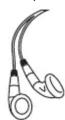
Deluxe Earbud Headphones
USB Cable

Pouch
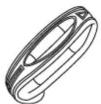
Armband

Quick Start Guide
Warranty Information

4
Transferring music and data files
- Confirm player is powered up and connected to computer.
- On your Desktop, double-click the "My Computer" icon.
- Drag and drop files onto the MP120/MP320 drive ("Removable Disk").
NOTE: The player stores all types of formatted files. However, it will only play MP3, WMA ^™ , and WMA ^™ with DRM ^™ (copy protected) formatted files.
NOTE: To transfer WMA™ with DRM™ formatted files to MP120/MP320, please visit www.emersonradio.com for details. - Your player will have slightly less memory available than stated due to the necessary memory needed for its firmware.
NOTE: If you are using Windows® 98, you must first download and install the driver from www.emersonradio.com.


2
Insert the battery (not included)
- Slide the battery compartment cover as shown.
- Insert one fresh "AAA" alkaline battery in the battery compartment. Be sure to follow the polarity marking in the battery compartment. If the battery is inserted incorrectly the unit will not work.
- Slide the battery compartment into place.
- When the battery is getting weak, the indicator changes from "full battery) to " (replace battery) in the display, the battery is almost exhausted and should be changed as soon as possible. Do not leave weak or exhausted battery in the player as it will eventually leak and cause corrosion inside the battery compartment.

5
Use your MP120/MP320 as a MP3 player
- Unplug player from the USB cord. Make sure you have at least one MP3 or WMA™ file already stored on the player.
- Make sure the HOLD switch is in the off position (A) and that the player is on (B).
- Connect the earbuds to the headphone jack.
- Press the POWER/PLAY/PAUSE/STOP button to begin playing an audio track.

3
Connect player to your computer
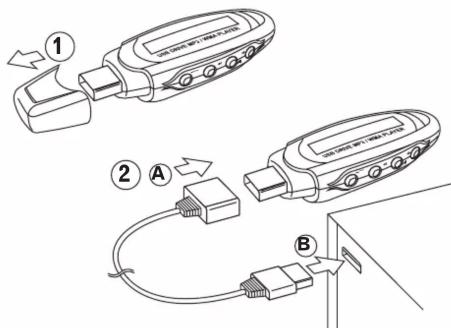
- Remove cap.
- Place USB connector of player into female side of the USB extension cord (A). Plug the other end of the extension cord (B) into an open USB port in computer.
NOTE: Player can be connected directly to computer if space permits.
6
How to operate your player
Power on the unit: Press and hold the POWER/PLAY/PAUSE/STOP ▶ button for approximately 2 seconds.
To play track: Press the POWER/PLAY/PAUSE/STOP ▶II button.
To select a different track: Press the FWD ▶ or REV◀◀ buttons.
To search through a track: Press and hold the FWD ▶▶ or REV◀◀buttons.
To momentarily pause track: Press the POWER/PLAY/PAUSE STOP ▶ button when track is playing. Ⅱ indicator appears.
To resume track: Press the POWER/PLAY/PAUSE/STOP button when track is paused.
To adjust volume: Press the VOL + or - buttons.
To stop track: Press and hold the POWER/PLAY/ PAUSE/STOF button for approximately 2 seconds when track is playing.
Power off the unit: Press and hold the POWER/PLAY/PAUSE/STOP ▶ button for approximately 5 seconds.
To lock the buttons from accidentally being pressed: Slide the HOLD switch to the on position 🔍 indicator appears.
Brand : Emerson
Model : MP320
Category : Portable audio player