Micro-100 - Receiver Pure Acoustics - Free user manual and instructions
Find the device manual for free Micro-100 Pure Acoustics in PDF.


| Product Type | AV Receiver |
| Brand | Pure Acoustics |
| Model | Micro-100 |
| Dimensions (W x H x D) | 430 mm x 65 mm x 300 mm |
| Weight | 4.5 kg |
| Power Consumption | 200 W (max) |
| Standby Power | 0.5 W |
| Power Supply | AC 220-240V, 50/60Hz |
| Output Power per Channel | 50 W (8 ohms, RMS) |
| Supported Audio Formats | MP3, WMA, WAV, FLAC |
| Inputs | 2x Analog Audio (RCA), 1x Optical, 1x Coaxial, 1x USB, 1x FM Antenna |
| Outputs | 1x Subwoofer Pre-out, 1x Headphone Jack, Speaker Terminals (L/R) |
| Main Functions | FM radio, USB playback, Bluetooth (optional), remote control |
| Maintenance & Cleaning | Disconnect from power before cleaning. Wipe with a dry, soft cloth. Avoid liquids. |
| Safety Precautions | Do not expose to moisture. Ensure proper ventilation. Keep away from heat sources. |
| Spare Parts & Repairability | Contact Pure Acoustics support for genuine parts. Repairs should be done by qualified technicians. |
| General Information | 2-year warranty. Designed for home audio systems. |
Frequently Asked Questions - Micro-100 Pure Acoustics
User questions about Micro-100 Pure Acoustics
0 question about this device. Answer the ones you know or ask your own.
Ask a new question about this device
Download the instructions for your Receiver in PDF format for free! Find your manual Micro-100 - Pure Acoustics and take your electronic device back in hand. On this page are published all the documents necessary for the use of your device. Micro-100 by Pure Acoustics.
USER MANUAL Micro-100 Pure Acoustics
Thank you for purchasing this product.
Please read this manual carefully and
save it for future reference.
CAUTION:
TO REDUCE THE RISK OF FIRE OR ELECTRIC SHOCK; DO NOT EXPOSE THIS APPARATUS TO RAIN OR MOISTURE.
CAUTION:
TO REDUCE THE RISK OF ELECTRIC SHOCK, DO NOT REMOVE COVER (OR BACK). NO USER-SERVICEABLE PARTS INSIDE. REFER SERVICING TO QUALIFIED SERVICE PERSONNEL.
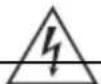
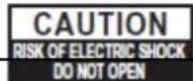

The lightnings flash with arrowhead symbol, within an equilateral triangle, is intended to alert the user to the presence of uninsulated to dangerous voltage." The product's enclosure that may be of sufficient magnitude to constitute a risk of electric shock to persons.

The exclamation point within an equilateral triangle is intended to alert the user to the presence of important operating and maintenance (servicing) instructions in the literature accompanying the appliance.
Important Safety Instructions
-
Read these instructions.
-
Keep these instructions.
-
Heed all warnings.
-
Follow all instructions.
-
Do not use this apparatus near water.
-
Clean only with dry cloth.
-
Do not block any ventilation openings. Install in accordance with the manufacturer's instructions.
-
Do not install near any heat sources such as radiators, heat registers, stoves, or other (including amplifiers) that produce heat.
-
Do not defeat the safety purpose of the polarized or grounding-type plug. A polarized plug has two blades with one wider than the other. A grounding type plug has two blades and a third grounding prong. The wide blade or the third prong is provided for your safety. If the provided plug does not fit into your outlet, consult an electrician for replacement of the obsolete outlet.
-
Protect the power cord from being walked on or pinched particularly at plugs, convenience receptacles, and the point where they exit from the apparatus.
-
Only use attachments/accessories specified by the manufacturer.
-
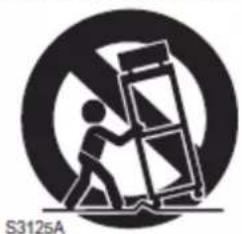
Use only with the cart, portable cart warning stand, tripod, bracket, or table specified by the manufacturer, or sold with the apparatus.
PORTABLE CART WARNING
natural_image
Symbolic icon of a person climbing a ladder inside a circle with no text or symbolsWhen a cart is used, use caution when moving the cart/apparatus combination to avoid injury from tip-over.
-
Unplug this apparatus during lightning storms or when unused for long periods of time.
-
Refer all servicing to qualified service personnel. Servicing is required when the apparatus has been damaged in any way, such as power-supply cord or plug is damaged, liquid has been spilled or objects have fallen into the apparatus, the apparatus has been exposed to rain or moisture, does not operate normally, or has been dropped.
-
Damage Requiring Service Unplug the apparatus from the wall outlet and refer servicing to qualified service personnel under the following conditions:
A. When the power-supply cord or plug is damaged,
B. If liquid has been spilled, or objects have fallen into the apparatus,
C. If the apparatus has been exposed to rain or water,
D. If the apparatus does not operate normally by following the operating instructions. Adjust only those controls that are covered by the operating instructions as an improper adjustment of other controls may result in damage and will often require extensive work by a qualified technician to restore the apparatus to its normal operation,
E. If the apparatus has been dropped or damaged in any way, and
F. When the apparatus exhibits a distinct change in performance this indicates a need for service.
-
Recording Copyright—Unless it's for personal use only, recording copyrighted material is illegal without the permission of the copyright holder.
-
AC Fuse —The AC fuse inside the unit is not user-serviceable. If you cannot turn on the unit, contact your dealer.
-
Care—Occasionally you should dust the unit all over with a soft cloth. For stubborn stains, use a soft cloth dampened with a weak solution of mild detergent and water. Dry the unit immediately afterwards with a clean cloth. Don't use abrasive cloths, thinners, alcohol, or other chemical solvents, because they may damage the finish or remove the panel lettering.
-
Power
WARNING
BEFORE PLUGGING IN THE UNIT FOR THE FIRST TIME, READ THE FOLLOWING SECTION CAREFULLY.
Make sure that the voltage in your area meets the voltage requirements printed on the unit's rear panel (e.g., AC 100-240 V, 50/60 Hz).
The power cord plug is used to disconnect this unit from the AC power source. Make sure that the plug is readily operable (easily accessible) at all times.
Pressing the [POWER] button to select OFF mode does not fully disconnect from the mains. If you do not intend to use the unit for an extended period, remove the power cord from the AC outlet.
- Preventing Hearing Loss
Caution
Excessive sound pressure from earphones and headphones can cause hearing loss.
- Batteries and Heat Exposure
Warning
Batteries (battery pack or batteries installed) shall not be exposed to excessive heat as sunshine, fire or the like.
-
Never Touch this Unit with Wet Hands Never handle this unit or its power cord while your hands are wet or damp. If water or any other liquid gets inside this unit, have it checked by your dealer.
-
Handling Notes
- If you need to transport this unit, use the original packaging to pack it how it was when you originally bought it.
- Do not leave rubber or plastic items on this unit for a long time, because they may leave marks on the case.
- This unit's top and rear panels may get warm after prolonged use. This is normal.
- If you do not use this unit for a long time, it may not work properly the next time you turn it on, so be sure to use it occasionally.
- When you've finished using this unit, remove all discs and turn off the power.
- Installing this Unit
• Install this unit in a well-ventilated location.
- Ensure that there's adequate ventilation all around this unit, especially if it's installed in an audio rack. If the ventilation is inadequate, the unit may overheat, leading to malfunction.
- Do not expose this unit to direct sunlight or heat sources, because its internal temperature may rise, shortening the life of the optical pickup.
- Avoid damp and dusty places, and places subject to vibrations from loudspeakers. Never put the unit on top of, or directly above a loudspeaker.
- Install this unit horizontally. Never use it on its side or on a sloping surface, because it may cause a malfunction.
- If you install this unit near a TV, radio, or VCR, the picture and sound quality may be affected. If this occurs, move this unit away from the TV, radio, or VCR.
- Moisture Condensation
Moisture condensation may damage this unit. Read the following carefully:
Moisture may condense on the lens of the optical pickup, one of the most important parts inside this unit.
- Moisture condensation can occur in the following situations:
-The unit is moved from a cold place to a warm place.
-A heater is turned on, or cold air from an air conditioner is hitting the unit.
-In the summer, when this unit is moved from an air-conditioned room to a hot and humid place.
-The unit is used in a humid place.
This unit contains a semiconductor laser system and is classified as a “CLASS 1 LASER PROTUCT”, So, to use this model properly, read this Instruction Manual carefully. In case of any trouble, please contact the store where you purchased the unit.
To prevent being exposed to the laser beam, do not try to open the enclosure.
CAUTION:
CLASS 1M VISIBLE AND INVISIBLE LASER RADIATION WHEN OPEN. DO NOT VIEW DIRECTLY WITH OPTICAL INSTRUMENTS. THIS PRODUCT UTILIZES A LASER. USE OF CONTROLS OR ADJUSTMENTS OR PERFORMANCE OF PROCEDURES OTHER THAN THOSE SPECIFIED HEREIN MAY RESULT IN HAZARDOUS RADIATION EXPOSURE.
The label on the right is applied on the rear panel.
Precautions—Continued
- This unit is a CLASS 1 LASER PRODUCT and employs a laser inside the cabinet.
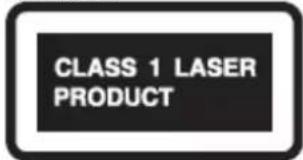
- To prevent the laser from being exposed, do not remove the cover. Refer servicing to qualified personnel.
Before Using Your New Speakers
- Place the speakers on sturdy, flat surfaces. Putting them on uneven or unstable surfaces where they may fall and cause damage and affect the sound quality.
- Do not keep water or other liquids close to the speakers. If a liquid is spilled over them, the woofer and tweeter inside may be damaged.
- Do not handle the speakers with wet or damp hands
Speaker Precautions
The speakers can handle the specified input power when used for normal music reproduction. If they're fed any of the following signals, even if the input power is within the specified rating, excessive current may flow in the speaker coils, causing burning or wire breakage:
- Interstation noise from an untuned FM radio.
- Audio from a cassette that's being fast-forwarded.
- High-pitched sounds generated by an oscillator, electronic musical instrument, and so on.
- Amplifier oscillation.
- Special test tones from audio test CDs and so on.
- Thumps and clicks caused by connecting or disconnecting audio cables (always turn off your amplifier before connecting or disconnecting cables).
- Microphone feedback.
The speakers contain powerful magnets. Do not put metal items, such as screwdrivers, close to the speakers, as they may be attracted toward the magnet, causing injury, or damage to the tweeter diaphragm.
Using Close to a CRT-type TV or Computer
(In the following explanation, "TV" refers to a CRT-type TV.)
TVs and computer monitors are magnetically sensitive devices and as such are likely to suffer from discoloration or picture distortion when conventional speakers are placed nearby. To prevent this, the speakers feature internal magnetic shielding. In some situations, however, discoloration may still be an issue. In this case, turn off your TV or monitor, wait 15 to 30 minutes, and then turn it back on again. This normally activates the degaussing function, which neutralizes the magnetic field, thereby removing any discoloration effects. If
discoloration problems persist, try moving the speakers away from your TV or monitor. Note that discoloration can also be caused by a magnet or demagnetizing tool that's too close to your TV or monitor.
Note:
- If the speakers are placed close to a TV or monitor, due to the electromagnetic waves radiated by the TV or monitor, you may hear noise from the speakers even after your amplifier has been turned off. To prevent this, position the speakers away from your TV or monitor.
Make sure you have the following items:
Main unit
Speakers (left and right)
Remote control
Instruction manual
A/V cable
Audio cable
Warranty card
Using the Remote Control
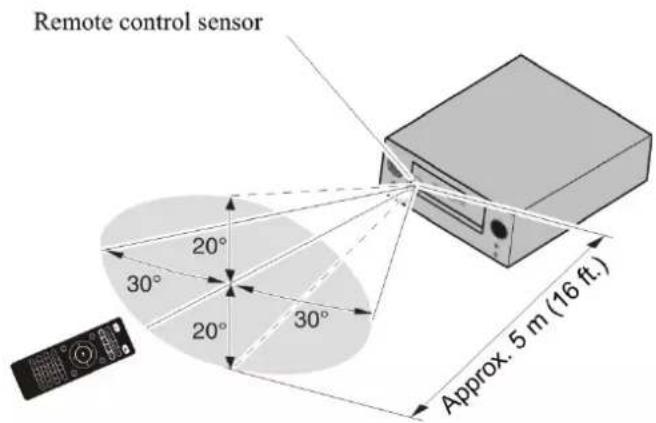
When using the remote control, point it toward the Main unit,s remote control sensor, as shown below.
Installation Location
This unit and it's remote control might become discolored by ultraviolet or other light components if you use them in direct sunlight, or under fluorescent lighting or germicidal lamp.
Remote control sensor
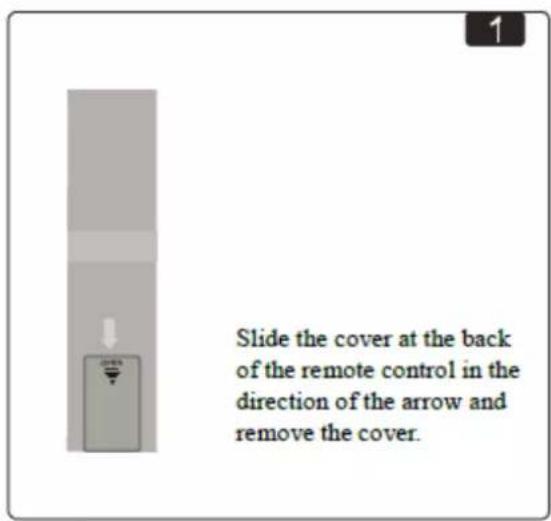
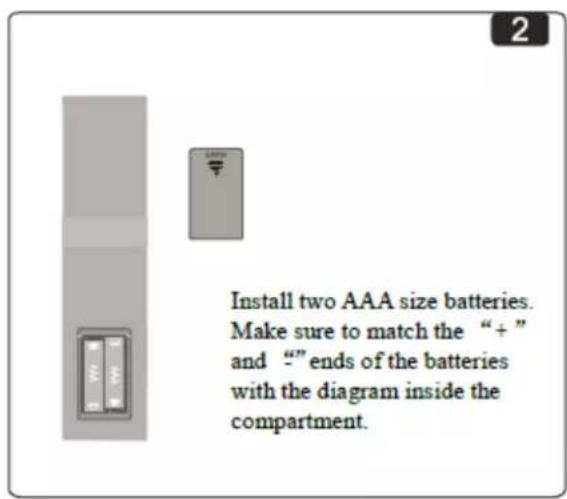
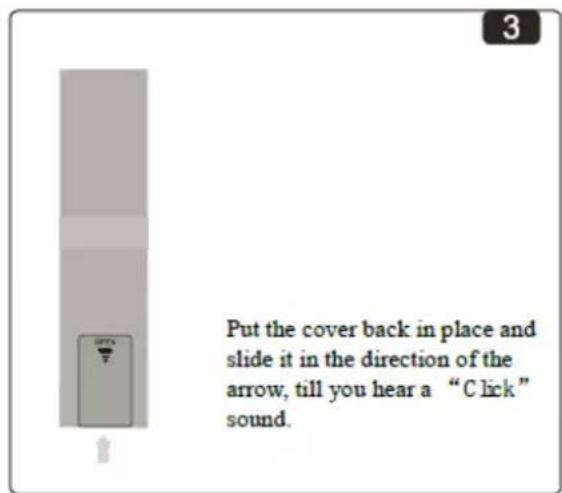
Use only a battery of the same type (AAA).
Note:
- If the remote control doesn, t work reliably, try replacing the batteries.
- If you intend not to use the remote control for a long period of time, remove batteries from compartment to prevent damage from leakage or corrosion.
- Expired batteries should be removed as soon as possible to prevent damage from leakage or corrosion.
Caution:
- Replacing the battery incorrectly may cause an explosion. Use only a battery of the same type or an equivalent.
DVD/CD
- Plays DVDs, audio CDs, MP3 CDs (CD-R and CD-RW)
- REPEAT playback mode
• PROGRAMMABLE playback
USB Flash Drive
• MP3 playback from USB flash drives
Bluetooth
- Bluetooth functions that enable wireless playback via smartphones or other audio device
Radio
- FM tuner
- 30 FM presets
Speakers
• 2 Way Bass-reflex
Miscellaneous
• Line input for external audio source
Precautions....2-4
Package Contents......5
Features......6
Contents....7
Front Panel....8
Getting....9-11
Disc and USB Flash Drive(MP3) Notes....12
Basic Openrations....13
Playing DVDs or CDs....14
Wireless Playback via Bluetooth....15
Listening to the Radio....16
Playing an External Device....17
Troubleshooting....18
Specifications....19
Front Panel
Front Panel
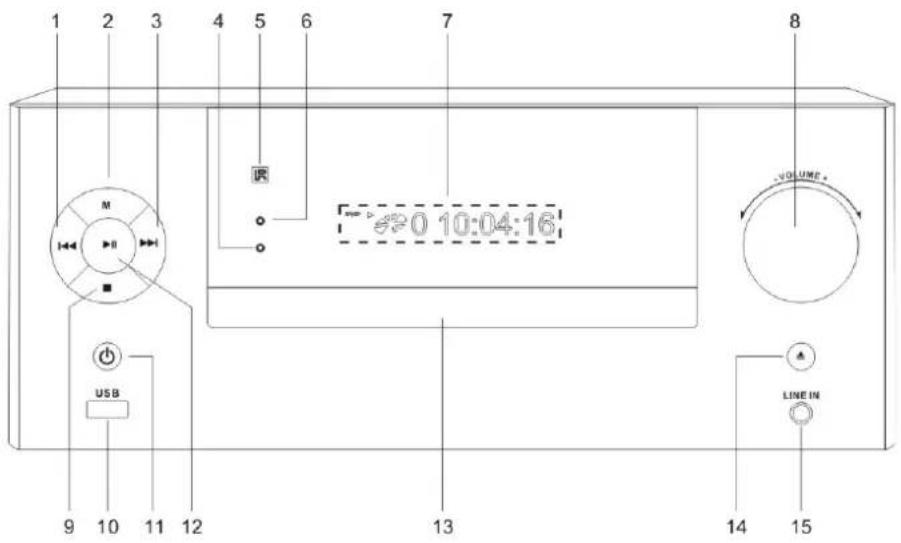
[1]

• Skips to the previous title, chapter, track, or channel.
[2] Mode Button
- Selects the input mode.
[3]

- Skips to the next title, chapter, track, or channel.
Front Panel
[4] blue-tooth light
[5]

Receives remote signal
[6] power light
[7] LCD Display
- Displays information of playback, mode, channel etc.
[8] Volume Dail
·Decreases or increases the volume.
[9]

- Stops play.
- Stops auto channel search in FM mode.
[10] USB
•USB port
[11]

•Turns on/off the system
[12]

- Plays, pauses or resumes play.
- Starts auto channel search in FM mode.
[13] CD/DVD door
[14]

- Press to open the disc.
- Press to close the disc.
[15] AUX
·Audio input jack.
Rear Panel
Micro-100
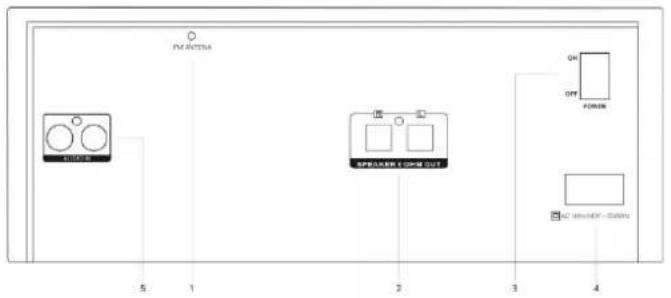
Micro-105
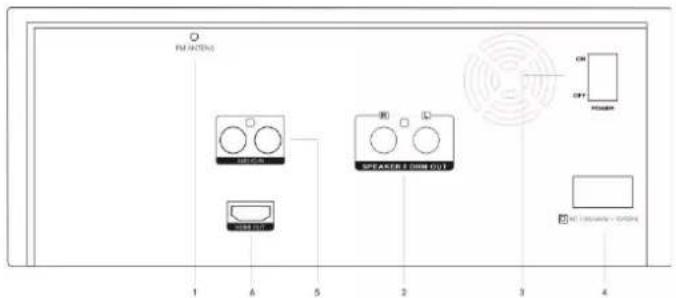
[1] FM antenna
- Connects wire FM antenna.
[2] SPEAKERS terminals
- Connects to the right and left speakers.
[3]Switch
- AC Switch
[4] AC power in
- AC power input: 100-240V\~50/60Hz.
[5] Audio Outputs
• Left/Right Audio Outputs
[6] HDMI Output (CD NOT)
- HDMI Ouput
FM antenna
• FM radio reception is affected by distance, physical obstacles and other broadcast signals.
• To improve radio reception, unwind and stretch the FM antenna fully, and adjust its position.
Remote Control
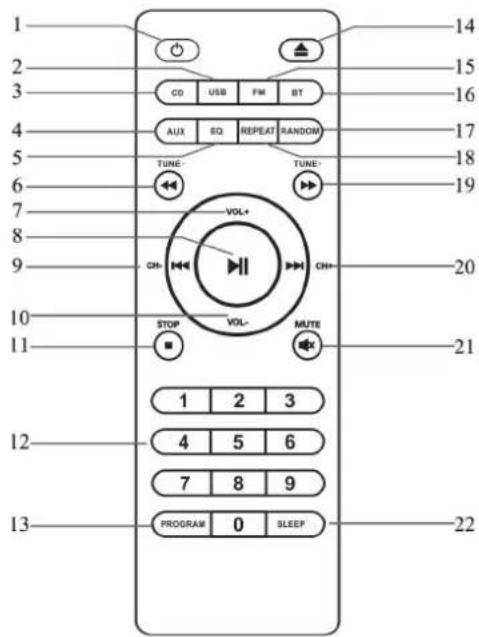
- STANDBY
- USB
- DVD/CD
- AUX
- EQ
- FAST REVERSE
- VOLUME+
- PLAY/PAUSE
- PREV
- VOLUME-
- STOP
- NUMBER
- PROGRAM
- OPEN/CLOSE
- FM
- BLUE-TOOTH
- RANDOM
- REPEAT
- FF
- NEXT
- MUTE
- SLEEP
Precautions for Playback
DVDs and compact discs (CDs) with the following logo on the label surface can be used.
Do not use discs designed for purposes other than audio, such as CD-ROMs for PC use. Abnormal noise could damage the unit and/or speakers.
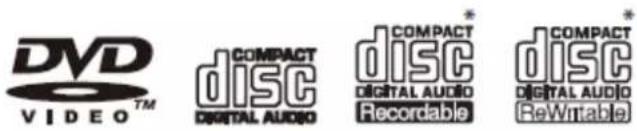
* The CD receiver supports CD-R and CD-RW discs. Note that some discs may not playback because of the disc characteristics, scratches, contamination or the recording state. A disc recorded with an audio CD recorder will not playback unless it is finalized.
Never use discs that have a special shape (such as hearts or octagons). These types of discs could damage the unit.

DVD/CD Playback with Copy-control Function
Some DVDs or audio CDs with copy-control function do not comply with official CD standards. These are special discs and cannot be played with the unit.
Playback of MP3 Discs
MP3 files recorded on a CD-R/CD-RW can be played with the unit.
- Use discs which have been recorded following the ISO 9660 Level 2 file system. (The supported directory depth is eight levels, the same as ISO 9660 Level 1)
• Discs must be closed (finalized).
- Only MP3 files with the extension “.MP3” or “mp3” are supported.
- Files recorded using MPEG 1 audio layer 3 at sampling frequencies of 32/44.1/48 kHz and a bit rate of 32—20 kbps are supported.
Playback from USB Drives or SD cards
- The unit does not support playback from audio player units and smartphones that are not USB mass storage devices.
• MP3 files recorded on a USB flash drive can be
played with the unit.
• Supported file systems are FAT16 and FAT32.
- Only MP3 files with the extension “.MP3” or “.mp3” are supported.
- Files recorded using MPEG 1 audio layer 3 at sampling frequencies of 32/44.1/48 kHz and a bit rate of 32 - 320 kbps are supported.
• USB hubs are not supported.
Note:
- A disc recorded with a recorder or personal computer may not play in some cases. (Cause: Disc's characteristics, damaged or dirty disc, dirt on player's lens, dew condensation, etc.)
- A disc recorded on a personal computer might not play depending on the application settings or environment. Record the disc in a format supported by the unit.
- A disc with insufficient storage capacity may not playback properly.
- Files are played back in the same order as they are saved in the USB flash drive. However, playback may change if the files or folders in the USB flash drive are deleted or renamed on a computer, etc.
Handling Discs
Hold discs by the edge, or by the center hole and edge. Avoid touching the playback surface (surface with nothing printed on it).
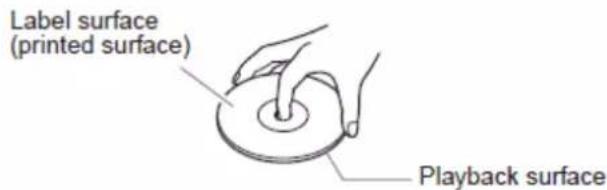
Do not attach paper or stickers, or write on the playback or label surface of the disc. Take care not to scratch or damage the disc.
This manual describes the procedure for using the remote control, unless otherwise specified.
Turning on the unit
Press the button.
You can also use the POWER button on the unit.
The unit is turned on, and the display lights up. Press the button again to turn it off (standby mode).
Selecting the Input Mode
You can select DVD/CD, USB, Bluetooth, FM, or LINE IN which can be an external component. To select the input source, use the remote control's DVD/USB and MODE buttons. On the unit press the MODE button repeatedly.
Adjusting the Volume
To adjust the volume, use the VOLUME [+]/[-] buttons. You can also use the unit's VOLUME control dial.
Muting the unit
Press the 📄 button.
Press the button to unmute.
Tip:
- You can also unmute the unit by adjusting the volume.
•Alternatively, set the unit to standby, then turn it on again to cancel muting.
This manual describes the procedure for using the remote control, unless otherwise specified.
Playing DVDs or CDs
1 Press the ▲ button to open the disc disc tray.
2 Place DVD or CD into the disc tray with the label-side facing up.
3 Change the input mode to DVD/CD, then press the button.
To change the input mode to DVD/CD, press the remote control's DVD/USB or MODE button, or press the MODE button on the main unit rep Playback will starts automatically.
To pause playback:
Press the HI button. To resume playback, press the HI button again.
To Fast-Forward or Fast-Reverse:
During playback, press the Fast Forward ▶▶ button repeatedly to fast forward at different speed, or the Fast Reverse ◀◀ button repeatedly to fast reverse at different speed
To stop playback:
Press the ■ button.
To remove the DVD or CD:
Press the ▲ button to open the disc tray.
Selecting Tracks
Press the Previous ◀◀ button repeatedly to skip to previous tracks.
Press the Next ▶▶ button repeatedly to skip to subsequent tracks.
Press the 0-9 buttons to skip to the corresponding track directly.
Repeat Playback
Press the REPEAT button repeatedly to display "REPEAT ONE" "REPEAT ALL" or "REPEAT OFF".
With "REPEAT ALL" playback, all songs will be played back repeatedly.
With “REPEAT ONE” playback, only one song will be played back repeatedly.
To cancel repeat playback, press the REPEAT button repeatedly until "REPEAT OFF" displayed.
The mini Hi-Fi enables you to wirelessly play music from your Bluetooth-enabled smartphone, tablet, mobile music player, or personal computer via Bluetooth.
To play back music via Bluetooth, you must first pair the unit with your Bluetooth - enabled device.
Once pairing is established, the pairing information is stored in both devices and you will not need to repeat the pairing process. However, if you delete the device registration from either device and the pairing information is deleted, you must pair the devices again.
Playing
1 Place the Bluetooth device within 1 meter (3 feet) from the system.
Turn on “Bluetooth” on your Bluetooth-enabled device.
2 Turn on the unit, press MODE button repeatedly to select Bluetooth input mode.
The unit engages pairing mode, with LED display "BT".
3 Register the unit on your
Bluetooth-enabled device
When your Bluetooth-enabled device displays a list of detected devices, select "HF-2103."
If the device requests a password, enter “1234.” Please note that the registering (pairing) process might vary depending on the Bluetooth-enabled device. For more information, refer to the user's manual for the device.
4 When pairing is complete, the unit makes sound prompt.
When pairing is complete, a Bluetooth connection is established. If a connection is not established, try to connect from the Bluetooth-enabled device.
Note:
- If the pairing fails, turn “Bluetooth” off on the Bluetooth-enabled device, turn it on again, and then try the procedure from step 1.
- If you want to pair other Bluetooth-enabled devices, perform steps 1-4 for each device.
Playing Back Music on Your Bluetooth-enabled Device
1 Turn on "Bluetooth" on your Bluetooth-enabled device.
2 Turn on the unit, press MODE button repeatedly to select Bluetooth mode.
If a Bluetooth connection is established automatically, skip to step 4.
- Perform the Bluetooth connection steps on the Bluetooth-enabled device to connect to the system.
4 Play back audio on your Bluetooth- enabled device.
If the volume level on the Bluetooth-enabled device is low, the playback volume relative to other input sources will be low.
Raise the volume level on the Bluetooth-enabled device to an appropriate level (if necessary, to the maximum).
Note:
- When you press the MODE button to change the input source to Bluetooth, the unit will automatically connect to the Bluetooth-enabled device that was connected last time. If a connection is not established automatically, try to connect from the Bluetooth-enabled device.
- Bluetooth connection will be cut off if you change the input to any source other than Bluetooth or set the unit to standby mode.
- If your Bluetooth-enabled device features a bass boost or equalizer function, disable these functions. Otherwise, the playback sound may be distorted.
This manual describes the procedure for using the remote control, unless otherwise specified.
Presetting FM Stations Automatically (Auto Preset)
Auto Preset Caution
Any existing presets will be deleted when the Auto Preset function is run.
1 Press the MODE button to change input source to "FM".
Adjust the position of the FM antenna for the best FM reception.
2 Press the button.
The Auto Preset function is activated.
Up to 30 stations can be preset and presets are stored in frequency order.
If you want to cancel the Auto Preset process, press the
■ stop button.
Note:
Depending on your location, a preset may be stored with no station, and you'll hear only noise when you select it.
Selecting Preset Stations
You must store some presets before you can select them.
1 Press the MODE button to change the input mode to "FM".
The preset you selected the last time you listened to the radio will be selected.
2 Use the CH- / CH+ buttons to select a preset.
Playing Back from an External Device Connected to the LINE IN Jack
1 Press the MODE button to change the input mode to "LINE IN."
2 Play back the external device.
Note:
- This adjustment affects only the speaker volume; the headphone volume cannot be adjusted.
- If the volume level of your mobile music player is substantially low, this adjustment may not be sufficient. In such a case, raise the volume level on the mobile music player.
- If the input level is raised excessively, the sound may distort. If this occurs, adjust the input level appropriately.
This manual describes the procedure for using the remote control, unless otherwise specified.
1 Insert a USB flash drive in the USB port.
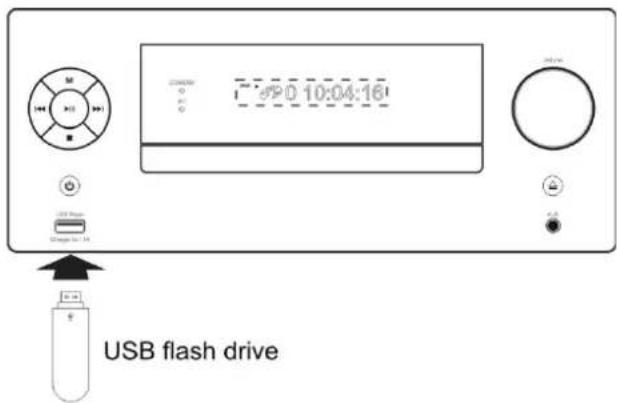
2 Press the DVD/USB button to change the input source to "USB."
3 To start playback, press the button!
4 To stop playback, press the ■ stop button.
Note:
- Do not connect your USB flash drive via a USB hub.
- When connecting or disconnecting a USB flash drive, use your hand to support the unit so that it does not move.
- For details on the usable formats for a USB flash drive, refer to page 13 "Playback from USB Drives".
- Do not connect the unit's USB port to a USB port on your computer.
DVD/CD Playback
The disc will not play.
• Make sure the disc has been loaded correctly, with the label-side facing up.
- Check to see if the surface of the disc is dirty.
• If condensation is suspected, turn on the unit and leave it for 2 to 3 hours before playing any discs.
• Some DVD-R/RW or CD-R/RW discs may not be playable.
It takes a long time for playback to start.
- It may take the unit a while to read DVDs or CDs that contain many tracks or files. Playback jumps.
• The unit is being subjected to vibration or the disc is scratched or dirty.
- The volume may be too loud. Turn down the volume.
Can't play MP3 Discs.
• Use only discs compliant with ISO 9660 Level1/Level 2 or Joliet file system.
• The disc has not been finalized (closed). Finalize (close) the disc.
- Check whether the file format is supported (see page 13).
- MP3 files without a “.MP3” or “.mp3” file extension are not recognized.
Bluetooth
Bluetooth pairing fails.
- If there are any other Bluetooth-enabled devices near the unit, turn off the power to those devices and then perform the pairing process again.
- Delete the registration information for the system on the Bluetooth-enabled device, then perform the pairing process again.
Sound via Bluetooth connection is interrupted.
• There may be a wireless LAN device or microwave oven nearby. If so, locate the unit away from those devices.
- The Bluetooth-enabled device may be too far from the unit, or there may be a wall between the devices. If so, use your Bluetooth-enabled device closer to the unit.
Sound via Bluetooth connection is delayed and does not sync to the video.
- Due to Bluetooth transfer characteristics, there may be a certain amount of signal latency. For this reason, you might notice a slight delay in audio output from the unit, in relation to the playback of video on your Bluetooth-enabled device.
USB Flash Drive Playback
Can't access the music files on a USB flash drive.
• The unit supports USB flash drives only. However, this does not necessarily guarantee the performance of all USB flash drives.
• Make sure that the USB flash drive has been formatted as FAT16 or FAT32.
• USB hubs are not supported. Be sure to connect a USB flash drive directly to the unit.
• This unit cannot play files other than MP3 files.
The message "No USB" is displayed.
- Try reconnecting your USB flash drive.
Amplifier
Output power 20 W (2ch x 10 W)
THD + N (total harmonic distortion)
10%. (Power.Rated). Input
sensitivity and impedance
1000.mV/10.kΩ.(LINE)
Frequency response 30 Hz - 22 kHz/+3 dB,-3 dB
Signal to noise ratio 70 dB (LINE, IHF-A)
Speaker impedance 6 - 16Ω
Tuner
FM
Tuning frequency range 87.5 - 107.9 MHz
Channel presets 30
DVD/CD
playable media DVDs, audio CDs, MP3 CDs
(CD-R and CD-RW)
USB
playable media USB Flash Drive (MP3)
Bluetooth
Communication system Bluetooth. Specification
version 2.1+EDR
Maximum communication Line of sight approx. 10
m(*) range
Frequency band 2.4 GHz band (2.4000 GHz - 2.4835 GHz)
Modulation method FHSS (Freq Hopping Spread Spectrum)
Compatible Bluetooth A2DP 1.2 (Advanced Audio Distribution Profile) AVRCP 1.5 (Audio Video Remote Control Profile)
Supported Codec SBC
Transmission range (A2DP) 20 Hz - 20,000 Hz (Sampling frequency 44.1 kHz)
* The actual range will vary depending on factors such as
obstacles between devices, magnetic fields around a microwave oven, static electricity, cordless phone, reception sensitivity, antenna's performance, operating system, software application, etc.
Speakers
Type 2 way bass-reflex
Impedance 8 Ω
Maximum input power 10 W
Output sound pressure level 70 dB/W/m
Frequency response 80 Hz - 20 kHz
Dimensions (W x H x D) 140 x 230 x 127 mm
Weight 1.2 kg
Driver units 7.6 cm (3") Woofer
3.8 cm (1.5") Tweeter
Terminal RCA type
General
Power supply AC 100-240 V, 50/60 Hz
Power consumption 30 W
No-sound power 5 W
consumption
Dimensions (W x H x D) 495 x 230 x 265 mm Weight 3.85 kg
Audio input
Analog input LINE IN
Audio output
Speaker Outputs 2 (L/R)
Specifications and features are subject to change without notice.
Using the setup menu, you may select the play mode setting, the various outputs, etc.
In each menu page, the menu items are shown on the left. Use the button ▶ on the remote to go to the option list or setting on the right. Use the button ◀ to go back to the left menu item.
- Press the SETUP button on the remote, current setup menu, appears on the screen.

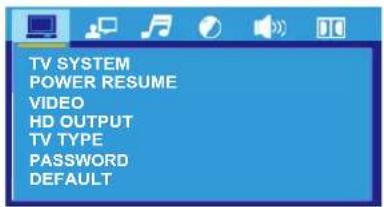
- Select the main menu item desired by using ▲/▼, then press ENTER, the selected main menu item is highlighted and its option list is shown on the screen.
- Press ▶ to go to the option list.
- Select the option desired using ▼/▲, then press the ENTER button.
- Use ◀ to go back to the left menu item.
- Press the button SETUP to leave the setup menu main page.
Select the SYSTEM SETUP to go to the SYSTEM SETUP.
SYSTEM SETUP
TV SYSTEM
According to the system of TV to be connected, set the system of the unit to make it match the TV. Press SETUP button, the screen shows:
Press ENTER on the remote, the screen shows setup menu. Press ENTER to select TV SYSTEM VIDEO TV TYPE PASSWORD RATING DEFAULT.
- If the system of the TV is NTSC, select NTSC:
- If it is PAL, select PAL;
- If it is AUTO, select AUTO.
POWER RESUME
* ON: Turn on the POWER RESUME.
The disc will be play automatically when turn on the DVD Player.
* OFF:Turn off the POWER RESUME.
VIDEO
Use button on the remote to VIDEO INTERLACE-YUV:you can choose this option when connecting INTERLACE-YUV to TV. S-VIDEO:you can choose this option when connecting S-VIDEO to TV. P-SCAN YPBPR:you can choose this option when connecting P-SCAN YPBPR to TV.
HD OUTPUT
*Use button on the remote to HD OUTPUT. . Players use YUV line, when choosing INTERLACE-YUV and P-SCAN YPBPR VIDEO can choose a resolution of 480 I / 576 I . Players use HDMI line, resolution to choose from 480p/576P,720P,1080I and 1080P.
DEFAULTS LANGUAGE SETUP
If you select RESTORE, each function setting returns to the initial status set by the factory.
TV TYPE
NORMAL/PS--4x3 Pan Scan
Choose this setting and you will see the movie fill the entire screen of your TV. you won't see part of the picture (particularly the right and left edge)
NORMAL/LB--4x3 Letter Box
Choose this setting if you want to see movies in their original aspect ratio. You will see the entire frame of the movie, but it will occupy a smaller portion of the screen.
WIDE--16x9 Wide Screen
Choose this setting if your DVD player is connected to a wide screen TV.
PASSWORD
ON: When password is unlocked, RATING can be selected.
When password is locked, RATING cannot be selected.
* If you want to change the password, follow these steps:
- Enter the password 8888 when the unit is turned on, press ENTER.
- Enter the new password, press ENTER.
- New password change completed and locked.
Press V+/V-, button on the remote to select LANGUAGE SETUP.
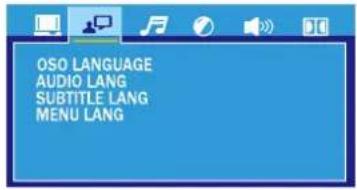
OSD LANGUNGE
*ENGLISH
The on screen display language is English
* FARSI
The on screen display language is Farsi
SELECT LANGUAGE
If a language mentioned is recorded on the disc, you can select sounds, subtitles or disc menu languages. If not, the language recorded on the disc is shown.
AUDIO SETUP PAGE
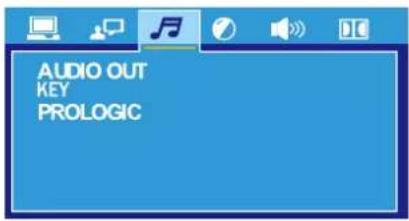
KEY
You can use ▲/▼ button to adjust the Key.
For DVD karaoke disc, ensure that the DownMix (or audio output) is set as stereo or LT/RT.
VIDEO SETUP
Press ▲/▼ button on the remote to select VIDEO SETUP.
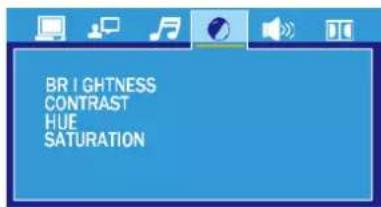
BRIGHTNESS
* Use ▲/▼ button on the remote to set brightness.
CONTRAST
* Use ▲/▼ button on the remote to set contrast.
HUE
* Use ▲/▼ button on the remote to set hue.
SATURATION
* Use ▲/▼ button on the remote to set saturation.
SPEAKER SETUP
Press ▲/▼ button on the remote to select SPEAKER SETUP.
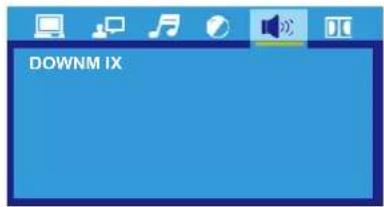
DOWNMIX
*Use button on the remote to select DOWNMIX.
LT/RT: when you play discs have PRO LOGIC dolby stereo effect, select it, disc signal by dv internal decoding, the decoding system is able to
reproduce realistic cinema effect. STEREO : 5.1 -channel, left, right sound channel audio output two-way signal; Two channel output, the ordinary two channel stereo audio output signal.
VSS (virtual surround sound): play 5.1 a track record of the disc, can output from the main channel speaker virtual surround sound effect.
DIGITAL SETUP
The DVD player must be in the stop mode to access the DIGITAL SETUP menu. You have to press the STOP button twice to go into STOP MODE.
Press ARROW V+/Y on the remote to select DIGITAL SETUP from the SETUP menu, Press the ENTER button to enter submenu.
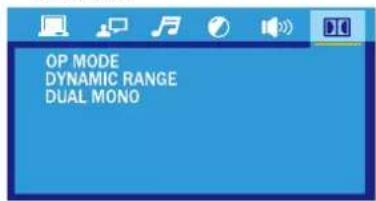
OP MODE
* LINE OUT: Line out mode, with digital dialog normalisation, compress input signal linearly.
* RF REMOD: RF remodulation
DYNAMIC RANGE
mode, with heavy decompression and digital Dialog normalisation.
When the compression mode is set to LINE OUT, this is selected to adjust linear compression rate to obtain the different compression results of the signals.
DUAL MONO
This is the output mode of the L and R signals of the set audio output. If it is set to MIX-MONO, the function only works when the DVD being played 5.1-channel.