Prelude CC 2015 - Software ADOBE - Free user manual and instructions
Find the device manual for free Prelude CC 2015 ADOBE in PDF.


| Product Type | Software |
| Version | Prelude CC 2015 |
| Compatibility | Adobe Creative Cloud ecosystem |
| Operating Systems | Windows 7/8/10 64-bit |
| Processor | Intel Core 2 Duo or AMD Athlon 64 (multi-core recommended) |
| RAM | 4 GB (8 GB recommended) |
| Hard Disk Space | 2 GB free |
| Display | 1280x800 resolution |
| Internet Connection | Required for activation and online services |
| Main Functions | Ingest, log, transcode, metadata entry, rough cuts, and marker creation |
| Supported File Formats | MXF, QuickTime, AVI, MPEG, and more |
| Metadata Support | XMP metadata import/export |
| Integration | Seamless integration with Adobe Premiere Pro and After Effects |
| Language | Multi-language support |
| License Type | Subscription via Adobe Creative Cloud |
| Updates | Automatic updates through Creative Cloud desktop app |
| Support | Adobe Community forums and help center |
| Backup Recommendations | Regularly back up project files and media |
| Security | Secure user login and data encryption |
| Uninstallation | Use Adobe Creative Cloud Cleaner Tool |
Frequently Asked Questions - Prelude CC 2015 ADOBE
User questions about Prelude CC 2015 ADOBE
0 question about this device. Answer the ones you know or ask your own.
Ask a new question about this device
Download the instructions for your Software in PDF format for free! Find your manual Prelude CC 2015 - ADOBE and take your electronic device back in hand. On this page are published all the documents necessary for the use of your device. Prelude CC 2015 by ADOBE.
USER MANUAL Prelude CC 2015 ADOBE
Adobe® Prelude™ CC Help
Legal notices
For legal notices, see http://help.adobe.com/en_US/legalnotices/index.html.
Contents
Chapter 1: What's new
New features summary 1
Chapter 2: Workspace and workflow
Linking Adobe Story scripts with movie clips in Prelude 3
The Prelude workspace 4
Tag Panel and Tag Templates 14
Chapter 3: Importing media
How to ingest media clips with Adobe Prelude 17
Chapter 4: Logging movie clips
Logging movie clips 22
Chapter 5: Rough cuts
Rough cuts 27
Rough cut and Edit Anywhere (EA) 30
Chapter 6: Setting preferences
Setting Prelude preferences 32
Chapter 7: Keyboard shortcuts
Keyboard shortcuts 36
Chapter 8: System requirements
System requirements for Prelude 40
Chapter 1: What's new
New features summary

Read on for detailed information about the new features and enhancements in Prelude CC 2015.4 release.
The Prelude CC 2015.4 release (June 2016) provides optimized performance of AVC LongG and Event Panel Filtering Options.
Adobe Prelude CC 2015.4 | June
AVC LongG performance improvement
+ New in Adobe Prelude CC 2015.4 | June 2016
This release of Adobe Prelude delivers optimized performance of AVC LongG format in the following workflows:
• Media ingestion
- Smoother playback
- Improved logging workflow
Note: This enhancement is also extended to other miscellaneous workflows.
Event panel filtering options
+ New in Adobe Prelude CC 2015.4 | June 2016
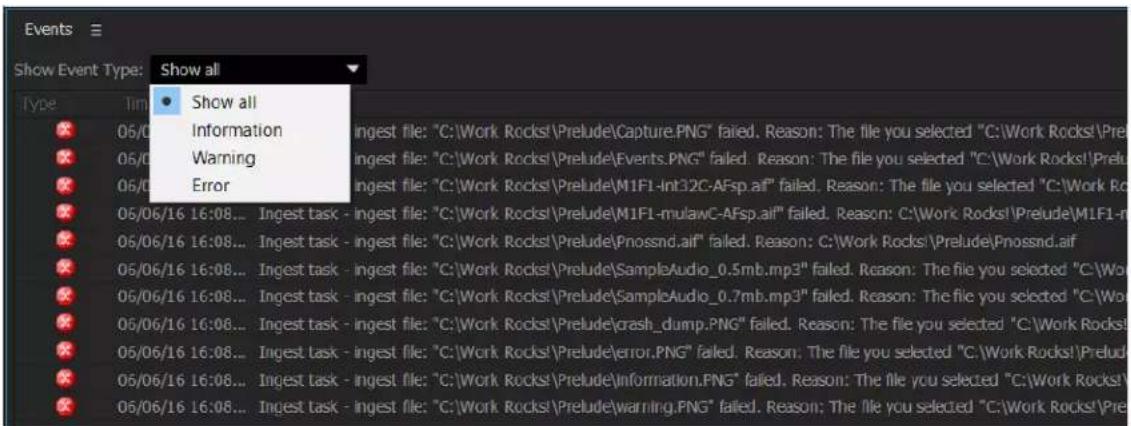
This release of Prelude introduces options to filter the various categories of Events such as information, warnings, and errors through an Event dialog box.
For more information, see Prelude workspace.
Adobe Prelude CC 2015.3 | March
Capability to use audio channel mapping
+ New in Adobe Prelude CC 2015.3 | March 2016
Prelude now supports the ability to use multi-channel audio mapping.
For more information, see Using Audio Channel Mapping in Prelude
Adobe Prelude CC 2015 | November
Exporting markers to text file
+ New in Adobe Prelude CC 2015 | November 2015
You can now export markers of a selected clip in text files (.txt) in addition to CSV files (.csv) and well-formatted HTML pages (.html) through the Export Markers dialog box (File > Export > Markers).
For more information, see Exporting markers.
Support for HEVC format
+ New in Adobe Prelude CC 2015 | November 2015
Prelude now supports the HEVC (High Efficiency Video Coding) file format.
For more information on file formats supported in Prelude, see Supported file formats for ingest.
Adobe Prelude CC 2015 | June
Voice-over in Rough Cuts
+ New in Adobe Prelude CC 2015 | June 2015
Adobe Prelude CC now lets you add voice-overs to Rough Cuts. Although Prelude lets you add Audio clips separately, you can use the voice-over feature to record audio clips on the fly, without the need for a separate recording software.
You can record and overlay voice-overs over video footages during the basic editing process, before the final sequence is complete. Adobe Prelude lets you add multiple voice-overs to a Rough Cut, as well.
For more information, see Add Voice-over to Rough Cuts.
New API to ingest media
+ New in Adobe Prelude CC 2015 | June 2015
You can now use the new API to ingest media in to a Project directly. Previously, on using the Ingest API, the Ingest dialog was displayed as an additional step before you could select and eventually ingest media (video and audio clips).
Now, you can simply use the new Ingest Media API to select media files you want to ingest, and the selected files are added to the Project at the click of a button. The new API, not only ingests the media, but all related data files (.xmp) that contain markers and other meta-data.
Chapter 2: Workspace and workflow
Linking Adobe Story scripts with movie clips in Prelude
You can link movie clips in Prelude with Adobe Story scripts and then analyze the clips for greater speech-to-text conversion accuracy. Guided by the embedded script, Prelude performs the analysis using Adobe Media Encoder.
During the analysis, when enough matches with the embedded script are found, the analyzed speech text is replaced with the embedded script text. Correct spelling, proper names, and punctuation are carried over from the reference script during the replacement — benefits that standard speech analysis cannot provide.
After analysis, speech transcription markers appear on the clip. You can search for individual words in the Project panel to filter clips containing that metadata. You can also search an open clip using the search box in the Timeline or Marker List panels.
After you export to Adobe Premiere Pro, the speech to text markers are displayed in the Analysis text section of the Metadata panel in Premiere Pro.
Note: This workflow is available only for TV and film scripts in Story. Other types of scripts are not visible in Prelude.
1 Select Window > Adobe Story.
2 Log in to Adobe Story using your Adobe ID credentials.
3 Open the script containing scenes to be associated with the movie clips in Prelude.
4 Select a scene from the script and drag it to the movie clip in Prelude. After the script is linked, the badge for attached script appears on the clip.

text_image
File Edit Market Rough Cut Window Help Project PreLudestShow 1 of 2 Items selected NVL:1521... 14:05 NVL:1515... < 23 Monitor NVL:155:MOV Adobe Story Adobe Story Hi. Prelude User Logout Paladin Script Scene No Scene Duration 001 EXT. CASTLE - DUSK 00:00:17 002 INT. TOWER ROOM ... 00:00:14 003 EXT. WESTERN STRE... 00:00:11 004 EXT. RUSSAN VILLA... 00:00:10 005 EXT. TRAMP SREAM... 00:00:11 006 EXT. WASTELAND ... 00:00:14 007 INT. APARTMENT - DAY 00:01:59 INT. TOVER ROOM - DUSK It is a bizarre cross of library, metal workshop and chemistry lab, besides glow on every available surface, strange louds sit in odd shaped jars around the room. The door is KICKED OPEN, the lock splintering, burned in the display is our HERO, closed, and swetched in rough leather armour. He stops through and brandishes his sword at the lone occupant of the room. An older man, a PAGE who miss bust pouring over his books. HERO You are judged guilty of turning your back on the Old Goods. Your sorcery stops here! stops tonight! He raises his sword to strike The PAGE's hand WHIPS out, the Here's sword FUES from his grass... it buries itself in the wall behind him. PAGE When you were a child, you sat - as all children do - at the Right Hand of Mercy. The warrior looks momentarily confused. PAGE (CONTID) Marker Type X Timeline NVL:15:MOV All Default Markers 1 Subscription 2 CommentLast updated 6/16/2016
5 Right-click the movie clip and select Analyze Content. The movie clip is sent to Adobe Media Encoder for analysis. Wait until the analysis is complete.
6 After analysis, speech to text markers appear on the timeline.
Open the Metadata panel using Window > Metadata. The metadata from the imported scene is displayed in the Script section of the panel.

If necessary, you can associate multiple clips in Prelude with a scene in an Adobe Story script.
Clear script metadata from clips
- Right click the movie clip and select Clear Script Data.
The Prelude workspace
Video tutorial
To view the video in full screen mode, click

Welcome screen
The Welcome Screen appears when you open Prelude. Use the Welcome Screen to create a project, open an existing project, or access Help for Prelude.
To disable the Welcome Screen at launch, disable the option Show Welcome Screen at Startup on the Welcome Screen.
If you disable the Welcome Screen, the last opened project launches when you relaunch Prelude. To re-enable the Welcome Screen, open the Preferences dialog, and select Show Welcome Screen in the At Startup menu.
Ingest, Logging, List, and Rough Cut workspaces
The default workspaces available in Prelude are designed to show panel arrangements optimized for tasks like logging or working with rough cuts.
The Ingest dialog

text_image
Files of types: All Supported Files View as: File Directory flag and clocktower.avi 00:00:05:02 flag_and_clocktower.avi 00:00:05:03 1.47 MB 1.28 MB Transfer Transfer Clips to Destination Primary Destination: Browse for Location... Add Subfolder 2014-08-14_15-13-49 Transcode Format: AAC Audio Preset: Stereo AAC, 44.1 kHz 128 kbps Stetch Clips Together Name: Verify HOS compression Add Destination File Metadata Add File Metadata Apply to all destinationsUse the Ingest dialog box to select and ingest movie clips. You can also select folders and rough cuts. When you choose a folder, all the associated movie clips in it are ingested.
You can ingest clips from your computer, other software, or attached devices such as an external hard disk, video camera, or camera card. You can ingest a portion of a clip (partial ingest) by setting In and Out points on the clip thumbnail and enabling transcoding in the Transfer Clips To Destination section. You can also choose a transcode option that best suits your editing requirements.
Prelude allows you to add metadata and rename files before ingesting them.
To view the location of the clips on your computer, right-click the clip in the list or thumbnail view. Select Reveal in Explorer (Windows), or Reveal in Finder (Mac OS).
The Logging workspace

text_image
File Edit Marker Rough Cut Window Help Project: concentration Windsies 0 of 5 bits Monitor MVI_0419.MOV* Marker Inspector Communic 00:00:05:13 In 00:00:08:17 Out Remove blur Install Make Overing blur MVI_0419_01 1:21 A019_C010... 51:17 MyFiles 34:18 00:00:05:13 00:00:17:23 Marker Type X Timeline MVI_0419.MOV* Markin List Show All Markers 50 50:00:01:00 50:00:02:06 50:00:03:00 50:00:04:00 50:00:05:00 50:00:06:00 50:00:07:05 50:00:08:05 50:00:09:03 50:00:10:06 51 MVI_0419_01 Remove blur Speech Transcription C D E Fill Default Markers 1 Setup 2 Command 3 Flash Cut Point 4 Web Link 5 Chapter 6 Speech TransferA Metadata marker panel B Marker buttons C Current Time Indicator (Playhead) D Metadata marker applied to the movie clip E Search option for markers F Panel to edit metadata info

text_image
Adobe Photoshop (DC 2013) - C:\Users\Proctal\My Documents\Adobe\Proctal-3.1 Project\test formulate.psdlog - Rough Cut (see it) File Edit Starter Rough Cut Window Help Project: test-predictor-owners Test: test-predictor-owners Name Media Type Media Start Project Data Media Duration 002 50# Shoon 00:00:00:00 09/02/11, 11:20:11 00:00:05:00 003 50# Shoon 00:00:00:00 09/02/11, 11:20:11 00:00:05:00 004 50# Shoon 00:00:00:00 09/02/11, 11:20:28 00:00:05:00 005 50# Shoon 00:00:00:00 09/02/11, 11:20:28 00:00:05:00 01 50# Shoon 00:00:00:00 09/02/11, 14:30:11 00:02:35:35 C#s 50# Shoon 00:00:35:35 06/28/17, 14:15:29 06:32:27 Pioneer Black Cat 85:35:35:35 86:37/14, 15:57:48 87:38/14, 16:39:39 88:39/14, 17:39:39 Poids Black Cat 85:35:35:35 86:37/14, 18:39:39 87:39/14, 19:39:39 Monitor Rough Cut (see run) Marker Inspector No Markers Detected Timeline Rough Cut (see run) Shrs All Markers speed transmitter Water Water Marker and VideoThe Logging workspace is optimized for quickly adding metadata and creating subclips. Add markers and other metadata to quickly organize and search clips. You can leverage the metadata when you export to Adobe Premiere Pro or other applications.
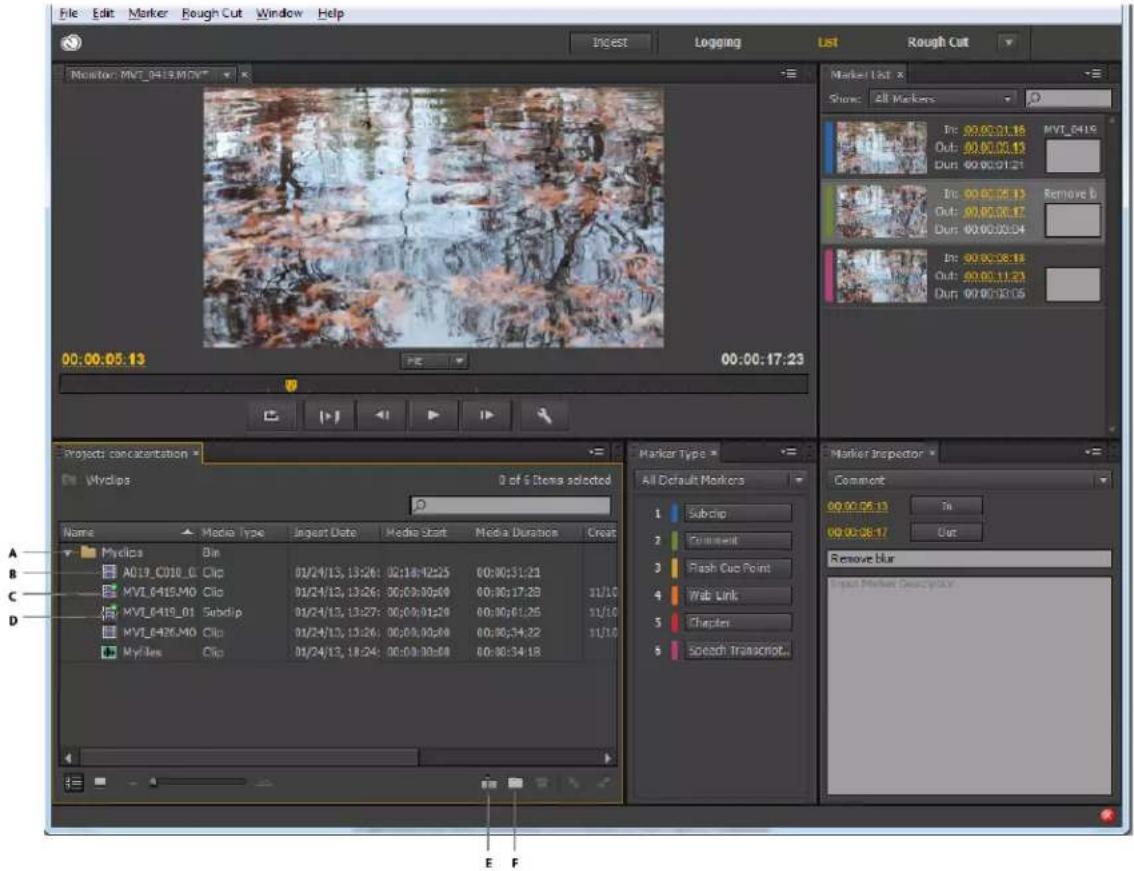
The List workspace
text_image
File Edit Marker Rough Cut Window Help Ingest Logging List Rough Cut Monitor: MVI_0415.MDV* 00:00:05:13 00:00:17:23 Project: concatenation Wydips 0 of 6 Items selected Marker Type All Default Markers Name Media Type Ingest Date Media Start Media Duration Create Myclips Bin A019_C018_0 Clip 01/24/13, 13:26: 02:18:12:25 00:00:31:23 MVI_0415.MO Clip 01/24/13, 13:26: 00:00:00:00 00:00:17:28 11/10 MVI_0415_01 Subclip 01/24/13, 13:27: 00:00:01:29 00:00:01:25 11/10 MVI_0426.MO Clip 01/24/13, 13:26: 00:00:00:00 00:00:34:22 11/10 Myclips Clip 01/24/13, 18:24: 00:00:00:00 00:00:34:18 Marker List x Show: All Markers In: 09.00.31.18 MVI_0415 Out: 09.00.31.13 Dur: 09.00.31.21 In: 09.00.35.13 Remove b Out: 09.00.35.17 Dur: 09.00.35.24 In: 09.00.38.18 Out: 09.00.31.23 Dur: 09.00.33.25 Marker Inspector Comment 09.00.36.13 In 09.00.38.17 Use Remove blur Impact Market Detection:A Bin B Movie clip C Movie clip open in the Timeline D Subclip open in the Timeline E Create rough cut F Create bin

text_image
Adobe Premiere Pro 2018 (C) is not available in the document. Adobe Premiere Pro 2018 project list precast software play [Rough Cut Show 0] File Edit Marker Rough Cut Window Help Monitor: Rough Cut (Show it) Project list precast software On track precast software... Media Type Media Start Project Date 002 Still Image 00:00:00:00 IMPD314. 003 Still Image 00:00:00:00 IMPD214. 004 Still Image 00:00:00:00 IMPD114. 005 Still Image 00:00:00:00 IMPD214. 11 Still image 00:00:00:00 IMPD814. 7 Op 00:00:00:00 IMPD614. Project list Rough Cut Time 00:00:00:00 IMPD314 Marker Type All Default Markers 1. Currency 2. Currency 3. Upscale Transaktion 4. Realizing 5. Audio, int 6. Queue Market Stopper Air Pushout Selected Monitor List Show All Markets Transcale 00:00:00:08In the Project panel, you organize project contents much as you use folders to organize files. Bins can contain clips, subclips, and rough cuts. Use the Project panel to create a rough cut, and then add subclips to the rough cut.
Reorder content in the Project panel by dragging it to a new location.
The Rough Cut workspace

text_image
Project: concatenation Myclips 1 of 7 items selected Name Media Type Ingest Date Media Start Media Duration Myclips Dip A019_C019_01 Clip 01/24/13, 13:24: 05:18:45:25 06:00:31:21 MVI_0419.MO Clip 01/24/13, 13:24: 00:00:08:00 06:00:17:28 MVI_0419_01 Subclip 01/24/13, 13:27: 00:00:01:20 06:00:01:28 MVI_0426.MO Clip 01/24/13, 13:26: 00:00:06:00 06:00:34:22 Myclips Clip 01/24/13, 13:24: 00:00:06:00 06:00:34:18 thewish Rough Cut 01/25/13, 14:13: 06:00:08:00 Monitor Rough Cut (thewish) 02.18.50.15 PM 00.00.31.17 Marker Type X Timeline Marker List All Default Markers Show All Markups +00:29:23 06:00:34:23 06:30:39:23 06:00:44:22 06:30:49:22 06:30:54:21 Remove b...Speech T... A019_C019 MVI_0419.MOV - MVI_0419.MOV B B C D E F GA Project panel containing clips and rough cuts B Timeline containing the subclips for the rough cut C Monitor panel D Search option for markers E Track containing metadata and subclip info F Video track G Audio track

text_image
Adobe Produce CC 2018 - C:\Users\My Documents\AdobeProduce3.2\Projects\Bout prelute prelute prelute prelute prelute prelute prelute prelute prelute prelute prelute prelute prelute prelute prelute prelute prelute prelute prelute prelute prelute prelute prelute prelute prelute prelute prelute prelute prelute prelute prelute prelute prelute prelute File Edit View Insert Rough Cut Window Help Project text prelute generation D:\Users\My Documents\AdobeProduce3.2\Projects\Bout prelute prelute prelute prelute prelute prelute prelute prelute prelute prelute prelute prelute prelute prelute prelute prelute prelute prelute prelute prelute prelute prelute prelute prelute prelute prelute prelute pre lute 1 of 8 Bits selected Video Media Type Photo Start Project Date Rec 002 56 Image 00:00:00:00 09/02/14, 11:00:13 00:1 56 Image 00:00:00:00 09/02/14, 11:00:13 00:1 56 Image 00:00:00:00 09/02/14, 11:00:28 00:1 56 Image 00:00:00:00 09/02/14, 11:00:28 00:1 56 Image 00:00:00:00 09/02/14, 11:30:13 00:1 56 Image 00:00:30:00 04/08/14, 14:15:23 00:1 56 Image 00:00:30:00 09/02/14, 15:57:48 00:1 56 Image 00:00:30:00 04/29/14, 16:39:67 00:1 56 Image 56 Image 56 Image 56 Image 56 Image 56 Image 56 Image 56 Image 56 Image 56 Image 56 Image 56 Image 56 Image 56 Image 56 Image 56 Image 56 Image 56 Image 56 Image 56 Image 56 Image 56 Image 56 Image 56 Image 56 Image 56 imageOpen the rough cut that you created and add clips and subclips to the timeline. When you export the rough cuts to Adobe Premiere Pro or other applications, all the organizational and metadata information of the clips is retained.

Use the options in the Show menu to selectively display markers in the timeline.
Creating custom workspaces
Use the Window menu to access panels in Prelude. As in other Adobe applications, you can float and dock panels and frames. You can also create custom workspaces. To access custom Workspaces, select Window > Workspace, and choose from the options.
If you have a customized workspace that you use frequently, you can create a custom workspace using Window > Workspace > New Workspace. The custom workspace is added to the Window > Workspace menu. To go back to the default workspace, select Window > Workspace > Reset Current Workspace.
Note: A frame is a set of grouped panels.
Reorder contents in a panel and across panels by dragging them to their new location.
Panels in Prelude
Here is a partial list of panels in Prelude:
| Panel Description | |
| Extensions Contains extensions or plug-ins for extending the functionality of Prelude. If no Extensions or plug-ins are available, this option is disabled. | |
| Displays the audio level for the movie being played in the timeline. | |
| Events | Lists warnings, error messages, and other information for identifying and troubleshooting problems. You can also access and filter the events based on Information, Warning, and Error. |
| History Use the History panel to jump to any state of the project created during the current working session. Every time you apply a change to some part of the project, the new state of that project is added to the panel. You can modify the project from the state you select.Right-click a state in the History panel to view the available options.The History panel is cleared when you switch between an open clip and a rough cut. It is also cleared when you save the open clip or rough cut. | |
| Marker List | Displays all the markers in the movie that is currently open. This panel also allows you to change the timecode of the In and Out points, or edit the marker description. |
Event panel filtering options
Use the Events Panel to view and filter the warnings, error messages, and other information to identify and troubleshoot problems. You can also access and filter the events based on Information, Warning, and Error.
1 Select Window> Events or select any of the icons 🔊, i, or ✗ displayed at the lower right-hand corner of the screen.
Note: The icon is displayed based on the stored Events: Information i, Warning or Error ✗.
text_image
Events Show Event Type: Show all Type Time Show all Information Warning Error 05/06/16 16:08... Ingest task - ingest file: "C:\Work Rocks\Prelude\Capture.PNG" failed. Reason: The file you selected "C:\Work Rocks\Prelude\Capture.PNG" 05/06/16 16:08... Ingest task - ingest file: "C:\Work Rocks\Prelude\Events.PNG" failed. Reason: The file you selected "C:\Work Rocks\Prelude\Capture.PNG" 05/06/16 16:08... Ingest task - ingest file: "C:\Work Rocks\Prelude\M1F1-int32C-AFsp.ai" failed. Reason: The file you selected "C:\Work Rocks\Prelude\M1F1-mulawC-AFsp.ai" failed. Reason: C:\Work Rocks\Prelude\M1F1-mulawC-AFsp.ai" 05/06/16 16:08... Ingest task - ingest file: "C:\Work Rocks\Prelude\Pnossnd.ai" failed. Reason: C:\Work Rocks\Prelude\Pnossnd.ai" 05/06/16 16:08... Ingest task - ingest file: "C:\Work Rocks\Prelude\SampleAudio_0.5mb.mp3" failed. Reason: The file you selected "C:\Work Rocks\Prelude\Pnossnd.ai" 05/06/16 16:08... Ingest task - ingest file: "C:\Work Rocks\Prelude\SampleAudio_0.7mb.mp3" failed. Reason: The file you selected "C:\Work Rocks\Prelude\SampleAudio_0.7mb.mp3" 05/06/16 16:08... Ingest task - ingest file: "C:\Work Rocks\Prelude/crash_dump.PNG" failed. Reason: The file you selected "C:\Work Rocks\Prelude\Crash_dump.PNG" 05/06/16 16:08... Ingest task - ingest file: "C:\Work Rocks\Prelude\error.PNG" failed. Reason: The file you selected "C:\Work Rocks\Prelude\Crash_dump.PNG" 05/06/16 16:08... Ingest task - ingest file: "C:\Work Rocks\Prelude\Information.PNG" failed. Reason: The file you selected "C:\Work Rocks\Prelude\Crash_dump.PNG" 05/06/16 16:08... Ingest task - ingest file: "C:\Work Rocks\Prelude\warning.PNG" failed. Reason: The file you selected "C:\Work Rocks\Prelude\Crash_dump.PNG"2 In the Events dialog box, select the drop-down arrow adjacent to the Show Event Type to filter the events based on Information, Warning, and Error.
3 Select Show All to display all the events.
4 Select Events> Close to close the Events panel.
5 Select Events> Panel Group Settings> Close Panel Group to close the panel group.
The Monitor panel

natural_image
Close-up of an elderly hand playing a piano keyboard, captured in a video editing interface (no text or symbols on the piano or background)Double-click a movie clip in the Project panel to open it for playback in the Monitor panel. The monitor gives you access to the standard play and navigation options. You can use the timecode, playback buttons, or the playhead to navigate the movie.
The Play In-Out option allows play back of a movie for the duration of a selected marker.

Use the keyboard shortcuts J, K, and L to preview the movie clip. For greater control, use a combination of J and K keys to move backward slowly, and K and L keys to move forward slowly.
Set display quality
Some formats are difficult to display in full-motion playback because of their high compression or high data rate. A lower resolution permits faster motion playback but at the expense of image quality. This tradeoff is most noticeable when you view AVCHD and other H.264-codec based media. Below full resolution these formats have error correction turned off, and artifacts are common during playback. These artifacts, however, do not show up in exported media.
Use separate playback and pause resolutions to gain more control over the monitoring experience. With high-resolution footage, set playback resolution to a lower value (for example, 1/4) for smooth playback, and set the Pause resolution to Full. These settings allow you to check the quality of focus or edge details when you pause playback. Scrubbing puts the monitor in playback resolution, not pause resolution.
1 Click the Output button.
2 Select an option for Playback Resolution and Paused Resolution.
Tag Panel and Tag Templates
About Tag templates
A tag template is a shareable collection of buttons and associated metadata. When reviewing media, the tag template is loaded and supplies the tags that are used to log the assets. The buttons are created and arranged using the tag template editor in Prelude.
Creating and using a Tag template
Follow the steps below to create, save, and apply a Tag template.
1 Choose Window > Tag from the main menu.

text_image
F Tag = test-kbd.sc E A B C DA Upload to CC B Edit template C Save template D Create template E Import template F Download from CC
2 Click to create a new tag template.
3 Save the template as a JSON file. Tag templates are stored as JSON files for easy interchange and compatibility with other applications and web services.
Templates are stored by default in the Adobe\Prelude\
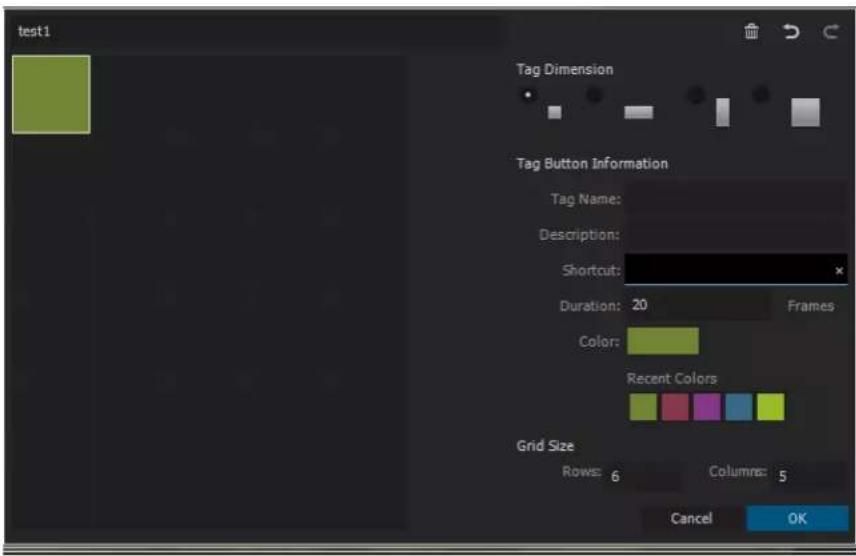
4 You can create your tags in the Tag Template window. The default size of the grid is six rows and five columns. You can customize your tag with the following settings:
- Tag Dimension - Select a cell in the grid. Then select the size and shape of the button to represent your tag from the four available options. The button options are dynamic, and if you select a cell in the grid where the one of the button sizes do not fit, that button size is shown as disabled.
- Tag Button Information - Customize each Tag Button with the following settings:
- Tag Name: Unique Name (label) of each Tag Button
• Description: Specifies metadata payload description
• Duration: Duration of a new marker created in the Timeline with the tag included
• Color: Prelude keeps track of the last seven recent colors used for the Tag Buttons.
- Grid Size - Adjust the template dimensions using the GRID SIZE controls at the bottom of the dialog.
text_image
test1 Tag Dimension Tag Button Information Tag Name: Description: Shortcut: Duration: 20 Frames Color: Recent Colors Grid Size Rows: 6 Columns: 5 Cancel OK5 Click OK to save your tag template settings. The Tag panel gets populated with the templates that were created.
6 You can now use the tag template to tag your media.
- If no markers are selected in the Timeline and you create a new tag, a new marker is created in the Timeline with the tag. The duration of the marker is specified in the Duration field of the Tag Template editor.
- If a marker is selected in the Timeline and you create a new tag, the tag is added into the selected markers. No new marker will be created. The selected marker will retain its original duration.
a Ingest your media into Prelude.
b Open a clip.
c Play your clip. As the clip is played, click the Tag Button you want to add to your clip. Tags appear as COMMENT MARKERS in both the Timeline and in the Marker List Panel. The Tag Name appears as the Marker Name in the Marker List Panel.
Other actions with tag templates
Switch to a different template
You can load multiple tag templates at once. All tag templates that are loaded are displayed in the drop--down menu at the top of the panel. You can switch between the different tag templates at any time.
Import templates
Click the Import button 📋 on the upper left corner of the Tag panel. Navigate to the location where the tag template is stored. Select the desired template and click OK to load it into Prelude.
Download and upload templates
Click Download 🔒 to download your tag templates from the Creative Cloud. Sign in to your account, navigate to the location where you have stored your templates, and select to download them. The templates will load automatically in the Tag panel.
To upload the templates to your Creative Cloud account, click Upload/Share 📄, sign in to your account, and save the templates.
Edit templates
You can edit your tag templates at any time to add, remove, or modify your Tag Buttons. To edit a tag template, first load and select the tag Template as the current template. Click Edit 📋 to open the Tag Template editor dialog box. Make your changes and click OK to save the changes.
Assign shortcuts
You can assign a keyboard shortcut for each template in the the Tag panel.
1 Import the Tag.
2 Click the Edit icon to open the Tag panel.
3 Assign a shortcut in the Shortcut field.
4 Click OK to save the changes..
Select the Tag before using the assigned keyboard shortcut.
To switch quickly between different panels, use the keyboard shortcuts Ctrl+Shift+. to select the next panel and Ctrl+Shift+, to select the previous panel.
Chapter 3: Importing media
How to ingest media clips with Adobe Prelude
The video and audio from a file-based camcorder are contained in digital files. Ingest is the process of transferring data from the recording media and optionally transcoding to other formats.
You create a project before you ingest movie clips into Adobe Prelude. Prelude creates a project (.plproj) file for every project that you create.
A project file stores only references to the source files that you ingest. For this reason, project files remain fairly small.
Supported file formats for ingest
You can ingest video, audio-only (AIFF, MP3, and WAV), and still files (Adobe Illustrator, Adobe Photoshop, Bitmap, GIF, JPEG, PNG, TIFF, and icon files) into Prelude.
Note: Only static metadata is associated with still images in Prelude. For the purpose of inclusion into rough cuts, still images are assigned a default duration of 150 frames. You can adjust this default duration in your preferences (Preferences > General). No markers are associated with still images in Prelude.
The Panasonic P2 format Prelude supports the Panasonic Op-Atom variant of MXF, with video in DV, DVCPRO, DVCPRO 50, DVCPRO HD, or AVC-I formats.
The root of the P2 file structure is a CONTENTS folder. Each essence item (an item of video or audio) is contained in a separate MXF wrapper file. The video MXF files are in the VIDEO subfolder, and the audio MXF files are in the AUDIO subfolder. XML files in the CLIP subfolder contain the associations between essence files and the metadata associated with them.
For your computer to read P2 cards, it needs the appropriate driver, which you can download from the Panasonic website. Panasonic also provides the P2 Viewer application, with which you can browse and play media stored on a P2 card.
Note: To use certain features with P2 files, you first change the file properties from read only to read and write. For example, to change the timecode metadata of a clip using the Timecode dialog box, you first set the file properties to read and write. Use the operating system file explorer to change file properties.
XDCAM and AVCHD formats You can find the video files from XDCAM HD camcorders in the CLIP folder, written in the MXF format. XDCAM EX camcorders write MP4 files into a folder named BPAV.
XMPilot is an optional add-on from Sony for some of their XDCAM HD cameras. Prelude translates Planning metadata in XMPilot to static metadata. Essence markers are converted to comment markers. Metadata collected and added to the XMPilot system during production is now maintained through post-production.
When using AVCHD files, ensure that you maintain the folder structure. Raw MTS files cannot be logged in Prelude.
HEVC format Prelude CC supports HEVC file formats.
High Efficiency Video Coding (HEVC) is a video codec that compresses video files using the H.265 format.
Create a project / Open an existing project
Use the options on the Welcome screen to create a project, or open an existing project.
If your project is already open in Prelude, choose from the following options:
- To create a project, select File > New Project. Alternatively, press Ctrl+Alt+N (Windows), or Cmd+Opt+N (Mac OS). Specify a name and location for the project file.
- To open an existing project, select File > Open Project. Alternatively, press Ctrl+Shift+O (Windows) or Cmd+Shift+O (Mac OS). Navigate to the location of the project file, and open it.
Ingest movie clips
You can ingest entire movie clips or a selected portion of the movie clips (partial ingest). You can also transcode the selected movie clips using more than one encoding option.
1 Select File > Ingest. Alternatively, press Ctrl+I (Win) or Cmd+I (Mac OS).

To ingest the files to a specified bin, select the bin in the Project panel before you click Ingest.
2 Navigate to the folder containing media, and click the folder. The contents of the folder are displayed in the center panel.

Tip: To access folders from which you previously ingested content, use the menu above the panel.
3 Do the following based on your requirements:
- To view content as Thumbnails, click the Icon View button.
- To view content as a list, click the List View button.
- To quickly preview the contents of a movie clip, drag the cursor across the thumbnail. You can also click the thumbnail and use the playhead to scrub the movie. Alternatively, use the JKL keys to control playback of the selected thumbnail.
- To change the thumbnail size of movie clips in the panel, use the Zoom slide bar.
- To view files of a specific file type, select an option from the Files Of Type menu. Repeat the procedure to choose more than one option. By default, all file types that Prelude supports are displayed.
- To view files from a specific source, select an option from the View As menu. If ingesting from a device, ensure that it is connected to your computer.
- To select clips for ingest, click the corresponding check box. Click Check All to select all clips for ingest.
4 To ingest a specific portion of a clip (partial ingest), click its thumbnail. Use the JKL keyboard shortcuts, or drag the playhead to navigate through the clip. Press I and O at the desired positions to set the In and Out points.
When using this feature, ensure that you enable the Transcode option. Transcoding is required for partial ingest.
5 To specify a location for the ingested files, select Transfer Clips to Destination, and do the following:
a To change the folder for the transferred files, select Browse For Location in the Primary Destination menu, and select a destination folder.
b (Optional) To create a subfolder for the transferred files in the selected folder, click Add Subfolder. Specify a name for the subfolder. Creating a subfolder helps accidental overwriting of files with the same name.
To transfer media files without transcoding, leave the Transcode option deselected.
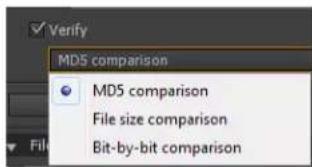
To ensure that the copied files match the original, select Verify. This option is available only for the Primary Destination, and when the Transcode option is disabled.
MD5 Comparison: Performs an MD5 check and ensures that the source file is the same as the ingested file. File Size Comparison: Checks whether the file size of the ingested file is the same as the size of the original movie clip. Bit by Bit Comparison: Does a CRC check and verifies whether the checksum of the source file is the same as the ingested file. If the files are different, the checksums don't match, and the test fails.
text_image
Verify MDS comparison MD5 comparison File size comparison Bit-by-bit comparison6 To specify transcoding settings for the ingested files, select Transcode. Use the submenus to specify presets for transcoding the files. To specify additional presets, add presets in Adobe Media Encoder. The presets are reflected in Prelude.
If you have Adobe Premiere Pro installed on your computer, select Stitch Clips Together to combine several selected clips into a single movie clip. Specify a name for the movie clip. After ingest, the newly stitched clip is displayed in the Project panel.
7 To transcode the selected files in more than one format or to transfer files to multiple locations, click Add Destination. Repeat the procedure.
Note: Only files transferred to the primary destination appear in the Prelude project panel when ingesting is complete.
8 Click Ingest.
Files are transcoded using Adobe Media Encoder. The transcoded files are displayed in the destination folder after the transcoding process is complete.
To pause or cancel transcoding, use the corresponding buttons in the progress bar.
Renaming files during ingest
Before you rename files, you create a preset based on various parameters provided by Prelude. You then use the preset to rename selected files during ingest.
Renaming of files on disk works as intended with simple files like QuickTime, and when Transfer Clips to Destination is enabled.
Files that are a part of a complex folder struture (like P2) are not renamed. In such cases, the new name appears in the Prelude project because the new name is saved in metadata (Dublin Core > Title) and displayed as the clip name.
1 In the File Rename panel of the Ingest dialog, select Rename Files.
2 Do one of the following:
- To apply the new renaming preset to the movie clips copied to the primary destination and copies in additional destinations, select Apply to All Destinations.
- To apply the new renaming preset to only the clips ingested to the primary destination, select Apply to Primary Destination Only.
3 To create a preset for naming files, do the following:
a Click the downward arrow icon next to the list of renaming presets, and choose New Preset.
b Click "+" to add an element to your custom naming preset. Select one of the following:
- Autoincrement increments the number associated with the name as files are named. You can choose to increment names by increments of 1, 01, 001, or 0001.
- In Custom Text, enter text based on your requirement. For example, the text can correspond to a project name or a separator between two elements.
- Date uses the timestamp associated with the files to name the files.
- File Name uses the original file name (without the extension), as an elements in the new name.
c Click Save to save the preset. Enter a name for the preset. Ensure that the name doesn't contain spaces.
d To add additional elements, click the "+" button again.
4 To go back to the File Rename panel without saving changes, click "x". To delete a preset, click the Trash icon.
Edit file naming presets
1 Select the preset in the menu.
2 Click the downward icon next to the menu, and select Edit.
3 Edit the values as required, and click Save.
4 To save the preset with a different name, select Save As. Enter a new name for the preset.
You can store your File Metadata preset in a system-wide location that prevents other users from modifying the preset. The shared location is C:\Users\Public\Documents\Adobe\Prelude\3.0\Presets\Metadata (Windows) and /Users/Shared/Adobe/Prelude/3.0/Presets/Metadata. (Mac OS).
Share file naming presets
Consistent naming conventions can be very useful in collaborative workflows. After creating a preset at a specified location, you can share it with multiple users. The people you shared the preset with can import the preset file into Prelude. After import, Prelude copies the preset to an appropriate location on the computer.
To import a preset, click the downward arrow next to the Preset menu, and select Import Preset. Select the presets that you want to import and click Open.
All the presets are stored at a specific location on your computer. To locate the presets on your computer, click the downward icon next to the Preset menu, and select Show in Explorer or Show in Finder.
Add metadata to the files being ingested
You can add metadata to movie clips before ingesting them in Prelude. The metadata is reflected in the Metadata panel.
Similar to renaming files during ingest, you create a custom form (or schema) to be applied to each ingested clip as XMP metadata. The metadata presets can be shared and imported. Sharing metadata helps establish consistent sets of metadata your teams can leverage when organizing assets and content.
1 In the File Metadata panel of the Ingest dialog, select Add File Metadata.
2 Do one of the following:
- To apply the new preset to movie clips copied to the primary destination and copies saved to additional destinations, select Apply to All Destinations.
- To apply the new preset to only the clips ingested to the primary destination, select Apply to Primary Destination Only.
3 To create a preset, do the following:
a Click the downward arrow icon next to the list of metadata presets, and choose "New Preset".
b Click "+" to add a metadata field.
c Enter a name for the metadata field. Ensure that the name doesn't contain spaces.
d For mandatory fields, click the check box next to the asterisk (*).
e Optionally, in Input Metadata Value, enter the value for the preset.
f Click Save to save the preset.
g To add additional fields, click the "+" button again.
Note: The metadata name and the metadata value together are called the metadata pair or key-value pair. You can choose to provide a default value to the name or add the value dynamically during ingest.
4 To edit a preset, do the following:
a Select a preset in the menu.
b Click the downward icon next to the menu, and select Edit.
c Edit the values as required, and click Save.
d To save the preset with a different name, select Save As. Enter a new name for the preset.
5 To import a preset, click the downward arrow next to the Preset menu, and select Import Preset. Select the presets that you want to import and click Open.
All the presets are stored at a specific location on your computer. To locate the presets on your computer, click the downward icon next to the Preset menu, and select Show in Explorer or Show in Finder.

When collaborating, you can share presets with other editors.
6 To go back to the Metadata panel without saving changes, click "x". To delete a preset, click the Trash icon.
You can store your File Metadata preset in a system-wide location that prevents other users from modifying the preset. The shared location is C:\Users\Public\Documents\Adobe\Prelude\3.0\Presets\Metadata (Windows) and /Users/Shared/Adobe/Prelude/3.0/Presets/Metadata (Mac OS).
Relinking files moved to another location
The project file contains references to the location of ingested files. If you move these files to a different location on your computer, they are no longer available to your project. To continue using the moved files in your project, relink them using the options in Prelude.
When you open a project containing files that have moved since you last opened the project, a list of such files is displayed. Click Yes to relink the files by specifying their current location. If you choose to not relink the files, you can manually relink the files later.
1 In the Project panel, right-click the file with the offline icon ☐, and select Relink. To select multiple files that exist at the same location, use Ctrl-click/Cmd-click or Shift-click.
2 Navigate to the folder containing the files and select a file. Prelude uses this location to relink all the other files in your selection.
3 Click Open.
Chapter 4: Logging movie clips
Logging movie clips
Use the logging features in Adobe Prelude to create subclips, and add temporal markers. Temporal markers contain data about a specific portion of the movie clip. To add static metadata to the clip, use the Metadata panel.
The logging information and the added metadata are captured in an XMP file. For some formats such as QuickTime (.mov) the XMP information is written into the media file. For formats that don't support writing to the media file, like MXF, the XMP is written into a sidecar file. The sidecar file is stored at the same location as the media file.
Video tutorial
To view the video in fulls screen mode, click on the video.
Marker types
| Marker Type Description | |
| Subclip For creating In and Out points for subclips. When you save the project, the subclips appear in the Project view. | |
| Comment A comment or note about the selected part of the movie clip. | |
| Flash Cue Point Trigger external events such as synchronizing graphics, providing navigation options, and loading other video files. | |
| Web Link | To add a URL that provides more info about the selected part of the movie clip. |
| Chapter These markers, when imported to software such as Encore and Adobe Premiere Pro, are used to create chapter points. | |
Exporting markers
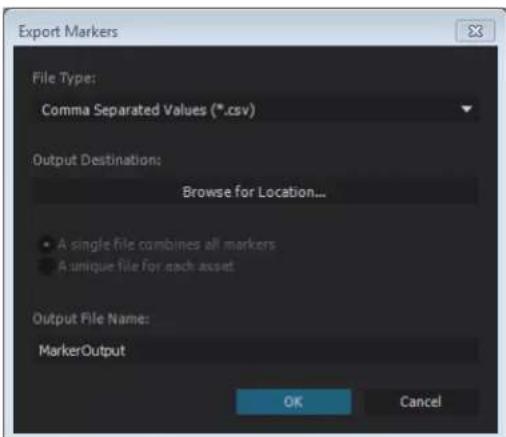
You can export markers from selected assets as a CSV file (.csv), text file (.txt) or a well-formatted HTML (.html) page.
1 Select the media files in the Project panel.
2 Choose File > Export > Markers.
text_image
Export Markers File Type: Comma Separated Values (*.csv) Output Destination: Browse for Location... A single file combines all markers A unique file for each asset Output File Name: MarkerOutput OK Cancel3 On the Export Markers dialog:
a File Type: Specify the marker file type. There are three options - .txt, .csv, and .html.
b Output Destination: Browse to a location on your computer where you want to save the file.
c Output File Name: Provide a meaningful name for the output file.
4 Click OK.
Note: Only three fields display on the output file when exporting markers as a text (.txt) file. They are:
a. Asset Name
b. In Point
c. Description
Using the timeline
text_image
Timeline: MV1_0419.MOV Show: All Marks 65 00:00 08:00:04:23 00:00:04:23 00:00:14:23 AVLT_0419_01 Balance Ind Search Transcription A B C D E FA Option to mute audio B Audio track C Video track D Marker E Current Time Indicator (CTI) F Option to find markers
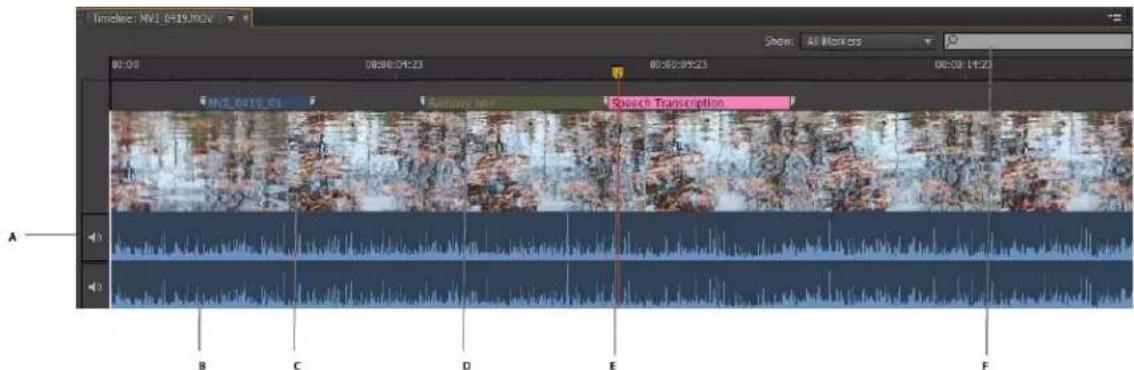
The markers in a movie clip appear in tracks above the timeline. Move the cursor above a movie clip to display information about the clip.
- Use the Current Time Indicator / Playhead 📋 to scrub the movie clip, or to move quickly to a specific point in the movie clip.
- Use the options in the Show menu to view specific markers added to the movie clip.
- Enter marker information in the Search field to search for a marker.
- Use the Zoom option to zoom in or zoom out of tracks in the timeline view.
- Use the keyboard shortcuts I and O to set In and Out points for markers.
Log movie clips (keyboard driven workflow)
1 To quickly open the default Logging workspace, Press Alt+Shift+2 (Windows) or Opt+Shift+2 (Mac OS).
2 Drag a movie clip from the Project panel to the timeline, or double-click a clip in the Project panel. A check mark appears on the movie clip indicating that it is open.
3 Play the movie. Use the JKL keyboard shortcuts to move among frames.
4 Using the main keyboard, press the following keys to add the corresponding markers:
• To add a subclip marker, press 1.
• To add a comment marker, press 2.
• To add a Flash Cue Point marker, press 3.
• To add a Web Link Marker, press 4.
• To add a Chapter Marker, press 5.
Note: If you have customized the list of markers or marker templates, the Marker Type panel displays the appropriate keyboard number beside each marker button.
5 Enter information in the Marker Inspector panel.
For example, you can change the default names assigned to subclips. Names and Descriptions of markers can also be edited in the text field, also called the Heads Up Display (HUD), that appears above the timeline.
Note: To set marker In and Out points when the Heads Up Display is enabled use Alt+I / Alt+O (Windows) or Opt+I / Opt+O (Mac OS).
Use the Alt/Opt key in conjunction with the JKL keys to control playback, or with H to move back the number of seconds set in Preferences. Release Alt/Opt to continue typing into the HUD. Press Enter/Return key to close the HUD.
If you have added markers for subclips, the subclips appear in the Project panel after you save the clip.
To mute an audio channel during playback, right-click/ctrl-click the audio channel in the timeline and select Mute Audio Channel. Alternatively, click the mute button to the left of the audio channel.
Log movie clips (menu driven workflow)
1 Select Window > Workspace > Logging.
2 Drag a movie clip from the Project panel to the timeline, or double-click a clip in the Project panel. A check mark appears on the movie clip to indicate that it is open.
In the Marker Type panel, click the marker that you want to add. The marker appears on the track above the movie clip. Its position is set based on the preferences set for marker duration.
3 Do one of the following:
- Use the Set In Point and Set Out Point buttons to set the time frame for the added marker.
- Use the Timecode in the Marker Inspector panel to set the In and Out points for the marker. Drag your cursor over the Timecode to change the value, or click to enter a value.
- Move the Current Time Indicator / Playhead to a position where you want to set the In or Out marker. Press I to set the In point, and O to set the Out point.
4 Enter information in the Marker Inspector panel. For example, you can change the default names assigned to subclips. Names and Descriptions of markers can also be edited in the Heads Up Display (HUD) that appears above the timeline.

Drag to move markers added to the timeline. To select and navigate among markers, use the options in the Marker menu.
If you have added markers for subclips, the subclips appear in the Project panel after you save the clip.
Create a marker template
A marker template is like a preset for a type of marker, it is not a new custom marker type.
For example, to identify usable portions of a movie clip, you use the comment marker with the label Good Take frequently. When you save such a comment marker as a template, Prelude creates a button in the Marker Type panel. When you click this button, a comment marker labeled Good Take is added to the movie clip.
The keyboard shortcuts for new markers depend on their sequence in the Marker Type panel. For a button that is placed sixth in the sequence, use 6 as the keyboard shortcut.
1 Select a marker in the Timeline panel that you want to save as a template.
2 Select Marker > Save Marker as Template.
3 Enter a name for the marker template. This name is used for the label of the button.
Add metadata to a movie clip
1 Select a clip to which you want to add metadata.
2 Select Window > Metadata.
3 In the Metadata panel, enter the required information for the selected movie clip.
Note: Metadata panel has no Save button. All information that you add is automatically saved.
Import and export metadata
The exported XMP file contains all the metadata in the open movie clip, including logging information. You can import and apply the metadata and timecode in the XMP file to a movie clip open in Prelude.
Import metadata
1 Select Window > Unassociated Metadata.
2 Click Import, and open the XMP file. You can also open more than one XMP file. The markers in the file are displayed.
3 Do one of the following:
- Select Current Player Position to insert markers imported from the XMP file at the location of the Current Time Indicator.
- Select Marker Start Time to specify the location of markers based on the start time assigned to them.
Export metadata
To save the metadata information in the file, select File > Save metadata as. The file will be saved as an XMP file.
Use Creative Cloud to upload and download asset metadata
You can upload asset metadata to the Creative Cloud as an XMP file. You can later download the XMP file to a different computer or device and apply that metadata to assets. The metadata is downloaded to the Unassociated Metadata panel.
- Right-click the file whose metadata you want to upload to the Creative Cloud, and select Upload Metadata to Creative Cloud.
- To download XMP metadata from the cloud, select Window > Unassociated Metadata. Click the Download from Creative Cloud icon.
More Help topics
General settings
Chapter 5: Rough cuts
Rough cuts
A rough cut is a timeline-based sequence of video and audio clips that is used as a basic editing process of the various clips before the final sequence is completed. Editing processes include trimming, clips selection, and sorting and ordering the clips.
Create a rough cut
1 Select File > Create Rough Cut.
2 Enter a name for the rough cut (.arcutx) file, and click Save.
3 Double-click the rough cut in the Project panel to open it in the Timeline and Monitor panels.
4 Select the movie clips or subclips to add to the rough cut.
5 Select File > Append To Rough Cut. The movie clips are added to the Timeline in the order in of their selection. Alternatively, drag the movie clips to the Timeline.
6 Use the options in the Rough Cut menu to select or reorder movie clips in the rough cut.
7 Save the project to save changes to the rough cut file.
To create a copy of your rough cut, select File > Save Rough Cut As, and save the rough cut file using a different name.
Note: Prelude CC October 2014.1 and later versions save rough cut files with .arcutx extension. Previous versions of Prelude CC saved rough cut files with .arcut extension.
Add markers to a rough cut
1 Open a clip containing markers in the timeline. Open the rough cut in the background.
2 Select the markers that you want to add to the rough cut.
3 Select Rough Cut > Add Selected Markers.
The markers are added to the rough cut currently open in the timeline.

When a rough cut, and a clip containing subclip markers are open in the Timeline panel, you can select subclip markers in the clip and add them to the rough cut.
Add Voice-over to Rough Cuts
You can record and add voice-overs to Rough Cuts. Although Prelude lets you add Audio clips separately, you can use the voice-over feature to record audio clips on the fly.
You can record and overlay voice-overs over video footages during the basic editing process, before the final sequence is complete. Adobe Prelude lets you add multiple voice-overs to a rough cut, as well.
To record voice-overs for a rough cut, do the following steps:
Add an audio track
1 Select Roughcut > Create A Roughcut to create a roughcut, and open it on timeline.
2 In the Timeline, right-click > select Add Audio Track from the context menu.
3 You can choose to add a Mono, Stereo, or 5.1 track.

text_image
Timeline: Rough Cut (Test) Marker List 00:00 00:02:08:00 00:04:16:00 Add audio track Mono Stereo 5.1Specify Voice-over Record Settings
1 Right-click on an Audio Track, and select Voice-over Record Settings from the context menu.
2 Enter or modify the following settings:
Name Name of the Audio Track.
Source Choose the right audio hardware for the voice-over. Choose the right audio hardware for the voice-over. Source Option automatically detects all audio hardware connected to the system.
Countdown Sound Cues Allow Prelude to provide sound cues before recording the voice over audio track.
Input Audio channels available for the audio hardware selected in the Source option.
Preroll Enable and specify preroll for the voice over. The pre-roll countdown is a visual cue to give you time to prepare and begin the recording. Recording begins after the countdown reaches zero.
Postroll Enable and specify postroll for the voice over. The post-roll countdown is a visual cue indicating the end of recording.
Captured Audio Specify or browse to a location where you want to save recorded audio files.
Audiometer Use the Audiometer to test the microphone and other audio devices connected to the computer. Fluctuations in the Audiometer confirm that the audio device is functioning correctly.
3 Click Close to exit Voice-Over Record Settings dialog.
Set the location for captured audio
1 Right-click on the audio track, and select Voice-Over Record Settings.
2 Use the Captured Audio field to either specify or browse-to a location on your computer, where you want to save recorded audio files.
3 Click Close.
Record a Voice-over
You can record a voice-over on an audio track directly in the Timeline by following these steps:
1 Add an audio track (see Add Audio Track) or select an existing one on to which you want to record the voice-over.
2 Start a voice-over recording workflow by positioning the playhead at a point where you want to insert the voice-over.
3 Enable pre-roll countdown. As soon as you position the playhead, the voice-over recording workflow starts. A pre-roll countdown appears as an overlay on the Monitor. You can specify pre-roll and post-roll countdowns in the Voice-over Record Settings dialog.

text_image
Voice-Over Record Settings: Audio 1 Name: Audio 1 Source: Prelude WDM Sound Input: Captured Audio: C:\Users\syogin\Documents\ ✓ Countdown Sound Cues ✓ Preroll 3 ✓ Postroll 2 seconds dB -54 -48 -42 -36 -30 -24 -18 -12 -6 0 Close4 Click the button in the audio track's header to begin recording. Use the play-back controls on the monitor to pause/continue the recording.
Note: When using a predefined In/Out range, you don't have to click the Voice-over Record button. Recording automatically starts when the playhead reaches the In point in the Timeline.
5 Click the button to end recording.
Once recording is complete, an audio file of the recording is created. The audio file is imported as a new project item into the Project panel.
Open rough cut in other applications
If you have Adobe Premiere Pro installed on the same computer as Prelude, you can send the rough cut directly to Premiere Pro.
To create a file for use in applications such as Premiere Pro or Final Cut Pro running on a different computer, use the Export option.
Open rough cut, clip, or subclip in Premiere Pro
1 In the Project panel, select the rough cut and other clips or bins you want to send to Adobe Premiere Pro.
2 Select File > Send To Premiere Pro.
Adobe Premiere Pro launches and prompts you to save the new project. If Adobe Premiere Pro is already open on your computer, the items from Prelude appear in the open project.
3 The rough cut is displayed in the Project panel. Double-click the rough cut in the Project panel.
All the markers added in Prelude are available in Premiere Pro. You can edit markers added in Prelude in Premiere Pro.
Export to other applications
1 In the Project panel, select the rough cut and other clips or bins you want to export.
2 Select File > Export > Project.
3 In the Destination menu, do one of the following:
- Select Local Disk to save the exported project on your computer.
- Select FTP Server to upload the exported files to an FTP server.
4 Enter a name for the exported project.
5 From the Type menu, select either Premiere Pro or Final Cut Pro XML for final editing.
6 Select Media to export the project file along with its associated media. Prelude exports media files to a subfolder at the specified location. You can edit the default name Prelude assigns to the subfolder.
7 Click OK. Do one of the following based on whether you previously chose to save to a local disk or to the FTP server.
- Select a location on your computer to save the exported file.
- Enter details for the FTP server for hosting the exported file.
Navigate to the folder or directory to which you exported the project. Open the Adobe Premiere Pro project or the Final Cut Pro XML file.
More Help topics
Using Rough Cut with EA
Rough cut and Edit Anywhere (EA)
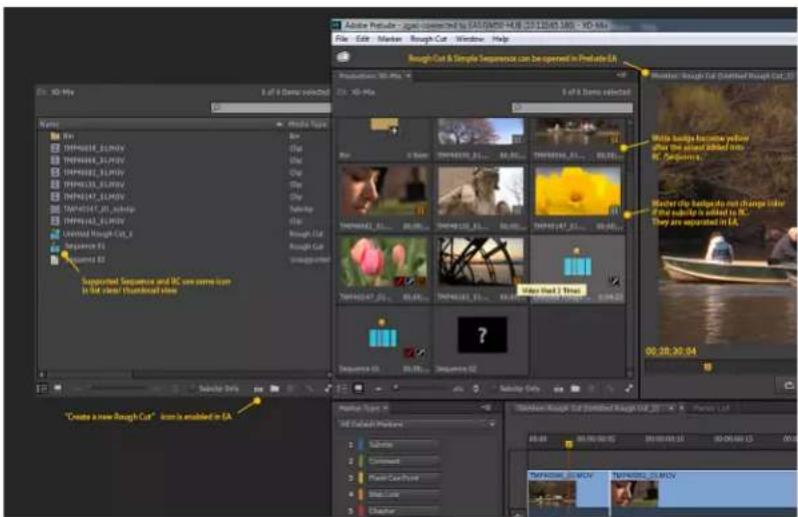
The June 2014 release of Prelude CC allows you to create and edit a rough cut in Edit Anywhere (EA) production and share your rough cuts with other users. Previously, you could only open the clip and add markers and metadata to organize and search subclips.
The EA Rough Cut feature also enables you to share your rough cuts with other Adobe applications such as Premiere Pro and After Effects.
text_image
Adobe Prelude - image corrected by CALIFMOS-448, 2013/12/01/1965 - XO-Mix File Edit Marker Rough Cut Window Help Bough Cut & Simple Sequence can be opened in Prelude EA Name BIV TAPRARE_ELMOV TAPRARE_ELMOV TAPRARE_ELMOV TAPRARE_ELMOV TAPRARE_ELMOV TAPRARE_ELMOV TAPRARE_ELMOV TAPRARE_ELMOV TAPRARE_ELMOV TAPRARE_ELMOV TAPRARE_ELMOV TAPRARE_ELMOV TAPRARE_ELMOV TAPPARE_ELMOV TAPRARE_ELMOV TAPRARE_ELMOV TAPRARE_ELMOV TAPRARE_ELMOV TAPRARE_ELMOV TAPRARE_ELMOV TAPRARE_ELMOV TAPRARE_ELMOV TAPRARE_ELMOV TAPRARE_ELMOV TAPRARE_ELMOV TAPRARE_ELLEV TAPRARE_ELLEV TAPRARE_ELLEV TAPRARE_ELLEV TAPRARE_ELLEV TAPRARE_ELLEV TAPRARE_ELLEV TAPRARE_ELLEV TAPRARE_ELLEV TAPRARE_ELLEV TAPRARE_ELLEV TAPRARE_ELLEV TAPRARE_ELLEV TAPPARE_ELLEV TAPPARE_ELLEV TAPPARE_ELLEV TAPPARE_ELLEV TAPPARE_ELLEV TAPPARE_ELLEV TAPPARE_ELLEV TAPPARE_ELLEV TAPPARE_ELLEV TAPPARE_ELLEV TAPPARE_ELLEV TAPPARE_ELLEV TAPPARE_ELREV TAPPARE_ELREV TAPPARE_ELREV TAPPARE_ELREV TAPPARE_ELREV TAPPARE_ELREV TAPPARE_ELREV TAPPARE_ELREV TAPPARE_ELREV TAPPARE_ELREV TAPPARE_ELREV TAPPARE_ELREV TAPPARE ELREV TAPPARE ELREV TAPPARE ELREV TAPPARE ELREV TAPPARE ELREV TAPPARE ELREV TAPPARE ELREV TAPPARE ELREV TAPPARE ELREV TAPPARE ELREV TAPPARE ELREV TAPPARE ELREV TAPPARE ELREV TAPPARE ELREV TAPPARE ELREVLogging in to the EA server
1 Click File > Adobe Anywhere > Sign In... to log in to the Adobe Anywhere server.
2 Enter the server name, user name, and password.
Note: When you are logged in successfully to the EA server, the title in the Project panel shows Production:project-name, whereas when you are in the local mode, that is when you are no logged in to the EA server, the Project panel shows Project: project-name.
Adding and deleting clips from rough cuts
Keep the following points in mind when adding and deleting clips from rough cuts:
- The frame rate of the rough cut sequence should be the same as that of the first subclip.
- The frame rate of the rough cut sequence does not change if subclips are reordered in the rough cut.
- The frame rate of the rough cut sequence does not change if the first subclip is deleted.
- The frame rate of the rough cut sequence can be changed if all subclips are deleted and a new one is added.
- Audio only clips, images, and hard subclips can be added or deleted from a rough cut.
- An offline clip or subclip cannot be added to a rough cut.
Using rough cuts with Premiere Pro
- A rough cut that is created in Prelude can be opened in Premiere Pro directly. A sequence created in Premiere Pro can be opened and edited in Prelude only when the sequence meets the rough cut bar.
- If a rough cut created in Prelude contains an audio-only clip, it is placed at the audio track in Premiere Pro.
- If a rough cut created in Prelude is edited in Premiere Pro, it cannot be opened again in Prelude if the rough cut does not meet the rough cut bar.
For additional information, see Exporting files from Prelude section in Premiere Pro.
Previewing rough cuts
You can preview a rough cut in the production panel; thumbnail view is also available.
You can play a rough cut in the monitor panel as a sequence.
More Help topics
Rough cuts
Chapter 6: Setting preferences
Setting Prelude preferences
Use the options in the Preferences dialog (Edit > Preferences) to change the default settings in Prelude.
General settings
| Option Description | |
| Start Mode The default option is Start Native Mode. The Library Panel gives you the ability to view clips on your media management system. If you have a created a Library panel using Prelude APIs that is displayed on startup, choose Start Library Mode. | |
| At Startup | · Show Welcome Screen: Displays the Welcome screen at startup. · Load Most Recent: Loads the project that you worked on before you closed Prelude. |
| Timeline Playback Auto-Scrolling | · No Scroll: The focus of the timeline does not change when the Current Time Indicator moves offscreen. · Page Scroll: Displays a new view of the timeline after the Current Time Indicator moves offscreen. · Smooth Scroll: The Current Time Indicator remains in the middle of the screen, while the clips and time ruler move by. |
| Double-clicking a clip or rough cut opens Timeline (or Marker List) and Monitor panels | Enables or disables the opening of the Timeline/Monitor panels if those panels are closed in the workspace. If you use custom panels, and do not want the Timeline and Monitor panels displayed when you open a clip or rough cut, disable this setting. |
| Project Loading Cache | Cache files help improve the opening time of Prelude. After you enable project cache, you can set preferences for cache files using the options. You can specify a limit for the cache files and the folder in which the Project cache files are stored using the options. |
Appearance settings
The appearance settings allow you to change the overall appearance of the Prelude application.
| Option Description | |
| Brightness Set the brightness by dragging the slider. |
Audio settings
| Option Description | |
| Play Audio While Scrubbing | Deselect this option to disable audio when scrubbing a movie on the timeline. |
| Automatically Conform Audio On Ingest | Set this preference to automatically conform audio during ingest. With this enhancement, all audio is available when required. Audio during playback is now available from the Project panel's thumbnail view. |
Audio Hardware
Use this option to specify the default audio output device. When you click ASIO Settings, the Audio Hardware Settings dialog box is displayed.
| Option Description | |
| Enable Devices (Windows) | Determines the connected audio device that is routed into and out of Prelude. If the device is an ASIO device, select the ASIO drivers for the device.If the sound card does not have manufacturer-supplied ASIO drivers, choose SoundMAX Integrated Digital High Definition Audio. To enable a device, be sure to install an up-to-date driver for the device (Windows.)To input more than two stereo channels or monitor 5.1 surround audio, the device driver must comply with the ASIO (Audio Stream Input Output) specification. If it does not comply, only stereo inputs and outputs are available regardless of the number of hardware inputs and outputs that are connected. |
| Default Device (Mac OS) Select an input and output device from the De | Default Device menu. |
| Buffersize Specifies the size of the buffer, in kilobytes, that Prelude uses | for playing audio. |
| Device 32-bit Playback (Windows Only) | On the Output tab, check Device 32-bit Playback to enable 32-bit playback. |
The audio output devices available in your computer appear in the Map Output For menu. To map to a different device on your computer, select the corresponding option from the menu.
Creative Cloud
The Cloud Cache Files are located under C:\Users\
Media Cache
When Prelude ingests video and audio in some formats, it processes and caches versions of these items that it can readily access when generating previews.
| Option Description | |
| Save Media Cache Files Next To Originals When Possible | To store cache files with source files rather than in the media cache folder, select Save Media Cache Files Next To Originals When Possible. Click Browse to specify a location for the files. |
| Media cache database | A database retains links to each of the cached media files. This media cache database is shared with other applications. Each of these applications can read from and write to the same set of cached media files.If you change the location of the database in any of these applications, the location is updated for the other applications too. Each application can use its own cache folder, but the same database tracks them. |
| Indeterminate Media Timebase Specifies the frame rate for sources. | |
| Timecode Select Start at 00:00:00:00 if you want to reset the timecode | in the original clip. Select Media Source if you want to retain the original timecode of the clip. |
| Frame Count | • Start At 0: Numbers every frame sequentially, with the first frame numbered 0.• Start At 1: Numbers every frame sequentially, with the first frame numbered 1.• Timecode Conversion: Generates frame number equivalents of the source timecode numbers. |
| Write XMP ID To Files On Import | The ID number is a unique value associated with an asset. It enables the application to recognize a file even if the filename has changed. Each application can use this information to manage cached previews and conformed audio files, preventing additional rendering and conforming.When this option is selected, XMP ID values are written to source files when they are imported into Prelude. If a file already has an XMP ID, then Prelude doesn't write a new one, and no change is made. Files from recent versions of Adobe applications will, in general, already have an XMP ID.Important:The Write XMP IDs To Files On Import preference only controls whether unique ID values are automatically written to files during import. This preference does not control whether XMP metadata is written to a file under other circumstances, such as when you edit metadata in the Metadata panel. |
| Growing Files | Growing files, in this context, are files that are edited as they are still being recorded. You can specify the refresh rate for such files using the Refresh Growing Files option. |
Set memory preferences
You can specify the amount of RAM reserved for Prelude and other applications under EditPreferencesMemory. For example, as you reduce the amount of RAM reserved for other applications, the amount of RAM available for Prelude increases.
To maximize available memory, change the Optimize Playback For preference from Performance to Memory. Change this preference back to Performance when processes in Prelude no longer require memory optimization.
Set playback preferences
| Option Description | |
| Default player | Prelude uses the player to play media from clips and sequences in the monitor. |
| Audio device The default audio device that is used for playback. | |
| Video device A video monitor other than your computer monitor, such as a broadcast monitor. | |
| Disable video output when in the background | Disables video when Prelude is not the active application on your computer. |
| Skip back amount To change the skip back duration when you press the H key, specify a Skip Back Amount in the Playback section of the Preferences dialog. | |
Set Marker preferences
| Option Description | |
| Preroll When you add markers during playback, you sometimes miss adding | the marker at the exact time. For example, if you want to add the marker at 00:20:41:02 during playback, the delay in pressing the key can result in the marker getting added after the required time. |
| Adding a New Marker Closes a Selected Marker | By default Prelude sets the Out point of a new marker to be the end of the clip. Enable this option to set the Out point of the previously added marker to the frame before the In point of the new marker. When this option is disabled, the new marker is added to a layer above the current layer in the timeline. |
| Stop Playback When a New Marker Is Added | Stops the playback of the movie in the Monitor panel when you add a marker. |
| Double-clicking a Marker Switches to the Marker Panel | Shifts the focus to the Marker panel when you double-click a marker. |
| Marker Type | In the Marker section, you can change the default colors for the various kinds of markers and specify a time interval for the markers. For example, if you want the comment markers to have a default time of 5 seconds, you specify the time in Duration. |
Set Ingest preferences
Previous versions of Prelude remembered the last state of the Transcode option. This sometimes led to unwanted transcodes on subsequent ingests. With the Edit > Preferences > Ingest > Keep Transcode checkbox sticky option, you can choose whether the Transcode state is sticky or not between Prelude launches.
Set Rough Cut preferences
You can apply Video and Audio transitions to rough cuts, specifying both the type and duration of transitions. You can also specify the default duration for still images.
| Default Video Transition Type | Default Audio Transition Type |
| Cross Dissolve Constant Power | |
| Dip to Black | Constant Gain |
| Dip to White |
Chapter 7: Keyboard shortcuts
Keyboard shortcuts
Application shortcuts
| New Project Ctrl+Alt+N(Win), Opt+Cmd+N(Mac OS) | |
| Open Project Ctrl+Shift+O (Win), Shift+Cmd+O (Mac OS) | |
| Close Project Ctrl+Shift+W (Win), Shift+Cmd+W (Mac OS) | |
| Close Ctrl+W (Win), Cmd+W (Mac OS) | |
| Save Ctrl+S (Win), Cmd+S (Mac OS) | |
| Ingest Ctrl+I (Win), Cmd+I (Mac OS) | |
| Export Project Ctrl+P (Win), Cmd+P (Mac OS) | |
| Create Rough Cut Ctrl+N (Win), Cmd+N (Mac OS) | |
| Exit Ctrl+Q (Win), Cmd+Q (Mac OS) | |
| Undo Ctrl+Z (Win), Cmd+Z (Mac OS) | |
| Redo Ctrl+Shift+Z (Win), Shift+Cmd+Z (Mac OS) | |
| Cut Ctrl+X (Win), Cmd+X (Mac OS) | |
| Copy Ctrl+C (Win), Cmd+C (Mac OS) | |
| Paste Ctrl+V (Win), Cmd+V (Mac OS) | |
| Clear Delete (Win), Forward Delete (Mac OS) | |
| Select All | Ctrl+A (Win), Cmd+A (Mac OS) |
| Deselect All | Ctrl+Shift+A (Win), Shift+Cmd+A (Mac OS) |
| Set Marker In Point | I (Use Alt+I or Opt+I when Heads Up Display is enabled during playback.) |
| Set Marker Out Point | O (Use Alt+O or Opt+O when Heads Up Display is enabled during playback.) |
| Select Previous Marker | Ctrl+Left Arrow (Win), Cmd+Left Arrow (Mac OS) |
| Select Next Marker | Ctrl+Right Arrow (Win), Cmd+Right Arrow (Mac OS) |
| Select Previous Clip | Ctrl+Up (Win), Cmd+Up (Mac OS) |
| Select Next Clip | Ctrl+Down (Win), Cmd+Down (Mac OS) |
| Add Selected Markers | Shift+= (Win), Cmd+= (Mac OS) |
| Add Subclip Marker 1 (Main keyboard) | |
| Add Comment Marker 2 (Main keyboard) | |
| Marker Inspector Shift+5 (Win), Cmd+5 (Mac OS) | |
| Marker List Shift+6 (Win), Cmd+6 (Mac OS) | |
| Marker Type Shift+4 (Win), Cmd+4 (Mac OS) | |
| Metadata Shift+7 (Win), Cmd+7 (Mac OS) | |
| Monitor Shift+2 (Win), Cmd+2 (Mac OS) | |
| Project Shift+1 (Win), Cmd+1 (Mac OS) | |
| Timeline Shift+3 (Win), Cmd+3 (Mac OS) | |
| Adobe Prelude Help F1 | |
| Go To Selected Clip End Shift+End | |
| Go To Selected Clip Start Shift+Home | |
| Go To Time View End | End (Win), End or Function+Right Arrow (Mac OS) |
| Go To Time View Start | Home (Win), Home or Function+Left Arrow (Mac OS) |
| Maximize or Restore Frame | '(accent under tilde) |
| Play In-out | Ctrl+Shift+Space (Win), Opt+K (Mac OS) |
| Play Stop Toggle | Space |
| Select Find Box | Shift+F |
| Select Next Panel | Ctrl+Shift+. (period) |
| Select Previous Panel | Ctrl+Shift+, (comma) |
| Shuttle Left | J |
| Shuttle Right | L |
| Shuttle Slow Left | Shift+J |
| Shuttle Slow Right | Shift+L |
| Shuttle Stop K | |
| Skip Back While Playing | H |
| Step Back Left Arrow | |
| Step Back Five Frames - Units | Shift+Left Arrow |
| Step Forward | Right Arrow |
| Step Forward Five Frames - Units | Shift+Right Arrow |
| Workspace 1 | Alt+Shift+1 (Win), Opt+Shift+1 (Mac OS) |
| Workspace 2 | Alt+Shift+2 (Win), Opt+Shift+2 (Mac OS) |
| Workspace 3 | Alt+Shift+3 (Win), Opt+Shift+3 (Mac OS) |
| Workspace 4 | Alt+Shift+4 (Win), Opt+Shift+4 (Mac OS) |
| Workspace 5 | Alt+Shift+5 (Win), Opt+Shift+5 (Mac OS) |
| Workspace 6 Alt+Shift+6 (Win), Opt+Shift+6 (Mac OS) | |
| Workspace 7 Alt+Shift+7 (Win), Opt+Shift+7 (Mac OS) | |
| Workspace 8 Alt+Shift+8 (Win), Opt+Shift+8 (Mac OS) | |
| Workspace 9 Alt+Shift+9 (Win), Opt+Shift+9 (Mac OS) | |
| Zoom In = | |
| Zoom Out - (hyphen) | |
| Zoom To Clip \ |
Panel shortcuts
| Project | |
| New Bin (Prelude CC) Ctrl+B (Windows), Cmd+B (Mac) | |
| History Panel Menu | |
| Step Backward Left Arrow | |
| Step Forward Right Arrow | |
| Ingest Dialog | |
| Check All Shift+V | |
| Uncheck All Ctrl+Shift+V | |
| Check Selected Item(s) V | |
| Clear In Out Points | C |
| Select Directory List | Ctrl+Left Arrow (Win), Cmd+Left Arrow (Mac OS) |
| Select Media List | Ctrl+Right Arrow (Win), Cmd+Right Arrow (Mac OS) |
| Set In Point | I |
| Set Out Point O | |
| Timeline Panel Menu | |
| Ripple Delete | Alt+Backspace (Win), Opt+Delete (Mac OS) |
| Show Next Screen | Down Arrow |
| Show Previous Screen | Up |
New shortcuts in Prelude CC
| Trim In Point of Selected Clip to CTI | Q |
| Trim Out Point of Selected Clip to CTI | W |
| Insert Clip(s) at the previous edit point | , (Comma) |
| Insert Clip(s) at the next edit point | . (period) |
| Select clip at Playhead D | |
| Move clips left [ (Left angle bracket) | |
| Move clips right ] (Right angle bracket) |
Customize keyboard shortcuts
When you open the Keyboard Shortcuts panel for the first time, the only option in the Set menu is Adobe Prelude Factory Defaults.
You can edit keyboard shortcuts and save the new set. After you save the new set, it appears in the Set menu.
1 Select Edit > Keyboard Shortcuts (Windows), or Prelude > Keyboard Shortcuts (Mac OS) to open the Keyboard Shortcuts panel.
2 In the Keyboard Shortcuts panel, select the option for which you want to create or update the keyboard shortcut.
3 Press the keys that you prefer for the keyboard shortcut.
4 Click Save As to save the updated Keyboard Shortcut set.
5 Enter a name for the new set, and click Save.
Chapter 8: System requirements
System requirements for Prelude
Understand the System requirements for Prelude
System requirements for Prelude