3150HW - Laptop Averatec - Free user manual and instructions
Find the device manual for free 3150HW Averatec in PDF.


| Product Type | Laptop |
| Brand | Averatec |
| Model | 3150HW |
| Dimensions (approx) | 13.5 x 10.2 x 1.5 inches |
| Weight (approx) | 6.5 lbs (2.95 kg) |
| Display Size | 15.0 inches |
| Processor | Intel Pentium M (up to 1.6 GHz) |
| Memory (RAM) | Up to 2 GB DDR |
| Storage | 60-80 GB HDD |
| Operating System | Windows XP Home |
| Wireless Connectivity | 802.11 b/g Wi-Fi |
| Ports | USB 2.0, VGA, Ethernet, Headphone, Microphone |
| Power Supply | AC adapter (65W) and 6-cell Li-Ion battery |
| Battery Life (approx) | Up to 3 hours |
| Main Functions | General computing, web browsing, word processing |
| Care and Cleaning | Wipe with soft, dry cloth. Avoid liquids. |
| Safety Precautions | Do not block vents; avoid extreme temperatures. |
| Spare Parts and Repairability | RAM and HDD user-upgradeable; battery replaceable. |
| General Information | One-year limited warranty; user manual available in PDF. |
Frequently Asked Questions - 3150HW Averatec
User questions about 3150HW Averatec
0 question about this device. Answer the ones you know or ask your own.
Ask a new question about this device
Download the instructions for your Laptop in PDF format for free! Find your manual 3150HW - Averatec and take your electronic device back in hand. On this page are published all the documents necessary for the use of your device. 3150HW by Averatec.
USER MANUAL 3150HW Averatec
Safety and Maintenance
Checklists
Features
Where to Look For Information
Quick Start
Adjusting the Volume
Adjusting the Brightness
Turning off Your Computer
Tips for New Owners
CHAPTER 2
GETTING STARTED
Hardware and Software
Front View
Left View
Right View
Bottom View
LCD Status Indicators
Power Indicators
Function Keys
Numeric Keypad
Touchpad
Connecting a USB Floppy Drive
Disk Drives
Connecting the Printer
The PC Card Slot
Memory
The Graphics System
CHAPTER 3
MAKING CONNECTIONS
Making Connections
Left Side Connectors
Right Side Connectors
Front Side Connectors
CHAPTER 4
POWER MANAGEMENT
Power Management
Power Saving Modes
Power Saving Tips
When to Replace the Battery
Heat Considerations
CHAPTER 5
USING THE BIOS SETUP UTILITY
Using the BIOS Setup Utility
Navigating and Entering Information in BIOS
The Main Menu
Standard CMOS Setup
Standard Feature Description
Advanced CMOS Setup
Power Management
Auto-Detect Hard Disk
Change User Password
Change Supervisor Password
Auto Configuration with Optimal Settings
Exiting and Saving
APPENDIX A
FREQUENTLY ASKED QUESTIONS
Frequently Asked Questions
APPENDIX B
STATEMENTS
Statements
European Notice
UL CAUTION
Canadian Department of Communications
Battery Disposal
CAUTION FOR ADAPTER
BATTERY CAUTION
CLASS 1 LASER PRODUCT
Chapter 1
Introduction
Getting Started
Congratulations on your purchase of a notebook computer! Your new notebook features the most innovative advances in portable computing technology. It combines state-of-the-art ergonomics with sophisticated architecture to provide you with a personal computer that is compact, powerful, and easy to use. Designed for a wide range of general, business, and personal productivity applications, the notebook is an ideal choice for use in the office, at home, and on the road.
For maximum expandability without compromising portability, the notebook accommodates a number of modules, including a combo DVD+CD-RW drive, one PCMCIA card and three USB devices. The high capacity hard disk drive provides you with plenty of storage space for multimedia files and applications.
The notebook features an 85/87-key keyboard and a touch pad with scroll buttons. The high-resolution 12.1-inch LCD panel provides clear and crisp viewing.
This Manual contains all the information you need to set up and use your new notebook. It describes all the features of the notebook in an easy-to-read yet thorough manner.
Inventory
This computer system is designed for years of productive and pleasurable computing. Use this section to keep details of your purchase. This information will be required should you need to make repairs to your notebook during the warranty period. Update this section when you add new options.
| DATE OF PURCHASE: | |
| PLACE OF PURCHASE: | |
| DEALER'S ADDRESS: | |
| TELEPHONE: | |
| E-MAIL ADDRESS/WWW: | |
| CONTACT PERSON: | |
| MODEL NUMBER: | |
| SERIAL NUMBER: |
The serial number is located on the label (with a bar code) on the bottom side of the computer and begins with "SY".
Safety and Maintenance
You can use your computer under a wide range of environmental conditions. However, to ensure long use and continued high performance, consider the following factors when setting up your computer:
- Follow all warnings and instructions noted in this documentation and in the Windows Help program.
- The first time you use your computer, we recommend that you carefully read the Making Connections section of this manual and initialize the battery to ensure optimum battery performance.
- Unplug the computer from the power outlet before cleaning. Use a damp cloth for cleaning. Do not use aerosols, solvents, or strong detergents.
- Do not use the computer near open water or other liquids. Never spill liquid onto the computer.
- Do not place the computer in an unstable location where it might slip or be knocked over. Serious damage could result from a fall.
- Slots and openings in the system cabinet are for ventilation purposes. Do not block or cover these openings or the system could overheat. Do not use or store the computer near a source of heat or dust.
- On the base or rear panel of this notebook, there is a label with information on the power requirements of this system. These requirements must be followed. If you are unsure of your local power supply, consult your dealer or local Power Company.
- Do not step on or place anything on the power cord.
- If you use the computer with an extension cord, ensure that the total ampere ratings of all the devices sharing the extension do not exceed the rating of the extension cord or the rating of the wall outlet.
-
Never push foreign objects into the computer through any of the slots or openings. Dangerous voltages are present, which could cause electric shock or fire, or damage sensitive components.
-
For best results, use a power strip with a built-in surge protector. Do not use inferior extension cords as this may result in damage to your computer.
- Set the computer on a flat, stable surface. To prevent damage to the computer's hard disk drive, avoid using the computer where it will be exposed to strong vibration.
Checklists
After opening the package, carefully inspect the contents. If any of the items is missing or appear damaged, contact your dealer. The shipping carton should contain the following:
STANDARD
- A notebook computer
- An internal battery
- A combo DVD+CD-RW drive
- An AC adapter with power cord
- Recovery Media
- Operating System Guide
OPTIONS
The following items are optional accessories that are available for purchase separately. Visit www.averatec.com for additional information.
• 256 MB or 512 MB Memory Module
- USB FDD Drive
- Wireless LAN PC Card
- Auto Adapter
- Spare or Additional AC Adapter with Power Cord
- Spare or Additional Battery

Caution: When purchasing any of the accessories listed above, purchase only those accessories that are approved for use with your computer. The above accessories may be proprietary items. Your system vendor can obtain these approved accessories. If you use items that are not approved for use with this computer, you may cause your computer to malfunction, or to emit or receive electro-magnetic radiation in excess of local regulations. For non-proprietary accessories such as PC cards or printers, ensure that the accessory functions properly in your computer before making the purchase. Your system vendor may be able to recommend reliable brands and models.
Features
High Capacity Hard Disk Drive
The computer has a high capacity hard disk drive, to store your favorite programs and large multimedia files.
Built-in Modem/LAN Capability
A built-in 56k modem and 10/100 Mbps Ethernet port allows you to access the Internet or a local area network (LAN).
Built-in Wireless LAN Capability (some models only)
A built-in wireless LAN allows you to access the Internet or a local area network (LAN) without wires.
Large LCD
Your computer has an easy-to-view XGA (1024x768 resolution) LCD panel.
Built-in Stereo Speakers
The stereo speakers enable you to run a variety of multimedia applications.
Convenient Audio Control
The conveniently located audio control knob enable you to easily adjust the volume to the stereo speakers.
Scrolling Button
Comfortably scroll through documents with the ergonomically designed scrolling button.
Where to Look For Information
About Your Computer
This User's Manual describes the key elements of your computer. New users can find a simple step-by-step orientation in the Quick Start section of this chapter.
Quick Start
Turning on the Computer for the First Time
- Connect the AC adapter power cord to the AC adapter.
- Connect the AC adapter to the DC power port on the left side of your computer.
- Connect the AC adapter power cord to an AC outlet.
- Slide the cover latch in

the direction of the arrow to open the LCD.
- Open the LCD panel to a comfortable viewing angle.
- Press the power button to turn on the power.
Note: The battery is not fully charged. Allow your battery to fully charge before using it (i.e., before disconnecting AC power). Calibrating the battery before use is also highly recommended. Refer to Chapter 4, Power Management, for further information.
Use the touchpad to move the cursor on the screen. Move your finger across the pad to control the cursor, and press the right and left buttons beneath with your thumb. These buttons have the same functions as the right and left buttons of a standard mouse. You can also click or double-click by tapping on the touchpad. The middle button can be used to scroll up and down in documents and Web pages.
Adjusting the Volume
You can adjust the volume with the volume control knob located below the touchpad.

natural_image
Diagram of a device with control panel and directional arrow (no text or symbols)Volume control button
Alternatively, you can adjust the volume with the Windows volume control applet located on the taskbar.
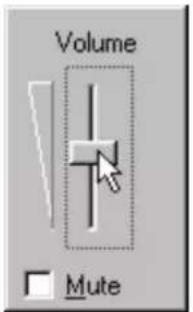
Adjusting the Brightness
Use the following hot key combinations to adjust the LCD panel brightness:
- Fn + F6 decreases the brightness
- Fn + F7 increases the brightness
Turning off Your Computer
Turning off the computer properly is important to maintaining your computer.
-
On the Start menu, click Turn Off Computer.
-
ClickTurn Off.
If you are going to be away from the computer for a short period, there are ways of conserving power without shutting down the system. See Chapter 4, Power Saving Modes, for details or refer to your Operating System's Online Help.

Warning: Shutting off the computer improperly may result in data loss.
Tips for New Owners
Take responsibility for backup
Back up files often. Users who need to manage large amounts of data may wish to use backup devices such as a tape backup unit or a ZIP drive. If you use your notebook as a networked workstation with system backup, talk to the system administrator about backup procedures for your notebook.
Don't leave passwords anywhere on your notebook or carrying case
Be careful when placing your notebook on an airport security conveyor belt
In most airports, security conveyor belts are safe for computers. If you are not sure, ask the security staff. You should keep a close eye on your computer. When you are in a hurry, make sure that you walk away with the correct notebook computer!
Tape your business card to the notebook and accessories
In the workplace, notebooks and accessories may often look exactly alike, leading to equipment mix-ups. Prevent such mix-ups by placing your name on your equipment.
Develop ergonomic work habits
The science of ergonomics studies the relationship between health and a suitable work environment. For more information on ergonomics, contact your nearest computer bookstore, or local library. The Internet also has information on this and other related subjects.
Never take the notebook anywhere without the carrying case
A broken screen or case can be costly to repair. Prevent accidents by carrying the computer in a suitable carrying case.
Consider using a lock
For added security, consider purchasing a Kensington lock to put into the Kensington lock hole on the left side of your computer (see Chapter 2, Left View). Use the Kensington lock to secure the computer to a desk or table.

Note: Using a computer for extended periods of time with a poor workstation setup and incorrect work habits can cause health problems.
Chapter 2
Getting Started
Hardware and Software
This chapter introduces the different components and controls of your notebook computer, including the hardware components, the software, and the audio and video systems.
Getting Started
Before you begin using your computer, read this chapter to familiarize yourself with the main components installed in the system.
Slide the screen latch on the front edge of the cabinet towards the right to release the cover latch and open up the computer.
Front View
- LCD release latch
- LCD panel
- Battery
- Keyboard
- Activity indicators
- Speakers
- Touchpad
- Touchpad buttons
-
Scrolling button
-
Volume control knob
- Microphone-in jack
- Audio-out jack for external speakers or headphones
- Power and wireless LAN indicators
- Power button
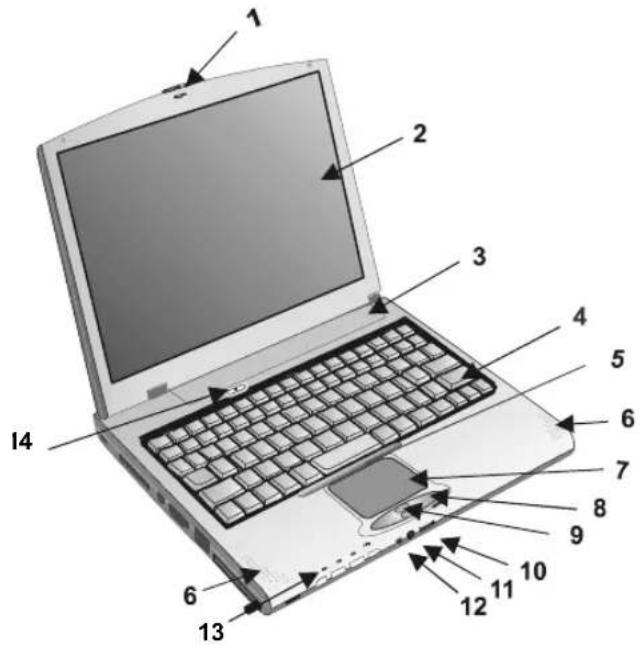
- Figure of notebook above may not be representative of actual product. However, location of devices and ports is accurate as indicated. Specification subject to change without notice.
Left View

* Figure of notebook above may not be representative of actual product. However, location of devices and ports is accurate as indicated. Specification subject to change without notice.
- Kensington lock hole
- Ventilation slots
- DC-adapter port
- VGA port external video display
- LAN RJ-45 jack
- PCMCIA card slot
- PCMCIA card eject button
- Integrated Wireless LAN On/Off Switch (wireless LAN equipped models only)
Right View
- USB 2.0 ports
- Combo DVD+CD-RW Drive
- Combo DVD+CD-RW Drive Eject Button
- Phone jack for internal modem
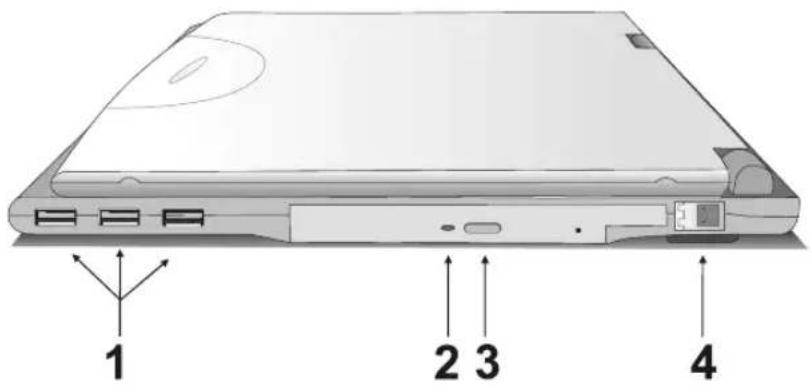
* Figure of notebook above may not be representative of actual product. However, location of devices and ports is accurate as indicated. Specification subject to change without notice.
Bottom View
- Ventilation slots
- SO-DIMM RAM compartment
- Battery release button
- Battery

LED Status Indicators
The status indicators in the upper left corner of the keyboard light up when a particular function of the computer is active. Each indicator is marked with a symbol.
 | CD ROM Drive | The computer is reading information from the CD-ROM, CD-RW or the DVD ROM drive. |
 | HDD | The computer is reading from, or writing to the built-in hard disk. |
 | Number-Lock | The keyboard is in Num-Lock mode. |
 | Caps-Lock | The keyboard is in Caps-Lock mode. |
 | Scroll-Lock | The keyboard is in Scroll-Lock mode. |
Power Indicators
The power indicators show which power source the system is using. They also show battery status and low battery power alerts. The power indicators remain active and viewable even when the LCD panel is closed.
| Icon | Light | Description |
 | Green Power is ON | |
| Flashing Green | Standby mode | |
 | Green | Wireless LAN Enabled (by switch) |
| No Light | Wireless LAN Disabled (by switch) | |
 | Flashing Green | Battery Charging |
| Green | Battery Full | |
| Red | Battery Error | |

Function Keys
Hold the Fn key while pressing the numbered function key.
| Function key Description | |
| Fn + F3 | Toggles display on/off |
| Fn + F4 | Suspend to RAM/HDD |
| Fn + F5 | Toggles between LCD/CRT displays |
| Fn + F6 | Decreases LCD brightness |
| Fn + F7 | Increases LCD brightness |
Numeric Keypad
The embedded numeric keypad consists of ten keys that make number intensive input more convenient. Press

Touchpad
The touchpad is a pressure sensitive pointing device that provides all the features of a two-button mouse. Its primary function is to move the cursor around the screen.

The instructions listed below describe how to use the touchpad.
- First, place your fingers on the keyboard in the normal typing position. The touchpad is easily accessible by moving either your left or right thumb off the space bar and on to the touchpad.
- Gently move your thumb across the pressure-sensitive touchpad in the direction you want the cursor to move. The pad detects the change in pressure and moves the cursor in the corresponding direction.
- The touchpad offers another method of making selections in a software program. It is called double-tapping. This function corresponds to double-clicking with a mouse. Once the cursor has been moved to the object you want to select, lightly double-tap the pressure sensitive
touchpad. This double-tapping on the touchpad will select the desired item and prompt the software to perform the related operation.
- The buttons located directly below the touchpad are the same in function as those on a two-buttoned mouse. Clicking these buttons makes selections, drags objects, or performs a variety of other functions depending on the software. To select an object, first move the pointer over the object you want to select, and then press the left button one time. The functions of these buttons are software specific.
- Double-clicking is a common technique for selecting objects or launching programs from icons. Once you have moved the pointer over the object you wish to select, rapidly press the left button two times. This action is commonly referred to as "double-clicking" an object.
Dragging
There are two ways to drag:
- Move the pointer to the desired location then press down the left button. While still holding down the left button, move the pointer to the desired location. Release the button.
- Move the pointer to the desired location. Tap the touchpad twice quickly as if you were double-clicking, however do not remove your finger after the second tap. Move the cursor to the desired location. Lift your finger to finish dragging.
Adjust the touchpad settings by selecting Settings/Control Panel/Mouse/Buttons. These settings allow you to change the orientation of the touchpad from right-handed to left-handed, and fine tune the pointer movement and timing of clicks.
Touchpad Precautions
The Touchpad is a pressure-sensitive device. If not properly cared for, it can be easily damaged. Please take note of the following precautions.
• Make sure the touchpad does not come into contact with dirt, liquids or grease.
- Do not touch the touchpad if your fingers are dirty.
- Do not rest heavy objects on the touchpad or the touchpad buttons.
Scrolling Buttons
If you are scrolling through a document, you may find that using the scrolling button is more restful to your hand than holding down a mouse button. The scrolling button is located between the touchpad buttons. Push the top of the button to scroll up in a document or Web page; press the bottom of the button to scroll down in a document or Web page.
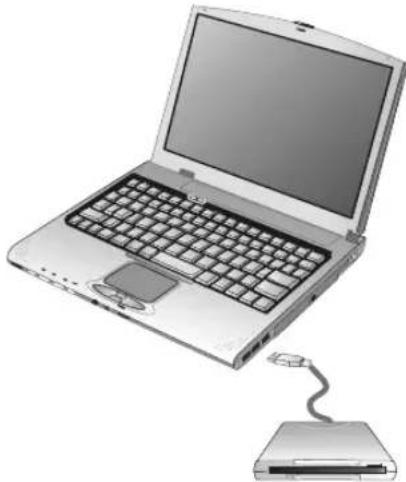
Connecting a USB Floppy Drive (not included)
natural_image
Illustration of a laptop connected to a physical drive (no text or symbols visible)Disk Drives
Your computer comes with several components for reading and writing (recording) information.
Hard Disk Drive
The hard disk provides high-capacity storage and fast access. Windows and most programs are stored here. Your notebook identifies the hard disk drive as drive C.
The DVD+CD-RW Drive
Your computer comes with a pre-installed DVD+CD-RW drive. This drive can read CDs (data and audio), read DVDs (data, video and audio) and write to CD-R and CD-RW media.
Inserting a CD/DVD
- Press the button on the front of the drive to open the disk tray and pull the tray open.
- Place the disk on the tray, label side up.
- Place the disk on the central spindle and press gently until the disk clicks into place.
- Slide back the tray until it clicks shut.

natural_image
Illustration of a hand interacting with a computer keyboard (no text or symbols present)Removing a Disk
- Make sure the computer is not accessing the DVD+CD-RW drive.
- Press the eject button and pull the tray all the way out.
- Pick up the CD/DVD by the edges and remove the DVD+CD-RW from the tray. Push the tray into the computer until it closes fully.

Warning: When the computer is reading from the DVD+CD-RW, the indicator light for the CD-ROM will flash on. Do not attempt to remove a disk while this light is active.
Precautions for Handling CD-ROM Discs
Keep these precautions in mind when handling CD-ROM discs.
• Always hold the disc by the edges; avoid touching the surface of the disc.
• Use a clean, dry, cloth to remove dust, smudges, or fingerprints. Wipe from the center outward.
- Do not write on the surface of the disc.
- Extremes in temperature may damage discs. Store discs in a cool dry place.
- Do not use benzene, thinners, or cleaners with detergent. Only use CD-ROM cleaning kits.
- Do not bend or drop the discs.
- Do not place objects on top of discs.

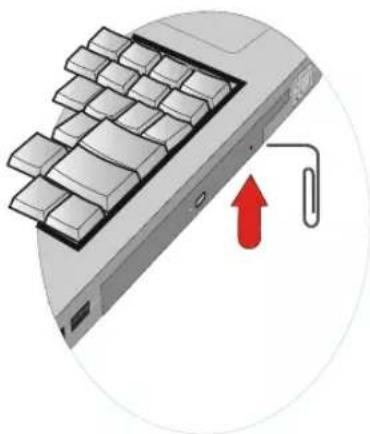
Warning: Do not insert any foreign objects into the disc tray. Do not force the tray to open or close manually. When not in use, keep the tray closed to prevent dust or dirt from entering the drive unit. If you experience difficulty when removing a CD disc, stretch a paper clip (or use a pin or a thin metal rod) and insert it into the emergency eject hole located on the front panel:
natural_image
Illustration of a computer mouse with a paperclip and red arrow indicating upward motion (no text or symbols)The CD disk tray should eject immediately. This procedure can also be used to remove a CD from the drive when the notebook is powered off.
Connecting the Printer
To connect a printer to your notebook via the USB port, use an optional USB to printer adapter cable.

Note: Before use, you may be required to install the driver for the adapter cable.
The PC Card Slot
The PC card slot can be used as an interface between your computer and a variety of communications devices, such as network adapters, SCSI adapters, fax/modems, or provide additional data storage capacity. Your computer's PC card slot supports PCMCIA Type II and 32-bit CardBus cards.
Installing a Card
- The top side of a PC card is usually identified with a label. Insert the card into the slot with the label side up and the edge with pinhole contacts going in first.
- Insert the card into the slot. You will feel some resistance as the card slides into the back of the slot.
- PC cards require drivers, or a program that allows the operating system to use a specific device. Many drivers are included with Windows, but if not, you will be prompted to install the driver included with your card.
- The computer will beep twice to indicate successful installation. A single beep means that there was a problem recognizing the card.
Push the button to eject the card.

Note: Please read the instructions included with individual PC cards. Some cards may be inserted with power on, while others require that the computer be turned off.

Removing a Card
- If a card is in use, you must shut down the card before removing it. Or you can click the PCMCIA icon on the right side of the taskbar, then click Stop.
-
Press the eject button on the card slot to release the button.
-
Press again to release the card.
Memory
Adding memory allows the computer to operate faster, handle more tasks simultaneously, and work more smoothly with large files. Users who increase memory demands - by adding additional programs, for example - may notice a slowdown in operating speed, and wish to increase memory. The notebook includes a memory card slot for adding additional memory.

Note: Use only 1" 200-pin SO-DIMM (PC-2100).
Calculate memory size by adding the size of the memory module to the existing built-in memory. For example: 256 MB (module) + 128 MB (built-in memory) = 384 MB Total
Replacing a Memory Card

Warning: Memory modules can be easily damaged by static electricity. Leave the module inside its static-proof bag until it is ready for installation.
Removing a Memory Card
- Turn off the computer and disconnect the AC adapter. Turn the computer upside down and lay it on a flat surface.
- Carefully remove the two RAM compartment cover screws and remove the RAM compartment cover.
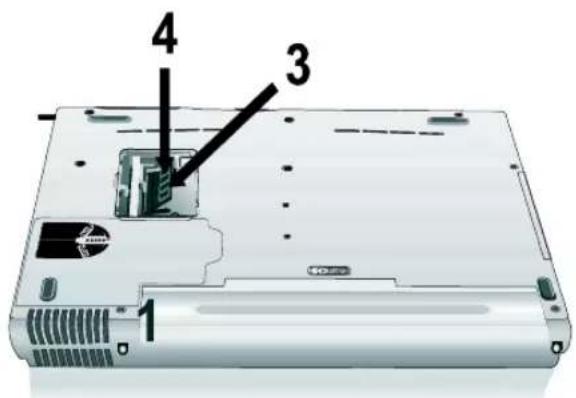
- Gently pull tabbed latched in the direction of the arrows (1). The card will pop up slightly.
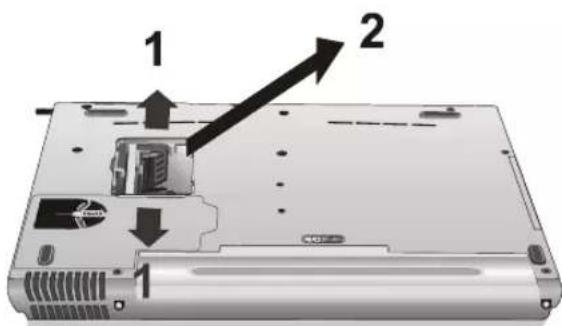
- Pull upwards on the card and then slide the card out (2).
Inserting a Memory Card
-
Hold the memory card by its edges with the edge-connector side towards the slot.
-
Hold the card at a shallow angle (about 25 degrees) and insert the edge connector into the connector slot (3). The "gold teeth" of the edge connector should no longer be visible when the card is fully inserted.
-
Press the card downwards so that it is flat inside the compartment (4). You may hear an audible click as the latches of the connector lock the card in place.
-
Replace the RAM compartment cover and secure it with the two screws.
Your notebook computer will automatically detect the change in RAM capacity when it restarts.
The Graphics System
Your computer has a high-performance graphics system, which can easily handle the demands of today's multimedia computing.
Screen Controls
Brightness
Function keys can increase or decrease the brightness of the monitor.
+ decreases the LCD panel brightness + increases the LCD panel brightness
Resolution
- Click My Computer/Control Panel/Display/Settings. Click the Settings tab. The dialog box indicates the monitor resolution.
- Use the slide bar to adjust the resolution. Normally, you should use the resolution the LCD or monitor was designed for.

Note: Using a lower resolution than the screen was designed for will reduce the area of the display. Using the computer in DOS mode may produce the same effect, because it uses a 640 by 480 resolution by default. You can stretch these low resolution displays to full screen size by selecting either the Expanded Display or Display Expansion Mode features in the BIOS utility. However, the stretching may cause distortion, especially to fonts.
High Resolution with an external monitor
Higher resolution modes may be used, as long as the monitor supports them.
Connecting to an External Monitor
The notebook has a VGA monitor port to connect your computer to an external monitor.
Using the VGA monitor port
- Locate the 15-pin VGA monitor port on the left side of your notebook and connect the video signal cable from the external monitor (or the VGA adapter) to the monitor port.
- Connect the power cable from the external monitor to a power outlet and turn on the monitor.
- On your notebook, click the right touchpad button on the Windows desktop to open the desktop menu. Click Properties to open the Display Properties window.
-
In the Display Properties window, click Advanced in the Settings tab. Click the Display Modes tab.
-
Under Driver mode, you can select the appropriate options to change the display to an external monitor.
- Adjustments to screen resolution and color depth can also be made in this dialog box.

Note: Light or dark dots may appear on the LCD due to technical limitations of LCD manufacturing. This will not effect normal operation of the LCD.
Chapter 3
Making Connections
Making Connections
Your computer is equipped with a full array of ports and connectors, including standard input/output (I/O) ports for quickly and easily adding peripheral devices such as printers, keyboards, and mice. Refer to documentation included with individual devices for details on connecting these devices to your computer. Along with the standard ports found on most computers, your computer also includes USB 2.0, modem and LAN ports, offering advanced communications technology.
Left Side Connectors
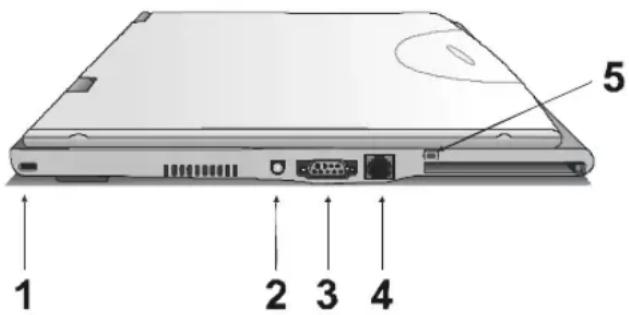
* Figure of notebook above may not be representative of actual product. However, location of devices and ports is accurate as indicated. Specification subject to change without notice.
1. Kensington Lock
Your computer includes a Kensington lock hole to be used with a standard Kensington lock. You can connect the notebook to a large object with the Kensington lock to prevent theft of your notebook. See the documentation that comes with your Kensington lock for more information.
2. DC-in Jack
Connect the DC power cable from the AC adapter to this jack.
3. VGA Out (External Video) Port
The 15-pin VGA port can be used to connect your computer to an external monitor. (See the Graphics System in chapter 2 for more information).
4. LAN RJ-45 Jack
With the built-in Ethernet LAN combo, you can make LAN connections without installing PC cards. Connection speed is 10/100 Mbps. When using the LAN function, wrap your LAN cable around the EMI ferrite suppression box to inhibit electromagnetic interference.
5. Wireless LAN On/Off Switch (only on wireless LAN equipped models)
This switch allows you to quickly enable or disable the integrated wireless LAN.
Right Side Connectors

natural_image
Diagram of a computer monitor base with labeled components (no text or symbols present)* Figure of notebook above may not be representative of actual product. However, location of devices and ports is accurate as indicated. Specification subject to change without advance notice.
1. USB (Universal Serial Bus) 2.0 Ports
The Universal Serial Bus (USB) is the latest standard for attaching monitors, input devices, scanners, and other devices to a PC. USB devices can be chained together on a single cable. This port supports 1.0, 1.1 and 2.0 devices.
2. Fax/modem RJ-11 Jack
The fax/modem can transmit data using the 56 Kbps V.90 protocol, and send and receive faxes at 14.4 Kbps. In some countries, local regulations may not permit the use of the fax/modem designed for this system. In this case, you may use a PCMCIA modem.

Warning: Plug your modem into an analog telephone jack only. Most homes use analog lines. Do not use digital lines, such as the PBX and ISDN systems found in many offices. Digital lines may damage your modem.
Front Side Connectors

natural_image
Diagram of a laptop rear panel with labeled ports and indicator lights (no text or symbols beyond labels)* Figure of notebook above may not be representative of actual product. However, location of devices and ports is accurate as indicated. Specification subject to change without notice.
1. Audio-out Jack
Connect a stereo headset or external speakers to this jack to listen to multimedia.
2. Microphone-in Jack
Connect a microphone this jack to record audio.
Chapter 4
Power Management
Power Management
Battery Calibration
The first time you use a battery, you should calibrate it. The calibration process empties and charges the battery one time. This allows the Windows battery gauge to accurately monitor battery status. To calibrate a battery, follow these steps:
- Plug in the AC adapter.
- Restart the computer and when the startup screen appears, press Del key to enter the BIOS Setup Utility.
- In the BIOS Setup Utility, select Power Management Setup, choose Battery Auto Calibration, then press
.
Please make sure that AC adapter & Battery are present?
Would you to do battery auto-learning?
Yes.
No. (System Reboot)
- Press
at the above Battery Auto Calibration dialog to begin the battery calibration. Please press [Space Bar] to select option, and [Enter] to continue.
Battery Calibration will take from 8 to 10 hours, depending on how much power the battery may already contain.

Note: For optimum performance, we recommend calibrating the battery again every three months. Each time you charge and discharge a battery, it loses a tiny part of its storage capacity, so that, over time, it will store less than its potential charge. Similarly, if you do not use the battery for a few days, it will slowly self-discharge, and when it is recharged, it will hold less than 100% of the potential charge.
Monitoring Battery Power
There are two ways to monitor how much power the battery has left.
-
Click start/Settings/Control Panel/Power Options; then click Power Meter.
-
Moving the cursor to the battery icon on the taskbar is the simplest way to check on battery power status.
If you do not see the battery icon, enable it in Start/Settings/Control Panel/Power Options. Choose the Advanced tab and click "Always show icon on the taskbar."
Low Battery Alarms
How your computer responds to a low battery condition is set under Start/Settings/Control Panel/Power Options/Alarms.
Two different power alarms can be enabled or disabled: the Low Battery Alarm, and the Critical Battery Alarm. Use the slider to set the power level at which the alarms are activated. Click on the Alarm Action button to choose whether the alarm sounds, displays a message, or both.

Warning: When battery power is low, the battery indicator will flash red, and the alarm will beep or display a warning on your screen. Take immediate action, such as saving files or connecting to the AC adapter, or data may be lost.
When the computer alerts you that the battery is low, immediately do one of the following:
- Connect the AC power adapter
- Save your work, and suspend to disk
+ - Save your work, then select Shut Down from the Start menu
- Turn off or suspend the computer and replace the discharged battery with a charged battery (See Changing the Battery below).
Do not restart the computer until you have connected to an AC adapter, or replaced the discharged battery with a charged battery.
Battery Charging
When you use the AC adapter to connect your Notebook to a power outlet, the internal battery will automatically begin to recharge. While the battery is charging, the Battery Charge icon on the Indicator panel will be active. When the battery is fully charged, the Battery Charge icon will turn off.
If your computer is turned off, a fully discharged battery will take about 3 hours to recharge. If your computer is turned on and is not in suspend mode, it will take about 4 hours to recharge the battery. Refer to the following table:
| Charging | Discharging | |
| System On | 4 hours 3.5 hours | |
| System Off (suspend to RAM) | 3 hours — |

Note: A fully charged Li-Ion battery can run the Notebook for up to 3.5 hours.
Power Saving Modes
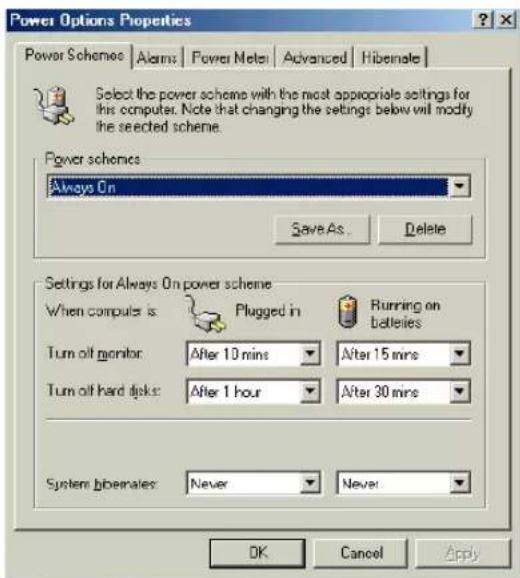
Adjust the default power management settings in the Power Options/ Advanced dialog box in the Control panel. The Power Options Properties dialog box allows you to set different actions to take when the computer is left idle for a certain amount of time.
Suspend Mode
There are several possible settings for suspend mode, which can be selected in the Power Management dialog box: You may have the notebook standby, hibernate, or you can power off the computer altogether.
Standby
All devices are powered up and in suspend mode except for the CPU clock.
Hibernate
Suspend to Disk is similar to turning off the computer, except that the current state of the computer is copied to the hard disk as a special file. When the computer returns from suspend mode, the desktop appears with the same files and programs open as when the computer was suspended. Suspend to Disk is very useful when you don't want to take the time to shut down all open programs one by one to shut off the computer, only to have to open the same programs and files the next time you use the computer. This mode is also called hibernation mode.
Suspend-to-disk Partition/Suspend-to-disk File
In order to Suspend to Disk, you must have a special suspend-to-disk partition/file on your hard disk drive. This partition is pre-installed on your computer. The pre-installed partition is large enough to store all system memory.
Power Off
System is shutdown.
Initiating Suspend Mode
There are four ways to initiate suspend mode. The settings can be adjusted in the Power Management dialog box:
- The computer will automatically enter suspend mode when not used for a set period of time.
- Selecting the Stand by button in the Shut Down Windows dialog box.
- Closing the screen cover (assuming no external monitor has been connected).
- Pressing the power button (if enabled in power settings).
- Pressing the suspend function key <Fn> + <F4> .
Using the BIOS Utility for Power Management
With Windows running in ACPI mode, power can be controlled through the Power Management dialog box only. With operating systems that use ACPI power management, BIOS power settings have no effect.
Power Button Settings
The function of the power button can be set to Shutdown or Standby in the Power Management Properties dialog box in the Windows Control Panel. However, holding the power button down for more than four seconds will force a power off while operating under any situation, resulting in the loss of any unsaved information.
Power Saving Tips
- Avoid operating the fax/modem, or audio and video applications when using battery power. Operating a fax modem, video, or audio equipment increases the computer's power requirements.
- Decreasing monitor brightness can also save power. Decrease brightness by pushing
When to Replace the Battery
Over time, the battery's capacity gradually decreases. We recommend that you replace your battery when you notice that it begins to store significantly less charge.
Changing the Battery
Change the main battery pack as follows:
- Turn off the computer.
- Close the screen cover and turn the computer over.
- Slide the side battery latch (1) away from the battery. Continue to hold it until the battery is removed.
- Push in the latch on the battery (2) while lifting the battery out of the compartment. Remove the battery.
- Make sure the replacement battery is properly orientated. Slide back the side battery latch (1) then insert the battery into the battery compartment. Check that the latch locks back into position.

Heat Considerations
The computer's processor has been specially designed to consume little power, and generates very little heat. However, working in a hot environment, or working for long periods may raise the temperature. Your computer takes the following steps to lower temperature:
- The cooling fan will automatically turn on. You may feel air coming from a vent at the left side when this happens.
- If the temperature continues to rise, processor activity will be reduced. You may notice a slight loss of performance when this happens.
Chapter 5
Using the BIOS Setup Utility
Using the BIOS Setup Utility
Your notebook has a BIOS setup utility which allows you to configure important system settings, including settings for various optional functions of the computer. This chapter explains how to use the BIOS setup utility.
BIOS Setup Menu
The BIOS setup Utility allows you to configure your computer's basic settings. When you turn your computer on, the system reads this information to initialize the hardware so that it can operate correctly. Use the BIOS setup utility to change your computer's start-up configuration. For example, you can change the security and power management routines of your system.
Starting the BIOS Setup Utility
You can only enter the BIOS setup utility as the computer is booting, that is between the time you turn on the computer and before the Windows interface appears. If your computer is already on, shut down your computer completely (power off) and restart it and then press the Del key to enter the setup utility.
Navigating and Entering Information in BIOS
Use the following keys to move between fields and to enter information:
| Key | Function |
| Del | Press Del to start the BIOS utility after turning on the computer. |
| ESC | Press Esc to exit any section. If you wish to exit the BIOS utility without saving changes, go to the main menu, then press Esc. |
| Up, down keys (↑↓) | Push the up and down arrow keys to move among selections, then press Enter to make a selection. |
| PgUp or PgDn | Use the PgUp, PgDn keys to modify a field. Use PgUp to increase a value, such as a date or number, and PgDn to decrease it. For other types of choices, such as “enabled,” or “disabled,” use either key to move between choices. |
| Enter Press e | enter to make a selection |
| F2 or F3 | Pressing either key changes the color of the graphic display. |
| F10 | Press F10 to save changes, then exit |
The Main Menu
The Setup Utility menu bar has nine main screens: Standard CMOS Setup, Advanced CMOS Setup, Power Management Setup, Auto-Detect Hard Disks, Change User Password, Change Supervisor Password, Auto Configuration with Optimal Settings. Save Settings and Exit, and Exit Without Saving are used to exit the Setup Utility.
| AMIBIOS HIFLEX SETUP UTILITY (C)2000 American Megatrends, Inc. All Rights Reserved |
| Standard CMOS Setup Advanced CMOS Setup Power Management Setup Auto-Detect Hard Disks Change User Password Change Supervisor Password Auto Configuration with Optimal Settings Save Settings and Exit Exit Without Saving |
| Standard CMOS setup for changing time, date, hard disk type, etc. ESC:Exit ↑↓:Sel F2/F3:Color F10:Save & Exit |
Figure 6-1
Standard CMOS Setup
The Standard CMOS Setup page of the Setup Utility has a list of fields that describe the basic configuration of your computer. CMOS is simply a type of random access memory, or RAM, used to store the basic configuration of the computer.
| AMIBIOS SETUP - STANDARD CMOS SETUP(C)2000 American Megatrends, Inc. All Rights Reserved | |
| Date (mm/dd/yyyy): Sun Jan 12,2003 | Base Memory: 640 KB |
| Time (hh/mm/ss) : 16:55:24 | Extd Memory: 223 MB |
| LBA Blk PIO 32Bit | |
| Type Size Cyln Head WPcom Sec Mode Mode Mode Mode | |
| Pri Master: Auto | On |
| Sec Master: Auto | On |
| Boot Sector Virus Protection Disabled | |
| Month: Jan - Dec | ESC:Exit ↑↓:Sel |
| Day: 01 - 31 | PgUp/PgDn:Modify |
| Year: 1980 - 2099 | F1:Help F2/F3:Color |
Figure 6-2
Standard Feature Description
| Field | Setting | Function |
| System Time & Date | Use these fields to set the time and date. The time is displayed in 24-hour format. The date can be set from January 1, 1980 to December 31, 2099. The values set in these two fields take effect immediately. | |
| Type | Shows type of system installed, including the following options: (Pri. Master) Auto, CD-Rom /DVD, No Installed, User; (Sec. Master) Auto, CD-Rom /DVD, Not Installed, User. | |
| Pri. Master | Auto | The Default setting is Auto. Auto lets the system automatically read setup information from the device. When set to Auto, the BIOS will automatically detect hard disk capacity. |
| CD-ROM/DVD | ||
| Not Installed | ||
| User | ||
| Sec. Master | Auto | The Default setting is Auto. Auto lets the system automatically read setup information from the device. |
| CD-ROM/DVD | ||
| Not Installed | ||
| User | ||
| Size Hard disk capacity. | ||
| Cylinders Displays the number of cylinders on the hard disk drive. | ||
| Heads Displays the number of heads per cylinder on the hard disk drive. | ||
| LBA Mode Only some hard disk drives support Logical Block Addressing. Default depends on the Hard Disk Drive type. | ||
| Blk Mode Only some hard drives support block (multi-sector) transfer of data | ||
| PIO Mode The default value Auto lets the system automatically | ||
| read setup information it needs for setup from hard disk drive. Five explicit values, 0 to 4, are also possible. | ||
| Field | Setting | Function |
| 32Bit Mode Only some hard disk controllers support 32 bit data transfer | ||
| Base Memory; Extended Memory | These two items are detected automatically at start-up time and cannot be changed | |
Advanced CMOS Setup
| AMIBIOS SETUP - ADVANCED CMOS SETUP(C)2000 American Megatrends, Inc. All Rights Reserved | ||
| 1st Boot Device | CD-ROM | Available Options: |
| 2nd Boot Device | USB FDD | |
| 3rd Boot Device | IDE-0 | ESC:Exit ↑↓:Sel |
| S.M.A.R.T. for Hard Disks | Enabled | PgUp/PgDn:Modify |
| BootUp Num-Lock | Off | F1:Help F2/F3:Color |
| Display Expansion Support | Enabled | |
| Password Check | Setup | |
| Share Memory Size | 32 MB | |
| Field | Setting | Function |
| 1st Boot Device2nd Boot Device3rd Boot Device | CD-ROM | 1st Boot Device default is CD-ROM.2nd Boot Device default is USB FDD.3rd Boot Device default is IDE-0. |
| USB FDD | ||
| IDE-0 | ||
| Disks | Disabled S.M.A. | Only for Hard T. Hard Disks are supported. The default is Enabled. |
| Enabled | ||
| Off Bootup Num | Used this field to initially disable the NumLock feature of the internal keyboard when the notebook starts.The default is Off. | |
| On | ||
| Display Expansion Support | Disabled | If you are using DOS or a 640 x 480 resolution to run windows, the display will not fill the entire screen. Enable this mode to expand the display to the entire screen. The default is Enabled. |
| Enabled | ||
| Password Check | Setup The def | default value is Setup, which specifies that a password is only required to enter the setup utility. |
| Always | If Always is selected, the passw required when the system is booted up or resuming from a suspend-to-disk. | |
| Share Memory Size 8MB This field displays the amount of | ||
| 16MB | ||
| 32MB | ||
Figure 6-3
Power Management
This section of the BIOS manages' power settings in operating systems other than Windows 98 or above, or operating systems using ACPI power management. In Windows XP, power management is controlled through the Power Management window in My Computer, and BIOS power management settings have NO effect. In other operating systems that use ACPI power management, BIOS settings likewise have no effect.
| AMIBIOS SETUP - POWER MANAGEMENT SETUP(C)2000 American Megatrends, Inc. All Rights Reserved | ||
| Cover Close | Panel Off | Available Options: |
| Auto DIM | Enabled | |
| Battery Auto Calibration | Disabled | ESC:Exit ↑↓:SelPgUp/PgDn:ModifyF1:Help F2/F3:Color |
| FAN Auto Learning | Disabled | |
| Field | Setting | Function |
| Cover Close | Panel off The | LCD will turn off when the cover is closed. |
| Suspend The | LCD will turn off and the computer will enter suspend mode when the cover is closed. | |
| Auto DIM | Enabled When | AC adapter is not in use, the monitor is run in power-saving mode. |
| Disabled The | monitor does not go into power-saving mode. | |
| Calibration | Disabled Battery | calibration is disabled. Battery Auto |
| Enabled Battery | calibration is enabled. Battery calibration will optimize the battery performance. | |
| Learning | Disabled FAN | learning is disabled. FAN Auto |
| Enabled FAN | learning is enabled. FAN learning will optimize the fan speed. | |
Figure 6-4
Auto-Detect Hard Disk
When Auto-Detect Hard Disk is selected, the BIOS will automatically detect Pri. Master and Sec. Master settings.
| AMIBIOS SETUP - STANDARD CMOS SETUP(C)2000 American Megatrends, Inc. All Rights Reserved | |
| Date (mm/dd/yyyy): Sun Jan 12,2003 | Base Memory: 640 KB |
| Time (hh/mm/ss) : 16:55:24 | Extd Memory: 223 MB |

Figure 6-5
Change User Password
With a User password, you can enter the Setup Utility and change or remove the User password, but you cannot enter the Setup Utility and change or remove the Supervisor password, nor enable diskette access if it has been disabled.
Change Supervisor Password
A supervisor password must be set before a lower-level user password can be set. After selecting Change Supervisor Password, press Enter. You will be prompted for the new password, and then again to verify it. Type in 6 or fewer keystrokes. If you make an error, press Esc to start over.
Enter new supervisor password:
Auto Configuration with Optimal Settings
The Auto Configuration pages reset the computer to default values. The Auto Detect Hard Disks likewise helps users to configure their systems quickly. When you see the following prompt, choose Y to reset the computer to default values.
Load high performance settings (y/n)? N
Exiting and Saving
| Save Settings and Exit | Select this option to save changes to the field values, and restart the computer using the new values. (Pressing F10 from any of the menu screens also allows you to save settings and exit.) |
| Exit Without Saving | Select this option to discard any changes you have made to the field values, and restart the computer using the old values. |
Appendix A
Frequently Asked Questions
Frequently Asked Questions
Q: My screen seems to time out too quickly. I have to constantly hit a key or move the mouse in order to bring it back. How can I adjust the screen time-out?
A: This is part of Windows Power Management. Access Power Management by clicking on Start/Settings/Control Panel/Power Management. Adjust the display time-out by selecting a time next to the Turn off monitor option. You may also select different time-out values for adapter and battery power states.
Q: What kind of external microphone can I use with my notebook computer?
A: You will need to use a self-amplifying microphone.
Q: There is feedback noise coming from my speakers. What can I do?
A: Double click on the Speaker icon on the task bar. Then, under Microphone Balance, check the Mute box.
Q: Because of a software problem, I was unable to shut down power normally. I pressed the power button to force a power off, but it didn't work. How can I force a power off?
A: Make sure you press the power button for at least 5 seconds. Normally, this will force a power off. If this does not work, you can shut down the computer by inserting a needle into the reset button pinhole. (The reset button is located on the computer bottom side.)
Q: Why can't I charge the battery of my portable computer after it was out of use for some time?
A: After portable computers have not been used for a long time (more than one month), the batteries will go into the low voltage protection mode due to data back-ups and natural electrical discharge. At that point, restoring normal voltage will require slow charging over a period of several hours. Calibration can be performed after the battery has returned to a normal condition.
Q: My computer alerts "CMOS Battery Low", what can I do?
A: If you keep your computer in no power situation (unplug the computer from the power outlet and remove battery at the same) over 45 days, your data in CMOS will be lost.
Please reconfigure your CMOS by following steps:
- Press
to enter the BIOS setup utility. - Select "Auto Configuration with Optimal Settings". When you see the following prompt, choose
and then press .
Load high performance settings (y/n)? Y
- Select "Save Settings and Exit". When you see the following prompt, choose
and then press to restart your computer.
Save current settings and exit (y/n)? Y
Appendix B
Statements
Statements
Federal Communications Commission Statement
This equipment has been tested and found to comply with the limits for a Class B digital device, pursuant to Part 15 of the FCC Rules. These limits are designed to provide reasonable protection against harmful interference in a residential installation. This equipment generates, uses, and can radiate radio frequency energy and, if not installed and used in accordance with the instructions, may cause harmful interference to radio communications. However, there is no guarantee that interference will not occur in a particular installation. If this equipment does cause harmful interference to radio or television reception, which can be determined by turning the equipment off and on, the user is encouraged to try to correct the interference by one or more of the following measures:
- Reorient or relocate the receiving antenna.
- Increase the separation between the equipment and the receiver.
- Connect the equipment into an outlet on a circuit different from that to which the receiver is connected.
- Consult the dealer or an experienced radio/TV technician for help.
Shielded interconnect cables and shielded AC power cable must be employed with this equipment to insure compliance with the pertinent RF emission limits governing this device. Changes or modifications not expressly approved by the system's manufacturer could void the user's authority to operate the equipment.
Declaration of Conformity
This device complies with part 15 of the FCC rules. Operation is subject to the following conditions:
• This device may not cause harmful interference
- This device must accept any interference received, including interference that may cause undesired operation.
About The Modem
This equipment complies with Part 68 of FCC rules. On the bottom of this equipment is a label that contains, among other information, the FCC registration number and ringer equivalence number (REN) for this equipment. If requested, this information must be provided to the telephone company.
The modem jack of this equipment complies with Sub-part F of Part 68 of FCC rules.
The REN is used to determine the quantity of devices that may be connected to the telephone line. Excessive RENs on the telephone line may result in the devices not ringing in response to an incoming call. In most, but not all areas, the sum of the RENs should not exceed five (5.0). To be certain of the number of devices that may be connected to the line, as determined by the total RENs contact the telephone company to determine the maximum REN for the calling areas.
If the terminal equipment causes harm to the telephone network, the telephone company will notify you in advance that temporary discontinuance of service may be required. However, if advance notice isn't practical, the telephone company will notify the customer as soon as possible. Also, you will be advised of your right to file a compliant with the FCC if you believe it necessary.
The telephone company may mark changes in its facilities, equipment, operations, or procedures that could affect the operation of the equipment. If this happens, the telephone company will provide advance notice in order for you to make the necessary modifications in order to maintain uninterrupted service.
If trouble is experienced with this equipment, please contact the manufacturer for repair and (or) warranty information. If the trouble is causing harm to the telephone network, the telephone company may request you remove the equipment from the network until the problem is resolved.
The equipment cannot be used on public coin service provided by the telephone company. Connection to Party Line Service is subject to state tariffs. (Contact the state public utility commission, public service commission or corporation commission for information.)
The Telephone Consumer Protection Act of 1991 marks it unlawful for any person to use a computer or other electronic device, including fax machines, to send any message unless such message clearly contains in a margin at the top or bottom of each transmitted page or on the first page of the transmission, the date and time it is sent and an identification of the business or other entity, or other individual sending the message and the telephone number of the sending machine or such business, other entity, or individual. (The telephone number provided may not be a 900 number or any other number for which charges exceed local or long-distance transmission charges.) To program this information, refer to the manual of the communication software.
European Notice
Products with the CE Marking comply with both the EMC Directive (89/336/EEC) and the Low Voltage Directive (73/23/EEC) issued by the Commission of the European Community.
Compliance with these directives implies conformity to the following European Norms:
● EN 55022 ( CISPR 22 ) Radio Frequency Interference
EN 55024 (EN61000-4-2, EN61000-4-3, EN61000-4-4, EN61000-4-5, EN61000-4-6, EN61000-4-8, EN61000-4-11, EN61000-3-2, EN61000-3-3) Generic Immunity Standard
EN 60950 (IEC950) Product Safety
UL CAUTION
To reduce the risk of fire, use only No. 26 AWG or larger telecommunication line cord.
IMPORTANT SAFETY INSTRUCTIONS
When using your telephone equipment, basic safety precautions should always be followed to reduce the risk of fire, electric shock and injury to persons, including the following:
Do not use this product near water, for example, near a bathtub, wash bowl, kitchen sink or laundry tub, in a wet basement or near a swimming pool.
Avoid using a telephone (other than a cordless type) during an electrical storm. There may be a remote risk of electric shock from lightning.
Do not use the telephone to report a gas leak in the vicinity of the leak.
Use only the power cord and batteries indicated in this manual. Do not dispose of batteries in a fire.
They may explode. Check with local codes for possible special disposal instructions.
Canadian Department of Communications
This class B digital apparatus meets all requirements of the Canadian Interference-causing Equipment Regulations.
About the Modem
The Industry Canada label identifies certified equipment. This certification means that the equipment meets certain telecommunications network protective, operational and safety requirements. The department does not guarantee the equipment will operate to the user's satisfaction.
Before installing this equipment, users should ensure that it is permissible to be connected to the facilities of the local telecommunications company.
The equipment must also be installed using an acceptable method of connection. In some cases, the company's inside writing associated with a single line individual service may be extended by means of a certified connector assembly (telephone extension cord). The customer should be aware that compliance with the above conditions may not prevent degradation of service in some situations.
Repairs to certified equipment should be made by an authorized Canadian maintenance facility designated by the supplier. Any repairs or alterations made by the user to this equipment, or equipment malfunctions, may give the telecommunications company cause to request the user to disconnect the equipment.
Users should ensure for their own protection that the electrical ground connections of the power utility, telephone lines and internal metallic water pipe system, if present, are connected together. This precaution may be particularly important in rural areas.
CAUTION: Users should not attempt to make such connections themselves, but should contact the appropriate electric inspection authority, or electrician, as appropriate.
"The Load Number (LN) assigned to each terminal device denotes the percentage of the total load to be connected to a telephone loop which is used by the device. To prevent overloading, the termination on a loop may consist of any combination of devise subject only to the requirement that the total of the Load Numbers of all the devices does not exceed 100."
Battery Disposal
THIS PRODUCT CONTAINS A LITHIUM-ION OR NICKEL-METAL HYDRIDE BATTERY. IT MUST BE DISPOSED OF PROPERLY. CONTACT LOCAL ENVIRONMENTAL AGENCIES FOR INFORMATION ON RECYCLING AND DISPOSAL PLANS IN YOUR AREA.
CAUTION FOR ADAPTER
THIS NOTEBOOK COMPUTER IS FOR USE WITH MODEL NO. PA-0060A-002
BATTERY CAUTION
DANGER OF EXPLOSION IF BATTERY IS INCORRECTLY REPLACED.
REPLACE ONLY WITH THE SAME OR EQUIVALENT TYPE RECOMMENDED BY THE MANUFACTURER. DISPOSE OF USED BATTERIES ACCORDING TO THE MANUFACTURER'S INSTRUCTIONS.
CLASS 1 LASER PRODUCT
LASERSCHUTZKLASSE 1 PRODUKT TO EN60825
CAUTION: THIS APPLIANCE CONTAINS A LASER SYSTEM AND IS CLASSIFIED AS A "CLASS 1 LASER PRODUCT." TO USE THIS MODEL PROPERLY, READ THE INSTRUCTION MANUAL
CAREFULLY AND KEEP THIS MANUAL FOR FUTURE REFERENCE. IN CASE OF ANY TROUBLE WITH THIS MODEL, PLEASE CONTACT YOUR NEAREST "AUTHORIZED SERVICE STATION." TO PREVENT DIRECT EXPOSURE TO THE LASER BEAM, DO NOT TRY TO OPEN THIS ENCLOSURE.
- CHAPTER 3
- MAKING CONNECTIONS
- CHAPTER 4
- POWER MANAGEMENT
- CHAPTER 5
- USING THE BIOS SETUP UTILITY
- Chapter 1
- Introduction
- Getting Started
- Inventory
- Safety and Maintenance
- Checklists
- STANDARD
- OPTIONS
- Features
- High Capacity Hard Disk Drive
- Built-in Modem/LAN Capability
- Built-in Wireless LAN Capability (some models only)
- Large LCD
- Built-in Stereo Speakers
- Convenient Audio Control
- Scrolling Button
- Where to Look For Information
- About Your Computer
- Quick Start
- Turning on the Computer for the First Time
- Adjusting the Volume
- Adjusting the Brightness
- Turning off Your Computer
- Tips for New Owners
- Take responsibility for backup
- Don't leave passwords anywhere on your notebook or carrying case
- Be careful when placing your notebook on an airport security conveyor belt
- Tape your business card to the notebook and accessories
- Develop ergonomic work habits
- Never take the notebook anywhere without the carrying case
- Consider using a lock
- Chapter 2
- Hardware and Software
- Front View
- Left View
- Right View
- Bottom View
- LED Status Indicators
- Power Indicators
- Function Keys
- Numeric Keypad
- Touchpad
- Dragging
- Touchpad Precautions
- Scrolling Buttons
- Connecting a USB Floppy Drive (not included)
- Disk Drives
- Hard Disk Drive
- The DVD+CD-RW Drive
- Inserting a CD/DVD
- Removing a Disk
- Precautions for Handling CD-ROM Discs
- Connecting the Printer
- The PC Card Slot
- Installing a Card
- Removing a Card
- Memory
- Replacing a Memory Card
- Removing a Memory Card
- Inserting a Memory Card
- The Graphics System
- Screen Controls
- Brightness
- Resolution
- High Resolution with an external monitor
- Connecting to an External Monitor
- Using the VGA monitor port
- Left Side Connectors
- Kensington Lock
- DC-in Jack
- VGA Out (External Video) Port
- LAN RJ-45 Jack
- Wireless LAN On/Off Switch (only on wireless LAN equipped models)
- Right Side Connectors
- USB (Universal Serial Bus) 2.0 Ports
- Fax/modem RJ-11 Jack
- Front Side Connectors
- Audio-out Jack
- Microphone-in Jack
- Battery Calibration
- Monitoring Battery Power
- Low Battery Alarms
- Battery Charging
- Power Saving Modes
- Suspend Mode
- Standby
- Hibernate
- Suspend-to-disk Partition/Suspend-to-disk File
- Power Off
- Initiating Suspend Mode
- Using the BIOS Utility for Power Management
- Power Button Settings
- Power Saving Tips
- When to Replace the Battery
- Changing the Battery
- Heat Considerations
- BIOS Setup Menu
- Starting the BIOS Setup Utility
- Navigating and Entering Information in BIOS
- The Main Menu
- Standard CMOS Setup
- Advanced CMOS Setup
- Auto-Detect Hard Disk
- Change User Password
- Change Supervisor Password
- Auto Configuration with Optimal Settings
- Frequently Asked Questions
- Appendix B
- Statements
- Federal Communications Commission Statement
- Declaration of Conformity
- About The Modem
- European Notice
- UL CAUTION
- IMPORTANT SAFETY INSTRUCTIONS
- Canadian Department of Communications
- Battery Disposal
- CAUTION FOR ADAPTER
- BATTERY CAUTION
- CLASS 1 LASER PRODUCT
Brand : Averatec
Model : 3150HW
Category : Laptop