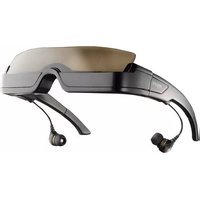
Shades 301 - Glasses MYVU - Free user manual and instructions
Find the device manual for free Shades 301 MYVU in PDF.


| Product Type | Sunglasses |
| Brand | MYVU |
| Model | Shades 301 |
| Frame Material | Acetate |
| Lens Material | Polycarbonate |
| Lens Width | 55 mm |
| Bridge Width | 18 mm |
| Temple Length | 145 mm |
| Weight | 30 g |
| UV Protection | 100% UV400 |
| Polarization | Yes |
| Lens Color | Grey Gradient |
| Frame Color | Black |
| Hinge Type | Spring Hinge |
| Included Accessories | Hard Case, Microfiber Cleaning Cloth |
| Care Instructions | Clean with microfiber cloth; avoid harsh chemicals |
| Warranty | 1 Year Limited |
| Compliance | ANSI Z80.3 Standards |
Frequently Asked Questions - Shades 301 MYVU
User questions about Shades 301 MYVU
0 question about this device. Answer the ones you know or ask your own.
Ask a new question about this device
Download the instructions for your Glasses in PDF format for free! Find your manual Shades 301 - MYVU and take your electronic device back in hand. On this page are published all the documents necessary for the use of your device. Shades 301 by MYVU.
USER MANUAL Shades 301 MYVU
natural_image
Exterior view of a modern smart glasses with earphones and beige visor (no text or symbols visible)User Guide
Congratulations on your purchase of the myvu® personal media viewer, shades 301 edition.
You are about to engage in a new, dynamic viewing experience. The myvu personal media viewer takes portable media to an unprecedented level.
Prepare to be captivated by sharp color images and built-in stereo sound as you watch your favorite music videos, movies, sports or other downloaded entertainment.
The viewer is one of the world's most comfortable and fashionable portable video displays. Within this manual, you will find guidelines for product operation, care and safety. More information can be found at www.myvu.com.
Please register your myvu personal media viewer online at www.myvu.com/registration.
NOTICE
The information in this manual is subject to change without notice. Myvu Corporation shall not be liable for technical or editorial errors or omissions contained herein; nor for incidental or consequential damages resulting from the furnishing or use of this material.
©2007 Myvu Corporation. All rights reserved. "myvu" and "SolidOptex" are trademarks of Myvu Corporation. This product is protected by U.S. Patents 5715377, 5886822, 6023372, 6091546, 6204974B1, 6349001B1, 6356392B2, 6384982B1, 6879443B2, and other U.S. and International Patents issued and pending.
contents
IMPORTANT SAFETY & HANDLING INSTRUCTIONS 2
Handling your myvu personal media viewer. 2
Surface cleaning 3
Proper handling & disposal of batteries ..... 3
Introduction.... 3
Included system components .... 3
Getting started.... 3
Tips for comfortable viewing 3
Nose pad 3
Earbuds and earbud pads.... 4
Mag Clip....4
Picture Control....4
Using the pendant controls 4
About charging the battery 4
Watching video with Made for iPod edition ..... 4 myvu set-up 1: Watching video with iPod classic, nano, and 5^th generation video iPod..... 4
myvu set-up 2: Watching video with iPod touch..5
myvu set-up 3: Watching video with iPhone . 5
Watching video with Universal edition.... 5 myvu set-up 1: Watching video with iPod 5 ^th
generation or Zune 5
myvu set-up 2: Watching video with Archos or Nokia
N95....5
(contents continued on next page)
myvu set-up 3: Watching video with DVD player, camcorder or gaming device....5
Troubleshooting 5
No video and no audio 5
Video image is not bright enough 5
Video image is fuzzy or out of focus .... 5
The video is clipped or black bars appear on top and bottom of the image 5
Weak or nonexistent audio 6
Battery is not charging or is charging slowly 6
A note to individuals who wear prescription eyeglasses 6
Technical support 6
Available accessories 6
Specifications 6
Limited warranty....6
Limitation of liability....7
Regulatory agency requirements.... 7
important safety & handling instructions
WARNING:
The myvu personal media viewer must not be used in any circumstances for which a complete field of vision is necessary for reasons of safety. Nor should the viewer be used in any situation in which undistracted viewing, hearing or mental concentration is necessary. The viewer should never be worn while operating equipment or vehicles, while handling sharp, hot or otherwise dangerous objects, or used in other situations where your undivided attention is needed to avoid danger to yourself or to others. It is the responsibility of the user of this product to employ common sense with regard to appropriate product usage.
This product is not recommended for children under 10 years of age, nor for people with atypical visual or neurological conditions. Consult a physician if you have concerns about your specific condition and the use of this product.
Even though the viewer permits users to maintain most of their natural vision, some people may still experience motion sickness, perceptual after effects, disorientation, instability and loss of balance, and eyestrain. If you experience any of these effects, discontinue use of the product.
Hearing loss can result when listening to audio at excessively high levels or for prolonged periods of time. Always set the volume level on your source device and your myvu personal media viewer to a safe level before placing the earbuds in your ears.
Handling your myvu personal media viewer
WARNING: Please use care when handling the cables. Avoid kinks and knotting of the cables as careless handling can result in permanent damage to the cables.
The myvu personal media viewer is durable, but not indestructible. Handle with care as you would other portable electronics. Do not place the viewer on or near hot surfaces such as heaters, stove top or electrical components. Do not leave this product inside an automobile on a hot or cold day. Do not immerse the viewer in liquids.
Do not disassemble or attempt to repair or modify this product.
Surface Cleaning
The viewer may be wiped with a clean, soft cotton cloth, lens cloth or the microfiber protective sleeve supplied with this product.
WARNING: Do not use alcohol or other solvents to clean the viewer.
Proper Handling & Disposal of Batteries
Batteries contain toxic materials and therefore should be kept out of the reach of children. Batteries should not be punctured, burned, disassembled or damaged. Batteries may be recyclable. Obey your local laws and regulations when disposing of Li-Polymer batteries.
introduction
Your myvu personal media viewer allows you to enjoy video entertainment anywhere you go. Its sleek profile permits you to maintain most of your natural field of vision by seeing over the viewer. The bright, full-sized image is daylight-viewable for hands-free viewing whether you are indoors or outside. In combination with a fully-charged portable media player, a fully charged myvu shades battery provides up to 10 hours of video viewing.
included system components
• Shades personal media viewer
- In-ear noise reducing headphones from Ultimate Ears plus two additional pairs of differently sized earbud pads
- Pendant with audio and video controls that is also a lithium polymer USB rechargeable battery
• One USB cable to charge your myvu battery
- Connection cables
- Mag clip for wearability and cable management
- Microfiber protective sleeve to store your viewer; also functions as a lens cloth
- quick start guide
getting started
Follow these 3 steps to begin using your myvu personal media viewer.
-
Please be sure that the TV Out/Video Out setting on your portable media player is set to "On" (consult your portable media player manufacturer for further instructions.)
-
Charge your myvu personal media viewer.
Using the USB charger, insert the mini USB connector into its port on the pendant (see figure 1.). Connect the other end to a computer or USB wall charger.
Note: You can use the viewer and your portable media player while your viewer is charging.

(figure 1)
- Select content on your portable media player. Turn the viewer "On" by pressing the button in the middle of the viewer's pendant and holding until the light appears. Enjoy!
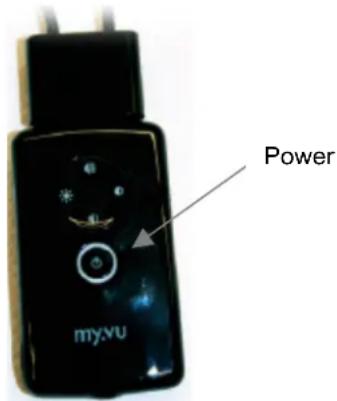
(figure 2)
tips for comfortable viewing
While wearing the viewer, adjust its position until you can see the entire video image clearly. The position and angle of the viewer relative to your eyes are important for proper viewing. When the viewer is properly positioned, the video image should be in full view.
Nose pad
You can make adjustments to the viewer's position by widening or narrowing the nose pad using gentle squeezing (see figure 3.).

natural_image
Close-up of a hand holding a black electronic device with a black clip, no visible text or symbols(figure 3)
Earbuds and earbud pads
Cover the earbuds with the protective earbud pads. Three different size earbud pads (small, medium and large) are provided (see figure 4.). Choose a pad size that fits comfortably in your ear. Be sure to adjust the volume to a safe level before inserting the earbuds into your ears (see figure 5.). The viewer ships with medium-sized earbuds attached.
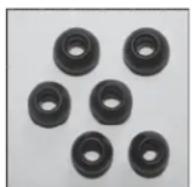
(figure 4)

(figure 5)
Mag Clip
Myvu shades comes equipped with a magnetic clip for comfortable viewing and cable management. Simply put the glasses on and then slip the magnetic clip behind your neck (see figure 6). The clip can easily slide up and down the cable when slight pressure is applied for customized placement.

natural_image
Close-up of a person's neck with a black electronic device labeled 'my' being held by a hand (no readable text or symbols beyond the label)(figure 6)
Picture control
Due to the nature of this universal product, picture settings may need to change to suit your specific portable media player. Use the brightness and picture controls featured on the pendant to adjust myvu's picture to suit your viewing pleasure. Further instructions on adjusting the picture and brightness are listed below.
using the pendant controls
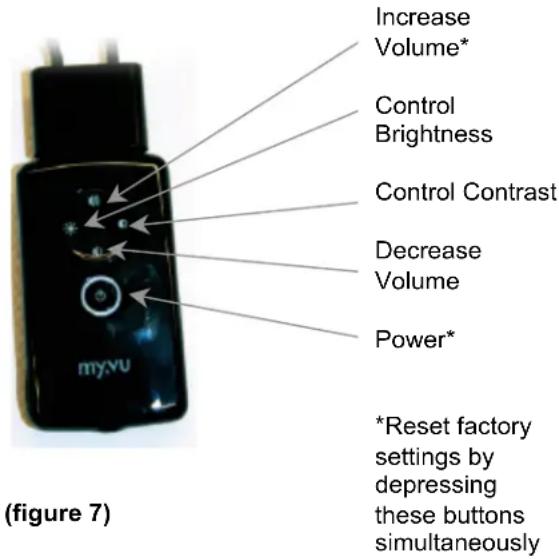
You can power myvu "On" by using the power button on the pendant. The pendant also allows you to control image contrast and brightness by holding down the appropriate button on the pendant. You can return the brightness and contrast settings to the factory default settings at any time by pressing the power and increase volume buttons simultaneously while the viewer is on. Figure 7 shows the button functions and layout on the pendant.
about charging the battery
In order to get the longest possible video experience, fully charge your myvu and your portable media player before each use. You can still watch video or listen to music while the battery is being charged if charging through a USB wall adapter. If the battery is very low, you may not be able to turn on the viewer until it has charged some. The LED on the pendant indicates the charging state of your myvu:
Solid Blue: On and detected video signal Blinking Blue: On but no video signal detected (check video sources and A/V cable connections) Blinking Orange: Charging Slow Blinking Orange: Low battery Solid Orange: Fully charged
Charging time
The battery is designed to charge from many different power sources. When using a high capacity charging adaptor, such as a USB wall adaptor, full charge can be achieved in approximately three hours. When charging off of a computer, slow charge mode is in effect, which will take approximately eight hours to achieve full charge.
watching video with Made for iPod edition
myvu set-up 1:
Watching video with the viewer and your iPod Classic, nano or iPod 5 ^th generation (video) model
Plug the 3.5mm end of the iPod connector cable to the pendant. Connect the other end of the cable to your iPod. Turn the viewer "On" by pressing the button in the middle of the viewer's pendant and holding until the light appears. Choose your favorite video and enjoy.
myvu set-up 2:
Watching video with the viewer and your iPod Touch
Plug the 3.5mm end of the iPod connector cable to the pendant. Connect the other end of the cable to your iPod Touch. Turn the viewer "On" by pressing the button in the middle of the viewer's pendant and holding until the light appears. Choose your favorite video. Select "Yes" when your iPod Touch asks you if you want to enable "Video Out". Enjoy!
myvu set-up 3:
Watching video with the viewer and your iPhone Plug the 3.5mm end of the iPod connector cable to your pendant. Connect the other end of the cable to your iPhone. Make sure your iPhone is in "Airplane" mode. Turn the viewer "On" by pressing the button in the middle of the viewer's pendant and holding until the light appears. Choose your favorite video. Select "Yes" when your iPhone asks you if you want to enable "Video Out." Enjoy!
watching video with Universal edition
myvu set-up 1:
Watching video with the viewer and your iPod or Zune portable media player
Plug the black end of the iPod/Zune connector cable to the pendant. Connect the other end of the cable to the headphone jack of your portable media player. Turn the viewer "On" by pressing the button in the middle of the viewer's pendant. Go to the display setting on your zune and select TV out: on (see Zune manual for further assistance). Choose your favorite video and enjoy.
NOTE: The enclosed 3.5 mm cable will only function with 30 GB and 80 GB Zune models; it will not work with the 4 GB and 8 GB Zune models. The enclosed 3.5mm cable will only function with 5 ^th generation video iPod models. To use shades Universal with the new iPod touch, iPod nano or iPod classic models, you will need to purchase the Connection Cable for iPod at www.myvu.com.
myvu set-up 2:
Watching video with the viewer and Archos or Creative Zen Vision portable media player or Nokia N95 phone
Plug the black end of the Archos/Nokia connector cable to the pendant. Connect the green end of the cable to the of your Archos or Nokia N95 phone. You may need an accessory adaptor or cable provided by the manufacturer to plug into the media player. Turn the viewer "On" by pressing the button in the middle of the viewer's pendant and holding it until the light appears. Choose your favorite video and enjoy. middle of the viewer's pendant and holding it until the light appears. Choose your favorite video and enjoy.
myvu set-up 3:
Watching video with the viewer and your portable DVD player, camcorder or gaming device, or personal media player. Plug the black end of the RCA connector cable to the pendant. Connect the female RCA ends of the connector cable to the male RCA ends of your device's RCA cable. You may need an accessory adaptor or cable provided by the manufacturer to plug into the media player.
troubleshooting
No video and no audio
- Make sure that the "TV out" or "Video out" setting on your portable media player is set to "On."
- Make sure that the viewer's battery and your portable media player are fully charged. If the viewer's LED is slowly blinking orange after you turn it on, it has a low battery. Use the USB cable to charge the battery.
- Make sure the viewer in turned "On." If the LED on the pendant is not lit up, press the button and hold it until the light comes on to power it on.
- If the LED is blinking Blue, there is no video signal getting to the viewer. Make sure the connectors are seated properly into the pendant connector ports located at the bottom and top of the pendant and in the appropriate place on your portable media player.
Video image is not bright enough
- Make sure that the viewer is properly connected to your portable media player.
- Make sure that the viewer is fully charged or that it is powered using the USB cable and a wall adapter.
- Adjust the brightness level by pressing and releasing the Brightness button on the pendant repeatedly until you achieve the desired viewing mode. The image contrast can also be adjusted (see "Using the pendant controls"). Press Volume Up and Power simultaneously to reset adjustments to factory settings.
Video image is fuzzy or out of focus
The viewer has a focal distance that is preset at the factory. There is no focus adjustment. If you cannot see the video image clearly, first try to adjust the nosepiece so that myvu shades is situated properly on your face. If you still cannot see the video image clearly, you may need to wear a corrective lens with your viewer. This is likely if you normally have to wear prescription glasses when using a laptop computer or watching television. A clip-on focus adjustment lens, the myvu clip-on shades edition, is available for the viewer (visit www.myvu.com/clipon).
The video is clipped or black bars appear on top and bottom of the image
The viewer is designed to display a video image with a 4:3 aspect ratio in order to match the standard TV image. If you're viewing Widescreen content and your portable media player allows you to turn Widescreen viewing off, your image will appear clipped. If you're viewing Widescreen content and your portable media player allows you to turn Widescreen On, the image will
appear in a letterbox format, with black bars appearing on the top and bottom of the image.
Weak or nonexistent audio
Verify that all connectors are properly attached. Adjust the volume on myvu's pendant or adjust the volume on your device.
Battery is not charging or is charging slowly
Verify that the USB cable and all connectors are securely attached. For the fastest charging time, it is recommended that you use the USB cable with a USB wall charger to charge your myvu. Charging your myvu with the USB cable connected to a computer is possible, but might result in slower charging times.
If you continue to experience technical problems, please contact Myvu Corporation technical support. (See contact information below or go to www.myvu.com FAQ)
a note to individuals who wear prescription eyeglasses
The myvu personal media viewer has been designed to be light weight and elegant. Accordingly, it will not fit over larger sizes of eyeglasses. Whether or not you will need to use your eyeglasses with the myvu system depends on the degree of correction that you require. For those who cannot fit the myvu system over their current eyewear yet desire ophthalmic correction, a clip-on lens is available. The myvu clip-on shades edition is manufactured to suit your vision needs and attaches easily to the viewer (see figure 8.). This lens can be ordered at www.myvu.com/clipon.

natural_image
Close-up of a black smart glasses with earbuds and display screens, mounted on a wooden surface (no text or symbols visible)(figure 8)
technical support
For technical support and additional information, contact: Myvu Corporation
31 Dartmouth Street
Westwood, MA 02090
telephone: 781.326.8111
fax: 781.326.4110
e-mail: info@myvu.com
www.myvu.com
available accessories
The following accessories are available from your myvu retailer or via the web at myvu.com.
- myvu clip-on lens
(For more information or to order, please visit myvu.com/clipon.)
• Myvu Connection cables - Premium travel case
specifications
Display format... 320 x 240, 24-bit color, 50–60 Hz frame rate
Optics.....Dual-color LCDs V1 SolidOptex™ Optical System
Video input ..Auto sense and switch between NTSC and PAL
PowerLi-Polymer rechargeable battery.... up to 10 hours of run time
Operating temperature:....32 to 104°F (0 to 40°C)
Storage temperature:....-4 to 140°F (-20 to 60°C)
Weight......Viewer: 75g (2.5oz)
limited warranty
Myvu Corporation ("Myvu") warrants this product against defects in material or workmanship as follows:
PRODUCT: Myvu will repair this product with new or refurbished parts, free of charge, for a period of one (1) year from the date of original purchase in the event of a defect in materials or workmanship.
REPAIRS: Myvu will repair or replace defective parts used in the repair or replacement of this product with new or refurbished parts, free of charge, for a period equal to the remainder of the original limited warranty period on the original product, or for 60 days after the date of the repair or replacement, whichever is longer.
This warranty is extended only to the original purchaser. Proof of purchase in the form of a bill of sale or receipted invoice, which is evidence that the unit is within the warranty period, must be presented to obtain warranty service. To obtain warranty service, you must take this product, or deliver the product freight prepaid, in either its original packaging or packaging affording an equal degree of protection, to Myvu Corporation. See below for additional information.
This warranty only covers failures due to defects in materials and workmanship, which occur during normal use. The warranty does not cover damages which occurred in shipment, cosmetic damage, damage that is attributable to acts of God, failures which are caused by products not supplied by the warrantor, or failures which result from accident, misuse, abuse, neglect, mishandling, faulty installation, misapplication, improper installation, operation or maintenance, alteration,
modification, introduction of sand, humidity or liquids, line power surge, improper voltage supply, lightning damage, or subjecting the product to operating/environmental conditions in excess of the maximum values or below the minimum values set forth in the applicable specifications, or products serviced by anyone other than Myvu. This warranty is invalid if the factory-applied serial number has been altered or removed from the product. This warranty does not cover products sold AS IS or WITH ALL FAULTS. This warranty excludes consumable parts such as batteries and power supplies.
This warranty is valid only in the United States. THERE ARE NO EXPRESS WARRANTIES EXCEPT AS LISTED ABOVE. REPAIR OR REPLACEMENT AS PROVIDED UNDER THIS WARRANTY IS THE EXCLUSIVE REMEDY OF THE PURCHASER. MYVU SHALL NOT BE LIABLE FOR LOST PROFITS, LOST SALES, LOSS OF USE OF THE PRODUCT, OR OTHER INCIDENTAL OR CONSEQUENTIAL DAMAGES RESULTING FROM THE USE OF THIS PRODUCT, OR ARISING OUT OF ANY BREACH OF THIS WARRANTY. ALL EXPRESS AND IMPLIED WARRANTIES, INCLUDING THE WARRANTIES OF MERCHANTABILITY, FITNESS FOR A PARTICULAR PURPOSE AND TITLE, ARE LIMITED TO THE APPLICABLE WARRANTY PERIOD SET FORTH ABOVE.
limitation of liability
SELLER SHALL HAVE NO LIABILITY FOR ANY CLAIM, LOSS, DAMAGE OR EXPENSE OF ANY KIND, INCLUDING FOR LOST PROFITS, SPECIAL, INDIRECT, CONSEQUENTIAL, EXEMPLARY OR INCIDENTAL DAMAGES, WITH RESPECT TO THE SELECTION, QUALITY, CONDITION, MERCHANTABILITY, SUITABILITY, FITNESS, OPERATION, PERFORMANCE, OR THE USE, MAINTENANCE OR REPAIR OF THE PRODUCTS EVEN IF SELLER OR BUYER HAS BEEN ADVISED OF THE POSSIBILITY THEREOF. THE PRICE STATED HEREIN WAS ARRIVED AT IN CONSIDERATION FOR LIMITING SELLERS WARRANTIES AND LIABILITY AS PROVIDED HEREIN.
Some states do not allow the exclusion or limitation of incidental or consequential damages, or allow limitations on how long an implied warranty lasts, so the above exclusions or limitations may not apply to you. This warranty gives you specific legal rights and you may also have other rights, which vary from state to state.
If a problem with this product develops during or after the warranty period, please contact: Myvu Corporation, 31 Dartmouth Street, Westwood, MA 02090.
regulatory agency requirements
Federal Communications Commission Notice

This equipment has been tested and found to comply with the limits for a Class B digital device, pursuant to Part 15 of the FCC Rules. These limits are designed to provide protection against harmful interference in a residential installation.
Cables
Connections to this device must be made with shielded cables in order to maintain compliance with FCC rules and regulations.
Declaration of Conformity for products marked with the FCC logo
(US Only)
This device complies with Part 15 of the FCC Rules. Operation is subject to the conditions: 1) this device may not cause harmful interference and 2) this device must accept any interference received, including interference that may cause undesired operation.
European Union Notice

This product, by bearing the CE marking, complies with the EMC Directive (89/336/EEC) and the Low Voltage Directive (73/23/EEC) issued by the Commission of the European Community. Compliance with these directives implies conformity with the following European harmonized standards:
• EN55013 Radio Disturbance
• EN55020 Electromagnetic Immunity
This product may be used in all EU countries.
Please Recycle
In accordance with EU directive 2002/96/EC, please be a friend to the environment by recycling your used electronic products.
- Congratulations on your purchase of the myvu® personal media viewer, shades 301 edition.
- NOTICE
- contents
- important safety & handling instructions
- WARNING:
- Handling your myvu personal media viewer
- Surface Cleaning
- Proper Handling & Disposal of Batteries
- introduction
- included system components
- getting started
- tips for comfortable viewing
- Nose pad
- Earbuds and earbud pads
- Mag Clip
- Picture control
- using the pendant controls
- about charging the battery
- Charging time
- watching video with Made for iPod edition
- myvu set-up 1:
- myvu set-up 2:
- myvu set-up 3:
- watching video with Universal edition
- Watching video with the viewer and your iPod or Zune portable media player
- Watching video with the viewer and Archos or Creative Zen Vision portable media player or Nokia N95 phone
- troubleshooting
- No video and no audio
- Video image is not bright enough
- Video image is fuzzy or out of focus
- The video is clipped or black bars appear on top and bottom of the image
- Weak or nonexistent audio
- Battery is not charging or is charging slowly
- a note to individuals who wear prescription eyeglasses
- technical support
- available accessories
- specifications
- limited warranty
- limitation of liability
- regulatory agency requirements
- Declaration of Conformity for products marked with the FCC logo
- (US Only)
- European Union Notice
- Please Recycle
Brand : MYVU
Model : Shades 301
Category : Glasses