L.A. Lady - Effect pedal Source Audio - Free user manual and instructions
Find the device manual for free L.A. Lady Source Audio in PDF.


| Product Type | Effects Pedal |
| Brand | Source Audio |
| Model | L.A. Lady |
| Dimensions (approx) | 4.5 x 2.5 x 1.5 inches |
| Weight (approx) | 0.5 lbs |
| Power Supply | 9V DC, center negative, 100 mA |
| Battery Option | 9V battery (not included) |
| Input/Output | 1/4" mono jack |
| Main Functions | Overdrive, Distortion, Fuzz, Clean Boost, Treble Boost, Bass Boost |
| Controls | Volume, Tone, Drive, Mode selector |
| LED Indicator | Power/effect status |
| True Bypass | Yes |
| Material | Aluminum housing |
| Operating Temperature | 32°F to 104°F (0°C to 40°C) |
| Cleaning Instructions | Wipe with dry cloth; avoid solvents |
| Safety Warnings | Use only specified power supply; do not expose to moisture |
| Spare Parts | Contact manufacturer for replacement jacks, switches, or enclosures |
| Repairability | Service by qualified technician recommended |
| Warranty | 2 year limited warranty |
Frequently Asked Questions - L.A. Lady Source Audio
User questions about L.A. Lady Source Audio
0 question about this device. Answer the ones you know or ask your own.
Ask a new question about this device
Download the instructions for your Effect pedal in PDF format for free! Find your manual L.A. Lady - Source Audio and take your electronic device back in hand. On this page are published all the documents necessary for the use of your device. L.A. Lady by Source Audio.
USER MANUAL L.A. Lady Source Audio
L.A. Lady Overdrive User's Guide
Welcome
Thank you for purchasing the L.A. Lady Overdrive. This powerful stereo eects pedal features a collecon of meculously craed Overdrive sounds ranging from subtly driven sustain to highly saturated overdrive to screaming leads and beyond. With a simple control set, the L.A. Lady can work in a wide variety of musical sengs, and the powerful MIDI and Neuro control opons under the hood provide access to a vast array of additional tonal possibilities.
The L.A. Lady is housed in a durable, lightweight aluminum housing, packing rack mount power and exibility into a compact, easy-to-use stompbox.
The USB and Neuro ports transform the L.A. Lady from a simple overdrive pedal into a powerful mul-eects unit. Using the free Neuro App (iOS / Android), a wide range of additional control parameters and eect types (including a large collecon of overdrive, fuzz, and distoron sounds) are accessible. When used together with the Neuro Hub, the L.A. Lady is fully MIDI-controllable and 128 mul-pedal presets, or “scenes,” can be saved for instant recall on the stage or in the studio. The L.A. Lady can also connect directly to a passive expression pedal for expressive control of any parameter.
The Quick Start guide will help you with the basics. For more in-depth informaon about the L.A. Lady Overdrive, move on to the following seconds, starng with Connecons.
Enjoy!
- The Source Audio Team
Overview
Diverse Overdrive Sounds – Choose from tradional Overdrive tones such as Classic, Crunch, and Smooth, or delve deeper into unique sounds cooked up in the Source Audio lab.
Compact Design – The durable, anodized aluminum housing has a slim prole, a small footprint, and sturdy hardware that will withstand the rigors of the road.
Universal Bypass™ – True bypass or buered bypass? The choice is yours. The L.A. Lady features high-quality signal relays for true bypass and transparent buers for analog bypass.
Stacking - Stack two independent distoron circuits in series (or in parallel), all within the same box!
Dual 4-Band EQ + Low Cut – Two independent parametric EQs are included in the L.A. Lady, allowing for ne tone control. An oponal low cut iter ghtens up the low end for bass players.
Flexible ROUNG – The L.A. Lady is equally at home in a mono rig or a stereo rig. A variety of round modes such as True Stereo, Cascade, Parallel, Dry Sidechain and External Loop allow the L.A. Lady to harness the true power of stereo signal chains. Or just use it in Mono mode!
Preset Saving – Save your favorite sound by pressing and holding the footswitch. No need to remember knob posions in the middle of a show.
Neuro Technology – The Neuro App opens up new possibilities for the L.A. Lady, including completely new eect types, additional control parameters, and access to the Neuro Community, including free presets from arsts and other users. The Neuro Hub can store up to 128 presets for the L.A. Lady, easily recalled with a MIDI controller. You can also download any eects for the Kingmaker Fuzz and Aershock Bass Distoron and use them on the L.A. Lady Overdrive.
Deep Control Set – Beyond the four knobs on the face of the L.A. Lady are many additional parameters. The Neuro App provides access to the inner workings of the Overdrive eect for advanced users who want to create a unique signature sound.
Noise Gate – The built-in adjustable noise gate helps remove unwanted noise.
Clean Path – The clean signal can be mixed in with the overdrive as desired, perfect for bass players who want to hold down the rhythm secon with a clean low end.
MIDI Control – All of the L.A. Lady's parameters can be accessed and controlled using MIDI via the Neuro Hub or USB. Class compliant USB-MIDI allows the L.A. Lady to work as a plug-and-play device with recording sware running on Mac and Windows, and the MIDI Learn feature makes control mapping simple.
Quick Start
Power
To power the unit, connect the included 9V DC power supply to the jack labeled DC 9V on the back panel.
Warning: Using a non-Source Audio supply, especially an unregulated supply, could damage the unit. Please be very cautious when using 3 ^rd -party power supplies.
Guitar/Audio Connecons
Using standard 14 " mono cables, connect your guitar, bass, or other instrument to the INPUT 1 jack and your amp (or the next audio device in the signal chain) to the OUTPUT 1 jack.
When the power and audio connecons have been made, the L.A. Lady is ready to play.
Brief Knob, Footswitch, and Buon Descripons
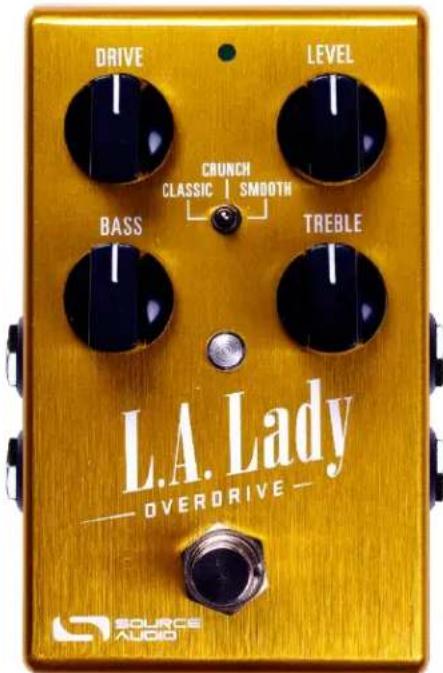
Drive Knob: Controls the amount of gain into the overdrive circuit, which sets the amount of distoron and sustain.
Level Knob: Controls the overall output level.
Bass Knob: Controls the level of the bass frequencies in the drive circuit.
Treble Knob: Controls the level of the treble frequencies in the drive circuit.
Eect Switch: Selects between the three basic Overdrive eect types – Classic, Crunch, and Smooth.
Footswitch: Enables or bypasses the Overdrive eect. The ON/OFF LED will be lit green when the Overdrive eect is engaged.
Contents
Welcome....1
Overview....2
Quick Start .... 3
Connecons 5
Basic Overdrive Operaon....8
Eect Types....9
Controls....10
Preset Storage and Recall....11
Universal Bypass ^TM 12
Stacking and Parallel Processing "Inside the Box"....12
Stereo Roung....13
Parametric EQ....16
Low Cut Filter....17
LoRetain....18
Voice Control 18
Noise Gate 18
External Control....19
Neuro App....22
Specicaons 32
Troubleshoong....32
Frequently Asked Questions....33
Rubber Feet 35
Waste Disposal Notes 35
Warranty....35
Version History 37
Connecons
Input Side Connecons
natural_image
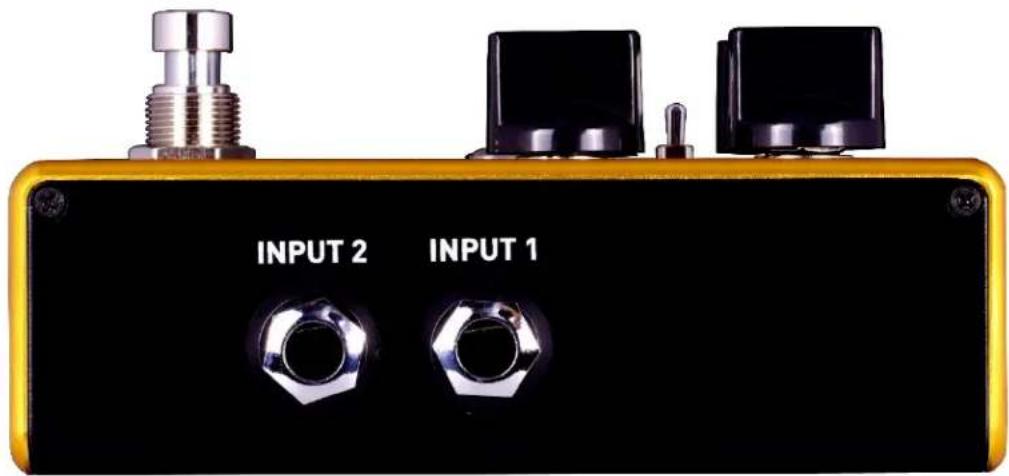
Close-up of a yellow audio amplifier with two input buttons labeled INPUT 1 and INPUT 2, featuring metallic fittings and hex nuts (no additional text or symbols visible)Input 1
This is the primary input for guitar, bass, or other instruments. It can also accept line-level inputs. Connect it to your instrument or other audio source using a mono (TS) 14 cable.
Input 2
Input 2 can act either as an audio input or as the data conncon for the Neuro App, or both at the same me.
Input 2 as an Audio Input
The p contact on Input 2 acts as a secondary input for guitar, bass, or other instruments. It is only acve when the L.A. Lady is congured with a signal round that uses stereo inputs. Connect it to your instrument (or the previous eect in the signal chain) using a mono (TS) 14 cable. By default, the L.A. Lady will auto-detect the round mode. Other round opons are available using the Neuro App. For more informaon about stereo round, refer to the Stereo Roung secon.
Input 2 as a Neuro App Data Input
The ring contact on Input 2 acts as a data conneccon for the Neuro App. Connect it to your mobile device using a stereo (TRS) 14 cable. It can also accept daisy-chained Neuro data from another Neuro-compatible pedal in the chain, provided that a TRS cable is used. The audio signal (if applicable) will be on the p contact of the plug, and the Neuro App data will be on the ring contact.
Input 2 only accepts data from the Neuro App. Data from the Neuro Hub comes from the Control Input port.
Output Side Connecons
natural_image
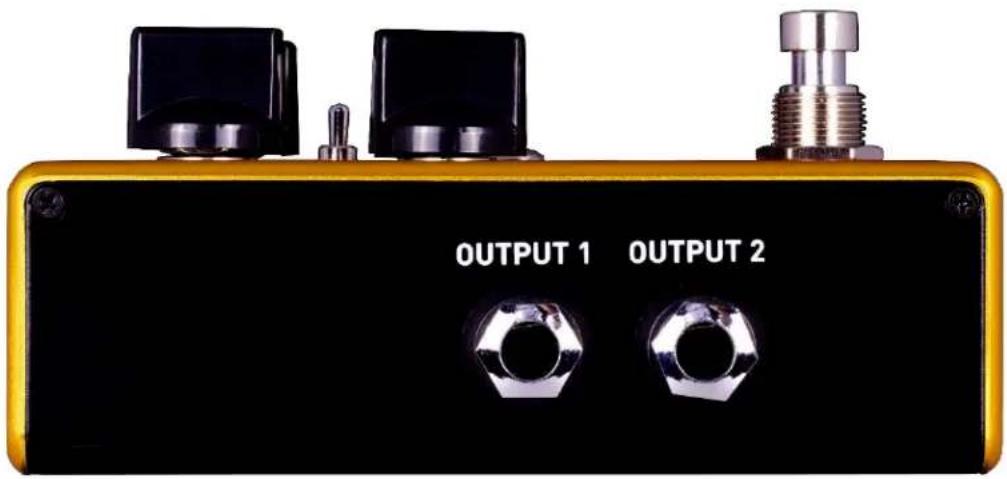
Close-up of a yellow audio jack with two labeled buttons (OUTPUT 1 and OUTPUT 2) and metallic fittings (no additional text or symbols visible)Output 1
This is the primary output. Connect it to your amplifier, recording interface, or the next device in your eects signal chain using a mono (TS) 14 cable.
Output 2
Output 2 can act either as an audio output or as the daisy-chain data conneccon for the Neuro App, or both.
Output 2 as an Audio Output
The p contact on Output 2 acts as the secondary audio output. It carries an audio signal when the L.A. Lady is congured with a signal round that uses stereo outputs. Connect it to your amplifier, recording interface, or the next device in your eects signal chain using a mono (TS) 14 cable.
Output 2 as a Neuro App Data Daisy-Chain Output
The ring contact on Output 2 acts as a data conncon for the Neuro App, passing data from the L.A. Lady to the next Source Audio eect in your signal chain. You can daisy-chain the Neuro App data regardless of whether Output 2 is congured to output audio or not. Connect Output 2 to the next device's Neuro App Data input (usually Input 2) using a stereo (TRS) 1 / 4 cable. The audio signal (if applicable) will be on the p contact of the plug, and the Neuro App data will be on the ring contact.
Power and Control Connecons
DC 9V (Power)
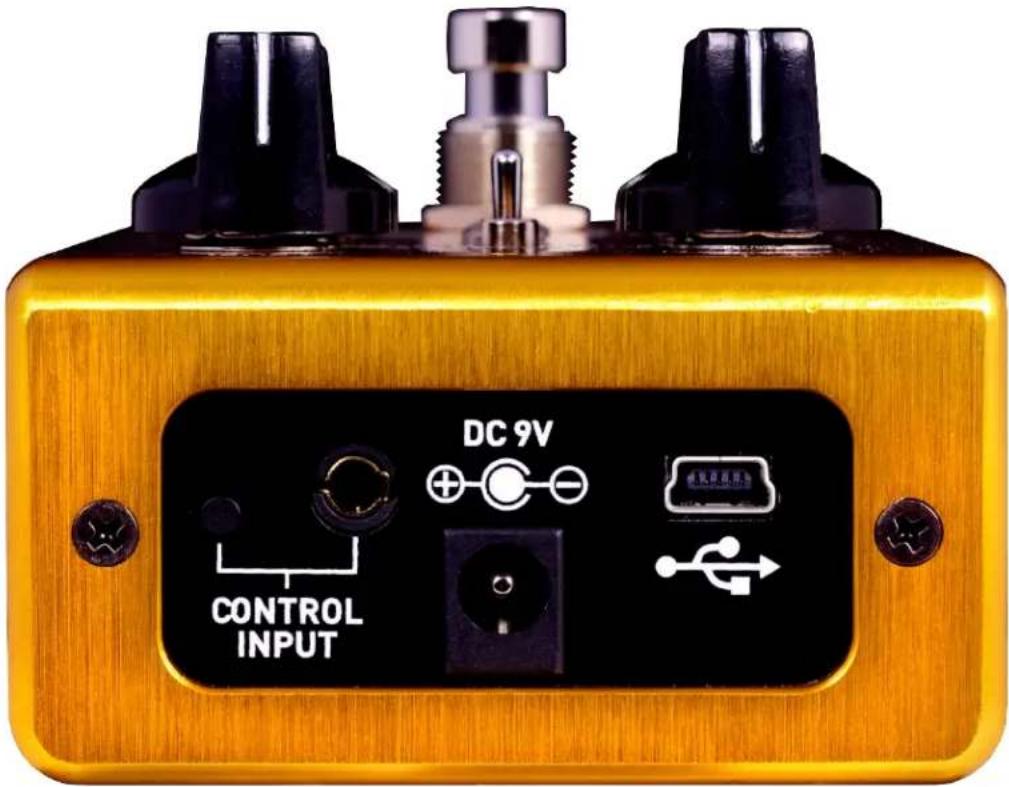
Connect to the included 9 Volt DC power supply. The power supply must be regulated at 9 Volts (direct current), able to source at least 180 mA (milliamps) of current, and the plug should have a p-negave, sleeve-positive polarity (the center p is ground and the sleeve is power).
USB
Connect to your computer (Mac or Windows) to the L.A. Lady's USB port (denoted by the icon) using a standard mini USB cable. The L.A. Lady is a class compliant USB device, meaning that it should be recognized by Mac and Windows computers automatically. For more informaon about the L.A. Lady's USB capabilities, refer to the USB secon of the User's Guide.
Control Input
The 3.5 mm Control Input port connects to external control devices such as the Dual Expression Pedal, Reex Universal Expression Pedal, Neuro Hub, and Hot Hand Moon Controller. For more informaon, refer to the Expression Pedal Input, Hot Hand Input, and Neuro Hub seconds of the User's Guide.
Basic Overdrive Operaon
Overdrive is a type of eect that works by distorng the input signal. Distoron can occur in a variety of ways and results in a wide variety of outputs. This table shows a simple representaon of what some dierent types of distoron look like.
| Clean signal: With no distoron, the guitar signal passes through the circuit unacted. In this example, a pure sine tone is used as a test signal. | 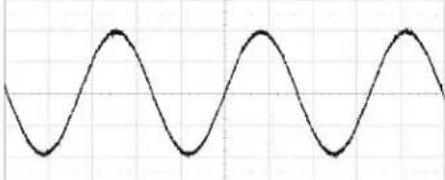 | |
| Tube/transistor saturon (so clipping): Tube and transistor ampliers enter a saturon state when overdriven and start to distort the shape of the signal. This involves some so clipping at the peaks and valleys of the signal, and may be symmetrical or asymmetrical in shape. | Asymmetrical: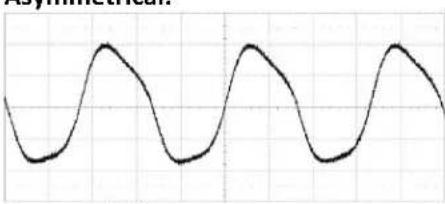 Symmetrical: Symmetrical: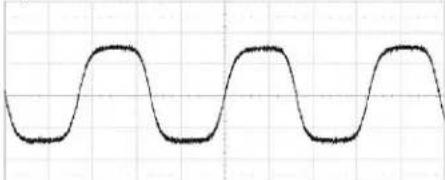 | |
| Diode clipping (hard clipping): Diodes can clamp or limit the signal to a maximum level. | Symmetrical hard clipping: The signal clips equally on the top and boom.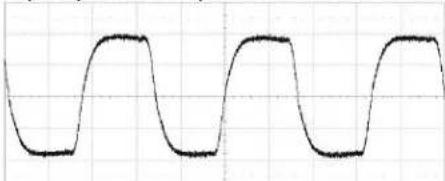 Asymmetrical hard clipping: The signal clips at dierent levels on the top and boom. Asymmetrical hard clipping: The signal clips at dierent levels on the top and boom.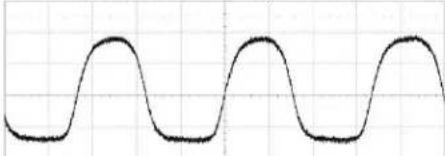 | |
| Overshoot: Depending on the characteriscs of diodes and transistors in the circuit, the signal may exceed its normal clipping point before selling, which is known as overshoot. | 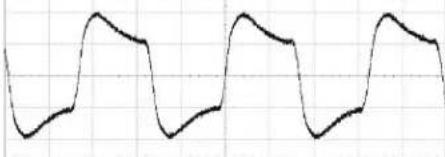 | |
| Extreme overshoot: The overshoot phenomenon can be taken to its extreme for fuzz and metal sounds. | 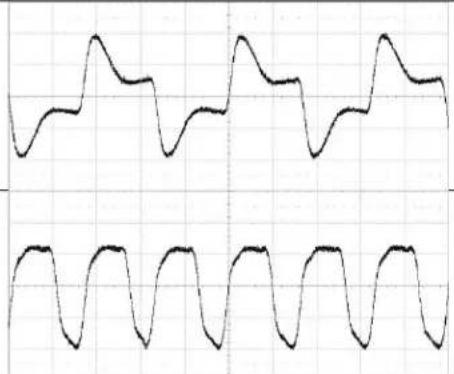 | |
| Octave: A recer can be used to double the frequency of the signal, creang an octave fuzz eect with a unique tonal character. |
The various drive circuits in the L.A. Lady Overdrive ulize a combinaon of these dierent approaches to create tones inspired by the classics, as well as new groundbreaking tones that bring their own unique avors.
Eect Types
The L.A. Lady includes three basic overdrive types, with more eects available in the Neuro mobile app.
Classic
The Classic circuit oers an overdriven amp distoron sound with a smooth texture. Good for adding a lile extra grind for an “always on” tone.
Crunch
The Crunch circuit is our own version of an overdriven tube amp made more aggressive and out front.
Smooth
The Smooth circuit oers a heavily saturated tone reminiscent of Mesa-Boogie® ampliers. This aggressive approach to overdrive with its boosted highs and lows generates the thick, focused and heavily sustaining tone that inspired countless arsts from Carlos Santana to Metallica.
Additional Eect Types
Additional eect types can be loaded into the L.A. Lady using the Neuro App on your mobile device (iOS / Android) or the built-in USB port (Mac / Windows).
The L.A. Lady Overdrive is compatible with Source Audio's Fuzz and Distoron eects, so it is possible to load Overdrive, Distoron, and Fuzz eects on the L.A. Lady at the same me.
Controls
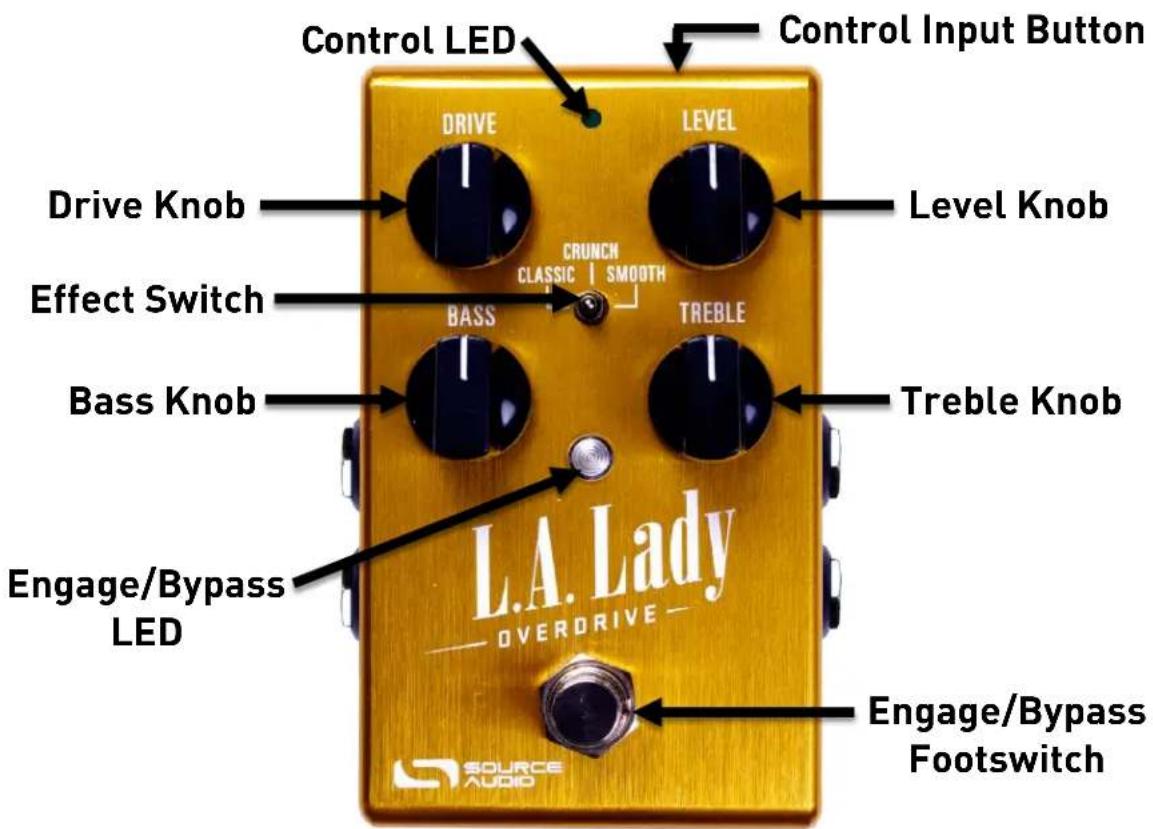
Knobs
Drive Knob
The DRIVE KNOB adjusts the amount of gain applied to the signal. Dial down the drive for a cleaner, more arculate tone or crank it up for over-the-top doses of overdrive.
Level Knob
Adjusts the output level of the eect. This is useful for seng the level of the overdrive eect compared to the bypassed signal. Note that because the overdrive eect compresses the signal in the clipping/saturaon stage, the dynamic range of the distorted signal will be less than the dry signal, and the LEVEL KNOB can be used to compensate for the loss of level that results from this compression.
Bass Knob
The BASS KNOB adjusts a low shelf tone control. Turning the knob clockwise will boost the bass; turning the knob counter-clockwise will cut the bass.
Treble Knob
The TREBLE KNOB adjusts a high shelf tone control. Turning the knob clockwise will boost the treble; turning the knob counter-clockwise will cut the treble.
Eect Switch
Selects between the three basic Overdrive circuit types – Classic, Crunch, and Smooth. These eects are described in further detail in the Eect Types secon.
LEDs
Engage / Bypass LED
The ENGAGE / BYPASS LED above the footswitch indicates if the Overdrive eect is acve (lit green) or bypassed (not lit).
When the user preset mode is enabled, the LED will turn red. See the Preset Storage and Recall secon for more informaon about user presets.
External Control LED
The small LED located between the Depth and Speed knobs is the EXTERNAL CONTROL LED. When lit, it indicates that external control mode (expression, hot hand, or MIDI) is acve. For more informaon, see the External Control secon.
Footswitch
Enables or bypasses the Overdrive eect.
Control Input Buon
This small buon is used when conguring external control. See the External Control secon for more details.
Preset Storage and Recall
The L.A. Lady features a user preset that can be easily saved and recalled using the footswitch. When a preset is recalled, all of the parameters instantly jump to their saved value, regardless of the posion of the knobs. This allows you to save your favorite sound without having to worry about the knob posions.
Saving Your First Preset
- Bypass the L.A. Lady by clicking the ON/OFF FOOTSWITCH once. The ENGAGE/BYPASS LED should be dark at this me.
- Press and hold the ON/OFF FOOTSWITCH for 5 seconds and wait for the ENGAGE/BYPASS LED to turn red. You are now in preset mode.
- Set up the eect how you want it to sound, including the EFFECT SWITCH, LEVEL KNOB, DRIVE KNOB, BASS KNOB, and TREBLE KNOB. Once you have made a change, the ENGAGE/BYPASS LED will begin to blink.
• To save your preset, hold the footswitch unl the ENGAGE/BYPASS LED blinks rapidly 3 mes. - Now you can engage and bypass the L.A. Lady using the ON/OFF FOOTSWITCH, and each me you engage the eect, your saved preset will be recalled.
Eding a Preset
- Acvate your preset (the ENGAGE/BYPASS LED will be solid red).
- Change any parameter you wish (EFFECT SWITCH, LEVEL KNOB, DRIVE KNOB, BASS KNOB, and TREBLE KNOB). Once you have made a change, the ENGAGE/BYPASS LED will begin to blink.
- When you are ready to save, press and hold the ON/OFF FOOTSWITCH for a few seconds. The ENGAGE/BYPASS LED will blink three mes to show that the preset was saved.
Exing Preset Mode
- When Preset Mode is acve, bypass the eect using the ON/OFF FOOTSWITCH. The ENGAGE/BYPASS LED should be dark at this me.
- Press and hold the ON/OFF FOOTSWITCH for 5 seconds and wait for the ENGAGE/BYPASS LED to turn green. You have now exited Preset Mode.
Universal Bypass ^TM
Most eect pedals oer either true bypass or buered bypass. The L.A. Lady contains two separate circuits for bypass mode, allowing you to choose the method you prefer. The true bypass path uses signal relays, which are electromechanical switches. This provides an ultra-low resistance path from the input jacks to the output jacks, which is eecvely the same as a wire. The buered bypass path uses extremely low noise buers, which provide a very low output impedance and are eecve for driving long cables or long chains of eects following the L.A. Lady's audio output.
Out of the box, the L.A. Lady operates in true bypass mode. In order to switch to buered bypass mode, edit the L.A. Lady's global sengs using the Neuro App.
We recommend you choose between the acve analog bypass (a.k.a. buered bypass) and relay-based true bypass based on what is needed in your signal chain. Ideally, the rst pedal in a signal chain is a buered input followed by true bypass in the rest of the signal chain.
Both bypass methods have pros and cons associated with them. Buered bypass provides consistent input impedance so that if the source is susceptible to variaons in input impedance (similar to a guitar pickup), there won't be a noceable change in tone. True bypass has the benet of providing a dedicated hardwired bypass signal path. The L.A. Lady features small-signal relays for true bypass switching that oer reduced pops and clicks compared to the traditional true bypass switching method using a mechanical switch.
Stacking and Parallel Processing "Inside the Box"
The L.A. Lady works great as a simple mono Overdrive eect, but it has the power to do much more. Within the L.A. Lady, two completely independent overdrive, fuzz, or distoron circuits can be set up to run stacked (in series), in parallel (side-by-side and mixed), or even in true stereo. Usually, this would require two separate distoron pedals, but the L.A. Lady can do it all on its own.
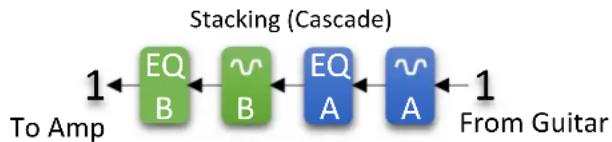
Stacking (Series / Cascaded)
Stacking overdrive, fuzz, and distoron pedals is a common method for creang unique textures that would not be possible with a single pedal. This normally involves pung two pedals in series, one aer the other, to create mulple gain stages. Typically, this requires two separate distoron pedals,
but the L.A. Lady can do it all internally. Each of the two drive stages, called A and B, can be congured independently using any overdrive, fuzz, or distoron circuit, with its own independent sengs (drive, level, EQ, noise gate). This round on is designated as MONO IN/OUT WITH CASCADING CHANNELS in the Neuro App.
flowchart
graph LR
    A["From Guitar"] --> B["EQ A"]
    B --> C["EQ B"]
    C --> D["Stacking (Cascade)"]
    D --> E["To Amp"]
    style A fill:#000,stroke:#fff,color:#fff
    style B fill:#000,stroke:#fff,color:#fff
    style C fill:#000,stroke:#fff,color:#fff
    style D fill:#000,stroke:#fff,color:#fff
    style E fill:#000,stroke:#fff,color:#fff
Parallel Processing
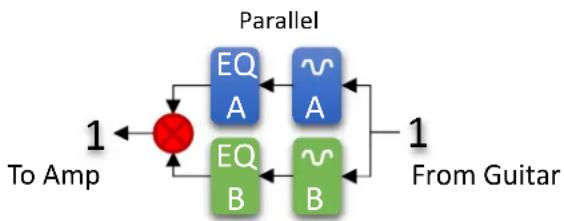
Another common way to create new and interesting distoron sounds is to split the guitar signal, run it to two independent pedals in parallel, and then combine (mix) the results. Oen, one path will have a relatively low gain and the other will have high gain. This approach can combine high gain power and sustain with low gain clarity, denion, and arculaon. The right balance can make parallel processing very eecve. Usually this approach requires a lot of hardware: two distoron pedals, a splier, and a mixer. The L.A. Lady, however, can do it all internally. Each circuit has its own clean and drive level controls, which allow for very ne balancing between the two sounds. There are two parallel processing round opons available in the Neuro App: MONO IN STEREO PROCESS MONO OUT and MONO IN STEREO PROCESS STEREO OUT.
flowchart
graph TD
    A["To Amp"] --> B["Parallel"]
    B --> C["A"]
    B --> D["B"]
    B --> E["A"]
    B --> F["B"]
    C --> G["EQ"]
    D --> H["EQ"]
    E --> I["~A"]
    F --> J["~B"]
    G --> K["1"]
    H --> L["1"]
    I --> M["From Guitar"]
    J --> N["From Guitar"]
Series / Parallel Hybrid
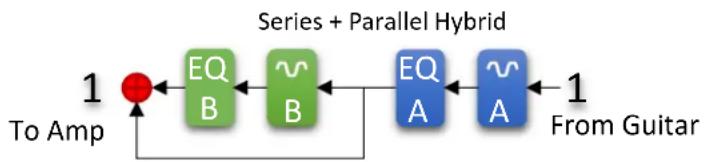
By selecng the MONO IN/OUT WITH CASCADING CHANNELS round opon and bringing up the clean mix level on channel B, it's possible to create a series/parallel hybrid sound, as shown in the image below:
flowchart
graph LR
    A["To Amp"] --> B["EQ B"]
    B --> C["~B"]
    C --> D["EQ A"]
    D --> E["~A"]
    E --> F["From Guitar"]
    style A fill:#ff0000,stroke:#333
    style F fill:#0066cc,stroke:#333
Stereo Roung
The L.A. Lady works great as a mono Overdrive eect, but its stereo inputs and outputs also make it a true stereo eect as well as a exible signal router. It can act as a stereo splier, merger, or true stereo eect, and it can also be set up in a number of other unique signal round modes. By default,
the L.A. Lady works in true stereo mode (INPUT 1 goes to OUTPUT 1, and INPUT 2 goes to OUTPUT 2). To congrue a dierent stereo round mode, use the Neuro App.
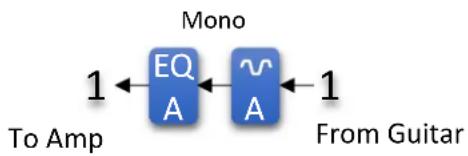
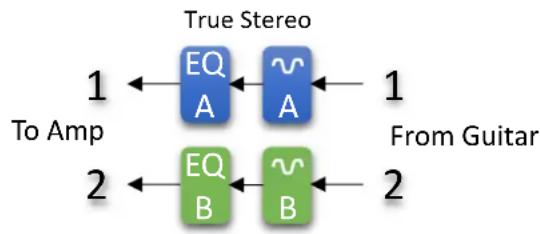
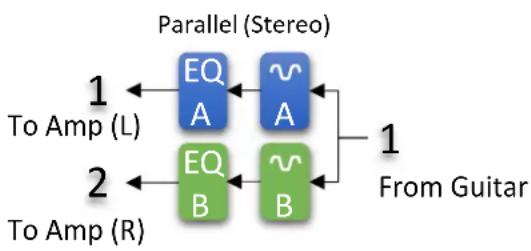
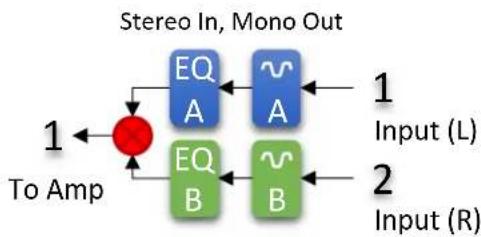
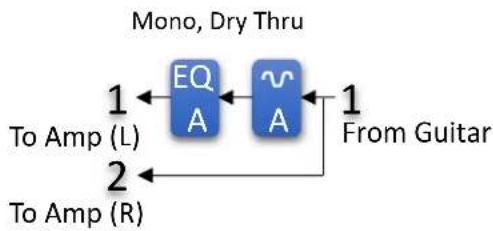
A few dierent round opons are displayed below. The right side of each diagram shows inputs 1 and 2, the le side shows outputs 1 and 2, and the distoron and EQ circuits (labeled A and B) are in the center.
Mono (Default – Auto Select): INPUT 1 goes to distoron circuit A and out to OUTPUT 1.
flowchart
graph LR
    EQ["EQ"] -->|1| Mono["Mono"]
    EQ -->|1| A["A"]
    A -->|1| FromGuitar["From Guitar"]
True Stereo (Stereo In, Stereo Out): INPUT 1 goes to distoron circuit A and out to OUTPUT 1. INPUT 2 goes to distoron circuit B and out to OUTPUT 2.
flowchart
graph LR
    A["EQ A"] -->|1 To Amp| B["EQ B"]
    C["~A"] -->|1 From Guitar| D["~B"]
    E["EQ B"] -->|2 To Amp| F["EQ B"]
    style A fill:#blue,stroke:#333
    style C fill:#blue,stroke:#333
    style E fill:#green,stroke:#333
    style B fill:#green,stroke:#333
    style D fill:#green,stroke:#333
    style F fill:#green,stroke:#333
Parallel (Mono In, Stereo Process, Stereo Out): INPUT 1 is split into two identical signals. One signal goes to distoron circuit A and out to OUTPUT 1. The other signal goes to distoron circuit B and out to OUTPUT 2. This essenally turns the L.A. Lady into a splier that takes a single input and feeds two amps (or a stereo signal chain).
flowchart
graph LR
    A["EQ A"] --> B["~A"]
    C["EQ B"] --> D["~B"]
    E["To Amp (L)"] --> F["EQ A"]
    G["To Amp (R)"] --> H["EQ B"]
    I["Parallel (Stereo)"] --> J["1"]
    K["From Guitar"] --> L["1"]
Stereo In, Mono Out: INPUT 1 goes to distoron circuit A. INPUT 2 goes to distoron circuit B. The outputs of circuits A and B are mixed and sent to OUTPUT 1. This is useful for mixing a stereo source down to a mono output.
flowchart
graph TD
    A["Input (L)"] --> B["EQ A"]
    C["Input (R)"] --> D["EQ B"]
    B --> E["To Amp"]
    D --> E
    E --> F["Stereo In, Mono Out"]
    style A fill:#f9f,stroke:#333
    style C fill:#f9f,stroke:#333
    style B fill:#bbf,stroke:#333
    style D fill:#bbf,stroke:#333
    style E fill:#dfd,stroke:#333
Mono, Dry Thru: INPUT 1 goes to distoron circuit A and out to OUTPUT 1. A copy of the input is also sent to OUTPUT 2. This is useful especially for bass guitars, where having a dry output is useful in maintaining a solid low end (this can also be achieved using the L.A. Lady's mix control or LoRetain feature, which are accessible via the Neuro app and MIDI).
flowchart
graph LR
    A["To Amp (L)"] --> B["EQ A"]
    C["To Amp (R)"] --> D["A"]
    B <--> E["From Guitar"]
    D <--> E
    style A fill:#000,stroke:#fff,color:#fff
    style C fill:#000,stroke:#fff,color:#fff
    style B fill:#000,stroke:#fff,color:#fff
    style D fill:#000,stroke:#fff,color:#fff
    note1["Mono, Dry Thru"]
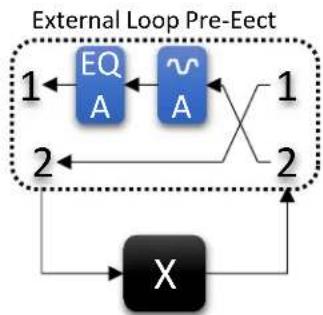
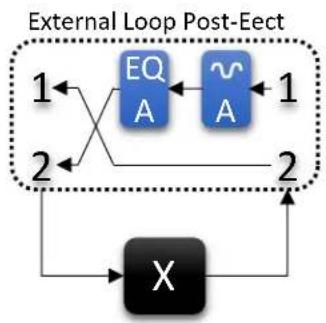
External Loop Pre-Eect: The external loop opons allow an external eect (whether a Source Audio product or a third-party product) to be connected to the L.A. Lady's INPUT 2 and OUTPUT 2. When the L.A. Lady is bypassed, the external eect will be out of the circuit. When the L.A. Lady is enabled, the external eect will be put in series with the L.A. Lady's distoron circuit. OUTPUT 2 should connect to the external eect's input, and the external eect's output should connect to INPUT 2.
In Pre-Eect mode, the guitar signal will go to the external eect rst, and then the L.A. Lady's distoron circuit second.
flowchart
graph TD
    A["EQ"] --> B["A"]
    C["A"] --> D["X"]
    D --> E["Output"]
    style A fill:#000,stroke:#000,color:#fff
    style C fill:#000,stroke:#000,color:#fff
    style B fill:#000,stroke:#000,color:#fff
    style D fill:#000,stroke:#000,color:#fff
    style E fill:#000,stroke:#000,color:#fff
In Post-Eect mode, the guitar signal will go to the L.A. Lady's distoron circuit rst, and then to the external eect second.
flowchart
graph TD
    A["EQ"] --> B["A"]
    C["~A"] --> D["A"]
    E["X"] --> F["Output"]
    style A fill:#000,stroke:#000,color:#fff
    style C fill:#000,stroke:#000,color:#fff
    style E fill:#000,stroke:#000,color:#fff
    style B fill:#000,stroke:#000,color:#fff
    style D fill:#000,stroke:#000,color:#fff
    style F fill:#000,stroke:#000,color:#fff
Automac Roung Mode Selecon
By default, the round mode is automacally chosen. The cables connected to the inputs and outputs are detected and the mode is set according to the below table:
| Input(s) | Output(s) | Roung Mode |
| 1 only | 1 only | Mono Input, Mono Output |
| 1 and 2 | 1 only | Stereo Input, Stereo Parallel Processing, Sum to Mono Output |
| 1 only | 1 and 2 | Mono Input, Stereo Parallel Processing, Stereo Output |
| 1 and 2 | 1 and 2 | Stereo Input, Independent Stereo Processing, Stereo Output |
Check the Neuro App for more details on round opons.
Parametric EQ
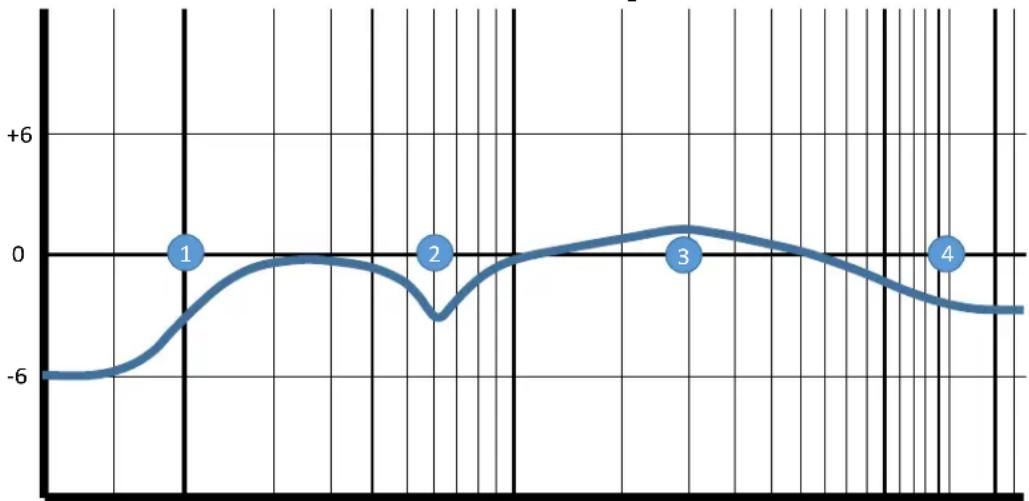
The L.A. Lady features two built-in 4 band parametric EQs that can be congured using the Neuro App. Dierent EQ sengs can be saved for each of the three eect types, as well as for the user preset. The EQs consist of four independently congorable bands:
• Bass (Band 1): Low Shelf
• Mid A (Band 2): Peaking (a.k.a. Bell / Band)
• Mid B (Band 3): Peaking (a.k.a. Bell / Band)
• Treble (Band 4): High Shelf
Each band has congorable frequency, boost/cut, and Q (bandwidth).
A simple example of these four bands in acon is shown in the graph below. In this example, Band 1 is a low shelf Iter at 100 Hz with a 6 dB cut, Band 2 is a peaking Iter at 620 Hz with a 3 dB cut and relatively high Q, Band 3 is a peaking Iter at 3 kHz with a 1.5 dB boost and relatively low Q, and Band 4 is a high shelf Iter at 10 kHz with a 2.5 dB cut.
Parametric Equalizer
line
| Point | Value | |-------|-------| | 1 | -6 | | 2 | -4 | | 3 | 2 | | 4 | -3 |50 100 200 300 500 1.0k 2.0k 3.0k 5.0k 10.0k 20.0k
By default, Band 1 is a shelf when it is boosted (gain > 0 dB) and a high pass when it is cut (gain < 0 dB). By default, Band 4 is a shelf when it is boosted (gain > 0 dB) and a low pass when it is cut (gain < 0 dB). Using the Neuro App, Bands 1 and 4 can onponally be congured as a shelves when cung (gain < 0 dB), with oponal values for slope and rollo.
The le channel and right channel can each have unique boost/cut values for each of the 4 bands. However, the iter types and cuto frequencies (or center frequencies) must be the same for both channels.
The physical BASS KNOB and TREBLE KNOB directly control the boost or cut of the parametric EQ's bass and treble bands.
Low Cut Filter
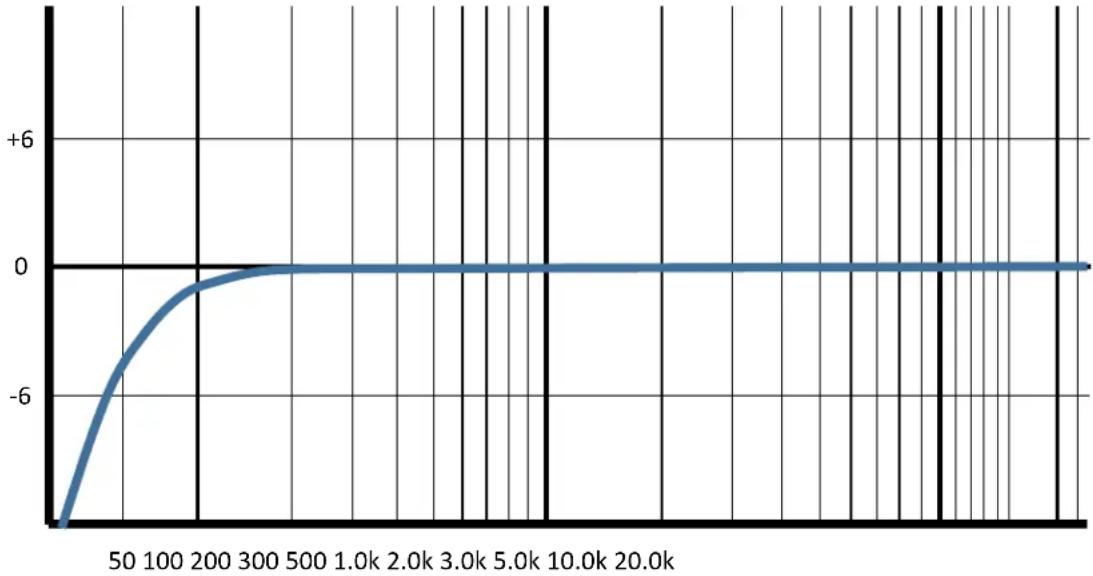
The L.A. Lady also includes two low cut Iters (a.k.a. high pass Iter) with an adjustable frequency. This Iter is very useful for cung out low frequencies that do not contribute to the sound of the instrument, as well as subsonic frequencies which cannot be heard at all. Bass players oen use low cut Iters set very low (around 10 Hz to 30 Hz) to reduce speaker excursion and improve the clarity of the bass. Guitarists oen use low cut Iters set somewhat higher (around 80 Hz) in order to give the bass player additional room in the low end of the mix.
Configurable Low Cut Filter
line
| x | y | |-------|------| | 0 | -8.0 | | 50 | -4.0 | | 100 | -2.0 | | 200 | -1.0 | | 300 | -0.5 | | 500 | -0.2 | | 1.0k | -0.1 | | 2.0k | -0.1 | | 3.0k | -0.1 | | 5.0k | -0.1 | | 10.0k | -0.1 | | 20.0k | -0.1 |The Parametric EQ and the Low Cut Iter are congorable using the Neuro App. By default, the parametric EQ is disabled (at), and the Low Cut Iter is set to 10 Hz.
LoRetain
LoRetain is a technique used by Source Audio to maintain a solid low end even with high amounts of distoron. This is particularly useful for bass players or extended-scale guitar players (7-string and 8-string guitars) that need to maintain a strong fundamental while keeping high drive on the upper frequencies. LoRetain is available as a control independent of the parametric EQ and low cut Iter.
Voice Control
Each overdrive/fuzz/distoron circuit features a VOICE control that is a gradual mbre adjustment aecng the overall character of the sound. It generally aects the midrange in subtle ways, so a high VOICE seng will generally provide a midrange boost, whereas a low VOICE seng will provide a midrange cut. Many dierent sounds are available using the VOICE control, which can be controlled via the Neuro App.
Noise Gate
Overdrive, fuzz, and distoron eects introduce a lot of gain into the signal chain, and this gain amplies not just the guitar signal, but also any noise present in the system. As a result, overdrive, fuzz and distoron eects tend to increase the amount of noise in the signal chain, especially when the guitar is silent or playing at very low levels. In order to correct this problem, guitarists oen use noise gates prior to the distoron stages in their signal chains. The L.A. Lady includes a built-in noise gate to help reduce noise and preserve the guitar signal. The noise gate consists of a tradional gain reducon circuit as well as a lter gate, which works by aenuang high noisy frequencies when
necessary. By default, the noise gate is not acve. The volume gate and Iter gate can independently be enabled and congured using the Neuro App. The gate will automatically be linked in stereo modes or independently congured in stacking and parallel modes.
External Control
The CONTROL INPUT port opens up a wide array of external control opons, allowing for direct control over many of the L.A. Lady's built-in parameters. It can be used as an expression input or as a data port for the Neuro Hub.
Expression Control
The L.A. Lady's eects parameters can be controlled directly by an expression pedal or Hot Hand connected to the CONTROL INPUT port.
Expression Pedal Input
The Dual Expression Pedal or Reex Universal Expression Pedal, both from Source Audio, can be directly connected to the CONTROL INPUT using a 3.5 mm, TRRS cable.
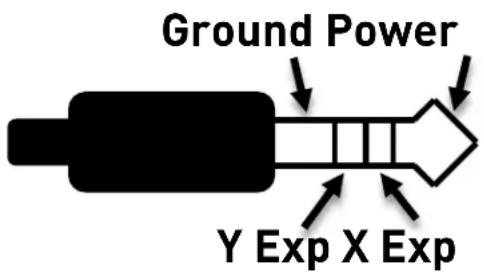
In the case of an expression pedal with a TRRS plug, like Source Audio's expression pedals, the p conncon is power, the rst ring is the X axis expression signal, the second ring is the Y axis expression signal, and the sleeve conncon is ground.
Third party passive expression pedals can be used as well, as long as they have a TRS (Tip Ring Sleeve) plug with power on the p, expression (the wiper of the potenometer) on the ring, and ground on the sleeve, as seen in the diagram below.
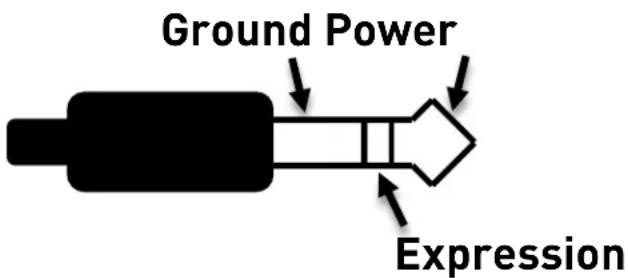
Expression pedals with TS (Tip Sleeve) plugs will not work correctly with the L.A. Lady.
The resistance of the expression pedal does not maer. The L.A. Lady will automatically adjust itself to the range of the expression pedal when it is congured.
Most expression pedals use a 14 " plug, but the L.A. Lady's CONTROL PORT is 3.5 mm. To make the connexon, a simple TRS plug converter (1/4" to 3.5 mm) can be used.
Note that although the CONTROL INPUT expects a 4-contact TRRS plug, most 3^rd party expression pedals use a 3-contact TRS plug. This is OK – using a simple 3-contact TRS plug converter, the expression pedal's output will be connected to the L.A. Lady's CONTROL INPUT and the extra contact is ignored.
Conguring the Expression Pedal
It is easier than ever to set up expression control using the L.A. Lady's new calibraon and mapping method. When the expression pedal is connected to the L.A. Lady, follow these simple steps to calibrate it and map it to control dierent eect parameters.
- Press the CONTROL INPUT buon to turn on Control Input mode. The CONTROL LED should be lit green.
- Press and hold the CONTROL INPUT buon until the CONTROL LED begins to blink slowly (approximately one blink per second).
- Move the expression pedal over the range of moon you would like to use to control the L.A. Lady. If you would like to use the expression pedal's full range of moon, then make sure to move the pedal all the way from its minimum posion to its maximum posion. Note that you can create "dead zones," if desired, by only moving the expression pedal over a limited region of its full range of moon.
- Aer seng the expression pedal range, click the L.A. Lady's footswitch once. The calibraon is now complete, and the CONTROL LED will blink faster (about 2 blinks per second). Now, it is me to map the expression pedal to the eect parameters.
- Move the knob(s) you wish to control with the expression pedal to the minimum desired posion, then click the L.A. Lady's footswitch. The CONTROL LED will now blink even faster (about 4 blinks per second). Note that you may control one or more knobs with the expression pedal, up to four total knobs.
- Move the knob(s) you wish to control with the expression pedal to their maximum desired posion, then click the footswitch. The CONTROL LED will now be lit solid green. Note that you may control one or more knobs with the expression pedal, up to four total knobs.
- Aer seng the minimum and maximum knob posions, the parameter mapping is complete.
Note: The parameter range can be inverted by swapping the minimum and maximum position of the knobs during conguraon.
External Switch used as Expression Input (Expression "Toggle")
An external switch can also work as a sort of expression pedal that only has two posions: on and o. The external switch can be either momentary or latching.
To use this mode, connect an external switch to CONTROL INPUT. The following plug conguraon is required:
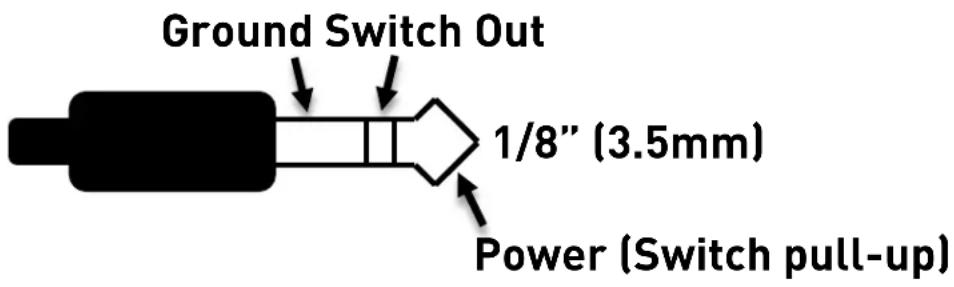
Follow these steps for conguraon:
- Press the CONTROL INPUT BUTTON to enable external control. The CONTROL LED should be lit red.
- Press and hold the CONTROL INPUT BUTTON until the CONTROL LED begins to blink slowly (approximately one blink per second).
- Tap the external switch once.
- Click the ON/OFF FOOTSWITCH once. The CONTROL LED will blink faster (about 2 blinks per second). Now, it is me to map the external switch to the eect parameters.
- Move the knob(s) you wish to control with the external switch to the maximum desired posion, then click the ON/OFF FOOTSWITCH. The CONTROL LED will now blink even faster (about 4 blinks per second). Note that you may control one or more knobs with the external switch, up to six total knobs.
- Move the knob(s) you wish to control with the expression pedal to the minimum desired posion, then click the ON/OFF FOOTSWITCH. The CONTROL LED will now be lit solid red.
- Aer seng the minimum and maximum knob posions, the parameter mapping is complete.
Hot Hand Input
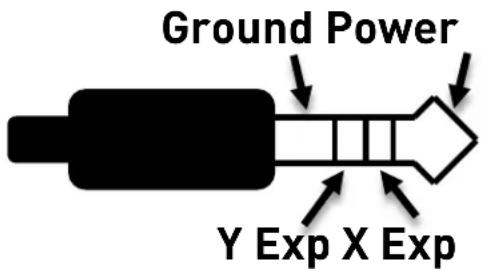
The Hot Hand 3 Wireless Eects Controller can be connected directly to the L.A. Lady's CONTROL INPUT for moon control of the L.A. Lady's eects parameters. The Hot Hand has two axes of expression: X and Y. These signal are carried on the two rings of the TRRS cable that comes from the Hot Hand receiver.
Conguring the Hot Hand
When the Hot Hand is connected to the L.A. Lady, follow these simple steps to calibrate it and map it to control dierent eect parameters.
- Press the CONTROL INPUT BUTTON to turn on Control Input mode. The CONTROL LED should be lit green.
- Press and hold the CONTROL INPUT BUTTON until the CONTROL LED begins to blink slowly (approximately one blink per second).
- Move the Hot Hand ring over the range of moon you would like to use to control the L.A. Lady. The easiest way to do this is to move the ring in the same way that you intend to move it as you perform. The L.A. Lady will intelligently select the X or Y axis of the Hot Hand automacally, based on the moon of the ring.
- Aer seng Hot Hand range of moon, click the L.A. Lady's ON/OFF FOOTSWITCH once. The calibraon is now complete, and the CONTROL LED will blink faster (about 2 blinks per second). Now, it is me to map the Hot Hand to the eect parameters.
- Move the knob(s) you wish to control with the Hot Hand to their minimum desired posion, then click the L.A. Lady's ON/OFF FOOTSWITCH. The CONTROL LED will now blink even faster (about 4 blinks per second). Note that you may control one or more knobs with the Hot Hand, up to four total knobs.
- Move the knob(s) you wish to control with the Hot Hand to their maximum desired posion, then click the L.A. Lady's ON/OFF FOOTSWITCH. The CONTROL LED will now be lit solid green. Note that you may control one or more knobs with the Hot Hand, up to four total knobs.
- Aer seng the minimum and maximum knob posions, the parameter mapping is complete.
Note: The parameter range can be inverted by swapping the minimum and maximum position of the knobs during calibraon.
Reset Expression Control Mapping
To clear the expression control mapping (Expression or Hot Hand), rst press the CONTROL INPUT BUTTON and turn o Control Input mode. The CONTROL LED should be dark. Then, press and hold the CONTROL INPUT BUTTON unl the CONTROL LED blinks. This clears all Expression, Hot Hand, and MIDI mapping.
Neuro App
The Neuro App is available as a free download for iOS and Android devices. Get the iOS version from the App Store or the Android version from the Play Store. The Neuro App provides access to a number of parameters that are not accessible on the control knobs, as well additional eect types. In order to use the Neuro App, use the included 3.5 mm to 14 TRS cable to make a conncon between the headphone jack on your mobile device and the Input 2 jack on the hardware. The Neuro App uses special audio signals sent over your mobile device's headphone jack to remotely control the pedal. Make sure the headphone volume on your mobile device is set to maximum when using the Neuro App for the most reliable device to pedal communicaon.
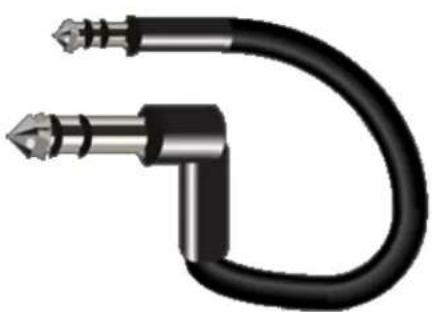
natural_image
Close-up of a black USB cable with metallic connectors (no text or symbols visible)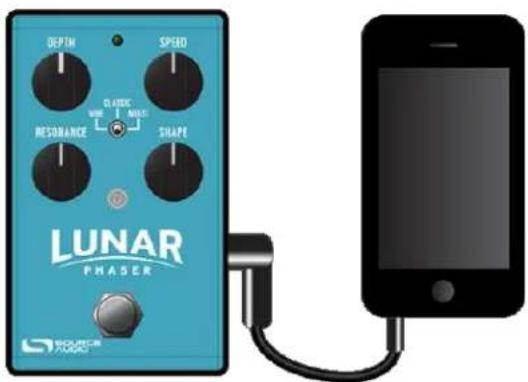
Main Menu
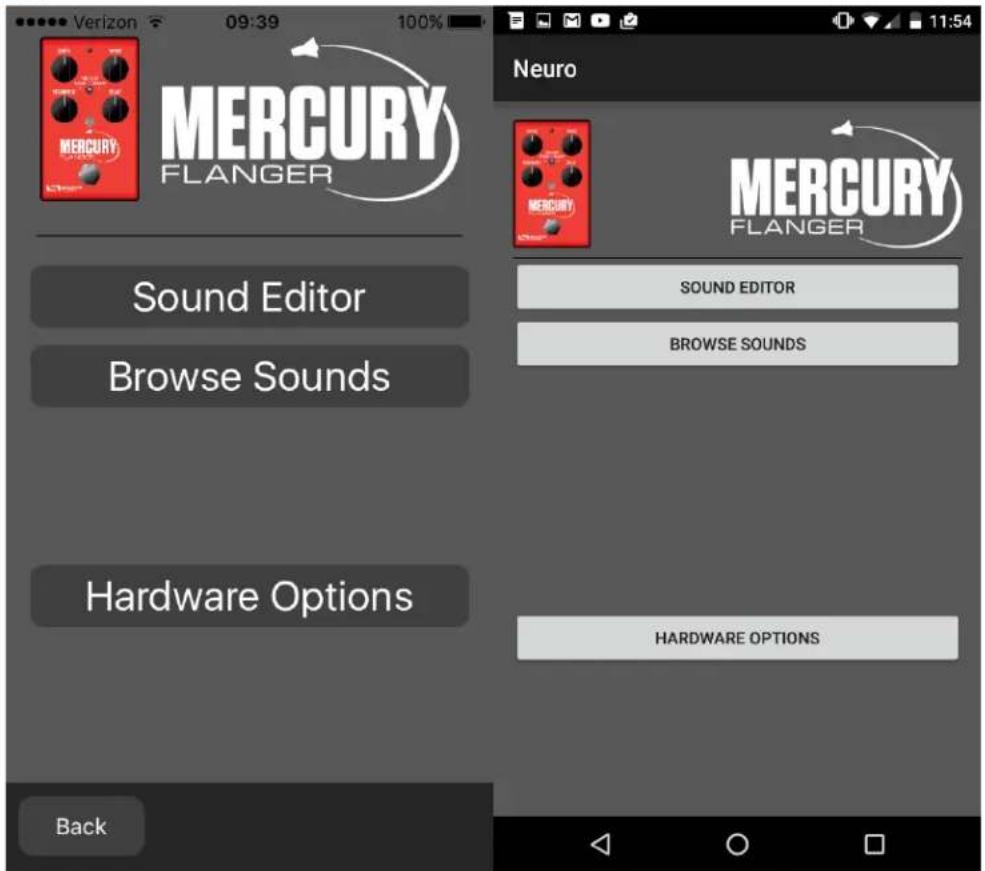
The main menu includes links to the three main seconds of the app:
• Sound Editor allows the user to edit the current eect or create a new sound from scratch. These sounds can be burned into the internal preset memory (three sounds corresponding to the three posions of the eect selector switch, and an additional preset accessible via the footswitch), saved to a preset le in the app, emailed to friends, posted to the Neuro Community site, and more.
- Browse Sounds opens a library of sounds to choose from, divided into User, Factory, Published, and Web categories. This is a place to organize and share your favorite sengs. You can also explore sounds and sengs made by other users.
- Hardware Opons allows access to the global opons for the hardware. Global opons are "set and forget" type sengs that are NOT saved per preset.
Sound Editor
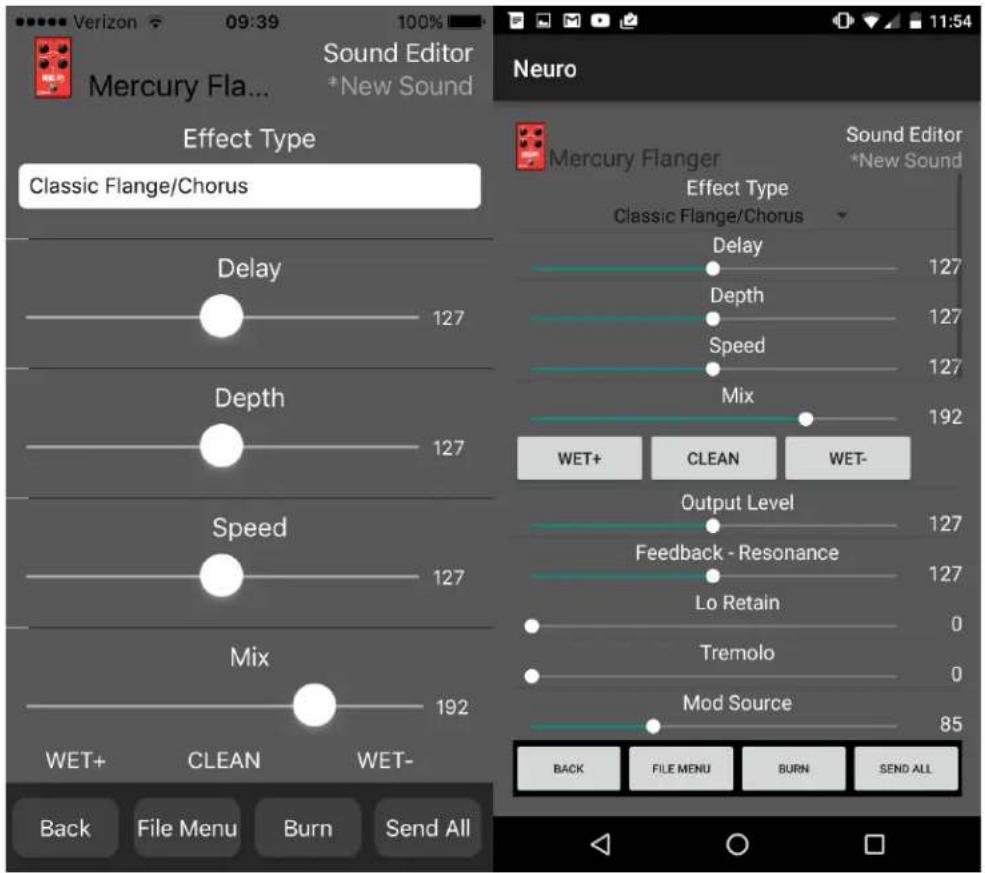
The Sound Editor displays a wide range of parameters that can be changed to create dierent sounds. The Sound Editor works kind of like a remote control for a TV – only the parameters you touch on the screen will be modified on the hardware; all other parameters remain unchanged.
The links at the boom of the screen allow access to the File Menu, the Burn command, and the Send All command.
Send All
If you wish to update all of the parameters on the hardware so that they match what is shown on the Sound Editor screen, tap the Send All buon. This sends every parameter seng over to the hardware and guarantees that its sengs will exactly match what is shown in the app.
File Menu
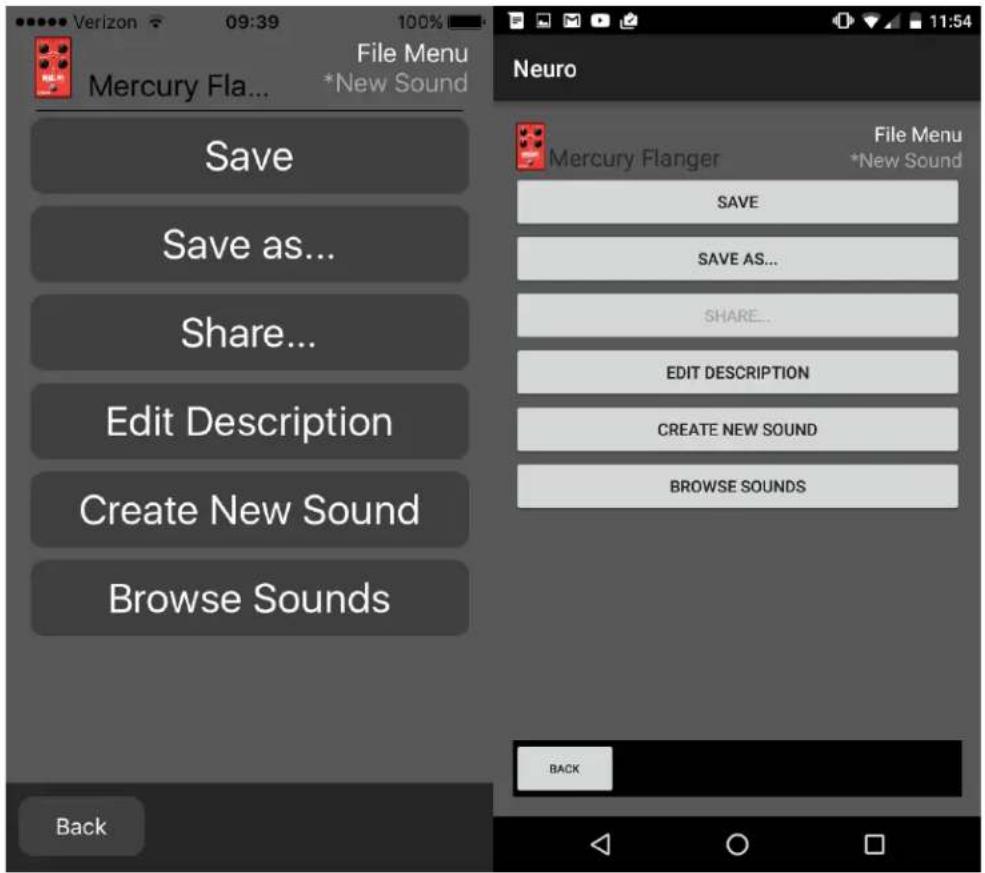
The File Menu displays dierent opons for the sound you're currently eding in the Sound Editor.
Save
Saves the current sengs from the Sound Editor. If you haven't saved yet, this will perform a Save As.
Save As
Allows you to save the current sengs to a new le. You can choose a le name and descripon.
Share
Allows you to send the current sengs to a friend as a text message or email aachment.
Edit Descripon
Edits the descripon that accompanies the preset in the Browse Sounds menu.
Create New Sound
Closes the current sound being edited and opens a new sound for eding with default sengs.
Browse Sounds
Returns to the Browse Sounds screen, which displays a list of user and web presets.
Burn
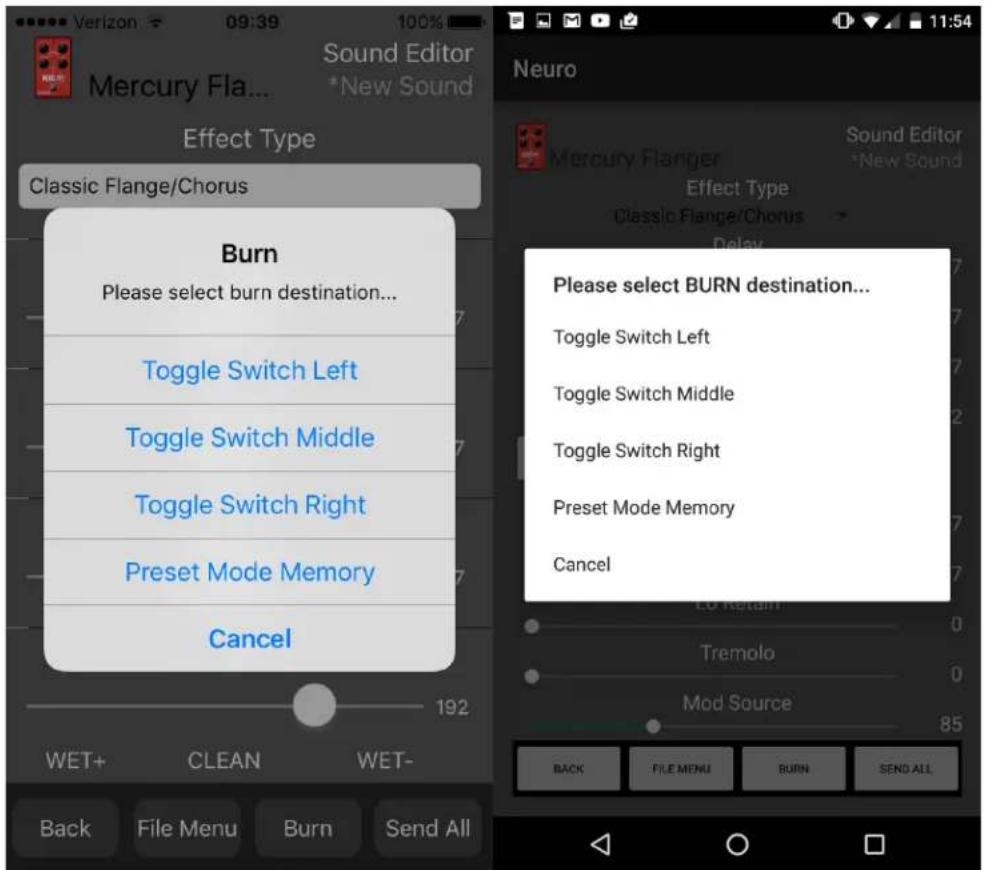
The Burn command takes the current sound that is running in the hardware and "burns" it to the internal memory for later use. Burn works as a "what you hear is what you get" type of control; it will save all of the sengs in their current state, as you hear them, and put those into memory. This will not necessarily match the exact setngs shown in the Sound Editor for all parameters unless you have performed a Send All command rst.
Aer selecng the Burn command, a list of target locaons in memory is displayed. There are a total of 4 opons: the 3 factory slots that correspond to the eect selector switch, and the 1 slot in preset memory.
Replacing an Eect on the Eect Switch
It is possible to replace one of the main eect types with one of the extended eect types or with a user-created sound. To do this, follow these steps:
- Load the sound in the Sound Editor.
- Hit the Send All buon.
- Hit the Burn buon.
- Select one of the Eect Selector Switch posions to overwrite it.
Browse Sounds
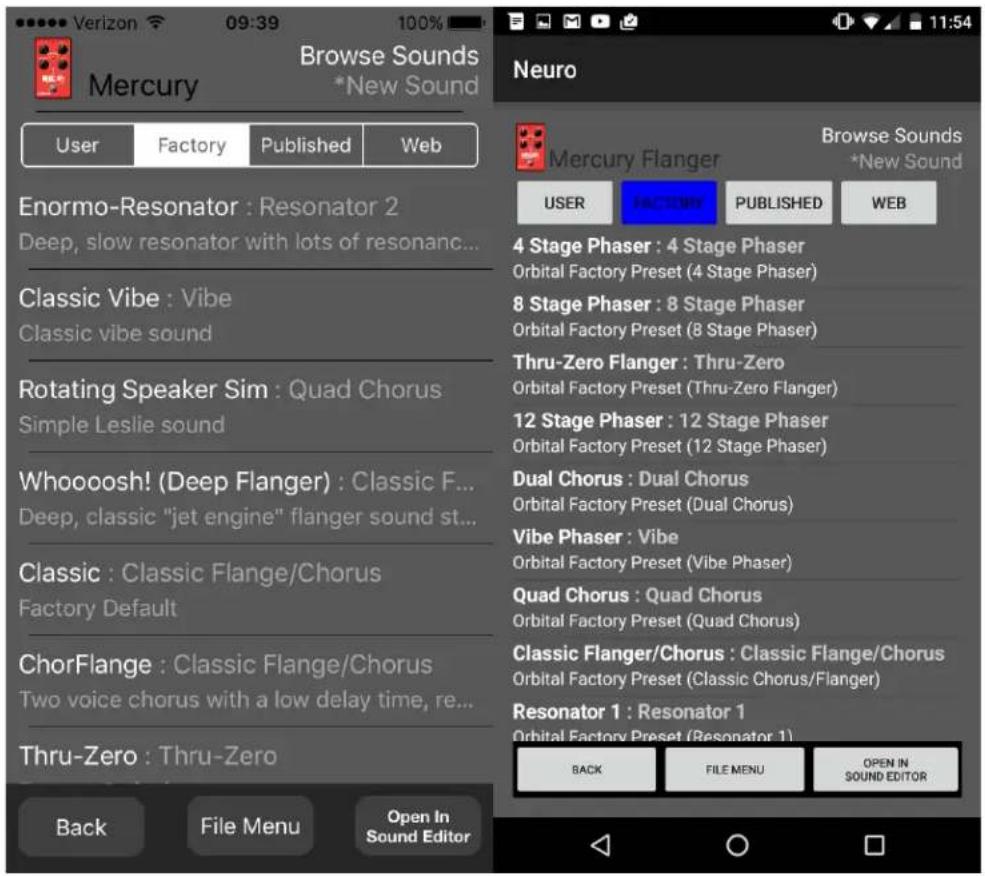
The Browse Sounds screen displays lists of presets that can be easily loaded into the hardware. Just tap on a preset name to send it to the hardware, and you should be able to hear it instantly.
Presets are divided into four seconds:
• User: Presets that you have created and saved.
• Factory: Presets that were created by Source Audio. New presets will automatically be added to this list as Source Audio creates them.
• Published: Presets that you have created and uploaded to the Neuro Community for other users.
• Web: Presets created and shared by other users.
Open In Sound Editor
The Open In Sound Editor buon allows you to take the currently selected preset and open it in the Sound Editor for eding and customizaon.
Deleng or Publishing Presets
Swipe to the le on any preset name for additional opons. Tap DELETE to remove the preset from your device. Tap PUBLISH to publish the preset – this lets other Neuro users enjoy your creation!
Hardware Opons
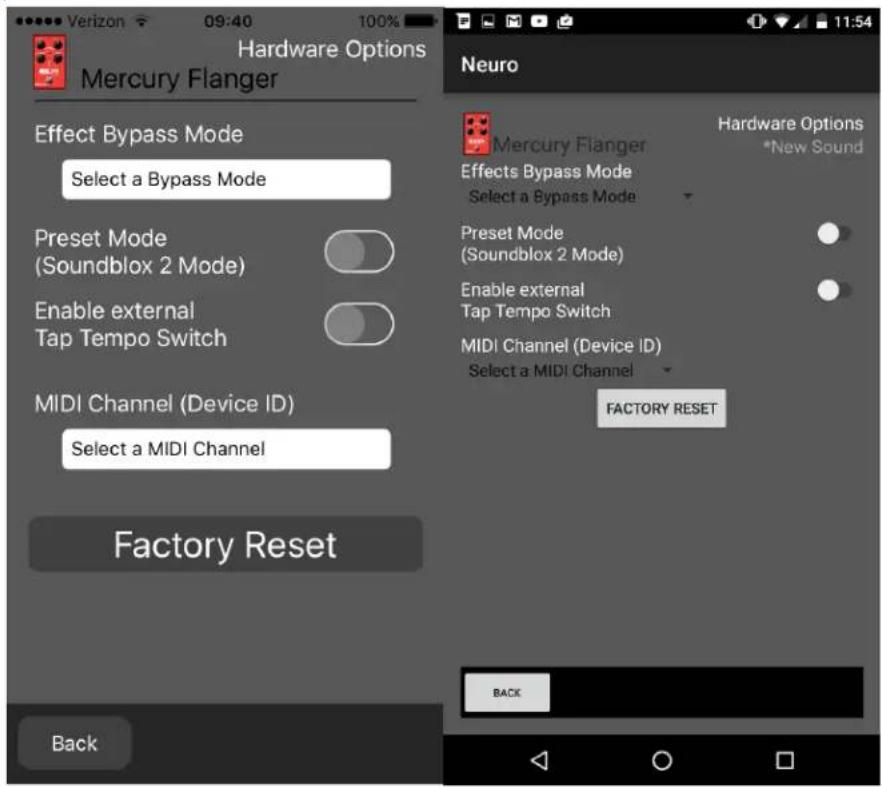
This screen shows some advanced opons.
Eect Bypass Mode
Selects which bypass path will be used for presets that use hardware bypass mode.
- True Bypass (Relay) uses two relays for true bypass switching.
• Acve Analog (Buffered) bypass uses a buer to help prevent signal loss and clicking.
MIDI Channel (Device ID)
Selects which channel (1 to 16) the hardware will respond to on Hub and USB-MIDI inputs.
Preset Mode (Soundblox 2 Mode)
Enables the preset saved in memory to be loaded each me the eect is enabled using the footswitch. This loads all sengs from the preset and ignores the knob posions. When Preset Mode is enabled, the main LED will be red instead of green. Preset Mode can also be enabled/disabled by pressing and holding the footswitch for a few seconds.
Enable External Tap Tempo Switch
Allows the Source Audio tap tempo switch to be connected to the Control Input Port. This allows the tempo for the LFO to be tapped in directly. The Control LED will blink in me with the tempo if this mode is enabled.
Factory Reset
Resets the internal memory (including all presets and eect types) to the factory default sengs.
Quick Preset Mode
Allows preset mode to be enabled/disabled in 0.8 seconds instead of 5 seconds (by holding down the footswitch).
Example Neuro Daisy-Chain Connecons
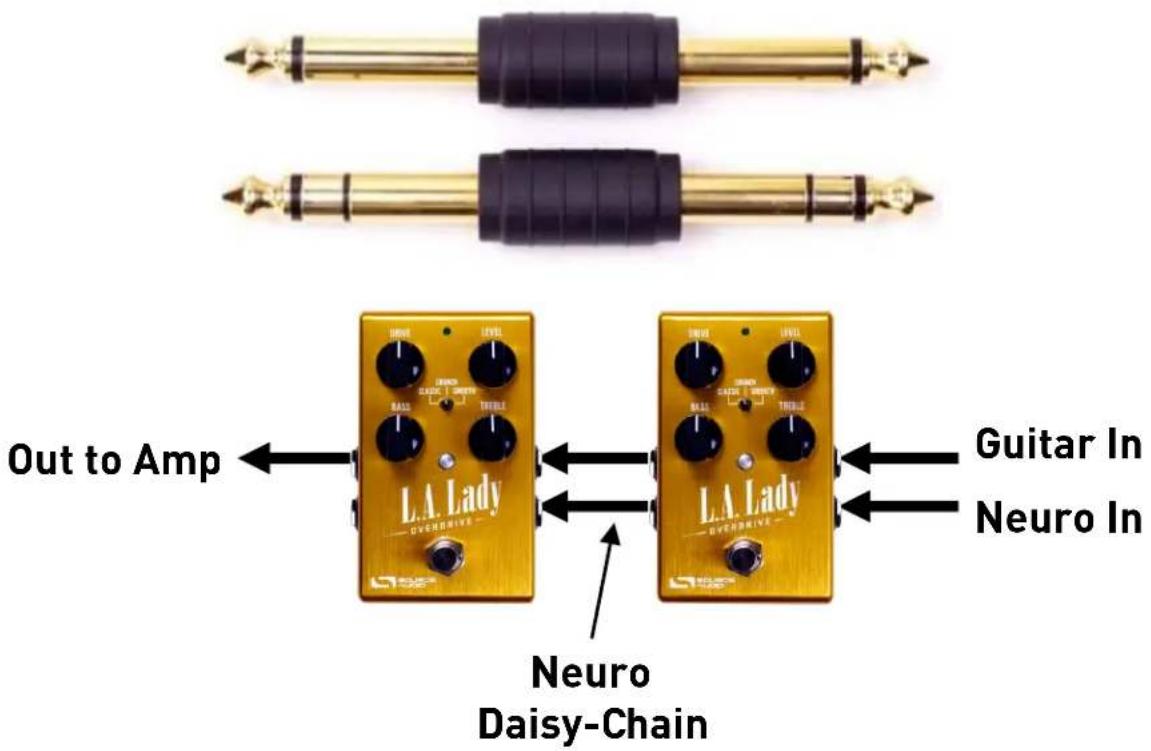
Mono Audio Path with Neuro Daisy-Chain
In the case of a purely mono audio signal path, the Neuro data can be input to the rst eect directly from the mobile device and then carried on to the second eect via TRS cable.
Source Audio makes couplers that are designed specially for connecng mulple One Series products in series. These couplers are available on the Source Audio Online Store.
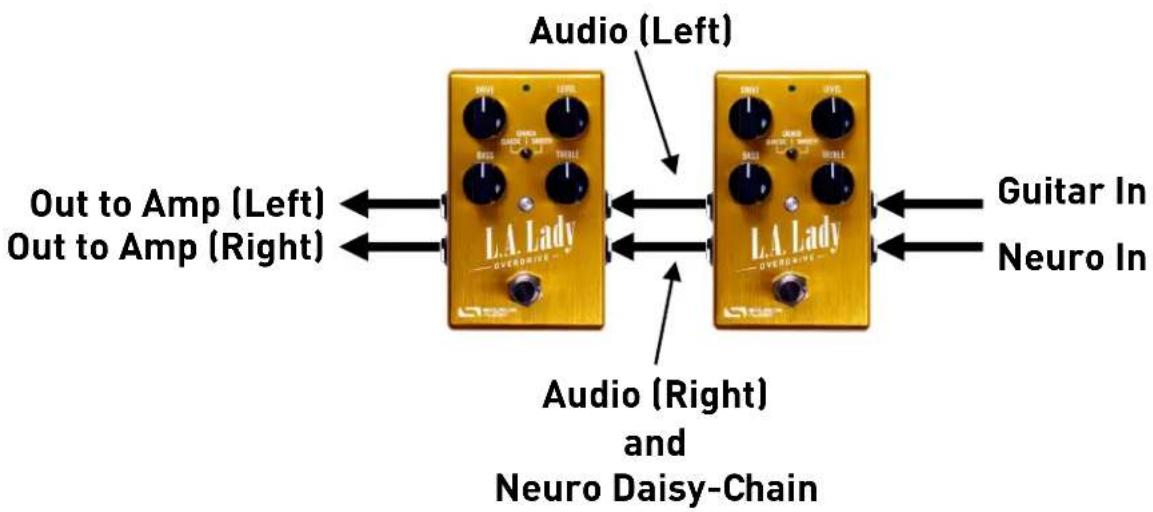
Mono-To-Stereo Audio Path with Neuro Daisy-Chain
In the case of a signal path that splits a mono input to stereo outputs, the Neuro data can be input to the rst eect directly from the mobile device and then carried on to the second eect via TRS cable.
The audio signal is carried on the same cable.
flowchart
graph LR
    A["L.A. Lady"] -->|Audio (Left)| B["Output to Amp Left"]
    A -->|Audio (Right) and Neuro Daisy-Chain| C["Output to Amp Right"]
    D["Guitar In"] --> A
    E["Neuro In"] --> A
Neuro Hub (Formerly the Soundblox Hub)
The Source Audio Neuro Hub (sold separately), unites Source Audio pedals from the Soundblox 2 and One Series families to create a single, stage-ready system. It features shared MIDI, passive expression pedal input, Hot Hand connecvity, and USB, and can connect to up to ve Source Audio pedals. The Neuro Hub features a powerful scene saving funconality, which allows you to create up to 128 mul-pedal presets known as scenes, each recallable via MIDI program change messages. Connect the Neuro Hub to your computer via USB for updates, saving and eding mul-pedal presets, and more. To connect the L.A. Lady to the Neuro hub, use a 3.5 mm TRRS cable and make a conncon between the L.A. Lady's CONTROL INPUT jack and any of the Neuro Hub's mul-funcon outputs. For more informaon, refer to the Neuro Hub documentaon on the Source Audio website.
MIDI
Using a USB conncon or the Neuro Hub (sold separately), the L.A. Lady can be controlled by generic MIDI messages. Each of the L.A. Lady's parameters (even those that are not assigned to a control knob) is directly accessible via MIDI connuous controller messages. MIDI messages can be sent directly via USB or forwarded on to the L.A. Lady via the Neuro Hub.
MIDI Learn
MIDI Connuous Control messages
In order to assign a MIDI connuous controller to one of the four knobs, the EFFECT SELECTOR SWITCH, or the ON/OFF FOOTSWITCH, follow these steps:
-
Press the CONTROL INPUT buon to turn on CONTROL INPUT mode. The CONTROL LED should be lit green.
-
Press and hold the CONTROL INPUT buon unl the CONTROL LED begins to blink slowly (approximately one blink per second).
-
Send a MIDI connuous control message to the L.A. Lady via USB or the Neuro Hub. When a valid connuous control message is received, the CONTROL LED will begin to blink faster (about two blinks per second).
-
To assign this connuous controller to a knob, turn the corresponding knob. To assign it to the ON/OFF FOOTSWITCH, press the ON/OFF FOOTSWITCH. To assign it to the EFFECT SELECTOR SWITCH, toggle the eect type switch.
- Once the MIDI connuous controller has been assigned, the CONTROL LED will be solid green. This shows that the mapping was successful. Note: The CONTROL LED blinks any me a MIDI message is received, so it's possible that the CONTROL LED will connue blinking even aer the MIDI mapping is complete – this shows that MIDI messages are sll being sent to the L.A. Lady.
For parameters like drive and level, which are normally controlled by knobs, the full range of connuous control values from 0 to 127 will be mapped to the range of the knob.
For the ON/OFF FOOTSWITCH, connuous control values in the range from 0 to 63 will bypass the L.A. Lady and values in the range from 64 to 127 will enable the L.A. Lady.
For the EFFECT SELECTOR SWITCH, connuous control values map directly to each eect type. See the FAQ for details.
Any MIDI CC, from 0 to 127, can be mapped to a control on the L.A. Lady.
Each CC number can only be mapped to control one parameter at any given me. If you aempt to map a CC that has already been assigned to another parameter, the previous mapping will be overridden.
Several CCs can potentially be mapped to the same parameter, although this is not very useful.
When using MIDI Learn, the L.A. Lady listens for the rst MIDI CC message sent to it and then ignores any subsequent CC messages until the mapping is complete. This means that you must make sure that only send the MIDI CC message to the L.A. Lady that you intend to use for the MIDI Learn mapping. Some DAWs send multiple MIDI messages when the play or pause buons are pressed, and this can lead to unintended MIDI mappings. Check your DAW documentaon in order to learn about messages that are sent at the beginning or end of playback.
Reset MIDI Mapping
To clear MIDI mapping, rst press the CONTROL INPUT buon and turn o Control Input mode. The CONTROL LED should be dark. Then, press and hold the CONTROL INPUT buon unl the CONTROL LED blinks. This clears all Expression, Hot Hand, and MIDI mapping.
MIDI Channel
By default, the L.A. Lady responds to MIDI Channel 1. The L.A. Lady ignores all MIDI messages sent to it that are not on its assigned channel. To change the L.A. Lady's MIDI channel, edit the L.A. Lady's global sengs using the Neuro App.
MIDI Clock
Since the L.A. Lady has no me-dependent parameters, it will ignore MIDI clock.
USB
The L.A. Lady's USB port is plug-and-play ready for Windows and Mac computers. The L.A. Lady uses class-compliant drivers, so no special drivers are needed. Just power up the L.A. Lady and connect it
to the computer using a USB cable. The computer should automatically recognize the L.A. Lady, which will be idened as "Source Audio One Series" in the operang system.
USB connecvity brings many benets, such as the ability to download rmware updates to the L.A. Lady, conguraon of advanced parameters, accessing new eect types created by the Source Audio engineers, and MIDI connecvity to audio producon soware running on the computer.
USB-MIDI
The L.A. Lady will appear as a MIDI device in your computer's operang system. As a result, the L.A. Lady can communicate with audio producon soware that ulizes MIDI, such as Pro Tools, Ableton Live, Logic Pro, and more. MIDI messages can be sent directly to the L.A. Lady using the USB conncon, which allows for full automaon of the L.A. Lady within host soware such as a DAW. For example, the drive level can be automated by outpung MIDI connuous controller messages from the host soware to the L.A. Lady via the USB conncon.
Specicaons
Dimensions
• Length: 11.63 cm (4.58 inches)
• Width: 7.00 cm (2.75 inches)
• Height (not including knobs and footswitch): 3.71 cm (1.46 inches)
• Height (including knobs and footswitch): 5.61 cm (2.21 inches)
Weight
• 280 grams (0.625 pounds)
Power
- 180 mA @ 9V DC (max 220 mA with Hot Hand Wireless Adapter)
- Negave p (positive sleeve) barrel power jack, 2.1 mm inner diameter, 5.5 mm outer diameter
Audio Performance
• Maximum Input Level: +6 dBV = 8.2 dBu = 2 V RMS = 5.6 V p-p
- Input Impedance: 1 MegaOhm (1 MΩ)
• Output Impedance: 600 Ohm (600 Ω)
• 108 dB DNR Audio Path
• 24-bit Audio Conversion
• 56-bit Digital Data Path
- Universal Bypass ^TM (relay-based true bypass and analog buered bypass)
Troubleshoong
General
Restore factory seings: In order to revert the L.A. Lady to its factory sengs, clearing all user data, presets, expression mappings and custom eect types, use the Neuro App and choose the Factory Reset opon.
Noise
Power source: Ensure that the proper power supply is being used.
Near noise source: Move pedal away from power supplies and other equipment.
Other equipment: Remove other eects from signal chain; see if noise persists.
Bad cables: Swap out audio cables.
USB ground loop: When connected to a computer using a USB cable, noise can appear in the audio signal. This usually results from ground loop noise due to the L.A. Lady and computer running on separate power supplies. In the case of laptops, the noise can oen be migrated by disconnecting the computer's power supply and running it on a baery. External display monitors are oen the primary source of noise, and powering down monitors can also resolve noise issues. Unfortunately, some USB hubs and motherboards are inherently noisy, so it's not always possible to eliminate USB noise enrely.
Hot Hand Doesn't Work
Low power: Ensure that the proper power supply is being used.
Not calibrated properly: Calibrate the Hot Hand. See the Hot Hand Input secon for more details.
Not connected properly: Check Hot Hand connecons.
Unit Appears Dead / No LEDs Lit
Wrong power supply: Use correct power supply. See the DC 9V (Power) secon for more details.
Corroded power cable plug: Check power plug for corrosion on sleeve. Swap out power supply if necessary.
Frequently Asked Quesons
How do I change the round mode for my pedal without changing anything about the sounds?
- Connect the Neuro App cable and go to the Sound Editor in the app.
- Flip the EFFECT SELECTOR SWITCH on the hardware to the le posion.
- In the app, go to the I/O Roung Opon (boom of the list), select it, and the desired round mode. Then tap Done. You should see the CONTROL LED blink when the message is received.
- Tap the BURN buon in the Neuro App. This opens a menu for burning locaons.
- Select "Toggle Switch Le". This burns any changes you made into memory. Since you only changed the I/O Roung mode, that will be the only thing that is changed. The rest of the parameters for that sound will remain unchanged.
- Repeat these steps for the middle switch posion and the right switch posion.
What kind of instruments can I connect to the L.A. Lady's inputs?
The L.A. Lady's audio inputs are high impedance ( 1 M ) and they can accept high impedance signal sources like guitars/basses with passive pickups, as well as low impedance sources like line-level
audio circuits, guitars/basses with acve pickups, electronic keyboards, or mixer outputs. The input circuit can handle signals ranging up to 5.6 Volts, peak-to-peak.
Can I power the L.A. Lady directly over USB, without using the 9 Volt supply?
No. USB provides 5 Volts, but the L.A. Lady needs 9 Volts, so the L.A. Lady cannot be powered directly from USB. Make sure that you have plugged in the included 9V DC power supply when connecng to the L.A. Lady's USB port.
When connecng the L.A. Lady to a recording interface or mixer, should I used a Lo-Z (microphone) or Hi-Z (line / instrument) input?
The L.A. Lady's output will be low impedance when the eect is acve or in buered bypass mode, but it will be high impedance when using true bypass mode and a guitar with passive pickups.
Therefore, it is recommended that you use a high impedance (Hi-Z) input on your recording interface or mixer to avoid signal loss.
Why doesn't the L.A. Lady respond to MIDI messages being sent to it?
By default, the L.A. Lady should respond to MIDI connuous controller messages on channel 1 (in technical terms, this means that the lower 4 bits in the command byte of MIDI messages should be 0000 in binary or 0 in hexadecimal). The L.A. Lady's MIDI channel can be congured using the Neuro App. Channel numbers in MIDI use zero-based counting, so MIDI channel 1 is described as 0 in hexadecimal, MIDI channel 2 is described as 1 in hexadecimal, and so on, concluding with MIDI channel 16, which is described as F in hexadecimal. A connuous controller message starts with a hexadecimal B and is followed by the channel number (0 through F). So, the command byte from your MIDI controller should be formed as shown in the following table:
| MIDI Channel (Decimal) | 1 | 2 | 3 | 4 | 5 | 6 | 7 | 8 | 9 | 10 | 11 | 12 | 13 | 14 | 15 | 16 |
| CC Command Byte (Hex) | B0 | B1 | B2 | B3 | B4 | B5 | B6 | B7 | B8 | B9 | BA | BB | BC | BD | BE | BF |
Each connuous controller command byte is followed by two bytes, the CC number and the value. So, each CC message consists of a total of three bytes. If the L.A. Lady is not responding to MIDI, make sure that your MIDI controller is properly congured and sending messages in the format described above.
How do I enable extended eect types via MIDI?
Refer to the MIDI Learn secon to map a MIDI connuous controller to the Eect Type switch. Then, send a CC message with one of the following values to enable a certain eect type:
| CC Value | Eect Type |
| 0 | Tube Drive |
| 1 | Smooth Tube |
| 2 | Power Stage |
| 3 | Crunch Tube |
| 4 | TS9000 |
| 5 | Big Pi |
| 6 | El Raton |
| 7 | Fuzz Façade |
| 8 | Bender |
| 9 | Metal |
| 10 | Octave Fuzz |
| 11 | Gated Fuzz |
| 12 | Bass Tube Drive |
| 13 | Bass Smooth Tube |
| 14 | Bass Power Stage |
| 15 | Bass Crunch Tube |
| 16 | Bass TS9000 |
| 17 | Bass Big Pi |
| 18 | Bass El Raton |
| 19 | Bass Fuzz Façade |
| 20 | Bass Bender |
| 21 | Bass Metal |
| 22 | Bass Octave Fuzz |
| 23 | Bass Gated Fuzz |
| 24 | Tone Drive |
Additional eect types may become available in future updates.
Rubber Feet
The L.A. Lady comes standard with a at aluminum boom, making it easy to apply Velcro and mount to a pedalboard. Additionally, adhesive rubber feet are included in the L.A. Lady's box.
Applying the rubber feet to the L.A. Lady can help prevent it from sliding on at surfaces such as a hardwood oor.
Waste Disposal Notes

If possible, dispose of the device at an electronics recycling center. Do not dispose of the device with the household waste.
For full compliance with EN 61000-4-6 standard, input cable must be less than 3 meters in length.
Warranty
Limited Transferrable Warranty
Source Audio, LLC (hereinaer “Source Audio”) warrants that your new Source Audio One Series L.A. Lady Overdrive, when purchased at an authorized Source Audio dealer in the United States of America (“USA”), shall be free from defects in materials and workmanship under normal use for a
period of two (2) years from the date of purchase by the original purchaser. Please contact your dealer for informaon on warranty and service outside of the USA.
Under this Limited Warranty, Source Audio's sole obligaon and the purchaser's sole remedy shall be repair, replacement, or upgrade, at Source Audio's sole discreon, of any product that, if properly used and maintained, proves to be defective upon inspecon by Source Audio. Source Audio reserves the right to update any unit returned for repair and to change or improve the design of the product at any me without noce. Source Audio reserves the right to use reconditioned parts and assemblies as warranty replacements for authorized repairs. Any product repaired, replaced, or upgraded pursuant to this Limited Warranty will be warranted for the remainder of the original warranty period.
This Limited Warranty is extended to the original retail purchaser. This Limited Warranty can be transferred to anyone who may subsequently purchase this product provided that such transfer is made within the applicable warranty period and Source Audio is provided with all of the following informaon: (i) all warranty registraon informaon (as set forth on the registraon card) for the new owner, (ii) proof of the transfer, within thirty (30) days of the transfer, and (iii) a photocopy of the original sales receipt. Warranty coverage shall be determined by Source Audio in its sole discreon. This is your sole warranty. Source Audio does not authorize and third party, including any dealer or sales representaves, to assume any liability on behalf of Source Audio or to make any warranty on behalf of Source Audio.
Warranty Informaon
Source Audio may, at its opon, require proof of the original purchase date in the form of a dated copy of the original authorized dealer's invoice or sales receipt. Service and repairs of Source Audio products are to be performed only at the Source Audio factory or a Source Audio authorized service center. Prior to service or repair under this Limited Warranty, the purchaser must request from Source Audio a return authorizaon, which is available at:
Source Audio LLC
120 Cummings Park, Woburn, MA 01801
(781) 932-8080 or at www.sourceaudio.net
Unauthorized service, repair, or modicaon will void this Limited Warranty.
Disclaimer and Limitaon of Warranty
Do not open the eects pedal under any circumstance. This will void the warranty.
The foregoing limited warranty is the only warranty given by Source Audio and is in lieu of all other warranes. All implied warranes, including warranes of merchantability and tness for any parcular purpose, exceeding the speci provisions of this limited warranty, are hereby disclaimed and excluded from this limited warranty. Upon expiraon of the applicable express warranty period, Source Audio shall have no further warranty obligaon of any kind, express or implied. Source Audio shall in no event be liable for any special, incidental, or consequential damages suered by the purchaser or any third party, including without limitaon, damages for loss of prots or business or damages resulting from use or performance of the product, whether in contract or in tort. Source Audio shall not be liable for any expenses, claims, or suits arising out of or relang to any of the
foregoing. Some states do not allow the exclusion or limitaon of implied warranes so some of the above limitaons and exclusions may not apply to you. This Limited Warranty gives you spec legal rights, and you may also have other rights, which vary, from state to state. This Limited Warranty only applies to products sold and used in the USA. Source Audio shall not be liable for damages or loss resulting from the negligent or intestinal acts of the shipper or its contracted aliates. You should contact the shipper for proper claims procedures in the event of damage or loss resulting from shipment.
Version History
February 19, 2016: Inial Release

SOURCE AUDIO
©Source Audio LLC | 120 Cummings Park, Woburn, MA 01801 | www.sourceaudio.net
- L.A. Lady Overdrive User's Guide
- Welcome
- Overview
- Quick Start
- Power
- Guitar/Audio Connecons
- Brief Knob, Footswitch, and Buon Descripons
- Contents
- Connecons
- Input Side Connecons
- Input 1
- Input 2
- Input 2 as an Audio Input
- Input 2 as a Neuro App Data Input
- Output Side Connecons
- Output 1
- Output 2
- Output 2 as an Audio Output
- Output 2 as a Neuro App Data Daisy-Chain Output
- Power and Control Connecons
- DC 9V (Power)
- USB
- Control Input
- Basic Overdrive Operaon
- Eect Types
- Classic
- Crunch
- Smooth
- Additional Eect Types
- Controls
- Knobs
- Drive Knob
- Level Knob
- Bass Knob
- Treble Knob
- Eect Switch
- LEDs
- Engage / Bypass LED
- External Control LED
- Footswitch
- Control Input Buon
- Preset Storage and Recall
- Saving Your First Preset
- Eding a Preset
- Exing Preset Mode
- Universal Bypass TM
- Stacking and Parallel Processing "Inside the Box"
- Stacking (Series / Cascaded)
- Parallel Processing
- Series / Parallel Hybrid
- Stereo Roung
- Automac Roung Mode Selecon
- Parametric EQ
- Low Cut Filter
- LoRetain
- Voice Control
- Noise Gate
- External Control
- Expression Control
- Expression Pedal Input
- Conguring the Expression Pedal
- External Switch used as Expression Input (Expression "Toggle")
- Follow these steps for conguraon:
- Hot Hand Input
- Conguring the Hot Hand
- Reset Expression Control Mapping
- Neuro App
- Sound Editor
- Send All
- Save
- Save As
- Share
- Edit Descripon
- Create New Sound
- Browse Sounds
- Replacing an Eect on the Eect Switch
- Hardware Opons
- Eect Bypass Mode
- MIDI Channel (Device ID)
- Preset Mode (Soundblox 2 Mode)
- Enable External Tap Tempo Switch
- Factory Reset
- Quick Preset Mode
- Example Neuro Daisy-Chain Connecons
- Mono-To-Stereo Audio Path with Neuro Daisy-Chain
- Neuro Hub (Formerly the Soundblox Hub)
- MIDI
- MIDI Learn
- Reset MIDI Mapping
- MIDI Channel
- MIDI Clock
- USB-MIDI
- Specicaons
- Dimensions
- Weight
- Audio Performance
- Troubleshoong
- General
- Noise
- Hot Hand Doesn't Work
- Unit Appears Dead / No LEDs Lit
- Frequently Asked Quesons
- What kind of instruments can I connect to the L.A. Lady's inputs?
- Rubber Feet
- Waste Disposal Notes
- Warranty
- Limited Transferrable Warranty
- Warranty Informaon
- Disclaimer and Limitaon of Warranty
- Version History
Brand : Source Audio
Model : L.A. Lady
Category : Effect pedal