ToughRunners - Barcode scanners Baracoda - Free user manual and instructions
Find the device manual for free ToughRunners Baracoda in PDF.


User questions about ToughRunners Baracoda
0 question about this device. Answer the ones you know or ask your own.
Ask a new question about this device
Download the instructions for your Barcode scanners in PDF format for free! Find your manual ToughRunners - Baracoda and take your electronic device back in hand. On this page are published all the documents necessary for the use of your device. ToughRunners by Baracoda.
USER MANUAL ToughRunners Baracoda
ToughRunners User Guide
©Baracoda ^TM – December 2008
natural_image
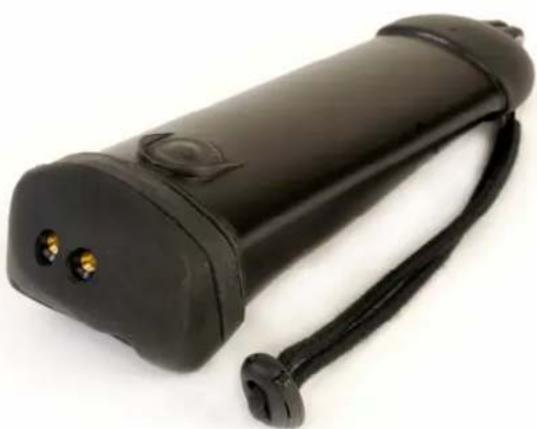
Black handheld device with two illuminated ports and a strap, no visible text or symbolsSUMMARY
SUMMARY 2
Revision/HISTORY 3
INTRODUCTION ...... A
1), LANYARD 5
2), RECHARGING THE BATTERY 5
3), SWITCHING ON THE READER 5
4), QUICK START UP GUIDE 6
HOW TO READ BARCODES....6
USAGE MODES 7
READING MODE 7
5), STATUS DISPLAY SUMMARY 8
6), THE DIFFERENT WAYS TO CONNECT SCANNER TO A HOST 9
7), CONFIGURING YOUR SCANNER 11
RESET YOUR SCANNER 11
SECURITY 11
SYMBOLOGY 11
DATA FORMAT 12
BEEPS AND LEDs 12
POWER MANAGEMENT 1,2
LOW BATTERY 12
SAFETY / REGULATORY. 13
FCC: 1,3
EU: 1,4
LASER NOTICE 15
EXTREM VERSION NOTICE - USING CONDITIONS 15
LIMITED WARRANTY. 1,6
,
Baracoda ToughRunners – User Guide v1.6
Revision/History/
Changes to the original manual are listed below
Document//Date///Description/
1.0 4 Sept. 07 Initial release
1.1 24 Sep. 07 Change >+D information, Add >aser regulatory
1.2 09 Jan. 08 Modification of regulatory information
1.3 07 Feb. 08 Add +xtreme version information - using conditions
1.4 09 Apr. 08 Update graphic presentation
1.5 09 Apr. 08 Update "Status Display Summary" section
1.6 22 Dec. 08 Update "Reading Mode" section
Introduction
The ToughRunners barcode scanner is easy to use5 Just press the trigger in order to switch on the scanner and simply press it again to scan a barcode5 The colour of the > + D indicates the status of the device5 A beep and > + D indicate the status of the scanner as "Good Read"- "Connected"- etc... "o Data >oss Mode" function stores the last several scans and is configurable by the user5
Barcodes are transmitted in real time to the remote host devices/terminals using Bluetooth wireless technology5 You can download on our Website all software updates and additional documentations:
http:—www.baracoda.com—
1) Lanyard
You can choose to attach or not the lanyard to scanner.
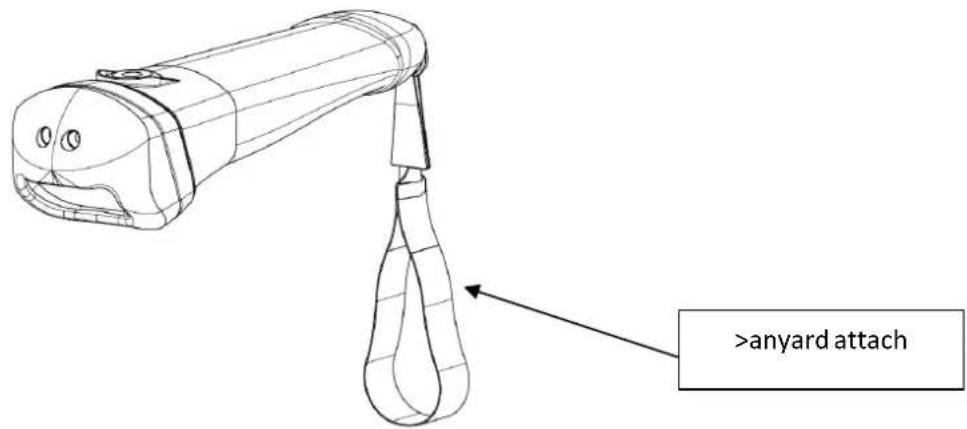
text_image
>anyard attach2) Recharging the battery
Recharge the internal battery by using the included AC adapter. The Adapter rating is 5V, 500mA. Place the scanner front toward the ground, and connect the AC adapter.
When the scanner is charging, the > + D is red (solid).
When the scanner is fully charged, the >+D is green (solid).
A full recharge (from completely drained batteries) takes approximately 3 hours.
When the original batteries wear out, please contact your Baracoda reseller for replacements.
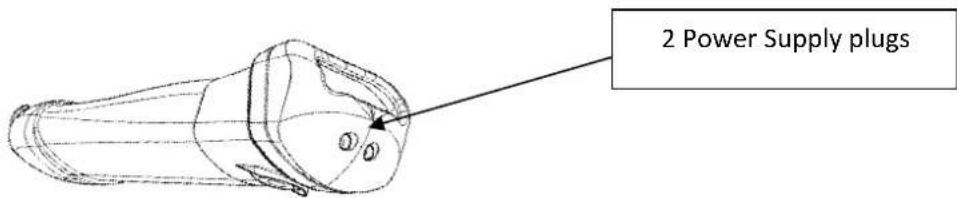
text_image
2 Power Supply plugs3) Switching on the reader
Remember to fully charge the battery before first use.
In order to switch on the scanner, please press the trigger.
The scanner will switch off alone after some period of inactivity. In its standard mode Scanner will switch off after 20 minutes of inactivity. This value can be modified by the user with the BaracodaManager software.
4) Quick Start up guide
How to read barcodes
In order to switch on the scanner- please press the trigger5
Position the scanner so the light beam fully overlaps and crosses the bar code5 The scanner will emit a beep when the scan is successful5 Illustrated below are the correct scanning positions5
BTR-L : ToughRunners CMOS

text_image
40° 40°BTR-LA : ToughRunners Laser

pie
| Segment Color | Value (°) | |---|---| | Green | 53 | | Red | 53 | The diagram includes a simple hand icon with a handle and a separate pie chart on the left side. The red segment is labeled '53°' while the green segment is labeled '53°'.BTR-LR : ToughRunners Laser Long Range
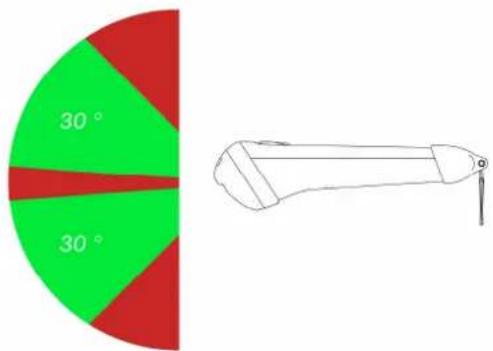
text_image
30° 30°Usage modes
Real/Time/mode
In real time mode, the barcode is decoded and transmitted to the remote host without delay5 If the scanner is not connected, the data is lost 3Status >ed: red flash)5
Real/Time/mode/with/No/Data/Loss/option
With the °o Data >oss option, if the scanner is not connected or out of range, it will store the data and later automatically upload it to the remote host5
+very barcode sent to the host must be acknowledged by the host 3until then, the scanner will transmit it again and again)5
This acknowledgment mode is disabled in the default settings5 It is strongly recommended to set the °o Data >oss mode to °5 This configuration can be set with the BaracodaManager software or with the Programming Guide5
Additionally, this protocol acknowledgment allows having an audio acknowledgment that the barcode has been successfully transmitted to the host5
Reading mode
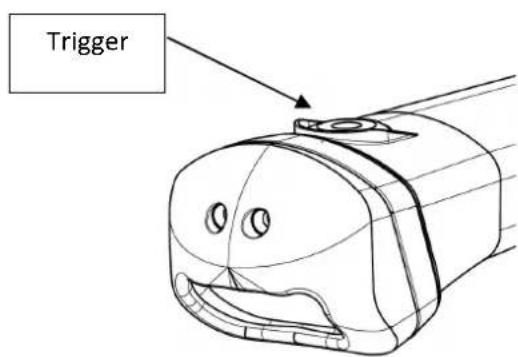
i) Trigger mode
Simply press the trigger when you want to scan a barcode5
If the scan engine is a laser technology, please advise, ‘>aser notice’ 3ie : paragraph ‘Safety / regulatory’) in case of laser scan engine5
text_image
TriggerThis mode enables to scan continuously5 In Manual Autoscan mode, the scan beam is continuously on5
Simply press the trigger when you want to turn on the beam to scan a barcode5 And press again the trigger ifyou want to turn off the beam5
iii) Option
ScanWear allows to enable the option "o duplicate scans" order to not scan twice in the same barcode5 By default, this option is disabled, but can be changed with the BaracodaManager software5
5) Status Display Summary
The ThoughRunners includes two (2) >EDs. All functions for the Status led are described below.

text_image
Status led
text_image
Charge led| Operating Mode | >ED | Status | Description |
| Battery/ | Red | Full | In Charge |
| Green | Full | Charge completed | |
| Red | Flash | Battery low | |
| Red/Green/Blue | Flash | Switch on | |
| Bluetooth/ | Blue | One single short Flash | Not Connected to Host |
| Blue | Two single short Flash | Connected to Host | |
| Scan/barcode/ | Green | One single long Flash | Good read |
| Red | Flash | . No host transmission. Barcode lost. Barcode reading failure | |
| Programmation, mode | Green + Red | Full | In this mode (Timeout: 1mn), you can configure the scanner using configuration barcodes |
6) The different ways to connect scanner to a Host
Baracoda proposes three (3) ways to simplify this process. Just choose the most appropriate one according to your specific need.
For users: Plug & Scan hardware solutions
The easiest way to associate our scanners with a Host is by using Baracoda Plug and Scan solutions. Baracoda offers the RS232 Plug&Scan or the USB Plug&Scan dongle. If you have one of these devices:
- Plug the dongle into the USB port or into the RS232 port of the computer.
- Wait 5 seconds for the host computer to recognize the Plug&Scan dongle.
- Scan the "Connect barcode" available on the Plug & Scan dongle just once.
- Within less than 20 seconds the >+D on the scanner will start double flashing green: you are now paired and connected!
If you have the USB dongle just open up the target application (such as Notepad, +xcel and Word). Make sure the active cursor is where the user wants the barcode information to be placed and start scanning barcodes.
If you have the RS232 Plug&Scan Dongle, your application will have to retrieve the information from the serial port, download RS232 Kemul Software on the Baracoda Website http://www.baracoda.com/
Please note that the scanner is set by the Baracoda Plug&Scan USB in "no data loss mode" ON by default. This implies that the reader will bufferise barcodes if the barcodes are read out of range.
For users: software solutions
Two software used to simplify the day-to-day usage of Bluetooth barcode devices are:
- K-+mul software lets you insert the scanned barcode value in the selected field. It also allows adding a prefix and a suffix.
- BaracodaManager software is a user-friendly, advanced software that, besides inserting the scanned barcode in a field of your application (Kemul plug-in) or displaying it (Terminal plug-in), presents the following features: very easy connection (one click connectivity), automatic reconnection, bufferisation of the data and automatic re-transmission.
The Baracoda Manager software is the most advanced software of Baracoda. Please check compatibility for some specific Hosts (see our Compatibility Table available on http://www.baracoda.com/download).
How to quickly verify that your scanner is working correctly, using the BaracodaManager software:
- Make sure that your host device (PC or PDA) is Bluetooth enabled. If not, please contact your reseller.
- Install the BaracodaManager software (updates can be downloaded from http://www.baracoda.com/download).
If your Bluetooth software is not compatible with the BaracodaManager software, you can test your scanner with HyperTerminal or Kemul software. Refer to Communication Protocol documentation. (Download on http://www.baracoda.com/download)
-
Configure the BaracodaManager.
-
Start the BaracodaManager software by selecting Start> Programs> BaracodaManager> BaracodaManager. The application automatically searches for wireless scanners.
- Place the scanner in discovering mode by pressing the trigger button.
- Highlight the scanner in the Devices in range box and click add.
- The Bluetooth connection asks for the passkey. While the message displays, click on the Bluetooth connection icon in the system tray at right side of the task bar.
• Enter 0000 in the default Bluetooth Passkey Request dialog box. -
Look at the status of the scanner in the BaracodaManager application window. When the status changes to "connected", the scanner is ready to be used.
-
The first time you configure a scanner, the BaracodaManager software opens a terminal window. Scan a barcode and you will see the data appear in the terminal window
-
Close the Terminal window by clicking on exit
-
Select the plug-in from the drop down menu. For more information, see the BaracodaManager documentation.
-
When you have finished your session, click on exit of the application to save your configuration.
For developers: Baracoda Software Development Kit (SDK)
The Baracoda SDKs are design for developers who want to integrate the barcode functions into their own software code, thus enabling end-users to run a single program (and not the BaracodaManager and the user software)
BaracodaManager uses libraries that provide an abstraction layer allowing developers to integrate Baracoda products into their own application very rapidly. Moreover, these libraries will deal with all the low-level routines, timeouts, connections and configuration management.
These libraries are available to developers for free (www.baracoda.com for more information)
7) Configuring your scanner
There are two 32) ways to configure your scanner:
- When connected to a host device, you can use the BaracodaManager software for multiple settings changes5
- Or you can use configuration barcodes 3refer to the Programming Guide)5 In this case you do not need to be connected5
Reset your scanner
To reset the scanner to its "default settings", use BaracodaManager software or scan the Reset configuration barcode5

text_image
Reset */+$*Security
The Bluetooth connection is secured with a PIN code authentication5
You can configure security 3enable/disable/change PIN code) through BaracodaManager software and through configuration barcodes5
The Security is enabling by default: default PIN code is 00005
Symbology
You can enable/disable any type of barcode decoders with BaracodaManager software or with the Programming Guide5
Data format
The data format is the following:
| Header | General Prefix | Symbology Prefix | Barcode | Symbology Suffix | General Suffix |
Baracoda Header
It is a proprietary data encapsulation5 It is necessary to activate the Baracoda header in 2 cases:
• To use the Baracoda keyboard emulation 3Kemul) and Terminal5
• To use the "No data loss" mode5
You can configure Baracoda Header through BaracodaManager software5
The Baracoda header is enabled in default settings
General Prefix / Suffix
You can add a general prefix and/or a suffix to every barcode sent to the host device5
You can configure prefix/suffix through BaracodaManager software or with the Programming Guide5
There is no prefix/suffix in default settings5
Symbology Prefix / Suffix
You can add a prefix and/or a suffix to specific symbology barcode sent to the host device5
Meaning a certain prefix/suffix will be added while reading a specific symbology5
You can configure prefix/suffix through BaracodaManager software5
There is no "symbology prefix/suffix" in default settings5
Beeps and LEDs
You can enable/disable Beeps / >+D through the BaracodaManager software or with the Programming Guide5
Power management
Mutiple parameters exist to optimize the battery autonomy 3"Sniff period", "Shutdown timer", etc...)
Scanner works at 20 dBm 3Bluetooth class56) by default5 You can configure at 60dBm 3Bluetooth Class52) through BaracodaManager software or with the Programming Guide5
Low battery
When the red >+D is blinking, this indicates that the battery level is low5 Recharge battery immediately5
Safety / Regulatory.
/
FCC:/
Product FCC Id: QSHAIBTR
Interference statement:
This device complies with Part 65 of the FCC Rules.
Operation is subject to the following two conditions:
(6) this device may not cause harmful interference, and
(2) this device must accept any interference received, including interference that may cause undesired operation.
Modification statement:
The FCC requires the user to be notified that any changes or modifications made to this device that are not expressly approved by Baracoda Wireless Technology, may void the user's authority to operate the equipment.
Class B digital devices regulatory notice:
This equipment has been tested and found to comply with the limits for a Class B digital device, pursuant to Part 65 of the FCC Rules. These limits are designed to provide reasonable protection against harmful interference in a residential installation. This equipment generates, uses, and can radiate radio frequency energy and, if not installed and used in accordance with the instructions, may cause harmful interference to radio communications. However, there is no guarantee that interference will not occur in a particular installation. If this equipment does cause harmful interference to radio or television reception, which can be determined by turning the equipment off and on, the user is encouraged to try to correct the interference by 6 or more of the following measures:
- Reorient or relocate the receiving antenna - Increase the separation between the equipment and receiver
- Connect the equipment into an outlet on a circuit different from that to which the receiver is connected
- Consult the dealer or an experienced radio or television technician for help
Wireless notice
This product emits radio frequency energy, but the radiated output power of this device is far below the FCC radio frequency exposure limits. Nevertheless, the device should be used in such a manner that the potential for human contact with the antenna during normal operation is minimized. The system antenna(s) used for this transmitter must not be co-located or operating in conjunction with any other antenna or transmitter.
EU:/
This equipment is intended to be commercialised in all the countries of the +european Union and there is no commercialisation or operational restrictions in any of the countries.
Hereby, Baracoda Wireless Technology declares that this Bluetooth barcode scanner is in compliance with the essential requirements and other relevant provisions of Directive 1999/5/+C. The declaration of conformity may be consulted at:
http://www.baracoda.com/baracoda/librairie-doc/Baracoda-ToughRunners-Declaration-of-Conformity.pdf
Laser notice
Use of controls or adjustments or performance of procedures other than those specified herein may result in exposure to hazardous visible laser light.
The laser scanner utilizes a low-power laser diode. Although staring directly at the laser beam momentarily causes no known biological damage, avoid staring at the beam as one would with any very strong light source, such as the sun. Avoid that the laser beam hits the eye of an observer, even through reflective surfaces such as mirrors, etc.
The following information is shown on the laser scanner device class label:

text_image
BAVINIMINERT LASER NE PAS RECARGES DANS LE FANCAIR APPARIS, A LAMOR DE CLANGE 2 LASER REUNION DO NOT SAKE INTO DEAM CLASS ZENER PRODUCTExtrem version notice – using conditions
The Extreme version of the ToughRunners consists of an IP65 radio base and of a laser reader.
In this version, the laser reader withstands:
- a use in atmosphere saturated with humidity (food, refrigerating sector)
- Short incursions in a severe cold environment (-30°C / -22°F)
If the ToughRunners is used in a prolonged environmental temperature lower than 10^ C (-14°F) the guarantee is voided.
If ToughRunners were exposed to the cold, the recharge of the battery must be carried out at ambient temperature between 0 to 45°C (32 to 113°F).
Laser Reader
Operating temperature: -10^ to +50^ ( 14^ to 122^ )
Storage temperature: -20^ to +60^ ( -4^ to 140^ )
Limited Warranty.
Manufacturer warrants that the product will be free of defects in material and workmanship for one 36) year from the date of shipment5 Manufacturer will, at its option, either repair, replace or refund the purchase price paid by buyer for the defective products5
Such repair, replacement or refund shall be buyer's sole remedy in the event of Manufacturer's breach of this limited warranty5 Repaired or replaced parts or product may include new, reconditioned or remanufactured parts and equipment at Manufacturer's option5 All costs associated with shipment to Manufacturer for warranty service, including but not limited to freight, duties, insurance and customs fees are buyer's responsibility5 Manufacturer will pay the freight costs 3duties, insurance, customs and any other fees are buyer's responsibility) associated with the return shipment to buyer5 The method of shipment will be at Manufacturer's discretion5 Repair or replacement of any parts or equipment does not extend the period of warranty provided for herein5 THIS >IMIT+D WARRANTY IS MANUFACTUR+R'S ON>Y WARRANTY5 MANUFACTUR+R DO+S NOT GIV+ WARRANTY+S OF M+RCHANTABI>ITY OR WARRANTY+S OF FITN+SS FOR A PARTICU>AR PURPOS+5 To take advantage of this warranty, buyer should contact the seller not the Manufacturer5 The warranty set forth herein does not cover and Manufacturer will have no obligations hereunder if any non-conformance is caused in whole or in part by; accident, transportation, neglect, misuse, alteration, modification, or enhancement of the products or incorporation, interfacing, attachment of any feature, program, or device to the Products by a person or entity other than Manufacturer, failure to provide a suitable installation environment, use of the products for other than the specific purpose for which the products are designed or any use of the product not in accordance with the User Guide or other misuse or abuse of the product5 The warranty does not cover problems linked to batteries5