X7MKII - Hi-Fi System FiiO - Free user manual and instructions
Find the device manual for free X7MKII FiiO in PDF.


| Product Type | High-Resolution Digital Audio Player |
| Dimensions | 128.5 x 64.0 x 16.5 mm (approx.) |
| Weight | 170 g (approx.) |
| Power Supply | Quick Charge adapter (DC 9V/1.5A or 12V/2A) or USB 5V (2A recommended) |
| Battery Life | Approximately 10 hours (normal use), 3800mAh Li-polymer |
| Supported Audio Formats | DSD (native), DXD, WAV, WMA, APE, FLAC, AAC, AIFF, ALAC, Ogg Vorbis, MP3 up to 384kHz/32bit |
| Connectivity | Bluetooth 4.0, WiFi 2.4/5GHz, Micro USB (11-pin), 3.5mm headphone/line/coaxial/optical output, 2.5mm balanced output |
| Storage | 64GB internal, dual micro SD slots each supporting up to 256GB (total 512GB) |
| Operating System | Android 5.1 with Pure Music mode |
| Key Functions | Native DSD decoding, CUE sheet support, gapless playback, graphic equalizer, folder playback, USB DAC mode |
| Maintenance & Cleaning | Clean with a soft, dry cloth; avoid liquids and abrasive cleaners |
| Safety Warnings | Use only recommended charger; avoid extreme temperatures; do not use while driving |
| Spare Parts & Repairability | Contact FiiO support for spare parts; expansion modules held by T5 screws |
| General Information | Brand: FiiO, Model: X7MKII, Category: Hi-Fi System, Manual available in PDF |
Frequently Asked Questions - X7MKII FiiO
User questions about X7MKII FiiO
0 question about this device. Answer the ones you know or ask your own.
Ask a new question about this device
Download the instructions for your Hi-Fi System in PDF format for free! Find your manual X7MKII - FiiO and take your electronic device back in hand. On this page are published all the documents necessary for the use of your device. X7MKII by FiiO.
USER MANUAL X7MKII FiiO
(Note: X7 Mark II would be referred to X7 in the below guide) All the below illustrang pictures are for reference only.
X7 Mark II User Manual
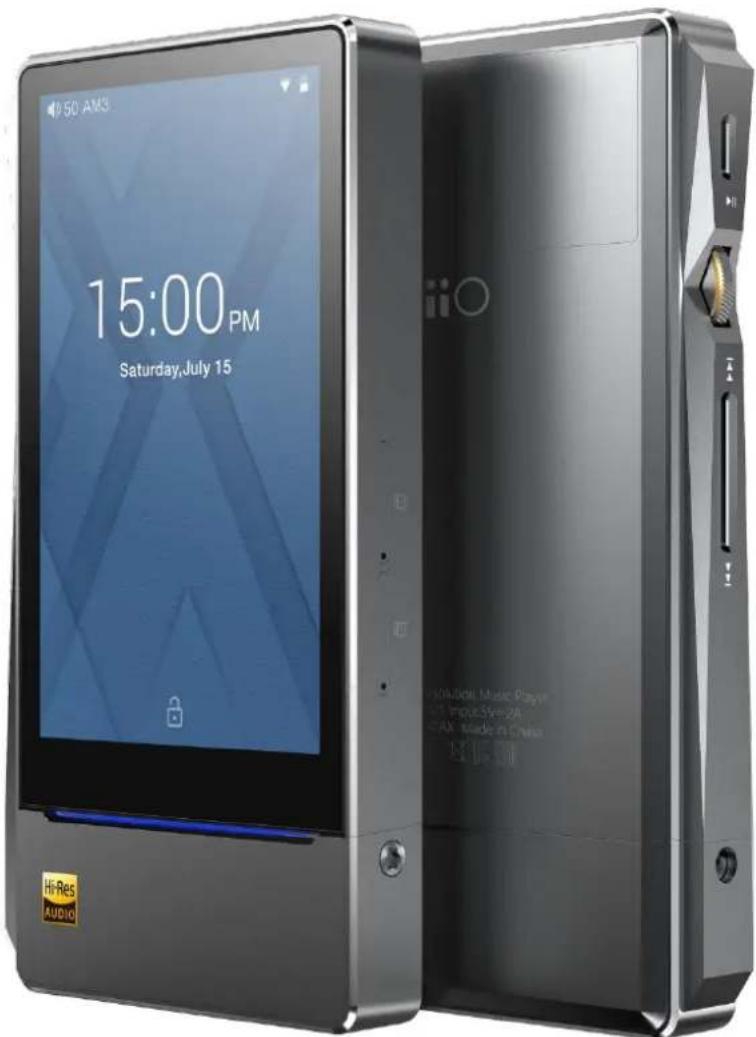
Foreword:
Thank you for purchasing FiiO's X7, our 384kHz /32bit / DSD high resolution lossless music player. To let you beer ulize the X7 to enjoy high-quality music, we have prepared this complete user manual and collected and answered some frequently asked quesons by users. We hope this manual will help you get to know the X7 and unleash its full potenal.
Contents
A. Introducon ....4
B. Buons and ports introduced....4
- Pictorial guide to buons and ports....4
- Buons and ports explained ....5
C. Pure Music / Android Mode switch....6
- Switching from Android to Pure Music mode 6
- Switching from Pure Music to Android mode 6
D. Wireless connecvity....8
- Bluetooth....8
- WiFi....9
E. Firmware updates.... 10
- Over-the-air automac updates.... 10
- Local Updates.... 11
- Over-the-air manual updates.... 12
Notes and Precauons 13
E. Pictorial guide to operang the X7....14
- Android Mode.... 14
1) Status bar 14
2) Nocaons panel 14
3) Quick Sengs menu 15
4) FiiO Market.... 16
6) X7 Sengs.... 17
Response to in-line remotes on connected headsets may be enabled or disabled by your choice. 18
- FiiO Music 24
1) App homepage 25
a) Alphabet scrolling.... 28
b) Gestures 28
c) More funcons menu at the lower right.... 28
3) Now playing.... 29
4) EQ Equalizer 30
3. Pure Music Mode 31
F. FAQ 32
- Charging.... 32
How large is the X7's baery? How long will it last? 32
How may the X7 be charged? 32
How long does it take to fully charge the X7? 32
Can X7 be used while charging? 32
Does the X7 display accurate baery levels? 32
What to do if the X7 gets hot while charging and playing at the same me? 33
- Transferring songs.... 33
What operang systems does the X7 support? 33
What USB ports is the X7 compatible with? 33
What are the transfer rates of the X7? 33
The X7 is connected to my computer. Now how to transfer songs from the computer to the X7?
33
Is driver installaon required for transferring songs? 33
3、Firmware updates 33
How to tell whether the X7 has the latest rmware? 34
Would the X7 be bricked if update fails? What to do if the X7 is bricked? 34
4、Storage 34
Does the X7 contain internal storage? Is removable storage supported? 34
Is the X7 picky about cards? 34
5、Playing music....34
Why can my APE les not be played by the X7? 34
Does the X7 support CUE sheets? 35
Does the X7 support CUE sheets? 35
Why does X7 not show the cue le in the micro SD card when browsing les? 35
How to listen to all the music folders on the X7 one by one without switching Folders/Arst/Album/Genre manually? 35
Why do the songs I've copied into the X7 not appear in any lisng (except Folder view) in FiiO Music? 35
6、Connecng with other audio equipment.... 35
How to connect the X7 Line Out to other equipment? What to connect it to? 35
Could X7 be used with FiiO's docking staon? 36
The X7 does not get detected by my computer for le transfers? 36
How to connect the X7's Coaxial/Opcal digital output to other equipment? What to connect it to? 36
Why does my HT receiver never play the rst ten seconds of music from my X7?...... 36
7、Other operaons.... 36
How to get longer baery life for the X7? 36
Why is the X7 a bit sluggish in responding at mes? 37
Why can't I go to the homescreen by pressing the home buon? 37
Why can't I see the Quick sengs menu when I pull down from the top of the touchscreen? .... 38
Does the X7 support 256GB micro SD cards?...... 38
Does the X7 coaxial digital output support DoP? At what rate? 38
Why can my X7 not receive OTA updates / why is the OTA update so slow? 38
Why somemes it shows "0 new songs added to media library" after updang? 38
A. Introducon
The X7 is a high delity, high resolution digital audio player, running on Android 5.1 and supporting various music formats such as DSD, DXD, WAV, WMA, APE, FLAC, AAC, AIFF, ALAC, Ogg Vorbis, MP3 etc. at up to 384kHz / 32bit, also supporting such professional features as nave DSD decoding, CUE sheets, gapless playback, playing automatically through folders, and graphic equalizers. X7 also comes with Bluetooth.
Based on Android, the X7 allows the user to use his own choice of any Android music player app, and also comes with its nave player app FiiO Music, which has been customized in response to research on users' usage habits for a quick and smooth music listening experience. Meanwhile, the X7 supports WiFi conneccon, which allows you to enjoy streaming music for more enhanced music experience.
B. Buons and ports introduced
- Pictorial guide to buons and ports
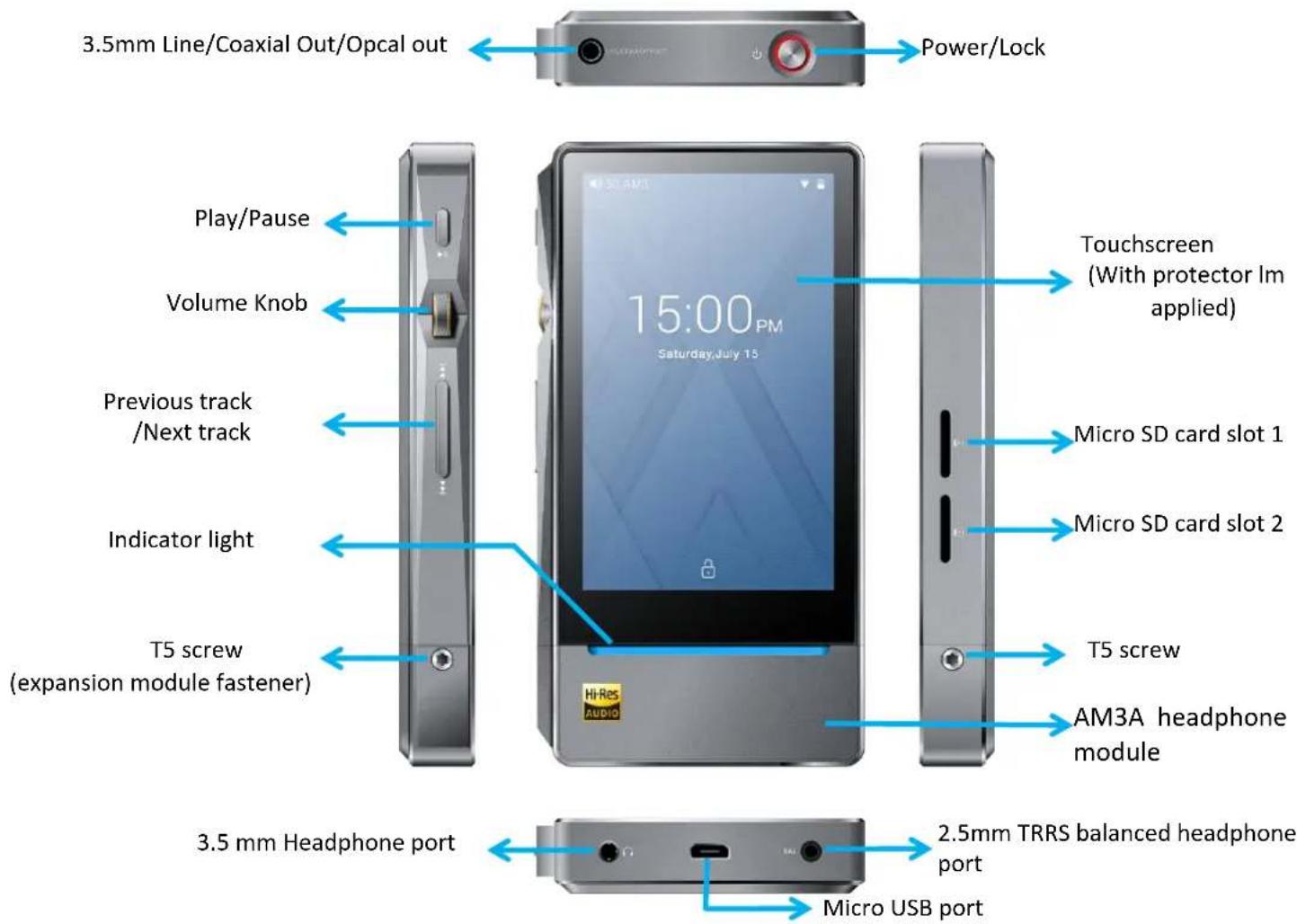
2. Buons and ports explained
1) Touchscreen (16.7 million colors, 480x800 pixels): Displays the user interface and other informaon; for operang the unit via screen touches and/or in conjuncon with buons on the unit;
2) Play / Pause: Press while playing to pause music, press while paused to connue playback;
3) Volume knob: Scroll up to turn up the volume, scroll down to turn down the volume.
4) Previous / next track: Press to skip to the previous or next track;
5) Indicator light: Indicates player's operang status (lighng eect may be customized: Sengs -> Display ->Pulsar light)
6) Power / Lock: While X7 is powered o, hold for 2s to turn on; while powered on, hold to display power o / reboot menu; press briefy while powered on to turn screen on / o; Press and hold for 15 seconds to reset.
7) Micro SD card slot: Dual micro SD card slots each supporting up to 256GB capacity
8) 3.5mm headphone port: Connect your headphones here. CTIA-spec headsets with in-line remote control supported with the following remote control operaon (single buon remotes and main buon of mul-buon remotes supported):
Volume Up/Down: click to turn up/down the volume by one step, hold to turn up/down the volume connuously to Max volume/Mute
Play / Pause: press main buon once briefy to toggle between play and pause;
Next track: double-click main buon quickly;
Previous track: triple-click main buon quickly;
9) 2.5mm balanced headphone output: Supports 2.5mm TRRS balanced headphone
10) Micro USB port (11-pin): for charging, data transfer, USB DAC funcon and conneccon to FiiO docks; It's recommended to use a Quick Charge adapter (DC9/12V 2A) for charging. X7's supposed to be fully charged within 2 hours when in Quick Charge mode. With DC5V/2A adapter, it's supposed to be fully charged within 4 hours.
11) 3.5mm line / Coaxial output/ Opcal output: Shared line / coaxial output port. Switch between the two outputs in X7 Sengs -> Sound Sengs -> Mulfunconal Output.
12) T5 screws: for removably securing expansion modules.
C. Pure Music / Android Mode switch
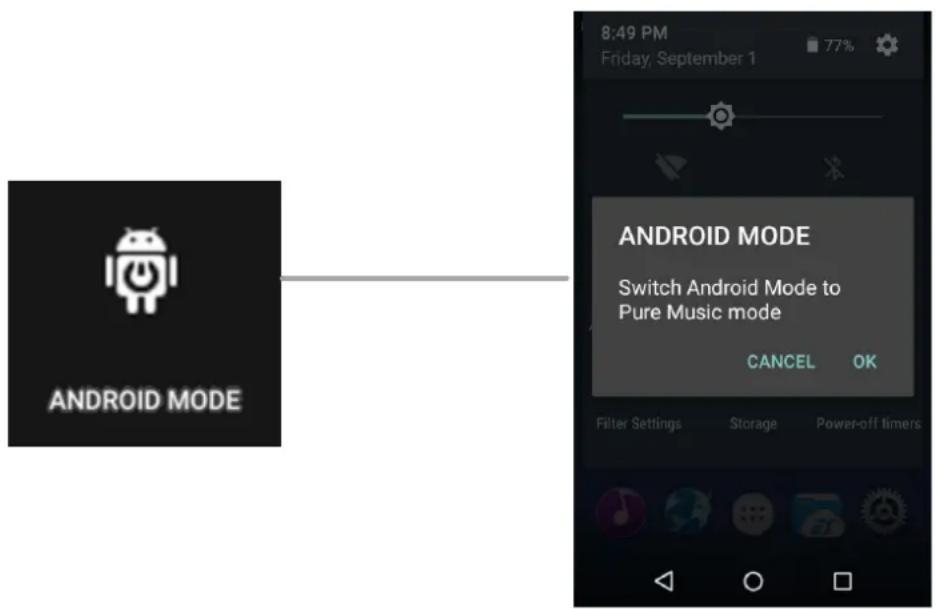
1. Switching from Android to Pure Music mode
While in Android mode, Pull down the Quick Sengs menu from the top of the touchscreen and tap on the “Android Mode” icon; the player will prompt you on whether to switch the mode. Press OK to switch the X7 to Pure Music mode, allowing uninterrupted music enjoyment with the built in FiiO Music app.
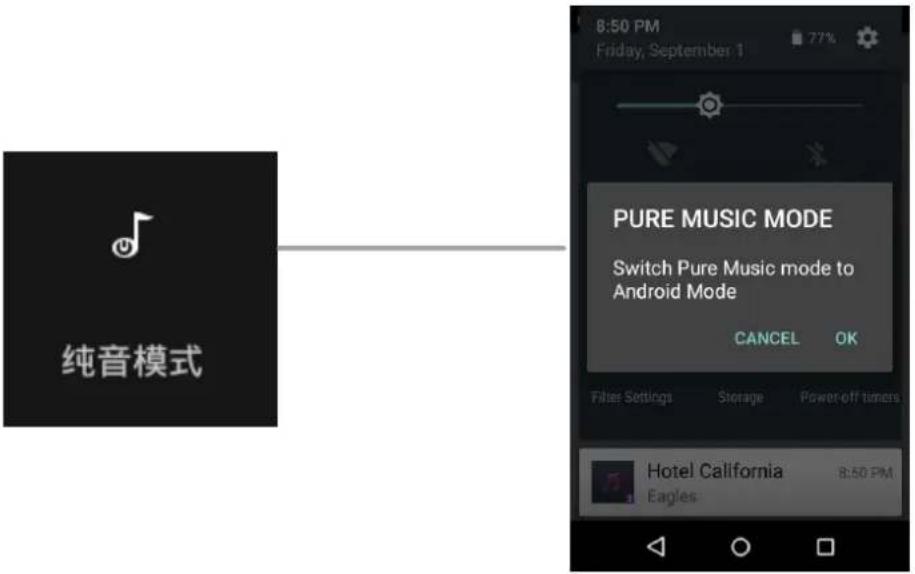
2. Switching from Pure Music to Android mode
While in Pure Music mode, Pull down the Quick Sengs menu from the top of the touchscreen and tap on the “Pure Music Mode” icon; the player will prompt you on whether to switch the mode. Press OK to switch the X7 to Android mode, allowing a rich music experience with 3^rd party Android app compatibility.
D. Wireless connecvity
The supportability of Bluetooth and WiFi on X7 enables users to expand the X7's funcon by wireless connnecon.
1. Bluetooth
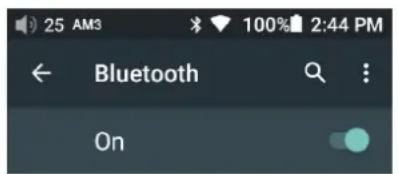
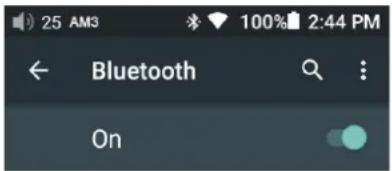
To use the X7 with new Bluetooth devices (e.g. Bluetooth earphones, speakers, remote controls), the X7 must rst be paired with the device as follows:
1) Pull down the Quick Sengs menu from the top of the touchscreen and hold your nger on the Bluetooth icon to open the Bluetooth sengs menu;
2) If Bluetooth on the X7 is o, turn it on by icking the switch on the upper right to the "ON" posion on the right;
3) Tap "SEARCH FOR DEVICES" at the boom of the screen to have the X7 search for and display nearby Bluetooth devices;
4) Tap the name of your Bluetooth device to pair with it. Successfully paired devices will appear under the "PAIRED DEVICES" list:
Paired devices

HUAWEI AM08

Available devices
FiiO X7 is visible to nearby devices while Bluetooth settings is open.
Paired devices

HUAWEI AM08
Connected

Available devices
FiiO X7 is visible to nearby devices while Bluetooth settings is open.


Notes: The X7 will pair with the device it last paired with by preference.
2. WiFi
The X7, supporting WiFi 2.4/5G, may connect to the Internet or other network resources to obtain music resources or (in Android mode) perform other Android funcons; it may also stream music to WiFi audio devices.
To connect the X7 to WiFi devices / hotspots:
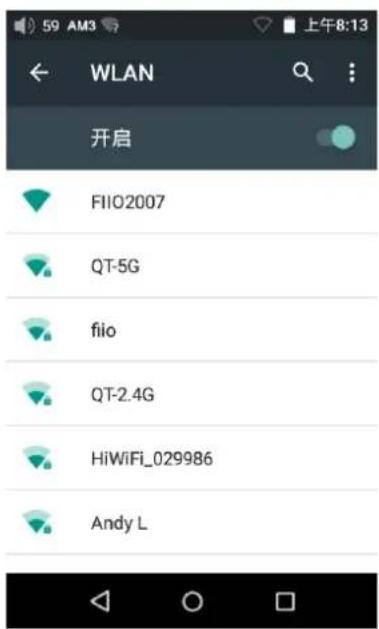
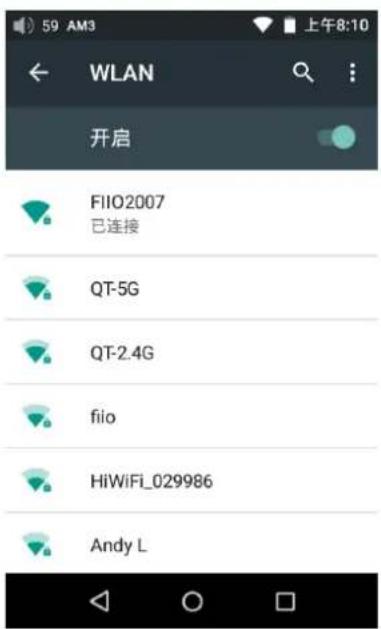
1) Pull down the Quick Sengs menu from the top of the touchscreen and hold your nger on the Wi-Fi icon to enter the Wi-Fi sengs menu;
2) Slide the WiFi switch to the right (ON) and the X7 will automacally search for and display available WiFi connecns:
3) Tap the name of the WiFi network you wish to connect to and enter the password if prompted, and the X7 will connect to the network:
Note: when its WiFi is on, the X7 will connect to the WiFi network it last connected to by preference.
E. Firmware updates
Improper operaon during rmware updates may cause the unit to malfuncon! Please read the following instrucons for rmware updates carefully before proceeding.
1. Over-the-air automac updates
1) Turn on the X7's WiFi and connect to the internet with a suitable hotspot
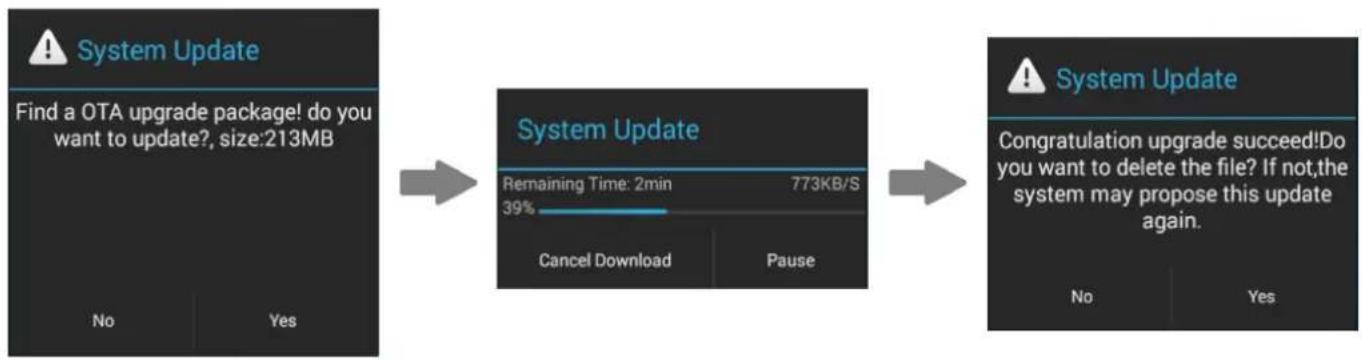
2) The X7 would check for over-the-updates and prompt for updang automacally if a newer rmware version is found:
3) Tap "Yes" and the X7 will download the update and install it automatically when download is complete.
Note:
a) You may tap the home buon to dismiss the download screen and connue using the X7;
b) Please connect to a high speed network to save download me;
c) The package download may be stopped and resumed;
d) Do not aempt to operate the X7 when the update proper is ongoing.
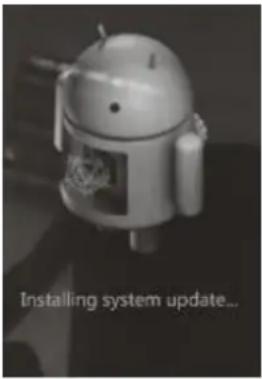
The X7 will reboot twice, once in update mode, then back into Android mode. The update process is complete when the Android lockscreen appears.
4) Aer the update is complete, please delete the update package as prompted.
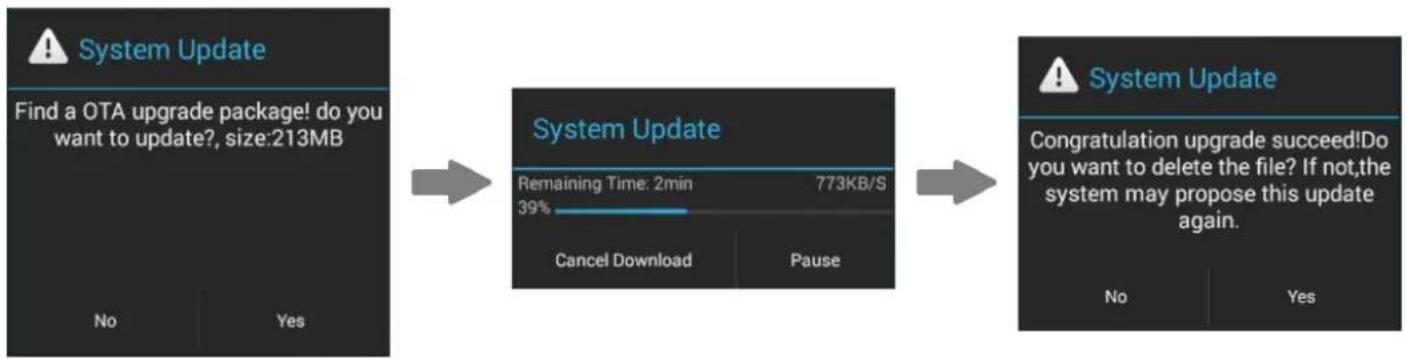
flowchart
graph LR
    A["Start"] --> B["Find a OTA upgrade package! do you want to update?, size:213MB"]
    B --> C["System Update"]
    C --> D["Remaining Time: 2min 773KB/S 39%"]
    D --> E["Cancel Download Pause"]
    E --> F["System Update"]
    F --> G["Congratulations upgrade succeed! Do you want to delete the file? If not, the system may propose this update again."]
    G --> H["No Yes"]
2. Local Updates
1) Copy the update zip le provided by FiiO to the internal storage or the SD card inserted into the SD card slot 1 of the X7. (it is recommended to copy to the root directory of either; rmware updates will not act the les or music contained in the X7.)
- Do not rename or extract the zip le.
To copy les to the X7:
- Connect the X7 to the computer via the provided USB cable.
- The “USB connected” screen should pop up automacally. Tap “Turn on USB storage” near the boom.
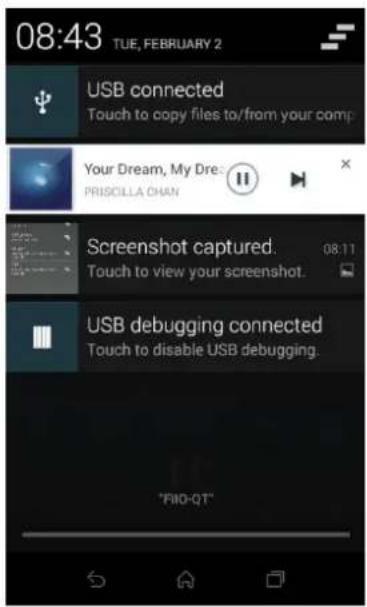
If the "USB connected" screen does not appear automatically, pull down the nocaons panel from the upper le of the touchscreen and tap on "USB connected" to bring it up.
- The internal storage and SD cards of the X7 will appear as USB drives on the connected computer.
- Copy les (e.g. the update zip) to the Internal Storage or to the Micro SD card 1.
Safely eject the two drives from the computer (e.g. right-click each drive and choose "Eject").
2) Go to the Android homescreen, tap "Technical support" ->Firmware Update. In the le browser, nd the downloaded zip le in internal_sd or external_sd1 and tap on it. The system will prompt you to conrm whether to update the X7 with the selected zip le:
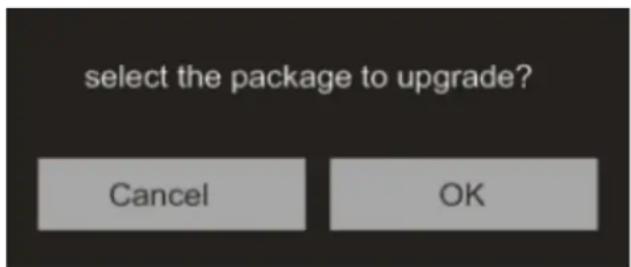
3) Tap "OK" to start the update. Do not aempt to operate the X7 while the update is ongoing.
4) The X7 will reboot twice, once in update mode, then back into Android mode. The update process is complete when the Android lockscreen appears.
3. Over-the-air manual updates
If you have cancelled the over-the-air automac rmware update and want to upgrade to the latest rmware later, you can choose to manually start the upgrade.
1) Turn on the X7's WiFi and connect to the internet with a suitable hotspot
2) Select "Technical support" on the desktop > "Firmware Update"> "Online Upgrade" under android mode, choose the update le and following dialogue would pop up.
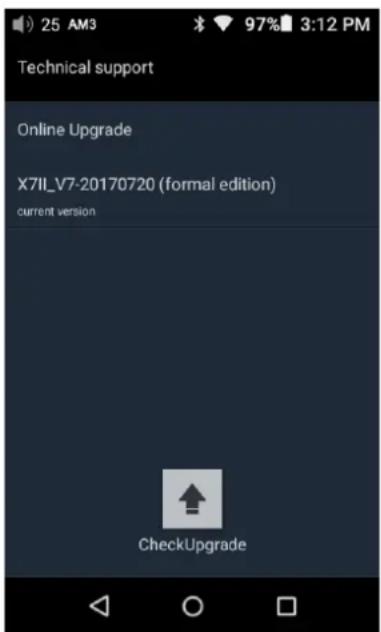
3) Click Check Upgrade then The X7 would check for over-the-updates and prompt for updang automacally if a newer rmware version is found:
4) Tap "Yes" and the X7 will download the update and install it automatically when download is complete.
5) Aer the update is complete, please delete the update package as prompted.
flowchart
graph LR
    A["Start"] --> B["Find a OTA upgrade package! do you want to update?, size:213MB"]
    B --> C["System Update"]
    C --> D["Remaining Time: 2min 773KB/S 39%"]
    D --> E["Cancel Download Pause"]
    E --> F["System Update"]
    F --> G["Congratulations upgrade succeed! Do you want to delete the file? If not, the system may propose this update again."]
Notes and Precauons
1) Make sure the X7 is adequately charged (preferably fully charged) for the update process to prevent power failure during the update.
2) If update fails, check that you selected the correct update zip le;
3) Please ensure adequate storage capacity if you need to use internal storage to upgrade (recommended to operate when there's over 1GB storage available for use).
4) Do not aempt to operate the X7 while the update is ongoing.
E. Pictorial guide to operang the X7
1. Android Mode
The Android interface of the X7 is similar to that of other Android device, for an intuitive operang experience.
1) Status bar
The status bar at the top of the screen displays various info on the current status of the X7:

1——Volume icon 2——Current volume level
3——Headphone Amp module 4——FiiO Music
5——USB connected 6——Bluetooth on
7——Docked connected 8——Opcal connected
9—Coaxial connected 10—Lineout connected
11/12—Headphone connected / Balanced
headphone connected
13——WiFi on 15——Baery level & Baery icon (charging)
14——Time
2) Nocaons panel
The nocaons panel displays various system nocaons. Pull down from the top status bar to show the nocaons panel. Pull up from the boom of the panel or tap the back or home buons to dismiss the panel.
3) Quick Sengs menu
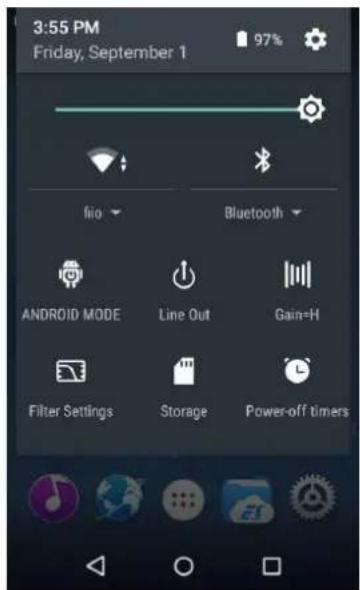
The Quick Sengs menu shows some of the commonly used sengs icons for the X7 in one full page. To enable the Quick Sengs menu, pull down from the top of the screen to enable the nocaon panel, then pull down the nocaon panel to enable the Quick Sengs menu. Pull up from the boom of the menu or tap the back or home buons to dismiss the panel.
The following quick sengs icons are shown:
Sengs: tap to show full sengs menu (useful in Pure Music mode);
Baery: shows current baery level. Tap to show full baery info;
Brightness: tap to show brightness adjustment slider;
WiFi: tap to turn WiFi on / o; hold to show WiFi sengs menu;
Bluetooth: tap to turn Bluetooth on / o; hold to show Bluetooth sengs menu.
Current operaon mode (Android / Pure Music mode): tap this to switch to the other operaon mode;
Line out/Coaxial/Opcal out: click to switch between Line out, Coaxial out and Opcal out
Gain: click to switch between High gain and Low gain
Filter Sengs: click Filter Sengs to enter the Audio Sengs then click Lowpass Iter mode to switch between 7 Iter modes
Storage: click to switch to USB DAC mode (Please go to download the USB DAC driver from the ocial website: hp://www.io.net/en/supports, and install it by following the corresponding instrucon.)
Power-o mers: click to enter Power-o mers seng to set the sleep or idle power o funcons
4) FiiO Market
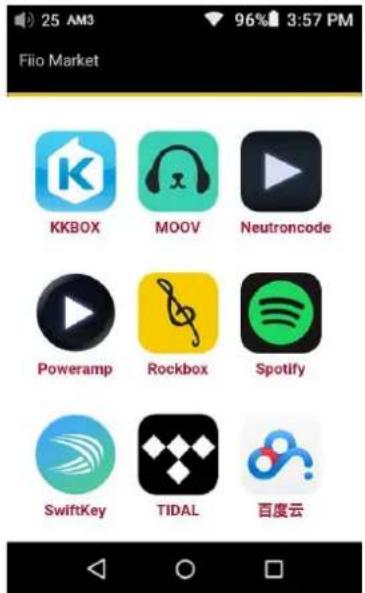
With the X7 connected to the internet via WiFi (see secon D.2), Tap "FiiO Market" on the Android homescreen to show a list of socially recommended apps for which compatibility with the FiiO X7 has been rigorously tested. Slide up and down to view the full list of apps.
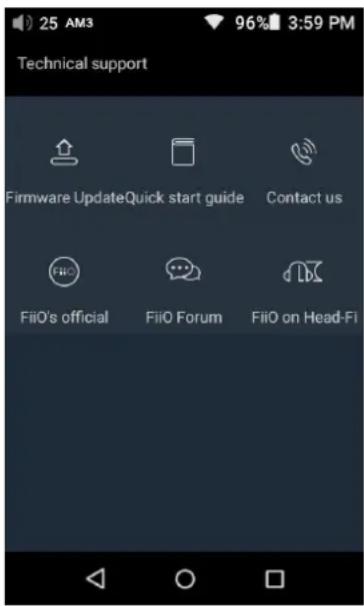
5) Technical support
Tap “technical support” on the Android homescreen to enter the technical support menu, with the following opons:
Firmware update: tap to manually select an update zip package for updang the X7's rmware Quick start guide: tap to view the quick start guide for the X7.
Contact Us: Click for the FiiO ocial plaorms and contact informaon (Internet conncon required)
FiiO's social website: Tap to go to FiiO's social website (Internet conncon required), to receive the latest news and info on our products (including the X7);
FiiO Forum: Tap to enter FiiO's FiiO forum (Internet conneccon required), to interact with other music lovers online;
FiiO on Head-Fi: Visit the FiiO forum page on Head-Fi (Internet conncon required)
6) X7 Sengs
The X7 runs FiiO's Android-based OS, which has been deeply customized for opmal audio performance from Android. Thus, some of the sengs opons dier from usual Android sengs and will be explained below:
To enter Sengs, tap the cog icon (on the lower right of the homescreen by default). You may also enter the app drawer and tap the cog icon there labelled "Sengs"
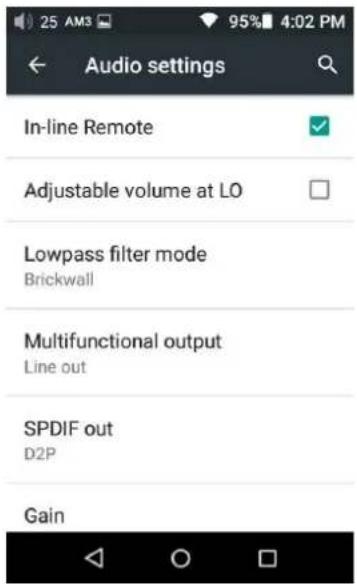
a) Audio Sengs—In-line remote
Response to in-line remotes on connected headsets may be enabled or disabled by your choice
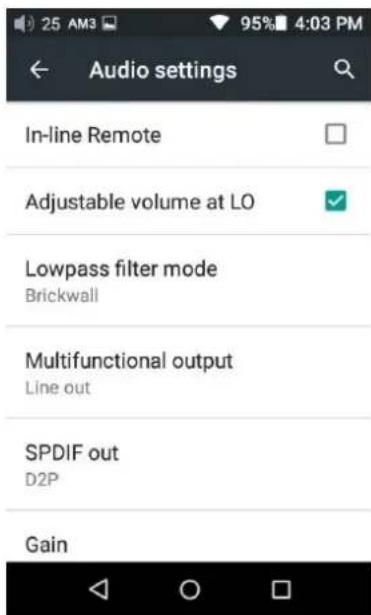
b) Audio sengs—Adjustable volume at LO
Adjustable volume at LO: On/O
This allows you to set whether the volume through Line Out can be controlled by adjusting the volume level or not.
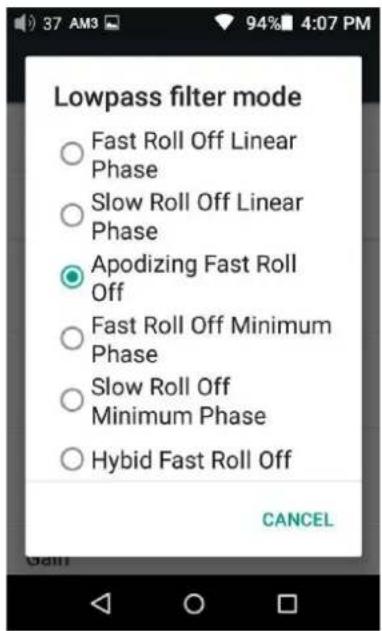
c) Audio sengs—lowpass Iter mode
To set the Iter modes: Fast Roll O Linear Phase, Slow Roll O Linear Phase, Apodizing Fast Roll o, Fast Roll O Minimum Phase, Slow Roll O Minimum Phase, Hybrid Fast Roll O, Brickwall
d) Audio sengs—Mulfunconal Output
The 3.5mm output port at the up le of the X7 may output analog line signal or coaxial/opcal digital signals. This menu item lets you choose among the three.
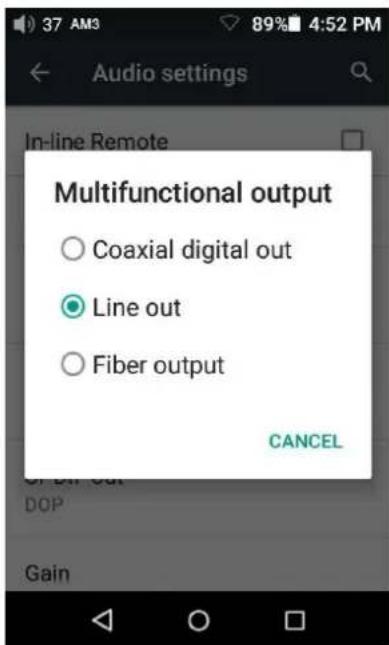
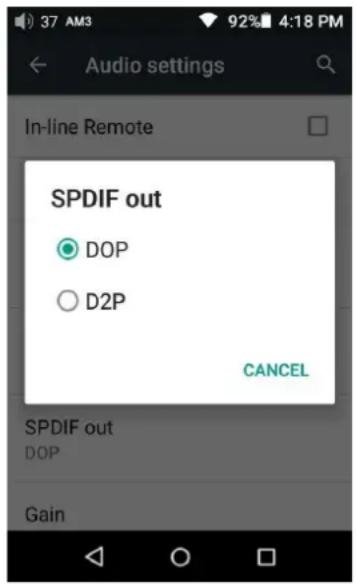
e) Audio sengs—SPDIF out seng
There are two modes of using the SPDIF Out: D2P (DSD to PCM) and DOP (DSD over PCM). Under D2P mode, you play the PCM signal and will get the original PCM signal out. When playing the DSD signal, system will convert the DSD signal to PCM signal and output. Under DoP mode, PCM signal can be directly outpued and so does DSD signal. However, to have the signal output,
the coaixal device connecng with the DAP needs to support DSD. It can only support up to DSD64 signal when SPDIF Out, higher specs format like DSD 128 is not supported.
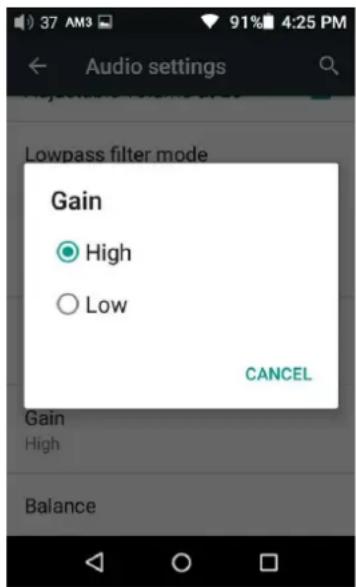
f) Audio sengs—Gain
Sets the gain level of the headphone output to be either High (high volume) or Low (low volume).
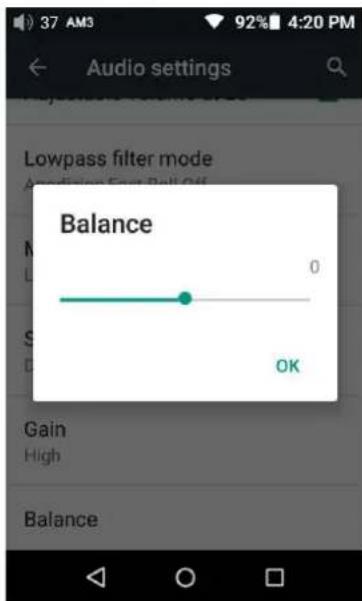
g) Audio sengs—Channel balance
Sets the volume balance between the le and right channels. From being biased lemost (L10) through centred (0) to rightmost (R10), there are 21 sengs available.
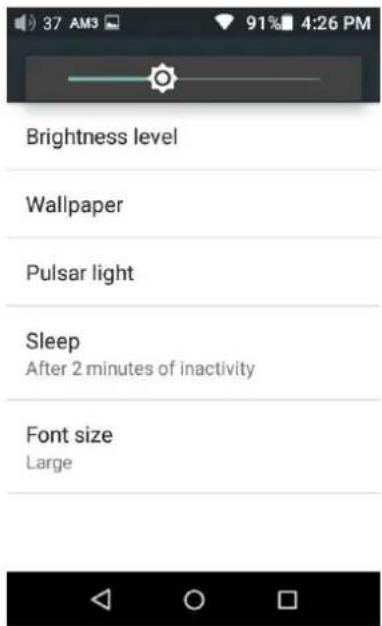
h) Display—Brightness level
To set the brightness of the screen to a comfortable level according the actual environment.
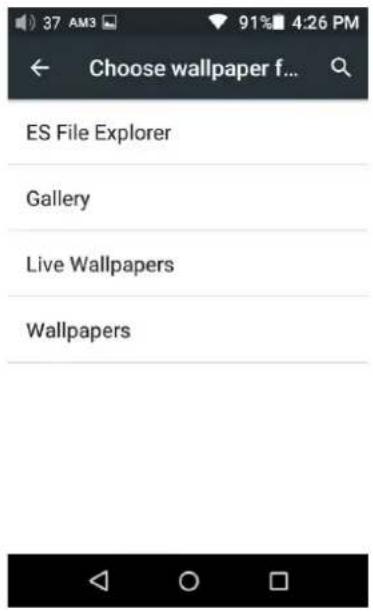
I) Display—Wallpaper
To set the wallpaper at your preference
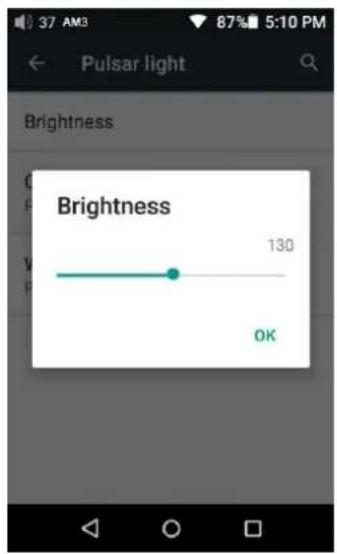
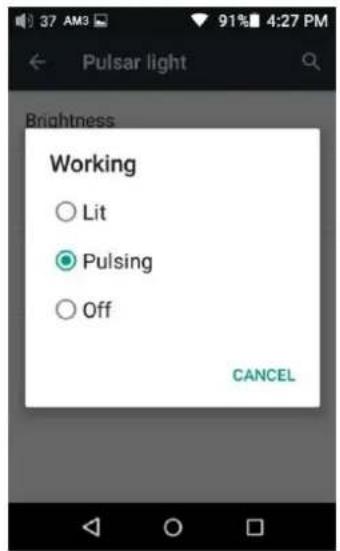
J) Display—Pulsar light
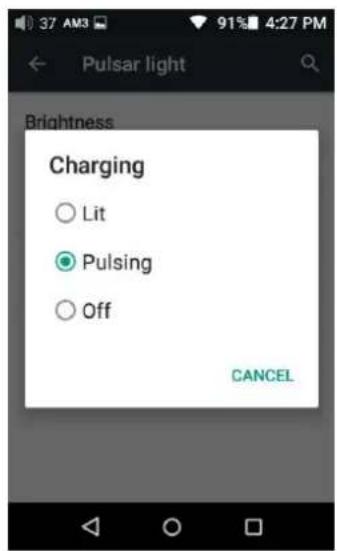
This menu item lets you customize the lighng of the pulsar light (blue horizontal light below the touchscreen and FiiO logo). The brightness of the light can be adjusted in 256 steps.
The light can be set to light steadily (Lit), pulse slowly on and o (Pulsing), or not light (O). Dierent seng can be made when the X7 is Charging, and when it is Working (powered on).
k) Display—Sleep
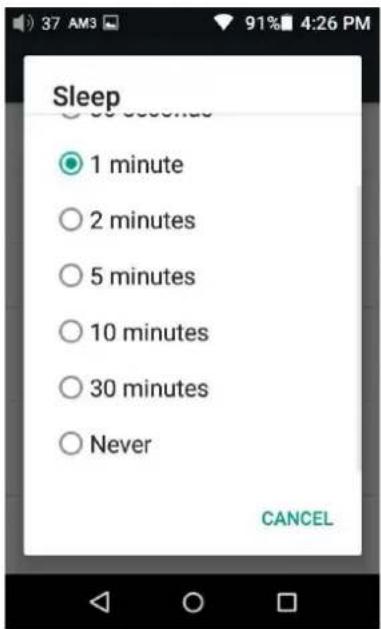
Specify aer how much me of inactivity (no buon presses, screen touches or palying) X7 will enter sleep mode. In Sleep mode, X7 would have low power consumption. Short press the Power buon to wake up X7 from Sleep mode.
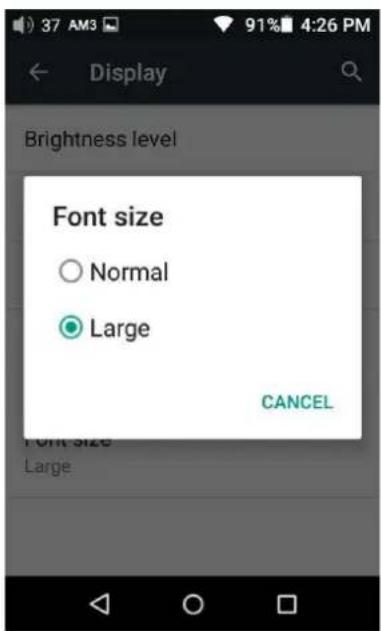
I) Display—Font Size
Choose the font size at your personal preference
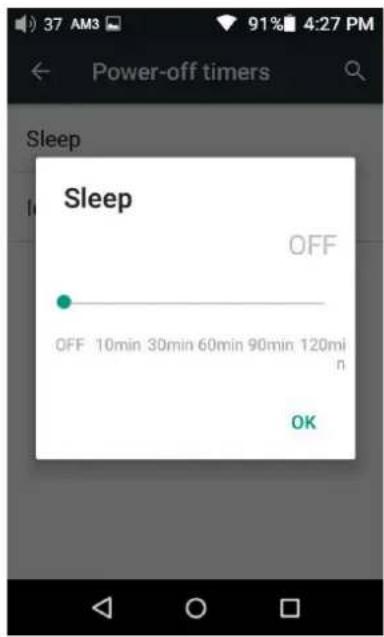
m) Powermer—Sleep
"Sleep" can be used to turn o the X7 aer a set me, regardless of acvity. This may be useful for e.g. bedside listening.
The sleep mer may be set to any number of minutes between 0 (OFF; no mer) and 120.
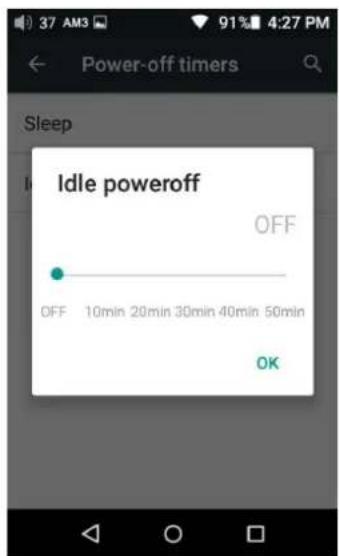
n) Powermer—Idle powero
Idle powero is a seng for turning o the X7 aer a set period of detected inacvity (no buon presses or screen touches).
The Idle powero mer may be set to any number of minutes between 0 (OFF; no mer) and 50.
The X7 includes the FiiO Music app, a music player applicaon that has been highly customized to make full use of the audio hardware of the X7 and tailored to the usage needs of advanced music enthusiasts.
On rst launch of FiiO Music, a pictorial guide to the app will appear. Below is a reproducon of the pictorial guide along with further guiding descripon.
- The pictorial guide can be recalled at any me by tapping Sengs (cog icon on upper le of app homepage)->Help (near boom of menu).
- On rst launch of FiiO Music, you will be prompted to scan for music on your X7. Tap “Scan all” to scan all locaons on the X7 automacally, or “Scan selected folder(s)” to manually select locaons to be scanned.
1) App homepage
On launching the FiiO Music app, the following homepage appears (shown with guide annotaons here). The following funcons can be performed on the homepage:
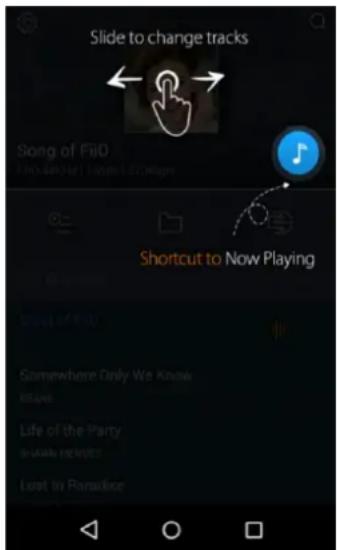
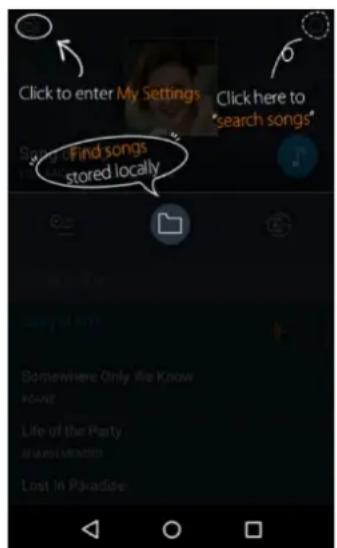
Random track: Tap the album art window at the top to play a random song from your collecon (media library scan must be completed rst); slide your nger le over the window to switch to the next track, or right for the previous track;
Shortcut to Now Playing: tap on the round music note buon to the upper right to jump to the Now Playing screen (for which operaon is detailed further below);
Sengs: tap the cog icon to the upper le to show various app sengs opons;
Search: tap on the magnifying glass icon at the upper right corner to quickly search for a song in your X7;
Play playlists: Tap the list icon on the le to browse playlists, including Favorites playlist and other user-dened playlists (does not include M3U le-based playlists, which can be found via le
browsing);
Local music: Tap the folder icon in the middle to enter the main music browsing menu for all songs stored locally on the X7, including on the inserted micro SD card;
DLNA: Tap the DLNA symbol on the right to connect to a DLNA-enabled network and browse music on your network.
Recently played: Lists your recently played songs according to the me when played;
Most played: Lists your most popular songs according to playback frequency.
Recently added: Lists the tracks that are recently added to the library
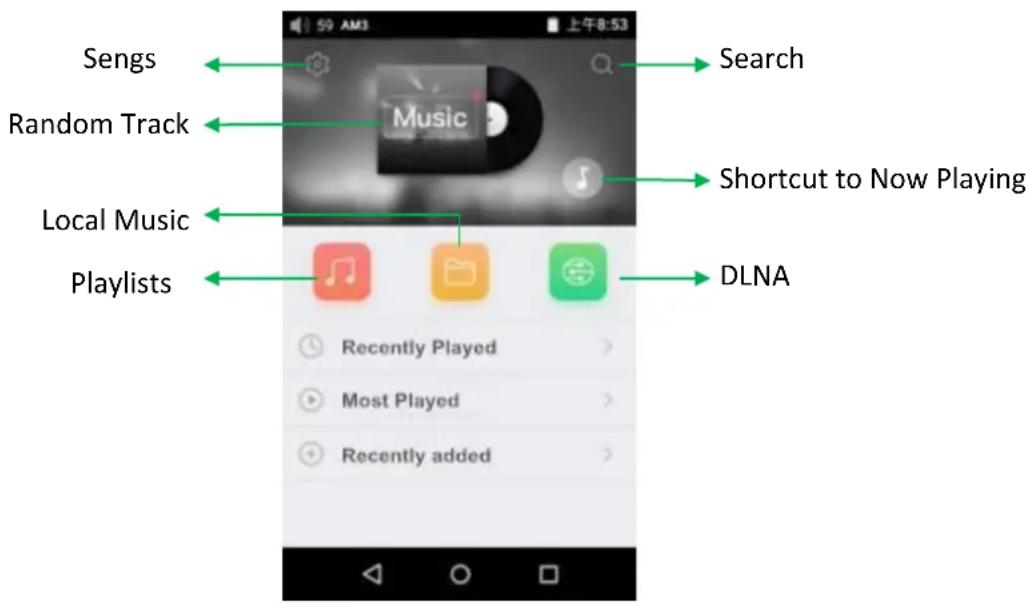
Note: playlists, local music, DLNA, recently played and most played can be selected / unselected for display and their display eects customized in Sengs->UI Personalizaon within the app.
2) Local music
The “Local music” screen displays the songs stored in your X7in 5 dierent lisngs. From let to right, they are:
Songs: shows all songs in one list according to the chosen order. (Tap the blue circle in the lower right to choose between sorg by number of tracks in the folder and alphabecal order)
Arsts: displays all arsts that performed in at least one track stored in your X7 according to the chosen order. (Tap the blue circle in the lower right to choose between sorg by number of tracks performed by the arst and name of the arst)
Tap on an arst to view a lisng of all songs performed by the arst; or tap the rst
icon to the right of the arst name to view a list of albums by the arst instead; tap on an album to view the tracks within that album.
Tap on the name of a song/track to play that track.
Albums: displays all albums stored in your X7 according to the chosen order. (Tap the blue circle in the lower right to choose between sorng by number of tracks in the album and album name)
Tap an album to view the tracks within that album. Tap a track to play. Genre: displays the names of all genres represented by at least one song on your X7, according to the chosen order. (Tap the blue circle in the lower right to choose between sorng by number of tracks of that genre and genre name)
Tap the name of a genre to view all songs of that genre;
Folder view: performs as a folder browser showing all directories on your X7's internal storage and inserted micro SD card, but only showing playable music les.
Note: Tap on the More funcon icon "..." and you could select the sorng method or edit the list.
Sliding your nger right over a list item reveals four opons. From le to right they are:
Add to favorites: add the song or the songs contained in the list item to the Favorites playlist.
Add to playlist: add the song or the songs contained in the list item to a playlist of your choosing.
Play over Bluetooth: play the song or the songs contained in the list item over Bluetooth.
Track Info (only shown when a parcular song / track is selected): shows various info on the selected track, including ID3 tag info, song length, bitrate, etc.
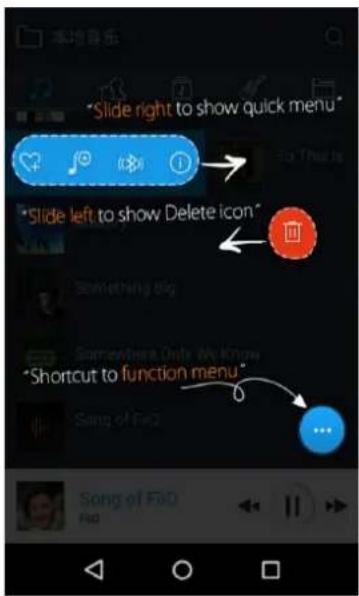
Note: Sliding your nger le over a list item reveals an opon to delete the item. (or format a drive, if “internal storage” or “SD card” is selected in folder view...) Tap on the red buon and you will be prompted to conrm the delete acon.
a) Alphabet scrolling
When the list is ordered by alphabet (tap the blue circle to the lower right and select the "A->Z" opon), you can slide your nger over the alphabet list to the right of the screen and quickly jump to the part of the list that starts with the selected leer.
b) Gestures
Sliding your nger from le to right over a list item to enable the shortcuts menu and tap on the icons to perform the corresponding operaons (Add to Favorites, Add to Playlist, Bluetooth, Track Info). Sliding from right to le over a list item reveals an opon to delete the item. (or format a drive, if “internal storage” or “SD card” is selected in folder view...) Tap on the red buon and you will be prompted to conrm the delete acon.
c) More funcons menu at the lower right
Tap the More funcon menu at the lower right and you'll be given various opons: Choose song order of the list: e.g. sort by number of tracks in list item, alphabecal order;
Batch operaon: Tap the pencil icon and checkboxes will appear to the right of the list. Tap the checkboxes to select the list items you want, then tap the batch operaon desired at the boom. From le to right they are: play, add to favorites, add to playlist, (cancel operaon), and
delete.
3) Now playing
The Now Playing screen has buons to tap on as well as places you can acvate with neat gesture acons, as detailed below:
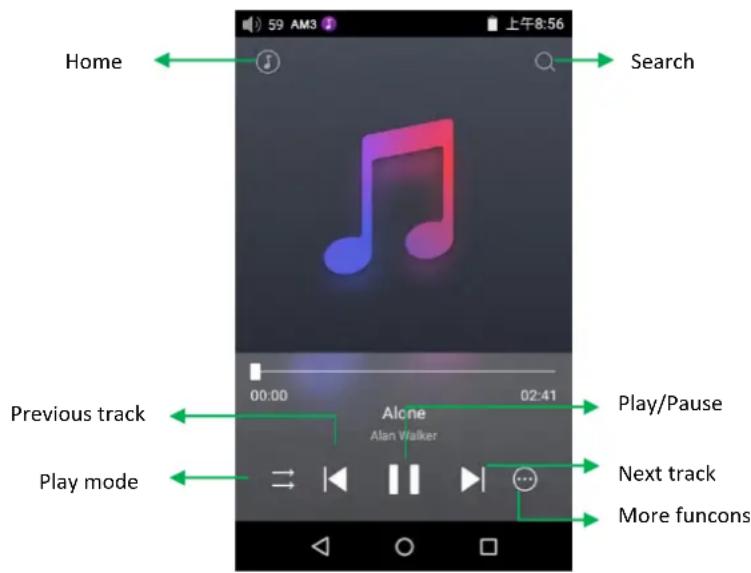
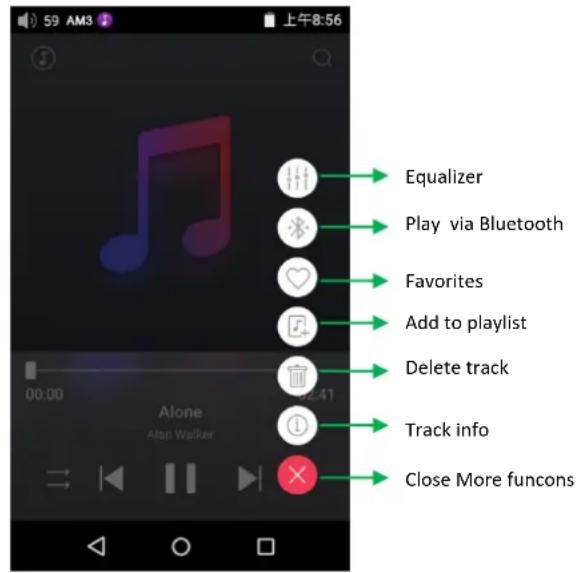
a) Buons explained
Referring to the numbering of the buons above, the buons in this screen are as follows:
1) Home: return to App homepage (see secon F.2.1);
2) Search: Tap to show a fullscreen search pane for all songs on the X7. Searching of track tle, album name and arst name are supported. Recent searches are saved;
3) Equalizer: tap to open the equalizer control panel;
4) Play via Bluetooth: buon to toggle between playing the present track through Bluetooth or wired headphones. Opens Bluetooth pairing screen if no Bluetooth audio devices are connected (see secon D.1);
5) Add to Favorites: Tap to add the present track to the Favorites playlist;
6) Add to playlist: adds the present song to a playlist of your choosing.
7) Delete track: Tap to show the pop-up message about deleng the present track
8) Track info: Tap the More funcons to view track info
9) Play mode: Tap to choose between Play All once, Loop Single, Shue and Loop All (It can be changed to EQ or Favorites by “Shortcut display in Now playing” seng which only is shown on White theme.)
10) Previous track
11) Play / Pause: Plays / pauses the present track, whichever is applicable;
12) Next track
13) More funcons: Tap to show the More funcons menu
14) Close More funcons menu: Tad to close the More funcons menu
b) Gesture operaons
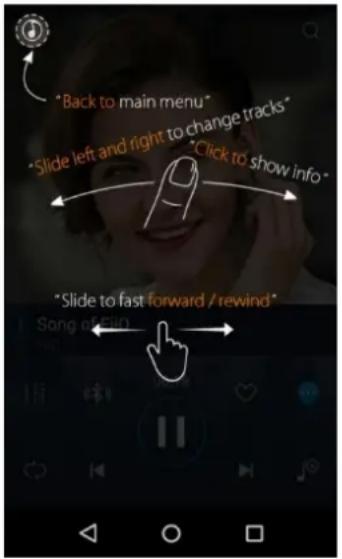
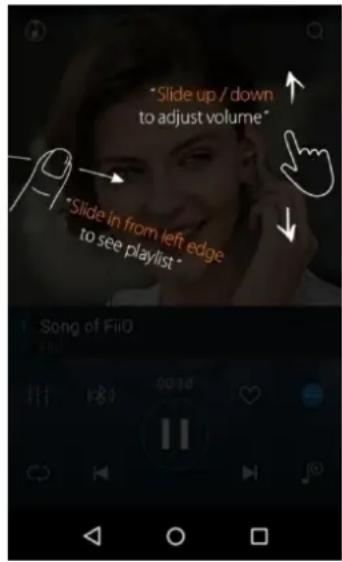
Slide le and right on the album cover to change tracks;
Click on the middle of the album cover to switch between displaying the album cover, lyrics, ID3 info and VU meter;
View playlist: slide in from le edge to view the current list of songs queued for play; tap any song on the list to jump to that song;
Tap outside of the playlist on the le to close the list;
Adjust volume: slide up / down on the right edge of the album cover area to adjust the volume.
Slide to fast forward / rewind: tap anywhere on the progress bar below the album cover area to jump to the corresponding part of the track now playing;
Note: While in the lyrics display page, you can adjust the playback progress by sliding over the lyrics, adjust lyrics meline or adjust font size.
4) EQ Equalizer
FiiO Music incorporates a graphic equalizer. One may choose between the given genre presets directly, or adjust the ten frequency bands from 31Hz to 16kHz independently from -6dB to +6 dB, thus sasfying your personalized listening needs and adapng to your listening equipment.
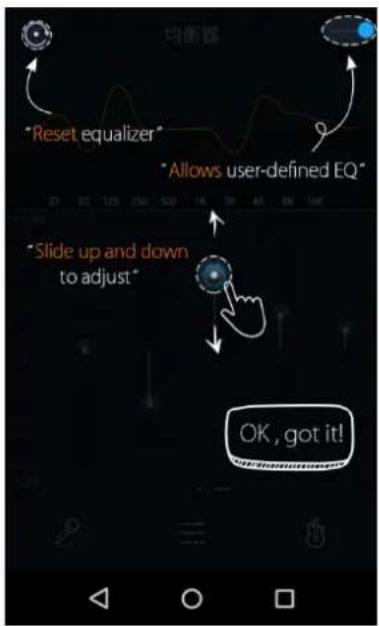
EQ switch: Slide the lever on the upper right to the right to acvate the equalizer.
Choose preset EQ: Swipe up from the boom of the screen (above the homescreen buon) to show the full list of EQ presets. The corresponding genres are: Pop, (User Dened), Rock, Dance, Blues, Metal, Vocal, Classical
Customize EQ: to customize an EQ seng:
- Turn on the equalizer;
- Choose the genre preset to be adjusted (e.g. "User Dened");
- Drag a vercal slider to adjust its corresponding frequency up and down. The EQ curve above changes to react your adjustments. Swipe le or right over the sliders to move between the low and high frequency sliders; Press the Back buon to the lower right to exit and save changes; Reset EQ: Tap the reset buon at the upper le corner to reset the present EQ preset to its genre default.
If a factory reset is performed on the X7, all EQ sengs will be reset to defaults.
3. Pure Music Mode
The operaon of the X7 in Pure Music mode is similar to in Android mode, with the exception that the X7 will be in FiiO Music all the me. In this mode, all background Android processes will be disabled to allow for a smoother music experience.
To switch to Android mode, pull down the Quick Sengs menu from the top of the touchscreen and tap on the "Pure Music Mode" icon to switch to Android mode.
F. FAQ
1. Charging
How large is the X7's baery? How long will it last?
A: The X7 ulizes a 3800mAh rechargeable Li-poly baery, for roughly 10 hours of play me in normal use. You may refer to hp://io.net/en/products/71/parameters, "Baery Life Test Condions", for the conditions under which the baery life of the X7 was tested.
How may the X7 be charged?
A: The X7 ulizes a micro USB port for charging and is compatible with all USB power sources:
- X7 supports both normal charge and quick charge. It's recommended to use a quick charge adapter (DC9/1.5A, 12V/2A) to charge X7. It could be fully charged within 2 hours in Quick Charge mode.
- Connecng to computer USB port (however charging will take longer because of low current limit of computer USB ports).
- Using mobile USB power banks (output voltage DC5V; output current of 1A or above recommended)
How long does it take to fully charge the X7?
A: It could be fully charged within 2 hours using a quick charge adapter (DC9/1.5A, 12V/2A) and within 4 hours using a DC5V 2A adapter.
Can X7 be used while charging?
A: The X7 ulizes a high-quality power management circuit to ensure its reliability.
- The X7 may be used while charging without performance degradaon or damage to the person or the X7.
- The temperature of the X7 will rise somewhat when charging and playing; this is normal.
- Charging me of the X7 from empty to full will be lengthened as a result of part of the charging current being diverted to power the X7.
Does the X7 display accurate baery levels?
A: Yes, the X7 includes a coulomb meter for its baery and gives accurate baery readouts.
What to do if the X7 gets hot while charging and playing at the same me?
A: As noted above the X7 can be charged and used at the same me without harm. Nevertheless you may choose to turn o the X7 for charging.
2. Transferring songs
What operang systems does the X7 support?
A: The X7 supports windows XP and x86 and x64 versions of Windows 7, 8 and 10, as well as Apple's Mac OS. Linux is supported in general, however full compatibility with all the variees of Linux is not guaranteed.
What USB ports is the X7 compatible with?
A: The X7 is a USB 2.0 device and is compatible with all USB ports backwards compatible with USB2.0, including USB3.0 and USB-C, the laer via suitable adapter cables.
What are the transfer rates of the X7?
A: Transfer rate depends on the data format and the micro SD card used. Using a Sandisk Class 10 SD card, the following results are experimental data which is just for reference:
Internal memory: writes 11MB/s, reads 26MB/s(approx.)
Micro SD card 1: writes 6MB/s, reads 26MB/s(approx.)
Micro SD card 2: writes 12MB/s, reads 23MB/s(approx.)
The X7 is connected to my computer. Now how to transfer songs from the computer to the X7?
A: Simply drag and drop folders of music from your computer to the X7, which appears as a regular removable USB drive. If you prefer to use a music library management program on your computer, you may use any management program that supports library management of connected regular removable USB drives.
Is driver installaon required for transferring songs?
A: No.
- Firmware updates
How to tell whether the X7 has the latest rmware?
The X7 will automatically look for the latest rmware online whenever it is connected to the internet via WiFi.
Other than that, you may also manually check the rmware version on your X7 (Android Sengs -> About X7 -> Build number) against the rmware versions listed at hp://io.net/en/supports/45.
You may also pay aenon to general FiiO
news at www.io.net or community news at
hp://www.head-.org/f/180/io or
www.io.me.
Would the X7 be bricked if update fails? What to do if the X7 is bricked?
A: Please ensure that the X7 is well charged, preferably fully charged, before updang. The X7 should not brick during update even if it fails. Nevertheless, if your X7 is bricked, please contact us at support@io.net and we will help you with it.
4. Storage
Does the X7 contain internal storage? Is removable storage supported?
A: The X7 comes with 64GB of internal storage and presently supports two micro SD cards of up to 256GB capacity (512GB for two).
Is the X7 picky about cards?
A: From our tesng, the X7 supports all major SD card brands. To prevent slow card speeds causing dropouts when listening to music of high bitrates (such as 384kHz/24bit APEs and DSD128), cards of Class 10 or above are recommended.
5. Playing music
Why can my APE les not be played by the X7?
A: APE comes in 5 compression rates, Fast, Normal, High, Extra High, and Insane. The X7 may play up to Fast, Normal, and High compression APEs of up to 384kHz/24bit, and Extra High and Insane APEs of up to 192kHz/24bit. Please check whether the track you are aempng to play is
supported by the X7.
Does the X7 support CUE sheets?
A: The X7 supports external cue sheets for identifying and playing a cue'd music le as separate tracks.
Does the X7 support CUE sheets?
A: Embedded cue sheets are not supported. Also please make sure that the .cue le is named the same as the music le that it cues.
Why does X7 not show the cue le in the micro SD card when browsing les?
A: Since it has been already been used by the X7 to split the cue'd le into mulple tracks (which are shown).
How to listen to all the music folders on the X7 one by one without switching Folders/Arst/Album/Genre manually?
A: Please go to FiiO Music "Sengs->Play through folders" and set it on, then it will skip automacally from the last song in one folder/arst/album/genre to the rst song in the next folder/arst/album/genre when playing from a folder folder/arst/album/genre lisng.
Why do the songs I've copied into the X7 not appear in any lisng (except Folder view) in FiiO Music?
A: Please go to FiiO Music Sengs->Scan for songs to index your songs into the lisngs.
6. Connecng with other audio equipment
How to connect the X7 Line Out to other equipment? What to connect it to?
A: First, make sure that the Mulfunconal Output (Secon F.1.6.c) is set to Line Out. Then connect the LINE/COAX/OPT OUT port on top of the X7 to the line in / aux in port of your equipment via an appropriate interconnect. The Line Out is a standard high level line output and is for connecng to line inputs such as that on headphone amplifiers, AV receivers, loudspeaker preamps, powered speakers, etc. The default line output level is high (2V) and can damage headphones. In any case,
headphones are not meant to be connected to a line output and will perform poorly.
Could X7 be used with FiiO's docking staon?
A: X7 could be used with FiiO's docking staon DK1 and desktop amplifier K5 via Micro USB conncon.
The X7 does not get detected by my computer for le transfers?
A: The X7 may be connected to the computer as a standard USB storage device or as a DAC (for outpung audio being played by the computer). Disconnect the X7's USB conncon, pull down the sengs menu from the top of the touchscreen and check that the USB conncon is set to "storage" rather than "DAC"; then plug the X7 back in. You will be prompted to "Turn on USB storage". (the prompt can also be brought up manually by pulling down the nocaons panel from the upper le of the touchscreen and tapping the "USB connected" nocacn.)
How to connect the X7's Coaxial/Opcal digital output to other equipment? What to connect it to?
A: First, make sure that the Mulfunconal Output is set to Coaxial or Opcal digital out. Then connect the LINE/COAX/OPT OUT port on top of the X7 to the provided S/PDIF adapter cable. Then connect the other end of the adapter cable to your equipment's Coaxial or Opcal input with an appropriate RCA coaxial cable or Opcal cable.
Note: Dierent manufacturers may have dierent pin-out denion of the coaxial cable plug. Please use the coaxial cable supplied with the X7 to avoid the no output problem resulting from incompatibility.
Why does my HT receiver never play the rst ten seconds of music from my X7?
A: If the HT receiver is not explicitly set to receive audio from the coaxial port, it takes approximately ten seconds to detect that audio is not coming in through the HDMI port and switch to the coaxial port. In this case, please set the HT receiver's audio input to Coaxial.
7. Other operaons
How to get longer baery life for the X7?
A: a) Set the display to sleep aer a certain period of inactivity (system Sengs->Display->Sleep), and lock the screen before pung the X7 in your pocket, so that the touchscreen does
not connue accepng input in your pocket and keep your X7 acve.
b) Turning down the backlight brightness and turning o the pulsar light can also save baery.
c) Go to X7's system sengs -> Powermer -> Idle powero to set the Idle powero mer; And aer the set me of inacvity, X7 will power o automacally to save power.
Why is the X7 a bit sluggish in responding at mes?
A: a) High bitrate lossless tracks, particularly 384k/24bit APEs or DSD les, take more hardware resources to decode, possibly causing slowdowns in the player UI. You may convert such APEs to FLACs or uncompressed WAVs using programs such as foobar2000 on the computer rst to make it easier on the player. The sound quality will be the same.
b) Massive songs stored in the micro SD card might also result in operaon delay.
c) Massive les of non-music formats like photos, videos stored in the Micro SD card might cost extra me on idencaon.
d) Playing high bitrate les or DSD les from slow micro SD card might cause stuering. Class 10 or above genuine micro SD cards are recommended.
e) Disordered les (such as various APE albums and CUE les all put into one folder) might slow down the loading speed. It's recommended to create folders in this method: rst create folder of dierent arsts then create subfolders of dierent albums under the arst folder.
f) Dierent formats or bit rate les stored together might increase processing me. It's recommended to create dierent folders to store dierent format les and choose playback by folders to avoid X7 switching decoder frequently.
Why does the X7 get a lile hot in operaon?
A: The X7 ulizes an SoC with high clock speed, a separate DAC, and (also separately) a high power headphone amplifier and independent analog volume control in the amplicaon stage, thus dissipang way more power than consumer DAPs typically performing computaon, DAC and amplicaon all on the SoC. Apart from outpung more power to your headphones, a lot of this power is also dissipated as heat, thus causing the X7 to heat up slightly in operaon; but this does not endanger the X7 or the listener in any way.
Why can't I go to the homescreen by pressing the home buon?
A: Please check the X7 operaon mode you are currently in by pulling down the sengs menu from the upper right of the touchscreen. If you're in Pure Music mode, tap on the mode icon to switch to Android mode, aer that you will be able to access the Android homescreen.
Note: You can pull down from the upper right of the screen twice to enable the Quick sengs menu and view the current system mode.
Why can't I see the Quick sengs menu when I pull down from the top of the touchscreen?
A: There are two levels of pull-down menus. Aer the rst pulling down, you will see the nocao panel and aer the second pulling down you will see the Quick sengs menu.
Does the X7 support 256GB micro SD cards?
A: Yes.
Does the X7 coaxial digital output support DoP? At what rate?
A: Yes. The DoP output can be supported at up to 2.8MHz/1bit (DSD64).
Why can my X7 not receive OTA updates / why is the OTA update so slow?
A: The update download may be slow owing to network constraints, at the FiiO server's end, in the intermediary network, at your Internet ISP, your WiFi router, or owing to poor WiFi reception by the X7 (move closer to the router / hotspot). In any case, you may press the Home buon to dismiss the update download progress bar and connue using the X7 normally while the update downloads. You may even switch the X7 o and on and the update download will connue.
Why somemes it shows "0 new songs added to media library" aer updang?
A: X7 has adopted the incremental update method. If the songs had already been added to library, then they wouldn't be added in the next scanning. Therefore it would show "0 song added to media library" aer the uupdate. And this is not an update failure. Because of the incremental update scheme, the player is able to support the "Newly added" funcon and also save the scanning me.
- X7 Mark II User Manual
- Foreword:
- Contents
- Introducon
- Buons and ports introduced
- Buons and ports explained
- Pure Music / Android Mode switch
- Switching from Android to Pure Music mode
- Switching from Pure Music to Android mode
- Wireless connecvity
- Bluetooth
- WiFi
- Firmware updates
- Over-the-air automac updates
- Note:
- Local Updates
- Over-the-air manual updates
- Notes and Precauons
- Pictorial guide to operang the X7
- Android Mode
- 1) Status bar
- 2) Nocaons panel
- 3) Quick Sengs menu
- 4) FiiO Market
- 5) Technical support
- 6) X7 Sengs
- a) Audio Sengs—In-line remote
- b) Audio sengs—Adjustable volume at LO
- c) Audio sengs—lowpass Iter mode
- d) Audio sengs—Mulfunconal Output
- e) Audio sengs—SPDIF out seng
- f) Audio sengs—Gain
- g) Audio sengs—Channel balance
- h) Display—Brightness level
- I) Display—Wallpaper
- J) Display—Pulsar light
- k) Display—Sleep
- I) Display—Font Size
- m) Powermer—Sleep
- n) Powermer—Idle powero
- 1) App homepage
- 2) Local music
- a) Alphabet scrolling
- b) Gestures
- c) More funcons menu at the lower right
- 3) Now playing
- a) Buons explained
- 4) EQ Equalizer
- Pure Music Mode
- FAQ
- Charging
- How may the X7 be charged?
- How long does it take to fully charge the X7?
- Can X7 be used while charging?
- Does the X7 display accurate baery levels?
- Transferring songs
- Storage
- Playing music
- Does the X7 support CUE sheets?
- Why does X7 not show the cue le in the micro SD card when browsing les?
- How to listen to all the music folders on the X7 one by one without switching Folders/Arst/Album/Genre manually?
- Why do the songs I've copied into the X7 not appear in any lisng (except Folder view) in FiiO Music?
- Connecng with other audio equipment
- How to connect the X7 Line Out to other equipment? What to connect it to?
- Could X7 be used with FiiO's docking staon?
- The X7 does not get detected by my computer for le transfers?
- How to connect the X7's Coaxial/Opcal digital output to other equipment? What to connect it to?
- Why does my HT receiver never play the rst ten seconds of music from my X7?
- Other operaons
- How to get longer baery life for the X7?
- Why is the X7 a bit sluggish in responding at mes?
- Why does the X7 get a lile hot in operaon?
- Why can't I go to the homescreen by pressing the home buon?
- Why can't I see the Quick sengs menu when I pull down from the top of the touchscreen?
- Does the X7 support 256GB micro SD cards?
- Does the X7 coaxial digital output support DoP? At what rate?
- Why can my X7 not receive OTA updates / why is the OTA update so slow?
- Why somemes it shows "0 new songs added to media library" aer updang?
Brand : FiiO
Model : X7MKII
Category : Hi-Fi System