
SM40UNP - Monitor Seiki - Free user manual and instructions
Find the device manual for free SM40UNP Seiki in PDF.


| Product Type | LED Monitor |
| Brand | Seiki |
| Model | SM40UNP |
| Screen Size | 40 inches (diagonal) |
| Resolution | 1920 x 1080 (Full HD) |
| Refresh Rate | 60 Hz |
| Contrast Ratio | 1000:1 (typical) |
| Brightness | 250 cd/m² |
| Viewing Angle | 178° / 178° |
| Inputs | HDMI (x2), VGA, Audio In |
| Built-in Speakers | 2 x 5W |
| VESA Mount | 100 x 100 mm |
| Power Consumption | 60 W (typical), <0.5 W standby |
| Power Input | 100-240 V AC, 50/60 Hz |
| Dimensions (with stand) | 36.2 x 24.1 x 7.9 inches |
| Weight (with stand) | 15.4 lbs |
| Cleaning Instructions | Wipe with a soft, dry cloth. Do not use liquid cleaners. |
| Safety Precautions | Avoid exposure to moisture; do not open the casing. Unplug during storms. |
| Spare Parts Availability | Contact Seiki support for replacement stands, power cords, or remote controls. |
| Repairability | Limited user-serviceable parts. Refer to manual for service information. |
Frequently Asked Questions - SM40UNP Seiki
User questions about SM40UNP Seiki
0 question about this device. Answer the ones you know or ask your own.
Ask a new question about this device
Download the instructions for your Monitor in PDF format for free! Find your manual SM40UNP - Seiki and take your electronic device back in hand. On this page are published all the documents necessary for the use of your device. SM40UNP by Seiki.
USER MANUAL SM40UNP Seiki
SAFETY INFORMATION 6
PREPARATIONS 11
CONNECTIONS 14
INITIAL SETUP 18
OSD MENU SETTINGS 19
SPECIFICATIONS 27
Cleaning
Securing the Installation Space
Correct Posture to Use the Product
Symbols
Electrical Safety
Installation Safety
What's Included
Installation
Before Connecting
Connecting PC
Before Using the Monitor
SOURCE
LANGUAGE
PICTURE
COLOR
PIP/PBP
AUDIO
SETUP
OSD SETUP
General
PowerSaver
Standard Signal Mode Table
Before Using the Product
Cleaning
Exercise care when cleaning as the panel and exterior of advanced LEDs are easily scratched. Take the following steps when cleaning.
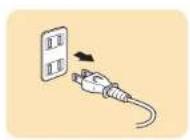
- Power off the monitor and computer.
- Disconnect the power cord from the monitor.

Hold the power cable by the plug and do not touch the cable with wet hands. Otherwise, an electric shock may result.
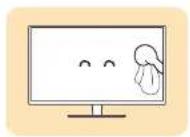
- Wipe the monitor screen using a clean, soft and dry cloth.
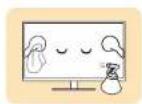
- Do not apply a cleaning agent that contains alcohol, solvent, or surfactant to the monitor.
- Do not spray water or detergent directly on the product.
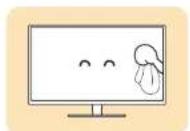
- Wet a soft and dry cloth in water and wring thoroughly to clean the exterior of the monitor.
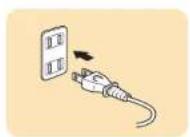
- Connect the power cord to the product after cleaning.
- Power on the monitor and computer.
Before Using the Product
Securing the Installation Space
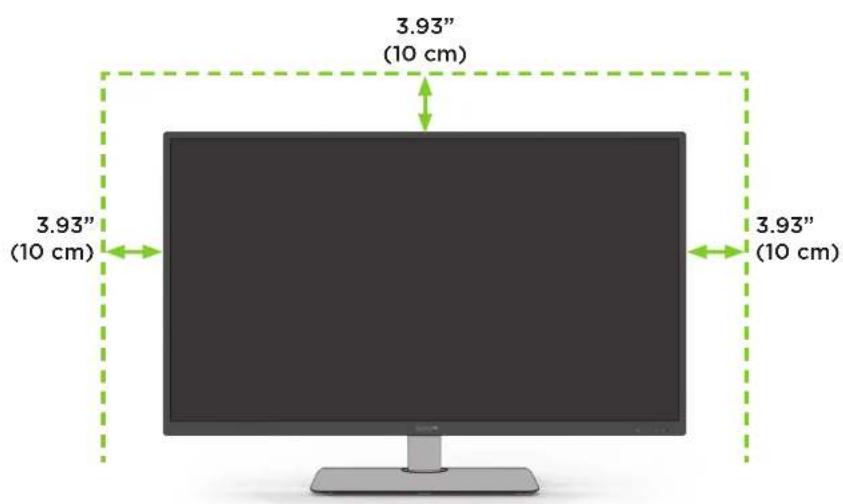
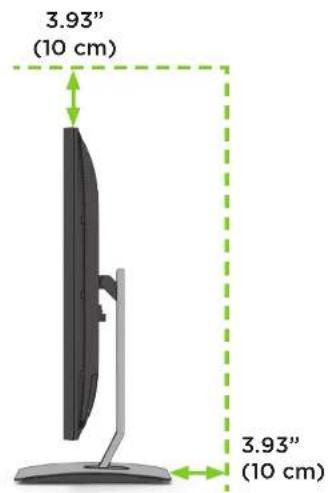
Ensure some space around the product for ventilation. An internal temperature rise may cause fire and damage to the product. Be sure to allow the amount of space as shown below or greater when installing the product.

The exterior may differ depending on the product.
Before Using the Product
Correct posture to use the product
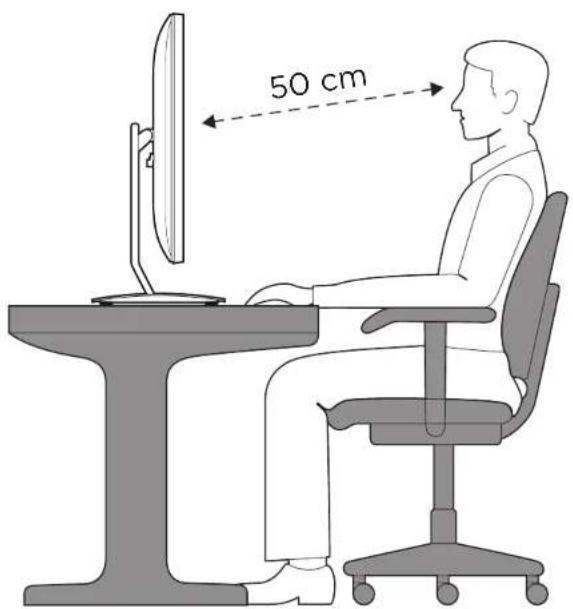
• Straighten your back.
- Allow a distance of 45 to 50~cm between your eyes and the screen, and look slightly downward at the screen.
- Keep your eyes directly in front of the screen.
- Adjust the angle so light does not reflect on the screen.
- Keep your forearms perpendicular to your upper arms and level with the back of your hands.
- Keep your elbows at about a right angle.
- Adjust the height of the product so you can keep your knees bent at 90 degrees or more, your heels attached to the floor, and your arms lower than your heart.
Safety Information
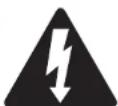
CAUTION
RISK OF ELECTRIC SHOCK DO NOT OPEN!

Caution: TO REDUCE THE RISK OF ELECTRIC SHOCK, DO NOT REMOVE COVER (OR BACK). THERE ARE NO USER SERVICEABLE PARTS INSIDE. REFER ALL SERVICING TO QUALIFIED PERSONNEL.
Symbols
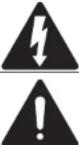 | This symbol indicates that high voltage is present inside. It is dangerous to make any kind of contact with any internal part of this product. | |
| This symbol alerts you that important literature concerning operation and maintenance has been included with this product. |
Safety Information
Electrical Safety

The following images are for reference only. Real-life situations may differ from what is shown in the images.

Warning
Do not use a damaged power cord or plug, or a loose power socket.
• An electric shock or fire may result.
Do not plug many products into the same power socket.
- Otherwise, the socket may overheat and cause a fire.
Do not touch the power plug with wet hands.
- Otherwise, an electric shock may result.
Fully insert the power plug in case it's loose.
• An unstable connection may cause a fire.
Be sure to connect the power plug to a grounded power socket. (type 1 insulated devices only).
• An electric shock or injury may result.
Do not bend or pull the power cord with force. Do not weigh the power cord down with a heavy object.
- A damaged power cord may cause an electric shock or fire.
Do not place the power cord or product near heat sources.
• An electric shock or fire may result.
Remove foreign substances such as dust around the plug pins and power socket with a dry cloth.
• Otherwise, a fire may result.

Caution
Do not unplug the power cord when the product is in use.
• The product may become damaged by an electric shock.
Do not use the power cord for products other than authorized products supplied by Seiki.
• An electric shock or fire may result.
Keep the power socket where the power cord is connected unobstructed.
- If any problem occurs in the product, unplug the power cable to completely cut the power to the product.
- Power to the product cannot be completely cut off with the power button.
Hold the plug when disconnecting the power cord from the power socket.
• An electric shock or fire may result.
The socket-outlet shall be installed near the equipment and shall be easily accessible.

This product meets ENERGY STAR ^® guidelines for energy efficiency. ENERGY STAR and the ENERGY STAR mark are registered U.S. marks. ENERGY STAR is a registered mark owned by the U.S. government.

This Monitor incorporates High-Definition Multimedia Interface (HDMI™) technology. HDMI, the HDMI logo and High-Definition Multimedia Interface are trademarks or registered trademarks of HDMI Licensing LLC.
Safety Information
Installation Safety

Warning
DO NOT PLACE CANDLES, INSECT REPELLANTS OR CIGARETTES ON TOP OF THE PRODUCT. DO NOT INSTALL THE PRODUCT NEAR HEAT SOURCES.
• Otherwise, a fire may result.
Avoid installing the product in a narrow space with bad ventilation, such as a bookshelf or wall closet.
- Otherwise, a fire may result due to an increased internal temperature.
Keep the plastic packaging bag for the product in a place that cannot be reached by children.
• Children may suffocate.
Do not install the product on an unstable or vibrating surface (insecure shelf, sloped surface, etc.).
• Otherwise, a fire may result.
Avoid installing the product in a narrow space with bad ventilation, such as a bookshelf or wall closet.
- The product may fall and break or cause a personal injury.
- Using the product in an area with excess vibration may damage the product or cause a fire.
Do not install the product in a vehicle or a place exposed to dust, moisture (water drips, etc.), oil, or smoke.
- An electric shock or fire may result.
Do not install the product within the reach of children.
• The product may fall and injure children.
Do not expose the product to direct sunlight, heat, or a hot object such as a stove.
- Otherwise, the product lifespan may be reduced, or a fire may result.
Do not install the product in a kitchen or near a kitchen counter.
- Edible oil, such as soybean oil, can damage or deform the product.

Caution
Take care not to drop the product when moving it.
- Otherwise, product failure or personal injury may result.
Do not set down the product on its front.
• The screen may become damaged.
When installing the product on a cabinet or shelf, make sure that the bottom edge of the front of the product is not protruding.
• The product may fall and break or cause personal injury.
• Install the product only on cabinets or shelves of the right size.
Put down the product carefully.
• The product may fall and break or cause personal injury.
Installing the product in an unusual place (a place exposed to a lot of fine dust, chemical substances, extreme temperatures or a significant presence of moisture, or a place where the product will operate continuously for an extended period of time) may seriously affect its performance.
- Be sure to consult Seiki Customer Service Center before installation if you want to install the product at such a place.
Safety Information
Installation Safety

Warning
High voltage runs through the product. Do not attempt to disassemble, repair, or modify the product on your own.
• An electric shock or fire may result.
- Contact Seiki Customer Service Center for repair.
Before moving the product, turn off the power switch and disconnect the power cable and all other connected cables.
- Otherwise, the power cord may be damaged and a fire or electric shock may result.
If the product generates a strange noise, a burning smell, or smoke, remove the power cord immediately and contact Seiki Customer Service Center.
- An electric shock or fire may result.
Do not let children hang from the product or climb on top of it.
- The product may fall, and your child may become injured or seriously harmed.
If the product falls or the exterior is damaged, power off the product, remove the power cord, and contact Seiki Customer Service Center.
- Otherwise, an electric shock or fire may result.
Do not put a heavy object, toy, or sweets on top of the product.
- The product or heavy objects may fall as children try to reach for the toy or sweets resulting in a serious injury.
If there is a thunderstorm or lightning strike, turn off the power and disconnect the power cable.
• An electric shock or fire may result.
Do not move the product by pulling the power cord or any cable.
- Otherwise, the cable may be damaged and product failure, an electric shock or fire may result.
If a gas leakage is found, do not touch the product or power plug. Also, ventilate the area immediately.
• Sparks can cause an explosion or fire.
Do not use or keep combustible spray or an inflammable substance near the product. - An explosion or fire may result.
Ensure the vents are not blocked by tablecloths or curtains. - Otherwise, a fire may result from an increased internal temperature.
Do not insert a metallic object (a chopstick, coin, hair pin, etc.) or inflammable object (paper, match, etc.) into the vent or ports of the product. - If water or any foreign substance enters the product, be sure to power off the product, remove the power cord, and contact Seiki Customer Service Center.
- Product failure, an electric shock or fire may result.
Do not place objects containing liquid (vases, pots, bottles, etc) or metallic objects on top of the product. - If water or any foreign substance enters the product, be sure to power off the product, remove the power cord, and contact Seiki Customer Service Center.
- Product failure, an electric shock or fire may result.
Safety Information

Caution
Leaving the screen fixed on a stationary image for an extended period of time may cause afterimage burn-in or defective pixels.
- If you are not going to use the product for an extended period of time, activate power-saving mode or a moving-picture screen saver.
Disconnect the power cord from the power socket if you do not plan on using the product for an extended period of time (vacation, etc.).
- Otherwise, a fire may result from accumulated dust, overheating, an electric shock, or electric leakage.
Use the product at the recommended resolution and frequency.
- Otherwise, your eyesight may be deteriorated.
Looking at the screen too close for an extended period of time can deteriorate your eyesight.
Do not hold the monitor upside-down or move it by holding the stand.
- The product may fall and break or cause personal injury.
Do not use humidifiers or stoves around the product.
- An electric shock or fire may result.
Rest your eyes for more than 5 minutes for every 1 hour of product use.
- Eye fatigue will be relieved.
Do not touch the screen when the product has been turned on for an extended period of time as it will become hot.
Store the small accessories used with the product out of reach of children.
Exercise caution when adjusting the product angle or stand height.
- Otherwise, children's fingers or hands may become stuck and injured.
- Tilting the product excessively may cause it to fall and result in personal injury.
Do not place heavy objects on the product.
- Product failure or personal injury may result.
When using headphones or earphones, do not turn the volume too high.
• Having the sound too loud may damage your hearing.
Preparations
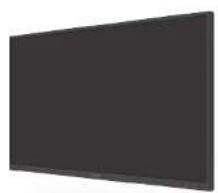
What's Included

- Contact the dealer from whom you purchased the product if any item is missing.
- The appearance of the components may differ from the image shown.
natural_image
Solid dark gray rectangular shape with no visible text, symbols, or features.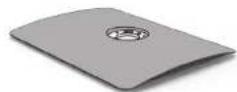
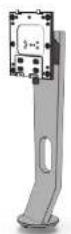
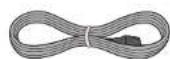
Display Panel Base Stand Power Cord
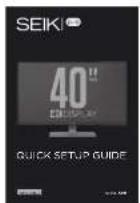


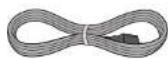
Quick Setup Guide User Manual Disc DisplayPort Cable HDMI Cable

- Components may vary depending on the country.
- Recommend to use the HDMI cable and DP cable which are provided by the supplier.
- The optimal resolution may not be available when using a non-high speed HDMI or HDMI-DVI cable.
Preparations
Installation
Attaching the Stand

- Before assembling the product, place the product down on a flat and stable surface.
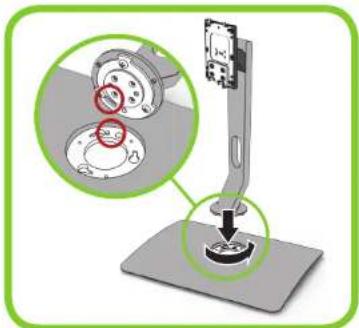
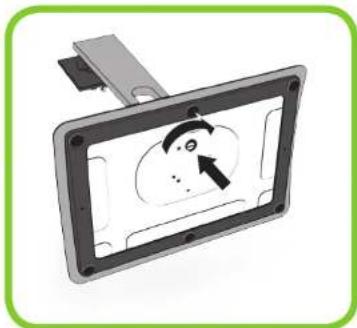
When inserting the stand, aim the groove directly to the convex on the base, then anticlockwise rotate the stand to the end.

natural_image
3D rendering of a device panel with an arrow and circular button, no visible text or symbolsFasten the connecting screw at the bottom of the stand base.

natural_image
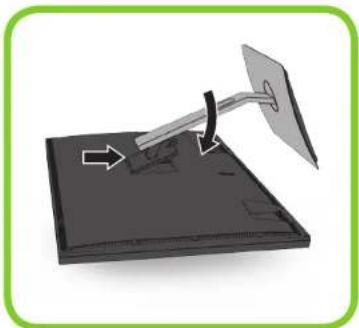
3D diagram of a mechanical assembly with arrows indicating motion or force direction (no text or symbols)Push the assembled stand into the main body in the direction of the arrow as shown in the figure.

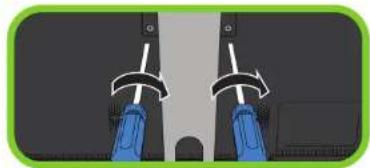
- Fore more security fixing the stand to the main body, you can fasten the 2 screws on the back of the mounting plate.
natural_image
Diagram showing two blue mechanical components with directional arrows indicating motion or force (no text or symbols)Preparations
Removing the Stand

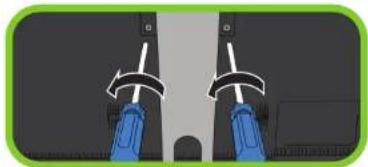
- If you already fasten the 2 screws on the back of the mounting plate, be sure to loosen them first.
natural_image
Diagram showing two blue screwdrivers with black arrows indicating motion or force direction (no text or symbols)
- Before removing the product, place the product down on a flat and stable surface.
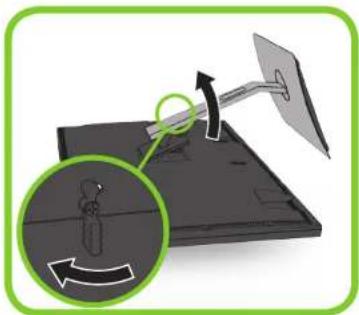
natural_image
Diagram showing a mechanical device with a rotating arm and a magnified inset illustrating the motion (no text or symbols)Toggle the lever on the stand, then pull the assembled stand out of the main body in the direction of the arrow as shown in the figure.

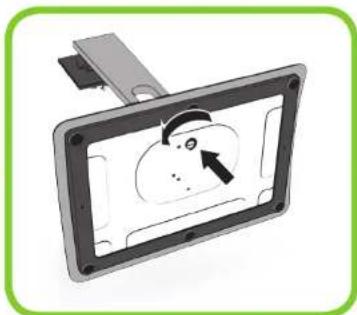
natural_image
Diagram of a device panel with an arrow indicating rotation or movement, no text or symbols presentLoosen the connecting screw at the bottom of the base.

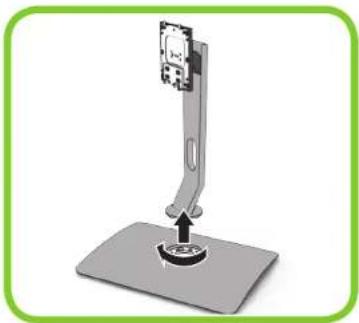
natural_image
3D rendering of a mechanical device with a stand and mounting base (no text or symbols visible)Clockwise rotate the stand and pull it out of the base in the direction shown in the figure.
Connections
Before Connecting
- Before connecting a source device, read the user manual provided with it. The number and locations of ports on source devices may differ from device to device.
- Do not connect the power cable until all other connections are completed. Connecting the power cable during connection may damage the product.
- Check the types of ports at the back of the product you want to connect.
Connecting PC
Select a connection method suitable for your PC.

- Do not connect the power cable before connecting all other cables.
- Ensure you connect a source device first before connecting the power cable.
- Connecting parts may differ in different products.
Connection Using the DVI Cable
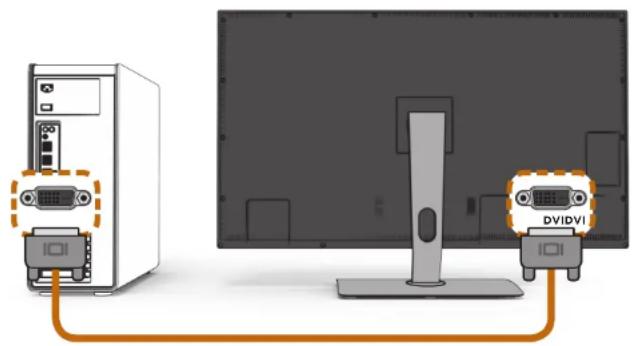
- Connect the DVI cable to the DVI port on the back of the product and the DVI port on the PC.
- Connect the power cable to the product and a power socket. Next, turn on the power switch on the PC.
- Change the input source to DVI by touching / when input source is not set.
Connections
Connection Using the HDMI Cable
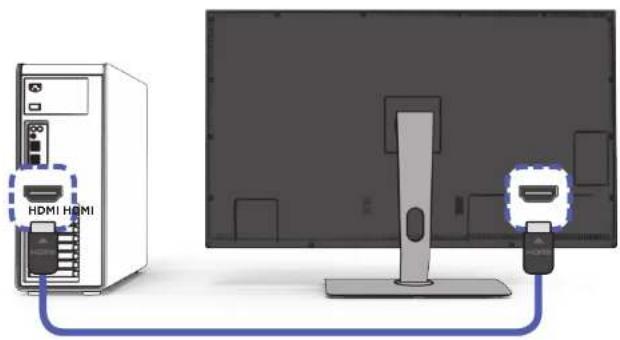
- Connect the HDMI cable to the HDMI 1 or HDMI 2 port on the back of the product to the HDMI port on the PC.
- Connect the power cable to the product and a power socket. Next, turn on the power switch on the PC.
- Change the input source to HDMI 1 or HDMI 2 by touching / when input source is not set.
Connection Using the DisplayPort (DP) Cable
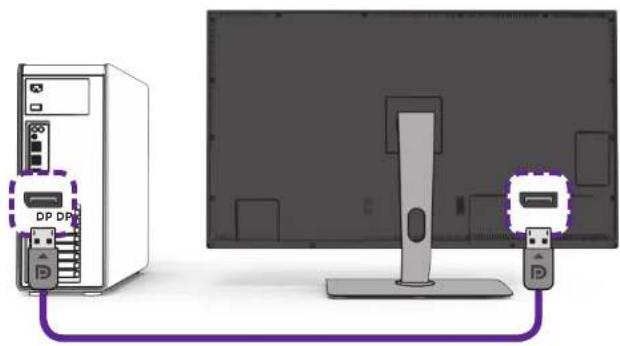
- Connect the DP cable to the DP 1 or DP 2 port on the back of the product and the DP port on the PC.
- Connect the power cable to the product and a power socket. Next, turn on the power switch on the PC.
- Change the input source to DP 1 or DP 2 by touching / when input source is not set.
Connections
Connection Using the VGA Cable
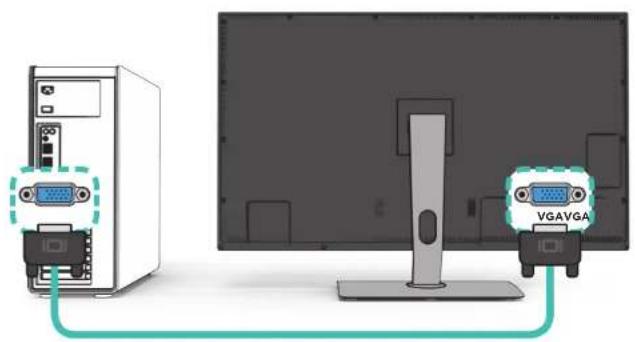
- Connect the VGA cable to the VGA port on the back of the product and the VGA port on the PC.
- Connect the power cable to the product and a power socket. Next, turn on the power switch on the PC.
- Change the input source to VGA by touching / when input source is not set.
Connecting the Built-in USB Hub
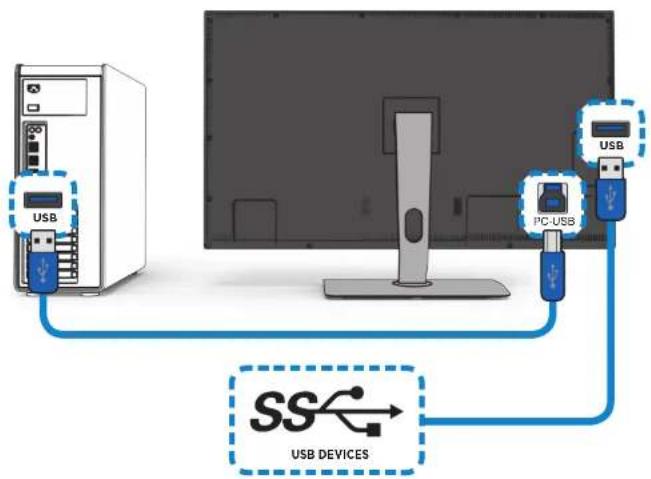
- Connect the USB cable to the PC-USB port on the back of the product and the USB port on the PC.
- Connect the USB devices to the USB port on the product.
Connections
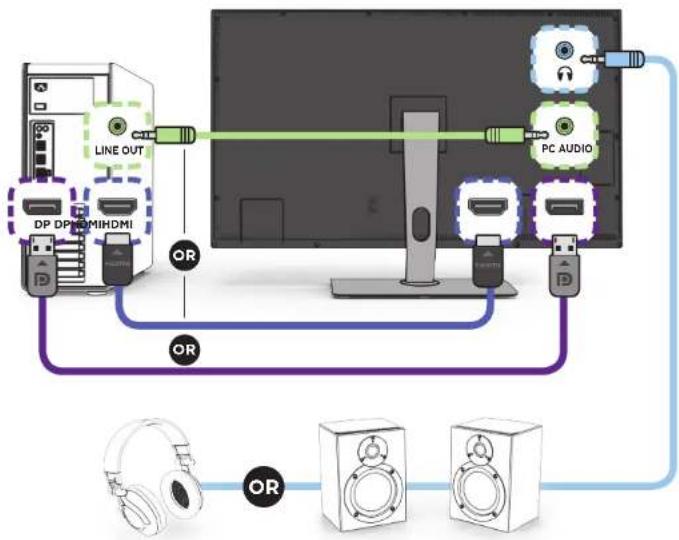
Connecting to Headphones or Speakers
flowchart
graph TD
    A["DP DP+MIHDMI"] -->|OR| B["LINE OUT"]
    B --> C["PC AUDIO"]
    C --> D[" Speakers with headphones"]
    C --> E[" Speakers with headphones"]
    C --> F[" Speakers with headphones"]
- Connect the Mini Audio cable to the PC AUDIO/HDMI/DP port on the back of the product and the AUDIO/HDMI/DP port on the PC.
- Connect an audio output device such as headphones or speakers to 📞 port on the product.

- The sound could only be heard when using the Mini Audio cable / HDMI to HDMI cable / DP cable.
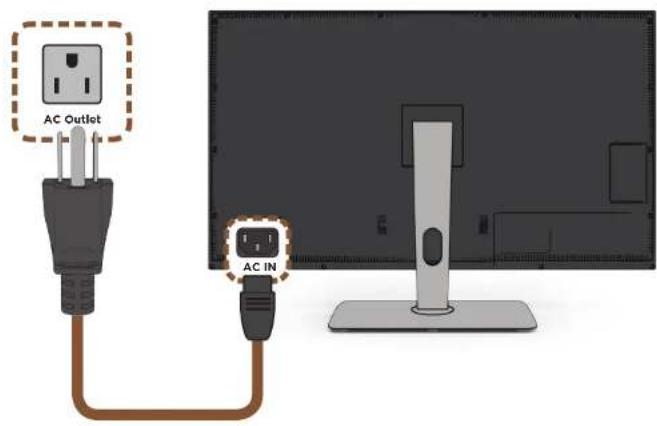
Connecting the Power
- Connect the power cable on the rear of the product. Plug in the power cable to the power socket.
Initial Setup
Before Using the Monitor
Connect external equipments properly.
Insert the power plug, and switch ON the main power switch on the back.
Power On/Off
- Touch the ⏻ on the front of the monitor. The power indicator light will turn blue when the Monitor is ON.
Menu Button Function
Adjusting OSD menu settings by controlling menu buttons on the front of the monitor.
| Enter the main menu; Confirm the selection. | |
| Touch to select different sources among: VGA, DVI, HDMI 1, HDMI 2, DisplayPort 1 or DisplayPort 2. | |
| ∇/Δse the | / touch sensor to select the desired item. |
| Return to the previous menu. | |
| Additional Function: In VGA mode, touch and hold ← for 1 second, auto adjustment works. |
OSD Menu Settings
SOURCE
Touch the 10 enter SOURCE mode, then touch the 11 again to enter and use the ▲ to select among different input signals.
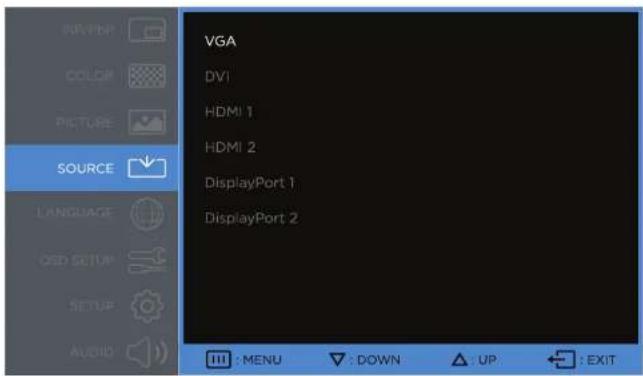
Touch the 📄 to display the On Screen Display menu.
Touch the 📄 again to enter the input source list.
Touch the / to select your desired input source and touch the III to confirm.
Touch the ← to exit.
| VGA | Maximum resolution: 2048x1152 @60Hz (Analog Signal) |
| DVI | Maximum resolution: 3840x2160 @30Hz (Digital Signal) |
| HDMI 1 | Maximum resolution: 3840x2160 pixels @30Hz (Digital Signal) |
| HDMI 2 | |
| DisplayPort 1 | Maximum resolution: 3840x2160 pixels @60Hz (Digital Signal) |
| DisplayPort 2 |
OSD Menu Settings
LANGUAGE
To allow users to choose from available languages.
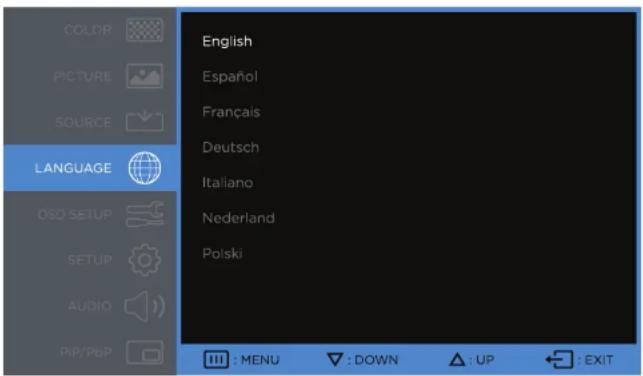
Touch the 📄 to display the On Screen Display menu.
Touch the / to select LANGUAGE.
Touch the 📄 again to enter the language setting.
Touch the △/▽ to select your desired setting and touch the confirm.
Touch the ← to exit.
OSD Menu Settings
PICTURE
Manually adjust the Brightness, Contrast, Sharpness, Picture Format, Over Driver and ECO Mode of screen image.
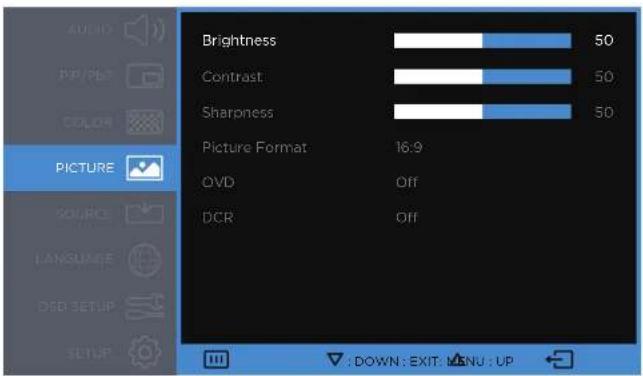
Touch the 📄 to display the On Screen Display menu.
Touch the / to select PICTURE.
Touch the 📄 again to enter the picture setting.
Touch the △/▽ to select your desired setting and touch the enter. Then use the △ to adjust the setting.
Touch the ← to exit.
| Brightness | To adjust the luminance of the video. |
| Contrast | To adjust the foreground white level of screen image. |
| Sharpness | To adjust the clarity of a non-UHD Resolution (3840x2160) signal. |
| Picture Format | To select the video mode from 16:9, 4:3 or 1:1. |
| OVD | Allows the user to change the Over Drive strength. Improve the quality of the motion pictures. |
| DCR | Allows the user to change the ECO mode. Contrast and Brightness adjustment will be disabled when ECO is active. |
OSD Menu Settings
COLOR
To select the color to adjust Color Temperature and User Define.
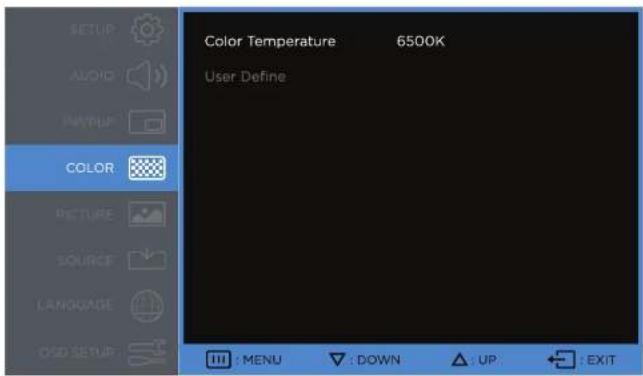
Touch the 📄 to display the On Screen Display menu.
Touch the / to select COLOR.
Touch the 📄 again to enter the color setting.
Touch the △/▽ to select your desired setting and touch the enter. Then use the △ to adjust the setting.
Touch the ← to exit.
| Color Temperature | Cycle among color temperatures: 12000K, 9300K or 6500K. |
| User Define | Individual adjustments for red(R), green(G), blue(B). |
OSD Menu Settings
PIP/PBP
PiP/PBP allows you to watch two screens from different sources at the same time. (PiP is picture in picture; PBP is picture by picture)
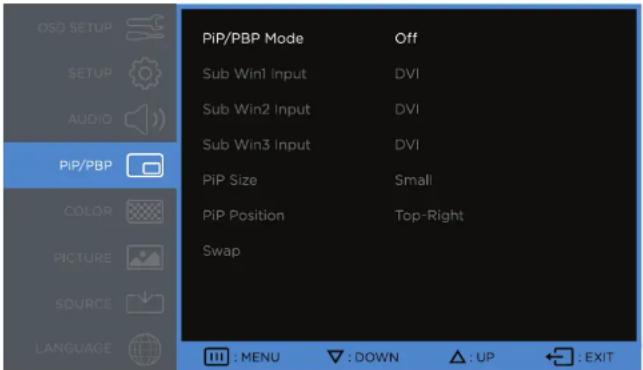
Touch the 📄 to display the On Screen Display menu.
Touch the / to select PiP/PBP.
Touch the 📄 again to enter the PiP/PBP setting.
Touch the △/▼ to select your desired setting and touch the enter. Then use the △ to adjust the setting.
Touch the ← to exit.
| PIP/PBP Mode | Toggle to enable /disable PiP/PBP function. |
| Sub Win1 Input | To select input source for sub-screen as following. |
| Sub Win2 Input | To select input source for sub-screen as following. |
| Sub Win3 Input | To select input source for sub-screen as following. |
| PIP Size | To adjust sub-screen window size. |
| PiP Position | To adjust sub-screen window position. |
| Swap | Switch between main screen and sub-screen. |
OSD Menu Settings
AUDIO
To adjust the audio functions.
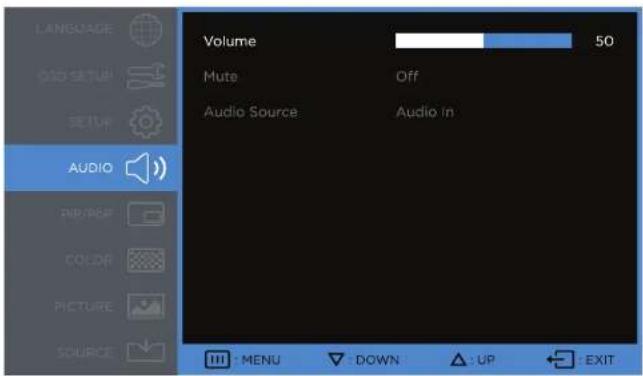
Touch the 📄 to display the On Screen Display menu.
Touch the / to select AUDIO.
Touch the ☐ again to enter the audio setting.
Touch the △/▽ to select your desired setting and touch the enter. Then use the △ to adjust the setting.
Touch the ← to exit.
| Volume | To adjust the volume of speaker output. |
| Mute | To turn the Mute ON/OFF. |
| Audio Source | When in HDMI 1 or HDMI 2 input, select where the audio source comes from Line-in, HDMI 1 or HDMI 2.When in DisplayPort 1 or DisplayPort 2 input, select where the audio source comes from Line-in, DisplayPort 1 or DisplayPort 2. |
OSD Menu Settings
SETUP
To set up H. Position, V. Position, Phase, Clock, Auto, DisplayPort, Reset and Information.
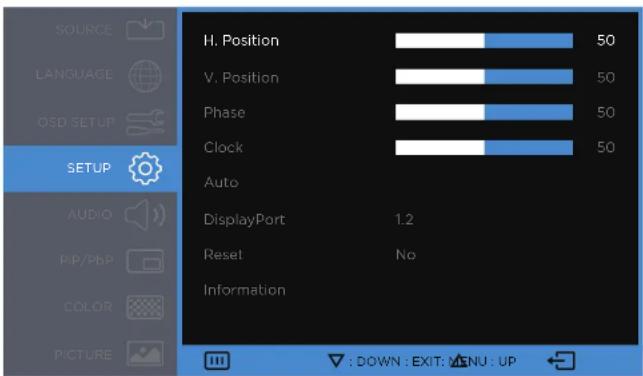
Touch the 📄 to display the On Screen Display menu.
Touch the / to select SETUP.
Touch the ☐ again to enter the setup setting.
Touch △/▽ to select your desired setting and touch the enter. Then use the △ to adjust the setting.

Touch the ← to exit.
| H. Position | To adjust the horizontal position of the screen. |
| V. Position | To adjust the vertical position of the screen. |
| Phase | To adjust delay time of phase in order to reduce the noise of picture. |
| Clock | To adjust clock frequency in order to get optimized horizontal size. |
| Auto | To auto adjust Horizontal Position, Vertical Position, Phase(Fine Tune) and Clock(H.Size) of the screen. |
| DisplayPort | To set the Displayport version. |
| Reset | To recall factory settings for Video & Audio controls. |
| Information | To display the information, regarding the current input signal coming from the graphic card in your computer. |
OSD Menu Settings
OSD SETUP
To manually adjust the Horizontal/Vertical OSD position, Transparency and OSD Time Out.
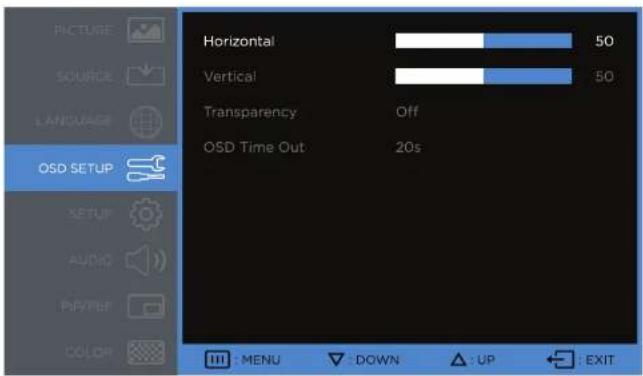
Touch the 📄 to display the On Screen Display menu.
Touch the / to select OSD SETUP.
Touch the ☐ again to enter the OSD setting.
Touch the △/▽ to select your desired setting and touch the enter. Then use the △ to adjust the setting.
Touch the ← to exit.
| Horizontal | To horizontally adjust the OSD position. |
| Vertical | To vertically adjust the OSD position. |
| Transparency | To change the transparency of OSD window. |
| OSD Time Out | To automatically turn off On Screen Display(OSD) after a preset period of time. |
Specifications
General
| Model Name SM40UNP | ||
| Panel | Size 39.5 Inches (100 cm) | |
| Display area | 878.11 mm (H) x 485.35 mm (V)34.57 Inches (H) x 19.10 Inches (V) | |
| Pixel Pitch | 0.076225 mm (H) x 0.22417 mm (V)0.003 Inches (H) x 0.0088 Inches (V) | |
| Brightness | 350 Cd/M2 | |
| Power Supply AC 100 - 240 V -, 50/60 Hz | ||
| Dimensions(W x H x D) / Weight | Without Stand | 911 x 60 x 529 mm / 11.5 kg35.86 x 2.36 x 20.82 inches / 25.4 lbs |
| With Stand | 911 x 280 x 617 mm / 15 kg35.86 x 11.02 x 24.29 inches / 33.1 lbs | |
| Environmental considerations | Operating | Temperature: 32°F - 95°F (0°C - 35°C)Humidity: 20% - 80%, non-condensing |
| Storage | Temperature: 32°F - 122°F (0°C - 50°C)Humidity: 5% - 95%, non-condensing | |
Panel Dots (Pixels)
Due to the nature of the manufacturing of this product, approximately 1 pixel per million (1ppm) may be brighter or darker on the LCD panel. This does not affect product performance.
Plug-and-Play
This monitor can be installed and used with any Plug-and-Play compatible systems. Two-way data exchange between the monitor and PC system optimizes the monitor settings. Monitor installation takes place automatically. However, you can customize the installation settings if desired.
The above specifications are subject to change without notice to improve quality.
Specifications
PowerSaver
The power-saving function of this product reduces power consumption by switching off the screen and changing the color of the power LED if the product is not used for a specified period of time. The power is not turned off in power-saving mode. To switch the screen back on, press any key on the keyboard or move the mouse. Power-saving mode functions only when the product is connected to a PC that has a power-saving function.
| PowerSaver | Energy Star Power Consumption | Power saving mode |
| Power Consumption | 68 watts <0.5 watts |
- The power consumption level can vary in different operating conditions or when settings are changed.
- ENERGY STAR® is a US registered mark of the United States Environmental Protection Agency. Energy Star power is measured with the test method in the current Energy Star® Standard.
- To reduce the power consumption to 0 watts, turn off the power switch on the back of the product or disconnect the power cable. Be sure to disconnect the power cable when you will not be using the product for an extended period of time. To reduce the power consumption to 0 watts when the power switch is not available, disconnect the power cable.
Specifications
Standard Signal Mode Table
- This product can be set to only one resolution for each screen size to obtain the optimum picture quality due to the nature of the panel. Therefore, a resolution other than the specified resolution may degrade the picture quality. To avoid this, it is recommended that you select the optimum resolution specified for the screen size of your product.
- Check the frequency when you exchange a CDT monitor (connected to a PC) for an LED monitor. If the LED monitor does not support 85Hz, change the vertical frequency to 60Hz using the CDT monitor before you exchange it with the LED monitor.
| Model Name SM40UNP | ||
| Synchronization | Horizontal Frequency | 30 - 134 kHz (DisplayPort)30 - 90 kHz (HDMI) |
| Vertical Frequency | 56 - 75 Hz (DisplayPort)24 - 75 Hz (HDMI) | |
| Resolution | Optimum Resolution | 3840 x 2160 @ 60Hz (DisplayPort)3840 x 2160 @ 30Hz (HDMI) |
| Maximum Resolution | 3840 x 2160 @ 60Hz (DisplayPort)3840 x 2160 @ 30Hz (HDMI) | |
If a signal that belongs to the following standard signal modes is transmitted from your PC, the screen will automatically be adjusted. If the signal transmitted from the PC does not belong to the standard signal modes, the screen may be blank even though the power LED turns on. In such a case, change the settings according to the following table by referring to the graphics card user manual.
Horizontal Frequency
The time required to scan a single line from the left to the right side of the screen is called a horizontal cycle. The reciprocal number of a horizontal cycle is called horizontal frequency. Horizontal frequency is measured in kHz.
Vertical Frequency
Repeating the same picture dozens of times per second allows you to view natural pictures. The repeat frequency is called “vertical frequency” or “refresh rate” and is indicated in Hz.
Specifications
HDMI / DisplayPort
| Resolution | Horizontal Frequency (kHz) | Vertical Frequency (Hz) | Pixel Clock (MHz) | Sync Polarity (H/V) |
| VESA, 640 x 480 31.469 59.940 25.175 -/- | ||||
| MAC, 640 x 480 35.000 66.667 30.240 -/- | ||||
| VESA, 640 x 480 37.861 72.809 31.500 -/- | ||||
| VESA, 640 x 480 37.500 75.000 31.500 -/- | ||||
| VESA, 800 x 600 35.156 56.250 36.000 +/+ | ||||
| VESA, 800 x 600 37.879 60.317 40.000 +/+ | ||||
| VESA, 800 x 600 48.077 72.188 50.000 | +/+ | |||
| VESA, 800 x 600 46.875 75.000 | 49.500 +/+ | |||
| VESA, 1024 x 768 | 48.363 | 60.004 | 65.000 | -/- |
| VESA, 1024 x 768 | 56.476 70.069 | 75.000 -/- | ||
| VESA, 1024 x 768 | 60.023 75.029 78.750 | +/+ | ||
| VESA, 1152 x 864 | 67.500 | 75.000 | 108.000 | +/+ |
| VESA, 1280 x 720 | 45.000 | 60.000 | 74.250 | +/+ |
| VESA, 1280 x 800 | 49.702 59.810 83.500 | -/+ | ||
| VESA, 1280 x 1024 | 63.981 | 60.020 | 108.000 | +/+ |
| VESA, 1280 x 1024 | 79.976 | 75.025 | 135.000 | +/+ |
| VESA, 1600 x 900RB | 60.000 | 60.000 | 108.000 | +/+ |
| VESA, 1680 x 1050 | 65.290 59.954 | 146.250 -/+ | ||
| VESA, 1920 x 1080 | 67.500 | 60.000 | 148.500 | +/+ |
| VESA, 1920 x 1200 | 74.556 | 59.885 | 193.250 | -/+ |
| VESA, 2560 x 1440RB | 88.787 | 59.951 | 241.500 | +/- |
| CEA, 3840 x 2160 | 67.500 | 30.000 | 297.000 | +/+ |
Some resolutions listed in the table above may not be available depending on graphics card specifications.
Service Hotline:
1-855-MY-SEIKI (1-855-697-3454)
SEIKI.com
- SAFETY INFORMATION 6
- PREPARATIONS 11
- CONNECTIONS 14
- INITIAL SETUP 18
- OSD MENU SETTINGS 19
- SPECIFICATIONS 27
- Cleaning
- Symbols
- What's Included
- Before Using the Monitor
- SOURCE
- General
- Before Using the Product
- Securing the Installation Space
- Correct posture to use the product
- Safety Information
- CAUTION
- Electrical Safety
- Warning
- Installation Safety
- Preparations
- Installation
- Attaching the Stand
- Removing the Stand
- Connections
- Before Connecting
- Connecting PC
- Connecting the Power
- Initial Setup
- Power On/Off
- Menu Button Function
- OSD Menu Settings
- LANGUAGE
- PICTURE
- COLOR
- PIP/PBP
- AUDIO
- SETUP
- OSD SETUP
- Specifications
- Panel Dots (Pixels)
- Plug-and-Play
- PowerSaver
- Standard Signal Mode Table
- Horizontal Frequency
- Vertical Frequency
Brand : Seiki
Model : SM40UNP
Category : Monitor