
72324 - Tablet Accessory iPort - Free user manual and instructions
Find the device manual for free 72324 iPort in PDF.


| Product Type | Protective Case with Charging Function |
| Brand | iPort |
| Model | 72324 |
| Compatible Devices | iPad 10.2-inch (8th & 9th gen), iPad Mini (4th & 5th gen) |
| Material | Plastic, Metal Components |
| Dimensions (approx.) | 250 x 180 x 15 mm (for iPad 10.2-inch model) |
| Weight (approx.) | 0.5 kg (1.1 lbs) |
| Charging Method | Via Lightning connector (iPad) with BaseStation or WallStation (sold separately) |
| Power Supply | Requires external BaseStation or WallStation (not included) |
| Security Lock | Yes, with IPORT Security Tool (1.5mm hex key) included |
| Hand Strap | Compatible with optional IPORT CONNECT Hand Strap (sold separately) |
| Installation | Slide iPad into case, attach top, lock with security tool |
| Box Contents | 1x IPORT CONNECT Case, 1x Security Tool, 1x Info Card |
| Maintenance | Clean with dry cloth; avoid liquids |
| Warranty | Standard manufacturer warranty (contact iPort for details) |
Frequently Asked Questions - 72324 iPort
User questions about 72324 iPort
0 question about this device. Answer the ones you know or ask your own.
Ask a new question about this device
Download the instructions for your Tablet Accessory in PDF format for free! Find your manual 72324 - iPort and take your electronic device back in hand. On this page are published all the documents necessary for the use of your device. 72324 by iPort.
USER MANUAL 72324 iPort
72300 - 10.2 - Inch (8th & 9th gen) - Black
72301 - 10.2 - Inch (8th & 9th gen) - White
72310 - Mini (4 & 5th gen) - Black
IPORT CONNECT PRO Case Install Manu-
Thank you for purchasing the all new IPORT CONNECT Platform. We hope you enjoy this revolutionary new system and if at any time you need more assistance please contact IPORT Tech Support via Online chart or through our help desk.
- IPORT Team
Whats in box:
1 - IPORT CONNECT Case
1 - IPORT Security tool - 1.5mm hex key
1 - Info Card
Product Info Page - www.iportproducts.com/cpcase
Glossary of Terms:
- Case - The fully assembled CONNECT PRO Case.
- Case Top - The short removable portion of the chase including the locking portion of the Case.
- IPORT Security Tool - The orange handled 1.5mm hex tool used for locking and unlocking IPORT Products.
- Station Interface Module - The main electronics portion of the new IPORT CONNECT Platform consisting of the round electronic components.
- Dock Interface Module - The secondary linear electronics found on the IPORT CONNECT Case.
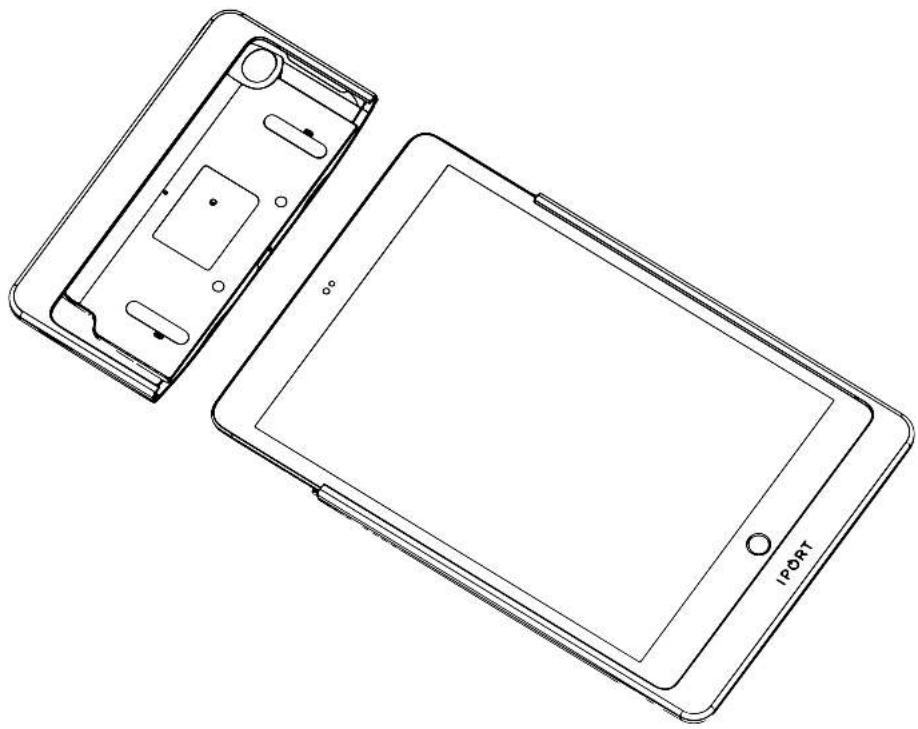
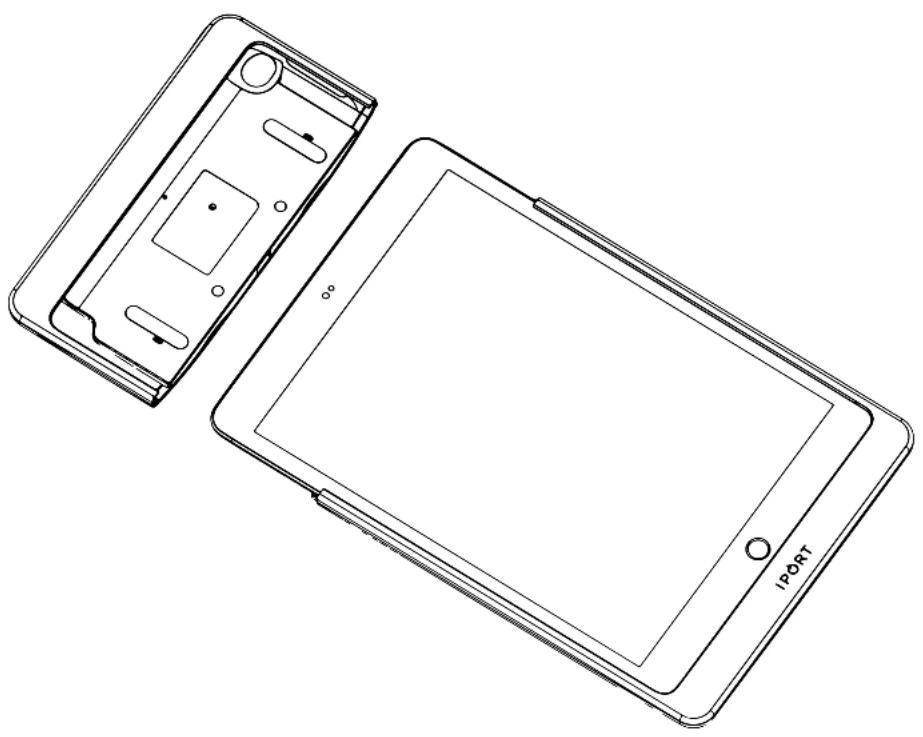
- Remove Case from the box and place on a table.
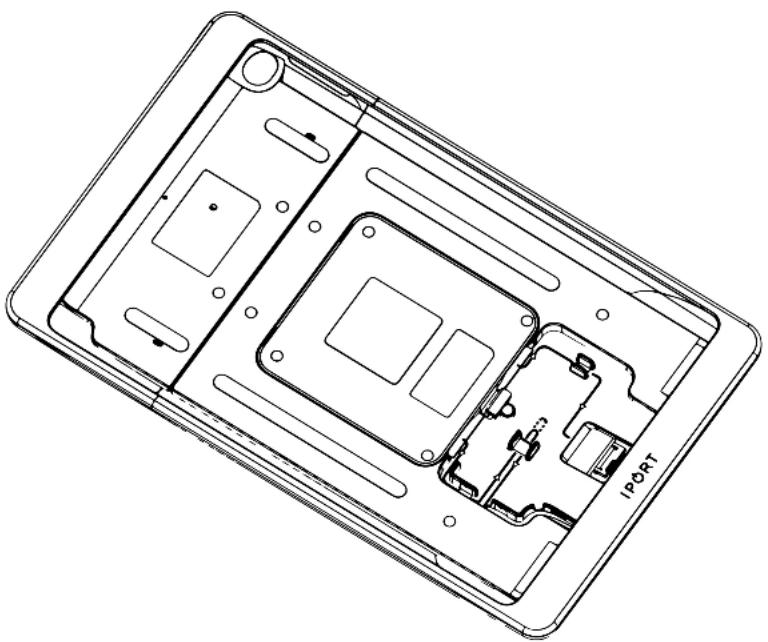
natural_image
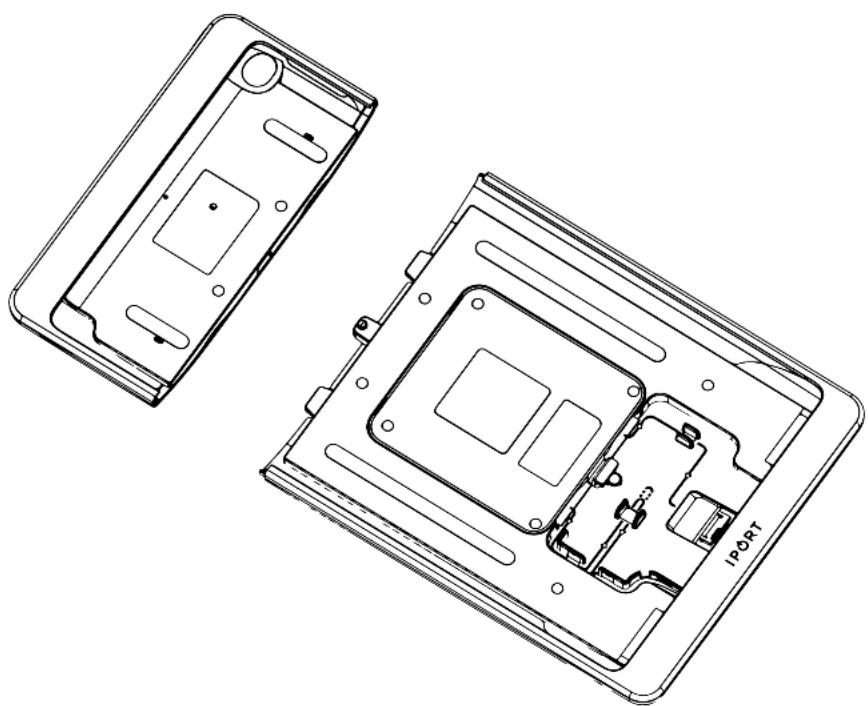
Technical line drawing of a tablet device showing internal components and casing (no text or symbols)- Remove the short Case Top.
natural_image
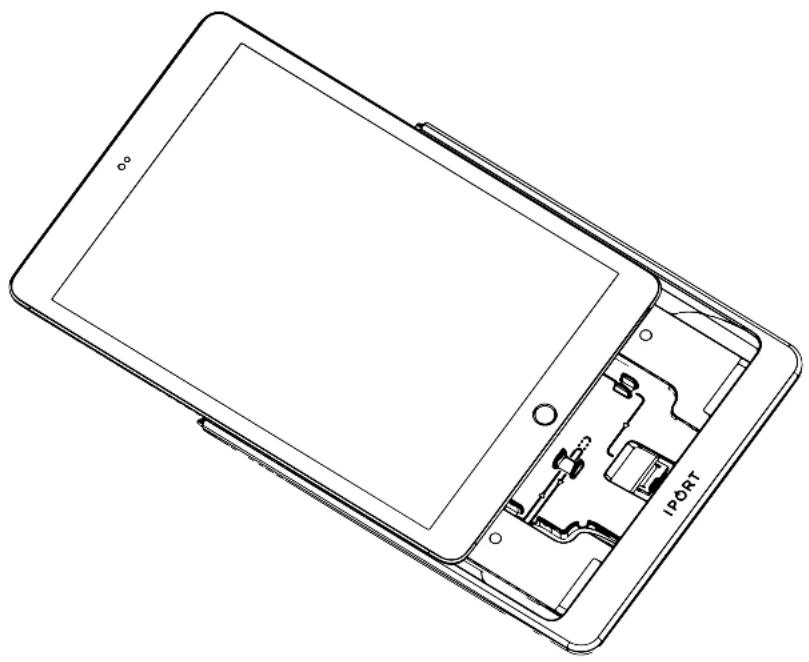
Technical line drawing of a smartphone internal casing showing internal components and mounting holes (no text or symbols)3. Slide iPad into the Case making sure the lighting cable is snugly inserted into the iPad.
natural_image
Line drawing of a tablet device showing internal components and casing (no text or symbols)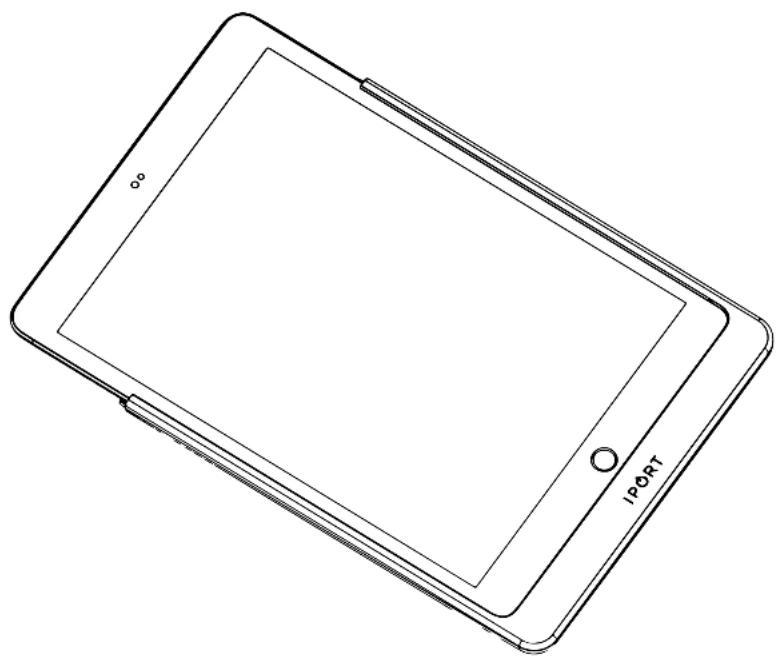
natural_image
Line drawing of a tablet device with no visible text or symbols on the screen or body4. Reinstall the Case top onto the lower half if the Case and iPad.
natural_image
Line drawing of a smartphone showing the open and closed sides of its packaging (no text or symbols)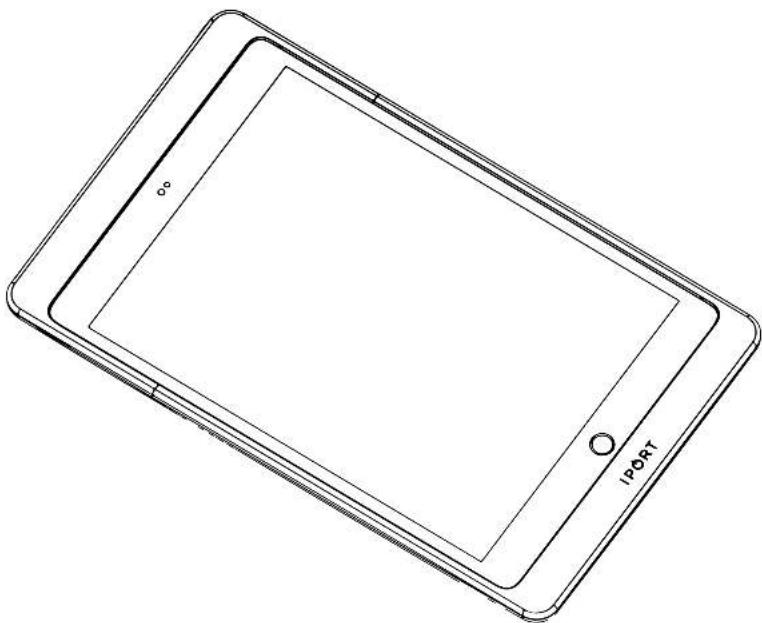
natural_image
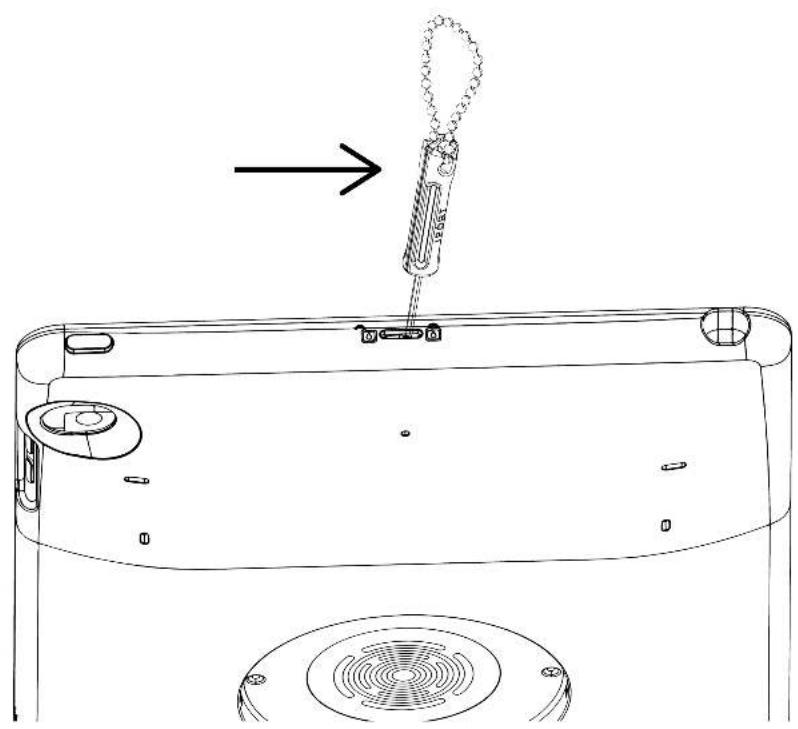
Line drawing of a tablet device with no text or symbols on the screen or body- Use the provided IPORT tool, insert the tool into the top of the case and slide the tool towards the lock position icon.

natural_image
Line drawing of a device with a cable being inserted into a housing (no text or symbols)CASE
- For added security rotate the IPORT tool clockwise to tighten the setscrew in place holding the lock secure.

6. Place the IPORT CONNECT Pro Case onto a BaseStation or WallStation for charing.

natural_image
Line drawing of a tablet device with a circular device mounted on top, showing no text or symbols.
Hand Strap Install - (sold separate)
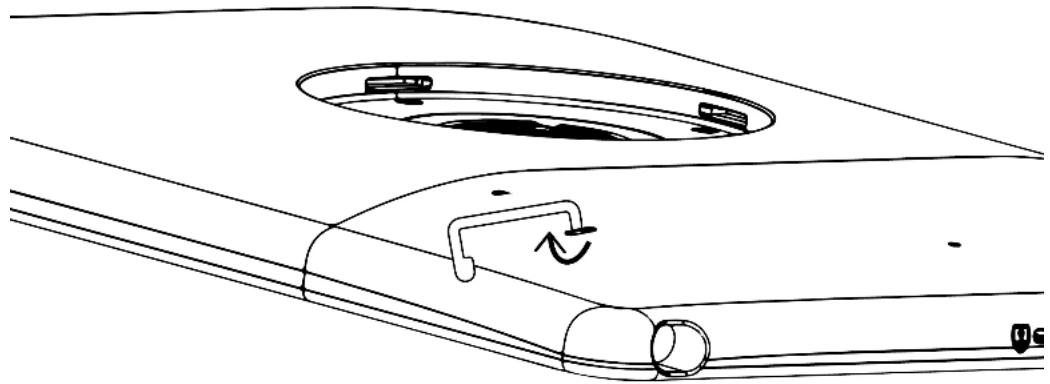
1. Insert the metal strap loops with the flat end pointing towards the left or right side of the case.

CASE
- Rotate the strap clip towards the bottom of the Case and insert into the hole until the strap clip snaps into place.
natural_image
Technical line drawing of a mechanical component with no visible text or symbols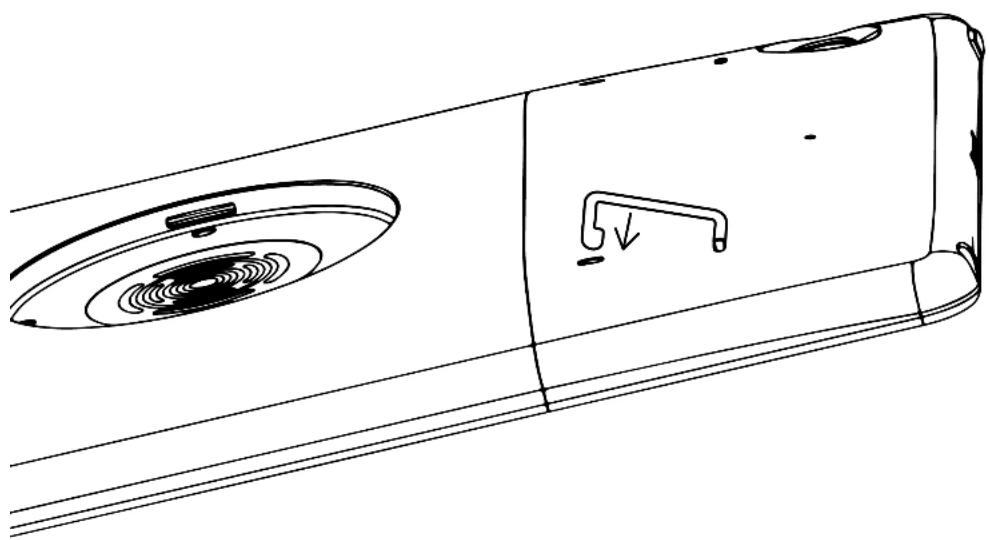
natural_image
Line drawing of a device casing with internal components and a downward arrow indicating a feature (no text or symbols)3. Repeat for the second clip.
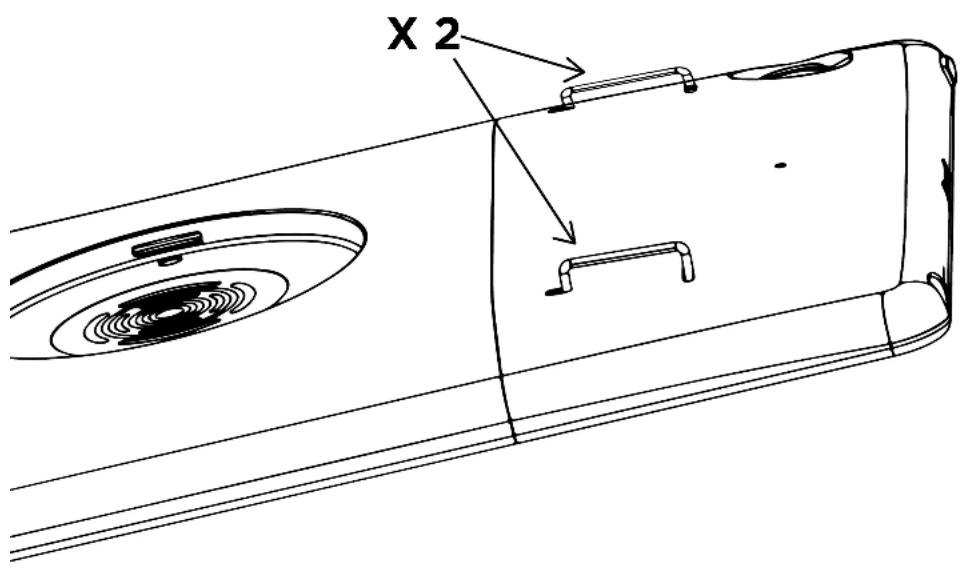
- Insert the IPORT CONNECT Hand Strap under both strap loops with the Velcro facing out from the case, fold over the Hand Strap and attach to the Velcro. Adjust hand strap to a snug but comfortable fit around the top of your hand.
NOTE Case Top and Bottom MUST be locked together to properly secure the iPad and CONNECT PRO Case together.
Hand Strap Removal
-
Unlock the CONNECT PRO Case Top from the Case Bottom. See step 5 of installing the Case.
-
Remove the Case Top from the Case Bottom.
natural_image
Line drawing of a smartphone showing the open and internal compartments (no text or symbols)- On the inside of the Case Top, locate the small oval hole and insert the IPORT CONNECT Security tool. Pivot the IPORT Security tool toward the top of the Case Top freeing the Strap loop. Rotate the Strap loop 90 degrees left or right to remove the Strap Loop from the Case Top.

natural_image
Technical line drawing of a device casing with internal components and a hanging component (no text or symbols)- Repeat for the second strap loop.
- IPORT CONNECT PRO Case Install Manu-
- Whats in box:
- Glossary of Terms:
- Slide iPad into the Case making sure the lighting cable is snugly inserted into the iPad.
- Reinstall the Case top onto the lower half if the Case and iPad.
- CASE
- Place the IPORT CONNECT Pro Case onto a BaseStation or WallStation for charing.
- Hand Strap Install - (sold separate)
- Insert the metal strap loops with the flat end pointing towards the left or right side of the case.
- Repeat for the second clip.
- Hand Strap Removal
Brand : iPort
Model : 72324
Category : Tablet Accessory