S61 - Dash cam Neoline - Free user manual and instructions
Find the device manual for free S61 Neoline in PDF.


| Product Type | Dash Cam |
| Brand | Neoline |
| Model | S61 |
| Video Resolution | 2K QHD (2560x1440) |
| Field of View | 140 degrees wide angle |
| Display | 2.7 inch LCD |
| Sensor | CMOS, Sony Starvis |
| Dimensions (HxWxD) | 89 x 54 x 32 mm |
| Weight | 82 g |
| Power Supply | 5V DC via USB cable |
| Battery | None (super capacitor) |
| Storage Media | microSD (up to 128GB, Class 10) |
| Loop Recording | Yes, with automatic file overwrite |
| G-Sensor | Built-in, for event detection |
| Parking Mode | Yes, with motion detection |
| Night Vision | Enhanced low-light performance |
| GPS | Built-in GPS (location and speed) |
| Wi-Fi | Yes, for smartphone app control |
| Operating Temperature | -10°C to 60°C |
| Mount | Suction cup mount included |
| Maintenance | Clean lens with soft cloth; keep ventilation clear |
| Safety | Use only original charger; do not expose to water |
| Spare Parts | Suction mount, power cable, adhesive mounts available |
| Reparability | Designed for professional repair; some parts replaceable |
Frequently Asked Questions - S61 Neoline
User questions about S61 Neoline
0 question about this device. Answer the ones you know or ask your own.
Ask a new question about this device
Download the instructions for your Dash cam in PDF format for free! Find your manual S61 - Neoline and take your electronic device back in hand. On this page are published all the documents necessary for the use of your device. S61 by Neoline.
USER MANUAL S61 Neoline
natural_image
Black NEOLINE camera with lens and textured body (no visible text or symbols beyond branding)User Manual
Dear Purchaser,
Thank you for acquiring Neoline WIDE S61 dashboard camera. Please carefully read this manual to the end in order to correctly use the device and extend its service life. Retain User Manual to consult it if necessary in future.
Content
- Operational Conditions....3
- Technical Specifications....5
- List of Equipment....6
- Description of Device and Buttons ....7
- Installation of Dashboard Camera....9
- Operation....11
- Application Wide S6x use by example OC Android....16
- Troubleshooting....27
1. Operational Conditions
- Get acquainted with conditions of in-warranty service.
- Do not install or remove memory card when the dashboard camera is switched on to avoid damage to the device and recorded video files.
- Only use high-quality microSD cards not lower than Class 10 with support of UHS-1 protocol to avoid recording dropouts and delayed images.
- Use of 8Gb to 128Gb card is recommended.
- Device should only be used with accessories from the delivery set. NEOLINE disclaims responsibility for possible damages to the product in case accessories of third-party manufacturers are used.
- Do not expose the product to the effect of fire, moisture or chemically active substances (petrol, solvents, reagents etc.).
- Disassembly or modification of the product is prohibited.
- NEOLINE shall not be held responsible for loss of data and/or damage, whether direct or indirect, caused to the user or to a third party through improper use of the device or software, incorrect installation, use of accessories not included in the delivery set.
- Important! In some motor cars, power to 12/24V socket is delivered also with ignition off. To avoid the accumulator discharge, it is recommended to disconnect the dashboard camera from the vehicle network.
- Format the microSD card not rarer than once in two months to avoid damage of its file system.
- Observe temperature conditions of storage and operation (see technical specifications). Do not allow lasting sun exposure of the device.
- Do not remove memory card from working device to avoid data loss and breakage.
- This device is intended for use with a transparent windshield or light-colour heat-reflecting film. Video recording quality will decrease in case the device is installed on a tinted glass or a glass with dark heat-reflecting film.
- Mount the camera so to obtain a maximum field of view. It is PROHIBITRD to install the camera in a place where the device can cover the vision and reduce the safety of driving. Neither Neoline nor their authorized partners shall be held responsible for whatever damage or loss of data as a result of improper holder installation.
• Built-in supercapacitor is designed for correct completion of video recording. Operation of the device is only possible with connected external power supply
- In view of vehicle driving safety as well as in accordance with local legislation, do not manipulate with the device when driving a vehicle.
- Set correct date and time prior to use the device.
• Heating of camera housing is a normality.
- Be careful during operation, do not allow dropping or squeezing of the dashboard camera
Manufacturer reserves the right to bring amendments in the equipment list, hardware and software of the device without prior notification.
Prior to commencement of use, it is assumed that you agree with the above provisions
The present user manual is valid at the time of printing.
Please find actual information at www.neoline.com in the card of respective product, section "Download".
2. Technical Specifications:
• Video resolution: Full HD 1920*1080 (30 k/s)
- Sony Sensor
- Viewing angle: 140^
- Screen size: 1.5 inches
• Built-in supercapacitor*
- Antiglare CPL-filter
• Video recording format: MOV (H.264)
• Built-in microphone/loudspeaker
- WDR function
• Wi-Fi
- G-sensor
- Motion sensor
- Loop recording: 1/2/3 min
• Continuous recording
- Automatic ON
- Date/time stamp
• Number plate stamp
- MicroSD 8GB - 128GB (Class 10)
• Storage temperature -20^ to +70^
• Operation temperature -10^ to +60^
- Input voltage: DC 5V, 1.5A
• Memory unit input voltage: DC 12-24V
• Dimensions: 65 x 19 x 42 mm
- Weight: 58 g
* Dashboard camera is designed for operation in a wide range of temperatures. Supercapacitor, in contrast with accumulator battery, is more durable and efficient in operation under low and high ambient temperatures.
3. List of Equipment
• Dashboard camera Neoline Wide S61
• Fastening on glass with suction cup
- CPL-filter
• Car charger 2 USB ports
- User manual
- Warranty card
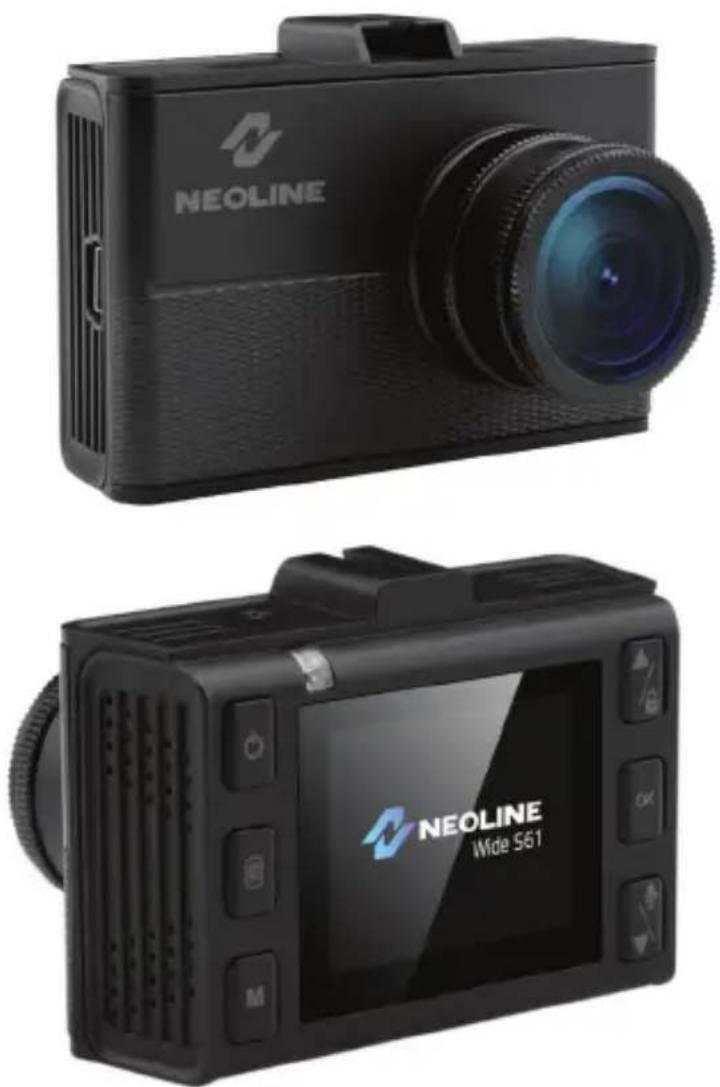
4. Description of Device and Buttons
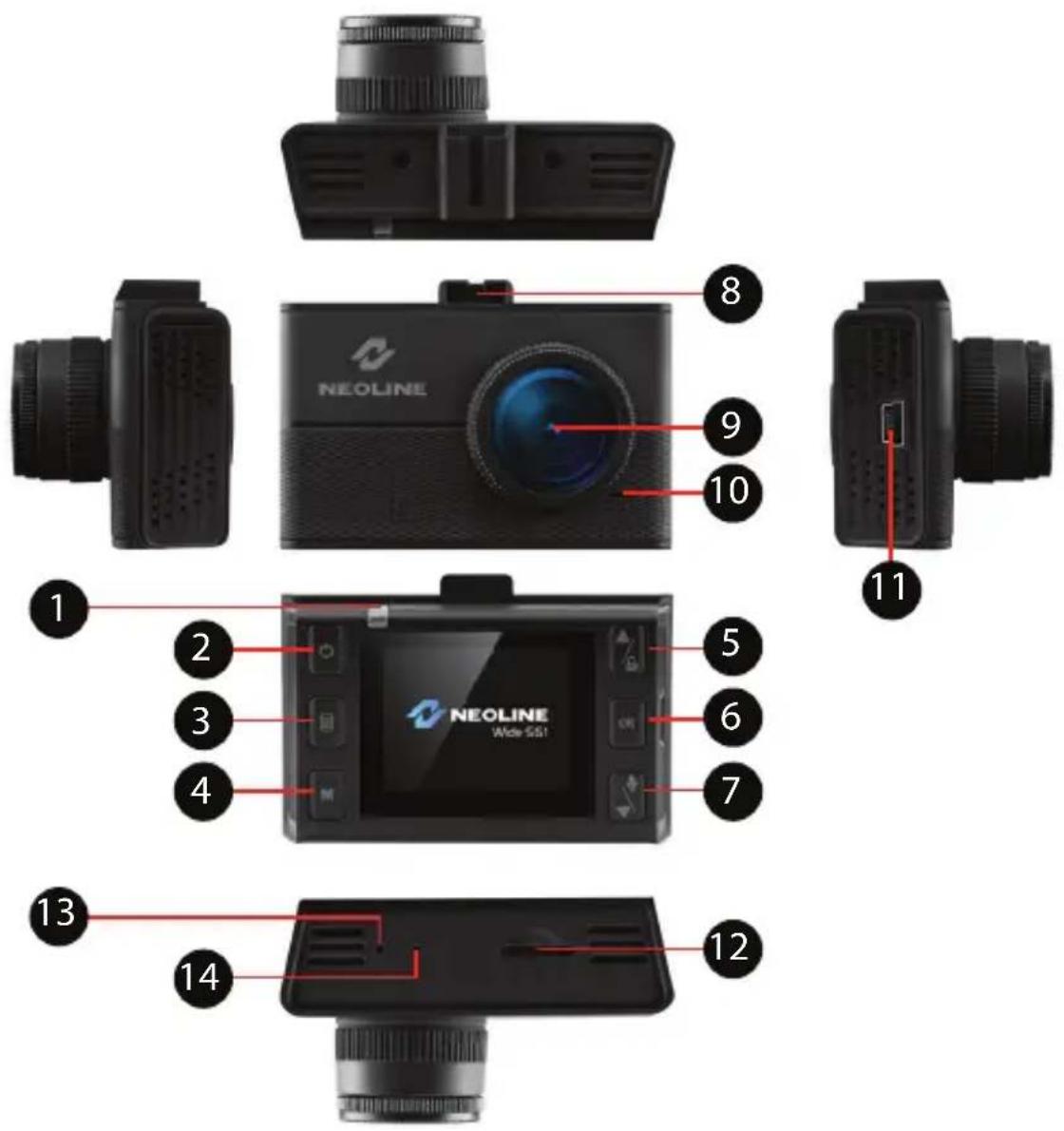
- Operation indicator
- ON/OFF button
- Menu button
- Mode button
- Up/Lock button
- Confirm button
- Down/Audiorecording ON button
-
Mounting slot
-
Lens
- Loudspeaker
- mini USB connection
- Memory card slot
- Reset button
- Microphone
| Button | Description |
| ON/OFF (only active with connected external power supply) | Press to switch on the device. Press and hold during 3 seconds to switch off. In Recording mode, press to create a still picture. |
| Menu | In Standby mode, press to enter the Settings menu of the device. In Playback mode, press to select submenu for file handling. |
| Mode | In Standby mode, press to change between modes Recording/Photo/Playback |
| Up | Press to navigate up the menu or the list of files in Playback mode. In Recording mode, press to lock the file against overwriting. Press and hold to activate/ deactivate Wi-Fi |
| Down | Press to navigate down the menu or the list of files in Playback mode. In Recording mode, press to switch ON/OFF audio recording. |
| Confirm | Press to start/stop recording in Standby/Recording mode. Press to confirm a setting in the menu. Press to start the playback of a file in Playback mode. |
| Reload | Press if the device does not respond to commands upon button pressing. |
Description of indicator operation
| Status | Meaning |
| Blue blinking | Recording goes on |
| Blue constantly lighted | Recording stopped |
| Blue blinking | Firmware upgrade |
| Turquoise constantly lighted | Wi-Fi activation |
5. Installation of Dashboard Camera.
Windshield Mounting
- Choose in advance a place for the dashboard camera installation in the motor vehicle.
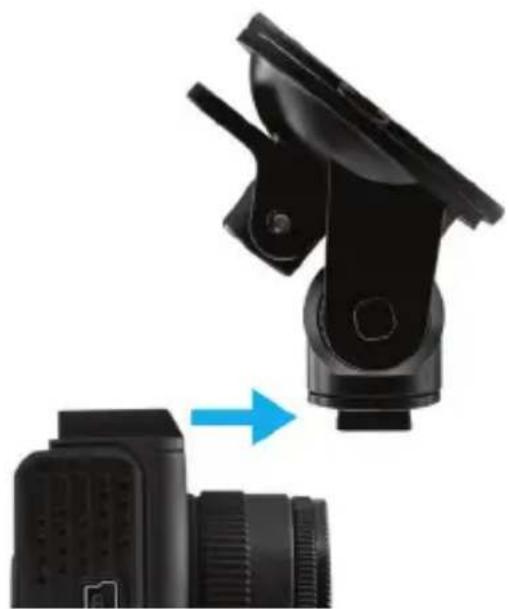
- Mount the holder on the device. Move it in the bracket holder until it stops.
natural_image
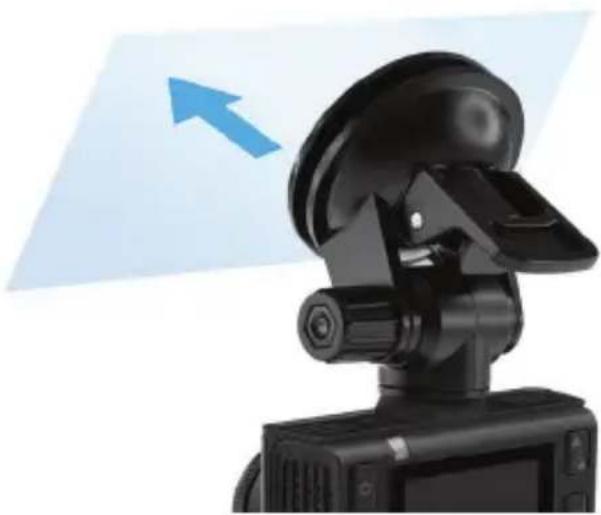
Close-up of a black camera mount assembly with a blue arrow indicating direction (no text or symbols visible)- Firmly hold the bracket base on the windscreen to fix it.
natural_image
Close-up of a black camera with a blue arrow pointing to the top panel (no text or symbols visible)Adjustment of Device Position
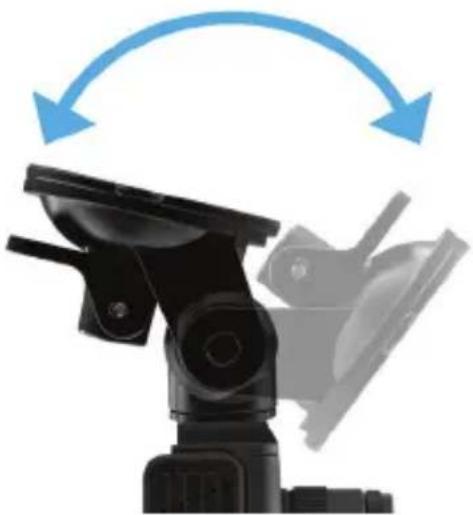
- Loosen the knob to rotate the device vertically or horizontally.
- Adjust the view angle, rotating the lens in required direction (right-left, up-down). Position the lens so that the camera captures the image in proportion
- "30% sky/70% road" to reach the best filming results.
- Then tighten the knob to securely fix the dashboard camera.
natural_image
Close-up of a black robotic arm with blue curved arrows indicating rotation or cycle (no text or symbols)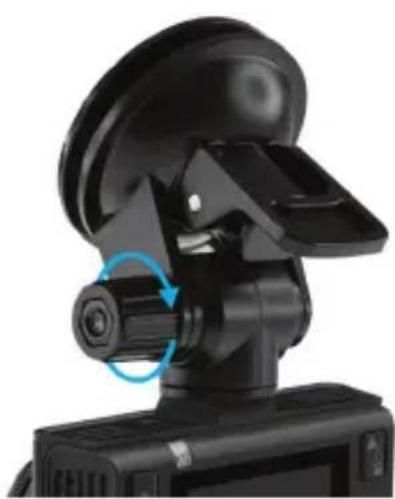
natural_image
Close-up of a black robotic device with a blue circular arrow indicating rotation or adjustment (no text or symbols visible)Power Connection
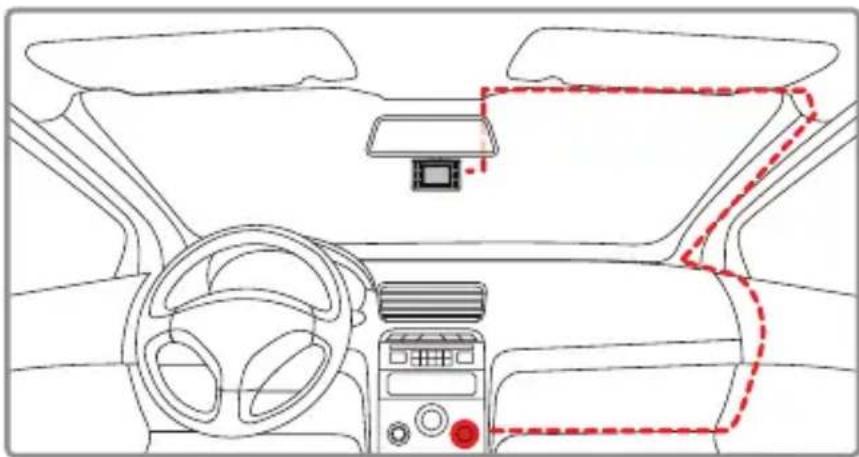
Only use power adapter included in the product delivery set to supply the device and charge the battery. Connect the charger to the dashboard camera, then connect the charger plug into the car cigarette lighter/socket.
After car engine is started, the device will automatically switch on.
natural_image
Interior view of a car dashboard and steering wheel (no text or symbols visible)Note
For optimal view, the device should be mounted next to the rear view mirror on the centreline and top of the windscreen.
Position the lens so that the camera captures the image in proportion "30% sky/70% road" to reach the best filming results.
Use of Antiglare (CPL) Filter
Antiglare (CPL) filter is an optical filter intended to remove glares and reflections from the windscreen for improvement of the videofilming quality.
To reach the best results of videofilming with use of CPL filter, please follow instructions below:
- Install the dashboard camera on the windscreen in accordance with the above recommendations.
- Put a white sheet of paper on the dashboard.
- Rotate CPL filter until reflection of the white paper sheet on the camera screen becomes minimal.
In dark hours of the day it is recommended to remove CPL filter to reach the best results of filming.
6. Operation
Preparation of the device
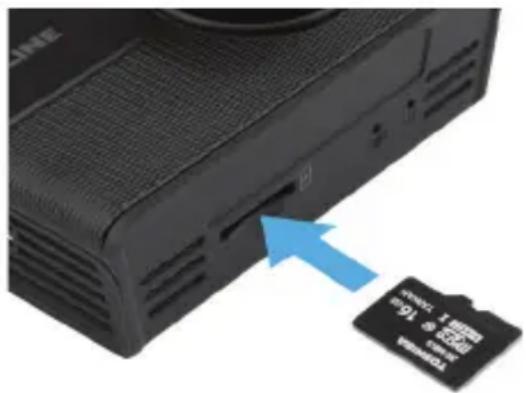
A. Insert MicroSD card into the memory card slot.
Switch off the device before memory card installation and insert memory card until it is fully fixed.
Card installation:
Position MicroSD card against the slot as shown on the figure and insert till it goes click.
Card removal: carefully press the card and the remove it from the slot.
natural_image
Close-up of a black camera module with a blue arrow pointing to a white card labeled 'TCA' (no text or symbols on the device itself)IMPORTANT: Attempting to insert the memory card with a wrong side can damage the device and the memory card itself. Make sure the memory card is in correct position.
Warning: Do not apply too much effort when installing the memory card in order to avoid damage of the device. To install, insert MicroSD into the slot until it is fixed (goes click); if necessary, use a needle to seat the card. To remove the card, press on it until click and remove from the slot, use a needle if necessary.
Switching ON/OFF the device
After car engine is started, the device automatically switches on.
To switch on the device manually, press power button.
To switch off the device, press power button and hold it for 3 seconds.
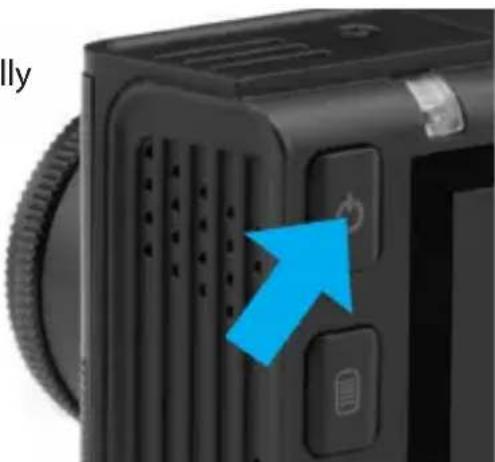
natural_image
Close-up of a black electronic device with a blue arrow pointing to a button, no visible text or symbols.Loop recording
1) Insert MicroSD card into the memory card slot – Loop Recording mode will be automatically switched on.
2) Length of videorecordings can be 1/2/3 minutes. It is recommended setting the recording cycle to 3 minutes.
3) When the memory card has no more space for new videorecordings, the device will automatically replace by them the old videofiles except those protected against deletion.
4) Videorecordings filmed in Loop Recording mode are stored in Movie folder.
Emergency recording
Designed for protection of current videofile against rewriting and deletion. To protect the current videofile, press Up button and the recorded videofile will be marked with a special mark, which will prohibit the device from deletion and rewriting of this file. The screen will display the respective icon.

Emergency recording switches on automatically upon response of G-sensor (sharp acceleration, braking) or collision. Emergency recording is automatically locked in order to avoid deletion during the loop recording. Files protected against rewriting are stored on the memory card in Movie/SOS folder.
Firmware update
1) Download the firmware file from official website www.neoline.ru, extract the file from the archive.
2) Format the memory card and transfer the unzipped file in MicroSD the memory card.
3) Insert the memory card with the downloaded file into slot of the dashboard camera.
4) Connect the device to the power supply and switch it on.
5) Light indicator will blink while the firmware file is uploaded on the device.
6) When the process is completed, the device will automatically reload.
7) Check in Settings menu whether a correct firmware version is displayed.
8) Format the memory card via menu of the dashboard camera.
Important! Do not disconnect power supply of the dashboard camera during the firmware update.
Motion sensor
Upon detection of motion in front of the camera lens, the device will automatically switch on recording that will last during 10 seconds. Each new detected motion will initiate 10-second long recording. Such files are stored on the memory card in Movie folder.
This function is only available with connected external power supply and is intended for recording on motionless motorcar.
Do not switch on the motion sensor during drive since it can lead to incorrect operation of the device.
File playback/deletion. Playback
- In Standby mode, press twice Mode button.
- Use Up/Down and Confirm buttons to select file for viewing.
- Use Up/Down buttons to select file required for viewing and press Confirm button to start playback.
Deletion
- Press Menu button to enter the submenu.
- Use Up/Down buttons to select "File Deletion" and press Confirm button.
| Element | Description |
| Delete One | Delete this file |
| Delete All | Delete all files |
- Press button to confirm the deletion operation.
Note.
Deleted files cannot be restored. Create backup copies of files prior to deletion if necessary.
Menu elements
- Video resolution: 1080FHD 1920*1080/720p 1280*720/WVGA 800*480/VGA 640*480
- Loop recording: 1 minute/2 minutes/3 minutes
- WDR: Off/On
- Exposure: -2 to +2
- Motion sensor: Off/On
- Audio recording: Off/On
- Date/time stamp: Off/On
- Sensitivity of G-sensor: Off/ Low/ Medium/ High
- Number plate stamp: enter number plate of motorcar using numbers and Latin letters. Use Mode button to switch from literal input to numeric
- Wi-Fi: Off/On
- Date/time: use Up/Down/Confirm buttons to set date and time
- Button sound: Off/On
- Language: English/Russian
- Mains frequency: 50 Hz/60 Hz
- Automatic display disconnection: Off/ 30 seconds/ 1 minute/ 2 minutes
- Formatting: use to format the memory card. Important! Files cannot be restored after formatting of the memory card. Use USB connection to save the required files on the computer prior to formatting.
- Default settings: use to restore factory settings.
- Software version: information about firmware version.
Application Wide S6x use by example OC Android
Connection
- Download and install Neoline Wide SX annex
- Make sure DVR is on
- Press and hold for 3 seconds the Wi-Fi activation button on the DVR. When Wi-Fi is activated, the display of the DVR will display the device name and the basic password for connection
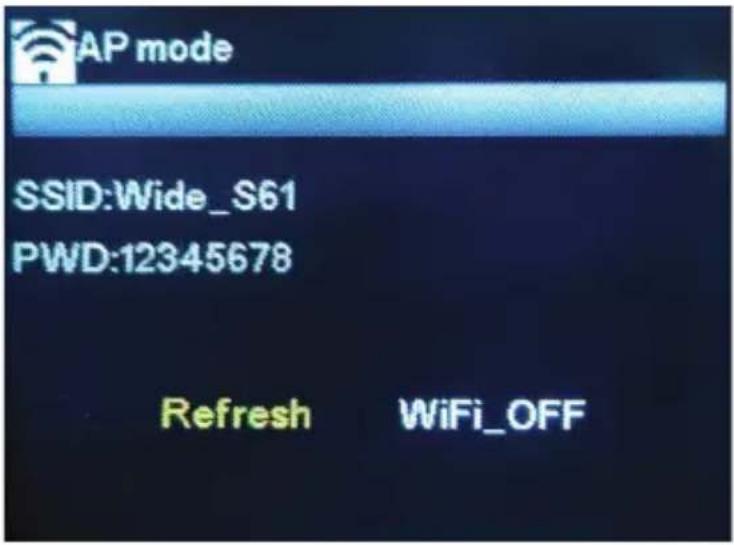
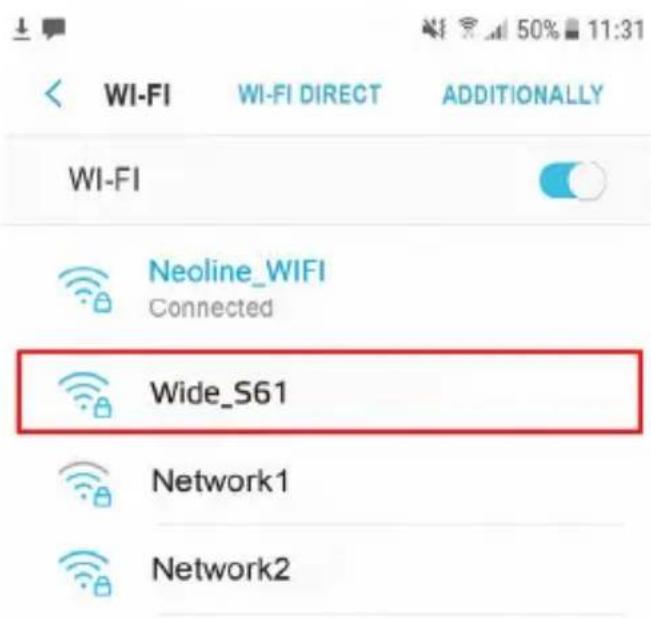
- In Wi-Fi settings of your cellphone Connect to the DVR, having chosen a corresponded network with device name
- run the application
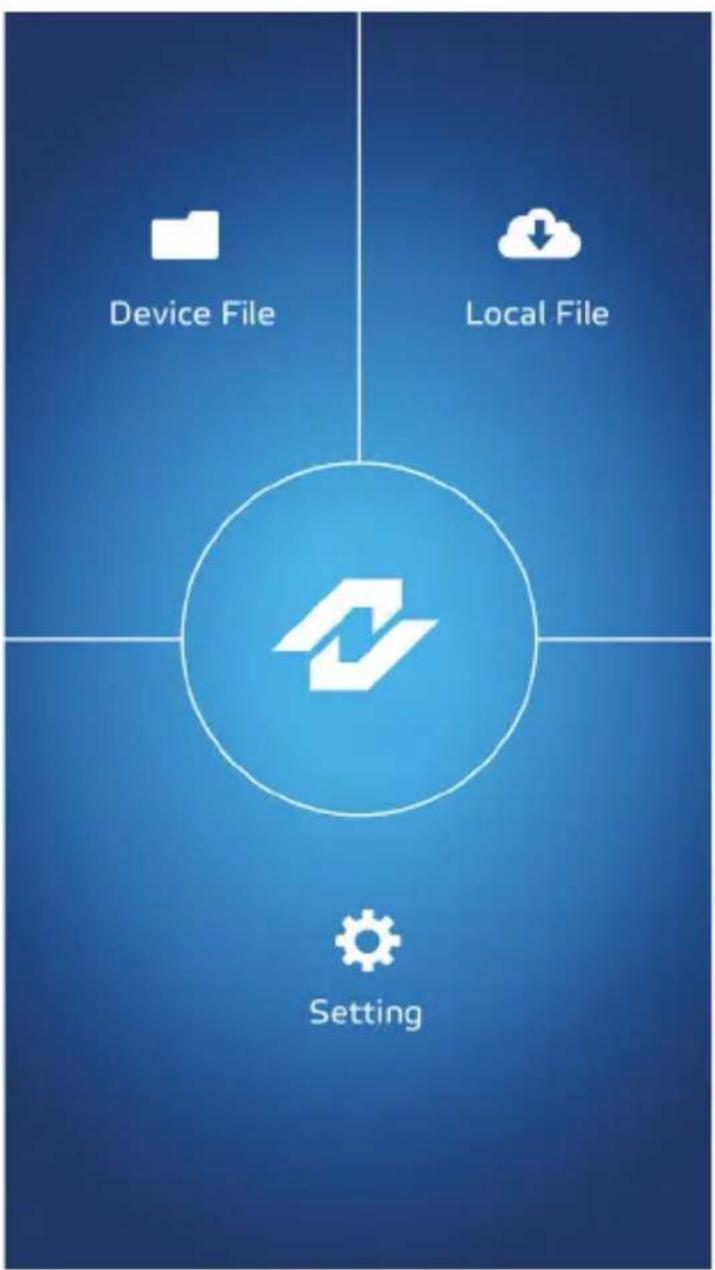
flowchart
graph TD
    A["Device File"] --> C["Setting"]
    B["Local File"] --> C["Setting"]
    D["User Icon"] --> E["Device Icon"]
Application menu items
Recorder Files
In this window, a list of files recorded on the memory card of the DVR is available. Attention! When you enter the file browsing menu, recording stops.
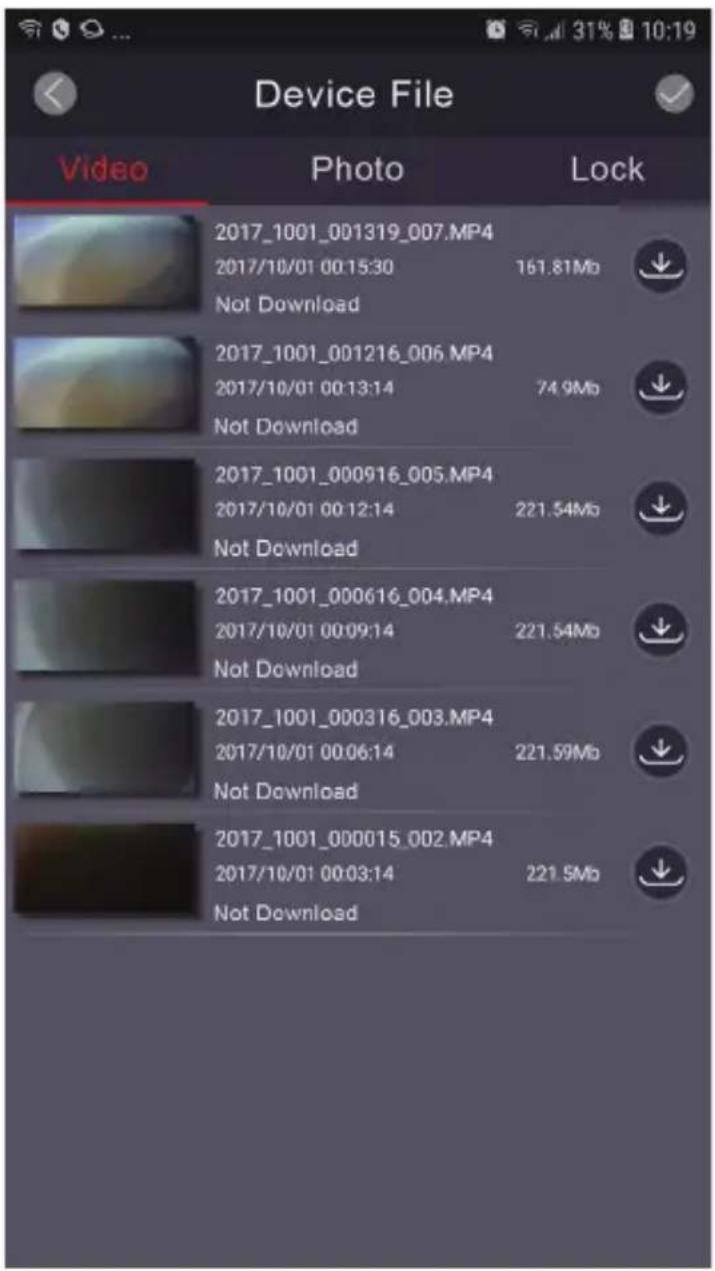
3 tabs are available for the user :
Video - tab is used to select the necessary files from the downloading into the memory of the cellphone. To download, click the icon ↓ next to the file.
When clicking √ on in the upper right corner, you can select the files you
need to download or delete. Having marked the necessary files, click either to download files or to delete them from the memory card.

Image - the tab is made for downloading images into the cellphone memory.
Blocked - the tab is made for downloading files blocked by a shock sensor or by pressing the record blocking button.
Uploaded files
In this window, a list of files downloaded from the application into the memory of your cellphone is available. Tabs and actions are similar to the Recorder Files window.
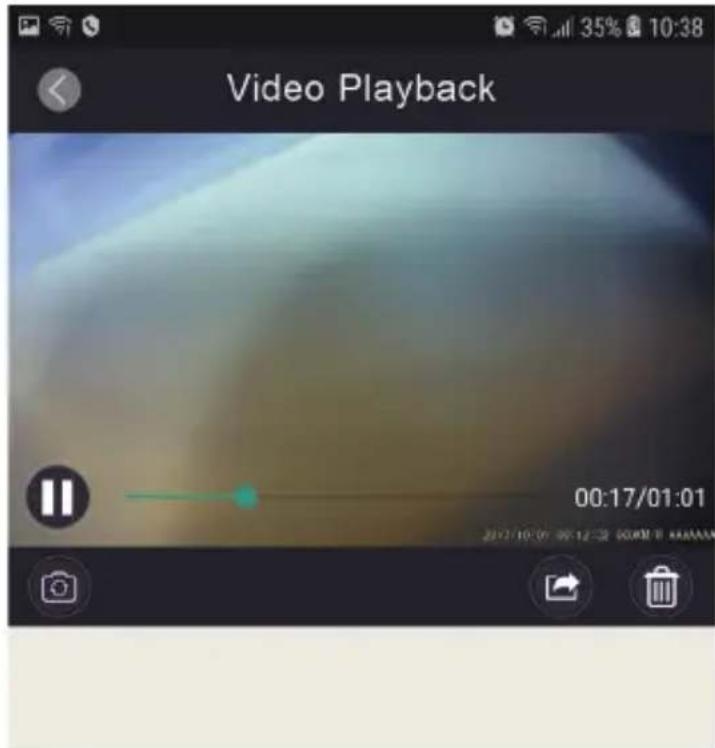
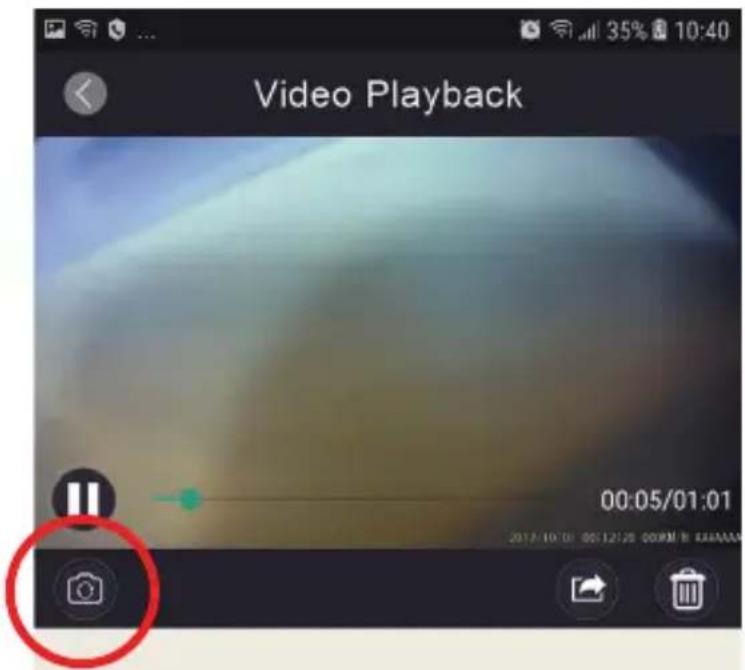
When clicking on the file from the list of downloaded ones the user can
- view file
- make the screenshot of the current frame
- send file
Press the icon to share the content



Link Sharing
Send big files with daily limit on volume 2 GB

WhatsApp

New Message

Write to Yourself

Add on Maps

Gmail

Upload into Google Photo

Contacts "Me"

Messages
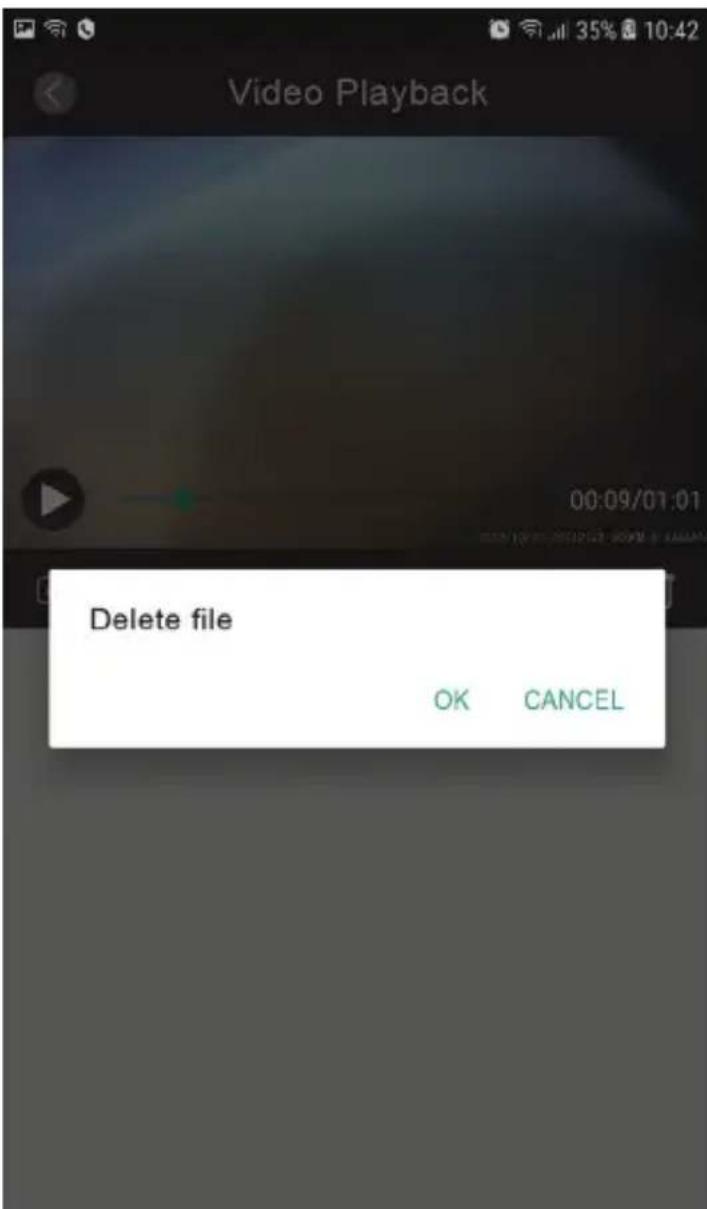
- delete file
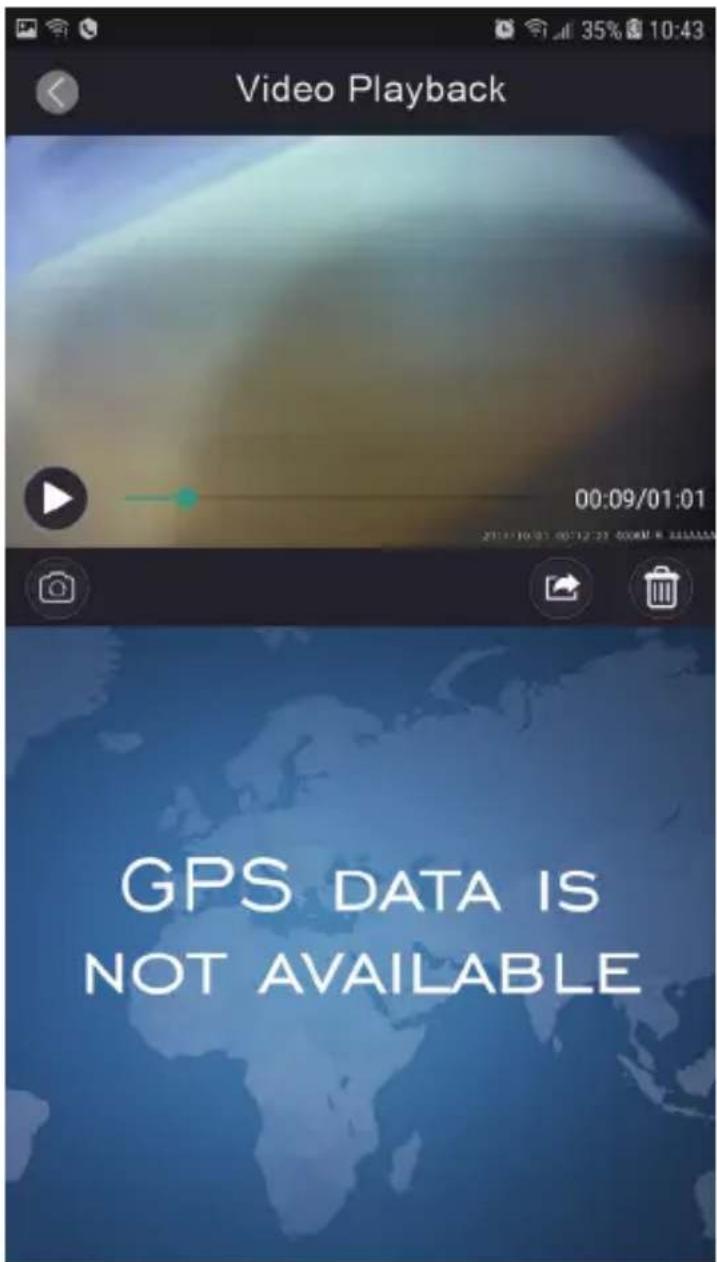
- view the GPS track (the function is available only for versions of the recorder equipped with a GPS sensor, see the description of the device)
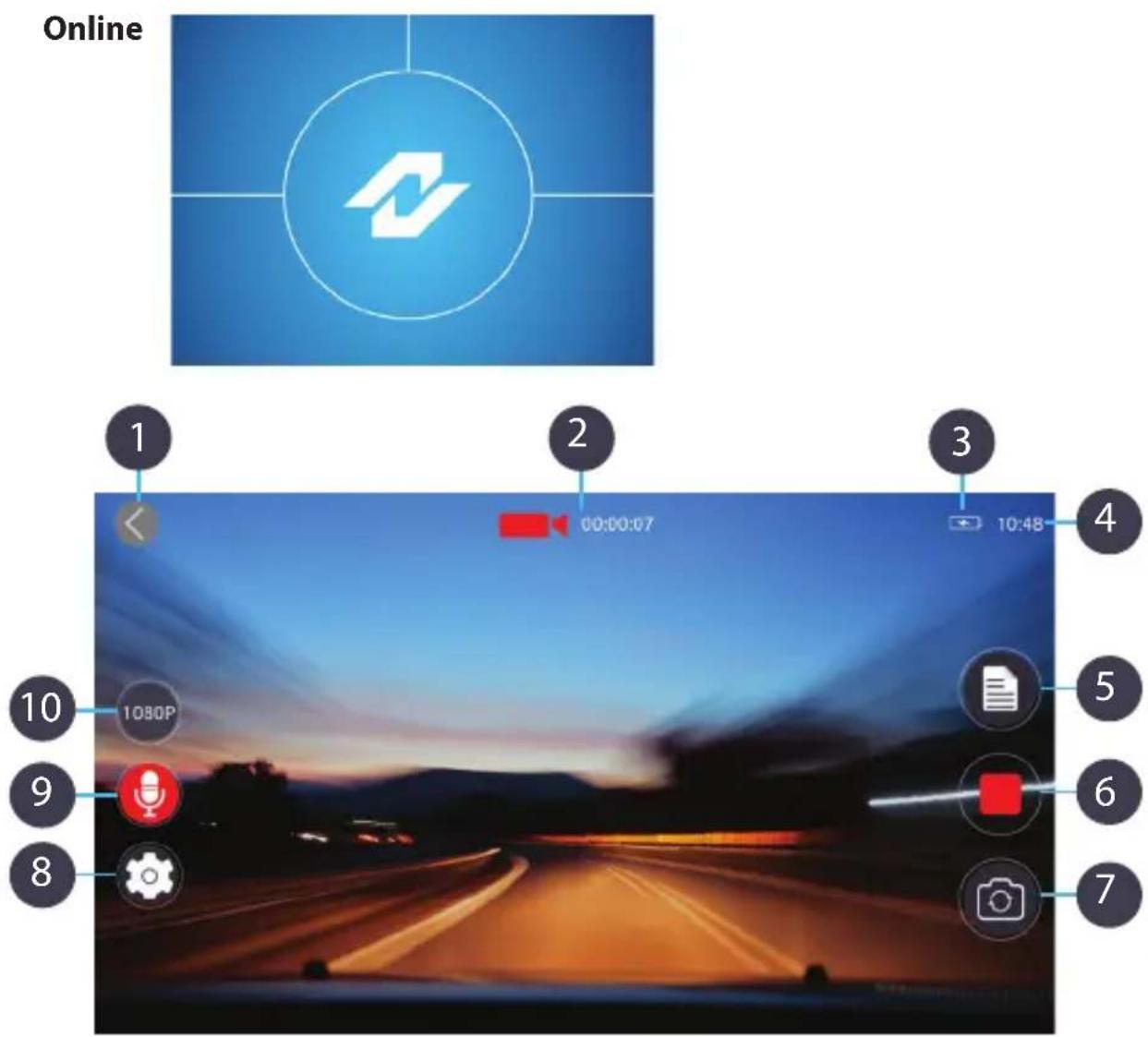
- Return to the main application screen
- Recording status and recording time of the current file
- Indication of the charge of the DVR
- Current time
- Go to the recorder files list
- Stop or start shooting
- Screenshot
Attention! The algorithms of work activation of the camera of the Android and iOS systems are different. In Android OS, the screenshot is saved from the application. In iOS, the Camera application is activated to create a snapshot.
-
Go to the DVR settings menu
-
Turn on / Turn off sound recording
-
Changing the video resolution
Settings
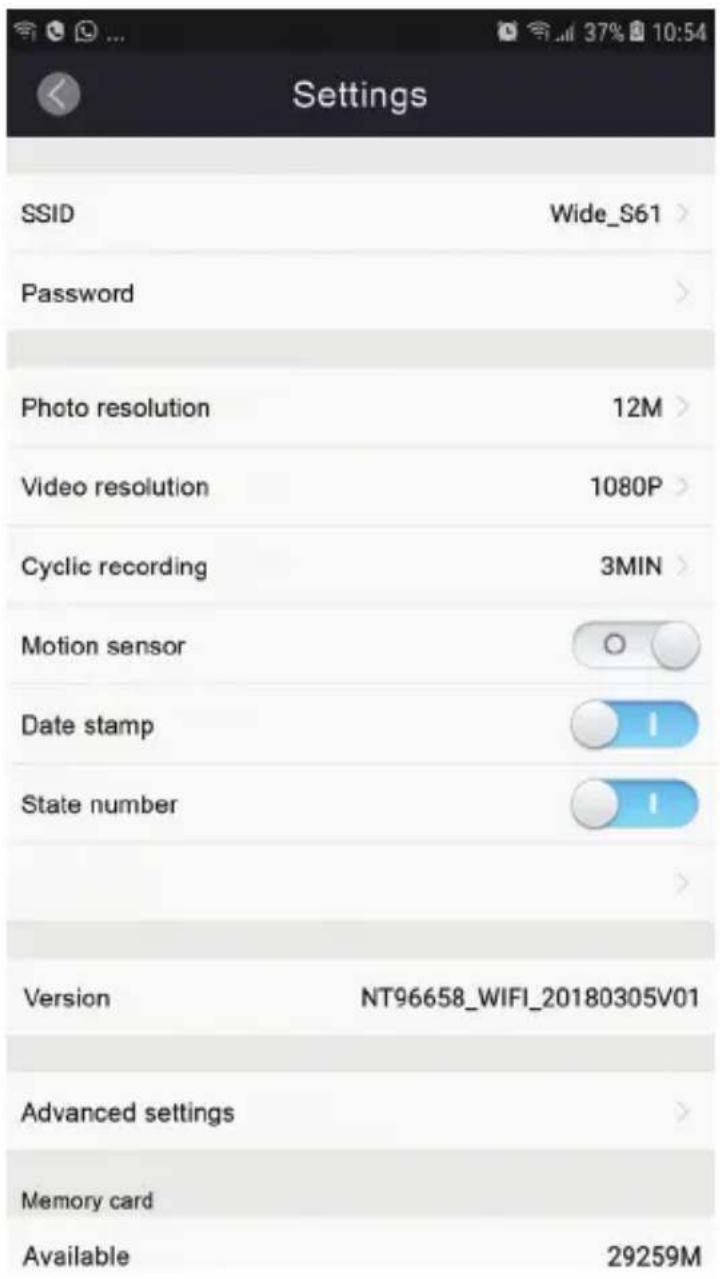
Attention! When making changes to the settings carefully follow the instructions of the tooltips
- SSID - setting allows to change of the DVR's network name
Attention! Only Latin letters, figures and underscores are allowed.
- Password - setting allows password changing for connecting to the network of the DVR
- Photo resolution - select the desired image resolution
- Video resolution - select the video resolution you need for filming
- Loop recording - select the desired file length
- Motion sensor - setting allows you to turn on / turn off the motion sensor. Follow the instructions for the settings of this function as indicated above.
- Audio recording - setting allows you to turn on / off audio recording when shooting video/filming
- Date stamp - setting allows you to turn on / turn off the display of date stamps on video
- State number - setting allows you to enter the state number of the car (no more than 9 symbols)
Attention! Only Latin letters and figures can be entered.
- Version - the version of the application is indicated
Advanced settings
- Exposure - setting allows to set the exposure shooting (“-2” - for very bright lighting)
- WDR - setting allows to turn on / turn off the widened dynamic range (WDR) function
- G-sensor - setting allows to turn off the shock sensor, or set the sensitivity value of the shock sensor
- Memory card - a block of information about the available capacity of the memory card
- Format - setting allows to format the memory card.
Attention! Before formatting make sure that the files you need are stored in the memory of the cellphone.
- Factory settings - setting allows to reset the device to factory settings.
7. Troubleshooting
If problems have occurred while following the operational conditions, use this section to solve them.
- Photographing and video r impossible
Check whether there is enough free space on MicroSD card as well as whether the card is not blocked.
- Recording self-stoppage
Too large size of video files, only use highspeed MicroSD cards, not lower than Class 10, of proven manufacturers.
- "Invalid File" message appears on the display upon attempt to view/ playback photo/video file
Uncompleted recording into file through file system error on the MicroSD card. Format MicroSD card.
- Washed-out picture
Check whether the lens is free of dirt, fingerprints. If not, wipe the lens with soft cloth before operation (use of special agents for care of optics is recommended in order to avoid damage of the objective lens surface).
- Darkened picture in photos of sky or water
High contrast in the scene will have impact on the exposure. Change exposure settings in the menu.
- Hangup (no picture on the display, no response to button pressing).
Press RESET button for forced reload of the device.
CE EAC F© RoHS
Manufactured for "Neolainas" LTD
Vilnius, Lithuania
Made in PRC
Official site: www.neoline.com
Tech.Support: support@neoline.com
Limited Warranty: 24 month
DC 5V, 1.5A
Operating temperature -10° to +40°