Prophet X - Synthesizer Dave Smith - Free user manual and instructions
Find the device manual for free Prophet X Dave Smith in PDF.


| Type | Hybrid synthesizer (sample playback + synthesis) |
| Dimensions | 1020 x 360 x 120 mm (40.2 x 14.2 x 4.7 in) |
| Weight | 15 kg (33 lb) |
| Power | 100-240V AC, 50-60Hz, 30W |
| Keybed | 61 semi-weighted keys with velocity and aftertouch |
| Polyphony | 16 voices |
| Oscillators | 2 per voice: 1 sample-based, 1 wavetable |
| Filter | 2-pole resonant analog low-pass filter per voice |
| Envelopes | 4 envelope generators (ADSR + delay) |
| LFOs | 2 LFOs with multiple waveforms |
| Effects | Reverb, delay, chorus, flanger, distortion, EQ |
| Sequencer | 16-track, 64-step sequencer with per-track settings |
| Display | 4.3-inch color TFT display |
| Connectivity | MIDI In/Out/Thru, USB, 2x 1/4" audio out, 1/4" headphone, CV/Gate |
| Memory | 4 GB internal sample memory, expandable via SD |
| Included accessories | Power cable, USB cable, quick start guide |
Frequently Asked Questions - Prophet X Dave Smith
User questions about Prophet X Dave Smith
0 question about this device. Answer the ones you know or ask your own.
Ask a new question about this device
Download the instructions for your Synthesizer in PDF format for free! Find your manual Prophet X - Dave Smith and take your electronic device back in hand. On this page are published all the documents necessary for the use of your device. Prophet X by Dave Smith.
USER MANUAL Prophet X Dave Smith
SEQUENTIAL
PROPHETX
User's Guide
Version 1.3
Feb, 2021
Sequential LLC
1527 Stockton Street, 3rd Floor
San Francisco, CA 94133
USA
©2019 Sequential LLC
www.sequential.com

Tested to Comply
With FCC Standards
FOR HOME OR OFFICE USE

This device complicity with Part 15 of the FCC Rules. Operation is subject to the following two conditions: (1) This device may not cause harmful interference and (2) this device must accept any interference received, including interference that may cause undesired operation.
This Class B digital apparatus meets all requirements of the Canadian Interference-Causing Equipment Regulations.
For Technical Support, email: support@sequential.com
CALIFORNIA PROP 65 WARNING
This product may expose you to chemicals including BPA, which is known to the State of California to cause cancer and birth defects or other reproductive harm. Though independent laboratory testing has certified that our products are several orders of magnitude below safe limits, it is our responsibility to alert you to this fact and direct you to: https://www.p65warnings.ca.gov for more information.
Table of Contents
A Few Words of Thanks .... xi
Chapter 1: Getting Started .... 1
First Things First 2
Using the Main Display 3
Sound Banks 4
Selecting Programs 4
Editing Programs 5
Comparing an Edited Program to its Original State....5
Creating a Program from Scratch 7
Saving a Program 7
Canceling Save 8
Working with Stacked or Split Programs 9
Exploring the Prophet X....13
Chapter 2: Prophet X Controls....14
Sample Playback 15
Sample Playback Parameters (Front Panel) 16
Additional Sample Playback Parameters (Display Menus) ..... 18
TAB 1 - Inst Tune....18
TAB 2 - VCF Envelope Amount 34
TAB 3 - LP Filter 35
TAB 4 - LPF Misc. 36
Filter Envelope 37
Envelope Parameters (Front Panel) 39
Additional Filter Envelope Parameters (Display Menus) ..... 40
TAB 1 - VCF ADSR....40
TAB 2 - VCF Env Amount 41
Amplifier Envelope 42
Amplifier Envelope Parameters (Front Panel) 43
Additional Amplifier Parameters (Display Menus) 44
TAB 1 - VCA ADSR 44
TAB 2 - VCA Env Amount 45
TAB 3 - Vol/Pan 46
Auxiliary Envelopes 47
Auxiliary Envelope Parameters (Front Panel) 47
Additional Auxiliary Envelope Parameters (Display Menus) .... 48
TAB 1 - Env ADSR....48
TAB 2 - Env Amount 49
TAB 3 - Env Dest....49
Low Frequency Oscillators 50
LFO Parameters (Front Panel) 51
Additional LFO Parameters (Display Menus) 52
TAB 1 - LFO Shape 52
TAB 2 - LFO Control 53
TAB 3 - LFO Dest ....54
Modulation....55
Modulation Parameters (Front Panel) 56
Modulation Examples 56
Effects 58
Effects Parameters (Front Panel) 60
Arpeggiator....62
Arpgeggiator Parameters (Front Panel) 63
Additional Arpeggiator Parameters (Display Menus)....64
Clock Parameters 65
Sequencer....66
Editing a Sequence 68
Sequencer Parameters (Front Panel) 69
Additional Sequencer Parameters (Display Menus) 69
Clock 70
Clock Parameters (Front Panel) 70
Unison 71
Unison Parameters (Display Menus)....72
Using Chord Memory....73
Master Volume/Program Volume....75
Transpose 76
Hold 76
Glide....77
Glide Modes 78
16-Voice Mode....79
Pitch and Mod Wheels 80
Pitch Wheel 80
Modulation Wheel 81
Touch Sliders 82
Play List....83
Chapter 3: Programming the Prophet X....86
Synthesis 101: Synth Bass 86
Creating Stereo Synth Brass....90
Turning the Synth Brass Sound into a String Pad....91
Creating a Hard-Sync Lead 92
Modulation Techniques 94
Creating a Stereo Tremolo Effect with an LFO 94
Creating Movement with Pulse-Width Modulation....95
Modulating the Stereo Filters Independently....96
Creating Sounds Using FM (Frequency Modulation) ..... 97
Using Sampled Instruments 99
Selecting and Modifying a Sampled Instrument 99
Layering Two Different Sampled Instruments 100
Bypassing the Low-pass Filter on Sampled Instruments.....101
Using Sample Stretch 101
Using the Prophet VS Waves 103
Manipulating Samples and Loops 105
Reversing a sample.... 105
Changing Sample Start and End Points and Adding a Loop...106
Creating "Granular-Style" Loops 108
Creating Longer Loops 109
Combining Samples and Synthesis 110
Blending Real and Synthesized Strings 110
Blending Contrasting Sounds 111
Using 16-Voice Mode 112
A Final Word 113
Chapter 4: Connections/Setups....114
Rear Panel Connections 114
Using USB 116
Calibrating the Prophet X. 117
Calibrating the Filters. 117
Calibrating the Pitch and Mod Wheels 117
Calibrating the Touch Sliders 117
Resetting the Global Parameters.... 118
Importing Programs and Banks 120
Formatting a USB Flash Drive....121
Importing Add-On Samples/Instruments 121
Updating the Prophet X OS 122
Global Settings 123
Appendix A:
Modulation Sources 130
Appendix B:
Modulation Destinations....131
Appendix C:
Alternative Tunings....132
Appendix D:
Troubleshooting and Support 136
Troubleshooting....136
Contacting Technical Support 138
Warranty Repair....138
Appendix E:
MIDI Implementation 140
MIDI Messages 141
NRPN Messages....145
Control NRPN Data 152
SysEx Messages....152
Packed Data Format 156
LICENSE AGREEMENT
By purchasing Sequential Prophet X, you accept the following product license agreement with respect to the "Samples by 8Dio" sample elements thereof and/or incorporated therein ("Samples"):
1. License Grant
The Samples in Sequential Prophet X are licensed, but not sold, to you by 8Dio, Inc. for commercial and non-commercial use in music, sound-effect, audio/video post-production, performance, broadcast or similar finished content-creation and production use. 8Dio allows you to use any of the Samples for commercial recordings without paying any additional license fees or providing source attribution to 8Dio, Inc.
This license expressly forbids any inclusion of the Samples into any other hardware device or in any virtual instrument or library of any kind, without our express written consent. This license forbids any re-distribution method of any of the Samples by means of re-sampling, mixing, processing, isolating, or embedding into software or hardware of any kind, for the purpose of re-recording or reproduction as part of any free or commercial library of musical and/or sound effect samples and/or articulations, or any form of musical sample or sound effect sample playback system or device or on a stand-alone basis.
2. Rights/Watermarking Policy:
The Samples, including accompanying documentation, are protected by copyright laws and international copyright treaties, as well as other intellectual property laws and treaties. 8Dio retains full copyright privileges and complete ownership of all recorded sounds, instrument programming, documentation and musical performances included in Sequential Prophet X. Any rights not specifically granted herein are reserved by 8Dio.
Any unauthorized use, distribution or reproduction of the Samples shall not be permitted, shall constitute a violation of law, and shall entitle 8Dio to, in addition to any other remedy at law or equity, injunctive relief. It is unlawful to deliberately circumvent, alter or delete technological measures of protection and information provided by 8Dio which identifies the products, its owner and the terms and conditions for its use. Please note that the Samples may be imbedded with a digital watermark. If the product ends up in other people's music, you will be held legally responsible, so we ask you to not to violate the terms of this license agreement. You further agree to take all reasonable steps to protect this product from unauthorized copying or use.
A Few Words of Thanks
Thank you for purchasing the Prophet X. The Prophet X is a powerful evolution of the Prophet series. We've added a new sound engine with sample playback, which gives you all of the synthesis capabilities and great sound you'd expect from a Prophet, but now with the infinite possibilities of samples. What's more, the new analog filter design in the Prophet X is not only fantastic for synth sounds, but does something special for the sampled instruments as well.
As a whole, the Prophet X covers more musical ground than any Prophet we've ever created. Composers will love it for soundtracks, synth geeks will love it for sound mangling, live players will love it for its versatility, and we love it because its just an awesome synth.
Make some great sounds with it!
Cheers,

THE SEQUENTIAL CREW
Art Arellano, Fabien Cesari, Bob Cover, Carson Day, Chris Hector, Tony Karavidas, Mark Kono, Justin Labrecque, Andy Lambert, Michelle Marshall, Andrew McGowan, Joanne McGowan, Julio Ortiz, Campbell Smith, Tracy Wadley, and Mark Wilcox.
THE 8DIO CREW
Troels Folmann, Cam Goold, Alejandro Cabrera, Colin Fisher, and Tawnia Knox.
THE SOUND DESIGN TEAM
Richard Devine, Rory Dow, Peter Dyer, Mike Hiegemann, Tim Koon, Kurt Kurasaki, Kevin Lamb, Drew Neumann, Bob Oxley, Francis Preve, Robert Rich, Lorenz Rhode, Matia Simovich, Huston Singletary, James Terris, Mitch Thomas, and Taiho Yamada.
Special thanks to Robert Rich for the alternative tunings content.
Chapter 1: Getting Started
The Prophet X is an 8-voice stereo/16-voice mono, bi-timbral, hybrid digital/analog synthesizer that combines synthesis and sample playback. It has oscillators, filters, envelopes, LFOs, and other classic synthesizer components in addition to a 150 GB library of sampled instruments on its internal SSD drive.
The SSD drive also provides 50 gigabytes of internal storage for importing additional samples from sample library developers. Support for user-created sample content will be added in a future software release. By combining synthesis and sample playback, you can create an almost infinite variety of unique sounds.
We've designed the Prophet X to be as easy to use as possible, with its essential sound-shaping controls within easy reach on its front panel. Additional functionality resides in its three displays.
This chapter of your user's guide provides a brief overview of such essential tasks as how to choose, edit, and save sounds. Later chapters explain each of the parameters on the Prophet X, how to program sounds, how to make connections, and how to use the Globals menu to set up and manage your synth's overall behavior.

Prophet X front panel
First Things First
You're probably eager to power up your Prophet X and take a tour through its sounds. Here's how to get up and running:
Getting Started:
- Plug the power cable into the AC power connector on the back panel of the Prophet X.
- If you have a sustain pedal, connect it to the SUSTAIN jack on the back of the Prophet X. If you have an expression pedal, connect it to the PEDAL/cv jack.
- Turn on the Prophet X. It takes few moments for the sound library to load.
- Connect the MAIN/A OUTPUT on the back of the Prophet X to your amp/mixer/powered speakers using unbalanced, 1/4 inch audio cables. (These are the main stereo outputs for the synth. They carry Layer A and also Layer B if no cables are connected to the B OUTPUT JACKS.)
- Turn up the volume on your amp/mixer/powered speakers.
- Turn up the volume on the Prophet X.
- Use the BANK and PROGRAM knobs to scroll through the factory sounds. You can also use Soft Knob 1 and Soft Knob 2 as well as INC and DEC buttons to scroll through the sounds in the currently selected bank.
![graph TD A["U1 P1 120 Prophet Evolution"] --> B["Bank"] A --> C["Program"] B --> D["Turn to scroll through User and Factory banks"] C --> E["Turn to scroll through programs 1-128 in each bank"]](/content/2026/05/1058423/images/e29ea40dc6a2114dbada537e3d9c709c0e77207eb324b57721909ed47498453b.jpg)
Bank and Program controls

Each of the factory presets has interesting and useful modulation functions programmed into Slider 1 and 2 and the Mod wheel. While you're trying out the factory sounds, play with these performance controls and listen how the sound changes. Each preset also has a pre-programmed sequence. To hear it, press the PLAY button in the SEQ section.
Using the Main Display
The most frequently used controls on the Prophet X are on its front panel. But there are many additional controls (as well as numeric display of values) visible in its main display.
For example, adjusting a knob or switch in the Mixer section reveals the instrument level and oscillator level parameters in the display. The display also reveals additional parameters not found on the front panel such as panning. You can select and edit these additional parameters using the four Soft Knobs and Soft Keys located above and below the display.
The Soft Knobs are detented encoders that are useful for dialing in values with precision. The Soft Keys select between various menu tabs.
![graph TD A["soft knob 1 parameter 1"] --> B["60"] C["soft knob 2 parameter 2"] --> D["60"] E["soft knob 3 parameter 3"] --> F["20"] G["soft knob 4 parameter 4"] --> H["20"] B --> I["Mixer"] D --> J["Planning"] F --> K["Hack/Deci"] H --> L["Soft key 1 menu tab 1"] H --> M["soft key 2 menu tab 2"] H -…](/content/2026/05/1058423/images/be5989824caf142ad117c8ce951c9b20a0ccea33cfc08cb3ee453a7a8edeaf7e.jpg)
The Main Display
Sound Banks
The Prophet X contains a total of 1024 programs. Banks U1-U4 are user banks that can be overwritten. Banks F1-F4 are factory banks that are permanent. As shipped, user banks U1-U4 are identical to permanent factory banks F1-F4. Each bank has 128 programs (x 4 banks = 512 programs each). You can edit the programs of either bank, but you can only save them to user banks U1-U4.
We include banks of non-rewritable permanent sounds so that they are always available, to be used as is, or as templates for new sounds of your own. It's easy to design a new sound by tweaking an existing one.

Banks A1-A4 are "add-on" banks. Programs included with sample expansion libraries from sound developers will load here. If you purchase expansion libraries then edit any of the programs in banks A1-A4, you must save them to user banks U1-U4, as you would with any user-created sounds.
![graph TD A["U1 P1 120 Prophet Evolution"] --> B["Inc"] A --> C["Dec"] D["BANK"] --> E["Turn to scroll through User and Factory banks"] F["PROGRAM"] --> G["Turn to scroll through programs 1-128 in each bank"]](/content/2026/05/1058423/images/6a801c15945b02016e18dc65ede10c0a7f7f12027497f87b25dac229c7c0f812.jpg)
Bank and Program controls
Selecting Programs
Use the BANK and PROGRAM knobs to select and recall programs.
To choose a program:
- Turn the BANK knob to select the bank you want.
- Turn the PROGRAM knob to select a program within that bank.
Editing Programs
Because the majority of the sound-shaping controls of the Prophet X appear on its front panel, editing an existing program is simple: turn a knob and listen to its effect. Keep turning knobs and pressing buttons. If you like what you've created, save the program. (See "Saving a Program" on page 7.)
Any edits you make are made to Layer A. You can also edit Layer B if you want.
To hear and edit Layer B:
- Press the EDIT B LAYER button.
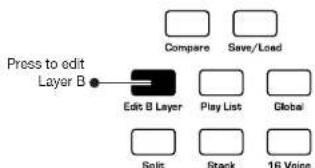
Bank and Program controls

The rotary controls on the front panel are a mixture of "endless" rotary encoders (which have no position indicator) and potentiometers or "pots," which have a position indicator and a finite travel range from left to right. You can choose between three different modes that determine how the synth reacts when you edit its parameters with a pot. For details, see "Pot Mode" on page 124.
Comparing an Edited Program to its Original State
When editing a program, it's often useful to compare its edited state to its original state to evaluate your edits.
To compare an edited program to a saved version:
- Edit a program, then press the COMPARE button.
- Play the keyboard to hear the saved version of the sound.
- To disable the compare function and return to the edited sound, press the COMPARE button again to turn it off. Programs can't be written while in compare mode.

Compare button
It's also useful to be able to check the value of a parameter for reference. Normally, to make a parameter value appear in the display, you have to turn the parameter's knob — which will change the parameter value. But there is a way to do this without changing the value:
To check the value of a parameter without changing it:
- Press the show button.
- Turn any parameter knob. The value appears in the display.
- To return to normal operation, press the snow button again to disable it.
![graph TD A["Press Show and turn any knob to see its current setting without changing it"] --> B["Revort"] B --> C["Show"] C --> D["Mac Params"] E["U1"] --> F["P1 120"] F --> G["Prophet Evolution"] G --> H[" "] G --> I[" "] G --> J[" "] G --> K[" "]](/content/2026/05/1058423/images/967ac80c47ae6adf3c998c2d74a636c9ccf80c3d68a187577f68e65aafc3cb00.jpg)
Using the Show button to display a parameter value
Creating a Program from Scratch
An existing program can be very useful as a jumping off point for new sounds. But it's also useful (and educational) to create a new sound from scratch. The Prophet X makes this easy by providing a "basic preset" that you can quickly recall at any time. This preset is very simple, with a single oscillator as its basis.
To recall the basic program:
- Press the GLOBAL button.
- Use Soft Knob 1 to select BASIC PROGRAM in the display menu.
- Press SOFT BUTTON 1 (WRITE NOW). The current sound settings are reset to the basic program.
- Press the GLOBAL button again to return to normal operation. From here you can begin creating your own sound using the basic program as a starting point.

You can also recall the Basic Program by simultaneously pressing the TRANSPOSE DOWN and HOLD buttons.
Chapter 4 provides several sound design tutorials. It is designed to give you a basic working knowledge of how to use the Prophet X to make your own sounds. See “Chapter 3: Programming the Prophet X” on page 86.
Saving a Program
If you've created a sound that you like, you'll probably want to save it. Saving a program overwrites a previously saved program. Sound designers often save many incremental versions of a program as they continue to refine it. These intermediate versions often make good jumping off points for new sounds.
To save a program to the same preset location:
- Press the SAVE/LOAD button. Its LED begins blinking.
- Enter a name for the program using the appropriate Soft Knobs and Soft Keys. (See the illustration that follows for their functions.)
- Press the SAVE/LOAD button again. Its LED stops blinking and the program is saved.
To save a program to a different location:
- Press the SAVE/LOAD button. Its LED begins blinking.
- Turn the BANK or PROGRAM knobs (or Soft Knob 1 and Soft Knob 2) to select a new location. You can only save to banks U1-U4.
- Enter a name for the program using the appropriate Soft Knobs and Soft Keys. (See the illustration that follows for their functions.)
- Press the SAVE/LOAD button again. Its LED stops blinking and the program is saved.

Saving a program saves any edits to programs on both Layer A and Layer B.
![graph TD A["select bank"] --> B["Write Bank Write Prog Select Char Edit Char"] C["select program"] --> D["Writing to Bank1 Program.1: Super Strings Hit Write to Save Prog Hit Global to Exit"] E["select character"] --> F["Basic Program"] G["edit character"] --> H["Copy Name A+B Insert Char Delete Cha…](/content/2026/05/1058423/images/822e0ba39f90dc1225b70f494f380ce1619c20fc8ddd845ead3dce45d1bfec7b.jpg)
Saving a Program
Canceling Save
Sometimes you may want to cancel saving a program before you commit.
To cancel the save process before you commit:
- If the SAVE/LOAD button LED is flashing, press the GLOBAL button. The SAVE/LOAD LED stops flashing and saving is canceled. You can return to editing if you want.
Comparing Before You Save
Before saving a program to a new location, it's a good idea to listen to the program in the target location to make sure you really want to overwrite it.
To evaluate a program before you overwrite it:
- Get ready to save by pressing the SAVE/LOAD button. It starts flashing.
- Press the COMPARE button. Its LED lights up.
- Use the BANK and PROGRAM knobs to navigate to the sound you want to compare and play the keyboard to hear the sound.
- To disable the compare function and go back to the edited sound, press the COMPARE button again to turn it off. (Programs can't be written while in compare mode.)
- If you want to save the edited sound, the SAVE/LOAD button is still flashing and ready to save, so navigate to a location with the BANK and PROGRAM knobs and press SAVE/LOAD. The sound is saved.
- Alternatively, if you want to cancel saving and continue editing, press the GLOBAL button. Saving is canceled.
Working with Stacked or Split Programs
The Prophet X is bi-timbral, meaning that it can produce two different sounds/programs at the same time, either by stacking them, or by allowing you to split the keyboard and assign one sound to the upper section of the keyboard and a different sound to the lower section of the keyboard.
The two layers are referred to as Layer A and Layer B. By default, Layer A is always active when you recall a program. If either the SPLIT button or the STACK button is lit, then Layer B is also active. Each Layer can have different Effects, Unison, Arpeggiator, and Sequencer settings. This allows for some very interesting combinations of sounds.
As you scroll through various factory programs, you can tell which are stacked and which are split. On stacked sounds, the STACK button is lit. On split sounds, the SPLIT button is lit.

All factory programs have a "B" layer, even if that layer isn't currently enabled. To hear Layer B in isolation, press the EDIT LAYER B button and disable stack or split (if active) by turning off the STACK button or SPLIT button. Pressing EDIT LAYER B a second time enables Layer A again.
![graph TD A["Press to enable Layer B editing"] --> B["Edit B Layer"] B --> C["Play List"] B --> D["Global"] B --> E["Split"] E --> F["Button is lit when split is active"] E --> G["Stack"] G --> H["16 Voice"] G --> I["Button is lit when stack is active"] style A fill:#f9f,stroke:#333 style B fill:#ccf…](/content/2026/05/1058423/images/f9ede5920a7d9b749621e6c4319ae49cce684eb68a0f71af270b9a84d7cb4d25.jpg)
Split and Stack buttons
Stacked Programs
Stacking two programs allows you to create extra complex sounds, since you can have two completely different programs layered on top of each other.
Polyphony is halved in Stack mode, so your 8-voice Prophet X, functions as a 4-voice because it uses two voices for each key played. If you want to increase polyphony, press the 16-VOICE button. This switches the Prophet X into 16-voice mono mode. Polyphony is doubled, but the stereo filter signal path is converted to mono. Digital effects remain in stereo, however.

Enabling 16-voice mono mode
To turn on Stack mode:
- If it's not currently lit, press the STACK button. The button becomes lit. The program on Layer B is stacked with the program on Layer A. Polyphony is halved since two voices are used per note.
To turn off Stack mode:
- If it's currently lit, press the slack button. The button becomes unlit. Only the program on Layer A is heard.
To edit Layer B:
- Press the EDIT LAYER B button. Layer B editing is enabled.
- Change any parameters to change the sound of Layer B.
- Press the EDIT LAYER B button again to turn off Layer B editing.
To edit Layer A and B simultaneously:
- With Stack mode on (STACK button is lit) press and hold the EDIT LAYER B button until it begins flashing, indicating that you are in "Link" mode. Release the button. (It should still be flashing.)
- Change any parameters. The parameters are changed on both Layer A and Layer B.
- To turn off Link mode, press the EDIT LAYER B button again. It stops flashing.

Saving a program saves any edits to programs on both Layer A and Layer B.
To copy Layer A to Layer B:
- Press the EDIT B LAYER button.
- Press Soft Key 1 (COPY A > B).
- Press Soft Key 1 again to confirm. Layer A is copied to Layer B.
To copy Layer B to Layer A:
- Press the EDIT B LAYER button.
- Press Soft Key 2 (COPY B > A).
- Press Soft Key 1 to confirm. Layer B is copied to Layer A.
To swap Layer A and Layer B:
- Press the EDIT B LAYER button.
- Press Soft Key 3 (SWAP A > B).
- Press Soft Key 1 to confirm. Layers A and B are swapped.
Split Programs
In split mode, playing a key on the left side of the keyboard will play the Layer A sound and playing a key on the right side will play the Layer B sound. Polyphony is allocated equally between the two sounds, with half of the available voices on Layer A and half on Layer B.
The specific key that starts the Layer B sound is called the split point, and is saved with the program.

All factory programs have a "B" layer, even if that layer isn't currently enabled.
To turn Split on:
- If it's not currently lit, press the split button. The button becomes lit. The left side of the keyboard plays the Layer A sound and the right side of the keyboard plays the Layer B sound.
To turn Split off:
- If it's currently lit, press the split button. The button becomes unlit. Only the program on Layer A is heard across the full range of the keyboard.
To set the split point:
- Press and hold down a key on the keyboard.
- Press the SPLIT button. This sets the start point for Layer B.
- Play a few notes to confirm that the split is where you want it.
- If you want to re-set the split to a different note, disable split by pressing the split button again, then repeat steps 1 and 2.

You can also press the EDIT B LAYER button and set the split point with Soft Knob 4.
To create exactly the kind of split you want, sometimes you may need to swap the sounds on Layer A and B.
To swap Layer A and Layer B sounds:
- Press the EDIT B LAYER button.
- Press Soft Button 3 (SWAP A<>B). The layers are now swapped.
Exploring the Prophet X
Before you explore the sound creation possibilities of the Prophet X, we'd like to point you toward a few things that will help you tailor it to your needs. The better you know it, the more you'll get out of it.
First, read about “Global Settings” “Global Settings” on page 122. There are many useful settings and functions found in the Global menu that will affect the overall behavior of your Prophet X, including tuning, MIDI connections, calibration, and more. In particular, read about Pot Modes and determine which works best for you when you’re editing sounds.
Also, starting on page 114, read about the various connectors on the back of your Prophet X and how you can use its various pedal, audio, MIDI, and USB inputs and outputs.
Finally, be on the lookout for tips and notes scattered throughout this manual to gain a better working knowledge of the Prophet X. We wish you many hours of musical exploration!
Chapter 2: Prophet X Controls
This chapter explains all of the controls on the Prophet X, section by section.
As explained in Chapter 1, the most frequently used controls on the Prophet X are located on its front panel, with many additional controls (as well as numeric display of values) visible in its main display.
For example, adjusting a knob or switch in the Mixer section reveals the INSTRUMENT LEVEL and OSCILLATOR LEVEL parameters in the display. The display also reveals additional parameters not found on the front panel such as PANNING. You can select and edit these additional parameters using the four Soft Knobs and Soft Keys located above and below the display.
The Soft Knobs are detented encoders that are useful for dialing in values with precision. The soft keys select between various menu tabs.
![graph TD A["soft knob 1 parameter 1"] --> B["Inst 1 Level"] C["soft knob 2 parameter 2"] --> D["Inst 2 LEVEL"] E["soft knob 3 parameter 3"] --> F["60 20 2060"] G["soft knob 4 parameter 4"] --> H["60 20 2060 Level"] I["Revert"] --> J["Mixer"] K["Show"] --> L["Planning"] M["Miss Params"] --> N["Hack/D…](/content/2026/05/1058423/images/cb5fe72b11a2e5719f0a4d6809299d9b17fe8447806214022a2d4a5b8ce76b14.jpg)
The Main Display
Sample Playback
The Sample Playback portion of the Prophet X provides 150 GB of factory-installed 16-bit, 48 kHz multi-sampled instruments. You can scroll through the instruments using the TYPE and INSTRUMENT knobs next to the display in the SAMPLE PLAYBACK section.
You can add an additional 50 GB of samples by purchasing sample libraries or importing your own. (User-created samples will be supported in a future software release.) You'll need to download and copy them to a USB flash drive (USB stick). You can then load the samples into the Prophet X by connecting the USB stick to the SAMPLE IMPORT port on the back panel of the synth. See "Formatting a USB Flash Drive" on page 120 for instructions on how to do this.

The Sample Playback section
To audition any of the sampled instruments:
- Press the GLOBAL button, use Soft Knob 1 to navigate to the BASIC PROGRAM command, then press Soft Key 1 (WRITE NOW).
- In the MIXER section, turn up Instrument 1 and turn down all other sources (Instrument 2, Oscillator 1, Oscillator 2).
- In the SAMPLE PLAYBACK section, press the INSTR 1 button.
- With the TYPE knob, scroll through the various sound categories.
- With the INSTRUMENT knob, scroll through the various instruments while you play the keyboard. Larger instruments may take a moment to completely load into memory.
- To hear the instruments without low-pass filtering by the synthesizer, press Soft Key 2 (INST1MISC) then use Soft Knob 4 to enable LPF BYPASS.
Sample Playback Parameters (Front Panel)
Group: Factory, User, Add-on—Hold down this button and turn the TYPE knob to select between the permanent library of internal factory samples and sample libraries you have loaded in addition to the factory set — either user samples or samples purchased from sound developers.
Instr 1: Pressing this button selects sampled instrument 1 for editing.
Instr 2: Pressing this button selects sampled instrument 2 for editing.
Type: Selects the overall instrument type. Instruments are organized into categories by type (piano, strings, etc.) or general sound characteristics (ambience, sound effects, etc.).
Instrument: Selects a specific instrument from within the selected category (Type).
Reverse: Pressing this button reverses the playback direction of a sampled instrument. For example, when reversed, a piano (which has an immediate attack and a slow decay) would have a slow attack, and an abrupt end.
Start: Adjusts the sample start point. This changes the sound of the sample since moving the sample start point later will omit some of its initial audio content. In most acoustic instruments the beginning of a sound is louder and contains more harmonics, so moving the sample start later would omit the brightest, loudest part of the instrument sample.
End: Adjusts the sample end point. This will also change the sound of the sample, since you will omit some of the audio that occurs at its end.
Loop: Toggles a sustain loop in the sample on and off. With Loop on, the sample will repeat the looped portion for as long as you hold down a key and after you release the key until the amp envelope finishes. Not all instruments have a pre-defined loop. Toggling Loop on in an instrument without a pre-defined loop creates a loop that stretches from the instrument's start to its end (i.e. the entire length of the sample).
Size: Adjusts the size of the looped portion of the instrument sample by moving both its loop start and loop end points.
Center: Adjusts the location of the loop within the sample. The size of the loop stays the same, but its location within the sample (as defined by its center point) is moved when you adjust this control.
Sample Stretch: On, Off—Striking and holding down a key and pressing this button stretches the sample that is mapped to that key across the entire keyboard for the currently selected instrument. In this mode, normal sample switching will not occur when you play up and down the keyboard. The same sample will simply be pitch-shifted.
Use this to create the classic sampler "chipmunk voice" and other pitch shift effects. You can set Sample Stretch individually for Instrument 1 and Instrument 2 by selecting the desired instrument (using the INSTR 1 or INSTR 2 button) then enabling SAMPLE STRETCH. The LEDs indicate whether or not Sample Stretch is on for either instrument.

Because the instruments are multi-sampled at different velocities for greater realism, striking a key at different velocities will play different samples. Samples recorded/played at higher velocities are generally louder and brighter. When you strike a key and press the SAMPLE STRETCH button, the sample that is stretched is the sample that matches the velocity at which you struck the key. In other words, the sample that you hear when you strike the key is the one that gets stretched.

VOLUME

SAMPLE STRETCH
Hold down a key and press this button to stretch the sample on that key across the entire keyboard

GLIDE AMOUNT

GLIDE
Sample Stretch

The Prophet X recognizes sustain loops only. Release loops are not supported.
Additional Sample Playback Parameters (Display Menus)
Additional Sample Playback parameters appear in the menus in the main display. To see these, press the INSTR 1 or INSTR 2 button in the Sample Playback section of the front panel.
TAB 1 - Inst Tune
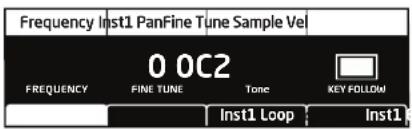
Frequency: C0...C10—Sets the base frequency of the instrument in semitones. When Sample Stretch is off, changing the parameter value here shifts the sample set relative to that value. When Sample Stretch is on, changing the parameter value here will tune the pitch of the stretched sample by the designated value.
Fine Tune: -50...+50 — Sets the base frequency of the instrument in cents. You can “tune” an instrument or sample with this control.
Tone: -64...+63—The Tone control is a high-pass/low-pass filter. Use it to remove unwanted high or low frequencies in the selected instrument so that it blends better with the other components in a sound (such as a second sampled instrument or the oscillators). Turn the knob clockwise to cut low frequencies. Turn the knob counter-clockwise to cut high frequencies.
Key Follow: On, Off—Turns pitch tracking on and off for an instrument. When off, playing higher or lower notes on the keyboard will not change the pitch of an instrument. This is useful for sound effects and percussion, where you may not want pitch shifting to occur.
TAB 2 - Inst Misc

Stretch Key: C-2...G8—When Sample Stretch is on, this indicates which key/note (and its associated sample) is stretched. Changing the STRETCH KEY note value will change which sample is stretched (since each key typically has a different sample mapped to it).
Boost: 0...+9dB—Boosts the gain of the selected instrument up to 9dB in 3dB increments.
Glide Rate: 0...127—When the SAMPLE STRETCH and GLIDE buttons are both on, this control sets how quickly the pitch of one note glides up or down from the pitch of the previously played note. On sampled instruments, glide only works when Sample Stretch is enabled. For more information about Glide, see page 77.
LPF Bypass: On/Off — Enables the selected instrument to be unaffected by the synthesizer's low-pass filter or the filter envelope. This is useful if you want a sampled instrument to remain sonically separate from the sound of the oscillators, which always pass through the filters.
TAB 3 - Inst Loop

XFade Rate: 0...255—If LOOP is on for a sampled instrument, this controls the length of the crossfade between the loop start and loop end. Some sounds benefit from longer loops in order to smooth the transition between these points.
Loop Mode: Regular, Pitched, Sync—Sets how the sustain loop behaves in an instrument or sample (if a loop exists in the sample). In REGULAR mode, the loop plays continuously while a key is held. In PITCHED mode, the loop becomes a pitch period calculated based on the assigned note of the sample. You can change the size of this pitch period by pressing Soft Key 4 (Inst1 Edit) and changing the LOOP SIZE setting. A LOOP SIZE setting of of 1 indicates a single pitch period. In SYNC mode, the loop plays back in sync with the master clock BPM. This is useful for loops that consist of rhythmic material that you wish to synchronize to the sequencer and arpeggiator.
Edit Sample: On, Off—If you have edited a sample's start, end, or loop size or center, turning off EDIT SAMPLE will temporarily ignore the edits and play the sample in its original, unmodified state.
Sample Vel: On, Off—Toggles velocity sensitivity and velocity-based multi-sample switching on or off for the selected instrument. Turning sample velocity off will cause the Prophet X to always play the sample normally designated to have the greatest velocity. It will not switch samples based on how hard you play, as it usually would.
TAB 4 - Inst Edit

Sample Start: Sets the point within instrument samples that sample playback begins.
Loop Size: Adjusts the size of the looped portion of the instrument sample by moving both its loop start and loop end points.
Loop Center: Adjusts the location of the loop within the sample. The size of the loop stays the same, but its location within the sample (as defined by its center point) is moved when you adjust this control.
Sample End: Sets the point within instrument samples that sample play-back ends.
Oscillators
Oscillators provide the raw building blocks of the Prophet X's sound (along with the sampled instruments) by producing waveforms, each of which has its own inherent sound character based on its harmonic content. The Prophet X has two digital oscillators per voice.
Oscillators 1 and 2 are capable of generating sine, sawtooth, pulse, and super sawtooth waves. You can vary the "pulse width" of these wave-shapes using the SHAPE MOD parameter. This allows for a great variety of different waveshapes and timbres. The SHAPE MOD parameter controls the thickness/detuning of the super sawtooth wave.

The digital oscillators on the Prophet X are extremely stable. To emulate the random pitch drift and oscillator instability of vintage instruments, use the SLOP 1 & 2 parameter to dial in as little or as much drift as you like.

The Oscillators section
Oscillator 1 can be hard-synced to Oscillator 2 using the SYNC 2>1 button for harmonically-complex sounds when modulated. Both oscillators feature a FINE TUNE knob for detuning and thickening sounds.

☐ You can force either or both of the oscillators to start its wave cycle from its beginning (its zero crossing) each time you press a note on the keyboard by setting WAVE RESET to ON in the OSC SHAPE tab. This is useful for creating sounds that have a very consistent sound each time you trigger them.
To audition the oscillators:
- Press the GLOBAL button.
- Use Soft Knob 1 to navigate to the BASIC PROGRAM command, then press Soft Key 1 (WRITE NOW).
- In the basic program, only Oscillator 1 is audible. (The level of Oscillator 2 is set to zero and Instruments 1 and 2 do not have an instrument selected.)
- In the OSCILLATORS section, press the SIIAPE button to step through the various waveshapes. Sawtooth is selected by default. Notice that it is possible to select no waveshape.
- As you toggle through the waveforms, turn the SHAPE MOD knob and listen to how the timbre of the waveform changes. When SUPER SAW is selected as the waveshape, this knob controls the thickness (detuning) of the Super Saw wave.
- Turn up the level of Oscillator 2 in the Mixer and experiment with setting each oscillator to a different waveshape. Experiment with the FINE TUNE knob on the oscillators and notice how slightly detuning the oscillators in relation to each other creates movement and thickness in their combined sound.
- Try rotating the filter's CUTOFF and RESONANCE knobs to see how they affect the sound of the oscillators.
- Use the pitch knob to change the pitch (in semitones) of the oscillators. Try tuning one oscillator to a interval such as a third, a fifth, or a sixth.
- With both oscillators on, press the sync 2 > 1 button, then rotate the PITCH knob on Oscillator 1 while you hold a note. This is the classic hard sync sound. You can route an envelope to Oscillator 1 pitch using the modulation matrix to create this effect each time you play a note. You'll learn more about the mod matrix in "Modulation" on page 55.
Oscillator Parameters (Front Panel)
Shape: Sine, Sawtooth, Pulse, Super Saw —This button selects the waveshape generated by the oscillator. You can also turn the oscillator off by selecting no waveshape.
Pitch: Sets the base frequency of Oscillator 1 or 2 over a 9-octave range from 16 Hz to 8 KHz (when used with the Transpose buttons). Adjustment is in semitones. The global MASTER COARSE and MASTER FINE settings affect the pitch of the oscillators. See “Global Settings” on page 119 for more information.
Fine Tune: -50...+50 – Fine tune control with a range of a quarter tone up or down. The 12 o'clock position is centered. Steps are in cents (50 cents = 1/2 semitone).
Shape Mod: -64...+63 – Changes the “pulse” width of the selected waveform, which modifies its harmonic content and timbre. To generate a square wave when PULSE is selected as the waveform, set this parameter to 0. When SUPER SAW is selected as the waveshape, SHAPE MOD controls the thickness (detuning) of the Super Saw.

Applying waveshape modulation using a low frequency oscillator or other modulation source in the mod matrix is a great way to add movement and thickness to a sound.
Sync 2>1: Off, On—Turns Oscillator 1 hard sync on. Sync forces Oscillator 1 (the slave) to restart its cycle every time Oscillator 2 (the master) starts a cycle. This provides a way to create more complex, harmonically rich shapes from simple waveforms—especially when the frequency of Oscillator 1 is set to a different interval than Oscillator 2.

Oscillator hard sync

Try using the auxiliary envelope to sweep the pitch of Oscillator 1 when it is d to generate the classic, hard-edged sync sound.
Slop 1&2: 0...127 – Adds randomized detuning to the oscillators to emulate the tuning instability of vintage analog oscillators. This tuning instability is a big part of what made vintage instruments sound characteristically warm and fat. The oscillators in the Prophet X are very stable, and will not drift unless configured to do so. Use SLOP 1&2 parameter to dial in as little or as much drift as you like.
Additional Oscillator Parameters (Display Menu)
Additional oscillator parameters are accessible through the menus in the main display. To see these menus, adjust any control in OSCILLATORS section of the front panel.
TAB 1 - Osc Tune
| Frequency | Fine Tune | Osc Slop | Key Follow |
| C2FREQUENCY | 0FINE TUNE | 0OSC SLOP | KEY FOLLOW |
| Osc1 Tune | Osc1 Shape | Osc1 Misc | Osc1 Select |
Frequency: Sets the base frequency of Oscillator 1 or 2 over a 9-octave range from 16 Hz to 8KHz (when used with the Transpose buttons). Adjustment is in semitones.
Fine Tune: -50...+50—Fine tune control with a range of a quartertone up or down. The 12 o'clock position is centered. Steps are in cents (50 cents = 1/2 semitone).
Osc Slop: 0...127 – Adds randomized detuning to the oscillators to emulate the tuning instability of vintage analog oscillators. This tuning instability is a big part of what made vintage instruments sound characteristically warm and fat. The oscillators in the Prophet X are very stable, and will not drift. Use osc SLOP parameter to dial in as little or as much drift as you like.
Key Follow: Off, On—When Key Follow is on, the oscillator tracks the keyboard or note data received via MIDI. When off, the oscillator plays at its base frequency setting, though the pitch may be affected by modulation from other sources.
TAB 2 Osc Shape

Osc1 Shape
Shape: Sine, Sawtooth, Pulse, Super Saw — This selects the waveshape generated by the oscillator. You can also turn the sound of the oscillator off by selecting no waveshape.
Shape Mod: -64...+63 – Changes the “pulse” width of the selected waveform, which modifies its harmonic content and timbre. To generate a square wave when PULSE is selected as the waveform, set this parameter to 0.

Oscillator pulse width (square wave)
Sync: Off, On—Turns Oscillator 1 hard sync on. Sync forces Oscillator 1 (the slave) to restart its cycle every time Oscillator 2 (the master) starts a cycle. This provides a way to create more complex, harmonically rich shapes from simple waveforms—especially when the frequency of Oscillator 1 is set to a different interval than Oscillator 2.
Wave Reset: Off, On—(In the OSC1 SILAPE tab in the display) When Wave Reset is off, the Prophet X oscillators are free running. That is, the oscillators are running whether a note is being gated on or not. When the amplifier envelope is set for a fast attack, this can cause a soft, but detectable, pop or click at the beginning of a note because the note might be gated on at a point in the wave's cycle other than a zero crossing. The first cycle to play might be truncated. For some sounds, like monophonic basses, this may actually be desirable. It adds a bit of randomness to the attack that can make it sound more organic. When WAVE RESET is on, the wave is always reset to zero—the start of its cycle—when a note is triggered.
TAB 3 - Osc Misc

Glide Rate: 0...127—Sets the oscillator glide (portamento) amount. Glide can be set independently for each oscillator. Low values are shorter/faster. The GLIDE switch must be on to hear the effect of GLIDE RATE. For a detailed explanation, see “Glide” on page 77.
TAB 4 - Osc Select
Soft Key 4 toggles between Osc 1 and Osc 2 so that you can edit their parameters from the display.
Mixer
The Mixer section is where you set the levels of the various sound generators on the Prophet X. These include Instruments 1 and 2, which are sampled, and Oscillators 1 and 2, which are digital oscillators. You must turn up at least one of these sources in order to make sound with the Prophet X. (Alternatively, you can use the filter to generate its own sine wave by turning up RESONANCE all the way so that it self-oscillates.)

☐ Rather than limit the outputs of the Prophet X to keep the instrument from clipping, we allow you to adjust levels at various points in its signal path. This gives you the option to "overload" things in interesting ways, if you wish to do so. If not, try reducing the levels of the instruments and oscillators in the MIXER section, the ENV AMOUNT parameter in the Amplifier Envelope, or the RESONANCE parameter in the filter.

The Prophet X Mixer
Mixer Parameters (Front Panel)
Instrument 1: 0...127—Sets the output level of Instrument 1.
Instrument 2: 0...127—Sets the output level of Instrument 2.
Osc 1: 0...127—Sets the output level of Oscillator 1.
Osc 2: 0...127—Sets the output level of Oscillator 2.
Additional Mixer Parameters (Display Menu)
Additional Mixer parameters are accessible through the menus in the main display. To see these menus, adjust any control in MIXER section of the front panel.
TAB 1 - Mixer
| Inst 1 Level | Inst 2 Level | Osc 1 Level | Osc 2 Level |
| 60INST 1 LEVEL | 60INST 2 LEVEL | 20OSC1 LEVEL | 20OSC2 LEVEL |
| Mixer | Panning | Hack/Deci |
Instrument 1 Level: 0...127—Sets the output level of Instrument 1.
Instrument 2 Level: 0...127—Sets the output level of Instrument 2.
Osc 1 Level: 0...127—Sets the output level of Oscillator 1.
Osc 2 Level: 0...127 Sets the output level of Oscillator 2.
TAB 2 - Panning
| Inst 1 Pan | Inst 2 Pan | Osc 1 Pan | Osc 2 Pant |
| 0INST 1 PAN | 0INST 2 PAN | -10LOSC1 PAN | 10ROSC2 PAN |
| Mixer | Panning | Hack/Deci |
Inst 1 Pan: -64L...63R—Sets the panning location of the instrument within the stereo field. Instrument panning is disabled in 16-voice mode.
Inst 2 Pan: -64L...63R—Sets the panning location of the instrument within the stereo field. Instrument panning is disabled in 16-voice mode.
Osc 1 Pan: -64L...63R—Sets the panning location of oscillator 1 within the stereo field. Oscillator panning is disabled in 16-voice mode.
Osc 2 Pan: -64L...63R—Sets the panning location of oscillator 2 within the stereo field. Oscillator panning is disabled in 16-voice mode.

To create super-wide stereo synth sounds, pan oscillator 1 hard left (-64L) and oscillator 2 hard right (63R).
TAB 3 - Hack/Deci
| Bit Hack Decimate | |||
| 0BIT HACK | 0DECEIMATE | ||
| Mixer | Panning | Hack/Deci | |
Bit Hack: 0...15—Reduces the bit depth of the original 16-bit samples by a selectable number of bits, so that a value of 15 results in extremely coarse 1-bit fidelity. This has the effect of reducing fidelity and increasing “noisiness.” The more harmonics there are in a sound, the more effect BIT HACK has. Higher settings can sound quite nasty. Bit hack occurs pre-filter and pre-effects, so you can filter the bit-hacked sound and add digital effects such as reverb and delay.
Decimate: 0...127—Reduces the sample rate of the samples and the digital oscillators. This has the effect of reducing fidelity and adding digital artifacts. Higher settings can sound very harsh. Decimation, like Bit Hack, occurs pre-filter and pre-effects, so you can filter the decimated sound and add digital effects.
Filter
The Filter takes the basic, raw sound of the samples and digital oscillators and subtracts frequencies, changing their harmonic content and the character of their sound. This change can be varied over time using the Filter Envelope to produce more dynamic, animated timbres. The Prophet X's filter is a classic, 4-pole, resonant low-pass filter that can self-oscillate (generate a sine wave) when RESONANCE is set to its maximum.
In addition, when used in 8-voice mode, the Prophet X filter has a stereo signal path. This results in a noticeable increase in richness and depth. This also gives you the ability to pan instruments 1 and 2 and/or oscillators 1 and 2 to different positions in the stereo field. (See “TAB 2 - Panning” on page 29.)

In addition to the low-pass filter, there is a resonant high-pass filter available in the EFFECTS section. If you want to sweep this filter using an envelope as you would typically do on the low-pass filter, use the Modulation Matrix to route the Filter Envelope or one of the Auxiliary Envelopes to it. Each sample instrument also has its own Tone control which provides low-pass and high-pass filtering (without resonance).

The Prophet X Filter
To hear the effect of the filter:
- Press the GLOBAL button and use Soft Knob 1 to navigate to the BASIC PROGRAM command, then press Soft Key 1 (WRITE NOW).
-
Hold down a note and rotate the filter's CUTOFF knob. Notice how it cuts the high frequencies as you rotate counter-clockwise, making the sound of the oscillator less bright. If you turn the CUTOFF knob fully counter-clockwise you'll filter out all frequencies and hear nothing.
-
Return the CUTOFF knob to its halfway position, hold down a note again then turn the RESONANCE knob about halfway up. Notice how the sound changes as a band of frequencies near the cutoff is amplified.
- Rotate the filter's CUTOFF knob again and listen to a classic resonant filter sweep.
In the previous example, you controlled the filter cutoff by hand. In most cases, you will use the Filter Envelope to do this. To learn more about the Filter Envelope see page 37.
Filter Parameters (Front Panel)
Drive: 0...127—Increases signal input to the filter, boosting volume and adding harmonic saturation and warmth.

Sampled instruments have a Boost parameter (in the INST MISC tab) that is useful for increasing signal level to the filter if necessary. This can enhance filter Drive.
Cutoff: 0...164—Sets the filter's cutoff frequency. Frequencies are reduced from the top down, cutting the high frequencies and passing the low frequencies, hence the name “low-pass.”
Resonance: 0...255—Emphasizes a narrow band of frequencies around the cutoff frequency. High levels of resonance can cause the filter to self-oscillate and generate its own pitch.

High levels of resonance can sometimes cause the Prophet X outputs to clip. Monitor your outputs carefully to ensure optimal, clean signal levels.
Key Track: 0...127—Sets the amount of modulation from the keyboard to the filter's cutoff frequency. Any setting above zero means that the higher the note played on the keyboard, the more the filter opens. This is useful for adding brightness to a sound as higher notes are played, which is typically how acoustic instruments behave. When set to zero, keyboard filter tracking is off, meaning that filter frequency is unaffected by playing higher or lower notes on the keyboard. When set to 127, the filter will track in half-step increments, which can be useful if you are using the filter to generate a pitch through self-oscillation.
Additional Filter Parameters (Display Menus)
Additional Filter parameters are accessible through the menus in the main display. To see these menus, adjust any of controls in FILTER section of the front panel.
TAB 1 - VCF ADSR

Attack: 0...127 Sets the attack time of the envelope. The higher the setting, the slower the attack time and the longer it takes for a sound to reach its full volume. Pads typically have softer (longer) attacks. Percussive sounds have sharper (shorter) attacks.
Decay: 0...127—Sets the decay time of the envelope. After a sound reaches its full volume at its attack stage, DECAY controls how quickly the sound transitions to the level set with the SUSTAIN control. The higher the setting, the longer the decay. Percussive sounds, such as synth bass, typically have shorter decays.
Sustain: 0...127—Sets the sustain level of the envelope. The higher the setting, the louder the sustained portion of the sound will be. The sound will stay at this level for as long as a note is held on the keyboard.
Release: 0...127—Sets the release time of the envelope. This controls how quickly a sound dies out after a note is released.
TAB 2 - VCF Envelope Amount
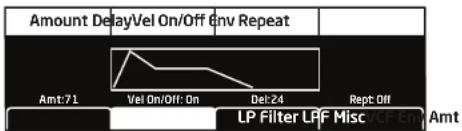
Env Amount: -127...127—Sets the amount of modulation from the filter envelope to the filter's cutoff frequency. Any setting above zero means that each time you strike a key, the filter envelope controls how the filter opens and closes. Higher amounts more dramatically affect the cutoff frequency. This control is bipolar. Positive settings produce standard behavior. Negative settings invert the envelope.
Velocity On/Off: On, Off—Allows key velocity to influence filter cutoff frequency. If on, the harder you play, the more the filter will open and the brighter the sound will be. If off, key velocity will not affect the filter. This control allows for more touch-sensitive sounds.
Delay: 0...127 Sets a delay between the time the envelope is triggered (note on) and when the attack portion actually begins.
Env Repeat: Off, On—When on, the Delay, Attack, and Decay segments of the envelope repeat. Sustain still affects the level at which the Decay segment ends, but instead of sustaining at a fixed level while a note is gated on, Delay, Attack, and Decay loop until the note is turned off. The Release segment begins when the note is gated off, just as it does when Repeat is off.
TAB 3 - LP Filter

Cutoff: 0...164—Sets the filter's cutoff frequency. Frequencies are reduced from the top down, cutting the high frequencies and passing the low frequencies, hence the name “low-pass.”
Resonance: 0...255—Emphasizes a narrow band of frequencies around the cutoff frequency. High levels of resonance can cause the filter to self-oscillate and generate its own pitch.
Drive: 0...127—Increases signal input to the filter, boosting volume and adding harmonic saturation and warmth.
Key>LPF Freq: 0...127—Sets the amount of modulation from the keyboard to the filter's cutoff frequency. Any setting above zero means that the higher the note played on the keyboard, the more the filter opens. This is useful for adding brightness to a sound as higher notes are played, which is typically how acoustic instruments behave. When set to zero, keyboard filter tracking is off, meaning that filter frequency is unaffected by playing higher or lower notes on the keyboard. When set to 127, the filter will track in half-step increments, which can be useful if you are using the filter to generate a pitch through self-oscillation.

The description of envelope behavior just given is true when the AMOUNT parameter is set to a positive value. But since this control is actually bipolar, it is possible to set a negative amount of modulation. In this case, the envelopes are inverted and their behavior changes. The best way to get a feel for the difference is to experiment with both positive and negative settings of the ENV AMOUNT parameter.

The cutoff frequency setting may limit the effect of the envelope on the filter. For example, in low-pass filter mode, if cutoff is at its highest setting, a positive envelope amount will have no effect on the filter since the filter is already completely open.
TAB 4 - LPF Misc

Stereo Split: +82... -82—This offsets the filter cutoff frequency between the Prophet X's stereo filters. Turning the knob clockwise simultaneously increases the cutoff frequency in the left channel and reduces the cutoff frequency in the right channel. Conversely, turning the knob counterclockwise simultaneously increases the cutoff frequency in the right channel and reduces the cutoff frequency in the left channel. This can be useful for creating additional depth in the stereo field. This control has no effect in 16-voice mode since the signal path is monophonic.
Filter Envelope
The Prophet X filter has a dedicated, 5-stage envelope generator (ADSR plus delay). The Filter Envelope is used to shape the harmonic characteristics of a synthesized sound by giving you filtering control over its attack, decay, sustain, and release stages.
This is one of the most important aspects of designing a sound. Without an envelope, the filters would be completely static. They would stay open or closed by a fixed amount that wouldn't change over the duration of a sound. That's not very interesting to listen to and not how real-world instruments behave.
In general, sounds produced by an instrument are brighter at their beginning (the attack stage) and grow mellower as they die out (the decay and release stages). In other words, their harmonic content changes over time. This is exactly what the filter envelope is designed to emulate.
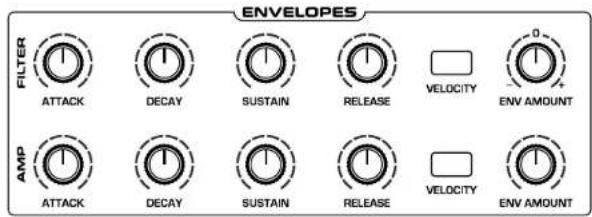
Filter Envelope

A typical 5-stage DADSR envelope
To hear the effect of the Filter Envelope:
- Press the GLOBAL button and use Soft Knob 1 to navigate to the BASIC PROGRAM command, then press Soft Key 1 (WRITE NOW).
- Hold down a note and rotate the filter's cutoff knob to set it to a value of 40 (refer to the main display to see its numeric value).
- Play a note. At this point you probably won't hear anything because you've closed the filter significantly.
- In the Envelopes section, turn the Filter Envelope's ENV AMOUNT knob to a value of 50 (refer to the main display to see its numeric value).
- Play a note. Notice how the sound has changed. The Filter Envelope is controlling filter cutoff by the amount you set with the ENV AMOUNT knob.
- Repeatedly strike a note on the keyboard as you turn the Filter Envelope's decay knob clockwise and counterclockwise. Notice how it changes the sound as the note decays faster or slower.
- Now experiment with the Filter Envelope's ATTACK knob. Notice how the attack becomes faster or slower.
- Now hold down a note and experiment with the Filter Envelope's SUSTAIN knob.
- The Filter Envelope's RELEASE parameter acts in conjunction with the Amplifier Envelope, so to hear its effect, first set the Amp Envelope's RELEASE value to 75.
- Now repeatedly strike a note on the keyboard as you turn the Filter Envelope's RELEASE knob clockwise and counterclockwise. Notice how the note fades out faster or slower as you change the RELEASE value.
- Continue experimenting with various Filter Envelope settings while you adjust the Filter Envelope's ENV AMOUNT knob. Notice how greater ENV AMOUNT settings amplify the effect of the envelope on the filter.
As noted above, the Filter Envelope and Amplifier Envelope often work in conjunction, with the Filter Envelope controlling how the filter opens and closes and the Amplifier Envelope controlling how the Amplifier controls the overall volume shape of the sounds you create. To learn more about the Amplifier Envelope, see page 42.
Envelope Parameters (Front Panel)
Attack: 0...127—Sets the attack time of the envelope. The higher the setting, the slower the attack time and the longer it takes for the filter to open from the level set with the filter CUTOFF knob to the level set by the filter envelope amount. Percussive sounds typically have sharp (short) attacks.
Decay: 0...127—Sets the decay time of the envelope. After a sound reaches the filter frequency set at its attack stage, DECAY controls how quickly the filter then transitions to the cutoff frequency set with the SUSTAIN knob. The higher the setting, the longer the decay. Percussive sounds, such as synth bass, typically have shorter decays (and a generous amount of low-pass filter resonance).
Sustain: 0...127—Sets the filter cutoff frequency for the sustained portion of the sound. The sound will stay at this filter frequency for as long as a note is held on the keyboard.
Release: 0...127—Sets the release time of the envelope. This controls how quickly the filter closes after a note is released.
Velocity On/Off: On, Off—Allows key velocity to influence filter cutoff frequency. If on, the harder you play, the more the filter will open and the brighter the sound will be. If off, key velocity will not affect the filter. This control allows for more touch-sensitive sounds.
Env Amount: -127...127—Sets the amount of modulation from the filter envelope to the filter's cutoff frequency. Any setting above zero means that each time you strike a key, the filter envelope controls how the filter opens and closes. Higher amounts more dramatically affect the cutoff frequency. This control is bipolar. Positive settings produce standard behavior. Negative settings invert the envelope.
Additional Filter Envelope Parameters (Display Menus)
Additional Filter parameters are accessible through the menus in the main display. To see these menus, adjust any of the filter envelope controls in the ENVELOPES section of front panel. The envelope parameters are in the first two menu tabs.
TAB 1 - VCF ADSR

VCF ADSR
Attack: 0...127—Sets the attack time of the envelope. The higher the setting, the slower the attack time and the longer it takes for a sound to reach its full volume. Pads typically have softer (longer) attacks. Percussive sounds have sharper (shorter) attacks.
Decay: 0...127 Sets the decay time of the envelope. After a sound reaches its full volume at its attack stage, DECAY controls how quickly the sound transitions to the level set with the SUSTAIN control. The higher the setting, the longer the decay. Percussive sounds, such as synth bass, typically have shorter decays.
Sustain: 0...127—Sets the sustain level of the envelope. The higher the setting, the louder the sustained portion of the sound will be. The sound will stay at this level for as long as a note is held on the keyboard.
Release: 0...127—Sets the release time of the envelope. This controls how quickly a sound dies out after a note is released.
TAB 2 - VCF Env Amount

Env Amount: -127...127—Sets the amount of modulation from the filter envelope to the filter's cutoff frequency. Any setting above zero means that each time you strike a key, the filter envelope controls how the filter opens and closes. Higher amounts more dramatically affect the cutoff frequency. This control is bipolar. Positive settings produce standard behavior. Negative settings invert the envelope.
Velocity On/Off: On, Off—Allows key velocity to influence filter cutoff frequency. If on, the harder you play, the more the filter will open and the brighter the sound will be. If off, key velocity will not affect the filter. This control allows for more touch-sensitive sounds.
Delay: 0...127 Sets a delay between the time the envelope is triggered (note on) and when the attack portion actually begins.
Env Repeat: Off, On—When on, the Delay, Attack, and Decay segments of the envelope repeat. Sustain still affects the level at which the Decay segment ends, but instead of sustaining at a fixed level while a note is gated on, Delay, Attack, and Decay loop until the note is turned off. The Release segment begins when the note is gated off, just as it does when Repeat is off.
Amplifier Envelope
After passing through the filters, a synthesized sound goes into an amplifier, which controls its overall volume. The amplifier has a dedicated, 5-stage envelope generator (ADSR plus delay).
The Amplifier Envelope is used to shape the volume characteristics of a sound over time by giving you control over its attack, decay, sustain, and release stages. Along with the filter envelope, this is one of the most important factors in designing a sound.
Without a volume envelope, the volume of a sound wouldn't change over the duration of a note. It would begin immediately, remain at its full volume for the duration of the note, then end immediately when the note was released. Again, that's not very interesting sonically and it's not typically how instruments behave in the real world.
To give you a real-world example, the main difference between the sound of the wind and the sound of a snare drum is that they have very different volume envelopes. Otherwise, they are essentially both white noise. Wind has a relatively slow attack, a long sustain, and a long decay and release. A snare drum has a sharp attack, no sustain, and very little decay or release. But again, they are both fundamentally white noise.

Amplifier Envelope

A typical 5-stage, DADSR envelope
Amplifier Envelope Parameters (Front Panel)
Attack: 0...127—Sets the attack time of the envelope. The higher the setting, the slower the attack time and the longer it takes for a sound to reach its full volume. Pads typically have softer (longer) attacks. Percussive sounds have sharper (shorter) attacks.
Decay: 0...127—Sets the decay time of the envelope. After a sound reaches its full volume at its attack stage, DECAY controls how quickly the sound transitions to the level set with the SUSTAIN control. The higher the setting, the longer the decay. Percussive sounds, such as synth bass, typically have shorter decays.
Sustain: 0...127—Sets the sustain level of the envelope. The higher the setting, the louder the sustained portion of the sound will be. The sound will stay at this level for as long as a note is held on the keyboard.
Release: 0...127—Sets the release time of the envelope. This controls how quickly a sound dies out after a note is released.
Env Amount: 0...127—Sets the amount of modulation from the Envelope to the VCA. In most cases you will probably want to set this fully clockwise for maximum VCA volume. If you experience signal clipping, try reducing the ENV AMOUNT.

To create a "gated VCA" effect, set the ENV AMOUNT of the Amplifier to zero, route the LFO square wave to AMP with an AMOUNT setting of 100% and hold a note.
Velocity On/Off: On, Off—Allows key velocity to influence volume. If on, the harder you play, the more the louder sound will be. If off, key velocity will not affect the volume. This control allows for more touch-sensitive sounds.
Additional Amplifier Parameters (Display Menus)
Additional Amplifier Envelope parameters are accessible through the menus in the main display. To see these menus, adjust any of the controls in AMP portion of the ENVELOPES section of the front panel.
TAB 1 - VCA ADSR

VCA ADSR
Attack: 0...127—Sets the attack time of the envelope. The higher the setting, the slower the attack time and the longer it takes for a sound to reach its full volume. Pads typically have softer (longer) attacks. Percussive sounds have sharper (shorter) attacks.
Decay: 0...127—Sets the decay time of the envelope. After a sound reaches its full volume at its attack stage, DECAY controls how quickly the sound transitions to the level set with the SUSTAIN control. The higher the setting, the longer the decay. Percussive sounds, such as synth bass, typically have shorter decays.
Sustain: 0...127—Sets the sustain level of the envelope. The higher the setting, the louder the sustained portion of the sound will be. The sound will stay at this level for as long as a note is held on the keyboard.
Release: 0...127—Sets the release time of the envelope. This controls how quickly a sound dies out after a note is released.
TAB 2 - VCA Env Amount

Amount: 0...127—Sets the amount of modulation from the Amplifier Envelope to the VCA. In most cases you will probably want to set this fully clockwise for maximum VCA volume. If you experience signal clipping, try reducing the ENV AMOUNT.
Velocity On/Off: On, Off—Allows key velocity to influence volume. If on, the harder you play, the more the louder sound will be. If off, key velocity will not affect the volume. This control allows for more touch-sensitive sounds.
Delay: 0...127—Sets a delay between the time the envelope is triggered (note on) and when the attack portion actually begins.
Env Repeat: Off, On—When on, the Delay, Attack, and Decay segments of the envelope repeat. Sustain still affects the level at which the Decay segment ends, but instead of sustaining at a fixed level while a note is gated on, Delay, Attack, and Decay loop until the note is turned off. The Release segment begins when the note is gated off, just as it does when Repeat is off.
TAB 3 - Vol/Pan

Prog Volume: 0...127—The master output level of the Prophet X is controlled by the front-panel VOLUME knob. However, the volume of an individual program is set here. The PROGRAM VOLUME control is particularly useful for ensuring that your sounds have roughly the same volume from program to program. See “Master Volume/Program Volume” on page 75 for more details.
Pan Spread: 0...127—Pans the audio in the stereo field individually per voice. With a PAN SPREAD setting of zero, all voices are panned in the middle (monophonic). As you turn up PAN SPREAD, the audio in each voice is gradually moved away from the center by different amounts. Every other voice goes in a different direction. This provides a wide stereo field as you play. Any modulation to Pan will individually move each voice from its static position as set by the PAN SPREAD setting.
Auxiliary Envelopes
The Prophet X has two additional 5-stage envelope generators (ADSR plus delay). They are useful for creating modulation that varies over time according to the shape of the envelope. Routing an envelope to an oscillator's frequency, for example, causes the oscillator's pitch to rise and fall according to the contour of the envelope.
As with all of the Prophet X's envelopes, there are controls for modulating the envelope amount using keyboard velocity. The Auxiliary Envelopes can be routed to any of the modulation destinations in the mod matrix. In addition, the Auxiliary Envelopes can repeat (loop) using the ENV REPEAT function in the aux envelopes display menu. This is useful for cyclical 4-stage modulation.

Actually, any of the Prophet X's envelopes can be routed to any destination (or multiple destinations) using the modulation matrix. See "Modulation" on page 55 for more information.

Auxiliary Envelopes
Auxiliary Envelope Parameters (Front Panel)
3/4 Buttons: Selects either Envelope 3 or Envelope 4 for editing.
Destination: Various—Selects a modulation destination for the Auxiliary Envelope. See “Appendix A: Modulation Sources” on page 130 for a list of possible destinations.
Env Amount: -127...127—Sets the amount of modulation from the envelope to the selected modulation destination. Higher amounts more dramatically affect the destination. This control is bipolar. Positive settings produce standard behavior. Negative settings invert the envelope.
Velocity: On/Off—This button enables keyboard velocity to modulate the Envelope Amount.
Attack: 0...127—Sets the attack time of the envelope. The higher the setting, the slower the attack time.
Decay: 0...127—Sets the decay time of the envelope. This controls how quickly the value transitions from the attack level to the level set with the SUSTAIN control. The higher the setting, the longer the decay.
Sustain: 0...127—Sets the sustain level of the envelope. It will stay at this level for as long as a note is held on the keyboard.
Release: 0...127—Sets the release time of the envelope. This controls how quickly the value transitions to zero after a note is released on the keyboard.
Additional Auxiliary Envelope Parameters (Display Menus)
Additional Envelope parameters are accessible through the menus in the main display. To see these menus, adjust any of the controls in AUX ENVELOPES portion of the front panel.
TAB 1 - Env ADSR

Attack: 0...127—Sets the attack time of the envelope.
Decay: 0...127—Sets the decay time of the envelope.
Sustain: 0...127 Sets the sustain level of the envelope.
Release: 0...127—Sets the release time of the envelope.
TAB 2 - Env Amount

Amount: 0...127—Sets the amount of modulation from the envelope to the selected destination.
Velocity On/Off: On, Off—Allows key velocity to influence how much modulation is applied from the envelope to the selected destination. If on, the harder you play, the more modulation will be applied. If off, key velocity will not affect the modulation amount. This control allows for more touch-sensitive application of modulation with the envelope.
Delay: 0...127—Sets a delay between the time the envelope is triggered (note on) and when the attack portion actually begins.
Env Repeat: Off, On—When on, the Delay, Attack, and Decay segments of the envelope repeat. Sustain still affects the level at which the Decay segment ends, but instead of sustaining at a fixed level while a note is gated on, Delay, Attack, and Decay loop until the note is turned off. The Release segment begins when the note is gated off, just as it does when Repeat is off.
TAB 3 - Env Dest
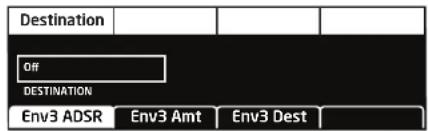
Destination: Various—Selects a modulation destination for the Auxiliary Envelope. See “Appendix B: Modulation Destinations” on page 131 for a list of possible destinations.
Low Frequency Oscillators
The four LFOs are special-purpose oscillators that produce a frequency that is typically below the range of human hearing (although these can actually extend into the audio range if set to their maximum frequency). The LFOs are typically used for periodic modulation such as vibrato (periodic pitch modulation) and tremolo (periodic amplitude modulation). They can also be used as modulation sources for any of the many modulatable parameters in the Prophet X.
The LFOs produce a variety of waveshapes, including triangle, sawtooth, reverse sawtooth, square, and random. Though most often used for low-frequency modulation, the Prophet X LFOs can actually function at speeds that extend into the audible range for extreme effects.

The Low Frequency Oscillators
Triangle and Random waves are bipolar. That is, their waveshape is positive for half of their cycle and negative for the other half. In the case of the triangle wave, this makes it possible to generate a natural-sounding vibrato that goes alternately sharp and flat in equal amounts on either side of a center frequency. Random, also known as “sample and hold,” generates a series of random values, each held for the duration of one cycle.
The square wave, sawtooth, and reverse sawtooth generate only positive values. In the case of the square wave this makes it possible to generate natural-sounding trills.

The LFOs can be free-running or synced to the arpeggiator, sequencer, or MIDI clock for tempo-synced effects such as filter sweeps, tremolo, and so on.
LFO Parameters (Front Panel)
Frequency: Sets the frequency of the selected LFO from a slow .022Hz to a fast 500Hz. This is affected by the CLK SYNC (clock sync) parameter as explained below.
Amount: Sets the amount of LFO modulation routed to the selected destination. Setting an amount here applies the selected modulation continuously. You can also use the modulation matrix to route an LFO to additional destinations and use a different modulation amount if you want.
Shape: Triangle, Sawtooth, Reverse Sawtooth, Square, Random — This button sets the waveshape of the selected LFO.
Additional LFO Parameters (Display Menus)
Additional LFO parameters are accessible through the menus in the main display. To see these menus, adjust any of the controls in LFO portion of the front panel.
TAB 1 - LFO Shape
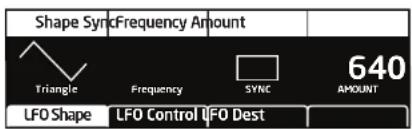
Shape: Triangle, Sawtooth, Reverse Sawtooth, Square, Random—This button sets the waveshape of the selected LFO.
Frequency: Sets the frequency of the selected LFO from a slow .022Hz to a fast 500Hz. This is affected by the SYNC (clock sync) parameter as explained below.
Sync: When on, the LFO synchronizes with the master clock, which controls the arpeggiator, sequencer, and certain effects.
Amount: Sets the amount of LFO modulation routed to the selected destination. Setting an amount here applies the selected modulation continuously. You can also use the modulation matrix to route an LFO to additional destinations and use a different modulation amount.
TAB 2 - LFO Control

Slew Rate: 0...127—Slew rate is defined as the maximum possible rate of change of a signal. The effect of the Slew Rate control is most obviously heard on Pulse and Random, shapes that normally change state virtually instantaneously. As Slew Rate increases, those changes are drawn out, elongated, and the result is a sort of smoothing effect.

Slew behaves much like a low-pass filter and can be used to "round off" the wave for a more sine-like shape.
Phase: 0...127—Used in conjunction with Wave Reset, Phase sets the initial phase, from 0 to 360 degrees, at which the LFO wave shape starts when keyed on. Each step represents 2.8125° , so a value of 32 equals 90° , 64 equals 180° , and so on.

Use Phase to offset the start point when Wave Reset is on. For Phase to have noticeable effect, Wave Reset must also be turned on for that LFO. If the LFO is nming—that is, with Wave Reset off—there is no fixed start point from which the can be offset.
Wave Reset: Off, On—When off, the LFO is free running. When on, the LFO is re-started each time a new note is played. WAVE RESET is set independently for each LFO.
TAB 3 - LFO Dest

Destination: Routes the selected LFO to one of the many modulatable destinations within the synthesizer. You can also use the modulation matrix to route an LFO to additional destinations.

There is a shortcut for routing an LFO to a front-panel destination (provided that the destination is a valid destination). Simply hold down the selector button of the desired LFO, then and move the knob or control you want to use as a destination (the filter cutoff, for example). Set the amount using the LFO AMOUNT knobs. Be aware that not all front-panel controls can be used as a modulation destinations.
Modulation
Although the overall sonic character of the Prophet X is determined by its samples, oscillators, and filters, much of its power to make truly unique sounds comes from creative use of modulation. Modulation is the process of routing one parameter (as a control voltage) to another in order to change the way the targeted parameter behaves.
| Edit Mod 1 | Source | Amount | Destination | |
| Mod 1 | Slider 1 | 60 | ▶ | Cutoff |
| Mod 2 | Slider 2 | 35 | ▶ | Osc1 Shape |
| Mod 3 | Aftertouch | 25 | ▶ | Drive |
| Mod4 | Mod Wheel | 80 | ▶ | LF01Amt |
| Slot Sort | Sort Source | Sort Dest | ||
The Modulation Matrix
The concept is simple:
- Choose a source.
- Choose a destination.
- Set an amount. The amount can either be positive or negative.
You already understand and apply the concept of modulation whenever you use the filter envelope to control the filter's cutoff frequency. In this case, the modulation source is the filter envelope (or more precisely, any of its controls, such as attack, decay, sustain, or release). The modulation destination is the filter's cutoff frequency. The modulation amount is set with the ENV AMOUNT knob.
There are 28 different modulation sources and 88 different destinations to choose from. (See “Appendix A: Modulation Sources” on page 130 for a complete list.) There are 16 freely assignable modulation paths (mod slots 1-16) as well as 11 additional dedicated mod sources including the Mod Wheel, Pressure (after-touch), Breath Controller, Velocity, and MIDI Footswitch. This gives you a large number of sound-shaping options.

The Modulation section
Modulation Parameters (Front Panel)
Assign Source: Selects a modulation source. The are 28 different modulation sources. See "Appendix A: Modulation Sources" on page 130 for a complete list.
Assign Destination: Selects a modulation destination. The are 88 different modulation destinations. See "Appendix B: Modulation Destinations" on page 131 for a complete list.
Amount Sets the modulation amount. Modulation can be either positive or negative.
Modulation Examples
Below are several modulation scenarios that illustrate how to use the modulation matrix. The examples provide full, step-by-step instructions for clarity.

There are shortcuts for routing modulation to various front panel sources/destinations. Simply hold down the source button and move the control you want to use as a source (the mod wheel, for example). Then hold down the DESTINATION button and move the control that you want to use as a destination (filter cutoff, for example). Set the amount using Soft Knob 3 in the main display. Be aware that not all front-panel controls can be used as a modulation sources/destinations.
To use the mod wheel to add vibrato:
- In the LFO section, set LFO 1 to TRIANGLE and set FREQUENCY to 75. Set DESTINATION TO OSC ALLFREQ. Set AMOUNT to 0. (You will control the amount with the mod wheel.)
- In the MODULATION section, press the ASSIGN SOURCE button. Use SOFT KNOB 1 to scroll to Mod Slot 1 if it's not already displayed.
- Use SOFT KNOB 2 to scroll through the various mod sources and choose MOD WHEEL (As a shortcut you can hold down the SOURCE button and move the mod wheel.)
- Use Soft Knob 3 to set the amount to 30.
- Use Sort Knob 4 to scroll through the various mod destinations and choose LFO1 AMT.
- Hold down a note on the keyboard and turn the mod wheel. You should hear vibrato.

Use PRESSURE as the modulation source instead of the mod wheel in the previous example to add vibrato with key pressure/aftertouch.
To use the mod wheel to control the filter cutoff:
- In the MODULATION section, press the SOURCE button. Use the SORT KNOB 1 to scroll to Mod Slot 1 if it's not already displayed.
- Use the SOFT KNOR 2 to scroll through the various mod sources and choose MOD WHEEL.
- Use Soft Knob 4 to scroll through the various mod destinations and choose CUTOFF.
- Hold down a note on the keyboard (or press the HOLD button and play a note on the keyboard) and turn the mod wheel.
- Use Soft Knob 3 to set the amount to your preference. Higher AMOUNT settings cause the filter to open wider the further you push the mod wheel. A negative amount setting will close the filter the further you push the mod wheel.

Use PRESSURE as the modulation source instead of the mod wheel in the previous example to open the filter (positive AMOUNT) or close the filter (negative AMOUNT) with key pressure/aftertouch.
Other modulation ideas:
- To create the “attack pitch blip” effect in classic synth brass sounds, dial up a good two-oscillator synth brass sound (such as preset U2 P4 80s Synth Brass) then route Envelope 3 to osc2 FREQ and set Envelope 3 to Attack: 0, Decay: 30, Sustain: 0, and Release: 0 with an amount of 18.
- Route an LFO to PAN to create an auto-panning effect. Panning width is controlled by the modulation amount. Panning speed is controlled by the LFO frequency. Add a second mod path to control the LFO speed with the Mod Wheel for a faux rotating speaker spin-up/spin-down effect. Enable the chorus effect and set up a third mod path to control FX MIX with the mod wheel for even better results.
- Route VELOCITY to filter DRIVE to subtly overdrive the filter the harder you play.
Effects
You can add two digital effects to any Prophet X program. In stacked or split sounds, each layer can have its own independent effects.
Not all sounds need effects to make them interesting, but adding a touch of reverb or delay can add a sense depth, just as adding chorus, flanging, or phasing can add movement.
Effects settings are saved individually with each program. If you enable the SYNC button, time-based effects such as the delays can be synchronized to the arpeggiator, sequencer, or MIDI clock for repeats that occur on the beat.

The Effects section
Effects:
- Stereo Delay - classic digital delay
• BBD Delay - vintage bucket-brigade emulation - Chorus - vintage chorus
- Flanger - vintage through-zero flanger
- Phaser - vintage 6-stage phaser
• HP Filter - high-pass filter.
• Distortion - digital distortion (analog emulation) - Rotating Speaker - vintage rotating speaker emulation
• Spring Reverb - classic spring reverb
• Room Reverb - classic room reverb
• Hall Reverb - classic hall reverb
• Super Plate Reverb - plate reverb

For best performance, run the flangers and high-pass filter 100% wet (set the parameter to 127).
To use Effects:
- Press the EFFECT 1 button to turn on effect 1.
- Press the SELECT 1/2 button to select effect 1 for editing.
- Turn the EFFECT TYPE knob to choose an effect.
- Turn the mix knob to blend in a good amount of the processed signal. You'll want to be able to clearly hear the effect when you tweak its settings. You can dial it down afterward.
- Use the PARAM 1, PARAM 2, and PARAM 3 knobs to adjust the effect's parameters to your taste. See "Effects Parameters" on page 60 for details on the adjustable parameters on each effect type.
- Finally, adjust the mix knob again to optimize the amount of the effect. Full left is completely dry. Full right is completely wet (a 100% processed signal).
- To sync a delay to the arpeggiator or sequencer, press the SYNC button and adjust the TIME parameter (Parameter 1) as needed.
Effects Parameters (Front Panel)
Effect 1: Turns effect 1 on or off. On stacked or split sounds, enable the EDIT LAYER B button to adjust effects for Layer B.
Effect 2: Turns effect 2 on or off. On stacked or split sounds, enable the EDIT LAYER B button to adjust effects for Layer B.
Effect Type: Selects the effect type.
Select 1/2: Toggles between effect 1 and effect 2 for editing.
Mix: 0...127—Sets the balance between the processed (wet) signal and unprocessed (dry) signal. Full left is completely dry. Full right is completely wet.
Sync: On, Off—When a delay effect is chosen, this enables syncing of the timed delay repeats (feedback) to the arpeggiator, sequencer, or MIDI clock. When CLK SYNC is on, delay time (parameter 1) has the following values:
| Value Delay Time | |
| Whole 4 beats | |
| Half dot 3 beats | |
| Half 2 beats | |
| Quarter dot 1 1/2 beats | |
| Quarter 1 beat | |
| Quarter triplet 1 1/3 beats | |
| 8th dot 3/4 of 1 beat | |
| 8th 1/2 of 1 beat | |
| 8th triplet | 1/3 of 1 beat |
| 16th dot 3/8 of 1 beat | |
| 16th 1/4 of 1 beat | |
Parameter 1: Variable, depending on the effect—This knob adjusts parameter 1 for the chosen effect. Each effect has three adjustable parameters, which differ depending on the effect.
Parameter 2: Variable, depending on the effect—This knob adjusts parameter 2 for the chosen effect. Each effect has three adjustable parameters, which differ depending on the effect.
Parameter 3: Variable, depending on the effect—This knob adjusts parameter 3 for the chosen effect. Each effect has three adjustable parameters, which differ depending on the effect.
| Effect Type | Param 1 | Param 2 | Param 3 |
| stereo delay | delay time | feedback amount | low-pass filter |
| BBD delay | delay time | feedback amount | low-pass filter |
| chorus | depth | rate | low-pass filter |
| flanger | depth | rate | feedback |
| phaser | depth | rate | feedback |
| high-pass filter | frequency | Q (resonance) | |
| distortion | gain | tone | level |
| rotating speaker | drive | speed | mic distance |
| spring reverb | tone | dccay | dispersion |
| room reverb | time | tone | early reflections |
| hall reverb | time | tone | early reflections |
| super plate reverb | time | tone | pre-delay |

To recreate a classic time-shifting effect on the stereo or BBD delay, try adjust-delay time parameter in real time. You can also route an LFO or envelope to lay's Time parameter using the modulation matrix.

Maximum delay time is 1 second. The combination of longer synced delay times with slower tempos can result in delay times that would be greater than 1 second. When that happens, the delay time is divided by 2 until it no longer exceeds the 1 second limit. For example, if the BPM is set to 60 and Delay Time (Parameter 1) is set to Half, the expected delay time would be 2 seconds. The actual delay time will be 1 second (i.e. 2 seconds divided by 2).
Arpeggiator
The Prophet X's arpeggiator allows you to hold a chord and the synthesizer will play a pattern based on the individual notes held. You can adjust the playback mode (up, down, random, etc.), the octave range (1, 2, or 3), and the tempo. The arpeggiator usually works best on sounds with a fast attack.
While you hold down a chord, pressing any additional notes will add those notes to the arpeggio. You can change chords and notes and the arpeggio will continue to play as long as at least one note is always held.
You can also use the HOLD feature with the arpeggiator. When you enable HOLD, you can release the notes on the keyboard and the arpeggio will continue to play — with any additional notes that you play added to the arpeggio.

To prevent the arpeggiator from adding new notes to an arpeggio when keys are continuously held (and instead start a new arpeggio each time you change notes), turn arp relatch ON in the arpeggiator. To do this, press the arpeggiator's ON/OFF button and press Soft Key 2 to access the arp relatch menu item in the display.
Set the tempo of the arpeggiator with the TAP TEMPO or BPM and CLOCK DIVIDE controls in the CLOCK section. To use TAP TEMPO, tap this button 4 times to set the tempo. You can also sync the arpeggiator to external MIDI clock, or even an external audio signal. When the arpeggiator is playing, the sequencer is disabled.
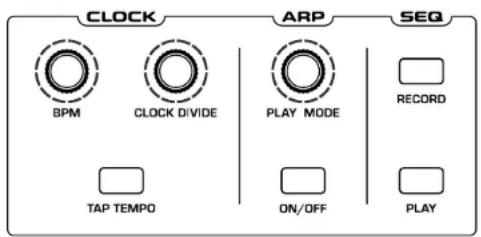
The Clock and Arpeggiator controls
To use the arpeggiator:
- Press the arpeggiator ON/OFF switch to turn it on.
- Hold down one or more notes on the keyboard. The arpeggiator plays them according to the settings you've chosen.
- To latch arpeggiation on (so that you don't have to continuously hold down notes) press the hold button.
- In the display menu, adjust settings such as MODE, OCTAVE RANGE, REPEATS, and BPM.
- To synchronize a delay effect to the arpeggiator, turn on SYNC in the EFFECTS section, choose a delay, and adjust its delay time setting as desired.

An audio signal connected to the rear-panel SEQUENCE jack can be used to control arpeggiator (and sequencer) playback. This makes it possible to tempo sync the arpeggiator to a recorded drum track or other audio source. Audio signals used to drive the arpeggiator/sequencer should not exceed 5 volts peak-to-peak. See "22. Seq Pedal Mode: Normal, Trigger, Gate, T-G—Selects the mode for the rear-panel sequencer jack. This jack requires a unipolar signal. Connecting a bipolar signal can damage this input." on page 126 for more information about choosing the appropriate mode for these behaviors.
Arpgeggiator Parameters (Front Panel)
On/Off—This button turns the arpeggiator on and off.
Play Mode: Sets the order in which notes play when the arpeggiator is on. See the table.
| Arp Mode Behavior | |
| Up Plays from lowest to highest note | |
| Down Plays from highest to lowest note | |
| Up + Down Plays from lowest to highest and back to lowest | |
| Random Plays notes in random order | |
| Assign Plays notes in the order the keys were pressed |
Additional Arpeggiator Parameters (Display Menus)
Additional arpeggiator parameters are accessible through the menus in the main display. To see these menus, adjust any of the controls in ARPEGGIATOR section of the front panel.

The Arpeggialor menu
Relatch: Off, On—Works in conjunction with HOLD. When HOLD and the arpeggiator are on, and ARP RELATCH is off, played notes are held on and arpeggiated, with additional played notes added to the held notes and the arpeggio. When ARP RELATCH is on, played notes are held on and arpeggiated, but additional played notes will restart the arpeggio with the new notes.
Arp Mode: Sets the order in which notes play when the arpeggiator is on. See the table above.
Octave Range: 1, 2, 3 — Set to 1, only the held notes are arpeggiated. Set to 2, the held notes and the notes one octave above them arpeggiate. Set to 3, the held notes and the notes one and two octaves above them arpeggiate.
Repeats: 1, 2, 3 — Set to 1, each note in the arpeggio plays once. Set to 2, each note in the arpeggio plays twice. Set to 3, each note in the arpeggio plays three times.
Clock Parameters
BPM: 30...250—Sets the tempo for the arpeggiator in BPM (beats per minute). The TAP TEMPO LED flashes at the BPM rate. When LFO SYNC is enabled on the low-frequency oscillator, or CLK SYNC is enabled in the Effects section, the BPM rate affects the LFO frequency and/or delay effect. When syncing to an external MIDI clock source, the BPM setting has no effect.
Clock Divide—Selects a basic note value relative to the BPM. See the table below:
| Name Tempo Timing Division | ||
| Half | BPM/2 | Half note |
| Quarter | BPM | Quarter note |
| 8th | BPM x 2 | Eighth note |
| 8 Half | BPM x 2 | Eighth note, half swing timing |
| 8 Swing | BPM x 2 | Eighth note, full swing timing |
| 8 Trip | BPM x 3 | Eighth note triplets |
| 16th | BPM x 4 | Sixteenth note |
| 16 half | BPM x 4 | Sixteenth note, half swing timing |
| 16 Swing | BPM x 4 | Sixteenth note, full swing timing |
| 16 Trip | BPM x 6 | Sixteenth note triplets |
| 32nd | BPM x 8 | Thirty-second note |
| 32 Trip | BPM x 12 | Thirty-second note triplets |
Tap Tempo—Pressing the TAP TEMPO button 4 times sets the tempo. The LED flashes at the BPM rate you set.
Sequencer
The Prophet X has a polyphonic sequencer for creating repeating patterns of notes and chords. You can play up to 64 steps with up to 6 notes held simultaneously per step. You can also add ties and rests to a sequence. Use the BPM, CLOCK DIVIDE, or TAP TEMPO controls to adjust the sequencer playback speed. For most sequences you'll probably want to use sounds with a relatively sharp attack and short release.
You can play along with a sequence (provided there is available polyphony), making it a powerful live performance tool. When the sequencer is playing, the arpeggiator is disabled.
All factory programs have a sequence associated with them. Recall a program and press the sequencer's PLAY button to hear its associated sequence.

The Clock and Sequencer controls

An audio signal connected to the rear-panel SEQUENCE jack can be used to control sequencer playback. This makes it possible to tempo sync the sequencer (or arpeggiator) to a recorded drum track or other audio source. Audio signals used to drive the arpeggiator/sequencer should not exceed 5 volts peak-to-peak. See "22. Seq Pedal Mode: Normal, Trigger, Gate, T-G—Selects the mode for the rear-panel sequencer jack. This jack requires a unipolar signal. Connecting a bipolar signal can damage this input." on page 126 for more information about choosing the appropriate mode for these behaviors.

The Sequencer menu
To program a sequence:
- Press the RECORD button.
- Perform the sequence on the keyboard. The display indicates the current step, note, and velocity as you play. You can also use the display to create/edit the sequence step-by-step.

When recording a chord as a step, as long as you continue to hold at least one note down, you can keep adding notes to the chord/step, and even use the TRANSPOSE buttons to extend the keyboard range while doing it.
- To add a tie that extends the length of a note, play the note or chord, then press Soft Key 1 (TIE) to extend the note the number of steps you want. Each time you press Soft Key 1, you will extend the tie by an additional step. You can then continue playing.
- To add a rest after a note or chord, press Soft Key 2 (RES1). Each time you press Soft Key 2, you will extend the rest by an additional step. You can then continue playing
- To step back in the sequence, turn Soft Knob 2 (STEP) counterclockwise. This will allow you to step backward to the desired step so that you can rerecord it manually. You can also use the parameters shown in the display to edit the sequence step-by-step.
- When you're done, press PLAY to listen to your sequence.
- If you want to edit the sequence after you've recorded it, you can use the parameters shown in the display to edit the sequence step-by-step.
- To save the sequence, save the program and they are saved together. (See "Saving a Program" on page 7.)
To play a sequence:
- Press PLAY. Use the BPM, DIVIDE, OF TAP TEMPO controls to adjust sequencer playback speed
- To stop playback, press PLAY again.

Alternatively, you can start and stop sequencer playback using a footswitch connected to the rear-panel SEQUENCER jack or using MIDI start/stop messages sent from a DAW or other MIDI device. See "22. Seq Pedal Mode: Normal, Trigger, Gate, T-G—Selects the mode for the rear-panel sequencer jack. This jack requires a unipolar signal. Connecting a bipolar signal can damage this input." on page 126 for more information about choosing the appropriate mode for these behaviors..
To transpose a polyphonic sequence:
- Press PLAY. The sequence begins playback.
- Press and hold RECORD and press a key on the keyboard. "Middle C" is the reference point. Playing a note above middle C transposes the sequence higher by that interval. Playing a note below middle C transposes the sequence lower by that interval.
Editing a Sequence
You can edit a sequence after you've recorded it. This is convenient for fixing mistakes or modifying it without having to completely re-perform it.
To edit a sequence:
- Press the sequencer's RECORD button.
- If you have created a sequence with chords, use Soft Knob 1 (CHORD/ NOTE) to select any note (1-6) within the chord. Because you can record up to 6 notes per step, values 1-6 each represents a note. If a track/step has no note recorded on it, the VELOCITY parameter will say "Rest."
- Use Soft Knob 2 (STEP) to select the step you want to edit. If a track/step has no note recorded on it, the VELOCITY parameter will say "Rest."
- Use Soft Knob 3 (note) to change the note (C0 - G10). Turn the knob fully clockwise to add a tie. Alternatively, press a key on the keyboard to enter the note quickly (along with the velocity at which you play it).
-
To edit a note's velocity numerically, use Soft Knob 4 (VELOCITY) to enter a velocity value, 1-127. Turning the knob fully clockwise sets the step to REST.
-
To save the sequence, save the program by pressing the SAVE/LOAD button twice.
Sequencer Parameters (Front Panel)
Record: On, Off—This switch turns sequencer recording/editing on and off on the polyphonic sequencer.
Play: On, Off—This switch starts and stops polyphonic sequencer playback.
Additional Sequencer Parameters (Display Menus)
Additional sequencer parameters are found in the menus in the main display. To see these, press the RECORD button on the front panel.
| Chord Note | Step | Note | Velocity |
| 1CHORD NOTE | 1STEP | C5NOTE | 100VELOCITY |
| Tie | Rest | Set Length |
The Sequencer menu
Chord Note: 1...6—The sequencer can record up to 6 notes per step (i.e., a 6-note chord). The CHORD NOTE parameter lets you select a specific note within a chord for editing. Notes are listed from lowest to highest.
Step: 1...64—Selects a specific step within the sequence for editing.
Note: C0...C10—Sets the note value of the current step.
Velocity: 1...127, Rest—Sets the velocity of the current step. Turning the knob fully clockwise sets the step to REST.
Tie—Pressing Soft Key 1 adds a tie to the current step.
Rest—Pressing Soft Key 2 adds a rest to the current step.
Set Length—Using Soft Knob 2 to navigate to a specific step then pressing Soft Key 3 resets the length of the sequence so that it will end after the selected step.
Clock
The CLOCK section provides the master timing controls for the Arpeggiator and Sequencer. If you want to override the Prophet X's master clock and use the clock from a DAW or other external controller, you will need to use the GLOBAL menu to set the Prophet X to SLAVE mode. To learn more about this, see MIDI Clock Mode on page 122.
Clock Parameters (Front Panel)
BPM: 30...250—Sets the tempo for the sequencer and arpeggiator in BPM (beats per minute). The TAP TEMPO LED flashes at the BPM rate. When LFO SYNC is turned on, the BPM rate affects the LFO frequency. When syncing to an external MIDI clock source, the BPM setting has no effect.
Tap Tempo: 30...250—Press this button 4 times to quickly set the tempo for the sequencer and arpeggiator. The LED flashes at the BPM rate you set.
Clock Divide: Sets the note value for each sequencer/arpeggiator step relative to the BPM. CLOCK DIVIDE works with both internal and external clock sources. The following table lists the values:
| Name Tempo Timing Division | ||
| Half BPM/2 Half note | ||
| Qtr BPM Quarter note | ||
| 8th BPM x 2 Eighth note | ||
| 8th Half | BPM x 2 Eighth note, half swing timing | |
| 8th Swing | BPM x 2 Eighth note, full swing timing | |
| 8th Trip | BPM x 3 Eighth note triplets | |
| 16th BPM x 4 Sixteenth note | ||
| 16th Half | BPM x 4 Sixteenth note, half swing timing | |
| 16th Swing | BPM x 4 Sixteenth note, full swing timing | |
| 16th Trip | BPM x 6 Sixteenth note triplets | |
| 32nd | BPM x 8 Thirty-second note | |
| 32nd Trip | BPM x 12 | Thirty-second triplets |
Unison
When UNISON is on, the Prophet X functions like a monophonic synthesizer in that only one note can be played at a time. However, that one note can be powered by as many as 8 or 16 voices, depending on how many you choose to use (and whether you are in 8 or 16-voice mode). With many oscillators powering a single note, you can create some very dense, speaker-rattling sounds. If you want to create an ultra-heavy synth bass or lead sound, try using Unison.
Unison gives you control over not only how many voices to stack, but also the amount of detuning between the oscillators (with the UNISON DETUNE parameter in the MISC PARAMS menu), and what note gets priority if you happen to play more than one note on the keyboard. (This is called the key assign mode or note priority. See "Key Modes and Unison Mode" on page 74 for details.)

The Unison button
Unison Parameters (Display Menus)
Unison parameters are found in the main display. To see these, press the UNISON button on the front panel.
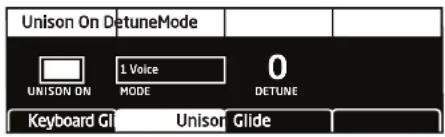
The Unison menu
Unison On: On/Off—Enables and disables Unison.
Mode: 1-8/1-16, Chord—Sets the number of voices stacked together. In 8-voice stereo mode, there are a maximum of 8 voices available. In 16-voice mono mode, there are a maximum of 16 voices available. You can also use Unison to memorize a chord. See “Using Chord Memory” on page 73.
Detune: 0...16—Sets the amount of detuning between stacked voices.
To use Unison:
- Press the UNISON button on the front panel.
- In the display menu, use Soft Knob 2 to choose the number of voices to stack.
- To detune the oscillators while in unison, use Soft Knob 3 to set the amount of detuning between voices.
Using Chord Memory
Unison has another useful feature: chord memory. Instead of assigning voices to a single note, hold down a chord on the keyboard and press the UNISON button. The Prophet X memorizes the notes of the chord. Single notes played on the keyboard will then trigger all notes of the stored chord, transposing them as you play up or down the keyboard. Try using this feature to create powerful chord stabs.
If you save a program that uses chord memory, the chord is saved with the program.
To use chord memory:
- Hold down a chord on the keyboard.
- Press the UNISON button. The chord voicing is memorized. Play a few notes to listen to the result.
- If you save the program, the unison chord memory is saved with it.
To store a different chord in chord memory:
- Disable unison by toggling off the UNISON button.
- Hold down a different chord on the keyboard.
- Press the UNISON button. The chord voicing is memorized. Play a few notes to listen to the result.
To switch back to non-chord unison mode:
- With the UNISON button on, turn Soft Knob 2 and choose the number of voices you want to stack. When unison mode is set to anything except CHORD, chord memory is off.
Key Modes and Unison Mode
Key Mode (sometimes called note priority) determines what note has priority when more than one note is played on the keyboard or via MIDI.
- Low-Note Priority is most common in vintage synths and is often used for playing trills by holding a note and repeatedly tapping a lower note.
- Low Retrigger causes the envelopes to be retriggered with each keystroke.
- High Note and High Retrigger are similar to the low note settings, except that the highest note is given priority.
- Last Note and Last Retrigger give priority to the last note played.
To choose the Key Mode:
- Press the MISC PARAMS button and use Soft Knob 3 to scroll to the desired mode.
- Play a few notes to listen to the result.

Key Mode settings are only relevant to Unison mode. They do not affect polyphonic playback.

Misc Parameters button
Master Volume/Program Volume
The master output level of the Prophet X is controlled by the front-panel MASTER VOLUME knob. In addition, the volume of an individual program can be set with the PROG VOLUME parameter (in the AMP ENVELOPE menu). This is useful for ensuring that your sounds have roughly the same volume from program to program. Unison sounds in particular can be very loud compared to other programs.

Setting Program Volume in the Amp Envelope menu
To set the volume of an individual program:
- Choose a program.
- Move any of the AMP ENVELOPE controls on the front panel.
- In the display menu, press Soft Key 3.
- Hold down a chord on the keyboard.
- Turn Soft Knob 1 (PROG VOLUME) to adjust the volume level from 1 to 127.
- Save the program. (See "Saving a Program" on page 7.)

MIDI volume can also influence the overall volume of the Prophet X if you are controlling it from an external MIDI source.
Transpose
The UP and DOWN buttons in the TRANSPOSE section transpose the keyboard up or down in octaves. The LED indicates the current keyboard transposition state. Transposing the keyboard also changes the MIDI note numbers of the keys so that MIDI notes sent are also transposed. Transpose settings are global and are not saved with individual programs.
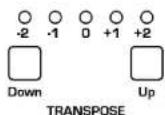
The Transpose controls
Hold
When HOLD is on, any notes played will continue to play until HOLD is turned off. When used in conjunction with the arpeggiator, notes are latched on. If HOLD is on and at least one key continuously held down, any new notes played are added to the arpeggio.


The Hold button
Glide
Glide causes the pitch of a note to glide up or down from the pitch of the previously played note. Glide is turned on and off using the GLIDE switch, but the RATE must also be set. If the GLIDE button is on, but RATE is set to 0, glide has no effect.
Glide can be set individually for each oscillator and, if SAMPLE STRETCH (see "Using Sample Stretch" on page 101) is enabled, instruments 1 and/or 2. If SAMPLE STRETCH is not enabled for a sampled instrument, Glide can't be used with that instrument.
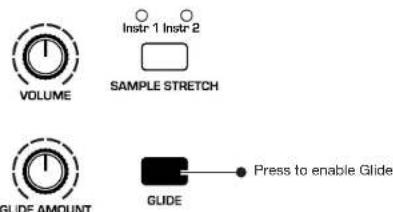
The Glide controls
To use Glide:
- Press the GLIDE button.
- Play a series of notes up and down the keyboard while you turn the GLIDE AMOUNT knob to adjust the amount of glide.
To set the Glide Amount separately for each oscillator:
- Press the GLIDE button.
- In the display menu, press Soft Key 4 (GLIDE RATE).
- Play a series of notes up and down the keyboard while you turn Soft Knobs 1-4 (GLIDE RATE) to adjust the amount of glide for individual oscillators and/or instruments.

Glide Modes
There are four modes that determine how glide behaves:
Fixed Rate: The time to transition between notes varies with the interval between the notes; the greater the interval, the longer the transition time. The glide rate is fixed. This is the default glide mode.
Fixed Rate A: The same as Fixed Rate, but glide is only applied when playing legato. That is, glide only occurs when a note is held until the next note is played. This effectively allows glide to be turned on and off from the keyboard.
Fixed Time: Glide is set to a fixed time, regardless of the interval between notes.
Fixed Time A: The same as Fixed Time, but glide only occurs when playing legato.
To select a Glide Mode:
- Press the GLIDE button.
- In the display menu, press Soft Key 3 (GLIDE).
- Turn Soft Knob 2 (GLIDE MODE) to select the mode you want.
- Play a series of notes up and down the keyboard to hear the effect.

Choosing the Glide mode
16-Voice Mode
The Prophet X can operate in either 8-voice or 16-voice mode. In many ways the synth is at its best in 8-voice mode because in 8-voice mode, the Prophet X has a stereo signal path with stereo filters. This results in a noticeable increase in richness and depth.
In contrast, 16-voice mode doesn't provide stereo filters (though the Prophet X's digital effects still function in stereo). However, 16-voice mode is still quite useful for instruments such as piano that benefit from increased polyphony.

The Glide controls
To enable 16-voice mode:
- Press the 16 VOICE button.

With clever use of the mod matrix, it's possible to simulate a stereo spread in 16-voice mode by modulating panning with note number. With this technique, over the range of the instrument, notes from low to high are panned progressively left to right. See "Using 16-Voice Mode" on page 112 for details.
Pitch and Mod Wheels
The Prophet X has a spring-loaded Pitch wheel and a Mod wheel. You can use these controls to enhance live performance by bending notes and adding modulation in real time as you play.
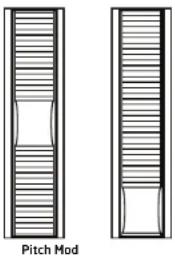
The Pitch and Modulation wheels
Pitch Wheel
You can set a range in semitones for the pitch wheel, depending on your playing preference. The range is up to 12 semitones (1 octave). You can set different ranges for the upward bend and the downward bend. Many musicians use a range of 2 semitones (a whole step) since this is the bend range of many acoustic instruments. For guitar whammy bar effects, you many wish to set a wider range.
To set the pitch bend range:
- Press the MISC PARAMS button and use Soft Knob 1 (RANGE UP) to set the range in semitones of the upward bend.
- Use Soft Knob 2 (RANGE DOWN) to set the range in semitones of the downward bend.
- Hold a note and move the pitch wheel to hear the effect.
Modulation Wheel
The mod wheel controls the amount of modulation for any program that uses it as a modulation source. This allows you to “perform” modulation in real time by moving the wheel. This is a great way to add expressiveness to a sound or performance by using it to control vibrato, filter effects, and potentially a lot more.
To choose a modulation destination for the Mod wheel:
- In the MODULATION section, press the ASSIGN SOURCE button. Use Soft Knob 1 to scroll to Mod Slot 1 if it's not already displayed.
- Use Soft Knob 2 to scroll through the various mod sources and choose MOD WHEEL.
- Use the Soft Knob 4 to scroll through the various mod destinations and choose a parameter (such as cutoff).
- Hold down a note on the keyboard (or press the HOLD button and play a note on the keyboard) and turn the mod wheel.
- Use the Soft Knob 3 to set the modulation amount to your preference. Higher AMOUNT settings add greater modulation the further you push the mod wheel. A negative amount setting will apply modulation in the negative direction.

As a shortcut, you can hold down the ASSIGN SOURCE button and move the mod to quickly assign this modulation path.
Touch Sliders
The Prophet X has two position-sensitive touch sliders. Like the pitch and mod wheels, you can use these sliders to enhance live performance by adding modulation in real time as you play.
Each slider serves as a modulation source, the value of which is determined by finger position. The touch sliders appear in the modulation matrix as Slider 1 and Slider 2. (See “Appendix A: Modulation Sources” on page 130.)
Normally, the sliders affect the assigned modulation destinations only while they're being touched. But when LATCH is on, the slider holds the value from the position at which it was last touched.

Use the mod matrix to assign modulation destinations to the sliders. You can route multiple modulation destinations to a slider. To display the modulation matrix, press the ASSIGN SOURCE or ASSIGN DEST buttons in the Modulation section. Modulations slots and routings appear in the display.
| DestinationEdit Mod 1 Source Amount | |||
| Mod 1 | Slider 1 | 60 | Cutoff |
| Mod 2 | Slider 2 | 35 | Osc1 Shape |
| Mod 3 | Aftertouch | 25 | Drive |
| Mod4 | Mod wheel | 80 | LF01 Amt |
| Sort Source | Sort Dest |
To assign a slider to a mod destination:
- On the front panel MODULATION section, press and hold the ASSIGN SOURCE button.
- Touch slider 1. The mod matrix appears in the display and slider 1 POSITION is assigned to an available modulation slot.
- Turn Soft Knob 4 (DESTINATION) to choose a modulation destination.
- Turn Soft Knob 3 (AMOUNT) to choose the maximum amount of modulation applied when the mod wheel is turned all the way up.
- To route the slider to more destinations, turn Soft Knob 1 (EDIT MOD #) to find an open modulation slot and choose SLIDER 1.
- Repeat steps 3-4.
Play List
The Play List enables you to organize programs into lists for quick recall. This feature is particularly useful for live performance where you may want to have specific groups of programs at your fingertips.
Here's how the Play List works:
- There are 10 sets.
• Each set contains 4 Lists.
• Each list contains 4 programs.
![graph TD A["Use soft knob 1 to select a bank"] --> B["U1"] C["Use soft knob 2 to select a program"] --> B D["Use soft knob 3 to select the List (1-4)"] --> E["P1"] F["Turn soft knob 4 to select the Set (1-10)"] --> G["List1"] B --> H["Prophet Evolution"] E --> H G --> H H --> I["U1P1"] H --> J["U3P7…](/content/2026/05/1058423/images/36916533658b1b4582344d4aac061a0a4ef3e54598871708db11ac3add2499cd.jpg)
The Play List Menu
To create a Play List:
- Press the PLAY LIST button.
- Turn Soft Knob 4 to select set 1.
- Turn Soft Knob 3 to select LIST 1.
- Press Soft Key 1 to select the first position in the list.
- Use Soft Knob 1 (BANK) and Soft Knob 2 (PROGRAM) to choose the program that you want.
- Press Soft Key 2 to select the second position in the list.
- Use Soft Knob 1 (BANK) and Soft Knob 2 (PROGRAM) to choose the program that you want.
- Press Soft Key 3 to select the third position in the list.
- Use Soft Knob 1 (BANK) and Soft Knob 2 (PROGRAM) to choose the program that you want.
- Press Soft Key 4 to select the forth position in the list.
- Use Soft Knob 1 (BANK) and Soft Knob 2 (PROGRAM) to choose the program that you want.
- Now that you have set up List 1. Repeat as desired to set up List 2, List 3, and List 4, if you want.
- The Lists that you have just created all reside in Set 1. If you want, turn Soft Knob 4 to Set 2 and repeat the entire process to create another 4 lists that will then reside in List 2. You can continue doing this for all 10 sets, if you want.

Play lists simply point to stored Factory or User programs. Editing and saving a program changes that program in memory and, as a result, in any play lists in which it appears. If you need a program to behave differently in different situations, save multiple copies of the program edited and named appropriately for each situation.

To export play lists as MIDI SysEx data, use DUMP ALL BANKS in the Global menu. play list data will be exported along with the bank data.
To recall programs from a play list:
- Press the PLAY LIST button.
- Turn Soft Knob 4 to select the Set you want (1-10).
- Turn Soft Knob 3 to select the List you want (1-4).
- Use Soft Keys 1-4 to choose the program you want within the currently selected Set and List.
Chapter 3: Programming the Prophet X
With its large and expandable sample library and full synthesis capabilities, the Prophet X can produce a vast spectrum of sounds. While the factory programs give you some idea of its scope, if you only make use of its presets, you're not really using the Prophet X to its full potential. The real excitement is in creating sounds that are uniquely your own.
This chapter provides some brief tutorials, first with fundamental synth elements, then with the sample playback features, and finally combining both. While there isn't enough space here to cover how to use every Prophet X function, the examples will help you get familiar with some basic concepts. Making sounds you've never heard before can be very rewarding.
Synthesis 101: Synth Bass
Some of the best synth bass sounds consist of a single oscillator, a bit of filter resonance, the right envelope, and not much else. So let's start with the Basic Program and go from there.
Short Version
To create a classic synth bass:
- Press the GLOBAL button.
- Use Soft Knob 1 to navigate to BASIC PROGRAM and press Soft Button 1 (WRITE NOW). As a shortcut: hold down the front-panel TRANSPOSE DOWN button and press the HOLD button.
- Set filter CUTOFF to 40 (refer to the main display).
- Set filter RESONANCE to 100.
- In the ENVELOPES section, set the Filter Envelope's ENV AMOUNT to 50.
- Play a low note on the keyboard. Instant synth bass!
- Experiment with the Filter Envelope's ENV AMOUNT and DECAY settings.
Long Version for Those Who Like Explanations
Here's a more detailed version that provides insight into the process. You'll start with the Basic Program, then learn how to choose an appropriate oscillator waveshape, how to use the filter, how to use the envelopes, and how to use Unison to fatten things up.
In the Basic Program, only Oscillator 1 is audible. Its waveshape is set to sawtooth and its level is 127 in the MIXER. (Oscillator 2 level is set to zero and Instrument 1 and Instrument 2 don't have an instrument selected.)
To start with the Basic Program:
- Press the GLOBAL button.
- Use Soft Knob 1 to navigate to the BASIC PROGRAM command, then press Soft Button 1 (WRITE NOW). As a shortcut, hold down the front-panel TRANSPOSE DOWN button and press the HOLD button.
Each of the waveforms have their own unique sound:
- The sawtooth waveform is a good starting point for sounds because it has plenty of harmonics. This gives you a lot to work with in terms of a raw sound that you can filter and modulate.
- The pulse (square) wave is a good starting point, too, but sounds different than the sawtooth, because of its different harmonic content. The sawtooth has even-numbered harmonics and the square wave has odd-numbered harmonics. (Google this if you want to learn more.)
- The sine wave has no harmonics. It's useful used alone for its pure tone, or in combination with another oscillator or sample(s) to reinforce the fundamental pitch of a sound and add weight.
- The super sawtooth is a stacked version of the sawtooth and sounds very thick when you use the SHAPE MOD knob to detune it. It's great for brass, strings, and classic dance music sounds.
To listen to the various oscillator waveshapes:
- In the OSCILLATORS section, the Sawtooth waveform is selected by default. Play and hold a note, then press the SHAPE button to step through the various waveshapes. Notice that is it possible to select no waveshape at all.
- Select the sawtooth waveshape.
Next, you'll use the filter to shape the raw sound of the sawtooth wave.
To adjust the filter:
- Press and hold down a key and turn the filter's CUTOFF knob. Notice how it cuts the high frequencies as you rotate counter-clockwise, making the sound of the oscillator less bright. If you turn the CUTOFF knob fully counterclockwise you'll filter out all frequencies and hear nothing.
- Return the CUTOFF knob to its halfway position, play and hold a note again then turn the RESONANCE knob about halfway up. Notice how the sound changes as a band of frequencies near the cutoff is amplified.
- Rotate the filter's CUTOFF knob again and you'll hear a classic resonant filter sweep. You're going to use this to create your synth bass.
- Set the filter CUTOFF to a value of 40 (refer to the main display to see its numeric value).
- Set the filter RESONANCE to a value of 100. This is going to give the synth bass its funky "zap."
- Play a note and listen to the sound. At this point you won't hear anything because you've mostly closed the filter. You'll need to open the filter using the filter envelope (so you don't have to turn the CUTOFF knob by hand).
Now, you'll use the filter envelope to control the filter sweep.
To adjust the filter envelope:
- In the Envelopes section, turn the Filter Envelope's ENV AMOUNT knob to a value of 50 (refer to the main display to see its numeric value).
- Play a low note on the keyboard. Instant synth bass!
Notice how the sound has changed. The Filter Envelope is controlling filter cutoff by the amount you set with the ENV AMOUNT knob.
- Continue experimenting with the Filter Envelope's ENV AMOUNT knob. Notice how greater ENV AMOUNT settings amplify the effect of the envelope on the filter.
- Repeatedly strike a note on the keyboard as you turn the Filter Envelope's DECAY knob clockwise and counterclockwise. Notice how it changes the sound as the note decays faster or slower.
Be aware that the Filter Envelope and Amplifier Envelope work in conjunction, with the Filter Envelope controlling how the filter opens and closes and the Amplifier Envelope controlling the overall volume shape. To learn more about the Amplifier Envelope, see page 42.
- The Filter Envelope's RELEASE parameter acts in conjunction with the Amplifier Envelope. In other words, you can't hear a long release on the filter envelope if the amplifier envelope is short! So to hear the filter envelope's RELEASE parameter in action, first set the Amp Envelope's RELEASE value to 75.
- Now repeatedly strike a note on the keyboard as you turn the Filter Envelope's RELEASE knob clockwise and counterclockwise. Notice how the note fades out faster or slower as you change the RELEASE value.
Using Unison
You can use Unison to thicken the synth bass sound even more. When UNISON is on, the Prophet X acts like a monophonic synthesizer — only one note can be played at a time. However, that single note can be powered by as many as 8 voices, depending on how many you choose to stack together. (You can stack up to 16 voices if you are in 16-voice mode.)
To use Unison:
- Press the UNISON button on the front panel.
- Repeatedly strike a note on the keyboard as you use Soft Knob 2 (MODE) to choose the number of voices to stack. The more voices you stack, the denser the sound.
- To detune the oscillators while in unison, use Soft Knob 3 (DETUNE) to set the amount of detuning between voices.
Now you know how to create a simple synth bass program using the most essential synthesizer components of the Prophet X: the oscillators, the filter, and the envelopes. Using just these three things you can create an enormous variety of sounds. Keep experimenting with them and if you like what you've created, save the programs in one of the user banks. (See "Saving a Program" on page 7.)
Creating Stereo Synth Brass
Here's another easy-to-construct sound: synth brass, with a classic "pitch blip" effect on the attack. In this example you'll learn how to pan the oscillators hard left and right to create an ultra-wide stereo spread, how to detune the super saw wave, and how to use an auxiliary envelope to modulate the pitch of oscillator 2 to simulate an aggressively blown horn effect.
To create synth brass:
- Press the GLOBAL button.
- Use Soft Knob 1 to navigate to BASIC PROGRAM and press Soft Button 1 (WRITE NOW). As a shortcut, hold down the front-panel TRANSPOSE DOWN button and press the HOLD button.
- In the mixer, turn up Oscillator 2 to 127. (Osc 1 is already at 127.)
- In the oscillators section, set both oscillators to SUPER SAW and set SHAPE MOD for osc 1 to 45 and osc 2 to -45 to detune and thicken them.
- With the Mixer parameters shown in the display, press Soft Button 2 to select PANNING, then set OSC1 PAN to -64L and OSC2 PAN to 63R for an ultra-wide stereo spread.
- In the OSCILLATORS section, set SLOP 1&2 to 15 to add a little analog-style oscillator drift.
- In the FILTER section, set CUTOFF to 10, RESONANCE to 5, and DRIVE to 100.
- In the FILTER ENVELOPE section, set the ENV AMOUNT to 80, the ATTACK to 16, DECAY to 88, SUSTAIN to 58, and RELEASE to 90.
-
Enable touch sensitivity by pressing and enabling the VELOCITY button.
-
In the AUXILIARY ENVELOPE section, select ENVELOPE 3 and set its destination to osc2 FREQ. This routes envelope 3 to modify osc 2 pitch according to its ADSR (attack, decay, sustain, release) settings. This will create the slight pitch variation at the beginning of the sound (the "pitch blip").

You can quickly assign the mod destination for Envelope 3 by holding down the envelope's selector button and turning the Oscillator 2 frequency knob. This will auto-assign the modulation destination to the envelope.
- Set the auxiliary ENV AMOUNT to 40 and DECAY to 30.
- Play some single notes and chords in the upper range of the keyboard. Classic synth brass!
- Experiment with different auxiliary ENV AMOUNT and DECAY settings to fine tune the "pitch blip" effect.
Turning the Synth Brass Sound into a String Pad
It's a simple matter to turn the previous synth brass sound into a string pad by simply adjusting its envelope and filter settings.
To turn the synth brass into a string pad:
- In the FILTER section, set the CUTOFF to 87.
- In the FILTER ENVELOPE section, set the ENV AMOUNT to 7.
- Set filter envelope ATTACK to 52, DECAY to 102, SUSTAIN to 81, and RELEASE to 100
- Set amplifier envelope ATTACK to 73, DECAY to 62, SUSTAIN to 127, and RELEASE to 80.
- Play some chords. You've now got a good basic string pad.
Adding Effects to the String Pad
You can enhance the string pad adding an effect such as phasing for a retro feel.
To add effects to the string pad:
- In the EFFECTS section, press the EFFECT 1 button.
- Turn the EFFECT TYPE knob and select PHASER.
- Set MIX to 64, then set parameter 1 (DEPTH) to 92, parameter 2 (RATE) to 9, and parameter 3 (FEEDBACK) to 255.
- Play some chords. Classic string machine! For even more dramatic phasing, set MIX to 127.
Using the LFO to Sweep the Filter
You can further enhance the string pad by using the LFO to sweep the filter.
To sweep the filter:
- In the LFO section, select LFO 2 and make sure its SHAPE is set to the triangle wave.
- With the LFO parameters shown in the main display, press Soft Button 3 to select the LFO DEST menu tab, then use Soft Knob 1 to select CUTOFF.

You can quickly assign the mod destination for LFO 2 by holding down the LFO 2 selector button and turning the Filter Cutoff knob. This will auto-assign filter cutoff as the modulation destination for LFO 2.
- With the LFO parameters shown in the main display, press Soft Button 1 to select the LFO SHAPE menu.
- Set the LFO SHAPE to triangle, FREQUENCY to 30, and AMOUNT to 50.
- Play some chords. The LFO sweeps the filter.
- For fun, experiment with changing LFO 2's SHAPE, FREQUENCY, and AMOUNT parameters.
Creating a Hard-Sync Lead
Here's another classic sound: a hard-sync lead. A famous example of this is "Let's Go" by the Cars (performed on a Prophet-5). In this example you'll learn how to hard-sync the oscillators, pitch-modulate one of them with an auxiliary envelope, then add effects.
To create a hard-sync lead:
- Press the GLOBAL button.
- Use Soft Knob 1 to navigate to BASIC PROGRAM and press Soft Button 1 (WRITE NOW). As a shortcut, hold down the front-panel TRANSPOSE DOWN button and press the HOLD button.
- In the mixer, turn up Oscillator 2 to 127. (Osc 1 is already at 127.)
-
In the oscillators section, set both oscillators to sawtooth.
-
Enable the SYNC 2>1 button. (See "Sync 2>1" on page 24 for an explanation of phase sync.)
- Set the pitch of Oscillator 1 to C3. This will intensify the sync effect.
- In the AUXILIARY ENVELOPE section, select ENVELOPE 3 and set its destination to osc1 FREQ. This routes envelope 3 to modulate osc 1 pitch according to its ADSR (attack, decay, sustain, release) settings.
- Set the auxiliary ENV AMOUNT to 127 and ATTACK to 23, DECAY to 60, SUSTAIN to 100, and RELEASE to 65. This will set the amount and "shape" of the modulation.
- Play some single notes and in the middle range of the keyboard. Classic hard-sync lead!
- To make it a little edgier, set filter DRIVE to 100, filter CUTOFF to 0, filter envelope DECAY to 100, and filter ENV AMOUNT to 127.
Adding Effects to the Lead
You can enhance the sync lead by adding some delay and reverb.
To add effects:
- In the EFFECTS section, press the EFFECT 1 button.
- Turn the EFFECT TYPE knob and select DELAY STEREO.
- Set MIX to 22, then set parameter 1 (TIME) to 135, parameter 2 (FEEDBACK) to 47, and parameter 3 (LPF) to 100.
- In the EFFECTS section, press the EFFECT 2 button.
- Turn the EFFECT TYPE knob and select SUPER PLATE.
- Set MIX to 47, then set parameter 1 (TIME) to 100, parameter 2 (TONE) to 138, and parameter 3 (PREDELAY) to 12.
- Play some notes. Searing hard-sync lead!
Modulation Techniques
There are endless ways to use modulation to enhance a sound. The modulation matrix has 16 freely assignable modulation paths (mod slots 1-16) with 28 modulation sources, 88 destinations, and 11 dedicated mod sources including the Mod Wheel, Pressure (aftertouch), Breath Controller, Velocity, and more.
Here are a few useful techniques that you can apply to many sounds. The first uses the LFOs.
Creating a Stereo Tremolo Effect with an LFO
You can create a stereo tremolo effect by modulating PAN with the LFO. First, set up a simple electric piano sound.
To create a simple electric piano sound:
- Recall the Basic Program and set Oscillator 1 shape to PULSE.
- Set filter CUTOFF to 0 and filter ENV AMOUNT to 71.
- Set filter envelope ATTACK to 0, DECAY to 90, SUSTAIN to 22, and RELEASE to 40.
To create a stereo tremolo effect:
- In the LFO section, select LFO 2 and set its shape to the triangle wave.
- With the LFO 2 parameters shown in the main display, press Soft Button 3 to select the LFO DEST menu tab, then select PAN with Soft Knob 1.
- Set LFO 2 FREQUENCY to 80 to set the speed of the tremolo.
- Set the LFO AMOUNT to 90 to control the intensity of the tremolo (its width in the stereo field as it pans from left to right).
- Play some chords. Simple electric piano with stereo tremolo!
Creating Movement with Pulse-Width Modulation
Another essential technique is to use an LFO to modulate the pulse-width of the oscillator waveforms. This adds a great deal of movement and thickness and has long been used to create string pads.
First, set up a simple square-wave sound.
To create a basic string sound:
- Recall the Basic Program. (See previous examples if necessary.)
- In the Mixer, turn up Oscillator 2 to 127. (Osc 1 is already at 127.)
- In the oscillators section, set both oscillators to PULSE.
-
Set SLOP 1&2 to 15 to add a little analog-type oscillator drift.
-
Display the Mixer parameters (turn either of the oscillator level knobs) then press Soft Button 2 to select PANNING and set OSC1 PAN to -40L and OSC2 PAN to 40R for a nice stereo spread.
-
Set filter CUTOFF to 117 and filter RESONANCE to 20.
-
Set filter envelope ATTACK to 11, DECAY to 60, SUSTAIN to 22, and RELEASE to 50. Set filter ENV AMOUNT to 0.
-
Set amplifier envelope ATTACK to 87, DECAY to 60, SUSTAIN to 127, and RELEASE to 50.
To add pulse-width modulation:
- In the LFO section, select LFO 2 and set its shape to the triangle wave.
- With the LFO 2 parameters shown in the main display, press Soft Button 3 to select the LFO DEST menu tab, then select OSC1 SHAPE with Soft Knob 1.
- Set LFO 2 FREQUENCY to 70 to set the speed of the pulse-width modulation (osc1 shape modulation).
- Set the LFO 2 AMOUNT to 65 to control the intensity of the pulse-width modulation.
-
Now set separate pulse-width modulation for oscillator 2 for a more random, organic feel: In the LFO section, select LFO 3 and set its shape to the triangle wave.
-
With the LFO 3 parameters shown in the main display, press Soft Button 3 to select the LFO DEST menu tab, then select osc2 SHAPE with Soft Knob 1.
- Set LFO 3 FREQUENCY to 72 and LFO 3 AMOUNT to 68. Note that these settings differ from those set for LFO 2/oscillator 2
- Play some chords. Basic PMW string sound!
To hear what a difference pulse-width modulation makes, remove it by turning the LFO AMOUNT parameter for both LFO 2 and LFO 3 to zero.
You can use this technique to add harmonic movement to any of the oscillator waveshapes, not just the pulse wave. But be aware that if you set the amount of waveshape modulation too high on the pulse wave, it will become so narrow that the wave's sound will disappear!
Modulating the Stereo Filters Independently
Because the Prophet X has stereo filters (in 8-voice mode), you can add even more movement by using the LFOs (or other sources) to independently modulate the left-channel and right-channel filter cutoff. This produces some interesting stereo filtering effects. We'll re-use the same two LFOs in the example below. The mod matrix makes it possible to route the same source to multiple destinations.
To modulate the left and right channels of the stereo filters:
- Start with the PWM string sound from the previous example.
- In the MODULATION section, press the ASSIGN SOURCE button. Use SOFT KNOB 1 to scroll to the first available mod slot.
- Use SOFT KNOB 2 to scroll through the various mod sources and choose LFO 2.
- Use Soft Knob 3 to set the amount to 20.
- Use SOFT KNOB 4 to scroll through the various mod destinations and choose CUTOFF L.
-
Now do the same for LFO 3 and the right filter channel: Use Soft KNOB 1 to scroll to the next available mod slot.
-
Use SOFT KNOB 2 to scroll through the various mod sources and choose LFO 3.
- Use Soft Knob 3 to set the amount to -20.
- Use Soft KNOB 4 to scroll through the various mod destinations and choose CUTOFF R.
- Hold a chord and notice how the sound moves as the cutoff frequency changes on the left and right channels of the filter.
- Increase the filter RESONANCE to make the effect more dramatic.
Creating Sounds Using FM (Frequency Modulation)
Frequency modulation is a technique where the frequency of one oscillator modulates another oscillator, producing complex harmonics. This is how instruments such as the DX7 produced its sounds. In classic FM instruments, sine waves were used. But because the mod matrix makes it possible to route any of the Prophet X sound sources to each other (including sampled instruments), the sonic possibilities are even greater.
To create sounds using frequency modulation:
- Recall the Basic Program. (See previous examples if necessary.)
- In the Mixer, turn up Oscillator 2 to 127.
- Turn Oscillator 1 level down to 0. (Because we're going to use it as a mod source, we don't actually want to hear it.)
- In the oscillators section, set both oscillators to SINE.
- In the MODULATION section, press the ASSIGN SOURCE button. Use SOFT KNOB 1 to scroll to the first available mod slot.
- Use SOFT KNOB 2 to scroll through the various mod sources and choose osc 1.
- Use SOFT KNOB 4 to scroll through the various mod destinations and choose Osc 2 freq.
- Now, repeatedly play a note and listen to what happens while you use SOFT KNOB 3 to slowly increase the modulation AMOUNT to 127. The sound becomes more gong/bell-like.
As oscillator 1 frequency-modulates oscillator 2, complex harmonics known as sidebands are generated. The number, frequency, and amplitude of the sidebands are controlled by changing the ratio of the modulator frequency (osc 1) to the carrier frequency (osc 2), as well as the amount of modulation. In other words, changing the pitch of either oscillator 1 or oscillator 2 will have a dramatic effects on the sound, and so will increasing or decreasing the AMOUNT in the mod matrix.
In the example above, as you increase the modulation amount, the sideband harmonics generated are more non-linear, like those in metallic instruments such as gongs and bells. This is why it's easy to create "metallic" sounds with FM.
To modify the FM sound even more:
- In the oscillators section, slowly turn the pitch knob on Oscillator 1 to raise its pitch. As you increase the pitch, the sound changes as different sideband harmonics are generated.
- Try setting Osc 1 pitch to F#6 and Osc 2 pitch to C3. The sound is now similar to the classic FM electric piano sound.
- To make it really sound like a classic FM electric piano, adjust the filter, filter envelope, and amplifier envelopes appropriately:
- Set filter CUTOFF to 0 and set filter ENV AMOUNT to 91.
- Set filter envelope ATTACK to 0, DECAY to 98, SUSTAIN to 32, and RELEASE to 90.
- Set amplifier envelope ATTACK to 0, DECAY to 84, SUSTAIN to 127, and RELEASE to 80.
- Play some chords. Basic FM electric piano!
You can create much more aggressive sounds by using other waveshapes (or samples), different tuning relationships between the oscillators (or samples), and different amounts of modulation. You can also use the mod matrix to route both oscillators and both samples to each other in different configurations. The harmonic possibilities of FM are immense.
Using Sampled Instruments
The internal sample library gives you a lot of variety to work with when you're designing sounds. In some cases you may want to use the instruments as is, and just add effects as necessary. In other cases you may want to layer two different instruments to create something new and unexpected. And finally, you may want to completely mangle one or more instruments by modulating their loops and using all of the other synth functions that the Prophet X provides. With a bit of creativity, you can go to some very extreme places.
Let's start with a simple instrument and go from there.
Selecting and Modifying a Sampled Instrument
You can easily modify a sampled instrument using the filters, envelopes and effects — just like you did with the oscillators in the previous examples. Let's start with a simple piano.
- Recall the Basic Program. (See previous examples if necessary.)
- In the Mixer section, turn Oscillator 1 level down to 0. (We're just going to work with sampled instruments here.)
- In the Sample Playback section use the TYPE knob to select PIANO.
- Use the INSTRUMENT knob to select the first piano (1928 Grand Near).
- Play a few notes and chords and listen to the instrument's sound.
At this point it's important to note that by default, the sampled instruments pass through and are affected by the low-pass filter. So it's simple to change their sound dramatically by just adjusting the filter and filter envelope settings. Like so:
- Next, set filter CUTOFF to 0 and filter ENV AMOUNT to 120.
- Play few notes and chords and listen to the instrument now. It's completely different and unrecognizable as a piano.
- Now, set filter RESONANCE to 160 and set the filter envelope to ATTACK 60, DECAY 60, SUSTAIN 45, and RELEASE 40.
- Play few more chords. Completely different again and un-piano-like.
This example shows how easy it is to use the sampled instruments like you would use the Prophet X's oscillators — as raw material to be shaped. This means that most of the synthesis techniques you learn can be applied to the sampled instruments, as well.
Layering Two Different Sampled Instruments
Another way to create something new and unique is to combine two different instruments.
To combine two instruments:
- Recall the Basic Program. (See previous examples if necessary.)
- In the Mixer section, turn Instrument 2 level to 127. (Instrument 1 is already at 127 by default in the Basic Program.)
- Turn Oscillator 1 level down to 0. (It's at 127 by default in the Basic Program.)
- In the Sample Playback section, use the TYPE knob to select PIANO.
- Use the INSTRUMENT knob to select the first piano (1928 Grand Near).
- Next, press the INSTR 2 button and use the TYPE knob to select PERC TONAL.
- Use the INSTRUMENT knob to select instrument 20: CROTALES Mallet.
- Play a few chords. You've got an interesting new hybrid instrument.
- Add some chorus and reverb to complete the sound and add polish.
You can create countless musically useful instrument combinations. In many cases you'll need to adjust the level of the instruments relative to each other in the Mixer for the best balance. Similarly, you may need to use the TONE parameter (in the SAMPLE PLAYBACK menus in the display) to apply high-pass or low-pass filtering to one or both of the instruments for clarity.
Bypassing the Low-pass Filter on Sampled Instruments
By default, sampled instrument are routed through the low-pass filter so that you can use it to shape their sound. In some cases, however, you many not want to filter an instrument so that you can sonically separate it from a second instrument, or from sounds created with the oscillators.
This is a great way to combine synth-type sounds with sampled sounds and preserve the original sound of the sampled instruments without filtering. Be aware that bypassing the low-pass filter on a sampled instrument also bypasses the filter envelope for that instrument. The amp envelope still affects the sampled instrument, but not the filter envelope settings.
To bypass the low-pass filter on an instrument:
- Show the Sample Playback parameters in the display by pressing the INSTR 1 button.
- Press Soft Button 2 to select the INSTR1 MISC menu tab.
- To bypass the filters for instrument 1, turn Soft Knob 4 to enable LPF BYPASS.
Using Sample Stretch
The majority of the instruments on the Prophet X are multi-sampled for greater realism. On a sampled piano, for example, samples of individual notes are recorded up and down the keyboard as they are played soft to hard. These samples are mapped to the corresponding key on the Prophet X. The playback engine of the Prophet X then uses velocity switching to match the appropriate sample to the appropriate velocity at which you play.
Having said all of this, you can create many interesting sounds by turning off multi-sampled velocity switching, and instead stretching a single sample across the entire keyboard. This can have interesting effects on the sound as it is stretched far beyond its original pitch.
Let's start with a simple example using the piano again:
To use sample stretch:
- Recall the Basic Program. (See previous examples if necessary.)
- In the Mixer section, turn Instrument 2 level to 127. (Instrument 1 is already at 127 by default in the Basic Program.)
- Turn Oscillator 1 level down to 0. (It's at 127 by default in the Basic Program.)
- In the Sample Playback section, use the TYPE knob to select PIANO.
- Use the INSTRUMENT knob to select the first piano (1928 GRAND NEAR).
- Now, hold down the lowest C on the Prophet X keyboard and press the SAMPLE STRETCH button.
- Play a few chords. The piano just changed dramatically.
This illustrates an important point: extreme sample stretching can sound very interesting. Now try it in the opposite direction and stretch a high-pitched note.
To use sample stretch again:
- Press the SAMPLE STRETCH button again to disable it.
- Hold down the highest C on the Prophet X keyboard and press the SAMPLE STRETCH button.
- Play a few chords. The piano again sounds very different.
Generally speaking, stretching samples downward makes them sound duller. Conversely, stretching them upward makes them sound brighter.
Using the Prophet VS Waves
Sample Stretch is particularly useful for stretching single-cycle waveforms across the keyboard, since they act like oscillators. You can create single-cycle waveforms out of existing samples by changing their loop size and making them as short as possible. (More on this later.)
Included in the internal sample library are all of the single-cycle waveforms from the classic Sequential Prophet VS synthesizer from the 1980s. These waveforms are found in the SYNTII instrument category and are called VS WAVE TABLES.
There are 97 Prophet VS waves. Each is mapped to a different MIDI note/key on the Prophet X keyboard, from C-2 to C7. To reach the waves on the low and high end of the range, you'll need to use the TRANSPOSE button to transpose the keyboard up or down depending on the wave you want to locate.
To use sample stretch with the Prophet VS waves:
- Recall the Basic Program. (See previous examples if necessary.)
- Turn Oscillator I level down to 0. (It's at 127 by default in the Basic Program.)
- In the Sample Playback section, use the TYPE knob to select SYNTH.
- Use the INSTRUMENT knob to find and select VS WAVE TABLES.
- Use the front-panel TRANSPOSE button to transpose the keyboard range downward -2. Then, beginning at the lowest C, play individual notes chromatically upward on the keyboard. Each key has a different Prophet VS wave mapped to it. Use the Transpose button again as you reach the end of the keyboard to hear the waves mapped to the highest keys.
- Find a wave that you like. For this example, hold down G3 and press the SAMPLE STRETCH button.
- Play a few chords. That wave is mapped to the entire keyboard. You can now use it as your raw sound.
Use the filter, envelopes, and effects to shape the sound:
To modify the raw Prophet VS waveshape:
- Set filter CUTOFF to 100 and filter RESONANCE to 200.
- Set filter ENV AMOUNT to 23 and set the filter envelope to ATTACK 70, DECAY 76, SUSTAIN 0, and RELEASE 72.
- Set the amp envelope to ATTACK 110, DECAY 85, SUSTAIN 0, and RELEASE 71.
- To add some chorus, press the EFFECT 1 button.
- Turn the EFFECT TYPE knob and select CHORUS.
- Set mix to 64, then set parameter 1 (DEPTH) to 37, parameter 2 (RATE) to 100, and parameter 3 (LPF) to 209.
- Now, to add some filter modulation, in the LFO section, select LFO 2 and set its shape to RANDOM.
- With the LFO 2 parameters shown in the main display, press Soft Button 3 to select the LFO DEST menu tab, then select CUTOFF with Soft Knob 1.

You can quickly assign the mod destination for LFO 2 by holding down the LFO 2 selector button and turning the Filter Cutoff knob. This will auto-assign filter cutoff as the modulation destination for LFO 2.
-
Set LFO 2 FREQUENCY to 178 and the LFO AMOUNT to -69.
-
Play some chords. The sound is reminiscent of the Prophet VS — minus the joystick.
Manipulating Samples and Loops
Another way to create something new from an existing instrument is to edit the sample itself, by changing its sample start, end, loop attributes, or reversing it. This applies the changes to all samples in the instrument.
Not all samples in the internal library are looped. But you can activate a sustain loop in any sample/instrument by pressing the LOOP button (if it's not already on) and adjusting loop attributes as necessary. In a sustain loop, the loop repeats as long as you hold down a key.
Reversing a sample
One simple way to change the sound of a sample is to reverse it.
To reverse a sample:
- Recall the Basic Program and turn Oscillator 1 level down to 0.
- In the Sample Playback section, use the TYPE knob to select PERCUSSION.
- Use the INSTRUMENT knob to select ASSORTED BONGOS and play a few notes.
- Press the REVERSE button. Play and hold a few notes again to hear the difference.
Because most of the samples have long “tails” (which are now the start of the sample) you have to hold down the keys long enough to hear the samples now that they are reversed. You can adjust the beginning and end points of the samples if you want to accommodate for this. You’ll learn how in the next example.
Changing Sample Start and End Points and Adding a Loop
Another way to change the sound of a sample is to change its start and end points.
To change a sample's start or end point:
- Recall the Basic Program and turn Oscillator 1 level down to 0.
- In the Sample Playback section, use the TYPE knob to select ETHNIC.
- Use the INSTRUMENT knob to select MANDOLIN HEAVENLY.
- Play some notes and listen to the sample. It has a very strong attack.
- Next, press the INSTR 1 button to show the sampled instrument parameters in the main display.
- Press Soft Button 4 (INST1 EDIT). The sample editing window appears.
- Turn Soft Knob I clockwise to adjust the SAMPLE START as you repeatedly strike a note on the keyboard.
Notice how the sound changes as sample playback begins farther away from its original start point. The beginning of a sound is often the most recognizable part of its character — particularly on acoustic instruments. Changing the start point of a sample can dramatically change its sound.
Adding a Loop
To manipulate the sample even more, add a loop:
To enable a loop in the sample:
- Set the SAMPLE START to 479.
- Use Soft Knob 4 to set the SAMPLE END to 525.
- Press the LOOP button.
- Play a chord. The mandolin sample now sounds like a wobbly electric organ.
The “wobble” is caused by the loop repeating itself. Because beginning and end points of the loop contain different harmonics and volume levels, there’s a noticeable bump in the transition between the two. You can smooth this transition by adjusting the loop crossfade rate. For more details, see “Creating Longer Loops” on page 104.
Making a Loop into a Single-Cycle Waveform
Now lets manipulate the loop and turn it into a waveform similar to the Prophet VS waveforms we worked with earlier.
When you are creating loops, there are three different loop modes: Regular, Pitched, and Sync. Pitched mode is most appropriate for creating single-cycle-type loops because the smallest loop setting in this mode is 32 samples and the loop size is always a multiple of the root pitch of the sample. This ensures that the single-cycle-type loop is accurately pitched, making it function almost like an oscillator.
In contrast, Regular loop mode does not always allow you to make a loop small enough to reliably create a single cycle waveform. Sync loop mode loops the sample content at the chosen beat-synced rate (as set by the front-panel BPM knob).
To create a single cycle-type loop:
- Press Soft Button 3 (INST1 LOOP) then turn Soft Knob 2 (LOOP MODE) to set loop mode to PITCHED. (In PITCHED mode, the loop becomes a pitch period calculated based on the assigned note of the sample.)
- Press Soft Button 4 (INST1 EDIT) then turn Soft Knob 2 (LOOP SIZE) to set the loop size to 1. The loop is now a single pitch period — in essence a single-cycle waveform.
- Play a chord. The wobble is gone and the instrument sounds much more like a traditional oscillator. Add a bit of rotating speaker effect and this would make a perfectly acceptable organ.
- To hear what the instrument sounds like when loop mode is not set to PITCHED, press Soft Button 3 (INST1 LOOP) then turn Soft Knob 2 (LOOP MODE) and set loop mode to REGULAR. It's very different because the loop is so short that the speed of its repetition creates harmonic artifacts.
As you can see, it's easy to create a single cycle waveform. Creating longer loops, however, requires some practice. You usually have to find an area in a sample where the volume and harmonic content remains relatively consistent. See the next section for more details on this.
Creating "Granular-Style" Loops
You can also create interesting and unusual sounds by making short loops and modulating their center point to create granular synthesis-type effects.
To adjust the loop:
- Recall the Basic Program and turn Oscillator 1 level down to 0.
- In the Sample Playback section, use the TYPE knob to select PIANO.
- Use the INSTRUMENT knob to select 1928 GRAND NEAR. Play some notes and listen to the instrument.
- Press the LOOP button. This creates a sustain loop in the instrument.
- Next. you'll adjust the instrument start and end points, and create a very short loop.
- With the Sample Playback parameters shown in the display, press Soft Button 4 (INSTR1 EDIT).
- Set LOOP SIZE to 110 and LOOP CENTER to 506. Setting a very short loop makes it sound more "granular" as the loop repeats a short section of shifting harmonics.
- Set SAMPLE START to 469 and SAMPLE END to 545. This makes the start and end of the sample bracket the loop.
- Next, you'll use an LFO to slowly move the loop center point back and forth. This makes the sound continuously shift:
- In the LFO section, select LFO 2 and set its shape to TRIANGLE.
- With the LFO 2 parameters shown in the main display, press Soft Button 3 to select the LFO DEST menu tab, then select INST CENTER with Soft Knob 1.
- Set LFO 2 FREQUENCY to 48 and the LFO AMOUNT to 46.
- Play some chords. Note how the harmonics in the sample shift as the loop moves.
By modulating a loop's center point, start, or end you can create some very unique and atmospheric sounds, especially if you add effects such as delay, reverb, phaser, and so on.
Creating Longer Loops
Seamlessly looping samples requires that you find an area in the sample where the volume and harmonic content remains relatively consistent. Then you have to adjust the loop size and loop center to use that area. If the loop is too short, it can make an instrument sound static. If it's too long, there may be too much change in its loudness or harmonic content over the duration of the loop.
It most cases you'll need to adjust the length of the loop crossfade to smooth the transition. Even then, it's not always possible to create a perfectly smooth loop — especially considering the variations from sample to sample in multi-sampled instruments.
Here's an example of how to create a loop in an instrument:
To create a loop:
- Recall the Basic Program and turn Oscillator 1 level down to 0.
- In the Sample Playback section, use the TYPE knob to select BRASS.
- Use the INSTRUMENT knob to select SAXOPHONE A ARC FAR.
- Play some notes and listen to the instrument. Try to find a spot where the sound stays relatively constant in terms of volume and harmonics. Usually this is toward the middle of the sample — well after the attack and before the sound begins to decay at the end.
- Press the LOOP button. This creates a sustain loop in the instrument.
- Press Soft Button 3 to select the INST1 LOOP menu tab, then use Soft Knob 2 (LOOP MODE) to select REGULAR if it isn't already selected.
- Press Soft Button 4 to select the INST1 EDIT menu tab.
- Use Soft Knob 2 (LOOP SIZE) and Soft Knob 3 (LOOP CENTER) to move the size and location of the center point of the loop. Repeatedly strike and hold a key to audition the loop.
- To adjust the loop crossfade length, press Soft Button 3 (INST1 LOOP) and turn Soft Knob 1 (XFADE RATE).
- Keep experimenting with loop size, loop center, and crossfade rate until you find a workable loop.
- If you can't find a good loop, try these settings: XFADE RATE: 142, LOOP SIZE: 517, LOOP CENTER: 717.
Combining Samples and Synthesis
When you combine sampled instruments with oscillators and other synth functions you can create instruments of considerable depth and richness. Here are a few examples.
Blending Real and Synthesized Strings
This example mixes similar sounds for a thicker result.
To select sampled strings:
- Recall the Basic Program.
- For the moment, in the Mixer section, turn Oscillator 1 level down to 0. (We're going to work with the sampled instrument first.)
- In the Sample Playback section use the TYPE knob to select STRINGS and use the INSTRUMENT knob to select ENSEMBLE X SHORT FAR.
- Play a few notes and chords and listen to the instrument's sound: a small string ensemble with a vigorously bowed attack.
- We want the raw, unfiltered sound, so disable the low-pass filter for the sampled instrument by pressing Soft Button 2 to select the INSTR1 MISC menu tab, then turning Soft Knob 4 to enable LPF BYPASS.
Next, let's add some synthesized strings to thicken the sound.
To add synth:
- In the mixer section, turn the level of Oscillator 1 and Oscillator 2 to 50. (Refer to the display to see the values.)
- Set both oscillators to SUPER SAW and set SHAPE MOD for osc 1 to -30 and osc 2 to 30 to detune and thicken them.
- With the Mixer parameters shown in the display, press Soft Button 2 to select PANNING, then set OSC1 PAN to -64L and OSC2 PAN to 63R for an ultra-wide stereo spread.
- In the oscillators section, set SLOP 1&2 to 15 to add a little analog-style oscillator drift.
- In the FILTER section, set CUTOFF to 12, RESONANCE to 0, and DRIVE to 86.
-
In the FILTER ENVELOPE section, set the ENV AMOUNT to 80, the ATTACK to 11, DECAY to 65, SUSTAIN to 0, and RELEASE to 35.
-
Enable filter touch sensitivity by pressing and enabling the VELOCITY button.
- In the AMP ENVELOPE section, set the ENV AMOUNT to 127, the ATTACK to 0, DECAY to 95, SUSTAIN to 0, and RELEASE to 35.
- Enable volume touch sensitivity by pressing and enabling the VELOCITY button.
- Play a few notes and chords and listen to the instrument's sound: a thicker string ensemble with the vigorous attack of the sampled instrument intact
- Now set the pitch of oscillator 1 and oscillator 2 to C3 and play a few chords. The ensemble sounds even bigger because the synth part is an octave higher.
To add effects:
- In the EFFECTS section, press the EFFECT 1 button.
- Turn the EFFECT TYPE knob and select SUPER PLATE.
- Set MIX to 45, then set parameter 1 (TIME) to 112, parameter 2 (TONE) to 118, and parameter 3 (PREDELAY) to 21.
- Play some chords: a nice punchy string section.
Blending Contrasting Sounds
Now lets modify the previous sound by keeping the synth sound, but changing the sampled instrument to something that contrasts more with the synth part.
To change the instrument again:
- In the Sample Playback section use the TYPE knob to select GUITAR and use the INSTRUMENT knob to select UKFLELF LONG FINGER.
- Play a few notes and chords and listen: it's completely different instrument now.
- In the Filter section turn RESONANCE up to 116.
- Play a few notes and chords: very different again.
To change the sound more:
- In the Filter section turn RESONANCE down to 0.
- In the Sample Playback section use the TYPE knob to select PERC TONAL and use the INSTRUMENT knob to select COWBELL.
- Play a few notes and chords and listen: a great percussive hybrid sound.
To add a second sampled instrument:
- In the Mixer section, turn Instrument 2 level to 70.
- In the Sample Playback press the INSTR 2 button.
- Use the TYPE knob to select ETHNIC and use the INSTRUMENT knob to select JAW IIARP.
- Again, we want the raw, unfiltered sound, so disable the low-pass filter for the sampled instrument by pressing Soft Button 2 to select the INSTR1 MISC menu tab, then turning Soft Knob 4 to enable LPF BYPASS.
- Play a few notes and chords and listen to the instrument's sound: something completely new and unusual.
Using 16-Voice Mode
The Prophet X can operate in either 8-voice or 16-voice mode. In many ways the synth is at its best in 8-voice mode because in 8-voice mode, the Prophet X has a stereo signal path with stereo filters. This results in a noticeable increase in richness and depth. It also gives you the ability to pan instruments 1 and 2 and/or oscillators 1 and 2 to different positions in the stereo field. (See “TAB 2 - Panning” on page 29.)
In contrast, 16-voice mode doesn't provide stereo filters (though the Prophet X's digital effects still function in stereo). With clever use of the mod matrix, however, it's possible to simulate a stereo spread by modulating panning with note number. With this technique, over the range of the instrument, notes from low to high are panned progressively left to right.
To simulate a stereo spread in 16-voice mode:
- Recall a program that would benefit from 16-voice polyphony, such as a piano.
- In the MODULATION section, press the ASSIGN SOURCE button. Use SOFT KNOB 1 to scroll to the first available mod slot.
- Use SOFT KNOB 2 to scroll through the various mod sources and choose DC. Use SOFT KNOB 3 to set the amount to -64. Use SOFT KNOB 4 to scroll through the various mod destinations and choose PAN.
- Use SOFT KNOB 1 to scroll to the next available mod slot.
- Use SOFT KNOB 2 to scroll through the various mod sources and choose NOTE NUM. Use SOFT KNOB 3 to set the amount to 127. Use SOFT KNOB 4 to scroll through the various mod destinations and choose PAN.
- Play several notes from low to high on the keyboard. You'll notice that the lower you play, the more the notes appear in the left side of the stereo field. Conversely, the higher you play the more the notes appear in the right side of the stereo field. The result is subtle but effective.
- Add some reverb to enhance the stereo ambience.
A FINAL WORD
All of the examples given in this chapter are fairly basic, but they give you some idea of the power of combining samples with synthesis. Imagine what you can create by using these as starting points, then modulating the filters, oscillators, or samples with LFOs, Auxiliary Envelopes, and other modulation sources.
It's often useful to start with a simple sound and make it progressively more complex — saving edited versions as you go so that you can retrace your steps and branch off at different points in the sound design process if you want.
The Prophet X is a very powerful and versatile instrument for sound design. We wish you many enjoyable hours of experimentation!
Chapter 4: Connections/Setups
This chapter explains the various connectors and connections that you can make to your Prophet X. It also covers the various parameters in the Global menu, how to save and load programs to and from your computer, how to update your operating system if necessary, and how to import add-on sample libraries.
Rear Panel Connections
The rear panel of the Prophet X has connectors for power, USB, MIDI, audio, and pedals.

Prophet X Rear Panel
-
AC Power Connector—Accepts a standard, grounded IEC power cord. Operates over a range of 100 to 240 volts and 50 to 60 Hz.
-
Sample Import—Accepts a standard, USB 3.0 flash drive (USB stick) for importing samples into the Prophet X. The Prophet X has an internal memory capacity of 50 GB for additional sound libraries and user samples. See “Formatting a USB Flash Drive” on page 120 to learn how to import sample libraries.
-
USB—For bidirectional MIDI communication with a computer. The Prophet X is a Class Compliant USB device and does not require additional drivers when used with Mac OS or Windows. See Using USB on page 116 for more information.

Prophet X Rear Panel
-
MIDI In, Out, and Thru—Standard 5-pin MIDI DIN connectors.
-
Sequencer—Accepts a momentary, normally open or normally closed footswitch to turn the sequencer or arpeggiator on and off. Alternatively, an audio signal connected to this jack can be used to either control sequencer/arpeggiator playback, or to gate the filter and amplifier envelopes while notes are held. See Seq Pedal Mode on page 126 for more information about choosing the appropriate mode for these behaviors.

Audio signals used to drive the arpeggiator/sequencer should not exceed 5 eak-to-peak.
-
Sustain—Accepts a momentary, normally open or normally closed footswitch to control sustain.
-
Volume—Accepts a standard expression pedal that has a variable resistor on a TRS (tip-ring-sleeve) 1/4 inch phone plug. Once connected, you can use the modulation matrix to route the pedal to control a variety of things such as volume or filter cutoff frequency to add expressiveness to live performance.
-
Pedal/CV—Accepts a standard expression pedal that has a variable resistor on a TRS (tip-ring-sleeve) 1/4 inch phone plug. Once connected, you can use the modulation matrix to route the pedal to control a variety of things such as volume or filter cutoff frequency to add expressiveness to live performance.
-
B Audio Outputs—Unbalanced, 1/4 inch audio outputs. Connect audio cables to these jacks if you want separate stereo outputs for Layer B. If no cables are connected, Layer B is output on the Main A Outputs.
- Main/A Audio Outputs—Unbalanced, 1/4 inch audio outputs. These are the main stereo outputs for the synth. They carry Layer A and also Layer B if no cables are connected to the “B Audio Outputs” jacks.
- Headphones—An 1/4 inch stereo headphone jack. Headphone volume is controlled by the VOLUME knob on the front panel.
Using USB
The Prophet X's USB 2.0 port enables bidirectional MIDI communication with a computer. A MIDI interface and MIDI cables are not necessary, just a USB cable. The Prophet X is a Class Compliant USB device. That means it does not require any additional drivers to be installed to communicate with a Mac or Windows computer. The Prophet X transmits and receives MIDI data via USB, but does not transmit audio.

MIDI In and USB should not be used at the same time, as overlapping pages from different sources may cause the Prophet X to respond unpredictably. Out and USB can be used at the same time and transmit the same data.
Under Mac OS, “Prophet X” will appear as a MIDI port when connected via USB and can be configured using the Mac’s Audio MIDI Setup utility (typically found in Applications/Utilities).
Under Windows, the first time the Prophet X is connected via USB, the "Found new hardware" alert appears and it is automatically installed as "Prophet X."
In Windows, if you unplug the USB cable and plug it back in while a program has the Prophet X port open, you may have to resync. That usually means going to the Prophet X Keyboard Properties — in the Windows Device Manager under "Sound, video, and game controllers" — and clicking OK. If Prophet X is no longer listed in the Device Manager, power the Prophet X down and back up again while it is connected via USB. It should be detected on power up.
Calibrating the Prophet X
Because the Prophet X is calibrated at the factory, controls such as the Pitch and Mod wheels, Touch Sliders, and analog filters shouldn't require re-calibration. But if you experience unexpected behavior with these controls, you can use the calibration function to tune them occasionally.
Calibrating the Filters
To calibrate the filters:
- Press the GLOBAL button.
- Use the Soft Knob 1 to select CALIBRATE FILTERS, then press Soft Key 1 (START CAL).
- The synthesizer performs its auto-calibration procedure. Don't turn off the power while it's doing this.
- When finished, the front panel controls will return to normal and you can play the Prophet X again.
Calibrating the Pitch and Mod Wheels
To calibrate the Pitch and Mod wheels:
- Press the GLOBAL button.
- Use the SOFT KNOB 1 to select CALIBRATE WHEELS, then follow the instructions in the display.
- When finished, press the GLOBAL button again to exit the GLOBAL menu. You can now can play the Prophet X again.
Resetting the Global Parameters
If you're trying to track down a problem, it's sometimes a good idea to reset the Global parameters to their defaults. This is a quick way to make sure that the Prophet X returns to its factory settings.
To reset all Global parameters to their default settings:
- Press the GLOBAL button.
- Use the Soft KNOB 1 to select RESET GLOBALS, then press Soft Key 1 (RESET NOW). Globals are reset. You can now can play the Prophet X again.
Exporting Programs and Banks
You can use the DUMP CURRENT PROGRAM, DUMP CURRENT BANK, and DUMP CURRENT ALL BANKS commands in the GLOBAL menu to transmit the current program, bank, or all banks in SysEx format via the selected MIDI port. This allows you to save your programs so that you can share or archive them. You will need a computer and software application such as SysEx Librarian for Macintosh, or MIDIOX for Windows.
To export a program or bank as a SysEx file over USB:
- Connect your synthesizer to a computer using a USB cable.
- Open your MIDI librarian software (SysEx Librarian, etc.) and configure it to receive SysEx messages.
- Press the GLOBAL button on the Prophet X.
- Use the Soft Knob 1 to select MIDI SYSEX CABLE, then use the Soft Knob 3 knob to choose USB.
- Use the SOFT KNOB 1 to select DUMP CURRENT PROGRAM, DUMP CURRENT BANK, or DUMP ALL BANKS, depending on which of these you would like to do.
- Press Soft Key 1 (DUMP NOW). The program or bank is exported

Dumped programs will load back into the same bank and program location in July when received by the Prophet X via MIDI.
Programs can also be dumped directly from one Prophet X to another using the MIDI DIN jack, if the MIDI SYSEX CABLE parameter is set to MIDI in the GLOBAL menu.
To send a program or bank to another Prophet X as a SysEx file over MIDI:
- Connect two Prophet X synthesizers together using MIDI cables and the MIDI IN AND MIDI OUT jacks on their rear panels.
- On both synthesizers, press the GLOBAL button and use Soft Knob 1 to select MIDI SYSEX CABLE, then use Soft Knob 3 to choose MIDI.
-
On the Prophet X that you want to send the programs to, press the GLOBAL button again to disable it.
-
On the Prophet X that you want to send the programs from, in the GLOBAL menu use SOFT KNOR 1 to select DUMP PROG, DUMP BANK, or DUMP ALL BANKS, depending on which of these you would like to do.
- Press Soft Key 1 (DUMP NOW). The program or bank is exported to the other Prophet X.

Dumped programs will load back into the same bank and program location in ry when received by the Prophet X via MIDI.
Importing Programs and Banks
You can use a MIDI librarian application such as such as SysEx Librarian for Macintosh, or MIDI-OX for Windows to transmit exported program or banks back into your Prophet X. You will need a computer and an appropriate software application.
To import a program or bank as a SysEx file over MIDI:
- Connect your synthesizer to a computer using a USB cable (or MIDI cable, if you are using a dedicated MIDI interface).
- Press the GLOBAL button on your Prophet X.
- Use the SOFT KNOB 1 to select MIDI SYSEX CABLE, then use Soft Knob 3 to choose either USB or MIDI, depending on which port you are using to connect to your computer.
- Open your MIDI librarian software and configure it to send SysEx messages to your Prophet X.
- In the MIDI librarian, open the programs and/or banks you want to send.
- Transmit the programs. The Prophet X should load them. They will replace any existing programs in those same memory locations on the synth.

Programs will load back into the same bank and program locations from which were originally exported.
Formatting a USB Flash Drive
In order to use a USB 3.0 flash drive (USB stick) to import add-on sample libraries or install new versions of the Prophet X OS, you will need to properly format the drive. Formatting the flash drive will erase any previously-recorded data on the drive. Formatting time will vary depending on the size of the USB flash drive. Larger drives take longer.
To format a USB flash drive:
- Insert the USB 3.0 flash drive into the SAMPLE IMPORT port on the rear panel of the Prophet X.
- Press the GLOBAL button.
- Use SOFT KNOB 1 to select FORMAT USB DRIVE.
- Press Soft Key 1 (FORMAT NOW). Depending on the size of the USB Flash drive, this may take anywhere from a few seconds to several minutes.
- When the USB drive is formatted, you can use it with the Prophet X.
Importing Add-On Samples/Instruments
You can add an additional 50 GB of samples by purchasing add-on samples/instruments or importing your own. (User-created samples will be supported in a future software release.) You'll need to download and copy them to a properly formatted USB 3.0 flash drive (USB stick) then connect the flash drive to the SAMPLE IMPORT port on the rear of the Prophet X.
Add-on programs will load to Banks A 1-4. Samples/instruments will load to the USER group, which you can access using the display in the Sample Playback menu.

To see samples and instruments added to the USER group, press and hold the GROUP button then turn the TYPE knob in the Sample Playback section.
To import additional samples:
- If you haven't done so already, format a USB 3.0 flash drive for use with the Prophet X. (See "Formatting a USB Flash Drive" on page 120.)
- Download the samples/instruments onto the USB flash drive.
- Insert the USB flash drive into the SAMPLE IMPORT connector on the rear panel of the Prophet X.
- Press the GLOBAL button.
- Use SOFT KNOB 1 to select UPDATE LIBRARY.
- Press Soft Key 1 (UPDATE NOW).
The add-on programs are imported to Banks A 1-4. The add-on samples/instruments appear in the USER group, which you can access via the display in the Sample Playback menu. (Press and hold the GROUP button and turn the TYPE knob to USER.)
Updating the Prophet X OS
If you need to update update your Prophet X OS, you'll need a computer and a USB 3.0 flash drive (USB stick). To download the latest version of the OS, visit the Support page for the Prophet X on the Sequential website at: www.sequential.com
To update the Prophet X OS:
- Download the latest OS from the Prophet X Support page of the DSI website.
- Unzip the file and copy the .bin portion to a properly formatted USB 3.0 flash drive/thumb drive. (See "Formatting a USB Flash Drive" on page 120.)
- Insert the USB flash drive into the SAMPLE IMPORT port on the rear panel of the Prophet X.
- Press the GLOBAL button.
- Use SOFT KNOB 1 to select UPDATE APPLICATION.
- Press Soft Key 1 (UPDATE NOW). The OS update will take a few moments. After it is done, the Prophet X will restart.
Global Settings
The GLOBAL menu is where you'll find settings that apply to the synthesizer as a whole — in other words, settings that apply to the overall behavior of the synth. These include such things as master tuning, keyboard velocity curves, MIDI settings, Pitch and Mod wheel calibration, and more.
To use the GLOBAL menu:
- Press the GLOBAL button.
- Use Soft Knob 1 to scroll through the list of parameters.
- To set a selected parameter, turn Soft Knob 3 or press Soft Key 1, as needed.
Here are descriptions of all of the GLOBAL menu parameters.
- Master Coarse: -12...+12—Master Transpose control; a setting of 0 is the equivalent of concert pitch. This control steps in semitones one octave up (+12) or down (-12).
- Master Fine: -50...+50—Master Fine Tune control; 0 centered. Steps in cents as much as a quarter-tone up (+50) or down (-50).
- MIDI Channel: All, 1...16—Selects which MIDI channel to send and receive data, 1 to 16. Choosing ALL receives on all 16 channels.
- MIDI Clock Mode: Sets the synthesizer's ability to send and receive MIDI clock messages:
• OFF: MIDI Clock is neither sent nor received
• MASTER: MIDI Clock is sent, but not received.
• SLAVE: MIDI Clock is received, but not sent.
• SLAVE THRU: MIDI Clock is received and passed to MIDI Out
- SLAVE NO S/S (no start and stop): Receives MIDI Clock but does not respond to MIDI Start or Stop command.

In SLAVE and SLAVE THRU modes, if no MIDI clock is present at the selected input, the arpeggiator and sequencer will not function.
- MIDI Clock Cable: MIDI Port, USB—Sets the port (MIDI or USB) by which MIDI clock is received.
- MIDI Param Send: Off, CC, NRPN—Changes to the values of front panel controls are transmitted via MIDI as Non-registered Parameter Number (NRPN) controllers or as Continuous Controllers (CC). Transmission of parameters can also be turned off. See “Appendix E: MIDI Implementation” on page 140.

NRPNs are the preferred method of parameter transmission, since they cover mplete range of all parameters, while CCs are limited to a range of 128.
- MIDI Param Receive: Off, CC, NRPN—Sets the method by which parameter changes are received via MIDI. As with transmission, NRPNs are the preferred method.
- MIDI Control Enable: Off, On—When On, the synth will respond to MIDI controllers, including Pitch Wheel, Mod Wheel, Pedal, Breath, Volume, and Expression.
- MIDI Program Enable: Off, On—When On, the synth will respond to received MIDI Program Change and other SysEx messages, and will transmit them (when prompted) to the MIDI Out.
- MIDI Sysex Cable: None, MIDI Port, USB—Sets the port, MIDI or USB, by which System Exclusive data will be transmitted and received.
- MIDI Out Select: Off, MIDI, USB, MIDI+USB—Sets the port by which MIDI data will be transmitted.
- Multi Mode: On, Off—Multi Mode allows independent MIDI control of Layer A and Layer B on a given program.
When Multi Mode is on, the Prophet X responds to MIDI data on two consecutive MIDI channels — the base channel, set with the MIDI CHANNEL parameter in the Global menu, and the next consecutive MIDI channel. (Avoid setting the base MIDI Channel to 16 or ALL in Multi Mode.)
For example, if you set the base MIDI CHANNEL to 1, Layer A (voices 1-4) will respond to MIDI channel 1 and Layer B (voices 5-8) will respond to MIDI channel 2. In 16-voice mode, the base channel controls voices 1-8 and the other channel controls voices 9-16,
-
Local Control: Off, On. Key/Wheels Off—When on (the default), the keyboard and front panel controls directly affect the Prophet X. When off, the controls are transmitted via MIDI but do not directly affect the “local” synth (that is, the Prophet X). When KEY/WHEELS OFF is selected the front controls are enabled (so that you can edit them) but the keyboard and pitch/mod wheels are off. This is primarily useful for avoiding MIDI data loops that can occur with some external sequencers.
-
Velocity Curve: Curve 1... Curve 8—Sets one of the eight velocity curves for the keyboard to adjust the velocity response to your playing style.
-
Pressure Curve: Curve 1, Curve 2, Curve 3, Curve 4—Sets one of four pressure curves for the keyboard to adjust the aftertouch to your playing style.
-
B Outputs: On, Off—Setting this parameter to ON sends the audio output of Layer B of stacked or split sounds to the B OUTPUT jacks on the rear panel. This is useful if you want to amplify, mix, or externally process Layer B separately from Layer A.
-
Mono/Stereo: Stereo, Mono—The Prophet X defaults to stereo operation. When set to Mono, this parameter defeats all pan settings and modulation, effectively making each of the outputs a mono output.
-
Pot Mode: Relative, Passthru, Jump—The rotary controls on the Prophet X's front panel are a mixture of "endless" rotary encoders and potentiometers or "pots." The pots are identifiable by their lined knobs and limited amount of travel. There are three pot modes to determine how the synth reacts when the programmable parameters are edited. (Master volume is not programmable, so these modes don't apply.)
When set to RELATIVE, changes are relative to the stored setting. In Relative mode, the full value range is not available until either the minimum or maximum value and the respective lower or upper limit of the pot's travel is reached.
For example, the Resonance parameter has a value range of 0 to 255. Let's say the physical position of the Resonance pot is the equivalent of a value of 100. If you switch to a program that has a stored Resonance setting of 63 and turn the pot all the way up, it will only go to 90. To get to the maximum value of 255, you first have to turn down until the value is at the other extreme and the pot is at the limit of its travel (in this case, 0 and fully counter-clockwise, respectively).
In PASSTHRU mode, turning the pot has no effect until after the edited value equals the preset value (that is, until the edited value “passes through” the stored value).
JUMP mode uses an absolute value based upon the position of the pot when edited: turn a pot and the value jumps immediately from the stored value to the edited value.
-
Alt Tuning: Equal Temperment, 1...17—Selects one of the Prophet X's built-in tunings. Set to 1. EQUAL TEMPERMENT, the tuning is standard, chromatic tuning. Choosing 2 through 16 selects an alternative, non-chromatic, non-Western scale that can be used to emulate ethnic instruments or in other creative ways. See “Appendix C: Alternative Tunings” on page 132 for a description of each tuning. Additional tunings can be imported as a SysEx message.
-
Screen Saver: On, Off—The Prophet X display has a built-in screen saver that puts it to sleep when not in use. This features is designed to prolong the life of the display and we recommend using it. If, however, you want to disable this feature you can do so by setting it to OFF.
-
Filter Pedal Mode: Breath CC2, Foot CC4, Exp CC11, LPF Full, LPF Half—Selects the destination for pedal data received on the rear-panel FILTER jack. This allows you to use an expression pedal connected to this jack for either its default operation of controlling filter cutoff, or to control the amount of modulation sent to a destination chosen within the modulation matrix (via the pedal connected to this jack).
-
With BREATII CC2 selected, an expression pedal connected to the FILTER jack will control whatever parameter is routed to the modulation source "Breath" within the modulation matrix.
- With FOOT CC4 selected, an expression pedal connected to the FILTER jack will control whatever parameter is routed to the modulation source "Foot" within the modulation matrix.
- With EXP CC11 selected, an expression pedal connected to the FILTER jack will control whatever parameter is routed to the modulation source "Expression" within the modulation matrix.
- With LPF FULL selected, an expression pedal connected to the FILTER jack will control filter cutoff frequency within its full range of 0-164 (fully closed to fully open).
-
With LPF HALF selected, an expression pedal connected to the FILTER jack will control filter cutoff frequency within half of its range (fully closed to half open).
-
Seq Pedal Mode: Normal, Trigger, Gate, T-G—Selects the mode for the rear-panel SEQUENCER jack. This jack requires a unipolar signal. Connecting a bipolar signal can damage this input.
-
With NORMAL selected, a footswitch will start sequencer playback.
- With TRIG selected, an audio signal connected to the SEQUENCER jack will step the sequencer when the sequencer's PLAY button is on.
- With GATE selected, an audio signal connected to the SEQUENCER jack will trigger and gate the envelopes while you hold a note or chord. Additionally, turning on the sequencer or arpeggiator will add sequencer or arpeggiator playback — but controlled by the Prophet X's clock BPM and VALUE settings and not the audio trigger.
-
With 1-G (TRIGGER+GATE) selected, an audio signal connected to the SEQUENCER jack will trigger and gate the envelopes while you hold a note or chord. Additionally, pressing the sequencer's PLAY button will also add synchronized sequencer playback.
-
Sustain Polarity: Normal, Reversed—There are two types of momentary footswitches, normally open and normally closed. Either type can be used with the Sustain switch input. This setting allows you to accommodate both models in case yours behaves in a way that is the opposite of what you expect due to its polarity. (Sustain is on until the footswitch is pressed and then it turns off, which is the opposite of the expected behavior.) Connect your pedal and choose the appropriate setting based on its behavior.
- Sustain Arp: Arp hold, Sustain—Sets the function for the SUSTAIN pedal input the rear of the synthesizer. Selecting ARP HOLD and pressing the sustain pedal causes the arpeggiator to hold the current arpeggio as if you had pressed the hold button on the front panel. Selecting SUSTAIN chooses normal sustain pedal operation.
- Calibrate Wheels—Calibrates the Pitch and Mod wheels.
- Calibrate Sliders—Calibrates touch slider 1 and touch slider 2.
- Basic Program—Loads a basic template program.
- Calibrate Filters—Calibrates the filters. You shouldn't need to do this under normal circumstances since the filters are calibrated at the factory and generally don't require re-calibration or re-tuning.
- Update Application—Updates the Prophet X operating system. To do this you must download the new OS to a properly formatted USB flash drive/thumb drive (see "Formatting a USB Flash Drive" on page 120) then connect the drive to the SAMPLE IMPORT port on the rear of the Prophet X.
-
Update Library: Factory, User 1-8, Add-On 1-32—Imports add-on sample libraries from a properly formatted USB flash drive/thumb drive (see "Formatting a USB Flash Drive" on page 120) connected to the SAMPLE IMPORT port on the rear of the Prophet X.
-
Format USB Drive—Formats a USB flash drive (thumb drive) so that it can be used with the Prophet X to import add-on sample libraries or update the operating system.
- Reset Globals—Sets the global parameters to the factory default settings.
- Dump Current Program—Transmits the current program in SysEx format via the selected MIDI port. Dumped programs will load back into the same location in memory when imported back into the synth via MIDI.
- Dump Current Bank—Transmits the current bank in SysEx format via the selected MIDI port. (See MIDI Sysex Cable on page 123.) Dumped banks will load back into the same location in memory when imported back into the synth via MIDI.
- Dump All Banks—Transmits all four User Banks and Play Lists in SysEx format via the selected MIDI port. (See MIDI Sysex Cable on page 123.) Dumped banks will load back into the same location in memory when imported back into the synth via MIDI.
- Send Playlist—Transmits all Play Lists in SysEx format via the selected MIDI port. (See MIDI Sysex Cable on page 123.) You may want to do this in order to archive Play Lists or transfer them to another Prophet X that has the same set of User Programs.
Appendix A: Modulation Sources
| Off |
| Inst 1 |
| Inst 2 |
| Osc 1 |
| Osc 2 |
| LFO 1 |
| LFO 2 |
| LFO 3 |
| LFO 4 |
| Env LPF |
| Env VCA |
| Env 3 |
| Env 4 |
| Slider 1 |
| Slider 2 |
| Pitchbend |
| Mod Wheel |
| Pressure |
| Breath |
| Foot Pedal |
| Expression Pedal |
| Velocity |
| Note Number |
| Slop Osc 1 |
| Slop Osc 2 |
| Slop 3 |
| Slop 4 |
| Noise |
| DC |
Appendix B: Modulation Destinations
| Off | Filter Cutoff L |
| Inst 1 Freq | Filter Cutoff R |
| Inst 2 Freq | VCA |
| Inst 1 Start | Pan Spread |
| Inst 2 Start | LFO 1 Freq |
| Inst 1 End | LFO 2 Freq |
| Inst 2 End | LFO 3 Freq |
| Inst 1 Size | LFO 4 Freq |
| Inst 2 Size | LFO All Freq |
| Inst 1 Center | LFO 1 Amount |
| Inst 2 Center | LFO 2 Amount |
| Osc 1 Freq | LFO 3 Amount |
| Osc 2 Freq | LFO 4 Amount |
| Osc All Freq | LFO All Amount |
| Osc 1 Shape | Env LPF Amount |
| Osc 2 Shape | Env VCA Amount |
| OscAll Shape | Env 3 Amount |
| Osc Slop | Env 4 Amount |
| Inst 1 Level | Env All Amount |
| Inst 2 Level | Env LPF Attack |
| Osc 1 Level | Env VCA Attack |
| Osc 2 Level | Env 3 Attack |
| Osc All Level | Env 4 Attack |
| Inst 1 Pan | Env All Attack |
| Inst 2 Pan | Env LPF Decay |
| Osc 1 Pan | Env VCA Decay |
| Osc 2 Pan | Env 3 Decay |
| Filter Cutoff | Env 4 Decay |
| Filter Resonance | Env All Decay |
| Filter Drive | Env LPF Release |
| Env VCA Release |
| Env 3 Release |
| Env 4 Release |
| Env All Release |
| Mod 1 Amount |
| Mod 2 Amount |
| Mod 3 Amount |
| Mod 4 Amount |
| Mod 5 Amount |
| Mod 6 Amount |
| Mod 7 Amount |
| Mod 8 Amount |
| Mod 9 Amount |
| Mod 10 Amount |
| Mod 11 Amount |
| Mod 12 Amount |
| Mod 13 Amount |
| Mod 14 Amount |
| Mod 15 Amount |
| Mod 16 Amount |
| FX 1 Mix |
| FX 2 Mix |
| FX 1 Param 1 |
| FX 2 Param 1 |
| FX 1 Param 2 |
| FX 2 Param 2 |
| FX 1 Param 3 |
| FX 2 Param 3 |
Appendix C: Alternative Tunings
By default, the Prophet X is set to standard, chromatic western tuning. Additionally, it supports up to 64 additional alternative tunings, which you can access using the ALT TUNINGS parameter in the GLOBAL menu.
From the factory, the Prophet X ships with 16 preset alternative tunings ranging from Equal temperament to Indonesian Gamelan tunings. If you want, you can replace these with other tunings that you can find on the Internet. These must be in SysEx format. You can download them into the Prophet X using SysEx Librarian for Mac or MIDI-OX for Windows.
Here are descriptions of the default alternative tunings:
1. 12-Tone Equal Temperament (non-erasable)
The default Western tuning, based on the twelfth root of two.
2. Harmonic Series
MIDI notes 36-95 reflect harmonics 2 through 60 based on the fundamental of A = 27.5 Hz. The low C on a standard 5 octave keyboard acts as the root note (55Hz), and the harmonics play upwards from there. The remaining keys above and below the 5 octave range are filled with the same intervals as Carlos' Harmonic 12 Tone that follows.
3. Carlos Harmonic Twelve Tone
Wendy Carlos' twelve note scale based on octave-repeating harmonics. = 1 / 1 (440 Hz). 1 / 117 / 169 / 819 / 165 / 421 / 1611 / 83 / 213 / 827 / 167 / 4 15 / 8
4. Meantone Temperament
An early tempered tuning, with better thirds than 12ET. Sounds best in the key of C. Use this to add an authentic touch to performances of early Baroque music. C=1/1 (260 Hz)
5. 1/4 Tone Equal Temperament
24 notes per octave, equally spaced 24root2 intervals. Mexican composer Julian Carillo used this for custom-built pianos in the early 20th century.
6. 19 Tone Equal Temperament
19 notes per octave (19root2) offering better thirds than 12 ET, a better overall compromise if you can figure out the keyboard patterns.
7. 31 Tone Equal Temperament
Many people consider 31root2 to offer the best compromise towards just intonation in an equal temperament, but it can get very tricky to keep track of the intervals.
8. Pythagorean C
One of the earliest tuning systems known from history, the Pythagorean scale is constructed from an upward series of pure fifths (3/2) transposed down into a single octave. The tuning works well for monophonic melodies against fifth drones, but has a very narrow palate of good chords to choose from. C=1/1 (261.625 Hz) 1/1 256/243 9/8 32/27 81/64 4/3 729/512 3/2 128/81 27/16 16/9 243/128
9. Just Intonation in A with 7-Limit Tritone at D#
A rather vanilla 5-limit small interval JI, except for a single 7/5 tritone at D#, which offers some nice possibilities for rotating around bluesy sevenths. A=1/1 (440 Hz) 1/1 16/15 9/8 6/5 5/4 7/5 3/2 8/5 5/3 9/5 15/8
10. 3-5 Lattice in A
A pure 3 and 5-limit tuning which resolves to very symmetrical derived relationships between notes. A=1/1 (440 Hz) 1/1 16/15 10/9 6/5 5/4 4/3 64/45 3/2 8/5 5/3 16/9 15/8
11. 3-7 Lattice in A
A pure 3 and 7-limit tuning which resolves to very symmetrical derived relationships between notes. Some of the intervals are very close together, offering several choices for the same nominal chords. A=1/1 (440 Hz) 1/1 9/8 8/7 7/6 9/7 21/16 4/3 3/2 32/21 12/7 7/4 63/32
12. Other Music 7-Limit Black Keys in C
Created by the group Other Music for their homemade gamelan, this offers a wide range of interesting chords and modes. C=1/1 (261.625 Hz) 1/1 15/14 9/8 7/6 5/4 4/3 7/5 3/2 14/9 5/3 7/4 15/8
13. Dan Schmidt Pelog/Slendro
Created for the Berkeley Gamelan group, this tuning fits an Indonesian-style heptatonic Pelog on the white keys and pentatonic Slendro on the black keys, with B and Bb acting as 1/1 for their respective modes. Note that some of the notes will have the same frequency. By tuning the 1/1 to 60 Hz, Dan found a creative way to incorporate the inevitable line hum into his scale. Bb, B = 1/1 (60 Hz) 1/1 1/1 9/8 7/6 5/4 4/3 11/8 3/2 3/2 7/4 7/4 15/8
14. Yamaha Just Major C
When Yamaha decided to put preset microtunings into their FM synth product line, they selected this and the following tuning as representative just intonations. As such, they became the de-facto introduction to J1 for many people. Just Major gives preferential treatment to major thirds on the sharps, and a good fourth relative to the second. C= 1/1 (261.625) 1/1 16/15 9/8 6/5 5/4 4/3 45/32 3/2 8/5 5/3 16/9 15/8
15. Yamaha Just Minor C
Similar to Yamaha's preset Just Major, the Just Minor gives preferential treatment to minor thirds on the sharps, and has a good fifth relative to the second. C= 1/1 (261.625) 1/1 25/24 10/9 6/5 5/4 4/3 45/32 3/2 8/5 5/3 16/9 15/8
16. Harry Partch 11-Limit 43 Note Just Intonation
One of the pioneers of modern microtonal composition, Partch built a unique orchestra with this tuning during the first half of the 20th century, to perform his own compositions. The large number of intervals in this very dense scale offers a full vocabulary of expressive chords and complex key changes. The narrow spacing also allows fixed-pitched instruments like marimbas and organs to perform glissando-like passages. G = 1/1 (392 Hz, MIDI note 67)
1/1 81/80 33/32 21/20 16/15 12/11 11/10 10/9 9/8 8/7 7/6 32/27 6/5 11/9 5/4 14/11 9/7 21/16 4/3 27/20 11/8 7/5 10/7 16/11 40/27 3/2 32/21 14/9 11/7 8/5 18/11 5/3 27/16 12/7 7/4 16/9 9/5 20/11 11/6 15/8 40/21 64/33 160/81
17. Arabic 12-Tone
A 12-tone approximation of an Arabic scale, which appears in some electronic keyboards designed for use with Arabic music. Not a JI scale, nor equal tempered. These are the intervals in Cents relative to C:
6 0 = Cents 0
6 1 = Cents + 1 5 1
6 2 = C e n t s + 2 0 4
6 3 = C e n t s + 2 9 4
6 4 = C e n t s + 3 5 5
6 5 = Cents + 4 9 8
6 6 = Cents + 6 4 9
6 7 = C e n t s + 7 0 2
6 8 = C e n t s + 8 5 3
6 9 = C e n t s + 9 0 6
7 0 = Cents + 9 9 6
7 1 = C e n t s + 1 0 5 7
7 2 = C e n t s + 1 2 0 0
Appendix D: Troubleshooting and Support
Troubleshooting
If you're experiencing problems or unexpected behavior from your Prophet X, here are a few typical scenarios and their solutions:
If the Prophet X isn't producing sound:.
- Recall the Basic Program by holding the Transpose DOWN button and pressing the HOLD button.
- If the problem is still there, check the following:
• Volume - make sure it is set to an appropriate value - Rear-panel output jacks - make your audio cables are connected to MAIN/A OUTPUT.
• In the GLOBAL menu, make sure that LOCAL CONTROL is set to ON.
If the sequencer or arpeggiator has stopped running:
- Check the MIDI CLOCK MODE setting in GLOBAL to ensure the Prophet X is set to MASTER or OFF. Or if set to SLAVE OR SLAVE THRU OR SLAVE NO S/S, make sure the Prophet X is receiving MIDI clock.
If some of the programs sound different than usual:
- In the Global menu, check ALT TUNINGS and make sure it's set to EQUAL TEMPERAMENT. Also, check the mod wheel position. The mod wheel can do more than just add vibrato. Also, check the MIDI CLOCK MODE setting in the GLOBAL menu to ensure the Prophet X is set to MASTER or OFF. Or if set to SLAVE OR SLAVE THRU OR SLAVE NO S/S, make sure the Prophet X is receiving MIDI clock.
If there is a ground hum in the audio output:
- USB can cause ground loops, so try to resolve any grounding issues between the computer and the Prophet X. Or use MlD1, which is opto-isolated.
If the Prophet X is behaving erratically.
- This is almost always caused by a MIDI feedback loop. Make sure that any MIDI Thru functionality is turned off on the MIDI interface/hardware or in the MIDI software application. Disconnect all the Prophet X's MIDI connections (MIDI and USB cables) and see if the problem persists. You can also monitor the MIDI traffic with MIDI Monitor (Mac OS) or MIDI-OX (Windows) to see if the Prophet X is being overrun with duplicate messages.
If the Prophet X doesn't seem to respond to its controls:
• Make sure LOCAL CONTROL. is ON in the GLOBAL menu.
If MIDI System Exclusive data is not transmitted/received:
- Make sure that the MIDI SYSEX CABLE setting in the GLOBAL menu is set to USB or MIDI depending on which you are using to transmit or receive MIDI messages.
If the Prophet X plays out of tune:
- Check the MASTER COARSE and MASTER FINE parameter in the GLOBAL menu to make sure they are both set to 0.
If the pitch or mod wheel doesn't go to full range:
- Recalibrate the pitch and mod wheels. See “Calibrating the Prophet X” on page 117.
If the touch sliders don't go to full range:
- Recalibrate the touch sliders. See “Calibrating the Prophet X” on page 117.
If the filter sounds strange or out of tune:
- You may need to retune the filters. See “Calibrating the Prophet X” on page 117.
Contacting Technical Support
If you are still having a problem with the Prophet X, contact Technical Support at support@sequential.com. Please include the purchase date of your Prophet X, its serial number, and the operating system versions (Main, DSP, and FPGA). Press the GLOBAL button to see these at the bottom of the main display.

If you haven't already reset the Global parameters and run the calibration routines (see Troubleshooting), you should do it before contacting Technical Support. This is probably the first thing you will be asked to do.
Warranty Repair
Sequential warrants that the Prophet X will be free from defects in materials and/or workmanship for 1 year from the date of purchase. Please register your product online at www.sequential.com to establish the date of purchase. (This is not a requirement for warranty service, but it will help expedite the process.)
Please contact support@sequential.com to determine the best course of action for getting your Prophet X repaired. For your own protection, as well as ours, please do not return any product to Sequential without a return authorization (RA) number. To issue an RA number, Technical Support needs:
- Your name
- Your return address
- Your email address
• A phone number where you can be reached - Your Prophet X's serial number
• The date of purchase and where purchased
If you need to return your instrument for repair, you are responsible for getting it to Sequential. We highly recommend insuring it and packing in the original packaging. Damage resulting from shipping a product with insufficient packaging is not covered by warranty.
Appendix E: MIDI Implementation
The Prophet X receives MIDI data according to the settings you have chosen in GLOBALS. In addition, there is interaction between some of the program parameters that determine the overall response of Prophet X to MIDI data. These are the GLOBALS parameters that affect response to MIDI:
MIDI Channel: All, 1...16—Selects which MIDI channel to send and receive data, 1 to 16. All receives on all 16 channels.
MIDI Clock Mode: Sets the Prophet X's ability to send and receive MIDI clock messages:
- Off: MIDI Clock is neither sent nor received
• Master: MIDI Clock is sent, but not received - Slave: MIDI Clock is received, but not sent
- Slave Thru: MIDI Clock is received and passed to MIDI Out
- Slave No S/S (no start and stop): Receives MIDI Clock but does not respond to MIDI Start or Stop command.

When set to SLAVE or SLAVE THRU, if no MIDI clock is present at the selected input, the arpeggiator and sequencer will not function.
MIDI Clock Cable: MIDI Port, USB—Sets the port, MIDI or USB, by which MIDI clock signals are received.
MIDI Param Send: Off, CC, NRPN—Changes to the values of front panel controls are transmitted via MIDI as Continuous Controllers (CC) or Non-Registered Parameter Number (NRPN). Transmission of parameters can also be turned off.

NRPNs are the preferred method of parameter transmission, since they cover the complete range of all parameters, while CCs are limited to a range of 128.
MIDI Param Receive: Off, CC, NRPN—Sets the method by which parameter changes are received via MIDI. As with transmission, NRPNs are the preferred method.
MIDI Control: Off, On—When set to On, the synth will respond to MIDI controllers, including pitch wheel, mod wheel, pedal, and volume.
MIDI Prog Enable: Off, On—When set to On, the synth will respond to MIDI Program Change messages.
MIDI SysEx Cable: MIDI, USB—When set to MIDI it will receive and transmit MIDI SysEx messages using the MIDI ports/cables When set to USB it will receive and transmit MIDI SysEx messages using the USB port/cable. MIDI SysEx messages are used when sending and receiving a variety of data including, programs, alternative tunings, system updates, and more.
MIDI Out Select: MIDI, USB, MIDI+USB—Sets the port by which MIDI data will be transmitted.
MIDI Messages
System Real-Time Messages
| Status Description | |
| 1111 1000 | MIDI Timing Clock |
Received Channel Messages
| Status Second Third Description | |||
| 1000 anna | 0kkkkkk | 0vvvvvvv | Note Off. Velocity is ignored |
| 1001 anna | 0kkkkkk | 0vvvvvvv | Note On. Note off if vvvvvvv = 0 |
| 1010 anna | 0kkkkkk | 0vvvvvvv | Polyphonic Key Pressure |
| 1011 anna | 0vvvvvvv | 0vvvvvvv | Control Change; see "Received Controller Messages" |
| 1100 anna | 0pppeppp | Program change, 0-127 for Programs 1-127 within current Bank | |
| 1101 anna | 0vvvvvvv | Channel Pressure | |
| 1110 anna | 0vvvvvvv | 0vvvvvvv | Pitch Bend LS Byte then MS Byte |
Notes: 0kkkkkkk Note number 0-127 nnnn Channel number 0 to 15 (MIDI channel 1-16). Ignored if MIDI channel set to ALL 0yvvvvvv Value
Received Controller Messages
| Status Second Third Description | ||||
| 1011 nnan 0000 | 0001 | 0vvvvvvv | Mod Wheel: directly assignable controller | |
| 1011 nnan 0000 | 0100 | 0vvvvvvv | Foot Controller: directly assignable controller | |
| 1011 nnan 0000 | 0111 | 0vvvvvvv | Volume: Combined with Master Volume and Program Volume | |
| 1011 nnan 0100 | 1010 | 0vvvvvvv | Brightness: Added to filter cutoff frequency | |
| 1011 nnan 0010 | 0000 | 0vvvvvvv | Bank Select: 1 - 4 select user banks 1 - 4; 5 - 8 select factory banks 1 - 4; 9 - 12 select add-on banks 1 - 4 others ignored | |
| 1011 nnan 0100 | 0000 | 0vvvvvvv | Damper pedal: Holds envelopes in Sustain if 0100 0000 or higher | |
| 1011 nnan 0111 | 1011 | 0vvvvvvv | All Notas Off: Clear all MIDI notes | |
| 1011 nnan 0111 | 1001 | 0vvvvvvv | Reset All Controllers: Clears all MIDI controllers to 0, MIDI volume to maximum | |
See sections below for additional Continuous Controller (CC) and Non-Registered Parameter Number (NRPN) messages received.
Transmitted Channel Messages
| Status Second Third Description | |||
| 1000 nnan 0kkkkkk 0000000 | Note Off. | ||
| 1001 nnan 0kkkkkk 0vvvvvvi | Note On. | ||
| 1011 nnan 0vvvvvvv 0vvvvvvv | Control Change; see "Transmitted Controller Messages" | ||
| 1100 nnan 0pgepppp | Program change, 0-127 for Programs 00-128 within current Bank | ||
| 1101 nnan 0vvvvvvv | Channel Pressure | ||
| 1110 nnan 0vvvvvvv 0vvvvvvv | Pitch Band LS Byte then MS Byte | ||
Notes: 0kkkkkkk Note number 0 — 127
nnnn Channel number 0 to 15 (MIDI channel 1-16).
Ignored if MIDI channel set to ALL
0vvvvvvv
Value
Transmitted Controller Messages
| Status Second Third Description | ||||
| 1011 nnnn 0000 0001 Ovvvvvvy Mod Wheel | ||||
| 1011 nnnn 0000 0010 Ovvvvvvy Breath Controller: When assigned to Pedal/CV | ||||
| 1011 nnnn 0000 0100 Ovvvvvvy Foot Controler: When assigned to Pedal/CV | ||||
| 1011 nnnn 0000 1101 Ovvvvvvy Expression: When assigned to Pedal/CV | ||||
| 1011 nnnn 0000 0111 Ovvvvvvy Volume: When assigned to Pedal/CV | ||||
| 1011 nnnn 0100 1010 Ovvvvvvy Brightness: Assigned to Pedal/CV | ||||
| 1011 nnnn 0000 0000 Ovvvvvvy Bank Select: 0 - 9 | ||||
| 1011 nnnn 0100 0000 Ovvvvvvy Damper pedal: Sends 0 if off, 0111 1111 when on | ||||
| 1011 nnnn 0000 0111 Ovvvvvvy Volume knob | ||||
See sections that follow for additional Continuous Controller (CC) and Non-Registered Parameter Number (NRPN) messages transmitted.
Additional Continuous Controllers Transmitted/Received
The following table details how MIDI Continuous Controllers (CCs) are mapped to Prophet X controls. They are transmitted when MIDI Param Send is set to CC, and recognized/received when MIDI Param Receive is set to CC.
| CC# Param | |
| 1 | Mod Wheel |
| 3 | BPM |
| 5 | Glide Mode |
| 7 | Master Volume |
| 8 | Sub Oscillator |
| 10 | Pan Spread |
| 12 | Voice Volume |
| 13 | A/B Mode |
| 14 | Slider 1 Position |
| 15 | Slider 2 Position |
| 16 | FX 1 On/Off |
| 17 | FX 1 Select |
| 18 | FX 1 Mix |
| 19 | FX 1 Param 1 |
| 20 | FX 1 Param 2 |
| 21 | FX 1 Param 3 |
| 22 | FX 2 On/Off |
| 23 | FX 2 Select |
| 24 | FX 2 Mix |
| 25 | FX 2 Param 1 |
| 26 | FX 2 Param 2 |
| 27 | FX 2 Param 3 |
| 28 | 16 Voice Mode |
| 29 | Split Point |
| 32 | Bank Select |
| 40 | Amp Env Amount |
| 41 | Velocity to Amp Env |
| 42 | Amp Env Delay |
| 43 | Amp Env Attack |
| 44 | Amp Env Decay |
| 45 | Amp Env Sustain |
| 46 | Amp Env Release |
| CC# | Param |
| 47 | Filter Env Amount |
| 48 | Velocity to Filter Env |
| 49 | Filter Env Delay |
| 50 | Filter Env Attack |
| 51 | Filter Env Decay |
| 52 | Filter Env Sustain |
| 53 | Filter Env Release |
| 54 | Inst. 1 Glide Amount |
| 55 | Inst. 2 Glide Amount |
| 56 | Osc 1 Glide Amount |
| 57 | Osc 2 Glide Amount |
| 58 | Arpeggiator On/Off |
| 59 | Arpeggiator Mode |
| 60 | Arpeggiator Range |
| 61 | Arpeggiator Relatch |
| 62 | Clock Divide |
| 62 | Clock Divide |
| 63 | Arpeggiator Repeats |
| 64 | Sustain Pedal |
| 65 | Glide On/Off |
| 66 | Inst 1 Freq |
| 67 | Inst 1 Fine Tune |
| 68 | Inst 1 Level |
| 69 | Inst1Pan |
| 70 | Inst1LoopOnOff |
| 71 | Inst1Reverse |
| 72 | Inst 2 Freq |
| 73 | Inst 2 Fine Tune |
| 75 | Inst 2 Level |
| 76 | Inst2Pan |
| 77 | Inst2LoopOnOff |
| 78 | Inst2Reverse |
| CC# Param | |
| 79 | Osc 2 -> 1 Sync |
| 80 | Osc 1 Freq |
| 81 | Osc 1 Fine Freq |
| 82 | Osc 1 Level |
| 83 | Osc 1 Shape |
| 84 | Osc 1 Shape Mod |
| 85 | Osc1Pan |
| 86 | Osc 2 Freq |
| 87 | Osc 2 Fine Freq |
| 88 | Osc 2 Level |
| 89 | Osc 2 Shape |
| 90 | Osc 2 Shape Mod |
| 91 | Osc2Pan |
| 92 | OscSlop |
| 93 | Hack |
| 94 | Decimate |
| 102 | Filter Frequency |
| 103 | Resonance |
| 104 | Filter Key Amount |
| 105 | Filter Drive |
| 106 | LowpassSterecSplit |
| 116 | Unison On/Off |
| 117 | Unison Detune |
| 118 | Unison Mode |
NRPN Messages
The Non-Registered Parameter Number (NRPN) MIDI messages are used to transmit and receive both global and program parameters. They are transmitted when MIDI Parameter Send is set to NRPN in GLOBALS, and received when MIDI Parameter Receive is set to NRPN in GLOBALS.
The messages are handled in standard MIDI format using the NRPN CC commands in running status byte format. Below is the format used for transmitting a NRPN parameter.
Transmitted NRPN Messages
| Status Description | |
| 1011 anna | Control Change |
| 0110 0011 | NRPN parameter number MSB CC |
| 0vvv vvvv | Parameter Number MSB |
| 0110 0010 | NRPN parameter number LSB CC |
| 0vvv vvvv | Parameter Number LSB |
| 0000 0110 | NRPN parameter value MSB CC |
| 0vvv vvvv | Parameter value MSB |
| 0010 0110 | NRPN parameter value LSB CC |
| 0vvv vvvv | Parameter value LSB |
The parameter number can be found in the two tables below, one for global parameters, and the other for program parameters. The parameter numbers and the parameter values are broken into two 7-bit bytes for MIDI transmission; the LSB has the seven least-significant bits, and the MSB has the seven most-significant bits, though in most cases the MSB will be zero or one, and never more than two.
When receiving an NRPN, all messages do not necessarily need to be transmitted, since the synth will track the most recent NRPN number, though it is usually good practice to send the entire message above.
Once an NRPN is selected, the synth will also respond to NRPN Data Increment and Decrement commands, which some controllers utilize. Finally, it responds to one RPN (Registered Parameter Number) command, the RPN/NRPN Reset command, which can be handy for resetting the currently selected parameter to a known state.
Received NRPN Messages
| Status Second Third Description | |||||
| 1011 nnan 0110 0011 0vvvvvvv | NRPN parameter number MSB CC | ||||
| 1011 nnan 0110 0010 0vvvvvvv | NRPN parameter number LSB CC | ||||
| 1011 nnan 0000 0110 0vvvvvvv | NRPN parameter value MSB CC | ||||
| 1011 nnan 0010 0110 0vvvvvvv | NRPN parameter value LSB CC | ||||
| 1011 nnan 0110 0000 0xxxxxxx | NRPN parameter value Increment | ||||
| 1011 nnan 0110 0001 0xxxxxxx | NRPN parameter value Decrement | ||||
| 1011 nnan 0010 0101 0111111 | RPN parameter number MSB CC - Reset NRPN param-cter number (when both MSB and LSB received) | ||||
| 1011 nnan 0010 0100 0111111 | RPN parameter number LSB CC - Reset NRPN param-eter number (when both MSB and LSB received) | ||||
Global Parameter Data
The table shows the global data sent and received on global parameter dumps, and corresponding NRPN number when sent/received individually.
| NRPN Range Description | NRPN Range Description | ||||
| 4140 0-24 Master Coarse Tune | 4124 0-1 | Sustain Polarity0= normally open1= normally closed2= Sustain Normally OpenSequencer Normally Closed3= Sustain Normally ClosedSequencer Normally Open | |||
| 4141 0-50 Master Fine Tune | |||||
| 4142 0-16 MIDI Channel | 0 = All | ||||
| 4143 0-4 MIDI Clock Mode | 0 = Off1 = Master2 = Slave3 = Slave Thru | 4113 0-7 | Velocity Curve | ||
| 4114 0-3 Pressure Curve | |||||
| 4144 0-1 MIDI Clock Cable | 0 = MIDI Port1 = USB | 4115 0-1 Mono/Stereo | Mono/Stereo0 = Stereo1 = Mono | ||
| 4145 0-2 MIDI Param Send* | 0 = NRPN1 = CC2= Off | 4116 0-64 Alt. Tunings | |||
| 4118 0-1 MIDI Prog Enable | 0 = Off1 = On | ||||
| 4102 0-2 MIDI Param Receive† | 0 = NRPN1 = CC2= Off | 4119 0-1 Multi Mode | 0 = Off1 = On | ||
| 4120 0-1 Screen Saver | 0 = Off1 = On | ||||
| 4103 0-1 MIDI Control Enable | 0 = Off1 = On | 4121 0-1 B Outputs | |||
| 4104 0-1 MIDI SysEx Cable | 0 = MIDI1 = USB | 4122 0-4 | Filter Pedal Mode | ||
| 4105 0-2 MIDI Out Select | 0 = Off1 = MIDI2 = USB3 = MIDI+USB | 4125 0-1 Sustain/Arp | |||
| 4190 0-1 Layer AVB Switch | |||||
| 4107 0-1 Local Control* | 0 = Off1 = On | *Controller received, but not transmitted.+Controller transmitted, but ignored when receive | |||
| 4109 0-2 Pot Mode | 0 = Relative1= PassThru2 = Jump | ||||
| 4111 0-3 Seq Pedal Mode | 0 = normal1= trigger2= gate3= trigger+gate | ||||
Program Parameter Data
The following table lists Prophet X's program parameters.
| NRPN Layer A | NRPN Layer B | Value De- | scrip-tion |
| 0 2048 | Inst1Freq 0- | 120 | |
| 1 2049 | Inst1FreqFine | 0-100 | |
| 2 2050 | Inst1Level 0- | 127 | |
| 4 2052 | Inst1KeyOnOff | 0-1 | |
| 5 2053 | Inst1LoopOn | Off 0-1 | |
| 6 2054 | Inst1LoopMode | 0-2 | |
| 7 2055 | Inst1Start 0-999 | ||
| 9 2057 | Inst1End 0-999 | ||
| 11 | 2059 | 1Size | 0-999 |
| 13 | 2061 | 1PitchedSize | 0-999 |
| 15 | 2063 | 1Center | 0-999 |
| 17 | 2065 | 1EditSample | 0-1 |
| 18 | 2066 | 1StretchOn | 0-1 |
| 19 | 2067 | 1StretchVel | 0-127 |
| 20 | 2068 | 1StretchNote | 0-127 |
| 24 | 2072 | 1GlideRate | 0-127 |
| 25 | 2073 | 1Reverse | 0-1 |
| 26 | 2074 | 1Filter(Tone) | 0-127 |
| 28 | 2076 | 1SampiaVal | 0-1 |
| 29 | 2077 | 1SyncSize | 0-15 |
| 31 | 2079 | 1XFadeRate | 0-255 |
| 32 | 2080 | 1Pan 0-127 | |
| 33 | 2081 | 1Bypass | 0-1 |
| 35 | 2083 | 1Select | 0-99 |
| 36 | 2084 | 1Category | 0-15 |
| 65 | 2113 | Inst2Freq 0-120 | |
| 66 | 2114 | Inst2FreqFine 0-100 | |
| 67 | 2115 | Inst2Level 0-127 | |
| 69 | 2117 | Inst2KeyOnOff 0-1 | |
| 70 | 2118 | Inst2LoopOnOff 0-1 | |
| 71 | 2119 | Inst2LoopMode 0-2 |
| NRPN Layer A | NRPN Layer B | Value De- | scrip-tion | |
| 72 | 2120 Ins | 2Start 0-999 | ||
| 74 | 2122 Ins | 2End 0-999 | ||
| 76 | 2124 Ins | 2Size | 0-999 | |
| 78 | 2126 Ins | 2PitchedSize | 0-999 | |
| 80 | 2128 Ins | 2Center | 0-999 | |
| 82 | 2130 Ins | 2EditSample | 0-1 | |
| 83 | 2131 Ins | 2StretchOn | 0-1 | |
| 84 | 2132 Ins | 2StretchVel | 0-127 | |
| 85 | 2133 Ins | 2StretchNote | 0-127 | |
| 89 | 2137 Ins | 2GlideRate | 0-127 | |
| 90 | 2138 Ins | 2Reverse | 0-1 | |
| 91 | 2139 Ins | 2Filter(Tone) | 0-127 | |
| 93 | 2141 Ins | 2SampleVel | 0-1 | |
| 94 | 2142 Ins | 2SyncSize | 0-15 | |
| 96 | 2144 Ins | 2XFadeRate | 0-255 | |
| 97 | 2145 Ins | 2Pan 0-127 | ||
| 98 | 2146 Ins | 2Bypass | 0-1 | |
| 100 | 2148 Ins | 2Select | 0-99 | |
| 101 | 2149 Ins | 2Category | 0-16 | |
| 135 | 2183 Osc | 1Freq | 0-120 | |
| 136 | 2184 Osc | 1FineFreq | 0-100 | |
| 137 | 2185 Osc | 1Level | 0-127 | |
| 138 | 2186 Osc | 1Shape | 0-4 | |
| 139 | 2187 Osc | 1ShapeMod | 0-127 | |
| 140 | 2188 Osc | 1GuideRate | 0-127 | |
| 141 | 2189 Osc | 1NoteReset 0-1 | ||
| 142 | 2190 Osc | 1KeyOnOff | 0-1 | |
| 143 | 2191 Osc | 1Pan | 0-127 | |
| 148 | 2196 Osc | 2Freq | 0-120 | |
| 149 | 2197 Osc | 2FineFreq | 0-100 | |
| 150 | 2198 | Osc2Level | 0-127 | |
| NRPN Layer A | NRPN Layer B | Value De- | scrip-tion | |
| 151 | 2199 Osc | 2Shape | 0-4 | |
| 152 | 2200 Osc | 2ShapeMod | 0-127 | |
| 153 | 2201 Osc | 2GlideRate | 0-127 | |
| 154 | 2202 Osc | 2NoteReset 0-1 | ||
| 155 | 2203 Osc | 2KeyOnOff | 0-1 | |
| 156 | 2204 Osc | 2Pan | 0-127 | |
| 161 | 2209 Osc | Slop | 0-127 | |
| 162 | 2210 Osc | 21Sync | 0-1 | |
| 167 | 2215 Hack | 0-16 | ||
| 168 | 2216 Delmate | 0-127 | ||
| 169 | 2217 Glide | OnOff | 0-1 | |
| 170 | 2218 Glide | Mode | 0-3 | |
| 172 | 2220 LowpassFreq | 0-164 | ||
| 173 | 2221 LowpassResonance | 0-255 | ||
| 174 | 2222 LowpassDrive | 0-127 | ||
| 175 | 2223 LowpassKeyA-mount | 0-127 | ||
| 176 | 2224 LowpassStereoSplit | 0-164 | ||
| 180 | 2228 Program Volume | 0-127 | ||
| 181 | 2229 Par | Spread | 0-127 | |
| 182 | 2230 FX | OnOff 0-1 | ||
| 183 | 2231 FX | Select | 0-12 | |
| 184 | 2232 FX | Mix | 0-127 | |
| 185 | 2233 FX | Param1 | 0-255 | |
| 186 | 2234 FX | Param2 | 0-255 | |
| 187 | 2235 FX | Param3 | 0-255 | |
| 188 | 2236 FX | Sync | 0-1 | |
| 189 | 2237 FX | SyncRate 0-10 | ||
| 192 | 2240 FX | OnOff 0-1 | ||
| 193 | 2241 FX | Select | 0-12 | |
| 194 | 2242 FX | Mix | 0-127 | |
| 195 | 2243 FX | Param1 | 0-255 | |
| 196 | 2244 FX | Param2 | 0-255 | |
| 197 | 2245 FX | Param3 | 0-255 | |
| NRPN Layer A | NRPN Layer B | Value De- | scrip-tion | |
| 198 | 2246 FX2 | Sync | 0-1 | |
| 199 | 2247 FX2 | SyncRate 0-10 | ||
| 202 | 2250 Env | FilterAmt | 0-254 | |
| 203 | 2251 Env | FilterVelOn/Off | 0-1 | |
| 204 | 2252 Env | FilterDelay | 0-127 | |
| 205 | 2253 Env | FilterAtt | 0-127 | |
| 206 | 2254 Env | FilterDec | 0-127 | |
| 207 | 2255 Env | FilterSus 0-127 | ||
| 208 | 2256 Env | FilterRel | 0-127 | |
| 209 | 2257 Env | FilterLoopOn/Off | 0-1 | |
| 214 | 2262 Env | VCAAmt | 0-127 | |
| 215 | 2263 Env | VCAVelOn/Off | 0-1 | |
| 216 | 2264 Env | VCADelay | 0-127 | |
| 217 | 2265 Env | VCAAtt | 0-127 | |
| 218 | 2266 Env | VCADec | 0-127 | |
| 219 | 2267 Env | VCASus | 0-127 | |
| 220 | 2268 Env | VCARel | 0-127 | |
| 221 | 2269 Env | VCALoopOn/Off | 0-1 | |
| 226 | 2274 Env | 3Amt | 0-254 | |
| 227 | 2275 Env | 3VelOn/Off | 0-1 | |
| 228 | 2276 Env | 3Delay | 0-127 | |
| 229 | 2277 Env | 3Att | 0-127 | |
| 230 | 2278 Env | 3Dec | 0-127 | |
| 231 | 2279 Env | 3Sus | 0-127 | |
| 232 | 2280 Env | 3Rel | 0-127 | |
| 233 | 2281 Env | 3LoopOn/Off | 0-1 | |
| 238 | 2286 Env | 4Amt | 0-254 | |
| 239 | 2287 Env | 4VelOn/Off | 0-1 | |
| 240 | 2288 Env | 4Delay | 0-127 | |
| 241 | 2289 Env | 4Att | 0-127 | |
| 242 | 2290 Env | 4Dec | 0-127 | |
| 243 | 2291 Env | 4Sus | 0-127 | |
| 244 | 2292 Env | 4Rel | 0-127 | |
| NRPN Layer A | NRPN Layer B | Value De- | scrip-tion |
| 245 2293 | Env4Loop | On/Off 0-1 | |
| 250 2298 | Env3Dest | 0-88 | |
| 251 2299 | Env4Dest | 0-88 | |
| 252 2300 | LFO1Freq | 0-255 | |
| 253 2301 | LFO1Amt | 0-254 | |
| 254 2302 | LFO1Shape | 0-4 | |
| 255 2303 | LFO1Sync | 0-1 | |
| 256 2304 | LFO1Dest | 0-88 | |
| 257 2305 | LFO1Freq | Sync 0-15 | |
| 258 2306 | LFO1Slew | 0-127 | |
| 259 2307 | LFO1Wave | Reset 0-1 | |
| 260 2308 | LFO1Phase | 0-127 | |
| 264 2312 | LFO2Freq | 0-255 | |
| 265 2313 | LFO2Amt | 0-254 | |
| 266 2314 | LFO2Shape | 0-4 | |
| 267 2315 | LFO2Sync | 0-1 | |
| 268 2316 | LFO2Dest | 0-88 | |
| 269 2317 | LFO2Freq | Sync 0-15 | |
| 270 2318 | LFO2Slew | 0-127 | |
| 271 2319 | LFO2Wave | Resot 0-1 | |
| 272 2320 | LFO2Phase | 0-127 | |
| 276 2324 | LFO3Freq | 0-255 | |
| 277 2325 | LFO3Amt | 0-254 | |
| 278 2326 | LFO3Shape | 0-4 | |
| 279 2327 | LFO3Sync | 0-1 | |
| 280 2328 | LFO3Dest | 0-88 | |
| 281 2329 | LFO3Freq | Sync 0-15 | |
| 282 2330 | LFO3Slew | 0-127 | |
| 283 2331 | LFO3Note | Reset 0-1 | |
| 284 2332 | LFO3Phase | 0-127 | |
| 288 2336 | LFO4Freq | 0-255 | |
| 289 2337 | LFO4Amt | 0-254 | |
| 290 2338 | LFO4Shape | 0-4 |
| NRPN Layer A | NRPN Layer B | Value De- | scrip-tion | |
| 291 2339 | LFO4Sync | 0-1 | ||
| 292 2340 | LFO4Dest | 0-88 | ||
| 293 2341 | LFO4Freq | Sync | 0-15 | |
| 294 2342 | LFO4Slew | 0-127 | ||
| 295 2343 | LFO4Note | Resct | 0-1 | |
| 296 2344 | LFO4Phase | 0-127 | ||
| 300 2348 | Mod1Source | 0-28 | ||
| 301 2349 | Mod2Source | 0-28 | ||
| 302 2350 | Mod3Source | 0-28 | ||
| 303 2351 | Mod4Source | 0-28 | ||
| 304 2352 | Mod5Source | 0-28 | ||
| 305 2353 | Mod6Source | 0-28 | ||
| 306 2354 | Mod7Source | 0-28 | ||
| 307 2355 | Mod8Source | 0-28 | ||
| 308 2356 | Mod9Source | 0-28 | ||
| 309 2357 | Mod10Source | 0-28 | ||
| 310 2358 | Mod11Source | 0-28 | ||
| 311 | 2359 Mod12Source | 0-28 | ||
| 312 2360 | Mod13Source | 0-28 | ||
| 313 2361 | Mod14Source | 0-28 | ||
| 314 2362 | Mod15Source | 0-28 | ||
| 315 2363 | Mod16Source | 0-28 | ||
| 316 2364 | Mod1Amt | 0-254 | ||
| 317 2365 | Mod2Amt | 0-254 | ||
| 318 2366 | Mod3Amt | 0-254 | ||
| 319 2367 | Mod4Amt | 0-254 | ||
| 320 2368 | Mod5Amt | 0-254 | ||
| 321 2369 | Mod6Amt | 0-254 | ||
| 322 2370 | Mod7Amt | 0-254 | ||
| 323 2371 | Mod8Amt | 0-254 | ||
| 324 2372 | Mod9Amt | 0-254 | ||
| 325 2373 | Mod10Amt | 0-254 | ||
| 326 2374 | Mod11Amt | 0-254 | ||
| NRPN Layer A | NRPN Layer B | Value De- | scrip-tion |
| 327 2375 | Mod12Am | 0-254 | |
| 328 2376 | Mod13Am | 0-254 | |
| 329 2377 | Mod14Am | 0-254 | |
| 330 2378 | Mod15Am | 0-254 | |
| 331 2379 | Mod16Am | 0-254 | |
| 332 2380 | Mod1Dest | 0-88 | |
| 333 2381 | Mod2Dest | 0-88 | |
| 334 2382 | Mod3Dest | 0-88 | |
| 335 2383 | Mod4Dest | 0-88 | |
| 336 2384 | Mod5Dest | 0-88 | |
| 337 2385 | Mod6Dest | 0-88 | |
| 338 2386 | Mod7Dest | 0-88 | |
| 339 2387 | Mod8Dest | 0-88 | |
| 340 2388 | Mod9Dest | 0-88 | |
| 341 2389 | Mod10Dest | 0-88 | |
| 342 2390 | Mod11Dest | 0-88 | |
| 343 2391 | Mod12Dest | 0-88 | |
| 344 2392 | Mod13Dest | 0-88 | |
| 345 2393 | Mod14Dest | 0-88 | |
| 346 2394 | Mod15Dest | 0-88 | |
| 347 2395 | Mod16Dest | 0-88 | |
| 348 2396 | ModWheeAmt | 0-254 | |
| 349 2397 | ModWheeDest | 0-88 | |
| 350 2398 | PressureAmt | 0-254 | |
| 351 2399 | PressureDest | 0-88 | |
| 352 2400 | BreathAmt | 0-254 | |
| 353 2401 | BreathDest | 0-88 | |
| 354 2402 | VelocityAmt | 0-254 | |
| 355 2403 | VelocityDest | 0-88 | |
| 356 2404 | FootAmt | 0-254 | |
| 357 2405 | FootDest | 0-88 | |
| 358 2406 | UnisonOnOff | 0-1 | |
| 359 2407 | UnisonDefune | 0-16 |
| NRPN Layer A | NRPN Layer B | Value De- | scrip-tion |
| 360 2408 | UnisonMode | 0-16 | |
| 371 2419 | KeyMode | 0-5 | |
| 372 2420 | Pitchbend Range | 0-12 | |
| 373 2421 | Pitchbend Range-Down | 0-12 | |
| 386 2434 | BPM | 30-250 | |
| 387 2435 | ClockDivide | 0-12 | |
| 388 2436 | ArpOnOff | 0-1 | |
| 389 2437 | ArpMode | 0-4 | |
| 390 2438 | ArpRange | 0-3 | |
| 391 2439 | ArpRepeas | 0-3 | |
| 393 2441 | ArpRelatch | 0-1 | |
| 407 2455 | ABModet | 0-2 | |
| 408 2456 | 16Voices | 0-1 | |
| 409 2457 | SplitPoint | 0-120 |
Control NRPN Data
The following table lists the Prophet X's control NRPN data. It is received and transmitted but not saved as part of a program.
| NRPN Value Description | ||
| 4188 0-1 Seq Play/Stop | ||
SysEx Messages
Universal System Exclusive Message (Device Inquiry)
| Status Description | |
| 1111 0000 | System Exclusive (SysEx) |
| 0111 1110 | Non-realtime message |
| 0vvv vvvv | If MIDI channel is set to 1 - 16, 0vvvvvv must match (unless MIDI Channel = ALL); always responds if 0vvvvvv = 0111 1111. |
| 0000 0110 | Inquiry Message |
| 0000 0001 | Inquiry Request |
| 1111 0111 | End of Exclusive (EOX) |
The Prophet X responds with:
| Status Description | |
| 1111 0000 | System Exclusive (SysEx) |
| 0111 1110 | Non-realtime message |
| 0vvv vvvv | If MIDI Channel = ALL, 0vvvvw = 0111 1111. Otherwise 0vvvvw = Channel Number 0 - 15. |
| 0000 0110 | Inquiry Message |
| 0000 0010 | Inquiry Reply |
| 0000 0001 | DSI ID |
| 0011 0000 | Prophet X ID (Family LS) |
| 0000 0001 | Family MS |
| 0000 0000 | Family Member LS |
| 0000 0000 | Family Member MS |
| 0000 nonn | Main OS Version High Byte |
| 0000 nonn | Main OS Version Middle Byte |
| 0000 nonn | Main OS Version Low Byte |
| 1111 0111 | End of Exclusive (EOX) |
Request Program Dump
| Status Description | |
| 1111 0000 | System Exclusive (SysEx) |
| 0000 0001 | DSI ID |
| 0011 0000 | Prophet-X ID |
| 0000 0101 | Request Program Transmit |
| 0000 00vv | Bank Number, 0 - 7 |
| 0vvv vvvv | Program Number, 0 - 127 |
| 1111 0111 | End of Exclusive (EOX) |
The Prophet X will respond by sending out the program data in the format described below in Program Data Dump.
Request Program Edit Buffer Dump
| Status Description | |
| 1111 0000 | System Exclusive (SysEx) |
| 0000 0001 | DSI ID |
| 0011 0000 | Prophet-X ID |
| 0000 0110 | Request Program Edit Buffer Transmit |
| 1111 0111 | End of Exclusive (EOX) |
The Prophet X will respond by sending out the current program edit buffer in the format described below in Program Edit Buffer Data Dump.
Request Sample Name Dump
| Status Description | |
| 1111 0000 | System Exclusive (SysEx) |
| 0000 0001 | DSI ID |
| 0011 0000 | Prophet-X ID |
| 0110 1000 | Request Sample Name Dump |
| 1111 0000 | End of Exclusive (EOX) |
Request Global Parameter Dump
| Status Description | |
| 1111 0008 | System Exclusive (SysEx) |
| 0008 0001 | DSI ID |
| 0011 0000 | Prophet-X ID |
| 0008 1110 | Request Global Parameter Transmit |
| 1111 0111 | End of Exclusive (EOX) |
The Prophet X will respond by sending out the current values of the global parameters in the format described in Global Parameters Data Dump.
Program Data Dump
| Status Description | |
| 1111 0008 | System Exclusive (SysEx) |
| 0008 0001 | DSI ID |
| 0011 0000 | Prophet-X ID |
| 0008 0010 | Program Data |
| 0008 00vv | Bank Number: 0 - 9 |
| 0vvv vvvv | Program Number: 0 - 99 |
| 0vvv vvvv | 4096 bytes expanded to 4683 MIDI bytes in "packed MS bit" format |
| 1111 0111 | End of Exclusive (EOX) |
Program Edit Buffer Data Dump
| Status Description | |
| 1111 0008 | System Exclusive (SysEx) |
| 0008 0001 | DSI ID |
| 0011 0000 | Prophet-X ID |
| 0008 0011 | Edit Buffer Data |
| 0vvv vvvv | 4096 bytes expanded to 4683 MIDI bytes in "packed MS bit" format |
| 1111 0111 | End of Exclusive (EOX) |
Playlist Data Dump
| Value Description | |
| 1111 0000 | System Exclusive (SysEx) |
| 0000 0001 | DSI ID |
| 0011 0000 | Prophet-X ID |
| 0101 1100 | Playlist Dump |
| Orev vvvv | 320 bytes for playlist data |
| 1111 0000 | End of Exclusive (EOX) |
Global Parameters Data Dump
| Value Description | |
| 1111 0000 | System Exclusive (SysEx) |
| 0000 0001 | DSI ID |
| 0011 0000 | Prophet X ID |
| 0000 1111 | Main Parameter Data |
| 0vvv vvvv | 50 nibbles (LS then MS) for 25 Global parameters |
| 1111 0111 | End of Exclusive (EOX) |

The Global Parameters Data Dump is not recognized when received. It is only hitted when requested. NRPN messages are used to change Globals.
Sample Name Data Dump
| Value Description | |
| 1111 0000 | System Exclusive (SysEx) |
| 0000 0001 | DSI ID |
| 0011 0009 | Prophet-X ID |
| 0110 1001 | Sample Name Dump |
| 0vvv vvvv | 41 groups of 17 categories each, 2 bytes for # of instruments in each category |
| 0vvv vvvv | 64 bytes of data per instrument |
| 1111 0111 | End of Exclusive (EOX) |
Packed Data Format
Data is packed in 8 byte "packets", with the MS bit stripped from 7 parameter bytes, and packed into an eighth byte, which is sent at the start of the 8 byte packet.
Example:
| Input Data | Packed MIDI data | |||||||||||||||||
| 1 | A7 | A6 | A5 | A4 | A3 | A2 | A1 | A0 | 1 | 00 | G7 | F7 | E7 | D7 | C7 | B7 | A7 | |
| 2 | B7 | B6 | B5 | B4 | B3 | B2 | B1 | B0 | 2 | 00 | A6 | A5 | A4 | A3 | A2 | A1 | A0 | |
| 3 | C7 | C6 | C5 | C4 | C3 | C2 | C1 | C0 | 3 | 00 | B6 | B5 | B4 | B3 | B2 | B1 | B0 | |
| 4 | D7 | D6 | D5 | D4 | D3 | D2 | D1 | D0 | 4 | 00 | C6 | C5 | C4 | C3 | C2 | C1 | C0 | |
| 5 | E7 | E6 | E5 | E4 | E3 | E2 | E1 | E0 | 5 | 00 | D6 | D5 | D4 | D3 | D2 | D1 | D0 | |
| 6 | F7 | F6 | F5 | F4 | F3 | F2 | F1 | F0 | 6 | 00 | E6 | E5 | E4 | E3 | E2 | E1 | E0 | |
| 7 | G7 | G6 | G5 | G4 | G3 | G2 | G1 | G0 | 7 | 00 | F6 | F5 | F4 | F3 | F2 | F1 | F0 | |
| 8 | 00 | G6 | G5 | G4 | G3 | G2 | G1 | G0 | ||||||||||
This explains why it takes 4690 MIDI bytes to transmit 4683 Program data bytes.
Sequential LLC
1527 Stockton Street, 3rd Floor
San Francisco, CA 94133
USA
©2019 Sequential LLC
www.sequential.com
DSI-10326R
- PROPHETX
- USER'S GUIDE
- CALIFORNIA PROP 65 WARNING
- TABLE OF CONTENTS
- A FEW WORDS OF THANKS .... XI
- CHAPTER 1: GETTING STARTED .... 1
- CHAPTER 2: PROPHET X CONTROLS....14
- FILTER ENVELOPE 37
- AMPLIFIER ENVELOPE 42
- AUXILIARY ENVELOPES 47
- LOW FREQUENCY OSCILLATORS 50
- MODULATION....55
- EFFECTS 58
- ARPEGGIATOR....62
- SEQUENCER....66
- CLOCK 70
- UNISON 71
- MASTER VOLUME/PROGRAM VOLUME....75
- TRANSPOSE 76
- GLIDE MODES 78
- PITCH AND MOD WHEELS 80
- TOUCH SLIDERS 82
- CHAPTER 3: PROGRAMMING THE PROPHET X....86
- CREATING A HARD-SYNC LEAD 92
- USING SAMPLED INSTRUMENTS 99
- COMBINING SAMPLES AND SYNTHESIS 110
- USING 16-VOICE MODE 112
- CHAPTER 4: CONNECTIONS/SETUPS....114
- CALIBRATING THE PROPHET X. 117
- IMPORTING PROGRAMS AND BANKS 120
- UPDATING THE PROPHET X OS 122
- APPENDIX A
- APPENDIX B
- APPENDIX C
- APPENDIX D
- APPENDIX E
- LICENSE AGREEMENT
- LICENSE GRANT
- RIGHTS/WATERMARKING POLICY
- A FEW WORDS OF THANKS
- THE SEQUENTIAL CREW
- THE 8DIO CREW
- THE SOUND DESIGN TEAM
- CHAPTER 1: GETTING STARTED
- FIRST THINGS FIRST
- GETTING STARTED
- USING THE MAIN DISPLAY
- SOUND BANKS
- SELECTING PROGRAMS
- TO CHOOSE A PROGRAM
- EDITING PROGRAMS
- TO HEAR AND EDIT LAYER B
- COMPARING AN EDITED PROGRAM TO ITS ORIGINAL STATE
- TO COMPARE AN EDITED PROGRAM TO A SAVED VERSION
- TO CHECK THE VALUE OF A PARAMETER WITHOUT CHANGING IT
- CREATING A PROGRAM FROM SCRATCH
- TO RECALL THE BASIC PROGRAM
- SAVING A PROGRAM
- TO SAVE A PROGRAM TO THE SAME PRESET LOCATION
- TO SAVE A PROGRAM TO A DIFFERENT LOCATION
- CANCELING SAVE
- TO CANCEL THE SAVE PROCESS BEFORE YOU COMMIT
- COMPARING BEFORE YOU SAVE
- TO EVALUATE A PROGRAM BEFORE YOU OVERWRITE IT
- WORKING WITH STACKED OR SPLIT PROGRAMS
- STACKED PROGRAMS
- TO TURN ON STACK MODE
- TO TURN OFF STACK MODE
- TO EDIT LAYER B
- TO EDIT LAYER A AND B SIMULTANEOUSLY
- TO COPY LAYER A TO LAYER B
- TO COPY LAYER B TO LAYER A
- TO SWAP LAYER A AND LAYER B
- SPLIT PROGRAMS
- TO TURN SPLIT ON
- TO TURN SPLIT OFF
- TO SET THE SPLIT POINT
- TO SWAP LAYER A AND LAYER B SOUNDS
- EXPLORING THE PROPHET X
- CHAPTER 2: PROPHET X CONTROLS
- SAMPLE PLAYBACK
- TO AUDITION ANY OF THE SAMPLED INSTRUMENTS
- SAMPLE PLAYBACK PARAMETERS (FRONT PANEL)
- ADDITIONAL SAMPLE PLAYBACK PARAMETERS (DISPLAY MENUS)
- OSCILLATORS
- TO AUDITION THE OSCILLATORS
- OSCILLATOR PARAMETERS (FRONT PANEL)
- ADDITIONAL OSCILLATOR PARAMETERS (DISPLAY MENU)
- TAB 4 - OSC SELECT
- MIXER
- MIXER PARAMETERS (FRONT PANEL)
- ADDITIONAL MIXER PARAMETERS (DISPLAY MENU)
- FILTER
- TO HEAR THE EFFECT OF THE FILTER
- FILTER PARAMETERS (FRONT PANEL)
- ADDITIONAL FILTER PARAMETERS (DISPLAY MENUS)
- FILTER ENVELOPE
- TO HEAR THE EFFECT OF THE FILTER ENVELOPE
- ENVELOPE PARAMETERS (FRONT PANEL)
- ADDITIONAL FILTER ENVELOPE PARAMETERS (DISPLAY MENUS)
- AMPLIFIER ENVELOPE
- AMPLIFIER ENVELOPE PARAMETERS (FRONT PANEL)
- ADDITIONAL AMPLIFIER PARAMETERS (DISPLAY MENUS)
- AUXILIARY ENVELOPES
- AUXILIARY ENVELOPE PARAMETERS (FRONT PANEL)
- ADDITIONAL AUXILIARY ENVELOPE PARAMETERS (DISPLAY MENUS)
- LOW FREQUENCY OSCILLATORS
- LFO PARAMETERS (FRONT PANEL)
- ADDITIONAL LFO PARAMETERS (DISPLAY MENUS)
- MODULATION
- MODULATION PARAMETERS (FRONT PANEL)
- MODULATION EXAMPLES
- TO USE THE MOD WHEEL TO ADD VIBRATO
- TO USE THE MOD WHEEL TO CONTROL THE FILTER CUTOFF
- OTHER MODULATION IDEAS
- EFFECTS
- TO USE EFFECTS
- EFFECTS PARAMETERS (FRONT PANEL)
- ARPEGGIATOR
- TO USE THE ARPEGGIATOR
- ARPGEGGIATOR PARAMETERS (FRONT PANEL)
- ADDITIONAL ARPEGGIATOR PARAMETERS (DISPLAY MENUS)
- CLOCK PARAMETERS
- SEQUENCER
- TO PROGRAM A SEQUENCE
- TO PLAY A SEQUENCE
- TO TRANSPOSE A POLYPHONIC SEQUENCE
- EDITING A SEQUENCE
- TO EDIT A SEQUENCE
- SEQUENCER PARAMETERS (FRONT PANEL)
- ADDITIONAL SEQUENCER PARAMETERS (DISPLAY MENUS)
- CLOCK
- CLOCK PARAMETERS (FRONT PANEL)
- UNISON
- UNISON PARAMETERS (DISPLAY MENUS)
- TO USE UNISON
- USING CHORD MEMORY
- TO USE CHORD MEMORY
- TO STORE A DIFFERENT CHORD IN CHORD MEMORY
- TO SWITCH BACK TO NON-CHORD UNISON MODE
- KEY MODES AND UNISON MODE
- TO CHOOSE THE KEY MODE
- MASTER VOLUME/PROGRAM VOLUME
- TO SET THE VOLUME OF AN INDIVIDUAL PROGRAM
- TRANSPOSE
- HOLD
- GLIDE
- TO USE GLIDE
- TO SET THE GLIDE AMOUNT SEPARATELY FOR EACH OSCILLATOR
- GLIDE MODES
- TO SELECT A GLIDE MODE
- 16-VOICE MODE
- TO ENABLE 16-VOICE MODE
- PITCH AND MOD WHEELS
- PITCH WHEEL
- TO SET THE PITCH BEND RANGE
- MODULATION WHEEL
- TO CHOOSE A MODULATION DESTINATION FOR THE MOD WHEEL
- TOUCH SLIDERS
- TO ASSIGN A SLIDER TO A MOD DESTINATION
- PLAY LIST
- TO CREATE A PLAY LIST
- TO RECALL PROGRAMS FROM A PLAY LIST
- CHAPTER 3: PROGRAMMING THE PROPHET X
- SYNTHESIS 101: SYNTH BASS
- SHORT VERSION
- TO CREATE A CLASSIC SYNTH BASS
- LONG VERSION FOR THOSE WHO LIKE EXPLANATIONS
- TO START WITH THE BASIC PROGRAM
- TO LISTEN TO THE VARIOUS OSCILLATOR WAVESHAPES
- TO ADJUST THE FILTER
- TO ADJUST THE FILTER ENVELOPE
- USING UNISON
- CREATING STEREO SYNTH BRASS
- TO CREATE SYNTH BRASS
- TURNING THE SYNTH BRASS SOUND INTO A STRING PAD
- TO TURN THE SYNTH BRASS INTO A STRING PAD
- ADDING EFFECTS TO THE STRING PAD
- TO ADD EFFECTS TO THE STRING PAD
- USING THE LFO TO SWEEP THE FILTER
- TO SWEEP THE FILTER
- CREATING A HARD-SYNC LEAD
- TO CREATE A HARD-SYNC LEAD
- ADDING EFFECTS TO THE LEAD
- TO ADD EFFECTS
- MODULATION TECHNIQUES
- CREATING A STEREO TREMOLO EFFECT WITH AN LFO
- TO CREATE A SIMPLE ELECTRIC PIANO SOUND
- TO CREATE A STEREO TREMOLO EFFECT
- CREATING MOVEMENT WITH PULSE-WIDTH MODULATION
- TO CREATE A BASIC STRING SOUND
- TO ADD PULSE-WIDTH MODULATION
- MODULATING THE STEREO FILTERS INDEPENDENTLY
- TO MODULATE THE LEFT AND RIGHT CHANNELS OF THE STEREO FILTERS
- CREATING SOUNDS USING FM (FREQUENCY MODULATION)
- TO CREATE SOUNDS USING FREQUENCY MODULATION
- TO MODIFY THE FM SOUND EVEN MORE
- USING SAMPLED INSTRUMENTS
- SELECTING AND MODIFYING A SAMPLED INSTRUMENT
- LAYERING TWO DIFFERENT SAMPLED INSTRUMENTS
- TO COMBINE TWO INSTRUMENTS
- BYPASSING THE LOW-PASS FILTER ON SAMPLED INSTRUMENTS
- TO BYPASS THE LOW-PASS FILTER ON AN INSTRUMENT
- USING SAMPLE STRETCH
- TO USE SAMPLE STRETCH
- TO USE SAMPLE STRETCH AGAIN
- USING THE PROPHET VS WAVES
- TO USE SAMPLE STRETCH WITH THE PROPHET VS WAVES
- TO MODIFY THE RAW PROPHET VS WAVESHAPE
- MANIPULATING SAMPLES AND LOOPS
- REVERSING A SAMPLE
- TO REVERSE A SAMPLE
- CHANGING SAMPLE START AND END POINTS AND ADDING A LOOP
- TO CHANGE A SAMPLE'S START OR END POINT
- ADDING A LOOP
- TO ENABLE A LOOP IN THE SAMPLE
- MAKING A LOOP INTO A SINGLE-CYCLE WAVEFORM
- TO CREATE A SINGLE CYCLE-TYPE LOOP
- CREATING "GRANULAR-STYLE" LOOPS
- TO ADJUST THE LOOP
- CREATING LONGER LOOPS
- TO CREATE A LOOP
- COMBINING SAMPLES AND SYNTHESIS
- BLENDING REAL AND SYNTHESIZED STRINGS
- TO SELECT SAMPLED STRINGS
- TO ADD SYNTH
- BLENDING CONTRASTING SOUNDS
- TO CHANGE THE INSTRUMENT AGAIN
- TO CHANGE THE SOUND MORE
- TO ADD A SECOND SAMPLED INSTRUMENT
- USING 16-VOICE MODE
- TO SIMULATE A STEREO SPREAD IN 16-VOICE MODE
- A FINAL WORD
- CHAPTER 4: CONNECTIONS/SETUPS
- REAR PANEL CONNECTIONS
- USING USB
- CALIBRATING THE PROPHET X
- CALIBRATING THE FILTERS
- TO CALIBRATE THE FILTERS
- CALIBRATING THE PITCH AND MOD WHEELS
- TO CALIBRATE THE PITCH AND MOD WHEELS
- RESETTING THE GLOBAL PARAMETERS
- TO RESET ALL GLOBAL PARAMETERS TO THEIR DEFAULT SETTINGS
- EXPORTING PROGRAMS AND BANKS
- TO EXPORT A PROGRAM OR BANK AS A SYSEX FILE OVER USB
- TO SEND A PROGRAM OR BANK TO ANOTHER PROPHET X AS A SYSEX FILE OVER MIDI
- IMPORTING PROGRAMS AND BANKS
- TO IMPORT A PROGRAM OR BANK AS A SYSEX FILE OVER MIDI
- FORMATTING A USB FLASH DRIVE
- TO FORMAT A USB FLASH DRIVE
- IMPORTING ADD-ON SAMPLES/INSTRUMENTS
- TO IMPORT ADDITIONAL SAMPLES
- UPDATING THE PROPHET X OS
- TO UPDATE THE PROPHET X OS
- GLOBAL SETTINGS
- TO USE THE GLOBAL MENU
- APPENDIX C: ALTERNATIVE TUNINGS
- 12-TONE EQUAL TEMPERAMENT (NON-ERASABLE)
- HARMONIC SERIES
- CARLOS HARMONIC TWELVE TONE
- MEANTONE TEMPERAMENT
- 1/4 TONE EQUAL TEMPERAMENT
- 19 TONE EQUAL TEMPERAMENT
- 31 TONE EQUAL TEMPERAMENT
- PYTHAGOREAN C
- JUST INTONATION IN A WITH 7-LIMIT TRITONE AT D
- LATTICE IN A
- OTHER MUSIC 7-LIMIT BLACK KEYS IN C
- DAN SCHMIDT PELOG/SLENDRO
- YAMAHA JUST MAJOR C
- YAMAHA JUST MINOR C
- HARRY PARTCH 11-LIMIT 43 NOTE JUST INTONATION
- ARABIC 12-TONE
- APPENDIX D: TROUBLESHOOTING AND SUPPORT
- TROUBLESHOOTING
- IF THE PROPHET X ISN'T PRODUCING SOUND
- IF THE SEQUENCER OR ARPEGGIATOR HAS STOPPED RUNNING
- IF SOME OF THE PROGRAMS SOUND DIFFERENT THAN USUAL
- IF THERE IS A GROUND HUM IN THE AUDIO OUTPUT
- IF THE PROPHET X IS BEHAVING ERRATICALLY
- IF THE PROPHET X DOESN'T SEEM TO RESPOND TO ITS CONTROLS
- IF MIDI SYSTEM EXCLUSIVE DATA IS NOT TRANSMITTED/RECEIVED
- IF THE PROPHET X PLAYS OUT OF TUNE
- IF THE PITCH OR MOD WHEEL DOESN'T GO TO FULL RANGE
- IF THE TOUCH SLIDERS DON'T GO TO FULL RANGE
- IF THE FILTER SOUNDS STRANGE OR OUT OF TUNE
- CONTACTING TECHNICAL SUPPORT
- WARRANTY REPAIR
- APPENDIX E: MIDI IMPLEMENTATION
- MIDI MESSAGES
- ADDITIONAL CONTINUOUS CONTROLLERS TRANSMITTED/RECEIVED
- NRPN MESSAGES
- GLOBAL PARAMETER DATA
- CONTROL NRPN DATA
- SYSEX MESSAGES
- PACKED DATA FORMAT
Brand : Dave Smith
Model : Prophet X
Category : Synthesizer