
ALF-CMW101 - Video Conferencing System Alfatron - Free user manual and instructions
Find the device manual for free ALF-CMW101 Alfatron in PDF.


| Product Type | Video Conferencing System |
| Brand | Alfatron |
| Model | ALF-CMW101 |
| Resolution | Full HD 1080p |
| Lens Angle | 127° wide angle |
| Microphone | 2.4 GHz wireless speaker microphone |
| Speaker | Integrated in wireless microphone |
| Connection | USB 2.0 |
| Cable Length | 2 meters |
| Power Supply | USB powered (from computer) |
| Compatibility | Windows, macOS, Linux |
| Video Output | USB 2.0, UVC compliant |
| Frame Rate | 30 fps |
| Focus | Fixed focus |
| Field of View | 127° diagonal |
| Package Contents | Camera, wireless speaker microphone, USB cable, user manual |
| Installation | Plug-and-play, automatic driver installation |
Frequently Asked Questions - ALF-CMW101 Alfatron
User questions about ALF-CMW101 Alfatron
0 question about this device. Answer the ones you know or ask your own.
Ask a new question about this device
Download the instructions for your Video Conferencing System in PDF format for free! Find your manual ALF-CMW101 - Alfatron and take your electronic device back in hand. On this page are published all the documents necessary for the use of your device. ALF-CMW101 by Alfatron.
USER MANUAL ALF-CMW101 Alfatron

ALF-CMW 101 User Manual
Please refer this document before using
Product overview
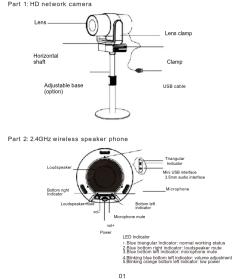
The CMW101 is a Full HD 1080P camera with a 120° wide angle lens. It comes with a 2.4 GHz wireless speaker microphone and is suitable for small and medium size conference scenes, personal business or home. It has a 2m US\$2.0 cable.
Component
- Application
CMW101 can be used once you have connected the camera to your PC via USB and switched on the speaker microphone. To switch off you can long press the off button on the speaker.

- Operation
- When connecting the USB to your computer, the following will appear in the lower right corner of the computer when you plug it in for the first time.

• After the device driver has installed successfully computer terminal will have the following prompt

- If you need to reconfirm whether the device has installed successfully, you can open the computer terminal Attribute
- click" device manager "- click" image device "to see the following device item and then you can use instant

03 04
- If the color and resolution of video are found to be
abnormal, you can adjustment the setting using software called "Amcap" to check. Check the output size of the white balance and video for the corresponding values.

Video output size, select 1920*1080

Or change the camera effect to "restore the default effect" in instant messaging software. If it still doesn't resolve the problem, please contact our after-sales service for technical support.


Brand : Alfatron
Model : ALF-CMW101
Category : Video Conferencing System