Watch GT 3 Elite - Smartwatch HUAWEI - Free user manual and instructions
Find the device manual for free Watch GT 3 Elite HUAWEI in PDF.


| Product Type | Smartwatch |
| Model | Watch GT 3 Elite |
| Brand | Huawei |
| Dimensions (without strap) | 46 mm x 46 mm x 11 mm |
| Weight (without strap) | Approximately 46 g |
| Display | 1.43 inch AMOLED, 466 x 466 pixels |
| Operating System | HarmonyOS |
| Compatibility | Android 6.0+ / iOS 9.0+ |
| Memory | 4 GB internal storage |
| Power Supply | Built-in rechargeable lithium-ion battery |
| Battery Life | Up to 14 days (typical usage) |
| Charging Time | Approximately 2 hours (wireless charging) |
| Connectivity | Bluetooth 5.2, GPS, NFC |
| Sensors | Heart rate, SpO2, accelerometer, gyroscope, barometer, compass |
| Water Resistance | 5 ATM (up to 50 meters) |
| Key Functions | Health monitoring (heart rate, SpO2, sleep, stress), 100+ workout modes, GPS tracking, music storage and playback, message notifications |
| Cleaning and Maintenance | Wipe with a soft dry cloth. Avoid abrasive cleaners. Keep charging contacts clean and dry. |
| Safety | Do not immerse in hot water. Remove if skin irritation occurs. Keep away from magnetic cards and pacemakers. |
| Spare Parts and Repairability | Strap is replaceable. Battery replacement by service center only. No user-serviceable parts. |
| General Information | Manufacturer: Huawei Technologies Co., Ltd. For detailed specifications, refer to the user manual. |
Frequently Asked Questions - Watch GT 3 Elite HUAWEI
User questions about Watch GT 3 Elite HUAWEI
0 question about this device. Answer the ones you know or ask your own.
Ask a new question about this device
Download the instructions for your Smartwatch in PDF format for free! Find your manual Watch GT 3 Elite - HUAWEI and take your electronic device back in hand. On this page are published all the documents necessary for the use of your device. Watch GT 3 Elite by HUAWEI.
USER MANUAL Watch GT 3 Elite HUAWEI
Buttons and gestures 1
Pairing and connecting 3
Charging 3
Wearing the watch 4
Exercise
Starting a workout 6
Enabling Smart Trainer 6
Running plans 7
Viewing workout records 7
Workout status 8
Recording daily activities 8
Auto-detecting workouts 8
Route back 8
Health Management
Measuring your skin temperature 10
Sleep tracking 10
Measuring blood oxygen levels (SpO2) 11
Heart rate measurements 12
Stress tests 14
Breathing exercises 14
Activity reminder 15
Menstrual cycle predictions 15
Assistant
Assistant·TODAY on your 16
Apps 16
Message management on the 17
rejecting incoming calls on your 18
Checking your call logs 18
Music playback controlled on the 19
Stopwatch 20
Timers 20
Setting alarms on Huawei watches 20
Flashlight 21
Barometer 21
Compass 22
Receiving weather reports 22
Using your watch to find your phone 22
Contents
Remote shutter 23
Connecting Bluetooth earbuds 23
Enabling or disabling Do Not Disturb 23
More
Adjusting and changing the strap for the 25
Configuring Gallery 26
Setting the AOD watch face 27
Managing watch faces 27
Setting favorite contacts 28
Setting time and language 28
Customizing the function of the Down button 28
Adding custom cards 28
Adjusting the screen brightness 29
Updating the watch 29
Viewing the Bluetooth name, MAC address, SN, model, and 29
version number
Powering on, powering off, and restarting the watch 30
Restoring the device to its factory settings 30
Getting Started
Buttons and gestures
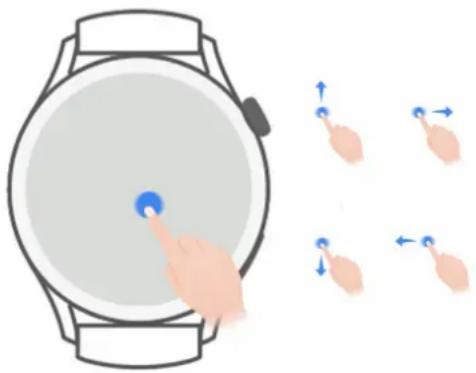
The watch is equipped with a color touchscreen that is highly touch-responsive and can be swiped in different directions.
natural_image
Illustration of a hand pressing a blue button next to a smartwatch, with four abstract icons showing different hand gestures (no text or symbols)Up button
| Operation Function Remarks | ||
| Rotate ·In Grid mode, zoom in and out on an app on the app list screen.·In List mode, swipe up and down on the app list screen or the details screen.·Scroll up and down the screen after you enter an app. i To enable Grid or List mode on your watch, go to Settings > Watch face & launcher > Launcher and select Grid or List. | There are certain exceptions such as for calls and workouts. | |
| Press ·Turn on the screen.·Open the app list screen from the home screen.·Return to the home screen. | There are certain exceptions such as for calls and workouts. | |
| Press and hold ·Power on the watch.·Access the restart/power-off screen when the watch is powered on.·Forcibly restart the watch by pressing and holding the button for more than 12 seconds. | There are certain exceptions such as for calls and workouts. | |
Down button
| Operation Function Remarks | ||
| Press Open the | The Workout app.Access the set customized app. | There are certain exceptions such as for calls and workouts. |
| Press and hold | Wake up the voice assistant. - | |
Gestures
| Operation Function | |
| Touch Confirm your | selection. |
| Touch and hold Change the watch face. | |
| Swipe up View notifications. | |
| Swipe down View the shortcut menu. | |
| Swipe left or right View watch feature cards or enter the Assistant·TODAY screen. | |
| Swipe right Return to the previous screen. | |
Turning on the screen
- Press the Up button.
- Raise or rotate your wrist inwards.
- Swipe down on the home screen to open the shortcut menu. Enable Show Time for the screen to stay on for five minutes.
To set a different duration for the screen to stay on, go to Settings > Display & Brightness > Screen time.
Turning off the screen
Perform no operations for a period of time after you turn on the screen by pressing the button or raising your wrist.
Cover the entire screen to turn off the screen.
- To set a duration for the screen to stay off, go to Settings > Display & Brightness > Sleep to set a duration.
- To enable the watch face and some app screens to stay on, go to Settings > Watch face & launcher and enable Always On Display.
- To change the AOD style, go to Settings > Watch face & launcher > AOD style > Default style and select a different AOD style.
Pairing and connecting
The device is ready to be paired via Bluetooth, when it is powered on for the first time.
Download and install the latest version of the Health app.
i Make sure that you are using one of the following devices, with Bluetooth and location services enabled:
Phones: HarmonyOS 2/Android 6.0/iOS 9.0 or later (Some devices, such as the need to be paired with a phone running iOS 12 or later). The actual version shall prevail.
Tablets: HarmonyOS 2 or later
HarmonyOS/Android users
1 Open the Health app and go to Devices > ADD. The app will automatically scan for devices that it can connect to. Touch LINK next to the target device, and follow the onscreen instructions to complete the pairing process.
- If you wish to pair your device with another phone, go to Settings > System > Disconnect on your device, touch √, and follow the onscreen instructions.
- If the target device is not in the list of devices that can be connected to automatically, touch ADD, select the target device, touch PAIR, and follow the onscreen instructions to complete the pairing process.
2 When a pairing request is displayed on the device screen, touch √ to initiate pairing. Confirm the pairing on your phone/tablet as well.
iOS users
1 Open the Health app, go to Devices > ADD, select the device you wish to pair with, and touch PAIR.
2 For some device models, you'll need to pair your device with the phone/tablet via Bluetooth. Follow the onscreen instructions to select your device from the Bluetooth settings screen. When a pairing request is displayed on your device, touch √.
3 Open the Health app, and follow the onscreen instructions to complete the pairing process.
- Your device will display an icon onscreen to indicate a successful pairing, before returning to the home screen and receiving the information (such as the date and time). Otherwise, your device will display an icon on the screen to inform you that pairing was unsuccessful. It will then return to the startup screen.
Charging
Charging
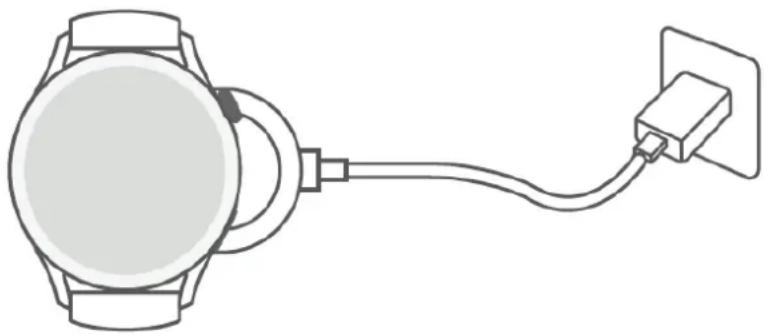
1 Connect the charging cradle to a power adapter and then connect the power adapter to a power supply.
2 Rest your watch on top of the charging cradle and align the metal contacts on your watch to those of the charging cradle until a charging icon appears on the watch screen.
natural_image
Line drawing of a smartwatch connected to a power outlet (no text or symbols)3 Remove the watch and disconnect the power adapter after the watch is fully charged and the charging icon displays 100%.
- You are advised to use a Huawei charger or a non-Huawei charger that complies with corresponding regional or national laws and regulations as well as regional and international safety standards to charge your watch. Other chargers and power banks that do not meet corresponding safety standards may cause issues such as slow charging and overheating. Exercise caution when using them. It is recommended that you purchase a Huawei power adapter from an official Huawei sales outlet.
- Keep the charging port dry and clean to prevent short circuits or other risks.
•The charging cradle tends to attract metal objects due to it being magnetic. Therefore, it is necessary to check and clean the charging cradle before use. Do not expose the charging cradle to high temperatures for a long time, as this may cause the charging cradle to demagnetize or cause other exceptions.
Checking the battery level
Method 1: Swipe down from the top of the home screen to check the battery level.
Method 2: Connect your watch to a power supply and check the battery level on the charging screen.
Method 3: View the battery level on a watch face that displays the battery level.
Method 4: Connect your watch to the Health app, open the Health app, touch Devices then your device name, and check the battery level on the device details screen.
Wearing the watch
Ensure that the rear cover of the watch is clean, dry, and free of foreign objects. Attach the monitoring area of the watch to your wrist and make sure it feels comfortable. Do not attach a protective film to the rear of the watch. The rear cover of the watch has sensors that can identify signals from the human body. If the sensors are blocked, the identification will be inaccurate or fail and the watch won't be able to accurately record the heart rate, , SpO2, and sleep data.
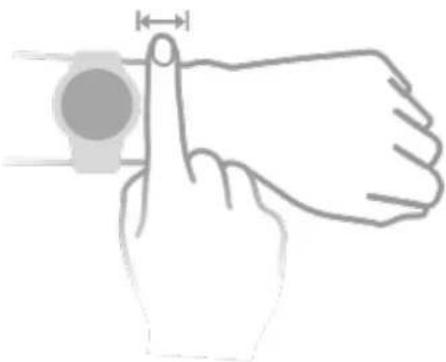
To ensure the accuracy of measurements, avoid wearing the strap more than one finger width away from your wrist bone. Ensure that the strap is worn relatively tightly and ensure it is secure during workouts.
natural_image
Illustration of a hand pointing to a wristwatch with a circular dial and measurement arrow (no text or symbols)The device is made of materials that are safe to use. If you experience skin discomfort when wearing the device, take it off and consult a doctor.
Exercise
Starting a workout
Starting a workout on your watch
1 Enter the app list of your watch and touch Workout.
2 Select the workout you want to do or your preferred course. Alternatively, swipe up on the screen and touch Custom to add other workout modes.
3 Touch the Start icon to start a workout session. (Ensure that GPS positioning is working before you start an outdoor workout.)
4 To end a workout session, press the Up button and touch the Stop icon, or press and hold the Up button.
For devices that support voice broadcasts, press the Up button to pause the workout and then adjust the volume during a workout.
- Swipe left or right on the screen to switch between the music, sunrise/sunset, route back, and other screens.
Starting a workout in the Health app
i This feature is not available in the Health app on tablets.
To start a workout using the Health app, move your phone and watch close to each other to ensure that they are connected.
1 Open the Health app, touch Exercise, choose a workout mode, and touch the Start icon to start a workout.
2 Once you have started a workout, your watch will sync and display your workout heart rate, speed, and time. Your workout data, such as the workout time, will be displayed in the Health app.
Enabling Smart Trainer
After Smart Trainer is enabled on your watch, your watch will send you real-time voice guidance during a running session.
1 Press the Up button to access the app list and touch Workout.
2 Touch the Settings icon to the right of Outdoor run and enable Smart Trainer.
3 Return to the app list, touch Outdoor run, wait until GPS positioning is complete, and touch the Run icon to start running.
Smart Trainer is currently only available for Outdoor run. If you have set your workout goal, your smart trainer won't provide you with any voice guidance.
After Smart Trainer is enabled, you will be able to get real-time voice guidance when you are running. Smart Trainer has replaced the functions of Goals, Reminders, and Smart companion.
Running plans
The device provides customized scientific training plans that adapt to your time to meet your training requirements. The device can help you finish your plan in a timely manner and intelligently adjust the difficulty of subsequent courses based on your training status and feedback.
Creating a running plan
1 Open the Health app, go to Exercise > Outdoor run or Indoor run > AI running plan, touch More on the right, select a running plan, and follow the onscreen instructions to finish creating the plan.
2 Press the Up button on your watch to enter the app list and go to Workout > Courses & plans > Training plan to view your running plan. On the training day, touch the Workout icon to start a workout.
Ending a running plan
Open the Health app, go to Exercise > Plan, touch :: in the upper right corner, and touch End plan.
Other settings
Open the Health app, go to Exercise > Plan, and touch :: in the upper right corner:
Touch View plan to view the plan details.
Touch Sync to wearable device to sync plans to your wearable device.
Touch Plan settings to edit information such as the training day, reminder time, and whether to sync the plan to the calendar.
Viewing workout records
Viewing workout records on the device
1 On the device, enter the app list and touch Workout records.
2 Select a record and view the corresponding details. The device will display different data types for different workouts.
Viewing workout records in the Health app
You can also view detailed workout data under Exercise records on the Health screen in the Health app.
Deleting a workout record
Touch and hold a workout record on Exercise records in the Health app and delete it. This record will still be available on the watch after you delete it in the app.
Workout status
Enter the watch's app list, touch Workout status, and swipe up on the screen to view data including your training load and VO2Max.
- Your training load from the last seven days can be viewed to determine your level based on your fitness status. The watch collects your training load from workout modes that track your heart rate.
- VO2Max data can be obtained from outdoor running workouts.
Recording daily activities
Wear your watch correctly for it to automatically record data relating to calories, distance, climbing stairs, steps, duration of moderate-to-high intensity activities, and other activities.
Press the Up button to access the app list, swipe until you find Activity records, touch it, and then swipe up or down to view data relating to calories, distance, climbing stairs, steps, duration of moderate-to-high intensity activities, and other activities.
Auto-detecting workouts
The device can automatically identify your workout status.
Go to Settings > Workout settings and enable Auto-detect workouts. After this feature is enabled, the device will remind you to start a workout when it detects increased activity. You can ignore the notification or choose to start the corresponding workout.
i. The device will automatically identify your workout mode and remind you to start a workout if you meet the requirements based on the workout posture and intensity and stay in this state for a certain period of time.
- If the actual workout intensity is lower than that required by the workout mode for a certain period of time, the device will display a message indicating that the workout has ended. You can ignore the message or end the workout.
Route back
When you start an outdoor workout and enable the Route back feature, the watch will record the route you took and provide you with navigation services. After reaching your destination, you can use this feature to find out how to return to where you passed through or came from.
On your watch, enter the app list, then swipe until you find Workout and touch it. Start an individual outdoor workout session. Swipe left on the screen and select Route back or Straight line to return to the starting point. If there is no Route back or Straight line on the screen, touch the screen to display it.
Health Management
Measuring your skin temperature
Skin temperature measurements are mainly used to monitor the changes in the wrist skin temperature after exercise. After you enable a continuous skin temperature measurement, your skin temperature will be continuously measured and a measurement curve will be generated.
i • The HUAWEI WATCH Runner does not support this feature.
•The product is not a medical device. Temperature measurements are mainly used to monitor the changes in the wrist skin temperature of healthy people over the age of 18 during and after exercise. Results are for reference only and should not be used as a basis for medical diagnosis or treatment.
- During the measurement, wear the device relatively tightly for more than 10 minutes and stay in a relaxed environment at room temperature (about 25^ ). Ensure that there are no water stains or alcohol on your wrist. Do not start a measurement in an environment with direct sunlight, wind, or cold/heat sources.
• After you exercise, shower, or switch between outdoor and indoor environments, wait 30 minutes before you start a measurement.
Single measurement
In the watch's app list, go to Skin temperature > Measure to start measuring your temperature.
i Touch Join study if you are measuring for the first time. If you touch Leave study, you will need to touch Join study again before you start a measurement. Swipe up on the Measure screen and touch About study to view more information about the study, applicable objects and scenarios, and requirements for wearing the device while using this feature.
Continuous measurement
1 Open the Health app, touch Devices and then the device name, go to Health monitoring, and enable Continuous skin temperature measurement.
2 In the watch's app list, touch Skin temperature to view the measurement curve.
Sleep tracking
i Ensure that you are wearing your device correctly. The device will automatically record how long you are asleep and identify whether you are in a deep sleep, light sleep, or awake.
- Open the Health app, touch Devices then your device name, go to Health monitoring > HUAWEI TruSleep™, and enable HUAWEI TruSleep™. When enabled, the device can accurately recognize when you fall asleep, wake up, and whether you are in a deep sleep or REM sleep, and provide you with sleep quality analysis and suggestions to help you understand and improve your sleep quality.
- If HUAWEI TruSleep™ has not been enabled, the device will track your sleep using the normal method. When you wear your device while sleeping, it will identify the different sleep stages including the time you fall asleep, wake up, and enter or exit deep/light sleep, and sync the corresponding data to the Health app.
- View your sleep data: Open the Health app and touch the Sleep card. You can then view your daily, weekly, monthly, and yearly sleep data.
Measuring blood oxygen levels (SpO2)
To ensure the accuracy of the SpO2 measurement, wear the watch properly and ensure the strap is fastened. Ensure that the monitoring module is in direct contact with your skin without any obstructions.
Single SpO2 measurement
1 Wear your watch correctly and keep your arm still.
2 From the home screen, press the Up button, swipe on the screen, and touch SpO2.
3 Keep your body still during the SpO2 measurement.
Automatic SpO2 measurement
1 Open the Health app, touch Devices and then your device name, go to Health monitoring, and enable Automatic SpO2 measurement. The device automatically measures and records your SpO2 when it detects that you are still.
2 Touch Low SpO2 alert to set the lower limit of your SpO2 for you to receive an alert when you are not asleep.
The measurement will be interrupted if you swipe right on the watch screen, start a workout with the Health app, or receive a notification for an incoming call or alarm.
- Data provided is for reference only and not for medical use. Consult a doctor as soon as possible if you feel uncomfortable.
- During the SpO2 measurement, the watch will also measure your heart rate.
- This measurement may also be affected by some external factors such as low blood perfusion, tattoos, a lot of hair on your arm, a dark complexion, lowering or moving your arm, or low ambient temperatures.
Heart rate measurements
To guarantee a more accurate heart rate measurement, wear the watch correctly and ensure the strap is fastened. Make sure that your watch is secure on your wrist. Ensure that the monitoring module is in direct contact with your skin without any obstructions.
Individual heart rate measurement
1 Open the Huawei Health app, touch Devices then your device name, go to Health monitoring > Continuous heart rate monitoring, and disable Continuous heart rate monitoring.
2 Access the app list and select Heart rate to measure your heart rate.
This measurement may also be affected by some external factors such as low blood perfusion, tattoos, a lot of hair on your arm, a dark complexion, lowering or moving your arm, or low ambient temperatures.
Heart rate measurement for a workout
During a workout, the device displays your real-time heart rate and heart rate zone, and notifies you when your heart rate exceeds the upper limit. For better training results, you are advised to do a workout based on your heart rate zone.
- Heart rate zones can be calculated based on the maximum heart rate percentage or HRR percentage. To choose the calculation method, open the Health app, go to Me > Settings > Workout settings > Exercise heart rate settings and set Calculation method to either Maximum heart rate percentage or HRR percentage.
i Running
- If you select Maximum heart rate percentage as the calculation method, the heart rate zone for different types of workout activities (Extreme, Anaerobic, Aerobic, Fat-burning, and Warm-up) is calculated based on your maximum heart rate ("220 minus your age" by default).
- If you select HRR percentage as the calculation method, the heart rate interval for different types of workout activities (Advanced anaerobic, Basic anaerobic, Lactic acid, Advanced aerobic, and Basic aerobic) is calculated based on your heart rate reserve (HRmax - HRrest).
- Heart rate measurement during a workout: The real-time heart rate can be displayed on the device when you start a workout.
After completing your workout, you can check your average heart rate, maximum heart rate, and heart rate zone on the workout results screen.
-Your heart rate will not be displayed if you remove the device from your wrist during the workout. However, it will continue to search for your heart rate signal for a while. The measurement will resume once you put the device back on.
Continuous heart rate monitoring
Open the Huawei Health app, touch Devices then your device name, go to Health monitoring > Continuous heart rate monitoring, and enable Continuous heart rate monitoring. Once this feature is enabled, your watch can measure your real-time heart rate.
Resting heart rate measurement
Resting heart rate refers to your heartbeats per minute measured when you are awake, still, and calm. It is an important indicator of your heart health. The best time to measure your resting heart rate is immediately after you wake up in the morning.
Open the Huawei Health app, touch Devices then your device name, go to Health monitoring > Continuous heart rate monitoring, and enable Continuous heart rate monitoring. The device will then measure your resting heart rate automatically.
- If you disable Continuous heart rate monitoring after checking your resting heart rate, the resting heart rate displayed in the Health app will remain the same.
- The resting heart rate data on the device will be cleared on its own at 00:00 (24-hour clock) or 12:00 midnight (12-hour clock).
Heart rate limit warning
After you start a workout using your watch, your watch will vibrate to alert you that your heart rate value has exceeded the upper limit for more than 60 seconds.
Perform the following to set a heart rate upper limit:
- For iOS users: Open the Health app, touch Device and your device name, go to Heart rate limit interval and warning > Heart rate limit warning, and set an upper limit.
- For HarmonyOS/Android users: Open the Health app, go to Me > Settings > Workout settings > Exercise heart rate settings, touch Heart rate limit, and set an upper limit.
Heart rate alerts
High heart rate alert
Touch Devices and your device name, go to Health monitoring > Continuous heart rate monitoring, turn on the switch for Continuous heart rate monitoring, and set a high heart rate alert. You will then receive an alert when you are not doing a workout and your heart rate stays above your set limit for more than 10 minutes.
Low heart rate alert
Touch Devices and your device name, go to Health monitoring > Continuous heart rate monitoring, turn on the switch for Continuous heart rate monitoring, and set a low heart rate alert. You will then receive an alert when you are not doing a workout and your heart rate stays below your set limit for more than 10 minutes.
Stress tests
Testing your stress levels
During a stress test, wear your watch correctly and keep still. The watch will not test your stress level when you are doing a workout or when you move your wrist too frequently.
•Single stress test:
Open the Health app, touch the Stress card, and touch Stress test to start a single stress test. When using the stress test feature for the first time, follow the onscreen instructions in the Health app to calibrate your stress level.
•Periodic stress tests:
Open the Health app, touch Devices and then your device name, go to Health monitoring
Automatic stress test, turn on the switch for Automatic stress test, and follow the onscreen instructions to calibrate the stress level. Periodic stress tests will then start automatically when you wear the watch correctly.
The accuracy of the stress test may be affected if the user has just taken substances with caffeine, nicotine, or alcohol, or psychoactive drugs. It may also be affected when the user suffers from heart disease or asthma, has been exercising, or is wearing the watch incorrectly.
Viewing stress data
•On the watch:
Press the Up button to access the app list, swipe up or down until you find Stress, and touch it to view the graph indicating changes to your stress level, the stress bar chart, stress levels, and stress intervals.
•In the Health app:
Open the Health app, then touch the Stress card to view your latest stress level, daily, weekly, monthly, and yearly stress curves, and corresponding advice.
Breathing exercises
Enter the app list on your device and touch Breathing exercises, set the duration and rhythm, touch the breathing exercises icon on the screen, and follow the onscreen instructions to do the breathing exercises. After the exercise is finished, the screen will display data such as the heart rate before the exercise, exercise duration, and evaluation.
Activity reminder
When Activity reminder is enabled, the device will monitor your activity throughout the day in increments (one hour by default). It will vibrate and the screen will turn on to remind you to take a moment to get up and move around if you didn't move around during the set period.
To disable Activity reminder, open the Health app, touch Devices then your device name, touch Health monitoring, and turn off the switch for Activity reminder.
- The device will not vibrate to remind you to move around if you have enabled Do Not Disturb on it.
•The device will not vibrate if it detects that you are asleep.
- The device will only send reminders between 8:00 and 12:00 and between 14:30 and 21:00.
Menstrual cycle predictions
The device can predict your next period and fertile window based on data from your periods.
• Method 1: On the watch's home screen, press the side button, touch Cycle Calendar and
touch You can edit or confirm the start and end of your period to help increase accuracy. After you finish, your watch will predict your next period based on the data you recorded.
-Method 2:
1 Open the Huawei Health app, touch Cycle Calendar, and grant the corresponding permissions. If you are unable to find the Cycle Calendar card on the home screen, touch EDIT on the home screen to add this card to the home screen.
2 Touch Record period on the Cycle Calendar screen. You can then select Period started or Period ended? for specific dates to record the duration of your period. You can also record your physical condition in Record symptoms.
3 Touch in the lower right corner, select Wearable device reminders, and turn on all reminder switches. The device will send you reminders for the start and end of your period and fertile window.
You can also select Edit period to set Period length and Cycle length.
i • Touch Records to view and modify the period data. The predicted period is marked by the dotted line.
- The device will remind you about the start of your period before 8:00 AM on the day before it's supposed to start. You will be reminded about all other reminders for the day of the event at 8:00 AM on that day.
Assistant
Assistant·TODAY on your
The Assistant·TODAY screen makes it easy to view weather forecast, wake up the voice assistant, access apps that have been opened, and view push messages from the calendar and AI Tips.
i AI Tips push messages are only supported when the watches are paired with phones running HarmonyOS 2/EMUI 11.0.1 (EMUI 9.1 for some watch models) or later.
Entering/Exiting Assistant·TODAY
Swipe right on the watch home screen to enter Assistant·TODAY. Swipe left on the screen to exit Assistant·TODAY.
Audio control center
You can use the HUAWEI Music card on the Assistant·TODAY screen to control music playback on both your phone and watch. To control music playback on your phone via the watch, you'll need to pair the watch with the Huawei Health app.
This feature is only supported when the device is paired with HarmonyOS/Android phones.
Apps
i This feature is only available with the following phones/tablets:
Phones: HarmonyOS 2/Android 6.0 or later
Tablets: HarmonyOS 2 or later
Installing apps
1 Open the Huawei Health app, touch Devices and your device name, then touch AppGallery.
2 Select the app you want to use from the Apps list and touch Install. After the app is installed, it will be displayed in the app list on your watch.
Using apps
1 Press the Up button on your watch to enter the app list.
2 Swipe up or down, select an app, and follow the onscreen instructions to use it.
- Some apps can only be used when the watch is connected to your phone. If the watch displays a message asking you to install the app on your phone, it indicates that the app can only be used with your phone.
- When you install and use an app on your phone for the first time, agree to the agreements or terms displayed on the app screen, and follow the onscreen instructions to complete giving authorization and logging in. Otherwise, you will not be able to use the app. If there is an issue when giving authorization, open the Huawei Health app, go to Me > Settings > Device capabilities, and select the app that you want to give authorization to again.
Updating apps
1 Open the Huawei Health app, touch Devices and your device name, then touch AppGallery.
2 Touch Manager to view the apps to be updated and the list of installed apps.
3 Go to Updates > Update to update apps to the latest version for a better experience.
Uninstalling apps
1 Open the Huawei Health app, touch Devices and your device name, then touch AppGallery.
2 Touch Manager to view the apps to be updated and the list of installed apps.
3 Go to Installation manager > Uninstall to uninstall apps. After the app is uninstalled, it will also be deleted from your watch.
- If you touch Disable AppGallery service and DISABLE, AppGallery will be disabled. If you want to use this feature again, touch AppGallery and follow the onscreen instructions to complete giving authorization, and enable AppGallery.
Message management on the
After you enable notifications, all messages with notifications that are displayed in the status bar of your phone/tablet will be synced to your watch.
When the Huawei Health app is connected to your device via Bluetooth, the notifications displayed in the status bar of your phone/tablet will be pushed to your device. The notifications that are not displayed in the status bar will not be pushed to your device.
Enabling message notifications
1 Open the Huawei Health app, touch Devices and then your device name, touch Notifications, and turn on the switch.
2 Touch Apps and turn on the switches for apps that you want to receive notifications from.
i You can go to Apps to view the apps that you can receive notifications from.
Viewing unread messages
Your device will vibrate to notify you of new messages pushed from the status bar of your. Unread messages can be viewed on your device. To view them, swipe up on the home screen to enter the unread message center.
i Messages that you have viewed on your phone/tablet will be deleted from your watch at the same time.
Replying to messages
When receiving a message on your watch, you can use quick replies or emoticons to reply to it.
Customizing quick replies
This feature is only supported on the HUAWEI WATCH 3 series, HUAWEI WATCH GT 3 series, HUAWEI WATCH GT 2022 Premium Edition, and HUAWEI WATCH GT Runner. This feature is not supported when the device is paired with an iOS phone.
You can customize a quick reply as follows:
1 Connect your device to the Huawei Health app, open the Devices details screen in the app, and touch the Quick replies card.
2 You can touch Add reply to add a reply, touch an added reply to edit it, and touch next to a reply to delete it.
Deleting unread messages
Swipe right on a message to delete it or touch Clear at the bottom of the list to delete all unread messages.
rejecting incoming calls on your
When there is an incoming call, your watch will inform you and display the caller's number or name. You can reject the call.
- Press the Up button to stop the watch from vibrating during an incoming call.
- Touch the End icon on the screen or touch and hold the Up button on your watch to end the call.
FAQ: There is no answer icon on the incoming call screen of my watch
Checking your call logs
Viewing your call logs
Press the Up button on your watch to access the app list, swipe up or down until you find Call Log, and touch it to view call logs (including incoming, outgoing, and missed calls) on your watch.
Calling back
When your watch is paired with your phone, touch any call record to call back.
Deleting call logs
Swipe down to the bottom of the screen and touch Clear to clear all call logs.
Music playback controlled on the
Prerequisites
•To use this feature, ensure that the watch is connected to your phone.
- This feature is only supported on the following devices:
Phones: HarmonyOS 2/Android 6.0 or later
Tablets: HarmonyOS 2 or later
Adding music
1 Open the Health app and touch Devices then your device name.
2 Go to Music > Manage music > Add songs and select the music to be added.
3 Click √ in the upper right corner of the screen.
Controlling music playback on the watch
1 Press the Up button of the watch to access the app list, swipe until you find Music, and then touch it.
2 Go to Watch.
3 Swipe right on the screen to return to the previous screen, touch the music you have added to your watch using the Health app, and touch the play button to play the music.
On the music playback screen of your watch, you can switch between songs, adjust the volume, and select a playback mode, such as Play in order, Shuffle, Repeat the current song, and Repeat list.
- Swipe up on the screen to view the music list. If you swipe left or right on the watch's home screen to access the music playback card, you won't be able to view the music list.
Controlling music playback on the phone
1 Open the Health app, touch Devices then your device name, touch Music, and turn on Control phone music.
2 Open the Music app on your phone and play music.
3 Open the Music app on your watch and go to □> Phone.
4 Swipe right on the screen to return to the previous screen to pause, switch, or adjust the music volume on your phone.
Stopwatch
The watch supports normal and segment-based timing in Stopwatch, helping you with activities that require accurate timing, such as sports and competitions.
Starting the stopwatch
1 Press the Up button on the watch to open the app list and then touch Stopwatch.
2 Touch to start timing.
3 Touch to start segment-based timing.
Pausing or resetting the stopwatch
Touch to pause the stopwatch and touch to reset the stopwatch.
Timers
The watch supports quick timers with preset durations and customized timers to help you complete tasks with specified durations.
Setting a quick timer
1 Press the Up button on the watch to open the app list and then touch Timer.
2 Select a duration and start timing.
3 After the timer expires, the watch will vibrate. You can touch the icon in the lower right corner to repeat the last quick timer.
Setting a customized timer
1 Press the Up button on the watch to open the app list and then touch Timer.
2 Swipe up on the screen and touch Custom.
3 Select the hour, minute, and second and then touch to start timing.
Pausing, resetting, and exiting the timer
Touch to pause, touch to reset or go back to the previous screen, and touch to exit.
Setting alarms on Huawei watches
You can set the smart alarm and event alarms in the Huawei Health app. The smart alarm will only wake you up in advance based on the preset time when you are not in deep sleep. Event alarms will go off at the time you set. If you have set a tag and time for an event alarm, the watch will display the tag. Otherwise, only the time will be displayed.
Setting alarms on the watch
1 Enter the app list, select Alarm, and touch to add an alarm.
2 Set the alarm time and repeat cycle and then touch OK. If you do not set the repeat cycle, the alarm will be a one-time alarm.
3 Touch an alarm to delete it or modify the alarm time and repeat cycle. Only event alarms can be deleted.
Setting alarms using the Huawei Health app
Smart alarm:
1 Open the Huawei Health app, touch Devices and your device name, and go to Alarm > Smart alarm.
2 Set the alarm time, smart wakeup time, and repeat cycle.
3 If you are an Android user, touch √ in the upper right corner. If you are an iOS user, touch Save in the upper right corner.
4 Return to the home screen and swipe down to sync the alarm settings to your watch.
5 Touch an alarm to modify the alarm time, smart wakeup time, and repeat cycle.
Event alarm:
1 Open the Huawei Health app, touch Devices and your device name, and go to Alarm > Event alarms.
2 Touch Add to set the alarm time, tag, and repeat cycle.
3 If you are an Android user, touch √ in the upper right corner. If you are an iOS user, touch Save in the upper right corner.
4 Return to the home screen and swipe down to sync the alarm settings to your watch.
5 Touch an alarm to modify its time, tag, and repeat cycle.
• If you do not set the repeat cycle, the alarm will be a one-time alarm.
- Alarms set on your phones will be automatically synced to your watch when they are connected, and the syncing process cannot be cancelled.
Flashlight
On the device, enter the app list and touch Flashlight. The screen will light up. Touch the screen to turn off the flashlight, then touch the screen again to turn it back on. Swipe right on the screen or press the side button to close the Flashlight app.
Barometer
Barometer on the watch automatically measures the altitude and air pressure of the current location and records the measurement data of the current day in a waveform graph.
Viewing the altitude and air pressure
1 Press the Up button on the watch to open the app list and then touch Barometer.
2 Swipe up or down on the screen to view the altitude and air pressure.
Compass
The Compass app displays the direction of your watch, helping you get your bearings in unfamiliar environments such as when you are outdoors or traveling.
Touch Compass in the app list and follow the onscreen instructions to calibrate your watch.
After the calibration is complete, your watch will display a compass dial.
During the calibration, avoid sources of magnetic field interference, such as phones, tablets, and computers, as they might affect the calibration accuracy.
Receiving weather reports
Enabling weather reports
Open the Health app, touch Devices and your device name, enable Weather report, and select a unit of temperature (°C or °F).
Viewing weather reports
You can check your watch to find out about the weather in your local area.
Method 1: In the Weather card
Swipe right on the screen until you find the Weather card, then you can check your location, the latest weather, temperature, and air quality.
Method 2: On a watch face
Ensure that you are using a watch face that displays weather information, then you can check the latest weather information on the home screen.
Method 3: In the Weather app
Press the Up button when on the home screen of your watch, swipe until you find Weather, touch it, and then you can check your location, the latest weather information, temperature, and air quality. Swipe up or down on the screen to view the weather information for the week.
Using your watch to find your phone
Swipe down on the watch face screen to enter the shortcut menu and touch Find phone. The Find phone animation will then be played on the screen.
If your watch and phone are within the Bluetooth connection range, the phone/tablet will play a ringtone (even in Vibrate or Silent mode) to notify you of its whereabouts.
Touch the watch screen to stop searching for your phone/tablet.
i This feature will only work when your phone and watch are connected.
If you are using an iOS phone and its screen is turned off, the iOS controls the playback of the system ringtone. As a result, the phone may not respond when the user is using the Find phone feature.
Remote shutter
After the watch is connected to your phone/tablet, touch Remote shutter in the app list on your watch to enable the camera on your phone/tablet, and then you can touch 📷 on the watch screen to take a photo. Touch 📊 to switch between a 2-second and 5-second timer.
- Remote shutter is only available in the watch's app list when your watch is paired with the following phones/tablets:
Phones: Some phones running HarmonyOS 2/EMUI 8.1 or later.
Tablets: Some tablets running HarmonyOS 2 or later.
•To use this feature, ensure that your watch is connected to your phone/tablet and that the Huawei Health app is running in the background.
Connecting Bluetooth earbuds
•Method 1:
1 Press the Up button on your watch to access the app list and go to Settings > Earbuds or Settings > Bluetooth.
2 Your watch will search automatically for the Bluetooth earbuds list for pairing. Select the name of your target earbuds and follow the onscreen instructions to complete pairing.
•Method 2:
1 Press the Up button on your watch to access the app list, touch Music then or in the lower right corner of the music playback screen, and touch Earbuds.
2 Your watch will search automatically for the Bluetooth earbuds list for pairing. Select the name of your target earbuds and follow the onscreen instructions to complete pairing.
Enabling or disabling Do Not Disturb
After you enable Do Not Disturb, incoming calls and notifications will be muted and the watch will not vibrate when receiving incoming calls or notifications.
Immediate enabling or disabling
Method 1: Swipe down from the top of the watch face and touch Do Not Disturb to enable or disable it.
Method 2: Go to Settings > Sounds & vibration > Do Not Disturb > All day to enable or disable it.
Scheduled enabling or disabling
To use this feature, update the watch and the Huawei Health app to the latest versions.
Go to Settings > Sounds & vibration > Do Not Disturb > Scheduled and set Start and End. To disable scheduled Do Not Disturb, go to Settings > Sounds & vibration > Do Not Disturb > Scheduled.
More
Adjusting and changing the strap for the
Adjusting the strap
Three-bead metal strap
1 To remove the strap, push the lever in the direction indicated by arrow 1 and then remove the chain in the direction indicated by arrow 2.
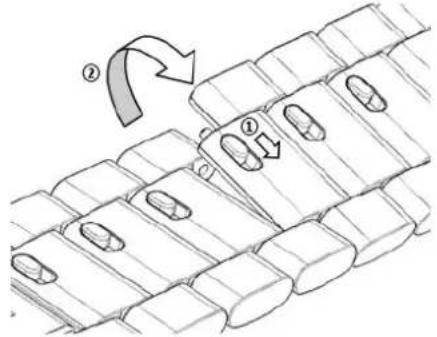
2 To install a strap, push the lever in the direction indicated by arrow 1 and then install the chain in the direction indicated by arrow 2.
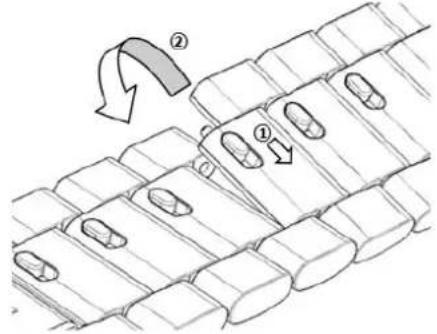
Changing the strap
- If you are using a non-metal strap, perform the following steps to remove it and install a new strap in the reverse order.
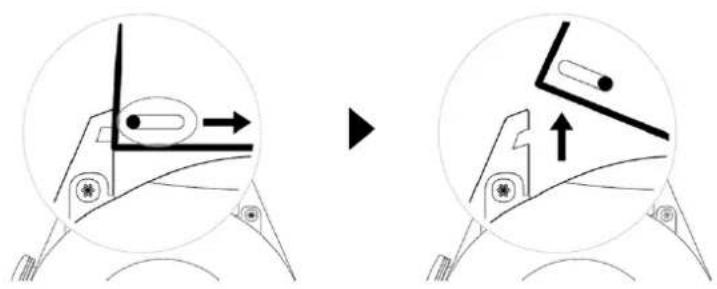
•To remove and install a metal strap, perform the following steps:
- Removal:
- Watch case with one guide slot on a lug:
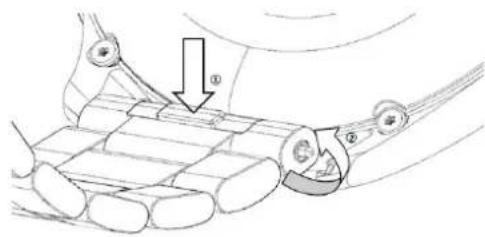
- Watch case with two guide slots on a lug:
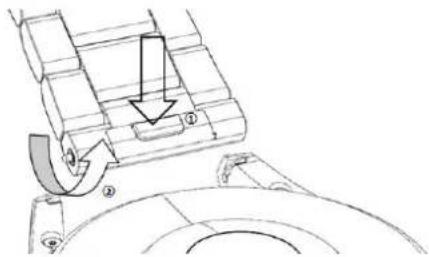
natural_image
Technical line drawing of a mechanical assembly with numbered components (no text or symbols)- Installation:
- If the watch case has one guide slot on a lug, insert the left spring bar of the watch strap into the bar hole on the watch case and then press the right spring bar through the guide slot.
- If the watch case has two guide slots on a lug, press the left and right spring bars of the watch strap through the two guide slots.
• Fastening the watch buckle
Press the middle position of the buckle against a lug.
The leather strap is not waterproof. Please keep it dry and remove any sweat and other liquids in a timely manner.
Configuring Gallery
Before using this feature, update the Huawei Health app and your device to their latest versions. HUAWEI WATCH D, HUAWEI WATCH 3 series, HUAWEI Band 6 series, HUAWEI Band B6, and HUAWEI WATCH FIT series devices must be paired with a phone running HarmonyOS 2/Android 6.0/iOS 12.0 or later in order to support this feature. Other devices need to be paired with a phone running HarmonyOS 2/Android 6.0 or later to support this feature.
Selecting Gallery watch faces
1 Open the Huawei Health app, touch Devices and then your device name, and go to Watch faces > More > Mine > On watch > Gallery to access the Gallery settings screen.
2 Touch + and select either Camera or Gallery as the method for uploading a photo.
3 Select a photo or take a new photo, touch √ in the upper right corner, and then touch Save. Your watch will display the customized photo as the watch face.
Other settings
On the Gallery settings screen:
- Touch Style and Position to set the style and location of the date and time on the Gallery watch faces.
- Touch the Cross icon in the upper right corner of a selected photo to delete it.
Setting the AOD watch face
You can enable the Always on display (AOD) feature and select to display the main watch face or AOD watch face when you raise your wrist.
i · Enabling AOD will reduce the battery life.
•After you enable AOD, the Raise to wake feature will be disabled.
Setting AOD
1 Open the app list, go to Settings > Watch face & home, and enable AOD.
2 Go to AOD style > Default style and select your preferred style. The style will then be displayed when the main watch face doesn't come with a built-in AOD watch face and you raise your wrist.
Managing watch faces
Watch Face Store provides a diverse range of watch faces for you to choose from. To download or delete watch faces, update the watch and the Health app to the latest versions.
Changing a watch face on your watch
1 Touch and hold the watch face screen or go to Settings > Watch face & launcher > Watch faces.
2 Swipe left or right to select a watch face you like.
i Some watch faces can be customized. You can touch 📋 under a watch face to customize the content that is displayed.
Installing and changing the watch face on your phone
1 Open the Health app, touch Devices and the device name, and go to Watch faces > More.
2 Select a watch face.
a If the watch face has not been installed, touch Install. After the installation is complete, your watch will automatically use this new watch face.
b If the watch face has been installed, touch SET AS DEFAULT to use the selected watch face.
- Paid watch faces cannot be refunded. If you cannot find watch faces in Watch Face Store that you have already purchased, contact the customer service hotline.
Deleting a watch face
1 Open the Health app, touch Devices and the device name, and go to Watch faces > More.
2 Select an installed watch face and touch 📋 to delete it.
i • Gallery or video watch faces cannot be deleted.
- You do not need to purchase a watch face again after deleting it from Watch Face Store. You will only need to reinstall it.
Setting favorite contacts
1 Open the Health app, touch Devices and your device name, then select Favorite contacts.
2 On the Favorite contacts screen:
- Touch ADD to display your phone/tablet's contacts list and then select the contacts you wish to add.
- Touch Sequence to sort the contacts you have added.
- Touch Remove to remove a contact you have added.
3 Touch a favorite contact from Favorite contacts in your watch's app list to call the contact's number on your watch.
Setting time and language
After you have synced data between your device and phone/tablet, the system language will be synced to your device as well.
If you change the language and region or change the time on your phone/tablet, the changes will automatically sync to the device as long as it is connected to your phone/tablet via Bluetooth.
Customizing the function of the Down button
1 Press the Up button to open the app list and then go to Settings > Down button.
2 Select an app and customize the function of the Down button.
After you have finished customizing the function, return to the home screen and press the Down button to open the current app.
Adding custom cards
1 Go to Settings > Custom cards on your wearable device and select your favorite apps, such as Sleep, Stress, and Heart rate.
2 Touch the up icon next to an app that you have added to move the app to another position. Touch the delete icon to delete the app.
3 Swipe left or right on the home screen to open the apps added to your custom cards.
Adjusting the screen brightness
1 Press the Up button on the watch to open the app list and then go to Settings > Display & brightness.
2 If Automatic is enabled, disable it.
3 Touch Brightness to adjust the screen brightness.
Updating the watch
For Android users: Connect the watch to your phone using the Health app, enter the device details screen on the watch, go to Firmware update > Check for updates, and follow the onscreen instructions to finish updating.
Once Auto-update device over Wi-Fi or Auto-download update packages over Wi-Fi is enabled, your device will receive an update package from the phone and send you a notification about the update. Follow the onscreen instructions to update your device.
- During an update, the Bluetooth connection between your watch and phone will disconnect. Please wait patiently until the update is complete.
- You are advised to ensure that the battery level of your device is greater than 20% before an update.
Viewing the Bluetooth name, MAC address, SN, model, and version number
Viewing the Bluetooth name:
- On the watch, go to Settings > About to view the Bluetooth name of the watch under Device name.
- Alternatively, open the Huawei Health app, then touch Devices and the watch name. The name of the connected device is the Bluetooth name.
Viewing the MAC address:
On the watch, go to Settings > About to view the MAC address of the watch.
Viewing the SN:
On the watch, go to Settings > About to view the serial number (SN) of the watch.
Viewing the model:
- On the watch, go to Settings > About to view the model of the watch.
Viewing the version number:
- On the watch, go to Settings > About to view the Version of the watch.
- Open the Huawei Health app, touch Devices then the watch name, and touch Firmware update to view the version number of the watch.
Powering on, powering off, and restarting the watch
Powering on
- Press and hold the Up button.
- Charge the device.
Powering off
- Press and hold the Up button, and then touch Power off.
- Press the Up button and go to Settings > System > Power off or Settings > System & updates > Power off
- If the battery level is critically low, the watch will vibrate and then automatically power off.
- If the watch is not charged promptly after the standby time expires, it will automatically power off.
Restarting
- Press and hold the Up button, and then touch Restart.
- Press the Up button and go to Settings > System > Restart or Settings > System & updates > Restart.
Force restarting
Press and hold the Up button for at least 16 seconds.
Restoring the device to its factory settings
Method 1: Go to Settings > System > Reset or Settings > System & updates > Reset on your watch.
Method 2: Open the Huawei Health app, touch Devices then your device name, and touch Restore factory settings.
i Personal data will be cleared from your device after you restore the device to its factory settings. Exercise caution when performing this operation.