HW7ACB - Router Hawking Technologies - Free user manual and instructions
Find the device manual for free HW7ACB Hawking Technologies in PDF.


| Product Type | Router |
| Brand | Hawking Technologies |
| Model | HW7ACB |
| Wireless Standard | 802.11ac |
| Frequency Band | Dual-band (2.4 GHz + 5 GHz) |
| Max Wireless Speed | Up to 1200 Mbps (300 Mbps on 2.4 GHz + 867 Mbps on 5 GHz) |
| Ethernet Ports | 4 x LAN 10/100/1000 Mbps, 1 x WAN 10/100/1000 Mbps |
| USB Ports | 1 x USB 2.0 |
| Antennas | 4 external antennas |
| Dimensions (W x D x H) | Approximately 220 x 160 x 40 mm |
| Weight | Approximately 0.5 kg |
| Power Supply | DC 12V, 1.5A |
| Security | WPA, WPA2, WPA3, WEP, Firewall, VPN Pass-through |
| Management | Web-based GUI, Mobile App, SNMP |
| Quality of Service | QoS for traffic prioritization |
| Guest Network | Support for multiple SSIDs |
| Parental Controls | Yes |
| Compliance | FCC, CE, RoHS |
| Operating Temperature | 0°C to 40°C |
| Storage Temperature | -20°C to 70°C |
| Humidity | 10% to 90% non-condensing |
| Package Contents | Router, Power Adapter, Ethernet Cable, Quick Installation Guide, CD-ROM |
Frequently Asked Questions - HW7ACB Hawking Technologies
User questions about HW7ACB Hawking Technologies
0 question about this device. Answer the ones you know or ask your own.
Ask a new question about this device
Download the instructions for your Router in PDF format for free! Find your manual HW7ACB - Hawking Technologies and take your electronic device back in hand. On this page are published all the documents necessary for the use of your device. HW7ACB by Hawking Technologies.
USER MANUAL HW7ACB Hawking Technologies
Hi-Gain™ Wireless-AC Multi-Function Access Point/Bridge W7ACB

natural_image
Abstract wireframe diagram of concentric circular patterns on a dark background, no text or symbols presentCOPYRIGHT
Copyright ©2014 by Hawking Technologies. All rights reserved. No part of this publication may be reproduced, transmitted, transcribed, stored in a retrieval system, or translated into any language or computer language, in any form or by any means, electronic, mechanical, magnetic, optical, chemical, manual or otherwise, without the prior written permission of this company
Hawking Technologies makes no representations or warranties, either expressed or implied, with respect to the contents hereof and specifically disclaims any warranties, merchantability or fitness for any particular purpose. Any software described in this manual is sold or licensed "as is". Should the programs prove defective following their purchase, the buyer (and not Hawking Technologies, its distributor, or its dealer) assumes the entire cost of all necessary servicing, repair, and any incidental or consequential damages resulting from any defect in the software. Further, this company reserves the right to revise this publication and to make changes from time to time in the contents thereof without obligation to notify any person of such revision or changes.
Federal Communication Commission Interference Statement
FCC Part 15
This equipment has been tested and found to comply with the limits for a Class B digital device, pursuant to Part 15 of FCC Rules. These limits are designed to provide reasonable protection against harmful interference in a residential installation. This equipment generates, uses, and can radiate radio frequency energy and, if not installed and used in accordance with the instructions, may cause harmful interference to radio communications. However, there is no guarantee that interference will not occur in a particular installation. If this equipment does cause harmful interference to radio or television reception, which can be determined by turning the equipment off and on, the user is encouraged to try to correct the interference by one or more of the following measures:
- Reorient or relocate the receiving antenna.
- Increase the separation between the equipment and receiver.
- Connect the equipment into an outlet on a circuit different from that to which the receiver is connected.
- Consult the dealer or an experienced radio technician for help.
FCC Caution
This equipment must be installed and operated in accordance with provided instructions and a minimum 20 cm spacing must be provided between computer mounted antenna and person's body (excluding extremities of hands, wrist and feet) during wireless modes of operation.
This device complies with Part 15 of the FCC Rules. Operation is subject to the following two conditions: (1) this device may not cause harmful interference, and (2) this device must accept any interference received, including interference that may cause undesired operation.
Any changes or modifications not expressly approved by the party responsible for compliance could void the authority to operate equipment.
Federal Communication Commission (FCC) Radiation Exposure Statement
This equipment complies with FCC radiation exposure set forth for an uncontrolled environment. In order to avoid the possibility of exceeding the FCC radio frequency exposure limits, human proximity to the antenna shall not be less than 20cm (8 inches) during normal operation.
The antenna(s) used for this transmitter must not be co-located or operating in conjunction with any other antenna or transmitter.
R&TTE Compliance Statement
This equipment complies with all the requirements of DIRECTIVE 1999/5/EC OF THE EUROPEAN PARLIAMENT AND THE COUNCIL of March 9, 1999 on radio equipment and telecommunication terminal Equipment and the mutual recognition of their conformity (R&TTE).
The R&TTE Directive repeals and replaces in the directive 98/13/EEC (Telecommunications Terminal Equipment and Satellite Earth Station Equipment) As of April 8, 2000.
Safety
This equipment is designed with the utmost care for the safety of those who install and use it. However, special attention must be paid to the dangers of electric shock and static electricity when working with electrical equipment. All guidelines of this and of the computer manufacture must therefore be allowed at all times to ensure the safe use of the equipment.
EU Countries Intended for Use
The ETSI version of this device is intended for home and office use in Austria, Belgium, Denmark, Finland, France, Germany, Greece, Ireland, Italy, Luxembourg, the Netherlands, Portugal, Spain, Sweden, and the United Kingdom.
The ETSI version of this device is also authorized for use in EFTA member states: Iceland, Liechtenstein, Norway, and Switzerland.
EU Countries Not intended for use
None.
CONTENTS
Chapter I: Product Information....2
1-1 Product Introduction ...... 2
1-2 Safety Information....3
1-3 System Requirements 4
1-4 Package Contents....5
1-5 Product Overview....6
Chapter II: Quick Setup and Basic Settings......8
2-1 Installing the HW7ACB 8
2-2 Connecting to the HW7ACB by Web Browser....9
2-2-1 Windows 95/98/Me IP Address Setup: 10
2-2-2 Windows 2000 IP Address Setup 12
2-2-3 Windows XP IP Address Setup 14
2-2-4 Windows Vista/7/8 IP Address Setup 16
2-2-5 Mac OS X IP Address Setup 18
2-2-6 Tablet/Smartphone Setup.... 19
2-2-7 Connecting to Web Management Interface 21
2-3 'Quick Setup' 23
2-3-1 Setup Procedure for 'Router' 25
2-3-2 Setup Procedure for 'Access Point' 28
2-3-3 Setup Procedure 'Bridge' 33
2-3-4 Setup procedure for 'Bridge-Point to Point': 36
2-3-5 Setup procedure for 'Bridge-Point to Multi-Point'.... 41
2-3-6 Setup Procedure for 'Bridge WDS' 46
Chapter III General Setup....51
3-1 Time zone and time auto-synchronization....52
3-2 Change Management password.... 54
3-3 Remote Management....56
3-4 Setup Internet Connection (WAN Setup) 58
3-4-1 Setup Procedure for 'Dynamic IP': 61
3-4-2 Setup Procedure for 'Static IP': 63
3-4-3 Setup Procedure for 'PPPoE': 65
3-4-4 Setup Procedure for 'DNS': 66
3-4-5 Setup Procedure for 'DDNS': 69
3-5 Wired LAN Configuration....71
3-5-1 Local Network....72
3-5-2 DHCP Server: 73
3-5-3 Static DHCP Leases Table: 74
3-6 Wireless Network 76
3-6-1 Basic Wireless Settings.... 77
3-6-1-1 Access Point 77
3-6-1-2 Bridge (Station Infrastructure) 82
3-6-1-3 AP Bridge-Point to Point....83
3-6-1-4 AP Bridge-Point to Multi-Point 86
3-6-1-5 AP Bridge-WDS....88
3-6-2 Advanced Wireless Settings 90
3-6-3 Security Settings....93
3-6-3-1 Disable wireless security....93
3-6-3-2 WEP - Wired Equivalent Privacy.... 93
3-6-3-3 Wi-Fi Protected Access (WPA): 96
3-6-3-4 WPA RADIUS: 97
3-6-4 Wireless Access Control 100
3-6-5 Wi-Fi Protected Setup (WPS).... 103
3-6-6 Security Tips for Wireless Network 106
3-7 Quality of Service (QoS) 107
3-7-1 Basic QoS Settings 107
3-7-2 Add a new QoS rule....110
3-8 Network Address Translation (NAT).... 112
3-8-1 Basic NAT Settings (Enable or disable NAT function)....113
3-8-2 Port Forwarding 114
3-8-3 Virtual Server 117
3-8-4 Port Mapping for Special Applications.... 120
3-8-5 UPnP Setting.... 123
3-8-6 ALG Settings 124
3-9 Firewall.... 126
3-9-1 Access Control.... 127
3-9-1-1 Add PC 130
3-9-2 URL Blocking....132
3-9-3 DoS Attack Prevention 135
3-9-3-1 DoS - Advanced Settings 137
3-9-4 Demilitarized Zone (DMZ).... 139
Chapter IV Status and Tools....142
4-1 System Status.... 142
4-1-1 System information and firmware version 142
4-1-2 Internet Connection Status 142
4-1-3 Home Network.... 143
4-1-4 System Log 145
4-1-5 Security Log 145
4-1-6 Active DHCP client list 146
4-1-7 Statistics 148
4-2 Configuration Tools.... 149
4-3 Firmware Upgrade....151
4-4 Reboot....153
Chapter V: Appendix....154
5-1 Hardware Specification 154
5-2 Troubleshooting 155
5-3 Glossary....158
Chapter I: Product Information
1-1 Product Introduction
Thank you for purchasing the Hawking HW7ACB Hi-Gain™ Wireless-AC Multi-Function Access Point/Bridge!
Easy installation procedures allow any computer user to setup a network in very short time - within minutes, even inexperienced users. Just follow the instructions given in this user manual, you can complete the setup procedure and unleash the power of this HW7ACB all by yourself!
Other features of the Hi-Gain™ Wireless-AC Multi-Function Access Point/Bridge include:
- 6 different Wireless Modes: Router, Access Point, Bridge Client, Bridge Point to Point, Bridge Point to Multi-Point and AP Bridge WDS modes
- Supports 2.4GHz and 5GHz wireless devices simultaneously.
- Provides IEEE 802.11A/B/G/N/AC wireless LAN capability
• Supports 64/128-bit WEP, WPA, and WPA2 wireless data encryption. - Supports MAC address filtering (Only allow specific wireless device of your choice to connect to this access point).
- Four wired LAN ports (10/100M)
- Auto MDI / MDI-X function for all wired Ethernet ports.
• Support DHCP (Server/Client) for easy IP-address setup. - Allows you to monitor the access point's status: DHCP Client Log, System Log, Security Log and Device/Connection Status.
- Easy to use Web-based GUI for network configuration and management purposes.
1-2 Safety Information
In order to keep the safety of users and your properties, please follow the following safety instructions:
- This HW7ACB is designed for indoor use only; DO NOT place this HW7ACB outdoors.
- DO NOT put this HW7ACB near hot or humid places, like a kitchen or bathroom. Also, do not leave this HW7ACB in the car.
-
DO NOT pull any connected cable with force; disconnect it from the HW7ACB first.
-
If you want to place this HW7ACB at high places or hang on the wall, please make sure the HW7ACB is firmly secured. Falling from high places would damage the HW7ACB and its accessories, and void the warranty.
-
Accessories of this HW7ACB, like the antenna and power supply, are dangerous to small children under 3 years old. They may put the small parts in their nose or mouth and it could cause serious damage to them. KEEP THIS HW7ACB OUT THE REACH OF CHILDREN!
-
The HW7ACB will become hot when being used for a long time (This is normal and is not a malfunction). DO NOT put this HW7ACB on paper, cloth, or other flammable materials.
-
There's no user-serviceable part inside the HW7ACB. If you found that the HW7ACB is not working properly, please contact your dealer of purchase and ask for help. DO NOT disassemble the HW7ACB, or the warranty will be void.
-
If the HW7ACB falls into water when it's powered, DO NOT use your hand to pick it up. Switch the electrical power off before you do anything, or contact an experienced electrical technician for help.
-
If you smell something strange or even see some smoke coming out from the HW7ACB or power supply, remove the power supply or switch the electrical power off immediately, and call dealer of purchase for help.
1-3 System Requirements
● Computer or network device(s) with wired or wireless network interface card.
- Web browser (Microsoft Internet Explorer 4.0 or above, Netscape Navigator 4.7 or above, Opera web browser, Mozilla Firefox web browser or Safari web browser).
● An available AC power socket (100 – 240 V, 50/60Hz)
1-4 Package Contents
Before you start to use this HW7ACB, please check if there is anything missing in the package. Contact your place of purchase to claim missing items:
1x - HW7ACB Hi-Gain™ Wireless-AC Multi-Function Access/Point Bridge
1x - Quick Installation Guide
1x - A/C power adapter
1x - Ethernet cord
1x - Setup CD
1-5 Product Overview
Top Panel
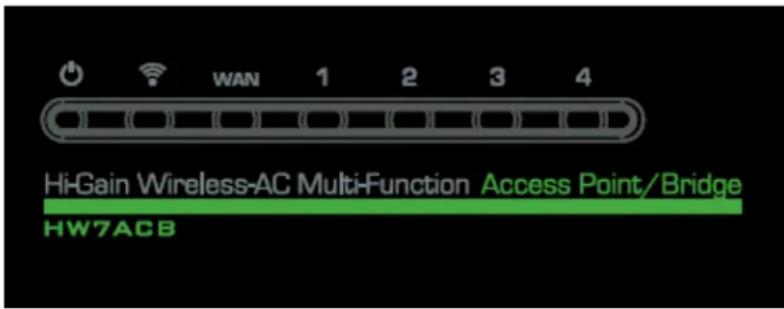
| LED Name | Light Status | Description |
| PWR | On | Router is switched on and correctly powered. |
| Wireless | On | Wireless is enabled. |
| Off | Wireless network is switched off. | |
| Flashing | Wireless LAN activity (transferring or receiving data). | |
| WAN | On | WAN Port is connected |
| Off | WAN Port is not connected | |
| Flashing | WAN activity (transferring or receiving data). | |
| Wired 1-4 10/100M | On | LAN port is linked in 10/100Mbps speed. |
| Off | LAN port is not linked in 10/100Mbps speed. | |
| Flashing | LAN activity (transferring or receiving data). |
Back Panel
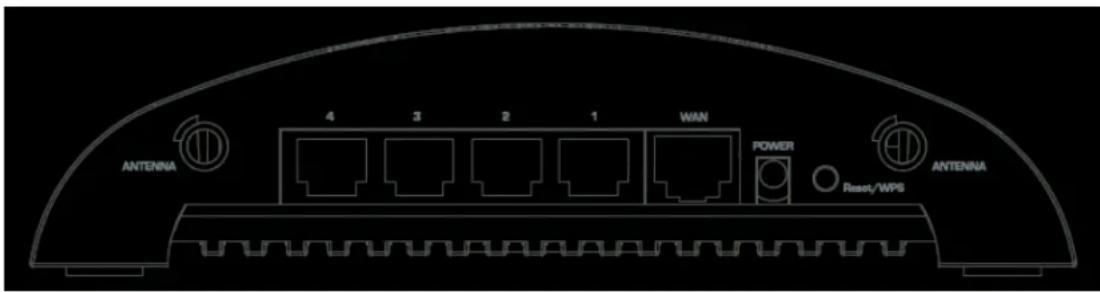
| Item Name | Description |
| Antenna | Two 3dBi antennas |
| Power (12V/0.5A) | Power connector, connects to A/C power adapter. |
| Network 1-4 | Local Area Network (LAN) port |
| WAN | Modem / Internet Port |
| Reset/WPS | Reset the router to factory default settings (clear all settings) or start WPS function. Press this button and hold for 15 seconds to restore all settings to factory defaults, power off/on. Press this button for less than 5 seconds to start WPS function. |
NOTE: For 2.4GHz 802.11b and 802.11g mode, the signals can be transmitted only by antenna 1 (The antenna on the right side of the rear panel).
For 2.4 GHz/5GHz 802.11n mode: The extender is operating in a 2T2R Spatial Multiplexing MIMO configuration. Two (2) antennas are for signal transmitting and two (2) antennas are for signal receiving.
Chapter II: Quick Setup and Basic Settings
2-1 Installing the HW7ACB
Complete the following instructions to build the network connection between your new wireless HW7ACB and your computers or network devices:
- Connect the HW7ACB to your computer (source) through the LAN port of the HW7ACB by Ethernet cable or connect to it wirelessly.
- Connect the A/C power adapter to the wall socket, and then connect it to the 'Power' socket of the HW7ACB.
- Please check all LEDs on the front panel. LAN LEDs should be on if the HW7ACB is correctly connected to the router. If it is not on, or any LED you expect is not on, please recheck the cabling, or jump to '5-2 Troubleshooting' for possible reasons and solutions.
2-2 Connecting to the HW7ACB by Web Browser
After your HW7ACB Hi-Gain™ Wireless-AC Multi-Function Access Point / Bridge has been connected and powered the next step is to access the Web Menu for initial configuration. To do this, your computer must be able to get an IP address automatically (use dynamic IP address setting).
Try to access: http://192.168.1.230
If the Web Menu appears you can skip the next steps and go to step 2-3. You will need to enter the following default login and password to access the 'Quick Setup' menu:
Login: admin
Password: 1234
If it's set to use a static IP address or you are unsure, please follow the following instructions to configure your computer to use a dynamic IP address:
Note: Please be sure to set your network IP addresses back to default after you have finished configuration.
If the operating system of your computer is....
Windows 95/98/Me - please go to section 2-2-1
Windows 2000 - please go to section 2-2-2
Windows XP - please go to section 2-2-3
Windows Vista/7 - please go to section 2-2-4
Mac OS X - please go to section 2-2-5
2-2-1 Windows 95/98/Me IP Address Setup:
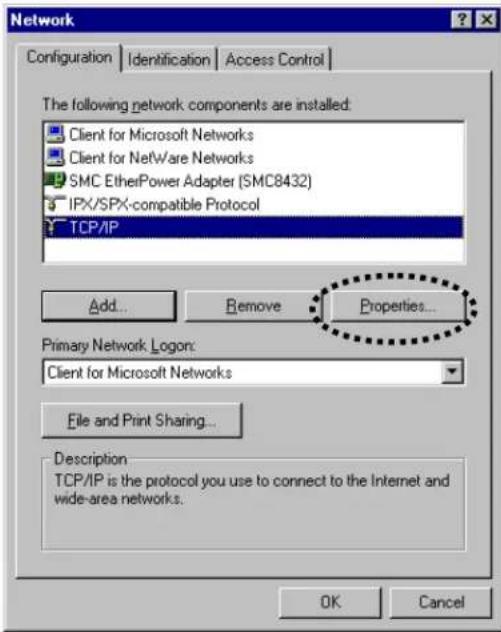
- Click 'Start' button (it should be located at lower-left corner of your computer), then click control panel. Double-click Network icon, and Network window will appear. Select 'TCP/IP', then click 'Properties'.
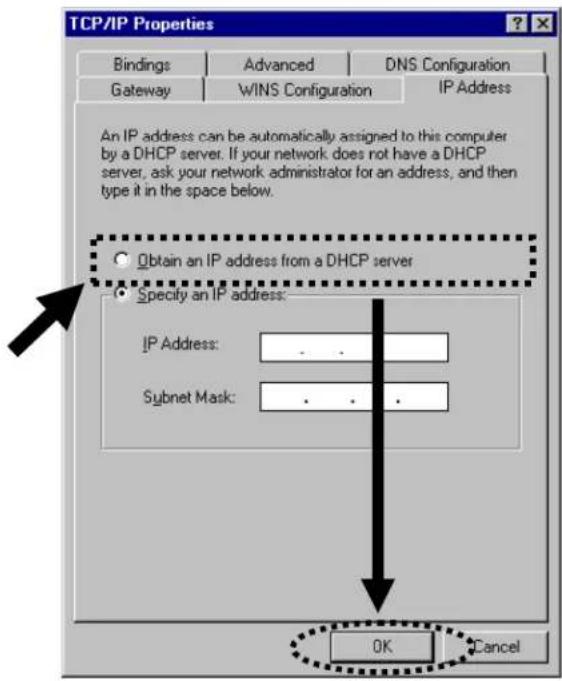
- Select 'Obtain an IP address from a DHCP server' and then click 'OK'.
2-2-2 Windows 2000 IP Address Setup
- Click 'Start' button (it should be located at lower-left corner of your computer), then click control panel. Double-click Network and Dial-up Connections icon; click Local Area Connection, and Local Area Connection Properties window will appear. Select 'Internet Protocol (TCP/IP)' and then click 'Properties'
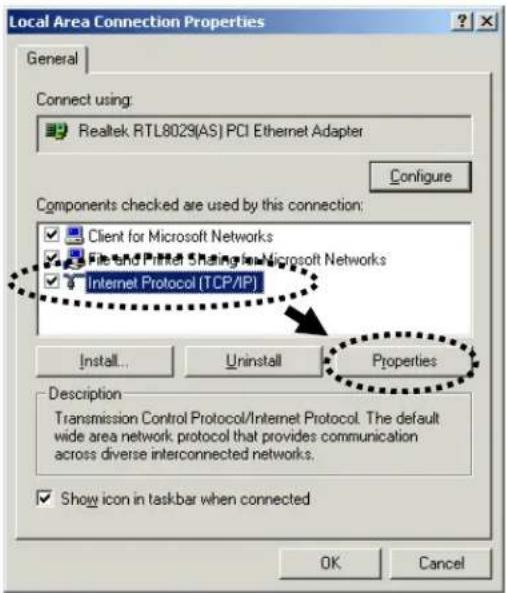
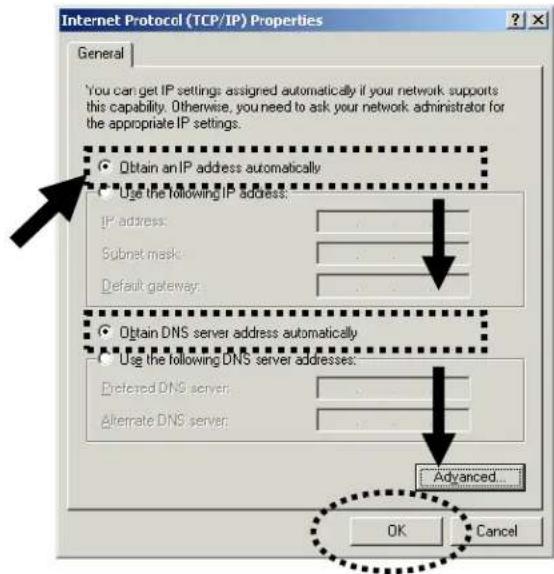
- Select 'Obtain an IP address automatically' and 'Obtain DNS server address automatically', then click 'OK'.
2-2-3 Windows XP IP Address Setup
- Click 'Start' button (it should be located at lower-left corner of your computer), then click control panel. Double-click Network and Internet Connections icon, click Network Connections, and then double-click Local Area Connection, Local Area Connection Status window will appear, and then click 'Properties'
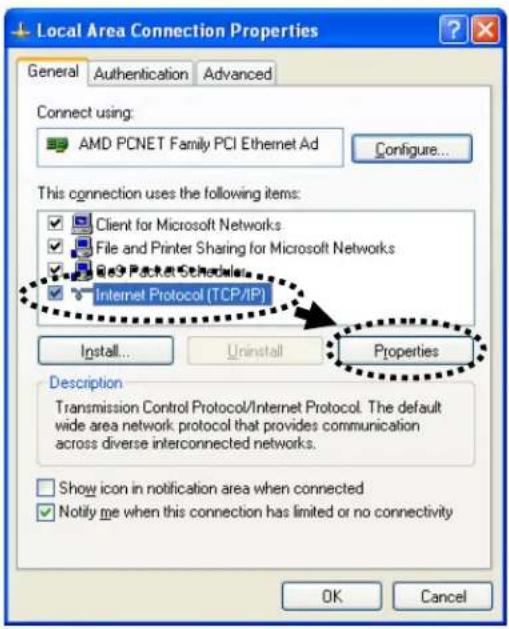
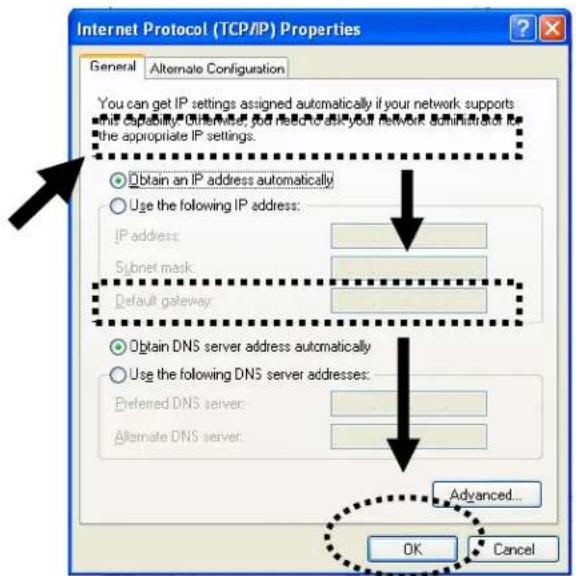
- Select 'Obtain an IP address automatically' and 'Obtain DNS server address automatically', then click 'OK'.
2-2-4 Windows Vista/7/8 IP Address Setup
- Click 'Start' button (it should be located at lower-left corner of your computer), then click control panel. Under Network and Internet, Click View Network Status and Tasks, then click Manage Network Connections/Change Adapter Settings on the right hand column. Right-click Local Area Network, then select 'Properties'. Local Area Connection Properties window will appear, select 'Internet Protocol Version 4 (TCP / IPv4)', and then click 'Properties'
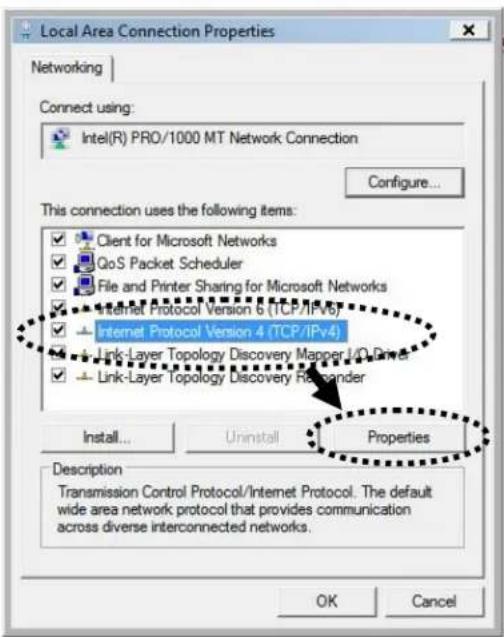
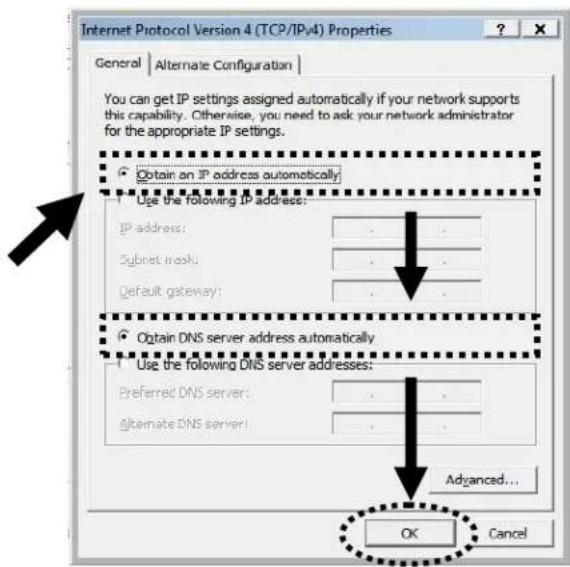
- Select 'Obtain an IP address automatically' and 'Obtain DNS server address automatically', then click 'OK'.
2-2-5 Mac OS X IP Address Setup
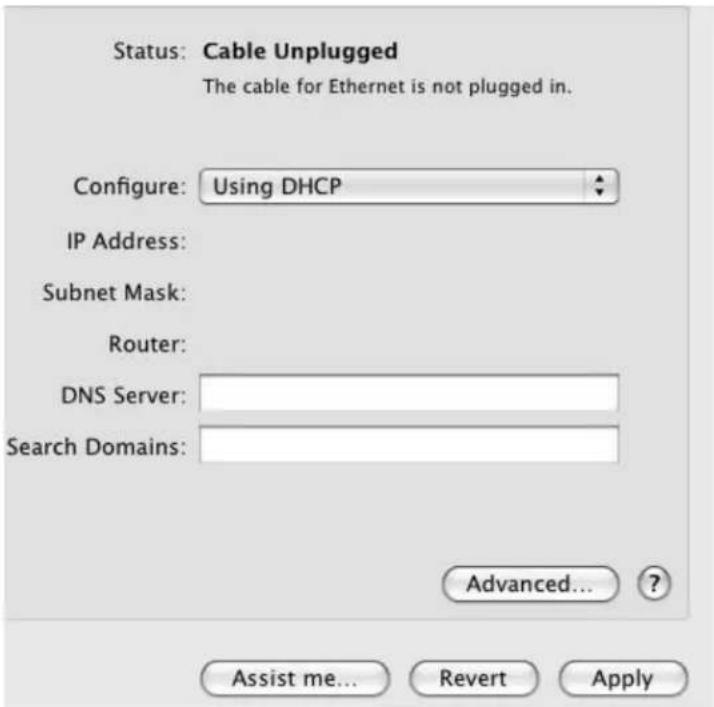
Go to your system preferences, go to network. Select your network connection. Make sure 'Configure' is set to 'Using DHCP'.
2-2-6 Tablet/Smartphone Setup
iOS (iPhone or iPad)
Go to your settings on your tablet or smart phone
First, make sure JavaScript is On: Go to Settings icon Select (a) Safari > make sure (b) JavaScript is ON.
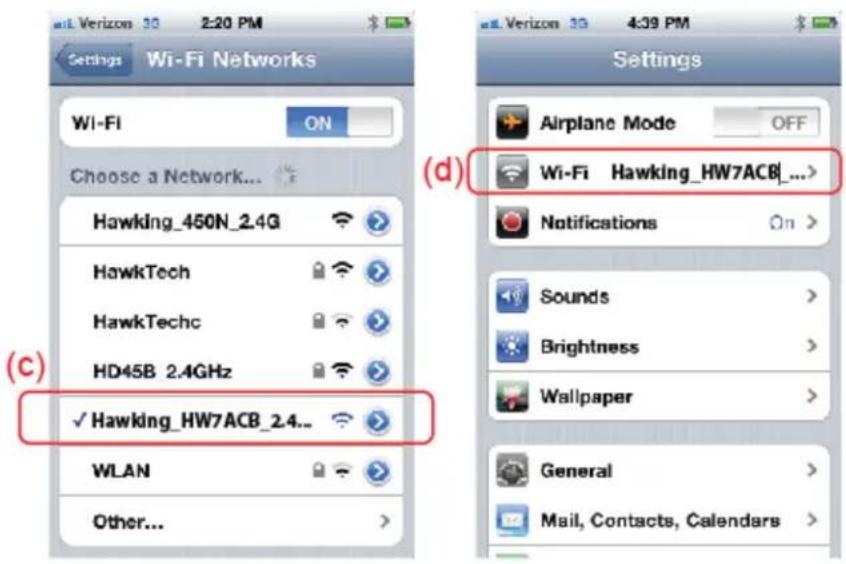
Go back to Home Screen > Select Settings > In Wi-Fi Networks, select (c) "Hawking_HW7ACB_2.4GHz" > (d) Make sure your Wi-Fi is connected to Hawking_HW7ACB_2.4GHz
Android (Android 2.1 +)
Go to Settings
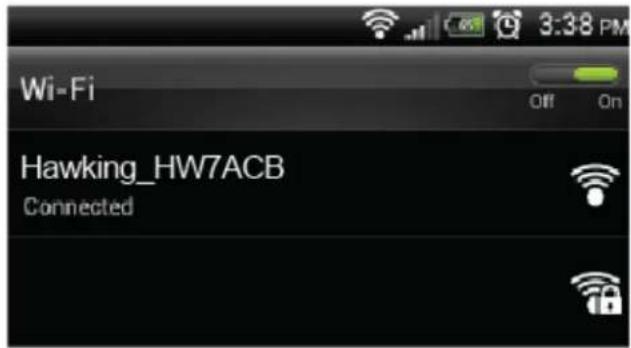
Go to Wireless & Networks

Wireless & networks
Check "Turn on Wi-Fi" and then click on Wi-Fi settings
Wi-Fi
Turn on Wi-Fi

Wi-Fi settings
Set up & manage wireless access points
Look for Hawking_HW7ACB_2.4GHz, then select to connect
2-2-7 Connecting to Web Management Interface
All functions and settings of this HW7ACB can be configured via web management interface. Please start your web browser, and input '192.168.1.230' in address bar, then press the 'Enter' key. The following message should be shown:
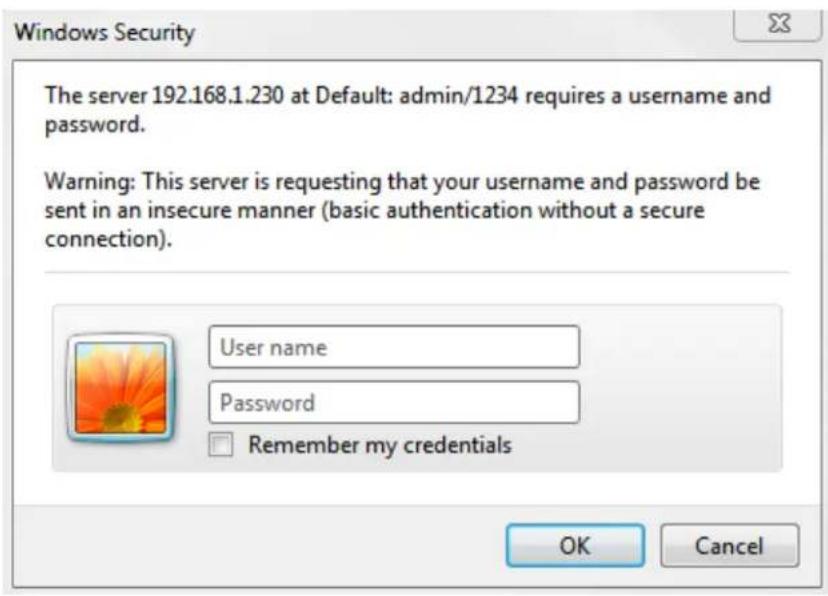
Please input user name and password in the fields respectively, default user name is 'admin', and default password is '1234', then press the 'OK' button, and you will see the web management interface of this HW7ACB:
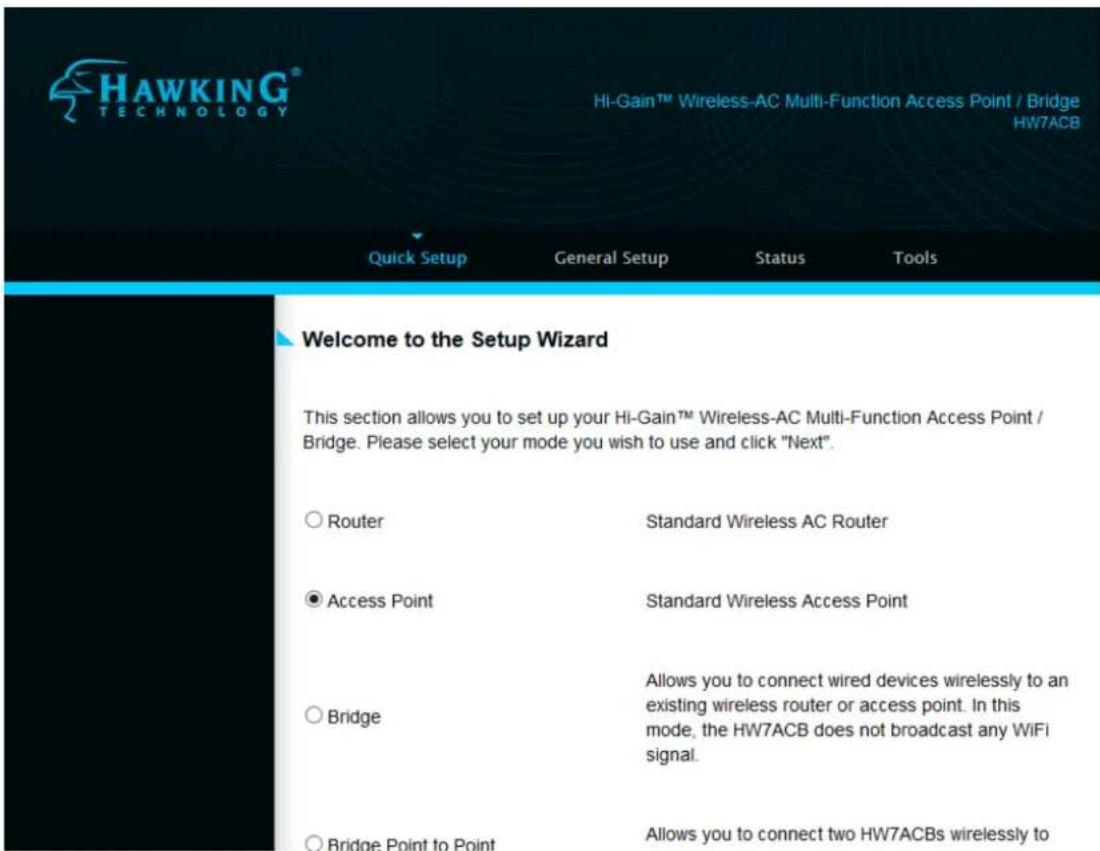
NOTE: If you can't see the web management interface, and you are being prompted to input the user name and password again, it means you didn't input the username and password correctly. Retype the user name and password again. If you're certain about the username and password you typed are correct, please go to '6-2 Troubleshooting' to perform a factory reset.
2-3 'Quick Setup'
This HW7ACB provides a ‘Quick Setup’ procedure, which will help you to complete all required settings you need to access the Internet in very short time. Please follow the following instructions to complete the ‘Quick Setup’:
Please go to Quick Setup Wizard menu by clicking 'Quick Setup' button.
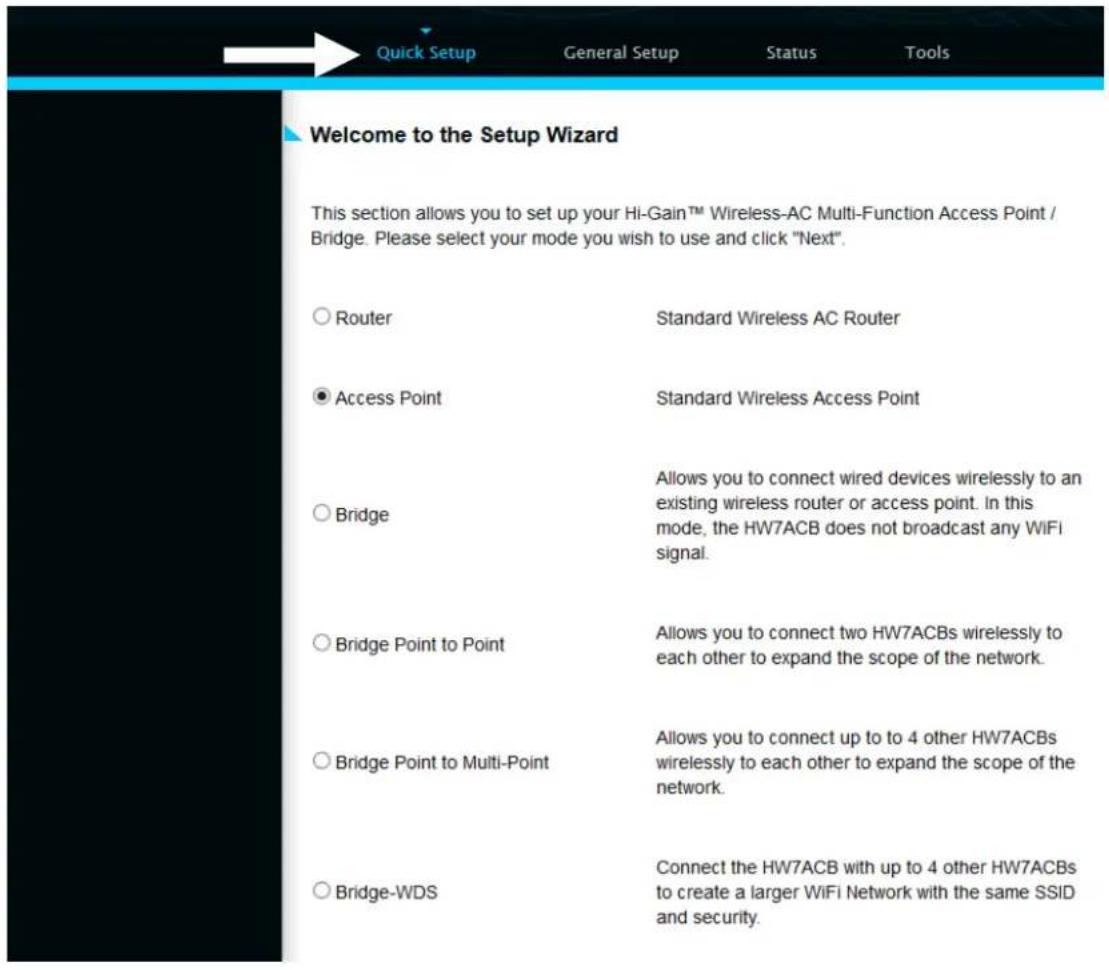
On this page, please select the mode you wish to use. There are 6 modes that the HW7ACB supports:
Router - Please go to section 2-3-1
Access Point - Please go to section 2-3-2
Bridge - Please go to section 2-3-3
Bridge Point to Point - Please go to section 2-3-4
Bridge Point to Multi-Point - Please go to section 2-3-5
WDS - Please go to section 2-3-6
If you're not sure, please contact your network administrator. Choosing a wrong mode will cause wireless and network issues.
2-3-1 Setup Procedure for 'Router'
Router Mode
flowchart
graph TD
    A["Router"] --> B["Wireless"]
    A --> C["Wired"]
    B -.-> D["Desktops"]
    C -.-> E["Desktops"]
    D -.-> F["Mobile Device"]
    E -.-> G["Mobile Device"]
    style A fill:#f9f,stroke:#333
    style B fill:#ccf,stroke:#333
    style C fill:#ccf,stroke:#333
    style D fill:#cfc,stroke:#333
    style E fill:#cfc,stroke:#333
    style F fill:#fcc,stroke:#333
    style G fill:#fcc,stroke:#333
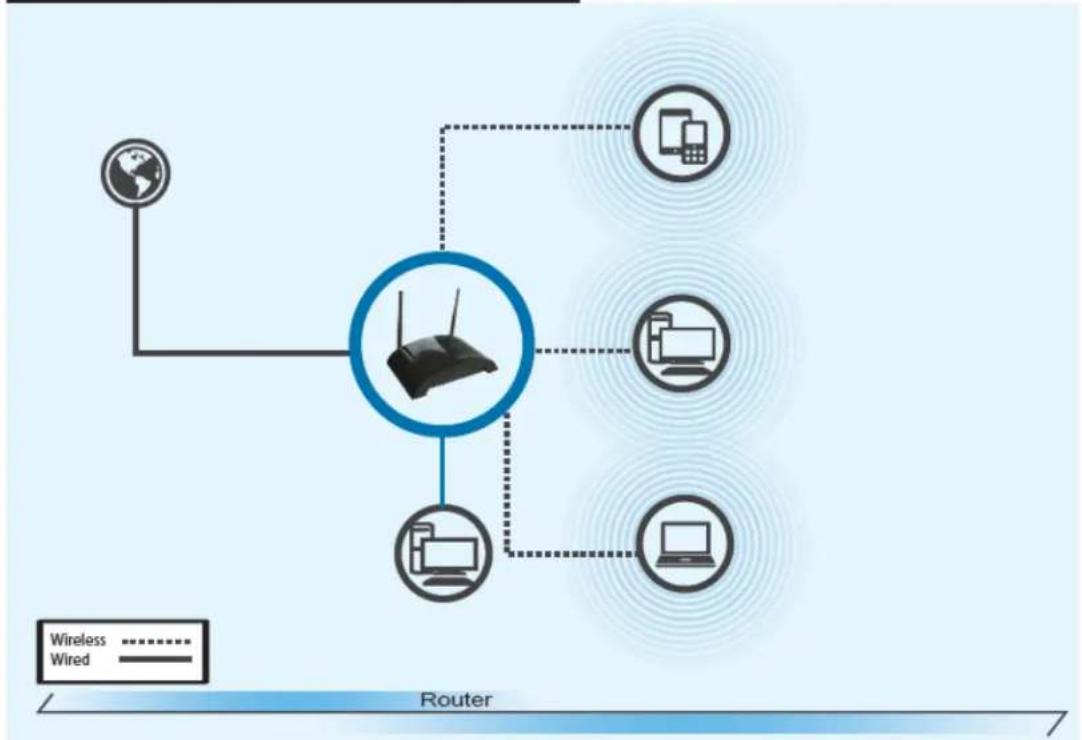
Router Mode: The HW7ACB acts as a standard wireless router and supports 2.4GHz and 5GHz AC. Use this mode to share an internet connection. Plug your modem provided by your Internet Service Provider into the port labeled WAN. Wired computers can go into LAN ports 1-4.
Choose your Time Zone. This is used for system and security logs. Click 'Next'
Welcome to the Setup Wizard
This section allows you to set up your Hi-Gain™ Wireless-AC Multi-Function Access Point / Bridge in Wireless Router Mode. Please input your time settings and click 'Next'
Set Time Zone:
(GMT+00:00)Greenwich Mean Time: Dublin, Edinburgh, Lisbon, London
Time Server Address:
59.124.196.83
Daylight Savings:
Enable Function
Times From Jan 1 to Jan 1
Next
On this page, choose your Internet Service Provider Type. Most users use “Dynamic IP”. If you use the other modes, please make sure you have your Internet Provider’s supplied information to input your Static IP or user accounts for PPPoE
Welcome to the Setup Wizard
This section allows you to set up your Hi-Gain™ Wireless-AC Multi-Function Access Point / Bridge in Wireless Router Mode. Please pick your type of Internet Service Provider (ISP).
● Dynamic IP (DSL and Cable Modems, Most Common)
For Internet connections using dynamic IP. Most common type of ISP.
Static IP (DSL and Cable Modem Setup)
Some Internet service providers frequently use a Fixed IP Address for your Broadband connection. If you have been provided with this information, choose this option and enter the assigned IP Address, Subnet Mask, Gateway IP Address and DNS IP Address in the next step.
○ PPPoE (DSL)
If you connect to the Internet using a DSL Modem and your ISP has provided you with a Password and a Service Name, then your ISP uses PPPoE to establish a connection. You must choose this option and enter the required information.
Back Next
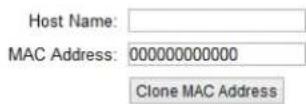
For Dynamic, you may need to input a Host Name and/or Clone Mac Address. Most users do not need to do these steps.
If you use static or PPPoE, please refer to section 3-4-2 and 3-4-3
Click 'Next', otherwise, input the information as provided by your ISP.
Welcome to the Setup Wizard
This section allows you to set up your Hi-Gain™ Wireless-AC Multi-Function Access Point / Bridge in Wireless Router Mode. Please put in a host name and/or clone mac address if required. Otherwise, press 'Next'.
Back Next
Input the Wireless Settings you wish to use in Router Mode. The device transmits in both 2.4GHz and 5GHz. Note that if your client is ONLY 2.4GHz, it will not see the 5GHz signal.
2.4 GHz SSID:
Hawking_HW7ACB_2.4GHZ
5 GHz SSID:
Hawking_HW7ACB_5GHZ
To add wireless security for your local/home wireless network, enter an alphanumeric password (8 characters or more) below (If you do not wish to use a password, leave the field blank and click 'Next'). Users signing on to your home wireless network will be required to enter this password to connect to the internet.
2.4 GHz Security:
5 GHz Security:


Click 'Next' when done
Save settings successfully!
You may press Back button to continue configuring other settings or press Finish button to restart the system to make the changes take effect.
Back Finish
Settings are saved. Please click Finish and the device will reboot. Congratulations, you have set up the device as a router!
2-3-2 Setup Procedure for 'Access Point'
Access Point Mode
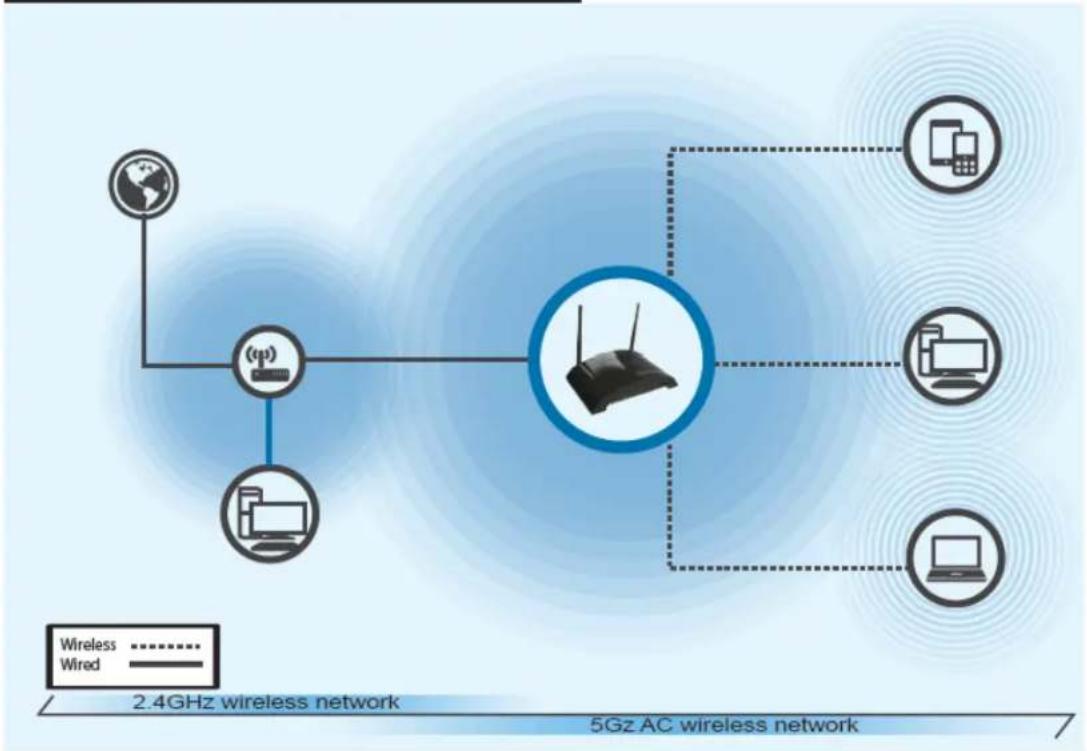
flowchart
graph TD
    A["Internet"] --> B((pp))
    B --> C["Router"]
    C --> D["Mobile Device"]
    C --> E["Desktop Computer"]
    C --> F["Computer"]
    style A fill:#f9f,stroke:#333
    style B fill:#ccf,stroke:#333
    style C fill:#cfc,stroke:#333
    style D fill:#fcc,stroke:#333
    style E fill:#cff,stroke:#333
    style F fill:#ffc,stroke:#333
Access Point Mode: The HW7ACB acts as a standard wireless access point. It can upgrade your existing 2.4GHz WiFi network to a 5GHz AC or expand it, giving it greater coverage. After setup, be sure to hook the HW7ACB to your network via LAN ports 1-4.
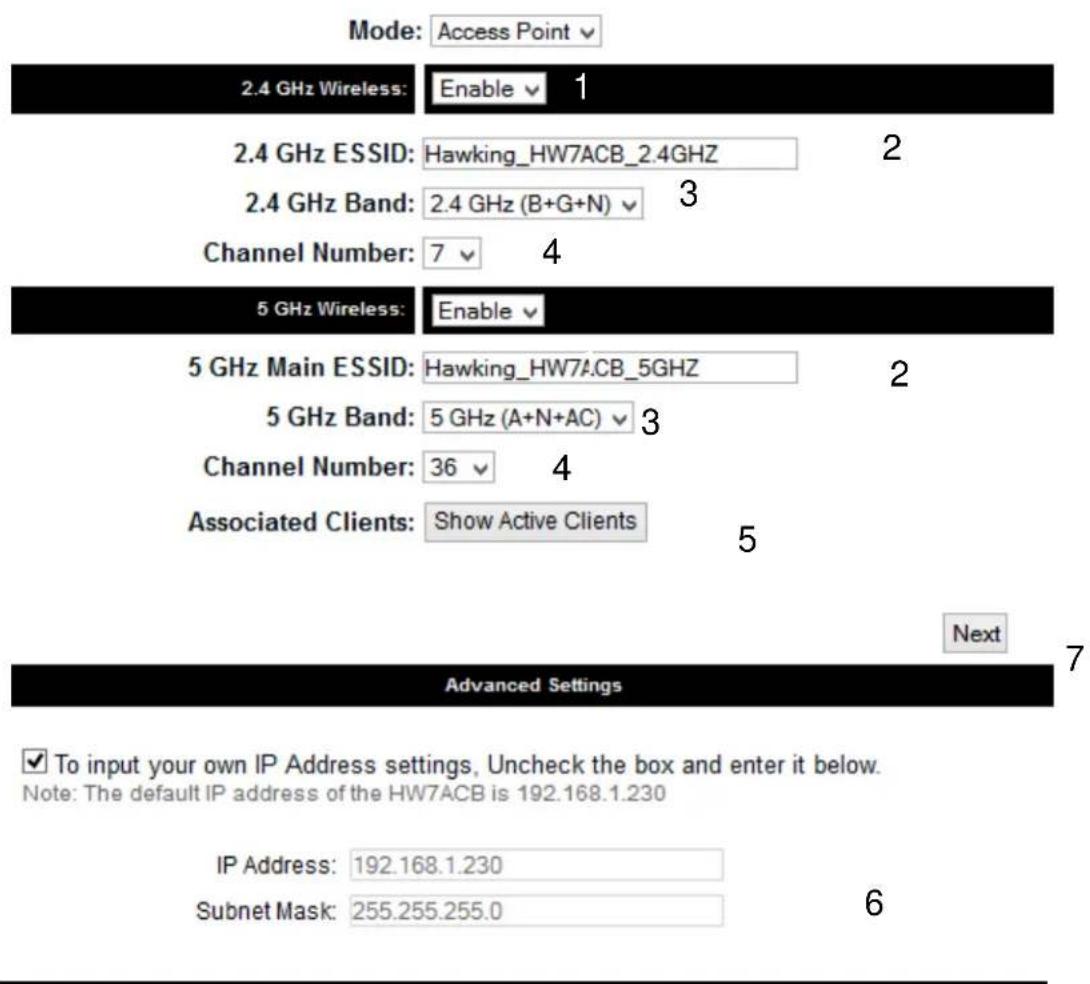
Wireless (1): Shows you if the wireless is enabled/disabled
ESSID (2): The HW7ACB transmits in both 2.4GHz and 5GHz WiFi frequencies. Please input the ESSID (the name used to identify this wireless access point) for each frequency here. You can input up to 32 alphanumeric characters. PLEASE NOTE THAT ESSID IS CASE SENSITIVE. Default SSID 2.4GHz: Hawking_HW7ACB_2.4GHz 5GHz: Hawking_HW7ACB_5GHz
Band (3): Please select the wireless band you wish to use. By selecting different band setting, you'll be able to allow or deny the wireless client of a certain band.
2.4GHz Band
If you select 2.4GHz (B), 2.4GHz (N), or 2.4GHz (G), only wireless clients using the wireless band you select (802.11b, 802.11 Draft-N, or 802.11g) will be able to connect to this access point.
If you select 2.4GHz (B+G), then only wireless clients using 802.11b and 802.11g band will be able to connect to this access point.
If you want to allow 802.11b, 802.11g, and 802.11 Draft-N clients to connect to this access point, select 2.4GHz (B+G+N).
5GHz Band
5GHz (A): this mode allows 802.11a wireless network client to connect this router (maximum transfer rate 54Mbps for 802.11a clients).
5GHz (N): this mode allows 802.11n wireless network client to connect this router (maximum transfer rate 300Mbps for 802.11n clients).
5GHz (A+N): this mode allows 802.11a and 802.11n wireless network client to connect this router (maximum transfer rate 54Mbps for 802.11a clients, and maximum 300Mbps for 802.11n clients).
5GHz (AC): this mode allows 802.11ac wireless network client to connect this router (maximum transfer rate 433Mbps for 802.11ac clients).
5GHz (N+AC): this mode allows 802.11n and 802.11ac wireless network client to connect this router (maximum transfer rate 150Mbps for 802.11n clients, and maximum 433Mbps for 802.11ac clients).
5GHz (A+N+AC): this mode allows 802.11a, 802.11n and 802.11ac wireless network client to connect this router (maximum transfer rate 54Mbps for 802.11a clients, maximum 150Mbps for 802.11n clients, and maximum 433Mbps for 802.11ac clients).
Channel Number (4): Please select a channel number you wish to use. If you know a certain channel number is being used by other wireless access points nearby, please refrain from using the same channel number
Associated Clients (5): Click 'Show Active Clients' button and a new popup window will appear which contains the information about all wireless clients connected to this access point. You can click 'Refresh' button in popup window to keep information up-to-date.
Adv. IP Address (6) This section allows you to set an IP Address and subnet mask to fit your network if needed. Uncheck the box to input. Otherwise, the default IP Address is 192.168.1.230
After you finish with all settings, please click 'Next' (7) button.
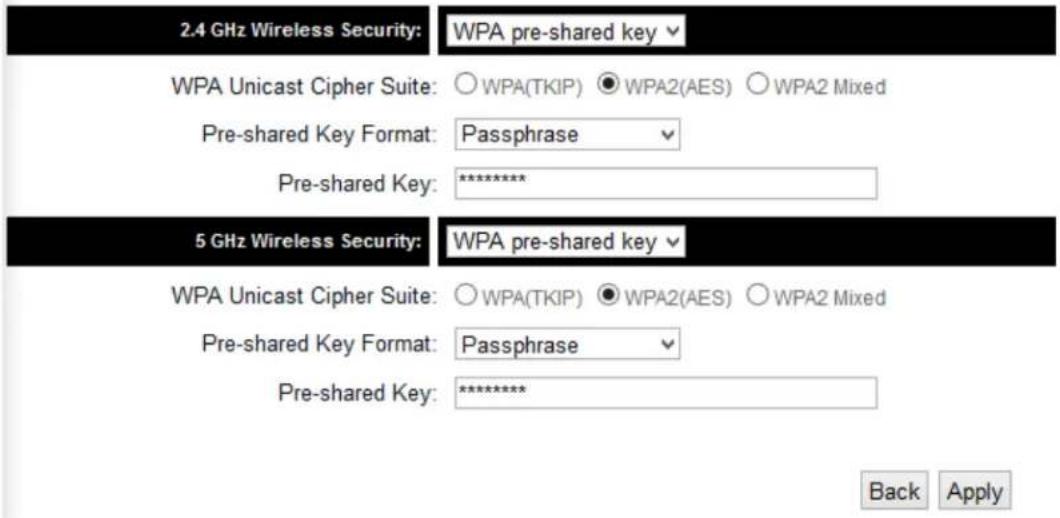
If you wish to have security, please select your level of security here. Refer to Section 3-6-3 for descriptions of security types. Click 'Apply' for the device to restart. Click 'Back' if you wish to make changes. Plug the HW7ACB into your router or network. Congratulations, you have set up the HW7ACB in Access Point!
2-3-3 Setup Procedure 'Bridge'
Bridge Mode
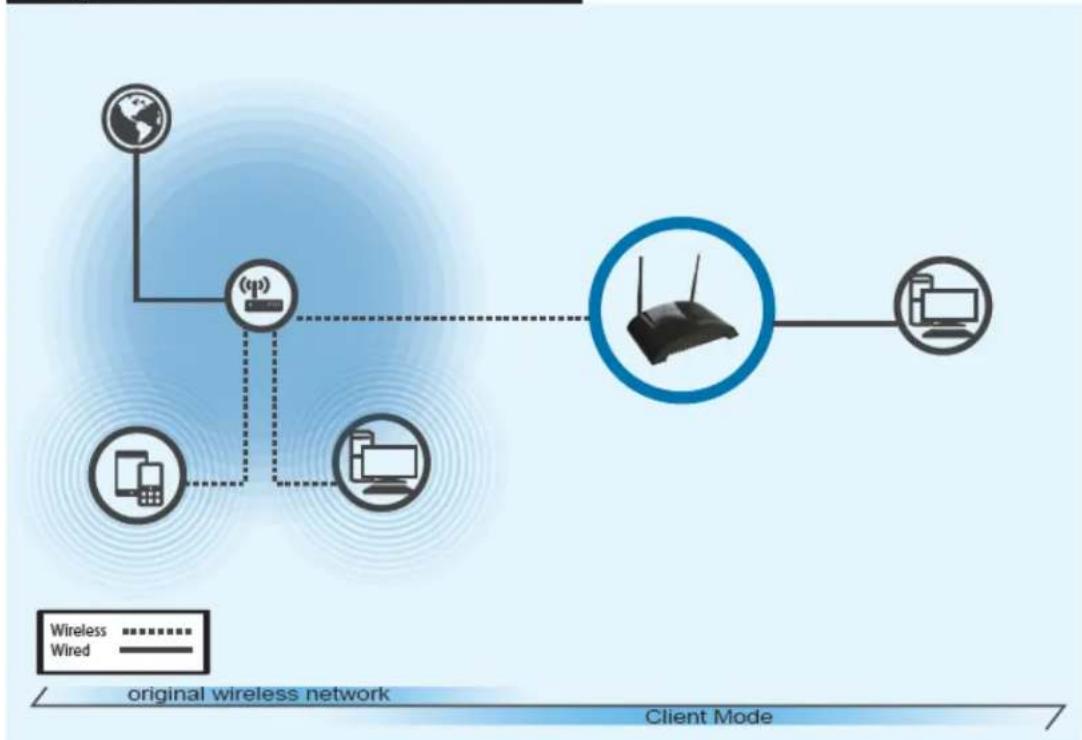
flowchart
graph TD
    A["Client Mode"] --> B["Wireless"]
    A --> C["Wired"]
    B -.-> D["Wireless router"]
    C -.-> D
    D -.-> E["Desktop"]
    D -.-> F["Computer"]
    style A fill:#f9f,stroke:#333
    style B fill:#ccf,stroke:#333
    style C fill:#cfc,stroke:#333
    style D fill:#fcc,stroke:#333
    style E fill:#ffc,stroke:#333
    style F fill:#fcc,stroke:#333
Bridge Mode: The HW7ACB allows you to connect wired devices wirelessly to an existing wireless router or access point. Non-wireless devices can network wirelessly with your Wireless Network. In this mode, the HW7ACB does not broadcast any wireless signal. After setup, be sure to hook it up to client computers/devices via LAN ports 1-4.
Next
3
Advanced Settings
☑ To input your own IP Address settings, Uncheck the box and enter it below.
Note: The default IP address of the HW7ACB is 192.168.1.230
IP Address: 192.168.1.230
Subnet Mask: 255.255.255.0
4
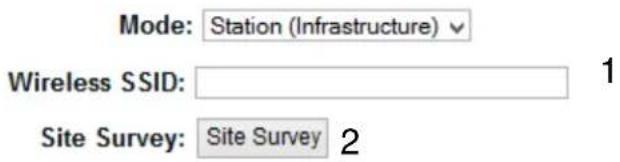
Main ESSID (1): The wireless name of the network you wish to bridge to.
Site Survey (2): When you select bridge mode, you have to associate it with a working access point. Click 'Select Site Survey', a "Wireless Site Survey Table" will pop up and list all available access points nearby. Select one access point in the table and it will join wireless LAN through this access point. Note: The HW7ACB will only repeat a 2.4GHz or a 5GHz network.
Wireless Site Survey
This page provides tool to scan the wireless network. If any Access Point or IBSS is found, you could choose to connect it manually when client mode is enabled.
| Select | Band | Channel | SSID | Encryption | Authentication | Signal | Mode |
| ○ | 2.4 | 7 | HawkTech | AES | WPA2PSK | 100 | (B+G+N) |
| ○ | 2.4 | 7 | AES | WPA2PSK | 56 | (B+G+N) | |
| ○ | 2.4 | 7 | AES | WPA2PSK | 48 | (B+G+N) | |
| ○ | 2.4 | 1 | AES | WPA2PSK | 32 | (B+G+N) | |
| ○ | 2.4 | 1 | TKIP | WPAPSK | 12 | (B+G+N) | |
| ○ | 5 | 36 | HawkTech_5GHz | AES | WPA2PSK | 84 | (A+N) |
| Refresh | Done | ||||||
Adv. IP Address (4) This section allows you to set an IP Address and subnet mask to fit your network if needed. Uncheck the box to input. Otherwise, the default IP Address is 192.168.1.230
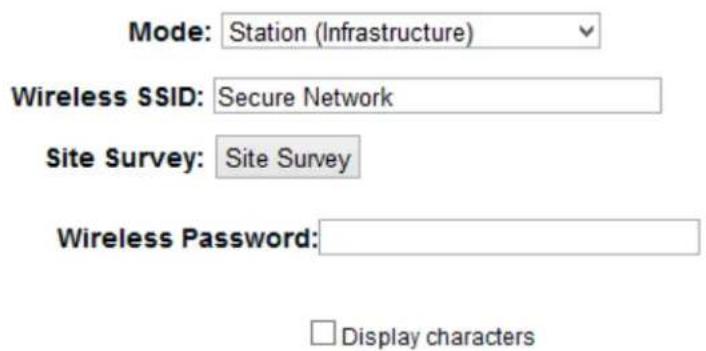
If the network you selected was a secure network, a password field will appear under the
site survey. Please enter the wireless password here. When you finish with all settings, press 'Next'.
Click ‘Apply’ for the device to restart. Click ‘Back’ if you wish to make changes. Plug the devices that wish to use this as a Bridge. Congratulations, you have set up the HW7ACB as a Bridge!
2-3-4 Setup procedure for 'Bridge-Point to Point':
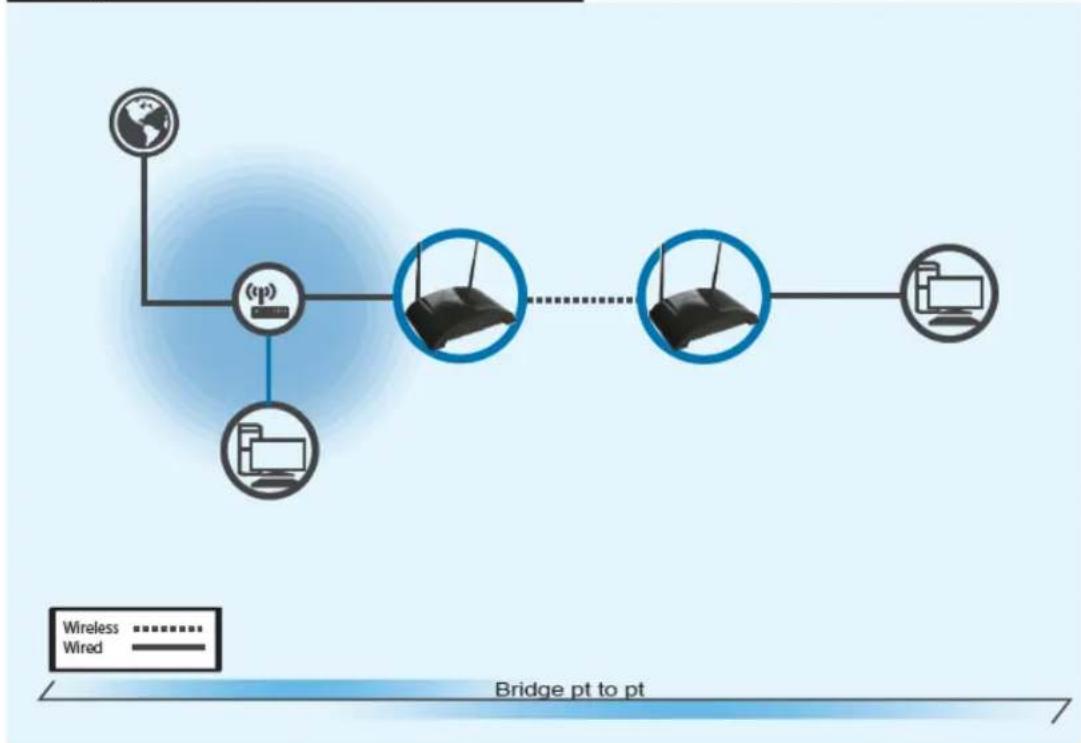
Bridge Point to Point Mode
flowchart
graph TD
    A["Global Network"] --> B["Wireless Router"]
    B --> C["Desktop Computer"]
    B --> D["Wireless Router"]
    D -.-> E["Desktop Computer"]
    style A fill:#f9f,stroke:#333
    style B fill:#ccf,stroke:#333
    style C fill:#cfc,stroke:#333
    style D fill:#fcc,stroke:#333
    note right of B "Bridge pt to pt"
    note left of B "Wireless Wired"
Bridge Point to Point Mode: The HW7ACB allows you to connect two HW7ACB's wirelessly to each other to expand the scope of your network. In this mode, the HW7ACB does not broadcast any wireless signal. After setup, be sure to hook one HW7ACB into the main network and the other HW7ACB to any client computers/devices via LAN ports 1-4.
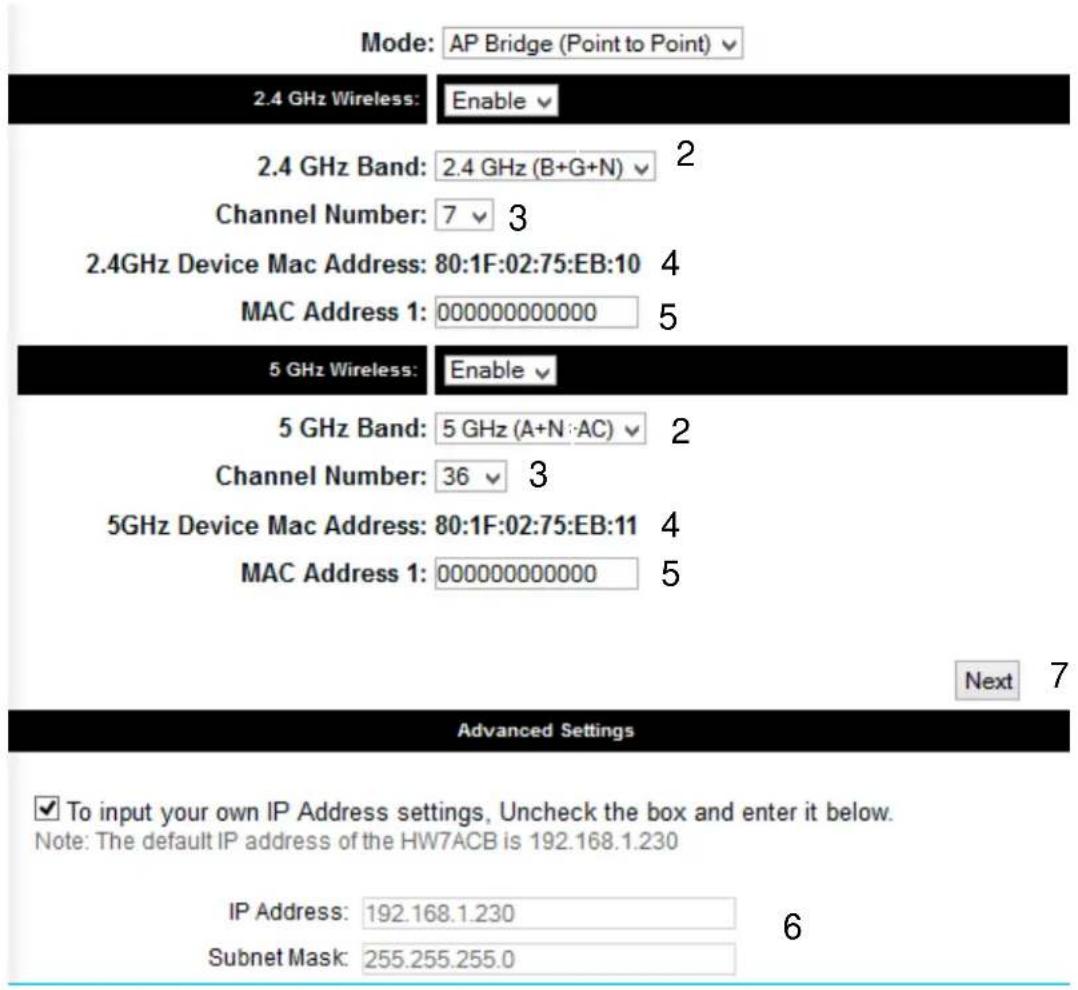
Band (2): Please select the wireless band you wish to use. By selecting different band setting, you'll be able to allow or deny the wireless client of a certain band.
2.4GHz Band
If you select 2.4GHz (B), 2.4GHz (N), or 2.4GHz (G), only wireless clients using the wireless band you select (802.11b, 802.11 Draft-N, or 802.11g) will be able to connect to this access point.
If you select 2.4GHz (B+G), then only wireless clients using 802.11b and 802.11g band will be able to connect to this access point.
If you want to allow 802.11b, 802.11g, and 802.11 Draft-N clients to connect to this access point, select 2.4GHz (B+G+N).
5GHz Band
5GHz (A): this mode allows 802.11a wireless network client to connect this router (maximum transfer rate 54Mbps for 802.11a clients).
5GHz (N): this mode allows 802.11n wireless network client to connect this router (maximum transfer rate 300Mbps for 802.11n clients).
5GHz (A+N): this mode allows 802.11a and 802.11n wireless network client to connect this router (maximum transfer rate 54Mbps for 802.11a clients, and maximum 300Mbps for 802.11n clients).
5GHz (AC): this mode allows 802.11ac wireless network client to connect this router (maximum transfer rate 433Mbps for 802.11ac clients).
5GHz (N+AC): this mode allows 802.11n and 802.11ac wireless network client to connect this router (maximum transfer rate 150Mbps for 802.11n clients, and maximum 433Mbps for 802.11ac clients).
5GHz (A+N+AC): this mode allows 802.11a, 802.11n and 802.11ac wireless network client to connect this router (maximum transfer rate 54Mbps for 802.11a clients, maximum 150Mbps for 802.11n clients, and maximum 433Mbps for 802.11ac clients).
Channel Number (3): Please select a channel number you wish to use. Please note that this should be the same channel as the other bridge you
wish to connect to.
Device Mac Address (4): This is the Mac Address of the current HW7ACB. Use this for reference when you set up the other point to point devices.
Mac Address Field (5): Input the other Mac Addresses for point to point. Note that point to point mode only works with another HW7ACB
Adv. IP Address (6) This section allows you to set an IP Address and subnet mask to fit your network if needed. Uncheck the box to input. Otherwise, the default IP Address is 192.168.1.230
When you finish with all settings, please click 'Next' (7);
The next page lets you set up security.
Note that each HW7ACB setup in point to point mode must have the same type of security.
This section allows you to set up your Hi-Gain™ Outdoor Dual Band Wireless-N Access Point/Bridge with security. In the drop box below, please select your type of security you wish your wireless network to use.
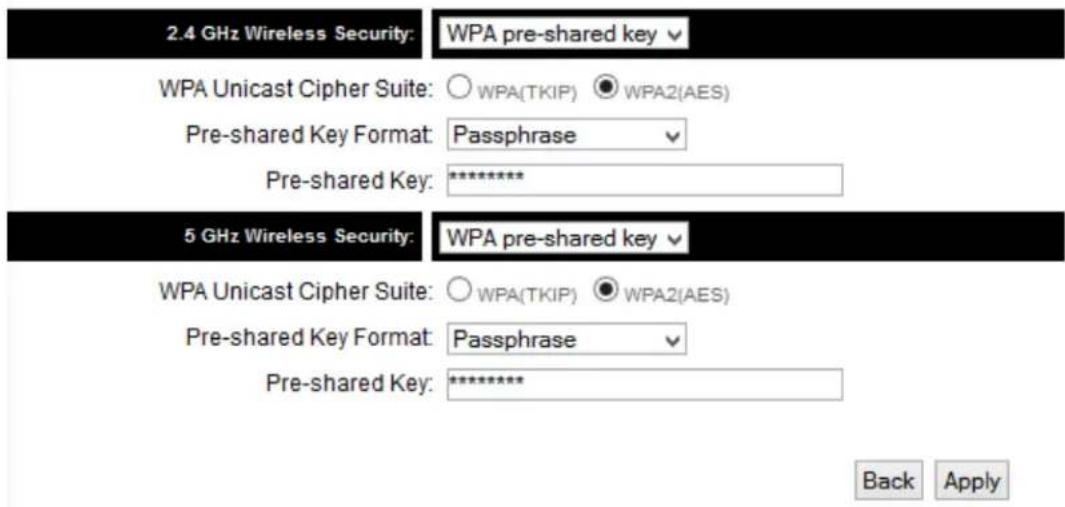
Click Apply and wait for the unit to reboot. Plug in the devices that you wish to bridge. Congratulations, you have set up the HW7ACB in Bridge-Point to Point!
2-3-5 Setup procedure for 'Bridge-Point to Multi-Point'
Bridge Point to Multi-Point Mode
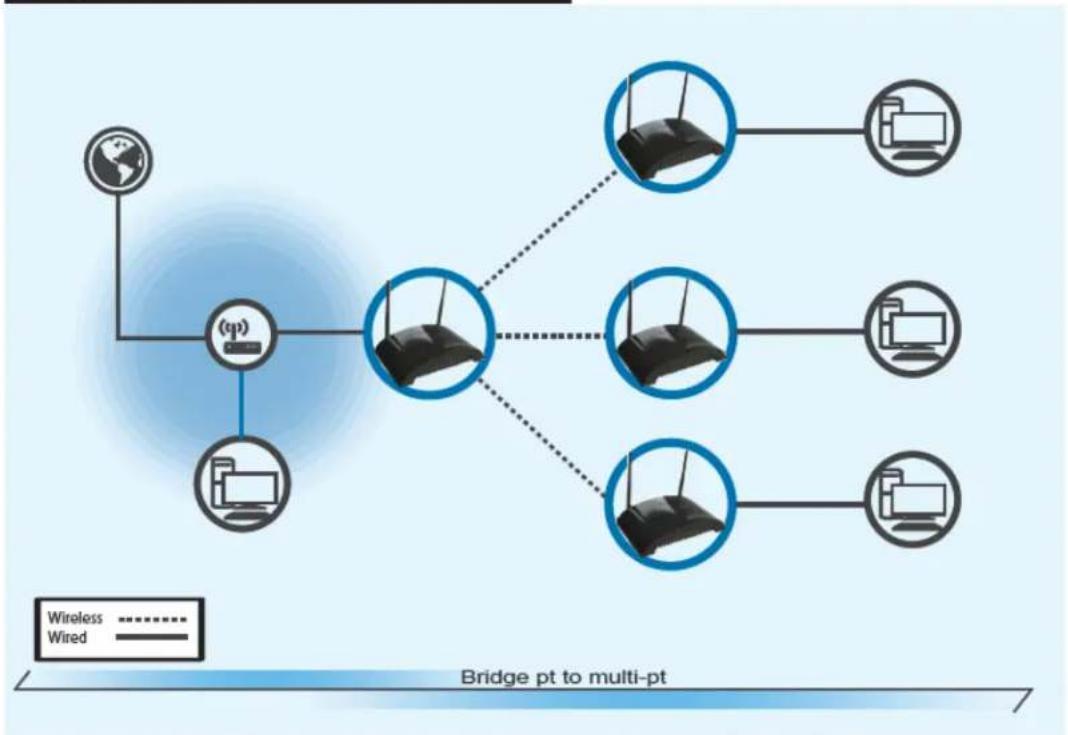
flowchart
graph TD
    A["Global Network"] --> B["(pp)"]
    B --> C["Router Node 1"]
    B --> D["Router Node 2"]
    B --> E["Router Node 3"]
    B --> F["Router Node 4"]
    C --> G["Wireless"]
    D --> H["Wired"]
    E --> I["Wireless"]
    F --> J["Wired"]
    style A fill:#f9f,stroke:#333
    style B fill:#ccf,stroke:#333
    style C fill:#cfc,stroke:#333
    style D fill:#cfc,stroke:#333
    style E fill:#cfc,stroke:#333
    style F fill:#cfc,stroke:#333
    style G fill:#fcc,stroke:#333
    style H fill:#fcc,stroke:#333
    style I fill:#fcc,stroke:#333
    style J fill:#fcc,stroke:#333
Bridge Point to Multi-Point Mode: The HW7ACB allows you to connect up to 4 HW7ACB's wirelessly to each other to expand the scope of your network. In this mode, the HW7ACB does not broadcast any wireless signal. After setup, be sure to hook one HW7ACB into the main network and the other HW7ACBs to any client computers/devices via LAN ports 1-4.
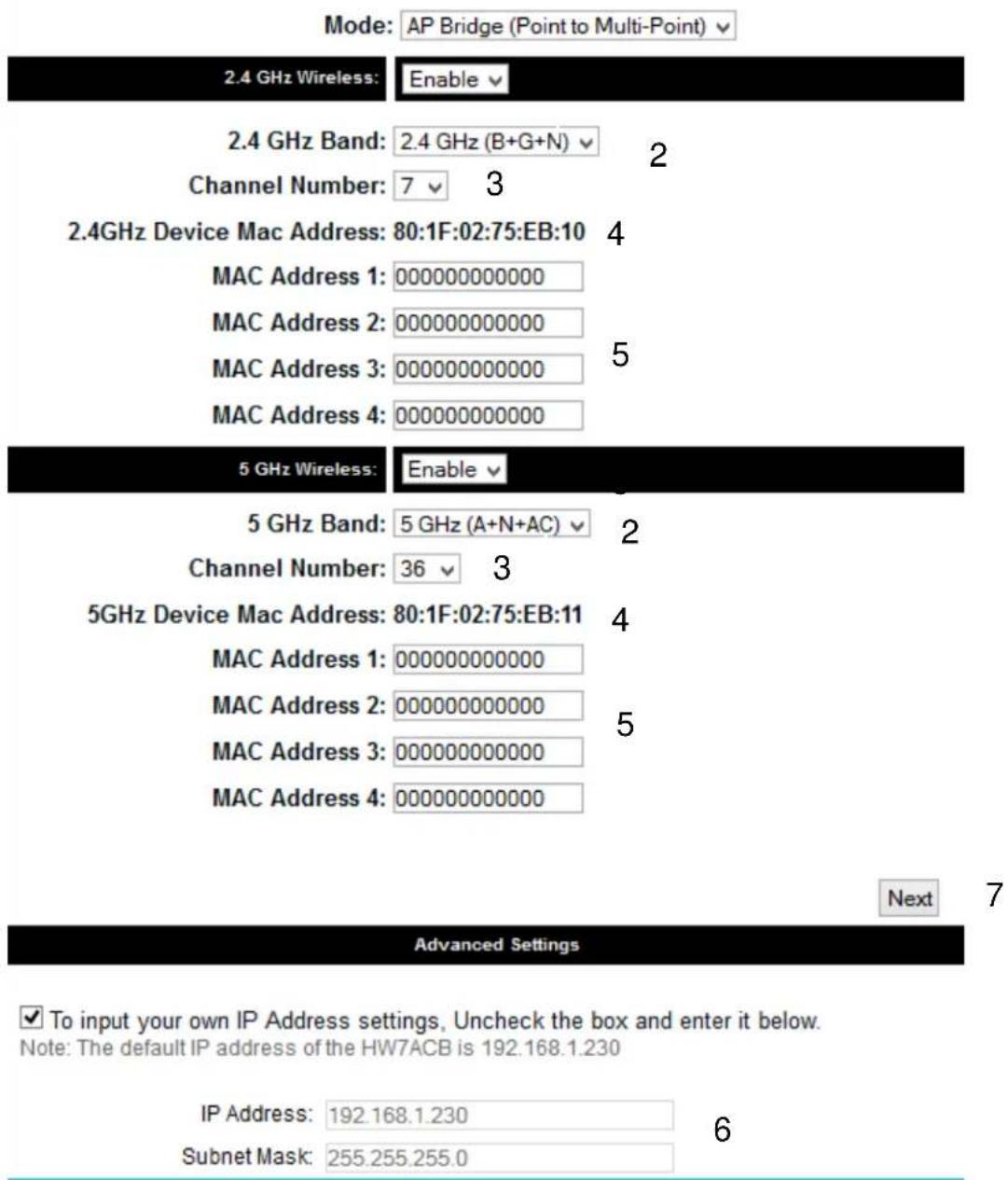
Band (2): Please select the wireless band you wish to use. By selecting different band setting, you'll be able to allow or deny the wireless client of a certain band.
2.4GHz Band
If you select 2.4GHz (B), 2.4GHz (N), or 2.4GHz (G), only wireless clients using the wireless band you select (802.11b,
802.11 Draft-N, or 802.11g) will be able to connect to this access point.
If you select 2.4GHz (B+G), then only wireless clients using 802.11b and 802.11g band will be able to connect to this access point.
If you want to allow 802.11b, 802.11g, and 802.11 Draft-N clients to connect to this access point, select 2.4GHz (B+G+N).
5GHz Band
5GHz (A): this mode allows 802.11a wireless network client to connect this router (maximum transfer rate 54Mbps for 802.11a clients).
5GHz (N): this mode allows 802.11n wireless network client to connect this router (maximum transfer rate 300Mbps for 802.11n clients).
5GHz (A+N): this mode allows 802.11a and 802.11n wireless network client to connect this router (maximum transfer rate 54Mbps for 802.11a clients, and maximum 300Mbps for 802.11n clients).
5GHz (AC): this mode allows 802.11ac wireless network client to connect this router (maximum transfer rate 433Mbps for 802.11ac clients).
5GHz (N+AC): this mode allows 802.11n and 802.11ac wireless network client to connect this router (maximum transfer rate 150Mbps for 802.11n clients, and maximum 433Mbps for 802.11ac clients).
5GHz (A+N+AC): this mode allows 802.11a, 802.11n and 802.11ac wireless network client to connect this router (maximum transfer rate 54Mbps for 802.11a clients, maximum
150Mbps for 802.11n clients, and maximum 433Mbps for 802.11ac clients).
Channel Number (3): Please select a channel number you wish to use. Please note that this should be the same channel as the other bridge you wish to connect to.
Device Mac Address (4): This is the Mac Address of the current HW7ACB. Use this for reference when you set up the other point to point devices.
Mac Address Field (5): Input the other Mac Addresses for point to point. Note that point to multi-point mode only works with up to 4 other HW7ACBs.
Adv. IP Address (6) This section allows you to set an IP Address and subnet mask to fit your network if needed. Uncheck the box to input. Otherwise, the default IP Address is 192.168.1.230
When you finish with all settings, please click 'Next' (7);
The next page lets you set up security.
Note that each HW7ACB setup in point to point mode must have the same type of security.
This section allows you to set up your Hi-Gain™ Outdoor Dual Band Wireless-N Access Point/Bridge with security. In the drop box below, please select your type of security you wish your wireless network to use.
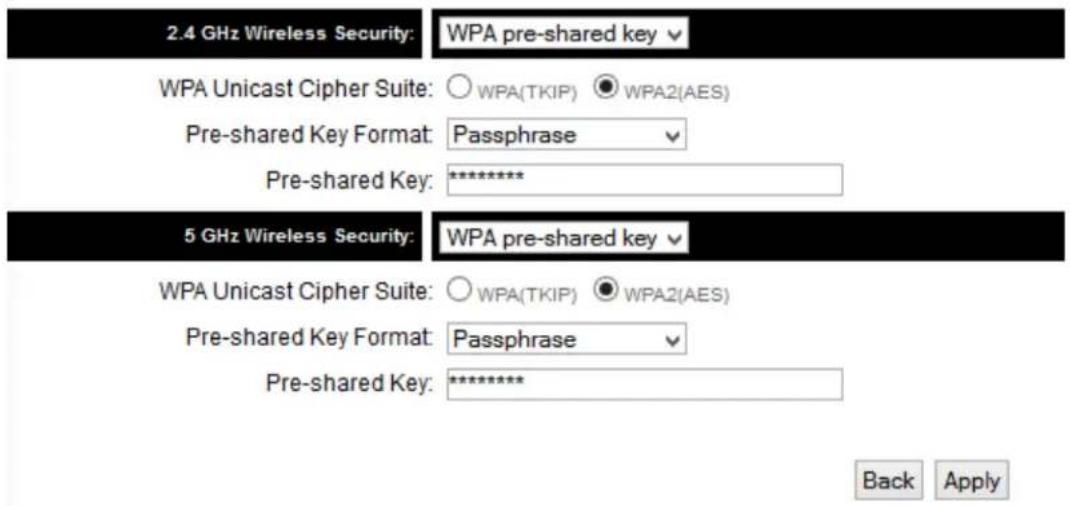
Click Apply and wait for the unit to reboot. Plug in the devices that you wish to bridge. Congratulations, you have set up the HW7ACB in Bridge Point to Multi Point!
2-3-6 Setup Procedure for 'Bridge WDS'
Bridge WDS Mode
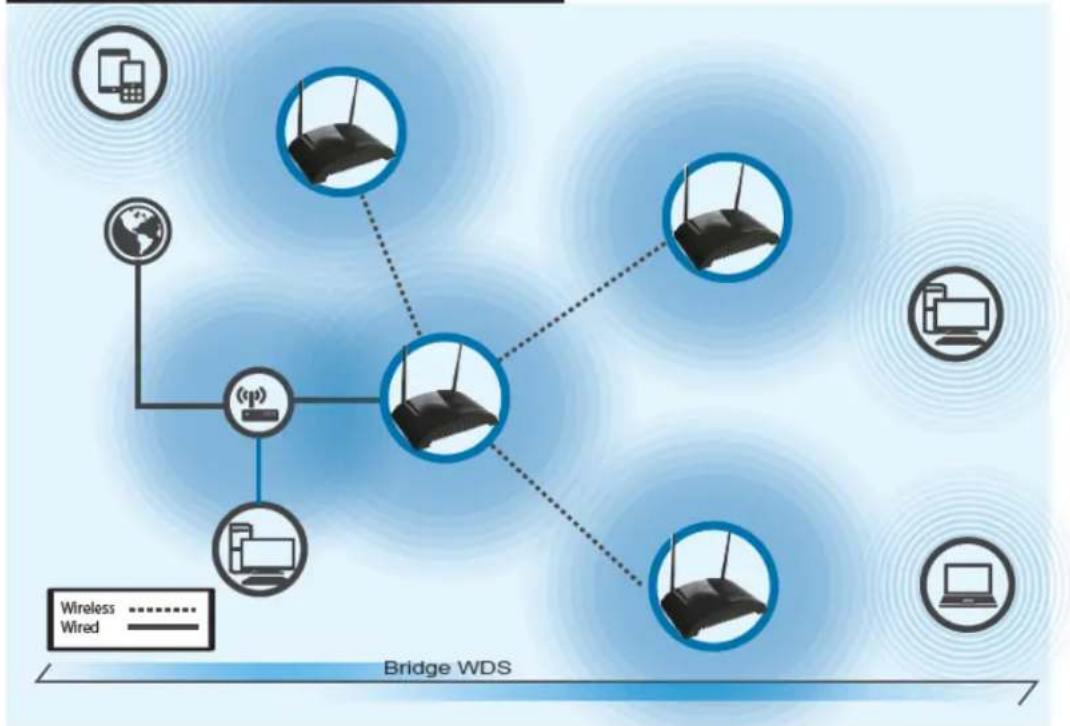
flowchart
graph TD
    A["Mobile Device"] --> B["Internet"]
    C["Internet"] --> B
    D["Desktop Computer"] --> E["Wireless"]
    F["Computer"] --> G["Wired"]
    H["Global"] --> B
    I["Wireless"] -.-> J["Wireless"]
    K["Wireless"] -.-> L["Wired"]
    M["Wireless"] -.-> N["Wireless"]
    O["Wireless"] -.-> P["Wireless"]
    Q["Wireless"] -.-> R["Wireless"]
    S["Wireless"] -.-> T["Wireless"]
    U["Wireless"] -.-> V["Wireless"]
    W["Wireless"] -.-> X["Wireless"]
    Y["Wireless"] -.-> Z["Wireless"]
    AA["Wireless"] -.-> AB["Wireless"]
    AC["Wireless"] -.-> AD["Wireless"]
    AE["Wireless"] -.-> AF["Wireless"]
    AG["Wireless"] -.-> AH["Wireless"]
    AI["Wireless"] -.-> AJ["Wireless"]
    AK["Wireless"] -.-> AL["Wireless"]
    AM["Wireless"] -.-> AN["Wireless"]
    AO["Wireless"] -.-> AP["Wireless"]
    AQ["Wireless"] -.-> AR["Wireless"]
    AS["Wireless"] -.-> AT["Wireless"]
    AU["Wireless"] -.-> AV["Wireless"]
    AW["Wireless"] -.-> AX["Wireless"]
    AY["Mobile Device"] --> Z
    Z --> AA
    AA --> AB
    AB --> AC
    AC --> AD
    AD --> AE
    AE --> AF
    AF --> AG
    AG --> AH
    AH --> AI
    AI --> AJ
    AJ --> AK
    AK --> AL
    AL --> AM
    AM --> AN
    AN --> AO
    AO --> AP
    AP --> AQ
    AQ --> AR
    AR --> AS
    AS --> AT
    AT --> AU
    AU --> AV
    AV --> AW
    AW --> AX
    AX --> AO
    AO --> AP
    AP --> AQ
    AQ --> AR
    AR --> AS
    AS --> AT
    AT --> AU
    AU --> AV
    AV --> AW
    AW --> AX
    AX --> AO
    AO --> AP
    AP --> AQ
    AQ --> AR
    AR --> AS
    AS --> AT
    AT --> AU
    AU --> AV
    AV --> AW
    AW --> AX
    AW --> AO
    AX --> AO
Bridge WDS Mode: The HW7ACB allows you to connect up to 4 HW7ACB's wirelessly to each other to expand the scope of your network. In this mode, the HW7ACB will transmit a wireless signal. Be sure to use the same SSID, channel and security for each. The first HW7ACB must be connected to the primary network via LAN port 1-4 and the others can be stand-alone.
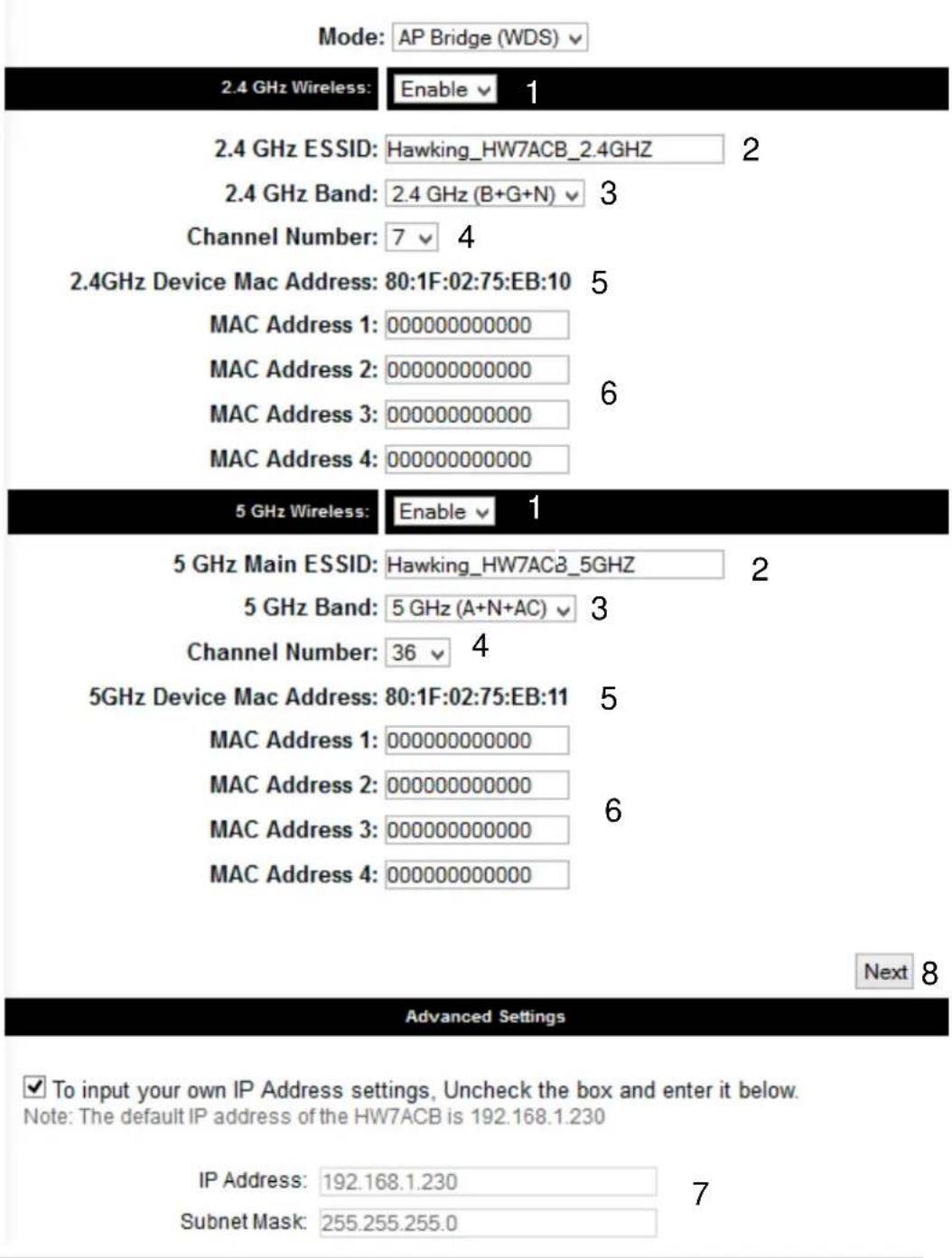
Wireless (1): Shows you if the wireless is enabled/disabled
Band (2): 2.4GHz Band
If you select 2.4GHz (B), 2.4GHz (N), or 2.4GHz (G), only wireless clients using the wireless band you select (802.11b,
802.11 Draft-N, or 802.11g) will be able to connect to this access point.
If you select 2.4GHz (B+G), then only wireless clients using 802.11b and 802.11g band will be able to connect to this access point.
If you want to allow 802.11b, 802.11g, and 802.11 Draft-N clients to connect to this access point, select 2.4GHz (B+G+N).
5GHz Band
5GHz (A): this mode allows 802.11a wireless network client to connect this router (maximum transfer rate 54Mbps for 802.11a clients).
5GHz (N): this mode allows 802.11n wireless network client to connect this router (maximum transfer rate 300Mbps for 802.11n clients).
5GHz (A+N): this mode allows 802.11a and 802.11n wireless network client to connect this router (maximum transfer rate 54Mbps for 802.11a clients, and maximum 300Mbps for 802.11n clients).
5GHz (AC): this mode allows 802.11ac wireless network client to connect this router (maximum transfer rate 433Mbps for 802.11ac clients).
5GHz (N+AC): this mode allows 802.11n and 802.11ac wireless network client to connect this router (maximum transfer rate 150Mbps for 802.11n clients, and maximum 433Mbps for 802.11ac clients).
5GHz (A+N+AC): this mode allows 802.11a, 802.11n and 802.11ac wireless network client to connect this router (maximum transfer rate 54Mbps for 802.11a clients, maximum
150Mbps for 802.11n clients, and maximum 433Mbps for 802.11ac clients).
SSID (3): Please input the ESSID (the name used to identify this wireless access point) here. You can input up to 32 alphanumeric characters. PLEASE NOTE THAT ESSID IS CASE SENSITIVE. Note that all other devices in the WDS mode should use the same SSID.
Channel Number (4): Please select a channel number you wish to use. Please note that this should be the same channel as the other bridge you wish to connect to.
Device Mac Address (5): This is the Mac Address of the current HW7ACB. Use this for reference when you set up the other point to point devices.
Mac Address Field (6): Input the other Mac Addresses for point to point. Note that wds mode only works with up to 4 other HW7ACBs.
Adv. IP Address (7) This section allows you to set an IP Address and subnet mask to fit your network if needed. Uncheck the box to input. Otherwise, the default IP Address is 192.168.1.230
When you finish with all settings, please click 'Next' (8);
The next page lets you set up security.
Note that each HW7ACB setup in wds mode must have the same type of security.
This section allows you to set up your Hi-Gain™ Outdoor Dual Band Wireless-N Access Point/Bridge with security. In the drop box below, please select your type of security you wish your wireless network to use.
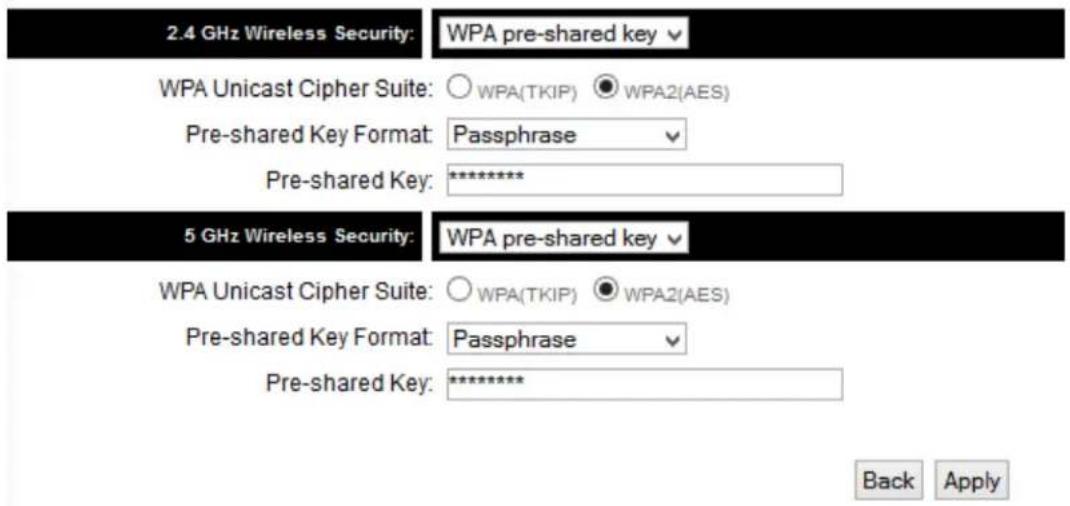
Click Apply and wait for the unit to reboot. Congratulations, you have set up the HW7ACB in WDS Mode!
Chapter III General Setup
In this chapter, you'll know how to change the major settings of the HW7ACB. Log onto the device and click on 'General Setup'.
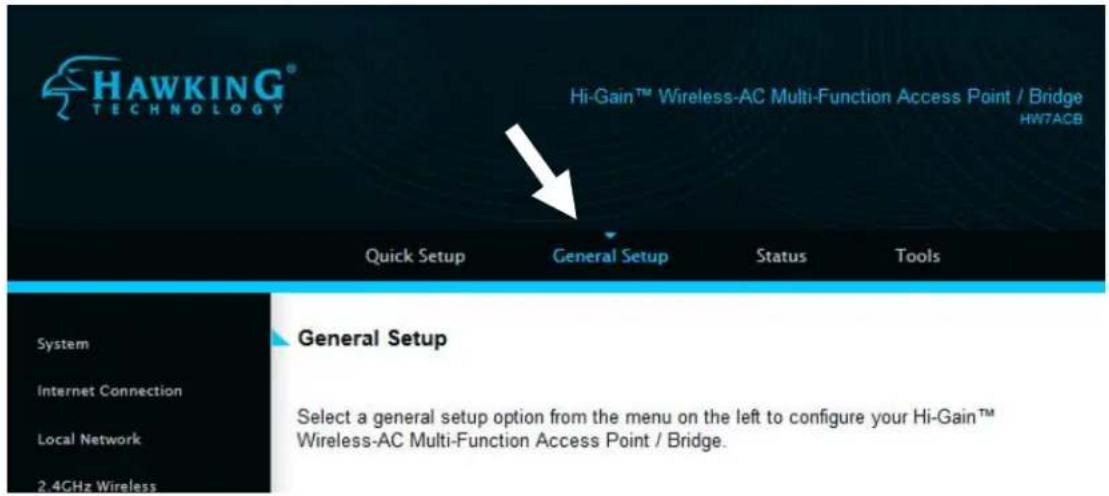
3-1 Time zone and time auto-synchronization
Please follow the following instructions to set time zone and time auto-synchronization parameters:
Please click ‘General Setup’ at the top of web management interface, select ‘System’ on the left hand column, and select ‘Time Zone’.
Time Zone
Set Time Zone:
(GMT-8:00) Pacific Time (US & Canada); Tijuana ▼
Time Server Address:
192.43.244.18
Daylight Savings:
Enable Function
Times From Jan ▼ 1 ▼ to Jan ▼ 1 ▼
Back Apply
The time zone settings will be displayed in your web browser: Please select the correct time zone from the drop-down list, and input the IP address or host name of the time server. If you want to enable daylight savings setting, please check 'Enable Function' box, and set the duration of daylight setting.
After you finish with all settings, please click 'Apply' button and the following message will be displayed on your web browser:
Settings Saved Successfully!
You may press Go Back button to continue configuring other settings or press APPLY button to restart the system to make the changes take effect.
Go Back Apply
Please click ‘Go Back’ to go back to previous setup menu, or click ‘Apply’ to reboot the access point so the settings will take effect. Please wait 30-60 seconds for the access point to reboot.
3-2 Change Management password
Default password of this access point is ‘1234’, and it’s displayed on the login prompt when accessed from the web browser. There’s a security risk if you don’t change the default password, since everyone can see it. This is very important when you have wireless function enabled.
To change password, please follow the instructions:
Please click ‘General Setup’ at top of web management interface, select ‘System’ tab on the left hand column, and then click ‘Password Settings’, and the following message will be displayed on your web browser:
Password Settings
You can change the password required while logging into the Hi-Gain™ Wireless-AC Multi-Function Access Point / Bridge's web-based management system. By default, the password is 1234.
Passwords can contain 0 to 30 alphanumeric characters and are case sensitive.
| Current Password: | 1 | |
| New Password: | 2 | |
| Confirm Password: | 3 |
Apply
Cancel
Current Please input current password here.
Password (1):
New Password (2): Please input new password here.
Confirm Please input new password here again.
Password (3):
If the password you typed in ‘New Password’ (2) and ‘Confirm Password’ (3) field are not the same, you’ll see the following message:
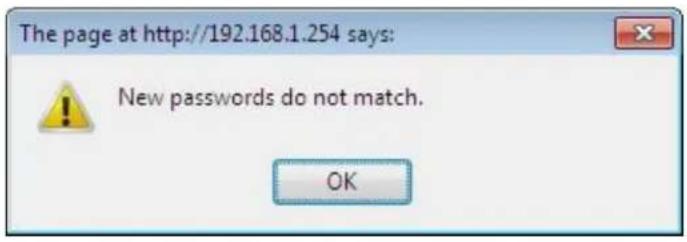
Please retype the new password again when you see above message.
If you see the following message:
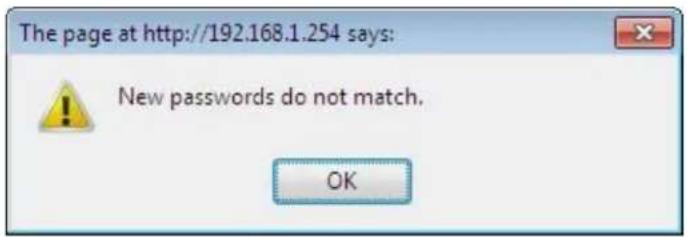
It means the content in ‘Current Password’ field is wrong, please click ‘OK’ to go back to previous menu, and try to input current password again.
If the current and new passwords are correctly entered, after you click 'Apply', you'll be prompted to input your new password:
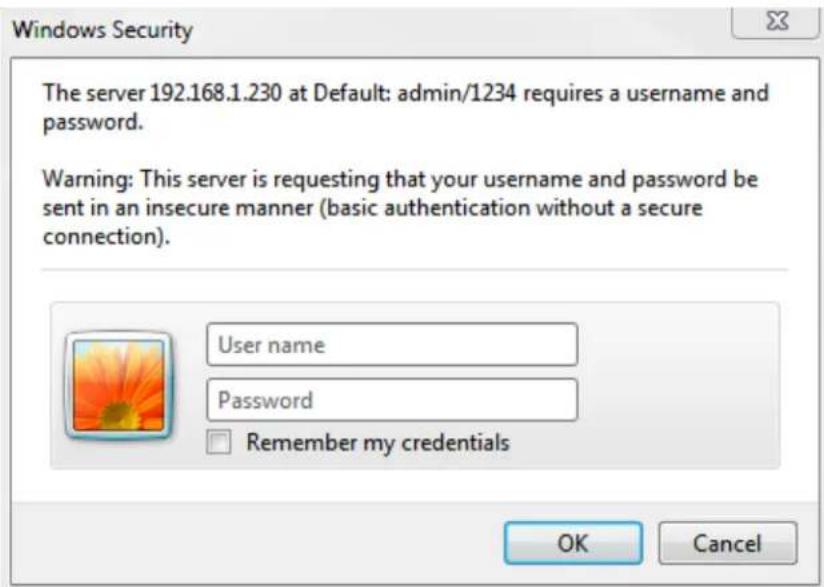
Please use new password to enter web management interface again, and you should be able to login with new password.
3-3 Remote Management
This HW7ACB does not by default allow management access from Internet. This is to prevent possible security risks (especially if you defined a weak password, or didn't change default password). However, you can still manage this HW7ACB from a specific IP address by enabling the 'Remote Management' Function. Note: Remote Management only works when the device is in "ROUTER" mode.
To do so, please follow the following instructions:
Please click ‘General Settings’ tab, then click on ‘System’ on the left column and then click ‘Remote Management’
Remote Management
The remote management function allows you to designate a host over the Internet to have management/configuration access to the Hi-Gain™ Wireless-AC Multi-Function Access Point / Bridge. Enter the designated host IP Address in the Host IP Address field. This can only be enabled in Router Mode and is disabled in other modes.
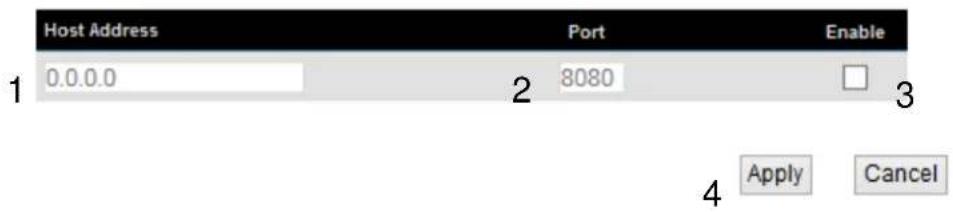
Here are descriptions of every setup items:
Host Address (1): Input the IP address of the remote host you wish to initiate a management access.
Port (2): You can define the port number this router should expect an incoming request. If you're providing a web service (default port number is 80), you should try to use other port number. You can use the default port setting '8080', or something like '32245' or '1429'. (Any integer between 1 and 65534)
Enable (3): Select the field to start the configuration.
When you finish with all settings, click 'Apply', and you'll see the following message displayed on web browser:
Save setting successfully!
You may press CONTINUE button to continue configuring other settings or press APPLY button to restart the system for changes to take effect
Continue
Apply
Press ‘Continue’ to save the settings made and back to web management interface; press ‘Apply’ to save the settings made and restart the router so the settings will take effect after it reboots.
NOTE: When you want to manage this HW7ACB from another computer on internet, you have to input the IP address and port number of this HW7ACB. If your Internet service provider assigns you with a static IP address, it will not be a problem; but if the IP address your service provider assigns to you will vary every time you establish an internet connection, this will be a problem.
Please either ask your service provider to give you a static IP address, or use dynamic IP to host name mapping services like DDNS. Please refer to chapter 2-5-8 'DDNS client' for details.
3-4 Setup Internet Connection (WAN Setup)
Internet connections setup can be done by using ‘Quick Setup’ menu described in chapter 2-3-1. However, you can manually setup Internet Connections up by using Internet Connection menu. You can also set advanced functions like DDNS (Dynamic DNS) here.
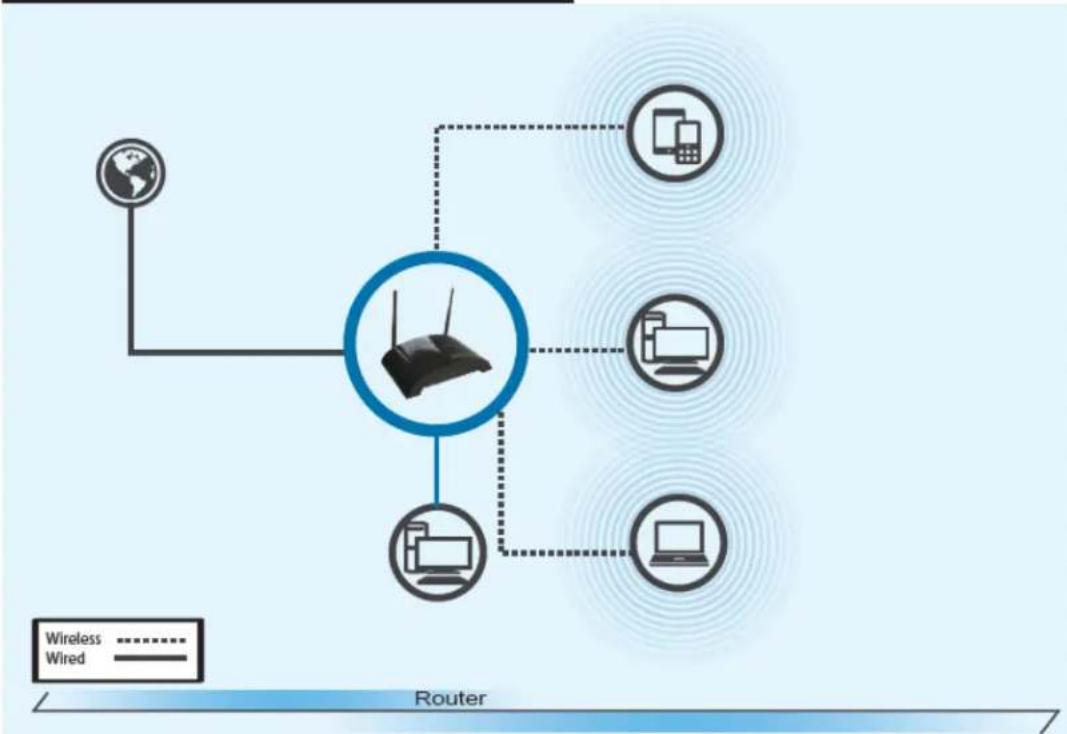
Router Mode
flowchart
graph TD
    A["Router"] --> B["Wireless Device"]
    A --> C["Wi wired Device"]
    A --> D["Wi wired Laptop"]
    A --> E["Wi wired Desktop"]
Router Mode: The HW7ACB acts as a standard wireless router and supports 2.4GHz and 5GHz AC. Use this mode to share an internet connection. Plug your modem provided by your Internet Service Provider into the port labeled WAN. Wired computers can go into LAN ports 1-4.
To start configuration, please follow the following instructions:
Please click 'Internet Connection' menu on the left of web management interface, and the following message will be displayed on your web browser:
Internet Connection
Select your Broadband Internet connection type from the menu below to begin adjusting your configuration settings. This is only enabled in Router Mode and is disabled in other modes.

Dynamic IP - Please go to section 3-4-1
Static IP - Please go to section 3-4-2
PPPoE - Please go to section 3-4-3
3-4-1 Setup Procedure for 'Dynamic IP':
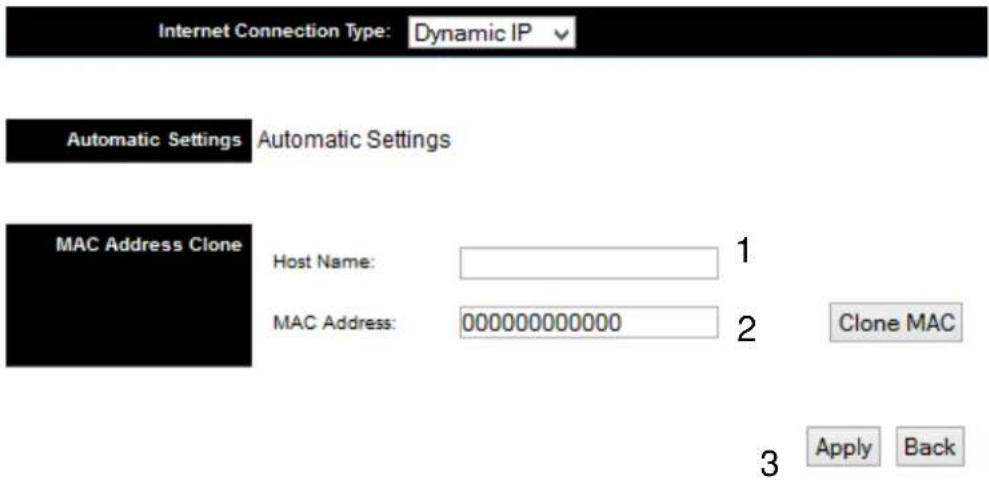
Host Name/Domain (1): Please input host name/domain of your computer. This is optional and only required if your service provider asks you to do so.
MAC Address (2): Please input MAC address of your computer if your ISP requires it. If you're using the computer which was used to connect to the Internet via cable modem, you can simply press 'Clone Mac address' button to fill the MAC address field with the MAC address of your computer.
After you finish with all settings, please click 'Apply' (3); if you want to remove the value you entered, please click 'Cancel'.
After you click 'Apply', the following message will be displayed on your web browser:
Settings Saved Successfully!
You may press Go Back button to continue configuring other settings or press APPLY button to restart the system to make the changes take effect.
Go Back
Apply
Press ‘Go Back’ to save the settings made and go back to web management interface; press ‘Apply’ to save the settings made and restart the router so the settings will take effect after it reboots.
3-4-2 Setup Procedure for 'Static IP':
5
Apply
Back
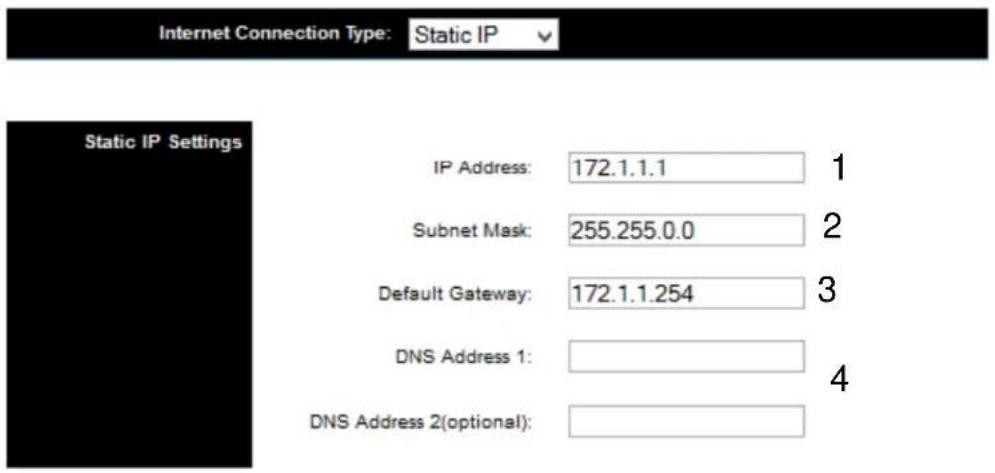
IP address (1): Please input IP address assigned by your service provider.
Subnet Mask (2): Please input subnet mask assigned by your service provider
Default Gateway (3): Please input the IP address of Default Gateway provided by your service provider.
DNS Address (4): Please input the IP address of DNS server provided by your service provider.
If you want to reset all settings in this page back to previously-saved value, please click 'Cancel' button.
After you finish with all settings, please click 'Apply'(5) button and the following message will be displayed on your web browser:
Settings Saved Successfully!
You may press Go Back button to continue configuring other settings or press APPLY button to restart the system to make the changes take effect.
Go Back
Apply
Press ‘Go Back’ to save the settings made and go back to web management interface; press ‘Apply’ to save the settings made and restart the router so the settings will take effect after it reboots.
3-4-3 Setup Procedure for 'PPPoE':
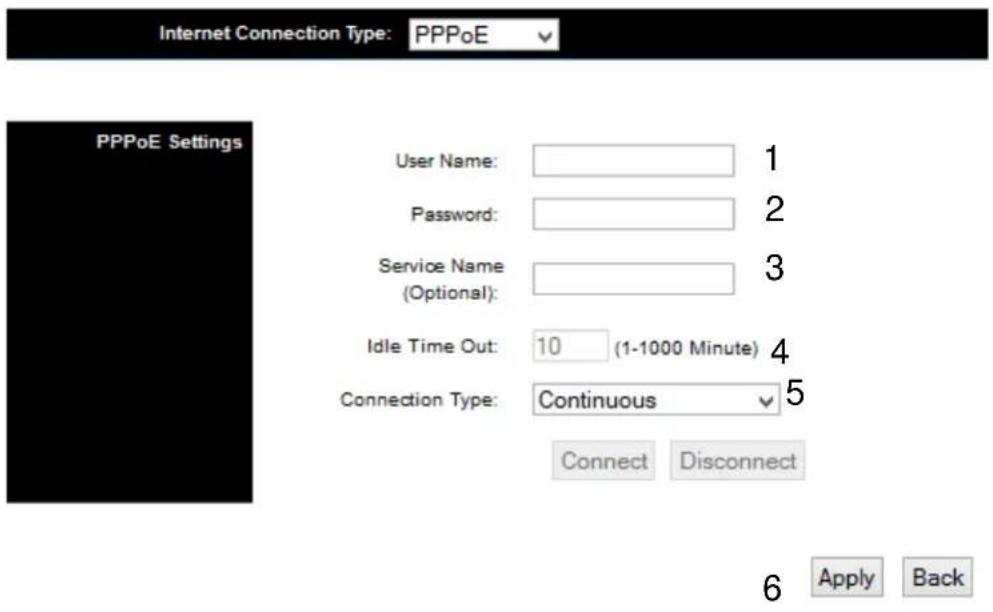
User Name (1): Please input user name assigned by your Internet service provider here.
Password (2): Please input the password assigned by your Internet service provider here.
Service Name (3): Please give a name to this Internet service, this is optional
Idle Time Out (4): If you have selected the connection type to "Connect-On-Demand", please input the idle time out.
Connection Please select the connection type of Internet
Type (5): connection you wish to use.
Continuous - The connection will be kept always on. If the connection is interrupted, the router will re-connect automatically.
Connect On-Demand - Only connect when you want to surf the
Internet. “Idle Time Out” is set to stop the connection when the network traffic is not sending or receiving after an idle time.
Manual – After you have selected this option, you will see the “Connect” button and “Disconnect” button, click “‘Connect’ and the router will connect to the ISP. If you want to stop the connection, please click “Disconnect” button.
If you want to reset all settings in this page back to previously-saved value, please click 'Cancel' button.
After you finish with all settings, please click ‘Apply’ (6) button and the following message will be displayed on your web browser:
Settings Saved Successfully!
You may press Go Back button to continue configuring other settings or press APPLY button to restart the system to make the changes take effect.
Go Back Apply
Press ‘Go Back’ to save the settings made and go back to web management interface; press ‘Apply’ to save the settings made and restart the router so the settings will take effect after it reboots.
3-4-4 Setup Procedure for 'DNS':
If you select ‘Dynamic IP’ or ‘PPPoE’ as Internet connection method, at least one DNS server’s IP address should be assigned automatically. However, if you have preferred DNS server, or your service provider didn’t assign the IP address of DNS server for any reason, you can input the IP address of the DNS server here.
DNS
A Domain Name System (DNS) server is similar to an index of IP Addresses and Web Addresses. If you type a Web address into your browser, such as www.broadbandrouter.com, a DNS server will find that name in its index and find the matching IP address. Most Internet Service Providers (ISPs) provide a DNS server for speed and convenience. Since your ISP may connect you to the Internet through dynamic IP settings, it is likely that the DNS server IP Address is also provided dynamically. However, if there is a DNS server that you would rather use, you need to specify the IP Address of that DNS server. The primary DNS will be used for domain name access first, in case the primary DNS access failures, the secondary DNS will be used.
Primary DNS: 1 Secondary DNS: 2
Back Apply 3
DNS Address (1): Please input the IP address of DNS server provided by your service provider.
Secondary Please input the IP address of another DNS
DNS Address (2): server provided by your service provider, this is optional.
NOTE: Only IP address can be entered here; DO NOT use the hostname of DNS server! (i.e. only numeric characters and dots are accepted)
10.20.30.40...... Correct dns.serviceprovider.com...... Incorrect
If you want to reset all settings in this page back to previously-saved value, please click 'Cancel' button.
After you finish with all settings, please click 'Apply' (3) button and the following message will be displayed on your web browser:
Settings Saved Successfully!
You may press Go Back button to continue configuring other settings or press APPLY button to restart the system to make the changes take effect.
Go Back
Apply
Press ‘Go Back’ to save the settings made and go back to web management interface; press ‘Apply’ to save the settings made and restart the router so the settings will take effect after it reboots.
3-4-5 Setup Procedure for 'DDNS':
DDNS (Dynamic DNS) is an IP-to-Hostname mapping service for those Internet users who don't have a static (fixed) IP address. It will be a problem when such user wants to provide services to other users on Internet, because their IP address will vary every time when connected to Internet, and other user will not be able to know the IP address they're using at a certain time.
This router supports DDNS service of several service providers, for example:
DynDNS (http://www.dyndns.org)
TZO (http://www.tzo.com)
Please go to one of DDNS service provider's webpage listed above, and get a free DDNS account by the instructions given on their webpage.
DDNS
DynamicDNS (DDNS) allows users to map the static domain name to a dynamic IP address. You must get a account, password and your static domain name from the DDNS service providers. The HW7ACB only has support for www.dyndns.org and www.tzo.com. This is only enabled in Router Mode and is disabled in other modes.
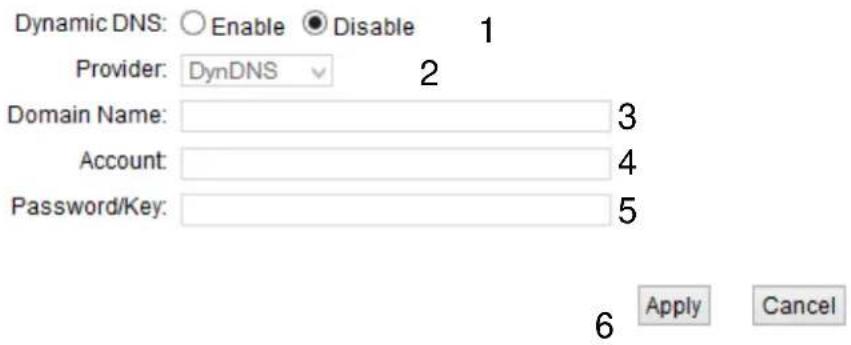
Dynamic DNS (1): If you want to enable DDNS function, please select 'Enabled'; otherwise please select 'Disabled'.
Provider (2): Select your DDNS service provider here.
Domain Name (3): Input the domain name you've obtained from DDNS service provider.
Account / Input account or email of DDNS registration.
E-Mail (4):
Password / Key (5): Input DDNS service password or key.
If you want to reset all settings in this page back to previously-saved value, please click 'Cancel' button.
After you finish with all settings, please click 'Apply' (6) button and the following message will be displayed on your web browser:
Settings Saved Successfully!
You may press Go Back button to continue configuring other settings or press APPLY button to restart the system to make the changes take effect.
Go Back Apply
Press ‘Go Back’ to save the settings made and go back to web management interface; press ‘Apply’ to save the settings made and restart the router so the settings will take effect after it reboots.
3-5 Wired LAN Configuration
Before all computers using wired Ethernet connection (i.e. the computers connected to this access point's LAN port) can communicate with each other and access Internet, they must have a valid IP address.
There are two ways to assign IP addresses to computers: static IP address (set the IP address for every computer manually), and dynamic IP address (IP address of computers will be assigned by access point automatically. It's recommended for most computers to use dynamic IP address, it will save a lot of time on setting IP addresses for every computer, especially when there are a lot of computers in your network; for servers and network devices which will provide services to other computers and users that come from the Internet, a static IP address should be used.
Suggestions on IP Address numbering plan:
If you have no idea on how to define an IP address plan for your network, here are some suggestions.
- A valid IP address has 4 fields: a.b.c.d, for most of home and company users, it's suggested to use 192.168.c.d, where c is an integer between 0 and 254, and d is an integer between 1 and 254. This router is capable to work with up to 253 clients, so you can set 'd' field of IP address of router as 1 or 254 (or any number between 1 and 254), and pick a number between 0 and 254 for field 'c'.
- In most cases, you should use '255.255.255.0' as subnet mask, which allows up to 253 clients (this also meets router's capability of working with up to 253 clients).
- For all servers and network devices which will provide services to other people (like Internet service, print service, and file service), they should use static IP address. Give each of them a unique number between 1 and 253, and maintain a list, so everyone can locate those servers easily.
- For computers which are not dedicated to provide specific service to others, they should use dynamic IP address.
Please click 'General Setup' at the top of web management interface and click 'Local Network' on the left hand column.
There are two setup groups here: 'LAN IP' and 'DHCP Server'
3-5-1 Local Network
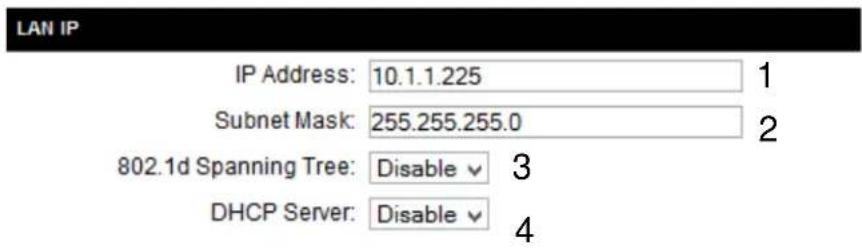
IP address (1): Please input the IP address of this access point.
Subnet Mask (2): Please input subnet mask for this network.
802.1d Spanning Tree (3): Spanning-Tree Protocol (STP) prevents loops from being formed when switches or bridges are interconnected via multiple paths
DHCP Server (4): If you want to activate DHCP server function of this access point, select 'Enabled', or set it to 'Disabled'.
Recommended Value if you don't know what to fill:
IP Address: 192.168.1.230 802.d Spanning Tree: Disabled
Subnet Mask: 255.255.255.0 DHCP Server: Disabled
Gateway Address: (leave it blank)
3-5-2 DHCP Server:
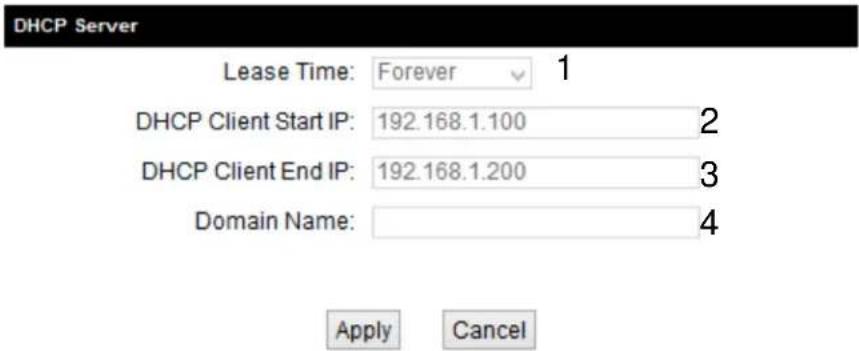
These settings are only available when 'DHCP Server' in 'LAN IP' section is 'Enabled'.
Lease Time (1): Please choose a lease time (the duration that every computer can keep a specific IP address) of every IP address assigned by this access point from dropdown menu.
DHCP Client Start IP (2): Please input the start IP address of the IP range.
DHCNP Client End IP (3): Please input the end IP address of the IP range.
Domain Name (4): If you wish, you can also optionally input the domain name for your network. This is optional.
Recommended Value if you don't know what to fill:
Lease Time: Two Weeks (or 'Forever', if you have less than 20 computers)
Start IP: 192.168.1.100
End IP: 192.168.1.200
Domain Name: (leave it blank)
NOTE:
- The number of the last field (mentioned 'd' field) of 'End IP' must be greater than 'Start IP', and can not be the same as router's IP address.
- The former three fields of IP address of 'Start IP', 'End IP', and 'IP Address of 'LAN IP' section (mentioned 'a', 'b', and 'c' field) should be the same.
- These settings will affect wireless clients too.
3-5-3 Static DHCP Leases Table:
This function allows you to assign a static IP address to a specific computer forever, so you don't have to set the IP address for a computer, and still enjoy the benefit of using DHCP server. Maximum 16 static IP addresses can be assigned here.
(If you set 'Lease Time' to 'forever' in 'DHCP Server' section, you can also assign an IP address to a specific computer permanently, however, you will not be able to assign a certain IP address to a specific computer, since IP addresses will be assigned in random order by this way).
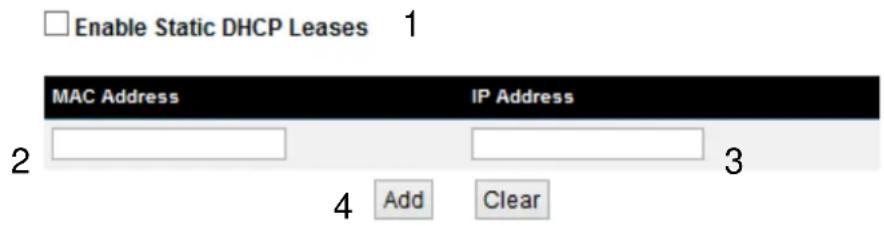
Enable Static Check this box to enable this function,
DHCP Leases (1): otherwise uncheck it to disable this function.
MAC Address (2): Input the MAC address of the computer or network device (total 12 characters, with character from 0 to 9, and from a to f, like '001122aabbcc')
IP address (3): Input the IP address you want to assign to this computer or network device
'Add' (4): After you inputted MAC address and IP address pair, click this button to add the pair to static DHCP leases table.
If you want to remove all characters you just entered, click 'Clear'.
After you clicked 'Add', the MAC address and IP address mapping will be added to 'Static DHCP Leases Table' section.
Static DHCP Lease Table - Up to 16 entries.

If you want to delete a specific item, please check the 'Select' box of a MAC address and IP address mapping (1), then click 'Delete Selected' button (2); if you want to delete all mappings, click 'Delete All' (3).
After you finish all LAN settings, please click 'Apply' button on the bottom of this page. After you click 'Apply', the following message will be displayed on your web browser:
Settings Saved Successfully!
You may press Go Back button to continue configuring other settings or press APPLY button to restart the system to make the changes take effect.

Press ‘Go Back’ to save the settings made and go back to web management interface; press ‘Apply’ to save the settings made and restart the router so the settings will take effect after it reboots.
3-6 Wireless Network
If your computer, PDA, game console, or other network devices is equipped with a wireless network adapter, you can use the wireless function of this access point to let them connect to the Internet and share resources with other computers.
Please click 'General Setup' tab at the top of web management interface, and then click 'Wireless Configuration' tab on the left hand column. The following message will be displayed on your web browser:
2.4GHz Wireless
The Hi-Gain™ Wireless-AC Multi-Function Access Point / Bridge has many modes and be quickly be configured in this section. You can also enable/disable the 2.4GHz radio here.
Wireless Module: ● Enable ○ Disable
Settings Saved Successfully!
You may press Go Back button to continue configuring other settings or press APPLY button to restart the system to make the changes take effect.
Go Back Apply
Please click ‘Go Back’ to go back to previous setup menu, or click ‘Apply’ to reboot the access point so the settings will take effect. Please wait 30-60 seconds for the access point to reboot
3-6-1 Basic Wireless Settings
Please click ‘General Setup’ menu at the top of web management interface, then click ‘2.4GHz Wireless Configuration’ or ‘5GHz Wireless Configuration’ on the left hand column. Choose ‘Basic Settings’. Next to the Mode option, please select your Mode.
3-6-1-1 Access Point
flowchart
graph TD
    A["Internet"] --> B["Wireless"]
    B --> C["2.4GHz wireless network"]
    C --> D["5Gz AC wireless network"]
    D --> E["Wireless"]
    D --> F["2.4GHz wireless network"]
    D --> G["5Gz AC wireless network"]
    style A fill:#f9f,stroke:#333
    style B fill:#ccf,stroke:#333
    style C fill:#cfc,stroke:#333
    style D fill:#fcc,stroke:#333
    style E fill:#ffc,stroke:#333
    style F fill:#cfc,stroke:#333
    style G fill:#fcc,stroke:#333
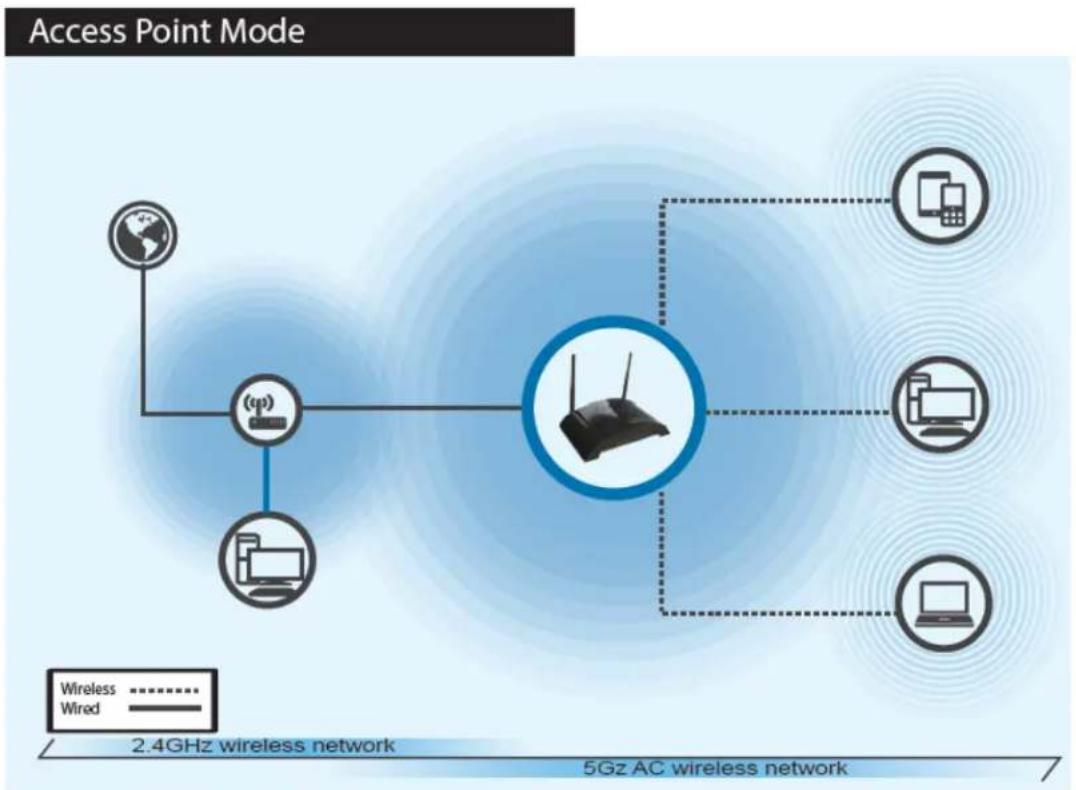
Access Point Mode: The HW7ACB acts as a standard wireless access point. It can upgrade your existing 2.4GHz WiFi network to a 5GHz AC or expand it, giving it greater coverage. After setup, be sure to hook the HW7ACB to your network via LAN ports 1-4.
Standard default mode. The HW7ACB will broadcast a WiFi signal for other computers and devices to connect to. Must be plugged into the router or network after setup.
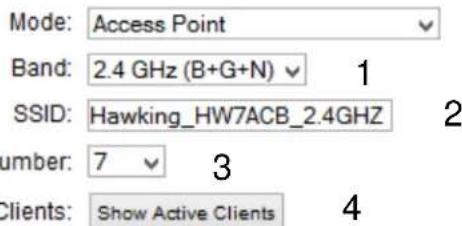
Basic Settings.
Apply Cancel
Band (1): Please select the radio band from one of following options:
2.4GHz
2.4 GHz (B) 2.4GHz band, only allows 802.11b wireless network clients to connect to this router (maximum transfer rate 11Mbps).
2.4 GHz (N) 2.4GHz band, only allows 802.1 In wireless network clients to connect to this router (maximum transfer rate 300Mbps).
2.4 GHz (B+G) 2.4GHz band, only allows 802.11b and 802.11g wireless network clients to connect to this router (maximum transfer rate 11Mbps for 802.11b clients, and maximum 54Mbps for 802.11g clients).
2.4 GHz (G) 2.4GHz band, only allows 802.11g wireless network clients to connect to this router (maximum transfer rate 54Mbps).
2.4 GHz (B+G+N) 2.4GHz band, allows 802.11b, 802.11g, and 802.11n wireless network clients to connect to this router (maximum transfer
rate 11Mbps for 802.11b clients, maximum 54Mbps for 802.11g clients, and maximum 300Mbps for 802.11n clients).
5GHz
5GHz (A): 5GHz band, this mode allows 802.11a wireless network client to connect this router (maximum transfer rate 54Mbps for 802.11a clients).
5GHz (N): 5GHz band, this mode allows 802.11n wireless network client to connect this router (maximum transfer rate 300Mbps for 802.11n clients).
5GHz (A+N): 5GHz band, this mode allows 802.11a and 802.11n wireless network client to connect this router (maximum transfer rate 54Mbps for 802.11a clients, and maximum 300Mbps for 802.11n clients).
5GHz (AC): this mode allows 802.11ac wireless network client to connect this router (maximum transfer rate 433Mbps for 802.11ac clients).
5GHz (AC): 5GHz band, this mode allows 802.11ac wireless network client to connect this router (maximum transfer rate 433Mbps for 802.11ac clients).
5GHz (N+AC): 5GHz band, this mode allows 802.11n and 802.11ac wireless network client to connect this router (maximum transfer rate 150Mbps for 802.11n clients, and maximum 433Mbps for 802.11ac clients).
5GHz (A+N+AC): 5GHz band, this mode allows 802.11a, 802.11n and 802.11ac wireless network client to connect this router (maximum transfer rate 54Mbps for 802.11a clients, maximum 150Mbps for 802.11n clients, and maximum 433Mbps for 802.11ac clients).
NOTE: If you don't have special reason to limit the type of allowed wireless clients, it's recommended to choose '2.4 GHz (B+G+N) and 5GHz (A+N+AC) to maximize wireless client compatibility.
ESSID (2): This is the name of wireless access point. You can type any alphanumeric characters here, maximum 32 characters. ESSID is used to identify your own wireless access point from others when there are other wireless access points in the same area.
Default SSID
2.4GHz: Hawking_HW7ACB_2.4GHz
5GHz: Hawking_HW7ACB_5GHz
It's recommended to change default ESSID value to the one which is meaningful to you, such as, 'myhome', 'office_room1', etc.
Channel Number (3): Please select a channel from the dropdown list of 'Channel Number', You can choose any channel number you want to use, and almost all wireless clients can locate the channel you're using automatically without any problem. However, it's still useful to remember the channel number you use, as some wireless clients support manual channel number selecting, and this would help in certain scenarios when there are radio communication conflicts.
TIP: You can try to change channel number to another one if you think the data transfer rate is too slow. There could be some other wireless routers using the same channel, which will disturb the radio communication between wireless client and the wireless router.
Associated Clients (4): Click 'Show Active Clients' button, then an "Active Wireless Client Table" will pop up. You can see the status of all active wireless stations that are connecting to the access point.
After you finish these wireless settings, please click 'Apply' button, button, and the
following message will be displayed on your web browser:
Settings Saved Successfully!
You may press Go Back button to continue configuring other settings or press APPLY button to restart the system to make the changes take effect.
Go Back Apply
Please click 'Go Back' to go back to previous setup menu; to continue on access point setup, or click 'Apply' to reboot the access point so the settings will take effect. Please wait 30-60 seconds for the access point to reboot.
3-6-1-2 Bridge (Station Infrastructure)
flowchart
graph TD
    A["Bridge Mode"] --> B["Client Mode"]
    B --> C["Wireless"]
    B --> D["Wired"]
    C -.-> E["Wireless"]
    D -.-> F["Wired"]
    G["Mobile Phone"] --> H["Wireless"]
    I["Desktop Computer"] --> J["Wireless"]
    K["Radio Station"] --> L["Wireless"]
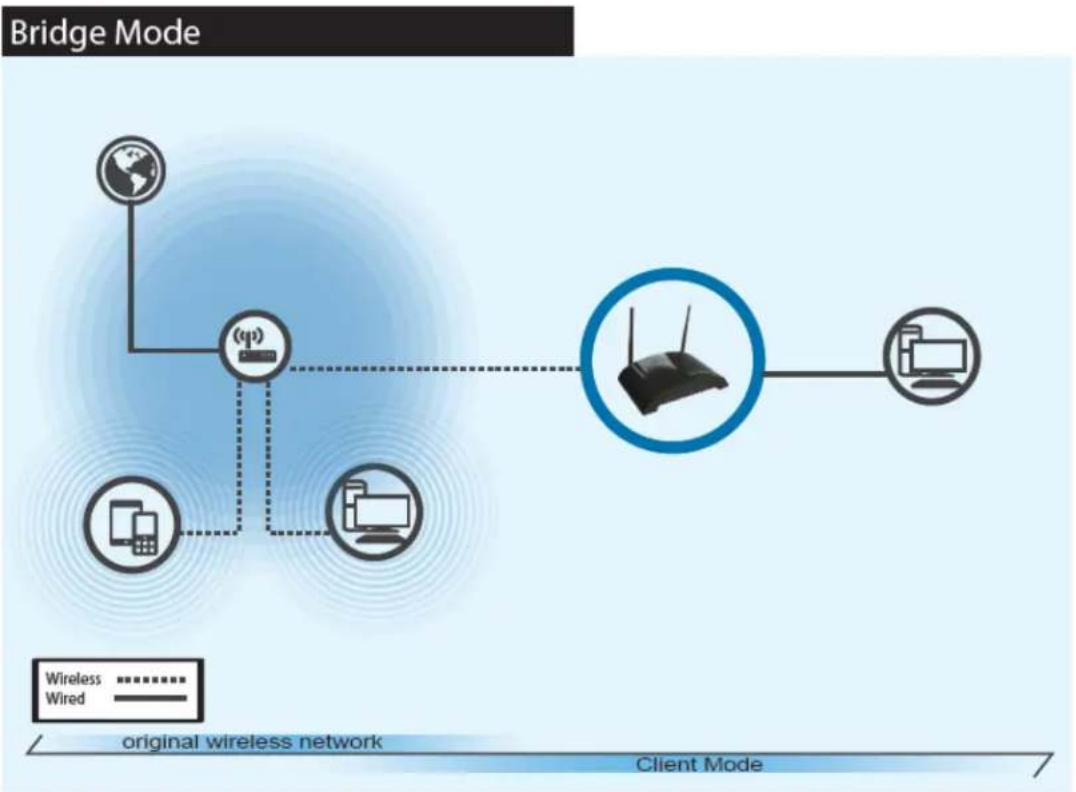
Bridge Mode: The HW7ACB allows you to connect wired devices wirelessly to an existing wireless router or access point. Non-wireless devices can network wirelessly with your Wireless Network. In this mode, the HW7ACB does not broadcast any wireless signal. After setup, be sure to hook it up to client computers/devices via LAN ports 1-4.
The HW7ACB will allow you connect wired devices wirelessly to an existing wireless router or access point. It will “bridge” these devices wirelessly with your network. It will not broadcast any WiFi signal. It will only make a wireless connection between the Access Point and the HW7ACB. The HW7ACB will only connect to either 2.4GHz or a 5GHz network.
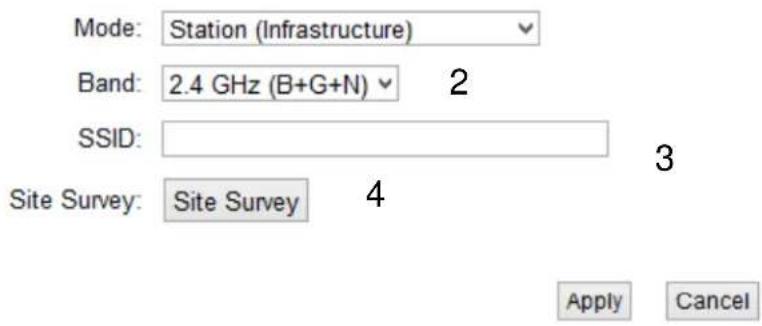
Band (2): Select the band you want to use. Refer to 3-6-1-1 for definitions.
SSID (3): This is the name of wireless network. You can type the SSID of the network you would like to connect here.
Site Survey (4): When you use this wireless router as a wireless station for Ethernet network device to have wireless capability, you have to associate it with a working access point. Click 'Select Site Survey' button, then a "Wireless Site Survey Table" will pop up. It will list all available access points nearby. You can select one access point in the table and it will join wireless LAN through this access point.
3-6-1-3 AP Bridge-Point to Point
Bridge Point to Point Mode
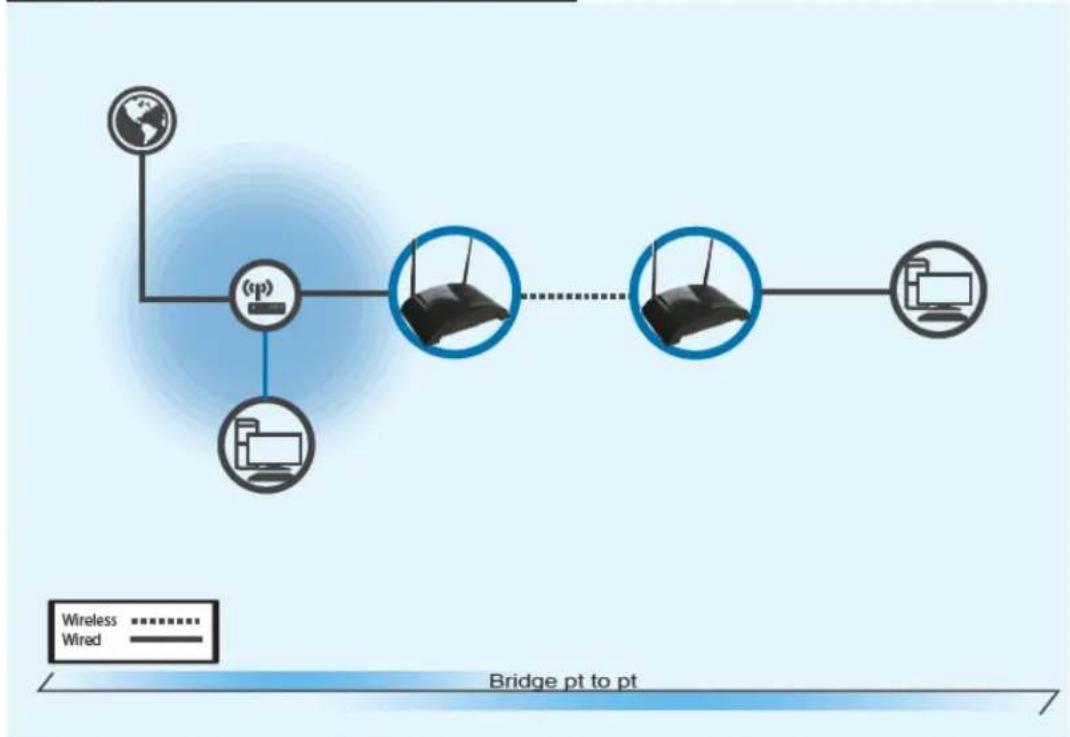
flowchart
graph TD
    A["Global Network"] --> B["(p)"]
    B --> C["Router"]
    C --> D["Router"]
    D -.-> E["Router"]
    E --> F["Computer"]
    style A fill:#f9f,stroke:#333
    style B fill:#ccf,stroke:#333
    style C fill:#cfc,stroke:#333
    style D fill:#fcc,stroke:#333
    style E fill:#cff,stroke:#333
    style F fill:#ffc,stroke:#333
    linkStyle 0 stroke:#000,stroke-width:2px
    linkStyle 1 stroke:#000,stroke-width:2px
    linkStyle 2 stroke:#000,stroke-width:2px
    linkStyle 3 stroke:#000,stroke-width:2px
    linkStyle 4 stroke:#000,stroke-width:2px
    linkStyle 5 stroke:#000,stroke-width:2px
    linkStyle 6 stroke:#000,stroke-width:2px
    linkStyle 7 stroke:#000,stroke-width:2px
    linkStyle 8 stroke:#000,stroke-width:2px
    linkStyle 9 stroke:#000,stroke-width:2px
    linkStyle 10 stroke:#000,stroke-width:2px
    linkStyle 11 stroke:#000,stroke-width:2px
    linkStyle 12 stroke:#000,stroke-width:2px
    linkStyle 13 stroke:#000,stroke-width:2px
    linkStyle 14 stroke:#000,stroke-width:2px
    linkStyle 15 stroke:#000,stroke-width:2px
    linkStyle 16 stroke:#000,stroke-width:2px
    linkStyle 17 stroke:#000,stroke-width:2px
    linkStyle 18 stroke:#000,stroke-width:2px
    linkStyle 19 stroke:#000,stroke-width:2px
    linkStyle 20 stroke:#000,stroke-width:2px
    linkStyle 21 stroke:#000,stroke-width:2px
    linkStyle 22 stroke:#000,stroke-width:2px
    linkStyle 23 stroke:#000,stroke-width:2px
    linkStyle 24 stroke:#000,stroke-width:2px
    linkStyle 25 stroke:#000,stroke-width:2px
    linkStyle 26 stroke:#000,stroke-width:2px
    linkStyle 27 stroke:#000,stroke-width:2px
    linkStyle 28 stroke:#000,stroke-width:2px
    linkStyle 29 stroke:#000,stroke-width:2px
    linkStyle 30 stroke:#000,stroke-width:2px
    linkStyle 31 stroke:#000,stroke-width:2px
    linkStyle 32 stroke:#000,stroke-width:2px
    linkStyle 33 stroke:#000,stroke-width:2px
    linkStyle 34 stroke:#000,stroke-width:2px
    linkStyle 35 stroke:#000,stroke-width:2px
    linkStyle 36 stroke:#000,stroke-width:2px
    linkStyle 37 stroke:#000,stroke-width:2px
    linkStyle 38 stroke:#000,stroke-width:2px
    linkStyle 39 stroke:#000,stroke-width:2px
    linkStyle 40 stroke:#000,stroke-width:2px
    linkStyle 41 stroke:#000,stroke-width:2px
    linkStyle 42 stroke:#000,stroke-width:2px
    linkStyle 43 stroke:#000,stroke-width:2px
    linkStyle 44 stroke:#000,stroke-width:2px
    linkStyle 45 stroke:#000,stroke-width:2px
    linkStyle 46 stroke:#000,stroke-width:2px
    linkStyle 47 stroke:#000,stroke-width:2px
    linkStyle 48 stroke:#000,stroke-width:2px
    linkStyle 49 stroke:#000,stroke-width:2px
    linkStyle 50 stroke:#000,stroke-width:2px
Bridge Point to Point Mode: The HW7ACB allows you to connect two HW7ACB's wirelessly to each other to expand the scope of your network. In this mode, the HW7ACB does not broadcast any wireless signal. After setup, be sure to hook one HW7ACB into the main network and the other HW7ACB to any client computers/devices via LAN ports 1-4.
Similar to station-infrastructure, this requires two HW7ACB's on each end. This will create a wireless bridge between these two points. No WiFi signal will be broadcast and it will only make a wireless connection between those two points.
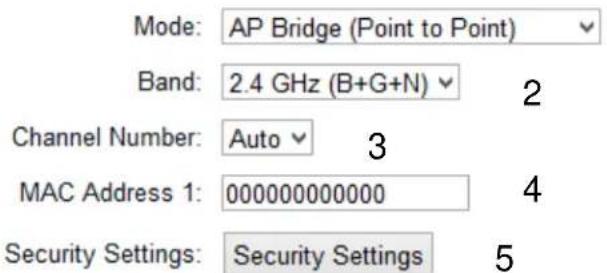

NOTE: Two HW7ACB's must use the same mode, band, channel number, and security setting!
Band (2): Select the band you want to use, the two HW7ACB's must use the same setting. Refer to 3-6-1-1 for definitions.
Channel Number (3): Select the channel you want to use, the two wireless HW7ACBs must use the same setting.
MAC Address (4): Input the MAC address of another HW7ACB
Security Settings (5): Click to setting security for this connection (Please go to section '3-6-3 Wireless Security' for detailed instructions).
3-6-1-4 AP Bridge-Point to Multi-Point
Bridge Point to Multi-Point Mode
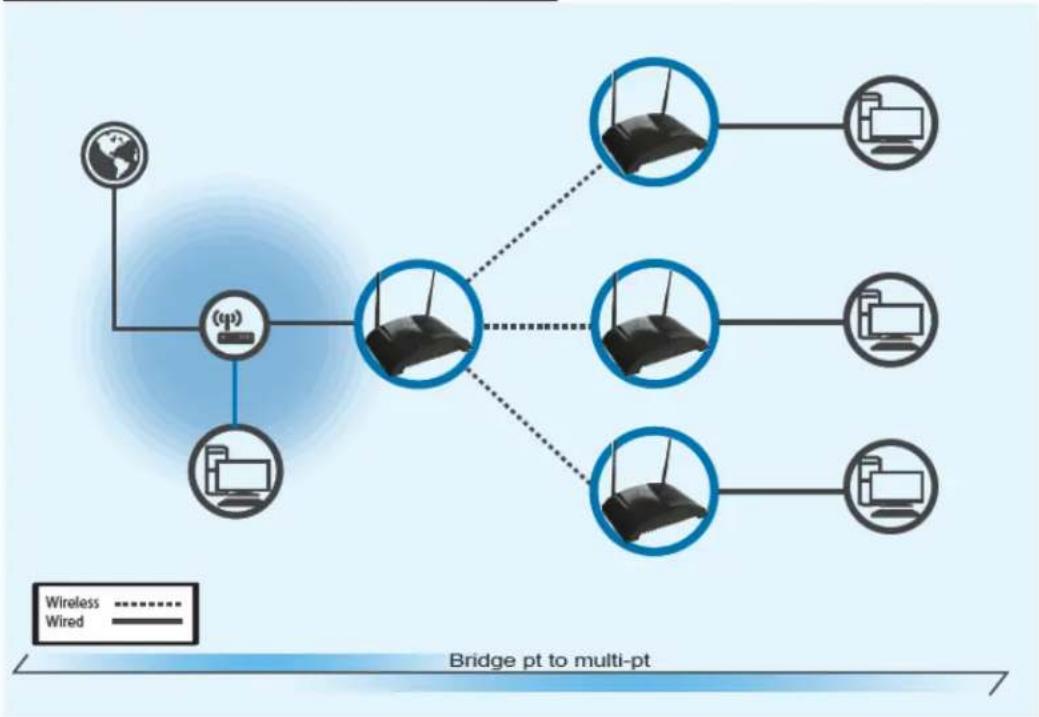
flowchart
graph TD
    A["Global Network"] --> B((Router))
    B --> C["Wireless"]
    B --> D["Wired"]
    C --> E["Client 1"]
    C --> F["Client 2"]
    C --> G["Client 3"]
    C --> H["Client 4"]
    C --> I["Client 5"]
    C --> J["Client 6"]
    style A fill:#f9f,stroke:#333
    style B fill:#ccf,stroke:#333
    style C fill:#cfc,stroke:#333
    style D fill:#fcc,stroke:#333
    style E fill:#ffc,stroke:#333
    style F fill:#fcc,stroke:#333
    style G fill:#fcc,stroke:#333
    style H fill:#fcc,stroke:#333
    style I fill:#fcc,stroke:#333
    style J fill:#fcc,stroke:#333
Bridge Point to Multi-Point Mode: The HW7ACB allows you to connect up to 4 HW7ACB's wirelessly to each other to expand the scope of your network. In this mode, the HW7ACB does not broadcast any wireless signal. After setup, be sure to hook one HW7ACB into the main network and the other HW7ACBs to any client computers/devices via LAN ports 1-4.
Similar to AP Bridge – Point to Point, this allows you to connect several HW7ACB's to one point. No WiFi signal will be broadcast and it will only make a wireless connection between the HW7ACBs.
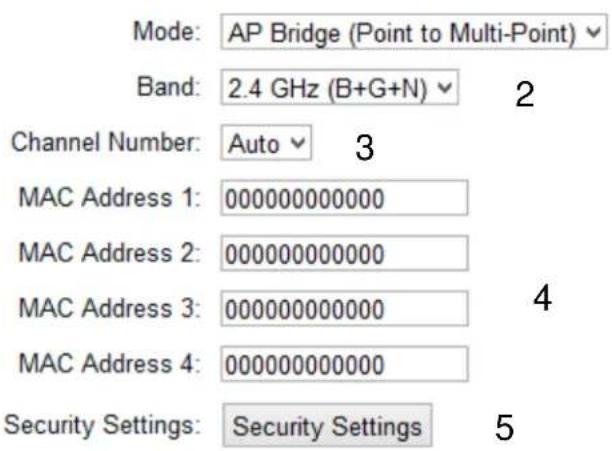

Band (2): Select the band you want to use, all HW7ACB's must use the same setting. Refer to 3-6-1-1 for definitions.
Channel Number (3): Select the channel you want to use, all HW7ACB's must use the same setting
MAC address (4) Input the MAC address of other HW7ACBs. 1 to 4:
Security Settings (5): Click to set security settings for this connection (Please go to section '3-6-3 Wireless Security' for detailed instructions).
3-6-1-5 AP Bridge-WDS
Bridge WDS Mode
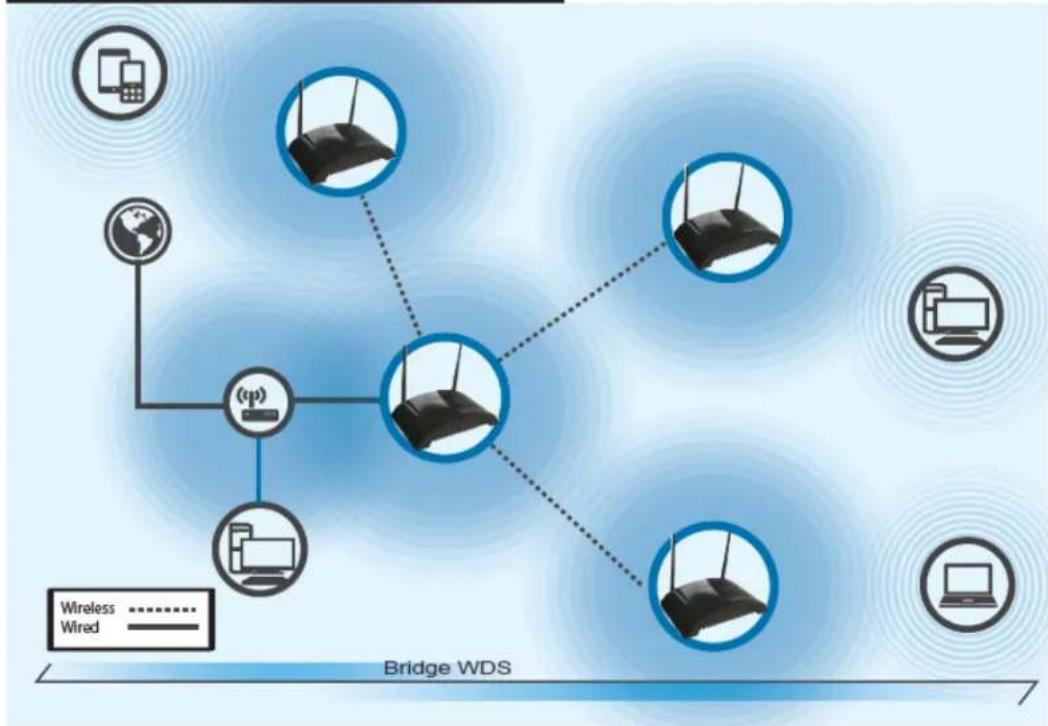
Bridge WDS Mode: The HW7ACB allows you to connect up to 4 HW7ACB's wirelessly to each other to expand the scope of your network. In this mode, the HW7ACB will transmit a wireless signal. Be sure to use the same SSID, channel and security for each. The first HW7ACB must be connected to the primary network via LAN port 1-4 and the others can be stand-alone.
Wireless Distributing System. This allows you to create a wireless network using up to four HW7ACB's using the same SSID (wireless name). It will broadcast a WiFi signal.
NOTE: For WDS mode, the output signal nature is the same as that of normal AP mode.
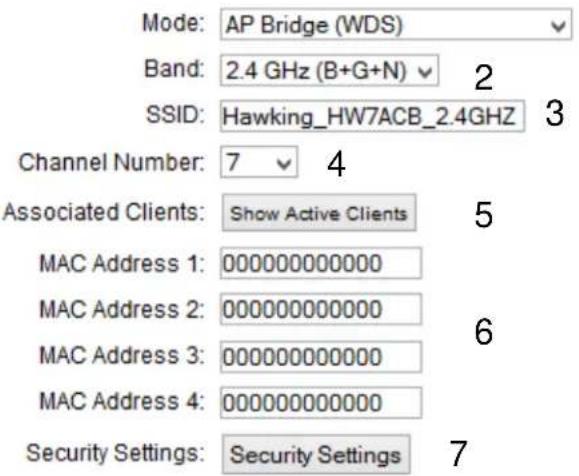
Band (2):
Select the band you want to use, all the HW7ACB's must use the same setting. Refer to 3-6-1-1 for definitions.
SSID (3): Input the SSID of your HW7ACB's, the setting should be the same with other HW7ACB's for the convenience of roaming.
Channel Number (4): Select the channel you want to use, all the HW7ACB's must use the same setting.
Associated Clients (5): Click 'Show Active Clients' button, then an "Active Wireless Client Table" will pop up. You can see the status of all active wireless stations that are connecting to the access point.
MAC address Input the MAC address of other HW7ACB's 1 to 4 (6):
Security Click to set security settings for this connection Setting (7): (Please go to section '3-6-3 Wireless Security' for detailed instructions).
3-6-2 Advanced Wireless Settings
This access point provides some advanced control of wireless parameters, if you want to configure these settings, please click 'General Setup' at the top of web management interface and click 'Wireless Configuration' on the left hand column. Choose "Advanced Settings".
Advanced Settings
Advanced wireless settings for your Wireless Network.
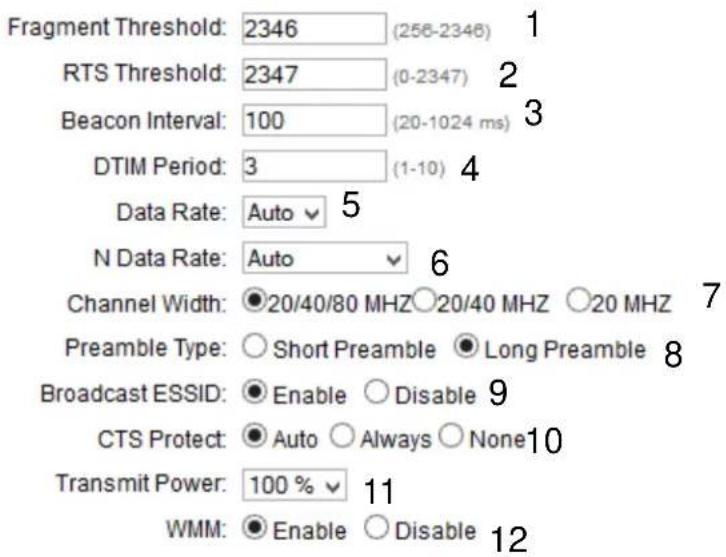
Cancel Apply
Fragment Threshold(1): Set the Fragment threshold of wireless radio.
Do not modify the default value if you do not understand the function, default value is '2346'.
RTS Threshold(2): Set the RTS threshold of wireless radio. Do not modify the default value if you do not understand the function, default value is '2347'.
Beacon Interval(3): Set the beacon interval of wireless radio. Do not modify the default value if you do not understand the function, default value is '100'.
DTIM Period(4): Set the DTIM period of wireless radio. Do not modify the default value if you do not understand the function, default value is '3'.
Data Rate(5): Set the wireless data transfer rate to a certain value. Since most of wireless devices will negotiate with each other and pick a proper data transfer rate automatically. It is not necessary to change this value unless you know what will happen after modification.
N Data Rate(6): Same as above, but only for 802.11n clients.
Channel Width(7): Set channel width of wireless radio. Do not modify the default value if you do not understand the function, default 2.4GHz setting is 'Auto 20/40 MHz' and the default 5GHz setting is '20/40/80MHz'
Preamble Type(8): Set the type of preamble, do not modify the default value if you do not know what it is, default setting is 'Short Preamble'.
Broadcast ESSID(9): Decide if the wireless access point will broadcast its own ESSID or not. You can hide the ESSID of your wireless access point (set the option to 'Disable'), so only those people who know the ESSID of your wireless access point can connect to the unit.
CTS Protect(10): Enabling this setting will reduce the chance of radio signal collisions between 802.11b and 802.11g/n wireless access points. It is recommended to set this option to 'Auto' or 'Always'. However, if you set to 'None', your wireless access point should be able to function properly.
Transmit Power(11): You can set the output power of wireless radio. Unless you are using this wireless access point in a large open space, you may not have to set output power to 100%. This will enhance security (malicious / unauthorized users in distance will not be able to reach your wireless access point).
WMM(12): Wi-Fi MultiMedia (WMM) will enhance the data transfer performance of multimedia contents when they are being transferred over a wireless network. If you do not understand the function, then it is safe to set this option to 'Enable', however, default value is 'Disable'.
After you finish these wireless settings, please click 'Apply' button, button, and the following message will be displayed on your web browser:
Settings Saved Successfully!
You may press Go Back button to continue configuring other settings or press APPLY button to restart the system to make the changes take effect.

Please click ‘Go Back’ to go back to previous setup menu; to continue on HW7ACB setup, or click ‘Apply’ to reboot the HW7ACB so the settings will take effect. Please wait 30-60 seconds for the HW7ACB to reboot.
3-6-3 Security Settings
It is important to set your wireless security settings properly! If you do not configure a wireless security setting, unauthorized users can use your network and/or obtain valuable data without your consent.
To set wireless security settings, please click ‘General Setup’ tab at the top of web management interface, then click ‘Wireless Configuration’ on the left hand column. Choose ‘Security Settings’.
Please select an encryption method from the ‘Encryption’ dropdown menu, there are four options:
Disable -Please go to section 3-6-3-1
WEP -Please go to section 3-6-3-2
WPA -Please go to section 3-6-3-3
WPA Radius -Please go to section 3-6-3-4
3-6-3-1 Disable wireless security
When you select this mode, data encryption is disabled, and every wireless device in proximity will be able to connect your wireless access point if no other security measure is enabled (like MAC address access control - see section 3-6-4, or disable SSID broadcast).

Use this option only when you want to allow any user to use your wireless access point, and you are not concerned about unauthorized access to your files and/or transfers over your network.
3-6-3-2 WEP - Wired Equivalent Privacy
When you select this mode, the wireless access point will use WEP encryption, and the
following setup menu will be shown on your web browser:
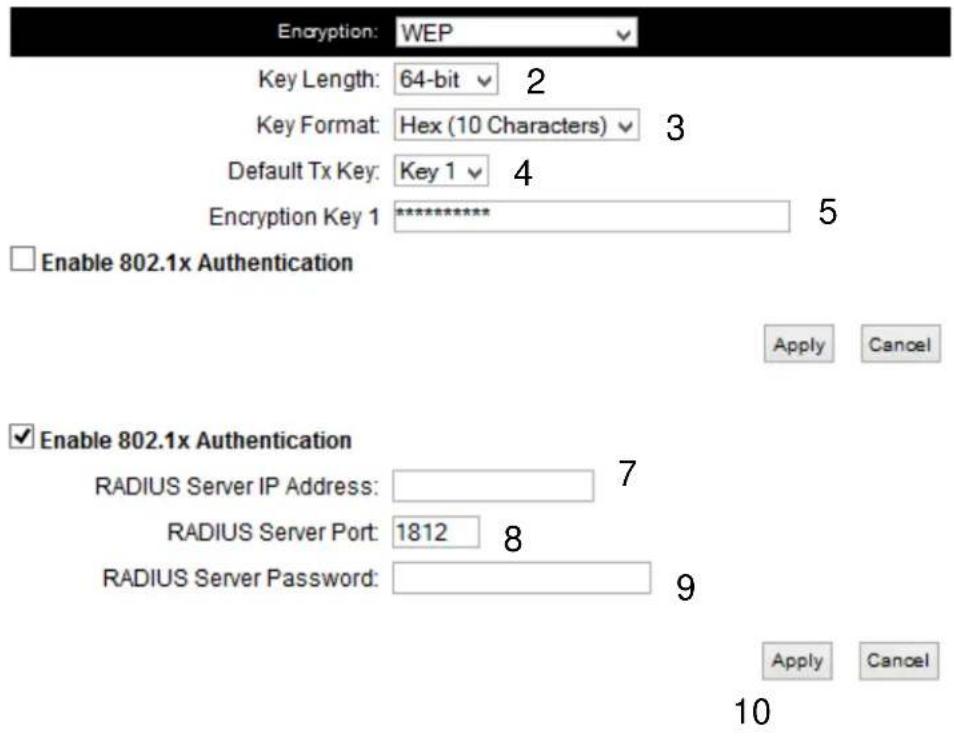
Key Length (2): There are two types of WEP key length: 64-bit and 128-bit. Using '128-bit' is safer than '64-bit', but will reduce some data transfer performance.
Key Format (3): There are two types of key format: ASCII and Hex. When you select a key format, the number of characters of key will be displayed. For example, if you select '64-bit' as key length, and 'Hex' as key format, you'll see the message at the right of 'Key Format' is 'Hex (10 characters), which means the length of WEP key is 10 characters.
Default Tx Key (4): You can set up to four sets of WEP key, and you can decide which key is being used by default here. If you don't know which one you should use, select 'Key 1'.
Encryption Key (5) Input WEP key characters here, the number of : characters must be the same as the number displayed at 'Key
Format' field. You can use any alphanumerical characters (0-9, a-z, and A-Z) if you select 'ASCII' key format, and if you select 'Hex' as key format, you can use characters 0-9, a-f, and A-F. You must enter at least one encryption key here, and if you entered multiple WEP keys, they should not be same with each other.
Enable 802.1x IEEE 802.1x is an authentication protocol. Every
Authentication (6): user must use a valid account to login to this wireless access point before accessing the wireless LAN. The authentication is processed by a RADIUS server. This mode only authenticates user by IEEE 802.1x, but it does not encryption the data during communication. If there is a RADIUS server in you environment, please enable this function. Check this box and another sub-menu will appear:
RADIUS Server Please input the IP address of RADIUS server here.
IP address (7):
RADIUS Server Please input the port number of RADIUS server here.
Port (8):
RADIUS Server Please input the password here.
Password (9):
TIPS: Examples of WEP key
ASCII (5 characters): pilot phone 23561 2Hyux #@xml
ASCII (13 characters): digitalFAMILY 82Jh26xHy3m&n
Hex (10 characters): 287d2aa732 1152dabc85
Hex (26 characters): 9284bcda8427c9e036f7abcd84
To improve security level, do not use words that can be found in a dictionary or are easy to remember! Wireless clients will automatically remember the WEP key, so you only have to input the WEP key on wireless client once, and it is suggested that to use a complex WEP key to improve security level. Once you have chosen a password, write it down and keep it in a secure place.
After you finish WEP setting, please click 'Apply' (13) button and the following message will be displayed on your web browser:
Settings Saved Successfully!
You may press Go Back button to continue configuring other settings or press APPLY button to restart the system to make the changes take effect.

Please click 'Go Back' to go back to previous setup menu, or click 'Apply' to reboot the access point so the settings will take effect. Please wait 30-60 seconds for the access point to reboot.
3-6-3-3 Wi-Fi Protected Access (WPA):
When you select this mode, the wireless access point will use WPA encryption, and the following setup menu will be shown on your web browser:
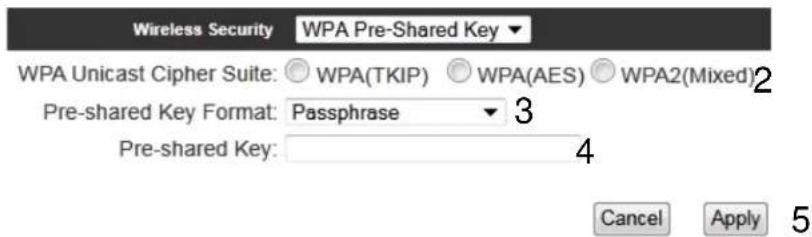
WPA Unicast Please select a type of WPA cipher suite.
Cipher Suite (2): Available options are: WPA (TKIP), WPA2 (AES), and WPA2
Mixed. You can select one of them, but you have to make sure your wireless client support the cipher you selected.
Pre-shared Select the type of pre-shared key, you
Key Format (3): can select Passphrase (8 or more alphanumeric characters, up
to 63), or Hex (64 characters of 0-9, and a-f).
Pre-shared Please input the WPA passphrase here.
Key (4): It's not recommended to use a word that can be found in a dictionary due to security reason.
After you finish WPA Pre-shared key setting, please click 'Apply' button (5) and the following message will be displayed on your web browser:
Settings Saved Successfully!
You may press Go Back button to continue configuring other settings or press APPLY button to restart the system to make the changes take effect.
Go Back Apply
Please click 'Go Back' to go back to previous setup menu, or click 'Apply' to reboot the access point so the settings will take effect. Please wait 30-60 seconds for the access point to reboot.
NOTE: Some wireless clients (especially those manufactured before year 2003) only support WEP or WPA (TKIP) cipher. A driver upgrade would be needed for those clients to use WPA and WPA2 encryption.
3-6-3-4 WPA RADIUS:
If you have a RADIUS server, this access point can work with it and provide safer wireless authentication.
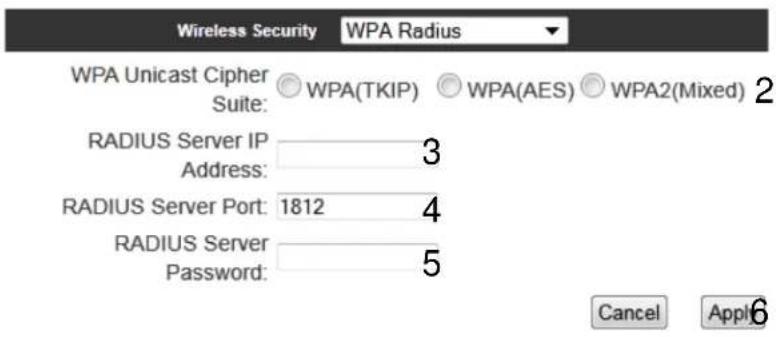
WPA Unicast Please select a type of WPA cipher suite.
Cipher Suite (2): Available options are: WPA (TKIP), WPA2 (AES), and WPA2
Mixed. You can select one of them, but you have to make sure your wireless client support the cipher you selected.
RADIUS Server Please input the IP address of your
IP address (3): Radius authentication server here.
RADIUS Server Please input the port number of your
Port (4): Radius authentication server here.
Default setting is 1812.
RADIUS Server Please input the password of your Radius
Password (5): authentication server here.
After you finish with all settings, please click 'Apply' (6) button and the following message will be displayed on your web browser:
Settings Saved Successfully!
You may press Go Back button to continue configuring other settings or press APPLY button to restart the system to make the changes take effect.
Please click 'Go Back' to go back to previous setup menu, or click 'Apply' to reboot the access point so the settings will take effect. Please wait 30-60 seconds for the access
point to reboot.
3-6-4 Wireless Access Control
This function will help you prevent unauthorized users from connecting to your wireless access point; only those wireless devices who have a MAC address you assigned can gain access to your wireless access point. Use this function with other security measures described in previous section, to create a safer wireless environment.
You can add up to 20 MAC addresses by using this function. Please click 'General Setup' at the top of web management interface and click 'Wireless Configuration' on the left hand column. Select 'Access Control'.
Access Control
For additional security, the Hi-Gain™ Wireless-AC Multi-Function Access Point / Bridge features MAC Address Filtering that only allows authorized MAC Addresses to connect through the Repeater.
MAC Address Filtering Table - It allows 20 entries only.
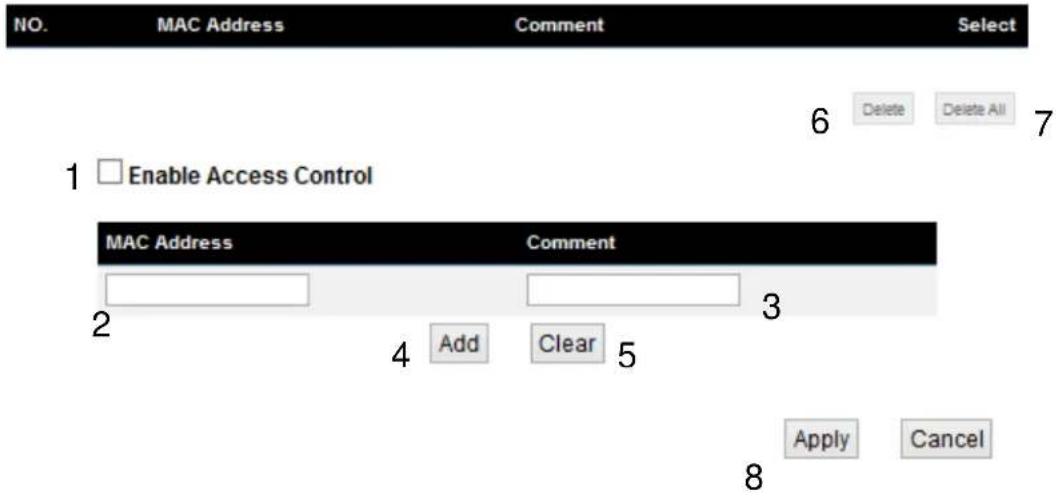
All allowed MAC addresses will be displayed in 'MAC Address Filtering Table.
Enable Wireless To enforce MAC address filtering, you have to check Access Control (1): 'Enable Wireless Access Control'. When this item is unchecked, wireless access point will not enforce MAC address filtering of
wireless clients.
MAC Address (2): Input the MAC address of your wireless devices here, dash (-) or colon ( : ) are not required. (i.e. If the MAC address label of your wireless device indicates 'aa-bb-cc-dd-ee-ff' or 'aa:bb:cc:dd:ee:ff', just input 'aabbccddeeff'.
Comment (3): You can input any text here as the comment of this MAC address, like 'ROOM 2A Computer' or anything. You can input up to 16 alphanumeric characters here. This is optional and you can leave it blank, however, it's recommended to use this field to write a comment for every MAC addresses as a memory aid.
Add (4): Click 'Apply' button to add the MAC address and associated comment to the MAC address filtering table.
Clear (5): Click 'Clear' to remove the value you inputted in MAC address and comment field.
Delete Selected (6): If you want to delete a specific MAC address entry, check the 'select' box of the MAC address you want to delete, then click 'Delete Selected' button. (You can select more than one MAC addresses).
Delete All (7): If you want to delete all MAC addresses listed here, please click 'Delete All' button.
After you finish with all settings, please click ‘Apply’ (8) button and the following message will be displayed on your web browser:
Settings Saved Successfully!
You may press Go Back button to continue configuring other settings or press APPLY button to restart the system to make the changes take effect.
Go Back Apply
Please click ‘Go Back’ to go back to previous setup menu, or click ‘Apply’ to reboot the access point so the settings will take effect. Please wait 30-60 seconds for the access point to reboot.
3-6-5 Wi-Fi Protected Setup (WPS)
Wi-Fi Protected Setup (WPS) is the simplest way to build connection between wireless network clients and this wireless access point. You don't have to select an encryption mode and input a long encryption passphrase every time when you need to set up a wireless client, you only have to press a button on the wireless client and this wireless access point, and the WPS will automatically configure for you.
This wireless access point supports two types of WPS: Push-Button Configuration (PBC), and PIN code. If you want to use PBC, you have to push a specific button on the wireless client to start WPS mode, and switch this wireless access point to WPS mode too. You can push Reset/WPS button of this wireless access point, or click 'Start PBC' button in the web configuration interface to do this; if you want to use PIN code, you have to know the PIN code of wireless client and switch it to WPS mode, then provide the PIN code of the wireless client you wish to connect to this wireless access point. The detailed instructions are listed follow:
Please click ‘General Setup’ at the top of web management interface and click ‘Wireless Configuration’ on the left hand column. Select ‘WPS’
Wi-Fi Protected Setup (WPS)
This section allows you to chnage the setting for Wi-Fi Protected Setup (WPS). Wi-Fi Protected Setup can help your wireless client automatically connect to the Hi-Gain™ Wireless-AC Multi-Function Access Point / Bridge.
1
√ Enable WPS
WPS Information
WPS Status: Unconfigured
PinCode Self: 64066837
SSID: Hawking_HW7ACB_2.4GHZ
Authentication Mode: WPA pre-shared key
Passphrase Key: *****
Device Configure
Config Mode: Registrar ▼ 3
Configure by Push Button: Start PBC
Configure by Client PinCode: Start PIN 5
Enable WPS (1) Check this box to enable WPS function, uncheck it to disable WPS.
WPS Information (2) WPS Status: If the wireless security (encryption) function of this wireless access point is properly set, you'll see 'Configured' message here. If wireless security function has not been set, you'll see 'Not configured'.
Self PIN code: This is the WPS PIN code of this wireless access point. This code is useful when you need to build wireless connection by WPS with other WPS-enabled wireless devices.
SSID: The SSID of this wireless access point will be displayed here.
Authentication Mode: The wireless security authentication mode of this wireless access point will be displayed here. If you do not
enable security function of the wireless access point before WPS is activated, the access point will auto set the security to WPA (AES) and generate a set passphrase key for WPS connection.
Passphrase Key: The wireless security key of the access point will be displayed here.
Config Mode (3) There are ‘Registrar’ and ‘Enrollee’ modes for the WPS connection. When ‘Registrar’ is enabled, the wireless clients will follow the access point’s wireless settings for WPS connection. When ‘Enrolle’ mode is enabled, the access point will follow the wireless settings of wireless client for WPS connection.
Configure Click 'Start PBC' to start Push-Button style WPS by Push Button (4) setup procedure. This wireless access point will wait for WPS requests from wireless clients for 2 minutes. The 'WLAN' LED light on the wireless access point will be steady for 2 minutes when this wireless access point is waiting for incoming WPS request.
Configure Please input the PIN code of the wireless client you by client wish to connect, and click 'Start PIN' button. PinCode (5) The 'WLAN' LED light on the wireless access point will be steady when this wireless access point is waiting for incoming WPS request.
3-6-6 Security Tips for Wireless Network
Here are some quick tips to help you improve the security level of your wireless network:
- Never use simple words for your password, such as "password" or "1234567890".
- A complicated (combination of numbers, alphabets, and even symbols) WEP key and WPA passphrase is more secure than simple and short words. Remember that the wireless client is capable of keeping the key or passphrase for you, so you only have to input the complicated key or passphrase once. Once you have chosen a password, write it down and keep it in a secure place.
- You can hide the ESSID of this access point by setting the 'Broadcast ESSID' option to 'Disable'. Your wireless access point will not be found by other people in proximity if they are using the Access Point scanning function of their wireless client, and this can reduce unauthorized access.
- Use ‘Access Control’ function, described in section 3-4-4, to allow authorized users access to the wireless access point using their specific MAC address.
3-7 Quality of Service (QoS)
Quality of service provides an efficient way for computers on the network to share the internet bandwidth with a promised quality of internet service. Without QoS, all computers and devices on the network will compete with each other to get internet bandwidth, and some applications which require guaranteed bandwidth (like video streaming and network telephone) will be affected, therefore an unpleasing result will occur, like the interruption of video / audio transfer.
With this function, you can limit the maximum bandwidth or give a guaranteed bandwidth for a specific computer, to avoid said unpleasing result from happening.
3-7-1 Basic QoS Settings
Please click ‘QoS’ menu on the left of web management interface and the following message will be displayed on your web browser:
1 Enable QoS
2 Total Download Bandwidth : --Select-- ▼ >> 0 kbits
3 Total Upload Bandwidth: ---Select--- ▼ >> 0 kbits
4
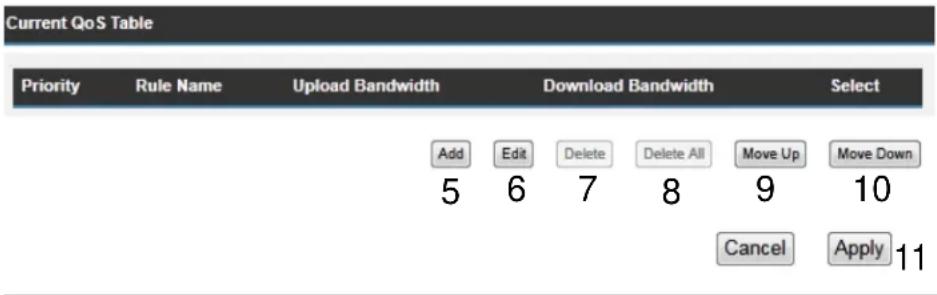
Enable QoS (1): Check this box to enable QoS function, unselect this box if you don't want to enforce QoS bandwidth limitations.
Total Download You can set the limit of total download
Bandwidth (2): bandwidth in kbits. To disable download bandwidth limitation, input '0' here.
Total Upload You can set the limit of total upload
Bandwidth (3): bandwidth in kbits. To disable upload bandwidth limitation, input '0' here.
Current QoS All existing QoS rules will be displayed here.
Table (4):
Add (5): Click 'add' button to add a new QoS rule, see section 3-7-2 'Add a new QoS rule' below.
Edit (6): If you want to modify the content of a specific rule, please check the 'select' box of the rule you want to edit, then click 'Edit' button. Only one rule should be selected a time! If you didn't select a rule before clicking 'Edit' button, you'll be prompted to add a new rule.
Delete (7): You can delete selected rules by clicking this
button. You can select one or more rules to delete by check the
'select' the box of the rule(s) you want to delete a time. If the
QoS table is empty, this button will be grayed out and can not be clicked.
Delete All (8): By clicking this button, you can delete all rules currently in the
QoS table. If the QoS table is empty, this button will be grayed out and can not be clicked.
Move Up (9): You can pull up the priority of the QoS rule you selected by
clicking this button.
Move Down (10): You can lower the priority of the QoS rule you selected by
clicking this button.
If you want to reset all settings in this page back to previously-saved value, please click
'Cancel' button.
After you finish with all settings, please click 'Apply' (11) button and the following message will be displayed on your web browser:
Settings Saved Successfully!
You may press Go Back button to continue configuring other settings or press APPLY button to restart the system to make the changes take effect.
Go Back
Apply
Press ‘Go Back’ to save the settings made and go back to web management interface; press ‘Apply’ to save the settings made and restart the router so the settings will take effect after it reboots.
3-7-2 Add a new QoS rule
After you click 'Add' button in QoS menu, the following message will appear:
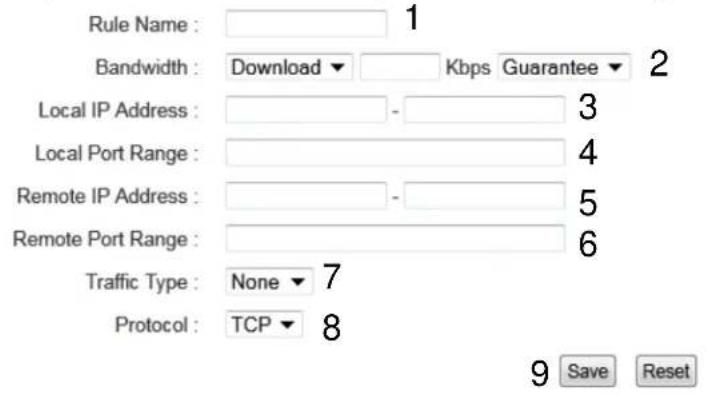
Rule Name (1): Please give a name to this QoS rule (up to 15 alphanumerical characters)
Bandwidth (2): Set the bandwidth limitation of this QoS rule. You have to select the data direction of this rule (Upload of Download), and the speed of bandwidth limitation in Kbps, then select the type of QoS: 'guarantee' (guaranteed usable bandwidth for this rule) or 'max' (set the maximum bandwidth for the application allowed by this rule).
Local IP Specify the local (source) IP address
Address (3): that will be affected by this rule. Please input the starting IP address in the left field, and input the end IP address in the right field to define a range of IP addresses, or just input the IP address in the left field to define a single IP address.
Local Port Please input the range of local (source)
Range (4): port number that will be affected by this rule. If you want to apply this rule on port 80 to 90, please input '80-90'; if you want to apply this rule on a single port, just input the port number, like '80'.
Remote IP Specify the remote (destination) IP address
Address: (5): that will be affected by this rule. Please input the starting IP address in the left field, and input the end IP address in the right field to define a range of IP addresses, or just input the IP address in the left field to define a single IP address.
Remote Port Please input the range of remote (destination)
Range (6): port number that will be affected by this rule. If you want to apply this rule on port 80 to 90, please input '80-90'; if you want to apply this rule on a single port, just input the port number, like '80'. If the remote (destination) IP address and /or port number is universal, just leave it blank.
Traffic Type (7): Please select the traffic type of this rule,
available options are None, SMTP, HTTP, POP3, and FTP. You can select a specific traffic type for this rule, if you want to make this rule as a IP address based rule (apply the limitation on all traffics from / to the specified IP address / port number), select 'None'.
Protocol (8): Please select the protocol type of this rule, available options are TCP and UDP. If you don't know what protocol your application uses, please try 'TCP' first, and switch to 'UDP' if this rule doesn't seems to work.
After you finish with all settings, please click ‘save’ button (9), you’ll be brought back to previous menu, and the rule you just set will appear in current QoS table; if you did anything wrong, you’ll get an error message when you click ‘Save’ button, please correct your input by the instructions given by the error message.
If you want to erase all values you just entered. Click 'Reset'
3-8 Network Address Translation (NAT)
Network address translations solve the problem if sharing a single IP address to multiple computers. Without NAT, all computers must be assigned with a valid Internet IP address to get connected to Internet, but Internet service providers only provide very few IP addresses to every user. Therefore it's necessary to use NAT technology to share a single Internet IP address to multiple computers on local network, so everyone can get connected to Internet.
NAT is only enabled when the HW7ACB is in Router mode.
Please follow the following instructions to set NAT parameters:
3-8-1 Basic NAT Settings (Enable or disable NAT function)
Please click 'NAT' menu on the left of web management interface, and the following message will be displayed on your web browser:
Network Address Translation (NAT)
Network Address Translation (NAT) allows multiple users at your local site to access the Internet through a single Public IP Address or multiple Public IP Addresses. NAT provides firewall protection from unauthorized access, and has the flexibility to allow you to map Private IP Addresses to Public IP Addresses for key services, such as the Web or FTP.
1 NAT Module: ☐ Enable ☐ Disable
Cancel Apply 2
To enable NAT function, please select 'Enable' for 'Enable NAT module function' (1); to disable, please select 'Disable'.
After you made the selection, please click 'Apply' button (2) and the following message will be displayed on your web browser:
Settings Saved Successfully!
You may press Go Back button to continue configuring other settings or press APPLY button to restart the system to make the changes take effect.
Go Back Apply
Press ‘Go Back’ to save the settings made and go back to web management interface; press ‘Apply’ to save the settings made and restart the router so the settings will take effect after it reboots.
3-8-2 Port Forwarding
This function allows you to redirect a single port or consecutive ports of Internet IP address to the same port of the IP address on local network. The port number(s) of Internet IP address and private IP address (the IP address on local network) must be the same. If the port number of Internet IP address and private IP address is different, please use ‘Virtual Server’ function, described in next section.
Please click ‘NAT’ menu on the left of web management interface, then click ‘Port Forwarding’.
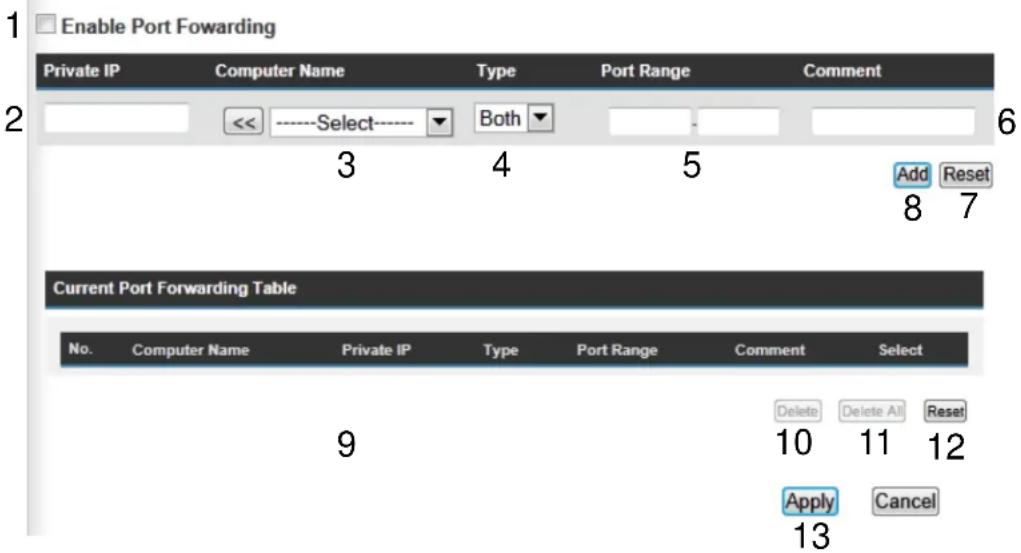
Enable Port Check this box to enable port mapping,
Forwarding (1): and uncheck this box to disable port mapping.
Private IP (2): Input the IP address of the computer on local network which provides internet service.
Computer Name (3): Pull down the menu and all the computers connected to the router will be listed here. You can easily to select the computer name without checking the IP address of the computer.
Type (4): Select the type of connection, TCP or UDP. If you're not sure, please select 'Both'.
Port Range (5): Input the starting port number in the left field, and input the ending port number in the right field. If you only want to redirect a single port number, just fill the port number in the left field.
Comment (6): Please input any text to describe this mapping, up to 16 alphanumeric characters.
Add (7): Add the mapping to port forwarding table.
Reset (8): Remove all inputted values.
Port Forwarding All existing port forwarding mappings will Table (9): be displayed here.
Delete (10): Please select a port forwarding mapping by clicking the 'Select' box of the mapping, then click 'Delete Selected' button to remove the mapping. If there's no existing mapping, this button will be grayed out.
Delete All (11): Delete all mappings existed in virtual server table.
Reset (12): Unselect all mappings.
If you want to reset all settings in this page back to previously-saved value, please click 'Cancel' button.
After you finish with all settings, please click 'Apply' (13) button and the following message will be displayed on your web browser:
Settings Saved Successfully!
You may press Go Back button to continue configuring other settings or press APPLY button to restart the system to make the changes take effect.
Go Back
Apply
Press ‘Go Back’ to save the settings made and go back to web management interface; press ‘Apply’ to save the settings made and restart the router so the settings will take effect after it reboots.
3-8-3 Virtual Server
This function allows you to redirect a port on Internet IP address (on WAN port) to a specified port of an IP address on local network, so you can setup an Internet service on the computer on local network, without exposing it on Internet directly. You can also build many sets of port redirection, to provide many different Internet services on different local computers via a single Internet IP address.
Please click ‘NAT’ menu on the left of web management interface, then click ‘Virtual Server’, and the following message will be displayed on your web browser:
1
2
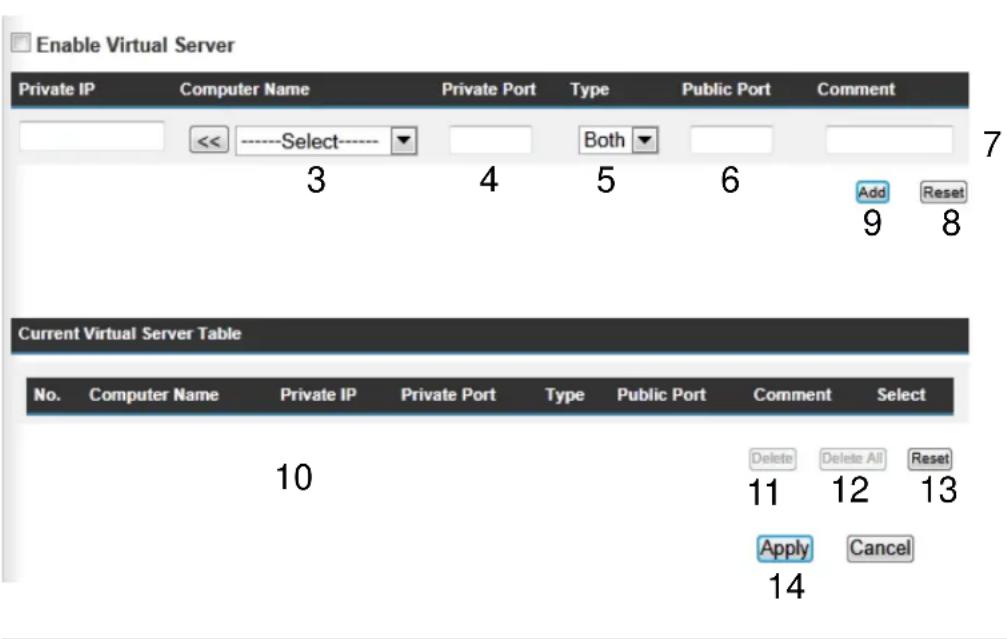
Enable Virtual Check this box to enable virtual server, Server (1): and uncheck this box to disable virtual server.
Private IP (2): Input the IP address of the computer which provides Internet service.
Computer Name (3): Pull down the menu and all the computers connected to the router will be listed here. You can easily to select the computer name without checking the IP address of the computer.
Private Port (4): Input the port number of the IP address which provides Internet service.
Type (5): Select the type of connection, TCP or UDP. If you're not sure, please select 'Both'.
Public Port (6): Please select the port number of Internet IP address which will be redirected to the port number of local IP address defined above.
Comment (7): Please input any text to describe this mapping, up to 16 alphanumeric characters.
Add (8): Add the mapping to virtual server table.
Reset (9): Remove all inputted values.
Virtual Server All existing virtual server mappings will be Table (10): displayed here.
Delete (11): Please select a virtual server mapping by clicking the 'Select' box of the mapping, then click 'Delete Selected' button to remove the mapping. If there's no existing mapping, this button will be grayed out.
Delete All (12): Delete all mappings existed in virtual server table.
Reset (13): Unselect all mappings.
If you want to reset all settings in this page back to previously-saved value, please click 'Cancel' button.
After you finish with all settings, please click 'Apply' (14) button and the following message will be displayed on your web browser:
Settings Saved Successfully!
You may press Go Back button to continue configuring other settings or press APPLY button to restart the system to make the changes take effect.
Go Back
Apply
Press ‘Go Back’ to save the settings made and go back to web management interface; press ‘Apply’ to save the settings made and restart the router so the settings will take effect after it reboots.
3-8-4 Port Mapping for Special Applications
Some applications require more than one connection a time; these applications won't work with simple NAT rules. In order to make these applications work, you can use this function to let these applications work.
1
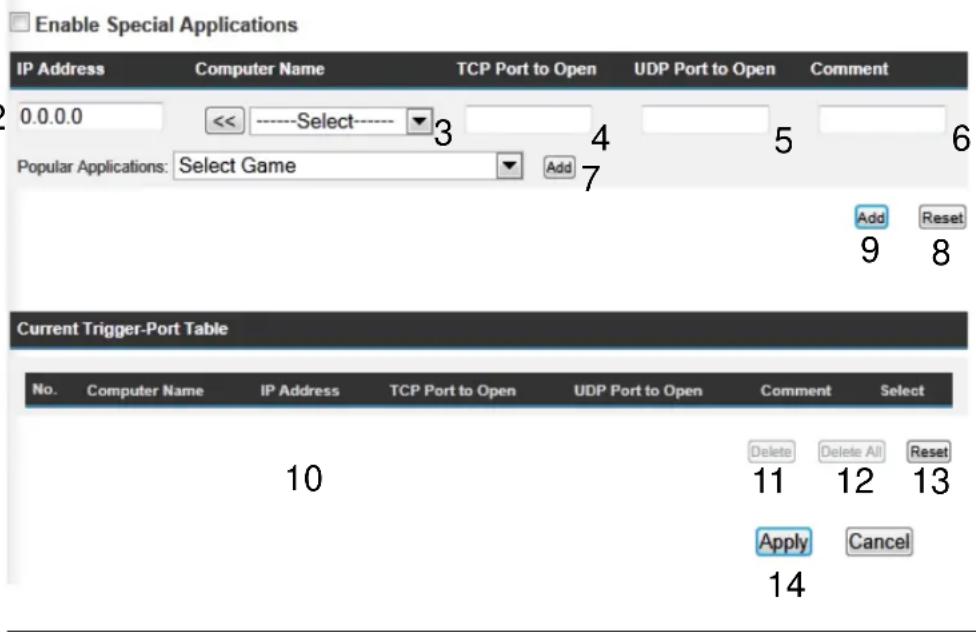
Enable (1): Check this box to enable special applications and uncheck this box to disable virtual server.
IP Address (2): Input the IP address of the computer which you want to open the ports.
Computer Name (3): Pull down the menu and all the computers connected to the router will be listed here. You can easily to select the computer name without checking the IP address of the computer.
TCP Port to Open (4): This is the out going (Outbound) range of TCP port numbers for this particular application.
UDP Port to Open (5): This is the out going (Outbound) range of UDP port numbers for this particular application.
Comment (6): The description of this setting.
Popular Applications This section lists the more popular applications that (7): require multiple connections. Select an application from the Popular Applications selection and click 'Add' to save the setting to 'Current Trigger-Port Table.'
Add (8): Add the setting to the 'Current Trigger-Port Table.'
Reset (9): Click 'Reset' will clear all above setting and you can set up again.
Current Trigger-Port All the settings for the special applications will be (10): listed here. If you want to remove some Special Application settings from the " Current Trigger-Port Table", select the Special Application settings you want to remove in the table and then click "Delete Selected". If you want remove all Special Application settings from the table, just click "Delete All" button. Click "Reset" will clear your current selections.
Delete (11): Please select a special application by clicking the 'Select' box of the mapping, then click 'Delete Selected' button to remove the setting. If there's no setting here, this button will be grayed out.
Delete All (12): Delete all settings existed in trigger port table.
Reset (13): Unselect all settings.
Note: Only one LAN client can use a particular special application at a time.
If you want to reset all settings in this page back to previously-saved value, please click 'Cancel' button.
After you finish with all settings, please click 'Apply' (14) button and the following
message will be displayed on your web browser:
Settings Saved Successfully!
You may press Go Back button to continue configuring other settings or press APPLY button to restart the system to make the changes take effect.
Go Back Apply
Press ‘Go Back’ to save the settings made and go back to web management interface; press ‘Apply’ to save the settings made and restart the router so the settings will take effect after it reboots.
3-8-5 UPnP Setting
This function enables network auto-configuration for peer-to-peer communications, with this function, network devices will be able to communicate with other devices directly, and learn about information about other devices. Many network device and applications rely on UPnP function nowadays.
Please click 'NAT' menu on the left of web management interface, then click 'UPnP', and the following message will be displayed on your web browser:
UPnP Module: ☐ Enable ☐ Disable
Cancel Apply
There is only one option in this page, please select 'Enable' or 'Disable' to enable or disable UPnP function, then click 'Apply' button, and the following message will be displayed on your web browser:
If you want to reset all settings in this page back to previously-saved value, please click 'Cancel' button.
Settings Saved Successfully!
You may press Go Back button to continue configuring other settings or press APPLY button to restart the system to make the changes take effect.
Go Back Apply
Please click 'Continue' to back to previous setup menu; to continue on other setup procedures, or click 'Apply' to reboot the router so the settings will take effect (Please wait for about 30 seconds while router is rebooting).
3-8-6 ALG Settings
Application Layer Gateway (ALG) is a special function of this router. It includes many preset routing rules for numerous applications which require special support. With these supports, those applications which required special support will be able to work with NAT architecture.
Please click 'NAT' menu on the left of web management interface, then click 'ALG Settings', and the following message will be displayed on your web browser:
| Enable | Name | Comment |
| √ | FTP | Support for FTP. |
| √ | H323 | Support for H323/netmeeting. |
| √ | IPsec | Support for IPsec passthrough |
| √ | PPTP | Support for PPTP passthrough. |
| √ | L2TP | Support for L2TP passthrough. |
| √ | SIP | Support for SIP. |
Apply Reset
If you want to reset all settings in this page back to previously-saved value, please click the 'Reset button.
Please check the box of the special support for applications you need, and then click 'Apply' button and the following message will be displayed on your web browser:
Settings Saved Successfully!
You may press Go Back button to continue configuring other settings or press APPLY button to restart the system to make the changes take effect.
Go Back Apply
Press ‘Go Back’ to save the settings made and go back to web management interface; press ‘Apply’ to save the settings made and restart the router so the settings will take effect after it reboots.
3-9 Firewall
Excepting NAT, this router also provides firewall function to block malicious intruders from accessing your computers on local network. These functions include inbound attack prevention, and block outbound traffics, like block URLs which have pre-defined keywords.
Please follow the following instructions to enable or disable firewall function:
Please click ‘Firewall’ menu on the left of web management interface, and the following message will be displayed on your web browser:
Firewall
The Hi-Gain™ Wireless-AC Multi-Function Access Point / Bridge provides extensive firewall protection by restricting connection parameters, thus limiting the risk of unauthorized access, and defending against a wide array of common attacks. Most wireless Internet connections will have a pre-existing firewall enabled. If you wish to configure your own firewall settings, click enable below.
Firewall Module: ● Enable ○ Disable
Apply
Please select 'Enable' or 'Disable' to enable or disable firewall function of this router, the click 'Apply' button, and the following message will be displayed on your web browser:
Settings Saved Successfully!
You may press Go Back button to continue configuring other settings or press APPLY button to restart the system to make the changes take effect.
Go Back Apply
Press ‘Go Back’ to save the settings made and go back to web management interface; press ‘Apply’ to save the settings made and restart the router so the settings will take
effect after it reboots.
3-9-1 Access Control
This function allows or denies computers with specific MAC address from connecting to the network; it can also allow or deny computers with specific IP address, protocol, or port.
Please click ‘Firewall’ menu on the left of web management interface, then click ‘Access Control’, and the following message will be displayed on your web browser:
1
□ Enable MAC Filtering ● Deny ○ Allow
2

Current MAC Filtering Table

9
□ Enable IP Filtering ◎ Deny ○ Allow
10
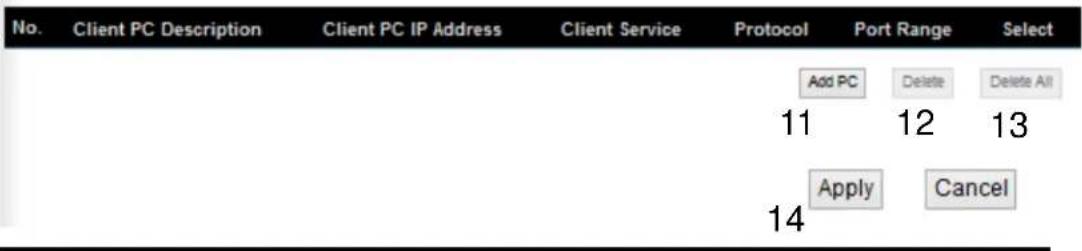
Enable MAC Check this box to enable MAC address based
Filtering (1): filtering, and please select 'Deny' or 'Allow' to decide the behavior of MAC filtering table. If you select deny, all MAC addresses listed in filtering table will be denied from connecting
to the network; if you select allow, only MAC addresses listed in filtering table will be able to connect to the network, and rejecting all other network devices.
Client PC Please input the MAC address of computer
MAC address (2): or network device here, dash (-) or colon ( : ) are not required.
(i.e. If the MAC address label of your wireless device indicates 'aa-bb-cc-dd-ee-ff' or 'aa:bb:cc:dd:ee:ff', just input 'aabbccddeeff'
Comment (3): You can input any text here as the comment of this MAC address,
like ‘ROOM 2A Computer’ or anything. You can input up to 16 alphanumeric characters here. This is optional and you can leave it blank, however, it’s recommended to use this field to write a comment for every MAC addresses as a memory aid.
Add (4): Click 'Add' button to add the MAC address and associated comment to the MAC address filtering table.
Reset (5): Remove all inputted values.
Current MAC All existing MAC addresses in filtering table
Filtering Table (6): will be listed here.
Delete (7): If you want to delete a specific MAC address entry, check the
'select' box of the MAC address you want to delete, then click 'Delete Selected' button. (You can select more than one MAC addresses).
Delete All (8): If you want to delete all MAC addresses listed here, please click
'Delete All' button.
Enable IP Check this box to enable IP address based
Filtering (9): filtering, and please select 'Deny' or 'Allow'
to decide the behavior of IP filtering table. If you select deny, all
IP addresses listed in filtering table will be denied from connecting to the network; if you select allow, only IP addresses listed in filtering table will be able to connect to the network, and rejecting all other network devices.
IP Filtering All existing IP addresses in filtering table will be
Table (10): listed here.
Add PC (11): Click this button to add a new IP address to IP filtering table, up
to 20 IP addresses can be added.
Please refer to section 3-3-1-1 'Add PC' below.
Delete (12): If you want to delete a specific IP address entry,
check the 'select' box of the IP address you want to delete, then
click 'Delete Selected' button. (You can select more than one IP
addresses).
Delete All (13): If you want to delete all IP addresses listed here, please click
'Delete All' button.
If you want to reset all settings in this page back to previously-saved value, please click 'Cancel' button.
After you finish with all settings, please click 'Apply' (14) button and the following message will be displayed on your web browser:
Settings Saved Successfully!
You may press Go Back button to continue configuring other settings or press APPLY button to restart the system to make the changes take effect.
Go Back
Apply
Press ‘Go Back’ to save the settings made and go back to web management interface; press ‘Apply’ to save the settings made and restart the router so the settings will take effect after it reboots.
3-9-1-1 Add PC
After button is clicked, the following message will be displayed on your web browser:
| Client PC Description: | 1 | 2 | |
| Client PC IP Address: | - | ||
| Client Service: | |||
| Service Name | Detail Description | Select | |
| WWW | HTTP, TCP Port 80, 3128, 8000, 8080, 8081 | ||
| E-mail Sending | SMTP, TCP Port 25 | ||
| News Forums | NNTP, TCP Port 119 | ||
| E-mail Receiving | POP3, TCP Port 110 | ||
| Secure HTTP | HTTPS, TCP Port 443 | ||
| File Transfer | FTP, TCP Port 21 | ||
| MSN Messenger | TCP Port 1863 | ||
| Telnet Service | TCP Port 23 | ||
| AIM | AOL Instant Messenger, TCP Port 5190 | ||
| NetMeeting | H.323, TCP Port 389,522,1503,1720,1731 | ||
| DNS | UDP Port 53 | ||
| SNMP | UDP Port 161, 162 | ||
| VPN-PPTP | TCP Port 1723 | ||
| VPN-L2TP | UDP Port 1701 | ||
| TCP | All TCP Port | ||
| UDP | All UDP Port | ||
| User Define Service: | |||
| Protocol: | Both | 4 | |
| Port Range: | 5 | ||
Client PC Please input any text to describe this IP
Description (1): address, up to 16 alphanumerical characters.
Client PC IP Please input the starting IP address in the left
address (2): field, and input the end IP address in the right field to define a
range of IP addresses, or just input the IP address in the left field to define a single IP address.
Client PC Please check all services you want to allow or
Service (3): deny this IP address to use, you can check multiple services.
Protocol (4): If the service you need is not listed above, you can create a new service on your own. Please select TCP or UDP, if you're not sure, please select 'Both'.
Port Range (5): Please input the port range of new service here. If you want to specify port 80 to 90, please input '80-90'; if you want to apply this rule on a single port, just input the port number, like '80'.
Add (6): When you finish with all settings, please click 'Add' to save settings, you'll be brought back to previous menu, and the rule you just set will appear in current IP filtering table.
If you want to remove all settings in this page, click 'Reset' button.
3-9-2 URL Blocking
If you want to prevent computers in local network from accessing certain website (like pornography, violence, or anything you want to block), you can use this function to stop computers in local network from accessing the site you defined here.
This function is useful for parents and company managers.
Please follow the following instructions to set URL blocking parameters: Please click ‘Firewall’ menu on the left of web management interface, then click ‘URL Blocking’, and the following message will be displayed on your web browser:
1 □ Enable URL Blocking
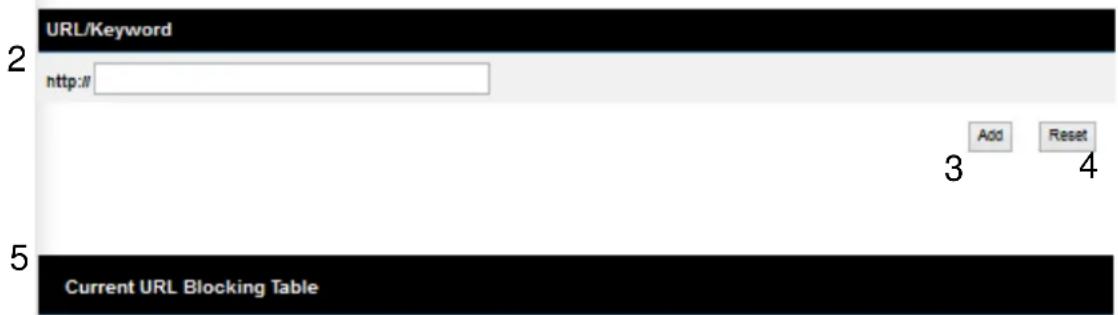
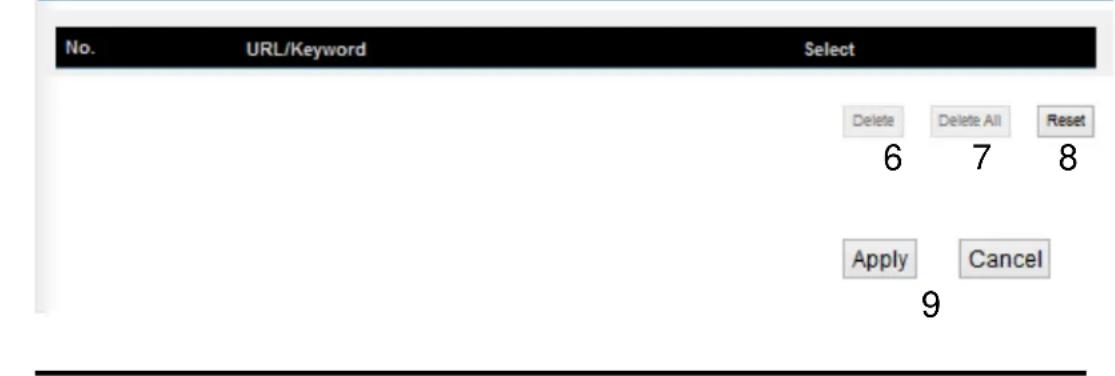
Enable URL Check this box to enforce URL Blocking,
Blocking (1): uncheck it to disable URL Blocking.
URL/Keyword (2): Input the URL (host name or IP address of website, like http://www.blocked-site.com or http://11.22.33.44), or the keyword which is contained in URL (like pornography, cartoon,
stock, or anything).
Add (3): Click 'Add' button to add the URL / keyword to the URL / Keyword filtering table.
Reset (4): Click 'Reset' to remove the value you inputted in URL/Keyword field.
Current URL All existing URL/Keywords in filtering Blocking Table (5): table will be listed here.
Delete (6): If you want to delete a specific URL/Keyword entry, check the 'select' box of the MAC address you want to delete, then click 'Delete Selected' button. (You can select more than one MAC addresses).
Delete All (7): If you want to delete all URL/Keyword listed here, please click 'Delete All' button.
Reset (8): You can also click 'Reset' button to unselect all URL/Keywords.
If you want to reset all settings in this page back to previously-saved value, please click 'Cancel' button.
After you finish with all settings, please click 'Apply' (9) button, and the following message will be displayed on your web browser:
Settings Saved Successfully!
You may press Go Back button to continue configuring other settings or press APPLY button to restart the system to make the changes take effect.
Go Back Apply
Press ‘Go Back’ to save the settings made and go back to web management interface; press ‘Apply’ to save the settings made and restart the router so the settings will take effect after it reboots.
3-9-3 DoS Attack Prevention
Denial of Service (DoS) is a common attack measure, by transmitting a great amount of data or request to your Internet IP address and server, the Internet connection will become very slow, and server may stop responding because it is not capable to handle too much traffics.
This router has a built-in DoS attack prevention mechanism; when you activate it, the router will stop the DoS attack for you.
Please follow the following instructions to set DoS prevention parameters:
Please click ‘Firewall’ menu on the left of web management interface, then click ‘DoS’, and the following message will be displayed on your web browser:
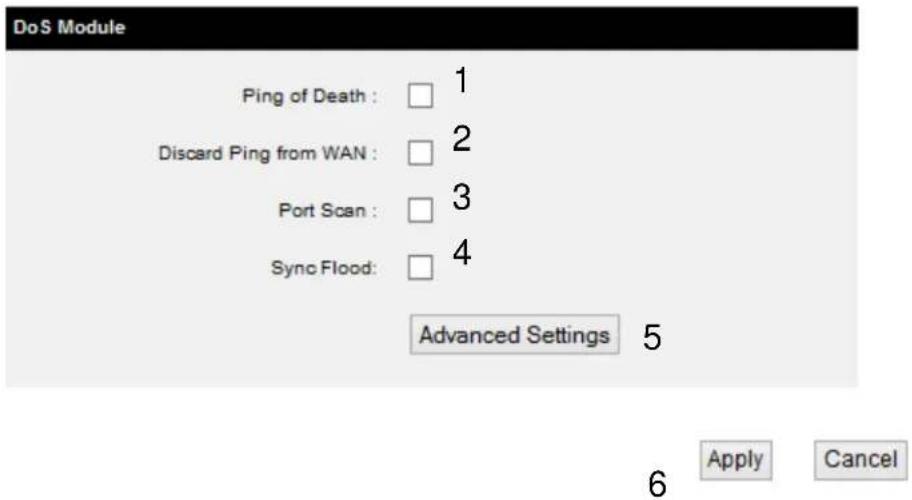
Ping of Death (1): Ping of Death is a special packet, and it will cause certain computer to stop responding. Check this box and the router will filter this kind of packet out.
Discard Ping Ping is a common and useful tool to know From WAN (2): the connection status of a specified remote network device, but some malicious intruder will try to fill your network bandwidth
with a lot of PING request data packet, to make your internet connection become very slow, even unusable. Check this box and the router will ignore all inbound PING request, but when you activate this function, you will not be able to ping your own router from internet, too.
Port Scan (3):
Some malicious intruder will try to use a 'port scanner' to know how many ports of your Internet IP address are open, and they can collect a lot of valuable information by doing so. Check this box and the router will block all traffics which are trying to scan your Internet IP address.
Sync Flood (4): This is another kind of attack, which uses a lot of fake connection request to consume the memory of your server, and try to make your server become unusable. Check this box and the router will filter this kind of traffic out.
Advanced Click this button and you can set advanced Settings (5): settings of the DoS prevention method listed above, please see section 3-9-3-1 'DoS – Advanced Settings' below.
If you want to reset all settings in this page back to previously-saved value, please click 'Cancel' button.
After you finish with all settings, please click 'Apply' (6) button and the following message will be displayed on your web browser:
Settings Saved Successfully!
You may press Go Back button to continue configuring other settings or press APPLY button to restart the system to make the changes take effect.
Go Back Apply
Press ‘Go Back’ to save the settings made and go back to web management interface; press ‘Apply’ to save the settings made and restart the router so the settings will take
effect after it reboots.
3-9-3-1 DoS - Advanced Settings
When you click 'Advanced' button in DoS menu, the following message will be displayed on your web browser:
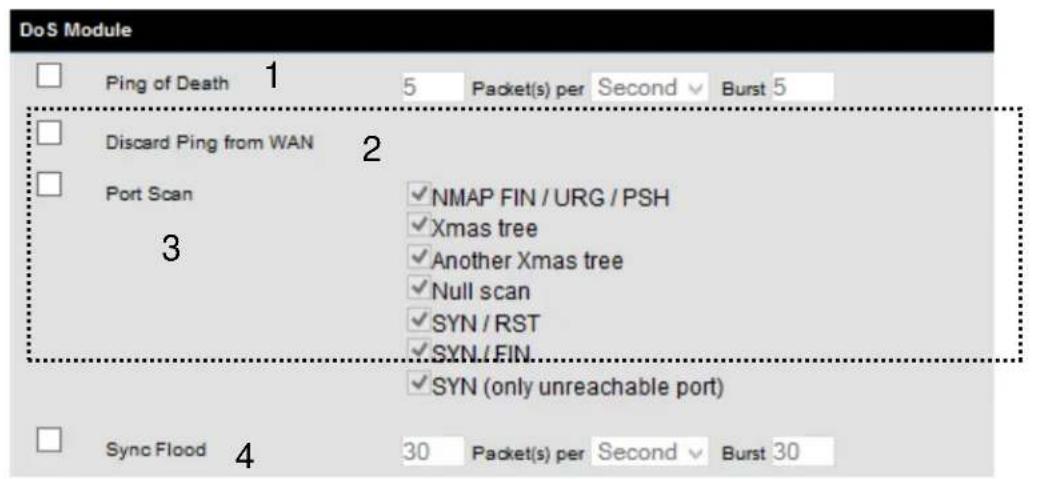

Ping of Death (1): Set the threshold of when this DoS prevention mechanism will be activated. Please check the box of Ping of Death, and input the frequency of threshold (how many packets per second, minute, or hour), you can also input the 'Burst' value, which means when this number of 'Ping of Death' packet is received in very short time, this DoS prevention mechanism will be activated.
Discard Ping Check the box to activate this DoS
From WAN (2): prevention mechanism.
Port Scan (3): Many kind of port scan methods are listed here, please check one or more DoS attack methods you want to prevent.
After you finish with all settings, please click 'Apply' (5) button and the following message will be displayed on your web browser:
Save setting successfully!
You may press CONTINUE button to continue configuring other settings or press APPLY button to restart the system for changes to take effect
Continue
Apply
Please click ‘Continue’ to back to previous setup menu; to continue on other setup procedures, or click ‘Apply’ to reboot the router so the settings will take effect (Please wait for about 40 seconds while router is rebooting).
If you want to reset all settings in this page back to previously-saved value, please click 'Cancel' button.
3-9-4 Demilitarized Zone (DMZ)
Demilitarized Zone (DMZ) refers to a special area in your local network. This area resides in local network, and all computers in this area uses private IP address, too. But these private IP addresses are mapped to a certain Internet IP address, so other people on Internet can fully access those computers in DMZ.
Please follow the following instructions to set DMZ parameters:
Please click ‘Firewall’ menu on the left of web management interface, then click ‘DMZ’, and the following message will be displayed on your web browser:
1 Enable DMZ
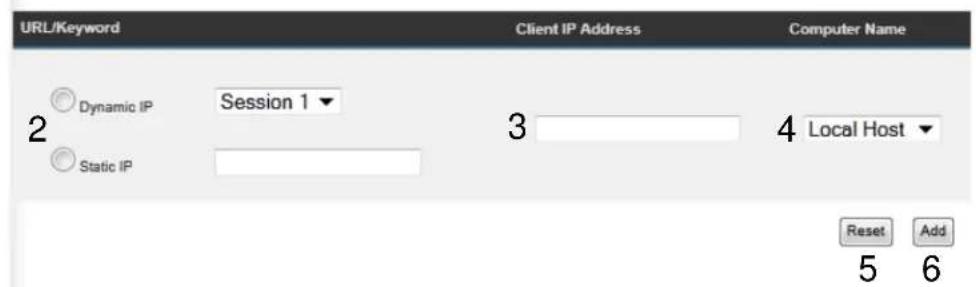
7 Current DMZ Table
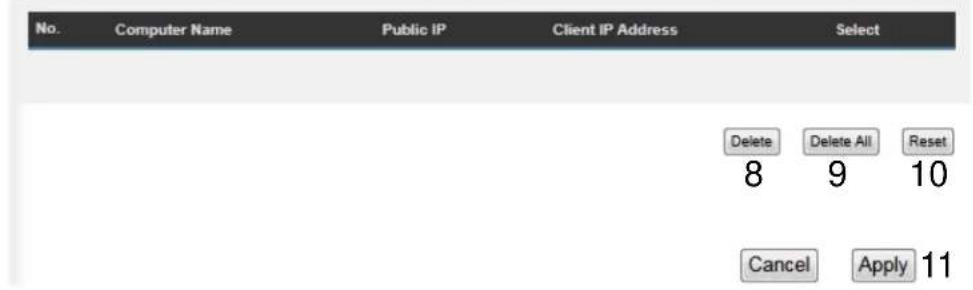
Enable DMZ (1): Check this box to enable DMZ function, uncheck this box to disable DMZ function.
Public IP You can select 'Dynamic IP' or 'Static IP' here.
address (2): If you select 'Dynamic IP', you have to select an Internet
connection session from dropdown menu; if you select 'Static IP', please input the IP address that you want to map to a specific private IP address.
Client PC IP Please input the private IP address that the address (3): Internet IP address will be mapped to.
Computer Name (4): Pull down the menu and all the computers connected to the router will be listed here. You can easily to select the computer name without checking the IP address of the computer.
Add (5): Click 'Add' button to add the public IP address and associated private IP address to the DMZ table.
Reset (6): Click 'Clear' to remove the value you inputted in Public IP address and Client PC IP address field.
Current All existing public IP address and private IP DMZ Table (7): address mapping will be displayed here.
Delete (8): If you want to delete a specific DMZ entry, check the 'select' box of the DMZ entry you want to delete, then click 'Delete Selected' button. (You can select more than one DMZ entries).
Delete All (9): If you want to delete all DMZ entries listed here, please click 'Delete All' button.
Reset (10): You can also click 'Reset' button to unselect all DMZ entries.
If you want to reset all settings in this page back to previously-saved value, please click 'Cancel' button.
After you finish with all settings, please click 'Apply' (11) button and the following message will be displayed on your web browser:
Settings Saved Successfully!
You may press Go Back button to continue configuring other settings or press APPLY button to restart the system to make the changes take effect.
Go Back Apply
Press ‘Go Back’ to save the settings made and go back to web management interface; press ‘Apply’ to save the settings made and restart the router so the settings will take effect after it reboots.
Chapter IV Status and Tools
4-1 System Status
The functions described here will provide you with system related information. To enter system status menu, please either click 'Status' link located at top of web management interface.
4-1-1 System information and firmware version
You can use this function to know the system information and firmware version of this access point.
Please click 'Status' tab at the top of web management interface.
Status
The Hi-Gain™ Wireless-AC Multi-Function Access Point / Bridge's status information provides the following information: Hardware/Firmware version, Serial Number, and its current operating status.

Model: Wireless Router
Up Time: 0day:4h:10m:48s
Hardware Version: Rev. A
Boot Code Version: 1.0
Firmware Version: NotForRelease-1.03
NOTE: Information displayed here may vary.
4-1-2 Internet Connection Status
You can use this function to know the status of current Internet connection.
Please click ‘Internet Connection’ menu on the left of web management interface, and the following message will be displayed on your web browser:
View the current Internet connection status and related information.
Attain IP Protocol: Static IP connect
IP Address: 10.1.1.156
Subnet Mask: 255.255.255.0
Primary DNS: 8.8.8.8
Secondary DNS : 0.0.0.0
This information will vary depending on the connection status.
4-1-3 Home Network
You can use this function to know the status of your access point.
Please click 'Status' menu at the top of web management interface, and then click 'Local Network' on the left hand column.
Home Network Status
View the current status of the Hi-Gain™ Wireless-AC Multi-Function Access Point / Bridge.
Wireless Configuration
2.4GHz Wireless : Enable
Mode : Access Point
ESSID : Hawking_HW7ACB_2.4GHZ
Channel Number: 7
Security: WPA pre-shared key
MAC Address: 80:1F:02:75:EB:10
5GHz Wireless : Enable
Mode : Access Point
ESSID : Hawking_HW7ACB_5GHZ
channel Number : 36
Security : WPA pre-shared key
MAC Address : 80:1F:02:75:EB:11
LAN Configuration
IP Address : 10.1.1.225
Subnet Mask : 255.255.255.0
DHCP Server : Enable
MAC Address : 80:1F:02:75:EB:10
NOTE: Information displayed here may vary.
4-1-4 System Log
All important system events are logged. You can use this function to check the event log of your router.
Please click 'System Log' menu on the left of web management interface, and the following message will be displayed on your web browser:
System Log
View the system operation information. You can view the system startup time, connection process and more.
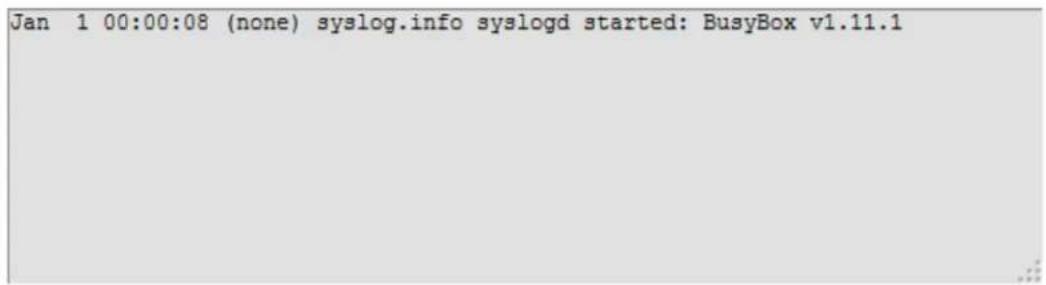
1
Save
2
Clear
3
Refresh
Save (1): Save current event log to a text file.
Clear (2): Delete all event logs displayed here.
Refresh (3): Refresh the event log display.
4-1-5 Security Log
All information about network and system security is kept here, and you can use this function to check the security event log of your router.
Please click 'Security Log' menu on the left of web management interface, and the following message will be displayed on your web browser:
View the system operation information. You can view the system startup time, connection process and more.
![[2011-08-02 11:15:04]: start Static IP [2011-08-02 11:15:04]: [SNTP]: connect to TimeServer 192.43.244.18 ... [2011-08-04 16:29:53]: [SNTP]: connect success! [2011-08-04 16:29:53]: [SNTP]: set time to 2011-08-04 16:29:53 [2011-08-04 16:29:53]: [FIREWALL]: WAN IP is 10.1.1.156 setting firewall... [2011-08-04 16:29:53]: [FIREWALL]: WAN2 IP is setting firewall... [2011-08-04 16:40:16]: [SNTP]: connect to TimeServer 192.43.244.18 ... [2011-08-04 16:40:16]: [SNTP]: connect success! [2011-08-04 16:40:16]: [SNTP]: set time to 2011-08-04 16:40:16](/content/2026/05/1058198/images/6f28ebbaceddc4b19ed4d6593ced1a09dd22870ad6d89c69d3a1ee042efb4256.jpg)
Save (1): Save current event log to a text file.
Clear (2): Delete all event logs displayed here.
Refresh (3): Refresh the event log display.
4-1-6 Active DHCP client list
If you're using the DHCP server function of this access point, you can use this function to check all active DHCP leases issued by this access point.
Please click 'Status' menu at the top of web management interface, and then click 'Active DHCP Client' on the left hand column.
Active DHCP Client
This section shows the assigned IP address, MAC address and time expired for each DHCP leased client.

flowchart
graph TD
    A["IP Address"] --> B["None"]
    B --> C["----"]
    C --> D["MAC Address"]
    D --> E["----"]
    E --> F["Time Expired (Second)"]
    F --> G["Refresh"]
All information about active DHCP leases issued by this access point will be displayed here. You can click ‘Refresh’ button to display latest information.
4-1-7 Statistics
You can use this function to check the statistics of wireless, LAN, and WAN interface of this access point.
Please click 'Status' menu at the top of web management interface, and then click 'Statistics' on the left hand column.
Statistics
This section shows the assigned IP address, MAC address and time expired for each DHCP leased client.
| 2.4GHz Wireless LAN | Packets Sent | 3768 |
| Packets Received | 530853 | |
| 5GHz Wireless LAN | Packets Sent | 455 |
| Packets Received | 247931 | |
| Ethernet LAN | Packets Sent | 12020 |
| Packets Received | 704346 | |
| Ethernet WAN | Packets Sent | 0 |
| Packets Received | 0 |
Refresh
You can click 'Refresh' button to display latest information.
4-2 Configuration Tools
You can back up all configurations of this access point to a file, so you can make several copied of access point configuration for security reason.
To backup or restore access point configuration, please follow the instructions:
Please click 'Tools' menu at the top of web management interface, and then click 'Configuration Tools' on the left hand column.
Configuration Tools
Use the "Backup" tool to save the Hi-Gain™ Wireless-AC Multi-Function Access Point / Bridge's current configurations to a file named "config.bin". You can then use the "Restore" tool to restore the saved configuration to the Hi-Gain™ Wireless-AC Multi-Function Access Point / Bridge. Alternatively, you can use the "Restore to Factory Default" tool to force the Hi-Gain™ Wireless-AC Multi-Function Access Point / Bridge to perform System Reset and restore the original factory settings.
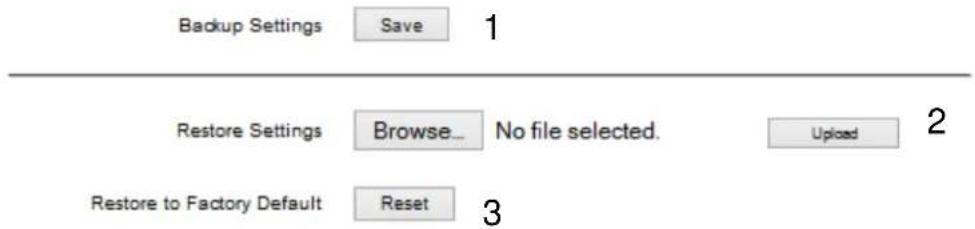
flowchart
graph TD
    A["Backup Settings"] --> B["Save 1"]
    C["Restore Settings"] --> D["Browse... No file selected."]
    E["Restore to Factory Default"] --> F["Reset 3"]
    G["Upload"] --> H["2"]
Backup Press 'Save...' button, and you'll be prompted to
Settings (1): download the configuration as a file, default filename is
'default.bin', you can please save it as another filename for different versions, and keep it in a safe place.
Restore Press 'Browse...' to pick a previously-saved
Settings (2): configuration file from your computer, and then click 'Upload' to transfer the configuration file to access point. After the configuration is uploaded, the access point's configuration will be replaced by the file you just uploaded.
Restore to Click this button to remove all settings you made, and
Factory Default (3): restore the configuration of this access point back to factory default settings.
4-3 Firmware Upgrade
The system software used by this access point is known as ‘firmware’, just like any applications on your computer, when you replace the old application with a new one; your computer will be equipped with new function. You can also use this firmware upgrade function to add new functions to your access point, even fix the bugs of this access point.
To upgrade firmware, please follow the instructions:
Please click ‘Tools’ menu at the top of web management interface, and then click ‘Firmware Upgrade’ on the left hand column.
Firmware Upgrade
This tool allows you to upgrade the Hi-Gain™ Wireless-AC Multi-Function Access Point / Bridge's system firmware. Enter the path and name of the upgrade file and then click the APPLY button below. You will be prompted to confirm the upgrade. See below for the Hi-Gain™ Wireless-AC Multi-Function Access Point / Bridge's current firmware. You can go to www.hawkingtech.com for the latest firmware files.
The system will automatically reboot the Hi-Gain™ Wireless-AC Multi-Function Access Point / Bridge after you finished the firmware upgrade process. If you don't complete the firmware upgrade process in the next step, you have to manually restart the Hi-Gain™ Wireless-AC Multi-Function Access Point / Bridge.
Firmware Version : NotForRelease-1.03
Next
Click 'Next' button if you wish to upgrade your firmware.
Firmware Upgrade
This tool allows you to upgrade the Hi-Gain™ Wireless-AC Multi-Function Access Point / Bridge's system firmware. Enter the path and name of the upgrade file and then click the APPLY button below. You will be prompted to confirm the upgrade.
Browse...
No file selected.
Apply
Canoel
Click ‘Browse’ button, and you’ll be prompted to provide the filename of the firmware upgrade file. Please download the latest firmware file from the Hawking Technologies website at www.hawkingtech.com, and use it to upgrade your access point.
After a firmware upgrade file is selected, click 'Apply' button, and the access point will start firmware upgrade procedure automatically. The procedure may take several minutes, please be patient.
NOTE: Never interrupt the upgrade procedure by closing the web browser or physically disconnect your computer from router. If the firmware you uploaded is corrupt, the firmware upgrade will fail, and you may have to return this router to the dealer of purchase to ask for help. Warranty is void if you interrupt the upgrade procedure.
4-4 Reboot
If you think your network performance is bad or you find the behavior of the access point is strange, you can perform a access point reset. Sometimes it will solve the problem.
Please click 'Tools' menu at the top of web management interface, and then click 'Reset' on the left hand column.
Reboot
In the event that the system stops responding correctly or stops functioning, you can perform a Reboot. Your settings will not be changed. To perform the reboot, click on the Apply button below. You will be asked to confirm your decision. The reboot will be complete when the LED Power light stops blinking.
Apply
Please click ‘Apply’ to reset your access point, and it will be available again after a few minutes, please be patient.
Chapter V: Appendix
5-1 Hardware Specification
CPU: REALTEK RTL8881AQ
RF: REALTEK RTL8192ER
Flash: 4MB
DDR2 RAM: 32MB
WAN Port : 10/100M Port x 1
LAN Ports: 10/100M Port x 4
Antenna: External Dipole Antenna x 2 (2.4G x 1, 2.4G/5G x 1)
Power: DC 12V/0.5A Switching Power Adapter
Dimension: 30(H) x 127(W) x 105(D) mm
Temperature: Operating: 0\~40C; Storage: -20\~60C
Humidity: Operating: 10\~90% (Non-Condensing)
Storage: Max.95% (NonCondensing)
Certification: CE/FCC
5-2 Troubleshooting
If you found the HW7ACB is working improperly or stops responding to you, don't panic! Before you contact your dealer of purchase for help, please read this troubleshooting first. Some problems can be solved by yourself within very short time!
If the HW7ACB is working improperly or stops, please refer to the follow solutions.
| Scenario | Solution |
| HW7ACB is not responding to me when I want to access it by web browser | a. Please check the connection of power cord and network cable of this HW7ACB. All cords and cables should be correctly and firmly inserted to the HW7ACB.b. If all LEDs on this HW7ACB are off, please check the status of A/C power adapter, and make sure it's correctly powered.c. You must use the same IP address section which HW7ACB uses.d. Are you using MAC or IP address filter? Try to connect the HW7ACB by another computer and see if it works; if not, please restore your router to factory default settings (pressing ‘reset’ button for over 10 seconds).e. Set your computer to obtain an IP address automatically (DHCP), and see if your computer can get an IP address.f. If you did a firmware upgrade and this happens, contact your dealer of purchase for help.g. If all above solutions don’t work, contact the dealer of purchase for help. |
| Can’t get connected to Internet | a. Go to ‘Status’ -> ‘Internet Connection’ menu, and check Internet connection status.b. Please be patient, sometime Internet is just that slow.c. If you connect a computer to Internet directlybefore, try to do that again, and check if you can get connected to Internet with your computer directly attached to the device provided by your Internet service provider.d. Check PPPoE user ID and password again.e. Call your Internet service provide and check if there's something wrong with their service.f. If you just can't connect to one or more website, but you can still use other internet services, please check URL/Keyword filter.g. Try to reset the HW7ACB and try again later.h. Reset the device provided by your Internet service provider too.i. Try to use IP address instead of hostname. If you can use IP address to communicate with a remote server, but can't use hostname, please check DNS setting. |
| I can't locate my HW7ACB by my wireless client | a. ‘Broadcast ESSID’ set to off?b. Are you too far from your HW7ACB? Try to get closer.c. Please remember that you have to input ESSID on your wireless client manually, if ESSID broadcast is disabled. |
| File download is very slow or breaks frequently | a. Are you using QoS function? Try to disable it and try again.b. Internet is slow sometimes, being patient.c. Try to reset the HW7ACB and see if it's better after that.d. Try to know what computers do on your local network. If someone's transferring big files, other people will think Internet is really slow.e. If this never happens before, call you Internet service provider to know if there is something wrong with their network. |
| I can't log onto web | a. Make sure you're connecting to the correct IP |
| management interface:password is wrong | address of the HW7ACB!b. Password is case-sensitive. Make sure the ‘Caps Lock’ light is not illuminated.c. If you really forget the password, do a hard reset. |
| HW7ACB is hot | a. This is not a malfunction, if you can keep your hand on the HW7ACB’s case.b. If you smell something wrong or see the smoke coming out from HW7ACB or A/C power adapter, please disconnect the HW7ACB and A/C power adapter from utility power (make sure it’s safe before you’re doing this!), and call your place of purchase for help. |
5-3 Glossary
Default Gateway (HW7ACB): Every non-HW7ACB IP device needs to configure a default gateway's IP address. When the device sends out an IP packet, if the destination is not on the same network, the device has to send the packet to its default gateway, which will then send it out towards the destination.
DHCP: Dynamic Host Configuration Protocol. This protocol automatically gives every computer on your home network an IP address.
DNS Server IP Address: DNS stands for Domain Name System, which allows Internet servers to have a domain name (such as www.BroadbandHW7ACB.com) and one or more IP addresses (such as 192.34.45.8). A DNS server keeps a database of Internet servers and their respective domain names and IP addresses, so that when a domain name is requested (as in typing "BroadbandHW7ACB.com" into your Internet browser), the user is sent to the proper IP address. The DNS server IP address used by the computers on your home network is the location of the DNS server your ISP has assigned to you.
DSL Modem: DSL stands for Digital Subscriber Line. A DSL modem uses your existing phone lines to transmit data at high speeds.
Ethernet: A standard for computer networks. Ethernet networks are connected by special cables and hubs, and move data around at up to 10/100 million bits per second (Mbps).
Idle Timeout: Idle Timeout is designed so that after there is no traffic to the Internet for a pre-configured amount of time, the connection will automatically be disconnected.
IP Address and Network (Subnet) Mask: IP stands for Internet Protocol. An IP address consists of a series of four numbers separated by periods, that identifies a single, unique Internet computer host in an IP network. Example: 192.168.2.1. It consists of 2 portions: the IP network address, and the host identifier.
The IP address is a 32-bit binary pattern, which can be represented as four cascaded decimal numbers separated by “.”: aaa.aaa.aaa.aaa, where each “aaa” can be anything from 000 to 255, or as four cascaded binary numbers separated by “.”: bbbbbbbb.bbbbbbbb.bbbbbbbb.bbbbbbbb, where each “b” can either be 0 or 1. A network mask is also a 32-bit binary pattern, and consists of consecutive leading
1's followed by consecutive trailing 0's, such as
11111111.11111111.11111111.00000000. Therefore sometimes a network mask can also be described simply as "x" number of leading 1's.
When both are represented side by side in their binary forms, all bits in the IP address that correspond to 1's in the network mask become part of the IP network address, and the remaining bits correspond to the host ID.
For example, if the IP address for a device is, in its binary form,
11011001.10110000.10010000.00000111, and if its network mask is,
11111111.11111111.11110000.00000000
It means the device's network address is
11011001.10110000.10010000.00000000, and its host ID is,
00000000.00000000.00000000.00000111. This is a convenient and efficient method for
HW7ACBs to route IP packets to their destination.
ISP Gateway Address: (see ISP for definition). The ISP Gateway Address is an IP address for the Internet HW7ACB located at the ISP's office.
ISP: Internet Service Provider. An ISP is a business that provides connectivity to the Internet for individuals and other businesses or organizations.
LAN: Local Area Network. A LAN is a group of computers and devices connected together in a relatively small area (such as a house or an office). Your home network is considered a LAN.
MAC Address: MAC stands for Media Access Control. A MAC address is the hardware address of a device connected to a network. The MAC address is a unique identifier for a device with an Ethernet interface. It is comprised of two parts: 3 bytes of data that corresponds to the Manufacturer ID (unique for each manufacturer), plus 3 bytes that are often used as the product's serial number.
NAT: Network Address Translation. This process allows all of the computers on your home network to use one IP address. Using the broadband HW7ACB's NAT capability, you can access the Internet from any computer on your home network without having to purchase more IP addresses from your ISP.
Port: Network Clients (LAN PC) uses port numbers to distinguish one network application/protocol over another. Below is a list of common applications and protocol/port numbers:
| Application | Protocol | Port Number |
| Telnet | TCP | 23 |
| FTP | TCP | 21 |
| SMTP | TCP | 25 |
| POP3 | TCP | 110 |
| H.323 | TCP | 1720 |
| SNMP | UCP | 161 |
| SNMP Trap | UDP | 162 |
| HTTP | TCP | 80 |
| PPTP | TCP | 1723 |
| PC Anywhere | TCP | 5631 |
| PC Anywhere | UDP | 5632 |
PPPoE: Point-to-Point Protocol over Ethernet. Point-to-Point Protocol is a secure data transmission method originally created for dial-up connections; PPPoE is for Ethernet connections. PPPoE relies on two widely accepted standards, Ethernet and the Point-to-Point Protocol. It is a communications protocol for transmitting information over Ethernet between different manufacturers
Protocol: A protocol is a set of rules for interaction agreed upon between multiple parties so that when they interface with each other based on such a protocol, the interpretation of their behavior is well defined and can be made objectively, without confusion or misunderstanding.
Router: A Router is an intelligent network device that forwards packets between different networks based on network layer address information such as IP addresses.
Subnet Mask: A subnet mask, which may be a part of the TCP/IP information provided by your ISP, is a set of four numbers (e.g. 255.255.255.0) configured like an IP address. It is used to create IP address numbers used only within a particular network (as opposed to valid IP address numbers recognized by the Internet, which must be assigned by InterNIC).
TCP/IP, UDP: Transmission Control Protocol/Internet Protocol (TCP/IP) and Unreliable Datagram Protocol (UDP). TCP/IP is the standard protocol for data transmission over the Internet. Both TCP and UDP are transport layer protocol. TCP performs proper error detection and error recovery, and thus is reliable. UDP on the other hand is not reliable. They both run on top of the IP (Internet Protocol), a network layer protocol.
Universal Repeater: Another name for HW7ACB.
WAN: Wide Area Network. A network that connects computers located in geographically separate areas (e.g. different buildings, cities, countries). The Internet is a wide area network.
Web-based management Graphical User Interface (GUI): Many devices support a graphical user interface that is based on the web browser. This means the user can use the familiar Netscape or Microsoft Internet Explorer to Control/configure or monitor the device being managed.