
STG30E - Music server PANASONIC - Free user manual and instructions
Find the device manual for free STG30E PANASONIC in PDF.


| Product type | Music server |
| Brand | Panasonic |
| Model | STG30E |
| Main functions | CD ripping, playback from USB, DLNA streaming, control via mobile app |
| Storage | SSD (capacity not specified) |
| Network connectivity | Wired LAN (Ethernet) only |
| USB ports | 1 x USB type A (device), 1 x USB type B (audio output) |
| Control app | Technics Music App (free, Android/iOS) |
| Supported audio formats | MP3, WAV, FLAC, AAC (estimated) |
| Power supply | Mains, 100-240 V, 50/60 Hz |
| Power consumption | Approximately 15 W during operation |
| Dimensions (W x H x D) | 430 x 70 x 300 mm (estimated) |
| Weight | Approximately 5 kg (estimated) |
| CD compatibility | Audio CD, CD-R/RW |
| Firmware update | Via network connection and Technics Music App |
| Maintenance | Clean with a soft, dry cloth. Do not use solvents. |
| Operating temperature | 5°C to 35°C (estimated) |
| Included accessories | Power cord, Ethernet cable, user manual |
Frequently Asked Questions - STG30E PANASONIC
User questions about STG30E PANASONIC
0 question about this device. Answer the ones you know or ask your own.
Ask a new question about this device
Download the instructions for your Music server in PDF format for free! Find your manual STG30E - PANASONIC and take your electronic device back in hand. On this page are published all the documents necessary for the use of your device. STG30E by PANASONIC.
USER MANUAL STG30E PANASONIC
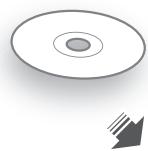
- Music from CDs can be saved to the SSD of this unit.
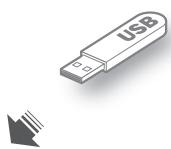
USB
- Music on USB devices can be saved to the SSD of this unit.
Playback-
USB Audio
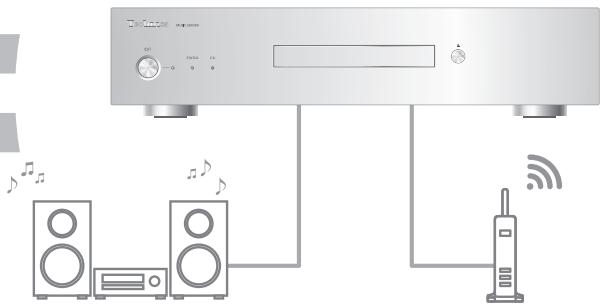
- Connect an amplifier/DA converter with a USB cable to output music data stored on this unit.
DLNA
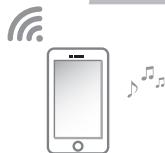
- Connect with DLNA to output music data stored on this unit.
This unit is operated with a smartphone or tablet on which "Technics Music App" (free of charge), an app specifically designed for this unit, is installed. Before operating this unit, install "Technics Music App" on your smartphone or tablet.
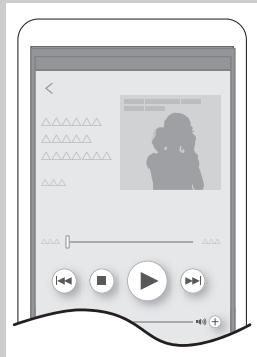
■ Technics Music App
"Technics Music App" is an app that enables you to control and configure ST-G30.
It is also designed as a simple, user-friendly music playback app that enables you to perform tasks such as selecting an audio source and playback device and creating a playlist on your smartphone or tablet.
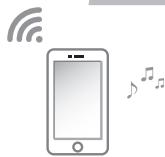
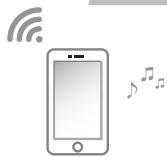
1. Connect your smartphone or tablet to a network
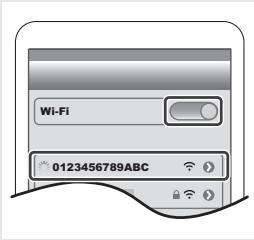
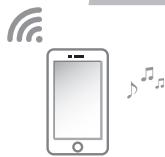
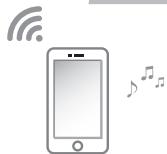
You need to make a Wi-Fi ^® connection between your smartphone or tablet and the router. Connect the smartphone or tablet to the router.
① Turn on the Wi-Fi function in the setting menu of the smartphone or tablet.
② Select the router (SSID).
- Refer to the operating instructions of the router for information on its SSID and password.
2. Install "Technics Music App"
You need to install "Technics Music App" on your smarthphone or tablet.
| Android^TM app | iOS app |
1 Select "Google Play^TM Store".2 Search for "Technics Music App".3 Select "Technics Music App", and install the app.Access by QR Code  | 1 Select "App Store".2 Search for "Technics Music App".3 Select "Technics Music App", and install the app.Access by QR Code 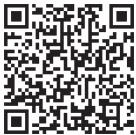 |
Supported OS
App for Android™: Android 4.1 or later
App for iOS: iOS 7.0 or later
- Supported OSs are current as of January 2016 and are subject to change.
■ Connections of this unit/Installation of SSD
This unit is ready for use once you have connected this unit and your smartphone or tablet to the same network with a LAN cable.
Please note that ST-G30L users are required to install an SSD first.
Refer to the Operating Instructions for details on the connections of this unit and the installation of an SSD.
■ Operations of Technics Music App
Tap the icon [Technics Music App] to start the app "Technics Music App".
For information on the operations and on-screen displays of "Technics Music App", refer to its user guide, which can be downloaded from the website below.
www.technics.com/support/
- This unit only supports wired LAN connection. To connect to a network, make a wired connection.
- Occasionally, Panasonic may release updated firmware for this unit that may add or improve the way a feature operates. These updates are available free of charge. Connect to a network to update the firmware. For details, refer to the user guide for "Technics Music App".
- "Wi-Fi®" is a registered trademark of Wi-Fi Alliance®.
- App Store is a service mark of Apple Inc.
- Google Play and Android are trademarks of Google Inc.
- QR Code is a registered trademark of DENSO WAVE INCORPORATED.
Funktionen
Speicher
CD
Technics Music App
DLNA
Technics Music App
2. Installez "Technics Music App"
Technics Music App
2. Installare "Technics Music App"
DLNA
Technics Music App
DLNA
Technics Music App
2. Instale "Technics Music App"
DLNA
Technics Music App
2. Installera "Technics Music App"
Du måste installera "Technics Music App" på din smartmobil eller surfplatta.
- Tilslut vha. DLNA for at outputte musikdata, som er lagret på denne enhed.
■ Technics Music App
2. Installér "Technics Music App"
Tap på [Technics Music App] for at starte appen "Technics Music App".
Technics Music App
2. Asenna "Technics Music App"
- USB
- Playback-
- USB Audio
- DLNA
- ■ Technics Music App
- Connect your smartphone or tablet to a network
- Install "Technics Music App"
- Supported OS
- ■ Connections of this unit/Installation of SSD
- ■ Operations of Technics Music App
- Funktionen
- Speicher
- CD
- Technics Music App
- Installez "Technics Music App"
- Installare "Technics Music App"
- Instale "Technics Music App"
- Installera "Technics Music App"
- Installér "Technics Music App"
- Asenna "Technics Music App"
Brand : PANASONIC
Model : STG30E
Category : Music server