Vnet USB RS232 Interface - Pregnant TANNOY - Free user manual and instructions
Find the device manual for free Vnet USB RS232 Interface TANNOY in PDF.


User questions about Vnet USB RS232 Interface TANNOY
0 question about this device. Answer the ones you know or ask your own.
Ask a new question about this device
Download the instructions for your Pregnant in PDF format for free! Find your manual Vnet USB RS232 Interface - TANNOY and take your electronic device back in hand. On this page are published all the documents necessary for the use of your device. Vnet USB RS232 Interface by TANNOY.
USER MANUAL Vnet USB RS232 Interface TANNOY
Please read carefully and keep the following instructions and safety information. Heed all warnings and follow all instructions.

- Do not remove covers. There are no user-serviceable parts inside; please refer servicing to qualified service personnel.
- This equipment must be earthed.
- Protect the power cord from being walked on or pinched, particularly at plugs, convenience receptacles, and the point where they exit from the apparatus.
- Only use attachments/accessories specified by the manufacturer.
- Servicing is required when the apparatus has been damaged in any way, such as the power supply cord or plug is damaged, liquid has been spilled or objects have fallen into the apparatus, the apparatus has been exposed to rain or moisture, does not operate normally, or has been dropped.
IMPORTANT SAFETY INFORMATION
Please read carefully and keep the following instructions and safety information. Heed all warnings and follow all instructions.
- Do not remove covers. There are no user-serviceable parts inside; please refer servicing to qualified service personnel.
- Only use attachments/accessories specified by the manufacturer.
- Servicing is required when the apparatus has been damaged in any way, such as liquid has been spilled or objects have fallen into the apparatus, the apparatus has been exposed to rain or moisture, does not operate normally, or has been dropped.
QUICK START
- Install the drivers
- Connect computer via USB or RS232
- Apply power if using RS232
- Connect devices via RJ45 cables
REGULATORY COMPLIANCE
This product complies with the EMC Directive (89/336/EEC) as issued by the Commission of the European Community.
Compliance with these directives imply conformity with the following European standards:
• EN55103-1 Electromagnetic Interference (Emission)
• EN55103-2 Electromagnetic Susceptibility (Immunity)
This product is intended for operation in the E2 (commercial & light industrial) and E3 (urban outdoors) Electromagnetic Environments.
THANK YOU
Thank you for choosing this product for your application. Please spare a little time to study the contents of this guide, so that you obtain the best possible performance from this unit.
UNPACKING
After unpacking the unit please check carefully damage. If damage is found, please notify the carrier concerned at once. You, the consignee, must instigate any claim. Please retain all packaging in case of future re-shipment.
INTRODUCTION / KEY FEATURES
This product gives your Personal Computer connectivity to a network of VNET ^™ equipped devices so they can be controlled and monitored.
The WET™ Interface can connect via USB or Serial (RS232).
VNET™ \$ a fast networking topology using standard Cat5 cabling to interconnect compatible devices using a simple cabling scheme. The total span of the network may be at least 1km without repeaters. There is no maximum length for a single span within this limit.
Housed in a convenient, rugged steel case, it can be used free-standing or, using the rack-mount kit, may be racked along with up to two additional accessory products in 1U rack-space.
FEATURES:
- Rugged steel enclosure
• Free-standing or rack-mount options
• Rugged Ethercon network connectors
• Self-powered (using USB)
- Capable of driving 1km of network cable
- No special cables
COMPUTER SYSTEM REQUIREMENTS
Minimum requirements:
• PC with Pentium processor
- 32-bit Windows tm operating system (NT, 2000, XP, Vista).
• CD-ROM drive or Internet access
- RS232 or USB port *
*Note that the network will operate slightly more quickly when using RS232, so this is the preferred method of connection.
INSTALLING THE SOFTWARE
If you only want to use the VNET™ Interface with the Serial (RS232) port of your computer, you do not need to install any drivers. If you wish to use USB, then you need to install USB drivers for this product.
When you plug the USB connection of NETV Interface into a computer for the first time, the tcomputer will say "Found new hardware", and will prompt you to install drivers for it. Two drivers will be installed: One for the USB port itself, and one for the Virtual Com Port (VCP). Note that both of these
drivers may report that they have "Not passed Windows Logo Testing". You should select "Continue Anyway".
If the driver software has been supplied to you on a CD-ROM, place this in your CD-ROM drive. Alternatively, download the drivers from your vendor's web site.

WINDOWS 2000 DRIVER INSTALLATION
- Repeat step (4) to (8) to complete installation.
You need to have administrator privileges to install COM PORT
any new drivers under Windows2000. To install the PodWare application uses a COM port to driver or update the configuration please log onto communicate with the connected devices. When Windows 2000 as "Administrator" or ask your system administrator to install the USB driver. You use the RS232 connection from your computer to the VNET™ Interface, the COM port will be the Please proceed with the following steps to install one which your computer normally uses for the Serial (RS232) port; usually COM1.
- Connect a USB cable from your computer (or USB hub) to the USB port of the Interface
- The connection brings up "Found New Hardware Wizard".
- Click "Next".
- Select "Search for the best driver for my device", and click "Next".
-
Select "Specify a location" and click "Next". In the "Copy Manufacturer's file from", type where "D:" is the location of your CD-ROM (or browse to where you have copied the drivers if you have downloaded them from a web site).
When you use USB to connect from your computer to the VNET™ Interface, the Driver software
causes a "Virtual COM Port" (VCP) to be created. This will appear to PodWare as just another COM port, and can be selected using Network > Com Port. To find out the COM port which the VNET™ Interface is using, select Start > Control Panel > System > Hardware > Device Manager > Ports.
Here, you should see an entry in the tree for an item called "USB VNET™ Port. Against this will be the COM port number (e.g. COM5). -
Windows driver file searches for the device "USB VNET™ Interface".
-
Click "Next" to continue.
-
Windows has finished installing the software. Click "Finish" to complete the first part of installation.
-
The "Found New Hardware Wizard" appears again, and will complete the installation for the device "USB VNET™ Port".
-
Repeat step (4) to (8) to complete installation. An external supply is required in either of these two circumstances:
WINDOWS XP DRIVER INSTALLATION
Please proceed with the following steps to install the driver:
-
Connect a USB cable from your computer (or USB hub) to the USB port of the Interface
-
The connection brings up "Found New Hardware Wizard".
-
Click "Next".
-
Select "Search for the best driver for my device", and click "Next".
-
Select "Specify a location" and click "Next". In the "Copy Manufacturer's file from", type where "D:" is the location of your CD-ROM (or browse to where you have copied the drivers
if you have downloaded them from a web site?
-
Windows driver file searches for the device "USB VNET™ Interface".
-
Click "Next" to continue.
-
Windows has finished installing the software. Click "Finish" to complete the first part of installation.
-
The "Found New Hardware Wizard" appears again, and will complete the installation for the device "USB VNET™ Port".
The PodWare application uses a COM port to communicate with the connected devices. When you use the RS232 connection from your computer to the VNET™ Interface, the COM port will be the one which your computer normally uses for the Serial (RS232) port; usually COM1.
If you wish to change this to a different COM port number, right-click on the existing COM port tree node, select Properties > Port Settings >
Advanced. There, you will see a COM port selector. Do not change it to a COM port which is already in use.
EXTERNAL POWER SUPPLY
Provision is made to power the unit from an external Tannoy VNET™ Accessory Power Supply.
. An external supply is required in either of these two circumstances:
- If it is desired to use an RS232 (serial) connection to the PC
- If there are WET^TM network cable powered devices anywhere on the network
If USB is being used and there are no such
VNET™ cable powered devices, no external supply is required and the interface will be powered from the computer's USB port.
CONNECTING A COMPUTER
You can connect your computer to the VNET Interface in one of two ways:
RS232
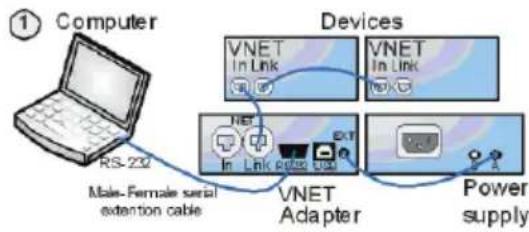
If your computer has a native Serial (RS-232) port, just connect this to the RS232 socket on the
VNET™ Interface using an RS-232 extension cable (a straight-through female-to-male), as in diagram
- When using RS232, it is necessary to supply DC power to the VNET™ Interface from the companion Accessory Power Supply product via the 3.5mm jack cable provided with the power supply. This can power either one or two compatible accessories.
Either the A or the B output on the Power supply may be used since these are identical. ^TM TM TM TM
flowchart
graph TD
    A["Computer"] -->|RS-232| B["Indefinite Serial Extension Cable"]
    B --> C["VNET Adapter"]
    C --> D["Power Supply"]
    C --> E["VNET In Link"]
    C --> F["VNET In Link"]
    C --> G["VNET In Link"]
    style A fill:#f9f,stroke:#333
    style D fill:#ccf,stroke:#333
    style E fill:#cfc,stroke:#333
    style F fill:#fcc,stroke:#333
    style G fill:#cff,stroke:#333
USB
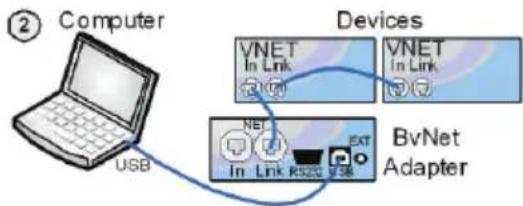
You can connect your computer to the VNET™ A Interface via USB using a USB Type A to USB Type cable as in diagram 2. It is not usually necessary to use a Power Supply to power the VNET™ Interface when using USB, since USB will supply sufficient power for the Interface. If there are any Network powered devices on the network however, then it will be necessary to use the Accessory Power Supply.
CONNECTING DEVICES
flowchart
graph TD
    A["Computer"] -->|USB| B["Devices"]
    B --> C["VNET In Link"]
    B --> D["VNET In Link"]
    B --> E["BvNet Adapter"]
    E --> F["In Link R520 USB"]
    E --> G["EXT USB"]
Connect the VNET™ Link socket on the VNET™ Interface to the VNET™ In socket of the first device you wish to control, then the VNET™ Link socket of this device to the VNET™ In socket of the next device, and so on. The order in which the devices connected is not important. The Link socket of the last device in the 'chain' need not be connected. The In socket of the VNET™ Interface is intended for special applications, and would not normally be connected. The 'Ethercon' network connectors are fully compatible with standard RJ45 Ethernet patch cables which may be used to make these connections. If additional ruggedness is required, we recommend using the Neutrik Ethercon locking type of connector.
RACKING
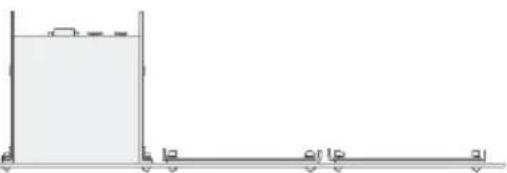
The VNET™ Interface and Accessory Power Supply may be used free-standing. If you wish to mount them in a 19-inch rack, then the Tannoy VNET™ accessory rack-mount kit may be used. To mount an Accessory in the Mounting Kit panel:
-
Remove the two mounting brackets and blanking sheet which are covering the aperture you wish to mount the Accessory in, by removing the two nuts. (Keep these and the screws and washers).
-
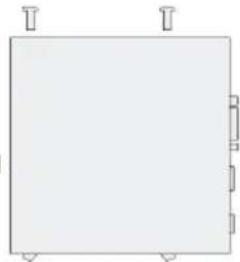
Remove the two screws from one side of the Accessory.

natural_image
Pure mechanical assembly diagram showing a shaft and guide rail (no text or symbols)
- Using the two screws removed in 2, attach one mounting bracket loosely to the side of the Accessory, with the 'ear' towards the front, pointing outwards.
natural_image
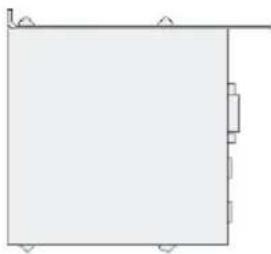
Simple line drawing of a rectangular object with two vertical posts on top and bottom (no text or symbols)- Repeat 2 and 3 for the other side. Now push the lid towards the back of the unit as far as it will go then align the bracket ears with the front edge of the lid.
natural_image
Simple line drawing of a rectangular frame with corner holes and a small rectangular object on the right side (no text or symbols)Now tighten the screws.
- Offer the Accessory with its mounting brackets up

natural_image
Simple line drawing of a rectangular frame with corner supports and a small internal rectangle (no text or symbols)to the reverse side of the Mounting Panel, and fix it in place using the two sets of screws, washers and nuts removed in 1.
natural_image
Simple line drawing of a container with liquid and two side supports (no text or symbols)
Note that the holes at the rear ends of the brackets may be used as cable tie-off points if desired. 5
OPERATION
Are the appropriate indicators illuminated?
Once the MET ^™ Interface has been connected to (See above).
the computer and to the devices (and if applicable,
to the optional NET™ Power Supply) then there Make sure the network cable is not too long, is
are no further adjustments to make on the interface correctly connected, and is not damaged.
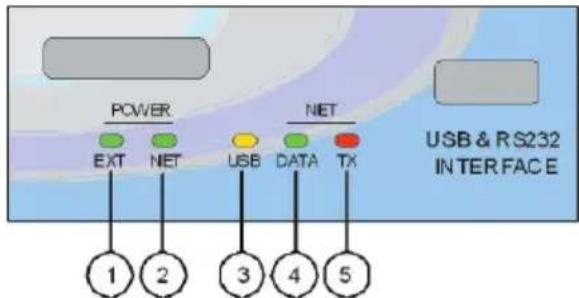
itself. The indicators on the front of the unit operate check that the Tx indicator flashes when PodWare as follows attempts to go online.
text_image
POWER EXT NET USB DATA TX USB & RS232 INTERFACE 1 2 3 4 5Will not operate via RS232
Have you selected the correct COM port in
PodWare?
You must use the Accessory Power Supply when operating via RS232.
TECHNICAL SPECIFICATIONS
USB communication
Compliance 1.1 and 2.0
Power descriptor 150mA
The EXT Power indicator (1) will illuminate when DC power is being applied to the EXT Power so on the rear of the unit.
The NET Power indicator (2) will illuminate when the unit is applying power to the network. This is used for powering network-powered accessories, and for signalling.
cket Connector Type B
Serial communication
Compliance EIA RS232C
Connector Female 9 pin 'D'
(fully wired)
The USB indicator (3) will illuminate when the unitVNET™
has an active USB connection with a computer.
The Net DATA indicator (4) will illuminate when data is being received from the network.
The Net TX indicator will illuminate when the unit is transmitting data onto the network.
Cable type Category 5 UTP
(or better)
Max. total cable length 1km
Max. Network Span 1km
Connector Standard RJ45
TROUBLE SHOOTING
(or ruggedised
Neutrik 'Ethercon')
The EXT Power indicator does not illuminate
If you are operating via RS232, you need to use
Accessory Power Supply. Make sure this is connected properly. Check if the power indicator on the Power Supply illuminates. If you are operating via USB (and there are no network-powered
devices on the network), it is not usually necessary power consumption
for an external power supply to be used, in which case this indicator will not illuminate.
ernal Power
Only to be provided by a Tannoy VNet
Accessory power supply via a 3.5mm jack-to-jack lead.
Power consumption
USB powered 750mW max.
Externally powered 3W max.
The USB indicator does not illuminate
Environmental
If you are using a USB hub, make sure it is capable Temperature 0 to +45°C
of providing sufficient power. You may need to use Humidity
0 to 80% RH
a powered hub. Has the driver been installed?
(non-condensing)
Try unplugging the USB cable, then plugging it in Dimensions again.
If you are using RS232, this indicator will not illuminate.
Height
43mm
Width
115mm
Cannot find the COM port for the USB device Depth
115mm
Has the driver been installed?
Weight
500g
Is the USB cable plugged in both ends?
Does the USB indicator illuminate? (Check above).
PodWare finds no devices
Have you selected the correct COM port in PodWare?
Tannoy operates a policy of continuous research and development. The introduction of new materials or manufacturing methods will always equal or exceed the published specifications. All specifications are subject to change without notice. Copyright (c) 2015 Music Group Innovation SC Ltd. All rights reserved.

tannoy®com