V-02HD MK II - Controller ROLAND - Free user manual and instructions
Find the device manual for free V-02HD MK II ROLAND in PDF.


| Product Type | Compact HDMI Video Switcher / Controller |
| Model | V-02HD MK II |
| Brand | Roland |
| Dimensions (W x D x H) | 204 x 142 x 52 mm |
| Weight | 0.7 kg |
| Power Supply | USB-C (5V/2A) or DC 5V (optional adapter) |
| Power Consumption | 5 W |
| Input Channels | 2 x HDMI |
| Output Channels | 1 x HDMI (program), 1 x HDMI (preview) |
| Supported Video Formats | 1080p/60, 1080i, 720p, 480p, 576p |
| Audio Input | 2 x HDMI embedded audio, 1 x 3.5mm stereo mini (mic/line) |
| Audio Output | 1 x 3.5mm stereo mini (headphones) |
| Effects | Transitions (cut, mix, wipe), picture-in-picture, chroma key |
| Control Interface | Physical buttons, T-bar, rotary knobs |
| USB Connectivity | USB-C for power and firmware updates |
| Operating Temperature | 0°C to 40°C |
| Maintenance | Wipe with a soft, dry cloth. Do not use solvents. |
| Safety | Keep away from moisture, heat sources, and direct sunlight. |
| Spare Parts / Repairability | Contact Roland authorized service centers for repairs. |
| Warranty | Standard 2-year limited warranty (check local regulations). |
Frequently Asked Questions - V-02HD MK II ROLAND
User questions about V-02HD MK II ROLAND
0 question about this device. Answer the ones you know or ask your own.
Ask a new question about this device
Download the instructions for your Controller in PDF format for free! Find your manual V-02HD MK II - ROLAND and take your electronic device back in hand. On this page are published all the documents necessary for the use of your device. V-02HD MK II by ROLAND.
USER MANUAL V-02HD MK II ROLAND
"V-02HD MK II Utility" is dedicated software for the V-02HD MK II. It lets you connect the V-02HD MK II to your computer via USB, and backup/restore the settings of the V-02HD MK II unit, or update its system program.
* This software runs on Windows/Mac.
* Backup/restore functionality is supported by program version 1.02 and following of the V-02HD MK II unit.
Contents
System Requirements 2
Making the Connection to a Computer.... 2
Starting V-02HD MK II Utility 2
Backing Up and Restoring the V-02HD MKII's Settings... 3
Updating the System Software of the V-02HD MKII ..... 4
System Requirements
| Operating system | Windows | Windows 8.1Windows 10 |
| Mac macOS 10.13 or later | ||
| CPU | Windows | Intel Core 2 Duo or higher, or compatible processor* No assurance is made regarding the compatibility of compatible processors themselves. |
| Mac Intel processor | ||
| RAM 2 GB or more | ||
| Required disk space 100 MB or more | ||
| Graphics | 1,280 x 1,024 resolution or higherFull color (24-bit) or higher | |
| USB port USB 2.0 | ||
* Operation of V-02HD MK II Utility on a standard computer that satisfies the conditions just described has been confirmed, but all operation under these conditions is not assured. Please be aware that even under identical conditions, computer-specific differences in design specifications or usage environment might result in differences in processing capacity.
Making the Connection to a Computer
* Making the connection using an extension cable or USB hub might result in the computer failing to recognize the V-02HD MK II. We recommend using a direct connection between the V-02HD MK II and the computer.
- Using a USB cable, connect a USB 2.0 port on the computer to the USB port on the V-02HD MK II.
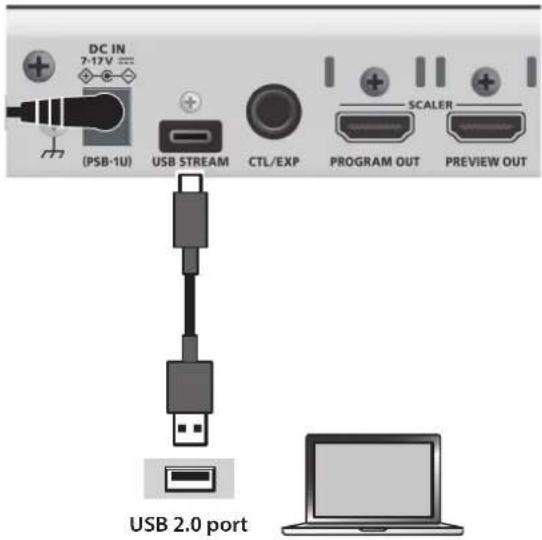
- Turn on the power to the V-02HD MK II.
- Start the computer.
- Wait for communication between the V-02HD MK II and the computer to be established.
When communication with the computer starts, the operating system's standard driver is automatically installed.
Starting V-02HD MK II Utility
Starting
1. Windows
On the computer, go to the "Start" menu and select "All Programs" → "Roland V-02HD MK II Utility" → "V-02HD MK II Utility."
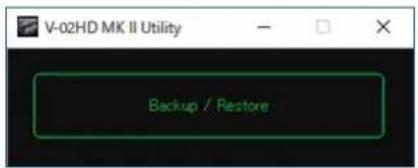
V-02HD MK II Utility starts and the V-02HD MK II Utility window appears.
Mac
Double-click the V02HDUTL icon.
V-02HD MK II Utility starts and the V-02HD MK II Utility window appears.
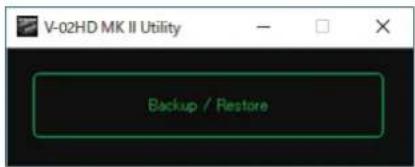
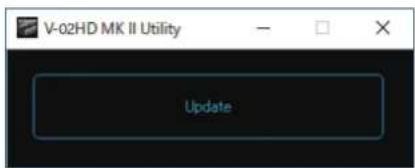
The button that appears in the V-02HD MK II Utility window depends on the V-02HD MK II's startup mode.
When started in normal mode (p. 3)
When started in update mode (p. 4)
NOTE
Connect the V-02HD MK II and the computer one-to-one. If more than one V-02HD MK II unit is connected to the computer, the message "Do NOT connect multiple V-02HD MK IIs." appears, and you cannot use the functionality of V-02HD MK II Utility.
Backing Up and Restoring the V-02HD MK II's Settings
You can back up the settings of the V-02HD MK II to a USB-connected computer. You can restore the backup data to the V-02HD MK II when necessary.
* A still image saved in the V-02HD MK II unit cannot be backed up.
* Backup/restore functionality is supported by program version 1.02 and following of the V-02HD MK II unit.
Backing Up
- Start V-02HD MK II Utility, and click the [Backup / Restore] button.
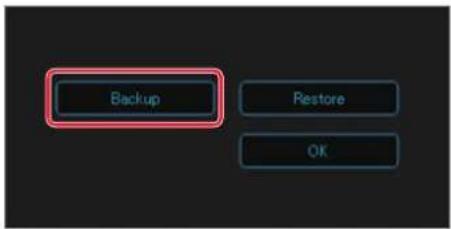
- Click the [Backup] button.
- Click the [Backup] button.
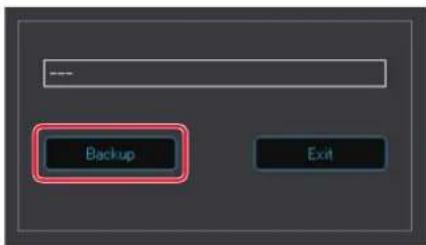
The dialog box shows "Now Working...," and the V-02HD MK II's settings are transmitted to the computer. When transmission ends, the Backup to File dialog box appears.
- Specify the save-destination and file name (*.v02), and click the [Save] button.
The backup file (*.v02) is saved on the computer. When the dialog box shows "Complete," the backup is complete. - Click the [Exit] button to close the dialog box.
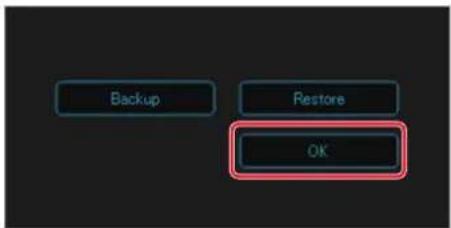
- Click the [OK] button to close V-02HD MK II Utility.
Restoring
NOTE
When you restore the backup data, the settings of the V-02HD MK II unit are overwritten.
- Start V-02HD MK II Utility, and click the [Backup / Restore] button.
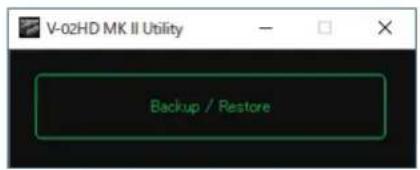
- Click the [Restore] button.
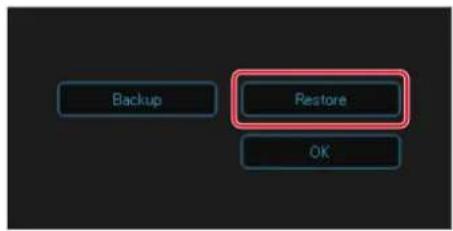
- Click the [Restore] button.
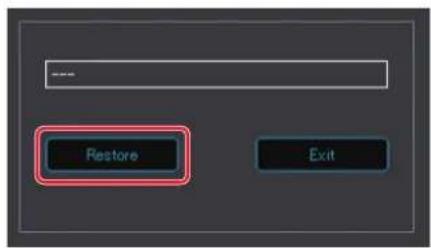
The Restore from Backup File dialog box appears.
- Select the backup file (*.v02) that you want to restore, and click the [Open] button.
Restore is executed. When the dialog box shows "Complete," the backup is complete. - Click the [Exit] button to close the dialog box.
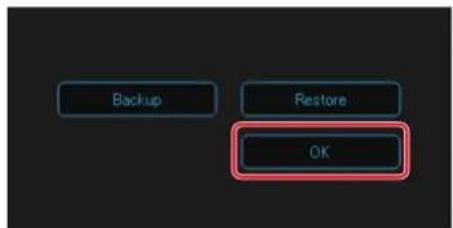
- Click the [OK] button to close V-02HD MK II Utility.
Updating the System Software of the V-02HD MK II
How to tell the version
- On the V-02HD MK II, use [MENU] button → "SYSTEM" → "VERSION" to check the current version.
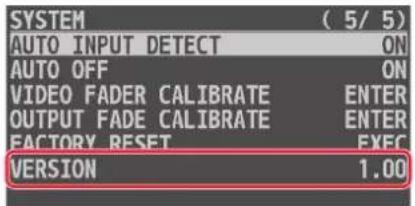
* Don't perform the update if the product is already up-to-date.
- Power-off the V-02HD MK II.
Getting the update file
Download the system program file for the V-02HD MK II from the following Roland website.
Upgrade information for the system program is provided at the Roland website.
https://proav.roland.com/
Updating the system software
NOTE
Never turn off the power while the program is being written (while the V-02HD MK II's [1] [2] buttons are blinking red). Doing so might make the V-02HD MK II malfunction.
- While holding down the V-02HD MK II's [VFX] button, turn the [POWER] switch on to start up the V-02HD MK II.
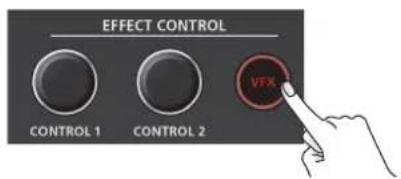
The V-02HD MK II starts in the update mode (with the [VFX] button lighted in red).
-
Using a USB cable, connect the V-02HD MK II and the computer.
-
Start V-02HD MK II Utility, and click the [Update] button.
* The [Backup / Restore] button appears, and then changes to show the [Update] button.
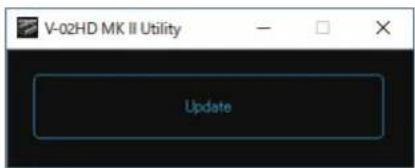
- Drag and drop the program file V-02HDMKII_ver****.bin) into the dialog box.
You can also specify the program file V-02HDMKII_ver****.bin) by clicking the [Bin File] button to open the Update File dialog box.
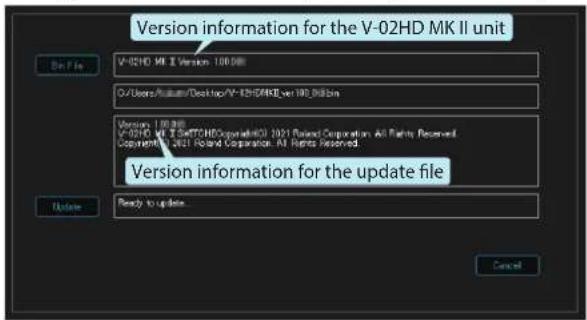
If you want to cancel the operation, press the [Cancel] button.
- Click the [Update] button.
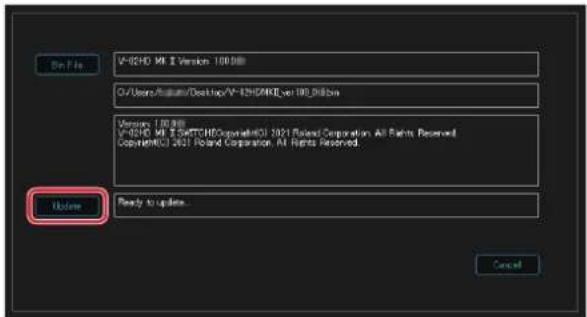
The update starts.
When the update is completed, the lower line indicates "Update Completed."
- Click the [OK] button.
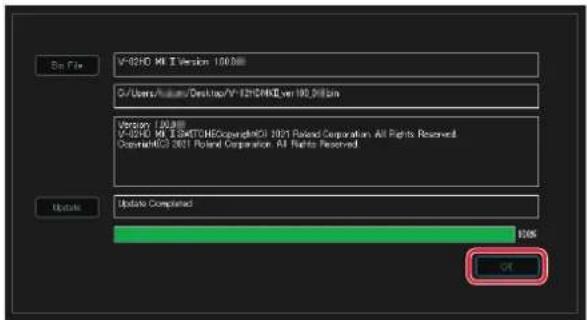
- Click the [OK] button of the message dialog box to close V-02HD MK II Utility.
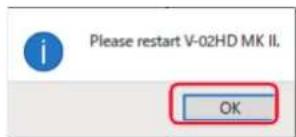
- Turn the power to the V-02HD MK II off and back on, then check the version information.
Follow the procedure in "How to tell the version" (p. 4) to check whether the system has been updated.