BW210P - Phone Fanvil - Free user manual and instructions
Find the device manual for free BW210P Fanvil in PDF.


| Product Type | Desktop VoIP Phone |
| Dimensions (W x H x D) | 200 x 170 x 80 mm |
| Weight | 0.8 kg |
| Power Supply | Power over Ethernet (PoE) or AC Adapter 12V/1A |
| Display | 2.4-inch color LCD |
| Lines | 2 SIP lines |
| Audio | HD audio with echo cancellation |
| Network Interfaces | 2x RJ45 10/100/1000 Mbps (with PoE) |
| Mounting | Desktop stand or wall mountable |
| Key Features | Programmable keys, handsfree speakerphone, headset support |
| Protocols | SIP, TCP/UDP/IP, RTP, RTCP, DNS, DHCP, NTP |
| Maintenance | Clean with soft dry cloth; avoid liquids |
| Safety | Do not expose to water or extreme temperatures |
| Spare Parts & Repairability | Spare parts available via authorized distributors; repair by qualified technicians |
| General Information | Warranty 2 years, compatible with major VoIP platforms |
Frequently Asked Questions - BW210P Fanvil
User questions about BW210P Fanvil
0 question about this device. Answer the ones you know or ask your own.
Ask a new question about this device
Download the instructions for your Phone in PDF format for free! Find your manual BW210P - Fanvil and take your electronic device back in hand. On this page are published all the documents necessary for the use of your device. BW210P by Fanvil.
USER MANUAL BW210P Fanvil
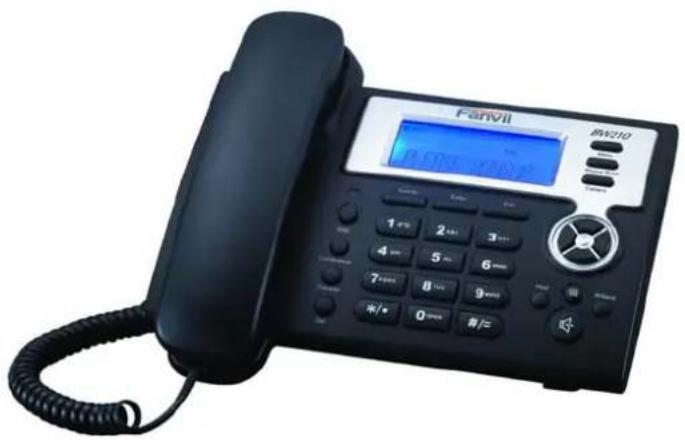
Fanvil Product User Manual IP Phone
Model: BW210
text_image
FENVII 新校10 B.CITI 12:00:17

Version: V1.7.18.17 Oct 23 2008
© 2005 Fanvil technology Co., Ltd
All rights reserved.
This document is supplied by Fanvil Technology Co., Ltd, No part of this document may be reproduced, republished or retransmitted in any form or by any means whatsoever, whether electronically or mechanically, including, but not limited to, by way of photocopying, recording, information recording or through retrieval systems, without the express written permission of Fanvil Technology Co., Ltd. Fanvil Technology Co., Ltd reserves the right to revise this document and make changes at any time and without the obligation to notify any person and/or entity of such revisions and/or changes. Product specifications contained in this document are subject to change without notice.

Safety Notices
Please read the following safety notices before installing or using this phone. They are crucial for the safe and reliable operation of the device.
- Please use the external power supply that is included in the package. Other power supplies may cause damage to the phone, affect the behavior or induce noise.
- Before using the external power supply in the package, please check with home power voltage. Inaccurate power voltage may cause fire and damage.
- Please do not damage the power cord. If power cord or plug is impaired, do not use it, it may cause fire or electric shock.
- The plug-socket combination must be accessible at all times because it serves as the main disconnecting device.
- Do not drop, knock or shake it. Rough handling can break internal circuit boards.
- Do not install the device in places where there is direct sunlight. Also do not put the device on carpets or cushions. It may cause fire or breakdown.
- Avoid exposure the phone to high temperature, below 0°C or high humidity. Avoid wetting the unit with any liquid.
- Do not attempt to open it. Non-expert handling of the device could damage it. Consult your authorized dealer for help, or else it may cause fire, electric shock and breakdown.
- Do not use harsh chemicals, cleaning solvents, or strong detergents to clean it. Wipe it with a soft cloth that has been slightly dampened in a mild soap and water solution.
- When lightning, do not touch power plug or phone line, it may cause an electric shock.
- Do not install this phone in an ill-ventilated place.
- You are in a situation that could cause bodily injury. Before you work on any equipment, be aware of the hazards involved with electrical circuitry and be familiar with standard practices for preventing accidents.
Table of Content
1. Introducing BW210 VoIP Phone....5
1.1. Thank you for your purchasing BW210....5
1.2. Delivery Content 5
1.3. Keypad....6
1.4. Port for connecting....7
2.Initial connecting and Setting....8
2.1. connect the phone....8
2.2. Initial Setting 9
2.2.1. PPPoE mode....9
2.2.2. Static IP mode: 10
2.2.3. DHCP mode 11
3. Basic Functions....12
3.1. Basic operation.... 12
3.1.1. Accepting a call....12
3.1.2. Making a call....12
3.1.3. Ending a call 13
3.1.4. Transferring a call 13
3.1.5. Calling Hold and 3 ways call ....13
3.1.6. Callers....14
3.2. The high-level operation 15
3.2.1. Special Keys 15
3.2.2. Call pickup....15
3.2.3. join call....15
3.2.4. redial/unredial....15
3.2.5. click to dial....16
4. Setting 16
4.1. Setting methods.... 16
4.2. Setting via Web Browse.... 16
4.3. Configuration via WEB....17
4.3.1. BASIC 17
4.3.7. Logout....51
4.4. Settings via phone's keyboard.... 51
4.4.1. How to set via the phone's keyboard....51
4.4.2. Phone menu ....51
5. Appendix 53
5.1. Specification 53
5.1.1. Device specification .... 53
5.1.2. Voice Features .... 53
5.1.3. Network Features....53
5.1.4. Maintenance and Management....54
5.2. Digit-character map table 54
1. Introducing BW210 VoIP Phone
1.1. Thank you for your purchasing BW210
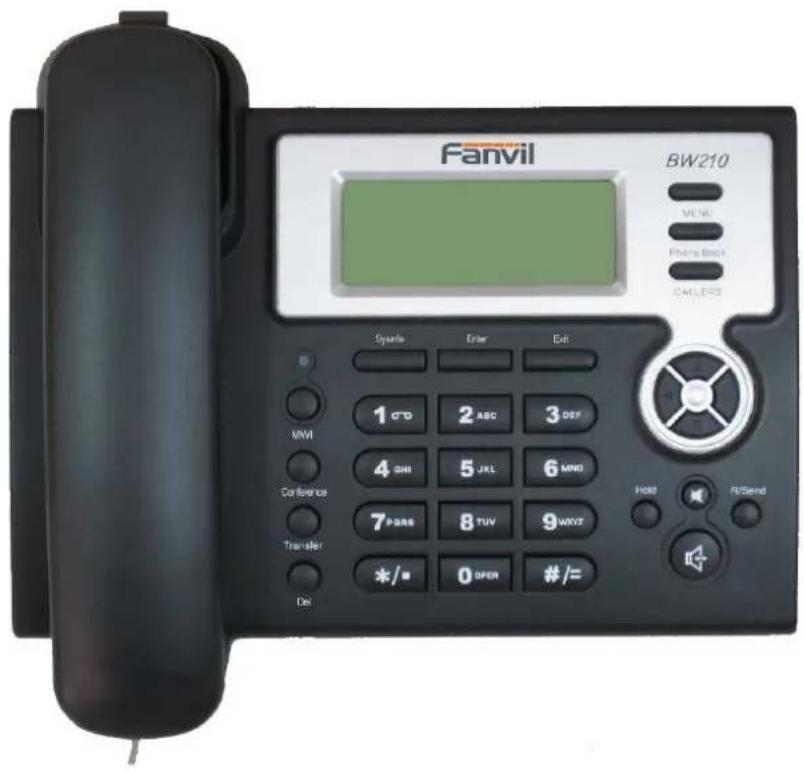
Thank you for your purchasing BW210, BW210 is a full-feature telephone that provides voice communication over the same data network that your computer uses. This phone functions not only much like a traditional phone, allowing to place and receive calls, and enjoy other features that traditional phone has, but also it own many data services features which you could not expect from a traditional telephone.
This guide will help you easily use the various features and services available on your phone.
text_image
Fanvil BW210 MENU Phone Batch CALLETS Systeme Enter Exit 1 C/O 2 ABC 3 DEF MVI 4 GHI 5 JKE 6 MNO Conference 7 PARS 8 TUV 9 WXYZ Transfer */ 0 OPEN #/= Del1.2. Delivery Content
Please check whether the delivery contains the following parts:
The base unit with display and keypad
The handset
The handset cable
The power supply
The Ethernet cable
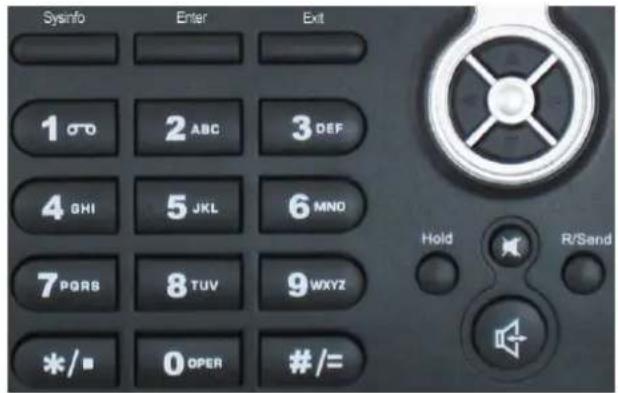
1.3. Keypad
text_image
Sysinfo Enter Exit 1 ØO 2 ABC 3 DEF 4 OHI 5 JKL 6 MND 7 PQRB 8 TUV 9 WXYZ */# 0 OPER #/=The numeric keypad with the keys 0 to 9, *, and # is used to enter
Digits and letters, additionally, the following keys are available:
Key mapping:
| Key | Key name | Function Description |
| Menu | In idle state, press the MENU key to call up the menu. | |
| Phone Book In | idle mode, press the Phone Book key to check the record list and add new records and revise the record. Press this key again will return to idle mode. | |
| Callers In | idle/pickup/calling mode, press the Callers key to Check the Income/Outgoing/Missed calls records. Press this key again will return to idle mode | |
| LED | LED blinks to remind user new voicemail. | |
| System Information | In idle mode, press the Sysinfo key to check the phone setting parameters. Such as local phone number, local IP and local Gateway IP address. | |
| Confirm | Use the Enter key to enter next menu, or confirm the setting. | |
| Exit | Use the Exit key to return to previous menu, ,cancel the setting, or reject to answer a call. | |
| Navigation Key | When you pick up the handset or during calling, you can use this key to turn up or turn down the handset volume; when a call comes, you can use this key to adjust ring volume; you also can use this key to choose item in the menu, callers or phone book. |


MWI Use this key to read old or new message.
Transfer Use the key to realize blind transfer or attended transfer please refer to 3.1.4.-call transfer for more details).


| Conference | Use this key to realize the three party call (please refer to3.1.5-Calling Hold and 3 ways call for more details) |
| In menu, use this key to modify current setting or delete invalid information. And when you input number do call out, you can use it to delete characters | |
| Delete | Temporarily hold the active call during the talking; press the key again to unhold the call. You also can press this key then input the third party's phone number and end with the # key during calling, you can make a call with the third party and hold the previous calling. (3.1.5-Calling Hold and 3 ways call). |
| Hold | |
| Minute | Press this key in calling mode, you can hear the other side, and the other side can not hear you |
| / send | In the hook off /hands-free mode, use the key to dial the last call number; use this key to make a quick dial as soon as you select your desired number in phone book or callers. |
| andfree | Enter into hands-free mode. |
1.4. Port for connecting

natural_image
Close-up of four Ethernet ports (Power, USB port, LAN, WiFi) on a dark surface, no visible text or symbols beyond component labels.| POWER Power switch Select ON/OFF | ||
| DC Power port Output: 5V/1.0A | ||
| LAN Network port Connect it to PC | ||
| WAN Network port Connect it to Network |
The phone has two Network ports: The WAN port and the LAN port. Before you connect the power source, please carefully read Safety Notices of this user manual.
2. Initial connecting and Setting
2.1. connect the phone
Step 1: Connect the IP Phone to the corporate IP telephony network. Before you connect the phone to the network, please check if your network can work normally.
You can do this in one of two ways, depending on how your workspace is set up.
Direct network connection—by this method, you need at least one available Ethernet port in your workspace. Use the Ethernet cable in the package to connect WAN port on the back of your phone to the Ethernet port in your workspace. Since this VoIP Phone has router functionality, whether you have a broadband router or not, you can make direct network connect. The following two figures are for your reference.

flowchart
graph LR
    A["Internet"] --> B["ADSL / Cable Modem"]
    B --> C["Broadband Router"]
    C --> D["BW210"]

flowchart
graph LR
    A["Internet"] --> B["ADSL / Cable Modem"]
    B --> C["BW210"]
Shared network connection—Use this method if you have a single Ethernet port in your workspace with your desktop computer already connected to it. First, disconnect the Ethernet cable from the computer and attach it to the WAN port on the back of your phone. Next, use the Ethernet cable in the package to connect LAN port on the back of your phone to your desktop computer. Your IP Phone now shares a network connection with your computer. The following figure is for your reference.
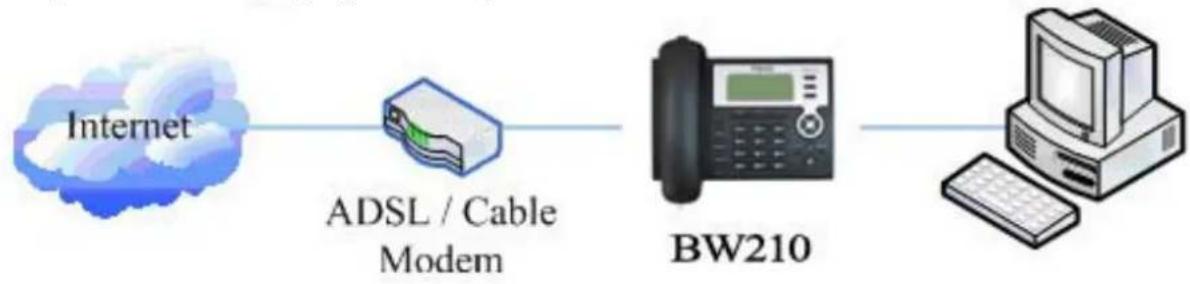
flowchart
graph LR
    A["Internet"] --> B["ADSL / Cable Modem"]
    B --> C["BW210"]
    C --> D["PC"]
Step 2: Connect the handset to the handset port by the handset cable in the package.
Step 3: connect the power supply plug to the DC port on the back of the phone. Use the power cable to connect the power supply to a standard power outlet in your workspace.
Step 4: push the on/off switch on the back of the phone to the on side, then the phone's LCD screen displays "WAIT LOGON". Later, a ready screen typically displays the date, time and
current network mode.
If your LCD screen displays different information from the above, you need refer to the next section “Initial setting” to set your network online mode.
If your VoIP phone registers into corporate IP telephony Server, your phone is ready to use.
2.2. Initial Setting
This VoIP Phone provides you with rich function and parameters setting. If you have enough knowledge about network and SIP protocol, it is better for you to understand many parameters. But if you know little about network and SIP protocol, you can also easily make initial setting according to the following steps to enjoy rapidly high quality voice and low cost from this VoIP Phone.
Before make initial setting, please check if your corporate IP telephony network can work normally, and you have finished “connect the phone”.
This VoIP Phone Supports DHCP by default. It will receive an IP address and other network-related settings (Netmask, IP gateway, DNS server) from the DHCP server. If your network supports DHCP, you can connect this VoIP Phone directly to the network. If your network doesn't support DHCP, you need change this VoIP Phone's network connection setting. According to the following steps, change this VoIP Phone's DHCP network connection setting into PPPoE or static IP which your network supports at present.
2.2.1. PPPoE mode.
- Press the 3 key for three seconds, then confirm it by the Enter key, your phone network connection mode will switch into PPPoE mode. Prepare your PPPoE account name and password.
- Press the MENU key, the LCD screen will display "INPUT PASSWORD".
- Input the password (default value is 123), and press the ENTER key, the LCD screen will display "NETWORK".

text_image
4. Press the Enter key and LCD screen will display "LAN", press the key, enter it by the Enter key, the LCD screen will display "STATIC NET". Then press the key again, enter it by the Enter key, the LCD screen will display "USER NAME".
text_image
5. Press the Enter key and then press the key, input your PPPOE account number then press the Enter key to confirm. The LCD screen will display the inputted PPPOE account number.
text_image
6. Press the key to return to the previous menu, then press the key, the LCD screen will display "PASSWORD". Then press the ENTER key, and the DEL key, input your PPPoE's password and confirm it by the Key, the LCD screen will display the password which you inputted.-
Press the EXIT key for four times and press the DOWN key, till the LCD screen display "SYSTEM".
-
Press the ENTER key, the screen display "SAVE", then press the LCD screen will display "ARE YOU SURE".
- Press the key, the phone will save your setting and the LCD screen will display "SAVING NOW", then return to display "SAVE".
- Press the ____ key twice, then press numeric key "3" and hold until the screen
display “ARE YOU SURE”. Press the key, the screen will display “CHANGING”, which means that the phone is trying to switch to PPPoE mode. If the icom “PPPoE” on the top of the screen keeps blink, it shows that the phone is trying to access the PPPoE
Sysinfo server., and the IP is still static IP if you press key to display the current IP; if the icon "PPPoE" is showed without blink, it means that the phone has already gotten IP from PPPoE server.
2.2.2. Static IP mode:
- Press the 1 key for three seconds, then confirm it by the ____ key, your phone network connection mode will switch into Static IP mode. Prepare your phone's network parameters. They are IP Address of this phone, Subnet Mask, Default Gateway/ Router and DNS. You can ask your VoIP service provider for those parameters.
- Press the key, the LCD screen will display "INPUT PASSWORD".
- Input password (default is 123), then press the ■ key, the LCD screen will display" NETWORK".
- Press the key, and the LCD screen will display "LAN". Press the key, then the key, the LCD screen will display "STATIC NET".
- Press the ____ key, the LCD screen will display "IP". Press the ____ key again
and then the Del key, input your desired IP address for your IP phone and confirmed by pressing the Enter key, then the LCD will display the inputted IP address. When inputting IP with keypad, use “*” instead of “.”
- Press the key to return to previous menu, then press the key, the LCD
screen will display "DNS2". Press the key then the Del key, input your spare DNS address and confirm it by pressing the key, and then the LCD will display the inputted DNS address.
- Press the key to return to previous menu, then press the key, the LCD






key then the
key, input your spare
key, and then the LCD will display


screen will display "DNS". Press the

key then the

key, input your DNS
address and confirm it by pressing the inputted DNS address.

nd then the LCD will display the
- Press the
key to return to the previous menu, and then press the

key, the
LCD screen will display "GATEWAY". Press the

key again and then the key,

ne LCD
input your gateway's IP address and confirm it by pressing the screen will display the inputted gateway address.
- Press the
key to return to the previous menu, and then press the key, the
LCD screen will display "NETMASK". Press the
key again and then the

key, input your netmask and press the display the inputted netmask.

confirm it. The LCD screen will
- Press the displays "S

key for four times and press the key, till the LCD Screen
- Press the again, the

key, the LCD screen will display “save”, then press the ____ key en will display” ARE YOU SURE”.
- Press the "SAVE".

key, this phone will display “SAVING NOW”, then return to display
- Press the

key twice to exit the menu, and then press the numeric key 1 till the
LCD screen displays "ARE YOU SURE". Press the display "CHANGING". If the icon "static" on the top means phone has already used the static IP.

key, the LCD screen will en shows without blink, it
2.2.3. DHCP mode
Press the numeric key 2 and hold till the LCD screen displays "ARE YOU SURE". Press the

key, the LCD screen will display "CHANGING" and this VoIP phone is trying to do DHCP mode. If the icom "DHCP" on the top of the screen keeps blink, it shows that
the phone is trying to access the DHCP server., and the IP is 0.0.0.0 if you press key to display the current IP; if the icon "DHCP" is showed without blink, it means that the phone has already gotten IP from DHCP server.
3. Basic Functions
3.1. Basic operation
3.1.1. Accepting a call
There are four methods to accept an incoming call:
- Pick up handset to accept incoming calls.

- Press the button
- If you need switch from a hands-free call to handset, please pick up the handset directly.
- If you need switch from a handset call to hands-free, please press the button, and then hang up the handset.

3.1.2. Making a call
- Quick-dialing
In idle mode, input the called number, and press # key or button, phone will dial the call and use hands-free automatically.

- Use handset
Pick up the handset, and the LCD screen will display "PLEASE DIAL" and you will hear dialing tone at the same time, then input the phone number and end by the # button. When you hear long ring "du, du..." from handset and the LCD screen display "CALLING", the call is through. Hang up the handset to end the call.
- Use hands-free

Press the button and the LCD screen will display "PLEASE DIAL" and you will hear dialing tone at the same time, then input the phone number and end by the # button. When you hear long ring "du, du..." and the LCD screen display "CALLING", the call is

through. Press the button again to end the call.
- Use the phone book

Press the Phone Book button then the button you will enter into the phone book.


Press the 📄 button to select your desired contact person, then press the button to dial the call.
- Use Callers

Press the CALLERS key, then select your desired phone number in callers by the

key, and next press the button to dial the call.

- Use the R/send key

Please pick up or press the key. After you hear dialing tone, please press the

key to dial the last phone number. Note: after you reboot the phone, the phone will be callers and Redial will be invalid.
3.1.3. Ending a call
- Hangs up by handset onhook
- Hangs up by press

when in hands-free
- Hangs up a call in call waiting state.
If you are in call waiting state, you could press # key to hang up the current call, and switch to the other call to keep talking. Note: Pressing # key will not hang up if there is only one call currently.
3.1.4. Transferring a call
Call transfer has several ways to realize:
- When A talks to B, B may press the

key and dial C phone number. After B talks to C

( or B hear alert from C ), B presses the through to C.
key, then B hangs up, and A will get

- When A is talking with B, C calls B, B may press the
Then B presses the

key, A will get through to C.

- When A talks to B, B presses the up and A will get through to C.
key, dial C phone number and # key, then hang
1 and 2 are attended transfer; 3 is blind transfer.
Notice to VoIP Phone Carrier: Your VoIP phone server need support FRC3515, or else transferring can not work.
3.1.5. Calling Hold and 3 ways call
There are two modes to enjoy hold function:

- Press the key during a call, and the call will be on hold. While a call is on hold, you can establish another call by dialing your desired number and confirm it by the # button.

Pressing the ■ key again you will resume the first call. By using hold function, you can talk with only one party; the other party who is on hold can't talk with you. If you press

the * button or key you will enter into 3 ways call.
- If the third party calls you during a call, the LCD screen will display the incoming call

number. Press the key to hold the first call, and then you can talk with the third party. By using hold function, you can talk with only one party; the other party who is on hold can't talk with you. If you press # key, phone will hang up the first call, and then accept the new incoming call.
Notice: You must enable the calling waiting or else calling hold can't work.
3.1.6. Callers
The VoIP phone maintains lists of missed, received, and dialed calls. Each list can contain up to 100 entries. If the call list capacity is full, new call will replace the first call. If you stop power supply or restart the phone, the record will disappear.
- Missed Calls
Press the CALLERS key, and then the V key, till the LCD screen display "MISSED". Press the Enter key, the LCD screen will display the missed call number and sequence numbers of the missed call.

You can press the key to dial this phone number, you also press UP/DOWN key to browse the other missed calls or you can press the key again, the LCD screen will display the time of the missed calls. If there is no one missed calls, the LCD will display "LIST IS EMPTY".
- Received Calls
Press the CALLERS key, and then the V key, till the LCD screen display "RECEIVED". Press ENTER key, the LCD screen will display the received call number and sequence number of the received call.

You can press the key to dial this phone number, you also press a key to browse the other received calls or you can press the key again, the LCD screen will show the time of the received call. If there is no one received call, the LCD will display "LIST IS EMPTY".
- Dialed calls
Press the CALLERS key, and then the √ key, till the LCD screen display "OUTGOING".Press Enter key, the LCD screen will display the phone number and sequence number of the dialed call. You can press the R/Send key to dial this phone number, or press the √ key to browse all record of the dialed calls. If there is on one dialed calls, the LCD will display "LIST IS EMPTY".
3.2. The high-level operation
This VoIP Phone provides more advanced functions after setting at the permission scope of SIP server.
3.2.1. Special Keys
● Realize Secondary Dial by Dialing for only one time
When you make secondary dial in off-hook/handsfree/standby pre-input mode,

press key to postpone input, and screen display will show--. One --stands for 2 seconds. For example, you input 123--45, the phone will send DTMF(45) 2 seconds after the phone call 123. 123----45 will make phone send DTMF(45) at 6 seconds interval.
- MWI(Message Waiting Indication)
When a new voicemail coming, LED on the phone will flash. You can press the MWI key to listen new voicemail if you configure mwi number
3.2.2. Call pickup
Call pickup is implemented by simulating pickup function of PBX. it's that, when A calls B, B rings but no answer, at this moment, C can hook off and input an appointed prefix plus B's number, pick up A's call and talk with A
The following chart shows how to configure an appointed prefix in dial peer to have call pick up function.
| Number | Destination | Port | Mode | Alias | Suffix | Del Length |
| *1*T | 0.0.0.0 | 5060 | SIP | rep:pickup | no suffix | 3 |
*1* means appointed prefix code. After making the above configuration, C can dial *1* plus B'phone number to pick up A's call. User can set prefix in random, in the case of no affecting current dialing rules.
3.2.3. join call
When B is calling C, A can join in the existing call by inputing an appointed prefix numbers plus B or C number, if B or C also supports join call
The following chart shows how to configure an appointed prefix in dialpeer to have join call function.
| Number | Destination | Port | Mode | Alias | Suffix | Del Length |
| *2*T | 0.0.0.0 | 5060 | SIP | rep:joincall | no suffix | 3 |
*2* means appointed prefix code. After making the above configuration, A can dial *2* plus B or C number to join B and C's call, . User can set prefix in random, in the case of no affecting current dialing rules.
3.2.4. redial/unredial
If B is in busy line when A calls B, A will get notice: busy, please hang up. If A want to connect B as soon as B is in idle, he can use redial function at the moment and he can dials an appointed prefix number plus B's number to realize redial function.
What is redial function? A can't not build a call with B when B is in busy, then A will subscribe B's calling mode at 60 second intervals. once B is available, A will get reminder of rings to hook off, while A hooks off, A will call B automatically. If at this time A is occupied
temporarily and unwilling to contact B, A also can cancel the redial function by dialing an appointed prefix plus B's number before making the redial function.
| Number | Destination | Port | Mode | Alias | Suffix | Del Length |
| *3*T | 0.0.0.0 | 5060 | SIP | rep:redial | no suffix | 3 |
| *4*T | 0.0.0.0 | 5060 | SIP | rep:unredial | no suffix | 3 |
*3* is appointed prefix code. After making the above configuration, A can dial
*3* plus B'phone number to make the redial function.
*4* is appointed prefix code. After configuration, A can dial *4* to cancel redial function.
User can set prefix in random, in the case of no affecting current dialing rules.
3.2.5. click to dial
When user A browses in an appointed Web page, user A can click to call user B via a link (this link to user B), then user A's phone will ring, after A hooks off, the phone will dial to B.
4. Setting
4.1. Setting methods
VoIP Phone is different from the traditional phone; it need be set to make it active. If your VoIP service provider asks you to set this phone, you can do it easily according to the following methods.
This VoIP Phone can be set via three different setting methods:
The phone key. The initial password is 123 for setting via phone key.
The web browser on PC
Telnet
This Manual will tell you about the setting methods via the web browser on PC.
4.2. Setting via Web Browse
When this phone and your PC are connected to your network, enter the IP address of the wan port in this phone as the URL (e.g. http://xxx.xxx.xxx.xxx/ or http://xxx.xxx.xxx.xxx:xxxx/).
If you do not know the IP address, you can look it up on the phone's display by pressing the key "SYSINFO".
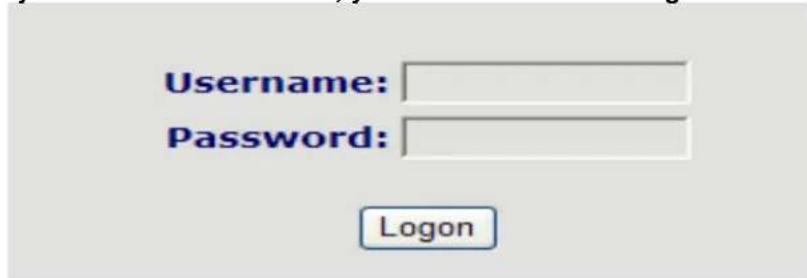
After you enter the IP address, you will see the following web interface.
text_image
Username: Password: LogonThis phone provides different two privileges for different users to set it.
The two privileges are guest and administrator respectively. In guest privilege, user can see but not modify Register/Proxy Sever Addresses and ports of SIP, advance SIP and lax2. In administrator privilege, user can see and modify all setting parameters.
Default value in guest privilege
Username: guest
Password: guest
Default value in Administrator privilege
Username: admin
Password: admin
Input username and password, click "logon", and you will enter setting web interface. There is a selection menu on the left side of the web interface. Click on the desired submenu; the current settings of this submenu will be displayed in the larger field on the right. You can now modify and store the values by using mouse and keyboard of your PC. To save the changes, click on the submenu "maintenance" and then click the "config" button and the "Save" button on the right field.
4.3. Configuration via WEB
4.3.1. BASIC
4.3.1.1. Status
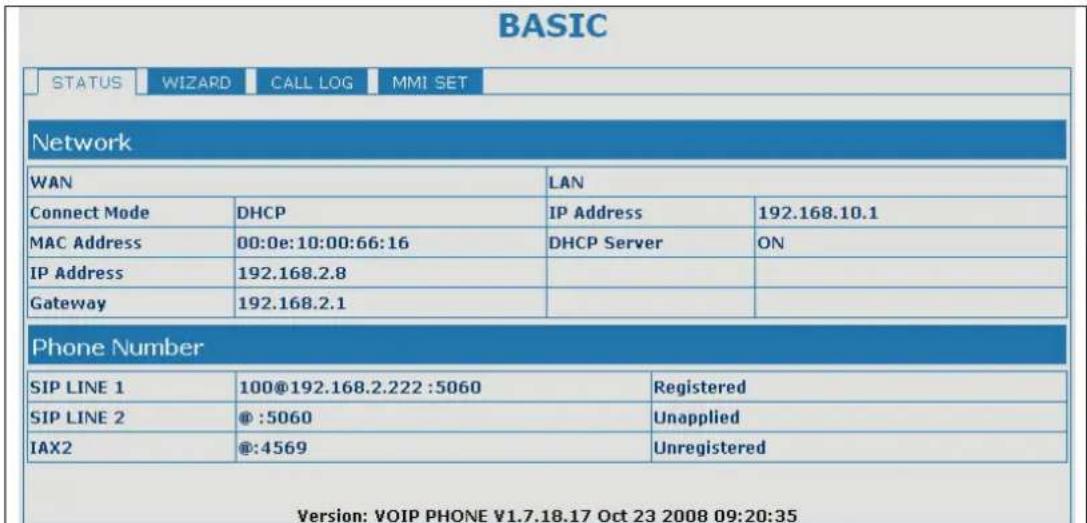
text_image
BASIC STATUS WIZARD CALL LOG MMI SET Network WAN LAN Connect Mode DHCP IP Address 192.168.10.1 MAC Address 00:0e:10:00:66:16 DHCP Server ON IP Address 192.168.2.8 Gateway 192.168.2.1 Phone Number SIP LINE 1 100@192.168.2.222 :5060 Registered SIP LINE 2 @ :5060 Unapplied IAX2 @:4569 Unregistered Version: VOIP PHONE ¥1.7.18.17 Oct 23 2008 09:20:35Status
| Field name Explanation | |
| Network | Shows the configuration information on WAN and LAN port, including the connect mode of WAN port (Static, DHCP, PPPoE), MAC address, the IP address of WAN port and LAN port, ON or OFF of DHCP mode of LAN port. |
| Phone Number Shows the phone numbers provided by the SIP LINE 1-2 servers.The last line shows the version number and issued date. | |
4.3.1.2. Wizard
BASIC
| STATUS | WIZARD | CALL LOG | MMI SET |
| Network Mode Select | |||
| Static IP MODE | ○ | ||
| DHCP MODE | ○ | ||
| PPPoE MODE | ○ | ||
| BACK | NEXT | ||
Wizard
| Field Name Explanation | ||
| Static IP MODE | ◎ | |
| DHCP MODE | ○ | |
| PPPoE MODE | ○ | |
| Please select the proper network mode according to the network condition.FV6030 provide three different network settings:Static: If your ISP server provides you the static IP address, please select this mode, then finish Static Mode setting. If you don't know about parameters of Static Mode setting, please ask your ISP for them.DHCP: In this mode, you will get the information from the DHCP server automatically; need not to input this information artificially.PPPOE: In this mode, your must input your ADSL account and password.You can also refer to 3.2.1 Network setting to speed setting your network. | ||
| Choose Static IP MODE, click【NEXT】can config the network and SIP(default SIP1)easily, also can browse them too. Click【BACK】can return to the last page. | ||
| Static IP Set | ||
| Static IP Address | 192.168.1.179 | |
| Netmask | 255.255.255.0 | |
| Gateway | 192.168.1.1 | |
| DNS Domain | ||
| Primary DNS | 202.96.134.133 | |
| Alter DNS | 202.96.128.68 | |
| Static IP Address Input the IP address distributed to you. | ||
| Netmask Input the Netmask distributed to you. | ||
| Gateway Input the Gateway address distributed to you. | ||
| DNS Domain Set DNS domain postfix. When the domain which you inputted can not be parsed, phone will automatically add this domain to the end of the domain which you inputted before and parse it again. | ||
| Primary DNS Input your primary DNS server address. | ||
| Alter DNS Input your standby DNS server address. | ||
| SIMPLE SIP SET | ||
| Display Name | ||
| Server Address | 192.168.1.2 | |
| Server Port | 5060 | |
| User Name | 2113 | |
| Password | **** | |
| Phone Number | 2113 | |
| Enable Register | ☑ | |
| Display Name If user set the display name, callee will show this display | ||
| name. | |||
| Server Address Input your SIP server address. | |||
| Server Port Set your SIP server port. | |||
| User Name Input your SIP register account name. | |||
| Password Input your SIP register password. | |||
| Phone Number Input the phone number assigned by your VOIP service provider. | |||
| Enable Register Start to register or not by selecting it or not. | |||
| WAN | |||
| Connect Mode | Static | ||
| Static IP Address | 192.168.1.179 | ||
| Gateway | 192.168.1.1 | ||
| SIP | |||
| Register Server | 192.168.1.2 | ||
| Account/User Name | 2113 | ||
| PhoneNumber | 2113 | ||
| Register | ON | ||
| BACK | Finish | ||
| Display detailed information that you manual config.Choose DHCP MODE, click【NEXT】to config simple SIP(default SIP1). You can browse it too. Click【BACK】to return to the last page. Like Static IP MODE.Choose PPPoE MODE, click【NEXT】to config the PPPoE account/password and SIP(default SIP1). You can browse it too. Click【BACK】to return to the last page. Like Static IP MODE。 | |||
| PPPOE Set | |||
| PPPOE Server | ANY | ||
| Username | user123 | ||
| Password | ********** | ||
| PPPoE Server It will be provided by ISP. | |||
| Username Input your ADSL account. | |||
| Password Input your ADSL password. | |||
| Notice: Click【Finish】button after finish your setting, IP Phone will save the setting automatically and reboot. After reboot, you can dial by the SIP account. | |||
4.3.1.3. Call Log
You can look up all the outgoing calls through this page.
BASIC
| STATUS | WIZARD | CALL LOG | MMI SET |
| Call information | |||
| Start Time | Last Time | Called Number | |
| SEP 18 14:02 | 0 | sip:123@1 | |
| Call Log | |
| Field name explanation | |
| Start Time Display the start time of the outgoing call | |
| Last Time Display the conversation time of the outgoing call. | |
| Called Number | Display the account/protocol/line of the outgoing call. |
4.3.1.4. MMI SET

text_image
BASIC STATUS WIZARD CALL LOG MMI SET LANGUAGE SELECTION Language Set: English APPLY Version: VOIP PHONE ¥1.7.18.17 Oct 23 2008 09:20:35| MMI SET | |
| Field name explanation | |
| Language Set Set the language of phone, English is default. |
4.3.2. Network
4.3.2.1. WAN Config

text_image
NETWORK WAN LAN QOS SERVICE PORT DHCP SERVER SNTP WAN Status Active IP 192.168.1.48 Current Netmask 255.255.255.0 Current Gateway 192.168.1.1 MAC Address 02:03:04:05:06:96 Get MAC Time 2008-09-04 WAN Setting Static ○ DHCP ○ PPPOE ○ Static IP Address 192.168.1.179 Netmask 255.255.255.0 Gateway 192.168.1.1 DNS Domain Primary DNS 202.96.134.133 Alter DNS 202.96.128.68 Auto DNS ✓ APPLY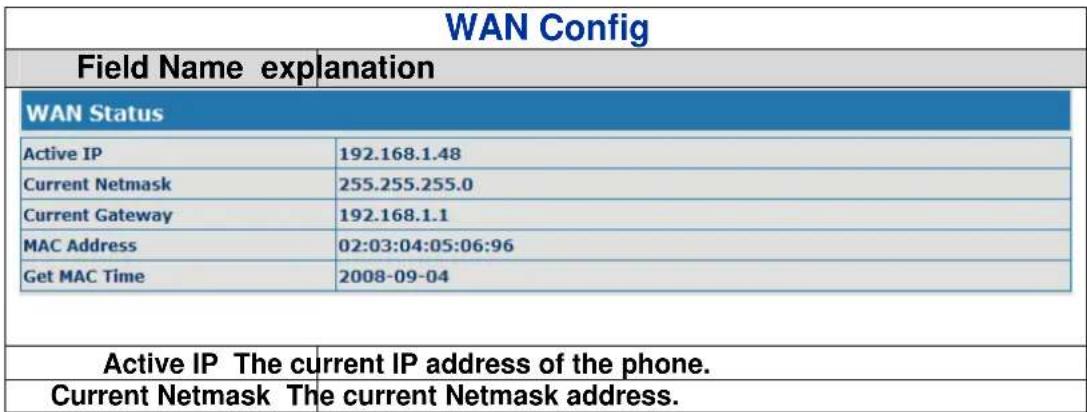
text_image
WAN Config Field Name explanation WAN Status Active IP 192.168.1.48 Current Netmask 255.255.255.0 Current Gateway 192.168.1.1 MAC Address 02:03:04:05:06:96 Get MAC Time 2008-09-04 Active IP The current IP address of the phone. Current Netmask The current Netmask address.| MAC Address The current MAC address of the phone. | ||
| Current Gateway The current Gateway IP address. | ||
| Get MAC Time Shows the time of getting MAC address | ||
| WAN Setting | ||
| Static ☉ | DHCP ☉ | PPPOE ☉ |
| Please select the proper network mode according to the network condition.FV6030 provide three different network settings:Static: If your ISP server provides you the static IP address, please select this mode, then finish Static Mode setting. If you don't know about parameters of Static Mode setting, please ask your ISP for them.DHCP: In this mode, you will get the information from the DHCP server automatically; need not to input this information artificially.PPPOE: In this mode, your must input your ADSL account and password.You can also refer to 3.2.1 Network setting to speed setting your network. | ||
| Static IP Address | 192.168.1.179 | |
| Netmask | 255.255.255.0 | |
| Gateway | 192.168.1.1 | |
| DNS Domain | ||
| Primary DNS | 202.96.134.133 | |
| Alter DNS | 202.96.128.68 | |
| Auto DNS | ||
| If you use static mode, you need set it. | ||
| IP Address Input the IP address distributed to you. | ||
| Netmask Input the Netmask distributed to you. | ||
| Gateway Input the Gateway address distributed to you. | ||
| DNS Domain | Set DNS domain postfix. When the domain which you inputted can not be parsed, phone will automatically add this domain to the end of the domain which you inputted before and parse it again. | |
| Primary DNS Input your primary DNS server address. | ||
| Alter DNS Input your standby DNS server address. | ||
| PPPOE Server | ANY | |
| Username | user123 | |
| Password | ********** | |
| If you uses PPPOE mode, you need to make the above setting. | ||
| PPPOE Server It will be provided by ISP. | ||
| Username | Input your ADSL account. | |
| Password | Input your ADSL password. | |
| Notice:1) Click “Apply” button after finishe your setting, IP Phone will save the setting automatically and new setting will take effect.2) If you modify IP address, the web will not response by the old IP address. Your need input new IP address in the address column to logon in the phone.3) If networks ID which is distributed by DHCP server is same as network ID which is used by LAN of system, phone will use the DHCP IP to set WAN, and modify LAN's networks ID(for example, system will change LAN IP from 192.168.10.1 to 192.168.11.1) when phone uses DHCP client to get IP in startup; if phone uses DHCP client to get IP in running status and network ID is also same as LAN's, phone will refuse to accept the IP to configure WAN. | ||
4.3.2.2. LAN Config
NETWORK
| LAN Setting | |
| LAN IP | 192.168.10.1 |
| Netmask | 255.255.255.0 |
| DHCP Service | ✓ |
| NAT | ✓ |
| Bridge Mode | ☐ |
| APPLY | |
| LAN Config | |
| Field name explanation | |
| LAN IP Specify LAN static IP. | |
| Netmask Specify LAN Netmask. | |
| DHCP Service | Select the DHCP server of LAN port or not. After user modify the LAN IP address, phone will amend and adjust the DHCP Lease Table and save the result amended automatically according to the IP address and Netmask. You need restart the phone and the DHCP server setting will take effect. |
| NAT Select NAT or not. | |
| Bridge Mode | Select Bridge Mode or not: If you select Bridge Mode, the phone will no longer set IP address for LAN physical port, LAN and WAN will join in the same network.. Click “Apply”, the phone will reboot. |
| Notice: If you choose the bridge mode, the LAN configuration will be disabled. | |
4.3.2.3. Qos Config
The VOIP phone support 802.1Q/P protocol and DiffServ configuration. VLAN functionality can use different VLAN IDs by setting signal/voice VLAN and data VLAN. The VLAN application of this phone is very flexible.
Do not use VLAN

flowchart
graph TD
    A["Switchboard"] --> B["1"]
    A --> C["2"]
    A --> D["3"]
    A --> E["4"]
    F["After Switchboard received the Broadcast Frame, transmit to every other port except the send port"] --> G["Computer 1"]
    F --> H["Computer 2"]
    F --> I["Computer 3"]
    F --> J["Computer 4"]
    G --> K["Computer 5"]
    H --> L["Computer 6"]
    I --> M["Computer 7"]
    J --> N["Computer 8"]
Chart 1

flowchart
graph TD
    A["Use VLAN"] --> B["Switchboard"]
    B --> C1["1"]
    B --> C2["2"]
    B --> C3["3"]
    B --> C4["4"]
    C1 --> D1["VLAN 1"]
    C2 --> D1
    C3 --> D2["VLAN 2"]
    C4 --> D2
    D1 --> E1["Computer"]
    D2 --> E2["Computer"]
    D1 --> F1["Computer"]
    D2 --> F2["Computer"]
    style B fill:#f9f,stroke:#333
    note right of B: "After Switchboard received the Broadcast Frame, only transmit it to other port which belong to same VLAN with send port"
    note right of C3: "Broadcast Frame"
    note right of D1: "Broadcast Domain"
    note right of D2: "Broadcast Domain"
    note right of D4: "Broadcast Frame"
In chart 1, there is a layer 2 switch without setting VLAN. Any broadcast frame will be transmitted to the other ports except the send port. For example, a broadcast information is sent out from port 1 then transmitted to port 2,3 and 4.
In chart 2, red and blue indicate two different VLANs in the switch, and port 1 and port 2 belong to red VLAN, port 3 and port 4 belong to blue VLAN. If a broadcast frame is sent out from port 1, switch will transmit it to port 2, the other port in the red VLAN and not transmit it to port3 and port 4 in blue VLAN. By this means, VLAN divide the broadcast domain via restricting the range of broadcast frame transmission.
Note: chart 2 use red and blue to identify the different VLAN, but in practice, VLAN uses different VLAN IDs to identify.
NETWORK
WAN
LAN
005
SERIVCE PORT
DHCP SERVER
SNTP
QoS Set
| VLAN Enable | |||
| VLAN ID Check Enable | Voice/Data VLAN differentiated | Undifferentiated | |
| DiffServ Enable | DiffServ Value | 0x b8 | |
| Voice 802.1P Priority | 0 (0 - 7) | Data 802.1P Priority | 0 (0 - 7) |
| Voice VLAN ID | 256 (0 - 4095) | Data VLAN ID | 254 (0 - 4095) |
| APPLY | |||
| QoS Configuration | |
| Field name explanation | |
| VLAN Enable Before select it to enable VLAN, you need enable Bridge mode in LAN config. | |
| VLAN ID Check Enable | Enable VLAN ID check by selecting it. After enable VLAN ID check, if VLAN ID of a data package is not the same with the phone's or a data package do not have VLAN ID, the data package will be discarded. |
| Voice/Data VLAN | After enable VLAN, system will set packets with different type of VLAN ID. Undifferentiated means after using VLAN, both VoIP packets and other data packets will use the voice VLAN ID; tag differentiated means after using |
| differentiated VLAN, VoIP(signal and voice) packets will add voice VLAN ID, and other data packets will add data VLAN ID; data untaged means after using VLAN, only VoIP packets will add voice VLAN ID. Other data packets will not use VLAN. | |
| DiffServ Enable Select it or not to Enable or disable DiffServ. | |
| DiffServ Value Set | DiffServ value, the common value is 0x00. |
| Voice 802.1P Priority $pecify 802.1P Priority of voice/signal data package. | |
| Data 802.1P Priority | Set 802.1p of data VLAN. Non-VoIP data (such as http, telnet, ping etc) will use this value to set VLAN package. |
| Voice VLAN ID Set | VLAN ID of voice/signal data package. |
| Data VLAN ID Set | 802.1q of data VLAN ID. Non-VoIP data (such as http, telnet, ping etc) will use this value to set VLAN package. |
| NOTICE:1) Startup VLAN, if set Voice/Data VLAN differentiated as Undifferentiated, all packets will use the Voice VLAN ID as the tag.2) Startup VLAN, if set Voice/Data VLAN differentiated as tag differentiated and disable the DiffServ, then system will not distinguish the voice and data, all packets will use the Voice VLAN ID as the tag.3) Startup VLAN, if set Voice/Data VLAN differentiated as tag differentiated and enable the DiffServ, then system will distinguish the voice and data and add the VLAN ID each other.4) Startup VLAN, if set Voice/Data VLAN differentiated as data untaged, then the packet of the signal/voice will use the Voice VLAN ID as the tag, but the data packets will not take the VLAN tag.5) If Disable the VLAN, regardless to set the Voice/Data VLAN differentiated or not, all packets will not take the VLAN tag; If enable the DiffServ, all packets will only take the DiffServ value.6) user need notice, enable the VLAN ID Check Enable that is default, If enable it, the phone will match the VLAN ID strictly. When others' VLAN ID mismatch with us, the packets will discard. Contrarily, the phone will accept the packets with the distinct VLAN ID.7) You must gain the IP with the Static mode when you set VLAN, otherwise can't gain the IP in the VLAN and also can not dial with point to point. | |
4.3.2.4. Service Port
You can set the port of telnet/HTTP/RTP by this page.
NETWORK
| WAN | LAN | QOS | SERVICE PORT | DHCP SERVER | SNTP |
| Service Port | |||||
| HTTP Port | 80 | ||||
| Telnet Port | 23 | ||||
| RTP Initial Port | 10000 | ||||
| RTP Port Quantity | 200 | ||||
| APPLY | |||||
| If modify HTTP or Telnet port,you'd better set it more than 1024,then restart. | |||||
| SERVICE PORT | |
| Field name explanation | |
| HTTP Port | set web browse port, the default is 80 port, if you want to enhance system safety, you'd better change it intonon-80 standard port;Example: The IP address is 192.168.1.70. and the port value is 8090, the accessing address is http://192.168.1.70:8090 |
| Telnet Port Set | Telnet Port, the default is 23. You can change the value into others.Example:The IP address is 192.168.1.70. the telnet port value is 8023, the accessing address is telnet 192.168.1.70 8023 |
| RTP Initial Port Set | the RTP Initial Port. It is dynamic allocation. |
| RTP Port Quantity | Set the maximum quantity of RTP Port, the default is 200. |
| Notice:1) You need save the configuration and reboot the phone after set this page.2) If you modify the port of Telnet and HTTP, you would better set the value more than 1024 because the port value less than 1024 is system port reserved.3) if you set 0 for the HTTP port, it will disable HTTP service. | |
4.3.2.5. DHCP SERVER
NETWORK
| WAN | LAN | QOS | SERIVCE PORT | DHCP SERVER | SNTP | ||
| DHCP Leased Table | |||||||
| Leased IP Address | Client Hardware Address | ||||||
| DHCP Lease Table | |||||||
| Name | Start IP | End IP | Lease Time | Netmask | Gateway | DNS | |
| Ian | 192.168.10.1 | 192.168.10.30 | 1440 | 255.255.255.0 | 192.168.10.1 | 192.168.10.1 | |
| DHCP Lease Table Setting | |||||||
| Lease Table Name | |||||||
| Start IP | |||||||
| End IP | |||||||
| Lease Time | (minute) | ||||||
| Netmask | |||||||
| Gateway | |||||||
| DNS | |||||||
| Add | |||||||
| DHCP Lease Table Delete | |||||||
| Lease Table Name | Ian | Delete | |||||
| DNS relay Setting | |||||||
| DNS Relay | APPLY | ||||||
| DHCP SERVER | ||||||
| Field name explanation | ||||||
| DHCP Leased Table IP-MAC mapping table. If the LAN port of the phone connects to a device, this table will show the IP and MAC address of this device. | ||||||
| DHCP Lease Table | ||||||
| Name | Start IP | End IP | Lease Time | Netmask | Gateway | DNS |
| lan | 192.168.10.1 | 192.168.10.30 | 1440 | 255.255.255.0 | 192.168.10.1 | 192.168.10.1 |
| Shows the DHCP Lease Table, the unit of Lease time is Minute. | |
| Lease Table Name Specify the name of the lease table | |
| Start IP Set the | start IP address of the lease table |
| End IP | Set the end IP address of the lease table, the network device connected to LAN port will get IP address between Start IP and End IP by DHCP. |
| Netmask Set the | Netmask of the lease table |
| Gateway Set the | Gateway of the lease table |
| Lease Time Set the | Lease Time of the lease table |
| DNS Set the | default DNS server IP of the lease table; Click the Add button to submit and add this lease table |
| DHCP Lease Table Delete | |
| Lease Table Name Ian Delete | |
| Select name of lease table, click the Delete button will delete the selected lease table from DHCP lease table. | |
| DNS Relay | Select DNS Relay, the default is enable. Click the Apply button to become effective. |
| Notice:1) The size of lease table can not be larger than the quantity of C network IP address. We recommend you to use the default lease table and not modify it.2) If you modifies the DHCP lease table, you need save the configuration and reboot. | |
4.3.2.6. SNTP
Setting time zone and SNTP (Simple Network Time Protocol) server according to your location, you can also manually adjust date and time in this web page.
NETWORK
WAN
LAN
QOS
SERVICE PORT
DHCP SERVER
SNTP
SNTP Time Set
| Server | 209.81.9.7 |
| Time Zone | (GMT+08:00)Beijing,Chongqing,Hong Kong,Urumqi |
| Time Out | 60 (seconds) |
| 12 Hours Systems | |
| SNTP | |
| APPLY | |
Daylight Timeset
| Enable Daylight | ||
| Time shift (minutes) | 60 | |
| Time Zone | Start Date | End Date |
| Month | March | October |
| Week | 5 | 5 |
| Day | Sunday | Sunday |
| Hour | 2 | 2 |
| Minute | 0 | 0 |
| APPLY | ||
Manual Timeset
| Year | |
| Months | |
| Day | |
| Hour | |
| Minute |
SNTP
| Field name explanation | |
| Server Set SNTP Server IP address. | |
| Time Zone Select the Time zone according to your location. | |
| Time Out Set the time out, the default is 60 seconds. | |
| 12 Hours Systems | Swich the time mechanism between 12 hours and 24 hours.Default is 24 hours mode |
| SNTP Select the SNTP, and click Apply to make the SNTP Times effective. | |
| Enable Daylight Enable daylight saving time | |
| Time shift(minutes) Setup the variety length | |
| Month Setup | stat and end month |
| Week Setup | start and end week |
| Day | Setup start and end day |
| Hour | Setup start and end hours |
| Minute | Setup start and end minutes |

text_image
Year Months Day Hour Minute APPLYNotice: You need specify the above all items.
4.3.3. VOIP
4.3.3.1. SIP Config
Set your SIP server in the following interface.
VOIP

SIP Line Select

Basic Setting
| Register Status | Registered | Display Name | ||
| Server Name | Proxy Server Address | |||
| Server Address | 192.168.2.222 | Proxy Server Port | ||
| Server Port | 5060 | Proxy Username | ||
| Account Name | 100 | Proxy Password | ||
| Password | - - - | Domain Realm | ||
| Phone Number | 100 | Enable Register | ✓ | |
| APPLY | ||||
Advanced Set
Advanced SIP Setting
| Register Expire Time | 60 | seconds | Forward Type | Off |
| NAT Keep Alive Interval | 60 | seconds | Forward Phone Number | |
| User Agent | Voip Phone 1.0 | Server Type | COMMON | |
| Signal Key | DTMF Mode | DTMF RFC2833 | ||
| Media Key | RFC Protocol Edition | RFC3261 | ||
| Local Port | 5060 | Transport Protocol | UDP | |
| Ring Type | Default | RFC Privacy Edition | NONE | |
| Hot Line Number | Subscribe Expire Time | 300 seconds | ||
| Transfer Expire Time | 0 | seconds | Enable DNS SRV | |
| Enable Subscribe | Click To Talk | |||
| Enable Keep Authentication | Signal Encode | |||
| NAT Keep Alive | Rtp Encode | |||
| Enable Via rport | Enable Session Timer | |||
| Enable PRACK | Answer With Single Codec | |||
| Long Contact | Auto TCP | |||
| Enable URI Convert | Enable Strict Proxy | |||
| Dial Without Register | Enable GRUU | |||
| Ban Anonymous Call | Enable Displayname Quote | |||
APPLY
SIP Config
| Field name explanation | |
| SIP Line Select | |
| SIP 1 | Load |
| Choose line to set info about SIP, there are 2 lines to choose. You can switch by【Load】button. | |
| Register Status Shows if the phone has been registered the SIP server or not; or so, show Unapplied; | |
| Server Name Set the server name. | |
| Server Address Input your SIP server address. | |
| Server Port Set your SIP server port. | |
| Account Name Input your SIP register account name. | |
| Password Input your SIP register password. | |
| Phone Number Input the phone number assigned by your VoIP service provider. Phone will not register if there is no phone number configured. | |
| Display Name Set the display name. | |
| Proxy Server Address | Set proxy server IP address (Usually, Register SIP Server configuration is the same as Proxy SIP Server. But if your VoIP service provider give different configurations between Register SIP Server and Proxy SIP Server, you need make different settings.) |
| Proxy Server Port Set your Proxy SIP server port. | |
| Proxy Username Input your Proxy SIP server account. | |
| Proxy Password | Input your Proxy SIP server password. |
| Domain Realm | Set the sip domain if needed, otherwise this VoIP phone will use the Register server address as sip domain automatically. (Usually it is same with registered server and proxy server IP address). |
| Enable Register | Start to register or not by selecting it or not. |
| Register Expire Time | Set expire time of SIP server register, default is 60 seconds. If the register time of the server requested is longer or shorter than the expire time set, the phone will change automatically the time into the time recommended by the server, and register again. |
| NAT Keep Alive Interval | Set examining interval of the server, default is 60 seconds |
| User Agent | Set the user agent if have, the default is VoIP Phone 1.0 |
| Signal Key | Set the key for signal encryption |
| Media Key | Set the key for RTP encryption |
| Local port | Set sip port of each line |
| Ring type | Set ring type of each line |
| Hot line Number | Set Hot line number of each line. |
| Transfer Expire Time | The phone send bye and end the call as soon as hang up. |
| Enable Subscribe | Enable Subscribe. |
| Enable Keep Authentication | Enable/Disable Keep Authentication. |
| NAT Keep Alive | Enable/Disable keeps NAT of SIP alive. If some server refuse to register with too short interval time, and has no packets sending to device in private network to keep NAT alive, user could set this function ON. It need set the keep alive interval time less than the NAT server's. |
| Enable Via rport | Enable/Disable system to support RFC3581. Via rport is special way to realize SIP NAT. |
| Enable PRACK Enable or disable SIP PRACK function, suggest use the default config. | |
| Long Contact Set more | parameters in contact field; connection with SEM server |
| Enable URI Convert Convert # to %23 when send the URI. | |
| Dial Without Register Set call out by proxy without registration; | |
| Ban Anonymous Call Set to ban Anonymous Call; | |
| Forward Type | Select call forward mode, the default is OffOff: Close down calling forwardBusy: If the phone is busy, incoming calls will be forwarded to the appointed phone.No answer: If there is no answer, incoming calls will be forwarded to the appointed phone.Always: Incoming calls will be forwarded to the appoint phone directly.The phone will Prompt the incoming while doing forward. |
| Forward Phone Number | Appoint your forward phone number. |
| Server Type Select the special type of server which is encrypted, or has some unique requirements or call flows. | |
| DTMF Mode | Select DTMF sending mode, there are three modes:DTMF_RELAYDTMF_RFC2833DTMF_SIP_INFODifferent VoIP Service providers may provide different modes. |
| RFC Protocol Edition | Select SIP protocol version to adapt for the SIP server which uses the same version as you select. For example, if the server is CISCO5300, you need to change to RFC2543, else phone may not cancel call normally. System uses RFC3261 as default. |
| Transport Protocol Set transport protocols, TCP or UDP; | |
| RFC Privacy Edition Set Anonymous call out safely; Support RFC3323and RFC3325; | |
| Subscribe Expire Time Set the interval of Subscribe. | |
| Enable DNS SRV | Support DNS looking up with _sip.udp mode |
| Click to Talk | Set click to Talk (need practical software support). |
| Signal Encode Enable/Disable Signal Encrypt. | |
| RTP Encode | Enable/Disable RTP Encrypt. |
| Enable Session Timer | Set Enable/Disable Session Timer, whether support RFC4028.It will refresh the SIP sessions. |
| Answer With Single Codec | Enable/Disable the function when call is incoming, phone replies SIP message with just one codec which phone supports. |
| Auto TCP | Set to use automatically TCP protocol to guarantee usability of transport as message is above 1300 byte |
| Enable Strict Proxy | Support the special SIP server-when phone recieves the packets sent from server, phone will use the source IP address, not the address in via field. |
| Enable GRUU | Set to support GRUU |
| Enable Displayname Quote | Set to make quotation mark to displayname as the phone sends out signal, in order to be compatible with server. |
4.3.3.2. IAX2 Config
VOIP
| IAX2 | ||
| Register Status | Registered | |
| IAX2 Server Addr | 192.168.2.222 | |
| IAX2 Server Port | 4569 | |
| Account Name | 107 | |
| Account Password | ●●● | |
| Phone Number | 107 | |
| Local Port | 4569 | |
| Voice Mail Number | 0 | |
| Voice Mail Text | ||
| Echo Test Number | 1 | |
| Echo Test Text | echo | |
| Refresh Time | 60 Seconds | |
| Enable Register | √ | |
| Enable G.729 | □ | |
| IAX2(Default Protocol) | √ | |
| APPLY | ||
| IAX2 Config | |
| Field name explanation | |
| Register Status | Shows if the phone has been registered the IAX2 server or not. |
| IAX2 Server Addr Input your IAX2 server address. | |
| IAX2 Server Port | Set your IAX2 server port, the default is 4569. |
| Account Name Input your IAX2 register account name. | |
| Account Password Input your IAX2 register password. | |
| Phone Number Input your assigned phone number (usually it is same you're your IAX2 account name). | |
| Local Port | Set your local sport, the default is 4569. |
| Voice Mail Number Specify the voice mail's number. | |
| Voice Mail Text | Specify the voice mail's name. |
| Echo Test Number | Set echo test number. If IAX2 server supports echo test, and echo test number is non- numeric, system could set an echo test number to replace the echo test text. So user can dial the numeric number to test echo voice test. This function is provided with server to make endpoint to test whether endpoint could talk through server normally. |
| Echo Test Text Specify echo test text's name. | |
| Refresh Time Set expire time of IAX2 server register, you can set it between 60 and 3600 seconds. | |
| Enable Register Start to register the IAX2 server or not by selecting it or not. | |
| Enable G.729 Enable or disable code G.729 by selecting it or not | |
| IAX2(Default Protocol) | Enable or disable IAX2 as default dial protocol |
4.3.3.3. Stun Config
In this web page, you can config SIP STUN.
STUN:
By STUN server, the phone in private network could know the type of NAT and the NAT mapping IP and port of SIP. The phone might register itself to SIP server with global IP and port to realize the device both calling and being called in private network.

flowchart
graph LR
    A["Gateway"] -->|What's my ip ?| B["NAT"]
    B --> C["STUN Server"]
    D["Private Network"] -->|Send request to Stun server from 5060 port| E["NAT Mapping port 12345"]
    F["Public Network"] --> C
    G["Want to receive data from 5060 port"] --> A
    H["Stun server tell customer public network IP and 12345 port"] --> C
VOIP
SIP
IAX2
STUN
DIAL PEER
STUN Set
| STUN NAT Transverse | FALSE | |
| STUN Server Addr | ||
| STUN Server Port | 3478 | |
| STUN Effect Time | 50 | Seconds |
| Local SIP Port | 5060 | |
| APPLY | ||
Set Sip Line Enable Stun
| SIP 1 | Load |
Use Stun
□
APPLY
| STUN | |
| Field name explanation | |
| STUN NAT Transverse Shows STUN NAT Transverse estimation, true means STUN can penetrate NAT, while False means not. | |
| STUN Server Addr Set your SIP STUN Server IP address | |
| STUN Server Port Set your SIP STUN Server Port | |
| STUN Effect Time | Set STUN Effective Time. If NAT server finds that a NAT mapping is idle after time out, it will release the mapping and the system need send a STUN packet to keep the mapping effective and alive. |
| Local SIP Port Set the SIP port. |
| Set Sip Line Enable StunSIP 1Load |
| Choose line to set info about SIP, There are 2 lines to choose. You can switch by【Load】button. |
| Use Stun Enable/Disable SIP STUN. |
| Notice: SIP STUN is used to realize SIP penetration to NAT. If your phone configures STUN Server IP and Port (default is 3478), and enable SIP Stun, you can use the ordinary SIP Server to realize penetration to NAT. |
4.3.3.4. DIAL PEER setting
This functionality offers you more flexible dial rule, you can refer to the following content to know how to use this dial rule. When you want to dial an IP address, the entry of IP addresses is very cumbersome, but by this functionality, you can set number 156 to replace 192.168.1.119 here.
| Number | Destination | Port | Mode | Alias | Suffix | Del Length |
| 156 | 192.168.1.119 | 5060 | SIP | no alias | no suffix | 0 |
When you want to dial a long distance call to Beijing, you need dial an area code 010 before local phone number, but you can also dial number 1 instead of 010 after we make a setting according to this dial rule. For example, you want to dial 01062213123, but you need dial only 162213123 to realize your long distance call after you make this setting.
| Number | Destination | Port | Mode | Alias | Suffix | Del Length |
| 1T | 0.0.0.0 | 5060 | SIP | rep:010 | no suffix | 1 |
To save the memory and avoid abundant input of user, add the follow fuctions:
| Number | Destination | Port | Mode | Alias | Suffix | Del Length |
| 13xxxxxxxxx | 0.0.0.0 | 5060 | SIP | add:0 | no suffix | 0 |
| 13[5-9]xxxxxxxxx | 0.0.0.0 | 5060 | SIP | add:0 | no suffix | 0 |
1、x Match any single digit that is dialed.
If user makes the above configuration, after user dials 11 digit numbers started with 13, the phone will send out 0 plus the dialed numbers automatically.
2、[] Specifies a range that will match digit. It may be a range, a list of ranges separated by commas, or a list of digits.
If user makes the above configuration, after user dials 11 digit numbers started with from 135 to 139, the phone will send out 0 plus the dialed numbers automatically.
Use this phone you can realize dialing out via different lines without switch in web interface.
VOIP
SIP
1AX2
STUN
DIAL PEER
Dial Peer Table
| Number | Destination | Port | Mode | Alias | Suffix | Del Length |
| 156 | 192.168.1.119 | 5060 | SIP | no alias | no suffix | 0 |
| 1T | 0.0.0.0 | 5060 | SIP | rep:010 | no suffix | 1 |
| 13xxxxxxxxx | 0.0.0.0 | 5060 | SIP | add:0 | no suffix | 0 |
| 13[5-9]xxxxxxxxx | 0.0.0.0 | 5060 | SIP | add:0 | no suffix | 0 |
Add Dial Peer
| Phone Number | |
| Destination (optional) | |
| Port(optional) | |
| Alias(optional) | |
| Call Mode | SIP |
| Suffix(optional) | |
| Delete Length (optional) | |
| Submit | |
Dial Peer Option
| 156 | Delete | Modify |
DIAL PEER
| Field name explanation | |
| Phone number | There are two types of matching conditions: one is full matching, the other is prefix matching. In the Full matching, you need input your desired phone number in this blank, and then you need dial the phone number to realize calling to what the phone number is mapped. In the prefix matching, you need input your desired prefix number and T; then dial the prefix and a phone number to realize calling to what your prefix number is mapped. The prefix number supports at most 30 digits |
| Destination | Set Destination address. This is optional config item. If you want to set peer to peer call, please input destination IP address or domain name. If you want to use this dial rule in SIP2 line, you need input 255.255.255.255 or 0.0.0.2 in it. |
| Port Set the $ignal port, the default is 5060 for SIP. | |
| Alias Set alias. This is optional config item. If you don't set Alias, it will show no alias. | |
| Note: There are four types of aliases.1) add: xxx, it means that you need dial xxx in front of phone number, which will reduce dialing number length.2) all: xxx, it means that xxx will replace some phone number.3) del: It means that phone will delete the number with length appointed.4) Rep: It means that phone will replace the number with length and number appointed.You can refer to the following examples of different alias application to know more how to use different aliases and this dial rule. | |
| Call Mode Select differentct signal protocol, SIP or IAX2 | |
| Suffix Set suffix, this is optional config item. It will show no suffix if you don't set it. | |
| Delete Length | Set delete length. This is optional config item. For example: if the delete length is 3, the phone will delete the first 3 digits then send out the rest digits. You can refer to examples of different alias application to know how to set delete length. |
Introduction of how to set up dial-peer to implement switch between multi- SIP lines
| Number | Destination | Port | Mode | Alias | Suffix | Del Length |
| 9T | 0.0.0.1 | 5060 | SIP | no alias | no suffix | 0 |
| 8T | 0.0.0.2 | 5060 | SIP | no alias | no suffix | 0 |
9T mapping: If you have registered a SIP1 server and set dial-peer according to the above table, all calls will be sent via SIP1 server when you press the numeric key "9" in front of dialing destination phone numbers.
8T mapping: If you have registered a Private SIP2 server and set dial-peer according to the above table, all calls will be sent via SIP2 server when you press the numeric key "8" in front of dialing destination phone numbers.
| Number | Destination | Port | Mode | Alias | Suffix | Del length |
| 2T | 0.0.0.0 | 4569 | IAX2 | del | no suffix | 1 |
the rule of 2T means user need to dial the number with prefix 2 if he want to dial via IAX2 server
Examples of different alias application
| Set by web explanation example | |||
| You need set phone number, Destination, Alias and Delete Length.Phone number is XXXT, Destination is 255.255.255.255 and Alias is del.This means any phone No. that starts with your set phone number will be sent via SIP2 line after the first several digits of your dialed phone number are deleted according to delete length. | If you dial “93333”, the SIP2 server will receive “3333” | ||
| Phone Number | 2 | ||
| Destination (optional) | |||
| Port(optional) | |||
| Alias(optional) | all:33334444 | ||
| Call Mode | SIP | ||
| Suffix(optional) | |||
| Delete Length (optional) | |||
| This setting will realize speed dial function, after you dialing the numeric key “2”, the number after all will be sent out. | When you dial “2”, the SIP1 server will receive 33334444 | ||
| The phone will automatically send out alias number adding your dialed number, if your dialed number starts with your set phone number. | When you dial “8309”, the SIP1 server will receive “07558309” | ||
| Phone Number | 8T | ||
| Destination (optional) | |||
| Port (optional) | |||
| Alias (optional) | add:0755 | ||
| Call Mode | SIP | ||
| Suffix (optional) | |||
| Delete Length (optional) | |||
| You need set Phone Number, Alias and Delete Length. Phone number is XXXT and Alias is Rep:xxx If your dialed phone number starts with your set phone number, the first digits same as your set phone number will be replaced by the alias number specified and New phone number will be send out. | When you dial “0106228”, the SIP1 server will receive “86106228” | ||
| Phone Number | 010T | ||
| Destination (optional) | |||
| Port (optional) | |||
| Alias (optional) | rep:0086 | ||
| Call Mode | SIP | ||
| Suffix (optional) | |||
| Delete Length (optional) | 3 | ||
| If your dialed phone number starts with your set phone number. The phone will send out your dialed phone number adding suffix number. | When you dial “147”, the SIP1 server will receive “1470011” | ||
| Phone Number | 147 | ||
| Destination (optional) | |||
| Port (optional) | |||
| Alias (optional) | |||
| Call Mode | SIP | ||
| Suffix (optional) | 0011 | ||
| Delete Length (optional) | |||
4.3.4. Phone
4.3.4.1. DSP Config
In this page, you can configure voice codec, input/output volume and so on.
| DSP Configuration | |||
| First Codec | g711Ulaw64k | Second Codec | g711Alaw64k |
| Third Codec | g729 | Fourth Codec | g723 |
| Fifth Codec | g711Alaw64k | Sixth Codec | g722 |
| Handdown Time | 200 ms | Default Ring Type | Type 9 |
| Input Volume | 3 (1-9) | Output Volume | 5 (1-9) |
| Handfree Volume | 5 (1-9) | Ring Volume | 1 (1-9) |
| G729 Payload Length | 20ms | Signal Standard | China |
| G722 Timestamps | 320/20ms | G723 Bit Rate | 5.3kb/s |
| VAD | |||
| APPLY | |||
| DSP Configuration | |
| Field name explanation | |
| First Codec The fist preferential DSP codec: G.711A/u, G.722, G.723, | |
| G.729, G.726 | |
| Second Codec The | The second preferential DSP codec: G.711A/u, G.722, G.723, G.729,G.726 |
| Third Codec The | third preferential DSP codec: G.711A/u, G.722, G.723, G.729,G.726 |
| Forth Codec The | forth preferential DSP codec: G.711A/u, G.722, G.723, G.729,g.726 |
| Fifth Codec The | fifth preferential DSP codec: G.711A/u, G.722, G.723, G.729, G.726 |
| Sixth Codec The | sixth preferential DSP codec: G.711A/u, G.722, G.723, G.729, G.726 |
| Input Volume | Specify Input (MIC) Volume grade.; |
| Handfree Volume Specify Handfree Volume grade | |
| G729 Payload Length | Set G729 Payload Length |
| Handdown Time Specify the least reflection time of Handdown, the default is 200ms. | |
| Output Volume Specify Output (receiver) Volume grade. | |
| Ring Volume Specify Ring Volume grade | |
| G722 Timestamps 160/20ms or 320/20ms is available | |
| G723 Bit Rate | 5.3kb/s or 6.3kb/s is available |
| Default Ring Type | Set up the ring by default |
| Signal Standard | Select Signal Standard. |
| VAD | Select it or not to enable or disable VAD. If enable VAD, G729 Payload length could not be set over 20ms. |
4.3.4.2. Call Service
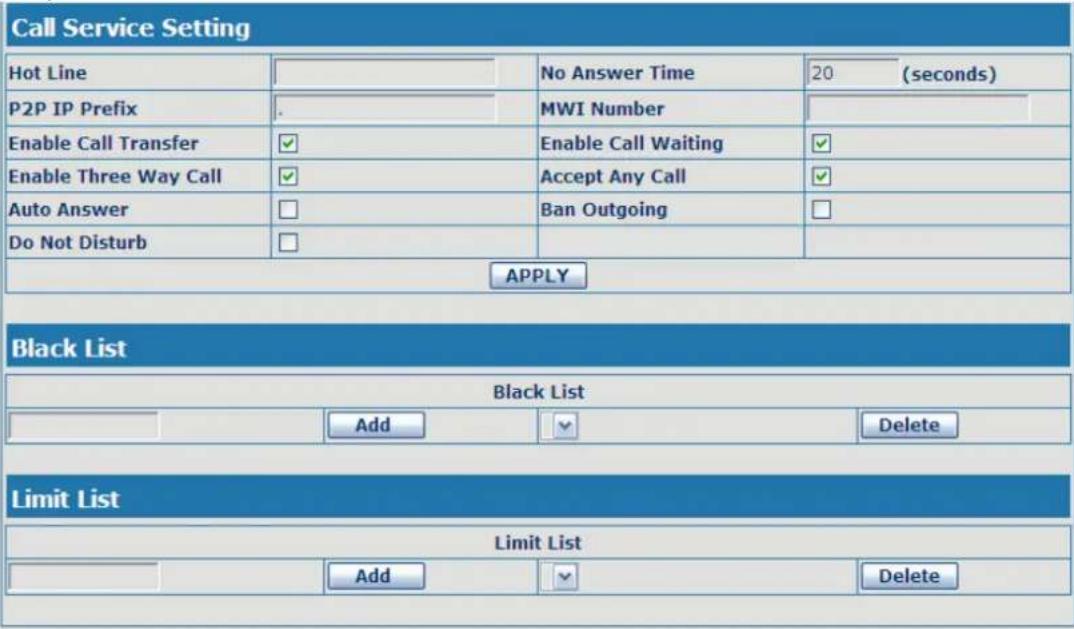
In this web page, you can configure Hotline, Call Transfer, Call Waiting, 3 Ways Call, Black List, white list Limit List and so on.
text_image
Call Service Setting Hot Line P2P IP Prefix Enable Call Transfer Enable Three Way Call Auto Answer Do Not Disturb No Answer Time 20 (seconds) MWI Number Enable Call Waiting Accept Any Call Ban Outgoing APPLY Black List Black List Add Delete Limit List Limit List Add Delete| Call Service | |
| Field name | explanation |
| Hotline | Specify Hotline number. If you set the number, you can not dial any other numbers. |
| No Answer Time | Specify No Answer Time |
| Set Prefix in peer to peer IP call. For example: what you want to | |
| P2P IP Prefix dial | is 192.168.1.119, If you define P2P IP Prefix as 192.168.1., you dial only #119 to reach 192.168.1.119. Default is “.”. If there is no “.” Set, it means to disable dialing IP. |
| MWI Number Set | the number to listen record in server. |
| Do Not Disturb Select NO Disturb, the phone will reject any incoming call, the callers will be reminded by busy, but any outgoing call from the phone will work well. | |
| Enable Call Transfer Enable Call Transfer by selecting it. | |
| Enable Call Waiting Enable Call Waiting by selecting it. | |
| Enable Three Way Call | Enable Three Way Call |
| Accept Any Call If select it, the phone will accept the call even if the called number is not belong to the phone. | |
| Auto Answer If select it, the phone will auto answer when there is an incoming call. | |
| Ban Outgoing If you select Ban Outgoing to enable it, and you can not dial out any number. | |
| Black List | Set Add/Delete Black list. If user does not want to answer some phone calls, add these phone numbers to the Black List, and these calls will be rejected.x and . are wildcard. x means matching any single digit. for example, 4xxx expresses any number with prefix 4 which length is 4 will be forbidden to dialed out DOT (.) means matching any arbitrary number digit. for example, 6. expresses any number with prefix 6 will be forbidden to dialed out.if user wants to allow a number or a series of number incoming, he may add the number(s) to the list as the white list rule. the configuration rule is -number, for example, -123456, or -1234xx |
| Means any incoming number is forbidden except for 4119Note: End with DOT (.) when set up the white list | |
| Limit List | Set Add/Delete Limit List. Please input the prefix of those phone numbers which you forbid the phone to dial out. For example, if you want to forbid those phones of 001 as prefix to be dialed out, you need input 001 in the blank of limit list, and then you can not dial out any phone number whose prefix is 001.x and . are wildcard. x means matching any single digit. for example, 4xxx expresses any number with prefix 4 which length is 4 will be forbidden to dialed out . means matching any arbitrary number digit. for example, 6. expresses any number with prefix 6 will be forbidden to dialed out. |
| Notice: Black List and Limit List can record at most10 items respectively. | |
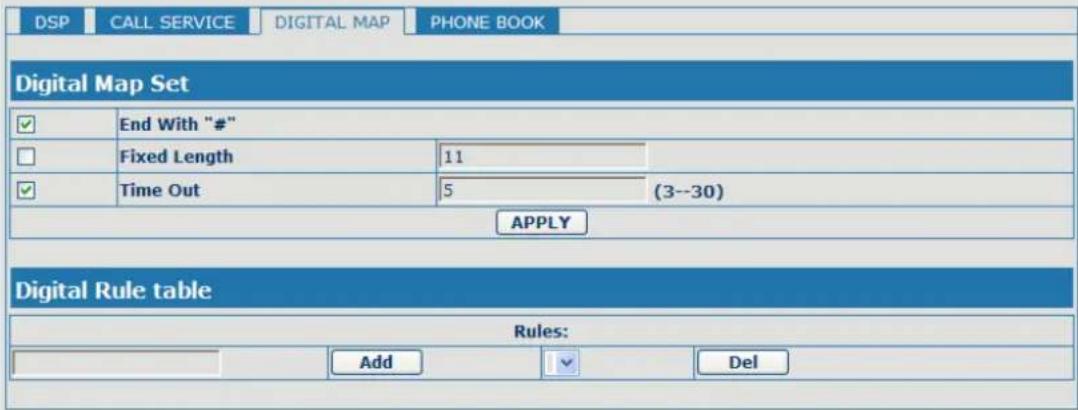
4.3.4.3. Digital Map Configuration
This phone supports 4 dial modes:
1). End with “#”: dial your desired number, and then press #.
2). Fixed Length: the phone will intersect the number according to your specified length.
3). Time Out: After you stop dialing and waiting time out, system will send the number collected.
4). User defined: you can customize digital map rules to make dialing more flexible. It is realized by defining the prefix of phone number and number length of dialing.
In order to keep some users' secondary dialing manner when dialing the external line with pbx, phone can be added a special rule to realize it. so user can dial a number as external line prefix and get the secondary dial tone to keep dial the external number. after finishing dialing, phone will send the prefix and external number totally to ther server.
for example, there is a rule 9,xxxxxxxxx in the digital map table. after dialing 9, phone will send the secondary dial tone, user may keep going dialing. after finished, phone will call the number which starts with 9, actually the number sent out is 9-digit with 9.
PHONE
text_image
DSP CALL SERVICE DIGITAL MAP PHONE BOOK Digital Map Set ✓ End With "#" ☐ Fixed Length 11 ✓ Time Out 5 (3--30) APPLY Digital Rule table Rules: Add Del| Digital Map Configuration | |
| Field name explanation | |
| End with "#" Set Enable/Disable the phone ended with "#" dial. | |
| Fixed Length Specify the Fixed Length of phone ending with. | |
| Time out | Set the timeout of the last dial digit. The call will be sent after timeout. |
| Digital Rule table | |
| Rules: | |
| Add Del | |
| Below is user-defined digital map rule:[] Specifies a range that will match digit. May be a range, a list of ranges separated by commas, or a list of digits.x Match any single digit that is dialed.. Match any arbitrary number of digits including none.Tn Indicates an additional time out period before digits are sent of n seconds in length. n is mandatory and can have a value of 0 to 9 seconds. Tn must be the last 2 characters of a dial plan. If Tn is not specified it is assumed to be T0 by default on all dial plans. | |
| RULE | |
| "[1-8]xxx" | |
| "9xxxxxxx" | |
| "911" | |
| "99T4" | |
| "9911x.T4" | |
| [1-8]xxx: Cause extensions 1000-8999 to be dialed immediately9xxxxxxx: Cause 8 digit numbers started with 9 to be dialed immediately | |
| 911: Cause 911 to be dialed immediately after it is entered. | |
| 99T4: Cause 99 to be dialed after 4 seconds. | |
| 9911x.T4:Cause any number started with 9911 to be dialed 4 seconds after dialing ceases. | |
| Notice: End with “#”, Fixed Length, Time out and Digital Map Table can be used simultaneously, System will stop dialing and send number according to your set rules. | |
4.3.4.4. Phone Book
You can input the name, phone number and select ring type for each name here.
PHONE
| DSP | CALL SERVICE | DIGITAL MAP | PHONE BOOK | ||
| Phonebook Table | |||||
| Index | Name | Number | Type | ||
| Add Phone Book | |||||
| Name | Add | ||||
| Number | |||||
| Ring Type | Default | ||||
| Phone Book Option | |||||
| Delete | Modify | ||||
Phone Book
| Field name explanation | |||
| Index | Name | Number | Type |
| 1 | ad | 23 | Default |
| 1 | |||
| Shows the detail of current phonebook. | |||
| Name | Shows the name corresponding to the phone number | ||
| Number Shows the phone number | |||
| Ring Type Shows the ring type of the incoming call. | |||
| Click “Modify” to change the selected information and click the “Delete” to delete the selected record. | |||
| Notice: the maximum capability of the phonebook is 500 items | |||
4.3.5. Maintenance
4.3.5.1. Auto Provision
MAINTENANCE
| Auto Update Setting | |
| Current Config Version | 2.0002 |
| Server Address | 0.0.0.0 |
| Username | user |
| Password | •••• |
| Config File Name | |
| Config Encrypt Key | |
| Protocol Type | FTP |
| Update Interval Time | 1 Hour |
| Update Mode | Disable |
| APPLY | |
| Auto Provision | |
| Field name explanation | |
| Current Config Version | Show the current config file's version. |
| Server Address Set FTP/TFTP/HTTP server IP address for auto update.The address can be IP address or Domain name with subdirectory. | |
| Username Set FTP server Username. System will use anonymous if username keep blank. | |
| Password Set FTP server Password. | |
| Config File Name Set configuration file's name which need to update.System will use MAC as config file name if config file name keep blank. For example, 000102030405. | |
| Config Encrypt Key Input the Encrypt Key, if the configuration file is encrypted. | |
| Protocol Type | Select the Protocol type FTP、TFTP or HTTP. |
| Update Interval Time Set update interval time, unit is hour. | |
| Update Mode | Different update modes:1. Disable: means no update2. Update after reboot: means update after reboot.3. Update at time interval: means periodic update. |
4.3.5.2. Syslog Config
Syslog is a protocol which is used to record the log messages with client/server mechanism. Syslog server receives the messages from clients, and classifies them based on priority and type. Then these messages will be written into log by some rules which administrator can configure. This is a better way for log management.
8 levels in debug information:
Level 0---emergency: This is highest default debug info level. You system can not work.
Level 1---alert: Your system has deadly problem.
Level 2---critical: Your system has serious problem.
Level 3---error: The error will affect your system working.
Level 4---warning: There are some potential dangers. But your system can work.
Level 5---notice: Your system works well in special condition, but you need to check its working environment and parameter.
Level 6---info: the daily debugging info.
Level 7---debug: the lowest debug info. Professional debugging info from R&D person. At present, the lowest level of debug information send to Syslog is info, debug level only can be displayed on telnet.
MAINTENANCE
| AUTO PROVISION | SYSLOG | CONFIG | UPDATE | ACCOUNT | REBOOT |
| Syslog Set | |||||
| Server IP | 0.0.0.0 | ||||
| Server Port | 514 | ||||
| MGR Log Level | None | √ | |||
| SIP Log Level | None | √ | |||
| IAX2 Log Level | None | √ | |||
| Enable Syslog | ☐ | ||||
| APPLY | |||||
Syslog Configuration
| Field name explanation |
| Server IP Set Syslog server IP address. |
| Server Port Set Syslog server port. |
| MGR Log Level Set the level of MGR log. |
| SIP Log Level Set the level of SIP log. |
| IAX2 Log Level Set the level of IAX2 log. |
| Enable Syslog Select it or not to enable or disable syslog. |
4.3.5.3. Config Setting
MAINTENANCE
| AUTO PROVISION | SYSLOG | CONFIG | UPDATE | ACCOUNT | REBOOT |
| Save Configuration | |||||
| Press the "Save" button to save the configuration files! | |||||
| Save | |||||
| Backup Configuration | |||||
| Save all Network and VoIP settings. | |||||
| Right Click here to Save as Config File (.txt) | |||||
| Clear Configuration | |||||
| Press the "Clear" button to Clear the configuration files! | |||||
| Clear | |||||
| Config Setting | |||||
| Field name explanation | |||||
| Save Config | you can save all changes of configurations. Click the Save button, all changes of configuration will be saved, and be effective immediately.. | ||||
| Backup Config Right clicks on "Right click here..." and select "Save Target As...." then you will save the config file in .txt format | |||||
| Clear Config | user can restore factory default configuration and reboot the phone.If you login as Admin, the phone will reset all | ||||
| configurations and restore factory default; if you login as Guest, the phone will reset all configurations except for VoIP accounts (SIP1-2 and IAX2) and version number. | |||||
4.3.5.4. Update
You can update your configuration with your config file in this web page.
MAINTENANCE
| AUTO PROVISION | SYSLOG | CONFIG | UPDATE | ACCOUNT | REBOOT |
| Web Update | |||||
| Select file | 浏览... | (*.z,*.txt,*.au) | Update | ||
| FTP Update | |||||
| Server | |||||
| Username | |||||
| Password | |||||
| File Name | |||||
| Type | Application update | ||||
| Protocol | FTP | ||||
| APPLY | |||||
| Update | |
| Field name explanation | |
| Web Update | Click the browse button, find out the config file saved before or provided by manufacturer, download it to the phone directly, press “Update” to save. You can also update downloaded update file, logo picture, ring, mmiset file by web. |
| Server Set the FTP/TFTP server address for download/upload.The address can be IP address or Domain name with subdirectory. | |
| Username Set the FTP server Username for download/upload. | |
| Password Set the FTP server password for download/upload. | |
| File name Set the name of update file or config file. The default name is the MAC of the phone, such as 000102030405. | |
| Notice: You can modify the exported config file. And you can also download config file which includes several modules that need to be imported. For example, you can download a config file just keep with SIP module. After reboot, other modules of system still use previous setting and are not lost. | |
| Type | Action type that system want to execute:1. Application update: download system update file2. Config file export: Upload the config file to FTP/TFTP server, name and save it.3. Config fie import: Download the config file to phone from FTP/TFTP server. The configuration will be effective after the phone is reset. |
| Protocol Select | FTP/TFTP server |
4.3.5.5. Account Config
You can add or delete user account, and change the authority of each user account in this web page
MAINTENANCE
AUTO PROVISION | SYSLOG | CONFIG | UPDATE | ACCOUNT | REBOOT
Set Keyboard Password
Keyboard Password
Set
User Set
User Name
admin
guest
User Level
Root
General
Add User
User Name
User Level
Password
Confirm
Submit
Account Option
admin
Delete Modify
Account Configuration
Field name explanation
Keyboard Password Set the password for entering the setting menu of the phone by the phone 's key board. The password is digit.
| User Name | User Level |
| admin | Root |
| guest | General |
This table shows the current user existed.
User Name Set account user name.
User Level Set user level, Root user has the right to modify configuration, General can only read.
Password Set the password.
Confirm Confirm the password.
Select the account and click the Modify to modify the selected account, and click the Delete to delete the selected account.
General user only can add the user whose level is General.
4.3.5.6. Reboot
MAINTENANCE
AUTO PROVISION SYSLOG CONFIG UPDATE ACCOUNT REBOOT
Reboot Phone
Press the "Reboot" button to reboot Phone!
Reboot
If you modified some configurations which need the phone's reboot to be effective, you need click the Reboot, then the phone will reboot immediately.
Notice: Before reboot, you need confirm that you have saved all configurations..
4.3.6. Security
4.3.6.1. MMI Filter

text_image
SECURITY MMI FILTER FIREWALL NAT VPN MMI Filter Table Start IP End IP Option 192.168.1.15 192.168.1.20 Modify Delete MMI Filter Table Set Start IP End IP Add MMI Filter Table Set □ MMI Filter APPLY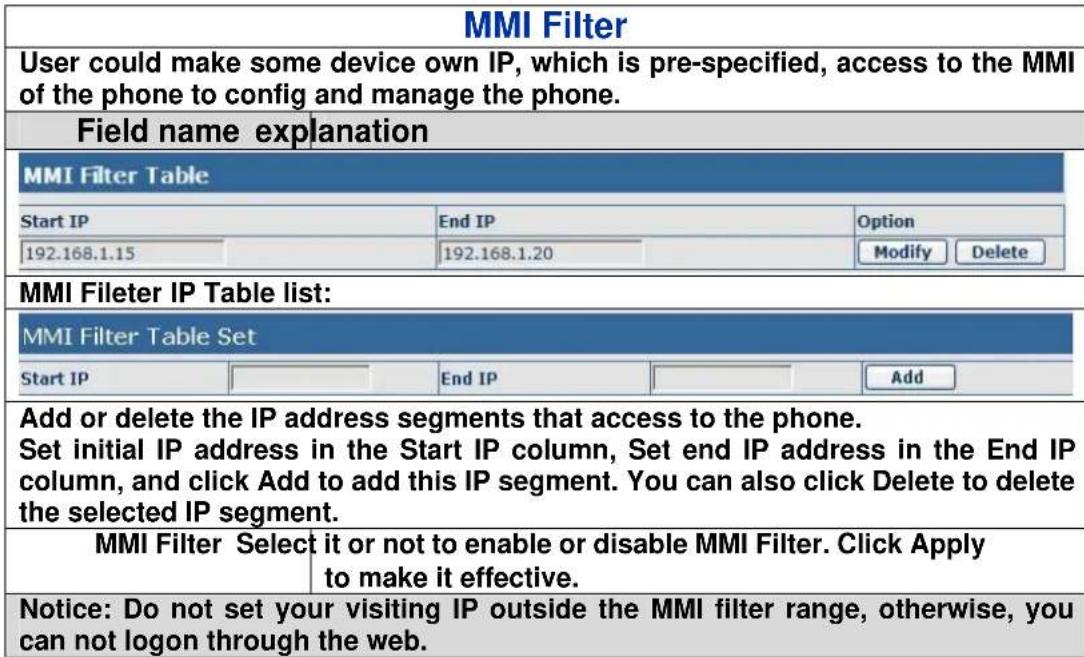
text_image
MMI Filter User could make some device own IP, which is pre-specified, access to the MMI of the phone to config and manage the phone. Field name explanation MMI Filter Table Start IP End IP Option 192.168.1.15 192.168.1.20 Modify Delete MMI Fileter IP Table list: MMI Filter Table Set Start IP End IP Add Add or delete the IP address segments that access to the phone. Set initial IP address in the Start IP column, Set end IP address in the End IP column, and click Add to add this IP segment. You can also click Delete to delete the selected IP segment. MMI Filter Select it or not to enable or disable MMI Filter. Click Apply to make it effective. Notice: Do not set your visiting IP outside the MMI filter range, otherwise, you can not logon through the web.4.3.6.2. Firewall
SECURITY
MMI FILTER
FIREWALL
NAT
VPN
Firewall Type
In access Enable
□ Out_access Enable
APPLY
Firewall Input Rule Table
Index Deny/Permit Protocol Src Addr
Src Mask
Des Addr
Des Mask
Range
Port
Firewall Output Rule Table
Index Deny/Permit Protocol Src Addr
Src Mask
Des Addr
Des Mask
Range
Port
0 deny ICMP 192.168.1.14
255.255.255.0
192.168.1.118
255.255.255.0
more than
Firewall Set
Input/Output Input
Src Addr
Deny/Permit Deny
Des Addr
Protocol Type UDP
Src Mask
Port Range more than
Des Mask
Rule Delete
Input/Output Input
Index To Be Deleted
Add
Delete
Firewall Configuration
In this web interface, you can set up firewall to prevent unauthorized Internet users from accessing private networks connected to the Internet (input rule), or prevent unauthorized private network devices from accessing the Internet (output rule).
Firewall supports two types of rules: input_access rule and output_access rule. Each type supports at most 10 items.
Through this web page, you could set up and enable/disable firewall with input/output rules. System could prevent unauthorized access, or access other networks set in rules for security. Firewall, is also called access list, is a simple implementation of a Cisco-like access list (firewall). It supports two access lists: one for filtering input packets, and the other for filtering output packets. Each kind of list could be added 10 items.
We will give you an instance for your reference.
| In_access Enable | Out_access Enable | ||||
| Input/Output | Input | Src Addr | Add | ||
| Deny/Permit | Deny | Des Addr | |||
| Protocol Type | UDP | Src Mask | |||
| Port Range | more than | Des Mask | |||
Field name explanation
| In_access enable | Select it to Enable in_access rule |
| out_access enable | Select it to Enable out_access rule |
| Input/Output Specify current adding rule by selecting input rule or output rule. | |
| Deny/Permit Specify current adding rule by selecting Deny rule or Permit rule. | |
| Protocol Type | Filter protocol type. You can select TCP, UDP, ICMP, or IP. | |||||||
| Port Range Set the filter Port range | ||||||||
| Src Addr | Set source address. It can be single IP address, network address, complete address 0.0.0.0, or network address similar to *.*.*.0 | |||||||
| Des Addr | Set the destination address. It can be IP address, network address, complete address 0.0.0.0, or network address similar to *.*.*.* | |||||||
| Src Mask | Set the source address' mask. For example, 255.255.255.255 means just point to one host; 255.255.255.0 means point to a network which network ID is C type. | |||||||
| Des Mask | Set the destination address' mask. For example, 255.255.255.255 means just point to one host; 255.255.255.0 means point to a network which network ID is C type. | |||||||
| Click the Add button if you want to add a new output rule. | ||||||||
| Firewall Output Rule Table | ||||||||
| Index | Deny/Permit | Protocol | Src Addr | Src Mask | Des Addr | Des Mask | Range | Port |
| 0 | deny | ICMP | 192.168.1.14 | 255.255.255.0 | 192.168.1.118 | 255.255.255.0 | more than | 1 |
| Then enable out_access, and click the Apply button.So when devices execute to ping 192.168.1.118, system will deny the request to send icmp request to 192.168.1.118 for the out_access rule. But if devices ping other devices which network ID is 192.168.1.0, it will be normal. | ||||||||
| Rule Delete | ||||||||
| Input/Output Input Index To Be Deleted Delete | ||||||||
| Click the Delete button to delete the selected rule. | ||||||||
4.3.6.3. NAT Config
NAT is abbreviated from Net Address Translation; it's a protocol responsible for IP address translation. In other words, it is responsible for transforming IP and port of private network to public, also is the IP address mapping which we usually say.

flowchart
graph TD
    A["Internet"] --> B["Legal IP address"]
    B --> C["NAT Equipment"]
    C --> D["Computer 1"]
    C --> E["Computer 2"]
    C --> F["Computer 3"]
    C --> G["Computer 4"]
    style A fill:#fff,stroke:#000
    style B fill:#fff,stroke:#000
    style C fill:#fff,stroke:#000
    style D fill:#fff,stroke:#000
    style E fill:#fff,stroke:#000
    style F fill:#fff,stroke:#000
    style G fill:#fff,stroke:#000
    subgraph Internal Network
        H["Inner network"]
        I["Private IP"]
    end
DMZ config:
In order to make some intranet equipments support better service for extranet, and make internal network security more effectively, these equipments open to extranet need be separated from the other equipments not open to extranet by the corresponding isolation method according to different demands. We can provide the different security level protection in terms of the different resources by building a DMZ region which can provide the network level protection for the equipments environment, reduce the risk which is caused by providing service to distrust customer, and is the best position to put public information
The following chart describes the network access control of DMZ
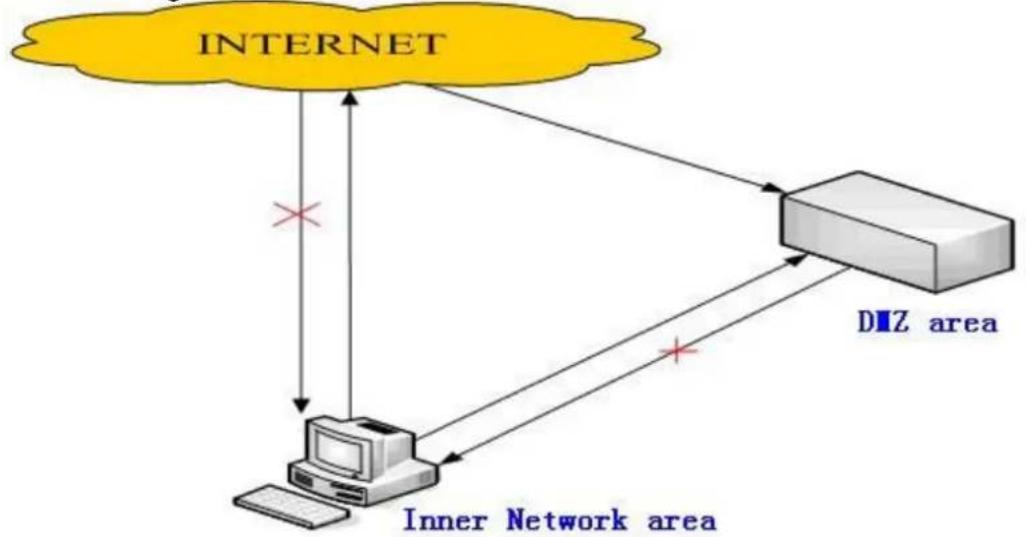
flowchart
graph TD
    A["INTERNET"] -->|X| B["Computer"]
    B -->|X| C["DIZ area"]
    C -->|X| B
    B -->|Inner Network area| A
SECURITY

text_image
MMI FILTER FIREWALL NAT VPN Protocol Set IPSec ALG FTP ALG PPTP ALG APPLY NAT Table Inside IP Inside TCP Port Outside TCP Port Inside IP Inside UDP Port Outside UDP Port NAT Table Option Transfer Type TCP Outside Port Inside Ip Inside Port Add Delete DMZ Config DMZ Table Outside IP Inside IP DMZ Table Option Outside IP Inside IP Outside IP Add Delete NAT Configuration| Field name explanation | |||
| IPSec ALG It is | an encryption technology. Select it to enable IPSec ALG, the default is enable | ||
| FTP ALG | FTP is a service of connection layer which can transform intranet IP into extranet IP when intranet IP is sending out packet.Select it to enable FTP ALG, the default is enable | ||
| PPTP ALG Select it enable PPTP ALG, the default is enable | |||
| Inside IP | Inside TCP Port | Outside TCP Port | |
| Shows the NAT TCP mapping table | |||
| Inside IP | Inside UDP Port | Outside UDP Port | |
| Shows the NAT UDP mapping table | |||
| NAT Table Option | |||
| Transfer Type | TCP | Outside Port | |
| Inside Ip | Inside Port | ||
| Add Delete | |||
| Transfer Type Select the NAT mapping protocol style, TCP or UDP | |||
| Inside IP Set the IP address of device which is connected to LAN interface to do NAT mapping. | |||
| Inside Port Set the LAN port of the NAT mapping | |||
| Outside Port Set the WAN port of the NAT mapping | |||
| Notice: After finish setting, click the Add button to add new mapping table; click the Delete button to delete the selected mapping table. | |||
| DMZ Table | |||
| Outside IP | Inside IP | ||
| 192.168.1.119 | 192.168.10.23 | ||
| Shows the outside WAN port IP address and the inside LAN port IP address. | |||
| Outside IP | |||
| Inside IP | |||
| Outside IP | 192.168.1.119 | ||
| Add Delete | |||
| Outside IP Set the outside Wan port IP address of DMZ. | |||
| Inside IP Set the inside LAN port IP address of DMZ | |||
| Click the Add button to add new table; click the Delete button to delete the selected mapping table. | |||
| Notice: 10M/100M adaptive means the network card, and other equipment physical consultations speed, testing speed under bridge mode near to 100M, in order to ensure the quality of voice and communications real-time performance, we made some sacrifices of NAT under the transmission performance. Transmit with full capability only when system is idle, so can not guarantee that the transmission speed reach to 100M. | |||
4.3.6.4. VPN Config
This web page provides us a safe connect mode by which we can make remote access to enterprise inner network from public network. That is to say, you can set it to connect public networks in different areas into inner network via a special tunnel.
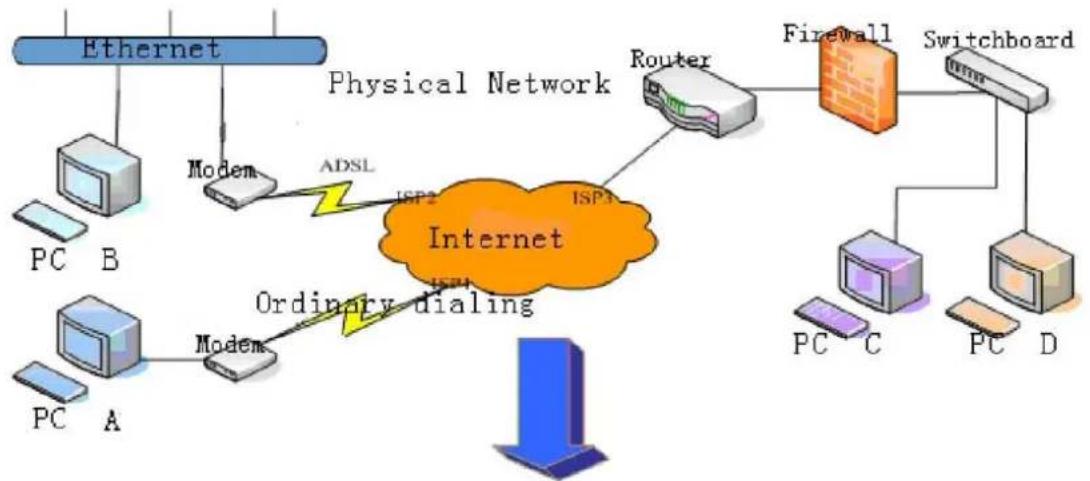
flowchart
graph TD
    A["Ethernet"] --> B["Modem"]
    B --> C["Physical Network"]
    C --> D["Internet"]
    D --> E["Router"]
    E --> F["Firewall"]
    F --> G["Switchboard"]
    H["PC B"] --> I["Modem"]
    J["PC A"] --> K["Modem"]
    L["PC C"] --> M["Switchboard"]
    N["PC D"] --> O["Switchboard"]
    P["ADSL"] --> Q["ISPs"]
    R["Ordinary dialing"] --> S["Internet"]
Realizes the logical special line through VPN

text_image
PC A PC B PC C PC DSECURITY
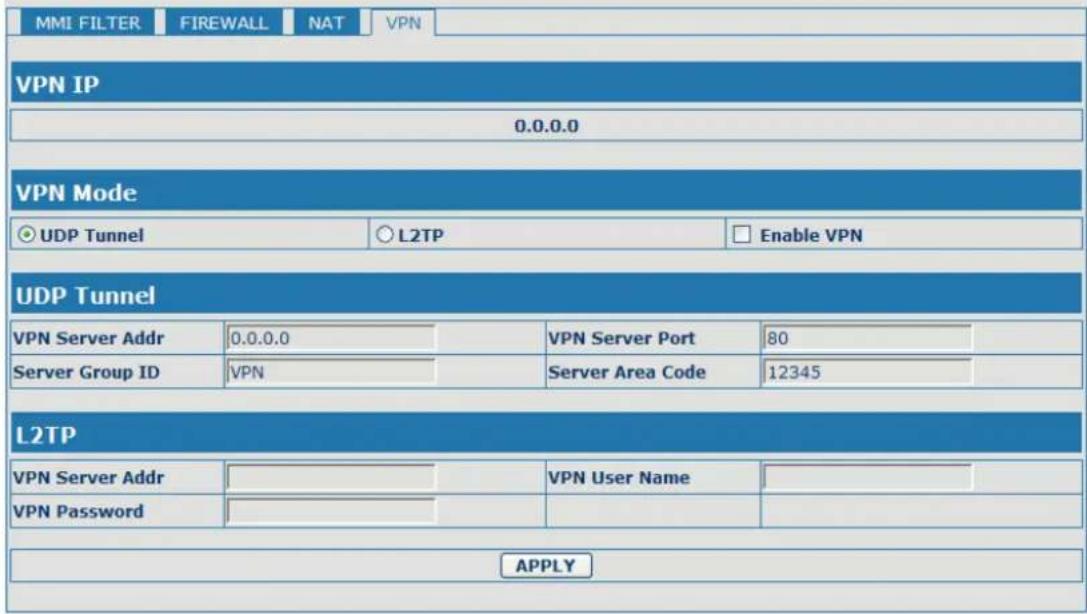
text_image
MMI FILTER FIREWALL NAT VPN VPN IP 0.0.0.0 VPN Mode UDP Tunnel L2TP Enable VPN UDP Tunnel VPN Server Addr 0.0.0.0 VPN Server Port 80 Server Group ID VPN Server Area Code 12345 L2TP VPN Server Addr VPN Password VPN User Name APPLYVPN Configuration
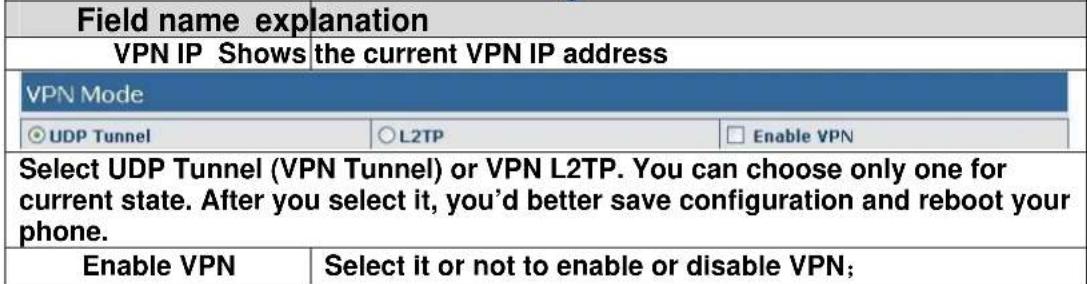
text_image
Field name explanation VPN IP Shows the current VPN IP address VPN Mode ○ UDP Tunnel ○ L2TP □ Enable VPN Select UDP Tunnel (VPN Tunnel) or VPN L2TP. You can choose only one for current state. After you select it, you'd better save configuration and reboot your phone. Enable VPN Select it or not to enable or disable VPN;| UDP Tunnel | |||
| VPN Server Addr | 0.0.0.0 | VPN Server Port | 80 |
| Server Group ID | VPN | Server Area Code | 12345 |
| VPN Server Addr Set VPN Server IP Address | |||
| VPN Server Port Set VPN Server Port | |||
| L2TP | |||
| VPN Server Addr | VPN User Name | ||
| VPN Password | |||
| VPN Server Addr Set VPN L2TP Server IP address | |||
| VPN User Name Set User Name access to VPN L2TP Server | |||
| VPN Password Set Password access to VPN L2TP Server | |||
4.3.7. Logout

text_image
System Logout Logout Press the "Logout" button to Logout Phone ! LogoutClick Logout, and you will exit web page. If you want to enter it next time, you need input user name and password again.
4.4. Settings via phone's keyboard.
4.4.1. How to set via the phone's keyboard.
Press Menu, Up/Down, Enter and exit key to browse, select, and cancel
- Use the Up/Down key to browse the menu and submenu
- Use the ENTER key to enter into submenu and confirm your operation, the EXIT key can be used to back and cancel operation.
4.4.2. Phone menu
Phone main menu:

flowchart
graph TD
    A["--Config--Network"] --> B["--Config--System"]
    A --> C["--Config--DSP"]
    B <--> C

flowchart
graph TD
    A["--Config--Network"] --> B["--Config--System"]
    A --> C["--Config--DSP"]
    B <--> C
5. Appendix
5.1. Specification
5.1.1. Device specification
| Item this VoIP Phone | |
| Adapter(Input/Output) | |
| Port | WAN 10/100Base- T RJ-45 for LAN, Auto MDIX |
| LAN 10/100Base- T RJ-45 for PC, Auto MDIX | |
| Power Consumption | |
| LCD size 74 x 28mm | |
| Operation Temperature | |
| Relative Humidity | |
| Main Chipset 275MHZ MIPS | |
| SDRAM | |
| Flash | |
| Size (W x H x D) | |
| Weight | |
5.1.2. Voice Features
● Support 2 lines SIP and IAX2, SIP 2.0 (RFC3261)
- Codec: G.711A/u, G.7231 high/low, G.729, G.722, G.726
- Echo cancellation: Support G.168 and hand-free can support 96ms
● Support VAD, CNG
● NAT transverse: support STUN
● Supports full duplex.
- SIP support SIP domain, SIP authentication (none, basic, MD5), DNS name of server, peer to peer
- SIP support Pubic & Private server, user can through each server to calling in and out
● DTMF: SIP info, DTMF Relay, RFC2833
- SIP application: contain SIP call forward/transfer/holding/waiting/3 way conference/Paging and intercom/ click to dial/pickup/ joincall/redial/unredial.
- Call control features: Flexible dial map, support hotline, empty calling no. reject server, black list for reject, authenticated call, no disturb, caller ID and so on.
● Support phonebook 500 records, incoming calls / outgoing calls / missing calls. Each supports 100 records
● support conference call in server
- Could dial use private server automatically when public server unregistered while private server is registered successfully
● Phonebook supports VCard standard
● Support 12/24 time format.
● 12/24 hours time display
● Support daylight saving time
● Support path, gruu
- Support SIP Privacy.
5.1.3. Network Features
● WAN/LAN: support Bridge and Router mode.
● Support basic NAT and NAPT
● Support PPPoE for xDSL
- support VLAN
● Support NAT penetration, and Stun penetration
- Support DMZ
● Support VPN( L2TP. UDP)
● Support DHCP get IP on WAN port
● Support DHCP distribute IP on LAN port - Qos supports Diffserv.
● support network tools: contain ping, trace route, telnet client
5.1.4. Maintenance and Management
● The phone supports post mode, can update firmware by post mode.
● Supports different levels of administration.
● Support Boot Monitor
● Can upgrade firmware through boot monitor
- access with different authority
● support auto provisioning
- Can config through Web, Keypad, Telnet
● Can upgrade firmware and configuration file through HTTP, FTP, TFTP
- Support syslog
5.2. Digit-character map table
| Button Character Button Character | ||||
 | 1@ |  | 7PQRSpqrs | |
 | 2ABCabc |  | 8TUVtuv | |
 | 3DEFdef |  | 9WXYZwxyz | |
 | 4GHIghi |  | . | |
 | 5JKLjkl |  | 0 | |
 | 6MNOmno | #/= | # | |
