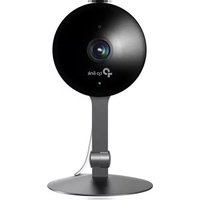
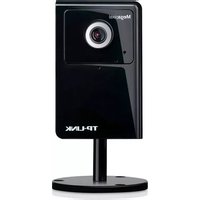
TP-LINK Kasa KC401 - Security Camera

Kasa KC401 - Security Camera TP-LINK - Free user manual and instructions

Find the device manual for free Kasa KC401 TP-LINK in PDF.

📄 93 pages English EN Download 💬 AI Question 10 questions ⚙️ Specs
Notice TP-LINK Kasa KC401 - page 5
Pick your language and provide your email: we'll send you a specifically translated version.
Product Type Security Camera
Brand TP-Link
Model Kasa KC401
Dimensions (H x W x D) 117.6 x 85.8 x 85.8 mm
Weight 272 g
Power Supply Micro USB, 5V DC, 1A
Video Resolution 1080p Full HD
Field of View 130° diagonal
Night Vision Up to 9.1 m (30 ft) with IR LEDs
Audio Two-way audio with built-in microphone and speaker
Connectivity Wi-Fi 2.4 GHz (802.11 b/g/n)
Motion Detection Yes, with activity zones
Storage MicroSD card up to 256 GB (not included) or cloud subscription
Weather Resistance IP65 (outdoor rated)
Operating Temperature -20°C to 45°C (-4°F to 113°F)
Mounting Options Wall or ceiling mount
Compatibility Amazon Alexa, Google Assistant, IFTTT
Security WPA/WPA2 encryption, secure login
Maintenance Clean lens with soft dry cloth; keep firmware updated
Spare Parts & Repairability Not user-repairable; contact TP-Link support

Frequently Asked Questions - Kasa KC401 TP-LINK

How do I reset my Kasa KC401 camera?
Press and hold the reset button on the back of the camera for about 5 seconds until the LED flashes amber. This restores factory settings.
Can the Kasa KC401 be used outdoors?
Yes, it has an IP65 weather resistance rating, making it suitable for outdoor use in rain or snow.
What Wi-Fi frequency does the KC401 support?
It supports 2.4 GHz Wi-Fi (802.11 b/g/n). It does not work with 5 GHz networks.
How do I set up motion detection zones?
In the Kasa app, go to Camera Settings > Motion Detection > Activity Zones. You can create custom zones to focus on specific areas.
Does the camera have two-way audio?
Yes, it has a built-in microphone and speaker, allowing you to listen and speak through the app.
What storage options are available?
You can use a microSD card (up to 256 GB, Class 10) for local storage, or subscribe to Kasa Care Cloud for cloud recording.
Can I view the camera on a computer?
Yes, via the Kasa app on Windows or macOS, or through a web browser using the Kasa website.
How do I connect the camera to Alexa?
Enable the Kasa skill in the Alexa app and link your TP-Link account. Then ask Alexa to show the camera on compatible devices like Echo Show.
What does the LED light mean?
Solid green: connected to Wi-Fi and working. Flashing amber: setup mode or not connected. Flashing green: updating firmware.
How do I update the camera firmware?
The Kasa app will automatically notify you of updates. Go to Camera Settings > Firmware Update to manually check and install.

User questions about Kasa KC401 TP-LINK

0 question about this device. Answer the ones you know or ask your own.

Ask a new question about this device

The email remains private: it is only used to notify you if someone responds to your question.

No questions yet. Be the first to ask one.

Download the instructions for your Security Camera in PDF format for free! Find your manual Kasa KC401 - TP-LINK and take your electronic device back in hand. On this page are published all the documents necessary for the use of your device. Kasa KC401 by TP-LINK.

USER MANUAL Kasa KC401 TP-LINK

About This Guide....1

Introduction to Kasa Smart App....2

Set Up Your Camera 3

Main Device Controls 4

Set Schedules 7

Enable 24/7 Recording....10

Check 24/7 Recording Videos 11

Turn On/Off Spotlight Temporarily....12

Screen Recording 13

Enable/Disable Siren 14

Pan/Tilt 15

Add/Delete View Points 16

Manage Device Settings 17

Reset Your Camera 34

Cameras 36

Grouping 37

Me Page 42

Manage Your Account 42

Kasa Care 43

Third Party Services 44

Firmware Update 48

Notification 49

Widgets 50

Settings....59

Scenes 60

Smart Actions 65

Me Page 74

Manage Your Account 74

Kasa Care 75

Third Party Services 76

Firmware Update 80

Notification 81

Widgets 82

Settings 91

About This Guide

This guide provides a brief introduction to the Kasa Smart app and the Kasa Cameras, as well as regulatory information.

Features available of this product and in Kasa Smart may vary by model and software version. Kasa Spot and Kasa Smart availability may also vary by region. All images, steps, and descriptions in this guide are only examples and may not reflect your actual experience.

Conventions

In this guide, the following convention is used:

ConventionDescription
TealKey information appears in teal, including management page text such as menus, items, buttons and so on.
UnderlineHyperlinks are in teal and underlined. You can click to redirect to a website.

More Info

  • Specifications can be found on the product page at https://www.tp-link.com.
    • Our Technical Support and troubleshooting information can be found at https://www.tp-link.com/support.
  • Frequently Asked Questions (FAQs) can be found at https://www.tp-link.com/support/faq.

Introduction to Kasa Smart App

Set Up Your Camera

Follow the steps below to get started with your new camera.

Step 1. Download Kasa

Get the Kasa Smart app from the App Store or Google Play, or by scanning the QR code below.
Download on the App Store GO FOR Google Play OR

Step 2. Log In

Open the Kasa Smart app and log in with your TP-Link ID. If you don't have an account, create one Erst.
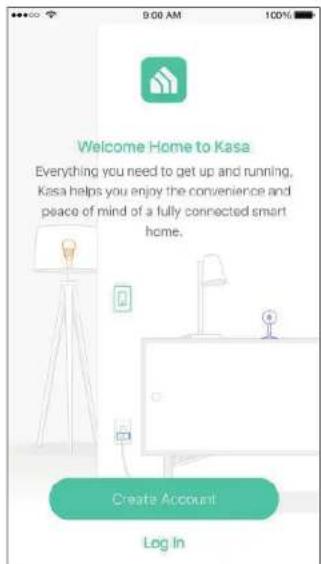
9:00 AM 100% Welcome Home to Kasa Everything you need to get up and running, Kasa helps you enjoy the convenience and peace of mind of a fully connected smart home. Create Account Log In

Step 3. Start Setup

Tap the + button in the Kasa Smart app, select Device > Cameras and then your model. Follow step-by-step app instructions to complete the setup.
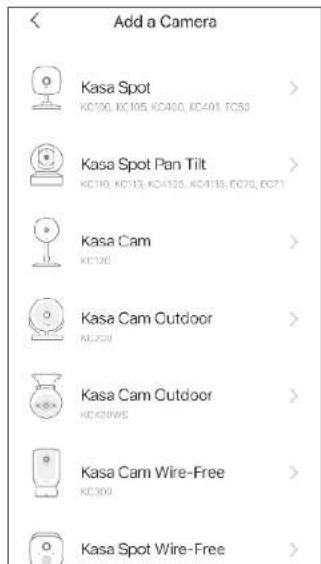
Add a Camera Kasa Spot KC100, KC105, KC400, KC401, FC50 Kasa Spot Pan Tilt KC100, KC105, KC4105, KC4115, FC70, FC71 Kasa Cam KC100 Kasa Cam Outdoor KC250 Kasa Cam Outdoor KC40W6E Kasa Cam Wire-Free KC300 Kasa Spot Wire-Free

Main Device Controls

After you successfully set up your smart camera, you will see the home page of the Kasa Smart app. Here you can view and manage all devices that you've added to Kasa. Tap your smart camera to control and manage it.

Home Page

You can see all your Kasa devices listed in the Home page.

Turn On/Off Camera

Turn on/off your camera quickly by tapping the switch in the home page. If it is off, you are entering Privacy Mode and cannot stream live video.

Live View Page

Tap the camera in the Home page to enter the Live View page. Here you can check live view video and activities detected by your camera.

Favorite Devices

Gather the devices you use most often to Favorites so you can easily find them. Long press your device and tap Favorite in the Home page.

Relocate Devices

Long press your device and tap Relocate to move the device to another home or room you have created.

Add Rooms

Tap and go to the home page. Then tap

+ Add Rooms to add rooms for this home.
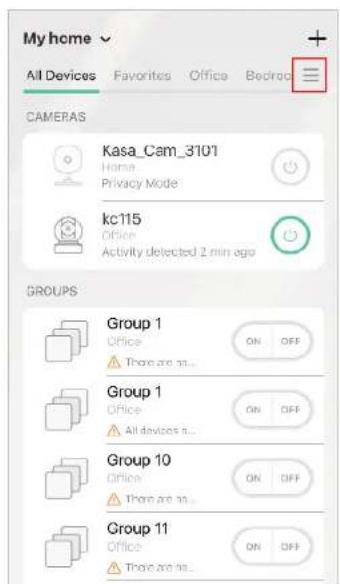
My home All Devices Favorites Office Bedroom CAMERAS Kasa_Cam_3101 Home Privacy Mode kc115 Office Activity detected 2 min ago GROUPS Group 1 Office There are no... Group 1 Office All devices n... Group 10 Office There are no... Group 11 Office There are no...

Add a Home

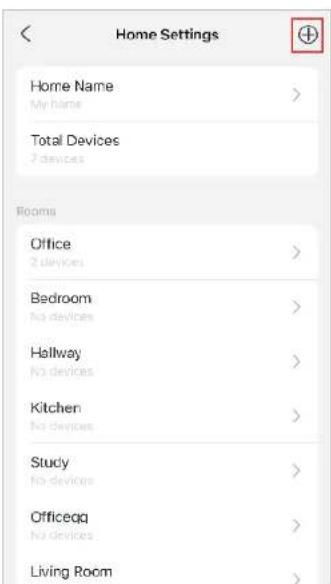
Tap My Home and go to Home Settings. Tap ⊕ to Add a Home. You can also add rooms for different homes in home settings page.
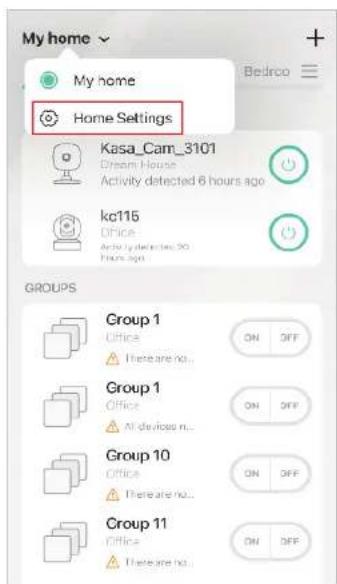
My home My home Bedrco Home Settings Kasa_Cam_3101 Dream House Activity detected 6 hours ago kc115 Office Active detected 20 Hours ago GROUPS Group 1 Office There are no... Group 1 Office All devices n... Group 10 Office There are no... Group 11 Office There are no... ON OFF

Home Settings Home Name My Name > Total Devices 7 devices Rooms Office 2 devices > Bedroom No devices > Hallway No devices > Kitchen No devices > Study No devices > Officeqq No devices > Living Room >

Set Schedules

Set schedules to automatically turn on/off your camera, or turn on/off patrol mode (the camera moving between your viewpoints) of your camera, at set times according to your daily routine.

Note: When the camera is off, you cannot watch live view video.

Note: Only pan/tilt cameras support Pantrol Mode schedules.

  1. Tap your camera in the Home page to enter 2. Tap + on the top right corner.

the live view page, and then tap

Power Schedule

Note: For pan/tilt cameras, select Power after tapping +.

  1. Set a schedule to turn your camera on or off. For example, I want to turn off the camera at 8:00 PM every day.
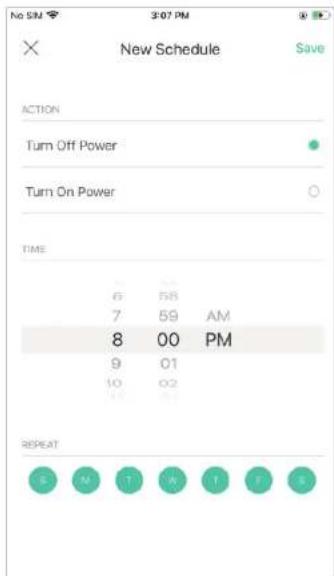
No SM 3:07 PM X New Schedule Save ACTION Turn Off Power Turn On Power TIME 6 58 7 59 AM 8 00 PM 9 01 10 02 REPEAT S M T R T F S

  1. Tap Save and you'll see your schedule listed in the Schedule Page. You can add more schedules following the same steps.
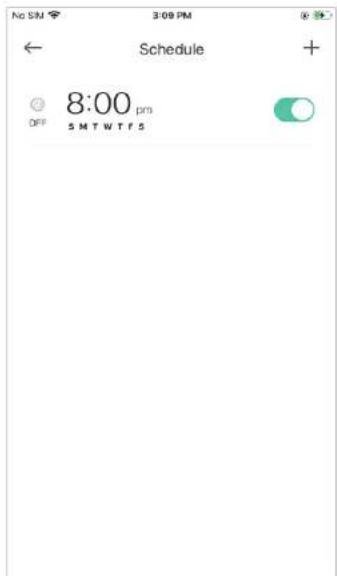
No SM 3:09 PM ← Schedule + OFF 8:00 pm SMTWTF5

  1. You can turn off your schedule any time at the Schedule page.
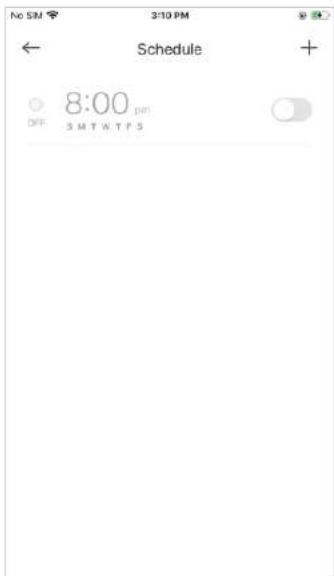
No SM 3:10 PM ← Schedule + 8:00 pm OFF 5 MT NTFS

Patrol Mode Schedule

Note: You need at least two viewpoints to use the patrol mode schedule.

Note: Only pan/tilt cameras support Pantrol Mode schedules. You can select Patrol Mode after tapping +.

1 Set a schedule to turn the patrol mode on or off. For example, I want to turn on patrol mode at 9:00 AM every weekday.
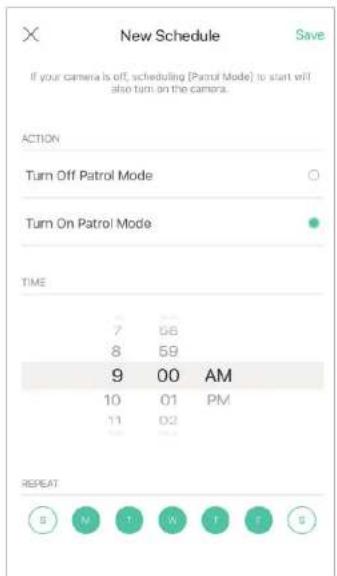
New Schedule If your camera is off, scheduling (Patrol mode) to start will also turn on the camera. ACTION Turn Off Patrol Mode Turn On Patrol Mode TIME 7 56 8 59 9 00 AM 10 01 PM 11 02 REPEAT S M T W T F S

  1. Tap Save and you'll see your schedule listed in the Schedule Page. You can add more schedules following the same steps.
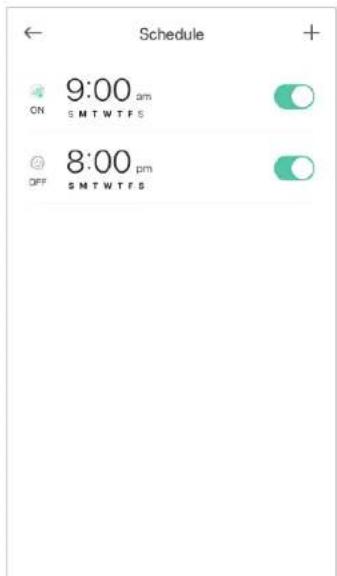
Schedule 9:00 pm ON SMTWTF S 8:00 pm OFF SMTWTF S

  1. You can turn off your schedule any time at the Schedule page.
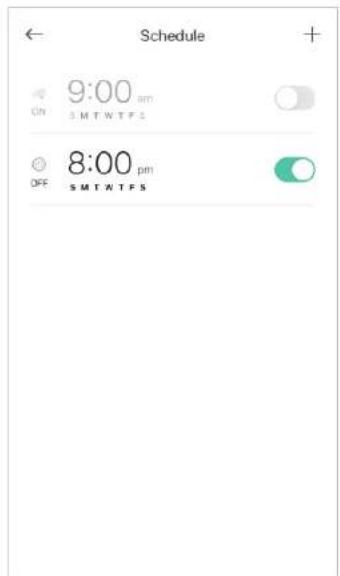
Schedule 9:00 pm On SMTWTF5 8:00 pm OFF SMTWTF5

Enable 24/7 Recording

When 24/7 Recording is enabled, your camera will record every minute of every day so you'll never miss a thing.

Note: You need to insert a microSD card first.

In the live view page, tap 📍 then 24/7 Recording. You can enable or disabled the feature and check the storage of your microSD card.

Encryption: When enabled, all videos recorded to your SD card can only be read from this Kasa camera.
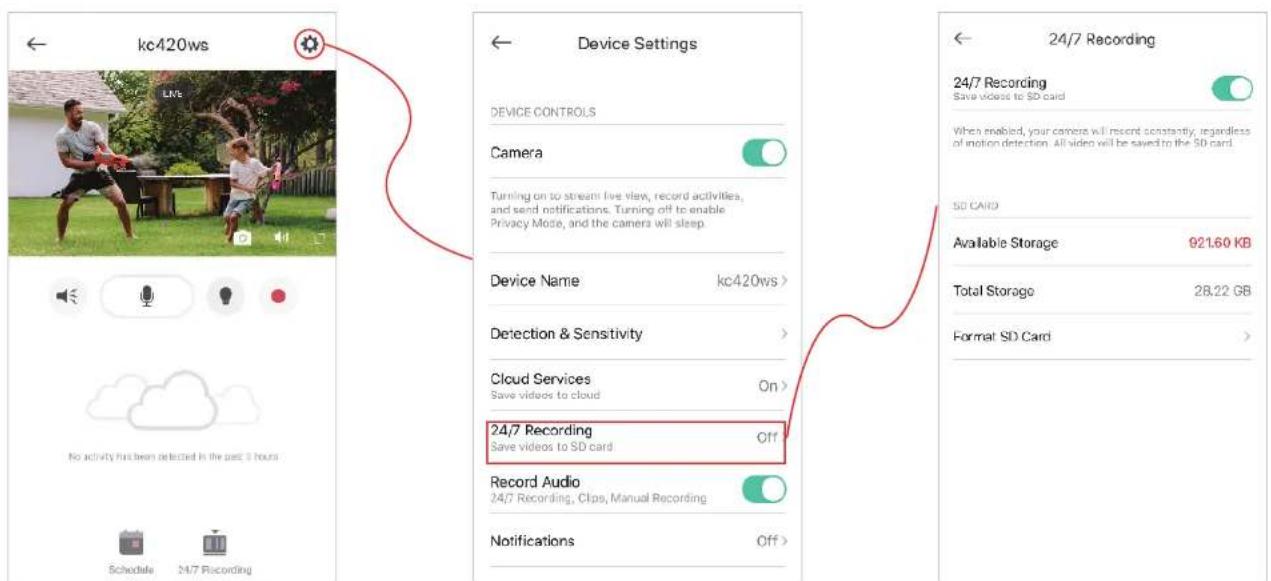
kc420ws Device Settings DEVICE CONTROLS Camera Turning on to stream live view, record activities, and send notifications. Turning off to enable Privacy Mode, and the camera will sleep. Device Name kc420ws > Detection & Sensitivity > Cloud Services On > Save videos to cloud Record Audio Off 24/7 Recording Save videos to SD card Record Audio 24/7 Recording, Clips, Manual Recording Notifications Off > 24/7 Recording Save videos to SD card When enabled, your camera will recent constantly, regardless of motion detection. All video will be saved to the SD card. SD CARD Available Storage 921.60 KB Total Storage 28.22 GB Format SD Card >

Check 24/7 Recording Videos

The recorded videos are saved in the microSD card. You can check it in the app.

In the Live View page, tap 📄 24/7 Recording . You will see recorded videos.
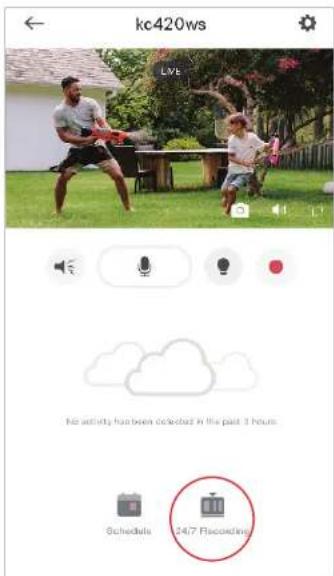
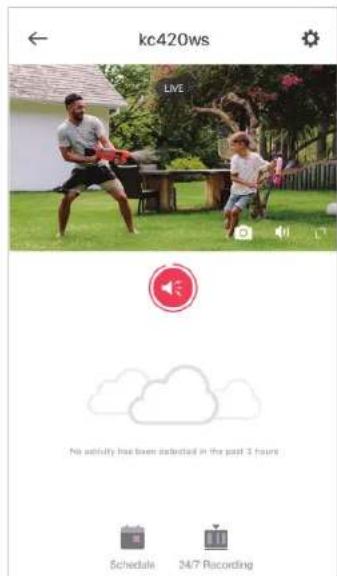
kc420ws Live No activity has been collected in the past 3 hours. Schedules 24/7 Recording

Turn On/Off Spotlight Temporarily

You can turn on/off spotlight temporarily in the Live View page. You can also customize the temporary period in Device Settings. Note: It is suitable for KC420WS only.

In the Live View page, tap

TP-LINK Kasa KC401 - Turn On/Off Spotlight Temporarily - 1

to turn on/off spotlight temporarily. To change the temporary period, go to Device Settings > Spotlight Settings.
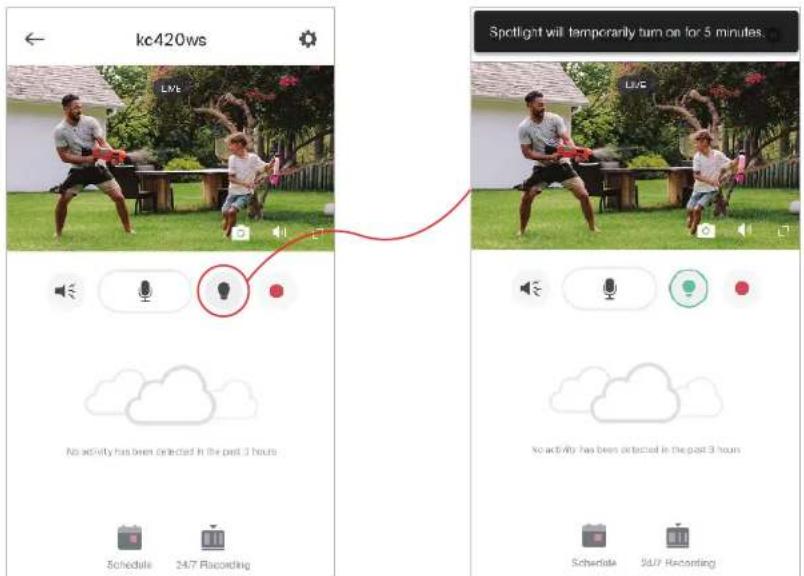
kc420ws Live No activity has been detected in the past 3 hours Schedule 2477 Recording Spotlight will temporarily turn on for 5 minutes. Live No activity has been detected in the past 3 hours Schedule 2477 Recording

Screen Recording

Quickly record what interests you in Live View.

Note: This feature is currently exclusive to Kasa Care subscribers.

Go to Me > Kasa Care, then subscribe the Kasa Care service for your camera.

In the Live View page, tap to record the

live view. The clips will be save to Activity.

Enable/Disable Siren

You can manually trigger the siren when viewing live video to scare away unwanted visitors if necessary. Note: It is suitable for KC420WS only.

In the Live View page, tap 🔔 and the siren on/off button appears. You can tap once to trigger the siren, and tap again to disarm it.
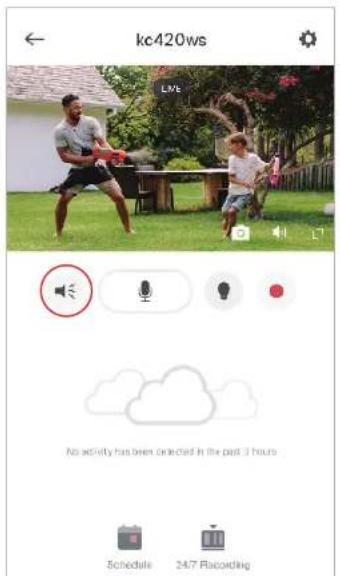
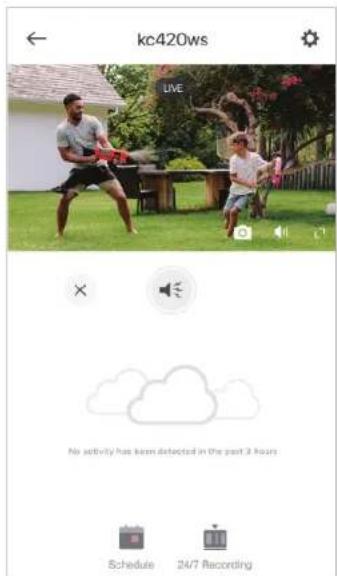
kc420ws LIVE No activity has been detected in the past 3 hours Schedule 24/7 Recording

kc420ws LIVE No activity has been detected in the past 3 hours Schedule 24/7 Recording

kc420ws LIVE No activity has been selected in the past 3 hours Schedule 347 Recording

Pan/Tilt

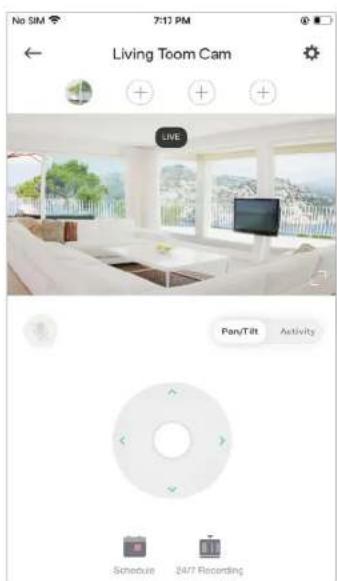
You can swipe up, down, left, and right on your phone to rotate and set the camera's point of view. Note: It is suitable for pan/tilt cameras only.

In the Live View page, tap the arrow icon to rotate your camera as you like.
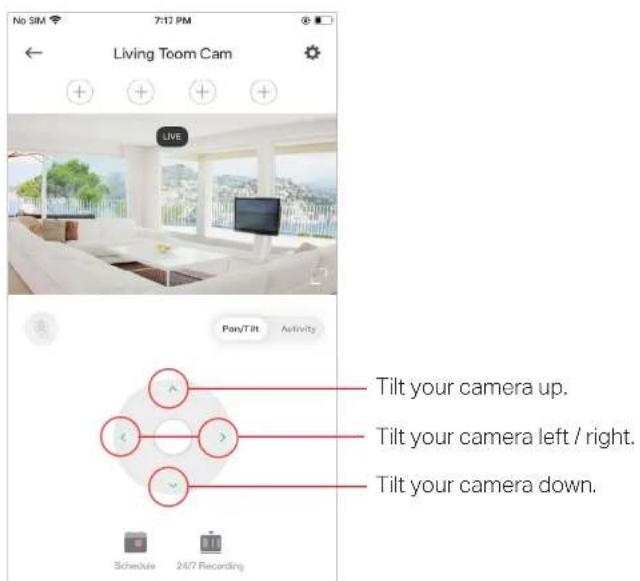
No SIM 7:12 PM Living Toom Cam LIVE Pany/Tilt Activity Tilt your camera up. Tilt your camera left / right. Tilt your camera down. Schedule 24/7 Recording

Add/Delete View Points

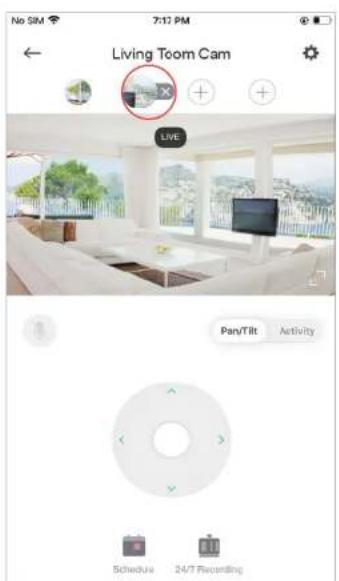
Add the spots that are most important to you, so you can easily turn your camera to the specific spot with a single tap. Note: It is suitable for pan/tilt cameras only.

In the Live View page, rotate your camera to locate the spot that matters to you, then tap + to add it as a viewpoint. Follow the same steps to add other view points.

Tap the viewpoint you have added and X appears. Then tap X to delete the viewpoint.
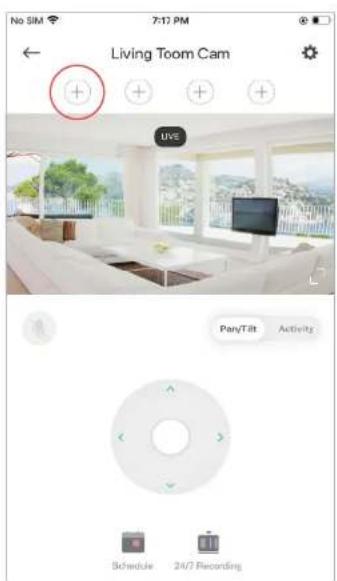
No SIM 7:17 PM Living Toom Cam UVE Pen/Tilt Activity Schedule 24/7 Recording

No SIM 7:17 PM Living Toom Cam LIVE Pan/Tilt Activity Schedule 24/7 Recording

No SIM 7:12 PM Living Toom Cam LIVE Pan/Tilt Activity Schedule 24/7 Recarding

Manage Device Settings

Device controls, camera settings, and advanced are available on the device settings page.

  1. In the live view page, tap ⚙ to go to Device Settings page.

  2. Turn on or off the camera.

When Camera is turned off, it means privacy mode is enabled. You can turn the camera off when you do not want your camera to stream live view and record videos.
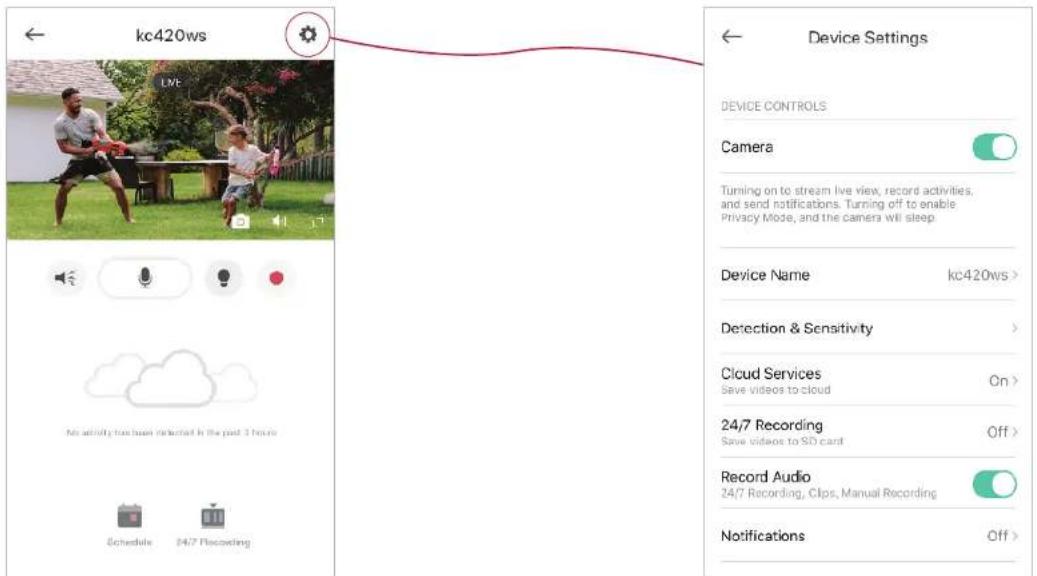
kc420ws Device Settings DEVICE CONTROLS Camera Turning on to stream live view, record activities, and send notifications. Turning off to enable Privacy Mode, and the camera will sleep Device Name kc420ws> Detection & Sensitivity > Cloud Services On > Save videos to cloud 24/7 Recording Off > Save videos to SD card Record Audio 24/7 Recording, Clips, Manual Recording Notifications Off >

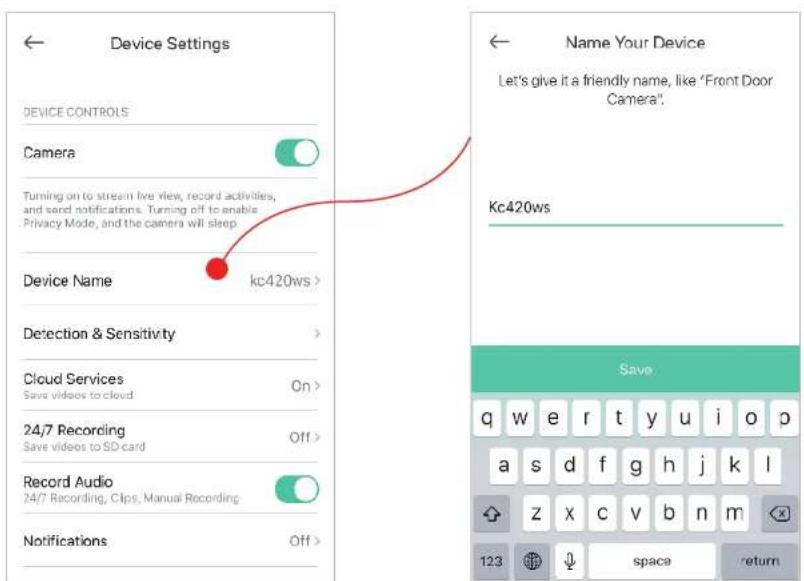
  1. Edit device name.

Device Settings Device CONTROLS Camera Turning on to stream live view, record activities, and send notifications. Turning off to enable Privacy Mode, and the camera will sleep. Device Name kc420ws > Detection & Sensitivity > Cloud Services On > Save videos to cloud 24/7 Recording Off > Record Audio 24/7 Recording, Clips, Manual Recording Notifications Off > Name Your Device Let's give it a friendly name, like 'Front Door Camera'. Kc420ws Save q w e r t y u i o p a s d f g h j k l z x c v b n m 123 space return

  1. Set motion detection for recording videos.

Enable Detect Motion if you want your camera to record when motion is detected. Also set the sensitivity of detection.

Enable Detect Person if you want your camera to record when person is detected.
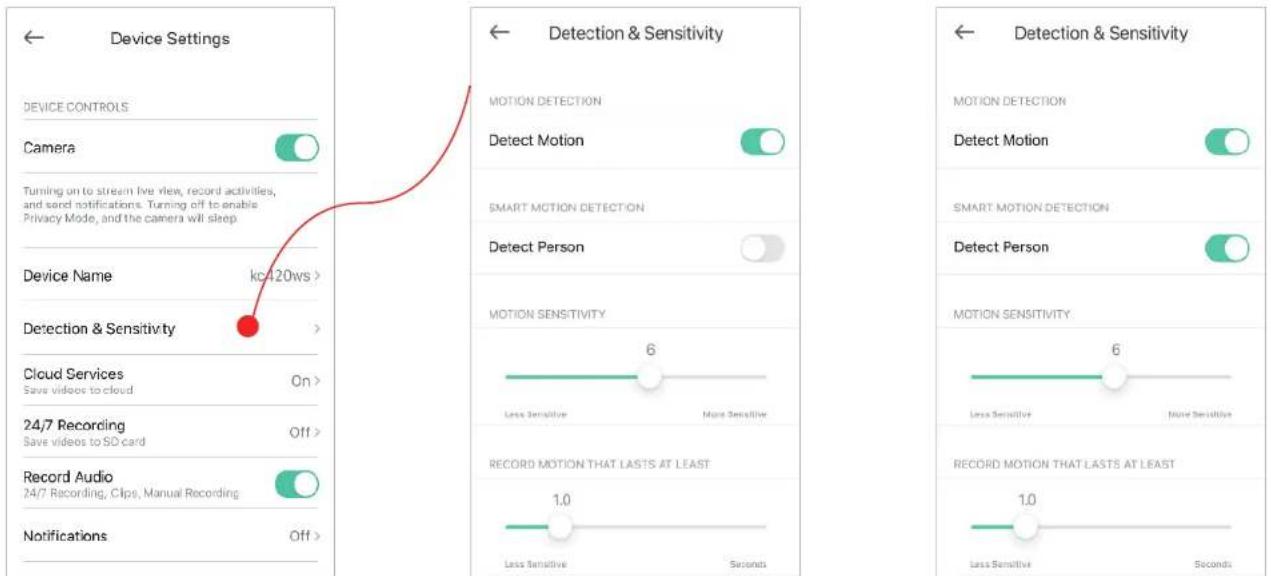
Device Settings DEVICE CONTROLS Camera Turning on to stream live view, record activities, and send notifications. Turning off to enable Privacy Mode, and the camera will sleep Device Name kc/120ws > Detection & Sensitivity Cloud Services Save videos to cloud On > 24/7 Recording Save videos to SD card Off > Record Audio 24/7 Recording, Clips, Manual Recording Notifications Off > Detection & Sensitivity MOTION DETECTION Detect Motion SMART MOTION DETECTION Detect Person MOTION SENSITIVITY 6 Less Sensitive More Sensitive RECORD MOTION THAT LASTS AT LEAST 1.0 Less Sensitive Seconds Detection & Sensitivity MOTION DETECTION Detect Motion SMART MOTION DETECTION Detect Person MOTION SENSITIVITY 6 Less Sensitive More Sensitive RECORD MOTION THAT LASTS AT LEAST 1.0 Less Sensitive Seconds

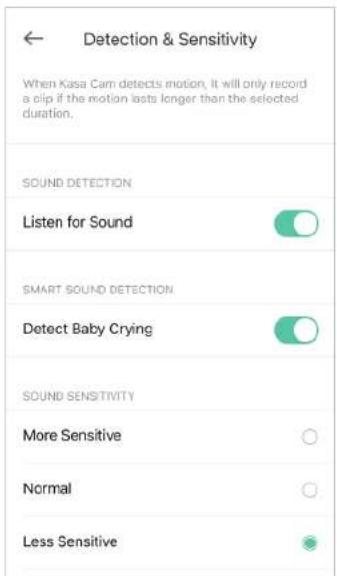
  1. Set sound detection for recording videos.

Enable Listen for Sound if you want your camera to record when sound is detected. Then set its sensitivity.

Enable Detect Baby Crying if you want your camera to record when crying is detected.

Note: Only indoor cameras support baby crying detection.
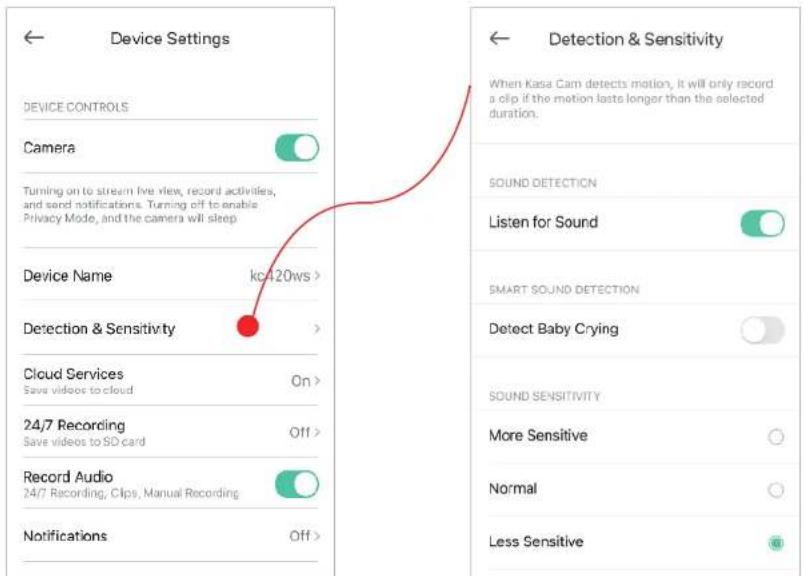
Device Settings DEVICE CONTROLS Camera Turning on to stream live view, record activities, and send notifications. Turning off to enable Privacy Mode, and the camera will sleep. Device Name kc420ws > Detection & Sensitivity Cloud Services Save videos to cloud On > 24/7 Recording Save videos to SD card Off > Record Audio 24/7 Recording, Clips, Manual Recording Notifications Off > Detection & Sensitivity When Kasa Cam detects motion, it will only record a clip if the motion lasts longer than the selected duration. SOUND DETECTION Listen for Sound SMART SOUND DETECTION Detect Baby Crying SOUND SENSITIVITY More Sensitive Normal Less Sensitive

Detection & Sensitivity When Kasa Cam detects motion, it will only record a clip if the motion lasts longer than the selected duration. SOUND DETECTION Listen for Sound SMART SOUND DETECTION Detect Baby Crying SOUND SENSITIVITY More Sensitive Normal Less Sensitive

6. Turn on/off cloud services

Turn Cloud Services on/off for your cameras. When it is on, video clips are recorded whenever motion is detected and saved to the Kasa Cloud. Note: Cloud Services appears in Device Settings when you subscribe to the Kasa Care service.
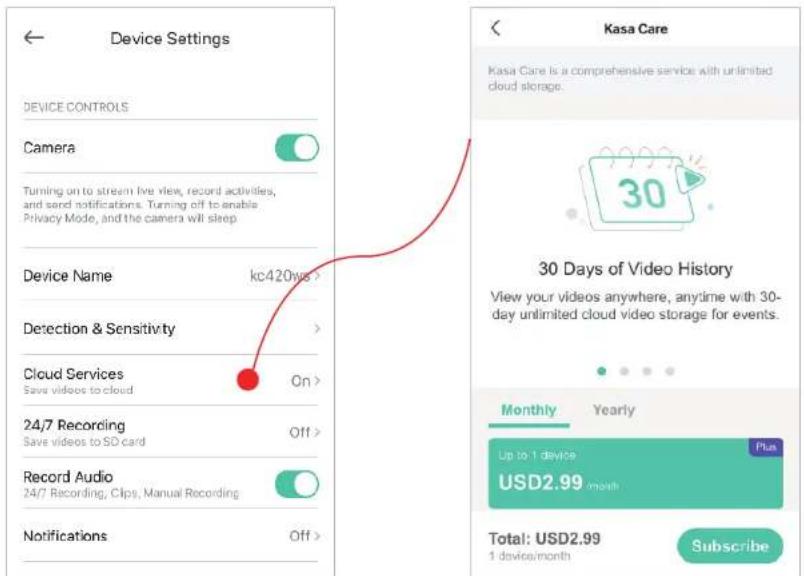
Device Settings DEVICE CONTROLS Camera Turning on to stream live view, record activities, and send notifications. Turning off to enable Privacy Mode, and the camera will sleep Device Name kc420ws > Detection & Sensitivity Cloud Services Save videos to cloud On > 24/7 Recording Save videos to SD card Off > Record Audio 24/7 Recording, Clips, Manual Recording Notifications Off > Kasa Care Kasa Care is a comprehensive service with unlimited cloud storage. 30 Days of Video History View your videos anywhere, anytime with 30- day unlimited cloud video storage for events. Monthly Yearly Up to 1 device Plus USD2.99 month Total: USD2.99 1 device/month Subscribe

7.24/7 Recording

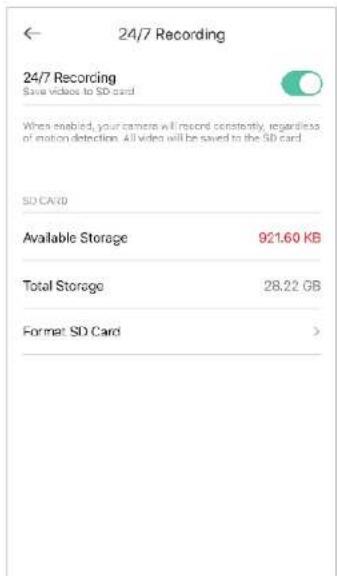
Enable 24/7 Recording and your camera will record constantly. All videos will be saved to the SD card. Note: Insert a microSD card into the SD card slot on the device and initialize it in the Kasa Smart app.
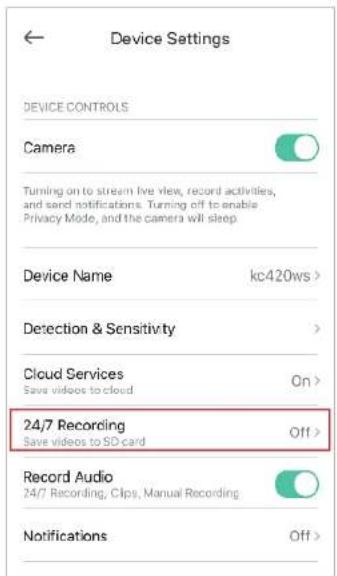
Device Settings DEVICE CONTROLS Camera Turning on to stream live view, record activities, and send notifications. Turning off to enable Privacy Mode, and the camera will sleep. Device Name kc420ws > Detection & Sensitivity > Cloud Services On > Save videos to cloud 24/7 Recording Off > Save videos to SD card Record Audio 24/7 Recording, Clips, Manual Recording Notifications Off >

24/7 Recording 24/7 Recording Save videos to SD card When enabled, your camera will record constantly, regardless of motion detection. All video will be saved to the SD card. SD CARD Available Storage 921.60 KB Total Storage 28.22 GB Format SD Card >

  1. Choose whether to record audio.

Enable Record Audio if you want to also record sound during recording.
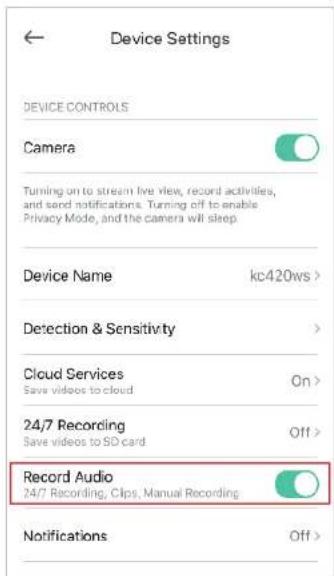
Device Settings DEVICE CONTROLS Camera Turning on to stream live view, record activities, and send notifications. Turning off to enable Privacy Mode, and the camera will sleep. Device Name kc420ws > Detection & Sensitivity > Cloud Services On > Save videos to cloud 24/7 Recording Off > Save videos to SD card Record Audio 24/7 Recording, Clips, Manual Recording Notifications Off >

  1. Choose whether to receive notifications.

Enable Activity Notifications if you want to be notified when activity is detected. You can also set the time when you want to receive notifications. If you don't want to be bothered by frequent notifications, enable Automatically Limit Notifications.
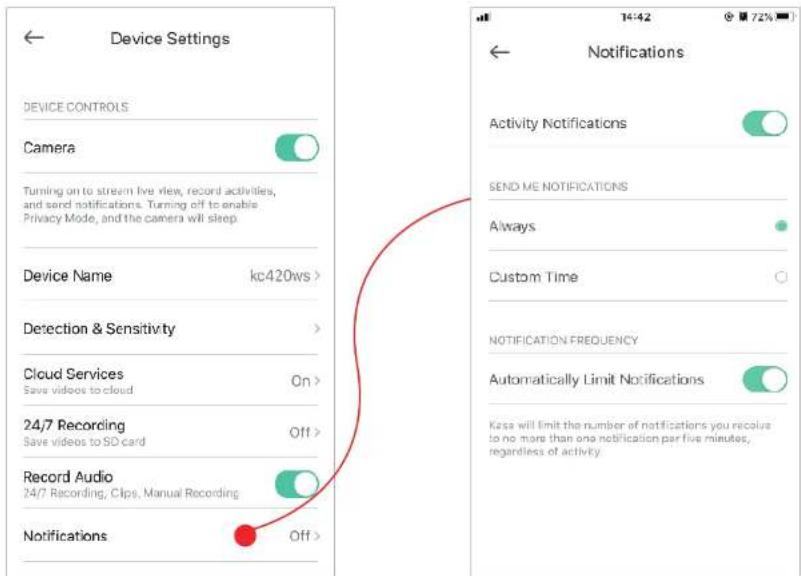
Device Settings DEVICE CONTROLS Camera Turning on to stream live view, record activities, and send notifications. Turning off to enable Privacy Mode, and the camera will sleep. Device Name kc420ws > Detection & Sensitivity > Cloud Services On > Save videos to cloud 24/7 Recording Off > Save videos to SD card Record Audio 24/7 Recording, Clips, Manual Recording Notifications Off > Activities Notifications SEND ME NOTIFICATIONS Always Custom Time NOTIFICATION FREQUENCY Automatically Limit Notifications Kessa will limit the number of notifications you receive to no more than one notification per five minutes, regardless of activity.

  1. Set activity zones.

Control what alerts you by creating multiple custom activity zones around areas that are important to you.
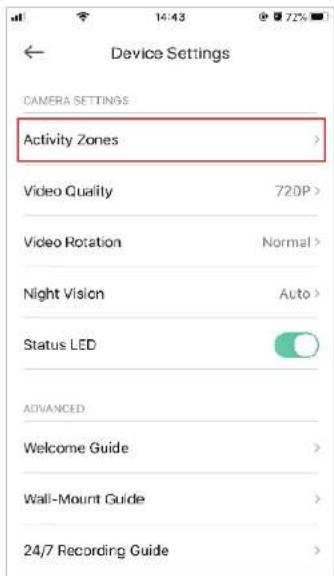
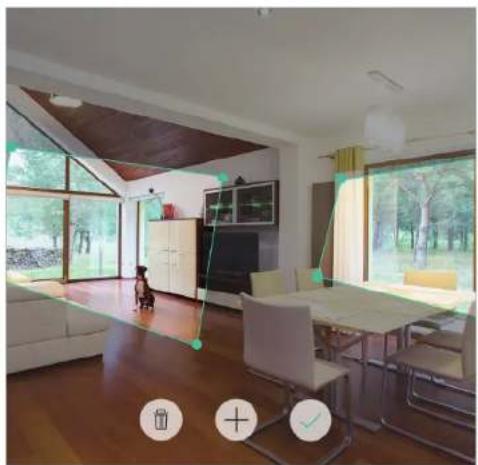
Device Settings CAMERA SETTINGS Activity Zones > Video Quality 720P > Video Rotation Normal > Night Vision Auto > Status LED ADVANCED Welcome Guide > Wall-Mount Guide > 24/7 Recording Guide >

TP-LINK Kasa KC401 - 7.24/7 Recording - 6

natural_image Interior view of a modern living room with large windows and wooden flooring (no visible text or symbols)
  1. Choose the resolution for videos.

The highest quality looks better but requires faster internet connection and larger size for saving the videos.
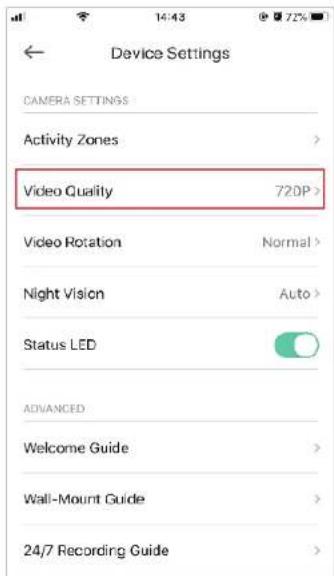
Device Settings CAMERA SETTINGS Activity Zones > Video Quality 720P > Video Rotation Normal > Night Vision Auto > Status LED ADVANCED Welcome Guide > Wall-Mount Guide > 24/7 Recording Guide >

  1. Choose when you want the night vision to be on.

Night vision allows you to see clearly at night. You can choose Automatic to turn on night vision automatically in low light conditions and turn off in daylight.

Note: Night Vision is available with indoor cameras only.
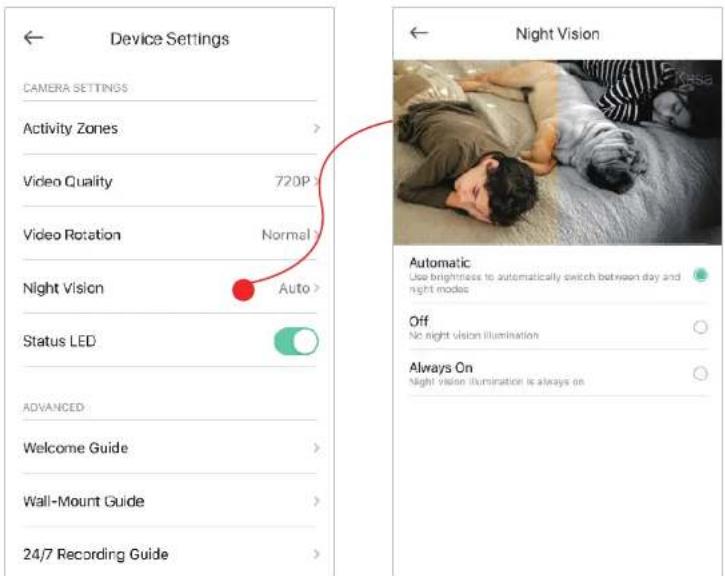
Device Settings CAMERA SETTINGS Activity Zones > Video Quality 720P Video Rotation Normal Night Vision Auto > Status LED ADVANCED Welcome Guide > Wall-Mount Guide > 24/7 Recording Guide Night Vision Automatic Use brightness to automatically switch between day and night mode Off No night vision illumination Always On Night vision illumination is always on

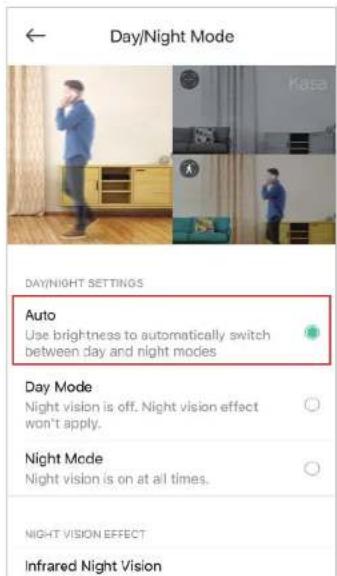
14. Set Day/Night Mode and the Night Vision Effect

Night vision allows you to see clearly at night. You can choose Automatic to turn on night vision automatically in low light conditions and turn off in daylight.

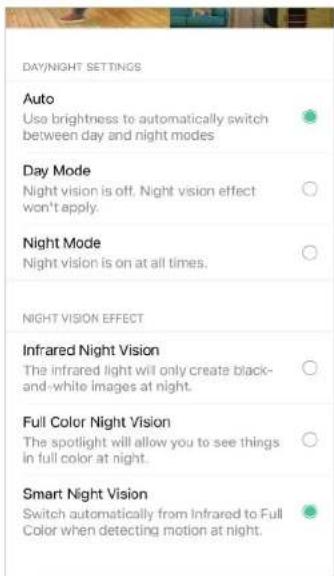
Full-Color night vision allows you to see things in full color at night. You can choose Smart Night Vision to switch automatically from Infrared to Full color when detecting motion at night.

Note: Day/Night Mode is available with outdoor cameras only.
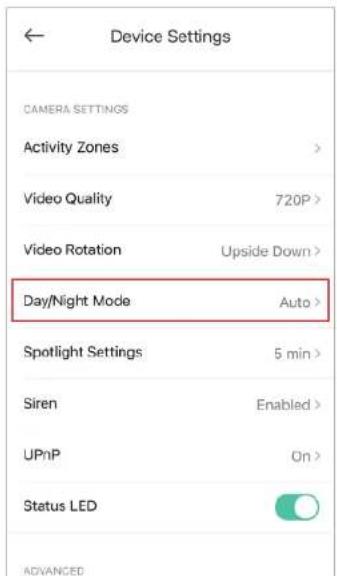
Device Settings CAMERA SETTINGS Activity Zones > Video Quality 720P > Video Rotation Upside Down > Day/Night Mode Auto > Spotlight Settings 5 min > Siren Enabled > UPnP On > Status LED ADVANCED

Day/Night Mode DAY/NIGHT SETTINGS Auto Use brightness to automatically switch between day and night modes Day Mode Night vision is off. Night vision effect won't apply. Night Mode Night vision is on at all times. NIGHT VISION EFFECT Infrared Night Vision

DAY/NIGHT SETTINGS Auto Use brightness to automatically switch between day and night modes Day Mode Night vision is off. Night vision effect won't apply. Night Mode Night vision is on at all times. NIGHT VISION EFFECT Infrared Night Vision The infrared light will only create black- and-white images at night. Full Color Night Vision The spotlight will allow you to see things in full color at night. Smart Night Vision Switch automatically from Infrared to Full Color when detecting motion at night.

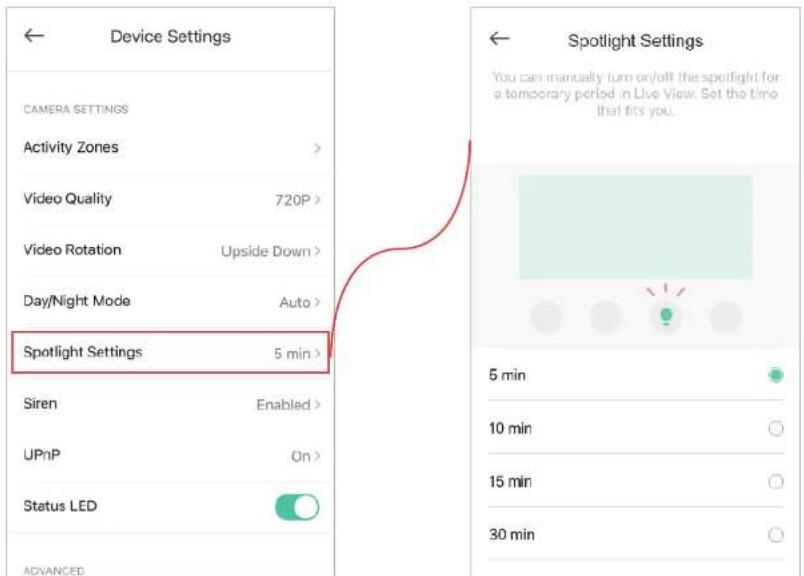
15. Spotlight settings

You can temporarily turn on/off the spotlight in Live View. Here you can customzie the temporary period.

Note: Spotlight Settings is available with outdoor cameras only.
Device Settings CAMERA SETTINGS Activity Zones > Video Quality 720P > Video Rotation Upside Down > Day/Night Mode Auto > Spotlight Settings 5 min > Siren Enabled > UPnP On > Status LED ADVANCED Spotlight Settings You can manually turn on/off the spotlight for a temporary period in Live View. Set the time that fits you. 5 min 10 min 15 min 30 min

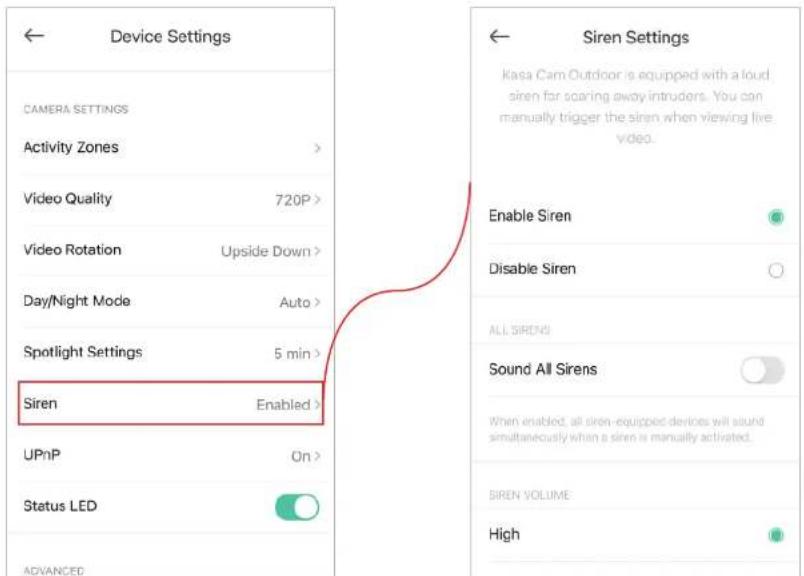
16. Siren settings

You can enable or disable siren, enable sound all sirens, set the siren volume and siren duration.

Note: Siren is available with outdoor cameras only.
Device Settings CAMERA SETTINGS Activity Zones > Video Quality 720P > Video Rotation Upside Down > Day/Night Mode Auto > Spotlight Settings 5 min > Siren Enabled > UPnP On > Status LED ADVANCED Siren Settings Kasa Cam Outdoor is equipped with a loud siren far scaring away intruders. You can manually trigger the siren when viewing live video. Enable Siren Disable Siren ALL SIRENS Sound All Sirens When enabled, all siren-equipped devices will sound simultaneously when a siren is manually activated. SIREN VOLUME High

17. UPnP

UPnP (Universal Plug and Play) can help make your video streaming smoother. Make sure UPnP is enabled on your router.
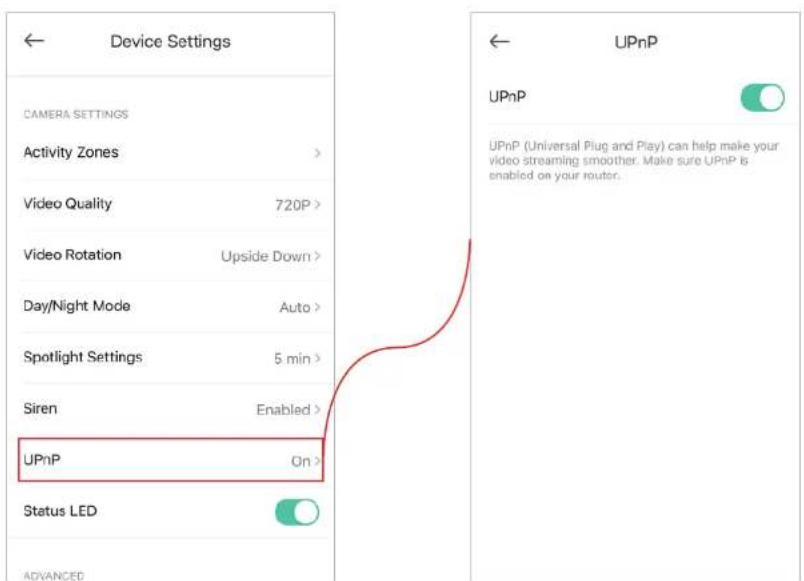
Device Settings CAMERA SETTINGS Activity Zones > Video Quality 720P > Video Rotation Upside Down > Day/Night Mode Auto > Spotlight Settings 5 min > Siren Enabled > UPnP On > Status LED ADVANCED UPnP UPnP (Universal Plug and Play) can help make your video streaming smoother. Make sure UPnP is enabled on your router.

18. Status LED

You can turn off the status LED of your camera.
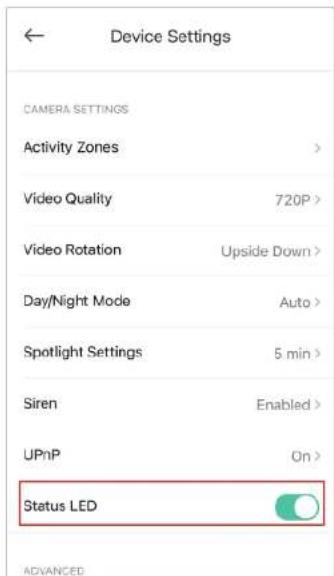
Device Settings CAMERA SETTINGS Activity Zones > Video Quality 720P > Video Rotation Upside Down > Day/Night Mode Auto > Spotlight Settings 5 min > Siren Enabled > UPnP On > Status LED ADVANCED

Reset Your Camera

Kasa Smart app provides two methods to reset your camera.

Method 1

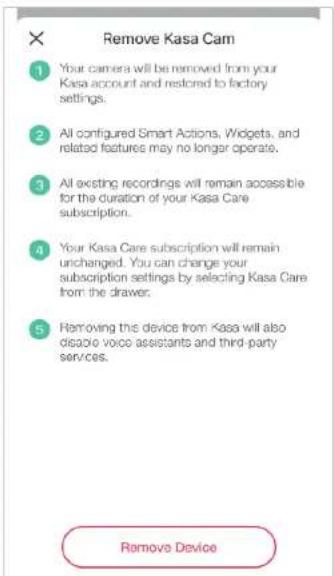
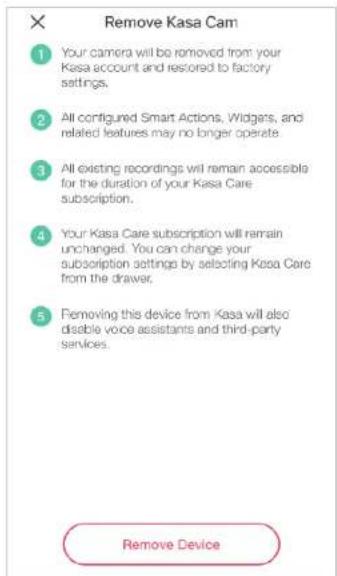
Long press your camera on the Home page and tap 📄. Then tap Remove Device. Your camera will be removed from your Kasa account and restored to factory settings.
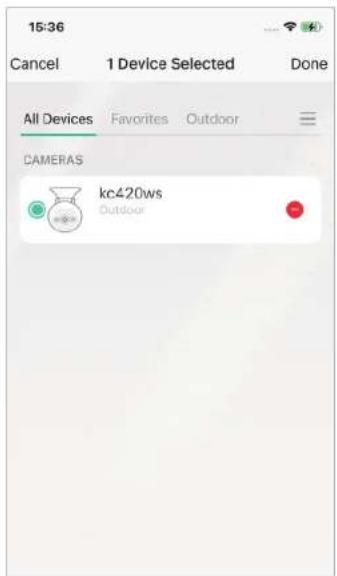
15:36 Cancel 1 Device Selected Done All Devices Favorites Outdoor CAMERAS kc420ws Outdoor

Remove Kasa Cam 1 Your camera will be removed from your Kasa account and restored to factory settings. 2 All configured Smart Actions, Widgets, and related features may no longer operate. 3 All existing recordings will remain accessible for the duration of your Kasa Care subscription. 4 Your Kasa Care subscription will remain unchanged. You can change your subscription settings by selecting Kasa Care from the drawer. 5 Removing this device from Kasa will also ignore voice assistants and third-party services. Remove Device

Method 2

Tap your camera and go to the Devices Settings page. Then tap Remove Device in the bottom. Your camera will be removed from your Kasa account and restored to factory settings.
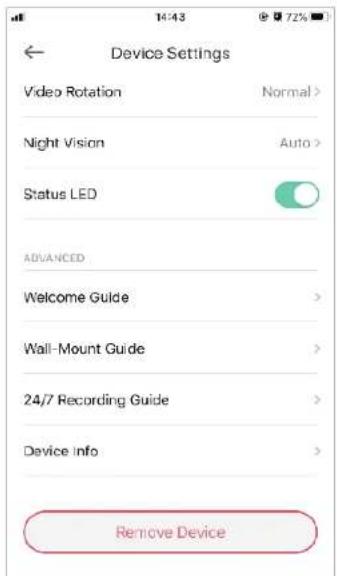
Device Settings Video Rotation Normal > Night Vision Auto > Status LED ADVANCED Welcome Guide > Wall-Mount Guide > 24/7 Recording Guide > Device Info > Remove Device

Remove Kasa Cam 1 Your camera will be removed from your Kasa account and restored to factory settings. 2 All configured Smart Actions, Widgets, and related features may no longer operate 3 All existing recordings will remain accessible for the duration of your Kasa Care subscription. 4 Your Kasa Care subscription will remain unchanged. You can change your subscription settings by selecting Kasa Care from the drawer. 5 Removing this device from Kasa will also disable voice assistants and third-party services. Remove Device

Cameras

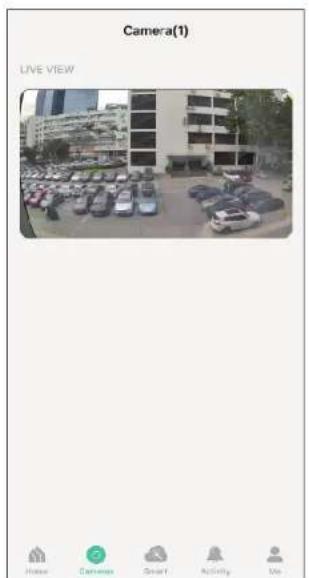
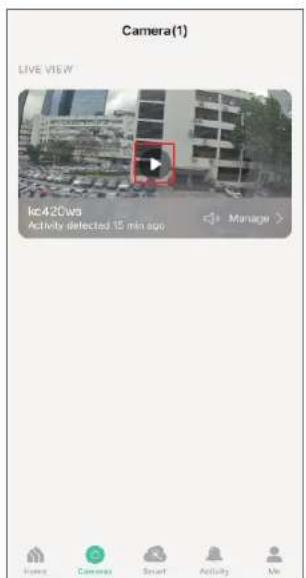
Kasa Smart app provides a shortcut to live view all your cameras in one page.

Open the Kasa Smart app, tap Cameras on the bottom and you can live view all your kasa cameras in the same page.
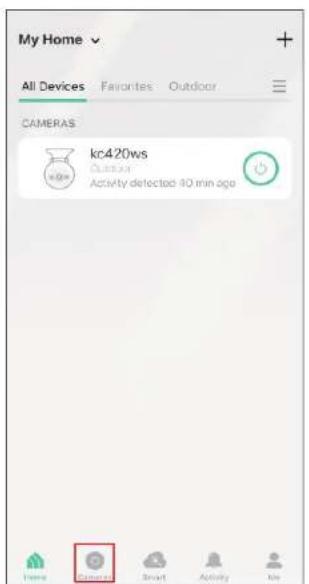
My Home All Devices Favorites Outdoor CAMERAS kc420ws Outlooker Activity detected 40 min ago Home Smart Activity File

Camera(1) LIVE VIEW Ic420ws Activity detected 15 min ago Manage > Hoot Camera Smart Activity Me

Camera(1) LIVE VIEW Home Camera Smart Activity We

Grouping

A group is a collection of devices that you can tap a single action to control all devices belonging in that group. It is accessible in the home screen just like any other devices.

You can group together smart plugs, smart switches and smart bulbs.

1. Create Groups

Step 1. Tap the Ⓐ button in the Home page of the Kasa Smart app, and select Group.
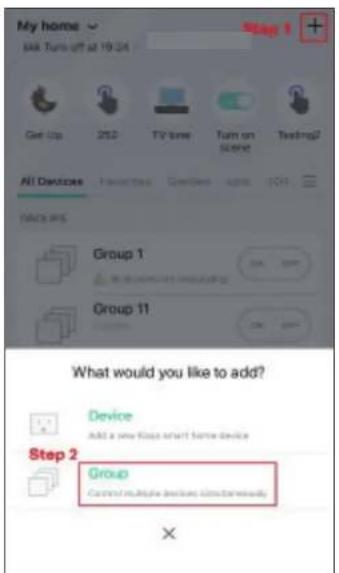
My home Take Turn off at 19:24 Get Up 250 TV time Turn on scene Testing? All Devices I want to test Cancels applic OK! Data and Group 1 Group 11 What would you like to add? Device Add a new class smart home device Step 2 Group Control multiple devices (not currently) X

Step2. Name your group and set location for it. Select smart devices you want to add to the group and tap SAVE.
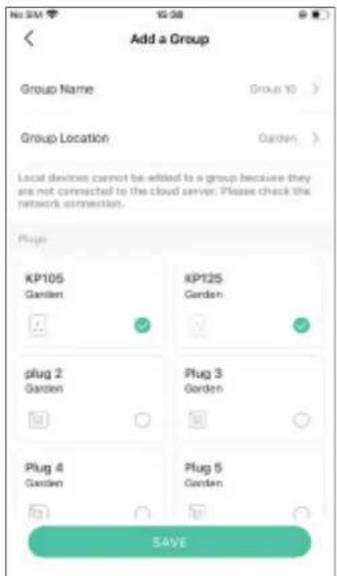
Add a Group Group Name Group 10 > Group Location Garden > Local devices cannot be added to a group because they are not connected to the cloud server. Please check the network connection. Plug KP105 Garden KP125 Garden plug 2 Garden Plug 3 Garden Plug 4 Garden Plug 5 Garden SAVE

Step3. The created group is listed in the Home page. You can tap ON or OFF to turn on/off the smart devices together in the group.
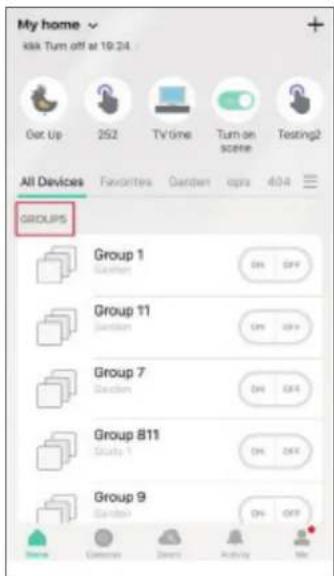
My home kik Turn off at 19:24 Get Up 252 TV time Turn on Testing? All Devices Favorites Garden cps 404 GROUPS Group 1 Garden ON OFF Group 11 Garden ON OFF Group 7 Garden ON OFF Group 811 Study 1 ON OFF Group 9 Garden ON OFF Commerce Desert Airbnb Me

2. Manage the group

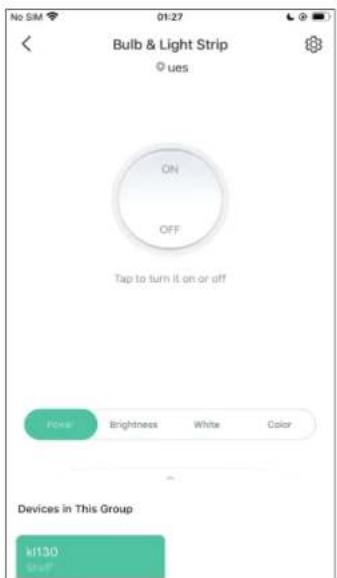
  1. Tap the group you want to manage. 2. Turn on or off the group in the status page.
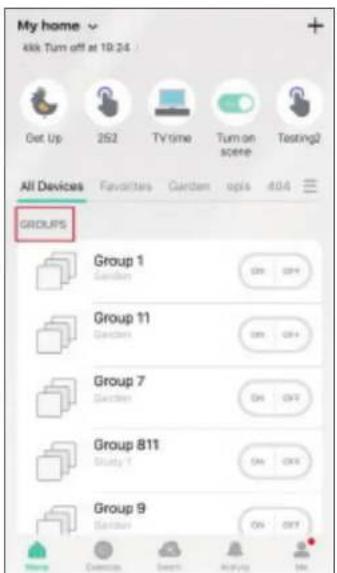
My home 4kk Turn off at 10:24 Get Up 252 TV time Turn on scene Testing2 All Devices Favorites Garden opts 404 GROUPS Group 1 Garden Group 11 Garden Group 7 Garden Group 811 Study 1 Garden Group 9 Garden Name Currency Secret Ranking Go

No SIM 01:27 Bulb & Light Strip © ues ON OFF Tap to turn it on or off Polar Brightness White Color Devices in This Group k130 Shelf

  1. Tap the top right corner to enter the settings page. Tap Group Name to rename the group and Location for relocate it.
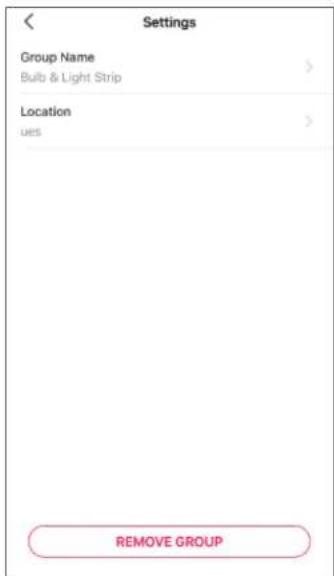
Settings Group Name Bulb & Light Strip Location ues REMOVE GROUP

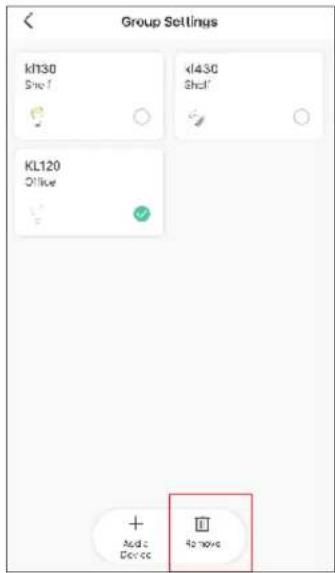
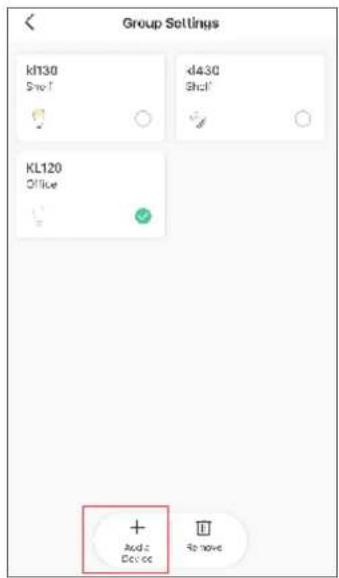
  1. Swipe down the status page and tap Group Settings to add/delete device in the group. Tap Add Device and you can choose the available devices and tap ADD to add devices to your group.

  2. Back to the Group Settings page, you can choose the device you want to delete and tap Delete to remove devices from the group.
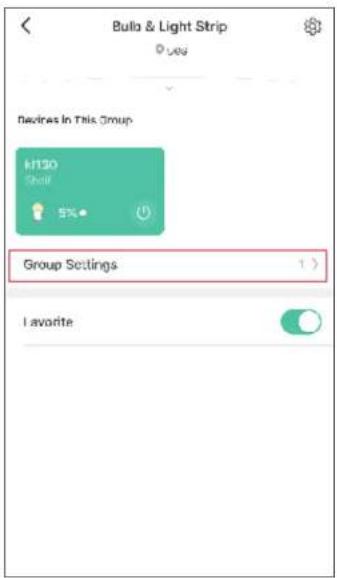
Bulla & Light Strip • Yes Decires In This Group K130 Shell 5% Group Settings 1 > Favorite

Group Settings k130 Sho-1 d430 Sho-1 KL120 Office + Audio Device Remove

Group Settings kh30 Shc1 d430 Shc1 KL120 Offive + Add Device Remove

3. Delete a Group

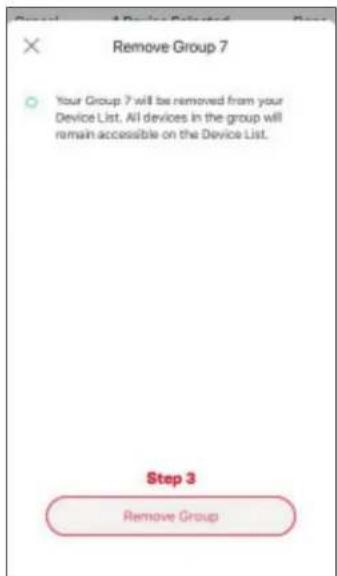
Option 1. From device list, long press an individual group until the delete symbol appears on the right. Tap the delete symbol.
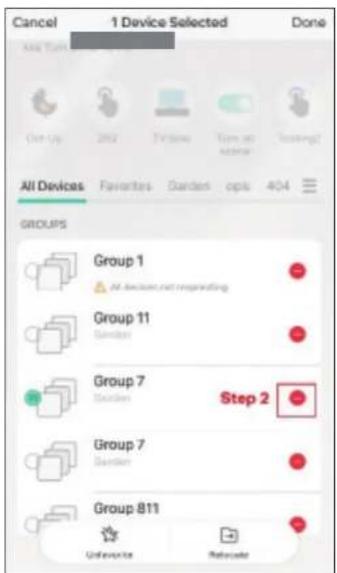
Cancel 1 Device Selected Done All Devices Favorites Garden opts 404 GROUPS Group 1 All devices not regarding Group 11 Garden Group 7 Garden Step 2 Group 7 Garden Group 811 Unfavorite Refreeze

Remove Group 7 Your Group 7 will be removed from your Device List. All devices in the group will remain accessible on the Device List. Step 3 Remove Group

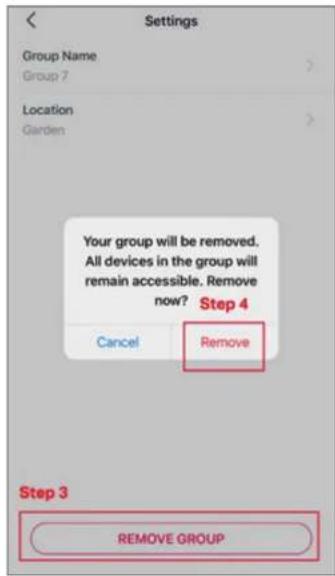
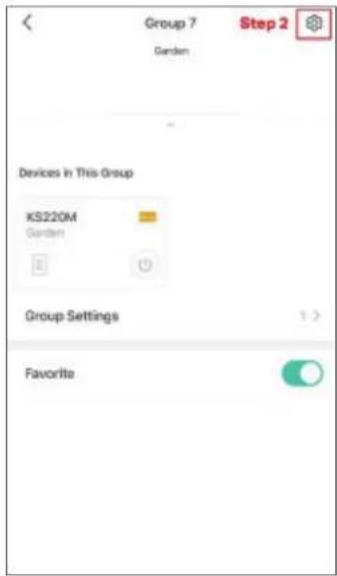
Option 2. Tap the gear icon on the Status Page to enter the Group Settings page. Then tap REMOVE GROUP and Remove to remove the device from your group.
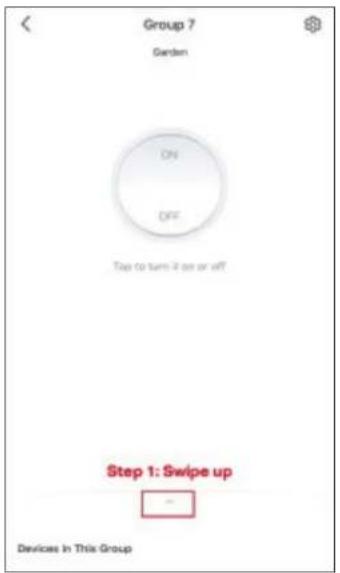
Group 7 Garden ON OFF Top to turn if up or off Step 1: Swipe up Devices In This Group

Group 7 Garden Step 2 Devices in This Group KS220M Garden Group Settings Favorite

Settings Group Name Group 7 Location Garden Your group will be removed. All devices in the group will remain accessible. Remove now? Step 4 Cancel Remove Step 3 REMOVE GROUP

Me Page

The Kasa app offers a list of advanced features to fulfill diverse smart home needs.

Manage Your Account

Launch the Kasa Smart app. Tap Go to the Me page and tap your account or profile. Here you can change your profile picture, password, and login security settings.
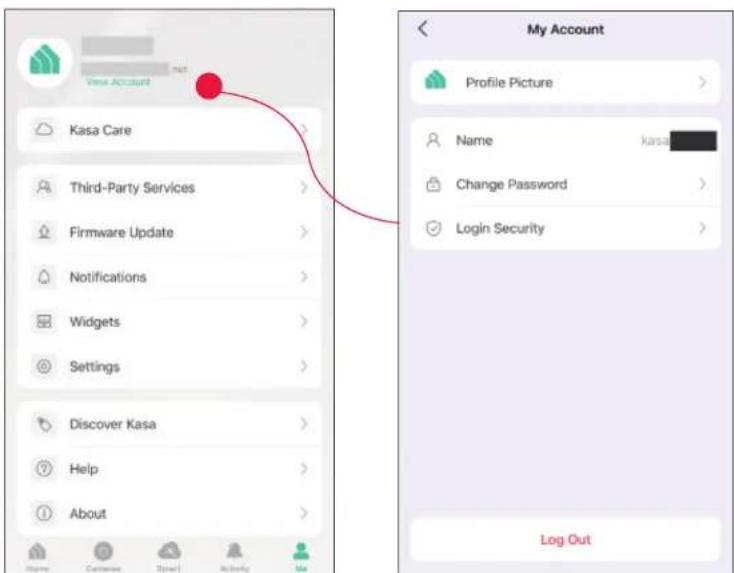
View Account Kasa Care Third-Party Services Firmware Update Notifications Widgets Settings Discover Kasa Help About My Account Profile Picture Name kasa Change Password Login Security Log Out

Kasa Care

Kasa Care is a cloud-based service that allows users to view and download activity recordings from a Kasa Cam. When you purchase a Kasa Cam, you can subscribe to our advanced plan to enjoy our Kasa Care cloud service.

To view the Kasa Care plan, from the Kasa APP > Tap Me on the bottom> Select Kasa Care.

Note: With the Kasa Care service, every Kasa account is eligible to sign up for a free trial for the new Kasa Care plan once.
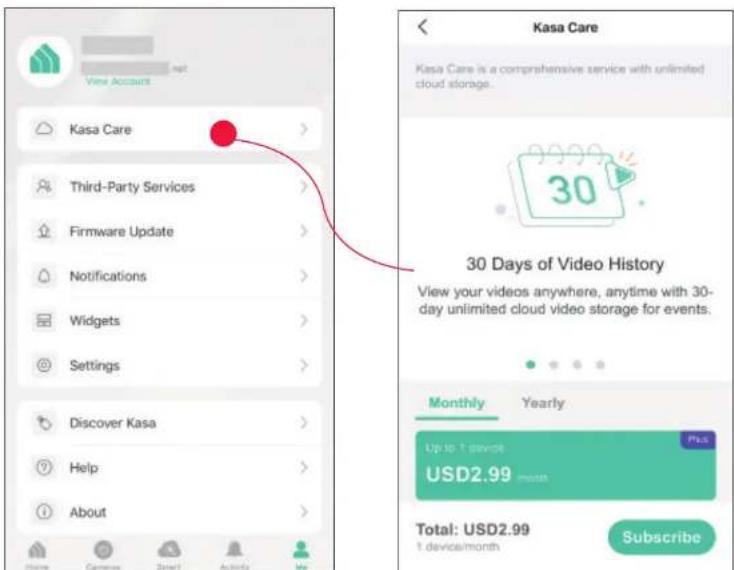
View Account Kasa Care Third-Party Services Firmware Update Notifications Widgets Settings Discover Kasa Help About Kasa Care Kasa Care is a comprehensive service with unlimited cloud storage. 30 Days of Video History View your videos anywhere, anytime with 30-day unlimited cloud video storage for events. Monthly Yearly Up to 1 device USD2.99 month Total: USD2.99 1 device/month Subscribe

Third Party Services

Use the Kasa Smart app to pair your Smart devices with Amazon Alexa or Google Home Assistant, and enjoy a full hands-free experience. Kasa helps manage the rest of your smart home too, working with Samsung Smart Things to trigger changes when you arrive home or leave for the day.

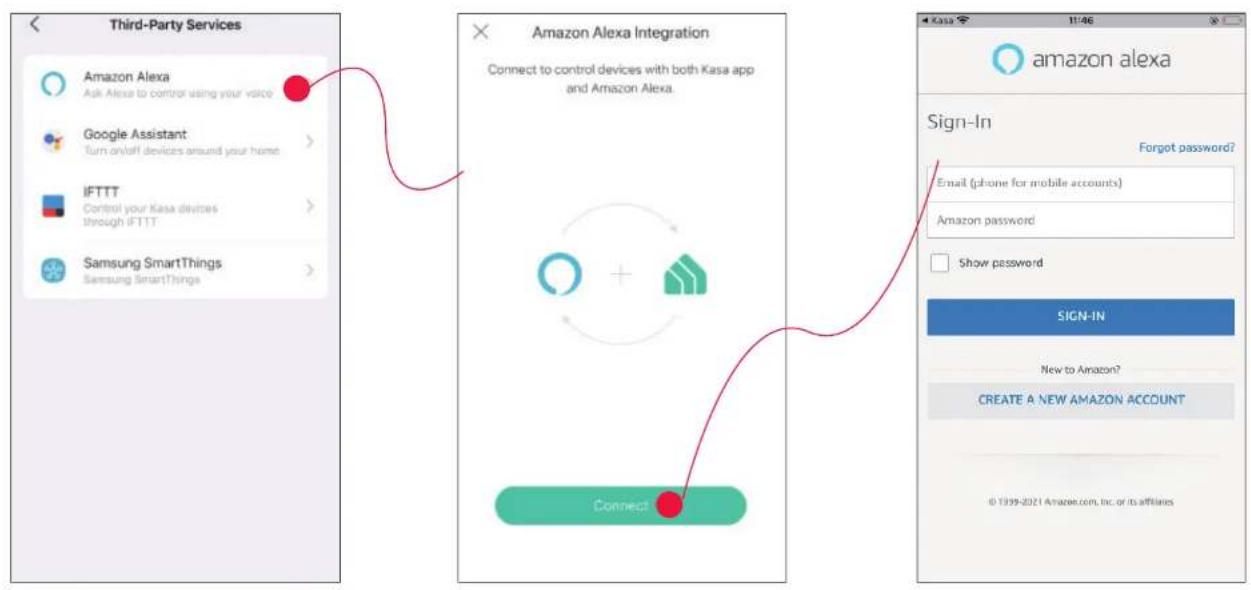
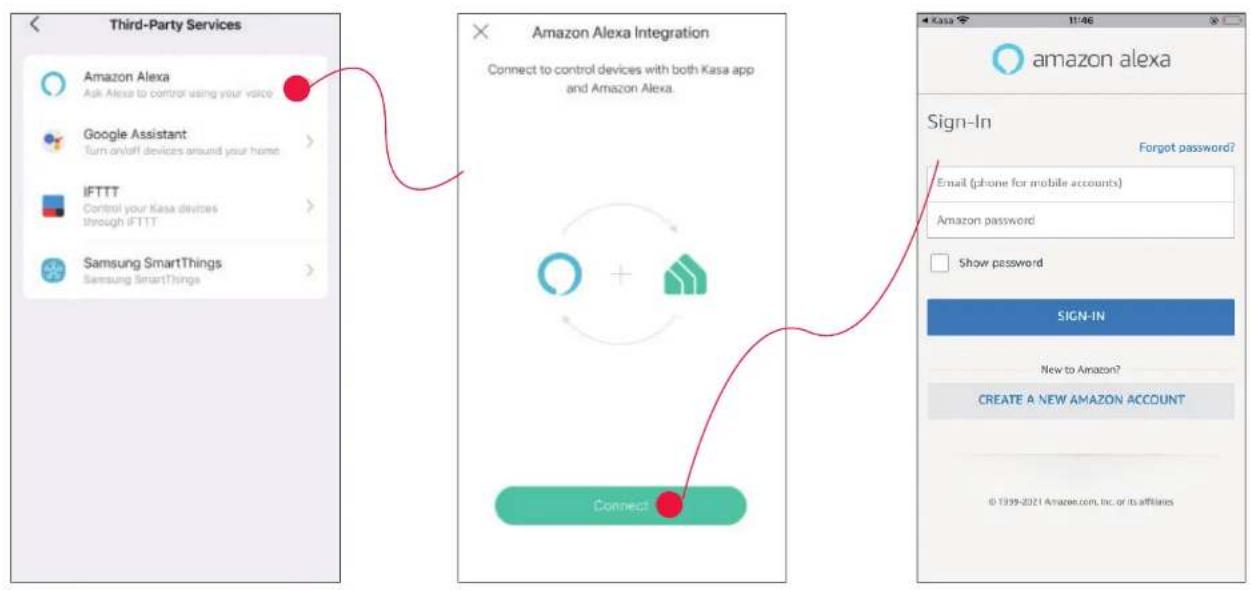
Launch the Kasa Smart app. Go to the Me page and tap Third Party Services. You can choose Amazon Alexa / Google Assistant / IFTTT / Samsung SmartThings for detailed instructions.
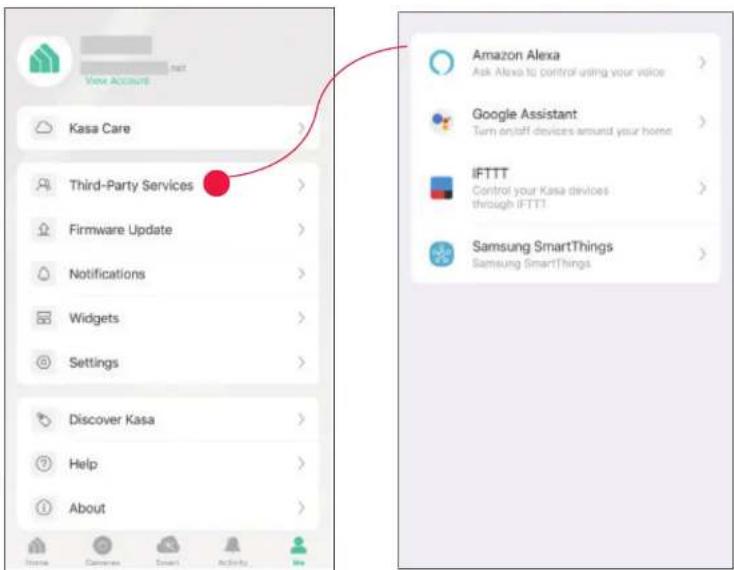
View ACCOUNT Kasa Care Third-Party Services Firmware Update Notifications Widgets Settings Discover Kasa Help About Amazon Alexa Ask Alexa to control using your voice Google Assistant Turn on/off devices around your home IFTTT Control your Kasa devices through iFTTT! Samsung SmartThings Samsung SmartThings

1. Set up Amazon Alexa

  1. Tap Amazon Alexa. 2. Tap Connect.

  2. Sign in with your amazon account.

TP-LINK Kasa KC401 - Set up Amazon Alexa - 1

flowchart
graph TD
    A["Third-Party Services"] --> B["Google Assistant"]
    B --> C["IFTTT"]
    C --> D["Samsung SmartThings"]
    D --> E["Amazon Alexa Integration"]
    E --> F["Connect to control devices with both Kasa app and Amazon Alexa."]
    F --> G["Connect"]
    G --> H["amazon alexa"]
    H --> I["Sign-In"]
    I --> J["Email (phone for mobile accounts)"]
    I --> K["Amazon password"]
    I --> L["Show password"]
    L --> M["SIGN-IN"]
    M --> N["New to Amazon?"]
    M --> O["CREATE A NEW AMAZON ACCOUNT"]
  1. After sign-in, tap LINK.

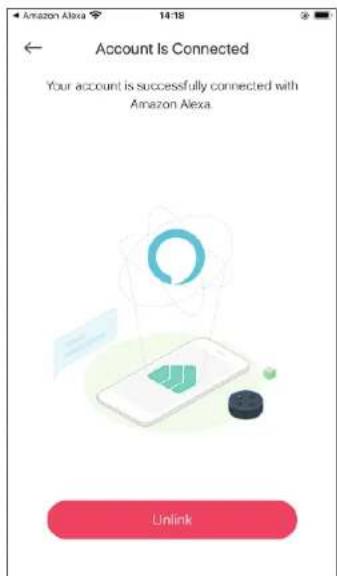
  2. Your TP-Link ID has been successfully linked with your amazon account. You can use Alexa voice commands to control your Smart Wi-Fi Power Strip.
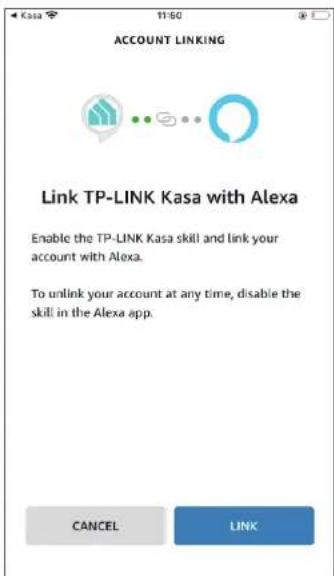
ACCOUNT LINKING Link TP-LINK Kasa with Alexa Enable the TP-LINK Kasa skill and link your account with Alexa. To unlink your account at any time, disable the skill in the Alexa app. CANCEL LINK

Account Is Connected Your account is successfully connected with Amazon Alexa Unlink

2. Set up Google Assistant

  1. Tap Google Assistant.

  2. Follow instructions to connect your device to your Google Home.

Or find the FAQ at https://www.tp-link.com/en/support/faq/1534/.
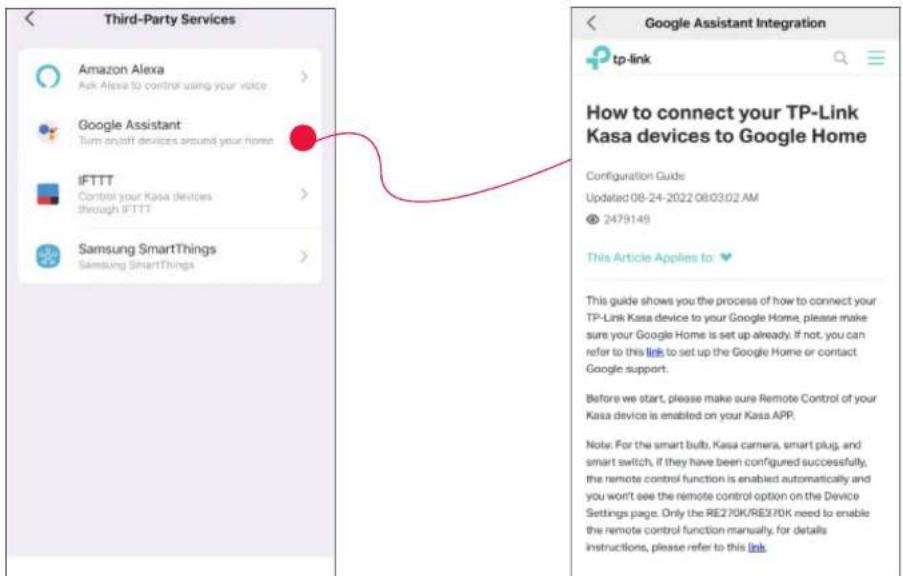
Third-Party Services Amazon Alexa Ask Alexa to control using your voice Google Assistant Turn an/Off devices around your home IFTTT Control your Kasa devices through iFTTT Samsung SmartThings Samsung SmartThings Google Assistant Integration tp-link How to connect your TP-Link Kasa devices to Google Home Configuration Guide Updated 08-24-2022 08:03:02 AM © 2479149 This Article Applies to: This guide shows you the process of how to connect your TP-Link Kasa device to your Google Home, please make sure your Google Home is set up already. If not, you can refer to this link to set up the Google Home or contact Google support. Before we start, please make sure Remote Control of your Kasa device is enabled on your Kasa APP. Note: For the smart bulb, Kasa camera, smart plug, and smart switch, if they have been configured successfully, the remote control function is enabled automatically and you won't see the remote control option on the Device Settings page. Only the RE270K/RE370K need to enable the remote control function manually, for details instructions, please refer to this link.

Firmware Update

The firmware on TP-Link Kasa smart devices can only be updated by using the TP-Link Kasa App.

To view the updated firmwares, from the Kasa APP > Tap Me on the bottom> Select Firmware Update. If any firmware updates are available, they will be displayed on this page.
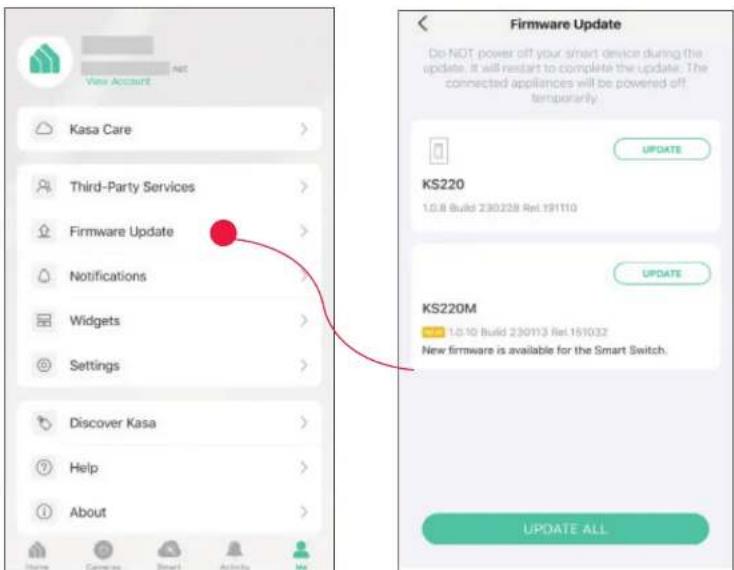
View Account Kasa Care Third-Party Services Firmware Update Notifications Widgets Settings Discover Kasa Help About Firmware Update Do NOT power off your smart device during the update. It will restart to complete the update. The connected appliances will be powered off temporarily. KS220 1.0.8 Build 230228 Rel.191110 KS220M 1.0.10 Build 230113 Rel.151032 New firmware is available for the Smart Switch. UPDATE ALL UPDATE ALL

Notification

Kasa Cam utilizes the push notification of your smart phone to inform you of detected activities by the camera.

To configure notification settings, from the Kasa APP > Tap Me on the bottom > Select Notification.
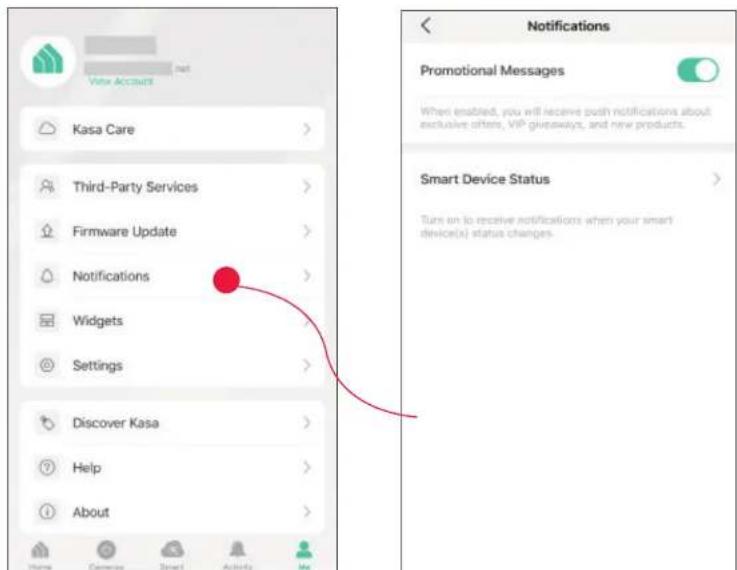
Vote Account Kasa Care Third-Party Services Firmware Update Notifications Widgets Settings Discover Kasa Help About Notifications Promotional Messages When enabled, you will receive push notifications about exclusive offers, VIP giveaways, and new products. Smart Device Status Turn on to receive notifications when your smart device(s) status changes.

Widgets

With widgets, you can tap and send commands to your Kasa devices, such as executing scenes, turning off lights, viewing your Kasa camera clips, and more.

The Kasa app provides three widgets: namely, KASA CAM WIDGET, KASA DEVICES, and KASA SCENES. These three gadgets cover some of the most frequently-used functions, including:

  • KASA DEVICES: Display the status of your selected devices and simple commands like turning on/off.
    • KASA SCENES: Enable/disable the selected scenes.
    • KASA CAM WIDGET: Preview and check your video clips.

Widgets come along with your smart home app and can be activated with some simple steps.

For iOS user, the whole process is divided into two procedures:

  • Firstly, select the Kasa Devices, Kasa Scenes, and Kasa Cam that you want to set as a widget on the Kasa app
    • Secondly, add the Kasa Widgets on your home screen.

For Android user, you can directly add the Kasa Widgets on your home screen.

Note: Setting steps differ in adding the Kasa Widgets on your home screen in the iOS and Android systems.

1. Select Your Desired Widgets (for iOS)

Step 1 To add widgets, from the Kasa APP > Tap Me on the bottom > Tap Widgets.
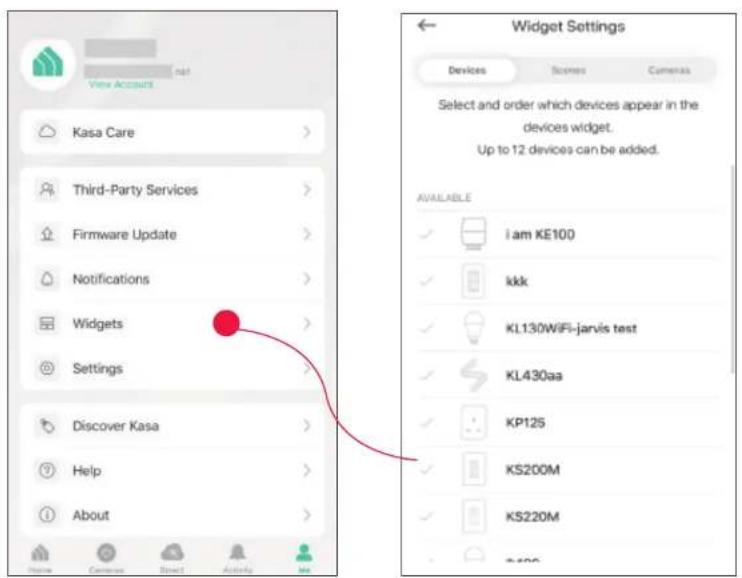
View Account Kasa Care Third-Party Services Firmware Update Notifications Widgets Settings Discover Kasa Help About Widget Settings Devices Scenes Cameras Select and order which devices appear in the devices widget. Up to 12 devices can be added. AVAILABLE i am KE100 kkk KL130WiFi-jarvis test KL430aa KP125 KS200M KS220M T-500

Step 2. Choose the Devices, Scenes and Cameras you want to add in the widgets.
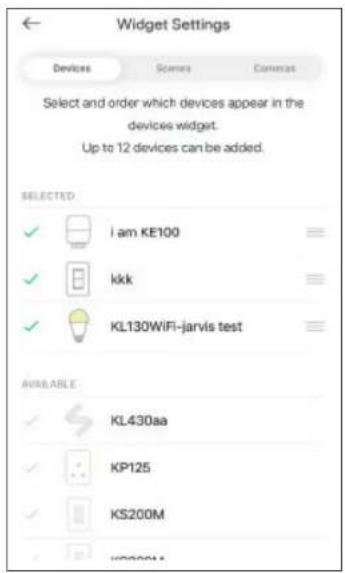
Widget Settings Devices Scenes Camera Select and order which devices appear in the devices widget. Up to 12 devices can be added. SELECTED ✓ i am KE100 ✓ kkk ✓ KL130WiFi-jarvis test AVAILABLE ✓ KL430aa ✓ KP125 ✓ KS200M ✓ WD200M

Step 3. If you want to reorder your devices or scenes, touch and hold the = next to them and drag them in the order that you want.
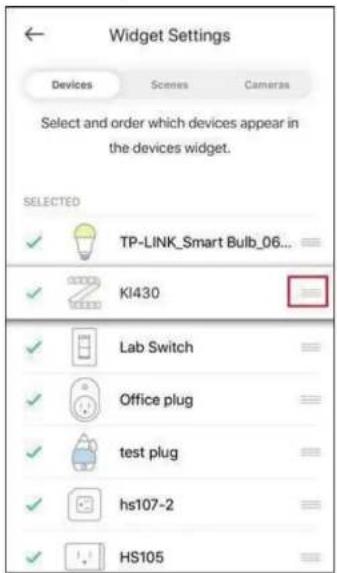
Widget Settings Devices Scenes Cameras Select and order which devices appear in the devices widget. SELECTED ✓ TP-LINK_Smart Bulb_06... ✓ KI430 ✓ Lab Switch ✓ Office plug ✓ Grid plug ✓ hs107-2 ✓ HS105

2. Add to Your Home Screen (for iOS)

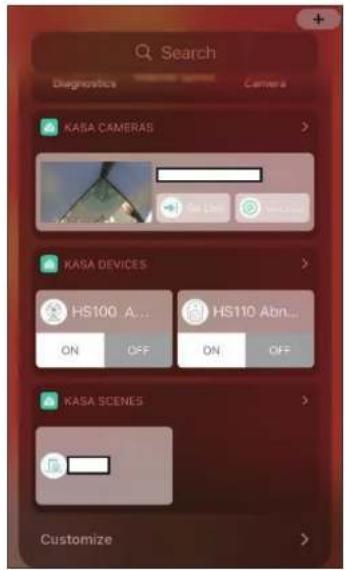
Step 1. Swipe right over the Home screen or Lock screen of iPhone, iPad, or iPod touch to see your widgets in the Today View. Scroll to the bottom and tap Edit. If your device is iOS 14 system or above, slide the interface down to the bottom and tap Customize.
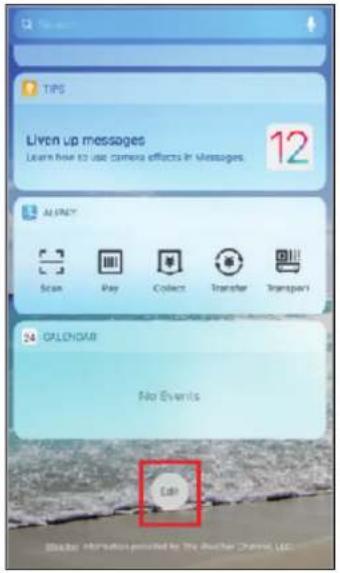
TIPS Liven up messages Learn how to use camera effects in Messages. 12 ALMINTY Scan Play Collect Transfer Transport 34 GALENGAR No Events Can

Search Diagnostics Camera KASA CAMERAS KASA DEVICES HS100 A... HS110 Abn... ON OFF ON OFF KASA SCENES Customize

Step 2 Add Kasa Devices, Kasa Scenes, and the Kasa Cam Widget.
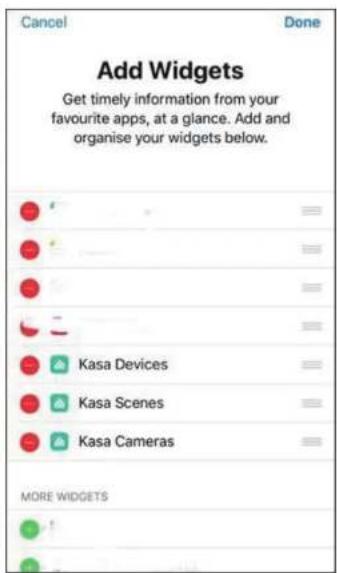
Cancel Done Add Widgets Get timely information from your favourite apps, at a glance. Add and organise your widgets below. Kasa Devices Kasa Scenes Kasa Cameras MORE WIDGETS

Step 3. Drag them to your desired spot by tapping and holding the = next to the apps.
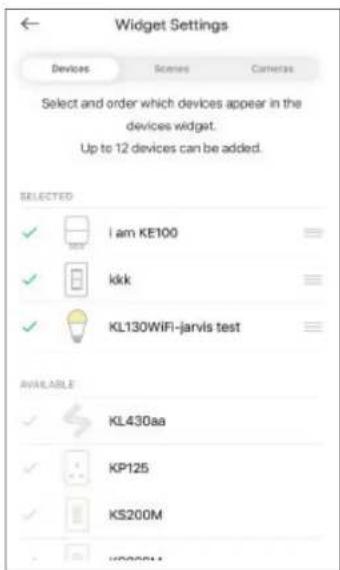
Widget Settings Devices Scenes Cameras Select and order which devices appear in the devices widget. Up to 12 devices can be added. SELECTED ✓ i am KE100 ✓ kkk ✓ KL130WiFi-jarvis test AVAILABLE ✓ KL430aa ✓ KP125 ✓ KS200M - www.k

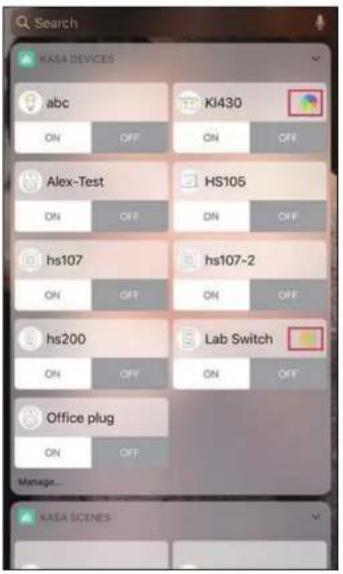
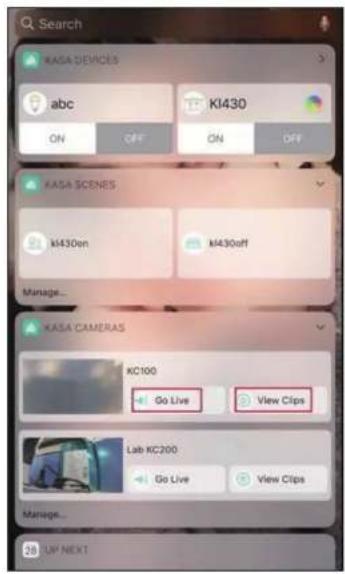
Step 4. Now you can control your Kasa Devices, Kasa Cam, and Kasa Scenes widgets from the Today View. Tap > and you can see all of your selected Kasa Devices, Scenes, and Cameras.
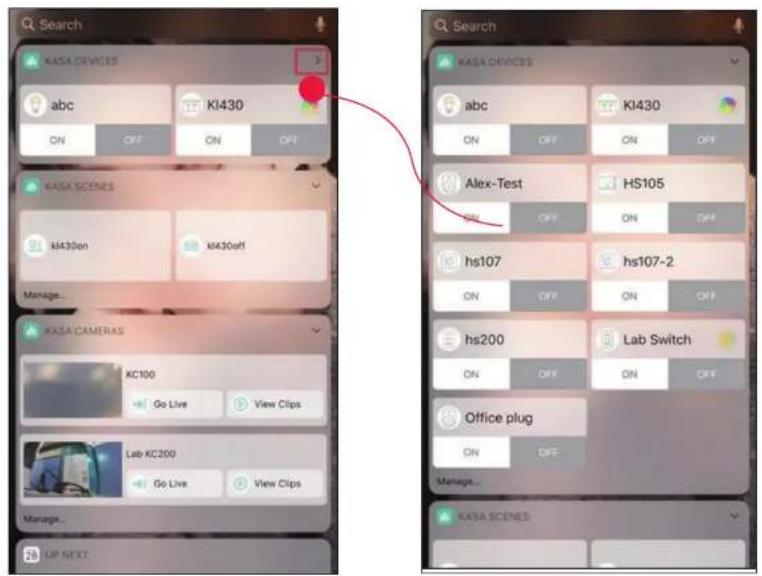
Search KASA DEVICES abc KI430 ON OFF ON OFF KASA SCENES KI430on KI430off Manage... KASA CAMERAS KC100 Go Live View Clips Lab KC200 Go Live View Clips Manage... UP NEXT Search KASA DEVICES abc KI430 ON OFF ON OFF Alex-Test HS105 ON OFF ON OFF hs107 hs107-2 ON OFF ON OFF hs200 Lab Switch ON OFF ON OFF Office plug ON OFF Manage... KASA SCENES

For all Kasa devices, you can switch on/off them. For Kasa devices with adjustable brightness and color, you can also adjust the brightness and color. Tap the round icon next to the devices and then you can see the corresponding options.

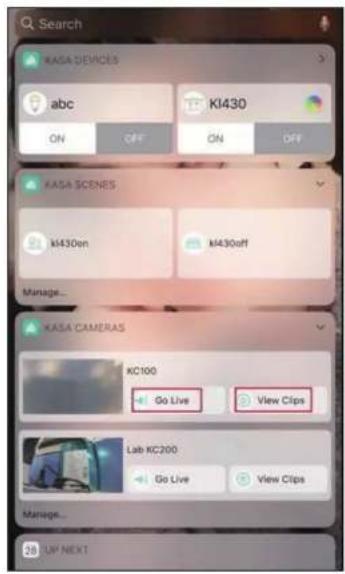
With the Kasa Cam widget, you can tap Go Live and easily go to the Live Page. Meanwhile, you can View Clips of activity detection.
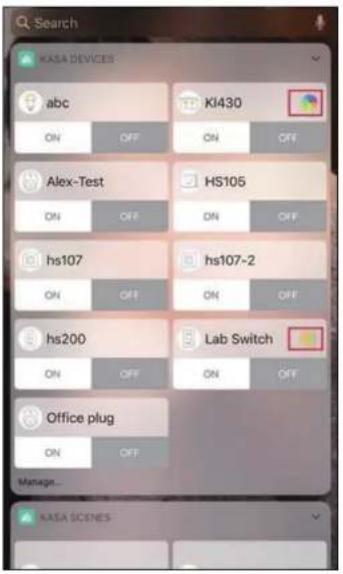
KASA DEVICES abc KI430 ON OFF ON OFF Alex-Test HS105 ON OFF ON OFF hs107 hs107-2 ON OFF ON OFF hs200 Lab Switch ON OFF ON OFF Office plug ON OFF Manage... NASA SCENES

CL Search KASA DEVICES abc KI430 ON OFF ON OFF KASA SCENES KI430on KI430off Manage... KASA CAMERAS KC100 Go Live View Clips Lab KC200 Go Live View Clips Manage... UP NEXT

Add to Your Home Screen (for Android)

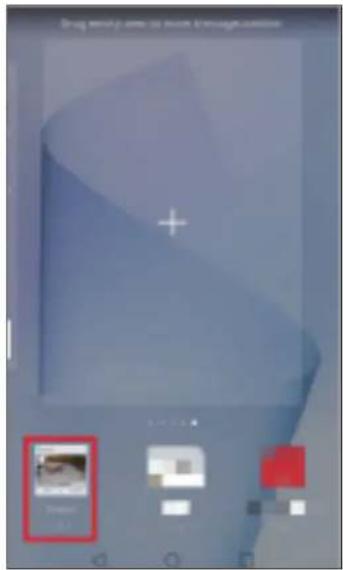
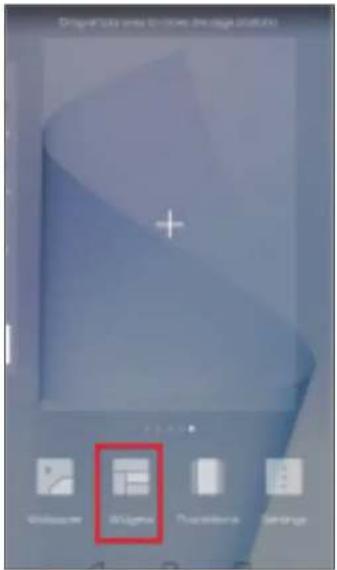
Step 1. Touch and hold an empty area on the home screen to enter home screen editing mode. Tap the Widgets and you can see all of your widgets.
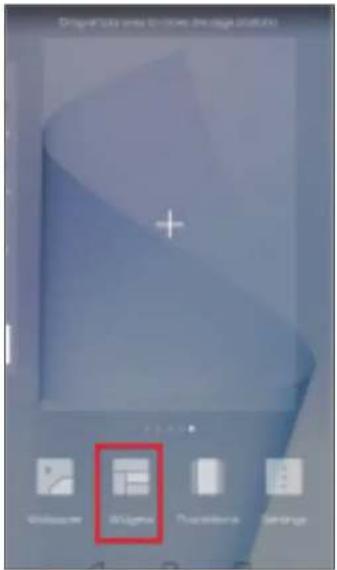
Drop-by-Go user to have this image platform OK/OK OK/OK

Step 2. Find Kasa widget and tap it.

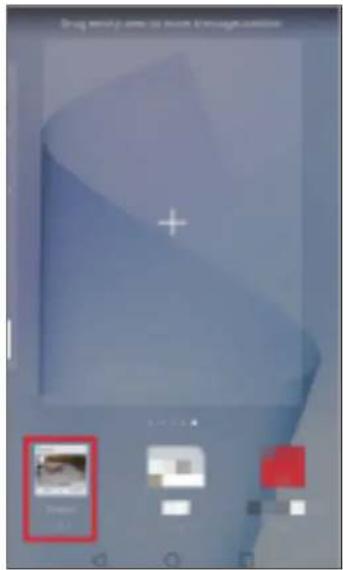
Drug screenshot uses to remove through user aversion + - 10:32 10:32

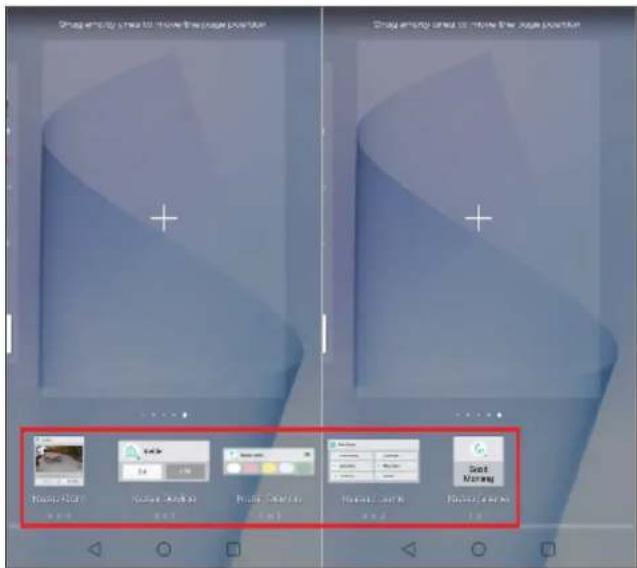
Step 3. There are several Kasa widgets including Kasa Cam, Kasa Device and Kasa scene. Touch and hold a widget and drag it to an empty area on the home screen. You can add widgets you want.

Check that there are enough empty spaces on the home screen for the widget. If there is not enough space, add an empty screen page or free up some space on the current home screen page
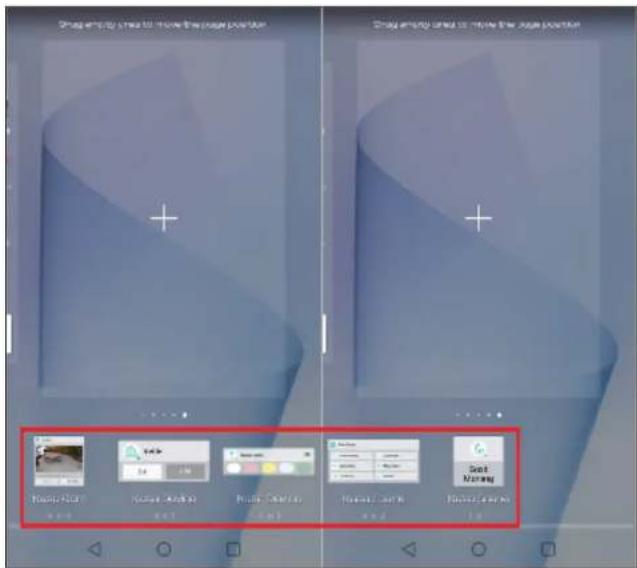
Send empty until to move the page position Send empty until to move the page position Send New Send New Send New Send New Send New

Settings

Kasa Cam utilizes the push notification of your smart phone to inform you of detected activities by the camera.

To view the Kasa Care plan, from the Kasa APP > Tap Me on the bottom > Select Notification.
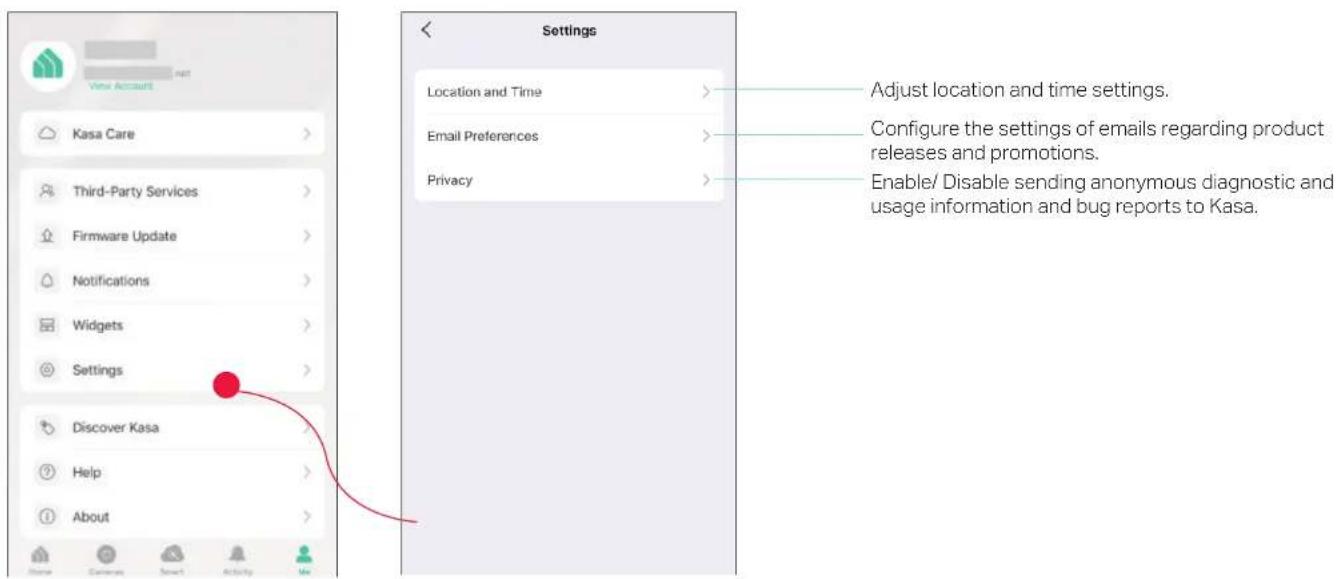
View Account Kasa Care Third-Party Services Firmware Update Notifications Widgets Settings Discover Kasa Help About Location and Time Email Preferences Privacy Adjust location and time settings. Configure the settings of emails regarding product releases and promotions. Enable/ Disable sending anonymous diagnostic and usage information and bug reports to Kasa.

Scenes

A scene is a preset group of smart devices that can be programmed, customized and activated simultaneously at the touch of a button from your smartphone or tablet, allowing you to easily set your mood, activity or fit any special occasion. For example, when you are ready for bed, you can turn off your Tapo devices and dim the lights with one tap.

1. Create a Smart Action with Preset

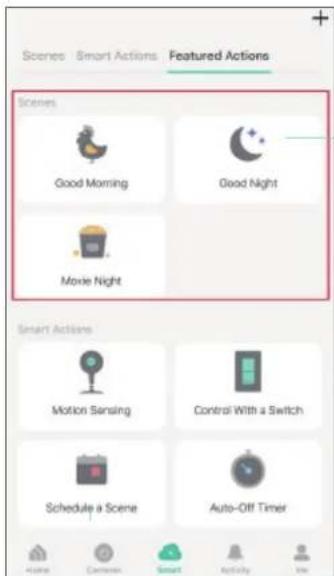
Step 1. Tap at the bottom, then tap Featured Actions and you can see three preset scenes.

Step 2. Select a preset scene as you need.
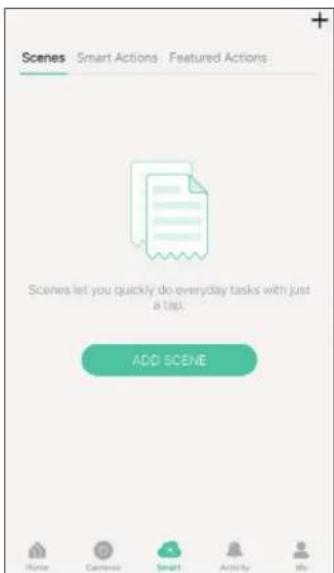
Scenes Smart Actions Featured Actions Scenes let you quickly do everyday tasks with just a tap. ADD SCENE None Camera Smart Activity My

Scenes Smart Actions Featured Actions Scenes Good Morning Good Night Movie Night Smart Actions Motion Sensing Control With a Switch Schedule a Scene Auto-Off Timer

Good Morning: Turn on all your smart devices.

Good Night: Turn off all your smart devices.

Movie Night: Dim your lights for movie time.

2. Create Your Own Scene

Step 1. Tap at the bottom, tap Scenes and then tap ADD SCENE. Alternatively, you can tap + and choose Scenes.

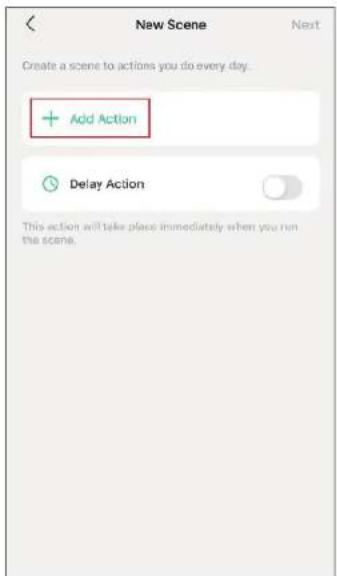
Step 2. Tap Add Action to create a new scene.

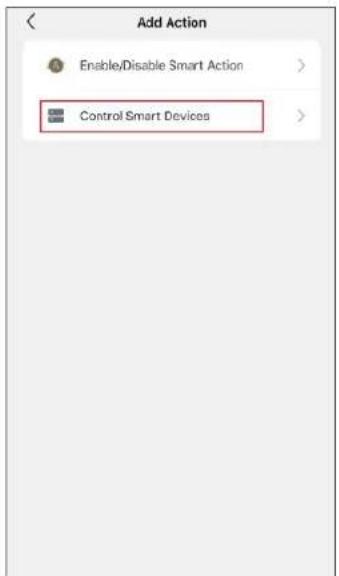
Step 3. Tap Control Smart Devices to select the smart devices you want to run in the scene.
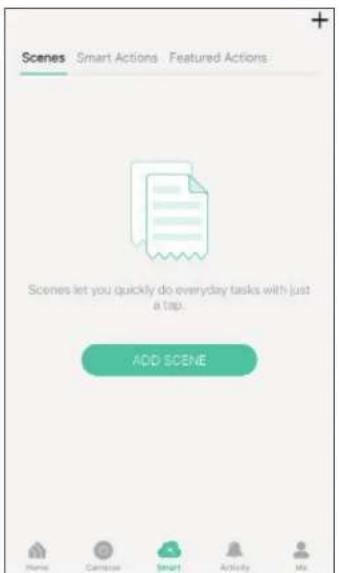
Scenes Smart Actions Featured Actions Scenes let you quickly do everyday tasks with just a tap. ADD SCENE Home Campsite Smart Activity My

New Scene Next Create a scene to actions you do every day. + Add Action Delay Action This action will take place immediately when you run the scene.

Add Action Enable/Disable Smart Action > Control Smart Devices >

Step 4. Then choose the device you want to run in the scene
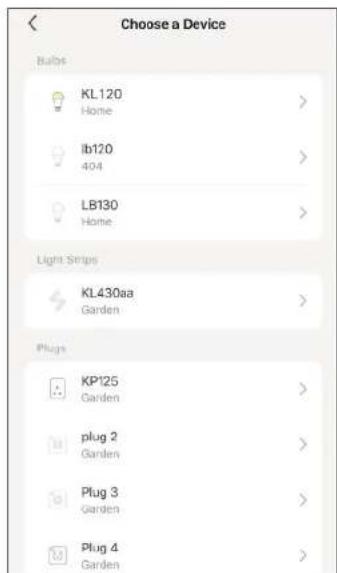
Choose a Device Bulbs KL120 Home > lb120 404 > LB130 Home > Light Strips KL430aa Garden > Plugs KP125 Garden > plug 2 Garden > Plug 3 Garden > Plug 4 Garden >

Step 5. Customize the status of the smart device, such as turn on the smart light. Then tap Done.
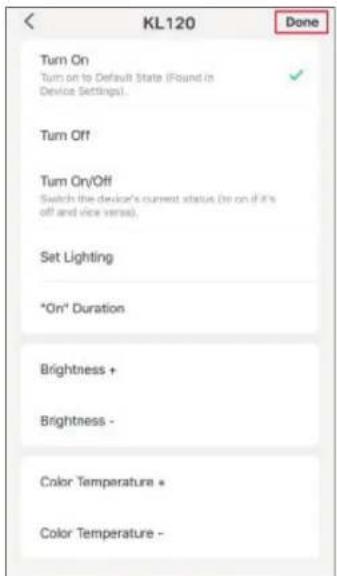
KL120 Done Turn On Turn on to Default State (Found in Device Settings). ✓ Turn Off Turn On/Off Switch the device's current status (to on if it's off and vice versa). Set Lighting "On" Duration Brightness + Brightness - Color Temperature + Color Temperature -

Step 6. You can repeat Step 2 to 5 to add more devices/ smart action in the scene. If you hope your scene to run after some time after you tap it, set Delay Action.
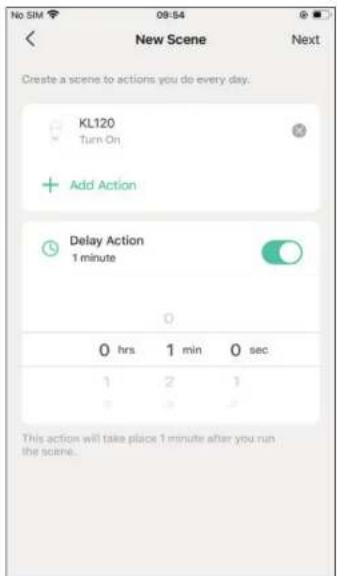
New Scene Create a scene to actions you do every day. KL120 Turn On Add Action Delay Action 1 minute 0 hrs 1 min 0 sec 1 2 3 This action will take place 1 minute after you run the scene.

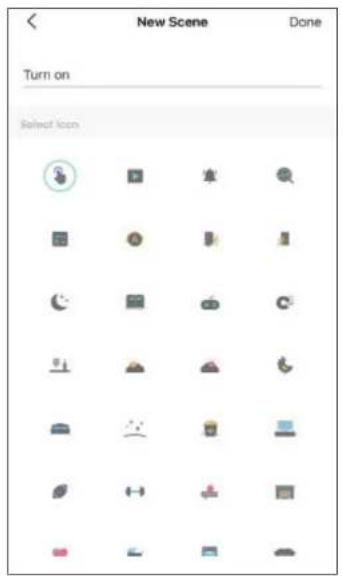
Step 7. Give the scene a Name and choose an icon to distinguish your new scene with other existing ones.
New Scene Done Turn on Select Icon

Step 8. Finally, tap Done. You can check your set scene on the top of the home page.
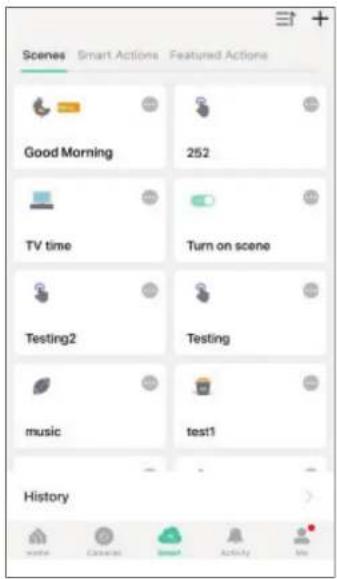
Scenes Smart Actions Featured Actions Good Morning 252 TV time Turn on scene Testing2 Testing music test1 History

3. Manage Your Scene

1. Edit scene

Edit your scenes via Smart > Scenes and tap ⋯.
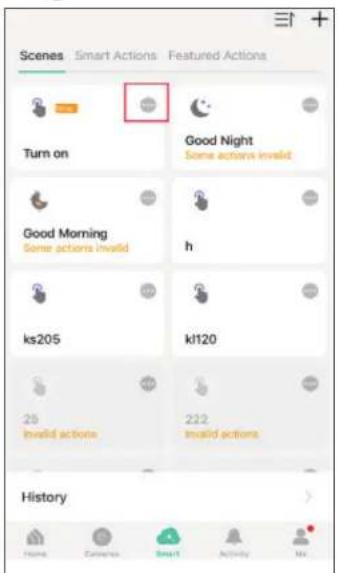
Scenes Smart Actions Featured Actions Turn on Good Night Some actions invalid Good Morning Some actions invalid h ks205 k120 25 Invald actions 222 invalid actions History Home Camera Smart Activity No.

You can rename and delete the scene, add more action and adjust delay action of the scene.
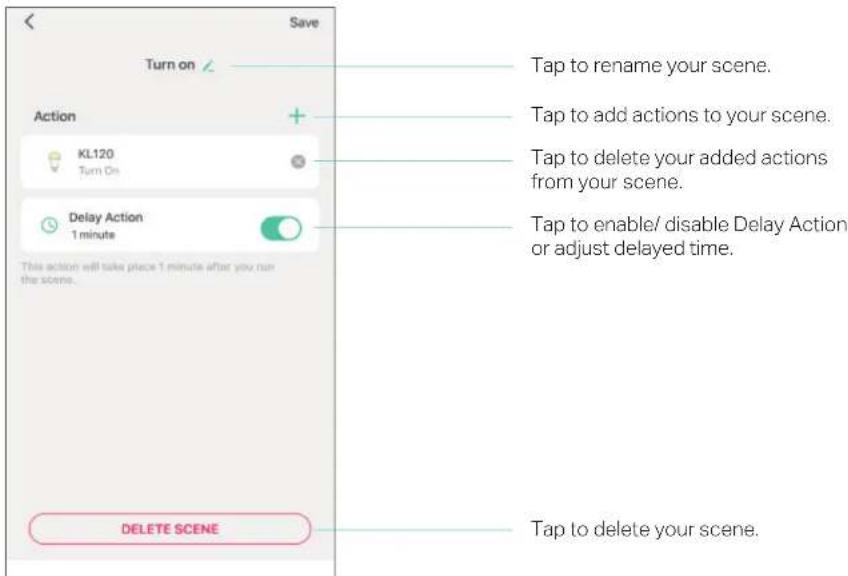
Save Turn on Action KL120 Turn On Delay Action 1 minute This action will take place 1 minute after you run the scene. Tap to rename your scene. Tap to add actions to your scene. Tap to delete your added actions from your scene. Tap to enable/ disable Delay Action or adjust delayed time. DELETE SCENE Tap to delete your scene.

Smart Actions

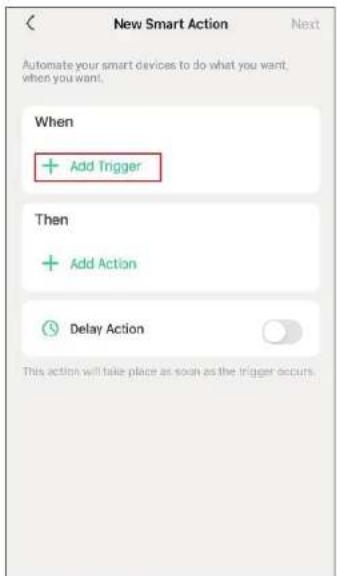
Smart Actions is a function provided that enables device interconnections and home automations. With Smart Actions, your Kasa devices can work together to create a smarter smart home.

Note: At most three smart actions can be enabled simultaneously.

To use the Smart Action feature, you need to configure

1) Add Trigger: Trigger Time or Trigger Device (Set A Specific Time)
2) Add Action: Run a Sceneor Enable/Disable Smart Action/ Control Smart Devices
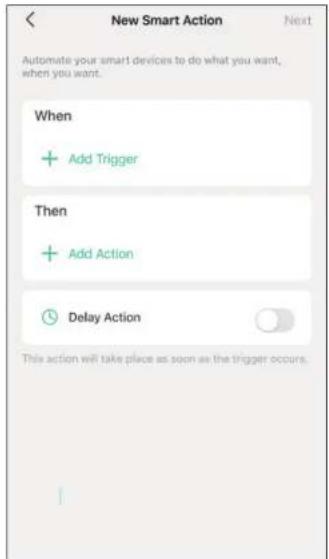
New Smart Action Next Automate your smart devices to do what you want, when you want. When + Add Trigger Then + Add Action Delay Action This action will take place as soon as the trigger occurs.

1. Create a Smart Action with Preset

Step 1. Tap at the bottom, then tap Featured Actions and you can see three preset scenes.
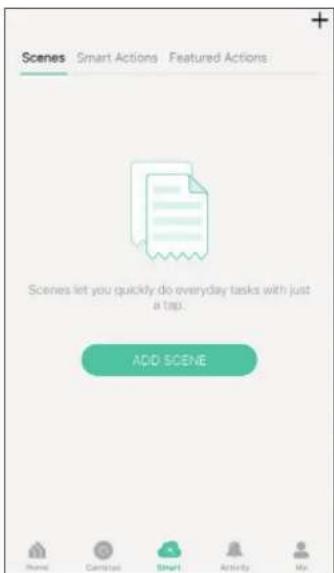
Scenes Smart Actions Featured Actions Scenes let you quickly do everyday tasks with just a tap. ADD SCENE Name Camping Smart Activity My

Step 2. Select a preset smart action as you need.
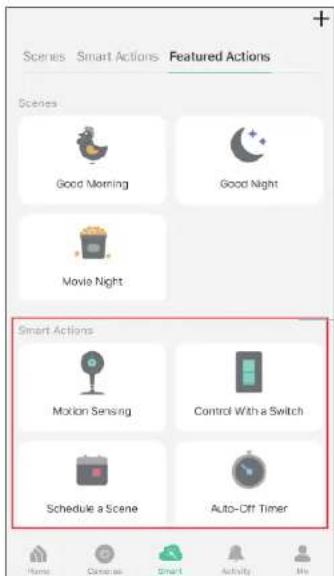
Scenes Smart Actions Featured Actions Scenes Good Morning Good Night Movie Night Smart Actions Motion Sensing Control With a Switch Schedule a Scene Auto-Off Timer

Motion Sensing: Whenever a Smart camera detects motions, add an action you would like to trigger.

Control With a Switch: Whenever a Smart switch turns on/off, add an action you would like to trigger.

Schedule a Scene: Schedule an action to be turned on automatically at the time specified.

Auto-off Timer: Whenever a Smart device is turned on, turn it off after the designated amount of time.

2. Create Your Own Smart Action

Step 1. Tap at the bottom, tap and then choose Smart Actions.

Step 2. Tap Add Trigger.
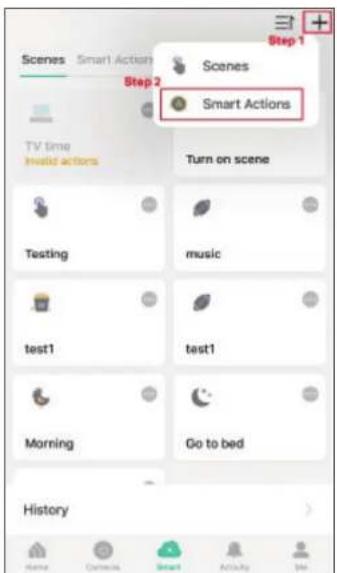
Step 1 Scenes Smart Actions Step 2 Smart Actions TV time held actors Turn on scene Testing music test1 test1 Morning Go to bed History

New Smart Action Next Automate your smart devices to do what you want, when you want. When + Add Trigger Then + Add Action Delay Action This action will take place as soon as the trigger occurs.

Step 3. Choose a trigger for your smart action.

Note: If there are 2 or more triggers added, any trigger will activate the smart action.
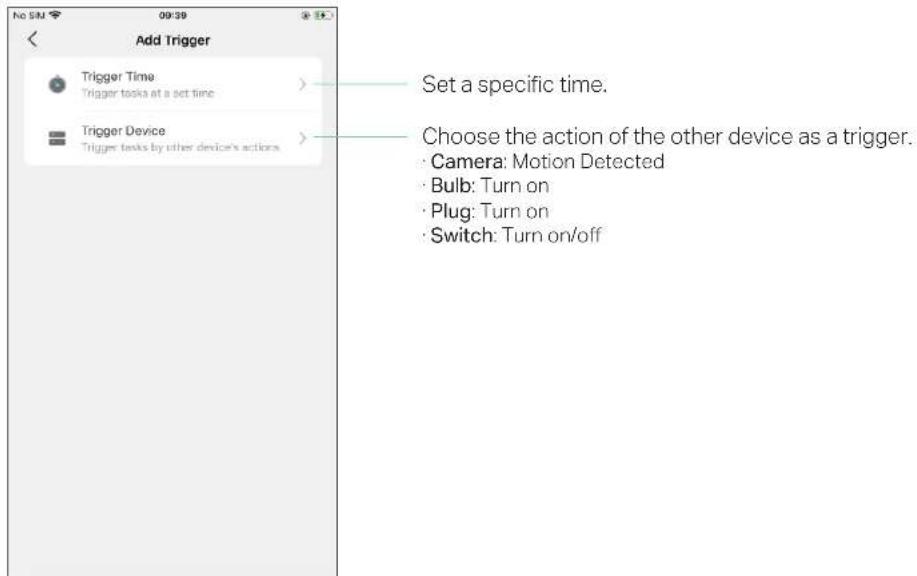
Add Trigger Trigger Time Trigger tasks at a set time Trigger Device Trigger tasks by other device's actions Set a specific time. Choose the action of the other device as a trigger. Camera: Motion Detected Bulb: Turn on Plug: Turn on Switch: Turn on/off

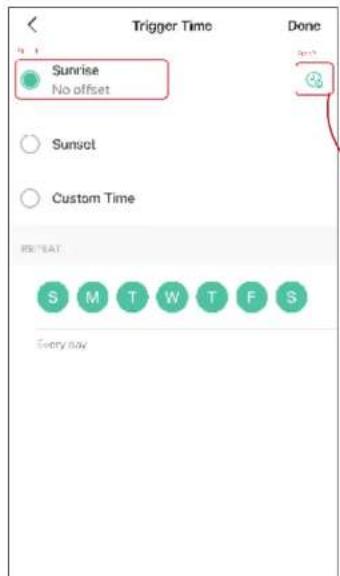
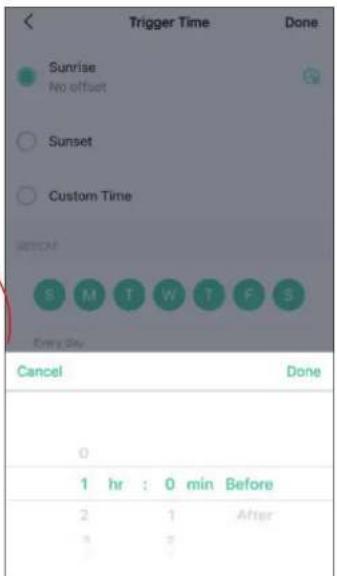
Step 4. Choose from Sunrise, Sunset and Custom Time to set the time for your desired timing for the smart action. For Sunrise and Sunset, you can also set offset time.

Note: The time of Sunrise and Sunset will be synchronized according to regional realities.
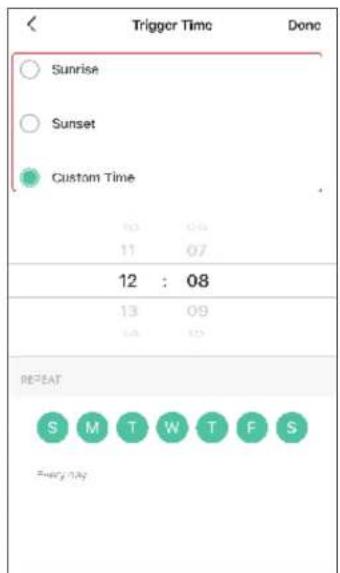
Trigger Time Done Sunrise Sunset Custom Time 10 04 11 07 12 : 08 13 09 14 10 REBEAT S M T W T F S Energy: 7.5g

Trigger Time Sunrise No offset Sunset Custom Time REPEAT S M T W T F S Every day

Trigger Time Done Sunrise No offset Sunset Custom Time SETCAP S M T W T F S Every day Cancel Done 0 1 hr : 0 min Before 2 1 After 3 2 4 1

Step 5. Set the repeat times and then tap Done.
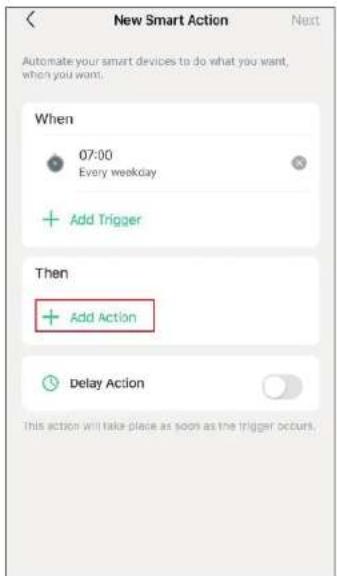
Step 6. Tap Add Action.
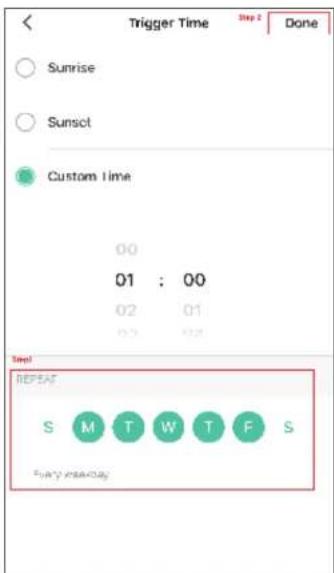
Trigger Time Sunrise Sunset Custom Time 00 01 : 00 02 01 03 02 Time! RESET S M T W T F S EASY PRAKAY

New Smart Action Automate your smart devices to do what you want, when you want. When 07:00 Every weekday Add Trigger Then Add Action Delay Action This action will take place as soon as the trigger occurs.

Step 7. Choose the action you want to add.
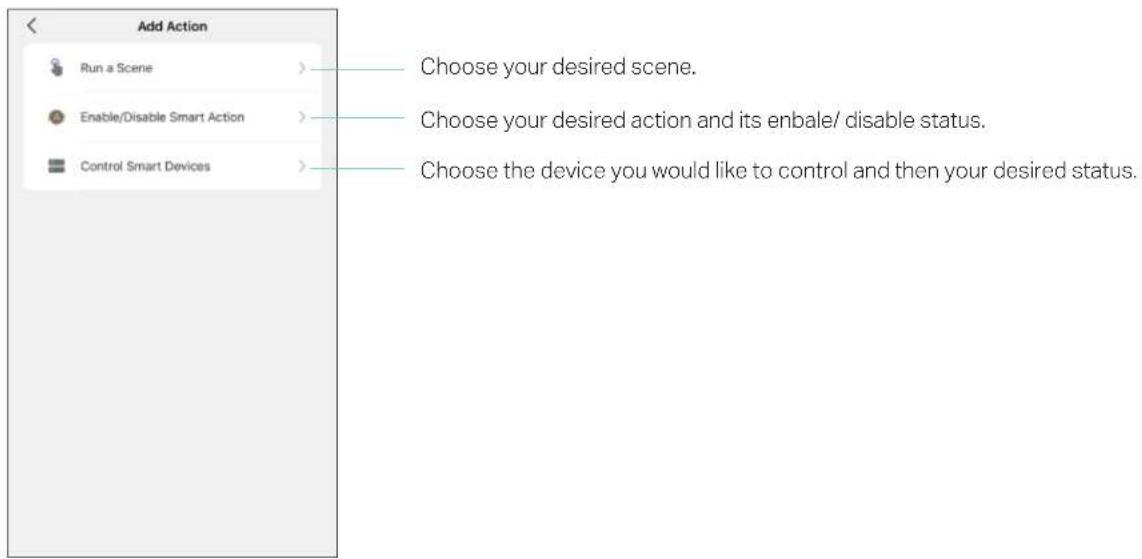
Add Action Run a Scene > Enable/Disable Smart Action > Control Smart Devices > Choose your desired scene. Choose your desired action and its enbale/ disable status. Choose the device you would like to control and then your desired status.

Step 8. If you hope your scene to run after some time after you tap it, set Delay Action.

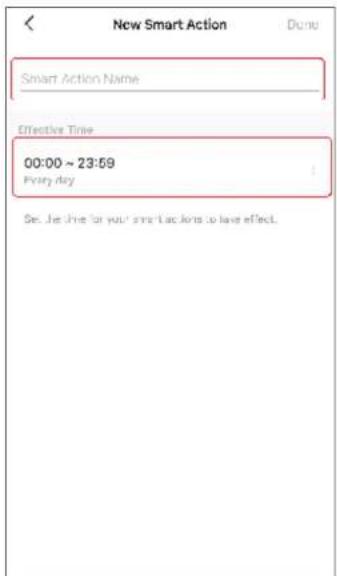
Step 9. Name your smart action and set the effective time for it. Tap Done to complete. You can find your newly set Smart Actions via Smart> Smart Actions.
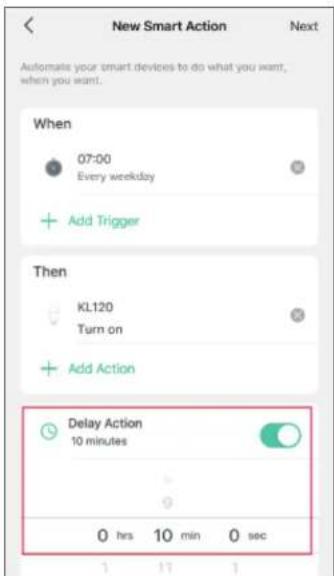
New Smart Action Next Automate your smart devices to do what you want, when you want. When 07:00 Every weekday Add Trigger Then KL120 Turn on Add Action Delay Action 10 minutes 0 hrs 10 min 0 sec

New Smart Action Smart Action Name Effective Time 00:00 ~ 23:59 Every day Get the free for your smart backends to have effect.

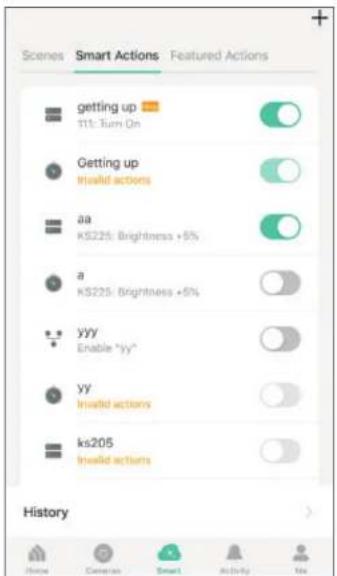
Getting up T11: Turn On Getting up Invalid actions aa KS225: Brightness +5% a KS225: Brightness +5% yyy Enable "yy" yy Invalid actions ks205 Invalid actions History

3. Manage Your Smart Action

Step 1. Find your Smart Actions list via Smart>SmartActions.
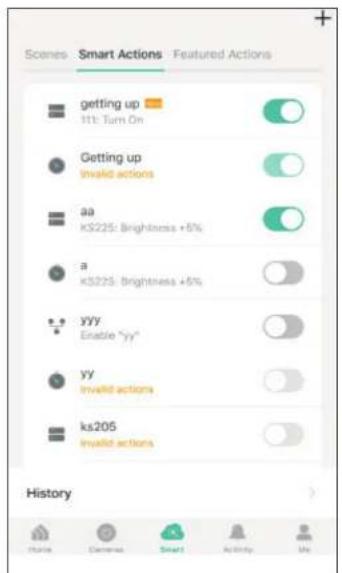
Scenes Smart Actions Featured Actions getting up 11: Turn On Getting up Invalid actions aa kS225: Brightness +6% a kS225: Brightness +6% yyy Enable "yy" yy Invalid actions ks205 Invalid actions History

Step 2. You can rename and delete the smart action, and change its effective time, triggers, actions, and delay time.
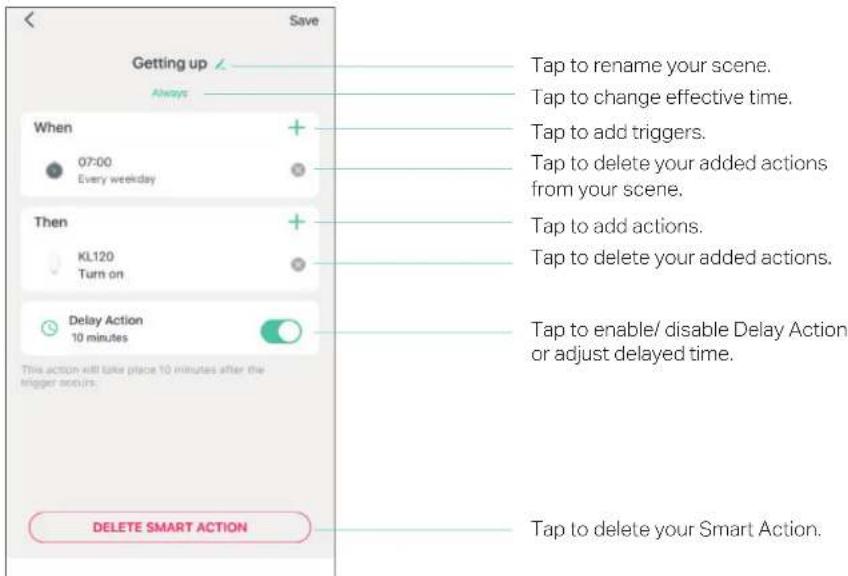
Getting up Always When 07:00 Every weekday Then KL120 Turn on Delay Action 10 minutes This action will take place 10 minutes after the trigger occurs. DELETE SMART ACTION Tap to rename your scene. Tap to change effective time. Tap to add triggers. Tap to delete your added actions from your scene. Tap to add actions. Tap to delete your added actions. Tap to enable/ disable Delay Action or adjust delayed time. Tap to delete your Smart Action.

Me Page

The Kasa app offers a list of advanced features to fulfill diverse smart home needs.

Manage Your Account

Launch the Kasa Smart app. Tap Go to the Me page and tap your account or profile. Here you can change your profile picture, password, and login security settings.
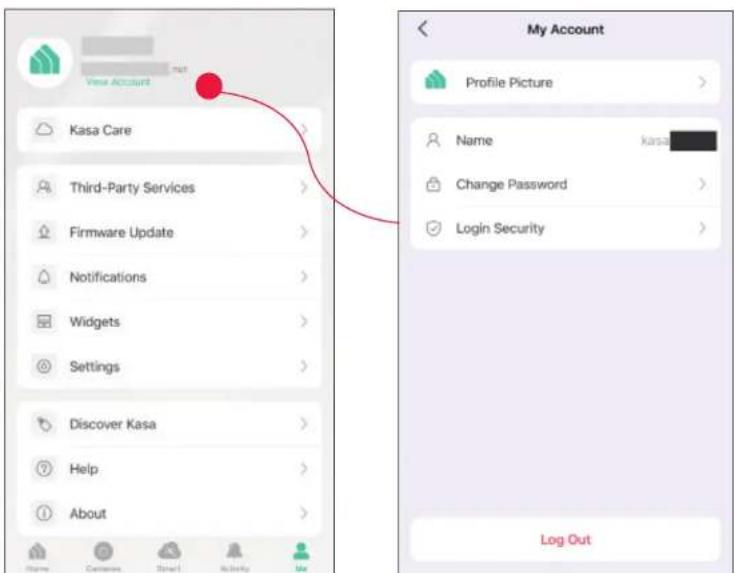
View Account Kasa Care Third-Party Services Firmware Update Notifications Widgets Settings Discover Kasa Help About My Account Profile Picture Name kasa Change Password Login Security Log Out

Kasa Care

Kasa Care is a cloud-based service that allows users to view and download activity recordings from a Kasa Cam. When you purchase a Kasa Cam, you can subscribe to our advanced plan to enjoy our Kasa Care cloud service.

To view the Kasa Care plan, from the Kasa APP > Tap Me on the bottom> Select Kasa Care.

Note: With the Kasa Care service, every Kasa account is eligible to sign up for a free trial for the new Kasa Care plan once.
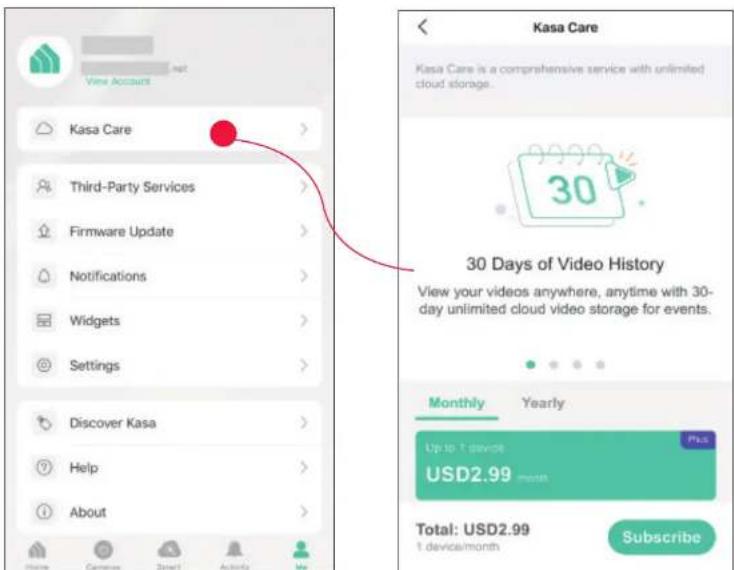
View Account Kasa Care Third-Party Services Firmware Update Notifications Widgets Settings Discover Kasa Help About Kasa Care Kasa Care is a comprehensive service with unlimited cloud storage. 30 Days of Video History View your videos anywhere, anytime with 30-day unlimited cloud video storage for events. Monthly Yearly Up to 1 device USD2.99 month Total: USD2.99 1 device/month Subscribe

Third Party Services

Use the Kasa Smart app to pair your Smart devices with Amazon Alexa or Google Home Assistant, and enjoy a full hands-free experience. Kasa helps manage the rest of your smart home too, working with Samsung Smart Things to trigger changes when you arrive home or leave for the day.

Launch the Kasa Smart app. Go to the Me page and tap Third Party Services. You can choose Amazon Alexa / Google Assistant / IFTTT / Samsung SmartThings for detailed instructions.
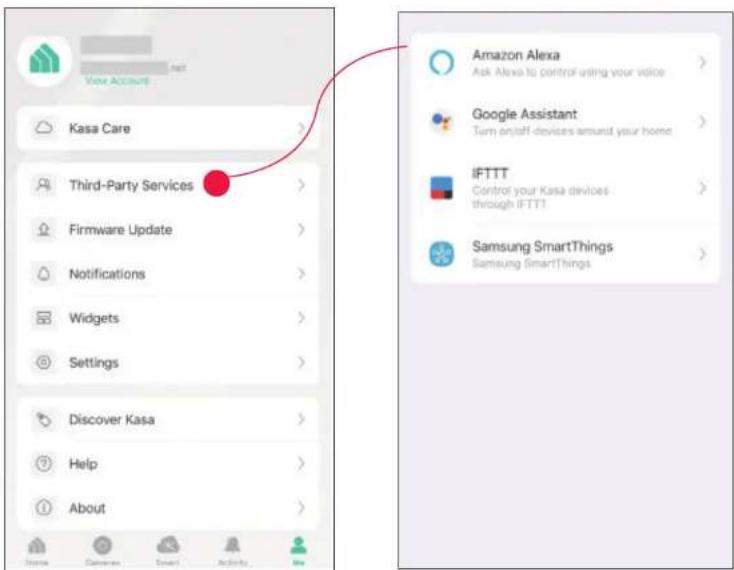
View ACCOUNT Kasa Care Third-Party Services Firmware Update Notifications Widgets Settings Discover Kasa Help About Amazon Alexa Ask Alexa to control using your voice Google Assistant Turn on/off devices around your home IFTTT Control your Kasa devices through iFTTT! Samsung SmartThings Samsung SmartThings

1. Set up Amazon Alexa

  1. Tap Amazon Alexa. 2. Tap Connect.

  2. Sign in with your amazon account.

TP-LINK Kasa KC401 - Set up Amazon Alexa - 1

flowchart
graph TD
    A["Third-Party Services"] --> B["Google Assistant"]
    B --> C["IFTTT"]
    C --> D["Samsung SmartThings"]
    D --> E["Amazon Alexa Integration"]
    E --> F["Connect to control devices with both Kasa app and Amazon Alexa."]
    F --> G["Connect"]
    G --> H["amazon alexa"]
    H --> I["Sign-In"]
    I --> J["Email (phone for mobile accounts)"]
    I --> K["Amazon password"]
    I --> L["Show password"]
    L --> M["SIGN-IN"]
    M --> N["New to Amazon?"]
    M --> O["CREATE A NEW AMAZON ACCOUNT"]
  1. After sign-in, tap LINK.

  2. Your TP-Link ID has been successfully linked with your amazon account. You can use Alexa voice commands to control your Smart Wi-Fi Power Strip.
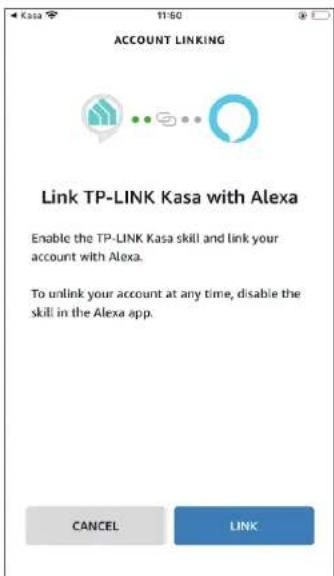
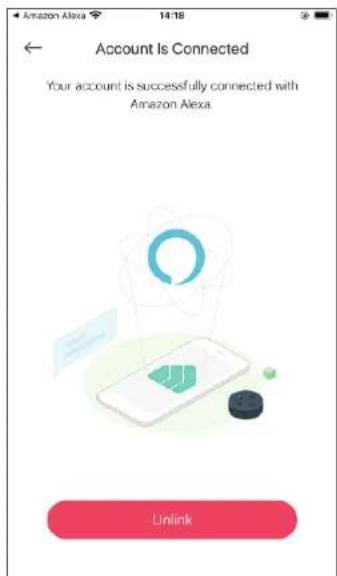
ACCOUNT LINKING Link TP-LINK Kasa with Alexa Enable the TP-LINK Kasa skill and link your account with Alexa. To unlink your account at any time, disable the skill in the Alexa app. CANCEL LINK

Account Is Connected Your account is successfully connected with Amazon Alexa Unlink

2. Set up Google Assistant

  1. Tap Google Assistant.

  2. Follow instructions to connect your device to your Google Home.

Or find the FAQ at https://www.tp-link.com/en/support/faq/1534/.
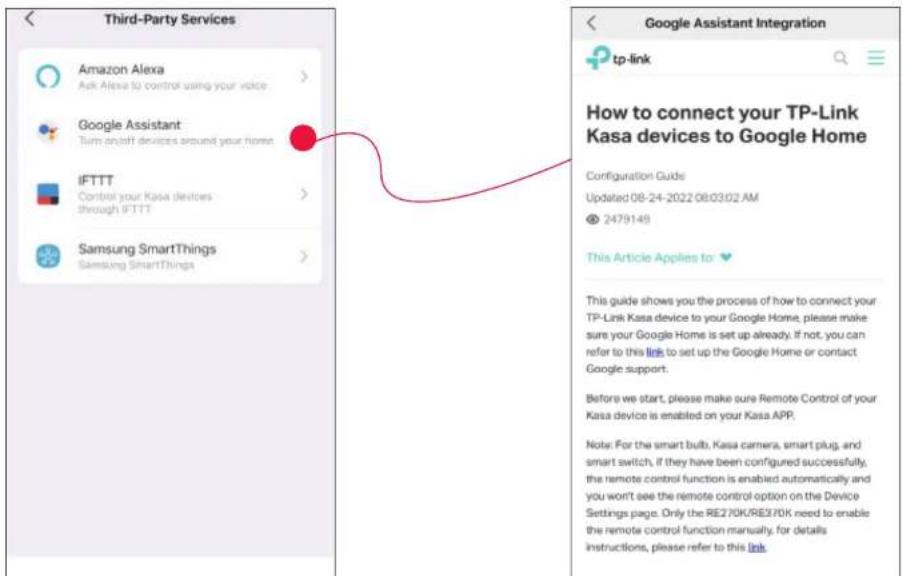
Third-Party Services Amazon Alexa Ask Alexa to control using your voice Google Assistant Turn an/Off devices around your home IFTTT Control your Kasa devices through IFTTT Samsung SmartThings Samsung SmartThings Google Assistant Integration tp-link How to connect your TP-Link Kasa devices to Google Home Configuration Guide Updated 08-24-2022 08:03:02 AM 2479149 This Article Applies to: This guide shows you the process of how to connect your TP-Link Kasa device to your Google Home, please make sure your Google Home is set up already. If not, you can refer to this link to set up the Google Home or contact Google support. Before we start, please make sure Remote Control of your Kasa device is enabled on your Kasa APP. Note: For the smart bulb, Kasa camera, smart plug, and smart switch, if they have been configured successfully, the remote control function is enabled automatically and you won't see the remote control option on the Device Settings page. Only the RE270K/RE370K need to enable the remote control function manually, for details instructions, please refer to this link.

Firmware Update

The firmware on TP-Link Kasa smart devices can only be updated by using the TP-Link Kasa App.

To view the updated firmwares, from the Kasa APP > Tap Me on the bottom> Select Firmware Update. If any firmware updates are available, they will be displayed on this page.
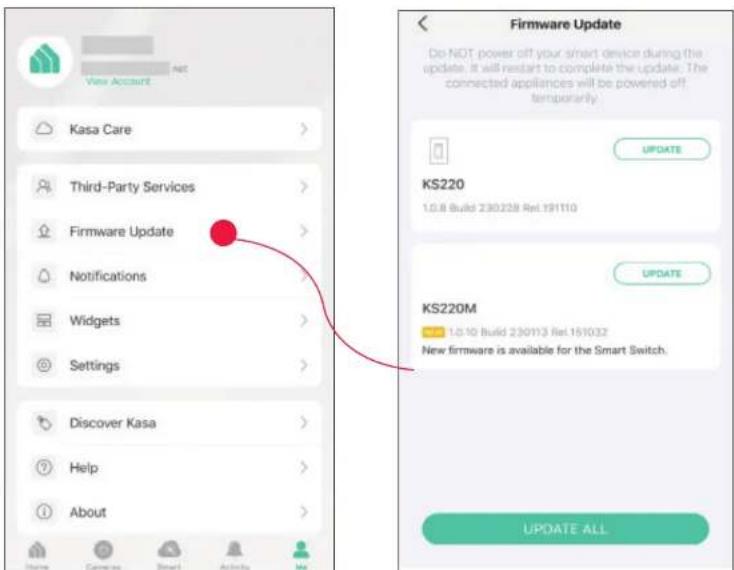
View Account Kasa Care Third-Party Services Firmware Update Notifications Widgets Settings Discover Kasa Help About Firmware Update Do NOT power off your smart device during the update. It will restart to complete the update. The connected appliances will be powered off temporarily. KS220 1.0.8 Build 230228 Rel.191110 KS220M 1.0.10 Build 230113 Rel.151032 New firmware is available for the Smart Switch. UPDATE ALL UPDATE UPDATE ALL

Notification

Kasa Cam utilizes the push notification of your smart phone to inform you of detected activities by the camera.

To configure notification settings, from the Kasa APP > Tap Me on the bottom > Select Notification.
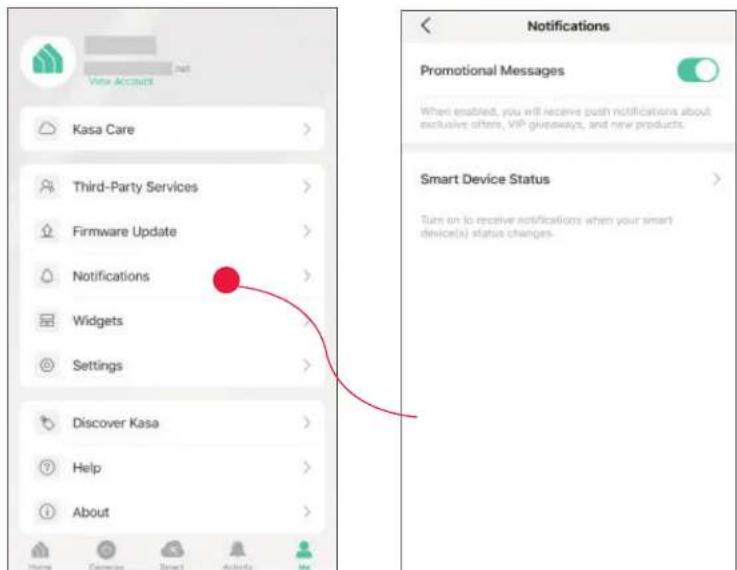
Vote Account Kasa Care Third-Party Services Firmware Update Notifications Widgets Settings Discover Kasa Help About Notifications Promotional Messages When enabled, you will receive push notifications about exclusive offers, VIP giveaways, and new products. Smart Device Status Turn on to receive notifications when your smart device(s) status changes.

Widgets

With widgets, you can tap and send commands to your Kasa devices, such as executing scenes, turning off lights, viewing your Kasa camera clips, and more.

The Kasa app provides three widgets: namely, KASA CAM WIDGET, KASA DEVICES, and KASA SCENES. These three gadgets cover some of the most frequently-used functions, including:

  • KASA DEVICES: Display the status of your selected devices and simple commands like turning on/off.
    • KASA SCENES: Enable/disable the selected scenes.
  • KASA CAM WIDGET: Preview and check your video clips.

Widgets come along with your smart home app and can be activated with some simple steps.

For iOS user, the whole process is divided into two procedures:

  • Firstly, select the Kasa Devices, Kasa Scenes, and Kasa Cam that you want to set as a widget on the Kasa app
    • Secondly, add the Kasa Widgets on your home screen.

For Android user, you can directly add the Kasa Widgets on your home screen.

Note: Setting steps differ in adding the Kasa Widgets on your home screen in the iOS and Android systems.

1. Select Your Desired Widgets (for iOS)

Step 1 To add widgets, from the Kasa APP > Tap Me on the bottom > Tap Widgets.
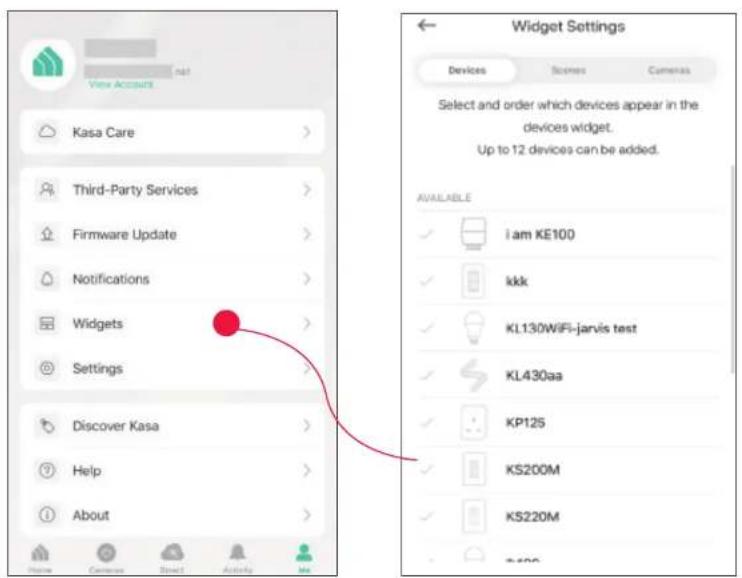
View Account Kasa Care Third-Party Services Firmware Update Notifications Widgets Settings Discover Kasa Help About Widget Settings Devices Scenes Cameras Select and order which devices appear in the devices widget. Up to 12 devices can be added. AVAILABLE i am KE100 kkk KL130WiFi-jarvis test KL430aa KP125 KS200M KS220M T-500

Step 2. Choose the Devices, Scenes and Cameras you want to add in the widgets.
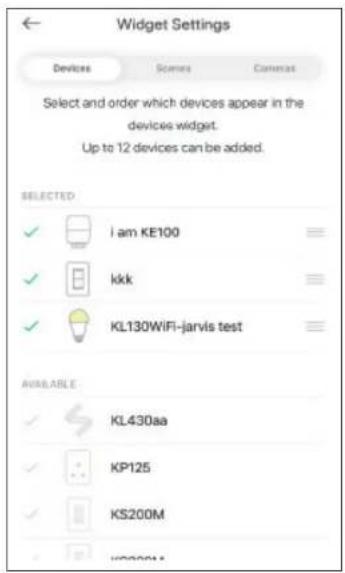
Widget Settings Devices Scenes Camera Select and order which devices appear in the devices widget. Up to 12 devices can be added. SELECTED ✓ i am KE100 ✓ kkk ✓ KL130WiFi-jarvis test AVAILABLE ✓ KL430aa ✓ KP125 ✓ KS200M ✓ WD200M

Step 3. If you want to reorder your devices or scenes, touch and hold the = next to them and drag them in the order that you want.
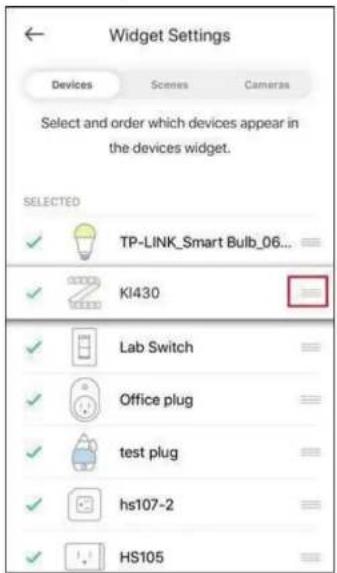
Widget Settings Devices Scenes Cameras Select and order which devices appear in the devices widget. SELECTED ✓ TP-LINK_Smart Bulb_06... ✓ KI430 ✓ Lab Switch ✓ Office plug ✓ Grid plug ✓ hs107-2 ✓ HS105

2. Add to Your Home Screen (for iOS)

Step 1. Swipe right over the Home screen or Lock screen of iPhone, iPad, or iPod touch to see your widgets in the Today View. Scroll to the bottom and tap Edit. If your device is iOS 14 system or above, slide the interface down to the bottom and tap Customize.
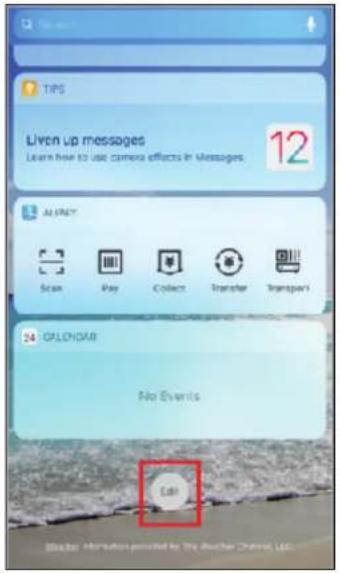
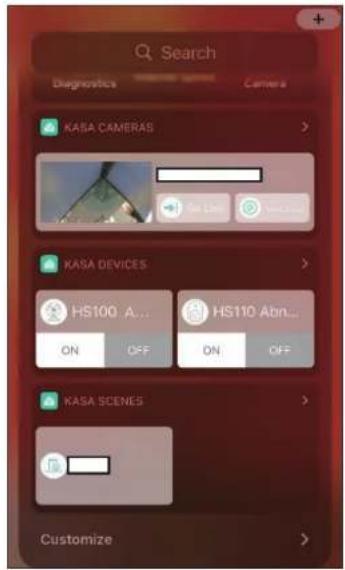
TIPS Liven up messages Learn how to use camera effects in Messages. 12 ALMINTY Scan Play Collect Transfer Transport 34 GALENGAR No Events Can

Search Diagnostics Camera KASA CAMERAS KASA DEVICES HS100 A... HS110 Abn... ON OFF ON OFF KASA SCENES Customize

Step 2 Add Kasa Devices, Kasa Scenes, and the Kasa Cam Widget.
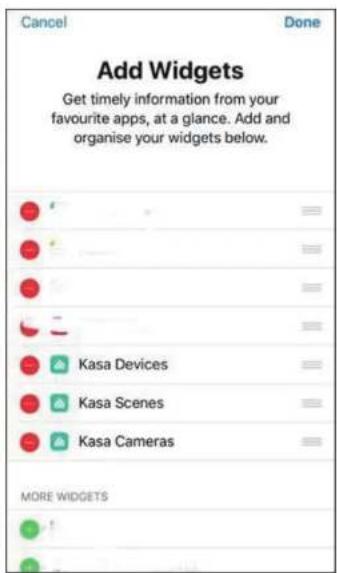
Cancel Done Add Widgets Get timely information from your favourite apps, at a glance. Add and organise your widgets below. Kasa Devices Kasa Scenes Kasa Cameras MORE WIDGETS

Step 3. Drag them to your desired spot by tapping and holding the = next to the apps.
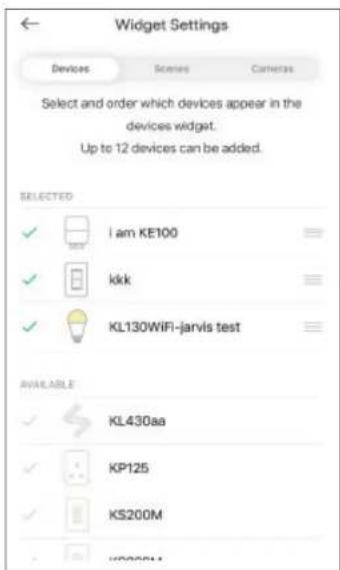
Widget Settings Devices Scenes Cameras Select and order which devices appear in the devices widget. Up to 12 devices can be added. SELECTED ✓ i am KE100 ✓ kkk ✓ KL130WiFi-jarvis test AVAILABLE ✓ KL430aa ✓ KP125 ✓ KS200M - www.k

Step 4. Now you can control your Kasa Devices, Kasa Cam, and Kasa Scenes widgets from the Today View. Tap > and you can see all of your selected Kasa Devices, Scenes, and Cameras.
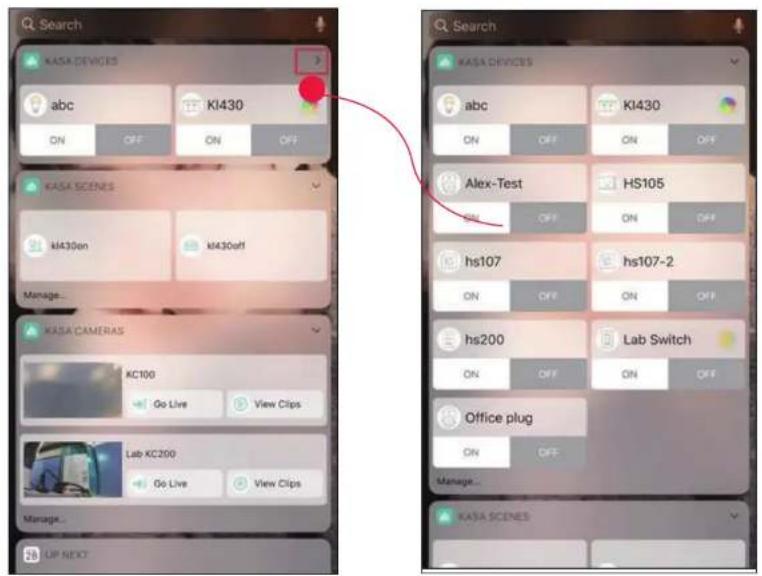
Search KASA DEVICES abc KI430 ON OFF ON OFF KASA SCENES KI430on KI430off Manage... KASA CAMERAS KC100 Go Live View Clips Lab KC200 Go Live View Clips Manage... UP NEXT Search KASA DEVICES abc KI430 ON OFF ON OFF Alex-Test HS105 ON OFF ON OFF hs107 hs107-2 ON OFF ON OFF hs200 Lab Switch ON OFF ON OFF Office plug ON OFF Manage... KASA SCENES

For all Kasa devices, you can switch on/off them. For Kasa devices with adjustable brightness and color, you can also adjust the brightness and color. Tap the round icon next to the devices and then you can see the corresponding options.

With the Kasa Cam widget, you can tap Go Live and easily go to the Live Page. Meanwhile, you can View Clips of activity detection.
KASA DEVICES abc KI430 ON OFF ON OFF Alex-Test HS105 ON OFF ON OFF hs107 hs107-2 ON OFF ON OFF hs200 Lab Switch ON OFF ON OFF Office plug ON OFF Manage... NASA SCENES

CL Search KASA DEVICES abc KI430 ON OFF ON OFF KASA SCENES KI430on KI430off Manage... KASA CAMERAS KC100 Go Live View Clips Lab KC200 Go Live View Clips Manage... UP NEXT

Add to Your Home Screen (for Android)

Step 1. Touch and hold an empty area on the home screen to enter home screen editing mode. Tap the Widgets and you can see all of your widgets.
Drop-by-Go you to have this image platform OK/OK OK/OK

Step 2. Find Kasa widget and tap it.

Drug screenshot uses to remove through user aversion + - 10:32 10:32

Step 3. There are several Kasa widgets including Kasa Cam, Kasa Device and Kasa scene. Touch and hold a widget and drag it to an empty area on the home screen. You can add widgets you want.

Check that there are enough empty spaces on the home screen for the widget. If there is not enough space, add an empty screen page or free up some space on the current home screen page
Send empty until to move the page position Send empty until to move the page position Send New Send New Send New Send New Send New

Settings

Kasa Cam utilizes the push notification of your smart phone to inform you of detected activities by the camera.

To view the Kasa Care plan, from the Kasa APP > Tap Me on the bottom > Select Notification.
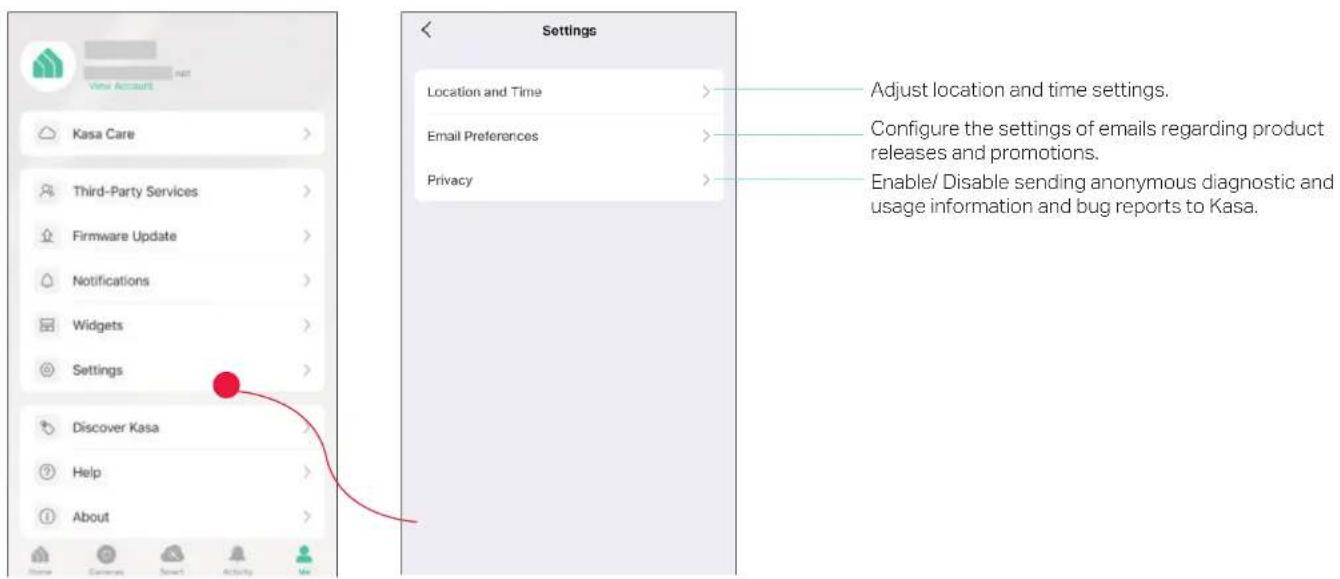
View Account Kasa Care Third-Party Services Firmware Update Notifications Widgets Settings Discover Kasa Help About Location and Time Email Preferences Privacy Adjust location and time settings. Configure the settings of emails regarding product releases and promotions. Enable/ Disable sending anonymous diagnostic and usage information and bug reports to Kasa.

Manual assistant
Powered by Anthropic
Waiting for your message
Product information

Brand : TP-LINK

Model : Kasa KC401

Category : Security Camera