
KV-S2026C SERIES - Document Scanners PANASONIC - Free user manual and instructions
Find the device manual for free KV-S2026C SERIES PANASONIC in PDF.


| Product Type | Document Scanner |
| Brand | Panasonic |
| Model | KV-S2026C Series |
| Dimensions (W × D × H) | 316 × 272 × 245 mm |
| Weight | 4.2 kg |
| Power Supply | 24 V DC Power Adapter |
| Power Consumption | 35 W (max), 5 W (standby) |
| Scan Type | Automatic Duplex |
| Scan Speed | 26 ppm (simplex), 52 ipm (duplex) |
| Optical Resolution | 600 dpi |
| Automatic Document Feeder (ADF) Capacity | 50 sheets |
| Sensor Type | CIS (Contact Image Sensor) |
| Interfaces | USB 2.0 Hi-Speed |
| Document Sizes | A4, A5, A6, B5, Letter, Business Cards, Plastic Cards |
| Noise Level | 55 dB (operating) |
| Maintenance and Cleaning | Use the supplied cleaning kit (isopropyl liquid) for the rollers and scanning surface. Wearing gloves recommended. |
| Safety | Do not expose to moisture, rain, flames, or temperatures > 40°C. Use only the supplied power cord. |
| Available Spare Parts | Roller kit, cleaning kit, power adapter (contact Panasonic dealer) |
| Repairability | Repairability index not communicated. Support via authorized Panasonic dealer. |
| Warranty | 2 years (parts and labor, according to conditions) |
Frequently Asked Questions - KV-S2026C SERIES PANASONIC
User questions about KV-S2026C SERIES PANASONIC
0 question about this device. Answer the ones you know or ask your own.
Ask a new question about this device
Download the instructions for your Document Scanners in PDF format for free! Find your manual KV-S2026C SERIES - PANASONIC and take your electronic device back in hand. On this page are published all the documents necessary for the use of your device. KV-S2026C SERIES by PANASONIC.
USER MANUAL KV-S2026C SERIES PANASONIC
High Speed Color Scanner
Operating Instructions
Model No. KV-S2025C / KV-S2025CU / KV-S2026C / KV-S2026CU
KV-S2045C / KV-S2045CU / KV-S2046C / KV-S2046CU
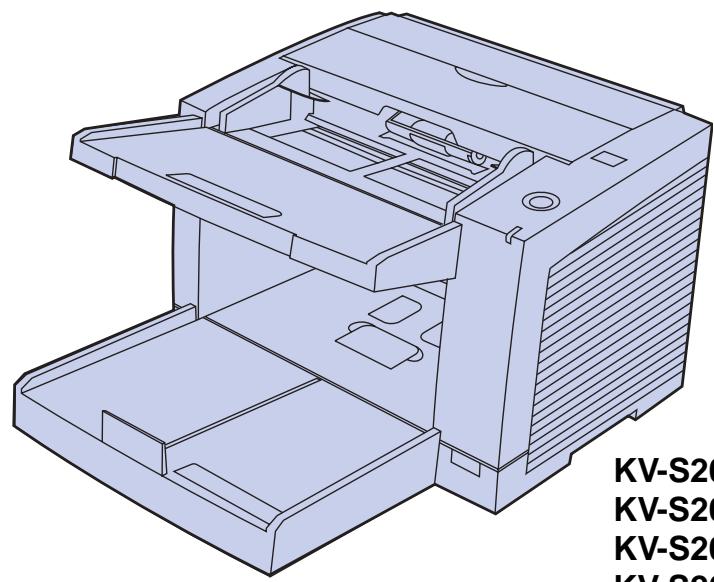
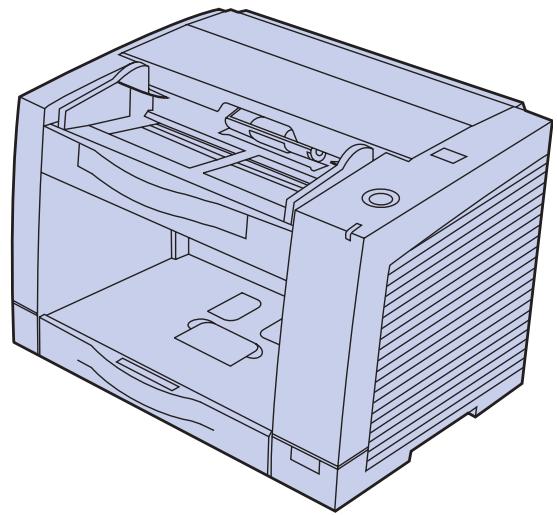
KV-S2025C
KV-S2025CU
KV-S2026C
KV-S2026CU
KV-S2045C
KV-S2045CU
KV-S2046C
KV-S2046CU
These instructions contain information on operating the scanner. Before reading these instructions, please read the installation manual enclosed with this unit.
Please carefully read these instructions, the enclosed installation manual and maintenance manual. Keep all documentation in a safe place for future reference.
Keep the CD-ROM in the protective case. Do not expose the CD-ROM to direct sunlight or extreme heat and do not scratch or smudge the surface of the CD-ROM.
Thank you for purchasing a Panasonic "High Speed Color Scanner".
- Panasonic supports your imaging needs with a reliable and easy-to-use document scanner.
- Panasonic has developed Panasonic Image Enhancement Technology to improve the quality of your scanned images even beyond the quality of your original document.
System requirements
When using the scanner, the required host computer conditions are as follows.
| KV-S2025C / KV-S2045C KV-S2026C SCSI Connection KV-S2046C SCSI Connection | KV-S2026C USB Connection KV-S2046C USB Connection | |
| CPU | Minimum Pentium II, 300 MHz Recommended Pentium III, 800 MHz or higher | |
| Memory | [Black & White Scanning] Minimum 128 MB Recommended 256 MB or higher [Color Scanning] Minimum 256 MB Recommended 512 MB or higher | |
| OS | Windows® 95 / Windows® 98 / Windows NT® 4.0 / Windows® 2000 / Windows® Me / Windows® XP | Windows® 98 / Windows® 2000 / Windows® Me / Windows® XP |
| Interface | SCSI III Recommended SCSI board Adaptec SCSI 2930U / 2940U / 29160N /19160 | USB 2.0 |
Note: The scanning speed differs depending on the host computer operating environment or application. We recommend the use of a SCSI cable less than the length recommended by the SCSI board manufacturer of your host computer. If you connect the scanner to a USB hub, it is not guaranteed to work.
Important
- Do not duplicate currency.
- Do not duplicate copyrighted material or the work of others except for the purpose of private use.
- Do not duplicate any kind of certificates, licenses, passports, official or private documents, and the like.

As an ENERGY STAR® Partner, Panasonic has determined that this product meets the ENERGY STAR® guidelines for energy efficiency.
(ENERGY STAR and the ENERGY STAR certification mark are registered US marks.)
- Windows® 95 is Microsoft® Windows® 95 operating system.
- Windows® 98 is Microsoft® Windows® 98 operating system.
- Windows® Me is Microsoft® Windows® Me operating system.
- Windows NT® is Microsoft® Windows NT® operating system.
- Windows® 2000 is Microsoft® Windows® 2000 operating system.
- Windows® XP is Microsoft® Windows® XP operating system.
- Microsoft® Windows® and Windows NT® are either registered trademarks or trademarks of Microsoft Corporation in the United States and/or other countries.
- ISIS® is a registered trademark of Pixel Translations, a division of Captiva Software Corporation.
- Pentium® is a registered trademark of Intel Corporation. Each company's name or company product name is each company's trademark or registered trademark.
The information given in these Operating Instructions is subject to change without notice.
Table of Contents
| Table of Contents | ||
| Page | ||
| Before You Start | Notice | 4 |
| Precautions | 10 | |
| Component Identification | 13 | |
| • KV-S2025C / KV-S2025CU / KV-S2026C / KV-S2026CU | 13 | |
| • KV-S2045C / KV-S2045CU / KV-S2046C / KV-S2046CU | 14 | |
| • Power turn-on sequence | 15 | |
| • About LED | 15 | |
| • About the SCSI setting | 16 | |
| Operation | Loading Documents | 17 |
| Care and Maintenance | Clearing Paper Jams | 20 |
| • Removing paper jams from the feed part. | 20 | |
| Cleaning the Unit | 22 | |
| • Outside of the scanner | 22 | |
| • Inside the scanner | 22 | |
| • Cleaning the rollers and sensors | 23 | |
| • Cleaning the CIS glasses and sensor rollers | 25 | |
| Replacing Consumables | 27 | |
| • Replacing the paper feed roller module | 27 | |
| • Replacing the retard roller module | 30 | |
| Appendix | How to re-attach the sensor rollers | 32 |
| • Re-attach the sensor roller for back scanning to the ADF door | 32 | |
| • Re-attach the sensor roller for front scanning | 32 | |
| Repacking Instructions | 33 | |
| • KV-S2025C / KV-S2025CU / KV-S2026C / KV-S2026CU | 33 | |
| • KV-S2045C / KV-S2045CU / KV-S2046C / KV-S2046CU | 34 | |
| Specifications | 35 | |
| Troubleshooting | 37 | |
| Index | 39 | |
Federal Communications Commission Requirements
(For United States only)
Note: This equipment has been tested and found to comply with the limits for a Class A digital device, pursuant to part 15 of the FCC Rules. These limits are designed to provide reasonable protection against harmful interference when the equipment is operated in a commercial environment. This equipment generates, uses, and can radiate radio frequency energy and, if not installed and used in accordance with the instruction manual, may cause harmful interference to radio communications. Operation of this equipment in a residential area is likely to cause harmful interference in which case the user will be required to correct the interference at his own expense.
FCC Warning: To assure continued FCC compliance, the user must use only shielded interface cable and the provided power supply cord. Also, any unauthorized changes or modifications to this equipment would void the user's authority to operate this device.
English
WARNING:
TO PREVENT FIRE OR SHOCK HAZARD, DO NOT EXPOSE THIS PRODUCT TO RAIN OR ANY TYPE OF MOISTURE.
THE SOCKET-OUTLET MUST BE NEAR THIS EQUIPMENT AND MUST BE EASILY ACCESSIBLE.
Warning:
(For United Kingdom only)
For your safety please read the following text carefully.
This appliance is supplied with a moulded three pin mains plug for your safety and convenience.
A 5 amp. fuse is fitted in this plug. Should the fuse need to be replaced please ensure that the replacement fuse has a rating of 5 amps. and that it is approved by ASTA or BSI to BS1362. Check for the ASTA mark or the BSI mark on the body of the fuse. If the plug contains a removable fuse cover you must ensure that it is refitted when the fuse is replaced. If you lose the fuse cover the plug must not be used until a replacement cover is obtained. A replacement fuse cover can be purchased from your local Panasonic Dealer.
If the fitted moulded plug is unsuitable for the socket outlet in your home then the fuse should be removed and the plug cut off and disposed of safely.
There is danger of severe electrical shock if the cut off plug is inserted into any 13 amp. socket.
If a new plug is to be fitted please observe the wiring code as shown below. If in any doubt please consult a qualified electrician.
WARNING: This appliance must be earthed.
IMPORTANT: The wires in this mains lead are coloured in accordance with the following code.
Green-and-Yellow : Earth
Blue : Neutral
Brown : Live
As the colours of the wire in the mains lead of this appliance may not correspond with the coloured markings identifying the terminals in your plug, proceed as follows.
The wire which is coloured Green-and-Yellow must be connected to the terminal in the plug which is marked with the letter E or by the Earth symbol or coloured Green-and-Yellow.
The wire which is coloured Blue must be connected to the terminal in the plug which is marked with the letter N or coloured Black.
The wire which is coloured Brown must be connected to the terminal in the plug which is marked with the letter L or coloured Red.
How to replace the fuse:
Open the fuse compartment with a screwdriver and replace the fuse.
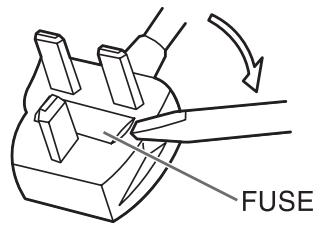
The product should be used only with a power cord that is supplied by the manufacturer.
Roller cleaning paper precautions
Before using the roller cleaning paper, please read these instructions completely. Keep these instructions for future reference.
WARNING
- Do not drink or inhale the roller cleaning paper fluid including isopropyl alcohol.
- The roller cleaning paper may be harmful to your skin, so please use protective gloves.
- Do not use the roller cleaning paper near a heater or open flame.
- Do not store the roller cleaning paper in direct sunlight or in a place over 40°C (104°F).
- Only use the roller cleaning paper to clean the rollers and scanning area. If you need more information about the roller cleaning paper, please refer to the Material Safety Data Sheet (MSDS).
- Please ask your Panasonic sales company about obtaining the Material Safety Data Sheet.
KEEP AWAY FROM FIRE.
The following precautions are recommended to extend the life of the unit, and for your safety.
| Prior to scanning, remove, all staples and paper clips from pages. | Do not place any liquids near the unit. —Accidental spillage of liquid into the unit may cause severe damage. If this occurs, turn the unit off, unplug the power cord and call for service. | Do not place books, paper, or other items on the unit. | |
| Do not place the unit in an area where there is a lot of smoke, dust, chemical fumes or vibration. Ex: Thinner Ex: Thinner | Do not leave the power cord plugged into the AC outlet if the unit is not used for an extended period. | ||
| Do not place the unit on an uneven or unstable surface. | Do not disassemble the unit. This will void your warranty. | ||
| Do not use the tray hanging out of a table. | When carrying the unit, do not use the trays as handles. | When carrying the unit, hold the both side grips. | |
Operating Environment
Do not place the unit in direct sunlight or in a cold draft.

Hot

Cold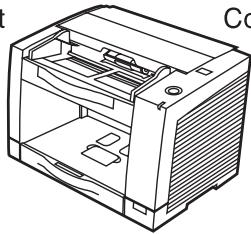
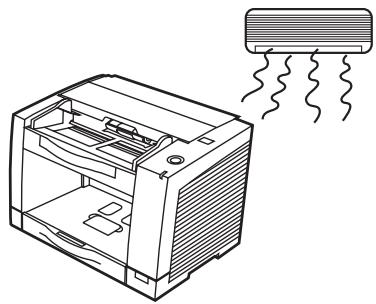
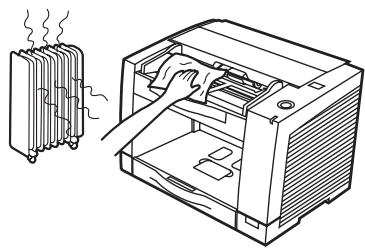
Do not place the unit near a heating appliance or an air conditioning vent. Do not place the unit in a room with extremely high or low humidity.

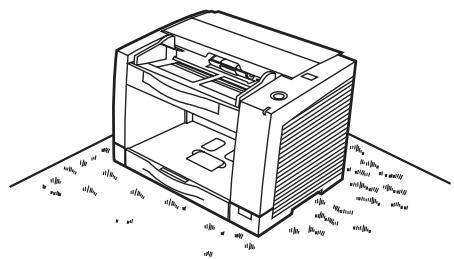
Do not place the unit on a carpet. (Static electricity can cause the unit to malfunction.)

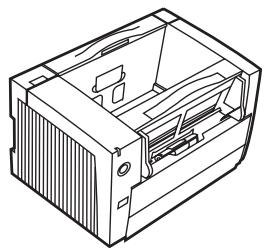
Do not use the unit in a vertical position.

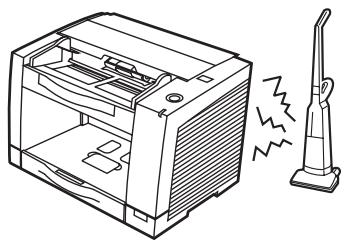
Do not place the unit near other appliances which generate large electrical noise.

Do not drink or inhale the included roller cleaning paper fluid.
The roller cleaning paper may be harmful to your skin, so please use protective gloves.
Do not use the roller cleaning paper near a heater or open flame. This may cause a fire.

- Power Source
- Use a voltage level that does not vary more than ±10% from the voltage level marked on the nameplate (located on the back side of the scanner).
- Do not use an extension cord.
- This scanner should be connected to a grounded outlet.
- Do not use a line conditioner, transient suppressor or surge protector.
CD-ROM
To prevent the CD-ROMs from accidental damages:
| Do not touch or write on the surface of the disc. | Do not leave the disc out of the protective case. | Do not leave the disc in direct sunlight or near heat sources. |
| Do not place heavy objects on the disc case or drop the case. | To clean the disc, hold the disc by its edges and wipe it from the center to the edges with a dry, soft cloth. |
■ KV-S2025C / KV-S2025CU / KV-S2026C / KV-S2026CU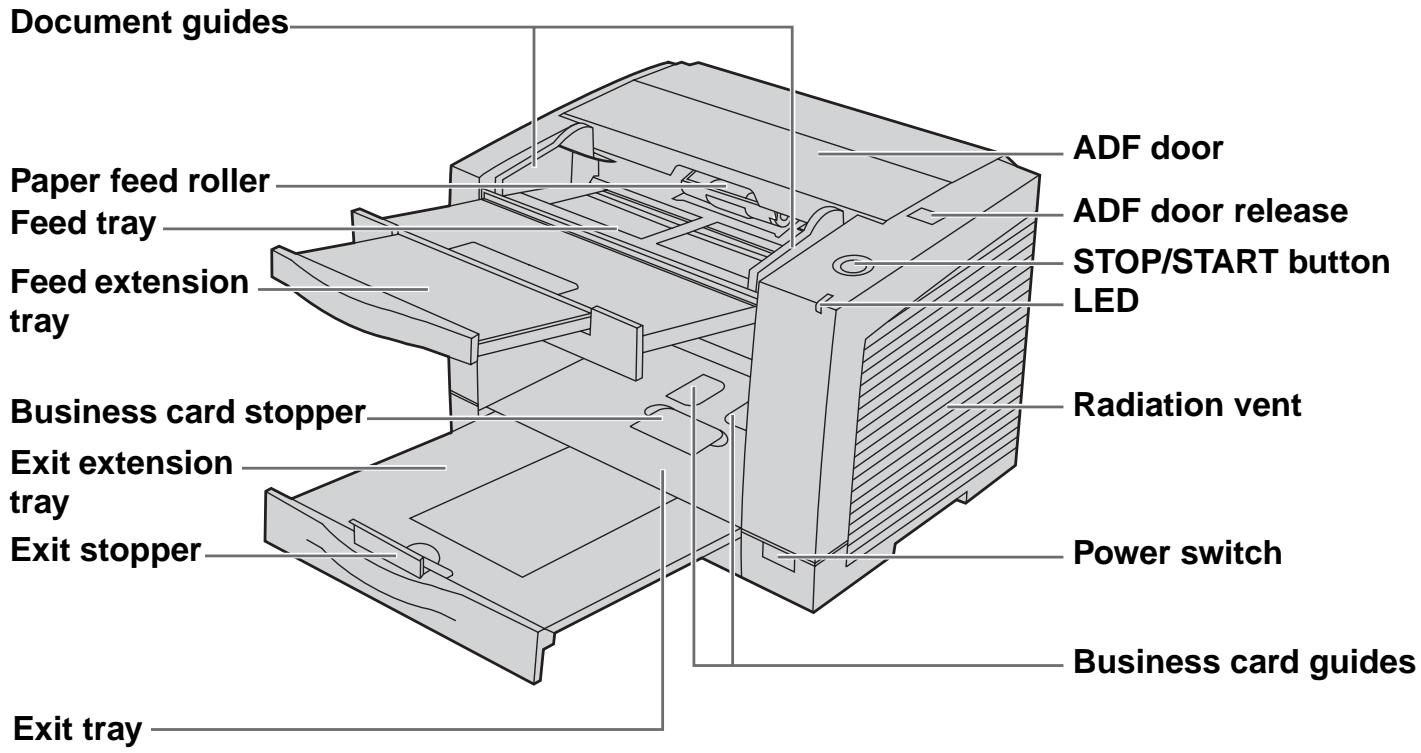
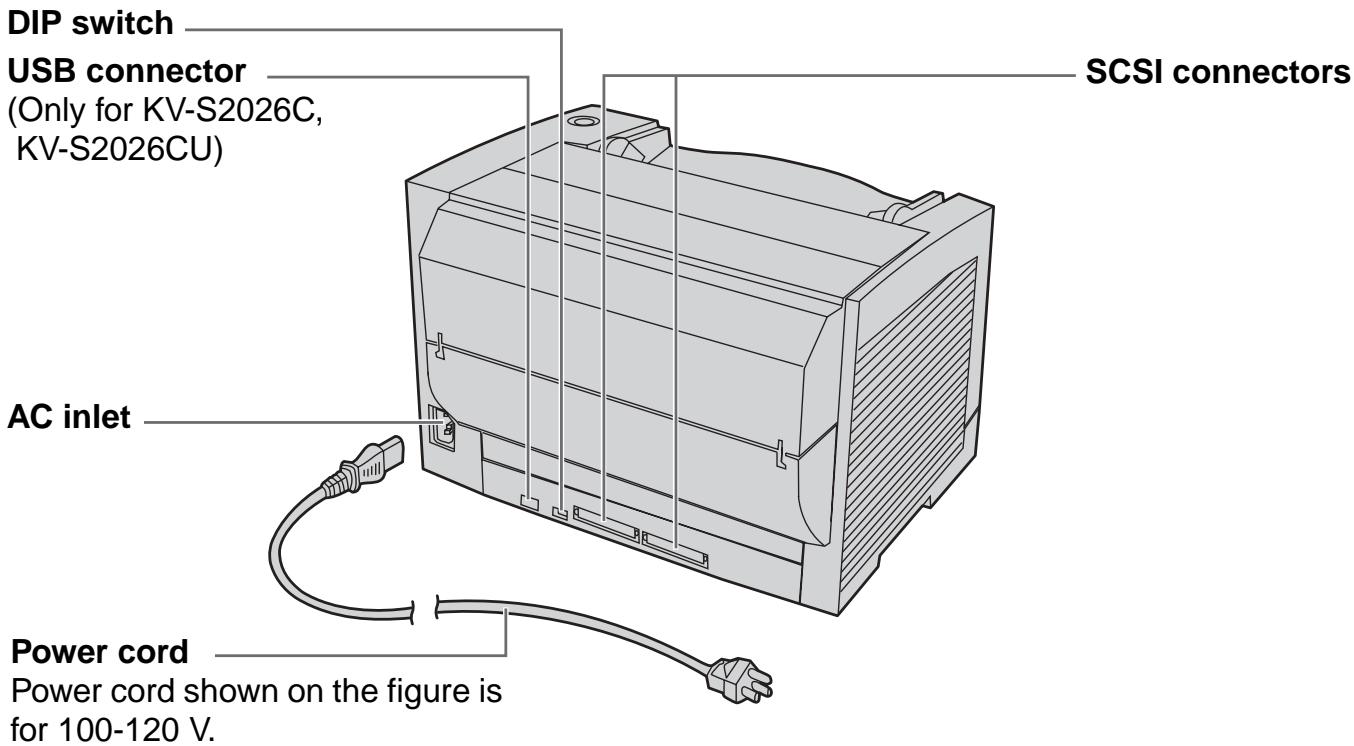
KV-S2045C / KV-S2045CU / KV-S2046C / KV-S2046CU
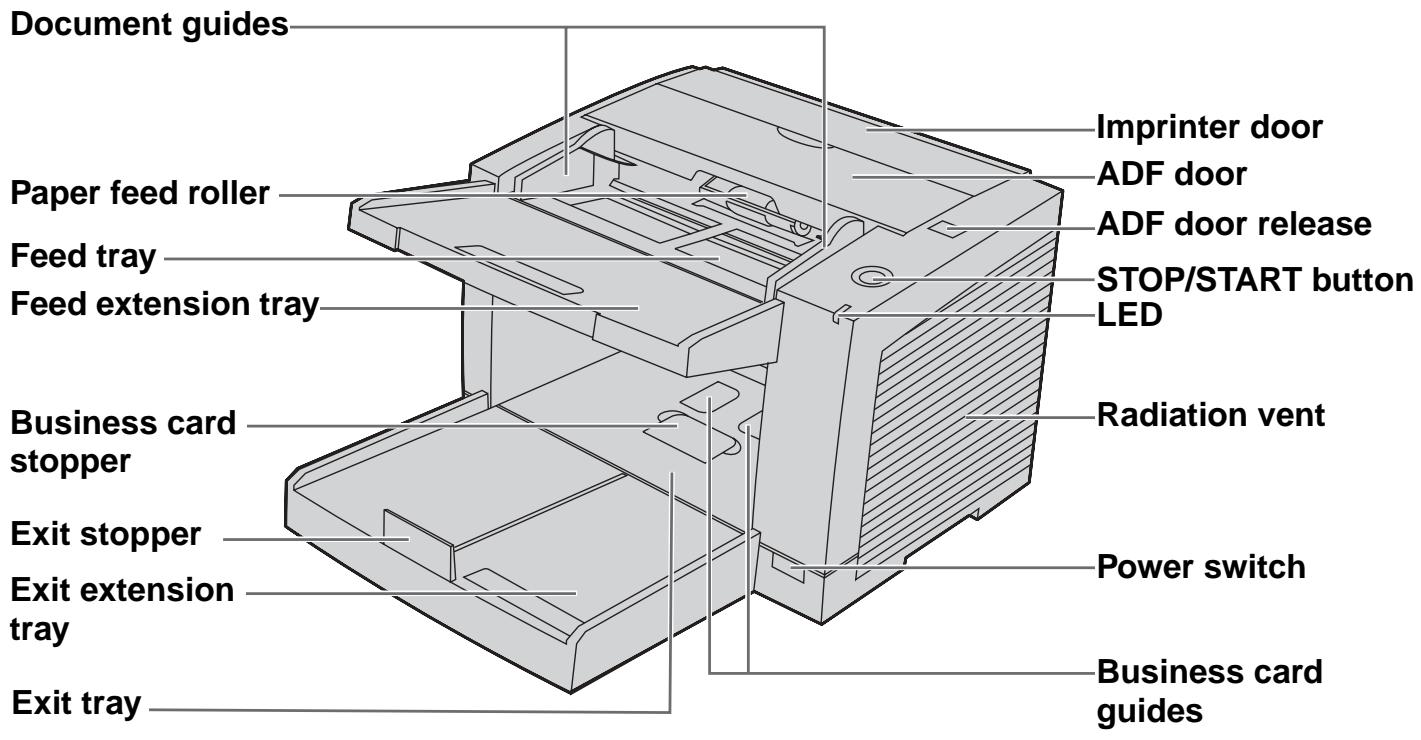
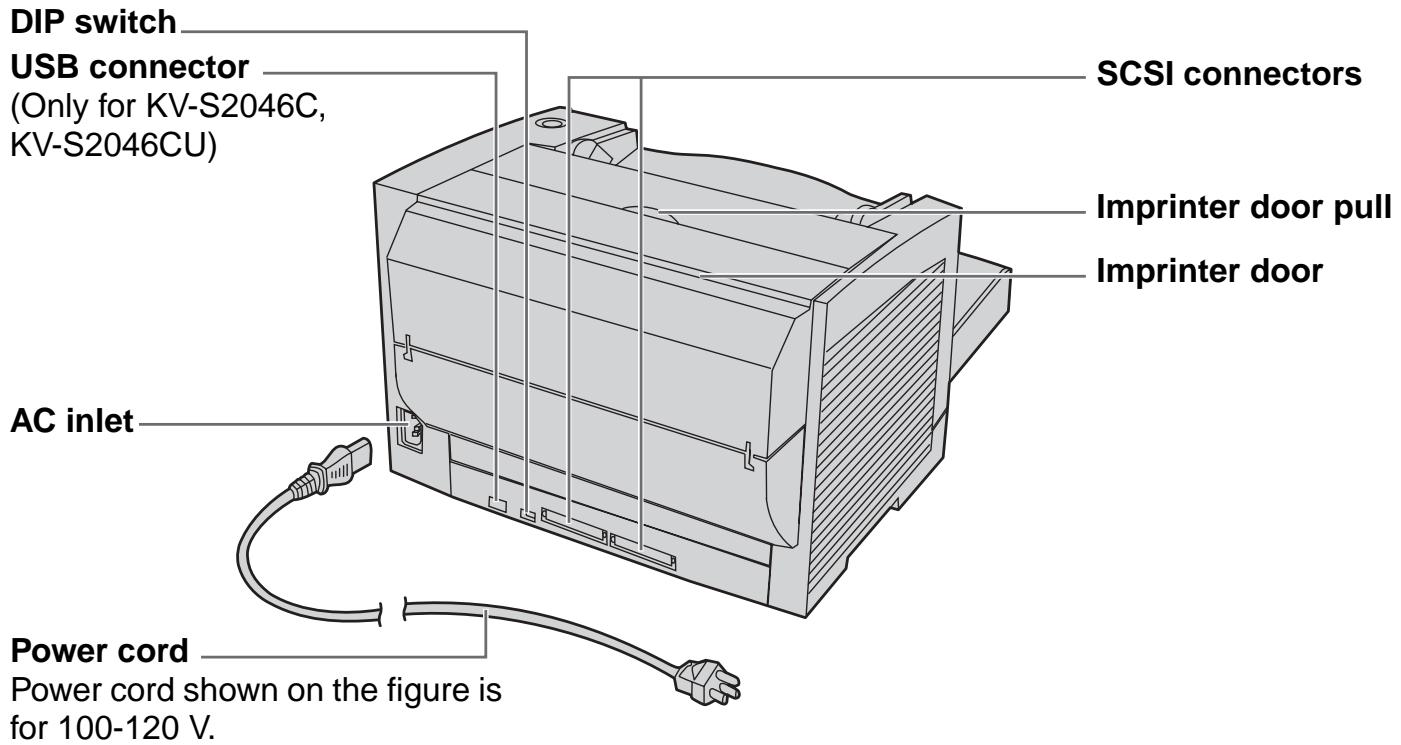
Power turn-on sequence
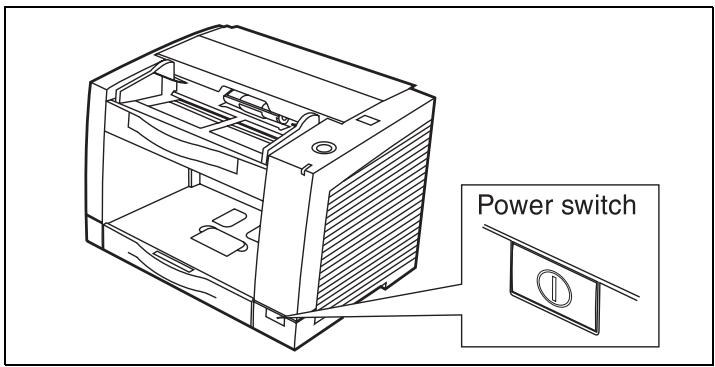
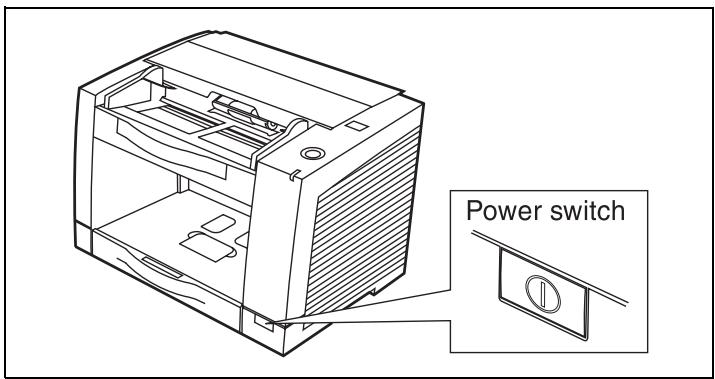
1 Turn on the power of the scanner. - Press the power switch. (The LED will now light.) 2 Turn on the power of the host computer after scanner's LED lights green. - In case of the USB connection, the host computer recognizes the scanner automatically when the scanner is powered on even after the host computer is powered on.
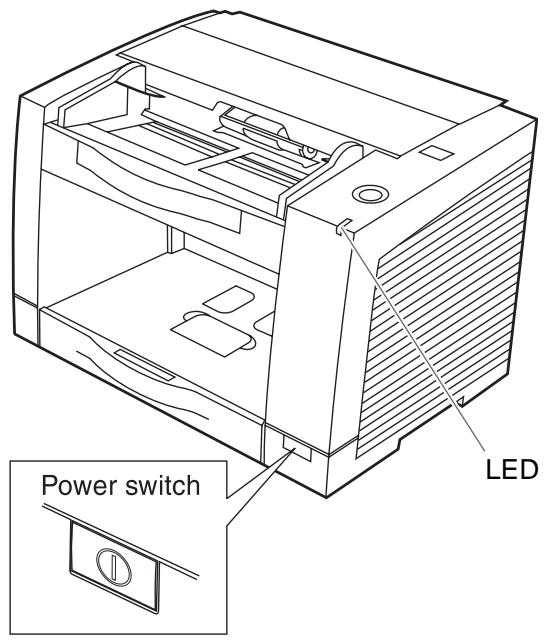
About LED
LED indicates the status of the scanner as follows:
| LED light | Status |
| Green | Ready to scan or scanning |
| Green (flashing) | Sleep mode |
| Orange | Ready to scan or scanning with warning *1 |
| Orange (flashing) | Initializing Sleeping with warning *1 |
| Red | An error occurred *2 |
1: The rollers need to be cleaned or replaced. 1*2: Check the status of the scanner using the User utility. The User utility is included in the CD-ROM.
About the SCSI setting
When connecting the scanner to a SCSI chain using a SCSI cable, perform the SCSI ID setting correctly. The scanner is provided with a DIP switch for the SCSI ID No. setting and the terminator setting.
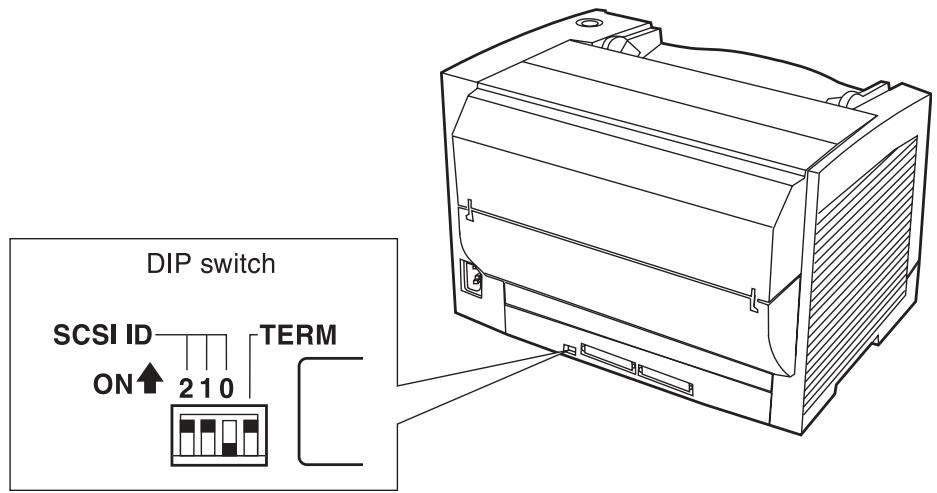
SCSI ID Setting SCSI Terminator Setting
| ID No. | Switch | Remarks | ||
| #2 | #1 | #0 | ||
| 0 | OFF | OFF | OFF | |
| 1 | OFF | OFF | ON | |
| 2 | OFF | ON | OFF | |
| 3 | OFF | ON | ON | |
| 4 | ON | OFF | OFF | |
| 5 | ON | OFF | ON | |
| 6 | ON | ON | OFF | Default setting |
| 7 | ON | ON | ON | |
| Function | Switch | Description |
| Enable | ON | • The last device in the SCSI chain • Default setting |
| Disable | OFF | Not the last device in the SCSI chain |
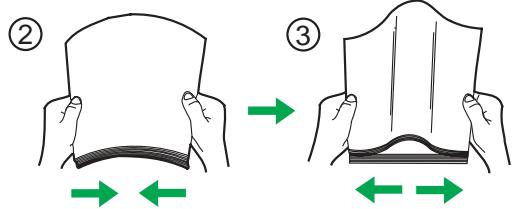
1 Documents that have been stapled together or stacked together (as in a file folder) will need to be separated.
(1) Fan the stack of documents to separate all the edges. (2) Hold both ends and bend the documents as shown in the illustration. (3) To flatten the documents, hold firmly and pull them apart as shown in the illustration.
Repeat these steps as necessary.
Prior to scanning, remove all staples and paper clips from pages.


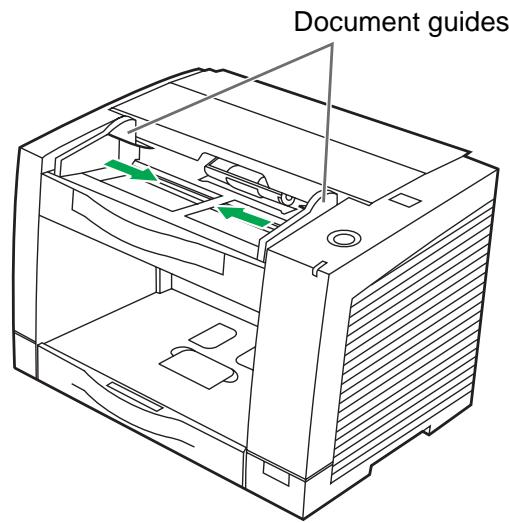
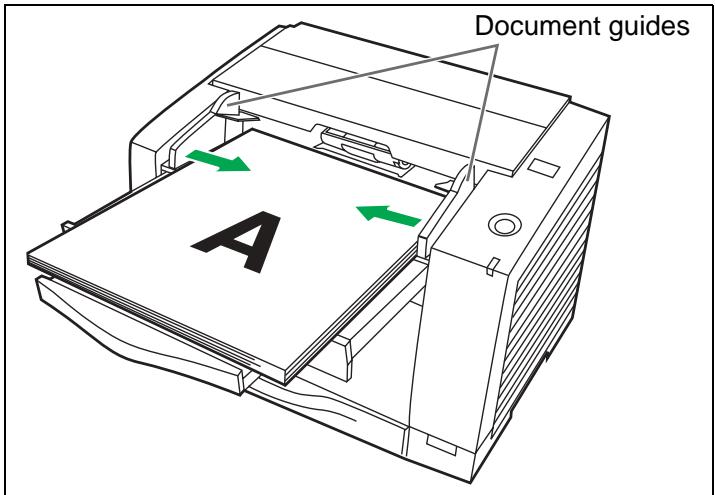
2 Carefully align the documents. 3 Adjust the document guides slightly larger than the actual size of the documents.
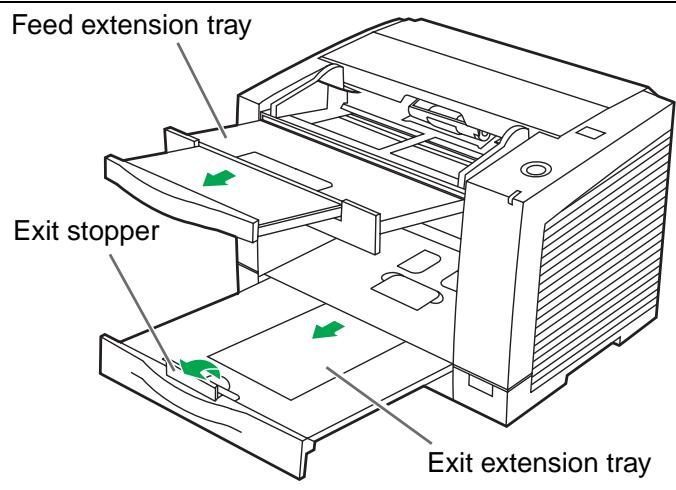
4 When scanning paper longer than the feed tray, pull out the feed extension tray from the feed tray and the exit extension tray as shown in the figure on the right.
- The exit extension tray of KV-S2045C, KV-S2045CU, KV-S2046C and KV-S2046CU is fixed. Adjust the position of the exit stopper.
- When using small sized documents like business cards, raise the business card guides and the business card stopper.
Caution:
Do not use the business card guides and the business card stopper for larger documents than their acceptable size. It will cause paper jams.
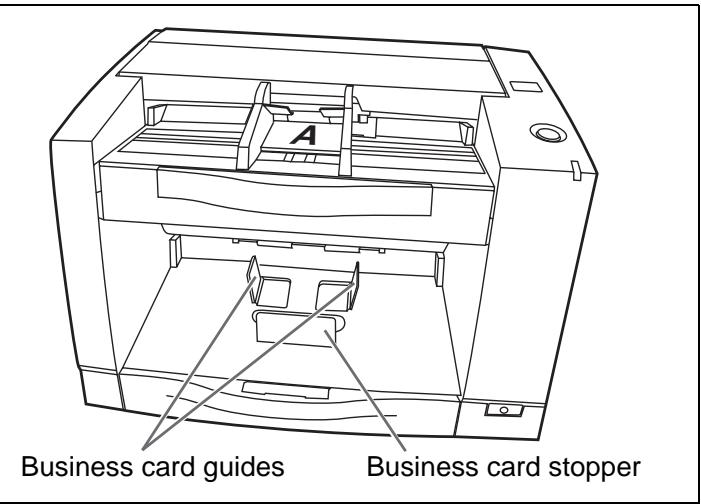
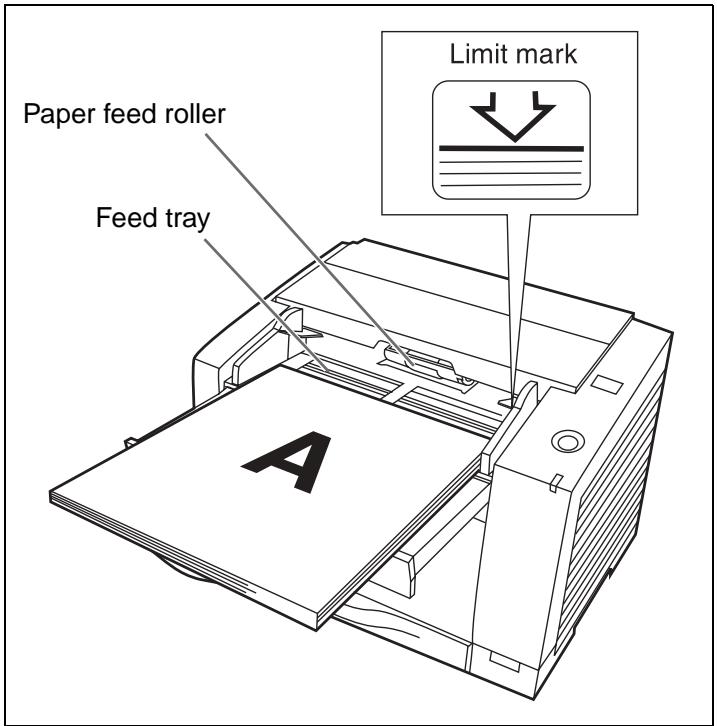
5 Place the documents on the feed tray with the side to be scanned facing up.
- Be sure to place the documents on the feed tray as shown in the figure on the right.
- The amount of documents should not exceed the limit mark on the document guide. This may cause a paper jam or skew.
6 Adjust the document guides to the size of the documents.
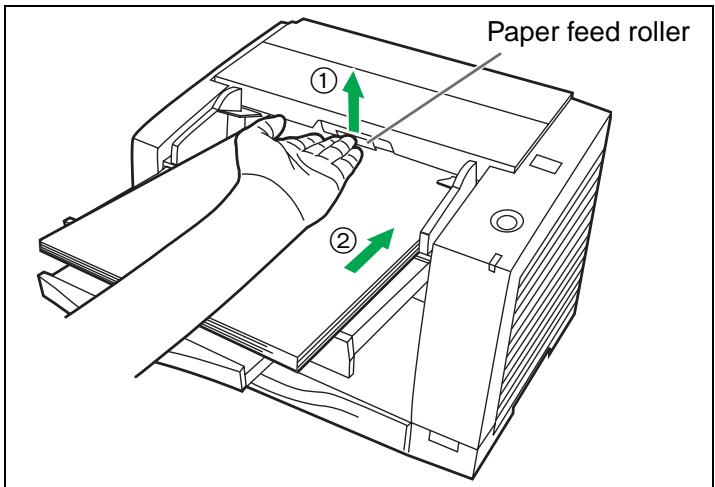
7 Set documents under the paper feed roller.
(1) Lift the paper feed roller as shown in the figure. (2) Push documents in the direction of the arrow until they stop under the paper feed roller.
Caution:
- Acceptable documents are as follows.
Paper size: 50.8 x 70 mm (2.0 x 2.8 in.) to 216 x 356 mm (8.5 x 14 in.)
Paper thickness:
Single paper feed: 0.05 to 0.15 mm (2.0 to 5.9 mils)
Continuous paper feed: 0.06 to 0.15 mm (2.36 to 5.9 mils)
Paper weight:
Single paper feed: 40 to 127 g/m² (10.7 to 33.9 lbs.)
Continuous paper feed: 50 to 127 g/m² (13.3 to 33.9 lbs.)
If you scan other types of documents, paper jamming or multiple-sheet feeding may occur.
- Scanning paper such as carbons or carbonless paper may cause skewing, paper jamming or multiple-sheet feeding because it makes the rollers dirty and the chemicals may cause the rollers to swell up.
- The amount of documents should not exceed the limit mark on the document guide. This may cause a paper jam or skew.
- Be sure to remove the document from the exit tray after it is scanned.
- When you scan irregular or fragile documents, it is recommended to make a copy and use the copy to scan.
- When scanning a curled or folded document, load the document after flattening it.
Types of documents to avoid:
- OHP sheets, other plastic films, cloths, or metallic sheets.
- Paper with irregularities such as tabs, staples, paste, etc.
- Documents with wet ink
- Thick or irregular documents such as envelopes, documents that are glued together, etc.
- Copying paper such as carbon paper
- Damaged or wrinkled documents
- Irregularly shaped documents Photographs
Torn documents, thin documents or documents that are creased on the top edge may cause paper jams. If a paper jam occurs, remove the jammed sheet according to the following procedure.
Removing paper jams from the feed part
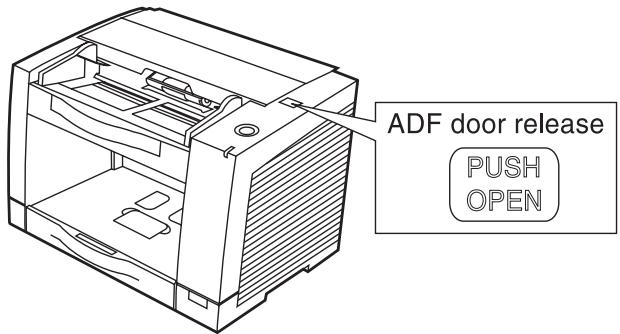
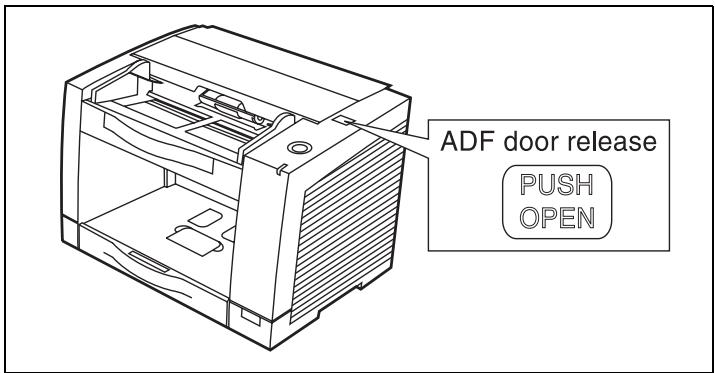
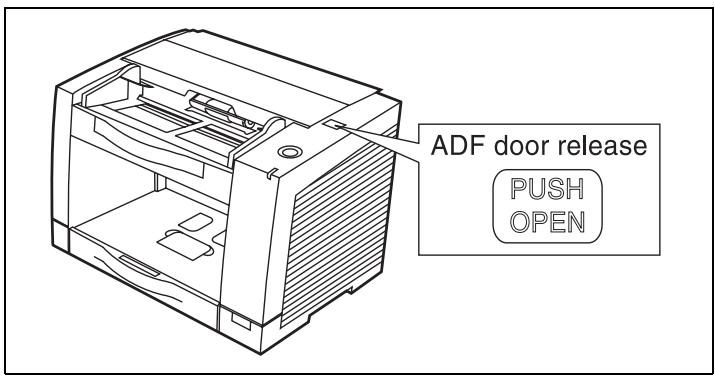
1 Push the ADF door release to open the ADF door.
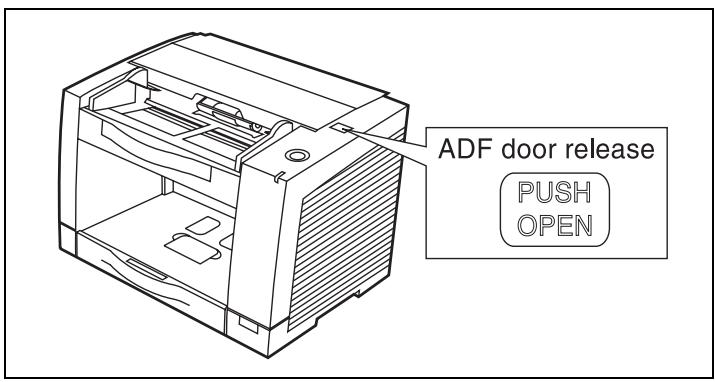
2 Remove the jammed document.
- If the jammed document remains at the feed tray side, pull it up.
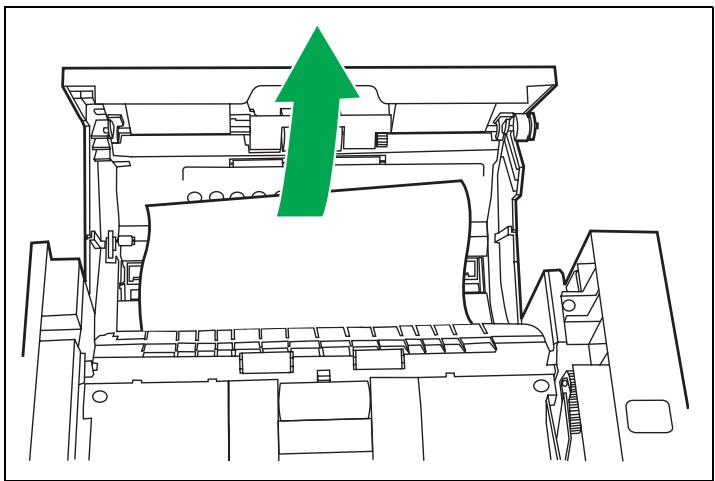
- If the jammed document appears at the exit tray side, remove it from the exit side.
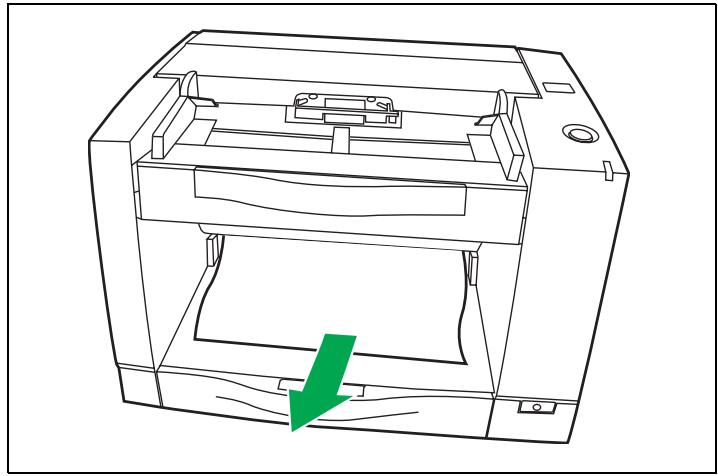
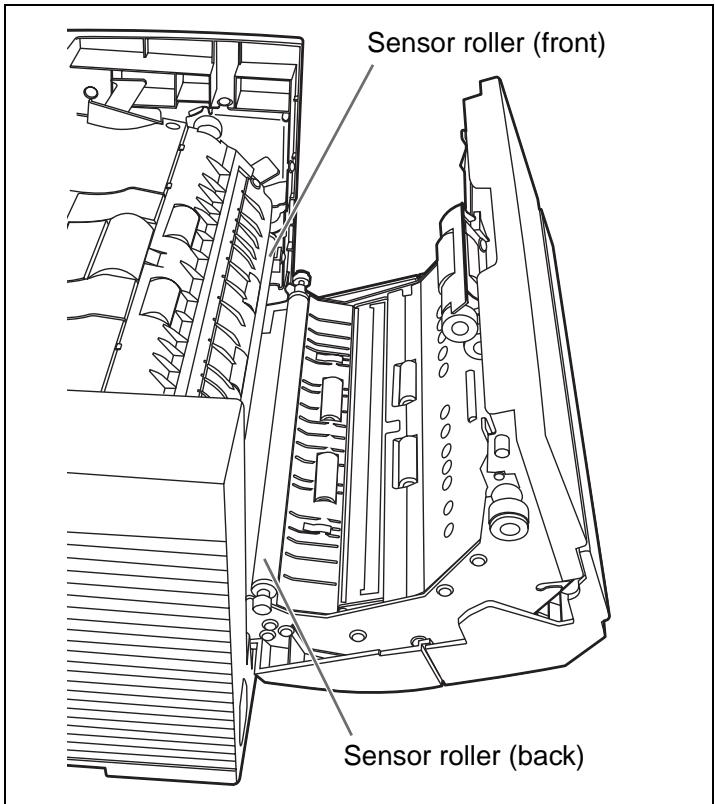
3 Make sure that the sensor rollers are installed properly, before closing the ADF door.
- If the sensor rollers are removed, reattach them. (Refer to page 32.)
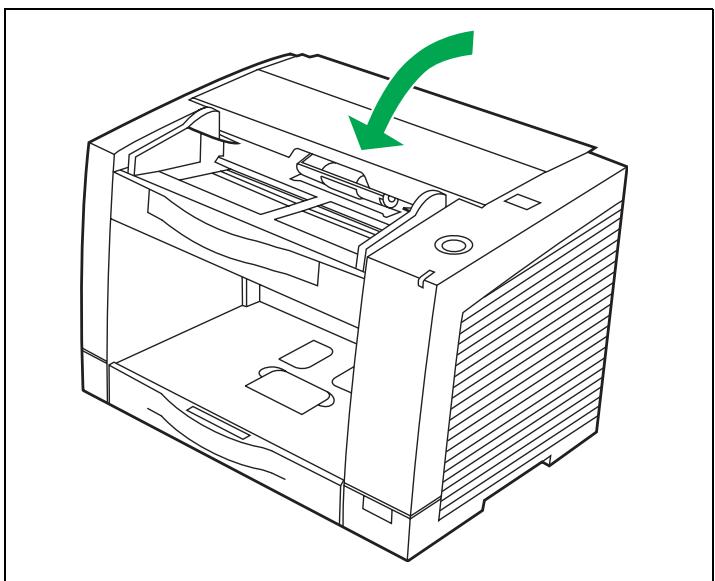
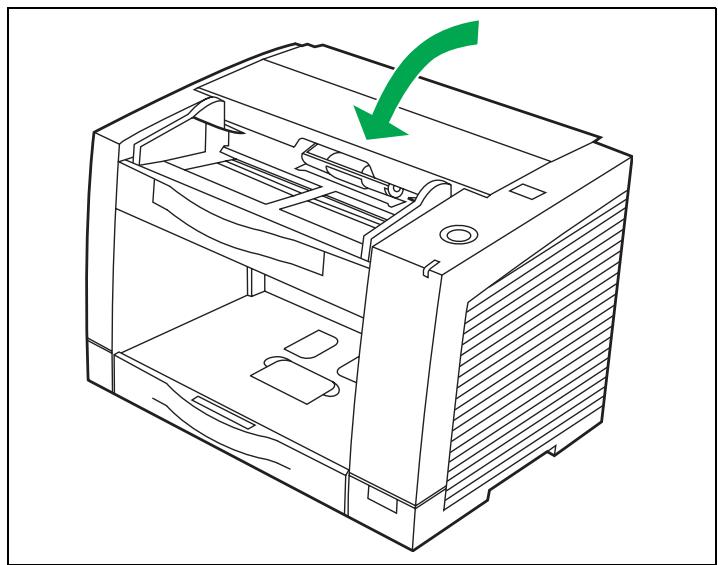
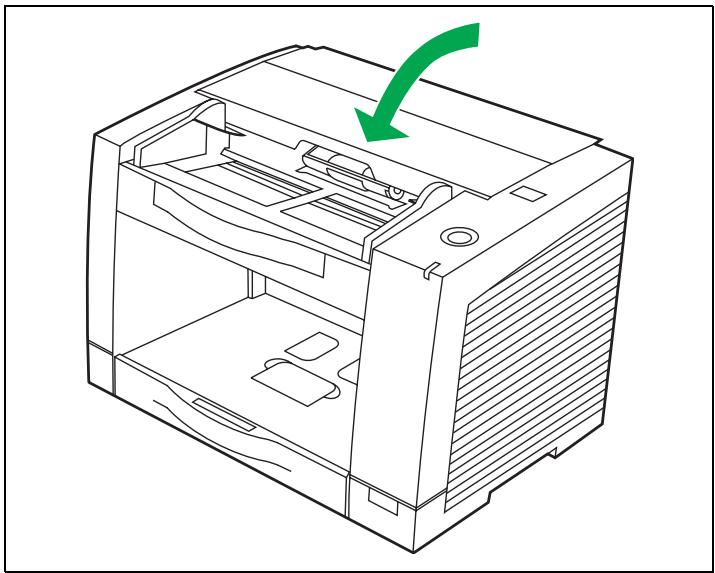
4 Close the ADF door.
- When you close the ADF door, close it securely until the door is locked.
Outside of the scanner
Clean the unit at least once a month.
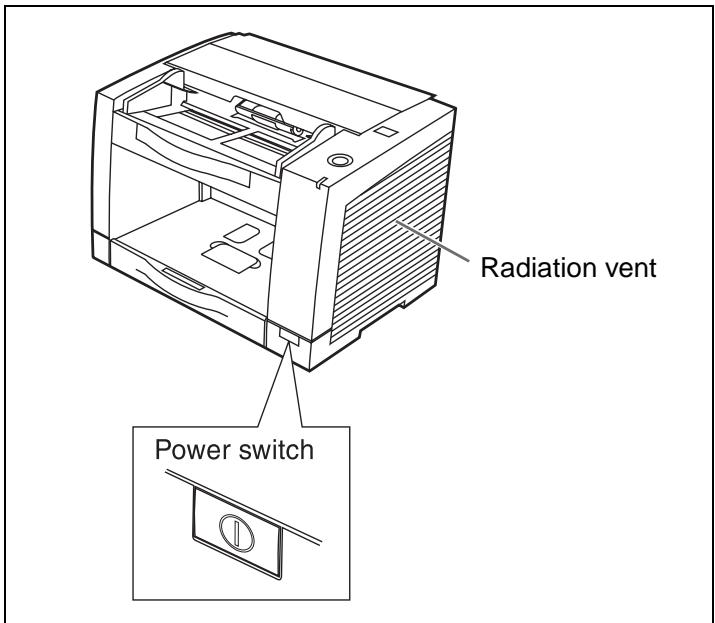
1 Turn the power off. 2 Clean the cover with a soft cloth. 3 Remove dirt and dust from the radiation vent with a brush.
Inside the scanner
- Clean the unit at least once a week or when 20,000 sheets have been scanned, whichever comes first.
- Clean the rollers and sensors if paper jamming or multiple-sheet feeding occurs frequently. (Refer to pages 23-25.)
- Clean the CIS glasses and sensor rollers when lines appear on the scanned images. (Refer to pages 25-26.)
- If the documents you scan are dirty, then the scanner components will also become dirty. To maintain proper scanning, clean the scanner components frequently.
■ Cleaning the rollers and sensors
Roller cleaning paper:
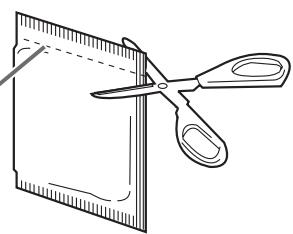
Open the bag on the dotted line and take out the roller cleaning paper.
- If the roller cleaning paper bag is left opened for a long period of time before using it, the alcohol will evaporate. Please use the roller cleaning paper immediately after opening the bag.
The roller cleaning paper (Model No. KV-SS03) is available from the dealer where you purchased your scanner.
For supplies and accessories: Call
1-800-346-4768 (U.S.A. only) or your dealer.
Dotted line
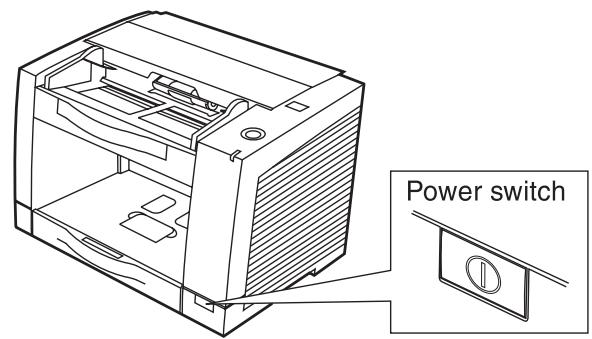
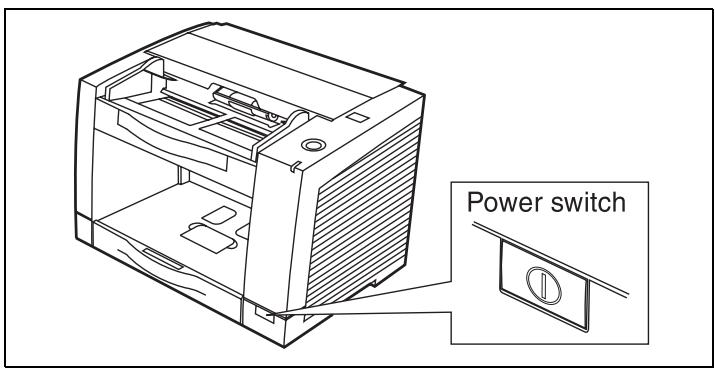
1 Turn the power off.
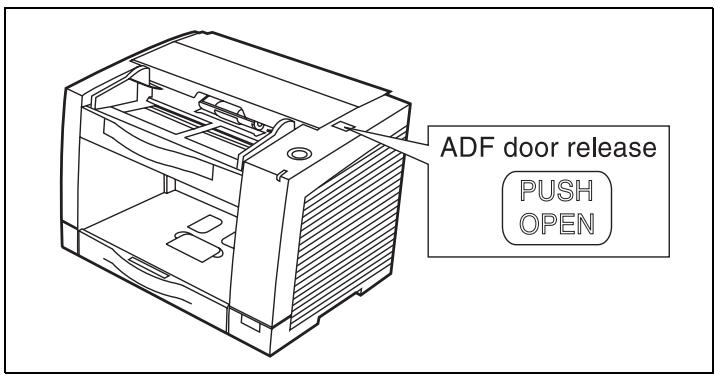
2 Push the ADF door release to open the ADF door.
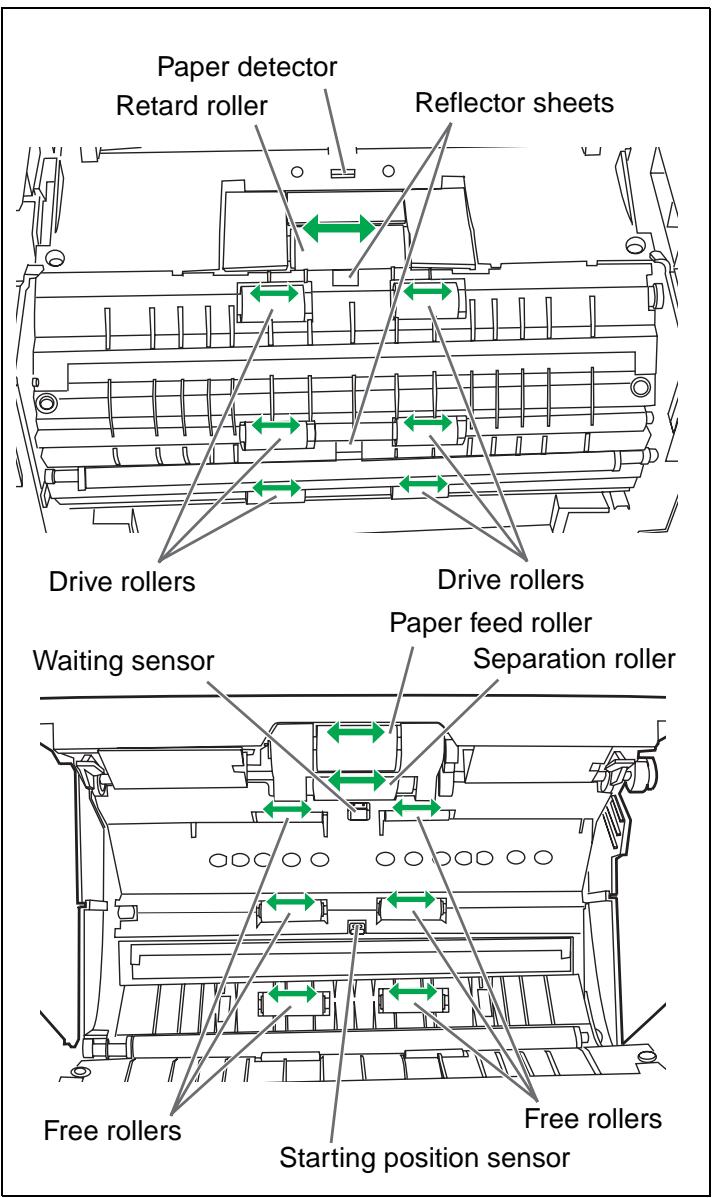
3 Use the roller cleaning paper (KV-SS03) to remove the dirt from the surfaces of the retard roller, paper feed roller, separation roller, 6 drive rollers, and 6 free rollers. Also, remove dust on the paper sensors (Paper detector, Waiting sensor, Starting position sensor) and reflector sheets with a cotton swab.
- When wiping off the dirt on the roller surfaces, hold the rollers to prevent them from rotating, and wipe the rollers all the way around them proceeding from one end to the other in the directions of the arrows shown in the figure on the right.
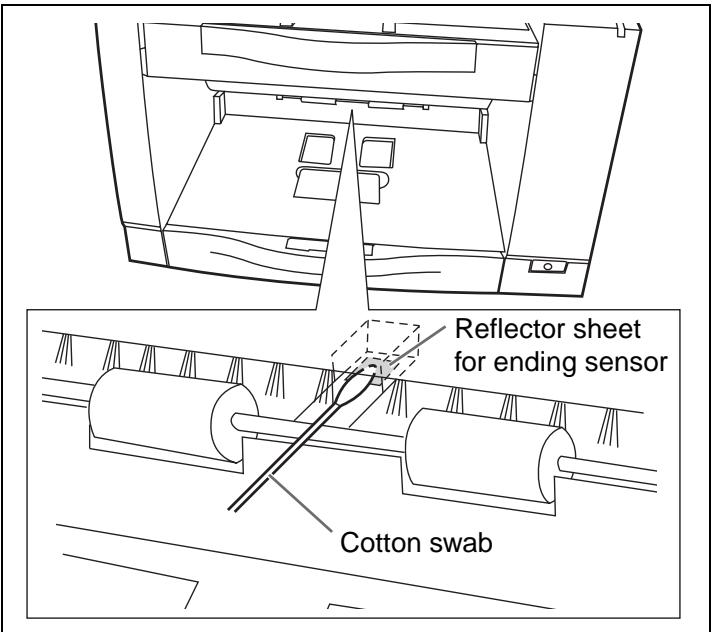
4 Clean the reflector sheet for the ending sensor.
- Remove dust on the reflector sheet of the ending sensor with a cotton swab.
- The reflector sheet is behind the shaft.
5 Make sure that the sensor rollers are installed properly, before closing the ADF door. 6 Close the ADF door. 7 Clear the roller cleaning counter with User Utility.
- After cleaning the above rollers, click [Clear Counter] button for [After Clean Roller] with User Utility.
■ Cleaning the CIS glasses and sensor rollers
1 Turn the power off.
2 Push the ADF door release to open the ADF door.
3 Clean the CIS glasses and sensor rollers using the roller cleaning paper. - If the sensor rollers are removed while cleaning, re-attach them after cleaning.

4 Close the ADF door.
- When you close the ADF door, close it securely until the door is locked.
Replacing the paper feed roller module
1 Turn the power off.
2 Push the ADF door release to open the ADF door.
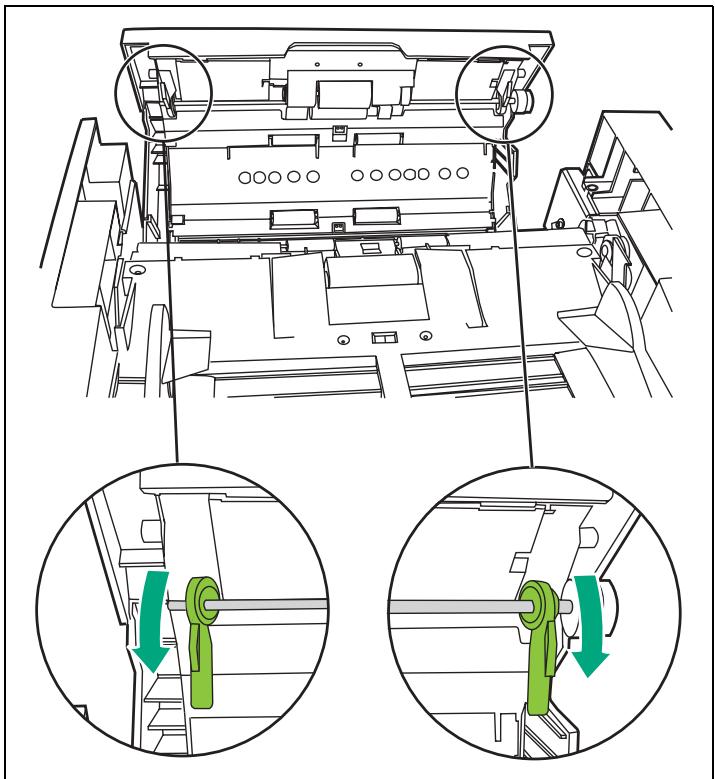
3 Push the two green levers down at both ends of the paper feed roller module to unlock the paper feed rollers.
- When moving the green levers, do not apply pressure in any other direction other than in the direction shown by the arrows. Otherwise the levers may break.
4 Remove the paper feed roller module straightly, holding up the paper feed case along the groove of the feed cover to pull out the claw out of the case.
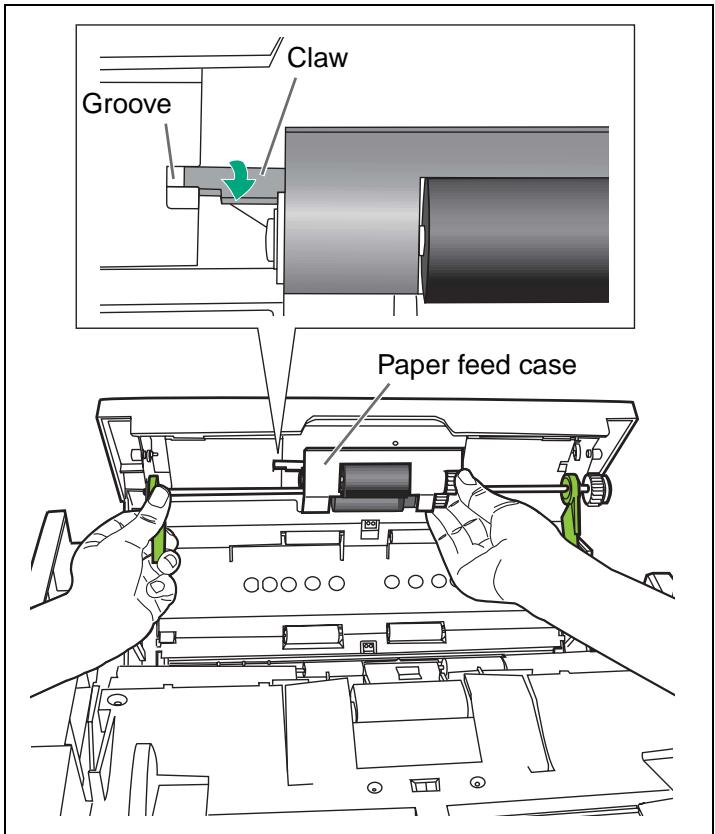
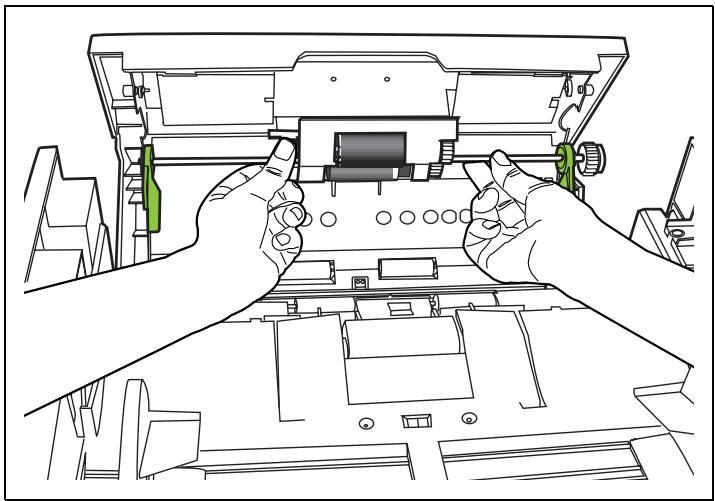
5 Install the new paper feed roller module with its gear on the right.
(1) Hang both ends of the paper feed roller module. (2) While slightly lifting the paper feed roller module, pass the claw along the groove of the feed cover. (3) Attach the bearings at both ends of the paper feed roller module into the guide grooves of the chassis in the scanner.
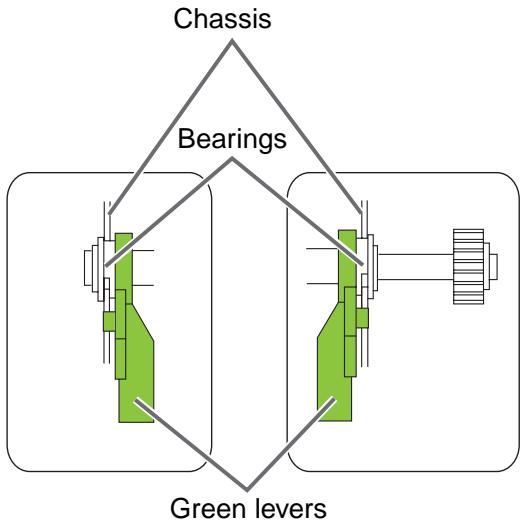
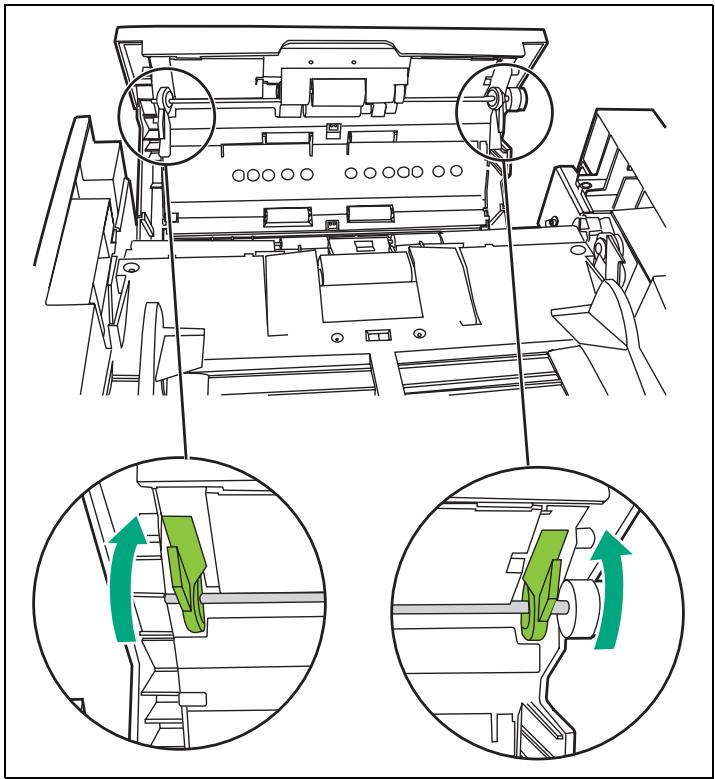
Push up the green levers at both ends in the direction of the arrows until they click into place.
- After installing the paper feed roller module, confirm that the feed rollers can be moved lightly in vertical direction.
7 Close the ADF door.
- When you close the ADF door, close it securely until the door is locked.
Replacing the retard roller module
1 Turn the power off.
2 Push the ADF door release to open the ADF door.
3 Remove the retard roller cover.
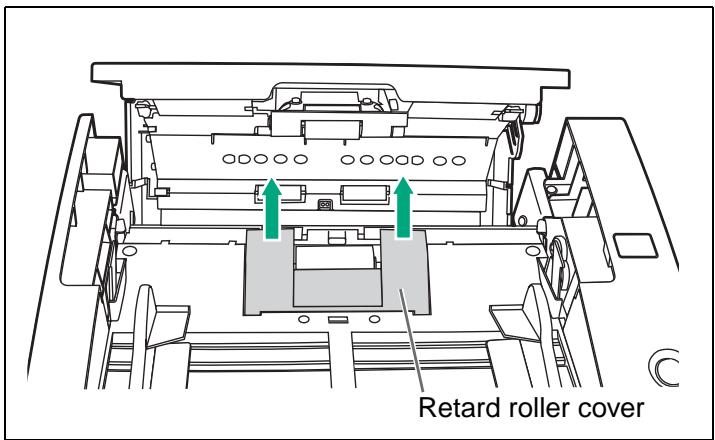
4 Remove the retard roller module in the direction of the arrow.
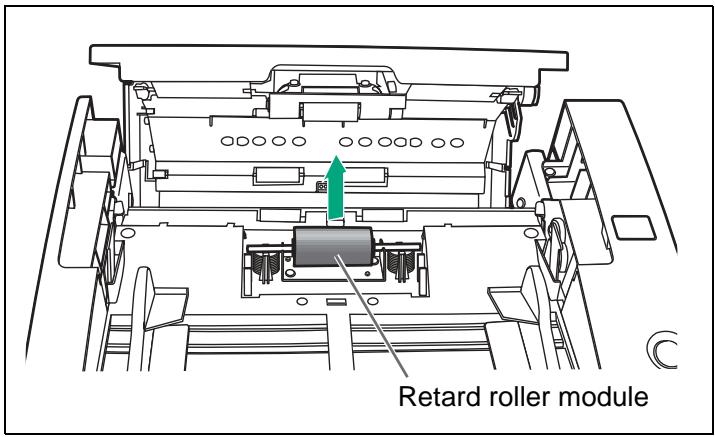
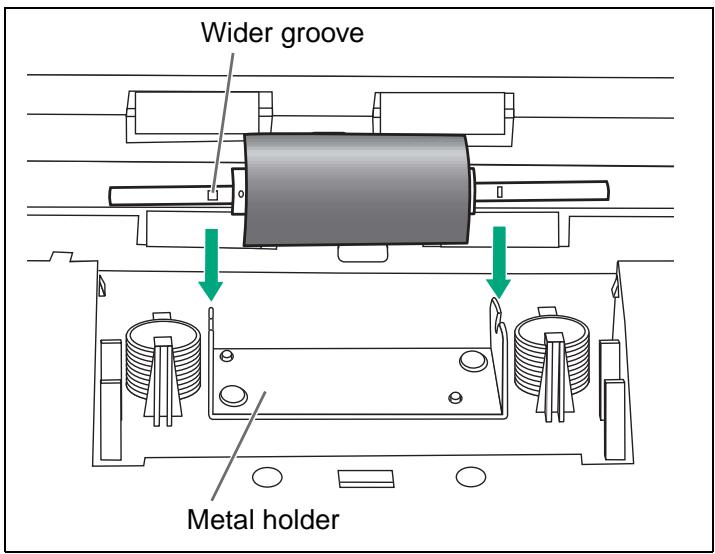
5 Install the new retard roller module by matching the groove of its shaft with the groove of the metal holder. Make sure that both ends of the shaft reach the springs of the holder.
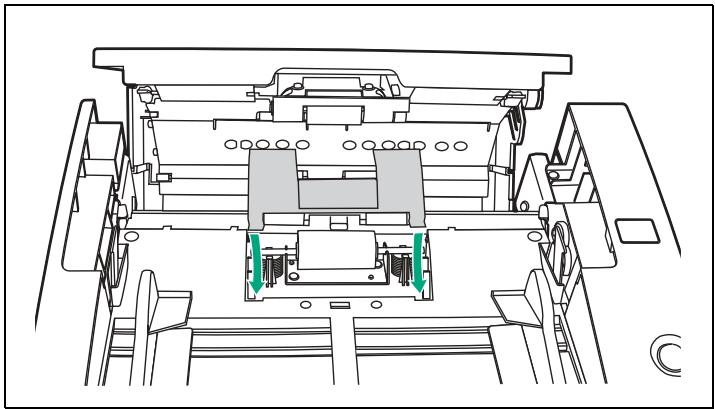
6 Close the retard roller cover.
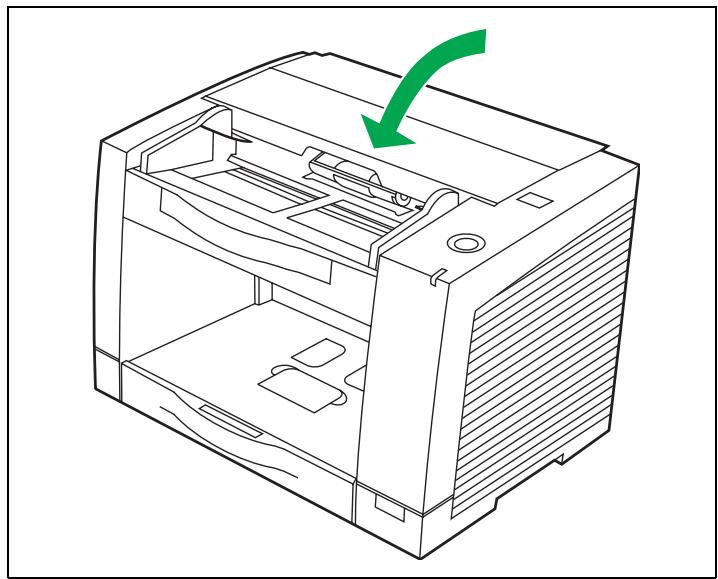
7 Close the ADF door.
- When you close the ADF door, close it securely until the door is locked.
8 Clear the roller replacing counter with User Utility.
- Click [Clear Counter] button for [After Replace Roller] with User Utility.
If the sensor rollers are removed, re-attach them.
■ Re-attach the sensor roller for back scanning to the ADF door
Attach the shorter sensor roller to the ADF door by placing the non-gear side to the ADF door release.
- Match the groove to the guide.
- Push the roller, and confirm the sensor is locked by the springs on both sides.
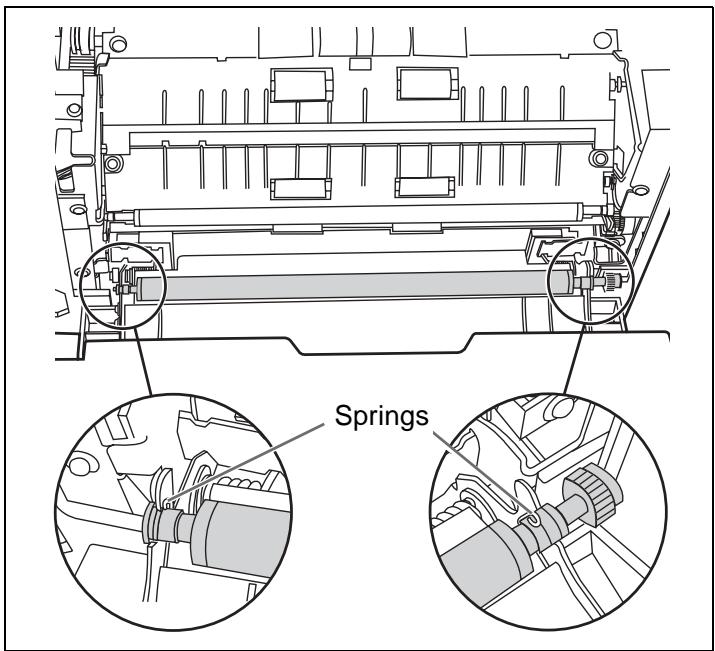
Re-attach the sensor roller for front scanning
Attach the longer roller to the unit by placing the non-gear side to the ADF door release.
- Match the groove to the guide.
- Attach the side of the ADF door release first, and attach the other side.
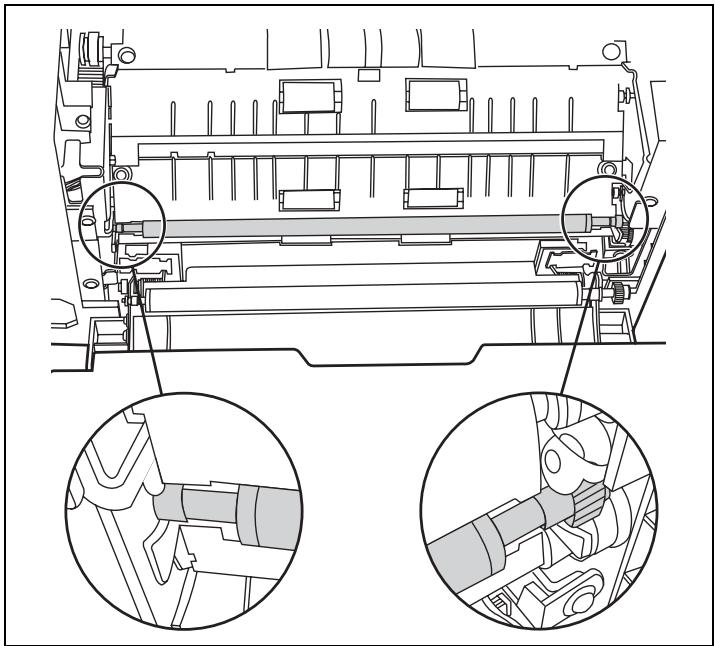
Confirm both rollers move slightly. - Press down on the sensor rollers and rotate them.
■ KV-S2025C / KV-S2025CU / KV-S2026C / KV-S2026CU
It is highly recommended that you keep the original carton and ALL packing materials. If you need to transport or ship your scanner, please follow these instructions.
Please Note:
- Please use the original carton and all of the original packing materials.
- Improper repacking of the scanner may result in a service charge to repair the unit.
- The scanner should be handled in the correct (horizontal) position.
Materials Required:
- Original Scanner Carton & Packing Materials
- Shipping Tape and Scissors
1. Turn the power switch off and disconnect your scanner from the electrical outlet and the interface cable. 2. Return the feed extension tray, exit stopper and exit extension tray to their original positions. 3. Pack the scanner.
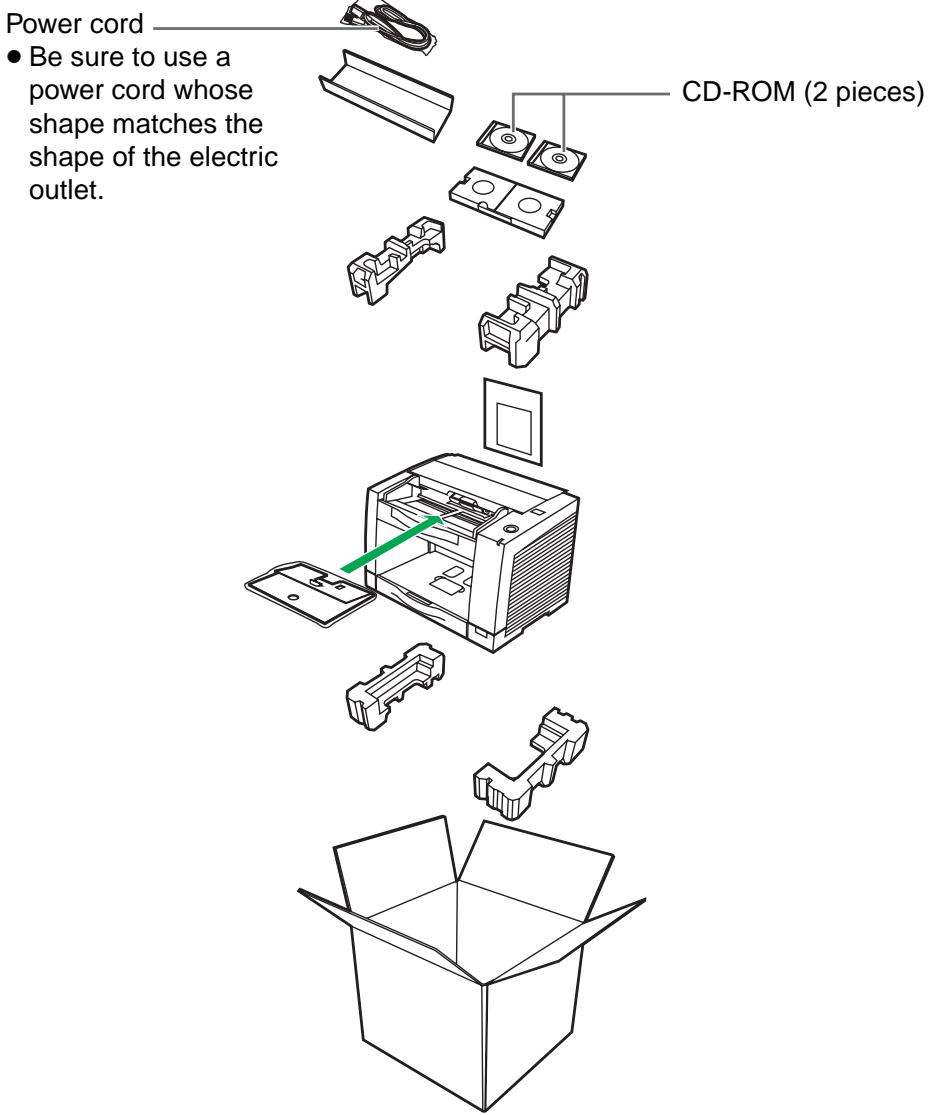
KV-S2045C / KV-S2045CU / KV-S2046C / KV-S2046CU
It is highly recommended that you keep the original carton and ALL packing materials. If you need to transport or ship your scanner, please follow these instructions.
Please Note:
- Please use the original carton and all of the original packing materials.
- Improper repacking of the scanner may result in a service charge to repair the unit.
- The scanner should be handled in the correct (horizontal) position.
Materials Required:
- Original Scanner Carton & Packing Materials
- Shipping Tape and Scissors
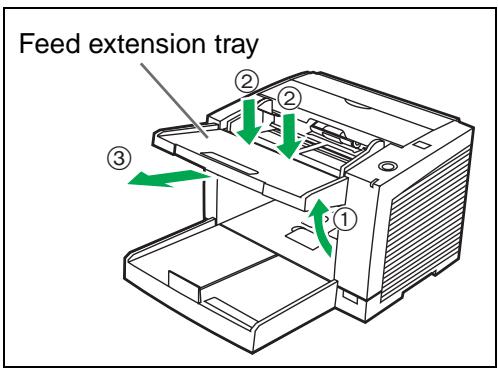
1. Turn the power switch off and disconnect your scanner from the electrical outlet and the interface cable. 2. Remove the feed extension tray and exit extension tray. 3. Pack the scanner.
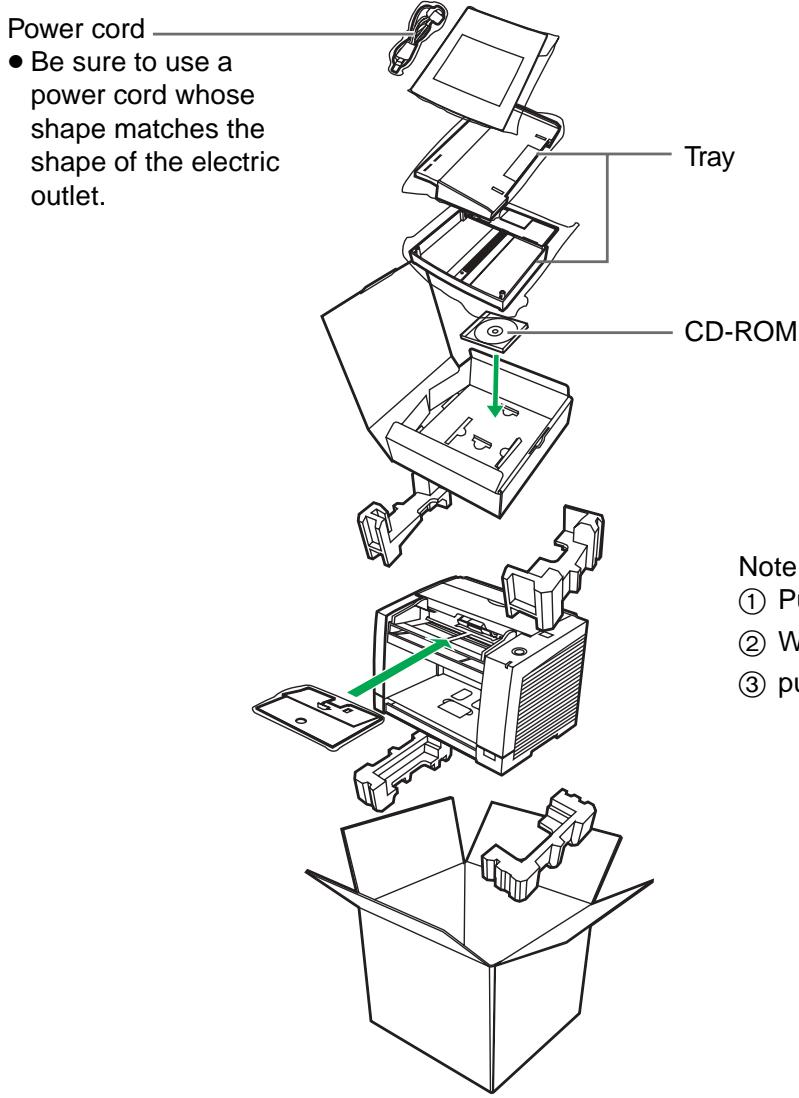
Note: How to remove the feed extension tray
1. Pull up the tray. 2. While pressing down the center of the tray, pull out the tray.
| Items\Model No. | KV-S2025C KV-S2026C | KV-S2025CU KV-S2026CU | KV-S2045C KV-S2046C | KV-S2045CU KV-S2046CU | ||
| Scanner | Scanning face | Duplex | ||||
| Scanning method | CIS (Contact-type color image sensor) Front & Back sides Background: Black sensor roller | |||||
| Scanning speed *1Letter size portrait | Binary 200 dpi | Simplex Approx. 23 pages/min. Duplex Approx. 42 images/min. | Simplex Approx. 43 pages/min. Duplex Approx. 76 images/min. | |||
| Color 150 dpi | Simplex Approx. 10 pages/min. Duplex Approx. 18 images/min. | Simplex Approx. 19 pages/min. Duplex Approx. 34 images/min. | ||||
| Scanning speed *1A4 size portrait | Binary 200 dpi | Simplex Approx. 22 pages/min. Duplex Approx. 40 images/min. | Simplex Approx. 41 pages/min. Duplex Approx. 72 images/min. | |||
| Color 150 dpi | Simplex Approx. 9 pages/min. Duplex Approx. 16 images/min. | Simplex Approx. 18 pages/min. Duplex Approx. 32 images/min. | ||||
| Resolution | 100-600 dpi (10 dpi step) Optical: 600 dpi (Main and Sub scanning directions) | |||||
| Tonal gradation | Binary mode, Gray scale mode (4/8 bit), Dither mode (16/256 step), Error diffusion Note: Dither and Error diffusion are executed by driver software or RTIV. | |||||
| Image control | Image emphasis (5 step), Dynamic threshold, Automatic separation, Noise reduction, Deskew, Cropping, Mirror image, Monochrome reversing, Gamma correction Note: These all functions are executed by driver software or RTIV. | |||||
| Other function | Patch code detection (Kodak patch 2, 3, T) Note: 1 portion both side each executed only by ISIS driver. | |||||
| Paper | Size | 50.8×70 mm (2.0×2.8 in.) to 216×356 mm (8.5×14 in.) Note: The setting of the paper length is possible to 25 inches in TWAIN, ISIS and RTIV. In case of a paper beyond legal size, 1 by 1 paper scanning in the resolution under 300 dpi is recommended. | ||||
| Thickness | Single paper feeding: 0.05 to 0.15 mm (2.0 to 5.9 mils) Continuous paper feeding: 0.06 to 0.15 mm (2.36 to 5.9 mils) Note: 1 mil = 1/1000 in. | |||||
| Weight | Single paper feeding: 40 to 127 g/m2(10.7 to 33.9 lbs.) Continuous paper feeding: 50 to 127 g/m2(13.3 to 33.9 lbs.) Note: 1 lbs = 3.75 g/m2 | |||||
| Interface (Transfer rate) | SCSI III (20 MB/sec) USB 2.0 (Only for KV-S2026C, KV-S2026CU, KV-S2046C, KV-S2046CU) | |||||
| Feed tray capacity | 120 sheets [64 g/m2(17 lbs.)], 100 sheets [75 g/m2(20 lbs.)] | |||||
| Unit | External dimensions(Width×Depth×Height) | 343×487×269 mm(13.5×19.2×10.6 in.)Note: When tray is pulled | 343×487×239 mm(13.5×19.2×9.4 in.)Note: When tray is installed | |||
| Weight | 8.4 kg (18.5 lbs.)[KV-S2025C, KV-S2025CU]8.5 kg (18.7 lbs.)[KV-S2026C, KV-S2026CU] | 9.1 kg (20.1 lbs.) | ||||
| Power requirement | AC100-120 V50/60 Hz | AC220-240 V50/60 Hz | AC100-120 V50/60 Hz | AC220-240 V50/60 Hz | ||
| Power consumption | Maximum(Scanning) | 1 A | 0.5 A | 1 A | 0.5 A | |
| Minimum(Standby) | 0.3 A | 0.2 A | 0.35 A | 0.2 A | ||
| Sleep mode | 0.1 A (5 W)[KV-S2025C]0.15 A (6 W)[KV-S2026C] | 0.1 A (7 W)[KV-S2025CU]0.1 A (8 W)[KV-S2026CU] | 0.15 A (6 W) | 0.1 A (7 W)[KV-S2045CU]0.1 A (8 W)[KV-S2046CU] | ||
| Environment | Operating temperatureand humidity | Temperature: 15 °C to 30 °C (59 °F to 86 °F)Humidity: 30% to 80% RH | ||||
| Storage temperatureand humidity | Temperature: 0 °C to 35 °C (32 °F to 95 °F)Humidity: 10% to 80% RH | |||||
| Accessories | Power cord, Roller cleaning paper, CD-ROM(s) (Maintenance, Safety and Installation manual, Operating instructions, RTIV Capture software, ISIS driver, TWAIN driver, PIE reference manual, RTIV reference manual, User utility), Printed documents (Maintenance, Safety and Installation manual) | |||||
| Option | White roller kit (KV-SS023)Roller exchange kit (KV-SS022)Roller cleaning paper (KV-SS03) | White roller kit (KV-SS023)Roller exchange kit (KV-SS022)Roller cleaning paper (KV-SS03)Pre-imputer (KV-SS020)Ink cartridge (KV-SS021) | ||||
Note
*1: The scanning speed depends on the test environment.
The scanning speed differs depending on the host computer operating environment or application.
If a problem occurs while the unit is being used, check the following items and check the scanner status by User Utility. If the unit still malfunctions, turn it OFF, unplug the power cord and call for service.
| Symptom | Possible Cause | Remedy | |
| The LED does not light when the power switch is turned ON. | The power cord is not plugged in. | Insert the power plug firmly. | |
| Problem with power supply. | Disconnect the scanner from the electric outlet and call for service. | ||
| The computer does not recognize the scanner. | The scanner is not connected to the computer correctly. | Connect the cables correctly. | |
| The scanner is not registered correctly. | Uninstall the scanner from PC. Register the scanner hardware again. (Refer to the Installation Manual on pages 22 and 23.) | ||
| SCSI connection | The computer cannot recognize the SCSI card. | Check your computer whether the SCSI card is installed correctly using the device manager's property. | |
| The same ID number is used for the scanner and the other device. | Use the different SCSI ID numbers for each devices. | ||
| The terminator is not set correctly. | If the scanner is the last device in the SCSI chain, set the DIP switch of SCSI terminator to Enable. If the scanner is not the last device in the SCSI chain, set the DIP switch of SCSI terminator to Disable. | ||
| The scanner was turned on after the computer was turned on. | Turn the computer OFF. Turn the scanner ON, and then turn the computer ON again. | ||
| USB connection | The USB interface of the computer is not installed correctly. | Check the computer whether the USB interface of your computer is correctly using the device manager's property. | |
| The scanner is connected via USB hub. | Do not connect via USB hub. | ||
| The cable without High-Seed logo is used. | Use the cable with High-Speed logo. | ||
| Scan speed is slow at USB connection. | The scanner is connected with USB 1.1. | Connect with USB 2.0. | |
| The ADF does not open when the ADF door release is pushed. | The ADF door is not closed properly. | Push the ADF door release again after you close the ADF door until it is locked. | |
| Symptom | Possible Cause | Remedy | |
| The document has been loaded on the feed tray. But the scanner does not start scanning. | The document is not loaded properly. | Load the document correctly.(See page 17.) | |
| The sensor cannot detect the document as the edge of the document is curled. | Flatten the document and load it again. | ||
| Double feeding or skewing problems occur frequently or the scanner stops loading while scanning. | The rollers are dirty. | Clean all of the rollers.(See page 23.) | |
| The rollers have reached their life expectancy. | Replace the paper feed roller module and the retard roller module.(See page 27 and page 30.) | ||
| The document is curled or folded. | Flatten the document and load it again after reducing the pages. | ||
| The irregular type document is to be scanned. | Make a copy of the document on specified paper (see page 35) and scan the copy. | ||
| The document has a length of less than 70 mm (2.75"). | Make a copy of the document on paper of the specified size and scan the copy. | ||
| The scanned document is blank. | The document to be scanned was loaded face down (upside down). | Load the document correctly.(See page 17.) | |
| Vertical lines appear on the scanned document. | The CIS glasses are dirty. | Clean the CIS glasses.(See page 25.) | |
| The sensor rollers are dirty. | Clean the sensor rollers.(See page 25.) | ||
| The scanning density is uneven. | The CIS glasses or the sensor rollers are dirty. | Clean the CIS glasses and the sensor rollers.(See page 25.) | |
| The color of the scanned document is extremely different from the original document. | The setting of the monitor is wrong. | Adjust the monitor setting. | |
| Dark spots or noise appear on the scanned documents. | The CIS glasses or the sensor rollers are dirty. | Clean the CIS glasses and the sensor rollers.(See page 25.) | |
| Scanned image has moiré fringes such as stripe or wavy pattern noise. | It is caused by printing pattern of the document and the congeniality of the scanning resolution. | Please change the resolution and try to scan. | |
Page
A
AC inlet. 13,14
Acceptable documents 19
Accessories 36
ADF door 13, 14
ADF door release 13, 14
B
Business card guides 13, 14, 18
Business card stopper 13, 14, 18
C
CD-ROM 12
CIS glasses. 26
Cleaning the CIS glasses 25
Cleaning the rollers. 23
Cleaning the sensor rollers. 25
Cleaning the sensors 23
Component identification 13
D
DIP switch. 13, 14, 16
Document guides 13, 14, 17
Documents to avoid 19
Drive rollers 24
E
Exit extension tray 13, 14, 18
Exit stopper 13, 14
Exit tray 13
External dimensions 36
F
Feed extension tray 13, 14, 18
Feed tray 13, 14, 18
Feed tray capacity 35
Free rollers 24
Page
G
Green levers 27
1
Image control 35
Imprimer door. 14
Operating temperature and humidity 36
Option 36
P
Paper 35
Paper detector 24
Paper feed roller 13, 14, 24
Paper feed roller module 27
Paper jams. 20
Power consumption 36
Power cord. 13, 14
Power requirement. 36
Power switch 13, 14
Precautions 10
R
Radiation vent 13, 14, 22
Reflector sheets 24
33
Replacing consumables 27
Replacing the retard roller module 30
Resolution 35
Retard roller 24
Page
Retard roller cover 30, Retard roller module 30, Roller cleaning paper 8, 23, 26
S
Scanning face 35, Scanning method 35, Scanning speed 35, SCSI connectors 13, 14, SCSI setting 16, SCSI terminator 16, Sensor rollers 21, 26, 32, Separation roller 24, Specifications 35, Starting position sensor 24, STOP/START button 13, 14, Storage temperature and humidity 36, System requirements 2
T
Tonal gradation. 35 Troubleshooting 37
U
User Utility 25, 31
W
Waiting sensor 24 Weight. 36
Panasonic Digital Document Company
A Unit of Matsushita Electric Corporation of America
Two Panasonic Way, Secaucus, New Jersey 07094
Panasonic Canada Inc.
5770 Ambler Drive, Mississauga, Ontario, L4W 2T3
Matsushita Electric Industrial Co., Ltd.
Web Site: http://www.panasonic.co.jp/global/
© 2002-2003 Panasonic Communications Co., Ltd.

- HIGH SPEED COLOR SCANNER
- OPERATING INSTRUCTIONS
- THANK YOU FOR PURCHASING A PANASONIC "HIGH SPEED COLOR SCANNER
- SYSTEM REQUIREMENTS
- IMPORTANT
- TABLE OF CONTENTS
- FEDERAL COMMUNICATIONS COMMISSION REQUIREMENTS
- ENGLISH
- WARNING
- (FOR UNITED KINGDOM ONLY)
- FOR YOUR SAFETY PLEASE READ THE FOLLOWING TEXT CAREFULLY
- HOW TO REPLACE THE FUSE
- ROLLER CLEANING PAPER PRECAUTIONS
- OPERATING ENVIRONMENT
- POWER SOURCE
- CD-ROM
- KV-S2045C / KV-S2045CU / KV-S2046C / KV-S2046CU
- POWER TURN-ON SEQUENCE
- ABOUT LED
- ABOUT THE SCSI SETTING
- CAUTION
- TYPES OF DOCUMENTS TO AVOID
- REMOVING PAPER JAMS FROM THE FEED PART
- REMOVE THE JAMMED DOCUMENT
- OUTSIDE OF THE SCANNER
- INSIDE THE SCANNER
- CLEANING THE ROLLERS AND SENSORS
- ROLLER CLEANING PAPER
- CLEANING THE CIS GLASSES AND SENSOR ROLLERS
- REPLACING THE PAPER FEED ROLLER MODULE
- REPLACING THE RETARD ROLLER MODULE
- RE-ATTACH THE SENSOR ROLLER FOR BACK SCANNING TO THE ADF DOOR
- RE-ATTACH THE SENSOR ROLLER FOR FRONT SCANNING
- KV-S2025C / KV-S2025CU / KV-S2026C / KV-S2026CU
- PLEASE NOTE
- MATERIALS REQUIRED
- NOTE
- A
- B
- C
- D
- E
- F
- G
- P
- R
- PAGE
- S
- T
- U
- W
Brand : PANASONIC
Model : KV-S2026C SERIES
Category : Document Scanners