
GCS52DP - Network switch IOGEAR - Free user manual and instructions
Find the device manual for free GCS52DP IOGEAR in PDF.


| Product Type | Network Switch |
| Brand | IOGEAR |
| Model | GCS52DP |
| Number of Ports | 5 |
| Port Speed | 10/100/1000 Mbps |
| Dimensions (W x D x H) | 13.5 x 8.5 x 2.5 cm |
| Weight | 0.25 kg |
| Power Supply | External AC adapter (5V DC, 1A) |
| Power Consumption | 2.5 W (max) |
| LED Indicators | Power, Link/Act per port |
| Switching Capacity | 10 Gbps |
| MAC Address Table Size | 2K entries |
| Jumbo Frame Support | Yes, up to 9K bytes |
| Flow Control | IEEE 802.3x (full duplex), backpressure (half duplex) |
| Mounting | Desktop |
| Operating Temperature | 0°C to 40°C (32°F to 104°F) |
| Storage Temperature | -20°C to 70°C (-4°F to 158°F) |
| Operating Humidity | 10% to 90% non-condensing |
| Certifications | FCC, CE, RoHS |
| Warranty | 3 years limited |
| Package Contents | Switch, power adapter, user manual |
| Cleaning Instructions | Wipe with dry cloth; do not use liquid cleaners |
| Safety Precautions | Do not expose to water or excessive heat |
Frequently Asked Questions - GCS52DP IOGEAR
User questions about GCS52DP IOGEAR
0 question about this device. Answer the ones you know or ask your own.
Ask a new question about this device
Download the instructions for your Network switch in PDF format for free! Find your manual GCS52DP - IOGEAR and take your electronic device back in hand. On this page are published all the documents necessary for the use of your device. GCS52DP by IOGEAR.
USER MANUAL GCS52DP IOGEAR
2-Port USB DisplayPort Cable KVM Switch
GCS52DP
PART NO. Q1485
Package Contents
1 x GCS52DP
1 x Quick Start Guide
1 x Warranty Card
System Requirements
Console:
- DisplayPort monitor
• Standard wired USB keyboard
• Standard 3-button wired USB mouse - Speakers and Microphones (optional)
Computer:
- DisplayPort port
- USB Type-A port
• Audio ports (optional)
Operating Systems:
- Windows® 2000, Vista, 7, 8.1, 10
- Mac OS X 9.0+
- Oracle® Solaris
- Linux®, UNIX, and other USB supported systems
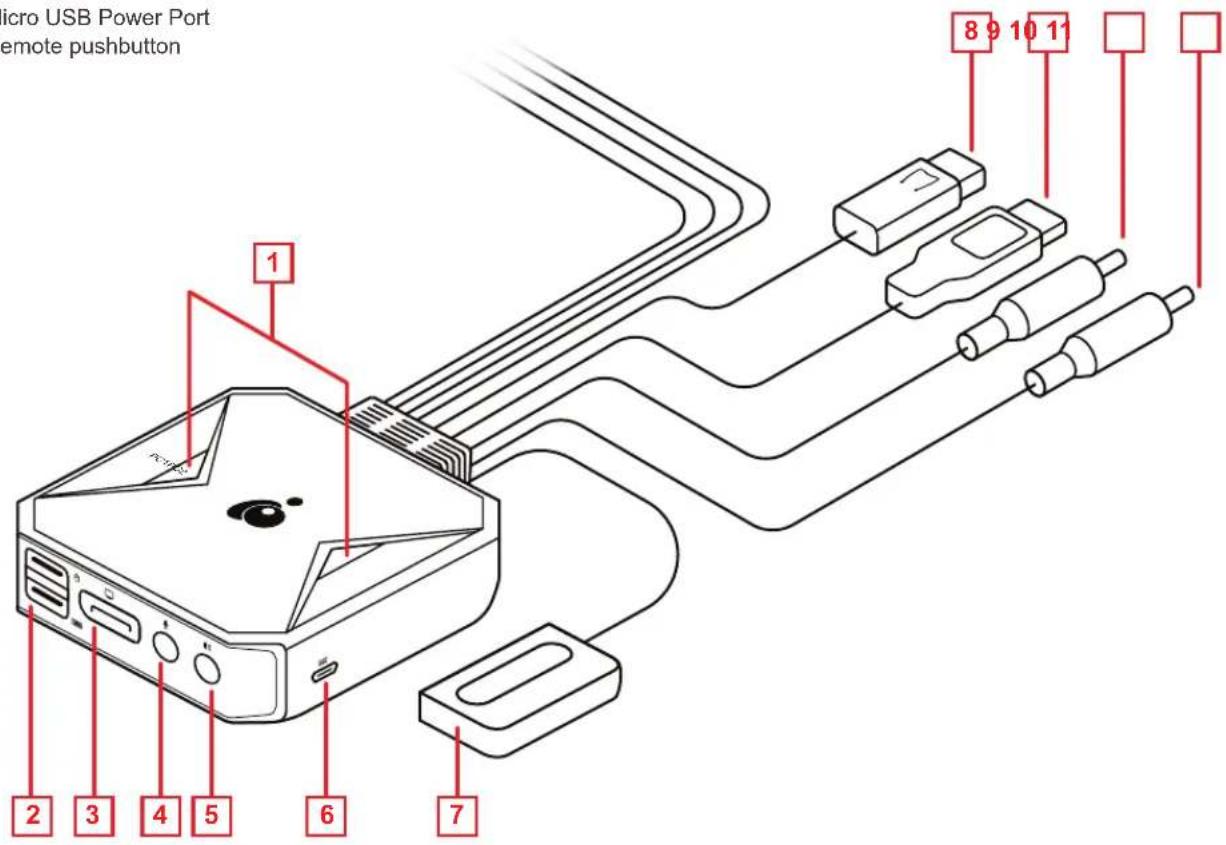
Overview
- Port LEDs
- USB port for keyboard and mouse
- DisplayPort for monitor
- 3.5 mm audio input
- 3.5mm audio output
- Micro USB Power Port
-
Remote pushbutton
-
KVM Cables - DisplayPort
- KVM Cables - USB
- KVM Cables - Speakers
- KVM Cables - Microphone
Hardware Installation
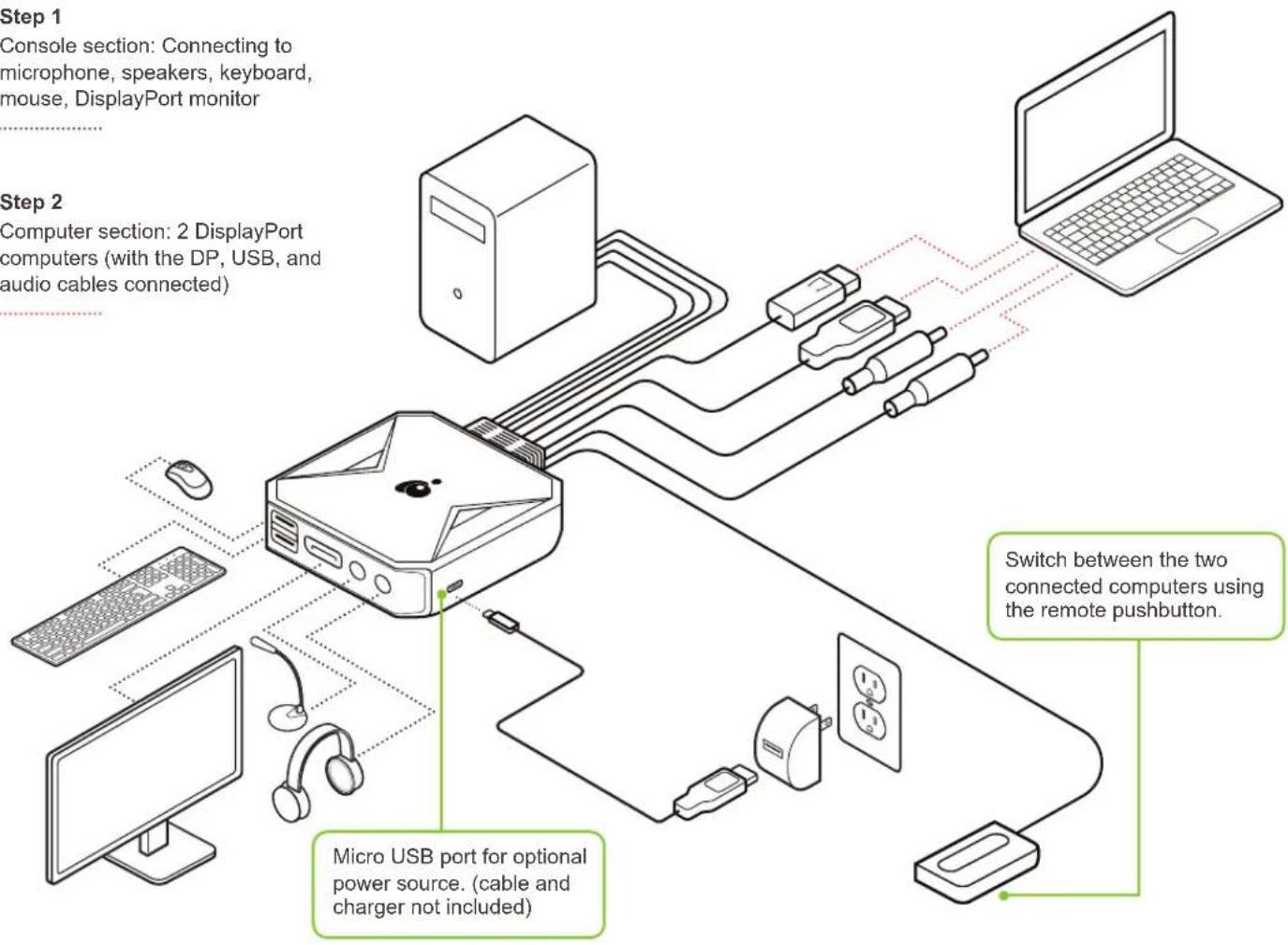
Step 1
Console section: Connecting to microphone, speakers, keyboard, mouse, DisplayPort monitor
Step 2
Computer section: 2 DisplayPort computers (with the DP, USB, and audio cables connected)
flowchart
graph TD
    A["Micro USB port for optional power source. (cable and charger not included)"] --> B["Switch between the two connected computers using the remote pushbutton."]
    C["Computer section: 2 DisplayPort computers (with the DP, USB, and audio cables connected)"] --> D["Switch between the two connected computers using the remote pushbutton."]
    E["PC"] --> F["Server with USB cable"]
    G["Laptop"] --> H["Computer"]
EMC Information
Federal Communications Commission Statement (FCC) Statement:
This equipment has been tested and found to comply with the limits for a Class B digital service, pursuant to Part 15 of the FCC rules. These limits are designed to provide reasonable protection against harmful interference in a residential installation. Any changes or modifications made to this equipment may void the user's authority to operate this equipment. This equipment generates, uses, and can radiate radio frequency energy. If not installed and used in accordance with the instructions, may cause harmful interference to radio communications. However, there is no guarantee that interference will not occur in a particular installation. If this equipment does cause harmful interference to radio or television reception, which can be determined by turning the equipment off and on, the user is encouraged to try to correct the interference by one or more of the following measures:
- Reorient or relocate the receiving antenna.
- Increase the separation between the equipment and receiver.
- Connect the equipment into an outlet on a circuit different from that to which the receiver is connected.
- Consult the dealer or an experienced radio/TV technician for help.
FCC Caution:
Any changes or modifications not expressly approved by the party responsible for compliance could void the user's authority to operate this equipment.
Limited Warranty
This product carries a 3 Year Limited or Lifetime Warranty. For the terms and conditions of this warranty, please go to http://www.iogear.com/support/warranty
Register online at http://www.iogear.com/register
Important Product Information
Product Model ____ Serial Number ____
Contact
WE'RE HERE TO HELP YOU!
NEED ASSISTANCE SETTING UP THIS PRODUCT?
Make sure you:
- Visit www.iogear.com for more product information
- Visit www.iogear.com/support for live help and product support
IOGEAR
iogear.custhelp.com
support@iogear.com
www.iogear.com
Brand : IOGEAR
Model : GCS52DP
Category : Network switch