ERS-1.0 - Speaker SpeakerCraft - Free user manual and instructions
Find the device manual for free ERS-1.0 SpeakerCraft in PDF.


| Brand | SpeakerCraft |
| Model | ERS-1.0 |
| Product Type | In-wall speaker |
| Woofer Size | 6.5 inches |
| Tweeter Size | 1 inch |
| Impedance | 8 ohms |
| Power Handling (RMS) | 80 watts |
| Power Handling (Peak) | 160 watts |
| Frequency Response | 50 Hz – 20 kHz |
| Sensitivity | 88 dB |
| Cutout Dimensions | 10.5 x 7.5 inches |
| Mounting Depth | 3.5 inches |
| Grille Type | Paintable, magnetic attachment |
| Color | White (paintable) |
| Weight | 3.2 lbs |
| Warranty | 5 years limited |
| Installation Type | New construction or retrofit |
| Recommended Amplifier Power | 20 – 120 watts RMS per channel |
| Cleaning Instructions | Wipe grille with dry cloth; do not use liquids |
| Safety Precautions | Turn off amplifier before installation; avoid electrical wires in wall |
Frequently Asked Questions - ERS-1.0 SpeakerCraft
User questions about ERS-1.0 SpeakerCraft
0 question about this device. Answer the ones you know or ask your own.
Ask a new question about this device
Download the instructions for your Speaker in PDF format for free! Find your manual ERS-1.0 - SpeakerCraft and take your electronic device back in hand. On this page are published all the documents necessary for the use of your device. ERS-1.0 by SpeakerCraft.
USER MANUAL ERS-1.0 SpeakerCraft
• (1) RSA-1.0
• (1) ERS-1.0
• (1) 6 ft. DB9F to DB9F Null Modem Cable
• (1) ERS-1.0 Quick Start Guide
EQUIPMENT NEEDED:
• (2) 6 ft. Network Patch Cord (Straight Through)
• (1) Fully Functional MZC System programmed with MODE keypads using the latest Firmware
• (1) Wireless Router
• (1) ERS-1.0 Web Server Kit
SYSTEM OVERVIEW
The ERS creates an web interface on a wireless home network to allow control of a MZC via computer (running a supported internet browser) and/or an iPhone®/iPod Touch®. This manual will give you step by step instructions on the set-up and operation of the ERS-1.0's GUI.
TABLE OF CONTENTS
WIRELESS NETWORKING 101....2
SYSTEM SETUP....4
HOOK UP DIAGRAM.... 5
WEB BROWSERS....8
GUI INTERFACE....9
MODE 3.1 BUTTON NUMBERING LAYOUT...... 10
OVERVIEW:
This section is to provide you with the basic knowledge on how networks are set up and operate.
Step 1 - CHOOSE YOUR WIRELESS EQUIPMENT
The first step is to make sure that you have the equipment you need. As you're looking for products in stores or on the Internet, you might notice that you can choose equipment that supports three different wireless networking technologies: 802.11a, 802.11b, 802.11n, and 802.11g. We recommend 802.11g, because it offers excellent performance and is compatible with almost everything.
Shopping list
- Internet (not required for ERS1.0 interface to work)
- Wireless Router
- A Computer with built-in Wireless Networking Support, Wireless Network Adapter, iPhone ^ or iPod Touch ^
Understanding Networks
Networks are fairly simple to understand if you think of them as a neighborhood. Imagine each house has a mailbox with a number and each street has a name and each neighborhood is identified, as is each city, state and country. An IP address is simply a way of providing an individual address to each network "node" or component. These unique addresses are used to search and communicate for other network nodes. If two locations have the same address, you can imagine the trouble the mail carrier might have delivering the mail to the right house.
In a typical configuration, a local network uses one of the designated "private" IP address subnets and a router on that network has a private address (such as 192.168.1.1) in that address space. The router is also connected to the Internet with a single "public" address (known as "overloaded" NAT) or multiple "public" addresses assigned by an ISP. As traffic passes from the local network to the Internet, the source address in each packet is translated on the fly from the private addresses to the public address(es). The router tracks basic data about each active connection (particularly the destination address and port). When a reply returns to the router, it uses the connection tracking data it stored during the outbound phase to determine where on the internal network to forward the reply; the TCP or UDP client port numbers are used to de-multiplex the packets in the case of overloaded NAT, or IP address and port number when multiple public addresses are available, on packet return. To a system on the Internet, the router itself appears to be the source/destination for this traffic.
A Wireless Router
The router converts the signals coming across your Internet connection into a wireless broadcast, sort of like a cordless phone base station. Be sure to get a wireless router, and not a wireless access point.
A Wireless Network Adapter
Network adapters wirelessly connect your computer then to your wireless router. If you have a newer computer you may already have wireless capabilities built in. If this is the case, then you will not need a wireless network adapter. If you need to purchase an adapter for a desktop computer, buy a USB wireless network adapter. If you have a laptop, buy a PC card-based network adapter. Make sure that you have one adapter for every computer on your network.
Note: To make setup easy, choose a network adapter made by the same vendor that made your wireless router. For example, if you find a good price on a Linksys router, choose a Linksys network adapter to go with it. To make shopping even easier, buy a bundle, such as those available from D-Link, Netgear, Linksys, Microsoft, and Buffalo. If you have a desktop computer, make sure that you have an available USB port to plug the wireless network adapter into. If you don't have any open USB ports, buy a hub to add additional ports.
Step 2 - CONNECT YOUR WIRELESS ROUTER
Since you'll be temporarily disconnected from the Internet, print these instructions or copy and paste them to a word doc or clipboard to allow access once the internet connection is down. Do this before you go any further. First, locate your cable modem or DSL modem and unplug it to turn it off. Next, connect your wireless router to your modem. Your modem should stay connected directly to the Internet. Later, after you've hooked everything up, your computer will wirelessly connect to your router, and the router will send communications through your modem to the Internet.
Note: The instructions below apply to a Linksys wireless router. The ports on your router may be labeled differently, and the images may look different on your router. Check the documentation that came with your equipment for additional assistance.
- If you currently have your computer connected directly to your modem: Unplug the network cable from the back of your computer, and plug it into the port labeled Internet, WAN, or WLAN on the back of your router.
- If you do not currently have a computer connected to the Internet: Plug one end of a network cable (usually included with your router) into your modem, and plug the other end of the network cable into the Internet, WAN, or WLAN port on your wireless router.
- If you currently have your computer connected to a router: Unplug the network cable connected to the Internet, WAN, or WLAN port from your current router, and plug this end of the cable into the Internet, WAN, or WLAN port on your wireless router. Then, unplug any other network cables, and plug them into the available ports on your wireless router. You no longer need your original router, because your new wireless router replaces it.
Next, plug in and turn on your cable or DSL modem. Wait a few minutes to give it time to connect to the Internet, and then plug in and turn on your wireless router. After a minute, the Internet, WAN, or WLAN light on your wireless router should light up, indicating that it has successfully connected to your modem.
Step 3 - CONFIGURE YOUR WIRELESS ROUTER
Using a standard network patch cord, you should temporarily connect your computer to one of the open network ports on your wireless router (any port that isn't labeled Internet, WAN, or WLAN). If you need to, turn your computer on. It should automatically connect to your router.
Next, open Internet Explorer (PC users) and type in the address to configure your router. You might be prompted for a password. The address and password you use will vary depending on what type of router you have, so refer to the instructions included with your router.
As a quick reference, this table shows the default addresses, usernames, and passwords for some common router manufacturers.
| ROUTER ADDRESS USERNAME PASSWORD | |||
| 3Com http://192.168.1.1 | admin admin | ||
| D-Link http://192.168.0.1 | admin | ||
| Linksys http://192.168.1.1 | admin admin | ||
| Microsoft Broadband http://192.168.2.1 admin admh | |||
| Netgear http://192.168.0.1 | admin password | ||
Internet Explorer will show your router's configuration page. Most of the default settings should be fine, but you should configure three things:
- Your wireless network name, known as the SSID. This name identifies your network. You should choose something unique that none of your neighbors will be using.
- Wireless encryption (WEP) or Wi-Fi Protected Access (WPA), which help protect your wireless network. For most routers, you will provide a passphrase that your router uses to generate several keys. Make sure your passphrase is unique and long (you don't need to memorize it).
- Your administrative password, which controls your wireless network. Just like any other password, it should not be a word that you can find in the dictionary, and it should be a combination of letters, numbers, and symbols. Be sure you can remember this password, because you'll need it if you ever have to change your router's settings.
The exact steps you follow to configure these settings will vary depending on the type of router you have. After each configuration setting, be sure to click Save Settings, Apply, or OK to save your changes.
Now, you should disconnect the network cable from your computer.
Step 4 - CONNECT YOUR COMPUTERS
If your computer does not have wireless network support built in, plug your network adapter into your USB port, and place the antenna on top of your computer (in the case of a desktop computer), or insert the network adapter into an empty PC card slot (in the case of a laptop). Windows XP will automatically detect the new adapter, and may prompt you to insert the CD that came with your adapter. The on-screen instructions will guide you through the configuration process.
Note: The steps below only apply if you're using Windows XP Service Pack 2. If you're running Windows XP and you don't have Service Pack 2 yet, plug your computer into your wireless router and download and install Windows XP Service Pack 2
Windows XP should show an icon with a notification that says it has found a wireless network.
Follow these steps to connect your computer to your wireless network:
-
Right-click the wireless network icon in the lower-right corner of your screen, and then click View Available Wireless Networks. If you run into any problems, consult the documentation that came with your network adapter. Don't be afraid to call their tech support.
-
The Wireless Network Connection window should appear and you should see your wireless network listed with the network name you chose. If you don't see your network, click Refresh network list in the upper-left corner. Click your network, and then click Connect in the lower-right corner.
- Windows XP prompts you to enter a key. Type the encryption key that you wrote down earlier in both the Network key and Confirm network key boxes, and then click Connect.
- Windows XP will show its progress as it connects to your network. After you're connected, you can now close the Wireless Network Connection window. You're done.
Note: If the Wireless Network Connection window continues to show Acquiring Network Address, you may have mistyped the encryption key.
SYSTEM SETUP
Step 1 - ROUTER SETUP
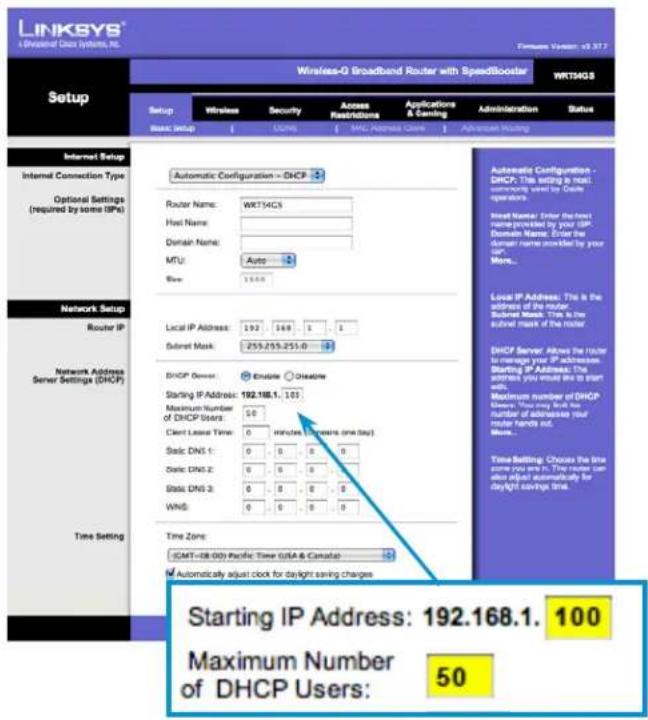
In this scenario, we will use a Linksys wireless router. Default setting for a Linksys Router is 192.168.1.1. With a computer connected to the wireless router and all related equipment powered up, open up the internet browser on your computer and type in 192.168.1.1 and press ENTER. Log in window will appear. Enter the default user name and password for the Linksys router (default is admin/admin). See Figure 1. Default static IP setting for the ERS-1.0 is xxx.xxx.x.254. The default setting on the Linksys router does not need to be changed to accommodate the ERS-1.0's IP address. Save settings and power down the router.
Other manufacturers might need to have their settings adjusted to be sure there are no IP address conflicts on the network. Configurations will vary for this set up, please make sure to read the router's owner's manual for details.
NOTE: The DHCP address range for the router must not include xxx.xxx.x.254 or there could be potential IP conflicts on the system with dynamic devices.
Figure 1
Step 2 - MZC SETUP
Download your project and the latest firmware to the MZC. For information on creating an EZ Tools project and downloading firmware, please refer to the EZ Tools Programming Guide.
There is no special setup in the EZ Tools software for the ERS interface, however, there are buttons on the GUI interface that do relate to the project (keep this in mind when programming). See Page 7 for call outs on GUI buttons.
Step 3 - RSA SETUP
Download the "MZC Control Firmware" into the RSA please refer to the EZ Tools Programming guide for details.
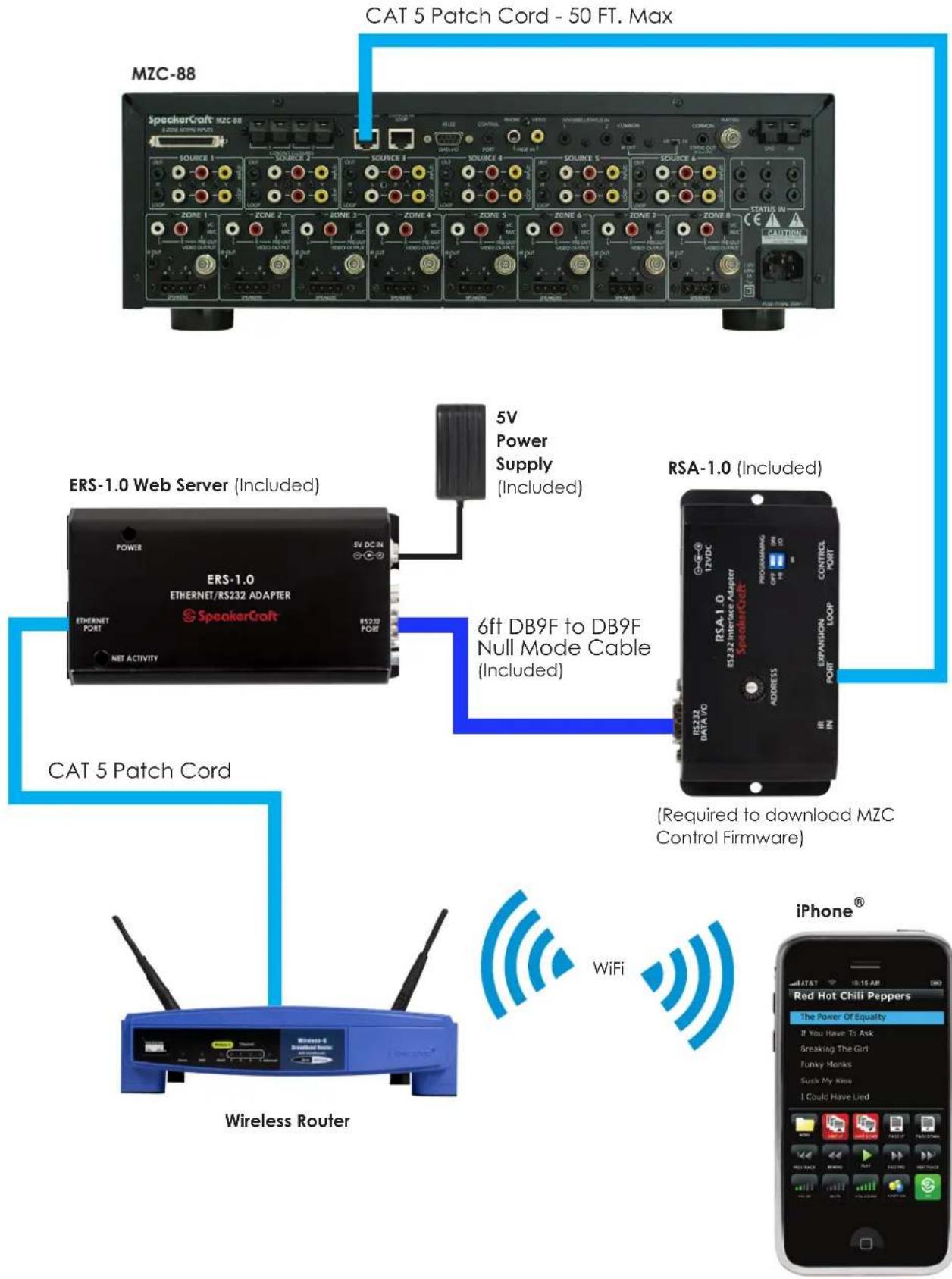
flowchart
graph TD
    A["SpeakerCraft MZC-88"] -->|CAT 5 Patch Cord - 50 FT. Max| B["ERS-1.0 Web Server (Included)"]
    B -->|5V Power Supply (Included)| C["RSA-1.0 (Included)"]
    C -->|6ft DB9F to DB9F Null Mode Cable (Included)| D["SpeakerCraft"]
    D -->|Required to download MZC Control Firmware| E["iPhone®"]
    F["Wireless Router"] --> G["CSW-8"]
    G --> H["Wireless Router"]
    I["CAT 5 Patch Cord"] --> J["Wireless Router"]
    J --> K["Wireless Router"]
    style A fill:#f9f,stroke:#333
    style B fill:#ccf,stroke:#333
    style C fill:#cfc,stroke:#333
    style D fill:#fcc,stroke:#333
    style E fill:#cff,stroke:#333
    style F fill:#ffc,stroke:#333
    style G fill:#cfc,stroke:#333
    style H fill:#fcc,stroke:#333
    style I fill:#ffc,stroke:#333
    style J fill:#cfc,stroke:#333
    style K fill:#fcc,stroke:#333
SYSTEM SETUP (continued)
With all related devices connected, apply power to the wireless router; once the router has fully booted up, then apply power to the MZC, then the ERS-1.0. Boot up time may vary depending on how many zones are configured on the system.
Step 4 - iPhone® SETUP
Accessing the ERS
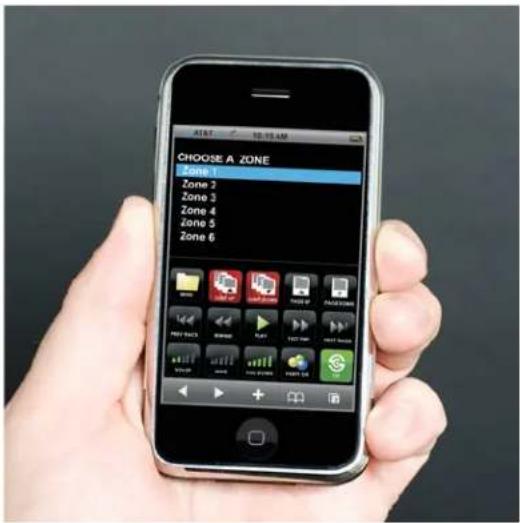
To access the ERS-1.0 web browser, select the Safari browser on your iPhone® and type in the static IP address for the ERS-1.0 (192.168.254). The ERS-1.0's GUI will pop up (See Figure 2).
Figure 2
Save a Quick Reference Icon
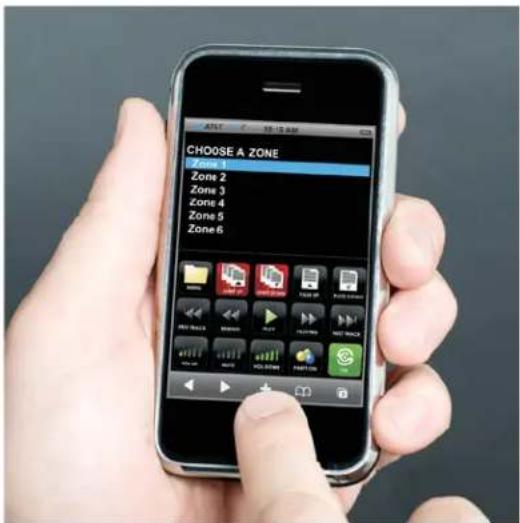
To save A Quick Reference icon on the iPhone® main source page, press the "+" sign at the bottom of the web page as shown in Figure 3.
Figure 3
Then select "Add to HOME Screen". See Figure 4.
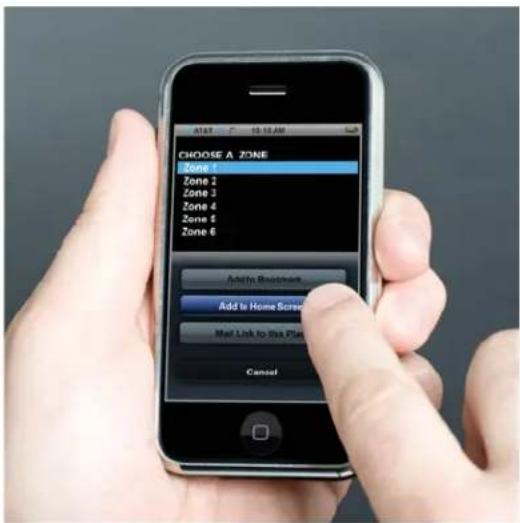
Figure 4
SYSTEM SETUP (continued)
Notice the SpeakerCraft icon shows up. You can call the link whatever you like, in this case SpeakerCraft, then press ADD. See Figure 5.
Figure 5
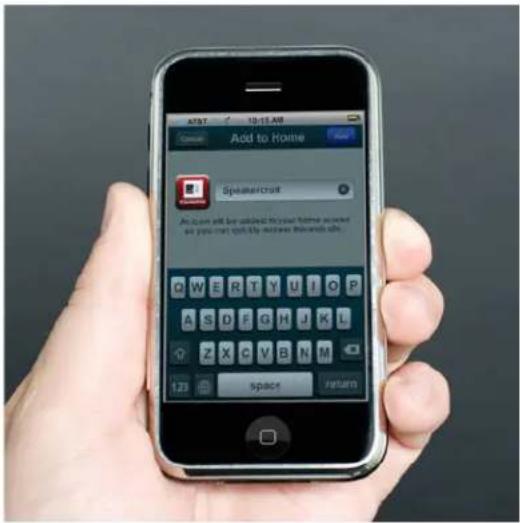
Notice that the icon is now on the main page. To access the MZC system, press the icon. See Figure 6.
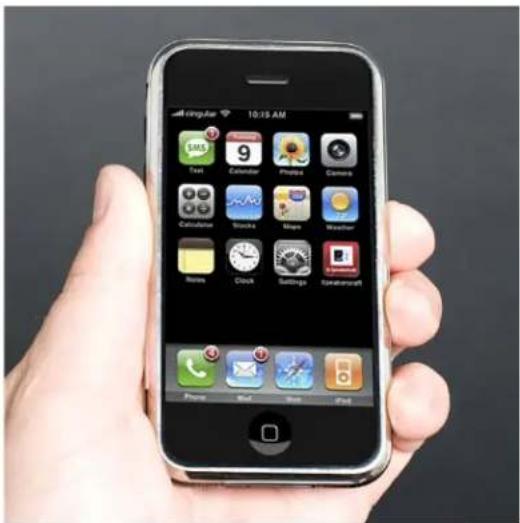
Figure 6
WEB BROWSERS
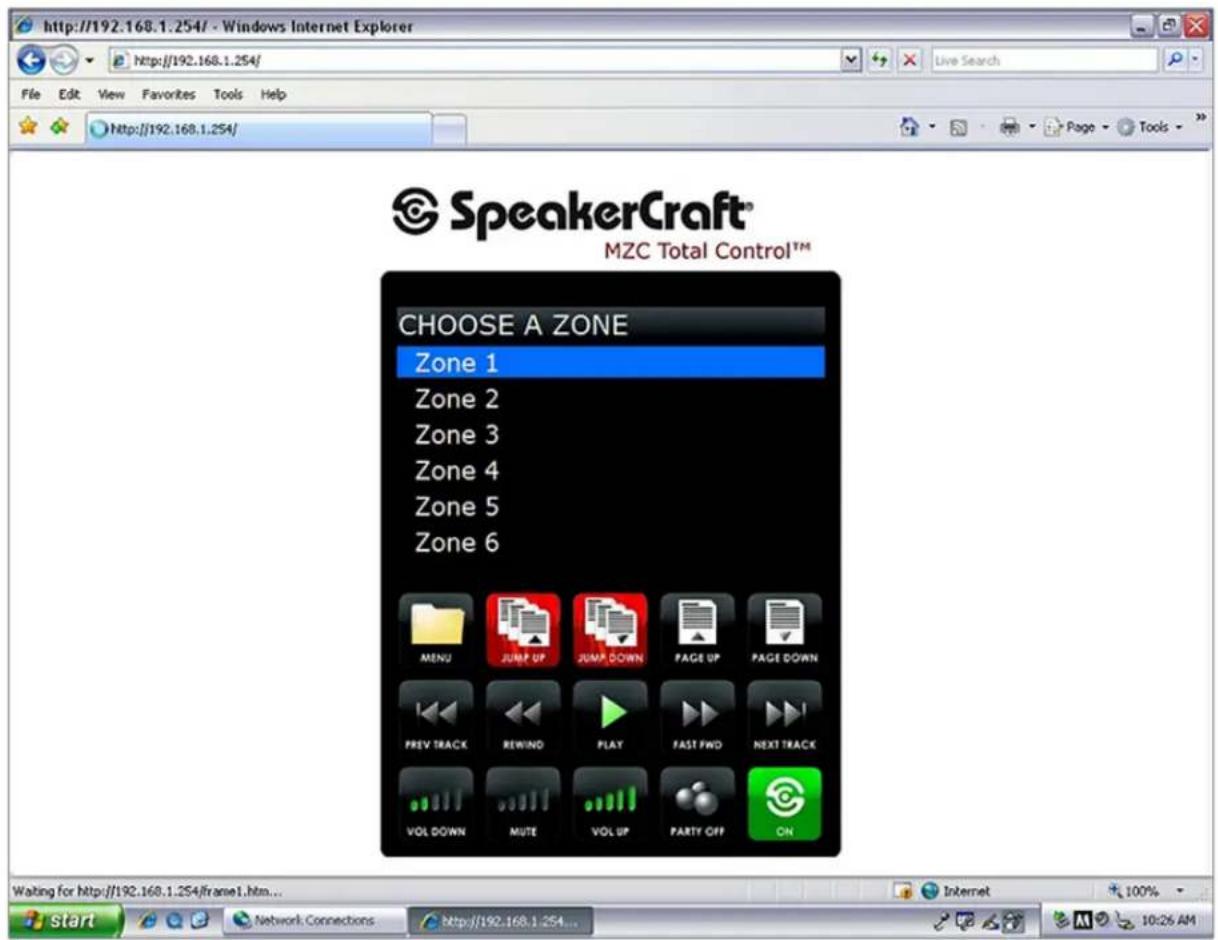
The ERS can be accessed through a web browser on a PC or MAC. Simply type in the IP address for the ERS into the browser (192.168.1.254) as shown below. See Figure 7.
Supported Internet browsers:
- Internet Explorer on PC
• Safari on PC
• Safari on MAC - Safari on iPod Touch®
• Safari on iPhone®
Figure 7
GUI INTERFACE
Here is a layout of the main page and the button relation to the MZC project.
Predefined buttons:
Predefined buttons are buttons that cannot be programmed in any way.
Programmable Buttons:
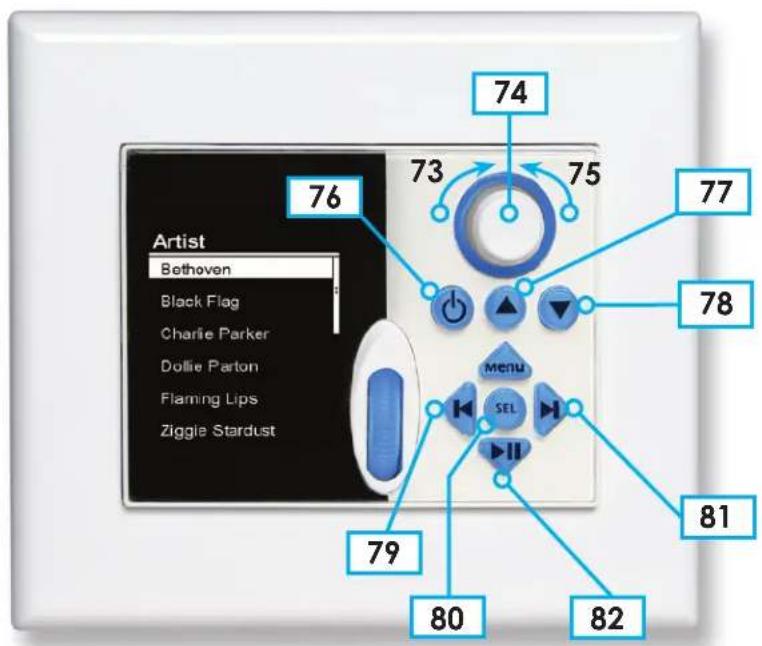
Any button that has a number reference to it can have command placed under it. Button numbers relate only to the MODE keypad. You do not need to have a mode keypad in the system for this functionality to work but you do need to have a MODE keypad programmed in the EZTools project. Please see Figure 8 for the MODE keypad button number layout.
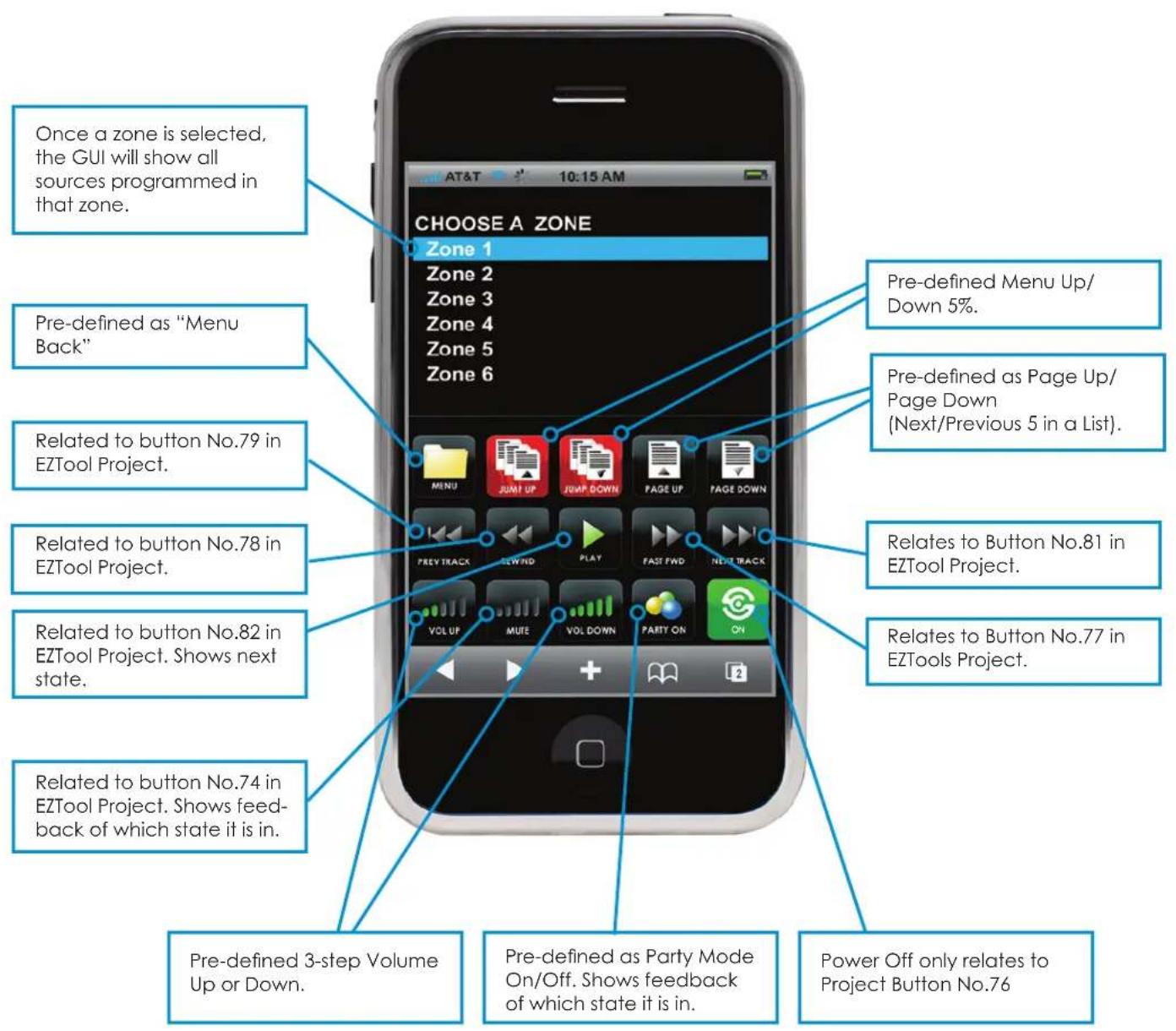
Figure 8
LIMITED 2-YEAR WARRANTY
Defective products must be shipped, together with proof of purchase, prepaid insured to the SpeakerCraft Authorized Dealer from whom they were purchased, or to the SpeakerCraft factory at the address listed on this installation instruction manual. Freight collect shipments will be refused. It is preferable to ship this product in the original shipping container to lessen the chance of transit damage. In any case, the risk or loss or damage in transit is to be borne by the purchaser. If upon examination at the Factory or SpeakerCraft Authorized Dealer it is determined that the unit was defective in materials or workmanship at any time during this warranty period, SpeakerCraft or the SpeakerCraft Authorized Dealer will, at its option, repair or replace this product at no additional charge, except as set forth below. If this model is no longer available and can not be repaired effectively, SpeakerCraft, at its sole option may replace the unit with a current model of equal or greater value. In some cases where a new model is substituted, a modification to the mounting surface may be required. If mounting surface modification is required, SpeakerCraft assumes no responsibility or liability for such modification. All replaced parts and product become the property of SpeakerCraft Inc. Products replaced or repaired under this warranty will be returned to the original retail purchaser, within a reasonable time, freight prepaid.
This warranty does not include service or parts to repair damage caused by accident, disaster, misuse, abuse, negligence, inadequate packing or shipping procedures, commercial use, voltage inputs in excess of the rated maximum of the unit, or service, repair or modification of the product which has not been authorized or approved by SpeakerCraft. This warranty also excludes normal cosmetic deterioration caused by environmental conditions. This warranty will be void if the Serial number on the product has been removed, tampered with or defaced.
This warranty is in lieu of all other expressed warranties. If the product is defective in materials or workmanship as warranted above, the purchaser's sole remedy shall be repair or replacement as provided above. In no event will SpeakerCraft be liable for any incidental or consequential damages arising out of the use or inability to use the product, even if SpeakerCraft Inc. or a SpeakerCraft Inc. Authorized Dealer has been advised of the possibility of such damages, or for any claim by any other party. Some states do not allow the exclusion or limitation of consequential damages, so the above limitation and exclusion may not apply.
All implied warranties on the product are limited to the duration of this expressed warranty. Some states do not allow limitation on the length of an implied Warranty. If the original retail purchaser resides in such a state, this limitation does not apply.
If you have any questions regarding this or any other SpeakerCraft product, please contact your local Authorized SpeakerCraft dealer, or you may contact SpeakerCraft toll-free at 1-800-448-0976 for immediate customer assistance. We are available to assist you every weekday, except holidays, between the hours of 7:00 a.m. and 5:00 p.m.