
55UM7300PLB - Screen LG - Free user manual and instructions
Find the device manual for free 55UM7300PLB LG in PDF.


| Product Type | 4K UHD Smart LED TV |
| Screen Size | 55 inches (diagonal) |
| Resolution | 3840 x 2160 pixels |
| Display Technology | LED (Direct Lit) |
| Refresh Rate | 60 Hz (Effective Motion Rate) |
| HDR Support | HDR10, HLG (Hybrid Log Gamma) |
| Smart Platform | webOS 4.5 |
| Processor | Quad Core |
| Audio Output | 20W (2ch) with Dolby Audio |
| Dimensions (with stand) | 1235 x 778 x 269 mm |
| Weight (with stand) | 15.0 kg |
| Power Consumption (operative) | 120 W (typical) |
| Power Supply | AC 100-240V, 50/60Hz |
| Connectivity | 3 HDMI, 2 USB, Ethernet, Wi-Fi, Bluetooth |
| Stand Type | Two-leg stand (included) |
| Remote Control | Magic Remote (AN-MR19BA) |
| Cleaning | Wipe with dry, soft cloth; do not use liquid cleaners |
| Safety | Keep ventilation openings clear; avoid placing near heat sources |
| Spare Parts Availability | Contact LG service center for replacement parts |
| Repairability Index | 5.5/10 (estimated based on typical model) |
Frequently Asked Questions - 55UM7300PLB LG
User questions about 55UM7300PLB LG
0 question about this device. Answer the ones you know or ask your own.
Ask a new question about this device
Download the instructions for your Screen in PDF format for free! Find your manual 55UM7300PLB - LG and take your electronic device back in hand. On this page are published all the documents necessary for the use of your device. 55UM7300PLB by LG.
USER MANUAL 55UM7300PLB LG
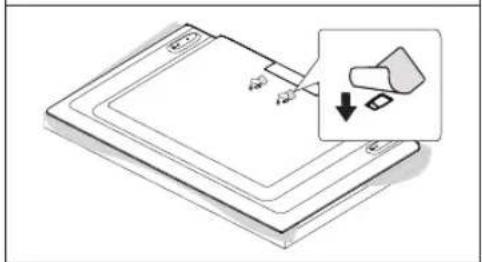
1 Insert the hole bolts or the wall-mount brackets and bolts into the rear panel of the TV and tighten them securely.
- If bolts are already installed in place of the hole bolts, remove them.
2 Install the brackets on the wall using the bolts. Align the positions of the brackets with the hole bolts on the rear panel of the TV.
3 Connect the hole bolts and brackets with a sturdy connector. Make sure the connector is horizontal on a flat surface.
- Use a platform or cabinet that is sturdy and large enough to support the TV securely.

70UM74*, 82UM76*


Connections
Main Functions
| Yoqish (Bosish)O'chirish1(Bosib ushlab turish)Menyu boshqaruvi (Bosish2)Menyu tanlovi (Bosib ushlab turish3) |
(Only for models supporting the Magic Remote Control)
* Image shown may differ from your TV. * Image shown on a PC or mobile phone may vary depending on the OS (Operating System). * App icon positions may vary on the platform, depending on the software version.
Network Settings
1 Press the (Settings) button on the remote to access the settings menu. Point to the [All Settings] icon and select it by pressing the Wheel (OK) button on the remote.

2 Select [Connection] → [Wired Connection (Ethernet)] or [Wi-Fi Connection].

3 The device automatically tries to connect to the available network (wired network first). When you select [Wi-Fi Connection], the list of available networks is displayed. Choose the network you wish to use.

For wireless AP (Router) that have the symbol, you need to enter the security key.
4 If the connection is successful, the "[Connected to Internet]" is displayed.

You can check the status of connection in [Advanced Wi-Fi settings].

![graph LR A["TV"] --> B["Remote Icon"] B --> C["DNS"] C --> D["Mobile App Icon"]](/content/2026/05/1054565/images/8e2dca445a04d01839c6ae2ad7a332cda1fd014b2d443f8eeebc08b667108b1a.jpg)
Troubleshooting Network Problems
1 Press the (Settings) on the remote to access the settings menu. Point to the (All Settings) icon and select by pressing the Wheel (OK) button on the remote.

2 Select [Connection] → [Wired Connection (Ethernet)] or [Wi-Fi Connection] → [Advanced Wi-Fi Settings].

Follow the instructions below that correlate to your network status.
Check the TV or the AP (Router).

When X appears next to TV:
① Check the connection status of the TV and AP (Router). ② Power off and power on the TV and AP (Router). ③ If you are using a static IP, enter the IP directly. ④ Contact your internet service provider or AP (Router) company.
Check the AP (Router) or consult your Internet service provider.

When X appears next to Gateway:
① Unplug the power cord of the AP (Router) and try to connect after 5 seconds. ② Initialize (Reset) the AP (Router). ③ Contact your internet service provider or AP (Router) company.
![graph LR A["TV"] --> B["Wireless Device"] B --> C["DNS × 📧"]](/content/2026/05/1054565/images/a0e573f70b0beba694b25c1b45d4bb290357f045999216703bca633548f928f2.jpg)
When X appears next to DNS:
① Unplug the power cord of the AP (Router) and try to connect after 5 seconds. ② Initialize (Reset) the AP (Router). ③ Check that the MAC address of the TV/AP (Router) is registered with your Internet service provider. (The MAC address displayed on the right pane of the network status window should be registered with your Internet service provider.) ④ Check the AP (Router) manufacturer's website to make sure your router has the latest firmware version installed.
SmartShare Connection to Smartphone
1 Check that Wi-Fi is enabled on your smartphone. To use SmartShare, both devices must be on the same local network. 2 Install/run the app for sharing content on your smartphone (It's called LG TV Plus on LG phones). 3 Enable your smartphone to share content files with other devices. 4 Select the file type you want to play (movie, audio or photo). 5 Select a movie, music or photo file to play on the TV. 6 Play the media file to view and enjoy it on your TV.
Updating the TV Firmware
* If the TV is turned on for the first time after it was shipped from the factory, initialization of the TV may take a few minutes.
1 (Settings) → ⚠️ (○)[All Settings] → ⚣️ [General] → [About This TV] → [CHECK FOR UPDATES]
2 After checking the version of the software, update it. If you check the "[Allow Automatic Updates]", you can update the software automatically.

Network Troubleshooting
You need to enter the security key for a wireless LAN (Router) that has a symbol.
X When it appears next to the gateway:
Connecting SmartShare to a Smartphone
1 Check that Wi-Fi is enabled on your smartphone. To use SmartShare, both devices must be on the same local network. 2 Install/use an app on your smartphone to share content (it is called LG TV Plus on LG phones). 3 Turn on your smartphone to share content files with other devices. 4 Select the type of file you want to play (movie, audio, or photo). 5 Select a video, music, or photo file to play on the TV. 6 Play the media file on your TV to view and enjoy it.
Updating the TV Firmware (microprogram)
- CONNECTIONS
- MAIN FUNCTIONS
- NETWORK SETTINGS
- TROUBLESHOOTING NETWORK PROBLEMS
- CHECK THE TV OR THE AP (ROUTER)
- CHECK THE AP (ROUTER) OR CONSULT YOUR INTERNET SERVICE PROVIDER
- SMARTSHARE CONNECTION TO SMARTPHONE
- UPDATING THE TV FIRMWARE
- NETWORK TROUBLESHOOTING
- CONNECTING SMARTSHARE TO A SMARTPHONE
- UPDATING THE TV FIRMWARE (MICROPROGRAM)
Brand : LG
Model : 55UM7300PLB
Category : Screen