Q1U SSDXP - Tablet SAMSUNG - Free user manual and instructions
Find the device manual for free Q1U SSDXP SAMSUNG in PDF.


| Type of Product | Tablet / Ultra-Mobile PC |
| Brand | Samsung |
| Model | Q1U SSDXP |
| Display | 7-inch TFT LCD, 1024 x 600 resolution |
| Processor | Intel Celeron (estimated 900 MHz) |
| Memory | 1 GB DDR2 |
| Storage | 30 GB SSD |
| Operating System | Windows XP Tablet PC Edition |
| Connectivity | Wi-Fi 802.11b/g, Bluetooth 2.0, USB 2.0 x2, VGA out |
| Battery | Lithium-Ion, 3-cell, up to 2.5 hours |
| Dimensions | 7.2 x 5.4 x 0.9 in (183 x 137 x 23 mm) |
| Weight | 1.2 lbs (544 g) |
| Audio | Built-in speakers, microphone, headphone jack |
| Camera | 1.3 MP front-facing |
| Input | Touchscreen, stylus, optional keyboard |
| Expansion | SD/MMC card slot |
| Power Supply | AC adapter, input 100-240V, output 12V |
| Care and Cleaning | Wipe with a soft dry cloth. Avoid liquids and abrasive cleaners. |
| Safety | Do not expose to moisture or extreme temperatures. Use only approved charger. |
| Spare Parts and Repairability | Battery and SSD may be replaceable. Contact Samsung support for repairs. |
| General Information | Part of Samsung's UMPC series, designed for mobile productivity. |
Frequently Asked Questions - Q1U SSDXP SAMSUNG
User questions about Q1U SSDXP SAMSUNG
0 question about this device. Answer the ones you know or ask your own.
Ask a new question about this device
Download the instructions for your Tablet in PDF format for free! Find your manual Q1U SSDXP - SAMSUNG and take your electronic device back in hand. On this page are published all the documents necessary for the use of your device. Q1U SSDXP by SAMSUNG.
USER MANUAL Q1U SSDXP SAMSUNG
Safety Precautions 8
Proper Posture During Computer Use 18
Important Safety Information 20
Replacement Parts and Accessories 22
Regulatory Compliance Statements 24
WEEE SYMBOL INFORMATION 33
Overview 34
Turning the Computer On and Off 42
Product Features

natural_image
Front view of a black electronic device with a screen and control buttons, set against a plain background (no visible text or symbols)Small but Strong UMPC (Ultra Mobile PC)
• Intel ULV CPU (Optional)
- 512MB\~Up To 1GB DDR2 Memory

text_image
7" WIDE7" WSVGA TFT LCD
- Basic Resolution of 1024x600 Pixels, Maximum Resolution of 2048x1536 Pixels (when an external display is connected)
- A Touch Screen and Touch Sensor buttons (optional) have been adopted allowing convenient input with your fingers.
- A Keypad has been adopted to easily enter characters
- A convenient mouse function (Mouse/Joystick, Mouse Button applied)

text_image
Diagram illustrating a physical media setup with floppy disk, computer, and speaker icons connected to audio equipment.Powerful Multimedia Functions
- Various Multimedia Programs Such as Play AVStation etc.
- Dual camera for photographing and video recording (Optional)

natural_image
Illustration of a mobile phone with signal waves surrounding it (no text or symbols)Multiple Network Support
- Wired LAN, Wireless LAN, Bluetooth (Optional)
- Resolves Space Restrictions through the Wireless Communication Function

text_image
Close-up of a smartphone screen with Chinese UI elements and partial text labels visibleCompact, Light-Weight Design for Portability / Polished Design
• A mere 690g (1.52lb) (Without optional items)
• High-Gloss Front Panel

text_image
Sync ODD Navigation PowerOptional Accessories for Additional Convenience
- USB Data Cable Enabling Data Exchange with another PC.
- USB External ODD(Optical Disk Drive), Ultra-Slim USB External Keyboard
• Power Bank to Extend Usage Time
Before You Start
Before reading the User Guide, first check the following information.
User Guide Information
This product is supplied with an Getting Started Guide, and a User Guide.
You can even more easily and conveniently use the computer by using any of the guides depending on your needs.
Getting Started Guide
This guide is provided so that you can conveniently refer to this guide when using the computer for the first time after purchasing it.
User Guide

The document you are currently reading is the User Guide. You can read it by double-tapping the icon on the Desktop.
This document includes the computer functions, how to use the functions, and how to use the program.
Utilizing the User Guide
① Be sure to read the Safety Precautions before using the computer.
② For basic usage of the computer refer to the additionally supplied Getting Started Guide.
③ Refer to the User Guide for the procedures to use the computer.
④ Using the Index of the User Guide, you can easily find any information you are looking for.
⑤ Using the Glossary of the User Guide, you can easily find meanings for technical terms.
⑥ If a problem occurs, refer to the Q & A included in the User Guide.

■ Some devices and software referred in the User Guide may not be provided and/or changed by upgrade.
Note that the computer environment referred in the User Guide may not be the same as your own environment.
■ The image used for the cover and text of the User Guide may not be the same as actual ones.

■ This guide decribes procedures for both the mouse and the stylus pen together.
A ‘Click’ in this manual refers to a ‘Single-tap’ for the Stylus Pen.
■ The figures in this guide are provided assuming that your operating system is Windows Vista. The figures are subject to change.
■ The User guide supplied with computer may be varied depending on model.
Safety Precaution Notations
| Icon Notation Description | |
| Warning | Failing to follow instructions marked with this symbol, may cause personal injury and or fatality. |
| Caution | Failing to follow instructions marked with this symbol, may cause slight injury to yourself or damage your property. |
Text Notations
| Icon Notation Description | |
| Content included in this section includes information required before using a function. | |
| Content included in this section includes information required about the function. | |
| Content included in this section includes helpful information to use the function. | |
| This notation represents the page number you can refer to for information about related functions or as a reference. | |
| Start >All Programs >Samsung >User Guide >User Guide | This represents a menu path to run a program.Click the Start button and then select All Programs >Samsung >User Guide >User Guide in this order from the menu. |
Copyright
© 2007 Samsung Electronics Co., Ltd.
Samsung Electronics Co., Ltd. owns the copyright of this manual.
No part of this manual may be reproduced or transmitted in any form or by any means, electronic or mechanical, without the consent of Samsung Electronics Co., Ltd.
The information in this document is subject to change without notice due to improving the performance of the product.
Samsung Electronics shall not be liable for any data loss. Please take care to avoid losing any important data and backup your data to prevent any such data loss.
Precautions for Operating System Support
The operating system (OS) installed on this product is the latest version of Windows Vista. You cannot install an operating system other than Windows Vista as well as any unauthorized copy of Windows Vista.
Example) When trying to install Windows Vista Home Premium when Windows Vista Home Basic is already installed.
Other operating systems (Windows 98, Windows ME, Windows 2000, Windows 2003 server, UNIX and LINUX, other Windows Vista versions, etc.) other than the operating system already installed on this computer are not supported.
If a problem occurs because of the installation of another operating system, the company will not provide technical support, a replacement or refund, and if our service engineer visits you due to this problem, a service charge will be applied.
In addition, installing a program that does not support Windows Vista, may cause the program to not work properly.
In this case, ask the corresponding software manufacturer about the problem. If you request our services to resolve a problem caused by incompatible software, a service charge will be applied.
Contents
Chapter 1. Getting Started
Product Features 2
Before You Start 4
Contents 7
Safety Precautions 8
Proper Posture During Computer Use 18
Important Safety Information 20
Replacement Parts and Accessories 22
Regulatory Compliance Statements 24
WEEE SYMBOL INFORMATION 33
Overview 34
Turning the Computer On and Off 42
Chapter 2. Using the Computer
Stylus Pen 45
Entering Text 48
Using the Buttons 54
Multi Card Slot 61
Connecting a Monitor 64
Adjusting the Volume 68
Chapter 3. Using Microsoft Windows Vista
About Microsoft Windows Vista 71
Windows Vista Screen Layout 74
Control Panel 83
Chapter 4. Using the Network
Wired Network 96
Wireless Network 99
Using the Easy Network Manager 102
Bluetooth 106
Chapter 5. Using Applications
| Introducing Programs | 113 |
| Origami Experience | 116 |
| CyberLink PowerDVD | 118 |
| Samsung Update Plus | 120 |
| Play AVStation | 122 |
| AVStation Now | 136 |
| Play Camera | 138 |
| OmniPass (Fingerprint Identification software) | 141 |
Chapter 6. Settings
| BIOS Setup 148 | |
| Setting a Boot Password | 153 |
| Changing the Boot Priority | 156 |
| Battery | 157 |
Chapter 7. Windows Media Center
| About Package Contentsand the Program Guide | 164 |
| Connecting and Setting Up Media Center | 165 |
| Using Media Center | 169 |
Chapter 8. Appendix
| Using Samsung Magic Doctor | 182 |
| Using McAfee SecurityCenter | 183 |
| Reinstalling Software | 184 |
| Reinstalling Windows Vista | 186 |
| Samsung Recovery Solution II | 190 |
| Q & A | 200 |
| Intel Media Sharing Software Information | 217 |
| Product Specifications | 218 |
| Glossary | 222 |
| Index | 225 |
| Contact SAMSUNG WORLD WIDE | 226 |
Safety Precautions
For your security and to prevent damage, please read the following safety instructions carefully. Since this is commonly applied to Samsung Computers, some figures may differ from actual ones.

Warning
Failing to follow instructions marked with this symbol may cause personal injury and even fatality.
Installation Related Power Related

natural_image
Illustration of a baby sitting near a trash bin with a digital display on the phone, next to a wall-mounted device (no text or symbols visible)
natural_image
Isometric line drawing of a desktop computer setup with monitor and tower (no text or symbols)Do not install the product in places exposed to humidity such as a bathrooms.
There is a danger of electric shock. Use the product within the operating conditions specified in the Manufacturers User Guide.
Keep the plastic bags out of the reach of children.
There is a danger of suffocation.
Keep a distance of 15cm or more between the computer and the wall and do not place any objects between them.
This may increase the internal temperature of the computer and may cause an injury.
Do not install the computer on a slant or a place prone to vibrations, or avoid using the computer in that location for a long time.
This increases the risk that a malfunction or damage to the product will occur.
The power plug and wall outlet figures may differ depending on the country specifications and the product model.

natural_image
Illustration of a hand using a power plug to test a small object, with lightning bolts indicating electrical hazard (no text or symbols present)Do not touch the mains plug or power cord with wet hands.
There is a danger of electric shock.
Do not exceed the standard capacity (voltage/current) of a multi-plug or power outlet extension when using it for the product.
There is a danger of electric shock or fire hazard.

text_image
AS LAMSUNGIf the power cord or power outlet makes a noise, disconnect the power cord from the wall outlet and contact a service center.
There is a danger of electric shock or fire hazard.

natural_image
Simple line drawing of a plug inserted into a socket, with a fuse and screwdriver inserted (no text or symbols)Do not use a damaged or loose mains plug or power cord or power outlet.
There is a danger of electric shock or fire hazard.

natural_image
Illustration of a hand connecting a small object to a rectangular device with a cable (no text or symbols)Plug the power cord firmly into the power outlet and AC adapter.
Failing to do so may cause fire hazard.

natural_image
Illustration of a hand using a power plug to install an electrical socket (no text or symbols present)Do not unplug the power cord out by pulling the cable only.
If the cord is damaged, it may cause electric shock.

natural_image
Simple line drawing of a cabinet with an electrical outlet connected to a power plug, emitting a lightning bolt (no text or symbols)Do not bend the power cord excessively or do not place a heavy object over the power cord. It is especially important to keep the power cord out of reach of infants and pets.
If the cord is damaged, it may cause electric shock or fire.
Use a wall outlet or multi- plug with a grounding part.
Failing to do so may cause electric shock hazard.

natural_image
Illustration of a person holding a phone next to a cartoon tablet device with a smiling face, emitting sound waves (no text or symbols)If water or another substance enters the power input jack, AC adapter or the computer, disconnect the power cord and contact the service center.
Damage to the device within the computer may cause electric shock or fire hazard.
Battery Usage Related

Keep the battery out of the reach of infants and pets, as they could put the battery into their mouths.
There is a danger of electric shock or choking.
Usage Related

natural_image
Illustration of a kitchen appliance with a hand holding a small object, next to an open laptop and a tool (no text or symbols present)Disconnect all cables connected to the computer before cleaning it. If you are using a notebook computer, remove the battery.
There is a danger of electric shock or damage to the product.

text_image
Illustration showing a smiling laptop connected to a telephone with a cross symbol indicating cancellation or error.Do not connect a phone line connected to a digital phone to the modem.
There is a danger of a electric shock, fire or damage to the product.

natural_image
Cartoon illustration of a sad smartphone with a droplet and water droplet, next to a cup of blue liquid (no text or symbols)Do not place any container filled with water or chemicals over or near the computer.
If water or chemicals enter the computer, this may cause fire or electric shock.

text_image
AS SAMSUNGIf the computer is broken or dropped, disconnect the power cord and contact a service center for a safety check.
Using a broken computer may cause electric shock or fire hazard.

natural_image
Cartoon illustration of a car with a sad face emerging from the window, emitting exhaust smoke (no text or symbols)Avoid direct sunlight when the computer is in an air-tight location such as inside a vehicle.
There is a danger of a fire hazard. The computer may overheat and also present opportunity to thieves.
Upgrade Related

natural_image
Illustration of a hand using a tool to interact with a device, showing a cartoon face on screen (no text or symbols present)Never disassemble the power supply or AC adapter.
There is a danger of electric shock.
When removing the RTC (Real Time Clock) battery, keep it out of the reach of children as they could touch and/or swallow it.
There is a danger of choking. If a child has swallowed it, contact a doctor immediately.
Use only authorized parts (multi-plug, battery and memory) and never disassemble parts.
There is a danger of damaging the product, electric shock or fire hazard.

natural_image
Illustration of a Samsung smartphone with a smiling face, connected to books and cables (no text or symbols)Shut down the computer and disconnect all cables before disassembling the computer. If there is a modem, disconnect the phone line. If you are using a notebook computer, make sure to remove the battery.
Failing to do so, may cause electric shock.
Custody and Movement Related

text_image
练习错误!!Follow the instructions for the relevant location (e.g. airplane, hospital, etc.) when using a wireless communication device (wireless LAN, Bluetooth, etc.).
Caution
Failing to follow instructions marked with this symbol may cause slight injury or damage to the product.
Installation Related Battery Usage Related
Do not block the ports (holes), vents, etc. of the product and do not insert objects.
Damage to a component within the computer may cause electric shock or fire.
When using the computer with it lying on its side, place it so that the vents face upwards.
Failing to do so, may cause the internal temperature of the computer to rise and the computer to malfunction or halt.
Do not place a heavy object over the product.
This may cause a problem with the computer. In addition, the object may fall and cause injury, or damage the computer.
Dispose of worn-out batteries properly.
■ There is a danger of fire or explosion.
■ The battery disposal method may differ depending on your country and region. Dispose of the used battery in an appropriate way.
Do not throw or disassemble the battery and do not put it into water.
This may cause an injury, fire or explosion.
Use only a battery authorized by Samsung Electronics.
Failing to do so may cause an explosion.
Avoid contact with metal objects such as car keys or clips when keeping or carrying a battery.
Contact with a metal may cause excessive current and a high temperature and may damage the battery or cause a fire.
Charge the battery according to the instructions in the manual.
Failing to do so, may cause and explosion or fire from damage to the product.
Do not heat the battery or expose it to heat (e.g. inside a vehicle during the summer).
There is a danger of explosion or fire.
Usage Related
Do not place a candle, lighted cigar, etc. over or on the product.
There is a danger of fire.
Make sure to have the product tested by a safety service engineer after repairing the product.
Authorised Samsung Repair Centers will carry out safety checks after a repair. Using a repaired product without testing it for safety might cause electric shock or fire.
In case of lightning, immediately turn the system off, disconnect the power cord from the wall outlet and line do not use a modem or phone.
There is a danger of electric shock or fire.
Connect only permitted devices to the connectors or ports of the computer.
Failing to do so, may cause electric shock and fire.
Close the LCD panel only after checking if the notebook computer is turned off.
The temperature may rise and it may cause overheating and deformation of the product.
Do not press the Eject Button while the Floppy Disk/CD-ROM drive is in operation.
You might lose data and the disk might be suddenly ejected and could cause an injury.
Take care not to drop the product while using it.
This may cause personal injury or loss of data.
Do not contact the antenna with electricity facility such as the power outlet.
There is a danger of electric shock.
When handling computer parts, follow the instructions on the manual supplied with the parts.
Failing to do so, may cause damage to the product.
If the computer emits smoke, or there is a burning smell, disconnect the power plug from the wall outlet and contact a service center. If your computer is a note-book computer, make sure to remove the battery.
There is a danger of fire.
Do not use a damaged or modified CD/Floppy Disk.
There is a danger of damaging the product or personal injury.
Do not insert your fingers into the PC Card Slot.
There is a danger of injury or electric shock.
Use recommended computer cleansing solution when cleaning the product and only use the computer when it is completed dried.
Failing to do so may cause electric shock or fire.
Emergency disk eject method using paperclip should not be used while the disk is in mothion. Make sure to use the emergency disk eject method only when the Optical Disk Drive is stopped.
There is a danger of injury.
Do not place your face close to the Optical Disk Drive tray when it is operating.
There is a danger of injury due to an abrupt ejection.
Check CDs for cracks and damage prior to use.
It may damage the disc and cause disorder of device and injury of user.
Upgrade Related
Take care when touching the product or parts.
The device may be damaged or you may be injured.
Take care not to throw or drop a computer part or device.
This may cause injury or damage to the product.
Make sure to close the computer cover before connecting the power after a reassembly.
There is a danger of electric shock if your body touches an internal part.
Use parts authorized by Samsung Electronics only.
Failing to do so, may cause fire or damage the product.
Never disassemble or repair the product by yourself.
There is a danger of electric shock or file.
To connect a device that is not manufactured or authorized by Samsung Electronics, enquire at your service center before connecting the device.
There is a danger of damaging the product.
Custody and Movement Related
When moving the product, turn the power off and separate all connected cables first.
The product might be damaged or users may trip over the cables.
For long periods of not using the notebook computer, discharge the battery and preserve as it is detached.
The battery will be preserved at its best condition.
Keep the Stylus Pen out of reach of children.
hildren may injure themselves by swallowing it or damaging their eyes.
Use a computer cleansing solution when cleaning the product.
Using a cleansing solution or chemical that is not developed for a computer may damage the product.
Do not use or watch the computer while driving a vehicle.
This may cause a traffic accident. Concentrate on driving.
LCD Related
LCD Bad Pixels
The limits of LCD manufacturing technology permit a maximum of 4 abnormal or bad pixels, which does not affect the system performance. This system may have the same level of abnormal or bad pixels as any other company's products.
Cleaning the LCD
When cleaning the LCD panel, use only computer specific cleaners with a soft cloth, and lightly wipe in one direction. Pressing down hard may damage the LCD.
Cautions on Preventing Data Loss (Hard Disk Management)
To prevent data loss due to damage to the hard disk drive, please backup your data frequently.
Take care not to damage the data on a hard disk drive.
■ A hard disk drive is so sensitive to external impact that an external impact may cause loss of data on the surface of the disk.
■ Take extra care, because moving the computer or an impact on the computer when it is turned on may damage the data of the hard disk drive.
■ The company is not liable for the loss of any data caused by customer such as the carelessness usage or bad environmental condition.
Causes that may damage the data of a hard disk drive and the hard disk drive itself.
■ The data may be lost when an external impact is applied to the disk while disassembling or assembling the computer.
■ The data may be lost when the computer is turned off or reset by a power failure while the hard disk drive is operating.
■ The data may be lost and irrecoverable due to a computer virus infection.
■ The data may be lost if the power is turned off while running a program.
■ Moving or causing an impact to the computer while the hard disk drive is operating, may cause files to be corrupted or bad sectors on the hard disk.
Proper Posture During Computer Use
Maintaining a proper posture during computer use is very important to prevent physical harm.
The following instructions are about maintaining a proper posture during computer use developed through human engineering. Please read and follow them carefully when using the computer.
Otherwise, the probability of (RSI: Repetitive Strain Injury) from repeated operations may increase and serious physical harm may be caused.

The instructions in this manual have been prepared so that they can be applied within the coverage of general users. If the user is not included in the coverage, the recommendation is to be applied according to the user's needs.
Since this is commonly applied to Samsung Computers, some figures may differ from actual ones.
Proper Posture
■ Do not use the computer on your lap or close to your skin for a long time.
There is a danger of burns due to the high temperature of the computer.
■ To use the computer while talking over the telephone, use the ear-microphone phone.
When using the computer while holding a phone over your shoulder and talking on the phone, your posture becomes bad.
- Keep frequently used work items within an easy working range (where you can reach them with your hands easily).
Eye Position
Keep a distance of at least 50cm between the LCD and your eyes.
■ Adjust the height of the LCD screen so that its top height is equal to or lower than your eyes.
■ Avoid setting the LCD excessively bright.
- Keep the LCD screen clean.
■ When wearing glasses, clean them before using the computer.
Hand Position
■ It is recommended to connect and use an external keyboard and mouse when using the computer for a long time.
■ Do not hold the Stylus Pen with excessive force.
■ Do not press the touch screen with excessive force.
Volume Control (Headphones and Speakers)
Check your volume first to listen to music.

[Non-Text]
VOLUME
Check your volume!!

natural_image
Side profile illustration of a person wearing a blue headset (no text or symbols)■ Check if the volume is too loud before using headphones.
■ Do not turn the volume to the maximum level right from the start. Instead, start the volume at a low level and increase it slowly while listening to the sound.
■ It is not recommended using headphones for long periods of time.
Use Time (Break Time)
■ Take a break for 10 minutes or more after a 50-minute period when working for more than one hour.
Illumination
■ Do not use the computer in dark locations. The illumination level for computer use must be as bright so for reading a book.
■ Indirect illumination is recommended. Use a curtain to prevent reflection on the LCD screen.
Operation Condition
■ Do not use the computer in hot and humid locations.
■ Use the computer within the allowed temperature and humidity range specified in the User Guide.
Important Safety Information
Safety instructions
Your system is designed and tested to meet the latest standards for safety of information technology equipment. However, to ensure safe use of this product, it is important that the safety instructions marked on the product and in the documentation are followed.

Always follow these instructions to help guard against personal injury and damage to your system.
Setting Up your System
- Read and follow all instructions marked on the product and in the documentation before you operate your system. Retain all safety and operating instructions for future use.
■ Do not use this product near water or a heat source such as a radiator.
■ Set up the system on a stable work surface.
■ The product should be operated only with the type of power source indicated on the rating label.
■ Ensure that the electrical outlet you are using to power your equipment is easily accessible in case of a fire or short circuit.
■ If your computer has a voltage selector switch, make sure that the switch is in the proper position for your area.
■ Openings in the computer case are provided for ventilation. Do not block or cover these openings. Make sure you provide adequate space, at least 6 inches (15 cm), around the system for ventilation when you set up your work area. Never insert objects of any kind into the computer ventilation openings.
■ Ensure that the fan vents on the bottom of the casing are clear at all times. Do not place the computer on a soft surface, doing so will block the bottom vents.
■ If you use an extension cord with this system, make sure that the total power rating on the products plugged into the extension cord does not exceed the extension cord power rating.
Care During Use
■ Do not walk on the power cord or allow anything to rest on it.
■ Do not spill anything on the system. The best way to avoid spills is to not eat or drink near your system.
■ Some products have a replaceable CMOS battery on the system board. There is a danger of explosion if the CMOS battery is replaced incorrectly. Replace the battery with the same or equivalent type recommended by the manufacturer. Dispose of batteries according to the manufacturers instructions. If the CMOS battery requires replacement insure that a qualified technician performs the task.
■ When the computer is turned off, a small amount of electrical current still flows through the computer. To avoid electrical shock, always unplug all power cables, remove the battery and modem cables from the wall outlets before cleaning the system.
■ Unplug the system from the wall outlet and refer servicing to qualified personnel if:
– The power cord or plug is damaged.
– Liquid has been spilled into the system.
- The system does not operate properly when the operating instructions are followed.
- The system was dropped or the casing is damaged.
– The system performance changes.
The Instruction On Safety Operation of NotePC
1 When installing and operating devices please refer to safety requirements in the user guide.
2 Devices can be used only with the equipment specified in the technical specifications of the devices.
3 If any smell of burning or smoke from the computer the unit should be switched off and battery removed. The unit should be checked by a qualified technician before reuse.
4 Service and repair of devices should be carried out by authorized service centers.
Replacement Parts and Accessories
Use only replacement parts and accessories recommended by SAMSUNG.

Do not use this product in areas classified as hazardous. Such areas include patient care areas of medical and dental facilities, oxygen rich environments, or industrial areas.
Battery Disposal

Do not put rechargeable batteries or products powered by non-removable rechargeable batteries in the garbage.
Contact the Samsung Helpline for information on how to dispose of batteries that you cannot use or recharge any longer.
Follow all local regulations when disposing of old batteries.

THERE IS A RISK OF EXPLOSION IF BATTERY IS REPLACED BY AN INCORRECT TYPE. DISPOSE OF USED BATTERIES ACCORDING TO THE INSTRUCTIONS.
Connect and Disconnect the AC adapter
The socket-outlet shall be installed near the equipment and shall be easily accessible.
Do not unplug the power cord out by pulling the cable only.
Power Cord Requirements
The power cord set (wall plug, cable and AC adapter plug) you received with your computer meets the requirements for use in the country where you purchased your equipment.
Power cord sets for use in other countries must meet the requirements of the country where you use the computer. For more information on power cord set requirements, contact your authorized dealer, reseller, or service provider.
General Requirements
The requirements listed below are applicable to all countries:
■ The length of the power cord set must be at least 6.00 feet (1.8m) and a maximum of 9.75 feet (3.0m).
■ All power cord sets must be approved by an acceptable accredited agency responsible for evaluation in the country where the power cord set will be used.
■ The power cord set must have a minimum current capacity of 7 A and a nominal voltage rating of 125 or 250 volts AC, as required by each country's power system.
■ The appliance coupler must meet the mechanical configuration of an EN 60 320/IEC 320 Standard Sheet C7 connector, for matching with appliance inlet on the computer.
Regulatory Compliance Statements
Wireless Guidance
Low power, Radio LAN type devices (radio frequency (RF) wireless communication devices), operating in the 2.4 GHz Band, may be present (embedded) in your notebook system. The following section is a general overview of considerations while operating a wireless device.
Additional limitations, cautions, and concerns for specific countries are listed in the specific country sections (or country group sections). The wireless devices in your system are only qualified for use in the countries identified by the Radio Approval Marks on the system rating label. If the country you will be using the wireless device in, is not listed, please contact your local Radio Approval agency for requirements. Wireless devices are closely regulated and use may not be allowed.
The RF field strength of the wireless device or devices that may be embedded in your notebook are well below all international RF exposure limits as known at this time. Because the wireless devices (which may be embedded into your notebook) emit less energy than is allowed in radio frequency safety standards and recommendations, manufacturer believes these devices are safe for use. Regardless of the power levels, care should be taken to minimize human contact during normal operation.
This transmitter must not be collocated or operate in conjunction with any other antenna or transmitter except the installed Bluetooth transmitter.
Some circumstances require restrictions on wireless devices. Examples of common restrictions are listed below:

■ Radio frequency wireless communication can interfere with equipment on commercial aircraft. Current aviation regulations require wireless devices to be turned off while traveling in an airplane.
802.11B (also known as wireless Ethernet or Wifi) and Bluetooth communication devices are examples of devices that provide wireless communication.
■ In environments where the risk of interference to other devices or services is harmful or perceived as harmful, the option to use a wireless device may be restricted or eliminated. Airports, Hospitals, and Oxygen or flammable gas laden atmospheres are limited examples where use of wireless devices may be restricted or eliminated. When in environments where you are uncertain of the sanction to use wireless devices, ask the applicable authority for authorization prior to use or turning on the wireless device.
■ Every country has different restrictions on the use of wireless devices. Since your system is equipped with a wireless device, when traveling between countries with your system, check with the local Radio Approval authorities prior to any move or trip for any restrictions on the use of a wireless device in the destination country.
■ If your system came equipped with an internal embedded wireless device, do not operate the wireless device unless all covers and shields are in place and the system is fully assembled.
■ Wireless devices are not user serviceable. Do not modify them in any way. Modification to a wireless device will void the authorization to use it. Please contact manufacturer for service.
■ Only use drivers approved for the country in which the device will be used. See the manufacturer System Restoration Kit, or contact manufacturer Technical Support for additional information.
United States of America
USA and Canada Safety Requirements and Notices
Do not touch or move the antenna while the unit is transmitting or receiving.
Do not hold any component containing the radio such that the antenna is very close or touching any exposed parts of the body, especially the face or eyes, while transmitting.
Do not operate the radio or attempt to transmit data unless the antenna is connected; if not, the radio may be damaged.
Use in specific environments:
The use of wireless devices in hazardous locations is limited by the constraints posed by the safety directors of such environments.
The use of wireless devices on airplanes is governed by the Federal Aviation Administration (FAA).
The use of wireless devices in hospitals is restricted to the limits set forth by each hospital.

Explosive Device Proximity Warning
Do not operate a portable transmitter (such as a wireless network device) near unshielded blasting caps or in an explosive environment unless the device has been modified to be qualified for such use.

Use On Aircraft Caution
Regulations of the FCC and FAA prohibit airborne operation of radio-frequency wireless devices because their signals could interfere with critical aircraft instruments.
Other Wireless Devices
Safety Notices for Other Devices in the Wireless Network: Refer to the documentation supplied with wireless Ethernet adapters or other devices in the wireless network.

The Part 15 radio device operates on a non-interference basis with other devices operating at this frequency. Any changes or modification to this product not expressly approved by Intel could void the user's authority to operate this device.
Unintentional Emitter per FCC Part 15
This device complies with Part 15 of the FCC Rules. Operation is subject to the following two conditions:(1) this device may not cause harmful interference, and (2) this device must accept any interference received, including interference that may cause undesired operation.
!
This equipment has been tested and found to comply with the limits for a Class B digital device pursuant to Part 15 of the FCC Rules. These limits are designed to provide reasonable protection against harmful interference in a residential installation. This equipment generate uses and can radiate radio frequency energy and if not installed and used in accordance with the instructions may cause harmful interference will not occur in a particular installation. If this equipment does cause harmful interference to radio or television reception, which can be determined by turning the equipment off and on, the user is encouraged to try to correct the interference by one or more of the following measures:
■ Reorient or relocate the receiving antenna.
■ Increase the separation between the equipment and receiver.
■ Connect the equipment into an outlet on a circuit different from that to which the receiver is connected.
■ Consult the dealer or an experienced radio/TV technician for help.
If necessary, the user should consult the dealer or an experienced radio/television technician for additional suggestions. The user may find the following booklet helpful: "Something About Interference."
This is available at FCC local regional offices. Our company is not responsible for any radio or television interference caused by unauthorized modifications of this equipment or the substitution or attachment of connecting cables and equipment other than those specified by our company. The correction will be the responsibility of the user. Use only shielded data cables with this system.
Intentional emitter per FCC Part 15
Low power, Radio LAN type devices (radio frequency (RF) wireless communication devices), operating in the 2.4 GHz Band, may be present (embedded) in your notebook system. This section is only applicable if these devices are present. Refer to the system label to verify the presence of wireless devices.
Wireless devices that may be in your system are only qualified for use in the United States of America if an FCC ID number is on the system label.
This transmitter must not be collocated or operate in conjunction with any other antenna or transmitter except the installed Bluetooth transmitter.
Operation of this device is subject to the following two conditions: (1) This device may not cause harmful interference, and (2) this device must accept any interference received, including interference that may cause undesired operation of the device.

Wireless devices are not user serviceable. Do not modify them in any way. Modification to a wireless device will void the authorization to use it. Contact manufacturer for service.
FCC Part 68 (If fitted with a modem device.)
This equipment compiles with part of the FCC rules. On the back of this equipment is a label that contains, among other information, the FCC registration number and ringer equivalence number (REN) for this equipment. If requested, this information must be provided to the telephone company.
This equipment uses the following USOC jacks : RJ11C.
An FCC compliant telephone cord and modular plug is provided with this equipment. This equipment is designed to be connected to the telephone network or promises wiring using a compatible modular jack which is Part 68 compliant. See Installation Instructions for details.
The REN is used to determine the quantity of devices which may be connected to telephone line. Excessive RENs on the telephone line may result in the devices not ringing in response to an incoming call. In most, but not all areas, the sum of RENs should not exceed five (5.0). To be certain of the number of devices that may be connected to a line, as determined by total RENs, contact the local telephone company to determine the maximum REN for the calling area.
If the terminal equipment causes harm to the telephone network, the Telephone Company will notify you in advance that temporary discontinuance of service may be required. But if advance notice is not practical, the telephone company will notify the customer as soon as possible. Also, you will be advised of your right to file a complaint with the FCC if you believe it is necessary.
The telephone company may make changes in its facilities, equipment, operations, or procedures that could affect the operation of the equipment. If this happens, the telephone company will provide advanced notice in order for you to make necessary modifications to maintain uninterrupted service.
If trouble is experienced with this equipment (Modem) for repair or warranty information, please contact your local distributor. If the equipment is causing harm to the telephone network, the telephone company may request that you disconnect the equipment until the problem is resolved.
The user must use the accessories and cables supplied by the manufacturer to get optimum performance from the product.
No repairs may be done by the customer.
This equipment cannot be used on public coin phone service provided by the telephone company. Connection to party line service is subject to state tariffs.
The Telephone Consumer Protection Act of 1991 makes it unlawful for any person to use a computer or other electronic device, including fax machines, to send any message unless such message clearly contains in a margin at the top or bottom of each transmitted page or on the first page of the transmission, the date and time it is sent and an identification of the business or other entity, or other individual sending the message and the telephone number of the sending machine or such business, other entity, or individual. (The telephone number provided may not be any number for which charges exceed local or long-distance transmission charges.)
In order to program this information into your fax machine, refer to your communications software user manual.
European Union
European Union CE Marking and Compliance Notices
Products intended for sale within the European Union are marked with the Conformité Européenne (CE) Marking, which indicates compliance with the applicable Directives and European standards and amendments identified below. This equipment also carries the Class 2 identifier.
The following information is only applicable to systems labeled with the CE mark CE
European Directives
This Information Technology Equipment has been tested and found to comply with the following European directives:
■ EMC Directive 89/336/EEC with amending directives 92/31/EEC & 93/68/EEC as per
- EN 55022 Class B
- EN 61000-3-2
- EN 61000-3-3
- EN 55024
■ Low Voltage Directive (Safety) 73/23/EEC as per EN 60950-1:2001+A11
■ Radio and Telecom Terminal Equipment Directive 199/5/EC as per
- CTR21 (if fitted with a modem device)
- ETS 300 328 (if fitted with a 2.4 GHz band embedded wireless device)
- ETS 301 489-1 (if fitted with a 2.4 GHz band embedded wireless device)
- ETS 301 489-17 (if fitted with a 2.4 GHz band embedded wireless device)
European Radio Approval Information (for products fitted with EU-approved radio devices)
This Product is a Notebook computer; low power, Radio LAN type devices (radio frequency (RF) wireless communication devices), operating in the 2.4 GHz band, may be present (embedded) in your notebook system which is intended for home or office use. This section is only applicable if these devices are present. Refer to the system label to verify the presence of wireless devices.
Wireless devices that may be in your system are only qualified for use in the European Union or associated areas if a CE mark with a Notified Body Registration Number and the Alert Symbol is on the system label.
The power output of the wireless device or devices that may be embedded in you notebook is well below the RF exposure limits as set by the European Commission through the R&TTE directive.

See 802.11b and 802.11g restrictions for specific countries or regions within countries under the heading “European Economic Area Restrictions” below.
Translated Statements of Compliance
[English]
This product follows the provisions of the European Directive 1999/5/EC.
[Danish]
European Economic Area Restrictions
Local Restriction of 802.11b/802.11g Radio Usage
[Note to integrator: The following statements on local restrictions must be published in all end-user documentation provided with the system or product incorporating the Wireless Network product.

Due to the fact that the frequencies used by 802.11b/802.11g wireless LAN devices may not yet be harmonized in all countries, 802.11b/802.11g products are designed for use only in specific countries or regions, and are not allowed to be operated in countries or regions other than those of designated use.
As a user of these products, you are responsible for ensuring that the products are used only in the countries or regions for which they were intended and for verifying that they are configured with the correct selection of frequency and channel for the country or region of use. Any deviation from permissible settings and restrictions in the country or region of use could be an infringement of local law and may be punished as such.
The European variant is intended for use throughout the European Economic Area. However, authorization for use is further restricted in particular countries or regions within countries, as follows:
General
European standards dictate maximum radiated transmit power of 100 mW effective isotropic radiated power (EIRP) and the frequency range 2400 – 2483.5 MHz.
Belgium
The product may be used outdoors, but for outdoor transmissions over a distance of 300m or more, a license from the BIPT is required.
This restriction should be indicated in the manual as follows:
For Metropolitan departments:
2.400 - 2.4835 GHz for indoor use.
2.400 - 2.454 GHz (channels 1 to 7) for outdoor use.
For Guadeloupe, Martinique, St Pierre et Miquelon, Mayotte:
2.400 - 2.4835 GHz for indoor and outdoor use.
For Reunion, Guyane:
2.400 - 2.4835 GHz for indoor use.
2.420 - 2.4835 GHz for outdoor use (channels 5 to 13)
European Telecommunication Information (for products fitted with EU-approved modems)
Marking by the symbol indicates compliance of this equipment to the Radio and Telecom Terminal Equipment Directive 1999/5/EC. Such
marking is indicative that this equipment meets or exceeds the following technical standards:
CTR 21 – Attachment requirements for pan-European approval for connection to the analogue Public Switched Telephone Networks (PSTNs) of TE (excluding TE supporting voice telephony services) in which network addressing, if provided, is by means of Dual Tone Multi-Frequency (DTMF) signaling.

Although this equipment can use either loop disconnect (pulse) or DTMF (tone) signaling, only the performance of the DTMF signaling is subject to regulatory requirements for correct operation.
It is therefore strongly recommended that the equipment is set to use DTMF signaling for access to public or private emergency services. DTMF signaling also provides faster call setup.
This equipment has been approved to Council Decision 98/482/EEC-“CTR 21” for Pan-European single terminal connection to the Public Switched Telephone Network (PSTN).
However, due to differences between the individual PSTNs provided in different countries, the approval does not, of itself, give an unconditional assurance of successful operation on every PSTN termination point. In the event of problems, you should contact manufacturer Technical Support.
WEEE SYMBOL INFORMATION

Correct Disposal of This Product (Waste Electrical & Electronic Equipment)
(Applicable in the European Union and other European countries with separate collection systems)
This marking shown on the product or its literature, indicates that it should not be disposed with other household wastes at the end of its working life. To prevent possible harm to the environment or human health from uncontrolled waste disposal, please separate this from other types of wastes and recycle it responsibly to promote the sustainable reuse of material resources.
Household users should contact either the retailer where they purchased this product, or their local government office, for details of where and how they can take this item for environmentally safe recycling.
Business users should contact their supplier and check the terms and conditions of the purchase contract. This product should not be mixed with other commercial wastes for disposal.
USA ONLY
This Perchlorate warning applies only to primary CR (Maganese Dioxide) Lithium coin cells in the product sold or distributed ONLY in California USA.
"Perchlorate Material- special handling may apply, See www.dtsc.ca.gov/hazardouswaste/perchlorate."

LAMP(S) INSIDE THIS PRODUCT CONTAIN MERCURY AND MUST BE RECYCLED OR DISPOSED OF ACCORDING TO LOCAL, STATE OR FEDERAL LAWS.
For details see lamprecycle.org, eise.org, or call 1-800-Samsung.
Overview

*The items marked with this symbol are optional items which may be changed or may not be provided depending on the computer model.
■ The actual color and appearance of the computer may differ from the pictures used in this guide.
■ The shapes and characters of buttons may differ from actual ones.
Front View
Keypad
Using the Keypad, users can enter letters or numbers directly.
Avoid dropping water on the keypad.
Speaker
Generates sound from the computer.
Mouse/Joystick
You can use it as a mouse, joystick and a button to display the Dialkeys. ☐p.56
Status Indicators
Shows the computer operating status. Ep.35
LCD
Displays the computer screen.
Touch Sensor Buttons
You can configure functions by lightly touching it with your finger. ☐p.36
Camera
Using the front side camera, you can take pictures or record video. ☐p.138
Keypad
Speaker
User-Defined Button
You can configure this button to launch a frequently used program.
Enter Button
Press this button to run a selection. It performs the role of the Enter key on the keyboard.
Microphone
The microphone is used to make a sound recording.
A built-in microphone is provided for some models.
Mouse Button
This performs the role of the left and right buttons of the mouse when the Mouse/Joystick is used as a mouse.
- L Button: A single press performs the role of a click and double pressing performs the role of a double-click.
- R Button: A single press performs the role of a right-click.
Status Indicators

text_image
Joystick Press the MOUSE button above Mouse/Joystick. If the Joystick icon is lit, you can use it as a joystick when playing a game. Mouse Press the MOUSE button above Mouse/Joystick. If the Mouse icon is lit, you can use it as a mouse. HDD This is lit when the hard disk drive is accessed. Power This shows the computer's operating status. On: When the computer is turned on. Blink: When the computer is in Sleep mode. To wake the computer up from Sleep mode, slide the Power Switch downwards. Wireless LAN This is lit for models with wireless LAN capability when the Wireless LAN function is in operation. Charge This shows the AC adapter and battery status. Green: When the battery is completely charged or is not installed. Amber: When the battery is being charged. Blink: When the HOLD switch is lifted up or a button is pressed in the HOLD (Lock) status. Off: When the computer is running on battery power without an AC power supply.Touch Sensor Buttons
You can run a function by lightly touching a Touch Sensor Button with your finger.
The Touch Sensor Buttons are optional and may not be provided depending on your computer model.

text_image
UDF VOL- VOL+ MENU If you touch this button, the Easy Button Manager appears in which you can configure the User-Defined Button function. UDF VOL-, VOL+ You can adjust the volume. MENU If you touch this button, the MENU program will be launched. The menu program provides a menu with the computer's frequently used functions. You can conveniently configure the functions.Precautions for using the Touch Sensor Buttons
- The Touch Sensor Buttons only work when the computer is turned on.
- If you touch the Touch Sensor Buttons when the computer is locked, the lock icon will appear and the buttons will not work.
- Please ensure your hands are clean and dry when using the Touch Sensor Buttons. In a humid environment, remove any moisture from your hands and the Touch Sensor Button surface before use.
- Since the Touch Sensor Buttons are sensitive, do not press them using excessive force. Take care as excessive force may damage the sensor of the Touch Sensor Buttons.
- Do not press the buttons with a sharp object such as a Stylus Pen or ballpoint pen, as this may damage them.
- When you need to press a Touch Sensor Button, press the relevant Touch Sensor Button precisely using your finger taking care not to touch another Touch Sensor Button.
- The Touch Sensor Buttons may not work properly when you are wearing gloves or if the buttons are covered by plastic packaging or a protection panel.
- A Touch Sensor Button may malfunction when the Touch Sensor Button surface is touched by a conductive material such as a metal object.
Top View

text_image
Shutter (Only for the camera model) You can take pictures using the camera shutter. p.138 Internet Button (Only for some models that camera is not applied.) Launch Internet. MENU Button (For models without a Camera and Touch Sensor buttons) Launches the MENU program. Multi-Card Slot * You can connect SD or MMC cards using this slot. Headphone Jack You can connect headphones using this jack. USB Port Vents Emits heat generated inside the computer. You can connect USB devices such as a USB keyboard/mouse, USB ODD (Optical Disk Drive), etc. using this port. Avoid blocking the vents as this may overheat the computer.Right View
Windows Security Button
Pressing this button is the same as pressing the keys on the keyboard. Press with the Stylus Pen.

text_image
Diagram showing hand operating a device with labeled ports and internal components, including a close-up view of the main component.Open the cover.
Power IN Jack
The AC adapter which supplies power for the computer is connected here.
LAN Port
You can connect a LAN cable using this port.
USB Port
You can connect USB devices such as a USB keyboard/mouse, USB ODD, etc. using this port.
Monitor Port
You can connect a monitor, TV or projector supporting a 15pin D-SUB interface using this port. 目 p.64
Stylus Pen / Stylus Slot
Using this pen, you can enter information on the touch screen. You can keep the Stylus Pen in the Stylus Slot.
Left View

text_image
HOLD POWERHand Strap Hole
You can attach a hand strap using this hole.

natural_image
Close-up of a black remote control panel with a metallic cable inserted, showing no text or symbols.AV Button
Press this button to launch AVStation Now.目 p.136
Power Switch / HOLD Switch
① Power Switch Function
Slide the switch downwards to turn the computer on.

If you slide the switch downwards again, the computer enters Sleep mode and the Power LED blinks.
② HOLD Switch (Lock) Function
If you slide the switch upwards to the end (HOLD position), the Lock icon appears and the computer is Locked and you will not be able to use any function.
Slide the switch to the mid position to release the lock. Then you can use the computer normally.

If you slide the switch down to the end and hold it for 1 to 2 seconds when the computer is in the HOLD state, the computer will enter Hibernation mode.
To cancel Sleep mode, slide the switch downward to the end.
Back View
Vents
Emits heat generated inside the computer.
Avoid blocking the vents as this may overheat the computer.

text_image
SENS Q1 UtiG SAMSUNG BATTERY LATCHHand Strap Hole
Connecting this hole and the hole of left side with hand strap allow you to fix hand.
Camera\*
Using the camera at the back, you can take pictures or record video.
Stand
Using the stand, you can use the screen at a comfortable angle.
Hand Strap Hole
Battery
A lithium-Ion rechargeable battery that supplies power for the computer. ☐p.157
Battery Latch
The battery latch is used to separate or fix the battery. ☐p.157

natural_image
Close-up of a hand holding a tablet device with a close-up view showing cable being inserted into a device (no text or symbols visible)
Turning the Computer On and Off
Turning the computer on
1 Install the battery and connect the AC adapter. (Refer to the Getting Started Guide.)
2 Adjust the stand at the back of the computer to a comfortable angle.
3 Slide the Power Switch downwards.
The computer is turned on.

natural_image
Close-up of a black electronic device with a close-up inset showing a device's internal components (no visible text or symbols)
■ If you slide the Power Switch downwards when the computer is on, the computer enters Sleep mode.
In Sleep mode, the Power LED blinks. If you slide the power switch downwards again, the computer wakes up from Sleep mode.
If you have changed the power options of the Power button to Shutdown in the Control Panel, sliding the power switch downwards will shutdown the computer. 目 p.88
■ When running the computer on battery power, the LCD brightness is dimmed automatically to save battery power.
For the models with Touch Sensor buttons, press the MENU button and then press the ▼ △ buttons for the Brightness to adjust the LCD brightness. ☑ p.54 For models without Touch Sensor buttons, press the User Defined buttons (▲/▼) while holding down the DIAL KEY to adjust the LCD brightness.
Turning the computer off
1 Click the Start ( ) button on the taskbar.
2 Click the ( ) and click on Shut down. The computer will shut down.

text_image
All Programs Connect To Control Panel Default Programs Help and Support Switch User Log Off Lock Restart Sleep Start Search Shut Down123 Power Button

Before Using the Power Button
Since the Power Icon is set to power saving mode, selecting Start > Power Button ( ), will cause the computer to enter Sleep mode.
To shut down the computer by clicking this icon, refer to the descriptions for Setting up Start menu power button of the Control Panel. ☐p.88

If the computer does not shutdown due to a system error, slide the power switch down and hold it for more than 4 seconds to forcefully turn it off.
When turning the computer on again after it was turned off by sliding the power switch down and holding it, the system examination program may run.
Chapter 2.
Using the computer
Stylus Pen 45
Entering Text 48
Using the Buttons 54
Multi Card Slot 61
Connecting a Monitor 64
Adjusting the Volume 68
Stylus Pen
A Stylus Pen is used instead of a mouse and provides the same function.

It is recommended to connect and use a USB keyboard and mouse when using the computer for a long time.
Taking the Stylus Pen Out
Take the Stylus Pen out to the right.
When finishing using the pen, return it to the Stylus Slot.

natural_image
Black rectangular electronic device with control panel and stand, showing a screen and buttons (no visible text or symbols)
Learning Tablet PC Operations
Click Start > All Programs > Tablet PC to learn how to operate a Tablet PC using a Stylus Pen. ☐p.73

Operate the touch screen LCD with a Stylus Pen or your finger. Sharp objects may scratch or damage the LCD surface.
Stylus Pen Functions
| Mouse Using the Stylus Pen Function | |||
| Single-click | Single-tap |  | Single-tap with the pen to select an item. |
| Double-click | Double-tap |  | Double-tap with the pen to run an item. |
| Right-click | Press and Hold |  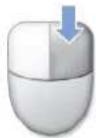 Screen Mouse Screen Mouse | Method 1.If you press and hold the pen over a point of the screen, a circle is drawn around the pointer.If you remove the pen when the circle is completely drawn, the pop-up menu appears.Method 2.In addition, if you press on the screen with the Pen, the Screen Mouse appears for a moment.If you click the right button of the Screen Mouse, it performs the role of the right button of an external-type mouse. |
| Drag Drag |  | Tap an item and drag it with the pen to move the item. | |
Calibrating the Screen
When using the computer for the first time or you are experiencing some difficulty in pointing the pointer on the screen using your finger or pen, calibrating the screen is recommended.
1 Tap Start > Control Panel > Hardware and Sound > Tablet PC Settings.
2 In the Calibration Area of the General tab, select a screen direction and click Calibrate....

text_image
Tablet PC Settings General Handwriting Recognition Display Other Handedness Change where menus appear on the screen by indicating which hand you write with. Right-handed Menus appear to the left of your hand. Left-handed Menus appear to the right of your hand. Calibration Calibrate your tablet pen to improve how accurately it targets items on the screen. Orientation: Primary landscape Calibrate... OK Cancel Apply3 Tap the Crosshair (+) displayed on the screen with the Stylus Pen whenever it appears on the screen.

text_image
To calibrate the screen, tap the crosshair each time that it appears on the screen. You can right-click anywhere on the screen to undo the last point calibrated or to cancel calibrating altogether. Do not change your screen orientation until you have completed the calibration.
To cancel a calibration, press the stylus pen against the screen and hold it for more than 3 seconds. A pop-up menu will appear. Select Cancel from the pop-up menu.
4 If you have pressed all the Crosshairs, the Digitizer Calibration Tools window appears. Tap the OK button to apply the calibration result for the pointing position correction.
Entering Text
You can enter characters using the Keypad, Tablet PC Input Panel, or Dialkeys.

■ For long periods of use, use the keypad or a USB keyboard for your convenience.
■ For example, the procedures to enter text in the Notepad will be described below.
Using the Keypad
Using the keypad you can enter characters and numbers directly.
The Keypad image may differ from the actual Keypad.
Character/Numeric Key
You can directly enter characters/numbers to the screen by pressing this key.
Shift
To switch between capital and small letters, press the key while holding the Shift key down.
SYM
You can enter special key it is below the Character key by pressing this key.
Entering special keys
Press the SYM key once and press the corresponding key.
The special key below the corresponding key is entered.
To enter special keys successively, repeat the above operation.

text_image
1 Q! W E# R S T% A S D F G Z. X: C; V B Shift Ctrl Tab Esc SYM
text_image
6 7 8 9 Y U I O ^ & * ( ) H J K L ← _ + = N M · \ ? M # Space Alt Num Shift Lock Shift
text_image
Illustration of hands holding a tablet device displaying a desktop interface with Chinese text and icons
This key performs the role of the Backspace key on a keyboard. If you press this key, you can erase the last characters on the screen.
Space
This key performs the role of the space key.
Shift
Num Lock
If you press the Num Lock key and then a first line key, a digit is entered.
If you press the Num Lock key again, the numeric key mode is canceled and you can enter characters.
Using the Tablet PC Input Panel
The Tablet PC Input Panel is an on-screen letter input pad provided by Windows. Using it, you can enter letters with the Stylus Pen.
You can enter letters using the Tablet PC Input Panel in 3 ways.
1 Tap Start > All Programs > Accessories > Notepad. Notepad is launched.
2 If you tap over the Notepad with the Stylus Pen, < > appears with the cursor.
3 If you tap < > with the Stylus Pen, the Tablet PC Input Panel appears.

This function may not be supported depending on the languages.
Alternatively, press the Tablet PC Input Panel hidden at the left end of the Desktop to display the Tablet PC Input Panel.

text_image
On-Screen Keyboard Character Pad Writing Pad Tools Help Provides information on how to use the Tablet PC Input Panel. Tools Help Close ← Bksp Del → Tab Enter Space ← → Num Sym WebEntering text using the Writing Pad
You can enter characters by writing characters on the Stylus Pen Writing Pad directly.
1 In the Tablet PC Input Panel, tap the Writing Pad icon ( ).
2 Write text in the input area of the Writing Pad with the Stylus Pen and wait a moment. The written letters are converted into the corresponding computer characters.

text_image
Samsung Samsung Insert3 Tap the Insert button to enter the converted letters.
Entering text using the Character Pad
You can write a letter in each cell of the Character Pad with the Stylus Pen.
1 In the Tablet PC Input Panel, tap the Character Pad icon ( )
2 Write a letter in the cell of the Character Pad with the Stylus Pen and wait a moment. The written letter is converted into the corresponding computer character.

text_image
s a m s u Insert InsertTap the Insert button to enter a converted letter.

Modifying Text
To modify a wrong character, write over the character or tap below the character and select another character.

text_image
s a m M N H Clear CloseIn the Writing Pad, you can replace a word with another or modify a character by clicking on it.

text_image
S a m s v n g No suggestion Samsung Delete Text OKEntering text using the On-Screen Keyboard
The On-Screen Keyboard displays a standard keyboard on the screen so that you can enter a letter by pressing the corresponding key on the screen.
1 In the Tablet PC Input Panel, tap the On-Screen Keyboard icon (☐).
2 Tap a character key with the Stylus Pen to enter the character.

text_image
Untitled - Notepad File Edit Format View Help samsung
text_image
Tools Help Esc 1 2 3 4 5 6 7 8 9 0 - - - = Bksp Tab q w e r t y u i o p [ ] [ ] Caps a s d f g h j k l : " ← Shift z x c v b n m < > ? / Shift Ctrl Alt Alt Ctrl ↓ ↑ ← →Dialkeys
DialKeys is an on-screen keyboard designed to be used with compact touch screen computers. You can enter letters using the DialKeys by pressing a key on the screen with your thumbs while holding both of the lower corners of the computer with your hands.
▶ Execution Method 1.
If you press the DIAL KEY part below the Mouse/Joystick, the Dialkeys appear. If you press it again, the Dialkeys disappear.
▶ Execution Method 2.
DIAL KEY

Select Start > All Programs > Microsoft Origami Experience Pack > DialKeys.
The Dialkeys appear at both ends of the lower screen. Enter characters using your thumbs. If they disappear, press the Dialkeys icon ( ) from the Taskbar referring to the following note.

text_image
Untitled - Notepad File Edit Format View Help samsung * The Dialkeys app and color may d actual ones. dialkeys dialkeys icon
Hiding Dialkeys
Whenever you tap the Dialkeys icon (☐) in the Taskbar, the Dialkeys appear and then disappear.
To hide, tap the Dialkeys icon ( ) on the Taskbar.
Alternatively, you can show or hide the Dialkeys by pressing the DIAL KEY part below the Mouse/Joystick.

Exiting Dialkeys
Press and hold the Dialkeys icon ( ) in the Taskbar, press the Exit from the pop-up menu.

text_image
Show/Hide DialKeys DialKeys Style... Opacity... Options... About DialKeys Help Exit
Corresponds to the Enter key on a keyboard.

Corresponds to the space bar on a keyboard.

The Dialkey key is minimized and moved into the notification area of the Taskbar. To restore it to its original size, click the minimized Dialkey.

Corresponds to the Backspace on a keyboard.

Moves the current window up.

Entering a Number
If you tap the 123 ( ) key shown in the figure on the left pane of Dialkeys, the 123 ( ) key turns blue and you can enter a number. After you enter a number, it returns to text input mode.
If you tap the 123 ( ) twice, it turns red and you can enter multiple numbers continuously. When you have finished entering numbers, tap the 123 ( ) once again to cancel number input mode.
Using the Buttons
The functions of the MENU button, User-Defined button, Mouse/Joystick, and mouse buttons are described below.
The MENU Button
When the MENU button is pressed, the MENU program appears.

text_image
VOL + MENUMENU button
(For models with the Touch Sensor button only)

text_image
MENUMENU button
(For models without the Touch Sensor button only)
The MENU Program provides shortcuts to frequently used functions on the computer. You can easily change the settings.
Press the MENU button again or press a point on the screen to hide the MENU Program.

text_image
LCD / CRT Brightness Backlit Rotation Sound Etiquette Mode Wireless LAN Battery MENU Program 100%| MENU Items Function | |
| LCD / CRT | You can select the display device when an external monitor is connected. Whenever you press the button to the right of the LCD/CRT button, the computer screen is output to LCD > CRT > LCD+CRT Clone > LCD+CRT Dual View mode, in this sequence. Displaying the computer screen on an external monitor only, may not be supported with the MENU button. In this case, to display the screen on an external monitor, try using the Intel program. ☐p.66 Displaying the computer screen on an external monitor only, may not be supported with the MENU button. In this case, to display the screen on an external monitor, try using the Intel program. ☐p.66 |
| Brightness | Whenever this item is pressed, the LCD brightness is increased(decreased) by one step. |
| Backlit On / Off | If you press Off, the LCD screen is turned off. To turn it on again, press down on the LCD screen once. |
| Rotation | Whenever you press this button, the screen rotates clockwise or counterclockwise by 90 degrees. When rotating the screen, a part of the screen image may not be displayed in some software programs. When rotating the screen, a part of the screen image may not be displayed in some software programs. |
| Sound On / Off Press this item to turn the volume on or off. | |
| Etiquette Mode On / Off | Turns Etiquette mode on or off.Use Etiquette mode when you need a quiet working environment. Since Etiquette Mode makes the CPU run at its slowest, the program operating speed may slow down and the computer may overheat due to the slow fan speed. Since Etiquette Mode makes the CPU run at its slowest, the program operating speed may slow down and the computer may overheat due to the slow fan speed. |
| Wireless LAN On / Off | Press this item to turn the Wireless LAN on or off. |
| Battery Shows the remaining battery charge. | |
Mouse/Joystick
The Mouse/Joystick has the functions of a mouse, joystick and Dialkeys.
Mouse Function
Press the MOUSE part at the top of the Mouse/Joystick. If the Mouse (图标) icon is lit, you can use the Mouse/Joystick as a mouse.

text_image
MOUSE MOUSE Mouse/Joystick DIAL KEY Mouse button (L / R buttons) L R▶ Moving the Cursor
Place your left hand thumb on the Mouse/Joystick, and move it in the direction you want to move the cursor.
▶ Click / Double-Click
When the Mouse (图标) icon is lit, press the L button (L) once for the click (select) operation and press the button twice for the double-click operation.
▶ Right-Click
When the Mouse (图标) icon is lit, press the R button (图标) once for the right-click operation.
Joystick Function
Press the MOUSE button above the Mouse/Joystick.
If the Joystick (icon is lit, you can use the Mouse/Joystick as a joystick.
MOUSE

Dialkeys Function
If you press the DIAL KEY button below the Mouse/Joystick, the Dialkeys appear on the screen.
You can enter characters using your thumbs via the Dialkeys.
If you press the DIAL KEY again, the Dialkeys disappear. For more information on using the Dialkeys, refer to ☐p.52
DIAL KEY


text_image
Untitled - Nuclepad File Edit Format View Help samsung DialkeysUser-Defined Button
A User-Defined Button refers to a button which can be configured so that pressing it launches a frequently used program or plays the role of pressing a particular key combination.
It is convenient to set your frequently-used programs or key combinations as groups.

User-Defined Button

The button shapes and program screens may differ from actual ones.
Default Group Setting
The Internet, Explorer and Presentation are provided as a basic group and the Internet group is set by default when purchasing the computer. However, you cannot change the settings for the basic group.
Internet Group Setting Status
| Button Function Description | ||
| ▲ | MouseScrollUP Scrolls up in a window as a mouse scroll. | |
| ► | Forward | Moves forward in Internet or Windows Explorer to display the next page. |
| ▼ | MouseScrollDown Scrolls down in a window as with a mouse scroll. | |
| ◄ | Back | Moves back in Internet or Windows Explorer to display the previous page. |
Configuring Additional Groups
Below are procedures to add an additional group to the default group and for setting up functions for the four buttons.
As an example, the procedures to add a new group named "Test", configure the ▲ button to a particular key combination, and configure the ▶ button to a program are described below.
1 Double-click the Easy Button Manager icon ( ) on the Desktop.
Alternatively, press the UDF (U) touch Sensor button if there are Touch Sensor buttons.
2 In the Main screen, click Add.
3 Enter a name in the Group Name field of the Tablet PC Input Panel. For example, enter "Test".

For information on how to use the Tablet PC Input Panel, refer to the descriptions for Entering Text. ☐ p.49

text_image
Easy Button Manager Key Combination Function Mouse Function Program Link Function Group Name Test You can set up to 3 keys for a User Button. Esc F1 F2 F3 F4 F5 F6 F7 F8 F9 F10 F11 F12 Print Bar Scroll Lock 1 2 3 4 5 6 7 8 9 0 - = Back Space Num Lock Home Tab Q W E R T Y U I O P I I Insert End Cape Lock A S D F G H J K L Enter Delete Page UP Shift 7 x C v R N M . / Shift ↑ Page Down Ctrl Alt Space Bar. ← ↓ → OK Cancel4 After selecting the ▲ button, select the Key Combination Function.
Key Combination Function: You can set a User Button to a particular key combination.
Mouse Function: You can set a User Button to a mouse operation.
Program Link Function: You can set a User Button to launch a frequently used program.
5 Press a required key combination.
For example, if you have pressed the Ctrl, Alt, Delete key in order, "Ctrl + Alt + Delete" is displayed on the left side of the screen.
6 To continue with setting up the ▶ button, select the ▶ button and click the Program Link Function.
Select the program you want and click the OK button.
If the program you want is not in the list, click the Search button and select a program.

text_image
Easy Button Manager Key Combination Function Mouse Function Program Link Function Group Name Test You can set a frequently-used application program in user buttons. 2 1 3 Digitizer Calibration Tool Easy Battery Manager 3 Easy Network Manager Execute igbxcig Module Input Personalization Opt-In Dialog Luncher for DisplayManager Microsoft Help and Support Notepad Origami Experience Paint Pen Flicks Training Personalize Handwriting Recogn Play AVStation Samsung Magic Doctor Launch SLUClientApp Tablet PC Pen Training Tablet PC Touch Training UserBtn Windows Calculator Windows Explorer Search OK Cancel7 You can view the settings for each button in the Main screen.
Select a group from the Group Name and click the OK button. The user buttons perform the roles set in the selected group.

■ To use the functions of the added group or another group
Launch Easy Button Manager, select a group from the Group Name of the main screen and click OK.
■ To delete or modify the group list
Launch Easy Button Manager, select a group from the Group Name of the main screen and click Delete or Modify.
Multi Card Slot
You can use SD and MMC cards using the multi card slot.
You can use storage cards as removable disks and use them to conveniently exchange data with digital devices such as digital cameras, digital camcorders, MP3 players, etc.

■ A multi card slot is optional and is provided for some models only.
■ Users have to purchase storage cards according to their needs.
■ While the multi card slot enables users to use memory cards as data storage, it does not support a copyright protection function.
■ Remove and keep the cards in a separate location when carrying the computer as they may become lost while moving.
Supported Card Types Using a Memory Card

SD Card

MMC Card
1 Insert the memory card into the multi card slot according to the direction printed on the slot.

text_image
Example) SD Card2 The card drive appears. Click Open folder to view files.
If the window does not appear, click Start > Computer.

text_image
Removable Disk (G:) Mixed content options Play using Windows Media Player Import pictures using Windows View pictures using Windows View pictures using Windows Media Center General options Open folder to view files using Windows Explorer Set AutoPlay defaults in Control Panel
If a window appears asking if you want to scan and change, click the Continue without scan option. You can proceed to Step 2.
3 Double-click the corresponding drive to save, move or delete data.

text_image
Devices with Removable Storage (2) DVD RW Drive (D:) Secure Digital Storage Device (E:)You cannot use an unformatted card. If the card is not formatted, format the card first, referring to the 'Formattung a Card' section. ☐p.63

To use a Mini SD or RS-MMC card
These cards cannot be inserted into the slot because they are too small.
You can use the cards by inserting the cards into the corresponding card adapter and then inserting the adapter into the multi card slot.
Removing a Card
1 Push the end of the card slightly.
2 The card clicks and pops out. Remove the card from the slot.
Formatting a Card
You have to format a card before using it.

If you format a card, all the data saved on the card will be removed. Make sure to backup data before formatting a card if data has been saved to the card.
1 Select Start > Computer.
2 Right-click over the card drive and select Format from the pop-up menu.
3 If you click Start, formatting will begin.

To use a card to exchange data with a digital device such as a digital camera, formatting the card in the digital device is recommended.
Some digital devices may fail to recognize a card formatted on a computer. In this case, you have to format the card in the digital device.
Connecting a Monitor
Using an external monitor, you can watch a movie on wide screen or give a presentation. The procedures to view pictures on an external monitor are described below.

When using an external monitor or playing a game, using the Mouse/Joystick or an external mouse is convenient.
You have to purchase the monitor connection cable additionally.
The monitor port color may differ from the actual one.
Connecting a Monitor
Open the cover on the right side and connect a monitor to the Monitor Port.

text_image
Diagram showing connection between a Samsung computer and a computer via an VGA port, with labeled components and connections.Method 1. Configuring with the MENU Button
1 Connect the monitor and touch the MENU button to launch the MENU program.
MENU button (For models with the Touch Sensor button only)
MENU button
(For models without the Touch Sensor button only)


text_image
LED FOR English Language Flash List Features Normal Cyclical Mac Windows 1.2V Battery SAMSUNGLCD/CRT Item
2 Press the button to the right of the LCD/CRT button to switch to a different mode. Whenever you press the button to the right of the LCD/CRT button, the computer screen is output to LCD > CRT > LCD+CRT Clone > LCD+CRT Dual View mode, in this sequence.
- LCD: You can view the computer screen through the LCD only.
- CRT: You can view the computer screen on an external monitor.
- LCD+CRT Clone: When selecting this mode, you can view the same screen on both the LCD and the external monitor.
- LCD+CRT Dual View: When selecting this mode, you can view a screen spanning over the LCD and the external monitor, and you can set different resolutions for each display device.

Displaying the computer screen on an external monitor only, may not be supported with the MENU button. In this case, to display the screen on an external monitor, try using the Intel program. ☐p.66
Method 2. Configuring with the Intel Program

* The terms and the screen figures in the manual may differ from actual ones.
1 Connect the monitor and click the Intel(R) Graphics Media Accelerator Driver for Mobile icon ( ) on the Taskbar. Or right-click on the desktop. The pop-up menu appears.
2 Select Graphics Options and Output To from the pop-up menu.

text_image
Paste Paste Shortcut Graphics Properties Graphics Options Output To New Hot Keys Personalize Tray Icon3 Select a display mode from among the available Display Modes 1\~4 in the Graphics Options menu.

text_image
View Sort By Refresh Paste Paste Shortcut Graphics Properties... Graphics Options New Personalize Output To Monitor Panel Fit ✓ Notebook Hot Keys Intel(R) Dual Display Clone Tray Icon Extended Desktop 2 To View through the External Monitor Only 1 To View through a Notebook Computer (LCD) Only 3 To View through the LCD + External Monitor (Clone Mode) 4 To View through the LCD + External Monitor (Extended Mode)| Display Device Display Mode | |||
| 1 | When carrying it Select N  | ||
| 2 | When playing a game |  | Select Monitor.When playing a game, using only the external monitor is better. |
| 3 | When giving a presentation (Clone Mode) |  | Select the Intel(R) Dual Display Clone.When selecting this mode, you can view the same screen on both the LCD and the external monitor. |
| 4 | When giving a presentation (Extended Mode: Dual View) |  | Select the Extended Desktop.When selecting this mode, you can view a screen spanning over the LCD and the external monitor, and you can set different resolutions for each display device. |
Adjusting the Volume
You can control the volume with the Volume Control button or Volume Control program.
Using the Volume Control with the Volume Control Button
- For models with the Touch Sensor buttons only
Press the VOL-button (with your finger to turn the volume down. Press the VOL+button (with turn the volume up.
- For models without the Touch Sensor buttons only
Press the User Defined buttons (◄/►) while holding down the DIAL KEY to adjust the volume.
Adjusting the Volume using the Volume Adjustment Program
Click the Volume icon (☐) on the taskbar and slide the volume control bar to adjust the volume.

text_image
MuteAlternatively, right-click over the Volume icon (☐) and select Open Volume Mixer to adjust the volume.

text_image
Volume Mixer Device Device Speakers Applications Windows SoundsUsing the Sound Recorder
The procedures to record sound using the Windows Recorder are described below.
1 Right-click over the Volume icon (O) on the taskbar and select Recording Device.
2 Check if the microphone is set as the default recording device.
If this is the case, it is already set as the default device. If not, right-click over the microphone and select Set default.
3 Click Start > All Programs > Accessories > Sound Recorder and click Start recording to start a recording.

text_image
Sound Recorder Start Recording 0:00:00 ?Using SRS
The SRS function enables you to experience more stereophonic sound by expanding the space-perception through the stereo speaker.

This function is available for specific models only.
1 Right-click over the Volume icon (in the Taskbar and select Playback Device(P).
2 Select Speaker in the Playback tab and click Properties.
3 Select the SRS tab in the Speaker Properties window. ① Select a mode, select the ② Enable checkbox on the left and click OK. Then you can listen to sound through the selected SRS effect.

text_image
Speakers Properties General Levels Enhancements SRS Advanced SRS (●) SRS (●) WOW HD 2 Enable 1 WOW HD (Music) SRS® Center 0.60 SRS® Space 0.60 TruBass® Level 0.60 TruBass® Speaker Size 200Hz FOCUS™ Level 0.60 SRS® Definition 1.72 SRS® Limiter Level 1.00 © 2006 SRS Labs, Inc. All rights reserved. FOCUS, TruBass, WOW HD, SRS and the (o) symbols are trademarks or registered trademarks of SRS Labs, Inc. OK Cancel Apply- WOW HD(Music): Select to listen to music.
- TruSurround XT(Movie/Video): Select to watch a movie.

The SRS function supports the computer's built-in speaker and headphones only.
Chapter 3.
Using Microsoft Windows Vista
About Microsoft Windows Vista 71
Windows Vista Screen Layout 74
Control Panel 83
The screen shots used in this chapter may differ from actual screens depending on the Windows Vista version and model.
About Microsoft Windows Vista
Microsoft Windows Vista (hereafter Windows) is a computer operating system. Since you have to learn how to use it in order to use the computer efficiently and effectively, use the Welcome Center and Windows Help and Support to learn about Windows Vista.

The screen layout may differ depending on the computer model and the operating system.
Welcome Center
In the Welcome Center, you can view brief descriptions of Windows Vista functions and run the functions directly.
1 Click Start > Welcome Center.
2 If you click on an item, information on the function is displayed in the description window.
For example, if you click View computer details, your computer information is displayed in the description window.
In addition, if you click on Show more Details, you can view more detailed information.

text_image
System and Maintenance > Welcome Center Search SAMSUNG Windows Vista™ Home Premium Intel(R) Pentium(R) 4 CPU 3.00GHz 1.00 GB RAM NVIDIA GeForce 6200 TurboCache(TM) (Microsoft Corporation - WODM) Computer Name: SAMSUNG-PC Show more details Description Window 1. Get started with Windows (14) View computer details Windows Anytime Upgrade Connect to the Internet What's new in Windows Vista Show all 14 items...
Windows Vista Demo
If you click Start > Welcome Center > Show all 7 items > Windows Vista Demo, you can watch the Windows Vista introduction movie.
Help and Support
Windows Help and Support provides information on Windows basic functions and usages.
Click Start > Help and Support.
You can find help for frequently used basic functions using Find an Answer and you can search for help by entering a keyword in the Search box.

text_image
Windows Help and Support Search Help Ask Options Help Search Find an answer Windows Basics Security and Maintenance Windows Online Help Table of Contents Troubleshooting What's new?| Windows Basics | Introduces the basic usage of the computer and the Windows operation system. You can learn tasks and tools necessary to use the computer. |
| Security and Maintenance | You can view help on computer protection and security. |
| Windows Online Help | If your computer is connected to the Internet, you can view the necessary information online. |
| Table of Contents | The help pages are arranged by subject so that users can easily find the relevant information. |
| Troubleshooting | You can view possible problems that may occur while using Windows and solutions to the problems. |
| What's new? You can view help for new Windows Vista features. | |
Tablet PC Setting Information
This computer is a Tablet PC with a touch screen.
In the Tablet PC Settings of the Control Panel, you can set the screen correction, screen pivot function and whether to use the left-handed or right-handed option.
Click Start > Control Panel > Hardware and Sound > Tablet PC Settings.

text_image
Control Panel > Hardware and Sound > Search Control Panel Home System and Maintenance Security Network and Internet Hardware and Sound Programs Mobile PC User Accounts and Family Safety Appearance and Personalization Clock, Language, and Region Ease of Access Additional Options Windows SideShow Set up a secondary display to use with Windows SideShow Pen and Input Devices Change tablet pen settings | Turn pen flicks on and off Color Management Change advanced color management settings for displays, scanners, and printers Bluetooth Devices Set up a Bluetooth enabled device | Change settings for a Bluetooth enabled device Tablet PC Settings Calibrate the screen | Set tablet buttons to perform certain tasks | Change screen orientation | Enable or disable handwriting personalization | Specify which hand I write with
For the efficient use of a Tablet PC
You can use the computer more efficiently in a short time by learning how to use your fingers and the Stylus Pen.
Click Start > All Programs > Tablet PC and then click Tablet PC Touching Training or Tablet PC Pen Training.
Windows Vista Screen Layout
Desktop
If you turn the computer on, the Desktop screen appears.
The desktop is the working area on the computer. It consists of a large workspace and a taskbar at the bottom as shown in the figure below.

The screen layout may differ depending on the computer model and the operation system version.

text_image
1 Recycle Bin 2 Shortcut Icons 3 Start Menu 4 Start Button 5 Taskbar 6 Gadget 7 Sidebar 8 System Tray with Clock| 1 Recycle Bin | You can drop useless files and folders here. |
| 2 Shortcut Icons | You can launch programs by clicking the shortcut icons on the Desktop. |
| 3 Start Menu | The menu from which you can launch programs. |
| 4 Start Button | Press the start button. The Start menu appears. |
| 5 Taskbar | Currently running programs are displayed here. |
| 6 Gadget | This is a mini information program that appears on the Sidebar. |
| 7 Sidebar | This is a vertical bar that appears at the side of the Desktop. |
| 8 System Tray with Clock | Shows some running program icons. Icons not being used are hidden. If you click the arrow mark on the left, you can view hidden icons. |

Some item may not be provided depending on the Windows Vista version.
Start Menu
The menu from which you can launch programs.
Click Start (The Start menu appears.

text_image
Fixed Programs Internet Internet Explorer E-mail Windows Mail SAMSUNG User name Documents Pictures Music Games Search Search The program or search result is displayed. Recent Items Computer Control Panel All Programs Start Search Power Button You can search for files, folders, etc. Computer Network Connect To Control Panel Default Programs Help and Support Power Menu Button Lock Button| Search Enables users to search for files and folders. | ||
| Computer |  | Shows storage devices such as hard disk drives, CD/DVD drives, network drives, etc.In addition, you can manage files and folders here. |
| Control Panel |  | Enables users to configure the appearance and settings of Windows such as the Desktop, window colors, hardware and software settings, security, etc. |
| Help and Support |  | Provides on-line help about function, usage of Windows, and troubleshooting. You can find a solution to a problem by entering a keyword. |
| Power Button |  | Click the Power button to enter Sleep mode.However, what the power button does changes according to the power button setting. Ep.88 |
| Lock Button |  | To lock the computer, click this button. If you lock your computer, no one can use the computer until you enter the password. |
| Power Menu Button |  | Click the Power Menu button to shut down, restart, and logoff from the computer. |
Sidebar / Gadget
Sidebar is a vertical bar that appears at the side of the Desktop.
A mini program called Gadget runs over the Sidebar which shows information such as stocks, schedule, weather, etc. and provides frequently used tools.
You can download various Gadgets from the Internet, other than the default Gadget.
Sidebar / Gadget Structure
To use the Sidebar/Gadget, click Start > All Programs > Accessories > Windows Sidebar to launch it.

text_image
Gadget Sidebar SAMSUNG
To always display the Sidebar, right-click over the Sidebar and select Properties and then select the Sidebar is always on top of Screen option in the Arrangement field.
Adding a Gadget
You can find a gadget in the Gadget Gallery and add it to the Sidebar.
1 If you click the + at the top of the Sidebar, the Gadget Gallery opens.

text_image
Page 1 of 1 Search all gadgets Calendar Clock Contacts CPU Meter Currency Feed Headlines Notes Picture Puzzle Slide Show Stocks Weather Show details Get more gadgets online2 If you double-click on a gadget, the gadget is added to the Sidebar.

■ If you drag a gadget to a new location with the Stylus Pen it moves the gadget to that location.
Not only can you move a gadget onto the Sidebar but also out of the Sidebar.
■ If you tap on the gadget with the Stylus Pen, the Close and Option buttons appear.
Exiting the Sidebar
Right-click on the Sidebar icon (in the System Tray with the clock on the taskbar and select Exit to exit the Sidebar.

text_image
Open Bring Gadgets to Front Add Gadgets... Properties Help Exit
Closing the Sidebar
■ Even if you close the Sidebar, the Sidebar continues running in the System Tray in the clock area, though it is not displayed on the Desktop.
■ To close the Sidebar, right-click over the Sidebar on the Desktop and select Close Sidebar.
To open the Sidebar again, right-click on the Sidebar icon 📄 in the System Tray with the clock on the taskbar and select Open.
Window
A window is the basic frame for a computer operation. As an example, let's see the layout of a Pictures Window.
Click Start > Pictures.

The items and names may differ depending on your computer model and the Windows Vista version.
Window Layout

text_image
2 Move Button 3 Menu Bar 4 Toolbar 5 Search Window 1 Address Display Line 6 Window Buttons 7 Search Box 8 Sort Order 9 Folder / File 10 Preview Window 11 Detailed Information Window SAMSUNG Pictures Search Organize Views Preview Slide Show Print E-mail Share Burn Favorite Links Name Date taken Tags Size Documents Pictures Music Recently Changed Searches Public Sample Pictures working Folders working Date modified: 11/27/2006 11:55 AM Date created: 11/27/2006 12:17 PM Bitmap Image Dimensions: 1024 x 768 Size: 2.25 MB| 1 Address Display Line | Shows the location of the currently selected folder or file. |
| 2 Move Button | You can move to the previous or next page by clicking the Back or Next buttons. Opens the previously opened page.[AKSC] Opens the next page, when you have returned to a previous page. Opens the previously opened page.[AKSC] Opens the next page, when you have returned to a previous page. |
| 3 Menu Bar | Provides menus to run functions for the selected folder or file, etc. |
| 4 Toolbar | Provides icons to quickly run frequently used functions. |
| 5 Search Window | You can view the drive structure and the currently opened window location.You can move directly to a folder by clicking the folder in the Search window. |
| 6 Window Buttons | Used to resize the window. Minimizes the window. Minimizes the window. Maximizes the window. Maximizes the window. Closes the window. Closes the window. |
| 7 Search Box | You can search for files by specifying the text included in the file name or within the file or file attributes. |
| 8 Sort Order | Used to change the sort order of the files. |
| 9 Folder / File | The drives, folders and files included on the computer are displayed here. |
| 10 Preview Window | You can preview a selected file before opening it.A preview function is not provided for drives and folders. |
| 11 Detailed Information Window | Shows the general information of the selected file. |
Control Panel
Tools for configuring Windows are located in the Control Panel.
Opening the Control Panel
Click Start > Control Panel.

text_image
Control Panel Home Classic View System and Maintenance Get started with Windows Back up your computer Security Check for updates Check this computer's security status Allow a program through Windows Firewall Network and Internet Connect to the Internet View network status and tasks Set up file sharing Hardware and Sound Play CDs or other media automatically Printer Mouse Programs Uninstall a program Change startup programs Mobile PC Change battery settings Adjust commonly used mobility settings User Accounts and Family Safety Set up general controls for any user Add or remove user accounts Appearance and Personalization Change desktop background Customize colors Adjust screen resolution Clock, Language, and Region Change keyboards or other input methods Change display language Ease of Access Let Windows suggest settings Optimize visual display Additional Options Recent Tasks Add or remove user accounts Customize colors| System and Maintenance |  | Using this function, you can configure Windows performance options. |
| Security |  | Using this function, you can check the current security status to protect the computer and configure the security settings for the firewall, spyware, etc. |
| Network and Internet |  | Using this function, you can check the network status and configure the settings.You can change the Internet connection settings. |
| Hardware and Sound |  | Using this function, you can add a printer and other hardware, change the settings, and update the device drivers. |
| Programs |  | Using this function, you can remove a program, Windows function, or download a new program from the internet. |
Mobile PC

You can set up the mobility, power option and personal settings for your mobile PC. You can also synchronize your mobile PC with another portable device or network folder.

text_image
Control Panel Home Classic View System and Maintenance Get started with Windows Back up your computer Security Check for updates Check this computer's security status Allow a program through Windows Firewall Network and Internet Connect to the Internet View network status and tasks Set up file sharing Hardware and Sound Play CDs or other media automatically Printer Mouse Programs Uninstall a program Change startup programs Mobile PC Change battery settings Adjust commonly used mobility settings User Accounts and Family Safety Setup parental controls for any user Add or remove user accounts Appearance and Personalization Change desktop background Customize colors Adjust screen resolution Clock, Language, and Region Change keyboards or other input methods Change display/language Ease of Access Let Windows suggest settings Optimize visual display Additional Options Recent Tasks Add or remove user accounts Customize buttons| User Accounts and Family Safety |  | You can change the user account settings, passwords and configure the Parental Controls function. |
| Appearance and Personalize |  | Using this function, you can configure the Desktop style, theme or screen saver settings. |
| Clock, Language, and Region |  | Using this function, you can configure the date, time, language and regional settings. |
| Ease of Access |  | Using this function, you can select options for hearing and sight impaired persons as well as for challenged persons. You can configure the audio recognition settings. |
| Additional Options |  | Using this function, you can configure other Control Panel item settings. |
User Accounts
Using Windows Vista User Accounts, more than one user can easily share the same PC.
The procedures to add and delete a user account and to switch users, are described below.
Adding User Accounts
1 Click Start > Control Panel> User Accounts and Family Safety.
2 Click User Accounts > Manage another account.
3 Click Create a new account.
4 Enter a new username and select either Standard User or Administrator.
5 Click Create Account to add a new account.

text_image
Manage Accounts ▶ Create New Account View Tools Help Name the account and choose an account type This name will appear on the Welcome screen and on the Start menu. SAMSUNG ● Standard user Standard account users can use most software and change system settings that do not affect other users or the security of the computer. ○ Administrator Administrators have complete access to the computer and can make any desired changes. To help make the computer more secure, administrators are asked to provide their password or confirmation before making changes that affect other users. We recommend that you protect every account with a strong password. Why is a standard account recommended? Create Account CancelRemoving User Accounts

■ If there is only one administrator account for the computer, you cannot delete the administrator account.
■ You can only delete another account when you are logged in as an administrator.
1 Click Start > Control Panel > User Accounts and Family Safety > User Accounts.
2 Click Manage Another Account.
3 Click on the user account to be deleted.
4 Click Delete the Account in the Make changes to user's account menu.
5 A window appears asking whether you want to save the desktop, documents, favorites, music files, pictures and video folders as new folders on the Desktop before deleting the account.
If you click Delete files, the account and all files belonging to the account are deleted.
If you click Keep files, only the account is deleted and the files belonging to the user are saved on the Desktop.

text_image
User Accounts > Manage Accounts > Delete Account View Tools Help Do you want to keep SAMSUNG-M's files? Before you delete SAMSUNG-M's account, Windows can automatically save the contents of SAMSUNG-M's desktop and Documents, Favorites, Music, Pictures and Videos folders to a new folder called 'SAMSUNG-M' on your desktop. However, Windows cannot save SAMSUNG-M's e-mail messages and other settings. Delete Files Keep Files CancelSwitching User Accounts
1 Click Start (☐) on the taskbar and select Switch User.

text_image
Windows DVD Maker Sound Recorder All Programs Start Search Connect To Control Panel Default Programs Help and Support Switch User Log Off Lock Restart Sleep Shut Down2 If you click on another username in the start screen, you can login with that user account.
Changing the screen resolution and the color
The resolution refers to the number of pixels displayed on the screen. When increasing the resolution, the items on the Desktop become smaller and more items can be displayed on the screen. The higher the color quality, the more colors are displayed on the screen.
1 Click Start > Control Panel > Appearance and Personalization > Personalization > Display Settings.
Alternatively, right-click on the Desktop and select Personalization > Display Settings from the pop-up menu.
2 The Display Settings screen appears.
Change the resolution and color settings and click the OK button.

text_image
Display Settings Monitor Drag the icons to match your monitors. jIdentify Monitors 1 2 You can check the graphics chipset. 1. Generic PnP Monitor on Mobile Intel(R) xxxx Express Chipset Family This is my main monitor Extend the desktop onto this monitor Resolution: Low High Colors: Highest (32 bit) 1024 by 600 pixels How do I get the best display? Advanced Settings... OK Cancel Apply To change the color quality, click this button and select a particular quality.
The following resolutions and color qualities are recommended according to the computer LCD panel type.
| LCD Type Resolution Color Quality | |
| 7” WSVGA 1024 x 600 Very High (32bit) |
Configuring the Start Menu Power Button
The Power button on the Start menu ( ) performs various operations depending on the settings.
1 Click Start > Control Panel > Hardware and Sound > Power Options and then Change battery settings.

text_image
Control Panel Home System and Maintenance Security Network and Internet Hardware and Sound Programs Mobile PC User Accounts and Family Safety Appearance and Personalization Clock, Language, and Region Ease of Access Additional Options Printers Add a printer | Change default printer | Remove AutoPlay Change default settings for media or devices | Play Sound Adjust system volume | Change system sounds Mouse Change button settings | Change pointer appear Power Options Change battery settings | Change what the power Require a password when the computer wakes | C2 Click on Change Plan Settings in the currently selected power setting.
3 Click on Change Advanced Power Settings and open Start Menu Power Button in the Power Buttons and Lid item.

text_image
Power Options Advanced settings Select the power plan that you want to customize, and then choose settings that reflect how you want your computer to manage power. Change settings that are currently unavailable High performance Wireless Adapter Settings Sleep USB settings Power buttons and lid Power button action Sleep button action Start menu power button Setting: Sleep PCI Express Processor power management Restore plan defaults OK Cancel Apply4 Select a power plan and click the OK button.
| Type Description | Power Button Image after Setting Change | |
| Sleep | Sets the computer to enter Sleep mode.The screen and hard disk will be turned off to reduce the power consumption of the overall system.If you slide thepower switchof the computer downwards, the computer wakes from Sleep Mode and you can resume working. |  |
| Hibernate | Sets the computer to hibernate.All work is automatically saved, the screen is turned off and the computer makes no noise.If you slide thepower switchof the computer downwards, the computer wakes from Hibernation Mode and you can resume working. | |
| Shut down | Shut down the computer.You have to shut down the computer after closing all programs and opened folders. |  |

■ The Power button is set to Sleep mode by default.
■ If the computer is set to download Windows updates automatically, the update mark ( ) is displayed on the Power button when an update is ready.
If you click this button, the update is installed and the computer is shut down when the update installation is complete.
Phishing Filter
Phishing is a method used by hackers to illegally collect personal information such as credit card numbers, passwords, other account numbers, etc. through emails or websites.
The Phishing Filter protects users from these phishing attempts.
If the current page is judged to be a suspicious website, the Phishing Filter displays a warning message with an alarm when the Phishing Filter is enabled. In addition, if a page that the user is currently trying to open is registered as a known Phishing website list, it displays a warning page instead.
Phishing Filter Settings
1 Launch Internet Explorer.
2 Select Tools from the menu and click Phishing Filter > Phishing Filter Settings.

text_image
Internet Explorer cannot display the webpage - Windows Internet Explorer http://go.microsoft.com/fwlink/?LinkId=76277 File Edit View Favorites Tools Help Delete Browsing History... Diagnose Connection Problems... Pop-up Blocker Phishing Filter Manage Add-ons Subscribe to this Feed... Feed Discovery Windows Update Internet Options Check This Website Turn Off Automatic Website Checking... Report This Website Phishing Filter Settings Most likely cause You are The web There m What you can try Diagnose Connection Problems More information3 The Internet Options window opens.
Locate the Phishing Filter item in the Settings field. Select Turn on automatic website checking and click the OK button to use the Phishing Filter.

text_image
Internet Options General Security Privacy Content Connections Programs Advanced Settings ✓ Check for server certificate revocation* ✓ Check for signatures on downloaded programs ☐ Do not save encrypted pages to disk ☐ Empty Temporary Internet Files folder when browser is clc ✓ Enable Integrated Windows Authentication* ☐ Enable memory protection to help mitigate online attacks ✓ Enable native XMLHTTP support ● Phishing Filter ○ Disable Phishing Filter ○ Turn off automatic website checking ○ Turn on automatic website checking ☐ Use SSL 2.0 ✓ Use SSL 3.0 ✓ Use TLS 1.0 *Takes effect after you restart Internet Explorer Restore advanced settings Reset Internet Explorer settings Deletes all temporary files, disables browser add-ons, and resets all the changed settings. Reset... You should only use this if your browser is in an unusable state. OK Cancel Apply4 To not use the Phishing Filter, select Turn off automatic website checking in the Settings field in Step 3 above.
User control function
Using this function, you can control the content your children can access.
You can determine for how long they can use the computer and the content they can access. When you have finished the settings, click OK to finish.
Configuring Parental Controls
1 Click Start > Control Panel > User Accounts and Family Safety > Parental Controls.
2 Select a user to configure the Parental Controls for. The User Controls window for that user opens.
3 Click Parental Controls > Use and configure the necessary settings in the Windows Settings at the bottom. If you click OK, the Parental Controls setting is completed.

text_image
Set up how Children will use the computer Parental Controls: On, enforce current settings Off Activity Reporting: On, collect information about computer usage Off Windows Settings Windows Vista Web Filter Control allowed websites, downloads, and other use Time limits Control when Children uses the computer Games Control games by rating, content, or title Allow end block specific programs Allow and block any programs on your computer Current Settings: Children Standard user Password protected View activity reports Web Restrictions: Medium Time Limits: Off Game Ratings: Off Program Limits: Off OKUsing Activity Report
You can view and evaluate your children's internet access through the Activity Report.
1 Open the User Controls window referring to the descriptions of Parental Controls.
2 Set Activity Reporting to On.

text_image
Set up how Children will use the computer Parental Controls: On, enforce current settings Off Activity Reporting: On, collect information about computer usage Off Current Settings: Children Standard user Password protected View activity reports Windows Settings Windows Vista Web Filter Control allowed websites, downloads, and other use Time limits Control when Children uses the computer Games Control games by rating, content, or title Allow and block specific programs Allow and block any programs on your computer Web Restrictions: Medium Time Limits: Off Game Ratings: Off Program Limits: Off OK3 To view the Activity Report, click on View Activity Report on the right of the User Controls window.
4 If you click the View Activity Report, the following window opens displaying a computer operating summary.

text_image
Summary of Computer Activity for Children from 11/20/2006 - 11/27/2006 Activity Reporting is On Web Browning Top 10 Websites Visited 1. 6. 2. 7. 3. 8. 4. 9. 5. 10. Most Recent 10 Websites Blocked 1. 6. 2. 7. 3. 8. 4. 9. 5. 10. Web Overrides none File Downloads none File Downloads Blocked noneWindows Mobility Center
Using the Windows Mobility Center, you can easily configure computer settings such as the volume, wireless network connection settings, display settings, etc. all at the same time.

Some functions may not be supported depending on the Windows Vista version.
1 Click Start > All Programs > Accessories > Windows Mobility Center. Alternatively, click Start > Control Panel > Mobile PC > Windows Mobility Center.

text_image
Windows Mobility Center Display brightness Mute 92% available (plugged in, charging) Wireless off Battery Status Settings Volume Control Brightness Volume Samsung Optimizec Turn wireless on Battery Status Battery Status Wireless Network Primary landscape No display connected No sync partnerships Not presenting Rotate screen Connect display Sync settings Turn on Screen Orientation External Display Sync Center Presentation Settings Rotating the Screen Display Connection Settings Easy Network Manager Window Customized by SAMSUNG Current Location (No Saved Location) Auto Dimming On Battery Only Turn off Easy Network Manager Easy Battery Manager2 Configure the volume, battery status, external display, Sync center, etc. according to your requirements.

■ Configurable items may differ depending on the installed Windows Vista version or programs.
■ If the Easy Network Manager program is installed, you can see Easy Network Manager window. ☑ p.102
■ If you turn off Wireless Networking in the Mobility Center, it will not affect the Wireless LAN LED and the MENU program. If you turn off the Wireless LAN in the MENU program, the Wireless LAN LED will be turned off and the Wireless Network button of the Mobility Center will also be disabled.
Chapter 4. Using the Network
Wired Network 96
Wireless Network 99
Using the Easy Network Manager 102
Bluetooth 106
Wired Network
A wired network is a network environment used for a company network or broadband internet connection at home.

You can also configure the network settings using the Easy Network Manager. 目 p.102
1 Connect a LAN cable to the computer's LAN port.

natural_image
Black-and-white photo of a tablet device with ports and an orange arrow pointing to a network icon (no text or symbols visible)2 Click Start > Control Panel > Network and Internet > Network and Sharing Center.
3 Click Manage Network Connections from the left pane.
4 Right-click over the Local Area Connection and select Properties.

text_image
Network and Internet > Network Connections > File Edit View Tools Advanced Help Organize Views Disable this network device Diagnose this connec Name Status Device Name Connectivity Network Category Gw LAN or High-Speed Internet (1) Local Area Connection Network cable unplugged Intel(R) PRO/100 Disable Status Diagnose Bridge Connections Create Shortcut Delete Rename Properties5 Select Internet Protocol Version 4 (TCP/IPv4) from the Networking tab and click Properties.

text_image
Local Area Connection Properties Networking Connect using: XXXXXXXXXXXXX Configure... This connection uses the following items: ✓ Client for Microsoft Networks ✓ QoS Packet Scheduler ✓ File and Printer Sharing for Microsoft Networks ✓ Internet Protocol Version 6 (TCP/IPv6) ✓ Internet Protocol Version 4 (TCP/IPv4) ✓ Link-Layer Topology Discovery Mapper I/O Driver ✓ Link-Layer Topology Discovery Responder Install... Uninstall Properties Description Transmission Control Protocol/Internet Protocol. The default wide area network protocol that provides communication across diverse interconnected networks. OK Cancel
■ The LAN device driver may differ depending on your LAN device model.
■ To add a network component, click Install in the screen shown in the figure above. You can add clients, services, and protocols.
6 Configure the IP settings. When using DHCP, select Obtain an IP address automatically. To use a static IP address, select Use the following IP address, and set the IP address manually.

text_image
Internet Protocol Version 4 (TCP/IPv4) Properties General Alternate Configuration You can get IP settings assigned automatically if your network supports this capability. Otherwise, you need to ask your network administrator for the appropriate IP settings. Obtain an IP address automatically Use the following IP address: IP address: ... Subnet mask: ... Default gateway: ... Obtain DNS server address automatically Use the following DNS server addresses: Preferred DNS server: ... Alternate DNS server: ... Advanced... OK Cancel
When not using DHCP, ask your network administrator for the IP address.
7 When you have completed the settings, click the OK button. The network settings have been completed.
Using both DHCP and a fixed IP simultaneously
Using the Alternate Configuration providing by Windows Vista, you can set both automatic and fixed IP addresses and then you can select to use either of them to connect to the Internet.
1 Click Start > Control Panel > Network and Internet > Network and Sharing Center and click Manage Network Connections in the left pane.
2 Right-click over the Local Area Connection and select Properties.
3 Select Internet Protocol Version 4 (TCP/IPv4) from the Networking tab and select Properties.
4 Select the Alternate Configuration tab, select User configured and fill in the corresponding fields.
5 When you have completed the settings, click the OK button.
Wireless Network
A wireless network (Wireless LAN) environment is a network environment that enables communicating between multiple computers at home or a small-size office through wireless LAN devices.

■ The descriptions below are for computer models with a Wireless LAN card or device. You can also configure the wireless network settings using the Easy Network Manager. ☐ p.102
A Wireless LAN device is optional. To view the installed wireless LAN card, click Start > Control Panel > Hardware and Sound > Device Manager > Network Adapter and click the + symbol.
The figures in this manual may differ from the actual ones depending on your wireless LAN device model.
■ To use the wireless LAN, you have to turn the wireless LAN on first. To turn it on, click the MENU button and set the Wireless LAN item to On. If the wireless LAN is turned on, the Wireless LAN LED is lit.
Wireless LAN Connections
Wireless network connections can be classified into 3 categories and this manual describes the connection procedures for connecting through an Access Point (AP).
■ Access Point (AP)
You can connect to the Internet or another computer on the network through an AP.

What is an Access Point (AP)?
An AP is a network device that bridges wired and wireless LANs, and corresponds to a wireless hub in a wired network. You can connect multiple wireless LAN installed computers to an AP.
■ Computer-to-computer (ad hoc) network
This is also called a peer-to-peer network. In computer-to-computer wireless networks, you can connect 2 or more computers with wireless LAN modules.
For details, see the descriptions that appear when clicking Start > Help and Support > Table of Contents > Networking-connecting computers and devices > Setting up a network > Setting up a computer-to-computer (ad hoc) network.
When you use Ad-Hoc, you have to change the McAfee Firewall settings.
Connecting to a Wireless LAN
If there is an AP, you can connect to the Internet via the AP using the Wireless LAN connection method provided by Windows Vista.
1 Right-click over the Network Connections (icon on the taskbar and click Connect to the Network.
| Connect to a network |
| Turn on activity animationTurn off notification of new networks |
| Diagnose and repairNetwork and Sharing Center |
2 Select an AP to connect to and click Connect. If there is a configured network key for the AP to connect to, the Enter Network Key window appears. Enter the network key in the window and then click the Connect button.

text_image
Connect to a network Disconnect or connect to another network Show All R4_COM_18F Security-enabled network SamsungWLAN Unsecured network COM-AV-RG2000-G60... Security-enabled network Set up a connection or network Open Network and Sharing Center Connect Cancel
Ask your network administrator for the network key, if necessary.
3 When Connected to the AP is displayed, click the Close button. You can access the network.
Checking the network connection status
If you move the pointer over the Network Connections icon (of the Taskbar, you can view the connection status.

text_image
Currently connected to: COM-AV-SWL3300-B24 Access: Local only 10:07Using the Easy Network Manager
The Easy Network Manager is a program that helps configure the network settings.
The Easy Network Manager provides the following features.
■ You can easily configure the network and printer settings.
■ You can immediately use the network without having to define new network settings again after moving to another location.
By configuring the network settings (IP address, printer settings, etc.) for each location, you can immediately access the network without following the network setting procedures each time regardless of your location.
■ You can diagnose the network status.
Network Settings
This section describes the procedures to connect to the Internet by setting up a network. The setting up procedures include procedures to add a printer to the network.
1 To use a wired LAN, connect the LAN cable to the LAN port. To use the wireless LAN, you have to turn the wireless LAN on first.
To turn it on, press the MENU button and set the Wireless LAN item to On. If the wireless LAN is turned on, the Wireless LAN LED is lit.
2 Click Start > All Programs > Samsung > Easy Network Manager > Easy Network Manager.
3 Click the Add button.
4 Select a network location icon and enter the name of the location (e.g. Home). Click the Next button.
5 Select Internet Direct Connection and click the Next button.

text_image
Add Location 2. Select the Internet connection type Select the Internet connection type. Internet Direct Connection Sharing Server Sharing Client - Wired Back Next Cancel6 Select the LAN device, setup the IP address and click the Next button.

text_image
Add Location 3. Select the device whose IP address is to be changed Enter an IP after selecting the device. Use Firewall: Prevent External Intrusions Receive an IP address automatically IP Address 0 . 0 . 0 . 0 Gateway 0 . 0 . 0 . 0 Subnet Mask 0 . 0 . 0 . 0 Preferred DNS Advanced Back Next CancelSelect Device
Select a device to be connected to the Internet. Select either Wired LAN or Wireless LAN.
IP Settings
To use a static IP address, fill in the fields. For the IP address information, ask your network administrator.
Obtain an IP address automatically
Select DHCP to use this option (automatic IP setting).
7 Click Add Printer and set up a printer according to the wizard. When the printer has been added, click the Refresh button, select the newly added printer and then click the Finish button.

To not add a printer, click the Finish button.
8 When the network settings are complete, the 'Do you want to move to the newly added location now?' message appears. Click the No button.
An icon for the added location is created. The network settings have been completed.
If you select 'Yes', the network settings for the added location are applied.

text_image
Information Do you want to move to the added location right now? Yes No
To add a new location, repeat the procedures from Step 3 on 目 p.102.
Using in Another Location
By configuring the network settings (IP address, printer setting, etc.) for each location, you can immediately access the network in one click, without performing the network setting procedures regardless of your location.
1 Click Start > All Programs > Samsung > Easy Network Manager > Easy Network Manager when connected to the Internet.
2 Select an icon that represents the corresponding location from the Saved Locations window and then click Move.
3 If the Internet connection is a wired LAN, you can immediately load the settings for the new location and the corresponding network connection information is displayed in the Current Location Information window.
If the Internet connection is a wireless LAN, you have to select an AP as follows.
① Right-click over the Network connection (icon on the Taskbar using the mouse and select Connect to the Network.
| Connect to a network |
| Turn on activity animation Turn off notification of new networks |
| Diagnose and repair Network and Sharing Center |
② Select an available AP and click the Connect button. If a network key is required, ask your network administrator for the key information.
Diagnosing the Network Status
You can diagnose the network state and find solutions for why you cannot connect to the network.
1 Launch Easy Network Manager.
2 Select Management and Diagnose Status from the menu.

text_image
Easy Network Manager Mngmnt Help Current Location Disconnected Wireless 0.0.0.0 Wired 13.88.92.204 Connection: Internet Direct Connection Printer: Microsoft XPS Document Writer House3 The Network Connections window appears.
Click Start to start the network diagnosis.
4 When the diagnosis is complete, a device with a problem is marked by an exclamation mark icon with a description of the problem at the bottom of the window.
Bluetooth
Bluetooth is wireless communications technology that allows access to nearby devices such as another computer, cell phone, printer, keyboard, mouse, etc. without a cable connection. Using Bluetooth, you can exchange files, connect to the Internet, and construct a private network.

■ The Bluetooth supporting function is only available between devices (a computer, cell phone, PDA, printer, etc.) and the connection may be restricted according to the profile of the corresponding device.
■ The Bluetooth function is optional and may not be supported depending on your model.
■ Compatibility to devices without the authentication or logo of Bluetooth is not guaranteed.
Bluetooth Function
| File Transmission |  | You can exchange files between two Bluetooth devices. You can exchange files with another Bluetooth device such as another computer, cell phone, PDA, etc. |
| Network Access |  | You can connect to another Bluetooth-installed computer in the same way as an Ad-Hoc mode in wireless LAN and connect to the network via an AP or an Internet connection sharing server. |
| Network Access through a Phone Connection |  | You can connect to the network via a Bluetooth cell phone. |
| Data Sync (Synchronization) |  | You can synchronize PIMS data (Outlook E-mail address data) with Bluetooth devices such as a cell phone, PDA, another notebook computer, etc. |
| Electronic Business Card (Vcard) Exchange |  | You can exchange business cards with Bluetooth devices such as a cell phone, PDA, another notebook computer, etc. |
| Sound Output |  | You can output computer sound to another Bluetooth device or vice versa. |
| HID Connections |  | You can connect and use Bluetooth peripherals such as a keyboard, mouse, joystick, etc. |

For more information about using the Bluetooth function, refer to the online help for the Bluetooth Device.
Or click Control Panel > Network and Internet > Bluetooth Devices.
Using Bluetooth
The procedures to exchange files between computers supporting Bluetooth and to use other Bluetooth devices are described below.
Using Bluetooth Devices (Connecting a Headset supporting Bluetooth)
As an example, the procedures to connect to a headset supporting Bluetooth will be described below. Searching for Bluetooth devices corresponds to Steps 1 to 4 and may be slightly different depending on the device.
1 To connect to another device via Bluetooth, double-click the Bluetooth icon(★) on the Taskbar.

text_image
< Bluetooth 5:102 If the Bluetooth Device window appears, click Add.

text_image
Bluetooth Devices Share PIM Interface Audio Dial-up Devices Options COM Ports Hardware Add... Remove Properties OK Cancel Apply3 If the Add Bluetooth Device Wizard screen appears, select the My device is set up and ready to be found and click the Next button.

text_image
Add Bluetooth Device Wizard Welcome to the Add Bluetooth Device Wizard Before proceeding, refer to the "Bluetooth" section of the device documentation. Then set up your device so that your computer can find it. - Tum it on - Make it discoverable (visible) - Give it a name (optional) - Press the button on the bottom of the device (keyboards and mice only) My device is set up and ready to be found. Add only Bluetooth devices that you trust < Back Next > Cancel4 When the search is complete, all available Bluetooth devices are listed. Select the Headset from the list and click the Next button.

text_image
Add Bluetooth Device Wizard Select the Bluetooth device that you want to add. Phones and modems V6900 New device 00:00:10:99:5a:25 New device Audio devices 590Flantronics New device Computers (workstations, servers, laptops, PDAs) If you don't see the device that you want to add, make sure that it is turned on. Follow the setup instructions that came with the device, and then click Search Again. Search Again < Back Next > Cancel
■ A Bluetooth device is represented by the device type and name (Dedicated Bluetooth ID).
■ To use the Bluetooth headset, Bluetooth Pairing Mode is required.
For the procedures to set up the Bluetooth Pairing Mode, refer to the Headset Manual.
5 Enter the PIN in the device PIN field and click the Next button.

text_image
Add Bluetooth Device Wizard Do you need a passkey to add your device? To answer this question, refer to the "Bluetooth" section of the documentation that came with your device. If the documentation specifies a passkey, use that one. Choose a passkey for me Use the passkey found in the documentation: 0000 Let me choose my own passkey: Don't use a passkey You should always use a passkey, unless your device does not support one. We recommend using a passkey that is 3 to 16 digits long. The longer the passkey, the more secure it will be. < Back Next > Cancel
For pairing, a PIN is required. Since a PIN is provided by the headset manufacturer, refer to the corresponding manual.
6 If the Add Bluetooth Device Wizard window appears, click Finish.
7 The headset is connected and you can now use the Bluetooth headset normally.
Exchanging Files between Bluetooth Computers
The procedures to exchange files between computers with Bluetooth capability are described below.
1 On the computer which is sending a file, right-click the Bluetooth icon (on the taskbar and select File Transfer.
2 Click Browse, select a Bluetooth device to send the file to and click the Next button in the Select Bluetooth Device window.

text_image
Bluetooth File Transfer Wizard Select where you want to send the file. Send the file to the computer or device below, or click Browse to choose a different computer or device. Send to: Bosun-note Browse... Use a passkey to ensure that you are sending the file to the correct device. The passkey also protects the file from being viewed by others while it is sent to the other device. ✓ Use a passkey Passkey: 0000 < Back Next > Cancel3 Select a computer to which the file is transmitted and click the OK button.

text_image
Select Bluetooth Device Phones and modems nada New device Anycall New device Audio devices 590Plantronics Already connected Computers (workstations, servers, laptops, PDAs) SAMSUNG New device Bosun-note New device If you don't see the device that you want to add, make sure that it is turned on. Follow the setup instructions that came with the device, and then click Search Again. Search Again OK Cancel4 Enter a PIN in the Bluetooth PIN Code field and click the Next button.

The Bluetooth PIN Code is a password used for connecting two Bluetooth devices. The user just enters the same PIN Code (E.g. same numbers) on both Bluetooth devices to make the connection.
5 Click Browse, specify a file to be sent and click Next button in the Select File to be Sent screen.
6 After a moment, when the Bluetooth Passkey (PIN Code) input window appears on the computer to which the file is transmitted, enter the number you entered in Step 4.
7 After a moment, when the Request FTP File Access Privilege window appears on the computer to which the file is transmitted, click on the window. When the Select Access Permission window appears, click the OK button.
Usage Instructions
■ Bluetooth devices to be connected must be within a 3m (10 ft.) distance.
■ For a better communications environment, there should be no walls or obstacles between the Bluetooth devices.
■ You can connect to only one Bluetooth device at a time for a phone connection, data syncing, electronic business card exchange, FAX transmission/reception, sound related functions, and serial port functions.
■ Using the network connection or file transmission function, multiple Bluetooth devices can be connected. However, since connecting to multiple devices may slow down the data rate or make the connection unstable, connecting to one device at a time is recommended.
■ The Bluetooth function of a Bluetooth PDA, mobile phone, mouse or keyboard may be turned off. To use them in connection with a Samsung computer supporting Bluetooth, you must check if the Bluetooth function of the device to connect to is turned on.
For the procedures on turning on the Bluetooth function of a device, refer to the relevant device manual.
■ The services provided by Bluetooth devices may vary depending on their capabilities. For the services provided by the Bluetooth device, refer to the device manual.
Chapter 5.
Using Applications
Introducing Programs 113
Origami Experience 116
CyberLink PowerDVD 118
Samsung Update Plus 120
Play AVStation 122
AVStation Now 136
Play Camera 138
OmniPass (Fingerprint Identification software) 141
Introducing Programs
Using the software supplied with the Samsung computer, you can easily use functions and troubleshoot problems.
Try to use the software after learning about the basic use of the software. For detailed information, refer to the help section of the corresponding software.

Every software program may not be provided or the version may differ depending on your computer model.
In addition, the screen capture images may differ from actual ones depending on the computer model and software version.

text_image
Screenshot collage of a powerDVD product development interface with UI elements and promotional textMulti Media Functions
■ CyberLink PowerDVD (Optional)
Using this program, you can play a DVD title.
The CyberLink PowerDVD program is only supplied when you have purchased an external ODD, and you have to install the program additionally. ☐ p.118
■ Play AVStation (, Optional)
Play AVStation is an integrated multimedia program that enables users to enjoy better quality music, photographs, videos, movies, etc. all with a single program.
目 p.122
■ Origami Experience (Optional)
Origami Experience is a program that categorizes programs installed on the computer for easier and more convenient use. ☐p.116
It is optional and is not supplied with some models.
■ Play Camera ( , Optional)
This software enables taking pictures and video recording by using the cameras on the front and back of the computer. ☐p.138
Management Functions
■ Samsung Update Plus (Optional) Samsung Update Plus is a software function that examines and updates the Samsung software and drivers installed on your Samsung computer to the most recent versions. ☐p.120
■ Easy Network Manager (Optional)
Easy Network Manager is a program that enables you to easily configure the network settings.
You can configure the network settings for each location and you can also diagnose the network status. ☐p.102
■ Easy Battery Manager (Optional)
Easy Battery Manager is a power management program that provides easy-to-use power management and power saving settings so that the battery usage time can be extended. ☐ p.160
Troubleshooting Functions
■ OmniPass (Fingerprint Identification software, Optional)
OmniPass is fingerprint identification software. You can register your fingerprint and use it by placing your finger on the fingerprint identification sensor instead of using a password. You can turn the computer on, login to Windows and encrypt a file, all using your fingerprint. ☐p.141
■ SAMSUNG Magic Doctor ( , Optional)
SAMSUNG Magic Doctor is troubleshooting software provided by Samsung Computer for system diagnosis, and restoring the system. The system diagnosis function enables users to diagnose system problems without assistance from others.
■ Samsung Recovery Solution II (Optional)
Using this program, you can restore your computer to its initial status before a problem occurred while using the computer.
Origami Experience (Optional)
Origami Experience is a program that categorizes programs installed on the computer for easier and more convenient use.

It is optional and is not supplied with some models.
The terms and the screen figures in the manual may differ from actual ones.
To launch Origami Experience, click Start > All Programs > Microsoft Origami Experience Pack > Origami Experience.

text_image
Battery Charge Status Switch Windows Minimize Window Close Window Home 10:17 PM Clock Wireless LAN Status Category Music Videos Pictures Programs Play Control Button Volume OAM's Blues Aaron Goldberg 0:00
For example, the procedures to launch the Calculator are described below.
Launch Origami Experience.
Click Programs > More Programs > Calculator.

text_image
Home Music Videos Pictures Programs 10:17 PM Home 10:18 PM Connect Communicate Entertainment More Programs Tools Internet Explorer Favorites Windows Live Calculator Network Connections Remote Desktop Connection Network Projector OAM's Blues Aaron Goldberg 0:00CyberLink PowerDVD (Optional)
CyberLink PowerDVD is a DVD player program.

The CyberLink PowerDVD program can only be used when you have purchased an CD/DVD drive, and you have installed the program. It is optional and is not supplied with some models.
1 Insert a DVD title into the CD/DVD drive.
2 Select PowerDVD and click the OK button.
After a moment, the DVD title will play.

text_image
AutoPlay DVD RW Drive (E:) FELLOWSHIP_EXT_D1 Always do this for DVD movies: DVD movie options Play DVD movie using Windows Media Player Play DVD movie using Windows Media Center Copy Disc or Play Movie using DVD Suite Play DVD Video using PowerDVD General options Open folder to view files using Windows Explorer Set AutoPlay defaults in Control Panel3 If the DVD title is not automatically played, click Start > All Programs > CyberLink DVD Suite > Power DVD > CyberLink PowerDVD.
4 Then click the Play icon in the control panel of CyberLink PowerDVD to play the DVD title.

text_image
CyberLink PowerDVD The No. 1 DVD Experience on the PC v7 CyberLink 0:00:00Play Undock Player
Panel

If you click the Undock Player Panel button, the program control panel transforms as follows.

text_image
CyberLink DVD VIDEO 0:00:00:00 0:00:00:00
■ Detailed Usage
For more detailed usage, click Start > All Programs > Cyberlink DVD Suite > Power DVD > PowerDVD Help.
■ DVD Region Code
A DVD title has a region code according to the international specifications so that it can be played only in that specific region.
DVD titles with a region code will only play on DVD drives and program for playing with the same region code.
A DVD drive is sold with an empty region code and the region code is set when the user inserts a DVD title into the drive for the first time. Whenever a DVD title is inserted with a region code different from that of the DVD drive, the region code of the DVD drive is automatically changed to the region code of the DVD title.
However, changing the region code of a DVD drive is limited to 5 changes. After that, the region code is permanently fixed to the last region code. If you need to change the region code after changing the code 5 times, contact a service center. Although a service center can help you in this case, you will be charged a service fee.
Samsung Update Plus (Optional)
Samsung Update Plus is software that examines and updates the Samsung software and drivers installed on your Samsung computer to the latest version.

■ To search for updates and update your computer using Samsung Update Plus, your computer must be connected to the Internet.
■ The update search result may differ depending on your computer model.

Samsung Update Plus does not provide updates for applications installed after purchasing the computer.
To update the software and drivers
1 Click Start > All Programs > Samsung > Samsung Update Plus > Samsung Update Plus.

If this is the first time you are running the program, a window will appear asking you if you agree to the agreement in the window. Click Agree to use this software.
2 If you click on Search for new updates, new updates are searched for.

text_image
Samsung Update Plus Samsung Update Plus Samsung Update Plus automatically searches, downloads and installs the most optimal versions of pre-installed Samsung software and drivers for your system. Please click on the 'Search for Updates' button to begin searching for new updates. View Installed Updates User Settings Search for New Upd... Exit Windows Update SAMSUNG ?3 If there are available software or driver updates for your computer, the available updates will be listed. Select the required updates from the list and click on Install Updates to start the update.

text_image
There are 7 updates available. OS Hotfix : Fixing msvbvm60.dll problem File size: 755.08KB This hotfix is for fixing possible error of that can be generated in MSVBM60.DLL while programs created by Visual Basic are running. ○ Install ○ Do Not Install Pointing Stick Driver File size: 224.12KB Sorrento Pointing Stick Driver install * System must be restarted after the installation of this update. * This update must be installed separately from other updates. ○ Install ○ Do Not Install View Installed Updates User Settings Install Updates Exit Windows Update SAMSUNG ?
Automatic update items display By default, your computer is configured to automatically search for updates. If there is a new update available, this is displayed in the notification area. Click the balloon help icon in the notification area. Here you will be able to find the latest available updates.

Updates that must be installed separately.
If you select Install for an update item that must be installed separately, a message appears informing you of this. Follow the instruction message to correctly install it.
Play AVStation(Optional)
Play AVStation is an integrated multimedia program that enables users to enjoy music, photographs, video, movies, etc. using a single program.
This section describes the basic usage of Play AVStation.

■ The screens used in this manual may differ from actual screens according to the program version.
■ For detailed usage, refer to the program help.
■ TV Station is only available for systems supporting a TV function. This computer is not supported.
■ To play an audio CD or DVD, you have to connect an external ODD. Use the description below provided that an external ODD is connected.
Launching and Screen Layouts
To launch the program, click Start > All Programs > Samsung > Play AVStation > Play AVStation.
Alternatively, double-click the Play AVStation icon() on the Desktop.

text_image
Menu Resize Window And Exit Buttons Station Bar Library Directory Library - All Video - Actor - Recorded TV - List Created by Me - Latest Added at DVD / VCD samsung 1 samsung 2 samsung 3 samsung 4 samsung 5 10% 10%Movie
You can play a video (movie) file or a DVD/VCD title.
Music
You can play a music file or an audio CD.
Photo
You can view or edit a photograph (image), and also view the photographs in a SlideShow.
Movie Station
Launch Play AVStation and click on Movie on the Station Bar.

text_image
PLAY AVStation Menu Movie Music Photo TV Mini Mode View Movie Library Library - All Video - Actor - Recorded TV - List Created by Me - Latest Added List DVD /VCD samsung 1 samsung 2 samsung 3 samsung 4 Movie List and Thumbnail Window Play Control Buttons EDI Button (Enhanced Digital Image Setting) samsung 5 Play Highlight Button EDS Button (Enhanced Digital Sound Setting) EDS EDIT Capture Button Create Highlight/Chapter Button Volume Control
■ What is EDI (Enhanced Digital Image)?
EDI (Enhanced Digital Image) is a visual quality enhancement technology developed by Samsung Electronics. You can view clearer and sharper images by enabling the EDI function when watching TV or playing a movie on Play AVStation. To enable the EDI function, click the EDI () button at the bottom of the TV or Movie Station.
! Some TV tuner and graphics cards are not supported by EDI.
■ What is EDS (Enhanced Digital Sound)?
EDS (Enhanced Digital Sound) is sound quality enhancement technology developed by Samsung Electronics. You can listen to clearer sound if you enable the EDS function when playing music or movie on Play AVStation.
To enable the EDS function, click the EDS ( ) button at the bottom of Music or Movie Station.
■ The EDI and EDS functions are not provided for some models.
The procedures to play a movie file registered to the MOVIE Library are described below.
For the procedures to register files to the Library, refer to ☐p.126.
1 Move to Movie Station and double-click All Video in the left menu pane.
2 Double-click a movie file.
The file is played.

■ Playing a Video File not Registered to the Library
Click Menu > File > Open File, select a movie file to be played and click Open. The selected file is automatically registered to the Library and played.
■ Playing a Video File in Full Screen
- Double-click on the current playback screen.
- The movie is played in full screen.
In full screen, to view the movie at the default size, double-click on the current playback screen again.
■ Capturing the Video Screen
Click on Capture Current Screen () below the You can view captured images in the Photo Station > Captured Images folder. Captured images are saved in C:\Samsung\Play AVStation\Data\Capture. You can change the captured image folder by selecting Menu > Tools > Options > Capture.
Adding Videos to the Library
The Movie Library is a library with movie files to be used by Movie Station. The procedures to add movie files saved on the computer to the Library are described below.
You can add files or folders. As an example, the procedures to add folders are described below.
1 Select Menu > File > Add to Library > Folder.

text_image
PLAY AVStation Menu File(F) Edit(E) View(V) Control(Q) Tools(T) Open File(O) Add to Library File Information(S) New List(N) Create a new list with the selected Items(P) Folder Information(P) Exit(O) samsung 1 samsung 2 samsung 3 samsung 4 samsung 5 File(F) Folder(O) Ctrl + O Ctrl - T Ctrl + G Ctrl + Shift - I Alt - 14 100 1002 Select a target folder and select Video Files option in the Target File Type field.
3 The movie files found in the selected folder are added to the Library.

The movie files used in Play AVStation are automatically added to the Library.
Highlight / Chapter Function
Using the Highlight function, you can watch a highlighted part of a movie such as a sports or news item, etc. Using the Chapter function, you can create chapters for a movie and play the movie from any of the chapters.

The Highlight/Chapter function works on the basis of specific standards depending on the target video. Therefore, the result of the function may differ from the user's intention.
1 Select a movie and click Make Highlight/Chapter at the bottom of the window.

text_image
PLAY AVStation Menu Movie Music Photo TV Directory Library - All Video - Ack - Recorded TV - List Created by Me - Latest Added List DVD / VCD Audio Movie PlayStation / Master2 Select the movie type (Sports, News, Other). A Highlight / Chapter is created.
3 To watch a highlight, double-click a file made and click the Highlight icon at the bottom right of the current movie file.

text_image
PLAY AVStudio - Items Movie Music Photo TV To me last screen Success / HighlightPlay 00:00:03 / 00:00:07 Chapters Highlight On/Off4 The highlight is played. If you click on a Chapter thumbnail, the corresponding Chapter is played.
Music Station
Launch Play AVStation and click Music on the Station Bar.

text_image
PLAY AVSTation Menu Music Movie Photo TV Music Type Directory Subject Mood Similar Tracks Music Search All Music Artist Album Genre List Created by Me Latest Added List Audio CD Music Library Playlist Window Repeat Setting Volume Control Random Play Setting EDS Play Control Buttons EQPlaying an Audio CD
The procedures to play an audio CD are described below.

To use it, you need to connect an external-type ODD.
1 Insert an audio CD into the CD/DVD drive.
2 If the AutoPlay window appears, select Play audio CD using Samsung PLAY AVStation.

text_image
AutoPlay DVD RW Drive (E:) Audio CD ✓ Always do this for audio CDs: Audio CD options Play audio CD using Windows Media Player Rip music from CD using Windows Media Player Play audio CD using Windows Media Center Play audio CD using Samsung PLAY AVStation General options Open folder to view files using Windows Explorer Set AutoPlay defaults in Control Panel3 The CD is played.

If a CD is already inserted in the CD/DVD drive, select CD in the Audio CD folder of the Library and double-click the title. The CD is played.
Playing a Music File
If a music file is registered to the Music Library, you can easily play the music file. For the procedures to register tracks to the Library, refer to ☐p.131.
1 Move to Music Station and double-click on All Music.
2 Double-click a music file. The file is added to the playlist and played.

text_image
PLAY AVStation Menu Music Movie Photo TV Directory Subject Mood Similar Book No Mode File Audio Album Preference Duration Type 1 Samsung 1 ☆☆☆☆☆ 2 Minutes 5... MP3 2. Samsung 2 - Unknown 0'05" Audio CD
Playing a Track not registered to the Library
Click Menu > File > Open File, select a music file to be played and click Open. The selected track is registered to the Library and played.
Adding Music Files to the Library
The Music Library is a library with music files used by Music Station. The procedures to add music files saved on the computer to the Library are described below.
You can add files, folders.
As an example, the procedures to add a folder are described below.
3 The music files found in the selected folder are added to the Library. The music files are registered.

text_image
PLAY AVSTation - Music Music Movie Photo TV Directory Lunch + Music + Solar Bands 1 No Moos Time Artist Audio Preference Schedule Type * All Music * Artist * Album * Genre * List Checked for My * Latest Added List Audio CD1 Select Menu > File > Add to Library > Folder.

text_image
PLAY AVSLation Menu File(F) Edit(F) View(V) Ctrl+I Tools(T) Open File(O) Add to Library(A) File Information(I) NewList(N) Create a new list with the selected items(P) Folds Information(P) Exit(O) Ctrl+O Ctrl+1 Ctrl+G Ctrl+Shift+1 Alt+H File(F) Folder(O) Type Audio CD
The tracks played in Play AVStation are automatically added to the Library.
2 Select a target folder and select the Audio File option in the Target File Type.
Photo Station
Launch Play AVStation and click on Photo on the Station Bar.

text_image
PLAY AVStation Menu Photo Category* Similar Photo Similar Face Event Photo Library All image 12003 * 10 * Captured image List Created by M# * Lateral Added List Photo List and Thumbnail Window Batch Edit Button SlideShow Button View and Edit ButtonViewing an Image
The procedures to view images registered to the Photo Library individually and via a SlideShow are described below.
For the procedures to register image files to the Library, refer to ☐p.135.
1 Move to Photo Station and double-click on All Images.
2 Double-click on an image. The selected image is displayed in the Preview screen. Press the left and right arrow keys to navigate through the images.

text_image
Slide Show Photo Edit Image Left and Right Arrows Zoom Control3 Click on To The list Screen to return to the list.

■ Viewing an image not registered to the Library
Click Menu > File > Open File, select an image file to view, and click Open.
The selected image file is registered to the Library and displayed in the Preview window.
■ Viewing images using the SlideShow function
Click the SlideShow button at the bottom of the Photo Station.
Editing an Image
You can shape, edit, or apply special effects to an image. The image editing functions are described below.
1 Move to Photo Station and double-click on All Images.
2 Click on a folder which includes images, and the images in the folder are displayed.
3 Double-click on an image or click the View and Edit button at the bottom right to switch to the Preview screen.

text_image
PLAY AVSTATION - Menu Photo Category: Similar Photo Similar Image Event Directory • All images • 2004 • 10 • Captured Image • User Changed by My • Latest Added List Search List Search Name: New and Edit4 If the Preview screen appears, click the Edit button at the bottom left. If the image editor screen appears, edit the image using the Edit tools at the bottom of the window.

text_image
Click to save the edited image Click to switch to the Preview screen Photo Save As 3 Original View Edit Editor Edit ToolsImage I
Click on Original View to edit the image comparing it to the original.
5 You can save an edited image by clicking the Save or Save As button.
6 Click the Exit Editor button to return to the Preview screen.
Adding Images to the Library
The Photo Library is a library with image files to be used by Photo Station.
The procedures to add image files saved on the computer to the Library are described below.
You can add files and folders.
As an example, the procedures to add folders are described below.
1 Select Menu > File > Add to Library > Folder.

text_image
PLAY AVStation File(F) Edit(E) View(Y) Control(C) Edit Image Toolb(T) Open File(O) Add to Library Save(S) Save As(A) File Information(I) New List(N) Create a new list with the selected items(P) Folder Information(F) Exit(X) Ctrl + Shift + 1 Alt + Fill File(F) Folder(O)2 Select a target folder and select the Image File option in the Target File Type field. The image files found in the selected folder are added to the Library.

The image files used in AVStation are automatically added to the Library.
AVStation Now (Optional)
Using AVStation Now, you can easily and quickly play music, photographs, movies and DVDs when the computer is on/off.
Start
When the computer is on or off, press the AV button ( ).
The AVStation Now program is launched.

If the HOLD switch on the left side of the computer is slid upwards all buttons of the computer are locked and do not work. If AVStation Now is not launched, check the position of the HOLD switch.
Exit
Move the mouse pointer to the top of the screen and click the Exit (X) button to exit AVStation Now.
Screen Layout
Each menu of AVStation Now is linked to a multimedia program so that you can use the corresponding function.
Click on a menu to run the corresponding program.
For more detailed usage of each program, refer to the online help of each program.

■ AVStation Now menus may differ depending on your computer model and some functions are optional and may not be supported by your computer. In addition, if a required program is removed or not installed, the corresponding menu will not appear.
■ TV Station is only available for systems supporting the TV function.
■ The screens used in this manual may differ from actual screens according to the program version.

text_image
AV Station Now Movie Music PhotoMusic: Play AVStation is launched and you can play a music file or audio CD.
Movie: Play AVStation is launched and you can play a movie or DVD title.
Photo: Play AVStation is launched and you can view photographs or image files individually or in a SlideShow.
Play Camera (Optional)
This computer provides an optional dual camera on the front and back so that users can take pictures or record video.
If your computer model is equipped with the dual camera, you can take pictures or record video using the Play Camera software.

■ This function is applied to some models only.
■ The program version number in this manual is subject to change and the screen figures and terminologies may differ from the actual ones.
■ For more detailed usage procedures, refer to the program Help.
Precautions when Taking a Picture
- Do not take a picture or record video of a person without that person's consent.
■ Do not take a picture or record video where photographing is prohibited. - Do not take a picture or record video where you may violate another person's privacy.
Photographing Procedures 1.
1 Select Start > All Programs > Samsung > Play Camera > Play Camera.

natural_image
Close-up of pink wildflowers with green foliage in a natural setting (no text or symbols visible)Close the Window
Preview Window
Open Folder: Opens the folder which includes photos or videos.
Preview Window: Shows or hides the Preview window.
Record: Records video.
Capture Screen (Still Picture): Takes a picture.
Rear Camera: Select to use the rear camera.
Front Camera: Select to use the front camera.
2 Press the Front Camera (▼) or Rear Camera (▲) button, focus on an object and press the Capture Screen (□) button. To record video, press the Record (●) button.

To stop a video recording, press the Stop () button. Recording will stop.
3 Press the Open Folder ( ) button to view pictures or recorded videos.
- You can view a photo by double-clicking it.
- Since you cannot view recorded video files using the Play Camera, please use another video player (e.g. Windows Media Player, Cyberlink PowerDVD, etc.) to view video files.
Photographing Procedures 2.
1 When the computer is on, press the SHUTTER button at the top.

natural_image
Close-up of a black electronic device casing with a labeled 'SHUTTER' button and ports (no readable text beyond label)2 When the Play Camera program is launched, press the Shutter button again. A picture will be taken.
To switch the active camera to the rear or front camera, press the Front Camera (▼) or Rear Camera (▲) in the Play Camera screen and press the Shutter button.
To record video, click the Record (●) button of the Play Camera program.
3 Press the Open Folder ( ) button to view pictures and recorded videos.

■ In the Preview window, right-click to configure the camera settings, the resolution and device settings, the save folder, etc.
■ The Play Camera supports up to 1280 x 1024 pixels. Photographs are taken with the resolution selected but the photographs displayed on screen are only 640 x 480 pixels due to restrictions of the screen size.
■ Video files recorded by the Play Camera are saved with a 320 x 240 pixels resolution.
■ Since you cannot view recorded video files using the Play Camera, please use another video player (e.g. Windows Media Player, Cyberlink PowerDVD, etc.) to view video files.
■ Switch front/rear camera by Play Camera program while you are video chatting through any other program. You can not preview images, take pictures, or record video with Play Camera when you are using other program.
You can not take pictures while you are video chatting.
OmniPass (Fingerprint Identification software, Optional)
(Fingerprint Identification, Integrated Password Authentication)
Using the OmniPass program, you can use the following functions.
Fingerprint Identification Function
You can register your fingerprint and use it instead of a password.
Integrated Password Authentication Function
You can use your Windows user account information using the Integrated Password Authentication Function.
If you register your Windows user account(s) information with the OmniPass program, you can login to Windows or onto websites using a single password.

■ This function is applied to some models only.
■ The program version described in this manual is subject to change and some functions may not be provided due to restrictions in the program.
■ This model does not support the function which turns the computer on via a fingerprint.
For more detailed information on the usage procedures, refer to the Help section in the OmniPass program(Fingerprint Identification, Integrated Password Authentication).
Signing Up
You have to register your fingerprint and Windows user account information as follows to use the fingerprint identification and integrated password authentication functions.

When using the fingerprint identification sensor
Keep your finger clean and dry when touching the sensor.
Place your finger over the fingerprint sensor and push gently down.
1 Select Start (7) > All Programs > Softex > OmniPass Control Center. Turn the computer on and click the Start button in the Omnipass window.
2 Click Run Enrollment Wizard to start the registration.

text_image
OmniPass Control Center Action Log Off Current User Switch User Identity Password Wizard... Information Help User Information Current User: earnung Domains: UI: 0000000000000 Version Detail Version: 5.00.17 Build Number: A17910108 Manage Your Passwords Protect Your Files Change Your User Settings Change Your System Settings Run Enroliment Wizard3 For the integrated password authentication step, complete the following.
Enter the Windows user ID and logon password and click the Next button. If you do not enter a logon password, the integrated password authentication function will be permitted to anyone; it is therefore recommended entering a logon password.

Creating a user logon password.
① Select Start > Control Panel
User Accounts > Create password for user account.
② Enter a password in the New Password field, and re-enter the password in the Confirm New Password field. Click Create Password. A password has been created.
4 To register a fingerprint, click on AuthenTec Fingerprint Device and then click the Next button.
5 The fingerprint registration begins. Select the finger to be registered and click the Next button.
6 Register the fingerprint by placing your finger over the fingerprint identification sensor and placing it down slowly. Repeat this at least 3 times until the next screen appears automatically.
7 Place the registered finger over the fingerprint identification sensor again and click the Next button.
8 A window appears asking if you want to register an additional fingerprint. Click No to proceed to the next window. If you click Yes, Steps 4\~7 are repeated.
9 Proceed with the settings and click the Next button.
10 When the user profile backup instruction window appears, read the contents and click on Current Backup.
Specify a path to save the user profile to and save the name. When the backup file password window appears, enter a password and click the OK button.

What is a user profile backup?
This is a function for backing up the OmniPass information (fingerprint and user account information) registered on a computer so that the information can be used on another computer. For information on how to use a backed up user profile on another computer, refer to the Help section.
11 Click Finish. Registering information for using the fingerprint identification and integrated password authentication functions has been completed.
Logging onto Windows
1 If you turn the computer on after completing the user information registration step, the Logon Authentication window appears.
(To use the fingerprint identification function)
In the Logon Authentication window, select AuthenTec Fingerprint Driver, place your finger over the fingerprint identification sensor and place it down slowly.

text_image
Logon User Authentication OmniPass AuthenTec Fingerprint Device
text_image
Please swipe your finger on the sensor
If your fingerprint is not recognized, the fingerprint is displayed in red in the fingerprint display window. In this case, place your finger over the fingerprint identification sensor again and push it down slowly until the fingerprint is displayed in green.
(To use the integrated password authentication function)
In the Logon Authentication window, select Integrated Password Authentication. Enter the username and the login password and click the OK button.

text_image
Logon User Authentication OmniPass Master Password Authentication
text_image
User Name: xxxxxxx Domain: Password: ••••••| Identity: OK ✓User Name: User account name Password : User account password Domain, ID: These fields are automatically entered.
2 When the fingerprint identification or password authentication is complete, you can logon to Windows.
Encrypting/Decrypting Files
You can encrypt folders and files so that only specified users can open or modify them.
The procedures to encrypt files are described below.

This function is applied to some models only.
1 Select Start () > All Programs > Softex > OmniPass Control Center > File Protection.
2 Select a folder or file to be encrypted and click Encrypt.

text_image
OmniPass > Protect Your Files Action Log Off Current User Switch User Identity Password Wizard... Information Help User Information Current Users: samsung Domain: LH-BOSWYXWPCY Version Detail Version: 5.00.17 Build Number: A17910106 Protect Your Files Desktop samsung Public Computer Network Control Panel Recycle Bin samsung Name Size T Control Panel $$ Recycle Bin $$ Adobe Reader 7.0 2KB $$ Diskkeys 2KB $$ Easy Button Manager 2KB $$ Easy Network Manager 2KB $$ McAfee Security Center 1KB $$ Microsoft Office 160.0... 3KB $$ Microsoft Reader 2KB $$ Origami Experience 2KB $$ Play AVSlation 1KB $$ Samsung Recovery S... 1KB $$ Samsung Update Plus 2KB $$ samsung File Note: You cannot encrypt system files. Encrypt Decrypt
To decrypt encrypted folders and files
The procedures are the same as those for the encryption process except for selecting Decrypt instead of Encrypt in the figure above.
3 When the file encryption authentication window appears, select AuthenTec Fingerprint Driver, place your finger over the fingerprint identification sensor and push it down slowly. Alternatively, select Integrated Password Authentication and enter the login password.

If your fingerprint is not recognized, the fingerprint is displayed in red in the fingerprint display window. In this case, place your finger over the fingerprint identification sensor again and push it down slowly until the fingerprint is displayed in green.
4 If the fingerprint is recognized, the following window appears. Click OK to encrypt the file.

text_image
OmniPass WARNING: Decrypt all your OmniPass-encrypted files and back them up to a removable media (CD-ROM, USB storage device, etc.) before performing any of the following actions: uninstalling OmniPass, reformatting the hard drive, removing the hard drive, or reinstalling the Operating System. □ Do not show this warning again OK
Right-click over a folder or file to be encrypted and select OmniPass Encrypt File(s) from the pop-up menu. The selected folder or file will be encrypted.
Logging into Internet Sites
You can easily login to frequently used Internet sites using the fingerprint identification or password authentication functions instead of entering your user ID and password.
As an example, the procedures for logging into the Hotmail site are described below.
The following describes the procedures for registering your user ID and password. Once the user ID and password of a site are registered, you can login to the site automatically.

■ This function is applied to some models only.
■ This function may not be supported for some Internet sites.
1 Launch Internet Explorer ( ) and open the Hotmail site. (http://www.hotmail.com)
Enter your user ID and password.
2 Right-click over the 🔔 icon in the Taskbar and click on Save Password.
3 When the mouse pointer changes to a yellow key icon ( ), click the login window, but not the Sign in button. If you wait a moment, the mail address and password information are retrieved.

text_image
Sign in to your page E-mail address: samsung@ hotmail.com Password: •••••••• Forgot your password? Sign in Save my e-mail address and password Save my e-mail address Always ask for my e-mail address and password Sign in using enhanced security Windows Live ID Works with Windows Live, MSN, and Microsoft Passport sites Account Services | Privacy Statement | Terms of Use ©2007 Microsoft② Select AuthenTec Fingerprint Device, place your finger over the fingerprint identification sensor and push it down slowly once. Alternatively, select Integrated Password Authentication and enter the login password.
③ If the fingerprint identification or password authentication is complete, your ID and password are automatically entered and you are logged into the website.
Login Window
4 Enter an easy to remember name and click Finish.
5 Thereafter you can login to your registered websites using your fingerprint or password.
① When opening a registered site, the Access Authentication window appears.
Chapter 6.
Settings
BIOS Setup 148
Setting a Boot Password 153
Changing the Boot Priority 156
Battery 157
BIOS Setup
The BIOS Setup enables you to configure your computer hardware according to your needs.

■ Use the BIOS setup to define a boot password, change the booting priority, or add a new device.
Since incorrect settings may cause your system to malfunction or crash, take care when configuring the BIOS.
■ The functions of the BIOS setup are subject to change for product function enhancement purposes.

The BIOS Setup menus and items may differ depending on your computer model.
Entering the BIOS Setup
1 Slide the Power Switch down. The computer is turned on.
2 The booting screen (SAMSUNG logo) appears. Press the R button (on the right side of the computer. When an external keyboard is connected, press the F2 key.

text_image
SAMSUNG R for SETUP, U3 for Network boot3 After a moment, the BIOS setup screen appears. The items in the BIOS setup may differ depending on the product.
Setup Menu

text_image
PhoenixBIOS Setup Utility Main Advanced Security Boot Exit System Time [10:21:53] System Date [03/01/200x] Hard Disk Drive xxxxxx CPU Type Intel (R) xxxx M CPU Speed x.xx GHz Total Memory xxx MB Graphics Memory [Auto : Shared] BIOS Version xxxxxxxxx MICOM Version xxxxxxxxx Item Specific HelpHelp
Help for the selected item appears automatically.
Setup Items
The BIOS Setup Screen

text_image
PhoenixBIOS Setup Utility Main Advanced Security Boot Exit System Time [10:21:53] System Date [03/01/200x] Hard Disk Drive xxxxxx CPU Type Intel (R) vvvv M Item Specific HelpMenu Description
Main Used to change the basic system and environment settings.
Advanced
Used to configure advanced functions on your computer around devices and chipsets.
Security Used to configure security functions, including passwords.
Boot Used to set the boot priority and other boot options
Exit Used to exit the Setup either saving the changes or not.
System Setup Buttons (Keys)
The following Buttons(keys) are used in System Setup.

When an external keyboard is connected, you can use the key enclosed in parentheses. For example, press the F1 key on the external keyboard instead of the L button.
| Setup Key Button Function | ||
| L Button(F1 Key) |  | If you press the L button, Help appears. If you press it again, Help disappears. |
| Mouse/Joystick Up & Down(↑↓Keys) |  | If you push the Mouse/Joystick up or down, you can move up or down the item list. |
| Mouse/Joystick Left & Right(←→Keys) |  | If you push the Mouse/Joystick left or right, you can move to another menu. |
| ▼ (F5 Key) /▲ (F6 Key) |  | Press the ▼ (F5) / ▲ (F6) buttons to change the value of an item. |
| ◀ (Esc Key) |  | Press the ◀ button to return to a higher-level menu or to move to the Exit menu. |
| Enter Button(Enter Key) | [IMAGE] | Selects an item or opens a submenu. |
| (F9 Key) | To initialize the setup settings, press the F9 key on the external keyboard.If an external keyboard is not connected, select Exit > Load Setup Default from the setup menu. | |
| (F10 Key) | To save the changes press the F10 key on the external keyboard.If an external keyboard is not connected, select Exit > Exit Saving Changes from the setup menu. | |

Exiting the System Setup
- Move to Exit Menu > Exit Saving Changes by using the Mouse/Joystick and press the Enter button.
- Select Yes and press the Enter button. The System Setup is closed and Windows is started.
Setting a Boot Password
When setting a password, you have to enter a password to use the computer or enter the BIOS Setup.
By configuring a password, you can restrict system access to authorized users only and protect data and files saved on the computer.

Do not lose or forget your password.
If you have forgotten your password, contact a Samsung service center. In this case, a service fee will be charged.
For the setup buttons, refer to the description of 'System Setup Buttons (Keys)'.
目 p151
Setting a Supervisor Password
A Supervisor Password is required to turn the computer on or to start the System Setup.
When setting a Supervisor Password, users other than a supervisor cannot use the computer.
1 Select the Security menu in the BIOS Setup.
2 In the Set Supervisor Password item, press

text_image
PhoenixBIOS Setup Utility Main Advanced Security Boot Exit Supervisor Password Clear User Password Clear Set Supervisor Password [Enter] Set User Password [Enter] Password on boot [Disabled] Fixed disk boot sector [Normal] Item Specific Help Supervisor Password controls access to the setup utility. F1 Help ↑↓ Select Item ▼(F5)/▲(F6) Change Values F9 Setup Defaults ◀(Esc) Exit ↔ Select Menu Enter Select SubMenu F10 Save and Exit3 Enter the password with the keypad and press the Enter button. Reenter the password and press the Enter button.
You can use up to 7 alphanumeric characters for a password but you cannot use special characters.
The ← key on the keypad performs the role of Delete and the ◀ button performs the role of the Cancel (Esc) function.

To enter a number, press Num Lock and then enter the number. If you do not press Num Lock, the characters of the corresponding keys are entered instead of digits.

text_image
Set Supervisor Password Enter New Password Confirm New Password4 When a message confirming the password configuration appears in the [Setup Notice] window, press
The supervisor password has been set. The supervisor password is required to turn the computer on or to enter System Setup.
Setting a User Password
Users can start the system with a user password, but cannot enter the System Setup. By doing this, you can prevent other users from entering Setup.
Before configuring a user password, a supervisor password must have been configured. Deactivating the supervisor password also deactivates the user password.
In the Set User Password item, press
Activating the Booting Password
Before activating the booting password, a supervisor password must have been configured.
Set the Password on boot option to Enabled. From now on, system booting will not proceed without the password.
Deactivating the Password
1 On the password to be deactivated, press
2 In the Enter Current Password item, enter the current password and press
3 Leave the Enter New Password item field empty, and press
4 Leave the Confirm New Password field empty, and press
5 In the [Setup Notice] window, press
The password is deactivated.
Changing the Boot Priority
The default boot priority of your computer is the CD-ROM first, then a removable device and then the hard disk drive in this order.
You can change the booting priority using the Boot menu of the System Setup. As an example, the procedures to change the highest boot priority device to the hard disk drive are described below.
1 Select the Boot menu in the BIOS Setup.
2 Press

text_image
PhoenixBIOS Setup Utility Main Advanced Security Boot Exit • Boot Device Priority NumLock [Off] Summary screen [Disabled] Boot-time Diagnostic Screen [Disabled] Brightness Mode Control [Auto] Wireless Device Control [Always On] Smart Battery Calibration Item Specific Help Select system boot options. F1 Help ↑↓ Select Item ▼(F5)/▲(F6) Change Values F9 Setup Defaults ◀(Exc) Exit ➕ Select Menu Enter SelectSubMenu F10 Save and Exit3 Push the Mouse/Joystick down to move the booting device upwards.
Alternatively, you can move the booting device by using the ▲ or ▼ buttons.

text_image
Boot Device Priority Boot priority order: ▼ USB CDROM : Not Installed ▼ IDE HDD : HTC XXXXX ▼ USB KEY : Not Installed ▼ USB FDC : Not Installed ▼ USB HDD : Not Installed ▼ PCI BEV : Broadcom MB ▼ Excluded from boot order: ▼ USB ZIP : Not Installed ▼ USB LS120 : Not Installed4 Press the ◀ button to exit the Boot menu. Move to Exit > Exit Saving Changes by using the Mouse/Joystick and press the Enter button. The changes are saved and Setup is closed.
Battery
Please refer to the following instructions when running the computer on battery power without connecting the AC power.
A Lithium-Ion smart battery is supplied with this computer.

Carefully read and follow the precautions printed on the battery before using the battery.

Precautions
Use only chargers specified in the User Guide.
Never heat the battery pack, put it near or in a fire or use at a temperature higher than 60^ C, as this may cause fire.
Never cause a short circuit between the battery pack terminals or disassemble the battery pack.
Carefully read and follow the precautions printed on the battery and the safety instructions in the User Guide before using the battery.
Please refer to the system operation environment (目 p.218) of this guide. Operate and store the battery at room temperature.
Installing/Removing the Battery
1 Shutdown the system and place the computer upside down on a flat surface.
2 Lift the Stand up and push the Battery Latch down into the Release (☐) position.
Lift the battery up and separate it.

text_image
Release3 To reinstall the battery, align the battery to the outside of the computer and insert the battery.
Lift the battery latch up to the Lock (Position and put the Stand down.

text_image
Lock
When you are unable to insert the battery, check if the battery latch is in the Release (☐) position. If it is in the Lock (☐) position, you cannot insert the battey.
Charging the Battery
1 Attach the battery and connect the AC adapter to the DC-in jack of the computer.
The battery will then start charging.
2 When charging is complete, the Charge LED turns green.
Status Charge LED
Charging Amber
Charging complete Green
AC adapter not connected Off
Measuring the Remaining Battery Charge
You can view the battery charge status by completing the following procedures.
Viewing through the MENU button
Press the MENU button and press on Battery.
To view on the battery
Press the button on the outside of the battery to check the remaining battery charge.

natural_image
Close-up of a black electronic device's side panel with a highlighted orange button (no text or symbols visible)
Battery Warning
■ You will hear an alarm when the remaining battery charge reaches below 10%.
In this case, connect the AC adapter or turn off the computer and install a fully charged battery.
■ When the remaining battery charge is under 3%, the computer automatically saves the current work and turns off.
Battery Usage Time Information
A battery is an expendable supply, so when using it over a long time, the capacity/battery life is shortened. If the battery life is reduced to under half of its initial time, we recommend purchasing a new battery.
For long periods of not using the battery, keep the battery after discharging it. This extends the battery life time.
Extending the Battery Usage Time
Decreasing the LCD Brightness
For the models with Touch Sensor buttons, press the MENU button and click from the Brightness item to decrease the LCD brightness. Then you can extend the battery usage time.
For models without Touch Sensor buttons, press the User Defined button (▼) while holding down the DIAL KEY. The LCD brightness is decreased and you can extend the battery usage time.
Using Easy Battery Manager
Easy Battery Manager is a power management program that enables using the battery power efficiently. You can select an optimized power mode according to your requirements.
1 Click Start > Control Panel > Hardware and Sound > Power Options.
Alternatively, right-click the power measuring device icon 📋 in the notification area of the taskbar and select Power Options.
2 If the following screen appears, select one of the modes.

text_image
Require a password on wakeup Choose what the power buttons do Create a power plan Choose when to turn off the display Change when the computer sleeps Adjust the display brightness See also Personalization Select a power plan Power plans can help you maximize your computer's performance or conserve energy. Make a plan active by selecting it, or choose a plan and customize it by changing its power settings. Tell me more about power plans Plans shown on the battery meter Samsung Optimized Change plan settings Battery life Performance Power saver Change plan settings Battery life Performance High performance Change plan settings Battery life Performance Hide additional plans Balanced Change plan settings Battery life Performance Multimedia Battery life Performance Samsung Optimized Click the ( ). MultimediaSamsung Optimized
This mode is appropriate for normal conditions. It maximizes the system performance when the computer is running on AC power while maximizing the battery usage time when the computer is running on battery power.
Multimedia
This mode is appropriate for a multimedia environment that requires maximum system performance. Therefore, the battery usage time may be reduced in this mode.

Using the Easy Battery Manager power options
To use the Easy Battery Manager power options after reinstalling Windows, you have to install the Easy Battery Manager manually using the system software media.
Since power options in the Easy Battery Manager aim at maximizing the battery usage time, programs requiring high performance may slow down when using the battery.
In this case, it is recommended connecting the AC adapter or selecting Power Saver.
Using the Battery Calibration Function
When charging/discharging the battery repeatedly for a short time only, the battery usage time may be reduced by the difference between the actual battery charge and the remaining charge display.
In this case, the actual battery charge and the remaining charge display will be the same by discharging the battery completely using the Battery Calibration function, and then recharging it again.
1 Disconnect the AC power adapter after turning off the computer.
2 Turn the computer on again. When the SAMSUNG logo appears, press the R button to enter Setup.
3 Using the arrow keys, select Smart Battery Calibration in the Boot menu and press Enter.

text_image
PhoenixBIOS Setup Utility Main Advanced Security Boot Exit ► Boot Device Priority NumLock [Off] Summary screen [Disabled] Boot-time Diagnostic Screen [Disabled] Brightness Mode Control [Auto] Wireless Device Control [Always On] Smart Battery Calibration Item Specific Help Select system boot options. F1 Help ↑↓ Select Item ▼(F5)/▲(F6) Change Values F9 Setup Defaults ◀(Esc) Exit ↔ Select Menu Enter SelectSubMenu F10 Save and Exit4 Highlight Yes in the Battery Calibration Confirmation window and press
The Battery Calibration function is activated and the battery is forcefully discharged. To stop the operation, press the ◀ (Esc) button.
This operation requires 3\~5 hours depending on the battery capacity and the remaining battery charge.
Chapter 7.
Windows Media Center
About Package Contents and
the Program Guide 164
Connecting and Setting Up Media Center 165
Using Media Center 169
Windows Media Center is provided for some versions of Windows Vista only. Therefore, this chapter is for models with Windows Media Center only.
About Package Contents and the Program Guide
About the Package Contents
The package contents of your Samsung computer may differ depending on the computer model.
The Media Center remote control, external-type remote control sensor and TV tuner card are not supplied with your computer and the devices are not required to use Media Center.
However, if you purchase and connect the devices, you can more easily use the various Media Center features.
About the Program Guide
An Electronic Program Guide (EPG) is provided by the EPG provider and the contents of the EPG may differ from the actual TV program depending on programming changes by the EPG provider or broadcast station.

■ You can use the Media Center TV function only when there is an installed TV tuner card.
■ The contents of this manual are subject to change for product improvement purposes.
Connecting and Setting Up Media Center
The basic usage of Media Center for Microsoft Windows Vista Home Premium is described below.

■ This manual will describe procedures assuming that you are using Media Center with a mouse.
■ Since Media Center supports the use of a mouse, keyboard and remote control, in this manual, [Select] means clicking with the mouse or pressing the corresponding button on the remote control.
Optional Devices
The remote control, external-type remote control sensor and TV tuner card are not essential for using Media Center. Since these devices are not supplied with your Samsung computer, you have to purchase them additionally if necessary.
Remote Control
Using the Media Center remote control, you can use Media Center more conveniently over a short distance.
External-Type Remote Control Sensor
To use Media Center using a remote control, you have to install the remote control sensor on the computer.
When purchasing a remote control, purchase an external-type remote control sensor at the same time.
■ Connect the external-type remote control sensor to the USB port of the computer and turn the sensor so that it faces the remote control.

natural_image
White and black handheld device with USB cable, no visible text or symbolsExternal-Type Remote Control Sensor
TV Tuner Card
Using a TV tuner card, you can watch and record TV programs.
Some models have built-in TV tuner cards. This manual describes their usage assuming your computer has a built-in TV tuner card.

There are two types of TV tuner cards, built-in and external types, and they may not support a recording function depending on the model.
Connecting Devices
▶ Connecting an external-type remote control sensor
Connect the external-type remote control sensor to the USB port of the computer.
▶ Connecting to the Internet
To view the TV Guide or to move to Media Center sites in Media Center, you have to connect to the Internet.
Connect the network (LAN) cable to the LAN port of the computer.

If the computer is not connected to the Internet, you cannot use the TV Guide (Channel Information) and the Online Spotlight functions.
▶ Connecting the TV antenna
To use the Media Center TV function, you have to connect the TV antenna to the TV tuner card.
If your computer has a built-in TV tuner card, connect the TV antenna cable to the TV Antenna Input port.

If you do not have an installed TV tuner card, you cannot use the TV function.
Media Center Setup
Connect all necessary devices and setup Media Center. You have to complete the settings to use Media Center.
1 Turn the computer on.
2 Click Start > Windows Media Center or Start > All Programs > Windows Media Center.

text_image
Internet Internet Explorer E-mail Windows Mail Welcome Center Windows Media Center Windows Media Player Windows Photo Gallery Windows Live Messenger Download Windows DVD Maker Windows Update All Programs Start Search Samsung Documents Pictures Music Games Search Recent Items Computer Network Connect To Control Panel Default Programs Help and Support3 If the following start screen appears, select the installation option.
Express Setup enables you to use the basic functions of Media Center when clicking OK. However, you cannot use TV and Internet related functions using Express Setup.
Custom Setup allows you to configure all settings including TV and Internet settings. If you click OK, the Setup Wizard starts.

text_image
welcome To get started with Windows Media Center, select one of the following setup options: • Express setup ○ Custom setup ○ Run setup later Express Setup will allow Windows Media Center to download art and information for your media from the Internet and sign you up for the Customer Experience Improvement Program. OK
To setup the TV or Internet after an Express Setup, select Tasks > Settings > General > Windows Media Center Setup in the Media Center start screen and setup the following items.
4 If you have selected Custom Setup, continue with the setup according to the Setup Wizard instructions.
If there are no installed TV tuner cards, the TV related setup steps will appear during the Media Center setup.
In addition, if the computer is not connected to the Internet, you cannot setup and use the TV Guide (Channel Information).
5 When the Media Center setup is complete, click Finish.
Now you can use the Media Center.

text_image
You Are Done! Select Finish to start using Windows Media Center. Finish
Changing the Media Center settings
You can change the Media Center settings after completing the Setup Wizard according to the procedures below.
- SelectSettings > General > Windows Media Center Setup in the Media Center start screen.
- Select Run Setup Again You can setup the Media Center settings again from the beginning.
Using Media Center
The descriptions of the Media Center start screen and basic functions will be given below.
Start Screen Layout

If you selected Run Setup Later in the Media Center start screen or did not complete the Setup Wizard, the Setup Wizard screen appears when launching Media Center.
If you complete the setup, the Media Center start screen appears.
Click Start > Windows Media Center or Start > All Programs > Windows Media Center.

text_image
Move to the Media Center Start Screen Move to the Previous Screen Exit Media Center Resize Pictures + Videos picture library play all video lib Music TV + Movies Move to the Next Menu Item Play Control ButtonsPictures + Videos: You can view pictures, images and video files.
Music: You can listen to music files, audio CDs and the radio.
TV + Movies : You can watch and record TV programs and play DVD titles.
Online Media: You can access all kinds of multimedia content over the internet.
Tasks: You can change the Media Center settings.
Navigation Arrow: If you move the mouse pointer over the arrow, you can navigate through the menu in the up, down, left and right directions.

The Menu and Play Control buttons appear for a moment only when moving the mouse pointer. The Media Player window size decreases if you perform another task after playing a media file.
Pictures + Videos
In Pictures + Videos, you can view pictures and videos registered to the Media Center library.
In addition, you can also view files not registered to the library by registering them, as well as viewing files on a removable disk.
Registering to the Library
The procedures to register files to the library are described below.
1 Launch Media Center, and select Pictures + Videos > Picture Library or Video Library.

When you run it for the first time, an Add window may appear. In this case, you can add files according to the instructions on the screen.
2 In the library menu, right-click and select Library Setup.

text_image
Burn View Small Library Setup Settings3 If the Library Setup screen appears, select Add Folder to Watch.
4 Specify the path for the folder according to the instructions on the screen.
5 If the following screen appears, click Finish. You can view the newly added folder in the Picture Library or Video Library.

text_image
Library Setup Add folders Windows Media Center will add these folders: • C:\Users\Samsung 1 of 1 ^ Back Finish CancelViewing Pictures and Images
The procedures to view pictures and images registered to the library are described below.

Picture and image files are saved in the Computer > Local Disk (C:) > Users > User Accounts > Picture Folder or Computer > Local Disk (C:) > Users > Public > Public Pictures folder.
1 Launch Media Center, and select Pictures + Videos.
2 Select Picture Library.

When you run it for the first time, the Setup Library window may appear. In this case, click the No button.
3 Select a folder with picture files.

text_image
play slide show < folders > tags date taken! Sample Pictures Public Pictures : Sample Pictures 11/27/2006 15 items 1 | 14 If you select a picture, the picture is displayed in full screen.
You can view another picture by using the Play Control buttons or the direction buttons on the keyboard.
5 To view pictures in a SlideShow, click on Play SlideShow.
Alternatively, select Pictures + Videos > Play All. Then the pictures in the registered folder are displayed in a random order.
Viewing Videos
The procedures to view videos registered to the library are described below.

Video files are saved in the Computer > Local Disk (C:) > Users > User Accounts > Video Folder or Computer > Local Disk (C:) > Users > Public > Public Video folder.
1 Launch Media Center, and select Pictures + Videos.
2 Select Video Library.

When you run it for the first time, the Setup Library window may appear. In this case, click the No button.
3 Select a folder with video files. If you select a video file, the video file is played.

text_image
< folders > date taken Sample Videos Public Videos : Sample Videos 11/2/2006 3 items 1 | 1Viewing Pictures and Videos Saved on Removable Media
The procedures to view pictures, images and videos saved on removable media in Media Center are described below.
1 Launch Media Center.
2 Insert a removable media with picture, image or video files. Removable media refers to a CD, DVD, USB flash memory, memory card, etc.

To view pictures saved on a digital camera, connect the digital camera and the computer using a USB cable.
3 After a while, a window notifying you that new media has been found appears. Select View Pictures or View Videos.

text_image
REMOVABLE DISK (J:) What do you want to do? Take no action Play music Import pictures and videos View pictures View videos Sync to a device4 If the file list appears, select a file.
5 View the picture or video.
Music
In Music of Media Center, you can play music files or audio CDs. In addition, you can rip the tracks of an audio CD onto the computer and play them later individually or by using a playlist.

To use it, you need to connect an external-type ODD.
Playing an Audio CD
1 Launch Media Center.
2 Press the Eject button of the CD-ROM drive to open the CD tray and insert an audio CD. The tracks on the CD are played automatically.
Ripping an Audio CD
1 Launch Media Center.
2 Insert an audio CD into the CD-ROM drive and play the CD.
3 Select Copy CD at the bottom left of the Music Player window.

text_image
queue Copy CD Shuffle Repeat Track 1 4:29 Track 2 5:32 Track 3 4:48 Track 4 3:14 Track 5 0:52 Track 6 3:35 Track 7 3:21 Track 8 4:39 Track 9 5:25
When running the Rip CD function for the first time, the Ripping Options appear. Configure the ripping options according to the instructions on the screen, and complete the following procedures. From the second time the program is run, the setup options are omitted.
4 If the Rip CD window appears, click Yes.
5 Ripping a CD begins by showing rotating CD icon on the right side that indicates ripping a CD is in progress. When ripping is complete, the ripping CD complete message appears.

The ripped tracks are displayed in the Music > Music Library of Media Center and in the Library of Windows Media Player. The ripped tracks are copied to Start > Music of the Desktop as album files.
To change the folder to save the ripped tracks to, launch Windows Media Player and right-click over the top taskbar and select More Options > Rip Music > Rip music to this location from the pop-up menu.
Playing Ripped Tracks
1 Launch Media Center, and select Music.
2 If you select Music Library, the album list appears including the ripped album.

text_image
play all < albums > artists genres songs playlists compo UNKNOWN ALBUM (11/27/2006 4:18:33 PM) Unknown Album (11/27/2006 4:18: Unknown Artist 1 track 4:29 7 | 8Ripped music albums
3 Select an album to be played and click Play Album in the left pane.
4 The album is played.
Using Playlists
You can easily create, manage and play a playlist with ripped music albums and music files downloaded from the Internet.
1 Launch Media Center, and select Music > Music Library.
2 You can search for a music file by selecting the album, artist, genre or song at the top.
If you select Playlist > All Music, all registered music files are listed.
3 Select the music files to be added to the playlist and click Add to Queue in the left pane.
4 The + mark starts blinking at the bottom left of the Media Player window and disappears the selected music files are added to the queue.

text_image
album details MUSO KO Habib Koite & Bamada 2 tracks, 9:45, 1995 Play Album Add to Queue I Ka Barra (Your Work) 5:00 Din Din Wo (Little Child) 4:45 Burn Edit Info Delete 2 of 2 ▲▼Media Player Window
5 Select the Media Player window at the bottom left and click View Queue.
6 Select Save As Playlist, enter a playlist name and select Save. If you have a remote control, you can enter a name using the numeric buttons on the remote control.

text_image
save PLAYLIST Use your keyboard or the numeric keypad on your remote to enter the name of the playlist. Save Cancel new playlist @'. abc def 1 2 3 ghi jkl mno 4 5 6 pqrs tuv wxyz 7 8 9 - 0 CLEAR MODE Use the CLEAR button to delete letters. Use the CH +/- buttons to change to a different mode.7 To play the saved playlist, select Media Center > Music Library > Playlist, select a playlist and click Play.

■ If a music file appears in the Media Center even after the file has been deleted
If you deleted a music file, you must also manually delete the file from the Media Center playlist.
■ Deleting a playlist from Media Center
Select Media Center > Music Library > Playlist, select a saved playlist and click Delete.
Then the selected playlist is deleted.
TV + Movies

The TV function is only available when a TV tuner card is installed on your computer.
TV + Movies Menus

Live TV
You can watch live TV programs.

Recorded TV
You can watch recorded TV programs.

Play DVD
The DVD title appears.
Search
You can search for a program by the title, keyword or genre.

What is a TV Program Guide - EPG?
An Electronic Program Guide (EPG) is a TV program guide. You can select a program and view detailed information on that program or set a recording. The guide information is updated by Media Center more than once a day.
Guide
(TV Broadcast Program Guide - EPG)
You can view the TV program guide. You can watch or record live TV programs and reserve a recording.
Playing a DVD
The procedures to watch a DVD title are described below.

To use it, you need to connect an external-type ODD.
1 Launch Media Center.
2 Press the Eject button of the DVD drive to open the tray and insert a DVD title.

If you insert a DVD title without starting Media Center, the Auto Play selection window appears. Select Play DVD Video using Media Center and click OK.
3 After a moment, the DVD menu is displayed.
It the DVD menu is not automatically displayed, select Play DVD in the start screen.

text_image
picture + videos Music TV + Movies play dvd guide movies guide search Online Media Tasks4 Select Watch Movie or Play from the DVD menu.
The DVD title is played.
If you move the mouse, the Play Control buttons appear. Using the Play Control buttons, you can play the DVD from a particular point or stop playing the DVD.
Online Media
You can access more online content through Online Media.
Online Media is a service provided by content providers via the Media Center. You can enjoy all kinds of multimedia content such as movies, news, sports, etc. over the Internet.

■ To use Online Media, your computer must be connected to the Internet.
■ For problems encountered while using Online Media, contact the corresponding online service provider. Online Media content services are not the responsibility of the computer manufacturer.
Chapter 8.
Appendix
Using Samsung Magic Doctor 184
Using McAfee SecurityCenter 185
Reinstalling Software 186
Reinstalling Windows Vista 188
Samsung Recovery Solution II 192
Q & A 202
Intel Media Sharing Software Information 218
Product Specifications 219
Glossary 223
Index 226
Contact SAMSUNG WORLD WIDE 227
Using Samsung Magic Doctor
Magic Doctor is troubleshooting software provided by Samsung Computer. A user can diagnose system problems via one-click or by selecting diagnostic items.
Diagnosing the System
Diagnosing the System is a function to check system connections and diagnose problems affecting to system operation and solve it.
1 Click Start > All Programs > Samsung > Samsung Magic Doctor > Samsung Magic Doctor.
2 Click on Diagnose the System to start diagnosing the system.

text_image
Samsung Magic Doctor SAMSUNG MagicDoctor The Samsung Magic Doctor program diagnoses the system and fixes any problems found. To run the program, click the [Diagnose the System] button. Restore the System Diagnose the System Exit System Information GPU, BIOS, SPN, RWV, HDD...3 When the system diagnosis is completed, the diagnostic result appears. If problems are found, click the Cure button to correct the problem. Samsung Magic Doctor starts the corrective operations.
Using McAfee SecurityCenter (Optional)
A computer virus is a program that damages computer files and information saved on a computer. A computer is infected by an already infected file or by another computer over the Internet. Let's learn how to use McAfee SecurityCenter in order to scan and remove viruses and to protect your computer from various threats on the Internet.

■ This function is applied to some models only.
■ When McAfee SecurityCenter is run for the first time, the Registration screen appears. Register according to the instructions on the screen. You have to register the software to protect the PC with the latest security information.
■ If you cannot find McAfee Security Center icon on the Taskbar or as a shortcut icon on the Desktop, then double click McAfee Web Essentials icon and install the program.
■ If you install McAfee SecurityCenter and another security solution (e.g. Norton Internet Security, Kaspersky, etc.) on the same computer, your computer performance may become degraded and your computer may not be protected from threats due to a conflict between the programs. It is highly recommended installing only one security program.
Scanning and Curing Viruses
1 Click Start > All Programs > McAfee > McAfee SecurityCenter.
2 Click Scan from the left pane of the program.

text_image
McAfee® SecurityCenter Update Scan Am I Protected? Yes Your computer protection services are enabled and up-to-date. No action is required. Common Tasks Home View Recent Events Manage Network Maintain Computer Backup and Restore Files Lockdown Firewall Restore Firewall Defaults Manage Wireless Networks Components Installed IaaSScan Personal Firewall More... Advanced Menu Computer & Files Printed List Internet & Network Protected E-mail & IM Protected Parental Controls Enlisted SecurityCenter Information Update Check: 7/13/2006 Last Scan: 7/7/2006 Subscription Expiration: 7/31/2006 Configure View Details3 If a virus is found, remove the virus according to the instructions on the screen.

To protect yourself against the latest viruses, update McAfee SecurityCenter regularly. Connect to the Internet and click the Update icon ( ) to Update update.
Reinstalling Software
You can reinstall software using the System Software Media, when a device driver or computer application is not working properly.

When software is not working properly, it is recommended removing the software using the Add or Remove Programs of the Control Panel and reinstalling the software using the System Software Media.
The System Software Media in the text is supplied as a CD or DVD depending on your computer model.
To use the system software media, the external USB ODD must be connected to the computer.
The following descriptions presuppose that the external USB ODD is connected.
Running the System Software Media
The System Diagnosis function enables users to diagnose the system connectivity, any system problems and resolve these problems.
1 Insert the System Software Media into the external ODD. When the AutoPlay window appears, click Run SoftwareMedia.... in the Install or Run Program item.
2 In the User Account Control window, click Allow.

If you are not logged in with an administrator account, you have to enter an administrator password in the User Account Control window.
3 The System Software Media will launch.
Select an installation option to start the installation.

text_image
System Software Media Samsung System Software Media What is SYSTEM SOFTWARE MEDIA? SYSTEM SOFTWARE MEDIA is a CD/DVD that is provided by Samsung Computers to enable the easy re-installation of drivers and software in case of system crash. Standard Installation Minimum Installation Custom Installation Cancel▶ Standard Installation
If you select this option, programs not currently installed on the computer are listed.
You can conveniently use this option, when installing all the programs on the media after reinstalling Windows.
▶ Minimum Installation
If you select this option, programs are listed that need to be installed on the computer (drivers, Windows updates, etc.).
You can conveniently use this option, when you need to install essential programs only.
▶ Custom Installation
If you select this option, you can select the programs to be installed.
You can conveniently use this option, when you need to install an individual driver or program that is causing a problem.
Installing Software

As an example, the installation procedures for the Standard Installation options are described below.
1 Select Standard Installation in the System Software Media main screen.

text_image
System Software Media Samsung System Software Media What is SYSTEM SOFTWARE MEDIA? SYSTEM SOFTWARE MEDIA is a CD/DVD that is provided by Samsung Computers to enable the easy re-installation of drivers and software in case of system crash. Standard Installation Minimum Installation Custom Installation Cancel2 If the Start Standard Installation window appears, click the Yes button. The drivers and programs, which were installed in the computer when you purchased the computer, are installed again.
3 The Software installations was completed window appears.
If you select Yes and click Finish, the computer is restarted.
Reinstalling Windows Vista
You can reinstall Windows using the System Recovery Media when Windows does not work properly.

■ System Recovery Media is optional and may not be provided depending on your computer model. These descriptions are only for models supplied with the System Recovery Media.
■ To install Windows, an external-type ODD and a USB keyboard are required. Connect the external-type ODD and USB keyboard before turning the computer on. If you connect a USB keyboard during the installation, the computer will fail to recognize the USB keyboard.
■ To reinstall Windows when Windows does not boot, refer to ☐p.188.
■ The User Guide describes procedures on the basis of Windows Vista Home Premium.

Reinstalling Windows may delete data (files and programs) saved on the hard disk drive. Make sure to backup all important data. Samsung Electronics shall not be held liable for any loss of data.
Reinstalling in Windows

- Preparation
- Connect an external-type ODD through the USB Port of the computer.
- Connect the external-type USB keyboard.
- Turn the computer on to boot up Windows.
1 Insert the System Recovery Media into the external ODD.
2 When the AutoPlay window appears, select Run setup.exe and tap Allow.

text_image
AutoPlay DVD RW Drive (D:) LRMCFRE_KO_DVD Always do this for software and games: Install or run program Run setup.exe Published by Microsoft Windows General options Open folder to view files using Windows Explorer Set AutoPlay defaults in Control Panel3 When the window appears allowing you to select the operating system to be installed, tap the Next button.

text_image
Install Windows Select the operating system you want to install. Operating System Architecture Data Modified Windows Vista HOMEPREMIUM X86 02/11/2006 Description Windows Vista HomePremium Next
The name of the operating system may differ depending on the Windows version.
4 When the Software License Agreement screen appears, select Agree and click the Next button.
5 When a window appears asking for the location to install the operating system to, select a disk drive partition and tap the Next button.

When previous Windows installation files are in the selected partition, a message appears informing you that the files and folders will be moved to the Windows.old folder. Click the OK button.
6 The Windows installation continues. The computer will restart 3 times during the installation. If the Press any key to boot from CD or DVD... message appears after a restart, do not press any button.
7 The Windows user registration screen appears. Select the username and photo and tap the Next button.
8 Enter the computer name. The window in which you can select the Desktop background appears. Enter the contents and tap the Next button.
9 The Windows automatic protection settings window appears. Configure the setting according to your requirements.
10 The time and date settings window appears. Tap the Next button.
11 The Registration Complete window appears. If you tap the Start button, a computer specifications check begins.
12 After a while, the Windows Desktop appears. When Windows is launched, install the device drivers and applications according to your requirements using the System Software Media.
Reinstalling when Windows does not start
When Windows does not start, boot up with the System Recovery Media and from there you can reinstall Windows.

Connect the external-type ODD and USB keyboard before turning the computer on. If you connect a USB keyboard during the installation, the computer will fail to recognize the USB keyboard.
1 Insert the System Recovery Media into the DVD drive and restart the computer.
2 If the Press any key to boot from CD or DVD... message appears while booting, press any key on the keyboard.
Press any key to boot from CD or DVD.....
3 After a while, the Options windows such as Language, Time, Keyboard, etc. appear. Confirm the settings and tap the Next button.
4 When a window appears in which you can select the operating system to be installed, tap the Next button.

The name of the operating system may differ depending on the Windows version.
5 When the Software License Agreement screen appears, select Agree and click the Next button.
6 When a window appears asking for the location to install the operating system to, select the partition of the disk drive and then tap the Next button.

■ If you click Drive Options (Advanced), you can delete, format, create or expand a partition. Click on a function and proceed according to the instructions on the screen.
■ When previous Windows installation files are in the selected partition, a message appears informing you that the files and folders will be moved to the Windows.old folder. Tap the OK button.
7 The subsequent steps are the same after 5 step for Reinstalling in Windows. ☐p.186
Samsung Recovery Solution II (Optional)

For models with a hard disk drive of 60GB or less, Samsung Recovery Solution II supports the Basic Restore and Complete Restore functions except for the Backup functions.
What is Samsung Recovery Solution II?
Samsung Recovery Solution II enables you to easily restore your hard disk drive to a previous state when a problem occurs with your computer.
Samsung Recovery Solution II Functions
Samsung Recovery Solution II provides the following functions.
| Function Description | ||
| Restore | Basic Restore | This function restores major Windows files without touching the user configuration and data when a problem occurs with the computer. It restores the files over a short time (2~3 minutes). |
| Complete Restore | Using this function, you can restore your computer's hard disk drive to its initial status when your computer is no longer working properly. You can use this function even if no restoration point was saved. A Complete Restore will delete all data on drive C. Therefore, make sure to backup your data to another storage device before restoring it to the initial status. A Complete Restore will delete all data on drive C. Therefore, make sure to backup your data to another storage device before restoring it to the initial status. | |
| Backup | Factory Status Backup | This function saves the factory status image of drive C as a compressed image in a secure area.The factory status is automatically backed up after the computer is purchased so that users can restore the computer to the factory status. |
| Backup | User Backup | This function saves the image of drive C to drive D at a user's specified time.If a user has backed up the disk image using User Backup, the user can restore the computer to the backup image using Complete Restore.Example) You can backup the disk image after installing a favorite game or MS Office. |
The function for the right case!
▶ I cannot start Windows!
(The booting file is missing or a corrupted error message appears.)
This happens when Windows files are corrupted.
In this case, use the Basic Restore function of Restore. If the problem continues even after a Basic Restore is performed, use the Complete Restore function.
The boot time increases, the system crashes and errors occur frequently!
In this case, use the Basic Restore function of Restore. If the problem continues even after a Basic Restore, use the Complete Restore function.
▶ I want to reinstall Windows only, without touching my documents!
In this case, use the Basic Restore function of Restore. It overwrites Windows and system files only.
Restoring Your Computer
Samsung Recovery Solution II operates as follows when the computer is used for the first time. You have to create a backup of the factory status according to the following procedures immediately after purchasing the computer to use the restoration function.
The overall procedures will be described here. For more detailed information on steps 3, 4 and 5, see p.194.
| Setting Up Procedures | |
| 1 Turn on the power for the first time. | Turn on the power for the first time after purchasing the computer. |
| 2 Register Windows. | If you turn the power on for the first time, the Register Windows screen appears.If you register Windows according to the instructions on the screen, the computer will be restarted. |
| 3 The Partitioning hard disk drive function is automatically launched. | When the computer is restarted, the partition disk screen appears for the efficient use of disk space. The partition disk function is only available when turning the computer on for the first time and will not be available thereafter.Once you have completed the partitions, you cannot resize the partitions.Therefore partition the disk carefully. The partition disk function is only available when turning the computer on for the first time and will not be available thereafter.Once you have completed the partitions, you cannot resize the partitions.Therefore partition the disk carefully. |
| 4 Samsung Recovery Solution II is automatically launched - Factory Status Backup. | When the partitioning is complete, a screen appears which allows you to backup the factory status of drive C to drive D.This is a required step for backing up the factory status of drive C for the normal operation of Samsung Recovery Solution II. |
| This backup image is used for the Complete Restore function that restores your computer to its factory status when the computer is not working properly.For the backup procedures, refer to page 193. | |
| 5 After 3 days, backup the hard disk, if necessary.(p.195) | 3 days after the Factory Status Backup, a message appears asking if you want to backup the current status of drive C.The current image of drive C is saved to drive D and the last user backup image is removed. |
Backup Function
This function saves the image of drive C to drive D. If you backed up the disk image, you can easily restore the computer to the backup image when Windows does not work properly.
The backup function provides Factory Status Backup and User Backup functions. Therefore, there are 2 backup images available (Factory Status Backup and User Backup) for the restoration function.
Factory Status Backup
If you turn your computer on for the first time, the Factory Status Backup function is performed after registering Windows.
This function saves the factory status image of drive C to a secure area so that users can restore the computer to the factory status using the Complete Restoration function.
Factory Status Backup is only performed once after the computer is purchased.
1 If you turn the power on for the first time, the Register Windows screen appears. If you register Windows according to the instructions on the screen, the computer will be restarted for the Factory Status Backup.
2 When the computer is restarted, the partition disk screen appears before proceeding with the Factory Status Backup. Read the instructions on the screen carefully and click the Next button.

The partition disk function is only available when the computer is turned on for the first time and will not be available afterwards.
3 Partition your disk into drives C and D. Adjust the partition size using the slide bar and click the Next button.

text_image
Recovery Solution II Help Samsung Recovery Solution II Set the partition size for drives C and D using the slide bar below. Caution! Select carefully as this program runs once only! 10 GB 25 GB Total hard disk drive capacity 64 GB 29 GB Recovery Area Drive C Drive D OK Cancel Next
Once you have completed the partitions, you cannot resize the partitions. Therefore partition the disk carefully.
4 When the partitioning is complete, the Factory Status Backup is performed to backup the factory status of drive C to a secure place.

text_image
Purchase Point Backup Thank you for purchasing a Samsung Computer. The current status of drive C will be backed up to a safe location as the Purchase Point Backup. Using [Restore] you can restore your computer easily and quickly when it is no longer working property due to an error. Speed : 13.8 [MB/Sec] Copied: 592 / 5951 MB Elapsed: 00 : 43 / 06 : 07 ! Caution! Never disconnect the power while a Backup is in progress. If the power is interrupted during a Restore, you have to perform the Restore again.This backup image is used for the Complete Restore function that restores your computer to the factory status when the computer is not working properly.
5 When the Partition and Factory Status Backup is complete, restart Windows.
User Backup
This function saves the image of drive C to drive D at a time specified by the user. You can backup and maintain only one copy of a User Backup image.

Since the backup image is saved on drive D, if drive D is formatted or the drive D partition is deleted, the backup image is also deleted so that you will not be able to restore the computer with the backup image.
1 Click Start > All Programs > Samsung > Samsung Recovery Solution II > Samsung Recovery Solution II.
When you cannot start Windows Turn the computer on and press the F4 or F7 key when the boot screen (SAMSUNG logo) appears. (If you press the key multiple times, the Windows Boot Manager screen may appear. In this case, press Enter.) After a while, the computer boots up in Restoration mode displaying the SAMSUNG Recovery Solution II screen.
2 If the initial menu screen appears, click Backup.
A description of the backup will be displayed on the screen.

text_image
Recovery Solution II HOME Help Samsung Recovery Solution II This program backs us or restores the hard disk drive. Select by Symptom Restarting Backup To view a brief description of the icon, move the cursor over the icon. If you need help, click on Select by Symptom.3 Enter a brief description for this backup in the Description input box and click the Next button. The computer is restarted in restoration mode.

text_image
Recovery Solution HOME Help Backup Backup the current status of drive C as an image. You can restore the computer using the backup image when the computer does not work properly. Enter a backup image description manually or select one and click the Next button. Backup Point: 2006-09-30 Description Expected Required Time: 0 Min 0 Sec Enter description. Caution! Never disconnect the power while's a Backup is in progress. If the power is interrupted during a Restore, you have to perform the Restore again. Back Next
If the Samsung Recovery Solution II program is launched for the first time after purchasing the computer, the license agreement screen appears before starting the backup. Read the agreement and click Agree to continue.
4 Select drive D to save the backup file.
5 When the backup is complete and the system restart message appears, click OK to restart the system.
When the backup is complete, a Samsung Recovery folder is created on drive D and the backup disk image is saved in the folder.
This image is used for the Complete Restoration function when the computer is not working properly.
Restoration Function
When your computer does not work properly due to a problem with the computer, you can restore the computer a previous stable condition using Samsung Recovery Solution II. Samsung Recovery Solution II provides Basic Restore and Complete Restore functions.
What is Basic Restore?
This function restores major Windows files without touching the user configuration and data when a problem occurs with the computer.
What is Complete Restore?
This function restores your computer using the Factory Status Backup or User Backup image when the computer does not work properly. However, note that the Complete Restore function will delete all data on drive C.

If the problem continues even after the above Basic Restore function has been performed, a Complete Restore is recommended.
Restoring Your Computer
1 Click Start > All Programs > Samsung > Samsung Recovery Solution II > Samsung Recovery Solution II.
When you cannot start Windows

Since you can use it only when an external keyboard is connected, connect an external keyboard before turning the computer on. If you connect a USB keyboard during the installation, the system will not recognize the keyboard.
Turn the computer on and press the F4 or F7 key when the boot screen (SAMSUNG logo) appears. (If you press the key multiple times, the Windows Boot Manager screen may appear. In this case, press Enter.) After a while, the computer boots up in Restoration mode displaying the SAMSUNG Recovery Solution II screen.

If the Samsung Recovery Solution II program is launched for the first time after purchasing the computer, the license agreement screen appears before starting the restoration. Read the agreement and click Agree to continue.
2 If the initial menu screen appears, click Select by Symptom.

text_image
Recovery Solution II HOME Help Samsung Recovery Solution II This program backs up or restores the hard disk drive. Record by Symptom Restore Backup To view a brief description of the Icon, move the cursor over the Icon. If you need help, click on Select by Symptom.If you select a symptom, Samsung Recovery Solution II will display the recommended restoration menu.

text_image
Recovery Solution II This program backs up or restores the hard disk drive. I cannot boot up the computer. The computer does not work properly. The computer has slowed down. I don't know how to restore the computer. The system boot speed has slowed down considerably. The 'NTLDR is missing' message appears. The 'System related file does not exist' message appears. A blue screen appears when booting A blinking cursor appears when booting Only the Safety Mode boot option is available A booting problem continues even after a Basic Restore. Restore Backup3 If you fail to find your symptom using Select by Symptom, close the Select by Symptom screen and click Restore from the main menu.

text_image
Recovery Solution II This program backs up or restores the hard disk drive. Select by Symptom Restore Backup To view a brief description of the icon, move the cursor over the icon. If you need help, click on Select by Symptom.4 Select either Basic Restore or Complete Restore from the Restoration menu.

text_image
[Basic Restore] restores major Windows files only without touching the user data, while [Complete Restore] completely restores drive 0 removing all saved data. Select the relevant restore option. Basic Restore Complete Restore To view a brief description of an icon, move the cursor over the icon. Select a restore option. Back5 If you have selected Basic Restore, and you click the Next button, the system is restarted and boots up in restoration mode. If you have selected Complete Restore, select a restoration point, and then click the Next button.
The system is restarted in restoration mode.

The first time the computer boots up after a Complete Restore has been performed, the boot speed may slow down due to the system optimization process.

Available restoration points for the Complete Restore function
In the Complete Restoration function, you can select either Factory Status Backup or User Backup. If you have not created a User Backup, you cannot select User Backup.
When the computer boots up in restoration mode, the restoration progress message appears. If you click OK,
the restoration is performed. When the 'Restart the System' message appears after the restoration is complete, click OK to restart the system.

text_image
Recovery Solution!! HOME Help Complete Restore This function restores the status of drive C with the image of the drive you have previously saved. All saved data will be deleted. You have to reinstall all programs that were installed additionally. Select a restore point from the following and click the Next button. Select: Restore Point. Description Expected Time 29/12/2008 Enter description 3 Min 14 Sec 38-69-2006 My Computer's Birthday (Registered date) 3 Min 23 Sec Caudin! Never disconnected the power while a Restore is in progress. if how power is interrupted during a Restore, you have to perform the Restore again. Back NextRemoving Recovery Solution
If you do not need or use Samsung Recovery Solution II, you can remove the Recovery Solution program.
▶Removing the Samsung Recovery Solution II Program

Even if you remove the Samsung Recovery Solution II program, only the program is removed leaving the restoration area on the disk unchanged.
Therefore you can use the Backup, Restore and Install functions by pressing the F4 or F7 key while booting up even after the Samsung Recovery Solution II program is removed.
1 Click Start > Control Panel > Add or Remove Programs.
2 Select Samsung Recovery Solution II and click the Change/Remove button. Then the Samsung Recovery Solution II program will be removed.
Q & A
This section provides information on possible problems, solutions and other references for using the system.
Display Related

The LCD screen is too dark or too bright
A Adjust the LCD brightness. For the models with Touch Sensor buttons, press the MENU button and click on Brightness or . △
For models without Touch Sensor buttons, press the User Defined buttons (▲/▼) while holding down the DIAL KEY.

The screen saver disturbs Media Player playing a movie or video clip after the screen saver is activated while Media Player is playing.
A Go to Library > More Options > Player > unselect Allow screen saver during playback in the Media Player.

In the following cases, the screen blinks or displays noise for a short time.
Click the Graphics Related tab, Change Resolution, Change Display Device, Remove the AC Adapter, Restart the System, Change Power Scheme.
A This may happen while the video driver is examining the connected device. While busy detecting, any connected display devices may blink or some noise may occur.

When I connect a projector, and change the settings to display the screen image on both the LCD and the projector by pressing the MENU button, the screen is not displayed properly.
A Press the MENU button and press the button to the right of the LCD/CRT button to switch to LCD+CRT Clone.
The screen may not be displayed or only part of the screen may be displayed when the LCD resolution is too low or too wide and the projector cannot support the resolution. In this case, right-click over the Desktop, select Personal Settings > Display Settings (Y), set the resolution to 800 x 600 pixels and then try again.

The shortcut icons are not displayed on the screen even if I press the shortcut key.
A The shortcut icons only appear when the Easy Display Manager program is installed.

I have connected a monitor (or projector) to the computer, but the colors on the monitor are abnormally displayed.
A Check if the monitor and computer are properly connected with the signal cable and reconnect the cable if necessary.

The picture on the screen trembles.
A The picture on the screen may tremble when you view some Internet pages or play some on-line games. In this case, using an external monitor is recommended.
Wired Network (LAN) Related

The function
A1
Using the Function
① Click Start > Control Panel > Network and Internet > Network and Sharing Center > Manage Network Connections.
② Right-click on the Local Area Connection and select Properties.
③ Click Configure > Power Management tab. Select Allow this device to bring the computer out of standby, then click OK. Restart the system.
If the system is activated from Sleep mode when there is no received signal, use the system after disabling the
■ When turning the power off when
■ Connecting a wired LAN while using a wireless LAN may not activate the
④ Click Start > Control Panel > Network and Internet > Network and Sharing Center > Manage Network Connections.
⑤ Right-click on the Wireless Network Connections and select Disable.

When I am connected to a 100Mbps/1Gbps wired LAN and the computer exits Sleep/hibernation mode, a message appears informing you of a connection to a 10Mbps/100Mbps wired LAN.
A When the computer exits standby/hibernate mode, restoring the network takes about 3 seconds. When the network is restored, it operates at 100Mbps/1Gbps.
Wireless Network (WLAN) Related

The Wireless LAN device is operating properly, but I cannot connect to the Internet or to another computer.
This is due to an incorrect configuration, or a configuration error. Check the following:
A1 If you are using a computer-to-computer (Ad Hoc) network connection, check that the name of the configured network (SSID) is correct.
A2 If you are using a network key (encryption key), you have to use the same network key for an AP (Access Point) or a computer-to-computer network (Ad Hoc). The network key of the AP is configured in the AP management program. Ask your network administrator or AP manager for more detailed information.
A3 Check that the device driver is installed properly. If the driver is not properly installed, you will find a yellow exclamation mark on the network icon by clicking Start > Control Panel > System and Maintenance > Device Manager > Network Adapter.

The signal strength is excellent, but I cannot connect to the network.
Even if the signal strength is excellent, the network connection may not operate properly if the TCP/IP properties are not properly configured, or the network key (encryption key) is incorrect.
A Check that the TCP/IP properties are configured properly. When connecting to an AP, right-click the Network Connections 📄 icon on the taskbar and select Network and Sharing Center. If you click the View Status next to a connected wireless network device and then click the Detail button, you can view the IP information. If the IP is not allocated properly, the IP address will be displayed as follows (e.g. 169.254.xxx.xxx).
If the network does not provide DHCP, you have to specify the correct IP address by asking your network administrator.
Even if the network provides DHCP, the server may not allocate an IP address to the client properly, and the client station cannot connect to the network.

I cannot connect to the AP.
▶ Check the Computer Settings
A1 Click Start> All programs> Accessories> Windows Mobility Center and check the status of Wireless Device.
- When the Wireless is turned off
Turn on the Wireless via the button 'Turn wireless on' in the Mobility Center.
If the button is inactivated with gray color, change the Wireless LAN item to On in the MENU.
- When the Wireless Network status is 'Not connected'
The computer is not connected to AP. Check the AP status with reference to 'Check the AP Settings' below.
Retry to connect after checking the network key settings (encryption key) of related AP.
- When the Wireless Network status is Connected but the internet is not enabled.
The computer is connected to AP but the AP or the network connected with the AP may have a problem.
- When a message of ‘No wireless Adapter found’ appear or a icon for Wireless Network is not found in the Mobility Center.
The wireless device is set to 'Disabled' or the device is not detected. Check if the wireless device has been properly recognized through the Device Manager Window and check if the wireless device is set to Disabled by right-clicking it. Make sure it is set to Enabled.
A2 Verify whether the same network key (encryption key) has been entered for both the AP and the computer. The network key is an encryption key for encrypting the data transmitted between the AP and the computer. It is recommended setting the network key manually.
▶ Check the AP Settings
For the AP settings, refer to the User Guide provided by the AP manufacturer.
A3 Verify whether the environment is suitable for using a wireless LAN. The use of a wireless LAN may be restricted according to the environment and distance. Obstacles such as walls or doors affect the use of a wireless LAN. Install the AP in a high and open space, 50cm from the wall and far removed from any other radio signal sources.
A4 Verify whether the AP is operating properly.
- When the AP is not operating normally, turn off the AP, wait a short while, and turn it on again.
- Verify whether the AP's firmware is the most recent version. (Contact the AP manufacturer or the place where you purchased the AP for details of the AP firmware.)
A5 Verify whether the AP has been properly connected to the network. Verify whether the network is operating normally by connecting the wired network cable, which has been connected to the AP, to your computer.
A6 Check the network key settings (encryption key) again. When automatic code conversion (a passphrase function) has been selected and data communication is not functioning even with a normal wireless connection, it is recommended entering the network key (encryption key) manually.
A7 Check the AP settings as follows. (The following is recommended for a standard environment and thus may differ according to the specific wireless network environment.)
- When several APs are present simultaneously, check the channel settings for each AP. When different APs are using nearby channels, interference may occur between the electronic waves. Set the AP channels further apart from each other.
(Ex: Ch1, Ch5, Ch9, Ch13)
- When an AP's SSID (Service Set ID) option is set to "Hide", you cannot search for that AP on the computer. We recommend unselecting the "Hide" option for the AP. The SSID is a name used for distinguishing one wireless LAN from another wireless LAN.
- It is recommended using Long Preamble. Preamble is a signal for data transmission synchronization. Short Preamble may be supported by some types of APs but may cause compatibility problems.
- It is recommended using a static IP.
- Since static channel selection is more reliable than auto channel selection, it is recommended using a static channel.

When connecting to a computer-to-computer (Ad Hoc) network, I cannot connect to another computer on the same computer-to-computer network.
A1 Make sure that the security settings and network name of the computer-to-computer (Ad Hoc) network are correct.
A2 Check the TCP/IP properties of the computers to be connected through the computer-to-computer (Ad Hoc) network. All computers to be connected through the computer-to-computer (Ad Hoc) network should be configured so that their IP addresses are within the same subnet range.
- If the TCP/IP Settings are configured to DHCP, the address is automatically configured to an address within the subnet IP range. This will take about 2\~3 minutes.
- If the IP address is configured to a static IP in the TCP/IP properties, select Use the following IP address in the TCP/IP properties of the wireless adapter, configure an IP address between 10.0.0.1\~10.0.0.254, and a Subnet mask of 255.255.255.0, and try again.
- A fixed IP is recommended for a small-sized network.
- If you are using a DHCP IP address, the system boot time may be extended.
A3 You have to register the IP address allocated for the wireless adapter as a ‘Trusted IP’ in McAfee SecurityCenter.
Click McAfee SecurityCenter > Advanced menu > Configure > Internet and Network > Advanced > Trusted and Banned IPs, and register the IP address or IP address range as a Trusted IP address.

When using a computer-to-computer (Ad Hoc) network, sometimes I cannot search the access point.
A It may happen occasionally when you are using a computer-to-computer (Ad Hoc) network connection. Even if you cannot find some access points, the computer-to-computer (Ad Hoc) network is operating properly. Click Refresh to view the latest search result.

The network does not operate properly when both the wireless and the wired network connections are simultaneously configured with the same IP address.
A You cannot use the wireless and the wired network connections using the same IP address simultaneously. To use either the wireless or the wired network in turn with the same IP address, you have to Disable whichever network device will not be used in the network connection of the Control Panel.

The wireless LAN does not work properly when there is a device operating on an adjacent frequency in the vicinity of the product.
A1 Channel interference may occur when a wireless video transceiver or a microwave oven is being used. If you experience channel interference from other equipment, we recommended changing the channel for connecting to the AP. For more information about AP settings, refer to the User Manual supplied by the AP manufacturer.
A2 Since IEEE802.11g equipment operates in hybrid mode when there is active IEEE802.11b equipment, the data rate may be degraded.
Bluetooth

The Korean or Chinese characters in a business card received via Bluetooth are broken.
A1 If you send a business card including Korean or Chinese characters by selecting a Select a business card in the file (*.vcf, *.vcd) option, the characters on the received card will be broken.
This is because the contents of the business card file are not set to Korean or Chinese characters (CHARSET). To resolve this problem, edit the contents of the business card file manually as follows.
① Right-click over a business card file (*.vcf, *.vcd) to be sent and select Connect Program > Select Program.
② Select Notepad from the program list.
③ Edit the file as follows.
Example) "N:Magic Sens" => "N;CHARSET=KS_C_5601:Magic Sens"
For Korean, add "CHARSET=KS_C_5601"
For Chinese Simplified (CHS), add "CHARSET=gb2312"
For Chinese Traditional (CHT), add "CHARSET=Big5"
A2 Perform Send business card immediately in the Address Book of Microsoft Outlook or select Transmission by Outlook business card selection, and you will be able to transmit a business card without broken characters and without editing the VCF file.

When no headset is found or cannot be connected.
A1 If the headset is already connected to another device, you will not be able to find the headset and cannot connect to the headset even if the headset is found. Disconnect the connection to the other device and then start the search again.
A2 If the headset is connected to a power adapter, you cannot make a Bluetooth connection.
Disconnect the power adapter and then retry.
A3 In general, a Bluetooth headset has 2 operating modes, On/Off mode and Pairing mode.
To connect the headset to another Bluetooth device such as a PC or cell phone, the headset must be in Pairing mode.
Switch the headset to Pairing mode and then retry the search operation.
In general, the headset in Pairing mode automatically returns to On/Off mode after a certain period of time.

There is no sound or sound is intermittently interrupted after connecting a headset.
A1 If your headset is a mono headset, check if a mono headset connection has been made. In this case, to resolve the problem, complete the procedures below.
- Double-click the Bluetooth icon in the notification area of the Taskbar, select the Audio tab and check the connectivity of the Bluetooth Hands Free Audio Device that corresponds to the headset in the Connected Device List. If it is not connected, right-click over the device and select Connect.
- Right-click the Speaker icon in the notification area of the Taskbar, select Play Device > Bluetooth Audio > Load Defaults and then click the OK button.
- After changing the Bluetooth or sound settings, you have to exit and re-launch the audio and video player programs to apply the changes.

The bluetooth Mono Headphone and Microphone functions are activated.
A2 If your head set is a stereo headset, you have to check if the headset is connected as a stereo headset.
To resolve the problem, complete the procedures below.
- Double-click the Bluetooth icon in the notification area of the Taskbar, select the Audio tab and check the connectivity of the Bluetooth Stereo Audio Device that corresponds to the headset in the Connected Device List. If it is not connected, right-click over the device and select Connect.
- Right-click the Speaker icon in the notification area of the Taskbar, select Play Device > Bluetooth High-Quality Audio > Load Defaults and then click the OK button.
- After changing the Bluetooth or sound settings, you have to exit and re-launch the audio and video player programs to apply the changes.
Game and Program Related
Windows Vista may not provide some functions properly when performing some applications especially games, or may cause a problem due to a device driver compatibility issue. For the latest device drivers and bug fixes, please refer to the respective company's website.

A 3D game does not work, or some functions are not working.
A Change the graphics settings of the game to '2D' or 'Software Renderer', then run the program again.

While playing a game, the screen may not be displayed or may be displayed abnormally when pressing the MENU button and then pressing the button to the right of the LCD/CRT button.
A Since the controls change for games and some 3D applications due to the system properties when the display device changes, pressing the MENU button and the button to the right of the LCD/CRT button while a program is running may cause the program to exit or cause the screen to be displayed abnormally.
Please use the button to the right of the LCD/CRT button before running a program. Using the button while a program is running is not recommended.

Running speed of a game is too slow or fast.
A Right-click over the Desktop, select Personal Settings > Screen Saver > Change Power Setting and select 'High Performance'.

The picture is not displayed properly for some games.
A Some games such as ‘Harry Potter and the Sorcerer’s Stone’, ‘Harry Potter and the Chamber of Secrets’, etc. may not display the picture properly when the screen resolution is set to 1024x768 and the color quality is set to 32 bit.
For these games, set the screen resolution to 1024x768, and the color quality to 16 bit.

The game is not displayed smoothly on the screen.
A For 3D games, the texture data for the 3D screen display is saved to the system memory.
If there is insufficient system memory, the data is saved to the hard disk drive and loaded to memory when required. This operation may temporarily stop displaying the picture on the screen.
In this case, lower the game resolution or the screen settings.
Samsung Recovery Solution II

After performing a User Backup, the ‘Insufficient free space in the hard disk drive’ message appears.
This message appears when there is insufficient free space for the User Backup.
A If there is insufficient free space on the hard disk drive, the User Backup file cannot be saved.
For the User Backup, move or delete some files from the hard disk drive and then try again.

The hard disk drive capacity is different from the specifications.
A • The hard disk drive capacity displayed in My Computer or Windows Explorer is calculated by regarding 1024 bytes as 1kbyte and is smaller then the actual capacity. This is just a difference from the calculation method and the capacity of the hard disk drive is the same as the specifications.
- If your computer model is supplied with a fingerprint identification or system diagnosis program, the hard disk drive capacity may be displayed smaller then it should be because the programs use some of the hard drive capacity.
- Since Samsung Recovery Solution II is installed on your computer and it reserves approximately 10 GB to save the restoration image, the hard disk drive capacity will be smaller than the actual capacity in My Computer or Windows Explorer. The amount of hard disk drive space used by Samsung Recovery Solution II may differ depending on the computer model.
You can check the actual hard disk drive capacity in the BIOS SETUP, by pressing the

I have pressed the F4 button several times while the computer is booting up in order to use Samsung Recovery Solution II, but Windows Boot Manager suddenly appears instead.
A This happens when the Windows Vista Setup menu of the Windows Boot Manager is activated. In this case, press the
Other

I cannot run any functions.
A1 This may happen when the computer is in the HOLD status. When pressing a button or switch in the HOLD status, the Charge LED blinks for a moment. Slide the HOLD switch downwards and try again.
A2 If the computer is running on battery power, check the battery charge status.

The [Power Switch] does not work.
A1 This may happen when the computer is in the HOLD status. When pressing a button or switch in the HOLD status, the Charge LED blinks for a moment. Slide the HOLD switch downwards and try again.
A2 If the computer is running on battery power, check the battery charge status.

A 4GB memory capacity is not recognized by Windows.
A Windows Vista cannot display more than 4GB of memory due to license problems and driver compatibility reasons.
Although the memory capacity is displayed as 3GB in the system information, the 4GB memory is recognized and can be used normally.

The User Controls window appears when installing or running a program in Windows Vista.
A In this case, click Allow (or OK) to install or run the program. However, if you do not have an administrator account, you have to enter the administrator password in the User Controls window and then click Allow (or OK). If no administrator password is set you can click Allow (or OK) without entering a password.

How can I install the program?
A You can additionally purchase and install the following devices for UMPC. (See the Installing Programs section of the 'Getting Started Guide'.
- External USB ODD dedicated to UMPC or Compatible External USB ODD
- External USB HDD
- USB Data Cable
- LAN Cable (direct cable or cross cable), etc.: Since the usage of a direct cable is the same as that of a cross cable, refer to the 'Getting Started Guide'.

I have turned the LCD screen off with a portable USB keyboard, but I cannot turn it on again.
A When you are using an optional Portable USB Keyboard Dedicated to UMPC, if you have turned the Backlit OFF (Screen Off) by pressing the

I want to replace the pointing stick cap of a portable USB keyboard.
A portable USB keyboard has a pointing stick that can be used instead of a mouse. Since a spare pointing stick cap is supplied when you purchase a USB keyboard, you can remove the cap and then insert a new one if necessary.

The Touch Sensor Buttons do not work.
A1 Try to press a Touch Sensor Button with your finger and not with your finger tip, so that a broader surface of your finger makes contact with the button.
A2 The UDF button only works when the Easy Button Manager program icon is registered to the Taskbar notification area. When you cannot find the icon in the Taskbar, select Start > All Programs > Samsung > Easy Button Manager > Easy Button Manager to launch Easy Button Manager, and try again.
A3 The VOL+/- buttons only work when the Easy Display Manager program icon is registered to the Taskbar notification area. When you cannot find the icon in the Taskbar, select Start > All Programs > Samsung > Easy Display Manager > Easy Display Manager to launch Easy Display Manager, and try again.
Intel Media Sharing Software Information
(Only for some models)
Intel Media Sharing Software enables users to access, download and play all kinds of media files such as music, video, image and picture files in the home network environment.
Intel Media Sharing Software runs on Intel CPU installed Intel Centrino mobile PCs only. You can achieve the best performance when the software is used with the Intel Viiv system.

■ For detailed information about the Intel Viiv system, visit the Intel website: http://www.intel.com
■ This function is only supported for some models.
Running Intel Media Sharing Software
If you are running the Intel Media Sharing Software for the first time, the Select a server message appears.
If you do not have a Media Sharing Server or a Viiv System at home, select Offline. Otherwise, configure the settings according to the instructions of the Installation Wizard. For detailed information about Intel Media Sharing Software, refer to the online help of the Intel Media Sharing Software.
Product Specifications (NP-Q1 Ultra)
The system specifications may differ depending on the derived models. For detailed system specifications, refer to the product catalog.
| CPU* | Intel ULV CPU |
| Cache Memory* | 512KB |
| Main Memory* | 512MB~1GB, MAX 1GB, Memory type: DDR2 SODIMM |
| Main Chipset* | Intel 945GU |
| Hard Disk Drive* | 1.8" HDD, 40/60/80GB |
| Graphics* | Intel Graphic Media Accelerator 945 |
| Sound Chipset HD Audio, ALC262 Codec | |
| Network* | Wired LAN: Broadcom BCM4401E 10/100 PCI Ethernet Controller Wireless LAN: 802.11BG Bluetooth 2.0+EDR |
| Multi Card Slot* | SD Card / MMC |
| Ports* | USB 2.0 x 2, Video (Monitor) Out Port, Headphone Jack, Wired LAN Port, DC-in Jack |
| Dimensions 227.5 x 123.9 x 22.9~23.9mm | |
| LCD 7" WSVGA (1024x600) | |
| Weight* | A mere 690g (1.52lb) (Without optional items) |
| Battery* | Lithium-Ion smart battery: 4 Cells or 6 Cells |
| Operating Environment | Temperature (storage) : -5 ~ 40°C (operation) : 10 ~ 32°C Humidity (storage) : 5% ~ 90% (operation) : 20% ~ 80% |
| Operating Voltage 100 - 240VAC | |
| Frequency 50 / 60Hz | |
| Output Power* | 60/90W |
| Output Voltage 19VDC | |

■ The (*) mark represents optional components. Optional components may not be provided or different components may be provided depending on the computer model.
■ The system specifications are subject to change without notice.
■ The hard disk drive capacity of a computer in which Samsung Recovery Solution II is installed, is represented as smaller than the product specification.
Wireless LAN Specifications (802.11BG Card)
Atheros AR5006EX Wireless Network Adapter Device
■ The Name of the Registered Equipment : Special Low Power Wireless Device for Wireless Data Communication Systems.
| Item Detailed Specifications | ||
| Physical Specifications | Dimensions 30.0 × 50.95mm (Width X Height) | |
| Operating Temperature And Humidity | Same as System Operations | |
| Temperature: Bet. 0°C and 70°C, Humidity: Less than 85% | ||
| Power Specifications | Sleep Mode 726mW | |
| Receive Mode 1.353W | ||
| Transmission Mode | 2.046W | |
| Power 3.3V | ||
| Network Specifications | Compatibility IEEE 802.11b, IEEE 802.11g | |
| Operating System Microsoft Windows XP/Vista | ||
| Media Access Protocol (MAC) | CSMA/CA (Collision Avoidance) with Acknowledgement (ACK) | |
| Security | Wired Equivalent Privacy support (WEP) 64bit/128bit WPA* | |
* This device supports the Wireless LAN Security Specifications WPA (Wi-Fi Protected Access) for Wi-Fi. To connect to a WPA wireless network, you have to configure the settings according to the network connection environment. For detailed setting information, ask your network administrator.
■ Radio Specifications
The wireless network interface is designed for the 2.4GHz frequency in the unlicensed ISM band.
| RF Band 2.4GHz | |
| Supported Channels Channels allowed per country. | |
| Device Transceiver | |
| Standard Output Power MAX 10 mW | |
| Modulation Scheme | 11b mode : DSSS, CCK |
| 11g mode : OFDM | |
| Data Rate (Mbps)* | 11b mode : 11, 5.5, 2, 1 |
| 11g mode** : 54, 48, 36, 24, 18, 12, 9, 6 | |
| Antenna Type Built-in Antenna | |
* The data rate may differ from the real data transmission rate.
**11g mode is only supported when the device is connected to an IEEE 802.11g device. (e.g. Access Point supporting IEEE 802.11g)
Registered Trademarks
Samsung is a registered trademark of Samsung Co., Ltd.
SENS is a registered trademark of Samsung Electronics Co., Ltd.
Intel, Pentium/Celeron are registered trademarks of the Intel Corporation.
Microsoft, MS-DOS, and Windows are registered trademarks of the Microsoft Corporation.
"Memory Stick" and are trademarks of the Sony Corporation.
All other product or company names mentioned herein are registered trademarks of their respective companies.
Macrovision Certification
This product incorporates copyright protection technology that is protected by method claims of certain U.S. patents and other intellectual property rights owned by Macrovision Corporation and other rights owners. Use of this copyright protection technology must be authorized by Macrovision Corporation, and is intended for home and other limited viewing uses only unless otherwise authorized by Macrovision Corporation. Reverse engineering or disassembly is prohibited.
About the Product Capacity Representation Standard
The capacity of the storage device (HDD, SSD) of the manufacturer is calculated assuming that 1KB=1,000 Bytes.
However, the operating system (Windows) calculates the storage device capacity assuming that 1KB=1,024 Bytes, and therefore the capacity representation of the HDD in Windows is smaller than the actual capacity due to the difference in capacity calculation. (E.g. For a 80GB HDD, Windows represents the capacity as 74.5GB)
In addition, the capacity representation in Windows may be even smaller because some programs such as Recovery Solution may reside in a hidden area of the HDD.
Glossary
The Glossary lists the terminologies used in this User Guide. For terminologies other than these, look in Windows Help.
Backup
A way to save the current data to restore it later if necessary. A backup is a way to restore computer data when the data or computer is damaged.
Client
This refers to a computer that uses a shared network resource provided by a server.
DDR SDRAM (Double Data Rate Synchronous Dynamic Random Access Memory)
DRAM is a memory type whose cells consist of a capacitor and transistor manufactured at a low price. SDRAM is a memory type whose performance has been improved by synchronizing the clock with the external CPU clock. DDR SDRAM is a memory type whose performance has been improved by doubling the operating speed of the SDRAM and is widely used nowadays. This computer uses DDR SDRAM.
Device Manager
An administrative tool used to manage computer devices. You can add or remove hardware or update a device driver using the Device Manager.
Direct X
An application interface developed to enable Windows application programs to access hardware devices at a very high speed. Since the operating speed of graphics, memory and sound cards must be very fast to provide high quality video and sound for games, Direct X enables faster control and interaction between applications and hardware devices. By using Direct X, the multimedia performance of Windows has been hugely improved.
Driver
Software that interacts between the hardware and the operating system. An operating system knows the hardware information and controls the hardware. In general, a driver is supplied with the corresponding hardware device.
DVD (Digital Versatile Disk)
DVD was developed to replace CD (compact disk). Although the shape and size of the disc are the same as that of a CD, the capacity of a DVD is at least 4.7GB while the capacity of a CD is 600MB. DVD video is digital unlike VHS (analog) video and supports MPEG2 compression and digital audio. To play a DVD, a DVD drive is required.
Firewall
A security system used to protect an internal network or intranet from external networks through an authentication procedure.
Hibernation Mode
A power mode that saves all data in memory to the hard disk and turns the CPU and hard disk off. When canceling Hibernation Mode, all application programs that were running are restored to their last state.
Icon
This refers to a small image that represents a file that users can use.
LAN (Local Area Network)
A communications network connecting computers, printers and other devices within a local area such as within a building. A LAN enables all connected devices to interact with other devices on the network. The current LAN uses the Ethernet media access control method developed in the early 1980s. To connect to an Ethernet, a network card called a LAN card, Ethernet card or network interface card is required. To exchange data between computers, a protocol is required besides the hardware equipment. Windows Vista uses TCP/IP as the default protocol.
LCD (Liquid Crystal Display)
There are Passive Matrix and Active Matrix LCD types. This computer uses the Active Matrix type LCD called a TFT LCD. Since an LCD is implemented by transistors instead of a cathode-ray tube unlike a CRT, its size can be slim. And because it does not blink, it reduces eye strain.
Network
A group of computers and devices, such as printers and scanners, connected by a communications link. A network can be either small or large and can be connected permanently through cables or temporarily through telephone lines or wireless links. The biggest network is the Internet, a worldwide network.
Network Administrator
A user who plans, configures and manages network operations. Sometimes, a network administrator is called a system administrator.
Notification Area
This refers to the right area of the Taskbar including program icons such as the volume control, the power options and the time.
Power Schemes
This refers to a pre-determined power management option group. For example, you can set the time the computer waits before entering Standby Mode, or before the monitor or hard drive turns off. The settings are saved as a power scheme.
Quick Launch
This refers to a toolbar that can be configured so that you can launch a program such as Internet Explorer or display the Windows Desktop with one click. You can add any icon to the quick launch area of the Taskbar and launch frequently used program by clicking that icon.
Server
In general, a server refers to a computer that provides shared resources for network users.
Share
This refers to setting a resource of a computer such as a folder or printer so that other users can also use it.
Shared Folder
A folder that can be used by other users on the network.
Sleep Mode
A power mode that enables computers to save power consumption when they are not being used. When a computer is in Sleep Mode, the data on the computer memory is not saved to the hard disk. If the power is tuned off, the data in memory will be lost.
System File
System Files refer to files that are read and used by the Windows operating system. In general, system files must not be deleted or moved.
USB (Universal Serial Bus)
This refers to a serial interface standard developed to replace the conventional interface standards such as Serial and PS/2. While USB 1.1 supports 12Mbps (12 million bits per second), USB 2.0 supports a data rate that is 40 times (480Mpbs) faster than that of USB 1.1. The data rate of USB 2.0 is equivalent to that of IEEE1394. Therefore USB 2.0 is used for A/V devices supported by IEEE 1394 and a 2nd HDD and CDRW that require a high data rate.
Windows
The name of an operating system developed by the Microsoft Corporation. Windows Vista is installed on this computer.
Windows Media Player
A multimedia program included with Windows. Using this program, you can play a media file, create an audio CD, listen to a radio broadcast, search and manage media files, and copy files to a portable device, etc.
Index
A
Adjusting the Volume 68
AVStation Now 136
B
Battery 157
Battery Calibration 162
BIOS 148
Bluetooth 106
Boot Priority 156
Button 54
C
Charge 158
Connecting AP / AP 99
Connect / Output Monitor 64
Control Panel 83
CyberLink PowerDVD 118
D
Desktop / Change 74
E
Entering Text 48
H
Help 72
M
Multi Media 114
N
Network 95
Network Status Diagnosis 105
P
Password 153
Playing Music 128
Play AVStation 122
Product Specifications 218
Program 113
R
Recorder 68
Remaining Battery Charge 158
Resolution / Color 87
s
Safety Precautions 8
Samsung Update Plus 120
SlideShow 133
Status Indicators 35
Stylus Pen 45
U
User Accounts / Switch User 85
V
Video Play 125
Volume Control 68
W
Windows Vista 70
Wired Network 96
Wireless Network 99
Contact SAMSUNG WORLD WIDE
[U.S.A. / U.K. / AUSTRALIA / HONG KONG / MALAYSIA / SINGAPORE] Contact SAMSUNG WORLD WIDE
If you have any comments or questions regarding a Samsung products, contact the SAMSUNG customer care center.
Customer Care Center TEL Web Site
U.S.A. 1 800 SAMSUNG (7267864) www.samsung.com
U.K. 0870-726-7864 www.samsung.com/uk
AUSTRALIA 1300 362 603 www.samsung.com/au
HONG KONG 2862 6001 www.samsung.com/hk
MALAYSIA 1800-88-9999 www.samsung.com/my
SINGAPORE 1800-SAMSUNG(7267864) www.samsung.com/sg