Tivax Scout 3.5 - Television Michley - Free user manual and instructions
Find the device manual for free Tivax Scout 3.5 Michley in PDF.


| Product Type | Television |
| Brand | Michley |
| Model | Tivax Scout 3.5 |
| Screen Size | 3.5 inches (diagonal) |
| Display Type | LCD |
| Resolution | 320 x 240 pixels |
| Dimensions (W x H x D) | Approx. 10 x 6 x 3 cm |
| Weight | Approx. 200 g (with batteries) |
| Power Source | 2 AA batteries (not included) or DC 3V adapter |
| TV Tuner | ATSC/NTSC digital and analog |
| Inputs | AV input (RCA), Headphone jack 3.5mm |
| Audio Output | Built-in speaker, headphone output |
| Channel Memory | Up to 100 channels |
| Battery Life | Approx. 3-4 hours (with alkaline batteries) |
| Antenna | Built-in telescopic antenna |
| Mounting | Built-in stand, no wall mount |
| Cleaning Instructions | Wipe with a soft, dry cloth; do not use liquids |
| Safety Precautions | Keep away from water and heat sources; do not disassemble |
| Spare Parts Available | Batteries, charging adapter (optional) |
| Reparability | Limited; contact manufacturer for service |
| General Information | Portable television for travel and emergency use |
Frequently Asked Questions - Tivax Scout 3.5 Michley
User questions about Tivax Scout 3.5 Michley
0 question about this device. Answer the ones you know or ask your own.
Ask a new question about this device
Download the instructions for your Television in PDF format for free! Find your manual Tivax Scout 3.5 - Michley and take your electronic device back in hand. On this page are published all the documents necessary for the use of your device. Tivax Scout 3.5 by Michley.
USER MANUAL Tivax Scout 3.5 Michley
Tivax Scout 3 ^5 Portable TV User Manual
Yivax
WARNING! IMPORTANT SAFETY INSTRUCTIONS

natural_image
Black triangular warning symbol with a lightning bolt inside, indicating electrical hazard (no text)CAUTION
RISK OF ELECTRIC SHOCK DO NOT OPEN

natural_image
Black triangular warning symbol with exclamation mark (no text or numbers)CAUTION: To reduce the risk of electric shock, do not remove cover or back. No user serviceable parts inside. Refer all servicing to qualified personnel.

This symbol indicates that high voltage is present inside. It is dangerous to make any kind of contact with any internal part of this product.

This symbol alerts you that important literature concerning operation and maintenance has been included with this product.
Note to CATV System Installer
This notice is for the CATV system installer to Article 820-40 of the NEC that provides guidelines for proper grounding and, in particular, specifies that the ground cable shall be connected to the grounding system of the building, as close to the point of cable entry as practical.
Secure Ventilation
The slots and openings in the cabinet and in the back or bottom are provided for necessary ventilation. To ensure reliable operation of this apparatus, and to protect it from overheating, these slots and openings must never be blocked or covered. There should be at least 2 inches of space from these openings. Never block the openings by placing the PORTABLE LCD TV on a bed, sofa, rug or similar surfaces. The PORTABLE LCD TV should not be placed in a built-in installation such as a bookcase unless proper ventilation is provided.
Important Safety Instructions
1) Read, follow and keep these instructions.
2) Do not expose this apparatus to rain, moisture or place it near water.
3) Clean only with dry cloth.
4) Do not block any ventilation openings. Install in accordance with the manufacturer's instructions.
5) Do not place near any heat sources such as radiators, stoves, or other apparatus (including amplifiers) that produce heat.
6) Do not defeat the safety purpose of the polarized or grounding-type plug. A polarized plug has two

blades with one wider than the other. A grounding type plug has two blades and a third grounding prong. The wide blade or the third prong is provided for your safety. If the provided plug does not fit into your outlet, consult an electrician for replacement of the obsolete outlet.
7) Protect the power cord from being walked on or pinched particularly at plugs, convenience receptacles, and the point where they exit from the apparatus.
8) Only use attachments / accessories specified by the manufacturer.
9) Unplug this apparatus during lightning storms or when unused for long periods.
10) Refer all servicing to qualified service personnel. Servicing is required when the apparatus has been damaged in any way, such as power-supply cord or plug is damaged, liquid has been spilled or objects have fallen into the apparatus, the apparatus has been exposed to rain or moisture, does not operate normally, or has been dropped.
11) Operate only from the type of power source indicated on the marking label. If you are not sure of the type of power supplied to your home, consult your television dealer or local power company.
12) Follow all warnings and instructions marked on the PORTABLE LCD TV.
13) Never push objects of any kind into this PORTABLE LCD TV through cabinet slots as they may touch dangerous voltage points or short out parts that could result in a fire or electric shock. Never spill liquid of any kind on the PORTABLE LCD TV.
14) If an outside antenna is connected to the television equipment, be sure the antenna system is grounded so as to provide some protection against voltage surges and built up static charges in the U.S. Section 810-21 of the National Electrical Code provides information with respect to proper grounding of the mast and supporting structure, grounding of the lead-in wire to an antenna discharge unit, size of grounding conductors, location of antenna discharge unit, connection to grounding electrodes, and requirements for the grounding electrode.
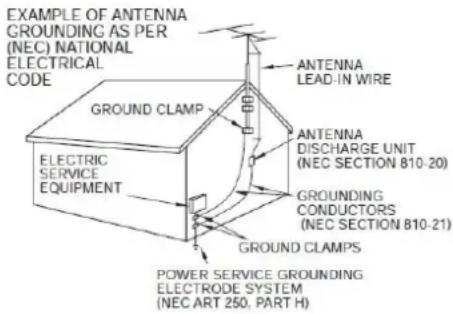
15) An outside antenna system should not be located in the vicinity of overhead power lines, other electric light, power circuits, or where it can fall into such power lines or circuits. When installing an outside antenna system, extreme care should be taken to keep from touching such power lines or circuits, as contact with them might be fatal.
16) Unplug this PORTABLE LCD TV from the wall outlet and refer servicing to qualified service personnel under the following conditions:
a) When the power cord or plug is damaged or frayed.
b) If liquid has been spilled into the PORTABLE LCD TV.
c) If the PORTABLE LCD TV has been exposed to rain or water.
d) If the PORTABLE LCD TV does not operate normally by following the operating instructions. Adjust only those controls that are covered by the operating instructions as improper adjustment of other controls may result in damage and will often require extensive work by a qualified technician to restore the PORTABLE LCD TV to normal operation.
e) If the PORTABLE LCD TV has been dropped and damaged.
f) When the PORTABLE LCD TV exhibits a distinct change in performance - which indicates a need for service.
17) When replacement parts are required, be sure the service technician uses replacement parts specified by the manufacturer that have the same characteristics as the original parts. Unauthorized substitutions may result in fire, electric shock, or other hazards and void the warranty.
18) WARNING: TO REDUCE THE RISK OF FIRE OR ELECTRIC SHOCK, DO NOT EXPOSE THIS APPARATUS TO RAIN, MOISTURE, DRIPPING OR SPLASHING. DO NOT PLACE LIQUID CONTAINERS (FLOWER VASES, CUPS, COSMETICS, ETC.) ABOVE THE SET (INCLUDING ON SHELVES ABOVE, ETC.).
19) WARNING: SMALL PARTS CAN PRESENT A CHOKING HAZARD IF ACCIDENTALLY SWALLOWED. KEEP SMALL PARTS AWAY FROM YOUNG CHILDREN. DISCARD UNNEEDED SMALL PARTS AND OTHER OBJECTS, INCLUDING PACKAGING MATERIALS AND PLASTIC BAGS/SHEETS TO PREVENT THEM FROM BEING PLAYED WITH BY YOUNG CHILDREN, CREATING THE POTENTIAL RISK OF SUFFOCATION.
20) CAUTION: TO PREVENT ELECTRIC SHOCK, DO NOT USE THIS PLUG WITH A RECEPTACLE OR OTHER OUTLET UNLESS THE BLADES CAN BE FULLY INSERTED TO PREVENT BLADE EXPOSURE.
21) CAUTION: DANGER OF EXPLOSION IF BATTERY IN THE TV SET IS INCORRECTLY REPLACED. REPLACE ONLY WITH THE SAME OR EQUIVALENT TYPE.
22) FCC Caution: Any changes or modifications not expressly approved by the party responsible for compliance could void the user's authority to operate this equipment.
FCC STATEMENT
This equipment has been tested and found to comply with the limits for a TV Broadcast Receiver, pursuant to Part 15 of the FCC Rules. These limits are designed to provide reasonable protection against harmful interference in a residential installation. This equipment generates, uses and can radiate radio frequency energy and, if not installed and used in accordance with the instructions, may cause harmful interference to radio communications. However, there is no guarantee that interference will not occur in a particular installation. If this equipment does cause or receive interference, which can be determined by turning the equipment off and on, the user is encouraged to try to correct the interference by one or more of the following measures:
- Reorient or relocate the TV antenna.
- Increase the separation between TV and other equipment.
- Connect TV into separate outlet from other equipment.
- Consult the dealer or an experienced radio / TV technician for help.
Contents
Getting Started (Preparation)....5
Introduction to Your Tivax Scout 3 ^5 Portable LCD Television....6
Accessories....6
Installing the Li-Ion battery....7
RF input connecting....8
TV Input and Output Ports 9
TV Control Functions....11
OPERATION....12
- On Screen Display (OSD) and Menu....12
1.1 Basic Operations ...... 12
1.2 Main Menu....13
1.2.1 Auto Search....14
1.2.2 Channel Setup .... 16
1.2.3 Closed Caption Setup....16
1.2.4 Parental Control....18
1.2.5 System Setup....24
1.3 Program List....26
1.4 Favorite List....27
1.5 Volume Menu ....27
1.6 Channel Input Menu....27
1.7 Signal Level Menu....28
Michley/Tivax Limited Warranty to Original Purchaser 29
Getting Started (Preparation)
PLACEMENT RECOMMENDATIONS:
Place your portable LCD TV on a flat and stable surface, or grip it when holding by hand. Avoid dropping it to the ground, as it can cause serious damage to the unit.
CLEANING THE SCREEN:
The LCD screen underneath the clear plastic cover is coated with a special thin film to reduce reflection.
Pay attention to the following for proper care and cleaning of the PORTABLE LCD TV screen:
- Do not use glue or adhesive tape on the screen.
- Do not write on the screen.
- Do not allow the screen to come in contact with any sharp objects.
- Do not allow condensation to form on the screen.
- Do not use alcohol, thinner, benzene or other harsh solvents on the screen.
- Do not forcefully rub the screen.
CAUTION:
- Operate only from the power source specified for this apparatus.
- Avoid damaging the AC plug and cord.
- When you are not using this unit for a long period of time, it is recommended that you disconnect the power cord from the main outlet.
POWER CORD CONNECTION:
Connect one end of the 12V/1.5A power cord to the unit, and the plug to the wall.
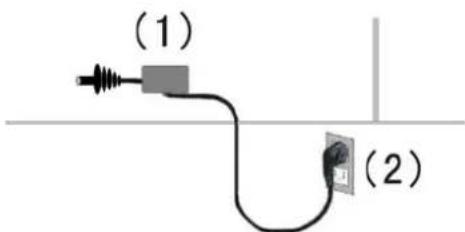
- Connect the power cord to the PORTABLE LCD TV.
- Connect the power cord to the power outlet.
Introduction to Your Tivax Scout 3 ^5 Portable LCD Television
Notes:
- Conserving Battery Life. The Tivax Scout 3 ^5 Portable TV does not have a “Standby Feature”. It uses a switch on the side of the unit to turn the device on/off in order to conserve battery life. In addition, it has a “Screen Saver” feature, which, if activated, puts the device into an audio only mode to further conserve battery life.
- Stationary Position. Even though this TV is extremely portable, digital reception may be poor when the TV is moving, such as in a vehicle. For best digital reception, the TV must be stationary. The picture may temporarily freeze if you walk with the TV, or move it too much. This is a characteristic of digital broadcast reception that holds true for any digital TV.
Accessories
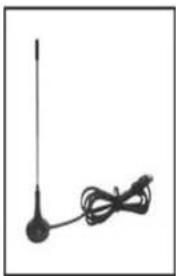
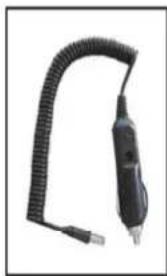
The following accessories are available or supplied with your PORTABLE LCD TV:
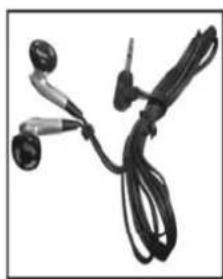
natural_image
Black-and-white photo of a pair of earphones with black and white cables (no text or symbols visible)Earphones
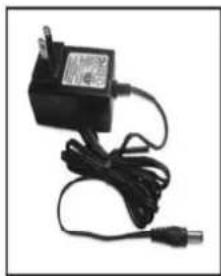
natural_image
Black-and-white photo of a connected power adapter with cable and terminal connector (no visible text or symbols)Power Supply
natural_image
Simple line drawing of a antenna with a coiled cable (no text or symbols)Magnetic Antenna
natural_image
Black flexible electrical plug with coiled cord and terminal connector (no text or symbols visible)Car Adapter
Instruction Manual
Installing the Li-Ion battery
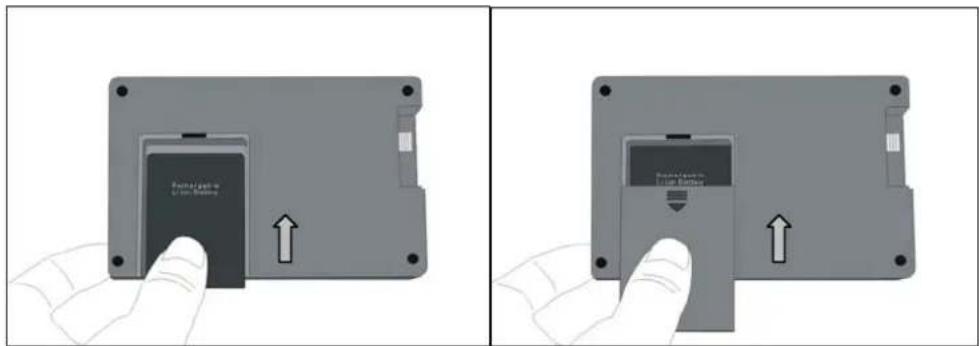
- The TV set comes with one Li-Ion battery packed separately.
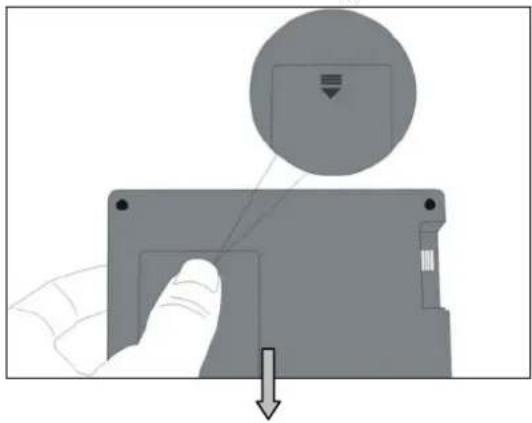
- Hold the TV facing down, push in and down with your thumb in the slot. The battery cover will slide down. Please refer to figure below.
natural_image
Diagram showing a hand pressing a component onto a memory card with a circular icon and downward arrow indicating motion (no text or symbols)- Insert the Li-Ion battery in the appropriate tray. Make sure the label is facing upwards and the metal sheet connector is against the metal spring in the battery groove, and fits snugly.
Note: To avoid battery leakage, please remove the battery if the TV is not used for a period of one month or longer. If there is any liquid from the battery, please wipe it carefully before placing the new battery in the tray.
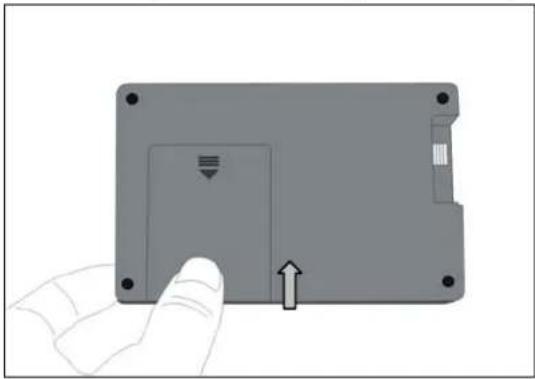
Place the battery cover back and push in and up to lock in place. Make sure it fits in tightly.
natural_image
Hand holding a gray electronic device with a button and arrow indicator (no text or symbols)Notes:
- The Li-Ion battery is charged approximately 60% before shipped.
- Initial Charge. The battery should be charged for at least 8 hours before first use. Ideally 12 hours. For the first time only, please keep recharging even after the LED on the side of the TV turns green (for up to 12 hours)
- After the first use, it will take about 3 hours for the battery to be fully charged after they are depleted. When the LED turns green, the battery is fully charged.
- The lifetime of the Li-Ion battery is about 500 re-charges. Re-charging when fully depleted will extend the life of the battery.
RF input connection
- Your LCD TV can receive free over-the-air TV signals through an antenna or from your local cable company through cable TV. Follow the steps below to connect the RF cable to your LCD TV.
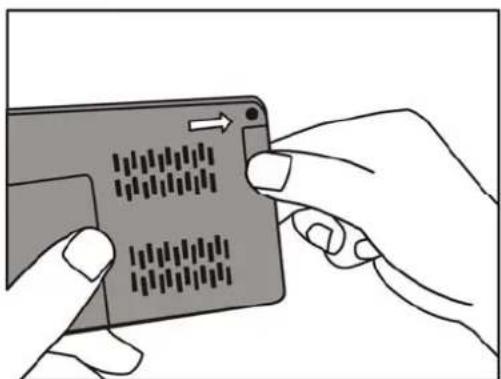
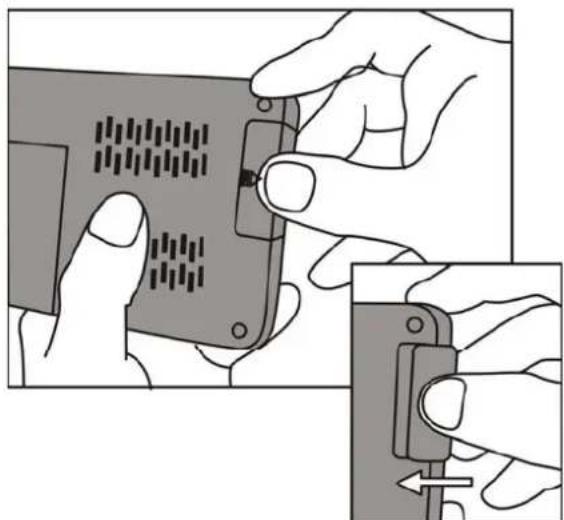
- Hold the LCD TV facing down; you will see the RF connector lid located at the top right corner. Press down and move the lid to the right (away from the TV housing) with your thumb until the lid is removed. You will see the RF connector inside. Please refer to figure below.
natural_image
Illustration of a hand inserting a card into a device with a scroll-like pattern (no text or symbols)- Connect the cable (either from the antenna or from the Cable TV) to the connector by turning it clockwise. Please refer to figure below. Afterwards, you can start watching TV or re-do Auto Scan as you did the first time you setup your TV.
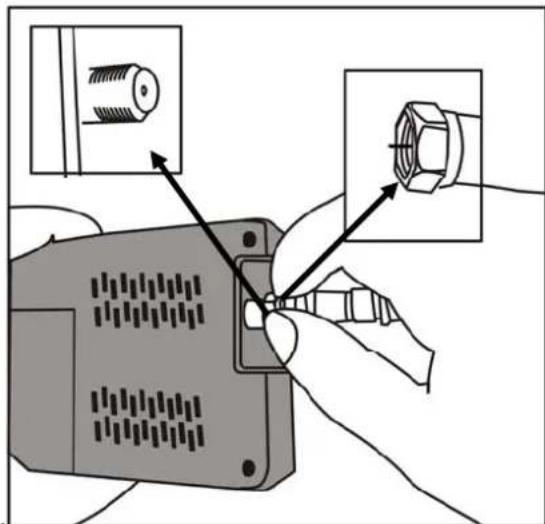
- When you are finished watching TV, you can unhook the cable from the connector with your fingers turning counter clockwise, then place the RF connector top back on the TV by pushing it back into the slot until it is locked tightly. Please refer to the figures below.
natural_image
Illustration of hands installing a component with a magnified inset showing the close-up of the detail (no text or symbols present)TV Input and Output Ports
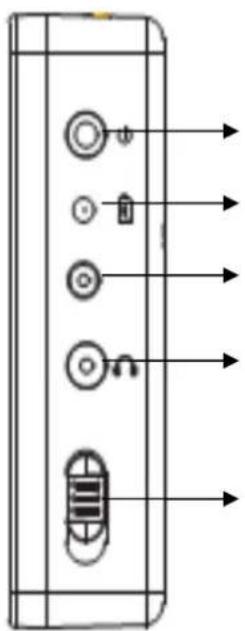
On the right side of your portable LCD TV, you will see the following I/O ports from top to bottom, as shown in the figure below:
natural_image
Diagram of a device panel with labeled components and directional arrows (no text or symbols)- 12V/1.5A AC/DC power adapter input
- LED indicator
- AA Battery input (from the optional Docking Station)
- Earphone output
- TV On/Off switch
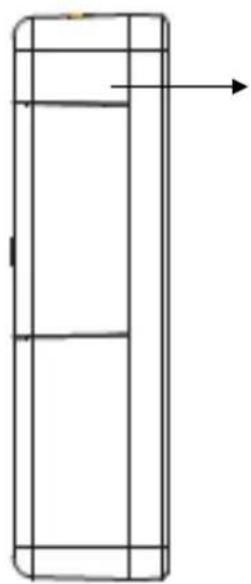
On the left side of your portable LCD TV, you will see the antenna input port, as shown in the figure below.
natural_image
Pure technical line drawing of a vertical rectangular structure with internal divisions and an arrow indicating direction (no text or symbols)-
Antenna or cable input
-
12V AC/DC power adapter input – insert the AC/DC power adapter (included in your package) to provide power to your LCD TV.
- LED indicator - battery charge indicator. Please refer to next section for details.
- AA battery input – to be used with the Docking Station which can fit 6 AA batteries to provide power to your LCD TV.
- Earphone input - insert earphone (included in your package) into this port
-
TV On/Off switch – turns the TV power on and off
-
Antenna or cable input – insert antenna (included in your package) into this port. Can also connect to a more powerful antenna or to Cable TV through this input.
TV Control Functions
Keypad Button Control Functions
You can also control the TV functions by using the keypad on your TV system. Keys are shown in the figure below.
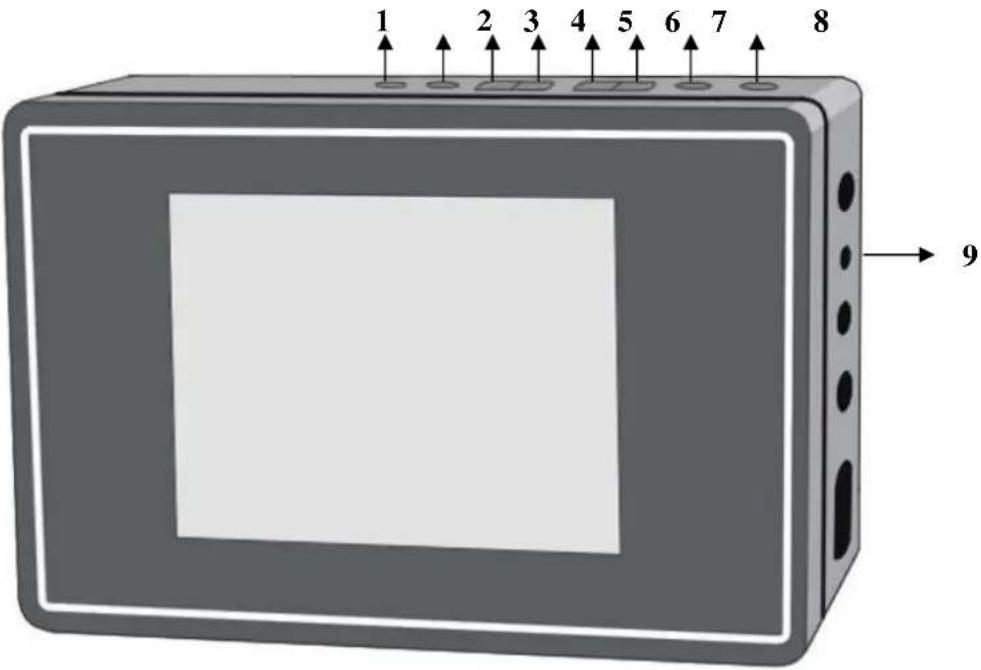
| 1 | OK | Press this button to confirm the OSD menu selection. |
| 2 | EXIT | To exit menu or quit |
| 3 | CH- / DOWN | Press to change channel down.When in the menu mode, this button acts as the “▼” navigation key. |
| 4 | CH+ / UPPER | Press to change channel up.When in the menu mode, this button acts as the “▲” navigation key. |
| 5 | VOL- / LEFT | Press to adjust the volume down.When in menu mode, this button acts as the “◀” navigation key. |
| 6 | VOL+ / RIGHT | Press to adjust the volume up.When in the menu mode, this button acts as the “▶” navigation key. |
| 7 | MENU | Press this button to display the OSD menu. It contains all options to configure your TV’s settings. |
| 8 | ASPECT | Press to choose display mode。 Refer to chapter 1.2.5, Screen/Format setting, for more detailed information. |
| 9 | LED Indicators | No LED on – DC adapter is NOT plugged in.Flashing at regular intervals – no rechargeable battery inside.Red LED on – internal rechargeable battery is charging.Green LED on – internal rechargeable battery is fully charged. |
OPERATION
1. On Screen Display (OSD) and Menu
1.1 Basic Operations
OSD and Menu can be controlled by using the following keypad keys:
[1] "OK" button - confirms the OSD menu selection. It can also call the CH Input Menu
[2] "EXIT" button - exits the current menu and clears the screen.
[3] "CH-/DOWN" button - decreases channel number or selects items downward.
[4] “CH+/UP” button - increases channel number or select items upward.
[5] "VOL-/LEFT" button - decreases volume or enter sub-menu when cursor is on the current item.
[6] "VOL+/RIGHT" button - increases volume or enter sub-menu when cursor is on the current item.
[7] "MENU" button - calls the Main Menu and display on the screen;
[8] "ASPECT" button - allows user to choose the display mode 16:9 or 4:3.
Conventions:
“ L”----“LEFT” key (same as Vol -)
“ R”----“RIGHT” key (same as Vol +)
“ U”----“UP” key (same as CH+)
“ D”----“DOWN” key (same as CH -)
1.2 Main Menu
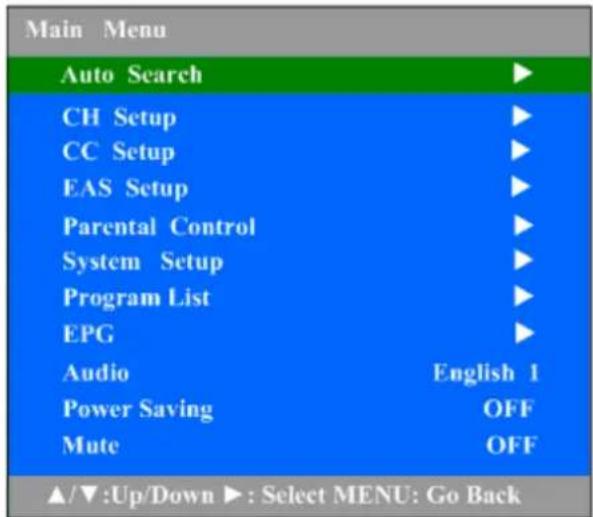
[1] Auto Search (searching for channels)
[1.1] L/R key: enter "Auto Search" sub-menu
[1.2] U/D key: select previous item or next item
Note: For more details, please refer to chapter 1.2.1 - How to Start Auto Search
[2] CH Setup
[2.1] L/R key: enter "CH Setup" sub-menu
[2.2] U/D key: select previous item or next item
[3] CC Setup
[3.1] L/R key: enter "CC Setup" sub-menu
[3.2] U/D key: select previous item or next item
[4] EAS Setup
[4.1] L/R key: enter "EAS Setup" sub-menu
[4.2] U/D key: select previous item or next item
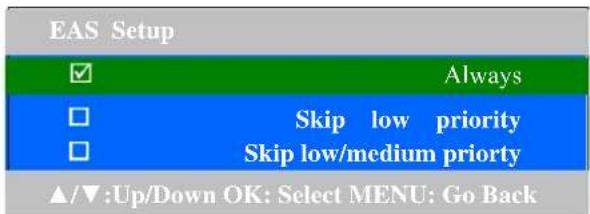
Note: EAS stands for Emergency Alert System
[5] Parental Control
[5.1] L/R key: enter "Parental Control" sub-menu
[5.2] U/D key: select previous item or next item
[5.3] Default password is: 0000
[6] System Setup
[6.1] L/R key: enter "System Setup" sub-menu
[6.2] U/D key: select previous item or next item
[7] Program List
[7.1] L/R key: enter "Program List" sub-menu
[7.2] U/D key: select previous item or next item
[8] EPG Guide:
[8.1] L/R key: enter "Guide" sub-menu
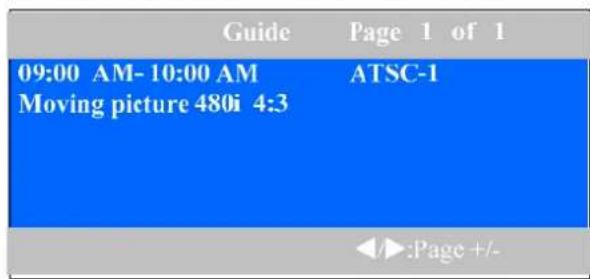
[8.2] L/R key: switch the current page in program scheduler.
[9] Audio
[9.1] L/R key: change the Audio language.
[9.2] U/D key: select previous item or next item
[9.3] Default: English
[10] Power Saving
[10.1] L/R key: change the auto Power Saving mode timer.
[10.2] U/D key: select previous item or next item
[10.3] Default: Off
[11] Mute
[11.1] L/R key: toggle Mute status between On and Off
[11.2] U/D key: select previous item or next item
[11.3] Options: On/Off
1.2.1 Auto Search
How to Start Auto Search (for channels):
a. Press down the "Menu" button from TV set. The "Main Menu" window will show on the screen.
b. The highlighted item on the top of the menu is Auto Search.
c. Press right arrow (Vol+) button from TV set. The "Auto Search" window will show on the screen.
d. The highlighted item now is Source Type. Using the right arrow (Vol+) button select Antenna or Cable (toggles between the 2) depending what your source your TV is connected to.
e. Press the down arrow (Ch-) from TV set to highlight the next selection: Start Search.
f. Press the right arrow (Vol+) button to start the channel search.
g. Wait for your TV to finish searching all digital stations in your area.
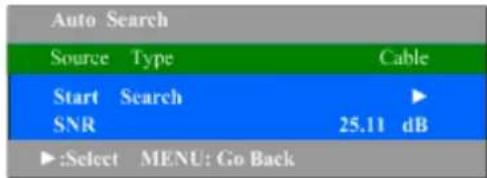
Note: Quick channel search by using buttons is described in chapter 1.6: Channel Input Menu.
1.2.1.1 Auto Search Menu
![Searching Digital channels. Source Type [ Cable ] Search in progress Please wait ... To stop . Press ◀ CH11 6% Found 8 Digital Channels.](/content/2026/05/1054445/images/155d29315b790e0f1635ddba02f5200e730cabb72b39b9e2e61c0cc605e769fe.jpg)
figure above shows the status of auto searching.
Press L key: stops the searching process.
1.2.1.2 Channel Search Completed Menu

Found Digital Channels
Indicates currently found digital channels.
1.2.2 Channel Setup
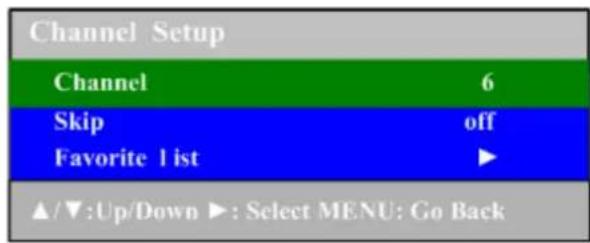
[1] Channel:
[1.1] L/R key: changes the Channel Number.
[1.2] U/D key: selects previous item or next item
[1.3] Default: current channel
[2] Skip:
[2.1] L/R key: toggles Skip status between On and Off
[2.2] U/D key: selects previous item or next item
[2.3] Options: On/Off
[3] Favorite list
[3.1] L/R key: enter "Favorite list" sub-menu
[3.2] U/D key: selects the character in current position
[3.3] L/R key: sets favorite channel in the favorite list
[3.4] U/D key: selects item in the favorite list
1.2.3 Closed Caption Setup
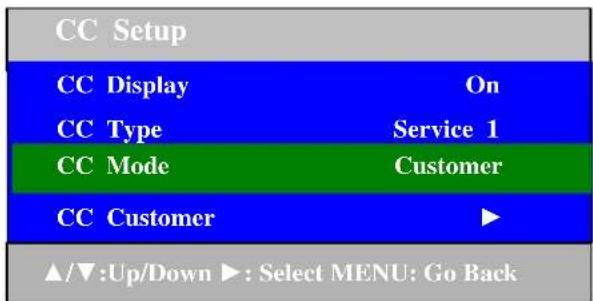
[1] CC Display:
[1.1] L/R key: selects the CC display option list
[1.2] U/D key: selects previous item or next item
[1.3] Options: On/ Off
[1.4] Default: Off
[2] CC Type:
[2.1] L/R key: selects the CC type option list
[2.2] U/D key: selects previous item or next item
[2.3] Options: Service 1, Service 2, Service 3, Service 4, Service 5, Service6
[2.4] Default: Service 1
[3] CC Mode:
[3.1] L/R key: selects the CC mode option list
[3.2] U/D key: selects previous item or next item
[3.3] Options: Broadcast/ Customer
[3.4] Default: Broadcast
[3.5] Note: when CC Mode is Broadcast, CC Customer is grayed-out and cannot be edited.
[4] CC Customer:
[4.1] L/R key: enter the CC Customer sub-menu
[4.2] U/D key: selects previous item or next item
1.2.3.1 CC Customer
| CC Customer | |
| CC Size | Standard |
| CC Font | Font 0 |
| CC Opacity | Solid |
| CC Color | White |
| Edge Color | Black |
| Edge Type | None |
| Bkgard. Color | Black |
| Bkgard. Opacity | Solid |
| ▲/▼:Up/Down ▶: Select MENU: Go Back | |
[1] CC Size:
[1.1] L/R key: selects the CC size option list
[1.2] U/D key: selects previous item or next item
[1.3] Options: Small, Standard and Large
[1.4] Default: Standard
[2] CC Font:
[2.1] L/R key: selects the CC font option list
[2.2] U/D key: selects previous item or next item
[2.3] Options: Font 0 Font 1, Font 2, Font 3, Font 4, Font 5, Font 6, Font 7
[2.4] Default: Font 1
[3] CC Opacity:
[3.1] L/R key: selects the CC opacity option list
[3.2] U/D key: selects previous item or next item
[3.3] Options: Solid, Flashing, Translucency, and Transparency
[3.4] Default: Solid
[4] CC Color:
[4.1] L/R key: selects the CC color option list
[4.2] U/D key: selects previous item or next item
[4.3] Options: Black, White, Red, Green, Blue, Yellow, Magenta, and Cyan
[4.4] Default: White
[5] Font Edge Color:
[5.1] L/R key: selects the Font Edge color option list
[5.2] U/D key: selects previous item or next item
[5.3] Options: Black, Gray, Red, Green, Blue, Yellow, Navy and Dark Gray
[5.4] Default: Black
[6] Font Edge Type:
[6.1] L/R key: selects the Font Edge type option list
[6.2] U/D key: selects previous item or next item
[6.3] Options: None, Raised, Depressed, Outline, L.Shadow and R.Shadow
[6.4] Default: None
[7] Bk Color:
[7.1] L/R key: selects the Background color option list
[7.2] U/D key: selects previous item or next item
[7.3] Options: Black, Gray, Dark Gray, Red, Navy, Green, Blue and Yellow
[7.4] Default: Black
[8] Bk Opacity:
[8.1] L/R key: selects the Background opacity option list
[8.2] U/D key: selects previous item or next item
[8.3] Options: Solid, Translucency
[8.4] Default: Solid
1.2.4 Parental Control
Before entering Parental Control menu, you will need to input a pass-code so the child cannot change any settings on the Parental Control.
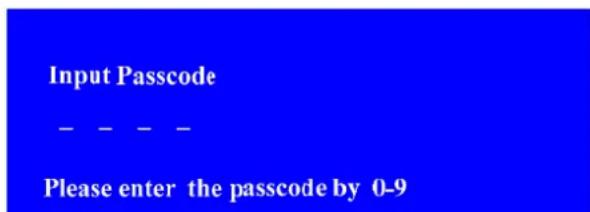
[1.1] Options: 0-9
[1.2] Default: ----
Note: (With U/D, L/R & OK keys:)
Press the CH+/- button to adjust the input number from 0\~9, and press the V+ button to move the cursor, then press the OK button to confirm.
Return to upper menu by pressing “Menu” key. If the password is invalid, the input numbers are cleared and the user needs to input the numbers again. When the pass-code is valid, the Parental Control menu will be entered automatically.
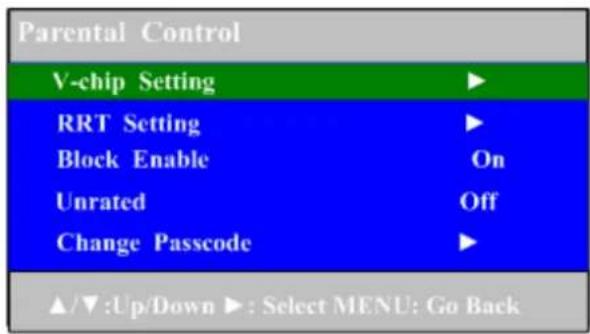
[1] V-chip Setting:
[1.1] L/R key: enters V-chip Setting sub-menu
[1.2] U/D key: selects previous item or next item
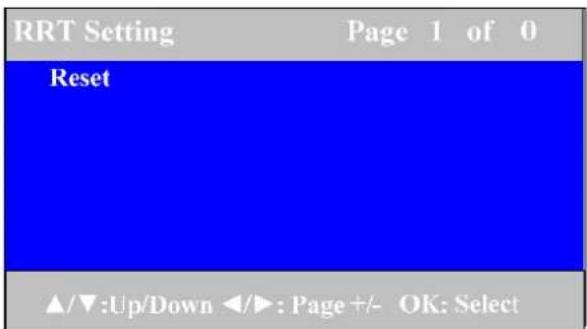
[2] RRT (Regional Rating Table) Setting
[2.1] L/R key: enters RRT Setting sub-menu
[2.2] U/D key: selects previous item or next item
[2.3] Note: the CH must contain RRT information.
[3] Block Enable
[3.1] L/R key: toggles Master Enable between on and off
[3.2] U/D key: selects previous or next item
[3.3] Options: on, off
[3.4] Default: on
[4] Unrated
[4.1] L/R key: toggles Unrated between on and off
[4.2] U/D key: selects previous item or next item
[4.3] Options: on, off
[4.4] Default: on
[5] Change Pass-code
[5.1] L/R key: enters Change Pass-code sub-menu
[5.2] U/D key: selects previous item or next item
[5.3] Note: (With U/D, L/R & OK keys):
Press the CH+/- button to adjust the input number from 0\~9, and press the V+ button to move the cursor, then press the OK button to confirm.
1.2.4.1 V-chip Setting
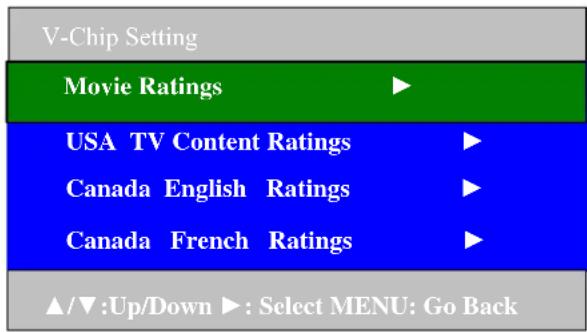
[1] Movie Ratings:
[1.1] L/R key: enters Movie Ratings sub-menu
[1.2] U/D key: selects previous item or next item
[2] USA TV Content Ratings
[2.1] L/R key: enters USA TV Content Ratings sub-menu
[2.2] U/D key: selects previous item or next item
[3] Canada English Ratings
[3.1] L/R key: enters Canada English Ratings sub-menu
[3.2] U/D key: selects previous item or next item
[4] Canada French Ratings
[4.1] L/R key: enter Canada French Ratings sub-menu
[4.2] U/D key: select previous item or next item
1.2.4.1.1 Movie Ratings
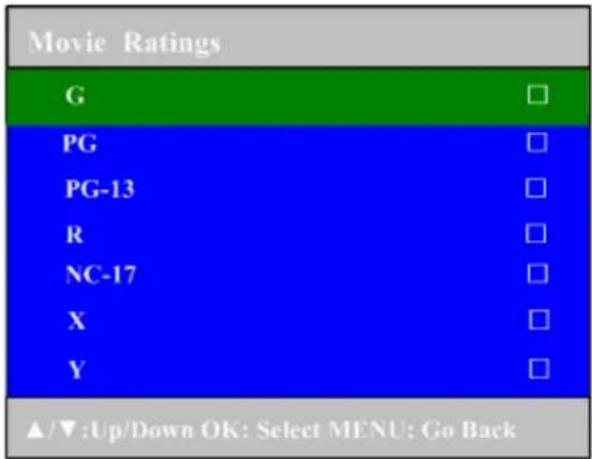
[1] G-Y:
[1.1] OK key: Enables/Disables the selected item
[1.2] U/D key: selects previous item or next item
1.2.4.1.2 USA TV Content Ratings
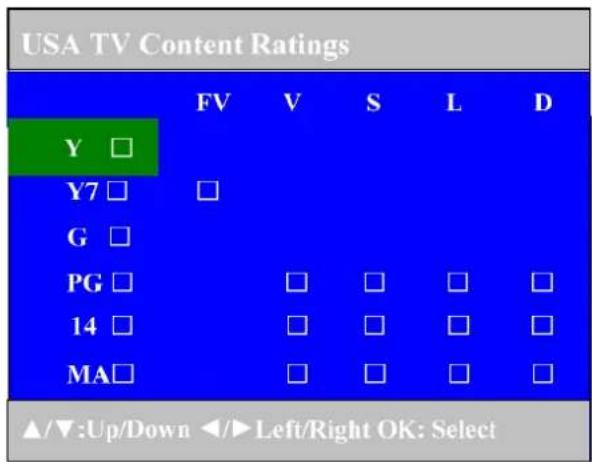
[1] Y to MA:
[1.1] OK key: Enables/Disables the selecting item
[1.2] U/D key: selects previous item or next item
1.2.4.1.3 Canada English TV Content Ratings
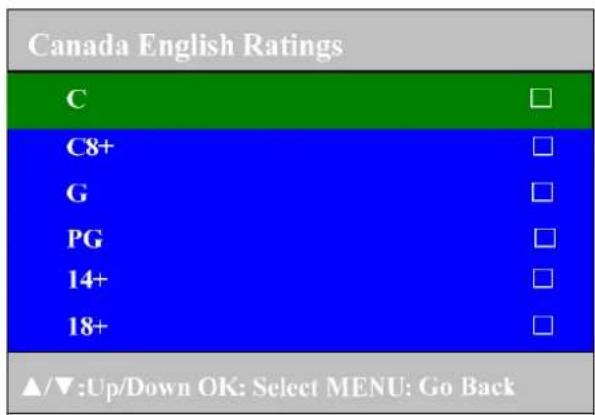
[1] C to 18+:
[1.1] OK key: Enables/Disables the selecting item
[1.2] U/D key: selects previous item or next item
1.2.4.1.4 Canada French TV Content Ratings
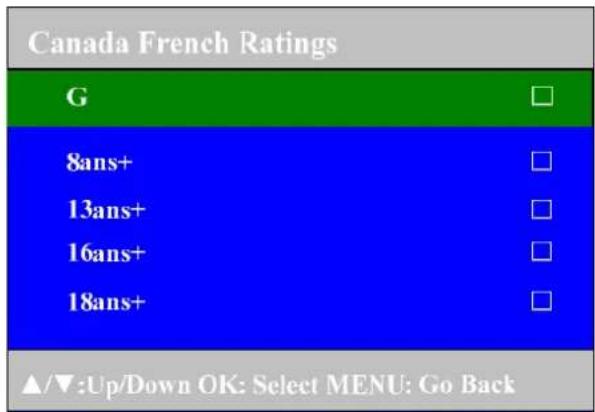
[1] G to 18ans+:
[1.1] OK key: Enables/Disables the selecting item
[1.2] U/D key: selects previous item or next item
1.2.4.2 RRT (Regional Rating Table) Setting
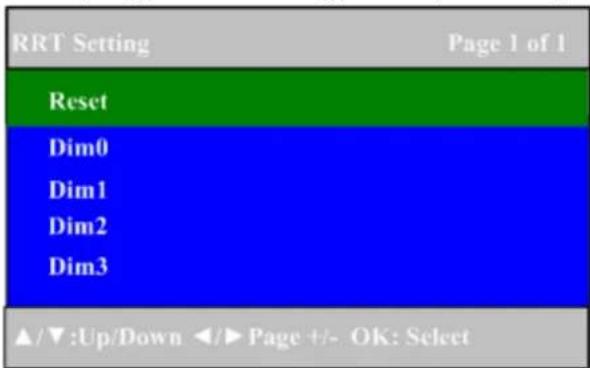
[1] RRT Setting:
[1.1] OK key: enter Rating Value setting in current Dimension Name.
[1.2] U/D key: select item in the Dimension Names
[1.3]L/R key: Page +/-
1.2.4.2.1 Rating value setting
| Dim0 | Page 1 of 2 |
| DOL 1 | [View] |
| DOL 2 | [Block] |
| DOL 3 | [Block] |
| DOL 4 | [Block] |
| DOL 5 | [Block] |
| DOL 7 | [View] |
| ▲/▼:Up/Down OK: Select MENU: Go Back | |
[1] Rating value Setting:
[1.1] OK key: set Block or View in current Rating Value.
[1.2] U/D key: select item in the Rating Values
[1.3]L/R key: Page +/-
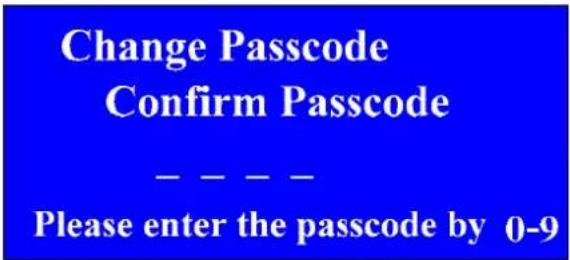
1.2.4.5 Change Passcode
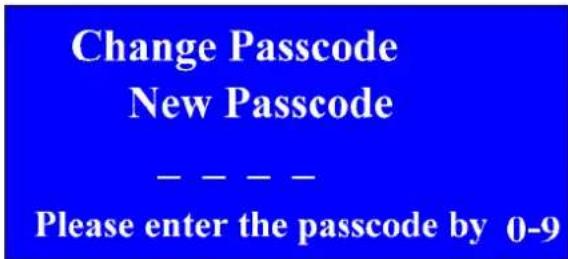
[1.1] Options: 0-9
[1.2] Default: ----
[1.3] Note: (With U/D, L/R & OK keys:)
Press the CH+/- button to adjust the input number from 0\~9, and press the
V+ button to move the cursor, then press the OK button to confirm.
1.2.5 System Setup
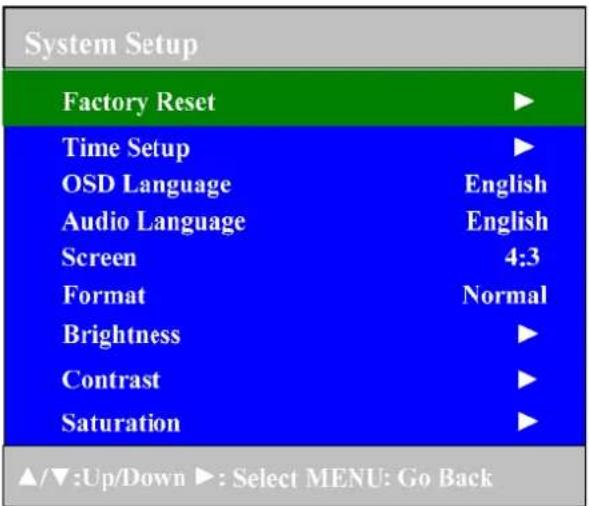
[1] Factory Reset:
[1.1] L/R key: enters "Input Password" menu
[1.2] Enter the password and then reset.
[1.3] Note: The default password is: 0000, same as Parental Control. The system will reset when the password entered is correct, or it will ask to input again.
[2] Time Setup:
[2.1] L/R key: enters Time Setup menu
[2.2] U/D key: selects previous item or next item
[3] OSD Language:
[3.1] L/R key: selects the OSD Language option list
[3.2] U/D key: selects previous item or next item
[3.3] Options: English, Spanish and French
[3.4] Default: English
[4] Audio Language:
[4.1] L/R key: selects the Audio Language option list
[4.2] U/D key: selects previous item or next item
[4.3] Options: English, Spanish and French
[4.4] Default: English
[5] Screen:
[5.1] L/R key: selects the Screen option list
[5.2] U/D key: selects previous item or next item
[5.3] Options: 4:3/16:9
[6] Format:
[6.1] L/R key: selects the Format option list
[6.2] U/D key: selects previous item or next item
[6.3] Options: Normal, Zoom and Full
[6.4] Default: Normal
Please refer to figure below for more detail on Screen/ Format settings
| ATSC program | 4:3 16:9 | |||
| Screen Setting Format | 4:3 | 16:9 | 4:3 | |
| Full | Format disabled, by default full screen mode display | Full display | Full screen mode display | Format disabled, by default full screen mode display |
| Normal 4:3 scre | display | Full screen mode display with letter-box | ||
| Zoom | Full screen mode display with zoom | Full screen mode display with zoom | ||
Additional Notes: Some TV stations may be broadcasting in different aspect ratios. 4:3 is usually the standard of the old analog television, while 16:9 is the new standard for digital television. Depending on the broadcast, it may not be possible to fill the entire TV screen with the image, also the image may be cropped or distorted if zoomed. The above table shows some options by toggling back and forth with the Screen and Format settings.
[7] Brightness:
[7.1] Vol+/- key: increase or decrease Brightness value. Hold down Vol+/- key to increase or decrease Brightness value continuously.
[7.2] options: 0-40
[8] Contrast:
[8.1] Vol+/- key: increase or decrease Contrast value. Hold down Vol+/- key to increase or decrease Contrast value continuously.
[8.2] options: 0-40
[9] Saturation:
[9.1] Vol+/- key: increase or decrease Saturation value. Hold down Vol+/- key to increase or decrease Saturation value continuously.
[9.2] options: 0-40
1.2.5.1 Time Setup
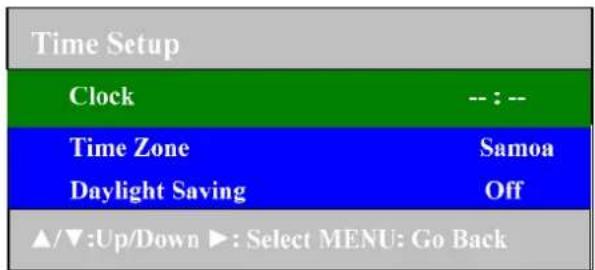
[1] Clock:
[1.1] U/D key: selects previous item or next item
[1.2] Note: the Clock displays the current time from programs
[2] Time Zone:
[2.1] L/R key: selects the Time Zone option list
[2.2] U/D key: selects previous item or next item
[2.3] Options: Eastern, Samoa, Hawaii, Alaska, Pacific, Mountain, Central, Atlantic, Newfoundland
[2.4] Default: Eastern
[3] Daylight Saving:
[3.1] L/R key: toggles Daylight Saving between on and off
[3.2] U/D key: selects previous item or next item
[3.3] Options: on, off
[3.4] Default: off
1.3 Program List
| Program List | Page 1 of 1 | |
| CH. | Name | Skip |
| 14-1 | ATSC-1 | Off |
| 14-2 | ATSC-2 | Off |
| ▲/▼:Up/Down OK: Select MENU: Go Back | ||
[1.1] L/R key: Page +/-
[1.2] U/D key: selects item in the program list
[1.3] OK key: switch to selected CH.
1.4 Favorite List
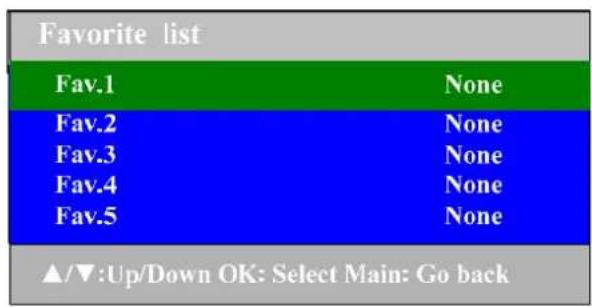
[1.1] L/R key: sets favorite channel in the favorite list [1.2] U/D key: selects item in the favorite list
1.5 Volume Menu

[1.1] Vol+/Vol-key: increases or decreases volume value. Hold down Vol+/Vol-key to increase or decrease volume value continuously.
[1.2] Options: 0-40
1.6 Channel Input Menu

There are two ways to switch to a desired channel directly. For example: if you want to switch and watch CH25-1:
Method (by using the U/D, L/R & OK buttons):
-
While Menu mode is not activated, press OK button on your TV to enter the "CH number setting" menu.
-
Press U/D (e.g., CH+/-) button to select the CH number (go up or down). Keep holding down U/D key for fast increasing or decreasing the channel number until it reaches the channel desired. Press the R (Vol+) button to move the cursor position Cursor at the selected position becomes flashing.
Antenna: Major CH number: 2 to 69.
Cable: Major CH number: 1 to 135.
Minor CH number: 1:999
- After the CH number 25-1 has been set, press the OK key again to switch to channel.
Note: Before inputting the channel number, make sure the source type (Antenna or Cable) is set correctly. Please refer to chapter 1.2.1 on how to change the source type.
1.7 Signal Level Menu

- Signal key: calls "Signal Level" menu.
- It will also automatically be shown when the channel is changed.
Color bar menu:
Red: signal is weak.
Yellow: signal is good.
Green: signal is strong.
Michley/Tivax Limited Warranty to Original Purchaser
Michley/Tivax warrants this product purchased in the USA against defects in material and workmanship under normal use and service for a period of one year from the date of retail purchase by the original end-user purchaser. Products will not be warranted if the serial number is removed or defaced.
This warranty shall be void upon transfer of ownership of this product and is effective only when used in the United States.
Michley/Tivax agrees to repair or replace this unit at no charge, within the warranty period, providing that the product is delivered to Michley/Tivax in its original package or equivalent, fully insured, with all shipping charges prepaid and a return authorization number listed on the outside of the packaging. A handling charge of \$25 will be applied to any returned product found not to be defective. To honor this warranty and to ensure the best service to our customer, Michley/Tivax requires the following information to be included with the returned unit:
- A copy of the original sales invoice from your vendor.
• Model number & serial number of the unit. - A detailed description of the problem associated electrical connection and hardware.
A Return Authorization number can be requested by sending a fax to 650-963-3585 or an email to support@tivax.com prior to returning the unit.
This warranty contemplates the owner will reasonably maintain this product without alteration, negligent use, misuse, or abuse. Furthermore, any unauthorized alteration of this device without written approval by Michley/Tivax will void any warranty and the owner's right to operate this device.
This warranty presented above is exclusive and in lieu of all other expressed or implied warranties. Any warranty applicable to this product is limited to the period described above. In no event will Michley/Tivax be liable for any special, incidental, or consequential damage, loss of revenue, or cost of replacement goods resulting from the use of malfunction of this product to the equipment system on which it is used. This warranty gives specific legal rights and you may have other rights that vary from state to state.
Michley Electronics Inc. / Tivax
530 Showers Dr., Suite #7-204
Mountain View, CA 94040
Tel. 1-888-33-Tivax (1-888-338-4829)
Fax. 1-650-963-3585
Web. www.tivax.com

General Information: info@tivax.com
1-888-33-Tivax (1-888-338-4829)
Customer Support: support@tivax.com
www.tivax.com