
DP100FX5 - DVD player FUNAI - Free user manual and instructions
Find the device manual for free DP100FX5 FUNAI in PDF.


| Product Type | DVD Player |
| Brand | Funai |
| Model | DP100FX5 |
| Dimensions (W x D x H) | 430 x 250 x 40 mm (16.9 x 9.8 x 1.6 in) |
| Weight | 2.0 kg (4.4 lb) |
| Power Supply | AC 120 V, 60 Hz |
| Power Consumption | 10 W (standby: <1 W) |
| Disc Compatibility | DVD, DVD±R/RW, CD, CD-R/RW, MP3-CD, JPEG CD |
| Video Outputs | Composite video, Component video (Y/Pb/Pr) |
| Audio Outputs | Analog 2-channel (L/R), Coaxial digital |
| Playback Features | Progressive scan, zoom, repeat, A-B repeat, subtitle selection, multi-angle |
| Remote Control | Infrared remote with batteries included |
| Front Panel | Power button, open/close, play, stop, skip, volume control |
| Display | VFD display showing time/status |
| Child Lock | Parental control with password |
| Region Code | Region 1 (USA, Canada) |
| Manual Language | English (22 pages PDF) |
| Care and Cleaning | Wipe exterior with a soft, dry cloth. Do not use solvents. |
| Safety Precautions | Do not open the casing. Avoid moisture and extreme temperatures. |
| Spare Parts Availability | Remote control, power adapter, laser lens (through service centers) |
| Repairability Index | Moderate – user replaceable fuse and remote, professional for laser |
Frequently Asked Questions - DP100FX5 FUNAI
User questions about DP100FX5 FUNAI
0 question about this device. Answer the ones you know or ask your own.
Ask a new question about this device
Download the instructions for your DVD player in PDF format for free! Find your manual DP100FX5 - FUNAI and take your electronic device back in hand. On this page are published all the documents necessary for the use of your device. DP100FX5 by FUNAI.
USER MANUAL DP100FX5 FUNAI
Please read before using this unit.
DVD Player DP100FX5
Supplied Accessories
- Remote Control (NC081UH) • Audio / video cables
- SETUP MANUAL
Connecting to RF Modulator (Not Supplied)
If your TV has "Antenna In (RF in)" jack only, it is still possible to connect this unit to your TV by using an RF Modulator.
In this case, follow the instructions below.
1) Disconnect the Power cords of the devices from the AC outlet. 2) Make the Connection as illustrated below. 3) Set your RF Modulator's channel 3/4 switch to either 3 or 4, whichever the TV channel is least used in your area. If your RF Modulator has a Modulator / Antenna switch, set it according to the manual supplied with the RF Modulator. 4) Plug in the Power cords of the devices to an AC outlet. 5) Turn On your TV and choose the same channel as you set to the RF Modulator's channel 3/4 switch to. For more details, follow the manual supplied with the RF Modulator.
![graph TD A["Rear of this unit"] --> B["Video cable"] A --> C["Audio cable"] B --> D["RF coaxial cable"] C --> E["RF coaxial cable"] D --> F["Set channel 3 or 4"] E --> F G["VHF / UHF antenna"] --> H["Cable TV company"] H --> I["RF coaxial cable"] I --> J["RF modulator"] J --> K["Set channel 3 or 4"]…](/content/2026/05/1054167/images/6a9ab18936853ece7ada7e78117e10b551d6b62991f5637380a0428d4960195d.jpg)
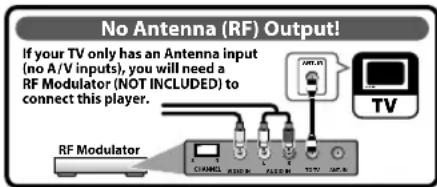
Note(s):
- RF Modulator is not supplied with this unit. You need to purchase it at your local store. The quality of picture may become poor if this unit is connected to an RF Modulator.

FUNAI
IMPORTANT SAFETY INSTRUCTIONS ....2
About the Discs ....5 Playable Discs. 5 Unplayable Discs. 5
SETUP
Connections....6
Rear Terminals. 6
Connection to a TV. 7
Connection to an Audio System. 8
About the Remote Control 9
Remote Control. 9
Installing the Batteries for the Remote Control. 9
DVD FUNCTIONS
Playback 10
JPEG Playback 11
Search Functions ....11
Using Track / File Search. 11
Using Title / Chapter Search. 11
Using Time Search. 11
On-Screen Display 12
Repeat / Random Playback ....13
Repeat Playback. 13
Repeat A-B Playback. 13
Random Playback. 13
Special Settings 14
Subtitle Language....14
Audio Language. 14
Camera Angles. 14
DVD Setting 15
System Setting. 16
Language Setting. 17
Audio Setting. 18
Video Setting. 19
INFORMATION
Troubleshooting Guide ....20
Specifications 20
Spanish 21
LIMITED WARRANTY 22
If you need additional operating assistance after reading this owner's manual, please call
TOLL FREE: 1-877-393-8624
or visit our web site at www.funaiamerica.com/support
PRECAUTIONS
The model and serial numbers of this unit may be found on the cabinet. You should record and retain those numbers for future reference.
Model No.: ____
Serial No.: ____
WARNING:
TO REDUCE THE RISK OF FIRE OR ELECTRIC SHOCK, DO NOT EXPOSE THIS APPARATUS TO RAIN OR MOISTURE.
APPARATUS SHALL NOT BE EXPOSED TO DRIPPING OR SPLASHING AND NO OBJECTS FILLED WITH LIQUIDS, SUCH AS VASES, SHALL BE PLACED ON THE APPARATUS.

CAUTION
RISK OF ELECTRIC SHOCK DO NOT OPEN

CAUTION:
TO REDUCE THE RISK OF ELECTRIC SHOCK, DO NOT REMOVE COVER (OR BACK). NO USER SERVICEABLE PARTS INSIDE. REFER SERVICING TO QUALIFIED SERVICE PERSONNEL.
The important note and rating are located on the rear or bottom of the cabinet.

The lightning flash with arrowhead symbol, within an equilateral triangle, is intended to alert the user to the presence of uninsulated "dangerous voltage" within the product's enclosure that may be of sufficient magnitude to constitute a risk of electric shock to persons.

The exclamation point within an equilateral triangle is intended to alert the user to the presence of important operating and maintenance (servicing) instructions in the literature accompanying the appliance.

The symbol for CLASS II (Double Insulation)
IMPORTANT SAFETY INSTRUCTIONS
- Read these instructions.
- Keep these instructions.
- Heed all warnings.
- Follow all instructions.
- Do not use this apparatus near water.
- Clean only with dry cloth.
- Do not block any ventilation openings. Install in accordance with the manufacturer's instructions.
- Do not install near any heat sources such as radiators, heat registers, stoves, or other apparatus (including amplifiers) that produce heat.
- Do not defeat the safety purpose of the polarized or grounding-type plug. A polarized plug has two blades with one wider than the other. A grounding type plug has two blades and a third grounding prong. The wide blade or the third prong are provided for your safety. If the provided plug does not fit into your outlet, consult an electrician for replacement of the obsolete outlet.
- Protect the power cord from being walked on or pinched particularly at plugs, convenience receptacles, and the point where they exit from the apparatus.
- Only use attachments / accessories specified by the manufacturer.
- Use only with the cart, stand, tripod, bracket, or table specified by the manufacturer, or sold with the apparatus. When a cart is used, use caution when moving the cart/apparatus combination to avoid injury from tip-over.
- Unplug this apparatus during lightning storms or when unused for long periods of time.
- Refer all servicing to qualified service personnel. Servicing is required when the apparatus has been damaged in any way, such as power-supply cord or plug is damaged, liquid has been spilled or objects have fallen into the apparatus, the apparatus has been exposed to rain or moisture, does not operate normally, or has been dropped.
FCC WARNING
This equipment may generate or use radio frequency energy. Changes or modifications to this equipment may cause harmful interference unless the modifications are expressly approved in the manual. The user could lose the authority to operate this equipment if an unauthorized change or modification is made.
RADIO-TV INTERFERENCE
This equipment has been tested and found to comply with the limits for a Class B digital device, pursuant to Part 15 of the FCC Rules. These limits are designed to provide reasonable protection against harmful interference in a residential installation. This equipment generates, uses, and can radiate radio frequency energy and, if not installed and used in accordance with the instructions, may cause harmful interference to radio communications. However, there is no guarantee that interference will not occur in a particular installation. If this equipment does cause harmful interference to radio or television reception, which can be determined by turning the equipment off and on, the user is encouraged to try to correct the interference by one or more of the following measures:
1) Reorient or relocate the receiving antenna. 2) Increase the separation between the equipment and receiver. 3) Connect the equipment into an outlet on a circuit different from that to which the receiver is connected. 4) Consult the dealer or an experienced radio/TV technician for help.

Continued on next page.
Disconnect the mains (AC) plug to shut off when finding trouble or not in use. The mains (AC) plug shall remain readily operable.
CAUTION: Danger of explosion if battery is incorrectly replaced. Replace only with the same or equivalent type. WARNING: Batteries (battery pack or battery installed) shall not be exposed to excessive heat such as sunshine, fire or the like.
LASER SAFETY
This apparatus is classified as a CLASS 1 LASER PRODUCT.
This apparatus employs a laser. Only a qualified service person should remove the cover or attempt to service this apparatus, due to possible eye injury.
CAUTION: Use of controls or adjustments or performance of procedures other than those specified herein may result in hazardous radiation exposure.
IMPORTANT COPYRIGHT INFORMATION
Unauthorized copying, broadcasting, public performance and lending of discs are prohibited. This item incorporates copy protection technology that is protected by U.S. patents and other intellectual property rights of Rovi Corporation. Reverse engineering and disassembly are prohibited.
Do not place the unit on furniture that is capable of being tilted by a child and an adult leaning, pulling, standing or climbing on it. A falling unit can cause serious injury or even death.
This apparatus should not be placed in a built-in installation such as a bookcase or rack unless proper ventilation is provided. Make sure to leave a space of 3.9 inches (10 cm) or more around this apparatus.
Never use a gas duster on this unit.
The gas trapped inside of this unit may cause ignition and explosion.
To Avoid the Hazards of Electrical Shock and Fire
- Do not handle the AC power cord with wet hands.
- Do not pull on the AC power cord when disconnecting it from an AC outlet. Grasp it by the plug.
- Do not put your fingers or objects into the unit.
Location and Handling
- Do not install the unit in direct sunlight, near strong magnetic fields, or in a place subject to dust or strong vibration.
- Avoid a place with drastic temperature changes.
- Install the unit in a horizontal and stable position. Do not place anything directly on top or bottom of the unit. Depending on your external devices, noise or disturbance of the picture and/or sound may be generated if the unit is placed too close to them. In this case, please ensure enough space between the external devices and the unit.
- Depending on the environment, the temperature of this unit may increase slightly. This is not a malfunction.
- Be sure to remove the disc and unplug the AC power cord from the outlet before carrying the unit.
Dew Condensation Warning
- Dew condensation may form inside the unit in the following conditions. If so, do not use this unit at least for a few hours until its inside gets dry.
– The unit is moved from a cold place to a warm place. – Under conditions of high humidity. – After heating a cold room.
Note about Recycling
- This unit's packaging materials are recyclable and can be reused. Please dispose of any materials in accordance with your local recycling regulations.
- Batteries should never be thrown away or incinerated but disposed of in accordance with your local regulations concerning chemical wastes.
- For product recycling information, please visit - www.funaiamerica.com

Continued on next page.
TRADEMARK INFORMATION

DOLBY. DIGITAL
Manufactured under license from Dolby Laboratories. Dolby and the double-D symbol are trademarks of Dolby Laboratories.

ENERGY STAR® is a joint program of the U.S. Environmental Protection Agency and the U.S. Department of Energy helping us all save money and protect the environment through energy efficient products and practices.

is a trademark of DVD Format / Logo Licensing Corporation.
SYMBOLS USED IN THIS MANUAL
The following symbols appear in some headings in this manual.

: Description refers to DVD-video.

: Description refers to audio CD.

: Description refers to DVD, CD-RW/-R with JPEG files.
MAINTENANCE
Servicing
- Please refer to relevant topics on the "Troubleshooting Guide" on page 20. If you cannot find any solution there, our service center is pleased to assist you.
- Even if this unit becomes inoperative, do not open the cabinet to repair it by yourself. There are no user-serviceable parts inside. Turn off the unit, unplug the AC power plug, and then call our support center mentioned on the front page. Before calling, please check the model and serial number on the unit.
Cleaning the Cabinet
- Wipe the front panel and other exterior surfaces of the unit with a soft cloth.
- Never use a solvent, thinner, benzene, or alcohol to clean the unit. Do not spray insecticide liquid near the unit. Such chemicals may discolor the surface or damage the unit.
Cleaning Discs
- When a disc is dirty, clean it with a cleaning cloth. Wipe the disc from the center to the outside. Do not wipe in a circular motion.
- Do not use solvents such as benzine, thinner, commercially available cleaners, detergent, abrasive cleaning agents, or antistatic spray intended for analog records.
Cleaning the Disc Lens
Depending on unit circumstances, the laser optical pickup unit's disc lens may get dirty. If this unit still does not perform properly although you refer to the relevant sections and to "Troubleshooting Guide" in this owner's manual, consult a local dealer or an authorized service center for inspection and cleaning of the disc lens.
Disc Handling
- When you handle a disc, hold it by its edge and try not to touch the surface of the disc. Always store the disc in its protective case when not in use.
FUNAI is a registered trademark of Funai Electric Co., Ltd. and may not be used in any way without the express written consent of Funai.
© 2014 Funai Electric Co., Ltd.
All rights reserved. No part of this manual may be reproduced, copied, transmitted, disseminated, or transcribed, in any form or for any purpose without the express prior written consent of Funai. Furthermore, any unauthorized commercial distribution of this manual or any revision hereto is strictly prohibited.
Information in this document is subject to change without notice. Funai reserves the right to change the content herein without the obligation to notify any person or organization of such changes.
Playable Discs
| Type of media | Marks (logos) | Region codes | Recorded signals | Disc sizes | Disc types |
| DVD-video*1, 2, 4, 6, 8 |  |  | digital video (MPEG2) | 5 inches(12 cm)or3 inches(8 cm) |  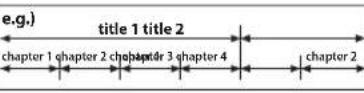 |
| DVD-RWDVD-R*1, 3, 4, 5,6, 7, 8 | — | digital video (MPEG2)or JPEG |  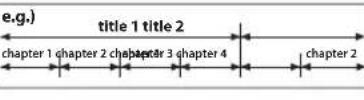  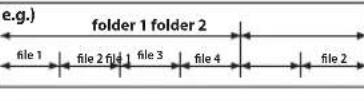 | ||
| audio CD*4, 6, 8 |  | — | digital audio | 5 inches(12 cm)or3 inches(8 cm) |  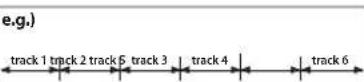 |
| CD-RWCD-R*4, 5, 6, 7, 8 |     | — | digital audio or JPEG |  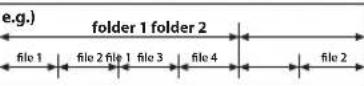 |
If you cannot play back a disc which bears one of the marks above, check the following notes.
*1: This unit conforms to the NTSC color system. Discs recorded in other color systems such as PAL cannot be played back. *2: Certain DVD-video do not operate as described in this manual due to the intentions of the disc's producers. *3: Discs recorded in the VR (Video Recording) format cannot be played back. *4: Scratched or stained discs may not be played back. *5: Some discs cannot be played back because of incompatible recording conditions, characteristics of the recorder or special properties of discs. *6: You can play back discs which bear the marks above. If you use non-standardized discs, this unit may not play them back. Even if they are played back, the sound or video quality will be compromised. *7: If the recorded portion of the disc is too small (smaller than 2-3/16 inches (55mm) across), it may not be played back. *8: Do not glue paper or put stickers on to the disc. These may damage the disc, and the unit may not read it correctly.
Unplayable Discs
NEVER play back the following discs as a malfunction may result!
DVD-audio / DVD-RAM / DVD-ROM for personal computers / DVD with region codes other than 1 or ALL /
CD-ROM for personal computers / HD DVD / Blu-ray Disc™ / photo CD / CD-i / video CD
On the following disc, the sound MAY NOT be heard.
Super Audio CD
Any other discs without compatibility indications.
Note(s):
- Only the sound recorded on the normal CD layer can be delivered. The sound recorded on the high density super audio CD layer cannot be delivered.
SETUP
Connections
Rear Terminals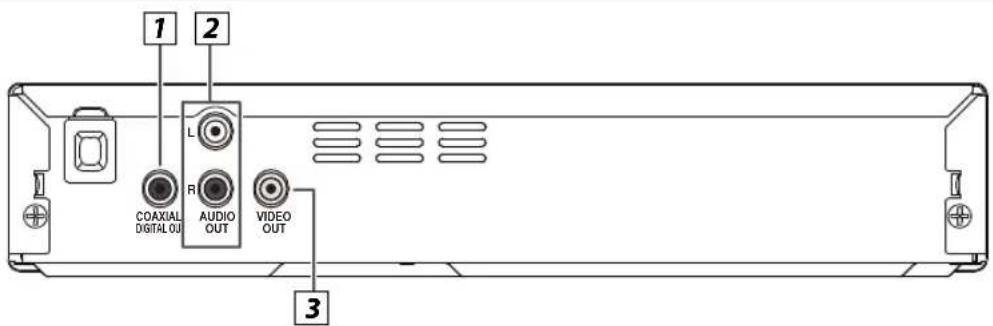
1 COAXIAL DIGITAL OUT jack
Connect a Digital Audio Coaxial cable here through the Digital Audio Coaxial Input jack on a decoder or audio receiver.
2 AUDIO OUT jacks
Connect an Audio cable here through the Audio Input jacks on a Television or another Audio device.
3 VIDEO OUT jack
Connect a Video cable here through the Video Input jack on a Television.
Note(s):
- Please purchase the necessary cables at your local store. (Refer to pages 6 - 8.)
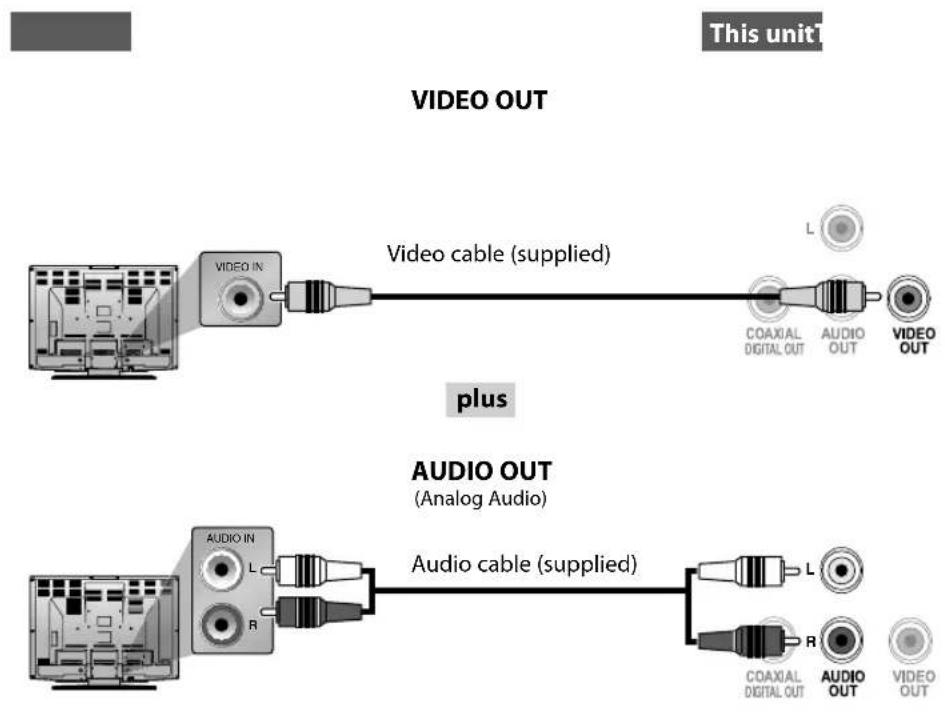
Supplied cables used in this connection are as follows:
• Audio cable (L/R) × 1 - Video cable × 1
Note(s):
- Connect this unit directly to your TV.
If Audio / Video cables are connected to a VCR, pictures may be distorted due to the copy protection system.
After connecting to your TV:
You will need to find the viewing channel (external input channel) on your TV.
Please refer to your TV's Owner's manual for details.
Input modes for common TV brands:
Listed below are inputs for common brand name TVs.
| Emerson: | VIDEO, | AUX | RCA: INPUT, TV/VCR, 00, 90, 91, 92, 93 | ||
| Hitachi: | INPUT, | AUX | Samsung: | TV/VIDEO | |
| JVC: VIDEO, VIDEO1, VIDEO2, VIDEO3 | Sanyo: | VIDEO | |||
| LG: | INPUT, | AUX | Sharp: | 00 | |
| Magnavox: | AUX | CHANNEL, | SOURCE | VIDEO1, | VIDEO2, |
| Panasonic: | TV/VIDEO | Toshiba: | TV/GAME | ||
| Philips: | VIDEO, | SOURCE | |||
Connection to an Audio System
![graph TD A["Analog Audio Connection"] --> B["Stereo system with Analog Audio Input jacks"] B --> C["Analog Audio Input jacks"] C --> D["Audio cable (supplied)"] D --> E["L"] D --> F["R"] E --> G["AUDIO OUT"] F --> H["VIDEO OUT"] I["SETUP"] --> J["This unit"]](/content/2026/05/1054167/images/1190efd7c9af82adcbf841bbd346a149cfac09eef123bd323ded81ee1b004736.jpg)
Supplied cables used in this connection are as follows:
• Audio cable (L/R) × 1
Please purchase the rest of the necessary cables at your local store.
Digital Audio Connection
AV Receiver / Amplifier with a Coaxial Digital In Audio jack
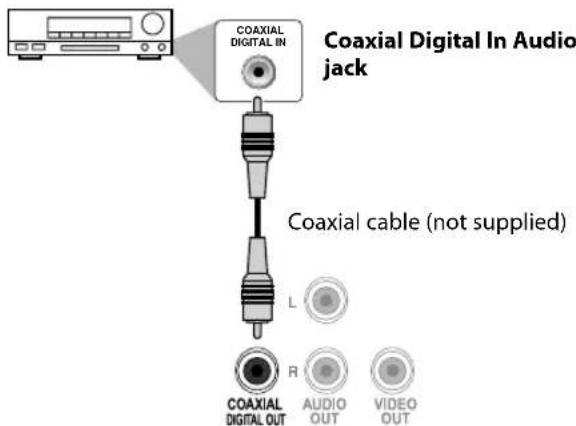
COAXIAL DIGITAL OUT
| Connection\Setting | SETUP >AUDIO >Audio out |
| Connecting to a Dolby Digital decoder for Dolby Digital audio output. | BITSTREAM |
| Connecting to the other device (an MD deck etc.) without Dolby Digital decoder. | PCM |
* To complete these settings, refer to pages 15-18.
Note(s):
- The audio source on a disc in a Dolby Digital multi-channel surround format cannot be recorded as digital sound by an MD deck.
- By hooking this unit up to a Dolby Digital decoder, you can enjoy high-quality Dolby Digital multi-channel surround sound as heard in the movie theaters.
- Playing back a DVD using incorrect settings may generate noise distortion and may also damage the speakers.
Remote Control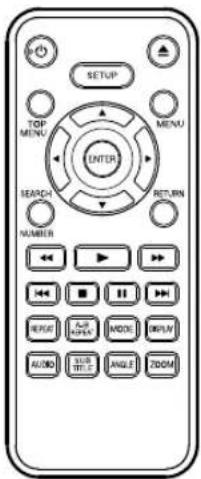
Installing the Batteries for the Remote Control
Install 2 AAA (1.5V) batteries matching the polarity indicated inside the battery compartment of the remote control.
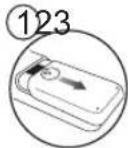
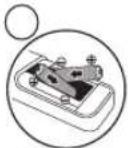
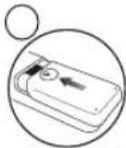
* Batteries not supplied.
Keep in mind the following when using the remote control:
• Make sure that there are no obstacles between the remote control and the remote sensor on the unit. - The maximum operable ranges from the unit are as follows. - Line of sight: approx. 23 feet (7m) - Either side of the center: approx. 16 feet (5m) within 30° - Above: approx. 16 feet (5m) within 15° - Below: approx. 10 feet (3m) within 30°
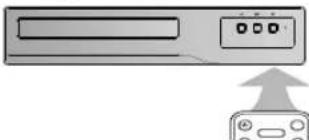
Note(s):
- Do not mix alkaline, standard (carbon-zinc), or rechargeable (ni-cad, ni-mh, etc.) batteries.
- Do not mix old and new batteries. • Always remove batteries from the remote control if they are dead or if the remote control is not to be used for an extended period of time. This will prevent battery acid from leaking into the battery compartment.
| MediaButton(Alphabetical order) | ||
| • To move the Cursor.• To enter values in the input fi eld. | ||
| — | • To Rotate the picture during playback of JPEG Files. (JPEG) | |
| • To Repeat between your chosen points A and B. (DVD) (CD) | ||
| • To select Camera Angles on a disc. | — | |
| • To select Audio language on a disc. | — | |
| • To Display the current disc information. | ||
| • To Select Items or Settings. | ||
| • To Search Forward / Backward through a disc. (×2, ×4, ×8, ×20) (DVD) (CD) | ||
| • To Begin Slow Forward Playback in the Pause mode. | — | |
| • To Call up the menu on a disc. | • To Display the Thumbnail when a disc with JPEG Files is inserted and the File is highlighted. (JPEG) | |
| — | • To Play Back Randomly. (CD) | |
| • To Open or Close the Disc tray.• To turn On the unit. | ||
| • To Pause disc Playback. | ||
| • To Advance Playback one Frame at a time. | — | |
| • To Start Playback or Resume Playback. | ||
| • To Play Back a Chapter, Title or Disc Repeatedly. | • To Play Back Repeatedly. | |
| • To Call up the Menu when Playing Back a disc. | • To Return to the File List when Thumbnail is displayed. (JPEG) | |
| • To Search Chapter, Title or Time.• To select button in menu. (DVD) | • To Search Tracks or Files.• To Search Time. (CD) | |
| • To Call up the Setup menu. | ||
| • To Skip Chapters or Titles. | • To Skip Tracks.• To Switch between pages when Thumbnail is displayed. (JPEG). | |
| • To Turn the unit On or to Turn the unit into the Standby mode.(To Completely turn Off the unit, you must Unplug the AC Power cord.) | ||
| • To Stop Playback. | ||
| • To Select Subtitle Language on a disc. | — | |
| • To Call up the Title Menu on a disc. | — | |
| • To Magnify part of a Picture. (×1.5, ×2, ×2.5) (DVD) (JPEG) | ||
DVD FUNCTIONS
Please note:
- Most instructions in this manual refer to Remote Control use.
- This unit will automatically turn on the Screen Saver after 5 minutes of inactivity and into the Standby mode after 25 minutes of inactivity.
Playback
Before:
Turn on the TV, amplifier, and any other devices connected to this unit. Make sure the TV and audio receiver (not supplied) are set to the correct channel/input.



→ on page 11)
1 Press [⏻] to turn on this unit. 2 Press [▲] and insert a disc with the label facing up. 3 Press [▶] or [▶III] to start playback. 4 Press [■] to stop playback.
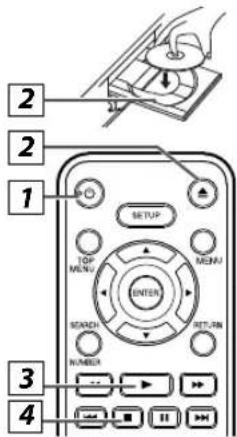
Disc Menu

Some discs contain menus that allow you to customize DVD playback. Use [▲/▼/◄/►] to select an item, then press [ENTER], [►], or [▶III] (on the unit).
Calling Up a Menu Screen during Playback

- Press [MENU] to call up the disc menu.
- Press [TOP MENU] to call up the title menu.
Note(s):
- Menu operations may vary depending on the disc. Refer to the manual accompanying the disc for more details.
Resume Playback

Press [■] during playback. The PRE STOP icon will appear at the top-left on the TV screen. Press [▶] or [▶■], the RESUME icon will appear at the top-left on the TV screen, and playback will resume from the point where playback was stopped.
PRE STOP
Note(s):
- To Cancel Resume, press [■] one more time in the Stop mode.
- The Resume Playback information stays in unit Memory even when the Power is turned Off, as long as the Disc stays in the unit.
Pause and Step-by-Step Playback



Press [III] or [▶III] during playback. To continue Playback, press [▶] or [▶III].
PAUSE

The disc goes forward by one Frame each time [■■] (on the remote control) is pressed in the Pause mode. To continue Playback, press [▶] or [▶■■].
![Lights up when power is On. * [▶▶] can be used both as [▶] and [■].](/content/2026/05/1054167/images/ba604a733957cef1857d51ba3c4c495e50db14b45df2e4b04d3e368966d210c3.jpg)
Note(s):
- When you Play back a DVD or CD-R/-RW with JPEG Files, refer to details on page 11.
- "INVALID ENTRY" may appear at the Top-left on the TV Screen when the operation is prohibited by the disc or this unit.
- Some DVD may Start Playback from title 2 or 3 due to specific programs.
- During the Playback of a 2-layered disc, pictures may Stop for a moment. This happens while the 1st layer is being switched to the 2nd layer. This is Not a Malfunction.
- You can change the On-screen language in "Menu" setting. (Refer to page 17.)
Fast Forward / Reverse Search


Use [▶▶] or [◀◀] Repeatedly during Playback to select the required Forward or Reverse Speed. To continue Playback, press [▶] or [▶▶].
FORWARD X2
Note(s):
- Fast Forward or Reverse Search speed varies depending on the disc. Approximate speeds are ×2, ×4, ×8, and ×20.
Slow Forward Search

Press [▶▶] repeatedly in Pause mode to select the desired forward speed. To resume playback, press [▶] or [▶▶].
SF 1/2
Note(s):
- Slow Forward speed varies depending on the disc. Approximate speeds are ×1/2, ×1/4, and ×1/8.
Zoom


1) Press [ZOOM] repeatedly during playback to select the desired zoom factor: ×1.5, ×2, or ×2.5. 2) Use [▲ / ▼ / ◀ / ▶] to slide the zoomed picture across the TV screen.
3) To exit the zoom function, press [ZOOM] repeatedly to select "ZOOM 1" (Off).
ZOOM 2
Note(s):
- The zoom function does not work while the disc menu is displayed.
- Some parts of the picture may not be zoomed depending on the disc or playback status.
JPEG is a method of compressing data in files.
You can copy JPEG files on DVD or CD-R/-RW from a computer and play back the files on this unit.

Insert a JPEG formatted disc, then the File List will automatically appear on the TV screen. (For a disc with JPEG files only)
It is recommended that the files are recorded under the following conditions:
1 Select the desired Folder or File.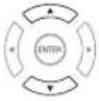 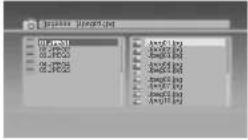 | Applicable JPEG file Remarks | |
| Normal playbackPixel upper limit: 6,000 × 6,000 pixelPixel lower limit: 96 × 96 pixel | A JPEG image that extends beyond the screen is reduced so that it will be displayed within the screen. | |
| 2 Press [ENTER], [▶] or [▶II] (on the unit).Playback will Start from the first File of the Folder or Files. | Note(s):Some selections may take a while to be recognized.Refer to “On-Screen Display” on page 12 for more details.A Maximum of 40 folders or 9999 fi les may be recognized on One disc.(ISO9660 format fi les)For UDF format fi les recorded on DVD Media, maximum of 2,000 fi les may be recognized. It may take a while to switch between pages for a fi le list.To Rotate the Picture, press the Cursor buttons during Playback of JPEG Files. | |
Search Functions
Using Track / File Search

CD

JPEG


DVD
Using [SEARCH/NUMBER]
1
![FUNAI DP100FX5 - Using [SEARCH/NUMBER] - 1](/content/2026/05/1054167/images/560cc2200efdf8bf707ba2c1e2b6a26eeda40c0797f3b56ae14cf4ec5b69638d.jpg)
![FUNAI DP100FX5 - Using [SEARCH/NUMBER] - 2](/content/2026/05/1054167/images/4f6fe887d7e58fada582a61811835f72406c6b94383aa6067730225c51a603b0.jpg)
| Available Search Mode | Displayed list |
| Track Search | |
| File Search | File list / ThumbnailJPEG |
2 Enter the desired track / file number.
![FUNAI DP100FX5 - Using [SEARCH/NUMBER] - 3](/content/2026/05/1054167/images/8ad5eda020af324fac92b179d344f9f16020992145a0323a6f5bc418bb844793.jpg)
![FUNAI DP100FX5 - Using [SEARCH/NUMBER] - 4](/content/2026/05/1054167/images/5f6379221deb850d462d57909e1e75651e45a051b0ad86dcfa7fdd7e798575d6.jpg)
• Displayed digit differs depending on the contents. The same number of digits that are stored on the disc must be entered. - Press cursor [◀] or [▶] to move the digit that you wish to change. - Press cursor [▲] or [▼] to change the number.
3 Press [ENTER].
Note(s):
- The random playback will be cleared when you select track search during random playback (for CD only).
Using [ |◀◀, ▶▶▶ ] (SKIP)
1
![FUNAI DP100FX5 - Using [ |◀◀, ▶▶▶ ] (SKIP) - 1](/content/2026/05/1054167/images/870eed8ed0620a51a1e838c3268ce6bf4c9c4fe507e2ea8be175ab3e13efafac.jpg)
![FUNAI DP100FX5 - Using [ |◀◀, ▶▶▶ ] (SKIP) - 2](/content/2026/05/1054167/images/691e6312b32b4b021e7f61e7fcb56821cb5edc73d2b11c10bc1db53ec05b8c85.jpg)
Using Title / Chapter Search

Using [SEARCH/NUMBER]
![FUNAI DP100FX5 - Using [SEARCH/NUMBER] - 1](/content/2026/05/1054167/images/af6c913d1877dacae4046e6f082460fe3e41ca59e48e5e67785eb5079003dbe1.jpg)
- Press [SEARCH/NUMBER] once for the title search.
2 Enter the desired title or chapter number.
![FUNAI DP100FX5 - Using [SEARCH/NUMBER] - 2](/content/2026/05/1054167/images/c30a8ea13d393322b49ce1a154fe2b7edac03e62aa94f1665bfd43bb27384d3d.jpg)
![FUNAI DP100FX5 - Using [SEARCH/NUMBER] - 3](/content/2026/05/1054167/images/7da996f4011176b3d5f24d22bd8e70cc8a915002ae4a65e0f69f0dd2adc9d0f7.jpg)
- For the chapter search, press cursor [▶] to highlight the chapter number. • Title number is displayed with 2-digit, Chapter number is displayed with 3-digit.
- Press cursor [◀] or [▶] to move the digit that you wish to change.
- Press cursor [▲] or [▼] to change the number.
3 Press [ENTER].
Using [ ◀◀◀, ▶▶▶ ] (SKIP)
1
![FUNAI DP100FX5 - Using [ ◀◀◀, ▶▶▶ ] (SKIP) - 1](/content/2026/05/1054167/images/453d9a163c3b04d95fe3a15e22c7c6d20ac5c912edf2af750888e320c2f67485.jpg)
![FUNAI DP100FX5 - Using [ ◀◀◀, ▶▶▶ ] (SKIP) - 2](/content/2026/05/1054167/images/e69bcd16c44b0e7add5201a0507e4f0b2022ba6afd99c726e6609c744b0a17af.jpg)
Using Time Search



1


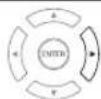
Press cursor [▶] to highlight the time.
2
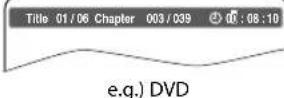
Enter the desired time.
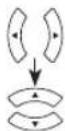
- Press cursor [◀] or [▶] to move the digit that you wish to change.
- Press cursor [▲] or [▼] to change the number.
3 Press [ENTER].
Note(s):
- The random playback will be cleared when you select time search during random playback (for CD only).
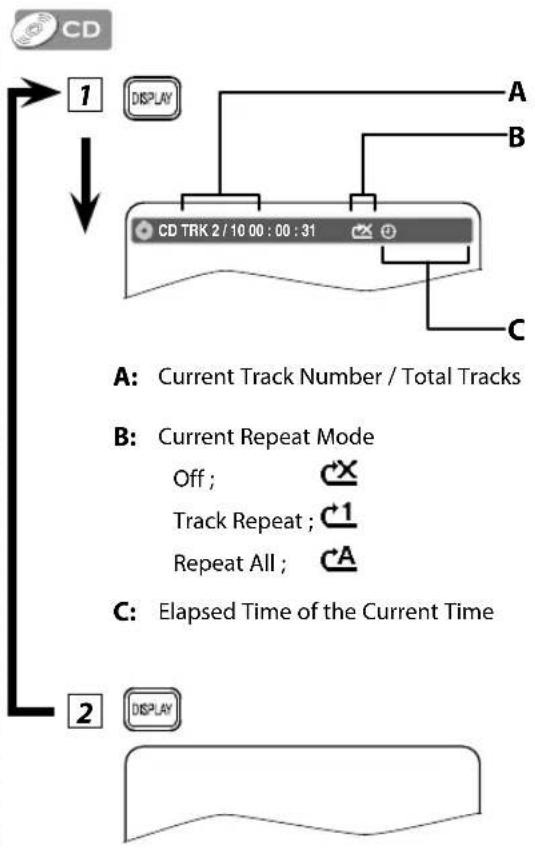
You can check the information about the current disc by pressing [DISPLAY].
![graph TD A["1: Display"] --> B["Title 00:08:101/6 Chapter 3/39"] B --> C["A: Current Title Number / Total Titles"] B --> D["B: Current Chapter Number / Total Chapters"] B --> E["C: Elapsed Time of the Current Time"] F["2: DISPLAY"] --> G["Current Language / Total Languages"] G --> H["D: Currently Se…](/content/2026/05/1054167/images/f7728bc8d99046d2feed2e90ff14d74fa8c14a74e140f60988642b45fb1cee5d.jpg)
Note(s):
- The Current Disc Information will automatically appear on the TV Screen when a CD disc is inserted.

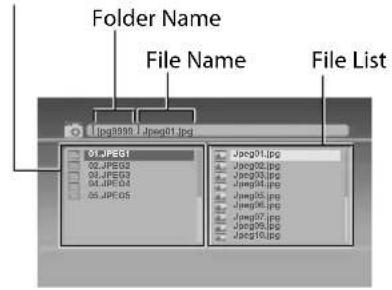
Insert a JPEG formatted disc, then the Folder/File list will automatically appear on the TV Screen.
Press [MENU] to Display the Thumbnail Screen while an available File is highlighted.
Folder List
(Thumbnail will be displayed when a File is Highlighted inside a Folder)
![graph TD A["MENU"] --> B["File Name"] C["RETURN"] --> B D["Thumbnail"] --> E["Weathering Icon 1: 407.7 (AWG)"] D --> F["Weathering Icon 2: 406.5 (AWG)"] D --> G["Weathering Icon 3: 406.5 (AWG)"] D --> H["Weathering Icon 4: 407.8 (AWG)"] D --> I["Weathering Icon 5: 407.8 (AWG)"] D --> J["Weathering I…](/content/2026/05/1054167/images/e060ab4898530e5d344dae318177093c24b26a586f1fe2cb7a60c6499857d2c5.jpg)
Press [◀◀] or [▶▶] to switch between pages. Press [RETURN] to go back to the file list.
Repeat Playback



Repeat function is available only during playback.
11![graph TD A["▶"] --> B["REPEAT"] B --> C["REP OFF"]](/content/2026/05/1054167/images/28300e4377975e0d9d047eb3445f9bb97298ff9f48bc1e55bcdb8d157855623f.jpg)
Each time you press [REPEAT], the repeat function changes as shown in the example below.
DVD![graph TD A["REP OFF (Repeat Off)"] --> B["REP CHAPTER (Current Chapter Repeat)"] B --> C["REP TITLE (Current Title Repeat)"] C --> D["REP ALL (Entire Disc Repeat)"]](/content/2026/05/1054167/images/1610320b3f837d5464a44388a6cf7803b0f95a9bac0b0294679d3bc24fb19740.jpg)
CD![graph TD A["REP OFF (Repeat Off)"] --> B["↓"] B --> C["REP 1 (Current Track Repeat)"] C --> D["↓"] D --> E["REP ALL (Entire Disc Repeat)"]](/content/2026/05/1054167/images/15dbedfce93acbfde248ab6a74eb1375120657f2408f70b40a383c218f0b525d.jpg)
JPEG![graph TD A["REP OFF (Repeat Off)"] --> B["↓"] B --> C["REP 1 (Current Track Repeat)"] C --> D["↓"] D --> E["REP DIR (Current Folder Repeat)"] E --> F["↓"] F --> G["REP ALL (Entire Disc Repeat)"]](/content/2026/05/1054167/images/09e1182876d4db4fd392412af38b793ca603baedaaada8eff61bcc58143db21b.jpg)
Repeat A-B Playback


Repeat function is available only during playback.
1![graph TD A["▶"] --> B["A-B REPEAT"] style A fill:#fff,stroke:#000 style B fill:#fff,stroke:#000 note right of B: "e.g.) DVD"](/content/2026/05/1054167/images/960c4eff38a3eac94c45d5a37abad0b63d2e187467043aad221929853400b33c.jpg)
Press [A-B] at your desired starting point (A).
2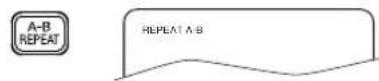
Press [A-B] again at your desired ending point (B).
- Point B should be in the Same Title or Track as Point A.
Note(s):
- To Exit the Sequence, press [A-B] so that "A-B CANCEL" appears.
Random Playback

This function Shuffles the Playing Tracks in a Random mode instead of Playback in a Sequential Track mode.
![graph TD A["▶"] --> B["MODE"] B --> C["RANDOM On"] style C fill:#f9f,stroke:#333,stroke-width:2px note bottom of C Random playback will start.](/content/2026/05/1054167/images/8ac0031ac08f9e2d4c712279db3c99112be389afa64631c6eb4aadbd78cd8bdd.jpg)
Note(s):
- During Random Playback, you cannot go back to the Previous track. Press [▶▶] to Search Tracks or Files Randomly.
Subtitle Language

This unit allows you to Select a Subtitle Language (if available) during DVD Playback.
![graph TD A["▶"] --> B["SUB TITLE"] style A fill:#fff,stroke:#000 style B fill:#fff,stroke:#000](/content/2026/05/1054167/images/119f6da08dae29c03afe90f2b19b68293bd49980143f6d201aef11e635ae06cc.jpg)
Each time you press [SUBTITLE], Subtitle Language changes as example below.
![graph TD A[": Off"] --> B["1 English"] B --> C["2 French"] C --> D[":"] style A fill:#fff,stroke:#000 style B fill:#fff,stroke:#000 style C fill:#fff,stroke:#000 style D fill:#fff,stroke:#000](/content/2026/05/1054167/images/29709fb19246e7ab7633f90a51b3cfd2a00e35810c5622ef9a126549c7e2d80d.jpg)
Note(s):
- If your language is not shown after pressing [SUBTITLE] several times, the disc may not have that language. However, some discs allow subtitle language setting on the disc menu. (Operation varies depending on the disc, so refer to the manual along with the disc.)
- When "INVALID ENTRY" appears on the TV screen, it means no subtitle is recorded on the scene.
- Some discs will only allow you to change the subtitle from the disc menu. Refer to the manual accompanying the discs for details.
Audio Language

This unit allows you to select an audio language (if multiple languages are available on a disc) during DVD playback.
![graph TD A["▶"] --> B["AUDIO"] C["○1 English D 10CH"] --> D["Output"]](/content/2026/05/1054167/images/7cf3aca9e6314d510ac5b15d680d2ca147756b6dc23d93746ed6ab6a682e4590.jpg)
Each time you press [AUDIO], the audio language changes as shown in the example below.
![graph TD A["1 English (English Audio)"] --> B["2 French (French Audio)"] B --> C["3 Spanish (Spanish Audio)"] C --> D["..."]](/content/2026/05/1054167/images/393990d87260a64b4cb2fca1bca14d548a771e64a2f82bda4d5e485054adff85.jpg)
Note(s):
- Some discs will only allow you to change the audio setting from the disc menu. Refer to the manual accompanying the discs for details.
- If your language is not shown after pressing [AUDIO] several times, the disc may not have that language. However, some discs allow audio language setting on the disc menu. (Operation varies depending on the disc, so refer to the manual accompanying the disc.)
Camera Angles

Some DVDs may contain scenes that have been shot simultaneously from various angles. You can change the camera angle if \(\text{m}\) appears on the TV screen.
![graph TD A["→"] --> B["ANGLE"] style A fill:#fff,stroke:#000 style B fill:#fff,stroke:#000 note right of A: [1/9] note right of B: 0.0](/content/2026/05/1054167/images/1d84a68a867ba22959a3dfebb90277674a9eb0b1ae641421e2fa7cc1fac6ca17.jpg)
Each time you press [ANGLE], the camera angle changes.
You can change the settings on the unit.
![```mermaid graph TD A["1 Press [SETUP"].] --> B["2 Select the desired item."] B --> C[3 Setup <SETUP menu>](/content/2026/05/1054167/images/ae13b43413e3d62b542b5014b60122617169d3aca49097b0b1969555460ab605.jpg)
SYSTEM menu, LANGUAGE menu, AUDIO menu, VIDEO menu
![graph TD A["Page 16"] --> B["Page 17"] B --> C["Page 18"] C --> D["Page 19"]](/content/2026/05/1054167/images/88a1f65f3f342bf61d83f4619305ffbc4d04372ab171913a43659af4704103ce.jpg)

System Setting
You can change the display functions. Follow steps 1 and 2 on page 15.
3. Select the desired item.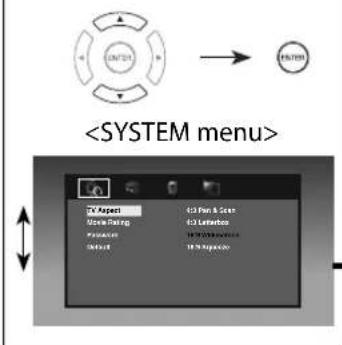
4.
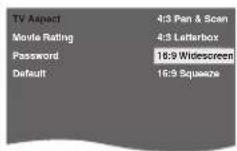
TV Aspect: (Default: 16:9 Widescreen)
Sets the aspect ratio of the playback image to fit your TV. See the note on the right.
Movie Rating: (Default: 8[X-Adult])
Sets the rating level for the disc playback.
Rating settings allows you to set the rating levels of your DVD. Playback will stop if the ratings exceed the levels you set.
- The rating level can be changed when a password has not been set yet for the first time use.
- If you have set a password already, "Movie Rating" cannot be selected.
![FUNAI DP100FX5 - Movie Rating: (Default: 8[X-Adult]) - 1](/content/2026/05/1054167/images/f379fd749853586fa3aa1fc94c17770d870ee125d6415e00dd594a32382c85f6.jpg)
![FUNAI DP100FX5 - Movie Rating: (Default: 8[X-Adult]) - 2](/content/2026/05/1054167/images/71630bb186295b45d64d1e1abeef9b603c972add700afa9221a22747dbc53d6a.jpg)
Password:
Sets the password for "Movie Rating" and "Default" settings.
- For the first time use.
- This number will be used as the password. Record in case you forget it.
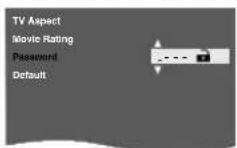

Enter any 4-digit number (except for 4737).
- Press cursor [▲] or [▼] to change the number, then press cursor ▶.
- Press cursor [◀] to erase if you input the incorrect number.
- When 4-digit numbers are entered, press [ENTER].
- A password has been set already. (💡 is displayed.)
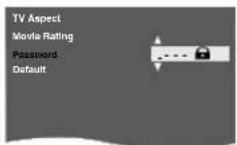

Enter your 4-digit password.
- Press cursor [▲] or [▼] to change the number, then press cursor ▶.
- When 4-digit numbers are entered, press [ENTER].
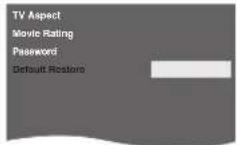
Default:
Reset to default setting.
- "Default" is not selected if you have set a password already.

5
To Exit the Menu
Note(s):
TV Aspect:
- Select "4:3 Pan & Scan" for a full height picture with both sides adjusted.
- Select "4:3 Letterbox", black bars may appear on the top and bottom of the TV screen.
- Select "16:9 Widescreen" if a wide-screen TV is connected to this unit.
- Select "16:9 Squeeze" to display 4:3 aspect ratio in the center of the 16:9 screen when playing back 4:3 images.
Password:
- If you forget the password, enter "4737" at step 4, then enter your new password.
- Playback will stop if the ratings exceed the levels you set, it will require you to enter a password before the disc will play back.
- This function is available only when 📁 displayed.
Default:
- When you do not wish to initialize, press [SETUP] to exit the menu at step 4.
B
Language Setting
Follow steps 1 and 2 on page 15.
3 Select the desired item.![graph TD A["ENTER"] --> B["ENTER"] B --> C["<LANGUAGE menu>"] C --> D["Data"] C --> E["Audio"] C --> F["Schedule"] C --> G["DVD Data"] D --> H["English"] E --> I["Chinese"] F --> J["English"] G --> K["English"]](/content/2026/05/1054167/images/7edf83e9c7f6be76c3d01165233c05235fb04ba4bafd40b1378f4870d49697f0.jpg)
4 Menu: (Default: English)
Sets the Language for the On-screen Display.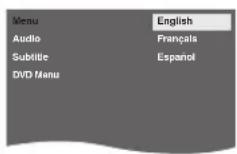
Audio: (Default: English) *1 *2 Sets the Audio Language.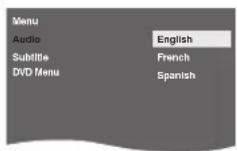
Subtitle: (Default: Off) *1 *2 Sets the Subtitle Language.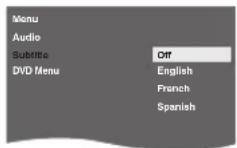
Disc Menu: (Default: English) *1 Sets the Language in DVD Menu.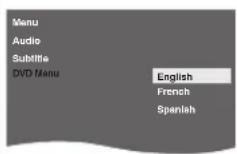
5 To Exit the Menu
Note(s):
*1
• Language options are not available with some discs. - Only the Languages supported by the disc can be selected. *2 - "LANGUAGE" setting for "Audio" and "Subtitle" are not available with some discs. If Multiple Languages are available on disc, then select [AUDIO] or [SUBTITLE] to select the desired Language. Refer to page 14 for detail.
C
Audio Setting
Choose the appropriate Audio Settings for your device. It only affects the Sound during DVD Playback. Follow steps 1 and 2 on page 15.
3 Select the desired item.![graph TD A["ENTER"] --> B["ENTER"] B --> C["Audiou Menu"] C --> D["Output"] style C fill:#f9f,stroke:#333 style D fill:#ccf,stroke:#333](/content/2026/05/1054167/images/8a8e7c375bcd0ed0a3e46a1b660fbaa89217504cce0a36d13f2903889df11482.jpg)
4
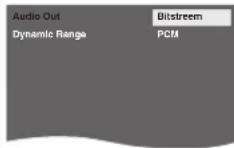
Audio Out: (Default: Bitstream)
Set to "Bitstream" when the unit is connected to a Dolby Digital decoder.
- Bitstream: outputs a Dolby Digital signals.
- PCM: convert the Dolby Digital into PCM (2 channel).
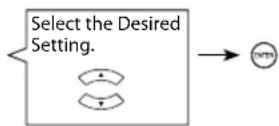
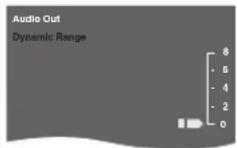
Dynamic Range (Default: 0)
Adjusts for Clarity even when the Volume is Low, by Compressing the Range of the lowest sound level and the highest sound level.
5
To Exit the Menu

Note(s):
Audio Out:
-Bitstream:
Connecting to a Dolby Digital decoder for Dolby Digital Audio output.
-PCM:
Connecting to another device (an MD deck or DAT deck etc.) without a Dolby Digital Decoder.
Convert the Dolby Digital into LPCM (2 channel).
- This unit does not support DTS audio. This is not a malfunction.
You need to set this unit to "Bitstream" in the "Audio Out" Menu and also need to Connect to a TV or Amplifier that supports DTS, then the audio will be output as DTS.
It is only available when connected via the Coaxial jack.

Video Setting
You can change the Video functions. Follow steps 1 and 2 on page 15.
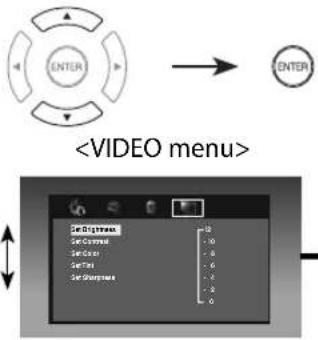
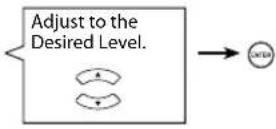
![graph TD A["3 Select the desired item."] --> B["ENTER"] B --> C["<VIDEO menu>"] C --> D["4 Set Brightness (Default: 6) Adjusts the Brightness."] D --> E["Set Contrast (Default: 6) Adjusts the Contrast."] E --> F["Set Color (Default: 0) Adjusts the Color Saturation."] F --> G["Set Tint (Default: 0) A…](/content/2026/05/1054167/images/01a6e046c26794d8c5e8e8d864f5d462570630a11aabc55e04e2713df947fb7a.jpg)
5
To Exit the Menu
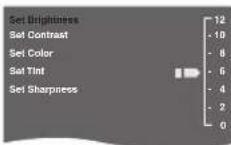
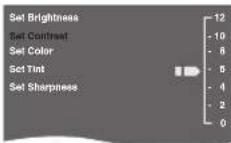
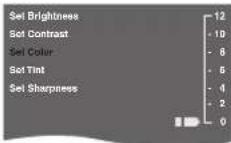
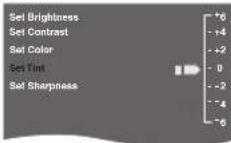
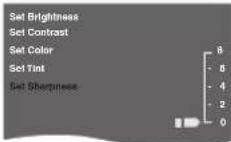
Note(s):
- The Settings will remain effective even if the unit is switched into the Standby mode.
- The effect of Picture Adjustment may differ depending on the connected TV.
INFORMATION
Troubleshooting Guide
If the Unit does not perform properly when operated as instructed in this Owner's Manual, refer to the following.
| Problem Corrective action | |
| No Power. | - Check if the AC Power cord is properly connected.- Unplug from the AC outlet, and wait for 5-10 seconds and then Plug it in again. |
| No Sound or Picture. | - Check if the TV is switched On.- Check the Video Connection.- Check the Audio / Video Cable connections to the TV.(Refer to page 7.) |
| Distorted Picture. | - Sometimes a small amount of Picture Distortion may appear.This is Not a Malfunction.- Connect the unit directly to the TV. |
| Completely Distorted Picture or Black / White Picture with DVD. | - Connect this unit directly to the TV.- Make sure the Disc is Compatible with the unit. |
| No Sound or Distorted Sound. | - Adjust the Volume.- Check that the Speakers are Connected correctly. |
| No DTS Audio is Output. | - This unit does Not support DTS Audio.This is Not a Malfunction.- You need to set this unit to "Bitstream" in "Audio Out" Menu and also need to connect to the TV or Amplifier that supports DTS, then the Audio will be output as DTS. It is only available when connected via Coaxial jack. |
| Picture Freezes Momentarily during Playback. | - Check the Disc for Fingerprints/Dirty and Clean with a Soft cloth wiping from center to edge. |
| Disc Cannot be Played back. | - Clean the Disc.- Ensure the Disc is inserted in Correct position.- Insert a Correct Type disc that Plays back on this unit.- Check if the Disc is defective by trying another disc.- Check if the Parental settings exceeds the levels you set in the "Movie Rating" setting. (for DVD only)- Handle a Disc with special care so that it does not have Fingerprints, Scratches, or Dust on its surface. |
| No Return to Start-up Screen when Disc is Removed. | - Turn Off the unit once and then restart. |
| The Unit does not Respond to the Remote Control. | - Aim the Remote Control Directly at the Sensor on the Front Panel.- Reduce the Distance to the unit.- Re-insert the Batteries with their Polarities (+ / - signs) as indicated.- Replace the Batteries in the Remote Control.- Press and Hold any buttons on the Remote Control toward a Digital Camera. The Remote Control is working if you confirm a pulsating infrared light through the Digital Camera. |
| Buttons Do Not Work or the Unit Stops Responding. | - Please attempt to Reset the unit by Unplugging the AC Power cord from the Wall outlet and then Plug it in again after 5-10 seconds. |
| The Unit Does Not Respond to some Operating Commands during Playback. | - Operations may Not be permitted by the Disc. Refer to the instructions for the disc. |
| The Unit Cannot Read CD / DVD. | - Use a commonly available Cleaning CD / DVD disc to Clean the Lens before sending the Unit for Repair. |
| Angle Does Not Switch. | - The Angle cannot be switched for a DVD which does not contain Multiple Angles. In some cases Multiple Angles are only recorded for specific Scenes. |
| The Password for Rating Level has been Forgotten. | - Enter the Default Password "4737", then your Forgotten Password will be Cleared. Then the Rating Level plus Password will have to be set again. |
- Some Functions are not available in Specific modes, but this is Not a Malfunction. Read the description in this Owner's Manual for more details on Correct Operation's.
- Not all Functions are available for all Commercial discs.
Specifications
Output Signal Format:
NTSC color
Power Source:
120 V AC + / - 10%, 60 Hz + / - 0.5%
Power Consumption:
7 W (standby : 0.9 W)
Operating Temperature:
41°F (5 °C) to 104°F (40 °C)
Dimensions:
W: 9.9 inches (250 mm)
H: 2.0 inches (50.2 mm)
D: 7.4 inches (187.7 mm)
Weight:
Approx 1.95 lbs. (0.88 kg)
- Designs and Specifications are subject to change without notice.
- If there is a Discrepancy between Languages, the default Language will be English.
FUNAI CORP. will repair this product, free of charge in the USA in the event of defect in materials or workmanship as follows:
DURATION:
PARTS: FUNAI CORP. will provide parts to replace defective parts without charge for one (1) year from the date of original retail purchase. Certain parts are excluded from this warranty.
LABOR: FUNAI CORP. will provide the labor without charge for a period of ninety (90) days from the date of original retail purchase.
Note: Any product sold and identified as refurbished or renewed carries a ninety (90) days labor and parts limited warranty.
LIMITS AND EXCLUSIONS:
THIS WARRANTY IS EXTENDED ONLY TO THE ORIGINAL RETAIL PURCHASER. A PURCHASE RECEIPT OR OTHER PROOF OF ORIGINAL RETAIL PURCHASE WILL BE REQUIRED TOGETHER WITH THE PRODUCT TO OBTAIN SERVICE UNDER THIS WARRANTY.
This warranty shall not be extended to any other person or transferee.
This warranty is void and of no effect if any serial numbers on the product are altered, replaced, defaced, missing or if service was attempted by an unauthorized service center. This limited warranty does not apply to any product not purchased and used in the United States.
This warranty only covers failures due to defects in material or workmanship which occur during normal use. It does not cover damage which occurs in shipment, or failures which are caused by repairs, alterations or products not supplied by FUNAI CORP., or damage, which results from accident, misuse, abuse, mishandling, misapplication, alteration, faulty installation, improper maintenance, commercial use such as hotel, rental or office use of this product, or damage which results from fire, flood, lightning or other acts of God.
THIS WARRANTY DOES NOT COVER PACKING MATERIALS, ANY ACCESSORIES (EXCEPT REMOTE CONTROL), ANY COSMETIC PARTS, COMPLETE ASSEMBLY PARTS, DEMO OR FLOOR MODELS.
FUNAI CORP. AND ITS REPRESENTATIVES OR AGENTS SHALL IN NO EVENT BE LIABLE FOR ANY GENERAL, INDIRECT OR CONSEQUENTIAL DAMAGES ARISING OUT OF OR
OCCASIONED BY THE USE OF OR THE INABILITY TO USE THIS PRODUCT. THIS WARRANTY IS MADE IN LIEU OF ALL OTHER WARRANTIES, EXPRESS OR IMPLIED, AND OF ALL OTHER LIABILITIES ON THE PART OF FUNAI, ALL OTHER WARRANTIES INCLUDING THE WARRANTY OF MERCHANTABILITY AND FITNESS FOR A PARTICULAR PURPOSE, ARE HEREBY DISCLAIMED BY FUNAI AND ITS REPRESENTATIVES IN THE UNITED STATES. ALL WARRANTY INSPECTIONS AND REPAIRS MUST BE PERFORMED BY AN AUTHORIZED SERVICE CENTER.
THIS WARRANTY IS ONLY VALID WHEN THE UNIT IS CARRIED-IN TO AN AUTHORIZED SERVICE CENTER.
THE PRODUCT MUST BE ACCOMPANIED BY A COPY OF THE ORIGINAL RETAIL PURCHASE RECEIPT. IF NO PROOF OF PURCHASE IS ATTACHED, THE WARRANTY WILL NOT BE HONORED AND REPAIR COSTS WILL BE CHARGED.
IMPORTANT:
THIS LIMITED WARRANTY GIVES YOU SPECIFIC LEGAL RIGHTS. YOU MAY HAVE OTHER RIGHTS THAT VARY FROM STATE TO STATE. IF, AT ANY TIME DURING THE WARRANTY PERIOD, YOU ARE UNABLE TO OBTAIN SATISFACTION WITH THE REPAIR OF THIS PRODUCT, PLEASE CONTACT FUNAI CORP.
ATTENTION:
FUNAI CORP. RESERVES THE RIGHT TO MODIFY ANY DESIGN OF THIS PRODUCT WITHOUT PRIOR NOTICE.
WARRANTY STATEMENT REGARDING NON-AUTHORIZED REPAIRS:
To obtain warranty service, you must take the product, or deliver the product freight prepaid, in either its original packaging or packaging affording an equal degree of protection, to any AUTHORIZED SERVICE CENTER. FUNAI CORP. will not reimburse you for any service done by unauthorized service providers without prior written approval.
To locate your nearest AUTHORIZED SERVICE CENTER or for general service inquiries, please contact us at:
FUNAI SERVICE CORPORATION
Tel: 1-877-39-Funai (1-877-393-8624)
www.funaiamerica.com
2200 Spiegel Drive, Groveport, OH 43125

- DVD PLAYER DP100FX
- SUPPLIED ACCESSORIES
- CONNECTING TO RF MODULATOR (NOT SUPPLIED)
- NOTE(S)
- SETUP
- DVD FUNCTIONS
- INFORMATION
- PRECAUTIONS
- WARNING
- CAUTION
- RISK OF ELECTRIC SHOCK DO NOT OPEN
- IMPORTANT SAFETY INSTRUCTIONS
- FCC WARNING
- RADIO-TV INTERFERENCE
- DISCONNECT THE MAINS (AC) PLUG TO SHUT OFF WHEN FINDING TROUBLE OR NOT IN USE. THE MAINS (AC) PLUG SHALL REMAIN READILY OPERABLE
- LASER SAFETY
- IMPORTANT COPYRIGHT INFORMATION
- TO AVOID THE HAZARDS OF ELECTRICAL SHOCK AND FIRE
- LOCATION AND HANDLING
- DEW CONDENSATION WARNING
- NOTE ABOUT RECYCLING
- TRADEMARK INFORMATION
- SYMBOLS USED IN THIS MANUAL
- MAINTENANCE
- SERVICING
- CLEANING THE CABINET
- CLEANING DISCS
- CLEANING THE DISC LENS
- DISC HANDLING
- UNPLAYABLE DISCS
- NEVER PLAY BACK THE FOLLOWING DISCS AS A MALFUNCTION MAY RESULT
- ON THE FOLLOWING DISC, THE SOUND MAY NOT BE HEARD
- CONNECTIONS
- SUPPLIED CABLES USED IN THIS CONNECTION ARE AS FOLLOWS
- AFTER CONNECTING TO YOUR TV
- INPUT MODES FOR COMMON TV BRANDS
- CONNECTION TO AN AUDIO SYSTEM
- DIGITAL AUDIO CONNECTION
- INSTALLING THE BATTERIES FOR THE REMOTE CONTROL
- PLEASE NOTE
- PLAYBACK
- BEFORE
- DISC MENU
- CALLING UP A MENU SCREEN DURING PLAYBACK
- RESUME PLAYBACK
- PAUSE AND STEP-BY-STEP PLAYBACK
- FAST FORWARD / REVERSE SEARCH
- SLOW FORWARD SEARCH
- ZOOM
- SEARCH FUNCTIONS
- USING TRACK / FILE SEARCH
- USING [SEARCH/NUMBER]
- USING [ |◀◀, ▶▶▶ ] (SKIP)
- USING TITLE / CHAPTER SEARCH
- USING [ ◀◀◀, ▶▶▶ ] (SKIP)
- USING TIME SEARCH
- REPEAT PLAYBACK
- REPEAT A-B PLAYBACK
- RANDOM PLAYBACK
- SUBTITLE LANGUAGE
- AUDIO LANGUAGE
- CAMERA ANGLES
- SYSTEM SETTING
- TV ASPECT: (DEFAULT: 16:9 WIDESCREEN)
- MOVIE RATING: (DEFAULT: 8[X-ADULT])
- PASSWORD
- DEFAULT
- TV ASPECT
- B
- LANGUAGE SETTING
- C
- AUDIO SETTING
- AUDIO OUT: (DEFAULT: BITSTREAM)
- DYNAMIC RANGE (DEFAULT: 0)
- AUDIO OUT
- VIDEO SETTING
- TROUBLESHOOTING GUIDE
- SPECIFICATIONS
- OUTPUT SIGNAL FORMAT
- POWER SOURCE
- POWER CONSUMPTION
- OPERATING TEMPERATURE
- DIMENSIONS
- WEIGHT
- DURATION
- LIMITS AND EXCLUSIONS
- IMPORTANT
- ATTENTION
- WARRANTY STATEMENT REGARDING NON-AUTHORIZED REPAIRS
Brand : FUNAI
Model : DP100FX5
Category : DVD player