ZiiO - Graphic tablet CREATIVE - Free user manual and instructions
Find the device manual for free ZiiO CREATIVE in PDF.


User questions about ZiiO CREATIVE
0 question about this device. Answer the ones you know or ask your own.
Ask a new question about this device
Download the instructions for your Graphic tablet in PDF format for free! Find your manual ZiiO - CREATIVE and take your electronic device back in hand. On this page are published all the documents necessary for the use of your device. ZiiO by CREATIVE.
USER MANUAL ZiiO CREATIVE
■ Your Device at a Glance
- Charging
■ Assembling the Power Adapter
■ Turning On/Off, Unlocking
■ Setting to Sleep and Waking Up
■ Connecting to a Computer
Navigating your Device
■ Screen Gestures
■ About the Screen Layers and Panels
■ About the Application Screen
■ Navigation Buttons
■ Icons on the Status Bar
■ Notification Panel
- Entering Text
■ Context Menus
Customizing the Panels
■ Changing the Wallpaper
■ Adding an Item
■ Moving an Item
■ Customizing the Quick Launch Bar
Pure Android Audio
E-Books
■ Using ZiiAcademy
■ Importing E-Books From Your Computer
■ Deleting an E-Book
Browsing the Internet
■ Connecting to a Wi-Fi Network
■ Using the Browser
Videos, Music, and Photos
■ Transferring Files from Your Computer
■ Viewing Videos, Photos, and Listening to Music
■ Deleting Media Files
Exploring ZiiO's Contents
Installing More Applications
Settings
■ Accessing the Settings Screen
■ Changing the Screen and Keyboard Language
■ Setting the Screen Brightness, Timeout, and Orientation
■ Customizing the Sounds
■ Setting the Date and Time
■ Turning On/Off the Bluetooth® Wireless Feature
■ More About Your Device
Safety and Regulatory Information
Licence and Copyright
Introduction
ZiiO is a portable entertainment center, an Internet access, a game station, an e-book reader, and much more. This versatile touchscreen tablet runs the Android™ operating system, enabling you to easily install more applications from thousands of cool choices on the Web.
Getting Started
Your Device at a Glance
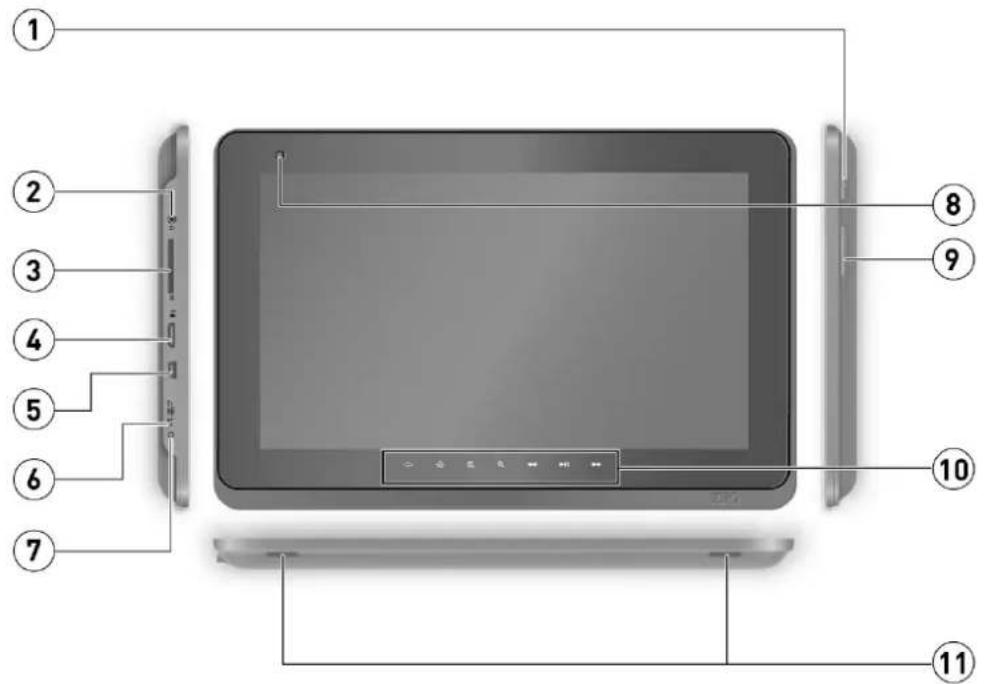
| 1 | Power On/OffPress to turn on.Press and hold to turn off.Wake Up / SleepPress to wake up or set to sleep.ResetIf your ZiiO tablet stops responding, press and hold for approximately 10 seconds. |
| 2 Earphone Jack | |
| SD Card SlotInsert an SD card to increase your tablet's memory. | |
| 3 | Important:If your device is on and you want to eject the SD card, press ≡, tap Settings > SD card & local storage > Unmount external SD card. |
| 4 | HDMI PortConnects to a HDMI-supported TV or monitor. |
| 5 | USB PortConnects your device to a computer. |
| 6 | LEDTurns on when charging.Turns off when fully charged. |
| 7 | Power Adapter JackConnects to a power outlet for charging. |
| 8 Camera | |
| 9 | VolumePress + or – to adjust the volume. |
| 10 | Function and Media ButtonsSee Function and Media Buttons. |
| 11 Stereo Speakers | |
Back to top
Charging
Before you turn on your device for the first time, charge it from a wall socket with the use of the included power adapter. Initial charging may take up to 6 hours. The LED is turned on while your device is charging. The LED turns off when the battery is full.
Note:
It is normal for your ZiiO tablet to become warm while charging.
Assembling the Power Adapter
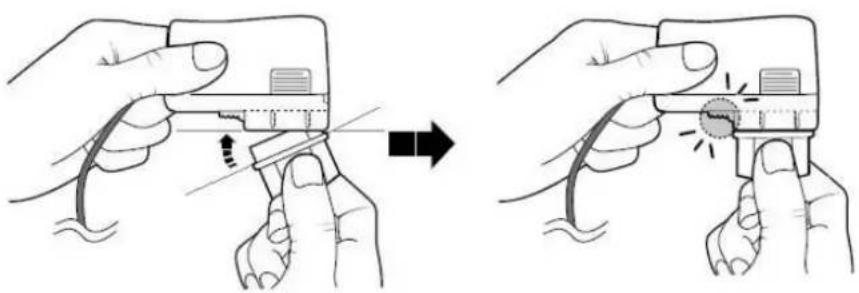
If there are several plug heads available, select one that matches your wall socket. Mount the plug head onto the power adapter base until it locks in place. Note that the plug head must be inserted approximately at the same angle as shown in the figure below. After locking, make sure that it is firmly secured.
natural_image
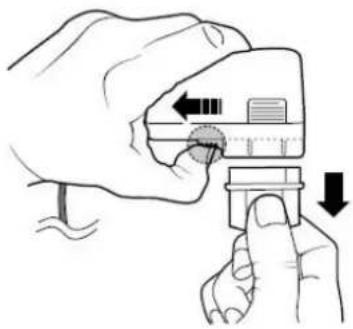
Illustration showing two hands holding a device before and after using a tool, with no visible text or symbols.If you need to remove the plug head from the power adapter base, pull the latch to release the plug head, and gently remove it from the base.
natural_image
Illustration of hands using a measuring tool to adjust a component (no text or symbols visible)Power Adapter Information
Input Rating: 100 - 240 VAC 50/60Hz 400mA
Output Rating: 5 VDC, 2A
Back to top
Turning On/Off, Unlocking
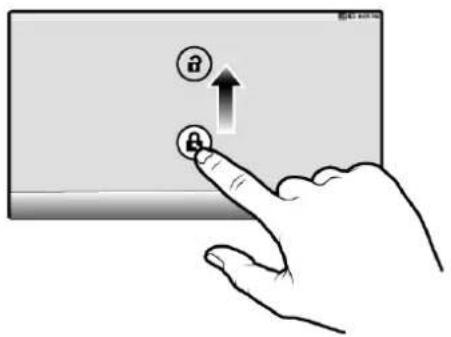
To turn on, press the Power button. Notice that the screen is locked every time your ZiiO tablet turns on, as denoted by the Lock icon
To unlock, touch and drag the Lock icon towards the Unlock icon.
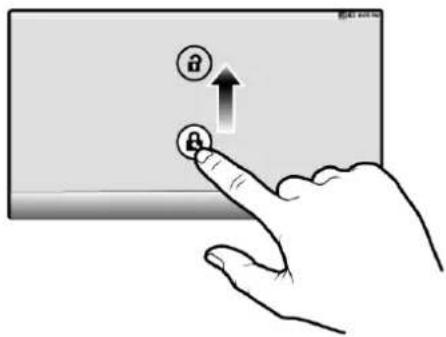
To turn off your device, press ☐, and tap Shutdown > Power off > OK. Alternatively, you can press and hold the Power button, and tap Power off > OK.
Back to top
Setting to Sleep and Waking Up
To let ZiiO sleep, press the Power button. The screen turns off as your device goes into Sleep mode.
Note:
To conserve battery power, your device automatically goes into Sleep mode after a certain preset period of inactivity. To set the time duration before your device automatically sleeps, see Setting the Screen Brightness, Timeout, and Orientation.
To wake your device up, press the Power button. Note that the screen is locked every time your device wakes up. To unlock, touch and drag the Lock icon towards the Unlock icon.
Back to top
Connecting to a Computer
-
Connect your device to the computer with the use of the included USB cable.
-
On the device, touch Mount on the popup box that appears.
Your device will appear as a removable disk drive on your computer. If a SD card is inserted on the device, this will appear as another disk drive.
Back to top
Navigating your Device
Screen Gestures
| Gesture What it does | |
| Tap / Touch | Select an item.Start an application.Enter characters using the on-screen keyboard. |
| Touch and hold | "Lift" an item from the screen panels so that you can drag it somewhere else.Shows the context menu for certain items.Shows the context menu when you touch and hold an empty space on the panels. |
| Drag | Slowly pan through a photo that is larger than the screen.Slowly scroll through a list.Pull down the Status bar to see the Notification panel. SeeNotification Panel. |
| Swipe | Pan through a photo or Web page.Move from one panel to the next.Scroll through a list. |
| Double-tap | Zoom in on or zoom out from a photo or Web page. |
Back to top
About the Screen Layers and Panels
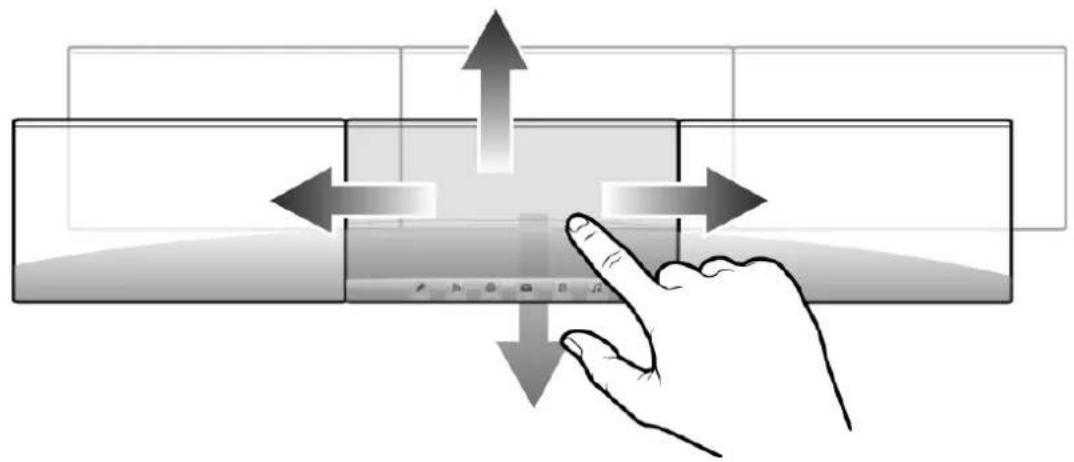
The entire screen consists of 2 layers with 3 panels each.
• To see the next panel, slide the screen to the left or right.
• To bring up the second layer, slide your finger upwards.
• To return to the first layer, slide downwards.
natural_image
Hand interacting with a transparent rectangular object, showing directional arrows and a central screen (no text or symbols)The panels are customizable, where you can add your choice of application icons, widgets, and other items.
See also Customizing the Panels.
Back to top
About the Application Screen
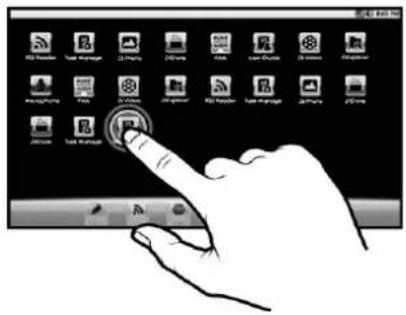
The Application screen contains all the applications that are currently installed on your ZiiO. To show or hide the Application screen, tap or .
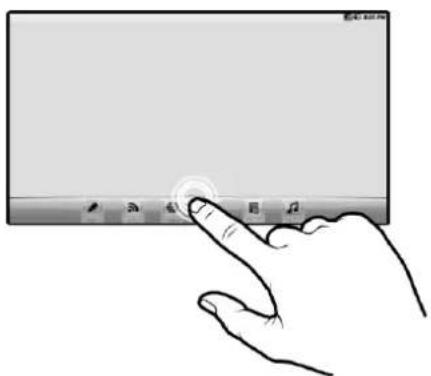
To start an application, tap the application's icon.
Function and Media Buttons
| HomePress to return to the Home panel at any time.Press and hold to display recently opened applications. | |
| MenuPress to display the menu available for the current screen.Press and hold to show the on-screen keyboard. | |
| BackPress to return to the previous screen. | |
| SearchPress to search for items on your device or the Web. | |
| Play/PausePress to play or pause a video, music, or photo slide show. | |
| ForwardWhen viewing photos, press to view the next photo.When watching videos or listening to music, press and hold to fast-forward. | |
| RewindWhen viewing photos, press to view the previous photo.When watching videos or listening to music, press and hold to rewind. |
Back to top
Icons on the Status Bar
| Icon Meaning | |
| Alarm is turned on | |
| Battery status | |
| Wi-Fi feature is enabled | |
| Bluetooth wireless feature is enabled | |
| New e-mail message | |
| Connected via USB Cable | |
| Music is playing | |
| More notifications not displayed | |
| Upcoming event | |
 | Uploading data |
 | Downloading data |
 | New notifications |
 | Finished downloading |
 | Memory card is full |
 | Connected to a VPN |
 | Disconnected from the VPN |
 | An open Wi-Fi network is available |
Back to top
Notification Panel
The Notification panel contains a list of your current notifications. To view the notification panel, press and tap Notifications.
Alternatively, you can touch and hold the Status bar, and then drag it down to show the Notification panel.
Back to top
Entering Text
When you need to enter text such as a password or a URL (on the Browser), simply tap the text box. This brings up the on-screen keyboard.
If you want to select another keyboard language, touch and hold the text box.
Back to top
Context Menus
The context menu contains tools and options that apply to certain items on the screen. For example, touch and hold an empty area on the panels, and a context menu pops up.
Note that not all items have context menus.
Back to top
Customizing the Panels
Changing the Wallpaper
- Press ⬆ make sure you are on the Home panel.
- Press
- Tap Wallpaper and select the wallpaper location.
- Tap a wallpaper of your choice.
When selecting from your own set of image files, you can still set the coverage of the wallpaper. Notice that the selected image has initial borders that show the coverage area. Touch and drag the border lines to increase the area. To drag the box to a specified location without increasing the coverage, touch and hold the center of the box.
Back to top
Adding an Item
You can fill the different panels (for both top and bottom layers) with your choice of icons, widgets, and other items.
- Press to make sure you are on the Home panel.
- Slide to the panel where you want to add an item.
- Press
- Tap Add.
- From the popup box, select the item type, followed by the item to be added on the screen.
Back to top
Moving an Item
Touch and hold an item until it appears to vibrate. Drag and drop it into a vacant spot on the screen.
Back to top
Removing an Item
Touch and hold an item until it appears to vibrate, and drag it into the trash bin icon that appears at the bottom of the screen.
Note:
This procedure refers to removing items from the customizable panels only. To uninstall an application from your ZiiO, see Installing More Applications.
Back to top
Customizing the Quick Launch Bar
You can customize the Quick Launch bar so that it contains your favorite applications.
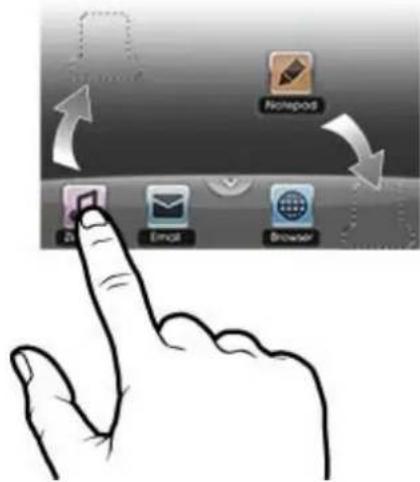
-
Press to show the Application screen.
-
Press
-
Tap Edit.
-
Freely drag icons to and from the Quick Launch bar and the Application screen.
-
When you have finished, press .
Pure Android Audio
The Pure Android Audio widget gives you easy access to the Bluetooth wireless technology and X-Fi settings. You can instantly connect to your Bluetooth wireless technology enabled devices such as speakers and sound systems, and at the same time, you can immediately turn on/off the X-Fi enhancements.

• To turn on or off the Bluetooth wireless feature, tap ✪.
- To connect to an available device within range, tap the second segment (in the example above – "ZiiSound D5"), and tap the device on the popup list.
Note that the Bluetooth wireless feature on both your ZiiO and the other device should be turned on.
• To turn on or off the X-Fi enhancement, tap
• To show the Pure Android Audio settings panel, tap 📷.
Note:
Alternatively, you can access the Bluetooth wireless settings from the Settings menu. Refer to Turning On/Off the Bluetooth Wireless Feature.
About X-Fi
X-Fi (Xtreme Fidelity) is a new audio standard from Creative that enhances your music and movies. ZiiO's X-Fi enhancement consists of 2 components:
- X-Fi Crystalizer. Intelligently restores details that were lost during compression of audio files. It makes audio richer and clearer, delivering sound that is closer to the original quality.
- X-Fi Expand. Gives audio a realistic and natural feel, akin to a live performance on stage.
Note:
When using your ZiiO together with other X-Fi enhanced accessories (such as X-Fi headphones or external speakers), make sure that X-Fi is enabled on either the ZiiO tablet or the accessory only.
Back to top
E-Books
Using ZiiAcademy
ZiiAcademy is an e-book solution that comes with ZiiO. It enables you to read, download, and manage your e-books.
To start ZiiAcademy, tap its icon on the Application screen (or anywhere available). Notice that the e-book covers are initially displayed on the screen. You can switch between a thumbnail or cover flow view by tapping :or .
- To browse through the covers when in cover flow view , swipe to the left or right. In thumbnail view , swipe up or down.
■ To open a book, tap the cover.
■ To flip through the pages, swipe your finger across the page.
You can also tap the left or right edge of the page to flip to the previous or next page.
■ To view more options, tap twice on the center of a page.
Back to top
Importing E-Books From Your Computer
- Connect ZiiO to your computer.
Refer to Connecting to a Computer. - From your computer, copy e-book files into the /ziiacademy/import folder on your device.
- Press, followed by.
- Tap Notifications > Turn off USB storage > Turn off.
- On your computer, click the Safely Remove Hardware icon on the Notifications area, and then proceed to safely disconnect the ZiiO disk drive.
- Disconnect ZiiO from the USB port.
- On ZiiO, start ZiiAcademy.
- Tap followed by Import Books.
The newly copied books are then added to ZiiAcademy's library.
Deleting an E-Book
- Go to ZiiAcademy's main window.
- If you are in the cover flow view, make sure the book you want to delete has its cover on display.
If you are in the thumbnail view □□□, tap on the cover.
- Tap Delete, and select Delete Book to confirm.
Back to top
Browsing the Internet
Connecting to a Wi-Fi Network
- Press followed by.
-
Tap Settings > Wireless & networks > Wi-Fi settings.
-
Tap Wi-Fi to turn it on. Your device automatically scans for Wi-Fi networks within range. The 📋 icon on the Status bar indicates that the Wi-Fi feature is on.
-
Tap the Wi-Fi network that you want to join. If you are prompted for the password, tap the text box to bring up the keyboard, type the password, and tap Connect.
If you need further assistance, contact your network administrator.
Back to top
Using the Browser
- Tap the Browser icon.
- Tap the URL bar to bring up the on-screen keyboard.
- Enter the URL of the Web page you want, and tap Go.
Tip: To zoom in on or zoom out from a Web page, double-tap the screen.
Back to top
Videos, Music, and Photos
Transferring Files from Your Computer
- Connect your device to your computer. Refer to Connecting to a Computer.
- Select media files from your computer, and copy the files to the ZiiO's internal memory or SD card. You can organize your media files into any folder that you prefer.
- When you are done, click the Safely Remove Hardware icon on your computer to disconnect ZiiO properly.
Back to top
Viewing Videos, Photos, and Listening to Music
To watch videos, view photos, or listen to music, start the ZiiVideo, ZiiPhoto, and ZiiMusic applications respectively. Alternatively, you can use ZiiExplorer to navigate to the folder containing the media file, and then open it from there. See Exploring ZiiO's Contents.
Back to top
Deleting Media Files from ZiiO
You can delete media files with the use of the ZiiExplorer application. See Exploring ZiiO's Contents.
Exploring ZiiO's Contents
Tap the ZiiExplorer icon to start the application. You can explore the contents of your device in a similar manner as you would do on a computer. Among other tasks, you can copy, move, or delete files.
Back to top
Installing More Applications
Aside from applications that were preinstalled on your device, you can download and install more applications and games that are specifically developed for Android devices. Installers are usually in APK (.apk) format.
To install
- Download or copy the APK (.apk) file into your ZiiO's SD memory card or internal memory.
- With the use of ZiiExplorer, navigate to the folder where you copied the file into.
- Tap the APK file to automatically start installation.
An icon for the newly installed application is added on the Application screen.
To uninstall
- Press, followed by.
- Tap Settings > Applications > Manage applications.
- Tap the application you want to remove.
- Tap Uninstall, and tap OK to confirm.
Back to top
Settings
Accessing the Settings Screen
You can enable or disable features, and personalize your ZiiO from the Settings screen, which contains several menu items that are typical of Android.
- Press, followed by.
- Tap Settings.
Back to top
Changing the Screen and Keyboard Language
- Press followed by .
- Tap Settings > Language & keyboard.
- Select your locale and keyboard.
Note:
The language settings apply only to certain applications.
Back to top
Setting the Screen Brightness, Timeout, and Orientation
- Press followed by .
- Tap Settings > Sound & display.
- Under the Display settings section, select the options and settings that you prefer.
Back to top
Customizing the Sounds
- Press followed by .
- Tap Settings > Sound & display.
- Under the Sound settings section, select the options and settings that you prefer.
Back to top
Setting the Date and Time
- Press followed by .
- Tap Settings > Date & time.
- Set the date and time, and other settings that you prefer.
Back to top
Turning On/Off the Bluetooth® Wireless Feature
- Press followed by .
- Tap Settings > Wireless & networks > Bluetooth settings.
- Tap Bluetooth to turn on/off the Bluetooth wireless feature.
You will see ✪ on the Status bar when this feature is on.
Back to top
More About Your Device
- Press followed by .
- Tap Settings > About.
For more information, important updates, FAQs, and customer support services, visit www.creative.com/getstarted/ziio10.
For tips, tricks, and other exciting stuff, tap ZiiO Space and browse the ZiiO Space Web site.
Back to top
Safety and Regulatory Information
License and Copyright
Creative, the Creative logo, ZiiO, ZiiSound, and X-Fi are trademarks or registered trademarks of Creative Technology Ltd in the United States and/or other countries. The Bluetooth word mark and logo are owned by Bluetooth SIG, Inc, and any use of such marks by Creative Technology Ltd is under license. Android and the Android Robot is a trademark of Google Inc. apt-X is a trademark of APT Licensing Ltd. All other trademarks are the property of their respective owners and are hereby recognized as such. All specifications are subject to change without notice. Actual product may differ slightly from images shown.
Copyright © 2011 Creative Technology Ltd. All rights reserved.
Version 1.00.03
January 2011